<?xml version="1.0" encoding="UTF-8"?>
<feed xml:lang="en" xmlns="http://www.w3.org/2005/Atom" xmlns:opensearch="http://a9.com/-/spec/opensearch/1.1/" xmlns:s="http://jadedpixel.com/-/spec/shopify">
  <id>https://iceesocial.com/blogs/icee-social-blog.atom</id>
  <link rel="alternate" type="text/html" href="https://iceesocial.com/blogs/icee-social-blog"/>
  <link rel="self" type="application/atom+xml" href="https://iceesocial.com/blogs/icee-social-blog.atom"/>
  <title>ICEE Social - The ICEE Social Blog</title>
  <updated>2026-02-10T13:53:08-05:00</updated>
  <author>
    <name>ICEE Social</name>
  </author>
  <entry>
    <id>https://iceesocial.com/blogs/icee-social-blog/how-to-set-up-shopify-ucp-for-agentic-search-the-icee-social-guide-to-ai-driven-sales</id>
    <published>2026-02-10T13:53:08-05:00</published>
    <updated>2026-02-10T14:03:40-05:00</updated>
    <link rel="alternate" type="text/html" href="https://iceesocial.com/blogs/icee-social-blog/how-to-set-up-shopify-ucp-for-agentic-search-the-icee-social-guide-to-ai-driven-sales"/>
    <title>How to Set Up Shopify UCP for Agentic Search: The ICEE Social Guide to AI-Driven Sales</title>
    <author>
      <name>Mark Perini</name>
    </author>
    <content type="html">
      <![CDATA[<p>At <b>ICEE Social</b>, we believe that UCP isn't the end of the road for your website; rather, it's the <b>AI superhighway</b> that will bring high-intent customers to your website that never would have been prospects in the past. We view the <b>Universal Commerce Protocol (UCP)</b> as a lighthouse designed to spotlight your brand in a sea of competitors. The best part? Just by being on Shopify, you're already ahead of the game. We are moving from a world of <b>"search and click"</b> to a world of <b>"ask and buy,"</b> and Shopify's new UCP is the bridge that puts your products directly into AI conversations.</p>
<h2>What is UCP?</h2>
<p>The Universal Commerce Protocol is a transformative open standard built in partnership with Google that automatically connects your store to AI agents across <b>Google Search, Gemini, Microsoft Copilot, and ChatGPT</b>. Instead of managing individual integrations, UCP allows your products to be discovered and purchased directly within AI conversations where customers are already shopping. It handles complex checkout flows—including discount codes, loyalty credentials, &amp; subscriptions with zero integration friction.</p>
<p><meta charset="utf-8"><meta charset="utf-8">Essentially, agentic commerce transforms every conversational interface into a sales channel with zero integration friction, giving you native presence wherever customers have conversations while maintaining full control from your admin panel.</p>
<hr>
<h2>Step 1: Activating Your Agentic Presence</h2>
<p>To turn your store into a lighthouse for AI discovery, you must first enable the infrastructure within your admin.</p>
<ol>
<li>Navigate to <b>Settings</b> → <b>Sales Channels</b>.</li>
<li>Look for the <b>"Introducing agentic storefronts"</b> module.</li>
<li>Click <b>Preview products</b> to see exactly how your catalog appears to AI agents. The global Shopify Catalog uses your default listings automatically, so no heavy setup is required to start.</li>
</ol>
<p><strong>Visual guide below: </strong></p>
<div style="text-align: left;"><img src="https://cdn.shopify.com/s/files/1/1068/2484/files/Screenshot_2026-02-10_at_8.55.08_AM_1024x1024.png?v=1770731769" alt="" style="float: none;"></div>
<p><meta charset="utf-8"><meta charset="utf-8">This is a free platform change where you could potentially add Agentic Description into a metafield and the agents can reference that instead of the natural description.</p>
<p><img src="https://cdn.shopify.com/s/files/1/1068/2484/files/Screenshot_2026-02-10_at_8.55.21_AM.png?v=1770731772" alt=""></p>
<p><meta charset="utf-8"><meta charset="utf-8">Here's the product specific information and how you map it:</p>
<p><img src="https://cdn.shopify.com/s/files/1/1068/2484/files/Screenshot_2026-02-10_at_8.55.28_AM.png?v=1770731775" alt=""></p>
<p dir="ltr"><span>You can also update the grouping or the options and where that should all be pulled from. </span></p>
<h2>
<img src="https://cdn.shopify.com/s/files/1/1068/2484/files/Screenshot_2026-02-10_at_8.55.39_AM.png?v=1770731777" alt="">Step 2: Optimizing with "Agentic Descriptions" (AGO)</h2>
<p>Traditional SEO helps humans find you; <b>Agentic Growth Optimization (AGO)</b> ensures AI agents recommend you. At ICEE Social, we specialize in mapping your data so that AI agents see the most relevant information first.</p>
<ul>
<li>
<b>Custom Mapping:</b> You can map where you want the product description, title, and category to come from.</li>
<li>
<b>Agentic Metafields:</b> We recommend creating a specific metafield for an "Agentic Description". By mapping this field in your <b>Default Listing</b> settings, you can feed AI agents technical specs and high-intent data that might not belong in your front-end marketing copy.</li>
<li>
<b>Precision Grouping:</b> You can also update product grouping and options to ensure the Shopify Catalog remains in perfect sync with your storefront.</li>
</ul>
<h2>Step 3: Fueling the AI Knowledge Base</h2>
<p>An AI agent can only sell what it understands. To ensure agents represent your brand accurately, you need to manage your backend "brain" via the <a href="https://apps.shopify.com/shopify-knowledge-base" title="Shopify Knowledge Base App" rel="noopener" target="_blank"><b>Shopify Knowledge Base app</b>.</a></p>
<ul>
<li>
<b>Backend Intelligence:</b> This is not a customer-facing widget; it is a system that allows you to customize the information AI agents use when shoppers ask about your products, policies, and store details.</li>
<li>
<b>Strategic FAQs:</b> The app automatically generates FAQs based on your store settings and allows you to create custom answers to highlight your unique value propositions.</li>
<li>
<b>Analytics:</b> You can view analytics to see exactly what buyers are asking through AI agents, helping you refine your data to capture even more high-intent traffic.</li>
</ul>
<hr>
<h3>Let ICEE Social Spotlight Your Brand</h3>
<p>UCP is the superhighway, and <b>ICEE Social</b> is the partner that ensures your brand is positioned to lead the pack. We don't just "set up" accounts; we architect entire commerce systems designed for the future of search.</p>
<p>We can help you with:</p>
<ul>
<li>
<b>AGI Strategy</b>: Developing a long-term plan for Agentic Growth Optimization (AGO) to prepare your brand for the autonomous shopping era.
</li>
<li>
<b>Site Migrations</b>: Comprehensive technical migrations—including complex moves from Salesforce Commerce Cloud to Shopify Plus—that protect your SEO and data integrity.
</li>
<li>
<b>Design &amp; Development</b>: Creating high-converting storefronts and technical solutions tailored to your specific business requirements.
</li>
</ul>
<hr>
<h3>Let ICEE Social Power Your Agentic Future</h3>
<p>Setting up UCP is simple, but <i>optimizing</i> it for maximum ROI requires a strategic touch.</p>
<p>At <b>ICEE Social</b>, we specialize in the technical SEO and metadata architecture required to win in the agentic era. We are here to help! </p>
<p><b>Ready to turn every AI conversation into a sales channel? <a href="https://iceesocial.com/pages/contact" rel="noopener" target="_blank">Contact us today</a> to schedule an AI Commerce Audit.</b></p>]]>
    </content>
  </entry>
  <entry>
    <id>https://iceesocial.com/blogs/icee-social-blog/how-we-helped-bring-nostaligia-back-to-a-beloved-toy-brand</id>
    <published>2025-05-08T17:41:01-04:00</published>
    <updated>2025-05-08T17:41:04-04:00</updated>
    <link rel="alternate" type="text/html" href="https://iceesocial.com/blogs/icee-social-blog/how-we-helped-bring-nostaligia-back-to-a-beloved-toy-brand"/>
    <title>How We Helped Bring Nostalgia Back to A Beloved Toy Brand</title>
    <author>
      <name>Mark Perini</name>
    </author>
    <summary type="html">
      <![CDATA[<p class="text-icee-dark font-bold text-30px md:text-40px mx-auto leading-extra-tight mt-0 mb-4 md:mb-9">How We Helped Bring Nostalgia Back to A Beloved Toy Brand. Migration from Salesforce Commerce Cloud over to Shopify Plus. </p><p><a class="read-more" href="https://iceesocial.com/blogs/icee-social-blog/how-we-helped-bring-nostaligia-back-to-a-beloved-toy-brand">More</a></p>]]>
    </summary>
  </entry>
  <entry>
    <id>https://iceesocial.com/blogs/icee-social-blog/announcing-the-brand-new-lean-mean-shopify-pos-go-machine</id>
    <published>2022-09-27T12:30:11-04:00</published>
    <updated>2025-05-22T19:00:53-04:00</updated>
    <link rel="alternate" type="text/html" href="https://iceesocial.com/blogs/icee-social-blog/announcing-the-brand-new-lean-mean-shopify-pos-go-machine"/>
    <title>Announcing: The Brand New Lean Mean Shopify POS GO Machine</title>
    <author>
      <name>Mark Perini</name>
    </author>
    <summary type="html">
      <![CDATA[<p>Establishing ourselves as one of the first expert <a href="https://www.shopify.com/partners/blog/icee-social-case-study"><b>Shopify POS agencies</b></a> in NYC has uniquely positioned us at the forefront of everything that’s evolving in the POS world. We have had the privilege of exploring novel technologies that are launching. In keeping with that, we are extremely excited to announce the launch of <b>Shopify POS GO</b>.</p><p><a class="read-more" href="https://iceesocial.com/blogs/icee-social-blog/announcing-the-brand-new-lean-mean-shopify-pos-go-machine">More</a></p>]]>
    </summary>
    <content type="html">
      <![CDATA[<p>ICEE Social began its ecommerce journey back in 2009. At first, we specialized in bringing Brick and Mortar retailers online. By 2013, we had progressed to bringing legacy New York brands online via Shopify Plus and in-person via Shopify POS. We love to say that we have ‘grown up alongside Shopify.’ As an agency, we continued to deepen our practices and grow our offerings as Shopify rolled out game-changing feature after game-changing feature. A major component of that omnichannel evolution included Shopify POS and implementing a true Retail Operating System across these retailers.</p>
<p>Establishing ourselves as one of the first expert <a href="https://www.shopify.com/partners/blog/icee-social-case-study"><b>Shopify POS agencies</b></a> in NYC has uniquely positioned us at the forefront of everything that’s evolving in the POS world. We have had the privilege of exploring novel technologies that are launching. In keeping with that, we are extremely excited to announce the launch of <b>Shopify POS GO</b>.</p>
<div style="text-align: center;"><img src="https://cdn.shopify.com/s/files/1/1068/2484/files/Shopify-POS-GO-ICEE-Social_1.png?v=1664246379" alt="Shopify POS Go Launch ICEE Social" style="float: none;"></div>
<br>
<p>The <b>Shopify POS Go</b> device is a three-in-one <b>Retail Operating System</b>. It combines a <b>Card Reader</b> + 1D + 2D <b>barcode scanner</b> (meaning it can read barcodes or Gift Card QR codes or Receipts and port your staff straight to the order) + it acts as your <b>POS backend</b> without the need of an external iPhone or iPad. The POS Go is a one stop shop and invaluable tool for running your retail empire.</p>
<div style="text-align: center;"><img src="https://cdn.shopify.com/s/files/1/1068/2484/files/Shopify-POS-GO-Launch-ICEE-Socail-2.jpg?v=1664247059" alt="Shopify POS GO Launch ICEE Social" style="float: none;"></div>
<br><br>
<p>There are <b>three</b> retail customer profiles that we can see this device really serving. If you’re looking to streamline store management, this new tool might be for you.</p>
<h2 class="blog-sub-header">1) Traditional Brick and Mortar Retail</h2>
<p>Are you a Brick and Mortar retailer that has a permanent cash wrap station? Are you looking for a mobile device that can be used when there’s a major sale, during holiday season, when there’s a major drop happening or a seasonal rush? This device is absolutely for you. POS Go will be a major upgrade when you find yourself in a time crunch or with a long line. Simply have one of your associates jump into the line and start checking people out before they reach the cash wrap!</p>
<h2 class="blog-sub-header">2) Experiential Retail</h2>
<p>The other customer profile ICEE can really envision this working for is <a href="https://www.shopify.com/retail/experiential-retail"><b>experiential retailers</b></a><b> or </b><a href="https://www.shopify.com/retail/phygital-retail"><b>phygital retailers</b></a>.</p>
<div style="text-align: center;"><img src="https://cdn.shopify.com/s/files/1/1068/2484/files/Shopify-POS-GO-Launch-ICEE-Socail-3.jpg?v=1664247107" alt="Shopify POS GO Launch ICEE Social" style="float: none;"></div>
<br>
<p>If you’re considering experiential/mixed retail, then there’s a real chance that you<i> don’t need a </i>traditional cashwrap. In this situation, you can arm your associates with a few mobile POS Go devices and train your staff to be able take orders anywhere in your shop. There’s no need for your customers to stand in line or to leave your curated retail experience. Customers can simply tap, and they’re off! It is important to note that this lightning speed technology <i>still</i> delivers customers their own personalized receipt via text or email. No features of a traditional cash wrap are excluded.</p>
<h2 class="blog-sub-header">3) Pop Up Shops</h2>
<p>The final merchant group that the Shopify POS Go mobile device is perfect for are merchants that participate in <a href="https://www.shopify.com/retail/pop-up-shop-ideas"><b>Pop up shops</b></a>. Pop up shops are a great way to get in front of your customers, establish relationships and test the retail environment, all without a huge investment of capital. With the brand new Shopify POS Go device, you no longer need an iPad, a card reader and a barcode scanner to sell on the go. The all-in-one design makes it perfect for holiday markets, marketing/PR events &amp; more.</p>
<div style="text-align: center;"><img src="https://cdn.shopify.com/s/files/1/1068/2484/files/Shopify-POS-GO-Launch-ICEE-Socail-4.jpg?v=1664247160" alt="Shopify POS Go Launch ICEE Social" style="float: none;"></div>
<br>
<p class="list-title">If you’re:</p>
<ul>
<li class="blog-list">A retailer and you’ve ever wondered how many extra POS stations you need during sale times.</li>
<li class="blog-list">A retailer who has ever had a line that winds out of the store's front door during limited drops or sales.</li>
<li class="blog-list">Ready to level up your retail experience with experiential retail.</li>
</ul>
<br>
<p>Then POS Go might be the brand new tool you need in your retail arsenal. This handheld, one stop shop can help to unify Shopify’s Online platform with Shopify POS.<br><br> At ICEE Social, we are truly obsessed with empowering our customers to seamlessly blend their online store experience with their in-store experiences.<br> Now, <b>you</b> can do that with ease.<br><br> Need some help getting started? Get in touch with our team for retail migrations or POS strategy advice.</p>
<h4 class="bottomMargin">Contact Our Team</h4>
<a href="/pages/contact-us"><button class="button btn">Get in Touch</button></a><br>
<h4 class="bottomMargin">Need POS Migration Help?</h4>
<a href="https://calendly.com/markperini/migration-call"><button class="button btn">Book a Migration Call</button></a><br>
<h4 class="bottomMargin">Brand New To Shopify?</h4>
<a href="https://shopify.pxf.io/Ke30Vx"><button class="button btn alignCenter text-center">Get Started Here</button></a><br>
<style><!--
.contact-blog {
margin: 0 auto;
display: block; 
}
--></style>]]>
    </content>
  </entry>
  <entry>
    <id>https://iceesocial.com/blogs/icee-social-blog/how-to-migrate-gift-cards-onto-shopify</id>
    <published>2021-07-13T09:16:24-04:00</published>
    <updated>2025-05-22T18:57:16-04:00</updated>
    <link rel="alternate" type="text/html" href="https://iceesocial.com/blogs/icee-social-blog/how-to-migrate-gift-cards-onto-shopify"/>
    <title>How to Migrate Gift Cards to Shopify with Ease</title>
    <author>
      <name>ICEE Social</name>
    </author>
    <summary type="html">
      <![CDATA[<meta charset="utf-8"><meta charset="utf-8"><meta charset="utf-8"><meta charset="utf-8">
<p>Any savvy retailer that wanted to compete with enterprise businesses would need to have a proper sales and marketing strategy that included Gift Cards. As we continued to migrate these merchants onto an omnichannel solution via<span> </span><a href="https://www.shopify.com/pos/?ref=mark-perini&amp;utm_campaign=Shopify%20POS&amp;utm_content=links&amp;utm_source=icee-social&amp;utm_medium=blog&amp;subid1=gift-cards"><b>Shopify POS</b></a><span> </span>and<span> </span><a href="https://www.shopify.com/?ref=mark-perini"><b>Shopify Online</b></a>, we kept needing solutions to migrate these merchants' Gift Cards.</p><p><a class="read-more" href="https://iceesocial.com/blogs/icee-social-blog/how-to-migrate-gift-cards-onto-shopify">More</a></p>]]>
    </summary>
    <content type="html">
      <![CDATA[<p>The world has forever changed and, as a result, brands have had to pivot their businesses online. An unexpected silver lining of this digital revolution is that consumers young and old learned how to shop online – and they are doing so in record numbers.</p>
<p>At <a href="https://iceesocial.com/"><b>ICEE Social</b></a>, we too hunkered down during this revolution to try and support brands and migrate as many merchants as we could onto Shopify.</p>
<p>As we were migrating stores fully online, we began to see a pattern. Almost all of the established brands that we were bringing to <a href="https://www.shopify.com/?ref=mark-perini"><b>Shopify</b></a> &amp; <a href="https://www.shopify.com/pos/?ref=mark-perini&amp;utm_campaign=Shopify%20POS&amp;utm_content=links&amp;utm_source=icee-social&amp;utm_medium=blog&amp;subid1=gift-cards"><b>Shopify POS</b></a> had one thing in common: a ton of Gift Cards that they needed to migrate as well.</p>
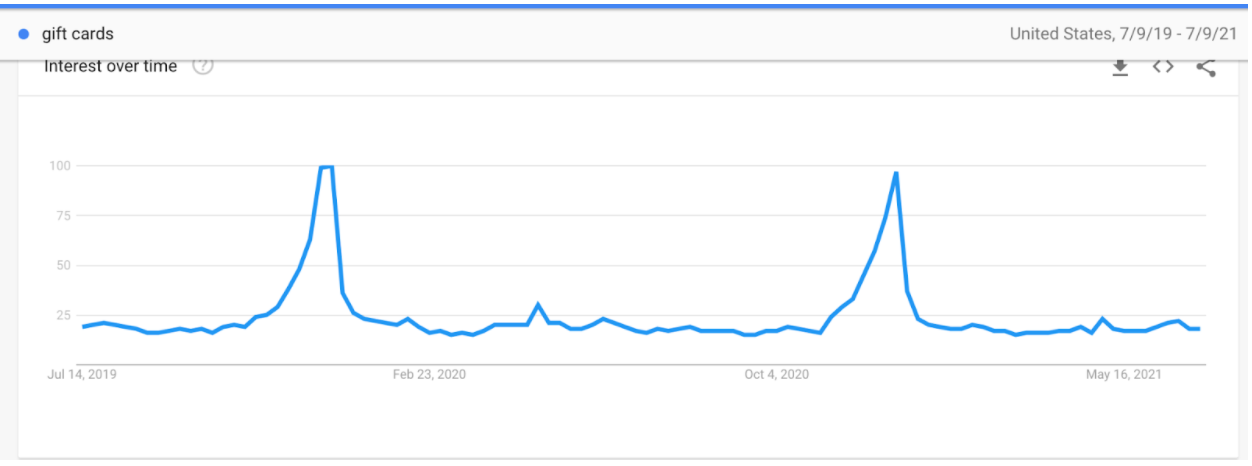
<p style="text-align: left;"><b>People's search queries for Gift Cards during the holidays 7/9/19 - 7/9/21 via Google Trends</b></p>
<p style="text-align: left;"><b><img src="https://cdn.shopify.com/s/files/1/1068/2484/files/Screen_Shot_2021-07-10_at_11.36.04_AM.png?v=1625931382" alt="Google Trends for GIft Cards for the past two years" style="display: block; margin-left: auto; margin-right: auto;"></b></p>
<p>The majority of these retailers had a legacy POS system and a Shopify Online store, or a legacy POS system connected to an outdated CMS via a broken middleware system. In almost every case, there was a huge disconnect between merchant’s brick and mortar business and their online stores. </p>
<p>In hindsight, this should have been obvious. Any savvy retailer that wanted to compete with enterprise businesses would need to have a proper sales and marketing strategy that included Gift Cards. </p>
<p>As we continued to migrate these merchants onto an omnichannel solution via <a href="https://www.shopify.com/pos/?ref=mark-perini&amp;utm_campaign=Shopify%20POS&amp;utm_content=links&amp;utm_source=icee-social&amp;utm_medium=blog&amp;subid1=gift-cards"><b>Shopify POS</b></a> and <a href="https://www.shopify.com/?ref=mark-perini"><b>Shopify Online</b></a>, we kept needing solutions to migrate these merchants' Gift Cards.</p>
<p>Looking back in the past few years we have built a ton of private Gift Card migration tools. Our goal for 2021 was to build a tool that merchants and entrepreneurs could use on their own to migrate their Gift Cards from their legacy POS system or legacy CMS. The culmination of this effort resulted in us building a brand new Shopify App called <a href="https://bit.ly/selling-point-app"><b>Selling Point</b></a><b>. </b>We set out to lower the barrier to entry for merchants to be able to migrate all of their Gift Cards to Shopify with ease, in addition to other elements of their migration such as products, customers &amp; <strong><a href="https://bit.ly/PhotoFinishApp" title="Photo Finish Shopify App for Photo Migrations">photos</a></strong>.</p>
<p><a href="https://bit.ly/selling-point-app" title="Selling Point Gift Card Migrations for Shopify by ICEE Social "><b><img src="https://cdn.shopify.com/s/files/1/1068/2484/files/Selling_point_web_mockup_Final_1_811a04f7-3ddf-468b-9069-e8718810a37c.jpg?v=1626109419" alt="Selling Point Gift Card Migrations for Shopify" style="display: block; margin-left: auto; margin-right: auto;"></b></a></p>
<p style="text-align: center;"><b>We are</b><b> really excited to arm all of you merchants with the tools you need to migrate to a true Retail Operating System like Shopify. </b></p>
<p>Now that we’ve got you thinking about Gift Cards, you may recall that during the pandemic businesses that never had an online store had their most loyal customers buy IOU gift cards that could be redeemed in store once everything opened back up. Gift cards remain a great way to promote in-store and local sales.</p>
<p><b>Here are some winning strategies to grow your Gift Card offering:</b></p>
<ol>
<li>Promote your Gift Cards with a corporate gifting strategy in mind. Target your wholesale clients and give them the option to send their other clients a Gift Card to your business for the holidays. That way, they can both support a local business and avoid the discomfort of shopping around for gifts that their customers may or may not like. </li>
<li>Run a promotion on your store where you give a discount on Gift Card purchases. Think of it as an advance to your store for future sales for your most loyal customers. </li>
</ol>
<p>If you’d like more winning strategies, support with our new app or for us to assist with your migration, please contact us below.</p>
<br>
<h4 class="bottomMargin">Get the app:</h4>
<a href="https://bit.ly/selling-point-app"><button class="topMargin alignCenter contact-blog">Get The APP</button></a><br><br><br>
<h4 class="bottomMargin alignCenter">Step-by-Step Guide</h4>
<a href="https://helpcenter.sellingpoint.io/article/5-get-started-guide-selling-point"><button class="topMargin alignCenter contact-blog">Get The Guide</button></a><br>
<h4 class="bottomMargin">Video Walkthrough</h4>
<a href="https://helpcenter.sellingpoint.io/article/18-get-started-with-selling-point"><button class="topMargin alignCenter contact-blog">Get The Guide</button></a><br>
<h4 class="bottomMargin">Help Center</h4>
<a href="https://helpcenter.sellingpoint.io/"><button class="topMargin alignCenter contact-blog">Get The Guide</button></a><br>
<h4 class="bottomMargin">Contact Support</h4>
<a href="mailto:help@sellingpoint.io?subject=Selling%20Point%20Migration%20Support"><button class="topMargin alignCenter contact-blog">Contact Us</button></a><br>
<style><!--
.contact-blog {
margin: 0 auto;
display: block; 
}
--></style>]]>
    </content>
  </entry>
  <entry>
    <id>https://iceesocial.com/blogs/icee-social-blog/how-do-you-bulk-upload-images-into-shopify-product-pages</id>
    <published>2021-01-15T16:31:29-05:00</published>
    <updated>2025-02-26T14:55:36-05:00</updated>
    <link rel="alternate" type="text/html" href="https://iceesocial.com/blogs/icee-social-blog/how-do-you-bulk-upload-images-into-shopify-product-pages"/>
    <title>How do you bulk upload images into Shopify product pages?</title>
    <author>
      <name>Mark Perini</name>
    </author>
    <summary type="html">
      <![CDATA[<meta charset="utf-8"><span><span>Photo Finish! The idea for Photo Finish came about as we became consumed with the data entry component of batch photo uploads during migrations.  It was draining our time as merchants waited in line for our help with their pressing offline → online transition. </span></span><meta charset="utf-8"><span>Around the same time, Shopify launched their <a href="https://www.shopify.com/partners/blog/shopify-app-challenge-honorable-mentions"><b>COVID-19 App Challenge</b></a>. </span><p><a class="read-more" href="https://iceesocial.com/blogs/icee-social-blog/how-do-you-bulk-upload-images-into-shopify-product-pages">More</a></p>]]>
    </summary>
    <content type="html">
      <![CDATA[<p><span style="font-weight: 400;">As a result of the COVID-19 pandemic shutting and shuttering brick &amp; mortar stores, merchants were pressed to become creative if they were to remain profitable. For many, this meant a transition offline to online. To meet the growing demand, (transitioning online without the accompaniment of a Shopify Expert can feel a bit daunting for those newer to the e-commerce world, and understandably so), we too transitioned. While ICEE Social has worked to transition hundreds of stores on to Shopify from other platforms or from outdated POS systems, during COVID-19, Offline → Online migrations to Shopify became our #1 Priority. We are proud to have completed 25+ offline →  online migrations since the pandemic hit. One of the greatest joys of founding ICEE social has been helping my fellow entrepreneurs experience the success of their online stores. Finding new ways to sell, market and manage merchandise in light of a global pandemic has only strengthened our merchants. Together, we have reached deeper into the depths of creativity and innovation to ensure continued success.</span></p>
<br>
<p><span style="font-weight: 400;">Through this experience, light was shed on a few areas of the Shopify Migration process that could benefit from enhancement and automation. </span></p>
<br>
<p><b><i>Firstly</i></b><span style="font-weight: 400;">, stores who are offline/brick &amp; mortar only, know very well that the majority of POS systems do not allow for product images. That means that when they choose to transition online, they will need to bring thousands of products photos online all at the same time. What does this result in? The need to manually attach a photo to each and every product page--time consuming and monotonous! For merchants who are in a bind to launch online, and fast, there is no time to waste. For those who are not in a bind to launch, this process is still frustrating, monotonous and time consuming. Often, a data entry specialist or on-staff web developer is tasked with the bulk photo uploading and photo/product matching task, begrudgingly.  </span></p>
<br>
<p><b><i>Our Solution:</i></b> <span style="font-weight: 400;">Photo Finish! The idea for Photo Finish came about as we became consumed with the data entry component of batch photo uploads during migrations.  It was draining our time as merchants waited in line for our help with their pressing offline → online transition. Upon further discussion with our trusted development partner, friend and coding genius, Robbie Sherrard, we knew this was a hole in the Shopify ecosystem that needed to be filled. Around the same time, Shopify launched their </span><a href="https://www.shopify.com/partners/blog/shopify-app-challenge-honorable-mentions"><b>COVID-19 App Challenge</b></a><span style="font-weight: 400;">. It was the kick in the butt we needed to partner up and get this idea coded and off the ground! </span></p>
<p><em>﻿<a href="https://apps.shopify.com/photo-finish" target="_blank" title="Photo Finish a Shopify App for Bulk Image Importing" rel="noopener noreferrer"><img src="//cdn.shopify.com/s/files/1/1068/2484/files/Screen_Shot_2020-07-21_at_6.46.51_PM.png?v=1595371660" alt="Photo Finish 5 Star Shopify App" style="display: block; margin-left: auto; margin-right: auto;"></a></em></p>
<p><b><i>Next Steps</i></b><span style="font-weight: 400;">: Upon developing Photo Finish to meet the aforementioned need, we also recognize that existing brands can harness the power of batch photo uploads.  Photo Finish is </span><b>highly beneficial</b><span style="font-weight: 400;"> for merchants who often flip their merchandise for each season, launch new product lines or have swift product turnover/updates. Weekly drops or quarterly updates do not have to be the bane of your existence! </span></p>
<br>
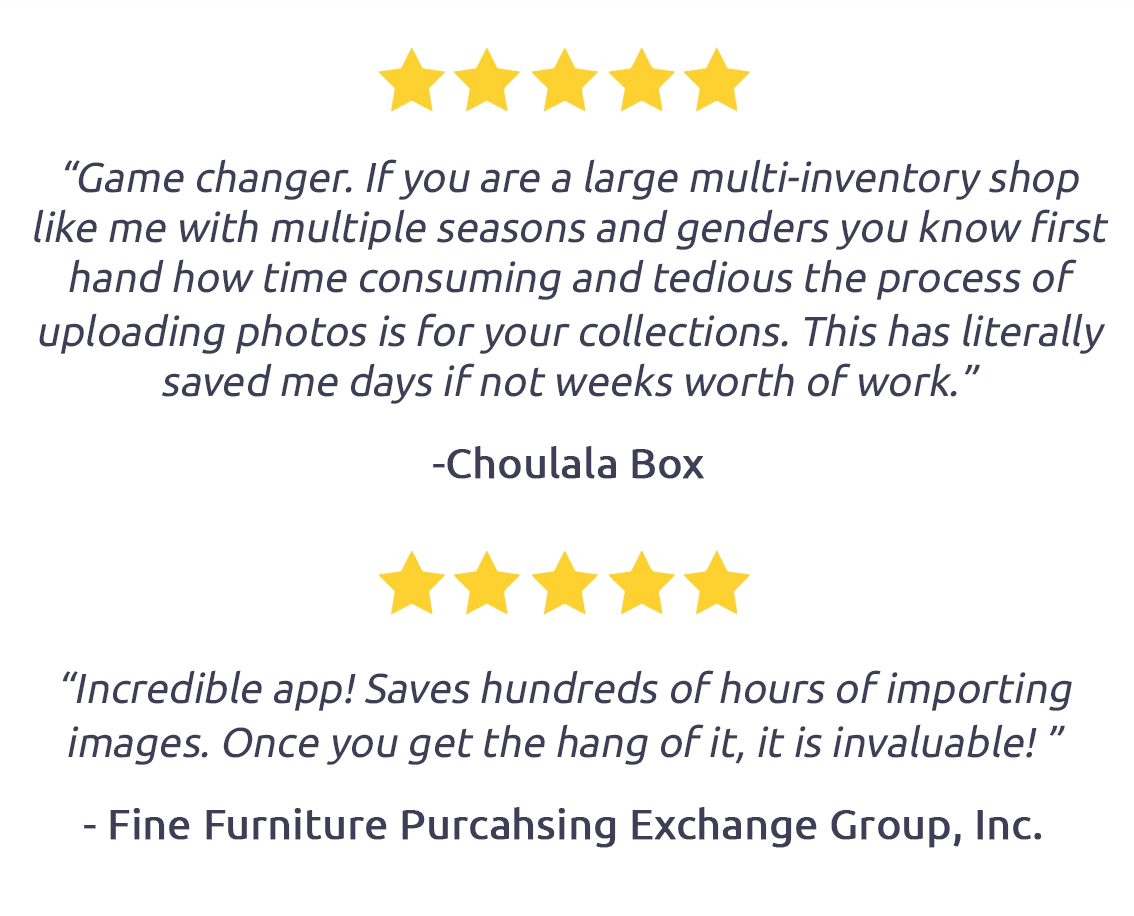
<p><span style="font-weight: 400;">Merchants who have tested Photo Finish have expressed how exasperating and frustrating it is to transition from Fall to Winter, Spring to Summer or launch a new 1000-piece collection. One Photo Finish Customer stated that photo uploading is their "least favorite part of their Shopify experience." A premier tenant of our agency has always been to ensure an entrepreneur faces as few barriers to entry as possible.  Our goal is for our clients to be able to manage their store WITHOUT us!</span></p>
<p><a href="https://apps.shopify.com/photo-finish" target="_blank" title="Photo Finish a Shopify APP for Bulk Photo Image Uploads" rel="noopener noreferrer"><span style="font-weight: 400;"><img src="//cdn.shopify.com/s/files/1/1068/2484/files/Screen_Shot_2020-07-21_at_6.31.18_PM.png?v=1595370824" alt="Photo Finish 5 Star Reviews" style="display: block; margin-left: auto; margin-right: auto;"></span></a></p>
<p><span style="font-weight: 400;">Photo Finish helps take timely data entry out of the equation, something an agency is often onboarded for, making the process of ongoing store management more seamless, independent and enjoyable. Hard working merchants can now focus on other aspects of their online store.</span></p>
<br>
<p><b>How Does It Work?</b></p>
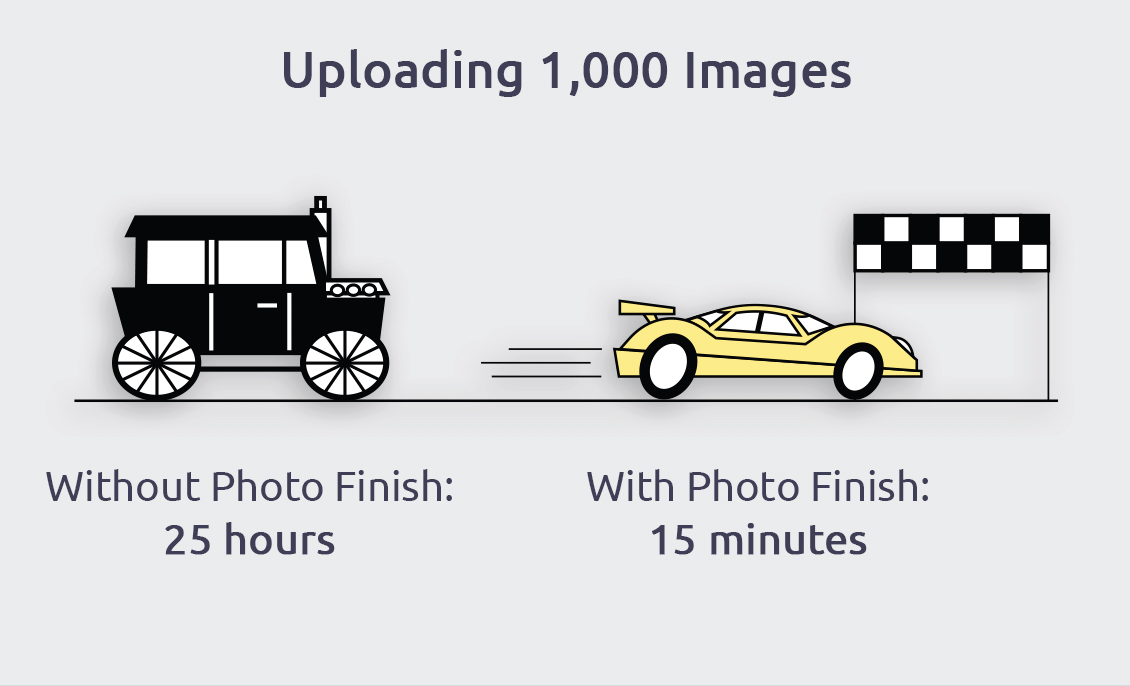
<p><span style="font-weight: 400;">Say you want to upload 1,000 products. On average, each product has three corresponding photos. You’re looking at around 25 hours of active work (1.5 minutes x 1,000 products / 60 minutes in an hour). With Photo Finish, you’re done in minutes, with just a few clicks of your mouse. </span></p>
<p><a href="https://apps.shopify.com/photo-finish" target="_blank" title="Photo Finish a Shopify App for Bulk Uploading Images to Shopify" rel="noopener noreferrer"><span style="font-weight: 400;"><img src="//cdn.shopify.com/s/files/1/1068/2484/files/Screen_Shot_2020-07-21_at_6.31.08_PM.png?v=1595370766" alt="Photo Finish 1,000 Images" style="display: block; margin-left: auto; margin-right: auto;"></span></a></p>
<br>
<p><span style="font-weight: 400;">Using Shopify’s product import tool in conjunction with Dropbox, Photo Finish lets merchants upload thousands of photos in a tiny fraction of the time it would take to do so manually.</span></p>
<br>
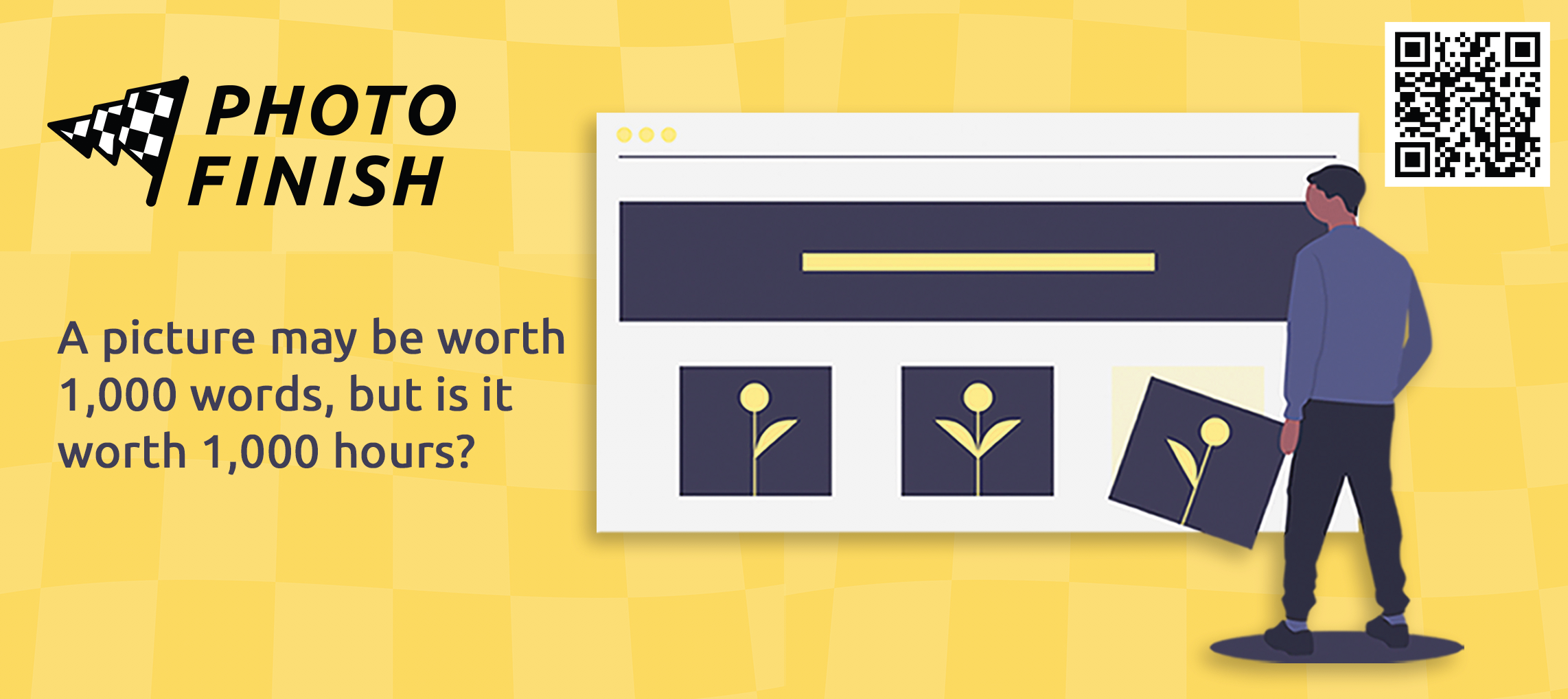
<p><span style="font-weight: 400;">As we like to say,  </span><b><i>A picture may be worth 1,000 words but is it worth a 1,000 hours? </i></b></p>
<h4 class="bottomMargin alignCenter">Get the app:</h4>
<a href="https://apps.shopify.com/photo-finish"><button class="topMargin alignCenter contact-blog">Get The APP</button></a><br><br><br>
<h4 class="bottomMargin alignCenter">Step-by-Step Guide</h4>
<a href="https://helpcenter.photofinish.io/article/28-get-started-step-by-step-guide"><button class="topMargin alignCenter contact-blog">Get The Guide</button></a><br>
<h4 class="bottomMargin alignCenter">Video Walkthrough</h4>
<a href="https://helpcenter.photofinish.io/article/12-get-started-with-photo-finish"><button class="topMargin alignCenter contact-blog">Get The Guide</button></a><br>
<h4 class="bottomMargin alignCenter">Help Center</h4>
<a href="https://helpcenter.photofinish.io/"><button class="topMargin alignCenter contact-blog">Get The Guide</button></a><br><style><!--
.contact-blog {
margin: 0 auto;
display: block; 
}
--></style>]]>
    </content>
  </entry>
  <entry>
    <id>https://iceesocial.com/blogs/icee-social-blog/5-e-commerce-design-hacks-from-a-pro</id>
    <published>2019-04-30T22:41:00-04:00</published>
    <updated>2025-02-26T14:55:54-05:00</updated>
    <link rel="alternate" type="text/html" href="https://iceesocial.com/blogs/icee-social-blog/5-e-commerce-design-hacks-from-a-pro"/>
    <title>5 E-Commerce Design Hacks From a Pro</title>
    <author>
      <name>Mark Perini</name>
    </author>
    <summary type="html">
      <![CDATA[<meta charset="utf-8"><span><span>From my ten years of consulting on e-commerce optimization, I’ve learned that converting online shoppers into buyers is about pulling all the right levers. </span></span><meta charset="utf-8"><span>Stick to the winning formula (a clean, consistent, and easy-to-navigate website that speaks to your brand mission) and watch your conversions go up. </span><p><a class="read-more" href="https://iceesocial.com/blogs/icee-social-blog/5-e-commerce-design-hacks-from-a-pro">More</a></p>]]>
    </summary>
    <content type="html">
      <![CDATA[<h3 style="text-align: center;">From my ten years of consulting on e-commerce optimization, I’ve learned that converting online shoppers into buyers is about pulling all the right levers.</h3>
<br>
<h5 style="text-align: center;">Get all five tips and read the full story on PayPal's Business Resource Center!</h5>
<a href="https://www.paypal.com/us/brc/article/5-ecommerce-design-hacks"><button class="button inverseSolidGreen alignCenter" style="text-align: center; margin: 20px auto; display: block;">Read more →</button></a>]]>
    </content>
  </entry>
  <entry>
    <id>https://iceesocial.com/blogs/icee-social-blog/top-5-best-shopify-flows-for-shopify-plus-stores</id>
    <published>2018-01-02T21:32:00-05:00</published>
    <updated>2025-02-26T14:56:14-05:00</updated>
    <link rel="alternate" type="text/html" href="https://iceesocial.com/blogs/icee-social-blog/top-5-best-shopify-flows-for-shopify-plus-stores"/>
    <title>Top 5 Best Shopify Flows for Your Shopify Plus Store</title>
    <author>
      <name>Mark Perini</name>
    </author>
    <summary type="html">
      <![CDATA[<meta charset="utf-8"><span>Looking to Accelerate Your Business? Automation is the Answer!  Let's be honest, running a successful Ecommerce business is a full-time job. Even the most seasoned business owner will encounter the need to live-chat with customers, add new products to their store, merchandise their products, or update collections, all in a single day's work. </span><p><a class="read-more" href="https://iceesocial.com/blogs/icee-social-blog/top-5-best-shopify-flows-for-shopify-plus-stores">More</a></p>]]>
    </summary>
    <content type="html">
      <![CDATA[<h3>Looking to Accelerate Your Business? Automation is the Answer! </h3>
<p>Let's be honest, running a successful Ecommerce business is a full-time job. Even the most seasoned business owner/entrepreneur will encounter the need to <span>live-chat with customers, add new products to their store, refund a customer, merchandise their products, update collections, or beta testing their next big idea all in</span> a single day's work. </p>
<p>The efficient completion of these tasks is required to keep your business functioning and require attention day after day, week after week. Now, you could of course hire additional employees to alleviate the burden of this monotonous task completion and enhance your efficiency or your could turn on some automation. That's where <strong>Shopify Flow</strong> steps in. </p>
<meta charset="utf-8">
<h3><strong>Getting Started With Shopify Flow</strong></h3>
<p>Shopify Flow is an extremely robust backend tool for store owners. This visual tool requires no coding knowledge, making it perfect for Shopify store owners and developers who want to quickly and easily automate their stores.  </p>
<meta charset="utf-8">
<h3><strong>Setting Up Your First Workflow</strong></h3>
<p>Getting started with Shopify Flow is easy and a lot like using <a href="http://ift.tt/2Cx8zh5" target="_blank" title="IFTT" rel="noopener noreferrer">IFTT</a> or <a href="http://bit.ly/2lGywBj" target="_blank" title="Zapier" rel="noopener noreferrer">Zapier</a>. To get started take a look at your day to day checklists and try to identify any repetitive tasks you would like to eliminate (the more time spent on repetitive tasks = less time running/building your business effectively). Write those all down somewhere and save it. Once you've got a list of a few items let's try and automate them. Is your biggest headache managing inventory? <a href="/#workflows-that-run-when-the-inventory-for-a-product-changes">There's a workflow for that</a>. Or maybe it's making sure that expedited orders get out first? <a href="/#workflows-that-run-when-an-order-is-created">There's a workflow for that too</a>. </p>
<p><b>1) Select a trigger for this example we will use when order risk is analyzed. </b></p>
<p><img src="//cdn.shopify.com/s/files/1/1068/2484/files/Screen_Shot_2018-01-02_at_5.27.32_PM.png?v=1514933846" alt="" style="display: block; margin-left: auto; margin-right: auto;"></p>
<p><strong>2) Next select a condition (a time when this should be run). For this particular example choose if 'Order Risk Level' is equal to 'High'. This way we are only targeting high risk orders and not every order. </strong></p>
<p><img src="//cdn.shopify.com/s/files/1/1068/2484/files/Screen_Shot_2018-01-02_at_5.29.40_PM.png?v=1514934044" alt=""></p>
<p><strong>3)  Select 'Send Email' as your 'Action' when the condition is true</strong></p>
<p><img src="//cdn.shopify.com/s/files/1/1068/2484/files/Screen_Shot_2018-01-02_at_6.04.01_PM.png?v=1514934419" alt=""></p>
<p><strong> 4) Update the email template for whatever you think you or your customer service agent will need to successfully vet the transaction. i.e. (Phone number, Customer Name, Shipping/Billing Address) </strong></p>
<p style="text-align: center;"><img alt="" src="//cdn.shopify.com/s/files/1/1068/2484/files/Screen_Shot_2018-01-02_at_6.06.47_PM.png?v=1514934729" style="width: 50%; display: block; margin-left: auto; margin-right: auto; float: none;"></p>
<p><strong>5) Now let's build for if the condition not being true. So if 'order risk' is not 'High': </strong></p>
<p><strong><img src="//cdn.shopify.com/s/files/1/1068/2484/files/Screen_Shot_2018-01-02_at_6.11.36_PM.png?v=1514934857" alt="" style="display: block; margin-left: auto; margin-right: auto;"></strong></p>
<p><strong>6) Then we select the action we want. For us we want to 'Capture the Payment' if it's not high risk as we've found 99% of all orders that aren't marked as high risk go through without a hitch. So we automate the process. </strong></p>
<p><img src="//cdn.shopify.com/s/files/1/1068/2484/files/Screen_Shot_2018-01-02_at_5.37.56_PM_0e7ce255-97f4-4ae8-aa03-cd340228b061.png?v=1514934943" alt=""></p>
<p class="clickable-header"><strong>7) The final step is saving your workflow and enabling it. Once you enable the flow your automation starts automatically! You can disable it at any time and edit it to your liking! Congratulations on creating your first Shopify Workflow. </strong></p>
<p class="clickable-header">Want this workflow for your store you can download it here: </p>
<meta charset="utf-8">
<h3><a href="https://drive.google.com/uc?export=download&amp;id=1PQVQAK_RX-_CrXDrxtgLI4_aEGDIF-D_" target="_blank" rel="nofollow noopener noreferrer">Download workflow ↗</a></h3>
<p>After downloading, follow<span> </span><a href="https://help.shopify.com/manual/apps/apps-by-shopify/flow/import-export" target="_blank" rel="nofollow noopener noreferrer">these instructions</a><span> </span>to import a workflow and then<span> </span><a href="https://shopify.com/admin/apps/flow/" target="_blank" rel="nofollow noopener noreferrer">visit Shopify Flow in your admin</a><span> </span>to import.</p>
<h1 class="clickable-header" style="text-align: center;"><strong>Top 5 Shopify Workflows</strong></h1>
<br> <br>
<h3 id="workflows-that-run-when-an-order-is-created" class="clickable-header">1. Workflow that runs when a customer makes an order:</h3>
<p>When a new order comes through and the client pays for expedited shipping (Overnight Shipping or Two Day Shipping) for example. The system sends an automated email to your logistics/shipping department to alert them of the expedited shipping. We created this workflow to make sure that these orders get priority while shipping. This is especially helpful during high volume selling times of year (Black Friday/Holiday Sales).</p>
<h3><strong><a href="https://drive.google.com/open?id=1fSkD70COdmNkVCIdZoACOejspWX80uYz" target="_blank" rel="nofollow noopener noreferrer">Download workflow ↗</a></strong></h3>
<p><img src="//cdn.shopify.com/s/files/1/1068/2484/files/Screen_Shot_2018-01-02_at_5.19.42_PM.png?v=1514931741" alt="" style="display: block; margin-left: auto; margin-right: auto;">After downloading, follow<span> </span><strong><a href="https://help.shopify.com/manual/apps/apps-by-shopify/flow/import-export" target="_blank" rel="nofollow noopener noreferrer">these instructions</a></strong><span> </span>to import a workflow and then<span> </span><strong><a href="https://shopify.com/admin/apps/flow/" target="_blank" rel="nofollow noopener noreferrer">visit Shopify Flow in your admin</a></strong><span> </span>to import.</p>
<meta charset="utf-8">
<p><strong>Credit:</strong><br><span>Name: Yours Truly <strong>Mark Perini</strong></span><br><span>Email: </span><a href="mailto:mark@iceesocial.com">mark@iceesocial.com</a><br><span>Website: </span><a href="https://iceesocial.com/" target="_blank" rel="nofollow noopener noreferrer">https://iceesocial.com/</a></p>
<meta charset="utf-8"><meta charset="utf-8">
<h3 id="workflows-that-run-when-a-product-is-added" class="clickable-header">2. Workflow that run when a product is added:</h3>
<p><span>If product variant 'color' is added to store then add a corresponding tag to the product to make your product line more searchable and easier to add to smart collections </span></p>
<meta charset="utf-8">
<h3><strong><a href="https://drive.google.com/open?id=1fXLd-WHqX86TXw1tD3o52LOBNEb85Npb" target="_blank" rel="nofollow noopener noreferrer">Download workflow ↗</a></strong></h3>
<p><img src="//cdn.shopify.com/s/files/1/1068/2484/files/Add_Corresponding_Color_Tag_for_Variant_-_Ross_Beyeler.png?v=1514931580" alt="" style="display: block; margin-left: auto; margin-right: auto;"></p>
<p>After downloading, follow<span> </span><strong><a href="https://help.shopify.com/manual/apps/apps-by-shopify/flow/import-export" target="_blank" rel="nofollow noopener noreferrer">these instructions</a> </strong>to import a workflow and then<span> </span><strong><a href="https://shopify.com/admin/apps/flow/" target="_blank" rel="nofollow noopener noreferrer">visit Shopify Flow in your admin</a></strong><span> </span>to import.</p>
<p><strong>Credit:</strong><br>Name: <strong>Ross Beyeler</strong></p>
<meta charset="utf-8">
<p>Email:<span> </span><a href="mailto:ross@growthspark.com">ross@growthspark.com</a><br>Website:<span> </span><a href="https://growthspark.com/" target="_blank" rel="nofollow noopener noreferrer">https://growthspark.com</a></p>
<meta charset="utf-8">
<h3 class="clickable-header">3. Workflow that run when the inventory for a product changes:</h3>
<meta charset="utf-8">
<p>When a product is low in stock, automatically receive a notification, send a reorder email to your vendor, and add a tag so it can be surfaced on your store to create urgency for the customer. This workflow only executes when the product is a certain vendor and the product includes a “reorder” tag, but both can easily be removed if not needed.</p>
<p>To include urgency messaging on your product pages when an item is low stock, use the code below to reference the "low stock" tag this workflow adds to a product.</p>
<p>{% if product.tags contains "low stock" %} Hurry! Only left in stock {% endif %}</p>
<h3><a href="https://drive.google.com/uc?export=download&amp;id=18AM8wOew9j3gIoHAQWm-Fgpqeo3fxuup" target="_blank" rel="nofollow noopener noreferrer">Download workflow ↗</a></h3>
<p><img src="//cdn.shopify.com/s/files/1/1068/2484/files/Screen_Shot_2018-01-02_at_9.02.12_PM.png?v=1514945008" alt=""> </p>
<p>After downloading, follow<span> </span><a href="https://help.shopify.com/manual/apps/apps-by-shopify/flow/import-export" target="_blank" rel="nofollow noopener noreferrer">these instructions</a><span> </span>to import a workflow and then<span> </span><a href="https://shopify.com/admin/apps/flow/" target="_blank" rel="nofollow noopener noreferrer">visit Shopify Flow in your admin</a><span> </span>to import.</p>
<p><strong>Credit:</strong><br>Name: <strong>Shopify Flow Team</strong><br><br></p>
<div class="card-detail-data u-gutter">
<div class="card-detail-item card-detail-item-block u-clearfix" attr="desc">
<div class="description-content js-desc-content">
<div class="current markeddown hide-on-edit js-card-desc js-show-with-desc" dir="auto">
<meta charset="utf-8">
<h3 id="workflows-that-run-when-the-inventory-for-a-product-changes" class="clickable-header">4. Workflow that run when the inventory for a product changes:</h3>
<p>When a product is out of stock, automatically hide the product from your online store and notify your marketing team to pause any marketing efforts that include that item. When the item is back in stock, republish to the online store and notify the team that it's back in stock.</p>
<p>This workflow currently runs for all products, but you could alter it so it only executes for discontinued products. In this case, you can add a condition that causes the workflow only to run when a "discontinued" tag is present , and then remove the part of the workflow that republishes the product (download an example here).</p>
<h3><a href="https://drive.google.com/uc?export=download&amp;id=1ERku7vF5dPbR1X5gB_2TjBK1h8CjDPzv" target="_blank" rel="nofollow noopener noreferrer">Download workflow ↗</a></h3>
<p><img src="//cdn.shopify.com/s/files/1/1068/2484/files/Hide_out_of_stock_products_and_pause_marketing_efforts_and_republish_when_back_in_stock_-_Anthony_Kentris_2.png?v=1514944749" alt="" style="display: block; margin-left: auto; margin-right: auto;"></p>
<p>After downloading, follow<span> </span><a href="https://help.shopify.com/manual/apps/apps-by-shopify/flow/import-export" target="_blank" rel="nofollow noopener noreferrer">these instructions</a><span> </span>to import a workflow and then<span> </span><a href="https://shopify.com/admin/apps/flow/" target="_blank" rel="nofollow noopener noreferrer">visit Shopify Flow in your admin</a><span> </span>to import.</p>
<p><strong>Credit:</strong><br><span>Name: </span><strong>Shopify Flow Team</strong></p>
<meta charset="utf-8">
<h3 id="workflows-that-run-when-an-order-is-created" class="clickable-header">5. Workflow that run when an order is created</h3>
</div>
</div>
</div>
</div>
<div class="js-plugin-sections">
<meta charset="utf-8">
<p>Easily implement loyalty and retention initiatives by segmenting customers with customer tags based on their lifetime spend. In the same workflow, also reward your top customers by notifying your customer service team when customers have passed spend thresholds so they can send a personal thank you gift.</p>
<h3>
<strong><a href="https://drive.google.com/file/d/1x2oNM_p8PgEZHrBlSa0cWNJFIAs9prVd/view?usp=sharing" target="_blank" rel="nofollow noopener noreferrer"></a></strong><a href="https://drive.google.com/uc?export=download&amp;id=1-IjlURArCeL3mZ6p4wdzttVPhZAtOndA" target="_blank" rel="nofollow noopener noreferrer">Download workflow ↗</a>
</h3>
<p><img src="//cdn.shopify.com/s/files/1/1068/2484/files/Track_and_reward_your_top_customers_by_lifetime_spend_-_Anthony_Kentris.png?v=1514945070" alt="" style="display: block; margin-left: auto; margin-right: auto;"></p>
<p>After downloading, follow<span> </span><a href="https://help.shopify.com/manual/apps/apps-by-shopify/flow/import-export" target="_blank" rel="nofollow noopener noreferrer">these instructions</a><span> </span>to import a workflow and then<span> </span><a href="https://shopify.com/admin/apps/flow/" target="_blank" rel="nofollow noopener noreferrer">visit Shopify Flow in your admin</a><span> </span>to import.</p>
<p><strong>Credit:</strong><br><span>Name: </span><strong>Shopify Flow Team</strong></p>
<p>Want even more<strong> <a href="https://trello.com/b/xbQV80jG/shopify-flow-workflows" target="_blank" title="Shopify Workflows" rel="noopener noreferrer">workflows</a>? </strong></p>
</div>
<h4 class="bottomMargin alignCenter">Want me to install a flow on your store? </h4>
<a href="/pages/contact-us"><button class="topMargin alignCenter contact-blog">Contact Us</button></a><style><!--
h3 {
color: black;
}
.contact-blog {
margin: 0 auto;
display: block; 
}
--></style>]]>
    </content>
  </entry>
  <entry>
    <id>https://iceesocial.com/blogs/icee-social-blog/knowing-what-to-charge-discover-your-freelance-rate</id>
    <published>2017-04-02T11:55:00-04:00</published>
    <updated>2025-02-26T14:57:08-05:00</updated>
    <link rel="alternate" type="text/html" href="https://iceesocial.com/blogs/icee-social-blog/knowing-what-to-charge-discover-your-freelance-rate"/>
    <title>Knowing What to Charge: Discover Your Freelance Rate</title>
    <author>
      <name>Mark Perini</name>
    </author>
    <summary type="html">
      <![CDATA[<p> </p>
<p>Without fail, the most frequent question I receive from designers &amp; developers alike is how to effectively estimate costs, &amp; figure out what their personal hourly rates should be.</p>
<p>No matter how you plan on billing, whether it be hourly, by retainer, or project-based, knowing your personal hourly rate is key to giving  a fair estimate.</p><p><a class="read-more" href="https://iceesocial.com/blogs/icee-social-blog/knowing-what-to-charge-discover-your-freelance-rate">More</a></p>]]>
    </summary>
    <content type="html">
      <![CDATA[<p>Without fail, the most frequent question I receive from freelance designers and developers alike is how to effectively estimate costs, and figure out what their personal hourly rates should be.</p>
<p>No matter how you plan on billing, whether it be hourly, by retainer, or project-based, you must calculate your personal hourly rate in order to give a fair estimate. Naturally, you want to get paid for your time and expenses, and turn a profit so you can save for a rainy day or a much needed exotic vacation.</p>
<a href="https://www.shopify.com/partners/guides/grow-vol-3/freelance-rates"><button class="button inverseSolidGreen alignCenter">Read more →</button></a>]]>
    </content>
  </entry>
  <entry>
    <id>https://iceesocial.com/blogs/icee-social-blog/how-to-design-a-wholesale-store-on-shopify</id>
    <published>2016-01-12T12:28:00-05:00</published>
    <updated>2025-02-26T14:55:14-05:00</updated>
    <link rel="alternate" type="text/html" href="https://iceesocial.com/blogs/icee-social-blog/how-to-design-a-wholesale-store-on-shopify"/>
    <title>How to Design a Wholesale Store on Shopify</title>
    <author>
      <name>Mark Perini</name>
    </author>
    <summary type="html">
      <![CDATA[<div>
<meta charset="utf-8">
<p>What's wholesale got to do with your role as a designer or developer?</p>
<p>Well, a lot actually. According to <a rel="nofollow noopener noreferrer" target="_blank" href="http://www.forbes.com/sites/sarwantsingh/2014/11/06/b2b-ecommerce-market-worth-6-7-trillion-by-2020/"><span data-redactor-tag="u">Forbes</span></a>, the B2B market is “expected to grow to $6.7 trillion in gross merchandise value by 2020.” That’s a lot of dollars that your clients can easily grab a piece of while utilizing their existing Shopify store. </p>
</div><p><a class="read-more" href="https://iceesocial.com/blogs/icee-social-blog/how-to-design-a-wholesale-store-on-shopify">More</a></p>]]>
    </summary>
    <content type="html">
      <![CDATA[<p>What's wholesale got to do with your role as a designer or developer?</p>
<p>Well, a lot actually. According to <a rel="nofollow noopener noreferrer" target="_blank" href="http://www.forbes.com/sites/sarwantsingh/2014/11/06/b2b-ecommerce-market-worth-6-7-trillion-by-2020/"><span data-redactor-tag="u">Forbes</span></a>, the B2B market is “expected to grow to $6.7 trillion in gross merchandise value by 2020.” That’s a lot of dollars that your clients can easily grab a piece of while utilizing their existing Shopify store. </p>
<p>Building a wholesale store is one of my number one requests as a Shopify Expert. If you haven’t built one yet, it can be a great way to re-engage a client with whom you’ve lost touch. Maybe they’ve never thought B2B was possible, and if that's the case, you could be the inspiration for a new-found revenue stream. Plus, it's worth mentioning to your clients that online wholesale trashes the antiquated system of wholesalers having to buy from a catalog or worse — a line sheet.</p>
<p>For the developer, the best news is that with a little jimmy rigging and one clever app, you can design a wholesale shop for your clients almost out of the box with Shopify.</p>
<h3 class="lowercase">Looking for some great Shopify wholesale store examples?</h3>
<p>Before you can start building a wholesale store, you have to decide what kind of wholesale site you want to build. There are two main types of wholesale stores that exist: those that are solely dedicated to wholesale or those that are B2C sites that have a VIP/wholesale aspect. </p>
<p>For the purpose of this article, I’m going to use three shops I have built on Shopify as examples:  <strong><a rel="nofollow noopener noreferrer" target="_blank" href="https://wholesale.teroforma.com/" title="Teroforma Wholesale"><span data-redactor-tag="u" data-verified="redactor">Teroforma Wholesale</span></a></strong>, <strong><a rel="nofollow noopener noreferrer" target="_blank" href="https://wholesale.bellocqtea.com/" title="Bellocq Tea Wholesale">Bellocq Tea Wholesale</a></strong> and <strong><a rel="nofollow noopener noreferrer" target="_blank" href="http://whiskystones.com/collections/wholesale-whiskystones" title="Whisky Stones"><span data-redactor-tag="u" data-verified="redactor">Whisky Stones</span></a></strong>. Teroforma Wholesale &amp; Bellocq Tea are both examples of an entirely wholesale-dedicated store or a fully custom B2B setup, while Whisky Stones has a wholesale portal within a store that is predominantly B2C.</p>
<p><img class=" lazyloaded" data-src="https://cdn.shopify.com/s/files/1/1068/2484/files/teroforma-wholesale.jpg?v=1613544896" alt="shopify wholesale web design: Teroforma" src="https://cdn.shopify.com/s/files/1/1068/2484/files/teroforma-wholesale.jpg?v=1613544896"></p>
<p><img class=" lazyloaded" data-src="https://cdn.shopify.com/s/files/1/1068/2484/files/bellocq-wholesale-by-icee-social.jpg?v=1654550168" alt="shopify wholesale web design: whisky stones" src="https://cdn.shopify.com/s/files/1/1068/2484/files/bellocq-wholesale-by-icee-social.jpg?v=1654550168"></p>
<p><img class=" lazyloaded" data-src="//cdn.shopify.com/s/files/1/0533/2089/files/shopify-wholesale-design-3.jpg?9931560979413282123" alt="shopify wholesale web design: whisky stones" src="https://cdn.shopify.com/s/files/1/0533/2089/files/shopify-wholesale-design-3.jpg?9931560979413282123"></p>
<p><span>But before we get to our end result</span><span>, we need to take a few steps backwards and start at the beginning.</span></p>
<h3 class="lowercase"><span>Understand what you have to work with</span></h3>
<p>The first question you'll likely encounter on this type of project is: “How do we lock down a store and allow only approved customers buy at our wholesale prices? What tools do we have at our disposal to make this happen?”</p>
<p>Before we get started, let's see what Shopify has available natively. If you go into "Settings →<span class="redactor-invisible-space">​</span> Checkout", you have the option to enable a requirement that a customer needs be logged in before they can make a purchase.</p>
<p><img class=" lazyloaded" data-src="//cdn.shopify.com/s/files/1/0533/2089/files/Shopify-wholesale-design-5.png?2438477733280274173" alt="Adding account requirements to your Shopify wholesale store" src="https://cdn.shopify.com/s/files/1/0533/2089/files/Shopify-wholesale-design-5.png?2438477733280274173"></p>
<p><span>Given that wholesale transactions are largely done in a gated system, this seems like a good place to start. But you’ll quickly realize that someone could just start a new account and checkout without any approval process. Additionally, there also exists the looming mystery of how you would add new customers yourself.</span></p>
<p><span><img class=" lazyloaded" data-src="//cdn.shopify.com/s/files/1/0533/2089/files/shopify-wholesale-design-6a.png?14061413342580517657" alt="Account login: wholesale shopify store design" src="https://cdn.shopify.com/s/files/1/0533/2089/files/shopify-wholesale-design-6a.png?14061413342580517657"></span></p>
<p><span>Also let’s not forget that with this method, your shop wouldn’t be entirely gated to the public. That means people who aren’t wholesale customers would be able to see your wholesale prices, which is far from what we want (especially if we offer B2C products as well). One option would be to password protect the whole site in the "Settings </span><span>→</span><span class="redactor-invisible-space">​</span><span> Online Store" section (seen below). </span></p>
<p><span><img class=" lazyloaded" data-src="//cdn.shopify.com/s/files/1/0533/2089/files/shopify-wholesale-design-7.png?11358582354162614932" alt="Enabling a storefront password on your wholesale ecommerce store" src="https://cdn.shopify.com/s/files/1/0533/2089/files/shopify-wholesale-design-7.png?11358582354162614932"></span></p>
<p><span>That core problem with this method is that everyone needs the same password and anyone that has it could enter the site at any time. </span></p>
<p><span>To overcome this, we need a way to segment our customers and institute an approval process. We need a way to lock down your store and simultaneously be able to import new wholesale customers manually. Thankfully, there’s an app for that.</span></p>
<h3 class="lowercase">Creating a wholesale approval process</h3>
<p><span>Enter </span><a target="_blank" href="https://apps.shopify.com/locksmith" title="Locksmith Shopify App" rel="noopener noreferrer"><span data-redactor-tag="u" data-verified="redactor">Locksmith</span></a><span> by </span><span><span>Isaac Bowen</span>. At only $9.00 a month, this is an extremely powerful app that’s beautifully coded and elegantly designed. The best thing about Locksmith is that it can either lock down your whole site (in the case of dedicated wholesale store like </span><span>Teroforma Wholesale</span><span class="redactor-invisible-space">​</span><span>) or it can be used to lock down a certain collection within your store (in the case of the partially wholesale store like Whisky Stones).</span><span> </span></p>
<p><span><img class=" lazyloaded" data-src="//cdn.shopify.com/s/files/1/0533/2089/files/shopify-wholesale-design-10.png?10113636758958717985" alt="Using Locksmith on your Shopify Wholesale Store" src="https://cdn.shopify.com/s/files/1/0533/2089/files/shopify-wholesale-design-10.png?10113636758958717985"></span></p>
<p><span>In both cases we’re going to set the key to only permit people who are signed in and for customers that are tagged with “wholesale”. The wholesale tag is how we are going to institute our approval process to our customer list.</span></p>
<p><span><img class=" lazyloaded" data-src="//cdn.shopify.com/s/files/1/0533/2089/files/shopify-wholesale-design-11_1.png?12500249333178477046" alt="how to design a wholesale ecommerce solution" src="https://cdn.shopify.com/s/files/1/0533/2089/files/shopify-wholesale-design-11_1.png?12500249333178477046"></span></p>
<p> <span>Now we’ve got to import our new customer list</span><span> (Let’s operate on the assumption that this is a new store so we’ll be importing our entire customer list</span><span>). To simplify this process, Isaac and I coordinated on a new bulk import feature so that we could add tags and passwords for all the newly imported customers.</span></p>
<p><span><img class=" lazyloaded" data-src="//cdn.shopify.com/s/files/1/0533/2089/files/shopify-wholesale-design-12.png?9555027613261958606" alt="Creating a wholesale customer on Shopify" src="https://cdn.shopify.com/s/files/1/0533/2089/files/shopify-wholesale-design-12.png?9555027613261958606"></span></p>
<p>You can important your customers information manually or by uploading a <a target="_blank" href="https://docs.shopify.com/manual/your-store/customers/customer-csv" title="Uploading CSV on shopify" rel="noopener noreferrer"><span data-redactor-tag="u" data-verified="redactor">CSV</span></a>. Once you've done this, just open the Locksmith app in the Shopify Admin and add a password and a tag. Once you’re done and everything imports successfully, your wholesale site is ready to rock. Wasn’t that easy?</p>
<p><span>Now when someone comes to your front page they will see something like this:</span></p>
<p><span><img class=" lazyloaded" data-src="//cdn.shopify.com/s/files/1/0533/2089/files/shopify-wholesale-design-13.png?10554864097043306566" alt="Basic wholesale login for Shopify" src="https://cdn.shopify.com/s/files/1/0533/2089/files/shopify-wholesale-design-13.png?10554864097043306566"></span></p>
<p><span><span>Of course,  out of the box this page will look like the account login screen that your standard theme supplies. But with a little CSS and some liquid magic, you can customize it to look however you like. Ta da!</span></span></p>
<p><span><span><img class=" lazyloaded" data-src="//cdn.shopify.com/s/files/1/0533/2089/files/Shopify-wholesale-design-2.png?3181475551714142416" alt="Teroforma wholesale account login design" src="https://cdn.shopify.com/s/files/1/0533/2089/files/Shopify-wholesale-design-2.png?3181475551714142416"></span></span></p>
<p><span><span><span>You can do all of </span><span>this within the L</span><span>ocksmith app "Settings". In the case of Teroforma Wholesale,</span><span> I created the</span><span> landing page above </span><span>using a javascript snippet </span><span>that’s essentially covering the entire site and when you click “I’m buying for my store” it disappears. Alternatively, if you pick "I’m buying for myself," it ports you to the B2C site </span><span data-redactor-tag="u" data-verified="redactor">Teroforma</span><span>. </span></span></span></p>
<p><span><span><span><img class=" lazyloaded" data-src="//cdn.shopify.com/s/files/1/0533/2089/files/shopify-wholesale-design-14.png?16026495997729411341" alt="Javascript example for wholesale store design" src="https://cdn.shopify.com/s/files/1/0533/2089/files/shopify-wholesale-design-14.png?16026495997729411341"></span></span></span></p>
<h3 class="lowercase">Helping your client run their wholesale store</h3>
<p>Running a wholesale business is no easy feat. If your clients are new to wholesale, they're more than likely to have plenty of questions for you. Here are  some of the most frequently asked questions that I've received from wholesale merchants. </p>
<h3 class="lowercase">
<strong data-redactor-tag="strong" data-verified="redactor">Question 1: </strong><span><strong data-redactor-tag="strong" data-verified="redactor">How do your wholesale clients accept new applications?</strong></span>
</h3>
<p>The answer for this question will vary depending on your client and the type and amount of wholesale customers they want to be working with. In the case of Teroforma Wholesale, we made a new wholesale customer application link that links to a dedicated contact form page.</p>
<p><img class=" lazyloaded" data-src="//cdn.shopify.com/s/files/1/0533/2089/files/shopify-wholesale-design-15.png?3448567843075778365" alt="Wholesale customer application form example" src="https://cdn.shopify.com/s/files/1/0533/2089/files/shopify-wholesale-design-15.png?3448567843075778365"></p>
<p>If someone passes the application process, then we can easily add the "wholesale" tag to their new customer account and give them the password that you attached to said account (we do all of this through the Locksmith app).</p>
<h3 class="lowercase">
<strong data-redactor-tag="strong" data-verified="redactor">Question 2: </strong><span><strong data-redactor-tag="strong" data-verified="redactor">What if your wholesale client needs to sell their stock in case packs and they don’t want people to be able to break up their wholesale inventory? </strong></span>
</h3>
<p><span>There is an easy solution for this: you can force their selection by using a dropdown for quantity.</span></p>
<p><span><img class=" lazyloaded" data-src="//cdn.shopify.com/s/files/1/0533/2089/files/shopify-wholesale-design-16.png?7583188468305882402" alt="Whole store design tip: dropdown quantity menu" src="https://cdn.shopify.com/s/files/1/0533/2089/files/shopify-wholesale-design-16.png?7583188468305882402"></span></p>
<p><span><span>To do this, we first need to</span><span> make a new product template —</span><span> we are calling this one "case-packs-of-six":</span></span></p>
<p><span><span><img class=" lazyloaded" data-src="//cdn.shopify.com/s/files/1/0533/2089/files/shopify-wholesale-design-17.png?7526608689310813517" alt="Add new template example" src="https://cdn.shopify.com/s/files/1/0533/2089/files/shopify-wholesale-design-17.png?7526608689310813517"></span></span></p>
<p>Based on your client's requirements, you can make as many of these as you need.</p>
<p>Once we've created our new template, we copy over the original product liquid and then edit the quantity function. Here’s the original code (this will vary based on your theme)<span class="redactor-invisible-space">​</span>: </p>
<div id="gist29909151" class="gist">
<div class="gist-file">
<div class="gist-data">
<div class="js-gist-file-update-container js-task-list-container file-box">
<div id="file-qty-html" class="file">
<div itemprop="text" class="blob-wrapper data type-html">
<table class="highlight tab-size js-file-line-container" data-tab-size="8">
<tbody>
<tr>
<td id="file-qty-html-L1" class="blob-num js-line-number" data-line-number="1"></td>
<td id="file-qty-html-LC1" class="blob-code blob-code-inner js-file-line">&lt;<span class="pl-ent">div</span> <span class="pl-e">class</span>=<span class="pl-s"><span class="pl-pds">"</span>qty<span class="pl-pds">"</span></span>&gt;</td>
</tr>
<tr>
<td id="file-qty-html-L2" class="blob-num js-line-number" data-line-number="2"></td>
<td id="file-qty-html-LC2" class="blob-code blob-code-inner js-file-line"></td>
</tr>
<tr>
<td id="file-qty-html-L3" class="blob-num js-line-number" data-line-number="3"></td>
<td id="file-qty-html-LC3" class="blob-code blob-code-inner js-file-line">&lt;<span class="pl-ent">a</span> <span class="pl-e">class</span>=<span class="pl-s"><span class="pl-pds">"</span>minus_btn<span class="pl-pds">"</span></span> &gt;&lt;/<span class="pl-ent">a</span>&gt;</td>
</tr>
<tr>
<td id="file-qty-html-L4" class="blob-num js-line-number" data-line-number="4"></td>
<td id="file-qty-html-LC4" class="blob-code blob-code-inner js-file-line">&lt;<span class="pl-ent">input</span> <span class="pl-e">type</span>=<span class="pl-s"><span class="pl-pds">"</span>text<span class="pl-pds">"</span></span> <span class="pl-e">id</span>=<span class="pl-s"><span class="pl-pds">"</span>quantity<span class="pl-pds">"</span></span> <span class="pl-e">name</span>=<span class="pl-s"><span class="pl-pds">"</span>quantity<span class="pl-pds">"</span></span> <span class="pl-e">class</span>=<span class="pl-s"><span class="pl-pds">"</span>txtbox<span class="pl-pds">"</span></span> <span class="pl-e">value</span>=<span class="pl-s"><span class="pl-pds">"</span>1<span class="pl-pds">"</span></span> <span class="pl-e">min</span>=<span class="pl-s"><span class="pl-pds">"</span>1<span class="pl-pds">"</span></span>&gt;</td>
</tr>
<tr>
<td id="file-qty-html-L5" class="blob-num js-line-number" data-line-number="5"></td>
<td id="file-qty-html-LC5" class="blob-code blob-code-inner js-file-line">&lt;<span class="pl-ent">a</span> <span class="pl-e">class</span>=<span class="pl-s"><span class="pl-pds">"</span>plus_btn<span class="pl-pds">"</span></span> &gt;&lt;/<span class="pl-ent">a</span>&gt;</td>
</tr>
<tr>
<td id="file-qty-html-L6" class="blob-num js-line-number" data-line-number="6"></td>
<td id="file-qty-html-LC6" class="blob-code blob-code-inner js-file-line"></td>
</tr>
<tr>
<td id="file-qty-html-L7" class="blob-num js-line-number" data-line-number="7"></td>
<td id="file-qty-html-LC7" class="blob-code blob-code-inner js-file-line">&lt;/<span class="pl-ent">div</span>&gt;</td>
</tr>
</tbody>
</table>
</div>
</div>
</div>
</div>
<div class="gist-meta">
<a href="https://gist.github.com/levinmejia/50a477b33850b9ee075f/raw/10a2a83a27de855e40f9301970fb773edc504f03/qty.html">view raw</a><a href="https://gist.github.com/levinmejia/50a477b33850b9ee075f#file-qty-html">qty.html</a> hosted with ❤ by <a href="https://github.com/">GitHub</a>
</div>
</div>
</div>
<p><span>Here’s our code to make a dropdown:</span></p>
<div id="gist29908629" class="gist">
<div class="gist-file">
<div class="gist-data">
<div class="js-gist-file-update-container js-task-list-container file-box">
<div id="file-units-liquid" class="file">
<div itemprop="text" class="blob-wrapper data type-liquid">
<table class="highlight tab-size js-file-line-container" data-tab-size="8">
<tbody>
<tr>
<td id="file-units-liquid-L1" class="blob-num js-line-number" data-line-number="1"></td>
<td id="file-units-liquid-LC1" class="blob-code blob-code-inner js-file-line">&lt;<span class="pl-ent">div</span> <span class="pl-e">class</span>=<span class="pl-s"><span class="pl-pds">"</span>units_in_case_packs<span class="pl-pds">"</span></span>&gt;</td>
</tr>
<tr>
<td id="file-units-liquid-L2" class="blob-num js-line-number" data-line-number="2"></td>
<td id="file-units-liquid-LC2" class="blob-code blob-code-inner js-file-line">&lt;<span class="pl-ent">p</span>&gt; Quantity (units in case pack increments)&lt;/<span class="pl-ent">p</span>&gt;&lt;/<span class="pl-ent">div</span>&gt;</td>
</tr>
<tr>
<td id="file-units-liquid-L3" class="blob-num js-line-number" data-line-number="3"></td>
<td id="file-units-liquid-LC3" class="blob-code blob-code-inner js-file-line">&lt;<span class="pl-ent">div</span> <span class="pl-e">class</span>=<span class="pl-s"><span class="pl-pds">"</span>quantity_dropdown<span class="pl-pds">"</span></span>&gt;<span class="pl-c">&lt;!--style class for the dropdown&gt;--&gt;</span>
</td>
</tr>
<tr>
<td id="file-units-liquid-L4" class="blob-num js-line-number" data-line-number="4"></td>
<td id="file-units-liquid-LC4" class="blob-code blob-code-inner js-file-line">&lt;<span class="pl-ent">label</span> <span class="pl-e">for</span>=<span class="pl-s"><span class="pl-pds">"</span>qty<span class="pl-pds">"</span></span>&gt;&lt;/<span class="pl-ent">label</span>&gt;</td>
</tr>
<tr>
<td id="file-units-liquid-L5" class="blob-num js-line-number" data-line-number="5"></td>
<td id="file-units-liquid-LC5" class="blob-code blob-code-inner js-file-line">&lt;<span class="pl-ent">select</span> <span class="pl-e">id</span>=<span class="pl-s"><span class="pl-pds">"</span>quantity<span class="pl-pds">"</span></span> <span class="pl-e">name</span>=<span class="pl-s"><span class="pl-pds">"</span>quantity<span class="pl-pds">"</span></span>&gt;</td>
</tr>
<tr>
<td id="file-units-liquid-L6" class="blob-num js-line-number" data-line-number="6"></td>
<td id="file-units-liquid-LC6" class="blob-code blob-code-inner js-file-line">
<span class="pl-s1">{% for i in (1..12) %}</span> <span class="pl-c">&lt;!-- i is the interval value that we are going to multiplying. --&gt;</span>
</td>
</tr>
<tr>
<td id="file-units-liquid-L7" class="blob-num js-line-number" data-line-number="7"></td>
<td id="file-units-liquid-LC7" class="blob-code blob-code-inner js-file-line">&lt;<span class="pl-ent">option</span> <span class="pl-e">value</span>=<span class="pl-s"><span class="pl-pds">"</span>{{ i | times:6}}<span class="pl-pds">"</span></span>&gt;<span class="pl-s1">{{ i | times:6 }}</span>&lt;/<span class="pl-ent">option</span>&gt; <span class="pl-c">&lt;!-- we use a multiple that corresponds to your case pack in this case we have packs of 6 but you can use any multiple.--&gt;</span>
</td>
</tr>
<tr>
<td id="file-units-liquid-L8" class="blob-num js-line-number" data-line-number="8"></td>
<td id="file-units-liquid-LC8" class="blob-code blob-code-inner js-file-line"><span class="pl-s1">{% endfor %}</span></td>
</tr>
<tr>
<td id="file-units-liquid-L9" class="blob-num js-line-number" data-line-number="9"></td>
<td id="file-units-liquid-LC9" class="blob-code blob-code-inner js-file-line">&lt;/<span class="pl-ent">select</span>&gt;&lt;/<span class="pl-ent">div</span>&gt;</td>
</tr>
<tr>
<td id="file-units-liquid-L10" class="blob-num js-line-number" data-line-number="10"></td>
<td id="file-units-liquid-LC10" class="blob-code blob-code-inner js-file-line">&lt;<span class="pl-ent">input</span> <span class="pl-e">type</span>=<span class="pl-s"><span class="pl-pds">"</span>submit<span class="pl-pds">"</span></span> <span class="pl-e">name</span>=<span class="pl-s"><span class="pl-pds">"</span>add<span class="pl-pds">"</span></span> <span class="pl-e">class</span>=<span class="pl-s"><span class="pl-pds">"</span>btn_c<span class="pl-pds">"</span></span> <span class="pl-e">id</span>=<span class="pl-s"><span class="pl-pds">"</span>addToCart<span class="pl-pds">"</span></span> <span class="pl-e">value</span>=<span class="pl-s"><span class="pl-pds">"</span>{{ 'products.product.add_to_cart' | t }}<span class="pl-pds">"</span></span>&gt;</td>
</tr>
</tbody>
</table>
</div>
</div>
</div>
</div>
<div class="gist-meta">
<a href="https://gist.github.com/levinmejia/52ae05dd3592005d864e/raw/ddc65bc4824f68384b919d00a266c6dc4b52a820/units.liquid">view raw</a><a href="https://gist.github.com/levinmejia/52ae05dd3592005d864e#file-units-liquid">units.liquid</a> hosted with ❤ by <a href="https://github.com/">GitHub</a>
</div>
</div>
</div>
<p><span>The result:</span></p>
<p><span><img class=" lazyloaded" data-src="//cdn.shopify.com/s/files/1/0533/2089/files/shopify-wholesale-design-18.png?14037016085403296333" alt="Quantity limited drop-down menu" src="https://cdn.shopify.com/s/files/1/0533/2089/files/shopify-wholesale-design-18.png?14037016085403296333"></span></p>
<p><span><span>As seen above, our wholesale customers</span><span> can now</span><span> only pick quantities from 6 to </span><span>72 at a multiple of 6.</span></span></p>
<h3 class="lowercase">
<strong data-redactor-tag="strong" data-verified="redactor">Question 3: </strong><span><strong data-redactor-tag="strong" data-verified="redactor">What if your wholesale client wants a minimum order total for their wholesale transactions? </strong></span>
</h3>
<p><span>This is a simple liquid fix. For this example, let's say we want a requirement of a $200 minimum subtotal to be able to check out.</span></p>
<p><span><img class=" lazyloaded" data-src="//cdn.shopify.com/s/files/1/0533/2089/files/shopify-wholesale-design-19.png?503137519614156393" alt="Add a minimum order total to your wholesale shopify store" src="https://cdn.shopify.com/s/files/1/0533/2089/files/shopify-wholesale-design-19.png?503137519614156393"></span></p>
<p><span><span>With this requirement in place,</span><span> customers who don’t have a sufficient subtotal will not see</span><span> the checkout button</span><span>. We can of course style this and make it more pronounced and to our liking,</span><span> but this covers</span><span> the basics.</span></span></p>
<p><span><span><img class=" lazyloaded" data-src="//cdn.shopify.com/s/files/1/0533/2089/files/shopify-wholesale-design-20.png?16753837306489733319" alt="" src="https://cdn.shopify.com/s/files/1/0533/2089/files/shopify-wholesale-design-20.png?16753837306489733319"></span></span></p>
<p>As shown above, customers with a subtotal that is more than the minimum in their cart will be able to checkout normally.</p>
<p>Here’s the liquid update to the cart.liquid search for the “submit” input. Put this liquid code above it and add the <strong data-redactor-tag="strong" data-verified="redactor">“{%endif%}”</strong> directly after.</p>
<div id="gist29908718" class="gist">
<div class="gist-file">
<div class="gist-data">
<div class="js-gist-file-update-container js-task-list-container file-box">
<div id="file-wholesale-liquid" class="file">
<div itemprop="text" class="blob-wrapper data type-liquid">
<table class="highlight tab-size js-file-line-container" data-tab-size="8">
<tbody>
<tr>
<td id="file-wholesale-liquid-L1" class="blob-num js-line-number" data-line-number="1"></td>
<td id="file-wholesale-liquid-LC1" class="blob-code blob-code-inner js-file-line"><span class="pl-s1">{% if customer.tags contains 'Wholesale' and cart.total_price &lt; 20000 %}</span></td>
</tr>
<tr>
<td id="file-wholesale-liquid-L2" class="blob-num js-line-number" data-line-number="2"></td>
<td id="file-wholesale-liquid-LC2" class="blob-code blob-code-inner js-file-line">&lt;<span class="pl-ent">p</span>&gt; Your wholesale total must be $200 or more.&lt;/<span class="pl-ent">p</span>&gt;</td>
</tr>
<tr>
<td id="file-wholesale-liquid-L3" class="blob-num js-line-number" data-line-number="3"></td>
<td id="file-wholesale-liquid-LC3" class="blob-code blob-code-inner js-file-line"><span class="pl-s1">{% else %}</span></td>
</tr>
<tr>
<td id="file-wholesale-liquid-L4" class="blob-num js-line-number" data-line-number="4"></td>
<td id="file-wholesale-liquid-LC4" class="blob-code blob-code-inner js-file-line">&lt;<span class="pl-ent">input</span> <span class="pl-e">type</span>=<span class="pl-s"><span class="pl-pds">"</span>submit<span class="pl-pds">"</span></span> <span class="pl-e">name</span>=<span class="pl-s"><span class="pl-pds">"</span>update<span class="pl-pds">"</span></span> <span class="pl-e">class</span>=<span class="pl-s"><span class="pl-pds">"</span>btn--secondary update-cart<span class="pl-pds">"</span></span> <span class="pl-e">value</span>=<span class="pl-s"><span class="pl-pds">"</span>{{ 'cart.general.update' | t }}<span class="pl-pds">"</span></span>&gt;</td>
</tr>
<tr>
<td id="file-wholesale-liquid-L5" class="blob-num js-line-number" data-line-number="5"></td>
<td id="file-wholesale-liquid-LC5" class="blob-code blob-code-inner js-file-line">&lt;<span class="pl-ent">input</span> <span class="pl-e">type</span>=<span class="pl-s"><span class="pl-pds">"</span>submit<span class="pl-pds">"</span></span> <span class="pl-e">name</span>=<span class="pl-s"><span class="pl-pds">"</span>checkout<span class="pl-pds">"</span></span> <span class="pl-e">class</span>=<span class="pl-s"><span class="pl-pds">"</span>btn checkout<span class="pl-pds">"</span></span> <span class="pl-e">value</span>=<span class="pl-s"><span class="pl-pds">"</span>{{ 'cart.general.checkout' | t }}<span class="pl-pds">"</span></span>&gt;</td>
</tr>
<tr>
<td id="file-wholesale-liquid-L6" class="blob-num js-line-number" data-line-number="6"></td>
<td id="file-wholesale-liquid-LC6" class="blob-code blob-code-inner js-file-line"><span class="pl-s1">{% endif %}</span></td>
</tr>
</tbody>
</table>
</div>
</div>
</div>
</div>
<div class="gist-meta">
<a href="https://gist.github.com/levinmejia/bc3d2fb0dec32eac34ac/raw/20984e45df2912fa8c9cd8ed6727e2252f55b504/wholesale.liquid">view raw</a><a href="https://gist.github.com/levinmejia/bc3d2fb0dec32eac34ac#file-wholesale-liquid">wholesale.liquid</a> hosted with ❤ by <a href="https://github.com/">GitHub</a>
</div>
</div>
</div>
<p><span>If you need even more control over the “set minimum and maximum order” and “item amounts” and don’t want to code a custom solution,</span><span> then you can check out the </span><a target="_blank" href="https://apps.shopify.com/order-limits-minmaxify" title="Order Limits Shopify App" rel="noopener noreferrer">Order Limits</a><span></span><span> </span><span>Shopify </span><span>app</span><span>. It’s a phenomenal app that offers </span><span>tons</span><span> of options for maximum and minimum item limits, plus</span><span> you can set different item limits on each individual </span><span>product.</span></p>
<h3 class="lowercase">
<strong data-redactor-tag="strong" data-verified="redactor">Question 4: </strong><span><strong data-redactor-tag="strong" data-verified="redactor">What if your wholesale clients need net 30 or 60 terms? </strong></span>
</h3>
<p><span>We can do this with manual payments natively on Shopify. Go to "Settings → Payments" then click "Create a new custom payment method".</span></p>
<p><span><img class=" lazyloaded" data-src="//cdn.shopify.com/s/files/1/0533/2089/files/shopify-wholesale-design-22.png?5596627453245371209" alt="Creating a custom payment method on your Shopify wholesale store" src="https://cdn.shopify.com/s/files/1/0533/2089/files/shopify-wholesale-design-22.png?5596627453245371209"></span></p>
<p>You can name your new payment method whatever you like. In this case, we named it "Pre-Approved Net 30 Terms".</p>
<p>You can also fill in some additional details that will be presented on the checkout screen and the Thank You page.</p>
<p><img class=" lazyloaded" data-src="//cdn.shopify.com/s/files/1/0533/2089/files/shopify-wholesale-design-23.png?6684653965988082937" alt="The custom payment method: result" src="https://cdn.shopify.com/s/files/1/0533/2089/files/shopify-wholesale-design-23.png?6684653965988082937"></p>
<p>Now your client's approved wholesale customers can checkout without putting in their payment information every time.</p>
<p>The nice thing about setting up a wholesale shop on Shopify is that you can copy over everything you have previously built and make a B2C website in the same style. That way, the customer UX remains the same regardless of whether they are a wholesale or retail customer.</p>
<h3 class="lowercase">
<strong data-redactor-tag="strong" data-verified="redactor">Question 5: </strong><span><strong data-redactor-tag="strong" data-verified="redactor">What if my client's wholesale customers aren’t required to pay taxes?</strong></span>
</h3>
<p>To exempt certain customers from taxes, you can go to "Customers" in the Shopify Admin to edit your customer information by clicking "Customer is tax exempt". You can also do this in bulk by using your customer CSV.</p>
<p><img class=" lazyloaded" data-src="//cdn.shopify.com/s/files/1/0533/2089/files/shopify-wholesale-design-24.png?13375442536773660725" alt="Adding a tax exemption to your wholesale customers." src="https://cdn.shopify.com/s/files/1/0533/2089/files/shopify-wholesale-design-24.png?13375442536773660725"></p>
<h3 class="lowercase">Start designing wholesale stores today</h3>
<p>Creating a wholesale stores is a great opportunity for developers to bring some of their more old school B2B clients into the ubiquitous world of ecommerce. Whether you are building a full-fledged wholesale store or just adding wholesale capabilities to a B2C store, Shopify has everything you need to make the transition as seamless as possible.</p>
<p>To access the code snippets from this article, check out <strong><a rel="nofollow noopener noreferrer" target="_blank" href="https://github.com/k2snowboarding87/Make-All-Your-Wholesale-Dreams-Come-True">my GitHub Repository</a></strong>.</p>
<h4 class="bottomMargin alignCenter">Want me to install this on your store? </h4>
<a href="/pages/contact-us"><button class="topMargin alignCenter contact-blog">Contact Us</button></a>
<style><!--
.contact-blog {
margin: 0 auto;
display: block; 
}
--></style>]]>
    </content>
  </entry>
  <entry>
    <id>https://iceesocial.com/blogs/icee-social-blog/how-to-make-a-brands-page-on-shopify</id>
    <published>2015-10-22T23:45:00-04:00</published>
    <updated>2025-02-26T14:56:33-05:00</updated>
    <link rel="alternate" type="text/html" href="https://iceesocial.com/blogs/icee-social-blog/how-to-make-a-brands-page-on-shopify"/>
    <title>How to make a brands page on Shopify</title>
    <author>
      <name>Mark Perini</name>
    </author>
    <summary type="html">
      <![CDATA[<meta charset="utf-8">
<p>Let’s say you’ve got a client, and said client is a boutique owner. Arguably, the most powerful asset in their arsenal is their ability to showcase the brands that they have partnered with to sell.</p>
<p><span>Enter the brands page: A quick, visually exciting way for customers to find new collections and brands that they know and trust. </span></p><p><a class="read-more" href="https://iceesocial.com/blogs/icee-social-blog/how-to-make-a-brands-page-on-shopify">More</a></p>]]>
    </summary>
    <content type="html">
      <![CDATA[<p>Let’s say you’ve got a client, and said client is a boutique owner. Arguably, the most powerful asset in their arsenal is their ability to showcase the brands that they have partnered with to sell.</p>
<p><span>Enter the brands page: A quick, visually exciting way for customers to find new collections and brands that they know and trust. Pages like this are important because there is both brand recognition and a sense of trust. Your client's brand has proven to be established/trusted enough for other brands to want to be showcased.</span></p>
<p><span><img class=" lazyloaded" data-src="//cdn.shopify.com/s/files/1/0533/2089/files/Shop_by_brand_6ae9fde7-a37d-4620-b780-8934532c9445.png?17552411693244646523" alt="" src="https://cdn.shopify.com/s/files/1/0533/2089/files/Shop_by_brand_6ae9fde7-a37d-4620-b780-8934532c9445.png?17552411693244646523"></span></p>
<p><span>Now you come to realize that there is not a great way to showcase collections-within-collections so (being the problem solver that you are) you turn to the good old </span><a rel="nofollow noopener noreferrer" target="_blank" href="http://www.myshopify.com/collections/all"><span>www.myshopify.com/collections/all</span></a><span>.</span></p>
<p><span><img class=" lazyloaded" data-src="//cdn.shopify.com/s/files/1/0533/2089/files/scarf.png?9285272162834547165" alt="" src="https://cdn.shopify.com/s/files/1/0533/2089/files/scarf.png?9285272162834547165"></span></p>
<p><span>However, a problem arises. Now every collection you’ve ever created is here. So you get bags and blazers, as well as the trends/brands you want to showcase. So you do what any programmer/designer does — you try and jimmyrig it.</span></p>
<p><span>You jump into the collection liquid and start typing away:</span></p>
<p>{% unless collection.handle != 'bags' or collection.handle != 'blazers jackets' %}</p>
<p><a href="https://gist.github.com/levinmejia/748eb3da0d1a55d82948#file-1-liquid">1.liquid</a> hosted with ❤ by <a href="https://github.com/">GitHub</a></p>
<p><span>However, you realize quite quickly that while this will work in the interim, as soon as your client gets new stock or adds a new collection, your quick solution will go awry fairly quickly.</span></p>
<p><span>The answer? Mixing Liquid with a link list.</span></p>
<p><span>The first step to making all of your brand page dreams come true is getting all the collections in order.  </span></p>
<h3 class="lowercase"><strong><strong>Step 1: Create collections</strong></strong></h3>
<span>Create all the collections you’ll want to display, and get all the pictures you want to display for said collections in order. (Just like with products, everything looks better when it's the same size.)  </span><br><strong><strong><br></strong></strong><span></span>
<p><span>For me, I'll be building a brand's page so I'll be uploading all the different brand pictures into the collections.</span></p>
<p><strong><strong><img class=" lazyloaded" data-src="//cdn.shopify.com/s/files/1/0533/2089/files/Products_Collections.png?14781574681272506027" alt="" src="https://cdn.shopify.com/s/files/1/0533/2089/files/Products_Collections.png?14781574681272506027"></strong></strong></p>
<h3 class="lowercase">Step 2: Create a link list within the navigation</h3>
<p>This is where you (or your client) can order/reorder the soon to be made brands/trends page. I called said link list “brands” just for this example. (But you can call it whatever you like.)<strong><strong><br></strong></strong></p>
<p><img class=" lazyloaded" data-src="//cdn.shopify.com/s/files/1/0533/2089/files/Online_Store_Navigation.png?7194970758765426451" alt="" src="https://cdn.shopify.com/s/files/1/0533/2089/files/Online_Store_Navigation.png?7194970758765426451"></p>
<h3 class="lowercase">Step 3: Create the page template</h3>
<p>Go into the theme editor and click "Edit HTML/CSS."</p>
<p><span>Next, you need to make a new page template. In this case I called it collections. Presto! You’ve got a new page template.</span></p>
<p><span><img class=" lazyloaded" data-src="//cdn.shopify.com/s/files/1/0533/2089/files/Add_a_new_template.png?11535825860541555585" alt="" src="https://cdn.shopify.com/s/files/1/0533/2089/files/Add_a_new_template.png?11535825860541555585"></span></p>
<h3 class="lowercase">Step 4: Populate the template </h3>
<p><span><img class=" lazyloaded" data-src="//cdn.shopify.com/s/files/1/0533/2089/files/page.collection.liquid.png?2649956812442228150" alt="" src="https://cdn.shopify.com/s/files/1/0533/2089/files/page.collection.liquid.png?2649956812442228150"></span></p>
<p><a rel="nofollow noopener noreferrer" target="_blank" href="https://github.com/k2snowboarding87/Make-All-Your-Brand-Page-Dreams-Come-True-Shopify/blob/master/page-template"><span>https://github.com/k2snowboarding87/Make-All-Your-Brand-Page-Dreams-Come-True-Shopify/blob/master/page-template</span></a></p>
<div id="gist27324157" class="gist">
<div class="gist-file">
<div class="gist-data">
<div class="js-gist-file-update-container js-task-list-container file-box">
<div id="file-2-liquid" class="file">
<div itemprop="text" class="blob-wrapper data type-liquid">
<table class="highlight tab-size js-file-line-container" data-tab-size="8">
<tbody>
<tr>
<td id="file-2-liquid-L1" class="blob-num js-line-number" data-line-number="1"></td>
<td id="file-2-liquid-LC1" class="blob-code blob-code-inner js-file-line"><span class="pl-s1">{% assign linklist = linklists["brands"] %}</span></td>
</tr>
<tr>
<td id="file-2-liquid-L2" class="blob-num js-line-number" data-line-number="2"></td>
<td id="file-2-liquid-LC2" class="blob-code blob-code-inner js-file-line"><span class="pl-s1">{% assign collections_per_row = settings.frontpage_collections_per_row %}</span></td>
</tr>
<tr>
<td id="file-2-liquid-L3" class="blob-num js-line-number" data-line-number="3"></td>
<td id="file-2-liquid-LC3" class="blob-code blob-code-inner js-file-line"></td>
</tr>
<tr>
<td id="file-2-liquid-L4" class="blob-num js-line-number" data-line-number="4"></td>
<td id="file-2-liquid-LC4" class="blob-code blob-code-inner js-file-line">&lt;<span class="pl-ent">div</span> <span class="pl-e">class</span>=<span class="pl-s"><span class="pl-pds">"</span>twelve columns collection-list<span class="pl-pds">"</span></span>&gt;</td>
</tr>
<tr>
<td id="file-2-liquid-L5" class="blob-num js-line-number" data-line-number="5"></td>
<td id="file-2-liquid-LC5" class="blob-code blob-code-inner js-file-line">&lt;<span class="pl-ent">h1</span> <span class="pl-e">class</span>=<span class="pl-s"><span class="pl-pds">"</span>page-title<span class="pl-pds">"</span></span>&gt;<span class="pl-s1">{{page.title | escape}}</span>&lt;/<span class="pl-ent">h1</span>&gt;</td>
</tr>
<tr>
<td id="file-2-liquid-L6" class="blob-num js-line-number" data-line-number="6"></td>
<td id="file-2-liquid-LC6" class="blob-code blob-code-inner js-file-line"><span class="pl-s1">{{ page.content }}</span></td>
</tr>
<tr>
<td id="file-2-liquid-L7" class="blob-num js-line-number" data-line-number="7"></td>
<td id="file-2-liquid-LC7" class="blob-code blob-code-inner js-file-line"></td>
</tr>
<tr>
<td id="file-2-liquid-L8" class="blob-num js-line-number" data-line-number="8"></td>
<td id="file-2-liquid-LC8" class="blob-code blob-code-inner js-file-line"><span class="pl-s1">{% include 'collection-within-collection' %}</span></td>
</tr>
<tr>
<td id="file-2-liquid-L9" class="blob-num js-line-number" data-line-number="9"></td>
<td id="file-2-liquid-LC9" class="blob-code blob-code-inner js-file-line">&lt;/<span class="pl-ent">div</span>&gt;</td>
</tr>
</tbody>
</table>
</div>
</div>
</div>
</div>
<div class="gist-meta">
<a href="https://gist.github.com/levinmejia/cf32b7440bc848ca28b8/raw/cedd9df9e8a5deffe6d20e7c5b85e849e12ff735/2.liquid">view raw</a><a href="https://gist.github.com/levinmejia/cf32b7440bc848ca28b8#file-2-liquid">2.liquid</a> hosted with ❤ by <a href="https://github.com/">GitHub</a>
</div>
</div>
</div>
<h3 class="lowercase">Step 5: Add the collection-within-collection</h3>
<p>Now we need to add the elusive collection-within-collection. This is where all the magic happens. Create a new snippet and call it collection-within-collection.</p>
<p><img class=" lazyloaded" data-src="//cdn.shopify.com/s/files/1/0533/2089/files/collection-within-collection_liquid.png?5887634470138460309" alt="" src="https://cdn.shopify.com/s/files/1/0533/2089/files/collection-within-collection_liquid.png?5887634470138460309"></p>
<p><a rel="nofollow noopener noreferrer" target="_blank" href="https://github.com/k2snowboarding87/Make-All-Your-Brand-Page-Dreams-Come-True-Shopify/blob/master/collection-loop.liquid"><span>https://github.com/k2snowboarding87/Make-All-Your-Brand-Page-Dreams-Come-True-Shopify/blob/master/collection-loop.liquid</span></a></p>
<h3 class="lowercase">Version with comments</h3>
<div id="gist27324188" class="gist">
<div class="gist-file">
<div class="gist-data">
<div class="js-gist-file-update-container js-task-list-container file-box">
<div id="file-with-comments-liquid" class="file">
<div itemprop="text" class="blob-wrapper data type-liquid">
<table class="highlight tab-size js-file-line-container" data-tab-size="8">
<tbody>
<tr>
<td id="file-with-comments-liquid-L1" class="blob-num js-line-number" data-line-number="1"></td>
<td id="file-with-comments-liquid-LC1" class="blob-code blob-code-inner js-file-line">&lt;<span class="pl-ent">ul</span> <span class="pl-e">class</span>=<span class="pl-s"><span class="pl-pds">"</span>block-grid mobile four-up product-collection<span class="pl-pds">"</span></span>&gt;</td>
</tr>
<tr>
<td id="file-with-comments-liquid-L2" class="blob-num js-line-number" data-line-number="2"></td>
<td id="file-with-comments-liquid-LC2" class="blob-code blob-code-inner js-file-line">
<span class="pl-s1">{% for link in linklist.links %}</span> //Here we are saying use the links in the linklist we created and assign them to the below code</td>
</tr>
<tr>
<td id="file-with-comments-liquid-L3" class="blob-num js-line-number" data-line-number="3"></td>
<td id="file-with-comments-liquid-LC3" class="blob-code blob-code-inner js-file-line">&lt;<span class="pl-ent">li</span>&gt;</td>
</tr>
<tr>
<td id="file-with-comments-liquid-L4" class="blob-num js-line-number" data-line-number="4"></td>
<td id="file-with-comments-liquid-LC4" class="blob-code blob-code-inner js-file-line">&lt;<span class="pl-ent">div</span> <span class="pl-e">class</span>=<span class="pl-s"><span class="pl-pds">"</span>product<span class="pl-pds">"</span></span>&gt;</td>
</tr>
<tr>
<td id="file-with-comments-liquid-L5" class="blob-num js-line-number" data-line-number="5"></td>
<td id="file-with-comments-liquid-LC5" class="blob-code blob-code-inner js-file-line"><span class="pl-s1">{% comment %}</span></td>
</tr>
<tr>
<td id="file-with-comments-liquid-L6" class="blob-num js-line-number" data-line-number="6"></td>
<td id="file-with-comments-liquid-LC6" class="blob-code blob-code-inner js-file-line">You can connect collections, products, pages, <span class="pl-ii">&amp;</span> even blogs. By default it will use the first product that appears on a collection or you can pick a featured image.</td>
</tr>
<tr>
<td id="file-with-comments-liquid-L7" class="blob-num js-line-number" data-line-number="7"></td>
<td id="file-with-comments-liquid-LC7" class="blob-code blob-code-inner js-file-line"><span class="pl-s1">{% endcomment %}</span></td>
</tr>
<tr>
<td id="file-with-comments-liquid-L8" class="blob-num js-line-number" data-line-number="8"></td>
<td id="file-with-comments-liquid-LC8" class="blob-code blob-code-inner js-file-line"></td>
</tr>
<tr>
<td id="file-with-comments-liquid-L9" class="blob-num js-line-number" data-line-number="9"></td>
<td id="file-with-comments-liquid-LC9" class="blob-code blob-code-inner js-file-line">
<span class="pl-s1">{% assign link_item = link.object %}</span> //Creates a new variable for link_item using link.object which in-turn can access any of the attributes that are available (product, collection, page or blog)</td>
</tr>
<tr>
<td id="file-with-comments-liquid-L10" class="blob-num js-line-number" data-line-number="10"></td>
<td id="file-with-comments-liquid-LC10" class="blob-code blob-code-inner js-file-line">
<span class="pl-s1">{% assign link_image = '' %}</span>//creates a new variable for link_image which assigns</td>
</tr>
<tr>
<td id="file-with-comments-liquid-L11" class="blob-num js-line-number" data-line-number="11"></td>
<td id="file-with-comments-liquid-LC11" class="blob-code blob-code-inner js-file-line">
<span class="pl-s1">{% capture link_title %}</span><span class="pl-s1">{{ link.title | escape }}</span><span class="pl-s1">{% endcapture %}</span>//grab the link title and assign it as the link.title</td>
</tr>
<tr>
<td id="file-with-comments-liquid-L12" class="blob-num js-line-number" data-line-number="12"></td>
<td id="file-with-comments-liquid-LC12" class="blob-code blob-code-inner js-file-line"></td>
</tr>
<tr>
<td id="file-with-comments-liquid-L13" class="blob-num js-line-number" data-line-number="13"></td>
<td id="file-with-comments-liquid-LC13" class="blob-code blob-code-inner js-file-line">
<span class="pl-s1">{% if link.type == 'collection_link' %}</span>//if the link type is a collection then use this set of rules</td>
</tr>
<tr>
<td id="file-with-comments-liquid-L14" class="blob-num js-line-number" data-line-number="14"></td>
<td id="file-with-comments-liquid-LC14" class="blob-code blob-code-inner js-file-line">
<span class="pl-s1">{% if link_item.image %}</span>//if there is a link_item image then proceed to the next step</td>
</tr>
<tr>
<td id="file-with-comments-liquid-L15" class="blob-num js-line-number" data-line-number="15"></td>
<td id="file-with-comments-liquid-LC15" class="blob-code blob-code-inner js-file-line">
<span class="pl-s1">{% assign link_image = link_item.image.src | collection_img_url: 'medium' %}</span>//if there is a featured collection image use that and size it as a medium image</td>
</tr>
<tr>
<td id="file-with-comments-liquid-L16" class="blob-num js-line-number" data-line-number="16"></td>
<td id="file-with-comments-liquid-LC16" class="blob-code blob-code-inner js-file-line">
<span class="pl-s1">{% else %}</span>//Otherwise</td>
</tr>
<tr>
<td id="file-with-comments-liquid-L17" class="blob-num js-line-number" data-line-number="17"></td>
<td id="file-with-comments-liquid-LC17" class="blob-code blob-code-inner js-file-line">
<span class="pl-s1">{% assign link_image = link_item.products.first.featured_image | product_img_url: 'medium' %}</span>//Grab the first product image and use that as the image</td>
</tr>
<tr>
<td id="file-with-comments-liquid-L18" class="blob-num js-line-number" data-line-number="18"></td>
<td id="file-with-comments-liquid-LC18" class="blob-code blob-code-inner js-file-line"><span class="pl-s1">{% endif %}</span></td>
</tr>
<tr>
<td id="file-with-comments-liquid-L19" class="blob-num js-line-number" data-line-number="19"></td>
<td id="file-with-comments-liquid-LC19" class="blob-code blob-code-inner js-file-line">
<span class="pl-s1">{% elsif link.type == 'product_link' %}</span>//If it's a product link instead of a collection link</td>
</tr>
<tr>
<td id="file-with-comments-liquid-L20" class="blob-num js-line-number" data-line-number="20"></td>
<td id="file-with-comments-liquid-LC20" class="blob-code blob-code-inner js-file-line">
<span class="pl-s1">{% assign link_image = link_item.featured_image | product_img_url: 'medium' %}</span>//Assign the featured image for said product</td>
</tr>
<tr>
<td id="file-with-comments-liquid-L21" class="blob-num js-line-number" data-line-number="21"></td>
<td id="file-with-comments-liquid-LC21" class="blob-code blob-code-inner js-file-line">
<span class="pl-s1">{% elsif link.type == 'page_link' %}</span>//However, if it's a page link then follow the rules below</td>
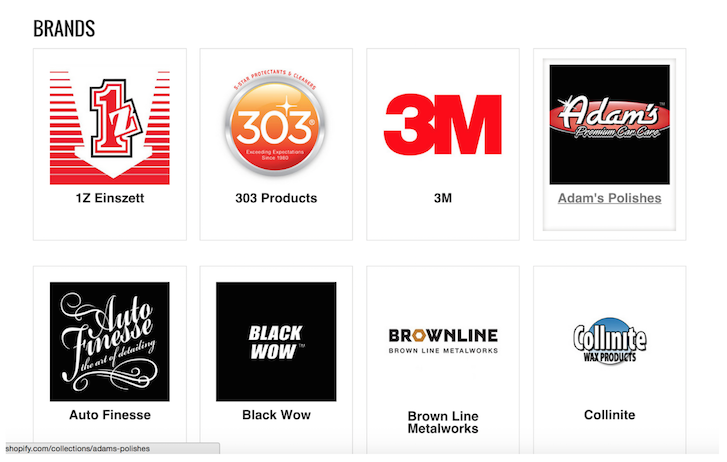
</tr>
<tr>
<td id="file-with-comments-liquid-L22" class="blob-num js-line-number" data-line-number="22"></td>
<td id="file-with-comments-liquid-LC22" class="blob-code blob-code-inner js-file-line">
<span class="pl-s1">{% if link_item.content contains "&lt;img" %}</span>//If the content of the page has an &lt;<span class="pl-ent">img</span> <span class="pl-e">tag</span> <span class="pl-e">in</span> <span class="pl-e">it</span> <span class="pl-e">then</span> <span class="pl-e">proceed</span> <span class="pl-e">to</span> <span class="pl-e">the</span> <span class="pl-e">next</span> <span class="pl-e">step</span>
</td>
</tr>
<tr>
<td id="file-with-comments-liquid-L23" class="blob-num js-line-number" data-line-number="23"></td>
<td id="file-with-comments-liquid-LC23" class="blob-code blob-code-inner js-file-line">{% <span class="pl-e">assign</span> <span class="pl-e">src</span> = <span class="pl-e">link</span>_item.<span class="pl-e">content</span> | <span class="pl-e">split:</span> <span class="pl-s"><span class="pl-pds">'</span>src="<span class="pl-pds">'</span></span> %}//<span class="pl-e">Create</span> <span class="pl-e">a</span> <span class="pl-e">new</span> <span class="pl-e">variable</span> <span class="pl-e">for</span> <span class="pl-e">link</span>_item.<span class="pl-e">content</span> <span class="pl-e">and</span> <span class="pl-e">use</span> <span class="pl-e">src</span>=<span class="pl-s"><span class="pl-pds">'</span>"<span class="pl-pds">'</span></span> <span class="pl-e">substring</span> <span class="pl-e">as</span> <span class="pl-e">a</span> <span class="pl-e">parameter</span>
</td>
</tr>
<tr>
<td id="file-with-comments-liquid-L24" class="blob-num js-line-number" data-line-number="24"></td>
<td id="file-with-comments-liquid-LC24" class="blob-code blob-code-inner js-file-line">{% <span class="pl-e">assign</span> <span class="pl-e">src</span> = <span class="pl-e">src</span>[<span class="pl-e">1</span>] | <span class="pl-e">split:</span> <span class="pl-s"><span class="pl-pds">'</span>"<span class="pl-pds">'</span></span> | <span class="pl-e">first</span> | <span class="pl-e">replace:</span> <span class="pl-s"><span class="pl-pds">'</span>//cdn<span class="pl-pds">'</span></span>, <span class="pl-s"><span class="pl-pds">'</span>http://cdn<span class="pl-pds">'</span></span> | <span class="pl-e">replace:</span> <span class="pl-s"><span class="pl-pds">'</span>http:http://<span class="pl-pds">'</span></span>, <span class="pl-s"><span class="pl-pds">'</span>http://<span class="pl-pds">'</span></span> | <span class="pl-e">remove:</span> <span class="pl-s"><span class="pl-pds">'</span>https:<span class="pl-pds">'</span></span> %}//<span class="pl-e">Create</span> <span class="pl-e">a</span> <span class="pl-e">new</span> <span class="pl-e">variable</span> <span class="pl-e">for</span> <span class="pl-e">src</span>[<span class="pl-e">1</span>] <span class="pl-e">use</span> <span class="pl-s"><span class="pl-pds">'</span>"<span class="pl-pds">'</span></span> <span class="pl-e">substring</span> <span class="pl-e">as</span> <span class="pl-e">a</span> <span class="pl-e">parameter</span> <span class="pl-e">and</span> <span class="pl-e">replace</span> <span class="pl-s"><span class="pl-pds">'</span>//cdn<span class="pl-pds">'</span></span> <span class="pl-e">with</span> <span class="pl-s"><span class="pl-pds">'</span>http://cdn<span class="pl-pds">'</span></span> <span class="pl-e">then</span> <span class="pl-e">replace</span> <span class="pl-s"><span class="pl-pds">'</span>http:http://<span class="pl-pds">'</span></span> <span class="pl-e">then</span> <span class="pl-e">finally</span> <span class="pl-e">remove</span> <span class="pl-s"><span class="pl-pds">'</span>https:<span class="pl-pds">'</span></span>
</td>
</tr>
<tr>
<td id="file-with-comments-liquid-L25" class="blob-num js-line-number" data-line-number="25"></td>
<td id="file-with-comments-liquid-LC25" class="blob-code blob-code-inner js-file-line">{% <span class="pl-e">if</span> <span class="pl-e">src</span> %}//<span class="pl-e">if</span> <span class="pl-e">there</span> <span class="pl-e">is</span> <span class="pl-e">a</span> <span class="pl-e">src</span>
</td>
</tr>
<tr>
<td id="file-with-comments-liquid-L26" class="blob-num js-line-number" data-line-number="26"></td>
<td id="file-with-comments-liquid-LC26" class="blob-code blob-code-inner js-file-line">{% <span class="pl-e">assign</span> <span class="pl-e">link</span>_image = <span class="pl-e">src</span> %}//<span class="pl-e">then</span> <span class="pl-e">create</span> <span class="pl-e">a</span> <span class="pl-e">new</span> <span class="pl-e">variable</span> <span class="pl-e">for</span> <span class="pl-e">link</span>_image <span class="pl-e">using</span> <span class="pl-e">src</span>
</td>
</tr>
<tr>
<td id="file-with-comments-liquid-L27" class="blob-num js-line-number" data-line-number="27"></td>
<td id="file-with-comments-liquid-LC27" class="blob-code blob-code-inner js-file-line">{% <span class="pl-e">endif</span> %}</td>
</tr>
<tr>
<td id="file-with-comments-liquid-L28" class="blob-num js-line-number" data-line-number="28"></td>
<td id="file-with-comments-liquid-LC28" class="blob-code blob-code-inner js-file-line">{% <span class="pl-e">endif</span> %}</td>
</tr>
<tr>
<td id="file-with-comments-liquid-L29" class="blob-num js-line-number" data-line-number="29"></td>
<td id="file-with-comments-liquid-LC29" class="blob-code blob-code-inner js-file-line">{% <span class="pl-e">elsif</span> <span class="pl-e">link</span>.<span class="pl-e">type</span> =<span class="pl-s">=</span> <span class="pl-s"><span class="pl-pds">'</span>blog_link<span class="pl-pds">'</span></span> %}//<span class="pl-e">Otherwise</span> <span class="pl-e">if</span> <span class="pl-e">link</span>.<span class="pl-e">type</span> <span class="pl-e">is</span> <span class="pl-e">a</span> <span class="pl-e">blog</span> <span class="pl-e">link</span>
</td>
</tr>
<tr>
<td id="file-with-comments-liquid-L30" class="blob-num js-line-number" data-line-number="30"></td>
<td id="file-with-comments-liquid-LC30" class="blob-code blob-code-inner js-file-line">{% <span class="pl-e">if</span> <span class="pl-e">link</span>_item.<span class="pl-e">articles</span>.<span class="pl-e">first</span>.<span class="pl-e">content</span> <span class="pl-e">contains</span> <span class="pl-s"><span class="pl-pds">"</span>&lt;img<span class="pl-pds">"</span></span> %}//<span class="pl-e">And</span> <span class="pl-e">if</span> <span class="pl-e">the</span> <span class="pl-e">blog</span> <span class="pl-e">content</span> <span class="pl-e">contains</span> <span class="pl-e">an</span> <span class="pl-e">image</span> <span class="pl-e">tag</span>
</td>
</tr>
<tr>
<td id="file-with-comments-liquid-L31" class="blob-num js-line-number" data-line-number="31"></td>
<td id="file-with-comments-liquid-LC31" class="blob-code blob-code-inner js-file-line">{% <span class="pl-e">assign</span> <span class="pl-e">src</span> = <span class="pl-e">link</span>_item.<span class="pl-e">articles</span>.<span class="pl-e">first</span>.<span class="pl-e">content</span> | <span class="pl-e">split:</span> <span class="pl-s"><span class="pl-pds">'</span>src="<span class="pl-pds">'</span></span> %}//<span class="pl-e">Then</span> <span class="pl-e">create</span> <span class="pl-e">a</span> <span class="pl-e">new</span> <span class="pl-e">variable</span> <span class="pl-e">to</span> <span class="pl-e">src</span>
</td>
</tr>
<tr>
<td id="file-with-comments-liquid-L32" class="blob-num js-line-number" data-line-number="32"></td>
<td id="file-with-comments-liquid-LC32" class="blob-code blob-code-inner js-file-line">{% <span class="pl-e">assign</span> <span class="pl-e">src</span> = <span class="pl-e">src</span>[<span class="pl-e">1</span>] | <span class="pl-e">split:</span> <span class="pl-s"><span class="pl-pds">'</span>"<span class="pl-pds">'</span></span> | <span class="pl-e">first</span> | <span class="pl-e">replace:</span> <span class="pl-s"><span class="pl-pds">'</span>//cdn<span class="pl-pds">'</span></span>, <span class="pl-s"><span class="pl-pds">'</span>http://cdn<span class="pl-pds">'</span></span> | <span class="pl-e">replace:</span> <span class="pl-s"><span class="pl-pds">'</span>http:http://<span class="pl-pds">'</span></span>, <span class="pl-s"><span class="pl-pds">'</span>http://<span class="pl-pds">'</span></span> | <span class="pl-e">remove:</span> <span class="pl-s"><span class="pl-pds">'</span>https:<span class="pl-pds">'</span></span> %}//<span class="pl-e">Create</span> <span class="pl-e">a</span> <span class="pl-e">new</span> <span class="pl-e">variable</span> <span class="pl-e">for</span> <span class="pl-e">src</span>[<span class="pl-e">1</span>] <span class="pl-e">use</span> <span class="pl-s"><span class="pl-pds">'</span>"<span class="pl-pds">'</span></span> <span class="pl-e">substring</span> <span class="pl-e">as</span> <span class="pl-e">a</span> <span class="pl-e">parameter</span> <span class="pl-e">and</span> <span class="pl-e">replace</span> <span class="pl-s"><span class="pl-pds">'</span>//cdn<span class="pl-pds">'</span></span> <span class="pl-e">with</span> <span class="pl-s"><span class="pl-pds">'</span>http://cdn<span class="pl-pds">'</span></span> <span class="pl-e">then</span> <span class="pl-e">replace</span> <span class="pl-s"><span class="pl-pds">'</span>http:http://<span class="pl-pds">'</span></span> <span class="pl-e">then</span> <span class="pl-e">finally</span> <span class="pl-e">remove</span> <span class="pl-s"><span class="pl-pds">'</span>https:<span class="pl-pds">'</span></span>
</td>
</tr>
<tr>
<td id="file-with-comments-liquid-L33" class="blob-num js-line-number" data-line-number="33"></td>
<td id="file-with-comments-liquid-LC33" class="blob-code blob-code-inner js-file-line">{% <span class="pl-e">if</span> <span class="pl-e">src</span> %}//<span class="pl-e">if</span> <span class="pl-e">src</span> <span class="pl-e">is</span> <span class="pl-e">present</span>
</td>
</tr>
<tr>
<td id="file-with-comments-liquid-L34" class="blob-num js-line-number" data-line-number="34"></td>
<td id="file-with-comments-liquid-LC34" class="blob-code blob-code-inner js-file-line">{% <span class="pl-e">assign</span> <span class="pl-e">link</span>_image = <span class="pl-e">src</span> %}//<span class="pl-e">then</span> <span class="pl-e">create</span> <span class="pl-e">a</span> <span class="pl-e">new</span> <span class="pl-e">variable</span> <span class="pl-e">for</span> <span class="pl-e">link</span>_image <span class="pl-e">using</span> <span class="pl-e">src</span>
</td>
</tr>
<tr>
<td id="file-with-comments-liquid-L35" class="blob-num js-line-number" data-line-number="35"></td>
<td id="file-with-comments-liquid-LC35" class="blob-code blob-code-inner js-file-line">{% <span class="pl-e">endif</span> %}</td>
</tr>
<tr>
<td id="file-with-comments-liquid-L36" class="blob-num js-line-number" data-line-number="36"></td>
<td id="file-with-comments-liquid-LC36" class="blob-code blob-code-inner js-file-line">{% <span class="pl-e">endif</span> %}</td>
</tr>
<tr>
<td id="file-with-comments-liquid-L37" class="blob-num js-line-number" data-line-number="37"></td>
<td id="file-with-comments-liquid-LC37" class="blob-code blob-code-inner js-file-line">{% <span class="pl-e">endif</span> %}</td>
</tr>
<tr>
<td id="file-with-comments-liquid-L38" class="blob-num js-line-number" data-line-number="38"></td>
<td id="file-with-comments-liquid-LC38" class="blob-code blob-code-inner js-file-line"></td>
</tr>
<tr>
<td id="file-with-comments-liquid-L39" class="blob-num js-line-number" data-line-number="39"></td>
<td id="file-with-comments-liquid-LC39" class="blob-code blob-code-inner js-file-line">&lt;<span class="pl-e">a</span> <span class="pl-e">href</span>=<span class="pl-s"><span class="pl-pds">"</span>{{ link_item.url }}<span class="pl-pds">"</span></span> <span class="pl-e">title</span>=<span class="pl-s"><span class="pl-pds">"</span>{{ link_title }}<span class="pl-pds">"</span></span>&gt;//Here is where it all comes together make the link_item.url click-able and link to the content and add the title using link_title</td>
</tr>
<tr>
<td id="file-with-comments-liquid-L40" class="blob-num js-line-number" data-line-number="40"></td>
<td id="file-with-comments-liquid-LC40" class="blob-code blob-code-inner js-file-line">&lt;<span class="pl-ent">span</span> <span class="pl-e">class</span>=<span class="pl-s"><span class="pl-pds">"</span>thumbnail<span class="pl-pds">"</span></span>&gt;</td>
</tr>
<tr>
<td id="file-with-comments-liquid-L41" class="blob-num js-line-number" data-line-number="41"></td>
<td id="file-with-comments-liquid-LC41" class="blob-code blob-code-inner js-file-line">
<span class="pl-s1">{% if link_image != '' %}</span> //if link_image does not equal '' then continue to the next step</td>
</tr>
<tr>
<td id="file-with-comments-liquid-L42" class="blob-num js-line-number" data-line-number="42"></td>
<td id="file-with-comments-liquid-LC42" class="blob-code blob-code-inner js-file-line">&lt;<span class="pl-ent">img</span> {% <span class="pl-e">if</span> <span class="pl-e">settings</span>.<span class="pl-e">align</span>_height %}<span class="pl-e">style</span>=<span class="pl-s"><span class="pl-pds">"</span>max-height:{{ settings.collection_height }}px<span class="pl-pds">"</span></span>{% <span class="pl-e">endif</span> %} <span class="pl-e">src</span>=<span class="pl-s"><span class="pl-pds">"</span>{{ link_image }}<span class="pl-pds">"</span></span> <span class="pl-e">alt</span>=<span class="pl-s"><span class="pl-pds">"</span>{{ link_title }}<span class="pl-pds">"</span></span> /&gt;//check if there are settings for align_height if so add it to the style otherwise just get the link_image and make the alt tag the link title</td>
</tr>
<tr>
<td id="file-with-comments-liquid-L43" class="blob-num js-line-number" data-line-number="43"></td>
<td id="file-with-comments-liquid-LC43" class="blob-code blob-code-inner js-file-line"><span class="pl-s1">{% endif %}</span></td>
</tr>
<tr>
<td id="file-with-comments-liquid-L44" class="blob-num js-line-number" data-line-number="44"></td>
<td id="file-with-comments-liquid-LC44" class="blob-code blob-code-inner js-file-line">&lt;/<span class="pl-ent">span</span>&gt;</td>
</tr>
<tr>
<td id="file-with-comments-liquid-L45" class="blob-num js-line-number" data-line-number="45"></td>
<td id="file-with-comments-liquid-LC45" class="blob-code blob-code-inner js-file-line"></td>
</tr>
<tr>
<td id="file-with-comments-liquid-L46" class="blob-num js-line-number" data-line-number="46"></td>
<td id="file-with-comments-liquid-LC46" class="blob-code blob-code-inner js-file-line">&lt;<span class="pl-ent">span</span> <span class="pl-e">class</span>=<span class="pl-s"><span class="pl-pds">"</span>product-title<span class="pl-pds">"</span></span>&gt;</td>
</tr>
<tr>
<td id="file-with-comments-liquid-L47" class="blob-num js-line-number" data-line-number="47"></td>
<td id="file-with-comments-liquid-LC47" class="blob-code blob-code-inner js-file-line">
<span class="pl-s1">{{ link_title }}</span> //add the link title (it's click-able)</td>
</tr>
<tr>
<td id="file-with-comments-liquid-L48" class="blob-num js-line-number" data-line-number="48"></td>
<td id="file-with-comments-liquid-LC48" class="blob-code blob-code-inner js-file-line">&lt;/<span class="pl-ent">span</span>&gt;</td>
</tr>
<tr>
<td id="file-with-comments-liquid-L49" class="blob-num js-line-number" data-line-number="49"></td>
<td id="file-with-comments-liquid-LC49" class="blob-code blob-code-inner js-file-line">&lt;/<span class="pl-ent">a</span>&gt;</td>
</tr>
<tr>
<td id="file-with-comments-liquid-L50" class="blob-num js-line-number" data-line-number="50"></td>
<td id="file-with-comments-liquid-LC50" class="blob-code blob-code-inner js-file-line"></td>
</tr>
<tr>
<td id="file-with-comments-liquid-L51" class="blob-num js-line-number" data-line-number="51"></td>
<td id="file-with-comments-liquid-LC51" class="blob-code blob-code-inner js-file-line">&lt;/<span class="pl-ent">div</span>&gt;</td>
</tr>
<tr>
<td id="file-with-comments-liquid-L52" class="blob-num js-line-number" data-line-number="52"></td>
<td id="file-with-comments-liquid-LC52" class="blob-code blob-code-inner js-file-line">&lt;/<span class="pl-ent">li</span>&gt;</td>
</tr>
<tr>
<td id="file-with-comments-liquid-L53" class="blob-num js-line-number" data-line-number="53"></td>
<td id="file-with-comments-liquid-LC53" class="blob-code blob-code-inner js-file-line"><span class="pl-s1">{% endfor %}</span></td>
</tr>
<tr>
<td id="file-with-comments-liquid-L54" class="blob-num js-line-number" data-line-number="54"></td>
<td id="file-with-comments-liquid-LC54" class="blob-code blob-code-inner js-file-line">&lt;/<span class="pl-ent">ul</span>&gt;</td>
</tr>
</tbody>
</table>
</div>
</div>
</div>
</div>
<div class="gist-meta">
<a href="https://gist.github.com/levinmejia/5a4de6a7133301292d93/raw/cbe61d84cf256d8a13e76203cbfefe6b19dd44c2/with-comments.liquid">view raw</a><a href="https://gist.github.com/levinmejia/5a4de6a7133301292d93#file-with-comments-liquid">with-comments.liquid</a> hosted with ❤ by <a href="https://github.com/">GitHub</a>
</div>
</div>
</div>
<h3 class="lowercase">Version without comments</h3>
<p>You can connect collections, products, pages, and even blogs. By default, it will use the first product that appears on a collection or you can pick a featured image as we’ve done.</p>
<div id="gist27324232" class="gist">
<div class="gist-file">
<div class="gist-data">
<div class="js-gist-file-update-container js-task-list-container file-box">
<div id="file-without-comments-liquid" class="file">
<div itemprop="text" class="blob-wrapper data type-liquid">
<table class="highlight tab-size js-file-line-container" data-tab-size="8">
<tbody>
<tr>
<td id="file-without-comments-liquid-L1" class="blob-num js-line-number" data-line-number="1"></td>
<td id="file-without-comments-liquid-LC1" class="blob-code blob-code-inner js-file-line">&lt;<span class="pl-ent">ul</span> <span class="pl-e">class</span>=<span class="pl-s"><span class="pl-pds">"</span>block-grid mobile four-up product-collection<span class="pl-pds">"</span></span>&gt;</td>
</tr>
<tr>
<td id="file-without-comments-liquid-L2" class="blob-num js-line-number" data-line-number="2"></td>
<td id="file-without-comments-liquid-LC2" class="blob-code blob-code-inner js-file-line"><span class="pl-s1">{% for link in linklist.links %}</span></td>
</tr>
<tr>
<td id="file-without-comments-liquid-L3" class="blob-num js-line-number" data-line-number="3"></td>
<td id="file-without-comments-liquid-LC3" class="blob-code blob-code-inner js-file-line">&lt;<span class="pl-ent">li</span>&gt;</td>
</tr>
<tr>
<td id="file-without-comments-liquid-L4" class="blob-num js-line-number" data-line-number="4"></td>
<td id="file-without-comments-liquid-LC4" class="blob-code blob-code-inner js-file-line">&lt;<span class="pl-ent">div</span> <span class="pl-e">class</span>=<span class="pl-s"><span class="pl-pds">"</span>product<span class="pl-pds">"</span></span>&gt;</td>
</tr>
<tr>
<td id="file-without-comments-liquid-L5" class="blob-num js-line-number" data-line-number="5"></td>
<td id="file-without-comments-liquid-LC5" class="blob-code blob-code-inner js-file-line"><span class="pl-s1">{% comment %}</span></td>
</tr>
<tr>
<td id="file-without-comments-liquid-L6" class="blob-num js-line-number" data-line-number="6"></td>
<td id="file-without-comments-liquid-LC6" class="blob-code blob-code-inner js-file-line">You can connect collections, products, pages, <span class="pl-ii">&amp;</span> even blogs. By default it will use the first product that appears on a collection or you can pick a featured image as we’ve done.</td>
</tr>
<tr>
<td id="file-without-comments-liquid-L7" class="blob-num js-line-number" data-line-number="7"></td>
<td id="file-without-comments-liquid-LC7" class="blob-code blob-code-inner js-file-line"><span class="pl-s1">{% endcomment %}</span></td>
</tr>
<tr>
<td id="file-without-comments-liquid-L8" class="blob-num js-line-number" data-line-number="8"></td>
<td id="file-without-comments-liquid-LC8" class="blob-code blob-code-inner js-file-line"></td>
</tr>
<tr>
<td id="file-without-comments-liquid-L9" class="blob-num js-line-number" data-line-number="9"></td>
<td id="file-without-comments-liquid-LC9" class="blob-code blob-code-inner js-file-line"><span class="pl-s1">{% assign link_item = link.object %}</span></td>
</tr>
<tr>
<td id="file-without-comments-liquid-L10" class="blob-num js-line-number" data-line-number="10"></td>
<td id="file-without-comments-liquid-LC10" class="blob-code blob-code-inner js-file-line"><span class="pl-s1">{% assign link_image = '' %}</span></td>
</tr>
<tr>
<td id="file-without-comments-liquid-L11" class="blob-num js-line-number" data-line-number="11"></td>
<td id="file-without-comments-liquid-LC11" class="blob-code blob-code-inner js-file-line">
<span class="pl-s1">{% capture link_title %}</span><span class="pl-s1">{{ link.title | escape }}</span><span class="pl-s1">{% endcapture %}</span>
</td>
</tr>
<tr>
<td id="file-without-comments-liquid-L12" class="blob-num js-line-number" data-line-number="12"></td>
<td id="file-without-comments-liquid-LC12" class="blob-code blob-code-inner js-file-line"></td>
</tr>
<tr>
<td id="file-without-comments-liquid-L13" class="blob-num js-line-number" data-line-number="13"></td>
<td id="file-without-comments-liquid-LC13" class="blob-code blob-code-inner js-file-line"><span class="pl-s1">{% if link.type == 'collection_link' %}</span></td>
</tr>
<tr>
<td id="file-without-comments-liquid-L14" class="blob-num js-line-number" data-line-number="14"></td>
<td id="file-without-comments-liquid-LC14" class="blob-code blob-code-inner js-file-line"><span class="pl-s1">{% if link_item.image %}</span></td>
</tr>
<tr>
<td id="file-without-comments-liquid-L15" class="blob-num js-line-number" data-line-number="15"></td>
<td id="file-without-comments-liquid-LC15" class="blob-code blob-code-inner js-file-line"><span class="pl-s1">{% assign link_image = link_item.image.src | collection_img_url: 'medium' %}</span></td>
</tr>
<tr>
<td id="file-without-comments-liquid-L16" class="blob-num js-line-number" data-line-number="16"></td>
<td id="file-without-comments-liquid-LC16" class="blob-code blob-code-inner js-file-line"><span class="pl-s1">{% else %}</span></td>
</tr>
<tr>
<td id="file-without-comments-liquid-L17" class="blob-num js-line-number" data-line-number="17"></td>
<td id="file-without-comments-liquid-LC17" class="blob-code blob-code-inner js-file-line"><span class="pl-s1">{% assign link_image = link_item.products.first.featured_image | product_img_url: 'medium' %}</span></td>
</tr>
<tr>
<td id="file-without-comments-liquid-L18" class="blob-num js-line-number" data-line-number="18"></td>
<td id="file-without-comments-liquid-LC18" class="blob-code blob-code-inner js-file-line"><span class="pl-s1">{% endif %}</span></td>
</tr>
<tr>
<td id="file-without-comments-liquid-L19" class="blob-num js-line-number" data-line-number="19"></td>
<td id="file-without-comments-liquid-LC19" class="blob-code blob-code-inner js-file-line"><span class="pl-s1">{% elsif link.type == 'product_link' %}</span></td>
</tr>
<tr>
<td id="file-without-comments-liquid-L20" class="blob-num js-line-number" data-line-number="20"></td>
<td id="file-without-comments-liquid-LC20" class="blob-code blob-code-inner js-file-line"><span class="pl-s1">{% assign link_image = link_item.featured_image | product_img_url: 'medium' %}</span></td>
</tr>
<tr>
<td id="file-without-comments-liquid-L21" class="blob-num js-line-number" data-line-number="21"></td>
<td id="file-without-comments-liquid-LC21" class="blob-code blob-code-inner js-file-line"><span class="pl-s1">{% elsif link.type == 'page_link' %}</span></td>
</tr>
<tr>
<td id="file-without-comments-liquid-L22" class="blob-num js-line-number" data-line-number="22"></td>
<td id="file-without-comments-liquid-LC22" class="blob-code blob-code-inner js-file-line"><span class="pl-s1">{% if link_item.content contains "&lt;img" %}</span></td>
</tr>
<tr>
<td id="file-without-comments-liquid-L23" class="blob-num js-line-number" data-line-number="23"></td>
<td id="file-without-comments-liquid-LC23" class="blob-code blob-code-inner js-file-line"><span class="pl-s1">{% assign src = link_item.content | split: 'src="' %}</span></td>
</tr>
<tr>
<td id="file-without-comments-liquid-L24" class="blob-num js-line-number" data-line-number="24"></td>
<td id="file-without-comments-liquid-LC24" class="blob-code blob-code-inner js-file-line"><span class="pl-s1">{% assign src = src[1] | split: '"' | first | replace: '//cdn', 'http://cdn' | replace: 'http:http://', 'http://' | remove: 'https:' %}</span></td>
</tr>
<tr>
<td id="file-without-comments-liquid-L25" class="blob-num js-line-number" data-line-number="25"></td>
<td id="file-without-comments-liquid-LC25" class="blob-code blob-code-inner js-file-line"><span class="pl-s1">{% if src %}</span></td>
</tr>
<tr>
<td id="file-without-comments-liquid-L26" class="blob-num js-line-number" data-line-number="26"></td>
<td id="file-without-comments-liquid-LC26" class="blob-code blob-code-inner js-file-line"><span class="pl-s1">{% assign link_image = src %}</span></td>
</tr>
<tr>
<td id="file-without-comments-liquid-L27" class="blob-num js-line-number" data-line-number="27"></td>
<td id="file-without-comments-liquid-LC27" class="blob-code blob-code-inner js-file-line"><span class="pl-s1">{% endif %}</span></td>
</tr>
<tr>
<td id="file-without-comments-liquid-L28" class="blob-num js-line-number" data-line-number="28"></td>
<td id="file-without-comments-liquid-LC28" class="blob-code blob-code-inner js-file-line"><span class="pl-s1">{% endif %}</span></td>
</tr>
<tr>
<td id="file-without-comments-liquid-L29" class="blob-num js-line-number" data-line-number="29"></td>
<td id="file-without-comments-liquid-LC29" class="blob-code blob-code-inner js-file-line"><span class="pl-s1">{% elsif link.type == 'blog_link' %}</span></td>
</tr>
<tr>
<td id="file-without-comments-liquid-L30" class="blob-num js-line-number" data-line-number="30"></td>
<td id="file-without-comments-liquid-LC30" class="blob-code blob-code-inner js-file-line"><span class="pl-s1">{% if link_item.articles.first.content contains "&lt;img" %}</span></td>
</tr>
<tr>
<td id="file-without-comments-liquid-L31" class="blob-num js-line-number" data-line-number="31"></td>
<td id="file-without-comments-liquid-LC31" class="blob-code blob-code-inner js-file-line"><span class="pl-s1">{% assign src = link_item.articles.first.content | split: 'src="' %}</span></td>
</tr>
<tr>
<td id="file-without-comments-liquid-L32" class="blob-num js-line-number" data-line-number="32"></td>
<td id="file-without-comments-liquid-LC32" class="blob-code blob-code-inner js-file-line"><span class="pl-s1">{% assign src = src[1] | split: '"' | first | replace: '//cdn', 'http://cdn' | replace: 'http:http://', 'http://' | remove: 'https:' %}</span></td>
</tr>
<tr>
<td id="file-without-comments-liquid-L33" class="blob-num js-line-number" data-line-number="33"></td>
<td id="file-without-comments-liquid-LC33" class="blob-code blob-code-inner js-file-line"><span class="pl-s1">{% if src %}</span></td>
</tr>
<tr>
<td id="file-without-comments-liquid-L34" class="blob-num js-line-number" data-line-number="34"></td>
<td id="file-without-comments-liquid-LC34" class="blob-code blob-code-inner js-file-line"><span class="pl-s1">{% assign link_image = src %}</span></td>
</tr>
<tr>
<td id="file-without-comments-liquid-L35" class="blob-num js-line-number" data-line-number="35"></td>
<td id="file-without-comments-liquid-LC35" class="blob-code blob-code-inner js-file-line"><span class="pl-s1">{% endif %}</span></td>
</tr>
<tr>
<td id="file-without-comments-liquid-L36" class="blob-num js-line-number" data-line-number="36"></td>
<td id="file-without-comments-liquid-LC36" class="blob-code blob-code-inner js-file-line"><span class="pl-s1">{% endif %}</span></td>
</tr>
<tr>
<td id="file-without-comments-liquid-L37" class="blob-num js-line-number" data-line-number="37"></td>
<td id="file-without-comments-liquid-LC37" class="blob-code blob-code-inner js-file-line"><span class="pl-s1">{% endif %}</span></td>
</tr>
<tr>
<td id="file-without-comments-liquid-L38" class="blob-num js-line-number" data-line-number="38"></td>
<td id="file-without-comments-liquid-LC38" class="blob-code blob-code-inner js-file-line"></td>
</tr>
<tr>
<td id="file-without-comments-liquid-L39" class="blob-num js-line-number" data-line-number="39"></td>
<td id="file-without-comments-liquid-LC39" class="blob-code blob-code-inner js-file-line">&lt;<span class="pl-ent">a</span> <span class="pl-e">href</span>=<span class="pl-s"><span class="pl-pds">"</span>{{ link_item.url }}<span class="pl-pds">"</span></span> <span class="pl-e">title</span>=<span class="pl-s"><span class="pl-pds">"</span>{{ link_title }}<span class="pl-pds">"</span></span>&gt;</td>
</tr>
<tr>
<td id="file-without-comments-liquid-L40" class="blob-num js-line-number" data-line-number="40"></td>
<td id="file-without-comments-liquid-LC40" class="blob-code blob-code-inner js-file-line">&lt;<span class="pl-ent">span</span> <span class="pl-e">class</span>=<span class="pl-s"><span class="pl-pds">"</span>thumbnail<span class="pl-pds">"</span></span>&gt;</td>
</tr>
<tr>
<td id="file-without-comments-liquid-L41" class="blob-num js-line-number" data-line-number="41"></td>
<td id="file-without-comments-liquid-LC41" class="blob-code blob-code-inner js-file-line"><span class="pl-s1">{% if link_image != '' %}</span></td>
</tr>
<tr>
<td id="file-without-comments-liquid-L42" class="blob-num js-line-number" data-line-number="42"></td>
<td id="file-without-comments-liquid-LC42" class="blob-code blob-code-inner js-file-line">&lt;<span class="pl-ent">img</span> {% <span class="pl-e">if</span> <span class="pl-e">settings</span>.<span class="pl-e">align</span>_height %}<span class="pl-e">style</span>=<span class="pl-s"><span class="pl-pds">"</span>max-height:{{ settings.collection_height }}px<span class="pl-pds">"</span></span>{% <span class="pl-e">endif</span> %} <span class="pl-e">src</span>=<span class="pl-s"><span class="pl-pds">"</span>{{ link_image }}<span class="pl-pds">"</span></span> <span class="pl-e">alt</span>=<span class="pl-s"><span class="pl-pds">"</span>{{ link_title }}<span class="pl-pds">"</span></span> /&gt;</td>
</tr>
<tr>
<td id="file-without-comments-liquid-L43" class="blob-num js-line-number" data-line-number="43"></td>
<td id="file-without-comments-liquid-LC43" class="blob-code blob-code-inner js-file-line"><span class="pl-s1">{% endif %}</span></td>
</tr>
<tr>
<td id="file-without-comments-liquid-L44" class="blob-num js-line-number" data-line-number="44"></td>
<td id="file-without-comments-liquid-LC44" class="blob-code blob-code-inner js-file-line">&lt;/<span class="pl-ent">span</span>&gt;</td>
</tr>
<tr>
<td id="file-without-comments-liquid-L45" class="blob-num js-line-number" data-line-number="45"></td>
<td id="file-without-comments-liquid-LC45" class="blob-code blob-code-inner js-file-line"></td>
</tr>
<tr>
<td id="file-without-comments-liquid-L46" class="blob-num js-line-number" data-line-number="46"></td>
<td id="file-without-comments-liquid-LC46" class="blob-code blob-code-inner js-file-line">&lt;<span class="pl-ent">span</span> <span class="pl-e">class</span>=<span class="pl-s"><span class="pl-pds">"</span>product-title<span class="pl-pds">"</span></span>&gt;</td>
</tr>
<tr>
<td id="file-without-comments-liquid-L47" class="blob-num js-line-number" data-line-number="47"></td>
<td id="file-without-comments-liquid-LC47" class="blob-code blob-code-inner js-file-line"><span class="pl-s1">{{ link_title }}</span></td>
</tr>
<tr>
<td id="file-without-comments-liquid-L48" class="blob-num js-line-number" data-line-number="48"></td>
<td id="file-without-comments-liquid-LC48" class="blob-code blob-code-inner js-file-line">&lt;/<span class="pl-ent">span</span>&gt;</td>
</tr>
<tr>
<td id="file-without-comments-liquid-L49" class="blob-num js-line-number" data-line-number="49"></td>
<td id="file-without-comments-liquid-LC49" class="blob-code blob-code-inner js-file-line">&lt;/<span class="pl-ent">a</span>&gt;</td>
</tr>
<tr>
<td id="file-without-comments-liquid-L50" class="blob-num js-line-number" data-line-number="50"></td>
<td id="file-without-comments-liquid-LC50" class="blob-code blob-code-inner js-file-line"></td>
</tr>
<tr>
<td id="file-without-comments-liquid-L51" class="blob-num js-line-number" data-line-number="51"></td>
<td id="file-without-comments-liquid-LC51" class="blob-code blob-code-inner js-file-line">&lt;/<span class="pl-ent">div</span>&gt;</td>
</tr>
<tr>
<td id="file-without-comments-liquid-L52" class="blob-num js-line-number" data-line-number="52"></td>
<td id="file-without-comments-liquid-LC52" class="blob-code blob-code-inner js-file-line">&lt;/<span class="pl-ent">li</span>&gt;</td>
</tr>
<tr>
<td id="file-without-comments-liquid-L53" class="blob-num js-line-number" data-line-number="53"></td>
<td id="file-without-comments-liquid-LC53" class="blob-code blob-code-inner js-file-line"><span class="pl-s1">{% endfor %}</span></td>
</tr>
<tr>
<td id="file-without-comments-liquid-L54" class="blob-num js-line-number" data-line-number="54"></td>
<td id="file-without-comments-liquid-LC54" class="blob-code blob-code-inner js-file-line">&lt;/<span class="pl-ent">ul</span>&gt;</td>
</tr>
</tbody>
</table>
</div>
</div>
</div>
</div>
<div class="gist-meta">
<a href="https://gist.github.com/levinmejia/037d9818dd68fc95f2e9/raw/a6769155519788321ecfb427f4bb1fbfa7f28fc1/without-comments.liquid">view raw</a><a href="https://gist.github.com/levinmejia/037d9818dd68fc95f2e9#file-without-comments-liquid">without-comments.liquid</a> hosted with ❤ by <a href="https://github.com/">GitHub</a>
</div>
</div>
</div>
<h3 class="lowercase">Step 6: Link it all up</h3>
<p>Now all you’ve got to do is create a brand’s page and change the template to <em>page.collection</em> and click save.</p>
<p><strong><strong><img class=" lazyloaded" data-src="//cdn.shopify.com/s/files/1/0533/2089/files/Online_Store_pages_985d185f-a920-4dc0-a470-4a8f16638b72.png?5887634470138460309" alt="" src="https://cdn.shopify.com/s/files/1/0533/2089/files/Online_Store_pages_985d185f-a920-4dc0-a470-4a8f16638b72.png?5887634470138460309"></strong></strong></p>
<h3 class="lowercase"><strong>Step 7: Admire your handy work</strong></h3>
<p><span>When you click on the collection pictures, they will link to all the products that are housed in said collection! It’s a really powerful tool. The best part is your client can easily switch the order and switch the collections out right from the link list we created (in this case, it’s called "Brands"). </span></p>
<p><strong><strong><img class=" lazyloaded" data-src="//cdn.shopify.com/s/files/1/0533/2089/files/Brands_6022deff-6945-4932-ba20-01628f9df826.png?5376449279524684881" alt="" src="https://cdn.shopify.com/s/files/1/0533/2089/files/Brands_6022deff-6945-4932-ba20-01628f9df826.png?5376449279524684881"><br><br></strong></strong></p>
<p><strong><span>Let me know if you have any questions, or if you’ve got some ideas that save you time with Shopify.</span></strong></p>
<p><strong>And don’t forget to check out my notes <a rel="nofollow noopener noreferrer" target="_blank" href="https://github.com/k2snowboarding87/Make-All-Your-Brand-Page-Dreams-Come-True-Shopify" title="Make Your Brand Dreams Come True on GitHub by Mark Perini">on GitHub</a>! </strong></p>]]>
    </content>
  </entry>
</feed>