<?xml version="1.0" encoding="UTF-8"?>
<feed xml:lang="en" xmlns="http://www.w3.org/2005/Atom" xmlns:opensearch="http://a9.com/-/spec/opensearch/1.1/" xmlns:s="http://jadedpixel.com/-/spec/shopify">
  <id>https://gettecla.com/blogs/news.atom</id>
  <link rel="alternate" type="text/html" href="https://gettecla.com/blogs/news"/>
  <link rel="self" type="application/atom+xml" href="https://gettecla.com/blogs/news.atom"/>
  <title>tecla - Tecla News</title>
  <updated>2024-10-06T14:55:57-04:00</updated>
  <author>
    <name>tecla</name>
  </author>
  <entry>
    <id>https://gettecla.com/blogs/news/owen-mcgirr-from-tecla-user-to-switchify-creator</id>
    <published>2024-10-06T14:55:57-04:00</published>
    <updated>2024-10-06T14:55:57-04:00</updated>
    <link rel="alternate" type="text/html" href="https://gettecla.com/blogs/news/owen-mcgirr-from-tecla-user-to-switchify-creator"/>
    <title>Owen McGirr: From Tecla User to Switchify Creator</title>
    <author>
      <name>Mauricio Meza</name>
    </author>
    <summary type="html">
      <![CDATA[Meet Owen McGirr, Tecla user and developer of Switchify, a new switch accessibility service for Android. Owen is currently running a campaign to support the development of Switchify on Indigogo.<p><a class="read-more" href="https://gettecla.com/blogs/news/owen-mcgirr-from-tecla-user-to-switchify-creator">More</a></p>]]>
    </summary>
    <content type="html">
      <![CDATA[<meta charset="utf-8">
<p data-mce-fragment="1">Owen McGirr, is a Tecla user based in Ireland. We met him as teenager on Twitter and after become a Tecla user he expressed his interest in app development and has contributed to a couple of our projects. Since then, Owen has come a long way, developing an launching a couple his own apps, including a speech generation app. Currently, Owen is promoting his latest app, a switch accessibility service for Android called <a title="Switchify in the Play Store" href="https://play.google.com/store/apps/details?id=com.enaboapps.switchify" target="_blank" data-mce-href="https://play.google.com/store/apps/details?id=com.enaboapps.switchify">Switchify</a>.</p>
<p data-mce-fragment="1"><iframe title="YouTube video player" src="https://www.youtube.com/embed/VpPau6BW9OU?si=g4Fdsg0Mp0BmwTbH" height="315" width="560" allowfullscreen="" referrerpolicy="strict-origin-when-cross-origin" allow="accelerometer; autoplay; clipboard-write; encrypted-media; gyroscope; picture-in-picture; web-share" frameborder="0"></iframe></p>
<p data-mce-fragment="1"> </p>
<p data-mce-fragment="1">Owen is currently running an Indigogo Campaign to support the development of Switchify. You can visit the campaign page by clicking the Indigogo image below: </p>
<p data-mce-fragment="1"> </p>
<p style="text-align: center;" data-mce-fragment="1"><a href="https://igg.me/at/13tkHWooNnY/x/38101140#/" title="Switchify Indigogo Campaign Page"><img src="https://learn.indiegogo.com/wp-content/uploads/2018/03/Indiegogo-logo.png"></a></p>
<p data-mce-fragment="1"> </p>
<h1>Introduction</h1>
<p data-mce-fragment="1">Hello, I'm Owen McGirr. As someone with cerebral palsy, I've been a long-time user of assistive technology. My journey with switch access began with Tecla, a device that first allowed me to use a mobile phone or tablet. This revolutionary tool transformed how I interacted with my mobile devices. However, my experience as a Tecla user led me to recognize the need for a more robust switch access system for Android devices. This realization became the catalyst for creating Switchify.</p>
<h2 data-mce-fragment="1">My Experience with Tecla</h2>
<p data-mce-fragment="1">Tecla was my introduction to the world of switch access. It opened up new possibilities for me to interact with technology, despite my physical limitations. The experience of using Tecla was transformative, allowing me to communicate, work, and engage with the digital world in ways I hadn't before. However, as I became more proficient with technology, I began to appreciate the customization options offered by the Android system. This led me to see areas where improvements could be made, especially for Android users who require switch access.</p>
<h2 data-mce-fragment="1">The Birth of Switchify</h2>
<p data-mce-fragment="1">Inspired by my experiences and driven by a desire to enhance accessibility for Android users, I embarked on creating Switchify. Switchify is an Android switch access system designed to provide a more intuitive, efficient, and customizable experience for users with physical disabilities. Drawing from my personal experiences as a switch user, I focused on developing features that I knew would make a significant difference in users' lives.</p>
<h2 data-mce-fragment="1">Key Features of Switchify</h2>
<ul data-mce-fragment="1">
<li data-mce-fragment="1">
<p data-mce-fragment="1">Dynamic cursor system for precise navigation</p>
<p data-mce-fragment="1">This feature allows users to move a cursor across the screen with precision, enabling them to select specific items or areas without relying on touch input. The cursor's movement can be controlled through various switch inputs, providing a high level of accuracy for users with limited motor skills.</p>
</li>
<li data-mce-fragment="1">
<p data-mce-fragment="1">Item scanning system for efficient selection</p>
<p data-mce-fragment="1">Switchify implements an intelligent scanning system that highlights items on the screen in a systematic manner. Users can activate their switch when the desired item is highlighted, making selection processes faster and more intuitive. This system can be customized to suit individual scanning speeds and patterns.</p>
</li>
<li data-mce-fragment="1">
<p data-mce-fragment="1">Compatibility with various adaptive switches</p>
<p data-mce-fragment="1">Recognizing the diverse needs of users, Switchify is designed to work with a wide range of adaptive switches. This includes sip-and-puff switches, button switches, and various other input methods. Notably, Tecla works perfectly as a switch input for Switchify, leveraging its established functionality. This compatibility ensures that users can interact with their devices using the method that works best for them, whether it's Tecla or another adaptive switch.</p>
</li>
<li data-mce-fragment="1">
<p data-mce-fragment="1">Customizable settings to suit individual needs</p>
<p data-mce-fragment="1">Switchify emphasizes personalization, allowing users to tailor the app to their specific needs. Key customizable features include:</p>
<ul data-mce-fragment="1">
<li data-mce-fragment="1">Scan speed: Users can adjust how quickly items are highlighted, ensuring comfortable navigation.</li>
<li data-mce-fragment="1">Switch sensitivity: Fine-tune how the app responds to switch inputs, accommodating different physical abilities.</li>
</ul>
<p data-mce-fragment="1">These adjustments enable users to optimize Switchify for their individual capabilities, enhancing overall usability and efficiency.</p>
</li>
</ul>
<h2 data-mce-fragment="1">The Impact of Switchify</h2>
<p data-mce-fragment="1">Switchify is more than just an app; it's a gateway to technology for those who may have felt excluded before. By simplifying access and breaking down barriers, Switchify ensures that everyone, regardless of their physical abilities, can fully utilize their Android devices. Users can navigate their devices with ease and confidence, making the digital world more accessible than ever before.</p>
<h2 data-mce-fragment="1">Looking Forward</h2>
<p data-mce-fragment="1">As I continue to develop and improve Switchify, I remain committed to the goal of making technology accessible to all. I believe that by sharing our experiences and working together, we can create solutions that truly meet the needs of people with disabilities. Switchify is just the beginning, and I'm excited to see how it will evolve and impact lives in the future.</p>
<p data-mce-fragment="1">If you're interested in trying Switchify or becoming a tester to help improve the app, please don't hesitate to reach out. Together, we can make the digital world more inclusive, one switch at a time.</p>
<!-- notionvc: a239622c-3655-420c-a329-ea5694de1036 -->]]>
    </content>
  </entry>
  <entry>
    <id>https://gettecla.com/blogs/news/ios-switch-control-scanning-modes</id>
    <published>2020-01-15T14:59:00-05:00</published>
    <updated>2020-01-15T15:27:21-05:00</updated>
    <link rel="alternate" type="text/html" href="https://gettecla.com/blogs/news/ios-switch-control-scanning-modes"/>
    <title>iOS Switch Control Scanning Modes</title>
    <author>
      <name>Bambri Collaborator</name>
    </author>
    <summary type="html">
      <![CDATA[<meta charset="utf-8">
<p><span>iOS Switch Control has two different modes to help you control your iPhone, iPad or iPod Touch.</span></p>
<p>In this video, we explain the two different scanning modes: Item Mode and Gliding Cursor. Learn more about these scanning modes and how to alternate between them. </p><p><a class="read-more" href="https://gettecla.com/blogs/news/ios-switch-control-scanning-modes">More</a></p>]]>
    </summary>
    <content type="html">
      <![CDATA[<p><span style="font-weight: 400;">iOS Switch Control has two different modes to help you control your iPhone, iPad or iPod Touch.</span></p>
<p>In this blog, we explain the two different scanning modes: Item Mode and Gliding Cursor. Learn more about these scanning modes and how to alternate between them.  </p>
<p><iframe width="560" height="315" src="https://www.youtube.com/embed/OQu52Q-G8s8" frameborder="0" allow="accelerometer; autoplay; encrypted-media; gyroscope; picture-in-picture" allowfullscreen=""></iframe></p>
<p>Item Mode frames items on the screen by group, row or an individual element. You can adjust the scanning speed and select that the frame goes by group or row to make the navigation faster. </p>
<p>In Gliding Cursor (Point Mode in iOS 12 and earlier) <span style="font-weight: 400;">a vertical bar comes panning left to right and when you press your switch and select an area, a horizontal bar comes panning top to bottom for you to select a point on the screen. At that point, the system will tap as if you were using your finger and you are also able to do a gesture. This mode is useful for games or busy screen with lots of links.</span></p>
<p><span style="font-weight: 400;">We receive many questions about this mode because users may get into it and since they are not familiar with it they do not know how to switch. In order to </span><span style="font-weight: 400;">change modes, you need to be able to access the Scanner Menu. </span></p>
<p><span style="font-weight: 400;">Depending on your Switch Control settings this could be done in different ways but the easiest way is to set “Tap Behavior” to Default. This will bring the Scanner Menu every time you select an item. Auto Tap will tap automatically unless you double-click your switch. Always Tap will add the Scanner Menu to the end of every screen. </span></p>
<p><span style="font-weight: 400;">Once you are able to access the Scanner Menu you can change from Gliding Cursor to Item Mode and vice-versa.  Depending on your menu items you may need to go to the next page in the Scanner Menu and can do so by selecting the small dots at the bottom.</span></p>
<p> </p>
<h3 style="text-align: center;"><span style="font-weight: 400;">Related Blogs</span></h3>
<ul>
<li><a href="https://gettecla.com/blogs/news/15538916-what-is-switch-control-mode-in-apples-ios"><span style="font-weight: 400;">What is Switch Control Mode in Apple's iOS?</span></a></li>
<li><a href="http://gettecla.com/blogs/news/14347593-iphone-and-ipad-accessibility-options-for-quadriplegics-and-other-users-with-limited-mobility" title="iPhone and iPad accessibility options for quadriplegics and other users with limited mobility">iPhone and iPad accessibility options for quadriplegics and other users with limited mobility</a></li>
<li><a href="http://gettecla.com/blogs/news/15118049-siri-vs-ios-switch-control-for-hands-free-iphone-access" title="Siri vs iOS Switch Control for hands free iPhone access">Siri vs iOS Switch Control for hands-free iPhone access</a></li>
<li><a href="http://gettecla.com/blogs/news/13884757-4-ways-quadriplegics-can-use-an-ipad-iphone" title="4 ways quadriplegics can use an iPad or iPhone">4 Ways Quadriplegics Can Use An Ipad or iPhone</a></li>
</ul>
<p> </p>]]>
    </content>
  </entry>
  <entry>
    <id>https://gettecla.com/blogs/news/game-set-up-with-adaptive-switches</id>
    <published>2020-01-14T00:00:00-05:00</published>
    <updated>2020-01-27T16:46:57-05:00</updated>
    <link rel="alternate" type="text/html" href="https://gettecla.com/blogs/news/game-set-up-with-adaptive-switches"/>
    <title>Switch Set-Up for Games</title>
    <author>
      <name>Bambri Collaborator</name>
    </author>
    <content type="html">
      <![CDATA[<p>In this post, we will explain how you can play games on your phone or tablet, such as Mario Run with an adaptive switch.</p>
<p> <iframe width="560" height="315" src="https://www.youtube.com/embed/jiFOGilm6Kc" frameborder="0" allow="accelerometer; autoplay; encrypted-media; gyroscope; picture-in-picture" allowfullscreen=""></iframe></p>
<p> </p>
<p><span style="font-weight: 400;">You will need to enable a 2 switch set-up that will allow you to control your iOS with one switch and play games that require tapping in the middle of the screen (like Mario Run or Flappy Bird) with a 2nd switch.</span></p>
<p><span style="font-weight: 400;">First, go to the Switch Control setting by going to Settings, General, Accessibility and then Switch Control.</span></p>
<p><span style="font-weight: 400;">In Switch Control, assign both switches. The tecla-e built-in switch will be our scanning switch and our Logitech small switch we’ll be our gaming switch.</span></p>
<p><span style="font-weight: 400;">Go to Switches, Add new switch, External and press the switch when asked. We’ll name the built-in switch E0 and the external switch B2. We’ll assign both to Select Item.</span></p>
<p><span style="font-weight: 400;">Once our switches are assigned to Switch Control actions we’ll head to Recipes and we’ll select Create a new recipe.</span></p>
<p><span style="font-weight: 400;">We’ll turn on Switch Control so the on-screen keyboard we’ll appear. We’ll name our recipe Game.</span></p>
<p><span style="font-weight: 400;">Then we assign our first switch (E0) to the Recipe, we’ll select Select Item (with auto Scanning). That will allow us to start a recipe from the moment we start Switch Control.</span></p>
<p>After we’ll assign our 2nd switch, B2, to Tap Middle of Screen, </p>
<p>Once you assign both switches, go back to Recipes and tap on Launch Recipe and Select Game. That will start the Recipe every time you start Switch Control.</p>
<p>Restart Switch Control so the changes take place. </p>
<p><br> </p>
<p> </p>
<p> </p>]]>
    </content>
  </entry>
  <entry>
    <id>https://gettecla.com/blogs/news/unboxing-logitech-adaptive-switches</id>
    <published>2019-12-18T15:53:00-05:00</published>
    <updated>2019-12-19T10:22:04-05:00</updated>
    <link rel="alternate" type="text/html" href="https://gettecla.com/blogs/news/unboxing-logitech-adaptive-switches"/>
    <title>Unboxing- Logitech Adaptive Gaming Kit</title>
    <author>
      <name>Bambri Collaborator</name>
    </author>
    <content type="html">
      <![CDATA[<p><span style="font-weight: 400;">Logitech recently released the </span><a href="https://www.logitechg.com/en-ca/products/gamepads/adaptive-gaming-kit-accessories.html#943-000318"><span style="font-weight: 400;">Adaptive Gaming Kit</span></a><span style="font-weight: 400;">. The kit is designed to be used in combination with the Xbox Adaptive Controller, it contains a set of high performance and durable switches.</span></p>
<br>
<p><span style="font-weight: 400;">When we saw the announcement, we got very excited as most of the switches included in the kit can also be used with tecla-e. It’s exciting to see more mainstream tech companies getting into switch access!</span></p>
<br>
<p><span style="font-weight: 400;">As soon as we were able to, we ordered a kit and now we have it in our hands!</span></p>
<p><span style="font-weight: 400;"> </span></p>
<p><span style="font-weight: 400;">The kit includes:</span></p>
<ul>
<li style="font-weight: 400;"><span style="font-weight: 400;">3 large round button switches (about 2.5” diameter)</span></li>
<li style="font-weight: 400;"><span style="font-weight: 400;">3 small round button switches (about 1.5” in diameter)</span></li>
<li style="font-weight: 400;"><span style="font-weight: 400;">4  light touch switches (minimal travel and force required for activation)</span></li>
<li style="font-weight: 400;"><span style="font-weight: 400;">2 variable triggers (unfortunately these are not compatible with tecla-e, they are used for actions that vary depending on how much you press like the gas pedal or brake in a driving game)</span></li>
<li style="font-weight: 400;"><span style="font-weight: 400;">2 sets of stickers to label your switches</span></li>
<li style="font-weight: 400;"><span style="font-weight: 400;">2 velcro boards to mount your switches (one is flexible)</span></li>
<li style="font-weight: 400;"><span style="font-weight: 400;">Velcro to mount switches and cables</span></li>
</ul>
<iframe width="560" height="315" src="https://www.youtube.com/embed/QDL6nqJjPxI" frameborder="0" allow="accelerometer; autoplay; encrypted-media; gyroscope; picture-in-picture" allowfullscreen=""></iframe><br>
<p><span style="font-weight: 400;">The switches feel great, and the kit includes all you need to use them with your Xbox Adaptive Controller. If you want to take your switches beyond gaming you can use them with tecla-e. You’ll be able to use them for:</span></p>
<ul>
<li style="font-weight: 400;"><span style="font-weight: 400;">Controlling your entire smartphone, tablet or computer using a switch accessibility feature or software</span></li>
<li style="font-weight: 400;"><span style="font-weight: 400;">Trigger a specific gesture on an iPhone or iPad using Switch Control’s recipes to turn pages in an eBook or play Mario Run or Flappy Bird</span></li>
<li style="font-weight: 400;"><span style="font-weight: 400;">Control a smart home appliance with a switch</span></li>
</ul>
<br>
<p><span style="font-weight: 400;"> We hope you enjoy this blog post, let us know if you have any questions.</span></p>
<h3 style="text-align: center;">Related Blogs </h3>
<ul>
<li><a href="https://gettecla.com/blogs/news/17857464-how-to-independently-read-with-an-ipad-using-one-or-two-switches"><span>How to independently read with an iPad using one or two switches</span></a></li>
<li><a href="https://gettecla.com/blogs/news/is-the-kindle-accessible-if-you-have-mobility-issues-oracle-inquiries"><span>"Is the Kindle accessible if you have mobility challenges?"</span></a></li>
<li><a href="https://gettecla.com/blogs/news/the-best-smart-home-automation-devices-for-tecla-e-users"><span>The Best Smart Home Automation Devices for tecla-e Users</span></a></li>
</ul>
<p> </p>
<p> </p>]]>
    </content>
  </entry>
  <entry>
    <id>https://gettecla.com/blogs/news/part-2-tecla-e-and-windows</id>
    <published>2019-11-20T14:44:00-05:00</published>
    <updated>2019-11-26T16:33:27-05:00</updated>
    <link rel="alternate" type="text/html" href="https://gettecla.com/blogs/news/part-2-tecla-e-and-windows"/>
    <title>tecla-e and Windows with Communicator 5</title>
    <author>
      <name>Bambri Collaborator</name>
    </author>
    <content type="html">
      <![CDATA[<p><img src="//cdn.shopify.com/s/files/1/0238/0391/files/Tecla_Windows_large.png?v=1574700745" alt="" style="display: block; margin-left: auto; margin-right: auto;"></p>
<p><span style="font-weight: 400;">This is our second part of tecla-e and Windows. We mentioned before tecla-e can work with Windows as a switch interface for 3rd party software. In this article, we explain how tecla-e can be used with Communicator 5 from Tobii Dynavox to control your Windows device. </span></p>
<p>Recent Windows computers should be compatible with tecla-e (it requires Bluetooth 4, also known as Bluetooth Low-Energy, BLE) but some Tobii Dynavox devices may not have built-in BLE connectivity. For those devices you can get a BLE adapter like these:</p>
<p><span style="font-weight: 400;"><a href="https://plugable.com/products/usb-bt4le/">https://plugable.com/products/usb-bt4le/</a></span></p>
<p><span style="font-weight: 400;"><a href="https://www.insigniaproducts.com/pdp/NS-PCY5BMA2/4884001">https://www.insigniaproducts.com/pdp/NS-PCY5BMA2/4884001</a></span></p>
<p><span style="font-weight: 400;">First Step: Tecla-e and Communication /  Computer Control software</span></p>
<p><span style="font-weight: 400;">Tecla-e set-up with Windows</span></p>
<p><iframe width="560" height="315" src="https://www.youtube.com/embed/umCNc-5s1i8" frameborder="0" allow="accelerometer; autoplay; encrypted-media; gyroscope; picture-in-picture" allowfullscreen=""></iframe></p>
<p><span style="font-weight: 400;">To set-it up you first need to pair tecla-e to the computer. To do this, follow these steps:</span></p>
<ol>
<li style="font-weight: 400;"><span style="font-weight: 400;">Open the Windows Menu</span></li>
<li style="font-weight: 400;"><span style="font-weight: 400;">Go to Settings (gear icon)</span></li>
<li style="font-weight: 400;"><span style="font-weight: 400;">In Windows Settings click on Devices</span></li>
<li style="font-weight: 400;"><span style="font-weight: 400;">Turn on Bluetooth if it’s not on, at this time you can turn on your tecla-e device too</span></li>
<li style="font-weight: 400;"><span style="font-weight: 400;">Click on Add Bluetooth or other device, select Bluetooth</span></li>
<li style="font-weight: 400;"><span style="font-weight: 400;">Put the tecla-e device in pairing mode by pressing and holding the on/off switch to the gear position, the indicator light will change to orange when it is in pairing mode it should then appear on the list of available devices</span></li>
<li style="font-weight: 400;"><span style="font-weight: 400;">Click on the tecla-e device, it will indicate when it is ready and it’ll appear as Connected under Other devices</span></li>
<li style="font-weight: 400;"><span style="font-weight: 400;">You have successfully paired your tecla-e device. </span></li>
</ol>
<p><span style="font-weight: 400;">If you experience issues when pairing make sure the Bluetooth on your computer is up to date. Once your tecla-e is paired you can use it to control your computer. </span></p>
<p> </p>
<p><span style="font-weight: 400;">Step 2: Connect Communicator 5</span></p>
<p><span style="font-weight: 400;">One of the main features of Communicator 5 is the ability to create and customize the panels for your particular use case. In this example, we are using some of the standard panels.</span></p>
<p><iframe width="560" height="315" src="https://www.youtube.com/embed/2IU9H0MG5kM" frameborder="0" allow="accelerometer; autoplay; encrypted-media; gyroscope; picture-in-picture" allowfullscreen=""></iframe></p>
<p><span style="font-weight: 400;">With Communicator 5 installed and tecla-e connected to the computer, start the program. Then follow these steps:</span></p>
<ol>
<li style="font-weight: 400;"><span style="font-weight: 400;">Create a user (if you didn’t have one)</span></li>
<li style="font-weight: 400;"><span style="font-weight: 400;">Select Switch Scanning for input method</span></li>
<li style="font-weight: 400;"><span style="font-weight: 400;">If you already had used it, then go to Settings&gt; Input Method and select Switch Scanning</span></li>
<li style="font-weight: 400;"><span style="font-weight: 400;">You can also set you Scan Rate by clicking on Select Scan Rate</span></li>
<li style="font-weight: 400;"><span style="font-weight: 400;">Go back to the home page, do right click and select Advanced Settings</span></li>
<li style="font-weight: 400;"><span style="font-weight: 400;">Click on Input Method, Switch Scanning will be selected, click on Switch Scanning Settings</span></li>
<li style="font-weight: 400;"><span style="font-weight: 400;">Make sure “Use keyboard as a switch” is the selected option</span></li>
<ol>
<li style="font-weight: 400;"><span style="font-weight: 400;">Set your keys, F1 for Port A, F2 for Port B, F10 for the built-in switch (tecla-e send the function keys F1-F10)</span></li>
</ol>
<li style="font-weight: 400;"><span style="font-weight: 400;">Go to Scanning Settings</span></li>
<ol>
<li style="font-weight: 400;"><span style="font-weight: 400;">In Customize Scan tab you can change the timing, number of scanning cycles and switch acceptance</span></li>
<li style="font-weight: 400;"><span style="font-weight: 400;">In Scan Method tab you can select customize the scanning method between auto scan, step scan and other options and the scanning style (row/column, column/row, linear)</span></li>
</ol>
<li style="font-weight: 400;"><span style="font-weight: 400;">After you can select how do you want to control the mouse with your switches, click on “Switch-Based Mouse Emulation”</span></li>
<li style="font-weight: 400;"><span style="font-weight: 400;">You can select Crosshair, Radar or Arrows as options to control the mouse and you can set the speeds</span></li>
</ol>
<p> </p>
<h2 style="text-align: center;"><span style="font-weight: 400;">Related Articles</span></h2>
<ul>
<li><a href="https://gettecla.com/blogs/news/tecla-e-and-windows" title="tecla-e and Windows with Smartbox"><span style="font-weight: 400;">tecla-e and Windows with Smartbox</span></a></li>
<li>
<a href="https://gettecla.com/blogs/news/android-accessibility-ease-apps">Android Accessibility Apps</a> </li>
<li><a href="https://gettecla.com/blogs/news/is-the-kindle-accessible-if-you-have-mobility-issues-oracle-inquiries">Is the Kindle accessible if you have mobility issues?</a></li>
<li><a href="https://gettecla.com/blogs/news/how-people-with-upper-body-impairments-control-the-television-advanced">How people with upper-body impairments control TV</a></li>
<li><a href="https://gettecla.com/blogs/news/switch-access-vs-eye-tracking">Switch Access vs Eye Tracking</a></li>
<li><a href="https://gettecla.com/blogs/news/accessibility-features-on-macbook-and-windows-computers-for-mobility">Accessibility features on Macbook and Windows</a></li>
</ul>]]>
    </content>
  </entry>
  <entry>
    <id>https://gettecla.com/blogs/news/tecla-e-and-windows</id>
    <published>2019-11-14T09:36:00-05:00</published>
    <updated>2019-11-26T16:41:27-05:00</updated>
    <link rel="alternate" type="text/html" href="https://gettecla.com/blogs/news/tecla-e-and-windows"/>
    <title>tecla-e and Windows with Grid 3</title>
    <author>
      <name>Bambri Collaborator</name>
    </author>
    <content type="html">
      <![CDATA[<h1 style="text-align: left;"><span style="font-weight: 400;">How you can use tecla-e to Control your Windows Computer or Tablet</span></h1>
<p><span style="font-weight: 400;">We have received multiple inquiries, asking if it is possible to use tecla-e to control a Windows computer and/or tablet. It is possible! And there are a couple of ways to use tecla-e with Windows. Tecla-e can be used as a switch interface for 3rd party software such as Grid 3 from Smartbox or Communicator 5 from Tobii Dynavox. In this article, we will show you how it can be done with Smartbox. </span></p>
<h3><span style="font-weight: 400;">Tecla-e and Communication /  Computer Control software</span></h3>
<p><span style="font-weight: 400;">Tecla-e set-up with Windows</span></p>
<p><span style="font-weight: 400;"><iframe width="560" height="315" src="https://www.youtube.com/embed/umCNc-5s1i8" frameborder="0" allow="accelerometer; autoplay; encrypted-media; gyroscope; picture-in-picture" allowfullscreen=""></iframe></span></p>
<p><span style="font-weight: 400;">To set-it up you first, need to pair tecla-e to the computer. To do this, follow these steps:</span></p>
<ol>
<li style="font-weight: 400;"><span style="font-weight: 400;">Open the Windows Menu</span></li>
<li style="font-weight: 400;"><span style="font-weight: 400;">Go to Settings (gear icon)</span></li>
<li style="font-weight: 400;"><span style="font-weight: 400;">In Windows Settings click on Devices</span></li>
<li style="font-weight: 400;"><span style="font-weight: 400;">Turn on Bluetooth if it’s not on, at this time you can turn on your tecla-e device too</span></li>
<li style="font-weight: 400;"><span style="font-weight: 400;">Click on Add Bluetooth or other devices, select Bluetooth</span></li>
<li style="font-weight: 400;"><span style="font-weight: 400;">Put the tecla-e device in pairing mode by pressing and holding the on/off switch to the gear position, the indicator light will change to orange when it is in pairing mode it should then appear on the list of available devices</span></li>
<li style="font-weight: 400;"><span style="font-weight: 400;">Click on the tecla-e device, it will indicate when it is ready and it’ll appear as Connected under Other devices</span></li>
<li style="font-weight: 400;"><span style="font-weight: 400;">You have successfully paired your tecla-e device. </span></li>
</ol>
<p><span style="font-weight: 400;">If you experience issues when pairing make sure the Bluetooth on your computer  are up to date. Once your tecla-e is paired you can use it to control your computer. </span></p>
<br>
<h3><span style="font-weight: 400;">Grid 3 </span></h3>
<p><span style="font-weight: 400;">Grid 3 is a powerful program that can be used as a communication device with many options, as an environmental control or to control your computer using switches. We’ll use it to control the computer in this example.</span></p>
<p><span style="font-weight: 400;">Setting up the Grid 3 with tecla-e</span></p>
<iframe width="560" height="315" src="https://www.youtube.com/embed/FEE3Ix_rERE" frameborder="0" allow="accelerometer; autoplay; encrypted-media; gyroscope; picture-in-picture" allowfullscreen=""></iframe><br>
<p> </p>
<p><span style="font-weight: 400;">Once the software has been installed and you have created a user, select the Grid Computer Control for Switches. A small window will appear at the bottom of the screen. We’ll need to configure Grid 3 to work with tecla-e.</span></p>
<br>
<ol>
<li style="font-weight: 400;"><span style="font-weight: 400;">To go to the settings and assign the switches connected to tecla-e to control the Grid, click on the top left corner of the Grid, in the button with the 3 horizontal lines. Then click Settings</span></li>
<li style="font-weight: 400;"><span style="font-weight: 400;">On the Settings page, click on Access, then in the Switches button</span></li>
<li style="font-weight: 400;"><span style="font-weight: 400;">First we’ll go to Configuration then Connection</span></li>
<li style="font-weight: 400;"><span style="font-weight: 400;">In the dropdown menu, make sure “Keyboard” is selected</span></li>
<li style="font-weight: 400;"><span style="font-weight: 400;">Then select Switch 1, in the () it will say the current key in use, the default, F1, corresponds to the primary switch in the port A of the tecla-e device but you can change it to any switch by selecting it and then pressing the Change Key and when you are in the next screen (titled Press Key) pressing the switch you want to use for switch 1</span></li>
<li style="font-weight: 400;"><span style="font-weight: 400;">You can repeat this process with any switch, the more switches you can use the more things you’ll be able to customize</span></li>
<li style="font-weight: 400;"><span style="font-weight: 400;">Return to the Switches page and click on Activation depending on the number of switches you can set-up your scanning, the default uses a single swigle, make sure the switch to select is assigned to Activate</span></li>
<li style="font-weight: 400;"><span style="font-weight: 400;">If you are using more than one switch you can assign the 2nd switch to Advance, select Tap to advance  and your switch to the Advance scan</span></li>
<li style="font-weight: 400;"><span style="font-weight: 400;">Once you assigned your switches to Activate and Advance, you’ll be able to control the Grid with your switches you’ll get access to the keyboard, mouse, arrow keys, function keys, switch between open windows and a program launcher.</span></li>
</ol>
<br>
<p><span style="font-weight: 400;">Computer Control with Grid 3 and tecla-e</span></p>
<p><iframe width="560" height="315" src="https://www.youtube.com/embed/m3cIN0Tj798" frameborder="0" allow="accelerometer; autoplay; encrypted-media; gyroscope; picture-in-picture" allowfullscreen=""></iframe></p>
<p>Once you activate the Computer Control for Switches grid, a small window will appear with buttons for Keyboard, Mouse, Arrows, Function Keys, WIndows and Start</p>
<p><span style="font-weight: 400;">With these buttons you can open panels for these specific functions:</span></p>
<p><span style="font-weight: 400;">Keyboard: Gives you access to the keyboard for typing or for keyboard shortcuts</span></p>
<p><span style="font-weight: 400;">Mouse: Allows you to control the mouse on a specific direction, perform all mouse-clicking functions or use a “radar mouse” for simpler navigation.</span></p>
<p><span style="font-weight: 400;">Arrows: GIves you tools for navigation, editing, </span></p>
<p><span style="font-weight: 400;">Windows: FIves you tools to manage your open program windows and desktop.</span></p>
<p><span style="font-weight: 400;">Start: Here you can find shortcuts to open programs.</span></p>
<p> </p>
<p><span style="font-weight: 400;">Stay tuned for our next post in which we explain how tecla-e can work with Communicator 5 to control a Windows device. </span></p>
<p> </p>
<h2 style="text-align: center;"><span style="font-weight: 400;">Related Blogs</span></h2>
<meta charset="utf-8">
<ul>
<ul>
<li><a href="https://gettecla.com/blogs/news/part-2-tecla-e-and-windows" title="tecla-e and windows with Communicator 5">Part 2: tecla-e and windows </a></li>
<li>
<a href="https://gettecla.com/blogs/news/android-accessibility-ease-apps">Android Accessibility Apps</a> </li>
<li><a href="https://gettecla.com/blogs/news/is-the-kindle-accessible-if-you-have-mobility-issues-oracle-inquiries">Is the Kindle accessible if you have mobility issues?</a></li>
<li><a href="https://gettecla.com/blogs/news/how-people-with-upper-body-impairments-control-the-television-advanced">How people with upper-body impairments control TV</a></li>
<li><a href="https://gettecla.com/blogs/news/switch-access-vs-eye-tracking">Switch Access vs Eye Tracking</a></li>
<li><a href="https://gettecla.com/blogs/news/accessibility-features-on-macbook-and-windows-computers-for-mobility">Accessibility features on Macbook and Windows</a></li>
<ul>
<ul>
<ul></ul>
</ul>
</ul>
</ul>
</ul>
<meta charset="utf-8"><meta charset="utf-8"><meta charset="utf-8">]]>
    </content>
  </entry>
  <entry>
    <id>https://gettecla.com/blogs/news/easy-payment-plan-partnership-with-klarna</id>
    <published>2019-10-24T11:13:00-04:00</published>
    <updated>2019-10-24T11:19:12-04:00</updated>
    <link rel="alternate" type="text/html" href="https://gettecla.com/blogs/news/easy-payment-plan-partnership-with-klarna"/>
    <title>Easy Payment Plan - Partnership with Klarna</title>
    <author>
      <name>Natalia Kushnir</name>
    </author>
    <content type="html">
      <![CDATA[<meta charset="utf-8">
<h1 style="text-align: center;"></h1>
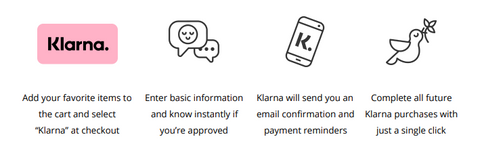
<p>Tecla has partnered with Klarna to provide you with easy payment options at checkout, so you can buy the assistive technology you need, when you need it.</p>
<p>All you need to do is select Klarna at checkout to <a href="https://gettecla.com/products/tecla-e" title="Tecla Product Page">buy now and pay later.</a> Spread the cost of your purchase over time with convenient, stress-free payment options. It is easy, safe to use, and you’re always covered by <em>Klarna’s Buyer Protection.</em></p>
<h2 style="text-align: center;">How to checkout with Klarna</h2>
<p> </p>
<p><img src="//cdn.shopify.com/s/files/1/0238/0391/files/Screen_Shot_2019-06-03_at_1.05.49_PM_large.png?v=1559581576" alt="how to checkout using the easy payment plan" style="display: block; margin-left: auto; margin-right: auto;" width="471" height="159"></p>
<h3 style="text-align: center;"></h3>
<meta charset="utf-8">
<h3 style="text-align: left;">You choose how to pay.</h3>
<p style="text-align: center;"><span style="color: #000000;"> <strong>A) 4 Interest-Free Installments</strong> </span></p>
<p>Split your purchase into 4 interest-free payments. Enter the credit or debit card of your choice for automatic payments every two weeks. No credit check and no fees when you pay on time.</p>
<p><img src="//cdn.shopify.com/s/files/1/0238/0391/files/Screen_Shot_2019-06-03_at_1.07.40_PM_large.png?v=1559581680" alt="4 interest free installments " style="display: block; margin-left: auto; margin-right: auto;" width="513" height="103"></p>
<p> </p>
<p style="text-align: center;"><span style="color: #000000;"><strong>B) Monthly Financing</strong></span></p>
<p>Apply for easy monthly financing directly in the checkout. A simple, 2-step application will provide an instant approval decision. Once you’ve been approved, you can manage your payments and receive reminders directly in the <a href="https://www.klarna.com/us/smoooth-app/" target="_blank" title="Klarna app" rel="noopener noreferrer">Klarna App</a>.</p>
<p><strong>Making Payments</strong></p>
<p>Review your latest purchases and pay any open balances by logging into your Klarna account at <a href="https://app.klarna.com/login" target="_blank" title="Klarna app" rel="noopener noreferrer">https://app.klarna.com/login</a>. You can chat with Klarna customer service 24/7 in the Klarna App.</p>
<meta charset="utf-8">
<p><strong>Safe and Secure </strong></p>
<p>Klarna uses the latest safeguards and security to protect your information and prevent unauthorized purchases. You have zero fraud liability with <a href="https://www.klarna.com/us/buyer-protection-description/" target="_blank" title="Klarna Buyer Protection Policy" rel="noopener noreferrer">Klarna’s Buyer Protection policy.</a></p>
<h2 style="text-align: center;">Frequently Asked Questions</h2>
<p>Don’t see your question here? Check out Klarna’s full FAQ page.</p>
<p><strong>What is Klarna?</strong> Klarna is a global payment solutions provider that works with retailers to provide customers with the smoothest online shopping experience. Klarna is in over 130,000 online stores and has more than 60 million users globally.</p>
<p><strong>How do I pay in 4 interest-free installments?</strong> Select 4 interest-free installments to split your purchase into four equal payments, charged every two weeks beginning at the time your order is confirmed (usually the shipping date). No bills are sent - you can simply sit back, relax, and enjoy your purchase. View complete terms.</p>
<p><strong>How do automatic payments work?</strong> Payments are collected bi-weekly from the debit or credit card you provide at the time of purchase. All scheduled payments are communicated to you by email and you can review your purchases by logging in at <a href="https://app.klarna.com/login" target="_blank" rel="noopener noreferrer">https://app.klarna.com/login</a></p>
<p><strong>Need to make a return?</strong> Simply log in to the Klarna App.</p>
<p><strong>Is there a fee to use Pay later in 30 days or 4 interest-free installments?</strong> There are no fees when you follow the payment schedule. Please review product terms for applicable fees.</p>
<p><strong>Will this affect my credit score?</strong>  The 4 Interest-Free Installments option will not affect your credit score. However, Monthly Financing applications will take credit score and credit history into consideration when determining if the application is approved.</p>
<p><strong>How can I reach Klarna?</strong> You can reach Klarna anytime at <a href="https://www.klarna.com/us/customer-service/" target="_blank" title="Klarna Customer Service" rel="noopener noreferrer">https://www.klarna.com/us/customer-service/</a> or by downloading the Klarna App.</p>
<h2 style="text-align: center;">About Klarna</h2>
<p>Klarna is one of Europe's fastest-growing companies and a leading alternative payment provider. Klarna’s vision is to make all payments ‘smooth’, adding value for shoppers and retailers with unique payment options and superior customer experience. Klarna has 2,500 employees across 14 markets and is leading the way for alternative payments by serving 60 million consumers and 130,000 merchants smooth payment solutions. <a href="www.klarna.com/us/what-is-klarna/">www.klarna.com/us/what-is-klarna/</a></p>]]>
    </content>
  </entry>
  <entry>
    <id>https://gettecla.com/blogs/news/7-personal-blogs-about-life-after-a-spinal-cord-injury</id>
    <published>2019-09-20T09:16:00-04:00</published>
    <updated>2019-09-20T12:58:09-04:00</updated>
    <link rel="alternate" type="text/html" href="https://gettecla.com/blogs/news/7-personal-blogs-about-life-after-a-spinal-cord-injury"/>
    <title>Personal Blogs about Spinal Cord Injury</title>
    <author>
      <name>Bambri Collaborator</name>
    </author>
    <content type="html">
      <![CDATA[<p>Hear first-hand stories of those who live with a spinal cord injury. These personal blogs share and highlight struggles as well as triumphs. The accounts are honest and sincere and give the reader a profound perspective on what life is like when one’s ability and independence are compromised. Despite challenges and obstacles, there are many success stories.   </p>
<p>1. <a href="http://www.strugglingwithserendipity.com/"><b>Struggling with Serendipity</b></a></p>
<p><em><img alt='"Struggling with Serendipity" blog wedding picture' src="//cdn.shopify.com/s/files/1/0238/0391/files/blog_pic_1_large.jpg?v=1568922373" style="float: none; display: block; margin-left: auto; margin-right: auto;"></em></p>
<meta charset="utf-8">
<p><span style="font-weight: 400;"><em>Image Source: <a href="http://www.strugglingwithserendipity.com/photographs.html">http://www.strugglingwithserendipity.com/photographs.html</a></em><em> </em></span></p>
<p><span style="font-weight: 400;">At 14 years-old Beth became paralyzed after a car accident. Along with her mother, Cindy, they started a blog and have been actvists spreading awareness. Beth graduated from Harvard with honors in health policy, she then went to Stanford for law school and is a lawyer in Washington. She sits on the American Bar Association’s Commission on Disability Rights and often does pro-bono work for non-profit organizations, she is also on the Board of Directors for the organization AbleThrive. Beth’s mother, Cindy, is also an activist and a member of several groups, including Christopher and Dana Reeve Foundation,  Warrior Momz, and AbleThrive.</span></p>
<br>
<p><span style="font-weight: 400;">Her blog mentions her progress as a world-famous paraplegic swimmer. Before her injury, she was not a swimmer and decided to pursue a new sport. She was the first member to join the Women’s  Harvard Swim Team with an apparent physical disability Currently, she holds fourteen American swim records. Aside from swimming, the blog talks about Beth’s travels, caregiving, fear, gratitude and much more… </span></p>
<p> </p>
<p>2. <a href="http://trainmanj.blogspot.com/"><b>The Quad Life</b></a></p>
<p><span style="font-weight: 400;">This blog is about a man who has been a quadriplegic for the majority of his life. He diarizes his thoughts and feelings and provides tips and advice for handling day-to-day activities. He is also a technological enthusiast and gives his opinion regarding which new technologies are helpful for those with mobility challenges. In one blog he discusses which is better- </span><span style="font-weight: 400;"><a href="http://trainmanj.blogspot.com/2019/08/alexa-vs-google.html">Google Home or Alexa</a>. </span></p>
<p> </p>
<p><span style="font-weight: 400;">3. </span><a href="http://newdawnforus.blogspot.com/"><b>New Dawn ~ New Day ~ New Life</b></a></p>
<p style="text-align: left;"><span style="font-weight: 400;"><img alt="New Dawn for us Blog Picture of Family" src="//cdn.shopify.com/s/files/1/0238/0391/files/blog_image_2_2048x2048.jpg?v=1568922648" style="display: block; float: none; margin-left: auto; margin-right: auto;"></span></p>
<p><em><span style="font-weight: 400;">Image Source: </span><a href="http://newdawnforus.blogspot.com/">http://newdawnforus.blogspot.com/</a></em></p>
<p><span style="font-weight: 400;">A few years ago, Kristen’s husband, Jeff sustained a spinal cord injury and became a ventilator-dependent quadriplegic. She talks openly about the difficult transition, her new responsibilities and how grateful she is for her family. </span></p>
<p> </p>
<p>4.<b> <a href="https://www.feedspot.com/?followfeedid=4778110">Diary of a Quadriplegic</a></b></p>
<p>Terri suffered from a fall that broke her neck, she was unable to move and waited almost 2 days until someone came to help her. Her challenging times have strengthened her faith and she enjoys discussing her religious perspectives. She is an excellent and captive writer and instills strength in her readers.</p>
<p> </p>
<p>5. <b><a href="https://www.feedspot.com/?followfeedid=4778052">typical guy, atypical situation</a></b></p>
<p style="text-align: center;"><b><img src="//cdn.shopify.com/s/files/1/0238/0391/files/Blog_pic_3_large.jpg?v=1568922867" alt="Kenny Salvini Travel Picture"></b></p>
<p><em><span style="font-weight: 400;">Image Source: </span><a href="https://kennysalvini.com/2018/06/23/here-we-go-again/">https://kennysalvini.com/2018/06/23/here-we-go-again/</a></em></p>
<p><span style="font-weight: 400;">A beautifully written and well-designed blog! It’s humorous and touching and will keep you engaged with the many photographs. Kenny became quadriplegic after a car accident, he has nevertheless traveled the world and forced himself out of his comfort zone. Kenny also has a site that offers </span><span style="font-weight: 400;"><a href="https://hereandnowproject.org/">resources and they host community events in Washington.</a></span></p>
<p> </p>
<p>6. <b><a href="https://www.feedspot.com/?followfeedid=4922137">The Life Quadriplegic</a></b></p>
<p><span style="font-weight: 400;">Alex writes relevant articles about tech, gaming, travel, and accessible music festivals. His content is great and informative, and he offers many resources and additional links to other blogs and useful websites.</span></p>
<p> </p>
<p>7. <b><a href="https://www.feedspot.com/?followfeedid=4778988">Quirky Quad Diaries</a></b></p>
<p style="text-align: left;"><b><img alt="Quirky Quad Diaries PIcture- Just Me" src="//cdn.shopify.com/s/files/1/0238/0391/files/blog_4_1024x1024.jpg?v=1568923458" style="display: block; margin-left: auto; margin-right: auto; float: none;"></b></p>
<p><em><span style="font-weight: 400;">Image Source: </span><a href="https://quirkyquad.com/pictures/me/">https://quirkyquad.com/pictures/me/</a></em></p>
<p><span style="font-weight: 400;">T</span><span style="font-weight: 400;">hese stories are wild and crazy, and you just wouldn’t believe them, but they are all true. Ali lives her life to the fullest, she did so before her accident and continues to do so. She has done crazy hikes in her wheelchair, conducted online dating experiments, and much more…</span></p>
<p><span style="font-weight: 400;"> Ali also shares the intimate details of her medical operations and has such an authentic tone in all her posts that you instantly feel connected to her. </span></p>
<p> </p>
<h2 style="text-align: center;">
<span style="font-weight: 400;">Related Articles</span> </h2>
<meta charset="utf-8">
<li><b><a href="https://6q08ef6my594hpbb-2380391.shopifypreview.com/blogs/news/phone-access-after-car-accident" target="_blank" title="Advice on Phone Access After a Car Accident" rel="noopener noreferrer">Advice on Phone Access After a Car Accident</a></b></li>
<li><b><a href="https://gettecla.com/blogs/news/60137925-what-s-the-best-cell-phone-for-quadriplegics-here-s-our-take" target="_blank" rel="noopener noreferrer">What’s the Best Cellphone for Quadriplegics? Here’s our Take.</a></b></li>
<b>
<li><a href="https://gettecla.com/blogs/news/is-the-kindle-accessible-if-you-have-mobility-issues-oracle-inquiries" target="_blank" rel="noopener noreferrer">"Is the Kindle accessible if you have mobility challenges?"</a></li>
</b><b>
<li><a href="https://gettecla.com/blogs/news/what-is-switch-control-mode-on-android" target="_blank" rel="noopener noreferrer">What is Switch Access on Android?</a></li>
</b><b>
<li><a href="https://gettecla.com/blogs/news/new-accessibility-feature-to-ios-12-siri-shortcuts" target="_blank" rel="noopener noreferrer">New Accessibility Feature to iOS 12: Siri Shortcuts</a></li>
</b><b>
<li><a href="https://gettecla.com/blogs/news/13884757-4-ways-quadriplegics-can-use-an-ipad-or-iphone" target="_blank" rel="noopener noreferrer">4 ways Quadriplegics can use an iPad or iPhone</a></li>
</b><b>
<li><a href="https://gettecla.com/blogs/news/5-assistive-apps-that-communicating-easier" target="_blank" rel="noopener noreferrer">5 Assistive Apps That Make Communicating Easier</a></li>
</b><b>
<li><a href="https://gettecla.com/blogs/news/15185213-9-surprising-things-quadriplegics-can-do-with-an-iphone-or-ipad" target="_blank" rel="noopener noreferrer">9 Surprising Things Quadriplegics can do with an iPhone or iPad</a></li>
</b>
<p> </p>
<p> </p>]]>
    </content>
  </entry>
  <entry>
    <id>https://gettecla.com/blogs/news/5-brilliant-wheelchair-accessories</id>
    <published>2019-08-19T12:47:00-04:00</published>
    <updated>2019-08-19T12:48:33-04:00</updated>
    <link rel="alternate" type="text/html" href="https://gettecla.com/blogs/news/5-brilliant-wheelchair-accessories"/>
    <title>5 Brilliant Wheelchair Accessories</title>
    <author>
      <name>Bambri Collaborator</name>
    </author>
    <content type="html">
      <![CDATA[<div style="text-align: center;">Check out these clever and cool wheelchair accessories, they will make life easier and allow you to customize your wheelchair. </div>
<div style="text-align: left;"></div>
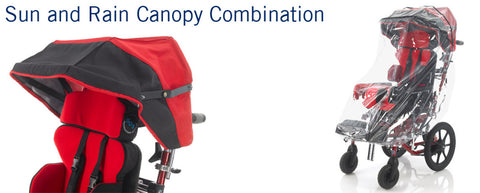
<h2><a href="https://www.specialisedorthoticservices.co.uk/product/sun-rain-canopies/"> 1. Sun &amp; Rain Canopy</a></h2>
<p style="text-align: left;"><img src="//cdn.shopify.com/s/files/1/0238/0391/files/sun-rain-canopy-combination-990x399_large.jpg?v=1566230169" alt="https://www.specialisedorthoticservices.co.uk/product/sun-rain-canopies/"></p>
<p>This is a useful accessory for everyday activities. The canopy protects one from the sun and its harmful UV rays and can also act as a shield for heavy rainfall. Don't let the weather ruin your day!</p>
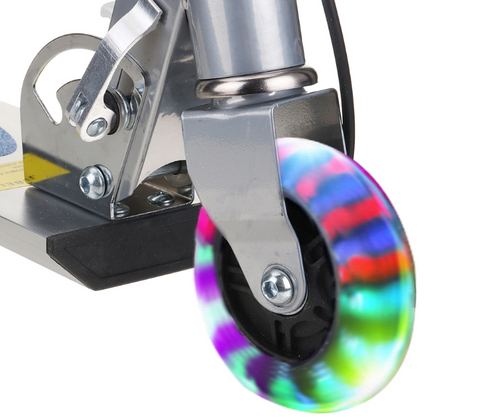
<h2>2. <a href="http://www.pimpmychair.com/categories/Shop%3A-Safety/" style="font-weight: bold;">Light-Up Casters</a>
</h2>
<p> <img src="//cdn.shopify.com/s/files/1/0238/0391/files/caster_light_large.PNG?v=1565641724" alt="https://i5.walmartimages.com/asr/1696fabd-9834-4329-b06d-a87ec81164d3_1.d84d268b2eddbebd70c6d90d881be412.jpeg" width="427" height="372" style="display: block; margin-left: auto; margin-right: auto;"></p>
<p>These lights up casters are a fun addition to any wheelchair and can also be helpful for navigating in the dark. They come in a variety of sizes and color options.</p>
<h2><strong>3. <a href="http://www.pimpmychair.com/categories/Shop%3A-Safety/">Spoke Lights<img src="//cdn.shopify.com/s/files/1/0238/0391/files/Wheel_Spokes_large.PNG?v=1565639910" alt="" style="display: block; margin-left: auto; margin-right: auto;"></a></strong></h2>
<p>If you thought the light-up casters were cool, then you will probably also like spoke lights. Spoke lights are clear blades that attach to your wheel spokes. These blades have LED lights inside and can be programmed to display a message or design when your wheels spin.  </p>
<h2> 4.<strong><a href="http://www.thecareeon.com/">CARE-E On</a></strong>
</h2>
<p><img src="//cdn.shopify.com/s/files/1/0238/0391/files/care-e-on2_large.jpg?v=1565642095" alt="http://www.newmobility.com/2016/09/companion-platform/" style="display: block; margin-left: auto; margin-right: auto;"></p>
<p>This device lets you take someone else along for a ride. The Care-E On is a standing platform that connects to the back of an electrically powered wheelchair. The platform can hold up to 300 Ibs and does not add additional weight to the wheelchair.</p>
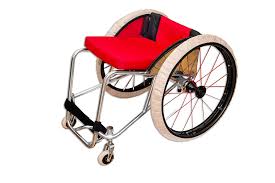
<h2>4.<a href="http://rehadesign.com/products/wheelchair-tire-covers"> RehaDesign Wheelchair Slippers</a>
</h2>
<p style="text-align: left;"> </p>
<p> </p>
<p><img src="//cdn.shopify.com/s/files/1/0238/0391/files/wheelchair_covers_large.jpg?v=1565643044" alt="https://www.amazon.co.uk/Rehadesign-Wheelchair-Socks-Covers-diameter/dp/B015SPJV38" style="display: block; margin-left: auto; margin-right: auto;" width="389" height="259"></p>
<p>When people come into your home do you ask them to take their shoes off? You probably do since you wouldn’t want dirt from outside to land up on your clean floors. The same applies to the wheels of a wheelchair, similar to the sole of a shoe, a wheel accumulates the dirt and dust from the sidewalk. These wheelchair slippers act as a shield and prevent dirt from spreading inside your house.</p>
<h2><a href="https://liveffora.com/collections/all"> 5. FLORA Essentials Bag</a></h2>
<p><strong><iframe width="560" height="315" src="https://www.youtube.com/embed/h3UL4EQIFFY" frameborder="0" allow="accelerometer; autoplay; encrypted-media; gyroscope; picture-in-picture" allowfullscreen=""></iframe></strong>This is a versatile unisex bag that attaches discreetly to a wheelchair. There is an embedded magnet on the bag which joins with the attachment system placed on the wheelchair. These bags are made from genuine leather and can also be worn across the body. They come in bright colors such as orange, yellow, and pink as well as classic hues like black and blue. <strong><br></strong></p>
<p> </p>
<h3><span>Related Blogs:</span></h3>
<ul>
<li><strong><a href="https://gettecla.com/blogs/news/new-accessibility-features-to-ios-13-voice-control-more">New Accessibility Features to iOS 13: Voice Control &amp; More</a></strong></li>
<li><strong><a href="https://gettecla.com/blogs/news/is-the-kindle-accessible-if-you-have-mobility-issues-oracle-inquiries">"Is the Kindle accessible if you have mobility challenges?"</a></strong></li>
<li><strong><a href="https://gettecla.com/blogs/news/how-to-create-a-more-accessible-workplace">How to Create a More Accessible Workplace</a></strong></li>
<li><strong><a href="https://gettecla.com/blogs/news/the-top-3-superheroes-who-kick-butt-from-their-wheelchair">The Top 3 Superheroes who Kick Butt from their Wheelchair</a></strong></li>
</ul>
<p> </p>]]>
    </content>
  </entry>
  <entry>
    <id>https://gettecla.com/blogs/news/oracle-inquiry-cell-phone-access-with-a-visual-impairment</id>
    <published>2019-08-07T10:32:00-04:00</published>
    <updated>2019-08-07T11:03:36-04:00</updated>
    <link rel="alternate" type="text/html" href="https://gettecla.com/blogs/news/oracle-inquiry-cell-phone-access-with-a-visual-impairment"/>
    <title>Oracle Inquiry #3: Cell Phone Access with a Vision Impairment</title>
    <author>
      <name>Kristina Kyriakis</name>
    </author>
    <content type="html">
      <![CDATA[<p><span style="font-weight: 400;">“I am a 50-year-old quadriplegic with a vision impairment. I would like to use a cell phone with text messaging. </span><b>Would your software be able to read my incoming texts and read back my texts before sending them? Can your software increase the size of the text?”</b></p>
<p><span style="font-weight: 400;">Our device can enable you to control a smartphone (iPhone or Android) using different types of adaptive switches, which can be controlled by light touch, blowing, etc. There are options to provide auditory feedback where the device will read out loud what you are currently selecting, so you can open apps, type etc. </span></p>
<p><span style="font-weight: 400;">While smartphones have a built-in screen navigation accessibility feature they rely on touch/gesture or keyboard control to navigate the device.</span></p>
<br>
<h3><b>The Solution </b></h3>
<p><span style="font-weight: 400;">A combination of Apple Accessibility Settings will make any iOS device accessible to users with visual and mobility impairments. To configure your phone, please follow the instructions to turn on: Speak Selection, Zoom, and Switch Control.</span></p>
<p><span style="text-decoration: underline;"><span style="font-weight: 400;">Speak Selection</span></span></p>
<ol>
<li style="font-weight: 400;"><span style="font-weight: 400;">Open the Settings app on your home screen.</span></li>
<li style="font-weight: 400;"><span style="font-weight: 400;">Tap the General tab.</span></li>
<li style="font-weight: 400;"><span style="font-weight: 400;">Scroll down and tap the Accessibility tab.</span></li>
<li style="font-weight: 400;"><span style="font-weight: 400;">Tap the Speak Selection option</span></li>
<li style="font-weight: 400;"><span style="font-weight: 400;">Tap the toggle switch to turn it on. We recommend adjusting the rate of speech. The default can be too fast for beginners. </span></li>
</ol>
<p><span style="font-weight: 400;">*</span><b><a href="https://lifehacker.com/make-your-iphone-read-any-text-aloud-with-just-a-few-ta-5870185">Provided by Life Hacker</a></b></p>
<p><span style="text-decoration: underline;"><span style="font-weight: 400;">Zoom in</span></span></p>
<ol>
<li style="font-weight: 400;"><span style="font-weight: 400;">Open the Accessibility Tab.</span></li>
<li style="font-weight: 400;"><span style="font-weight: 400;">Tap Zoom In.</span></li>
<li style="font-weight: 400;"><span style="font-weight: 400;">Tap the toggle switch to turn it on.</span></li>
<li style="font-weight: 400;"><span style="font-weight: 400;">Please have an individual tap the screen with three fingers to magnify where on the screen you will be zoomed in.</span></li>
</ol>
<p><span style="text-decoration: underline;"><span style="font-weight: 400;">Switch Control </span></span></p>
<ol>
<li style="font-weight: 400;">
<span style="font-weight: 400;">Set-up your tecla-e device with switch control: </span><a href="https://gettecla.zendesk.com/hc/en-us/articles/115005576588-iPhone-iPad-or-iPod-Touch-Switch-Control-tecla-e"><span style="font-weight: 400;">https://gettecla.zendesk.com/hc/en-us/articles/115005576588-iPhone-iPad-or-iPod-Touch-Switch-Control-tecla-e</span></a>
</li>
<li style="font-weight: 400;"><span style="font-weight: 400;">Still within the Accessibility Tab.</span></li>
<li style="font-weight: 400;"><span style="font-weight: 400;">Scroll down to Switch Control.</span></li>
<li style="font-weight: 400;"><span style="font-weight: 400;">Tap the Toggle Switch on.</span></li>
<li style="font-weight: 400;"><span style="font-weight: 400;">Adjust the settings to your preference. </span></li>
</ol>
<iframe width="560" height="315" src="https://www.youtube.com/embed/gEjbKEx-ltg" frameborder="0" allow="accelerometer; autoplay; encrypted-media; gyroscope; picture-in-picture" allowfullscreen=""></iframe><br>
<p style="text-align: center;"><span style="text-decoration: underline;"><b>Related Articles</b></span></p>
<b>
<li><a href="https://gettecla.com/blogs/news/60137925-what-s-the-best-cell-phone-for-quadriplegics-here-s-our-take">What’s the Best Cellphone for Quadriplegics? Here’s our Take.</a></li>
</b><b>
<li><a href="https://gettecla.com/blogs/news/is-the-kindle-accessible-if-you-have-mobility-issues-oracle-inquiries">"Is the Kindle accessible if you have mobility challenges?"</a></li>
</b><b>
<li><a href="https://gettecla.com/blogs/news/what-is-switch-control-mode-on-android">What is Switch Access on Android?</a></li>
</b><b>
<li><a href="https://gettecla.com/blogs/news/new-accessibility-feature-to-ios-12-siri-shortcuts">New Accessibility Feature to iOS 12: Siri Shortcuts</a></li>
</b><b>
<li><a href="https://gettecla.com/blogs/news/13884757-4-ways-quadriplegics-can-use-an-ipad-or-iphone">4 ways Quadriplegics can use an iPad or iPhone</a></li>
</b><b>
<li><a href="https://gettecla.com/blogs/news/5-assistive-apps-that-communicating-easier">5 Assistive Apps That Make Communicating Easier</a></li>
</b><b>
<li><a href="https://gettecla.com/blogs/news/15185213-9-surprising-things-quadriplegics-can-do-with-an-iphone-or-ipad">9 Surprising Things Quadriplegics can do with an iPhone or iPad</a></li>
</b>]]>
    </content>
  </entry>
  <entry>
    <id>https://gettecla.com/blogs/news/android-accessibility-ease-apps</id>
    <published>2019-07-12T12:33:00-04:00</published>
    <updated>2019-07-29T09:37:43-04:00</updated>
    <link rel="alternate" type="text/html" href="https://gettecla.com/blogs/news/android-accessibility-ease-apps"/>
    <title>Android Accessibility: Ease Apps</title>
    <author>
      <name>Kristina Kyriakis</name>
    </author>
    <content type="html">
      <![CDATA[<p>Some individuals prefer Android and others prefer iOS. No matter ones ability, with Tecla, there is always a way to make technology accessible. </p>
<meta charset="utf-8">
<p><span style="font-weight: 400;"><a href="https://www.easeapps.xyz/en/">Ease Apps</a> created three solutions that specifically allow Android users to access their devices in a way that best suits their needs. </span></p>
<p><span style="font-weight: 400;">The different apps Ease Apps have created include: </span></p>
<ol>
<li style="font-weight: 400;">
<a href="https://www.easeapps.xyz/en/apps/ease-mouse"><span style="font-weight: 400;">Ease Mouse:</span></a><span style="font-weight: 400;"> Allows control of all device functions with a pointer device like a mouse or trackball.</span>
</li>
<li style="font-weight: 400;">
<a href="https://www.easeapps.xyz/en/apps/ease-touch"><span style="font-weight: 400;">Ease Touch</span></a><span style="font-weight: 400;">: Allows access to all functions of the Android device with a single finger tap.</span>
</li>
<li style="font-weight: 400;">
<a href="https://www.easeapps.xyz/en/apps/ease-joypad"><span style="font-weight: 400;">Ease Joypad: </span></a><span style="font-weight: 400;">Allows access all functions of an Android device using joysticks, switches, keyboards and gamepads.</span>
</li>
</ol>
<br>
<p><span style="font-weight: 400;">In this article, we’ll focus on Ease Joypad as it is fully compatible with tecla-e and the Tecla Shield to enable full access to Android devices. Switch or joystick access benefits individuals living with Cerebral Palsy, Tremors, Spinal Cord Injuries, Multiple Sclerosis, or anyone with limited upper-body mobility. Depending on the user’s movement ability, there is always a configuration that will work for them. </span></p>
<h2 style="text-align: center;"><b>Ease Joypad </b></h2>
<p><span style="font-weight: 400;">Tecla’s Favorite!! Ease Joypad allows for users to connect their desired ability switches (</span><a href="https://gettecla.com/collections/switches/products/ablenet-sip-and-puff-switch"><span style="font-weight: 400;">Sip &amp; Puff</span></a><span style="font-weight: 400;">, </span><a href="https://gettecla.com/collections/switches/products/ablenet-buddy-button-black"><span style="font-weight: 400;">Buddy Button</span></a><span style="font-weight: 400;">, etc.), joystick or wheelchair driving controls with their favourite Android devices. </span></p>
<p> </p>
<p><iframe width="560" height="315" src="https://www.youtube.com/embed/ygbHEt6wQAs" frameborder="0" allow="accelerometer; autoplay; encrypted-media; gyroscope; picture-in-picture" allowfullscreen=""></iframe> </p>
<p><span style="text-decoration: underline;"><span style="font-weight: 400;">How does it work? </span></span></p>
<p><span style="font-weight: 400;">”You can link the switches of your input device to the actions that allow you to move the pointer, make click and perform other operations.” </span></p>
<br>
<p><span style="font-weight: 400;">Our preferred configurations:</span></p>
<ol>
<li style="font-weight: 400;"><span style="font-weight: 400;"><strong>Joystick</strong>: If the user can access a joystick (standalone or the wheelchair joystick connected to Tecla via the ECU box), you can assign each direction to the pointer movement on the Android device. You can add a 5th switch for clicking or do it by dwelling over an area of the screen.</span></li>
<li style="font-weight: 400;"><span style="font-weight: 400;"><strong>3-Switches:</strong> If the user can access three switches (for example a head array), you can set up one switch to move left-right, a 2nd switch to move up-down and one to click. For this configuration, you want the option for the “Cursor wrap around the screen” to be enabled for the cursor to go out of the screen and come back on the other side.</span></li>
<li style="font-weight: 400;"><span style="font-weight: 400;"><strong>2-Switches</strong>: Same as above but with dwell for clicking instead of using a switch. </span></li>
</ol>
<br>
<p><span style="font-weight: 400;">It provides three modes for clicking:</span></p>
<ol>
<li style="font-weight: 400;"><span style="font-weight: 400;"><strong>Dwelling</strong>: Once the cursor stops, it starts a countdown, and the click action activates when the dwell time is over. A large red cross gradually shrinks providing feedback to the user.</span></li>
<li style="font-weight: 400;"><span style="font-weight: 400;"><strong>Standard Click:</strong> Click to assign any switch of the input device.</span></li>
<li style="font-weight: 400;"><span style="font-weight: 400;"><strong>Ease Click:</strong> "As a way of avoiding undesired clicks as a result of tremors or other causes, it is possible to set time where users must maintain holding the button before accepting a click and another time interval after the click is performed in which new button presses are ignored.”</span></li>
</ol>
<br>
<p><span style="font-weight: 400;">Their app lets you complete tasks like scrolling, swiping and other gestures so you can access all device functions. The app also gives you access to the Home, Back and Recent buttons.</span></p>
<p><span style="font-weight: 400;">The Ease Apps are excellent for individuals who prefer Android over iOS. However, what if you enjoy using both devices? You have an iPad and Android smartphone but want to be able to </span><span style="font-weight: 400;">navigate both</span><span style="font-weight: 400;"> without the assistance of a caregiver. Tecla allows for device switching for up to 8 different electronics at a time among many other useful features. </span></p>
<p> <span style="font-weight: 400;">For more information about <strong>Ease Apps</strong> and Android accessibility, be sure to visit their website: </span><a href="https://www.easeapps.xyz/en/"><span style="font-weight: 400;">https://www.easeapps.xyz/en/</span></a><span style="font-weight: 400;"> </span></p>
<p><span style="font-weight: 400;">For more information about <strong>Tecla</strong>, device switching, and control of iOS technology, discover the tecla-e: </span><a href="https://gettecla.com/products/tecla-e"><span style="font-weight: 400;">https://gettecla.com/products/tecla-e</span></a><span style="font-weight: 400;"> </span></p>
<p> </p>
<meta charset="utf-8">
<p><span>Other articles you might like:</span></p>
<ul>
<li><a href="http://gettecla.com/blogs/news/15118049-siri-vs-ios-switch-control-for-hands-free-iphone-access" title="Siri vs iOS switch control for hands free iPhone access">Siri vs iOS Switch Control for hands-free iPhone access</a></li>
<li><a href="http://gettecla.com/blogs/news/14347593-iphone-and-ipad-accessibility-options-for-quadriplegics-and-other-users-with-limited-mobility" title="iPhone and iPad accessibility options for quadriplegics and other users with limited mobility">iPhone and iPad accessibility options for quadriplegics and other users with limited mobility</a></li>
<li><a href="http://gettecla.com/blogs/news/14011321-using-ipad-aac-apps-with-switch-access-for-speech-and-motor-impairments" title="Using iPad AAC apps with switch control for speech and motor impairments ">Using iPad AAC apps with switch control for speech and motor impairments </a></li>
</ul>]]>
    </content>
  </entry>
  <entry>
    <id>https://gettecla.com/blogs/news/new-accessibility-features-to-ios-13-voice-control-more</id>
    <published>2019-06-28T15:52:00-04:00</published>
    <updated>2019-06-28T16:11:47-04:00</updated>
    <link rel="alternate" type="text/html" href="https://gettecla.com/blogs/news/new-accessibility-features-to-ios-13-voice-control-more"/>
    <title>New Accessibility Features to iOS 13: Voice Control &amp; More</title>
    <author>
      <name>Kristina Kyriakis</name>
    </author>
    <content type="html">
      <![CDATA[<p><span style="font-weight: 400;">With every Apple </span><a href="https://techcrunch.com/tag/wwdc-2019/"><span style="font-weight: 400;">Worldwide Developers Conference </span></a><span style="font-weight: 400;">(WWDC)</span><span style="font-weight: 400;">, the world is given a sneak peek into the future. This year, during the 2019 Apple WWDC sessions,  </span><a href="https://www.macrumors.com/2019/06/06/apple-accessibility-drive-for-iphone-ipad-mac/"><span style="font-weight: 400;">“iOS accessibility expert Steven Aquino sat down with Apple's Sarah Herrlinger, director of Global Accessibility Policy &amp; Initiatives”</span></a><span style="font-weight: 400;"> as they shared what iOS accessibility advancements to expect for the upcoming year. </span></p>
<p><span style="font-weight: 400;">We are happy to say that these advancements are impressive and will allow for better access to Apple’s mobile devices and computers for those with limited mobility. They’ll expand the accessibility toolkit that tecla-e/switch control forms an essential part. </span></p>
<br>
<h2 style="text-align: center;"><span style="font-weight: 400;">So what can iOS 13 do?</span></h2>
<p><strong>1. Easier access to Accessibility Settings</strong>- Apple reported having moved the option to the first page in the settings application. An improvement from requiring to go through multiple pages of content Settings &gt; General &gt; Accessibility to find what users are looking for. They can now be found at the “top level domain,” on the same page with “Notifications, Screen Time, and so on.”<br><strong></strong></p>
<p><strong>2. Improvement to the new device set up</strong>- the first time a device is being set up for a user, they will be asked in the process to configure any accessibility settings to make for a smoother process. A new noteworthy feature to expect in a new device set up includes, VoiceOver.<br><span><strong></strong></span></p>
<div style="text-align: left;">
<span><strong>3. Voice Control-</strong> This feature has drawn the most attention to the new iOS. In their promotional video, they include </span><a href="https://gettecla.com/blogs/news/ian-mackay-rides-across-washington-to-raise-awareness-for-outdoor-accessibility"><span>tecla-e user, Ian</span></a><span>. He shows the many new features of VoiceOver. One main advancement is named Number Selection. It helps users refine choices, edit text messages and more.  We spoke to Ian about these advancements, and for him, the most significant improvement is the ability to edit the text as he dictates. </span>
</div>
<div style="text-align: center;">
<ol></ol>
</div>
<div style="text-align: center;">
<iframe width="560" height="315" src="https://www.youtube.com/embed/aqoXFCCTfm4" frameborder="0" allow="accelerometer; autoplay; encrypted-media; gyroscope; picture-in-picture" allowfullscreen=""></iframe>  </div>
<p style="text-align: left;"><span style="font-weight: 400;"><strong>4. Hover Text-</strong> available on all iOS devices. </span><a href="https://techcrunch.com/2019/06/05/apples-global-accessibility-head-on-the-companys-new-accessibility-features/"><span style="font-weight: 400;">“The “Hover” name stems from the function: place your mouse pointer over a selection of text and you get a bubble with said text enlarged.”</span></a></p>
<p style="text-align: left;"><strong>5. <a href="https://www.macrumors.com/2019/06/06/apple-accessibility-drive-for-iphone-ipad-mac/">Mouse Support</a>- </strong>In iOS 13, you can connect a mouse via Bluetooth or USB (with an adapter) to interact with your device. Mouse support is part of the Assistive Touch accessibility feature, meaning this is not traditional computer pointer access, this is touch emulation using a pointing device. You can use a mouse, trackball, joystick or head mouse to control a cursor. You can access gestures using the Assistive Touch menu. </p>
<h2 style="text-align: center;"><span style="font-weight: 400;">Method for Best Access </span></h2>
<p><span style="font-weight: 400;">Although the recent iOS accessibility updates are innovative and pushing technology in the direction of inclusion, they do not rely on just one method of access. It is important to remember that in addition to the technology itself, context is very critical. While most people use voice assistant at home or in quiet environments, we don’t rely on it when we are out in busy streets. Tecla-e can help users have robust access systems to control their devices.</span></p>
<p><b>Switches</b></p>
<p><span style="font-weight: 400;">Did you know that your favourite ability switches are not compatible directly with iOS devices? In other words, users cannot plug their </span><a href="https://gettecla.com/products/ablenet-buddy-button-black"><span style="font-weight: 400;">Buddy Button</span></a><span style="font-weight: 400;"> or </span><a href="https://gettecla.com/products/ablenet-sip-and-puff-switch"><span style="font-weight: 400;">Sip and Puff Switch</span></a><span style="font-weight: 400;"> into their cellphone or tablet. Tecla allows for complete control of technology with switches and is still required for individuals with mobility impairments to optimize their technology fully.</span></p>
<p><b>Device Switching </b></p>
<p><span style="font-weight: 400;">Smartphones work like a portable computer. However, have you ever tried to read a novel off of the Kindle app on an iPhone? Not the easiest task. Most Kindle App readers will switch to their iPad to enjoy their preferred story. With Tecla, users can switch from one device to another seamlessly.  Siri is not that advanced, therefore users without tecla-e would require a caregiver to make this adjustment for them.</span></p>
<p><b>Voice Activation is not always convenient </b></p>
<p><span style="font-weight: 400;">Yes, you can speak to your Apple device to make changes, but the problem with this way of control is the location. Think about the independent user who lives in the city trying to cross the street. It is loud, and there are other people around. Dictation in a moment like this would be impossible. Using tecla-e and switch control would eliminate this problem.</span></p>
<p> </p>
<meta charset="utf-8">
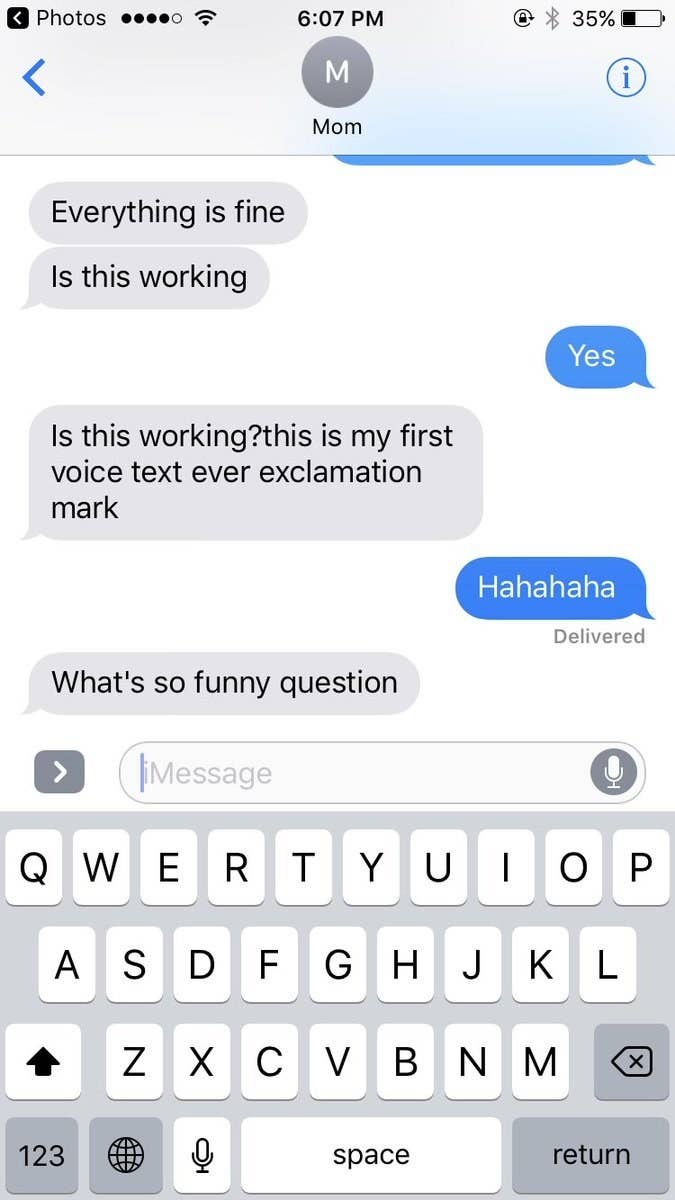
<p><a href="https://www.buzzfeed.com/erinchack/voice-to-text-fails" target="_blank" rel="noopener noreferrer"><img src="https://img.buzzfeed.com/buzzfeed-static/static/2017-05/10/16/asset/buzzfeed-prod-fastlane-02/sub-buzz-13657-1494446585-14.jpg?downsize=700%3A%2A&amp;output-quality=auto&amp;output-format=auto&amp;output-quality=auto&amp;output-format=auto&amp;downsize=360:*" width="326" height="580" style="display: block; margin-left: auto; margin-right: auto;"></a></p>
<p><span style="font-weight: 400;">Think about how many times have you been in a situation where you try to dictate to Siri a text message but it never comes out quite as you want it to.</span></p>
<p><span style="font-weight: 400;">To conclude, Apple has been making excellent accessibility strides for their users but they still have some requirements to go. Regardless, we hope you found this article entertaining and insightful. What would you like to see Apple adopt to make their technology more inclusive? Comment below!</span></p>]]>
    </content>
  </entry>
  <entry>
    <id>https://gettecla.com/blogs/news/tecla-e-launches-with-bell-to-provide-customers-hands-free-access-to-mobile-technology</id>
    <published>2019-05-28T15:12:00-04:00</published>
    <updated>2019-05-28T15:14:14-04:00</updated>
    <link rel="alternate" type="text/html" href="https://gettecla.com/blogs/news/tecla-e-launches-with-bell-to-provide-customers-hands-free-access-to-mobile-technology"/>
    <title>Tecla Launches With Bell to Provide Customers Hands-Free Access to Mobile Technology</title>
    <author>
      <name>Kristina Kyriakis</name>
    </author>
    <content type="html">
      <![CDATA[<p style="text-align: center;"><img alt="Carolyn has access to a smartphone at all times, being able to call, text or search for the closest coffee shop using her wheelchair driving control and tecla-e. Sign up for Bell's special offer here (Canadians only)." src="//cdn.shopify.com/s/files/1/0238/0391/files/tile1_telca-e_large.jpg?v=1559069949" style="float: none;"></p>
<p><i><span style="font-weight: 400;">Carolyn has access to a smartphone at all times, being able to call, text or search for the closest coffee shop using her wheelchair driving control and tecla-e. </span></i><b><i>Sign up for Bell's special offer </i></b><a href="https://www.bell.ca/Accessibility_services/tecla-e"><b><i>here</i></b></a><b><i> (Canadians only).</i></b></p>
<p> </p>
<p><span style="font-weight: 400;">TORONTO, Tuesday, May 14th, 2019 — Tecla, the assistive device that provides hands-free access to technology for those with limited upper-body mobility, is about to get a whole lot more accessible for Bell customers.</span></p>
<p><span style="font-weight: 400;">The newest version of Tecla, tecla-e, <a href="https://www.bell.ca/Accessibility_services/tecla-e" target="_blank" title="Bell, Phone Accessibility Products Access" rel="noopener noreferrer">joined Bell’s expanded portfolio of products</a> and services aimed at customers with disabilities. With Tecla, Bell customers can easily access their iOS or Android smartphone or tablet using familiar assistive switches such as buttons, sip-and-puff controllers, head arrays, joysticks or the wheelchair’s driving controls.</span></p>
<p><span style="font-weight: 400;">“As a Canadian company, we’re proud to partner with Bell and provide Tecla’s hands-free technology to their customers who otherwise are unable to physically use smartphones or tablets,” said Mauricio Meza, CEO of Komodo OpenLab, the maker behind Tecla. “We look forward to giving Bell customers access to the independence that comes along with having access to the latest mobile technology.”</span></p>
<p><span style="font-weight: 400;">As a special offer for Bell customers with motor disabilities, Tecla Kits will be available at a reduced price of </span><b>$263 </b><span style="font-weight: 400;">with Bell subsidizing the remaining portion of the cost. The Tecla Kit includes one </span><a href="https://gettecla.com/pages/tecla-e"><span style="font-weight: 400;">tecla-e</span></a><span style="font-weight: 400;">, the assistive device that communicates wirelessly between the smart device and the assistive switch, as well as a </span><a href="https://gettecla.com/collections/all-products/products/tecla-e-mount"><span style="font-weight: 400;">Tecla Mount</span></a><span style="font-weight: 400;">. The Tecla Mount can be used to secure the tecla-e to a bed, wheelchair or desk for hassle-free installation, mounting and re-charging of the tecla-e.</span></p>
<p><span style="font-weight: 400;">“Canada is home to some of the world’s most powerful wireless networks, yet many Canadians encounter barriers that may stop them from enjoying the opportunities that mobile technology makes possible. By including Tecla in our product portfolio at a reduced price, Bell is proud to make mobile technology more accessible to everyone,” said Blaik Kirby, President of Bell Mobility.</span></p>
<p><span style="font-weight: 400;">Tecla currently helps over 4,000 people around the world. Working with beta testers was key to Tecla’s global success. One of Tecla’s first users Toronto-native Carolyn Pioro, who suffered a devastating fall over ten years ago and now lives with quadriplegia, helped shape the product to what it is today. As a writer, she credits much of her ability to independently communicate via technology to Tecla.</span></p>
<p><span style="font-weight: 400;">For more information, please visit </span><a href="https://www.bell.ca/Accessibility_services/tecla-e"><span style="font-weight: 400;">Bell.ca/Accessibility.</span></a></p>
<p><b>About Tecla</b></p>
<p><i><span style="font-weight: 400;">The tecla-e is an assistive device that gives people with upper-body mobility impairments the ability to fully access smart devices and technology –– at a fraction of the cost of traditional assistive devices. Tecla is designed and manufactured in Toronto, Canada by Komodo OpenLab. For more information, visit </span></i><a href="http://www.gettecla.com/"><i><span style="font-weight: 400;">www.gettecla.com</span></i></a><i><span style="font-weight: 400;">.</span></i></p>
<p><i><span style="font-weight: 400;">-30-</span></i></p>
<p><b>MEDIA CONTACT:</b></p>
<p><span style="font-weight: 400;">Kristina Kyriakis, Marketing &amp; Communications</span></p>
<p><span style="font-weight: 400;">Komodo OpenLab</span></p>
<p><span style="font-weight: 400;">info@gettecla.com</span></p>]]>
    </content>
  </entry>
  <entry>
    <id>https://gettecla.com/blogs/news/phone-access-after-car-accident</id>
    <published>2019-05-17T10:19:00-04:00</published>
    <updated>2019-05-17T13:02:33-04:00</updated>
    <link rel="alternate" type="text/html" href="https://gettecla.com/blogs/news/phone-access-after-car-accident"/>
    <title>Advice on Phone Access After a Car Accident</title>
    <author>
      <name>Kristina Kyriakis</name>
    </author>
    <content type="html">
      <![CDATA[<div style="text-align: center;"><meta charset="utf-8"></div>
<h2 style="text-align: center;"><span>Oracle Inquiry #2</span></h2>
<h3><strong>User Story</strong></h3>
<p><span style="font-weight: 400;">“I was wanting to get some advice on communication devices.</span></p>
<p><span style="font-weight: 400;">My Dad was involved in a car accident that has left him with only shoulder and limited elbow movement, no hand movement. He has been in hospital since January and most family members live far away and lead very busy lives so can't get to his side as often as we like. Hospital staff are busy with patients and can never get in contact with him to keep his spirits up with just a chat over the phone. Could you recommend anything?“</span></p>
<h3><strong>Oracle Answer</strong></h3>
<p style="text-align: center;"><span style="font-weight: 400;">Thank you for contacting us! </span></p>
<p><span style="font-weight: 400;">There are a few options that your Dad with could use in order to communicate after his car accident. If he uses Tecla, he would be able to fully interact with a smartphone. ie: make phone calls, receive calls, send text messages, or use his favourite apps offered in the App Store.</span></p>
<p style="text-align: center;"><span style="text-decoration: underline;"><span style="font-weight: 400;">He will need:</span></span></p>
<ol>
<li style="font-weight: 400;">
<b>The chosen device. </b><span style="font-weight: 400;">Choose from an iPhone or an Android smartphone.</span>
</li>
</ol>
<ul>
<ul>
<li>You can also have a <a href="http://gettecla.com/collections/mounting/products/tecla-phone-mount"><span>mount for his phone</span></a><span> which can be added to his bedside or wheelchair to make it easier to use.</span>
</li>
</ul>
</ul>
<p style="padding-left: 30px;">2. <b> <a href="https://gettecla.com/pages/tecla-e">tecla-e</a>. </b><span>Our portable technology will allow him to control his phone.  He will be entertained and have access to communication technology.</span></p>
<p style="padding-left: 30px;">3.<b> Ability Switch or Wheelchair Driving Controls.</b><span style="font-weight: 400;"> He can use a variety of switches to control his chosen technology depending on his abilities. You mentioned previously that he is left with only shoulder and limited elbow movement. No hand movement. Keeping that in mind,  we suggest the following switches:</span></p>
<ul>
<ul>
<li><span><a href="http://gettecla.com/collections/switches/products/ablenet-sip-and-puff-switch">Sip-and-Puff Switch.</a></span></li>
<li><span style="font-weight: 400;"><a href="http://gettecla.com/collections/switches/products/ablenet-pillow-switch">Pillow Switch ( can be placed near his head)</a></span></li>
<li><span style="font-weight: 400;"><a href="http://gettecla.com/collections/switches">SCATIR Switch</a></span></li>
</ul>
</ul>
<p style="text-align: center;"><span style="text-decoration: underline;"><span style="font-weight: 400;">How to Access an iPhone:</span></span></p>
<p style="text-align: center;"><iframe width="560" height="315" src="https://www.youtube.com/embed/MXyAWGj6F3g" frameborder="0" allow="accelerometer; autoplay; encrypted-media; gyroscope; picture-in-picture" allowfullscreen=""></iframe></p>
<p><span style="font-weight: 400;">1) Connect your Tecla &amp; Ability Switch with your iPhone via Bluetooth. </span></p>
<blockquote>
<p style="text-align: center;"><span style="font-weight: 400;">Turn on Switch Control. Find this option under Settings &gt; General &gt; Accessibility &gt; Switch Control </span></p>
</blockquote>
<p><span style="font-weight: 400;">2) After turning this feature on, be patient and personalize it in a way that works best for your Dad. Some of the settings include how many switches you are using, the scanning style you prefer and more. The settings will vary depending on the user’s preference. We recommend testing the different options to select one that works well for your father's speed and comfort. </span></p>
<p><span style="font-weight: 400;">For further information on setting up your phone so that it is accessibility friendly </span><a href="https://www.youtube.com/playlist?list=PLumncBj3-LrzHaq9NV0FN65n5A5roON43">be sure to watch our YouTube Tutorials.</a></p>
<p><span style="font-weight: 400;">To facilitate access to your iPhone you can also do the following:</span></p>
<ul>
<li style="font-weight: 400;"><span style="font-weight: 400;">Set the speaker or another audio device as your default audio source for calls. You can do that in the Accessibility settings look for “Call Audio Routing”. Here, you can also set the device to automatically answer a call after a set number of rings.</span></li>
<li style="font-weight: 400;">
<span style="font-weight: 400;">We also suggest you add your D</span>ad's most frequent callers to his “Favorites” section on the Phone App so he can easily access them in a timely speed.</li>
<li style="font-weight: 400;"><span style="font-weight: 400;">In the Tecla App, you can create buttons that are speed dials for your contacts or templates for SMS and email messages. These buttons are where you can pre-populate the contact or the message, which would allow him to communicate with one click.</span></li>
</ul>
<br>
<p><span style="font-weight: 400;">For an example of a beneficial Tecla YouTube tutorial, check this video to learn how to <a href="https://www.youtube.com/watch?v=O8at-BBLzeg&amp;list=PLumncBj3-LrzHaq9NV0FN65n5A5roON43&amp;index=18&amp;t=3s" target="_blank" title="Auto answer iphone settings" rel="noopener noreferrer">auto-pickup phone calls </a>or make a call and send a message using Tecla: </span></p>
<div style="text-align: center;"><iframe width="560" height="315" src="https://www.youtube.com/embed/O8at-BBLzeg" frameborder="0" allow="accelerometer; autoplay; encrypted-media; gyroscope; picture-in-picture" allowfullscreen=""></iframe></div>
<p> </p>
<p><span style="font-weight: 400;">For Android devices we recommend:</span></p>
<ul>
<li style="font-weight: 400;"><span style="font-weight: 400;">Creating <a href="https://www.greenbot.com/article/3060184/how-to-add-a-contact-to-your-android-home-screen.html" target="_blank" title="direct dial " rel="noopener noreferrer">Direct Dials </a>widgets. Here, you can call a contact by just selecting an icon on your home page</span></li>
<li style="font-weight: 400;"><span style="font-weight: 400;">You can also create speed dials and SMS and email templates in the Tecla App for Android</span></li>
</ul>
<div style="text-align: center;"><iframe width="560" height="315" src="https://www.youtube.com/embed/yCoSqG__eW0" frameborder="0" allow="accelerometer; autoplay; encrypted-media; gyroscope; picture-in-picture" allowfullscreen=""></iframe></div>
<div style="text-align: center;"></div>
<p><span style="font-weight: 400;">Thanks for reading! To submit a question to our support team, </span><a href="https://gettecla.com/pages/contact"><span style="font-weight: 400;">please use this link!</span></a><span style="font-weight: 400;"> Maybe your story will be the next featured Oracle Inquiry.</span></p>
<br>
<p><b>Related Articles:</b></p>
<ul>
<li><a href="https://gettecla.com/blogs/news/60137925-what-s-the-best-cell-phone-for-quadriplegics-here-s-our-take">What’s the Best Cellphone for Quadriplegics? Here’s our Take.</a></li>
<li><a href="https://gettecla.com/blogs/news/is-the-kindle-accessible-if-you-have-mobility-issues-oracle-inquiries">"Is the Kindle accessible if you have mobility challenges?"</a></li>
<li><a href="https://gettecla.com/blogs/news/what-is-switch-control-mode-on-android">What is Switch Access on Android?</a></li>
<li><a href="https://gettecla.com/blogs/news/new-accessibility-feature-to-ios-12-siri-shortcuts">New Accessibility Feature to iOS 12: Siri Shortcuts</a></li>
<li><a href="https://gettecla.com/blogs/news/13884757-4-ways-quadriplegics-can-use-an-ipad-or-iphone">4 ways Quadriplegics can use an iPad or iPhone</a></li>
<li><a href="https://gettecla.com/blogs/news/5-assistive-apps-that-communicating-easier">5 Assistive Apps That Make Communicating Easier</a></li>
<li><a href="https://gettecla.com/blogs/news/15185213-9-surprising-things-quadriplegics-can-do-with-an-iphone-or-ipad">9 Surprising Things Quadriplegics can do with an iPhone or iPad</a></li>
</ul>]]>
    </content>
  </entry>
  <entry>
    <id>https://gettecla.com/blogs/news/is-the-kindle-accessible-if-you-have-mobility-issues-oracle-inquiries</id>
    <published>2019-04-22T12:27:00-04:00</published>
    <updated>2019-04-22T22:30:27-04:00</updated>
    <link rel="alternate" type="text/html" href="https://gettecla.com/blogs/news/is-the-kindle-accessible-if-you-have-mobility-issues-oracle-inquiries"/>
    <title>&quot;Is the Kindle accessible if you have mobility challenges?&quot;</title>
    <author>
      <name>Kristina Kyriakis</name>
    </author>
    <content type="html">
      <![CDATA[<p><strong>Introducing the Oracle Inquiries.</strong></p>
<p><span style="font-weight: 400;">We were inspired by Batwoman turned Oracle from our previous blog post about superheroes who <a href="https://gettecla.com/blogs/news/the-top-3-superheroes-who-kick-butt-from-their-wheelchair" target="_blank" title="Superheroes who kick butt from their wheelchair " rel="noopener noreferrer">KICK BUTT from their wheelchair</a> so we decided to begin a new Blog Series based off of the inquiries our support team receives.  </span></p>
<p><span style="font-weight: 400;">Remember when you were in elementary school and the teacher would try to encourage students to ask questions? He/She would say “There is no such thing as stupid questions!” or “I bet 5 other people in this classroom are wondering the same thing you are but are too shy to raise their hand.” Well, for all those brave inquirers out there, we would like to share your insight to educate others who are new to the accessibility world. </span><span style="font-weight: 400;">We want to encourage you </span><span style="font-weight: 400;"><a href="https://gettecla.zendesk.com/hc/en-us">first, look for the answer</a> and then</span><span style="font-weight: 400;"> ask </span><a href="https://gettecla.com/pages/contact">your questions</a> for the Oracle or Support Team to answer.</p>
<h2 style="text-align: center;"><span style="text-decoration: underline;">Oracle Inquiry #1</span></h2>
<p><b>User Profile</b><span style="font-weight: 400;">: </span></p>
<p><span style="font-weight: 400;">Abby is a 40-year-old woman with Multiple Sclerosis and her favourite independent activity is to read. Unfortunately, she is beginning to lose her ability to turn pages using her Kindle. Her friends have searched far and wide for a solution to flip the page on this device but she is about to give up. They have considered “self-reading devices” but Abby did not enjoy having the books read to her as she wants to keep her mind sharp. </span></p>
<p><b>Oracle Answer:</b></p>
<p><span style="font-weight: 400;">Unfortunately, Kindle devices are not accessible for users with limited hand function. The Amazon Fire devices have </span><a href="https://www.amazon.com/gp/feature.html?ie=UTF8&amp;docId=1000632481"><span style="font-weight: 400;">Bluetooth keyboard</span></a><span style="font-weight: 400;"> navigation but require that you can use a full keyboard. *Sad Face* </span></p>
<p><span style="font-weight: 400;">However, if Abby is able to purchase an iPad, she would be able to download the Kindle App. Here, she can use Tecla to fully control her iPad and the Kindle App! *Happy Face* </span></p>
<p><span style="font-weight: 400;">To use Tecla with an iPad, Abby will need an Assistive Switch or Joystick. Tecla has a wide selection of switches that can be adapted to different abilities. She can use her hand, elbow, shoulder, face or mouth to activate the Assistive Switch of her choice. <a href="http://gettecla.com/collections/switches" target="_blank" title="Tecla Assistive Switches" rel="noopener noreferrer">Click here to browse Tecla's variety of Assistive Switches </a></span></p>
<h3 style="text-align: center;"><span style="text-decoration: underline;"><span style="font-weight: 400;">Video Assistance</span></span></h3>
<p><span style="font-weight: 400;">Sometimes seeing is believing. </span><span style="font-weight: 400;">Who does not like an informative YouTube tutorial? </span></p>
<h4>1) Create a Recipe to Turn Pages in the Kindle App</h4>
<p><span style="font-weight: 400;">This video shows how to turn pages using two switches in the Kindle App on an iPad. </span></p>
<h4><iframe width="560" height="315" src="https://www.youtube.com/embed/favEqztYLfM" frameborder="0" allow="accelerometer; autoplay; encrypted-media; gyroscope; picture-in-picture" allowfullscreen=""></iframe></h4>
<h4>2) Kindle App Accessibility for Limited Mobility- Pillow Switch Control</h4>
<p><span style="font-weight: 400;">This video shares how to navigate around the Kindle App with one switch so you can select different books and pass pages.</span></p>
<p><span style="font-weight: 400;"><iframe width="560" height="315" src="https://www.youtube.com/embed/h6CeFXCzw_I" frameborder="0" allow="accelerometer; autoplay; encrypted-media; gyroscope; picture-in-picture" allowfullscreen=""></iframe><br></span></p>
<p style="text-align: center;"><span style="text-decoration: underline;"><span style="font-weight: 400;">Tutorial Notes</span></span></p>
<p><span style="font-weight: 400;">For this configuration, you’ll need to create a Recipe in the Switch Control Settings. </span><span style="font-weight: 400;">This Recipe only uses one switch:</span></p>
<ul>
<li style="font-weight: 400;"><span style="font-weight: 400;">Default: Select Item (with Auto Scanning)</span></li>
<li style="font-weight: 400;"><span style="font-weight: 400;">Long Press: Right to Left Swipe</span></li>
<li style="font-weight: 400;"><span style="font-weight: 400;">Please Note: </span></li>
<ul>
<li>We didn’t add a Timeout to this recipe. Instead, we make it the Launch Recipe so it’s always active. </li>
</ul>
</ul>
<h4>3) Kindle App Accessibility for Limited Mobility- Joystick Control </h4>
<p><span style="font-weight: 400;">In the next video, we configure a 4-way joystick to access the Kindle app. </span></p>
<p><iframe width="560" height="315" src="https://www.youtube.com/embed/1YPeZsUwgYs" frameborder="0" allow="accelerometer; autoplay; encrypted-media; gyroscope; picture-in-picture" allowfullscreen=""></iframe></p>
<meta charset="utf-8">
<p style="text-align: center;"><span style="text-decoration: underline;">Tutorial Notes</span></p>
<p><span style="font-weight: 400;">For this configuration, you’ll need to create a Recipe in the Switch Control settings. This Recipe only uses three switches:</span></p>
<ul>
<li style="font-weight: 400;"><span style="font-weight: 400;">Forward: Default: Select Item (with Auto Scanning)</span></li>
<li style="font-weight: 400;"><span style="font-weight: 400;">Right Default: Right to Left Swipe</span></li>
<li style="font-weight: 400;"><span style="font-weight: 400;">Left Default: Left to Right Swipe</span></li>
<li style="font-weight: 400;"><span style="font-weight: 400;">Please Note: </span></li>
<ul>
<li style="font-weight: 400;">We are using three directions on <span>our</span><span> joystick. You can turn the page back and forward by using left and right respectively or you can navigate the interface with auto-scanning and selecting by moving the joystick forward.</span> </li>
</ul>
</ul>
<p><b>Oracle looking into the future</b></p>
<p><span style="font-weight: 400;">Let's say time goes by and Abby is still happy with her Kindle, but she starts having issues with her hearing and vision. That is alright. Do not fear! There are some </span><a href="https://www.amazon.ca/gp/help/customer/display.html?nodeId=201588900"><span style="font-weight: 400;">accessibility features</span></a><span style="font-weight: 400;"> geared toward visual and auditory impairments already built into the physical device. Some features built within the app include t</span>he opportunity for her to:</p>
<ul>
<li>Adjust the page font size</li>
<li>
<span style="font-weight: 400;">T</span>urn on a screen reader</li>
<li>Magnify the screen to suit their vision needs better.</li>
<li>To learn how to set up these features, check out this <span style="font-weight: 400;"><a href="https://www.youtube.com/watch?v=fquYkkmbFgQ">YouTube Tutorial.</a></span>
</li>
<li>Please Note:</li>
<ul>
<li>The tecla-e is not voice activated, but if Abby changes her mind about voice assistance, with only one Accessibility Switch she can access her iPad as well as interact with Siri.</li>
</ul>
</ul>
<p><strong>Related Articles:</strong></p>
<ul>
<li><a title="how to read independently using 1 or 2 switches" target="_blank" href="https://gettecla.com/blogs/news/17857464-how-to-independently-read-with-an-ipad-using-one-or-two-switches" rel="noopener noreferrer">How to Independently Read with an iPad using One or Two Switches</a></li>
<li><a href="http://gettecla.com/blogs/news/14347593-iphone-and-ipad-accessibility-options-for-quadriplegics-and-other-users-with-limited-mobility">iPhone and iPad accessibility options for people with quadriplegia and other users with limited mobility</a></li>
<li><a title="Summer reading list of books about disability and diversity" target="_blank" href="https://gettecla.com/blogs/news/summer-reading-list-of-books-about-disability-and-diversity" rel="noopener noreferrer">Summer Reading List of Books about Disability and Diversity </a></li>
<li><a href="http://gettecla.com/blogs/news/15118049-siri-vs-ios-switch-control-for-hands-free-iphone-access">Siri vs iOS Switch Control for hands-free iPhone access</a></li>
<li><a title="How to Turn Pages in iBooks using a single switch and ios switch control" target="_blank" href="https://gettecla.com/blogs/news/15015949-how-to-turn-pages-in-ibooks-using-single-switch-and-ios-switch-control" rel="noopener noreferrer">How to Turn Pages in iBooks Using a Single Switch and iOS Switch Control</a></li>
</ul>
<br><br>]]>
    </content>
  </entry>
  <entry>
    <id>https://gettecla.com/blogs/news/how-to-create-a-more-accessible-workplace</id>
    <published>2019-04-08T16:28:00-04:00</published>
    <updated>2019-04-12T11:13:22-04:00</updated>
    <link rel="alternate" type="text/html" href="https://gettecla.com/blogs/news/how-to-create-a-more-accessible-workplace"/>
    <title>How to Create a More Accessible Workplace</title>
    <author>
      <name>Kristina Kyriakis</name>
    </author>
    <content type="html">
      <![CDATA[<p><span style="font-weight: 400;">Written by: Xavier Miller</span></p>
<p>As an employer, it is up to you to create a workplace that is comfortable, healthy, and accessible to your employees. Entering the workforce isn’t easy, especially for people with disabilities. Doing your part in ensuring that the workplace is safe and welcoming will go a long way toward improving the happiness and productivity of your employees.</p>
<p><span style="text-decoration: underline;"> Here are a few things you can do to create a more accessible workplace.</span></p>
<h4 style="text-align: center;"></h4>
<h4 style="text-align: center;">Make It Known That Your Workplace Is Disabled-Inclusive</h4>
<p>For many individuals with disabilities, mustering up the courage to enter the front door is a challenge. Help them get over that first hurdle by making it abundantly clear that your workplace is inclusive of people with disabilities and that you are willing to accommodate their specific needs to the best of your ability. <br><br>Make sure your non-disabled employees are aware of the workplace’s disabled-inclusive status as well. Those with disabilities should feel comfortable in the workplace itself as well as working alongside their fellow employees.</p>
<h4 style="text-align: center;">Make the Workplace as Accessible as Possible</h4>
<p>If a person with disabilities is to work at your establishment, then he or she needs to be able to move to and from said establishment effortlessly. This means doing things such as investing in ramps and disabled-only parking spaces. <br><br>Another big one is making sure doorways, and bathroom stalls are wide enough for wheelchair users to fit in. When you hire a person who has a disability, be sure to find out if anything can be improved upon in the workplace that will physically make it more accessible for them.</p>
<h4 style="text-align: center;">Invest in Assistive Technology</h4>
<p>Assistive technology is what will help your employees with disabilities perform their regular duties more efficiently. What type of assistive technology you will need to invest in will depend on the disability — there is much software out there that can assist those who are hard of hearing, deaf, or visually impaired, as examples. <br><br><span style="font-weight: 400;">The </span><a href="https://gettecla.com/pages/tecla-e"><span style="font-weight: 400;">tecla-e</span></a><span style="font-weight: 400;"> is one such piece of technology that enables individuals with physical disabilities to independently use </span><a href="http://techserious.com/iot-devices/"><span style="font-weight: 400;">smart devices</span></a><span style="font-weight: 400;">, tablets, smartphones, or computers. This is a more cost-effective option as it can do the job of dozens of single-purpose assistive devices.</span><br><br>Ask your employee if there is any technological tool they use that makes their life more accessible, and if possible, try to incorporate it into their area in the workplace.</p>
<h4 style="text-align: center;">All Work and No Play Makes Everyone Dull</h4>
<p>Work can be draining, and everyone benefits from being able to take a load off from time to time. To keep your employees happy, be sure to think up some fun activities they can do to relieve stress.</p>
<p><br>Employees shouldn’t need to rely on being at home to ease themselves from the stress of work. Anything from a Happy Hour to company picnics will do. Get creative! Also, remember: No one is too old to have a pizza party.</p>
<h4></h4>
<h4 style="text-align: center;">Encourage Healthy Living</h4>
<p>Even if you do your absolute best to make your workplace as friendly, comfortable, and accessible as possible, don’t write off the possibility that aspects of your employees’ personal lives won’t seep into their professional ones. <br><br>It’s essential to promote both wholesome physical and mental health among your employees. Encourage healthy eating habits and regular exercise. Providing resources to professional services that can assist with stressors in their personal lives is also valuable. As well, make sure your employees know you have an open-door policy when it comes to discussing personal matters that may be impacting their performance at work.</p>
<h4 style="text-align: center;">Positive Reinforcement, Positive Reinforcement, Positive Reinforcement</h4>
<p>Never underestimate the power of a simple “good job!” in the workplace. Feeling appreciated can go a long way toward keeping the spirits of your employees high. If you praise them when they do well, not only will they feel great about themselves, but they will also be more determined to keep up the good work, knowing they are excelling at their duties. <br><br>Positive reinforcement is also crucial when it comes to employees with disabilities. I have a friend who was in a horrific car accident six years ago. She miraculously survived but suffered a traumatic brain injury because of the crash. Coming to terms with her injury remains a daily struggle. Her place of work has stuck by her through it all, but having worked there before her injury, my friend is well aware that her work efficiency is not what it once was. Unfortunately, there are days when this greatly frustrates her. What’s important is that she is doing the very best she can, and as an employer, it is crucial that your employees know you appreciate their efforts. <br><br>The best a person can do is all we can ask of someone after all. My friend is a warrior, and hearing her friends, family, co-workers, and employers cheering her on helps a lot and keeps her spirits high.</p>
<h4 style="text-align: center;">Be Honest about Shortcomings and Offer Suggestions for Improvements</h4>
<p>Most people want to do the best they can — if your employees have room for improvement, be sure to let them know. No one is perfect after all. Call them into your office for a private meeting and inform them about areas where you think they can improve.</p>
<p>Remember to keep the tone of the conversation positive. Instead of saying “Your performance in this area is disappointing” try “I know you are working very hard, but I know you can do even better.” Having goals keeps people focused. If they know, there is something they can improve upon, that gives them something to strive for. The subsequent sense of accomplishment upon improvement in that area is sure to boost their morale. <br><br><strong>Conclusion</strong><br>A good workplace is mainly dependent on the person who runs it. It might seem like much work, and maybe it is, but it’s the responsibility of an employer to make the environment a positive place for everyone to work in. In the end, it’ll be worth it. After all, happy employees are the best employees.</p>
<p><br>Please do your part in establishing a friendly, accommodating, and healthy workplace and your employees will be more than happy to do their part in performing their duties to the best of their abilities.</p>
<meta charset="utf-8">
<h2 class="article-detail-latest-articles-title" style="text-align: center;"><span style="text-decoration: underline;"><span class="article-detail-latest-articles-title-text">Continue Reading</span></span></h2>
<ol>
<li><a href="https://gettecla.com/blogs/news/how-to-choose-the-right-assistive-technology-for-you">How to Choose The Right Assistive Technology for You</a></li>
<li><a href="https://gettecla.com/blogs/news/26651524-meet-tecla-user-todd-stabelfeldt">Meet Tecla user Todd Stabelfeldt</a></li>
<li><a href="https://gettecla.com/blogs/news/accessibility-features-on-macbook-and-windows-computers-for-mobility">Accessibility Features on MacBook and Windows Computers for Mobility</a></li>
<li><a href="https://gettecla.com/blogs/news/how-to-re-enter-the-workforce-with-a-disability">How to Re-enter the Workforce with a Disability</a></li>
<li><a href="https://gettecla.com/blogs/news/56490181-the-key-differences-between-item-mode-and-point-mode-in-apples-switch-control" target="_blank" rel="noopener noreferrer">The key differences between Item Mode and Point Mode in Apple's Switch Control</a></li>
</ol>
<meta charset="utf-8">]]>
    </content>
  </entry>
  <entry>
    <id>https://gettecla.com/blogs/news/xbox-adaptive-controller-inspired-by-veterans-stories-behind-the-fun</id>
    <published>2019-03-20T12:26:00-04:00</published>
    <updated>2019-04-12T11:43:13-04:00</updated>
    <link rel="alternate" type="text/html" href="https://gettecla.com/blogs/news/xbox-adaptive-controller-inspired-by-veterans-stories-behind-the-fun"/>
    <title>Xbox Adaptive Controller Inspired by Veterans,  Stories Behind the Fun</title>
    <author>
      <name>Kristina Kyriakis</name>
    </author>
    <content type="html">
      <![CDATA[<br>
<p><strong>Video Games</strong>- The mecca for fun, imagination and adventure without leaving your living room. Its modern day magic! It is something we take for granted, but if you are not able to use a game controller -due to a mobility impairment perhaps- simple is the last word you would use to describe this activity.</p>
<h2><b>Introducing Switch Access </b></h2>
<p>Switches have been a part of gaming since the beginning. The original <a href="https://www.ebay.ca/b/Atari-2600-Joystick-Controllers/117042/bn_65088564">Atari Joystick</a> was an array of 5 switches, one for each direction and one to fire. Since then, controllers have evolved with many more buttons and more advanced joysticks. But going back to the basics can make gaming possible for those that can use a traditional controller. No matter what movement ability individuals have access to, there is a switch to help. From slight finger touches to a forceful blink, switches and technology with accessibility features make electronics more inclusive.</p>
<p>If you are familiar with assistive technology, we can predict that you have seen plenty of accessibility tools for those living with impairments. Most of the time they are for daily necessities like dictation or mobility assistance. Though these are significant in everyday living, what about assistive technology for leisure or therapy? The opportunity to engage in fun activities can work as a therapy for the mind and body, moreover improving the quality of life for an individual.</p>
<h2><b>Microsoft Adaptive Controller </b></h2>
<p>Listed as one of <a href="http://time.com/collection/best-inventions-2018/5454205/xbox-adaptive-controller/">Time Magazine's best inventions of 2018</a>, the Microsoft Adaptive Controller has changed video gaming forever and for the better.  This innovation allows for individuals with limited fine-motor skills to connect desired ability switches with their Xbox Adaptive Controller. This combination enables users to participate in the online gaming community, establishes bonds with peers, and provides a way to have fun!</p>
<p>Whether users choose to play independently or with their peers through Xbox Live, <a href="https://gettecla.com/blogs/news/the-top-3-requests-for-accessible-gaming">“Microsoft has made massive strides in the promotion of accessibility.” </a>However, it is important to note that they did not accomplish this innovation all on their own.  We spoke with Warfighter Engaged (WFE) Founder, Ken Jones for his side of the story on how the Xbox Adaptive Controller became a reality.</p>
<h2><b>Who is Warfighter Engaged?</b></h2>
<p><a href="https://warfighterengaged.org/">Warfighter Engaged</a> “is a volunteer charitable non-profit with a mission to improve the lives of severely wounded and disabled warfighters through custom adapted devices.”</p>
<p>These devices truly assist veterans in whatever way they require, from automatic lighters to gaming controllers like the one made with Microsoft.  In our opinion, WFE indeed is the closest thing to Santa’s workshop for adults.</p>
<p> </p>
<blockquote>
<p>“We never charge them and have no motivation other than doing whatever is necessary to get them back to playing.” - Ken Jones</p>
<p> </p>
</blockquote>
<p>Now, their main priority is to provide veterans with access to gaming. WFE believes that regardless of one's condition, access to leisurely activities is essential. From the perspective of a company or a caregiver, it is appreciated to find resources and solutions to allow veterans to live their life to the fullest.</p>
<h2><b>The Origin Story</b></h2>
<p>It all began when a Microsoft engineer named Matt Hite, was looking to be of assistance for a charity that supports veterans with technology access. Being from Seattle, he contacted Warfighter Engaged founder, Ken Jones. Matt is a computer savvy person, so he knew he “could contribute to our mission using his skill set. That led to many conversations centred around what WFE ultimately needed to do to service our severely disabled veterans.”</p>
<p>Ken explained that the request Matt initially introduced was a "game controller in a box. A basic circuit board with screw terminals or solder joints that I could connect to and make the extensive game controller mods easier and faster." Before this controller, it was an expensive endeavour for users with an impairment or their caregivers to request a device that could allow gameplay with external buttons. After plenty of hard work and creativity, the team at WFE and Microsoft were able to simplify the idea of a controller in a box to a gaming controller with ports for external switches.  </p>
<p>The innovation went on to win the 2015 Microsoft Hackathon's <a href="https://news.microsoft.com/stories/xbox-adaptive-controller/">“top prize and led a different employee team to create another device for Microsoft's company-wide hackathon later that year, a unit that attached to an Xbox controller and allowed users who had difficulty navigating a traditional controller to plug in additional buttons and switches.</a>”</p>
<h2 style="text-align: center;"><b><img src="//cdn.shopify.com/s/files/1/0238/0391/files/Screen_Shot_2019-03-18_at_2.33.31_PM_large.png?v=1553099268" alt="Veteran playing with the xbox adaptive controller- image provided by Warfighter Engaged"></b></h2>
<h2><b>Assistive Technology User Stories</b></h2>
<p>Avid Gamer, <a href="https://news.microsoft.com/stories/xbox-adaptive-controller/">Dan Bertholomey</a>: From Pong to “Madden Nation, Dan loved the imagination, competition, and opportunity gaming provided. After Dan suffered from a bad motorcycle accident, he was nervous he had lost his ability to game. Dan tried to play only with one hand but knew that would never suffice. With the new Xbox Adaptive Controller made in collaboration with Warfighter Engaged, he says to the reporter from Microsoft that <a href="https://news.microsoft.com/stories/xbox-adaptive-controller/">“I want to compete again in eSports. The future is bright. The future is exciting.” </a></p>
<p>Access to a cellphone, <a href="https://gettecla.com/blogs/news/66129925-how-an-iphone-changed-a-paralyzed-veterans-life">Ian Ralston</a>: While serving the U.S. Army in 2010, a tiny ball bearing from an improvised explosive device (IED) hit Ian. He was left paralyzed from the neck down. Since using the Tecla, his life changed as he was able to access his iPhone, take pictures of his children and have his voice heard in the veteran community.</p>
<h2><b>Technology Empowers </b></h2>
<p>There are technological solutions for almost everything in the world. Access to devices is something that abled people take for granted but for certain individuals, using a touch screen smartphone is not the most straightforward task. Innovations like the Xbox Adaptive Controller and tecla-e allow for independence, control and freedom to live life more freely within the online world. For more information about technology access for veterans,  be sure to check out the tecla-e and Warfighter Engaged.</p>
<blockquote>
<blockquote>
<p>“Don't give up on anyone! Ask the question and give them the opportunity to say no.” - Ken Jones</p>
<p style="text-align: center;"><strong>Related Articles:</strong></p>
</blockquote>
</blockquote>
<ul>
<li><a href="http://gettecla.com/blogs/news/15185213-9-surprising-things-quadriplegics-can-do-with-an-iphone-or-ipad">9 Surprising Things Quadriplegics can do with an iPhone or iPad</a></li>
<li><a href="https://gettecla.com/blogs/news/66129925-how-an-iphone-changed-a-paralyzed-veterans-life" target="_blank" rel="noopener noreferrer">How an iPhone Changed a Paralyzed Veteran's Life</a></li>
<li><a href="http://gettecla.com/blogs/news/14347593-iphone-and-ipad-accessibility-options-for-quadriplegics-and-other-users-with-limited-mobility">iPhone and iPad accessibility options for quadriplegics and other users with limited mobility</a></li>
<li><a href="http://gettecla.com/blogs/news/13884757-4-ways-quadriplegics-can-use-an-ipad-iphone">4 Ways Quadriplegics Can Use An Ipad or iPhone</a></li>
<li><a href="http://gettecla.com/blogs/news/15118049-siri-vs-ios-switch-control-for-hands-free-iphone-access">Siri vs iOS Switch Control for hands-free iPhone access</a></li>
<li><a href="http://gettecla.com/blogs/news/14011321-using-ipad-aac-apps-with-switch-access-for-speech-and-motor-impairments">Using iPad AAC apps with switch control for speech and motor impairments </a></li>
</ul>
<p>Learn more about <a href="https://gettecla.com/products/tecla-e-pre-order">tecla-e</a>!</p>
<p> </p>]]>
    </content>
  </entry>
  <entry>
    <id>https://gettecla.com/blogs/news/the-top-3-superheroes-who-kick-butt-from-their-wheelchair</id>
    <published>2019-03-04T14:41:00-05:00</published>
    <updated>2019-04-12T11:39:06-04:00</updated>
    <link rel="alternate" type="text/html" href="https://gettecla.com/blogs/news/the-top-3-superheroes-who-kick-butt-from-their-wheelchair"/>
    <title>The Top 3 Superheroes who Kick Butt from their Wheelchair</title>
    <author>
      <name>Kristina Kyriakis</name>
    </author>
    <content type="html">
      <![CDATA[<p><span style="font-weight: 400;">The Marvel and DC Comic Universes are genuinely excellent as they provide readers and movie-goers with entertainment and hope. With a vast variety of different characters, fans are bound to have a favourite hero or villain that is relatable to them in some way. Super-fans will then follow the character's story as if it is a friend or idol.</span></p>
<p><span style="font-weight: 400;">If there are characters for everyone, what about wheelchair users? Allow us to refresh you on superhero history. We are glad to present, Tecla's Top 3 Superheroes who Kick Butt from their</span> wheelchair.</p>
<h3>1. Professor Charles Xavier (Professor X)</h3>
<p><span style="font-weight: 400;">The original mutant and the founder of Xavier's School for Gifted Youngsters (later named the Xavier Institute) from the X-men Trilogy. Throughout the series of stories in the Marvel Universe, this character sets a gold standard for leadership, positive influence, power, and knowledge. To shorten his </span><a href="http://marvel.wikia.com/wiki/Charles_Xavier_(Earth-616)"><span style="font-weight: 400;">elaborate backstory</span></a><span style="font-weight: 400;">, he developed paraplegia by the hands of his best friend, who becomes his sworn enemy, Incognito. His superhuman powers include that he is telepathic and has the strongest psychic powers out of all the X-Men. </span></p>
<p><a href="https://www.pinterest.ca/pin/574068283735034935/?lp=true" title="comic book source"><img src="//cdn.shopify.com/s/files/1/0238/0391/files/9d4e1d3f0a2cacfca318ddd576dc572d_medium.jpg?v=1551725306" alt="xmen comic book" style="display: block; margin-left: auto; margin-right: auto;"></a></p>
<h3>2. Oracle (Barbara Gordon/ Batgirl):</h3>
<p><span style="font-weight: 400;">Otherwise known as </span><span style="font-weight: 400;"><a href="http://batman.wikia.com/wiki/Barbara_Gordon">Barbara Gordon</a> (</span><span style="font-weight: 400;">related to Commissioner Jim Gordon) or Batgirl</span>. Barbara becomes paralyzed after she was shot by the Joker. She then uses a wheelchair and other assistive technology to become a Batman's technical advisor, computer expert and information broker, reinventing herself as Oracle.</p>
<p><span style="font-weight: 400;">Her first superpower as Batgirl was her super-athletic ability, but after her incident, her superpower changed to super-intelligence. With this strength, she chooses to oversee crime-fighting missions from her mega-computer. </span></p>
<p><span style="font-weight: 400;">As time passes, she becomes the leader of a girl squad including the famous Harley Quinn as one of her members. This group is known as the </span><a href="https://www.imdb.com/title/tt7713068/"><span style="font-weight: 400;">Birds of Prey</span></a><span style="font-weight: 400;">. Sound familiar? Well, that's because DC is creating a movie about the girl fighter unit, set to be released with Margot Robbie as the lead character in 2020. Unfortunately, the role of Oracle will not be in the feature film. The absence of her character is one of the many examples of the under-representation of disability in Hollywood. We definitely could dive deeper into this topic, but let’s save that conversation for another time. </span></p>
<p><b>Fun fact:</b><span style="font-weight: 400;"> At Tecla, we call our support system Oracle! </span></p>
<p><a href="https://www.themarysue.com" title="image source"><img src="//cdn.shopify.com/s/files/1/0238/0391/files/1cec1b9b2a7c85ea815c8c3f4eb6a8d6_medium.jpg?v=1551725071" alt="Oracle Comic Book Cover - batman light behind female with red hair sitting at a computer" style="display: block; margin-left: auto; margin-right: auto;"></a></p>
<h3>3. <strong>Ramp Man:</strong>
</h3>
<p><span style="font-weight: 400;">Writers did not create this superhero in Hollywood. Instead, Ramp Man was self-made. You will not find him in Marvel or DC Comic books but instead will see his videos on <a href="https://www.youtube.com/watch?v=WOEkdeRdLl4&amp;t=3s" target="_blank" title="RampMan Youtube Video " rel="noopener noreferrer">YouTube </a>as he zooms through the streets of downtown Toronto, Ontario. </span></p>
<p><span style="font-weight: 400;">Much like how Superman has an alter ego named Clark Kent, so does Ramp Man but his name is Luke Anderson. Luke</span><a href="http://stopgap.ca/who-we-are/ramp-man/"> <span style="font-weight: 400;">developed his powers after a mountain biking </span><b><i>injury</i></b><span style="font-weight: 400;"> that changed his life forever.</span></a><span style="font-weight: 400;"> With an engineering background, he has the superpower of knowledge and super sight to see accessibility problems and build their solutions. The initiative he is known for is named </span><a href="https://www.youtube.com/watch?v=RNKvrEDoCi0"><span style="font-weight: 400;">#StopGap</span></a><span style="font-weight: 400;">, which is a charity that raises awareness about the importance of accessibility, inclusion, and a barrier-free society. </span><span style="font-weight: 400;"> </span></p>
<div><a href="https://www.youtube.com/watch?v=WOEkdeRdLl4" title="Image Source"><img src="//cdn.shopify.com/s/files/1/0238/0391/files/Screen_Shot_2019-02-22_at_4.09.25_PM_medium.png?v=1551725412" alt="Ramp Man image - red cape blowing in the wind behind his wheelchair." style="display: block; margin-left: auto; margin-right: auto;"></a></div>
<br>
<p><span style="font-weight: 400;">Though the other three superheroes are pretty cool, our favourite is Ramp Man. We chose this character because he is real, and can motivate all of us. Many people do not realize the constraints city design can have on those with mobility impairments. One step may be nothing for many but can be the most significant obstacle for others. It isn't until you experience life in their shoes that you see the lack of accessibility features in the world.  Whether it is access to technology or into your favourite restaurant, be aware of the space around you. If something is not equally accessible, be inspired by Ramp Man and make the changes necessary. </span><span style="font-weight: 400;"><br></span><span style="font-weight: 400;"><br></span><span style="font-weight: 400;">With access to technology, anything is possible. At Komodo Open Lab, our founders wanted to break the barrier of the digital divide and allow those with limited upper body mobility to access smart devices with ease. The </span><a href="https://gettecla.com/pages/tecla-e"><span style="font-weight: 400;">tecla-e</span></a><span style="font-weight: 400;"> not only provides equal access to unlimited information on the Internet but also enables users to go about their day much like everyone else.  In comparison to Oracle, the powers of the superhero and device are very similar. The difference is that the tecla-e allows for freedom since the device is portable and can be attached to the back of a wheelchair. Moreover, be inspired to start your Birds of Prey, but rather than lead your squad from behind a computer like Oracle, immerse yourself in action with the tecla-e by your side.</span></p>
<p><strong>Related Articles:</strong></p>
<ul>
<li><a href="http://gettecla.com/blogs/news/15185213-9-surprising-things-quadriplegics-can-do-with-an-iphone-or-ipad">9 Surprising Things Quadriplegics can do with an iPhone or iPad</a></li>
<li><a href="http://gettecla.com/blogs/news/14347593-iphone-and-ipad-accessibility-options-for-quadriplegics-and-other-users-with-limited-mobility">iPhone and iPad accessibility options for quadriplegics and other users with limited mobility</a></li>
<li><a href="http://gettecla.com/blogs/news/13884757-4-ways-quadriplegics-can-use-an-ipad-iphone">4 Ways Quadriplegics Can Use An Ipad or iPhone</a></li>
<li><a href="http://gettecla.com/blogs/news/15118049-siri-vs-ios-switch-control-for-hands-free-iphone-access">Siri vs iOS Switch Control for hands-free iPhone access</a></li>
<li><a href="http://gettecla.com/blogs/news/14011321-using-ipad-aac-apps-with-switch-access-for-speech-and-motor-impairments">Using iPad AAC apps with switch control for speech and motor impairments </a></li>
</ul>
<p>Learn more about <a href="https://gettecla.com/products/tecla-e-pre-order">tecla-e</a>!</p>]]>
    </content>
  </entry>
  <entry>
    <id>https://gettecla.com/blogs/news/what-is-switch-control-mode-on-android</id>
    <published>2019-02-15T18:00:00-05:00</published>
    <updated>2019-04-12T11:38:19-04:00</updated>
    <link rel="alternate" type="text/html" href="https://gettecla.com/blogs/news/what-is-switch-control-mode-on-android"/>
    <title>What is Switch Access on Android?</title>
    <author>
      <name>Mauricio Meza</name>
    </author>
    <content type="html">
      <![CDATA[<p><span style="font-weight: 400;">For people with quadriplegia from Spinal Cord Injuries (SCI), Multiple Sclerosis (MS), Amyotrophic Lateral Sclerosis (ALS), Cerebral Palsy (CP), Muscular Dystrophy (MD) and other mobility impairments, using a smartphone or tablet with a touchscreen can be impossible. However, as mobile platforms mature, they also become more accessible. Since Version 5, Android devices have an accessibility feature called Switch Access. This feature allows users that are unable to interact with their smartphone directly to use assistive solutions including switches or the driving control of their wheelchairs in harmony with devices like tecla-e to control their electronics.</span></p>
<p><span style="font-weight: 400;">Now, the Android Accessibility Suite that includes </span><b>Switch Access Accessibility Feature</b><span style="font-weight: 400;"> comes installed in most devices or can be installed with from the </span><a href="https://play.google.com/store/apps/details?id=com.google.android.marvin.talkback&amp;hl=en_CA"><span style="font-weight: 400;">Google Play Store</span></a><span style="font-weight: 400;">.</span></p>
<h4><b>Are all Android devices equally accessible?</b></h4>
<h4><b>Are there devices that are more switch-accessible than others?</b></h4>
<p><span style="font-weight: 400;">Android is a bit tricky because there are many versions of the operating system in use and not all devices can run the latest version. Also, manufacturers like Samsung, LG, Sony, etc. make changes to the launcher (home screen) or some apps to fit their branding that sometimes causes some functions not to be accessible.</span></p>
<p><span style="font-weight: 400;">We recommend working with a Pixel or Nexus device as they have Android without modifications. We have also tested Motorola devices that have Android stock apps for keyboard, phone, SMS. </span></p>
<h4><b>Is there something that can be done if some functions are not accessible?</b></h4>
<p><span style="font-weight: 400;">If there are things that you can't do in Android, it is because the component you are using (launcher, keyboard) is not accessible. However, you can always look for an alternative app for that function; we recommend using the Android stock apps when possible.</span></p>
<p><span style="font-weight: 400;">If you have difficulty navigating the home, you can install the Google Now Launcher, it is compatible with version 4 to 7 of Android: <a href="https://play.google.com/store/apps/details?id=com.google.android.launcher" title="Google Now Launcher Link">Press Here</a></span></p>
<p><span style="font-weight: 400;">If your device’s keyboard is not being scanned, install </span><b>Gboard</b><span style="font-weight: 400;"> that is fully compatible with Switch Access: <a href="https://play.google.com/store/apps/details?id=com.google.android.inputmethod.latin" title="Gboard Link">Press Here </a></span></p>
<p><iframe width="560" height="315" src="https://www.youtube.com/embed/YRc8dtQ3kso" frameborder="0" allow="accelerometer; autoplay; encrypted-media; gyroscope; picture-in-picture" allowfullscreen=""></iframe></p>
<h6 style="text-align: center;"><span style="font-weight: 400;">In this YouTube tutorial, we demonstrate all of the steps below. If you require more video insight about tecla-e and Android, be sure to <a href="https://www.youtube.com/playlist?list=PLumncBj3-LrxUeZaX37ozm2ft79UrjZcP" target="_blank" title="YouTube Playlist about Android and Tecla" rel="noopener noreferrer">browse our channel</a> for more information.  </span></h6>
<h2 style="text-align: center;"><b>Tutorials</b></h2>
<p><span style="font-weight: 400;">Connecting devices is not always the easiest task. Allow us to assist. Follow the step-by-step instructions below and in the YouTube video attached on how to connect and set up your tecla-e with an Android smartphone.</span></p>
<h3><strong>Pairing and Connecting tecla-e</strong></h3>
<ol>
<li style="font-weight: 400;"><span style="font-weight: 400;">Go to Settings.</span></li>
<li style="font-weight: 400;"><span style="font-weight: 400;">Go to Connected Devices&gt;Bluetooth.</span></li>
<li style="font-weight: 400;"><span style="font-weight: 400;">Once you are in the Bluetooth screen, you can put the tecla-e device in pairing mode by pressing and holding the on/off switch to the gear position for 3 seconds. You will hear a beep and the indicator light turn amber colour. </span></li>
<li style="font-weight: 400;"><span style="font-weight: 400;">Tecla-e will then appear in the list of Available devices as tecla-e XXXXXXXX (where XXXXXXXX is a unique identifier for each tecla-e). If you don’t see the tecla-e listed you can tap the two vertical dots in the top right corner and select Refresh.</span></li>
<li style="font-weight: 400;"><span style="font-weight: 400;">Tap on tecla-e; it should now appear under Paired devices as Connected.</span></li>
<li style="font-weight: 400;"><span style="font-weight: 400;">Once the tecla-e is connected, go to Settings&gt; System&gt; Language &amp; input&gt; Physical keyboard.</span></li>
<li style="font-weight: 400;">
<span style="font-weight: 400;">Make sure the tecla-e device has a layout assigned (we suggest English (US)) and that </span><i><span style="font-weight: 400;">Show virtual keyboard</span></i><span style="font-weight: 400;"> is enabled. This will ensure that the on-screen keyboard is shown even a physical keyboard is connected (Android sees tecla-e as a physical keyboard).</span>
</li>
<li style="font-weight: 400;"><span style="font-weight: 400;">Finally, head to Virtual keyboard and make sure Gboard is the default keyboard. Gboard is the most compatible keyboard with Switch Access. Gboard is the standard keyboard for Pixel, Nexus and Motorola devices. Other device manufacturers may have different keyboards as default. You can install Gboard from the Google Play Store, see the section installing Gboard for detailed instructions.</span></li>
<li style="font-weight: 400;"><span style="font-weight: 400;">You are now ready to set-up the Switch Access feature with tecla-e.</span></li>
</ol>
<br>
<h3><strong>Switch-Access - Auto Scan</strong></h3>
<ol>
<li style="font-weight: 400;"><span style="font-weight: 400;">Go to Settings&gt; Accessibility&gt; Switch Access then go to the Switch Access Settings.</span></li>
<li style="font-weight: 400;"><span style="font-weight: 400;">To turn Auto Scan on, Tap Auto-scan and enable it in the next screen. Here you can adjust the scanning rate, the default is 1 second, this may be fast for a new user. You can also add a delay on the first item of the screen to give you a time to adjust to the new screen and the number of loops that the screen will be scanned before Switch Access hides.</span></li>
<li style="font-weight: 400;"><span style="font-weight: 400;">Once Auto-scan is enabled, we can assign a switch. Go to Assign switches for scanning,  select Auto-scan.</span></li>
<li style="font-weight: 400;"><span style="font-weight: 400;">In the next screen, press your switch connected to tecla-e. Once it has been registered, tap on Save.</span></li>
<li style="font-weight: 400;"><span style="font-weight: 400;">Once you have assigned your switch, we suggest you personalize it with the following options:</span></li>
<ol>
<li style="font-weight: 400;">
<i><span style="font-weight: 400;">Scanning method</span></i><span style="font-weight: 400;">: you can select between Linear scanning or Row-Column scanning, We recommend Row-Column scanning as it could be faster for most users, by first scanning rows and when a row is selected, scanning items within the row. Linear scanning scans each item individually, this method may be better for users that require auditory feedback or simpler interfaces. </span>
</li>
<li style="font-weight: 400;">
<i><span style="font-weight: 400;">Automatically start scanning</span></i><span style="font-weight: 400;">: For more comfortable use, we recommend enabling this feature as it would save users from always needing to press their switch when in a new screen. Here, the scanning starts automatically on every new screen.</span>
</li>
<li style="font-weight: 400;">
<i><span style="font-weight: 400;">Scanning highlight style</span></i><span style="font-weight: 400;">: You can customize how the interface looks, we usually change the colour and thickness to make it easier to see and follow.</span>
</li>
</ol>
<li style="font-weight: 400;"><span style="font-weight: 400;">Enable Switch Access on the main page. Once you activate it, you will see a Menu button at the top of the screen and elements of the screen will be scanned at the set scanning rate, one at a time. You can select an item by pressing your switch when the item is highlighted.</span></li>
<li style="font-weight: 400;"><span style="font-weight: 400;">If you select the Menu button, you will have access to the back, home and overview buttons of the Android interface that will allow you to navigate the phone entirely.  You can also access the notifications and quick settings areas, power options and some Switch Access functions that we’ll review later.</span></li>
</ol>
<h3>Switch-Access - Step Scanning</h3>
<ol>
<li style="font-weight: 400;"><span style="font-weight: 400;">Go to Settings&gt; Accessibility&gt; Switch Access then go to the Switch Access Settings.</span></li>
<li style="font-weight: 400;"><span style="font-weight: 400;">Ensure Auto-scan is off. Tap on Auto-scan and disable it if it’s on.</span></li>
<li style="font-weight: 400;"><span style="font-weight: 400;">We can now assign the switches connected to tecla-e. Go to Assign switches for scanning.</span></li>
<li style="font-weight: 400;"><span style="font-weight: 400;"> Tap on Select. The next screen will ask you to press your switch. Press the switch you’ll use to select. Once the switch press is registered, tap on Save.</span></li>
<li style="font-weight: 400;"><span style="font-weight: 400;">Tap on Next. The next screen will ask you to press your switch. Press the switch you will use to move. Once the switch press is registered, tap on Save.</span></li>
<li style="font-weight: 400;"><span style="font-weight: 400;">You can go back to the Switch Access main page and enable Switch Access. Once you activate it, you will see a Menu button at the top of the screen. Elements of the screen will be scanned when you press the switch assigned to Next. Here, you will be able to select items by pressing the assigned switch to select.</span></li>
</ol>
<h3><strong>Switch-Access - Basics</strong></h3>
<p><span style="font-weight: 400;">Once you turn on Switch Access, a Menu button will appear at the top of the screen. If you select this button a menu will open with the following functions:</span></p>
<ul>
<li style="font-weight: 400;"><span style="font-weight: 400;">Back: This will take you to the previous screen or function.</span></li>
<li style="font-weight: 400;"><span style="font-weight: 400;">Home: This will take you out of the app and back to the home screen.</span></li>
<li style="font-weight: 400;"><span style="font-weight: 400;">Overview: This will show you your recent apps, and you will be able to shift to a different app.</span></li>
<li style="font-weight: 400;"><span style="font-weight: 400;">Notifications: This will open the notification bar. </span></li>
<li style="font-weight: 400;"><span style="font-weight: 400;">Quick Settings: This will open the quick settings bar where you can manage Wifi, Bluetooth and other settings.</span></li>
<li style="font-weight: 400;"><span style="font-weight: 400;">Power Options: This will give you the option to power off or restart your device.</span></li>
</ul>
<p><span style="font-weight: 400;">At the end of the scanning cycle, it will highlight Close (in the top right corner) in case you open the menu by mistake and want to get out of it.</span></p>
<p><strong>Navigation</strong></p>
<p><span style="font-weight: 400;">The highlight will move through the screen items automatically. If Auto-scan is enabled or by pressing the switch assigned to Next, switch-access will scan all the options that it can interact with. On some occasions, they are single items or rows, and sometimes they are areas that you can scroll (identified by arrows). Once you select a scrollable area, it will present options depending on the available direction of the scrolling.</span></p>
<h3><strong>Switch-Access - Point Scan</strong></h3>
<p><span style="font-weight: 400;">In addition to Item Scan, Switch Access also has Point Scan Here you can select any point of the screen and interact with it as if you were using the touch screen. You can choose this mode as default in the Switch Access settings or switch to it using the Menu button.</span></p>
<p><span style="font-weight: 400;">To switch to Point scan:</span></p>
<ol>
<li style="font-weight: 400;"><span style="font-weight: 400;">Select the Menu button</span></li>
<li style="font-weight: 400;"><span style="font-weight: 400;">Navigate to Point scan and select it</span></li>
</ol>
<p><span style="font-weight: 400;">Now you will be able to choose a point on the screen using crosshairs. A bar will first come from the top to the bottom, use your selector switch to activate it, then a bar will move from the left to the right to select a point. Once you choose the point, a “tap” will be performed.</span></p>
<p><span style="font-weight: 400;">To return to Item scan:</span></p>
<ol>
<li style="font-weight: 400;"><span style="font-weight: 400;">Select the Menu button using Point scan</span></li>
<li style="font-weight: 400;"><span style="font-weight: 400;">Select Exit Point scan from the Switch Access menu using Point scan</span></li>
</ol>
<h3><strong>Switch-Access - Auto Select | Advanced functions</strong></h3>
<p><span style="font-weight: 400;">By default auto select is enabled, this option allows Switch Access to “press” (as if you were using a finger) items after they are selected. This is the most common functionality. However, there may be times when you would prefer to do something else that “pressing” an item, for example, you can “long-press” on an icon on the Home page to access quick actions on that app. If you are using Point Scan, you can use gestures when auto-select is disabled.</span></p>
<p><span style="font-weight: 400;">The menu may show different options depending on the context. For example on a home screen icon, </span></p>
<ul>
<li style="font-weight: 400;"><span style="font-weight: 400;">Item scan will show: Select, Touch and hold, shortcuts, Remove, App Info or Move Item. </span></li>
<li style="font-weight: 400;"><span style="font-weight: 400;">Point scan will show: Select, Touch and hold, Swipe left, Swipe right, Swipe up, Swipe down, Zoom in and Zoom out.</span></li>
</ul>
<p><span style="font-weight: 400;">To re-enable auto-select, you’ll need to point at Menu, select it, and then point to Enable Auto Select.</span></p>
<div style="text-align: center;"></div>
<div style="text-align: center;">
<p style="text-align: left;"><strong>Related Articles:</strong></p>
<ul style="text-align: left;">
<li><a href="http://gettecla.com/blogs/news/15185213-9-surprising-things-quadriplegics-can-do-with-an-iphone-or-ipad">9 Surprising Things Quadriplegics can do with an iPhone or iPad</a></li>
<li><a href="http://gettecla.com/blogs/news/14347593-iphone-and-ipad-accessibility-options-for-quadriplegics-and-other-users-with-limited-mobility">iPhone and iPad accessibility options for quadriplegics and other users with limited mobility</a></li>
<li><a href="http://gettecla.com/blogs/news/13884757-4-ways-quadriplegics-can-use-an-ipad-iphone">4 Ways Quadriplegics Can Use An Ipad or iPhone</a></li>
<li><a href="http://gettecla.com/blogs/news/15118049-siri-vs-ios-switch-control-for-hands-free-iphone-access">Siri vs iOS Switch Control for hands free iPhone access</a></li>
<li><a href="http://gettecla.com/blogs/news/14011321-using-ipad-aac-apps-with-switch-access-for-speech-and-motor-impairments">Using iPad AAC apps with switch control for speech and motor impairments </a></li>
</ul>
<p style="text-align: left;">Learn more about <a href="https://gettecla.com/products/tecla-e-pre-order">tecla-e</a>!</p>
<p> </p>
</div>]]>
    </content>
  </entry>
  <entry>
    <id>https://gettecla.com/blogs/news/the-top-3-requests-for-accessible-gaming</id>
    <published>2019-02-04T14:35:00-05:00</published>
    <updated>2019-02-08T11:44:31-05:00</updated>
    <link rel="alternate" type="text/html" href="https://gettecla.com/blogs/news/the-top-3-requests-for-accessible-gaming"/>
    <title>The Top 3 Requests for Accessible Gaming</title>
    <author>
      <name>Kristina Kyriakis</name>
    </author>
    <content type="html">
      <![CDATA[<h3><span style="font-weight: 400;">Let's talk about gaming.</span></h3>
<p><span style="font-weight: 400;">For some it is a hobby, for others, it gives them LIFE. Many play competitive sports like Fortnite or NBA 2K while others prefer storylines like Red Dead Redemption or Assassin's Creed Odyssey.  No matter one's preference, it is a form of entertainment that challenges the player mentally. However, for those living with disabilities, gaming systems are far from perfect and therefore require many changes so it is equally accessible to them. </span></p>
<h3><span style="font-weight: 400;">Microsoft has made massive strides in the promotion of accessibility.</span></h3>
<p><span style="font-weight: 400;">Microsofts trailblazing is noticeable in their offices, and in the products they create for consumers. They have innovated a smartphone app for the blind, accessibility options for electronic devices, and </span><a href="https://gettecla.com/blogs/news/why-microsofts-adaptive-controller-for-xbox-is-a-big-deal-for-quadriplegic-gamers"><span style="font-weight: 400;">hardware</span></a><span style="font-weight: 400;"> that allows individuals who rely on switches to participate in video games. Recently, the team at Tecla was able to get their hands on an Xbox Adaptive Controller (XAC) to see how it could work in unison with the tecla-e. Although this device is an incredible advancement for accessibility technology, as we started to play with the XAC the team became curious and wanted to get a better idea of what users desire to improve inclusivity in gaming. </span></p>
<h3><span style="font-weight: 400;">So we took the question to Twitter.</span></h3>
<p><span style="font-weight: 400;">Over the past few weeks, an influencer under the name </span><a href="https://twitter.com/EvilMojoAlyssa"><span style="font-weight: 400;">@EvilMojoAlyssa</span></a><span style="font-weight: 400;"> and Tecla asked their Twitter followers what gamers thought needs to improve for gaming to be more accessible. Here are the most common suggestions that the </span><a href="https://twitter.com/get_tecla/status/1087757215899869184"><span style="font-weight: 400;">Twitter thread</span></a><span style="font-weight: 400;"> provided. We hope these points can inspire you to find solutions to these problems. If you happen to know of one, please comment below.</span><b></b></p>
<h2 style="text-align: center;"><span style="text-align: center;">Visual Adjustments</span></h2>
<p><span style="font-weight: 400;">Though there have been significant improvements in gaming access, the visual features still could use some work. Optical adjustments were the number one complaint we found online, and the participants in the thread provided some real insight into the details of what they recommend needs to change. </span></p>
<ul>
<li style="font-weight: 400;"><span style="font-weight: 400;">Subtitles! Television and Netflix have them, so why is it not considered in video games? “Subtitles need to be legible, preferably with additional options for background subtitles and font size.”   </span></li>
</ul>
<p><img src="https://cdn.shopify.com/s/files/1/0238/0391/files/Screen_Shot_2019-01-28_at_11.29.40_AM_large.png?v=1549305885" alt="Twitter Comments asking for Subtitles" style="display: block; margin-left: auto; margin-right: auto;"></p>
<ul>
<li><span style="font-weight: 400;">Speed! Say you rely on ability switches to play video games. Using multiple buttons for different controls takes a fast response time. Being able to manipulate the speed (slow down the gameplay) could assist.</span></li>
</ul>
<p><span style="font-weight: 400;"><img src="https://cdn.shopify.com/s/files/1/0238/0391/files/Screen_Shot_2019-01-28_at_11.06.25_AM_large.png?v=1549305978" alt="Twitter reply- slow down game play" style="display: block; margin-left: auto; margin-right: auto;"></span></p>
<p><span style="font-weight: 400;"><img src="https://cdn.shopify.com/s/files/1/0238/0391/files/Screen_Shot_2019-01-28_at_11.09.18_AM_large.png?v=1549306097" alt="Twitter response to add Visual Adjustments" style="display: block; margin-left: auto; margin-right: auto;"></span></p>
<ul>
<li><span style="font-weight: 400;">Colorblind Mode! <a href="http://www.colourblindawareness.org/" title="Colour blindness website">Did you know 1 in 12 men are colorblind</a>? </span></li>
</ul>
<p><span style="font-weight: 400;"><img src="https://cdn.shopify.com/s/files/1/0238/0391/files/Screen_Shot_2019-01-28_at_11.31.30_AM_large.png?v=1549306264" alt="colour blindness comment" style="display: block; margin-left: auto; margin-right: auto;"></span></p>
<h2 style="text-align: center;"><b>Difficulty Settings</b></h2>
<p><span style="font-weight: 400;">Just like the award-winning short film, </span><a href="https://www.respectability.org/2018/12/short-film-about-playground-inclusion-wins-international-acclaim/?utm_content=82691511&amp;utm_medium=social&amp;utm_source=twitter&amp;hss_channel=tw-266984756"><span style="font-weight: 400;">Corto Ian</span></a><span style="font-weight: 400;">, the same message applies. When everyone can participate, it's a happier setting for all involved. </span><span style="font-weight: 400;"> In the popular video game Rock Band, they provide different difficulty settings depending on your level of guitar skills. This is an excellent feature because the difficulty is catered only toward you and doesn't affect the other players. Say I am playing for the first time with a friend who is equivalent to Jimi Hendrix on an Xbox Guitar. With a difficulty selection, we can still compete against each other but at a more even playing field. </span></p>
<p><span style="font-weight: 400;">The opportunity to choose levels is more inclusive and fun for everyone involved, so why not make difficulty selection mandatory for all games?</span></p>
<p><span style="font-weight: 400;"><img src="https://cdn.shopify.com/s/files/1/0238/0391/files/Screen_Shot_2019-01-28_at_11.08.18_AM_large.png?v=1549306406" alt="Difficulty settings comment" style="display: block; margin-left: auto; margin-right: auto;"></span></p>
<p><span style="font-weight: 400;"><img src="https://cdn.shopify.com/s/files/1/0238/0391/files/Screen_Shot_2019-01-28_at_11.05.10_AM_large.png?v=1549306445" alt="Ability Powered Tweet" style="display: block; margin-left: auto; margin-right: auto;"></span></p>
<h2 style="text-align: center;"><span style="font-weight: 400;"><b>Improvement of Industry Standards</b></span></h2>
<p><span style="font-weight: 400;">We were able to hear from @AbilityPowered in direct messages, and they provided some further insight into their tweet. Besides agreeing with the points above, they elaborated about the lack of industry standards that perfectly describes why they are SO needed:</span></p>
<p><span style="font-weight: 400;">“I think one of the worst barriers,  just from my personal experience, is the lack of industry standard for implementing options and the lack of information about what options a game will have.  When a new game comes out, I am usually afraid to invest in the game because I never know if I can actually play. Will it have window mode? Will my Onscreen Keyboard work with it? Will my switch work? There is no way to know.” </span></p>
<p><span style="font-weight: 400;">Other tweets in the thread suggest setting changes, user movement and more. Check out what Simon, Dominick, and Errol recommend for improving gaming accessibility.</span></p>
<p><span style="font-weight: 400;"><img src="https://cdn.shopify.com/s/files/1/0238/0391/files/Screen_Shot_2019-01-28_at_11.05.17_AM_large.png?v=1549306522" alt="Industry Standards Tweet 1" style="display: block; margin-left: auto; margin-right: auto;"></span></p>
<p><span style="font-weight: 400;"><img src="https://cdn.shopify.com/s/files/1/0238/0391/files/Screen_Shot_2019-01-28_at_11.05.59_AM_large.png?v=1549306567" alt="Industry Standards Tweet 2" style="display: block; margin-left: auto; margin-right: auto;"></span></p>
<p><span style="font-weight: 400;"><img src="https://cdn.shopify.com/s/files/1/0238/0391/files/Screen_Shot_2019-01-28_at_11.06.44_AM_large.png?v=1549306612" alt="Industry Standards Tweet 3" style="display: block; margin-left: auto; margin-right: auto;"></span></p>
<p> </p>
<h3 style="text-align: center;"><span style="font-weight: 400;">Conclusion </span></h3>
<p><span style="font-weight: 400;">Everyone has different capabilities, insight, and experience with gaming. Therefore we want to note that the tweets included were some of the many responses. Though gaming access is not quite equal yet, Tecla is confident that one day there will be no barriers in this space. We have trust in technology and hope that the leaders in this industry will see this article or hear the suggestions of players to make the changes necessary. </span></p>
<p style="text-align: center;"><span style="font-weight: 400;"><img alt="Final Remark" src="https://cdn.shopify.com/s/files/1/0238/0391/files/Screen_Shot_2019-01-28_at_11.30.29_AM_large.png?v=1549306653" style="display: block; margin-left: auto; margin-right: auto; float: none;"></span></p>
<p>Before shutting down your browser tab, or clicking the home button on your smartphone, we want to encourage you to raise awareness. “This should be an overall bigger topic” so let's make it one. Tweet, comment, and talk about gaming accessibility with your peers. Let's work together to make adjustments in gaming and technology to be more accessibility friendly!</p>]]>
    </content>
  </entry>
  <entry>
    <id>https://gettecla.com/blogs/news/how-people-with-upper-body-impairments-control-the-television-advanced</id>
    <published>2019-01-21T14:46:00-05:00</published>
    <updated>2019-04-12T11:39:58-04:00</updated>
    <link rel="alternate" type="text/html" href="https://gettecla.com/blogs/news/how-people-with-upper-body-impairments-control-the-television-advanced"/>
    <title>Controlling Your TV with Mobility Impairments | Advanced Edition</title>
    <author>
      <name>Kristina Kyriakis</name>
    </author>
    <content type="html">
      <![CDATA[<p><span style="font-weight: 400;"></span><span style="font-weight: 400;">Television (TV) provides insight into the outside world. It allows front row seats to the Superbowl, a close-up view to wildlife, and keeps viewers up to date on global news. For some, it is an escape and others, just a source of entertainment.  </span></p>
<p><span style="font-weight: 400;">Watching television is something that many people enjoy. Unfortunately, control of this device if you cannot use a remote control is not exactly the most straightforward task. After one of our users watched a Switch Control video by Christopher Hill on YouTube, the tecla office received an inquiry on how to control the television with an upper body impairment just like Mr. Hill. </span></p>
<iframe width="560" height="315" src="https://www.youtube.com/embed/GQKEE9nI1lk?start=172" frameborder="0" allow="accelerometer; autoplay; encrypted-media; gyroscope; picture-in-picture" allowfullscreen=""></iframe><br>
<h3><span style="font-weight: 400;">Inspiration</span></h3>
<p><span style="font-weight: 400;">For those of you who have never heard of Christopher Hill, he is a celebrity in the Tecla Community and for switch control users. He is featured </span><a href="https://gettecla.com/pages/christopher"><span style="font-weight: 400;">on our website</span></a><span style="font-weight: 400;">, has his own </span><a href="https://www.youtube.com/channel/UCYjV1Ysa0tX0x2oSfO3MSpg"><span style="font-weight: 400;">YouTube Channel</span></a><span style="font-weight: 400;">, and was featured on </span><a href="https://www.buzzfeednews.com/article/charliewarzel/how-a-simple-apple-feature-called-switch-control-is-changing"><span style="font-weight: 400;">Buzzfeed</span></a><span style="font-weight: 400;"> News for being a switch control expert.</span></p>
<br>
<h2>
<span style="font-weight: 400;">Option 1: </span><b>AppleTV</b>
</h2>
<p><span style="font-weight: 400;">In one of Christopher's YouTube videos, he gives his subscribers a Switch Control Overview. This video introduces us to our first option to access your television if you have a mobility impairment. Halfway through the video, Christopher begins navigating his TV using an AppleTV. Utilizing the latest generation of AppleTV with tecla-e will allow users to control their television from the AppleTV through their ability switch(es).</span></p>
<p><span style="font-weight: 400;">The recent generations of the AppleTV are switch-accessible and </span><a href="https://youtu.be/pXawHq7JlVM"><span style="font-weight: 400;">can connect to Tecla via Bluetooth</span></a><span style="font-weight: 400;">. What makes the tecla-e special from other assistive devices is that you can pair multiple devices at once, so you can jump between your iPhone, to a computer, and your AppleTV seamlessly. Here, you will be able to navigate the AppleTV interface to access movies, television shows and add-on apps like Netflix, Hulu, Amazon Video, or YouTube. Additionally, if your TV is </span><b>HDMI-CEC compatible</b><span style="font-weight: 400;"> (most modern TVs are), you’ll be able to control the power, volume, and channel selection with ease.</span></p>
<p><a href="https://gettecla.com/blogs/news/15538916-what-is-switch-control-mode-in-apples-ios"><span style="font-weight: 400;">Switch Control lets you navigate menus directly</span></a><span style="font-weight: 400;">. Here you will be able to scan through icons, presented as a virtual remote control that you can navigate using your switches.</span></p>
<p> <img alt="Apple TV Remote" src="//cdn.shopify.com/s/files/1/0238/0391/files/Screen_Shot_2019-01-21_at_5.09.10_PM_large.png?v=1548108601" width="324" height="173" style="display: block; margin-left: auto; margin-right: auto;"></p>
<p style="float: right;"> </p>
<h2><span style="font-weight: 400;"></span></h2>
<h2><img alt="Apple Tv Item Mode Selection  " src="//cdn.shopify.com/s/files/1/0238/0391/files/Screen_Shot_2019-01-21_at_5.10.43_PM_large.png?v=1548108658" width="329" height="159" style="display: block; margin-left: auto; margin-right: auto;"></h2>
<h2></h2>
<h2>Option 2. <b>Remote Control Alternatives</b>
</h2>
<p><span style="font-weight: 400;">While some SmartTVs, cable or satellite boxes have apps that let you control devices via WiFi using your smartphone, most devices still rely on infrared (IR) remote controls.</span></p>
<p><span style="font-weight: 400;">To control these devices, you’ll need a tool that can send IR signals. Your alternatives are devices like</span><a href="https://www.amazon.ca/Logitech-Smartphone-Entertainment-Automation-915-000238/dp/B00N3RFC4Q"><span style="font-weight: 400;"> Logitech’s Harmony Hub</span></a><span style="font-weight: 400;"> or the </span><a href="https://www.amazon.ca/SwitchBot-Infrared-Conditioner-Entertainment-Compatible/dp/B07DL6M8PZ/ref=sr_1_1?s=electronics&amp;ie=UTF8&amp;qid=1547144632&amp;sr=8-1&amp;keywords=switchbot+hub"><span style="font-weight: 400;">SwitchBot Hub</span></a><span style="font-weight: 400;"> that can be controlled through apps, voice assistants, other services like IFTTT or a smartphone with an IR transmitter built-in. Before you purchase additional devices, check </span><a href="https://en.wikipedia.org/wiki/List_of_devices_with_an_IR_blaster#2018"><span style="font-weight: 400;">if your device is IR compatible</span></a><span style="font-weight: 400;">.</span> </p>
<p><img src="//cdn.shopify.com/s/files/1/0238/0391/files/Screenshot_20190118-070812_1_large.png?v=1548109163" alt="SwitchBot Interface Remote" width="215" height="382">                         <img src="//cdn.shopify.com/s/files/1/0238/0391/files/Screenshot_20190118-070949_large.png?v=1548109171" alt="Harmony Hub Remote Interface " width="216" height="384"></p>
<p> <span style="font-weight: 400;">Once you have access to IR hardware, you will need to download the app for the Hub you own. If you are using a phone or tablet with IR, you can use a 3rd-party app like </span><a href="https://play.google.com/store/apps/details?id=com.remotefairy4"><span style="font-weight: 400;">AnyMote</span></a><span style="font-weight: 400;">.</span></p>
<p> <iframe width="560" height="315" src="https://www.youtube.com/embed/jTm3UGfx-wE" frameborder="0" allow="accelerometer; autoplay; encrypted-media; gyroscope; picture-in-picture" allowfullscreen=""></iframe></p>
<br>
<p><span style="font-weight: 400;">With the corresponding IR app selected, you can add all your devices directly from the library selection on the app and train them using the remote controls they came with. Although these apps are necessary for the products set-up and everyday function, we found them complicated and hard to use as they require gestures and have multiple screens. Fortunately, there are more accessible ways to controls these devices.</span></p>
<br>
<h2>
<span style="font-weight: 400;">Option 3: </span><b>App Assistance</b>
</h2>
<ol>
<li style="font-weight: 400;">
<span style="font-weight: 400;">Voice: By </span><a href="https://gettecla.com/blogs/news/controlling-your-tv-with-upper-body-impairments"><span style="font-weight: 400;">connecting the IR hubs to Alexa or Google Assistant,</span></a><span style="font-weight: 400;"> you can then control your TV by voice!</span>
</li>
<li style="font-weight: 400;">
<a href="https://ifttt.com/"><span style="font-weight: 400;">IFTTT (If This Then That)</span></a><span style="font-weight: 400;">:  This service app allows for control devices using different triggers (IFs). For example, you can set a timer to turn your TV on or off.</span>
</li>
<li style="font-weight: 400;">
<span style="font-weight: 400;"><a href="https://gettecla.zendesk.com/hc/en-us/articles/115004944193-Tecla-App-Assign-Switch-to-IFTTT-Activity-for-Home-Control" target="_blank" title="Tecla App connection with IFTTT" rel="noopener noreferrer">Tecla: </a>you can simplify your smart technology access. Set up your ability switch(es) to power your TV and cable box, as you could do with other appliances like lights or wall plugs. With the</span><a href="https://gettecla.com/blogs/news/introducing-the-tecla-e-application"><span style="font-weight: 400;"> tecla app</span></a><span style="font-weight: 400;">, you can customize your universal remote control that uses ability controls, Alexa and IFTTT to control your devices. </span>
</li>
</ol>
<div><img src="https://cdn.shopify.com/s/files/1/0238/0391/files/siri_830x418.0_large.png?v=1536165243" alt="Voice Control" style="display: block; margin-left: auto; margin-right: auto;"></div>
<br>
<p><span style="font-weight: 400;">For step-by-step instructions on connecting Apple TV to your tecla-e, visit the article on our </span><a href="https://gettecla.zendesk.com/hc/en-us/articles/115004574614-Apple-TV-and-tecla-e-"><span style="font-weight: 400;">Support Page</span></a><span style="font-weight: 400;"> at gettecla.com or our <a href="https://gettecla.com/blogs/news/controlling-your-tv-with-upper-body-impairments" target="_blank" title="Controlling your tv - beginners" rel="noopener noreferrer">Beginners Edition</a> of this blog post.</span></p>
<meta charset="utf-8">
<p><strong>Related Articles:</strong></p>
<ul>
<li><a href="http://gettecla.com/blogs/news/15185213-9-surprising-things-quadriplegics-can-do-with-an-iphone-or-ipad">9 Surprising Things Quadriplegics can do with an iPhone or iPad</a></li>
<li><a href="http://gettecla.com/blogs/news/14347593-iphone-and-ipad-accessibility-options-for-quadriplegics-and-other-users-with-limited-mobility">iPhone and iPad accessibility options for quadriplegics and other users with limited mobility</a></li>
<li><a href="http://gettecla.com/blogs/news/13884757-4-ways-quadriplegics-can-use-an-ipad-iphone">4 Ways Quadriplegics Can Use An Ipad or iPhone</a></li>
<li><a href="http://gettecla.com/blogs/news/15118049-siri-vs-ios-switch-control-for-hands-free-iphone-access">Siri vs iOS Switch Control for hands-free iPhone access</a></li>
<li><a href="http://gettecla.com/blogs/news/14011321-using-ipad-aac-apps-with-switch-access-for-speech-and-motor-impairments">Using iPad AAC apps with switch control for speech and motor impairments </a></li>
</ul>
<p>Learn more about <a href="https://gettecla.com/products/tecla-e-pre-order">tecla-e</a>!</p>
<br><br>]]>
    </content>
  </entry>
  <entry>
    <id>https://gettecla.com/blogs/news/the-4-best-films-about-disability-and-quadriplegia</id>
    <published>2019-01-04T16:21:00-05:00</published>
    <updated>2019-04-12T11:40:43-04:00</updated>
    <link rel="alternate" type="text/html" href="https://gettecla.com/blogs/news/the-4-best-films-about-disability-and-quadriplegia"/>
    <title>The 4 Best Films About Disability and Quadriplegia</title>
    <author>
      <name>Kristina Kyriakis</name>
    </author>
    <summary type="html">
      <![CDATA[It is all too often that films display disability and quadriplegia in a negative light, and we are tired of it. The movies we have selected are undoubtedly the best and will inspire you to be the next prominent actor/actress, detective, or a badass athlete.<p><a class="read-more" href="https://gettecla.com/blogs/news/the-4-best-films-about-disability-and-quadriplegia">More</a></p>]]>
    </summary>
    <content type="html">
      <![CDATA[<p><a href="https://www.goldenglobes.com/"><span style="font-weight: 400;">The Golden Globes</span></a><span style="font-weight: 400;"> are a big deal in Hollywood</span></p>
<p><span style="font-weight: 400;">During this annual award ceremony, both domestic and foreign industries recognize the best film and television releases from throughout the year. At tecla, we had debates about who we believe are going to win Best Movie and Best Actress so naturally, it sparked an excellent idea. Since a lot of our friends are wheelchair users or live with mobility impairments, why don’t we create a list of the best films about quadriplegia? It is all too often that movies display disability and quadriplegia in a negative light, and we are tired of it. The films we have selected surely will inspire you to be the next big actor/actress, detective, or a badass athlete. So Ladies and Gentlemen, here is our list of the best films about disability and quadriplegia. We hope you enjoy our recommendations.</span></p>
<br>
<ol>
<li style="font-weight: 400; text-align: left;">
<span style="font-weight: 400;">Crime Drama- </span><a href="https://www.imdb.com/title/tt0145681/"><b>The Bone Collector</b> </a>
</li>
</ol>
<p><span style="font-weight: 400;">The star-studded cast features Denzel Washington, Angelina Jolie, and Queen Latifah early in their careers. The story is about a detective who finds himself in a brutal accident and is left a quadriplegic. With the latest technology, he assists his colleague in pursuit of solving a crime from a bed. The case? A serial killer who is terrorizing New York City. Will they catch him/her? You need to watch to find out!</span><iframe width="560" height="315" src="https://www.youtube.com/embed/w4z4Xsp-bos" frameborder="0" allow="accelerometer; autoplay; encrypted-media; gyroscope; picture-in-picture" allowfullscreen=""></iframe></p>
<ol start="2">
<li>
<span style="font-weight: 400;"> Sports Documentary- </span><a href="https://www.imdb.com/title/tt0436613/"><b>Murderball</b></a>
</li>
</ol>
<p><span style="font-weight: 400;">This documentary was nominated for an Oscar and went on to win 17 other awards. The story follows the Murderball national teams of Canada, Australia, and the USA. Murderball for those who do not know is essentially rugby. The only difference is that the athletes are all quadriplegic and must play in their wheelchairs. The film shares stories of the players and follows the game Murderball at the Paralympic Games in Athens, Greece. </span></p>
<p><span style="font-weight: 400;">The wheelchairs are ready for battle! Who will be the ultimate Murderball Champion? You need to watch to find out!</span><iframe width="560" height="315" src="https://www.youtube.com/embed/_kaT5dDiISw" frameborder="0" allow="accelerometer; autoplay; encrypted-media; gyroscope; picture-in-picture" allowfullscreen=""></iframe></p>
<ol start="3">
<li>
<span style="font-weight: 400;"> True Story Romance - </span><b><a href="https://www.imdb.com/title/tt2980516/">Theory of Everything</a></b>
</li>
</ol>
<p><span style="font-weight: 400;">The Theory of Everything follows the life and love story of arguably the most famous quadriplegic, Stephen Hawking. While studying at Cambridge, the brilliant physics student falls in love with Jane Wilde. The film follows their marriage through the ups and downs, the progression of his ALS, and the emergence of his globally recognized career becoming the most celebrated physicist of our time.  </span><iframe width="560" height="315" src="https://www.youtube.com/embed/Salz7uGp72c" frameborder="0" allow="accelerometer; autoplay; encrypted-media; gyroscope; picture-in-picture" allowfullscreen=""></iframe></p>
<ol start="4">
<li>
<span style="font-weight: 400;"> Superhero Action - </span><span style="font-weight: 400;"></span><b><a href="https://en.wikipedia.org/wiki/X-Men_(film_series)">X-Men Trilogy</a></b>
</li>
</ol>
<p><span style="font-weight: 400;">X-Men is a trilogy about an academy for superheroes. Its success in the box office has led to eleven films in counting. Since there are so many to choose from, we recommend the original X-Men or X-Men: First Class. What makes the group of heroes super is that they all are learning to cope with their new found powers so it can be relatable for those who are first beginning to deal with a diagnosis. The school is managed by the Marvel leader, Professor X, who we might add is also a quadriplegic. In his power wheelchair, he saves the world from danger while teaching the next generation to be leaders fighting for good.</span></p>
<p><span style="font-weight: 400;"><iframe width="560" height="315" src="https://www.youtube.com/embed/Iy5R5_T243w" frameborder="0" allow="accelerometer; autoplay; encrypted-media; gyroscope; picture-in-picture" allowfullscreen=""></iframe><br></span><span style="font-weight: 400;"></span></p>
<p><span style="font-weight: 400;">Wheelchairs are often considered a symbol of weakness. For us, at tecla, we see them as a symbol of possibility! Wheelchairs and other assistive technologies can make the impossible, possible. Let’s be real, regardless if you have a disability or not, what technology is not assistive in some way?</span></p>
<p><span style="font-weight: 400;"> Use this blog as fuel to ignite your passion and ambitions to become a professor, master physicist, or whatever your dreams may desire. With the help of technology and your brilliant capabilities. ANYTHING is possible. </span><span style="font-weight: 400;"><br></span><span style="font-weight: 400;"><br></span><span style="font-weight: 400;">For more information on accessing technology as your first step toward making an impact, consider the </span><a href="https://gettecla.com/pages/tecla-e"><span style="font-weight: 400;">tecla-e</span></a><span style="font-weight: 400;">. Our device enables users with limited upper body mobility to launch and work their favourite apps on smart devices using ability switches. Together, with the cooperation of our equipment and your drive to make a difference, the world is indeed yours to explore. Who knows, maybe one day, you will make the Golden Globes list!</span></p>
<p><strong>Related Articles:</strong></p>
<ul>
<li><a href="http://gettecla.com/blogs/news/15185213-9-surprising-things-quadriplegics-can-do-with-an-iphone-or-ipad">9 Surprising Things Quadriplegics can do with an iPhone or iPad</a></li>
<li><a href="http://gettecla.com/blogs/news/14347593-iphone-and-ipad-accessibility-options-for-quadriplegics-and-other-users-with-limited-mobility">iPhone and iPad accessibility options for quadriplegics and other users with limited mobility</a></li>
<li><a href="http://gettecla.com/blogs/news/13884757-4-ways-quadriplegics-can-use-an-ipad-iphone">4 Ways Quadriplegics Can Use An Ipad or iPhone</a></li>
<li><a href="http://gettecla.com/blogs/news/15118049-siri-vs-ios-switch-control-for-hands-free-iphone-access">Siri vs iOS Switch Control for hands-free iPhone access</a></li>
<li><a href="http://gettecla.com/blogs/news/14011321-using-ipad-aac-apps-with-switch-access-for-speech-and-motor-impairments">Using iPad AAC apps with switch control for speech and motor impairments </a></li>
</ul>
<p>Learn more about <a href="https://gettecla.com/products/tecla-e-pre-order">tecla-e</a>!</p>]]>
    </content>
  </entry>
  <entry>
    <id>https://gettecla.com/blogs/news/the-race-for-inclusivity-in-the-tech-industry</id>
    <published>2018-12-10T09:41:00-05:00</published>
    <updated>2018-12-10T10:17:45-05:00</updated>
    <link rel="alternate" type="text/html" href="https://gettecla.com/blogs/news/the-race-for-inclusivity-in-the-tech-industry"/>
    <title>The Race for Inclusivity in the Tech Industry</title>
    <author>
      <name>Kristina Kyriakis</name>
    </author>
    <content type="html">
      <![CDATA[<p>In recent years, the technology industry has been experiencing a shift towards inclusivity. This spans demographic buckets such as race, gender, and sexual orientation. One significant stride towards inclusivity in the tech workplace has been placing value on hiring people with disabilities. More consciously inclusive hiring practices can be tied to a richer workplace culture, as well as greater accessibility in product creation or development. By considering the end user, companies can be assured that they’re developing technologies that account for a broad spectrum of differing abilities.  </p>
<p><span><a href="https://www.atia.org/at-resources/what-is-at/">Assistive technology</a> is an overarching term that refers to adaptive or rehabilitative devices designed to aid people with disabilities in accomplishing tasks, and enhance their quality of life. It has become a way for individuals seeking equality in the workplace to level the playing field.</span></p>
<p>“Technology is so vital for everyone but for disabled people, it's a gateway to a relatively normal life,” Owen McGirr said during an interview about his app developed to help disabled people speak.</p>
<h3><em></em></h3>
<h3><em>Thinking of the End User</em></h3>
<p>“It is absolutely vital and important to have people with disabilities in your company. When you have people with disabilities on your team, testing what you’re building, they help find the gaps,” said <span><a href="http://thegroundtruthproject.org/tech-industry-needs-people-disabilities-vice-versa/">Jennifer Zhang</a>, accessibility program manager at Microsoft.</span></p>
<p><span>Inclusion for tech companies can bridge the gap between end users and creators. Currently, companies may not realize the barriers that their products have until after they are released.</span></p>
<p>Examples include websites not compatible with screen readers, training videos without captions, or audio descriptions and electronic documents whose images do not have alternative text.</p>
<p>"There's no better way to make sure your products are inclusive for truly everyone than having people creating, writing the code, or designing it that have disabilities. By including them in the fabric of the company, you will make sure your products when they go to market are truly inclusive for everyone," said <span><a href="https://www.techrepublic.com/article/how-employees-with-disabilities-can-fill-tech-skills-gaps-and-drive-innovation/">Neil Barnett</a>, director of inclusive hiring at Microsoft.</span></p>
<p>Some real-world examples of companies utilizing the end user or people with disabilities include:</p>
<ul>
<li>
<span> </span><span><a href="https://www.today.com/video/meet-the-blind-engineer-who-is-helping-the-visually-impaired-see-photos-on-facebook-658790979938?v=raila&amp;">Matt King</a> helped Facebook launch its automatic alternative text initiative. This system uses artificial intelligence to describe photos for people who are visually impaired.</span>
</li>
</ul>
<ul>
<li>
<span> </span><span><a href="https://gettecla.com/blogs/news/impact-of-tecla-carolyns-story">Carolyn Pioro</a> worked with <a href="https://gettecla.com/">Tecla</a>, a company that creates assistive technology for people with physical disabilities, to make smartphones more accessible. With her help, Tecla has been able to create devices that help their end users: people with upper mobility impairment, including Carolyn herself.</span>
</li>
</ul>
<ul>
<li>
<span> </span><span><a href="https://gettecla.com/blogs/news/q-a-with-tecla-user-creator-of-the-sayit-app-owen-mcgirr">Owen McGirr</a> created his own app to help disabled people speak. As an end user, Owen knew what he wanted in the SayIt! app: a way to speak to people. Other apps were either too expensive or poorly designed. His app can even recognize abbreviated words.</span>
</li>
</ul>
<p><span>By hiring and retaining individuals with disabilities, companies can gain a competitive edge over other companies. Not only do they gain the benefit of individuals who have the talent, skills and creative solutions for solving problems they face every day, but companies can also increase profits through technologies that are highly marketable, widely relevant and useful.</span></p>
<h3><em>Small Steps to Take</em></h3>
<p><span>Inclusion can begin in smaller ways as well. Think about your next company event or <a href="https://opensource.com/article/17/12/diversity-and-inclusion">conference</a>. How accessible will it be for all individuals?</span></p>
<p><span> </span>Will your venue include:</p>
<ul>
<li>
<span> </span><span>Step free access from streets, parking lots and to the stage</span>
</li>
<li>
<span> </span><span>Scattered reserved seats and areas for service dogs</span>
</li>
<li>
<span> </span><span>Preferred seating for people with vision impairment</span>
</li>
</ul>
<p><span> </span>Will your presentations have:</p>
<ul>
<li>
<span> </span><span>Live speech to text transcriptions</span>
</li>
<li>
<span> </span><span>Videos with captions</span>
</li>
<li>
<span> </span><span>Slides that can be viewable by everyone</span>
</li>
</ul>
<p><span> </span>Think about your office space as well. Is it accessible to everyone?</p>
<p><span>Minute changes to an office environment can make more of a difference than you’d think.   These could include widening a cubicle entrance by removing a panel, or including a larger monitor for visually impaired individuals. Check door handles by trying to open them with a closed fist.</span></p>
<p><span>Larger steps include investments in multi-sensory safety alarms and smart technologies. These can include screen readers and <a href="https://gettecla.com/collections/all-products/products/tecla-e">devices</a> to assist people with mobility impairment issues. Assistive technology for people with disabilities helps them execute not only wheelchair functions but connects them to mainstream technology.</span></p>
<p><span>When we think of mobile technologies in terms of their impact on society, we think of the possibilities they have to simplify our lives. However, we don’t consider the barriers they present to people with mobility and motor impairments. Millions of people with severe mobility impairments are unable to access such devices and cannot take advantage of the benefits that are available to their peers. Komodo OpenLab is the creator of <a href="https://gettecla.com/">Tecla,</a> a series of assistive devices that allow people with physical disabilities to access mobile technology through the adaptive switches they already use.</span></p>
<p><span>The latest iteration, <a href="https://gettecla.com/pages/tecla-e">tecla-e</a>, enables control of multiple Bluetooth devices, is compatible with smart home technology, and provides caregivers with tools to monitor a user. Access to off-the-shelf devices, including iOS and Android-powered phones and tablets, computers, and Internet-enabled appliances promotes a more sustainable development of inclusion than segregated products and services that<em> only</em> serve people with disabilities. With increased independence, users can live enriched lives where gaining access to the digital world opens new opportunities and fosters the dignity that comes with inclusion.<br> </span></p>
<p><span>The technology industry is under a transformation to include all end users in the development process. By including all individuals, companies gain valuable resources and the ability to help a larger market sector.</span> </p>
<p> </p>
<p>This article was written by Sara Carter. She is the Co-Founder of <a href="https://enlightened-digital.com/about-sara-carter/">Enlightened-Digital</a>, an online technology magazine. An avid programmer, she's passionate about technology's potential to level the playing field for all, and positively impact a variety of industries. </p>
<p><span style="font-weight: 400;">If you’re interested in learning more, email our team of assistive technology experts at <a href="info@gettecla.com" target="_blank" title="Email Assistive Technology Experts" rel="noopener noreferrer">info@gettecla.com</a> to assess your needs and help you decide if Tecla’s switch interfaces are right for you. </span></p>
<p> </p>]]>
    </content>
  </entry>
  <entry>
    <id>https://gettecla.com/blogs/news/switch-access-vs-eye-tracking</id>
    <published>2018-11-23T09:05:00-05:00</published>
    <updated>2018-11-23T09:05:28-05:00</updated>
    <link rel="alternate" type="text/html" href="https://gettecla.com/blogs/news/switch-access-vs-eye-tracking"/>
    <title>Switch Access vs Eye Tracking</title>
    <author>
      <name>Megan S</name>
    </author>
    <content type="html">
      <![CDATA[<p>If you’re just beginning to discover the world of hands-free access to technology for people living with quadriplegia and other mobility impairments, two solutions that you may have already done some research on are switch access and eye tracking. While both solutions have similar end goals (to give people with physical disabilities access to mainstream technology and communication devices), each technology use different hardware and software and leverage different abilities. The blog will leave you a better understanding of how the two assistive technologies differ and help you picture how they could be implemented in your life or the life of a loved one.</p>
<br>
<h3><b>What is Switch Access</b></h3>
<p><span style="font-weight: 400;">A set of hardware and software that allows users to control a wide range of smart devices with “ability switches” or the same controls used to drive a power chair.</span></p>
<p><iframe width="560" height="315" src="https://www.youtube.com/embed/GQKEE9nI1lk" frameborder="0" allow="accelerometer; autoplay; encrypted-media; gyroscope; picture-in-picture" allowfullscreen=""></iframe></p>
<br>
<h3><b>What is Eye Tracking?</b></h3>
<p><span style="font-weight: 400;">A device or computer equipped with an eye tracker “knows” what a user is looking at. This makes it possible for users to interact with e.g. computers using their eyes.</span></p>
<p><iframe width="560" height="315" src="https://www.youtube.com/embed/Y7_f-pR8SBY" frameborder="0" allow="accelerometer; autoplay; encrypted-media; gyroscope; picture-in-picture" allowfullscreen=""></iframe></p>
<br>
<h2><strong>Feature Comparison</strong></h2>
<h3><b>
<li style="display: inline !important;">Hands-free access</li>
</b></h3>
<p><span style="font-weight: 400;">Both switch access and eye tracking are innovations designed for people with limited mobility who are unable to access devices through traditional touchscreens and physical keyboards. Before these technologies, people with physical disabilities were unable to use off-the-shelf devices like iPhones, Android phones, Windows computers, and home appliances. Instead, they had to buy more expensive and less intuitive devices that were adapted for people with disabilities or designed specifically for them as an alternative. This often meant that these assistive devices had one or two functions like reading or making a phone call that could easily be replaced by a smart device if only it was designed with them in mind.</span></p>
<h3><b>Product Compatibility</b></h3>
<p><span style="font-weight: 400;">switch access is one of the most universal forms of phone, tablet and computer access. For example, with tecla-e, an assistive device that acts as a hub between smart devices and ability switches, users can leverage the same set of tools to access iPhones, iPads, Android devices, MacBooks, Apple TV via Bluetooth, as well as Wi-Fi Enabled Devices. In fact, they can even switch between using any of these devices independently by pressing and holding their switch for 3 seconds. Even more, ability switches can be used directly to control other devices that control a user’s environment and provide tools for independence such as call bells, adapted remote controls, and door openers. While switch access gives users access to communication devices and the Internet wherever they go, eye tracking is more suitable for being productive on Windows computer at home or at work.</span></p>
<h3><b>A combination of different tools</b></h3>
<p><span style="font-weight: 400;">Both switch access and eye tracking involve a set of hardware and tools. A switch access system would consist of a switch interface like Tecla, smart and mobile devices, and ability switches that can be activated by light touch, blowing or blinking and can be positioned near the user’s hand, foot, head, shoulder, elbow, or wherever the user has some precise movement. A simple eye tracking solution would have one device, an eye tracker, and one software that provides full access to a Windows computer. Both switch access and eye tracking have many different ways of customizing the hands-free experience for a user by allowing for a combination of supplementary devices. Users can also leverage the built-in accessibility features of the mobile device or computers like word prediction and voice commands that make navigating the interface and communicating digitally faster and more efficient.</span></p>
<h3><b>Customizing for the User</b></h3>
<p><span style="font-weight: 400;"><img src="//cdn.shopify.com/s/files/1/0238/0391/files/IMG_0872_1024x1024.JPG?v=1542981489" alt="carolyn using sip and puff for her ipad"></span></p>
<p><span style="font-weight: 400;">For switch access, both the software and the hardware can be adjusted to fit the user's needs. Almost every ability switch you can purchase have what’s called an activation surface and force requirement. The activation surface is the size of the surface that a user can press to activate their switch. The larger the surface, the less precise the user has to be. The force required is the amount of pressure the user needs to exert on the switch to activate it. For example, the Ablenet Buddy Button has 2.5-inch activation surface and requires 100 grams of force, while the Ablenet Micro Light switch has a 1.3x0.5-inch activation surface and requires 10 grams of force. So, the Buddy Button may be preferred by a user that does not have precise motor control but has some mobility while the Micro Light Switch is usually preferred by a user with very precise motor control and more restricted mobility.</span></p>
<br>
<p><span style="font-weight: 400;">Eye tracking can be adjusted to be more or less sensitive. For example, if a user is experienced with this technology and looks quickly to select items on their Windows computer, they can make the software more sensitive so they can be more efficient. On the other hand, for users who are just starting out, they may need the software to be less sensitive to give them more time to select the correct item and think about what they want to do next.</span></p>
<h3><b>Accessing AAC</b></h3>
<p><b><img src="//cdn.shopify.com/s/files/1/0238/0391/files/Photo-21-03-13-2-57-34-PM_1024x1024.png?v=1542981543" alt="AAC symbols, different devices"></b></p>
<p><strong>Image Source - (<a href="http://www.spectronics.com.au/blog/tools-and-resources/aac-in-classrooms/" title="spectronics aac blog">Spectronics</a>)</strong></p>
<p><span style="font-weight: 400;">Augmentative and Alternative Communication is used by people with communication impairments to supplement or substitute verbal communication with a combination of symbols, text, and speech generating software. Both switch access and eye tracking systems are used by individuals with restricted mobility to access AAC independently. With switch access, users can download AAC mobile apps like </span><a href="https://www.assistiveware.com/products/proloquo2go"><span style="font-weight: 400;">Proloquo2Go</span></a><span style="font-weight: 400;"> and </span><a href="https://itunes.apple.com/ca/app/grid-player/id456278671?mt=8"><span style="font-weight: 400;">Grid Player</span></a><span style="font-weight: 400;"> through their iPad or smartphone and access them by scanning icons and selecting a button by pressing or blowing on their ability switches. With eye tracking, users can access AAC desktop software and app like </span><a href="https://thinksmartbox.com/product/grid-3/"><span style="font-weight: 400;">Grid 3</span></a><span style="font-weight: 400;"> by looking at the symbols or text they want the speech generating software to relay.</span></p>
<br><br>
<h2><strong>Pros and Cons:</strong></h2>
<h3><strong>Switch Access</strong></h3>
<h3><strong>Pros:</strong></h3>
<ul>
<li style="font-weight: 400;"><span style="font-weight: 400;">Switches can be used to access a wide variety of devices while on the go</span></li>
<li style="font-weight: 400;"><span style="font-weight: 400;">There are ability switches available on the market that will match almost any ability</span></li>
<li style="font-weight: 400;"><span style="font-weight: 400;">Depending on the number of switches a user has, time-based selection can be eliminated so that the user can select items at their own pace</span></li>
<li style="font-weight: 400;"><span style="font-weight: 400;">Skills are transferable: you can use a switch for a simple task like a call bell and later use the same switch to control a phone, tablet, or computer</span></li>
</ul>
<h3><strong>Cons:</strong></h3>
<ul>
<li style="font-weight: 400;"><span style="font-weight: 400;">Switch Access could be slow if the user only has one access point and they have trouble with timing their movements during auto scanning</span></li>
<li style="font-weight: 400;"><span style="font-weight: 400;">The user may have a limited number of access points and may need to repositioned if they have involuntary movements</span></li>
<li style="font-weight: 400;"><span style="font-weight: 400;">Some apps are not built with accessibility for users with motor impairments in mind, especially on Android devices</span></li>
</ul>
<br>
<h3><strong>Eye Tracking</strong></h3>
<h3><strong>Pros:</strong></h3>
<ul>
<li style="font-weight: 400;"><span style="font-weight: 400;">One of the quickest ways to access a computer hands-free</span></li>
<li style="font-weight: 400;"><span style="font-weight: 400;">Very little mobility is required. eye tracking can be accessed by individuals with no mobility in the limbs, neck, or feet</span></li>
</ul>
<h3><strong>Cons:</strong></h3>
<ul>
<li style="font-weight: 400;"><span style="font-weight: 400;">Can be tiring and cause strain as you have to look at the desired location very focused for an unnatural period</span></li>
<li style="font-weight: 400;"><span style="font-weight: 400;">Selection is time-based, which may be hard for some users</span></li>
<li style="font-weight: 400;"><span style="font-weight: 400;">It can be challenging to control interfaces with small icons</span></li>
</ul>
<br>
<p><span style="font-weight: 400;">If you’re interested in learning more about switch access, email our team of assistive technology experts at </span><a href="mailto:info@gettecla.com"><span style="font-weight: 400;">info@gettecla.com</span></a><span style="font-weight: 400;"> to assess your needs and help you decide if Tecla’s switch interfaces are right for you.</span></p>]]>
    </content>
  </entry>
  <entry>
    <id>https://gettecla.com/blogs/news/the-best-wheelchair-mounts-for-your-tech</id>
    <published>2018-11-06T09:00:00-05:00</published>
    <updated>2018-11-06T09:00:00-05:00</updated>
    <link rel="alternate" type="text/html" href="https://gettecla.com/blogs/news/the-best-wheelchair-mounts-for-your-tech"/>
    <title>The Best Smart Device Mounts for your Wheelchair</title>
    <author>
      <name>Megan S</name>
    </author>
    <content type="html">
      <![CDATA[<p><span style="font-weight: 400;">Last year, we wrote a blog about the best tech accessories to use with your manual or power wheelchair. After popular demand, we’ve put together a new list of accessories that will bring out your inner techie. The theme we chose for this blog is device mounting systems, which are essential tools to start using smartphones, tablets, computers, and switches hands-free via <a href="https://gettecla.com/pages/tecla-e" title="tecla-e">tecla-e</a>. This is not a sponsored post, just our honest opinions!</span></p>
<p> </p>
<h2>Smartphones Mounting</h2>
<h3><strong>1. <a href="https://gettecla.com/collections/mounting/products/tecla-phone-mount" title="Tecla Phone Mount">Tecla Phone Mount</a></strong></h3>
<p><span style="font-weight: 400;"></span><span style="font-weight: 400;"><iframe width="560" height="315" src="https://www.youtube.com/embed/ru6RTjtYddU" frameborder="0" allow="accelerometer; autoplay; encrypted-media; gyroscope; picture-in-picture" allowfullscreen=""></iframe>This phone mount made both lists of wheelchair tech accessories and is one of the most popular items purchased by our customers through the Tecla website. The Tecla Phone mount works with any mobile phone when mounted to the tubing of a wheelchair. The clamp and industrial-grade Dual-Lock fastener (similar to Velcro) locks the mount in place and keeps your phone safely attached. Alternatively, you also have the option of choosing a clip fastener that attaches to OtterBox Defender cases. With an adjustable gooseneck, it’s easy for users to customize the height and viewing angle. Watch this video for a demo of the Tecla Phone Mount!<br></span></p>
<p> </p>
<h3><strong>2. <a href="https://www.rammount.com/part/RAM-B-400-C-UN10U" title="Ram Phone Mount">RAM® X-Grip® Large Phone Mount with RAM® Tough-Claw™ Small Clamp Base</a></strong></h3>
<p style="text-align: center;"><img alt="Ram Phone Mount Product Shot" src="//cdn.shopify.com/s/files/1/0238/0391/files/RAM-B-400-C-UN10U_grande.jpg?v=1540918519" style="float: none;"></p>
<p><span style="font-weight: 400;">A smaller, but equally secure phone mount that we’d recommend is the RAM X-Grip Large Phone Mount. We recently used the RAM X-Grip on the side of a desk to record a video hands-free. The cradle is ideal for larger phones like the iPhone XS Max and Google Pixel 2 XL and the loaded springs makes it easier to switch between viewing your device in landscape and portrait mode.</span></p>
<p> </p>
<h2>Ability Switch Mounting</h2>
<h3><a href="http://www.asl-inc.com/products/product_detail.php?prod=173" title="ASL mount"><strong>ASL 602 Adjustable Switch Mounting Arm</strong></a></h3>
<p style="text-align: center;"><img alt="ASL mount product shot" src="//cdn.shopify.com/s/files/1/0238/0391/files/ASL_602main1_grande.jpg?v=1540918469" style="float: none;"></p>
<p><span style="font-weight: 400;">In order for a user to access their smart devices with an ability switch like the Buddy Button or Pillow Switch, positioning the switch is key. Each user has different levels of mobility, so one user may use a switch to access their iPhone by tilting their head to the side to activate it, while another user has the same switch positioned to be activated with their elbow. That’s why we like a flexible mount like the </span><span style="font-weight: 400;">ASL 602 for your switches that is also strong and sturdy.</span></p>
<h2>
<br>Laptop/iPad Mounting</h2>
<h3><a href="http://www.daessy.com/dms/drm1/indexr.html" title="Daessy Rigid Mount">The DAESSY Rigid Mount (DRM1)</a></h3>
<p style="text-align: center;"><img alt="daessy rigid mount" src="//cdn.shopify.com/s/files/1/0238/0391/files/Untitled_design_47953f94-55d6-49a9-9288-a618d6d20da4_grande.png?v=1540918950" style="float: none;"></p>
<p><span style="font-weight: 400;">This dual mount can be used to attach laptops, iPads, and AAC devices to a wheelchair. Two tubes connect to form a right angle structure that is supported by a clamp that is permanently attached to the wheelchair. Looking for something a little more flexible? The ROP Version is nearly identical to the Rigid Mount except for that it has a removable clamp. This version is ideal for people who use multiple power chairs or want their devices mounted in a way that would prevent transferring. Whicher version you prefer, DAESSY can customize the mount to create different lengths and shapes of the tubes to adapt the Rigid Mount to any wheelchair.</span></p>
<p> </p>
<h2>iPad/AAC Mounting</h2>
<h3><a href="https://www.rehabmart.com/product/tabgrabber-mounting-system-37136.html" title="Tabgrabber Mount">TABGRABBER Wheelchair Tablet Mounting System</a></h3>
<p style="text-align: center;"><img alt="tabgrabber mount" src="//cdn.shopify.com/s/files/1/0238/0391/files/img-resize_grande.jpeg?v=1540919018" style="float: none;"></p>
<p><span style="font-weight: 400;">This tablet mount was designed specifically for power wheelchair users who will not be accessing their device using the touchscreen. The mount can be perfectly positioned to the user by adjusting the height, angle, and placement on the tubing of the wheelchair and is optimized for hands-free viewing. That means this mounting system is perfect for Tecla users who live with limited upper body mobility as a result of spinal cord injuries, cerebral palsy, ALS, multiple sclerosis, muscular dystrophy, and stroke.</span></p>
<h3><span style="font-weight: 400;">Other tablet mounts:</span></h3>
<ol>
<ol>
<li style="font-weight: 400;">
<p><strong><a href="http://ideasfil.com/lift-and-lock.html" title="Lift and Lock">Ideas Lift and Lock</a></strong></p>
</li>
<li style="font-weight: 400;">
<p><strong><a href="https://www.bestbuy.ca/en-ca/product/the-joy-factory-the-joy-factory-unite-universal-tablet-headrest-mount-mnu105-mnu105/10362018.aspx?&amp;cmp=knc-s-71700000010476684&amp;gclid=CjwKCAjw39reBRBJEiwAO1m0ObP1HR4VEQnsZJnLKTNzTd5QisqzQH_35lyhRESboOIACyIEmdB2-xoCmQ0QAvD_BwE&amp;gclsrc=aw.ds">The Joy Factory Unite Universal Tablet Headrest Mount</a></strong></p>
</li>
</ol>
</ol>
<p> </p>
<h2></h2>
<h2>Mounting for Bed</h2>
<h3><strong><a href="http://www.daessy.com/dms/rm/indexrl.html" title="DAESSY Rolling Mount">The DAESSY Rolling Mount</a></strong></h3>
<p style="text-align: center;"><img alt="Daessy rolling mount" src="//cdn.shopify.com/s/files/1/0238/0391/files/rom32s_grande.jpg?v=1540919069" style="float: none;"></p>
<p><span style="font-weight: 400;">This independent floor stand can mount both laptops and tablets, is height adjustable, and wheels that lock! It can even be dismantled for easy transportation and storage. We love using this mount to demonstrate Tecla devices for people at varying eye levels and recommend it to all of our users for when they use their tablets while in bed!</span></p>
<br>
<p><span style="font-weight: 400;"></span><span style="font-weight: 400;">Positioning is one of the key factors in accessing technology for users with limited mobility who use tecla-e to access their devices through ability switches. Often, just a few centimetres can make the difference between being able to use a device or not. This is why having a flexible mounting system that stays in place is essential, as everyone should be able to access smartphones, tablets, computers, and smart home technology in their own way.</span></p>]]>
    </content>
  </entry>
  <entry>
    <id>https://gettecla.com/blogs/news/devices-power-wheelchair-users-can-control-with-tecla-e</id>
    <published>2018-10-22T11:38:00-04:00</published>
    <updated>2018-10-22T12:32:29-04:00</updated>
    <link rel="alternate" type="text/html" href="https://gettecla.com/blogs/news/devices-power-wheelchair-users-can-control-with-tecla-e"/>
    <title>Devices Power Wheelchair Users can Control with tecla-e</title>
    <author>
      <name>Megan S</name>
    </author>
    <content type="html">
      <![CDATA[<p>In today's digital world, smart technology touches so many areas of our lives but plays a different role depending on what we want technology to accomplish for us. All of our users are unique, meaning there are few cases of users interacting with their collection of devices in exactly the same way. Some primarily use <a href="/pages/tecla-e" title="tecla-e">tecla-e</a> to stay connected to their caregiver, while others may want to email, code, take photos or control their home without requiring several different assistive devices or adaptive equipment. So, we wanted to write this blog to illustrate the potential that current and new users that live with mobility and dexterity impairments have to access a variety of mainstream technology - hands-free.  </p>
<h2>1. Personal Technology</h2>
<h3><span style="text-decoration: underline;"><b><img src="//cdn.shopify.com/s/files/1/0238/0391/files/office-925806_1920_1024x1024.jpg?v=1540215914" alt="computer, mug, and iphone on workstation"></b></span></h3>
<h3><span style="text-decoration: underline;"><b>Smartphones</b></span></h3>
<p><span style="font-weight: 400;">Mobile technologies have transformed the way we communicate, gather information, and consume content. Before smartphones and social media, our networks were smaller and the opportunity to connect with like-minded individuals was limited. Now, many of us find discover new ways to interact with information online, whether we're at home, at work, or on the move. As society begins to assume that everyone has access to a smartphone, and become dependent on them, we neglect the fact that many people with limited mobility and dexterity are excluded from this digital revolution. Assistive devices like <a href="pages/tecla-e" title="tecla-e">tecla-e</a> bridge this gap by allowing power wheelchair users to interact with their iPhone or Android phone with their driving controls and other input devices like light-touch buttons and sip-and-puff switches. Check out more accessibility feats from technology companies from in recent blog: </span><a href="https://gettecla.com/blogs/news/the-biggest-announcements-in-accessibility-this-year"><span style="font-weight: 400;">The Biggest Announcements in Accessibility this Year</span></a><span style="font-weight: 400;">.</span></p>
<h3><span style="text-decoration: underline;"><b>Tablets</b></span></h3>
<p><span style="font-weight: 400;">Tablets can do pretty much everything your smartphone can out-of-the-box, they just come in a larger package. Tablets, especially the iPad, are popular amongst power wheelchair users because the size is much more suitable for activities such as reading eBooks and streaming video content. They are also a great alternative for laptops, which aren’t as easy to travel around with or mount on a wheelchair as tablets, so they have become the perfect medium with the convenience of smartphones and power of computers.</span></p>
<h3><span style="text-decoration: underline;"><b>Computers</b></span></h3>
<p><span style="font-weight: 400;">Access to computers is equally important to our users as access to mobile technology. The software and tools that are available on macOS and Windows computers are what makes us productive at work and allow us to develop important skills. For Mac computers, switch users can take advantage of the same accessibility feature that makes it possible to navigate iPhones and iPads with a switch: <a href="https://support.apple.com/en-ca/HT202865" title="switch control mac">Switch Control</a>. With the On-Screen Keyboard, users can type without a physical keyboard and use features like dictation and word prediction to get even more done.</span></p>
<p><span style="font-weight: 400;">For Windows computers, </span><a href="https://www.microsoft.com/en-us/accessibility/features?activetab=pivot_1:primaryr6"><span style="font-weight: 400;">the accessibility features</span></a><span style="font-weight: 400;"> for wheelchair users, especially those with quadriplegia, focus on head and eye tracking solutions, voice, and the On-Screen Keyboard (OSK) for typing with a switch. There is no built-in scanning software, so a little more customization is needed to access Windows computers through tecla-e. There are two ways that tecla-e can be used as a mouse click to navigate a Windows computers:</span></p>
<ol>
<li style="font-weight: 400;">
<span style="font-weight: 400;">Create a custom script with </span><a href="https://autohotkey.com/"><span style="font-weight: 400;">AutoHotkey</span></a><span style="font-weight: 400;"> so that the F1 mouse key would be programmed to the left click function of a mouse. F1 is programmed to tecla-e's Port A. </span>
</li>
<li style="font-weight: 400;">
<span style="font-weight: 400;">Download a third-party Switch Scanning software. Unlike MacOS, Windows does not have a Switch Access feature built into their computers. The two that we would recommend are </span><a href="https://www.tobiidynavox.com/software/windows-software/communicator-5/"><span style="font-weight: 400;">Communicator 5</span></a><span style="font-weight: 400;"> or </span><a href="https://thinksmartbox.com/product/grid-3/"><span style="font-weight: 400;">Grid 3</span></a><span style="font-weight: 400;"> for Windows control.</span>
</li>
</ol>
<h3><span style="text-decoration: underline;"><b>Voice Assistants</b></span></h3>
<p><span style="font-weight: 400;">Voice assistants that are built-in to smartphones, tablets, computers or smart speakers have become an important access tool for people with disabilities. The more they become smarter and gain new features like “Hey Siri” and <a href="https://gettecla.com/blogs/news/new-accessibility-feature-to-ios-12-siri-shortcuts" title="siri shortcuts accessibility">Siri Shortcuts</a>, the more we can use our voice to interact with our devices without navigating a digital interface. tecla-e users who have communication impairments can still harness the power of voice assistants without using their voice. In the <a href="https://gettecla.com/blogs/news/introducing-the-tecla-e-application" title="tecla app">Tecla app</a>, users can create custom buttons for Alexa Skills that can be triggered through the remote interface!</span></p>
<h2>2. Infrared Devices</h2>
<p><img src="//cdn.shopify.com/s/files/1/0238/0391/files/remote-control-932273_1920_1024x1024.jpg?v=1540216657" alt="Remote controls on coffee table"></p>
<h3><span style="text-decoration: underline;"><b>Logitech Harmony Compatible Devices</b></span></h3>
<p><span style="font-weight: 400;">With over 270,000 compatible entertainment and smart home devices, the <a href="https://www.logitech.com/en-ca/product/harmony-hub" title="logitech harmony hub">Logitech Harmony Hub</a> is one of the most universal hubs on the market that connect your Z-wave, ZigBee, and Wifi appliances together to create one system. tecla-e has partnered with Logitech to integrate all your Activities into the Tecla app and allow users to trigger an Activity with an ability switch. Visit the Harmony website to learn more about </span><a href="https://support.myharmony.com/en-us/understanding-harmony-activities"><span style="font-weight: 400;">Activities</span></a><span style="font-weight: 400;"> and </span><a href="https://support.myharmony.com/en-us/compatibility"><span style="font-weight: 400;">search to discover</span></a><span style="font-weight: 400;"> whether your device model is compatible with the hub.</span></p>
<h2>3. Smart Home Appliances</h2>
<p><img src="//cdn.shopify.com/s/files/1/0238/0391/files/smart-home-3148026_1280_1024x1024.jpg?v=1540217001" alt="Smart home graphic: man touching holographic icons"></p>
<h3><span style="text-decoration: underline;"><b>Smart Lights</b></span></h3>
<p><span style="font-weight: 400;">WiFi Enabled lighting systems like <a href="https://www2.meethue.com/en-ca" title="Philips Hue">Philips Hue</a> and <a href="https://www.lifx.com/" title="LIFX">LIFX</a> can be set to dim, brighten, turn on or off at different times of the day, allowing wheelchair users who are unable to interact with traditional wall switches to control their environment. However, with access to smartphone apps and the ability to assign a switch to trigger a smart light, tecla-e brings even more independence.</span></p>
<h3><span style="text-decoration: underline;"><b>Thermostats</b></span></h3>
<p><span style="font-weight: 400;"><a href="https://nest.com/ca/" title="nest thermostat">Nest thermostats</a> have revolutionized the way the average homeowner controls the temperature of their home and saves energy. Not only does it automatically adjust the temperature based on your daily routine, but it also can be manually adjusted whether you’re in the living room or at work through the app. The best part about WiFi thermostats is that they are inexpensive and take 20-30 min for a family member to install. With a smartphone and a tecla-e, wheelchair users are ready to control their thermostat immediately, skip the complex systems, and start creating a powerful and affordable smart home.</span></p>
<h3><span style="text-decoration: underline;"><b>Smart Plugs</b></span></h3>
<p><span style="font-weight: 400;">A WiFi plug is a simple device with a huge feature. It looks like the regular power adapter that comes with your smartphone but is really a device that turns any traditional appliance you plug into the wall into a WiFi Enabled appliance. So, instead of plugging your fan or toaster into an ordinary electrical outlet, you would plug it into your smart plug and control the appliance through the mobile app or IFTTT!</span></p>
<h3><span style="text-decoration: underline;"><b>Apple TV</b></span></h3>
<p><span style="font-weight: 400;">One thing we love about Apple is that they didn’t just stop at the iPhone when thinking about integrating accessibility features for users with different abilities, meaning the Apple TV is also switch accessible! With Switch Control for tvOS, users with limited mobility can navigate sequentially through onscreen items so you can select, tap, drag, type, and control their media playback using ability switches. With tecla-e, you can pair your Apple TV via Bluetooth, along with up to 7 additional devices that can all be controlled independently. This means users can switch between controlling their TV to controlling their smartphone to controlling their tablet simply by pressing and holding a switch.</span></p>
<p>Check out tecla-e controlling multiple devices in the video below!</p>
<p><iframe width="560" height="315" src="https://www.youtube.com/embed/zXzXI4FaeAk" frameborder="0" allow="autoplay; encrypted-media" allowfullscreen=""></iframe></p>]]>
    </content>
  </entry>
  <entry>
    <id>https://gettecla.com/blogs/news/5-assistive-technology-facebook-groups-you-should-join</id>
    <published>2018-10-09T10:05:00-04:00</published>
    <updated>2018-10-09T10:05:28-04:00</updated>
    <link rel="alternate" type="text/html" href="https://gettecla.com/blogs/news/5-assistive-technology-facebook-groups-you-should-join"/>
    <title>5 Assistive Technology Facebook Groups You Should Join</title>
    <author>
      <name>Megan S</name>
    </author>
    <content type="html">
      <![CDATA[<p><a href="https://newsroom.fb.com/news/2015/03/explaining-our-community-standards-and-approach-to-government-requests/" title="Facebook Newsroom">Image Source</a> - (Facebook)</p>
<meta charset="utf-8"><meta charset="utf-8">
<p><span>One of the greatest features on </span>Facebook that allows like-minded people to connect outside of their inner circle is groups. A Facebook group<span> is a page that can be created for an organization or business to promote activities or for a specific topic that enthusiasts can learn more about and contribute to the conversation. </span><span>Every day, people around the world use Facebook groups to connect with people in their field, who use the same technology or are eager to learn, share information, and express themselves. </span></p>
<meta charset="utf-8">
<p><span>Users can join the group and post their thoughts on a wall and interact through discussion threads. For people who use assistive technology or support users by making, setting up, training, or recommending different solutions, there are several Facebook groups with thousands of members to connect with. Here are our 5 favourite groups that discuss topics and ask questions related to assistive technology.</span></p>
<h2>1. <a href="https://www.facebook.com/groups/assistive.technology.group/%20" title="Assistive Technology Facebook Group">Assistive Technology</a>
</h2>
<ol></ol>
<h3>Member Count: 4,608</h3>
<p><span style="font-weight: 400;">Assistive Technology is a Facebook group has a focus on all things related to assistive technology, meaning, discussions on any aspect of AT including wheelchairs, AAC, speech-to-text, etc. are encouraged. This group has a broad focus, so it’s perfect for new members that support individuals who use a variety of assistive devices and software. If you’re a clinician starting out with a new tool or want to know how to use it to its full potential, this is a great space to learn from advanced users and gain more expertise in the assistive technology field. From low-tech to high-tech devices, and the accessories that support them, you are guaranteed to find an expert in that can answer your question related to AT for vision, hearing, physical and motor skills, and cognitive impairments in this group.</span></p>
<h2><strong>2. <a href="https://www.facebook.com/groups/teclacommunity/" title="Tecla Community Facebook Group">Tecla Community</a></strong></h2>
<h3>Member Count: 245</h3>
<ol start="2"></ol>
<p><span style="font-weight: 400;">The Tecla Community is a space for people living with paralysis, Occupational Therapists, Assistive Technology Specialists, Speech-Language Pathologists and anyone who is familiar with or new to switch access for mobile technology. Before we created this group, we were working through cases individually with our users and realized that so many others could benefit from joining and observing these conversations. It began as a Facebook group where users could ask each other questions and help each other through different situations with their smart devices and evolved into a community where anyone who wants to learn more about </span><a href="https://gettecla.com/pages/tecla-e"><span style="font-weight: 400;">tecla-e</span></a><span style="font-weight: 400;"> can join the discussion. This group is ideal for new members who want to learn more about transitioning from traditional assistive devices to mobile access tools, as well as experienced Tecla users that have been using the devices for access since the first one was released 6 years ago. Connecting with other users has the potential to give new Tecla fans and customers peace of mind knowing they will have 24/7 access to support from their peers.</span></p>
<h2><strong>3. <a href="https://www.facebook.com/groups/1331209543597872/" title="HandsOptional Facebook Group">HandsOptional</a> </strong></h2>
<h3>Member Count: 254</h3>
<ol start="3"></ol>
<p><span style="font-weight: 400;">HandsOptional is another group focused on switch access for people with paralysis, but with a focus on iOS, macOS, and tvOS devices using </span><a href="https://support.apple.com/en-ca/HT201370"><span style="font-weight: 400;">Apple’s Switch Control</span></a><span style="font-weight: 400;"> accessibility feature. Like the Tecla Community, members ask each other questions when they’re stumped and chat about the latest iOS updates and devices.</span></p>
<p><span style="font-weight: 400;">Here’s an example of a question posted by a HandsOptional member:</span></p>
<p style="text-align: left;"><img src="//cdn.shopify.com/s/files/1/0238/0391/files/Screen_Shot_2018-10-09_at_9.44.20_AM_1024x1024.png?v=1539092700" alt="Facebook post screenshot"></p>
<p><span style="font-weight: 400;">This question shows the value in joining Facebook groups related to assistive technology when you have a topic that is extremely specific. You may not know all the answers to the posts in these groups, but you can learn new tricks by observing the discussions of other members!</span></p>
<h2><strong>4. <a href="https://www.facebook.com/groups/421704261346486/" title="AAC Facebook Group">AAC Through Motivate, Model, Move Out Of The Way</a> </strong></h2>
<h3>Member Count: 6,642</h3>
<ol start="4"></ol>
<p><span style="font-weight: 400;">This group was created to connect those who work with clients who are nonverbal or not easily understood and require either supplementary or alternative methods for oral communication. </span><a href="https://medium.com/@rubyclaroreilly/talking-with-tech-a-quick-intro-to-aac-59950f5af529"><span style="font-weight: 400;">AAC</span></a><span style="font-weight: 400;"> covers communication devices, software, strategies and tools (eg. </span><a href="https://www.assistiveware.com/blog/making-a-paper-based-aac-book"><span style="font-weight: 400;">paper-based methods</span></a><span style="font-weight: 400;">) that add to or replace natural speech. Tecla users primarily use AAC apps like </span><a href="https://itunes.apple.com/ca/app/proloquo2go/id308368164?mt=8"><span style="font-weight: 400;">Proloquo2go</span></a><span style="font-weight: 400;">, which they can access through ability switches. The majority of members are special education teachers, speech-language pathologists, and parents of AAC users, so you’ll find most discussions are sharing stories of users and successful activities that resulted in a progression in communication skills. P.S. October is AAC awareness month!</span></p>
<h2><strong>5. <a href="https://www.facebook.com/groups/ATMakers/" title="AT Makers Facebook Group">ATMakers - Makers &amp; Users</a> </strong></h2>
<h3>Member Count: 1,679</h3>
<ol start="4"></ol>
<p><span style="font-weight: 400;">A community for innovators, ATMakers brings together assistive technology software and hardware manufacturers, inventors and </span><a href="https://gettecla.com/blogs/news/diy-assistive-technologies-for-quadriplegics"><span style="font-weight: 400;">DIY lovers</span></a><span style="font-weight: 400;">, and users that are interested in development and giving feedback. You’ll also find programs such as university-based assistive technology projects and robotics competitions whose main goal is to develop new and innovative solutions for people with disabilities. Observing discussions in this group is a great way to learn more about trends in the industry, upcoming events, methods for developing accessibility apps, adapting toys, and more. The Tecla team had joined all of these groups, so you’ll be sure to connect with and learn from a Tecla expert, whether they are a user or team member.</span></p>]]>
    </content>
  </entry>
  <entry>
    <id>https://gettecla.com/blogs/news/tecla-e-at-closing-the-gap-2018-now-everyone-can-play</id>
    <published>2018-09-25T13:28:00-04:00</published>
    <updated>2018-09-25T14:52:56-04:00</updated>
    <link rel="alternate" type="text/html" href="https://gettecla.com/blogs/news/tecla-e-at-closing-the-gap-2018-now-everyone-can-play"/>
    <title>tecla-e and ATOM Head Array: Closing the Gap</title>
    <author>
      <name>Megan S</name>
    </author>
    <content type="html">
      <![CDATA[<meta charset="utf-8">
<div class="ctg-conf-presentation-post-body">
<p><a href="https://www.closingthegap.com/" title="Closing the gap">Closing the Gap</a> is holding its 36th annual conference in Minneapolis that brings together end users, teachers, clinicians, consultants, and <span>assistive technology developers</span> like Tecla! We've been attending Closing the Gap's annual conference since 2012 and leave every year with more knowledge and new relationships with passionate therapists, teachers, and consultants who we work hard to help guide through their journeys with Tecla devices.</p>
<p><span></span>There are many reasons why we attend Closing the Gap, from meeting enthusiastic Tecla users to reuniting with our partners, but one of the key aspects that sets Closing the Gap apart from other assistive technology conferences is its incredible lineup of speakers. Closing the Gap attracts industry leaders with decades of experience in all areas of assistive technology for the blind and deaf and for those with mobility and cognitive impairments. This year, we are lucky enough to be included in one of the presentations that will be run by three outstanding professionals and will demonstrate how <a href="https://komodo-openlab.myshopify.com/pages/tecla-e" title="tecla-e">tecla-e</a><span> and </span><a href="http://www.asl-inc.com/products/product_detail.php?prod=191" title="ATOM head array">ATOM Head Array</a> work together. <span style="font-weight: 400;">tecla-e connects wirelessly to the ATOM Head Array, so users can switch between driving their wheelchair to interacting with their smart devices, hands-free!</span></p>
<p style="text-align: center;"><img alt="the ATOM head array and tecla-e in front of a TV" src="//cdn.shopify.com/s/files/1/0238/0391/files/mauricio_demo_1024x1024.png?v=1537887595" style="float: none;"></p>
<p>Here is a description of the presentation at <a href="https://www.closingthegap.com/conf-presentation/now-everyone-can-play-newest-bluetooth-accessibility-to-the-ipad-for-all-students-especially-those-with-complex-bodies-using-tecla-e-and-the-atom-head-array-with-apples-accessibility-rec/" title="Now Everyone Can Play Closing the Gap">Closing the Gap 2018</a>:</p>
<h3>“Now Everyone Can Play” Newest Bluetooth Accessibility to the iPad for all Students, Especially Those with Complex Bodies, Using tecla-e and the ATOM Head Array, with Apple’s Accessibility Recipes – Two Block Session</h3>
<h4>Date and Time:</h4>
<ul>
<li>
<p>September 27, 2018 - 8:00 am – 10:30 am</p>
</li>
</ul>
<h4>Presenters:</h4>
<meta charset="utf-8">
<ul>
<li class="single-conference-presenter">
<p><a href="https://www.closingthegap.com/conference-presenter/karen-kangas/">Karen Kangas</a>, Occupational Therapist; Seating, Positioning, and Mobility Specialist, Assistive Technology Specialist, Adjunct University Faculty, Clinical Educator, Consultant</p>
</li>
<li class="single-conference-presenter">
<p><a href="https://www.closingthegap.com/conference-presenter/lisa-rotelli/">Lisa Rotelli</a>, Director, Education Coordinator at <a href="http://www.asl-inc.com/" title="Adaptive Switch Laboratories">Adaptive Switch Labratories, Inc.</a></p>
</li>
<li class="single-conference-presenter">
<p><a href="https://www.closingthegap.com/conference-presenter/michele-bishop/">Michele Bishop</a>, Teacher, ATP</p>
</li>
</ul>
<h4>Description:</h4>
<p>"How is the iPad organized? How do we create recipes for our students with complex bodies to use the iPad? How do we configure the system to really work in multiple apps, not just single switch access ones? How to teach its use? How do we create navigational pathways for ease of use? This session will demonstrate how the ATOM head array and Tecla e can access the iPad and its many apps for our students with complex bodies. In this session, these products will be used as we also explore how to configure navigational issues on the iPad."</p>
<p> </p>
<meta charset="utf-8">
<p>Tecla will be joining <a href="http://www.asl-inc.com/" title="adaptive switch labratories">Adaptive Switch Laboratories</a> at an interactive booth which will showcase tecla-e and demonstrates how you can use the switch interface to control multiple Bluetooth-enabled devices and trigger smart home technology through ability switches and wheelchair driving controls. If you're attending Closing the Gap 2018, come by and say hello to CEO and Co-founder, Mauricio Meza, at the ASL booth! We'd love to hear your story.</p>
</div>
<div class="ctg-conf-presentation-date ctg-conf-presentation-start-time ctg-conf-presentation-end-time"></div>]]>
    </content>
  </entry>
  <entry>
    <id>https://gettecla.com/blogs/news/new-accessibility-feature-to-ios-12-siri-shortcuts</id>
    <published>2018-09-14T12:46:00-04:00</published>
    <updated>2018-09-24T15:09:38-04:00</updated>
    <link rel="alternate" type="text/html" href="https://gettecla.com/blogs/news/new-accessibility-feature-to-ios-12-siri-shortcuts"/>
    <title>New Accessibility Feature to iOS 12: Siri Shortcuts</title>
    <author>
      <name>Megan S</name>
    </author>
    <content type="html">
      <![CDATA[<p><em><span style="font-weight: 400;">Updated on Sept 24, 2018, at 10:06 am after the release of the Shortcuts app with instructions on how to create a shortcut and access it in the Switch Control Scanner Menu.</span></em></p>
<h2><strong>What is a Siri Shortcut?</strong></h2>
<p><span style="font-weight: 400;">Siri shortcuts are customizable actions within your favourite applications that can be created or suggested through the power of Siri’s artificial intelligence. This is possible due to </span><a href="https://developer.apple.com/sirikit/"><span style="font-weight: 400;">SiriKit</span></a><span style="font-weight: 400;">, which provides tools for iOS developers to integrate Siri functionality into their app. These shortcuts are available across iOS devices including your iPhone, iPad, Apple Watch, and even HomePod and CarPlay. Shortcuts are also available to Switch Control users via the Scanner Menu without using your voice, allowing users with communication impairments to access Siri in an alternative way. You can wait until Siri suggests the right shortcuts for you, or you can build your own shortcuts in the new Shortcuts app, available in the App Store this fall. Creating a shortcut is simple with its drag and drop interface, which you can also use to create a sequence of actions, like a </span><a href="https://support.myharmony.com/en-us/understanding-harmony-activities"><span style="font-weight: 400;">Harmony Activity</span></a><span style="font-weight: 400;">.</span></p>
<p>The best part about Siri Shortcuts is that Siri can learn what shortcuts would be best for you based on how you interact with your iOS device. Shortcuts can be suggested by Siri and appear your lock screen at just the right moment based on specific contexts like the time of day, your location, and mobility. For example, if you always order a grande coffee from the Starbucks across the street through the Starbucks app around 2:00 pm, Siri will begin pushing a notification at 2:00 pm to click the shortcut and immediately send your order in. If you’ve had a smartphone for many years and are comfortable navigating just about any app your download, this may seem like a luxury that you don’t really need. However, if you think about it in terms of its accessibility for people with motor impairments, intellectual disabilities, are deaf, blind, or have low digital skills, reducing the amount of time spent navigating an app can be a huge time saver and source of independence.</p>
<meta charset="utf-8">
<h4><strong>Here are a few potentials of Siri Shortcuts:</strong></h4>
<ol>
<li><span>Meeting a friend? Siri can find your current location, creates a Maps link, then puts it into a message to send via your texting app.</span></li>
<li><span>Need to make a quick dictation reminder? You can start the voice recorder automatically so you can create a voice note without navigating to the app.</span></li>
<li><span>Want an easier way to read more of the top news?  Siri offers a customizable list of news organizations, then launches Safari through the Shortcut to read latest news.</span></li>
</ol>
<h2>How to Create and Access a Siri Shortcut</h2>
<p style="text-align: left;"><img alt="Siri Shortcuts App Screenshots" src="//cdn.shopify.com/s/files/1/0238/0391/files/Screen_Shot_2018-09-24_at_10.39.17_AM_1024x1024.png?v=1537799972" style="float: none;"></p>
<p>In the Shortcuts app, you have the option to create your own Shortcuts or explore the Gallery to add pre-programmed Shortcuts to your collection. The Shortcuts User Guide provides <a href="https://support.apple.com/en-ca/guide/shortcuts/create-a-new-shortcut-apd84c576f8c/2.0/ios/12.0" title="How to Create a Siri Shortcut">step-by-step instructions</a> on how to create a new shortcut.</p>
<p>Once you have created or added your Shortcuts, you can now access them in a four ways: through the Shortcuts app, in the Widget, through voice commands, and for users with limited mobility and hand dexterity, through the Switch Control Scanner Menu. We tested all three ways, and unfortunately, the latter was not working properly with iOS 12.1 Public Beta.</p>
<h3>
<strong></strong>1. Via the Shortcuts App <iframe width="560" height="315" src="https://www.youtube.com/embed/DtOJ1Edh2wA" frameborder="0" allow="autoplay; encrypted-media" allowfullscreen=""></iframe>
</h3>
<h3>2. Via Widgets</h3>
<p><iframe width="560" height="315" src="https://www.youtube.com/embed/Eu0DeJJenc4" frameborder="0" allow="autoplay; encrypted-media" allowfullscreen=""></iframe></p>
<h3>3. Via Voice Commands</h3>
<p><iframe width="560" height="315" src="https://www.youtube.com/embed/kkDkWBjyAFs" frameborder="0" allow="autoplay; encrypted-media" allowfullscreen=""></iframe></p>
<ol></ol>]]>
    </content>
  </entry>
  <entry>
    <id>https://gettecla.com/blogs/news/the-affordable-smart-home-for-people-with-disabilities</id>
    <published>2018-09-04T09:59:00-04:00</published>
    <updated>2019-08-07T13:59:45-04:00</updated>
    <link rel="alternate" type="text/html" href="https://gettecla.com/blogs/news/the-affordable-smart-home-for-people-with-disabilities"/>
    <title>The Affordable Smart Home for People with Disabilities</title>
    <author>
      <name>Megan S</name>
    </author>
    <content type="html">
      <![CDATA[<h2>Disabled Consumer Story: Tina</h2>
<p><span style="font-weight: 400;">It’s 2018, and Tina is a 63-year-old single mom with two adult children in their late 20s. Tina recently retired early from working as an early education teacher as her progressive multiple sclerosis diagnosis made it increasingly difficult to move around the classroom and physically help students. Tina started using her iPhone more often to communicate with her children who both recently moved out. Her son wanted her to maintain her independence despite her decreasing mobility and purchased her an Amazon Echo device to give her more hands-free access to her to-do list and the Internet. When her disability made it challenging to hold her iPhone, Alexa and Siri were essential to keep her connected to her kids and network of friends and family.</span></p>
<p><span style="font-weight: 400;"><img src="//cdn.shopify.com/s/files/1/0238/0391/files/AmazonEcho.687f0_grande.jpg?v=1535635569" alt="Amazon echo living room table"></span></p>
<p><span style="font-weight: 400;">Then, her daughter then discovered </span><a href="/pages/tecla-e" title="tecla-e"><span style="font-weight: 400;">Tecla</span></a><span style="font-weight: 400;">, which allowed Tina to have even more access to her </span><a href="/blogs/news/60137925-what-s-the-best-cell-phone-for-quadriplegics-here-s-our-take" title="best mobile phone for quadriplegics"><span style="font-weight: 400;">iPhone</span></a><span style="font-weight: 400;"> through </span><a href="/blogs/news/introduction-to-assistive-switches" title="introduction to adaptive switches"><span style="font-weight: 400;">ability switches</span></a><span style="font-weight: 400;"> and was able to give her voice a rest. Gaining hands-free access to her iPhone meant that Tina could go back to enjoying her favorite mystery novel series in ebook format and post in the Facebook community that is used by all of her previous co-workers.</span></p>
<p><span style="font-weight: 400;">Her son was a tech guru and saw the potential of smart home technology to give her mom back control of her environment. He bought her </span><a href="https://www2.meethue.com/en-ca"><span style="font-weight: 400;">Philips Hue</span></a><span style="font-weight: 400;"> smart lights for her living room and bedroom, so she could set her lights to turn on automatically or go in the </span><a href="/blogs/news/introducing-the-tecla-e-application"><span style="font-weight: 400;">Tecla app</span></a><span style="font-weight: 400;"> to adjust them herself.</span></p>
<p><span style="font-weight: 400;">Tina couldn’t believe how easy it was to add automation and smart technology to her life but didn’t know what other devices were out there and didn’t think she could afford to install them. She watched a </span><a href="https://www.facebook.com/GetTecla/posts/1918962111503291?__xts__%5B0%5D=68.ARCrnErmiV1NZn-Rp-3pYU9K2Ls0y1bxpcLjGb5lCT13pHYksgdNBa8BmSPsV_wenfW1Je7_L25t9PvKJO_KnLGYU-JkqbZ6vlLtFePSl4IQsFbOhegRLKjGUHFtEY4ST3cSWXg&amp;__tn__=-R"><span style="font-weight: 400;">video</span></a><span style="font-weight: 400;"> on Facebook that mentioned an affordable way to turn traditional tools into a smart appliance through something called a smart plug and purchased a </span><a href="https://www.belkin.com/us/p/P-F7C063/"><span style="font-weight: 400;">WeMo plug</span></a><span style="font-weight: 400;"> to use with her portable fan in the summer months and humidifier in the winter. A week later, Tina saw an advertisement for WiFi-enabled blinds after being tired of waiting until her caregiver arrived to see sunlight. But, when she read the starting price was over $500, Tina knew she couldn’t afford it right now. The same feeling happened when she saw that a decent robotic vacuum cleaner was over $1,000.</span></p>
<br>
<h2><strong>Why This Will Change</strong></h2>
<p><span style="font-weight: 400;"><img src="//cdn.shopify.com/s/files/1/0238/0391/files/e-commerce-1606962_640_grande.png?v=1535635795" alt="ecommerce graphic: computer screen"></span></p>
<p><span style="font-weight: 400;">We know that controlling your environment hands-free with ability switches or your voice allows for better independent living that traditional home accessibility devices. Assistive or adaptive technology that offers an alternative interface to interact with the world segregates people with disabilities in a way that inclusive technology does not. However, non-profits and governments rarely offer funding for consumer technology. If it was made without accessibility as the primary function, it is most likely not eligible, even though it could change the life of person living with quadriplegia.</span></p>
<p>Funding programs who support people with physical disabilities have the opportunity to give power back to the community by encouraging them to purchase less expensive off-the-shelf smart home devices instead of single-purpose assistive devices that are incompatible with consumer technology. Even if the funding programs remains strict on what devices they will fund, here’s why you don’t have to worry about smart homes being too expensive in the next 10 years.</p>
<h3><strong>1. The smart home market is predicted to grow exponentially. </strong></h3>
<p>The CEO of the smart home security company Notion, Brett Jurgens, <a href="https://www.forbes.com/sites/forbestechcouncil/2018/03/14/living-in-a-jetsons-world-predictions-for-smart-homes-in-2018-and-beyond/"><span>believes that</span></a><span> the Internet of Things powered home is just in its beta stage. “The general consumer is still getting a grasp on different products and isn’t yet able to fully understand the various platform and integration options.”</span></p>
<p><a href="https://www.forbes.com/sites/michaelkanellos/2016/03/03/152000-smart-devices-every-minute-in-2025-idc-outlines-the-future-of-smart-things/#4588b7934b63"><span>According to Vernon Turner</span></a><span style="font-weight: 400;">, senior vice president of enterprise systems at IDC, by 2025, approximately 80 billion devices will be connected to the Internet. If around 4,800 WiFi-enabled devices are being connected to the network every minute that you’re read this, then by 2025, the figure will be closer to 152,000 every minute.</span></p>
<h3><b>2. More choice = more competition</b></h3>
<p>The current reality is that we cannot purchase a single line of products that will control our entire home. There are comparable products in every category, including kitchen appliances, home hubs, and temperature control. With many players entering the Internet of Things revolution so early on, we are going to have even more choice of mixing products from tech giants like Amazon, Apple, and Google as well as companies like <a href="https://www.allconnect.com/blog/smart-home-technology-seniors/" target="_blank" rel="noopener noreferrer">Allconnect </a>and <a href="https://www.neur.io/" title="Neurio">Neurio</a>.</p>
<h3>3. The solutions that are the most useful will become the most popular</h3>
<ul>
<ul></ul>
</ul>
<b> </b><b>
<li style="display: inline !important;">
<span style="font-weight: 400;">A WiFi-enabled toaster is not going to be attractive to every homeowner and renter, so fewer competitors means the companies can keep their toaster, </span><a href="https://www.engadget.com/2017/01/04/griffin-connects-your-toast-to-your-phone/#/"><span style="font-weight: 400;">like this one</span></a><span style="font-weight: 400;">, at $100. However, a robotic vacuum cleaner that picks up the dirt in your home, hands-free? Most people know the pain or inability to lug heavy vacuum cleaners upstairs and force them into tight corners, so there will likely be tons of competitors, one of which will provide value through its lower cost.</span>
</li>
<li style="display: inline !important;"><b><span style="font-weight: 400;"></span></b></li>
</b>
<h3><b><b><b>4. Smart home devices are easy to install and setup</b></b></b></h3>
<p>The majority of people have WiFi, and that’s really all you need beyond someone who is able to mount or plug in the smart home device. Previous technology required sensors and high-tech additions to each room to make the tools useful. Once a smart device is plugged in and you’ve downloaded the companion app, the Internet of Things does the rest for you, and all customization can be done through the apps or your voice.</p>
<ul></ul>
<h3><span style="font-weight: 400;">Related Blogs:</span></h3>
<ul>
<li style="font-weight: 400;"><a href="/blogs/news/smart-homes-are-accessible-homes" title="smart homes are accessible homes"><span style="font-weight: 400;">Smart Homes are Accessible Homes</span></a></li>
<li style="font-weight: 400;"><a href="/blogs/news/what-smart-home-devices-can-you-control-with-tecla-e" title="what smart home devices can you control with tecla"><span style="font-weight: 400;">100+ Smart Home Devices You Can Control with Tecla</span></a></li>
<li style="font-weight: 400;"><a href="https://gettecla.com/blogs/news/the-best-smart-home-automation-devices-for-tecla-e-users" title="the best smart home automation devices for tecla-e users"><span style="font-weight: 400;">The Best Smart Home Automation Devices for tecla-e Users</span></a></li>
</ul>]]>
    </content>
  </entry>
</feed>