<?xml version="1.0" encoding="UTF-8"?>
<feed xml:lang="en" xmlns="http://www.w3.org/2005/Atom" xmlns:opensearch="http://a9.com/-/spec/opensearch/1.1/" xmlns:s="http://jadedpixel.com/-/spec/shopify">
  <id>https://svalt.com/blogs/svalt.atom</id>
  <link rel="alternate" type="text/html" href="https://svalt.com/blogs/svalt"/>
  <link rel="self" type="application/atom+xml" href="https://svalt.com/blogs/svalt.atom"/>
  <title>SVALT - Cool By Design</title>
  <updated>2026-01-01T12:20:03-08:00</updated>
  <author>
    <name>SVALT</name>
  </author>
  <entry>
    <id>https://svalt.com/blogs/svalt/the-joys-of-volunteering</id>
    <published>2026-01-01T12:20:03-08:00</published>
    <updated>2026-01-08T14:32:41-08:00</updated>
    <link rel="alternate" type="text/html" href="https://svalt.com/blogs/svalt/the-joys-of-volunteering"/>
    <title>The Joys of Volunteering</title>
    <author>
      <name>Chad Kirkpatrick</name>
    </author>
    <content type="html">
      <![CDATA[<img src="//cdn.shopify.com/s/files/1/0723/7661/files/SVALT-volunteering-8213-1200x.jpg?v=1767298486" alt="volunteering group photo"> 
2025 started off with a decision that I would return to volunteering, which resulted in an incredible year with multiple volunteering organizations.
<br><br>
Volunteering through 2025 brought so much into my life. For instance, it got me outside and into nature, rain or shine. I interacted with people from all over Portland, and regularly met people visiting from all over the world. A typical week of volunteering with various organizations could include over a hundred interactions. The interactions most often started with a simple “good morning” but could extend into long conversations.
<br><br>
The interactions originate from a place where I genuinely feel good about this world and want to care for it. At some level, people understand that volunteering fills me with joy and that I was happy to share that joy with the world. That set the stage for heartfelt interactions; the kinds of interactions that help anchor one within nature, community, and meaning.
<br><br>
During a morning volunteer session, someone asked me about the park and volunteering. I talked about how the park is a sanctuary for native plants and insects, and to in turn, is a sanctuary for people to retreat into a bit of “wild” nature. I talked about how wonderful it had been to invest myself in helping to care for this special place and to help this sanctuary continue into the future at a time when these kinds of peaceful and restorative natural places are especially needed. With that, the person started to cry. They said they felt overwhelmed with the park’s beauty and how much it meant to have a place like this.
<br><br>
We did not know one another, yet we were not strangers at that moment. These kinds of interactions rejuvenate my spirit as they remind me of our ability to connect and to care for one another, and they show me that we can be a positive force within the world. From these kinds of encounters, I feel light and buoyant with a love that I want to share with the world.
<br><br>
My various volunteering activities bring me into nature with fellow volunteers. By spending more time in the natural world and with a community of caring people, I feel life flow through me as I did when I was younger. It flows more freely through all of the new connections. This more freely flow of life unburdens me so that I can see through the world’s challenges and find more and more energy to care for the future; a future that we share with one another. Seeing into a future brightened by connection and love has brought more and more joy into my life.
<br><br>
It is understandable that someone might want to withdraw from the challenges of the world, however, I have found that the more I give of myself to volunteering, to nature, and to something that is beyond my needs and desires, then the closer I feel to my inner and true self. From this place, there’s a vibrancy of life; an infectious joy that fills me and sparks possibility within the world. As my curiosity for the world increases, all points of contact with the world become energized with the delight of discovery.
<br><br>
Struggle within my life and in the world continues, but volunteering has helped me to reframe the world into a place of abundance so that it becomes harder and harder for me to believe that the world is a place of limited resources where we must fight others to get what we want from life. As that belief fades, I feel unburdened from internal pressures to achieve outward success, and in its place, a desire grows to give greater service to the world.
<br><br>
Caring more for the world seems to create a life path made of love, connection, and fellowship. In a similar way, investing more of oneself into the world seems to create a pathway out of loneliness and into community and connection. Together these pathways lead to a shift in one’s mindset from wondering “why the world isn’t giving me what I want?” to imagining “how can I give more to the world?”
<br><br>
This shift makes me think of the saying, “be the love you seek.” With that we are no longer trapped and waiting for the world to give us perfect love in the hope that it will make us feel whole and happy, but are instead proactively creating love within and around ourselves through our care for the world. By caring for the world, we help to fill the world with love, and we can then feel that love flow between ourselves and the world.
<br><br>
This is a part of the human experience that has been known to us through the ages. It is well-documented yet feels like a secrete as I needed to relearn it in 2025 through returning to volunteering, through writing this posting, and again and again through each day’s interactions out in the world. Volunteering has profoundly positive impacts on ourselves and the world that surrounds us, yet it is something anyone can do at any time by simply walking out the door or reaching out to someone to ask “how can I help?” 
<br><br>
<img src="//cdn.shopify.com/s/files/1/0723/7661/files/SVALT-volunteering-8968-1200x.jpg?v=1767298486" alt="volunteering group photo"> 
For 2026 I decided to lean into volunteering work and sustainability efforts through my business SVALT. An aspect of this will be going beyond my comfort zone of face-to-face and one-on-one interactions, to do more outreach like this posting.
<br><br>
When I wrote this I was speaking to my past self, the old me that had so many reasons why I couldn’t find the time to volunteer. I was also speaking to the part of myself that feels like I don’t have something of value to contribute to the world; the part of me that believes I don’t deserve to belong within a supportive and loving community; the part that can’t imagine me being a part of this beautiful world. That part might always remain within me, but volunteering is one of the ways that voice softens into a gentle reminder to appreciate this life with all of its opportunities to connect with the world and all of its people and natural wonders.
<br><br>
I wanted to share this on New Year’s Day 2026 with the chance that it could also speak to others with similar feelings that might hold them back from volunteering. I hope that this post will help more people see volunteering in a different way; a way that moves volunteering from a category of “work” that people want to avoid doing and into a category of “fun” that people are excited to do as a rewarding and life-affirming activity.
<br><br>
And if someone wants to volunteer, then one of the beauties of volunteering is that organizations tend to be open to most everyone, plus a person doesn’t even need an organization as they can simply go out on their own or with friends and family to pick up trash while on a walk, help a neighbor with a project, help to connect someone with services they need, or do a variety of things to care for and support their community.
<br><br>
Over the last year I have realized that almost any activity a person enjoys is likely to have an associated organization with volunteering opportunities. Another secret to volunteering is that one typically gets a richer experience when volunteering as compared to attending an event or activity as a guest or as a paying customer. In some cases, volunteering provides access to experiences that a person might otherwise never have access to.
<br><br>
Here’s where I volunteer in case someone wants to volunteer there or find something similar in their local community. I have had the pleasure of getting to know most everyone in these organizations that manage volunteers and other community outreach aspects. They are all wonderful people running amazing organizations, so I highly recommend seeking them out.
<ul>
<li><a href="https://www.hoytarboretum.org" target="_blank" title="Hoyt Arboretum" rel="noopener noreferrer">Hoyt Arboretum</a></li>
<li><a href="https://forestparkconservancy.org" target="_blank" title="Forest Park Conservancy" rel="noopener noreferrer">Forest Park Conservancy</a></li>
<li><a href="https://www.portland.gov/parks" target="_blank" title="Portland Parks and Recreation" rel="noopener noreferrer">Portland Parks and Recreation</a></li>
<li>Neighborhood trash cleanup.</li>
</ul>
In addition to volunteering, a good portion of my work is dedicated to the local and environmental/sustainable aspects of my business SVALT. You can learn more about those efforts on the <a href="https://svalt.com/pages/about" title="SVALT About page">About</a> page.
<br><br>
<em>January 1, 2026 by Chad Kirkpatrick</em>
<br><br>
<img src="//cdn.shopify.com/s/files/1/0723/7661/files/SVALT-volunteering-2173-1200x.jpg?v=1767298486" alt="volunteering group photo"> 
<br><br>
<img src="//cdn.shopify.com/s/files/1/0723/7661/files/SVALT-volunteering-2378-1200x.jpg?v=1767298486" alt="volunteering group photo"> 
<br><br>
<img src="//cdn.shopify.com/s/files/1/0723/7661/files/SVALT-volunteering-1019-1200x.jpg?v=1767298486" alt="volunteering group photo">
<br><br>]]>
    </content>
  </entry>
  <entry>
    <id>https://svalt.com/blogs/svalt/right-to-repair</id>
    <published>2022-08-30T12:37:36-07:00</published>
    <updated>2025-04-24T12:13:43-07:00</updated>
    <link rel="alternate" type="text/html" href="https://svalt.com/blogs/svalt/right-to-repair"/>
    <title>RIGHT-TO-REPAIR</title>
    <author>
      <name>Chad Kirkpatrick</name>
    </author>
    <content type="html">
      <![CDATA[SVALT products are made with modular right-to-repair systems and components that use bolted/snapped assemblies to help extend product service life and to help reduce environmental impact. Products with an “x” in the current model name indicate modular exchangeable cooling systems, speed/power controls and fans (older models may have more limited exchangeability). Products ship with the tools required to open, access and disassemble these components for right-to-repair cleaning, serving, replacing, upgrading, and exchanging. See the <a href="https://svalt.com/blogs/svalt/product-upgrades" title="SVALT product upgrades page">Upgrades</a> page to learn about a particular model’s upgradeability options, and see <a href="https://svalt.com/collections/shop-all-products" title="SVALT products page">Accessories</a> for available accessories.
<br><br>
WARNING: This is an advanced right-to-repair user guide for owners of SVALT’s products to use for enjoyment of their products, and is intended for owners with the knowledge and experience to repair electronic devices. Always disconnect power before attempting to access, open and/or disassemble products or components. Never connect power or power on system or device before full re-assembly. Internal electronic components may be hot, allow to cool before disassembly. Follow anti-static procedures when handling circuit boards, such in Dock D2 models and all Stand models. If intending to use a fan or other component that has not been supplied by SVALT through svalt.com, then refer to the product page specifications for requirements. Use of a fan or other components that do not meet specifications or the improper product assembly can lead to product damage, safety issues or personal injury or death. Product damage caused in this way is not covered by warranty. See the <a href="https://svalt.com/pages/legal" title="SVALT legal and policies page">Legal</a> page for more details. 
<br><br>
Select from the following list of SVALT guides (please <a href="https://svalt.com/pages/contact" title="Contact SVALT">contact</a> us if you need assistance with identifying which guide to use or have other questions):
<ul>
<li><strong>Mx Product Line</strong></li>
<ul>
<li>MxD: <a href="https://svalt.com/pages/mxd-setup" title="MxD product setup page">Product Setup &amp; Assembly</a>
</li>
<li>MxDW: <a href="https://svalt.com/pages/mxdw-setup" title="MxDW product setup page">Product Setup &amp; Assembly</a>
</li>
<li>MxS-hi: <a href="https://svalt.com/pages/mxs-hi-setup" title="MxS-hi product setup page">Product Setup &amp; Assembly</a>
</li>
<li>MxSW-hi: <a href="https://svalt.com/pages/mxsw-hi-setup" title="MxSW-hi product setup page">Product Setup &amp; Assembly</a>
</li>
<li>MxS-lo: <a href="https://svalt.com/pages/mxs-lo-setup" title="MxS-lo product setup page">Product Setup &amp; Assembly</a>
</li>
<li>MxSW-lo: <a href="https://svalt.com/pages/mxsw-lo-setup" title="MxSW-lo product setup page">Product Setup &amp; Assembly</a>
</li>
</ul>
<li><strong>Cooling Systems</strong></li>
<ul>
<li>Dock: Dx / DLx / D1: <a href="#guide1A">Remove</a> / <a href="#guide1B">Install</a>
</li>
<li>Dock: D2: <a href="#guide2A">Remove</a> / <a href="#guide2B">Install</a>
</li>
<li>Stand: All models: <a href="#guide6A">Remove</a> / <a href="#guide6B">Install</a>
</li>
</ul>
<li><strong>Fans</strong></li>
<ul>
<li>Dock: Dx / DLx: <a href="#guide1C">Remove</a> / <a href="#guide1D">Install</a>
</li>
<li>Dock: DHCx: <a href="#guide8C">Remove</a> / <a href="#guide8D">Install</a>
</li>
<li>Fan: Fx: <a href="#guide5C">Remove</a> / <a href="#guide5D">Install</a>
</li>
<li>Stand: SRx / Sx / S Pro: <a href="#guide6C">Remove</a> / <a href="#guide6D">Install</a>
</li>
<li>Stand: SRxM / SxM / S Mini: <a href="#guide7C">Remove</a> / <a href="#guide7D">Install</a>
</li>
</ul>
<li><strong>Cleaning</strong></li>
<ul>
<li>All models: <a href="#dust">Dust</a>
</li>
<li>All models: <a href="#surface">Surfaces</a>
</li>
</ul>
</ul>
<br><br><br>
<a id="guide1A"> </a><h2><strong>Cooling Dock Dx / DLx / D1 Pro / D1 Legacy / D1:<br>Cooling System Removal Guide</strong></h2>
<ol>
<li>
<img src="//cdn.shopify.com/s/files/1/0723/7661/files/SVALT-Dx-assembly-guide-1-800x_6712.jpg?v=1662056717" alt="Cooling Dock Dx and DLx cooling unit and fan installation guide photo"><br>Loosen four fasteners, but do not remove fasteners from the cooling system.<br><br>
</li>
<li>
<img src="//cdn.shopify.com/s/files/1/0723/7661/files/SVALT-Dx-assembly-guide-2-800x_6713.jpg?v=1662056717" alt="Cooling Dock Dx and DLx cooling unit and fan installation guide photo"><br>Pull out cooling system.</li>
</ol>
<a href="#top">Back to top</a>
<br><br><br>
<a id="guide1B"> </a><h2><strong>Cooling Dock Dx / DLx / D1 Pro / D1 Legacy / D1:<br>Cooling System Installation Guide</strong></h2>
<ol>
<li>
<img src="//cdn.shopify.com/s/files/1/0723/7661/files/SVALT-Dx-assembly-guide-13-800x_6717.jpg?v=1662056719" alt="Cooling Dock Dx and DLx cooling unit and fan installation guide photo"><br>Place the front of dock facedown on a surface that will not scratch the metal finish, such as a work desk or a foam layer from the product packaging. The interior air chamber of the dock should be facing upward.<br><br>
</li>
<li>
<img src="//cdn.shopify.com/s/files/1/0723/7661/files/SVALT-Dx-assembly-guide-14-800x_6715.jpg?v=1662056719" alt="Cooling Dock Dx and DLx cooling unit and fan installation guide photo"><br>Align the cooling system with the dock interior air chamber opening and insert the cooling system into the dock. If the cooling system and fasteners do not drop fully into the dock, then slightly shift the cooling system and fasteners until they drop into place.<br><br>
</li>
<li>
<img src="//cdn.shopify.com/s/files/1/0723/7661/files/SVALT-Dx-assembly-guide-15-800x_6710.jpg?v=1662056717" alt="Cooling Dock Dx and DLx cooling unit and fan installation guide photo"><br>Fasten the cooling system to dock. Begin by lightly tightening each of the four fasteners. Once each of the four fasteners has started to thread into the the dock, then tighten each fastener so that the back of the screen just begins to enter into the dock interior pocket. Do not over tighten to avoid damaging screen and other components.<br><br>
</li>
<li>
<img src="//cdn.shopify.com/s/files/1/0723/7661/files/SVALT-Dx-assembly-guide-16-800x_6759.jpg?v=1662063968" alt="Cooling Dock Dx and DLx cooling unit and fan installation guide photo"><br>Plug the power supply into the fully assembled dock and cooling system (do not plug into a partially or incorrectly assembled dock or cooling system), and press the power switch to confirm that the fan powers on. If the fan does not turn on, then remove the cooling system and check the fan connection (see fan installation guide).</li>
</ol>
<a href="#top">Back to top</a>
<br><br><br>
<a id="guide1C"> </a><h2><strong>Cooling Dock Dx / DLx:<br>Fan Removal Guide</strong></h2>
<ol>
<li>
<img src="//cdn.shopify.com/s/files/1/0723/7661/files/SVALT-Dx-assembly-guide-3-800x_6718.jpg?v=1662056717" alt="Cooling Dock Dx and DLx cooling unit and fan installation guide photo"><br>Pull out four fasteners.<br><br>
</li>
<li>
<img src="//cdn.shopify.com/s/files/1/0723/7661/files/SVALT-Dx-assembly-guide-4-800x_6720.jpg?v=1662056717" alt="Cooling Dock Dx and DLx cooling unit and fan installation guide photo"><br>Pull off tape from bottom edge of fan. Keep tape for reassembly.<br><br>
</li>
<li>
<img src="//cdn.shopify.com/s/files/1/0723/7661/files/SVALT-Dx-assembly-guide-5-800x_6721.jpg?v=1662056717" alt="Cooling Dock Dx and DLx cooling unit and fan installation guide photo"><br>Pull off tape from side edge of fan, next to fan connector. Keep tape for reassembly.<br><br>
</li>
<li>
<img src="//cdn.shopify.com/s/files/1/0723/7661/files/SVALT-Dx-assembly-guide-6-800x_6722.jpg?v=1662056717" alt="Cooling Dock Dx and DLx cooling unit and fan installation guide photo"><br>Disconnect fan connector.  When unplugging the connectors there’s a snap latch that will need to be pulled up to allow the fan connector to disconnect.<br><br>
</li>
<li>
<img src="//cdn.shopify.com/s/files/1/0723/7661/files/SVALT-Dx-assembly-guide-7-800x_6723.jpg?v=1662056718" alt="Cooling Dock Dx and DLx cooling unit and fan installation guide photo"><br>Remove fan from screen and speed control wiring. Note fan’s orientation to help with reassembly.</li>
</ol>
<a href="#top">Back to top</a>
<br><br><br>
<a id="guide1D"> </a><h2><strong>Cooling Dock Dx / DLx:<br>Fan Installation Guide</strong></h2>
<ol>
<li>
<img src="//cdn.shopify.com/s/files/1/0723/7661/files/SVALT-Dx-assembly-guide-17-800x_6758.jpg?v=1662063968" alt="Cooling Dock Dx and DLx cooling unit and fan installation guide photo"><br>Wrap the fan’s wire around the side of the fan frame. Fans from SVALT will come with the wire taped and pre-wrapped around fan for easier installation. If you are using a fan that does not come from SVALT, then you will need to experiment with how to wrap the fan wiring so that the fan’s connector meets with the screen’s connector. The screen’s connector is setup from SVALT to be positioned on the right side of the fan, but the screen’s wiring length allows for the connector to also be positioned on the left side of the fan if needed.<br><br>
</li>
<li>
<img src="//cdn.shopify.com/s/files/1/0723/7661/files/SVALT-Dx-assembly-guide-8-800x_6724.jpg?v=1662056719" alt="Cooling Dock Dx and DLx cooling unit and fan installation guide photo"><br>Place a piece of tape at the center of the fan side to hold the fan wiring in place, but still allows the fan connector to have sufficient slack to plug into the screen connector. The purpose of the tape is to hold the wires in place while inserting the cooling system into the dock.<br><br>
</li>
<li>
<img src="//cdn.shopify.com/s/files/1/0723/7661/files/SVALT-Dx-assembly-guide-7-800x_6723.jpg?v=1662056718" alt="Cooling Dock Dx and DLx cooling unit and fan installation guide photo"><br>Align fan with screen. Orientate the fan so that the fan’s intake side is next to the screen and the fan’s exhaust side (the fan’s exhaust side includes fan blade motor mounting and support frame) faces the inside of the dock’s interior air chamber when installed. Rotate the fan so that the fan’s wire connector aligns with the screen’s wire connector.<br><br>
</li>
<li>
<img src="//cdn.shopify.com/s/files/1/0723/7661/files/SVALT-Dx-assembly-guide-9-800x_6726.jpg?v=1662056719" alt="Cooling Dock Dx and DLx cooling unit and fan installation guide photo"><br>Plug the fan connector into the screen connector. The fan connector and cooling system will work with either 3-pin or 4-pin fans using a standard miniature fan connector.<br><br>
</li>
<li>
<img src="//cdn.shopify.com/s/files/1/0723/7661/files/SVALT-Dx-assembly-guide-10-800x_6730.jpg?v=1662056719" alt="Cooling Dock Dx and DLx cooling unit and fan installation guide photo"><br>Feed the fasteners through the screen and fan. The two upper fasteners slide over the fan wiring. The two lower fasteners slide over the fan wiring and the screen wiring leading into fan connector, but slide under the screen wiring leading from the screen switch and plug components.<br><br>
</li>
<li>
<img src="//cdn.shopify.com/s/files/1/0723/7661/files/SVALT-Dx-assembly-guide-11-800x_6731.jpg?v=1662056718" alt="Cooling Dock Dx and DLx cooling unit and fan installation guide photo"><br>Place a piece of electrical tape at the center of the bottom edge of the fan to hold wires in place. Spread the wires out and position them so that they do not overlap under the tape. The purpose of the tape is to hold the wires in place while inserting the cooling system into the dock.<br><br>
</li>
<li>
<img src="//cdn.shopify.com/s/files/1/0723/7661/files/SVALT-Dx-assembly-guide-12-800x_6733.jpg?v=1662056719" alt="Cooling Dock Dx and DLx cooling unit and fan installation guide photo"><br>Place a piece of electrical tape above the fan connector along the side of the fan. If there is slack in the fan wire, then the wire can be tucked under the top fastener and within the fan’s recessed corner. The purpose of the tape is to hold the wires in place while inserting the cooling system into the dock.</li>
</ol>
<a href="#top">Back to top</a>
<br><br><br>
<a id="guide2A"> </a><h2><strong>Cooling Dock D2n Pro / D2 Pro / D2 Legacy / D2:<br>Cooling System Removal Guide</strong></h2>
<ol>
<li>
<img src="//cdn.shopify.com/s/files/1/0723/7661/files/SVALT-D2-install-guide-800x_1008.jpg?v=1662138430" alt="Cooling Dock D2 cooling system installation guide photo"><br>- Loosen but do not fully remove the four fan fasteners.
<br>- Once fasteners have been unscrewed from the aluminum dock, then carefully shift the fan screen from side-to-side while slowly pulling out the cooling system. Only pull out the cooling system to the point that the side of the fan is exposed while the rest of the fan and cooling system remains within the aluminum dock.<br><br>
</li>
<li>
<img src="//cdn.shopify.com/s/files/1/0723/7661/files/SVALT-D2-install-guide-800x_0996.jpg?v=1662137933" alt="Cooling Dock D2 cooling system installation guide photo"><br>- On the left side of the fan (the side with the power jack) there is a piece of black electrical tape holding the thermistor wire against the fan. Remove the tape to free a coil of excess thermistor wire.
<br>- Once the thermistor wire is free, continue to pull out the cooling system so that it is fully outside of the aluminum dock but the thermistor wire still has some slack in it’s connection to the aluminum dock.
<br>- Important Note: For original D2 and D2 Legacy models, this is as far as a cooling system can be removed. Further disassembly will require reassembly beyond the scope of this guide or require returning the dock to SVALT for reassembly.<br><br>
</li>
<li>
<img src="//cdn.shopify.com/s/files/1/0723/7661/files/SVALT-D2-install-guide-800x_0985.jpg?v=1662137933" alt="Cooling Dock D2 cooling system installation guide photo"><br>- The thermistor head is held within two layers of front top right pads and a foam alignment plug behind.
<br>- Peal off the upper/outer 1/16” thick pad from the lower/inner 1/8” thick pad.
<br>- Peal off the lower/inner 1/8” thick pad from the aluminum dock.
<br>- Carefully push the front of the thermistor head through the 1/8” thick pad hole. Do not pull the thermistor wires, and only push on or pull from the thermistor head to avoid damaging the thermistor.
<br>- A foam thermistor wire alignment plug may fall out, if it does not fall out, then pull it out and put aside.
<br>- Remove any loose / excess adhesive from where the old front top pads were located on the aluminum dock.
<br>- Important Note: Removing the thermistor and pads will require new replacement pads that can be purchased through the <a href="https://svalt.com/products/cooling-dock-components" title="SVALT Cooling Dock accessories page">accessories</a> page.<br><br>
</li>
<li>
<img src="//cdn.shopify.com/s/files/1/0723/7661/files/SVALT-D2-install-guide-800x_0979.jpg?v=1662137933" alt="Cooling Dock D2 cooling system installation guide photo"><br>- Pull the thermistor wire and head through the hole in the aluminum dock and towards the cooling system.</li>
</ol>
<a href="#top">Back to top</a>
<br><br><br>
<a id="guide2B"> </a><h2><strong>Cooling Dock D2n Pro / D2 Pro / D1 Legacy / D2:<br>Cooling System Installation Guide</strong></h2>
<ol>
<li>
<img src="//cdn.shopify.com/s/files/1/0723/7661/files/SVALT-D2-install-guide-800x_0971.jpg?v=1662137934" alt="Cooling Dock D2 cooling system installation guide photo"><br>- Insert the thermistor head through the thermistor pass-through hole on inside of the aluminum dock, but do not put the cooling system into the aluminum dock, and keep the cooling system outside of the dock.<br><br>
</li>
<li>
<img src="//cdn.shopify.com/s/files/1/0723/7661/files/SVALT-D2-install-guide-800x_0973.jpg?v=1662137933" alt="Cooling Dock D2 cooling system installation guide photo"><br>- Pull the head of the thermistor wire through the front hole so that it extends one inch past the dock.<br><br>
</li>
<li>
<img src="//cdn.shopify.com/s/files/1/0723/7661/files/SVALT-D2-install-guide-800x_0979.jpg?v=1662137933" alt="Cooling Dock D2 cooling system installation guide photo"><br>- Fit the foam thermistor alignment plug over the wire.<br><br>
</li>
<li>
<img src="//cdn.shopify.com/s/files/1/0723/7661/files/SVALT-D2-install-guide-800x_0982.jpg?v=1662137934" alt="Cooling Dock D2 cooling system installation guide photo"><br>- Push foam plug into the hole cutout.<br><br>
</li>
<li>
<img src="//cdn.shopify.com/s/files/1/0723/7661/files/SVALT-D2-install-guide-800x_0985.jpg?v=1662137933" alt="Cooling Dock D2 cooling system installation guide photo"><br>- Take a 1/8” thick top pad and remove the adhesive cover.
<br>- Take the thermistor head and position it within the hole of that pad, entering from the back adhesive side.
<br>- Use needle noose pliers or tweezers to grip the back of the thermistor head (do not grip the wires as that will damage the thermistor), and push the head all of the way through the pad hole.<br><br>
</li>
<li>
<img src="//cdn.shopify.com/s/files/1/0723/7661/files/SVALT-D2-install-guide-800x_0988.jpg?v=1662137933" alt="Cooling Dock D2 cooling system installation guide photo"><br>- With thermistor head fed through and extended out beyond the pad, then slide the 1/8” pad down the wire to adhere to the dock.<br><br>
</li>
<li>
<img src="//cdn.shopify.com/s/files/1/0723/7661/files/SVALT-D2-install-guide-800x_0990.jpg?v=1662137933" alt="Cooling Dock D2 cooling system installation guide photo"><br>- Take a 1/16” thick top pad and remove the adhesive cover.
<br>- Take the thermistor head and position it within the hole of that pad, entering from the back adhesive side.
<br>- Use needle noose pliers or tweezers to grip the back of the thermistor head (do not grip the wires as that will damage the thermistor), and push the head all of the way through the pad hole.
<br>- With thermistor head extended out past the pad, install the 1/16” pad on top of the 1/8” pad.<br><br>
</li>
<li>
<img src="//cdn.shopify.com/s/files/1/0723/7661/files/SVALT-D2-install-guide-800x_0993.jpg?v=1662137934" alt="Cooling Dock D2 cooling system installation guide photo"><br>- Push the thermistor head while gently pulling the thermistor wire from within the dock’s back air chamber.
<br>- Push the thermistor head into the pad to the point that it is just below the outside surface of the top 1/16” thick pad.
<br>- Once the head is set within the pad hole, firmly press the pads into the dock to create a strong adhesive bond.<br><br>
</li>
<li>
<img src="//cdn.shopify.com/s/files/1/0723/7661/files/SVALT-D2-install-guide-800x_0996.jpg?v=1662137933" alt="Cooling Dock D2 cooling system installation guide photo"><br>- Pull the thermistor wire from the back and through the gap between the top left fan fastener and the fan frame so that loose wire is on the left side of the fan (note that the thermistor wire must be located under the fastener and cannot be located above the fastener).<br><br>
</li>
<li>
<img src="//cdn.shopify.com/s/files/1/0723/7661/files/SVALT-D2-install-guide-800x_0997.jpg?v=1662137933" alt="Cooling Dock D2 cooling system installation guide photo"><br>- Align the cooling system with the dock’s back cutout, and insert only the right side while leaving the left side of the fan angled out.<br><br>
</li>
<li>
<img src="//cdn.shopify.com/s/files/1/0723/7661/files/SVALT-D2-install-guide-800x_1004.jpg?v=1662137932" alt="Cooling Dock D2 cooling system installation guide photo"><br>- Coil the excess thermistor wire towards the bottom of the fan.<br><br>
</li>
<li>
<img src="//cdn.shopify.com/s/files/1/0723/7661/files/SVALT-D2-install-guide-800x_1007.jpg?v=1662137932" alt="Cooling Dock D2 cooling system installation guide photo"><br>- Place a piece of electrical tape over the coiled wire to hold it in place.<br><br>
</li>
<li>
<img src="//cdn.shopify.com/s/files/1/0723/7661/files/SVALT-D2-install-guide-800x_1009.jpg?v=1662137932" alt="Cooling Dock D2 cooling system installation guide photo"><br>- Carefully insert the cooling system into the dock.
<br>- Note that the D2n Pro’s fan fasteners sit higher so you may need to push down on the fan screen to achieve alignment.<br><br>
</li>
<li>
<img src="//cdn.shopify.com/s/files/1/0723/7661/files/SVALT-D2-install-guide-800x_1020.jpg?v=1662137932" alt="Cooling Dock D2 cooling system installation guide photo"><br>- Tighten fasteners. Typically any fastener will align and allow the tightening process, but if the first fastener you try to tighten does not find it’s threading, then try another.
<br>- Note that the D2n Pro’s cooling system might need wiggling/shifting to get a first fastener to grab, after which the remaining fasteners will align and thread more easily.
<br>- Do not over tighten fasteners. Only tighten until the back of the screen just begins to enter into the aluminum dock. Over tightening can damage the screen and other components.<br><br>
</li>
<li>
<img src="//cdn.shopify.com/s/files/1/0723/7661/files/SVALT-D2-install-guide-800x_0870.jpg?v=1662137932" alt="Cooling Dock D2 cooling system installation guide photo"><br>- Plug the power supply into the fully assembled dock with cooling system (do not plug into a partially or incorrectly assembled dock and/or cooling system), and press the power switch to confirm that the fan powers on per the <a href="https://svalt.com/blogs/svalt/d2operation" title="SVALT Cooling Dock D2 operation guide">D2 operation guide</a>.</li>
</ol>
<a href="#top">Back to top</a>
<br><br><br>
<a id="guide8C"> </a><h2><strong>Cooling Dock DHCx:<br>Fan Removal Guide</strong></h2>
<ol>
<li>
<img src="//cdn.shopify.com/s/files/1/0723/7661/files/SVALT-Cooling-Dock-DHCx-fan-install-remove-9890-800x.jpg?v=1684290469" alt="Cooling Dock DHCx fan removal guide photo"><br>Position the DHCx on it's front face (place material on surface as needed to protect against damage). Use the provided hex key to loosen the four #8-32 fasteners, but do not remove fasteners from the fan.<br><br>
</li>
<li>
<img src="//cdn.shopify.com/s/files/1/0723/7661/files/SVALT-Cooling-Dock-DHCx-fan-install-remove-9888-800x.jpg?v=1684290471" alt="Cooling Dock DHCx fan removal guide photo"><br>Position the DHCx upright, and pull out the fan with finger guard screen and fasteners.<br><br>
</li>
<li>
<img src="//cdn.shopify.com/s/files/1/0723/7661/files/SVALT-Cooling-Dock-DHCx-fan-install-remove-9887-800x.jpg?v=1684290471" alt="Cooling Dock DHCx fan removal guide photo"><br>Remove the inner screen if it does not come out with the fan.<br><br>
</li>
<li>
<img src="//cdn.shopify.com/s/files/1/0723/7661/files/SVALT-Cooling-Dock-DHCx-fan-install-remove-9879-800x.jpg?v=1684290469" alt="Cooling Dock DHCx fan removal guide photo"><br>Remove the outer finger guard and fasteners from fan.<br><br>
</li>
</ol>
<a href="#top">Back to top</a>
<br><br><br>
<a id="guide8D"> </a><h2><strong>Cooling Dock DHCx:<br>Fan Installation Guide</strong></h2>
<ol>
<li>
<img src="//cdn.shopify.com/s/files/1/0723/7661/files/SVALT-Cooling-Dock-DHCx-fan-install-remove-9881-800x.jpg?v=1684290470" alt="Cooling Dock DHCx fan installation guide photo"><br>Use a compatible fan per <a href="https://svalt.com/products/cooling-dock-dhcx" title="Cooling Dock DHCx product page">DHCx product page</a> specifications. Insert the fan wire into the fan frame's wire notch on the intake side of the fan (the intake side of the fan is opposite of the exhaust side of the fan that typically has the fan blade motor mounting and support frame). If the fan frame does not include a wire notch, then in most cases a notch can be cut into the frame without impacting fan functionality. Note that the fan fits tightly within the heatsink’s fan cutout to create an air seal and prevent air from leaking out.<br><br>
</li>
<li>
<img src="//cdn.shopify.com/s/files/1/0723/7661/files/SVALT-Cooling-Dock-DHCx-fan-install-remove-9883-800x.jpg?v=1684290470" alt="Cooling Dock DHCx fan installation guide photo"><br>Place a fan finger guard screen on top of the intake side of the fan. Orientate the screen so that its outward extending side will project beyond the fan when installed.<br><br>
</li>
<li>
<img src="//cdn.shopify.com/s/files/1/0723/7661/files/SVALT-Cooling-Dock-DHCx-fan-install-remove-9884-800x.jpg?v=1684290470" alt="Cooling Dock DHCx fan installation guide photo"><br>Insert the four #8-32 fasteners through the screen and fan mounting holes.<br><br>
</li>
<li>
<img src="//cdn.shopify.com/s/files/1/0723/7661/files/SVALT-Cooling-Dock-DHCx-fan-install-remove-9885-800x.jpg?v=1684290470" alt="Cooling Dock DHCx fan installation guide photo"><br>Position the fan with screen and fasteners upright so that the fan wire is located on the lower side.<br><br>
</li>
<li>
<img src="//cdn.shopify.com/s/files/1/0723/7661/files/SVALT-Cooling-Dock-DHCx-fan-install-remove-9887-800x.jpg?v=1684290471" alt="Cooling Dock DHCx fan installation guide photo"><br>Place the second screen into the DHCx. Orientate the screen so that its outward extending side will project beyond the fan and contacts the heatsink's cooling fin surface.<br><br>
</li>
<li>
<img src="//cdn.shopify.com/s/files/1/0723/7661/files/SVALT-Cooling-Dock-DHCx-fan-install-remove-9888-800x.jpg?v=1684290471" alt="Cooling Dock DHCx fan installation guide photo"><br>Align fan assembly with DHCx.<br><br>
</li>
<li>
<img src="//cdn.shopify.com/s/files/1/0723/7661/files/SVALT-Cooling-Dock-DHCx-fan-install-remove-9889-800x.jpg?v=1684290470" alt="Cooling Dock DHCx fan installation guide photo"><br>Insert fan assembly into DHCx.<br><br>
</li>
<li>
<img src="//cdn.shopify.com/s/files/1/0723/7661/files/SVALT-Cooling-Dock-DHCx-fan-install-remove-9890-800x.jpg?v=1684290469" alt="Cooling Dock DHCx fan installation guide photo"><br>Position the DHCx on it's front face (place material on surface as needed to protect against damage). Tighten fasteners, but do not over tighten to avoid crushing fan. To initiate fastener threading, you may need to press down lightly on the hex drive and fastener.<br><br>
</li>
<li>
<img src="//cdn.shopify.com/s/files/1/0723/7661/files/SVALT-Cooling-Dock-DHCx-fan-install-remove-9892-800x.jpg?v=1684290469" alt="Cooling Dock DHCx fan installation guide photo"><br>Position DHCx upright.<br><br>
</li>
</ol>
<a href="#top">Back to top</a>
<br><br><br>
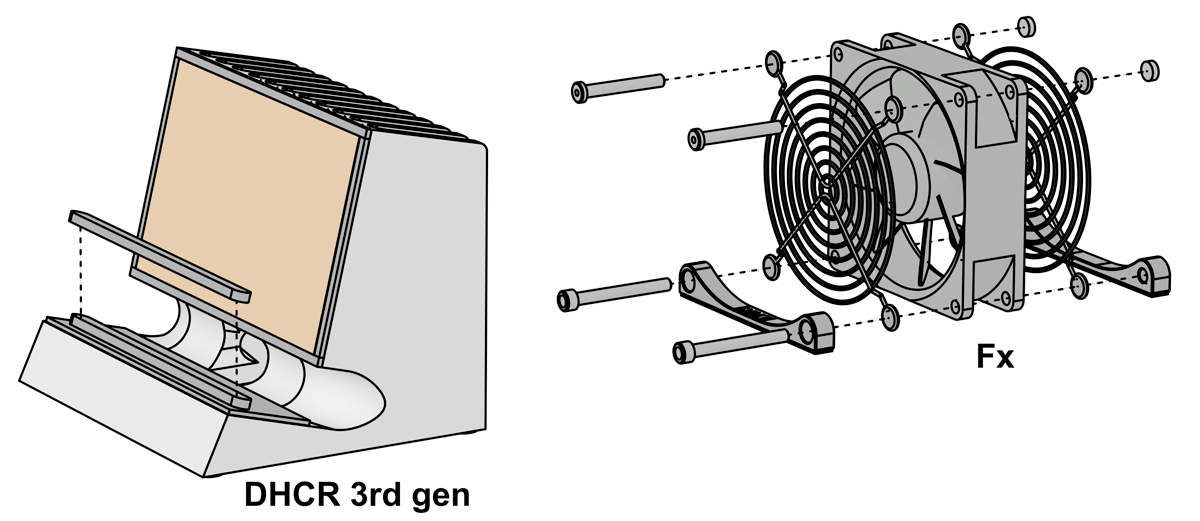
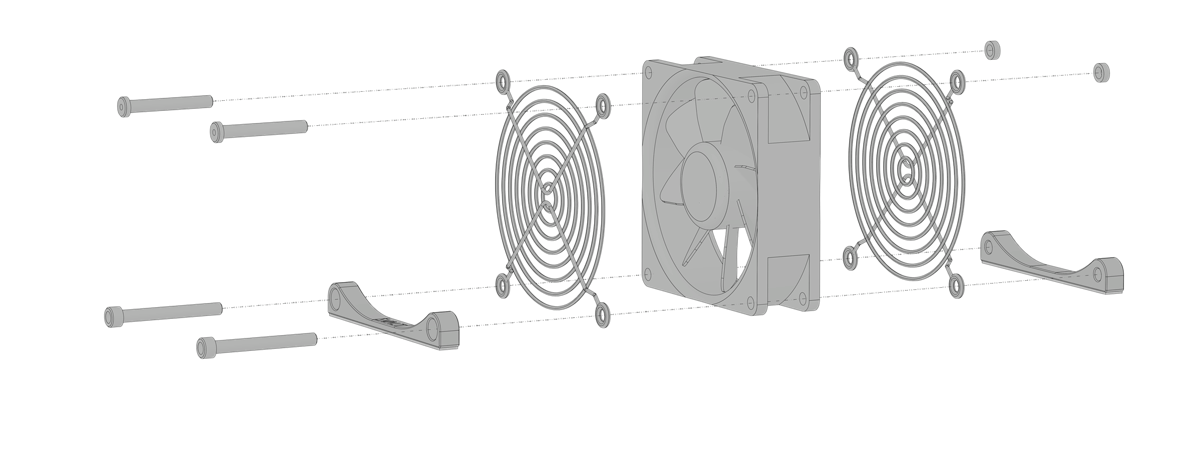
<a id="guide5C"> </a><h2><strong>Cooling Fan Fx:<br>Fan Removal Guide</strong></h2>
<ol>
<li>
<img src="//cdn.shopify.com/s/files/1/0723/7661/files/SVALT-Fx-install-guide_6760.jpg?v=1662065862" alt="Cooling Fan Fx fan installation guide photo"><br>Use fingers to loosen the top two fasteners and nuts, but do not remove the fasteners and nuts.<br><br>
</li>
<li>
<img src="//cdn.shopify.com/s/files/1/0723/7661/files/SVALT-Fx-install-guide_6761.jpg?v=1662065862" alt="Cooling Fan Fx fan installation guide photo"><br>Flip the Fx over onto the top edge of the fan.<br><br>
</li>
<li>
<img src="//cdn.shopify.com/s/files/1/0723/7661/files/SVALT-Fx-install-guide_6748.jpg?v=1662065864" alt="Cooling Fan Fx fan installation guide photo"><br>Loosen the two fasteners in the fan feet until the threaded fan foot can be removed.<br><br>
</li>
<li>
<img src="//cdn.shopify.com/s/files/1/0723/7661/files/SVALT-Fx-install-guide_6749.jpg?v=1662065864" alt="Cooling Fan Fx fan installation guide photo"><br>Pull the counterbore fan foot and fasteners out of the fan.<br><br>
</li>
<li>
<img src="//cdn.shopify.com/s/files/1/0723/7661/files/SVALT-Fx-install-guide_6750.jpg?v=1662065863" alt="Cooling Fan Fx fan installation guide photo"><br>Pull the fasteners from the fan foot.<br><br>
</li>
<li>
<img src="//cdn.shopify.com/s/files/1/0723/7661/files/SVALT-Fx-install-guide_6751.jpg?v=1662065863" alt="Cooling Fan Fx fan installation guide photo"><br>Flip the fan over onto the bottom edge of the fan.<br><br>
</li>
<li>
<img src="//cdn.shopify.com/s/files/1/0723/7661/files/SVALT-Fx-install-guide_6752.jpg?v=1662066323" alt="Cooling Fan Fx fan installation guide photo"><br>Remove the two nuts, two fasteners and two screens.</li>
</ol>
<a href="#top">Back to top</a>
<br><br><br>
<a id="guide5D"> </a><h2><strong>Cooling Fan Fx:<br>Fan Installation Guide</strong></h2>
<ol>
<li>
<img src="//cdn.shopify.com/s/files/1/0723/7661/files/SVALT-Fx-install-guide_6762.jpg?v=1662065863" alt="Cooling Fan Fx fan installation guide photo"><br>Insert the two shorter and smaller fasteners through the front side of one of the screens. Orientate the screen so that its outward extending side will project beyond the fan when installed.<br><br>
</li>
<li>
<img src="//cdn.shopify.com/s/files/1/0723/7661/files/SVALT-Fx-install-guide_6763.jpg?v=1662065862" alt="Cooling Fan Fx fan installation guide photo"><br>Insert the fasteners and screen into the top holes of the fan. Orientate the fan so that fastener heads are on the fan’s exhaust side (the fan’s exhaust side includes fan blade motor mounting and support frame), and the fan’s wiring exits the fan at the bottom.<br><br>
</li>
<li>
<img src="//cdn.shopify.com/s/files/1/0723/7661/files/SVALT-Fx-install-guide_6764.jpg?v=1662065862" alt="Cooling Fan Fx fan installation guide photo"><br>Insert the second screen onto the fastener ends that project through the other side of the fan. Orientate the screen so that its outward extending side will project beyond the fan when installed.<br><br>
</li>
<li>
<img src="//cdn.shopify.com/s/files/1/0723/7661/files/SVALT-Fx-install-guide_6766.jpg?v=1662065862" alt="Cooling Fan Fx fan installation guide photo"><br>Thread nuts onto fastener ends by hand. Lightly tighten nuts only enough to keep the assembly held together, do not over tighten so that the assembly cannot move freely.<br><br>
</li>
<li>
<img src="//cdn.shopify.com/s/files/1/0723/7661/files/SVALT-Fx-install-guide_6767.jpg?v=1662066494" alt="Cooling Fan Fx fan installation guide photo"><br>Flip the assembly over onto the fan’s top edge so that fasteners and nuts are positioned below.<br><br>
</li>
<li>
<img src="//cdn.shopify.com/s/files/1/0723/7661/files/SVALT-Fx-install-guide_6749.jpg?v=1662065864" alt="Cooling Fan Fx fan installation guide photo"><br>Insert the two longer and larger fasteners through the fan foot with counterbore through holes.<br><br>
</li>
<li>
<img src="//cdn.shopify.com/s/files/1/0723/7661/files/SVALT-Fx-install-guide_6755.jpg?v=1662065863" alt="Cooling Fan Fx fan installation guide photo"><br>Insert the fan foot with two fasteners through the fan’s exhaust side (the fan’s exhaust side includes fan blade motor mounting and support frame). Orientate the fan foot so that its non-slip pad is facing upward and the foot’s curving top surface is next to the screen.<br><br>
</li>
<li>
<img src="//cdn.shopify.com/s/files/1/0723/7661/files/SVALT-Fx-install-guide_6756.jpg?v=1662065864" alt="Cooling Fan Fx fan installation guide photo"><br>Align the threaded fan foot with the fasteners ends and thread the fasteners into the threaded fan foot. Orientate the fan foot so that its non-slip pad is upward and the foot’s curving top surface is next to the screen. Lightly tighten fasteners only enough to keep the assembly held together, do not over tighten so that the assembly cannot move freely.<br><br>
</li>
<li>
<img src="//cdn.shopify.com/s/files/1/0723/7661/files/SVALT-Fx-install-guide_6757.jpg?v=1662065862" alt="Cooling Fan Fx fan installation guide photo"><br>Flip the assembly Fx over onto the feet non-slip pads and place on a flat surface. Lightly press down on the top of the fan assembly so that the feet level with the flat surface. Tighten the two fan foot fasteners. This will lock in a level assembly. Only tighten fasteners to the point that the assembly does not move around. Do not over tighten as the fan frame can easily be crushed. Hand tighten the two upper fasteners and nuts.</li>
</ol>
<a href="#top">Back to top</a>
<br><br><br>
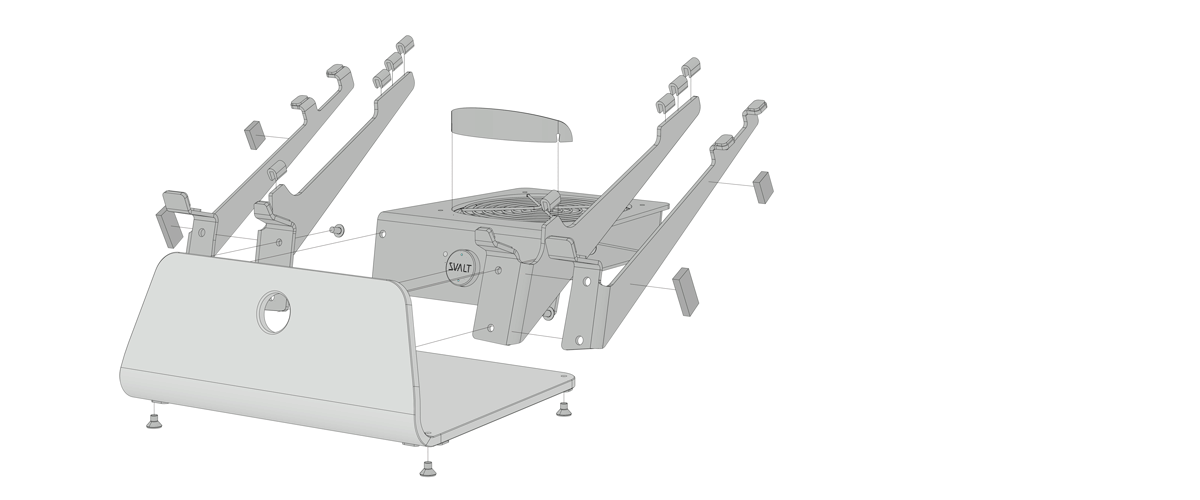
<a id="guide6A"> </a><h2><strong>Cooling Stand all models<br>(SRx / Sx / S Pro / SRxM / SxM / S Mini):<br>Cooling System Removal Guide</strong></h2>
<ol>
<li>
<img src="//cdn.shopify.com/s/files/1/0723/7661/files/SVALT-Stand-install-3-800x_6702.jpg?v=1661900764" alt="Cooling Stand SRx and Sx cooling unit install guide photo"><br>Place the front of Cooling Stand facedown on a surface that will not scratch the metal finish, such as a wood desk or a foam layer from the product packaging. If the Laptop Support Arms are installed, then they can be left in place and the Cooling Stand will rest on the arm's front support tabs.<br><br>
</li>
<li>
<img src="//cdn.shopify.com/s/files/1/0723/7661/files/SVALT-Stand-install-2-800x_6703.jpg?v=1661900765" alt="Cooling Stand SRx and Sx cooling unit install guide photo"><br>Remove the two fasteners. Hold the top of the cooling unit before removing the second / last fastener so that it does not tip over.<br><br>
</li>
<li>
<img src="//cdn.shopify.com/s/files/1/0723/7661/files/SVALT-Stand-install-1-800x_6705.jpg?v=1661900764" alt="Cooling Stand SRx and Sx cooling unit install guide photo"><br>Pull the cooling unit straight up so that the cooling unit's black anodized aluminum pushbutton switch does not get damaged when being extracted from the SRx Support Plate’s or Sx Support Base's switch hole.</li>
</ol>
<a href="#top">Back to top</a>
<br><br><br>
<a id="guide6B"> </a><h2><strong>Cooling Stand all models<br>(SRx / Sx / S Pro / SRxM / SxM / S Mini):<br>Cooling System Installation Guide</strong></h2>
<ol>
<li>
<img src="//cdn.shopify.com/s/files/1/0723/7661/files/SVALT-Stand-install-5-800x_6706.jpg?v=1661901758" alt="Cooling Stand SRx and Sx cooling unit install guide photo"><br>Place the front of Cooling Stand's SRx Support Plate or Sx Support Base facedown on a surface that will not scratch the metal finish, such as a wood desk or a foam layer from the product packaging. If the Laptop Support Arms are installed, then they can be left in place and the Cooling Stand will rest on the arm's front support tabs.<br><br>
</li>
<li>
<img src="//cdn.shopify.com/s/files/1/0723/7661/files/SVALT-Stand-install-1-800x_6705.jpg?v=1661900764" alt="Cooling Stand SRx and Sx cooling unit install guide photo"><br>Line up the cooling unit's black anodized aluminum pushbutton switch with the SRx Support Plate’s or Sx Support Base's center switch hole. Carefully insert the pushbutton switch into the center switch hole.<br><br>
</li>
<li>
<img src="//cdn.shopify.com/s/files/1/0723/7661/files/SVALT-Stand-install-2-800x_6703.jpg?v=1661900765" alt="Cooling Stand SRx and Sx cooling unit install guide photo"><br>Align the two fastener holes, insert fasteners and thread fasteners to a light tightness.<br><br>
</li>
<li>
<img src="//cdn.shopify.com/s/files/1/0723/7661/files/SVALT-Stand-install-4-800x_6701.jpg?v=1661900765" alt="Cooling Stand SRx and Sx cooling unit install guide photo"><br>Click on front pushbutton switch and note if any edge of the pushbutton switch rubs or scratches against the sides of the through hole. If this occurs, then place the front of the Stand facedown and slightly loosen fasteners then slide the cooling unit slightly in the direction that will reduce the switch rubbing / scratching. Retighten and recheck for rubbing / scratching. Once adjusted, then tighten fasteners but do not over tighten or strip threading.</li>
</ol>
<a href="#top">Back to top</a>
<br><br><br>
<a id="guide6C"> </a><h2><strong>Cooling Stand SRx / Sx / S Pro:<br>Fan Removal Guide</strong></h2>
<ol>
<li>
<img src="//cdn.shopify.com/s/files/1/0723/7661/files/SVALT-Stand-fan-remove-1-800x_6688.jpg?v=1661898242" alt="Cooling Stand SRx and Sx fan removal guide photo"><br>Turn cooling unit upside down so that the four fastener heads are exposed.<br>Loosen four fasteners but do not remove fasteners from assembly.<br><br>
</li>
<li>
<img src="//cdn.shopify.com/s/files/1/0723/7661/files/SVALT-Stand-fan-remove-2-800x_6690.jpg?v=1661898242" alt="Cooling Stand SRx and Sx fan removal guide photo"><br>Flip the cooling unit over and place the flat bottom of the plastic enclosure on the edge of a wood desk or a foam layer from the product packaging. This positions the flat bottom of the plastic enclosure on a flat surface and holds the four fasteners in place during disassembly.<br><br>
</li>
<li>
<img src="//cdn.shopify.com/s/files/1/0723/7661/files/SVALT-Stand-fan-remove-3-800x_6694.jpg?v=1661898242" alt="Cooling Stand SRx and Sx fan removal guide photo"><br>Separate the top metal support enclosure from the plastic enclosure and fan assembly. Do not pull hard on the metal support and connect fan wire. Pull up on the metal support enclosure only enough to separate it and expose where the fan wire connects to the speed control unit.<br><br>
</li>
<li>
<img src="//cdn.shopify.com/s/files/1/0723/7661/files/SVALT-Stand-fan-install-9-800x_6670.jpg?v=1661887203" alt="Cooling Stand SRx and Sx fan installation guide photo"><br>Unplug the fan wire connector from the speed control unit connector. Take note of the fan connector’s position before unplugging to help with reassembly. When unplugging the connectors, there’s a snap latch that will need to be pulled up to allow the fan connector to unplug. Do not touch the speed control unit other than the plastic snap latch.<br><br>
</li>
<li>
<img src="//cdn.shopify.com/s/files/1/0723/7661/files/SVALT-Stand-fan-install-8-800x_6668.jpg?v=1661887203" alt="Cooling Stand SRx and Sx fan installation guide photo"><br>Remove the top black metal finger guard and foam gasket. Take note of the guard’s orientation to help with reassembly.<br><br>
</li>
<li>
<img src="//cdn.shopify.com/s/files/1/0723/7661/files/SVALT-Stand-fan-install-5-800x_6665.jpg?v=1661887203" alt="Cooling Stand SRx and Sx fan installation guide photo"><br>Remove the fan wire and fan. Take note of the fan’s orientation to help with reassembly.<br><br>
</li>
<li>
<img src="//cdn.shopify.com/s/files/1/0723/7661/files/SVALT-Stand-fan-install-3-800x_6663.jpg?v=1661887203" alt="Cooling Stand SRx and Sx fan installation guide photo"><br>Remove the bottom gasket and guard if needed for cleaning or other purpose. Take note of the guard’s orientation to help with reassembly.</li>
</ol>
<a href="#top">Back to top</a>
<br><br><br>
<a id="guide6D"> </a><h2><strong>Cooling Stand SRx / Sx / S Pro:<br>Fan Installation Guide</strong></h2>
<ol>
<li>
<img src="//cdn.shopify.com/s/files/1/0723/7661/files/SVALT-Stand-fan-install-1-800x_6771.jpg?v=1662169859" alt="Cooling Stand SRx and Sx fan installation guide photo"><br>Feed four #8-32 x 1 1/2” fasteners through the bottom of the four holes in the plastic enclosure.<br><br>
</li>
<li>
<img src="//cdn.shopify.com/s/files/1/0723/7661/files/SVALT-Stand-fan-install-1-800x_6661.jpg?v=1661887202" alt="Cooling Stand SRx and Sx fan installation guide photo"><br>Place the plastic enclosure with inserted fasteners on the end of a wood desk or on the edge of a foam layer from the product packaging. This positions the flat bottom of the plastic enclosure on a flat surface and holds the four fasteners in place during assembly.<br><br>
</li>
<li>
<img src="//cdn.shopify.com/s/files/1/0723/7661/files/SVALT-Stand-fan-install-2-800x_6662.jpg?v=1661887203" alt="Cooling Stand SRx and Sx fan installation guide photo"><br>Feed one of the black metal finger guard through the four fasteners. Note that the guard extends outward, and orientate the guard so that it extends downward in order to move the guard further from the fan for reduced noise.<br><br>
</li>
<li>
<img src="//cdn.shopify.com/s/files/1/0723/7661/files/SVALT-Stand-fan-install-3-800x_6663.jpg?v=1661887203" alt="Cooling Stand SRx and Sx fan installation guide photo"><br>Feed one of the foam gaskets through the four fasteners. Adjust the gasket so that it lays flat, is free of distortions and aligns with the plastic enclosure’s air opening below.<br><br>
</li>
<li>
<img src="//cdn.shopify.com/s/files/1/0723/7661/files/SVALT-Stand-fan-install-4-800x_6664.jpg?v=1661887203" alt="Cooling Stand SRx and Sx fan installation guide photo"><br>Feed the fan through the four fasteners. Orientate the fan so that the fan’s intake side is facing down and exhaust side is facing up (the fan’s exhaust side includes fan blade motor mounting and support frame). Rotate the fan so that the SVALT logo is orientated upright and the fan wiring exists at the lower left corner. Leave the fan wiring to hang freely.<br><br>
</li>
<li>
<img src="//cdn.shopify.com/s/files/1/0723/7661/files/SVALT-Stand-fan-install-5-800x_6665.jpg?v=1661887203" alt="Cooling Stand SRx and Sx fan installation guide photo"><br>Wrap the fan wiring clockwise around the fan and tuck the wiring into the lower right corner. Orientate the fan connector so that the raised ridges are facing inward (to the left). Leave 1.5 inches of the wiring and fan connector extending out.<br><br>
</li>
<li>
<img src="//cdn.shopify.com/s/files/1/0723/7661/files/SVALT-Stand-fan-install-6-800x_6666.jpg?v=1661887203" alt="Cooling Stand SRx and Sx fan installation guide photo"><br>Tuck the fan wiring around the sides of the fan.<br><br>
</li>
<li>
<img src="//cdn.shopify.com/s/files/1/0723/7661/files/SVALT-Stand-fan-install-7-800x_6667.jpg?v=1661887203" alt="Cooling Stand SRx and Sx fan installation guide photo"><br>Push the fan wiring down on the left side where it exists the fan frame.<br><br>
</li>
<li>
<img src="//cdn.shopify.com/s/files/1/0723/7661/files/SVALT-Stand-fan-install-8-800x_6668.jpg?v=1661887203" alt="Cooling Stand SRx and Sx fan installation guide photo"><br>Feed the second foam gaskets through the four fasteners. Adjust the gasket so that it lays flat, is free of distortions and is centered on the fan below.<br>Feed the second black metal finger guard through the four fasteners. Little to no fastener may protrude beyond the foam gasket, in which case, place the screen on top of the gasket and aligning with gasket fastener holes. Note that the guard extends outward, and orientate the guard so that it extends upward in order to move the guard further from the fan for reduced noise.<br><br>
</li>
<li>
<img src="//cdn.shopify.com/s/files/1/0723/7661/files/SVALT-Stand-fan-install-9-800x_6670.jpg?v=1661887203" alt="Cooling Stand SRx and Sx fan installation guide photo"><br>Hold the top metal support over the fan assemble and attach the fan connector to the speed control system’s fan connector. Orientate the fan connector so that the rails align and then insert the two connector prongs into the lowest two holes on the fan connector. Note that if the fan does not power up after assembly, then it is likely that the connector was inserted into the incorrect holes on the fan connector.<br><br>
</li>
<li>
<img src="//cdn.shopify.com/s/files/1/0723/7661/files/SVALT-Stand-fan-install-10-800x_6672.jpg?v=1661887203" alt="Cooling Stand SRx and Sx fan installation guide photo"><br>Place the top metal support over the fan. Align the four threaded holes with the fastener ends.<br><br>
</li>
<li>
<img src="//cdn.shopify.com/s/files/1/0723/7661/files/SVALT-Stand-fan-install-11-800x_6673.jpg?v=1661887204" alt="Cooling Stand SRx and Sx fan installation guide photo"><br>Partially thread the lower right fastener into the metal support enclosure. Position the assembly so that the fastener head can be accessed while the rest of the assembly and other three fasteners stay resting on the surface. When the fastener end is aligned with the threaded hole, press upward on fastener while turning fastener. Only tighten fastener so that the fastener has begun to enter threading and will not fall out. Do not over tighten and loosen fastener if needed.<br><br>
</li>
<li>
<img src="//cdn.shopify.com/s/files/1/0723/7661/files/SVALT-Stand-fan-install-12-800x_6674.jpg?v=1661887203" alt="Cooling Stand SRx and Sx fan installation guide photo"><br>Flip the cooling unit over and partially thread the other three fasteners in the metal support enclosure. Rotate the assembly so that it is vertical to access the fastener heads. Only tighten fasteners so that the fastener has begun to enter threading and will not fall out. Do not over tighten and loosen fasteners if needed.<br><br>
</li>
<li>
<img src="//cdn.shopify.com/s/files/1/0723/7661/files/SVALT-Stand-fan-install-13-800x_6676.jpg?v=1661887203" alt="Cooling Stand SRx and Sx fan installation guide photo"><br>Adjust top gasket. Return assembly with top up and inspect the gasket to see if any portion is extending into the fan opening. Use the end of the hex key or other tool to push the gasket into place as needed.<br><br>
</li>
<li>
<img src="//cdn.shopify.com/s/files/1/0723/7661/files/SVALT-Stand-fan-install-14-800x_6677.jpg?v=1661887204" alt="Cooling Stand SRx and Sx fan installation guide photo"><br>Adjust bottom gasket. Flip the assembly over and repeat the gasket inspection and adjustment as needed.<br><br>
</li>
<li>
<img src="//cdn.shopify.com/s/files/1/0723/7661/files/SVALT-Stand-fan-install-15-800x_6678.jpg?v=1661887204" alt="Cooling Stand SRx and Sx fan installation guide photo"><br>Tighten fasteners. Begin to tighten the four fasteners by partially tightening one and then another. Tighten fasteners so that the rim edge of the plastic enclosure meets the metal support enclosure. The the metal support and plastic enclosure do not require a tight fit, so do not over tighten. See the next step to help achieve proper fastener threading and tightness.<br><br>
</li>
<li>
<img src="//cdn.shopify.com/s/files/1/0723/7661/files/SVALT-Stand-fan-install-16-800x_6680.jpg?v=1661887204" alt="Cooling Stand SRx and Sx fan installation guide photo"><br>Do not over tighten fasteners. The ends of the fasteners should not extend beyond the top surface of the metal support enclosure, and should stay slightly recessed within the holes. Over tightening the fasteners can damage components.<br><br>
</li>
<li>
<img src="//cdn.shopify.com/s/files/1/0723/7661/files/SVALT-Stand-fan-install-17-800x_6687.jpg?v=1661889124" alt="Cooling Stand SRx and Sx fan installation guide photo"><br>Plug the power supply into the fully assembled cooling unit (do not plug into a partially or incorrectly assembled cooling unit), and cycle through the fan speeds. If the fan does not turn on, then the fan connector may need to be repositioned as noted above in step number 10.</li>
</ol>
<a href="#top">Back to top</a>
<br><br><br>
<a id="guide7C"> </a><h2><strong>Cooling Stand SRxM / SxM / S Mini:<br>Fan Removal Guide</strong></h2>
<ol>
<li>
<img src="//cdn.shopify.com/s/files/1/0723/7661/files/IMG_6795.jpg?v=1662251732" alt="Cooling Stand SRxM and SxM fan installation guide photo"><br>Flip the cooling unit over onto the Mac Mini support pads.<br><br>
</li>
<li>
<img src="//cdn.shopify.com/s/files/1/0723/7661/files/IMG_6793.jpg?v=1662251733" alt="Cooling Stand SRxM and SxM fan installation guide photo"><br>Remove the four finger tightening nuts.<br><br>
</li>
<li>
<img src="//cdn.shopify.com/s/files/1/0723/7661/files/IMG_6792.jpg?v=1662251733" alt="Cooling Stand SRxM and SxM fan installation guide photo"><br>If installed, remove the dust filter frame and dust filter.<br><br>
</li>
<li>
<img src="//cdn.shopify.com/s/files/1/0723/7661/files/IMG_6789.jpg?v=1662251734" alt="Cooling Stand SRxM and SxM fan installation guide photo"><br>Remove the plastic enclosure.<br><br>
</li>
<li>
<img src="//cdn.shopify.com/s/files/1/0723/7661/files/IMG_6790.jpg?v=1662251733" alt="Cooling Stand SRxM and SxM fan installation guide photo"><br>Unplug the fan wire connector from the speed control unit connector. Take note of the fan connector’s position before unplugging to help with reassembly. When unplugging the connectors, there’s a snap latch that will need to be pulled up to allow the fan connector to unplug. Do not touch the speed control unit other than the plastic snap latch.<br><br>
</li>
<li>
<img src="//cdn.shopify.com/s/files/1/0723/7661/files/IMG_6786.jpg?v=1662251734" alt="Cooling Stand SRxM and SxM fan installation guide photo"><br>Remove the black metal fan screen. Take note of the screen’s orientation to help with reassembly.<br><br>
</li>
<li>
<img src="//cdn.shopify.com/s/files/1/0723/7661/files/IMG_6784.jpg?v=1662251734" alt="Cooling Stand SRxM and SxM fan installation guide photo"><br>Remove the foam gasket.<br><br>
</li>
<li>
<img src="//cdn.shopify.com/s/files/1/0723/7661/files/IMG_6783.jpg?v=1662251735" alt="Cooling Stand SRxM and SxM fan installation guide photo"><br>Remove the fan wire and fan. Take note of the fan’s orientation to help with reassembly.<br><br>
</li>
<li>
<img src="//cdn.shopify.com/s/files/1/0723/7661/files/IMG_6781.jpg?v=1662251735" alt="Cooling Stand SRxM and SxM fan installation guide photo"><br>Remove the gasket and screen if needed for cleaning or other purpose. Take note of the screen’s orientation to help with reassembly.<br><br>
</li>
<li>
<img src="//cdn.shopify.com/s/files/1/0723/7661/files/IMG_6780.jpg?v=1662251736" alt="Cooling Stand SRxM and SxM fan installation guide photo"><br>Flip the metal support over.<br><br>
</li>
<li>
<img src="//cdn.shopify.com/s/files/1/0723/7661/files/IMG_6774.jpg?v=1662251739" alt="Cooling Stand SRxM and SxM fan installation guide photo"><br>Remove the four fasteners and Mac Mini supports if needed.</li>
</ol>
<a href="#top">Back to top</a>
<br><br><br>
<a id="guide7D"> </a><h2><strong>Cooling Stand SRxM / SxM / S Mini:<br>Fan Installation Guide</strong></h2>
<ol>
<li>
<img src="//cdn.shopify.com/s/files/1/0723/7661/files/IMG_6776.jpg?v=1662251735" alt="Cooling Stand SRxM and SxM fan installation guide photo"><br>Place the top metal support on the corner of a wood table. Feed one of the four #8-32 x 1 3/4” fasteners through the top of the Mac Mini supports and into the fastener head pocket within the non-slip pad. Thread the fastener into and through the top of the metal support, using the open area below the desk corner for the fastener. Thread the fastener all of the way to the bottom, but do not tighten and leave the fastener slightly loose.<br><br>
</li>
<li>
<img src="//cdn.shopify.com/s/files/1/0723/7661/files/IMG_6778.jpg?v=1662251735" alt="Cooling Stand SRxM and SxM fan installation guide photo"><br>Thread a second fastener and Mac Mini support into the other side of the metal support. Thread the fastener all of the way to the bottom, but do not tighten and leave the fastener slightly loose.<br><br>
</li>
<li>
<img src="//cdn.shopify.com/s/files/1/0723/7661/files/IMG_6780.jpg?v=1662251736" alt="Cooling Stand SRxM and SxM fan installation guide photo"><br>Thread the remaining fasteners into the metal support. Thread the fastener all of the way to the bottom, but do not tighten and leave the fastener slightly loose.<br><br>
</li>
<li>
<img src="//cdn.shopify.com/s/files/1/0723/7661/files/IMG_6781.jpg?v=1662251735" alt="Cooling Stand SRxM and SxM fan installation guide photo"><br>Flip the metal support over onto the pads.<br><br>
</li>
<li>
<img src="//cdn.shopify.com/s/files/1/0723/7661/files/IMG_6782.jpg?v=1662251735" alt="Cooling Stand SRxM and SxM fan installation guide photo"><br>Feed one of the black metal finger guard through the four fasteners. Note that the guard extends outward, and orientate the guard so that it extends downward in order to move the guard further from the fan for reduced noise.<br><br>
</li>
<li>
<img src="//cdn.shopify.com/s/files/1/0723/7661/files/IMG_6783.jpg?v=1662251735" alt="Cooling Stand SRxM and SxM fan installation guide photo"><br>Feed one of the foam gaskets through the four fasteners. Adjust the gasket so that it lays flat, is free of distortions and aligns with the plastic enclosure’s air opening below.<br><br>
</li>
<li>
<img src="//cdn.shopify.com/s/files/1/0723/7661/files/IMG_6784.jpg?v=1662251734" alt="Cooling Stand SRxM and SxM fan installation guide photo"><br>Feed the fan through the four fasteners. Orientate the fan so that the fan’s intake side is facing up and exhaust side is facing down (the fan’s exhaust side includes fan blade motor mounting and support frame). Rotate the fan so that the SVALT logo would be orientated upright and the fan wire would exit at the lower left corner when the cooling unit assembly is complete and installed onto the cooling stand. Leave the fan wiring to hang freely.<br><br>
</li>
<li>
<img src="//cdn.shopify.com/s/files/1/0723/7661/files/IMG_6786.jpg?v=1662251734" alt="Cooling Stand SRxM and SxM fan installation guide photo"><br>Feed the second foam gaskets through the four fasteners. Adjust the gasket so that it lays flat, is free of distortions and is centered on the fan below.<br><br>
</li>
<li>
<img src="//cdn.shopify.com/s/files/1/0723/7661/files/IMG_6787.jpg?v=1662251734" alt="Cooling Stand SRxM and SxM fan installation guide photo"><br>Feed the second black metal finger guard through the four fasteners. Note that the guard extends outward, and orientate the guard so that it extends upward in order to move the guard further from the fan for reduced noise.<br><br>
</li>
<li>
<img src="//cdn.shopify.com/s/files/1/0723/7661/files/IMG_6789.jpg?v=1662251734" alt="Cooling Stand SRxM and SxM fan installation guide photo"><br>Wrap the fan wire around the side, back and side of the fan, and then attach the fan connector to the speed control system’s fan connector.<br><br>
</li>
<li>
<img src="//cdn.shopify.com/s/files/1/0723/7661/files/IMG_6790.jpg?v=1662251733" alt="Cooling Stand SRxM and SxM fan installation guide photo"><br>Orientate the fan connector so that the rails align and then insert the two connector prongs into the upper two holes on the fan connector. Note that if the fan does not power up after assembly, then it is likely that the connector was inserted into the incorrect holes on the fan connector.<br><br>
</li>
<li>
<img src="//cdn.shopify.com/s/files/1/0723/7661/files/IMG_6791.jpg?v=1662251733" alt="Cooling Stand SRxM and SxM fan installation guide photo"><br>Fit the wide end of the plastic enclosure over the narrower end of the metal support and fan assembly. Tuck the fan wiring into the recessed corners of the fan frame.<br><br>
</li>
<li>
<img src="//cdn.shopify.com/s/files/1/0723/7661/files/IMG_6792.jpg?v=1662251733" alt="Cooling Stand SRxM and SxM fan installation guide photo"><br>Slide the plastic enclosure into place while keeping the fan wiring wiring within the fan's recessed corners.<br><br>
</li>
<li>
<img src="//cdn.shopify.com/s/files/1/0723/7661/files/IMG_6793.jpg?v=1662251733" alt="Cooling Stand SRxM and SxM fan installation guide photo"><br>There are three options for this step, depending on which of the following you prefer: install the dust filter frame and dust filter, install only the dust filter frame, or install neither the dust filter or frame.
<br>- Dust filter and frame: Align the dust filter holes with the fasteners, then place the dust filter frame over the filter. 
<br>- Dust filter frame only: Align the dust filter frame holes with the fasteners.
<br>- Neither filter nor frame: Proceed to the next step.<br><br>
</li>
<li>
<img src="//cdn.shopify.com/s/files/1/0723/7661/files/IMG_6794.jpg?v=1662251733" alt="Cooling Stand SRxM and SxM fan installation guide photo"><br>Press down a corner of the plastic enclosure (or on the dust filter/frame positioned above the enclosure) to expose the end of the fastener. Feed one of the finger tightening nuts onto the fastener end. Only thread the nut on to the point that the nut will stay attached, do not tighten. Make sure to feed the metal side of the nut onto the fastener ends and only apply light pressure onto the nut to avoid damaging the aluminum nut threads.<br><br>
</li>
<li>
<img src="//cdn.shopify.com/s/files/1/0723/7661/files/IMG_6795.jpg?v=1662251732" alt="Cooling Stand SRxM and SxM fan installation guide photo"><br>Repeat for the remaining three nuts.<br><br>
</li>
<li>
<img src="//cdn.shopify.com/s/files/1/0723/7661/files/IMG_6796.jpg?v=1662251732" alt="Cooling Stand SRxM and SxM fan installation guide photo"><br>Adjust the bottom gasket. Inspect the gasket to see if any portion is extending into the fan opening. Use the end of the hex key or other tool to push the gasket into place as needed.<br><br>
</li>
<li>
<img src="//cdn.shopify.com/s/files/1/0723/7661/files/IMG_6797.jpg?v=1662251732" alt="Cooling Stand SRxM and SxM fan installation guide photo"><br>Flip the cooling unit over, and then inspect and adjust the top gasket as needed.<br><br>
</li>
<li>
<img src="//cdn.shopify.com/s/files/1/0723/7661/files/IMG_6798.jpg?v=1662251731" alt="Cooling Stand SRxM and SxM fan installation guide photo"><br>Tighten the top fasteners. Start with one fastener and then move to the next in a clockwise direction.<br><br>
</li>
<li>
<img src="//cdn.shopify.com/s/files/1/0723/7661/files/IMG_6799.jpg?v=1662251731" alt="Cooling Stand SRxM and SxM fan installation guide photo"><br>Tighten the bottom finger tightening nuts. Start with one nut and then move to the next in a clockwise direction.<br><br>
</li>
<li>
<img src="//cdn.shopify.com/s/files/1/0723/7661/files/IMG_6800.jpg?v=1662251732" alt="Cooling Stand SRxM and SxM fan installation guide photo"><br>Tighten the nuts so that the rim edge of the plastic enclosure meets the metal support enclosure. The the metal support and plastic enclosure do not require a tight fit, so do not over tighten.<br><br>
</li>
<li>
<img src="//cdn.shopify.com/s/files/1/0723/7661/files/IMG_6802.jpg?v=1662251731" alt="Cooling Stand SRxM and SxM fan installation guide photo"><br>Plug the power supply into the fully assembled cooling unit (do not plug into a partially or incorrectly assembled cooling unit), and cycle through the fan speeds. If the fan does not turn on, then the fan connector may need to be repositioned as noted above in step number 11.</li>
</ol>
<a href="#top">Back to top</a>
<br><br><br>
<a id="dust"> </a><h2><strong>All Models:<br>Dust Cleaning Guide</strong></h2>
An air blower such as the Giottos Large Rocket Air Blower is recommended for removing dust. The blower can be used to remove dust without product disassembly, but if a more thorough cleaning is required, then disassembly may be helpful. Note that when cleaning the fan, you might want to blow out dust that may have accumulated in the open gap between the fan frame and fan blades, where the fan motor is exposed to dust accumulation.
<br><br>
<a href="#top">Back to top</a>
<br><br><br>
<a id="surface"> </a><h2><strong>All Models:<br>Surface Finish Cleaning Guide</strong></h2>
<strong>Anodized Aluminum Surfaces</strong><br>
For anodized aluminum surfaces, blow dust out of cooling fin air channels and other hard to reach areas. Once dust and debris are removed, then use a cloth dampened with soapy water to clean surfaces.
<br><br>
<strong>Metal and Powder Coated Metal Surfaces</strong><br>
For metal and powder coated metal surfaces, wipe the surface with a microfiber cloth.
<br><br>
<strong>Thermally Conductive Assembly Surfaces</strong><br>
For the yellow-orange thermally conductive interface, use a white non-dyed microfiber cloth to clean the surface, do not use a colored cloth as it will stain the surface. If additional cleaning is required, then dampened a portion of the microfiber cloth with water, soapy water or 70% isopropyl alcohol. Do not allow any moisture to get near edges where it could contact and potentially damage adhesives. Once clean, then polish surface with a dry portion of the microfiber cloth.
<br><br>
<strong>Plastic Type Surfaces</strong><br>
For plastic and plastic type surfaces, take care when cleaning as the surface can be scratch. Use a soft cloth with light pressure to clean. Slightly dampened cloth with soapy water as required to aid cleaning. Avoid exposing adhesives and electronics to moisture. 
<br><br>
<strong>Rubber Type Surfaces</strong><br>
For rubber and rubber type surface, simply brush off the surface.
<br><br>
<a href="#top">Back to top</a>]]>
    </content>
  </entry>
  <entry>
    <id>https://svalt.com/blogs/svalt/workstation-setup</id>
    <published>2022-01-29T10:52:04-08:00</published>
    <updated>2025-04-23T16:25:22-07:00</updated>
    <link rel="alternate" type="text/html" href="https://svalt.com/blogs/svalt/workstation-setup"/>
    <title>WORKSTATION</title>
    <author>
      <name>Chad Kirkpatrick</name>
    </author>
    <content type="html">
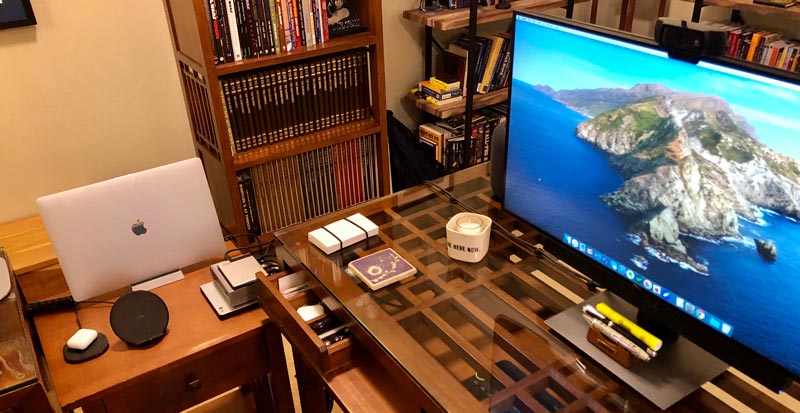
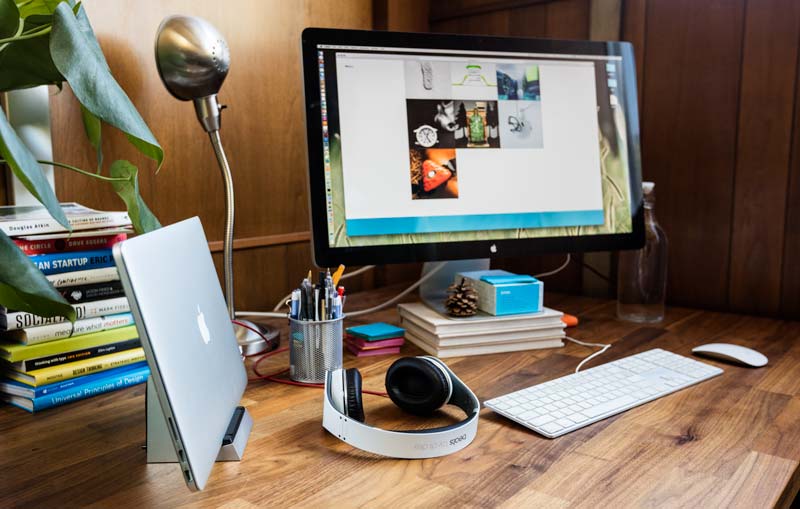
      <![CDATA[<img src="//cdn.shopify.com/s/files/1/0723/7661/files/SVALT-Cooling-Dock-Cinco-Workstation-6234-800x508.jpg?v=1645470223" alt="SVALT Cooling Dock with MacBook Pro Cinco workstation">
Laptops have become essential tools for working remotely and telecommuting. They contain enough processing power to replace dedicated desktop computers for most applications and can even handle intensive computing workloads such as photo, video and audio production. The issue with using a laptop for high-demand work is that the laptop’s small built-in cooling system and mobility orientated screen/keyboard ergonomics can fall short when you need to crank out work at your home or work office. 
<br><br>
The quest for portability and productivity from a laptop shouldn’t be unattainable, considering how important both are to professionals. This is precisely why we created the first-of-kind and best-in-class SVALT products, to create the ultimate high-performance laptop workstation for those that need the best of both worlds. As a company of like-minded professionals dealing with the same issue, we’re committed to solving this equation through excellence in design and functionality.
<br><br>
Once you have a SVALT product setup per the <a href="https://svalt.com/blogs/svalt/product-setup" title="SVALT product setup, operation and user guide with Apple laptop MacBook Pro">Product Setup</a> page, then use the following sections to optimize setup for performance and productivity: 
<ul>
<li><a href="#docklayout">Workstation Layouts for Cooling Docks</a></li>
<li><a href="#standlayout">Workstation Layouts for Cooling Stands</a></li>
<li><a href="#heatgainlayout">Workstation Layouts for Reduced Heat Gain</a></li>
<li><a href="#workstation">General Workstation Optimization</a></li>
<li><a href="#computer">General Computer Optimization</a></li>
<li><a href="#ergonomics">General Ergonomic Optimization</a></li>
</ul>
<br><br>
<a id="docklayout"><h2><strong>Dock Workstation Layouts</strong></h2></a>
The following workstation layouts for Cooling Dock models are listed based on ranking from the to be avoided #8 layout to the best #1 layout. After reviewing the following workstation layout recommendations, please review the <a href="#heatgainlayout">Workstation Layouts for Reduced Heat Gain</a> section.
<br><br><br>
<img src="//cdn.shopify.com/s/files/1/0723/7661/files/SVALT-Cooling-Dock-workstation-setup-8-800x.png?v=1701640920" alt="SVALT Cooling Dock with 16-inch MacBook Pro workstation layout">
<strong>#8 LAYOUT = AVOID</strong><br>
This layout should be avoided as it has the back of the dock and laptop placed into a corner where the desk and walls trap heat and prevent cool air circulation. This layout can dramatically increase temperatures and reduce supplemental cooling efficiency (both passive heatsink/airflow cooling and active airflow cooling). If one of the other improved layouts is not possible, then use the following minimum distance offsets from a solid vertical surface such as walls, windows, cubical partitions, etc to provide a sufficient level of open air space (note that fan cooling is recommended to help force air circulation):
<ul>
<li>12 inch min open space between wall and <em>back</em> of dock/laptop.</li>
<li>12 inch min open space between wall and <em>side</em> of dock/laptop.</li>
</ul>
And if none of the other layouts are possible and if the above minimum offset distances can not be met, then rotate the dock and laptop 180 so that the back of the dock and laptop is facing out as this will allow for increased air circulation. 
<br><br><br>
<img src="//cdn.shopify.com/s/files/1/0723/7661/files/SVALT-Cooling-Dock-workstation-setup-7-800x.png?v=1701640921" alt="SVALT Cooling Dock with 16-inch MacBook Pro workstation layout">
<strong>#7 LAYOUT = OKAY</strong><br>
This is an okay layout as it has the back of the dock and laptop rotated 90 degrees, but still placed into a corner where the desk and walls trap heat and prevent cool air circulation. While this layout offers an improvement over the prior #8 layout, it can still increase temperatures and reduce supplemental cooling efficiency (both passive heatsink/airflow cooling and active airflow cooling). If one of the other improved layouts is not possible, then use the following minimum distance offsets from a solid vertical surface such as walls, windows, cubical partitions, etc to provide a sufficient level of open air space (note that fan cooling is recommended to help force air circulation):
<ul>
<li>12 inch min open space between wall and <em>back</em> of dock/laptop.</li>
<li>10 inch min open space between wall and <em>side</em> of dock/laptop.</li>
</ul>
And if none of the other layouts are possible and if the above minimum offset distances can not be met, then rotate the dock and laptop 180 so that the back of the dock and laptop is facing out as this will allow for increased air circulation. 
<br><br><br>
<img src="//cdn.shopify.com/s/files/1/0723/7661/files/SVALT-Cooling-Dock-workstation-setup-6-800x.png?v=1701640921" alt="SVALT Cooling Dock with 16-inch MacBook Pro workstation layout">
<strong>#6 LAYOUT = GOOD</strong><br>
This is a good layout as it has the back of the dock and laptop placed against a wall, but has been moved away from the corner and moved to the other side of the monitor. While this layout offers an improvement over the prior #8 and #7 layouts, it can still increase temperatures and reduce supplemental cooling efficiency (both passive heatsink/airflow cooling and active airflow cooling). If one of the other improved layouts is not possible, then use the following minimum distance offsets from a solid vertical surface such as walls, windows, cubical partitions, etc to provide a sufficient level of open air space (note that fan cooling is recommended to help force air circulation):
<ul>
<li>12 inch min open space between wall and <em>back</em> of dock/laptop.</li>
</ul>
And if none of the other layouts are possible and if the above minimum offset distances can not be met, then rotate the dock and laptop 180 so that the back of the dock and laptop is facing out as this will allow for increased air circulation. 
<br><br><br>
<img src="//cdn.shopify.com/s/files/1/0723/7661/files/SVALT-Cooling-Dock-workstation-setup-5-800x.png?v=1701640921" alt="SVALT Cooling Dock with 16-inch MacBook Pro workstation layout">
<strong>#5 LAYOUT = GOOD</strong><br>
This is a good layout as it has the back of the dock and laptop placed into a corner with the desk and walls, but the desk has been moved away from the wall. The open air space between the desk and wall allows the hot air previously trapped behind the dock and laptop in the #8 layout to rise up and pull cool air from below the desk, which in turn creates a convective cooling air current (note that this assumes the desk has open leg supports and is not fully enclosed underneath). This reduces temperatures and increases supplemental cooling efficiency (both passive heatsink/airflow cooling and active airflow cooling). While even a small opening of a few inches between the desk and wall can help improve cooling air circulation, the larger the opening the better the air circulation. Use the following minimum distance offsets from a solid vertical surface such as walls, windows, cubical partitions, etc to provide a sufficient level of open air space (note that fan cooling is recommended to help force air circulation):
<ul>
<li>10 inch min open space between wall and <em>back</em> of dock/laptop.</li>
<li>10 inch min open space between wall and <em>side</em> of dock/laptop.</li>
</ul>
<br><br>
<img src="//cdn.shopify.com/s/files/1/0723/7661/files/SVALT-Cooling-Dock-workstation-setup-4-800x.png?v=1701640921" alt="SVALT Cooling Dock with 16-inch MacBook Pro workstation layout">
<strong>#4 LAYOUT = GOOD</strong><br>
This is a good layout as it has the back of the dock and laptop placed into a corner with the desk and walls, but rotated 90 degrees and the desk has been moved away from the wall. The open air space between the desk and wall allows the hot air previously trapped behind the dock and laptop in the #7 layout to rise up and pull cool air from below the desk, which in turn creates a convective cooling air current (note that this assumes the desk has open leg supports and is not fully enclosed underneath). This reduces temperatures and increases supplemental cooling efficiency (both passive heatsink/airflow cooling and active airflow cooling). While even a small opening of a few inches between the desk and wall can help improve cooling air circulation, the larger the opening the better the air circulation. Use the following minimum distance offsets from a solid vertical surface such as walls, windows, cubical partitions, etc to provide a sufficient level of open air space (note that fan cooling is recommended to help force air circulation):
<ul>
<li>10 inch min open space between wall and <em>back</em> of dock/laptop.</li>
<li>8 inch min open space between wall and <em>side</em> of dock/laptop.</li>
</ul>
<br><br>
<img src="//cdn.shopify.com/s/files/1/0723/7661/files/SVALT-Cooling-Dock-workstation-setup-3-800x.png?v=1701640920" alt="SVALT Cooling Dock with 16-inch MacBook Pro workstation layout">
<strong>#3 LAYOUT = EXCELLENT</strong><br>
This is an excellent layout as it has the back of the dock and laptop placed against a wall, but has been moved away from the corner and moved to the other side of the monitor, and the desk has been moved away from the wall. The open air space between the desk and wall allows the hot air previously trapped behind the dock and laptop in the #6 layout to rise up and pull cool air from below the desk, which in turn creates a convective cooling air current (note that this assumes the desk has open leg supports and is not fully enclosed underneath). This reduces temperatures and increases supplemental cooling efficiency (both passive heatsink/airflow cooling and active airflow cooling). While even a small opening of a few inches between the desk and wall can help improve cooling air circulation, the larger the opening the better the air circulation. Use the following minimum distance offsets from a solid vertical surface such as walls, windows, cubical partitions, etc to provide a sufficient level of open air space (note that fan cooling is recommended to help force air circulation):
<ul>
<li>10 inch min open space between wall and <em>back</em> of dock/laptop.</li>
</ul>
<br><br>
<img src="//cdn.shopify.com/s/files/1/0723/7661/files/SVALT-Cooling-Dock-workstation-setup-2-800x.png?v=1701640921" alt="SVALT Cooling Dock with 16-inch MacBook Pro workstation layout">
<strong>#2 LAYOUT = EXCELLENT</strong><br>
This is an excellent layout as it has the dock and laptop moved away from the corner and moved to the other side of the monitor, as well as rotated 90 degrees. The open air space behind the dock and laptop allows hot air to freely rise up and pull cool air from below, which in turn creates a convective cooling air current. This reduces temperatures and increases supplemental cooling efficiency (both passive heatsink/airflow cooling and active airflow cooling). Use the following minimum distance offsets from a solid vertical surface such as walls, windows, cubical partitions, etc to provide a sufficient level of open air space:
<ul>
<li>8 inch min open space between wall and <em>side</em> of dock/laptop.</li>
</ul>
<br><br>
<img src="//cdn.shopify.com/s/files/1/0723/7661/files/SVALT-Cooling-Dock-workstation-setup-1-800x.png?v=1701640921" alt="SVALT Cooling Dock with 16-inch MacBook Pro workstation layout">
<strong>#1 LAYOUT = BEST</strong><br>
This is the best layout as it has the dock and laptop moved away from the corner and moved to the other side of the monitor, rotated 90 degrees, and the desk has been moved away from the wall. The open air space behind the dock and laptop, as well as on both sides, allows hot air to freely rise up and pull cool air from below, which in turn creates a convective cooling air current (note that this assumes the desk has open leg supports and is not fully enclosed underneath). This reduces temperatures and increases supplemental cooling efficiency (both passive heatsink/airflow cooling and active airflow cooling). While even a small opening of a few inches between the desk and wall can help improve cooling air circulation, the larger the opening the better the air circulation. Use the following minimum distance offsets from a solid vertical surface such as walls, windows, cubical partitions, etc  to provide a sufficient level of open air space:
<ul>
<li>6 inch min open space between wall and <em>side</em> of dock/laptop.</li>
</ul>
<br>
<a href="#top">Back to top</a>
<br><br><br>
<a id="standlayout"><h2><strong>Stand Workstation Layouts</strong></h2></a>
The following workstation layouts for Cooling Stand models are listed based on ranking from the to be avoided #4 layout to the best #1 layout. Note that the following diagrams and text reference Cooling Stand models used with a laptop, but the layouts and recommendations also apply to Cooling Stand models used with Mac Mini and Mac Studio desktop computers. After reviewing the following workstation layout recommendations, please review the <a href="#heatgainlayout">Workstation Layouts for Reduced Heat Gain</a> section.
<br><br><br>
<img src="//cdn.shopify.com/s/files/1/0723/7661/files/SVALT-Cooling-Stand-workstation-setup-4-800x.png?v=1701640921" alt="SVALT Cooling Stand with 16-inch MacBook Pro workstation layout">
<strong>#4 LAYOUT = AVOID</strong><br>
This layout should be avoided as it has the back of the stand and laptop placed into a corner where the desk and walls trap heat and prevent cool air circulation. This layout can dramatically increase temperatures and reduce supplemental cooling efficiency (both passive heatsink/airflow cooling and active airflow cooling). If one of the other improved layouts is not possible, then use the following minimum distance offsets from a solid vertical surface such as walls, windows, cubical partitions, etc to provide a sufficient level of open air space (note that fan cooling is recommended to help force air circulation):
<ul>
<li>12 inch min open space between wall and back of stand/laptop.</li>
<li>12 inch min open space between wall and <em>side</em> of stand/laptop.</li>
</ul>
<br><br>
<img src="//cdn.shopify.com/s/files/1/0723/7661/files/SVALT-Cooling-Stand-workstation-setup-3-800x.png?v=1701640921" alt="SVALT Cooling Stand with 16-inch MacBook Pro workstation layout">
<strong>#3 LAYOUT = GOOD</strong><br>
This is a good layout as it has the back of the stand and laptop placed against a wall, but has been moved away from the corner and moved to the other side of the monitor. While this layout offers an improvement over the prior #4 layout, it can still increase temperatures and reduce supplemental cooling efficiency (both passive heatsink/airflow cooling and active airflow cooling). If one of the other improved layouts is not possible, then use the following minimum distance offsets from a solid vertical surface such as walls, windows, cubical partitions, etc to provide a sufficient level of open air space (note that fan cooling is recommended to help force air circulation):
<ul>
<li>12 inch min open space between wall and back of stand/laptop.</li>
</ul>
<br><br>
<img src="//cdn.shopify.com/s/files/1/0723/7661/files/SVALT-Cooling-Stand-workstation-setup-2-800x.png?v=1701640921" alt="SVALT Cooling Stand with 16-inch MacBook Pro workstation layout">
<strong>#2 LAYOUT = GOOD</strong><br>
This is a good layout as it has the back of the stand and laptop placed into a corner with the desk and walls, but the desk has been moved away from the wall. The open air space between the desk and wall allows the hot air previously trapped behind the stand and laptop in the #4 layout to rise up and pull cool air from below the desk, which in turn creates a convective cooling air current (note that this assumes the desk has open leg supports and is not fully enclosed underneath). This reduces temperatures and increases supplemental cooling efficiency (both passive heatsink/airflow cooling and active airflow cooling). While even a small opening of a few inches between the desk and wall can help improve cooling air circulation, the larger the opening the better the air circulation. Use the following minimum distance offsets from a solid vertical surface such as walls, windows, cubical partitions, etc to provide a sufficient level of open air space (note that active airflow cooling is recommended to help force air circulation):
<ul>
<li>10 inch min open space between wall and back of stand/laptop.</li>
<li>10 inch min open space between wall and <em>side</em> of stand/laptop.</li>
</ul>
<br><br>
<img src="//cdn.shopify.com/s/files/1/0723/7661/files/SVALT-Cooling-Stand-workstation-setup-1-800x.png?v=1701640921" alt="SVALT Cooling Stand with 16-inch MacBook Pro workstation layout">
<strong>#1 LAYOUT = BEST</strong><br>
This is the best layout as it has the back of the stand and laptop placed against a wall, but has been moved away from the corner and moved to the other side of the monitor, and the desk has been moved away from the wall. The open air space between the desk and wall allows the hot air previously trapped behind the stand and laptop in the #3 layout to rise up and pull cool air from below the desk, which in turn creates a convective cooling air current (note that this assumes the desk has open leg supports and is not fully enclosed underneath). This reduces temperatures and increases supplemental cooling efficiency (both passive heatsink/airflow cooling and active airflow cooling). While even a small opening of a few inches between the desk and wall can help improve cooling air circulation, the larger the opening the better the air circulation. Use the following minimum distance offsets from a solid vertical surface such as walls, windows, cubical partitions, etc to provide a sufficient level of open air space (note that fan cooling is recommended to help force air circulation):
<ul>
<li>10 inch min open space between wall and back of stand/laptop.</li>
</ul>
<br>
<a href="#top">Back to top</a>
<br><br><br>
<a id="heatgainlayout"><h2><strong>Workstation Layouts for Reduced Heat Gain</strong></h2></a>
Supplemental cooling helps to relieve the computer of cooling strain and quiet internal fans under normal conditions, but when under intensive workloads, then supplemental cooling helps to increase a computer system’s total cooling capacity so that it can absorb and remove the additional heat generated by processors running at maximum speeds. Adding heat into the system from external non-processor sources is counterproductive to those goals.
<br><br><strong>Avoid Direct Sunlight</strong><br>All Macs and many PCs use metal enclosures, and all SVALT products are primarily made of metal. When metal is exposed to direct sunlight it absorbs the sunlight’s radiant heat, which can rapidly and significantly increase temperatures, especially if the metal is a darker color, such as gray or black. If the sunlight heat gain occurs in the processor area of the computer or the non-screen portion of the laptop, then this could reduce laptop performance. And if the sunlight heat gain occurs in a SVALT heatsink, then this will reduce cooling capacity.
<br><br>
If the computer and product cannot be relocated to avoid direct sunlight, then you can take one or more of the following steps to help reduce heat gain:
<ul>
<li>1. Close window coverings so that sunlight does not directly strike the computer and SVALT product, and/or install UV reflective coatings on windows.<br><br>
</li>
<li>2. Rotate the computer and SVALT product for reduced heat gain with the following recommendations by SVALT model:<br><br>
</li>
<ul>
<li>For SVALT Cooling Dock models it is critical to position the laptop and product to avoid sunlight striking the back, especially the back of heatsink models. The best position has the sunlight hitting primarily on the side but angled slightly so the sunlight hits the front of the laptop. This position allows the laptop to shade the heatsink and ensure sunlight does not hit the back of the laptop. The laptop’s closed lid and screen assembly will insulate against heat gain.<br><br>
</li>
<li>For SVALT Cooling Stand models, position the laptop and product to avoid sunlight striking the keyboard area of the open laptop, as well as any exposed portion of the heatsink. The best position has the sunlight hitting primarily from the side and back so that the laptop’s open lid and screen assembly shades the keyboard area.<br><br>
</li>
<li>For SVALT Cooling Stand models with a Mac Mini or Mac Studio, unfortunately any position in direct sunlight will result in detrimental heat gain to the system and potential for reduced performance.<br><br>
</li>
</ul>
<li>3. Darker laptop and heatsink aluminum anodize colors improve cooling just as long as they stay out of sunlight, but they are a detriment to cooling if in direct sunlight, so it is best to avoid direct sunlight. A lighter anodized aluminum finish like silver or raw aluminum will reflect more sunlight with reduced heat absorption.<br><br>
</li>
<li>4. Use fan driven active cooling airflow with the SVALT product, especially heatsink models. The active airflow will help to mitigate sunlight heat gains.</li>
</ul>
<br><strong>Avoid Hot Air</strong><br>As a general rule, an increase in ambient air temperature will lead to higher computer temperatures. If your office space has forced air heating, then try to position the computer and SVALT product so that it is not hit by heated air. The reverse is true with air conditioning, as that airflow could help drop ambient air temperatures around the computer and SVALT product.
<br><br><strong>Avoid Heat Sources</strong><br>External displays, hard drive arrays, and other common desktop accessories can generate and exhaust heat. To avoid transferring that heat to your computer, identify the accessory device’s hot exhaust vent and position it to direct heat away from the computer and SVALT product. Provide a recommended 6 inch minimum and 12 inch preferred separation from heat source on all sides of the computer and SVALT product. Reductions in this open space area will result in reduced cooling efficiency.
<br><br><strong>Avoid Restrictive Spaces</strong><br>Locate the computer away from walls and corners for access to more air circulation and avoid trapping hot air that could be pulled back into either the computer’s or the SVALT product’s cold air intake vents. Avoid placing within a small enclosed space (cabinet, shelving, under desk, etc) without a dedicated mechanical air conditioning system (like a server room). Provide the minimum open space around the computer and SVALT product per the above dock and stand workstation layouts. Reductions in this open space area will result in reduced cooling efficiency and increased noise.
<br><br>
<a href="#top">Back to top</a>
<br><br><br>
<a id="workstation"><h2><strong>General Workstation Optimization</strong></h2></a>
<strong>Avoid Powering External Devices</strong><br>SVALT products intentionally use external wall power to drive a more powerful 12 volt fan and to avoid pulling power from the computer through a 5 volt USB connection. This not only results in reduced cooling power but would result in additional heat generation within the laptop to supply power to the fan. Pulling power from the computer can also be problematic when maxing out laptop systems as less power is available to the processors and can lead to processor power throttling, which in turn leads to reduced performance. This extends to other peripheral devices that pull power through the computer’s USB or Thunderbolt ports, as they will all result in higher internal computer temperatures and increase the risk of processor power throttling.
<br><br><strong>Reduce External Displays</strong><br>SVALT products help manage the additional heat generated when using a laptop as a desktop replacement with external monitors. However, if you are tackling an intensive task that does not require additional screen real estate, then reducing the number of connected external displays or limiting the external display to a single lower resolution monitor will help reduce the computer’s GPU’s workload. Depending on the application and external display configuration, external GPUs (eGPU) can help transfer workload away from the computer’s internal GPU. Otherwise, using only the laptop’s built-in display will generally help maximize performance.
<br><br><strong>Use External Power Supply</strong><br>Running on external power supply with the battery charged will minimize heat internal generation. Using the original Apple power supply that shipped with your laptop (or a genuine Apple replacement) ensures your laptop has full and reliable power supply. Alternatively, power can come from an external display or cable hub, but make sure it provides sufficient and reliable power for your laptop model. 
<br><br><strong>Use UPS When Required</strong><br>Similar to loss of data, a sudden loss of power or a severe power fluctuation can cause a computer’s built-in data storage and external data storage devices to fail. One of the advantages of using a laptop is that it includes an internal battery that acts as an Uninterrupted Power Supplies (UPS), so your laptop only requires a surge protector. If power is lost while running in <a href="https://svalt.com/blogs/svalt/76622081-laptop-clamshell-setup" title="Clamshell mode setup and operation">clamshell</a> mode, either from a power utility event or from accidentally disconnecting the power cable, then the laptop will instantly enter sleep mode. If you are using bus powered external drives that pull power through the data connection cable, then in most cases the data on the external drives should also be protected. However, if you are using external drives that require a separate power source, then a UPS will be required for those drives. Be sure that you do not use the UPS for your laptop power source and that you only use a surge protector for the laptop power. See Apple’s article <a href="https://support.apple.com/en-us/HT203207" title="Apple Portables Troubleshooting MagSafe Adapters" target="_blank" rel="noopener noreferrer">Troubleshooting MagSafe Adapters</a> for an explanation of why a UPS should be avoided when using a laptop.
<br><br>
<a href="#top">Back to top</a>
<br><br><br>
<a id="computer"><h2><strong>General Computer Optimization</strong></h2></a>
<strong>Reduce Background Activities</strong><br>A computer’s operating system and applications can consume considerable resources and increase temperatures without you having launched an application or executed a task, such as <a href="https://support.apple.com/en-us/HT203447" title="Apple Spotlight indexing support" target="_blank" rel="noopener noreferrer">Spotlight indexing</a>, <a href="https://support.apple.com/kb/PH18763?viewlocale=en_US&amp;locale=en_US" target="_blank" title="Apple Diagnostic Submission support" rel="noopener noreferrer">Diagnostic Submission</a>, TimeMachine backups, cloud based storage backups, other network activities and virus activities. You can use <a href="https://support.apple.com/en-us/HT201464" title="Apple Activity Monitor guide" target="_blank" rel="noopener noreferrer">Apple’s Activity Monitor</a> found inside of the Utility Folder located within the Applications Folder to identify and then disable unnecessary applications that tax your system (CPU, GPU, RAM, storage, network, etc). One of the easiest quick fixes is to disconnect wired internet connections to turn off wireless internet connections. This will prevent a number of background activities, including receiving emails, texts or photo calls from interrupting an intensive workload. Another way to eliminate unwanted background activities is to remove unnecessary Login items, applications that automatically launch at startup. To see and remove these applications open System Preference, go to Users &amp; Groups, click on Login Items, uncheck or delete unnecessary items, preventing then from launching, and then restart if required.
<br><br><strong>Close Applications</strong><br>Quit any applications not required. Running a virtual machine (VM) or running an application in a VM is going to zap performance, so avoid if possible, or if a native macOS option isn't available then run the OS/App in Boot Camp instead.
<br><br><strong>Update Software</strong><br>Keeping your OS and applications updated usually helps things sync up for smoother and faster operation. With the exception of security updates, it is generally a good idea to wait a few days/weeks to learn of any issues before installing a major OS/App or firmware update, or wait until after the first bug update/patch has been released.
<br><br><strong>Free Up Boot Drive Space</strong><br>When a hard drive includes your OS it is known as the boot drive, and when your boot drive starts to run out of free/open space then speed can take a huge hit. Depending on what you are doing, the type of boot drive, and the drive’s capacity, you may need between 10-50% and 10-100GB of your boot drive to be free space. In general 15% or 15GB is considered minimum, and once approaching that level then you should be prepared to upgrade to a larger drive or transfer data to free up space. If you work with large photo, video, rendering or other files, then 100GB is a more reasonable minimum. Another way to free up boot drive space is to keep your project data on an external drive. Just be sure to use a fast 7200RPM drive, SSD drive or multiple RAID drives if storage speed impacts on your workflow.
<br><br><strong>Backup Data</strong><br>All storage devices will eventually fail, and a sudden loss of data is a sure fire way to reduce productivity. It is not a question of if, but when data loss could occur from reaching the drive’s end-of-service life, accident or theft. Any important data requires regular backups. If you do not require large backup capacity, then online/cloud based backup solutions can provide a simple and robust option. However, if you require large backup capacities, then you will likely need to use a local and off-site physical backup system. For many consumers, Apple's built-in Time Machine software with a couple inexpensive external drives will provide sufficient physical backup protection. For professionals, keeping a cloned copy of your working drive with <a href="https://bombich.com" title="Carbon Copy Cloner" target="_blank" rel="noopener noreferrer">Carbon Copy Cloner</a> plus multiple copies of external storage sets is highly recommended. A 7200RPM desktop drive or SSD drive will cut down on backup times. Note that RAID drives might not be your best option for backups because the additional hardware and/or software increase the chances of failure and many default RAID configurations prioritize speed over reliability.
<br><br>
<a href="#top">Back to top</a>
<br><br><br>
<a id="ergonomics"><h2><strong>General Ergonomic Optimization</strong></h2></a>
<strong>Improve Ergonomics</strong><br>There are numerous sources on how to setup and maintain an ergonomic workstation, including Apple’s <a href="https://support.apple.com/en-us/HT205655" title="Apple Ergonomics" target="_blank" rel="noopener noreferrer">Ergonomics</a> page, and most hit upon the following for both sitting and standing workstations:
<ul>
<li>Position the screen at eye level so that you look straight ahead, instead of looking down, up or to either side. The screen should be near enough that you can see the required level of detail without having to lean forward, but not so close that you have to constantly move your head around to see the full display.<br><br>
</li>
<li>Position the input devices, such as keyboard, mouse, trackpad, trackball and drawing implement where your hands fall when they are level with your elbows, your elbows are directly below your shoulders, and your shoulders are relaxed. The input devices should be directly in front of you so that you do not have to extend your hands outward or to either side.</li>
</ul>
<br>
<a href="#top">Back to top</a>
]]>
    </content>
  </entry>
  <entry>
    <id>https://svalt.com/blogs/svalt/product-upgrades</id>
    <published>2022-01-29T10:51:03-08:00</published>
    <updated>2025-05-02T14:49:50-07:00</updated>
    <link rel="alternate" type="text/html" href="https://svalt.com/blogs/svalt/product-upgrades"/>
    <title>UPGRADES</title>
    <author>
      <name>Chad Kirkpatrick</name>
    </author>
    <content type="html">
      <![CDATA[<img src="//cdn.shopify.com/s/files/1/0723/7661/files/SVALT-MxDW-5238-1600x700.jpg?v=1741879076" alt="SVALT Cooling Dock model MxDW with 2021+ MacBook Pro">
SVALT constantly refines and improves products, and whenever possible we pass those onto existing customers to offer new features, additional device compatibility, and extended product longevity. SVALT products are made with modular right-to-repair systems using bolted/snapped assemblies to help with the upgrade process and to help reduce environmental impact. To learn what upgrade options are available for your product, please select from the following list:
<br><br>
<img src="//cdn.shopify.com/s/files/1/0723/7661/files/1-SVALT-Mx-features-3-1600x.png?v=1739131563" alt="SVALT MxD, MxS-hi, MxS-lo w/ key feature labels back and front views, rendering">
Mx Modular Heatsink Cooling System models:
<ul>
<li><strong><a href="#mx">MxD / MxDW / MxS-hi / MxSW-hi / MxS-lo / MxSW-lo (2025-current)</a></strong></li>
</ul>
<br>
<img src="//cdn.shopify.com/s/files/1/0723/7661/files/SVALT-Cooling-Dock-DLx-all-features-2022-11-13-1200x.png?v=1668364986" alt="SVALT Cooling Dock model DLx with noted features diagram">
Cooling Dock DLx models:
<ul>
<li><strong><a href="#d1">D1 (2015-2021)</a></strong></li>
<li><strong><a href="#d2">D2 (2016-2021)</a></strong></li>
<li><strong><a href="#dxlegacy">Dx Legacy (2021-2022)</a></strong></li>
<li><strong><a href="#dlx">DLx (2022-2023)</a></strong></li>
</ul>
<br>
<img src="//cdn.shopify.com/s/files/1/0723/7661/files/SVALT-Cooling-Dock-Dx-all-features-2022-11-11-1200x.png?v=166827884" alt="SVALT Cooling Dock model Dx with noted features diagram">
Cooling Dock Dx models:
<ul>
<li><strong><a href="#d1pro">D1 Pro (2020-2022)</a></strong></li>
<li><strong><a href="#d2pro">D2 Pro (2020-2021)</a></strong></li>
<li><strong><a href="#d2npro">D2n Pro (2020-2021)</a></strong></li>
<li><strong><a href="#dxpro">Dx Pro (2021-2022)</a></strong></li>
<li><strong><a href="#dx">Dx (2022-2025)</a></strong></li>
</ul>
<br>
<img src="//cdn.shopify.com/s/files/1/0723/7661/files/SVALT-Cooling-Dock-DH2-all-features-2022-11-03-1200x.png?v=1667513511" alt="SVALT Cooling Dock model DH 2nd generation with noted features diagram">
Cooling Dock DH models:
<ul>
<li><strong><a href="#dh">D (2019-2021) / DH 1st gen (2022)</a></strong></li>
<li><strong><a href="#dh2">DH 2nd gen (2022-2023)</a></strong></li>
</ul>
<br>
<img src="//cdn.shopify.com/s/files/1/0723/7661/files/SVALT-Cooling-Dock-DHC3-diagram-features-overview-1200x.png?v=1684426965" alt="SVALT Cooling Dock model DHC 3rd generation with noted features diagram">
Cooling Dock DHC models:
<ul>
<li><strong><a href="#dhc">DHC 1st gen (2022)</a></strong></li>
<li><strong><a href="#dhc2">DHC 2nd gen (2022-2023)</a></strong></li>
<li><strong><a href="#dhc3">DHC 3rd gen (2023-2024)</a></strong></li>
</ul>
<br>
<img src="//cdn.shopify.com/s/files/1/0723/7661/files/SVALT-Cooling-Dock-DHCx-diagram-features-overview-1200x.png?v=1683743241" alt="SVALT Cooling Dock model DHCx with noted features diagram">
Cooling Dock DHCx models:
<ul>
<li><strong><a href="#dhcx">DHCx (2023-2024)</a></strong></li>
</ul>
<br>
<img src="//cdn.shopify.com/s/files/1/0723/7661/files/DHCR4-features-overview-800x.png?v=1701718001" alt="SVALT Cooling Dock model DHCR 4th generation with noted features diagram">
Cooling Dock DHCR models:
<ul>
<li><strong><a href="#dhcr">DHCR 1st gen (2022)</a></strong></li>
<li><strong><a href="#dhcr2">DHCR 2nd gen (2022-2023)</a></strong></li>
<li><strong><a href="#dhcr3">DHCR 3rd gen (2023)</a></strong></li>
<li><strong><a href="#dhcr4">DHCR 4th gen (2024-2025)</a></strong></li>
</ul>
<br>
<img src="//cdn.shopify.com/s/files/1/0723/7661/files/SVALT-Cooling-Dock-Fx-all-features-2022-11-13-1200x.png?v=1668365821" alt="SVALT Cooling Fan model Fx with noted features diagram">
Cooling Fan Fx models:
<ul>
<li><strong><a href="#fx">Fx (2022-current)</a></strong></li>
</ul>
<br>
<img src="//cdn.shopify.com/s/files/1/0723/7661/files/SVALT-Cooling-Stand-Sx-all-features-2022-11-13-1200x.png?v=1668380970" alt="SVALT Cooling Stand model Sx with noted features diagram">
Cooling Stand Sx models:
<ul>
<li><strong><a href="#sx">S Pro (2019-2021) / Sx (2022-current)</a></strong></li>
</ul>
<br>
<img src="//cdn.shopify.com/s/files/1/0723/7661/files/SVALT-Cooling-Stand-SRx-all-features-2022-11-13-1200x.png?v=1668380970" alt="SVALT Cooling Stand model SRx with noted features diagram">
Cooling Stand SRx models:
<ul>
<li><strong><a href="#srx">SRx (2022-2024)</a></strong></li>
</ul>
<br>
<img src="//cdn.shopify.com/s/files/1/0723/7661/files/SVALT-Cooling-Stand-SxN-all-features-2022-11-13-1200x.png?v=1668380970" alt="SVALT Cooling Stand model SxN with noted features diagram">
Cooling Stand SxN models:
<ul>
<li><strong><a href="#sxn">S (2019-2021) / SxN (2022-2023)</a></strong></li>
</ul>
<br>
<img src="//cdn.shopify.com/s/files/1/0723/7661/files/SVALT-Cooling-Stand-SRxN-all-features-2022-11-13-1200x.png?v=1668380969" alt="SVALT Cooling Stand model SRxN with noted features diagram">
Cooling Stand SRxN models:
<ul>
<li><strong><a href="#srxn">SRxN (2022-2023)</a></strong></li>
</ul>
<br>
<img src="//cdn.shopify.com/s/files/1/0723/7661/files/SVALT-Cooling-Stand-SxM-all-features-2022-11-14-1200x.png?v=1668447202" alt="SVALT Cooling Stand model SxM with noted features diagram">
Cooling Stand SxM models:
<ul>
<li><strong><a href="#sxm">S Mini (2019-2021) / SxM (2022-current)</a></strong></li>
</ul>
<br>
<img src="//cdn.shopify.com/s/files/1/0723/7661/files/SVALT-Cooling-Stand-SRxM-all-features-2022-11-14-1200x.png?v=1668447203" alt="SVALT Cooling Stand model SRxM with noted features diagram">
Cooling Stand SxM models:
<ul>
<li><strong><a href="#srxm">SRxM (2022-2024)</a></strong></li>
</ul>
<br><br><br><br>
<a id="mx"><img src="//cdn.shopify.com/s/files/1/0723/7661/files/SVALT-Mx-wood-features-diagram-27-1600x.png?v=1741549196" alt="SVALT MxD, MxS-hi and MxS-lo modular system components exploded view, rendering"></a>
<h2><strong>Mx Modular Heatsink Cooling System (2025-current)</strong></h2>
Customers with any of the Mx models sold from 2025 to present have the following upgrade options:
<br><br><br>
<img src="//cdn.shopify.com/s/files/1/0723/7661/files/SVALT-Mx-features-wood-raw-26-1600x.png?v=1744846955" alt="SVALT MxDW, MxSW-hi and MxWS-lo w/ wood support, silver, space gray and space black aluminum anodize colors front views, rendering">
<strong>Modular Laptop Side Support Upgrades</strong><br>
The Mx modular system was designed so that a customer can create their ultimate high-performance laptop workstation setup, both for their immediate workstation setup at the time of purchase and for future workstation setups.
<br><br>
Three different laptop support types allow customers to reconfiguration their workstation setup as needed with dock supports for closed-screen clamshell operation, high stand supports for elevated open-screen operation, and low stand supports for low-profile laptop keyboard typing.
<br><br>
Two different support materials allow customers to reconfigure their workstation aesthetics as needed with aluminum and wood supports. Aluminum supports are available in space black, space gray, silver bead-blasted anodize finish similar to Apple laptops, as well as a reduced cost raw aluminum finish. Wood supports are available in bamboo made from sustainable FSC certified 100% Bamboo plywood with formaldehyde-free binder.
<br><br>
All of the above fifteen different Mx supports can be purchased and used with any of the six different Mx models. See the <a href="https://svalt.com/products/mx-components" title="Mx modular heatsink cooling system product line components and accessories">Mx Components</a> accessories page.
<br><br><br>
<img src="//cdn.shopify.com/s/files/1/0723/7661/files/SVALT-Mx-wood-features-diagram-7-1600x.png?v=1741549194" alt="SVALT MxDW w/ 140mm fan, MxSW-hi w/ 140mm fan and MxSW-lo w/ Fx 80mm fan back view, rendering">
<img src="//cdn.shopify.com/s/files/1/0723/7661/files/7-SVALT-Mx-features-1600x.png?v=1736898899" alt="SVALT MxD w/ 140mm fan, MxS-hi w/ 140mm fan and MxS-lo w/ Fx 80mm fan back view, rendering">
<strong>Modular Fan Cooling System Upgrades</strong><br>
The massive Mx heatsink provides silent thermally conductive cooling, and works with multiple fan cooling system configurations. The fan driven active airflow boosts the already remarkable levels of silent heatsink cooling. In addition to boosting heatsink cooling, the fan driven active airflows also flush out hot air from around the heatsink and laptop to help maintain ideal cooling conditions.
<br><br>
When the Mx heatsink is paired with the dock supports (MxD / MxDW) or the high stand supports (MxS-hi / MxSW-hi), then an enormous 140mm fan can be bolted directly onto the heatsink to boost heatsink cooling performance. The heatsink and side support designs have been optimized for increased cooling airflow and reduced noise with the extra-large 140mm fan size. Fixed and adjustable speed 140mm fan cooling system upgrades can be purchased through the <a href="https://svalt.com/products/mx-components" title="Mx modular heatsink cooling system product line components and accessories">Mx Components</a> accessories page. The Mx heatsink includes 8-32 threaded holes for DIY installation of any standard 140mm fan.
<br><br>
When the Mx heatsink is paired with the dock supports (MxD / MxDW) or the low stand supports (MxS-lo / MxSW-lo), then a separate Fx Cooling Fan accessory with 80mm fan is available to boost heatsink cooling performance, as well as provide direct processor cooling through a laptop’s center intake vent, such as with the 2021+ MacBook Pro. Fixed and adjustable speed 80mm fan cooling system upgrades can be purchased through the <a href="https://svalt.com/products/cooling-fan-fx" title="Cooling Fan Fx product page">Fx Cooling Fan</a> product page, including a FxDIY model that works with any standard 80mm fan.
<br><br><br>
<img src="//cdn.shopify.com/s/files/1/0723/7661/files/SVALT-Mx-components-wood-diagram-1600x.png?v=1741547931" alt="SVALT Mx modular system component map view, rendering">
<strong>Modular Replacement Parts and Accessories</strong><br>
See the <a href="https://svalt.com/products/mx-components" title="Mx modular heatsink cooling system product line components and accessories">Mx Components</a> accessories page for additional or replacement accessories such as cable straps or wood support leveling pads.
<br><br><br>
<img src="//cdn.shopify.com/s/files/1/0723/7661/files/6-SVALT-Mx-features-1600x.png?v=1736898899" alt="SVALT MxS-h bottom view, rendering">
<strong>Cleaning / Servicing / Right-to-Repair</strong><br>
The Mx is a fully right-to-repair product line and includes all of the tools needed to disassemble the product, so that the Mx can be cleaned, maintained and serviced by the customer. In most cases removing dust from the heatsink’s cooling fin channels and fans will be sufficient. For the aluminum portion of the product, blow dust out of the cooling fin air channels and then use a cloth dampened with soapy water to clean the air channels and aluminum surfaces. Customers can also send in their product in for cleaning/servicing if they cover the shipping cost, and per customer request, any required repair, replacement or upgrade of parts can be provide at part + labor cost. Please <a href="https://svalt.com/pages/contact" title="Contact SVALT">contact us</a> if you would like to send in your product for cleaning or serving.
<br><br>
The Mx is a fully modular system with all electronic components using standard sizes with standard connections so that electronic components can be replaced by a wide variety of options. See the Mx product page specifications for details. For product assembly / disassembly, please see the Mx <a href="https://svalt.com/blogs/svalt/product-setup" title="SVALT product setup, operation and user guide with Apple laptop MacBook Pro">Product Setup</a> pages. Please <a href="https://svalt.com/pages/contact" title="Contact SVALT">contact us</a> if you have any questions about compatible components.
<br><br><br>
<img src="//cdn.shopify.com/s/files/1/0723/7661/files/SVALT-MxD-placement-1200x.png?v=1743872762" alt="SVALT MxD workstation placement">
<strong>Free Optimization Upgrades</strong><br>
The Mx's cooling performance can be dramatically improved at no cost by optimizing the setup, such as with the following:
<ul>
<li>For all Mx models, the optimal placement of the Mx product and laptop within a workstation can improve cooling. Place product so that there is 12 inches of open space behind the product and laptop, and 6 inches of open space on all other sides. Having sufficient open space behind the product and laptop is essential for proper operation, and should be as large as possible to improve cooling. Placing the back of the product and laptop up against a wall or other solid barrier can dramatically decrease cooling performance and lead to overheating. If table or other horizontal work surface is against a wall or solid barrier, then move table away from wall to create an air gap through which cool air can rise from below. A small 1-2 inch gap will help, and a larger gap will provide additional cooling airflow. Place product so that it avoids exposure to direct sunlight as it can dramatically decrease cooling performance. See the <a href="https://svalt.com/blogs/svalt/workstation-setup" title="MacBook Pro laptop and computer workstation setup guide for maximum performance">Workstation Setup</a> page to learn more.</li>
<li>For all Mx models, the optimal placement of the laptop on the Mx heatsink can improve coupling, heat transfer and cooling. Clean the bottom of the laptop and heatsink surfaces so that they are free of dust, debris and any build up of oil and dirt. Center the laptop from side-to-side and ensure that the laptop sits flat against the heatsink's top coupling plate. See the product setup pages for more details with <a href="https://svalt.com/pages/mxd-setup#mx3" title="MxD product setup page">MxD</a> / <a href="https://svalt.com/pages/mxdw-setup#mx3" title="MxDW product setup page">MxDW</a> / <a href="https://svalt.com/pages/mxs-hi-setup#mx3" title="MxS-hi product setup page">MxS-hi</a> / <a href="https://svalt.com/pages/mxsw-hi-setup#mx3" title="MxSW-hi product setup page">MxSW-hi</a> / <a href="https://svalt.com/pages/mxs-lo-setup#mx3" title="MxS-lo product setup page">MxS-lo</a> / <a href="https://svalt.com/pages/mxsw-lo-setup#mx3" title="MxSW-lo product setup page">MxSW-lo</a> models.</li>
<li>For MxD / MxDW / MxS-lo / MxSW-lo models, the optimal placement of a 80mm fan can improve cooling. Place the 80mm fan so that air is driven towards the back of the heatsink and locate the fan 4-5 inches from the back of the heatsink.</li>
<li>For MxD / MxDW models, the optimal placement of cables with can improve cooling. Arrange the cables behind the laptop so they are spaced away from the laptop’s bottom hinge edge.</li>
</ul>
<a href="#top">Back to top</a>
<br><br><br><br>
<a id="d1"><img src="//cdn.shopify.com/s/files/1/0723/7661/files/SVALT-Cooling-Dock-DLx-specs-1200x507.png?v=1645652110" alt="SVALT Cooling Dock model DLx specs diagram"></a>
<h2><strong>Cooling Dock model D1 (2015-2021)</strong></h2>
Customers with the Cooling Dock model D1 sold from 2015 to 2021 have the following upgrade options:
<br><br>
<strong>Cooling System / Fans</strong><br>The D1 uses a cooling system with a modular bolt in design that allows for the removal of the cooling system for cleaning, servicing, replacement or upgrade. The D1 does not support the current Cooling Dock “x” series cooling system with modular fan connection as with the current <a href="https://svalt.com/products/cooling-dock-dlx" title="Cooling Dock DLx product page">DLx</a> model that includes additional internal space in the aluminum dock to make room for a standard 2, 3 or 4-pin fan connector. However, there are two options for replacing or upgrading your D1 cooling system, either a SVALT-built custom built system or a DIY off-the-shelf bolt-in system.
<br><br>
The SVALT-built custom version of the Cooling Dock <a href="https://svalt.com/products/cooling-dock-components" title="Cooling Dock Component accessories page">accessories</a> B16, R17 or W20 cooling system can be made with fixed wiring to fit your D1. The D1 originally shipped with the R17 (red 1700 rpm) that offers moderately high airflow with moderately quiet operation, while the B16 (black 1600 rpm) offers ultra-quiet operation and the W20 (white 2000 rpm) offers high levels of airflow. Please <a href="https://svalt.com/pages/contact" title="Contact SVALT">contact us</a> to discussion options.
<br><br>
The DIY off-the-shelf bolt-in system can be made by removing the D1 cooling system and reusing’s four fasteners to bolt-in a 80x80x25mm fan. The customer will need to purchase a 3 or 4-pin fan adapter to connect to a power supply. Do not reuse the SVALT provided power supply before confirm compatibility with the fan.
<br><br>
<strong>Padding</strong><br>If you wish to use you D1 with Apple's thicker 2021+ MacBook Pro laptop as well as have compatibility with all current and prior generation Apple laptops of the last decade, then you can replace your padding with the Dx Cooling Dock padding through the <a href="https://svalt.com/products/cooling-dock-components?variant=40288773341246" title="Cooling Dock Dx all replacement pads">accessories</a> page. You will need to remove the existing pads and adhesive, then install the new Dx padding system.
<br><br>
<strong>Cleaning / Servicing</strong><br>The D1 can be cleaned, maintained and serviced by the customer. In most cases opening, removing and then cleaning dust from the cooling system and inside the dock will be sufficient. Customers can also send in their product in for cleaning/servicing if they cover the shipping cost, and per customer request, any required repair or replacement of parts can be provide at part + labor cost. Please <a href="https://svalt.com/pages/contact" title="Contact SVALT">contact us</a> to discussion options.
<br><br>
<strong>Right-to-Repair</strong><br>See <a href="https://svalt.com/blogs/svalt/right-to-repair" title="SVALT guide to cooling system and fan removal and installation">Right-to-Repair</a> page for a guide to removing or installing a cooling system or fan for cleaning, servicing, replacement or upgrade.
<br><br>
<a href="#top">Back to top</a>
<br><br><br>
<a id="d2"><img src="//cdn.shopify.com/s/files/1/0723/7661/files/SVALT-Cooling-Dock-DLx-specs-1200x507.png?v=1645652110" alt="SVALT Cooling Dock model DLx specs diagram"></a>
<h2><strong>Cooling Dock model D2 (2016-2021)</strong></h2>
Customers with the Cooling Dock model D2 sold from 2016 to 2021 have the following upgrade options:
<br><br>
<strong>Cooling System / Fans</strong><br>The D2 uses a cooling system with a modular bolt in design that allows for the removal of the cooling system for cleaning, servicing, replacement or upgrade. The D2 does not support the current Cooling Dock “x” series cooling system with modular fan connection as with the current <a href="https://svalt.com/products/cooling-dock-dlx" title="Cooling Dock DLx product page">DLx</a> model that includes additional internal space in the aluminum dock to make room for a standard 2, 3 or 4-pin fan connector. However, there are two options for replacing or upgrading your D2 cooling system, either a SVALT-built custom built system or a DIY off-the-shelf bolt-in system.
<br><br>
The SVALT-built custom version of the Cooling Dock <a href="https://svalt.com/products/cooling-dock-components" title="Cooling Dock Component accessories page">accessories</a> B16, R17 or W20 cooling system can be made with fixed wiring to fit your D2. The R17 (red 1700 rpm) offers moderately high airflow with moderately quiet operation, while the B16 (black 1600 rpm) offers ultra-quiet operation and the W20 (white 2000 rpm) offers high levels of airflow. Please <a href="https://svalt.com/pages/contact" title="Contact SVALT">contact us</a> to discussion options.
<br><br>
The DIY off-the-shelf bolt-in system can be made by removing the D2 cooling system and reusing’s four fasteners to bolt-in a 80x80x25mm fan. The customer will need to purchase a 3 or 4-pin fan adapter to connect to a power supply. Do not reuse the SVALT provided power supply before confirm compatibility with the fan.
<br><br>
<strong>Padding</strong><br>If you wish to use you D2 with Apple's thicker 2021+ MacBook Pro laptop as well as have compatibility with all current and prior generation Apple laptops of the last decade, then you can replace your padding with the Dx Cooling Dock padding through the <a href="https://svalt.com/products/cooling-dock-components?variant=40288773341246" title="Cooling Dock Dx all replacement pads">accessories</a> page. You will need to remove the existing pads and adhesive, then install the new Dx padding system.
<br><br>
<strong>Cleaning / Servicing</strong><br>The D2 can be cleaned, maintained and serviced by the customer. In most cases opening, removing and then cleaning dust from the cooling system and inside the dock will be sufficient (take care to reduce static and do not to touch the circuit board). Customers can also send in their product in for cleaning and any available firmware update if they cover the shipping cost, and per customer request, any required repair or replacement of parts can be provide at part + labor cost. Please <a href="https://svalt.com/pages/contact" title="Contact SVALT">contact us</a> to discussion options.
<br><br>
<strong>Right-to-Repair</strong><br>See <a href="https://svalt.com/blogs/svalt/right-to-repair" title="SVALT guide to cooling system and fan removal and installation">Right-to-Repair</a> page for a guide to removing or installing a cooling system or fan for cleaning, servicing, replacement or upgrade.
<br><br>
<a href="#top">Back to top</a>
<br><br><br>
<a id="dxlegacy"><img src="//cdn.shopify.com/s/files/1/0723/7661/files/SVALT-Cooling-Dock-DLx-specs-1200x507.png?v=1645652110" alt="SVALT Cooling Dock model DLx specs diagram"></a>
<h2><strong>Cooling Dock model Dx Legacy (2021-2022)</strong></h2>
Customers with the Cooling Dock model Dx Legacy sold from 2021 to 2022 have the following upgrade options:
<br><br>
<strong>Cooling System / Fans</strong><br>The Dx Legacy uses a cooling system with a modular bolt in design that allows for the removal of the cooling system for cleaning, servicing, replacement or upgrade. The Dx Legacy does not support the current Cooling Dock cooling system with modular fan connection as with the current <a href="https://svalt.com/products/cooling-dock-dlx" title="Cooling Dock DLx product page">DLx</a> model that includes additional internal space in the aluminum dock to make room for a standard 2, 3 or 4-pin fan connector. However, there are two options for replacing or upgrading your cooling system, either a SVALT-built custom built system or a DIY off-the-shelf bolt-in system.
<br><br>
The SVALT-built custom version of the Cooling Dock <a href="https://svalt.com/products/cooling-dock-components" title="Cooling Dock Component accessories page">accessories</a> B16, R17 or W20 cooling system can be made with fixed wiring to fit your Dx Legacy. The Dx Legacy originally shipped with the R17 (red 1700 rpm) that offers moderately high airflow with moderately quiet operation, while the B16 (black 1600 rpm) offers ultra-quiet operation and the W20 (white 2000 rpm) offers high levels of airflow. Please <a href="https://svalt.com/pages/contact" title="Contact SVALT">contact us</a> to discussion options.
<br><br>
The DIY off-the-shelf bolt-in system can be made by removing the Dx Legacy cooling system and reusing’s four fasteners to bolt-in a 80x80x25mm fan. The customer will need to purchase a 3 or 4-pin fan adapter to connect to a power supply. Do not reuse the SVALT provided power supply before confirm compatibility with the fan.
<br><br>
<strong>Padding</strong><br>If you wish to use you Dx Legacy with Apple's thicker 2021+ MacBook Pro laptop as well as have compatibility with all current and prior generation Apple laptops of the last decade, then you can replace your padding with the Dx Cooling Dock padding through the <a href="https://svalt.com/products/cooling-dock-components?variant=40288773341246" title="Cooling Dock Dx all replacement pads">accessories</a> page. You will need to remove the existing pads and adhesive, then install the new Dx padding system.
<br><br>
<strong>Cleaning / Servicing</strong><br>The Dx Legacy can be cleaned, maintained and serviced by the customer. In most cases opening, removing and then cleaning dust from the cooling system and inside the dock will be sufficient. Customers can also send in their product in for cleaning/servicing if they cover the shipping cost, and per customer request, any required repair or replacement of parts can be provide at part + labor cost. Please <a href="https://svalt.com/pages/contact" title="Contact SVALT">contact us</a> to discussion options.
<br><br>
<strong>Right-to-Repair</strong><br>See <a href="https://svalt.com/blogs/svalt/right-to-repair" title="SVALT guide to cooling system and fan removal and installation">Right-to-Repair</a> page for a guide to removing or installing a cooling system or fan for cleaning, servicing, replacement or upgrade.
<br><br>
<a href="#top">Back to top</a>
<br><br><br>
<a id="dlx"><img src="//cdn.shopify.com/s/files/1/0723/7661/files/SVALT-Cooling-Dock-DLx-specs-1200x507.png?v=1645652110" alt="SVALT Cooling Dock model DLx specs diagram"></a>
<h2><strong>Cooling Dock model DLx (2022-2023)</strong></h2>
Customers with the Cooling Dock model DLx sold from 2022 to 2023 have the following upgrade options:
<br><br>
<strong>Cooling System / Fans</strong><br>The DLx uses a cooling system with a modular bolt in design that allows for the removal of the cooling system for cleaning, servicing, replacement or upgrade. The cooling system also uses a standard fan 2/3/4-pin connector and standard sized 80x80x25mm computer case fan with fastener mounting so that a user can easily remove the existing fan and replace it with another fan to meet a user’s particular fan airflow, static pressure, noise or other preference per the product page specifications. Replacement fans or new cooling systems can be ordered from the <a href="https://svalt.com/products/cooling-dock-components" title="Cooling Dock Component accessories page">accessories</a> page.
<br><br>
Customers can also choose to remove the DLx cooling system and reuse the four fasteners to bolt-in a 80x80x25mm fan. The customer will need to purchase a 3 or 4-pin fan adapter to connect to a power supply. Do not reuse the SVALT provided power supply before confirm compatibility with the fan.
<br><br>
<strong>Padding</strong><br>If you wish to use you DLx with Apple's thicker 2021+ MacBook Pro laptop as well as have compatibility with all current and prior generation Apple laptops of the last decade, then you can replace your padding with the Dx Cooling Dock padding through the <a href="https://svalt.com/products/cooling-dock-components?variant=40288773341246" title="Cooling Dock Dx all replacement pads">accessories</a> page. You will need to remove the existing pads and adhesive, then install the new Dx padding system.
<br><br>
<strong>Cleaning / Servicing</strong><br>The DLx can be cleaned, maintained and serviced by the customer. In most cases opening, removing and then cleaning dust from the cooling system and inside the dock will be sufficient. Customers can also send in their product in for cleaning/servicing if they cover the shipping cost, and per customer request, any required repair or replacement of parts can be provide at part + labor cost. Please <a href="https://svalt.com/pages/contact" title="Contact SVALT">contact us</a> to discussion options.
<br><br>
<strong>Right-to-Repair</strong><br>See <a href="https://svalt.com/blogs/svalt/right-to-repair" title="SVALT guide to cooling system and fan removal and installation">Right-to-Repair</a> page for a guide to removing or installing a cooling system or fan for cleaning, servicing, replacement or upgrade.
<br><br>
<a href="#top">Back to top</a>
<br><br><br>
<a id="d1pro"><img src="//cdn.shopify.com/s/files/1/0723/7661/files/SVALT-Cooling-Dock-Dx-specs-1200x507.png?v=1645652110" alt="SVALT Cooling Dock model Dx specs diagram"></a>
<h2><strong>Cooling Dock model D1 Pro (2020-2022)</strong></h2>
Customers with the Cooling Dock model D1 Pro sold from 2020 to 2022 have the following upgrade options:
<br><br>
<strong>Cooling System / Fans</strong><br>The D1 Pro uses a cooling system with a modular bolt in design that allows for the removal of the cooling system for cleaning, servicing, replacement or upgrade. The cooling system that shipped with the D1 Pro does not support the current Cooling Dock “x” series cooling system with modular fan connection as with the current <a href="https://svalt.com/products/cooling-dock-dx" title="Cooling Dock Dx product page">Dx</a> model, but the D1 Pro’s aluminum dock does include the internal space to fit one of the new “x” series cooling systems. New “x” series B16, R17 and W20 cooling systems can be ordered from the Cooling Dock <a href="https://svalt.com/products/cooling-dock-components" title="Cooling Dock Component accessories page">accessories</a> page. The D1 Pro originally shipped with the R17 (red 1700 rpm) that offers moderately high airflow with moderately quiet operation, while the B16 (black 1600 rpm) offers ultra-quiet operation and the W20 (white 2000 rpm) offers high levels of airflow. 
<br><br>
Customers can also choose to remove the D1 Pro cooling system and reuse the four fasteners to bolt-in a 80x80x25mm fan. The customer will need to purchase a 3 or 4-pin fan adapter to connect to a power supply. Do not reuse the SVALT provided power supply before confirm compatibility with the fan.
<br><br>
<strong>Padding</strong><br>The D1 Pro uses a number of laptop support pads, including the upper and lower leaning pads that have multiple layers. The top 1/16” thick layer can be removed to accommodate thicker laptops, such as the 2021+ 16-inch MacBook Pro. Replacement padding is available from the Cooling Dock <a href="https://svalt.com/products/cooling-dock-components" title="Cooling Dock Component accessories page">accessories</a> page. Note that the D1 Pro includes a modular thermistor system located in the top right pad, so if using a cooling system or fan with a thermistor, then indicate that in the order notes.
<br><br>
<strong>Cleaning / Servicing</strong><br>The D1 Pro can be cleaned, maintained and serviced by the customer. In most cases opening, removing and then cleaning dust from the cooling system and inside the dock will be sufficient. Customers can also send in their product in for cleaning/servicing if they cover the shipping cost, and per customer request, any required repair or replacement of parts can be provide at part + labor cost. Please <a href="https://svalt.com/pages/contact" title="Contact SVALT">contact us</a> to discussion options.
<br><br>
<strong>Right-to-Repair</strong><br>See <a href="https://svalt.com/blogs/svalt/right-to-repair" title="SVALT guide to cooling system and fan removal and installation">Right-to-Repair</a> page for a guide to removing or installing a cooling system or fan for cleaning, servicing, replacement or upgrade.
<br><br>
<a href="#top">Back to top</a>
<br><br><br>
<a id="d2pro"><img src="//cdn.shopify.com/s/files/1/0723/7661/files/SVALT-Cooling-Dock-Dx-specs-1200x507.png?v=1645652110" alt="SVALT Cooling Dock model Dx specs diagram"></a>
<h2><strong>Cooling Dock model D2 Pro (2020-2021)</strong></h2>
Customers with the Cooling Dock model D2 Pro sold from 2020 to 2021 have the following upgrade options:
<br><br>
<strong>Cooling System / Fans</strong><br>The D2 Pro uses a cooling system with a modular bolt in design that allows for the removal of the cooling system for cleaning, servicing, replacement or upgrade. The cooling system that shipped with the D2 Pro does not support the current Cooling Dock “x” series cooling system with modular fan connection as with the current <a href="https://svalt.com/products/cooling-dock-dx" title="Cooling Dock Dx product page">Dx</a> model, but the D2 Pro’s aluminum dock does include the internal space to fit one of the new “x” series cooling systems. New “x” series B16, R17 and W20 cooling systems can be ordered from the Cooling Dock <a href="https://svalt.com/products/cooling-dock-components" title="Cooling Dock Component accessories page">accessories</a> page. The R17 (red 1700 rpm) that offers moderately high airflow with moderately quiet operation, while the B16 (black 1600 rpm) offers ultra-quiet operation and the W20 (white 2000 rpm) offers high levels of airflow. 
<br><br>
Customers can also choose to remove the D2 Pro cooling system and reuse the four fasteners to bolt-in a 80x80x25mm fan. The customer will need to purchase a 3 or 4-pin fan adapter to connect to a power supply. Do not reuse the SVALT provided power supply before confirm compatibility with the fan.
<br><br>
<strong>Padding</strong><br>The D2 Pro uses a number of laptop support pads, including the upper and lower leaning pads that have multiple layers. The top 1/16” thick layer can be removed to accommodate thicker laptops, such as the 2021+ 16-inch MacBook Pro. Replacement padding is available from the Cooling Dock <a href="https://svalt.com/products/cooling-dock-components" title="Cooling Dock Component accessories page">accessories</a> page. Note that the D2 Pro includes a modular thermistor system located in the top right pad, so if using a cooling system or fan with a thermistor, then indicate that in the order notes.
<br><br>
<strong>Cleaning / Servicing</strong><br>The D2 Pro can be cleaned, maintained and serviced by the customer. In most cases opening, removing and then cleaning dust from the cooling system and inside the dock will be sufficient (take care to reduce static and do not to touch the circuit board). Customers can also send in their product in for cleaning and any available firmware update if they cover the shipping cost, and per customer request, any required repair or replacement of parts can be provide at part + labor cost. Please <a href="https://svalt.com/pages/contact" title="Contact SVALT">contact us</a> to discussion options.
<br><br>
<strong>Right-to-Repair</strong><br>See <a href="https://svalt.com/blogs/svalt/right-to-repair" title="SVALT guide to cooling system and fan removal and installation">Right-to-Repair</a> page for a guide to removing or installing a cooling system or fan for cleaning, servicing, replacement or upgrade.
<br><br>
<a href="#top">Back to top</a>
<br><br><br>
<a id="d2npro"><img src="//cdn.shopify.com/s/files/1/0723/7661/files/SVALT-Cooling-Dock-Dx-specs-1200x507.png?v=1645652110" alt="SVALT Cooling Dock model Dx specs diagram"></a>
<h2><strong>Cooling Dock model D2n Pro (2020-2021)</strong></h2>
Customers with the Cooling Dock model D2n Pro sold from 2020 to 2021 have the following upgrade options:
<br><br>
<strong>Cooling System / Fans</strong><br>The D2n Pro uses a cooling system with a modular bolt in design that allows for the removal of the cooling system for cleaning, servicing, replacement or upgrade. The D2n Pro uses a modular fan system that is unique to only the D2n model, so a replacement fan can be ordered by <a href="https://svalt.com/pages/contact" title="Contact SVALT">contacting us</a>. The cooling system that shipped with the D2n Pro does not support the current Cooling Dock “x” series cooling system with modular fan connection as with the current <a href="https://svalt.com/products/cooling-dock-dx" title="Cooling Dock Dx product page">Dx</a> model, but the D2 Pro’s aluminum dock does include the internal space to fit one of the new “x” series cooling systems. New “x” series B16, R17 and W20 cooling systems can be ordered from the Cooling Dock <a href="https://svalt.com/products/cooling-dock-components" title="Cooling Dock Component accessories page">accessories</a> page. The R17 (red 1700 rpm) that offers moderately high airflow with moderately quiet operation, while the B16 (black 1600 rpm) offers ultra-quiet operation and the W20 (white 2000 rpm) offers high levels of airflow. 
<br><br>
Customers can also choose to remove the D2n Pro cooling system and reuse the four fasteners to bolt-in a 80x80x25mm fan. The customer will need to purchase a 3 or 4-pin fan adapter to connect to a power supply. Do not reuse the SVALT provided power supply before confirm compatibility with the fan.
<br><br>
<strong>Padding</strong><br>The D2n Pro uses a number of laptop support pads, including the upper and lower leaning pads that have multiple layers. The top 1/16” thick layer can be removed to accommodate thicker laptops, such as the 2021+ 16-inch MacBook Pro. Replacement padding is available from the Cooling Dock <a href="https://svalt.com/products/cooling-dock-components" title="Cooling Dock Component accessories page">accessories</a> page. Note that the D2n Pro includes a modular thermistor system located in the top right pad, so if using a cooling system or fan with a thermistor, then indicate that in the order notes.
<br><br>
<strong>Cleaning / Servicing</strong><br>The D2n Pro can be cleaned, maintained and serviced by the customer. In most cases opening, removing and then cleaning dust from the cooling system and inside the dock will be sufficient (take care to reduce static and do not to touch the circuit board). Customers can also send in their product in for cleaning and any available firmware update if they cover the shipping cost, and per customer request, any required repair or replacement of parts can be provide at part + labor cost. Please <a href="https://svalt.com/pages/contact" title="Contact SVALT">contact us</a> to discussion options.
<br><br>
<strong>Right-to-Repair</strong><br>See <a href="https://svalt.com/blogs/svalt/right-to-repair" title="SVALT guide to cooling system and fan removal and installation">Right-to-Repair</a> page for a guide to removing or installing a cooling system or fan for cleaning, servicing, replacement or upgrade.
<br><br>
<a href="#top">Back to top</a>
<br><br><br>
<a id="dxpro"><img src="//cdn.shopify.com/s/files/1/0723/7661/files/SVALT-Cooling-Dock-Dx-specs-1200x507.png?v=1645652110" alt="SVALT Cooling Dock model Dx specs diagram"></a>
<h2><strong>Cooling Dock model Dx Pro (2021-2022)</strong></h2>
Customers with the Cooling Dock model Dx Pro sold from 2021 to 2022 have the following upgrade options:
<br><br>
<strong>Cooling System / Fans</strong><br>The Dx Pro uses a cooling system with a modular bolt in design that allows for the removal of the cooling system for cleaning, servicing, replacement or upgrade. The cooling system also uses a standard fan 2/3/4-pin connector and standard sized 80x80x25mm computer case fan with fastener mounting so that a user can easily remove the existing fan and replace it with another fan to meet a user’s particular fan airflow, static pressure, noise or other preference per the product page specifications. The original Dx Pro shipped with the B05 fan (black 500-3000 rpm variable speed) that has a temperature measuring thermistor, which is located in the dock’s top right pad as part of the Cooling Dock’s modular system. That fan tends to run at the slowest speed setting, and in almost all cases the new B16 fan (black 1600 rpm) will remain as ultra-quiet but will offer improved cooling airflow. Replacement fans such as the B16, or new cooling systems, can be ordered from the Cooling Dock <a href="https://svalt.com/products/cooling-dock-components" title="Cooling Dock Component accessories page">accessories</a> page.
<br><br>
Customers can also choose to remove the Dx Pro cooling system and reuse the four fasteners to bolt-in a 80x80x25mm fan. The customer will need to purchase a 3 or 4-pin fan adapter to connect to a power supply. Do not reuse the SVALT provided power supply before confirm compatibility with the fan.
<br><br>
<strong>Padding</strong><br>The Dx Pro uses a number of laptop support pads, including the upper and lower leaning pads that have multiple layers. The top 1/16” thick layer can be removed to accommodate thicker laptops, such as the 2021+ 16-inch MacBook Pro. Replacement padding is available from the Cooling Dock <a href="https://svalt.com/products/cooling-dock-components" title="Cooling Dock Component accessories page">accessories</a> page. Note that the Dx Pro includes a modular thermistor system located in the top right pad, so if changing from using or not using a thermistor, then replacement pads with or without the thermistor hole can be ordered.
<br><br>
<strong>Cleaning / Servicing</strong><br>The Dx Pro can be cleaned, maintained and serviced by the customer. In most cases opening, removing and then cleaning dust from the cooling system and inside the dock will be sufficient. Customers can also send in their product in for cleaning/servicing if they cover the shipping cost, and per customer request, any required repair or replacement of parts can be provide at part + labor cost. Please <a href="https://svalt.com/pages/contact" title="Contact SVALT">contact us</a> to discussion options.
<br><br>
<strong>Right-to-Repair</strong><br>See <a href="https://svalt.com/blogs/svalt/right-to-repair" title="SVALT guide to cooling system and fan removal and installation">Right-to-Repair</a> page for a guide to removing or installing a cooling system or fan for cleaning, servicing, replacement or upgrade.
<br><br>
<a href="#top">Back to top</a>
<br><br><br>
<a id="dx"><img src="//cdn.shopify.com/s/files/1/0723/7661/files/SVALT-Cooling-Dock-Dx-specs-1200x507.png?v=1645652110" alt="SVALT Cooling Dock model Dx specs diagram"></a>
<h2><strong>Cooling Dock model Dx (2022-2025)</strong></h2>
Customers with the current Cooling Dock model Dx sold from 2022 to 2025 have the following upgrade options:
<br><br>
<strong>Cooling System / Fans</strong><br>The Dx uses a cooling system with a modular bolt in design that allows for the removal of the cooling system for cleaning, servicing, replacement or upgrade. The cooling system also uses a standard fan 2/3/4-pin connector and standard sized 80x80x25mm computer case fan with fastener mounting so that a user can easily remove the existing fan and replace it with another fan to meet a user’s particular fan airflow, static pressure, noise or other preference per the product page specifications. Replacement fans or new cooling systems can be ordered from the Cooling Dock <a href="https://svalt.com/products/cooling-dock-components" title="Cooling Dock Component accessories page">accessories</a> page.
<br><br>
Customers can also choose to remove the Dx cooling system and reuse the four fasteners to bolt-in a 80x80x25mm fan. The customer will need to purchase a 3 or 4-pin fan adapter to connect to a power supply. Do not reuse the SVALT provided power supply before confirm compatibility with the fan.
<br><br>
<strong>Padding</strong><br>The Dx uses a number of laptop support pads, including the upper and lower leaning pads that have multiple layers. The top 1/16” thick layer can be removed to accommodate thicker laptops, such as the 2021+ 16-inch MacBook Pro. Replacement padding is available from the Cooling Dock <a href="https://svalt.com/products/cooling-dock-components" title="Cooling Dock Component accessories page">accessories</a> page. Note that the Dx includes a modular thermistor system located in the top right pad, so if changing from using or not using a thermistor, then replacement pads with or without the thermistor hole can be ordered.
<br><br>
<strong>Cleaning / Servicing</strong><br>The Dx can be cleaned, maintained and serviced by the customer. In most cases opening, removing and then cleaning dust from the cooling system and inside the dock will be sufficient. Customers can also send in their product in for cleaning/servicing if they cover the shipping cost, and per customer request, any required repair or replacement of parts can be provide at part + labor cost. Please <a href="https://svalt.com/pages/contact" title="Contact SVALT">contact us</a> to discussion options.
<br><br>
<strong>Right-to-Repair</strong><br>See <a href="https://svalt.com/blogs/svalt/right-to-repair" title="SVALT guide to cooling system and fan removal and installation">Right-to-Repair</a> page for a guide to removing or installing a cooling system or fan for cleaning, servicing, replacement or upgrade.
<br><br>
<a href="#top">Back to top</a>
<br><br><br>
<a id="dh"><img src="//cdn.shopify.com/s/files/1/0723/7661/files/SVALT-Cooling-Dock-DH-specs-1200x507.png?v=1645652110" alt="SVALT Cooling Dock model DH specs diagram"></a>
<h2><strong>Cooling Dock model D (2019-2021) and DH 1st gen (2022)</strong></h2>
Customers with the Cooling Dock model D sold from 2019 to 2021 or the model DH 1st generation sold in 2022 have the following upgrade options (note that the model D has been renamed the DH):
<br><br>
<strong>Cooling System / Fans</strong><br>The DH was designed with airflow openings and channels to work with an external cooling fan. The Fx Cooling Fan boosts heatsink cooling and can provide direct internal processor cooling on laptops with a center intake vent. The Fx comes in multiple fan configurations, and uses a bolt and snap modular system to allow for easy fan exchange through accessories, and will work with any standard 80x80mm fan per the Fx product page specifications. The Fx can be ordered from the <a href="https://svalt.com/products/cooling-fan-fx" title="Cooling Fan Fx product page">Fx</a> product page, or if you purchased a Fx and are looking for upgrade options for the Fx, then go to this page’s <a href="#fx">Fx upgrade section</a>.
<br><br>
<strong>Padding</strong><br>Performance bottom pads create an open air channel under the heatsink for increased heatsink surface area and cooling, and they are available for all heatsink Cooling Docks from the <a href="https://svalt.com/products/cooling-dock-components" title="Cooling Dock Component accessories page">accessories</a> page. The DH uses a replaceable laptop retention locking pad that is available from the Cooling Dock <a href="https://svalt.com/products/cooling-dock-components" title="Cooling Dock Component accessories page">accessories</a> page. Replacements for other pads are available, please <a href="https://svalt.com/pages/contact" title="Contact SVALT">contact us</a> to discussion options.
<br><br>
<strong>Cleaning / Servicing</strong><br>The DH can be cleaned by the customer. Customers can also send in their product in for cleaning/servicing if they cover the shipping cost, and per customer request, any required repair or replacement of parts can be provide at part + labor cost. Please <a href="https://svalt.com/pages/contact" title="Contact SVALT">contact us</a> to discussion options.
<br><br>
<strong>Right-to-Repair</strong><br>See <a href="https://svalt.com/blogs/svalt/right-to-repair" title="SVALT guide to cooling system and fan removal and installation">Right-to-Repair</a> page for a guide to removing or installing a cooling system or fan for cleaning, servicing, replacement or upgrade.
<br><br>
<a href="#top">Back to top</a>
<br><br><br>
<a id="dh2"><img src="//cdn.shopify.com/s/files/1/0723/7661/files/SVALT-Cooling-Dock-DH2-specs-1200x.png?v=1665773134" alt="SVALT Cooling Dock model DH 2nd gen specs diagram"></a>
<h2><strong>Cooling Dock model DH 2nd gen (2022-2023)</strong></h2>
Customers with the Cooling Dock model DH 2nd generation sold from 2022 to 2023 have the following upgrade options:
<br><br>
<strong>Cooling System / Fans</strong><br>The DH was designed with airflow openings and channels to work with an external cooling fan. The Fx Cooling Fan boosts heatsink cooling and can provide direct internal processor cooling on laptops with a center intake vent. The Fx comes in multiple fan configurations, and uses a bolt and snap modular system to allow for easy fan exchange through accessories, and will work with any standard 80x80mm fan per the Fx product page specifications. The Fx can be ordered from the <a href="https://svalt.com/products/cooling-fan-fx" title="Cooling Fan Fx product page">Fx</a> product page, or if you purchased a Fx and are looking for upgrade options for the Fx, then go to this page’s <a href="#fx">Fx upgrade section</a>.
<br><br>
<strong>Padding</strong><br>Performance bottom pads create an open air channel under the heatsink for increased heatsink surface area and cooling, and they are available for all heatsink Cooling Docks from the <a href="https://svalt.com/products/cooling-dock-components" title="Cooling Dock Component accessories page">accessories</a> page. The DH uses a replaceable laptop retention locking pad that is available from the Cooling Dock <a href="https://svalt.com/products/cooling-dock-components" title="Cooling Dock Component accessories page">accessories</a> page. Replacements for other pads are available, please <a href="https://svalt.com/pages/contact" title="Contact SVALT">contact us</a> to discussion options.
<br><br>
<strong>Cleaning / Servicing</strong><br>The DH can be cleaned by the customer. Customers can also send in their product in for cleaning/servicing if they cover the shipping cost, and per customer request, any required repair or replacement of parts can be provide at part + labor cost. Please <a href="https://svalt.com/pages/contact" title="Contact SVALT">contact us</a> to discussion options.
<br><br>
<strong>Right-to-Repair</strong><br>See <a href="https://svalt.com/blogs/svalt/right-to-repair" title="SVALT guide to cooling system and fan removal and installation">Right-to-Repair</a> page for a guide to removing or installing a cooling system or fan for cleaning, servicing, replacement or upgrade.
<br><br>
<a href="#top">Back to top</a>
<br><br><br>
<a id="dhc"><img src="//cdn.shopify.com/s/files/1/0723/7661/files/SVALT-Cooling-Dock-DHC-specs-1200x507.png?v=1645652110" alt="SVALT Cooling Dock model DHC specs diagram"></a>
<h2><strong>Cooling Dock model DHC 1st gen (2022)</strong></h2>
Customers with the Cooling Dock model DHC 1st generation sold in 2022 have the following upgrade options:
<br><br>
<strong>Cooling System / Fans</strong><br>The DHC was designed with airflow openings and channels to work with an external cooling fan. The Fx Cooling Fan boosts heatsink cooling and can provide direct internal processor cooling on laptops with a center intake vent. The Fx comes in multiple fan configurations, and uses a bolt and snap modular system to allow for easy fan exchange through accessories, and will work with any standard 80x80mm fan per the Fx product page specifications. The Fx can be ordered from the <a href="https://svalt.com/products/cooling-fan-fx" title="Cooling Fan Fx product page">Fx</a> product page, or if you purchased a Fx and are looking for upgrade options for the Fx, then go to this page’s <a href="#fx">Fx upgrade section</a>.
<br><br>
<strong>Laptop Coupling Interface</strong><br>The DHC uses a specially designed thermally conductive overlay to transfer heat from the laptop to the DHC's heatsink while protecting the laptop finish. The 3rd generation DHC uses a thinner thermally conductive material assembly to reduce impedance and improve heat transfer compared to the 1st/2nd generation DHC's thicker material assembly. For a small fee and shipping cost, 1st/2nd generation DHCs can be sent in for upgrade to the 3rd generation's thinner material assembly. Please <a href="https://svalt.com/pages/contact" title="Contact SVALT">contact us</a> to discussion options.
<br><br>
<strong>Padding</strong><br>Performance bottom pads create an open air channel under the heatsink for increased heatsink surface area and cooling, and they are available for all heatsink Cooling Docks from the <a href="https://svalt.com/products/cooling-dock-components" title="Cooling Dock Component accessories page">accessories</a> page. The DHC uses a replaceable laptop retention locking pad that is available from the Cooling Dock <a href="https://svalt.com/products/cooling-dock-components" title="Cooling Dock Component accessories page">accessories</a> page. Replacements for other pads are available, please <a href="https://svalt.com/pages/contact" title="Contact SVALT">contact us</a> to discussion options.
<br><br>
<strong>Cleaning / Servicing</strong><br>The DHC can be cleaned by the customer. For the aluminum portion of the product, blow dust out of the cooling fin air channels and then use a cloth dampened with soapy water to clean the aluminum anodized surfaces. For the yellow-orange thermally conductive interface, use a white non-dyed microfiber cloth to clean the surface, do not use a colored cloth as it will stain the surface. If additional cleaning is required, then dampened a portion of the microfiber cloth with water, soapy water or 70% isopropyl alcohol. Do not allow any moisture to get near edges where it could contact and potentially damage adhesives. Once clean, then polish surface with a dry portion of the microfiber cloth. Customers can also send in their product in for cleaning/servicing if they cover the shipping cost, and per customer request, any required repair or replacement of parts (such as the assembly of thermally conductive materials applied to the laptop coupling plate, and/or padding) can be provide at part + labor cost. Please <a href="https://svalt.com/pages/contact" title="Contact SVALT">contact us</a> to discussion options.
<br><br>
<strong>Right-to-Repair</strong><br>See <a href="https://svalt.com/blogs/svalt/right-to-repair" title="SVALT guide to cooling system and fan removal and installation">Right-to-Repair</a> page for a guide to removing or installing a cooling system or fan for cleaning, servicing, replacement or upgrade.
<br><br>
<a href="#top">Back to top</a>
<br><br><br>
<a id="dhc2"><img src="//cdn.shopify.com/s/files/1/0723/7661/files/SVALT-Cooling-Dock-DHC2-specs-1200x.png?v=1665773134" alt="SVALT Cooling Dock model DHC 2nd gen specs diagram"></a>
<h2><strong>Cooling Dock model DHC 2nd gen (2022-2023)</strong></h2>
Customers with the Cooling Dock model DHC 2nd generation sold from 2022 to 2023 have the following upgrade options:
<br><br>
<strong>Cooling System / Fans</strong><br>The DHC was designed with airflow openings and channels to work with an external cooling fan. The Fx Cooling Fan boosts heatsink cooling and can provide direct internal processor cooling on laptops with a center intake vent. The Fx comes in multiple fan configurations, and uses a bolt and snap modular system to allow for easy fan exchange through accessories, and will work with any standard 80x80mm fan per the Fx product page specifications. The Fx can be ordered from the <a href="https://svalt.com/products/cooling-fan-fx" title="Cooling Fan Fx product page">Fx</a> product page, or if you purchased a Fx and are looking for upgrade options for the Fx, then go to this page’s <a href="#fx">Fx upgrade section</a>.
<br><br>
<strong>Laptop Coupling Interface</strong><br>The DHC uses a specially designed thermally conductive overlay to transfer heat from the laptop to the DHC's heatsink while protecting the laptop finish. The 3rd generation DHC uses a thinner thermally conductive material assembly to reduce impedance and improve heat transfer compared to the 1st/2nd generation DHC's thicker material assembly. For a small fee and shipping cost, 1st/2nd generation DHCs can be sent in for upgrade to the 3rd generation's thinner material assembly. Please <a href="https://svalt.com/pages/contact" title="Contact SVALT">contact us</a> to discussion options.
<br><br>
<strong>Padding</strong><br>Performance bottom pads create an open air channel under the heatsink for increased heatsink surface area and cooling, and they are available for all heatsink Cooling Docks from the <a href="https://svalt.com/products/cooling-dock-components" title="Cooling Dock Component accessories page">accessories</a> page. The DHC uses a replaceable laptop retention locking pad that is available from the Cooling Dock <a href="https://svalt.com/products/cooling-dock-components" title="Cooling Dock Component accessories page">accessories</a> page. Replacements for other pads are available, please <a href="https://svalt.com/pages/contact" title="Contact SVALT">contact us</a> to discussion options.
<br><br>
<strong>Cleaning / Servicing</strong><br>The DHC can be cleaned by the customer. For the aluminum portion of the product, blow dust out of the cooling fin air channels and then use a cloth dampened with soapy water to clean the aluminum anodized surfaces. For the yellow-orange thermally conductive interface, use a white non-dyed microfiber cloth to clean the surface, do not use a colored cloth as it will stain the surface. If additional cleaning is required, then dampened a portion of the microfiber cloth with water, soapy water or 70% isopropyl alcohol. Do not allow any moisture to get near edges where it could contact and potentially damage adhesives. Once clean, then polish surface with a dry portion of the microfiber cloth. Customers can also send in their product in for cleaning/servicing if they cover the shipping cost, and per customer request, any required repair or replacement of parts (such as the assembly of thermally conductive materials applied to the laptop coupling plate, and/or padding) can be provide at part + labor cost. Please <a href="https://svalt.com/pages/contact" title="Contact SVALT">contact us</a> to discussion options.
<br><br>
<strong>Right-to-Repair</strong><br>See <a href="https://svalt.com/blogs/svalt/right-to-repair" title="SVALT guide to cooling system and fan removal and installation">Right-to-Repair</a> page for a guide to removing or installing a cooling system or fan for cleaning, servicing, replacement or upgrade.
<br><br>
<a href="#top">Back to top</a>
<br><br><br>
<a id="dhc3"><img src="//cdn.shopify.com/s/files/1/0723/7661/files/SVALT-Cooling-Dock-DHC3-upgrades-diagram-1200x.png?v=1684204595" alt="SVALT Cooling Dock model DHC 3rd gen specs diagram"></a>
<h2><strong>Cooling Dock model DHC 3rd gen (2023-2024)</strong></h2>
Customers with the current Cooling Dock model DHC 3rd generation sold from 2023 to 2024 have the following upgrade options:
<br><br>
<strong>Cooling System / Fans</strong><br>The DHC was designed with airflow openings and channels to work with an external cooling fan. The Fx Cooling Fan boosts heatsink cooling and can provide direct internal processor cooling on laptops with a center intake vent. The Fx comes in multiple fan configurations, and uses a bolt and snap modular system to allow for easy fan exchange through accessories, and will work with any standard 80x80mm fan per the Fx product page specifications. The Fx can be ordered from the <a href="https://svalt.com/products/cooling-fan-fx" title="Cooling Fan Fx product page">Fx</a> product page, or if you purchased a Fx and are looking for upgrade options for the Fx, then go to this page’s <a href="#fx">Fx upgrade section</a>.
<br><br>
<strong>Padding</strong><br>Performance bottom pads create an open air channel under the heatsink for increased heatsink surface area and cooling, and they are available for all heatsink Cooling Docks from the <a href="https://svalt.com/products/cooling-dock-components" title="Cooling Dock Component accessories page">accessories</a> page. The DHC uses a replaceable laptop retention locking pad that is available from the Cooling Dock <a href="https://svalt.com/products/cooling-dock-components" title="Cooling Dock Component accessories page">accessories</a> page. Replacements for other pads are available, please <a href="https://svalt.com/pages/contact" title="Contact SVALT">contact us</a> to discussion options.
<br><br>
<strong>Cleaning / Servicing</strong><br>The DHC can be cleaned by the customer. For the aluminum portion of the product, blow dust out of the cooling fin air channels and then use a cloth dampened with soapy water to clean the aluminum anodized surfaces. For the yellow-orange thermally conductive interface, use a white non-dyed microfiber cloth to clean the surface, do not use a colored cloth as it will stain the surface. If additional cleaning is required, then dampened a portion of the microfiber cloth with water, soapy water or 70% isopropyl alcohol. Do not allow any moisture to get near edges where it could contact and potentially damage adhesives. Once clean, then polish surface with a dry portion of the microfiber cloth. Customers can also send in their product in for cleaning/servicing if they cover the shipping cost, and per customer request, any required repair or replacement of parts (such as the assembly of thermally conductive materials applied to the laptop coupling plate, and/or padding) can be provide at part + labor cost. Please <a href="https://svalt.com/pages/contact" title="Contact SVALT">contact us</a> to discussion options.
<br><br>
<strong>Right-to-Repair</strong><br>See <a href="https://svalt.com/blogs/svalt/right-to-repair" title="SVALT guide to cooling system and fan removal and installation">Right-to-Repair</a> page for a guide to removing or installing a cooling system or fan for cleaning, servicing, replacement or upgrade.
<br><br>
<a href="#top">Back to top</a>
<br><br><br>
<a id="dhcx"><img src="//cdn.shopify.com/s/files/1/0723/7661/files/SVALT-Cooling-Dock-DHCx-upgrades-diagram-1200x.png?v=1684204595" alt="SVALT Cooling Dock model DHCx specs diagram"></a>
<h2><strong>Cooling Dock model DHCx (2023-2024)</strong></h2>
Customers with the current Cooling Dock model DHCx sold from 2023 to 2024 have the following upgrade options:
<br><br>
<strong>Cooling System / Fans</strong><br>The DHCx uses a fully bolted/snapped modular and right-to-repair system to allow for cleaning, servicing, replacement or upgrade. The system is compatible with most 80x80mm fans per the product page specifications. Replacement fans can be ordered from the Cooling Dock <a href="https://svalt.com/products/cooling-dock-components" title="Cooling Dock Component accessories page">accessories</a> page.
<br><br>
<strong>Padding</strong><br>Performance bottom pads create an open air channel under the heatsink for increased heatsink surface area and cooling, and they are available for all heatsink Cooling Docks from the <a href="https://svalt.com/products/cooling-dock-components" title="Cooling Dock Component accessories page">accessories</a> page. The DHCx uses a replaceable laptop retention locking pad that is available from the Cooling Dock <a href="https://svalt.com/products/cooling-dock-components" title="Cooling Dock Component accessories page">accessories</a> page. Replacements for other pads are available, please <a href="https://svalt.com/pages/contact" title="Contact SVALT">contact us</a> to discussion options.
<br><br>
<strong>Cleaning / Servicing</strong><br>The DHCx can be cleaned and serviced by the customer. For the aluminum portion of the product, blow dust out of the cooling fin air channels and then use a cloth dampened with soapy water to clean the aluminum anodized surfaces. For the yellow-orange thermally conductive interface, use a white non-dyed microfiber cloth to clean the surface, do not use a colored cloth as it will stain the surface. If additional cleaning is required, then dampened a portion of the microfiber cloth with water, soapy water or 70% isopropyl alcohol. Do not allow any moisture to get near edges where it could contact and potentially damage adhesives. Once clean, then polish surface with a dry portion of the microfiber cloth. Customers can also send in their product in for cleaning/servicing if they cover the shipping cost, and per customer request, any required repair or replacement of parts (such as the assembly of thermally conductive materials applied to the laptop coupling plate, padding, and/or cooling system) can be provide at part + labor cost. Please <a href="https://svalt.com/pages/contact" title="Contact SVALT">contact us</a> to discussion options.
<br><br>
<strong>Right-to-Repair</strong><br>See <a href="https://svalt.com/blogs/svalt/right-to-repair" title="SVALT guide to cooling system and fan removal and installation">Right-to-Repair</a> page for a guide to removing or installing a cooling system or fan for cleaning, servicing, replacement or upgrade.
<br><br>
<a href="#top">Back to top</a>
<br><br><br>
<a id="dhcr"><img src="//cdn.shopify.com/s/files/1/0723/7661/files/SVALT-Cooling-Dock-DHCR-specs-1200x507.png?v=1645652110" alt="SVALT Cooling Dock model DHCR specs diagram"></a>
<h2><strong>Cooling Dock model DHCR 1st gen (2022)</strong></h2>
Customers with the Cooling Dock model DHCR 1st generation sold in 2022 have the following upgrade options:
<br><br>
<strong>Cooling System / Fans</strong><br>The DHCR was designed with airflow openings and channels to work with an external cooling fan. The Fx Cooling Fan boosts heatsink cooling and can provide direct internal processor cooling on laptops with a center intake vent. The Fx comes in multiple fan configurations, and uses a bolt and snap modular system to allow for easy fan exchange through accessories, and will work with any standard 80x80mm fan per the Fx product page specifications. The Fx can be ordered from the <a href="https://svalt.com/products/cooling-fan-fx" title="Cooling Fan Fx product page">Fx</a> product page, or if you purchased a Fx and are looking for upgrade options for the Fx, then go to this page’s <a href="#fx">Fx upgrade section</a>.
<br><br>
<strong>Laptop Coupling Interface</strong><br>The DHCR uses a specially designed thermally conductive overlay to transfer heat from the laptop to the DHCR's heatsink while protecting the laptop finish. The 3rd generation DHCR uses a thinner thermally conductive material assembly to reduce impedance and improve heat transfer compared to the 1st/2nd generation DHCR's thicker material assembly. For a small fee and shipping cost, 1st/2nd generation DHCRs can be sent in for upgrade to the 3rd and 4th  generation's thinner material assembly. Please <a href="https://svalt.com/pages/contact" title="Contact SVALT">contact us</a> to discussion options.
<br><br>
<strong>Padding</strong><br>Performance bottom pads create an open air channel under the heatsink for increased heatsink surface area and cooling, and they are available for all heatsink Cooling Docks from the <a href="https://svalt.com/products/cooling-dock-components" title="Cooling Dock Component accessories page">accessories</a> page. The DHCR uses a replaceable laptop retention locking pad that is available from the Cooling Dock <a href="https://svalt.com/products/cooling-dock-components" title="Cooling Dock Component accessories page">accessories</a> page. Replacements for other pads are available, please <a href="https://svalt.com/pages/contact" title="Contact SVALT">contact us</a> to discussion options.
<br><br>
<strong>Cleaning / Servicing</strong><br>The DHCR can be cleaned by the customer. For the aluminum portion of the product, blow dust out of the cooling fin air channels and then use a cloth dampened with soapy water to clean the aluminum anodized surfaces. For the yellow-orange thermally conductive interface, use a white non-dyed microfiber cloth to clean the surface, do not use a colored cloth as it will stain the surface. If additional cleaning is required, then dampened a portion of the microfiber cloth with water, soapy water or 70% isopropyl alcohol. Do not allow any moisture to get near edges where it could contact and potentially damage adhesives. Once clean, then polish surface with a dry portion of the microfiber cloth. Customers can also send in their product in for cleaning/servicing if they cover the shipping cost, and per customer request, any required repair or replacement of parts (such as the assembly of thermally conductive materials applied to the laptop coupling plate, and/or padding) can be provide at part + labor cost. Please <a href="https://svalt.com/pages/contact" title="Contact SVALT">contact us</a> to discussion options.
<br><br>
<strong>Right-to-Repair</strong><br>See <a href="https://svalt.com/blogs/svalt/right-to-repair" title="SVALT guide to cooling system and fan removal and installation">Right-to-Repair</a> page for a guide to removing or installing a cooling system or fan for cleaning, servicing, replacement or upgrade.
<br><br>
<a href="#top">Back to top</a>
<br><br><br>
<a id="dhcr2"><img src="//cdn.shopify.com/s/files/1/0723/7661/files/SVALT-Cooling-Dock-DHCR2-specs-1200x.png?v=1659051025" alt="SVALT Cooling Dock model DHCR 2nd gen specs diagram"></a>
<h2><strong>Cooling Dock model DHCR 2nd gen (2022-2023)</strong></h2>
Customers with the Cooling Dock model DHCR 2nd generation sold from 2022 to 2023 have the following upgrade options:
<br><br>
<strong>Cooling System / Fans</strong><br>The DHCR was designed with airflow openings and channels to work with an external cooling fan. The Fx Cooling Fan boosts heatsink cooling and can provide direct internal processor cooling on laptops with a center intake vent. The Fx comes in multiple fan configurations, and uses a bolt and snap modular system to allow for easy fan exchange through accessories, and will work with any standard 80x80mm fan per the Fx product page specifications. The Fx can be ordered from the <a href="https://svalt.com/products/cooling-fan-fx" title="Cooling Fan Fx product page">Fx</a> product page, or if you purchased a Fx and are looking for upgrade options for the Fx, then go to this page’s <a href="#fx">Fx upgrade section</a>.
<br><br>
<strong>Laptop Coupling Interface</strong><br>The DHCR uses a specially designed thermally conductive overlay to transfer heat from the laptop to the DHCR's heatsink while protecting the laptop finish. The 3rd generation DHCR uses a thinner thermally conductive material assembly to reduce impedance and improve heat transfer compared to the 1st/2nd generation DHCR's thicker material assembly. For a small fee and shipping cost, 1st/2nd generation DHCRs can be sent in for upgrade to the 3rd and 4th generation's thinner material assembly. Please <a href="https://svalt.com/pages/contact" title="Contact SVALT">contact us</a> to discussion options.
<br><br>
<strong>Padding</strong><br>Performance bottom pads create an open air channel under the heatsink for increased heatsink surface area and cooling, and they are available for all heatsink Cooling Docks from the <a href="https://svalt.com/products/cooling-dock-components" title="Cooling Dock Component accessories page">accessories</a> page. The DHCR uses a replaceable laptop retention locking pad that is available from the Cooling Dock <a href="https://svalt.com/products/cooling-dock-components" title="Cooling Dock Component accessories page">accessories</a> page. Replacements for other pads are available, please <a href="https://svalt.com/pages/contact" title="Contact SVALT">contact us</a> to discussion options.
<br><br>
<strong>Cleaning / Servicing</strong><br>The DHCR can be cleaned by the customer. For the aluminum portion of the product, blow dust out of the cooling fin air channels and then use a cloth dampened with soapy water to clean the aluminum anodized surfaces. For the yellow-orange thermally conductive interface, use a white non-dyed microfiber cloth to clean the surface, do not use a colored cloth as it will stain the surface. If additional cleaning is required, then dampened a portion of the microfiber cloth with water, soapy water or 70% isopropyl alcohol. Do not allow any moisture to get near edges where it could contact and potentially damage adhesives. Once clean, then polish surface with a dry portion of the microfiber cloth. Customers can also send in their product in for cleaning/servicing if they cover the shipping cost, and per customer request, any required repair or replacement of parts (such as the assembly of thermally conductive materials applied to the laptop coupling plate, and/or padding) can be provide at part + labor cost. Please <a href="https://svalt.com/pages/contact" title="Contact SVALT">contact us</a> to discussion options.
<br><br>
<strong>Right-to-Repair</strong><br>See <a href="https://svalt.com/blogs/svalt/right-to-repair" title="SVALT guide to cooling system and fan removal and installation">Right-to-Repair</a> page for a guide to removing or installing a cooling system or fan for cleaning, servicing, replacement or upgrade.
<br><br>
<a href="#top">Back to top</a>
<br><br><br>
<a id="dhcr3"><img src="//cdn.shopify.com/s/files/1/0723/7661/files/SVALT-Cooling-Dock-DHCR3-upgrades-diagram-1200x.png?v=1684204595" alt="SVALT Cooling Dock model DHCR 3rd gen specs diagram"></a>
<h2><strong>Cooling Dock model DHCR 3rd gen (2023)</strong></h2>
Customers with the Cooling Dock model DHCR 3rd generation sold from 2023 to present have the following upgrade options:
<br><br>
<strong>Cooling System / Fans</strong><br>The DHCR was designed with airflow openings and channels to work with an external cooling fan. The Fx Cooling Fan boosts heatsink cooling and can provide direct internal processor cooling on laptops with a center intake vent. The Fx comes in multiple fan configurations, and uses a bolt and snap modular system to allow for easy fan exchange through accessories, and will work with any standard 80x80mm fan per the Fx product page specifications. The Fx can be ordered from the <a href="https://svalt.com/products/cooling-fan-fx" title="Cooling Fan Fx product page">Fx</a> product page, or if you purchased a Fx and are looking for upgrade options for the Fx, then go to this page’s <a href="#fx">Fx upgrade section</a>.
<br><br>
<strong>Padding</strong><br>Performance bottom pads create an open air channel under the heatsink for increased heatsink surface area and cooling, and they are available for all heatsink Cooling Docks from the <a href="https://svalt.com/products/cooling-dock-components" title="Cooling Dock Component accessories page">accessories</a> page. The DHCR uses a replaceable laptop retention locking pad that is available from the Cooling Dock <a href="https://svalt.com/products/cooling-dock-components" title="Cooling Dock Component accessories page">accessories</a> page. Replacements for other pads are available, please <a href="https://svalt.com/pages/contact" title="Contact SVALT">contact us</a> to discussion options.
<br><br>
<strong>Cleaning / Servicing</strong><br>The DHCR can be cleaned by the customer. For the aluminum portion of the product, blow dust out of the cooling fin air channels and then use a cloth dampened with soapy water to clean the aluminum anodized surfaces. For the yellow-orange thermally conductive interface, use a white non-dyed microfiber cloth to clean the surface, do not use a colored cloth as it will stain the surface. If additional cleaning is required, then dampened a portion of the microfiber cloth with water, soapy water or 70% isopropyl alcohol. Do not allow any moisture to get near edges where it could contact and potentially damage adhesives. Once clean, then polish surface with a dry portion of the microfiber cloth. Customers can also send in their product in for cleaning/servicing if they cover the shipping cost, and per customer request, any required repair or replacement of parts (such as the assembly of thermally conductive materials applied to the laptop coupling plate, and/or padding) can be provide at part + labor cost. Please <a href="https://svalt.com/pages/contact" title="Contact SVALT">contact us</a> to discussion options.
<br><br>
<strong>Right-to-Repair</strong><br>See <a href="https://svalt.com/blogs/svalt/right-to-repair" title="SVALT guide to cooling system and fan removal and installation">Right-to-Repair</a> page for a guide to removing or installing a cooling system or fan for cleaning, servicing, replacement or upgrade.
<br><br>
<a href="#top">Back to top</a>
<br><br><br>
<a id="dhcr4"><img src="//cdn.shopify.com/s/files/1/0723/7661/files/SVALT-Cooling-Dock-DHCR4-upgrade-options-1200x.png?v=1711398677" alt="SVALT Cooling Dock model DHCR 4th generation and Cooling Fan Fx modularity right-to-repair diagram"></a>
<h2><strong>Cooling Dock model DHCR 4th gen (2024-2025)</strong></h2>
Customers with the current Cooling Dock model DHCR 4th generation sold from 2024 to 2025 have the following upgrade options:
<br><br>
<strong>Cooling System / Fans</strong><br>The DHCR was designed with airflow openings and channels to work with an external cooling fan. The Fx Cooling Fan boosts heatsink cooling and can provide direct internal processor cooling on laptops with a center intake vent. The Fx comes in multiple fan configurations, and uses a bolt and snap modular system to allow for easy fan exchange through accessories, and will work with any standard 80x80mm fan per the Fx product page specifications. The Fx can be ordered from the <a href="https://svalt.com/products/cooling-fan-fx" title="Cooling Fan Fx product page">Fx</a> product page, or if you purchased a Fx and are looking for upgrade options for the Fx, then go to this page’s <a href="#fx">Fx upgrade section</a>.
<br><br>
<strong>Padding</strong><br>The DHCR 4th gen padding is available as a replacement of upgrade through the Cooling Dock <a href="https://svalt.com/products/cooling-dock-components" title="Cooling Dock Component accessories page">accessories</a> page. Note that in late-March 2024 new 1/8” thick performance bottom pads and 1/8” thick performance laptop support pads became available as an additional cost heatsink pad configuration. These pads are available to all 4th gen DHCR customers through <a href="https://svalt.com/products/cooling-dock-components" title="Cooling Dock Component accessories page">accessories</a>.
<br><br>
<strong>Cleaning / Servicing</strong><br>The DHCR can be cleaned by the customer. For the aluminum portion of the product, blow dust out of the cooling fin air channels and then use a cloth dampened with soapy water to clean the aluminum anodized surfaces. For the yellow-orange thermally conductive interface, use a white non-dyed microfiber cloth to clean the surface, do not use a colored cloth as it will stain the surface. If additional cleaning is required, then dampened a portion of the microfiber cloth with water, soapy water or 70% isopropyl alcohol. Do not allow any moisture to get near edges where it could contact and potentially damage adhesives. Once clean, then polish surface with a dry portion of the microfiber cloth. Customers can also send in their product in for cleaning/servicing if they cover the shipping cost, and per customer request, any required repair or replacement of parts (such as the assembly of thermally conductive materials applied to the laptop coupling plate, and/or padding) can be provide at part + labor cost. Please <a href="https://svalt.com/pages/contact" title="Contact SVALT">contact us</a> to discussion options.
<br><br>
<strong>Right-to-Repair</strong><br>See <a href="https://svalt.com/blogs/svalt/right-to-repair" title="SVALT guide to cooling system and fan removal and installation">Right-to-Repair</a> page for a guide to removing or installing a cooling system or fan for cleaning, servicing, replacement or upgrade.
<br><br>
<a href="#top">Back to top</a>
<br><br><br>
<a id="fx"><img src="//cdn.shopify.com/s/files/1/0723/7661/files/SVALT-Cooling-Dock-Fx-specs-1200x462.png?v=1645652110" alt="SVALT Cooling Fan model Fx specs diagram"></a>
<h2><strong>Cooling Fan model Fx (2022-current)</strong></h2>
Customers with the current Cooling Fan model Fx sold from 2022 to present have the following upgrade options:
<br><br>
<strong>Cooling System / Fans</strong><br>The Fx uses a fully bolted/snapped modular right-to-repair system to allow for cleaning, servicing, replacement or upgrade. The system is compatible with most 80x80mm fans per the product page specifications. Replacement fans can be ordered from the Cooling Dock <a href="https://svalt.com/products/cooling-dock-components" title="Cooling Dock Component accessories page">accessories</a> page.
<br><br>
<strong>Cleaning / Servicing</strong><br>The Fx can be cleaned, maintained and serviced by the customer. In most cases cleaning dust from the cooling system and fan will be sufficient. Customers can also send in their product in for cleaning/servicing if they cover the shipping cost, and per customer request, any required repair or replacement of parts can be provide at part + labor cost. Please <a href="https://svalt.com/pages/contact" title="Contact SVALT">contact us</a> to discussion options.
<br><br>
<strong>Right-to-Repair</strong><br>See <a href="https://svalt.com/blogs/svalt/right-to-repair" title="SVALT guide to cooling system and fan removal and installation">Right-to-Repair</a> page for a guide to removing or installing a cooling system or fan for cleaning, servicing, replacement or upgrade.
<br><br>
<a href="#top">Back to top</a>
<br><br><br>
<a id="sx"><img src="//cdn.shopify.com/s/files/1/0723/7661/files/SVALT-Cooling-Stand-Sx-specs-1200x500.png?v=1645915115" alt="SVALT Cooling Stand model Sx exploded components diagram"></a>
<h2><strong>Cooling Stand model S Pro (2019-2021) and Sx (2022-current)</strong></h2>
Customers with the Cooling Stand model S Pro sold from 2019 to 2021 or the model Sx sold from 2022 to present have the following upgrade options as part of the Cooling Stand’s fully modular and interchangeable component system (note that the S Pro has been renamed the Sx):
<br><br>
<strong>Laptop Support Arms</strong><br>The original 1st generation Laptop Support Arms were upgraded to the 2nd generation in 2020 and upgraded to the 3rd generation in 2022. The <a href="https://svalt.com/products/cooling-stand-components?variant=39689742647358" title="Cooling Stand Arms">new 3rd generation arm</a> design improves open cooling airflow by 200% over the 1st gen and 70% over the 2nd gen arms. The new arms move the laptop further forward and use a 3M Bumpon padded front cradle design to improve the laptop position and setup process. The new arms use two steel rear supports with 3M Bumpon permanent flat pads for non-slip support. The new arms improve support of smaller laptops, like the 11-inch MacBook Air and 12-inch MacBook, and larger laptops, like the 16 and 17-inch MacBook Pros, as well as the heaviest PC gaming laptops. The arm’s cantilever beam design provides incredible strength with rigid no-bounce typing. To help reduce environmental impact, a pre-paid return label is included for returning existing arms for recycling in the US, or international customers can contact a local commercial recycling facility. The new 3rd generation arms can be ordered from the Cooling Stand <a href="https://svalt.com/products/cooling-stand-components?variant=39689742647358" title="Cooling Stand Arms">accessories</a> page. Note that if you prefer to keep the existing 1st or 2nd generation arms, then replacement removable pads are available from the <a href="https://svalt.com/products/cooling-stand-components?variant=39689738354750" title="Cooling Stand Pads">accessories</a> page.
<br><br>
<strong>Cooling System / Fans</strong><br>The Cooling Stand’s cooling unit uses a fully modular system with bolted/snapped connection and ships with all of the tools needed for cleaning, servicing, replacing and upgrading, including the modular fan system that works with most 120x120x25mm fans per product page specifications. Replacement fans can be ordered from the Cooling Stand <a href="https://svalt.com/products/cooling-stand-components" title="Cooling Stand Component accessories page">accessories</a> page. Alternatively, the cooling unit can be unbolted and returned for a free cleaning and fan install (excluding shipping and fan cost). 
<br><br>
<strong>Mac Mini and Mac Studio</strong><br>Mac Mini and Mac Studio Supports can be installed onto the cooling system, and then when the Laptop Support Arms are removed, the Cooling Stand can work with the Mac Mini and Mac Studio desktop computers. The supports can be ordered from the Cooling Stand <a href="https://svalt.com/products/cooling-stand-components?variant=39689743106110" title="Cooling Stand Mac Mini / Studio Supports">accessories</a> page.
<br><br>
<strong>Cleaning / Servicing</strong><br>The Cooling Stand can be cleaned, maintained and serviced by the customer. In most cases opening, removing and then cleaning dust from the cooling system and fan will be sufficient. Customers can also send in their product in for cleaning/servicing if they cover the shipping cost, and per customer request, any required repair, replacement or upgrade of parts can be provide at part + labor cost. Please <a href="https://svalt.com/pages/contact" title="Contact SVALT">contact us</a> to discussion options.
<br><br>
<strong>Right-to-Repair</strong><br>See <a href="https://svalt.com/blogs/svalt/right-to-repair" title="SVALT guide to cooling system and fan removal and installation">Right-to-Repair</a> page for a guide to removing or installing a cooling system or fan for cleaning, servicing, replacement or upgrade.
<br><br>
<a href="#top">Back to top</a>
<br><br><br>
<a id="srx"><img src="//cdn.shopify.com/s/files/1/0723/7661/files/SVALT-Cooling-Stand-SRx-specs-1200x439.png?v=1645915115" alt="SVALT Cooling Stand model SRx exploded components diagram"></a>
<h2><strong>Cooling Stand model SRx (2022-2024)</strong></h2>
Customers with the current Cooling Stand model SRx sold from 2022 to 2024 have the following upgrade options as part of the Cooling Stand’s fully modular and interchangeable component system:
<br><br>
<strong>Cooling System / Fans</strong><br>The Cooling Stand’s cooling unit uses a fully modular system with bolted/snapped connection and ships with all of the tools needed for cleaning, servicing, replacing and upgrading, including the modular fan system that works with most 120x120x25mm fans per product page specifications. Replacement fans can be ordered from the Cooling Stand <a href="https://svalt.com/products/cooling-stand-components" title="Cooling Stand Component accessories page">accessories</a> page. Alternatively, the cooling unit can be unbolted and returned for a free cleaning and fan install (excluding shipping and fan cost). 
<br><br>
<strong>Mac Mini and Mac Studio</strong><br>Mac Mini and Mac Studio Supports can be installed onto the cooling unit, and then when the Laptop Support Arms are removed, the Cooling Stand can work with the Mac Mini and Mac Studio desktop computers. The supports can be ordered from the Cooling Stand <a href="https://svalt.com/products/cooling-stand-components?variant=39689743106110" title="Cooling Stand Mac Mini / Studio Supports">accessories</a> page.
<br><br>
<strong>Cleaning / Servicing</strong><br>The Cooling Stand can be cleaned, maintained and serviced by the customer. In most cases opening, removing and then cleaning dust from the cooling system and fan will be sufficient. Customers can also send in their product in for cleaning/servicing if they cover the shipping cost, and per customer request, any required repair, replacement or upgrade of parts can be provide at part + labor cost. Please <a href="https://svalt.com/pages/contact" title="Contact SVALT">contact us</a> to discussion options.
<br><br>
<strong>Right-to-Repair</strong><br>See <a href="https://svalt.com/blogs/svalt/right-to-repair" title="SVALT guide to cooling system and fan removal and installation">Right-to-Repair</a> page for a guide to removing or installing a cooling system or fan for cleaning, servicing, replacement or upgrade.
<br><br>
<a href="#top">Back to top</a>
<br><br><br>
<a id="sxn"><img src="//cdn.shopify.com/s/files/1/0723/7661/files/SVALT-Cooling-Stand-SxN-specs-1200x500.png?v=1645915115" alt="SVALT Cooling Stand model SxN exploded components diagram"></a>
<h2><strong>Cooling Stand model S (2019-2021) and SxN (2022-2023)</strong></h2>
Customers with the Cooling Stand model S sold from 2019 to 2021 or the model SxN sold from 2022 to 2023 have the following upgrade options as part of the Cooling Stand’s fully modular and interchangeable component system (note that the S has been renamed the SxN):
<br><br>
<strong>Laptop Support Arms</strong><br>The original 1st generation Laptop Support Arms were upgraded to the 2nd generation in 2020 and upgraded to the 3rd generation in 2022. The <a href="https://svalt.com/products/cooling-stand-components?variant=39689742647358" title="Cooling Stand Arms">new 3rd generation arm</a> design improves open cooling airflow by 200% over the 1st gen and 70% over the 2nd gen arms. The new arms move the laptop further forward and use a 3M Bumpon padded front cradle design to improve the laptop position and setup process. The new arms use two steel rear supports with 3M Bumpon permanent flat pads for non-slip support. The new arms improve support of smaller laptops, like the 11-inch MacBook Air and 12-inch MacBook, and larger laptops, like the 16 and 17-inch MacBook Pros, as well as the heaviest PC gaming laptops. The arm’s cantilever beam design provides incredible strength with rigid no-bounce typing. To help reduce environmental impact, a pre-paid return label is included for returning existing arms for recycling in the US, or international customers can contact a local commercial recycling facility. The new 3rd generation arms can be ordered from the Cooling Stand <a href="https://svalt.com/products/cooling-stand-components?variant=39689742647358" title="Cooling Stand Arms">accessories</a> page. Note that if you prefer to keep the existing 1st or 2nd generation arms, then replacement removable pads are available from the <a href="https://svalt.com/products/cooling-stand-components?variant=39689738354750" title="Cooling Stand Pads">accessories</a> page.
<br><br>
<strong>Cooling System / Fans</strong><br>The passive airflow Cooling Stand can be upgraded to active airflow cooling by purchasing and bolting on a cooling unit from the Cooling Stand accessories page, either with a <a href="https://svalt.com/products/cooling-stand-components?variant=39689743171646" title="Cooling Stand G17 cooling unit">G17</a> (gray 1700 rpm) that offers a quiet low-speed setting and a high-speed setting with significant cooling airflow. Note that the cooling unit can also be ordered with Mac Mini and Mac Studio Supports pre-installed, which allows the Cooling Stand can work with the Mac Mini and Mac Studio desktop computers after unbolting the Laptop Support Arms.
<br><br>
<strong>Cleaning / Servicing</strong><br>The Cooling Stand can be cleaned, maintained and serviced by the customer. Customers can also send in their product in for cleaning/servicing if they cover the shipping cost, and per customer request, any required repair, replacement or upgrade of parts can be provide at part + labor cost. Please <a href="https://svalt.com/pages/contact" title="Contact SVALT">contact us</a> to discussion options.
<br><br>
<strong>Right-to-Repair</strong><br>See <a href="https://svalt.com/blogs/svalt/right-to-repair" title="SVALT guide to cooling system and fan removal and installation">Right-to-Repair</a> page for a guide to removing or installing a cooling system or fan for cleaning, servicing, replacement or upgrade.
<br><br>
<a href="#top">Back to top</a>
<br><br><br>
<a id="srxn"><img src="//cdn.shopify.com/s/files/1/0723/7661/files/SVALT-Cooling-Stand-SRxN-specs-1200x439.png?v=1645915115" alt="SVALT Cooling Stand model SRxN exploded components diagram"></a>
<h2><strong>Cooling Stand model SRxN (2022-2023)</strong></h2>
Customers with the current Cooling Stand model SRxN sold from 2022 to 2023 have the following upgrade options as part of the Cooling Stand’s fully modular and interchangeable component system:
<br><br>
<strong>Cooling System / Fans</strong><br>The passive airflow Cooling Stand can be upgraded to active airflow cooling by purchasing and bolting on a cooling unit from the Cooling Stand accessories page, either with a <a href="https://svalt.com/products/cooling-stand-components?variant=39689743171646" title="Cooling Stand G17 cooling unit">G17</a> (gray 1700 rpm) that offers a quiet low-speed setting and a high-speed setting with significant cooling airflow. Note that the cooling unit can also be ordered with Mac Mini and Mac Studio Supports pre-installed, which allows the Cooling Stand can work with the Mac Mini and Mac Studio desktop computers after unbolting the Laptop Support Arms.
<br><br>
<strong>Cleaning / Servicing</strong><br>The Cooling Stand can be cleaned, maintained and serviced by the customer. Customers can also send in their product in for cleaning/servicing if they cover the shipping cost, and per customer request, any required repair, replacement or upgrade of parts can be provide at part + labor cost. Please <a href="https://svalt.com/pages/contact" title="Contact SVALT">contact us</a> to discussion options.
<br><br>
<strong>Right-to-Repair</strong><br>See <a href="https://svalt.com/blogs/svalt/right-to-repair" title="SVALT guide to cooling system and fan removal and installation">Right-to-Repair</a> page for a guide to removing or installing a cooling system or fan for cleaning, servicing, replacement or upgrade.
<br><br>
<a href="#top">Back to top</a>
<br><br><br>
<a id="sxm"><img src="//cdn.shopify.com/s/files/1/0723/7661/files/SVALT-Cooling-Stand-SxM-specs-1200x500.png?v=1645915115" alt="SVALT Cooling Stand model SxM exploded components diagram"></a>
<h2><strong>Cooling Stand model S Mini (2019-2021) and SxM (2022-current)</strong></h2>
Customers with the Cooling Stand model S Mini sold from 2019 to 2021 or the model SxM sold from 2022 to present have the following upgrade options as part of the Cooling Stand’s fully modular and interchangeable component system (note that the S Mini has been renamed the SxM):
<br><br>
<strong>Laptop Support Arms</strong><br>If you have a laptop and would like to convert your Mac Mini Cooling Stand to a laptop Cooling Stand, then you can purchase the new arms to bolt onto your existing Mac Mini Cooling Stand. The <a href="https://svalt.com/products/cooling-stand-components?variant=39689742647358" title="Cooling Stand Arms">new 3rd generation arm</a> design improves open cooling airflow by 200% over the 1st gen and 70% over the 2nd gen arms. The new arms move the laptop further forward and use a 3M Bumpon padded front cradle design to improve the laptop position and setup process. The new arms use two steel rear supports with 3M Bumpon permanent flat pads for non-slip support. The new arms improve support of smaller laptops, like the 11-inch MacBook Air and 12-inch MacBook, and larger laptops, like the 16 and 17-inch MacBook Pros, as well as the heaviest PC gaming laptops. The arm’s cantilever beam design provides incredible strength with rigid no-bounce typing. The new 3rd generation arms can be ordered from the Cooling Stand <a href="https://svalt.com/products/cooling-stand-components?variant=39689742647358" title="Cooling Stand Arms">accessories</a> page.
<br><br>
<strong>Cooling System / Fans</strong><br>The Cooling Stand’s cooling unit uses a fully modular system with bolted/snapped connection and ships with all of the tools needed for cleaning, servicing, replacing and upgrading, including the modular fan system that works with most 120x120x25mm fans per product page specifications. Replacement fans can be ordered from the Cooling Stand <a href="https://svalt.com/products/cooling-stand-components" title="Cooling Stand Component accessories page">accessories</a> page. Alternatively, the cooling unit can be unbolted and returned for a free cleaning and fan install (excluding shipping and fan cost).
<br><br>
<strong>Mac Studio</strong><br>If you have a Mac Studio, then retro-fit pads will provide a better fit for the Mac Studio, as well as the Mac Mini when the bottom cover is left in place. The Mac Studio retro-fit pads are available from the Cooling Stand <a href="https://svalt.com/products/cooling-stand-components?variant=39716758159422" title="Cooling Stand Mac Mini / Studio Retro-fit Pads">accessories</a> page.
<br><br>
<strong>Cleaning / Servicing</strong><br>The Cooling Stand can be cleaned, maintained and serviced by the customer. In most cases opening, removing and then cleaning dust from the cooling system and fan will be sufficient. Customers can also send in their product in for cleaning/servicing if they cover the shipping cost, and per customer request, any required repair, replacement or upgrade of parts can be provide at part + labor cost. Please <a href="https://svalt.com/pages/contact" title="Contact SVALT">contact us</a> to discussion options.
<br><br>
<strong>Right-to-Repair</strong><br>See <a href="https://svalt.com/blogs/svalt/right-to-repair" title="SVALT guide to cooling system and fan removal and installation">Right-to-Repair</a> page for a guide to removing or installing a cooling system or fan for cleaning, servicing, replacement or upgrade.
<br><br>
<a href="#top">Back to top</a>
<br><br><br>
<a id="srxm"><img src="//cdn.shopify.com/s/files/1/0723/7661/files/SVALT-Cooling-Stand-SRxM-specs-1200x439.png?v=1645915114" alt="SVALT Cooling Stand model SRxM exploded components diagram"></a>
<h2><strong>Cooling Stand model SRxM (2022-2024)</strong></h2>
Customers with the current Cooling Stand model SRxM sold from 2022 to 2024 have the following upgrade options as part of the Cooling Stand’s fully modular and interchangeable component system:
<br><br>
<strong>Laptop Support Arms</strong><br>If you have a laptop and would like to convert your Mac Mini Cooling Stand to a laptop Cooling Stand, then you can purchase the new arms to bolt onto your existing Mac Mini Cooling Stand. The new 3rd generation arm design improves open cooling airflow by 200% over the 1st gen and 70% over the 2nd gen arms. The new arms move the laptop further forward and use a 3M Bumpon padded front cradle design to improve the laptop position and setup process. The new arms use two steel rear supports with 3M Bumpon permanent flat pads for non-slip support. The new arms improve support of smaller laptops, like the 11-inch MacBook Air and 12-inch MacBook, and larger laptops, like the 16 and 17-inch MacBook Pros, as well as the heaviest PC gaming laptops. The arm’s cantilever beam design provides incredible strength with rigid no-bounce typing. The new 3rd generation arms can be ordered from the Cooling Stand accessories page, along with other accessories.
<br><br>
<strong>Cooling System / Fans</strong><br>The Cooling Stand’s cooling unit uses a fully modular system with bolted/snapped connection and ships with all of the tools needed for cleaning, servicing, replacing and upgrading, including the modular fan system that works with most 120x120x25mm fans per product page specifications. Replacement fans can be ordered from the Cooling Stand <a href="https://svalt.com/products/cooling-stand-components" title="Cooling Stand Component accessories page">accessories</a> page. Alternatively, the cooling unit can be unbolted and returned for a free cleaning and fan install (excluding shipping and fan cost).
<br><br>
<strong>Cleaning / Servicing</strong><br>The Cooling Stand can be cleaned, maintained and serviced by the customer. In most cases opening, removing and then cleaning dust from the cooling system and fan will be sufficient. Customers can also send in their product in for cleaning/servicing if they cover the shipping cost, and per customer request, any required repair, replacement or upgrade of parts can be provide at part + labor cost. Please <a href="https://svalt.com/pages/contact" title="Contact SVALT">contact us</a> to discussion options.
<br><br>
<strong>Right-to-Repair</strong><br>See <a href="https://svalt.com/blogs/svalt/right-to-repair" title="SVALT guide to cooling system and fan removal and installation">Right-to-Repair</a> page for a guide to removing or installing a cooling system or fan for cleaning, servicing, replacement or upgrade.
<br><br>
<a href="#top">Back to top</a>
<br><br><br>]]>
    </content>
  </entry>
  <entry>
    <id>https://svalt.com/blogs/svalt/product-setup</id>
    <published>2022-01-29T10:50:25-08:00</published>
    <updated>2025-03-30T02:20:17-07:00</updated>
    <link rel="alternate" type="text/html" href="https://svalt.com/blogs/svalt/product-setup"/>
    <title>SETUP</title>
    <author>
      <name>Chad Kirkpatrick</name>
    </author>
    <content type="html">
      <![CDATA[<img src="//cdn.shopify.com/s/files/1/0723/7661/files/SVALT-Cooling-Dock-Cinco-Workstation-6075-800x334.jpg?v=1642709756" alt="SVALT D2 High-Performance Cooling Dock with MacBook Pro 15-inch Retina display Cinco workstation">
For product assembly, setup, operation and additional user guide resources, please select from the following list of models: 
<ul>
<li>Mx: <a href="https://svalt.com/pages/mxd-setup" title="MxD product setup page">MxD</a> / <a href="https://svalt.com/pages/mxdw-setup" title="MxDW product setup page">MxDW</a> / <a href="https://svalt.com/pages/mxs-hi-setup" title="MxS-hi product setup page">MxS-hi</a> / <a href="https://svalt.com/pages/mxsw-hi-setup" title="MxSW-hi product setup page">MxSW-hi</a> / <a href="https://svalt.com/pages/mxs-lo-setup" title="MxS-lo product setup page">MxS-lo</a> / <a href="https://svalt.com/pages/mxsw-lo-setup" title="MxSW-lo product setup page">MxSW-lo</a>
</li>
<li>Dock: <a href="#dhcr">DHCR</a>, <a href="#dhc">DHC</a>, <a href="#dh">DH</a>, <a href="#dhcx">DHCx</a>, <a href="#dx">Dx</a>, <a href="#dlx">DLx</a>
</li>
<li>Fan: <a href="#fx">Fx</a>
</li>
<li>Stand: <a href="#srx">SRx</a>, <a href="#sx">Sx</a>, <a href="#srxn">SRxN</a>, <a href="#sxn">SxN</a>, <a href="#srxm">SRxM</a>, <a href="#sxm">SxM</a>
</li>
</ul>
<br><br>
<a id="dhcr"><h2><strong>Cooling Dock DHCR</strong></h2></a>
<img src="//cdn.shopify.com/s/files/1/0723/7661/files/SVALT-Cooling-Dock-DHCR4-16MBP-setup3-1200x.png?v=1711814455" alt="SVALT Cooling Dock DHCR with MacBook Pro 16-inch workstation setup">
<strong>Product Setup</strong><br>
Use the following step-by-step guide for product setup. Note that product and workstation setup has a significant impact on cooling performance. Please see the <a href="https://svalt.com/blogs/svalt/workstation-setup" title="MacBook Pro laptop and computer workstation setup guide for maximum performance">Workstation Setup</a> page once product setup is complete.
<ol>
<li>If you selected the Protective Film / Thermal Assembly Coupling configuration, then do NOT remove the yellow-orange film as it is a special assembly of ultra-thin low-impedance thermally conductive materials. Alternatively, if you selected the Performance Metal / Direct Heatsink Coupling configuration, then take extra care when setting the laptop on the dock. See the next “Heatsink Laptop Coupling Plate” section for additional setup detail for both configurations.<br><br>
</li>
<li>Use the white microfiber cleaning cloth to remove any debris from the heatsink’s laptop coupling plate and from the back of the laptop where it will contact the heatsink. This improves heatsink coupling and reduces the potential for a hard object to become caught in-between the two surfaces, which could lead to scratching.<br><br>
</li>
<li>Place a compatible laptop into the dock’s padded cradle with the laptop’s screen lid facing forward and the display hinge facing down. Note that use of a laptop cover will prevent the laptop’s metal enclosure from coupling with the DHCR’s heatsink.<br><br>
</li>
<li>Center the laptop from left to right within the dock’s padded cradle (unless you are using a 2012 or older laptop that may have off-center venting). Note that the DHCR heatsink width is set precisely to match the vent spacing of the 2021+ MacBook Pro, so take extra care in centering the laptop on the DHCR, which can be most easily achieved by looking down the back of the laptop and then using the laptop’s bottom enclosure fasteners as reference points for side-to-side alignment.<br><br>
</li>
<li>Position the laptop on the laptop support cradle pads so that the laptop’s flat back surface is parallel with the dock’s laptop coupling plate while maintaining contact from top-to-bottom and side-to-side. Establishing an even contact across the surface is essential for achieving maximum heat extraction from the laptop and transferring heat into the heatsink. Note that the DHCR’s extra-large laptop coupling plate has been designed to fully contact flat backed/bottom laptops, such as the new generation of 2021+ MacBook Pro and 2022+ MacBook Air laptops. Other laptops without flat backs may not have direct contact along the lower portion of the DHCR laptop coupling plate, but that does not prevent the DHCR from having contact with the upper flat portion of the laptop surface.<br><br>
</li>
<li>Once the laptop is in position, then install a Laptop Retention Pad to ensure that the laptop maintains tight and flat contact with the heatsink’s laptop coupling plate. Remove one of the three laptop retention pads from the product packaging. Remove the laptop retention pad’s adhesive backing. Install the pad onto the laptop shelf pad at the front edge of laptop. Push down on the pad so that the adhesive creates a bond. If a different laptop is used in the future with a different thickness, then remove the prior retention pad and install another.<br><br>
</li>
</ol>
<strong>Heatsink Laptop Coupling Plate</strong><br>
The 4th generation DHCR is available with either direct metal-to-metal coupling or with a thermally conductive assembly applied over the coupling plate.
<ul>
<li>Performance Metal / Direct Heatsink Coupling:<br><br>
</li>
<ul>
<li>The heatsink’s anodized aluminum coupling plate extends slightly beyond the top of the surrounding edge pads to achieve metal-to-metal surface contact. The coupling plate edges and corners have been rounded to remove sharp edges. However, care is required when setting up the laptop since the anodized aluminum surfaces of the laptop and heatsink will make direct metal-to-metal contact.<br><br>
</li>
<li>The heatsink’s laptop coupling plate is specially prepared with a fine hand sanded finish that prioritizes functional performance and may not be as visually even as the rest of the heatsink that has a heavy-texture bead-blast surface.<br><br>
</li>
</ul>
<li>Protective Film / Thermal Assembly Coupling:<br><br>
</li>
<ul>
<li>The thermally conductive assembly is engineered and installed to prioritize technical performance over cosmetics. The assembly is made from ultra-thin and semi-transparent materials that may show surface variations such as areas of lighter, darker or uneven coloring. The underlying anodize color will impact both the resultant color of the assembly and visibility of surface variations. For instance, the lightest anodize color (silver) will result in the lightest yellow assembly color with the least visible surface variations, while the darkest anodize color (black) will result in the darkest orange assembly color with the most visible surface variations. Most of the darker colors will show at least some minor surface and color variations within the assembly. Exposure to heat from device coupling may reduce or eliminate some marks or uneven areas over time.<br><br>
</li>
<li>Limit touching of the surface of the thermally conductive assembly as it easily absorbs oil from fingers and hand. Use the white microfiber cleaning cloth included within the product packaging to clean surface. Do not use a colored cloth as it will stain the surface. If additional cleaning is required, then dampened a portion of the microfiber cloth with water, soapy water or 70% isopropyl alcohol. Do not allow any moisture to get near edges where it could contact and potentially damage adhesives. Once clean, then polish surface with a dry portion of the microfiber cloth.<br><br>
</li>
</ul>
</ul>
<img src="//cdn.shopify.com/s/files/1/0723/7661/files/SVALT-Cooling-Dock-DHCR4-performance-insulating-side-pads-1200x.png?v=1711818610" alt="SVALT Cooling Dock model DHCR  4th generation with heat-insulation side pads diagram">
<img src="//cdn.shopify.com/s/files/1/0723/7661/files/SVALT-Cooling-Dock-DHCR4-max-performance-insulating-side-pads-1200x.png?v=1711818610" alt="SVALT Cooling Dock model DHCR  4th generation with max performance heat-insulation side pads diagram">
<strong>Insulating Side Pads</strong><br>
The Insulating Side Pads are not required, and are instead optional accessories provided for customers who want to maximize the cooling performance potential of their 4th generation DHCR Cooling Dock when used with a MacBook Pro. The Insulating Side Pads work in conjunction with either the 1/16” thick or 1/8” thick Performance Bottom Pads to protect the heatsink from hot air exhausted from a MacBook Pro or a PC laptop that includes built-in fans with bottom edge exhaust vents. The Insulating Side Pads are not recommended for use with a recent release MacBook Air and PC laptop that does not include a built-in air cooling system.
<br><br>
There are three or two pads to be installed on each side of the aluminum heatsink as shown in the diagrams above. If you have the 1/16” thick standard laptop support pad, then there are three pads per side, but there are only two pads per side if you have the 1/8” thick performance laptop support pad as it includes a curving edge where the third insulating pad would go. Please use the following technique to remove the pads from the adhesive backing:
<ol>
<li>It is nearly impossible to peal the adhesive backing off of the pad, while it is relatively easy to roll the pad off of the adhesive backing.<br><br>
</li>
<li>Start by holding the edges of the adhesive backing in one hand.<br><br>
</li>
<li>Use the pointer finger of your other hand to lightly press into a corner of the padding so that only the padding is compressed without touching or deforming the edge of the backing.<br><br>
</li>
<li>While pressing lightly into the padding, pull your finger back to roll just the corner of the pad up from the backing.<br><br>
</li>
<li>Once the corner of the pad is released from the backing, then stop rolling the pad to prevent the adhesive from contacting the top surface of the pad, and instead pinch and pull the rest of the pad off the backing.<br><br>
</li>
</ol>
<img src="//cdn.shopify.com/s/files/1/0723/7661/files/SVALT-Cooling-Dock-DHCR4-max-performance-laptop-support-pad-1200x.png?v=1711818610" alt="SVALT Cooling Dock model DHCR  4th generation with max performance laptop support pad diagram">
<strong>Performance Laptop Support Pad</strong><br>
The Performance Laptop Support Pad offers a cooling airflow upgrade over the 1/16” thick straight cut Standard Laptop Support Pad. The Performance laptop pad with increased 1/8" thickness, center cutout to direct airflow into a laptop's central cold air intake vent, and end extensions to protect heatsink from a laptop’s hot exhaust air. Compared to the Standard Laptop Support Pad, the Performance Laptop Support Pad improve cooling with all laptop models, while they generate the most improvement when used with a 2021+ MacBook Pro and Fx Cooling Fan.
<br><br>
One pad to be installed along the front end of the aluminum heatsink's laptop support shelf as shown in the diagram and per the following process:
<ol>
<li>Remove the standard laptop support pad.<br><br>
</li>
<li>Place the new performance laptop support pad along the front edge of the laptop support shelf. The pad should be located on the flat surface of the shelf, avoiding the rounded edges so that adhesive is not left exposed to collect dust. Start by aligning a pad at one of the front corners, then lay down the rest of the pad while aligning it with the front edge of the shelf.<br><br>
</li>
</ol>
<img src="//cdn.shopify.com/s/files/1/0723/7661/files/SVALT-Cooling-Dock-DHCR4-max-performance-bottom-pads-1200x.png?v=1711818610" alt="SVALT Cooling Dock model DHCR  4th generation with max performance bottom pads diagram">
<strong>Performance Bottom Pads</strong><br>
The Performance Bottom Pads offer a cooling airflow upgrade over the 1/32” thick Standard Bottom Pads located along the front/back edge. The Performance Bottom Pads are available in 1/16” and 1/8” thickness, with the thicker pads offering maximum cooling performance. The Performance Bottom Pads create an open air channel to cool the underside of the heatsink. Compared to the Standard Bottom Pads, the Performance Bottom Pads improve cooling with all laptop models, while they generate the most improvement when used with a MacBook Pro and Fx Cooling Fan.
<br><br>
There are two pads to be installed on the bottom of the aluminum heatsink as shown in the diagram and per the following process:
<ol>
<li>Remove the two thin standard bottom pads along the front and back edges. Removed pads can be placed onto the back side of the bag for the new high-performance bottom pads.<br><br>
</li>
<li>Place the new performance bottom pads along the side edges. The pads should be located on the flat bottom surface, avoiding the rounded edges so that adhesive is not left exposed to collect dust. The pads should also be located closer to the back edge for stability. Start by aligning a pad at a back corner edge, then place the back edge of the pad, and finally lay down the rest of the pad while aligning it with the side edge.<br><br>
</li>
</ol>
<img src="//cdn.shopify.com/s/files/1/0723/7661/files/SVALT-Cooling-Dock-DHCR4-standard-bottom-pads-1200x.png?v=1710105861" alt="SVALT Cooling Dock model DHCR  4th generation with standard bottom pads diagram">
<strong>Standard Bottom Pads</strong><br>
The Performance Bottom Pads are recommended for improved cooling airflow, but if there’s a preference for the Standard Bottom Pads, then they can be installed instead.
<br><br>
There are two pads to be installed on the bottom of the aluminum heatsink as shown in the diagram and per the following process:
<ol>
<li>Remove the two performance bottom pads along the sides. Removing the pads is likely to cause the adhesive to delaminate from the pads and to be left behind on the bottom surface of the heatsink.<br><br>
</li>
<li>Place the new standard bottom pads along the front and back edges. The pads should be located on the flat bottom surface, avoiding the rounded edges so that adhesive is not left exposed to collect dust.<br><br>
</li>
</ol>
<img src="//cdn.shopify.com/s/files/1/0723/7661/files/SVALT-Cooling-Dock-Fx-DHCR4-16MBP-setup2-800x.png?v=1701375801" alt="SVALT Cooling Fan Fx with Cooling Dock DHCR and MacBook Pro 16-inch workstation setup">
<strong>Fx Cooling Fan</strong><br>
For customers that purchased a Fx Cooling Fan with the DHCR, then please see the <a href="#fx">Fx Cooling Fan</a> setup below.
<br><br><br>
<strong>Additional Setup and User Guide Resources</strong>
<ul>
<li>See <a href="https://svalt.com/blogs/svalt/workstation-setup" title="MacBook Pro laptop and computer workstation setup guide for maximum performance">Workstation Setup</a> page to learn about setting up your workstation and laptop for optimum performance and productivity.<br><br>
</li>
<li>See <a href="https://svalt.com/blogs/svalt/76622081-laptop-clamshell-setup" title="MacBook Pro Apple laptop closed-screen clamshell mode setup and operation guide">Clamshell Setup</a> page to learn about setting up and operating in clamshell mode.<br><br>
</li>
<li>See <a href="https://svalt.com/blogs/svalt/product-upgrades" title="SVALT product upgrade history and available customer upgrades">Upgrades</a> page to learn about available upgrades.<br><br>
</li>
<li>See <a href="https://svalt.com/products/cooling-dock-components" title="SVALT Cooling Dock accessories">Accessories</a> page for available accessories.<br><br>
</li>
<li>See <a href="https://svalt.com/products/cooling-dock-dhcr" title="Cooling Dock DHCR product page">DHCR</a> product page for specifications.<br><br>
</li>
</ul>
<a href="#top">Back to top</a>
<br><br><br><br>
<a id="dhc"><h2><strong>Cooling Dock DHC</strong></h2></a>
<img src="//cdn.shopify.com/s/files/1/0723/7661/files/SVALT-Cooling-Dock-DHC3-16MBP-setup2-800x.png?v=1701375801" alt="SVALT Cooling Dock DHC with MacBook Pro 16-inch workstation setup">
Product setup and operation has a significant impact on cooling performance, as does workstation setup. This page assists with product setup, and once complete, then please see the <a href="https://svalt.com/blogs/svalt/workstation-setup" title="MacBook Pro laptop and computer workstation setup guide for maximum performance">Workstation Setup</a> page.
<br><br>
<strong>Product Setup</strong>
<ol>
<li>Do NOT remove the yellow-orange film as it is a special assembly of ultra-thin low-impedance thermally conductive materials.<br><br>
</li>
<li>Use the white microfiber cleaning cloth to remove any debris from the heatsink’s laptop coupling plate and from the back of the laptop where it will contact the heatsink. This improves heatsink coupling and reduces the potential for a hard object to become caught in-between the two surfaces, which could lead to scratching.<br><br>
</li>
<li>Place a compatible laptop into the dock’s padded cradle with the laptop’s screen lid facing forward and the display hinge facing down. Note that use of a laptop cover will prevent the laptop’s metal enclosure from coupling with the DHC’s heatsink.<br><br>
</li>
<li>Center the laptop from left to right within the dock’s padded cradle (unless you are using a 2012 or older laptop that may have off-center venting).<br><br>
</li>
<li>Position the laptop on the bottom cradle pads so that the laptop’s flat back surface is parallel with the dock’s thermally conductive coupling pad while maintaining contact from top-to-bottom and side-to-side. Establishing an even contact across the surface is essential for achieving maximum heat extraction from the laptop and transferring heat into the heatsink.<br><br>
</li>
<li>Once the laptop is in position, then install a Laptop Retention Pad to ensure that the laptop maintains tight and flat contact with the heatsink’s laptop coupling plate. Remove one of the three laptop retention pads from the product packaging. Remove the laptop retention pad’s adhesive backing. Install the pad onto the laptop shelf pad at the front edge of laptop. Push down on the pad so that the adhesive creates a bond. If a different laptop is used in the future with a different thickness, then remove the prior retention pad and install another.<br><br>
</li>
</ol>
<strong>Thermally Conductive Interface</strong>
<ul>
<li>The thermally conductive assembly is engineered and installed to prioritize technical performance over cosmetics, and may show small areas of lighter or darker color marks or areas of uneven coloring. Exposure to heat from device coupling may reduce or eliminate some marks or uneven areas.<br><br>
</li>
<li>Limit touching thermally conductive surface as it easily absorbs oil from fingers and hand. Use the white microfiber cleaning cloth included within the product packaging to clean surface. Do not use a colored cloth as it will stain the surface. If additional cleaning is required, then dampened a portion of the microfiber cloth with water, soapy water or 70% isopropyl alcohol. Do not allow any moisture to get near edges where it could contact and potentially damage adhesives. Once clean, then polish surface with a dry portion of the microfiber cloth.<br><br>
</li>
</ul>
<strong>Additional Setup and User Guide Resources</strong>
<ul>
<li>See <a href="#fx">Cooling Fan Fx</a> for setup and operation.<br><br>
</li>
<li>See <a href="https://svalt.com/blogs/svalt/workstation-setup" title="MacBook Pro laptop and computer workstation setup guide for maximum performance">Workstation Setup</a> page to learn about setting up your workstation and laptop for optimum performance and productivity.<br><br>
</li>
<li>See <a href="https://svalt.com/blogs/svalt/76622081-laptop-clamshell-setup" title="MacBook Pro Apple laptop closed-screen clamshell mode setup and operation guide">Clamshell Setup</a> page to learn about setting up and operating in clamshell mode.<br><br>
</li>
<li>See <a href="https://svalt.com/blogs/svalt/product-upgrades" title="SVALT product upgrade history and available customer upgrades">Upgrades</a> page to learn about available upgrades.<br><br>
</li>
<li>See <a href="https://svalt.com/products/cooling-dock-components" title="SVALT Cooling Dock accessories">Accessories</a> page for available accessories.<br><br>
</li>
<li>See <a href="https://svalt.com/products/cooling-dock-dhc" title="Cooling Dock DHC product page">DHC</a> product page for specifications.<br><br>
</li>
</ul>
<a href="#top">Back to top</a>
<br><br><br><br>
<a id="dh"><h2><strong>Cooling Dock DH</strong></h2></a>
<img src="//cdn.shopify.com/s/files/1/0723/7661/files/SVALT-Cooling-Dock-DH2-16MBP-setup2-800x.png?v=1701375801" alt="SVALT Cooling Dock DH with MacBook Pro 16-inch workstation setup">
Product setup and operation has a significant impact on cooling performance, as does workstation setup. This page assists with product setup, and once complete, then please see the <a href="https://svalt.com/blogs/svalt/workstation-setup" title="MacBook Pro laptop and computer workstation setup guide for maximum performance">Workstation Setup</a> page.
<br><br>
<strong>Product Setup</strong>
<ol>
<li>Place a compatible laptop into the dock’s padded cradle with the laptop’s screen lid facing forward and the display hinge facing down. Note that use of a laptop cover will prevent the laptop’s metal enclosure from transferring heat to the DH’s heatsink.<br><br>
</li>
<li>Center the laptop from left to right within the dock’s padded cradle (unless a 2012 or older laptop that may have off-center venting).<br><br>
</li>
<li>Optional: A laptop retention pad can be installed to lock the laptop in place within the dock’s padded cradle. Remove one of the three laptop retention pads from the product packaging. Push the laptop into the cradle pads. Remove the laptop retention pad’s adhesive backing. Install the pad onto the laptop shelf pad at the front edge of laptop. Push down on the pad so that the adhesive creates a bond. If a different laptop is used in the future with a different thickness, then remove the prior laptop retention pad and install another.<br><br>
</li>
</ol>
<strong>Additional Setup and User Guide Resources</strong>
<ul>
<li>See <a href="#fx">Cooling Fan Fx</a> for setup and operation.<br><br>
</li>
<li>See <a href="https://svalt.com/blogs/svalt/workstation-setup" title="MacBook Pro laptop and computer workstation setup guide for maximum performance">Workstation Setup</a> page to learn about setting up your workstation and laptop for optimum performance and productivity.<br><br>
</li>
<li>See <a href="https://svalt.com/blogs/svalt/76622081-laptop-clamshell-setup" title="MacBook Pro Apple laptop closed-screen clamshell mode setup and operation guide">Clamshell Setup</a> page to learn about setting up and operating in clamshell mode.<br><br>
</li>
<li>See <a href="https://svalt.com/blogs/svalt/product-upgrades" title="SVALT product upgrade history and available customer upgrades">Upgrades</a> page to learn about available upgrades.<br><br>
</li>
<li>See <a href="https://svalt.com/products/cooling-dock-components" title="SVALT Cooling Dock accessories">Accessories</a> page for available accessories.<br><br>
</li>
<li>See <a href="https://svalt.com/products/cooling-dock-dh" title="Cooling Dock DH product page">DH</a> product page for specifications.<br><br>
</li>
</ul>
<a href="#top">Back to top</a>
<br><br><br><br>
<a id="dhcx"><h2><strong>Cooling Dock DHCx</strong></h2></a>
<img src="//cdn.shopify.com/s/files/1/0723/7661/files/SVALT-Cooling-Dock-DHCx-16MBP-setup2-800x.png?v=1701375801" alt="SVALT Cooling Dock DHCx with MacBook Pro 16-inch workstation setup">
Product setup and operation has a significant impact on cooling performance, as does workstation setup. This page assists with product setup, and once complete, then please see the <a href="https://svalt.com/blogs/svalt/workstation-setup" title="MacBook Pro laptop and computer workstation setup guide for maximum performance">Workstation Setup</a> page.
<br><br>
<strong>Product Setup</strong>
<ol>
<li>Do NOT remove the yellow-orange film as it is a special assembly of ultra-thin low-impedance thermally conductive materials.<br><br>
</li>
<li>Use the white microfiber cleaning cloth to remove any debris from the heatsink’s laptop coupling plate and from the back of the laptop where it will contact the heatsink. This improves heatsink coupling and reduces the potential for a hard object to become caught in-between the two surfaces, which could lead to scratching.<br><br>
</li>
<li>Place a compatible laptop into the dock’s padded cradle with the laptop’s screen lid facing forward and the display hinge facing down. Note that use of a laptop cover will prevent the laptop’s metal enclosure from coupling with the DHCx’s heatsink.<br><br>
</li>
<li>Center the laptop from left to right within the dock’s padded cradle (unless you are using a 2012 or older laptop that may have off-center venting).<br><br>
</li>
<li>Position the laptop on the bottom cradle pads so that the laptop’s flat back surface is parallel with the dock’s thermally conductive coupling pad while maintaining contact from top-to-bottom and side-to-side. Establishing an even contact across the surface is essential for achieving maximum heat extraction from the laptop and transferring heat into the heatsink.<br><br>
</li>
<li>Once the laptop is in position, then install a Laptop Retention Pad to ensure that the laptop maintains tight and flat contact with the heatsink’s laptop coupling plate. Remove one of the three laptop retention pads from the product packaging. Remove the laptop retention pad’s adhesive backing. Install the pad onto the laptop shelf pad at the front edge of laptop. Push down on the pad so that the adhesive creates a bond. If a different laptop is used in the future with a different thickness, then remove the prior retention pad and install another.<br><br>
</li>
<li>Connect the power toggle switch and adapter’s 3/4-pin connector to the fan’s 3-pin or 4-pin connector, and then connect the other end’s 2.1mm power connector to the power supply. Insert the power adapter’s wall plug into a compatible power receptacle. For the B22 variable system, you can also connect the Noctua speed control between the fan and adapter switch, as well as the Noctua extension cable.<br><br>
</li>
</ol>
<strong>Product Operation</strong>
<ul>
<li>Push the power pushbutton or toggle switch to turn the fan on and off. For the B22 fan with the Noctua speed control installed, you can dial-in a fan speed between 0-2200 RPM.<br><br>
</li>
<li>Optional: Plug the power supply into a user provided control strip to quickly power on and off an entire workstation, or plug the power supply into a user provided smart home / Apple HomeKit accessory to wirelessly control on/off operation or set an on/off operation schedule.<br><br>
</li>
</ul>
<strong>Thermally Conductive Interface</strong>
<ul>
<li>The thermally conductive assembly is engineered and installed to prioritize technical performance over cosmetics, and may show small areas of lighter or darker color marks or areas of uneven coloring. Exposure to heat from device coupling may reduce or eliminate some marks or uneven areas.<br><br>
</li>
<li>Limit touching thermally conductive surface as it easily absorbs oil from fingers and hand. Use the white microfiber cleaning cloth included within the product packaging to clean surface. Do not use a colored cloth as it will stain the surface. If additional cleaning is required, then dampened a portion of the microfiber cloth with water, soapy water or 70% isopropyl alcohol. Do not allow any moisture to get near edges where it could contact and potentially damage adhesives. Once clean, then polish surface with a dry portion of the microfiber cloth.<br><br>
</li>
</ul>
<strong>Additional Setup and User Guide Resources</strong>
<ul>
<li>See <a href="https://svalt.com/blogs/svalt/workstation-setup" title="MacBook Pro laptop and computer workstation setup guide for maximum performance">Workstation Setup</a> page to learn about setting up your workstation and laptop for optimum performance and productivity.<br><br>
</li>
<li>See <a href="https://svalt.com/blogs/svalt/76622081-laptop-clamshell-setup" title="MacBook Pro Apple laptop closed-screen clamshell mode setup and operation guide">Clamshell Setup</a> page to learn about setting up and operating in clamshell mode.<br><br>
</li>
<li>See <a href="https://svalt.com/blogs/svalt/right-to-repair" title="SVALT guide to cooling system and fan removal and installation">Right-to-Repair</a> page for a step-by-step photo guide to removing or installing a fan for cleaning, servicing, replacement or upgrade.<br><br>
</li>
<li>See <a href="https://svalt.com/blogs/svalt/product-upgrades" title="SVALT product upgrade history and available customer upgrades">Upgrades</a> page to learn about available upgrades.<br><br>
</li>
<li>See <a href="https://svalt.com/products/cooling-dock-components" title="Cooling Dock Component accessories page">Accessories</a> page for available accessories.<br><br>
</li>
<li>See <a href="https://svalt.com/products/cooling-dock-dhcx" title="Cooling Dock DHCx product page">DHCx</a> product pages for specifications.<br><br>
</li>
</ul>
<a href="#top">Back to top</a>
<br><br><br><br>
<a id="dx"><h2><strong>Cooling Dock Dx</strong></h2></a>
<img src="//cdn.shopify.com/s/files/1/0723/7661/files/SVALT-Cooling-Dock-Dx-16MBP-setup2-800x.png?v=1701375801" alt="SVALT Cooling Dock Dx with MacBook Pro 16-inch workstation setup">
Product setup and operation has a significant impact on cooling performance, as does workstation setup. This page assists with product setup, and once complete, then please see the <a href="https://svalt.com/blogs/svalt/workstation-setup" title="MacBook Pro laptop and computer workstation setup guide for maximum performance">Workstation Setup</a> page.
<br><br>
<strong>Product Setup</strong>
<ol>
<li>Optional: The dock comes with a single layer of 1/8” thick pads on the angled front surface. These pads protect the laptop and allow for increased cooling airflow into a laptop’s center intake cooling vent located along the laptop’s bottom/hinge edge on the 2021-2023 MacBook Pro (M2/M1 Pro/Max), 2012-2015 MacBook Pro (Intel Retina), 2010-2018 MacBook Air (Intel pre-Retina) and select PC laptops. For use with other laptops that do not have a center intake cooling vent, additional 1/16” pad layers should be installed as shown on the included pad label diagram to allow for increased cooling airflow along the laptop’s bottom enclosure surface.<br><br>
</li>
<li>Place a compatible laptop into the dock’s padded cradle with the laptop’s screen lid facing forward and the display hinge facing down. Note that use of a laptop cover will prevent the Dx’s fan from cooling the laptop’s metal enclosure.<br><br>
</li>
<li>Center the laptop from left to right within the dock’s padded cradle (unless a 2012 or older laptop that may have off-center venting).<br><br>
</li>
<li>Optional: A laptop retention pad can be installed to lock the laptop in place within the dock’s padded cradle. Remove one of the three laptop retention pads from the product packaging. Push the laptop into the cradle pads. Remove the laptop retention pad’s adhesive backing. Install the pad onto the laptop shelf pad at the front edge of laptop. Push down on the pad so that the adhesive creates a bond. If a different laptop is used in the future with a different thickness, then remove the prior laptop retention pad and install another.<br><br>
</li>
<li>Insert the power adapter’s 2.1mm plug into the power jack on the back side of the dock, and insert the power adapter’s wall plug into a compatible power receptacle.<br><br>
</li>
</ol>
<strong>Product Operation</strong>
<ul>
<li>Press the pushbutton switch to turn the cooling system on and off.<br><br>
</li>
<li>Optional: Plug the power supply into a user provided control strip to quickly power on and off an entire workstation, or plug the power supply into a user provided smart home / Apple HomeKit accessory to wirelessly control on/off operation or set an on/off operation schedule.<br><br>
</li>
</ul>
<strong>Additional Setup, Operation and User Guide Resources</strong>
<ul>
<li>See <a href="https://svalt.com/blogs/svalt/workstation-setup" title="MacBook Pro laptop and computer workstation setup guide for maximum performance">Workstation Setup</a> page to learn about setting up your workstation and laptop for optimum performance and productivity.<br><br>
</li>
<li>See <a href="https://svalt.com/blogs/svalt/76622081-laptop-clamshell-setup" title="MacBook Pro Apple laptop closed-screen clamshell mode setup and operation guide">Clamshell Setup</a> page to learn about setting up and operating in clamshell mode.<br><br>
</li>
<li>See <a href="https://svalt.com/blogs/svalt/right-to-repair" title="SVALT guide to cooling system and fan removal and installation">Right-to-Repair</a> page for a step-by-step photo guide to removing or installing a cooling system or fan for cleaning, servicing, replacement or upgrade.<br><br>
</li>
<li>See <a href="https://svalt.com/blogs/svalt/product-upgrades" title="SVALT product upgrade history and available customer upgrades">Upgrades</a> page to learn about available upgrades.<br><br>
</li>
<li>See <a href="https://svalt.com/products/cooling-dock-components" title="SVALT Cooling Dock accessories">Accessories</a> page for available accessories.<br><br>
</li>
<li>See <a href="https://svalt.com/products/cooling-dock-dx" title="Cooling Dock Dx product page">Dx</a> product page for cooling system and other specifications.<br><br>
</li>
<li>See <a href="https://svalt.com/blogs/svalt/d2operation" title="SVALT Cooling Dock D2 Operation and Upgrades">D2 Operation</a> page for Cooling Dock customers with one of the prior generation D2 cooling systems.<br><br>
</li>
</ul>
<a href="#top">Back to top</a>
<br><br><br><br>
 
<a id="dlx"><h2><strong>Cooling Dock DLx</strong></h2></a>
<img src="//cdn.shopify.com/s/files/1/0723/7661/files/SVALT-Cooling-Dock-DLx-16MBP-setup2-800x.png?v=1701375801" alt="SVALT Cooling Dock DLx with MacBook Pro 16-inch workstation setup">
Product setup and operation has a significant impact on cooling performance, as does workstation setup. This page assists with product setup, and once complete, then please see the <a href="https://svalt.com/blogs/svalt/workstation-setup" title="MacBook Pro laptop and computer workstation setup guide for maximum performance">Workstation Setup</a> page.
<br><br>
<strong>Product Setup</strong>
<ol>
<li>Use the provided hex drive or hex key to loosen the two fasteners that hold the adjustable laptop retention pad in place, and slide the pad to the most open position.<br><br>
</li>
<li>Place a compatible laptop into the dock’s padded cradle with the laptop’s screen lid facing forward and the display hinge facing down.<br><br>
</li>
<li>Center the laptop from left to right within the dock’s padded cradle (unless a 2012 or older laptop that may have off-center venting).<br><br>
</li>
<li>Push the laptop into the bottom pad so that the laptop makes a solid connection and seal with the dock’s cool air exhaust vent. Slide the adjustable laptop retention pad up against the laptop. Lightly tighten the two fasteners. Over tightening the fasteners is not required to hold the pad in place, and can damage the pad.<br><br>
</li>
<li>Insert the power adapter’s 2.1mm plug into the power jack on the back side of the dock, and insert the power adapter’s wall plug into a compatible power receptacle.<br><br>
</li>
</ol>
<strong>Product Operation</strong>
<ul>
<li>Press the pushbutton switch to turn the cooling system on and off.<br><br>
</li>
<li>Optional: Plug the power supply into a user provided control strip to quickly power on and off an entire workstation, or plug the power supply into a user provided smart home / Apple HomeKit accessory to wirelessly control on/off operation or set an on/off operation schedule.<br><br>
</li>
</ul>
<strong>Additional Setup, Operation and User Guide Resources</strong>
<ul>
<li>See <a href="https://svalt.com/blogs/svalt/workstation-setup" title="MacBook Pro laptop and computer workstation setup guide for maximum performance">Workstation Setup</a> page to learn about setting up your workstation and laptop for optimum performance and productivity.<br><br>
</li>
<li>See <a href="https://svalt.com/blogs/svalt/76622081-laptop-clamshell-setup" title="MacBook Pro Apple laptop closed-screen clamshell mode setup and operation guide">Clamshell Setup</a> page to learn about setting up and operating in clamshell mode.<br><br>
</li>
<li>See <a href="https://svalt.com/blogs/svalt/right-to-repair" title="SVALT guide to cooling system and fan removal and installation">Right-to-Repair</a> page for a step-by-step photo guide to removing or installing a cooling system or fan for cleaning, servicing, replacement or upgrade.<br><br>
</li>
<li>See <a href="https://svalt.com/blogs/svalt/product-upgrades" title="SVALT product upgrade history and available customer upgrades">Upgrades</a> page to learn about available upgrades.<br><br>
</li>
<li>See <a href="https://svalt.com/products/cooling-dock-components" title="SVALT Cooling Dock accessories">Accessories</a> page for available accessories.<br><br>
</li>
<li>See <a href="https://svalt.com/products/cooling-dock-dlx" title="Cooling Dock DLx product page">DLx</a> product page for cooling system and other specifications.<br><br>
</li>
<li>See <a href="https://svalt.com/blogs/svalt/d2operation" title="SVALT Cooling Dock D2 Operation and Upgrades">D2 Operation</a> page for Cooling Dock customers with one of the prior generation D2 cooling systems.<br><br>
</li>
</ul> <a href="#top">Back to top</a>
<br><br><br><br>
<a id="fx"><h2><strong>Cooling Fan Fx</strong></h2></a>
<img src="//cdn.shopify.com/s/files/1/0723/7661/files/SVALT-Cooling-Dock-Fx-DHCR4-16MBP-setup2-800x.png?v=1701375801" alt="SVALT Cooling Fan Fx with Cooling Dock DHCR and MacBook Pro 16-inch workstation setup">
Product setup and operation has a significant impact on cooling performance, as does workstation setup. This page assists with product setup, and once complete, then please see the <a href="https://svalt.com/blogs/svalt/workstation-setup" title="MacBook Pro laptop and computer workstation setup guide for maximum performance">Workstation Setup</a> page.
<br><br>
<strong>Product Setup</strong>
<ol>
<li>Place the Fx so that the fan drives air towards the back of a compatible Cooling Dock DHCR, DHC or DH heatsink model.<br><br>
</li>
<li>Align the Fx with the center of the dock.<br><br>
</li>
<li>For FxB16 and other lower airflow fans, place the Fx approximately 3 to 4 inches from the back of the dock. For FxR17, FxW20, FxG18, FxB22 and other higher airflow fans, increase the distance to approximately 5 to 6 inches. Note that these offset distances are recommended for all workstation setups as it allows the fan to run more efficiently with more airflow and less noise. It also creates the most beneficial airflow within and around the heatsink, including both cool air into the heatsink and into the laptop’s intake vent, as well as hot air from the laptop’s exhaust vents. However, these offset distances can be reduced by half if you are using a laptop without a built-in fan/air cooling system, such as a more recent 2020+ MacBook Air with Apple Silicon processor.<br><br>
</li>
<li>Connect the adapter’s 3/4-pin connector to the fan’s 3-pin or 4-pin connector, and then connect the other end’s 2.1mm power connector to the power supply. Insert the power adapter’s wall plug into a compatible power receptacle. For the G18 and B22 variable-speed system, you can also connect the Noctua speed control between the fan and adapter switch.<br><br>
</li>
</ol>
<strong>Product Operation</strong>
<ul>
<li>Push/toggle the power switch to turn the fan on and off. For the G18 and B22 fan with the Noctua speed control installed, you can dial-in a fan speed between zero and maximum RPM.<br><br>
</li>
<li>Optional: Plug the power supply into a user provided control strip to quickly power on and off an entire workstation, or plug the power supply into a user provided smart home / Apple HomeKit accessory to wirelessly control on/off operation or set an on/off operation schedule.<br><br>
</li>
</ul>
<strong>Additional Setup and User Guide Resources</strong>
<ul>
<li>See Cooling Dock <a href="#dhcr">DHCR</a>, <a href="#dhcr">DHC</a>, <a href="#dh">DH</a> models for product setup.<br><br>
</li>
<li>See <a href="https://svalt.com/blogs/svalt/right-to-repair" title="SVALT guide to cooling system and fan removal and installation">Right-to-Repair</a> page for a step-by-step photo guide to removing or installing a fan for cleaning, servicing, replacement or upgrade.<br><br>
</li>
<li>See <a href="https://svalt.com/blogs/svalt/product-upgrades" title="SVALT product upgrade history and available customer upgrades">Upgrades</a> page to learn about available upgrades.<br><br>
</li>
<li>See <a href="https://svalt.com/products/cooling-dock-components" title="Cooling Dock Component accessories page">Accessories</a> page for available accessories.<br><br>
</li>
<li>See <a href="https://svalt.com/products/cooling-fan-fx" title="Cooling Fan Fx product page">Fx</a> product page for specifications.<br><br>
</li>
<li>See <a href="https://svalt.com/blogs/svalt/workstation-setup" title="MacBook Pro laptop and computer workstation setup guide for maximum performance">Workstation Setup</a> page to learn about setting up your workstation and laptop for optimum performance and productivity.<br><br>
</li>
<li>See <a href="https://svalt.com/blogs/svalt/76622081-laptop-clamshell-setup" title="MacBook Pro Apple laptop closed-screen clamshell mode setup and operation guide">Clamshell Setup</a> page to learn about setting up and operating in clamshell mode.<br><br>
</li>
</ul>
<strong>Note:</strong> The FxDIY model only includes hardware and the customer needs to purchase the fan and power system separately per the <a href="https://svalt.com/products/cooling-fan-fx" title="Cooling Fan Fx product page">Fx</a> product page specifications, and then can use the <a href="https://svalt.com/blogs/svalt/right-to-repair" title="SVALT guide to cooling system and fan removal and installation">Right-to-Repair</a> page for an installation guide.
<br><br> <a href="#top">Back to top</a>
<br><br><br><br>
<a id="srx"><h2><strong>Cooling Stand SRx</strong></h2></a>
<img src="//cdn.shopify.com/s/files/1/0723/7661/files/SVALT-Cooling-Stand-SRx-16MBP-setup-800x.png?v=1701555194" alt="SVALT Cooling Stand SRx with MacBook Pro 16-inch workstation setup">
Product setup and operation has a significant impact on cooling performance, as does workstation setup. This page assists with product setup, and once complete, then please see the <a href="https://svalt.com/blogs/svalt/workstation-setup" title="MacBook Pro laptop and computer workstation setup guide for maximum performance">Workstation Setup</a> page.
<br><br>
<strong>Product Assembly</strong>
<ol>
<li>Remove top layer of foam sheet from product packaging.<br><br>
</li>
<li>Remove modular components (Support Mounting Plate, Laptops Support Arms, Support Legs, and Cooling Unit) from product packaging and place on foam sheet.<br><br>
</li>
<li>Remove accessories from accessories box (the accessories box can also be removed from product packaging), then open lid and remove accessory envelopes with assembly instruction labels.<br><br>
</li>
<li>Place Support Mounting Plate face down on foam sheet.<br><br>
</li>
<li>Install Laptop Support Arms and Support Legs onto Support Mounting Plate per label instructions. Note that Arm and Leg mounting holes are oversized to allow them to be adjusted for leveling.<br><br>
</li>
<li>Install Cooling Unit onto Support Mounting Plate per label instructions. Note that Cooling Unit mounting holes are oversized to allow for repositioning of the Cooling Unit so that the pushbutton switch does not rub against the side walls of the Support Mounting Plate.<br><br>
</li>
<li>Optional: Install 1/32” thick pads for leveling beyond Arm and Leg adjustments.<br><br>
</li>
<li>Optional: Install the Air Deflector to provide an increase in directed cooling performance and to prevent air from hitting hands. See Operation Guide and Setup Guide pages to learn more.<br><br>
</li>
</ol>
<strong>Product Setup</strong>
<ol>
<li>Plug power supply cable into the underside of Cooling Unit per label instructions.<br><br>
</li>
<li>Place a compatible laptop into the set of front pads on the Laptop Support Arms, then rotate down onto the back pads. Larger 15+ inch screen laptops rest on the back set of pads, while smaller laptops rest on the forward set of pads. Note that use of a laptop cover will prevent the SRx’s fan from cooling the laptop’s metal enclosure.<br><br>
</li>
<li>Optional: Install Cable Straps around the Laptop Support Arms to hide the cables behind the arms and hold the cables in place for easy laptop setup.<br><br>
</li>
</ol>
<strong>Product Operation</strong>
<ul>
<li>Press the center of the user facing pushbutton switch to select from three levels of cooling and audio performance: off, low-speed and high-speed. Pressing the switch cycles from off -&gt; low -&gt; off -&gt; high -&gt; off and then repeats the cycle. The lower LED lights up when set to low-speed and the upper LED lights up when set to high-speed.<br><br>
</li>
<ul>
<li>Select off for silent passive airflow cooling.<br><br>
</li>
<li>Select low-speed for ultra-quiet/quiet active airflow cooling.<br><br>
</li>
<li>Select high-speed for maximum active airflow cooling.<br><br>
</li>
</ul>
<li>Optional: Plug the power supply into a user provided control strip to quickly power on and off an entire workstation, or plug the power supply into a user provided smart home / Apple HomeKit accessory to wirelessly control on/off operation or set an on/off operation schedule.<br><br>
</li>
</ul>
<strong>Additional Setup and User Guide Resources</strong>
<ul>
<li>See <a href="https://svalt.com/blogs/svalt/workstation-setup" title="MacBook Pro laptop and computer workstation setup guide for maximum performance">Workstation Setup</a> page to learn about setting up your workstation and laptop for optimum performance and productivity.<br><br>
</li>
<li>See <a href="https://svalt.com/blogs/svalt/right-to-repair" title="SVALT guide to cooling system and fan removal and installation">Right-to-Repair</a> page for a step-by-step photo guide to removing or installing a cooling system or fan for cleaning, servicing, replacement or upgrade.<br><br>
</li>
<li>See <a href="https://svalt.com/blogs/svalt/product-upgrades" title="SVALT product upgrade history and available customer upgrades">Upgrades</a> page to learn about available upgrades.<br><br>
</li>
<li>See <a href="https://svalt.com/products/cooling-stand-components" title="SVALT Cooling Stand accessories">Accessories</a> page for available accessories.<br><br>
</li>
<li>See <a href="https://svalt.com/products/cooling-stand-srx" title="Cooling Stand SRx product page">SRx</a> product page for specifications.<br><br>
</li>
<li>See <a href="https://svalt.com/blogs/svalt/76622081-laptop-clamshell-setup" title="MacBook Pro Apple laptop closed-screen clamshell mode setup and operation guide">Clamshell Setup</a> page to learn about setting up and operating in clamshell mode.<br><br>
</li>
</ul>
<a href="#top">Back to top</a>
<br><br><br><br>
<a id="sx"><h2><strong>Cooling Stand Sx</strong></h2></a>
<img src="//cdn.shopify.com/s/files/1/0723/7661/files/SVALT-Cooling-Stand-Sx-16MBP-setup-800x.png?v=1701555194" alt="SVALT Cooling Stand Sx with MacBook Pro 16-inch workstation setup">
Product setup and operation has a significant impact on cooling performance, as does workstation setup. This page assists with product setup, and once complete, then please see the <a href="https://svalt.com/blogs/svalt/workstation-setup" title="MacBook Pro laptop and computer workstation setup guide for maximum performance">Workstation Setup</a> page.
<br><br>
<strong>Product Assembly</strong>
<ol>
<li>Remove product by grabbing the side of the Cooling Unit and pulling straight up. The product is bolted to the cardboard insert and will come out with the product.<br><br>
</li>
<li>Remove top layer of foam sheet from product packaging.<br><br>
</li>
<li>Remove Laptops Support Arms from product packaging and place on foam sheet.<br><br>
</li>
<li>Remove accessories from accessories box (the accessories box can also be removed from product packaging), then open lid and remove accessory envelopes with assembly instruction labels.<br><br>
</li>
<li>Flip product over and place upside down on foam sheet. Per labeled instructions, unbolt cardboard insert from the bottom of the Support Base. Save fasteners and washes in Accessories box in case they are needed for repackaging in the future.<br><br>
</li>
<li>Place product face down on the edge of the foam sheet.<br><br>
</li>
<li>Install Laptop Support Arms per label instructions.<br><br>
</li>
<li>Install a set of left and right Adjustable Laptop Support Pads onto the left and right front metal tabs, then install a set of left and right pads onto the rear metal tabs. Note that only one pad at each location is recommended for best cooling, but multiple pads can be placed on the rear tabs if multiple laptop sizes will be used on a single Stand.<br><br>
</li>
<li>Optional: Install one or more of the Adjustable Height Feet for leveling.<br><br>
</li>
<li>Optional: Install the Air Deflector to provide an increase in directed cooling performance and to prevent air from hitting hands. See Operation Guide and Setup Guide pages to learn more.<br><br>
</li>
</ol>
<strong>Product Setup</strong>
<ol>
<li>Plug power supply cable into the underside of Cooling Unit per label instructions.<br><br>
</li>
<li>Adjust left and right rear Laptop Support Pads to fit compatible laptop size.<br><br>
</li>
<li>Place a compatible laptop onto Laptop Support Arms and Pads. Note that use of a laptop cover will prevent the Sx’s fan from cooling the laptop’s metal enclosure.<br><br>
</li>
<li>Optional: Install Cable Straps around the Laptop Support Arms to hide the cables behind the arms and hold the cables in place for easy laptop setup.<br><br>
</li>
</ol>
<strong>Product Operation</strong>
<ul>
<li>Press the center of the user facing pushbutton switch to select from three levels of cooling and audio performance: off, low-speed and high-speed. Pressing the switch cycles from off -&gt; low -&gt; off -&gt; high -&gt; off and then repeats the cycle. The lower LED lights up when set to low-speed and the upper LED lights up when set to high-speed.<br><br>
</li>
<ul>
<li>Select off for silent passive airflow cooling.<br><br>
</li>
<li>Select low-speed for ultra-quiet/quiet active airflow cooling.<br><br>
</li>
<li>Select high-speed for maximum active airflow cooling.<br><br>
</li>
</ul>
<li>Optional: Plug the power supply into a user provided control strip to quickly power on and off an entire workstation, or plug the power supply into a user provided smart home / Apple HomeKit accessory to wirelessly control on/off operation or set an on/off operation schedule.<br><br>
</li>
</ul>
<strong>Additional Setup and User Guide Resources</strong>
<ul>
<li>See <a href="https://svalt.com/blogs/svalt/workstation-setup" title="MacBook Pro laptop and computer workstation setup guide for maximum performance">Workstation Setup</a> page to learn about setting up your workstation and laptop for optimum performance and productivity.<br><br>
</li>
<li>See <a href="https://svalt.com/blogs/svalt/right-to-repair" title="SVALT guide to cooling system and fan removal and installation">Right-to-Repair</a> page for a step-by-step photo guide to removing or installing a cooling system or fan for cleaning, servicing, replacement or upgrade.<br><br>
</li>
<li>See <a href="https://svalt.com/blogs/svalt/product-upgrades" title="SVALT product upgrade history and available customer upgrades">Upgrades</a> page to learn about available upgrades.<br><br>
</li>
<li>See <a href="https://svalt.com/products/cooling-stand-components" title="SVALT Cooling Stand accessories">Accessories</a> page for available accessories.<br><br>
</li>
<li>See <a href="https://svalt.com/products/cooling-stand-sx" title="Cooling Stand Sx product page">Sx</a> product page for specifications.<br><br>
</li>
<li>See <a href="https://svalt.com/blogs/svalt/76622081-laptop-clamshell-setup" title="MacBook Pro Apple laptop closed-screen clamshell mode setup and operation guide">Clamshell Setup</a> page to learn about setting up and operating in clamshell mode.<br><br>
</li>
</ul>
<a href="#top">Back to top</a>
<br><br><br><br>
<a id="srxn"><h2><strong>Cooling Stand SRxN</strong></h2></a>
<img src="//cdn.shopify.com/s/files/1/0723/7661/files/SVALT-Cooling-Stand-SRxN-16MBP-setup800x.png?v=1701555194" alt="SVALT Cooling Stand SRxN with MacBook Pro 16-inch workstation setup">
Product setup and operation has a significant impact on cooling performance, as does workstation setup. This page assists with product setup, and once complete, then please see the <a href="https://svalt.com/blogs/svalt/workstation-setup" title="MacBook Pro laptop and computer workstation setup guide for maximum performance">Workstation Setup</a> page.
<br><br>
<strong>Product Assembly</strong>
<ol>
<li>Remove top layer of foam sheet from product packaging.<br><br>
</li>
<li>Remove modular components (Support Mounting Plate, Laptops Support Arms, and Support Legs) from product packaging and place on foam sheet.<br><br>
</li>
<li>Remove accessories from accessories box (the accessories box can also be removed from product packaging), then open lid and remove accessory envelopes with assembly instruction labels.<br><br>
</li>
<li>Place Support Mounting Plate face down on foam sheet.<br><br>
</li>
<li>Install Laptop Support Arms and Support Legs onto Support Mounting Plate per label instructions. Note that Arm and Leg mounting holes are oversized to allow them to be adjusted for leveling.<br><br>
</li>
<li>Optional: Install 1/32” thick pads for leveling beyond Arm and Leg adjustments.<br><br>
</li>
</ol>
<strong>Product Setup</strong>
<ol>
<li>Place a compatible laptop into the set of front pads on the Laptop Support Arms, then rotate down onto the back pads. Larger 15+ inch screen laptops rest on the back set of pads, while smaller laptops rest on the forward set of pads.<br><br>
</li>
<li>Optional: Install Cable Straps around the Laptop Support Arms to hide the cables behind the arms and hold the cables in place for easy laptop setup.<br><br>
</li>
</ol>
<strong>Additional Setup and User Guide Resources</strong>
<ul>
<li>See <a href="https://svalt.com/blogs/svalt/workstation-setup" title="MacBook Pro laptop and computer workstation setup guide for maximum performance">Workstation Setup</a> page to learn about setting up your workstation and laptop for optimum performance and productivity.<br><br>
</li>
<li>See <a href="https://svalt.com/blogs/svalt/right-to-repair" title="SVALT guide to cooling system and fan removal and installation">Right-to-Repair</a> page for a step-by-step photo guide to removing or installing a cooling system or fan for cleaning, servicing, replacement or upgrade.<br><br>
</li>
<li>See <a href="https://svalt.com/blogs/svalt/product-upgrades" title="SVALT product upgrade history and available customer upgrades">Upgrades</a> page to learn about available upgrades.<br><br>
</li>
<li>See <a href="https://svalt.com/products/cooling-stand-components" title="SVALT Cooling Stand accessories">Accessories</a> page for available accessories.<br><br>
</li>
<li>See <a href="https://svalt.com/products/cooling-stand-srxn" title="Cooling Stand SRxN product page">SRxN</a> product page for specifications.<br><br>
</li>
<li>See <a href="https://svalt.com/blogs/svalt/76622081-laptop-clamshell-setup" title="MacBook Pro Apple laptop closed-screen clamshell mode setup and operation guide">Clamshell Setup</a> page to learn about setting up and operating in clamshell mode.<br><br>
</li>
</ul>
<a href="#top">Back to top</a>
<br><br><br><br>
<a id="sxn"><h2><strong>Cooling Stand SxN</strong></h2></a>
<img src="//cdn.shopify.com/s/files/1/0723/7661/files/SVALT-Cooling-Stand-SxN-16MBP-setup-800x.png?v=1701555194" alt="SVALT Cooling Stand SxN with MacBook Pro 16-inch workstation setup">
Product setup and operation has a significant impact on cooling performance, as does workstation setup. This page assists with product setup, and once complete, then please see the <a href="https://svalt.com/blogs/svalt/workstation-setup" title="MacBook Pro laptop and computer workstation setup guide for maximum performance">Workstation Setup</a> page.
<br><br>
<strong>Product Assembly</strong>
<ol>
<li>Remove product by grabbing the side of the Support Base and pulling straight up. The Support Base is bolted to the cardboard insert and will come out with the product.<br><br>
</li>
<li>Remove top layer of foam sheet from product packaging.<br><br>
</li>
<li>Remove Laptops Support Arms from product packaging and place on foam sheet.<br><br>
</li>
<li>Remove accessories from accessories box (the accessories box can also be removed from product packaging), then open lid and remove accessory envelopes with assembly instruction labels.<br><br>
</li>
<li>Flip product over and place upside down on foam sheet. Per labeled instructions, unbolt cardboard insert from the bottom of the Support Base. Save fasteners and washes in Accessories box in case they are needed for repackaging in the future.<br><br>
</li>
<li>Place Support Base face down on the edge of the foam sheet.<br><br>
</li>
<li>Install Laptop Support Arms per label instructions.<br><br>
</li>
<li>Install a set of left and right Adjustable Laptop Support Pads onto the left and right front metal tabs, then install a set of left and right pads onto the rear metal tabs. Note that only one pad at each location is recommended for best cooling, but multiple pads can be placed on the rear tabs if multiple laptop sizes will be used on a single Stand.<br><br>
</li>
<li>Optional: Install one or more of the Adjustable Height Feet for leveling.<br><br>
</li>
</ol>
<strong>Product Setup</strong>
<ol>
<li>Adjust left and right rear Laptop Support Pads to fit compatible laptop size.<br><br>
</li>
<li>Place a compatible laptop onto Laptop Support Arms and Pads.<br><br>
</li>
<li>Optional: Install Cable Straps around the Laptop Support Arms to hide the cables behind the arms and hold the cables in place for easy laptop setup.<br><br>
</li>
</ol>
<strong>Additional Setup and User Guide Resources</strong>
<ul>
<li>See <a href="https://svalt.com/blogs/svalt/workstation-setup" title="MacBook Pro laptop and computer workstation setup guide for maximum performance">Workstation Setup</a> page to learn about setting up your workstation and laptop for optimum performance and productivity.<br><br>
</li>
<li>See <a href="https://svalt.com/blogs/svalt/right-to-repair" title="SVALT guide to cooling system and fan removal and installation">Right-to-Repair</a> page for a step-by-step photo guide to removing or installing a cooling system or fan for cleaning, servicing, replacement or upgrade.<br><br>
</li>
<li>See <a href="https://svalt.com/blogs/svalt/product-upgrades" title="SVALT product upgrade history and available customer upgrades">Upgrades</a> page to learn about available upgrades.<br><br>
</li>
<li>See <a href="https://svalt.com/products/cooling-stand-components" title="SVALT Cooling Stand accessories">Accessories</a> page for available accessories.<br><br>
</li>
<li>See <a href="https://svalt.com/products/cooling-stand-sxn" title="Cooling Stand SxN product page">SxN</a> product page for specifications.<br><br>
</li>
<li>See <a href="https://svalt.com/blogs/svalt/76622081-laptop-clamshell-setup" title="MacBook Pro Apple laptop closed-screen clamshell mode setup and operation guide">Clamshell Setup</a> page to learn about setting up and operating in clamshell mode.<br><br>
</li>
</ul>
<a href="#top">Back to top</a>
<br><br><br><br>
<a id="srxm"><h2><strong>Cooling Stand SRxM</strong></h2></a>
<img src="//cdn.shopify.com/s/files/1/0723/7661/files/SVALT-Cooling-Stand-SRxM-MacMini-setup-800x.png?v=1701555194" alt="SVALT Cooling Stand SRxM with MacMini workstation setup">
Product setup and operation has a significant impact on cooling performance, as does workstation setup. This page assists with product setup, and once complete, then please see the <a href="https://svalt.com/blogs/svalt/workstation-setup" title="MacBook Pro laptop and computer workstation setup guide for maximum performance">Workstation Setup</a> page.
<br><br>
<strong>Product Assembly</strong>
<ol>
<li>Remove top layer of foam sheet from product packaging.<br><br>
</li>
<li>Remove modular components (Support Mounting Plate, Support Legs, and Cooling Unit) from product packaging and place on foam sheet.<br><br>
</li>
<li>Remove accessories from accessories box (the accessories box can also be removed from product packaging), then open lid and remove accessory envelopes with assembly instruction labels.<br><br>
</li>
<li>Place Support Mounting Plate face down on foam sheet.<br><br>
</li>
<li>Install Support Legs onto Support Mounting Plate per label instructions. Note that Leg mounting holes are oversized to allow them to be adjusted for leveling.<br><br>
</li>
<li>Install Cooling Unit onto Support Mounting Plate per label instructions. Note that Cooling Unit mounting holes are oversized to allow for repositioning of the Cooling Unit so that the pushbutton switch does not rub against the side walls of the Support Mounting Plate.<br><br>
</li>
<li>Optional: Install 1/32” thick pads for leveling beyond Leg adjustments.<br><br>
</li>
<li>Optional: Install Mac Studio pads if using a Mac Studio desktop, or install Mac Mini pads if using a Mac Mini with the bottom cover removed.<br><br>
</li>
<li>Optional: Install the optional dust filter to help reduce dust accumulation, and for users that choose to remove the Mac Mini’s bottom cover for direct internal component cooling. Use of a dust filter slightly decreases airflow and increases noise.<br><br>
</li>
</ol>
<strong>Product Setup</strong>
<ol>
<li>Plug power supply cable into the underside of Cooling Unit per label instructions.<br><br>
</li>
<li>Place a compatible Mac Studio or Mac Mini onto the four pads surrounding the fan exhaust.<br><br>
</li>
<li>Optional: Remove the bottom cover on the Mac Mini (twist off or use supplied opener tool) to drive active airflow into the Mac Mini and directly cool internal components and processors. When the cover is off, the support pads lock the Mac Mini in place. Note that operating the Mac Mini with the bottom cover removed may not be considered normal operating conditions for the Mac Mini by Apple, and could impact warranty. A user installed dust filter accessory is included to help reduce internal dust accumulation, however, the user needs to first install the filter, and then to clean accumulated dust from the filter and computer as required. Dust filters reduce airflow and increase noise levels for a given airflow.<br><br>
</li>
</ol>
<strong>Product Operation</strong>
<ul>
<li>Press the center of the user facing pushbutton switch to select from three levels of cooling and audio performance: off, low-speed and high-speed. Pressing the switch cycles from off -&gt; low -&gt; off -&gt; high -&gt; off and then repeats the cycle. The lower LED lights up when set to low-speed and the upper LED lights up when set to high-speed.<br><br>
</li>
<ul>
<li>Select off for silent passive airflow cooling.<br><br>
</li>
<li>Select low-speed for ultra-quiet/quiet active airflow cooling.<br><br>
</li>
<li>Select high-speed for maximum active airflow cooling.<br><br>
</li>
</ul>
<li>Optional: Plug the power supply into a user provided control strip to quickly power on and off an entire workstation, or plug the power supply into a user provided smart home / Apple HomeKit accessory to wirelessly control on/off operation or set an on/off operation schedule.<br><br>
</li>
</ul>
<strong>Additional Setup and User Guide Resources</strong>
<ul>
<li>See <a href="https://svalt.com/blogs/svalt/workstation-setup" title="MacBook Pro laptop and computer workstation setup guide for maximum performance">Workstation Setup</a> page to learn about setting up your workstation and laptop for optimum performance and productivity.<br><br>
</li>
<li>See <a href="https://svalt.com/blogs/svalt/right-to-repair" title="SVALT guide to cooling system and fan removal and installation">Right-to-Repair</a> page for a step-by-step photo guide to removing or installing a cooling system or fan for cleaning, servicing, replacement or upgrade.<br><br>
</li>
<li>See <a href="https://svalt.com/blogs/svalt/product-upgrades" title="SVALT product upgrade history and available customer upgrades">Upgrades</a> page to learn about available upgrades.<br><br>
</li>
<li>See <a href="https://svalt.com/products/cooling-stand-components" title="SVALT Cooling Stand accessories">Accessories</a> page for available accessories.<br><br>
</li>
<li>See <a href="https://svalt.com/products/cooling-stand-srxm" title="Cooling Stand SRxM product page">SRxM</a> product page for specifications.<br><br>
</li>
</ul>
<a href="#top">Back to top</a>
<br><br><br><br>
<a id="sxm"><h2><strong>Cooling Stand SxM</strong></h2></a>
<img src="//cdn.shopify.com/s/files/1/0723/7661/files/SVALT-Cooling-Stand-SxM-MacMini-setup-800x.png?v=1701555194" alt="SVALT Cooling Stand SxM with MacMini workstation setup">
Product setup and operation has a significant impact on cooling performance, as does workstation setup. This page assists with product setup, and once complete, then please see the <a href="https://svalt.com/blogs/svalt/workstation-setup" title="MacBook Pro laptop and computer workstation setup guide for maximum performance">Workstation Setup</a> page.
<br><br>
<strong>Product Assembly</strong>
<ol>
<li>Remove product by grabbing the side of the Cooling Unit and pulling straight up. The product is bolted to the cardboard insert and will come out with the product.<br><br>
</li>
<li>Remove top layer of foam sheet from product packaging.<br><br>
</li>
<li>Remove accessories from accessories box (the accessories box can also be removed from product packaging), then open lid and remove accessory envelopes with assembly instruction labels.<br><br>
</li>
<li>Flip product over and place upside down on foam sheet. Per labeled instructions, unbolt cardboard insert from the bottom of the Support Base. Save fasteners and washes in Accessories box in case they are needed for repackaging in the future.<br><br>
</li>
<li>Optional: Install one or more of the Adjustable Height Feet for leveling.<br><br>
</li>
<li>Optional: Install Mac Studio pads if using a Mac Studio desktop, or install Mac Mini pads if using a Mac Mini with the bottom cover removed.<br><br>
</li>
<li>Optional: Install the optional dust filter to help reduce dust accumulation, and for users that choose to remove the Mac Mini’s bottom cover for direct internal component cooling. Use of a dust filter slightly decreases airflow and increases noise.<br><br>
</li>
</ol>
<strong>Product Setup</strong>
<ol>
<li>Plug power supply cable into the underside of Cooling Unit per label instructions.<br><br>
</li>
<li>Place a compatible Mac Studio or Mac Mini onto the four pads surrounding the fan exhaust.<br><br>
</li>
<li>Optional: Remove the bottom cover on the Mac Mini (twist off or use supplied opener tool) to drive active airflow into the Mac Mini and directly cool internal components and processors. When the cover is off, the support pads lock the Mac Mini in place. Note that operating the Mac Mini with the bottom cover removed may not be considered normal operating conditions for the Mac Mini by Apple, and could impact warranty. A user installed dust filter accessory is included to help reduce internal dust accumulation, however, the user needs to first install the filter, and then to clean accumulated dust from the filter and computer as required. Dust filters reduce airflow and increase noise levels for a given airflow.<br><br>
</li>
</ol>
<strong>Product Operation</strong>
<ul>
<li>Press the center of the user facing pushbutton switch to select from three levels of cooling and audio performance: off, low-speed and high-speed. Pressing the switch cycles from off -&gt; low -&gt; off -&gt; high -&gt; off and then repeats the cycle. The lower LED lights up when set to low-speed and the upper LED lights up when set to high-speed.<br><br>
</li>
<ul>
<li>Select off for silent passive airflow cooling.<br><br>
</li>
<li>Select low-speed for ultra-quiet/quiet active airflow cooling.<br><br>
</li>
<li>Select high-speed for maximum active airflow cooling.<br><br>
</li>
</ul>
<li>Optional: Plug the power supply into a user provided control strip to quickly power on and off an entire workstation, or plug the power supply into a user provided smart home / Apple HomeKit accessory to wirelessly control on/off operation or set an on/off operation schedule.<br><br>
</li>
</ul>
<strong>Additional Setup and User Guide Resources</strong>
<ul>
<li>See <a href="https://svalt.com/blogs/svalt/workstation-setup" title="MacBook Pro laptop and computer workstation setup guide for maximum performance">Workstation Setup</a> page to learn about setting up your workstation and laptop for optimum performance and productivity.<br><br>
</li>
<li>See <a href="https://svalt.com/blogs/svalt/right-to-repair" title="SVALT guide to cooling system and fan removal and installation">Right-to-Repair</a> page for a step-by-step photo guide to removing or installing a cooling system or fan for cleaning, servicing, replacement or upgrade.<br><br>
</li>
<li>See <a href="https://svalt.com/blogs/svalt/product-upgrades" title="SVALT product upgrade history and available customer upgrades">Upgrades</a> page to learn about available upgrades.<br><br>
</li>
<li>See <a href="https://svalt.com/products/cooling-stand-components" title="SVALT Cooling Stand accessories">Accessories</a> page for available accessories.<br><br>
</li>
<li>See  <a href="https://svalt.com/products/cooling-stand-sxm" title="Cooling Stand SxM product page">SxM</a> product page for specifications.<br><br>
</li>
</ul>
<a href="#top">Back to top</a>]]>
    </content>
  </entry>
  <entry>
    <id>https://svalt.com/blogs/svalt/product-names</id>
    <published>2022-01-29T10:49:50-08:00</published>
    <updated>2025-05-16T12:02:42-07:00</updated>
    <link rel="alternate" type="text/html" href="https://svalt.com/blogs/svalt/product-names"/>
    <title>NAMES</title>
    <author>
      <name>Chad Kirkpatrick</name>
    </author>
    <content type="html">
      <![CDATA[<img src="//cdn.shopify.com/s/files/1/0723/7661/files/SVALT-MxDW-5238-1600x700.jpg?v=1741879076" alt="SVALT Cooling Dock model MxDW with 2021+ MacBook Pro">
<strong>Company Name</strong>
<ul>
<li>The name SVALT is derived from the French word “svelte,” meaning graceful &amp; elegant, and the Swedish word “sval,” meaning elegant &amp; cool.</li>
</ul>
<br>
<strong>Product and Model Naming Convention</strong>
<ul>
<li>The first capitalized letter designates the product line as “D” for Cooling Dock, “F” for Cooling Fan, and “S” for Cooling Stand. However, for the new Mx product line, the “M” designates it as the Modular Heatsink Cooling System product line, that is then followed by “D” or “S” to designate the product model as being a Dock or a Stand modular configuration.<br><br>
</li>
<li>Each product line is primarily defined by the SVALT designed and manufactured custom metal structure as well as the device type the structure supports and the way it supports the device, such as a laptop used with the screen closed in clamshell mode or a laptop with the screen open.<br><br>
</li>
<li>Some models have additional capitalized letters after the first product line letter. These designate a product line category, such as “H” for Heatsink, “C” for Conductive, “R” for Rectilinear, and “L” for Legacy. These designations define characteristics of the metal structure’s cooling function and design styling.<br><br>
</li>
<li>Some models will have lower case “x” after the initial set of capitalized letters, which designates a product as having an exchangeable modular component, either a laptop support system component or a fan cooling system component. All capitalized letters and numbers that follow the “x” define the model’s included modular configuration.</li>
</ul>
<br>
<strong>Product Model Names</strong>
<ul>
<li>
<a href="https://svalt.com/products/cooling-dock-mxd" title="Cooling Dock MxD product page">MxD</a> / <a href="https://svalt.com/products/cooling-dock-mxdw" title="Cooling Dock MxDW product page">MxDW</a> / <a href="https://svalt.com/products/cooling-stand-mxs-hi" title="Cooling Stand MxS-hi product page">MxS-hi</a> / <a href="https://svalt.com/products/cooling-stand-mxsw-hi" title="Cooling Stand MxSW-hi product page">MxSW-hi</a> / <a href="https://svalt.com/products/cooling-stand-mxs-lo" title="Cooling Stand MxS-lo product page">MxS-lo</a> / <a href="https://svalt.com/products/cooling-stand-mxsw-lo" title="Cooling Stand MxSW-lo product page">MxSW-lo</a>
</li>
<ul>
<li>M = Modular: Modular Heatsink Cooling System product line</li>
<li>x = x-change: exchangeable bolted modular laptop support system</li>
<li>D = Dock: Cooling Dock Supports for closed-screen laptop</li>
<li>S = Dock: Cooling Stand Supports for open-screen laptop</li>
<li>hi = High: High Stand Supports</li>
<li>lo = Low: Low Stand Supports</li>
<li>W = Wood: Wood Supports</li>
</ul>
<li>
<a href="https://svalt.com/products/cooling-dock-dh" title="Cooling Dock DH product page">DH</a> / <a href="https://svalt.com/products/cooling-dock-dhc" title="Cooling Dock DHC product page">DHC</a> / <a href="https://svalt.com/products/cooling-dock-dhcr" title="Cooling Dock DHCR product page">DHCR</a> / <a href="https://svalt.com/products/cooling-dock-dhcx" title="Cooling Dock DHCx product page">DHCx</a>
</li>
<ul>
<li>D = Dock: Cooling Dock product line</li>
<li>H = Heatsink: heatsink cooling</li>
<li>C = Conductive: thermally conductive heatsink coupling interface</li>
<li>R = Rectilinear: rectilinear styling with straight sides</li>
<li>x = x-change: exchangeable bolted/snapped modular fan cooling system</li>
</ul>
<li>
<a href="https://svalt.com/products/cooling-dock-dx" title="Cooling Dock Dx product page">Dx</a> / <a href="https://svalt.com/products/cooling-dock-dlx" title="Cooling Dock DLx product page">DLx</a>
</li>
<ul>
<li>D = Dock: Cooling Dock product line</li>
<li>L = Legacy: original Cooling Dock for prior generation of Mac laptops</li>
<li>x = x-change: exchangeable bolted/snapped modular fan cooling system</li>
</ul>
<li><a href="https://svalt.com/products/cooling-fan-fx" title="Cooling Fan Fx product page">Fx</a></li>
<ul>
<li>F = Fan: Cooling Fan product line</li>
<li>x = x-change: exchangeable bolted/snapped modular fan cooling system</li>
</ul>
<li>
<a href="https://svalt.com/products/cooling-stand-sx" title="Cooling Stand Sx product page">Sx</a> / <a href="https://svalt.com/products/cooling-stand-srx" title="Cooling Stand SRx product page">SRx</a>
</li>
<ul>
<li>S = Stand: Cooling Stand product line</li>
<li>R = Rectilinear: rectilinear styling with straight sides</li>
<li>x = x-change: exchangeable bolted/snapped modular fan cooling system</li>
</ul>
</ul>
<br>
<strong>Cooling System Model Names</strong>
<ul>
<li>B16(8)</li>
<ul>
<li>B = Black: fan blade color</li>
<li>16 = 1600: fan maximum rpm speed</li>
<li>(8) = 80: fan size of 80 x 80 mm</li>
<li>B16(8) = ultra-quiet 3-pin Arctic fan model</li>
</ul>
<li>R17(8)</li>
<ul>
<li>R = Red: fan blade color</li>
<li>17 = 1700: fan maximum rpm speed</li>
<li>(8) = 80: fan size of 80 x 80 mm</li>
<li>R17(8) = quiet 3-pin SilenX fan model</li>
</ul>
<li>W20(8)</li>
<ul>
<li>W = White: fan blade color</li>
<li>20 = 2000: fan maximum rpm speed</li>
<li>(8) = 80: fan size of 80 x 80 mm</li>
<li>W20(8) = hi-airflow 3-pin Arctic fan model</li>
</ul>
<li>B22(8)</li>
<ul>
<li>B = Black: fan blade color</li>
<li>22 = 2200: fan maximum rpm speed</li>
<li>(8) = 80: fan size of 80 x 80 mm</li>
<li>B22(8) = hi-airflow 4-pin PWM Noctua fan model</li>
</ul>
<li>G18(8)</li>
<ul>
<li>G = Gray: fan blade color</li>
<li>18 = 1800: fan maximum rpm speed</li>
<li>(8) = 80: fan size of 80 x 80 mm</li>
<li>G18(8) = hi-airflow 4-pin PWM Noctua fan model</li>
</ul>
<li>G07(12)</li>
<ul>
<li>G = Gray: fan blade color</li>
<li>07 = 700: fan maximum rpm speed</li>
<li>(12) = 120: fan size of 120 x 120 mm</li>
<li>G07(12) = extra ultra-quiet 3-pin Noctua fan model</li>
</ul>
<li>G12(12)</li>
<ul>
<li>G = Gray: fan blade color</li>
<li>12 = 1200: fan maximum rpm speed</li>
<li>(12) = 120: fan size of 120 x 120 mm</li>
<li>G12(12) = ultra-quiet 4 or 3-pin Noctua fan model</li>
</ul>
<li>G09(12)</li>
<ul>
<li>G = Gray: fan blade color</li>
<li>09 = 900: fan maximum rpm speed</li>
<li>(12) = 120: fan size of 120 x 120 mm</li>
<li>G09(12) = ultra-quiet static pressure airflow 3-pin Noctua fan model</li>
</ul>
<li>G17(12)</li>
<ul>
<li>G = Gray: fan blade color</li>
<li>17 = 1700: fan maximum rpm speed</li>
<li>(12) = 120: fan size of 120 x 120 mm</li>
<li>G17(12) = hi-airflow pressure airflow 4-pin PWM Noctua fan model</li>
</ul>
<li>G09(14)</li>
<ul>
<li>G = Gray: fan blade color</li>
<li>09 = 900: fan maximum rpm speed</li>
<li>(14) = 140: fan size of 140 x 140 mm</li>
<li>G09(14) = ultra-quiet static pressure airflow 3-pin Noctua fan model</li>
</ul>
<li>B15(14)</li>
<ul>
<li>B = Black: fan blade color</li>
<li>15 = 1500: fan maximum rpm speed</li>
<li>(14) = 140: fan size of 140 x 140 mm</li>
<li>B15(14) = hi-airflow 4-pin PWM Noctua fan model</li>
</ul>
<li>B20(14)</li>
<ul>
<li>B = Black: fan blade color</li>
<li>20 = 2000: fan maximum rpm speed</li>
<li>(14) = 140: fan size of 140 x 140 mm</li>
<li>B20(14) = hi-airflow 4-pin PWM Noctua fan model</li>
</ul>
<li>N = None: no fan cooling system, but a fan powered cooling system can be added later</li>
<li>M = Mac Mini: Mac Mini and Mac Studio supports installed onto fan cooling system</li>
</ul>
<br>
<strong>Former and Changed Product Model Names</strong>
<ul>
<li>D = <a href="https://svalt.com/products/cooling-dock-dh" title="Cooling Dock DH product page">DH</a>
</li>
<li>D1 / D2 / D1 Legacy / D2 Legacy = <a href="https://svalt.com/products/cooling-dock-dlx" title="Cooling Dock DLx product page">DLx</a>
</li>
<li>D1 Pro / D2 Pro / D2n Pro / Dx Pro = <a href="https://svalt.com/products/cooling-dock-dx" title="Cooling Dock Dx product page">Dx</a>
</li>
<li>S = <a href="https://svalt.com/products/cooling-stand-sxn" title="Cooling Stand SxN product page">SxN</a>
</li>
<li>S Pro = <a href="https://svalt.com/products/cooling-stand-sx" title="Cooling Stand Sx product page">Sx</a>
</li>
<li>S Mini = <a href="https://svalt.com/products/cooling-stand-sxm" title="Cooling Stand SxM product page">SxM</a>
</li>
</ul>]]>
    </content>
  </entry>
  <entry>
    <id>https://svalt.com/blogs/svalt/performance</id>
    <published>2022-01-29T10:48:23-08:00</published>
    <updated>2025-03-03T20:08:59-08:00</updated>
    <link rel="alternate" type="text/html" href="https://svalt.com/blogs/svalt/performance"/>
    <title>PERFORMANCE</title>
    <author>
      <name>Chad Kirkpatrick</name>
    </author>
    <content type="html">
      <![CDATA[<img src="//cdn.shopify.com/s/files/1/0723/7661/files/29-SVALT-Mx-features-1600x.png?v=1736898899" alt="SVALT model approximate performance comparison, graphic rendering">
<p>Learn about SVALT performance in the following <a href="#perform1">Cooling</a>, <a href="#perform2">Audio</a>, <a href="#perform3">Testing</a>, and <a href="#perform4">Learn More</a> sections.</p>
<br><br>
<a id="perform1">
<h2><strong>COOLING PERFORMANCE</strong></h2></a>
<p>SVALT products help reclaim performance for unrivaled cooling and amplified potential. To understand how SVALT products improve performance, we’ve broken down the fundamentals of computer heat management and the role cooling plays in computer performance.</p>
<br>
<strong>Heat Limits Performance</strong>
<p>When it comes to using your laptop, heat generation and increased performance are in a cyclical relationship that feed off of one another. Processors generate heat that can spin up internal fans, stress systems, degrade hardware and throttle processors. This is the basic problem laptop users face, the more you want to do with your laptop, the harder it works, and the hotter and slower it gets.</p>
<br>
<strong>Processor = Power</strong>
<p>Processors are the heart of a computer, responsible for the computer’s overall performance potential. Processors include multiple cores, often with two rated speeds, a base clock speed and a boosted clock speed, which is a higher or overclocked speed available under certain conditions, such as when lower temperatures allow for adequate thermal headroom.</p>
<br>
<strong>Power = Heat</strong>
<p>In addition to being responsible for the majority of a computer’s performance, processors are also responsible for creating the majority of heat. Processors are basically tiny heaters that generate an incredible amount of heat when running at higher speeds and using more power. Adding additional processor cores and running the processors at higher speeds will create the potential for more performance, but will also increase the potential for more heat. Increasing the duration of work will also generate more heat.</p>
<br>
<strong>Heat = Throttling</strong>
<p>If heat is not removed from the processor, then temperatures will rise to the point of causing hardware damage and processor failure. Processor failure should not happen in a properly operating computer because the computer will automatically throttle processor speeds, and this in turn will reduce temperatures and prevent processor failure. Throttling is a basic function and can occur when the processor is running at boosted clock speeds, but it can also occur when running multiple threads at base or lower clock speeds.</p>
<br>
<strong>Throttling = Slow</strong>
<p>While throttling is preferable to frying your processor and other adjacent components, throttling does have a downside, which is reduced processor speeds and slower performance. Throttling’s impact on performance can range lead to a reduction in peak performance, or in extreme cases, slow performance to a crawl, leaving the system unresponsive.</p>
<br>
<strong>Laptops = Compromise</strong>
<p>Laptops and other mobile computers require a more compact and size restricted form factor, which means that most include cooling systems that do not have adequate cooling capacity to avoid processor throttling as a way to manage heat. For instance, processors are often placed in close proximity to other heat sensitive components, resulting in heat bleed out to surrounding components. Tight construction leaves little room for open air space and restricts cooling airflow, which is especially problematic for air cooled systems. Close proximity of components combined with minimal open space makes it hard to remove heat once it has accumulated within the system. Laptops also use smaller heat sinks, heat pipes, heat radiators, cooling fans, and other cooling system components. All combined, this reduces the laptop’s total cooling capacity and means that laptops, as well as compact desktops built with laptop components, are often unable to avoid processor throttling, and therefore have slower performance.</p>
<br>
<strong>More Cooling = More Performance</strong>
<p>Supplemental cooling increases the laptop’s total cooling capacity. Under light and moderate workloads, the laptop transfers cooling loads to the supplemental cooling device, which reduces the demands on the laptop’s built-in cooling system, resulting in quieter built-in fans and/or reduced temperatures. Under heavy and sustained long duration workloads that max out the laptop’s built-in cooling system, supplemental cooling increases the laptop’s overall cooling capacity, which allows laptop processors to run at higher speeds, resulting in less processor throttling and more performance.</p>
<br>
<strong>SVALT = Cool By Design</strong>
<p>Performance is fundamentally limited by the computer’s ability to remove heat, and because laptops typically have less powerful cooling systems, then supplemental cooling is often required to help manage heat. This is why SVALT products use innovative designs in which every inch and every detail has been obsessively researched, tested, engineered and designed to the extreme to help quiet screaming fans, help increase the laptop’s cooling capacity, help reduce processor throttling, and help regain peak performance potential.</p>
<p>SVALT <a href="https://svalt.com/collections/shop-all-products" title="SVALT products collection">products</a> are designed to work with passive airflows to naturally and silently cool the laptop’s enclosure and support the laptop’s built-in cooling system. SVALT products raise up the laptop and separate the laptop’s hot exhaust air from the center intake vent, which improves the laptop cooling even without supplemental cooling enabled. For the most effective cooling, SVALT products focus supplemental cooling where it is needed the most, at the processor location. SVALT supplement cooling is designed to be both powerful and quiet, and is provided through a variety of methods, such as a thermally conductive heatsink (heatsink models), passive and active airflow (all models), and direct internal processor cooling (multiple models when used with compatible laptops).</p>
<a href="#top">Back to top</a>
<br><br><br>
<a id="perform2">
<h2><strong>AUDIO PERFORMANCE</strong></h2></a>
<p>SVALT is obsessed with minimizing noise to the point that our newest and best products are designed for silent thermally conductive heatsink cooling that does not require a fan. However, all SVALT products are available with fan cooling as forced air cooling can more rapidly remove heat from heatsinks and help to tackle longer duration high-intensity workloads. To understand how SVALT keeps fan noise to a minimum, we’ve broken down the fundamentals of fan noise.</p>
<br>
<strong>Fan Models</strong>
<p>All SVALT products are available with ultra-quiet Noctua fan models. SVALT doesn’t stop at using ultra-quiet fans as all SVALT products use responsive and natural passive cooling designs so that the laptop can run more efficiently even when the fan is turned off. SVALT product cooling systems are also fully modular with right-to-repair bolted/snapped assemblies so that fans can be easily accessed and swapped out at any point in the future to meet a users particular cooling and audio performance needs.</p>
<br>
<strong>Fan Noise Levels</strong>
<p>SVALT products offer industry leading audio and cooling performance to such an extent that terms like silent and quiet need to be redefined. We have discovered that silent and quiet mean something different for most other products and manufacturers. SVALT defines noise levels as the following:</p>
<ul>
<li>Silent: No noise being generated. SVALT offers a full range of silent cooling solutions, with thermally conductive heatsink models offering as much or more cooling than fan equipped models. Also, all SVALT fan equipped products are designed so that the fan can be turned off for silent operation.<br><br>
</li>
<li>Ultra-Quiet: Sound generation is low enough to be considered inaudible even in quiet workspaces with minimal background noise, so very nearly silent. All of SVALT models are available with ultra-quiet fan cooling through fix-speed or adjustable-speed fans.<br><br>
</li>
<li>Quiet: Sound generation is low enough to be considered inaudible within a normal workspace with running mechanical systems, and barely audible within a quiet workspace where it could blend into the background noise. All of SVALT models are available with quiet fan cooling through fix-speed or adjustable-speed fans.<br><br>
</li>
<li>Moderate: Sound generation is moderate and can be easily heard within a quiet workspace where it could be considered disturbing, but barely audible within a normal workspace where it could blend into the background noise of running mechanical systems. All of SVALT models are available with moderate fan cooling through fix-speed or adjustable-speed fans.<br><br>
</li>
<li>Loud: Sound generation is loud and can be easily heard within a normal workspace where it could be considered disturbing. No currently available SVALT models fall into this category.</li>
</ul>
<br>
<strong>Fan Noise Types</strong>
<p>Fan noise is typically lumped into a single dBA rating, and while useful for preliminary comparison, it does not reflect the full acoustic experience. After a decade of purchasing and testing most of the best fans available from the best fan manufacturers, we’ve found that in nearly all cases the dBA rating does not accurately describe the fan noise experience and so our redefinition requires consideration of the following two categories:</p>
<ul>
<li>Volume: The first category is the noise quantity or volume, for which a dBA rating does a good job of defining. The volume of noise generated comes primarily from a whoosh of air rushing through and around the fan blades. A lower noise volume and dBA rating is generally preferred, however, a low rating does not mean it is quiet, while on the flip side, a high rating does not mean that it is loud and disturbing. The list above gives you a sense of where SVALT models fall within the noise volume category.<br><br>
</li>
<li>Character - Airflow: The second category is the noise quality or character. The character of the noise generated has to do with how evenly the noise spreads across the acoustic range and its ability to fade or blend into the background noise. The fan blade design and resulting airflow patterns contribute to the noise character and whether it is experienced as disturbing or as unobtrusive.<br><br>
</li>
<li>Character - Motor: In most fans with lower volume dBA ratings or with adjustable speed fans set within the lower speed rang, the noise character is often most impacted by the fan motor’s emission of high-pitched electronic and mechanical pulsing and whirling noises as they can cut through background noise, grab a person’s attention and lead to distraction. Fans with higher volume dBA ratings or adjustable speed fans set within the higher speed rang make more whooshing airflow noise that often masks the fainter fan motor noises. SVALT fans are selected for their low-levels of motor noise and other distracting characteristics.</li>
</ul>
<br>
<strong>Fan Replacements</strong>
<p>The same fan series from the same manufacturer can sometimes have significantly different levels of motor noise depending on 3 vs 4-pin (PWM) configuration, maximum fan speed (RPM) and other features. We have purchased, tested and selected the particular fan model/configuration that is the quietest, and so we recommend replacing a SVALT fan from SVALT <a href="https://svalt.com/collections/shop-all-accessories" title="SVALT accessories collection">accessories</a>. However, all SVALT products are right-to-repair so if you would like to purchase a replacement fan from a source other than SVALT, then please check the product page specs for the fan model ID or <a href="https://svalt.com/pages/contact" title="Contact SVALT">contact</a> us for details.</p>
<a href="#top">Back to top</a>
<br><br><br>
<a id="perform3">
<h2><strong>TESTING PERFORMANCE</strong></h2></a>
<p>Conventional benchmark tests typically gauge performance by testing for a few minutes and then assigning a score based on how the test compares to previously conducted tests. The process of testing supplemental cooling differs from typical performance benchmark testing in that two tests are required, and the two tests need to be conducted under identical conditions with supplemental cooling being the only difference between the two tests.</p>
<br>
<strong>Controlling Conditions</strong>
<p>To test supplemental cooling and to accurately measure its influence, tests are conducted under strictly controlled conditions so that supplemental cooling is the only variable influencing the results. Each test session includes two tests, a SVALT test with supplemental cooling and a CONTROL test without supplemental cooling. Conditions between each test need to be as close to identical as possible (ambient air temperature, physical placement, non-thermally conductive insulated base, starting laptop temperatures, internal fan speeds, eliminated non-test background activities, and single applied testing workload) and results need to be based on analysis from direct sensor data logs (component temperatures, processor power, speed, etc).</p>
<br>
<strong>Measuring Cooling</strong>
<p>The impact of supplemental cooling can be measured through the following changes in the laptop between the SVALT test and CONTROL test: 1) a reduction in laptop fan speeds, 2) a reduction in laptop temperatures, 3) a reduction in throttling that will lead to an increase in processor power/speed, and 4) any combination of the three. Measuring supplemental cooling is easier when a test is setup to isolate only a single variable. For instance, testing for temperature change in the laptop will only show the full impact of supplemental cooling when the laptop’s built-in fans are off and there is no throttling for either the SVALT and CONTROL test. Conversely, testing for performance change will only work when throttling is present. The presence of throttling makes it near impossible to measure supplemental cooling through temperatures as more cooling will increase processor power/speed, which in turn generates more heat. For the impacts of supplemental cooling to be more easily measured, an individual test typically lasts a minimum of 30-minutes.</p>
<br>
<strong>Test Results</strong>
<p>SVALT product cooling and audio performance shown in the graph at the top of this page is approximate and based on a wide range of averaged and normalized testing. SVALT conducts a variety of tests through conceptual research, product development and final production proving phases. Test results found on this website are meant to provide a more general understanding of built-in laptop cooling systems and how they respond to supplemental cooling. Actual results vary depending on a product configuration, fan model, fan speed setting, laptop model, laptop configuration, laptop operation, workstation setup, external monitor setup, and a variety of additional testing conditions.</p> 
<a href="#top">Back to top</a>
<br><br><br>
<a id="perform4">
<h2><strong>LEARN MORE</strong></h2></a>
<p>Learn more about each SVALT product’s cooling system and its optimization for a particular workstation configuration, laptop setup and/or laptop model on the product page.</p>
<p>Learn more by comparing each product’s cooling system features and specs, comparing performance rankings, comparing performance by laptop models and laptop setup, and more on the <a href="https://svalt.com/blogs/svalt/compare" title="compare SVALT product features and specifications">Compare</a> page.</p>
<p>Learn more about laptop built-in cooling systems and recommended SVALT products for each Apple laptop model on our <a href="https://svalt.com/blogs/svalt/laptops" title="Apple laptop MacBook Pro built-in cooling system analysis with recommended SVALT products">Laptops</a> page.</p>
<p>Learn more about SVALT’s rigorous testing process through our <a href="https://svalt.com/blogs/svalt/a-guide-to-thermal-throttling-cooling-and-performance-testing" title="SVALT product cooling performance testing process and testing guide">Testing Guide</a> page.</p>
<p>Learn more about general computer cooling from the following Wikipedia links:</p>
<ul>
<li><a href="https://en.wikipedia.org/wiki/Computer_cooling" target="_blank" title="Wiki link" rel="noopener noreferrer">Computer Cooling</a></li>
<li><a href="http://en.wikipedia.org/wiki/Dynamic_frequency_scaling" target="_blank" title="wiki link" rel="noopener noreferrer">Throttling</a></li>
<li><a href="https://en.wikipedia.org/wiki/SpeedStep" target="_blank" title="wiki link" rel="noopener noreferrer">SpeedStep</a></li>
<li><a href="http://en.wikipedia.org/wiki/Intel_Turbo_Boost" target="_blank" title="wiki link" rel="noopener noreferrer">Intel Turbo Boost</a></li>
<li><a href="https://en.wikipedia.org/wiki/Apple-designed_processors" target="_blank" title="wiki link" rel="noopener noreferrer">Apple Processors</a></li>
<li><a href="https://en.wikipedia.org/wiki/Central_processing_unit" target="_blank" title="wiki link" rel="noopener noreferrer">CPU</a></li>
<li><a href="https://en.wikipedia.org/wiki/Graphics_processing_unit" target="_blank" title="wiki link" rel="noopener noreferrer">GPU</a></li>
<li><a href="https://en.wikipedia.org/wiki/Laptop" target="_blank" title="wiki link" rel="noopener noreferrer">Laptops</a></li>
</ul>
<a href="#top">Back to top</a>]]>
    </content>
  </entry>
  <entry>
    <id>https://svalt.com/blogs/svalt/laptops</id>
    <published>2020-06-27T12:08:00-07:00</published>
    <updated>2026-04-01T18:08:04-07:00</updated>
    <link rel="alternate" type="text/html" href="https://svalt.com/blogs/svalt/laptops"/>
    <title>LAPTOPS</title>
    <author>
      <name>Chad Kirkpatrick</name>
    </author>
    <content type="html">
      <![CDATA[<p>SVALT product design begins with an understanding of a laptop’s built-in cooling system, and then moves into researching and testing the best way to optimize the laptop’s cooling system while adding supplemental cooling to increase the laptop’s total cooling capacity, reduce heat degradation, and boost performance potential. Use this page to learn about your <a href="#fundamental">laptop’s built-in cooling system</a> and to select a SVALT product optimized for your laptop from the following list:</p>
<p>MacBook Pro</p>
<ul>
<li><a href="#laptop1">2021-2026+ 16-inch M1-5 Pro / Max</a></li>
<li><a href="#laptop3">2021-2026+ 14-inch M1-5 Pro / Max</a></li>
<li><a href="#laptop26">2023-2026+ 14-inch M3-5</a></li>
<li><a href="#laptop5">2020-2023 13-inch Touch Bar M1-2</a></li>
<li><a href="#laptop6">2019-2020 16-inch Touch Bar (Intel)</a></li>
<li><a href="#laptop7">2016-2019 15-inch Touch Bar (Intel)</a></li>
<li><a href="#laptop8">2016-2020 13-inch Touch Bar (Intel)</a></li>
<li><a href="#laptop9">2016-2019 13-inch non-Touch Bar (Intel)</a></li>
</ul>
<p>MacBook Air</p>
<ul>
<li><a href="#laptop25">2023-2026+ 15-inch M2-5</a></li>
<li><a href="#laptop24">2022-2026+ 13-inch M2-5</a></li>
<li><a href="#laptop16">2020-2023 13-inch Retina M1</a></li>
<li><a href="#laptop17">2018-2020 13-inch Retina (Intel)</a></li>
</ul>
<p>MacBook Neo</p>
<ul>
<li><a href="#laptop27">2026+ 13-inch A18 Pro</a></li>
</ul>
<p>MacBook</p>
<ul>
<li><a href="#laptop20">2015-2018 12-inch Retina (Intel)</a></li>
</ul>
<p>PC Laptops</p>
<ul>
<li><a href="#laptop21">Large Gaming to Small Compact</a></li>
</ul>
<br>
<a id="fundamental"><h1><strong>Cooling System Fundamentals</strong></h1></a>
<p><strong>Heat Generation</strong></p>
<p>Computers generate work through processors. The more work they do, the more power they pull, and the more power that goes through the system, then the more heat is generated. Processors generate so much heat that temperatures can rise to the point of causing errors, reducing hardware durability and can even lead to immediate hardware failure.</p>
<p>To avoid frying the computer, a built-in cooling system attempts to remove a portion of the heat that could cause hardware damage. However, when the cooling system is not sufficiently sized, as is often the case for laptops and compact desktops, then processing power is throttled. Throttling helps to protect hardware, but it also has the undesirable result of slowing performance. If not already familiar with throttling, then you can learn more on the <a href="https://svalt.com/blogs/svalt/76623745-laptop-heat-slows-speed" title="Apple laptop MacBook Pro heat throttling slows performance">Throttling</a> page.</p>
<p>While processors (CPUs and GPUs) are the primary heat generating components within a laptop, essentially all electrical components generate some heat. The computer’s internal power supply and batteries can also generate significant heat when being charged or when being rapidly discharged.</p>
<p>As with most laptops, Apple laptops use a built-in cooling system to remove internal heat. These cooling systems consists of the following components that will be reviewed in greater detail in subsequent sections: 1) an external aluminum enclosure heatsink, and 2) an air cooling system that includes one or more processor heatsink, heat pipe, heat radiator fan, cool air intake vent and hot air exhaust vent.</p>
<p><strong>Aluminum Enclosure</strong></p>
<p>The first production Mac laptop with a metal enclosure was released in 2001, and by 2006 all Mac laptops began to use an anodized aluminum metal enclosure. Using metal instead of plastic allows the enclosure to act as the device’s structure onto which mechanical and electronic components mount. This helps create a structure that is light, strong and rigid, as well as creating a durable and beautifully finished surface. Using aluminum for the enclosure also allows it to act as a heatsink, absorbing heat from internal heat generating components through direct physical contact (conduction), heat waves (radiation) and hot air (convection). This means that the aluminum enclosure is an important component in the laptop’s built-in cooling system, with it playing a more significant role as the laptop size increases.</p>
<p>For more effective cooling of the enclosure, it should be open and exposed to cooling airflow, or should be connected to an external heatsink to pull heat away from the laptop. Running the laptop with the screen closed in <a href="https://svalt.com/blogs/svalt/76622081-laptop-clamshell-setup" title="Clamshell mode setup and operation">clamshell</a> mode can trap heat, resulting in a greater need for supplemental cooling. Using laptop covers can also negatively impact cooling performance as the covers are typically made of insulating materials that will prevent heat from escaping. So while laptop covers and cases may serve their purpose of decorating and protecting surfaces, its good to be aware of the disadvantages so that a user can determine what best serves their needs.</p>
<p><strong>Air Cooling</strong></p>
<p>Laptop built-in air cooling systems include one or more processor heatsink, heat pipe, heat radiator, fan, cool air intake vent and hot air exhaust vent. Heat is transferred from the processor to the heatsink, which then transfers heat to the heat pipe, which then transfers heat to the radiators through which the fan blows air that extracts heat from the radiator’s large surface area and finally expels it out of the laptop. The laptop’s internal fans pull cooling air through intake vents, and depending on that laptop, the cooling air path can help to directly cool components as the cool air is pulled into the fan. The processors, heatsink, pipe and radiator are typically the areas with a laptop that have the highest temperatures. All of these components are located towards the back edge of the laptop, and are approximately centered at the upper section of the keyboard.</p>
<p>Keeping the laptop intake vents open with access to fresh and cool air helps with cooling performance, while keeping the exhaust vents free of obstructions is essential for maintaining proper laptop function. Restricting hot air exhaust vents can quickly lead to higher temperatures, and sever restrictions of blocking the vents could result in hardware damage. Even placing an external fan that pulls heat from the laptop can cause damage if the fan is not pulling more exhaust air than would normally be discharged by the laptop’s internal fan.</p>
<p><strong>SVALT = Cool By Design</strong></p>
<p>Performance is fundamentally limited by the computer’s ability to remove heat, and because laptops typically have less powerful cooling systems, then supplemental cooling is often required to help manage heat. This is why SVALT products use innovative designs in which every inch and every detail has been obsessively researched, tested, engineered and designed to the extreme to help quiet screaming fans, help increase the laptop’s cooling capacity, help reduce processor throttling, and help regain peak performance potential.</p>
<p>SVALT <a href="https://svalt.com/collections/shop-all-products" title="SVALT products collection">products</a> are designed to work with passive airflows to naturally and silently cool the laptop’s enclosure and support the laptop’s built-in cooling system. SVALT products raise up the laptop and separate the laptop’s hot exhaust air from the center intake vent, which improves the laptop cooling even without supplemental cooling enabled. For the most effective cooling, SVALT products focus supplemental cooling where it is needed the most, at the processor location. SVALT supplement cooling is designed to be both powerful and quiet, and is provided through a variety of methods, such as a thermally conductive heatsink (heatsink models), passive and active airflow (all models), and direct internal processor cooling (multiple models when used with compatible laptops).</p>
<p><a href="#top">Back to top</a></p>
<br><br>
<a id="laptop1"> </a>
<h1><strong>MacBook Pro 16-inch M1, M2, M3, M4 and M5 Pro / Max (Apple Silicon) 2021-2026+</strong></h1>
<img src="https://cdn.shopify.com/s/files/1/0723/7661/files/MacBookPro-AppleSilicon-Max-2021-16-inch2-800x.jpg?v=1734486344" alt="Apple MacBook Pro 16-inch Apple Silicon Pro / Max 2021+ cooling system">
<p><strong>Laptop Description</strong></p>
<p>The 2021+ MacBook Pro is Apple’s next generation Apple Silicon laptop. It includes two cool air intake vents located on each side, as well as the return of the pre-2016 model’s central cool air intake vent located along the back screen hinge for direct processor cooling. Vents located on both ends of the back screen hinge exhaust hot air from the two internal fans. With the screen open, duplicate vents on the top of the screen hinge allow for additional hot exhaust airflow. The vents on the 16-inch are longer than the 14-inch. The 16-inch has two large internal cooling fans that are larger than the 14-inch, as well as larger than the prior 16-inch Intel laptop. The M Max has a larger processor and a larger heatsink than the M Pro.</p>
<p><strong>Laptop Analysis</strong></p>
<p>The 16-inch laptops are effectively desktop replacement computers, and this is especially true with the M Max processor models. Apple increased the thickness of the 2021 MacBook Pros, which allowed for a larger cooling system, increased cooling capacity, and for the laptops to run cooler and quieter when handling most normal tasks. However, when tackling sustained heavy workloads, internal temperatures can climb and internal fans can spin up to higher speeds in an effort to remove heat and avoid performance throttling. This is especially so with <a href="https://support.apple.com/en-us/HT212852" title="Use High Power Mode on your 16-inch MacBook Pro with M1 Max" target="_blank" rel="noopener noreferrer">High Power Mode</a>, which depends on cooler laptop temperatures to more readily sustain the higher performance capabilities.</p>
<br>
<h2><strong>Laptop with Mx Modular Heatsink Cooling System</strong></h2>
<img src="//cdn.shopify.com/s/files/1/0723/7661/files/SVALT-MxD-MacBookPro-2021-16-1200x.png?v=1737226665" alt="SVALT Cooling Dock MxD model with Apple MacBook Pro 16-inch Apple Silicon M1 Max 2021 cooling system">
<img src="//cdn.shopify.com/s/files/1/0723/7661/files/SVALT-MxD-16-MacBookPro-back-side-view-1600x.png?v=1740849877" alt="SVALT MxD w/ 2021+ 16-inch MacBook Pro internal bottom/side views, rendering">
<strong>2021+ 16-inch MacBook Pro w/ MxD</strong>
<br><br>
<img src="//cdn.shopify.com/s/files/1/0723/7661/files/SVALT-MxS-hi-MacBookPro-2021-16-1200x.png?v=1737226665" alt="SVALT Cooling Stand MxS-hi model with Apple MacBook Pro 16-inch Apple Silicon M1 Max 2021 cooling system">
<img src="//cdn.shopify.com/s/files/1/0723/7661/files/SVALT-MxS-hi-16-MacBookPro-back-side-view-1600x.png?v=1740849877" alt="SVALT MxS-hi at position 1 of 4 w/ 2021+ 16-inch MacBook Pro internal bottom/side views, rendering">
<strong>2021+ 16-inch MacBook Pro w/ MxS-hi</strong>
<br><br>
<img src="//cdn.shopify.com/s/files/1/0723/7661/files/SVALT-MxS-lo-MacBookPro-2021-16-1200x.png?v=1737226665" alt="SVALT Cooling Stand MxS-lo model with Apple MacBook Pro 16-inch Apple Silicon M1 Max 2021 cooling system">
<img src="//cdn.shopify.com/s/files/1/0723/7661/files/SVALT-MxS-lo-16-MacBookPro-back-side-view-1600x.png?v=1740849877" alt="SVALT MxS-lo at position 1 of 4 w/ 2021+ 16-inch MacBook Pro internal bottom/side views, rendering">
<strong>2021+ 16-inch MacBook Pro w/ MxS-lo</strong>
<br><br>
<img src="//cdn.shopify.com/s/files/1/0723/7661/files/1-SVALT-Mx-features-3-1600x.png?v=1739131563" alt="SVALT MxD, MxS-hi, MxS-lo w/ key feature labels back and front views, rendering">
<p><strong><a href="https://svalt.com/products/cooling-dock-mxd" title="Cooling Dock MxD product page">MxD</a> / <a href="https://svalt.com/products/cooling-dock-mxdw" title="Cooling Dock MxDW product page">MxDW</a> Cooling Dock from $309 </strong></p>
<p><strong><a href="https://svalt.com/products/cooling-stand-mxs-hi" title="Cooling Stand MxS-hi product page">MxS-hi</a> / <a href="https://svalt.com/products/cooling-stand-mxsw-hi" title="Cooling Stand MxSW-hi product page">MxSW-hi</a> Cooling Stand from $319</strong></p>
<p><strong><a href="https://svalt.com/products/cooling-stand-mxs-lo" title="Cooling Stand MxS-lo product page">MxS-lo</a> / <a href="https://svalt.com/products/cooling-stand-mxsw-lo" title="Cooling Stand MxSW-lo product page">MxSW-lo</a> Cooling Stand from $309</strong></p>
<p><em>Silent Conductive Heatsink Cooling for Closed and Open-Screen Laptops</em></p>
<p>The Mx product line’s modular system is built around a massive thermally conductive heatsink for extreme cooling. The heatsink is available with fifteen different supports to help customers create their ultimate laptop workstation setup. The Mx features unmatched levels of both silent and fan cooling capabilities, high-quality Noctua fan systems, optimized compatibility with all modern Apple laptops, adjustable cable clutter management, uneven surface leveling, durable aluminum or wood supports with bolted connections, right-to-repair modularity, and locally made with a focus on sustainability.</p>
<br>
<h2><strong>Laptop with DHCR Cooling Dock</strong></h2>
<img src="//cdn.shopify.com/s/files/1/0723/7661/files/SVALT-MBP-2021-16-M1-Max-800x.png?v=1698860920" alt="SVALT Cooling Dock DHCR 4th gen model with Apple MacBook Pro 16-inch Apple Silicon M1 Max 2021 cooling system">
<img src="//cdn.shopify.com/s/files/1/0723/7661/files/DHCR4-features-overview-800x.png?v=1701718001" alt="SVALT Cooling Dock model DHCR 4th generation with noted features diagram">
<p><strong><a href="https://svalt.com/products/cooling-dock-dhcr" title="Cooling Dock DHCR product page">DHCR Cooling Dock</a> from $289</strong></p>
<p><em>Silent Conductive Heatsink Cooling for Closed-Screen Laptops</em></p>
<p>The 4th generation DHCR offers thermally conductive heatsink cooling carved from a solid and compact single piece of aluminum. Support and cooling compatibility is optimized for all modern Apple laptops. Optional active cooling with fully modular tight-to-repair Fx Cooling Fan.</p>
<br>
<h2><strong>Laptop with Sx Cooling Stand</strong></h2>
<img src="//cdn.shopify.com/s/files/1/0723/7661/files/SVALT-MBP-2021-16-Max-Sx-800x.png?v=1665768247" alt="SVALT Cooling Stand Sx model with Apple MacBook Pro 16-inch Apple Silicon M1 Max 2021 cooling system">  
<img src="//cdn.shopify.com/s/files/1/0723/7661/files/SVALT-Cooling-Stand-Sx-all-features-800x.png?v=1684428810" alt="SVALT Cooling Stand model Sx with noted features diagram">
<p><strong><a href="https://svalt.com/products/cooling-stand-sx" title="Cooling Stand Sx product page">Sx Cooling Stand</a> from $279</strong></p>
<p><em>Quiet Active Airflow Cooling for Open-Screen Laptops</em></p>
<p>The Sx offers an unmatched level of open airflow for lower noise and higher cooling efficiency optimized for a wide range of Apple and PC laptops, and features an extra large and powerful modular dual-speed fan cooling system with new ultra-quiet Noctua fans, hidden cord clutter, improved workstation ergonomics, extra rigid no-bounce device support, and a fully modular system with exchangeable components.</p>
<p><a href="#top">Back to top</a></p>
<br><br>
<a id="laptop3"> </a>
<h1><strong>MacBook Pro 14-inch M1, M2, M3, M4 and M5 Pro / Max (Apple Silicon) 2021-2026+</strong></h1>
<img src="https://cdn.shopify.com/s/files/1/0723/7661/files/MacBookPro-AppleSilicon-Max-2021-14-inch2-800x.jpg?v=1734486344" alt="Apple MacBook Air 14-inch Apple Silicon Pro / Max 2021+ cooling system">
<p><strong>Laptop Description</strong></p>
<p>The 2021+ MacBook Pro is Apple’s next generation Apple Silicon laptop. It includes two cool air intake vents located on each side, as well as the return of the pre-2016 model’s central cool air intake vent located along the back screen hinge for direct processor cooling. Vents located on both ends of the back screen hinge exhaust hot air from the two internal fans. With the screen open, duplicate vents on the top of the screen hinge allow for additional hot exhaust airflow. The 14-inch has smaller vents and fans than the 16-inch. The M Max has a larger processor and a larger heatsink than the M Pro.</p>
<p><strong>Laptop Analysis</strong></p>
<p>This is the first time that Apple has included the highest spec CPU and GPU processors from the larger 16-inch model within the smaller 14-inch model, which effectively creates a 14-inch that offers the potential for desktop class performance within a compact and travel friendly platform. Apple increased the thickness of the 2021 MacBook Pros, which allows for a larger cooling system, increased cooling capacity, and for the laptops to run cooler and quieter when handling most normal tasks. However, when compared to the 16-inch model, the 14-inch’s smaller and thinner chassis, shorter venting and smaller cooling fans means that the significant amount of heat generated under heavy sustained workloads can result in processor temperatures rising, internal fans running at higher speeds and processor throttling. This is especially true for the smaller 14-inch with more powerful M Max processor, and still even more of an issue with more recent models that allow for <a href="https://support.apple.com/en-us/HT212852" title="Use High Power Mode on your 16-inch MacBook Pro with M1 Max" target="_blank" rel="noopener noreferrer">High Power Mode</a> that had previously been limited to the 16-inch Max models as the 16-inch includes a more substantial cooling system to help with the increased heat generation.</p>
<br>
<h2><strong>Laptop with Mx Modular Heatsink Cooling System</strong></h2>
<img src="//cdn.shopify.com/s/files/1/0723/7661/files/SVALT-MxD-MacBookPro-2021-14-1200x.png?v=1737258301" alt="SVALT Cooling Dock MxD model with Apple MacBook Pro 14-inch Apple Silicon M1 Max 2021 cooling system">
<img src="//cdn.shopify.com/s/files/1/0723/7661/files/SVALT-MxD-14-MacBookPro-back-side-view-1600x.png?v=1740849877" alt="SVALT MxD w/ 2021+ 14-inch MacBook Pro internal bottom/side views, rendering">
<strong>2021+ 14-inch MacBook Pro w/ MxD</strong>
<br><br>
<img src="//cdn.shopify.com/s/files/1/0723/7661/files/SVALT-MxS-hi-MacBookPro-2021-14-1200x.png?v=1737258301" alt="SVALT Cooling Stand MxS-hi model with Apple MacBook Pro 14-inch Apple Silicon M1 Max 2021 cooling system">
<img src="//cdn.shopify.com/s/files/1/0723/7661/files/SVALT-MxS-hi-14-MacBookPro-back-side-view-1600x.png?v=1740849877" alt="SVALT MxS-hi at position 1 of 4 w/ 2021+ 14-inch MacBook Pro internal bottom/side views, rendering">
<strong>2021+ 14-inch MacBook Pro w/ MxS-hi</strong>
<br><br>
<img src="//cdn.shopify.com/s/files/1/0723/7661/files/SVALT-MxS-lo-MacBookPro-2021-14-1200x.png?v=1737258301" alt="SVALT Cooling Stand MxS-lo model with Apple MacBook Pro 14-inch Apple Silicon M1 Max 2021 cooling system">
<img src="//cdn.shopify.com/s/files/1/0723/7661/files/SVALT-MxS-lo-14-MacBookPro-back-side-view-1600x.png?v=1740849877" alt="SVALT MxS-lo at position 1 of 4 w/ 2021+ 14-inch MacBook Pro internal bottom/side views, rendering">
<strong>2021+ 14-inch MacBook Pro w/ MxS-lo</strong>
<br><br>
<img src="//cdn.shopify.com/s/files/1/0723/7661/files/1-SVALT-Mx-features-3-1600x.png?v=1739131563" alt="SVALT MxD, MxS-hi, MxS-lo w/ key feature labels back and front views, rendering">
<p><strong><a href="https://svalt.com/products/cooling-dock-mxd" title="Cooling Dock MxD product page">MxD</a> / <a href="https://svalt.com/products/cooling-dock-mxdw" title="Cooling Dock MxDW product page">MxDW</a> Cooling Dock from $309 </strong></p>
<p><strong><a href="https://svalt.com/products/cooling-stand-mxs-hi" title="Cooling Stand MxS-hi product page">MxS-hi</a> / <a href="https://svalt.com/products/cooling-stand-mxsw-hi" title="Cooling Stand MxSW-hi product page">MxSW-hi</a> Cooling Stand from $319</strong></p>
<p><strong><a href="https://svalt.com/products/cooling-stand-mxs-lo" title="Cooling Stand MxS-lo product page">MxS-lo</a> / <a href="https://svalt.com/products/cooling-stand-mxsw-lo" title="Cooling Stand MxSW-lo product page">MxSW-lo</a> Cooling Stand from $309</strong></p>
<p><em>Silent Conductive Heatsink Cooling for Closed and Open-Screen Laptops</em></p>
<p>The Mx product line’s modular system is built around a massive thermally conductive heatsink for extreme cooling. The heatsink is available with fifteen different supports to help customers create their ultimate laptop workstation setup. The Mx features unmatched levels of both silent and fan cooling capabilities, high-quality Noctua fan systems, optimized compatibility with all modern Apple laptops, adjustable cable clutter management, uneven surface leveling, durable aluminum or wood supports with bolted connections, right-to-repair modularity, and locally made with a focus on sustainability.</p>
<br>
<h2><strong>Laptop with DHCR Cooling Dock</strong></h2>
<img src="//cdn.shopify.com/s/files/1/0723/7661/files/SVALT-MBP-2021-14-M1-Max-800x.png?v=1698860920" alt="SVALT Cooling Dock DHCR 4th gen model with Apple MacBook Pro 14-inch Apple Silicon M1 Max 2021 cooling system">
<img src="//cdn.shopify.com/s/files/1/0723/7661/files/DHCR4-features-overview-800x.png?v=1701718001" alt="SVALT Cooling Dock model DHCR 4th generation with noted features diagram">
<p><strong><a href="https://svalt.com/products/cooling-dock-dhcr" title="Cooling Dock DHCR product page">DHCR Cooling Dock</a> from $289</strong></p>
<p><em>Silent Conductive Heatsink Cooling for Closed-Screen Laptops</em></p>
<p>The 4th generation DHCR offers thermally conductive heatsink cooling carved from a solid and compact single piece of aluminum. Support and cooling compatibility is optimized for all modern Apple laptops. Optional active cooling with fully modular tight-to-repair Fx Cooling Fan.</p>
<br>
<h2><strong>Laptop with Sx Cooling Stand</strong></h2>
<img src="//cdn.shopify.com/s/files/1/0723/7661/files/SVALT-MBP-2021-14-Max-Sx-800x.png?v=1665768152" alt="SVALT Cooling Stand Sx model with Apple MacBook Pro 14-inch Apple Silicon M1 Max 2021 cooling system">  
<img src="//cdn.shopify.com/s/files/1/0723/7661/files/SVALT-Cooling-Stand-Sx-all-features-800x.png?v=1684428810" alt="SVALT Cooling Stand model Sx with noted features diagram">
<p><strong><a href="https://svalt.com/products/cooling-stand-sx" title="Cooling Stand Sx product page">Sx Cooling Stand</a> from $279</strong></p>
<p><em>Quiet Active Airflow Cooling for Open-Screen Laptops</em></p>
<p>The Sx offers an unmatched level of open airflow for lower noise and higher cooling efficiency optimized for a wide range of Apple and PC laptops, and features an extra large and powerful modular dual-speed fan cooling system with new ultra-quiet Noctua fans, hidden cord clutter, improved workstation ergonomics, extra rigid no-bounce device support, and a fully modular system with exchangeable components.</p>
<p><a href="#top">Back to top</a></p>
<br><br>
<a id="laptop26"> </a>
<h1><strong>MacBook Pro 14-inch M3, M4, and M5 (Apple Silicon) 2023-2026+</strong></h1>
<img src="https://cdn.shopify.com/s/files/1/0723/7661/files/MacBookPro-AppleSilicon-2023-14-inch2-800x.jpg?v=1734486345" alt="Apple MacBook Pro 14-inch Apple Silicon M 2023+ cooling system">
<p><strong>Laptop Description</strong></p>
<p>The 2021+ MacBook Pro is Apple’s next generation Apple Silicon laptop. The 2023+ M3-M5 14-inch model is the new entry-level MacBook Pro that replaces the prior Touch Bar generation design 13-inch TouchBar MacBook Pro with M1 and M2 chips. The M3-M5 14-inch includes two cool air intake vents located on each side, as well as the return of the pre-2016 model’s central cool air intake vent located along the back screen hinge for direct processor cooling. A vent located on the left end of the back screen hinge exhaust hot air from a single internal fan. The M3-M5 only has a single fan that is the same size as the 14-inch M Pro/Max fans, which are smaller the 16-inch model. With the screen open, duplicate vents on the top of the screen hinge allow for additional hot exhaust airflow. The entry-level M3-M5 14-inch has a processor and heatsink that is approximately have the size of the M Pro/Max 14-inch models.</p>
<p><strong>Laptop Analysis</strong></p>
<p>Apple has increased the thickness of this new 14-inch entry-level MacBook Pro compared to the prior Touch Bar generation design 13-inch TouchBar MacBook Pro, which allows for a larger cooling system, increased cooling capacity, and for the laptops to run cooler and quieter when handling most normal tasks. However, the M3-M5 14-inch model only has a single fan and heatsink that is half the size of the M Pro/Max models, so there’s less cooling capacity to avoid processor throttling under heavy workloads. The 14-inch is among a small group of laptops that doesn’t see a large reduction in temperatures when the screen is open, or conversely, is particularly capable when running in clamshell mode with the screen closed.</p>
<br>
<h2><strong>Laptop with Mx Modular Heatsink Cooling System</strong></h2>
<img src="//cdn.shopify.com/s/files/1/0723/7661/files/SVALT-MxD-MacBookPro-2023-14-1200x.png?v=1737259055" alt="SVALT Cooling Dock MxD model with Apple MacBook Pro 14-inch Apple Silicon M3 2023 cooling system">
<img src="//cdn.shopify.com/s/files/1/0723/7661/files/SVALT-MxS-hi-MacBookPro-2023-14-1200x.png?v=1737259055" alt="SVALT Cooling Stand MxS-hi model with Apple MacBook Pro 14-inch Apple Silicon M3 2023 cooling system">
<img src="//cdn.shopify.com/s/files/1/0723/7661/files/SVALT-MxS-lo-MacBookPro-2023-14-1200x.png?v=1737259055" alt="SVALT Cooling Stand MxS-lo model with Apple MacBook Pro 14-inch Apple Silicon M3 2023 cooling system">
<img src="//cdn.shopify.com/s/files/1/0723/7661/files/1-SVALT-Mx-features-3-1600x.png?v=1739131563" alt="SVALT MxD, MxS-hi, MxS-lo w/ key feature labels back and front views, rendering">
<p><strong><a href="https://svalt.com/products/cooling-dock-mxd" title="Cooling Dock MxD product page">MxD</a> / <a href="https://svalt.com/products/cooling-dock-mxdw" title="Cooling Dock MxDW product page">MxDW</a> Cooling Dock from $309 </strong></p>
<p><strong><a href="https://svalt.com/products/cooling-stand-mxs-hi" title="Cooling Stand MxS-hi product page">MxS-hi</a> / <a href="https://svalt.com/products/cooling-stand-mxsw-hi" title="Cooling Stand MxSW-hi product page">MxSW-hi</a> Cooling Stand from $319</strong></p>
<p><strong><a href="https://svalt.com/products/cooling-stand-mxs-lo" title="Cooling Stand MxS-lo product page">MxS-lo</a> / <a href="https://svalt.com/products/cooling-stand-mxsw-lo" title="Cooling Stand MxSW-lo product page">MxSW-lo</a> Cooling Stand from $309</strong></p>
<p><em>Silent Conductive Heatsink Cooling for Closed and Open-Screen Laptops</em></p>
<p>The Mx product line’s modular system is built around a massive thermally conductive heatsink for extreme cooling. The heatsink is available with fifteen different supports to help customers create their ultimate laptop workstation setup. The Mx features unmatched levels of both silent and fan cooling capabilities, high-quality Noctua fan systems, optimized compatibility with all modern Apple laptops, adjustable cable clutter management, uneven surface leveling, durable aluminum or wood supports with bolted connections, right-to-repair modularity, and locally made with a focus on sustainability.</p>
<br>
<h2><strong>Laptop with DHCR Cooling Dock</strong></h2>
<img src="//cdn.shopify.com/s/files/1/0723/7661/files/SVALT-MBP-2023-14-M3-800x.png?v=1698860920" alt="SVALT Cooling Dock DHCR 4th gen model with Apple MacBook Pro 16-inch Apple Silicon M1 Max 2021 cooling system">
<img src="//cdn.shopify.com/s/files/1/0723/7661/files/DHCR4-features-overview-800x.png?v=1701718001" alt="SVALT Cooling Dock model DHCR 4th generation with noted features diagram">
<p><strong><a href="https://svalt.com/products/cooling-dock-dhcr" title="Cooling Dock DHCR product page">DHCR Cooling Dock</a> from $289</strong></p>
<p><em>Silent Conductive Heatsink Cooling for Closed-Screen Laptops</em></p>
<p>The 4th generation DHCR offers thermally conductive heatsink cooling carved from a solid and compact single piece of aluminum. Support and cooling compatibility is optimized for all modern Apple laptops. Optional active cooling with fully modular tight-to-repair Fx Cooling Fan.</p>
<br>
<h2><strong>Laptop with Sx Cooling Stand</strong></h2>
<img src="//cdn.shopify.com/s/files/1/0723/7661/files/SVALT-MBP-2023-14-M3-Sx-800x.png?v=1698719779" alt="SVALT Cooling Stand Sx model with Apple MacBook Pro 14-inch Apple Silicon M3 2023 cooling system">  
<img src="//cdn.shopify.com/s/files/1/0723/7661/files/SVALT-Cooling-Stand-Sx-all-features-800x.png?v=1684428810" alt="SVALT Cooling Stand model Sx with noted features diagram">
<p><strong><a href="https://svalt.com/products/cooling-stand-sx" title="Cooling Stand Sx product page">Sx Cooling Stand</a> from $279</strong></p>
<p><em>Quiet Active Airflow Cooling for Open-Screen Laptops</em></p>
<p>The Sx offers an unmatched level of open airflow for lower noise and higher cooling efficiency optimized for a wide range of Apple and PC laptops, and features an extra large and powerful modular dual-speed fan cooling system with new ultra-quiet Noctua fans, hidden cord clutter, improved workstation ergonomics, extra rigid no-bounce device support, and a fully modular system with exchangeable components.</p>
<p><a href="#top">Back to top</a></p>
<br><br>
<a id="laptop5"> </a>
<h1><strong>MacBook Pro 13-inch Touch Bar M1 and M2 (Apple Silicon) 2020-2023</strong></h1>
<img src="https://cdn.shopify.com/s/files/1/0723/7661/files/MacBookPro-AppleSilicon-2020-13-inch-800x.jpg?v=1734470419" alt="Apple MacBook Pro 13-inch Touch Bar Apple Silicon M2 2022 and M1 2020 cooling system"> 
<p><strong>Laptop Description</strong></p>
<p>The M2/M1 MacBook Pro uses the same case design and cooling system layout as the former entry level Intel version that includes a single fan with exhaust vent and intake vent along the underside back screen hinge. While the cooling system is relatively small, the venting layout creates an efficient cooling airflow path that pulls the cool air from one side, drawing it over the processors for directly cooling, and then the fan pushes the air past the radiator and out the exhaust.</p>
<p><strong>Laptop Analysis</strong></p>
<p>The laptop has reduced cooling capacity compared to most other MacBook Pro models, but this reduced cooling system is well matched for the M2/M1 chip’s efficiency cores that generate less heat. Temperatures can increase and internal fans can spin up to higher speeds in an effort to remove heat and avoid performance throttling while under heavier sustained workloads that stress the M2/M1 chip’s performance cores.</p>
<br>
<h2><strong>Laptop with Mx Modular Heatsink Cooling System</strong></h2>
<img src="//cdn.shopify.com/s/files/1/0723/7661/files/SVALT-MxD-MacBookPro-2020-13-1200x.png?v=1737259155" alt="SVALT Cooling Dock MxD model with Apple MacBook Pro 13-inch Touch Bar Apple Silicon M2 and M1 cooling system">
<img src="//cdn.shopify.com/s/files/1/0723/7661/files/SVALT-MxS-hi-MacBookPro-2020-13-1200x.png?v=1737259155" alt="SVALT Cooling Stand MxS-hi model with Apple MacBook Pro 13-inch Touch Bar Apple Silicon M2 and M1 cooling system">
<img src="//cdn.shopify.com/s/files/1/0723/7661/files/SVALT-MxS-lo-MacBookPro-2020-13-1200x.png?v=1737259155" alt="SVALT Cooling Stand MxS-lo model with Apple MacBook Pro 13-inch Touch Bar Apple Silicon M2 and M1 cooling system">
<img src="//cdn.shopify.com/s/files/1/0723/7661/files/1-SVALT-Mx-features-3-1600x.png?v=1739131563" alt="SVALT MxD, MxS-hi, MxS-lo w/ key feature labels back and front views, rendering">
<p><strong><a href="https://svalt.com/products/cooling-dock-mxd" title="Cooling Dock MxD product page">MxD</a> / <a href="https://svalt.com/products/cooling-dock-mxdw" title="Cooling Dock MxDW product page">MxDW</a> Cooling Dock from $309 </strong></p>
<p><strong><a href="https://svalt.com/products/cooling-stand-mxs-hi" title="Cooling Stand MxS-hi product page">MxS-hi</a> / <a href="https://svalt.com/products/cooling-stand-mxsw-hi" title="Cooling Stand MxSW-hi product page">MxSW-hi</a> Cooling Stand from $319</strong></p>
<p><strong><a href="https://svalt.com/products/cooling-stand-mxs-lo" title="Cooling Stand MxS-lo product page">MxS-lo</a> / <a href="https://svalt.com/products/cooling-stand-mxsw-lo" title="Cooling Stand MxSW-lo product page">MxSW-lo</a> Cooling Stand from $309</strong></p>
<p><em>Silent Conductive Heatsink Cooling for Closed and Open-Screen Laptops</em></p>
<p>The Mx product line’s modular system is built around a massive thermally conductive heatsink for extreme cooling. The heatsink is available with fifteen different supports to help customers create their ultimate laptop workstation setup. The Mx features unmatched levels of both silent and fan cooling capabilities, high-quality Noctua fan systems, optimized compatibility with all modern Apple laptops, adjustable cable clutter management, uneven surface leveling, durable aluminum or wood supports with bolted connections, right-to-repair modularity, and locally made with a focus on sustainability.</p>
<br>
<h2><strong>Laptop with DHCR Cooling Dock</strong></h2>
<img src="//cdn.shopify.com/s/files/1/0723/7661/files/SVALT-DHCR4-MBP-13-M1-2020-800x.png?v=1704243202" alt="SVALT Cooling Dock DHCR 4th gen model with Apple MacBook Pro 13-inch Touch Bar Apple Silicon M2 and M1 cooling system">
<img src="//cdn.shopify.com/s/files/1/0723/7661/files/DHCR4-features-overview-800x.png?v=1701718001" alt="SVALT Cooling Dock model DHCR 4th generation with noted features diagram">
<p><strong><a href="https://svalt.com/products/cooling-dock-dhcr" title="Cooling Dock DHCR product page">DHCR Cooling Dock</a> from $289</strong></p>
<p><em>Silent Conductive Heatsink Cooling for Closed-Screen Laptops</em></p>
<p>The 4th generation DHCR offers thermally conductive heatsink cooling carved from a solid and compact single piece of aluminum. Support and cooling compatibility is optimized for all modern Apple laptops. Optional active cooling with fully modular tight-to-repair Fx Cooling Fan.</p>
<br>
<h2><strong>Laptop with Sx Cooling Stand</strong></h2>
<img src="//cdn.shopify.com/s/files/1/0723/7661/files/SVALT-MBP-2016-13-M2-Sx-800x.png?v=1665767567" alt="SVALT Cooling Stand Sx model with Apple MacBook Pro 13-inch Touch Bar Apple Silicon M2 and M1 cooling system">
<img src="//cdn.shopify.com/s/files/1/0723/7661/files/SVALT-Cooling-Stand-Sx-all-features-800x.png?v=1684428810" alt="SVALT Cooling Stand model Sx with noted features diagram">
<p><strong><a href="https://svalt.com/products/cooling-stand-sx" title="Cooling Stand Sx product page">Sx Cooling Stand</a> from $279</strong></p>
<p><em>Quiet Active Airflow Cooling for Open-Screen Laptops</em></p>
<p>The Sx offers an unmatched level of open airflow for lower noise and higher cooling efficiency optimized for a wide range of Apple and PC laptops, and features an extra large and powerful modular dual-speed fan cooling system with new ultra-quiet Noctua fans, hidden cord clutter, improved workstation ergonomics, extra rigid no-bounce device support, and a fully modular system with exchangeable components.</p>
<p><a href="#top">Back to top</a></p>
<br><br>
<a id="laptop6"> </a>
<h1><strong>MacBook Pro 16-inch Touch Bar (Intel) 2019-2020</strong></h1>
<img src="https://cdn.shopify.com/s/files/1/0723/7661/files/MacBookPro-TouchBar-2019-16-inch-800x.jpg?v=1734470418" alt="Apple MacBook Pro 16-inch Touch Bar 2019-2020 cooling system">
<p><strong>Laptop Description</strong></p>
<p>The MacBook Pro Touch Bar generation includes two cool air intake vents located on each side, but lacks the center intake along the screen hinge as found on prior and 2021 MacBook Pros. The 16-inch version includes two fans connected to two hot air exhaust vents at either end of the back screen hinge. For Intel generation MacBook Pros, only the larger 16 and 15-inch models include a more powerful dedicated graphics processors (GPU) with second heatsink attached to the heat pipe shared with the Intel processor (CPU) heatsink.</p>
<p><strong>Laptop Analysis</strong></p>
<p>The 2016 redesign created the thinnest MacBook Pro generation while simultaneously adding more powerful Intel and graphics processors, including Apple’s first use of a 6-core processor. The upgraded cooling system helped with the added heat load, however, the thinner chassis and elimination of the prior generation’s center intake vent located next to the processors meant that the substantial processor heat output could build up and cause the laptop’s internal fans to spin at higher and louder speeds, as well as leading to performance throttling under a variety of workload scenarios. This was particularly the case with the 16-inch’s higher-end i9 processors and top-spec graphic processors.</p>
<br>
<h2><strong>Laptop with Mx Modular Heatsink Cooling System</strong></h2>
<img src="//cdn.shopify.com/s/files/1/0723/7661/files/SVALT-MxD-MacBookPro-2019-16-1200x.png?v=1737259231" alt="SVALT Cooling Dock MxD model with Apple MacBook Pro 16-inch Touch Bar Intel cooling system">
<img src="//cdn.shopify.com/s/files/1/0723/7661/files/SVALT-MxS-hi-MacBookPro-2019-16-1200x.png?v=1737259231" alt="SVALT Cooling Stand MxS-hi model with Apple MacBook Pro 16-inch Touch Bar Intel cooling system">
<img src="//cdn.shopify.com/s/files/1/0723/7661/files/SVALT-MxS-lo-MacBookPro-2019-16-1200x.png?v=1737259231" alt="SVALT Cooling Stand MxS-lo model with Apple MacBook Pro 16-inch Touch Bar Intel cooling system">
<img src="//cdn.shopify.com/s/files/1/0723/7661/files/1-SVALT-Mx-features-3-1600x.png?v=1739131563" alt="SVALT MxD, MxS-hi, MxS-lo w/ key feature labels back and front views, rendering">
<p><strong><a href="https://svalt.com/products/cooling-dock-mxd" title="Cooling Dock MxD product page">MxD</a> / <a href="https://svalt.com/products/cooling-dock-mxdw" title="Cooling Dock MxDW product page">MxDW</a> Cooling Dock from $309 </strong></p>
<p><strong><a href="https://svalt.com/products/cooling-stand-mxs-hi" title="Cooling Stand MxS-hi product page">MxS-hi</a> / <a href="https://svalt.com/products/cooling-stand-mxsw-hi" title="Cooling Stand MxSW-hi product page">MxSW-hi</a> Cooling Stand from $319</strong></p>
<p><strong><a href="https://svalt.com/products/cooling-stand-mxs-lo" title="Cooling Stand MxS-lo product page">MxS-lo</a> / <a href="https://svalt.com/products/cooling-stand-mxsw-lo" title="Cooling Stand MxSW-lo product page">MxSW-lo</a> Cooling Stand from $309</strong></p>
<p><em>Silent Conductive Heatsink Cooling for Closed and Open-Screen Laptops</em></p>
<p>The Mx product line’s modular system is built around a massive thermally conductive heatsink for extreme cooling. The heatsink is available with fifteen different supports to help customers create their ultimate laptop workstation setup. The Mx features unmatched levels of both silent and fan cooling capabilities, high-quality Noctua fan systems, optimized compatibility with all modern Apple laptops, adjustable cable clutter management, uneven surface leveling, durable aluminum or wood supports with bolted connections, right-to-repair modularity, and locally made with a focus on sustainability.</p>
<br>
<h2><strong>Laptop with DHCR Cooling Dock</strong></h2>
<img src="//cdn.shopify.com/s/files/1/0723/7661/files/SVALT-DHCR4-MBP-16-Touch-Bar-2019-800x.png?v=1704243202" alt="SVALT Cooling Dock DHCR 4th gen model with Apple MacBook Pro 16-inch Touch Bar Intel cooling system">
<img src="//cdn.shopify.com/s/files/1/0723/7661/files/DHCR4-features-overview-800x.png?v=1701718001" alt="SVALT Cooling Dock model DHCR 4th generation with noted features diagram">
<p><strong><a href="https://svalt.com/products/cooling-dock-dhcr" title="Cooling Dock DHCR product page">DHCR Cooling Dock</a> from $289</strong></p>
<p><em>Silent Conductive Heatsink Cooling for Closed-Screen Laptops</em></p>
<p>The 4th generation DHCR offers thermally conductive heatsink cooling carved from a solid and compact single piece of aluminum. Support and cooling compatibility is optimized for all modern Apple laptops. Optional active cooling with fully modular tight-to-repair Fx Cooling Fan.</p>
<br>
<h2><strong>Laptop with Sx Cooling Stand</strong></h2>
<img src="//cdn.shopify.com/s/files/1/0723/7661/files/SVALT-MBP-2016-16-Sx-800x.png?v=1665767843" alt="SVALT Cooling Stand Sx model with Apple MacBook Pro 16-inch Touch Bar Intel cooling system">  
<img src="//cdn.shopify.com/s/files/1/0723/7661/files/SVALT-Cooling-Stand-Sx-all-features-800x.png?v=1684428810" alt="SVALT Cooling Stand model Sx with noted features diagram">
<p><strong><a href="https://svalt.com/products/cooling-stand-sx" title="Cooling Stand Sx product page">Sx Cooling Stand</a> from $279</strong></p>
<p><em>Quiet Active Airflow Cooling for Open-Screen Laptops</em></p>
<p>The Sx offers an unmatched level of open airflow for lower noise and higher cooling efficiency optimized for a wide range of Apple and PC laptops, and features an extra large and powerful modular dual-speed fan cooling system with new ultra-quiet Noctua fans, hidden cord clutter, improved workstation ergonomics, extra rigid no-bounce device support, and a fully modular system with exchangeable components.</p>
<p><a href="#top">Back to top</a></p>
<br><br>
<a id="laptop7"> </a>
<h1><strong>MacBook Pro 15-inch Touch Bar (Intel) 2016-2019</strong></h1>
<img src="https://cdn.shopify.com/s/files/1/0723/7661/files/MacBookPro-TouchBar-2016-15-inch-800x.jpg?v=1734470419" alt="Apple MacBook Pro 15-inch Touch Bar 2016-2019 cooling system">
<p><strong>Laptop Description</strong></p>
<p>The MacBook Pro Touch Bar generation includes two cool air intake vents located on each side, but lacks the center intake along the screen hinge as found on prior and 2021 MacBook Pros. The 15-inch version includes two fans connected to two hot air exhaust vents at either end of the back screen hinge. For Intel generation MacBook Pros, only the larger 16 and 15-inch models include a more powerful dedicated graphics processors (GPU) with second heatsink attached to the heat pipe shared with the Intel processor (CPU) heatsink.</p>
<p><strong>Laptop Analysis</strong></p>
<p>The 2016 redesign created the thinnest MacBook Pro generation while simultaneously adding more powerful Intel and graphics processors, including Apple’s first use of a 6-core processor and then an 8-core processor. The upgraded cooling system helped with the added heat load, however, the thinner chassis and elimination of the prior generation’s center intake vent located next to the processors meant that the substantial processor heat output could build up and cause the laptop’s internal fans to spin at higher and louder speeds, as well as leading to performance throttling under a variety of workload scenarios. This was particularly the case with higher-end processors and top-spec graphic processors.</p>
<br>
<h2><strong>Laptop with Mx Modular Heatsink Cooling System</strong></h2>
<img src="//cdn.shopify.com/s/files/1/0723/7661/files/SVALT-MxD-MacBookPro-2016-15-1200x.png?v=1737259438" alt="SVALT Cooling Dock MxD model with Apple MacBook Pro 15-inch Touch Bar Intel cooling system">
<img src="//cdn.shopify.com/s/files/1/0723/7661/files/SVALT-MxS-hi-MacBookPro-2016-15-1200x.png?v=1737259438" alt="SVALT Cooling Stand MxS-hi model with Apple MacBook Pro 15-inch Touch Bar Intel cooling system">
<img src="//cdn.shopify.com/s/files/1/0723/7661/files/SVALT-MxS-lo-MacBookPro-2016-15-1200x.png?v=1737259438" alt="SVALT Cooling Stand MxS-lo model with Apple MacBook Pro 15-inch Touch Bar Intel cooling system">
<img src="//cdn.shopify.com/s/files/1/0723/7661/files/1-SVALT-Mx-features-3-1600x.png?v=1739131563" alt="SVALT MxD, MxS-hi, MxS-lo w/ key feature labels back and front views, rendering">
<p><strong><a href="https://svalt.com/products/cooling-dock-mxd" title="Cooling Dock MxD product page">MxD</a> / <a href="https://svalt.com/products/cooling-dock-mxdw" title="Cooling Dock MxDW product page">MxDW</a> Cooling Dock from $309 </strong></p>
<p><strong><a href="https://svalt.com/products/cooling-stand-mxs-hi" title="Cooling Stand MxS-hi product page">MxS-hi</a> / <a href="https://svalt.com/products/cooling-stand-mxsw-hi" title="Cooling Stand MxSW-hi product page">MxSW-hi</a> Cooling Stand from $319</strong></p>
<p><strong><a href="https://svalt.com/products/cooling-stand-mxs-lo" title="Cooling Stand MxS-lo product page">MxS-lo</a> / <a href="https://svalt.com/products/cooling-stand-mxsw-lo" title="Cooling Stand MxSW-lo product page">MxSW-lo</a> Cooling Stand from $309</strong></p>
<p><em>Silent Conductive Heatsink Cooling for Closed and Open-Screen Laptops</em></p>
<p>The Mx product line’s modular system is built around a massive thermally conductive heatsink for extreme cooling. The heatsink is available with fifteen different supports to help customers create their ultimate laptop workstation setup. The Mx features unmatched levels of both silent and fan cooling capabilities, high-quality Noctua fan systems, optimized compatibility with all modern Apple laptops, adjustable cable clutter management, uneven surface leveling, durable aluminum or wood supports with bolted connections, right-to-repair modularity, and locally made with a focus on sustainability.</p>
<br>
<h2><strong>Laptop with DHCR Cooling Dock</strong></h2>
<img src="//cdn.shopify.com/s/files/1/0723/7661/files/SVALT-DHCR4-MBP-15-Touch-Bar-2016-800x.png?v=1704243202" alt="SVALT Cooling Dock DHCR 4th gen model with Apple MacBook Pro 15-inch Touch Bar Intel cooling system">
<img src="//cdn.shopify.com/s/files/1/0723/7661/files/DHCR4-features-overview-800x.png?v=1701718001" alt="SVALT Cooling Dock model DHCR 4th generation with noted features diagram">
<p><strong><a href="https://svalt.com/products/cooling-dock-dhcr" title="Cooling Dock DHCR product page">DHCR Cooling Dock</a> from $289</strong></p>
<p><em>Silent Conductive Heatsink Cooling for Closed-Screen Laptops</em></p>
<p>The 4th generation DHCR offers thermally conductive heatsink cooling carved from a solid and compact single piece of aluminum. Support and cooling compatibility is optimized for all modern Apple laptops. Optional active cooling with fully modular tight-to-repair Fx Cooling Fan.</p>
<br>
<h2><strong>Laptop with Sx Cooling Stand</strong></h2>
<img src="//cdn.shopify.com/s/files/1/0723/7661/files/SVALT-MBP-2016-15-Sx-800x.png?v=1665767712" alt="SVALT Cooling Stand Sx model with Apple MacBook Pro 15-inch Touch Bar Intel cooling system">  
<img src="//cdn.shopify.com/s/files/1/0723/7661/files/SVALT-Cooling-Stand-Sx-all-features-800x.png?v=1684428810" alt="SVALT Cooling Stand model Sx with noted features diagram">
<p><strong><a href="https://svalt.com/products/cooling-stand-sx" title="Cooling Stand Sx product page">Sx Cooling Stand</a> from $279</strong></p>
<p><em>Quiet Active Airflow Cooling for Open-Screen Laptops</em></p>
<p>The Sx offers an unmatched level of open airflow for lower noise and higher cooling efficiency optimized for a wide range of Apple and PC laptops, and features an extra large and powerful modular dual-speed fan cooling system with new ultra-quiet Noctua fans, hidden cord clutter, improved workstation ergonomics, extra rigid no-bounce device support, and a fully modular system with exchangeable components.</p>
<p><a href="#top">Back to top</a></p>
<br><br>
<a id="laptop8"> </a>
<h1><strong>MacBook Pro 13-inch Touch Bar (Intel) 2016-2020</strong></h1>
<img src="https://cdn.shopify.com/s/files/1/0723/7661/files/MacBookPro-TouchBar-2016-13-inch-800x.jpg?v=1734470418" alt="Apple MacBook Pro 13-inch Touch Bar 2016-2020 cooling system">
<p><strong>Laptop Description</strong></p>
<p>The MacBook Pro Touch Bar generation includes two cool air intake vents located on each side, but lacks the center intake along the screen hinge as found on prior and 2021 MacBook Pros. The 13-inch version with Touch Bar includes two fans connected to two hot air exhaust vents at either end of the back screen hinge.</p>
<p><strong>Laptop Analysis</strong></p>
<p>The 2016 redesign created the thinnest MacBook Pro generation while simultaneously adding more powerful Intel and graphics processors, including Apple’s first use of a quad-core processor in the smaller 13-inch platform. The upgraded cooling system helped with the added heat load, however, the thinner and smaller chassis and elimination of the prior generation’s center intake vent located next to the processors meant that the substantial processor heat output could build up and cause the laptop’s internal fans to spin at higher and louder speeds, as well as leading to performance throttling under a variety of workload scenarios.</p>
<br>
<h2><strong>Laptop with Mx Modular Heatsink Cooling System</strong></h2>
<img src="//cdn.shopify.com/s/files/1/0723/7661/files/SVALT-MxD-MacBookPro-2016-13-1200x.png?v=1737308477" alt="SVALT Cooling Dock MxD model with Apple MacBook Pro 13-inch Touch Bar Intel cooling system">
<img src="//cdn.shopify.com/s/files/1/0723/7661/files/SVALT-MxS-hi-MacBookPro-2016-13-1200x.png?v=1737308477" alt="SVALT Cooling Stand MxS-hi model with Apple MacBook Pro 13-inch Touch Bar Intel cooling system">
<img src="//cdn.shopify.com/s/files/1/0723/7661/files/SVALT-MxS-lo-MacBookPro-2016-13-1200x.png?v=1737308477" alt="SVALT Cooling Stand MxS-lo model with Apple MacBook Pro 13-inch Touch Bar Intel cooling system">
<img src="//cdn.shopify.com/s/files/1/0723/7661/files/1-SVALT-Mx-features-3-1600x.png?v=1739131563" alt="SVALT MxD, MxS-hi, MxS-lo w/ key feature labels back and front views, rendering">
<p><strong><a href="https://svalt.com/products/cooling-dock-mxd" title="Cooling Dock MxD product page">MxD</a> / <a href="https://svalt.com/products/cooling-dock-mxdw" title="Cooling Dock MxDW product page">MxDW</a> Cooling Dock from $309 </strong></p>
<p><strong><a href="https://svalt.com/products/cooling-stand-mxs-hi" title="Cooling Stand MxS-hi product page">MxS-hi</a> / <a href="https://svalt.com/products/cooling-stand-mxsw-hi" title="Cooling Stand MxSW-hi product page">MxSW-hi</a> Cooling Stand from $319</strong></p>
<p><strong><a href="https://svalt.com/products/cooling-stand-mxs-lo" title="Cooling Stand MxS-lo product page">MxS-lo</a> / <a href="https://svalt.com/products/cooling-stand-mxsw-lo" title="Cooling Stand MxSW-lo product page">MxSW-lo</a> Cooling Stand from $309</strong></p>
<p><em>Silent Conductive Heatsink Cooling for Closed and Open-Screen Laptops</em></p>
<p>The Mx product line’s modular system is built around a massive thermally conductive heatsink for extreme cooling. The heatsink is available with fifteen different supports to help customers create their ultimate laptop workstation setup. The Mx features unmatched levels of both silent and fan cooling capabilities, high-quality Noctua fan systems, optimized compatibility with all modern Apple laptops, adjustable cable clutter management, uneven surface leveling, durable aluminum or wood supports with bolted connections, right-to-repair modularity, and locally made with a focus on sustainability.</p>
<br>
<h2><strong>Laptop with DHCR Cooling Dock</strong></h2>
<img src="//cdn.shopify.com/s/files/1/0723/7661/files/SVALT-DHCR4-MBP-13-Touch-Bar-2016-800x.png?v=1704243202" alt="SVALT Cooling Dock DHCR 4th gen model with Apple MacBook Pro 13-inch Touch Bar Intel cooling system">
<img src="//cdn.shopify.com/s/files/1/0723/7661/files/DHCR4-features-overview-800x.png?v=1701718001" alt="SVALT Cooling Dock model DHCR 4th generation with noted features diagram">
<p><strong><a href="https://svalt.com/products/cooling-dock-dhcr" title="Cooling Dock DHCR product page">DHCR Cooling Dock</a> from $289</strong></p>
<p><em>Silent Conductive Heatsink Cooling for Closed-Screen Laptops</em></p>
<p>The 4th generation DHCR offers thermally conductive heatsink cooling carved from a solid and compact single piece of aluminum. Support and cooling compatibility is optimized for all modern Apple laptops. Optional active cooling with fully modular tight-to-repair Fx Cooling Fan.</p>
<br>
<h2><strong>Laptop with Sx Cooling Stand</strong></h2>
<img src="//cdn.shopify.com/s/files/1/0723/7661/files/SVALT-MBP-2016-13-Sx-800x.png?v=1665767495" alt="SVALT Cooling Stand Sx model with Apple MacBook Pro 13-inch Touch Bar Intel cooling system">  
<img src="//cdn.shopify.com/s/files/1/0723/7661/files/SVALT-Cooling-Stand-Sx-all-features-800x.png?v=1684428810" alt="SVALT Cooling Stand model Sx with noted features diagram">
<p><strong><a href="https://svalt.com/products/cooling-stand-sx" title="Cooling Stand Sx product page">Sx Cooling Stand</a> from $279</strong></p>
<p><em>Quiet Active Airflow Cooling for Open-Screen Laptops</em></p>
<p>The Sx offers an unmatched level of open airflow for lower noise and higher cooling efficiency optimized for a wide range of Apple and PC laptops, and features an extra large and powerful modular dual-speed fan cooling system with new ultra-quiet Noctua fans, hidden cord clutter, improved workstation ergonomics, extra rigid no-bounce device support, and a fully modular system with exchangeable components.</p>
<p><a href="#top">Back to top</a></p>
<br><br>
<a id="laptop9"> </a>
<h1><strong>MacBook Pro 13-inch non-Touch Bar (Intel) 2016-2019</strong></h1>
<img src="https://cdn.shopify.com/s/files/1/0723/7661/files/MacBookPro-non-TouchBar-2016-13-inch-800x.jpg?v=1734470992" alt="Apple MacBook Pro 13-inch non-Touch Bar 2016-2019 cooling system">
<p><strong>Laptop Description</strong></p>
<p>The MacBook Pro Touch Bar generation that does not have the Touch Bar includes a single fan connected to a single hot air exhaust vent at one end of the screen hinge, and then a cool air intake vent at the other end of the hinge.</p>
<p><strong>Laptop Analysis</strong></p>
<p>The 2016 redesign created the thinnest MacBook Pro generation and the non-Touch Bar model used less powerful processors with a less powerful cooling system. More sustained and heavier workloads can increase temperatures, leading to faster spinning and louder internal fans, as well as throttling processor performance.</p>
<br>
<h2><strong>Laptop with Mx Modular Heatsink Cooling System</strong></h2>
<img src="//cdn.shopify.com/s/files/1/0723/7661/files/SVALT-MxD-MacBookPro-2016-13-nTB-1200x.png?v=1737309081" alt="SVALT Cooling Dock MxD model with Apple MacBook Pro 13-inch non-Touch Bar Intel cooling system">
<img src="//cdn.shopify.com/s/files/1/0723/7661/files/SVALT-MxS-hi-MacBookPro-2016-13-nTB-1200x.png?v=1737309081" alt="SVALT Cooling Stand MxS-hi model with Apple MacBook Pro 13-inch non-Touch Bar Intel cooling system">
<img src="//cdn.shopify.com/s/files/1/0723/7661/files/SVALT-MxS-lo-MacBookPro-2016-13-nTB-1200x.png?v=1737309081" alt="SVALT Cooling Stand MxS-lo model with Apple MacBook Pro 13-inch non-Touch Bar Intel cooling system">
<img src="//cdn.shopify.com/s/files/1/0723/7661/files/1-SVALT-Mx-features-3-1600x.png?v=1739131563" alt="SVALT MxD, MxS-hi, MxS-lo w/ key feature labels back and front views, rendering">
<p><strong><a href="https://svalt.com/products/cooling-dock-mxd" title="Cooling Dock MxD product page">MxD</a> / <a href="https://svalt.com/products/cooling-dock-mxdw" title="Cooling Dock MxDW product page">MxDW</a> Cooling Dock from $309 </strong></p>
<p><strong><a href="https://svalt.com/products/cooling-stand-mxs-hi" title="Cooling Stand MxS-hi product page">MxS-hi</a> / <a href="https://svalt.com/products/cooling-stand-mxsw-hi" title="Cooling Stand MxSW-hi product page">MxSW-hi</a> Cooling Stand from $319</strong></p>
<p><strong><a href="https://svalt.com/products/cooling-stand-mxs-lo" title="Cooling Stand MxS-lo product page">MxS-lo</a> / <a href="https://svalt.com/products/cooling-stand-mxsw-lo" title="Cooling Stand MxSW-lo product page">MxSW-lo</a> Cooling Stand from $309</strong></p>
<p><em>Silent Conductive Heatsink Cooling for Closed and Open-Screen Laptops</em></p>
<p>The Mx product line’s modular system is built around a massive thermally conductive heatsink for extreme cooling. The heatsink is available with fifteen different supports to help customers create their ultimate laptop workstation setup. The Mx features unmatched levels of both silent and fan cooling capabilities, high-quality Noctua fan systems, optimized compatibility with all modern Apple laptops, adjustable cable clutter management, uneven surface leveling, durable aluminum or wood supports with bolted connections, right-to-repair modularity, and locally made with a focus on sustainability.</p>
<br>
<h2><strong>Laptop with DHCR Cooling Dock</strong></h2>
<img src="//cdn.shopify.com/s/files/1/0723/7661/files/SVALT-DHCR4-MBP-13-non-Touch-Bar-2016-800x.png?v=1704243202" alt="SVALT Cooling Dock DHCR 4th gen model with Apple MacBook Pro 13-inch non-Touch Bar Intel cooling system">
<img src="//cdn.shopify.com/s/files/1/0723/7661/files/DHCR4-features-overview-800x.png?v=1701718001" alt="SVALT Cooling Dock model DHCR 4th generation with noted features diagram">
<p><strong><a href="https://svalt.com/products/cooling-dock-dhcr" title="Cooling Dock DHCR product page">DHCR Cooling Dock</a> from $289</strong></p>
<p><em>Silent Conductive Heatsink Cooling for Closed-Screen Laptops</em></p>
<p>The 4th generation DHCR offers thermally conductive heatsink cooling carved from a solid and compact single piece of aluminum. Support and cooling compatibility is optimized for all modern Apple laptops. Optional active cooling with fully modular tight-to-repair Fx Cooling Fan.</p>
<br>
<h2><strong>Laptop with Sx Cooling Stand</strong></h2>
<img src="//cdn.shopify.com/s/files/1/0723/7661/files/SVALT-MBP-2016-13-nt-Sx-800x.png?v=1665767633" alt="SVALT Cooling Stand Sx model with Apple MacBook Pro 13-inch non-Touch Bar Intel cooling system">  
<img src="//cdn.shopify.com/s/files/1/0723/7661/files/SVALT-Cooling-Stand-Sx-all-features-800x.png?v=1684428810" alt="SVALT Cooling Stand model Sx with noted features diagram">
<p><strong><a href="https://svalt.com/products/cooling-stand-sx" title="Cooling Stand Sx product page">Sx Cooling Stand</a> from $279</strong></p>
<p><em>Quiet Active Airflow Cooling for Open-Screen Laptops</em></p>
<p>The Sx offers an unmatched level of open airflow for lower noise and higher cooling efficiency optimized for a wide range of Apple and PC laptops, and features an extra large and powerful modular dual-speed fan cooling system with new ultra-quiet Noctua fans, hidden cord clutter, improved workstation ergonomics, extra rigid no-bounce device support, and a fully modular system with exchangeable components.</p>
<p><a href="#top">Back to top</a></p>
<br><br>
<a id="laptop25"> </a>
<h1><strong>MacBook Air 15-inch M2, M3, M4 and M5 (Apple Silicon) 2023-2026+</strong></h1>
<img src="https://cdn.shopify.com/s/files/1/0723/7661/files/MacBookAir-AppleSilicon-2023-15-inch-800x.jpg?v=1734470418" alt="Apple MacBook Air 15-inch Apple Silicon M 2023+ cooling system">
<p><strong>Laptop Description</strong></p>
<p>The 2023+ M MacBook Air uses a fanless design similar to Apple’s prior 12-inch MacBook model.  Without an internal built-in air cooling system, the laptop’s cooling depends on the external aluminum enclosure to act as a heatsink for cooling.</p>
<p><strong>Laptop Analysis</strong></p>
<p>While the M chip’s efficiency cores stay cooler than Intel chips, the lack of a built-in fan means that heat can build up and performance can throttle while under heavier sustained workloads that stress the M chip’s performance cores.</p>
<br>
<h2><strong>Laptop with Mx Modular Heatsink Cooling System</strong></h2>
<img src="//cdn.shopify.com/s/files/1/0723/7661/files/SVALT-MxD-MacBookAir-2023-15-1200x.png?v=1737309184" alt="SVALT Cooling Dock MxD model with Apple MacBook Air 15-inch M2 Apple Silicon 2023 cooling system">
<img src="//cdn.shopify.com/s/files/1/0723/7661/files/SVALT-MxS-hi-MacBookAir-2023-15-1200x.png?v=1737309184" alt="SVALT Cooling Stand MxS-hi model with Apple MacBook Air 15-inch M2 Apple Silicon 2023 cooling system">
<img src="//cdn.shopify.com/s/files/1/0723/7661/files/SVALT-MxS-lo-MacBookAir-2023-15-1200x.png?v=1737309184" alt="SVALT Cooling Stand MxS-lo model with Apple MacBook Air 15-inch M2 Apple Silicon 2023 cooling system">
<img src="//cdn.shopify.com/s/files/1/0723/7661/files/1-SVALT-Mx-features-3-1600x.png?v=1739131563" alt="SVALT MxD, MxS-hi, MxS-lo w/ key feature labels back and front views, rendering">
<p><strong><a href="https://svalt.com/products/cooling-dock-mxd" title="Cooling Dock MxD product page">MxD</a> / <a href="https://svalt.com/products/cooling-dock-mxdw" title="Cooling Dock MxDW product page">MxDW</a> Cooling Dock from $309 </strong></p>
<p><strong><a href="https://svalt.com/products/cooling-stand-mxs-hi" title="Cooling Stand MxS-hi product page">MxS-hi</a> / <a href="https://svalt.com/products/cooling-stand-mxsw-hi" title="Cooling Stand MxSW-hi product page">MxSW-hi</a> Cooling Stand from $319</strong></p>
<p><strong><a href="https://svalt.com/products/cooling-stand-mxs-lo" title="Cooling Stand MxS-lo product page">MxS-lo</a> / <a href="https://svalt.com/products/cooling-stand-mxsw-lo" title="Cooling Stand MxSW-lo product page">MxSW-lo</a> Cooling Stand from $309</strong></p>
<p><em>Silent Conductive Heatsink Cooling for Closed and Open-Screen Laptops</em></p>
<p>The Mx product line’s modular system is built around a massive thermally conductive heatsink for extreme cooling. The heatsink is available with fifteen different supports to help customers create their ultimate laptop workstation setup. The Mx features unmatched levels of both silent and fan cooling capabilities, high-quality Noctua fan systems, optimized compatibility with all modern Apple laptops, adjustable cable clutter management, uneven surface leveling, durable aluminum or wood supports with bolted connections, right-to-repair modularity, and locally made with a focus on sustainability.</p>
<br>
<h2><strong>Laptop with DHCR Cooling Dock</strong></h2>
<img src="//cdn.shopify.com/s/files/1/0723/7661/files/SVALT-MBA-2023-15-M2-800x.png?v=1698860920" alt="SVALT Cooling Dock DHCR 4th gen model with Apple MacBook Pro 16-inch Apple Silicon M1 Max 2021 cooling system">
<img src="//cdn.shopify.com/s/files/1/0723/7661/files/DHCR4-features-overview-800x.png?v=1701718001" alt="SVALT Cooling Dock model DHCR 4th generation with noted features diagram">
<p><strong><a href="https://svalt.com/products/cooling-dock-dhcr" title="Cooling Dock DHCR product page">DHCR Cooling Dock</a> from $289</strong></p>
<p><em>Silent Conductive Heatsink Cooling for Closed-Screen Laptops</em></p>
<p>The 4th generation DHCR offers thermally conductive heatsink cooling carved from a solid and compact single piece of aluminum. Support and cooling compatibility is optimized for all modern Apple laptops. Optional active cooling with fully modular tight-to-repair Fx Cooling Fan.</p>
<br>
<h2><strong>Laptop with Sx Cooling Stand</strong></h2>
<img src="//cdn.shopify.com/s/files/1/0723/7661/files/SVALT-MBA-2023-15-Sx-800x.png?v=1685997201" alt="SVALT Cooling Stand Sx model with Apple MacBook Air 15-inch M2 Apple Silicon 2023 cooling system">  
<img src="//cdn.shopify.com/s/files/1/0723/7661/files/SVALT-Cooling-Stand-Sx-all-features-800x.png?v=1684428810" alt="SVALT Cooling Stand model Sx with noted features diagram">
<p><strong><a href="https://svalt.com/products/cooling-stand-sx" title="Cooling Stand Sx product page">Sx Cooling Stand</a> from $279</strong></p>
<p><em>Quiet Active Airflow Cooling for Open-Screen Laptops</em></p>
<p>The Sx offers an unmatched level of open airflow for lower noise and higher cooling efficiency optimized for a wide range of Apple and PC laptops, and features an extra large and powerful modular dual-speed fan cooling system with new ultra-quiet Noctua fans, hidden cord clutter, improved workstation ergonomics, extra rigid no-bounce device support, and a fully modular system with exchangeable components.</p>
<p><a href="#top">Back to top</a></p>
<br><br>
<a id="laptop24"> </a>
<h1><strong>MacBook Air 13-inch M2, M3, M4 and M5 (Apple Silicon) 2022-2026+</strong></h1>
<img src="https://cdn.shopify.com/s/files/1/0723/7661/files/MacBookAir-AppleSilicon-2022-13-inch-800x.jpg?v=1734470418" alt="Apple MacBook Air 13-inch Apple Silicon M 2022+ cooling system">
<p><strong>Laptop Description</strong></p>
<p>The 2022+ M MacBook Air uses a fanless design similar to Apple’s prior 12-inch MacBook model. Without an internal built-in air cooling system, the laptop’s cooling depends on the external aluminum enclosure to act as a heatsink for cooling.</p>
<p><strong>Laptop Analysis</strong></p>
<p>While the M chip’s efficiency cores stay cooler than Intel chips, the lack of a built-in fan means that heat can build up and performance can throttle while under heavier sustained workloads that stress the M chip’s performance cores.</p>
<br>
<h2><strong>Laptop with Mx Modular Heatsink Cooling System</strong></h2>
<img src="//cdn.shopify.com/s/files/1/0723/7661/files/SVALT-MxD-MacBookAir-2022-13-1200x.png?v=1737309280" alt="SVALT Cooling Dock MxD model with Apple MacBook Air 13-inch M2 Apple Silicon 2022 cooling system">
<img src="//cdn.shopify.com/s/files/1/0723/7661/files/SVALT-MxS-hi-MacBookAir-2022-13-1200x.png?v=1737309280" alt="SVALT Cooling Stand MxS-hi model with Apple MacBook Air 13-inch M2 Apple Silicon 2022 cooling system">
<img src="//cdn.shopify.com/s/files/1/0723/7661/files/SVALT-MxS-lo-MacBookAir-2022-13-1200x.png?v=1737309280" alt="SVALT Cooling Stand MxS-lo model with Apple MacBook Air 13-inch M2 Apple Silicon 2022 cooling system">
<img src="//cdn.shopify.com/s/files/1/0723/7661/files/1-SVALT-Mx-features-3-1600x.png?v=1739131563" alt="SVALT MxD, MxS-hi, MxS-lo w/ key feature labels back and front views, rendering">
<p><strong><a href="https://svalt.com/products/cooling-dock-mxd" title="Cooling Dock MxD product page">MxD</a> / <a href="https://svalt.com/products/cooling-dock-mxdw" title="Cooling Dock MxDW product page">MxDW</a> Cooling Dock from $309 </strong></p>
<p><strong><a href="https://svalt.com/products/cooling-stand-mxs-hi" title="Cooling Stand MxS-hi product page">MxS-hi</a> / <a href="https://svalt.com/products/cooling-stand-mxsw-hi" title="Cooling Stand MxSW-hi product page">MxSW-hi</a> Cooling Stand from $319</strong></p>
<p><strong><a href="https://svalt.com/products/cooling-stand-mxs-lo" title="Cooling Stand MxS-lo product page">MxS-lo</a> / <a href="https://svalt.com/products/cooling-stand-mxsw-lo" title="Cooling Stand MxSW-lo product page">MxSW-lo</a> Cooling Stand from $309</strong></p>
<p><em>Silent Conductive Heatsink Cooling for Closed and Open-Screen Laptops</em></p>
<p>The Mx product line’s modular system is built around a massive thermally conductive heatsink for extreme cooling. The heatsink is available with fifteen different supports to help customers create their ultimate laptop workstation setup. The Mx features unmatched levels of both silent and fan cooling capabilities, high-quality Noctua fan systems, optimized compatibility with all modern Apple laptops, adjustable cable clutter management, uneven surface leveling, durable aluminum or wood supports with bolted connections, right-to-repair modularity, and locally made with a focus on sustainability.</p>
<br>
<h2><strong>Laptop with DHCR Cooling Dock</strong></h2>
<img src="//cdn.shopify.com/s/files/1/0723/7661/files/SVALT-MBA-2022-13-M2-800x.png?v=1698860920" alt="SVALT Cooling Dock DHCR 4th gen model with Apple MacBook Air 13-inch Apple Silicon M1 Max 2021 cooling system">
<img src="//cdn.shopify.com/s/files/1/0723/7661/files/DHCR4-features-overview-800x.png?v=1701718001" alt="SVALT Cooling Dock model DHCR 4th generation with noted features diagram">
<p><strong><a href="https://svalt.com/products/cooling-dock-dhcr" title="Cooling Dock DHCR product page">DHCR Cooling Dock</a> from $289</strong></p>
<p><em>Silent Conductive Heatsink Cooling for Closed-Screen Laptops</em></p>
<p>The 4th generation DHCR offers thermally conductive heatsink cooling carved from a solid and compact single piece of aluminum. Support and cooling compatibility is optimized for all modern Apple laptops. Optional active cooling with fully modular tight-to-repair Fx Cooling Fan.</p>
<br>
<h2><strong>Laptop with Sx Cooling Stand</strong></h2>
<img src="//cdn.shopify.com/s/files/1/0723/7661/files/SVALT-MBA-2022-13-M2-Sx-800x.png?v=1665766626" alt="SVALT Cooling Stand Sx model with Apple MacBook Air 13-inch M2 Apple Silicon 2022 cooling system">  
<img src="//cdn.shopify.com/s/files/1/0723/7661/files/SVALT-Cooling-Stand-Sx-all-features-800x.png?v=1684428810" alt="SVALT Cooling Stand model Sx with noted features diagram">
<p><strong><a href="https://svalt.com/products/cooling-stand-sx" title="Cooling Stand Sx product page">Sx Cooling Stand</a> from $279</strong></p>
<p><em>Quiet Active Airflow Cooling for Open-Screen Laptops</em></p>
<p>The Sx offers an unmatched level of open airflow for lower noise and higher cooling efficiency optimized for a wide range of Apple and PC laptops, and features an extra large and powerful modular dual-speed fan cooling system with new ultra-quiet Noctua fans, hidden cord clutter, improved workstation ergonomics, extra rigid no-bounce device support, and a fully modular system with exchangeable components.</p>
<p><a href="#top">Back to top</a></p>
<br><br>
<a id="laptop16"> </a>
<h1><strong>MacBook Air 13-inch M1 (Apple Silicon) 2020-2023</strong></h1>
<img src="https://cdn.shopify.com/s/files/1/0723/7661/files/MacBookAir-AppleSilicon-2020-13-inch-800x.jpg?v=1734470418" alt="Apple MacBook Air 13-inch Apple Silicon M1 2020 cooling system">
<p><strong>Laptop Description</strong></p>
<p>The M1 MacBook Air is a first generation Apple Silicon laptop. It lacks an internal built-in air cooling system and as a results relies only on the external aluminum enclosure to act as a heatsink for cooling.</p>
<p><strong>Laptop Analysis</strong></p>
<p>While the M1 chip’s efficiency cores stay cooler than Intel chips, the lack of a built-in fan means that heat can build up and performance can throttle while under heavier sustained workloads that stress the M1 chip’s performance cores.</p>
<br>
<h2><strong>Laptop with Mx Modular Heatsink Cooling System</strong></h2>
<img src="//cdn.shopify.com/s/files/1/0723/7661/files/SVALT-MxD-MacBookAir-2020-13-1200x.png?v=1737309380" alt="SVALT Cooling Dock MxD model with Apple MacBook Air 13-inch M1 Apple Silicon 2020 cooling system">
<img src="//cdn.shopify.com/s/files/1/0723/7661/files/SVALT-MxS-hi-MacBookAir-2020-13-1200x.png?v=1737309380" alt="SVALT Cooling Stand MxS-hi model with Apple MacBook Air 13-inch M1 Apple Silicon 2020 cooling system">
<img src="//cdn.shopify.com/s/files/1/0723/7661/files/SVALT-MxS-lo-MacBookAir-2020-13-1200x.png?v=1737309380" alt="SVALT Cooling Stand MxS-lo model with Apple MacBook Air 13-inch M1 Apple Silicon 2020 cooling system">
<img src="//cdn.shopify.com/s/files/1/0723/7661/files/1-SVALT-Mx-features-3-1600x.png?v=1739131563" alt="SVALT MxD, MxS-hi, MxS-lo w/ key feature labels back and front views, rendering">
<p><strong><a href="https://svalt.com/products/cooling-dock-mxd" title="Cooling Dock MxD product page">MxD</a> / <a href="https://svalt.com/products/cooling-dock-mxdw" title="Cooling Dock MxDW product page">MxDW</a> Cooling Dock from $309 </strong></p>
<p><strong><a href="https://svalt.com/products/cooling-stand-mxs-hi" title="Cooling Stand MxS-hi product page">MxS-hi</a> / <a href="https://svalt.com/products/cooling-stand-mxsw-hi" title="Cooling Stand MxSW-hi product page">MxSW-hi</a> Cooling Stand from $319</strong></p>
<p><strong><a href="https://svalt.com/products/cooling-stand-mxs-lo" title="Cooling Stand MxS-lo product page">MxS-lo</a> / <a href="https://svalt.com/products/cooling-stand-mxsw-lo" title="Cooling Stand MxSW-lo product page">MxSW-lo</a> Cooling Stand from $309</strong></p>
<p><em>Silent Conductive Heatsink Cooling for Closed and Open-Screen Laptops</em></p>
<p>The Mx product line’s modular system is built around a massive thermally conductive heatsink for extreme cooling. The heatsink is available with fifteen different supports to help customers create their ultimate laptop workstation setup. The Mx features unmatched levels of both silent and fan cooling capabilities, high-quality Noctua fan systems, optimized compatibility with all modern Apple laptops, adjustable cable clutter management, uneven surface leveling, durable aluminum or wood supports with bolted connections, right-to-repair modularity, and locally made with a focus on sustainability.</p>
<br>
<h2><strong>Laptop with DHCR Cooling Dock</strong></h2>
<img src="//cdn.shopify.com/s/files/1/0723/7661/files/SVALT-DHCR4-MBA-13-M1-2020-800x.png?v=1704243202" alt="SVALT Cooling Dock DHCR 4th gen model with Apple MacBook Air 13-inch M1 Apple Silicon 2020 cooling system">
<img src="//cdn.shopify.com/s/files/1/0723/7661/files/DHCR4-features-overview-800x.png?v=1701718001" alt="SVALT Cooling Dock model DHCR 4th generation with noted features diagram">
<p><strong><a href="https://svalt.com/products/cooling-dock-dhcr" title="Cooling Dock DHCR product page">DHCR Cooling Dock</a> from $289</strong></p>
<p><em>Silent Conductive Heatsink Cooling for Closed-Screen Laptops</em></p>
<p>The 4th generation DHCR offers thermally conductive heatsink cooling carved from a solid and compact single piece of aluminum. Support and cooling compatibility is optimized for all modern Apple laptops. Optional active cooling with fully modular tight-to-repair Fx Cooling Fan.</p>
<br>
<h2><strong>Laptop with Sx Cooling Stand</strong></h2>
<img src="//cdn.shopify.com/s/files/1/0723/7661/files/SVALT-MBA-2022-13-M2-Sx-800x.png?v=1665766626" alt="SVALT Cooling Stand Sx model with Apple MacBook Air 13-inch M1 Apple Silicon 2020 cooling system">  
<img src="//cdn.shopify.com/s/files/1/0723/7661/files/SVALT-Cooling-Stand-Sx-all-features-800x.png?v=1684428810" alt="SVALT Cooling Stand model Sx with noted features diagram">
<p><strong><a href="https://svalt.com/products/cooling-stand-sx" title="Cooling Stand Sx product page">Sx Cooling Stand</a> from $279</strong></p>
<p><em>Quiet Active Airflow Cooling for Open-Screen Laptops</em></p>
<p>The Sx offers an unmatched level of open airflow for lower noise and higher cooling efficiency optimized for a wide range of Apple and PC laptops, and features an extra large and powerful modular dual-speed fan cooling system with new ultra-quiet Noctua fans, hidden cord clutter, improved workstation ergonomics, extra rigid no-bounce device support, and a fully modular system with exchangeable components.</p>
<p><a href="#top">Back to top</a></p>
<br><br>
<a id="laptop17"> </a>
<h1><strong>MacBook Air 13-inch Retina (Intel) 2018-2020</strong></h1>
<img src="https://cdn.shopify.com/s/files/1/0723/7661/files/MacBookAir-Retina-2018-13-inch-800x.jpg?v=1734470418" alt="Apple MacBook Air 13-inch Retina 2018-2020 cooling system">
<p><strong>Laptop Description</strong></p>
<p>The MacBook Air Retina generation does not include intake vents along the side, and instead includes a single intake vent at one end of the back screen hinge and a single exhaust vent at the other end of the back screen hinge. Unlike other air cooling laptops, the processor’s heatsink is not connected to a heat pipe, radiator and cooling fan. Instead the processor heatsink has cooling fins that transfer heat to internal airflow generated by the built-in cooling fan.</p>
<p><strong>Laptop Analysis</strong></p>
<p>The cooling system used for this model is unusual, but also efficient in terms of size, weight and cost. For light tasks it does well, but more sustained and heavier workloads can increase temperatures, leading to faster spinning and louder internal fans, as well as throttling processor performance.</p>
<br>
<h2><strong>Laptop with Mx Modular Heatsink Cooling System</strong></h2>
<img src="//cdn.shopify.com/s/files/1/0723/7661/files/SVALT-MxD-MacBookAir-2018-13-1200x.png?v=1737309473" alt="SVALT Cooling Dock MxD model with Apple MacBook Air 13-inch Intel 2018 cooling system">
<img src="//cdn.shopify.com/s/files/1/0723/7661/files/SVALT-MxS-hi-MacBookAir-2018-13-1200x.png?v=1737309472" alt="SVALT Cooling Stand MxS-hi model with Apple MacBook Air 13-inch Intel 2018 cooling system">
<img src="//cdn.shopify.com/s/files/1/0723/7661/files/SVALT-MxS-lo-MacBookAir-2018-13-1200x.png?v=1737309473" alt="SVALT Cooling Stand MxS-lo model with Apple MacBook Air 13-inch Intel 2018 cooling system">
<img src="//cdn.shopify.com/s/files/1/0723/7661/files/1-SVALT-Mx-features-3-1600x.png?v=1739131563" alt="SVALT MxD, MxS-hi, MxS-lo w/ key feature labels back and front views, rendering">
<p><strong><a href="https://svalt.com/products/cooling-dock-mxd" title="Cooling Dock MxD product page">MxD</a> / <a href="https://svalt.com/products/cooling-dock-mxdw" title="Cooling Dock MxDW product page">MxDW</a> Cooling Dock from $309 </strong></p>
<p><strong><a href="https://svalt.com/products/cooling-stand-mxs-hi" title="Cooling Stand MxS-hi product page">MxS-hi</a> / <a href="https://svalt.com/products/cooling-stand-mxsw-hi" title="Cooling Stand MxSW-hi product page">MxSW-hi</a> Cooling Stand from $319</strong></p>
<p><strong><a href="https://svalt.com/products/cooling-stand-mxs-lo" title="Cooling Stand MxS-lo product page">MxS-lo</a> / <a href="https://svalt.com/products/cooling-stand-mxsw-lo" title="Cooling Stand MxSW-lo product page">MxSW-lo</a> Cooling Stand from $309</strong></p>
<p><em>Silent Conductive Heatsink Cooling for Closed and Open-Screen Laptops</em></p>
<p>The Mx product line’s modular system is built around a massive thermally conductive heatsink for extreme cooling. The heatsink is available with fifteen different supports to help customers create their ultimate laptop workstation setup. The Mx features unmatched levels of both silent and fan cooling capabilities, high-quality Noctua fan systems, optimized compatibility with all modern Apple laptops, adjustable cable clutter management, uneven surface leveling, durable aluminum or wood supports with bolted connections, right-to-repair modularity, and locally made with a focus on sustainability.</p>
<br>
<h2><strong>Laptop with DHCR Cooling Dock</strong></h2>
<img src="//cdn.shopify.com/s/files/1/0723/7661/files/SVALT-DHCR4-MBA-13-Retina-2018-800x.png?v=1704243202" alt="SVALT Cooling Dock DHCR 4th gen model with Apple MacBook Air 13-inch Intel 2018 cooling system">
<img src="//cdn.shopify.com/s/files/1/0723/7661/files/DHCR4-features-overview-800x.png?v=1701718001" alt="SVALT Cooling Dock model DHCR 4th generation with noted features diagram">
<p><strong><a href="https://svalt.com/products/cooling-dock-dhcr" title="Cooling Dock DHCR product page">DHCR Cooling Dock</a> from $289</strong></p>
<p><em>Silent Conductive Heatsink Cooling for Closed-Screen Laptops</em></p>
<p>The 4th generation DHCR offers thermally conductive heatsink cooling carved from a solid and compact single piece of aluminum. Support and cooling compatibility is optimized for all modern Apple laptops. Optional active cooling with fully modular tight-to-repair Fx Cooling Fan.</p>
<br>
<h2><strong>Laptop with Sx Cooling Stand</strong></h2>
<img src="//cdn.shopify.com/s/files/1/0723/7661/files/SVALT-MBA-2018-13-Sx-800x.png?v=1665766476" alt="SVALT Cooling Stand Sx model with Apple MacBook Air 13-inch Intel 2018 cooling system">  
<img src="//cdn.shopify.com/s/files/1/0723/7661/files/SVALT-Cooling-Stand-Sx-all-features-800x.png?v=1684428810" alt="SVALT Cooling Stand model Sx with noted features diagram">
<p><strong><a href="https://svalt.com/products/cooling-stand-sx" title="Cooling Stand Sx product page">Sx Cooling Stand</a> from $279</strong></p>
<p><em>Quiet Active Airflow Cooling for Open-Screen Laptops</em></p>
<p>The Sx offers an unmatched level of open airflow for lower noise and higher cooling efficiency optimized for a wide range of Apple and PC laptops, and features an extra large and powerful modular dual-speed fan cooling system with new ultra-quiet Noctua fans, hidden cord clutter, improved workstation ergonomics, extra rigid no-bounce device support, and a fully modular system with exchangeable components.</p>
<p><a href="#top">Back to top</a></p>
<br><br>
<a id="laptop27"> </a>
<h1><strong>MacBook Neo 13-inch A18 Pro (Apple Silicon) 2026+</strong></h1>
<p><strong>Laptop Description</strong></p>
<p>The MacBook Neo lacks an internal built-in air cooling system and as a result relies only on the external aluminum enclosure to act as a heatsink for cooling.</p>
<p><strong>Laptop Analysis</strong></p>
<p>The Neo lacks a dedicated cooling system so processor performance throttling is used to manage heat, which means that throttling is expected under heavy workloads.</p>
<br>
<p><a href="#top">Back to top</a></p>
<br><br>
<a id="laptop20"> </a>
<h1><strong>MacBook 12-inch Retina (Intel) 2015-2018</strong></h1>
<img src="https://cdn.shopify.com/s/files/1/0723/7661/files/MacBook-Retina-2015-12-inch-800x.jpg?v=1734470418" alt="Apple MacBook 12-inch Retina 2010-2015 cooling system">
<p><strong>Laptop Description</strong></p>
<p>The MacBook Retina generation lacks an internal built-in air cooling system and as a result relies only on the external aluminum enclosure to act as a heatsink for cooling.</p>
<p><strong>Laptop Analysis</strong></p>
<p>Apple’s thinnest and lightest Apple laptop lacks a dedicated cooling system so processor performance throttling is used to manage heat, which means that throttling can be constant and severe.</p>
<br>
<h2><strong>Laptop with Mx Modular Heatsink Cooling System</strong></h2>
<img src="//cdn.shopify.com/s/files/1/0723/7661/files/SVALT-MxD-MacBook-2015-12-1200x.png?v=1737309548" alt="SVALT Cooling Dock MxD model with Apple MacBook 12-inch Intel 2015 cooling system">
<img src="//cdn.shopify.com/s/files/1/0723/7661/files/SVALT-MxS-hi-MacBook-2015-12-1200x.png?v=1737309547" alt="SVALT Cooling Stand MxS-hi model with Apple MacBook 12-inch Intel 2015 cooling system">
<img src="//cdn.shopify.com/s/files/1/0723/7661/files/SVALT-MxS-lo-MacBook-2015-12-1200x.png?v=1737309548" alt="SVALT Cooling Stand MxS-lo model with Apple MacBook 12-inch Intel 2015 cooling system">
<img src="//cdn.shopify.com/s/files/1/0723/7661/files/1-SVALT-Mx-features-3-1600x.png?v=1739131563" alt="SVALT MxD, MxS-hi, MxS-lo w/ key feature labels back and front views, rendering">
<p><strong><a href="https://svalt.com/products/cooling-dock-mxd" title="Cooling Dock MxD product page">MxD</a> / <a href="https://svalt.com/products/cooling-dock-mxdw" title="Cooling Dock MxDW product page">MxDW</a> Cooling Dock from $309 </strong></p>
<p><strong><a href="https://svalt.com/products/cooling-stand-mxs-hi" title="Cooling Stand MxS-hi product page">MxS-hi</a> / <a href="https://svalt.com/products/cooling-stand-mxsw-hi" title="Cooling Stand MxSW-hi product page">MxSW-hi</a> Cooling Stand from $319</strong></p>
<p><strong><a href="https://svalt.com/products/cooling-stand-mxs-lo" title="Cooling Stand MxS-lo product page">MxS-lo</a> / <a href="https://svalt.com/products/cooling-stand-mxsw-lo" title="Cooling Stand MxSW-lo product page">MxSW-lo</a> Cooling Stand from $309</strong></p>
<p><em>Silent Conductive Heatsink Cooling for Closed and Open-Screen Laptops</em></p>
<p>The Mx product line’s modular system is built around a massive thermally conductive heatsink for extreme cooling. The heatsink is available with fifteen different supports to help customers create their ultimate laptop workstation setup. The Mx features unmatched levels of both silent and fan cooling capabilities, high-quality Noctua fan systems, optimized compatibility with all modern Apple laptops, adjustable cable clutter management, uneven surface leveling, durable aluminum or wood supports with bolted connections, right-to-repair modularity, and locally made with a focus on sustainability.</p>
<br>
<h2><strong>Laptop with DHCR Cooling Dock</strong></h2>
<img src="//cdn.shopify.com/s/files/1/0723/7661/files/SVALT-DHCR4-MB-12-Retina-2015-800x.png?v=1704243202" alt="SVALT Cooling Dock DHCR 4th gen model with Apple MacBook 12-inch Intel 2015 cooling system">
<img src="//cdn.shopify.com/s/files/1/0723/7661/files/DHCR4-features-overview-800x.png?v=1701718001" alt="SVALT Cooling Dock model DHCR 4th generation with noted features diagram">
<p><strong><a href="https://svalt.com/products/cooling-dock-dhcr" title="Cooling Dock DHCR product page">DHCR Cooling Dock</a> from $289</strong></p>
<p><em>Silent Conductive Heatsink Cooling for Closed-Screen Laptops</em></p>
<p>The 4th generation DHCR offers thermally conductive heatsink cooling carved from a solid and compact single piece of aluminum. Support and cooling compatibility is optimized for all modern Apple laptops. Optional active cooling with fully modular tight-to-repair Fx Cooling Fan.</p>
<br>
<h2><strong>Laptop with Sx Cooling Stand</strong></h2>
<img src="//cdn.shopify.com/s/files/1/0723/7661/files/SVALT-MB-2015-12-Sx-800x.png?v=1665766053" alt="SVALT Cooling Stand Sx model with Apple MacBook 12-inch Intel 2015 cooling system">  
<img src="//cdn.shopify.com/s/files/1/0723/7661/files/SVALT-Cooling-Stand-Sx-all-features-800x.png?v=1684428810" alt="SVALT Cooling Stand model Sx with noted features diagram">
<p><strong><a href="https://svalt.com/products/cooling-stand-sx" title="Cooling Stand Sx product page">Sx Cooling Stand</a> from $279</strong></p>
<p><em>Quiet Active Airflow Cooling for Open-Screen Laptops</em></p>
<p>The Sx offers an unmatched level of open airflow for lower noise and higher cooling efficiency optimized for a wide range of Apple and PC laptops, and features an extra large and powerful modular dual-speed fan cooling system with new ultra-quiet Noctua fans, hidden cord clutter, improved workstation ergonomics, extra rigid no-bounce device support, and a fully modular system with exchangeable components.</p>
<p><a href="#top">Back to top</a></p>
<br><br>
<a id="laptop21"> </a>
<h1><strong>PC Laptops</strong></h1>
<p><strong>General Laptop Considerations</strong></p>
<p>Cooling performance improves with laptops that have the following attributes: 1) Metal enclosures / chassis to absorb heat and then expel it to external supplemental cooling through airflow or thermal conduction to a heatsink. 2) Processor location centered and near bottom edge to align the highest temperature location with the external supplemental cooling fan or heatsink for the largest heat transfer potential.</p>
<br>
<h2><strong>Mx Modular Heatsink Cooling System</strong></h2>
<img src="//cdn.shopify.com/s/files/1/0723/7661/files/1-SVALT-Mx-features-3-1600x.png?v=1739131563" alt="SVALT MxD, MxS-hi, MxS-lo w/ key feature labels back and front views, rendering">
<p><strong><a href="https://svalt.com/products/cooling-dock-mxd" title="Cooling Dock MxD product page">MxD</a> / <a href="https://svalt.com/products/cooling-dock-mxdw" title="Cooling Dock MxDW product page">MxDW</a> Cooling Dock from $309 </strong></p>
<p><strong><a href="https://svalt.com/products/cooling-stand-mxs-hi" title="Cooling Stand MxS-hi product page">MxS-hi</a> / <a href="https://svalt.com/products/cooling-stand-mxsw-hi" title="Cooling Stand MxSW-hi product page">MxSW-hi</a> Cooling Stand from $319</strong></p>
<p><strong><a href="https://svalt.com/products/cooling-stand-mxs-lo" title="Cooling Stand MxS-lo product page">MxS-lo</a> / <a href="https://svalt.com/products/cooling-stand-mxsw-lo" title="Cooling Stand MxSW-lo product page">MxSW-lo</a> Cooling Stand from $309</strong></p>
<p><em>Silent Conductive Heatsink Cooling for Closed and Open-Screen Laptops</em></p>
<p>The Mx product line’s modular system is built around a massive thermally conductive heatsink for extreme cooling. The heatsink is available with fifteen different supports to help customers create their ultimate laptop workstation setup. The Mx features unmatched levels of both silent and fan cooling capabilities, high-quality Noctua fan systems, optimized compatibility with all modern Apple laptops, adjustable cable clutter management, uneven surface leveling, durable aluminum or wood supports with bolted connections, right-to-repair modularity, and locally made with a focus on sustainability.</p>
<br>
<img src="//cdn.shopify.com/s/files/1/0723/7661/files/17-SVALT-Mx-features-1600x.png?v=1736898899" alt="SVALT MxD and MxS-lo w/ a wide range of Apple laptop sizes front and top views, rendering">
<p><em>Mx Compatibility Criteria</em></p>
<p>For device compatibility with the Mx modular heatsink cooling system, all of the following compatibility criteria must be met:</p> 
<ul>
<li>Metal Coupling: For proper heatsink coupling and maximum thermally conductive heat transfer, the back/bottom of the device should have a metal enclosure/chassis and should not have a protective cover/case installed over or on top of the metal surface.</li>
<li>Flat Coupling: For proper heatsink coupling and maximum thermally conductive heat transfer, the back/bottom of the device should have a flat metal surface free of pads, bumps and protrusions within the heatsink’s coupling area.</li>
<li>Coupling Area: For proper heatsink coupling and maximum thermally conductive heat transfer, the back/bottom of the device should have flat metal surface that is at least 6.750 inches front-to-back and 5.950 inches side-to-side. A smaller area can work with a device that is smaller than the heatsink and meets other compatibility criteria.</li>
<li>Air Vents: If the device has a built-in air cooling system, then the device’s vent locations and their direction of airflow needs to be considered, such as the following: 1) The device’s vents should not be covered by the heatsink’s coupling area. 2) The device’s hot exhaust vents should not blow directly onto the heatsink.</li>
<li>Fit w/ Dock Supports: The Dock Supports position the heatsink above the device’s bottom edge by approximately 0.430 inches.</li>
<li>Fit w/ Stand Supports: The High/Low Stand Supports have four heatsink mounting options, and position the heatsink from the device’s front edge by approximately 2.700 inches for position 1, 2.150 inches for position 2, 1.600 inches for position 3, and 1.050 inches for position 4.</li>
</ul>
<br>
<h2><strong>DHCR Cooling Dock</strong></h2>
<img src="//cdn.shopify.com/s/files/1/0723/7661/files/DHCR4-features-overview-800x.png?v=1701718001" alt="SVALT Cooling Dock model DHCR 4th generation with noted features diagram">
<p><strong><a href="https://svalt.com/products/cooling-dock-dhcr" title="Cooling Dock DHCR product page">DHCR Cooling Dock</a> from $289</strong></p>
<p><em>Silent Conductive Heatsink Cooling for Closed-Screen Laptops</em></p>
<p>The 4th generation DHCR offers thermally conductive heatsink cooling carved from a solid and compact single piece of aluminum. Support and cooling compatibility is optimized for all modern Apple laptops with select PC laptop compatibility. Optional active cooling with fully modular tight-to-repair Fx Cooling Fan.</p>
<p>The DHCR4 thermally couple with flat backed / bottomed metal laptops and can accommodate laptops with thicknesses up to 1.100 inches. The laptop’s venting locations need to be considered, such as the hot air exhaust vents should NOT be located within the 4.800 inch center portion of the bottom edge (screen hinge edge on laptops), and ideally a cooling air intake vent occupies this central location for direct internal processor cooling.</p>
<br>
<h2><strong>Sx Cooling Stand</strong></h2>
<img src="//cdn.shopify.com/s/files/1/0723/7661/files/SVALT-Cooling-Stand-Sx-all-features-800x.png?v=1684428810" alt="SVALT Cooling Stand model Sx with noted features diagram">
<p><strong><a href="https://svalt.com/products/cooling-stand-sx" title="Cooling Stand Sx product page">Sx Cooling Stand</a> from $279</strong></p>
<p><em>Quiet Active Airflow Cooling for Open-Screen Laptops</em></p>
<p>The Sx offers an unmatched level of open airflow for lower noise and higher cooling efficiency optimized for a wide range of Apple and PC laptops, and features an extra large and powerful modular dual-speed fan cooling system with new ultra-quiet Noctua fans, hidden cord clutter, improved workstation ergonomics, extra rigid no-bounce device support, and a fully modular system with exchangeable components.</p>
<p>The Sx works with laptops that are at least 9.5 inches wide (side-to-side) and 10.25 inches deep (front-to-back).</p>
<p><a href="#top">Back to top</a></p>]]>
    </content>
  </entry>
  <entry>
    <id>https://svalt.com/blogs/svalt/compare</id>
    <published>2019-12-07T08:14:00-08:00</published>
    <updated>2025-03-02T11:28:49-08:00</updated>
    <link rel="alternate" type="text/html" href="https://svalt.com/blogs/svalt/compare"/>
    <title>COMPARE</title>
    <author>
      <name>Chad Kirkpatrick</name>
    </author>
  </entry>
  <entry>
    <id>https://svalt.com/blogs/svalt/reviews</id>
    <published>2015-11-13T09:27:00-08:00</published>
    <updated>2025-09-20T08:29:56-07:00</updated>
    <link rel="alternate" type="text/html" href="https://svalt.com/blogs/svalt/reviews"/>
    <title>REVIEWS</title>
    <author>
      <name>Chad Kirkpatrick</name>
    </author>
    <content type="html">
      <![CDATA[<img src="//cdn.shopify.com/s/files/1/0723/7661/files/SVALT-D2-Cinco-6107-800x483.jpg?10246658474490321365" alt="SVALT D2 High-Performance Cooling Dock with MacBook Pro 15-inch Retina display Cinco workstation">
<br>
SVALT is a mission driven company that makes high-performance, hyper-niche, right-to-repair and modular products locally in Portland, Oregon, USA while focusing on human community connections and sustainability (see <a href="https://svalt.com/pages/about" title="About SVALT company and sustainability">About</a> page). SVALT’s founder Chad obsesses over designing these extreme products, cares deeply about local fabricator relationships, and enjoys personally connecting with every customer (<a href="https://svalt.com/pages/contact" title="Contact SVALT">contact</a> us). What follows are testimonials that customers have generously shared from around the world. We couldn’t do this without our wonderfully kind customers that have generously recommended our products and have allowed us to divert funds from paid advertisements and promotions into designing innovative products and using local fabrication with a focus on sustainability.
<br><br>
new Mx Product line
<ul>
<li><a href="#mx1">MxD, MxDW, MxS-hi, MxSW-hi, MxS-lo, MxSW-lo</a></li>
</ul>
Cooling Stands
<ul>
<li><a href="#stand1">Laptop models (Sx, SRx, SxN, SRxN)</a></li>
<li><a href="#stand2">Mac Mini models (SxM, SRxM)</a></li>
</ul>
Cooling Docks
<ul>
<li><a href="#dock1">Heatsink models (DHCR, DHC, DH, DHCx)</a></li>
<li><a href="#dock2">Updated original models (Dx, D2/D1 Pro)</a></li>
<li><a href="#dock3">Original models (DLx, D2/D1)</a></li>
<li><a href="#dock4">Press Reviews (DHCR, D2/D1)</a></li>
</ul>
<br><br>
<a id="mx1"><h2><strong> Customer Testimonials for Mx Product Line (MxD, MxDW, MxS-hi, MxSW-hi, MxS-lo, MxSW-lo)</strong></h2>
<strong>Cooling Dock <a href="https://svalt.com/products/cooling-dock-mxd" title="Cooling Dock MxD product page">MxD</a> w/ 140mm fan</strong> testimonial from A.R. with Macbook Pro (M3 Max):
<br><br>
<div style="padding-left: 30px;">
“I spent the weekend assembling this. It's a piece of modern art!!!
<br><br>
One thing I did in combination to the stand was install some thermal padding between the GPU and the case to aid thermal conductivity. 1.5mm is perfect and doesn't interfere with the base sitting flush and the results speak for themselves.
<br><br>
This is my machine under full load running a hefty stable diffusion on the GPUs {87C GPU and 78C CPU w/ fans at 1400RPM}.
<br><br>
Amazing accomplishment, well done.”
</div>
<br><br>
<strong>Cooling Dock <a href="https://svalt.com/products/cooling-dock-mxd" title="Cooling Dock MxD product page">MxD</a> w/ 140mm and 80mm fans</strong> testimonial from L.H.T. with MacBook Pro (16-inch):
<br><br>
<div style="padding-left: 30px;">
“Thank you for being so thorough! Much appreciated! …here are some pics of the final setup {see below}, I must say that I'm very pleased with everything!”
<br><br>
{A detailed workstation optimization analysis was provided to customer. See <a href="https://svalt.com/blogs/svalt/product-setup" title="SVALT product setup guides">Product Setup</a> and <a href="https://svalt.com/blogs/svalt/workstation-setup" title="MacBook Pro laptop and computer workstation setup guide for maximum performance">Workstation Setup</a> guides, and <a href="https://svalt.com/pages/contact" title="Contact SVALT">contact</a> us for a personal workstation optimization analysis.}
<br><br>
“Sweet! I will definitely try to reconfigure my setup this weekend. Currently pushing it through some benchmarks, so far the performance has been much more consistent without any noticeable thermal throttling.”
<br><br>
“I finally got around to implementing your workstation optimization suggestions, and you were absolutely right - reorienting the setup for maximum airflow has made a noticeable difference in performance. The cooling is definitely more effective now... Thought you'd like to see how it turned out! {see below} Thanks again for all the detailed advice.”
</div>
<br><br>
<strong>Cooling Dock <a href="https://svalt.com/products/cooling-dock-mxd" title="Cooling Dock MxD product page">MxD</a></strong> testimonial from R.J.:
<br><br>
<div style="padding-left: 30px;">
“It's beautiful, and your packaging is impeccable. Thanks for the functional piece of art!”
</div>
<br><br>
<strong>Cooling Dock <a href="https://svalt.com/products/cooling-dock-mxdw" title="Cooling Dock MxDW product page">MxDW</a></strong> testimonial from J.G. with MacBook Pro (2024):
<br><br>
<div style="padding-left: 30px;">
“It looks even better in person!”
</div>
<br><br>
<strong>Cooling Stand <a href="https://svalt.com/products/cooling-stand-mxs-hi" title="Cooling Stand MxS-hi product page">MxS-hi</a></strong> testimonial from D.C.:
<br><br>
<div style="padding-left: 30px;">
“I just received my package today. I want to commend you on the excellent packaging. The contents were secure and had the superior quality feeling like when I open an Apple product. After I finally got everything out I put it all together. I was very happy with the final product. It gives my MacBook Pro M3 Max an elegant feel and serves an important purpose besides being a sleek stand. The idea for your product is a great idea and glad you keep elevating it.
<br><br>
I also tried the stand with different old laptop I used to use. It would just blow the fan as soon as I started using it. After I placed it on the MxS-hi it actually cooled down. Amazing. It really did its job very well. One thing I would like to see in the future is more videos of your current products on YouTube and other platforms being used by customers or reviewers. It helps customers make a decision on buying products.
<br><br>
Thank you for getting my delivery to me as soon as possible. I enjoy my new cooling stand. I wish you best of luck with the company and look forward to seeing new great products. Have a great day.”
</div>
<br><br>
<strong>Cooling Stand <a href="https://svalt.com/products/cooling-stand-mxs-hi" title="Cooling Stand MxS-hi product page">MxS-hi</a></strong> testimonial from T.E.D.:
<br><br>
<div style="padding-left: 30px;">
“Yo this thing is great! Especially love the packaging.  Well done, no frills, easy to get things out without shredding a bunch of blisterpack.
<br><br>
Very pleased with this purchase.  Thanks!”
</div>
<br><br>
<strong>Cooling Stand <a href="https://svalt.com/products/cooling-stand-mxs-hi" title="Cooling Stand MxS-hi product page">MxS-hi</a></strong> testimonial from C.C. with 2019 16-inch MacBook Pro:
<br><br>
<div style="padding-left: 30px;">
“Hi Chad, this product was absolutely built for me as I am one of The Unfortunate who own a late 2019 16in macbook pro. After almost the entire life of this laptop I finally get to enjoy proper themerals. It was either {going to} get a new apple laptop or support the legend who would build this. I can't wait to enjoy this for the rest of the history of laptops…
<br><br>
I'm really enjoying the setup, I appreciate it. You definitely got it on the right truck as it was delivered right on time the next day. The heatsink keeps the body {cool} like a cucumber.”
</div>
<br><br>
<strong>Cooling Stand <a href="https://svalt.com/products/cooling-stand-mxs-hi" title="Cooling Stand MxS-hi product page">MxS-hi</a></strong> testimonial from T.G. with MacBook Air (M3):
<br><br>
<div style="padding-left: 30px;">
“The only part that was a little frustrating was getting the supporting sides screwed on, but it was clear that every part was made to an excellent standard, so ultimately I appreciate what you’ve made, and it was amazing to see my MacBook Air idle temps drop 5 degrees very shortly after 1st placing it on the stand.”
</div>
<br><br>
<strong>Cooling Stand <a href="https://svalt.com/products/cooling-stand-mxsw-lo" title="Cooling Stand MxSW-lo product page">MxSW-lo</a></strong> testimonial from R.R.:
<br><br>
<div style="padding-left: 30px;">
“This is a work of art, and so was the packaging!  Thank you so much. I love it.”
</div>
<br><br>
</a><a href="#top">Back to top</a>
<br><br><br>
<a id="stand1"><h2><strong> Customer Testimonials for Cooling Stand laptop models (Sx, SRx, SxN, SRxN)</strong></h2></a>
<img src="//cdn.shopify.com/s/files/1/0723/7661/files/SVALT-Cooling-Stand-S-Pro-Larry-Benjamin-2249_800x338_b1ae1930-a277-45d4-aa65-74a2134d0695.jpg?v=1617128226" alt="customer Cooling Stand Pro (S Pro) music production workstation with 15-inch MacBook Pro">
<br>
<img src="//cdn.shopify.com/s/files/1/0723/7661/files/SVALT-Cooling-Stand-S-Pro-Larry-Benjamin-2258_800x382_8b864e87-778f-4e7f-8982-e22f48ae8aae.jpg?v=1617128226" alt="customer Cooling Stand Pro (S Pro) music production workstation with 15-inch MacBook Pro">
<br>
<strong>Cooling Stand (<a href="https://svalt.com/products/cooling-stand-sx" title="Cooling Stand Sx product page">SxG17</a>)</strong> testimonial from Larry Benjamin with 15-inch MacBook Pro (see customer photos above):
<br><br>
<div style="padding-left: 30px;">
“I just wanted to get back to you and report how wonderful I think your product is!!  I hooked it up in my studio and put my 15" laptop on it and opened up a ProTools session which would normally have the Apple fans screaming on the whole time and loudly and the passive and active heat dissipation from the SVALT Cooling Stand works so well.  I'm using it on the low setting and it's doing a beautiful job of keeping the 6 core i9 quiet.  This is important for what I do as the room needs to be quiet.  I'm using a powerful mini-split air conditioner on its lowest setting to cool the room so there's nothing to hide behind and the stand is performing well!  I also like the ergonomics as I have an external keyboard and trackball hooked up anyway.  The stand raises the height to a more comfortable one for sound mixing/editing.
<br><br>
I really do appreciate the design, skill and care that went into this product.  It's like what I do for a living...there are younger mixers with less experience that'll be cheaper.  This product is the result of your years of expertise and experience specifically dealing with these problems and not just some good looking stand that isn't so functional such as what's offered elsewhere.  While money is tight, I have no problem parting with it if it does the job well and it does.  Plus, it looks great in the studio to be proudly displayed on my desk for clients.”
</div>
<br><br><br>
<img src="//cdn.shopify.com/s/files/1/0723/7661/files/SVALT-Cooling-Stand-S-Pro-Rolan-Wong-7924-2_800x453_1e7373aa-b7ba-4909-9720-58d9b0b94432.jpg?v=1614882292" alt="customer Cooling Stand Pro (S Pro) photography production workstation with 15-inch MacBook Pro">
<br>
<img src="//cdn.shopify.com/s/files/1/0723/7661/files/SVALT-Cooling-Stand-S-Pro-Rolan-Wong-8056-2_800x453_9f93da53-2d51-474c-83a0-178cea303a49.jpg?v=1614882292" alt="customer Cooling Stand Pro (S Pro) photography production workstation with 15-inch MacBook Pro">
<br>
<strong>Cooling Stand (<a href="https://svalt.com/products/cooling-stand-sx" title="Cooling Stand Sx product page">SxG17</a>)</strong> testimonial from Rolan Wong with 15-inch MacBook Pro (see customer photos above), a Pacific Northwest photographer and digitech (checkout his website <a href="https://www.rolanwong.com" target="_blank" rel="noopener noreferrer">www.RolanWong.com</a> and Instagram <a href="https://www.instagram.com/rolanwong/" target="_blank" rel="noopener noreferrer">@RolanWong</a>):
<br><br>
<div style="padding-left: 30px;">
“The Svalt Cooling Stand S Pro is one of my must have accessories for my 15” Macbook Pro with the upgraded 8 core I-9 processor. I use this beautiful cooling stand whenever possible. Most of my time I use my workstation in my home office but there are times that I am working on location. I am usually working in Adobe Photoshop, Adobe Premiere, Phase One Capture One, or several Focus Stacking Software. These programs definitely push my Macbook Pro to the limits at times &amp; that equates to more heat. This heat means the lifespan of my Macbook Pro will be shortened. More importantly performance will take a hit from this heat produced from the processor &amp; graphics card. From a performance perspective, I feel the value of purchasing a Svalt product is a no brainer.
<br><br>
A fellow photographer turned me on to Svalt while we were shooting on location. I can say that after using the Svalt Cooling Stand S Pro for a long while now, there is no going back for me. I usually have the fan set on high. There are three modes, Off, Low, &amp; High. I am usually streaming music while working so the sound of the fan is not a concern for me. Something I have noticed though, is the Svalt fan on high is much quieter than the built-in fans of the Macbook Pro.
<br><br>
Chad &amp; his team nailed it in terms of design. It looks &amp; feels like this is something that Apple could have &amp; should have designed. The color &amp; materials used fit seamlessly in my opinion. It’s a beautiful conversation starter piece. Whenever I’m on a photography set on location, it does start a conversation about my setup. Where this Svalt Cooling Stand S Pro places my Macbook Pro Screen is very ergonomic. I always have at least one external monitor with me to work from when I’m on location so being able to use the Macbook Screen on location is a nice bonus. At the end of day, my neck is not killing me like it would without this stand.
<br><br>
The Svalt Cooling Stand S Pro is very easy to break down &amp; put back together. So much so that I am thinking about purchasing another one to keep in my on-location kit.
<br><br>
I’ve had several interactions with Chad who is the CEO of Svalt &amp; I can say this is an awesome individual who stands behind his products &amp; cares about his customers' experience. Anyone who is on the fence about purchasing any Svalt products, I would say this is a necessary investment that will pay for itself in no time.”
</div>
<br><br><br>
<img src="//cdn.shopify.com/s/files/1/0723/7661/files/SVALT-Cooling-Stand-S-Pro-Jan-Rivera.jpg?v=1600979626" alt="customer Cooling Stand Pro (S Pro) workstation with 16-inch MacBook Pro">
<br>
<strong>Cooling Stand (<a href="https://svalt.com/products/cooling-stand-sx" title="Cooling Stand Sx product page">SxG17</a>)</strong> testimonial from Jan Rivera (see signature below) with 16-inch and 13-inch MacBook Pro (see customer photo above):
<br><br>
<div style="padding-left: 30px;">
“Just wanted to let you know that I received the stand a few days ago. It works great! There is a noticeable help with thermals as the computer's temperature, (including the chassis!), is substantially better. To be honest, opening the DAW feels "safe" now where the heat used to make me feel uneasy before. The S Pro is really well constructed and I loved how easy it was to set up. The fan is extremely quiet in its low setting and exceedingly efficient in its highest one. You did a great job with the design and the quality just shows. I absolutely love it. Thanks so much for all of your help and walking me through my questions. I deeply appreciate it!”
<br><br>
Jan Rivera 
<br>
Musician: <a href="https://www.instagram.com/janriveraguitar/" target="_blank" rel="noopener noreferrer">Instagram</a>, <a href="http://janrivera.com/" target="_blank" rel="noopener noreferrer">Website</a>
<br>
Author - Advanced Rhythmic Concepts for Guitar: <a href="https://www.amazon.com/Advanced-Rhythmic-Concepts-Foreword-Machacek/dp/0615979831/ref=sr_1_1?dchild=1&amp;qid=1600978353&amp;refinements=p_27%3AJan+Rivera&amp;s=books&amp;sr=1-1" target="_blank" rel="noopener noreferrer">Amazon</a>, <a href="http://www.advancedrhythmicconcepts.com/" target="_blank" rel="noopener noreferrer">Website</a>
<br>
Curriculum Designer/Writer/On-set performance consultant for Fender Guitar’s <a href="https://try.fender.com/play/acq/?c3api=0890%2C69811111801%2Ckwd-332053591821&amp;gclid=EAIaIQobChMIibTa_cqC7AIVAdvACh20nA-9EAAYASAAEgKrlvD_BwE" target="_blank" rel="noopener noreferrer">Fender Play</a>
</div>
<br><br><br>
<img src="//cdn.shopify.com/s/files/1/0723/7661/files/SVALT-Cooling-Stand-S-Pro-Joseph-J-7359_800x477_ee3742fa-de3c-4148-8a2c-e792676e9bd9.jpg?v=1598452947" alt="customer Cooling Stand Pro (S Pro) workstation with 16-inch MacBook Pro">
<br>
<strong>Cooling Stand (<a href="https://svalt.com/products/cooling-stand-sx" title="Cooling Stand Sx product page">SxG17</a>)</strong> testimonial from Joseph J. with 16-inch and 13-inch MacBook Pro (see customer photo above):
<br><br>
<div style="padding-left: 30px;">
“Just received the first S Pro. Very nice engineering and design work, including packaging. Respect! For sure it clearly shows your approach to design, material and sustainability. Great product. Fan noise is not audible on the low setting. Perfect!… Thanks a lot for the great product.”
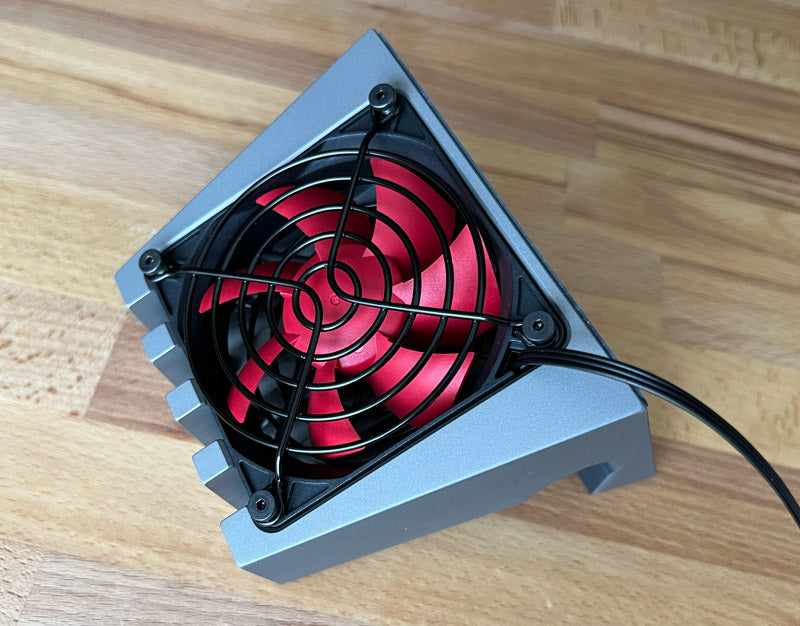
</div>
<br><br><br>
<img src="//cdn.shopify.com/s/files/1/0723/7661/files/SVALT-Cooling-Stand-S-Pro-Douglas-G-1444_800x481_36fb5106-5b59-4866-8622-2b1fd1c3394a.jpg?v=1617126944" alt="customer Cooling Stand Pro (S Pro) workstation with 15-inch MacBook Pro">
<br>
<img src="//cdn.shopify.com/s/files/1/0723/7661/files/SVALT-Cooling-Stand-S-Pro-Douglas-G-420_800x481_7dddb6fa-cb18-4820-a8a6-970a2dfa5d89.jpg?v=1617126944" alt="customer Cooling Stand Pro (S Pro) workstation with 15-inch MacBook Pro">
<br>
<strong>Cooling Stand (<a href="https://svalt.com/products/cooling-stand-sx" title="Cooling Stand Sx product page">SxG17</a>)</strong> testimonial from Douglas G. with 15-inch MacBook Pro (see customer photo above):
<br><br>
<div style="padding-left: 30px;">
“Due to the current pandemic, I have switched to working from home. Much of this work includes running a second 4k monitor while streaming presentations over video conferencing. I found that my MacBook Pro was continuously running hot and would often crash during presentations. After acquiring a Svalt Cooling Stand S Pro, my computer runs much cooler and doesn't crash anymore.
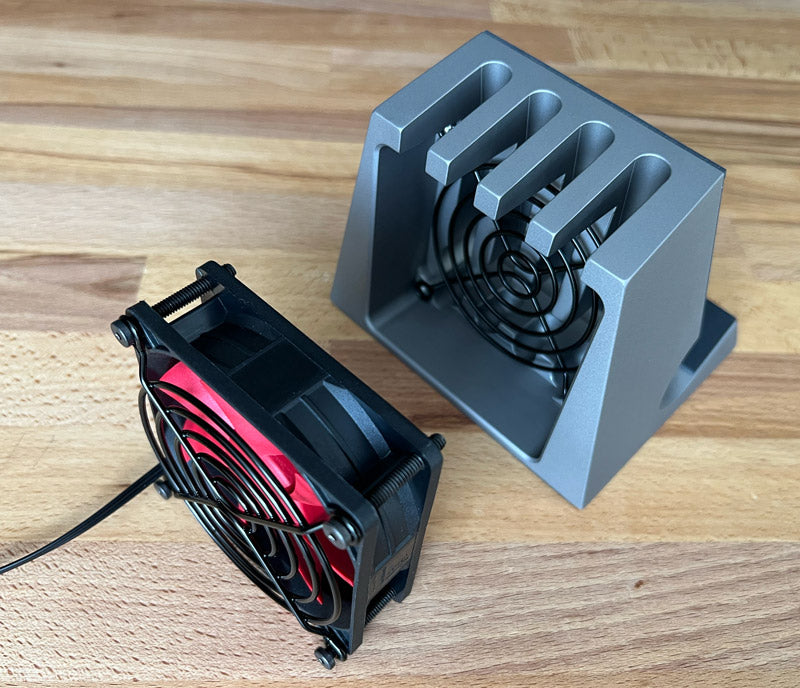
<br><br>
I usually set it on the low speed, and the fan is super quiet. I prefer quiet, but during a long meeting I might decide to turn it up. The packaging and build quality is nice. I like it’s weight, makes it feel more grounded and it stays put when you click on the button. I also like the combined power and fan speed controls. Air deflector could be nice to install for a person that doesn’t like the air flow but I run hot so I don’t mind it. Adjustable feet levelers are nice but I didn’t need those, desk is super flat. Cable straps to hide cords make sense.
<br><br>
Thank you svalt!”
</div>
<br><br><br>
<img src="//cdn.shopify.com/s/files/1/0723/7661/files/SVALT-Cooling-Stand-S-Pro-Andrease-R-1095_800x477_de76e0d2-ec29-439d-ba86-ebf1641a37bc.jpg?v=1598452323" alt="customer Cooling Stand Pro (S Pro) workstation with 16-inch MacBook Pro">
<br>
<strong>Cooling Stand (<a href="https://svalt.com/products/cooling-stand-sx" title="Cooling Stand Sx product page">SxG17</a>)</strong> testimonial from Andreas R. with 16-inch MacBook Pro (see customer photo above):
<br><br>
<div style="padding-left: 30px;">
“Wow, I’m still surprised how you do this??? I threw over the last month a lot of money into my equipment starting from different USB-C hubs, eGPU’s and things but my Notebook kept getting super noisy on easiest tasks and once a webex started, it felt {like} a spaceship was starting straight next to me and the performance degraded.
<br><br>
Now, the MacBook is next to me on LOW fan level and so far no issues. You definitely have to do much much more advertisement for your amazing work. I found by coincidence a link to SVALT. We keep saying “Doing Good and Talk about it!!”
<br><br>
Congratulations again on this product. Thank you for making my work environment so so much better!!!”
<br><br>
Followup email after receiving the new laptop arm and pad upgrade:
<br><br>
“Thank you so much for getting the new arms so quickly to me!!
<br><br>
Wow, what can I say… you did it again. I measured all my heat measures over the last week and can fairly see that on all indicators I got the machine in average down by 2 degrees Celsius. That’s a lot….
<br><br>
I identified that one of the major heat areas are the thunderbolts because of the external graphic card and all my devices connected. A small tuning with the rubber feet did the trick (picture). I use only one rubber {foot} at the end to extend the flow to the Thunderbolts.
<br><br>
Thank you so much for inventing and building this ESSENTIAL MacBook Pro accessory. Something every power user needs to have.”
</div>
<br><br><br>
<img src="//cdn.shopify.com/s/files/1/0723/7661/files/SVALT-Cooling-Stand-S-Pro-D-H_800x711_52886ac2-bc6f-4e7b-9d9a-55f10b41e4ea.jpg?v=1616175116" alt="customer Cooling Stand Pro (S Pro) workstation with 16-inch MacBook Pro">
<br>
<strong>Cooling Stand (<a href="https://svalt.com/products/cooling-stand-sx" title="Cooling Stand Sx product page">SxG17</a>)</strong> testimonial from D. H. with 16-inch MacBook Pro (see customer posted photo above):
<br><br>
<div style="padding-left: 30px;">
“It arrived yesterday and am really very happy. It is a very stunning stand and the quality and design exceeds by far my expectations! Cant thank you enough, all the best.”
</div>
<br><br><br>
<img src="//cdn.shopify.com/s/files/1/0723/7661/files/SVALT-Cooling-Stand-S-Pro-Eric-T_800x477_cdeccf01-7069-4e4a-bc14-b4b7882ad0d2.jpg?v=1598452655" alt="customer Cooling Stand Pro (S Pro) workstation with 16-inch MacBook Pro">
<br>
<strong>Cooling Stand (<a href="https://svalt.com/products/cooling-stand-sx" title="Cooling Stand Sx product page">SxG17</a>)</strong> testimonial from Eric T. <a href="https://www.instagram.com/p/CCBdGMIlTwh/" target="_blank" rel="noopener noreferrer">posting</a> with 16-inch MacBook Pro (see customer posted photo above):
<br><br>
<div style="padding-left: 30px;">
“What a fantastic product, the SVALT Cooling Stand arrived today! My new 16" MacBook Pro was (over)heating all the time, but not anymore! THX”
</div>
<br><br><br>
<img src="//cdn.shopify.com/s/files/1/0723/7661/files/SVALT-Cooling-Stand-S-Pro-James-B-0902_800x477_30b0aeb2-43bb-448f-b811-9d847c7bdd8a.jpg?v=1598453166" alt="customer Cooling Stand Pro (S Pro) workstation with 16-inch MacBook Pro">
<br>
<strong>Cooling Stand (<a href="https://svalt.com/products/cooling-stand-sx" title="Cooling Stand Sx product page">SxG17</a>)</strong> testimonial from James B. with 16-inch MacBook Pro:
<br><br>
<div style="padding-left: 30px;">
“I love the S Pro, it was exactly what I was searching for. This is pretty much the only stand on the market with a fan! Genius. Build quality is fantastic too. 
<br><br>
I am an artist, although I’m professionally a developer. The MBP is used primarily for things like docker/vscode, and photoshop and clip studio paint. The docker workload can effortlessly get all cores up to 100% so the svalt fan is a huge help.”
</div>
<br><br>
<img src="//cdn.shopify.com/s/files/1/0723/7661/files/SRx-testimonial-MC-800x.jpg?v=1719937243" alt="customer SRx Cooling Stand Pro workstation">
<br>
<strong>Cooling Stand (<a href="https://svalt.com/products/cooling-stand-srx" title="Cooling Stand SRx product page">SRxG12</a>)</strong> testimonial from M. C. with M3 MacBook Air:
<br><br>
<div style="padding-left: 30px;">
“This has got to be the coolest things I have ever purchased for an Apple product ever!<br><br>I had to put it together the minute I got it. I can’t wait to get it on my desk at work tomorrow.<br><br>The craftsmanship is stellar!<br><br>Thank you so much for getting it out to me as quickly as you did.”
</div>
<br><br>
<strong>Cooling Stand (<a href="https://svalt.com/products/cooling-stand-sx" title="Cooling Stand Sx product page">SxG17</a>)</strong> testimonial from a computational scientist with 16-inch MacBook Pro:
<br><br>
<div style="padding-left: 30px;">
“I recently purchased the SVALT Cooling Stand S Pro directly from the SVALT website to provide additional cooling for my 16 inch Macbook Pro. The unit arrived quickly and only needed a quick assembly to get up and running. Preliminary tests showed an increase in boost clock of about 0.30 GHz with the fan running at max speed, and this under heavy load with all the cores working at near 100% capacity. Performing demanding simulations on a daily basis, every bit of extra performance can make a huge difference over time. I have tried several cheap, plastic cooling stands in the past but was not seeing any measurable difference in the performance of my laptop at the time. Hence, I had given up on this idea until I came across the SVALT website. In addition to the cooling performance, the beautiful design is an added bonus and matches perfectly with my Macbook Pro. The unit is very sturdy unlike many other cooling stands, and the fan noise is very reasonable and does not bother me at all.
<br><br>Finally, Chad, founder and CEO of SVALT, reached out to me personally by email to ask about my experience setting up and using the product. He was very helpful answering some of the questions I had and seemed very passionate and concerned about the quality and performance of his products.
<br><br>In conclusion, I highly recommend this and other SVALT products to anyone looking to combine great cooling performance and sleek design, along with excellent customer service.”
</div>
<br><br>
<strong>Cooling Stand (<a href="https://svalt.com/products/cooling-stand-sx" title="Cooling Stand Sx product page">SxG17</a>)</strong> testimonial from Claude Volery, a management and sales coach at <a href="https://www.plussept.com" target="_blank" rel="noopener noreferrer">plus sept</a> with MacBook Pro:
<br><br>
<div style="padding-left: 30px;">
“Last week, my cooling stand arrived early morning in Switzerland…. Of course, I immediately opened the box and prepared my S Pro, which I was able to use immediately for my long video conference.
<br><br>
I had read on various websites that your cooling stands are really exceptional. However, I must say that my S Pro is even better than I expected (and I’m a very demanding person!), I’m really impressed. You made a perfect product, from the package to the installation, not to mention the dynamic, serious, professional design. It’s really fantastic, right down to the labels on the screw bags and the foam in the packaging.
<br><br>
I sincerely congratulate you for your incredible work and I hope you have/will have the success you deserve.
<br><br>
Thank you very much again for being so fast in preparing my order.”
</div>
<br><br>
<strong>Cooling Stand (<a href="https://svalt.com/products/cooling-stand-sx" title="Cooling Stand Sx product page">SxG17</a>)</strong> testimonial from Ron B.:
<br><br>
<div style="padding-left: 30px;">
“I just wanted to thank you for the SVALT cooling stand that you shipped to the Netherlands during the past week. I wanted to let you know that I was very impressed, by it being delivered from Portland to the Netherlands within 72 hours during a global pandemic… thank you!
<br><br>
Also the very obvious massive amount of effort and attention to detail that you put in to the product is greatly appreciated - from the awesome packaging to the extreme build quality of the product - it is truly amazing and deserves to be highlighted. As an entrepreneur myself it is very refreshing to see sustainable,  great quality products still being made, opposed to so much cheap crap out there that just clutters up the planet.
<br><br>
Again, know your product is safe and sound in use Europe and is greatly being enjoyed (and is very “cool”) :-)”
</div>
<br><br>
<strong>Cooling Stand (<a href="https://svalt.com/products/cooling-stand-sx" title="Cooling Stand Sx product page">SxG17</a>)</strong> testimonial from N.W. with 16-inch MacBook Pro:
<br><br>
<div style="padding-left: 30px;">
“I really appreciate the thoughtfulness and design that have gone into the laptop stand. It’s beautiful and keeps my laptop cool.
<br><br>
I have a 16” MacBook Pro that tends to overheat when plugged into a display. I’ve needed something to cool it down. There aren’t other fan-based stands (or docks) that really have the fit I’m looking for. And really, there are very few other stands with fans anyway.
<br><br>
You should consider selling this through Apple. It’s a high-quality product. The packaging and instructions were also thoughtful. 
<br><br>
I’ve worked in tech for the last five years. I really appreciate when people put care into their work. You and your team have really shown your care.”
</div>
<br><br>
<strong>Cooling Stand (<a href="https://svalt.com/products/cooling-stand-sx" title="Cooling Stand Sx product page">SxG17</a>)</strong> testimonial from R. U.:
<br><br>
<div style="padding-left: 30px;">
“That was quick! It arrived this morning, it's now assembled and doing a great job.
<br><br>
It's a true thing of beauty - from the packaging, through the unboxing and assembly to it now in situ. Really high quality feel all over. 
<br><br>
My Mac is nice and cool and the incline of the keyboard and height are also absolutely perfect! No more crick in the neck for me!
<br><br>
Great work!”
</div>
<br><br>
<strong>Cooling Stand (<a href="https://svalt.com/products/cooling-stand-sx" title="Cooling Stand Sx product page">SxG17</a>)</strong> testimonial from Darren H. with 16-inch MacBook Pro:
<br><br>
<div style="padding-left: 30px;">
“Already in love with this thing. Such great work. It looks great, feels great, does great job. I’m so glad you’re making this product… It’s amazing work.”
</div>
<br><br>
<strong>Cooling Stand (<a href="https://svalt.com/products/cooling-stand-sx" title="Cooling Stand Sx product page">SxG17</a>)</strong> testimonial from Dude with 16-inch MacBook Pro:
<br><br>
<div style="padding-left: 30px;">
“Thank you so much for being so thoughtful, Chad. I could tell you've poured your soul into this product. Your website is also great! I just played a couple of games on my maxed out MacBook Pro 16 and the machine fan didn't even kick in haha… love everything about my SVALT. Thanks again for creating such an awesome product!”
</div>
<br><br>
<strong>Cooling Stand (<a href="https://svalt.com/products/cooling-stand-sx" title="Cooling Stand Sx product page">SxG17</a>)</strong> customer with 16-inch MacBook Pro:
<br><br>
<div style="padding-left: 30px;">
“I am quit pleased with the cooling stand.  Allows me to keep my MacBook Pro 16” cool while running two 26” external monitors. The setup wasn’t too bad. It is very nicely designed — sturdy and looks good. Very consistent with Mac look and attention to detail.  
<br><br>
As a long time laptop user, I was not aware while my laptop’s fan’s kept kicking on. Once, I did some research and found your product, I read the <a href="https://svalt.com/blogs/svalt/76623745-laptop-heat-slows-speed" target="_blank" rel="noopener noreferrer">overview</a> of why cooling is so important. Made perfect sense. I run the S Pro’s fan on low. Turn if off at end of day. Rarely do laptop’s fans kick up.  
<br><br>
I am a big fan of the product. You should be proud of what you designed. Thanks for designing such a thought out product. I think you are ahead of the market as laptop users start to use multiple large screens.”
</div>
<br><br>
<strong>Cooling Stand (<a href="https://svalt.com/products/cooling-stand-sx" title="Cooling Stand Sx product page">SxG17</a>)</strong> testimonial from Brian R. with 16-inch MacBook Pro:
<br><br>
<div style="padding-left: 30px;">
“Overall, you nailed it out of the park, again! It works really well at cooling the machine down. The fans actually blow so hard it makes my hands incredibly cold. Aesthetically, it's beautiful and everyone I've worked with who's come over has asked about it. Kudos to that! Anyway, it's a great product, with the exception of the airflow making my hands super cold!" {Note that customer has now installed Air Deflector included with S Pro to resolve cold hands issue.}
</div>
<br><br>
<strong>Cooling Stand (<a href="https://svalt.com/products/cooling-stand-sx" title="Cooling Stand Sx product page">SxG17</a>)</strong> testimonial from M. M.:
<br><br>
<div style="padding-left: 30px;">
“So far, I'm liking the stand. Just having the laptop sit open on it drops the temps enough to make a difference when pegging the CPU cores during compile cycles. Your attention to detail is top-notch. I can tell this is real passion project for you.”
</div>
<br><br>
<strong>Cooling Stand (<a href="https://svalt.com/products/cooling-stand-sx" title="Cooling Stand Sx product page">SxG17</a>)</strong> testimonial from Mike G. with 16-inch MacBook Pro:
<br><br>
<div style="padding-left: 30px;">
“I can def see how much cooler my mac is running via my istat app. Love the product man! And def love your thorough and prompt responses to everything from the start. It's all very much appreciated. Will spread word of your amazing products as best I can.”
</div>
<br><br>
<strong>Cooling Stand (<a href="https://svalt.com/products/cooling-stand-sx" title="Cooling Stand Sx product page">SxG17</a>)</strong> testimonial from dh:
<br><br>
<div style="padding-left: 30px;">
“Got the Stand Pro w/ the noctua -- Very nice! Packaging is very nice! Surprised to see independents go the extra mile on that these days. Already recommended the device to many people.”
</div>
<br><br>
<strong>Cooling Stand (<a href="https://svalt.com/products/cooling-stand-sx" title="Cooling Stand Sx product page">SxG17</a>)</strong> testimonial from K. K.:
<br><br>
<div style="padding-left: 30px;">
“I am amazed on how it keeps my Apple MacBook Pro cool and the amount of air that comes from the fan. I wished it came with instructions… {Note that initial orders shipped without printed guide, which subsequent and current orders include} I loved that it is perfect eye level, and glad I spent lots of time searching the internet to find something that was physically made for an Apple product. I had a 5 cooling fan but was plastic and it always kept falling down. Thank you for creating, designing it and making it. It was worth the money.”
</div>
<br><br>
<img src="//cdn.shopify.com/s/files/1/0723/7661/files/SVALT-Cooling-Stand-Sx-gray-front-16MBP-5608-800x394.jpg?v=1642267295" alt="SVALT Cooling Stand Pro (S Pro) with MacBook Pro 16-inch">
<br>
<a href="#top">Back to top</a>
<br><br><br>
<a id="stand2"><h2><strong> Customer Testimonials for Cooling Stand Mac Studio and Mac Mini models (SxM, SRxM)</strong></h2></a>
<strong>Cooling Stand <a href="https://svalt.com/products/cooling-stand-sxm" title="Cooling Stand SxM product page">SxG17M</a></strong> testimonial from S.R.M. with Mac Studio:
<br><br>
<div style="padding-left: 30px;">
“…Regarding your product and the presentation of it. AMAZING!!!
<br>
To say I was stunned as I opened each box and section would be an understatement. 
<br>
If I had to summarize your product, the craftsmanship, elegance, packaging, attention to detail it would be ritz Carlton level experience.
<br>
My wife thought I was nuts to spend that much on a cooling stand. Every time I look at them I smile. They are worth every penny.
<br>
Thank you for everything”
</div>
<br><br>
<img src="//cdn.shopify.com/s/files/1/0723/7661/files/SVALT-Cooling-Stand-S-Mini-Mihai-M-134659_800x477_c700987c-fff8-47ff-ab32-d28caea1e71b.jpg?v=1598451973" alt="customer Cooling Stand Mini (S Mini) workstation with current generation Mac Mini">
<br>
<strong>Cooling Stand (<a href="https://svalt.com/products/cooling-stand-sxm" title="Cooling Stand SxM product page">SxG17M</a>)</strong> testimonial from Mihai M. with a current generation Mac Mini (see customer photo above):
<br><br>
<div style="padding-left: 30px;">
“Just wanted to let you know the stand got here yesterday and today I set it up. Everything, from the packaging to the tools you put in to the actual stand itself speak about the amount of thought you have put into the design of this product and I want to congratulate you for that. I’m attaching a picture with the final setup.
<br><br>Update: I had a 5-hour screen sharing session yesterday while working in Photoshop, 20k x 10k pixels file with around 3k layers. Using the Mini with the bottom lid off and the stand on high speed, I had the Mini running at 4+GHz the entire time with its fan at the minimum RPM! It was barely warm to the touch. So glad I bought your product!”
</div>
<br><br>
<strong>Cooling Stand (<a href="https://svalt.com/products/cooling-stand-sxm" title="Cooling Stand SxM product page">SxG17M</a>)</strong> testimonial from Ian Gina Barnett‎'s Facebook <a href="https://www.facebook.com/svaltdesign/posts/2606705669561999?__xts__[0]=68.ARBOJis1CnPMNh6iaGYObtDJdvIyf0tRt9kLvTqgB3j-klkT1Iko4zUZZmzghf1y40wMuXbcyWHzITJ72XhSuaqNlruEynH_uTVC_abTim8QQR_AhTEcM4nFFDWIOydtOoQMO-GxJD9lwCTqlHiede1oVjtW1d_IgdrruanqXyQii2IxRZLTClOHtQOlDGhaauahPXZ8WYE4J2peISps7UOl2RE27Tb1oM2TkVAF1YVuOeTyZR-ywGB4D6j4_7aBYsRmPKrLeOTtY30-hK78rXcTmSjd8RkMla_JNPOvWU0Xqc-XlboM4VxwOZGeb-1Q9KLBn1SjIDgXA-Mus-MPbwp1Efx_&amp;__tn__=H-R" target="_blank" rel="noopener noreferrer">posting</a> with Mac Mini:
<br><br>
<div style="padding-left: 30px;">
"This is indeed a great product, I am very happy with the S Mini stand. Prompt shipping &amp; great communication. The packaging, quality, and appearance are all excellent. The operation &amp; cooling are perfect, the 2018 Mini now runs much cooler, especially under high workload. I did remove the bottom cover from the Mini to facilitate cooling, not a difficult thing to do as I had previously upgraded the ram myself."
</div>
<br><br>
<a href="#top">Back to top</a>
<br><br><br>
<a id="dock1"><h2><strong> Customer Testimonials for Cooling Dock heatsink models (DHCR, DHC, DH, DHCx)</strong></h2></a>
<strong>Cooling Dock (<a href="https://svalt.com/products/cooling-dock-dhcr" title="Cooling Dock DHCR product page">DHCR</a> 4th gen with performance metal-to-metal coupling)</strong> testimonial from S.S. with M3 MacBook Air:
<br><br>
<div style="padding-left: 30px;">
“Hi Chad, I just got my svalt DHCR last night and wanted to let you know that I appreciate the work that went into crafting something so cool and functional! 
<br><br>
I got a new macbook air M3 about two weeks ago and bought the Svalt because I was concerned about heat throttling. I don't do a lot of intensive tasks but this machine was designed to replace a desktop and a laptop and I feared I had underestimated how much of an effect not having any fans would affect the performance. Especially because I was planning on closing the lid when docked.
<br><br>
While I was waiting for the Svalt, I got used to having the macbook open on the side and was concerned I wouldn't really see much benefit to the Svalt with a closed macbook vs just an open macbook air. 
<br><br>
I was wrong. Attached are my Cinebench scores which show about a 16% increase on the GPU and 30% increase on the multicore with the macbook air closed &amp; resting on the Svalt DHCR vs open on my desk. Additionally while it did still get hot it never crossed 112 degrees Celsius (short bursts) vs 116 degrees and higher sustained temps overall when open on my desk. It would also cool down MUCH faster to the base level when I had it snug in its new cradle.
<br><br>
Thanks again for a great product”
</div>
<br><br>
<strong>Cooling Dock (<a href="https://svalt.com/products/cooling-dock-dhcr" title="Cooling Dock DHCR product page">DHCR</a> 4th gen with performance metal-to-metal coupling)</strong> testimonial from D. V. with MacBook Pro:
<br><br>
<div style="padding-left: 30px;">
“You are a true startup founder. I appreciate this conversation.<br><br>I have your product on duty since today and have to say till now it is unbelievable!! When I unpacked it I had my thoughts about if it works or not but after some hours of running M1 32GB MBP max with 4x4k 34 inch displays and countless of charts open I am speechless.<br><br>I ordered the product because I hate fans I can hear. Since it is on Salt stand the fans of the MBP didn’t turn on a single time! Normal state is that they turn on after 20 minutes and continue all the time. And I am not even using the fan. MBP M3 can now be ordered with a good feeling that I don’t have to hear fans or the processor clocks itself down.<br><br>Just wanted to let you know this. I am impressed. Coming out of pro audio and pro camera equipment I don’t say this very often ;)<br><br>You have developed a great product.”
</div>
<br><br>
<strong>Cooling Dock (<a href="https://svalt.com/products/cooling-dock-dhcr" title="Cooling Dock DHCR product page">DHCR</a> 4th gen with performance metal-to-metal coupling)</strong> testimonial from K.H.:
<br><br>
<div style="padding-left: 30px;">
“The DHCRs are perfect.  You have created a beautiful and effective product.  I tip my hat to you.  I will be recommending them to all of my associates.  Especially since computer heat is such an issue here in Costa Rica where many people do not have AC to cool the whole room.”
</div>
<br><br>
<strong>Cooling Dock (<a href="https://svalt.com/products/cooling-dock-dhcr" title="Cooling Dock DHCR product page">DHCR</a> 4th gen with performance metal-to-metal coupling)</strong> testimonial from T. T. with 14-inch MacBook Pro:
<br><br>
<div style="padding-left: 30px;">
“Have been using the heatsink on an earlier MBP14 with M2. So far the experience has been great, where there is an obvious temperature reduction on the machine.<br><br>It was originally 35 degree and lowered to 30 degree overall - magic….”
</div>
<br><br>
<strong>Cooling Dock (<a href="https://svalt.com/products/cooling-dock-dhcr" title="Cooling Dock DHCR product page">DHCR</a> 4th gen with performance metal-to-metal coupling)</strong> testimonial from S. K. with 2019 16-inch MacBook Pro Intel i9:
<br><br>
<div style="padding-left: 30px;">
“I received it today and immediately noticed better performance on my MacBook because now it is running cooler than it was. It is like I have a new laptop! I cannot believe I waited so long to buy your product.”
</div>
<br><br>
<strong>Cooling Dock (<a href="https://svalt.com/products/cooling-dock-dhcr" title="Cooling Dock DHCR product page">DHCR</a> 4th gen with performance metal-to-metal coupling)</strong> testimonial from A.K. with MacBook Air:
<br><br>
<div style="padding-left: 30px;">
“Thanks for the note! And hats off to you, the DHCR is both beautiful and functional. Really improved my MacBook Air's performance under load.”
</div>
<br><br>
<strong>Cooling Dock (<a href="https://svalt.com/products/cooling-dock-dhcr" title="Cooling Dock DHCR product page">DHCR</a> 3rd gen with FxB22)</strong> testimonial from A.N. with 16-inch MacBook Pro (2023 M2 Max):
<br><br>
<div style="padding-left: 30px;">
“I've been using the SVALT DHCR3 for a couple of days now and I must say that besides looking good it actually works! Lower temps in passive mode and absolutely chilling with the noctua fan turned on! Had to check if I was actually running the compiler... so big fat A+”
</div>
<br><br>
<strong>Cooling Dock (<a href="https://svalt.com/products/cooling-dock-dhcr" title="Cooling Dock DHCR product page">DHCR</a> 2nd gen)</strong> testimonial from M.P. with 16-inch MacBook Pro:
<br><br>
<div style="padding-left: 30px;">
“DHCR arrived this morning and wow it looks very cool, more than it seemed on the website as you told! And it works reeeally well!… Best of luck for the launch! I’ll spread the word around cause you and your creations deserve all the best!
<br>
Ps: the packaging was very cool and I love all the care you put in make it eco-friendly!”
</div>
<br><br>
<strong>Cooling Dock (<a href="https://svalt.com/products/cooling-dock-dhcr" title="Cooling Dock DHCR product page">DHCR</a> 2nd gen with FxB22)</strong> testimonial from D.M.:
<br><br>
<div style="padding-left: 30px;">
“I am very happy with my order, looks good on my desk and does exactly what is promised.
<br>
Can I add, loved the level of detail for quality, on every aspect of the product and box etc.”
</div>
<br><br>
<strong>Cooling Dock (<a href="https://svalt.com/products/cooling-dock-dhcr" title="Cooling Dock DHCR product page">DHCR</a> 2nd gen)</strong> testimonial from J.P.:
<br><br>
<div style="padding-left: 30px;">
“Hi there, First off, I absolutely love my 2nd Gen DHCR dock. It's rare case of something that is both incredible at it's job and a stunningly beautiful item. I just saw the email about about new products and went the upgrade page where I read about the right to repair philosophy &amp; passing features to older products where possible, which has made me a customer for life!”
</div>
<br><br>
<strong>Cooling Dock (<a href="https://svalt.com/products/cooling-dock-dhcr" title="Cooling Dock DHCR product page">DHCR</a> 2nd gen)</strong> testimonial from D.M.:
<br><br>
<div style="padding-left: 30px;">
“I am very happy with my order, looks good on my desk and does exactly what is promised.
<br>
Can I add, loved the level of detail for quality, on every aspect of the product and box etc.”
</div>
<br><br>
<strong>Cooling Dock (<a href="https://svalt.com/products/cooling-dock-dhcr" title="Cooling Dock DHCR product page">DHCR</a> 2nd gen)</strong> testimonial from S.R. with MacBook Pro:
<br><br>
<div style="padding-left: 30px;">
“Thanks Chad - they are working great! Def using less internal mac fans…”</div>
<br><br>
<strong>Cooling Dock (<a href="https://svalt.com/products/cooling-dock-dhcr" title="Cooling Dock DHCR product page">DHCR</a> 2nd gen)</strong> testimonial from J.F. with 16-inch MacBook Pro:
<br><br>
<div style="padding-left: 30px;">
“Thanks so much Chad, I think I got it set up well now!  I read all the material, thank you for that and your advice.  It's a really cool device and it kept my laptop cool all day.  Great product!”
</div>
<br><br>
<strong>Cooling Dock (<a href="https://svalt.com/products/cooling-dock-dhcr" title="Cooling Dock DHCR product page">DHCR</a> 2nd gen)</strong> testimonial from K.I. with 16-inch MacBook Pro:
<br><br>
<div style="padding-left: 30px;">
“So the product is very nice and cool! My PC and CPUs are no heating since the DHCR used :)”
</div>
<br><br>
<strong>Cooling Dock (<a href="https://svalt.com/products/cooling-dock-dhcr" title="Cooling Dock DHCR product page">DHCR</a> 1st gen)</strong> testimonial from S.C. with MacBook Pro:
<br><br>
<div style="padding-left: 30px;">
“I just want to follow up and say how F*CKING AMAZING this thing is. 
<br>
Before, my fan was running at 5400rpm and my temp was in the 70C's. Now fan doesn’t go over 2,000 and my temp is ~58C”
</div>
<br><br>
<strong>Cooling Dock (<a href="https://svalt.com/products/cooling-dock-dhcr" title="Cooling Dock DHCR product page">DHCR</a> 1st gen)</strong> testimonial from J.B. with Lenovo X1 Extreme Gen 5:
<br><br>
<div style="padding-left: 30px;">
“I'm using the Svalt with a Lenovo X1 Extreme Gen 5 and I'm able to use the laptop completely passively (i.e. without the fans turning on) while doing low-load work, so it's working really well.”
</div>
<br><br>
<strong>Cooling Dock (<a href="https://svalt.com/products/cooling-dock-dhcr" title="Cooling Dock DHCR product page">DHCR</a> and <a href="https://svalt.com/products/cooling-dock-dh" title="Cooling Dock DH product page">DH</a> 2nd gen)</strong> testimonial from C.A.: 
<br><br>
<div style="padding-left: 30px;">
“Sounds good! Your stands are awesome {DHCR}, and when doing some heavy-duty financial modeling they keep my laptop from overheating! This one {additional DH2} I am just keeping at my folk's place where I spend relatively little time, so nice to have, but not had essential for cooling as the other two. :-)”</div>
<br><br>
<strong>Cooling Dock  (<a href="https://svalt.com/products/cooling-dock-dhc" title="Cooling Dock DHC product page">DHC</a> 3rd gen with FxB22)</strong> testimonial from A.L. with 14-inch MacBook Pro (2023 M3 Max) and Touch Bar 16-inch:
<br><br>
<div style="padding-left: 30px;">
“I’ve been testing out the DHC I received on my m3 max MacBook 14 in as well as my older i9 MacBook 16, and I’ve been loving it!. Especially on the newer MacBook. 
<br>
It keeps the fans quieter for much longer even if the cpu starts reaching a high temperature, and from the few benchmarks I tried running, it seems like on my newer one it’s removed the gotten rid of the thermal throttling altogether! Super impressed with the product man, especially when I feel how much heat it’s pulled from the body.”
</div>
<br><br>
<strong>Cooling Dock (<a href="https://svalt.com/products/cooling-dock-dhc" title="Cooling Dock DHC product page">DHC</a> 1st gen with Fx)</strong> testimonial from A.W. with MacBook Pro:
<br><br>
<div style="padding-left: 30px;">
“The Svalt is by far the most amazing piece of metal I've ever bought! ...I swapped out the medium speed one {FxR17} for the high speed one {FxW20}, I was surprised how quiet they both are compared to the built-in fans on the MacBook Pro.”
</div>
<br><br>
<strong>Cooling Dock (<a href="https://svalt.com/products/cooling-dock-dh" title="Cooling Dock DH product page">DH</a> 1st gen)</strong> testimonial from Ryan C. (Atomic Industry and Gear Journal) with 16-inch MacBook Pro:
<br><br>
<div style="padding-left: 30px;">
“This thing is seriously ridiculous… built like a brick shit house… VERY impressed man. Thanks so much.”
<br><br>Instagram <a href="https://www.instagram.com/p/B71AUFcH-EZ/" target="_blank" rel="noopener noreferrer">posting</a>:<br>“Expensive, but if you work your MacBook as hard as I do, it's worth every damned penny. It's built with obvious passion, looks fantastic, and just works. I'm super happy with my purchase.”
</div>
<br><br>
<strong>Cooling Dock (<a href="https://svalt.com/products/cooling-dock-dh" title="Cooling Dock DH product page">DH</a> 1st gen)</strong> testimonial from Paul V. with 16-inch MacBook Pro:
<br><br>
<div style="padding-left: 30px;">
“So far, so good. As someone who still runs an older Mac Pro, but has been using his MacBook Pros more and more for heavy lifting, I was curious. I have previously been using a 12 South stand and have had the MBPro in clamshell mode, but with the intake at the top, then run a small computer fan at all times on it. So far, so good with your setup. I was dubious at first that it would achieve real thermal cooling due to the rubber bumper. I figured there would have to be metal to metal contact to really dissipate the heat, but it seems to be working.”
</div>
<br><br>
<strong>Cooling Dock (<a href="https://svalt.com/products/cooling-dock-dhcx" title="Cooling Dock DHCx product page">DHCxB22</a>)</strong> testimonial from J.V. with MacBook Pro:
<br><br>
<div style="padding-left: 30px;">
“Man, this device works like a charm; it's beautiful. This piece is so sturdy... It is solid and absolutely well-made. No doubt it will outlast my MacBook and give a warm welcome to my next upgrade when the time comes.”</div>
<br><br>
<strong>Cooling Dock (<a href="https://svalt.com/products/cooling-dock-dhcx" title="Cooling Dock DHCx product page">DHCxR17</a>)</strong> testimonial from J.H. with PS laptop:
<br><br>
<div style="padding-left: 30px;">
“Damn, this is a nice product!... I will be putting the product through its paces in the coming weeks (I do a lot of image processing and video conferencing for my work in Radiation Oncology).  This is MUCH quieter and quite a bit cooler (based upon touch) than what I was previously using to keep my system running smoothly...
<br><br>
Yes, this is definitely a quality product and I can tell that you put your heart and soul into the product! I will definitely be recommending your products to my friends and colleagues... ”</div>
<br>
<a href="#top">Back to top</a>
<br><br><br>
<a id="dock2"><h2><strong> Customer Testimonials for Cooling Dock updated original models (Dx, D1 Pro, D2 Pro)</strong></h2></a>
<img src="//cdn.shopify.com/s/files/1/0723/7661/files/SVALT-Cooling-Dock-Ryan-S-001_800x493_37d2ca52-52d0-45ab-88fc-f54842170130.jpg?v=1607796465" alt="customer Cooling Dock Pro (D2 Pro) workstation with 15-inch MacBook Pro">
<br>
<strong>Cooling Dock (<a href="https://svalt.com/products/cooling-dock-dx" title="Cooling Dock Dx product page">Dx</a>)</strong> testimonial from Ryan S. with <a href="https://www.instagram.com/drinkphocus/?hl=en" target="_blank" rel="noopener noreferrer">@DrinkPhocus</a> using a 15-inch MacBook Pro (see customer photo above):
<br><br>
<div style="padding-left: 30px;">
“I’ve used a Hengedock for years and had no idea it was essentially completely blocking one of the fans until I saw the illustrations of how the fans work on your <a href="https://svalt.com/blogs/svalt/laptops" target="_blank" rel="noopener noreferrer">website</a>. Wish I had this cooling dock since I started using external monitors. Thought you might be interested in the technical details. Not a tech reviewer, so this won’t be very scientific.
<br><br>
My computer is definitely not designed for how I use it. Had to be a laptop for working on the road, I’m deep in the Apple ecosystem, and frankly I love Apple’s hardware (touch pad quality, sound of the keyboard, etc). I will probably upgrade in 2021, but for right now trying to avoid dropping 6K on the latest MacBook with all the options {Radeon VII eGPU}.
<br><br>
I’ve been testing the temps by running FCPX, Photoshop, Lightroom, InDesign and +80mb excel files with tons of macros - all at the same time. I’m running my SVALT on the highest setting. I’m getting CPU 44-55 degrees Celsius and GPU 37- 49 (most of my demanding apps are set to prefer my external GPU). I monitor the internal temps with Fanny app (guessing its accurate). I didn’t record the temps before, but from what I can remember I’d say I’m running between 13 &amp; 25 degrees cooler depending on the load.
<br><br>
Closed all those apps, just sending some emails now and look at the fan RPMs and Temps - incredible {left and right fans running at minimum speed, CPU at 39C and GPU at 36C}. Also running Geekbench app to measure compute and GPU benchmarks. All of my results for the internal components are now outpacing the average for this model macbook. I have taken really good care of this computer so it always performed a slightly better than the average, but now the benchmarks are even better (not earth-shattering, but definitely making a difference).”
</div>
<br><br><br>
<img src="//cdn.shopify.com/s/files/1/0723/7661/files/SVALT-Cooling-Dock-D2-Pro2-Kevin-S-4_800x573_a0e46fe1-4b84-435b-ab9f-f5df2ef40d90.jpg?v=1601830247" alt="customer Cooling Dock Pro (D2 Pro) workstation with 16-inch MacBook Pro">
<br>
<img src="//cdn.shopify.com/s/files/1/0723/7661/files/SVALT-Cooling-Dock-D2-Pro2-Kevin-S-0_800x573_b854ad28-53b8-4a19-927d-ad8b66fb5680.jpg?v=1601830247" alt="customer Cooling Dock Pro (D2 Pro) workstation with 16-inch MacBook Pro">
<br>
<img src="//cdn.shopify.com/s/files/1/0723/7661/files/SVALT-Cooling-Dock-D2-Pro2-Kevin-S-2_800x573_fddcf495-ed01-4bcd-8ea3-bf8ed7e1ab3c.jpg?v=1601830248" alt="customer Cooling Dock Pro (D2 Pro) workstation with 16-inch MacBook Pro">
<br>
<img src="//cdn.shopify.com/s/files/1/0723/7661/files/SVALT-Cooling-Dock-D2-Pro2-Kevin-S-3_800x573_32ba8859-49a5-43dd-8c3c-bcc4be59fd91.jpg?v=1601830247" alt="customer Cooling Dock Pro (D2 Pro) workstation with 16-inch MacBook Pro">
<br>
<strong>Cooling Dock (<a href="https://svalt.com/products/cooling-dock-dx" title="Cooling Dock Dx product page">Dx</a>)</strong> testimonial from Kevin S. with 16-inch MacBook Pro (see customer photos above):
<br><br>
<div style="padding-left: 30px;">
“I study electrical engineering in Germany and due to COVID-19 we had and still have online classes. So I decided to arrange a nice workspace for me that is aesthetically pleasing but is also functional. I was looking for an eye catcher and new innovations. After I did some researches I found the Dock from Svalt for my MacBook. What really impressed me with this product is that it’s cooling my MacBook. We all know how heated it can get if you use it for a long time. The dock is cooling my MacBook active and passive so that the internal fan can work with a lower fan speed than before. A bonus for me as well was that the Apple logo is well shown not like with other brands. The design is really nice.
<br><br>
You won’t find anything comparable on the market right now. I’m really happy with my purchase and highly recommend it!!
<br><br>
The customer service is amazing as well! Chad checked up on me and made sure that I have no questions left.”
</div>
<br><br><br>
<img src="//cdn.shopify.com/s/files/1/0723/7661/files/SVALT-CoolingDock-DxB16-D-Z-graph_800.jpg?v=1640993704" alt="customer Cooling Dock DxB16 workstation with 2019 16-inch MacBook Pro">
<br>
<strong>Cooling Dock (<a href="https://svalt.com/products/cooling-dock-dx" title="Cooling Dock Dx product page">DxB16</a>)</strong> testimonial from D.Z. with 2019 16-inch MacBook Pro (see customer photos above):
<br><br>
<div style="padding-left: 30px;">
“I received the SVALT unit {Cooling Dock DxB16}, and have it implemented with my existing Intel i9-based MBP 2019.
<br><br>
First impressions:  It is amazing how much cooler this keeps my device.  Previously, I was limited on how many apps I could run simultaneously on my MBP before the CPU temp (CPU PECI) spiked up to concerning values - i.e. above 85-90 digress C, or even higher.  I had to eliminate running some apps until I actually needed them due to this in the past, as I get concerned about CPU temps running that high for an extended timeframe.  Now with the SVALT unit {Cooling Dock model DxB16}, I can run all of these apps at the same time, and more in fact, and the CPU PECI temp never seems to run above approx. 80 degrees C.  Very impressive, never seen this before {see graph}.
<br><br>
I’ll continue to update as I get more run-time in with the unit.  First impressions very positive, though!  :-)”
</div>
<br><br><br>
<img src="//cdn.shopify.com/s/files/1/0723/7661/files/SVALT-CoolingDock-DxBLK-Pro_IO.jpg?v=1633727889" alt="customer Cooling Dock Pro (DxBLK Pro) workstation with 16-inch MacBook Pro">
<br>
<strong>Cooling Dock (<a href="https://svalt.com/products/cooling-dock-dx" title="Cooling Dock Dx product page">DxB16</a>)</strong> testimonial from I. O. with 16-inch MacBook Pro (see customer photo above):
<br><br>
<div style="padding-left: 30px;">
“Excellent product, even better service. I ordered my first SVALT product some months ago and unfortunately I never received it simply because the shipping company lost it. However, thanks to that I got the chance to get in touch with the support service of SVALT who were incredible at chasing the shipping company relentlessly. Even the CEO got personally involved. I ended up being refunded and ordering a new one which arrived to my office in Spain three days later.
<br><br>
The product (DxBLK Pro) is just great. Not only delivers what is promised (efficient and amazingly silent cooling) but it is also very well designed and it is manufactured using top quality materials. In summary, it is a top quality product, a very useful piece of equipment to extend the live of your hardware and it is also nice to have in your office.”
</div>
<br><br><br>
<img src="https://cdn.shopify.com/s/files/1/0723/7661/files/Paul-Dx-image001.jpg?v=1726091020" alt="customer Cooling Dock Dx workstation with MacBook Pro">
<br>
<img src="https://cdn.shopify.com/s/files/1/0723/7661/files/Paul-Dx-image002.jpg?v=1726091020" alt="customer Cooling Dock Dx workstation with MacBook Pro">
<br>
<strong>Cooling Dock (<a href="https://svalt.com/products/cooling-dock-dx" title="Cooling Dock Dx product page">Dx</a>)</strong> testimonial from Dr. Paul Shovlin with MacBook Pro (see customer photos above):
<br><br>
<div style="padding-left: 30px;">
“As a new hire in higher education, I recently had the opportunity to order technology for my office start up. I didn’t realize I was looking for niche product until my searches for an upright laptop stand with a cooling function turned up zip. Part of the problem was searching for a niche item in big box locations (think Amazon) which didn’t have what I was looking for. Imagine my surprise when I found Svalt through an expanded search and the Cooling Dock Dx, which is exactly what I had been imagining. Further, the customer service through Svalt has been exemplary. Now that I have the Dx in my workspace, I’m amazed at the build quality (and somewhat disappointed that it’s hidden behind my laptop!). If you’re looking for an upright laptop stand with the ability to cool down a laptop in clamshell mode, look to the Dx as a solution. You’ll be glad you did!”
</div>
<br><br><br>
<img src="//cdn.shopify.com/s/files/1/0723/7661/files/SVALT-Cooling-Dock-D2-Pro2-Keith-I-D7K7706-00_800x450_129d7acb-4e1f-40ed-bec2-7e7829bb682c.jpg?v=1601933944%0A" alt="customer Cooling Dock Pro (D2 Pro) workstation with 16-inch MacBook Pro">
<br>
<img src="//cdn.shopify.com/s/files/1/0723/7661/files/SVALT-Cooling-Dock-D2-Pro2-Keith-I-D7K7713_800x450_8f9a76a4-b3cf-41da-865e-6be93bc7759b.jpg?v=1601933944" alt="customer Cooling Dock Pro (D2 Pro) workstation with 16-inch MacBook Pro">
<br>
<strong>Cooling Dock (<a href="https://svalt.com/products/cooling-dock-dx" title="Cooling Dock Dx product page">Dx</a>)</strong> testimonial from Keith I. with 16-inch MacBook Pro (see customer photos above):
<br><br>
<div style="padding-left: 30px;">
“I’m really glad I came across this solution, as I was impressed with the computers performance, but not with it’s heat management.  This dock matches everything perfectly, with a near perfect color and texture match to the space grey finish of the MBP.  Right now typing this email with the dock on Auto mode, and the fan is quiet enough that I wouldn’t know it was running if I hadn’t just check to make sure it was.  In some testing with Premiere Pro and rendering video, the computer stays roughly 20 Degrees F cooler, and when put under stress, is actually able to perform better than it did previously, as it is no longer maxing out CPU temp and throttling down performance.  So far, I really couldn’t ask for more.  The whole process was exceptional, with incredible email support for all of my questions answered quickly and in great detail.”
</div>
<br><br><br>
<img src="//cdn.shopify.com/s/files/1/0723/7661/files/SVALT-Cooling-Dock-D2-Pro2-J-C-Hutchins_800x413_0f39cff9-b8d4-4730-aebe-a3d5b2181ba8.jpg?v=1601995689" alt="customer Cooling Dock Pro (D2 Pro) workstation with 16-inch MacBook Pro">
<br>
<strong>Cooling Dock (<a href="https://svalt.com/products/cooling-dock-dx" title="Cooling Dock Dx product page">Dx</a>)</strong> testimonial from <a href="https://jchutchins.net" target="_blank" rel="noopener noreferrer">J. C. Hutchins</a> with 16-inch MacBook Pro (see customer photos above):
<br><br>
<div style="padding-left: 30px;">
“The product arrived safe and sound, and works like a dream. I’m very glad that I invested the extra money to upgrade from the fixed-speed D1 to the D2 Pro. Unlike the D1, this model’s fan is often so quiet I can scarcely hear it … and when the computer starts to chug, the fan adapts, just as promised. It’s perfect. {note that the new Pro models have freer airflow so that the D1 Pro is noticeably quieter compared to the original D1 Legacy as the result of less restricted cooling airflow}
<br><br>
I’m smitten by the D2 Pro, Chad. It surpasses my expectations. Please extend my gratitude to your team of fabricators; they (and you) are doing worthy work, and creating products that are both artful and practical. 
<br><br>
Thanks again for the world-class customer service and the lively correspondence. It’s been a joy learning more about your products, and a little about you along the way!”
</div>
<br><br><br>
<img src="//cdn.shopify.com/s/files/1/0723/7661/files/SVALT-Cooling-Dock-Riccardo-S-6061_800x583_fb97994d-0102-4795-8448-36e6051ff0a2.jpg?v=1603753435" alt="customer Cooling Dock Pro (D2 Pro) workstation with 16-inch MacBook Pro">
<br>
<strong>Cooling Dock (<a href="https://svalt.com/products/cooling-dock-dx" title="Cooling Dock Dx product page">Dx</a>)</strong> testimonial from Riccardo S. with 16-inch MacBook Pro (see customer photos above):
<br><br>
<div style="padding-left: 30px;">
“Hey Chad - all setup and working well, works 100%. Excuse the rats nest of cables, setup the eGPU yesterday so haven't had a chance to tidy it up, but once that's done this will make for a much neater desk!”
</div>
<br><br><br>
<img src="//cdn.shopify.com/s/files/1/0723/7661/files/SVALT-CoolingDock-DxB16-D-H-0572_800.jpg?v=1640993704" alt="customer Cooling Dock DxB16 workstation with 2021 14-inch MacBook Pro">
<br>
<strong>Cooling Dock (<a href="https://svalt.com/products/cooling-dock-dx" title="Cooling Dock Dx product page">DxB16</a>)</strong> testimonial from D.H. with 2021 14-inch MacBook Pro (see customer photos above):
<br><br>
<div style="padding-left: 30px;">
“Hello Chad! I’ve had my SVALT Dx Pro cooling dock {DxB16} for almost a week now and I love it.  My MBP 14” rests perfectly on it and it frees up a lot of desk space.”
</div>
<br><br>
<strong>Cooling Dock (<a href="https://svalt.com/products/cooling-dock-dx" title="Cooling Dock Dx product page">Dx</a>)</strong> testimonial from Rod T. with 16-inch MacBook Pro:
<br><br>
<div style="padding-left: 30px;">
“Please feel free to use my email in any way that helps SVALT. The more Mac owners that have the opportunity to use your products the happier and healthier they and  their Macs will be, in my view:
<br><br>
After a few months using the D2 {D2n Pro} on my 8-core i9 MBP, just a quick note to say a heartfelt thanks for a cooling product that actually works.
<br><br>
Before the SVALT, simple tasks like web browsing would get the fans screaming after just a few minutes, and the body of the laptop would feel seriously, worryingly hot.
<br><br>
I tried several laptop cooling pads, none of which seemed to make much, if any, difference at all.
<br><br>
But with the SVALT in play I can, for example, run a full anti-virus scan or video render with all cores properly active simultaneously, and the MBP fans stay quiet as a mouse, whilst the body of the laptop stays cooool. 
<br><br>
My MBP suddenly feels like a product that has a lifetime that could be measured in years rather than months.
<br><br>
Many thanks!”</div>
<br><br>
<strong>Cooling Dock (<a href="https://svalt.com/products/cooling-dock-dx" title="Cooling Dock Dx product page">Dx</a>)</strong> testimonial from B.E.:
<br><br>
<div style="padding-left: 30px;">
“This thing rocks, and arrived ahead of schedule as well! Really nice surprise. Thanks and keep up the awesome work.”
</div>
<br>
<a href="#top">Back to top</a>
<br><br><br>
<a id="dock3"><h2><strong> Customer Testimonials for Cooling Dock original models (DLx, D1, D2)</strong></h2></a>
<img src="//cdn.shopify.com/s/files/1/0723/7661/files/SVALT-D2_Cinco-Workstation_6004_800x509.jpg?14768126380110104530" alt="SVALT D2 High-Performance Cooling Dock with MacBook Pro 15-inch Retina display Cinco workstation">
<br>
<img src="//cdn.shopify.com/s/files/1/0723/7661/files/SVALT-D2_Cinco-Workstation_6075_800x509_cbc3a324-8db8-484a-bc65-8d26a33655f8.jpg?v=1617468592" alt="SVALT D2 High-Performance Cooling Dock with MacBook Pro 15-inch Retina display Cinco workstation">
<br>
<img src="//cdn.shopify.com/s/files/1/0723/7661/files/SVALT-D2_Cinco-Workstation_6259_800x.jpg?6021132860472402741" alt="SVALT D2 High-Performance Cooling Dock with MacBook Pro 15-inch Retina display Cinco workstation">
<br>
<img src="//cdn.shopify.com/s/files/1/0723/7661/files/SVALT-D2_Cinco-Workstation_6406_800x509-2.jpg?1707597835270399735" alt="SVALT D2 High-Performance Cooling Dock with MacBook Pro 15-inch Retina display Cinco workstation">
<br>
<img src="//cdn.shopify.com/s/files/1/0723/7661/files/SVALT-D2_Cinco-Workstation_6345_800x.jpg?6021132860472402741" alt="SVALT D2 High-Performance Cooling Dock with MacBook Pro 15-inch Retina display Cinco workstation">
<br>
<img src="//cdn.shopify.com/s/files/1/0723/7661/files/SVALT-D2_Cinco-Workstation_6234_800x509.jpg?3601973391657019108" alt="SVALT D2 High-Performance Cooling Dock with MacBook Pro 15-inch Retina display Cinco workstation">
<br>
<img src="//cdn.shopify.com/s/files/1/0723/7661/files/SVALT-D2-Cinco-6107-800x483.jpg?10246658474490321365" alt="SVALT D2 High-Performance Cooling Dock with MacBook Pro 15-inch Retina display Cinco workstation">
<br>
<strong>Cooling Dock (<a href="https://svalt.com/products/cooling-dock-dlx" title="Cooling Dock DLx product page">DLx</a>)</strong> testimonial from <a href="http://cincodesign.com" target="_blank" rel="noopener noreferrer">Cinco</a>, one of Portland’s leading brand and product design agencies. Kirk James, founder of Cinco, uses a dock for his personal workstation:
<br><br>
<div style="padding-left: 30px;">
“They’re the solution to a problem I didn’t realize I had.”
</div>
<br>
And he had this to say for the office (see office photos above):
<br><br>
<div style="padding-left: 30px;">
At Cinco our laptops are workhorses. We’re pushing them day-in and day-out. Heavy imaging, editing, rendering… Some days it was like they were literally cooking. But no more! Our Svalt D's keep them chill and let’s us use them like true workstations.”
</div>
<br><br><br>
<img src="//cdn.shopify.com/s/files/1/0723/7661/files/SVALT-20180217-0785-800x423.jpg?v=1613717058" alt="SVALT D2 High-Performance Cooling Dock with MacBook Pro Retina 15-inch and MacBook Pro Touch Bar 13-inch and MacBook Air 11-inch display">
<br>
<img src="//cdn.shopify.com/s/files/1/0723/7661/files/SVALT-20180217-0873-3-800x293.jpg?v=1613717058" alt="SVALT D2 High-Performance Cooling Dock with MacBook Pro Retina 15-inch and MacBook Pro Touch Bar 13-inch and MacBook Air 11-inch display">
<br>
<strong>Cooling Dock (<a href="https://svalt.com/products/cooling-dock-dlx" title="Cooling Dock DLx product page">DLx</a>)</strong> testimonial from Ben G. with 15-inch Retina MacBook Pro (see customer photos above):
<br><br>
<div style="padding-left: 30px;">
“Running architecture modeling software on Windows virtual OS was always jamming up and lagging before I had my SVALT D. The SVALT D resolved those issues, and now my computer has become snappier and I have regained my productivity.”</div>
<br><br><br>
<img src="//cdn.shopify.com/s/files/1/0723/7661/files/SVALT-Cooling-Dock-Mike-Serman-4304and4324_800x445_b8333530-8f4b-4a19-888d-5a376fcb9dca.jpg?v=1602000357" alt="SVALT D2 High-Performance Cooling Dock with MacBook Pro Retina 15-inch">
<br>
<img src="//cdn.shopify.com/s/files/1/0723/7661/files/SVALT-Cooling-Dock-Mike-Serman-4296and4302_800x445_3356814c-a6ac-4523-b3e0-28c3693bd60e.jpg?v=1602000358" alt="SVALT D2 High-Performance Cooling Dock with MacBook Pro Retina 15-inch">
<br>
<strong>Cooling Dock (<a href="https://svalt.com/products/cooling-dock-dlx" title="Cooling Dock DLx product page">DLx</a>)</strong> testimonial from Mike S. with 15-inch Retina MacBook Pro (see customer photos above):
<br><br>
<div style="padding-left: 30px;">
“Just received my d2 and am LOVING IT. Thank you. Frees up precious space for more outboard gear and love everything about it!... thanks so much--I absolutely love my Svalt.… best of luck in business and life!”</div>
<br><br><br>
<img src="//cdn.shopify.com/s/files/1/0723/7661/files/SVALT-Cooling-Dock-Akil-DSC0373_800x354_29e9dd68-b61c-489a-a0a0-5278bb3cc120.jpg?v=1601999045" alt="SVALT D2 High-Performance Cooling Dock gaming workstation">
<br>
<img src="//cdn.shopify.com/s/files/1/0723/7661/files/SVALT-Cooling-Dock-Akil-DSC0416_800x354_868546ae-88b0-424f-a2b8-6b312d43cb95.jpg?v=1601999045" alt="SVALT D2 High-Performance Cooling Dock gaming workstation">
<br>
<img src="//cdn.shopify.com/s/files/1/0723/7661/files/SVALT-Cooling-Dock-Akil-DSC0394_800x354_b0ae1a80-3a33-49f6-9445-1b5b9cfcc22e.jpg?v=1601999045" alt="SVALT D2 High-Performance Cooling Dock gaming workstation">
<br>
<strong>Cooling Dock (<a href="https://svalt.com/products/cooling-dock-dlx" title="Cooling Dock DLx product page">DLx</a>)</strong> testimonial from Mr. Akil Griffith with Razer Blade (see customer photos above):
<br><br>
<div style="padding-left: 30px;">
“I wanted a system where I could work on my photography and videography while enjoying some gaming as well, so I bought a Razer Blade and here I am now!”</div>
<br><br><br>
<img src="//cdn.shopify.com/s/files/1/0723/7661/files/SVALT-Cooling-Dock-Stefan-H-1083_800x533_d73da960-1a24-4aaf-9854-180f847ef165.jpg?v=1617471284" alt="customer Cooling Dock workstation with 15-inch MacBook Pro">
<br>
<strong>Cooling Dock (<a href="https://svalt.com/products/cooling-dock-dlx" title="Cooling Dock DLx product page">DLx</a>)</strong> testimonial from Stefan H. with 13-inch MacBook Pro (see customer photo above):
<br><br>
<div style="padding-left: 30px;">
“My SVALT (and Mac, of course) is the centerpiece of my home-studio setup! Although I do record with some live bands/artists, I primarily produce electronic music for/with other artists. I do all this on my 13” MacBook Pro while connected (and powering) an external display, audio interface, and numerous hardware controllers/instruments at any given time; all are running into my DAW (Digital Audio Workstation). All this can amount to a pretty significant increase in CPU load and, as you are well aware, heat. That’s where the SVALT comes in! Before I got my first system (D1), I had to be very careful about which apps and hardware I ran at the same time. I can’t tell you how many times my computer would start throttling performance in the middle of a session, freeze, and more often than not, cause my software to crash. Although I don’t have any raw test data to compare my computer’s temps before and after I started using the SVALT cooling system, I can tell you that I have significantly less performance and stability issues now!<br><br>Long story short: I would—and have—highly recommend your product to anyone who spends a lot of time using their Mac with an external display, regardless of whether or not they use a lot of CPU intensive software as I do. Some of the HiRes displays out there now can take up a surprising amount of processing power, especially for the smaller MacBook Air’s! Either way, the overall reduction of heat the SVALT systems provides can not only help performance, but it can also prolong the life of your computer!”</div>
<br><br><br>
<img src="https://cdn.shopify.com/s/files/1/0723/7661/files/SVALT-Cooling-Dock-Max_800x512_4c30676f-6d42-4fda-99d7-660fbf2d1949.jpg?v=1617469251" alt="customer Cooling Dock workstation with 15-inch MacBook Pro">
<br>
<strong>Cooling Dock (<a href="https://svalt.com/products/cooling-dock-dlx" title="Cooling Dock DLx product page">DLx</a>)</strong> testimonial from @maxghezzi with 15-inch Retina MacBook Pro (see customer posting above):
<br><br>
<div style="padding-left: 30px;">
“I love my new @svaltdesign SVALT D2 High-Performance Cooling Dock to help increase speed and performance of my MacBook workstation!”</div>
<br><br><br>
<img src="//cdn.shopify.com/s/files/1/0723/7661/files/SVALT-Cooling-Dock-Ivor-004_800x403_bfa9d426-e774-41d8-8bb2-b539e68cfc8a.jpg?v=1602004142" alt="customer Cooling Dock workstation with 15-inch MacBook Pro">
<br>
<strong>Cooling Dock (<a href="https://svalt.com/products/cooling-dock-dlx" title="Cooling Dock DLx product page">DLx</a>)</strong> testimonial from Ivor with 15-inch MacBook Pro (see customer photo above):
<br><br>
<div style="padding-left: 30px;">
“I received the D2 last Tuesday and wow! It’s absolutely gorgeous! Thank you for getting it out here in no-time.<br><br>After a thorough cleaning of the MBP, the D2 has been running “6x Auto +” since, with noticeable results. Running a Windows 10 VM in Fusion no longer causes the internal fans to go into overdrive and there’s significantly more computing power available under heavy load compared to the MBP being docked in the Rain Design mTower.<br><br>I have a maxed out MBP mid-2015 (11,5) and was disappointed with its performance from the start. Having tracked the CPU frequency over the past couple of days, there appear to be no throttling issues anymore and that is clearly reflected in the user experience. Great product, well worth the money, and absolutely stunning design! I will be replacing the thermal paste of the CPU/GPU with Gelid GC-Extreme, maybe that will shave off additional degrees.”</div>
<br><br><br>
<img src="//cdn.shopify.com/s/files/1/0723/7661/files/SVALT-Cooling-Dock-Eric-S-3727_800x488_d2fb6dba-db55-45f6-b148-21009abc46ec.jpg?v=1602005223" alt="customer Cooling Dock workstation with 15-inch MacBook Pro">
<br>
<img src="https://cdn.shopify.com/s/files/1/0723/7661/files/SVALT-Cooling-Dock-Eric-S-3723_800x488_f6b2fd15-9a72-4053-ae2a-3b9abb88f148.jpg?v=1602005223" alt="customer Cooling Dock workstation with 15-inch MacBook Pro">
<br>
<strong>Cooling Dock (<a href="https://svalt.com/products/cooling-dock-dlx" title="Cooling Dock DLx product page">DLx</a>)</strong> testimonial from Eric S. with 15-inch Retina MacBook Pro (see customer photos above):
<br><br>
<div style="padding-left: 30px;">
“I have been using the SVALT D for a couple days now and I am pleasantly surprised! I’ve owned multiple MacBook Pro’s, and all of them overheated like crazy. I’ve owned cooling mats before and now I realize how useless they were. I used to unscrew the bottom of my laptop and place it on the cooling pad! This is like a computer version of an automotive cold air intake! So great! I wish I had this years ago! It reduced my computer lag, and it’s much better at keeping it cool! This should be sold at the Apple Store, seriously! Thanks again for all of your help!”</div>
<br><br><br>
<img src="//cdn.shopify.com/s/files/1/0723/7661/files/SVALT-Cooling-Dock-customer-social_800x1023_a30deec4-d29f-4d1b-89b8-29089495cc31.jpg?v=1617472605" alt="customer Cooling Dock workstation with 15-inch MacBook Pro">
<br><br><br>
<strong>Cooling Dock (<a href="https://svalt.com/products/cooling-dock-dlx" title="Cooling Dock DLx product page">DLx</a>)</strong> testimonial from Robert S. with 15-inch Retina MacBook Pro (see <a href="https://twitter.com/rshaw914" target="_blank" title="“twitter”" rel="noopener noreferrer">Robert's</a> independent graphics testing results at <a href="http://www.3dmark.com/compare/cg/2858260/cg/2856204/cg/2856113" target="_blank" title="" link="" to="" customer="" s="" test="" results="" rel="noopener noreferrer">3DMark</a>):
<br><br>
<div style="padding-left: 30px;">
“I have been looking for something exactly like the SVALT D to give my rMBP proper cooling when I'm gaming, and now I am not getting throttling of the GPU anymore, even when playing Elite Dangerous with GPU overclocked and set to maximum 15% boost at 45 FPS. I wouldn’t have tried overclocking with the throttling I was seeing before, I was too afraid of melting my laptop hardware. Now my in-game experience has been flawless! Bottom line, you’ve saved my laptop and improved my gaming experience, I love it! I think the SVALT D is one of the only true ways to cool these laptops, plus it is very well designed. The level of quality and solidness really impresses me. Others would have likely cut corners in places, such as the weight, aluminum manufacturing and design aesthetics, but SVALT did not.”</div>
<br><br>
<strong>Cooling Dock (<a href="https://svalt.com/products/cooling-dock-dlx" title="Cooling Dock DLx product page">DLx</a>)</strong> testimonial from Ross G. with MacBook Pro:
<br><br>
<div style="padding-left: 30px;">
“Just wanted to say thank you for my new SVALT Cooler. I received it today, a day ahead of schedule. International shipping was faultless and speedy and I was eager to set it up with my late 2013 MacBook Pro and my external monitor, I had been using a generic cooling pad with it and was only seeing a tiny temperature difference, but with my new SVALT I'm seeing consistently lower temperatures both in OS X and Windows 10. Gaming under windows is much better with cooler temps and more space available on my meagre desk. To save the hassle of opening my Mac to switch on every time, I have started using "sleep" and I only need to press the Bluetooth trackpad or keyboard to wake up and get to work. Or play! On a technical side, the build quality seems high, and it really suits the design aesthetic of Apple products. The fan is whisper quite, more so than the built in fans themselves. Well done on a great little product.”</div>
<br><br>
<strong>Cooling Dock (<a href="https://svalt.com/products/cooling-dock-dlx" title="Cooling Dock DLx product page">DLx</a>)</strong> testimonial from Marek B. with MacBook Pro Retina:
<br><br>
<div style="padding-left: 30px;">
“I received the first order only today, but from what I saw thus far, the dock is very convenient and effective at keeping the MacBook Pro from revving up the fans, even with the cooler fan off. The dock also shows very good stability, fit, grip, and its fan noise with the silencer plugged in is low. The recent iteration of Apple's operating system, El Capitan, enabled the 2013 MacBook Pro's with NVidia graphics to support two 4k monitors or one 5k screen, just like the 2015 models. Unfortunately, connecting high resolution external monitors increases temps and fan noise of the laptop even at light workloads, and more so with additional thunderbolt peripherals plugged. With the Svalt dock, the laptop fans are not spinning up higher while doing everyday office work on two 4k screens with other thunderbolt peripherals plugged. I'm getting 50-60C-level temps without the dock fan running. That's what I sought, the elimination of high temps/noise for everyday office-type of work and music/video playback on high resolution external screens with the Mac used as a closed lid workstation. I've used 2 other brand docks before, but they seemed to increase the temp/noise issues, and did not keep the laptop with good grip or in optimal position. To be sure, I'm already very happy . . . Best dock ever!”</div>
<br><br>
<strong>Cooling Dock (<a href="https://svalt.com/products/cooling-dock-dlx" title="Cooling Dock DLx product page">DLx</a>)</strong> testimonial from Cody C.:
<br><br>
<div style="padding-left: 30px;">
“just received my cooling deck and I must say I am blown away! the execution is so well done, from the packaging of the product, to the look and feel of the dock. it's also the perfect weight. I am very satisfied with my purchase. thank you and look forward to more products from SVALT!”</div>
<br><br>
<strong>Cooling Dock (<a href="https://svalt.com/products/cooling-dock-dlx" title="Cooling Dock DLx product page">DLx</a>)</strong> testimonial from M.B.:
<br><br>
<div style="padding-left: 30px;">
“Well Chad, I'm impressed! I received &amp; set up the D2 today and for the first time in forever I've been able to use my Thunderbolt audio interfaces and watch 1080p video without any issue. The coreduetd process hasn't ramped up over 100% CPU, and some temperature monitoring tools don't indicate any hardware is overheating. I set the D2 to constant, maximum RPM and haven't tried any other configuration. I didn't record any before/after metrics, but from experience I know I otherwise wouldn't be able to run TB or high-res video. I will play with it more to try out the auto RPM features, but regarding immediate results, it seems like the D2 has solved my overheating issues.”</div>
<br><br>
<strong>Cooling Dock (<a href="https://svalt.com/products/cooling-dock-dlx" title="Cooling Dock DLx product page">DLx</a>)</strong> testimonial from Robert S. with 15-inch Retina MacBook Pro:
<br><br>
<div style="padding-left: 30px;">
“I am using it without the adapter, and not noticing any sound anyway, so all is great with that, and the system overall is functioning amazingly!  No more super loud fan noise kicking in from the the internal fans on the computer.  What a relief, I used to get a bit of anxiety every time they would juice up!”</div>
<br><br>
<strong>Cooling Dock (<a href="https://svalt.com/products/cooling-dock-dlx" title="Cooling Dock DLx product page">DLx</a>)</strong> testimonial from Heath H. (<a href="https://www.linkedin.com/company/svalt" target="_blank" rel="noopener noreferrer">LinkedIn Comment</a>):
<br><br>
<div style="padding-left: 30px;">
“Great product, I look for perfection in everything I use and this certainly hits the mark!”</div>
<br><br>
<strong>Cooling Dock (<a href="https://svalt.com/products/cooling-dock-dlx" title="Cooling Dock DLx product page">DLx</a>)</strong> testimonial from Terry D. with MacBook Air:
<br><br>
<div style="padding-left: 30px;">
“My little MacBook Air has a very, very cool new home.Thank you for your fantastic support, quick shipping, and such a superb product!”</div>
<br><br>
<strong>Cooling Dock (<a href="https://svalt.com/products/cooling-dock-dlx" title="Cooling Dock DLx product page">DLx</a>)</strong> testimonial from Andrey M. with 13-inch Retina MacBook Pro:
<br><br>
<div style="padding-left: 30px;">
“I like its simple and clean design, and functionality as a stand and active cooling unit. Thank you SVALT for the great and promising product!”</div>
<br><br>
<strong>Cooling Dock (<a href="https://svalt.com/products/cooling-dock-dlx" title="Cooling Dock DLx product page">DLx</a>)</strong> testimonial from Enzo D.:
<br><br>
<div style="padding-left: 30px;">
“Just got the Svalt today. Awesome piece of hardware. Great packaging. Transit delays are so short, that is a good surprise.”</div>
<br><br>
<strong>Cooling Dock (<a href="https://svalt.com/products/cooling-dock-dlx" title="Cooling Dock DLx product page">DLx</a>)</strong> testimonial from Yann H.::
<br><br>
<div style="padding-left: 30px;">
“Looks great on my desk. Keep up the good work!”</div>
<br><br>
<strong>Cooling Dock (<a href="https://svalt.com/products/cooling-dock-dlx" title="Cooling Dock DLx product page">DLx</a>)</strong> testimonial from Guillaume D.:
<br><br>
<div style="padding-left: 30px;">
“I like the design, full weight and small footprint on my desk.”</div>
<br><br><br>
<img src="//cdn.shopify.com/s/files/1/0723/7661/files/SVALT-Cooling-Dock-8589_800x451_265625ae-9478-49e0-b653-14a1c4bcbbe7.jpg?v=1617471078" alt="SVALT Cooling Dock workstation">
<br><br>
<img src="//cdn.shopify.com/s/files/1/0723/7661/files/SVALT-Cooling-Dock-BeFunky-8810_800x453_e739c7e8-399c-45e1-bd6c-94a596a19cd4.jpg?v=1617472394" alt="SVALT Cooling Dock workstation">
<br><br>
<img src="//cdn.shopify.com/s/files/1/0723/7661/files/SVALT-Cooling-Dock-customer-misc_800x275_dd996d60-78ef-4fc1-864e-9244de21695c.jpg?v=1617470399" alt="SVALT Cooling Dock workstation">
<br><br>
<img src="//cdn.shopify.com/s/files/1/0723/7661/files/SVALT-Cooling-Dock-customer-misc2_800x225_9e38ef97-5d74-43fd-8cb1-86998543e943.jpg?v=1617470959" alt="SVALT Cooling Dock workstation">
<br><br>
<img src="//cdn.shopify.com/s/files/1/0723/7661/files/SVALT-Cooling-Dock-customer-1848_800x412_7b707f17-e39d-4fe8-ba22-8c0bd9ada169.jpg?v=1617471839" alt="SVALT Cooling Dock workstation">
<br><br>
<img src="//cdn.shopify.com/s/files/1/0723/7661/files/SVALT-Cooling-Dock-Greg-K-1723_800x600_02835a07-de7d-407c-889f-00720944e45b.jpg?v=1617471640" alt="SVALT Cooling Dock workstation">
<br><br>
<img src="//cdn.shopify.com/s/files/1/0723/7661/files/SVALT-Cooling-Dock-B-G-1623_800x344_fd701959-c04d-43e5-b46c-b0f5b7e36d7b.jpg?v=1617470379" alt="SVALT Cooling Dock workstation">
<br><br>
<img src="//cdn.shopify.com/s/files/1/0723/7661/files/SVALT-Cooling-Dock-1057_800x486_43d3c9e6-643f-4741-91e5-adc8a7ac7424.jpg?v=1617473853" alt="SVALT Cooling Dock workstation">
<br><br>
<img src="//cdn.shopify.com/s/files/1/0723/7661/files/SVALT-Cooling-Dock-9847_800x358_2d70c3b5-cd69-42bd-8deb-8a866acfd6e9.jpg?v=1617474113" alt="SVALT Cooling Dock workstation">
<br><br>
<img src="//cdn.shopify.com/s/files/1/0723/7661/files/SVALT-Cooling-Dock-9983_800x509_c39b9177-2230-49e3-aacc-a9213b898222.jpg?v=1617473733" alt="SVALT Cooling Dock workstation">
<br><br>
<img src="//cdn.shopify.com/s/files/1/0723/7661/files/SVALT-D2-Workstation-0783-800x448.jpg?v=1613695115" alt="SVALT Cooling Dock workstation">
<br><br>
<a href="#top">Back to top</a>
<br><br><br>
<a id="dock4"><h2><strong>Press Reviews for DHCR Heatsink Cooling Dock</strong></h2></a>
<strong><a href="https://youtu.be/mvFn0fo8SF4?si=bmKXiK3AZ6bW3RK0" target="_blank" rel="noopener noreferrer">Making my M3 MacBook Air FASTER than M3 14" Pro!</a></strong><br>
Max Tech by Vadim Yuryev on March 16, 2024.
<br><br>
The <a href="https://svalt.com/products/cooling-dock-dhcr" title="Cooling Dock DHCR product page">DHCR Cooling Dock</a> in the Max Tech video review and test uses the following configuration: 4th generation DHCR model, dark gray color, performance metal coupling, performance pads, and FxB22 Cooling Fan accessory.
<br><br>
<a href="#top">Back to top</a>
<br><br><br>
<h2><strong>Press Reviews for Cooling Dock original models (DLx, D1, D2)</strong></h2>
<strong><a href="https://photofocus.com/2018/02/01/dock-cool-your-macbook-for-max-preformance/" target="_blank" rel="noopener noreferrer">Dock &amp; Cool Your MacBook for Max Performance!</a></strong><br>photofocus by Mykii Liu on February 1, 2018:
<div style="padding-left: 30px;">“Without having to worry about the thermal limits of the processor, the CPU can use Turbo Boost for as long as it is needed! … The SVALT Dock has some really good gains for a 15″ MacBook Pro– those quad-core processors heat up and can benefit from the active cooling quite a bit! I tried it on my friend’s base model 2012 MacBook Pro Retina for some Geekbench testing– I ended up scoring 19% higher compared to his base score. I absolutely would recommend having one of these if you tend to dock your MacBook Pro. It is absolutely pretty, pushes the performance of the MacBook Pro, and is made for the professional– photographer and videographer.”</div>
<br><strong><a href="https://www.engadget.com/2016/11/02/macs-go-an-extra-mile-with-the-svalt-d2s-hot-cooling-dock/" target="_blank" rel="noopener noreferrer">Macs Go An Extra Mile With the SVALT D2's Hot Cooling Dock</a></strong><br>Engadget by Gotham Chandna on November 2, 2016:
<div style="padding-left: 30px;">“After using the SVALT D2 cooling dock for just over a week, I have noticed an increase in the speed of my macbook pro and a huge decrease in the fan noise. I am able to do my work considerably faster than before. If you're looking at preventing your macbook from throttling, this is a safe buy.”</div>
<br><strong><a href="https://macsources.com/svalt-d2-cooling-dock-review/" target="_blank" rel="noopener noreferrer">SVALT D2 Cooling Dock creates a more environmentally friendly space for your laptop.</a></strong><br>Mac Sources by Nicholas Calderone on November 8, 2016:
<div style="padding-left: 30px;">“The first thing I noticed is how heavy and solidly built the product is. The dock weighs approximately two pounds, which is a lot when you consider that a 2014 MacBook Pro is only 2.9 pounds. The dock is very sturdy and extremely secure for laptops to rest in. The set-up is a very easy.... The SVALT D2 Cooling Dock is an impressive piece of equipment and great for professional-level computing. I see this being a huge benefit when there is limited desk space and the need for additional ventilation.”</div>
<br><strong><a href="http://www.appleworld.today/blog/2016/10/25/the-svalt-d2-is-a-cool-literally-mac-laptop-accessory" target="_blank" rel="noopener noreferrer">The SVALT D2 is a cool (literally) Mac laptop accessory</a></strong><br>Apple World Today by Dennis Sellers on October 25, 2016:
<div style="padding-left: 30px;">“…when running high-demand apps (such as Final Cut Pro X), a laptop’s built-in cooling system can get a bit toasty, leading to processor throttling and slower performance. If you’ve experienced this — or simply don’t want to take a chance that you will — the $295 SVALT D2 is worth the $295 investment.”</div>
<br><strong><a href="http://plughitzlive.com/reviews/review-33-d2-highperformance-cooling-dock.html" target="_blank" rel="noopener noreferrer">SVALT D2 High-Performance Cooling Dock</a></strong><br>PLuGHiTz Live! by Kelvin McDaniel on November 26, 2016:
<div style="padding-left: 30px;">“The D2 is incredibly well built. The first time I touched this unit I KNEW I wouldn't have to worry about my device sitting safely in this nearly vertical dock (when used as expected). It does a great job of circulating cooler air when my device needs it…. The design of this unit is gorgeous and this thing feels HEAVY. I don't recall having seen anything combining functionality with both flair and style as the D2 does…. As mentioned earlier this thing is HEAVY. When you pick it up it feels like a solid block. That's because it's machined from a single block of aluminum that ends up being about 2 pounds.”</div>
<br><strong><a href="http://www.networkworld.com/article/3157083/consumer-electronics/review-svalt-d2-dock-cools-notebook-for-higher-performance.html" target="_blank" rel="noopener noreferrer">SVALT D2 dock cools notebook for higher performance: Clean up your workspace and get a power boost at the same time</a></strong><br>COOL TOOLS via Network World by Keith Shaw on January 12, 2017:
<div style="padding-left: 30px;">“Users who continually experience slowdowns due to high-performance activities on their notebooks ... performance did improve when the notebook was in clamshell mode, indicating that the dock was doing its job and helping to keep the notebook cool.”</div>
<br><strong><a href="http://the-gadgeteer.com/2016/10/27/keep-your-macbook-pro-cool-as-a-cucumber-with-the-svalt-d2-cooling-dock/" target="_blank" rel="noopener noreferrer">Keep your MacBook Pro cool as a cucumber with the SVALT D2 Cooling Dock</a></strong><br>The Gadgeteer by Julie Strietelmeier on October 27, 2016:
<div style="padding-left: 30px;">“The new SVALT D2 Performance Cooling Dock has been designed to keep professional laptop workstations like high-end Apple MacBooks cool when doing CPU intensive tasks like video, image editing, etc. You know what happens when you push your laptop to the max, the fans come on.”</div>
<br><strong><a href="http://geardiary.com/2016/10/11/svalt-high-performance-cooling-dock-prevent-workstation-meltdowns" target="_blank" rel="noopener noreferrer">SVALT High-Performance Cooling Dock: Prevent Workstation Meltdowns</a></strong><br>Gear Diary by Judie Lipsett Stanford on October 11, 2016:
<div style="padding-left: 30px;">“Do you use your laptop as your main computer, hooked to a monitor and keyboard when you’re working at your desk? Then you probably know it doesn’t take much before the fan starts whirring and your laptop starts to get hot. If that’s your experience, then you’ll want to take a look at the new SVALT High-Performance Cooling Dock.”</div>
<br><strong><a href="http://dcrefined.com/city-living/from-stocking-stuffers-to-extravagances-our-mens-gift-guide-has-got-you-covered" target="_blank" rel="noopener noreferrer">SVALT Cooling Dock men’s gift guide</a></strong><br>dcrefined by Michael J. Solender on November 30, 2016:
<div style="padding-left: 30px;">“Avoid laptop meltdown when running high demand apps like developing photos, editing videos, rendering models, or playing video games. Your dude can chill while the SVALT Cooling Dock’s aluminum heat sink desktop sized fan drives cooling air directly onto laptop CPU and GPU processors helping avoid crash-city.”</div>
<br><strong><a href="http://www.macworld.com/article/3137464/macs/the-week-in-mac-accessories-new-products-for-usb-c.html#slide9" target="_blank" rel="noopener noreferrer">The Week in Mac Accessories</a></strong><br>Macworld by Joel Mathis on November 1, 2016:
<div style="padding-left: 30px;">“The D2 High-Performance Cooling Dock ($295 MSRP) transforms your Mac laptop into a desktop workstation that resists overheating thanks to a high-power fan—with speeds up to 3,600 RPM—keeping things cool.”</div>
<br><strong><a href="http://coed.com/2016/10/17/top-10-best-gaming-deals-sales-coupons-trailers-wii-u-xbox-one-ps4-3ds-pc-on-the-internet-week-101716/" target="_blank" rel="noopener noreferrer">SVALT D2 High-Performance Cooling Dock</a></strong><br>COED by Phil Villarreal:
<div style="padding-left: 30px;">“This device can be a game-changer, keeping your laptop cool in a nearly silent manner, keeping the loud, annoying distraction of your rig’s fan from overwhelming your audio during intense gaming sessions. It will also extend the life of your machine by stopping it from overheating.”</div>
<br>
<strong><a href="http://www.macrumors.com/review/svalt-d-macbook-dock-with-fan/" target="_blank" rel="noopener noreferrer">Video Review: The SVALT D's Built-In Fan Sets it Apart From Other MacBook Docks</a></strong><br>MacRumors by Juli Clover and Matt Gonzalez on August 4, 2015:
<div style="padding-left: 30px;">“We went hands-on with the Svalt D to test the claims that it reduces temperature and speeds up performance, and we were impressed with how it worked. Made up of a two-pound block of aluminum, the Svalt D is an attractive, sturdy stand that matches well with Apple's line of MacBooks.” - Juli Clover</div>
<div style="padding-left: 30px;">”Overall this is a really good way to keep your macbook cool while working with an external monitor and also functions as a nice looking stand.” - Matt Gonzalez</div>
<br><strong><a href="http://www.designboom.com/technology/svalt-d-macbook-cooling-dock-07-15-2015/" target="_blank" rel="noopener noreferrer">Svalt D keeps your MacBook from falling victim to heat exhaustion</a></strong><br>designboom by Piotr Boruslawski on July 15, 2015:
<div style="padding-left: 30px;">“the latest apple macbook laptops have become so thin, they’ve started to leave behind important heat distribution fans that end [up] reducing the general performance due to extremely hot temperatures. the svalt ‘d’ performance cooling vertical dock helps prevent all that by making sure macbooks of any size are always the right temperature. anchored by a two pound aluminum heat sink, a powerful fan flows fresh air over the laptop’s processor unit to reduce cpu throttling which will help when working with intensive photo and video editing software.”</div>
<br><strong><a href="http://www.macworld.com/article/2934080/the-week-in-mac-accessories-mighty-mice.html#slide7" target="_blank" rel="noopener noreferrer">The Week in Mac Accessories</a></strong><br>Macworld by Joel Mathis on June 10, 2015:
<div style="padding-left: 30px;">“A fan on the back keeps the computer cool, and performance high.”</div>
<br><strong><a href="http://macnews.tistory.com/3348" target="_blank" rel="noopener noreferrer">The Unique SVALT Laptop Stand Removes Heat From The MacBook</a></strong><br>Back To The Mac by ONE on May 22, 2015 (translation):
<div style="padding-left: 30px;">“For those with covered MacBooks, the summer season is when you worry about the heat. The SVALT offers a rare vertical cooling platform, with massive heat sink and fan to remove air and per the manufacture accelerate cooling.”</div>
<br><strong><a href="http://www.macrumors.com/2015/01/08/ces-2015-svalt-d-for-macbook/" target="_blank" rel="noopener noreferrer">CES 2015: SVALT Launches Stylish Cooling Dock for Apple MacBooks</a></strong><br>MacRumors by Juli Clover on January 8, 2015.
<br><br><strong><a href="https://www.youtube.com/watch?v=4kmBp_Aeu08&amp;feature=youtu.be" target="_blank" rel="noopener noreferrer">CES 2015 - Svalt D Laptop Cooling Dock</a></strong><br>Good Dog Digital on January 8, 2015.
<br><br><strong><a href="http://youtu.be/mIMHgrr3m8Q" target="_blank" rel="noopener noreferrer">Svalt al CES 2015 || Un dissipatore per i MacBook</a></strong><br>Tom’s Hardware by Roberto Buonanno on January 12, 2015.
<br><br><strong><a href="http://www.dutchcowboys.nl/gadgets/ces-2015-svalt-zorgt-voor-een-koele-macbook" target="_blank" rel="noopener noreferrer">CES 2015: Svalt zorgt voor een koele MacBook</a></strong><br>Dutch Cowboys by Rob Blaauboer on January 9, 2015.
<br><br><strong><a href="http://www.unlockpwd.com/svalt-d-a-stylish-stand-for-cooling-macbook/" target="_blank" rel="noopener noreferrer">SVALT D – a stylish stand for cooling MacBook</a></strong><br>UNLOCKPWD on January 2015:
<div style="padding-left: 30px;">“Her body is made of anodized aluminum and is like no other design merges with laptops from Apple. In places of contact with the laptop stand has rubber parts to avoid the possibility of scratches and abrasions.”</div>
<br><strong><a href="http://iappletech128.webnode.com/news/ces-2015-svalt-cooling-macbook-dock/" target="_blank" rel="noopener noreferrer">CES 2015: SVALT Cooling MacBook Dock</a></strong><br>iappletech128 on January 8, 2015:
<div style="padding-left: 30px;">“MacBooks are great, but sometimes they get a little hot. There are many fan cooling stands available, but very few docks. Those who want to connect their Mac to an external display and close the lid could benefit from this. If you’re doing something taxing on your system like exporting a video you may have noticed that the fans kick on not too long after the export process starts. That’s where the SVALT D comes in. It’s a dock for your MacBook that has one big cooling fan to make sure your Mac’s fans don’t start.”</div>
<br><strong><a href="http://www.macg.co/materiel/2015/01/ces-2015-svalt-d-un-support-qui-refroidit-aussi-votre-macbook-86650" target="_blank" rel="noopener noreferrer">CES 2015 : SVALT D, un support qui refroidit aussi votre MacBook</a></strong><br>Macg by Nicolas Furno on January 9, 2015 (translation):
<div style="padding-left: 30px;">“The designer of this product has shrewdly added fan support. The Mac is positioned hinge down and back against the fan. Thus configured, the SVALT D not only serves to keep the Mac logo upright right, but also cool. On all MacBook Air and MacBook Pro, the hinge is also where the built-in fans vent. The fan in the stand is bigger and it thus amplifies the cooling phenomenon by increasing the volume of hot air extracted from the computer.”</div>
<br><strong><a href="http://www.soydemac.com/2015/01/09/interesante-dock-para-el-macbook-svalt-d/" target="_blank" rel="noopener noreferrer">Interesante dock para el Macbook: SVALT D</a></strong><br>Soy de Mac by Jordi Gimenez on January 9, 2015 (translation):
<div style="padding-left: 30px;">“It can surely be a good ally for those more demanding users with MacBook as it allows a more effective cooling of the machine and its internal components, getting extended the longterm life.”</div>
<br>
<a href="#top">Back to top</a>
]]>
    </content>
  </entry>
  <entry>
    <id>https://svalt.com/blogs/svalt/76623745-laptop-heat-slows-speed</id>
    <published>2015-11-13T08:00:00-08:00</published>
    <updated>2025-01-01T11:16:48-08:00</updated>
    <link rel="alternate" type="text/html" href="https://svalt.com/blogs/svalt/76623745-laptop-heat-slows-speed"/>
    <title>THROTTLING</title>
    <author>
      <name>Chad Kirkpatrick</name>
    </author>
    <summary type="html">
      <![CDATA[Learn how heat slows speed, power and performance through processor (CPU / GPU) throttling, and how the SVALT Cooling Stand and Cooling Dock help to unleash peak performance from 16-inch MacBook Pro and other Mac / PC laptops.<p><a class="read-more" href="https://svalt.com/blogs/svalt/76623745-laptop-heat-slows-speed">More</a></p>]]>
    </summary>
    <content type="html">
      <![CDATA[<img src="//cdn.shopify.com/s/files/1/0723/7661/files/SVALT-Cooling-Dock-DHCR-black-back-14MBP-0442-800x369.jpg?v=1642781708" alt="SVALT Cooling Dock model DHCR with 2021 14-inch MacBook Pro M1 Max">
<h2><strong>Heat Limits Performance</strong></h2>
SVALT products help reclaim performance for unrivaled cooling and amplified potential. To understand how SVALT products improve performance, we’ve broken down the fundamentals of computer heat management and the role cooling plays in computer performance.
<br><br>
When it comes to using your laptop, heat generation and increased performance are in a cyclical relationship that feed off of one another. Processors generate heat that can lead to throttling, which in turn slows performance. This is the basic problem all laptop users face, the more you want to do with your laptop, the harder it works, and the hotter and slower it gets.
<br><br><strong>Processor = Power</strong><br>
Processors are the heart of a computer, responsible for the computer’s overall performance potential. Processors include multiple cores, often with two rated speeds, a base clock speed and a boosted clock speed, which is a higher or overclocked speed available under certain conditions, such as when lower temperatures allow for adequate thermal headroom.
<br><br><strong>Power = Heat</strong><br>
In addition to being responsible for the majority of a computer’s performance, processors are also responsible for creating the majority of heat. Processors are basically tiny heaters that generate an incredible amount of heat when running at higher speeds and using more power. Adding additional processor cores and running the processors at higher speeds will create the potential for more performance, but will also increase the potential for more heat. Increasing the duration of work will also generate more heat.
<br><br><strong>Heat = Throttling</strong><br>
If heat is not removed from the processor, then temperatures will rise to the point of causing hardware damage and processor failure. Processor failure should not happen in a properly operating computer because the computer will automatically throttle processor speeds, and this in turn will reduce temperatures and prevent processor failure. Throttling is a basic function and can occur when the processor is running at boosted clock speeds, but it can also occur when running multiple threads at base or lower clock speeds. 
<br><br><strong>Throttling = Slow</strong><br>
While throttling is preferable to frying your processor and other adjacent components, throttling does have a downside, which is reduced processor speeds and slower performance. Throttling’s impact on performance can range lead to a reduction in peak performance, or in extreme cases, slow performance to a craw, leaving the system unresponsive. 
<br><br><strong>Laptops = Compromise</strong><br>
Laptops and other mobile computers require a more compact and size restricted form factor, which means that most include cooling systems that do not have adequate cooling capacity to avoid processor throttling as a way to manage heat. For instance, processors are often placed in close proximity to other heat sensitive components, resulting in heat bleed out to surrounding components. Tight construction leaves little room for open air space and restricts cooling airflow, which is especially problematic for air cooled systems. Close proximity of components combined with minimal open space makes it hard to remove heat once it has accumulated within the system. Laptops also use smaller heat sinks, heat pipes, heat radiators, cooling fans, and other cooling system components. All combined, this reduces the laptop’s total cooling capacity and means that laptops, as well as compact desktops built with laptop components, are often unable to avoid processor throttling, and therefore have slower performance.
<br><br><strong>More Cooling = More Performance</strong><br>
Supplemental cooling increases the laptop’s total cooling capacity. Under light and moderate workloads, the laptop transfers cooling loads to the supplemental cooling device, which reduces the demands on the laptop’s built-in cooling system, resulting in quieter built-in fans and/or reduced temperatures. Under heavy and sustained long duration workloads that max out the laptop’s built-in cooling system, supplemental cooling increases the laptop’s overall cooling capacity, which allows laptop processors to run at higher speeds, resulting in less processor throttling and more performance.
<br><br><strong>SVALT = Cool By Design</strong><br>
Performance is fundamentally limited by the computer’s ability to remove heat, and because laptops typically have less powerful cooling systems, then supplemental cooling is often required to help manage heat. This is why SVALT products use innovative designs in which every inch and every detail has been obsessively researched, tested, engineered and designed to the extreme to help quiet screaming fans, help increase the laptop’s cooling capacity, help reduce processor throttling, and help regain peak performance potential.
<br><br><strong>Learn More</strong><br>
See SVALT’s <a href="https://svalt.com/blogs/svalt/performance" title="SVALT product cooling performance testing results">Performance</a> and <a href="https://svalt.com/blogs/svalt/a-guide-to-thermal-throttling-cooling-and-performance-testing" title="SVALT product cooling performance testing process and testing guide">Testing Guide</a> pages to learn more. For more general information about computer cooling, then you can review the following Wikipedia links:
<ul>
<li><a href="https://en.wikipedia.org/wiki/Computer_cooling" target="_blank" title="Wiki link" rel="noopener noreferrer">Computer Cooling</a></li>
<li><a href="http://en.wikipedia.org/wiki/Dynamic_frequency_scaling" target="_blank" title="wiki link" rel="noopener noreferrer">Throttling</a></li>
<li><a href="https://en.wikipedia.org/wiki/SpeedStep" target="_blank" title="wiki link" rel="noopener noreferrer">SpeedStep</a></li>
<li><a href="http://en.wikipedia.org/wiki/Intel_Turbo_Boost" target="_blank" title="wiki link" rel="noopener noreferrer">Intel Turbo Boost</a></li>
<li><a href="https://en.wikipedia.org/wiki/Apple-designed_processors" target="_blank" title="wiki link" rel="noopener noreferrer">Apple Processors</a></li>
<li><a href="https://en.wikipedia.org/wiki/Central_processing_unit" target="_blank" title="wiki link" rel="noopener noreferrer">CPU</a></li>
<li><a href="https://en.wikipedia.org/wiki/Graphics_processing_unit" target="_blank" title="wiki link" rel="noopener noreferrer">GPU</a></li>
<li><a href="https://en.wikipedia.org/wiki/Laptop" target="_blank" title="wiki link" rel="noopener noreferrer">Laptops</a></li>
</ul>
]]>
    </content>
  </entry>
  <entry>
    <id>https://svalt.com/blogs/svalt/76622081-laptop-clamshell-setup</id>
    <published>2015-11-13T01:30:00-08:00</published>
    <updated>2025-03-13T09:07:10-07:00</updated>
    <link rel="alternate" type="text/html" href="https://svalt.com/blogs/svalt/76622081-laptop-clamshell-setup"/>
    <title>CLAMSHELL</title>
    <author>
      <name>Chad Kirkpatrick</name>
    </author>
    <content type="html">
      <![CDATA[
<img src="//cdn.shopify.com/s/files/1/0723/7661/files/SVALT-MxDW-5238-1600x1036.jpg?v=1741881951" alt="SVALT Cooling Dock model MxDW with 2021+ 16-inch MacBook Pro">
<h2><strong>What is Clamshell Mode</strong></h2>
For anyone who isn’t familiar with clamshell mode and how to operate a laptop in clamshell mode, then fret not - we’ll break down what this means and why it’s useful. Put simply, clamshell mode is an Apple supported configuration that allows you to treat your laptop like a desktop tower, disabling the laptop’s built-in screen, keyboard, trackpad and speakers so that you can help preserve those built-in components while using larger, more powerful and more ergonomic external monitor, keyboard, trackpad/mouse, speakers, and any other accessory you require to create a full featured desktop workstation for your office setup.
<br><br><br>
<img src="//cdn.shopify.com/s/files/1/0723/7661/files/SVALT-MxD-5031-1600x1036.jpg?v=1741881951" alt="SVALT Cooling Dock model MxD with 2021+ 16-inch MacBook Pro">
<h2><strong>Why is Cooling Important in Clamshell Mode</strong></h2>
Running a laptop with the screen-closed in clamshell mode can reduce the <a href="https://svalt.com/blogs/svalt/laptops" title="Apple laptop MacBook Pro built-in cooling system analysis with recommended SVALT products">laptop’s built-in cooling system’s</a> ability to remove heat and avoid processor <a href="https://svalt.com/blogs/svalt/76623745-laptop-heat-slows-speed" title="Apple laptop MacBook Pro heat throttling slows performance">throttling</a>. Adding one or more high-resolution external monitors further strains the laptop's cooling system. The SVALT Cooling Dock <a href="https://svalt.com/collections/shop-all-products" title="SVALT products collection">product</a> line was developed to address these issues with clamshell mode so that professionals can regain system temperature stability and sustain peak performance potential.
<br><br>
<img src="//cdn.shopify.com/s/files/1/0723/7661/files/23-SVALT-Mx-features-1600x.png?v=1736898899" alt="SVALT Cooling Dock model MxD with lid opening on 2021-2025 16-inch MacBook Pro">
In addition to cooling, the Cooling Dock product line uses an innovative leaning vertical configuration for increased support stability with a wide variety of laptop sizes. This configuration makes the process of enabling clamshell mode easier by allowing a user to open the screen and access the power button while the laptop is connected to cables and safely resting within a padded cradle. See <a href="https://svalt.com/blogs/svalt/laptops" title="Apple laptop MacBook Pro built-in cooling system analysis with recommended SVALT products">Laptops</a> to learn what SVALT models have been optimized to provide the best cooling performance for your laptop model.
<br><br><br>
<img src="//cdn.shopify.com/s/files/1/0723/7661/files/SVALT-Cooling-Dock-Cinco-Workstation-6259-800x456.jpg?v=1645467230" alt="SVALT Cooling Dock with MacBook Pro Cinco workstation">
<h2><strong>How to Set Up and Operate in Clamshell Mode</strong></h2>
<strong>Step 1: Connect External Display</strong><br>Connect one or more external displays or a projector to your laptop. Clamshell workstations disable the laptop’s built-in screen to help optimize graphics performance for driving multiple full-sized and high-resolution external displays. Disabling the laptop’s screen also helps to preserve the screen and helps free up system power for the processors to use, which in turn helps to avoid performance throttling induced by a limited power supply when running top-end CPU and GPU processors at maximum speeds. Two or more external displays can be placed side-by-side to provide a cleaner digital desktop setup, and these displays can be located at eye level to avoid looking down and help improve workstation ergonomics. The laptop’s supported display connection type, resolution and compatibility will depend on your laptop model. If you are using a new external display for the first time and are not familiar with enabling clamshell mode, then setup the new display with the laptop screen open before attempting to initiate clamshell mode.  
<br><br><strong>Step 2: Connect External Keyboard and Mouse</strong><br>Connect a wired or wireless (Bluetooth) keyboard, as well as a wired or wireless (Bluetooth) mouse, gaming mouse, trackball, trackpad, drawing surface or other curser/pointer input type device to your laptop. Clamshell workstations allow you to use an input device of your preference while providing required functionality and improved workstation ergonomics. Note that if you choose to use a Bluetooth device, then you will need to establish a Bluetooth connection pairing before attempting to enable clamshell mode for the first time. After the initial Bluetooth setup, you will need to make sure the laptop’s Bluetooth is turned on and the input devices are turned on to enable clamshell mode. For help with Bluetooth pairing see Apple’s article <a href="https://support.apple.com/en-us/HT201178" title="Set up your Magic Keyboard, Magic Mouse, or Magic Trackpad with your Mac" target="_blank" rel="noopener noreferrer">Set up your Magic Keyboard, Mouse, or Trackpad</a>.
<br><br><strong>Step 3: Connect External Laptop Power Supply</strong><br>Connect an external power supply to your laptop. Using the original Apple power supply that shipped with your laptop (or a genuine Apple replacement) is recommended so that your laptop has full and reliable power supply. Alternatively, some external display connections can provide power, but make sure it provides sufficient and reliable power for your laptop model. Compared to a normal desktop system, clamshell workstations include an internal battery that acts as an Uninterrupted Power Supply (UPS) to protect the laptop from data loss and system corruption in cases of power loss. Note that a UPS should not be used to provide laptop power, but a surge protector is still recommended. See Apple’s article <a href="https://support.apple.com/en-us/HT203207" title="If your MagSafe cable or power adapter isn't working" target="_blank" rel="noopener noreferrer">Troubleshooting MagSafe Adapters</a> for an explanation of why a UPS should be avoided when using a laptop. If power is lost or cables are accidentally disconnected while in clamshell mode, then the laptop will enter sleep mode, requiring a normal sleep wake procedure as described in the next step 4 below.
<br><br><strong>Step 4: Enable Clamshell Mode on Your Apple Laptop</strong><br>Once the above three components are connected in sequence, then do one of the following based on your laptop configuration:
<ul>
<li>If the laptop is SHUTDOWN, then startup laptop. Newer laptops like the 2021+ 16-inch and 14-inch MacBook Pro with Apple Silicon chips startup automatically by connecting the power supply when the screen is open, or by opening the screen if it is closed. Older laptops like the 2016-2020 Touch Bar MacBook Pros may automatically startup in clamshell mode by connecting the power supply with the screen closed, automatically start by opening the screen, or may require an additional step of pressing the power button to startup. Once the Apple logo appears, then the screen can be closed and the remainder of the startup will proceed through the external monitor using the external keyboard/trackpad/mouse (note that you may need to press the external spacebar and/or click the external trackpad/mouse a few times to establish a Bluetooth connection for login). Alternatively, you can leave the laptop screen open and complete startup and login through the laptop, and then initiate clamshell mode simply by closing the screen on newer laptops, or on older laptops by shutting the screen and pressing the external keyboard spacebar.<br><br>
</li>
<li>If the laptop is ASLEEP, then wake laptop. Newer laptops like the 2021+ 16-inch and 14-inch MacBook Pro with Apple Silicon chips wake from sleep automatically by opening the screen, but if the screen is already open or if using an older laptop, then an additional step of pressing the laptop’s spacebar may be required to wake from sleep. Once the external display has been activated, then newer laptops automatically initiate clamshell mode by closing the screen. Older laptops may require an additional step of pressing the external keyboard’s spacebar after closing the screen to initiate clamshell mode.<br><br>
</li>
<li>If the laptop is AWAKE, then wait for the external display to activated. Newer laptops like the 2021+ 16-inch and 14-inch MacBook Pro with Apple Silicon chips automatically initiate clamshell mode by closing the screen. Older laptops may require an additional step of pressing the external keyboard’s spacebar after closing the screen to initiate clamshell mode.</li>
</ul>
<br><strong>Step 5: Disable Clamshell Mode</strong><br>Disable clamshell mode by using one of the following methods:
<ul>
<li>Use SHUTDOWN to disable clamshell mode. Go to the Apple logo at the top left corner of the screen and select “Shut Down…” and once powered off you can either leave the connections in place to resume clamshell mode at a later time or you can disconnect the cables for mobile use.<br><br>
</li>
<li>Use SLEEP to disable clamshell mode. Go to the Apple logo at the top left corner of the screen and select “Sleep” and once asleep you can either leave the connection in place to resume clamshell mode at a later time or you can disconnect the cable for mobile usage. Note that disconnecting the cables (power and/or monitor) while running in clamshell mode will automatically enter sleep, however, using the menu to enable sleep before disconnecting cables is recommended to reduce issues with external storage devices or working from the cloud.</li>
</ul>
<a href="#top">Back to top</a>]]>
    </content>
  </entry>
  <entry>
    <id>https://svalt.com/blogs/svalt/a-guide-to-thermal-throttling-cooling-and-performance-testing</id>
    <published>2015-11-13T01:22:00-08:00</published>
    <updated>2025-03-13T08:20:25-07:00</updated>
    <link rel="alternate" type="text/html" href="https://svalt.com/blogs/svalt/a-guide-to-thermal-throttling-cooling-and-performance-testing"/>
    <title>TESTING</title>
    <author>
      <name>Chad Kirkpatrick</name>
    </author>
    <content type="html">
      <![CDATA[<img src="//cdn.shopify.com/s/files/1/0723/7661/files/SVALT-MxDW-5238-1600x700.jpg?v=1741879076" alt="SVALT Cooling Dock model MxDW with 2021+ MacBook Pro">
This guide is provided for SVALT reviewers and those interested in learning how to conduct accurate and repeatable supplemental cooling tests. This guide is what SVALT uses to conduct performance testing as seen on the <a href="https://svalt.com/blogs/svalt/performance" title="SVALT product performance testing results and examples with Apple MacBook Pro laptops">Performance</a> page. The guide is broken down into the following sections:
<ul>
<li><a href="#intro">Introduction to Testing</a></li>
<li><a href="#types">Testing Types</a></li>
<li><a href="#controls">Testing Variables</a></li>
<li><a href="#data">Testing Data</a></li>
<li><a href="#process">Testing Process</a></li>
</ul>
<br><br>
<a id="intro"><h2><strong>Introduction to Testing</strong></h2></a>
Conventional benchmark tests typically gauge performance by testing for a few minutes and then comparing test results to a database of previously conducted tests. The process of testing supplemental cooling differs from typical performance benchmark testing in the following ways:
<br><br><strong>#1 Repeatability</strong><br>Accurate measurement of supplemental cooling is achieved by conducting two tests with workloads and conditions that are as close to identical as possible. One test is conducted without supplemental cooling as the CONTROL test, which is the test that determines the laptop's built-in cooling system capacity. Another test is conducted with supplemental cooling as the SVALT test, which is the test that determines the impact of supplemental cooling. The <a href="#controls">Variables</a>, <a href="#data">Data</a> and <a href="#process">Process</a> sections cover this topic in greater detail.
<br><br><strong>#2 Throttling</strong><br>Processor throttling has a dramatic impact on laptop temperatures and performance. If not familiar with throttling, then please read the <a href="https://svalt.com/blogs/svalt/76623745-laptop-heat-slows-speed" title="Apple laptop MacBook Pro heat throttling slows performance">Throttling</a> page. Tests conducted to measure temperature should avoid processor throttling, while tests conducted to measure performance require throttling to be present in at least the CONTROL test. The <a href="#types">Types</a> section covers this topic in greater detail.
<br><br>
<a href="#top">Back to top</a>
<br><br><br><br>
<a id="types"><h2><strong>Testing Types</strong></h2></a>
As described in the <a href="https://svalt.com/blogs/svalt/76623745-laptop-heat" title="Laptop Throttling">Laptop Throttling</a> page, temperature and performance are directly connected and so cannot be easily tested and measured at the same moment in time. Depending on the testing workload and methods used, temperature and performance can either be tested and measured in separate test sessions or within the same test that divides the test results into pre-throttling and post-throttling data sets.
<br><br><strong>Temperature Testing</strong><br>Supplemental cooling increases the laptop system's total cooling capacity, which allows the system to run processors at higher power for a longer period of time with little to no throttling. While it may be counterintuitive, the reality is that effective supplemental cooling that reduces throttling can lead to more heat generation and higher processor temperatures because the processors are using more power to run faster and do more work. This means that temperatures in the SVALT test can be as high or higher than the CONTROL test when throttling occurs in the CONTROL test. Without throttling in the CONTROL test, then the SVALT test will have lower temperatures.
<br><br>If separate tests are used to measure temperatures, then the testing should apply a workload sufficient to generate heat but not so high to induce throttling. Possible tests might include playing a video downloaded to the local storage drive for one to two hours.
<br><br>If the same test is used to measure temperature and performance, then the testing data will need to be divided into separate data sets, such as 1) a pre-throttling data set, 2) a post-throttling data set with an increasing rate of throttling, and 3) a post-throttling data set with a steady rate of throttling. Each of the data sets can be tagged with start times in the CONTROL test and then synced up with the SVALT test data to allow for accurate comparisons. At that point each data set can be analyzed for peaks and averages, with the first pre-throttling data set used for temperature comparisons and the third post-throttling-steady-rate data set used for power, speed and performance comparisons. The second post-throttling-rising-rate data set cannot be easily used for comparisons.
<br><br><strong>Performance Testing</strong><br>Supplemental cooling helps to reduce heat buildup, however, it can only improve performance when the CONTROL test has enough heat buildup to cause the system to throttle processor power and in turn cause a reduction in temperatures, speed and performance. So to measure performance, throttling must occur in at least the CONTROL test. The time required to trigger throttling can vary from a few minutes to more than an hour, depending on the laptop’s built-in cooling system capacity relative to the laptop’s performance capabilities, the applied workload intensity, and the ambient temperature. In most cases an hour long test is recommended to see how the systems handle various stages of throttling. For testing software that does not allow for extended duration test sessions, then a script can be used to automatically repeat the test.
<br><br>Performance testing can target either the CPU or GPU separately, or can simultaneously target both the CPU and GPU. Some example workload applications and programs are provided below:
<ul>
<li>CPU and GPU for Apple Silicon and Intel: <a href="https://www.maxon.net/en/cinebench" target="_blank" title="Cinebench" rel="noopener noreferrer">Cinebench</a>.<br><br>
</li>
<li>CPU and GPU for Apple Silicon and Intel: <a href="https://www.geekbench.com/index.html" target="_blank" title="Geekbench" rel="noopener noreferrer">Geekbench</a>.<br><br>
</li>
<li>CPU for Apple Silicon and Intel: <a href="https://www.tunabellysoftware.com/cpu_stress_test/" target="_blank" title="Endurance: CPU Stress Test" rel="noopener noreferrer">Endurance CPU Stress Test</a>.</li>
</ul>
<a href="#top">Back to top</a>
<br><br><br><br>
<a id="controls"><h2><strong>Testing Variables</strong></h2></a>
To achieve useful and accurate results, testing conditions need to be as close to identical between the CONTROL and SVALT tests as possible. This is accomplished by eliminating non-testing variables and setting up tests in a way that can be repeated as easily as possible with identical workloads and conditions. The following are the conditions and variables that SVALT controls for its tests:
<br><br><strong>Laptop Compatibility</strong><br>Use a compatible laptop model for which the SVALT product has been optimized as described on the SVALT product page or as listed in the compatibility chart on the <a href="https://svalt.com/blogs/svalt/compare" title="Comparing SVALT product features and specifications">compare</a> page. To better understand how Apple laptop’s built-in cooling system works, including how it works with SVALT products, see <a href="https://svalt.com/blogs/svalt/laptops" title="Apple laptop MacBook Pro built-in cooling system analysis with recommended SVALT products">Laptops</a>.
<br><br><strong>Product Setup</strong><br>Proper laptop setup with the SVALT product is essential for viable testing as it has a significant impact on cooling performance. Please see the SVALT <a href="https://svalt.com/blogs/svalt/product-setup" title="SVALT product setup, operation and user guide with Apple laptop MacBook Pro">Product Setup</a> page. Note that for testing, SVALT metal and heat sink components will absorb heat, so do not setup the laptop with the SVALT product until ready to begin the SVALT test session.
<br><br><strong>Workstation Setup</strong><br>Proper workstation setup with the laptop and SVALT product is also essential for viable testing as it has a significant impact on cooling performance. Please see the SVALT <a href="https://svalt.com/blogs/svalt/workstation-setup" title="SVALT workstation setup guide">Workstation Setup</a> page. Note that only the workstation layouts labeled as “best” should be used for testing and any  workstation setup labeled as “avoid” should not be included in testing.
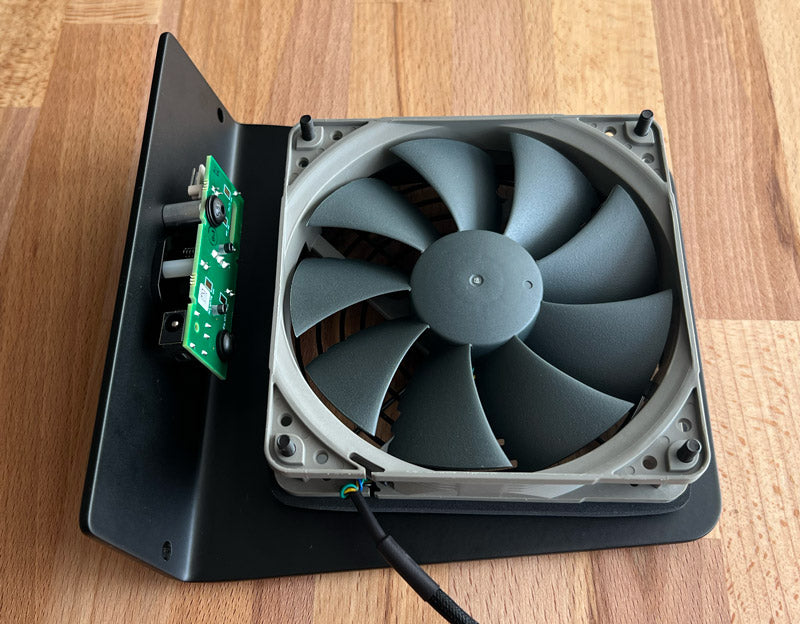
<br><br><strong>Background Activities</strong><br>There are a number of automated background activities that can consume system resources, generate significant amounts of heat and reduce performance. The following steps can be taken to help ensure that nothing other than the intended test workload is stressing the system, and to help ensure that test workloads are consistent for all tests (note that some of these settings will automatically reset, so check before each test session):
<ul>
<li>Disconnect Ethernet, external hard drives, and any other peripheries not required for testing.<br><br>
</li>
<li>Turn off Wi-Fi.<br><br>
</li>
<li>Turn off Bluetooth if you are able to use wired keyboard and mouse.<br><br>
</li>
<li>Turn off TimeMachine, DropBox and other automated backups.<br><br>
</li>
<li>Open System Settings -&gt; Focus -&gt; select Do Not Disturb.<br><br>
</li>
<li>Open System Settings -&gt; Battery -&gt; On power adapter  -&gt; select High Power.<br><br>
</li>
<li>Open System Settings -&gt; Displays -&gt; deselect Automatic adjust brightness -&gt; slide to max brightness.<br><br>
</li>
<li>Open System Settings -&gt; Lock Screen -&gt; Start Screen Saver when inactive -&gt; select Never.<br><br>
</li>
<li>Open System Settings -&gt; Lock Screen -&gt; Turn display off on power adapter when inactive -&gt; select Never.<br><br>
</li>
<li>Open System Settings -&gt; Privacy &amp; Security -&gt; Analytics &amp; Improvements -&gt; opt out of various automatic monitoring and reporting.<br><br>
</li>
<li>To avoid <a href="https://support.apple.com/en-us/HT203447" target="_blank" title="Apple Spotlight" rel="noopener noreferrer">Spotlight</a> from influencing testing make sure to let the computer run idle for a few minutes after startup or restart. Note that brand new laptops or OS re-installs may requires hours or days to complete the initial Spotlight indexing.</li>
</ul>
<br><strong>Laptop Built-in Fan Control</strong><br>SVALT supplemental cooling expands the laptop’s cooling capacity to point that the laptop will export cooling from the laptop’s built-in cooling system to SVALT’s supplemental cooling system. That can be beneficial for reducing laptop fan noise and for long term laptop component durability with reduced demands and stresses on the laptop’s built-in cooling system, but it makes isolating and measuring the influence of supplemental cooling more difficult. There are two options, either collect fan speed data and factor that into test results, or eliminate the fan speed variable by matching fan speeds for both the CONTROL and the SVALT test. In the CONTROL tests the laptop fans can run 25-50% faster RPMs compared to SVALT tests that benefit from supplemental cooling. Locking laptop fan RPMs at the CONTROL test’s higher fan speed normalizes this variable. In temperature testing with light workloads, the laptop fans can be left in system default/auto and monitored in case tests need to be repeated. In performance testing with heavy workloads, the laptop fans can be locked at maximum RPM right before the test session begins. Controlling fan speeds is considered an advanced setting and fans should never be allowed to spin at speeds lower than the system default speeds. There are free and paid applications that allow for the fans to be manually controlled.
<ul>
<li>For Apple Silicon and Intel chip Macs: <a href="https://www.tunabellysoftware.com/tgpro/" target="_blank" title="Paddle TG Pro" rel="noopener noreferrer">Paddle TG Pro</a><br><br>
</li>
<li>For Apple Silicon and Intel chip Macs: <a href="http://www.crystalidea.com/macs-fan-control" target="_blank" title="Macs Fan Control" rel="noopener noreferrer">Macs Fan Control</a>
</li>
</ul>
<br><strong>Laptop Starting Temperatures</strong><br>Match internal component temperatures prior to starting tests. The easiest way to achieve this is to start the first test at normal working temperatures after conducting some light workloads. This can often be accomplished by setting up the laptop system for testing, opening test apps and arranging windows. Once everything is setup then take a screenshot of internal component temperatures for a reference to use during the next test. After completing the first test, the laptop may need to sit idle or power down for a period of time before matching the first test’s screenshot reference temperatures. This could take minutes to hours. Note that the SVALT product slated to be used for testing should not be used to cool the laptop if it will be used in the second test as aluminum components will absorb heat not associated with the testing workload. Also note that the laptop battery should be fully charged at least an hour before starting tests because charging the battery, or a recently charged battery, can add significant heat to the system.
<br><br><strong>Ambient Temperatures</strong><br>Match ambient temperatures prior to starting tests and maintain through both the CONTROL and SVALT tests. Since most electrical components generate heat that can be transferred to the environment, the laptop and the SVALT product (see the <a href="https://svalt.com/blogs/svalt/workstation-setup" title="SVALT workstation setup guide">Workstation Setup</a> page), it is critical that external ambient temperature gauges, the laptop and the SVALT supplemental cooling device are all located so that external heating or cooling sources do influence temperatures. To maintain a consistent ambient temperature during testing, an environmental control system zoned for a single room or a manually controlled heating cooling system will likely be required. Note that roughly 75 Fahrenheit temperatures are typically used for SVALT testing. Also note that SVALT review products include an ambient temperature gauge.
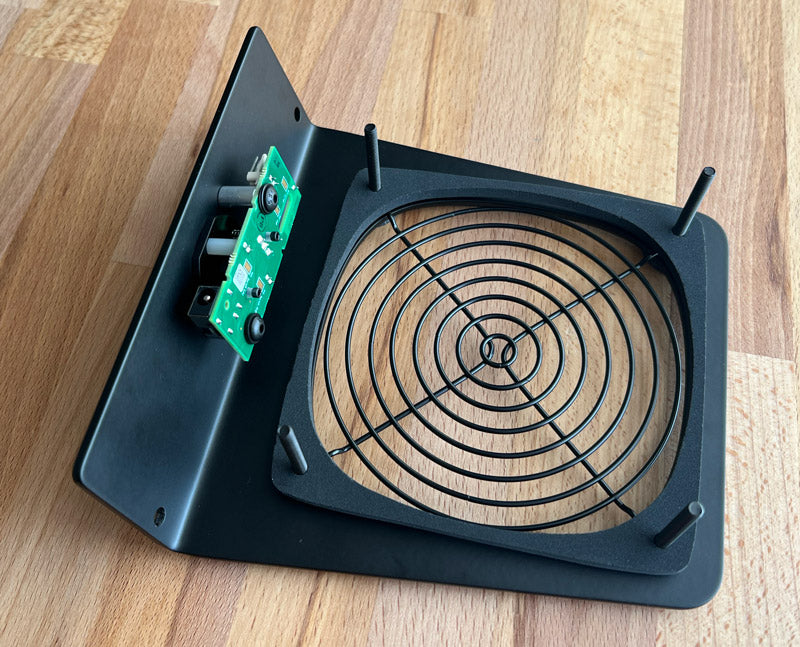
<br><br><strong>Room and Furnishings</strong><br>Testing on a non-conductive surface is critical to isolating supplemental cooling. Testing on a sheet of rigid insulation is ideal, otherwise testing on empty cardboard boxes can also work. The key is to avoid testing on a surface like a stone, concrete, glass or metal surface. You may also need to move furniture to clear the area around testing (see the <a href="https://svalt.com/blogs/svalt/workstation-setup" title="SVALT workstation setup guide">Workstation Setup</a> page).
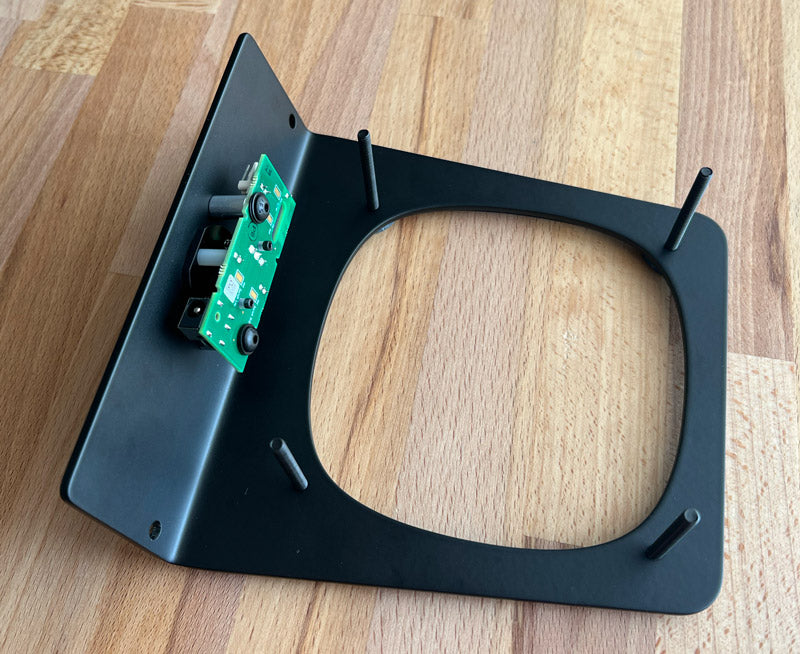
<br><br>
<a href="#top">Back to top</a>
<br><br><br><br>
<a id="data"><h2><strong>Testing Data</strong></h2></a>
Processors change their speed and power at high rates and the changes can be dramatic from moment to moment. These changes have a profound impact on heat generation and temperatures. As a result it is not possible to gather any useful information by watching realtime sensor data or capturing a single moment of testing. The only way to gather meaningful test results is to collect the raw sensor data in log files that can be averaged from milliseconds into larger and more meaningful 1, 5, 10, 15, 30 and 60 minute averages.
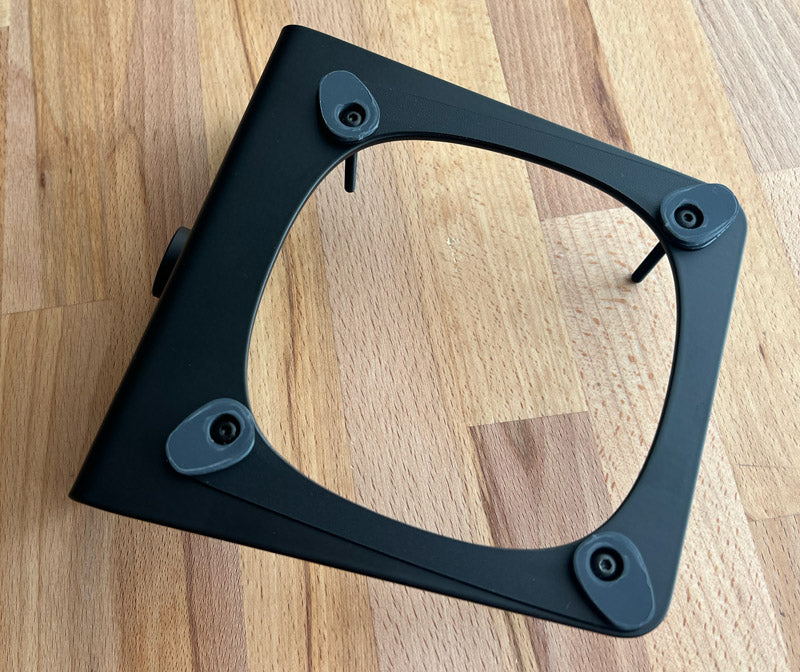
<br><br><strong>Laptop Component Monitoring</strong><br>To test the influence of SVALT supplemental cooling on laptop temperatures and performance, accurate laptop component temperature and power measurements need to be recorded and saved in a format that can be analyzed for comparison.
<ul>
<li>For Apple Silicon and Intel chip Macs: <a href="https://www.tunabellysoftware.com/tgpro/" target="_blank" title="Paddle TG Pro" rel="noopener noreferrer">Paddle TG Pro</a>.<br><br>
</li>
<li>For Apple Silicon chip Macs: <a href="https://www.seense.com/menubarstats/mxpg/" target="_blank" title="Mx Power Gadget" rel="noopener noreferrer">Mx Power Gadget</a>.<br><br>
</li> 
<li>For Intel chip Macs: <a href="https://www.intel.com/content/www/us/en/developer/articles/tool/performance-counter-monitor.html" target="_blank" title="Intel Performance Counter Monitor" rel="noopener noreferrer">Intel Performance Counter Monitor</a>.</li>
</ul>
<br><strong>Testing Reference Data</strong><br>While the above data sets will be used to calculate test results, it can be helpful to capture additional data for reference. For instance, it will be helpful to capture screen videos, screenshots and environmental photos for time and ambient temperature references. This can help you record testing start and stop times, as well as provide a general test reference for what was tested.
<ul>
<li>Screen capture: Apple’s QuickTime Player can record a video of the screen.<br><br>
</li>
<li>Environmental photos: A video, automated photo intervals, or snapshots at the start and other points of the test can be helpful to track testing setups and synchronize test data.<br><br>
</li>
<li>Ambient temperature: Multiple thermistors can be used to measure temperatures around the laptop, and remote wired thermistors can be used to measure on surface temperatures.<br><br>
</li>
<li>Infrared imaging: There’s a possibility to collect meaningful data if fixed in place with the ability to capture a larger data set, but IR images are more likely to be fun visual representations of general conditions than provide meaningful test data.<br><br>
</li>
<li>
<a href="https://support.apple.com/en-us/HT201464" target="_blank" title="Apple Activity Monitor" rel="noopener noreferrer">Apple Activity Monitor</a> provides real-time display and post-test reference through screen videos and shots of system activity (included with macOS) to help you identify non-tested workloads that could result in a test session failure.</li>
</ul>
<a href="#top">Back to top</a>
<br><br><br><br>
<a id="process"><h2><strong>Testing Process</strong></h2></a>
The following provides a sequential step-by-step guide for testing SVALT supplemental cooling. The CONTROL test can occur before or after the SVALT test, but is listed here as occurring after the SVALT test for an easier and much quicker post-test cool down. Either way, a sufficient amount of time is required to allow the laptop to cool down to pre-testing conditions before conducting an additional test session.
<ol>
<li>Establish a testing ambient temperature that can be maintained throughout both the SVALT and CONTROL tests.<br><br>
</li>
<li>Restrict laptop activities and maintain ambient temperature per the <a href="#controls">Variables</a> section.<br><br>
</li>
<li>Open selected testing application and prepare application for test, but do not start test per the <a href="#types">Types</a> section.<br><br>
</li>
<li>Open laptop monitoring software, arrange sensor windows so that they can be captured in screen videos and screenshots per the <a href="#controls">Variables</a> and <a href="#data">Data</a> sections.<br><br>
</li>
<li>Test setup:<br><br>
<ul>
<li>1st SVALT test only: Set laptop onto SVALT supplemental cooling device per the <a href="#controls">Variables</a> section.<br><br>
</li>
<li>2nd CONTROL test only: Match laptop temperatures with the 1st SVALT pre-test temperatures. If temperatures are higher, then wait at idle for temperatures to drop. If temperatures are lower, then apply light workload. See the <a href="#controls">Variables</a> and <a href="#data">Data</a> sections.<br><br>
</li>
</ul>
</li>
<li>Start all data recording per the <a href="#controls">Variables</a> and <a href="#data">Data</a> sections.<br><br>
</li>
<li>Adjust laptop internal fan speeds per the <a href="#controls">Variables</a> section.<br><br>
</li>
<li>Start testing workload per the <a href="#types">Types</a> section.<br><br>
</li>
<li>After testing workload is complete, then end workloads and quit applications per the <a href="#types">Types</a> section.<br><br>
</li>
<li>Return internal fan speeds and System Settings to your pre-test settings or defaults per the <a href="#controls">Variables</a> section.<br><br>
</li>
<li>Save data logs per the <a href="#data">Data</a> section.<br><br>
</li>
<li>Test wrap up:<br><br>
<ul>
<li>1st SVALT test only: Cool off laptop to return to pre-test temperatures, and then repeat testing for the 2nd CONTROL test with the same ambient temperature and laptop testing conditions per the <a href="#controls">Variables</a> section.<br><br>
</li>
<li>2nd CONTROL test only: Sort, average, analyze and compare testing data.<br><br>
</li>
</ul>
</li>
</ol>
<a href="#top">Back to top</a>]]>
    </content>
  </entry>
  <entry>
    <id>https://svalt.com/blogs/svalt/razer-blade-performance-test</id>
    <published>2015-11-13T01:06:00-08:00</published>
    <updated>2019-11-30T16:37:48-08:00</updated>
    <link rel="alternate" type="text/html" href="https://svalt.com/blogs/svalt/razer-blade-performance-test"/>
    <title>Razer Blade Performance Test</title>
    <author>
      <name>Chad Kirkpatrick</name>
    </author>
    <content type="html">
      <![CDATA[<img src="//cdn.shopify.com/s/files/1/0723/7661/files/SVALT-D2-black-green-Razer-Blade-0116-800x624.jpg?7837731816729002151" alt="SVALT D2 black and green Cooling Dock with 14-inch Razer Blade laptop"><br>
<h2>Whether for production or gaming, the SVALT Cooling Dock helps get it done without a heat meltdown.</h2>
Do laptops still benefit from supplemental cooling in a freezing office? Portland December 2016 micro snowstorm, check. Pretty, but old and cold 60F office testing space, check. Razer Blade gaming laptop, check. Crazy powerful SVALT Cooling Dock, check.<br><br>Test round one, AIDA64 System Stability Test. The CONTROL test was around 30% hotter, overheating, and throttled up to 19%, while the SVALT test was cooler, had no overheating or throttling, and maintained maximum performance. So yes, even in a cold office the SVALT Cooling Dock still helps to keep things chill and unlock performance.<br><br>Test round two, Geeks3D FurMark Stress Test. The CONTROL test had slower frame rates with around 20% hotter temperatures that continued to increase at a rate of 1C per 5-minutes, while the SVALT test had faster frame rates with low and stable temperatures. Now this was with 10% core and memory overclocking* for the SVALT test only, and there was still a ton of cooling reserves. So once again, yes, even in a cold office and with GPU overclocking, the SVALT Cooling Dock helps you crank up gaming to the next level. Checkout the following details for the Razer Blade’s preliminary winter office tests:<br>


<ul>
<li>Test Process: Two tests were conducted under controlled conditions, one test without the SVALT D2 Pro for the CONTROL test, and another test with the SVALT D2 Pro set to Turbo+ 3200 RPM for the SVALT test.</li>
<li>Test Laptop: Razer Blade with 14-inch display, 2.2GHz i7 Quad-Core CPU processor (4702HQ w/ 3.1GHz Turbo Boost), and NVIDIA GeForce GTX 765M 2GB dedicated GPU processor.</li>
<li>Test CPU: 60-minutes of AIDA64 System Stability Test (Stress CPU, Stress FPU, Stress cache, Stress GPUs) at 62 F +/- 1 F ambient office temperature.</li>
<li>Test GPU: 15-minutes of Geeks3D FurMark Stress Test at 58 F +/- 1 F ambient office temperature. MSI Afterburner used for overclocking in the SVALT test.</li>
</ul>
* We're not endorsing overclocking but are acknowledging that people do for their own reasons. Overclocking is an advanced configuration, and users who choose to exceed a manufacturer's recommended usage do so at their own risk.<br><br><br><a href="#top">Back to top of page</a><br><br>]]>
    </content>
  </entry>
  <entry>
    <id>https://svalt.com/blogs/svalt/apple-laptop-clamshell-mode-external-display-compatibility-and-configurations</id>
    <published>2015-11-13T01:03:00-08:00</published>
    <updated>2022-01-30T09:25:27-08:00</updated>
    <link rel="alternate" type="text/html" href="https://svalt.com/blogs/svalt/apple-laptop-clamshell-mode-external-display-compatibility-and-configurations"/>
    <title>DISPLAYS</title>
    <author>
      <name>Chad Kirkpatrick</name>
    </author>
    <content type="html">
      <![CDATA[<img src="//cdn.shopify.com/s/files/1/0723/7661/files/SVALT-D2_Cinco-Workstation_6259_800x.jpg?6021132860472402741" alt="SVALT D2 High-Performance Cooling Dock with MacBook Pro 15-inch Retina display Cinco workstation">
<strong>Check Your Laptop Specs</strong><br>
Before purchasing or selecting an external display, it is a good idea to find out your laptop’s specs by following <a href="https://support.apple.com/en-us/HT202351" target="_blank" title="Connect a display to your Mac" rel="noopener noreferrer">Apple’s instructions</a>.<br><br>
<strong>Graphics</strong><br>
The laptop’s Graphic Processing Unit (GPU), is largely responsible for driving the display’s performance. Laptops with Apple Silicon have graphics processing integrated into the laptop’s main processor, the Central Processing Unit, called the CPU. Intel processors have two kinds of GPUs, an integrated iGPU built into the CPU or a separate dedicated discrete dGPU that was only available on Intel 16/15-inch MacBook Pro models. As a general rule, each new generation of laptop uses a more powerful GPU that supports higher resolutions at higher refresh rates across more displays than the last generation. <br><br>
<strong>Connections</strong><br>
Each laptop model line offers different external display connection types, and each connection type has specifications that determine the number of external displays that can be connected as well as their resolution and refresh rate. When selecting a port, go with a Thunderbolt port if you can, as it can drive the most number of displays at the highest resolutions and with the higher refresh rates, but take note that while Thunderbolt / USB-C ports have Mini DisplayPort functionality, Mini DisplayPorts do not have Thunderbolt / USB-C functionality. Note that using a connection hub/dock can cause problems with the display connection reliability, so if you encounter issues then use a direct connection. 
<ul>
<li>2021 16/14-inch MacBook Pro with M1 Pro and M1 Max chips include three Thunderbolt 4 (USB-C) ports and one HDMI port.</li>
<li>2020 13-inch MacBook Pro and MacBook Air with M1 chip include two Thunderbolt 3 (USB-C USB 4) ports.</li>
<li>2016-2021 16/15/13-inch MacBook Pro laptops include multiple Thunderbolt 3 (USB-C) ports (4 ports for Touch Bar models and 2 ports for the standard keyboard model).</li>
<li>2012-2015 15/13-inch MacBook Pro laptops include two Thunderbolt 1 or 2 ports and one HDMI port.</li>
<li>2008-2020 13/11-inch MacBook Air laptops include one Thunderbolt 1 or 2 ports.</li>
<li>2015-2018 12-inch Retina MacBook laptops include a single USB-C port.</li>
</ul>
<br>
<strong>External GPUs</strong><br>
For Intel laptops with a Thunderbolt 3 connection, Apple supports the use of an external GPU (eGPU) that provides desktop levels of graphics power for tackling intensive graphics applications, as well as driving larger high-resolution and high-refresh-rate displays. Performance and connections will depend on the GPU enclosure selected and the GPU card installed. Note that laptops using Apple Silicon M1, M1 Pro and M1 Max processors do not support eGPUs.<br><br>
<strong>Additional Variables</strong><br>
Keep in mind that the installed operating system version and the display’s firmware can impact display performance.<br><br>
<strong>References</strong><br>
<ul>
<li><a href="https://support.apple.com/en-us/HT206587" target="_blank" rel="noopener noreferrer">Apple 4K Displays</a></li>
<li><a href="https://support.apple.com/en-us/HT208544" target="_blank" rel="noopener noreferrer">Apple eGPU</a></li>
<li><a href="https://support.apple.com/en-us/HT204154" target="_blank" rel="noopener noreferrer">Apple Thunderbolt Ports</a></li>
<li><a href="https://www.apple.com/thunderbolt/" target="_blank" rel="noopener noreferrer">Apple Thunderbolt 3</a></li>
<li><a href="https://support.apple.com/en-us/HT204149" target="_blank" rel="noopener noreferrer">Apple Mini DisplayPort Adapters</a></li>
<li><a href="https://support.apple.com/en-us/HT207447" target="_blank" rel="noopener noreferrer">Apple LG UltraFine 4K Display</a></li>
<li><a href="https://support.apple.com/en-us/HT207448" target="_blank" rel="noopener noreferrer">Apple LG UltraFine 5K Display</a></li>
<li><a href="https://support.apple.com/en-us/HT202351" target="_blank" rel="noopener noreferrer">Apple Multiple Displays</a></li>
<li><a href="https://support.apple.com/en-us/HT201834" target="_blank" rel="noopener noreferrer">Apple Clamshell Mode</a></li>
<li><a href="http://www.displayport.org/get-connected/" target="_blank" rel="noopener noreferrer">VESA DisplayPort</a></li>
<li><a href="https://en.wikipedia.org/wiki/DisplayPort" target="_blank" rel="noopener noreferrer">Wiki for DisplayPort</a></li>
<li><a href="https://en.wikipedia.org/wiki/Thunderbolt_(interface)" target="_blank" rel="noopener noreferrer">Wiki for ThunderBolt</a></li>
<li><a href="https://en.wikipedia.org/wiki/Apple_Thunderbolt_Display" target="_blank" rel="noopener noreferrer">Wiki for Apple Thunderbolt Display</a></li>
<li><a href="https://www.macrumors.com/roundup/displays/" target="_blank" rel="noopener noreferrer">MacRumors Apple Pro Display XDR</a></li>
<li><a href="https://9to5mac.com/2021/03/22/best-4k-usb-c-displays-for-macbook-and-macbook-pro/" target="_blank" rel="noopener noreferrer">9TO5Mac’s Best USB-C and Thunderbolt displays for Mac</a></li>
<li>
<a href="http://www.hermanmiller.com" target="_blank" rel="noopener noreferrer">Herman Miller</a> for some of the best display supports, such as their Wishbone series.</li>
</ul>]]>
    </content>
  </entry>
  <entry>
    <id>https://svalt.com/blogs/svalt/d2operation</id>
    <published>2015-11-10T20:59:00-08:00</published>
    <updated>2024-02-23T19:26:33-08:00</updated>
    <link rel="alternate" type="text/html" href="https://svalt.com/blogs/svalt/d2operation"/>
    <title>D2 OPERATION</title>
    <author>
      <name>Chad Kirkpatrick</name>
    </author>
    <content type="html">
      <![CDATA[<img src="//cdn.shopify.com/s/files/1/0723/7661/files/SVALT-D2-MBA11-PowerOnCooling-0870-800x558.jpg?18132955481788933090" alt="SVALT D2 High-Performance Cooling Dock LED activation with Apple MacBook Air 11-inch display"> <br>
Select your D2 model:
<ul>
<li><a href="#d2np">D2n Pro (November 2020 to September 2021)</a></li>
<li><a href="#d2p">D2 Pro (September 2020 to September 2021)</a></li>
<li><a href="#d2l2">D2 Legacy (August 2017 to August 2020)</a></li>
<li><a href="#d2l1">D2 Legacy (October 2016 to July 2017)</a></li>
<li><a href="#upgrades">D2 Firmware Upgrades</a></li>
<li><a href="#issues">Resolving D2 System Issues</a></li>
</ul>
<br><br>
<a id="d2np"><h2><strong>D2n Pro Operation with Firmware Version 4.0</strong></h2></a>
The following operation guide is for the D2n Pro model with firmware version 4.0 available from November 2020 to September 2021. <br><br> <strong>Cooling System Components</strong><br>The following describes the cooling system’s major user interface components:
<ul>
<li>
<strong>Jack</strong> : A power jack located towards the bottom of the rear screen receives a power supply plug for powering the system. Only use the power supply included with product shipment or a <a href="http://www.svalt.com/products/power-supply" title="SVALT D Replacement Power Supply">Replacement Power Supply</a>.</li>
<li>
<strong>Switch</strong> : A pushbutton switch located towards the bottom of the rear screen panel controls the system. After starting the cooling system as described below, pressing the switch two times (2x) to eight times (8x) will enable different cooling modes and additional functionality as described below. To register multiple switch entries, each switch depression needs to occur within 1.2 seconds of the last.</li>
<li>
<strong>LED</strong> : A LED located inside the rear screen and toward the bottom indicates switch inputs and the system’s enabled cooling mode. When starting up the cooling system or changing cooling modes, the LED will indicated the enabled cooling mode for 24-seconds (see Turbo and Custom Cooling Mode sections below for LED signal patterns). When shutting down the cooling system, the LED will momentarily light up and fade to off after 1-second. The LED is placed for visibility when leaning over the laptop and looking down the back side of the dock.</li>
<li>
<strong>Fan</strong> : A fan located behind the rear screen generates cooling airflow by pulling air from the back and drive it out the front vents against the laptop enclosure. The fan also provides an audio indicator for switch inputs and the system’s enabled cooling mode. When starting the cooling system or changing cooling modes, the fan instantly spins up to maximum speed and then either drops down to a lower speed or turns off based on the cooling mode and measured temperature. When shutting down the cooling system, the fan will stop if it hasn’t already stopped.</li>
<li>
<strong>Thermistor</strong> : A thermistor located within the top laptop pad measures laptop enclosure temperature in order to automatically adjust fan speeds when one of the three Auto cooling modes are enabled.</li>
</ul>
<br><strong>System Startup &amp; Shutdown</strong><br>The following single 1x switch activation provide basic cooling system on/off operation.
<ul>
<li>
<strong>1x Startup</strong> (LED flashes per enabled cooling mode as indicated below) : When the cooling system is shutdown, pressing the switch 1x starts the cooling system in Auto cooling mode by default or the last user saved cooling mode as described below.</li>
<li>
<strong>1x Shutdown</strong> (LED fades to off) : After waiting 2-seconds from the last switch depression, pressing the switch 1x shuts down the cooling system.</li>
</ul>
<br><strong>Auto Cooling Modes</strong><br>The cooling system runs in Auto cooling mode by default. In addition to the default Auto cooling mode, there are also Auto+ and Auto- cooling modes to help meet different conditions and user preferences. In any of the three Auto cooling modes the cooling system’s external thermistor measures laptop enclosure temperatures and automatically adjust fan speed between 500 and 2200 RPM. This helps keep things quiet when supplemental cooling is not required and then increases fan speed as temperatures rise over the course of a workday. When temperatures are low enough the fan will temporarily stop until higher temperatures are detected, at which point the fan will automatically restart. See the Custom Cooling Modes section below to learn more about each of the three Auto cooling modes. <br><br><strong>Turbo Cooling Modes</strong><br>After starting the cooling system as described above, then the following switch activations will immediately increase the fan speed for an extra blast of cooling power. The Turbo cooling modes are temporary and do not change the last saved cooling mode, and so are meant to be used in conjunction with a user’s preferred normal cooling mode.
<ul>
<li>
<strong>2x Turbo</strong> (rapid flashing LED) : Pressing the switch 2x runs the fan at 2200 RPM until automatically returning to the default Auto cooling mode or the last user saved cooling mode after 10-minutes. Turbo cooling mode provides a moderate increase in fan speed while maintaining moderately low noise levels for a quick boost in cooling power.</li>
<li>
<strong>3x Turbo+</strong> (medium flashing LED) : Pressing the switch 3x runs the fan at 2200 RPM until pressing the switch 1x to return to the default Auto cooling mode or the last user saved cooling mode. Turbo+ cooling mode provides maximum fan speed with high noise levels for a full boost in cooling power.</li>
</ul>
<br><strong>Custom Cooling Modes</strong><br>After starting the cooling system as described above, then the following switch activations will change the saved cooling mode. Once one of these modes has been enabled, then the cooling system will return to that cooling mode upon subsequent power restarts or after the use of a temporary Turbo cooling mode.
<ul>
<li>
<strong>4x Fixed</strong> (slow flashing LED) : Pressing the switch 4x runs the fan at 1200 RPM by default or a user’s saved custom fixed speed (see 5x Fixed Customization below). Fixed cooling mode provides a constant speed for precisely meeting a user’s cooling and audio performance requirements.</li>
<li>
<strong>5x Fixed Customization</strong> (LED pulses up and down to indicate rising or falling fan programming speeds) : Pressing the switch 5x runs the fan in a cycle from 500 to 2200 to 500 RPM that repeats four times until pressing the switch 1x at the desired fixed speed. The cooling system automatically enters into the Fixed cooling mode at the selected and now saved speed. To select a different speed, then press the switch 5x to restart the process, or reset to the default 1200 RPM speed as described below.</li>
<li>
<strong>6x Auto+</strong> (rapid pulsing LED) : Pressing the switch 6x runs the fan at variable speeds set for cooling priority. Auto+ cooling mode is less likely to turn off in standby mode, to stay on at moderate speeds, and to increase speeds sooner to help stay ahead of heat buildup. Auto+ cooling mode is suggested for cooler offices or for more aggressive cooling within less noise sensitive environments.</li>
<li>
<strong>7x Auto</strong> (medium pulsing LED) : Pressing the switch 7x runs the fan at default variable speeds set for a balance of audio and cooling performance. Default Auto cooling mode is more likely to stay off in standby mode or run at lower speeds until temperatures rise, at which point fan speeds will progressively increase to help neutralize heat buildup. Auto cooling mode is suggested for offices with normal temperatures and normal noise sensitive environments.</li>
<li>
<strong>8x Auto-</strong> (slow pulsing LED) : Pressing the switch 8x runs the fan at variable speeds set for audio priority. Auto- cooling mode is most likely to stay off in standby mode or run at lower speeds until temperatures rise significantly, at which point fan speeds will begin to increase to help recovery from heat buildup. This cooling mode is suggested for hotter offices or more noise sensitive environments.</li>
</ul>
<br><strong>Restore Factory Defaults</strong><br>After starting the cooling system as described above, the cooling system can be reset to factory default settings by pressing and holding the switch for 5-seconds. Once the switch has been held down for 5-seconds and a system reset has been triggered, then the fan will speed up and the system will reset to the default Auto cooling mode and the LED will medium pulse. The Fixed cooling mode will also reset to the default 1200 RPM speed. <br><br><strong>Cooling Mode Diagram v4.0</strong><br> <img src="//cdn.shopify.com/s/files/1/0723/7661/files/SVALT-D2-Q-ModeDiagram-2020-10-25_600.png?v=1603656707" alt="SVALT Cooling Dock D2n Pro User’s Guide Cooling Mode Diagram Firmware Version 4.0">
<br><a href="#top">Back to top</a>
<br><br><br>
<a id="d2p"><h2><strong>D2 Pro Operation with Firmware Version 3.0</strong></h2></a>
The following operation guide is for the D2 Pro model with firmware version 3.0 available from September 2020 to September 2021. <br><br> <strong>Cooling System Components</strong><br>The following describes the cooling system’s major user interface components:
<ul>
<li>
<strong>Jack</strong> : A power jack located towards the bottom of the rear screen receives a power supply plug for powering the system. Only use the power supply included with product shipment or a <a href="http://www.svalt.com/products/power-supply" title="SVALT D Replacement Power Supply">Replacement Power Supply</a>.</li>
<li>
<strong>Switch</strong> : A pushbutton switch located towards the bottom of the rear screen panel controls the system. After starting the cooling system as described below, pressing the switch two times (2x) to eight times (8x) will enable different cooling modes and additional functionality as described below. To register multiple switch entries, each switch depression needs to occur within 1.2 seconds of the last.</li>
<li>
<strong>LED</strong> : A LED located inside the rear screen and toward the bottom indicates switch inputs and the system’s enabled cooling mode. When starting up the cooling system or changing cooling modes, the LED will indicated the enabled cooling mode for 24-seconds (see Turbo and Custom Cooling Mode sections below for LED signal patterns). When shutting down the cooling system, the LED will momentarily light up and fade to off after 1-second. The LED is placed for visibility when leaning over the laptop and looking down the back side of the dock.</li>
<li>
<strong>Fan</strong> : A fan located behind the rear screen generates cooling airflow by pulling air from the back and drive it out the front vents against the laptop enclosure. The fan also provides an audio indicator for switch inputs and the system’s enabled cooling mode. When starting the cooling system or changing cooling modes, the fan instantly spins up to maximum speed and then either drops down to a lower speed or turns off based on the cooling mode and measured temperature. When shutting down the cooling system, the fan will stop if it hasn’t already stopped.</li>
<li>
<strong>Thermistor</strong> : A thermistor located within the top laptop pad measures laptop enclosure temperature in order to automatically adjust fan speeds when one of the three Auto cooling modes are enabled.</li>
</ul>
<br><strong>System Startup &amp; Shutdown</strong><br>The following single 1x switch activation provide basic cooling system on/off operation.
<ul>
<li>
<strong>1x Startup</strong> (LED flashes per enabled cooling mode as indicated below) : When the cooling system is shutdown, pressing the switch 1x starts the cooling system in Auto cooling mode by default or the last user saved cooling mode as described below.</li>
<li>
<strong>1x Shutdown</strong> (LED fades to off) : After waiting 2-seconds from the last switch depression, pressing the switch 1x shuts down the cooling system.</li>
</ul>
<br><strong>Auto Cooling Modes</strong><br>The cooling system runs in Auto cooling mode by default. In addition to the default Auto cooling mode, there are also Auto+ and Auto- cooling modes to help meet different conditions and user preferences. In any of the three Auto cooling modes the cooling system’s external thermistor measures laptop enclosure temperatures and automatically adjust fan speed between 800 and 4200 RPM. This helps keep things quiet when supplemental cooling is not required and then increases fan speed as temperatures rise over the course of a workday. When temperatures are low enough the fan will temporarily stop until higher temperatures are detected, at which point the fan will automatically restart. See the Custom Cooling Modes section below to learn more about each of the three Auto cooling modes. <br><br><strong>Turbo Cooling Modes</strong><br>After starting the cooling system as described above, then the following switch activations will immediately increase the fan speed for an extra blast of cooling power. The Turbo cooling modes are temporary and do not change the last saved cooling mode, and so are meant to be used in conjunction with a user’s preferred normal cooling mode.
<ul>
<li>
<strong>2x Turbo</strong> (rapid flashing LED) : Pressing the switch 2x runs the fan at 2400 RPM until automatically returning to the default Auto cooling mode or the last user saved cooling mode after 30-minutes. Turbo cooling mode provides a moderate increase in fan speed while maintaining moderately low noise levels for a quick boost in cooling power.</li>
<li>
<strong>3x Turbo+</strong> (medium flashing LED) : Pressing the switch 3x runs the fan at 4200 RPM until pressing the switch 1x to return to the default Auto cooling mode or the last user saved cooling mode. Turbo+ cooling mode provides maximum fan speed with high noise levels for a full boost in cooling power.</li>
</ul>
<br><strong>Custom Cooling Modes</strong><br>After starting the cooling system as described above, then the following switch activations will change the saved cooling mode. Once one of these modes has been enabled, then the cooling system will return to that cooling mode upon subsequent power restarts or after the use of a temporary Turbo cooling mode.
<ul>
<li>
<strong>4x Fixed</strong> (slow flashing LED) : Pressing the switch 4x runs the fan at 1400 RPM by default or a user’s saved custom fixed speed (see 5x Fixed Customization below). Fixed cooling mode provides a constant speed for precisely meeting a user’s cooling and audio performance requirements.</li>
<li>
<strong>5x Fixed Customization</strong> (LED pulses up and down to indicate rising or falling fan programming speeds) : Pressing the switch 5x runs the fan in a cycle from 800 to 4200 to 800 RPM that repeats four times until pressing the switch 1x at the desired fixed speed. The cooling system automatically enters into the Fixed cooling mode at the selected and now saved speed. To select a different speed, then press the switch 5x to restart the process, or reset to the default 1400 RPM speed as described below.</li>
<li>
<strong>6x Auto+</strong> (rapid pulsing LED) : Pressing the switch 6x runs the fan at variable speeds set for cooling priority. Auto+ cooling mode is less likely to turn off in standby mode, to stay on at moderate speeds, and to increase speeds sooner to help stay ahead of heat buildup. Auto+ cooling mode is suggested for cooler offices or for more aggressive cooling within less noise sensitive environments.</li>
<li>
<strong>7x Auto</strong> (medium pulsing LED) : Pressing the switch 7x runs the fan at default variable speeds set for a balance of audio and cooling performance. Default Auto cooling mode is more likely to stay off in standby mode or run at lower speeds until temperatures rise, at which point fan speeds will progressively increase to help neutralize heat buildup. Auto cooling mode is suggested for offices with normal temperatures and normal noise sensitive environments.</li>
<li>
<strong>8x Auto-</strong> (slow pulsing LED) : Pressing the switch 8x runs the fan at variable speeds set for audio priority. Auto- cooling mode is most likely to stay off in standby mode or run at lower speeds until temperatures rise significantly, at which point fan speeds will begin to increase to help recovery from heat buildup. This cooling mode is suggested for hotter offices or more noise sensitive environments.</li>
</ul>
<br><strong>Restore Factory Defaults</strong><br>After starting the cooling system as described above, the cooling system can be reset to factory default settings by pressing and holding the switch for 5-seconds. Once the switch has been held down for 5-seconds and a system reset has been triggered, then the fan will speed up and the system will reset to the default Auto cooling mode and the LED will medium pulse. The Fixed cooling mode will also reset to the default 1400 RPM speed. <br><br><strong>Cooling Mode Diagram v3.0</strong><br> <img src="//cdn.shopify.com/s/files/1/0723/7661/files/SVALT-D2-ModeDiagram-2020-09-05.png?v=1599329008" alt="SVALT D2 High-Performance Cooling Dock User’s Guide Cooling Mode Diagram Firmware Version 3.0">
<br><a href="#top">Back to top</a>
<br><br><br>
<a id="d2l2"><h2><strong>D2 Legacy Operation with Firmware Version 2.0</strong></h2></a>
The following operation guide is for the D2 Legacy model with firmware version 2.0 available from August 2017 to August 2020. <br><br> <strong>System Startup &amp; Shutdown</strong><br>A pushbutton switch is used to control the system and is located on the rear screen panel. A LED signals switch inputs and the system’s cooling mode (see Turbo and Custom Cooling Mode sections below for LED signal patterns). The LED is located inside the rear screen, along the bottom of the fan. The LED is positioned to be visible when leaning over the laptop and looking down the back side of the dock.
<ul>
<li>
<strong>1x Startup</strong> : To turn on the D2, press the push-button switch once (1x) and the cooling system will start in Auto cooling mode by default (see the Auto Cooling Modes section below to learn about how this cooling mode works, and see the Custom Cooling Modes section below to change cooling modes). When powering on the cooling system or changing cooling modes, the LED will signal the cooling mode for 24-seconds, while the fan provides an audio signal by instantly spinning to maximum speed and then either dropping down to a lower speed or turning off based on cooling mode and measured temperature.</li>
<li>
<strong>1x Shutdown</strong> : To turn off the D2, wait a few seconds if you just powered on the D2, and then press the switch once (1x) to power down the cooling system. When powering off the cooling system, the LED will momentarily light up and fade to off after 1-second, while the fan spins to a stop if it hasn’t already stopped.</li>
</ul>
<br><strong>Auto Cooling Modes</strong><br>In any of the three Auto cooling modes the cooling system’s external thermistor measures laptop enclosure temperatures and automatically adjust fan speed between 900 and 3600 RPM. This helps keep things quiet when supplemental cooling is not required and then increase cooling power as temperatures rise over the course of a workday. When temperatures are low enough the fan will temporarily stop until higher temperatures are detected, at which point it will automatically restart. <br><br><strong>Turbo Cooling Modes</strong><br>After turning on the D2 by pressing the switch 1x, you can then use the following switch activations to immediately increase fan speed to 3200 RPM for an extra blast of cooling power. These Turbo cooling modes are temporary and do not change the saved cooling mode.
<ul>
<li>
<strong>2x Turbo</strong> (rapid flashing LED) : When you press switch 2x the cooling system will enable Turbo and then automatically return to the default Auto cooling mode, or the last user saved cooling mode after 5-min.</li>
<li>
<strong>3x Turbo +</strong> (medium flashing LED) : When you press switch 3x the cooling system will enable Turbo until you press the switch 1x to return to the default Auto cooling mode, or the last user saved cooling mode.</li>
</ul>
<br><strong>Custom Cooling Modes</strong><br>After turning on the D2 by pressing the switch 1x, you can then use the following switch activations to change the saved cooling mode. Once one of these modes has been enabled, then the D2 will return to that cooling mode upon subsequent power restarts.
<ul>
<li>
<strong>4x Fixed</strong> (slow flashing LED) : When you press the switch 4x the cooling system will run at a constant 1600 RPM fixed speed by default to provide a balance of audio and cooling performance, or you can save a custom fixed speed to precisely meet your audio and cooling performance requirements as described below in 5x Fixed Customization.</li>
<li>
<strong>5x Fixed Customization</strong> (LED pulses up and down to indicate rising or falling fan programming speeds) : When you press the switch 5x the fan will begin to continually cycle from 900 to 3600 to 900 RPM. Press the switch 1x when the fan reaches your desired fixed speed. At this point you have saved a custom fixed speed and entered into 4x Fixed cooling mode. If you change cooling modes and then return to 4x Fixed cooling mode, it will return to your custom fixed speed. If you would like to select a different fixed speed, then press the switch 5x to restart the process, or you can reset to the default 1600 RPM as described below.</li>
<li>
<strong>6x Auto +</strong> (rapid pulsing LED) : When you press the switch 6x the cooling system will run at higher speeds for cooling priority. In this cooling mode the fan is more likely to stay on at low to moderate speeds, and will increase speeds sooner to help stay ahead of heat buildup. This cooling mode is suggested for cooler offices.</li>
<li>
<strong>7x Auto</strong> (medium pulsing LED) : When you press the switch 7x the cooling system will run at default speeds for a balance of audio and cooling performance. In this cooling mode the fan will stay off or at lower speeds until temperatures rise, as which point fan speeds will progressively increase to help neutralize heat buildup. This cooling mode is suggested for offices with normal temperatures.</li>
<li>
<strong>8x Auto -</strong> (slow pulsing LED) : When you press the switch 8x the cooling system will run at lower speeds for audio priority. In this cooling mode the fan will stay off or at lower speeds until temperatures rise significantly, at which point fan speeds will rapidly increase to help recovery from heat buildup. This cooling mode is suggested for hotter offices.</li>
</ul>
<br><strong>Restore Factory Defaults</strong><br>To reset the cooling system to factory default settings press and hold the switch for 5-seconds. Once the switch has been held down for 5-seconds and a system reset has been triggered, the fan will speed up and the system will enter into Auto default cooling mode and the LED will medium pulse. The Fixed cooling mode will also reset to 1600 RPM. <br><br> <strong>Cooling Mode Diagram v2.0</strong><br> <img src="//cdn.shopify.com/s/files/1/0723/7661/files/2017-08-07_SVALT-D2_ModeDiagram.png?13730834679545648872" alt="SVALT D2 High-Performance Cooling Dock User’s Guide Cooling Mode Diagram Firmware Version 2.0">
<br><a href="#top">Back to top</a>
<br><br><br>
<a id="d2l1"><h2><strong>D2 Legacy Operation with Firmware Version 1.0</strong></h2></a>
The following operation guide is for the D2 Legacy model with firmware version 1.0 available from October 2016 to July 2017. <br><br><strong>System Startup &amp; Shutdown</strong><br>A pushbutton switch is used to control the system and is located on the rear screen panel. A LED signals switch inputs and the system’s cooling mode (see Turbo and Custom Cooling Mode sections below for LED signal patterns). The LED is located inside the rear screen, along the bottom of the fan. The LED is positioned to be visible when leaning over the laptop and looking down the back side of the dock.
<ul>
<li>
<strong>1x Startup</strong> : To turn on the D2, press the push-button switch once (1x) and the cooling system will start in Auto cooling mode by default (see the Auto Cooling Modes section below to learn about how this cooling mode works, and see the Custom Cooling Modes section below to change cooling modes). When powering on the cooling system or changing cooling modes, the LED will signal the cooling mode for 24-seconds, while the fan provides an audio signal by instantly spinning to maximum speed and then either dropping down to a lower speed or turning off based on cooling mode and measured temperature.</li>
<li>
<strong>1x Shutdown</strong> : To turn off the D2, wait a few seconds if you just powered on the D2, and then press the switch once (1x) to power down the cooling system. When powering off the cooling system, the LED will momentarily light up and fade to off after 1-second, while the fan spins to a stop if it hasn’t already stopped.</li>
</ul>
<br><strong>Auto Cooling Modes</strong><br>In any of the three Auto cooling modes the cooling system’s external thermistor measures laptop enclosure temperatures and automatically adjust fan speed between 0 and 3600 RPM. This helps keep things quiet when supplemental cooling is not required and then increase cooling power as temperatures rise over the course of a workday. When temperatures are low enough the fan will temporarily stop until higher temperatures are detected, at which point it will automatically restart. <br><br><strong>Turbo Cooling Modes</strong><br>After turning on the D2 by pressing the switch 1x, you can then use the following switch activations to immediately increase fan speed to 3200 RPM for an extra blast of cooling power. These Turbo cooling modes are temporary and do not change the saved cooling mode.
<ul>
<li>
<strong>2x Turbo</strong> (very fast flashing LED) Press switch 2x to enable, and then the system will automatically return to default Auto cooling mode, or the last user saved cooling mode after 5-min.</li>
<li>
<strong>3x Turbo +</strong> (fast flashing LED) Press switch 3x to enable, and then press switch 1x to return to default Auto cooling mode, or the last user saved cooling mode.</li>
</ul>
<br><strong>Custom Cooling Modes</strong><br>After turning on the D2 by pressing the switch 1x, you can then use the following switch activations to change the saved cooling mode. Once one of these modes has been enabled, then the D2 will return to that cooling mode upon subsequent power restarts.
<ul>
<li>
<strong>4x Fixed</strong> (medium flashing LED) Press switch 4x to set the cooling system to a fixed speed of your choosing. The fan continually cycles from 900 to 3600 to 900 RPM, while the LED indicates increasing or decreasing speeds. When the fan reaches your desired speed, press the switch 1x to select a fixed speed, at which point the LED will medium flash. Press switch 4x to restart the selection process. In this Fixed cooling mode you can lock-in the precise fan speed that provides the right balance of audio and cooling performance for your requirements.</li>
<li>
<strong>5x Auto -</strong> (slow fading LED) Press switch 5x to set the cooling system to a lower speeds for audio priority, or for a hot office as compared to normal 70 F office temperatures. In this Auto cooling mode the fan will stay off or at lower speeds until temperatures rise significantly, at which point fan speeds will rapidly increase to help recovery from heat buildup.</li>
<li>
<strong>6x Auto +</strong> (fast fading LED) Press switch 6x to set the cooling system to a higher speeds for cooling priority, or for a cold office as compared to normal 70 F office temperatures. In this Auto cooling mode the fan is more likely to stay on at low to moderate speed, and will increase speeds sooner to help stay ahead of heat buildup.</li>
<li>
<strong>7x Auto</strong> (medium fading LED) Press switch 7x to reset the cooling system to factory default for a balance of audio and cooling performance in normal 70 F office temperatures. In this Auto cooling mode the fan will stay off or at lower speeds until temperatures rise, as which point fan speeds will progressively increase to help neutralize heat buildup. The system can also be reset to factory default by pressing the switch 1x and then holding it down for 7-seconds, at which point the fan speeds up to signal a system reset.</li>
</ul>
<br><strong>Cooling Mode Diagram v1.0</strong><br> <img src="//cdn.shopify.com/s/files/1/0723/7661/files/SVALT-D2_ModeDiagram_2016-08-08.png?5478749239640511809" alt="SVALT D2 High-Performance Cooling Dock User’s Guide Cooling Mode Diagram">
<br><a href="#top">Back to top</a>
<br><br><br>
<a id="upgrades"><h2><strong>D2 Firmware Upgrade Options</strong></h2></a>
In support of existing Cooling Dock D2 customers, we offer the following discounted upgrade options:
<ul>
<li>If you have a new D2 Pro model with Version 3.0 firmware and would like to upgrade to the D2n cooling system with Version 4.0 firmware, then the new D2 Pro and D1 Pro models use a modular cooling system that can be exchanged or upgraded with a separate D2n, D2 or D1 <a href="https://svalt.com/products/cooling-dock-modular-cooling-systems" title="SVALT Cooling Dock cooling systems">modular cooling system</a> (see page for partial refunds options).</li>
<li>If you have an original D2 Legacy model with either Version 1.0 or 2.0 firmware and would like to upgrade to the new D2 Pro with Version 3.0 firmware, then you can send your original D2 Legacy to us for an upgrade, and we will clean, update to firmware, and install your D2 cooling system in a new D2 Pro aluminum dock with new venting and padding. Please contact us for details. Please <a href="https://svalt.com/pages/contact" title="SVALT Contact page">contact</a> us for details and cost estimate.</li>
<li>If you have an original D2 Legacy model with Version 1.0 firmware and would like to upgrade to Version 2.0 (see list of v2.0 revisions below), then we will upgrade the firmware and clean your D2 Legacy at no charge if you cover shipping costs. Please <a href="https://svalt.com/pages/contact" title="SVALT Contact page">contact</a> us for details.</li>
</ul>
<br>The following outlines firmware version 4.0’s main revisions over version 3.0:
<ul>
<li>2x Turbo cooling mode has been revised to run at 2200 RPM and automatically return to the normal cooling mode after 10-minutes. This allows for a quickly enabled boost in cooling for noise critical environments.</li>
<li>3x Turbo+ cooling mode runs at 2200 RPM for noise critical environments.</li>
<li>4x Fixed cooling mode’s default speed has been decreased to 1200 RPM for silent base level cooling that can be combined with Turbo’s 2200 RPM cooling when needed.</li>
<li>5x Fixed Customize cooling mode’s range has been revised to 500-2200 RPM for noise critical environments.</li>
<li>6x Auto+ cooling mode’s range has been revised to 500-2200 RPM for noise critical environments.</li>
<li>7x Auto default cooling mode’s range has been revised to 500-2200 RPM for noise critical environments.</li>
<li>8x Auto- cooling mode’s range has been revised to 500-2200 RPM for noise critical environments.</li>
<li>The reset to factory default has been revised to reset Fixed cooling mode to the default 1200 RPM.</li>
</ul>
<br>The following outlines firmware version 3.0’s main revisions over version 2.0:
<ul>
<li>2x Turbo cooling mode has been revised to run at 2400 RPM and automatically return to the normal cooling mode after 30-minutes. This allows for a quickly enabled boost in cooling with moderate noise levels, and to better compliment the standard cooling modes.</li>
<li>3x Turbo+ cooling mode has been increased from 3600 RPM to 4200 RPM because the D2 Pro allows for freer airflow and for the fan to run at a faster speed. This allows for even more intense cooling airflow when required.</li>
<li>4x Fixed cooling mode’s default speed has been decreased to 1400 RPM to quieter base level cooling that can be combined with Turbo’s 2400 RPM cooling when needed.</li>
<li>5x Fixed Customize cooling mode’s range has been expanded from 900-3600 RPM to 800-4200 RPM because the D2 Pro allows for freer airflow and for the fan to run at a faster speed.</li>
<li>6x Auto+ cooling mode’s range has been expanded from 900-3600 RPM to 800-4200 RPM because the D2 Pro allows for freer airflow and for the fan to run at a faster speed, and the temperature mapping has been refined with adjustments to be even more aggressive.</li>
<li>7x Auto default cooling mode’s range has been expanded from 900-3600 RPM to 800-4200 RPM because the D2 Pro allows for freer airflow and for the fan to run at a faster speed, and the temperature mapping has been refined.</li>
<li>8x Auto- cooling mode’s range has been expanded from 900-3600 RPM to 800-4200 RPM because the D2 Pro allows for freer airflow and for the fan to run at a faster speed, and the temperature mapping has been refined with adjustments to be less aggressive.</li>
<li>The reset to factory default has been revised to reset Fixed cooling mode to the default 1400 RPM.</li>
</ul>
<br>The following outlines firmware version 2.0's main revisions over version 1.0:
<ul>
<li>4x Fixed cooling mode has been revised to start with a default 1600 RPM fixed speed or a user’s saved custom fixed speed.</li>
<li>5x Fixed Customize cooling mode has been added as a separate mode for the user to select a custom speed for 4x Fixed cooling mode. This allows the cooling system to save the user’s custom fixed speed so that it can be reactivated without having to reselect a fixed speed, which can be helpful when a user wants to change between modes to meet various audio or cooling performance scenarios.</li>
<li>6x Auto+ cooling mode has been revised with significantly more aggressive mapping.</li>
<li>7x Auto default cooling mode has been revised with slightly more aggressive mapping.</li>
<li>8x Auto- cooling mode has been revised with slightly less aggressive mapping.</li>
<li>The reset to factory default has been revised to reset Fixed cooling mode to the default 1600 RPM.</li>
<li>The order of cooling modes has been revised along with associated switch activations required to enable the cooling modes.</li>
</ul>
<a href="#top">Back to top</a>
<br><br><br>
<a id="issues"><h2><strong>Resolving D2 System Issues</strong></h2></a>
The following section provides an outline for the most common ways to resolve D2 cooling system issues.
<br><br>
<strong>D2 Cooling System Reset</strong><br>
Reset the system as described above per the D2 model.
<br><br>
<strong>D2 Cooling System Diagnostic Test</strong><br>
Activate the D2’s built-in system diagnostic test with the following steps:
<ol>
<li>For the D2 system to properly calibrate during testing, the thermistor reading needs to be between 65-80F (18-27C), so the ambient room temperature needs to be within that range before starting the test or a false error will result.<br><br>
</li>
<li>Unplug the power cable from the wall outlet if it is accessible, or if it is not accessible, then unplug the power connector from D2’s power jack.<br><br>
</li>
<li>Press and hold the D2’s push-button switch. While continuing to hold the switch, plug the power back into the wall outlet or D2’s power jack.<br><br>
</li>
<li>Release the D2’s push-button switch once the power is connected, the LED lights up, and the fan begins to spin.<br><br>
</li>
<li>An internal diagnostic program will start to run. The LED will flash various codes and the fan will spin up &amp; down. Just ignore all of that and let the system run for approximately 15-seconds.<br><br>
</li>
<li>If there is no error code, then the LED will stop flashing and the cooling system will go into off/stand-by mode. Pressing the D2’s push-button switch once will restart the cooling system into normal operations.<br><br>
</li>
<li>If there is an error then the LED will flash the same code indefinitely. That means the LED will still be flashing after multiple minutes, and will not stop until pressing the D2’s push-button switch or unplugging power. If there is an error code, then the easiest way to identify the code is to capture a video of the flashing LED and reply at a slower speed to count the number of flashes in a single cycle of successive LED flashes. Please <a href="https://svalt.com/pages/contact" title="Contact SVALT">contact us</a> with the error code.</li>
</ol>
<br>
<strong>D2 Cooling System Cleaning </strong><br>
Dust buildup on the circuit board and inside of the fan motor can cause issues that can be resolved by removing the dust. See the <a href="https://svalt.com/blogs/svalt/right-to-repair" title="SVALT guide to cooling system and fan removal and installation">Right-to-Repair</a> page to learn how to remove and clean the D2 cooling system.
<br><br>
<strong>D2 Cooling System Replacement</strong><br>
See the <a href="https://svalt.com/blogs/svalt/product-upgrades" title="SVALT product upgrade history and available customer upgrades">Upgrades</a> page to learn about D2 cooling system replacement options.
<br><br><a href="#top">Back to top</a>
<br><br><br>
]]>
    </content>
  </entry>
</feed>