<?xml version="1.0" encoding="UTF-8"?>
<feed xml:lang="en" xmlns="http://www.w3.org/2005/Atom" xmlns:opensearch="http://a9.com/-/spec/opensearch/1.1/" xmlns:s="http://jadedpixel.com/-/spec/shopify">
  <id>https://www.fcpeffects.com/blogs/blog.atom</id>
  <link rel="alternate" type="text/html" href="https://www.fcpeffects.com/blogs/blog"/>
  <link rel="self" type="application/atom+xml" href="https://www.fcpeffects.com/blogs/blog.atom"/>
  <title>FCPeffects - the FCPeffects blog: Final Cut Pro X tips &amp; tricks</title>
  <updated>2023-06-25T10:22:31-04:00</updated>
  <author>
    <name>FCPeffects</name>
  </author>
  <entry>
    <id>https://www.fcpeffects.com/blogs/blog/why-final-cut-pro</id>
    <published>2023-06-25T10:22:31-04:00</published>
    <updated>2023-06-25T10:29:46-04:00</updated>
    <link rel="alternate" type="text/html" href="https://www.fcpeffects.com/blogs/blog/why-final-cut-pro"/>
    <title>Why Final Cut Pro?</title>
    <author>
      <name>Turner H</name>
    </author>
    <content type="html">
      <![CDATA[<meta charset="utf-8">
<p>In the realm of video editing, professionals and enthusiasts alike seek a powerful and intuitive software solution that can bring their creative visions to life. Final Cut Pro, developed by Apple, has consistently proven itself as the premier editing application in the industry. With its robust features, user-friendly interface, and a wealth of resources available such as Final Cut Pro plugins, motion templates, and FCPeffects.com, Final Cut Pro empowers editors to craft stunning and professional-quality videos. This article will delve into the reasons why Final Cut Pro stands out as the best editing application.</p>
<p><strong>Unmatched Performance and Efficiency</strong></p>
<p>One of the key advantages of Final Cut Pro is its exceptional performance and efficiency. The software harnesses the power of Apple's advanced hardware and optimized software ecosystem, resulting in lightning-fast rendering and seamless playback, even with complex projects. With Final Cut Pro, users can work with multiple high-resolution video streams, apply real-time effects, and preview edits without any lag or compromise in quality. This efficiency allows editors to focus on their creative process rather than waiting for their edits to render.</p>
<p><strong>Vast Library of Final Cut Pro Plugins</strong></p>
<p>Final Cut Pro offers a vast library of plugins that extend the software's capabilities and provide users with endless creative options. Final Cut Pro plugins, developed by both Apple and third-party developers, offer specialized effects, transitions, and tools that enhance the editing experience. These plugins allow editors to achieve unique and professional-looking effects that elevate their videos to the next level. Whether it's adding cinematic filters, advanced color grading, or dynamic text animations, the availability of Final Cut Pro plugins ensures that editors have the necessary tools to bring their creative vision to life.</p>
<p><strong>Motion Templates for Stunning Visual Effects</strong></p>
<p>Another compelling aspect of Final Cut Pro is its extensive collection of motion templates. Motion templates are pre-designed elements that simplify the creation of visually striking titles, transitions, and effects. With Final Cut Pro's vast library of motion templates, editors can easily add professional-quality visual effects to their videos without spending hours on complex keyframe animations. The availability of motion templates empowers editors to achieve visually captivating results quickly, allowing them to focus more on storytelling and overall video quality.</p>
<p><strong>Access to FCPeffects.com Plugins</strong></p>
<p>A valuable resource for Final Cut Pro users is FCPeffects.com, a dedicated platform for Final Cut Pro plugins, tutorials, and resources. This online marketplace offers a vast selection of high-quality plugins developed by industry professionals. Users can explore a wide range of effects, transitions, titles, and more, all tailored to enhance the editing experience with Final Cut Pro. FCPeffects ensures that editors have access to cutting-edge tools and resources to stay ahead of the curve and continuously improve their editing skills.</p>
<p><strong>Intuitive and User-Friendly Interface</strong></p>
<p>Final Cut Pro's user-friendly interface is designed to streamline the editing workflow and make the creative process smooth and efficient. The software provides a clean and intuitive workspace, allowing editors to focus on their work without distractions. The interface features a magnetic timeline that simplifies the organization and arrangement of clips, making it easy to insert, rearrange, and trim footage. Final Cut Pro's intuitive interface, combined with its extensive keyboard shortcuts and customizable layouts, enables editors to work quickly and effectively, saving valuable time during the editing process.</p>
<p><strong>Conclusion</strong></p>
<p>In a highly competitive landscape of video editing applications, Final Cut Pro stands out as the best choice for professionals and enthusiasts alike. Its unmatched performance and efficiency, vast library of Final Cut Pro plugins, extensive collection of motion templates, and the availability of resources such as FCPeffects.com, all contribute to its unparalleled editing capabilities. With Final Cut Pro, editors can unleash their creative potential and bring their visions to life with stunning visuals, seamless workflows, and professional-grade results.</p>]]>
    </content>
  </entry>
  <entry>
    <id>https://www.fcpeffects.com/blogs/blog/getting-started-with-color-grading-in-final-cut-pro</id>
    <published>2023-06-04T16:31:33-04:00</published>
    <updated>2023-06-04T16:32:08-04:00</updated>
    <link rel="alternate" type="text/html" href="https://www.fcpeffects.com/blogs/blog/getting-started-with-color-grading-in-final-cut-pro"/>
    <title>Intro to Final Cut Pro Color Grading</title>
    <author>
      <name>Turner H</name>
    </author>
    <content type="html">
      <![CDATA[<div style="text-align: center;"><span class="s1">Color correction is an essential step in video editing that can greatly enhance the visual appeal and overall impact of your footage. Apple's Final Cut Pro X (FCPX) provides a robust set of color correction tools, and with the help of third-party plugins like FCPeffects.com's "Quick Color" and "the Finishing Plugin," you can elevate your color correction process to new heights. In this article, we will guide you through the process of properly color correcting videos within FCPX and highlight the benefits of using FCPeffects.com plugins with their beautiful presets.</span></div>
<div class="p2" style="text-align: center;">
<span class="s1"></span><strong><span class="s1">Understanding the Basics of Color Correction</span></strong>
</div>
<div class="p1" style="text-align: center;"><span class="s1">Before diving into color correction, it's important to grasp the fundamentals. Color correction involves adjusting various aspects of your video's colors, including exposure, white balance, saturation, and contrast. The goal is to achieve a balanced and visually pleasing look that enhances the mood and narrative of your footage.</span></div>
<div class="p2" style="text-align: center;">
<span class="s1"></span><strong><span class="s1">Utilizing FCPX's Built-in Color Correction Tools</span></strong>
</div>
<div class="p1" style="text-align: center;"><span class="s1">FCPX offers a range of built-in color correction tools to help you achieve the desired look for your videos. These tools include color wheels, color curves, and color controls. Experiment with these tools to adjust the overall tonal balance, correct white balance issues, and fine-tune specific colors.</span></div>
<div class="p2" style="text-align: center;">
<span class="s1"></span><strong><span class="s1">Enhancing Your Color Correction with FCPeffects.com Plugins</span></strong>
</div>
<div class="p1" style="text-align: center;"><span class="s1">FCPeffects.com provides a variety of plugins that can enhance your color correction process. "Quick Color" and "the Finishing Plugin" are two notable options that offer a wealth of beautiful presets to quickly transform your footage.</span></div>
<div class="p1" style="text-align: center;"><span class="s1"><a href="https://www.fcpeffects.com/products/quick-color" title="Quick Color: color grading plugin for Final Cut Pro"><strong>Quick Color</strong></a>: simplifies the color correction process by providing a wide range of preset looks. From cinematic styles to vintage aesthetics, Quick Color allows you to achieve different moods and atmospheres effortlessly. Browse through the presets, select the one that aligns with your vision, and apply it to your footage. Fine-tune the settings to further customize the look.</span></div>
<div class="embed-container" style="text-align: center;"><iframe src="https://player.vimeo.com/video/386835870?background=1&amp;autopause=0" width="1175" height="661" frameborder="0" allow="autoplay; fullscreen" allowfullscreen=""></iframe></div>
<div class="p1" style="text-align: center;"><span class="s1"><a href="https://www.fcpeffects.com/products/finishing-plugin-2" title="Finishing Plugin: color grading and sharpening tool for Final Cut Pro"><strong>The Finishing Plugin</strong></a>: offers an array of advanced color grading tools and presets. It allows you to fine-tune every aspect of your video's color, including highlights, shadows, mid-tones, and more. The plugin's presets provide a great starting point for your color correction, and you can adjust the settings to achieve the perfect balance and visual style.</span></div>
<div class="embed-container" style="text-align: center;"><iframe height="661" width="1175" src="https://player.vimeo.com/video/385455932?background=1&amp;autopause=0" allowfullscreen="" allow="autoplay; fullscreen" frameborder="0"></iframe></div>
<div class="p2" style="text-align: center;">
<span class="s1"></span><strong><span class="s1">Applying and Customizing the Presets</span></strong>
</div>
<div style="text-align: center;"><span class="s1">Once you've selected the desired preset from the FCPeffects.com plugins, apply it to your footage within Final Cut Pro X. Depending on the plugin, you may have options to further customize the settings to suit your specific needs. Adjust parameters such as intensity, contrast, saturation, and overall balance to achieve the desired effect. Remember to maintain consistency throughout your project to create a cohesive visual experience.</span></div>
<div style="text-align: center;">
<span class="s1"></span> <span class="s1"></span><strong><span class="s1">Refining the Color Correction</span></strong>
</div>
<div style="text-align: center;"><span class="s1">Color correction is an iterative process. Take the time to review your footage and make adjustments as necessary. Fine-tune individual shots to ensure they blend seamlessly together. Pay attention to details like skin tones, overall color balance, and the mood you want to convey. Regularly preview your work to see how it looks in the context of your project.</span></div>
<div style="text-align: center;"><span class="s1">Color correction is a crucial step in video editing, and Final Cut Pro X provides powerful tools to achieve stunning results. By incorporating FCPeffects.com plugins like <a href="https://www.fcpeffects.com/products/quick-color" title="Quick Color: color grading plugin for Final Cut Pro">Quick Color</a> and the <a href="https://www.fcpeffects.com/products/finishing-plugin-2" title="Finishing Plugin: color grading and sharpening tool for Final Cut Pro">Finishing Plugin</a>, you can expedite your color correction process and access beautiful presets that transform your footage. Experiment with different looks, customize settings, and refine your color correction to create visually captivating videos that leave a lasting impact on your audience. Embrace the power of FCPeffects.com plugins to unleash your creativity and take your color correction to the next level within FCPX.</span></div>]]>
    </content>
  </entry>
  <entry>
    <id>https://www.fcpeffects.com/blogs/blog/object-tracker-tutorial-for-final-cut-pro</id>
    <published>2021-10-20T11:02:06-04:00</published>
    <updated>2021-10-20T13:51:03-04:00</updated>
    <link rel="alternate" type="text/html" href="https://www.fcpeffects.com/blogs/blog/object-tracker-tutorial-for-final-cut-pro"/>
    <title>Object Tracker Tutorial for FCPX</title>
    <author>
      <name>Turner H</name>
    </author>
    <summary type="html">
      <![CDATA[<div style="text-align: center;"><span style="font-size: 28px;">Ready to learn how to use Object Trackers in Final Cut Pro?</span></div>
<style><!--
.embed-container { position: relative; padding-bottom: 56.25%; height: 0; overflow: hidden; max-width: 100%; } .embed-container iframe, .embed-container object, .embed-container embed { position: absolute; top: 0; left: 0; width: 100%; height: 100%; }
--></style>
<div class="embed-container" style="text-align: center;"><iframe src="https://player.vimeo.com/video/637093103?title=0&amp;byline=0&amp;portrait=0" width="925" height="520" frameborder="0" webkitallowfullscreen="" allowfullscreen=""></iframe></div><p><a class="read-more" href="https://www.fcpeffects.com/blogs/blog/object-tracker-tutorial-for-final-cut-pro">More</a></p>]]>
    </summary>
    <content type="html">
      <![CDATA[<div style="text-align: center;"><span style="font-size: 28px;">Ready to learn how to use Object Trackers in Final Cut Pro?</span></div>
<style><!--
.embed-container { position: relative; padding-bottom: 56.25%; height: 0; overflow: hidden; max-width: 100%; } .embed-container iframe, .embed-container object, .embed-container embed { position: absolute; top: 0; left: 0; width: 100%; height: 100%; }
--></style>
<div class="embed-container" style="text-align: center;"><iframe src="https://player.vimeo.com/video/637093103?title=0&amp;byline=0&amp;portrait=0" width="925" height="520" frameborder="0" webkitallowfullscreen="" allowfullscreen=""></iframe></div>
<div style="text-align: center;"><span style="font-size: 28px;"></span></div>
<p style="text-align: center;">Make sure you're running Final Cut Pro 10.6 to use Object Track.</p>
<p style="text-align: center;">Object Track works with all types of media and titles.</p>
<p style="text-align: center;">In the demo, we used our <a href="https://www.fcpeffects.com/products/attention-grabber" title="Attention Grabber for Final Cut Pro X">Attention Grabber</a> plugin.</p>]]>
    </content>
  </entry>
  <entry>
    <id>https://www.fcpeffects.com/blogs/blog/the-title-browser-has-been-moved-final-cut-pro-x-10-3-update</id>
    <published>2016-11-09T11:14:00-05:00</published>
    <updated>2021-03-30T16:19:50-04:00</updated>
    <link rel="alternate" type="text/html" href="https://www.fcpeffects.com/blogs/blog/the-title-browser-has-been-moved-final-cut-pro-x-10-3-update"/>
    <title>The Title Browser has moved - Final Cut Pro 10.3 Update</title>
    <author>
      <name>Turner H</name>
    </author>
    <summary type="html">
      <![CDATA[<p style="text-align: left;"><span style="font-size: 28px;">The Title Browser has been moved to the upper left corner of the Final Cut Pro X interface with the release of version 10.3...</span></p>
<div>
<img src="//cdn.shopify.com/s/files/1/0093/0892/files/Screen_Shot_2016-11-09_at_11.30.42_AM.png?v=1478709169" alt=""> </div><p><a class="read-more" href="https://www.fcpeffects.com/blogs/blog/the-title-browser-has-been-moved-final-cut-pro-x-10-3-update">More</a></p>]]>
    </summary>
    <content type="html">
      <![CDATA[<p style="text-align: left;"><span style="font-size: 28px;"><strong>Why are so many of your plugins located in the Title Browser?</strong></span></p>
<p style="text-align: left;"><span style="font-size: 28px;">Titles can be applied more easily to multiple clips and make it easier to work with clips that are not the same aspect ratio as your project.</span></p>
<p style="text-align: left;"><span style="font-size: 28px;">To use title plugins, simply place them above the footage you want to work with. </span></p>
<p style="text-align: left;"><span style="font-size: 28px;">Select a plugin in the Title Browser you want to use and press Q on your keyboard to save some time!</span></p>
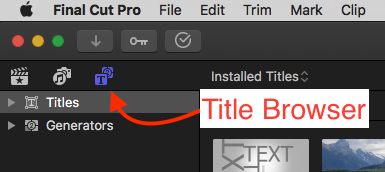
<p style="text-align: left;"><span style="font-size: 28px;">The Title Browser has been moved to the upper left corner of the Final Cut Pro X interface with the release of version 10.3.</span></p>
<div style="text-align: left;">
<img src="//cdn.shopify.com/s/files/1/0093/0892/files/Screen_Shot_2016-11-09_at_11.30.42_AM.png?v=1478709169" alt=""> </div>
<p style="text-align: left;"><span style="font-size: 28px;">The Effect and Transition Browsers are still in the lower right corner of the interface, but the icons have changed.</span></p>
<div style="text-align: center;"><img src="//cdn.shopify.com/s/files/1/0093/0892/files/Screen_Shot_2016-11-09_at_11.26.59_AM.png?v=1478709021" alt="" style="float: left;"></div>]]>
    </content>
  </entry>
  <entry>
    <id>https://www.fcpeffects.com/blogs/blog/18036316-save-effects-preset-how-to-create-and-save-presets-of-effects-in-final-cut-pro-x</id>
    <published>2015-04-15T09:47:00-04:00</published>
    <updated>2021-08-16T14:49:37-04:00</updated>
    <link rel="alternate" type="text/html" href="https://www.fcpeffects.com/blogs/blog/18036316-save-effects-preset-how-to-create-and-save-presets-of-effects-in-final-cut-pro-x"/>
    <title>Save Effects Preset: how to create and save presets of effects in Final Cut Pro X</title>
    <author>
      <name>Turner H</name>
    </author>
    <summary type="html">
      <![CDATA[<div style="text-align: center;"><span style="font-size: 28px;">Learn how to save presets of your favorite effect configurations in Final Cut Pro X 10.2 and higher.</span></div>
<div><img alt="" src="//cdn.shopify.com/s/files/1/0093/0892/files/03_Dialog_Window.jpg?12426644396935345865" style="float: none; display: block; margin-left: auto; margin-right: auto;"></div><p><a class="read-more" href="https://www.fcpeffects.com/blogs/blog/18036316-save-effects-preset-how-to-create-and-save-presets-of-effects-in-final-cut-pro-x">More</a></p>]]>
    </summary>
    <content type="html">
      <![CDATA[<div style="text-align: center;"><span style="font-size: 28px;">Before the release of Final Cut Pro X 10.2, there was no way to save effects configurations as presets for future use.</span></div>
<div style="text-align: center;"><span style="font-size: 28px;">The only option was to copy and paste configurations from one clip to another using the Paste Effects and Paste Attributes commands (read more about the Paste Attributes command <a href="http://www.fcpeffects.com/blogs/blog/4175482-copy-paste-effects-settings-from-one-clip-to-another" target="_blank" title="Paste Attributes Command" rel="noopener noreferrer">here</a>).</span></div>
<div style="text-align: center;"><span style="font-size: 28px;">Thankfully, in Final Cut Pro X 10.2, Apple added a great new feature to the application called "Save Effects Preset".</span></div>
<div style="text-align: center;"><span style="font-size: 28px;">Now you can configure a clip to your liking using multiple effects, settings, keyframes, etc. and then save that exact configuration for use in the future.</span></div>
<div style="text-align: center;"><span style="font-size: 28px;"><strong>Here's a breakdown of the steps needed to use this feature:</strong></span></div>
<div style="text-align: center;"><span style="font-size: 28px;">1 - Configure a clip exactly how you'll want to configure other clips in the future. You'll be able to save everything from the effects you've applied to the keyframes you set, so be sure to think of everything.</span></div>
<div style="text-align: center;"><img src="//cdn.shopify.com/s/files/1/0093/0892/files/02_Effects.jpg?5208282664895341193"></div>
<div style="text-align: center;"><span style="font-size: 28px;">2 - Click on the button labeled "Save Effects Preset" at the bottom of the Inspector window.</span></div>
<div style="text-align: center;"><img src="//cdn.shopify.com/s/files/1/0093/0892/files/01_Button.jpg?4235089128862779186"></div>
<div style="text-align: center;"><span style="font-size: 28px;">3 - Check all of the options that you want to save from this clip. Name your preset something memorable so you'll remember what it is that you've created. Also, choose or create a category that will also help you remember.</span></div>
<div style="text-align: center;"><img alt="" src="//cdn.shopify.com/s/files/1/0093/0892/files/03_Dialog_Window.jpg?12426644396935345865" style="float: none;"></div>
<div style="text-align: center;"><span style="font-size: 28px;">4 - Click save. You've now created an Effects Preset. It can be found in the Effect Browser in the category you chose.</span></div>
<div style="text-align: center;"><img alt="" src="//cdn.shopify.com/s/files/1/0093/0892/files/04_Effect_Browser_grande.jpg?5031425316822178443" style="float: none;"></div>
<div style="text-align: center;"><span style="font-size: 28px;">If you'd like to delete the preset, right click on it and choose Reveal in Finder or select it and press Command-Shift-R. Then, drag the preset into the Trash and restart Final Cut Pro X for the change to take effect.</span></div>
<div style="text-align: center;"><span style="font-size: 28px;">This feature also works with audio, making it possible to easily save all your favorite audio settings configurations too! Simply select the Audio tab at the top of the Inspector for any clip with audio follow the same process as above.</span></div>
<div style="text-align: center;"><span style="font-size: 28px;">This feature works with our effects too. Be sure to check them out!</span></div>]]>
    </content>
  </entry>
  <entry>
    <id>https://www.fcpeffects.com/blogs/blog/7555076-keyframe-tutorial-for-final-cut-pro-x</id>
    <published>2013-03-22T09:13:00-04:00</published>
    <updated>2021-08-16T14:49:10-04:00</updated>
    <link rel="alternate" type="text/html" href="https://www.fcpeffects.com/blogs/blog/7555076-keyframe-tutorial-for-final-cut-pro-x"/>
    <title>Keyframe Tutorial for Final Cut Pro X</title>
    <author>
      <name>Turner H</name>
    </author>
    <summary type="html">
      <![CDATA[<div style="text-align: center;"><span style="font-size: 28px;">Learn how keyframing works in Final Cut Pro X with this brief tutorial video...</span></div>
<style><!--
.embed-container { position: relative; padding-bottom: 56.25%; height: 0; overflow: hidden; max-width: 100%; } .embed-container iframe, .embed-container object, .embed-container embed { position: absolute; top: 0; left: 0; width: 100%; height: 100%; }
--></style>
<div class="embed-container"><iframe src="https://player.vimeo.com/video/62424861?title=0&amp;byline=0&amp;portrait=0" width="925" height="520" frameborder="0" webkitallowfullscreen="" allowfullscreen=""></iframe></div><p><a class="read-more" href="https://www.fcpeffects.com/blogs/blog/7555076-keyframe-tutorial-for-final-cut-pro-x">More</a></p>]]>
    </summary>
    <content type="html">
      <![CDATA[<div style="text-align: center;"><span style="font-size: 28px;">Watch this keyframing tutorial video to learn how to keyframe in Final Cut Pro X.</span></div>
<style><!--
.embed-container { position: relative; padding-bottom: 56.25%; height: 0; overflow: hidden; max-width: 100%; } .embed-container iframe, .embed-container object, .embed-container embed { position: absolute; top: 0; left: 0; width: 100%; height: 100%; }
--></style>
<div class="embed-container" style="text-align: center;"><iframe src="https://player.vimeo.com/video/62424861?title=0&amp;byline=0&amp;portrait=0" width="925" height="520" frameborder="0" webkitallowfullscreen="" allowfullscreen=""></iframe></div>
<div style="text-align: center;"><span style="font-size: 28px;">Text from video:</span></div>
<div style="text-align: left;">
<span style="text-align: center;"><strong>:04</strong> - Set keyframes for settings you want to animate</span><br><span style="text-align: center;"><strong>:10</strong> - The arrow keys on your keyboard are great for moving the playhead</span><br><span style="text-align: center;"><strong>:18</strong> - To keyframe at the end of a clip, press the left arrow key to move back one frame</span><br><span style="text-align: center;"><strong>:26</strong> - Since we created keyframes at the beginning of the clip, changes that we make at the end of the clip are automatically keyframed</span><br><span style="text-align: center;"><strong>:41</strong> - When the clip is played back, the values change based on the keyframes we created</span><br><span style="text-align: center;"><strong>:53</strong> - You can add a keyframe at any point in time during a clip in your timeline</span><br><span style="text-align: center;"><strong>1:07</strong> - To disable a keyframe, use the arrows next to the keyframe icon to move between the keyframes you've created and click on the yellow icon to disable it</span><br>
<ol style="text-align: center;"></ol>
</div>]]>
    </content>
  </entry>
  <entry>
    <id>https://www.fcpeffects.com/blogs/blog/4175482-copy-paste-effects-settings-from-one-clip-to-another</id>
    <published>2011-09-28T15:27:00-04:00</published>
    <updated>2021-08-16T14:53:54-04:00</updated>
    <link rel="alternate" type="text/html" href="https://www.fcpeffects.com/blogs/blog/4175482-copy-paste-effects-settings-from-one-clip-to-another"/>
    <title>Copy/paste effects &amp; settings from one clip to another</title>
    <author>
      <name>Turner H</name>
    </author>
    <summary type="html">
      <![CDATA[<div style="text-align: center;"><span style="font-size: 28px;">Copying effects and settings from one clip to another is easy with Final Cut Pro X's "Paste Attributes" feature...</span></div>
<div><img src="//cdn.shopify.com/s/files/1/0093/0892/files/Screen_Shot_2012-10-23_at_9.48.43_PM.png?2" style="display: block; margin-left: auto; margin-right: auto;"></div><p><a class="read-more" href="https://www.fcpeffects.com/blogs/blog/4175482-copy-paste-effects-settings-from-one-clip-to-another">More</a></p>]]>
    </summary>
    <content type="html">
      <![CDATA[<div style="text-align: center;"><span style="font-size: 28px;">Copying effects and settings from one clip to another is easy with FCPX's "Paste Attributes" feature (added in version 10.0.6). If you're using Final Cut Pro X 10.2 or higher, you can save effects and settings as presets. Click <a href="http://www.fcpeffects.com/blogs/blog/18036316-save-effects-preset-how-to-create-and-save-presets-of-effects-in-final-cut-pro-x">here</a> to learn how.</span></div>
<div style="text-align: center;"><img src="//cdn.shopify.com/s/files/1/0093/0892/files/Screen_Shot_2012-10-23_at_9.48.43_PM.png?2"></div>
<div style="text-align: center;"><span style="font-size: 28px;">Select a clip in your timeline that has effects or settings that you wish to copy and press Command-C.</span></div>
<div style="text-align: center;"><span style="font-size: 28px;">Then select the clip(s) you want to apply the effects and/or settings to in the timeline and press Command-Shift-V to "Paste Attributes".</span></div>
<div style="text-align: center;"><span style="font-size: 28px;">Then select which attributes from the copied clip that you want to add (paste) to the other clip(s).</span></div>
<div><img src="//cdn.shopify.com/s/files/1/0093/0892/files/Screen_Shot_2012-10-23_at_9.51.39_PM.png?4" style="display: block; margin-left: auto; margin-right: auto;"></div>]]>
    </content>
  </entry>
  <entry>
    <id>https://www.fcpeffects.com/blogs/blog/3879802-delete-fcpx-render-files-to-recover-hard-drive-space</id>
    <published>2011-08-25T00:08:00-04:00</published>
    <updated>2021-08-16T14:47:01-04:00</updated>
    <link rel="alternate" type="text/html" href="https://www.fcpeffects.com/blogs/blog/3879802-delete-fcpx-render-files-to-recover-hard-drive-space"/>
    <title>Delete Final Cut Pro (FCPX) Render Files to Recover Hard Drive Space</title>
    <author>
      <name>Turner H</name>
    </author>
    <summary type="html">
      <![CDATA[<div style="text-align: center;"><span style="font-size: 28px;">Final Cut Pro X uses a lot of hard drive space storing render files. To recover some of this hard drive space, it's important to delete these files from time to time (especially for projects you're not currently working on).</span></div>
<div style="text-align: center;"><span style="font-size: 28px;">Deleting these files will not harm your project(s). Final Cut Pro X will just have to recreate these files the next time you open the project...</span></div>
<style><!--
.embed-container { position: relative; padding-bottom: 56.25%; height: 0; overflow: hidden; max-width: 100%; } .embed-container iframe, .embed-container object, .embed-container embed { position: absolute; top: 0; left: 0; width: 100%; height: 100%; }
--></style>
<div class="embed-container"><iframe src="https://player.vimeo.com/video/238301554?background=1" width="925" height="520" frameborder="0" allow="autoplay; fullscreen" allowfullscreen=""></iframe></div><p><a class="read-more" href="https://www.fcpeffects.com/blogs/blog/3879802-delete-fcpx-render-files-to-recover-hard-drive-space">More</a></p>]]>
    </summary>
    <content type="html">
      <![CDATA[<style><!--
.embed-container { position: relative; padding-bottom: 56.25%; height: 0; overflow: hidden; max-width: 100%; } .embed-container iframe, .embed-container object, .embed-container embed { position: absolute; top: 0; left: 0; width: 100%; height: 100%; }
--></style>
<div class="embed-container" style="text-align: center;"><iframe src="https://player.vimeo.com/video/238301554?background=1" width="925" height="520" frameborder="0" allow="autoplay; fullscreen" allowfullscreen=""></iframe></div>
<div style="text-align: center;"><span style="font-size: 28px;">Final Cut Pro render files take up a lot of hard drive space. To recover some of this space, you can delete these files (especially for projects you're not currently working on).</span></div>
<div style="text-align: center;"><span style="font-size: 28px;">Deleting render files is easy and safe, Final Cut Pro will create them automatically when you open a project again.</span></div>
<div style="text-align: center;"><span style="font-size: 28px;"><strong>Process for deleting Final Cut Pro X render files:</strong></span></div>
<div style="text-align: center;"><span style="font-size: 28px;">1. Select a Library/Event/Project in the Browser by simply clicking on it so it's highlighted.</span></div>
<div style="text-align: center;"><span style="font-size: 28px;">2. In the menu; choose File &gt; "Delete Generated Library Files..." (or "Delete Generated Event Files..." or "Delete Generated Project Files..." depending on what you've selected)</span></div>
<div style="text-align: center;"><img src="//cdn.shopify.com/s/files/1/0093/0892/files/20170525_deleting_Final_Cut_Pro_X_render_files_screenshot.jpg?v=1495714912" alt=""></div>
<div style="text-align: center;"><span style="font-size: 28px;">3. Choose "Delete All Render Files" and Click OK.</span></div>
<div style="text-align: center;"><img src="//cdn.shopify.com/s/files/1/0093/0892/files/renderfiles2_8ffb899d-24fd-4188-948a-35781ba3bae6.jpg?1724"></div>
<div style="text-align: center;"><span style="font-size: 28px;">And that's it, your hard drive will thank you!</span></div>]]>
    </content>
  </entry>
  <entry>
    <id>https://www.fcpeffects.com/blogs/blog/3767512-final-cut-pro-x-keyboard-shortcuts-help-document</id>
    <published>2011-08-08T08:25:00-04:00</published>
    <updated>2023-01-24T18:03:56-05:00</updated>
    <link rel="alternate" type="text/html" href="https://www.fcpeffects.com/blogs/blog/3767512-final-cut-pro-x-keyboard-shortcuts-help-document"/>
    <title>Final Cut Pro X Keyboard Shortcuts</title>
    <author>
      <name>Turner H</name>
    </author>
    <summary type="html">
      <![CDATA[<p style="text-align: left;"><span style="font-size: 28px;">Knowing keyboard shortcuts for FCP X can save you a lot of time....</span></p>
<div><img src="//cdn.shopify.com/s/files/1/0093/0892/files/customize_Final_Cut_Pro_X_keyboard_shortcuts_grande.png?v=1482412275" alt=""></div><p><a class="read-more" href="https://www.fcpeffects.com/blogs/blog/3767512-final-cut-pro-x-keyboard-shortcuts-help-document">More</a></p>]]>
    </summary>
    <content type="html">
      <![CDATA[<p style="text-align: left;"><span style="font-size: 28px;">Keyboard shortcuts are an essential part of any video editing software, and Final Cut Pro X is no exception. </span></p>
<p style="text-align: left;"><span style="font-size: 28px;">With the right shortcuts, you can quickly and easily navigate the program, edit clips, and perform other tasks with just a few keystrokes. </span></p>
<p style="text-align: left;"><span style="font-size: 28px;">In this blog post, we’ll take a look at some of the most useful keyboard shortcuts in Final Cut Pro X. First, let’s start with the basics. </span></p>
<p style="text-align: left;"><span style="font-size: 28px;">To open a clip in the Viewer, press the “V” key. </span></p>
<p style="text-align: left;"><span style="font-size: 28px;">To open the Inspector, press the “I” key. </span></p>
<p style="text-align: left;"><span style="font-size: 28px;">To open the Timeline, press the “T” key. </span></p>
<p style="text-align: left;"><span style="font-size: 28px;">To open the Effects Browser, press the “E” key. </span></p>
<p style="text-align: left;"><span style="font-size: 28px;">Now, let’s look at some of the shortcuts for editing clips. </span></p>
<p style="text-align: left;"><span style="font-size: 28px;">To select a clip in the Timeline, press the “A” key. </span></p>
<p style="text-align: left;"><span style="font-size: 28px;">To move a clip in the Timeline, press the “M” key. </span></p>
<p style="text-align: left;"><span style="font-size: 28px;">To trim a clip in the Timeline, press the “T” key. </span></p>
<p style="text-align: left;"><span style="font-size: 28px;">To add a transition to a clip, press the “W” key. </span></p>
<p style="text-align: left;"><span style="font-size: 28px;">To add an effect to a clip, press the “F” key. </span></p>
<p style="text-align: left;"><span style="font-size: 28px;">Finally, let’s look at some of the shortcuts for navigating the program. </span></p>
<p style="text-align: left;"><span style="font-size: 28px;">To go to the beginning of the Timeline, press the “Home” key. </span></p>
<p style="text-align: left;"><span style="font-size: 28px;">To go to the end of the Timeline, press the “End” key. </span></p>
<p style="text-align: left;"><span style="font-size: 28px;">To go to the previous clip in the Timeline, press the “Page Up” key. </span></p>
<p style="text-align: left;"><span style="font-size: 28px;">To go to the next clip in the Timeline, press the “Page Down” key. </span></p>
<p style="text-align: left;"><span style="font-size: 28px;">These are just a few of the many keyboard shortcuts available in Final Cut Pro X. </span></p>
<p style="text-align: left;"><span style="font-size: 28px;">With a little practice, you’ll be able to quickly and easily navigate the program and edit clips with just a few keystrokes. </span></p>
<p style="text-align: left;"><span style="font-size: 28px;">You can also customize your keyboard shortcuts if you'd like:</span></p>
<div><img src="//cdn.shopify.com/s/files/1/0093/0892/files/customize_Final_Cut_Pro_X_keyboard_shortcuts_grande.png?v=1482412275" alt=""></div>
<p style="text-align: left;"><span style="font-size: 28px;">Here's a list of all of the Final Cut Pro X keyboard shortcuts. Press Command-F to search this page.</span></p>
<p style="text-align: left;"><span style="font-size: 28px;">Application </span></p>
<div id="ver15cd425f">
<div class="table-responsive">
<table data-type="Multicolumn" style="text-align: center;" aria-label="Application keyboard shortcuts">
<thead>
<tr>
<th style="width: 400px;">
<p>Action</p>
</th>
<th style="width: 263px;">
<p>Command</p>
</th>
<th style="width: 262px;">
<p>Shortcut</p>
</th>
</tr>
</thead>
<tbody>
<tr>
<td style="width: 278px;">
<p>Hide Final Cut Pro</p>
</td>
<td style="width: 134.109375px;">
<p>Hide Application</p>
</td>
<td style="width: 158.890625px;">
<p>Command-H</p>
</td>
</tr>
<tr>
<td style="width: 278px;">
<p>Hide all applications except Final Cut Pro</p>
</td>
<td style="width: 134.109375px;">
<p>Hide Other Applications</p>
</td>
<td style="width: 158.890625px;">
<p>Option-Command-H</p>
</td>
</tr>
<tr>
<td style="width: 278px;">
<p>Open the Command Editor</p>
</td>
<td style="width: 134.109375px;">
<p>Keyboard Customization</p>
</td>
<td style="width: 158.890625px;">
<p>Option-Command-K</p>
</td>
</tr>
<tr>
<td style="width: 278px;">
<p>Minimize Final Cut Pro</p>
</td>
<td style="width: 134.109375px;">
<p>Minimize</p>
</td>
<td style="width: 158.890625px;">
<p>Command-M</p>
</td>
</tr>
<tr>
<td style="width: 278px;">
<p>Open an existing library or a new library</p>
</td>
<td style="width: 134.109375px;">
<p>Open Library</p>
</td>
<td style="width: 158.890625px;">
<p>Command-O</p>
</td>
</tr>
<tr>
<td style="width: 278px;">
<p>Open the Final Cut Pro Preferences window</p>
</td>
<td style="width: 134.109375px;">
<p>Preferences </p>
</td>
<td style="width: 158.890625px;">
<p>Command-Comma (,)</p>
</td>
</tr>
<tr>
<td style="width: 278px;">
<p>Quit Final Cut Pro</p>
</td>
<td style="width: 134.109375px;">
<p>Quit</p>
</td>
<td style="width: 158.890625px;">
<p>Command-Q</p>
</td>
</tr>
<tr>
<td style="width: 278px;">
<p>Redo the last command</p>
</td>
<td style="width: 134.109375px;">
<p>Redo Change </p>
</td>
<td style="width: 158.890625px;">
<p>Shift-Command-Z</p>
</td>
</tr>
<tr>
<td style="width: 278px;">
<p>Undo the last command</p>
</td>
<td style="width: 134.109375px;">
<p>Undo Change </p>
</td>
<td style="width: 158.890625px;">
<p>Command-Z</p>
</td>
</tr>
</tbody>
</table>
</div>
</div>
<div id="ver15cd42d5">
<p style="text-align: left;"><span style="font-size: 28px;">Editing </span></p>
<div class="table-responsive">
<table data-type="Multicolumn" aria-label="Editing keyboard shortcuts" style="width: 581px;">
<thead>
<tr>
<th style="width: 252.328125px;">
<p>Action</p>
</th>
<th style="width: 168.671875px;">
<p>Command</p>
</th>
<th style="width: 145px;">
<p>Shortcut</p>
</th>
</tr>
</thead>
<tbody>
<tr>
<td style="width: 252.328125px;">
<p>Adjust the audio volume across all selected clips to a specific dB value</p>
</td>
<td style="width: 168.671875px;">
<p>Adjust Volume Absolute</p>
</td>
<td style="width: 145px;">
<p>Control-Option-L</p>
</td>
</tr>
<tr>
<td style="width: 252.328125px;">
<p>Adjust the audio volume across all selected clips by the same dB value</p>
</td>
<td style="width: 168.671875px;">
<p>Adjust Volume Relative</p>
</td>
<td style="width: 145px;">
<p>Control-L</p>
</td>
</tr>
<tr>
<td style="width: 252.328125px;">
<p>Add the selection to the end of the <a href="https://support.apple.com/kb/index?page=link&amp;apdid=ver2bea6bc6&amp;viewlocale=en_US&amp;bookId=Final%20Cut%20Pro%20X%20Help133280">storyline</a></p>
</td>
<td style="width: 168.671875px;">
<p>Append to Storyline</p>
</td>
<td style="width: 145px;">
<p>E</p>
</td>
</tr>
<tr>
<td style="width: 252.328125px;">
<p>Add the selected clip to the <a href="https://support.apple.com/kb/index?page=link&amp;apdid=ver917090a3&amp;viewlocale=en_US&amp;bookId=Final%20Cut%20Pro%20X%20Help133280">audition</a></p>
</td>
<td style="width: 168.671875px;">
<p>Audition: Add to Audition</p>
</td>
<td style="width: 145px;">
<p>Control-Shift-Y</p>
</td>
</tr>
<tr>
<td style="width: 252.328125px;">
<p>Create an audition with a <a href="https://support.apple.com/kb/index?page=link&amp;apdid=ver4cdefe82&amp;viewlocale=en_US&amp;bookId=Final%20Cut%20Pro%20X%20Help133280">timeline</a> clip and a duplicate version of the clip, including applied effects</p>
</td>
<td style="width: 168.671875px;">
<p>Audition: Duplicate as Audition</p>
</td>
<td style="width: 145px;">
<p>Option-Y</p>
</td>
</tr>
<tr>
<td style="width: 252.328125px;">
<p>Duplicate the selected audition clip without applied effects</p>
</td>
<td style="width: 168.671875px;">
<p>Audition: Duplicate from Original </p>
</td>
<td style="width: 145px;">
<p>Shift-Command-Y</p>
</td>
</tr>
<tr>
<td style="width: 252.328125px;">
<p>Create an audition and replace the timeline clip with the current selection</p>
</td>
<td style="width: 168.671875px;">
<p>Audition: Replace and Add to Audition</p>
</td>
<td style="width: 145px;">
<p>Shift-Y</p>
</td>
</tr>
<tr>
<td style="width: 252.328125px;">
<p>Cut the <a href="https://support.apple.com/kb/index?page=link&amp;apdid=ver2bea6bc6&amp;viewlocale=en_US&amp;bookId=Final%20Cut%20Pro%20X%20Help133280">primary storyline</a> clip (or the selection) at the <a href="https://support.apple.com/kb/index?page=link&amp;apdid=ver8e3f32f0&amp;viewlocale=en_US&amp;bookId=Final%20Cut%20Pro%20X%20Help133280">skimmer</a> or <a href="https://support.apple.com/kb/index?page=link&amp;apdid=verb97d10d4&amp;viewlocale=en_US&amp;bookId=Final%20Cut%20Pro%20X%20Help133280">playhead</a>location</p>
</td>
<td style="width: 168.671875px;">
<p>Blade </p>
</td>
<td style="width: 145px;">
<p>Command-B</p>
</td>
</tr>
<tr>
<td style="width: 252.328125px;">
<p>Cut all clips at the skimmer or playhead location</p>
</td>
<td style="width: 168.671875px;">
<p>Blade All</p>
</td>
<td style="width: 145px;">
<p>Shift-Command-B</p>
</td>
</tr>
<tr>
<td style="width: 252.328125px;">
<p>Break the selected item into its component parts</p>
</td>
<td style="width: 168.671875px;">
<p>Break Apart Clip Items </p>
</td>
<td style="width: 145px;">
<p>Shift-Command-G</p>
</td>
</tr>
<tr>
<td style="width: 252.328125px;">
<p>Change the duration of the selection</p>
</td>
<td style="width: 168.671875px;">
<p>Change Duration </p>
</td>
<td style="width: 145px;">
<p>Control-D</p>
</td>
</tr>
<tr>
<td style="width: 252.328125px;">
<p>Connect the default <a href="https://support.apple.com/kb/index?page=link&amp;apdid=verc1fe963e&amp;viewlocale=en_US&amp;bookId=Final%20Cut%20Pro%20X%20Help133280">lower third</a> to the primary storyline</p>
</td>
<td style="width: 168.671875px;">
<p>Connect Default Lower Third</p>
</td>
<td style="width: 145px;">
<p>Control-Shift-T</p>
</td>
</tr>
<tr>
<td style="width: 252.328125px;">
<p>Connect the default title to the primary storyline</p>
</td>
<td style="width: 168.671875px;">
<p>Connect Default Title</p>
</td>
<td style="width: 145px;">
<p>Control-T</p>
</td>
</tr>
<tr>
<td style="width: 252.328125px;">
<p>Connect the selection to the primary storyline</p>
</td>
<td style="width: 168.671875px;">
<p>Connect to Primary Storyline </p>
</td>
<td style="width: 145px;">
<p>Q</p>
</td>
</tr>
<tr>
<td style="width: 252.328125px;">
<p>Connect the selection to the primary storyline, aligning the selection’s end point with the skimmer or playhead</p>
</td>
<td style="width: 168.671875px;">
<p>Connect to Primary Storyline - Backtimed </p>
</td>
<td style="width: 145px;">
<p>Shift-Q</p>
</td>
</tr>
<tr>
<td style="width: 252.328125px;">
<p>Copy the selection</p>
</td>
<td style="width: 168.671875px;">
<p>Copy </p>
</td>
<td style="width: 145px;">
<p>Command-C</p>
</td>
</tr>
<tr>
<td style="width: 252.328125px;">
<p>Create an audition from the selection</p>
</td>
<td style="width: 168.671875px;">
<p>Create Audition </p>
</td>
<td style="width: 145px;">
<p>Command-Y</p>
</td>
</tr>
<tr>
<td style="width: 252.328125px;">
<p>Create a storyline from a selection of <a href="https://support.apple.com/kb/index?page=link&amp;apdid=ver8e3f35b1&amp;viewlocale=en_US&amp;bookId=Final%20Cut%20Pro%20X%20Help133280">connected clips</a></p>
</td>
<td style="width: 168.671875px;">
<p>Create Storyline </p>
</td>
<td style="width: 145px;">
<p>Command-G</p>
</td>
</tr>
<tr>
<td style="width: 252.328125px;">
<p>Cut the selection</p>
</td>
<td style="width: 168.671875px;">
<p>Cut </p>
</td>
<td style="width: 145px;">
<p>Command-X</p>
</td>
</tr>
<tr>
<td style="width: 252.328125px;">
<p>Cut and switch the multicam clip to angle 1 of the current bank</p>
</td>
<td style="width: 168.671875px;">
<p>Cut and Switch to Viewer Angle 1 </p>
</td>
<td style="width: 145px;">
<p>1</p>
</td>
</tr>
<tr>
<td style="width: 252.328125px;">
<p>Cut and switch the multicam clip to angle 2 of the current bank</p>
</td>
<td style="width: 168.671875px;">
<p>Cut and Switch to Viewer Angle 2</p>
</td>
<td style="width: 145px;">
<p>2</p>
</td>
</tr>
<tr>
<td style="width: 252.328125px;">
<p>Cut and switch the multicam clip to angle 3 of the current bank</p>
</td>
<td style="width: 168.671875px;">
<p>Cut and Switch to Viewer Angle 3</p>
</td>
<td style="width: 145px;">
<p>3</p>
</td>
</tr>
<tr>
<td style="width: 252.328125px;">
<p>Cut and switch the multicam clip to angle 4 of the current bank</p>
</td>
<td style="width: 168.671875px;">
<p>Cut and Switch to Viewer Angle 4</p>
</td>
<td style="width: 145px;">
<p>4</p>
</td>
</tr>
<tr>
<td style="width: 252.328125px;">
<p>Cut and switch the multicam clip to angle 5 of the current bank</p>
</td>
<td style="width: 168.671875px;">
<p>Cut and Switch to Viewer Angle 5</p>
</td>
<td style="width: 145px;">
<p>5</p>
</td>
</tr>
<tr>
<td style="width: 252.328125px;">
<p>Cut and switch the multicam clip to angle 6 of the current bank</p>
</td>
<td style="width: 168.671875px;">
<p>Cut and Switch to Viewer Angle 6</p>
</td>
<td style="width: 145px;">
<p>6</p>
</td>
</tr>
<tr>
<td style="width: 252.328125px;">
<p>Cut and switch the multicam clip to angle 7 of the current bank</p>
</td>
<td style="width: 168.671875px;">
<p>Cut and Switch to Viewer Angle 7</p>
</td>
<td style="width: 145px;">
<p>7</p>
</td>
</tr>
<tr>
<td style="width: 252.328125px;">
<p>Cut and switch the multicam clip to angle 8 of the current bank</p>
</td>
<td style="width: 168.671875px;">
<p>Cut and Switch to Viewer Angle 8</p>
</td>
<td style="width: 145px;">
<p>8</p>
</td>
</tr>
<tr>
<td style="width: 252.328125px;">
<p>Cut and switch the multicam clip to angle 9 of the current bank</p>
</td>
<td style="width: 168.671875px;">
<p>Cut and Switch to Viewer Angle 9</p>
</td>
<td style="width: 145px;">
<p>9</p>
</td>
</tr>
<tr>
<td style="width: 252.328125px;">
<p>Delete the timeline selection, reject the <a href="https://support.apple.com/kb/index?page=link&amp;apdid=ver91709375&amp;viewlocale=en_US&amp;bookId=Final%20Cut%20Pro%20X%20Help133280">browser</a> selection, or remove a <a href="https://support.apple.com/kb/index?page=link&amp;apdid=vere76f0e91&amp;viewlocale=en_US&amp;bookId=Final%20Cut%20Pro%20X%20Help133280">through edit</a></p>
</td>
<td style="width: 168.671875px;">
<p>Delete </p>
</td>
<td style="width: 145px;">
<p>Delete</p>
</td>
</tr>
<tr>
<td style="width: 252.328125px;">
<p>Delete the selection and attach the connected clip or clips to the resulting <a href="https://support.apple.com/kb/index?page=link&amp;apdid=verc1feb420&amp;viewlocale=en_US&amp;bookId=Final%20Cut%20Pro%20X%20Help133280">gap clip</a></p>
</td>
<td style="width: 168.671875px;">
<p>Delete Selection Only</p>
</td>
<td style="width: 145px;">
<p>Option-Command-Delete</p>
</td>
</tr>
<tr>
<td style="width: 252.328125px;">
<p>Deselect all selected items</p>
</td>
<td style="width: 168.671875px;">
<p>Deselect All </p>
</td>
<td style="width: 145px;">
<p>Shift-Command-A</p>
</td>
</tr>
<tr>
<td style="width: 252.328125px;">
<p>Duplicate the browser selection</p>
</td>
<td style="width: 168.671875px;">
<p>Duplicate </p>
</td>
<td style="width: 145px;">
<p>Command-D</p>
</td>
</tr>
<tr>
<td style="width: 252.328125px;">
<p>Enable or disable playback for the selection</p>
</td>
<td style="width: 168.671875px;">
<p>Enable/Disable Clip</p>
</td>
<td style="width: 145px;">
<p>V</p>
</td>
</tr>
<tr>
<td style="width: 252.328125px;">
<p>View audio and video separately for selected clips</p>
</td>
<td style="width: 168.671875px;">
<p>Expand Audio</p>
</td>
<td style="width: 145px;">
<p>Control-S</p>
</td>
</tr>
<tr>
<td style="width: 252.328125px;">
<p>Expand or collapse <a href="https://support.apple.com/kb/index?page=link&amp;apdid=ver1e17f318&amp;viewlocale=en_US&amp;bookId=Final%20Cut%20Pro%20X%20Help133280">audio components</a> for the selection in the timeline</p>
</td>
<td style="width: 168.671875px;">
<p>Expand/Collapse Audio Components </p>
</td>
<td style="width: 145px;">
<p>Control-Option-S</p>
</td>
</tr>
<tr>
<td style="width: 252.328125px;">
<p>Extend the selected edit point to the skimmer or playhead position</p>
</td>
<td style="width: 168.671875px;">
<p>Extend Edit </p>
</td>
<td style="width: 145px;">
<p>Shift-X</p>
</td>
</tr>
<tr>
<td style="width: 252.328125px;">
<p>In the browser, add the next item to the selection</p>
</td>
<td style="width: 168.671875px;">
<p>Extend Selection Down</p>
</td>
<td style="width: 145px;">
<p>Shift-Down Arrow</p>
</td>
</tr>
<tr>
<td style="width: 252.328125px;">
<p>In the browser, add the previous item to the selection</p>
</td>
<td style="width: 168.671875px;">
<p>Extend Selection Up</p>
</td>
<td style="width: 145px;">
<p>Shift-Up Arrow</p>
</td>
</tr>
<tr>
<td style="width: 252.328125px;">
<p>Dissolve the audition and replace it with the audition pick</p>
</td>
<td style="width: 168.671875px;">
<p>Finalize Audition</p>
</td>
<td style="width: 145px;">
<p>Option-Shift-Y</p>
</td>
</tr>
<tr>
<td style="width: 252.328125px;">
<p>Insert the selection at the skimmer or playhead position </p>
</td>
<td style="width: 168.671875px;">
<p>Insert</p>
</td>
<td style="width: 145px;">
<p>W</p>
</td>
</tr>
<tr>
<td style="width: 252.328125px;">
<p>Insert a freeze frame at the playhead or skimmer location in the timeline, or connect a freeze frame from the skimmer or playhead location in the event to the playhead location in the timeline</p>
</td>
<td style="width: 168.671875px;">
<p>Insert/Connect Freeze Frame</p>
</td>
<td style="width: 145px;">
<p>Option-F</p>
</td>
</tr>
<tr>
<td style="width: 252.328125px;">
<p>Insert a gap clip at the skimmer or playhead position</p>
</td>
<td style="width: 168.671875px;">
<p>Insert Gap </p>
</td>
<td style="width: 145px;">
<p>Option-W</p>
</td>
</tr>
<tr>
<td style="width: 252.328125px;">
<p>Insert the default generator at the skimmer or playhead position</p>
</td>
<td style="width: 168.671875px;">
<p>Insert Default Generator</p>
</td>
<td style="width: 145px;">
<p>Option-Command-W</p>
</td>
</tr>
<tr>
<td style="width: 252.328125px;">
<p>Lift the selection from the storyline and connect it to the resulting gap clips</p>
</td>
<td style="width: 168.671875px;">
<p>Lift from Storyline </p>
</td>
<td style="width: 145px;">
<p>Option-Command-Up Arrow</p>
</td>
</tr>
<tr>
<td style="width: 252.328125px;">
<p>Lower the audio volume by 1 dB</p>
</td>
<td style="width: 168.671875px;">
<p>Lower Volume 1 dB </p>
</td>
<td style="width: 145px;">
<p>Control-Hyphen (-)</p>
</td>
</tr>
<tr>
<td style="width: 252.328125px;">
<p>Move the playhead by entering a <a href="https://support.apple.com/kb/index?page=link&amp;apdid=ver2bea7ee9&amp;viewlocale=en_US&amp;bookId=Final%20Cut%20Pro%20X%20Help133280">timecode</a> value</p>
</td>
<td style="width: 168.671875px;">
<p>Move Playhead Position</p>
</td>
<td style="width: 145px;">
<p>Control-P</p>
</td>
</tr>
<tr>
<td style="width: 252.328125px;">
<p>Create a new <a href="https://support.apple.com/kb/index?page=link&amp;apdid=ver8e3f3205&amp;viewlocale=en_US&amp;bookId=Final%20Cut%20Pro%20X%20Help133280">compound clip</a> (if there’s no selection, create an empty compound clip)</p>
</td>
<td style="width: 168.671875px;">
<p>New Compound Clip</p>
</td>
<td style="width: 145px;">
<p>Option-G</p>
</td>
</tr>
<tr>
<td style="width: 252.328125px;">
<p>Nudge the selected audio <a href="https://support.apple.com/kb/index?page=link&amp;apdid=verc1febd4d&amp;viewlocale=en_US&amp;bookId=Final%20Cut%20Pro%20X%20Help133280">edit point</a> left by one <a href="https://support.apple.com/kb/index?page=link&amp;apdid=ver8e3f3850&amp;viewlocale=en_US&amp;bookId=Final%20Cut%20Pro%20X%20Help133280">subframe</a>, creating a <a href="https://support.apple.com/kb/index?page=link&amp;apdid=verb97d0a35&amp;viewlocale=en_US&amp;bookId=Final%20Cut%20Pro%20X%20Help133280">split edit</a></p>
</td>
<td style="width: 168.671875px;">
<p>Nudge Audio Subframe Left</p>
</td>
<td style="width: 145px;">
<p>Option-Comma (,)</p>
</td>
</tr>
<tr>
<td style="width: 252.328125px;">
<p>Nudge the selected audio edit point left by 10 subframes, creating a split edit</p>
</td>
<td style="width: 168.671875px;">
<p>Nudge Audio Subframe Left Many</p>
</td>
<td style="width: 145px;">
<p>Option-Shift-Comma (,)</p>
</td>
</tr>
<tr>
<td style="width: 252.328125px;">
<p>Nudge the selected audio edit point right by one subframe, creating a split edit</p>
</td>
<td style="width: 168.671875px;">
<p>Nudge Audio Subframe Right</p>
</td>
<td style="width: 145px;">
<p>Option-Period (.)</p>
</td>
</tr>
<tr>
<td style="width: 252.328125px;">
<p>Nudge the selected audio edit point right by 10 subframes, creating a split edit</p>
</td>
<td style="width: 168.671875px;">
<p>Nudge Audio Subframe Right Many </p>
</td>
<td style="width: 145px;">
<p>Option-Shift-Period (.)</p>
</td>
</tr>
<tr>
<td style="width: 252.328125px;">
<p>Nudge down the value of the selected <a href="https://support.apple.com/kb/index?page=link&amp;apdid=ver15f88228&amp;viewlocale=en_US&amp;bookId=Final%20Cut%20Pro%20X%20Help133280">keyframe</a> in the <a href="https://support.apple.com/kb/index?page=link&amp;apdid=ver15f87fcc&amp;viewlocale=en_US&amp;bookId=Final%20Cut%20Pro%20X%20Help133280">animation editor</a></p>
</td>
<td style="width: 168.671875px;">
<p>Nudge Down</p>
</td>
<td style="width: 145px;">
<p>Option-Down Arrow</p>
</td>
</tr>
<tr>
<td style="width: 252.328125px;">
<p>Nudge the selection one unit to the left</p>
</td>
<td style="width: 168.671875px;">
<p>Nudge Left</p>
</td>
<td style="width: 145px;">
<p>Comma (,)</p>
</td>
</tr>
<tr>
<td style="width: 252.328125px;">
<p>Nudge the selection 10 units to the left</p>
</td>
<td style="width: 168.671875px;">
<p>Nudge Left Many</p>
</td>
<td style="width: 145px;">
<p>Shift-Comma (,)</p>
</td>
</tr>
<tr>
<td style="width: 252.328125px;">
<p>Nudge the selection one unit to the right</p>
</td>
<td style="width: 168.671875px;">
<p>Nudge Right</p>
</td>
<td style="width: 145px;">
<p>Period (.)</p>
</td>
</tr>
<tr>
<td style="width: 252.328125px;">
<p>Nudge the selection 10 units to the right</p>
</td>
<td style="width: 168.671875px;">
<p>Nudge Right Many</p>
</td>
<td style="width: 145px;">
<p>Shift-Period (.)</p>
</td>
</tr>
<tr>
<td style="width: 252.328125px;">
<p>Nudge up the value of the selected keyframe in the animation editor</p>
</td>
<td style="width: 168.671875px;">
<p>Nudge Up </p>
</td>
<td style="width: 145px;">
<p>Option-Up Arrow</p>
</td>
</tr>
<tr>
<td style="width: 252.328125px;">
<p>Open the selected audition</p>
</td>
<td style="width: 168.671875px;">
<p>Open Audition</p>
</td>
<td style="width: 145px;">
<p>Y</p>
</td>
</tr>
<tr>
<td style="width: 252.328125px;">
<p>Temporarily override clip connections for the selection</p>
</td>
<td style="width: 168.671875px;">
<p>Override Connections </p>
</td>
<td style="width: 145px;">
<p>Grave Accent (`)</p>
</td>
</tr>
<tr>
<td style="width: 252.328125px;">
<p>Overwrite at the skimmer or playhead position</p>
</td>
<td style="width: 168.671875px;">
<p>Overwrite </p>
</td>
<td style="width: 145px;">
<p>D</p>
</td>
</tr>
<tr>
<td style="width: 252.328125px;">
<p>Overwrite from the skimmer or playhead position back</p>
</td>
<td style="width: 168.671875px;">
<p>Overwrite - Backtimed</p>
</td>
<td style="width: 145px;">
<p>Shift-D</p>
</td>
</tr>
<tr>
<td style="width: 252.328125px;">
<p>Overwrite at the skimmer or playhead position in the primary storyline</p>
</td>
<td style="width: 168.671875px;">
<p>Overwrite to Primary Storyline </p>
</td>
<td style="width: 145px;">
<p>Option-Command-Down Arrow</p>
</td>
</tr>
<tr>
<td style="width: 252.328125px;">
<p>Paste the selection and connect it to the primary storyline</p>
</td>
<td style="width: 168.671875px;">
<p>Paste as Connected </p>
</td>
<td style="width: 145px;">
<p>Option-V</p>
</td>
</tr>
<tr>
<td style="width: 252.328125px;">
<p>Insert the Clipboard contents at the skimmer or playhead position</p>
</td>
<td style="width: 168.671875px;">
<p>Paste Insert at Playhead</p>
</td>
<td style="width: 145px;">
<p>Command-V</p>
</td>
</tr>
<tr>
<td style="width: 252.328125px;">
<p>Switch to the previous angle in the <a href="https://support.apple.com/kb/index?page=link&amp;apdid=vere76f12b2&amp;viewlocale=en_US&amp;bookId=Final%20Cut%20Pro%20X%20Help133280">multicam clip</a></p>
</td>
<td style="width: 168.671875px;">
<p>Previous Angle</p>
</td>
<td style="width: 145px;">
<p>Control-Shift-Left Arrow</p>
</td>
</tr>
<tr>
<td style="width: 252.328125px;">
<p>Switch to the previous audio angle in the multicam clip</p>
</td>
<td style="width: 168.671875px;">
<p>Previous Audio Angle</p>
</td>
<td style="width: 145px;">
<p>Option-Shift-Left Arrow</p>
</td>
</tr>
<tr>
<td style="width: 252.328125px;">
<p>Select the previous clip in the Audition window, making it the audition pick</p>
</td>
<td style="width: 168.671875px;">
<p>Previous Pick</p>
</td>
<td style="width: 145px;">
<p>Control-Left Arrow</p>
</td>
</tr>
<tr>
<td style="width: 252.328125px;">
<p>Switch to the previous video angle in the multicam clip</p>
</td>
<td style="width: 168.671875px;">
<p>Previous Video Angle</p>
</td>
<td style="width: 145px;">
<p>Shift-Command-Left Arrow</p>
</td>
</tr>
<tr>
<td style="width: 252.328125px;">
<p>Raise the audio volume by 1 dB</p>
</td>
<td style="width: 168.671875px;">
<p>Raise Volume 1 dB</p>
</td>
<td style="width: 145px;">
<p>Control-Equal Sign (=)</p>
</td>
</tr>
<tr>
<td style="width: 252.328125px;">
<p>Replace the selected clip in the timeline with the browser selection</p>
</td>
<td style="width: 168.671875px;">
<p>Replace</p>
</td>
<td style="width: 145px;">
<p>Shift-R</p>
</td>
</tr>
<tr>
<td style="width: 252.328125px;">
<p>Replace the selected clip in the timeline with the browser selection, starting from its start point</p>
</td>
<td style="width: 168.671875px;">
<p>Replace from Start</p>
</td>
<td style="width: 145px;">
<p>Option-R</p>
</td>
</tr>
<tr>
<td style="width: 252.328125px;">
<p>Replace the selected timeline clip with a gap clip</p>
</td>
<td style="width: 168.671875px;">
<p>Replace with Gap </p>
</td>
<td style="width: 145px;">
<p>Shift-Delete</p>
</td>
</tr>
<tr>
<td style="width: 252.328125px;">
<p>Select all clips</p>
</td>
<td style="width: 168.671875px;">
<p>Select All</p>
</td>
<td style="width: 145px;">
<p>Command-A</p>
</td>
</tr>
<tr>
<td style="width: 252.328125px;">
<p>Select the clip under the pointer in the timeline</p>
</td>
<td style="width: 168.671875px;">
<p>Select Clip</p>
</td>
<td style="width: 145px;">
<p>C</p>
</td>
</tr>
<tr>
<td style="width: 252.328125px;">
<p>For audio/video clips in expanded view, select the left edge of the audio edit point</p>
</td>
<td style="width: 168.671875px;">
<p>Select Left Audio Edge</p>
</td>
<td style="width: 145px;">
<p>Shift-Left Bracket ([)</p>
</td>
</tr>
<tr>
<td style="width: 252.328125px;">
<p>Select the left edge of the edit point</p>
</td>
<td style="width: 168.671875px;">
<p>Select Left Edge</p>
</td>
<td style="width: 145px;">
<p>Left Bracket ([)</p>
</td>
</tr>
<tr>
<td style="width: 252.328125px;">
<p>For audio/video clips in expanded view, select the left and right edges of the audio edit point</p>
</td>
<td style="width: 168.671875px;">
<p>Select Left and Right Audio Edit Edges</p>
</td>
<td style="width: 145px;">
<p>Shift-Backslash (\)</p>
</td>
</tr>
<tr>
<td style="width: 252.328125px;">
<p>Select the left and right edges of the edit point</p>
</td>
<td style="width: 168.671875px;">
<p>Select Left and Right Edit Edges</p>
</td>
<td style="width: 145px;">
<p>Backslash (\)</p>
</td>
</tr>
<tr>
<td style="width: 252.328125px;">
<p>For audio/video clips in expanded view, select the left and right edges of the video edit point</p>
</td>
<td style="width: 168.671875px;">
<p>Select Left and Right Video Edit Edges</p>
</td>
<td style="width: 145px;">
<p>Control-Backslash (\)</p>
</td>
</tr>
<tr>
<td style="width: 252.328125px;">
<p>For audio/video clips in expanded view, select the left edge of the video edit point</p>
</td>
<td style="width: 168.671875px;">
<p>Select Left Video Edge</p>
</td>
<td style="width: 145px;">
<p>Control-Left Bracket ([)</p>
</td>
</tr>
<tr>
<td style="width: 252.328125px;">
<p>Switch to the next angle in the multicam clip</p>
</td>
<td style="width: 168.671875px;">
<p>Select Next Angle</p>
</td>
<td style="width: 145px;">
<p>Control-Shift-Right Arrow</p>
</td>
</tr>
<tr>
<td style="width: 252.328125px;">
<p>Switch to the next audio angle in the multicam clip</p>
</td>
<td style="width: 168.671875px;">
<p>Select Next Audio Angle</p>
</td>
<td style="width: 145px;">
<p>Option-Shift-Right Arrow</p>
</td>
</tr>
<tr>
<td style="width: 252.328125px;">
<p>Select the next clip in the Audition window, making it the audition pick</p>
</td>
<td style="width: 168.671875px;">
<p>Select Next Pick</p>
</td>
<td style="width: 145px;">
<p>Control-Right Arrow</p>
</td>
</tr>
<tr>
<td style="width: 252.328125px;">
<p>Switch to the next video angle in the multicam clip</p>
</td>
<td style="width: 168.671875px;">
<p>Select Next Video Angle</p>
</td>
<td style="width: 145px;">
<p>Shift-Command-Right Arrow</p>
</td>
</tr>
<tr>
<td style="width: 252.328125px;">
<p>For audio/video clips in expanded view, select the right edge of the audio edit point</p>
</td>
<td style="width: 168.671875px;">
<p>Select Right Audio Edge</p>
</td>
<td style="width: 145px;">
<p>Shift-Right Bracket (])</p>
</td>
</tr>
<tr>
<td style="width: 252.328125px;">
<p>Select the right edge of the edit point</p>
</td>
<td style="width: 168.671875px;">
<p>Select Right Edge</p>
</td>
<td style="width: 145px;">
<p>Right Bracket (])</p>
</td>
</tr>
<tr>
<td style="width: 252.328125px;">
<p>For audio/video clips in expanded view, select the right edge of the video edit point</p>
</td>
<td style="width: 168.671875px;">
<p>Select Right Video Edge</p>
</td>
<td style="width: 145px;">
<p>Control-Right Bracket (])</p>
</td>
</tr>
<tr>
<td style="width: 252.328125px;">
<p>Set an additional <a href="https://support.apple.com/kb/index?page=link&amp;apdid=verc1fe8199&amp;viewlocale=en_US&amp;bookId=Final%20Cut%20Pro%20X%20Help133280">range</a> selection end point at the playhead or skimmer location</p>
</td>
<td style="width: 168.671875px;">
<p>Set Additional Selection End</p>
</td>
<td style="width: 145px;">
<p>Shift-Command-O</p>
</td>
</tr>
<tr>
<td style="width: 252.328125px;">
<p>Set an additional range selection start point at the playhead or skimmer location</p>
</td>
<td style="width: 168.671875px;">
<p>Set Additional Selection Start</p>
</td>
<td style="width: 145px;">
<p>Shift-Command-I</p>
</td>
</tr>
<tr>
<td style="width: 252.328125px;">
<p>When an edit point is selected, show or hide the precision editor</p>
</td>
<td style="width: 168.671875px;">
<p>Show/Hide Precision Editor</p>
</td>
<td style="width: 145px;">
<p>Control-E</p>
</td>
</tr>
<tr>
<td style="width: 252.328125px;">
<p>Turn <a href="https://support.apple.com/kb/index?page=link&amp;apdid=verb97d145e&amp;viewlocale=en_US&amp;bookId=Final%20Cut%20Pro%20X%20Help133280">snapping</a> on or off</p>
</td>
<td style="width: 168.671875px;">
<p>Snapping</p>
</td>
<td style="width: 145px;">
<p>N</p>
</td>
</tr>
<tr>
<td style="width: 252.328125px;">
<p>Solo the selected items in the timeline</p>
</td>
<td style="width: 168.671875px;">
<p>Solo</p>
</td>
<td style="width: 145px;">
<p>Option-S</p>
</td>
</tr>
<tr>
<td style="width: 252.328125px;">
<p>Turn on audio/video mode to add the video and audio portion of your selection to the timeline</p>
</td>
<td style="width: 168.671875px;">
<p>Source Media: Audio &amp; Video</p>
</td>
<td style="width: 145px;">
<p>Shift-1</p>
</td>
</tr>
<tr>
<td style="width: 252.328125px;">
<p>Turn on audio-only mode to add the audio portion of your selection to the timeline</p>
</td>
<td style="width: 168.671875px;">
<p>Source Media: Audio Only</p>
</td>
<td style="width: 145px;">
<p>Shift-3</p>
</td>
</tr>
<tr>
<td style="width: 252.328125px;">
<p>Turn on video-only mode to add the video portion of your selection to the timeline</p>
</td>
<td style="width: 168.671875px;">
<p>Source Media: Video Only</p>
</td>
<td style="width: 145px;">
<p>Shift-2</p>
</td>
</tr>
<tr>
<td style="width: 252.328125px;">
<p>Switch the multicam clip to angle 1 of the current bank</p>
</td>
<td style="width: 168.671875px;">
<p>Switch to Viewer Angle 1</p>
</td>
<td style="width: 145px;">
<p>Option-1</p>
</td>
</tr>
<tr>
<td style="width: 252.328125px;">
<p>Switch the multicam clip to angle 2 of the current bank</p>
</td>
<td style="width: 168.671875px;">
<p>Switch to Viewer Angle 2</p>
</td>
<td style="width: 145px;">
<p>Option-2</p>
</td>
</tr>
<tr>
<td style="width: 252.328125px;">
<p>Switch the multicam clip to angle 3 of the current bank</p>
</td>
<td style="width: 168.671875px;">
<p>Switch to Viewer Angle 3</p>
</td>
<td style="width: 145px;">
<p>Option-3</p>
</td>
</tr>
<tr>
<td style="width: 252.328125px;">
<p>Switch the multicam clip to angle 4 of the current bank</p>
</td>
<td style="width: 168.671875px;">
<p>Switch to Viewer Angle 4</p>
</td>
<td style="width: 145px;">
<p>Option-4</p>
</td>
</tr>
<tr>
<td style="width: 252.328125px;">
<p>Switch the multicam clip to angle 5 of the current bank</p>
</td>
<td style="width: 168.671875px;">
<p>Switch to Viewer Angle 5</p>
</td>
<td style="width: 145px;">
<p>Option-5</p>
</td>
</tr>
<tr>
<td style="width: 252.328125px;">
<p>Switch the multicam clip to angle 6 of the current bank</p>
</td>
<td style="width: 168.671875px;">
<p>Switch to Viewer Angle 6</p>
</td>
<td style="width: 145px;">
<p>Option-6</p>
</td>
</tr>
<tr>
<td style="width: 252.328125px;">
<p>Switch the multicam clip to angle 7 of the current bank</p>
</td>
<td style="width: 168.671875px;">
<p>Switch to Viewer Angle 7</p>
</td>
<td style="width: 145px;">
<p>Option-7</p>
</td>
</tr>
<tr>
<td style="width: 252.328125px;">
<p>Switch the multicam clip to angle 8 of the current bank</p>
</td>
<td style="width: 168.671875px;">
<p>Switch to Viewer Angle 8</p>
</td>
<td style="width: 145px;">
<p>Option-8</p>
</td>
</tr>
<tr>
<td style="width: 252.328125px;">
<p>Switch the multicam clip to angle 9 of the current bank</p>
</td>
<td style="width: 168.671875px;">
<p>Switch to Viewer Angle 9</p>
</td>
<td style="width: 145px;">
<p>Option-9</p>
</td>
</tr>
<tr>
<td style="width: 252.328125px;">
<p>Turn on or turn off the ability to build storylines when dragging clips in the timeline</p>
</td>
<td style="width: 168.671875px;">
<p>Toggle Storyline Mode</p>
</td>
<td style="width: 145px;">
<p>G</p>
</td>
</tr>
<tr>
<td style="width: 252.328125px;">
<p>Trim the end of the selected or topmost clip to the skimmer or playhead position </p>
</td>
<td style="width: 168.671875px;">
<p>Trim End</p>
</td>
<td style="width: 145px;">
<p>Option-Right Bracket (])</p>
</td>
</tr>
<tr>
<td style="width: 252.328125px;">
<p>Trim the clip start point to the skimmer or playhead position </p>
</td>
<td style="width: 168.671875px;">
<p>Trim Start</p>
</td>
<td style="width: 145px;">
<p>Option-Left Bracket ([)</p>
</td>
</tr>
<tr>
<td style="width: 252.328125px;">
<p>Trim clip start and end points to the range selection</p>
</td>
<td style="width: 168.671875px;">
<p>Trim to Selection</p>
</td>
<td style="width: 145px;">
<p>Option-Backslash (\)</p>
</td>
</tr>
</tbody>
</table>
</div>
</div>
<div id="ver15cd4328">
<p style="text-align: left;"><span style="font-size: 28px;">Effects </span></p>
<div class="table-responsive">
<table data-type="Multicolumn" aria-label="Effects keyboard shortcuts" style="width: 591px;">
<thead>
<tr>
<th style="width: 190px;">
<p>Action</p>
</th>
<th style="width: 219px;">
<p>Command</p>
</th>
<th style="width: 161px;">
<p>Shortcut</p>
</th>
</tr>
</thead>
<tbody>
<tr>
<td style="width: 190px;">
<p>Connect a basic lower-third title to the <a href="https://support.apple.com/kb/index?page=link&amp;apdid=ver2bea6bc6&amp;viewlocale=en_US&amp;bookId=Final%20Cut%20Pro%20X%20Help133280">primary storyline</a></p>
</td>
<td style="width: 219px;">
<p>Add Basic Lower Third</p>
</td>
<td style="width: 161px;">
<p>Control-Shift-T</p>
</td>
</tr>
<tr>
<td style="width: 190px;">
<p>Connect a basic title to the primary storyline</p>
</td>
<td style="width: 219px;">
<p>Add Basic Title</p>
</td>
<td style="width: 161px;">
<p>Control-T</p>
</td>
</tr>
<tr>
<td style="width: 190px;">
<p>Add the default audio effect to the selection</p>
</td>
<td style="width: 219px;">
<p>Add Default Audio Effect</p>
</td>
<td style="width: 161px;">
<p>Option-Command-E</p>
</td>
</tr>
<tr>
<td style="width: 190px;">
<p>Add the default transition to the selection</p>
</td>
<td style="width: 219px;">
<p>Add Default Transition</p>
</td>
<td style="width: 161px;">
<p>Command-T</p>
</td>
</tr>
<tr>
<td style="width: 190px;">
<p>Add the default video effect to the selection</p>
</td>
<td style="width: 219px;">
<p>Add Default Video Effect</p>
</td>
<td style="width: 161px;">
<p>Option-E</p>
</td>
</tr>
<tr>
<td style="width: 190px;">
<p>Reset the controls in the current <a href="https://support.apple.com/kb/index?page=link&amp;apdid=verb97d17f8&amp;viewlocale=en_US&amp;bookId=Final%20Cut%20Pro%20X%20Help133280">Color Board</a> pane</p>
</td>
<td style="width: 219px;">
<p>Color Board: Reset Current Board Controls</p>
</td>
<td style="width: 161px;">
<p>Option-Delete</p>
</td>
</tr>
<tr>
<td style="width: 190px;">
<p>Switch to the Color pane in the Color Board</p>
</td>
<td style="width: 219px;">
<p>Color Board: Switch to the Color Pane</p>
</td>
<td style="width: 161px;">
<p>Control-Command-C</p>
</td>
</tr>
<tr>
<td style="width: 190px;">
<p>Switch to the Exposure pane in the Color Board</p>
</td>
<td style="width: 219px;">
<p>Color Board: Switch to the Exposure Pane</p>
</td>
<td style="width: 161px;">
<p>Control-Command-E</p>
</td>
</tr>
<tr>
<td style="width: 190px;">
<p>Switch to the Saturation pane in the Color Board</p>
</td>
<td style="width: 219px;">
<p>Color Board: Switch to the Saturation Pane</p>
</td>
<td style="width: 161px;">
<p>Control-Command-S</p>
</td>
</tr>
<tr>
<td style="width: 190px;">
<p>Copy the selected effects and their settings</p>
</td>
<td style="width: 219px;">
<p>Copy Effects </p>
</td>
<td style="width: 161px;">
<p>Option-Command-C</p>
</td>
</tr>
<tr>
<td style="width: 190px;">
<p>Copy the selected <a href="https://support.apple.com/kb/index?page=link&amp;apdid=ver15f88228&amp;viewlocale=en_US&amp;bookId=Final%20Cut%20Pro%20X%20Help133280">keyframes</a> and their settings</p>
</td>
<td style="width: 219px;">
<p>Copy Keyframes </p>
</td>
<td style="width: 161px;">
<p>Option-Shift-C</p>
</td>
</tr>
<tr>
<td style="width: 190px;">
<p>Cut the selected keyframes and their settings</p>
</td>
<td style="width: 219px;">
<p>Cut Keyframes </p>
</td>
<td style="width: 161px;">
<p>Option-Shift-X</p>
</td>
</tr>
<tr>
<td style="width: 190px;">
<p>Turn Balance Color corrections on or off</p>
</td>
<td style="width: 219px;">
<p>Enable/Disable Balance Color</p>
</td>
<td style="width: 161px;">
<p>Option-Command-B</p>
</td>
</tr>
<tr>
<td style="width: 190px;">
<p>Match the sound between clips</p>
</td>
<td style="width: 219px;">
<p>Match Audio</p>
</td>
<td style="width: 161px;">
<p>Shift-Command-M</p>
</td>
</tr>
<tr>
<td style="width: 190px;">
<p>Match color between clips</p>
</td>
<td style="width: 219px;">
<p>Match Color</p>
</td>
<td style="width: 161px;">
<p>Option-Command-M</p>
</td>
</tr>
<tr>
<td style="width: 190px;">
<p>Navigate to the next text item</p>
</td>
<td style="width: 219px;">
<p>Next Text</p>
</td>
<td style="width: 161px;">
<p>Option-Tab</p>
</td>
</tr>
<tr>
<td style="width: 190px;">
<p>Paste selected attributes and their settings to the selection</p>
</td>
<td style="width: 219px;">
<p>Paste Attributes</p>
</td>
<td style="width: 161px;">
<p>Shift-Command-V</p>
</td>
</tr>
<tr>
<td style="width: 190px;">
<p>Paste effects and their settings to the selection</p>
</td>
<td style="width: 219px;">
<p>Paste Effects</p>
</td>
<td style="width: 161px;">
<p>Option-Command-V</p>
</td>
</tr>
<tr>
<td style="width: 190px;">
<p>Paste keyframes and their settings to the selection</p>
</td>
<td style="width: 219px;">
<p>Paste Keyframes</p>
</td>
<td style="width: 161px;">
<p>Option-Shift-V</p>
</td>
</tr>
<tr>
<td style="width: 190px;">
<p>Navigate to the previous text item</p>
</td>
<td style="width: 219px;">
<p>Previous Text</p>
</td>
<td style="width: 161px;">
<p>Option-Shift-Tab</p>
</td>
</tr>
<tr>
<td style="width: 190px;">
<p>Remove selected attributes from the selection</p>
</td>
<td style="width: 219px;">
<p>Remove Attributes</p>
</td>
<td style="width: 161px;">
<p>Shift-Command-X</p>
</td>
</tr>
<tr>
<td style="width: 190px;">
<p>Remove all effects from the selection</p>
</td>
<td style="width: 219px;">
<p>Remove Effects</p>
</td>
<td style="width: 161px;">
<p>Option-Command-X</p>
</td>
</tr>
<tr>
<td style="width: 190px;">
<p>Show or hide the retime editor</p>
</td>
<td style="width: 219px;">
<p>Retime Editor</p>
</td>
<td style="width: 161px;">
<p>Command-R</p>
</td>
</tr>
<tr>
<td style="width: 190px;">
<p>Set the selection to play at normal (100 percent) speed</p>
</td>
<td style="width: 219px;">
<p>Retime: Create Normal Speed Segment</p>
</td>
<td style="width: 161px;">
<p>Shift-N</p>
</td>
</tr>
<tr>
<td style="width: 190px;">
<p>Create a 2-second hold segment</p>
</td>
<td style="width: 219px;">
<p>Retime: Hold</p>
</td>
<td style="width: 161px;">
<p>Shift-H</p>
</td>
</tr>
<tr>
<td style="width: 190px;">
<p>Reset the selection to play forward at normal (100 percent) speed</p>
</td>
<td style="width: 219px;">
<p>Retime: Reset</p>
</td>
<td style="width: 161px;">
<p>Option-Command-R</p>
</td>
</tr>
<tr>
<td style="width: 190px;">
<p>Show one effect at a time in the <a href="https://support.apple.com/kb/index?page=link&amp;apdid=ver15f87fcc&amp;viewlocale=en_US&amp;bookId=Final%20Cut%20Pro%20X%20Help133280">Video Animation editor</a></p>
</td>
<td style="width: 219px;">
<p>Solo Animation</p>
</td>
<td style="width: 161px;">
<p>Control-Shift-V</p>
</td>
</tr>
</tbody>
</table>
</div>
</div>
<div id="ver80ef94c8">
<p style="text-align: left;"><span style="font-size: 28px;">General </span></p>
<div class="table-responsive">
<table data-type="Multicolumn" aria-label="General keyboard shortcuts" style="width: 591px;">
<thead>
<tr>
<th style="width: 243px;">
<p>Action</p>
</th>
<th style="width: 158px;">
<p>Command</p>
</th>
<th style="width: 169px;">
<p>Shortcut</p>
</th>
</tr>
</thead>
<tbody>
<tr>
<td style="width: 243px;">
<p>Delete the <a href="https://support.apple.com/kb/index?page=link&amp;apdid=ver4cdefe82&amp;viewlocale=en_US&amp;bookId=Final%20Cut%20Pro%20X%20Help133280">timeline</a> selection, reject the <a href="https://support.apple.com/kb/index?page=link&amp;apdid=ver91709375&amp;viewlocale=en_US&amp;bookId=Final%20Cut%20Pro%20X%20Help133280">browser</a> selection, or remove a <a href="https://support.apple.com/kb/index?page=link&amp;apdid=vere76f0e91&amp;viewlocale=en_US&amp;bookId=Final%20Cut%20Pro%20X%20Help133280">through edit</a></p>
</td>
<td style="width: 158px;">
<p>Delete</p>
</td>
<td style="width: 169px;">
<p>Delete</p>
</td>
</tr>
<tr>
<td style="width: 243px;">
<p>Show or hide the Filter window (in the browser) or the <a href="https://support.apple.com/kb/index?page=link&amp;apdid=ver4cdeffd2&amp;viewlocale=en_US&amp;bookId=Final%20Cut%20Pro%20X%20Help133280">timeline index</a> (in the timeline)</p>
</td>
<td style="width: 158px;">
<p>Find</p>
</td>
<td style="width: 169px;">
<p>Command-F</p>
</td>
</tr>
<tr>
<td style="width: 243px;">
<p>Make the <a href="https://support.apple.com/kb/index?page=link&amp;apdid=verdcd24f2&amp;viewlocale=en_US&amp;bookId=Final%20Cut%20Pro%20X%20Help133280">event viewer</a> active</p>
</td>
<td style="width: 158px;">
<p>Go to Event Viewer</p>
</td>
<td style="width: 169px;">
<p>Option-Command-3</p>
</td>
</tr>
<tr>
<td style="width: 243px;">
<p>Import media from a device, a camera, or an archive</p>
</td>
<td style="width: 158px;">
<p>Import Media</p>
</td>
<td style="width: 169px;">
<p>Command-I</p>
</td>
</tr>
<tr>
<td style="width: 243px;">
<p>Open the Library Properties inspector for the current library</p>
</td>
<td style="width: 158px;">
<p>Library Properties</p>
</td>
<td style="width: 169px;">
<p>Control-Command-J</p>
</td>
</tr>
<tr>
<td style="width: 243px;">
<p>Move the selection to the Finder Trash</p>
</td>
<td style="width: 158px;">
<p>Move to Trash</p>
</td>
<td style="width: 169px;">
<p>Command-Delete</p>
</td>
</tr>
<tr>
<td style="width: 243px;">
<p>Create a new project</p>
</td>
<td style="width: 158px;">
<p>New Project</p>
</td>
<td style="width: 169px;">
<p>Command-N</p>
</td>
</tr>
<tr>
<td style="width: 243px;">
<p>Open the Properties inspector for the current project</p>
</td>
<td style="width: 158px;">
<p>Project Properties</p>
</td>
<td style="width: 169px;">
<p>Command-J</p>
</td>
</tr>
<tr>
<td style="width: 243px;">
<p>Start all <a href="https://support.apple.com/kb/index?page=link&amp;apdid=verc1feb52d&amp;viewlocale=en_US&amp;bookId=Final%20Cut%20Pro%20X%20Help133280">rendering</a> tasks for the current project</p>
</td>
<td style="width: 158px;">
<p>Render All</p>
</td>
<td style="width: 169px;">
<p>Control-Shift-R</p>
</td>
</tr>
<tr>
<td style="width: 243px;">
<p>Start rendering tasks for the selection</p>
</td>
<td style="width: 158px;">
<p>Render Selection</p>
</td>
<td style="width: 169px;">
<p>Control-R</p>
</td>
</tr>
<tr>
<td style="width: 243px;">
<p>Reveal the selected <a href="https://support.apple.com/kb/index?page=link&amp;apdid=vercc5fb0c4&amp;viewlocale=en_US&amp;bookId=Final%20Cut%20Pro%20X%20Help133280">event</a> clip’s <a href="https://support.apple.com/kb/index?page=link&amp;apdid=verc1fe886a&amp;viewlocale=en_US&amp;bookId=Final%20Cut%20Pro%20X%20Help133280">source media file</a> in the Finder</p>
</td>
<td style="width: 158px;">
<p>Reveal in Finder</p>
</td>
<td style="width: 169px;">
<p>Shift-Command-R</p>
</td>
</tr>
</tbody>
</table>
</div>
</div>
<div id="ver80ef9b13">
<p style="text-align: left;"><span style="font-size: 28px;">Marking </span></p>
<div class="table-responsive">
<table data-type="Multicolumn" aria-label="Marking keyboard shortcuts" style="width: 591px;">
<thead>
<tr>
<th style="width: 217px;">
<p>Action</p>
</th>
<th style="width: 194.03125px;">
<p>Command</p>
</th>
<th style="width: 159.96875px;">
<p>Shortcut</p>
</th>
</tr>
</thead>
<tbody>
<tr>
<td style="width: 217px;">
<p>Add a <a href="https://support.apple.com/kb/index?page=link&amp;apdid=ver91708f75&amp;viewlocale=en_US&amp;bookId=Final%20Cut%20Pro%20X%20Help133280">marker</a> at the location of the <a href="https://support.apple.com/kb/index?page=link&amp;apdid=ver8e3f32f0&amp;viewlocale=en_US&amp;bookId=Final%20Cut%20Pro%20X%20Help133280">skimmer</a> or <a href="https://support.apple.com/kb/index?page=link&amp;apdid=verb97d10d4&amp;viewlocale=en_US&amp;bookId=Final%20Cut%20Pro%20X%20Help133280">playhead</a></p>
</td>
<td style="width: 194.03125px;">
<p>Add Marker </p>
</td>
<td style="width: 159.96875px;">
<p>M</p>
</td>
</tr>
<tr>
<td style="width: 217px;">
<p>Change the <a href="https://support.apple.com/kb/index?page=link&amp;apdid=ver91709375&amp;viewlocale=en_US&amp;bookId=Final%20Cut%20Pro%20X%20Help133280">browser</a> filter settings to show all clips</p>
</td>
<td style="width: 194.03125px;">
<p>All Clips</p>
</td>
<td style="width: 159.96875px;">
<p>Control-C</p>
</td>
</tr>
<tr>
<td style="width: 217px;">
<p>Add a marker and edit the marker’s text</p>
</td>
<td style="width: 194.03125px;">
<p>Add Marker and Modify</p>
</td>
<td style="width: 159.96875px;">
<p>Option-M</p>
</td>
</tr>
<tr>
<td style="width: 217px;">
<p>Apply <a href="https://support.apple.com/kb/index?page=link&amp;apdid=ver91709eed&amp;viewlocale=en_US&amp;bookId=Final%20Cut%20Pro%20X%20Help133280">keyword</a> 1 to the selection</p>
</td>
<td style="width: 194.03125px;">
<p>Apply Keyword Tag 1</p>
</td>
<td style="width: 159.96875px;">
<p>Control-1</p>
</td>
</tr>
<tr>
<td style="width: 217px;">
<p>Apply keyword 2 to the selection</p>
</td>
<td style="width: 194.03125px;">
<p>Apply Keyword Tag 2</p>
</td>
<td style="width: 159.96875px;">
<p>Control-2</p>
</td>
</tr>
<tr>
<td style="width: 217px;">
<p>Apply keyword 3 to the selection</p>
</td>
<td style="width: 194.03125px;">
<p>Apply Keyword Tag 3</p>
</td>
<td style="width: 159.96875px;">
<p>Control-3</p>
</td>
</tr>
<tr>
<td style="width: 217px;">
<p>Apply keyword 4 to the selection</p>
</td>
<td style="width: 194.03125px;">
<p>Apply Keyword Tag 4</p>
</td>
<td style="width: 159.96875px;">
<p>Control-4</p>
</td>
</tr>
<tr>
<td style="width: 217px;">
<p>Apply keyword 5 to the selection</p>
</td>
<td style="width: 194.03125px;">
<p>Apply Keyword Tag 5</p>
</td>
<td style="width: 159.96875px;">
<p>Control-5</p>
</td>
</tr>
<tr>
<td style="width: 217px;">
<p>Apply keyword 6 to the selection</p>
</td>
<td style="width: 194.03125px;">
<p>Apply Keyword Tag 6</p>
</td>
<td style="width: 159.96875px;">
<p>Control-6</p>
</td>
</tr>
<tr>
<td style="width: 217px;">
<p>Apply keyword 7 to the selection</p>
</td>
<td style="width: 194.03125px;">
<p>Apply Keyword Tag 7</p>
</td>
<td style="width: 159.96875px;">
<p>Control-7</p>
</td>
</tr>
<tr>
<td style="width: 217px;">
<p>Apply keyword 8 to the selection</p>
</td>
<td style="width: 194.03125px;">
<p>Apply Keyword Tag 8</p>
</td>
<td style="width: 159.96875px;">
<p>Control-8</p>
</td>
</tr>
<tr>
<td style="width: 217px;">
<p>Apply keyword 9 to the selection</p>
</td>
<td style="width: 194.03125px;">
<p>Apply Keyword Tag 9</p>
</td>
<td style="width: 159.96875px;">
<p>Control-9</p>
</td>
</tr>
<tr>
<td style="width: 217px;">
<p>Clear the <a href="https://support.apple.com/kb/index?page=link&amp;apdid=verc1fe8199&amp;viewlocale=en_US&amp;bookId=Final%20Cut%20Pro%20X%20Help133280">range</a> selection</p>
</td>
<td style="width: 194.03125px;">
<p>Clear Selected Ranges</p>
</td>
<td style="width: 159.96875px;">
<p>Option-X</p>
</td>
</tr>
<tr>
<td style="width: 217px;">
<p>Clear the range’s end point</p>
</td>
<td style="width: 194.03125px;">
<p>Clear Range End</p>
</td>
<td style="width: 159.96875px;">
<p>Option-O</p>
</td>
</tr>
<tr>
<td style="width: 217px;">
<p>Clear the range’s start point</p>
</td>
<td style="width: 194.03125px;">
<p>Clear Range Start</p>
</td>
<td style="width: 159.96875px;">
<p>Option-I</p>
</td>
</tr>
<tr>
<td style="width: 217px;">
<p>Delete the selected marker</p>
</td>
<td style="width: 194.03125px;">
<p>Delete Marker</p>
</td>
<td style="width: 159.96875px;">
<p>Control-M</p>
</td>
</tr>
<tr>
<td style="width: 217px;">
<p>Delete all of the markers in the selection</p>
</td>
<td style="width: 194.03125px;">
<p>Delete Markers in Selection</p>
</td>
<td style="width: 159.96875px;">
<p>Control-Shift-M</p>
</td>
</tr>
<tr>
<td style="width: 217px;">
<p>Deselect all selected items</p>
</td>
<td style="width: 194.03125px;">
<p>Deselect All</p>
</td>
<td style="width: 159.96875px;">
<p>Shift-Command-A</p>
</td>
</tr>
<tr>
<td style="width: 217px;">
<p>Rate the browser selection as favorite </p>
</td>
<td style="width: 194.03125px;">
<p>Favorite</p>
</td>
<td style="width: 159.96875px;">
<p>F</p>
</td>
</tr>
<tr>
<td style="width: 217px;">
<p>Change the browser filter settings to show favorites</p>
</td>
<td style="width: 194.03125px;">
<p>Favorites</p>
</td>
<td style="width: 159.96875px;">
<p>Control-F</p>
</td>
</tr>
<tr>
<td style="width: 217px;">
<p>Change the browser filter settings to hide rejected clips</p>
</td>
<td style="width: 194.03125px;">
<p>Hide Rejected</p>
</td>
<td style="width: 159.96875px;">
<p>Control-H</p>
</td>
</tr>
<tr>
<td style="width: 217px;">
<p>Create a new <a href="https://support.apple.com/kb/index?page=link&amp;apdid=ver91709529&amp;viewlocale=en_US&amp;bookId=Final%20Cut%20Pro%20X%20Help133280">Keyword Collection</a></p>
</td>
<td style="width: 194.03125px;">
<p>New Keyword Collection</p>
</td>
<td style="width: 159.96875px;">
<p>Shift-Command-K</p>
</td>
</tr>
<tr>
<td style="width: 217px;">
<p>Create a new <a href="https://support.apple.com/kb/index?page=link&amp;apdid=verb97cc9b8&amp;viewlocale=en_US&amp;bookId=Final%20Cut%20Pro%20X%20Help133280">Smart Collection</a></p>
</td>
<td style="width: 194.03125px;">
<p>New Smart Collection</p>
</td>
<td style="width: 159.96875px;">
<p>Option-Command-N</p>
</td>
</tr>
<tr>
<td style="width: 217px;">
<p>Make the Range Selection tool active</p>
</td>
<td style="width: 194.03125px;">
<p>Range Selection Tool</p>
</td>
<td style="width: 159.96875px;">
<p>R</p>
</td>
</tr>
<tr>
<td style="width: 217px;">
<p>Mark the current selection in the browser as rejected</p>
<div>
<p><span>Note: </span>The Delete key removes selected items if the <a href="https://support.apple.com/kb/index?page=link&amp;apdid=ver4cdefe82&amp;viewlocale=en_US&amp;bookId=Final%20Cut%20Pro%20X%20Help133280">timeline</a> is active instead of the browser.</p>
</div>
</td>
<td style="width: 194.03125px;">
<p>Reject</p>
</td>
<td style="width: 159.96875px;">
<p>Delete</p>
</td>
</tr>
<tr>
<td style="width: 217px;">
<p>Change the browser filter settings to show rejected clips</p>
</td>
<td style="width: 194.03125px;">
<p>Rejected</p>
</td>
<td style="width: 159.96875px;">
<p>Control-Delete</p>
</td>
</tr>
<tr>
<td style="width: 217px;">
<p>Remove all keywords from the browser selection</p>
</td>
<td style="width: 194.03125px;">
<p>Remove All Keywords From Selection</p>
</td>
<td style="width: 159.96875px;">
<p>Control-0</p>
</td>
</tr>
<tr>
<td style="width: 217px;">
<p>Apply Dialogue subroles to the selected clip’s <a href="https://support.apple.com/kb/index?page=link&amp;apdid=ver084cba312&amp;viewlocale=en_US&amp;bookId=Final%20Cut%20Pro%20X%20Help133280">components</a></p>
</td>
<td style="width: 194.03125px;">
<p>Roles: Apply Dialogue Role</p>
</td>
<td style="width: 159.96875px;">
<p>Control-Option-D</p>
</td>
</tr>
<tr>
<td style="width: 217px;">
<p>Apply Effects subroles to the selected clip’s components</p>
</td>
<td style="width: 194.03125px;">
<p>Roles: Apply Effects Role</p>
</td>
<td style="width: 159.96875px;">
<p>Control-Option-E</p>
</td>
</tr>
<tr>
<td style="width: 217px;">
<p>Apply Music subroles to the selected clip’s components</p>
</td>
<td style="width: 194.03125px;">
<p>Roles: Apply Music Role</p>
</td>
<td style="width: 159.96875px;">
<p>Control-Option-M</p>
</td>
</tr>
<tr>
<td style="width: 217px;">
<p>Apply the Titles role to the selected clip</p>
</td>
<td style="width: 194.03125px;">
<p>Roles: Apply Titles Role</p>
</td>
<td style="width: 159.96875px;">
<p>Control-Option-T</p>
</td>
</tr>
<tr>
<td style="width: 217px;">
<p>Apply the Video role to the selected clip</p>
</td>
<td style="width: 194.03125px;">
<p>Roles: Apply Video Role</p>
</td>
<td style="width: 159.96875px;">
<p>Control-Option-V</p>
</td>
</tr>
<tr>
<td style="width: 217px;">
<p>Select all clips</p>
</td>
<td style="width: 194.03125px;">
<p>Select All</p>
</td>
<td style="width: 159.96875px;">
<p>Command-A</p>
</td>
</tr>
<tr>
<td style="width: 217px;">
<p>Set the range selection to match the boundaries of the clip below the skimmer or playhead</p>
</td>
<td style="width: 194.03125px;">
<p>Select Clip Range</p>
</td>
<td style="width: 159.96875px;">
<p>X</p>
</td>
</tr>
<tr>
<td style="width: 217px;">
<p>Set an additional range selection end point at the playhead or skimmer location</p>
</td>
<td style="width: 194.03125px;">
<p>Set Additional Range End</p>
</td>
<td style="width: 159.96875px;">
<p>Shift-Command-O</p>
</td>
</tr>
<tr>
<td style="width: 217px;">
<p>Set an additional range selection start point at the playhead or skimmer location</p>
</td>
<td style="width: 194.03125px;">
<p>Set Additional Range Start</p>
</td>
<td style="width: 159.96875px;">
<p>Shift-Command-I</p>
</td>
</tr>
<tr>
<td style="width: 217px;">
<p>Set the end point for the range</p>
</td>
<td style="width: 194.03125px;">
<p>Set Range End</p>
</td>
<td style="width: 159.96875px;">
<p>O</p>
</td>
</tr>
<tr>
<td style="width: 217px;">
<p>Set the end point for the range while editing a text field</p>
</td>
<td style="width: 194.03125px;">
<p>Set Range End</p>
</td>
<td style="width: 159.96875px;">
<p>Control-O</p>
</td>
</tr>
<tr>
<td style="width: 217px;">
<p>Set the start point for the range</p>
</td>
<td style="width: 194.03125px;">
<p>Set Range Start</p>
</td>
<td style="width: 159.96875px;">
<p>I</p>
</td>
</tr>
<tr>
<td style="width: 217px;">
<p>Set the start point for the range while editing a text field</p>
</td>
<td style="width: 194.03125px;">
<p>Set Range Start</p>
</td>
<td style="width: 159.96875px;">
<p>Control-I</p>
</td>
</tr>
<tr>
<td style="width: 217px;">
<p>Remove ratings from the selection</p>
</td>
<td style="width: 194.03125px;">
<p>Unrate</p>
</td>
<td style="width: 159.96875px;">
<p>U</p>
</td>
</tr>
</tbody>
</table>
</div>
</div>
<div id="ver80ef963a">
<p style="text-align: left;"><span style="font-size: 28px;">Organization </span></p>
<div class="table-responsive">
<table data-type="Multicolumn" aria-label="Organization keyboard shortcuts" style="width: 587px;">
<thead>
<tr>
<th style="width: 187.8125px;">
<p>Action</p>
</th>
<th style="width: 207.1875px;">
<p>Command</p>
</th>
<th style="width: 174px;">
<p>Shortcut</p>
</th>
</tr>
</thead>
<tbody>
<tr>
<td style="width: 187.8125px;">
<p>Create a new <a href="https://support.apple.com/kb/index?page=link&amp;apdid=vercc5fb0c4&amp;viewlocale=en_US&amp;bookId=Final%20Cut%20Pro%20X%20Help133280">event</a></p>
</td>
<td style="width: 207.1875px;">
<p>New Event </p>
</td>
<td style="width: 174px;">
<p>Option-N</p>
</td>
</tr>
<tr>
<td style="width: 187.8125px;">
<p>Create a new folder</p>
</td>
<td style="width: 207.1875px;">
<p>New Folder</p>
</td>
<td style="width: 174px;">
<p>Shift-Command-N</p>
</td>
</tr>
<tr>
<td style="width: 187.8125px;">
<p>Reveal the selected clip in the <a href="https://support.apple.com/kb/index?page=link&amp;apdid=ver91709375&amp;viewlocale=en_US&amp;bookId=Final%20Cut%20Pro%20X%20Help133280">browser</a></p>
</td>
<td style="width: 207.1875px;">
<p>Reveal in Browser</p>
</td>
<td style="width: 174px;">
<p>Shift-F</p>
</td>
</tr>
<tr>
<td style="width: 187.8125px;">
<p>Reveal the open project in the browser</p>
</td>
<td style="width: 207.1875px;">
<p>Reveal Project in Browser</p>
</td>
<td style="width: 174px;">
<p>Option-Shift-Command-F</p>
</td>
</tr>
<tr>
<td style="width: 187.8125px;">
<p>Sync the selected event clips</p>
</td>
<td style="width: 207.1875px;">
<p>Synchronize Clips </p>
</td>
<td style="width: 174px;">
<p>Option-Command-G</p>
</td>
</tr>
</tbody>
</table>
</div>
</div>
<div id="ver80ef8e9f">
<p style="text-align: left;"><span style="font-size: 28px;">Playback and Navigation </span></p>
<div class="table-responsive">
<table data-type="Multicolumn" aria-label="Playback and navigation keyboard shortcuts" style="width: 585px;">
<thead>
<tr>
<th style="width: 214px;">
<p>Action</p>
</th>
<th style="width: 164.15625px;">
<p>Command</p>
</th>
<th style="width: 189.84375px;">
<p>Shortcut</p>
</th>
</tr>
</thead>
<tbody>
<tr>
<td style="width: 214px;">
<p>Turn audio skimming on or off</p>
</td>
<td style="width: 164.15625px;">
<p>Audio Skimming </p>
</td>
<td style="width: 189.84375px;">
<p>Shift-S</p>
</td>
</tr>
<tr>
<td style="width: 214px;">
<p>Play the pick in context in the <a href="https://support.apple.com/kb/index?page=link&amp;apdid=ver4cdefe82&amp;viewlocale=en_US&amp;bookId=Final%20Cut%20Pro%20X%20Help133280">timeline</a></p>
</td>
<td style="width: 164.15625px;">
<p>Audition: Preview</p>
</td>
<td style="width: 189.84375px;">
<p>Control-Command-Y</p>
</td>
</tr>
<tr>
<td style="width: 214px;">
<p>Turn clip skimming on or off</p>
</td>
<td style="width: 164.15625px;">
<p>Clip Skimming </p>
</td>
<td style="width: 189.84375px;">
<p>Option-Command-S</p>
</td>
</tr>
<tr>
<td style="width: 214px;">
<p>Turn on audio-only mode for <a href="https://support.apple.com/kb/index?page=link&amp;apdid=vere76f12b2&amp;viewlocale=en_US&amp;bookId=Final%20Cut%20Pro%20X%20Help133280">multicam</a> cutting and switching</p>
</td>
<td style="width: 164.15625px;">
<p>Cut/Switch Multicam Audio Only</p>
</td>
<td style="width: 189.84375px;">
<p>Option-Shift-3</p>
</td>
</tr>
<tr>
<td style="width: 214px;">
<p>Turn on audio/video mode for multicam cutting and switching</p>
</td>
<td style="width: 164.15625px;">
<p>Cut/Switch Multicam Audio and Video</p>
</td>
<td style="width: 189.84375px;">
<p>Option-Shift-1</p>
</td>
</tr>
<tr>
<td style="width: 214px;">
<p>Turn on video-only mode for multicam cutting and switching</p>
</td>
<td style="width: 164.15625px;">
<p>Cut/Switch Multicam Video Only</p>
</td>
<td style="width: 189.84375px;">
<p>Option-Shift-2</p>
</td>
</tr>
<tr>
<td style="width: 214px;">
<p>Go to the next item (in the <a href="https://support.apple.com/kb/index?page=link&amp;apdid=ver91709375&amp;viewlocale=en_US&amp;bookId=Final%20Cut%20Pro%20X%20Help133280">browser</a>) or the next edit point (in the timeline)</p>
</td>
<td style="width: 164.15625px;">
<p>Down</p>
</td>
<td style="width: 189.84375px;">
<p>Down Arrow</p>
</td>
</tr>
<tr>
<td style="width: 214px;">
<p>While editing a text field, go to the next item (in the browser) or the next edit point (in the timeline)</p>
</td>
<td style="width: 164.15625px;">
<p>Down</p>
</td>
<td style="width: 189.84375px;">
<p>Control-Down Arrow</p>
</td>
</tr>
<tr>
<td style="width: 214px;">
<p>Move the <a href="https://support.apple.com/kb/index?page=link&amp;apdid=verb97d10d4&amp;viewlocale=en_US&amp;bookId=Final%20Cut%20Pro%20X%20Help133280">playhead</a> back 10 frames</p>
</td>
<td style="width: 164.15625px;">
<p>Go Back 10 Frames</p>
</td>
<td style="width: 189.84375px;">
<p>Shift-Left Arrow</p>
</td>
</tr>
<tr>
<td style="width: 214px;">
<p>Move the playhead forward 10 frames</p>
</td>
<td style="width: 164.15625px;">
<p>Go Forward 10 Frames</p>
</td>
<td style="width: 189.84375px;">
<p>Shift-Right Arrow</p>
</td>
</tr>
<tr>
<td style="width: 214px;">
<p>Move the playhead to the beginning of the timeline or the first clip in the browser</p>
</td>
<td style="width: 164.15625px;">
<p>Go to Beginning</p>
</td>
<td style="width: 189.84375px;">
<p>Home key</p>
</td>
</tr>
<tr>
<td style="width: 214px;">
<p>Move the playhead to the end of the timeline or to the last clip in the browser</p>
</td>
<td style="width: 164.15625px;">
<p>Go to End</p>
</td>
<td style="width: 189.84375px;">
<p>End key</p>
</td>
</tr>
<tr>
<td style="width: 214px;">
<p>Display the next bank of angles in the current multicam clip</p>
</td>
<td style="width: 164.15625px;">
<p>Go to Next Bank</p>
</td>
<td style="width: 189.84375px;">
<p>Option-Shift-Apostrophe (’)</p>
</td>
</tr>
<tr>
<td style="width: 214px;">
<p>Move the playhead to the next edit point in the timeline</p>
</td>
<td style="width: 164.15625px;">
<p>Go to Next Edit</p>
</td>
<td style="width: 189.84375px;">
<p>Apostrophe (’)</p>
</td>
</tr>
<tr>
<td style="width: 214px;">
<p>Move the playhead to the next field in an interlaced clip</p>
</td>
<td style="width: 164.15625px;">
<p>Go to Next Field</p>
</td>
<td style="width: 189.84375px;">
<p>Option-Right Arrow</p>
</td>
</tr>
<tr>
<td style="width: 214px;">
<p>Move the playhead to the next frame</p>
</td>
<td style="width: 164.15625px;">
<p>Go to Next Frame</p>
</td>
<td style="width: 189.84375px;">
<p>Right Arrow</p>
</td>
</tr>
<tr>
<td style="width: 214px;">
<p>Move the playhead to the next audio <a href="https://support.apple.com/kb/index?page=link&amp;apdid=ver8e3f3850&amp;viewlocale=en_US&amp;bookId=Final%20Cut%20Pro%20X%20Help133280">subframe</a></p>
</td>
<td style="width: 164.15625px;">
<p>Go to Next Subframe</p>
</td>
<td style="width: 189.84375px;">
<p>Command-Right Arrow</p>
</td>
</tr>
<tr>
<td style="width: 214px;">
<p>Display the previous bank of angles in the current multicam clip</p>
</td>
<td style="width: 164.15625px;">
<p>Go to Previous Bank</p>
</td>
<td style="width: 189.84375px;">
<p>Option-Shift-Semicolon (;)</p>
</td>
</tr>
<tr>
<td style="width: 214px;">
<p>Move the playhead to the previous edit point in the timeline</p>
</td>
<td style="width: 164.15625px;">
<p>Go to Previous Edit</p>
</td>
<td style="width: 189.84375px;">
<p>Semicolon (;)</p>
</td>
</tr>
<tr>
<td style="width: 214px;">
<p>Move the playhead to the previous field in an interlaced clip</p>
</td>
<td style="width: 164.15625px;">
<p>Go to Previous Field</p>
</td>
<td style="width: 189.84375px;">
<p>Option-Left Arrow</p>
</td>
</tr>
<tr>
<td style="width: 214px;">
<p>Move the playhead to the previous frame</p>
</td>
<td style="width: 164.15625px;">
<p>Go to Previous Frame</p>
</td>
<td style="width: 189.84375px;">
<p>Left Arrow</p>
</td>
</tr>
<tr>
<td style="width: 214px;">
<p>Move the playhead to the previous audio subframe</p>
</td>
<td style="width: 164.15625px;">
<p>Go to Previous Subframe</p>
</td>
<td style="width: 189.84375px;">
<p>Command-Left Arrow</p>
</td>
</tr>
<tr>
<td style="width: 214px;">
<p>Move the playhead to the end of the <a href="https://support.apple.com/kb/index?page=link&amp;apdid=verc1fe8199&amp;viewlocale=en_US&amp;bookId=Final%20Cut%20Pro%20X%20Help133280">range</a> selection</p>
</td>
<td style="width: 164.15625px;">
<p>Go to Range End</p>
</td>
<td style="width: 189.84375px;">
<p>Shift-O</p>
</td>
</tr>
<tr>
<td style="width: 214px;">
<p>Move the playhead to the beginning of the range selection</p>
</td>
<td style="width: 164.15625px;">
<p>Go to Range Start</p>
</td>
<td style="width: 189.84375px;">
<p>Shift-I</p>
</td>
</tr>
<tr>
<td style="width: 214px;">
<p>Turn looped playback on or off</p>
</td>
<td style="width: 164.15625px;">
<p>Loop Playback</p>
</td>
<td style="width: 189.84375px;">
<p>Command-L</p>
</td>
</tr>
<tr>
<td style="width: 214px;">
<p>Turn on or turn off audio monitoring for the angle being skimmed</p>
</td>
<td style="width: 164.15625px;">
<p>Monitor Audio</p>
</td>
<td style="width: 189.84375px;">
<p>Shift-A</p>
</td>
</tr>
<tr>
<td style="width: 214px;">
<p>Enter a negative <a href="https://support.apple.com/kb/index?page=link&amp;apdid=ver2bea7ee9&amp;viewlocale=en_US&amp;bookId=Final%20Cut%20Pro%20X%20Help133280">timecode</a> value to move the playhead back, move a clip earlier, or trim a range or clip, depending on your selection</p>
</td>
<td style="width: 164.15625px;">
<p>Negative Timecode Entry </p>
</td>
<td style="width: 189.84375px;">
<p>Hyphen (-)</p>
</td>
</tr>
<tr>
<td style="width: 214px;">
<p>Go to the next item (in the browser) or the next edit point (in the timeline)</p>
</td>
<td style="width: 164.15625px;">
<p>Next Clip</p>
</td>
<td style="width: 189.84375px;">
<p>Control-Command-Right Arrow</p>
</td>
</tr>
<tr>
<td style="width: 214px;">
<p>Move the playhead to the next <a href="https://support.apple.com/kb/index?page=link&amp;apdid=ver91708f75&amp;viewlocale=en_US&amp;bookId=Final%20Cut%20Pro%20X%20Help133280">marker</a></p>
</td>
<td style="width: 164.15625px;">
<p>Next Marker</p>
</td>
<td style="width: 189.84375px;">
<p>Control-Apostrophe (’)</p>
</td>
</tr>
<tr>
<td style="width: 214px;">
<p>Play around the playhead position</p>
</td>
<td style="width: 164.15625px;">
<p>Play Around</p>
</td>
<td style="width: 189.84375px;">
<p>Shift-Question Mark (?)</p>
</td>
</tr>
<tr>
<td style="width: 214px;">
<p>Play forward (press L multiple times to increase the playback speed)</p>
</td>
<td style="width: 164.15625px;">
<p>Play Forward</p>
</td>
<td style="width: 189.84375px;">
<p>L</p>
</td>
</tr>
<tr>
<td style="width: 214px;">
<p>Play from the playhead position</p>
</td>
<td style="width: 164.15625px;">
<p>Play from Playhead</p>
</td>
<td style="width: 189.84375px;">
<p>Option-Space bar</p>
</td>
</tr>
<tr>
<td style="width: 214px;">
<p>Play full screen from the skimmer or playhead position</p>
</td>
<td style="width: 164.15625px;">
<p>Play Full Screen </p>
</td>
<td style="width: 189.84375px;">
<p>Shift-Command-F</p>
</td>
</tr>
<tr>
<td style="width: 214px;">
<p>Play in reverse (press J multiple times to increase the reverse playback speed)</p>
</td>
<td style="width: 164.15625px;">
<p>Play Reverse</p>
</td>
<td style="width: 189.84375px;">
<p>J</p>
</td>
</tr>
<tr>
<td style="width: 214px;">
<p>Play in reverse while editing a text field (press J multiple times to increase the reverse playback speed)</p>
</td>
<td style="width: 164.15625px;">
<p>Play Reverse</p>
</td>
<td style="width: 189.84375px;">
<p>Control-J</p>
</td>
</tr>
<tr>
<td style="width: 214px;">
<p>Play in reverse</p>
</td>
<td style="width: 164.15625px;">
<p>Play Reverse</p>
</td>
<td style="width: 189.84375px;">
<p>Shift-Space bar</p>
</td>
</tr>
<tr>
<td style="width: 214px;">
<p>Play the selection</p>
</td>
<td style="width: 164.15625px;">
<p>Play Selection</p>
</td>
<td style="width: 189.84375px;">
<p>Slash (/)</p>
</td>
</tr>
<tr>
<td style="width: 214px;">
<p>Play from the playhead to the end of the selection</p>
</td>
<td style="width: 164.15625px;">
<p>Play to End</p>
</td>
<td style="width: 189.84375px;">
<p>Control-Shift-O</p>
</td>
</tr>
<tr>
<td style="width: 214px;">
<p>Start or pause playback</p>
</td>
<td style="width: 164.15625px;">
<p>Play/Pause</p>
</td>
<td style="width: 189.84375px;">
<p>Space bar</p>
</td>
</tr>
<tr>
<td style="width: 214px;">
<p>Start or pause playback while editing a text field</p>
</td>
<td style="width: 164.15625px;">
<p>Play/Pause</p>
</td>
<td style="width: 189.84375px;">
<p>Control-Space bar</p>
</td>
</tr>
<tr>
<td style="width: 214px;">
<p>Enter a positive timecode value to move the playhead forward, move a clip later, or trim a range or clip, depending on your selection</p>
</td>
<td style="width: 164.15625px;">
<p>Positive Timecode Entry</p>
</td>
<td style="width: 189.84375px;">
<p>Equal Sign (=)</p>
</td>
</tr>
<tr>
<td style="width: 214px;">
<p>Go to the previous item (in the browser) or the previous edit point (in the timeline)</p>
</td>
<td style="width: 164.15625px;">
<p>Previous Clip</p>
</td>
<td style="width: 189.84375px;">
<p>Control-Command-Left Arrow</p>
</td>
</tr>
<tr>
<td style="width: 214px;">
<p>Move the playhead to the previous marker</p>
</td>
<td style="width: 164.15625px;">
<p>Previous Marker</p>
</td>
<td style="width: 189.84375px;">
<p>Control-Semicolon (;)</p>
</td>
</tr>
<tr>
<td style="width: 214px;">
<p>Set the angle being skimmed as the monitoring angle</p>
</td>
<td style="width: 164.15625px;">
<p>Set Monitoring Angle</p>
</td>
<td style="width: 189.84375px;">
<p>Shift-V</p>
</td>
</tr>
<tr>
<td style="width: 214px;">
<p>Turn skimming on or off</p>
</td>
<td style="width: 164.15625px;">
<p>Skimming </p>
</td>
<td style="width: 189.84375px;">
<p>S</p>
</td>
</tr>
<tr>
<td style="width: 214px;">
<p>Start or stop recording audio from the Record Voiceover window</p>
</td>
<td style="width: 164.15625px;">
<p>Start/Stop Voiceover Recording</p>
</td>
<td style="width: 189.84375px;">
<p>Option-Shift-A</p>
</td>
</tr>
<tr>
<td style="width: 214px;">
<p>Stop playback</p>
</td>
<td style="width: 164.15625px;">
<p>Stop</p>
</td>
<td style="width: 189.84375px;">
<p>K</p>
</td>
</tr>
<tr>
<td style="width: 214px;">
<p>Stop playback while editing a text field</p>
</td>
<td style="width: 164.15625px;">
<p>Stop</p>
</td>
<td style="width: 189.84375px;">
<p>Control-K</p>
</td>
</tr>
<tr>
<td style="width: 214px;">
<p>Go back one level in the timeline history</p>
</td>
<td style="width: 164.15625px;">
<p>Timeline History Back</p>
</td>
<td style="width: 189.84375px;">
<p>Command-Left Bracket ([)</p>
</td>
</tr>
<tr>
<td style="width: 214px;">
<p>Go forward one level in the timeline history</p>
</td>
<td style="width: 164.15625px;">
<p>Timeline History Forward</p>
</td>
<td style="width: 189.84375px;">
<p>Command-Right Bracket (])</p>
</td>
</tr>
<tr>
<td style="width: 214px;">
<p>Go to the previous item (in the browser) or the previous edit point (in the timeline)</p>
</td>
<td style="width: 164.15625px;">
<p>Up</p>
</td>
<td style="width: 189.84375px;">
<p>Up Arrow</p>
</td>
</tr>
<tr>
<td style="width: 214px;">
<p>While editing a text field, go to the previous item (in the browser) or the previous edit point (in the timeline)</p>
</td>
<td style="width: 164.15625px;">
<p>Up</p>
</td>
<td style="width: 189.84375px;">
<p>Control-Up Arrow</p>
</td>
</tr>
</tbody>
</table>
</div>
</div>
<div id="ver80ef9789">
<p style="text-align: left;"><span style="font-size: 28px;">Share and Tools </span></p>
<div class="table-responsive">
<table data-type="Multicolumn" aria-label="Share and tools keyboard shortcuts" style="width: 591px;">
<thead>
<tr>
<th style="width: 259px;">
<p>Action</p>
</th>
<th style="width: 179.859375px;">
<p>Command</p>
</th>
<th style="width: 132.140625px;">
<p>Shortcut</p>
</th>
</tr>
</thead>
<tbody>
<tr>
<td style="width: 259px;">
<p>Share the selected project or clip using the default destination</p>
</td>
<td style="width: 179.859375px;">
<p>Share to Default Destination</p>
</td>
<td style="width: 132.140625px;">
<p>Command-E</p>
</td>
</tr>
<tr>
<td style="width: 259px;">
<p>Make the Select tool active</p>
</td>
<td style="width: 179.859375px;">
<p>Select (Arrow) Tool</p>
</td>
<td style="width: 132.140625px;">
<p>A</p>
</td>
</tr>
<tr>
<td style="width: 259px;">
<p>Make the Blade tool active</p>
</td>
<td style="width: 179.859375px;">
<p>Blade Tool</p>
</td>
<td style="width: 132.140625px;">
<p>B</p>
</td>
</tr>
<tr>
<td style="width: 259px;">
<p>Make the Crop tool active and display onscreen controls for the selected clip or the topmost clip under the <a href="https://support.apple.com/kb/index?page=link&amp;apdid=verb97d10d4&amp;viewlocale=en_US&amp;bookId=Final%20Cut%20Pro%20X%20Help133280">playhead</a></p>
</td>
<td style="width: 179.859375px;">
<p>Crop Tool</p>
</td>
<td style="width: 132.140625px;">
<p>Shift-C</p>
</td>
</tr>
<tr>
<td style="width: 259px;">
<p>Make the Distort tool active and display onscreen controls for the selected clip or the topmost clip under the playhead</p>
</td>
<td style="width: 179.859375px;">
<p>Distort Tool</p>
</td>
<td style="width: 132.140625px;">
<p>Option-D</p>
</td>
</tr>
<tr>
<td style="width: 259px;">
<p>Make the Hand tool active</p>
</td>
<td style="width: 179.859375px;">
<p>Hand Tool</p>
</td>
<td style="width: 132.140625px;">
<p>H</p>
</td>
</tr>
<tr>
<td style="width: 259px;">
<p>Make the Position tool active</p>
</td>
<td style="width: 179.859375px;">
<p>Position Tool</p>
</td>
<td style="width: 132.140625px;">
<p>P</p>
</td>
</tr>
<tr>
<td style="width: 259px;">
<p>Make the Transform tool active and display onscreen controls for the selected clip or the topmost clip under the playhead</p>
</td>
<td style="width: 179.859375px;">
<p>Transform Tool</p>
</td>
<td style="width: 132.140625px;">
<p>Shift-T</p>
</td>
</tr>
<tr>
<td style="width: 259px;">
<p>Make the Trim tool active</p>
</td>
<td style="width: 179.859375px;">
<p>Trim Tool</p>
</td>
<td style="width: 132.140625px;">
<p>T</p>
</td>
</tr>
<tr>
<td style="width: 259px;">
<p>Make the Zoom tool active</p>
</td>
<td style="width: 179.859375px;">
<p>Zoom Tool</p>
</td>
<td style="width: 132.140625px;">
<p>Z</p>
</td>
</tr>
</tbody>
</table>
</div>
</div>
<div id="ver80ef98b7">
<p style="text-align: left;"><span style="font-size: 28px;">View </span></p>
<div class="table-responsive">
<table data-type="Multicolumn" aria-label="View keyboard shortcuts" style="width: 591px;">
<thead>
<tr>
<th style="width: 233px;">
<p>Action</p>
</th>
<th style="width: 160px;">
<p>Command</p>
</th>
<th style="width: 177px;">
<p>Shortcut</p>
</th>
</tr>
</thead>
<tbody>
<tr>
<td style="width: 233px;">
<p>Depending on the clip name setting, display <a href="https://support.apple.com/kb/index?page=link&amp;apdid=ver4cdefe82&amp;viewlocale=en_US&amp;bookId=Final%20Cut%20Pro%20X%20Help133280">timeline</a> clips with clip names, <a href="https://support.apple.com/kb/index?page=link&amp;apdid=verdb87badc&amp;viewlocale=en_US&amp;bookId=Final%20Cut%20Pro%20X%20Help133280">role</a> names, or active angle names only</p>
</td>
<td style="width: 160px;">
<p>Clip Appearance: Clip Labels Only</p>
</td>
<td style="width: 177px;">
<p>Control-Option-6</p>
</td>
</tr>
<tr>
<td style="width: 233px;">
<p>Decrease the size of <a href="https://support.apple.com/kb/index?page=link&amp;apdid=verb97ccf3a&amp;viewlocale=en_US&amp;bookId=Final%20Cut%20Pro%20X%20Help133280">audio waveforms</a> for timeline clips</p>
</td>
<td style="width: 160px;">
<p>Clip Appearance: Decrease Waveform Size</p>
</td>
<td style="width: 177px;">
<p>Control-Option-Down Arrow</p>
</td>
</tr>
<tr>
<td style="width: 233px;">
<p>Display timeline clips with large <a href="https://support.apple.com/kb/index?page=link&amp;apdid=ver8e3f34c6&amp;viewlocale=en_US&amp;bookId=Final%20Cut%20Pro%20X%20Help133280">filmstrips</a> only</p>
</td>
<td style="width: 160px;">
<p>Clip Appearance: Filmstrips Only</p>
</td>
<td style="width: 177px;">
<p>Control-Option-5</p>
</td>
</tr>
<tr>
<td style="width: 233px;">
<p>Increase the size of audio waveforms for timeline clips</p>
</td>
<td style="width: 160px;">
<p>Clip Appearance: Increase Waveform Size</p>
</td>
<td style="width: 177px;">
<p>Control-Option-Up Arrow</p>
</td>
</tr>
<tr>
<td style="width: 233px;">
<p>Display timeline clips with small audio waveforms and large filmstrips</p>
</td>
<td style="width: 160px;">
<p>Clip Appearance: Large Filmstrips</p>
</td>
<td style="width: 177px;">
<p>Control-Option-4</p>
</td>
</tr>
<tr>
<td style="width: 233px;">
<p>Display timeline clips with large audio waveforms and small filmstrips</p>
</td>
<td style="width: 160px;">
<p>Clip Appearance: Large Waveforms</p>
</td>
<td style="width: 177px;">
<p>Control-Option-2</p>
</td>
</tr>
<tr>
<td style="width: 233px;">
<p>Display timeline clips with audio waveforms and video filmstrips of equal size</p>
</td>
<td style="width: 160px;">
<p>Clip Appearance: Waveforms and Filmstrips</p>
</td>
<td style="width: 177px;">
<p>Control-Option-3</p>
</td>
</tr>
<tr>
<td style="width: 233px;">
<p>Display timeline clips with large audio waveforms only</p>
</td>
<td style="width: 160px;">
<p>Clip Appearance: Waveforms Only</p>
</td>
<td style="width: 177px;">
<p>Control-Option-1</p>
</td>
</tr>
<tr>
<td style="width: 233px;">
<p>Decrease the <a href="https://support.apple.com/kb/index?page=link&amp;apdid=ver91709375&amp;viewlocale=en_US&amp;bookId=Final%20Cut%20Pro%20X%20Help133280">browser</a> clip height</p>
</td>
<td style="width: 160px;">
<p>Decrease Clip Height </p>
</td>
<td style="width: 177px;">
<p>Shift-Command-Hyphen (-)</p>
</td>
</tr>
<tr>
<td style="width: 233px;">
<p>Increase the browser clip height</p>
</td>
<td style="width: 160px;">
<p>Increase Clip Height</p>
</td>
<td style="width: 177px;">
<p>Shift-Command-Equal Sign (=)</p>
</td>
</tr>
<tr>
<td style="width: 233px;">
<p>Show fewer filmstrip frames in browser clips</p>
</td>
<td style="width: 160px;">
<p>Show Fewer Filmstrip Frames </p>
</td>
<td style="width: 177px;">
<p>Shift-Command-Comma (,)</p>
</td>
</tr>
<tr>
<td style="width: 233px;">
<p>Show or hide the <a href="https://support.apple.com/kb/index?page=link&amp;apdid=ver15f87fcc&amp;viewlocale=en_US&amp;bookId=Final%20Cut%20Pro%20X%20Help133280">Audio Animation editor</a> for the selected clips or <a href="https://support.apple.com/kb/index?page=link&amp;apdid=ver084cba312&amp;viewlocale=en_US&amp;bookId=Final%20Cut%20Pro%20X%20Help133280">components</a></p>
</td>
<td style="width: 160px;">
<p>Show/Hide Audio Animation</p>
</td>
<td style="width: 177px;">
<p>Control-A</p>
</td>
</tr>
<tr>
<td style="width: 233px;">
<p>Show or hide clip information when skimming in the browser</p>
</td>
<td style="width: 160px;">
<p>Show/Hide Skimmer Info</p>
</td>
<td style="width: 177px;">
<p>Control-Y</p>
</td>
</tr>
<tr>
<td style="width: 233px;">
<p>Show or hide the <a href="https://support.apple.com/kb/index?page=link&amp;apdid=ver15f87fcc&amp;viewlocale=en_US&amp;bookId=Final%20Cut%20Pro%20X%20Help133280">Video Animation editor</a> for the selected timeline clips</p>
</td>
<td style="width: 160px;">
<p>Show/Hide Video Animation</p>
</td>
<td style="width: 177px;">
<p>Control-V</p>
</td>
</tr>
<tr>
<td style="width: 233px;">
<p>Show more filmstrip frames in browser clips</p>
</td>
<td style="width: 160px;">
<p>Show More Filmstrip Frames</p>
</td>
<td style="width: 177px;">
<p>Shift-Command-Period (.)</p>
</td>
</tr>
<tr>
<td style="width: 233px;">
<p>Show one frame per filmstrip</p>
</td>
<td style="width: 160px;">
<p>Show One Frame per Filmstrip</p>
</td>
<td style="width: 177px;">
<p>Option-Shift-Command-Comma (,)</p>
</td>
</tr>
<tr>
<td style="width: 233px;">
<p>Switch the browser between filmstrip view and list view</p>
</td>
<td style="width: 160px;">
<p>Toggle Filmstrip/List View</p>
</td>
<td style="width: 177px;">
<p>Option-Command-2</p>
</td>
</tr>
<tr>
<td style="width: 233px;">
<p>Show or hide clip names in the browser</p>
</td>
<td style="width: 160px;">
<p>View Clip Names </p>
</td>
<td style="width: 177px;">
<p>Option-Shift-N</p>
</td>
</tr>
<tr>
<td style="width: 233px;">
<p>Zoom in to the browser, <a href="https://support.apple.com/kb/index?page=link&amp;apdid=ver917099bf&amp;viewlocale=en_US&amp;bookId=Final%20Cut%20Pro%20X%20Help133280">viewer</a>, or timeline</p>
</td>
<td style="width: 160px;">
<p>Zoom In</p>
</td>
<td style="width: 177px;">
<p>Command-Equal Sign (=)</p>
</td>
</tr>
<tr>
<td style="width: 233px;">
<p>Zoom out of the browser, viewer, or timeline</p>
</td>
<td style="width: 160px;">
<p>Zoom Out</p>
</td>
<td style="width: 177px;">
<p>Command-Hyphen (-)</p>
</td>
</tr>
<tr>
<td style="width: 233px;">
<p>Zoom the contents to fit the size of the browser, viewer, or timeline</p>
</td>
<td style="width: 160px;">
<p>Zoom to Fit </p>
</td>
<td style="width: 177px;">
<p>Shift-Z</p>
</td>
</tr>
<tr>
<td style="width: 233px;">
<p>Turn zooming in to audio samples on or off</p>
</td>
<td style="width: 160px;">
<p>Zoom to Samples</p>
</td>
<td style="width: 177px;">
<p>Control-Z</p>
</td>
</tr>
</tbody>
</table>
</div>
</div>
<div id="ver80ef99e5">
<p style="text-align: left;"><span style="font-size: 28px;">Windows </span></p>
<div class="table-responsive">
<table data-type="Multicolumn" aria-label="Windows keyboard shortcuts" style="width: 587px;">
<thead>
<tr>
<th style="width: 219px;">
<p>Action</p>
</th>
<th style="width: 177.96875px;">
<p>Command</p>
</th>
<th style="width: 172.03125px;">
<p>Shortcut</p>
</th>
</tr>
</thead>
<tbody>
<tr>
<td style="width: 219px;">
<p>Show or hide the <a href="https://support.apple.com/kb/index?page=link&amp;apdid=verc1fece46&amp;viewlocale=en_US&amp;bookId=Final%20Cut%20Pro%20X%20Help133280">Background Tasks window</a></p>
</td>
<td style="width: 177.96875px;">
<p>Background Tasks </p>
</td>
<td style="width: 172.03125px;">
<p>Command-9</p>
</td>
</tr>
<tr>
<td style="width: 219px;">
<p>Make the Audio Enhancements inspector active</p>
</td>
<td style="width: 177.96875px;">
<p>Go to Audio Enhancements</p>
</td>
<td style="width: 172.03125px;">
<p>Command-8</p>
</td>
</tr>
<tr>
<td style="width: 219px;">
<p>Make the <a href="https://support.apple.com/kb/index?page=link&amp;apdid=verb97d17f8&amp;viewlocale=en_US&amp;bookId=Final%20Cut%20Pro%20X%20Help133280">Color Board</a> active</p>
</td>
<td style="width: 177.96875px;">
<p>Go to Color Board</p>
</td>
<td style="width: 172.03125px;">
<p>Command-6</p>
</td>
</tr>
<tr>
<td style="width: 219px;">
<p>Make the <a href="https://support.apple.com/kb/index?page=link&amp;apdid=ver91709375&amp;viewlocale=en_US&amp;bookId=Final%20Cut%20Pro%20X%20Help133280">browser</a> active</p>
</td>
<td style="width: 177.96875px;">
<p>Go to Browser</p>
</td>
<td style="width: 172.03125px;">
<p>Command-1</p>
</td>
</tr>
<tr>
<td style="width: 219px;">
<p>Make the current <a href="https://support.apple.com/kb/index?page=link&amp;apdid=ver15f87af2&amp;viewlocale=en_US&amp;bookId=Final%20Cut%20Pro%20X%20Help133280">inspector</a> active</p>
</td>
<td style="width: 177.96875px;">
<p>Go to Inspector</p>
</td>
<td style="width: 172.03125px;">
<p>Option-Command-4</p>
</td>
</tr>
<tr>
<td style="width: 219px;">
<p>Make the <a href="https://support.apple.com/kb/index?page=link&amp;apdid=ver4cdefe82&amp;viewlocale=en_US&amp;bookId=Final%20Cut%20Pro%20X%20Help133280">timeline</a> active</p>
</td>
<td style="width: 177.96875px;">
<p>Go to Timeline</p>
</td>
<td style="width: 172.03125px;">
<p>Command-2</p>
</td>
</tr>
<tr>
<td style="width: 219px;">
<p>Make the <a href="https://support.apple.com/kb/index?page=link&amp;apdid=ver917099bf&amp;viewlocale=en_US&amp;bookId=Final%20Cut%20Pro%20X%20Help133280">viewer</a> active</p>
</td>
<td style="width: 177.96875px;">
<p>Go to Viewer</p>
</td>
<td style="width: 172.03125px;">
<p>Command-3</p>
</td>
</tr>
<tr>
<td style="width: 219px;">
<p>Go to the next pane in the inspector or the Color Board</p>
</td>
<td style="width: 177.96875px;">
<p>Next Tab</p>
</td>
<td style="width: 172.03125px;">
<p>Control-Tab</p>
</td>
</tr>
<tr>
<td style="width: 219px;">
<p>Go to the previous pane in the inspector or the Color Board</p>
</td>
<td style="width: 177.96875px;">
<p>Previous Tab</p>
</td>
<td style="width: 172.03125px;">
<p>Control-Shift-Tab</p>
</td>
</tr>
<tr>
<td style="width: 219px;">
<p>Show or hide the Record Voiceover window</p>
</td>
<td style="width: 177.96875px;">
<p>Record Voiceover</p>
</td>
<td style="width: 172.03125px;">
<p>Option-Command-8</p>
</td>
</tr>
<tr>
<td style="width: 219px;">
<p>Show the histogram in the viewer</p>
</td>
<td style="width: 177.96875px;">
<p>Show Histogram</p>
</td>
<td style="width: 172.03125px;">
<p>Control-Command-H</p>
</td>
</tr>
<tr>
<td style="width: 219px;">
<p>Show the vectorscope in the viewer</p>
</td>
<td style="width: 177.96875px;">
<p>Show Vectorscope</p>
</td>
<td style="width: 172.03125px;">
<p>Control-Command-V</p>
</td>
</tr>
<tr>
<td style="width: 219px;">
<p>Show the waveform monitor in the viewer</p>
</td>
<td style="width: 177.96875px;">
<p>Show Video Waveform</p>
</td>
<td style="width: 172.03125px;">
<p>Control-Command-W</p>
</td>
</tr>
<tr>
<td style="width: 219px;">
<p>Show or hide the <a href="https://support.apple.com/kb/index?page=link&amp;apdid=vere76f138c&amp;viewlocale=en_US&amp;bookId=Final%20Cut%20Pro%20X%20Help133280">angle viewer</a></p>
</td>
<td style="width: 177.96875px;">
<p>Show/Hide Angles</p>
</td>
<td style="width: 172.03125px;">
<p>Shift-Command-7</p>
</td>
</tr>
<tr>
<td style="width: 219px;">
<p>Show or hide the audio meters</p>
</td>
<td style="width: 177.96875px;">
<p>Show/Hide Audio Meters</p>
</td>
<td style="width: 172.03125px;">
<p>Shift-Command-8</p>
</td>
</tr>
<tr>
<td style="width: 219px;">
<p>Show or hide the browser</p>
</td>
<td style="width: 177.96875px;">
<p>Show/Hide Browser</p>
</td>
<td style="width: 172.03125px;">
<p>Control-Command-1</p>
</td>
</tr>
<tr>
<td style="width: 219px;">
<p>Show or hide the <a href="https://support.apple.com/kb/index?page=link&amp;apdid=verb97cd317&amp;viewlocale=en_US&amp;bookId=Final%20Cut%20Pro%20X%20Help133280">Effects browser</a></p>
</td>
<td style="width: 177.96875px;">
<p>Show/Hide Effects Browser</p>
</td>
<td style="width: 172.03125px;">
<p>Command-5</p>
</td>
</tr>
<tr>
<td style="width: 219px;">
<p>Show or hide the <a href="https://support.apple.com/kb/index?page=link&amp;apdid=verdcd24f2&amp;viewlocale=en_US&amp;bookId=Final%20Cut%20Pro%20X%20Help133280">event viewer</a></p>
</td>
<td style="width: 177.96875px;">
<p>Show/Hide Event Viewer</p>
</td>
<td style="width: 172.03125px;">
<p>Control-Command-3</p>
</td>
</tr>
<tr>
<td style="width: 219px;">
<p>Show or hide the inspector</p>
</td>
<td style="width: 177.96875px;">
<p>Show/Hide Inspector </p>
</td>
<td style="width: 172.03125px;">
<p>Command-4</p>
</td>
</tr>
<tr>
<td style="width: 219px;">
<p>Show or hide the <a href="https://support.apple.com/kb/index?page=link&amp;apdid=ver91709eed&amp;viewlocale=en_US&amp;bookId=Final%20Cut%20Pro%20X%20Help133280">keyword</a> editor</p>
</td>
<td style="width: 177.96875px;">
<p>Show/Hide Keyword Editor</p>
</td>
<td style="width: 172.03125px;">
<p>Command-K</p>
</td>
</tr>
<tr>
<td style="width: 219px;">
<p>Show or hide the Libraries <a href="https://support.apple.com/kb/index?page=link&amp;apdid=ver2d7263be7&amp;viewlocale=en_US&amp;bookId=Final%20Cut%20Pro%20X%20Help133280">sidebar</a></p>
</td>
<td style="width: 177.96875px;">
<p>Show/Hide Libraries Sidebar</p>
</td>
<td style="width: 172.03125px;">
<p>Command-1</p>
</td>
</tr>
<tr>
<td style="width: 219px;">
<p>Show or hide the Photos and Audio sidebar</p>
</td>
<td style="width: 177.96875px;">
<p>Show/Hide Photos and Audio Sidebar</p>
</td>
<td style="width: 172.03125px;">
<p>Shift-Command-1</p>
</td>
</tr>
<tr>
<td style="width: 219px;">
<p>Show or hide the sidebar</p>
</td>
<td style="width: 177.96875px;">
<p>Show/Hide Sidebar</p>
</td>
<td style="width: 172.03125px;">
<p>Command-Grave Accent (`)</p>
</td>
</tr>
<tr>
<td style="width: 219px;">
<p>Show or hide the timeline</p>
</td>
<td style="width: 177.96875px;">
<p>Show/Hide Timeline</p>
</td>
<td style="width: 172.03125px;">
<p>Control-Command-2</p>
</td>
</tr>
<tr>
<td style="width: 219px;">
<p>Show or hide the <a href="https://support.apple.com/kb/index?page=link&amp;apdid=ver4cdeffd2&amp;viewlocale=en_US&amp;bookId=Final%20Cut%20Pro%20X%20Help133280">timeline index</a> for the open project</p>
</td>
<td style="width: 177.96875px;">
<p>Show/Hide Timeline Index</p>
</td>
<td style="width: 172.03125px;">
<p>Shift-Command-2</p>
</td>
</tr>
<tr>
<td style="width: 219px;">
<p>Show or hide the Titles and Generators sidebar</p>
</td>
<td style="width: 177.96875px;">
<p>Show/Hide Titles and Generators Sidebar</p>
</td>
<td style="width: 172.03125px;">
<p>Option-Command-1</p>
</td>
</tr>
<tr>
<td style="width: 219px;">
<p>Show or hide the video scopes in the viewer</p>
</td>
<td style="width: 177.96875px;">
<p>Show/Hide Video Scopes</p>
</td>
<td style="width: 172.03125px;">
<p>Command-7</p>
</td>
</tr>
<tr>
<td style="width: 219px;">
<p>Switch between the half-height view and full-height view in the inspector</p>
</td>
<td style="width: 177.96875px;">
<p>Toggle Inspector Height</p>
</td>
<td style="width: 172.03125px;">
<p>Control-Command-4</p>
</td>
</tr>
</tbody>
</table>
</div>
</div>]]>
    </content>
  </entry>
  <entry>
    <id>https://www.fcpeffects.com/blogs/blog/3749642-using-optical-flow-to-slow-down-footage-in-fcp-x</id>
    <published>2011-08-04T09:03:00-04:00</published>
    <updated>2021-03-30T16:21:19-04:00</updated>
    <link rel="alternate" type="text/html" href="https://www.fcpeffects.com/blogs/blog/3749642-using-optical-flow-to-slow-down-footage-in-fcp-x"/>
    <title>Using Optical Flow to Slow Down Footage in FCP X</title>
    <author>
      <name>Turner H</name>
    </author>
    <summary type="html">
      <![CDATA[<p style="text-align: left;"><span style="font-size: 28px;">Optical flow works by creating frames in between the actual frames of your footage. Instead of repeating frames or blending them together, FCPX creates new frames based on the content of your footage, thus making playback smooth...</span></p>
<div><img src="//cdn.shopify.com/s/files/1/0093/0892/files/reime_menu_optical_flow_Final_Cut_Pro_X.jpg?v=1495716588" alt=""></div><p><a class="read-more" href="https://www.fcpeffects.com/blogs/blog/3749642-using-optical-flow-to-slow-down-footage-in-fcp-x">More</a></p>]]>
    </summary>
    <content type="html">
      <![CDATA[<p style="text-align: left;"><span style="font-size: 28px;">Final Cut Pro X has a feature called "Optical Flow". When slowing down footage with Optical Flow, your footage will appear like it has been shot with a high speed camera.</span></p>
<p style="text-align: left;"><span style="font-size: 28px;">Optical flow works by creating frames in between the actual frames of your footage. Instead of repeating frames or blending them together, FCPX creates new frames based on the content of your footage, thus making playback smooth.</span></p>
<p style="text-align: left;"><span style="font-size: 28px;"><strong>Using Optical Flow</strong></span></p>
<p style="text-align: left;"><span style="font-size: 28px;">1) Select a clip in the timeline and click the "Retime" icon. Then select one of the slow presets.</span></p>
<div><img src="//cdn.shopify.com/s/files/1/0093/0892/files/reime_menu_Final_Cut_Pro_X.jpg?v=1495716454" alt=""></div>
<p style="text-align: left;"><span style="font-size: 28px;">An orange bar will appear above your clip indicating it has been slowed down (Orange = Slow, Green = Normal, Blue = Fast)</span></p>
<p style="text-align: left;"><span style="font-size: 28px;">2) Click on the "Retime" icon again. Go down to "Video Quality" and select "Optical Flow".</span></p>
<div><img src="//cdn.shopify.com/s/files/1/0093/0892/files/reime_menu_optical_flow_Final_Cut_Pro_X.jpg?v=1495716588" alt=""></div>
<p style="text-align: left;"><span style="font-size: 28px;">Your machine now has some work to do, it's best to just let it sit for a while before you try to preview the results.</span></p>
<p style="text-align: left;"><span style="font-size: 28px;">3) If you you'd like can slow your footage down even slower than 10%. Click on the retime handle (the vertical black line at the end of the orange retime indicator bar) and drag to make your clip longer. You'll probably want to zoom out before and while doing this to make room for your longer clip (Command+Minus). If you don't see the retiming indicator bar, select a clip and press Command+R to bring it up.</span></p>
<div><img src="//cdn.shopify.com/s/files/1/0093/0892/files/reime_menu_handle_Final_Cut_Pro_X.jpg?v=1495716793" alt=""></div>
<style><!--
.embed-container { position: relative; padding-bottom: 56.25%; height: 0; overflow: hidden; max-width: 100%; } .embed-container iframe, .embed-container object, .embed-container embed { position: absolute; top: 0; left: 0; width: 100%; height: 100%; }
--></style>
<div class="embed-container"><iframe width="925" height="520" src="//www.youtube.com/embed/OusXzSgO7Is" frameborder="0" allowfullscreen=""></iframe></div>]]>
    </content>
  </entry>
  <entry>
    <id>https://www.fcpeffects.com/blogs/blog/3680372-how-to-share-and-or-copy-a-final-cut-pro-x-project-to-an-external-hard-drive</id>
    <published>2011-07-24T17:15:00-04:00</published>
    <updated>2021-08-16T14:51:10-04:00</updated>
    <link rel="alternate" type="text/html" href="https://www.fcpeffects.com/blogs/blog/3680372-how-to-share-and-or-copy-a-final-cut-pro-x-project-to-an-external-hard-drive"/>
    <title>How to share and/or copy a Final Cut Pro X Project to an external hard drive</title>
    <author>
      <name>Turner H</name>
    </author>
    <summary type="html">
      <![CDATA[<h2 style="text-align: center;"><span style="font-weight: normal;">With the release of Final Cut Pro 10.1, Apple changed the way projects and media are managed by introducing the "Library"...</span></h2><p><a class="read-more" href="https://www.fcpeffects.com/blogs/blog/3680372-how-to-share-and-or-copy-a-final-cut-pro-x-project-to-an-external-hard-drive">More</a></p>]]>
    </summary>
    <content type="html">
      <![CDATA[<div style="text-align: center;"><span style="font-size: 28px;">With the release of Final Cut Pro 10.1, Apple changed the way projects and media are managed by introducing the "Library".</span></div>
<div style="text-align: center;"><span style="font-size: 28px;">Watch this video by <a href="http://www.larryjordan.biz" target="_blank" rel="noopener noreferrer">Larry Jordan</a>:</span></div>
<style><!--
.embed-container { position: relative; padding-bottom: 56.25%; height: 0; overflow: hidden; max-width: 100%; } .embed-container iframe, .embed-container object, .embed-container embed { position: absolute; top: 0; left: 0; width: 100%; height: 100%; }
--></style>
<div class="embed-container" style="text-align: center;"><iframe width="1175" height="661" src="//www.youtube.com/embed/MKe3EfhBdzU" frameborder="0" allowfullscreen="allowfullscreen"></iframe></div>
<div style="text-align: center;"><span style="font-size: 28px;">Still using 10.0.9 or earlier? Here's how to share a project:</span></div>
<div style="text-align: center;"><span style="font-size: 28px;">Plug in the external hard drive &amp; launch Final Cut Pro X.</span></div>
<div style="text-align: center;"><span style="font-size: 28px;">Navigate to the Project Library and right-click on the project you'd like to share. Then select "Duplicate Project..." or press Command-D:</span></div>
<div style="text-align: center;"><img src="//i.imgur.com/IlLiG.png" alt=""></div>
<div style="text-align: center;"><span style="font-size: 28px;">Select the correct location of the external drive from the drop down menu and make sure to choose "Duplicate Project and Referenced Events". Select OK.</span></div>
<div style="text-align: center;"><img src="//i.imgur.com/wu1XW.png" alt=""></div>
<div style="text-align: center;"><span style="font-size: 28px;">Handy tip: To save space and reduce the size of the folders being copied, uncheck "Include Render Files".</span></div>
<div style="text-align: center;"><span style="font-size: 28px;">Thats it, you're done! When Final Cut Pro X is launched on another machine with that drive connected, your  project will be ready to go in the Project Library.</span></div>]]>
    </content>
  </entry>
</feed>