<?xml version="1.0" encoding="utf-8"?>
<feed xmlns="http://www.w3.org/2005/Atom">
    <title>Hints from BinaryAge</title>
    <link href="https://hints.binaryage.com/atom.xml" rel="self"/>
    <link href="https://hints.binaryage.com"/>
    <updated>2022-04-26T15:23:36+00:00</updated>
    <id>https://hints.binaryage.com/</id>
    
    <entry>
        <title><![CDATA[Google Maps for iOS Download]]></title>
        
        <link href="https://hints.binaryage.com//google-maps-for-ios-download/"/>
        <updated>2012-12-13T04:59:00+00:00</updated>
        <id>hints.binaryage.com:/google-maps-for-ios-download</id>
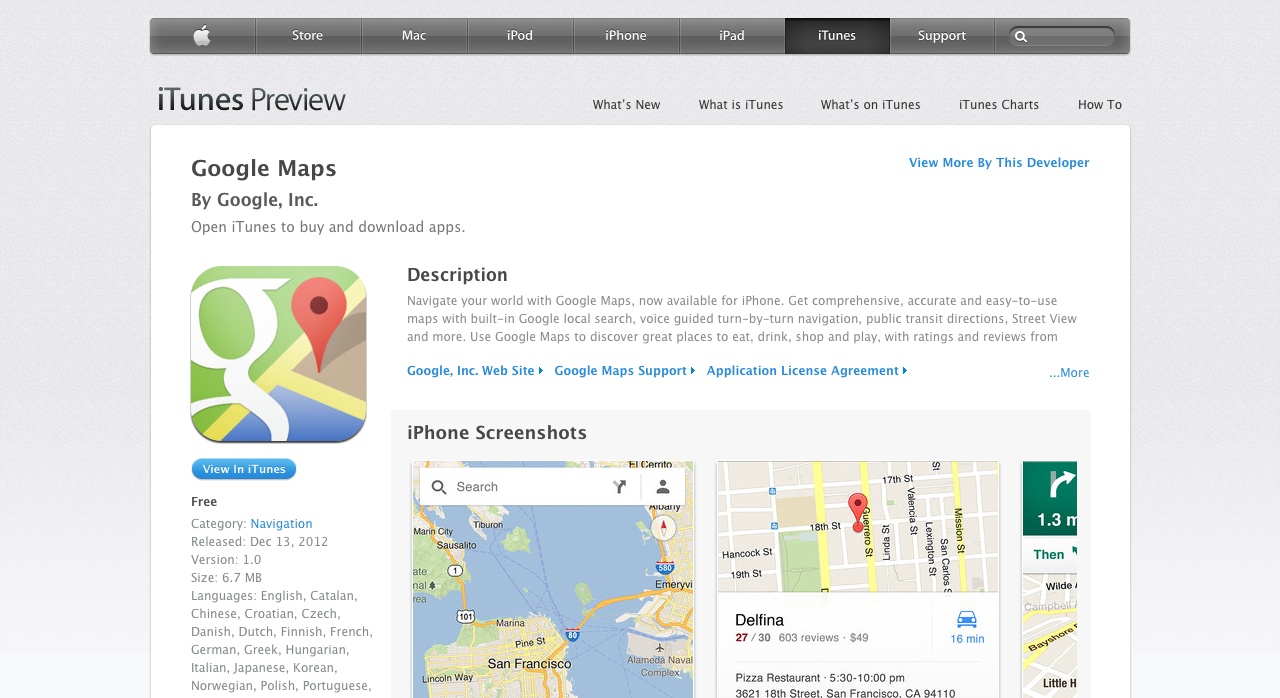
        <content type="html"><![CDATA[<p><img class="clear blog-image full-border" src="https://static.binaryage.com/e6f8b4c1_images_google_maps_download.png" title="Google Maps for iOS" /></p>

<p>The new version of Google Maps for iOS is here! <a href="https://itunes.apple.com/us/app/google-maps/id585027354?mt=8">You can head over to the App Store and get it right now!</a></p>

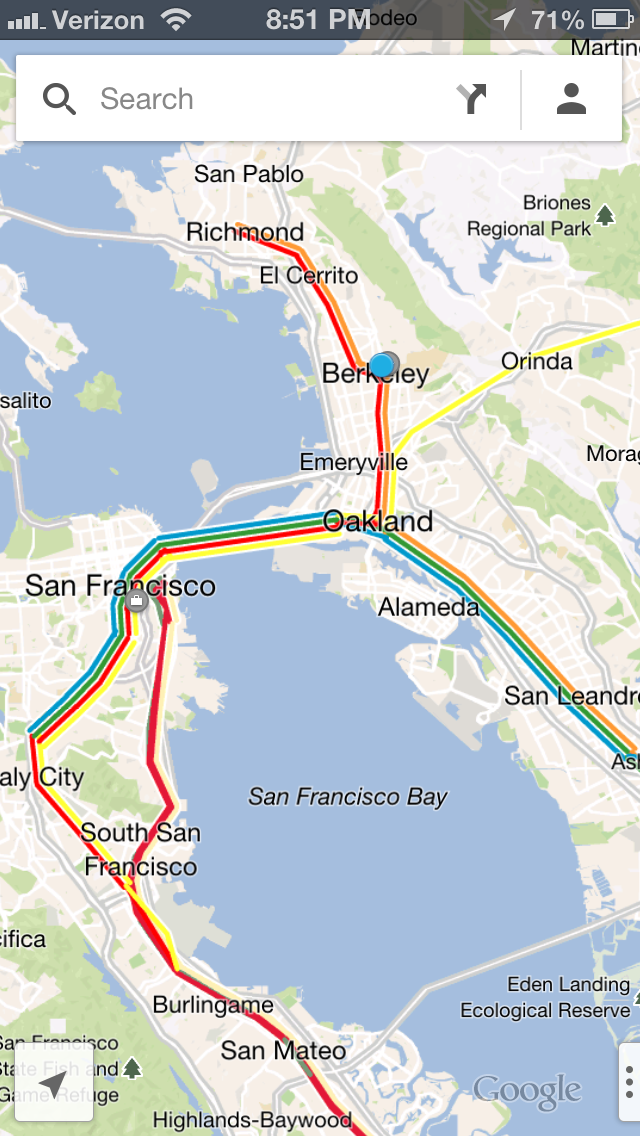
<p>The interface has a very Google+ like experience and the actual navigation system emulates the simplified interface trend that Apple Maps has continued. The result is a simplified experience with directions that actually get you to where you want to go. And…the best part is public transportation which is back on iOS devices in a mobile app!</p>

<p><img class="clear blog-image full-border" src="https://static.binaryage.com/e764c70d_images_ios_google_maps.png" title="Google Maps for iOS" /></p>

<p>If you are having issues downloading the app, I would suggest first visiting <a href="https://itunes.apple.com/us/app/google-maps/id585027354?mt=8">this link</a> on your computer to download the app. Then on your iOS device, I would search for a Google product, scroll down to the bottom where it says “Developer Info” and then scroll down to the bottom of that to download “Google Maps”.</p>

<p>Hope you are able to download the app and enjoy the newly added Google Maps app. I know I will be using this a lot in the upcoming holiday season!</p>
]]></content>
        <author>
            <name>Mark Miyashita</name>
            <url>http://markmiyashita.com</url>
        </author>
    </entry>
    
    <entry>
        <title><![CDATA[iPhone Rattle Near Camera]]></title>
        
        <link href="https://hints.binaryage.com//iphone-rattle-near-camera/"/>
        <updated>2012-11-30T20:31:00+00:00</updated>
        <id>hints.binaryage.com:/iphone-rattle-near-camera</id>
        <content type="html"><![CDATA[<p>Have you noticed that your iPhone rattles when you tap the camera area on the back? Turns out that this is completely normal and is a result of the gyroscope inside your phone. It is definitely very annoying, but at least we know that it is not a hardware issue with your phone. You can test out the noise to make sure it is not that loud by tapping very lightly on the back of your iPhone and listening to the rattle near the camera. Of course, if it sounds like something is truly messed up (if the rattle noise is unusually loud) then you should take it the Apple Store and have a genius look at it.</p>

<p>Hope that alleviates any concerns you were having over your iPhone. Let us know in the comments if you know of any other weird issues on your phones.</p>

]]></content>
        <author>
            <name>Mark Miyashita</name>
            <url>http://markmiyashita.com</url>
        </author>
    </entry>
    
    <entry>
        <title><![CDATA[New iMac Comes in Trapezoid Box]]></title>
        
        <link href="https://hints.binaryage.com//new-imac-comes-in-trapezoid-box/"/>
        <updated>2012-11-30T18:50:00+00:00</updated>
        <id>hints.binaryage.com:/new-imac-comes-in-trapezoid-box</id>
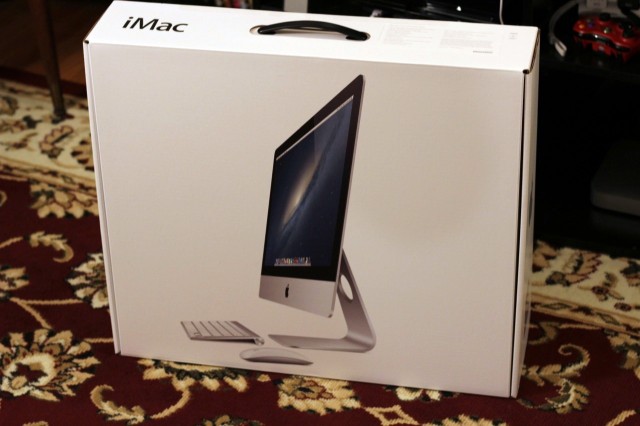
        <content type="html"><![CDATA[<p><img class="clear blog-image full-border" src="https://static.binaryage.com/c6e87123_images_new-imacs.jpg" title="New 2012 iMacs" />
(Image courtesy of arstechnica.com)</p>

<p>The new iMacs have finally started shipping meaning they should also be in the Apple Stores now for you to visit. One thing to note about the new iMacs is that the box has changed from the perennial rectangular suitcase-like box. The box is now horizontal. Anyways, enough about the box, here is a rundown of the new iMac.</p>

<p>The all new 21.5 inch iMac comes in two different base models. The $1299 model sports a 2.7 Ghz quad-core i5 processor and 8GB of RAM by default. The $1499 version comes with the same plus a 2.9 Ghz processor instead. Both come with a 1 TB hard drive with the latter being offered as a hybrid drive. The lower model comes with Nvidia GeForce 640M while the second comes with the 650M, a slight difference. All this packaged into the slimmest iMac yet!</p>

<p>The 27 inch models have not yet started shipping. Are you going to purchase one of these shiny new ones or wait for the 27 inches to come out? Let us know in the comments below!</p>

]]></content>
        <author>
            <name>Mark Miyashita</name>
            <url>http://markmiyashita.com</url>
        </author>
    </entry>
    
    <entry>
        <title><![CDATA[Slide to Unlock Frozen on iPad 3]]></title>
        
        <link href="https://hints.binaryage.com//slide-to-unlock-frozen-ipad-3/"/>
        <updated>2012-11-30T08:18:00+00:00</updated>
        <id>hints.binaryage.com:/slide-to-unlock-frozen-ipad-3</id>
        <content type="html"><![CDATA[<p><img class="clear blog-image full-border" src="https://static.binaryage.com/7a1bdb8f_images_slidetounlock.png" title="Slide to Unlock" /></p>

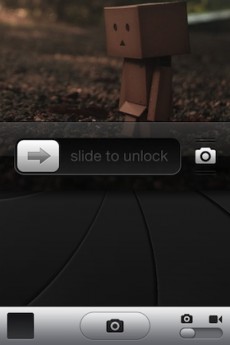
<p>A lot of reports have surfaced on the internet concerning issues with the “Slide to Unlock” part of the home screen on iPad 3s being frozen. It mainly happens when you restart your iPad, you go to unlock it and you can’t do anything on the screen. Normally, people would suggest just to restart your iPad, but then the same issue happens again and again because the restart is what triggers the error.</p>

<p>Fortunately for us, there are several “workarounds” that people have come up with. However, the simplest thing you should test first is upgrading from iOS 6.0 to iOS 6.0.1. The update for iOS seems to fix this major issue.</p>

<p>If you are already on iOS 6.0.1, there isn’t an official fix. However, you can always set the timeout for the lock screen to a very short time so that the screen automatically sleeps. Then you can simply press the home button and the “Slide to Unlock” works as normal. Annoying, but hey, what else can you don until Apple releases an update?</p>

<p>If you have any other suggestions, please leave them in the comments below!</p>
]]></content>
        <author>
            <name>Mark Miyashita</name>
            <url>http://markmiyashita.com</url>
        </author>
    </entry>
    
    <entry>
        <title><![CDATA[iOS 6.1 Now Available for Developers]]></title>
        
        <link href="https://hints.binaryage.com//ios-6-1-now-available-for-developers/"/>
        <updated>2012-11-03T09:55:00+00:00</updated>
        <id>hints.binaryage.com:/ios-6-1-now-available-for-developers</id>
        <content type="html"><![CDATA[<p>Even though Apple just release iOS 6.0.1 to the general public, they have also just pushed out the iOS 6.1 beta to the developers. So far, the most notable change has been the inclusion of a button labeled “Report a problem” in the Apple Maps app. This is a welcome feature and a step towards recreating a whole new maps infrastructure. There are a bunch more minor changes as well as fixing issues with Passbook and the Lockscreen. If you have any questions, feel free to post below!</p>
]]></content>
        <author>
            <name>Mark Miyashita</name>
            <url>http://markmiyashita.com</url>
        </author>
    </entry>
    
    <entry>
        <title><![CDATA[How to Backup your iPhone to iCloud]]></title>
        
        <link href="https://hints.binaryage.com//how-to-backup-your-iphone-to-icloud/"/>
        <updated>2012-11-03T09:52:00+00:00</updated>
        <id>hints.binaryage.com:/how-to-backup-your-iphone-to-icloud</id>
        <content type="html"><![CDATA[<p>Backing up your iPhone to iCloud is most likely a lot easier than you think. You basically only have to have an Apple ID, set up iCloud, and then flip a switch in settings to enable automatic backups. To do this, sign in to iCloud through Settings &gt; iCloud. Then, go to Settings &gt; iCloud &gt; Storage &amp; Backup &gt; iCloud Backup = On. This will turn on the magical switch that will back up your iPhone to iCloud.</p>

<p>If you have any questions about this method, please post below!</p>
]]></content>
        <author>
            <name>Mark Miyashita</name>
            <url>http://markmiyashita.com</url>
        </author>
    </entry>
    
    <entry>
        <title><![CDATA[iOS 6 Do Not Disturb Mode]]></title>
        
        <link href="https://hints.binaryage.com//ios-6-do-not-disturb-mode/"/>
        <updated>2012-11-03T09:49:00+00:00</updated>
        <id>hints.binaryage.com:/ios-6-do-not-disturb-mode</id>
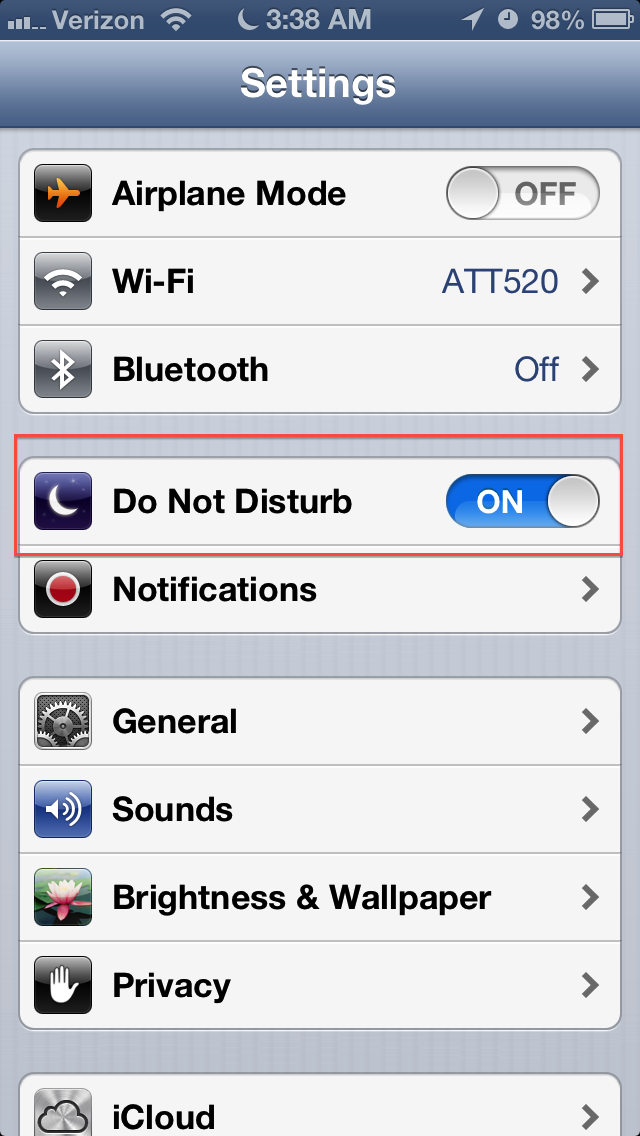
        <content type="html"><![CDATA[<p>iOS 6 included a cool new feature called “Do Not Disturb” mode which basically does as the name implies. It places your phone in a silent, no vibrate state where it can still send and receive messages but it won’t alert you of anything. This is especially useful if you are in a meeting or if you have class and you don’t want to be disturbed. Personally, I use this mode at night when I want to keep my phone in a sort of “alarm only” mode.</p>

]]></content>
        <author>
            <name>Mark Miyashita</name>
            <url>http://markmiyashita.com</url>
        </author>
    </entry>
    
    <entry>
        <title><![CDATA[iOS 6 Keyboard Shortcuts]]></title>
        
        <link href="https://hints.binaryage.com//ios-6-keyboard-shprtcuts/"/>
        <updated>2012-11-03T09:44:00+00:00</updated>
        <id>hints.binaryage.com:/ios-6-keyboard-shprtcuts</id>
        <content type="html"><![CDATA[<p>If you have restored your device from backup, you have probably had issues with the keyboard shortcuts that you have previous defined on your iPhone. There is a simple fix that works for 99% of people. Simply navigate to: Settings &gt; General &gt; Keyboard &gt; Add New Shortcut… and then add a new shortcut. It doesn’t matter what you add because you will be able to remove it immediately after. This is just to refresh the database so that the keyboard shortcuts that you defined before still work.</p>

<p>If you have any questions, feel free to post below!</p>
]]></content>
        <author>
            <name>Mark Miyashita</name>
            <url>http://markmiyashita.com</url>
        </author>
    </entry>
    
    <entry>
        <title><![CDATA[iOS 6 Battery Issues]]></title>
        
        <link href="https://hints.binaryage.com//ios-6-battery-issues/"/>
        <updated>2012-11-03T09:42:00+00:00</updated>
        <id>hints.binaryage.com:/ios-6-battery-issues</id>
        <content type="html"><![CDATA[<p>Here are some general tips for those of you who are experiencing severe battery drain on iOS 6:</p>

<p>Many people are experiencing a substantial drop in battery performance on their iPhone 5 and iPhone 4s. There are many culprits to this issue that may or may not be able to be identified and/or solved. Here are a list of suggestions that I have gathered to try and solve this very annoying problem Apple has created for us.</p>

<p>(Note: These are all software fixes that are presented below. Your issue may very well be a hardware issue that must be dealt with by taking your device directly to Apple to see if they can do anything about it.)</p>

<p>Step 1) Try resetting your Network connectivity. To do this go to Settings &gt; General &gt; Reset &gt; Reset Network Settings. This will reconnect with your carrier (Verizon, AT&amp;T, Sprint) and hopefully alleviate any connection issues.</p>

<p>Step 2) Disable Bluetooth: Settings &gt; General &gt; Bluetooth &gt; “OFF.” Bluetooth can sometimes try and connect to various hardware that will cause a substantial decrease in battery life.</p>

<p>Step 3) Disable unwanted notifications &amp; apps: Settings &gt; Notifications &gt; Turn OFF for anything you don’t need or use anymore. A rogue app may be constantly trying to connect to a website or server.</p>

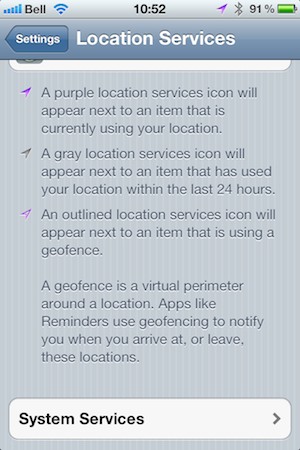
<p>Step 4) Disable Location Service: Settings &gt; Location Services &gt; Disable selectively for services you don’t use or need.</p>

<p>Step 5) Disable Timezone Adjustment: Tap on Settings &gt; Location Services &gt; System Services &gt; Setting Time Zone to “OFF.”</p>

<p>Step 6) Disable Ping: Settings &gt; General &gt; Restrictions &gt; Enable Restrictions &gt; Ping &gt; OFF. Who uses Ping anyway?</p>

<p>Step 7) Disable Diagnostic &amp; Usage Reports: Tap on “Settings” &gt; General &gt; About &gt; Diagnostic &amp; Usage &gt; Don’t Send. Apple set this up to collect “Anonymous” information. Turn this off to improve battery life because your iDevice won’t be connecting to Apple’s servers every five minutes.</p>

<p>Step 8) Disable Email accounts by heading to Settings &gt; Mail, Contacts, Calendars &gt; Account Name &gt; Delete Account. Once done, reset network settings (Step 1), then reboot your device and re-add your accounts back from Settings &gt; Mail, Contacts, Calendars &gt; Add Account.</p>

<p>Step 9) Make sure you are running the latest version of iOS. As of the time of this writing, the latest version is 6.0.1.</p>

<p>Step 10) Backup your iPhone and do a complete restore (guide here). You can either set up your iPhone as a new device for complete freedom from previous bugs, or you can risk the battery issue again by restoring from a backup. Your choice.</p>

<p>Step 11) Setting your mail accounts to Fetch. Go to Settings &gt; Mail, Calendar, Contacts &gt; Fetch new data &gt; Turn off Push and set fetch to manually. Then click on Advanced and set all accounts to Fetch.</p>

<p>Step 12) Calibrate the battery by letting it run down completely to zero, then charging it all the way up to 100%.</p>

<p>Step 13) Set your brightness down to 50%. Also, turn Auto Brightness to OFF, keep the brightness to one level, the auto up and down is draining additional power.</p>

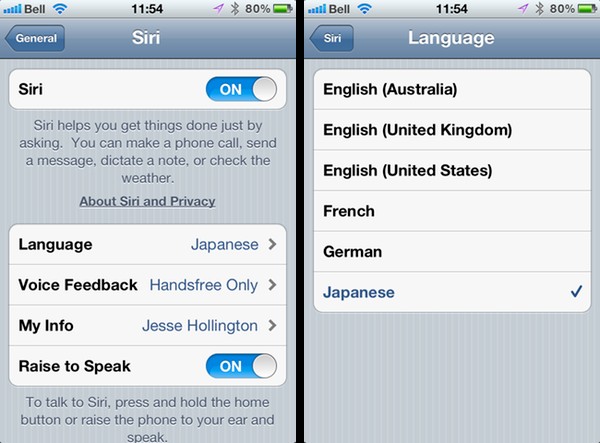
<p>Step 14) If you are running on a 4s and seldom use Siri, or just want to use her less often, Settings &gt; General &gt; Siri = Turn off Raise to Speak.</p>

<p>Please post any other solutions you have found in the comments below. Also, feel free to rant about battery performance because the more we lash out at Apple by creating these support forums, the more press they will receive about the issue.</p>

]]></content>
        <author>
            <name>Mark Miyashita</name>
            <url>http://markmiyashita.com</url>
        </author>
    </entry>
    
    <entry>
        <title><![CDATA[Reduce CPU Usage by Removing Files From Your Desktop]]></title>
        
        <link href="https://hints.binaryage.com//reduce-cpu-usage-by-removing-files-from-your-desktop/"/>
        <updated>2012-11-03T09:26:00+00:00</updated>
        <id>hints.binaryage.com:/reduce-cpu-usage-by-removing-files-from-your-desktop</id>
        <content type="html"><![CDATA[<p>If you have noticed that your CPU usage has been unusually high or that your fans have been constantly on, you may want to check your desktop. In previous years, it has been found that keeping large amounts, or even just a few large in size files on your desktop causes your computer to slow down. The main reason for this currently is because of Quick Look and the fact that it starts to load files in the current directory so that it can work even faster.</p>

<p>So, if your computer is running a little slower these days, check your desktop to see if you can remove all or most of those files.</p>
]]></content>
        <author>
            <name>Mark Miyashita</name>
            <url>http://markmiyashita.com</url>
        </author>
    </entry>
    
    <entry>
        <title><![CDATA[Change Panorama Direction iPhone]]></title>
        
        <link href="https://hints.binaryage.com//change-panorama-direction-iphone/"/>
        <updated>2012-11-03T09:18:00+00:00</updated>
        <id>hints.binaryage.com:/change-panorama-direction-iphone</id>
        <content type="html"><![CDATA[<p>This is a small feature that many people probably do not know about. On the iPhone or any iOS device with Panorama mode, you can simply tap on the white arrow in the middle of the screen to change the direction that you sweep when in this mode. Now, you can take panoramas going from right to left in addition to the ones you can take going from left to right. Handy!</p>
]]></content>
        <author>
            <name>Mark Miyashita</name>
            <url>http://markmiyashita.com</url>
        </author>
    </entry>
    
    <entry>
        <title><![CDATA[Share Reminders via iCloud]]></title>
        
        <link href="https://hints.binaryage.com//share-reminders-via-icloud/"/>
        <updated>2012-11-03T09:14:00+00:00</updated>
        <id>hints.binaryage.com:/share-reminders-via-icloud</id>
        <content type="html"><![CDATA[<p>The Reminders section of the online interface for iCloud allows you to share a reminders list with someone else. To do this, simply open up the online interface of reminders. Hover over the list you want to share on the left hand side of the screen, and click on the wifi-look-a-like symbol. Then you can enter in a friend’s email address and send them your reminders list!</p>
]]></content>
        <author>
            <name>Mark Miyashita</name>
            <url>http://markmiyashita.com</url>
        </author>
    </entry>
    
    <entry>
        <title><![CDATA[iPad Mini Launch Day]]></title>
        
        <link href="https://hints.binaryage.com//ipad-mini-launch-day/"/>
        <updated>2012-11-03T08:33:00+00:00</updated>
        <id>hints.binaryage.com:/ipad-mini-launch-day</id>
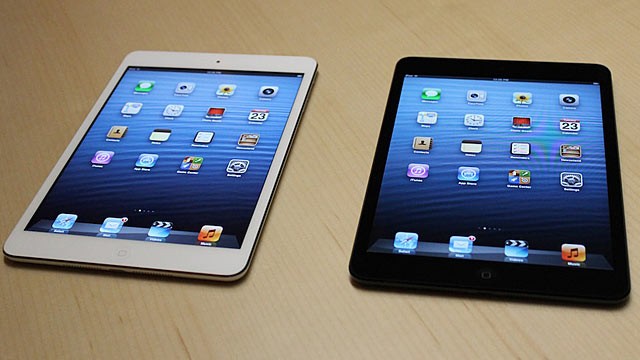
        <content type="html"><![CDATA[<p><img class="clear blog-image full-border" src="https://static.binaryage.com/d114a89e_images_ipad_mini.jpg" title="iPad Mini" /></p>

<p>The new iPad Mini launched this Friday at local Apple Stores. Although the brick-and-mortar stores were not met with large lines of anticipation for the new product, the iPad Mini sold out very quickly online, namely, the white iPad sold out within 20 minutes!</p>

<p>The new iPad Mini has a 7.9” screen with a starting price of $329. With a bezel that is a mere 7.2mm thick, this is the thinnest iPad yet. For now, the iPad Mini will not feature the retina display; however, it does feature the dual-core A5 chip that the iPad retina also has.</p>

<p>Are you picking up an iPad Mini? Let us know in the comments!</p>
]]></content>
        <author>
            <name>Mark Miyashita</name>
            <url>http://markmiyashita.com</url>
        </author>
    </entry>
    
    <entry>
        <title><![CDATA[iPhone 5 Specific Update]]></title>
        
        <link href="https://hints.binaryage.com//iphone-5-specific-update/"/>
        <updated>2012-11-03T07:50:00+00:00</updated>
        <id>hints.binaryage.com:/iphone-5-specific-update</id>
        <content type="html"><![CDATA[<p>Apple released a small app that you can download wirelessly on your iPhone 5 so that you can update your iPhone. Wait, hasn’t over-the-air updates been a feature for several releases now? The answer to that question is yes. However, Apple seems to have forgotten to include this feature in the iPhone 5 and that is what this minor update is for. You can download it via Settings &gt; Software Update and clicking on “Read More” or you can just plug into iTunes. Then you can download the new iOS 6.0.1 right after and have your iPhone be completely updated.</p>

<p>If you have any questions, feel free to post in the comments below!</p>
]]></content>
        <author>
            <name>Mark Miyashita</name>
            <url>http://markmiyashita.com</url>
        </author>
    </entry>
    
    <entry>
        <title><![CDATA[iOS 6 Exchange Mail Fix]]></title>
        
        <link href="https://hints.binaryage.com//ios-6-exchange-mail-fix/"/>
        <updated>2012-09-30T20:37:00+00:00</updated>
        <id>hints.binaryage.com:/ios-6-exchange-mail-fix</id>
        <content type="html"><![CDATA[<p>Some people have reported issues using Exchange Server 2007 and 2010 on iOS 6. A temporary fix has been discovered and here are the steps to follow to start receiving your Exchange email again:</p>

<p>Step 1) Go to Settings &gt; Mail, Contacts, Calendar &gt; Fetch New Data and make sure it is set to Push.</p>

<p>Step 2) Go to Settings &gt; Mail, Contacts, Calendar &gt; click on your Exchange account &gt; click on Days to Sync &gt; change it to a different setting (something different from what you have now, you can change it back later).</p>

<p>Step 3) Go to Settings &gt; Mail, Contacts, Calendar &gt; click Show &gt; change to a different value (again, something other than what you have now).</p>

<p>Step 4) Reboot your iOS 6 device.</p>

<p>Step 5) Test out Exchange by sending yourself an email. Push should be working and you should be able to send and receive emails from your account now!</p>

<p>Let me know if this helped you and also let me know if it did not help you! Comments and questions are always welcome so feel free to leave them below!</p>
]]></content>
        <author>
            <name>Mark Miyashita</name>
            <url>http://markmiyashita.com</url>
        </author>
    </entry>
    
    <entry>
        <title><![CDATA[iPhone 5 Battery Problems]]></title>
        
        <link href="https://hints.binaryage.com//iphone-5-battery-problems/"/>
        <updated>2012-09-30T20:31:00+00:00</updated>
        <id>hints.binaryage.com:/iphone-5-battery-problems</id>
        <content type="html"><![CDATA[<p>Have you been noticing issues with the battery life of your iPhone 5 or any other device running iOS 6 in general? Many users are reporting a substantial difference in battery life on both their iPhone 4 and 4s phones since the upgrade to iOS 6. More so, people on the iPhone 5 have had many issues with battery life, most likely caused by LTE and the massive power drain that it causes. <a href="http://hints.binaryage.com/iphone-battery-problems/">Here</a> is a link to our old article written to help increase the battery life of your device. The same tips still apply for the new iPhone as well as the iPhone 4 and 4s. Let us know in the comments what worked and what didn’t work for you!</p>

<p><a href="http://hints.binaryage.com/iphone-battery-problems/">iPhone Battery Problems</a></p>
]]></content>
        <author>
            <name>Mark Miyashita</name>
            <url>http://markmiyashita.com</url>
        </author>
    </entry>
    
    <entry>
        <title><![CDATA[Time Machine Issues on Mountain Lion]]></title>
        
        <link href="https://hints.binaryage.com//time-machine-issues-on-mountain-lion/"/>
        <updated>2012-09-30T19:17:00+00:00</updated>
        <id>hints.binaryage.com:/time-machine-issues-on-mountain-lion</id>
        <content type="html"><![CDATA[<p>Since upgrading to Mountain Lion, a lot of people have been having issues with their Time Machine backups that worked perfectly fine on Lion. Here are a few tips to try and solve the problem:</p>

<p>Step 1) Shutdown your computer and restart, sometimes the Time Machine drive can have an issue and it won’t be able to fix itself until after a reboot. Try this first.</p>

<p>Step 2) Remove the drive through System Preferences &gt; Time Machine and then readd the device. As long as you don’t wipe the device of all its data, your save points will still be there.</p>

<p>Step 3) Run Repair Permissions through Disk Utility on the Time Machine device. You can also try running Disk Repair, also under Disk Utility.</p>

<p>Step 4) Under System Preferences &gt; Energy Saver &gt; disable the “Put hard disks to sleep when possible” box. This option has fixed the issue for most people.</p>

<p>Step 5) If none of these steps worked for you, the only thing left I can recommend is a reformat and set the disk up as new again.</p>

<p>Let me know if there are any other things you have tried to do to get your Time Machine working again. These issues shouldn’t be happening, but the fact of the matter is that they are. If you have any questions, feel free to leave them below in the comments box!</p>
]]></content>
        <author>
            <name>Mark Miyashita</name>
            <url>http://markmiyashita.com</url>
        </author>
    </entry>
    
    <entry>
        <title><![CDATA[iPhone 5 Bluetooth Not Working]]></title>
        
        <link href="https://hints.binaryage.com//iphone-5-bluetooth-not-working/"/>
        <updated>2012-09-30T18:58:00+00:00</updated>
        <id>hints.binaryage.com:/iphone-5-bluetooth-not-working</id>
        <content type="html"><![CDATA[<p>A lot of users are reporting that their bluetooth devices are having issues working properly with the iPhone 5 (which has bluetooth 4.0 as opposed to bluetooth 2.1 which was what the iPhone 4 and 4s had). Here are some steps to try and fix these issues that are plaguing iOS 6 users.</p>

<p>Step 1) Under Settings &gt; Bluetooth, first try toggling the On/Off switch (yes, this is trivial, but this has fixed a few problems)</p>

<p>Step 2) Again, under Settings &gt; Bluetooth, remove the device that is having issues and then re-add it. Sometimes this can be an issue because you restored your iPhone from iOS 5 and the bluetooth settings didn’t translate through the upgrade.</p>

<p>Step 3) Make your other device (not running iOS 6) attempt to pair first, and keep your iPhone’s bluetooth off. Then, once the other device has sent out it’s request signal, turn on your iPhone’s bluetooth. Sometimes it runs into problems where it is unable to search around for a new bluetooth device and this step attempts to fix that issue.</p>

<p>Step 4) Lastly, make sure the device you are trying to connect to is compatible with bluetooth 4.0. Like I said before, Apple introduced using the newer standard in the iPhone 5 and caused many devices that only worked with bluetooth 2.1, to not function correctly with the iPhone 5. If this is the case, sorry, you need to buy a new device (or if it’s a car, look into buying a new receiver).</p>

<p>Let me know if these steps helped you in the comments below!</p>
]]></content>
        <author>
            <name>Mark Miyashita</name>
            <url>http://markmiyashita.com</url>
        </author>
    </entry>
    
    <entry>
        <title><![CDATA[Add Your Phone Number to OS X Messages]]></title>
        
        <link href="https://hints.binaryage.com//add-your-phone-number-to-os-x-messages/"/>
        <updated>2012-09-30T18:49:00+00:00</updated>
        <id>hints.binaryage.com:/add-your-phone-number-to-os-x-messages</id>
        <content type="html"><![CDATA[<p>With the new iOS 6 and Mac OS X 10.8.2, you can now send and receive iMessages from your phone number to and from your computer! This is a very desirable feature because it makes iMessage more like Google Voice. Now, you don’t have to look around and find your phone; it’s the perfect solution for lazy people!</p>

<p>If you’ve been having problems with getting this new feature to work, follow the steps below to troubleshoot your problem.</p>

<p>Step 1) Log out and log back into iMessage on your iPhone. You can do this through Settings &gt; Messages &gt; iMessage, slide it to off. Wait a few seconds, then slide back to on. Then tap on Send &amp; Receive click on your Apple ID at the top, then click Sign out. Again, wait a few seconds, and then sign in again.</p>

<p>Step 2) If that doesn’t work, a simple restart of your computer may also do the trick! Your Apple ID settings on your phone and your computer need to sync up, so restarting your computer will do this for you.</p>

<p>If either of these methods above worked for you, I’d like to hear all about it in the comments below! If they didn’t, what ended up working for you? Let us know in the comments!</p>
]]></content>
        <author>
            <name>Mark Miyashita</name>
            <url>http://markmiyashita.com</url>
        </author>
    </entry>
    
    <entry>
        <title><![CDATA[How to Listen to Podcasts through the Music App on iOS 6]]></title>
        
        <link href="https://hints.binaryage.com//how-to-listen-to-podcasts-through-the-music-app-on-ios-6/"/>
        <updated>2012-09-30T18:31:00+00:00</updated>
        <id>hints.binaryage.com:/how-to-listen-to-podcasts-through-the-music-app-on-ios-6</id>
        <content type="html"><![CDATA[<p>If you’re on iOS 6, you may have wondered where the podcasts section of the Music app went. Well, it seems that if you have the Podcasts app made by Apple installed on your device, then the podcasts section of the Music app disappears. If you don’t like the Podcasts app, or find that you seldom use it because of the interface, you can remove the app and the podcasts section of the Music app will reappear, almost if by magic. Now, you can again enjoy listening to your podcasts through the Music app in a playlist or intermixed with other audio clips if you so desire.</p>

<p>If you have any questions about the Podcasts or Music apps, please leave a comment below!</p>
]]></content>
        <author>
            <name>Mark Miyashita</name>
            <url>http://markmiyashita.com</url>
        </author>
    </entry>
    
    <entry>
        <title><![CDATA[iPhone 5 Jailbroken]]></title>
        
        <link href="https://hints.binaryage.com//iphone-5-jailbroken/"/>
        <updated>2012-09-30T18:18:00+00:00</updated>
        <id>hints.binaryage.com:/iphone-5-jailbroken</id>
        <content type="html"><![CDATA[<p><img class="clear blog-image full-border" src="https://static.binaryage.com/f5426a32_images_iphone5_jailbreak.jpg" title="iPhone 5" /></p>

<p>Well known iOS jailbreaker, chpwn, posted an image about a week ago of the iPhone 5 running iOS 6 with Cydia on the home screen. We all know what that means, yep, the iPhone 5 running iOS 6 was jailbroken! However, don’t get your hopes up just yet. This is just proof of concept, the actual jailbreak hasn’t been released to the public and probably won’t be until the release of iOS 6.0.1 because they usually wait for Apple to make bug fixes before proceeding with the jailbreak. So sit back and watch the show, soon you’ll be able to have your iPhone 5 running a jailbroken version of iOS 6!</p>

<p>If you have any questions or speculations about when the iOS 6 jailbreak is coming out, leave a comment below!</p>
]]></content>
        <author>
            <name>Mark Miyashita</name>
            <url>http://markmiyashita.com</url>
        </author>
    </entry>
    
    <entry>
        <title><![CDATA[New Sharing Features of iOS 6]]></title>
        
        <link href="https://hints.binaryage.com//new-sharing-features-of-ios-6/"/>
        <updated>2012-09-30T11:52:00+00:00</updated>
        <id>hints.binaryage.com:/new-sharing-features-of-ios-6</id>
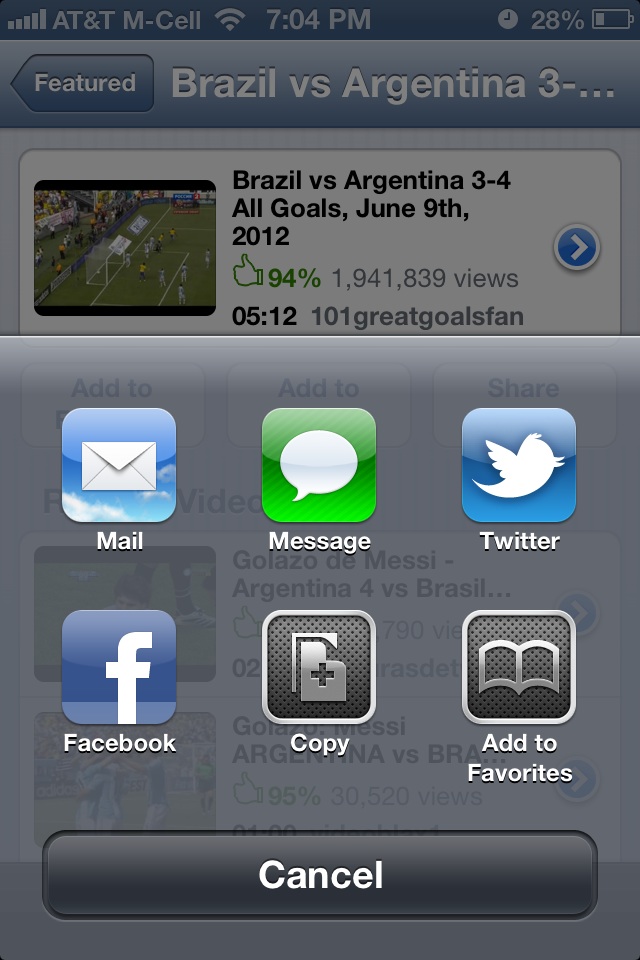
        <content type="html"><![CDATA[<p><img class="clear blog-image full-border" src="https://static.binaryage.com/c563b665_images_sharing.jpeg" title="Sharing" /></p>

<p>One of the new features of iOS 6 is the new sharing feature which quickly allows you to share any content you desire with anyone, at the push of a button. Apple has designed the new interface to make sharing easier than ever and has also given us the methods (Facebook and Twitter) to do so easily. You can now select from the following: Mail, Message, Twitter, Facebook, copy, Add yo Favorites. All of these options used to be in a list like dialog that would pop up and it would be very inconvenient to do so. Now with the modal that pops up over the content that you are viewing, you can easily select from one of the 6 choices and share your content with everyone!</p>

<p>Has the new sharing feature made sharing easier for you on your iOS 6 device? If so, leave a comment below! If not, let us know why in the comments below!</p>
]]></content>
        <author>
            <name>Mark Miyashita</name>
            <url>http://markmiyashita.com</url>
        </author>
    </entry>
    
    <entry>
        <title><![CDATA[Gmail for iOS Updated for iPhone 5]]></title>
        
        <link href="https://hints.binaryage.com//gmail-for-ios-updated-for-iphone-5/"/>
        <updated>2012-09-30T11:48:00+00:00</updated>
        <id>hints.binaryage.com:/gmail-for-ios-updated-for-iphone-5</id>
        <content type="html"><![CDATA[<p><img class="clear blog-image normal-border" src="https://static.binaryage.com/2fc9e67f_images_gmail.png" title="Gmail" /></p>

<p>Google has updated their iOS version of their popular Gmail app. The app now fills up the entire screen on iPhone 5s and still provides the same great interface to interact with your email accounts. Consequently, you can now view more content on your device and the awkward black bars that plagued the top and bottom of this app are now gone.</p>

<p>If you have any questions or concerns about the update, feel free to leave a comment below!</p>
]]></content>
        <author>
            <name>Mark Miyashita</name>
            <url>http://markmiyashita.com</url>
        </author>
    </entry>
    
    <entry>
        <title><![CDATA[Do Not Disturb Mode is Apple's Alarm Only Mode]]></title>
        
        <link href="https://hints.binaryage.com//do-not-disturb-mode-is-apples-alarm-only-mode/"/>
        <updated>2012-09-30T11:40:00+00:00</updated>
        <id>hints.binaryage.com:/do-not-disturb-mode-is-apples-alarm-only-mode</id>
        <content type="html"><![CDATA[<p><img class="clear blog-image full-border" src="https://static.binaryage.com/17b5bdd6_images_do_not_disturb.png" title="Alarm Mode" /></p>

<p>In what seems to be a new feature of iOS 6, Apple now provides a “Do Not Disturb” mode for iOS devices which allows you to not be alerted visually or by vibration of any email, phone call, or text message that you might receive. However, it does still act as an alarm. This feature may be welcome for people who would like to go to sleep without being distracted every five minutes with notifications, but it is also unwelcome for many people in business because they expect their phones to remain silent for the duration of a meeting. Regardless, this new feature is a welcome one, especially personally for me because me old “dumb phone” had this feature and I was worried my new iPhone 5 would be lacking.</p>

<p>If you have any questions, feel free to leave a comment below!</p>
]]></content>
        <author>
            <name>Mark Miyashita</name>
            <url>http://markmiyashita.com</url>
        </author>
    </entry>
    
    <entry>
        <title><![CDATA[CardDAV A New Way to Sync Google Contacts with iOS 6]]></title>
        
        <link href="https://hints.binaryage.com//carddav-a-new-way-to-sync-google-contacts-with-ios-6/"/>
        <updated>2012-09-30T11:33:00+00:00</updated>
        <id>hints.binaryage.com:/carddav-a-new-way-to-sync-google-contacts-with-ios-6</id>
        <content type="html"><![CDATA[<p>Today, Google introduced a new way to sync Google Contacts with your iOS device running iOS 5.0 or later. Google Contacts now supports CalDAV, an open source card format for sharing address books and contacts. Here’s how you can set up the sync between your iOS device and Google.</p>

<p>Step 1) On your iOS device, go to Settings &gt; Mail, Contacts, Calendars &gt; Add Account… &gt; Other &gt; Add CardDAV Account</p>

<p>Step 2) Enter in your information for your account. The server you should use is “google.com”, your username is your entire email address including the @gmail.com part. Your password fills the password field, unless you use 2-step verification, in which case you must use an application specific password.</p>

<p>Step 3) Click Next and it should verify your information and set up CardDAV for you. There may not be a noticeable difference now, but there are many possibilities with using an open source protocol such as CardDAV.</p>

<p>If you have any questions, feel free to leave a comment below!</p>
]]></content>
        <author>
            <name>Mark Miyashita</name>
            <url>http://markmiyashita.com</url>
        </author>
    </entry>
    
    <entry>
        <title><![CDATA[How to Make Your Own Passbook Cards in iOS 6]]></title>
        
        <link href="https://hints.binaryage.com//how-to-make-your-own-passbook-cards-on-ios-6/"/>
        <updated>2012-09-30T11:20:00+00:00</updated>
        <id>hints.binaryage.com:/how-to-make-your-own-passbook-cards-on-ios-6</id>
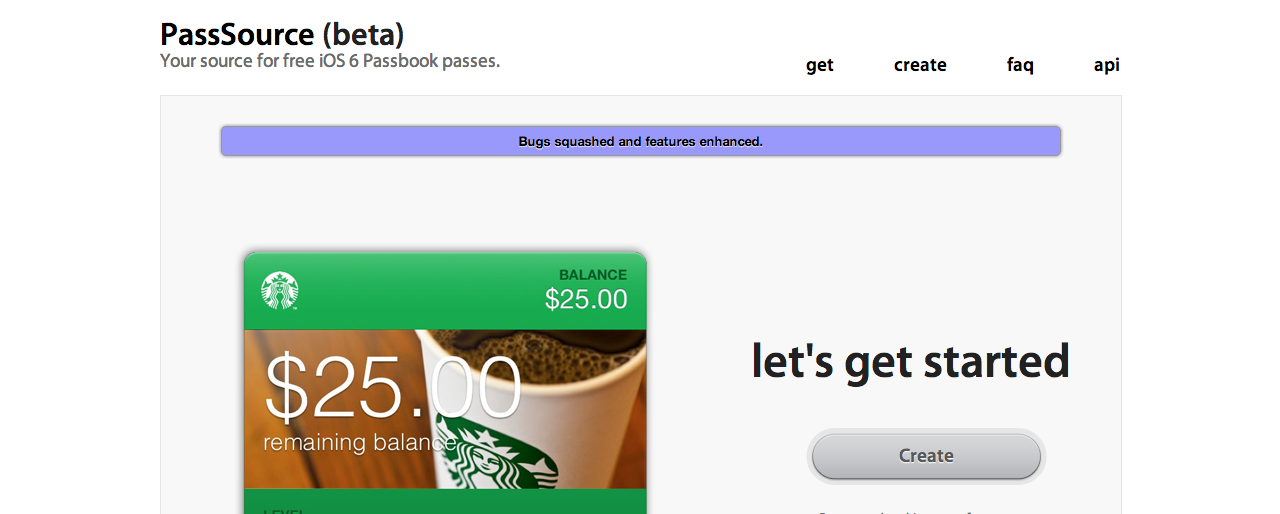
        <content type="html"><![CDATA[<p><img class="clear blog-image full-border" src="https://static.binaryage.com/195734b3_images_passsource.png" title="Pass Source" /></p>

<p>If you have used the new feature called Passbook on iOS 6, you may have noticed that there are not many cards that can have in Passbook. This makes the app really limited and you cannot use it to its full potential. That’s where <a href="http://passsource.com">Passsource.com</a> comes and saves the day! Pass Source allows you to create cards that integrate perfectly with iOS6’s Passbook. Now you can use it to store things like your Starbucks Cards, American Express, coupons, and more! Check it out!</p>

<p>If you have any questions about Passbook or Pass Source, feel free to leave a comment below!</p>
]]></content>
        <author>
            <name>Mark Miyashita</name>
            <url>http://markmiyashita.com</url>
        </author>
    </entry>
    
    <entry>
        <title><![CDATA[Missing Google Maps on iOS 6? Check out these alternatives in the App Store]]></title>
        
        <link href="https://hints.binaryage.com//missing-google-maps-on-ios-6-checkout-the-app-store/"/>
        <updated>2012-09-29T17:38:00+00:00</updated>
        <id>hints.binaryage.com:/missing-google-maps-on-ios-6-checkout-the-app-store</id>
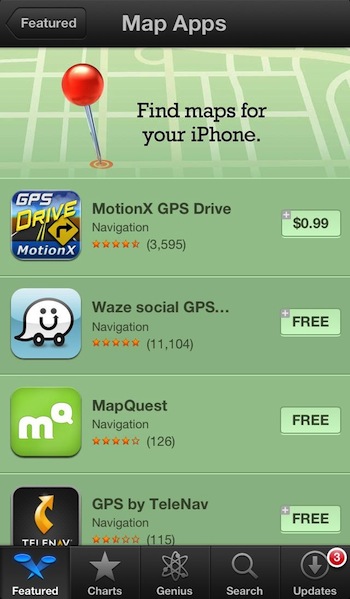
        <content type="html"><![CDATA[<p>As you all know, Apple has removed Google Maps from iOS 6 in favor of their own maps software. You all also know that the new app has failed and with its continued bad press, Apple has openly come up with alternatives for users of iOS 6. Check out the Map Apps featured section of the iOS App Store. Apple has added this section for you to use an alternative app such as Waze or even MapQuest until they can fix their broken Maps app.</p>

<p><img class="clear blog-image normal-border" src="https://static.binaryage.com/76402ff5_images_alternative_maps_ios_6.jpeg" title="Alternatives" /></p>

<p>What do you guys think of this move by Apple? Will this suffice until they can fix their Maps app in a later release? Let us know in the comments below!</p>
]]></content>
        <author>
            <name>Mark Miyashita</name>
            <url>http://markmiyashita.com</url>
        </author>
    </entry>
    
    <entry>
        <title><![CDATA[How to Approach Hard Drive Cloning in Mac OS X Using Apple's Disk Utility]]></title>
        
        <link href="https://hints.binaryage.com//how-to-approach-hard-drive-cloning-in-mac-os-x-disk-utility/"/>
        <updated>2012-09-26T10:31:00+00:00</updated>
        <id>hints.binaryage.com:/how-to-approach-hard-drive-cloning-in-mac-os-x-disk-utility</id>
        <content type="html"><![CDATA[<p>Due to increasing size of data repositories, organization of data seems to be the largest issue of all time. Additionally, increased business mobility has made it difficult to deal with the evolving risks of data loss in today’s work environment. Backups offer a reliable solution for data protection and recovery in these crises. Mac users often create drive clones or bootable backups to make a mirror image of their systems. These backups or clones comprise all important data (including files, folders, and applications) and the necessary system files required to boot a Mac, eliminating the need to start from another disk while performing the restore operation.</p>

<p>Apple provides an indispensable tool, Disk Utility, to allow users to easily clone their Mac hard drives or volumes. Disk Utility uses a simple, three-step process to create a hard drive clone:</p>

<ul>
  <li>Boot your Mac using the OS X Installation disc. Keep pressing the ‘C’ key to get to the welcome screen and then select ‘Disk Utility’ from the ‘Utilities’ menu.</li>
  <li>In the Disk Utility interface, select the ‘Restore’ tab and provide the source and destination drives. Uncheck the ‘Erase Destination’ check box at the bottom.</li>
  <li>Click ‘Restore’ to clone the source drive onto the destination drive. Now, restart the computer and boot from the newly cloned drive. If the boot process completes without any problems, then the cloning was successful.</li>
</ul>

<p>Disk Utility is a safe bet to clone one’s critical Mac OS X volumes. However, this tool has many downsides. It cannot be used to schedule cloning tasks in case one forgets to perform backups on a regular basis. Moreover, it does not allow users to resize volumes on the destination drive for full utilization of available disk space.</p>

<p>There is a range of commercial third-party <a href="http://www.stellarclonedrive.com/">Mac hard disk cloning tools</a> available in the market. These utilities do a better job of cloning Mac hard disks and provide a plethora of advanced options. They can help users resize volumes on the destination drive according to their storage needs. With the help of these tools, users can automate the cloning process and schedule it to run on specified days and times. In addition, users can take snapshots of their hard drives or any specific region of the drives. These programs are compatible with the latest Mac OS X 10.7 Lion and all lower versions.</p>

<p>About the Author:
Stuart Bell is a Mac user who believes in making life better with latest and most useful Mac technology, and wishes to share ideas and research on Mac utilities that clone and optimize Mac drives.</p>
]]></content>
        <author>
            <name>Stuart Bell</name>
            <url>https://plus.google.com/u/0/117718954546688789886/posts</url>
        </author>
    </entry>
    
    <entry>
        <title><![CDATA[iOS 6 upgrade problem: wifi redirects to apple.com]]></title>
        
        <link href="https://hints.binaryage.com//io6-wifi-apple-problem-page-cant-be-found/"/>
        <updated>2012-09-20T00:00:00+00:00</updated>
        <id>hints.binaryage.com:/io6-wifi-apple-problem-page-cant-be-found</id>
        <content type="html"><![CDATA[<p>I have just update to iOS 6 and experienced a problem with wifi connectivity. Everytime I wanted to connect to my home wifi it ended up opening “Log In” screen with broken page at apple.com saying “hmm, the page you’re looking for can’t be found.”.</p>

<p>I googled for solutions and found several threads:</p>

<ul>
  <li><a href="https://discussions.apple.com/thread/4311667">https://discussions.apple.com/thread/4311667</a></li>
  <li><a href="https://discussions.apple.com/message/19629512">https://discussions.apple.com/message/19629512</a></li>
  <li><a href="https://discussions.apple.com/message/19625125">https://discussions.apple.com/message/19625125</a></li>
  <li>…</li>
</ul>

<p>There are some suggestions which worked to some users but no widely confirmed solution.</p>

<p>My router is a TimeMachine box (Airport Extreme). Here are the steps which worked for me:</p>

<ol>
  <li>Used <code class="language-plaintext highlighter-rouge">AirPort Utily</code> on my Mac to restart the router</li>
  <li>in iOS 6: Settings -&gt; General -&gt; Reset -&gt; Reset Network Settings</li>
  <li>in iOS 6: Settings -&gt; General -&gt; Reset -&gt; Reset All Settings</li>
</ol>

<p>Then wifi started to operate properly.</p>

<p>Also I noticed I lost an option for personal hotspot in my Settings menu, but that may be only effect of losing my settings. It can be probably re-enabled somewhere deeper in the Networking Settings.</p>
]]></content>
        <author>
            <name>Antonin Hildebrand</name>
            <url>http://hildebrand.cz</url>
        </author>
    </entry>
    
    <entry>
        <title><![CDATA[How To Disable Java on Chrome]]></title>
        
        <link href="https://hints.binaryage.com//how-to-disable-java-on-chrome/"/>
        <updated>2012-09-10T09:26:00+00:00</updated>
        <id>hints.binaryage.com:/how-to-disable-java-on-chrome</id>
        <content type="html"><![CDATA[<p>With the recent “zero-day exploit” found for Oracle’s Java, a few of you out there might want to disable Java in your browser because of the possibility of being hacked. Here are the steps to block Java from loading in your Google Chrome web browser.</p>

<p><img class="clear blog-image full-border" src="https://static.binaryage.com/4c2c7197_images_java1.png" title="Disable Java on Chrome" /></p>

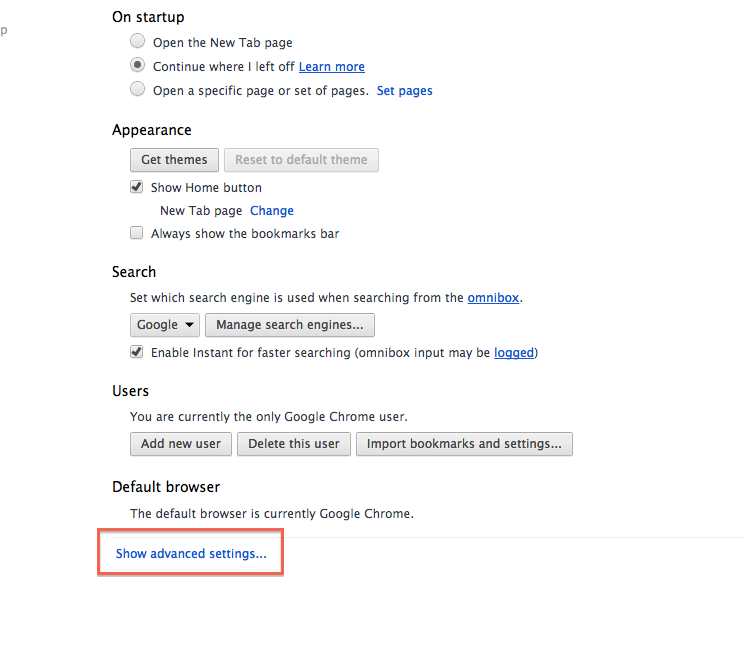
<p>Step 1) Open up Google Chrome and go to Preferences. Click on Advanced Preferences as shown in the picture above.</p>

<p><img class="clear blog-image full-border" src="https://static.binaryage.com/a0d2bb53_images_java2.png" title="Disable Java on Chrome" /></p>

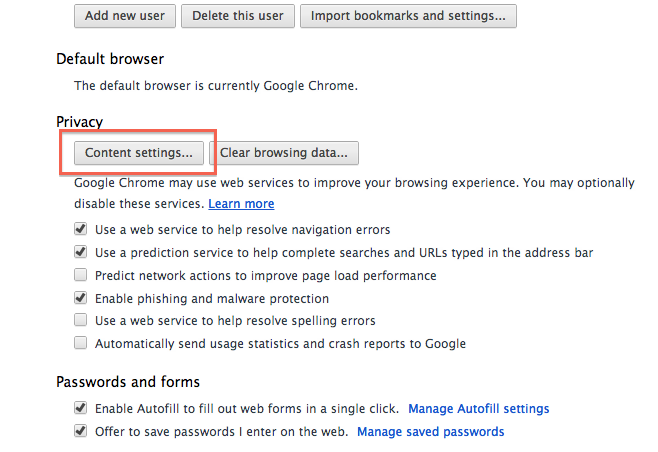
<p>Step 2) Scroll down to the Privacy heading and click on Content Settings as shown above.</p>

<p><img class="clear blog-image full-border" src="https://static.binaryage.com/bd5fd0bf_images_java3.png" title="Disable Java on Chrome" /></p>

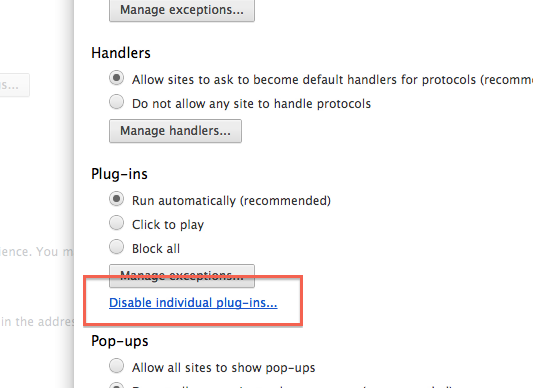
<p>Step 3) Under Plug-ins, click on Disable Individual Plug-ins.</p>

<p><img class="clear blog-image full-border" src="https://static.binaryage.com/63ac5b31_images_java4.png" title="Disable Java on Chrome" /></p>

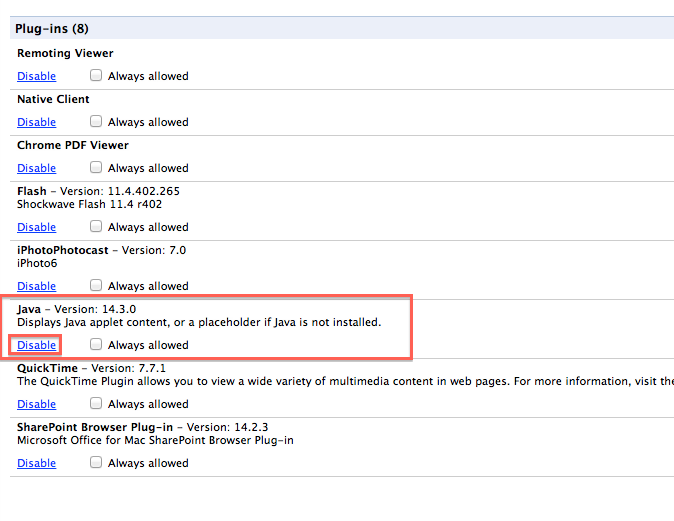
<p>Step 4) Lastly, find the Java plugin and click on the Disable link, as shown above.</p>

<p>You have just disabled Java. You may need Java to run some web applets or applications but for now, it is best to leave it blocked. If you have any questions, feel free to leave them below!</p>
]]></content>
        <author>
            <name>Mark Miyashita</name>
            <url>http://markmiyashita.com</url>
        </author>
    </entry>
    
    <entry>
        <title><![CDATA[Air Display by Avatron Review]]></title>
        
        <link href="https://hints.binaryage.com//air-display-by-avatron-review/"/>
        <updated>2012-09-04T04:15:00+00:00</updated>
        <id>hints.binaryage.com:/air-display-by-avatron-review</id>
        <content type="html"><![CDATA[<p>Here is my review of Air Display by Avatron, an app that allows you to utilize another computer (Mac or PC) or even a tablet (iPad) as another screen for your main computer. From a Computer Scientist’s perspective, this is an awesome feature because the more screen real estate, the better.</p>

<h3 id="what-they-did-right">What they did right:</h3>

<p>I’m going to start off the review with the features that made this experience enjoyable and the reasons why I would use it again.</p>

<h4 id="installation">Installation</h4>

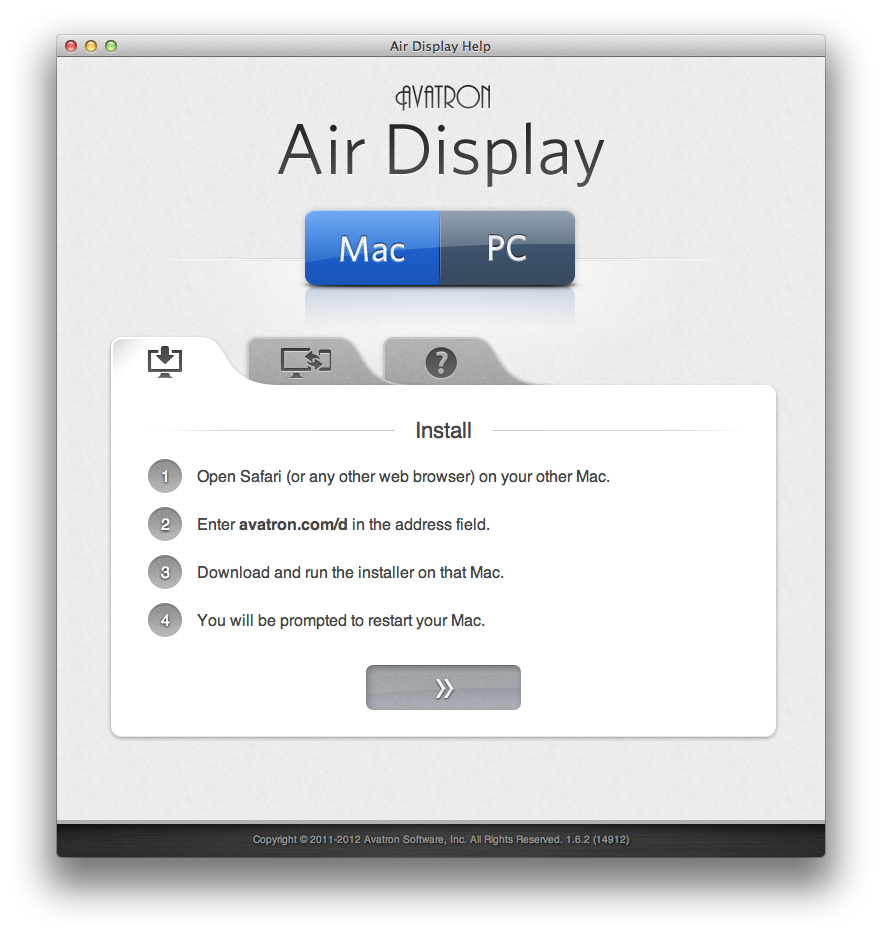
<p>Installation was fairly straightforward. I found the app on the Mac App Store, downloaded it and let the app store take care of the installation. Here’s a screenshot of the window that appears when you launch the app:</p>

<p><img class="clear blog-image full-border" src="https://static.binaryage.com/c1c323b7_images_air_display1.png" title="Air Display" /></p>

<p>This part of the application runs on the computer with the screen that you would like to add to your main display. For me, this ran on my laptop.</p>

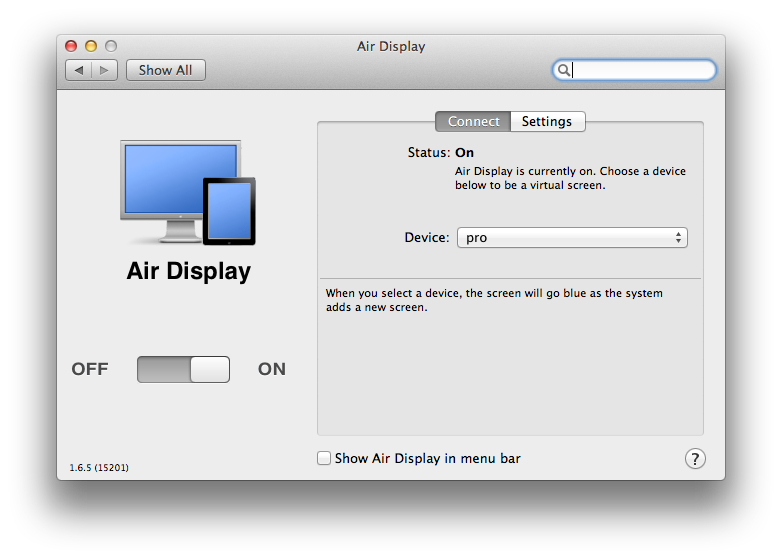
<p>On my desktop, the following screenshot is the app that I had to install. Installation was again, easy. However, it was a little confusing to figure out which app ran on which computer (client/server). This may have been because I did not fully read the documentation, but usually software is intuitive enough to figure out without reading.</p>

<p><img class="clear blog-image full-border" src="https://static.binaryage.com/61a2e948_images_air_display2.png" title="Air Display" /></p>

<h4 id="usability">Usability</h4>

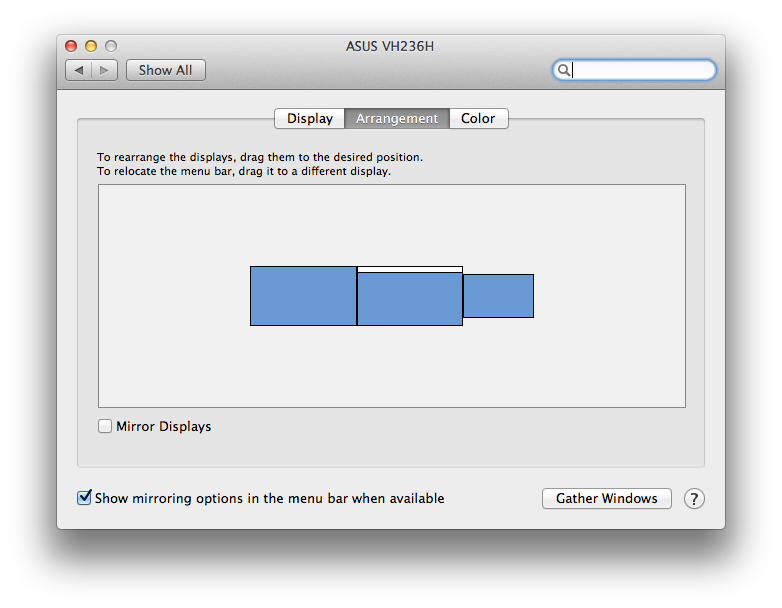
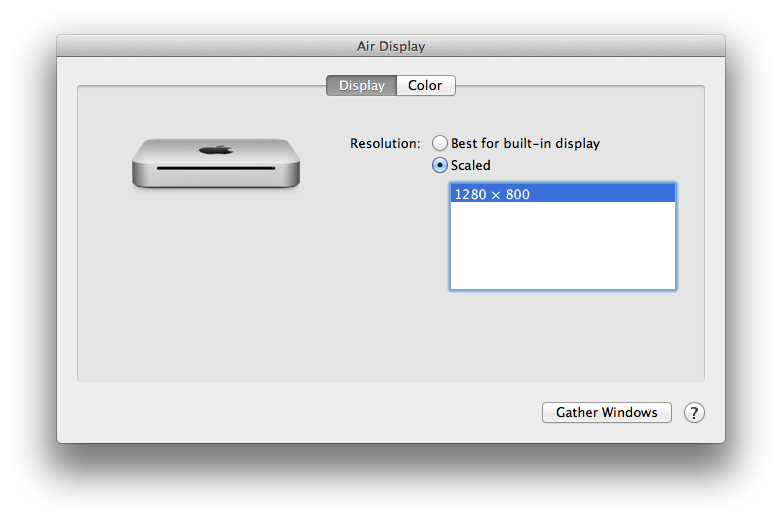
<p>Once installed, the app ran with ease. I has able to hook up my MacBook Pro wirelessly to my Mac Mini and use its display in addition to the two that I already have on my mini. Here is a screenshot of my Display Preferences once the app had added the wireless display.</p>

<p><img class="clear blog-image full-border" src="https://static.binaryage.com/5146b7dc_images_air_display3.png" title="Air Display" /></p>

<p>I simply moved the window around to wherever my display was positioned and it acted as if my monitor was wired in. I am very pleased because there is almost no lag at all.</p>

<h3 id="one-request-for-a-future-update">One request for a future update:</h3>

<p>I love everything that I was able to do with Air Display. However, there is one feature that I tested out and did not turn out the way I expected. I tried plugging in a second monitor to my MacBook Pro, this is where things got interesting. To reiterate, my current setup because two monitors on my Mac Mini and two on my MacBook Pro (including its built-in display). I thought I would be able to use both of the additional displays with Air Display; however, I was not able to. In addition, the second display (which is larger than my MacBook Pro’s screen) was only able to run a window of the Air Display app. In other words, I was not able to utilize the entire display anymore, I was limited to the resolution of my native laptop’s display.</p>

<p><img class="clear blog-image full-border" src="https://static.binaryage.com/68e593a3_images_air_display4.png" title="Air Display" /></p>

<p>I tried many ways to get around this problem, closing my laptop display, entering full screen mode, etc. and nothing was able to make it work. Regardless, I am still pleased with the product and I will use it occasionally if I am in need for some extra desktop space. Overall, I would give it a 4 out of 5 review.</p>

<p>If you use Air Display, what do you think of it? Keep in mind that my review is solely based off of the computer to computer version of Air Display. I have heard additional stories of success with the Computer to iPad version of the app. Let us know in the comments below what you feel about the app!</p>
]]></content>
        <author>
            <name>Mark Miyashita</name>
            <url>http://markmiyashita.com</url>
        </author>
    </entry>
    
    <entry>
        <title><![CDATA[Recover lost Recovery HD for FileVault - the easy way]]></title>
        
        <link href="https://hints.binaryage.com//recover-lost-recovery-hd-for-filevault/"/>
        <updated>2012-09-03T00:00:00+00:00</updated>
        <id>hints.binaryage.com:/recover-lost-recovery-hd-for-filevault</id>
        <content type="html"><![CDATA[<p>Today I wanted to install FileVault2 on my secondary MacBook. Unfortunately FileVault reported:<br />
<strong>FileVault can’t be turned on for the disk …</strong></p>

<p>I did a quick googling and realized that the problem is missing “Recovery HD” partition on my disk. Since Lion, OS X installers create Recovery HD partition immediatelly after the main system partition. It is a small (650MB) bootable partition that can be used for various system troubleshooting scenarios (for example when you encript your disk with FileVault and forget the login password).</p>

<h3 id="how-to-recreate-lost-recovery-partition-easily">How to recreate lost recovery partition easily?</h3>

<p>I found several articles <a href="http://musings.silvertooth.us/2012/03/restoring-a-lost-recovery-partition-in-lion/">about</a> <a href="http://www.dmitry-dulepov.com/2011/09/how-to-create-mac-os-x-lion-recovery.html">the</a> <a href="https://plus.google.com/108724035107725322855/posts/Y33cF3cJR9o">topic</a>, but all methods seemed to be pretty complex and/or time consuming. There must be an easier way! What about fooling OS X installer into creating Recovery HD partition for us?</p>

<p>Here is an easy solution which took me less than 10 minutes. Let’s say you want to restore Recovery HD partition for your system partition called “OSX” running Lion.</p>

<h4 id="prerequisities">Prerequisities:</h4>

<ol>
  <li>installation disk for Lion (or “Install Mac OS X Lion” app, downloaded from the App Store)</li>
  <li>at least 8 GB of free space on your “OSX” partition (needed for a clean OS X installation)</li>
  <li>your “OSX” partition is formatted with resizeable filesystem (Journaled HFS+ is fine)</li>
</ol>

<h4 id="steps">Steps:</h4>

<ol>
  <li>
    <p>use <code class="language-plaintext highlighter-rouge">Disk Utility.app</code> to:
    1. shrink OSX partion by 8 GB (or more)
    2. insert new OSX 2 partition immediately after OSX (I used the small “+” button under Partition Layout)
    3. make sure both partitions have format: Journaled HFS+ (JHFS+)</p>
  </li>
  <li>start installing Lion on newly created OSX 2 partition
    <ol>
      <li>let computer reboot first time to finish copying</li>
      <li>during second reboot hold Option key and boot into old OSX (we don’t need to finish OSX 2 installation)</li>
    </ol>
  </li>
  <li>merge OSX 2 into OSX via command-line:</li>
</ol>

<div class="language-plaintext highlighter-rouge"><div class="highlight"><pre class="highlight"><code>~ ➔ diskutil list
/dev/disk0
   #:                       TYPE NAME                    SIZE       IDENTIFIER
   0:      GUID_partition_scheme                        *251.0 GB   disk0
   1:                        EFI                         209.7 MB   disk0s1
   2:                  Apple_HFS OSX                     175.0 GB   disk0s2
   3:                  Apple_HFS OSX 2                   75.0 GB    disk0s3
   4:                 Apple_Boot Recovery HD             650.0 MB   disk0s4
~ ➔ diskutil mergePartitions JHFS+ not disk0s2 disk0s3
Merging partitions into a new partition
     Start partition: disk0s2 OSX
     Finish partition: disk0s3 OSX 2
Started partitioning on disk0
Merging partitions
Waiting for the disks to reappear
Growing disk
Finished partitioning on disk0
/dev/disk0
   #:                       TYPE NAME                    SIZE       IDENTIFIER
   0:      GUID_partition_scheme                        *251.0 GB   disk0
   1:                        EFI                         209.7 MB   disk0s1
   2:                  Apple_HFS OSX                     250.1 GB   disk0s2
   3:                 Apple_Boot Recovery HD             650.0 MB   disk0s4
</code></pre></div></div>

<p>In step 3 you have to use <code class="language-plaintext highlighter-rouge">diskutil list</code> to read identifiers of OSX and OSX 2 partitions. If you did all right, <strong>you must see OSX, OSX 2 and Recovery HD in this exact order</strong> somewhere in the list. By executing<code class="language-plaintext highlighter-rouge">diskutil mergePartitions</code> you merge OSX 2 into OSX (and lose content of the newly created partition OSX 2). You have to end up with OSX immediatelly followed by Recovery HD.</p>

<h4 id="notes">Notes</h4>

<ol>
  <li>
    <p>Forget using <code class="language-plaintext highlighter-rouge">Disk Utility.app</code> in step 3. You cannot delete OSX 2 via Disk Utility and resize OSX to eat the gap. Disk Utility is smart enough and deteling partition deletes also hidden Recovery HD partition which immediatelly follows.</p>
  </li>
  <li>
    <p>The same method should work with Mountain Lion (not tested)</p>
  </li>
  <li>
    <p>The same method should work in more complex scenarios. You get the idea.</p>
  </li>
</ol>

<h4 id="disclaimer">Disclaimer</h4>

<p>I’m not responsible for anything you do to your data. Always do proper backups!</p>

<p>Hope this helped.</p>
]]></content>
        <author>
            <name>Antonin Hildebrand</name>
            <url>http://hildebrand.cz</url>
        </author>
    </entry>
    
    <entry>
        <title><![CDATA[iStat Pro for Mountain Lion]]></title>
        
        <link href="https://hints.binaryage.com//istat-pro-for-mountain-lion/"/>
        <updated>2012-08-29T09:29:00+00:00</updated>
        <id>hints.binaryage.com:/istat-pro-for-mountain-lion</id>
        <content type="html"><![CDATA[<p><img class="clear blog-image full-border" src="https://static.binaryage.com/117e7add_images_istat1.png" title="iStat Pro" /></p>

<p>iStat Pro, the popular widget to monitor your computer by iSlayer has been deprecated by the company. They stated in a tweet that they will not be continuing development and support for Mountain Lion. Lucky for us, there is a simple fix that you can execute yourself on Mountain Lion to make the great extension work again! All you have to do is add a space to two different lines in some code. Ready to dive in?</p>

<p>Step 1) Right off the bat, we can download the widget from <a href="http://islayer.com/apps/istatpro/download/">here.</a></p>

<p>Step 2) Extract the widget and then double click on it to install. It will show up on your dashboard and you can view it as normal. However, take a close look at the process tab. You may need to enable it by clicking on the “i” and then going to the “Sections” tab and turning on “Processes.” You will notice that the processes tab is broken. Want to fix it? Keep reading on!</p>

<p><img class="clear blog-image full-border" src="https://static.binaryage.com/04f4d9e5_images_istat2.png" title="iStat Pro" /></p>

<p>Step 3) In order to fix this small bug, we’re going to have to open up some code. Grab your favorite text editor (I personally use TextMate) and navigate to the <code>~/Library/Widgets</code> folder where you will find the iStat widget.</p>

<p>Step 4) Right click on the widget and press “Show Package Contents”</p>

<p>Step 5) Find the two files, Tall.js and Wide.js. In Tall.js, we will navigate to lines 548 and 550. Find the section that looks exactly like what is shown below:</p>

<figure class="highlight"><pre><code class="language-javascript" data-lang="javascript"><span class="k">if</span><span class="p">(</span><span class="nx">p</span><span class="p">.</span><span class="nx">v</span><span class="p">(</span><span class="dl">"</span><span class="s2">processes_sort_mode</span><span class="dl">"</span><span class="p">)</span> <span class="o">==</span> <span class="dl">'</span><span class="s1">cpu</span><span class="dl">'</span><span class="p">)</span>
	<span class="nx">widget</span><span class="p">.</span><span class="nx">system</span><span class="p">(</span><span class="dl">'</span><span class="s1">ps -arcwwwxo "pid %cpu command" | egrep "PID|$1" | grep -v grep | </span><span class="dl">'</span> <span class="o">+</span> <span class="nx">exclude</span> <span class="o">+</span> <span class="dl">'</span><span class="s1"> head -7 | tail -6 | awk </span><span class="se">\'</span><span class="s1">{print "&lt;pid&gt;"$1"&lt;/pid&gt;&lt;cpu&gt;"$2"&lt;/cpu&gt;&lt;name&gt;"$3,$4,$5"&lt;/name&gt;&lt;/item&gt;"}</span><span class="se">\'</span><span class="dl">'</span><span class="p">,</span> <span class="kd">function</span><span class="p">(</span><span class="nx">data</span><span class="p">){</span> <span class="nx">_self</span><span class="p">.</span><span class="nx">updateProcessesOut</span><span class="p">(</span><span class="nx">data</span><span class="p">);});</span>
<span class="k">else</span>
	<span class="nx">widget</span><span class="p">.</span><span class="nx">system</span><span class="p">(</span><span class="dl">'</span><span class="s1">ps -amcwwwxo "pid rss command"  | egrep "PID|$1" | grep -v grep | </span><span class="dl">'</span> <span class="o">+</span> <span class="nx">exclude</span> <span class="o">+</span> <span class="dl">'</span><span class="s1"> head -7 | tail -6 | awk </span><span class="se">\'</span><span class="s1">{print "&lt;pid&gt;"$1"&lt;/pid&gt;&lt;cpu&gt;"$2"&lt;/cpu&gt;&lt;name&gt;"$3,$4,$5"&lt;/name&gt;&lt;/item&gt;"}</span><span class="se">\'</span><span class="dl">'</span><span class="p">,</span> <span class="kd">function</span><span class="p">(</span><span class="nx">data</span><span class="p">){</span> <span class="nx">_self</span><span class="p">.</span><span class="nx">updateProcessesOut</span><span class="p">(</span><span class="nx">data</span><span class="p">);});</span>
<span class="p">}</span></code></pre></figure>

<p>Notice the two parts that read: 
<code>
  egrep "PID|$1"
</code></p>

<p>Simply add a space between the pipe and the dollar sign as follows:
<code>
  egrep "PID| $1"
</code></p>

<p>That’s it! Make those two changes and then save the file. For the Wide.js, the same two lines can be found at 609 and 611 (make the same changes).</p>

<p>Step 6) After you have successfully made the changes to the code, open up a Terminal window (Applications &gt; Utilities &gt; Terminal) and type in:
<code>
  killall Dock
</code></p>

<p>Now you should have a functioning iStat Pro installation that works on Mountain Lion! Great!</p>

<p><img class="clear blog-image full-border" src="https://static.binaryage.com/7ac3fb07_images_istat3.png" title="iStat Pro" /></p>

<p>If you have any questions about the process or you are stuck on a particular step, leave a comment below and I will get back to you as soon as I can!</p>
]]></content>
        <author>
            <name>Mark Miyashita</name>
            <url>http://markmiyashita.com</url>
        </author>
    </entry>
    
    <entry>
        <title><![CDATA[Transfer Photos From Photo Stream to Camera Roll on iOS]]></title>
        
        <link href="https://hints.binaryage.com//transfer-photos-from-photo-stream-to-camera-roll/"/>
        <updated>2012-08-28T08:31:00+00:00</updated>
        <id>hints.binaryage.com:/transfer-photos-from-photo-stream-to-camera-roll</id>
        <content type="html"><![CDATA[<p>Photo Stream is a welcome feature to iOS 5 that many people use to sync pictures between their devices. However, one caveat is that the pictures are only stored in Photo Stream for 30 days. This can cause a problem when you want to save a picture to your camera roll for later viewing past the initial 30 days. This can be overcome by following the guide below:</p>

<p>Step 1) Open the Photos app on your iPhone or iPad.</p>

<p>Step 2) Select the Photo Stream tab. In the upper right hand corner, click on the arrow button.</p>

<p>Step 3) Begin selecting pictures from your Photo Stream that you would like to save. A blue check mark will appear in the bottom right of each picture that is selected.</p>

<p>Step 4) Click on “Save” in the top right corner when you have finished selecting all of your pictures. This will save the selected photos to your Camera Roll which is local on your device.</p>

<p>Now you can save and view these photos later on your iOS device! If you have any questions, please leave a comment below!</p>
]]></content>
        <author>
            <name>Mark Miyashita</name>
            <url>http://markmiyashita.com</url>
        </author>
    </entry>
    
    <entry>
        <title><![CDATA[How to Remove System Preferences on Mac]]></title>
        
        <link href="https://hints.binaryage.com//how-to-remove-system-preferences-on-mac/"/>
        <updated>2012-08-26T08:22:00+00:00</updated>
        <id>hints.binaryage.com:/how-to-remove-system-preferences-on-mac</id>
        <content type="html"><![CDATA[<p>If your System Preferences panes are looking cluttered, then follow the steps below to remove specific preference panes that you never use. If you install a lot of extensions then this tip is for you.</p>

<p>Step 1) Open up System Preferences in one of three ways either through the Apple Menu &gt; System Preferences, using Spotlight and searching for it, or by clicking on it in your Dock.</p>

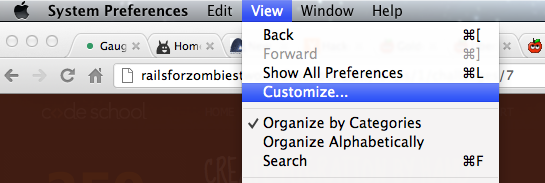
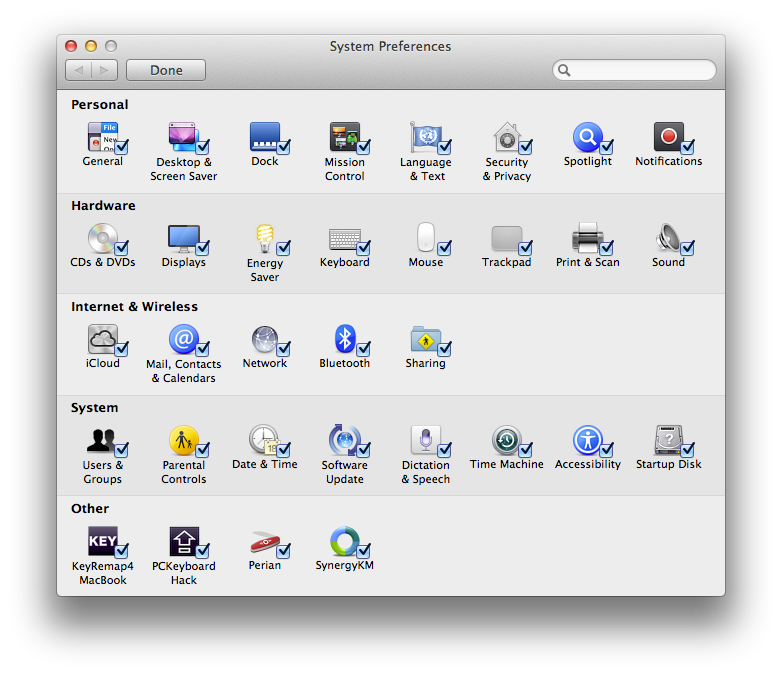
<p>Step 2) Under View, click Customize. This will make a bunch of checkmarks appear next to each of the preference panes.</p>

<p><img class="clear blog-image full-border" src="https://static.binaryage.com/0d95d616_images_customize_preferences1.png" title="System Preferences" /></p>

<p>Step 3) Uncheck the ones that you don’t want to show up anymore. Don’t worry, you aren’t removing them, just hiding them. You can still access them by searching in the top right hand corner of the System Preferences window.</p>

<p><img class="clear blog-image full-border" src="https://static.binaryage.com/e4d87f8b_images_customize_preferences.png" title="System Preferences" /></p>

<p>Step 4) If you ever want to add those panes back, simply recheck them under View &gt; Customize and your preferences will return.</p>

<p>I hope this tip helped you out! Please leave a comment below with suggestions for future articles or a comment about this one if you found it confusing or not helpful.</p>
]]></content>
        <author>
            <name>Mark Miyashita</name>
            <url>http://markmiyashita.com</url>
        </author>
    </entry>
    
    <entry>
        <title><![CDATA[Set Default Tab Size and Turn on Soft Tabs on TextMate 2]]></title>
        
        <link href="https://hints.binaryage.com//set-default-tab-size-and-turn-on-soft-tabs-in-textmate-2/"/>
        <updated>2012-08-19T17:10:00+00:00</updated>
        <id>hints.binaryage.com:/set-default-tab-size-and-turn-on-soft-tabs-in-textmate-2</id>
        <content type="html"><![CDATA[<p><img class="clear blog-image normal-border" src="https://static.binaryage.com/08023b31_images_TextMate.png" title="TextMate" /></p>

<p>Tired of annoying hard tabs instead of soft tabs in TextMate 2? Here is a simple tutorial on how to fix that and we will also teach you how to set the default tab size.</p>

<p>Open TextMate 2 and go to Preferences. Click on the Variables tab and all you have to do is add a few new variables. To set the default tab size, make a new variable called “tabSize” and set it to whatever you want (I always do 2). Then, make a second variable called “softTabs” and set that to “true” (if and only if you want soft tabs of course).</p>

<p>That’s it! If you have any questions, please leave a comment below!</p>
]]></content>
        <author>
            <name>Mark Miyashita</name>
            <url>http://markmiyashita.com</url>
        </author>
    </entry>
    
    <entry>
        <title><![CDATA[How To Flush DNS Cache on Mac OS X 10.7 and 10.8]]></title>
        
        <link href="https://hints.binaryage.com//how-to-flush-dns-cache-on-mac-os-x-10-7-and-10-8/"/>
        <updated>2012-08-18T18:20:00+00:00</updated>
        <id>hints.binaryage.com:/how-to-flush-dns-cache-on-mac-os-x-10-7-and-10-8</id>
        <content type="html"><![CDATA[<p>If you are having problems connecting to the internet on your Mac, you may need to flush your DNS cache. On Mac OS X 10.7 and 10.8, you can simply open Terminal by using Spotlight (CMD+Space) or by going to Applications &gt; Utilities &gt; Terminal. Copy and paste the command below to flush your DNS Cache:</p>

<figure class="highlight"><pre><code class="language-bash" data-lang="bash"><span class="nb">sudo </span>killall <span class="nt">-HUP</span> mDNSResponder </code></pre></figure>

<p>Type in your Administrative password and the command should fix your internet problems! Hopefully your internet connection problems are gone now and you can enjoy the internet! If you have any questions, please feel free to leave a comment below!</p>
]]></content>
        <author>
            <name>Mark Miyashita</name>
            <url>http://markmiyashita.com</url>
        </author>
    </entry>
    
    <entry>
        <title><![CDATA[How To Enable Power Nap on MacBook Air 2010]]></title>
        
        <link href="https://hints.binaryage.com//how-to-enable-power-nap-on-macbook-air-2010/"/>
        <updated>2012-08-17T07:38:00+00:00</updated>
        <id>hints.binaryage.com:/how-to-enable-power-nap-on-macbook-air-2010</id>
        <content type="html"><![CDATA[<p><img class="clear blog-image full-border" src="https://static.binaryage.com/913e8161_images_power_nap.png" title="MacBook Air Power Nap" /></p>

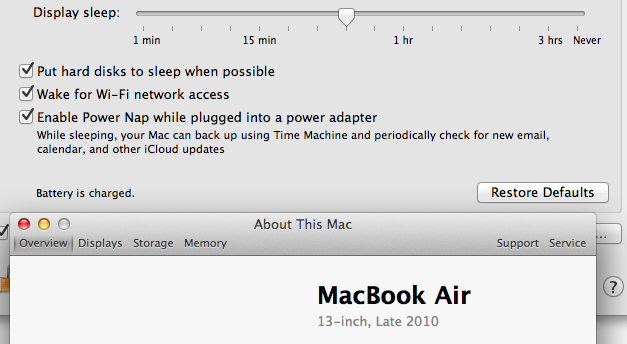
<p>Apple has not publicly released the installation files necessary to enable Power Nap on the MacBook Air (late 2010) however, they do have the files freely available online! Downloading one of the following packages will allow you to enable the power nap setting under Energy Saver in System Preferences. Simply downlod the file and follow the on-screen instructions.</p>

<p>Note: Install these at your own risk, there might be a reason why Apple has not publicly pushed out these updates to all MacBook Air users. This works on the MacBook Air Late 2010 only.</p>

<p><a href="http://swcdn.apple.com/content/downloads/21/62/041-6202/bjbjgeh996zkek2kv17oxx7efn8119zzk6/2010MBA11.pkg">Late 2010, 11” MacBook Air</a><br />
<a href="http://swcdn.apple.com/content/downloads/21/62/041-6202/bjbjgeh996zkek2kv17oxx7efn8119zzk6/2010MBA13.pkg">Late 2010, 13” MacBook Air</a></p>

<p>If you have any questions, feel free to leave them in the comments below!</p>
]]></content>
        <author>
            <name>Mark Miyashita</name>
            <url>http://markmiyashita.com</url>
        </author>
    </entry>
    
    <entry>
        <title><![CDATA[How to Download YouTube Videos on Mountain Lion Safari 6]]></title>
        
        <link href="https://hints.binaryage.com//how-to-download-youtube-videos-mountain-lion-safari-6/"/>
        <updated>2012-08-13T08:06:00+00:00</updated>
        <id>hints.binaryage.com:/how-to-download-youtube-videos-mountain-lion-safari-6</id>
        <content type="html"><![CDATA[<p><img class="clear blog-image full-border" src="https://static.binaryage.com/3ce1683c_images_download_youtube2.png" title="YouTube" /></p>

<p>Here is a quick guide on how to download YouTube videos on Mountain Lion using Safari 6! Many of you have been requesting this article, so here it is! Sorry for the delay!</p>

<p>Step 1) Go to <a href="http://kwizzu.com">Kwizzu.com</a> and click on the “Install” button at the bottom. For this step, make sure you are in Safari or else it will download for your other browser.</p>

<p>Step 2) After the Safari Extension is installed, you can simply go to any YouTube video as you normally would.</p>

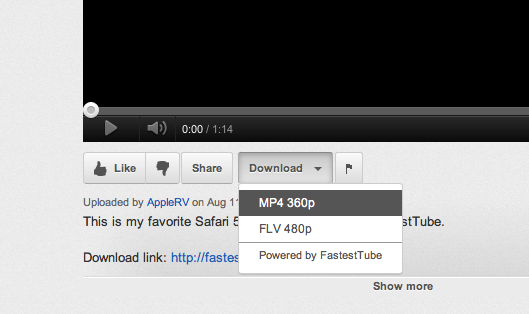
<p>Step 3) Right below the video, on the right side of the “Share” button, there will now be a “Download” button that will allow you to select which format you would like to download the video in. It could not get any simpler than this! If you need help with this step, take a look at the screenshot above, it should be able to help you!</p>

<p>If you have any questions about the process described above, please leave a question in the comments below and I will be sure to answer them!</p>
]]></content>
        <author>
            <name>Mark Miyashita</name>
            <url>http://markmiyashita.com</url>
        </author>
    </entry>
    
    <entry>
        <title><![CDATA[Enable AirPrint on Windows with iOS 5]]></title>
        
        <link href="https://hints.binaryage.com//enable-airprint-on-windows-ios-5/"/>
        <updated>2012-08-05T09:34:00+00:00</updated>
        <id>hints.binaryage.com:/enable-airprint-on-windows-ios-5</id>
        <content type="html"><![CDATA[<p>Here is a quick guide on how to enable AirPrint on your Windows machine assuming you have iOS 5 or greater.</p>

<p>1) Go <a href="http://forums.macrumors.com/attachment.php?attachmentid=317147&amp;d=1324647356">here</a> to download the latest files that you need in order to enable AirPrint.</p>

<p>2) Double click on the “AirPrint_Installer.exe” application and then click on “Install AirPrint Service”.</p>

<p>3) Run the “AirPrint iOS 5 FIX - 32Bit.reg” or “AirPrint iOS 5 FIX - 64Bit.reg” (depending on what type of os you have installed) to install the current version for iOS 5.</p>

<p>4) Again, open “AirPrint_Installer.exe” and double check that “Service Startup” is set to “Auto” and click “Start”.</p>

<p>5) Restart your computer, you are almost done.</p>

<p>NOTE: You may need to enable the guest account on your computer by going to Control Panel &gt; User Accounts &gt; Manage Another Account &gt; Turn the Guest Account on. In the AirPrint_Installer.exe, you may need to choose the guest account that you just enabled. Click “Enable Guest Account” and then click “Update.” Again, you have to restart.</p>

<p>If you have any questions about this process, please post in the comments below!</p>
]]></content>
        <author>
            <name>Mark Miyashita</name>
            <url>http://markmiyashita.com</url>
        </author>
    </entry>
    
    <entry>
        <title><![CDATA[Change Mountain Lion Calendar and Contacts App to Aluminum Skin]]></title>
        
        <link href="https://hints.binaryage.com//change-mountain-lion-calendar-and-contacts-app-to-aluminum-skin/"/>
        <updated>2012-07-26T11:08:00+00:00</updated>
        <id>hints.binaryage.com:/change-mountain-lion-calendar-and-contacts-app-to-aluminum-skin</id>
        <content type="html"><![CDATA[<p><img class="clear blog-image full-border" src="https://static.binaryage.com/7dc07a12_images_calendar.png" title="Calendar" /></p>

<p>The above screenshot is of the leather skin in the Calendar and Contacts apps that Apple introduced in Mac OS X 10.7, Lion. Since then, many people have disputed over the look and feel of those two apps. Some people like the idea that the Calendar and Contacts app (or previously known as the iCal and Address Book apps) have changed appearance to emulate the appearance of real-world planners or day trackers. On the other hand, there are others who believe that because it is a digital product, the nuances of having a leather bound book to keep track of events should not be emulated in the digital world. Regardless of where you stand, if you would like to get rid of the brown leather skin and change it back to the old aluminum skin for the Calendar or Contacts app, then follow the steps below.</p>

<p>1) First, download one of these .dmgs for the app that you want to re-skin.<br />
<a href="http://www.learninglogic.co.uk/macnix/Aluminium_Skin_for_Mac_OS_10.8_Calendar.dmg">Calendar Skin</a><br />
<a href="http://www.learninglogic.co.uk/macnix/Aluminium_Skin_for_Mac_OS_10.8_Contacts.dmg">Contacts Skin</a></p>

<p>2) Make a copy of the Calendar and Contacts app on your computer. Copy and paste these files to another directory to keep safe in case you want to revert back to the leather version.</p>

<p>3) Install the .dmgs and they will replace the images over the apps. Note: this does not remove/change the brown font. The brown font is now on top of the aluminum skin which some people may find weird.</p>

<p>4) If you would like to restore the original leather theme, simply delete the edited versions of the apps and copy the original versions that you had backed up earlier, back into the ~/Applications directory.</p>

<p>If you have any questions about the process or how it works, please leave a comment below!</p>
]]></content>
        <author>
            <name>Mark Miyashita</name>
            <url>http://markmiyashita.com</url>
        </author>
    </entry>
    
    <entry>
        <title><![CDATA[Notice: Facebook Mountain Lion Integration Coming Out Later]]></title>
        
        <link href="https://hints.binaryage.com//notice-facebook-integration-not-until-fall-mountain-lion/"/>
        <updated>2012-07-26T11:02:00+00:00</updated>
        <id>hints.binaryage.com:/notice-facebook-integration-not-until-fall-mountain-lion</id>
        <content type="html"><![CDATA[<p>Wondering where that long rumored Facebook integration into Mountain Lion is? It certainly has been mentioned by Apple several times in their list of updates included in their newly launched Mountain Lion. As it turns out, the new Facebook integration won’t be coming out until the Fall, most likely October. This may be sad news for some, but don’t worry, you’ll be posting status updates from your Mac Notification Bar in no time at all. Stay tuned!</p>

<p>Questions, comments? Post them in the section below!</p>
]]></content>
        <author>
            <name>Mark Miyashita</name>
            <url>http://markmiyashita.com</url>
        </author>
    </entry>
    
    <entry>
        <title><![CDATA[Mountain Tweaks Coming Out Soon]]></title>
        
        <link href="https://hints.binaryage.com//mountain-tweaks-coming-out-soon/"/>
        <updated>2012-07-26T10:48:00+00:00</updated>
        <id>hints.binaryage.com:/mountain-tweaks-coming-out-soon</id>
        <content type="html"><![CDATA[<p>The developer of Lion Tweaks has a new app coming out soon called “Mountain Tweaks.” This update will be for Mountain Lion compatibility only and will enable all of the broken features on the Lion version to work with Mountain Lion.</p>

<p>You can check out the official website for Mountain Tweaks <a href="http://tweaksapp.com/app/mountain-tweaks/">here.</a></p>

<p>If you have any questions, feel free to post them in the comments below!</p>
]]></content>
        <author>
            <name>Mark Miyashita</name>
            <url>http://markmiyashita.com</url>
        </author>
    </entry>
    
    <entry>
        <title><![CDATA[How To Make a Mountain Lion USB Installer Key]]></title>
        
        <link href="https://hints.binaryage.com//how-to-make-a-mountain-lion-usb-installer-key/"/>
        <updated>2012-07-25T20:00:00+00:00</updated>
        <id>hints.binaryage.com:/how-to-make-a-mountain-lion-usb-installer-key</id>
        <content type="html"><![CDATA[<p><img class="clear blog-image full-border" src="https://static.binaryage.com/621c869b_images_os-x-mountain-lion.jpeg" title="Mountain Lion" /></p>

<p>I have had a few requests both in the comments of the <a href="http://hints.binaryage.com/get-your-mac-ready-for-mountain-lion/"> “Get Your Mac Ready for Mountain Lion”</a> and via email. Here is a tutorial on how to create a USB Mountain Lion Installer key so that you can install it a lot faster on the other Macs that are associated with your Apple ID.</p>

<p><img class="clear blog-image full-border" src="https://static.binaryage.com/555db258_images_usb-mountain-lion-0.png" title="Mountain Lion" /></p>

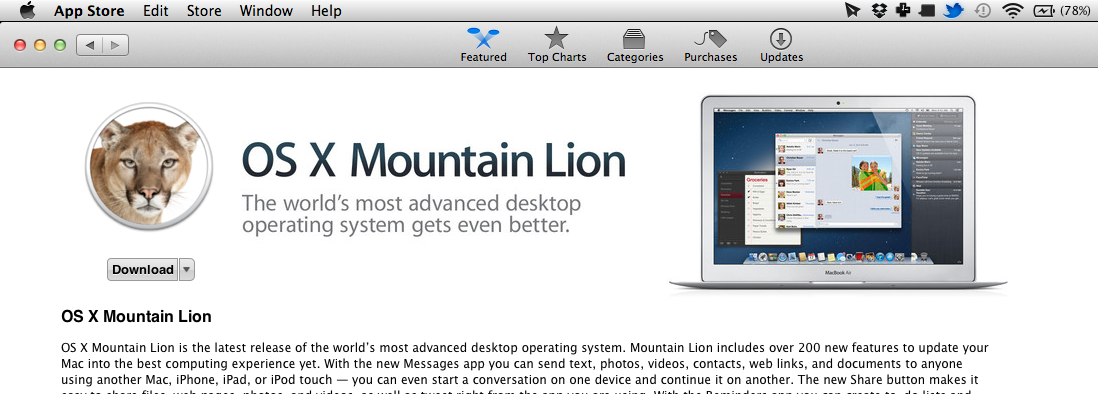
<p>1) Go to the Mac App Store and download Mountain Lion for $19.99. After it has finished downloading, DO NOT continue following the dialogs to install Mountain Lion.</p>

<p>2) Open up Finder and navigate to your Applications and find the Install OS X Mountain Lion.app. Right click on it and select “Show Package Contents” Here is a screenshot:</p>

<p><img class="clear blog-image full-border" src="https://static.binaryage.com/601ef93f_images_usb-mountain-lion-1.png" title="Mountain Lion" /></p>

<p>3) After that, navigate to Contents &gt; SharedSupport and find the InstallESD.dmg. That is the file that you are looking for. Copy this to a new location such as your Desktop so we can easily copy this onto a USB key.</p>

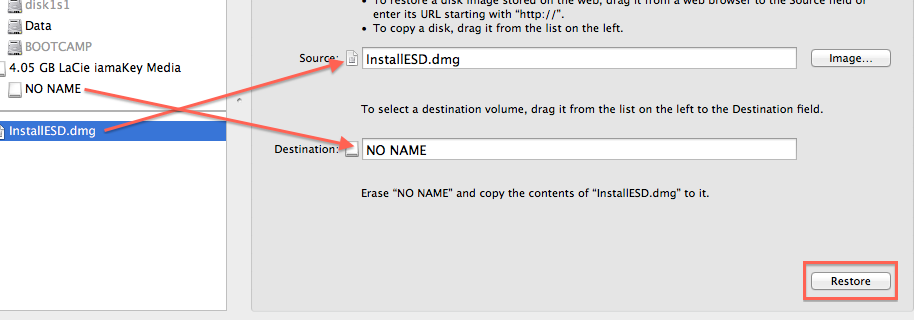
<p>4) Now for the disk imaging part. Open up Disk Utility and drag the InstallESD.dmg from your Desktop to Disk Utility in the left hand side bar. Here’s a screenshot:</p>

<p><img class="clear blog-image full-border" src="https://static.binaryage.com/5dba1068_images_usb-mountain-lion-3.png" title="Mountain Lion" /></p>

<p>5) After that, click on the InstallESD.dmg in the left sidebar, click the Restore tab and then follow the diagram above to drag the correct items into the correct fields. For me, the NO NAME USB key is the one that I am using for my install. (However, that was just for an example, you need at least an 8GB USB key).</p>

<p>6) Now, click Restore in the bottom right corner and there you go! You now have a USB Mountain Lion installer key.</p>

<p>If you have any questions, please post in the comments below. I will be sure to help you out as soon as possible!</p>
]]></content>
        <author>
            <name>Mark Miyashita</name>
            <url>http://markmiyashita.com</url>
        </author>
    </entry>
    
    <entry>
        <title><![CDATA[Mountain Lion Released Today]]></title>
        
        <link href="https://hints.binaryage.com//mointain-lion-released-today/"/>
        <updated>2012-07-25T17:40:00+00:00</updated>
        <id>hints.binaryage.com:/mointain-lion-released-today</id>
        <content type="html"><![CDATA[<p><img class="clear blog-image full-border" src="https://static.binaryage.com/621c869b_images_os-x-mountain-lion.jpeg" title="Mountain Lion" /></p>

<p>Early this morning, Apple released the newest version of OS X, Mountain Lion. This update rings in at $19.99 and is available now from the Mac App Store for an easy-to-install download. Mountain Lion features over 200+ updates including new apps such as Notes, Reminders, and a new feature called Notifications. Here are some other articles we have written about Mountain Lion:</p>

<p><a href="http://hints.binaryage.com/get-your-mac-ready-for-mountain-lion/">Get Your Mac Ready For Mountain Lion</a><br />
<a href="http://hints.binaryage.com/mountain-lion-release-date/">Mountain Lion Release Date</a></p>

<p>If you have already downloaded Mountain Lion, what is your favorite feature so far?</p>
]]></content>
        <author>
            <name>Mark Miyashita</name>
            <url>http://markmiyashita.com</url>
        </author>
    </entry>
    
    <entry>
        <title><![CDATA[Simple Shortcut to Lock Your Mac's Screen]]></title>
        
        <link href="https://hints.binaryage.com//simple-shortcut-to-lock-your-macs-screen/"/>
        <updated>2012-07-24T16:11:00+00:00</updated>
        <id>hints.binaryage.com:/simple-shortcut-to-lock-your-macs-screen</id>
        <content type="html"><![CDATA[<p>Ever needed to step away from your computer for a brief moment but didn’t want to log out? You could always use fast user switching but then everyone around you knows that your computer isn’t really off because they can see your login screen. Well, a simple keyboard shortcut that I use every day is the key combination: control + shift + eject. What this keyboard combination does is lock your Mac’s screen (given that you check the box under System Preferences &gt; Security and Privacy &gt; General &gt; Require password immediately curtesy of our reader, Lri) and it turns your screen black giving the illusion that your Mac is turned off because it puts your screen to sleep. This also helps prolong the life of your display because it won’t be stuck on one screen for very long (which isn’t so much a problem nowadays, however, it used to lead to stuck pixels on CRT displays). So, the next time you are away from your computer, be sure to press control + shift + eject on your Mac keyboard to put your display to sleep.</p>

<p>If you have any questions about the post above, please leave a comment!</p>
]]></content>
        <author>
            <name>Mark Miyashita</name>
            <url>http://markmiyashita.com</url>
        </author>
    </entry>
    
    <entry>
        <title><![CDATA[Back Up iPhone Passwords Using iTunes]]></title>
        
        <link href="https://hints.binaryage.com//backup-iphone-passwords-using-itunes/"/>
        <updated>2012-07-18T09:41:00+00:00</updated>
        <id>hints.binaryage.com:/backup-iphone-passwords-using-itunes</id>
        <content type="html"><![CDATA[<p><img class="clear blog-image full-border" src="https://static.binaryage.com/a3515ef8_images_password-encrypt.jpg" title="Encryption" /></p>

<p>Have you ever restored your iOS device from iTunes and then realized that you had to sign in to every single app, the app store itself, all your email accounts, and even iCloud? Well, a new hint has been submitted by reader <a href="http://michaelballphoto.com/">Michael Ball</a> that allows you to work around this issue. In iTunes, select your device and then select the “Encrypt Local Backup” option from the main sync screen. All you have to do is set your password and now if you restore from this backup, your passwords for everything will come along with it! Great isn’t it? Here’s a screenshot for those of you having trouble finding the right checkbox.</p>

<p><img class="clear blog-image full-border" src="https://static.binaryage.com/c2db2b48_images_encrypt-local.png" title="Encryption" /></p>

<p>If you have any questions about this method, please leave a comment below!</p>
]]></content>
        <author>
            <name>Mark Miyashita</name>
            <url>http://markmiyashita.com</url>
        </author>
    </entry>
    
    <entry>
        <title><![CDATA[iOS 6 Beta 3 Update Released, Download Here]]></title>
        
        <link href="https://hints.binaryage.com//ios-6-beta-3-update-released-download-here/"/>
        <updated>2012-07-17T09:34:00+00:00</updated>
        <id>hints.binaryage.com:/ios-6-beta-3-update-released-download-here</id>
        <content type="html"><![CDATA[<p>Today, Apple released the third beta of iOS 6 to its developers who have long been awaiting an update. What did the update have in store? Read on to find out more about the update and even a download link!</p>

<p><img class="clear blog-image full-border" src="https://static.binaryage.com/17c8b381_images_ios-beta-3.png" title="iOS 6 Beta 3" /></p>

<p>In this iteration, Apple has included updates to several aspects that define the user experience.</p>

<ul>
  <li>First, the Maps app has been updated to include roadwork, accidents, etc. built right into the Maps app.</li>
  <li>The first hints of public transportation (a much missed feature) are now included in the Maps app. So far, they have added the MTA Subway in New York City and the CTA and Metra in Chicago. Hopefully, they can continue moving west with this before the actual update rolls out.</li>
  <li>The Maps app has also seen the inclusion of turn-by-turn directions as well as traffic information for select users. In addition, satellite imagery has also been spotted to show up on some devices.</li>
  <li>The auto-brightness feature has been updated to increment gradually instead of all at once.</li>
  <li>The reading list in Safari now shows when it is syncing between devices.</li>
  <li>Safari now includes images for the bookmarks, history, and reading list icons instead of just text labels.</li>
  <li>iMessage on the iPad now allows you to add phone numbers for more synchronized messaging across multiple devices.</li>
  <li>3D maps and models are starting to appear in select cities.</li>
  <li>New settings for the Maps app as well as some new icons have appeared throughout the OS.</li>
  <li>YouTube audio issues have been resolved.</li>
  <li>Apps seem to crash less, Safari seems snappier (these things usually happen with updates)</li>
</ul>

<p>So, there you have it. We are one step closed to the actual release of iOS 6. If you can’t wait until the actual release of these features, you can buy a developer account for $99/year and get access to all the betas including the GM version of Mountain Lion. However, if you still can’t wait, you can download the new iOS 6 Beta 3 from imzdl’s website <a href="http://imzdl.tumblr.com">here.</a></p>

<p>Hope you guys enjoy the new features of iOS 6! If you have any questions, please post them in the comments below! Also, let’s discuss your favorite features of iOS 6 so far!</p>
]]></content>
        <author>
            <name>Mark Miyashita</name>
            <url>http://markmiyashita.com</url>
        </author>
    </entry>
    
    <entry>
        <title><![CDATA[Mountain Lion Release Date]]></title>
        
        <link href="https://hints.binaryage.com//mountain-lion-release-date/"/>
        <updated>2012-07-17T09:28:00+00:00</updated>
        <id>hints.binaryage.com:/mountain-lion-release-date</id>
        <content type="html"><![CDATA[<p><img class="clear blog-image full-border" src="https://static.binaryage.com/621c869b_images_os-x-mountain-lion.jpeg" title="Mountain Lion" /></p>

<p>Again at the Apple rumor mill, recent posts have suggested that the Mac App Store will be updated on the night of the 25th of July. What does this mean? It means Mountain Lion. Mountain Lion will be coming to the App Store and recent rumors point to the 25th as the official release date for the new 10.8 software. Mountain Lion will be a downloadable update from the App Store weighing in around 4GB. You need to have Lion in order to update so Snow Leopard users will have to upgrade twice, once to Lion and another time to Mountain Lion. Luckily, the process is relatively simple and won’t require much work on the user’s side.</p>

<p>The price is set for Mountain Lion to be released as a $19.99 update. Will you purchase? Let’s talk about it in the comments below!</p>
]]></content>
        <author>
            <name>Mark Miyashita</name>
            <url>http://markmiyashita.com</url>
        </author>
    </entry>
    
    <entry>
        <title><![CDATA[[Poll] Will Apple Release a Smaller iPad?]]></title>
        
        <link href="https://hints.binaryage.com//will-apple-release-a-smaller-ipad/"/>
        <updated>2012-07-17T09:21:00+00:00</updated>
        <id>hints.binaryage.com:/will-apple-release-a-smaller-ipad</id>
        <content type="html"><![CDATA[<p>There have been a few articles recently that speculate that Apple may be developing a new iPad. The new iPad would be around 7-8 inches in diagonal screen size which would place it right inbetween the iPhone and the current iPad. If you want to read more about the rumors, here are a few articles: <a href="http://www.bloomberg.com/news/2012-07-03/here-comes-nexus-7-nightmare-the-ipad-mini.html">Bloomberg</a> and the <a href="http://online.wsj.com/article/SB10001424052702304141204577506471913819412.html?mod=googlenews_wsj">Wall Street Journal</a>.</p>

<p>Both are credible sources, but do you believe them?</p>

<p>Let’s start a discussion in the comments below! I, for one, believe that Apple will indeed come out with this speculated iPad becuase there is a large enough market for such a device. What do you think?</p>
]]></content>
        <author>
            <name>Mark Miyashita</name>
            <url>http://markmiyashita.com</url>
        </author>
    </entry>
    
    <entry>
        <title><![CDATA[Safari 6 Developer Preview Download]]></title>
        
        <link href="https://hints.binaryage.com//safari-6-developer-preview-download/"/>
        <updated>2012-07-15T10:37:00+00:00</updated>
        <id>hints.binaryage.com:/safari-6-developer-preview-download</id>
        <content type="html"><![CDATA[<p><img class="clear blog-image full-border" src="https://static.binaryage.com/a5749001_images_safari_6.png" title="Safari 6 Developer Preview" /></p>

<p>The new Safari 6 Developer Preview that was available for developers shortly after the WWDC conference includes many new features from Safari 5.1 and 5.2. The move to Mountain Lion also means that Safari 6 is closer to the iOS version of Mobile Safari than ever before. Features such as iPad style tabs, iOS style expose tab navigation, and tabs that sync between iOS and Safari 6 are all welcome features being added to this version. Be aware that this is a developer preview so crashing will occur often and it is best to stay on Safari 5.2 which can be found <a href="http://hints.binaryage.com/new-safari-5-2-beta-update-3-download/">here.</a></p>

<p>Anyways, if you want to give the new Safari 6 Developer Preview a try, you can download it from <a href="http://ge.tt/6WY3kyI/v/0?c">here.</a> No guarantees of how well it will run on your system.</p>

<p>If you have any questions about the upcoming features of Mountain Lion, iOS 6, or Safari 6, please leave a comment below and I will do my best to answer your questions!</p>
]]></content>
        <author>
            <name>Mark Miyashita</name>
            <url>http://markmiyashita.com</url>
        </author>
    </entry>
    
    <entry>
        <title><![CDATA[Lion Tweaks 2.0.1 updated for Mountain Lion]]></title>
        
        <link href="https://hints.binaryage.com//lion-tweaks-updated-for-mountain-lion/"/>
        <updated>2012-07-15T10:07:00+00:00</updated>
        <id>hints.binaryage.com:/lion-tweaks-updated-for-mountain-lion</id>
        <content type="html"><![CDATA[<p><img class="clear blog-image full-border" src="https://static.binaryage.com/ca8bbaeb_images_lion-tweaks.png" title="Lion Tweaks" /></p>

<p>Lion Tweaks has been updated to version 2.0.1 to support Mountain Lion! Lion Tweaks is the popular software developed by Frederik Wiker and is available for download <a href="http://ifredrik.com/applications/index.html">here.</a> It allows you to tweak settings in Lion and Mountain Lion that were removed from Snow Leopard. Features such as: changing the iCal leather to aluminum, coloring the finder sidebar, and enabling airdrop on older hardware are all available using this product. You can also do things such as: show the user library folder, enable the 2D dock, and enable TRIM support on Lion.</p>

<p>EDIT: It seems that Lion Tweaks is not changing the skins on iCal/Calendar or Contacts/Address Book. <a href="http://hints.binaryage.com/change-mountain-lion-calendar-and-contacts-app-to-aluminum-skin/">Here</a> is a quick fix for that.</p>

<p>If you have any questions about the tweaks listed in Lion Tweaks 2.0.1, please leave a comment below! Happy tweaking!</p>
]]></content>
        <author>
            <name>Mark Miyashita</name>
            <url>http://markmiyashita.com</url>
        </author>
    </entry>
    
    <entry>
        <title><![CDATA[Get Your Mac Ready to Install Mountain Lion]]></title>
        
        <link href="https://hints.binaryage.com//get-your-mac-ready-for-mountain-lion/"/>
        <updated>2012-07-11T09:16:00+00:00</updated>
        <id>hints.binaryage.com:/get-your-mac-ready-for-mountain-lion</id>
        <content type="html"><![CDATA[<p>I hope you are excited for the upcoming release for Mountain Lion! Apple just released the GM version to developers just two days ago. That means we can anticipate the official version coming out within the month! This is all very exciting! I’ve decided to compile a list of things that I usually do before the release of a major update for my operating system. Here it goes.</p>

<p><img class="clear blog-image full-border" src="https://static.binaryage.com/621c869b_images_os-x-mountain-lion.jpeg" title="Mountain Lion" /></p>

<p>First, some things we have to consider. We can take one of two routes, either we can install the Mountain Lion update over out existing Lion install which is quick and easy and the Mac App Store makes this fairly easy. Option two involves completely wiping out hard drives, reformatting, and then installing the operating system from scratch. Why do this, you ask? The second option de-clutters your computer entirely so you are sure that it is as fast as it can possibly be within the limitations of your hardware. However, the downside is that it takes longer, requires more technical know-how, and can be frustrating depending on what you want to do. We’ll start with the easier, but less rewarding method first.</p>

<p><strong><em>Option 1) Installing Mountain Lion over Lion using the Mac App Store.</em></strong></p>

<p>Step 1) Over time, we accumulate a lot of random software, files, and downloads that are no longer necessary. The first thing I like to do when updating my system is clearing out my downloads folder of everything that I don’t need and only keeping the essentials. Then I like to clean up my Dropbox which houses all of my current projects and important documents. Over time, those files get messy so I like to reorganize my folder structure into something neater (which I may post later). Lastly, I like to uninstall apps that are unnecessarily cluttering my system. You can either do this by using the built-in uninstaller if the application has one, sometimes you can just remove the app from the Applications folder, or sometimes you have to get inventive and use a tool such as one of the ones listed <a href="http://lifehacker.com/5828738/the-best-app-uninstaller-for-mac">here </a> curtesy of Lifehacker.</p>

<p>Step 2) Now that all of my important files are sorted, all the clutter is gone, and the pointless apps that I have downloaded have disappeared, it is time to backup. Backing up is extremely important when installing the operating system as an update because you never know when something might break. Always take precaution and make two backups if you really don’t trust hardware. I just use Time Machine for my backups because it is built in and gets the job done (wirelessly, which I might also write about later).</p>

<p>Step 3) Finally, your Mac is ready to be promoted from just regular Lion to Mountain Lion. First, head on over to the Mac App Store and search for ‘Mountain Lion.’ Purchase and download the update (will set you back $20). Afterwards, the installer may prompt you telling you it is shutting down and will install the update then.</p>

<p><strong><em>Option 2) Reformatting your hard drive and reinstalling Mountain Lion from scratch.</em></strong></p>

<p>Step 1) Just so you know, this is my preferred option. This is because I can have a clear conscious knowing that the software on my system is from a fresh install and the older versions aren’t still clinging onto the depths of my hard drive without me knowing about it. The first thing I do here is BACKUP. This is the most important step of this process because you are wiping all of your data. Make two backups if you can and three if you are extremely paranoid and somehow have that much extra space.</p>

<p>Step 2) Write down a list of apps that you use on a regular basis. This step is also important because you only want to install the ones that are necessary. Don’t install that app that you used only once and it didn’t even work. Chances are you will never use that app again so there is no point in cluttering up your system again. Also, make sure you have a easily accessible copy of all of your ‘non-disposable’ data. This includes your Music, Pictures, Video, and documents. All of these things are content created/harnessed by you, the user, and replacing these items is a lot harder than re-downloading a binary installer.</p>

<p>Step 3) Okay here is the fun part. Pay for and download the update for Mac OS X from the Mac App Store and save it to your computer. I will post a later guide once Mountain Lion comes out about how to remove the .dmg from the file so that you can make your own installer USB key. <a href="http://hints.binaryage.com/how-to-make-a-mountain-lion-usb-installer-key/">(EDIT: Here is the guide that you have been asking for!)</a> Shoot me an email if Mountain Lion is out and this article is not yet written. The basic idea around this is that you are trying to find the InstallESD.dmg file that was also found in the Lion update. Then, using Disk Utility, you mount the disk and load the contents onto a USB flash drive to use to install.</p>

<p>Step 4) After making your USB key from step number 3, you are now going to shut down your computer, insert the USB key, then reboot while holding down the Alt/Option key on your keyboard. This will allow you to boot into the USB drive. When the screen pops up, select the yellow device which represents the USB key and then follow the instructions to install Mountain Lion.</p>

<p>Whichever method you chose, you will inevitably end with a nice install of Mountain Lion. If you have any questions about the features in Mountain Lion or anything about this post including the process by which you can install, please leave a comment below and I will answer you as quickly and promptly as I can!</p>
]]></content>
        <author>
            <name>Mark Miyashita</name>
            <url>http://markmiyashita.com</url>
        </author>
    </entry>
    
    <entry>
        <title><![CDATA[Mountain Lion Gold Master is Available for Download]]></title>
        
        <link href="https://hints.binaryage.com//mountain-lion-gm-available-for-download/"/>
        <updated>2012-07-11T08:52:00+00:00</updated>
        <id>hints.binaryage.com:/mountain-lion-gm-available-for-download</id>
        <content type="html"><![CDATA[<p><img class="clear blog-image full-border" src="https://static.binaryage.com/621c869b_images_os-x-mountain-lion.jpeg" title="Mountain Lion" /></p>

<p>Apple has recently pushed out the Gold Master developer version of OS X Mountain Lion to developers. That means we can be expecting the Mountain Lion official release shortly hereafter. When the new Mountain Lion comes out, it will cost only $20 and will be available via the Mac App Store.</p>

<p>If you can’t wait, you can download the GM version <a href="http://imzdl.tumblr.com/">from here.</a></p>

<p>What feature are you looking forward to most in OS X Mountain Lion? Leave a comment below and let’s discuss!</p>
]]></content>
        <author>
            <name>Mark Miyashita</name>
            <url>http://markmiyashita.com</url>
        </author>
    </entry>
    
    <entry>
        <title><![CDATA[How To Clear Out Launchpad and Add the Apps How You Want]]></title>
        
        <link href="https://hints.binaryage.com//how-to-clear-out-launchpad/"/>
        <updated>2012-06-27T08:11:00+00:00</updated>
        <id>hints.binaryage.com:/how-to-clear-out-launchpad</id>
        <content type="html"><![CDATA[<p>Launchpad is a feature added to Mac OS X that emulates the home screens on iOS. The basic idea behind it is that you have one central location to find all of your apps. However, as most users have noticed, this feature, loved on iOS, is not as useful on OS X. The simple reason is that not every user wants every app on their computer showing up in Launchpad. Luckily for us, there is a simple trick that will allow us to organize and store what WE want in Launchpad. This is more desirable; follow the steps below in order to accomplish just this:</p>

<p>Step 1) Open up Terminal by going to Applications &gt; Utilities &gt; Terminal.</p>

<p>Step 2) Type in the following command: 
    sqlite3 ~/Library/Application\ Support/Dock/*.db “DELETE from apps; DELETE from groups WHERE title&lt;&gt;’’; DELETE from items WHERE rowid&gt;2;”; Killall Dock</p>

<p>This command essentially erases the entire database for Launchpad. Yay, now Launchpad is…empty? That’s not useful. Read on!</p>

<p>Step 3) To add apps back to Launchpad, all you need to do is drag apps onto the Launchpad dock icon. Yep, it’s that simple!</p>

<p>Step 4) If for some reason you would like to go back to the old Launchpad with an icon for every single app on your Mac, then enter the command below which will rebuild the database:
    rm ~/Library/Application\ Support/Dock/*.db; killall Dock</p>

<p>If you have any questions about the code listed above, please leave a comment below!</p>
]]></content>
        <author>
            <name>Mark Miyashita</name>
            <url>http://markmiyashita.com</url>
        </author>
    </entry>
    
    <entry>
        <title><![CDATA[Stop GIFs From Animating in Your Web Browser]]></title>
        
        <link href="https://hints.binaryage.com//stop-gifs-from-animating/"/>
        <updated>2012-06-27T07:59:00+00:00</updated>
        <id>hints.binaryage.com:/stop-gifs-from-animating</id>
        <content type="html"><![CDATA[<p>In Firefox and Safari, there is a simple way to pause and even stop animated GIFs from moving. In Firefox, simply press Escape once and the GIFs will stop moving. On Safari, you must hold down the Escape key for as long as you want them to stop being animated.</p>

<p>If you have any questions, please post them in the comments below!</p>
]]></content>
        <author>
            <name>Mark Miyashita</name>
            <url>http://markmiyashita.com</url>
        </author>
    </entry>
    
    <entry>
        <title><![CDATA[Change Your Volume on Your Mac Without Making a Sound]]></title>
        
        <link href="https://hints.binaryage.com//change-your-volume-on-your-mac-without-making-a-sound/"/>
        <updated>2012-06-24T20:48:00+00:00</updated>
        <id>hints.binaryage.com:/change-your-volume-on-your-mac-without-making-a-sound</id>
        <content type="html"><![CDATA[<p>You may find yourself in a quiet place such as a library, or an airplane and you want to change the volume on your Mac. Usually, you would just press the F11 or F12 keys to change your volume, but then you hear that annoying popping sound for each level.</p>

<p><img class="clear blog-image normal-border" src="https://static.binaryage.com/6f7a19ef_images_volume.png" title="Volume" /></p>

<p>Here is a simple keystroke that would allow you to change the volume without making a sound. Simply hold down the Shift key when you are adjusting your volume with the F11 and F12 keys and you can change the volume all you want without making a sound.</p>

<p>Check out this other article that I wrote about volume control on your Mac <a href="http://hints.binaryage.com/finer-control-over-brightness-and-volume/">here.</a></p>

<p>Hope this tips saves you some embarrassment in a quiet place. If you have any questions, leave them in the comments below!</p>
]]></content>
        <author>
            <name>Mark Miyashita</name>
            <url>http://markmiyashita.com</url>
        </author>
    </entry>
    
    <entry>
        <title><![CDATA[Finer Control Over Brightness and Volume on Mac OS X]]></title>
        
        <link href="https://hints.binaryage.com//finer-control-over-brightness-and-volume/"/>
        <updated>2012-06-24T08:15:00+00:00</updated>
        <id>hints.binaryage.com:/finer-control-over-brightness-and-volume</id>
        <content type="html"><![CDATA[<p>Sometimes you might feel restricted by the amount of control you have over the brightness and volume on your Mac. When you press the default volume and brightness controls on your Mac, usually F1, F2, and F10-12, there are 16 distinct levels for both brightness and volume. You can, however, fine tune these so that you can have up to 64 different levels.</p>

<p>Try holding down both the Option and the Shift keys along with either F1, F2, F11, or F12. You will notice that the white bar that normally increases by one will actually only increase by a quarter of a square now. This is because you have just unlocked finer control over your Mac’s brightness and volume settings!</p>

<p>This has been tested on Mac OS X Lion and has previously worked on other versions of Mac OS X. If I remember correctly, the increments used to be in halves but are now in quarters. I guess Apple has granted us more control over the settings of our system.</p>

<p>If you have any questions or comments, please feel free to leave them in the comments below.</p>
]]></content>
        <author>
            <name>Mark Miyashita</name>
            <url>http://markmiyashita.com</url>
        </author>
    </entry>
    
    <entry>
        <title><![CDATA[Add Contact Information to your Lock Screen of your Mac]]></title>
        
        <link href="https://hints.binaryage.com//add-contact-information-to-lock-screen-of-mac/"/>
        <updated>2012-06-19T18:34:00+00:00</updated>
        <id>hints.binaryage.com:/add-contact-information-to-lock-screen-of-mac</id>
        <content type="html"><![CDATA[<p>Here is a helpful hint on how to add text (or more specifically contact information) to your lock screen on your Mac. You may be asking why this is useful. I believe that in the event that a warm hearted individual falls into possession of your laptop, they may be searching for a way to contact you but they are stuck at the login screen. This allows you to leave a short message saying: “If found, please contact me at …” Here are the steps to add this:</p>

<p>Step 1) Open up System Preferences and go to Security &amp; Privacy in the top row.</p>

<p>Step 2) Click on General and also the Lock in the bottom left of the screen.</p>

<p>Step 3) Enter in your administrator password so that you can edit the settings in this pane.</p>

<p>Step 4) Check the box next to “Show a message when the screen is locked” and then type your message into the box below it.</p>

<p>Step 5) Click the lock again in the bottom left corner so that no one else can edit it.</p>

<p>That’s it! Now you can test this by locking your computer (press Control + Shift + Eject if you are using an Apple keyboard) and you should see your message written on the screen. If you have any questions or comments, please leave them below. Your feedback is very helpful!</p>
]]></content>
        <author>
            <name>Mark Miyashita</name>
            <url>http://markmiyashita.com</url>
        </author>
    </entry>
    
    <entry>
        <title><![CDATA[iPad Keyboard Hacks]]></title>
        
        <link href="https://hints.binaryage.com//ipad-keyboard-hacks/"/>
        <updated>2012-06-14T01:00:00+00:00</updated>
        <id>hints.binaryage.com:/ipad-keyboard-hacks</id>
        <content type="html"><![CDATA[<p><img class="clear blog-image full-border" src="https://static.binaryage.com/c5b3384e_images_ipad_keyboard.png" title="iPad Keyboard" /></p>

<p>Did you know that the option above existed on iOS (specifically the iPad)?</p>

<p>Well to enable this option, first, go to Settings &gt; General &gt; Keyboard and turn on Split Keyboard. Then you simply open any application that makes use of the iPad keyboard. Touch and hold on the bottom right icon (the picture of the keyboard) until two options appear. They are: Undock or Split. Split does what it says, it splits the keyboard making it easier to type with your thumbs similar to how you use the iPhone. You can also access this mode by pressing and holding on the “G” and “H” keys in the center of the keyboard and then making a “pulling apart” motion which gives the illusion that you are actually “splitting” the keyboard.</p>

<p>The other option, Undock, moves the iPad keyboard to the center of the screen. If there was something showing where the keyboard normally is, you normally wouldn’t be able to see it. However, with the Undock option, you can now see what’s below the keyboard and type at the same time! Pretty useful if you ask me.</p>

<p>If you have any comments or questions about this tip, please leave them in the comments and I will be sure to answer them as swiftly and promptly as possible!</p>
]]></content>
        <author>
            <name>Mark Miyashita</name>
            <url>http://markmiyashita.com</url>
        </author>
    </entry>
    
    <entry>
        <title><![CDATA[iOS 6 Anticipated Features]]></title>
        
        <link href="https://hints.binaryage.com//ios-6-anticipated-features/"/>
        <updated>2012-06-10T08:06:00+00:00</updated>
        <id>hints.binaryage.com:/ios-6-anticipated-features</id>
        <content type="html"><![CDATA[<p>With WWDC just on the other side of the weekend, it is time for all the news and blogs to generate speculation about what will be revealed at WWDC 2012. First and foremost, we know that there will most likely be hardware updates for some, if not all, of the Mac lineup. Some of the rumors include Ivy Bridge, Retina Displays, High Definition Displays, USB 3.0, more Thunderbolt, etc. However, one thing is for sure, iOS 6 will be announced and new features including Apple’s own mapping software will surface allowing developers to begin utilizing these new tools.</p>

<p>Some other additions that have speculation surrounding the release of iOS 6 besides the Maps application include: Siri for the iPad, further iCloud integration, Facebook integration similar to Twitter’s current integration, Airplay mirroring similar to what we’ve seen in the Mountain Lion developer previews, and automatic updates to iOS apps from the App Store.</p>

<p>Other hardware rumors include:</p>

<ul>
  <li>An update to the Mac Pro for the first time in years. New hardware means better Hackintosh in the following months.</li>
  <li>The Macbook Pro may receive an upgrade to its display, upping the resolution to Retina standards.</li>
  <li>The Macbook Pro may also receive USB 3.0 as a nice addition to the growing Thunderbolt ports.</li>
  <li>Ivy Bridge for both the Macbook Pro and the iMac are also plausible as well as quad-core processing by default.</li>
</ul>

<p>There are also continual rumors of the new iPhone with a larger (taller) screen, a 7-inch iPad dubbed by many the “iPad Mini”, as well as the oft rumored iTV. All of these products are expected to launch this year, however, it is unknown how many will be revealed at WWDC starting on Monday. We can only hope and wait.</p>

<p>Let’s discuss the most wanted and least wanted features and hardware in the comments below. I will actively respond with my opinion to anyone who comments!</p>
]]></content>
        <author>
            <name>Mark Miyashita</name>
            <url>http://markmiyashita.com</url>
        </author>
    </entry>
    
    <entry>
        <title><![CDATA[How to Install Python 3.2.3 on Mac OS X]]></title>
        
        <link href="https://hints.binaryage.com//how-to-install-python-3-2-3-on-mac-os-x/"/>
        <updated>2012-06-04T02:47:00+00:00</updated>
        <id>hints.binaryage.com:/how-to-install-python-3-2-3-on-mac-os-x</id>
        <content type="html"><![CDATA[<p>By default, your Mac comes installed with Python 2.7, no installation necessary! However, if you want some of the new features of Python such as “print” being a function now instead of a standalone command, then you are going to want to install Python 3.2.3. Follow the steps below to get started:</p>

<p>Step 1) Go <a href="http://www.python.org/download/releases/3.2.3/">here</a> to learn all about the new release of Python. Then, find the downloads section to download the latest release for Mac. (Or just click <a href="http://www.python.org/ftp/python/3.2.3/python-3.2.3-macosx10.6.dmg">here.</a>)</p>

<p>Step 2) Double click on the installer and follow the instructions for installing Python 3.2.3 on your Mac.</p>

<p>Step 3) Now, when you open up terminal and type in “python”, version 2.7 still appears. To open the version you just installed, type “python3” and this will open the latest version of Python 3.x.x.</p>

<p>Step 4) To streamline this process even further, you can add an alias for “python3” and call it “python” so that no matter what, Python 3.x.x will always open whether you type “python” or “python3.” To do this, open up Terminal.</p>

<p>Step 5) At the command prompt, if you are comfortable with VIM, type:
    vim ~/.bash_profile
If not, type:
    open ~/.bash_profile
And this will open up the file in your default text editor. Add the following line to the file and save:
    alias python=”python3”</p>

<p>Step 6) That’s it! Now when you type “python” into Terminal, Python 3.x.x will open by default!</p>

<p>Happy programming!</p>
]]></content>
        <author>
            <name>Mark Miyashita</name>
            <url>http://markmiyashita.com</url>
        </author>
    </entry>
    
    <entry>
        <title><![CDATA[iOS 5.1.1 Jailbreak Released, Download Here!]]></title>
        
        <link href="https://hints.binaryage.com//ios-5-1-1-jailbreak-released-download-here/"/>
        <updated>2012-05-28T08:00:00+00:00</updated>
        <id>hints.binaryage.com:/ios-5-1-1-jailbreak-released-download-here</id>
        <content type="html"><![CDATA[<p>Great news for all you jailbreakers, Absinthe 2.0 has been released by the Chronic Dev Team and iPhone Dev Teams. This software will allow you to jailbreak your iOS device with the firmware version 5.1.1! Absinthe 2.0 officially supports the following on iOS 5.1.1: iPhone 3GS, 4, 4S, iPad 2 and iPad 3! Follow the steps below to get started!</p>

<p>Step 1) Make a backup of your iOS device using iTunes by plugging it in, selecting it under devices and pressing “Back up.”</p>

<p>Step 2) Now, on your iOS device, go to Settings &gt; General &gt; Reset &gt; Erase All Content and Settings (Don’t worry, you’ll get all your data back as soon as the jailbreak is done. This step is to make the jailbreak go faster!)</p>

<p>Step 3) Download Absinthe from one of the following locations:</p>

<ul>
  <li><a href="https://sites.google.com/site/greenpois0nabsinthe/absinthe-mac-2.0.2.dmg?attredirects=0&amp;d=1">Mac</a></li>
  <li><a href="https://sites.google.com/site/greenpois0nabsinthe/absinthe-win-2.0.2.zip?attredirects=0&amp;d=1">Windows</a></li>
  <li><a href="https://sites.google.com/site/greenpois0nabsinthe/absinthe-linux-2.0.2.tar.bz2?attredirects=0&amp;d=1">Linux</a></li>
</ul>

<p>Step 4) Open Absinthe with your iOS device still plugged in via USB.</p>

<p>Step 5) Click the “Jailbreak” button. (Folks, it can not get easier than this.)</p>

<p>Step 6) Once the jailbreak has finished completely, go back to iTunes and restore your device from the backup that you made earlier. To do this, right click on your device in iTunes and click “Restore from backup” (See how much faster this was? Trust me on this one.)</p>

<p>You are now jailbroken on iOS 5.1.1! Congratulations! If you have any questions about the process, please ask them in the comments below.</p>

]]></content>
        <author>
            <name>Mark Miyashita</name>
            <url>http://markmiyashita.com</url>
        </author>
    </entry>
    
    <entry>
        <title><![CDATA[How to Fix: iPhone Sync Error 13019]]></title>
        
        <link href="https://hints.binaryage.com//iphone-sync-error-13019/"/>
        <updated>2012-05-23T00:24:00+00:00</updated>
        <id>hints.binaryage.com:/iphone-sync-error-13019</id>
        <content type="html"><![CDATA[<p>The iPhone sometimes has an eror during syncing called iTunes Error 13019. The fix to this error is very different from what you would think. Follow the steps below to get started:</p>

<p>Step 1) Plug in your device into your computer and open iTunes.</p>

<p>Step 2) Select your device under Devices in the sidebar on the left.</p>

<p>Step 3a) Navigate to the Music tab and deselect the Voice Memos Playlist.</p>

<p>Step 3b) Alternatively, you can simply delete this playlist from iTunes on the left sidebar, however, the playlist might come back in the future and cause this problem again.</p>

<p>Step 4) Press the Sync button in the bottom right and your iPhone should now sync without a problem!</p>

<p>If you have any questions about the process or any comments to make, please post them in the comments below!</p>
]]></content>
        <author>
            <name>Mark Miyashita</name>
            <url>http://markmiyashita.com</url>
        </author>
    </entry>
    
    <entry>
        <title><![CDATA[How To Shut Off the Camera Shutter Noise on your iPhone]]></title>
        
        <link href="https://hints.binaryage.com//how-to-shut-off-camera-shutter-noise-iphone/"/>
        <updated>2012-05-23T00:18:00+00:00</updated>
        <id>hints.binaryage.com:/how-to-shut-off-camera-shutter-noise-iphone</id>
        <content type="html"><![CDATA[<p>Due to privacy conditions in certain regions of the world, it is relatively difficult to turn off the shutter noise on the iPhone. In fact, there is only one way to do this and it is the trivial way. Simply flip the mute switch on and your camera shutter sound will go away! There is no other way to do this as Apple is following regional privacy conditions from around the world.</p>

<p>If you manage to find another way of doing this, please post in the comments below!</p>
]]></content>
        <author>
            <name>Mark Miyashita</name>
            <url>http://markmiyashita.com</url>
        </author>
    </entry>
    
    <entry>
        <title><![CDATA[Automatic App Downloads on Mac OS X Mountain Lion]]></title>
        
        <link href="https://hints.binaryage.com//automatic-app-downloads-on-mountain-lion/"/>
        <updated>2012-05-22T23:53:00+00:00</updated>
        <id>hints.binaryage.com:/automatic-app-downloads-on-mountain-lion</id>
        <content type="html"><![CDATA[<p><img class="clear blog-image full-border" src="https://static.binaryage.com/94289e71_images_mountain_lion_automatic_download.jpeg" title="Automatic Downloads" /></p>

<p>The latest update to the Developer Preview version of Mountain Lion enables Automatic App downloads similar to iOS. All you have to do is buy and download an app on any of your Macs and it will download to any other Mac that is logged in to the same Apple ID.</p>

<p>This may be a welcome feature for some users who have multiple Macs, however, the question arises, will Apple force you to download updates without your consent? Hopefully this will be an option. Post your thoughts in the comments below.</p>
]]></content>
        <author>
            <name>Mark Miyashita</name>
            <url>http://markmiyashita.com</url>
        </author>
    </entry>
    
    <entry>
        <title><![CDATA[Hide Dock Indicator Lights]]></title>
        
        <link href="https://hints.binaryage.com//hide-dock-indicators/"/>
        <updated>2012-05-19T09:22:00+00:00</updated>
        <id>hints.binaryage.com:/hide-dock-indicators</id>
        <content type="html"><![CDATA[<p>In Mac OS X Lion, there is a new option under Dock Preferences that allows you to turn off the dock indicator lights for open applications. This is a relatively simple trick and can be found by right clicking on your dock and selecting preferences. Attached is a quick screenshot:</p>

<p><img class="clear blog-image full-border" src="https://static.binaryage.com/f8e9e9a2_images_indicators.png" title="Dock" /></p>

<p>This hack will allow your dock to be clean and organized. You can always use CMD + Tab to view open applications.</p>

<p>If you have any questions about this hack, please post in the comments below!</p>
]]></content>
        <author>
            <name>Mark Miyashita</name>
            <url>http://markmiyashita.com</url>
        </author>
    </entry>
    
    <entry>
        <title><![CDATA[Poll: What is your Favorite Browser and Why?]]></title>
        
        <link href="https://hints.binaryage.com//poll-favorite-browser/"/>
        <updated>2012-05-15T05:23:00+00:00</updated>
        <id>hints.binaryage.com:/poll-favorite-browser</id>
        <content type="html"><![CDATA[<p>Here is the first poll ever on Mac Hints from BinaryAge. So, here it goes:</p>

<p>What is your favorite web browser and why? Please post in the comment below and let’s have a discussion!</p>
]]></content>
        <author>
            <name>Mark Miyashita</name>
            <url>http://markmiyashita.com</url>
        </author>
    </entry>
    
    <entry>
        <title><![CDATA[Apple TV 5.0.1 Update]]></title>
        
        <link href="https://hints.binaryage.com//apple-tv-5-0-1-update/"/>
        <updated>2012-05-12T08:05:00+00:00</updated>
        <id>hints.binaryage.com:/apple-tv-5-0-1-update</id>
        <content type="html"><![CDATA[<p><img class="clear blog-image full-border" src="https://static.binaryage.com/a3522c15_images_apple_tv.jpg" title="Apple TV" /></p>

<p>Today, Apple released a new update for the Apple TV, 5.0.1. This update included a few bug fixes and also enables HD iTunes previews among other things. Both second and third generations can update to this new version, however, stay away if you are waiting for the jailbreak. Updating may break the possibility of jailbreaking.</p>

<p><img class="clear blog-image full-border" src="https://static.binaryage.com/d00f0d8d_images_apple_tv_update.png" title="Update" /></p>

<p>To update, simply power up your Apple TV and the screen above should pop up for you to download immediately. If it doesn’t then go under Settings to install the update.</p>

<p>If you have any questions, please post in the comments below!</p>
]]></content>
        <author>
            <name>Mark Miyashita</name>
            <url>http://markmiyashita.com</url>
        </author>
    </entry>
    
    <entry>
        <title><![CDATA[Mac OS X 10.7.4 Update]]></title>
        
        <link href="https://hints.binaryage.com//mac-os-x-10-7-4-update/"/>
        <updated>2012-05-10T04:07:00+00:00</updated>
        <id>hints.binaryage.com:/mac-os-x-10-7-4-update</id>
        <content type="html"><![CDATA[<p>Today, Apple has released another update to the Mac OS X Lion operating system. The update, dubbed 10.7.4, fixes various bugs that have been plaguing the operating system. It is recommended that you create a backup before installing this update. You can use Time Machine for this.</p>

<p><img class="clear blog-image full-border" src="https://static.binaryage.com/7481bd1c_images_software_update.png" title="Software Update" /></p>

<p>To update, simply click on the Apple Menu in the top left of your screen and select Software Update. The window will look something like this:</p>

<p><img class="clear blog-image full-border" src="https://static.binaryage.com/c1d7cd26_images_mac_os_x_update.png" title="Mac OS X 10.7.4 Update" /></p>

<p>Proceed to install the update. This update includes the following (taken from the Apple website <a href="http://support.apple.com/kb/HT5167">here.</a>) and weighs in at 729.6 MB:</p>

<ul>
  <li>Resolve an issue in which the “Reopen windows when logging back in” setting is always enabled.</li>
  <li>Improve compatibility with certain British third-party USB keyboards.</li>
  <li>Addresses permission issues that may be caused if you use the Get Info inspector function “Apply to enclosed items…” on your home directory. For more information, see this article.</li>
  <li>Improve Internet sharing of PPPoE connections.</li>
  <li>Improve using a proxy auto-configuration (PAC) file.</li>
  <li>Address an issue that may prevent files from being saved to an SMB server.</li>
  <li>Improve printing to an SMB print queue.</li>
  <li>Improve performance when connecting to a WebDAV server.</li>
  <li>Enable automatic login for NIS accounts.</li>
  <li>Include RAW image compatibility for additional digital cameras.</li>
  <li>Improve the reliability of binding and logging into Active Directory accounts.</li>
  <li>The OS X Lion v10.7.4 Update includes Safari 5.1.6, which contains stability improvements.</li>
</ul>

<p>As always, update with caution. Although unlikely, some apps might not work with the new update. If you have any questions, please post in the comments below!</p>
]]></content>
        <author>
            <name>Mark Miyashita</name>
            <url>http://markmiyashita.com</url>
        </author>
    </entry>
    
    <entry>
        <title><![CDATA[iOS 5.1.1 Software Update]]></title>
        
        <link href="https://hints.binaryage.com//ios-5-1-1-software-update/"/>
        <updated>2012-05-09T08:16:00+00:00</updated>
        <id>hints.binaryage.com:/ios-5-1-1-software-update</id>
        <content type="html"><![CDATA[<p>Apple has released a new update for iOS. This update, 5.1.1, contains a few bug fixes, but nothing major.</p>

<p>Included in this update are improved HDR options for photos taken using the Lock Screen. Also, AirPlay reliability has been improved. The oft talked about issue “Unable to purchase” alert has now been solved. Lastly, Apple has improved syncing between Safari Bookmarks and Reading List between Mac OS X Lion and iOS.</p>

<p>Small update, can be downloaded directly from Apple by plugging your device into your computer and selecting Update or you can simply go to Settings &gt; Software Update on your device.</p>
]]></content>
        <author>
            <name>Mark Miyashita</name>
            <url>http://markmiyashita.com</url>
        </author>
    </entry>
    
    <entry>
        <title><![CDATA[How to Force Quit an Application]]></title>
        
        <link href="https://hints.binaryage.com//how-to-force-quit-an-application/"/>
        <updated>2012-05-08T04:43:00+00:00</updated>
        <id>hints.binaryage.com:/how-to-force-quit-an-application</id>
        <content type="html"><![CDATA[<p>Sometimes an application on your computer becomes unresponsive. In order to force quit an application, simply select Force Quit under the Apple menu. Here is a screenshot:</p>

<p><img class="clear blog-image full-border" src="https://static.binaryage.com/ae6ee5d9_images_force_quit.png" title="Force Quit" /></p>

<p>Alternatively, you can simply press the key combination CMD-Option-Escape to pull up this menu. Once you have the menu open, simple select the application and click Force Quit.</p>

<p><img class="clear blog-image full-border" src="https://static.binaryage.com/11149387_images_force_quit2.png" title="Force Quit Screen" /></p>

<p>That’s it! If you have any questions, just post them in the comments below!</p>
]]></content>
        <author>
            <name>Mark Miyashita</name>
            <url>http://markmiyashita.com</url>
        </author>
    </entry>
    
    <entry>
        <title><![CDATA[How to Reset your Mac's PRAM and NVRAM]]></title>
        
        <link href="https://hints.binaryage.com//how-to-reset-your-macs-pram-and-nvram/"/>
        <updated>2012-05-06T10:32:00+00:00</updated>
        <id>hints.binaryage.com:/how-to-reset-your-macs-pram-and-nvram</id>
        <content type="html"><![CDATA[<p>If you are having problems with your Mac’s hardware and nothing you can do on the software side can fix it, then follow these steps to reset your Mac’s PRAM and NVRAM.</p>

<p>Step 1) Shutdown the computer and unplug its power cord.</p>

<p>Step 2) Hold down the CMD-Option-P-R set of keys all at once and turn on your computer.</p>

<p>Step 3) Wait until the computer restarts and you hear the startup noise a second time (usually at full volume).</p>

<p>Step 4) Let go of the keys that you were holding, you have now successfully reset your PRAM and NVRAM!</p>

<p>If you have any questions about this process, please feel free to leave a comment!</p>
]]></content>
        <author>
            <name>Mark Miyashita</name>
            <url>http://markmiyashita.com</url>
        </author>
    </entry>
    
    <entry>
        <title><![CDATA[How to Record Your Screen on Mac OS X]]></title>
        
        <link href="https://hints.binaryage.com//how-to-record-your-screen-on-mac-os-x/"/>
        <updated>2012-05-01T01:53:00+00:00</updated>
        <id>hints.binaryage.com:/how-to-record-your-screen-on-mac-os-x</id>
        <content type="html"><![CDATA[<p>Here is a quick tutorial about recording your screen on your Mac. There are various uses for recording your screen such as for a video tutorial yourself, a project, etc. Follow the steps below to get started:</p>

<p>Step 1) Open QuickTime Player on your Mac (Applications &gt; QuickTime Player).</p>

<p>Step 2) Click on File &gt; New Screen Recording (or alternatively press CMD-Control-N).</p>

<p><img class="clear blog-image full-border" src="https://static.binaryage.com/d4cc811d_images_screen_record.png" title="Screen Recording" /></p>

<p>Step 3) Press the gray button (with the red in the middle) to begin recording your screen. You can select many options by pressing the gray triangle on the right side of the screen.</p>

<p>Step 4) To stop the recording, simply press on the grey button (now with a black square in the middle) and your recording will instantly open for your viewing. The capture that you just recorded will be placed in your Movies folder at ~/Movies</p>

<p>Step 5) You can edit the video using Mac OS X’s built in iMovie or other movie editing software that you choose!</p>

<p>If you have any questions about this process, please post in the comments below!</p>
]]></content>
        <author>
            <name>Mark Miyashita</name>
            <url>http://markmiyashita.com</url>
        </author>
    </entry>
    
    <entry>
        <title><![CDATA[Write a Guest Post for Mac Hints from BinaryAge]]></title>
        
        <link href="https://hints.binaryage.com//write-a-guest-post-for-mac-hints-from-binaryage/"/>
        <updated>2012-04-29T08:00:00+00:00</updated>
        <id>hints.binaryage.com:/write-a-guest-post-for-mac-hints-from-binaryage</id>
        <content type="html"><![CDATA[<p>Do you have a tip that you would like to share? Do you like writing technical guides for nontechnical people? If so, then help contribute to Mac Hints from BinaryAge! We are now accepting blogposts that will be featured here on this site. You may choose to have your name and email published with your post and you will also be able to post one link to your own personal site!</p>

<p>Mac Hints from BinaryAge receives a substantial amount of traffic from the sum total of all the posts. <strong>Your website</strong> can benefit from such exposure. This is a great way to start an on-the-side career in blog writing.</p>

<p>The requirements for your post are:</p>

<ol>
  <li>The post must contain a title.</li>
  <li>The post must be a tip, hint, tutorial, guide, or news post about an Apple, or Apple related product. This includes all Mac OS X, iPhone, iPad, iOS as well as all the hardware the Apple manufactures.</li>
  <li>At least one solid long paragraph, or two shorter paragraphs. Longer posts (as long as they are relevant) are recommended but not required. Check out some of our previous tips for ideas.</li>
  <li>Not a requirement, but media (pictures, video) would be a plus!</li>
</ol>

<p>To be considered, send your posts to <strong>negativetwelve[at]gmail[dot]com</strong> and if the post meets our requirements then we will post it right away! Have fun and happy blog posting!</p>
]]></content>
        <author>
            <name>Mark Miyashita</name>
            <url>http://markmiyashita.com</url>
        </author>
    </entry>
    
    <entry>
        <title><![CDATA[How to Remove .DS_Store File from a Git Repo on Mac OS X]]></title>
        
        <link href="https://hints.binaryage.com//how-to-remove-ds-store-files-from-a-git-repo/"/>
        <updated>2012-04-28T07:50:00+00:00</updated>
        <id>hints.binaryage.com:/how-to-remove-ds-store-files-from-a-git-repo</id>
        <content type="html"><![CDATA[<p>Whether you are a new or experienced git user, at one point in your git career using a Mac, you stumbled upon the fabled .DS_Store file. This little file is a “Desktop Services Store” that contains attributes of a folder and is created every single time a folder is navigated to. Man, that’s a lot of .DS_Store files. For the average Mac user, these files are never seen because they are hidden. However, any git user will know that annoying feeling when they notice that a pesky .DS_Store file has crept its way into their repo. Here is a tutorial on how to solve this problem, once and for all.</p>

<p>A sample .DS_Store file for those who may not know what they look like:
<img class="clear blog-image full-border" src="https://static.binaryage.com/77feb13b_images_dsstore.png" title=".DS_Store" /></p>

<p>Step 1) If you would like to see .DS_Store files, download and use <a href="http://totalfinder.binaryage.com">TotalFinder</a> which has a very easy method for viewing hidden files. There are other methods involving Terminal, but TotalFinder makes it easy (it’s a preference and even has a keyboard shortcut!).</p>

<p>Step 2) Navigate to your repo using Terminal (Applications &gt; Utilities &gt; Terminal). This first command will remove any and all .DS_Store files from your repo. Simply enter:</p>

<div class="language-plaintext highlighter-rouge"><div class="highlight"><pre class="highlight"><code>find . -name .DS_Store -print0 | xargs -0 git rm --ignore-unmatch
</code></pre></div></div>

<p>Step 3) Now we will create a global exclusion list (you can skip this step if you already have one set up). To do this, enter the command:</p>

<div class="language-plaintext highlighter-rouge"><div class="highlight"><pre class="highlight"><code>git config --global core.excludesfile ~/.gitignore
</code></pre></div></div>

<p>Step 4) Now, we must add the pesky .DS_Store file to our newly created global exclusion list, named .gitignore (assuming you don’t want any .DS_Store files in any repos that you may own). To do this, simply use this command:</p>

<div class="language-plaintext highlighter-rouge"><div class="highlight"><pre class="highlight"><code>echo .DS_Store &gt;&gt; ~/.gitignore
</code></pre></div></div>

<p>This will add an entry to your .gitignore file that tells your git repo to ignore any file called .DS_Store. This is exactly what we want.</p>

<p>Commit these changes and push to your repo. To our surprise, all .DS_Store files have been removed! Congratulations! Now our repos are clean, free from clutter, and more professional.</p>

<p>Also, if you often navigate through Finder with hidden files on, I would recommend the tool called <a href="http://asepsis.binaryage.com">Asepsis</a> a product of BinaryAge. Asepsis redirects the creation of .DS_Store files to a special folder that you seldom interact with. All the properties of folders are still retained, they are just placed in a different, well-hidden directory.</p>

<p>If you have any questions about this process or would like me to explain something more in depth, please feel free to leave a comment below!</p>

]]></content>
        <author>
            <name>Mark Miyashita</name>
            <url>http://markmiyashita.com</url>
        </author>
    </entry>
    
    <entry>
        <title><![CDATA[Change the File Type of Screenshots on OS X]]></title>
        
        <link href="https://hints.binaryage.com//change-file-type-of-screenshots-on-os-x/"/>
        <updated>2012-04-27T08:00:00+00:00</updated>
        <id>hints.binaryage.com:/change-file-type-of-screenshots-on-os-x</id>
        <content type="html"><![CDATA[<p>Yesterday, I posted a tutorial on how to change the location of screenshots taken on Mac OS X, posted <a href="/change-the-file-location-of-screenshots-on-mac-os-x/">here.</a> Today, I am going to go over how to change the file type of these screenshots. Why would you want to do this, you ask? There are several reason why this tutorial is useful. One, you may need a specific image format for a project you are working on. Second, you may also want to take higher quality, lossless screenshots (the TIFF format), or lower quality, compressed files (JPEG). Regardless, follow these steps below:</p>

<p>All you have to do is open up Terminal by going to Applications &gt; Utilities &gt; Terminal. At the prompt, type in the following command:</p>

<div class="language-plaintext highlighter-rouge"><div class="highlight"><pre class="highlight"><code>defaults write com.apple.screencapture type jpg
</code></pre></div></div>

<p>and then run:</p>

<div class="language-plaintext highlighter-rouge"><div class="highlight"><pre class="highlight"><code>killall SystemUIServer
</code></pre></div></div>

<p>This will change the format of your screenshots from the default “png” to “jpg”; the last parameter can be changed. Your options include jpg, png, tiff, or even pict.</p>

<p>To change back to default, simply type:</p>

<div class="language-plaintext highlighter-rouge"><div class="highlight"><pre class="highlight"><code>defaults write com.apple.screencapture type png
</code></pre></div></div>

<p>Hope this helps! Post any questions in the comments below and I will be sure to answer them.</p>
]]></content>
        <author>
            <name>Mark Miyashita</name>
            <url>http://markmiyashita.com</url>
        </author>
    </entry>
    
    <entry>
        <title><![CDATA[Change the File Location of Screenshots on Mac OS X]]></title>
        
        <link href="https://hints.binaryage.com//change-the-file-location-of-screenshots-on-mac-os-x/"/>
        <updated>2012-04-26T17:23:00+00:00</updated>
        <id>hints.binaryage.com:/change-the-file-location-of-screenshots-on-mac-os-x</id>
        <content type="html"><![CDATA[<p>On Mac OS X, you can easily take screenshots of your desktop by pressing shortcut keys on your keyboard. (More on that <a href="/how-to-measure-screen-elements-in-pixels/">here.</a>) However, all of your screenshots will go to your desktop by default. To change this, open up Terminal by going to Applications &gt; Utilities &gt; Terminal, or by simply using Spotlight to search for Terminal, and copy and paste the following commands:</p>

<div class="language-plaintext highlighter-rouge"><div class="highlight"><pre class="highlight"><code>defaults write com.apple.screencapture location /path/to/screenshots
</code></pre></div></div>

<p>A common place to switch the screenshot location to might look something like this:</p>

<div class="language-plaintext highlighter-rouge"><div class="highlight"><pre class="highlight"><code>defaults write com.apple.screencapture location ~/Pictures/Screenshots
</code></pre></div></div>

<p>This will place the screenshots into a folder called Screenshots in your Pictures folder in your Home folder. Be sure to create the folder structure before you actually try and take a screenshot.</p>

<p>To apply these changes, again in Terminal, type:</p>

<div class="language-plaintext highlighter-rouge"><div class="highlight"><pre class="highlight"><code>killall SystemUIServer
</code></pre></div></div>

<p>And, to change it back to the default desktop location, simply type in:</p>

<div class="language-plaintext highlighter-rouge"><div class="highlight"><pre class="highlight"><code>defaults write com.apple.screencapture location ~/Desktop/
</code></pre></div></div>

<p>UPDATE: New post on how to change the file type of your screenshots <a href="/change-file-type-of-screenshots-on-os-x/">here!</a></p>

<p>That’s it! Hope this hint has helpful, post any questions or concerns in the comments below.</p>
]]></content>
        <author>
            <name>Mark Miyashita</name>
            <url>http://markmiyashita.com</url>
        </author>
    </entry>
    
    <entry>
        <title><![CDATA[Open Recently Closed Safari Tabs in iOS 5.1]]></title>
        
        <link href="https://hints.binaryage.com//open-recently-closed-safari-tabs-ios-5-1/"/>
        <updated>2012-04-22T20:31:00+00:00</updated>
        <id>hints.binaryage.com:/open-recently-closed-safari-tabs-ios-5-1</id>
        <content type="html"><![CDATA[<p>In iOS 5.1, Apple added a new feature to Mobile Safari. You can simply tap and hold on the New Page icon for a list of your recently closed tabs. This feature is similar to Chrome’s CMD-Shift-T feature and desktop Safari’s CMD-Z feature to open up tabs you may have accidentally closed. This feature is very helpful and it is now on iOS 5.1!</p>

<p><img class="clear blog-image full-border" src="https://static.binaryage.com/958cd325_images_safari_recent.png" title="Recent Pages in Safari" /></p>

<p>Hope this tip helped you! Please leave any questions, comments, or concerns in the comments below!</p>
]]></content>
        <author>
            <name>Mark Miyashita</name>
            <url>http://markmiyashita.com</url>
        </author>
    </entry>
    
    <entry>
        <title><![CDATA[Scroll to the Top of iOS Apps with One Touch]]></title>
        
        <link href="https://hints.binaryage.com//scroll-to-top-of-ios-app-with-one-touch/"/>
        <updated>2012-04-22T20:27:00+00:00</updated>
        <id>hints.binaryage.com:/scroll-to-top-of-ios-app-with-one-touch</id>
        <content type="html"><![CDATA[<p>Here is a quick tip to improve your speed with using iOS apps. In most native apps that have a scrollview, you can simply tap the top of the screen around where the clock is to instantly scroll to the top of the page. This allows you to quickly get back up to the top to use the address bar and the search bar. Outlined below, you can actually touch anywhere on the red line for this to work.</p>

<p><img class="clear blog-image full-border" src="https://static.binaryage.com/917acc85_images_tap_top.png" title="Scroll To the Top" /></p>

<p>This was a quick tip! If you have any questions, feel free to leave a comment below!</p>
]]></content>
        <author>
            <name>Mark Miyashita</name>
            <url>http://markmiyashita.com</url>
        </author>
    </entry>
    
    <entry>
        <title><![CDATA[Swipe to View Photos in Camera App on iOS]]></title>
        
        <link href="https://hints.binaryage.com//swipe-to-view-photos-in-camera-app/"/>
        <updated>2012-04-22T20:24:00+00:00</updated>
        <id>hints.binaryage.com:/swipe-to-view-photos-in-camera-app</id>
        <content type="html"><![CDATA[<p>On iOS 5, Apple has added a new feature that allows you to easily view your photos that you just took from the Camera app. Most people know about the icon in the bottom left corner of the Camera app that allows you to view your photos, however, there is an even faster method. You can simply swipe to the left in the Camera app and you will instantly view your recent photos! Here is a picture:</p>

<p><img class="clear blog-image full-border" src="https://static.binaryage.com/698808d8_images_camera_swipe.png" title="iOS Camera App" /></p>

<p>Good tip to know! If you have any questions please post in the comments below.</p>
]]></content>
        <author>
            <name>Mark Miyashita</name>
            <url>http://markmiyashita.com</url>
        </author>
    </entry>
    
    <entry>
        <title><![CDATA[New Safari 5.2 Beta Update 3 Download]]></title>
        
        <link href="https://hints.binaryage.com//new-safari-5-2-beta-update-3-download/"/>
        <updated>2012-04-19T04:13:00+00:00</updated>
        <id>hints.binaryage.com:/new-safari-5-2-beta-update-3-download</id>
        <content type="html"><![CDATA[<p>Apple has just released a new update to the Safari 5.2 Beta. This update, dubbed update 3, includes new features such as CSS filters for images and a redesigned Web Inspector.</p>

<p>Download <a href="http://imzdl.com/info/513">here.</a></p>
]]></content>
        <author>
            <name>Mark Miyashita</name>
            <url>http://markmiyashita.com</url>
        </author>
    </entry>
    
    <entry>
        <title><![CDATA[How To Clear iMessage History on Mac OS X]]></title>
        
        <link href="https://hints.binaryage.com//how-to-clear-imessage-history-on-mac-os-x/"/>
        <updated>2012-04-17T09:48:00+00:00</updated>
        <id>hints.binaryage.com:/how-to-clear-imessage-history-on-mac-os-x</id>
        <content type="html"><![CDATA[<p>This is a follow-up to my post about <a href="/download-imessage-beta-for-mac-os-x-lion/">installing iMessage Beta.</a></p>

<p>If for some reason iMessage is acting strangely, one of the things you can try to do to alleviate this problem is to clear out your chat history. Large logs can cause iMessage to slow to a crawl. Here are the steps to fix this problem:</p>

<p>Step 1) Quit iMessage on your Mac.</p>

<p>Step 2) Open Finder and press CMD+Shift+G or by navigating to Go &gt; Go To Folder…</p>

<p>Step 3) In the dialog, type in <code>~/Library/Messages/</code></p>

<p>Step 4) There should be at least three files as shown in the screenshot below. We are going to delete the files <code>chat.db</code> <code>chat.db-shm</code> and <code>chat.db-wal</code></p>

<p><img class="clear blog-image full-border" src="https://static.binaryage.com/daeb1cbf_images_imessage_logs.png" title="iMessage" /></p>

<p>Step 5) After you have successfully deleted those three files, you can now open iMessage again and it will be similar to a brand new installation! Now you do not have to worry about long conversations slowing iMessage down.</p>

<p>There is also an alternative way to accomplish this by using Terminal under Applications &gt; Utilities &gt; Terminal. Type in the command:
<code>rm -r ~/Library/Messages/chat.*</code>
This will effectively do the same thing.</p>

<p>If you have any questions about the process, please post in the comments below!</p>
]]></content>
        <author>
            <name>Mark Miyashita</name>
            <url>http://markmiyashita.com</url>
        </author>
    </entry>
    
    <entry>
        <title><![CDATA[Download iMessage Beta for Mac OS X Lion]]></title>
        
        <link href="https://hints.binaryage.com//download-imessage-beta-for-mac-os-x-lion/"/>
        <updated>2012-04-17T09:29:00+00:00</updated>
        <id>hints.binaryage.com:/download-imessage-beta-for-mac-os-x-lion</id>
        <content type="html"><![CDATA[<p>Been itching to try out the newest Apple software, iMessage? Well here is your chance! Although this is a feature of the upcoming Mountain Lion, Apple has also released a beta version of iMessage for Lion users! Be warned though, this software is full of bugs, however, it is mostly usable.</p>

<p>To download the free beta, simply go <a href="http://appldnld.apple.com/MessagesBeta/041-4274.20120216.z5km/MessagesBeta.dmg">here.</a> Installation is pretty standard so no problems there.</p>

<p>Here is the startup screen when you first open the app:
<img class="clear blog-image full-border" src="https://static.binaryage.com/04716f39_images_welcome_messages.png" title="iMessage Beta" /></p>

<p>After you enter in your credentials for iMessage and any other chat clients, you may now begin to use the application!</p>

<p><img class="clear blog-image full-border" src="https://static.binaryage.com/08e343cb_images_imessage_beta.png" title="iMessage Beta" /></p>

<p>This is a screenshot of the main window. This is where the messages show up (one unified window) with the newest conversation on top. Messages received on an iDevice including the iPad, iPhone or iPod Touch while you are away will be updated when you return on your Mac so you can always stay up-to-date with the latest in your conversations. This provides a convenient way to respond to messages normally sent to your phone.</p>

<p>If you have any questions about new features with iMessage or as Apple calls it, Messages Beta, please leave a comment below and I will respond promptly!</p>

<p>Follow-up discussion involving iMessage and &lt;a href=/how-to-clear-imessage-history-on-mac-os-x/&gt;clearing chat history&lt;/a&gt;.</p>
]]></content>
        <author>
            <name>Mark Miyashita</name>
            <url>http://markmiyashita.com</url>
        </author>
    </entry>
    
    <entry>
        <title><![CDATA[No Audio on Macbook Pro]]></title>
        
        <link href="https://hints.binaryage.com//no-audio-on-macbook-pro/"/>
        <updated>2012-04-15T19:24:00+00:00</updated>
        <id>hints.binaryage.com:/no-audio-on-macbook-pro</id>
        <content type="html"><![CDATA[<p>If your Macbook Pro is not playing audio even though an application such as iTunes or a website such as YouTube is playing audio, then follow these steps below to fix your problem!</p>

<p>1) Check your sound settings by going to System Preferences &gt; Sound.</p>

<p><img class="clear blog-image full-border" src="https://static.binaryage.com/8fd8998b_images_no_audio.png" title="Sound" /></p>

<p>2) After that, select Output at the top and you will most likely see that your output device is “Digital Output” even though you do not even have a digital output device plugged in.</p>

<p>3) To fix this problem, simply grab a pair of headphones or anything with an audio jack. Insert it into the headphones jack on your Macbook Pro and then slowly remove it.</p>

<p>4) Keep the Sound Preferences open to check to see if the “Digital Output” has switched back to the normal “Internal Speakers.”</p>

<p>5) Keep plugging and unplugging your headphones into the audio jack until the preference changes back.</p>

<p>Note: Some people have a visible red light coming out of the audio port signaling that the digital output is selected. This is also an indicator that you need to fix your sound settings. Another note, some people have also had success with a USB headset, however, I personally have not tried this method.</p>

<p>If you have any questions about the process, feel free to comment below!</p>
]]></content>
        <author>
            <name>Mark Miyashita</name>
            <url>http://markmiyashita.com</url>
        </author>
    </entry>
    
    <entry>
        <title><![CDATA[How to Measure Screen Elements in Pixels]]></title>
        
        <link href="https://hints.binaryage.com//how-to-measure-screen-elements-in-pixels/"/>
        <updated>2012-04-09T06:45:00+00:00</updated>
        <id>hints.binaryage.com:/how-to-measure-screen-elements-in-pixels</id>
        <content type="html"><![CDATA[<p>If you ever find yourself needing to measure your screen, not in inches, centimeters, or other conventional measurements, but rather, in pixels, then follow this guide for a short interlude on a built-in OS X function that can aid you tremendously.</p>

<p>There is a built in screenshot keyboard shortcut, CMD-Shift-3, that can take full screen shots, but there is also a CMD-Shift-4 that allows you to define the size of the shot. This is the tool we are looking for. With it, you can drag a box around the object you are measuring. However, when you get to the end of the box, do not let go to take the shot, but rather hold it so that you can view the pixel sizes.</p>

<p>There are also a few other apps that can help you in the process, however, for something that is quick and easy, the built in screenshot command is just what we need.</p>

<p>If you have any questions or concerns, post them in the comments below and I will get back to you as soon as possible!</p>
]]></content>
        <author>
            <name>Mark Miyashita</name>
            <url>http://markmiyashita.com</url>
        </author>
    </entry>
    
    <entry>
        <title><![CDATA[Refresh Dashboard Widgets]]></title>
        
        <link href="https://hints.binaryage.com//refresh-dashboard-widgets/"/>
        <updated>2012-04-07T08:47:00+00:00</updated>
        <id>hints.binaryage.com:/refresh-dashboard-widgets</id>
        <content type="html"><![CDATA[<p>Here is another short tip on something you may or may not have used before on Mac OS X. Ever had a stuck or frozen Dashboard widget? Well this tip can fix that. Simply place your mouse over the widget and press CMD-R, the frequent Refresh keyboard shortcut. A short animation will play signifying the restarted widget and the data should be reloaded.</p>

<p>Hope this helps!</p>
]]></content>
        <author>
            <name>Mark Miyashita</name>
            <url>http://markmiyashita.com</url>
        </author>
    </entry>
    
    <entry>
        <title><![CDATA[How to Securely Empty your Trash]]></title>
        
        <link href="https://hints.binaryage.com//how-to-securely-empty-trash/"/>
        <updated>2012-04-05T05:50:00+00:00</updated>
        <id>hints.binaryage.com:/how-to-securely-empty-trash</id>
        <content type="html"><![CDATA[<p>If you have sensitive data on your hard drive and you are worried about it being recovered, here is a simple way to securely dispose of your files. On Mac OS X, the secure trash option will delete your data 8 times for added security. To enable this option by default, simply open Finder Preferences by going to Finder &gt; Preferences. Select this checkbox below:</p>

<p><img class="clear blog-image normal-border" src="https://static.binaryage.com/7cd68ad5_images_trash_secure.png" title="Trash" /></p>

<p>If you only want to securely delete once, you have two other options. You can pull up Finder and click on Secure Empty Trash. Alternatively, you can hold down CMD and right-click on your trash bin to select the option to securely delete. The reason why you might want to do this is because secure empty trash is a slow operation that must write and rewrite data 8 times. This process can be quite slow and most of the time you will not need this much security. Therefore, you should select one of the options listed above to complete this operation on a one time basis.</p>
]]></content>
        <author>
            <name>Mark Miyashita</name>
            <url>http://markmiyashita.com</url>
        </author>
    </entry>
    
    <entry>
        <title><![CDATA[Spread your Dropbox Referral Link!]]></title>
        
        <link href="https://hints.binaryage.com//spread-your-dropbox-storage-link/"/>
        <updated>2012-04-02T22:38:00+00:00</updated>
        <id>hints.binaryage.com:/spread-your-dropbox-storage-link</id>
        <content type="html"><![CDATA[<p><img class="clear blog-image full-border" src="https://static.binaryage.com/f157e980_images_dropbox.png" title="Logo" /></p>

<p>If you use the popular sync application Dropbox, you probably are dying for some free extra storage! If you haven’t heard of this amazing service, sign up <a href="http://db.tt/bWYiiBmI">here!</a> Luckily for you, Dropbox offers the referral program which can earn you 250 MB of free space if you have a regular account and 500 MB if you have a .edu address associated with your account. Learn more <a href="https://www.dropbox.com/referrals">here.</a></p>

<p>In this thread, you can submit your Dropbox referral link in the comments below. This way, all of us can benefit and receive free storage!</p>
]]></content>
        <author>
            <name>Mark Miyashita</name>
            <url>http://markmiyashita.com</url>
        </author>
    </entry>
    
    <entry>
        <title><![CDATA[Quickly View Mission Control or Dashboard by Holding Down Hotkeys]]></title>
        
        <link href="https://hints.binaryage.com//quickly-view-mission-control-or-dashboard-by-holding-down-hotkeys/"/>
        <updated>2012-04-02T18:10:00+00:00</updated>
        <id>hints.binaryage.com:/quickly-view-mission-control-or-dashboard-by-holding-down-hotkeys</id>
        <content type="html"><![CDATA[<p>On Mac OS X, there are several hotkeys for the function buttons (Fn) that bring up a quick application such as Dashboard or Mission Control. To activate them, you simply press the corresponding Fn key, either F4 or F3 respectively. This is a very nice, sleek feature that Apple has provided, however, if you simply wanted to view a Dashboard widget for a brief moment, you still have to press the Fn key twice. To speed this process up, you can simply hold down the key to invoke the application and when you lift up, the application goes away back to the current application that you were previously in. This is a quick hints that may/may not speed up your average workday.</p>

<p>Hope you found this interesting and helpful! Post in the comments below if you have something to say!</p>
]]></content>
        <author>
            <name>Mark Miyashita</name>
            <url>http://markmiyashita.com</url>
        </author>
    </entry>
    
    <entry>
        <title><![CDATA[How to Restart Mac OS X Mission Control and Dock]]></title>
        
        <link href="https://hints.binaryage.com//how-to-restart-mac-os-x-mission-control-and-dock/"/>
        <updated>2012-04-02T17:37:00+00:00</updated>
        <id>hints.binaryage.com:/how-to-restart-mac-os-x-mission-control-and-dock</id>
        <content type="html"><![CDATA[<p>Here is a quick tip that not all users may know. If you are having problems on your Mac with the Dock or the Mission Control feature, you can simply restart both by using Terminal. To open Terminal, simply go to Applications &gt; Utilities and select Terminal. At the prompt, type <code>killall Dock</code> just as you have in previous versions of OS X.</p>

<p>Hope this helps! Post a question or comment down below!</p>
]]></content>
        <author>
            <name>Mark Miyashita</name>
            <url>http://markmiyashita.com</url>
        </author>
    </entry>
    
    <entry>
        <title><![CDATA[Delete Multiple Photos from iPhone's Camera Roll]]></title>
        
        <link href="https://hints.binaryage.com//delete-multiple-photos-from-iphones-camera-roll/"/>
        <updated>2012-03-31T07:14:00+00:00</updated>
        <id>hints.binaryage.com:/delete-multiple-photos-from-iphones-camera-roll</id>
        <content type="html"><![CDATA[<p>As of iOS 5.1, there is no easy way to delete multiple photos from the Camera Roll on the iPhone, iPod Touch, or iPad. However, if you have a Mac nearby, you can simply use Image Capture to select multiple photos on your device and delete them instantly! Using your Apple USB sync cable, connect your device through the USB port on your Mac. Then open Image Capture and your device should show up. Then, use Image Capture with your iDevice in the same way that you would use it with your digital camera or other media device!</p>

<p>Hope this helps, if you have any questions, please leave a comment!</p>
]]></content>
        <author>
            <name>Mark Miyashita</name>
            <url>http://markmiyashita.com</url>
        </author>
    </entry>
    
    <entry>
        <title><![CDATA[Hourly Forecasts in iOS 5 Weather App]]></title>
        
        <link href="https://hints.binaryage.com//hourly-forecasts-in-ios-5-weather-app/"/>
        <updated>2012-03-30T07:18:00+00:00</updated>
        <id>hints.binaryage.com:/hourly-forecasts-in-ios-5-weather-app</id>
        <content type="html"><![CDATA[<p>Here is a quick tutorial on something most people may or may not have noticed. In iOS 5, Apple included a new feature that allows you to view hourly forecasts for the next 12 hours. In the Weather App on iOS 5, simply tap either the word “hourly” right below the city name, or tap on any of the days of the week. This tweak will allow you to view hourly forecasts but only for the current timeframe. You cannot view prior forecasts or future forecasts past 12 hours. Hope you found this tweak amusing and useful!</p>
]]></content>
        <author>
            <name>Mark Miyashita</name>
            <url>http://markmiyashita.com</url>
        </author>
    </entry>
    
    <entry>
        <title><![CDATA[Change Dashboard Background in Lion]]></title>
        
        <link href="https://hints.binaryage.com//change-dashboard-background-in-lion/"/>
        <updated>2012-03-29T08:22:00+00:00</updated>
        <id>hints.binaryage.com:/change-dashboard-background-in-lion</id>
        <content type="html"><![CDATA[<p>In Mac OS X Lion, Dashboard has become its own space as part of the new feature, Mission Control. However, the method to change the background is missing for Dashboard, so here is a tutorial on how to accomplish this task.</p>

<p>Step 1) Open Applescript Editor under Applications &gt; Utilities.</p>

<p>Step 2) Copy and paste this code into the app:</p>

<div class="language-plaintext highlighter-rouge"><div class="highlight"><pre class="highlight"><code>delay 5
tell application "Finder"
  set desktop picture to POSIX file "/Users/YourUsernameHere/PathToFile.png"
end tell
</code></pre></div></div>

<p>Step 3) The reason that there is a “delay 5” at the beginning of the file is so that you can quickly switch to the Dashboard space.</p>

<p>Step 4) After you have edited your Applescript in the editor, press the run button or press “CMD + R” to run the applescript. Quickly switch from your current space to the Dashboard space within the time limit you have set.</p>

<p>Step 5) If all goes well, there should be zero errors when executing the applescript and your background for the Dashboard space should now be changed!</p>

<p>If you have any questions, please feel free to contact me or leave your question in the comments box below. Cheers!</p>
]]></content>
        <author>
            <name>Mark Miyashita</name>
            <url>http://markmiyashita.com</url>
        </author>
    </entry>
    
    <entry>
        <title><![CDATA[How to Sync Google Calendar with iCal on Lion]]></title>
        
        <link href="https://hints.binaryage.com//how-to-sync-google-calendar-with-ical-on-lion/"/>
        <updated>2012-03-26T08:38:00+00:00</updated>
        <id>hints.binaryage.com:/how-to-sync-google-calendar-with-ical-on-lion</id>
        <content type="html"><![CDATA[<p>If you want to sync your Google Calendar with the iCal application on Mac OS X Lion, then follow the guide below outlining how to do this. You will need your Google Account information including a two-step verification password for iCal if you have that set up. This information can be found <a href="https://accounts.google.com/IssuedAuthSubTokens?hl=en_us">here.</a></p>

<p>Step 1) Open iCal located in the Applications folder.</p>

<p>Step 2) Go to iCal Preferences by pressing “CMD + ,” or by clicking iCal &gt; Preferences.</p>

<p>Step 3) Select Accounts and press the plus symbol in the bottom left corner.</p>

<p>Step 4) Under Account Type, select Google.</p>

<p><img class="clear blog-image full-border" src="https://static.binaryage.com/77345cbc_images_ical.png" title="iCal Preferences" /></p>

<p>Step 5) Enter in your Google credentials. If you have two-step verification set up on your account, follow the link above in order to get an application specific password for iCal.</p>

<p>Step 6) Press Create and your Google Calendar should start syncing. You can select the interval at which you wish the account to sync on the Accounts section of iCal Preferences.</p>

<p>If you have any questions, please feel free to leave a comment below! I will be happy to answer them.</p>
]]></content>
        <author>
            <name>Mark Miyashita</name>
            <url>http://markmiyashita.com</url>
        </author>
    </entry>
    
    <entry>
        <title><![CDATA[Quickly Switch Between Spaces with a Faster Keyboard Shortcut in Lion]]></title>
        
        <link href="https://hints.binaryage.com//quickly-switch-between-spaces-with-a-faster-keyboard-shortcut-in-lion/"/>
        <updated>2012-03-25T08:23:00+00:00</updated>
        <id>hints.binaryage.com:/quickly-switch-between-spaces-with-a-faster-keyboard-shortcut-in-lion</id>
        <content type="html"><![CDATA[<p>If you find yourself switching between multiple Spaces on Mac OS X’s Mission Control, follow this tutorial below for even faster switching by changing the keyboard shortcut. By default, the keyboard shortcuts for switching to the left and right spaces are “CTRL &lt;–” and “CTRL –&gt;” respectively. For this, you must use two hands on a Macbook Pro or Air because there is only one Control key and it is on the opposite side of the arrow keys on the keyboard. My solution for this is to switch the keyboard shortcuts to “ALT &lt;–” and “ALT –&gt;” because then you can switch spaces with only one hand.</p>

<p>Here is a screenshot, to get to this menu, go to System Preferences &gt; Keyboard &gt; Keyboard Shortcuts &gt; on the left hand sidebar, select Mission Control. To change the shortcuts, simply double click on them and they will become highlighted. Then tap on the keys you would like to switch them to.</p>

<p><img class="clear blog-image full-border" src="https://static.binaryage.com/cb00dd25_images_spaces.png" title="Keyboard Shortcut for Spaces" /></p>

<p>If you have any questions or difficulties, please post in the comments below!</p>
]]></content>
        <author>
            <name>Mark Miyashita</name>
            <url>http://markmiyashita.com</url>
        </author>
    </entry>
    
    <entry>
        <title><![CDATA[Change the Font Size in List View of Stacks in your Dock]]></title>
        
        <link href="https://hints.binaryage.com//change-the-font-size-in-list-view-of-stacks-in-your-dock/"/>
        <updated>2012-03-22T09:45:00+00:00</updated>
        <id>hints.binaryage.com:/change-the-font-size-in-list-view-of-stacks-in-your-dock</id>
        <content type="html"><![CDATA[<p>On Mac OS X, you can easily drag folders into your dock for easy access. There are 4 default views, Fan, List, Grid, and Automatic. However, there is also a hidden 5th view that Apple has not revealed to the public, but has been found as a plist hack for Finder.</p>

<p>Here is the code to enter into Terminal:
<code>defaults write com.apple.dock use-new-list-stack -bool YES &amp;&amp; killall Dock</code></p>

<p>This enables a “new list view” for folders in the dock. The cool thing about this feature is that it is customizable. You can manipulate the icons as well as use Quick Look from inside the list view by pressing the spacebar key while holding your mouse over the icon.</p>

<p>Here are some screenshots of the hidden view:
<img class="clear blog-image normal-border" src="https://static.binaryage.com/1c3877cd_images_dock_size_1.png" title="Dock List View" /></p>

<p>After pressing CMD + to make the text bigger:
<img class="clear blog-image normal-border" src="https://static.binaryage.com/f4377493_images_dock_size_2.png" title="Dock List View" /></p>

<p>And after pressing CMD + several times in order to max out the font size:
<img class="clear blog-image normal-border" src="https://static.binaryage.com/ebffa532_images_dock_size_3.png" title="Dock List View" /></p>

<p>To undo this feature and restore the normal list view, simply enter this command into Terminal.
<code>defaults write com.apple.dock use-new-list-stack -bool NO &amp;&amp; killall Dock</code></p>

<p>If you have any questions, please post them in the comments below!</p>
]]></content>
        <author>
            <name>Mark Miyashita</name>
            <url>http://markmiyashita.com</url>
        </author>
    </entry>
    
    <entry>
        <title><![CDATA[Download Adobe Photoshop CS6 Public Beta for Free]]></title>
        
        <link href="https://hints.binaryage.com//download-adobe-photoshop-cs6-public-beta-for-free/"/>
        <updated>2012-03-22T09:27:00+00:00</updated>
        <id>hints.binaryage.com:/download-adobe-photoshop-cs6-public-beta-for-free</id>
        <content type="html"><![CDATA[<p>Adobe has released an all new beta version of Photoshop CS6 available now for free from Adobe Labs. The release is available in English and Japanese and the full version of the product is expected to be released within the next year. Adobe hopes that the beta program will allow them to iron out potential bugs in their final product before the actual release.</p>

<p>There are several new features in the CS6 version of Photoshop including a new interface, Camera Raw 7 plugin, and a noticeable performance increase because Photoshop CS6 will use Adobe’s new Mercury Graphics Engine with uses the GPU instead of relying primarily on the CPU.</p>

<p>To download the beta and start using Photoshop CS6 today, either select your version below, or follow the link <a href="http://labs.adobe.com/downloads/photoshopcs6.html">here</a> for more information.</p>

<ul>
<li>&lt;a href="http://labsdownload.adobe.com/pub/labs/photoshopcs6/photoshopcs6_p1_mac_032112.dmg".&gt;Mac Download&lt;/a&gt;</li>
<li><a href="http://labsdownload.adobe.com/pub/labs/photoshopcs6/photoshopcs6_p1_win_032112.zip">Windows Download</a></li>
</ul>
]]></content>
        <author>
            <name>Mark Miyashita</name>
            <url>http://markmiyashita.com</url>
        </author>
    </entry>
    
    <entry>
        <title><![CDATA[How to Burn an ISO Image on Mac OS X]]></title>
        
        <link href="https://hints.binaryage.com//how-to-burn-an-iso-image-on-mac-os-x/"/>
        <updated>2012-03-20T10:26:00+00:00</updated>
        <id>hints.binaryage.com:/how-to-burn-an-iso-image-on-mac-os-x</id>
        <content type="html"><![CDATA[<p>Here is a relatively short tutorial on how to burn ISO images in Mac OS X using the built in Disk Utility app. For some, this might be trivial, however for most people, this can be a daunting task. Don’t worry, we’re here to help.</p>

<p>Step 1) Insert a blank disc into your computer’s optical drive located on the side of your computer.</p>

<p>Step 2) Open Disk Utility located in Applications &gt; Utilities or found by using Spotlight by pressing CMD-Spacebar.</p>

<p>Step 3) Select File &gt; Open Disk Image and navigate to the ISO that you want to burn. On the left side of Disk Utility, you should now see the ISO that you want to burn. Select it and click the Burn button at the top of Disk Utility in the toolbar. Follow the instructions to burn the disk!</p>

<p>If you have any questions or would like screenshots, please post in the comments below!</p>
]]></content>
        <author>
            <name>Mark Miyashita</name>
            <url>http://markmiyashita.com</url>
        </author>
    </entry>
    
    <entry>
        <title><![CDATA[Safari Crashes Often on iOS 5]]></title>
        
        <link href="https://hints.binaryage.com//safari-crashes-often-on-ios-5/"/>
        <updated>2012-03-18T11:19:00+00:00</updated>
        <id>hints.binaryage.com:/safari-crashes-often-on-ios-5</id>
        <content type="html"><![CDATA[<p>After updating to iOS 5 on numerous devices, many people have been reporting that Safari crashes frequently. In fact, many of the default apps including YouTube, Mail, and the Music app are also having frequent crashes. Most of these problems can be solved by restarting your device by holding down the home button and the sleep/wake button simultaneously until the Apple logo appears. However, for Mobile Safari specifically, here are some tips that might stop Safari from crashing on iOS 5.</p>

<p>Step 1) iCloud bookmark syncing initially uses a lot of resources when trying to accomplish the first sync. To fix this issue, simply go to Settings &gt; iCloud and toggling Bookmarks from “On” to “Off.” After a few minutes, go back in Settings and switch the toggle back to “On.” Your bookmarks should still be synced and Safari should stop crashing as frequently.</p>

<p>Step 2) Sometimes the app needs to be completely terminated, you can accomplish this by closing Safari, double tapping the home button and tapping and holding on Safari. Click the icon in the top left corner to officially terminate Safari and all of its active processes.</p>

<p>Step 3) For a few users, upgrading to the newest iOS version can also solve your problem. Go to Settings &gt; General &gt; Software Update to initiate the upgrade.</p>

<p>Step 4) Turn off all iCloud syncing by going to Settings &gt; iCloud and tapping “Delete Account” at the bottom of the screen. If this fixes your problem, feel free to try and re-add your iCloud account, however, your mileage may vary.</p>

<p>Step 5) If none of these solutions work, you will have to restore your device following this guide <a href="/how-to-restore-your-iphone-ipod-touch-or-ipad/">here.</a> It is a good idea to set up your iDevice as new in order to avoid the crashing problem from reappearing.</p>
]]></content>
        <author>
            <name>Mark Miyashita</name>
            <url>http://markmiyashita.com</url>
        </author>
    </entry>
    
    <entry>
        <title><![CDATA[How to Transfer Photos from iPad to your Mac or PC]]></title>
        
        <link href="https://hints.binaryage.com//how-to-transfer-photos-from-ipad-to-mac-or-pc/"/>
        <updated>2012-03-17T10:02:00+00:00</updated>
        <id>hints.binaryage.com:/how-to-transfer-photos-from-ipad-to-mac-or-pc</id>
        <content type="html"><![CDATA[<p>Whether you have an iPad 1, 2, or the newly released “new” iPad, odds are you will eventually need to transfer photos from your iPad to your computer. Follow these simple steps below to accomplish this.</p>

<p>Step 1) Apple has a service called iCloud that includes a feature called Photo Stream which will store and sync your 1,000 most recent photos. On your iPad, simply go to Settings &gt; iCloud &gt; Photo Stream and turn on Photo Stream. This will automatically sync your photos with iPhoto and Aperture on your computer as long as you are signed into iCloud.</p>

<p>Step 2) If you opt out of iCloud, you can always just plug in your iPad to sync photos.</p>

<p>Step 2a) If you own a Mac, and you are also an iPhoto/Aperture user, simply open iPhoto/Aperture, connect your iPad, and it will appear under Devices and a popup should open asking you to sync photos.</p>

<p>If you are not an iPhoto user, you can just simply connect your iPad to your computer through USB, and open Image Capture. Your iPad should show up under Devices and you can select the images and import them to a folder or into an application.</p>

<p>Step 2b) On a PC (Windows) simply plug in your iPad, click on the Start Menu and select Computer. Scroll down to your devices and find your iPad. Open it up and find a folder called DCIM, this is your pictures folder. Drag and drop the contents of this folder to your photo application and now your photos are transferred!</p>

<p>And that’s it! You should now have your photos copied from your device to your computer. If you have any questions about these methods listed above or any other techniques that you can use, please post in the comments below, I am more than happy to help.</p>
]]></content>
        <author>
            <name>Mark Miyashita</name>
            <url>http://markmiyashita.com</url>
        </author>
    </entry>
    
    <entry>
        <title><![CDATA[Reopen Last Closed Tab in Safari 5]]></title>
        
        <link href="https://hints.binaryage.com//reopen-last-closed-tab-in-safari-5/"/>
        <updated>2012-03-17T00:24:00+00:00</updated>
        <id>hints.binaryage.com:/reopen-last-closed-tab-in-safari-5</id>
        <content type="html"><![CDATA[<p>If you are a Google Chrome user who is used to the CMD-Shift-T keyboard shortcut to reopen your last closed tab, there is a Safari equivalent that is not very well known. All you have to do when you close a tab is press CMD-Z (the normal Undo shortcut) and the tab that you just closed (or accidentally closed) has now been reopened! For some reason, Apple decided not to publicize this feature, but now you know about it and can use it to your advantage.</p>

<p>Questions or requests? Post them in the comments below!</p>
]]></content>
        <author>
            <name>Mark Miyashita</name>
            <url>http://markmiyashita.com</url>
        </author>
    </entry>
    
    <entry>
        <title><![CDATA[Enable the Safari Debug Menu]]></title>
        
        <link href="https://hints.binaryage.com//enable-the-safari-debug-menu/"/>
        <updated>2012-03-15T07:31:00+00:00</updated>
        <id>hints.binaryage.com:/enable-the-safari-debug-menu</id>
        <content type="html"><![CDATA[<p>If you would like to enable hidden features in Safari on your Mac, follow the steps below to enable the debug menu. Extra features you can unlock include: spoofing your user agent, using the Web Inspector, and disabling things such as Javascript.</p>

<p>Step 1) Open Terminal under Applications &gt; Utilities &gt; Terminal, or by pressing CMD + Spacebar and typing in Terminal.</p>

<p>Step 2) Copy and paste this line of code into Terminal to enable the debug menu.</p>

<p><code>defaults write com.apple.Safari IncludeDebugMenu 1</code></p>

<p>That’s it! You now have the debug menu enabled! If at any time you want to revert back to Safari without the debug mode on, simply use the same code and change the one at the very end to a zero.</p>

<p>Questions? Leave them in the comments below!</p>
]]></content>
        <author>
            <name>Mark Miyashita</name>
            <url>http://markmiyashita.com</url>
        </author>
    </entry>
    
    <entry>
        <title><![CDATA[How to Download YouTube Videos in Safari]]></title>
        
        <link href="https://hints.binaryage.com//how-to-download-youtube-videos-in-safari/"/>
        <updated>2012-03-13T20:39:00+00:00</updated>
        <id>hints.binaryage.com:/how-to-download-youtube-videos-in-safari</id>
        <content type="html"><![CDATA[<p>UPDATE: If you are on Mountain Lion and running Safari 6, this guide will not work for you, my updated post is <a href="http://hints.binaryage.com/how-to-download-youtube-videos-mountain-lion-safari-6/">here!</a></p>

<p>Using Safari, it is very easy to download YouTube videos straight from the browser, no extensions, add-ons, or external websites necessary.</p>

<p>Step 1) Open the YouTube video that you want to download.</p>

<p>Step 2) Open Safari’s Activity Window by pressing Command-Option-A or by selecting Window in the menu bar and then selecting Activity. You should see this window below.</p>

<p><img class="clear blog-image full-border" src="https://static.binaryage.com/7d795d86_images_download_youtube.png" title="Activity Window" /></p>

<p>Step 3) Find the tab for the YouTube video that you are watching and expand it.</p>

<p>Step 4) Scroll down until you find an element whose size is over 1 MB, typically it will be around 10 MB depending on the quality and length of the video.</p>

<p>Step 5) Hold down Option and double click on the video and it will begin downloading!</p>

<p>Step 6) Enjoy your video! It will be in your downloads folder as a flash video file with a .flv file extension. You can play this file in VLC or QuickTime provided that you have Perian installed.</p>

<p>If you have any questions, feel free to post them in the comments below.</p>
]]></content>
        <author>
            <name>Mark Miyashita</name>
            <url>http://markmiyashita.com</url>
        </author>
    </entry>
    
    <entry>
        <title><![CDATA[Network Connection Error, Unable to Download iOS 5.1]]></title>
        
        <link href="https://hints.binaryage.com//network-connection-error-unable-to-download-ios-5-1/"/>
        <updated>2012-03-12T23:38:00+00:00</updated>
        <id>hints.binaryage.com:/network-connection-error-unable-to-download-ios-5-1</id>
        <content type="html"><![CDATA[<p>If you are unable to download the new iOS 5.1 update to your iDevice because of network connection problems, follow these steps below to fix this problem:</p>

<p>Step 1) On your iDevice, go to the Settings App.</p>

<p>Step 2) Select Wi-Fi.</p>

<p>Step 3) Select the network that you are currently connected to and click on the blue and white arrow on the right of that network.</p>

<p>Step 4) Click on DNS and change the current value to 8.8.8.8,8.8.4.4</p>

<p>Step 5) Open Safari and go to any website just to make sure the settings are working.</p>

<p>Step 6) Now, go to Settings &gt; Software Update and you should now be able to download the iOS 5.1 update!</p>

<p>Another attempt at a solution, under Settings &gt; General &gt; Date &amp; Time, make sure that Set Automatically is turned to “ON.”</p>

<p>Hope this solves your problem and you are able to download iOS 5.1. To learn more about the new features in iOS 5.1, go <a href="http://hints.binaryage.com/new-features-of-ios-5-1/">here.</a></p>
]]></content>
        <author>
            <name>Mark Miyashita</name>
            <url>http://markmiyashita.com</url>
        </author>
    </entry>
    
    <entry>
        <title><![CDATA[New Features of iOS 5.1]]></title>
        
        <link href="https://hints.binaryage.com//new-features-of-ios-5-1/"/>
        <updated>2012-03-12T20:56:00+00:00</updated>
        <id>hints.binaryage.com:/new-features-of-ios-5-1</id>
        <content type="html"><![CDATA[<p>Earlier this week, Apple pushed out the iOS 5.1 update to users which included confusion over the 3G vs 4G icon and supposedly fixed most battery problems that users were experiencing on the iPhone 4S. This update is pushed out over the air which you can access by going to Settings &gt; General &gt; Software Update.</p>

<p><img class="clear blog-image normal-border" src="https://static.binaryage.com/b1d877ab_images_ios5.1.jpg" title="iOS 5.1" /></p>

<p>One of Apple’s biggest features included in the update was Japanese language support for Siri. Other major featrues include being able to delete photos from Photo Stream, improved face detection, multiple iTunes Match improvements, the new Camera Button on the lockscreen, location services that are improved, a new camera app for the iPad, as well as podcast control on the iPad. Lastly, although not openly claimed by Apple, the iPhone battery issues that were plaguing both the iPhone 4 and the 4S have seemed to have improved. If your battery life seems worse, a full restore is recommended.</p>

<p>Here is a breakdown of the features, one-by-one:</p>

<h3 id="japanese-language-siri-support">Japanese Language Siri Support</h3>

<p><img class="clear blog-image normal-border" src="https://static.binaryage.com/1b64a948_images_japanese_siri.jpg" title="Siri" /></p>

<p>Siri is now available for Japanese users. This feature was, in fact, the only major feature announced with the update, and is a significant addition with future languages soon to be implemented.</p>

<h3 id="delete-photos-from-photo-stream">Delete Photos from Photo Stream</h3>

<p><img class="clear blog-image normal-border" src="https://static.binaryage.com/d7729758_images_photostream_delete.jpg" title="Delete Photos from Photostream" /></p>

<p>This update allows you to delete photos from your iCloud Photo Stream directly from any device running iOS 5.1. This is useful because there may be some pictures that you only want on one device and some that you want to sync over all of your devices. This feature has also been included in iPhoto for Mac, iCloud, and the Apple TV.</p>

<h3 id="improved-face-detection">Improved Face Detection</h3>

<p><img class="clear blog-image normal-border" src="https://static.binaryage.com/e9a9f299_images_face_detection.jpg" title="Face Detection" /></p>

<p>With the iOS 5.1 update comes a feature that is often suggested, face detection. As with any other camera, a green box now shows up around things the camera app thinks are faces.</p>

<h3 id="itunes-match-improvements">iTunes Match Improvements</h3>

<p>There have been various improvements to the iOS 5.1 version of iTunes Match on various iDevices. Genius Playlists and Genius Mixes can now be made and synced via iTunes Match. If these features are not working correctly for you, you may need to turn on/off the iTunes Match option.</p>

<h3 id="new-camera-button">New Camera Button</h3>

<p><img class="clear blog-image normal-border" src="https://static.binaryage.com/6bd780f2_images_camera_lockscreen.jpg" title="Camera Button on Lockscreen" /></p>

<p>With the iOS 5.1 update, the camera button is now directly located on the lockscreen. Now you can simply flick up to access the camera without a password instead of double tapping the home button and touching the camera button. This feature is nice for quick shots of an action event that you would normally have missed by unlcoking your iPhone and then finding the camera app. Props to Apple for such a nice interface.</p>

<h3 id="location-services-improved">Location Services Improved</h3>

<p><img class="clear blog-image normal-border" src="https://static.binaryage.com/b3d1ba13_images_location_services.jpg" title="Location Services" /></p>

<p>Now, there are three different indicators that can show up in your status bar for location services. A description of each of these icons can now be found under Settings &gt; Location Services. This will help users know exactly what apps are using their location actively and will also notify you if any apps are using it in the background.</p>

<h3 id="new-ipad-camera-app">New iPad Camera App</h3>

<p>Now, when you rotate your iPad, the controls follow you and align correctly on the bottom. The camera shutter button has also moved to the right side making it easier to access if you are holding your iPad by its side.</p>

<h3 id="podcast-control-on-the-ipad">Podcast Control on the iPad</h3>

<p>There are now iPad-specific controls for podcasts including changing the playback speed, rewinding for 30 seconds at a time, and other podcast control support that had been lacking on the iPad.</p>

<h3 id="4g-network-indicator">4G Network Indicator</h3>

<p>Apple has also updated the network indicator to now say 4G instead of the previous 3G for AT&amp;T iPhones. This update has caused much controversy concerning whether or not it is actually 3G or 4G. If you happen to be in range of the HSPA+ network from AT&amp;T, your indicator will show the 4G icon. Some people do not consider HSPA+ to be true 4G but apparently Apple does.</p>

<h3 id="improved-battery-life">Improved Battery Life</h3>

<p>The battery life story of iOS 5 continues with iOS 5.1. In previous beta versions, it was reported that the battery life had been improved. We will actually see if this holds true for the actual release of 5.1 as we give users time to test these claims. If you are having battery problems, check out our in-depth article with tips to fix these issues located <a href="http://hints.binaryage.com/iphone-battery-problems/">here.</a></p>
]]></content>
        <author>
            <name>Mark Miyashita</name>
            <url>http://markmiyashita.com</url>
        </author>
    </entry>
    
    <entry>
        <title><![CDATA[Cannot Drag and Drop Apps from iTunes to iPhone or iPod Touch]]></title>
        
        <link href="https://hints.binaryage.com//cannot-drag-and-drop-apps-from-itunes-to-iphone-or-ipod-touch/"/>
        <updated>2012-03-10T03:23:00+00:00</updated>
        <id>hints.binaryage.com:/cannot-drag-and-drop-apps-from-itunes-to-iphone-or-ipod-touch</id>
        <content type="html"><![CDATA[<p>When you plug your iPhone or other iDevice into iTunes and try and drag and drop apps to your device, sometimes the apps are gray and will not let you select themselves to add to your device. Follow these steps below to fix this issue.</p>

<p>Step 1) Open iTunes and select your device on the left sidebar.</p>

<p>Step 2) Go to the Apps section.</p>

<p>Step 3) Select “Sync Apps.”</p>

<p>Step 4) Check the apps you want to add to your iDevice.</p>

<p>Step 5) Select “apply” in the bottom right hand corner.</p>

<p>Step 6) The apps that you just selected should now be enabled to drag onto your device!</p>
]]></content>
        <author>
            <name>Mark Miyashita</name>
            <url>http://markmiyashita.com</url>
        </author>
    </entry>
    
    <entry>
        <title><![CDATA[Airplay your Mac Desktop to your TV Wirelessly]]></title>
        
        <link href="https://hints.binaryage.com//airplay-your-mac-desktop-to-your-tv-wirelessly/"/>
        <updated>2012-03-09T23:14:00+00:00</updated>
        <id>hints.binaryage.com:/airplay-your-mac-desktop-to-your-tv-wirelessly</id>
        <content type="html"><![CDATA[<p>With the 10.8 Mountain Lion developer preview, you can now mirror your display onto an AirPlay-enabled device. This effectively includes allowing the Apple TV to mirror your display onto any TV. This is awesome! Check out the video below made by InsanlyGreatMac:</p>

<iframe width="560" height="315" src="http://www.youtube.com/embed/SAEH1H-4Siw" frameborder="0" allowfullscreen=""></iframe>
]]></content>
        <author>
            <name>Mark Miyashita</name>
            <url>http://markmiyashita.com</url>
        </author>
    </entry>
    
    <entry>
        <title><![CDATA[How to Input GPS Coordinates into the Maps Application on iPhone]]></title>
        
        <link href="https://hints.binaryage.com//how-to-input-gps-coordinates-into-the-maps-application-on-iphone/"/>
        <updated>2012-03-09T23:09:00+00:00</updated>
        <id>hints.binaryage.com:/how-to-input-gps-coordinates-into-the-maps-application-on-iphone</id>
        <content type="html"><![CDATA[<p>If for some reason you have a pair of GPS coordinates, you can easily look them up on your iPhone to find out what they are referencing. To do this, simply open up the Maps application and type in the two coordinates, (latitude, longitude). There are several ways you can do this, the simplest is to just separate them with a comma.</p>

<p>Example:
40.748342, -73.984606</p>

<p>Another entry mode you can use is Deg Min Sec with spaces. For example:
40 46 49 -73 58 08 
will put you in Central Park.</p>

<p>There are several ways to accomplish this simple feature in the Maps App. However, if you are looking to find your coordinates, use the Compass app and look at the bottom in the center. There you will find a set of numbers which are actually your coordinates.</p>
]]></content>
        <author>
            <name>Mark Miyashita</name>
            <url>http://markmiyashita.com</url>
        </author>
    </entry>
    
    <entry>
        <title><![CDATA[Locate the MAC Address on your iPhone]]></title>
        
        <link href="https://hints.binaryage.com//locate-the-mac-address-on-your-iphone/"/>
        <updated>2012-03-07T17:45:00+00:00</updated>
        <id>hints.binaryage.com:/locate-the-mac-address-on-your-iphone</id>
        <content type="html"><![CDATA[<p>Here is a simple tutorial on how to find your MAC address on your iPhone.</p>

<p>Step 1) Go to Settings &gt; General &gt; About. The tidbit of information you are looking for is actually called the “Wi-Fi address” on your device. Use that identifier for whatever network device that may need it.</p>

<p>That was easy! Hope this helps you guys!</p>
]]></content>
        <author>
            <name>Mark Miyashita</name>
            <url>http://markmiyashita.com</url>
        </author>
    </entry>
    
    <entry>
        <title><![CDATA[Disable Dashboard as a Space in Mac OS X Lion]]></title>
        
        <link href="https://hints.binaryage.com//disable-dashboard-as-a-space-in-mac-os-x-lion/"/>
        <updated>2012-03-07T17:37:00+00:00</updated>
        <id>hints.binaryage.com:/disable-dashboard-as-a-space-in-mac-os-x-lion</id>
        <content type="html"><![CDATA[<p>For reasons unbeknownst to the public, with the release of Mac OS X Lion, Apple decided to make dashboard into a space by default. To remove this annoying setting we will follow a few steps.</p>

<p>Here is a screenshot to show you what to uncheck: 
<img class="clear blog-image full-border" src="https://static.binaryage.com/f6b88ffa_images_disable_dashboard.png" title="Dashboard options" /></p>

<p>Step 1) Open System Preferences (dock icon or spotlight)</p>

<p>Step 2) Click Mission Control in the top row.</p>

<p>Step 3) Uncheck the box labeled “Show dashboard as a space”</p>

]]></content>
        <author>
            <name>Mark Miyashita</name>
            <url>http://markmiyashita.com</url>
        </author>
    </entry>
    
    <entry>
        <title><![CDATA[Where are iPhone Backups Stored?]]></title>
        
        <link href="https://hints.binaryage.com//where-are-iphone-backups-stored/"/>
        <updated>2012-03-07T17:27:00+00:00</updated>
        <id>hints.binaryage.com:/where-are-iphone-backups-stored</id>
        <content type="html"><![CDATA[<p>On your Mac or PC, if you choose to store backups locally on your computer, they are located in very hard to find places.</p>

<p>On the Mac, they are located here:
~/Library/Application Support/MobileSync/Backup
Which you can easily navigate to if on Finder, you press CMD-Shift-G (Go to folder).</p>

<p>On the PC, the backups are located here:
C:\Documents and Settings\YOUR_USER_NAME\Application Data\Apple Computer\SyncServices\Local</p>

<p>Hope this helps!</p>
]]></content>
        <author>
            <name>Mark Miyashita</name>
            <url>http://markmiyashita.com</url>
        </author>
    </entry>
    
    <entry>
        <title><![CDATA[iPad 3 Launch Today, New Features]]></title>
        
        <link href="https://hints.binaryage.com//ipad-launch-today-new-features/"/>
        <updated>2012-03-07T11:04:00+00:00</updated>
        <id>hints.binaryage.com:/ipad-launch-today-new-features</id>
        <content type="html"><![CDATA[<p>Today, the iPad 3, possibly referred to as the iPad HD, will be announced to the public today in Apple’s media event. With its name in speculation, one thing is pretty well known, the iPad will come with a high resolution, retina display that has a pixel density up to four times as much as its current iteration. There have also been several reports that the iPad will not have a home button, although most of those claims have rescinded. As with any other relese, we can not be sure until it is officially announced, so stay tuned for the coverage of the event! Presumably, the pre-orders will start the day after the event so mark your calendars for March 8th, becuase you should be able to pre-order your shiny new iPad on that date.</p>

<p>Stay tuned and discuss the new iPad in the comments below!</p>
]]></content>
        <author>
            <name>Mark Miyashita</name>
            <url>http://markmiyashita.com</url>
        </author>
    </entry>
    
    <entry>
        <title><![CDATA[Playlist not Showing up on iPhone using iTunes Match]]></title>
        
        <link href="https://hints.binaryage.com//playlist-not-showing-up-on-iphone-using-itunes-match/"/>
        <updated>2012-03-06T02:10:00+00:00</updated>
        <id>hints.binaryage.com:/playlist-not-showing-up-on-iphone-using-itunes-match</id>
        <content type="html"><![CDATA[<p>There is a slight bug in iTunes Match that doesn’t update playlists on your iDevice. Although this is annoying and will most likely be fixed by Apple in the next update, here is a quick solution to solve it. Note: Sometimes there is a delay between what is on your computer and what is on your iPhone. Wait a few hours and the sync should catch up, otherwise, continue reading the steps below.</p>

<p>Step 1) On your device, go to Settings &gt; Music &gt; iTunes Match.</p>

<p>Step 2) Turn iTunes Match to “OFF.”</p>

<p>Step 3) Wait about 5 minutes, then open the music app and confirm that no music is showing up there.</p>

<p>Step 4) Go back to Settings &gt; Music &gt; iTunes Match and turn iTunes Match back to “ON.”</p>

<p>Step 5) Wait for iTunes Match to sync and your playlist should now be there.</p>

<p>Annoying but that’s the fix!</p>
]]></content>
        <author>
            <name>Mark Miyashita</name>
            <url>http://markmiyashita.com</url>
        </author>
    </entry>
    
    <entry>
        <title><![CDATA[Upcoming Safari 5.2 New Features]]></title>
        
        <link href="https://hints.binaryage.com//safari-5-2-new-features/"/>
        <updated>2012-03-06T00:23:00+00:00</updated>
        <id>hints.binaryage.com:/safari-5-2-new-features</id>
        <content type="html"><![CDATA[<p>Here is a quick rundown of the new features in the upcoming release of Safari 5.2. So far, the beta has included several new features making this the best version of Safari to date.</p>

<h3>Safari now includes an omnibar</h3>

<p><img class="clear blog-image full-border" src="https://static.binaryage.com/5c2898f7_images_omnibar_safari.png" title="Omnibar" /></p>

<p>Safari now has an omnibar, a similar feature that Chrome has had for a while, that combines the search and the address bar together. In addition, autocomplete on the omnibar includes bookmarks, recent history, and in addition, it syncs with Safari on iOS.</p>

<h3>Safari now has tabs that fill up the whole tab bar</h3>

<p><img class="clear blog-image full-border" src="https://static.binaryage.com/f7aaa08d_images_one_tab_safari.png" title="One Tab" /></p>

<p>A new feature that for some is undesirable is the behavior that results in the tab bar when you have only one or even two tabs open. With only one tab open and the tab bar showing, the one tab fills up the entire space and ends up becoming a second title bar. This is a waste of space. Even for two tabs, it still looks off because now the tabs are half the size of the screen, still too large. Hopefully, Apple will fix this “issue” before the actual release comes out. We will see.</p>

<h3>Safari has removed RSS functionality</h3>

<p>Hopefully, this feature is also restored to Safari. I know a few people who used Safari as their main RSS reader, and in the new beta, this functionality has been removed. There is no screenshot of this feature because the feature is nonexistent at the moment.</p>

<p><a href="/safari-5-2-beta">Here</a> is another post about Safari 5.2 Beta that also includes a download link for update 2 if you are so inclined.</p>

<p>EDIT: For update 3, check out this post <a href="/new-safari-5-2-beta-update-3-download/">here</a> for another download link!</p>

<p>Post in the comments below with more features that you have found (added or removed) and discuss the recent advancements of Safari!</p>
]]></content>
        <author>
            <name>Mark Miyashita</name>
            <url>http://markmiyashita.com</url>
        </author>
    </entry>
    
    <entry>
        <title><![CDATA[iTunes Error 50]]></title>
        
        <link href="https://hints.binaryage.com//itunes-error-50/"/>
        <updated>2012-03-04T18:40:00+00:00</updated>
        <id>hints.binaryage.com:/itunes-error-50</id>
        <content type="html"><![CDATA[<p>If you are receiving the following error then follow the instructions below to resolve the issue:</p>

<p>“There was an error downloading your purchased music. An unknown error occurred (-50).”</p>

<p>Step 1) If you have any of the following, you will have to configure them to allow certain domains through.
	* Firewalls
	* Web Accelerators
	* Ad Filters
	* Virus Protection Software</p>

<p>Step 2) Follow the documentation from each of the listed applications to fix the issue. Allow these domains to go through to iTunes:
	* itunes.apple.com
	* ax.itunes.apple.com
	* albert.apple.com
	* gs.apple.com</p>

<p>If you are receiving this error because of this message: “Error (-50)” when downloading purchased videos, then
delete the cached video files of the download, and start the download again from the beginning; this will resolve this issue.</p>
]]></content>
        <author>
            <name>Mark Miyashita</name>
            <url>http://markmiyashita.com</url>
        </author>
    </entry>
    
    <entry>
        <title><![CDATA[Cannot Connect to iTunes Store on iPhone]]></title>
        
        <link href="https://hints.binaryage.com//cannot-connect-to-itunes-store-on-iphone/"/>
        <updated>2012-03-04T18:22:00+00:00</updated>
        <id>hints.binaryage.com:/cannot-connect-to-itunes-store-on-iphone</id>
        <content type="html"><![CDATA[<p>If you are trying to use the App Store, GameCenter, YouTube, or any other Apple app on your iPhone and you come across this error, follow the steps below to solve this problem:</p>

<p>Step 1) Uninstall the iBooks app and accept when it asks you if you want to remove your data.</p>

<p>Step 2) Reinstall iBooks by using iTunes on your computer.</p>

<p>Step 3) Open iBooks on your device and scroll to the bottom where you will tap “Sign Out.”</p>

<p>Step 4) Close the app, and you should now be able to access the App Store on your phone.</p>

<p>Step 5) If the iBooks solution did not work, go to iTunes and sync and back up your phone.</p>

<p>Step 6) Restore your iPhone using this guide <a href="/how-to-restore-your-iphone-ipod-touch-or-ipad/">here</a>.</p>

<p>Step 7) Set the phone up as a new device to be sure that the problem will go away, or restore from a backup if you are feeling confident about this solution.</p>

<p>Step 8) If the restore option did not work for you, try going to the Settings app and down to Store and clicking on “Sign Out.”</p>

<p>Step 9) Open the App Store app and at the bottom, click “Sign In.”</p>

<p>Step 10) Change your router’s band to “compatible with N, b, and g mode.” Sometimes single band routers have trouble supporting different devices on different bands.</p>

<p>Step 11) Lastly, try going to Settings &gt; General &gt; Restrictions.</p>

<p>Step 12) Enable restrictions. Wait 5 seconds. Disable restrictions.</p>

<p>Step 13) Apple recently made it so that passwords must include a capital letter and a number; if yours does not, I would recommend trying to change that using iTunes on your computer. Then follow the steps above to sign out and sign back in on your iPhone.</p>

<p>If none of these solutions worked for you, post in the comments below and I will keep searching for a solution. Otherwise, if any of these did work for you, post below so we can know which methods work best!</p>
]]></content>
        <author>
            <name>Mark Miyashita</name>
            <url>http://markmiyashita.com</url>
        </author>
    </entry>
    
    <entry>
        <title><![CDATA[iPhone Contacts not syncing with Mac Address Book]]></title>
        
        <link href="https://hints.binaryage.com//iphone-contacts-not-syncing-with-mac-address-book/"/>
        <updated>2012-03-04T11:45:00+00:00</updated>
        <id>hints.binaryage.com:/iphone-contacts-not-syncing-with-mac-address-book</id>
        <content type="html"><![CDATA[<p>If you are still using the Mac Address Book without iCloud to sync your contacts when you plug in your iPhone, you may have run into the problem that they do not always sync when you plug in your phone. Follow these steps below to fix this simple problem.</p>

<p>Step 1) Make sure that your iPhone is not syncing contacts with Gmail, Microsoft Exchange, or Yahoo!.</p>

<p>Step 2) Plug iPhone in to computer and turn off contact syncing. Unplug, and then sync again.</p>

<p>Step 3) Unplug your iPhone again and quit all instances of Address book, iTunes, iCal etc.. on your Mac.</p>

<p>Step 4) Go to ~/Library/Application Support/AddressBook and move all the contents of that folder with the exception of the Metadata folder to your desktop (in case you need to restore them).</p>

<p>Step 5) Open iSync from your Applications, go to Preferences, and click reset Sync History.</p>

<p>Step 6) Reopen Address Book.</p>

<p>Step 7) Connect iPhone to iTunes and set up your iPhone to sync contacts as you please.</p>
]]></content>
        <author>
            <name>Mark Miyashita</name>
            <url>http://markmiyashita.com</url>
        </author>
    </entry>
    
    <entry>
        <title><![CDATA[How to Add an Attachment to an Email Message on an iPhone]]></title>
        
        <link href="https://hints.binaryage.com//how-to-add-an-attachment-to-an-email-message-on-an-iphone/"/>
        <updated>2012-03-04T10:47:00+00:00</updated>
        <id>hints.binaryage.com:/how-to-add-an-attachment-to-an-email-message-on-an-iphone</id>
        <content type="html"><![CDATA[<p>Many people ask the question: “How can I add an attachment to an email message on my iPhone?” The short answer is you must start off the message with the attachment. You cannot simply write a message and then add an attachment like you would on a normal email client.</p>

<p>To do this, follow these instructions below:</p>

<p>Step 1) Open up the Photos app or whichever app you have an attachment to send in.</p>

<p>Step 2) Click the button in the bottom left that has an arrow inside a square.</p>

<p>Step 3) Click “Email Photo.”</p>

<p>Step 4) Continue filling out the rest of the email message as you normally would!</p>
]]></content>
        <author>
            <name>Mark Miyashita</name>
            <url>http://markmiyashita.com</url>
        </author>
    </entry>
    
    <entry>
        <title><![CDATA[iPhone Displays Incorrect Time]]></title>
        
        <link href="https://hints.binaryage.com//iphone-displays-incorrect-time/"/>
        <updated>2012-03-04T09:45:00+00:00</updated>
        <id>hints.binaryage.com:/iphone-displays-incorrect-time</id>
        <content type="html"><![CDATA[<p>If you iPhone, iPod Touch, or iPad is showing you the incorrect time, here are a few suggested fixes for this common problem.</p>

<p>Step 1) Open the Settings app.</p>

<p>Step 2) Go to General then Date &amp; Time.</p>

<p>Step 3) Set Automatically to Yes. If it is already marked as Yes then continue reading.</p>

<p>Step 4) Your network may need to be reset so that your carrier (Sprint, AT&amp;T, Verizon) can push you the correct time. To fix this, go under the Settings app again.</p>

<p>Step 5) Go to General, Reset, and press Reset Network.</p>

<p>Step 6) This should fix most problems, but if not, the last solution involves setting your time manually.</p>

<p>Step 7) Open the Settings app and go back under General and then Date &amp; Time.</p>

<p>Step 8) Turn off Set Automatically and then set your Time Zone and the correct time under manual setting.</p>
]]></content>
        <author>
            <name>Mark Miyashita</name>
            <url>http://markmiyashita.com</url>
        </author>
    </entry>
    
    <entry>
        <title><![CDATA[iTunes Error 3001, 42110, or 5103]]></title>
        
        <link href="https://hints.binaryage.com//itunes-error-3001-42110-5103/"/>
        <updated>2012-03-04T09:23:00+00:00</updated>
        <id>hints.binaryage.com:/itunes-error-3001-42110-5103</id>
        <content type="html"><![CDATA[<p>You may experience an error message 3001, -42110, or 5103  when downloading a movie rental from the iTunes Store. If this happens then follow these instructions to delete the SC Info folder that is causing these errors.</p>

<h2 id="for-mac-os-x">FOR MAC OS X</h2>

<p>Step 1) Quit iTunes and any other open applications so only Finder is open.</p>

<p>Step 2) Choose Go &gt; Go to Folder (Or you can simply press CMD-Shift-G)</p>

<p>Step 3) Type <code> /Users/Shared/SC Info</code> and click Go.</p>

<p>Step 4) If Finder is not already set to column view, set it by choosing View &gt; as Columns.</p>

<p>Step 5) Select the SC Info folder and move it to the Trash by choosing File &gt; Move to Trash.</p>

<p>Step 6) Open iTunes and choose Store &gt; Check for available downloads.</p>

<p>Step 7) After your rental finishes downloading, choose Store &gt; Authorize.</p>

<p>Step 8)Enter your account name and password, then click the Authorize button.</p>

<h2 id="for-windows-xp">FOR WINDOWS XP</h2>

<p>Step 1) Open My Computer from the desktop or Start Menu.</p>

<p>Step 2) From the Tools menu, choose Folder Options.</p>

<p>Step 3) Click View tab.</p>

<p>Step 4) In the “Advanced settings” pane under “Hidden files and folders,” make sure that the “Show hidden files and folders” option is selected.</p>

<p>Step 5) Click OK.</p>

<p>Step 6) Navigate to the following location by either typing it into the address bar, copying and pasting it into the address bar, or clicking through the folder hierarchy listed:</p>

<p><code> C:\Documents and Settings\All Users\Application Data\Apple Computer\iTunes\ </code></p>

<p>Step 7) Right-click the SC Info folder shown and on the shortcut menu, choose Delete.</p>

<p>Step 8) Restart the computer.</p>

<p>Step 9) Open iTunes and choose Store &gt; Check for available downloads.</p>

<p>Step 10) After your rental finishes downloading, choose Store &gt; Authorize.</p>

<p>Step 11) Enter your account name and password, then click the Authorize button.</p>

<h2 id="for-windows-vista-and-windows-7">FOR WINDOWS VISTA AND WINDOWS 7</h2>

<p>Step 1) From the Start menu, choose Computer.</p>

<p>Step 2) From the Organize menu, choose Folder and Search Options.</p>

<p>Step 3) Click the View tab.</p>

<p>Step 4) In the “Advanced settings” pane under “Hidden files and folders,” make sure that the “Show hidden files and folders” option is selected.</p>

<p>Step 5) Click OK.</p>

<p>Step 6) Navigate to the following location by either typing it into the address bar, copying and pasting it into the address bar, or clicking through the folder hierarchy listed:</p>

<p><code> C:\ProgramData\Apple Computer\iTunes </code></p>

<p>Step 7) Right-click the SC Info folder shown and from the shortcut menu, choose Delete.</p>

<p>Step 8) Restart the computer.</p>

<p>Step 9) Open iTunes and choose Store &gt; Check for available downloads.</p>

<p>Step 10) After your rental finishes downloading, choose Store &gt; Authorize.</p>

<p>Step 11) Enter your account name and password, then click the Authorize button.</p>
]]></content>
        <author>
            <name>Mark Miyashita</name>
            <url>http://markmiyashita.com</url>
        </author>
    </entry>
    
    <entry>
        <title><![CDATA[How to Jailbreak iPhone 4s and iPad 2 running iOS 5.0 or 5.0.1 [Windows Update]]]></title>
        
        <link href="https://hints.binaryage.com//how-to-jailbreak-iphone-4s-and-ipad-2-running-ios-5-0-or-5-0-1-windows-update/"/>
        <updated>2012-03-03T19:37:00+00:00</updated>
        <id>hints.binaryage.com:/how-to-jailbreak-iphone-4s-and-ipad-2-running-ios-5-0-or-5-0-1-windows-update</id>
        <content type="html"><![CDATA[<p>The jailbreak has been released! Here are the steps to jailbreak your A5 (iPhone 4s and iPad 2) device on Windows!</p>

<p>Before you begin, make sure that you are running the latest version of iTunes and the latest version of Windows. Also, if you run into any problems regarding the Absinthe app crashing unexpectedly, restart your computer. If that fails, try starting your computer in Safe Mode. Lastly, run the application in Administrator mode by right clicking on the app and select “Run in Administrator Mode.”</p>

<p>Step 1) Download Chronic Dev Team’s Absinthe from <a href="http://cache.greenpois0n.com/dl/absinthe-win-0.2.zip">here.</a></p>

<p>Step 2) Remove your password from your device by going to Settings &gt; General &gt; Passcode Lock and Turn Passcode Off.</p>

<p>Step 3) Plug in your device and back it up using iTunes.</p>

<p>Step 4) Open Absinthe with your device plugged in. You should see this screen; when you do, press Jailbreak.</p>

<p><img class="clear blog-image full-border" src="https://static.binaryage.com/5617c3d2_images_windowsabsinthe.jpg" title="Windows Absinthe Jailbreak" /></p>

<p>Step 5) Unplug your device and open the Absinthe app on your home screen. A black screen will appear and restart your phone. If your device pops up with a white screen and says “Error establishing a database connection” follow step 5a.</p>

<p>Step 5a) Go to Settings, turn on VPN and wait. VPN should error, and then it will reboot like normal. If it does not, rerun Absinthe.</p>

<p>Step 6) If you are waiting for an unlock, do not jailbreak and restore iOS 5.0 to your 4s using this guide <a href="/how-to-restore-your-iphone-ipod-touch-or-ipad/">here</a>.</p>

<p>Post comments below if you are having problems jailbreaking! I will respond as quickly as I can!</p>
]]></content>
        <author>
            <name>Mark Miyashita</name>
            <url>http://markmiyashita.com</url>
        </author>
    </entry>
    
    <entry>
        <title><![CDATA[Problems with iOS 5 Music App Crashing]]></title>
        
        <link href="https://hints.binaryage.com//problems-with-ios-5-music-app-crashing/"/>
        <updated>2012-03-03T19:25:00+00:00</updated>
        <id>hints.binaryage.com:/problems-with-ios-5-music-app-crashing</id>
        <content type="html"><![CDATA[<p>Many people have been reporting problems with the updated iOS 5 Music App. The app continuously freezes, crashes, and even restarts the entire iPhone/iPod touch/iPad. This is a serious problem that Apple need to fix internally; however, here are a few suggested fixes that may remedy your specific problem.</p>

<p>Make sure you are running the latest version of iOS (5.0.1).</p>

<p>Step 1) Hook up your iPhone/iPod Touch/iPad to your computer.</p>

<p>Step 2) Open iTunes (if it is not already open) and go to the music tab.</p>

<p>Step 3) Uncheck “Sync Music.” This will effectively remove all music from your iPhone in an attempt to fix the Music App issues.</p>

<p>Step 4) After iTunes removes all of your music, unplug and replug your iPhone into the computer and go back to the Music tab.</p>

<p>Step 5) Recheck “Sync Music” and apply the changes to fix your Music App.</p>

<p>For slow Music App response on iOS 5, try resetting your iPhone, iPod Touch, or iPad. To do this, simply press and hold both the sleep button (at the top) and the Home button (the circular button at the bottom). Holding them for about 8-10 seconds will reset the iDevice and you should see the Apple logo. This will resolve many issues with the Music App.</p>

<p>Here is another observation made by many people on the Apple Discussion boards: larger cover art (approximately 3000x3000px) will also cause the music app to hang and often freeze.</p>

<p>If there are particular songs that are causing problems for the iOS Music app, simply converting them in iTunes usually fixes the problem. To do this, select the song in iTunes, right click on it and select “Create MP3 Version” or “Create AAC Version” (depending on your settings).</p>

<p>Some people are complaining about sorting in the new iOS 5 music app, this can be fixed by editing your tags in iTunes. Editing the fields “Sort Artists” and “Sort Album” will often fix sorting problems.</p>

<p>As a last resort, you can restore your iPhone either from a backup, or simply to factory settings. This will for sure fix your problem but you will have to resync everything to your iPhone. Very annoying.</p>

<p>In conclusion, it seems that the iPhone Music app in iOS 5 is very buggy and unstable.</p>
]]></content>
        <author>
            <name>Mark Miyashita</name>
            <url>http://markmiyashita.com</url>
        </author>
    </entry>
    
    <entry>
        <title><![CDATA[Recorded Voice Memo Won't Play Back]]></title>
        
        <link href="https://hints.binaryage.com//title-recorded-voice-memo-wont-play-back/"/>
        <updated>2012-03-03T09:37:00+00:00</updated>
        <id>hints.binaryage.com:/title-recorded-voice-memo-wont-play-back</id>
        <content type="html"><![CDATA[<p>If you use Voice Memos on your iPhone or iPod Touch and the files do not seem to be playing back even though they are there, then follow these steps below to retrieve and playback those files!</p>

<p>Step 1) Download iExplorer <a href="http://www.macroplant.com/iexplorer/">here</a> and select your version.</p>

<p>Step 2) Open iExplorer and navigate to your Voice Memos folder called “Recordings” on your iPod Touch or iPhone.</p>

<p><img class="clear blog-image full-border" src="https://static.binaryage.com/1adaa481_images_voicememos.png" title="iExplorer Voice Memos" /></p>

<p>Step 3) Copy that file to your desktop by dragging it.</p>

<p>Step 4) If the file has the extension .mov, change it to .m4a in order to actually listen to the file. This is a bug in iOS that causes the Voice Memos app to append the wrong file extension.</p>

<p>Step 5) You should be able to import this file in iTunes now and change the Kind to Voice Memos.</p>
]]></content>
        <author>
            <name>Mark Miyashita</name>
            <url>http://markmiyashita.com</url>
        </author>
    </entry>
    
    <entry>
        <title><![CDATA[App Store Officially Hits 25 Billion Downloads]]></title>
        
        <link href="https://hints.binaryage.com//app-store-officially-hits-25-billion-downloads/"/>
        <updated>2012-03-03T06:20:00+00:00</updated>
        <id>hints.binaryage.com:/app-store-officially-hits-25-billion-downloads</id>
        <content type="html"><![CDATA[<p><img class="clear blog-image full-border" src="https://static.binaryage.com/525c7d98_images_appstore.png" title="Apple's banner" /></p>

<p>Tonight, the App Store officially hit the 25 billion downloads milestone. For many, this was an opportunity to win a $10,000 USD iTunes gift card if you were the lucky person who downloaded the 25 billionth. We should know in a few days who exactly won the prize and I’m sure in the near future, we will be talking about the next milestone that Apple will hit, soon after the iPad 3 comes out.</p>
]]></content>
        <author>
            <name>Mark Miyashita</name>
            <url>http://markmiyashita.com</url>
        </author>
    </entry>
    
    <entry>
        <title><![CDATA[Cannot Activate FaceTime]]></title>
        
        <link href="https://hints.binaryage.com//cannot-activate-facetime/"/>
        <updated>2012-03-03T05:12:00+00:00</updated>
        <id>hints.binaryage.com:/cannot-activate-facetime</id>
        <content type="html"><![CDATA[<p>This fix is very, very similar to the fix for iMessage. Both problems can be fixed by the same solution.</p>

<p>If you are trying to sign into FaceTime using your Apple ID and it says “Could not sign in. Please check your network connection and try again,” try these simple tips to fix the problem.</p>

<p>Step 1) On your iDevice, go to the Settings App.</p>

<p>Step 2) Select Wi-Fi.</p>

<p>Step 3) Select the network that you are currently connected to and click on the blue and white arrow on the right of that network.</p>

<p>Step 4) Click on DNS and change the current value to 8.8.8.8,8.8.4.4</p>

<p>Step 5) Open Safari and go to any website just to make sure the settings are working.</p>

<p>Step 6) Open up FaceTime and you should now be able to register!</p>

<p>Also, make sure that iMessage is not disabled in the restrictions section under Settings. iMessage and FaceTime are linked and disabling one will in fact disable the other.</p>

<p>Another attempt at a solution, under Settings &gt; General &gt; Date &amp; Time, make sure that Set Automatically is turned to “ON.”</p>

<p>If you are still experiencing problems, you will have to reset your iDevice and setup as a new device. Cumbersome, but it works.</p>
]]></content>
        <author>
            <name>Mark Miyashita</name>
            <url>http://markmiyashita.com</url>
        </author>
    </entry>
    
    <entry>
        <title><![CDATA[How to Copy Music off your iPhone or iPod Touch]]></title>
        
        <link href="https://hints.binaryage.com//how-to-copy-music-off-your-iphone-or-ipod-touch/"/>
        <updated>2012-03-03T01:46:00+00:00</updated>
        <id>hints.binaryage.com:/how-to-copy-music-off-your-iphone-or-ipod-touch</id>
        <content type="html"><![CDATA[<p>If your hard drive has failed or become broken recently and you have not backed up your music collection, you have probably lost all of it. Luckily, there is a free way to recover your music off of your iPod Touch, iPad or iPhone. Follow these steps below:</p>

<p><img class="clear blog-image full-border" src="https://static.binaryage.com/2ca0b4f9_images_iexplorer.png" title="iExplorer" /></p>

<p>Step 1) Download iExplorer from <a href="http://www.macroplant.com/iexplorer/">here</a> and install the correct version (Mac/PC).</p>

<p>Step 2) Open iExplorer and iTunes and plug in your device.</p>

<p>Step 3) On iExplorer, find the device that you want to download your music from. Click the arrow next to iPod or whatever your device is named. Then click the arrow next to Media &gt; iTunes_Control &gt; Music.</p>

<p>Step 4) Select the Music folder and copy it to your desktop.</p>

<p>Step 5) Now drag the Music folder from your desktop to iTunes to get your music back!</p>
]]></content>
        <author>
            <name>Mark Miyashita</name>
            <url>http://markmiyashita.com</url>
        </author>
    </entry>
    
    <entry>
        <title><![CDATA[Hide Dropbox from your Menu Bar]]></title>
        
        <link href="https://hints.binaryage.com//hide-dropbox-from-your-menu-bar/"/>
        <updated>2012-03-03T00:50:00+00:00</updated>
        <id>hints.binaryage.com:/hide-dropbox-from-your-menu-bar</id>
        <content type="html"><![CDATA[<p>If you are tired of seeing the Dropbox icon in your menu bar, or if you are simply going for a minimalist look, then follow these few steps below to remove the Dropbox icon from your menu bar.</p>

<p>Step 1) Download this app, <a href="http://me.zibity.com/MacDropHide/MacDropHide%201.2.zip">MacDropHide</a> made by Sebastian H, a member of the Dropbox team.</p>

<p>Step 2) Unzip the app and drag and drop it into your Applications folder.</p>

<p>Step 3) Open the app, it will give you a brief warning and then ask if you would like the icon to disappear. Click yes.</p>

<p>Step 4) To restore the icon back to its rightful place, simply reopen the app and it will give you the option to bring the icon back, simply say yes.</p>

<p>And that’s all there is to it! Post in the comments below if you have any questions.</p>
]]></content>
        <author>
            <name>Mark Miyashita</name>
            <url>http://markmiyashita.com</url>
        </author>
    </entry>
    
    <entry>
        <title><![CDATA[Always Keep Track of your IP Address on a Remote Computer using Dropbox]]></title>
        
        <link href="https://hints.binaryage.com//always-keep-track-of-your-ip-address-on-a-remote-computer/"/>
        <updated>2012-03-03T00:17:00+00:00</updated>
        <id>hints.binaryage.com:/always-keep-track-of-your-ip-address-on-a-remote-computer</id>
        <content type="html"><![CDATA[<p>If you want to remotely access your computer using SSH, FTP, SMB, AFP, etc, you will most likely need your IP address unless you have Dynamic DNS set up. To combat this issue of an always changing IP address, follow the tips below to use Dropbox to always have access to your home computer’s IP address. Note: this guide is for Mac/Unix only as it involves using a Cron job.</p>

<p>Step 1) Download Dropbox if you haven’t already installed it. (Use this link <a href="http://db.tt/5QiebOV2">here</a> and you will receive 250MB of extra space!)</p>

<p>Step 2) After installing and setting up Dropbox, take note of the directory that your Dropbox folder is located in. (Usually, the Dropbox folder is in your home directory)</p>

<p>Step 3) Now we are going to create a cron job. If you have never used a cron job before, <a href="http://en.wikipedia.org/wiki/Cron">here</a> is a Wikipedia entry on what it is used for.</p>

<p>Step 4) Open your favorite text editor and create a new file called “cron.txt” From the examples on the Wikipedia article, we will need to fill in the five fields the distinguish the timing of the cron job and the last field which contains the specified command that runs at that time.</p>

<p>Step 5) The first column of the cron job is the minutes column taking in a value from 00-59 and represents the actual minute that you want the job to run at. For example, 00 means the job will run on the hour, every hour; 04 means that it runs every hour in the fourth minute such as 1:04, 2:04, etc. You can enter multiple values separated by a comma or a range of numbers by using a hyphen. Besides inputting in a specific number, you can also enter * to signifiy a wild card which in this case would run every minute.</p>

<p>Step 6) Fill in the last four columns that are used to set up the frequency of the job. After the minutes column, the rest of the columns are: hour (00-23), day of the month (01-31), month of the year (01-12), day of the week (0-7) zero and sever both signify Sunday. For my file, I used <code>0,30 * * * *</code> which means my command will run on the hour and on the half hour, every hour of every day for the whole year.</p>

<p>Step 7) The last column of the cron job is the command. This can be whatever command you want, but for the purposes of this article, I will provide the code that I used to find my IP address.</p>

<p><code>curl -s http://checkip.dyndns.org | sed 's/[a-zA-Z/&lt;&gt; :]//g' &gt; ~/Dropbox/ip.txt</code></p>

<p>In my example above, I am saving a file called “ip.txt” in the root of my Dropbox folder that is located in my home directory.</p>

<p>Step 8) Finally, note the directory of where you saved this file. Open Terminal, located in Applications &gt; Utilities &gt; Terminal, or you can use Spotlight to find it. Using the command “cd” (change directory) navigate to the directory that you saved the “cron.txt” file to.</p>

<p>Step 9) Still in Terminal, run the command:
<code>crontab cron.txt</code></p>

<p>Step 10) To check to make sure that this worked, run the command <code>crontab -l</code> and your file should show its contents.</p>

<p>Step 11) Now, you must wait for the specified time to come, but when it does, there will be a file called “ip.txt” in your Dropbox folder that will automatically sync with the Internet that you can view from anywhere!</p>

<p>Step 12) Now you can always know your home IP address. Happy SSH’ing!</p>

<p>Here is my file that you can use as a sample. <a href="https://static.binaryage.com/f992b3ec_downloads_cron.txt">Download</a> (Save link as)</p>

<p>Post in the comments below if you have any questions about this technique.</p>
]]></content>
        <author>
            <name>Mark Miyashita</name>
            <url>http://markmiyashita.com</url>
        </author>
    </entry>
    
    <entry>
        <title><![CDATA[iPhone Cannot Hang Up Calls]]></title>
        
        <link href="https://hints.binaryage.com//iphone-cannot-hang-up-calls/"/>
        <updated>2012-03-02T16:13:00+00:00</updated>
        <id>hints.binaryage.com:/iphone-cannot-hang-up-calls</id>
        <content type="html"><![CDATA[<p>From as early on as iOS 4 up until the current iOS 5.0.1, this problem has found its way into all versions of the iPhone. After ending a conversation with a friend, you may find yourself unable to hang up or your phone may even freeze at the conclusion of a call. To fix these problems, you will have to follow these steps below.</p>

<p>Step 1) Hard reset your phone by holding down the home and the sleep/wake button at the same time until you see the Apple logo appear.</p>

<p>Step 2) If that didn’t work, you will have to restore your iPhone using this guide <a href="/how-to-restore-your-iphone-ipod-touch-or-ipad/">here</a>. Be sure to set up your iPhone as a new phone, if you set it up from a backup, you will inevitably have the same problems.</p>
]]></content>
        <author>
            <name>Mark Miyashita</name>
            <url>http://markmiyashita.com</url>
        </author>
    </entry>
    
    <entry>
        <title><![CDATA[iTunes Asks for a Password to Unlock a Backup that You Never Set]]></title>
        
        <link href="https://hints.binaryage.com//itunes-asks-for-a-password-to-unlock-a-backup-that-you-never-set/"/>
        <updated>2012-03-02T16:02:00+00:00</updated>
        <id>hints.binaryage.com:/itunes-asks-for-a-password-to-unlock-a-backup-that-you-never-set</id>
        <content type="html"><![CDATA[<p>If you are trying to update your iPhone or other iDevice, you may try to restore from a backup so that you do not have to recover your data. However, iTunes may ask for a password, one that you do not remember setting because you never checked the option for an encrypted backup. There are several passwords you can try  to change the password, given that you can remember your iTunes Store password, etc.</p>

<p>Step 1) Try your iTunes Store password first. This is most commonly the password to restore your backup.</p>

<p>Step 2) Try your 4 digit unlock code for your device. If you have a more complex unlock code involving characters and such, try that too.</p>

<p>Step 3) Try 0000 as the password, sometimes the default password is in fact, 0000.</p>

<p>Step 4) Sometimes, the password can be a really old iTunes password that you set a long time ago but have since changed it. The original password is sometimes your backup password. This may be a bug in iTunes but try it and see if it works.</p>

<p>Step 5) If you are using a Mac, you can try using the Keychain method. First, open Applications &gt; Utilities &gt; Keychain Access.app. Second, in the search dialog, search for “iPhone Backup.” Third, double click on the most recent entry for “iPhone Backup.” Fourth, at the bottom of the dialogue box, click “Show password” and type in the administrative password for the computer. This will reveal your iTunes backup password!</p>

<p>Step 6) If you are using Windows, the only thing left to try will be to change your iTunes password on your actual account to access the iTunes Store. Then on the backup password dialogue, try the old password and the newly set password.</p>

<p>Step 7) Try your Windows Administrator password. This is a common solution. Also, even more common is to try the Windows administrator password that you used when you first set up your computer or when you first set up your iPhone.</p>

<p>Step 8) If you have managed to attempt all the steps and nothing has worked, it seems like you will have to restore and set up the phone as a new one.</p>
]]></content>
        <author>
            <name>Mark Miyashita</name>
            <url>http://markmiyashita.com</url>
        </author>
    </entry>
    
    <entry>
        <title><![CDATA[Safari 5.2 Beta]]></title>
        
        <link href="https://hints.binaryage.com//safari-5-2-beta/"/>
        <updated>2012-03-01T17:22:00+00:00</updated>
        <id>hints.binaryage.com:/safari-5-2-beta</id>
        <content type="html"><![CDATA[<p>Safari 5.2 Beta now includes the unified address/search bar and is available now only to developers. However, you can use the download link below to get a sneak peak.</p>

<p><a href="/safari-5-2-new-features/">Here</a> is a rundown of some new features and features that have been removed.</p>

<p>Download link for update 2 <a href="http://imzdl.com/info/513">here</a>.</p>

<p>EDIT: For update 3, check out this description <a href="/new-safari-5-2-beta-update-3-download/">here</a> and there will also be a download link there.</p>
]]></content>
        <author>
            <name>Mark Miyashita</name>
            <url>http://markmiyashita.com</url>
        </author>
    </entry>
    
    <entry>
        <title><![CDATA[iPhone Doesn't Fully Charge]]></title>
        
        <link href="https://hints.binaryage.com//iphone-doesnt-fully-charge/"/>
        <updated>2012-03-01T10:21:00+00:00</updated>
        <id>hints.binaryage.com:/iphone-doesnt-fully-charge</id>
        <content type="html"><![CDATA[<p>If you leave your iPhone plugged in to an outlet or computer all night (presumably charging), you may notice in the morning that your iPhone is only charged up to around 92-93%. This is a common problem and is a result of your iPhone’s battery’s calibration. To fix this, follow the steps below:</p>

<p>Step 1) Restart your iPhone by holding down the home button and the sleep/wake button at the same time.</p>

<p>Step 2) Use the phone until the battery runs down to 0% and shuts itself off. Then charge it all the way up to 100%. This will calibrate the battery, but only do this about once a month.</p>

<p>Step 3) When the charging icon changes to fully charged and it is not at 100% yet, simply unplugging the device and then replugging it in will allow it to charge up to 100%.</p>

<p>Step 4) Restore your iPhone using this guide <a href="/how-to-restore-your-iphone-ipod-touch-or-ipad/">here</a>.</p>

<p>Step 5) Finally, sometimes with new hardware, it takes a few days/weeks to correctly calibrate the battery. You should notice that after a few weeks, the battery readouts will be more accurate and be charged fully up to 100%.</p>
]]></content>
        <author>
            <name>Mark Miyashita</name>
            <url>http://markmiyashita.com</url>
        </author>
    </entry>
    
    <entry>
        <title><![CDATA[Yahoo! Mail not Pushing on iPhone]]></title>
        
        <link href="https://hints.binaryage.com//yahoo-mail-not-pushing-on-iphone/"/>
        <updated>2012-03-01T09:56:00+00:00</updated>
        <id>hints.binaryage.com:/yahoo-mail-not-pushing-on-iphone</id>
        <content type="html"><![CDATA[<p>After updating to iOS 5 or iOS 5.0.1, Yahoo! Mail seems to have a problem on the iPhone or other iDevice. Intermittently, the device will receive mail, only to have it not show up minutes later. The problem can be solved by following the steps below:</p>

<p>Step 1) After updating your device, sometimes you have to reenter your password in order for your mail to start working. To do this, go to Settings &gt; Mail, Contacts, Calendars ? click on your Yahoo! account &gt; Account &gt; enter in your password where it asks for it. This should allow your email to be pushed to your iPhone.</p>

<p>Step 2) Set the mail app to show only the last 50 recent messages by going to Settings &gt; Mail, Contacts, Calendar &gt; Scroll down to Show &gt; change to 50 Recent Messages. Restart phone by holding down the home button and the sleep/wake button at the same time.</p>

<p>Step 3) Delete the Yahoo! Account and then re-add it. Sometimes the settings and server information gets messed up when you restore from a backup.</p>

<p>Step 4) On the web interface for Yahoo! Mail, make a test folder and move the emails into this folder one-by-one. Sometimes there is one email that is causing the push to malfunction and once you find this email, the issue with push Yahoo! mail should be fixed.</p>

<p>Step 5) Go on to your Yahoo! mail with another computer, change your password, then log on and log off with the new password to make sure it works. Go back to your iPhone and change the settings to the new password.</p>
]]></content>
        <author>
            <name>Mark Miyashita</name>
            <url>http://markmiyashita.com</url>
        </author>
    </entry>
    
    <entry>
        <title><![CDATA[Double Message Alerts on iPhone with iOS 5]]></title>
        
        <link href="https://hints.binaryage.com//double-message-alerts-on-iphone-with-ios-5/"/>
        <updated>2012-03-01T08:09:00+00:00</updated>
        <id>hints.binaryage.com:/double-message-alerts-on-iphone-with-ios-5</id>
        <content type="html"><![CDATA[<p>If you are experiencing a double sound alert for new text messages, calendar notifications, and other apps, then follow the instructions below to fix this problem.</p>

<p>Step 1) Hard reset your phone. To do this, simply press and hold the sleep/wake button and the home button at the same time until the Apple logo appears. This solution is very simple and fixes most instances of this issue.</p>

<p>Step 2) There may be a problem with iMessage on the new iOS 5. Go to Settings &gt; Messages. Turn off iMessage. Reboot your phone (using the method above). Test to see if the problem is gone. Send a text to yourself and quickly press the home button to make sure you are not receiving the overlapping alert. Go Back into Settings &gt; Messages. Turn iMessage back On. Send another text to yourself to clarify that the issue is gone.</p>

<p>Step 3) There might also be a problem with the way notifications are handled on the lock screen. Open Settings &gt; Notifications &gt; click on Messages &gt; change “View in Lock Screen” to OFF. This will eliminate the double alert problem.</p>

<p>Step 4) If the problem still exists, you will have to restore your phone <a href="/how-to-restore-your-iphone-ipod-touch-or-ipad/">(guide here)</a>. However, do not choose to restore from a backup as the problem will still exist. Set up your iPhone as a new phone and then test out the notifications to see if they still double.</p>

<p>UPDATE: Reader, Kenneth Wu has pointed out that in Settings &gt; Notifications &gt; Messages &gt; Repeat Alert, you can set the number of times that you would like to be notified of the same alert. Simply set this to Never if you would only like to hear your alert once. Thanks for pointing that out, Kenneth!</p>
]]></content>
        <author>
            <name>Mark Miyashita</name>
            <url>http://markmiyashita.com</url>
        </author>
    </entry>
    
    <entry>
        <title><![CDATA[iPod Touch Won't Turn on!]]></title>
        
        <link href="https://hints.binaryage.com//ipod-touch-wont-turn-on/"/>
        <updated>2012-02-29T21:05:00+00:00</updated>
        <id>hints.binaryage.com:/ipod-touch-wont-turn-on</id>
        <content type="html"><![CDATA[<p>First and foremost, don’t freak out! This is a common problem for some reason especially with the most recent generation (4th). Follow these steps below:</p>

<p>Step 1) Restart your iPod by holding down the home and the sleep/wake button at the same time until the Apple logo appears.</p>

<p>Step 2) If that does not work, you will have to put your iPod in DFU mode by following the guide <a href="/how-to-put-your-iphone-in-dfu-mode/">here</a>.</p>

<p>Step 3) After putting your iPod in DFU mode, you will actually have to restore it back to factory settings. The instructions for this process can be found <a href="/how-to-restore-your-iphone-ipod-touch-or-ipad/">here</a>.</p>

<p>Hope this helps you guys!</p>
]]></content>
        <author>
            <name>Mark Miyashita</name>
            <url>http://markmiyashita.com</url>
        </author>
    </entry>
    
    <entry>
        <title><![CDATA[Delete Other Files off of iPhone or iPod Touch]]></title>
        
        <link href="https://hints.binaryage.com//delete-other-files-off-of-iphone-or-ipod-touch/"/>
        <updated>2012-02-29T17:20:00+00:00</updated>
        <id>hints.binaryage.com:/delete-other-files-off-of-iphone-or-ipod-touch</id>
        <content type="html"><![CDATA[<p>When you plug your device in iTunes, you may notice a yellow section of data on your device labeled “Other.” This can either be a very small number, which is normal, or a very large number, which is not. Having a large number could mean something happened when syncing music, video or apps, and it can cause the system to not recognize the correct app to put the information under. To fix this, follow the steps below:</p>

<p>Step 1) Select your device in iTunes and go to the “Apps” tab. Uncheck “sync apps,” then press the sync button in the bottom right corner.</p>

<p>Step 2) After it is done syncing, go back to the “Apps” tab of your device in iTunes and recheck “sync apps.” Then proceed to sync.</p>

<p>Step 3) If that did not fix the problem, repeat those steps on the Music tab and the Movies/TV Shows tab.</p>

<p>Step 4) Last but not least, if those solutions did not solve your problem, then you will have to initiate a restore on your device. To do this, follow the guide posted <a href="/how-to-restore-your-iphone-ipod-touch-or-ipad/">here.</a> This will fix all problems associated with the “Other” data on your device.</p>
]]></content>
        <author>
            <name>Mark Miyashita</name>
            <url>http://markmiyashita.com</url>
        </author>
    </entry>
    
    <entry>
        <title><![CDATA[How to Jailbreak iPhone 4s and iPad 2 running iOS 5.0 and 5.0.1]]></title>
        
        <link href="https://hints.binaryage.com//how-to-jailbreak-iphone-4s-and-ipad-2-running-ios-5-0-and-5-0-1/"/>
        <updated>2012-02-28T17:09:00+00:00</updated>
        <id>hints.binaryage.com:/how-to-jailbreak-iphone-4s-and-ipad-2-running-ios-5-0-and-5-0-1</id>
        <content type="html"><![CDATA[<p>The jailbreak has been released! Here are the steps to jailbreak your A5 (iPhone 4s and iPad 2) device!</p>

<p>Before you begin, make sure that you are running the latest version of iTunes and the latest version of Mac OS X. Also, if you run into any problems regarding the Absinthe app crashing unexpectedly, restart your computer. If that also does not work, then restart your computer in Safe Mode by holding down the Shift key right when you turn on your Mac.</p>

<p>Step 1) Download Chronic Dev Team’s Absinthe from <a href="http://cache.greenpois0n.com/dl/absinthe-mac-0.1.2-2.zip">here.</a></p>

<p>Step 2) Remove your password from your device by going to Settings &gt; General &gt; Passcode Lock and Turn Passcode Off.</p>

<p>Step 3) Plug in your device and back it up using iTunes.</p>

<p>Step 4) Open Absinthe with your device plugged in. You should see this screen, press Jailbreak.
<img class="clear blog-image full-border" src="https://static.binaryage.com/f88a8321_images_absinthe.png" title="Absinthe" /></p>

<p>Step 5) Unplug your device and open the Absinthe app on your home screen. A black screen will appear and restart your phone. If your device pops up with a white screen and says, “Error establishing a database connection” follow step 5a.</p>

<p>Step 5a) Go to Settings, turn on VPN and wait. VPN should error and then it will reboot like normal. If it does not, rerun Absinthe.</p>

<p>Step 6) If you are waiting for an unlock, do not jailbreak and restore iOS 5.0 to your 4s using this guide <a href="/how-to-restore-your-iphone-ipod-touch-or-ipad/">here</a>.</p>

<p>If you are having issues, @planetbeing just posted this on Twitter. Give it a try!</p>
<blockquote>Running Absinthe from Terminal seems to fix issues for some people: cd to where the app is and ./Absinthe.app/Contents/MacOS/Absinthe</blockquote>

<p>Post a comment below if you have any trouble!</p>

<p>UPDATE: Windows version out. Guide <a href="/how-to-jailbreak-iphone-4s-and-ipad-2-running-ios-5-0-or-5-0-1-windows-update/">here.</a></p>
]]></content>
        <author>
            <name>Mark Miyashita</name>
            <url>http://markmiyashita.com</url>
        </author>
    </entry>
    
    <entry>
        <title><![CDATA[iPhone or iPod Touch Stuck on Apple Logo]]></title>
        
        <link href="https://hints.binaryage.com//iphone-or-ipod-touch-stuck-on-apple-logo/"/>
        <updated>2012-02-28T07:54:00+00:00</updated>
        <id>hints.binaryage.com:/iphone-or-ipod-touch-stuck-on-apple-logo</id>
        <content type="html"><![CDATA[<p>If your iPhone, iPod Touch, or iPad is stuck on the Apple logo boot screen, follow these steps below to restore your iDevice to its former glory.</p>

<p>Step 1) Plug in your iDevice into your computer using the USB cable.</p>

<p>Step 2) Press and hold the sleep/wake button and the home button simultaneously. Continue holding until the screen turns black and keep holding until the Apple logo reappears.</p>

<p>Step 3) If this does not work and the iDevice is still frozen on the Apple boot screen, follow the instructions <a href="/how-to-put-your-iphone-in-dfu-mode/">here</a> on how to put your iDevice into DFU mode and then from there, restore your iDevice using the <a href="/how-to-restore-your-iphone-ipod-touch-or-ipad/">guide here</a>.</p>
]]></content>
        <author>
            <name>Mark Miyashita</name>
            <url>http://markmiyashita.com</url>
        </author>
    </entry>
    
    <entry>
        <title><![CDATA[How to Fix the iPhone 4s Signal Problem]]></title>
        
        <link href="https://hints.binaryage.com//how-to-fix-iphone-4s-signal-problem/"/>
        <updated>2012-02-28T07:01:00+00:00</updated>
        <id>hints.binaryage.com:/how-to-fix-iphone-4s-signal-problem</id>
        <content type="html"><![CDATA[<p>Many people are experiencing this iPhone 4s signal problem. This happens on both iOS 5.0 and 5.0.1, but mainly on 5.0.1. Follow these steps below to try and fix the problem.</p>

<p>Step 1) Go to Settings &gt; Phone Menu &gt; Turn SIM PIN off. It will ask you for the PUK code which you can get online through your AT&amp;T account. After you enter in the PUK code, go back to settings and turn the SIM Pin off.</p>

<p>Step 2) After you turn off the SIM Pin, turn on airplane mode and wait 15 seconds.</p>

<p>Step 3) Reset network settings by going to General &gt; Reset Settings &gt; Reset Network Settings.</p>

<p>Step 4) Upgrading to iOS 5.0.1 may have actually fried your SIM card. Try and get a new micro sim from AT&amp;T by going into the store and asking them to test your SIM card. This has worked for a small percentage of people.</p>

<p>Step 5) After getting a new micro SIM card, download the latest 5.0.1 from iTunes it you have not already. Restore your phone as a new phone using this guide <a href="/how-to-restore-your-iphone-ipod-touch-or-ipad/">here</a>.</p>

<p>Step 6) Again follow Step 1 to turn off the SIM Pin.</p>

<p>Step 7) Go to Settings &gt; Carrier &gt; Automatic and turn it off. Then select your network manually.</p>

<p>Leave a comment below if you are having trouble!</p>
]]></content>
        <author>
            <name>Mark Miyashita</name>
            <url>http://markmiyashita.com</url>
        </author>
    </entry>
    
    <entry>
        <title><![CDATA[iTunes Error 3194]]></title>
        
        <link href="https://hints.binaryage.com//itunes-error-3194/"/>
        <updated>2012-02-28T06:01:00+00:00</updated>
        <id>hints.binaryage.com:/itunes-error-3194</id>
        <content type="html"><![CDATA[<p>Sometimes when trying to upgrade your iDevice to the next version of iOS, you may encounter the iTunes error 3194.</p>

<h3 id="to-alleviate-this-problem-follow-the-steps-below">To alleviate this problem, follow the steps below:</h3>

<ol>
  <li>Make sure you are using the latest version of iTunes. You can download the latest version <a href="http://www.apple.com/itunes/download/">here.</a></li>
  <li>If you are using the latest version, try uninstalling and reinstalling the latest version of iTunes.</li>
  <li>Make sure that your hosts file does not contain any entries pointing to servers other than gs.apple.com.<br />
On Windows, the hosts file can be found here: <code class="language-plaintext highlighter-rouge">C:\Windows\System32\drivers\etc\hosts</code>.<br />
On OSX, the hosts file can be found here: <code class="language-plaintext highlighter-rouge">/private/etc/hosts</code>.</li>
  <li>The host file content varies by operating system.</li>
</ol>

<h3 id="for-windows-xp-the-standard-hosts-file-should-look-something-like">For Windows XP, the standard hosts file should look something like:</h3>

<div class="language-plaintext highlighter-rouge"><div class="highlight"><pre class="highlight"><code># Copyright (c) 1993-1999 Microsoft Corp.
#
# This is a sample HOSTS file used by Microsoft TCP/IP for Windows.
#
# This file contains the mappings of IP addresses to host names. Each
# entry should be kept on an individual line. The IP address should
# be placed in the first column followed by the corresponding host name.
# The IP address and the host name should be separated by at least one
# space.
#
# Additionally, comments (such as these) may be inserted on individual
# lines or following the machine name denoted by a '#' symbol.
#
# For example:
#
# 102.54.94.97 rhino.acme.com # source server
# 38.25.63.10 x.acme.com # x client host

127.0.0.1 localhost
</code></pre></div></div>

<h3 id="for-windows-vista-it-should-look-like">For Windows Vista, it should look like:</h3>

<div class="language-plaintext highlighter-rouge"><div class="highlight"><pre class="highlight"><code># Copyright (c) 1993-2006 Microsoft Corp.
#
# This is a sample HOSTS file used by Microsoft TCP/IP for Windows.
#
# This file contains the mappings of IP addresses to host names. Each
# entry should be kept on an individual line. The IP address should
# be placed in the first column followed by the corresponding host name.
# The IP address and the host name should be separated by at least one
# space.
#
# Additionally, comments (such as these) may be inserted on individual
# lines or following the machine name denoted by a '#' symbol.
#
# For example:
#
# 102.54.94.97 rhino.acme.com # source server
# 38.25.63.10 x.acme.com # x client host

127.0.0.1 localhost
::1 localhost
</code></pre></div></div>

<h3 id="for-windows-7-it-should-look-like">For Windows 7, it should look like:</h3>

<div class="language-plaintext highlighter-rouge"><div class="highlight"><pre class="highlight"><code># Copyright (c) 1993-2006 Microsoft Corp.
#
# This is a sample HOSTS file used by Microsoft TCP/IP for Windows.
#
# This file contains the mappings of IP addresses to host names. Each
# entry should be kept on an individual line. The IP address should
# be placed in the first column followed by the corresponding host name.
# The IP address and the host name should be separated by at least one
# space.
#
# Additionally, comments (such as these) may be inserted on individual
# lines or following the machine name denoted by a '#' symbol.
#
# For example:
#
# 102.54.94.97 rhino.acme.com # source server
# 38.25.63.10 x.acme.com # x client host

# localhost name resolution is handle within DNS itself.
# 127.0.0.1 localhost
# ::1 localhost
</code></pre></div></div>

<p>The “#” lines represent comments and have no effect. The localhost entries allow the computer to refer to itself. The 3194 problem can arise if there are entries that point to an update server other than gs.apple.com.</p>

<p>If your host files look similar but are not exactly the same, you should backup and delete/add the lines that are unnecessary. You can use Notepad or TextEdit but make sure that you do not save the file with a .txt extension. Reboot your computer and try to update iOS or whatever else caused the error to occur.</p>

<p>Let us know in the comments below if you have any questions!</p>
]]></content>
        <author>
            <name>Mark Miyashita</name>
            <url>http://markmiyashita.com</url>
        </author>
    </entry>
    
    <entry>
        <title><![CDATA[iPhone Battery Problems]]></title>
        
        <link href="https://hints.binaryage.com//iphone-battery-problems/"/>
        <updated>2012-02-28T04:30:00+00:00</updated>
        <id>hints.binaryage.com:/iphone-battery-problems</id>
        <content type="html"><![CDATA[<p>Many people are experiencing a substantial drop in battery performance on their iPhone 4 and iPhone 4s. There are many culprits to this issue that may or may not be able to be identified and/or solved. Here are a list of suggestions that I have gathered to try and solve this very annoying problem Apple has created for us.</p>

<p>(Note: These are all software fixes that are presented below. Your issue may very well be a hardware issue that must be dealt with by taking your device directly to Apple to see if they can do anything about it.)</p>

<p>Step 1) Try resetting your Network connectivity. To do this go to Settings &gt; General &gt; Reset &gt; Reset Network Settings. This will reconnect with your carrier (Verizon, AT&amp;T, Sprint) and hopefully alleviate any connection issues.</p>

<p>Step 2) Disable Bluetooth: Settings &gt; General &gt; Bluetooth &gt; “OFF.” Bluetooth can sometimes try and connect to various hardware that will cause a substantial decrease in battery life.</p>

<p>Step 3) Disable unwanted notifications &amp; apps: Settings &gt; Notifications &gt; Turn OFF for anything you don’t need or use anymore. A rogue app may be constantly trying to connect to a website or server.</p>

<p>Step 4) Disable Location Service: Settings &gt; Location Services &gt; Disable selectively for services you don’t use or need.</p>

<p>Step 5) Disable Timezone Adjustment: Tap on Settings &gt; Location Services &gt; System Services &gt; Setting Time Zone to “OFF.”</p>

<p>Step 6) Disable Ping: Settings &gt; General &gt; Restrictions &gt; Enable Restrictions &gt; Ping &gt; OFF. Who uses Ping anyway?</p>

<p>Step 7) Disable Diagnostic &amp; Usage Reports: Tap on “Settings” &gt; General &gt; About &gt; Diagnostic &amp; Usage &gt; Don’t Send. Apple set this up to collect “Anonymous” information. Turn this off to improve battery life because your iDevice won’t be connecting to Apple’s servers every five minutes.</p>

<p>Step 8) Disable Email accounts by heading to Settings &gt; Mail, Contacts, Calendars &gt; Account Name &gt; Delete Account. Once done, reset network settings (Step 1), then reboot your device and re-add your accounts back from Settings &gt; Mail, Contacts, Calendars &gt; Add Account.</p>

<p>Step 9) Make sure you are running the latest version of iOS. As of the time of this writing, the latest version is 5.0.1.</p>

<p>Step 10) Backup your iPhone and do a complete restore <a href="/how-to-restore-your-iphone-ipod-touch-or-ipad/">(guide here)</a>. You can either set up your iPhone as a new device for complete freedom from previous bugs, or you can risk the battery issue again by restoring from a backup. Your choice.</p>

<p>Step 11) Setting your mail accounts to Fetch. Go to Settings &gt; Mail, Calendar, Contacts &gt; Fetch new data &gt; Turn off Push and set fetch to manually. Then click on Advanced and set all accounts to Fetch.</p>

<p>Step 12) Calibrate the battery by letting it run down completely to zero, then charging it all the way up to 100%.</p>

<p>Step 13) Set your brightness down to 50%. Also, turn Auto Brightness to OFF, keep the brightness to one level, the auto up and down is draining additional power.</p>

<p>Step 14) If you are running on a 4s and seldom use Siri, or just want to use her less often, Settings &gt; General &gt; Siri = Turn off Raise to Speak.</p>

<p>Step 15) Update to the beta 3 of iOS 5.1. This update has fixed virtually all issues with battery problems on iPhone 4S. Guide <a href="/how-to-update-iphone-4s-to-ios-5-1-beta-3/">here.</a></p>

<p>Please post any other solutions you have found in the comments below. Also, feel free to rant about battery performance because the more we lash out at Apple by creating these support forums, the more press they will receive about the issue.</p>

]]></content>
        <author>
            <name>Mark Miyashita</name>
            <url>http://markmiyashita.com</url>
        </author>
    </entry>
    
    <entry>
        <title><![CDATA[How to use TinyUmbrella to Update, Downgrade, and Restore your iPhone]]></title>
        
        <link href="https://hints.binaryage.com//how-to-use-tinyumbrella-to-update-downgrade-and-restore-your-iphone/"/>
        <updated>2012-02-28T03:31:00+00:00</updated>
        <id>hints.binaryage.com:/how-to-use-tinyumbrella-to-update-downgrade-and-restore-your-iphone</id>
        <content type="html"><![CDATA[<p>TinyUmbrella is used to restore firmwares that Apple is no longer signing. TinyUmbrella saves your SHSH for previous firmwares, which allows you to downgrade even when Apple is no longer signing that firmware. You can download TinyUmbrella from these locations:
<a href="http://cache.firmwareumbrella.com/downloads/TinyUmbrella-5.10.06.pkg">OSX</a>, <a href="http://cache.firmwareumbrella.com/downloads/tinyumbrella-5.10.06.exe">Windows</a></p>

<p>Now for the actual guide:</p>

<p>Step 1) Backup your device using iTunes.</p>

<p>Step 2) Download the latest TinyUmbrella from above.</p>

<p>Step 3) Run TinyUmbrella (On Windows, you will have to run it in Administrator Mode.) TinyUmbrella does not download your SHSH; you will have to download them from Cydia before running TinyUmbrella.</p>

<p>Step 4) Click “Save my SHSH” and all the SHSH on your device that has downloaded from Cydia will be copied to your computer. You should do this twice, once with the box under advanced that say “Request SHSH from Cydia” checked. and again with it unchecked.</p>

<p>To restore the SHSH, follow these steps:</p>

<p>Step 1) Press “Start TSS Server” in TinyUmbrella.</p>

<p>Step 2) Open iTunes and hold down Shift on Windows or Option on Mac and click on Restore for the device you would like to restore.</p>

<p>Step 3) A window will open in which you can chose your firmware to downgrade to.</p>

<p>Step 4) Now you can jailbreak the firmware that you just installed. If this device is not an iPhone 4S or iPad 2, follow the guide <a href="/how-to-jailbreak-iphone-4-ipod-touch-4th-generation-ipad-iphone-3gs-untethered/">here</a>. If it is, I will have a guide up shortly.</p>
]]></content>
        <author>
            <name>Mark Miyashita</name>
            <url>http://markmiyashita.com</url>
        </author>
    </entry>
    
    <entry>
        <title><![CDATA[iPhone 4 Frozen Screen]]></title>
        
        <link href="https://hints.binaryage.com//iphone-4-frozen-screen/"/>
        <updated>2012-02-28T02:35:00+00:00</updated>
        <id>hints.binaryage.com:/iphone-4-frozen-screen</id>
        <content type="html"><![CDATA[<p>First and foremost, don’t freak out! This is a common problem, especially on the most recent iOS version. Follow these steps below to fix your problem:</p>

<p>Step 1) Restart your iPhone by holding down the home and the sleep/wake button at the same time until the Apple logo appears.</p>

<p>Step 2) If that does not work, you will have to put your iPhone in DFU mode by following the guide <a href="/how-to-put-your-iphone-in-dfu-mode/">here</a>.</p>

<p>Step 3) After putting your iPhone in DFU mode, you will actually have to restore it back to factory settings. The instructions for this process can be found <a href="/how-to-restore-your-iphone-ipod-touch-or-ipad/">here.</a></p>

<p>Hope this helps you guys!</p>
]]></content>
        <author>
            <name>Mark Miyashita</name>
            <url>http://markmiyashita.com</url>
        </author>
    </entry>
    
    <entry>
        <title><![CDATA[Cannot Activate iMessage]]></title>
        
        <link href="https://hints.binaryage.com//cannot-activate-imessage/"/>
        <updated>2012-02-28T01:45:00+00:00</updated>
        <id>hints.binaryage.com:/cannot-activate-imessage</id>
        <content type="html"><![CDATA[<p>If you are trying to sign into iMessage using your Apple ID and it says “Could not sign in. Please check your network connection and try again,” try these simple tips to fix the problem.</p>

<p>Step 1) On your iDevice, go to the Settings App.</p>

<p>Step 2) Select Wi-Fi.</p>

<p>Step 3) Select the network that you are currently connected to and click on the blue and white arrow on the right of that network.</p>

<p>Step 4) Click on DNS and change the current value to 8.8.8.8,8.8.4.4</p>

<p>Step 5) Open Safari and go to any website just to make sure the settings are working.</p>

<p>Step 6) Open up iMessage and you should now be able to register!</p>

<p>Also, make sure that FaceTime is not disabled in the restrictions section under Settings. iMessage and FaceTime are linked and disabling one will in fact disable the other.</p>

<p>Another attempt at a solution, under Settings &gt; General &gt; Date &amp; Time, make sure that Set Automatically is turned to “ON.”</p>

<p>If you are still experiencing problems, you will have to reset your iDevice and setup as a new device. Cumbersome, but it works.</p>
]]></content>
        <author>
            <name>Mark Miyashita</name>
            <url>http://markmiyashita.com</url>
        </author>
    </entry>
    
    <entry>
        <title><![CDATA[iTunes Error 9808]]></title>
        
        <link href="https://hints.binaryage.com//itunes-error-9808/"/>
        <updated>2012-02-28T00:20:00+00:00</updated>
        <id>hints.binaryage.com:/itunes-error-9808</id>
        <content type="html"><![CDATA[<p>Ever received this error while trying to access the good ol’ App Store or the iTunes Music Store itself? Well, on Windows here is one solution that just might save you.</p>

<p>This works for sure on Microsoft XP, and will most likely work on Windows Vista and Windows 7 also. Post in the comments if it does not, or if it does!</p>

<p>Step 1) In Internet Explorer, go up to Tools &gt; Internet Options.</p>

<p>Step 2) Go to the last tab, Advanced, and scroll down to the Security section.</p>

<p>Step 3) Make sure “Check for server certificate revocation (requires restart)” is unchecked (5th box down).</p>

<p>Step 4) Access the iTunes Store as usual and hopefully it will fix the iTunes 9808 error.</p>

<p>Step 5) Purchase and/or celebrate connecting to the iTunes store!</p>
]]></content>
        <author>
            <name>Mark Miyashita</name>
            <url>http://markmiyashita.com</url>
        </author>
    </entry>
    
    <entry>
        <title><![CDATA[How to Restore iPhone, iPad, or iPod Touch after Jailbreaking]]></title>
        
        <link href="https://hints.binaryage.com//how-to-restore-iphone-ipad-or-ipod-touch-after-jailbreaking/"/>
        <updated>2012-02-27T22:14:00+00:00</updated>
        <id>hints.binaryage.com:/how-to-restore-iphone-ipad-or-ipod-touch-after-jailbreaking</id>
        <content type="html"><![CDATA[<p>I have already covered all of the necessary topics to complete this tutorial, so I will mainly be linking to those articles.</p>

<p>Step 1) If you are running iOS 5.0.1 or below (which at the time of this article, is the latest version), the process is very simple. Just plug your iDevice into iTunes and click “Restore.” Follow the guide <a href="/how-to-restore-your-iphone-ipod-touch-or-ipad/">here</a> for a more in-depth tutorial. That’s it; it’s that simple.</p>

<p>Step 2) You will hopefully have your SHSH blobs saved. If so, then this will be extremely simple. Follow the guide <a href="/how-to-use-tinyumbrella-to-update-downgrade-and-restore-your-iphone/">here</a> for restoring your SHSH blobs using TinyUmbrella. Then follow the guide <a href="/how-to-restore-your-iphone-ipod-touch-or-ipad/">here</a> to continue with the restore.</p>

<p>If you run into any problems along the way such as error codes, search for them in the search box on the right.</p>

<p>If you have problems restoring, you may have to put your device in DFU mode. Follow the guide <a href="/how-to-put-your-iphone-in-dfu-mode/">here</a> for this information.</p>

<p>Post questions in the comments!</p>
]]></content>
        <author>
            <name>Mark Miyashita</name>
            <url>http://markmiyashita.com</url>
        </author>
    </entry>
    
    <entry>
        <title><![CDATA[How to Jailbreak iPhone 4, iPod Touch 4th Generation, iPad, iPhone 3GS Untethered on iOS 5.0.1]]></title>
        
        <link href="https://hints.binaryage.com//how-to-jailbreak-iphone-4-ipod-touch-4th-generation-ipad-iphone-3gs-untethered/"/>
        <updated>2012-02-27T21:37:00+00:00</updated>
        <id>hints.binaryage.com:/how-to-jailbreak-iphone-4-ipod-touch-4th-generation-ipad-iphone-3gs-untethered</id>
        <content type="html"><![CDATA[<p>Note: This will not work on the new iPhone 4S or iPad 2; those guides will be coming out later. Also, please update to iOS 5.0.1 for the jailbreak to work, for iOS 5.0 does not work.</p>

<p>In addition, if your iPhone or other iDevice is already jailbroken but tethered, simply go on Cydia and find the package called “Corona” and install it. Your jailbreak is now untethered and you do not have to use redsn0w.</p>

<p>For an untethered jailbreak from an iDevice that has not been jailbroken, follow the steps below.</p>

<p>Step 1) Download redsn0w from the links below:</p>

<p><a href="https://sites.google.com/a/iphone-dev.com/files/home/redsn0w_mac_0.9.10b4.zip?attredirects=0&amp;d=1">redsn0w 0.9.10b4 for OS X</a></p>

<p><a href="https://sites.google.com/a/iphone-dev.com/files/home/redsn0w_win_0.9.10b4.zip?attredirects=0&amp;d=1">redsn0w 0.9.10b4 for Windows</a> (Make sure you run this in Administrator Mode.)</p>

<p>Step 2) Open redsn0w and you should see this screen below. Make sure you are running the beta version, as it has been updated since its initial release.</p>

<p><img class="clear blog-image full-border" src="https://static.binaryage.com/93464c59_images_redsn0w_1.png" title="redsn0w Walkthrough" /></p>

<p>Step 3) Select “Jailbreak” and it will guide you into turning your iPhone off before putting it into DFU mode.</p>

<p><img class="clear blog-image full-border" src="https://static.binaryage.com/66052af5_images_redsn0w_2.png" title="redsn0w Walkthrough step 2" /></p>

<p>Step 4) Plug your iDevice into your computer and turn it off by holding down the sleep/wake button and sliding the top to OFF. Then click “Next” on redsn0w.</p>

<p>Step 5) Follow the instructions on the next screen for putting your iDevice into DFU mode. Screenshot below.</p>

<p><img class="clear blog-image full-border" src="https://static.binaryage.com/87e32554_images_redsn0w_3.png" title="redsn0w Walkthrough step 3" /></p>

<p>Step 6) redsn0w will chug away now, jailbreaking your device in the process. After it is complete, you will have an UNTETHERED jailbreak for your device.</p>

<p>Leave a comment below if this worked for you, and as soon as the iPhone 4S and iPad 2 jailbreak comes out, I will provide an in-depth guide here. So stay tuned!</p>
]]></content>
        <author>
            <name>Mark Miyashita</name>
            <url>http://markmiyashita.com</url>
        </author>
    </entry>
    
    <entry>
        <title><![CDATA[How to Update iPhone 4S to iOS 5.1 Beta 3]]></title>
        
        <link href="https://hints.binaryage.com//how-to-update-iphone-4s-to-ios-5-1-beta-3/"/>
        <updated>2012-02-27T21:17:00+00:00</updated>
        <id>hints.binaryage.com:/how-to-update-iphone-4s-to-ios-5-1-beta-3</id>
        <content type="html"><![CDATA[<p>This is a guide on how to update your iPhone to iOS 5.1 Beta 3. Note: This works without having a developer account and does not require a UDID either. This solves many users’ problems with battery issues. Very simple guide for a very simple process. NOTE: This update blocks the Corona exploit used to jailbreak certain devices so if you are planning on jailbreaking, DO NOT UPDATE. Also, this update brings back the “Turn off 3G” switch that many users wanted.</p>

<h3 id="edit-the-actual-ios-51-has-been-released-to-find-out-more-information-about-new-features-go-here">EDIT: The actual iOS 5.1 has been released. To find out more information about new features, go <a href="http://hints.binaryage.com/new-features-of-ios-5-1/">here.</a></h3>

<p>Step 1) Head over to <a href="http://imzdl.com/">imzdl.com</a> to download the latest beta for your device.</p>

<p>Step 2) Plug in your device and go to it in iTunes.</p>

<p>Step 3) Hold down Option on the Mac or Shift on Windows and click on Check for Updates.</p>

<p>Step 4) Find the .ipsw that you just downloaded above and select that.</p>

<p>Step 5) The iDevice will now update to the newest beta!</p>

<p>Post in the comments if you have any questions, I will be sure to help you out!</p>
]]></content>
        <author>
            <name>Mark Miyashita</name>
            <url>http://markmiyashita.com</url>
        </author>
    </entry>
    
    <entry>
        <title><![CDATA[How to Put Your iPhone in DFU Mode]]></title>
        
        <link href="https://hints.binaryage.com//how-to-put-your-iphone-in-dfu-mode/"/>
        <updated>2012-02-27T20:08:00+00:00</updated>
        <id>hints.binaryage.com:/how-to-put-your-iphone-in-dfu-mode</id>
        <content type="html"><![CDATA[<p>Simple guide to put your iPhone in DFU Mode. This mode is necessary to restore your iDevice when it is having major software issues.</p>

<p>Step 1) Open iTunes and connect your iPhone.</p>

<p>Step 2) Press and Hold the Home button and the Sleep/Wake button.</p>

<p>Step 3) After around 10 seconds, release the Sleep/Wake button but continue to hold the Home button.</p>

<p>Step 4) Your iPhone should have a black screen or a screen with the connect to iTunes graphic. iTunes should pop up and say that a device was found in Recovery Mode. This is good! Now restore your iPhone like normal using this guide <a href="/how-to-restore-your-iphone-ipod-touch-or-ipad/">here</a>!</p>

<p>Note: If you are holding the Home button and Sleep/Wake button too long, you will know this because your iPhone will restart and you will see the Apple Logo. Just keep trying, sometimes it takes several attempts to get your iPhone in DFU mode.</p>
]]></content>
        <author>
            <name>Mark Miyashita</name>
            <url>http://markmiyashita.com</url>
        </author>
    </entry>
    
    <entry>
        <title><![CDATA[Spotlight Doesn't Work on iOS 5]]></title>
        
        <link href="https://hints.binaryage.com//spotlight-doesnt-work-on-ios-5/"/>
        <updated>2012-02-27T19:11:00+00:00</updated>
        <id>hints.binaryage.com:/spotlight-doesnt-work-on-ios-5</id>
        <content type="html"><![CDATA[<p>If your iPhone’s spotlight feature fails to show any results or only shows a limited view of results, follow the steps below to fix this issue with spotlight.</p>

<p>Step 1) On your iDevice, go to Settings &gt; General &gt; Spotlight Search. Uncheck Mail.</p>

<p>Step 2) Restart your iDevice by holding down the home button and the sleep/wake button.</p>

<p>Step 3) Spotlight should now work, but will not search email. To reenable email, simply go back to Settings &gt; General &gt; Spotlight Search and recheck the mail option.</p>

<p>Step 4) If the proposed solution above did not work, try the same thing again but uncheck all the spotlight options, restart, and then recheck them.</p>

<p>Step 5) Last but not least, sync your iDevice with iTunes. For some odd reason, the act of syncing the device causes the spotlight issue to go away.</p>

<p>Post comments below if you have any questions.</p>
]]></content>
        <author>
            <name>Mark Miyashita</name>
            <url>http://markmiyashita.com</url>
        </author>
    </entry>
    
    <entry>
        <title><![CDATA[2D Dock in Mac OS X]]></title>
        
        <link href="https://hints.binaryage.com//2d-dock-in-mac-os-x/"/>
        <updated>2012-02-27T17:07:00+00:00</updated>
        <id>hints.binaryage.com:/2d-dock-in-mac-os-x</id>
        <content type="html"><![CDATA[<p>Most people are accustomed to the traditional Mac OS dock which does in fact have a 3D look to it. However, there is an unknown secret: the operating system actually comes with a hidden 2D dock which, in my opinion, is cleaner looking and more minimalist. This hack works for Mac OS X 10.5 through the current 10.7. <br />&lt;/br&gt;
<img alt="" src="http://www.macosxhints.com/images/105docksmall.png" title="2D dock" class="alignnone" width="380" height="32" /><br />&lt;/br&gt;</p>

<p>To change your dock to the 2D version at all times, simply follow these instructions:</p>

<p>Step 1) Open up Terminal (if you don’t know what or where that is, press the spotlight icon in the top right hand corner of your screen and type in “Terminal” or press CMD-Spacebar to quickly access Spotlight.</p>

<p>Step 2) Type the following command (or copy and paste if you are feeling lazy)</p>

<p><code>defaults write com.apple.dock no-glass -boolean YES</code></p>

<p>Step 3) Press Enter to run the command.</p>

<p>Step 4) Type</p>

<p><code>killall Dock</code></p>

<p>Step 5) Press Enter to run the command.</p>

<p>Now your dock should reload and it should be the 2D version.</p>

<p>[<a href="http://hints.macworld.com/article.php?story=2007101815375480">Link</a>]</p>
]]></content>
        <author>
            <name>Mark Miyashita</name>
            <url>http://markmiyashita.com</url>
        </author>
    </entry>
    
    <entry>
        <title><![CDATA[How to Restore your iPhone, iPod Touch, or iPad]]></title>
        
        <link href="https://hints.binaryage.com//how-to-restore-your-iphone-ipod-touch-or-ipad/"/>
        <updated>2012-02-27T16:09:00+00:00</updated>
        <id>hints.binaryage.com:/how-to-restore-your-iphone-ipod-touch-or-ipad</id>
        <content type="html"><![CDATA[<p>If your iPhone or other iDevice has frozen, is in need of a major software update, or is running very slowly, then you may need to restore it back to factory settings. There are generally two options: one, you can restore as a new device, which is what I recommend; two, you can restore from a backup, which solves some problems, but not all. Follow the steps below for both solutions.</p>

<p><img class="clear blog-image full-border" src="https://static.binaryage.com/04112960_images_restore_itunes.png" title="Restore iTunes" /></p>

<p>Step 1) Plug in your device and open iTunes.</p>

<p>Step 2) Select the device, and on the Summary page, click “Restore”</p>

<p>Step 3) I would recommend selecting backup on the next screen.</p>

<p>Step 4) Click Restore on the next dialogue.</p>

<p>Step 5) Once the software has been updated/restored on your device, a dialogue will appear asking whether or not you will be setting up the device as new or to restore from backup. Choose whichever option you want.</p>

<p>Step 6) That’s it! Your device has now been restored. Your problems should be alleviated and the device should feel a bit faster!</p>

<p>Discuss below!</p>
]]></content>
        <author>
            <name>Mark Miyashita</name>
            <url>http://markmiyashita.com</url>
        </author>
    </entry>
    
    <entry>
        <title><![CDATA[Apps Installed on the iPhone could not be Determined]]></title>
        
        <link href="https://hints.binaryage.com//apps-installed-on-the-iphone-could-not-be-determined/"/>
        <updated>2012-02-27T09:01:00+00:00</updated>
        <id>hints.binaryage.com:/apps-installed-on-the-iphone-could-not-be-determined</id>
        <content type="html"><![CDATA[<p>If you are currently trying to sync your iPhone or other iDevice and you are receiving this message from iTunes: “Apps installed on the iPhone could not be determined,” then follow these steps below to sort this mess out.</p>

<p>Step 1) Restart your iPhone by holding down the home button and the sleep/wake button simultaneously until the Apple logo appears.</p>

<p>Step 2) Restart iTunes. This fix usually solves the problem, but keep reading if it did not help you specifically.</p>

<p>Step 3) Restart your computer. Sometimes configuration files get messed up.</p>

<p>Step 4) Update all of your apps in iTunes and try to sync your iPhone again. This fixes most problems related to wrong versions of apps not being able to be installed.</p>

<p>Step 5) On iTunes, go to Preferences &gt; Store and uncheck all the “Automatic Downloads” boxes for apps, downloads, and music.</p>

<p>Step 6) Using a 3rd party USB cable sometimes causes errors and unfinished, faulty syncs. Use the Apple USB cable for an error-free experience.</p>

<p>Step 7) For Windows only, go to Control Panel &gt; Hardware and Sound &gt; Device Manager. Click on your PC’s name and on the upper level, click on “Action” and then “scan for hardware changes.” Restart iTunes.</p>

<p>Hopefully one of these solutions worked for you. If not, explain the exact problem in the comments below and we will try to help!</p>
]]></content>
        <author>
            <name>Mark Miyashita</name>
            <url>http://markmiyashita.com</url>
        </author>
    </entry>
    
</feed>