<?xml version="1.0" encoding="utf-8"?><feed xmlns="http://www.w3.org/2005/Atom" ><generator uri="https://jekyllrb.com/" version="4.3.4">Jekyll</generator><link href="https://www.eionix.co.in/feed.xml" rel="self" type="application/atom+xml" /><link href="https://www.eionix.co.in/" rel="alternate" type="text/html" /><updated>2024-12-22T01:36:46+05:30</updated><id>https://www.eionix.co.in/feed.xml</id><title type="html">Ananth’s Blog</title><subtitle>A personal blog having hobby projects.</subtitle><entry><title type="html">Setting Ubuntu 24.04 on ASUS TUF A14</title><link href="https://www.eionix.co.in/2024/12/21/Ubuntu24.04_TUF_A14.html" rel="alternate" type="text/html" title="Setting Ubuntu 24.04 on ASUS TUF A14" /><published>2024-12-21T00:00:00+05:30</published><updated>2024-12-21T00:00:00+05:30</updated><id>https://www.eionix.co.in/2024/12/21/Ubuntu24.04_TUF_A14</id><content type="html" xml:base="https://www.eionix.co.in/2024/12/21/Ubuntu24.04_TUF_A14.html"><![CDATA[<p>Setting up Linux on a modern laptop can be a challenging process. Often, it takes time for Linux distributions to roll out updates for the latest hardware drivers. As a result, the out-of-the-box experience when installing popular distributions is not great. Only a small percentage of users are interested in running fully-fledged Linux system on laptop segment, which may be the reason why many laptop vendors don’t prioritize Linux support.</p>

<p>In this post, I’ll share how to set up ASUS TUF 2024 A14 to run Ubuntu 24.04 LTS. This machine is equipped with a Ryzen HX370 processor, an Nvidia 4060 GPU, and maxed-out specifications. It’s a good machine for the price, particularly in the Indian market, and I’ve been impressed with its performance.</p>

<h2 id="challenges-with-linux-on-modern-laptops">Challenges with Linux on Modern Laptops</h2>

<p>One of the main hurdles with installing Linux on modern laptops is driver compatibility. Popular Linux distributions often lag in supporting cutting-edge hardware, especially when it comes to GPUs, Wi-Fi, and power management features. This delay can lead to frustrating issues like poor battery life, missing functionality, or even an inability to boot properly. This often push people to opt old hardwares (laptop segment) to run linux.</p>

<h2 id="why-this-post">Why this Post?</h2>

<p>Before buying this laptop, I researched its Linux compatibility and how challenging it would be to set up and run a Linux distribution smoothly. I didn’t want a system that works inconsistently. The ASUS TUF 2024 A14 stood out to me for its excellent specifications. Its combination of Ryzen HX370 and Nvidia 4060 ensures top-notch performance for both productivity tasks and gaming. However, as expected, setting it up for Linux required some extra effort to ensure everything worked properly. While there are utilities like <code class="language-plaintext highlighter-rouge">asusctl</code> and <code class="language-plaintext highlighter-rouge">supergfxctl</code> for Linux support, there are still challenges to get them working seamlessly. This post serves as a quick referece for those interested to setup Ubuntu 24.04 on this machine.</p>

<h2 id="steps-to-set-up-ubuntu-2404-lts">Steps to Set Up Ubuntu 24.04 LTS</h2>

<p>I have used Ubuntu 24.04 due to it’s LTS support. Follow these steps:</p>

<h3 id="ubuntu-installation-steps">Ubuntu Installation Steps</h3>

<ol>
  <li><strong>Boot Ubuntu 24.04 using USB</strong>: Boot Ubuntu 24.04 using USB and add the following boot parameter by editing grub entry for failsafe graphics(press e and add the following on the line that start with linux ):
    <div class="language-plaintext highlighter-rouge"><div class="highlight"><pre class="highlight"><code>nouveau.modeset=0
</code></pre></div>    </div>
  </li>
  <li>
    <p><strong>Install Ubuntu</strong>: During installation, avoid installing the Nvidia driver (if secureboot is enabled).</p>
  </li>
  <li>
    <p><strong>Reboot</strong>: Restart the system and select failsafe mode again with <code class="language-plaintext highlighter-rouge">nouveau.modeset=0</code>.</p>
  </li>
  <li><strong>Enable networking and drop to root</strong>:
    <div class="language-bash highlighter-rouge"><div class="highlight"><pre class="highlight"><code><span class="nb">sudo </span>apt-get update
<span class="nb">sudo </span>apt-get <span class="nb">install </span>linux-image-6.11.0-1010-oem
<span class="nb">sudo </span>apt-get <span class="nb">install </span>linux-headers-6.11.0-1010-oem
<span class="nb">sudo </span>reboot
</code></pre></div>    </div>
  </li>
  <li><strong>Boot Normally</strong>: After reboot, install Nvidia drivers:
    <div class="language-bash highlighter-rouge"><div class="highlight"><pre class="highlight"><code><span class="nb">sudo </span>ubuntu-drivers list
<span class="nb">sudo </span>ubuntu-drivers <span class="nb">install</span>
</code></pre></div>    </div>
    <p>Set a temporary password for MOC key installation. This step is required to sign and validate the new drivers with a Machine Owner Key (MOC), ensuring they work with Secure Boot enabled. There’s no need to disable Secure Boot during this process.</p>
  </li>
  <li>
    <p><strong>Virtualization Setup</strong></p>

    <p>Install virtualization tools:</p>

    <div class="language-bash highlighter-rouge"><div class="highlight"><pre class="highlight"><code> <span class="nb">sudo </span>apt <span class="nb">install</span> <span class="nt">-y</span> qemu-kvm libvirt-daemon-system libvirt-clients bridge-utils virt-manager virtiofsd
</code></pre></div>    </div>

    <p>Add your user to the relevant groups:</p>

    <div class="language-bash highlighter-rouge"><div class="highlight"><pre class="highlight"><code> <span class="nb">sudo </span>addgrp <span class="nv">$USER</span> libvirt
 <span class="nb">sudo </span>addgrp <span class="nv">$USER</span> kvm
</code></pre></div>    </div>

    <p>Install dependencies:</p>

    <div class="language-bash highlighter-rouge"><div class="highlight"><pre class="highlight"><code> <span class="nb">sudo </span>apt-get <span class="nb">install </span>git
 <span class="nb">sudo </span>apt-get <span class="nb">install </span>curl
</code></pre></div>    </div>

    <p><strong>Configure <code class="language-plaintext highlighter-rouge">supergfxd</code> to enable vfio</strong>:</p>

    <p>This configuration is required only if you plan to pass through the Nvidia GPU to KVM for virtualization purposes. Follow these steps to clone and install <code class="language-plaintext highlighter-rouge">supergfxctl</code> from GitLab:</p>

    <div class="language-bash highlighter-rouge"><div class="highlight"><pre class="highlight"><code> <span class="nb">sudo </span>apt-get <span class="nb">install </span>git build-essential cmake
 <span class="nb">cd</span> ~
 git clone https://gitlab.com/asus-linux/supergfxctl.git
 <span class="nb">cd </span>supergfxctl
 make
 <span class="nb">sudo </span>make <span class="nb">install</span>
</code></pre></div>    </div>

    <p>After installation, update the <code class="language-plaintext highlighter-rouge">supergfxd</code> configuration file with <code class="language-plaintext highlighter-rouge">vfio_enable: true</code>:</p>

    <div class="language-bash highlighter-rouge"><div class="highlight"><pre class="highlight"><code> <span class="nb">sudo </span>nano /etc/supergfxd.conf
</code></pre></div>    </div>

    <div class="language-json highlighter-rouge"><div class="highlight"><pre class="highlight"><code><span class="w"> </span><span class="p">{</span><span class="w">
 </span><span class="nl">"mode"</span><span class="p">:</span><span class="w"> </span><span class="s2">"Integrated"</span><span class="p">,</span><span class="w">
 </span><span class="nl">"vfio_enable"</span><span class="p">:</span><span class="w"> </span><span class="kc">true</span><span class="p">,</span><span class="w">
 </span><span class="nl">"vfio_save"</span><span class="p">:</span><span class="w"> </span><span class="kc">false</span><span class="p">,</span><span class="w">
 </span><span class="nl">"always_reboot"</span><span class="p">:</span><span class="w"> </span><span class="kc">false</span><span class="p">,</span><span class="w">
 </span><span class="nl">"no_logind"</span><span class="p">:</span><span class="w"> </span><span class="kc">false</span><span class="p">,</span><span class="w">
 </span><span class="nl">"logout_timeout_s"</span><span class="p">:</span><span class="w"> </span><span class="mi">180</span><span class="p">,</span><span class="w">
 </span><span class="nl">"hotplug_type"</span><span class="p">:</span><span class="w"> </span><span class="s2">"None"</span><span class="w">
 </span><span class="p">}</span><span class="w">
</span></code></pre></div>    </div>
  </li>
  <li>
    <p><strong>Customization</strong></p>

    <div class="language-bash highlighter-rouge"><div class="highlight"><pre class="highlight"><code> <span class="nb">sudo </span>apt <span class="nb">install </span>gnome-shell-extension-manager
</code></pre></div>    </div>

    <p><strong>Gnome extensions</strong></p>

    <ul>
      <li><a href="https://extensions.gnome.org/extension/841/freon/">freon</a></li>
      <li><a href="https://extensions.gnome.org/extension/7018/gpu-supergfxctl-switch/">gpu-supergfxctl-switch</a></li>
    </ul>

    <p>Install dependencies:</p>

    <div class="language-bash highlighter-rouge"><div class="highlight"><pre class="highlight"><code> <span class="nb">sudo </span>apt <span class="nb">install </span>lm-sensors
 <span class="nb">sudo </span>sensors-detect <span class="nt">--auto</span>
</code></pre></div>    </div>
  </li>
</ol>

<h2 id="results">Results</h2>

<p>To reduce battery usage, you can switch to integrated graphics using <code class="language-plaintext highlighter-rouge">supergfxctl -m Integrated</code> and reduce the monitor refresh rate to <code class="language-plaintext highlighter-rouge">60 Hz</code>. A logout is required for GPU change. Able to get a power consumption of <code class="language-plaintext highlighter-rouge">~7W</code> during light usage, such as browsing and video playback. While this is not a thorough benchmark, achieving 7W consumption on a 73Wh battery gives atleast 8–9 hours of battery life.</p>

<p>I managed to get KVM with Ubuntu running at <code class="language-plaintext highlighter-rouge">~8.3W</code> of power consumption, which is impressive considering that the HX370 processor is designed to be power-efficient.</p>

<p>You can switch to Hybrid mode using <code class="language-plaintext highlighter-rouge">supergfxctl -m Hybrid</code>. However, there is a drawback: the default GPU in this mode is the dGPU (Nvidia 4060), and the display manager is rendered using the Nvidia GPU. Also when you switch to Hybrid, X11 will be your display manager instead of wayland. Unfortunately, I was unable to set the iGPU as the default and use the Nvidia GPU solely for offloading rendering tasks.</p>

<p><img src="/assets/img/battery_stats.png" alt="battery stat" /></p>

<p>Additionally, <code class="language-plaintext highlighter-rouge">asusctl</code> had issues starting up and was unreliable in my setup (it do not support ubuntu officially). It worked randomly, so I am not using it at the moment. If someone manages to get it working consistently, it could enable features like adjusting fan curves and other performance settings.</p>

<p>Lastly, with <code class="language-plaintext highlighter-rouge">supergfxctl -m Vfio</code>, you can attach the Nvidia GPU to any of your VM machines, which is a useful feature for virtualization. You can use the gnome shell extension <a href="https://extensions.gnome.org/extension/7018/gpu-supergfxctl-switch/">gpu-supergfxctl-switch</a> to quickly change from the settings. For more detailed configurations follow <a href="https://asus-linux.org/guides/vfio-guide/">Vfio guide</a>.</p>

<p>You can follow up on this if you want to explore the VM options</p>]]></content><author><name></name></author><category term="Linux" /><summary type="html"><![CDATA[Setting up Linux on a modern laptop can be a challenging process. Often, it takes time for Linux distributions to roll out updates for the latest hardware drivers. As a result, the out-of-the-box experience when installing popular distributions is not great. Only a small percentage of users are interested in running fully-fledged Linux system on laptop segment, which may be the reason why many laptop vendors don’t prioritize Linux support.]]></summary></entry><entry><title type="html">Teardown Homemate IoT Sensor</title><link href="https://www.eionix.co.in/2023/08/13/iot-sensor-home-assistant.html" rel="alternate" type="text/html" title="Teardown Homemate IoT Sensor" /><published>2023-08-13T00:00:00+05:30</published><updated>2023-08-13T00:00:00+05:30</updated><id>https://www.eionix.co.in/2023/08/13/iot-sensor-home-assistant</id><content type="html" xml:base="https://www.eionix.co.in/2023/08/13/iot-sensor-home-assistant.html"><![CDATA[<p><a href="https://www.home-assistant.io/">Home Assistant</a> is an open source home automation software stack that puts local control and privacy first. This is pretty good and the UI is also very customisable and can be extended easily. I want to replace my own custom <a href="https://www.eionix.co.in/2019/06/29/smart-home-display-iot-diy-google-home-hub.html">wall display</a> with this. Before that I need to find couple of IoT switches and relays which can be used to automate my home setup.</p>

<h2 id="overview">Overview</h2>

<p>The tricky part is to find a brand (in India) that works with home assistant. Finally bought one <a href="https://homemate.co.in/product/wi-fi-fan-touch-switch/">https://homemate.co.in/product/wi-fi-fan-touch-switch/</a> manufactured by HomeMate <a href="https://homemate.co.in/">https://homemate.co.in/</a>.</p>

<p><img src="/assets/img/homemate_fan_switch.webp" alt="switch" /></p>

<p>Turns out, these devices run a custom firmware build by Tuya platform (A chineese IoT/AI company) and there is a Home Assitant integration plugin called <a href="https://www.home-assistant.io/integrations/tuya/">Tuya</a> for integrating. You can configure those devices using this plugin and will work most of the times (:-)). But I do not want an IoT device in my network that send stats every now and then to a Chineese cloud vendor. So let’s teardown this and see what’s inside and may be we can flash our own custom firmware.</p>

<h2 id="teardown">Teardown</h2>

<p>There is a dedicated app which can be used to configure the device. Once configured you can switch the fan on/off set timer etc… Let’s tear down and see what’s inside first.</p>

<p><img src="/assets/img/homemate_teardown1.jpeg" alt="teardown" />
<img src="/assets/img/homemate_teardown2.jpeg" alt="teardown" />
<img src="/assets/img/homemate_teardown3.jpeg" alt="teardown" />
<img src="/assets/img/homemate_teardown4.jpeg" alt="teardown" /></p>

<p>Turns out, it’s a CB3s module <a href="https://developer.tuya.com/en/docs/iot/cb3s?id=Kai94mec0s076">https://developer.tuya.com/en/docs/iot/cb3s?id=Kai94mec0s076</a>. On further investigation, it turns out that the entire module is built up using tuya IoT Core which is a chineese IoT/AI company service. They offers a free to brand home solution which can be created solely using their Tuya web portal and to choose any predisigned products/wifi modules and as well as mobile apps. The initial devices were using esp8266 chips. Found this <a href="https://github.com/ct-Open-Source/tuya-convert">tuya-convert</a> github link where it expains how to hack these chips and flash a custom firmware. Probably they changed the chips from esp8266 to cbxx chips. It would have been much easier to flash esp8266 chips.</p>

<p>Found this link <a href="https://github.com/tuya-cloudcutter/tuya-cloudcutter">tuya-cloud-cutter</a> where it is possible to do the same but for the cb3s modules. Since the chip is not esp based, we cannot use <a href="https://esphome.io/">ESPHome</a> or <a href="https://tasmota.github.io/docs/">Tasmota</a>. There is a similar one called <a href="https://github.com/openshwprojects/OpenBK7231T_App">OpenBeken</a> which supports the CB3s module.</p>

<p>Following <a href="https://github.com/ct-Open-Source/tuya-convert">tuya-convert</a> steps will help in installing the OpenBeken build. Before that, you can find out the current installed firmware from the native android app. Then find a compaitable build from the <a href="https://github.com/openshwprojects/OpenBK7231T_App/releases/">release</a> page. You can follow the <a href="https://www.elektroda.com/">Electroda</a> forum for more information on the Openbeken and tuya devices.</p>

<p>Once you finished with the tuya-convert steps, you will end up with a openbeken firmware. Similar to tasmota, the device will create a Hotspot and you can navigate to a web interface at 192.168.4.1.</p>

<p><img src="/assets/img/openbeken_webportal.png" alt="openbeken_web_portal" /></p>

<p>Now you need to configure the device. For this you need to know the pinout. It seems different vendors may change the pinout slightly. Also depending on the vendors, they may choose a slighty different chip within the circuit board (for example some may use BL0937 or BL0942 for power monitoring). There is also a tuya MCU chip which is connected via UART (I guess) to the main chip (CB3S).The CB3S chip will send custom commands to the tuyaMCU and it will execute those.</p>

<p>The openBeken firmware has support for all of these modules. You only need to figure out the pin layout and it’s configuration. A big kudos to those who worked on these projects and also for figuring out the commands tuyaMCU supports.</p>

<p>Go to <a href="http://192.168.4.1/app?">http://192.168.4.1/app?</a> and configure the pins (detailed configuration are mentioned below. Had to spend a lot of time figuring out the pinout/configurations). You may also need to add an autoexec.bat file which is executed on boot. This can be used to load drivers and tuyaMCU configurations. Also configure your wifi and home assistant server details.</p>

<p>My initial thought was to replace the CB3S module with my ESP12E module and flash ESPHome or custom firmware. That is not required anymore. Chances are that homemate use the same platform for other product variants as well. So I bought couple of their other products as well.</p>

<h3 id="1-homemate-wifi-mini-smart-plug-socket-10-a">1. Homemate WiFi mini Smart Plug Socket 10 A</h3>

<p><strong>Pinout configuration</strong></p>

<div class="language-json highlighter-rouge"><div class="highlight"><pre class="highlight"><code><span class="p">{</span><span class="w">
  </span><span class="nl">"vendor"</span><span class="p">:</span><span class="w"> </span><span class="s2">"Tuya"</span><span class="p">,</span><span class="w">
  </span><span class="nl">"bDetailed"</span><span class="p">:</span><span class="w"> </span><span class="s2">"0"</span><span class="p">,</span><span class="w">
  </span><span class="nl">"name"</span><span class="p">:</span><span class="w"> </span><span class="s2">"Full Device Name Here"</span><span class="p">,</span><span class="w">
  </span><span class="nl">"model"</span><span class="p">:</span><span class="w"> </span><span class="s2">"enter short model name here"</span><span class="p">,</span><span class="w">
  </span><span class="nl">"chip"</span><span class="p">:</span><span class="w"> </span><span class="s2">"BK7231N"</span><span class="p">,</span><span class="w">
  </span><span class="nl">"board"</span><span class="p">:</span><span class="w"> </span><span class="s2">"TODO"</span><span class="p">,</span><span class="w">
  </span><span class="nl">"flags"</span><span class="p">:</span><span class="w"> </span><span class="s2">"1024"</span><span class="p">,</span><span class="w">
  </span><span class="nl">"keywords"</span><span class="p">:</span><span class="w"> </span><span class="p">[</span><span class="w">
    </span><span class="s2">"TODO"</span><span class="p">,</span><span class="w">
    </span><span class="s2">"TODO"</span><span class="p">,</span><span class="w">
    </span><span class="s2">"TODO"</span><span class="w">
  </span><span class="p">],</span><span class="w">
  </span><span class="nl">"pins"</span><span class="p">:</span><span class="w"> </span><span class="p">{</span><span class="w">
    </span><span class="nl">"6"</span><span class="p">:</span><span class="w"> </span><span class="s2">"BL0937CF1;1"</span><span class="p">,</span><span class="w">
    </span><span class="nl">"7"</span><span class="p">:</span><span class="w"> </span><span class="s2">"BL0937CF;1"</span><span class="p">,</span><span class="w">
    </span><span class="nl">"8"</span><span class="p">:</span><span class="w"> </span><span class="s2">"LED_n;1"</span><span class="p">,</span><span class="w">
    </span><span class="nl">"10"</span><span class="p">:</span><span class="w"> </span><span class="s2">"Btn;1"</span><span class="p">,</span><span class="w">
    </span><span class="nl">"24"</span><span class="p">:</span><span class="w"> </span><span class="s2">"BL0937SEL;1"</span><span class="p">,</span><span class="w">
    </span><span class="nl">"26"</span><span class="p">:</span><span class="w"> </span><span class="s2">"Rel;1"</span><span class="w">
  </span><span class="p">},</span><span class="w">
  </span><span class="nl">"command"</span><span class="p">:</span><span class="w"> </span><span class="s2">"startDriver BL0937"</span><span class="p">,</span><span class="w">
  </span><span class="nl">"image"</span><span class="p">:</span><span class="w"> </span><span class="s2">"https://obrazki.elektroda.pl/YOUR_IMAGE.jpg"</span><span class="p">,</span><span class="w">
  </span><span class="nl">"wiki"</span><span class="p">:</span><span class="w"> </span><span class="s2">"https://www.elektroda.com/rtvforum/topic_YOUR_TOPIC.html"</span><span class="w">
</span><span class="p">}</span><span class="w">
</span></code></pre></div></div>
<h3 id="2-homemate-wifi-smart-heavy-duty-plug-socket-16-a">2. Homemate WiFi Smart Heavy Duty Plug Socket 16 A</h3>

<p><strong>Pinout configuration</strong></p>

<div class="language-json highlighter-rouge"><div class="highlight"><pre class="highlight"><code><span class="p">{</span><span class="w">
  </span><span class="nl">"vendor"</span><span class="p">:</span><span class="w"> </span><span class="s2">"Tuya"</span><span class="p">,</span><span class="w">
  </span><span class="nl">"bDetailed"</span><span class="p">:</span><span class="w"> </span><span class="s2">"0"</span><span class="p">,</span><span class="w">
  </span><span class="nl">"name"</span><span class="p">:</span><span class="w"> </span><span class="s2">"Full Device Name Here"</span><span class="p">,</span><span class="w">
  </span><span class="nl">"model"</span><span class="p">:</span><span class="w"> </span><span class="s2">"enter short model name here"</span><span class="p">,</span><span class="w">
  </span><span class="nl">"chip"</span><span class="p">:</span><span class="w"> </span><span class="s2">"BK7231T"</span><span class="p">,</span><span class="w">
  </span><span class="nl">"board"</span><span class="p">:</span><span class="w"> </span><span class="s2">"TODO"</span><span class="p">,</span><span class="w">
  </span><span class="nl">"flags"</span><span class="p">:</span><span class="w"> </span><span class="s2">"1024"</span><span class="p">,</span><span class="w">
  </span><span class="nl">"keywords"</span><span class="p">:</span><span class="w"> </span><span class="p">[</span><span class="w">
    </span><span class="s2">"TODO"</span><span class="p">,</span><span class="w">
    </span><span class="s2">"TODO"</span><span class="p">,</span><span class="w">
    </span><span class="s2">"TODO"</span><span class="w">
  </span><span class="p">],</span><span class="w">
  </span><span class="nl">"pins"</span><span class="p">:</span><span class="w"> </span><span class="p">{</span><span class="w">
    </span><span class="nl">"7"</span><span class="p">:</span><span class="w"> </span><span class="s2">"BL0937CF;1"</span><span class="p">,</span><span class="w">
    </span><span class="nl">"8"</span><span class="p">:</span><span class="w"> </span><span class="s2">"BL0937CF1;1"</span><span class="p">,</span><span class="w">
    </span><span class="nl">"10"</span><span class="p">:</span><span class="w"> </span><span class="s2">"Btn;1"</span><span class="p">,</span><span class="w">
    </span><span class="nl">"24"</span><span class="p">:</span><span class="w"> </span><span class="s2">"BL0937SEL;1"</span><span class="p">,</span><span class="w">
    </span><span class="nl">"26"</span><span class="p">:</span><span class="w"> </span><span class="s2">"Rel;1"</span><span class="w">
  </span><span class="p">},</span><span class="w">
  </span><span class="nl">"command"</span><span class="p">:</span><span class="w"> </span><span class="s2">"startDriver BL0937"</span><span class="p">,</span><span class="w">
  </span><span class="nl">"image"</span><span class="p">:</span><span class="w"> </span><span class="s2">"https://obrazki.elektroda.pl/YOUR_IMAGE.jpg"</span><span class="p">,</span><span class="w">
  </span><span class="nl">"wiki"</span><span class="p">:</span><span class="w"> </span><span class="s2">"https://www.elektroda.com/rtvforum/topic_YOUR_TOPIC.html"</span><span class="w">
</span><span class="p">}</span><span class="w">
</span></code></pre></div></div>

<p><strong>autoexec.bat</strong></p>

<div class="language-plaintext highlighter-rouge"><div class="highlight"><pre class="highlight"><code>SetupEnergyStats
startDriver BL0937
startDriver NTP
</code></pre></div></div>
<h3 id="3-homemate-wifi-4-gang-smart-touch-switch">3. Homemate WiFi 4 Gang Smart Touch Switch</h3>

<p><strong>autoexec.bat</strong></p>

<div class="language-plaintext highlighter-rouge"><div class="highlight"><pre class="highlight"><code>startDriver TuyaMCU

setChannelType 1 toggle
setChannelType 2 toggle
setChannelType 3 toggle
setChannelType 4 toggle
setChannelType 13 toggle

setChannelType 7 TextField
setChannelType 8 TextField
setChannelType 9 TextField
setChannelType 10 TextField

linkTuyaMCUOutputToChannel 1 1 1
linkTuyaMCUOutputToChannel 2 1 2
linkTuyaMCUOutputToChannel 3 1 3
linkTuyaMCUOutputToChannel 4 1 4
linkTuyaMCUOutputToChannel 7 2 7
linkTuyaMCUOutputToChannel 8 2 8
linkTuyaMCUOutputToChannel 9 2 9
linkTuyaMCUOutputToChannel 10 2 10
linkTuyaMCUOutputToChannel 13 1 13
</code></pre></div></div>
<h3 id="4-homemate-wifi-smart-regulator-switch">4. Homemate WiFi Smart Regulator Switch</h3>

<p><strong>autoexec.bat</strong></p>

<div class="language-bat highlighter-rouge"><div class="highlight"><pre class="highlight"><code>
<span class="kd">AutoExec</span>

// <span class="nb">start</span> <span class="kd">MCU</span> <span class="kd">driver</span>
<span class="kd">startDriver</span> <span class="kd">TuyaMCU</span>

// <span class="kd">fan</span> <span class="na">on/off </span><span class="kd">channel</span>
<span class="kd">setChannelType</span> <span class="m">1</span> <span class="kd">toggle</span>

//fan <span class="kd">speed</span> <span class="kd">channel</span>
<span class="kd">setChannelType</span> <span class="m">3</span> <span class="kd">OffLowestLowMidHighHighest</span>

// <span class="kd">child</span> <span class="kd">Lock</span> <span class="kd">channel</span>
<span class="kd">setChannelType</span> <span class="m">14</span> <span class="kd">toggle</span>

// <span class="kd">countdown</span> <span class="kd">channel</span>
<span class="kd">setChannelType</span> <span class="m">22</span> <span class="kd">TextField</span>

// <span class="kd">remaining</span> <span class="kd">timer</span> <span class="kd">channel</span>
<span class="kd">setChannelType</span> <span class="m">23</span> <span class="kd">TextField</span>

// <span class="kd">link</span> <span class="kd">output</span> <span class="m">1</span> <span class="kd">to</span> <span class="kd">channel</span> <span class="m">1</span>
<span class="kd">linkTuyaMCUOutputToChannel</span> <span class="m">1</span> <span class="m">1</span> <span class="m">1</span>

// <span class="kd">link</span> <span class="kd">output</span> <span class="m">3</span> <span class="kd">to</span> <span class="kd">channel</span> <span class="m">3</span>
<span class="kd">linkTuyaMCUOutputToChannel</span> <span class="m">3</span> <span class="m">2</span> <span class="m">3</span>

// <span class="kd">link</span> <span class="kd">output</span> <span class="m">14</span> <span class="kd">to</span> <span class="kd">channel</span> <span class="m">14</span>
<span class="kd">linkTuyaMCUOutputToChannel</span> <span class="m">14</span> <span class="m">1</span> <span class="m">14</span>

// <span class="kd">link</span> <span class="kd">output</span> <span class="m">22</span> <span class="kd">to</span> <span class="kd">channel</span> <span class="m">22</span>
<span class="kd">linkTuyaMCUOutputToChannel</span> <span class="m">22</span> <span class="m">2</span> <span class="m">22</span>

// <span class="kd">link</span> <span class="kd">output</span> <span class="m">23</span> <span class="kd">to</span> <span class="kd">channel</span> <span class="m">23</span>
<span class="kd">linkTuyaMCUOutputToChannel</span> <span class="m">23</span> <span class="m">2</span> <span class="m">23</span>

</code></pre></div></div>

<p>You can also look at my post in electroda.come <a href="https://www.elektroda.com/rtvforum/topic3991120.html">here</a>. For power plug you need to calibrate your devices once you flashed the openbeken firmwares.</p>

<p><img src="/assets/img/tear_down_power_plug1.jpeg" alt="teardown" />
<img src="/assets/img/tear_down_power_plug2.jpeg" alt="teardown" />
<img src="/assets/img/tear_down_power_plug3.jpeg" alt="teardown" />
<img src="/assets/img/tear_down_power_plug4.jpeg" alt="teardown" />
<img src="/assets/img/tear_down_power_plug5.jpeg" alt="teardown" /></p>

<p>For this, you need a traditional incandascent lamp. You could use an LED buld as well but it won’t be accurate as the power fluctuates. An incadescent lamp draws exactly the same power at almost constant current without any fluctuations. I managed to find a 100W incandescent bulb from a local shop to calibrate the sensors. The 10A power plug and 16A power plug both uses BL0937 chip but the pin layout is different. Once you caliberate the device then you are good to go. You do not need any custom integration plugin for homeassistant and everything works completly local.</p>

<p>It seems there are a lot of IoT Devices that uses the same tuya platform. I saw a post from Pallaw Agarwal <a href="https://pallavaggarwal.in/2022/12/07/wipro-smart-plug-16a-teardown/">https://pallavaggarwal.in/2022/12/07/wipro-smart-plug-16a-teardown</a> who did a teardown of Wipro Smart Plug. The circuit board and the chip is very much identical and probably run the same tuya firmware. There is also one more brand called <a href="https://kamonk.in/">Kamonk</a> which looks identical to that of HomeMate. It may also run on the same firmware.</p>

<p><img src="/assets/img/homemate_madeinindia.png" alt="teardown" /></p>

<p>These brands are labeled as #ProudlyMadeIndia initiatives and procalimed as completly designed, developed and made in india. But atleast the entire software stack is not made by an Indian firm.</p>

<h2 id="homeassistant">HomeAssistant</h2>

<p>Once all devices are setup properly, this will come in the homeassistant. Since the blog entry is not specific to home assistant, I am not going into the details. But once evrything is done, the dashboard looks pretty good.</p>

<p><img src="/assets/img/dashboard.png" alt="dasboard" /></p>]]></content><author><name></name></author><category term="Home Assistant" /><category term="IoT" /><summary type="html"><![CDATA[Home Assistant is an open source home automation software stack that puts local control and privacy first. This is pretty good and the UI is also very customisable and can be extended easily. I want to replace my own custom wall display with this. Before that I need to find couple of IoT switches and relays which can be used to automate my home setup.]]></summary></entry><entry><title type="html">Forward &amp;amp; Backward Propagation</title><link href="https://www.eionix.co.in/2022/12/09/nerual-network-derrivation-copy.html" rel="alternate" type="text/html" title="Forward &amp;amp; Backward Propagation" /><published>2022-12-09T00:00:00+05:30</published><updated>2022-12-09T00:00:00+05:30</updated><id>https://www.eionix.co.in/2022/12/09/nerual-network-derrivation%20copy</id><content type="html" xml:base="https://www.eionix.co.in/2022/12/09/nerual-network-derrivation-copy.html"><![CDATA[<link rel="stylesheet" href="https://cdn.jsdelivr.net/npm/katex@0.16.4/dist/katex.min.css" integrity="sha384-vKruj+a13U8yHIkAyGgK1J3ArTLzrFGBbBc0tDp4ad/EyewESeXE/Iv67Aj8gKZ0" crossorigin="anonymous" />

<script defer="" src="https://cdn.jsdelivr.net/npm/katex@0.16.4/dist/katex.min.js" integrity="sha384-PwRUT/YqbnEjkZO0zZxNqcxACrXe+j766U2amXcgMg5457rve2Y7I6ZJSm2A0mS4" crossorigin="anonymous"></script>

<script defer="" src="https://cdn.jsdelivr.net/npm/katex@0.16.4/dist/contrib/auto-render.min.js" integrity="sha384-+VBxd3r6XgURycqtZ117nYw44OOcIax56Z4dCRWbxyPt0Koah1uHoK0o4+/RRE05" crossorigin="anonymous" onload="renderMathInElement(document.body);"></script>

<p><img src="/assets/img/nn.png" alt="image" /></p>

<p><img src="/assets/img/nn_flow.png" alt="NN_Flow" /></p>

<h2 id="forward-propagation">Forward Propagation</h2>

\[Z = WX + b\]

\[Z = 
\begin{bmatrix*}
z_{1}\\
z_{2}
\end{bmatrix*}
=
\begin{bmatrix*}
w_{11} &amp; w_{12} &amp; w_{13}\\
w_{21} &amp; w_{22} &amp; w_{23}
\end{bmatrix*}
\begin{bmatrix*}
x_1\\
x_2\\
x_3
\end{bmatrix*}
+
\begin{bmatrix*}
b_0\\
b_0
\end{bmatrix*}\]

\[A = g(Z)\]

<p>For sigmoid,</p>

\[A = \frac{1}{(1+ e^{-z^{[2]}})}\]

<h3 id="vectorized-form-with-m-training-set">Vectorized Form with m training set</h3>

\[Z = WX + b\]

\[Z = 
\begin{bmatrix*}
z_{11} &amp;&amp; ... &amp;&amp; z_{1m}\\
z_{21} &amp;&amp; ... &amp;&amp; z_{2m}\\
\end{bmatrix*}
=
\begin{bmatrix*}
w_{11} &amp; w_{12} &amp; w_{13}\\
w_{21} &amp; w_{22} &amp; w_{23}
\end{bmatrix*}
\begin{bmatrix*}
x_{11} &amp; x_{12} &amp; ... &amp; x_{1m}\\
x_{21} &amp; x_{22} &amp; ... &amp; x_{2m}\\
x_{31} &amp; x_{32} &amp; ... &amp; x_{3m}
\end{bmatrix*}
+
\begin{bmatrix*}
b_0\\
b_0
\end{bmatrix*}\]

\[A = g(Z)\]

<h2 id="backward-propagation">Backward Propagation</h2>

<p>Loss function is given by</p>

\[\begin{equation}
    L(A,Y)=-(Ylog(A) + (1-Y)log(1-A))
\end{equation}\]

<p>where final cost,</p>

\[J(W,b) = (1/m)\sum_{i=1}^{m}{L(A, Y)}\]

<p>For backward propagation, we need to calculate \(\frac{\partial L}{\partial W^{[2]}}\), \(\frac{\partial L}{\partial b^{[2]}}\), \(\frac{\partial L}{\partial W^{[1]}}\) and \(\frac{\partial L}{\partial b^{[1]}}\) where we update</p>

\[\begin{equation}
    W^{[2]} = W^{[2]} - \alpha \frac{\partial L}{\partial W^{[2]}}
\end{equation}\]

\[\begin{equation}
    b^{[2]} = b^{[2]} - \alpha \frac{\partial L}{\partial b^{[2]}}
\end{equation}\]

\[\begin{equation}
    W^{[1]} = W^{[1]} - \alpha \frac{\partial L}{\partial W^{[1]}}
\end{equation}\]

\[\begin{equation}
    b^{[1]} = b^{[1]} - \alpha \frac{\partial L}{\partial b^{[1]}}
\end{equation}\]

<p>on each iteration</p>

<p>From chain rule,</p>

\[\frac{\partial L}{\partial Z^{[2]}} = \frac{\partial L}{\partial A^{[2]}} \frac{\partial A^{[2]}}{\partial Z^{[2]}}\]

\[\frac{\partial L}{\partial W^{[2]}} = \frac{\partial L}{\partial A^{[2]}} \frac{\partial A^{[2]}}{\partial Z^{[2]}} \frac{\partial Z^{[2]}}{\partial W^{[2]}} = \frac{\partial L}{\partial Z^{[2]}} (\frac{\partial Z^{[2]}}{\partial W^{[2]}})\]

\[\frac{\partial L}{\partial b^{[2]}} = \frac{\partial L}{\partial A^{[2]}} \frac{\partial A^{[2]}}{\partial Z^{[2]}} \frac{\partial Z^{[2]}}{\partial b^{[2]}} = \frac{\partial L}{\partial Z^{[2]}} (\frac{\partial Z^{[2]}}{\partial b^{[2]}})\]

\[\frac{\partial L}{\partial Z^{[1]}} = \frac{\partial L}{\partial A^{[2]}} \frac{\partial A^{[2]}}{\partial Z^{[2]}} \frac{\partial Z^{[2]}}{\partial A^{[1]}} \frac{\partial A^{[1]}}{\partial Z^{[1]}} = \frac{\partial L}{\partial A^{[1]}} (\frac{\partial A^{[1]}}{\partial Z^{[1]}})\]

\[\frac{\partial L}{\partial W^{[1]}} = \frac{\partial L}{\partial A^{[2]}} \frac{\partial A^{[2]}}{\partial Z^{[2]}} \frac{\partial Z^{[2]}}{\partial A^{[1]}} \frac{\partial A^{[1]}}{\partial Z^{[1]}} \frac{\partial Z^{[1]}}{\partial W^{[1]}} = \frac{\partial L}{\partial Z^{[1]}} (\frac{\partial Z^{[1]}}{\partial W^{[1]}})\]

\[\frac{\partial L}{\partial b^{[1]}} = \frac{\partial L}{\partial A^{[2]}} \frac{\partial A^{[2]}}{\partial Z^{[2]}} \frac{\partial Z^{[2]}}{\partial A^{[1]}} \frac{\partial A^{[1]}}{\partial Z^{[1]}} \frac{\partial Z^{[1]}}{\partial b^{[1]}} = \frac{\partial L}{\partial Z^{[1]}} (\frac{\partial Z^{[1]}}{\partial b^{[1]}})\]

<p>Let’s take each one and find it’s values.</p>

\[\begin{equation*}
    \frac{\partial L}{\partial Z^{[2]}} = \frac{\partial L}{\partial A^{[2]}} \frac{\partial A^{[2]}}{\partial Z^{[2]}}
\end{equation*}\]

\[\frac{\partial L}{\partial A^{[2]}} = \frac{\partial}{\partial A^{[2]}}-(Ylog(A^{[2]}) + (1-Y)log(1-A^{[2]}))\]

\[= -1*(Y*\frac{1}{A^{[2]}} + (1-Y)*\frac{1}{1-A^{[2]}}*-1)\]

\[= \frac{-Y}{A^{[2]}} + \frac{1-Y}{1-A^{[2]}}\]

\[= \frac{-Y+YA^{[2]}+A^{[2]}-A^{[2]}Y}{A^{[2]}(1-A^{[2]})}\]

\[\boxed{
    \begin{equation*}
        \frac{\partial L}{\partial A^{[2]}} = \frac{A^{[2]} - Y}{A^{[2]}(1-A^{[2]})}
    \end{equation*}
}\]

\[\frac{\partial A^{[2]}}{\partial Z^{[2]}} = \frac{\partial }{\partial Z^{[2]}}(\frac{1}{1+ e^{-z^{[2]}} }) = \frac{\partial }{\partial Z^{[2]}}(1+ e^{-z^{[2]}})^{-1}
\\
= -1*(1+ e^{-z^{[2]}})^{-2}*e^{-z^{[2]}}*-1
\\
= \frac{e^{-z^{[2]}}}{(1+ e^{-z^{[2]}})^2}
\\
= \frac{1}{(1+ e^{-z^{[2]}})} * \frac{e^{-z^{[2]}}}{(1+ e^{-z^{[2]}})}
\\
= \frac{1}{(1+ e^{-z^{[2]}})} * \frac{1+e^{-z^{[2]}}-1}{(1+ e^{-z^{[2]}})}
\\
= \frac{1}{(1+ e^{-z^{[2]}})} * (1-\frac{1}{(1+ e^{-z^{[2]}})})
\\\]

\[\boxed{
    \begin{equation*}
        \frac{\partial A^{[2]}}{\partial Z^{[2]}} = A^{[2]}*(1-A^{[2]})
    \end{equation*}
}\]

\[\frac{\partial L}{\partial Z^{[2]}} = \frac{\partial L}{\partial A^{[2]}} \frac{\partial A^{[2]}}{\partial Z^{[2]}}
\\
= \frac{A^{[2]} - Y}{A^{[2]}(1-A^{[2]})} * A^{[2]}*(1-A^{[2]})\]

\[\boxed{
    \begin{equation*}
        \frac{\partial L}{\partial Z^{[2]}} = A^{[2]} - Y
    \end{equation*}
}\]

\[\frac{\partial Z^{[2]}}{\partial W^{[2]}} = \frac{\partial }{\partial W^{[2]}}(W^{[2]}A^{[1]} + b^{[2]})
    = A^{[1]}\]

\[\boxed{
    \begin{equation*}
        \frac{\partial L}{\partial W^{[2]}} = \frac{\partial L}{\partial Z^{[2]}} (\frac{\partial Z^{[2]}}{\partial W^{[2]}}) = \frac{\partial L}{\partial Z^{[2]}}A^{[1]}
    \end{equation*}
}\]

\[\boxed{
    \begin{equation*}
        \frac{\partial L}{\partial b^{[2]}} = \frac{\partial L}{\partial Z^{[2]}} (\frac{\partial Z^{[2]}}{\partial b^{[2]}}) = \frac{\partial L}{\partial Z^{[2]}}
    \end{equation*}
}\]

\[\frac{\partial Z^{[2]}}{\partial A^{[1]}} = \frac{\partial }{\partial A^{[1]}}(W^{[2]}A^{[1]} + b^{[2]}) = W^{[2]}
\\
\frac{\partial A^{[1]}}{\partial Z^{[1]}} = \frac{\partial }{\partial Z^{[1]}} (\sigma(Z^{[1]})) = A^{[1]}*(1-A^{[1]})
\\
\frac{\partial L}{\partial Z^{[1]}} = \frac{\partial L}{\partial Z^{[2]}} \frac{\partial Z^{[2]}}{\partial A^{[1]}} (\frac{\partial A^{[1]}}{\partial Z^{[1]}}) = \frac{\partial L}{\partial A^{[1]}}(\frac{\partial A^{[1]}}{\partial Z^{[1]}})
\\\]

\[\boxed{
    \begin{equation*}
        \frac{\partial L}{\partial Z^{[1]}} = \frac{\partial L}{\partial A^{[1]}}*g'(Z^{[1]})
    \end{equation*}
}\]

<p>where</p>

\[\frac{\partial L}{\partial A^{[1]}} = \frac{\partial L}{\partial Z^{[2]}}W^{[2]}\]

\[g'(Z^{[1]}) = A^{[1]}*(1-A^{[1]})\]

\[\frac{\partial L}{\partial W^{[1]}} = \frac{\partial L}{\partial Z^{[1]}} (\frac{\partial Z^{[1]}}{\partial W^{[1]}})\]

\[\boxed{
    \begin{equation*}
        \frac{\partial L}{\partial W^{[1]}} = \frac{\partial L}{\partial Z^{[1]}} A^{[0]}
    \end{equation*}
}\]

\[\boxed{
    \begin{equation*}
        \frac{\partial L}{\partial b^{[1]}} = \frac{\partial L}{\partial Z^{[1]}}
    \end{equation*}
}\]

<p>To summarize all the equation,</p>

\[\begin{equation}
    W^{[2]} = W^{[2]} - \alpha \frac{\partial L}{\partial W^{[2]}}
\end{equation}\]

\[\begin{equation}
    b^{[2]} = b^{[2]} - \alpha \frac{\partial L}{\partial b^{[2]}}
\end{equation}\]

\[\begin{equation}
    W^{[1]} = W^{[1]} - \alpha \frac{\partial L}{\partial W^{[1]}}
\end{equation}\]

\[\begin{equation}
    b^{[1]} = b^{[1]} - \alpha \frac{\partial L}{\partial b^{[1]}}
\end{equation}\]

<p>where</p>

\[\begin{equation}
    \frac{\partial L}{\partial Z^{[2]}} = A^{[2]} - Y
\end{equation}\]

\[\begin{equation}
    \frac{\partial L}{\partial W^{[2]}} = \frac{\partial L}{\partial Z^{[2]}}A^{[1]}
\end{equation}\]

\[\begin{equation}
    \frac{\partial L}{\partial b^{[2]}} = \frac{\partial L}{\partial Z^{[2]}}
\end{equation}\]

\[\begin{equation}
        \frac{\partial L}{\partial Z^{[1]}} = \frac{\partial L}{\partial A^{[1]}}*g'(Z^{[1]})
\end{equation}\]

\[\begin{equation}
    \frac{\partial L}{\partial A^{[1]}} = \frac{\partial L}{\partial Z^{[2]}}W^{[2]}
\end{equation}\]

\[\begin{equation}
    \frac{\partial L}{\partial W^{[1]}} = \frac{\partial L}{\partial Z^{[1]}} A^{[0]}
    
\end{equation}\]

\[\begin{equation}
    \frac{\partial L}{\partial b^{[1]}} = \frac{\partial L}{\partial Z^{[1]}}
\end{equation}\]

<h2 id="generalized-form">Generalized Form</h2>

<p>To generalize, for an n layer nerual network,</p>

\[\boxed{
    Z^{[l]}=W^{[l]}*A^{[l-1]}+b^{[l]}
}\]

\[\boxed{
    A^{[l]}=g^{[l]}(Z^{[l]})
}\]

\[\boxed{
    dZ^{[l]}=dA^{[l]}*g'^{[l]}(Z^{[l]})
}\]

\[\boxed{
    dW^{[l]}=dZ^{[l]}*A^{[l-1]}
}\]

\[\boxed{
    db^{[l]}=dZ^{[l]}
}\]

\[\boxed{
    dA^{[l-1]}=W^{[l]}*dZ^{[l]}
}\]]]></content><author><name></name></author><category term="Deep Learning" /><summary type="html"><![CDATA[]]></summary></entry><entry><title type="html">Designing a Fish bowl using blender</title><link href="https://www.eionix.co.in/2022/11/20/fish-bowl.html" rel="alternate" type="text/html" title="Designing a Fish bowl using blender" /><published>2022-11-20T00:00:00+05:30</published><updated>2022-11-20T00:00:00+05:30</updated><id>https://www.eionix.co.in/2022/11/20/fish-bowl</id><content type="html" xml:base="https://www.eionix.co.in/2022/11/20/fish-bowl.html"><![CDATA[<p>This is a fish bowl I designed using blender. Blender is famous for it’s steep learning curve. But once learned, it’s a very handy tool in your arsenel.</p>

<script>
        OV.SetExternalLibLocation ('/assets/o3dv/libs'); // tell the engine where to find the libs folder
        OV.Init3DViewerElements(); // init all viewers on the page
</script>

<video autoplay="" loop="" muted="" playsinline="" width="600px" preload="none">
  <source src="/assets/res/fish_bowl.mp4" type="video/mp4" />
</video>

<div class="online_3d_viewer" style="width: 300px; height: 300px;" model="/assets/res/fish_bowl.glb">
</div>

<p>These are some of the variations which I have rendered using blender.</p>

<p><img src="/assets/img/fish_bowl_render1.png" alt="image" />
<img src="/assets/img/fish_bowl_render2.png" alt="image" />
<img src="/assets/img/fish_bowl_render3.png" alt="image" />
<img src="/assets/img/fish_bowl_render4.jpg" alt="image" />
<img src="/assets/img/fish_bowl_render7.jpg" alt="image" />
<img src="/assets/img/fish_bowl_wireframe.png" alt="image" />
<img src="/assets/img/fish_bowl_printed.jpeg" alt="image" />
<img src="/assets/img/fish_bowl_final_water.jpeg" alt="image" />
<img src="/assets/img/fish_bowl_render8.png" alt="image" />
<img src="/assets/img/fish_bowl_render9.png" alt="image" /></p>]]></content><author><name></name></author><category term="3D printing" /><summary type="html"><![CDATA[This is a fish bowl I designed using blender. Blender is famous for it’s steep learning curve. But once learned, it’s a very handy tool in your arsenel.]]></summary></entry><entry><title type="html">Designing a custom Pen Holder</title><link href="https://www.eionix.co.in/2022/11/19/pen-holder.html" rel="alternate" type="text/html" title="Designing a custom Pen Holder" /><published>2022-11-19T00:00:00+05:30</published><updated>2022-11-19T00:00:00+05:30</updated><id>https://www.eionix.co.in/2022/11/19/pen-holder</id><content type="html" xml:base="https://www.eionix.co.in/2022/11/19/pen-holder.html"><![CDATA[<p>A custom pen holder with embossed name designed using blender. The same is printed using a resin printer and painted to get the final product.</p>

<script>
        OV.SetExternalLibLocation ('/assets/o3dv/libs'); // tell the engine where to find the libs folder
        OV.Init3DViewerElements(); // init all viewers on the page
</script>

<div class="online_3d_viewer" style="width: 300px; height: 300px;" model="/assets/res/penholder_v2.2.stl">
</div>

<h2 id="idea">Idea</h2>

<p>It’s always good to start with a rough sketch.</p>

<p><img src="/assets/img/penholder_drawing.jpeg" alt="image" /></p>

<p>Once settled with the initial design, I have started modelling with blender.</p>

<h2 id="modelling">Modelling</h2>

<p>Removed the initial cube and then set the scales correctly.</p>

<video autoplay="" muted="" playsinline="" width="600px" preload="none">
  <source src="/assets/res/set_units.webm" type="video/mp4" />
</video>

<p>Started with a basic mesh cyclinder and modelled to get a basic shape.</p>

<video autoplay="" muted="" playsinline="" width="600px" preload="none">
  <source src="/assets/res/edit_cylinder.webm" type="video/mp4" />
</video>

<p>Once done, created a subdivision modifier and then a solidfy. Then added wireframe modifier to get the desired mesh look.</p>

<video autoplay="" muted="" playsinline="" width="600px" preload="none">
  <source src="/assets/res/create_top.webm" type="video/mp4" />
</video>

<p>Added text and a solid cube to hold it firmly.</p>

<video autoplay="" muted="" playsinline="" width="600px" preload="none">
  <source src="/assets/res/add_text.webm" type="video/mp4" />
</video>

<p>After some fine tuning and placing the text on the pen holder.</p>

<div class="online_3d_viewer" style="width: 300px; height: 300px;" model="/assets/res/penholder_v2.2.stl">
</div>

<p>Once done, generated a final render to see how it’s look.</p>

<p><img src="/assets/img/pen_holder_render.png" alt="image" /></p>

<h2 id="3d-printing">3D printing</h2>

<p>Sliced the model using chitubox and printed using the Anycubic Mono 4k.</p>

<p><img src="/assets/img/chitubox.png" alt="image" /></p>

<h2 id="final-result">Final result</h2>

<p>After cleaning, the print is healed under UV light. Painted the name with black and the final result looks awsome… :-)</p>

<p><img src="/assets/img/pen_holder_render_origin.png" alt="image" /></p>]]></content><author><name></name></author><category term="3D printing" /><summary type="html"><![CDATA[A custom pen holder with embossed name designed using blender. The same is printed using a resin printer and painted to get the final product.]]></summary></entry><entry><title type="html">3D printing</title><link href="https://www.eionix.co.in/2022/08/27/3d-printing.html" rel="alternate" type="text/html" title="3D printing" /><published>2022-08-27T00:00:00+05:30</published><updated>2022-08-27T00:00:00+05:30</updated><id>https://www.eionix.co.in/2022/08/27/3d-printing</id><content type="html" xml:base="https://www.eionix.co.in/2022/08/27/3d-printing.html"><![CDATA[<script>
        OV.SetExternalLibLocation ('/assets/o3dv/libs'); // tell the engine where to find the libs folder
        OV.Init3DViewerElements (); // init all viewers on the page
</script>

<p>3D printing, also known as additive manufacturing, is a method of creating a three dimensional object layer-by-layer using a computer created design. Whether you are a product designer or a DIY enthusiast, this is an invaluable tool to your tool arsenal.</p>

<p>I have been thinking for a long time to write a short blog about this. There are a ton of detailied blog/videos already exist, but still there is a lot of things you need to figure out through tial and error. This includes tuning your 3D printer for the best results, slicing softwares, custom addons for your printer, post processing tools (locally available products) &amp; methods, 3D cad tools, paints etc… This blog try to cover what I have gone while tinkering with the 3D printing.</p>

<p>Fun things apart, this is a great tool if you are a product designer (even by profession or as a hobby). If you like to design things on your own then this saves you a lot of time in dealing with prototypes. I own a Creality Ender 3 Pro (Bought it 2 years back). It’s a pretty decent FDM (Fused Deposition Modeling) printer you can buy. I also own an AnyCubic resin printer which is a good addon if you are interested in minis or prints that require minute details. It’s a little messy to handle though and require proper care in handling.</p>

<h2 id="ready-made-models">Ready made models</h2>

<div class="online_3d_viewer" style="width: 300px; height: 300px;" model="/assets/res/Eiffel_tower_sample.STL">
</div>

<p>I started printing free models that is publically avaialble. There is a huge colection of super cool 3d models at <a href="https://myminifactory.com">myminifactory.com</a> and <a href="https://thingiverse.com">thingiverse.com</a>. Your first print is destined to be ruined (if not, don’t worry you will have a lot waiting to be thrown out to trash).</p>

<p>Some super cool models…</p>

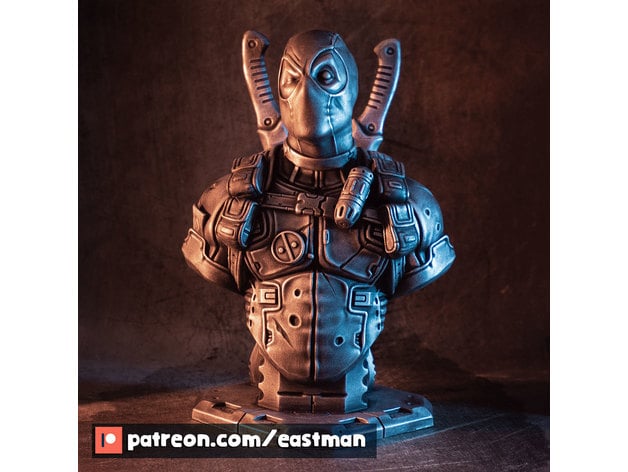
<p><a href="https://www.thingiverse.com/thing:4543820"><img src="https://cdn.thingiverse.com/assets/d4/1c/e5/af/09/featured_preview_deadpool-v2-patreon.jpg" alt="dead-pool" /></a>
<!-- [![thanos](https://cdn.thingiverse.com/assets/1e/29/6b/74/d4/featured_preview_thanos-thumb-patreon.jpg)](https://www.thingiverse.com/thing:4543831) -->
<a href="https://www.thingiverse.com/thing:4543803"><img src="https://cdn.thingiverse.com/assets/59/b8/4e/33/5f/featured_preview_spiderman-patreon.jpg" alt="spider-man" /></a>
<a href="https://www.thingiverse.com/thing:3352751"><img src="https://cdn.thingiverse.com/renders/84/46/31/ed/af/54e5ef6e132cea1d052ab617813f7885_preview_featured.jpg" alt="death-note" /></a>
<a href="https://www.thingiverse.com/thing:3375742"><img src="https://cdn.thingiverse.com/renders/4b/1f/63/30/27/9a06c5de948b68066472ceedce4bf774_preview_featured.jpg" alt="dead-pool" /></a></p>

<h2 id="slicer">Slicer</h2>

<p>First thing you need is a slicer software. For FDM, you can use <a href="https://ultimaker.com/software/ultimaker-cura">CURA</a>. It is an open source 3D printer created for Ultimaker printers but supports a wide range of others as well. There are several softwares out there you could try like PrusaSlicer. But it is always a good idea to rely on an opensource alternative than a comercial/closed one. STL is a widely used format for sharing 3D models. A slicer software like CURA will slice this 3D model into several layers and create Gcodes <a href="https://all3dp.com/2/3d-printer-g-code-commands-list-tutorial/">More info here</a> that the printer can understand.</p>

<p>For resin printing you can use Chitubox. Like FDM slicer there are not as many options available. You need to find somthing that is supported by yuor printer. I am using both <a href="https://www.anycubic.com/blogs/news/all-you-need-to-know-about-photon-mono-series">Phtoton Workshop</a> and <a href="https://www.chitubox.com/en/page/chitubox-free">Chitubox</a>.</p>

<h2 id="post-processing">Post processing</h2>

<p>There are several post processing techniques you could do to get a good finished product. This writeup covers a lot <a href="https://www.makerbot.com/professional/post-processing/">https://www.makerbot.com/professional/post-processing/</a>.</p>

<ul>
  <li>Sanding
    <ul>
      <li>If you are looking for a finished product then don’t skip this. :-)</li>
      <li>Start sanding from a lower grit (400) and gradually increase upto 1500 or even 2000</li>
      <li>You could use sanding tools like dremel to get this done fast</li>
      <li>You could cheat a little bit using clear coat spray paint <a href="https://www.amazon.in/SAMURAI-KUROBUSHI-Transparent-Glossy-Yourself/dp/B08B85B5BC">link</a> if your print is already smooth.</li>
    </ul>
  </li>
  <li>Gluing
    <ul>
      <li>You can break the whole print into multiple parts if build voulume is not enough.</li>
      <li>Also useful if there are areas in your model which is steep and cannot print with a lot of support.</li>
    </ul>
  </li>
  <li>Painting
    <ul>
      <li>Optionally you can use a primer as first coat. Primer filler is a high build spray filler that comes in aerosol form and can be purchased at most local hardware stores.</li>
      <li>Filler used for wood works and automobiles also works fine. But don’t forget to sand it before painting.</li>
      <li>Acrylic spary paint works just fine. You can find these in most of the local hardware shops. <a href="https://www.amazon.in/Nippon-Paint-Pylac-Spray-RS-Black/dp/B01GKBXUB8/ref=sr_1_11">link</a></li>
      <li>For smaller prints like mini, acrylic paints like these are just fine <a href="https://www.amazon.in/BRUSTRO-Artists-Acrylic-Pastel-Colours/dp/B0BG2S8FT8/ref=sr_1_18">link</a> or even this one <a href="https://www.amazon.in/Camlin-Kokuyo-Fabrica-Acrylic-Colors/dp/B00LY1FKI6/ref=sr_1_27">link</a></li>
      <li>I used to do a clear coat if it’s painted by acrylic colours.</li>
    </ul>
  </li>
</ul>

<h2 id="3d-cad-software">3D CAD software</h2>

<p>Printing free models and painting those are fun. But what’s more fun is to start designing 3D models for your prototypes. You have a big list of CAD softwares that are available here. One could start with tinkercad and move towards a good professional CAD software. I did start with SolidWorks and then moved to Fusion 360. Solidworks is an overkill for these kind of works. But Fusion360 was very good; atleast initially. They allow you to use this freely if you are a student. It is tightly coupled with their cloud platform and it had some one year free usage. Had faced lot of issues initially and it need an active internet connection (most of the time) to work. Also there was limitted support for sculpting and creating organic shapes. I finally settled with Blender which is a very good software and is completly open source. I won’t lie, it has a steep learning curve. But I would say it is worth the effort. Parametric designs may be somewhat less intuitive but blender is an all in one solution. You can do sculpting as well. Add some lights and create cool renders of your product animate little bit and may be rig your model and do some inverse IK :-).</p>

<ul>
  <li><a href="https://www.tinkercad.com/">Tincker</a></li>
  <li><a href="https://www.autodesk.com/products/fusion-360/overview?term=1-YEAR&amp;tab=subscription">Fusion360</a></li>
  <li><a href="https://www.blender.org/download/">Blender</a></li>
</ul>

<p><img src="/assets/img/mushroom_v3.png" alt="One of my design" /></p>]]></content><author><name></name></author><category term="3D printing" /><summary type="html"><![CDATA[3D printing, also known as additive manufacturing, is a method of creating a three dimensional object layer-by-layer using a computer created design. Whether you are a product designer or a DIY enthusiast, this is an invaluable tool to your tool arsenal.]]></summary></entry><entry><title type="html">Iron Man Plymouth Theme</title><link href="https://www.eionix.co.in/2019/10/29/iron-man-plymouth-theme.html" rel="alternate" type="text/html" title="Iron Man Plymouth Theme" /><published>2019-10-29T00:00:00+05:30</published><updated>2019-10-29T00:00:00+05:30</updated><id>https://www.eionix.co.in/2019/10/29/iron-man-plymouth-theme</id><content type="html" xml:base="https://www.eionix.co.in/2019/10/29/iron-man-plymouth-theme.html"><![CDATA[<p>This is an Iron Man theme I created by slicing some cool gif files I found online. You can download the theme and find the installation steps on my github account. <a href="https://github.com/krishnan793/plymouth-iron-man-eionix">Link</a></p>

<p><img src="/assets/img/preview.gif" alt="preview" /></p>

<p>The theme is created for Ubuntu 18.00. But this can be installed on previous versions with slight modification.</p>

<iframe width="560" height="315" src="https://www.youtube.com/embed/GplfhCUxckI" frameborder="0" allow="accelerometer; autoplay; encrypted-media; gyroscope; picture-in-picture" allowfullscreen=""></iframe>]]></content><author><name></name></author><category term="Linux" /><summary type="html"><![CDATA[This is an Iron Man theme I created by slicing some cool gif files I found online. You can download the theme and find the installation steps on my github account. Link]]></summary></entry><entry><title type="html">Reverse Engineer DDPAI Dash Cam Firmware</title><link href="https://www.eionix.co.in/2019/10/10/reverse-engineer-ddpai-firmware.html" rel="alternate" type="text/html" title="Reverse Engineer DDPAI Dash Cam Firmware" /><published>2019-10-10T00:00:00+05:30</published><updated>2019-10-10T00:00:00+05:30</updated><id>https://www.eionix.co.in/2019/10/10/reverse-engineer-ddpai-firmware</id><content type="html" xml:base="https://www.eionix.co.in/2019/10/10/reverse-engineer-ddpai-firmware.html"><![CDATA[<p>I have been looking for a good mid range Dash cam for my car. I was thinking to integrate this to my custom build infotainment system. For this, there need to be some option to get live stream. I bought this DDPAI Mini Car Dash Camera from Amazon <a href="https://www.amazon.in/gp/product/B07L6JVT92/">Link</a> (Official site <a href="http://en.ddpai.com/product/mini/4.html">Link</a>), but I was not sure whether I can access the live stream or not. The product looks good, companion app works smooth also, and there is live stream in the app. My goal was to figure out a way to get live stream so that I can use it in my program. May be have a look at it’s firmware and do some little hack if possible.</p>

<p><img src="/assets/img/ddpai.png" alt="DDPAI" /></p>

<p>In the officail site, they have mentioned about Hi3516E. it is an SoC buid by HISILICON that runs on Linux-3.18 (probably running Huawei LiteOS <a href="https://liteos.github.io/en/kernel/task.html#overview">Link</a>). Looking into the datasheet <a href="http://support.hkvstar.com/file/Hi3516E%20V100%20Professional%20HD%20IP%20Camera%20SoC%20Brief%20Data%20Sheet.pdf">Link</a>, it supports following encodings,</p>
<ul>
  <li>H.264 BP/MP/HP</li>
  <li>H.265 Main Profile</li>
  <li>MJPEG/JPEG baseline</li>
</ul>

<p>But from the official site, it’s mentioned H.264. So most probably the stream will be in this format. This came handy later in the process.</p>

<p>Once powered, camera starts a WiFi AP. Client can connect to this using default password 1234567890 and use companion app to configure. Put your WiFi interface to monitor mode and start listening on the traffic.</p>

<p><img src="/assets/img/init_traffic.jpg" alt="Initial traffic" /></p>

<p>I could see a lot of HTTP traffic between companion app and 193.168.0.1 which is the camera device. So they have some kind of REST API service running on port 80. Let’s look into the flow.</p>

<p><img src="/assets/img/flow.jpg" alt="Flow" /></p>

<p>To get a sessionid they are calling <code class="language-plaintext highlighter-rouge">POST /vcam/cmd.cgi?cmd=API_RequestSessionID</code>. This set a Cookie and they are reusing it for further communication. Then they are synching the time. Why do they need imei number for that? Strange. let’s look the subsequent requests.</p>

<div class="language-config highlighter-rouge"><div class="highlight"><pre class="highlight"><code><span class="n">POST</span> /<span class="n">vcam</span>/<span class="n">cmd</span>.<span class="n">cgi</span>?<span class="n">cmd</span>=<span class="n">API_GetBaseInfo</span> <span class="n">HTTP</span>/<span class="m">1</span>.<span class="m">1</span>
<span class="n">Accept</span>-<span class="n">Encoding</span>: <span class="n">gzip</span>
<span class="n">sessionid</span>: <span class="n">sjqPqaCL9GPT8WanzOn1THq4T1iSKLm</span>
<span class="n">Cookie</span>: <span class="n">SessionID</span>=<span class="n">sjqPqaCL9GPT8WanzOn1THq4T1iSKLm</span>
<span class="n">Content</span>-<span class="n">Type</span>: <span class="n">application</span>/<span class="n">x</span>-<span class="n">www</span>-<span class="n">form</span>-<span class="n">urlencoded</span>
<span class="n">User</span>-<span class="n">Agent</span>: ****************************************
<span class="n">Host</span>: <span class="m">193</span>.<span class="m">168</span>.<span class="m">0</span>.<span class="m">1</span>
<span class="n">Connection</span>: <span class="n">Keep</span>-<span class="n">Alive</span>
<span class="n">Content</span>-<span class="n">Length</span>: <span class="m">0</span>

<span class="n">HTTP</span>/<span class="m">1</span>.<span class="m">1</span> <span class="m">200</span> <span class="n">OK</span>
<span class="n">Server</span>: <span class="n">VYOU_HTTP_SERVER</span>/<span class="m">2</span>.<span class="m">1</span>.<span class="m">3</span> <span class="n">CAM</span> <span class="n">WEB</span> <span class="m">1</span>.<span class="m">0</span>
<span class="n">Content</span>-<span class="n">Type</span>: <span class="n">text</span>/<span class="n">plain</span>; <span class="n">charset</span>=<span class="n">UTF</span>-<span class="m">8</span>
<span class="n">Date</span>: <span class="n">Wed</span>, <span class="m">09</span> <span class="n">Oct</span> <span class="m">2019</span> <span class="m">21</span>:<span class="m">54</span>:<span class="m">41</span> <span class="n">GMT</span>
<span class="n">Last</span>-<span class="n">Modified</span>: <span class="n">Wed</span>, <span class="m">09</span> <span class="n">Oct</span> <span class="m">2019</span> <span class="m">21</span>:<span class="m">54</span>:<span class="m">41</span> <span class="n">GMT</span>
<span class="n">Connection</span>: <span class="n">Keep</span>-<span class="n">Alive</span>
<span class="n">Cache</span>-<span class="n">Control</span>: <span class="n">no</span>-<span class="n">cache</span>,<span class="n">no</span>-<span class="n">store</span>
<span class="n">Content</span>-<span class="n">Length</span>: <span class="m">651</span>

{<span class="s2">"errcode"</span>:<span class="m">0</span>,<span class="s2">"data"</span>:<span class="s2">"{\"</span><span class="n">nickname</span>\<span class="s2">":\"</span><span class="n">vYou_DDPai_MINI</span>\<span class="s2">",\"</span><span class="n">password</span>\<span class="s2">":\"</span><span class="m">1234567890</span>\<span class="s2">",\"</span><span class="n">ordernum</span>\<span class="s2">":\"</span><span class="n">DDPaiMin</span>\<span class="s2">",\"</span><span class="n">model</span>\<span class="s2">":\"</span><span class="n">DDPai</span> <span class="n">miniONE_LITE_Overseas</span>\<span class="s2">",\"</span><span class="n">version</span>\<span class="s2">":\"</span><span class="n">v4</span>.<span class="m">7</span>.<span class="m">0</span>.<span class="m">22</span>\<span class="s2">",\"</span><span class="n">uuid</span>\<span class="s2">":\"</span>*****-****-****-****-********\<span class="s2">",\"</span><span class="n">sn</span>\<span class="s2">":\"</span>\<span class="s2">",\"</span><span class="n">macaddr</span>\<span class="s2">":\"</span>**:**:**:**:**:**\<span class="s2">",\"</span><span class="n">chipsn</span>\<span class="s2">":\"</span>\<span class="s2">",\"</span><span class="n">legalret</span>\<span class="s2">":1,\"</span><span class="n">btnver</span>\<span class="s2">":3,\"</span><span class="n">totalruntime</span>\<span class="s2">":7471,\"</span><span class="n">sdcapacity</span>\<span class="s2">":31158784,\"</span><span class="n">sdspare</span>\<span class="s2">":24202912,\"</span><span class="n">sdbrand</span>\<span class="s2">":\"</span>\<span class="s2">",\"</span><span class="n">hbbitrate</span>\<span class="s2">":10240,\"</span><span class="n">hsbitrate</span>\<span class="s2">":2048,\"</span><span class="n">mbbitrate</span>\<span class="s2">":10240,\"</span><span class="n">msbitrate</span>\<span class="s2">":2048,\"</span><span class="n">lbbitrate</span>\<span class="s2">":10240,\"</span><span class="n">lsbitrate</span>\<span class="s2">":2048,\"</span><span class="n">default_user</span>\<span class="s2">":\"</span><span class="n">A1000030EBAA94</span>\<span class="s2">",\"</span><span class="n">is_neeed_update</span>\<span class="s2">":0,\"</span><span class="n">edog_model</span>\<span class="s2">":\"</span>\<span class="s2">",\"</span><span class="n">edog_version</span>\<span class="s2">":\"</span>\<span class="s2">",\"</span><span class="n">edog_status</span>\<span class="s2">":2,\"</span><span class="n">cid</span>\<span class="s2">":\"</span>\<span class="s2">"}"</span>}

<span class="n">GET</span> /<span class="n">record</span>.<span class="n">log</span> <span class="n">HTTP</span>/<span class="m">1</span>.<span class="m">1</span>
<span class="n">Accept</span>-<span class="n">Encoding</span>: 
<span class="n">User</span>-<span class="n">Agent</span>: ****************************************
<span class="n">Host</span>: <span class="m">193</span>.<span class="m">168</span>.<span class="m">0</span>.<span class="m">1</span>
<span class="n">Connection</span>: <span class="n">Keep</span>-<span class="n">Alive</span>

<span class="n">HTTP</span>/<span class="m">1</span>.<span class="m">1</span> <span class="m">200</span> <span class="n">OK</span>
<span class="n">Server</span>: <span class="n">VYOU_HTTP_SERVER</span>/<span class="m">2</span>.<span class="m">1</span>.<span class="m">3</span> <span class="n">CAM</span> <span class="n">WEB</span> <span class="m">1</span>.<span class="m">0</span>
<span class="n">Content</span>-<span class="n">Type</span>: <span class="n">text</span>/<span class="n">plain</span>; <span class="n">charset</span>=<span class="n">UTF</span>-<span class="m">8</span>
<span class="n">Date</span>: <span class="n">Wed</span>, <span class="m">09</span> <span class="n">Oct</span> <span class="m">2019</span> <span class="m">21</span>:<span class="m">54</span>:<span class="m">41</span> <span class="n">GMT</span>
<span class="n">Last</span>-<span class="n">Modified</span>: <span class="n">Wed</span>, <span class="m">09</span> <span class="n">Oct</span> <span class="m">2019</span> <span class="m">21</span>:<span class="m">54</span>:<span class="m">41</span> <span class="n">GMT</span>
<span class="n">Connection</span>: <span class="n">Keep</span>-<span class="n">Alive</span>
<span class="n">Cache</span>-<span class="n">Control</span>: <span class="n">no</span>-<span class="n">cache</span>,<span class="n">no</span>-<span class="n">store</span>
<span class="n">Content</span>-<span class="n">Length</span>: <span class="m">4329</span>

{<span class="s2">"nickname"</span>:<span class="s2">"vYou_DDPai_MINI"</span>,<span class="s2">"password"</span>:<span class="s2">"1234567890"</span>,<span class="s2">"ordernum"</span>:<span class="s2">"DDPaiMin"</span>,<span class="s2">"model"</span>:<span class="s2">""</span>,<span class="s2">"version"</span>:<span class="s2">"v4.7.0.22"</span>,<span class="s2">"uuid"</span>:<span class="s2">"***********************"</span>,<span class="s2">"sn"</span>:<span class="s2">""</span>,<span class="s2">"macaddr"</span>:<span class="s2">"**:**:**:**:**:**"</span>,<span class="s2">"chipsn"</span>:<span class="s2">""</span>,<span class="s2">"legalret"</span>:<span class="m">1</span>,<span class="s2">"btnver"</span>:<span class="m">3</span>,<span class="s2">"totalruntime"</span>:<span class="m">7471</span>,<span class="s2">"sdcapacity"</span>:<span class="m">31158784</span>,<span class="s2">"sdspare"</span>:<span class="m">24202912</span>,<span class="s2">"sdbrand"</span>:<span class="s2">""</span>,<span class="s2">"hbbitrate"</span>:<span class="m">10240</span>,<span class="s2">"hsbitrate"</span>:<span class="m">2048</span>,<span class="s2">"mbbitrate"</span>:<span class="m">10240</span>,<span class="s2">"msbitrate"</span>:<span class="m">2048</span>,<span class="s2">"lbbitrate"</span>:<span class="m">10240</span>,<span class="s2">"lsbitrate"</span>:<span class="m">2048</span>,<span class="s2">"default_user"</span>:<span class="s2">"A1000030EBAA94"</span>,<span class="s2">"is_neeed_update"</span>:<span class="m">0</span>,<span class="s2">"edog_model"</span>:<span class="s2">""</span>,<span class="s2">"edog_version"</span>:<span class="s2">""</span>,<span class="s2">"edog_status"</span>:<span class="m">2</span>,<span class="s2">"cid"</span>:<span class="s2">""</span>}
....

<span class="n">POST</span> /<span class="n">vcam</span>/<span class="n">cmd</span>.<span class="n">cgi</span>?<span class="n">cmd</span>=<span class="n">APP_AvCapSet</span> <span class="n">HTTP</span>/<span class="m">1</span>.<span class="m">1</span>
<span class="n">Accept</span>-<span class="n">Encoding</span>: <span class="n">gzip</span>
<span class="n">sessionid</span>: <span class="n">sjqPqaCL9GPT8WanzOn1THq4T1iSKLm</span>
<span class="n">Cookie</span>: <span class="n">SessionID</span>=<span class="n">sjqPqaCL9GPT8WanzOn1THq4T1iSKLm</span>
<span class="n">Content</span>-<span class="n">Type</span>: <span class="n">application</span>/<span class="n">x</span>-<span class="n">www</span>-<span class="n">form</span>-<span class="n">urlencoded</span>
<span class="n">User</span>-<span class="n">Agent</span>: ****************************************
<span class="n">Host</span>: <span class="m">193</span>.<span class="m">168</span>.<span class="m">0</span>.<span class="m">1</span>
<span class="n">Connection</span>: <span class="n">Keep</span>-<span class="n">Alive</span>
<span class="n">Content</span>-<span class="n">Length</span>: <span class="m">30</span>

{<span class="s2">"stream_type"</span>:<span class="m">0</span>,<span class="s2">"frmrate"</span>:<span class="m">30</span>}

<span class="n">HTTP</span>/<span class="m">1</span>.<span class="m">1</span> <span class="m">200</span> <span class="n">OK</span>
<span class="n">Server</span>: <span class="n">VYOU_HTTP_SERVER</span>/<span class="m">2</span>.<span class="m">1</span>.<span class="m">3</span> <span class="n">CAM</span> <span class="n">WEB</span> <span class="m">1</span>.<span class="m">0</span>
<span class="n">Content</span>-<span class="n">Type</span>: <span class="n">text</span>/<span class="n">plain</span>; <span class="n">charset</span>=<span class="n">UTF</span>-<span class="m">8</span>
<span class="n">Date</span>: <span class="n">Wed</span>, <span class="m">09</span> <span class="n">Oct</span> <span class="m">2019</span> <span class="m">21</span>:<span class="m">54</span>:<span class="m">41</span> <span class="n">GMT</span>
<span class="n">Last</span>-<span class="n">Modified</span>: <span class="n">Wed</span>, <span class="m">09</span> <span class="n">Oct</span> <span class="m">2019</span> <span class="m">21</span>:<span class="m">54</span>:<span class="m">41</span> <span class="n">GMT</span>
<span class="n">Connection</span>: <span class="n">Keep</span>-<span class="n">Alive</span>
<span class="n">Cache</span>-<span class="n">Control</span>: <span class="n">no</span>-<span class="n">cache</span>,<span class="n">no</span>-<span class="n">store</span>
<span class="n">Content</span>-<span class="n">Length</span>: <span class="m">23</span>

{<span class="s2">"errcode"</span>:<span class="m">0</span>,<span class="s2">"data"</span>:<span class="s2">""</span>}
</code></pre></div></div>
<p>Some default user names, password, etc… It seems <code class="language-plaintext highlighter-rouge">POST /vcam/cmd.cgi?cmd=APP_AvCapSet</code> sets stream channel and fps.</p>

<div class="language-config highlighter-rouge"><div class="highlight"><pre class="highlight"><code><span class="n">POST</span> /<span class="n">vcam</span>/<span class="n">cmd</span>.<span class="n">cgi</span>?<span class="n">cmd</span>=<span class="n">API_RequestCertificate</span> <span class="n">HTTP</span>/<span class="m">1</span>.<span class="m">1</span>
<span class="n">Accept</span>-<span class="n">Encoding</span>: <span class="n">gzip</span>
<span class="n">sessionid</span>: <span class="n">sjqPqaCL9GPT8WanzOn1THq4T1iSKLm</span>
<span class="n">Cookie</span>: <span class="n">SessionID</span>=<span class="n">sjqPqaCL9GPT8WanzOn1THq4T1iSKLm</span>
<span class="n">Content</span>-<span class="n">Type</span>: <span class="n">application</span>/<span class="n">x</span>-<span class="n">www</span>-<span class="n">form</span>-<span class="n">urlencoded</span>
<span class="n">User</span>-<span class="n">Agent</span>: ****************************************
<span class="n">Host</span>: <span class="m">193</span>.<span class="m">168</span>.<span class="m">0</span>.<span class="m">1</span>
<span class="n">Connection</span>: <span class="n">Keep</span>-<span class="n">Alive</span>
<span class="n">Content</span>-<span class="n">Length</span>: <span class="m">70</span>

{<span class="s2">"user"</span>:<span class="s2">"admin"</span>,<span class="s2">"password"</span>:<span class="s2">"admin"</span>,<span class="s2">"level"</span>:<span class="m">0</span>,<span class="s2">"uid"</span>:<span class="s2">"*************"</span>}

<span class="n">HTTP</span>/<span class="m">1</span>.<span class="m">1</span> <span class="m">200</span> <span class="n">OK</span>
<span class="n">Server</span>: <span class="n">VYOU_HTTP_SERVER</span>/<span class="m">2</span>.<span class="m">1</span>.<span class="m">3</span> <span class="n">CAM</span> <span class="n">WEB</span> <span class="m">1</span>.<span class="m">0</span>
<span class="n">Content</span>-<span class="n">Type</span>: <span class="n">text</span>/<span class="n">plain</span>; <span class="n">charset</span>=<span class="n">UTF</span>-<span class="m">8</span>
<span class="n">Date</span>: <span class="n">Wed</span>, <span class="m">09</span> <span class="n">Oct</span> <span class="m">2019</span> <span class="m">21</span>:<span class="m">54</span>:<span class="m">41</span> <span class="n">GMT</span>
<span class="n">Last</span>-<span class="n">Modified</span>: <span class="n">Wed</span>, <span class="m">09</span> <span class="n">Oct</span> <span class="m">2019</span> <span class="m">21</span>:<span class="m">54</span>:<span class="m">41</span> <span class="n">GMT</span>
<span class="n">Connection</span>: <span class="n">Keep</span>-<span class="n">Alive</span>
<span class="n">Cache</span>-<span class="n">Control</span>: <span class="n">no</span>-<span class="n">cache</span>,<span class="n">no</span>-<span class="n">store</span>
<span class="n">Content</span>-<span class="n">Length</span>: <span class="m">23</span>

{<span class="s2">"errcode"</span>:<span class="m">0</span>,<span class="s2">"data"</span>:<span class="s2">""</span>}

<span class="n">POST</span> /<span class="n">vcam</span>/<span class="n">cmd</span>.<span class="n">cgi</span>?<span class="n">cmd</span>=<span class="n">APP_AvCapReq</span> <span class="n">HTTP</span>/<span class="m">1</span>.<span class="m">1</span>
<span class="n">Accept</span>-<span class="n">Encoding</span>: <span class="n">gzip</span>
<span class="n">sessionid</span>: <span class="n">sjqPqaCL9GPT8WanzOn1THq4T1iSKLm</span>
<span class="n">Cookie</span>: <span class="n">SessionID</span>=<span class="n">sjqPqaCL9GPT8WanzOn1THq4T1iSKLm</span>
<span class="n">Content</span>-<span class="n">Type</span>: <span class="n">application</span>/<span class="n">x</span>-<span class="n">www</span>-<span class="n">form</span>-<span class="n">urlencoded</span>
<span class="n">User</span>-<span class="n">Agent</span>: ****************************************
<span class="n">Host</span>: <span class="m">193</span>.<span class="m">168</span>.<span class="m">0</span>.<span class="m">1</span>
<span class="n">Connection</span>: <span class="n">Keep</span>-<span class="n">Alive</span>
<span class="n">Content</span>-<span class="n">Length</span>: <span class="m">0</span>

<span class="n">HTTP</span>/<span class="m">1</span>.<span class="m">1</span> <span class="m">200</span> <span class="n">OK</span>
<span class="n">Server</span>: <span class="n">VYOU_HTTP_SERVER</span>/<span class="m">2</span>.<span class="m">1</span>.<span class="m">3</span> <span class="n">CAM</span> <span class="n">WEB</span> <span class="m">1</span>.<span class="m">0</span>
<span class="n">Content</span>-<span class="n">Type</span>: <span class="n">text</span>/<span class="n">plain</span>; <span class="n">charset</span>=<span class="n">UTF</span>-<span class="m">8</span>
<span class="n">Date</span>: <span class="n">Wed</span>, <span class="m">09</span> <span class="n">Oct</span> <span class="m">2019</span> <span class="m">21</span>:<span class="m">54</span>:<span class="m">41</span> <span class="n">GMT</span>
<span class="n">Last</span>-<span class="n">Modified</span>: <span class="n">Wed</span>, <span class="m">09</span> <span class="n">Oct</span> <span class="m">2019</span> <span class="m">21</span>:<span class="m">54</span>:<span class="m">41</span> <span class="n">GMT</span>
<span class="n">Connection</span>: <span class="n">Keep</span>-<span class="n">Alive</span>
<span class="n">Cache</span>-<span class="n">Control</span>: <span class="n">no</span>-<span class="n">cache</span>,<span class="n">no</span>-<span class="n">store</span>
<span class="n">Content</span>-<span class="n">Length</span>: <span class="m">173</span>

{<span class="s2">"errcode"</span>:<span class="m">0</span>,<span class="s2">"data"</span>:{<span class="s2">"bs_pixel"</span>:<span class="s2">"1920x1080"</span>,<span class="s2">"bs_bitrat"</span>:<span class="m">10240</span>,<span class="s2">"bs_frmrate"</span>:<span class="m">30</span>,<span class="s2">"ss_pixel"</span>:<span class="s2">"854x480"</span>,<span class="s2">"ss_bitrat"</span>:<span class="m">1536</span>,<span class="s2">"ss_frmrate"</span>:<span class="m">30</span>,<span class="s2">"aud_samplerate"</span>:<span class="m">16000</span>,<span class="s2">"aud_pt"</span>:<span class="s2">"AACLC"</span>}}
</code></pre></div></div>

<p><code class="language-plaintext highlighter-rouge">POST /vcam/cmd.cgi?cmd=APP_AvCapReq</code> This request put some light into the video stream details.</p>

<div class="language-config highlighter-rouge"><div class="highlight"><pre class="highlight"><code><span class="n">POST</span> /<span class="n">vcam</span>/<span class="n">cmd</span>.<span class="n">cgi</span>?<span class="n">cmd</span>=<span class="n">APP_PlaybackLiveSwitch</span> <span class="n">HTTP</span>/<span class="m">1</span>.<span class="m">1</span>
<span class="n">Accept</span>-<span class="n">Encoding</span>: <span class="n">gzip</span>
<span class="n">sessionid</span>: <span class="n">sjqPqaCL9GPT8WanzOn1THq4T1iSKLm</span>
<span class="n">Cookie</span>: <span class="n">SessionID</span>=<span class="n">sjqPqaCL9GPT8WanzOn1THq4T1iSKLm</span>
<span class="n">Content</span>-<span class="n">Type</span>: <span class="n">application</span>/<span class="n">x</span>-<span class="n">www</span>-<span class="n">form</span>-<span class="n">urlencoded</span>
<span class="n">User</span>-<span class="n">Agent</span>: ****************************************
<span class="n">Host</span>: <span class="m">193</span>.<span class="m">168</span>.<span class="m">0</span>.<span class="m">1</span>
<span class="n">Connection</span>: <span class="n">Keep</span>-<span class="n">Alive</span>
<span class="n">Content</span>-<span class="n">Length</span>: <span class="m">31</span>

{<span class="s2">"switch"</span>:<span class="s2">"live"</span>,<span class="s2">"playtime"</span>:<span class="s2">""</span>}
</code></pre></div></div>

<p>This seems to be the one that triggers the live streams. Just after this request I could see a new TCP connection got established on port 6200.</p>

<p><img src="/assets/img/stream_tcp.jpg" alt="stream tcp" /></p>

<p>This might be the port for streaming video. I could see a lot of traffic on this connection just after this.</p>

<p><img src="/assets/img/video_stream.jpg" alt="stream tcp" /></p>

<p>Let’s see which all ports are opened in the cam. A quick scan using nmap shows following ports.</p>

<p><img src="/assets/img/nmap.jpg" alt="stream tcp" /></p>

<p>Port 443 is opened. But it is not a web/REST server like port 80. Sending <code class="language-plaintext highlighter-rouge">curl http://193.168.0.1:443</code> doesn’t return anything. No respone from server. <code class="language-plaintext highlighter-rouge">telnet 193.168.0.1 443</code> also had no luck. Might be running some other service. May be for flashing firmware.</p>

<p>Port 553 is running an rtsp service. This looks promising. Rtsp is for streaming video. Tried several common rtsp urls using VLC. All are returning BAD_REQUEST. No luck there. Port 6100 looks promissing. Let’s try opening this using VLC.</p>

<div class="language-plaintext highlighter-rouge"><div class="highlight"><pre class="highlight"><code>wget "http://193.168.0.1:6200" -qO- | cvlc -
</code></pre></div></div>

<p>Vlc is unable to show any streams. Let’s try to specify the stream details. May be Vlc was unable to figure out proper streaming details.</p>

<div class="language-plaintext highlighter-rouge"><div class="highlight"><pre class="highlight"><code>wget "http://193.168.0.1:6200" -qO- | cvlc - :demux=h264 --h264-fps=30 :clock-jitter=0
</code></pre></div></div>

<video autoplay="" muted="" playsinline="" width="600px" preload="none">
  <source src="/assets/res/stream_vlc2.mp4" type="video/mp4" />
</video>

<p>Finally!!! Vlc is able to get the stream with no issues. Smile… :-)</p>

<p>Now this is done let’s see whether I can access this from python &amp; opencv.</p>

<div class="language-python highlighter-rouge"><div class="highlight"><pre class="highlight"><code><span class="kn">import</span> <span class="n">numpy</span> <span class="k">as</span> <span class="n">np</span>
<span class="kn">import</span> <span class="n">cv2</span>

<span class="n">cap</span> <span class="o">=</span> <span class="n">cv2</span><span class="p">.</span><span class="nc">VideoCapture</span><span class="p">(</span><span class="sh">'</span><span class="s">tcp://193.168.0.1:6200/</span><span class="sh">'</span><span class="p">)</span>
<span class="n">cap</span><span class="p">.</span><span class="nf">set</span><span class="p">(</span><span class="mi">5</span><span class="p">,</span> <span class="mi">30</span><span class="p">)</span>

<span class="nf">while</span><span class="p">(</span><span class="bp">True</span><span class="p">):</span>
    <span class="c1"># Capture frame-by-frame
</span>    <span class="n">ret</span><span class="p">,</span> <span class="n">frame</span> <span class="o">=</span> <span class="n">cap</span><span class="p">.</span><span class="nf">read</span><span class="p">()</span>

    <span class="c1"># Our operations on the frame come here
</span>    <span class="c1">#gray = cv2.cvtColor(frame, cv2.COLOR_BGR2GRAY)
</span>
    <span class="c1"># Display the resulting frame
</span>    <span class="n">cv2</span><span class="p">.</span><span class="nf">imshow</span><span class="p">(</span><span class="sh">'</span><span class="s">frame</span><span class="sh">'</span><span class="p">,</span><span class="n">frame</span><span class="p">)</span>
    <span class="k">if</span> <span class="n">cv2</span><span class="p">.</span><span class="nf">waitKey</span><span class="p">(</span><span class="mi">1</span><span class="p">)</span> <span class="o">&amp;</span> <span class="mh">0xFF</span> <span class="o">==</span> <span class="nf">ord</span><span class="p">(</span><span class="sh">'</span><span class="s">q</span><span class="sh">'</span><span class="p">):</span>
        <span class="k">break</span>

<span class="c1"># When everything done, release the capture
</span><span class="n">cap</span><span class="p">.</span><span class="nf">release</span><span class="p">()</span>
<span class="n">cv2</span><span class="p">.</span><span class="nf">destroyAllWindows</span><span class="p">()</span>
</code></pre></div></div>

<video autoplay="" muted="" playsinline="" width="600px" preload="none">
  <source src="/assets/res/python_stream.mp4" type="video/mp4" />
</video>

<p>Perfect. I was able to get the stream from python. Mission accomplished. But let’s look further.</p>

<p>I ran nmap one more time covering all the ports. It’s extensive and took some time. It showed one more port 6100. Later found to be audio stream from the camera.</p>

<p>Let’s check whether we can have a look into the firmware. I could not find any links online to download firmware. When I first started the companion app, it asked for firmware update. So there should be some way to get it. Let’s look into the companion app traffic.</p>

<p>Download some packet capture software for Android like ‘Packet Capture’. It’s similar to wireshark, but for Android. It seems comapnion app is communicating with server in plain http. No SSL certificate for the server. That’s not good. They are sending some personal details back to the server which is not good. Let’s look into the firmware update details.</p>

<p>Clicking on check firmware option triggers this request.</p>

<p><img src="/assets/img/companion_app.png" alt="stream tcp" /></p>

<p>It seems they are sending both version details of firmware and companion app. Server seems to only respond with companion app details. This might probably because I am having latest firmware. Lets modify this request so that server think I am having a previous version.</p>

<div class="language-bash highlighter-rouge"><div class="highlight"><pre class="highlight"><code>curl <span class="nt">-v</span> <span class="nt">-H</span> <span class="s1">'Content-Type: application/json'</span> <span class="nt">-X</span> POST http://apphw.ddpai.com/d/api/v1/version/check <span class="nt">--data</span> <span class="s1">'{
  "data": [
    {
      "model": "camera_app_android_overseas",
      "version": "v5.7.12.0926"
    },
    {
      "model": "DDPai miniONE_LITE_Overseas",
      "version": "v4.6.0.22"
    }
  ]
}'</span>
Note: Unnecessary use of <span class="nt">-X</span> or <span class="nt">--request</span>, POST is already inferred.
<span class="k">*</span>   Trying 47.89.133.142...
<span class="k">*</span> TCP_NODELAY <span class="nb">set</span>
<span class="k">*</span> Connected to apphw.ddpai.com <span class="o">(</span>47.89.133.142<span class="o">)</span> port 80 <span class="o">(</span><span class="c">#0)</span>
<span class="o">&gt;</span> POST /d/api/v1/version/check HTTP/1.1
<span class="o">&gt;</span> Host: apphw.ddpai.com
<span class="o">&gt;</span> User-Agent: curl/7.58.0
<span class="o">&gt;</span> Accept: <span class="k">*</span>/<span class="k">*</span>
<span class="o">&gt;</span> Content-Type: application/json
<span class="o">&gt;</span> Content-Length: 197
<span class="o">&gt;</span> 
<span class="k">*</span> upload completely sent off: 197 out of 197 bytes
&lt; HTTP/1.1 200 OK
&lt; Date: Thu, 10 Oct 2019 17:33:54 GMT
&lt; Content-Type: application/json<span class="p">;</span><span class="nv">charset</span><span class="o">=</span>UTF-8
&lt; Content-Length: 1457
&lt; Connection: keep-alive
&lt; 
<span class="o">{</span>
    <span class="s2">"data"</span>: <span class="o">[</span>
        <span class="o">{</span>
            <span class="s2">"bigMd5"</span>: <span class="s2">"63D8900C41169ED76A107140F3119433"</span>,
            <span class="s2">"bigPath"</span>: <span class="s2">"http://httpsdatacdn.ddpai.com/update/camera_app_android_overseas/20180620/C05_ddpai_v5.7.9.0613_release_0613-1439_zip.apk"</span>,
            <span class="s2">"bigSize"</span>: 42322062,
            <span class="s2">"bigSmallSplit"</span>: <span class="s2">""</span>,
            <span class="s2">"bigTime"</span>: 0,
            <span class="s2">"commitDate"</span>: 1529486660540,
            <span class="s2">"desc"</span>: <span class="s2">"1、适配mix3机型；</span><span class="se">\n</span><span class="s2">2、使用新的视觉风格；</span><span class="se">\n</span><span class="s2">3、修复已知问题；"</span>,
            <span class="s2">"descCn"</span>: <span class="s2">"1、适配mix3机型；</span><span class="se">\n</span><span class="s2">2、使用新的视觉风格；</span><span class="se">\n</span><span class="s2">3、修复已知问题；"</span>,
            <span class="s2">"descDe"</span>: <span class="s2">""</span>,
            <span class="s2">"descEn"</span>: <span class="s2">"1、Adopted to mix3;</span><span class="se">\n</span><span class="s2">2、Adopted a new VI style；</span><span class="se">\n</span><span class="s2">3、Fixed bugs;"</span>,
            <span class="s2">"descEs"</span>: <span class="s2">""</span>,
            <span class="s2">"descFr"</span>: <span class="s2">""</span>,
            <span class="s2">"descIt"</span>: <span class="s2">""</span>,
            <span class="s2">"descPt"</span>: <span class="s2">""</span>,
            <span class="s2">"descRu"</span>: <span class="s2">""</span>,
            <span class="s2">"descTw"</span>: <span class="s2">""</span>,
            <span class="s2">"hasDel"</span>: <span class="nb">false</span>,
            <span class="s2">"id"</span>: 64,
            <span class="s2">"model"</span>: <span class="s2">"camera_app_android_overseas"</span>,
            <span class="s2">"name"</span>: <span class="s2">"camera_app_android_overseas"</span>,
            <span class="s2">"smallMd5"</span>: <span class="s2">""</span>,
            <span class="s2">"smallPath"</span>: <span class="s2">""</span>,
            <span class="s2">"smallSize"</span>: 0,
            <span class="s2">"smallTime"</span>: 0,
            <span class="s2">"smallVersion"</span>: <span class="s2">""</span>,
            <span class="s2">"version"</span>: <span class="s2">"v5.7.9.0613"</span>,
            <span class="s2">"versionType"</span>: 1
        <span class="o">}</span>,
        <span class="o">{</span>
            <span class="s2">"bigMd5"</span>: <span class="s2">"768A1E03AF163ACC53C0841AE5F5EF8B"</span>,
            <span class="s2">"bigPath"</span>: <span class="s2">"http://httpsdatacdn.ddpai.com/update/DDPaiminiONE_LITE_Overseas/20190614/update_nolog.tar.gz"</span>,
            <span class="s2">"bigSize"</span>: 5365231,
            <span class="s2">"bigSmallSplit"</span>: <span class="s2">""</span>,
            <span class="s2">"bigTime"</span>: 60,
            <span class="s2">"commitDate"</span>: 1560481333328,
            <span class="s2">"desc"</span>: <span class="s2">"修复已知问题；"</span>,
            <span class="s2">"descCn"</span>: <span class="s2">"修复已知问题；"</span>,
            <span class="s2">"descDe"</span>: <span class="s2">""</span>,
            <span class="s2">"descEn"</span>: <span class="s2">"Fixed bugs;"</span>,
            <span class="s2">"descEs"</span>: <span class="s2">""</span>,
            <span class="s2">"descFr"</span>: <span class="s2">""</span>,
            <span class="s2">"descIt"</span>: <span class="s2">""</span>,
            <span class="s2">"descPt"</span>: <span class="s2">""</span>,
            <span class="s2">"descRu"</span>: <span class="s2">""</span>,
            <span class="s2">"descTw"</span>: <span class="s2">""</span>,
            <span class="s2">"hasDel"</span>: <span class="nb">false</span>,
            <span class="s2">"id"</span>: 74,
            <span class="s2">"model"</span>: <span class="s2">"DDPai miniONE_LITE_Overseas"</span>,
            <span class="s2">"name"</span>: <span class="s2">"DDPai miniONE_LITE_Overseas"</span>,
            <span class="s2">"smallMd5"</span>: <span class="s2">""</span>,
            <span class="s2">"smallPath"</span>: <span class="s2">""</span>,
            <span class="s2">"smallSize"</span>: 0,
            <span class="s2">"smallTime"</span>: 0,
            <span class="s2">"smallVersion"</span>: <span class="s2">""</span>,
            <span class="s2">"version"</span>: <span class="s2">"v4.7.0.22"</span>,
            <span class="s2">"versionType"</span>: 1
        <span class="o">}</span>
    <span class="o">]</span>,
    <span class="s2">"error_code"</span>: 0
<span class="o">}</span>
<span class="o">&gt;</span>
</code></pre></div></div>

<p>Ta daa!!! Our new firmware ready to be downloaded here <code class="language-plaintext highlighter-rouge">http://httpsdatacdn.ddpai.com/update/DDPaiminiONE_LITE_Overseas/20190614/update_nolog.tar.gz</code>. This is good. Let’s try to analyze the firmware.</p>

<p><img src="/assets/img/bin_walk.jpg" alt="bin walk" /></p>

<p>Eventhough it’s ramed as .gz, it doesn’t look a gzip compression. Running binwalk reveals that they use zlib compression. Let’s try to extract each part.</p>

<p><img src="/assets/img/bin_walk_extract.jpg" alt="bin_walk_extract" /></p>

<p>Let’s see what each part is.</p>

<p><img src="/assets/img/bin_walk_bin.jpg" alt="bin_walk_bin" /></p>

<p>We have two JFFS2 file system. Let’s see what’s inside. To extract JFFS2 file system you need to install jefferson.</p>

<p><img src="/assets/img/jefferson.jpg" alt="jefferson" /></p>

<div class="language-bash highlighter-rouge"><div class="highlight"><pre class="highlight"><code>git clone https://github.com/sviehb/jefferson.git
Cloning into <span class="s1">'jefferson'</span>...
remote: Enumerating objects: 74, <span class="k">done</span><span class="nb">.</span>
remote: Total 74 <span class="o">(</span>delta 0<span class="o">)</span>, reused 0 <span class="o">(</span>delta 0<span class="o">)</span>, pack-reused 74
Unpacking objects: 100% <span class="o">(</span>74/74<span class="o">)</span>, <span class="k">done</span><span class="nb">.</span>
<span class="o">&gt;</span><span class="nb">ls
</span>1CD  1CD.zlib  21458  21458.zlib  35DE85  35DE85.zlib  50AB7A  50AB7A.zlib  56  56.zlib  E3  E3.zlib  jefferson
<span class="o">&gt;</span><span class="nb">cd </span>jefferson/
<span class="o">&gt;</span><span class="nb">ls
</span>LICENSE  README.md  setup.py  src
<span class="o">&gt;</span><span class="nb">sudo </span>python setup.py <span class="nb">install
</span>running <span class="nb">install
</span>running build
running build_py
creating build
creating build/lib.linux-x86_64-2.7
creating build/lib.linux-x86_64-2.7/jefferson
copying src/jefferson/rtime.py -&gt; build/lib.linux-x86_64-2.7/jefferson
copying src/jefferson/jffs2_lzma.py -&gt; build/lib.linux-x86_64-2.7/jefferson
copying src/jefferson/__init__.py -&gt; build/lib.linux-x86_64-2.7/jefferson
running build_scripts
creating build/scripts-2.7
copying and adjusting src/scripts/jefferson -&gt; build/scripts-2.7
changing mode of build/scripts-2.7/jefferson from 644 to 755
running install_lib
creating /usr/local/lib/python2.7/dist-packages/jefferson
copying build/lib.linux-x86_64-2.7/jefferson/rtime.py -&gt; /usr/local/lib/python2.7/dist-packages/jefferson
copying build/lib.linux-x86_64-2.7/jefferson/jffs2_lzma.py -&gt; /usr/local/lib/python2.7/dist-packages/jefferson
copying build/lib.linux-x86_64-2.7/jefferson/__init__.py -&gt; /usr/local/lib/python2.7/dist-packages/jefferson
byte-compiling /usr/local/lib/python2.7/dist-packages/jefferson/rtime.py to rtime.pyc
byte-compiling /usr/local/lib/python2.7/dist-packages/jefferson/jffs2_lzma.py to jffs2_lzma.pyc
byte-compiling /usr/local/lib/python2.7/dist-packages/jefferson/__init__.py to __init__.pyc
running install_scripts
copying build/scripts-2.7/jefferson -&gt; /usr/local/bin
changing mode of /usr/local/bin/jefferson to 755
running install_egg_info
Writing /usr/local/lib/python2.7/dist-packages/jefferson-0.2.egg-info
<span class="o">&gt;</span><span class="nb">cd</span> ../
<span class="o">&gt;</span><span class="nb">ls
</span>1CD  1CD.zlib  21458  21458.zlib  35DE85  35DE85.zlib  50AB7A  50AB7A.zlib  56  56.zlib  E3  E3.zlib  jefferson
<span class="o">&gt;</span>
<span class="o">&gt;</span>binwalk <span class="nt">-e</span> 35DE85

DECIMAL       HEXADECIMAL     DESCRIPTION
<span class="nt">--------------------------------------------------------------------------------</span>
0             0x0             JFFS2 filesystem, little endian
</code></pre></div></div>

<p>Let’s look into the file system.</p>

<p><img src="/assets/img/tree_1.jpg" alt="tree_1" /></p>

<p>Under aud_res there are several raw audio files are present. These are the notofication sounds, produced by the dashcam. Replacing these with custom sounds and reflashing the firmware will be cool.</p>

<p><img src="/assets/img/audacity.jpg" alt="audacity" /></p>

<p>There is some <code class="language-plaintext highlighter-rouge">libaiengine-80-liteos-2.9.4-20180402220227.so</code> file. The filename liteos confirms it is running Huawei LiteOS.</p>

<p>There is one bin file called paramdef.bin located in paramdef. Seems to be binary file. Let’s see the strings in it.</p>

<div class="language-bash highlighter-rouge"><div class="highlight"><pre class="highlight"><code><span class="o">&gt;</span>strings paramdef.bin 
arap
12.0
720P30
1080P30
1080P60
1440P30
1520P30
/app/sd/DCIM
/usrcfg/lastfilename.txt
/app/sd
/dev/mmcblk0p0
3.18.y
v4.7.0.22
DDPai miniONE_LITE
vYou_DDPai_MINI
1234567890
000000000000000
000000000000000
admin
admin
yyyy-MM-dd HH:mm:ss
zh_CN
DDPaiMin
v4.5.0.0
DDPai miniONE
2018-01-01
mrap
</code></pre></div></div>

<p>You could see WiFi SSID and default password, Firmware version, etc</p>

<p>Let’s see the other file system.</p>

<p><img src="/assets/img/tree2.jpg" alt="tree_2" /></p>

<p>This seems mostly configuration files. <code class="language-plaintext highlighter-rouge">config_product_devmng.ini</code> have details regarding WiFi SSID &amp; passwords.</p>

<div class="language-ini highlighter-rouge"><div class="highlight"><pre class="highlight"><code><span class="nn">[devinfo]</span>
<span class="py">system_version</span>     <span class="p">=</span> <span class="s">"3.18.y"</span>
<span class="py">software_version</span>   <span class="p">=</span> <span class="s">"v4.7.0.22"</span>
<span class="py">model</span>              <span class="p">=</span> <span class="s">"DDPai miniONE_LITE"</span>

<span class="nn">[wifi]</span>
<span class="py">ssid</span>               <span class="p">=</span> <span class="s">"vYou_DDPai_MINI"</span>
<span class="py">password</span>           <span class="p">=</span> <span class="s">"1234567890"</span>
<span class="py">channel</span>            <span class="p">=</span> <span class="s">"11"</span>
<span class="py">enable</span>             <span class="p">=</span> <span class="s">"1"</span> <span class="s">1:true 0:false</span>
<span class="py">stawifissid</span>        <span class="p">=</span> <span class="s">"0"</span>
<span class="py">stawifipwd</span>         <span class="p">=</span> <span class="s">"0"</span>
<span class="py">stawifiauth</span>        <span class="p">=</span> <span class="s">"4"</span><span class="c">; 0:OPEN 1:WEP 2:WPAPSK 3:WPA2PSK 4:WPAPSK_WPA2PSK_MIX
</span>
<span class="nn">[autooff]</span>
<span class="py">enable</span>             <span class="p">=</span> <span class="s">"0"</span>
<span class="py">time</span>               <span class="p">=</span> <span class="s">"300"</span><span class="c">; unit s
</span>
<span class="nn">[dormant]</span>
<span class="py">enable</span>             <span class="p">=</span> <span class="s">"0"</span>
<span class="py">time</span>               <span class="p">=</span> <span class="s">"60"</span><span class="c">; unit s
</span>
<span class="nn">[clock]</span>
<span class="py">enable</span>             <span class="p">=</span> <span class="s">"0"</span>

<span class="nn">[onoff]</span>
<span class="py">auto_poweron_en</span>    <span class="p">=</span> <span class="s">"0"</span><span class="c">; 0:disable, 1:enable
</span><span class="s">auto_poweron_time  = "600"; seconds</span>
<span class="py">sd_card_cid</span>        <span class="p">=</span> <span class="s">"0000000000000000"</span>
<span class="py">sd_card_csd</span>        <span class="p">=</span> <span class="s">"0000000000000000"</span>
<span class="py">abnormal_poweroff</span>  <span class="p">=</span> <span class="s">"1"</span><span class="c">; 
</span><span class="s">onoff_key_press_time = "2000"; 200ms~2000ms</span>

<span class="nn">[sound]</span>
<span class="py">keysound</span>           <span class="p">=</span> <span class="s">"1"</span>
<span class="py">bootmusic</span>          <span class="p">=</span> <span class="s">"0"</span><span class="c">; 0: open bootmusic 1: close bootmusic
</span>
<span class="nn">[gsensor]</span>
<span class="py">gsensorrange</span>       <span class="p">=</span> <span class="s">"0"</span>

<span class="nn">[banma]</span>
<span class="py">verification</span>	   <span class="p">=</span> <span class="s">"0"</span>
</code></pre></div></div>
<p>There is some stawifissid params. May be enabling this will make Dashcam connect to a particular WiFi than creating an AP. Could see some reference for mounting at /app/sd/DCIM. Some of the config files have the details required for the live stream.</p>

<p>There is one more to extract.</p>

<p><img src="/assets/img/bin_walk_last.jpg" alt="bin_walk_last" /></p>

<p>This seems to be the main binary file resposible for the REST interface. Running strings list a lot of useful details. It seems to be written in c since I could see some reference here and there.</p>

<p><img src="/assets/img/bin_walk_c.jpg" alt="bin_walk_c" /></p>

<p>By just looking into strings, you will get a lot of information. I could able to extract the list of all APIs supported by the REST service.</p>

<ul>
  <li>API_RequestSessionID</li>
  <li>API_RequestCertificate</li>
  <li>API_SyncDate</li>
  <li>API_GetBaseInfo</li>
  <li>APP_AvCapReq</li>
  <li>APP_AvCapSet</li>
  <li>APP_PlaybackLiveSwitch</li>
  <li>API_GetMailboxData</li>
  <li>API_Logout</li>
  <li>API_TestGsensor</li>
  <li>API_TestSerial</li>
  <li>API_TestIndicator</li>
  <li>APP_PlaybackListReq</li>
  <li>APP_PlaybackPageListReq</li>
  <li>API_GeneralSave</li>
  <li>API_GeneralQuery</li>
  <li>APP_DeleteEvent</li>
  <li>API_CameraCapture</li>
  <li>API_AuthModify</li>
  <li>API_GetStorageInfo</li>
  <li>API_MmcFormat</li>
  <li>API_GetModuleState</li>
  <li>API_SetTimeForUpdateOrderNum</li>
  <li>API_ClearModuleFlags</li>
  <li>APP_AvInit</li>
  <li>APP_EventListReq</li>
  <li>APP_TimeLapseVideoListReq</li>
  <li>API_PlayModeQuery</li>
  <li>API_AuthQuery</li>
  <li>API_Reboot</li>
  <li>API_RestartWifi</li>
  <li>API_UpdFileMd5</li>
  <li>API_SetLogonInfo</li>
  <li>API_GetLogonRecord</li>
  <li>APP_ParkingEventListReq</li>
  <li>APP_ParkingEventListClear</li>
  <li>API_SuperDownload</li>
  <li>API_ButtonMatch</li>
  <li>API_WpsConnect</li>
  <li>API_GetResolution</li>
  <li>API_SetLockFile</li>
  <li>APP_StopDownload</li>
  <li>API_SetRouterAuth</li>
  <li>API_GetRouterStatus</li>
  <li>API_UpdateCamera</li>
  <li>API_GetLegalInfo</li>
  <li>API_GetSdBadClus</li>
  <li>API_SetDefaultCfg</li>
  <li>API_SetUuid</li>
  <li>API_SetSn</li>
  <li>API_GetEachFileSize</li>
  <li>API_BanMaUnbind</li>
  <li>API_BanMaSync</li>
  <li>API_SetApMode</li>
  <li>APP_EquipTestReady</li>
  <li>API_HwinfoQuery</li>
  <li>API_EquipAudioLoop</li>
  <li>API_EquipGetTime</li>
  <li>API_EquipLED</li>
  <li>API_EquipButtonMatch</li>
  <li>API_SetTestResult</li>
  <li>API_EquipGSensor</li>
  <li>API_EquipSpeaker</li>
  <li>API_EquipResetBtn</li>
  <li>API_EquipPhotoBtn</li>
  <li>API_EquipMuteBtn</li>
  <li>API_EquipMuteBtn</li>
  <li>API_EquipResetCfg</li>
  <li>API_EquipLegalSet</li>
  <li>API_EquipGetSensorVer</li>
  <li>API_EquipOpenRtsp</li>
  <li>API_RecordOpt</li>
  <li>API_GetGsensorState</li>
  <li>API_EquipACCState</li>
  <li>API_EquipGetTempetureAndHumidity</li>
  <li>API_EquipGetWiFiStatus</li>
  <li>API_EquipDeleteFacUsbFile</li>
  <li>API_EquipODBTest</li>
  <li>API_SetGsensorValue</li>
  <li>API_SetAudioCapGain</li>
  <li>API_SetBitRate1</li>
  <li>API_SetBitRate2</li>
  <li>API_SetBitRate3</li>
  <li>API_SetBitRate4</li>
  <li>API_SetBitRate5</li>
  <li>API_SetBitRate6</li>
  <li>API_SetBitRate7</li>
  <li>API_SetBitRate8</li>
  <li>API_SetBitRate9</li>
  <li>API_SetBitRate10</li>
  <li>API_SetBitRate11</li>
  <li>API_SetBitRate12</li>
  <li>API_SetBitRate13</li>
  <li>API_SetBitRate14</li>
  <li>API_SetBitRate15</li>
  <li>API_SetBitRate16</li>
  <li>API_SetBitRate17</li>
  <li>API_SetBitRate18</li>
  <li>API_GetAispeechState</li>
  <li>API_SetSpeakRange</li>
  <li>API_SetEmmcMeasure</li>
  <li>API_GetEmmcMeasure</li>
  <li>API_Get_ConnectAccStatus</li>
  <li>API_Get_PageFileListStatus</li>
  <li>API_SetTarCamlog</li>
  <li>API_GetCarCustomVersion</li>
  <li>API_SetPowerOff</li>
</ul>

<p>This is fun… !!!</p>]]></content><author><name></name></author><category term="Reverse Engineering" /><summary type="html"><![CDATA[I have been looking for a good mid range Dash cam for my car. I was thinking to integrate this to my custom build infotainment system. For this, there need to be some option to get live stream. I bought this DDPAI Mini Car Dash Camera from Amazon Link (Official site Link), but I was not sure whether I can access the live stream or not. The product looks good, companion app works smooth also, and there is live stream in the app. My goal was to figure out a way to get live stream so that I can use it in my program. May be have a look at it’s firmware and do some little hack if possible.]]></summary></entry><entry><title type="html">Smart Home Display IOT</title><link href="https://www.eionix.co.in/2019/06/29/smart-home-display-iot-diy-google-home-hub.html" rel="alternate" type="text/html" title="Smart Home Display IOT" /><published>2019-06-29T00:00:00+05:30</published><updated>2019-06-29T00:00:00+05:30</updated><id>https://www.eionix.co.in/2019/06/29/smart-home-display-iot--diy-google-home-hub</id><content type="html" xml:base="https://www.eionix.co.in/2019/06/29/smart-home-display-iot-diy-google-home-hub.html"><![CDATA[<p>This is a DIY smart display that you can embed in to your wall. You can control your smart appliance, set timer to control it, get weather info, and act as a cool clock. Let’s get straight into how I made it.</p>

<p><img src="/assets/img/thumbnail_smart_room.jpeg" alt="preview" /></p>

<h2 id="architecture">Architecture</h2>

<video autoplay="" loop="" muted="" playsinline="" width="600px" preload="none">
  <source src="/assets/res/exploded_view.mp4" type="video/mp4" />
</video>

<h3 id="hardware">Hardware</h3>

<p>It consists of</p>

<ul>
  <li>Frame
    <ul>
      <li>Front panel</li>
      <li>Back panel</li>
      <li>Processing Unit Cover</li>
      <li>Relay Cover</li>
    </ul>
  </li>
  <li>Display (7 inch 800x480 resolution)</li>
  <li>Processing Unit - Raspberry Pi</li>
  <li>Relay circuit (4 channel)</li>
</ul>

<p>Panel and display are snapped together. Processing Unit and display are secured using screws. Processing unit and relay cover are attached using 3 mm screws.</p>

<h3 id="software">Software</h3>

<p>Chromium-browser is used in a kiosk mode where it render the UI from a backend server. Python with the help of Flask to serve both static pages and a REST API service. JS will invoke REST APIs to control and view stats of appliances.</p>

<p><img src="/assets/img/arch_smart_room.png" alt="architecture" /></p>

<h4 id="rest-api-service">REST API Service</h4>

<ol>
  <li>
    <p>List room names</p>

    <p>GET /api/</p>

    <div class="language-plaintext highlighter-rouge"><div class="highlight"><pre class="highlight"><code>     {
     "rooms":["room1","room2"]
     }
</code></pre></div>    </div>
  </li>
  <li>
    <p>List all appliances in a given room</p>

    <p>GET /api/{room_name}</p>

    <div class="language-plaintext highlighter-rouge"><div class="highlight"><pre class="highlight"><code>     {
       "Fan 1": {
         "power-control": {
           "enabled": true, 
           "level": 100
         }, 
         "status": true, 
         "timer": -1, 
         "type": "fan"
       }, 
       "Light 1": {
         "power-control": {
           "enabled": false, 
           "level": 100
         }, 
         "status": true, 
         "timer": -1, 
         "type": "light"
       }, 
       "Light 2": {
         "power-control": {
           "enabled": false, 
           "level": 100
         }, 
         "status": true, 
         "timer": -1, 
         "type": "light"
       }
     }
</code></pre></div>    </div>
  </li>
  <li>
    <p>Change appliance properties</p>

    <p>POST /api/{room_name}/{appliance_name}</p>

    <div class="language-plaintext highlighter-rouge"><div class="highlight"><pre class="highlight"><code>     {
     "status":true,
     "timer":10,
     "power-control":{
             "level":50
             }
     }
</code></pre></div>    </div>
  </li>
  <li>
    <p>Scan wifi APs</p>

    <p>GET /api/wifi_scan</p>

    <div class="language-plaintext highlighter-rouge"><div class="highlight"><pre class="highlight"><code>     {
       "result":["WiFi-1","WiFi-2"]
     }
</code></pre></div>    </div>
  </li>
  <li>
    <p>Connect to an AP</p>

    <p>POST /wifi_connect</p>

    <div class="language-plaintext highlighter-rouge"><div class="highlight"><pre class="highlight"><code>     {
       "ssid":"WiFi-1",
       "passkey":"password"
     }
</code></pre></div>    </div>
  </li>
  <li>
    <p>Disconnect already established connection</p>

    <p>POST /api/wifi_disconnect</p>

    <div class="language-plaintext highlighter-rouge"><div class="highlight"><pre class="highlight"><code>     {
     }
</code></pre></div>    </div>
  </li>
  <li>
    <p>Get current ip</p>

    <p>GET /api/ip</p>

    <div class="language-plaintext highlighter-rouge"><div class="highlight"><pre class="highlight"><code>     {
       "ip": "192.168.1.5"
     }
</code></pre></div>    </div>
  </li>
</ol>

<h2 id="ui-features">UI features</h2>

<p>These shows the features that are supported.</p>

<video autoplay="" loop="" muted="" playsinline="" width="600px" preload="none">
  <source src="/assets/res/smart_home_soft_preview.mp4" type="video/mp4" />
</video>

<h2 id="cad-design">CAD Design</h2>

<p>I have used fusion 360 to model the parts.</p>

<video autoplay="" loop="" muted="" playsinline="" width="600px" preload="none">
  <source src="/assets/res/cad_design_overlay.mp4" type="video/mp4" />
</video>

<h2 id="3d-printing">3D printing</h2>

<p>Thanks to <a href="https://www.linkedin.com/in/sumitgoyal11/">Sumit Goyal</a> for helping out with 3D printing and beautifully painting the parts.</p>

<p><img src="/assets/img/3D_part1.jpg" alt="preview" />
<img src="/assets/img/3D_part2.jpg" alt="preview" /></p>

<h2 id="final-preview">Final preview</h2>

<p><img src="/assets/img/preview_smart_home.jpg" alt="preview" />
<img src="/assets/img/preview.jpeg" alt="preview" /></p>]]></content><author><name></name></author><category term="IOT" /><category term="Product Design" /><category term="Pi" /><summary type="html"><![CDATA[This is a DIY smart display that you can embed in to your wall. You can control your smart appliance, set timer to control it, get weather info, and act as a cool clock. Let’s get straight into how I made it.]]></summary></entry><entry><title type="html">Raspberry pi Tips and Tricks</title><link href="https://www.eionix.co.in/2019/06/04/raspberry-pi-tips-and-tricks.html" rel="alternate" type="text/html" title="Raspberry pi Tips and Tricks" /><published>2019-06-04T00:00:00+05:30</published><updated>2019-06-04T00:00:00+05:30</updated><id>https://www.eionix.co.in/2019/06/04/raspberry-pi-tips-and-tricks</id><content type="html" xml:base="https://www.eionix.co.in/2019/06/04/raspberry-pi-tips-and-tricks.html"><![CDATA[<p>If you ever worked with raspberry pi, you know how many times you need google around to find a particular sulution. From enabling ssh first time to enabling uart speed, you need to google around and find the soulution that really works. This is a list of frequent things you may need to configure in raspberry pi. This assumes you are running Raspbian Stretch with desktop.</p>

<h2 id="enable-ssh">Enable ssh</h2>

<p>create an empty file in
<code class="language-plaintext highlighter-rouge">/boot/ssh</code></p>

<h2 id="connect-to-wifi-on-boot">Connect to WiFi on boot</h2>

<p><code class="language-plaintext highlighter-rouge">sudo nano /etc/wpa_supplicant/wpa_supplicant.conf</code></p>

<div class="language-plaintext highlighter-rouge"><div class="highlight"><pre class="highlight"><code>ctrl_interface=DIR=/var/run/wpa_supplicant GROUP=netdev
update_config=1
country=GB


network={
        ssid="insert_your_hidden_SSID_here"
        scan_ssid=1
        psk="insert_your_wifi_password_here"
        key_mgmt=WPA-PSK
}
</code></pre></div></div>

<h2 id="disable-rainbow-screen">Disable rainbow screen</h2>

<p><code class="language-plaintext highlighter-rouge">sudo nano /boot/config.txt</code></p>

<div class="language-plaintext highlighter-rouge"><div class="highlight"><pre class="highlight"><code>disable_splash=1
</code></pre></div></div>

<h2 id="disable-boot-logs">Disable boot logs</h2>

<p><code class="language-plaintext highlighter-rouge">sudo nano /boot/cmdline.txt</code></p>

<p>Change the console from tty1 to</p>

<div class="language-plaintext highlighter-rouge"><div class="highlight"><pre class="highlight"><code>console=tty3 
</code></pre></div></div>

<p>Add this to the end of the line. <code class="language-plaintext highlighter-rouge">'loglevel=0'</code> removes most of the messages from the boot. You can also use <code class="language-plaintext highlighter-rouge">'loglevel=3'</code>, but some boot messages may re-appear.</p>

<div class="language-plaintext highlighter-rouge"><div class="highlight"><pre class="highlight"><code>quiet splash loglevel=0 logo.nologo vt.global_cursor_default=0
</code></pre></div></div>

<p>If you are going to use Plymouth add this:</p>

<div class="language-plaintext highlighter-rouge"><div class="highlight"><pre class="highlight"><code>plymouth.ignore-serial-consoles 
</code></pre></div></div>

<h2 id="change-boot-animation">Change boot animation</h2>
<p>Change raspbian plymouth theme</p>

<div class="language-plaintext highlighter-rouge"><div class="highlight"><pre class="highlight"><code>cd /usr/share/plymouth/themes/
</code></pre></div></div>

<p>Clone this repository.</p>

<div class="language-plaintext highlighter-rouge"><div class="highlight"><pre class="highlight"><code>sudo git clone https://github.com/krishnan793/PlymouthTheme-TheRun.git
</code></pre></div></div>

<p>Install the theme.</p>

<div class="language-plaintext highlighter-rouge"><div class="highlight"><pre class="highlight"><code>sudo update-alternatives --install /usr/share/plymouth/themes/default.plymouth default.plymouth /usr/share/plymouth/themes/PlymouthTheme-TheRun/PlymouthTheme-TheRun.plymouth 100
</code></pre></div></div>

<p>Select the default theme.</p>

<div class="language-plaintext highlighter-rouge"><div class="highlight"><pre class="highlight"><code>sudo update-alternatives --config default.plymouth
</code></pre></div></div>

<p>Update the initramfs image.</p>

<div class="language-plaintext highlighter-rouge"><div class="highlight"><pre class="highlight"><code>sudo update-initramfs -u
</code></pre></div></div>

<p><code class="language-plaintext highlighter-rouge">sudo nano /etc/plymouth/plymouthd.conf</code></p>

<p>Theme=pix to</p>

<div class="language-plaintext highlighter-rouge"><div class="highlight"><pre class="highlight"><code>Theme=PlymouthTheme-TheRun
</code></pre></div></div>

<h2 id="waveshare-7-inch-display">Waveshare 7 inch display</h2>

<p><code class="language-plaintext highlighter-rouge">sudo nano /boot/config.txt</code></p>

<div class="language-plaintext highlighter-rouge"><div class="highlight"><pre class="highlight"><code>hdmi_force_hotplug=1
config_hdmi_boost=0
overscan_left=0
overscan_right=0
overscan_top=0
overscan_bottom=0
disable_overscan=0
hdmi_cvt=1024 600 60 6 ##
framebuffer_width=1024 ##
framebuffer_height=600 ##
hdmi_group=2
hdmi_mode=1
hdmi_mode=87
</code></pre></div></div>

<h2 id="rotate-display">Rotate display</h2>

<p><code class="language-plaintext highlighter-rouge">sudo nano /boot/config.txt</code></p>

<div class="language-plaintext highlighter-rouge"><div class="highlight"><pre class="highlight"><code>lcd_rotate=2 
</code></pre></div></div>
<p>or</p>

<div class="language-plaintext highlighter-rouge"><div class="highlight"><pre class="highlight"><code>display_rotate=0 
</code></pre></div></div>

<ul>
  <li>display_rotate=0 Normal</li>
  <li>display_rotate=1 90 degrees</li>
  <li>display_rotate=2 180 degrees</li>
</ul>

<h2 id="set-display-brightness">Set display brightness</h2>

<div class="language-plaintext highlighter-rouge"><div class="highlight"><pre class="highlight"><code>sudo echo 50 &gt; /sys/class/backlight/rpi_backlight/brightness
</code></pre></div></div>

<p>To make it persistent add the above statement in <code class="language-plaintext highlighter-rouge">/etc/rc.local</code> (before exit 0)</p>

<h2 id="switch-off-display">Switch off display</h2>

<div class="language-plaintext highlighter-rouge"><div class="highlight"><pre class="highlight"><code>sudo echo 1 &gt; /sys/class/backlight/rpi_backlight/b1_power
</code></pre></div></div>

<h2 id="switch-on-display">Switch on display</h2>

<div class="language-plaintext highlighter-rouge"><div class="highlight"><pre class="highlight"><code>sudo echo 0 &gt; /sys/class/backlight/rpi_backlight/b1_power
</code></pre></div></div>

<h2 id="to-remove-low-power-indication-lightning-icon">To remove low power indication (lightning icon)</h2>

<p><code class="language-plaintext highlighter-rouge">sudo nano /boot/config.txt</code></p>

<div class="language-plaintext highlighter-rouge"><div class="highlight"><pre class="highlight"><code>avoid_warnings=1
</code></pre></div></div>

<h2 id="hide-cursor">Hide cursor</h2>

<p>sudo nano <code class="language-plaintext highlighter-rouge">/etc/lightdm/lightdm.conf</code></p>

<div class="language-plaintext highlighter-rouge"><div class="highlight"><pre class="highlight"><code>[Seat:*]
xserver-command=X -nocursor 
</code></pre></div></div>

<h2 id="start-app-in-fullscreen-with-desktop-on-boot">Start app in fullscreen with desktop on boot</h2>

<p>Make sure you enable auto login using <code class="language-plaintext highlighter-rouge">sudo raspi-config</code></p>

<p>sudo nano <code class="language-plaintext highlighter-rouge">/etc/xdg/autostart/smart_room.desktop</code></p>

<div class="language-plaintext highlighter-rouge"><div class="highlight"><pre class="highlight"><code>[Desktop Entry]
Type=Application
Name=smart_room
Comment=Kivy RPI Infoscreen
NoDisplay=false
Exec=chromium-browser http://192.168.1.5/src/home.html --start-fullscreen
NotShowIn=GNOME;KDE;XFCE;
</code></pre></div></div>

<h2 id="start-app-in-fullscreen-without-desktop-on-boot">Start app in fullscreen without desktop on boot</h2>

<p>Make sure you enable auto login using <code class="language-plaintext highlighter-rouge">sudo raspi-config</code></p>

<p><code class="language-plaintext highlighter-rouge">sudo nano /etc/lightdm/lightdm.conf</code></p>

<div class="language-plaintext highlighter-rouge"><div class="highlight"><pre class="highlight"><code>[Seat:*]
user-session=myxclient
</code></pre></div></div>

<p><code class="language-plaintext highlighter-rouge">sudo nano /usr/share/xsessions/myxclient.desktop</code></p>

<div class="language-plaintext highlighter-rouge"><div class="highlight"><pre class="highlight"><code>[Desktop Entry]
Type=Application
Name=smart_room
Comment=Kivy RPI Infoscreen
NoDisplay=false
Exec=/home/pi/start.sh
NotShowIn=GNOME;KDE;XFCE;
</code></pre></div></div>

<p><code class="language-plaintext highlighter-rouge">sudo nano /home/pi/start.sh</code></p>

<div class="language-plaintext highlighter-rouge"><div class="highlight"><pre class="highlight"><code>#!/bin/bash
/usr/bin/chromium-browser --kiosk --app=https://www.google.com --start-fullscreen --window-size=1024,600 --window-position=0,0
</code></pre></div></div>

<h2 id="uart">UART</h2>

<p>The SoCs used on the Raspberry Pis have two built-in UARTs, a PL011 and a mini UART. both are 3.3V devices. By default, on Raspberry Pis equipped with the wireless/Bluetooth module (Raspberry Pi 3 and Raspberry Pi Zero W), the PL011 UART is connected to the Bluetooth module, while the mini UART is used as the primary UART and will have a Linux console on it. On all other models, the PL011 is used as the primary UART.</p>

<p>For pi3 &amp; zero</p>

<ul>
  <li>/dev/ttyS0 (mini UART) primary UART  symlink to /dev/serial0</li>
  <li>/dev/ttyAMA0 (PL011) bluetooth module symlink to /dev/serial1</li>
</ul>

<p>The baud rate of the mini UART is linked to the core frequency of the VPU (VideoCore processor) on the VC4 GPU.</p>

<p>Steps to enable mini UART</p>

<ol>
  <li>add <code class="language-plaintext highlighter-rouge">enable_uart=1</code> in <code class="language-plaintext highlighter-rouge">/boot/config.txt</code></li>
  <li>remove <code class="language-plaintext highlighter-rouge">console=serial0</code> from <code class="language-plaintext highlighter-rouge">/boot/cmdline.txt</code></li>
</ol>

<p>default baud rate is: 115200</p>]]></content><author><name></name></author><category term="Linux" /><category term="Pi" /><summary type="html"><![CDATA[If you ever worked with raspberry pi, you know how many times you need google around to find a particular sulution. From enabling ssh first time to enabling uart speed, you need to google around and find the soulution that really works. This is a list of frequent things you may need to configure in raspberry pi. This assumes you are running Raspbian Stretch with desktop.]]></summary></entry></feed>