<?xml version="1.0" encoding="UTF-8" standalone="no"?><rdf:RDF xmlns:rdf="http://www.w3.org/1999/02/22-rdf-syntax-ns#" xmlns="http://purl.org/rss/1.0/" xmlns:admin="http://webns.net/mvcb/" xmlns:content="http://purl.org/rss/1.0/modules/content/" xmlns:dc="http://purl.org/dc/elements/1.1/">

<channel rdf:about="https://iphoneland.seesaa.net/">
<title>iPhone Land | ～iPhone Hackin' Style.</title>
<link>https://iphoneland.seesaa.net/</link>
<description>iOS Device [iPhone, iPad, iPod touch] Jailbreak Memo By RedFalcon</description>
<dc:language>ja</dc:language>
<admin:generatorAgent rdf:resource="https://blog.seesaa.jp/"/>
<items>
<rdf:Seq>
<rdf:li rdf:resource="https://iphoneland.seesaa.net/article/434636754.html"/>
<rdf:li rdf:resource="https://iphoneland.seesaa.net/article/410588016.html"/>
<rdf:li rdf:resource="https://iphoneland.seesaa.net/article/410587994.html"/>
<rdf:li rdf:resource="https://iphoneland.seesaa.net/article/408963306.html"/>
<rdf:li rdf:resource="https://iphoneland.seesaa.net/article/408575318.html"/>
<rdf:li rdf:resource="https://iphoneland.seesaa.net/article/408195067.html"/>
<rdf:li rdf:resource="https://iphoneland.seesaa.net/article/392421202.html"/>
<rdf:li rdf:resource="https://iphoneland.seesaa.net/article/384348496.html"/>
<rdf:li rdf:resource="https://iphoneland.seesaa.net/article/384171552.html"/>
<rdf:li rdf:resource="https://iphoneland.seesaa.net/article/384113121.html"/>
<rdf:li rdf:resource="https://iphoneland.seesaa.net/article/379789280.html"/>
<rdf:li rdf:resource="https://iphoneland.seesaa.net/article/371133709.html"/>
<rdf:li rdf:resource="https://iphoneland.seesaa.net/article/371089759.html"/>
<rdf:li rdf:resource="https://iphoneland.seesaa.net/article/369342031.html"/>
<rdf:li rdf:resource="https://iphoneland.seesaa.net/article/319540617.html"/>
</rdf:Seq>
</items>
<xhtml:meta content="noindex" name="robots" xmlns:xhtml="http://www.w3.org/1999/xhtml"/></channel>

<item rdf:about="https://iphoneland.seesaa.net/article/434636754.html">
<link>https://iphoneland.seesaa.net/article/434636754.html</link>
<title>SoftBank版 iPhone5s＋R-SIM10で「IIJmio」を使ってみる</title>
<description>子供用に渡していたSoftBank版 iPhone5sをR-SIM10でSIMフリー化、MVNO「IIJmio」のSIMの格安プランを試してみることに。Step0：事前準備● R-SIM10の購入● IIJmioの申込と開通R-SIM10については、他より高いが交換保証のある以下を選択しました。【venture resource 06】r-sim10SIMロック解除アダプタamazon直送 iPhone5s/5c/6/6plus純正トレイ対応/ios8対応docomo格安si..</description>
<dc:subject>iPhone</dc:subject>
<dc:creator>RedFalcon</dc:creator>
<dc:date>2016-03-06T17:24:05+09:00</dc:date>
<content:encoded><![CDATA[
<div style="text-align:center;"><a href="http://iphoneland.up.seesaa.net/image/sim_unlock_iphone.jpg" target="_blank"><img border="0" alt="sim_unlock_iphone.jpg" src="http://iphoneland.up.seesaa.net/image/sim_unlock_iphone-thumbnail2.jpg" width="320" height="152"></a></div><br />子供用に渡していたSoftBank版 iPhone5sをR-SIM10でSIMフリー化、MVNO「IIJmio」のSIMの格安プランを試してみることに。<br /><br /><strong>Step0：事前準備</strong><br />● R-SIM10の購入<br />● IIJmioの申込と開通<br /><br />R-SIM10については、他より高いが交換保証のある以下を選択しました。<br /><a  href="http://www.amazon.co.jp/gp/offer-listing/B00V7MN57K/ref=as_li_tf_il?ie=UTF8&camp=247&creative=1211&creativeASIN=B00V7MN57K&linkCode=am2&tag=redleopard-22"><img border="0" src="http://ws-fe.amazon-adsystem.com/widgets/q?_encoding=UTF8&ASIN=B00V7MN57K&Format=_SL250_&ID=AsinImage&MarketPlace=JP&ServiceVersion=20070822&WS=1&tag=redleopard-22" ></a><img src="http://ir-jp.amazon-adsystem.com/e/ir?t=redleopard-22&l=as2&o=9&a=B00V7MN57K" width="1" height="1" border="0" alt="" style="border:none !important; margin:0px !important;" /><br /><a  href="http://www.amazon.co.jp/gp/product/B00V7MN57K/ref=as_li_tf_tl?ie=UTF8&camp=247&creative=1211&creativeASIN=B00V7MN57K&linkCode=as2&tag=redleopard-22">【venture resource 06】r-sim10SIMロック解除アダプタamazon直送 iPhone5s/5c/6/6plus純正トレイ対応/ios8対応docomo格安sim専用/日本語マニュアル付き/apn構成プロファイル付き/rsim10/r-sim10/ R-SIM10</a><img src="http://ir-jp.amazon-adsystem.com/e/ir?t=redleopard-22&l=as2&o=9&a=B00V7MN57K" width="1" height="1" border="0" alt="" style="border:none !important; margin:0px !important;" /><br /><br />以下 IIJmioのウェルカムパック購入で、初期費用が安くなるのでAmazonにて購入。<br /><a  href="http://www.amazon.co.jp/gp/offer-listing/B014GZEPVE/ref=as_li_tf_il?ie=UTF8&camp=247&creative=1211&creativeASIN=B014GZEPVE&linkCode=am2&tag=redleopard-22"><img border="0" src="http://ws-fe.amazon-adsystem.com/widgets/q?_encoding=UTF8&ASIN=B014GZEPVE&Format=_SL250_&ID=AsinImage&MarketPlace=JP&ServiceVersion=20070822&WS=1&tag=redleopard-22" ></a><img src="http://ir-jp.amazon-adsystem.com/e/ir?t=redleopard-22&l=as2&o=9&a=B014GZEPVE" width="1" height="1" border="0" alt="" style="border:none !important; margin:0px !important;" /><br /><a  href="http://www.amazon.co.jp/gp/product/B014GZEPVE/ref=as_li_tf_tl?ie=UTF8&camp=247&creative=1211&creativeASIN=B014GZEPVE&linkCode=as2&tag=redleopard-22">IIJmio SIMカード ウェルカムパック (SMS) ナノSIM 【Amazon.co.jp 限定】</a><img src="http://ir-jp.amazon-adsystem.com/e/ir?t=redleopard-22&l=as2&o=9&a=B014GZEPVE" width="1" height="1" border="0" alt="" style="border:none !important; margin:0px !important;" /><br /><br />※IIJmioの申込は完了させておきます。<br /><a name="more"></a><strong>レポート環境</strong><br />SoftBank版 iPhone5S (64GB) <br />iOS : 9.2.1（初期化＆アクティベーション済）<br /><br /><strong>Step1：R-SIM10によるSIMフリー化</strong><br />● 4G(LTE)をOFF<br />● iMessageをOFF<br />● FaceTimeをOFF<br /><br />↓　設定にて「4G(LTE)」をOFF。<br /><a href="http://iphoneland.up.seesaa.net/image/IMG_0001-40a5e.PNG" target="_blank"><img border="0" alt="IMG_0001.PNG" src="http://iphoneland.up.seesaa.net/image/IMG_0001-40a5e-thumbnail2.PNG" width="180" height="320"></a><br /><br />↓　設定にて「iMessage」をOFF。<br /><a href="http://iphoneland.up.seesaa.net/image/IMG_0002-1cde8.PNG" target="_blank"><img border="0" alt="IMG_0002.PNG" src="http://iphoneland.up.seesaa.net/image/IMG_0002-1cde8-thumbnail2.PNG" width="180" height="320"></a><br /><br />↓　設定にて「FaceTime」をOFF。<br /><a href="http://iphoneland.up.seesaa.net/image/IMG_0003-48b8c.PNG" target="_blank"><img border="0" alt="IMG_0003.PNG" src="http://iphoneland.up.seesaa.net/image/IMG_0003-48b8c-thumbnail2.PNG" width="180" height="320"></a><br /><br />↓　アクティベーションSIMを抜きます。<br /><a href="http://iphoneland.up.seesaa.net/image/IMG_0004.PNG" target="_blank"><img border="0" alt="IMG_0004.PNG" src="http://iphoneland.up.seesaa.net/image/IMG_0004-thumbnail2.PNG" width="180" height="320"></a><br /><br />↓　R-SIM10にIIJmioのSIMをトレイに重ねiPhoneに挿入するとシグナルが表示される<br /><a href="http://iphoneland.up.seesaa.net/image/IMG_0005-e5917.PNG" target="_blank"><img border="0" alt="IMG_0005.PNG" src="http://iphoneland.up.seesaa.net/image/IMG_0005-e5917-thumbnail2.PNG" width="180" height="320"></a><br />※docomoの表示が出ない場合は、SIMを抜き差しするか機内モードON/OFFを繰り返す<br /><br />↓　設定 > 電話 > SIM App から「SelectCarrier」を選択<br /><a href="http://iphoneland.up.seesaa.net/image/IMG_0008.PNG" target="_blank"><img border="0" alt="IMG_0008.PNG" src="http://iphoneland.up.seesaa.net/image/IMG_0008-thumbnail2.PNG" width="180" height="320"></a><br /><br />↓　続いて「JP SoftBank」（au版iPhoneの場合は「JP AU」）を選択<br /><a href="http://iphoneland.up.seesaa.net/image/IMG_0009.PNG" target="_blank"><img border="0" alt="IMG_0009.PNG" src="http://iphoneland.up.seesaa.net/image/IMG_0009-thumbnail2.PNG" width="180" height="320"></a><br /><br />↓　続いて「iOS9.CDMA 4G Card」（iOS8の場合は「CDMA 4G Card(iOS8)」）を選択<br /><a href="http://iphoneland.up.seesaa.net/image/IMG_0010.PNG" target="_blank"><img border="0" alt="IMG_0010.PNG" src="http://iphoneland.up.seesaa.net/image/IMG_0010-thumbnail2.PNG" width="180" height="320"></a><br /><br />↓　端末を再起動<br /><a href="http://iphoneland.up.seesaa.net/image/IMG_0012.PNG" target="_blank"><img border="0" alt="IMG_0012.PNG" src="http://iphoneland.up.seesaa.net/image/IMG_0012-thumbnail2.PNG" width="180" height="320"></a><br /><br /><strong>Step1：APN等各種設定</strong><br />● IIJmioのAPNプロファイルのインストール<br />● キャリアの自動選択をOFF → NTT DOCOMOを選択<br />● iMessageをON<br />● FaceTimeをON<br />● 4G(LTE)をON<br /><br />iPhoneをWi-Fiにつなぎ、Safariから以下にアクセス<br /><a href="https://www.iijmio.jp/hdd/devices/config.jsp" target="_blank">https://www.iijmio.jp/hdd/devices/config.jsp</a><br /><br />↓　「iOS 7～iOS 9の端末（Cellular Payload版）」を選択<br /><a href="http://iphoneland.up.seesaa.net/image/IMG_0013.PNG" target="_blank"><img border="0" alt="IMG_0013.PNG" src="http://iphoneland.up.seesaa.net/image/IMG_0013-thumbnail2.PNG" width="180" height="320"></a><br /><br />↓　プロファイルが表示されるのでインストール<br /><a href="http://iphoneland.up.seesaa.net/image/IMG_0014.PNG" target="_blank"><img border="0" alt="IMG_0014.PNG" src="http://iphoneland.up.seesaa.net/image/IMG_0014-thumbnail2.PNG" width="180" height="320"></a><br /><br />↓　続けてインストール完了を選択<br /><a href="http://iphoneland.up.seesaa.net/image/IMG_0017.PNG" target="_blank"><img border="0" alt="IMG_0017.PNG" src="http://iphoneland.up.seesaa.net/image/IMG_0017-thumbnail2.PNG" width="180" height="320"></a><br /><br />↓　設定 > キャリアからキャリアの自動選択をOFF → NTT DOCOMOを選択<br /><a href="http://iphoneland.up.seesaa.net/image/IMG_0018.PNG" target="_blank"><img border="0" alt="IMG_0018.PNG" src="http://iphoneland.up.seesaa.net/image/IMG_0018-thumbnail2.PNG" width="180" height="320"></a><br /><br />↓　先にOFFにしていた iMessage、FaceTime、4G(LTE)をONに。<br /><a href="http://iphoneland.up.seesaa.net/image/IMG_0022.PNG" target="_blank"><img border="0" alt="IMG_0022.PNG" src="http://iphoneland.up.seesaa.net/image/IMG_0022-thumbnail2.PNG" width="180" height="320"></a><br /><span style="color:#FF0000;">※4G(LTE)をONにすると「圏外病」に陥る可能性が高まるので、そのリスクを避けたい方はOFFのままで。</span>

]]><![CDATA[
]]></content:encoded>
</item>
<item rdf:about="https://iphoneland.seesaa.net/article/410588016.html">
<link>https://iphoneland.seesaa.net/article/410588016.html</link>
<title>TaiG1.2.0 for Win - iOS8.1.2 iPhone6Plus Jailbreak</title>
<description>OS 8.0-8.1.2 対応のUntethered Jailbreakツール『TaiG Jailbreak Tool』を使って、iPhone6Plus（iOS8.1.2）をJailbreakしてみました。TaiG Jailbreak Tool V1.2.0について(2014/12/13時点)★対応環境： Windows XP 以降, Mac OS X 未対応★対応機種：iPod touch, iPhone 4S/5/5c/5s/6/6Plus, iPad Mini 2/3,..</description>
<dc:subject>Cydia ・ 脱獄 /Jailbreak</dc:subject>
<dc:creator>RedFalcon</dc:creator>
<dc:date>2014-12-13T19:09:10+09:00</dc:date>
<content:encoded><![CDATA[
<div style="text-align:center;"><a href="http://iphoneland.up.seesaa.net/image/TaiG_00.png" target="_blank"><img border="0" alt="TaiG_00.png" src="http://iphoneland.up.seesaa.net/image/TaiG_00-thumbnail2.png" width="320" height="235"></a></div><br /><br />OS 8.0-8.1.2 対応のUntethered Jailbreakツール『TaiG Jailbreak Tool』を使って、iPhone6Plus（iOS8.1.2）をJailbreakしてみました。<br /><br /><strong>TaiG Jailbreak Tool V1.2.0について(2014/12/13時点)</strong><br />★対応環境： Windows XP 以降, Mac OS X 未対応<br />★対応機種：iPod touch, iPhone 4S/5/5c/5s/6/6Plus, iPad Mini 2/3, iPad/iPad Air/Air2<br />★対応OS：iOS 8.0-8.1.2<br /><blockquote><a href="http://iphoneland.up.seesaa.net/image/danger-icon_mini.png" target="_blank"><img src="http://iphoneland.up.seesaa.net/image/danger-icon_mini-thumbnail2.png" width="300" height="52" border="0" align="" alt="danger-icon_mini.png" /></a></blockquote><br /></span><a name="more"></a><strong>レポート環境</strong><br />Windows 7 Ultimate<br /> (VMware Fusion Pro 7.0.1を使用したMacBook Air OS X 10.8.5ダブルブート環境)<br />iPhone6Plus SIM Free (128GB) <br />iTunes 12.0.1.26<br /><br /><strong>Step0：事前準備</strong><br />Jailbreak作業の失敗を防ぐため、以下4項目を事前に設定しておく必要があります。<br />● iCloudもしくはiTunesでバックアップを行う<br />● iTunesのiOSのバックアップの暗号化のチェックを外す<br />● ディバイスの自動ロック機能をオフにする<br />● ディバイスのパスコード機能をオフにする<br />● ディバイスの「iPhoneを探す」機能をオフにする<br /><br /><strong>Step1：TaiG Jailbreak Toolのダウンロード</strong><br /><br /><a href="http://www.taig.com/en/" target="_blank">TaiG公式サイト</a><br /><br />【Direct Download Link】<br /><a href="http://apt.taig.com/installer/en/TaiGJBreak_EN_1201.zip" target="_blank">● TaiG Jailbreak Tool V1.2.0 for Windows</a><br /><br /><strong>Step2：ダウンロードした『TaiG Jailbreak Tool』を起動</strong><br />※iOSディバイスとMacがUSBケーブルで繋がっている事を確認<br />↓　『TaiG Jailbreak Tool』を起動。認識に成功するとディバイス情報が表示されます。<br /><a href="http://iphoneland.up.seesaa.net/image/TaiG_01.png" target="_blank"><img border="0" alt="TaiG_01.png" src="http://iphoneland.up.seesaa.net/image/TaiG_01-thumbnail2.png" width="320" height="234"></a><br /><br />↓　「Cydia Install」のみをチェックし「Start」をクリック。<br /><a href="http://iphoneland.up.seesaa.net/image/TaiG_01-1.png" target="_blank"><img border="0" alt="TaiG_01-1.png" src="http://iphoneland.up.seesaa.net/image/TaiG_01-1-thumbnail2.png" width="320" height="234"></a><br /><br />↓　自動的にJailbreakの作業が開始されます。<br /><a href="http://iphoneland.up.seesaa.net/image/TaiG_02.png" target="_blank"><img border="0" alt="TaiG_02.png" src="http://iphoneland.up.seesaa.net/image/TaiG_02-thumbnail2.png" width="320" height="233"></a><br /><br />↓　淡々と作業が続きます。<br /><a href="http://iphoneland.up.seesaa.net/image/TaiG_04.png" target="_blank"><img border="0" alt="TaiG_04.png" src="http://iphoneland.up.seesaa.net/image/TaiG_04-thumbnail2.png" width="320" height="234"></a><br /><br />↓　気長に待ちます。<br /><a href="http://iphoneland.up.seesaa.net/image/TaiG_05.png" target="_blank"><img border="0" alt="TaiG_05.png" src="http://iphoneland.up.seesaa.net/image/TaiG_05-thumbnail2.png" width="320" height="233"></a><br /><br />↓　あともう少しです。<br /><a href="http://iphoneland.up.seesaa.net/image/TaiG_06.png" target="_blank"><img border="0" alt="TaiG_06.png" src="http://iphoneland.up.seesaa.net/image/TaiG_06-thumbnail2.png" width="320" height="234"></a><br /><br />↓　最終段階まで来ました。このあとディバイスが自動的に再起動されます。<br /><a href="http://iphoneland.up.seesaa.net/image/TaiG_07.png" target="_blank"><img border="0" alt="TaiG_07.png" src="http://iphoneland.up.seesaa.net/image/TaiG_07-thumbnail2.png" width="320" height="233"></a><br /><br />↓　『Jailbreak Succeessful!』表示でTaiG側の作業は完了です。<br /><a href="http://iphoneland.up.seesaa.net/image/TaiG_08.png" target="_blank"><img border="0" alt="TaiG_08.png" src="http://iphoneland.up.seesaa.net/image/TaiG_08-thumbnail2.png" width="320" height="234"></a><br /><br />リブート後にCydiaアイコンが表示されます。<br /><br /><strong>ステップ3 : Cydia初期設定</strong><br /><br />Cydiaアイコンをタップするとファイルシステムの設定が始まり再起動します。<br /><a href="http://iphoneland.up.seesaa.net/image/Absinthe08.PNG" target="_blank"><img src="http://iphoneland.up.seesaa.net/image/Absinthe08-thumbnail2.PNG" width="213" height="320" border="0" align="" alt="Absinthe08.PNG" /></a><br /><br /><strong>Step4：Jailbreak後にやるべきこと</strong><br />● セキュリティ対策<br />　→Cydiaでリポジトリ「weamdev.org/repo/」を追加、『MobileTermminal(iOS7)』をインストール<br />　　設定方法は過去記事「<a href="http://iphoneland.seesaa.net/article/128936749.html" target="_blank">JailBreak後のセキュリティ対策～mobile terminalでパスワード変更</a>」を参考に設定して下さい。<br />● iFunbox等によるルートディレクトリへのアクセス<br />　→Cydiaから『App File Conduit "2"』をインストール

]]><![CDATA[
]]></content:encoded>
</item>
<item rdf:about="https://iphoneland.seesaa.net/article/410587994.html">
<link>https://iphoneland.seesaa.net/article/410587994.html</link>
<title>TaiG1.2.0 for Win - iOS8.1.2 iPhone6Plus Jailbreak</title>
<description>OS 8.0-8.1.2 対応のUntethered Jailbreakツール『TaiG Jailbreak Tool』を使って、iPhone6Plus（iOS8.1.2）をJailbreakしてみました。TaiG Jailbreak Tool V1.2.0について(2014/12/13時点)★対応環境： Windows XP 以降, Mac OS X 未対応★対応機種：iPod touch, iPhone 4S/5/5c/5s/6/6Plus, iPad Mini 2/3,..</description>
<dc:subject>Cydia ・ 脱獄 /Jailbreak</dc:subject>
<dc:creator>RedFalcon</dc:creator>
<dc:date>2014-12-13T19:08:32+09:00</dc:date>
<content:encoded><![CDATA[
<div style="text-align:center;"><a href="http://iphoneland.up.seesaa.net/image/TaiG_00.png" target="_blank"><img border="0" alt="TaiG_00.png" src="http://iphoneland.up.seesaa.net/image/TaiG_00-thumbnail2.png" width="320" height="235"></a></div><br /><br />OS 8.0-8.1.2 対応のUntethered Jailbreakツール『TaiG Jailbreak Tool』を使って、iPhone6Plus（iOS8.1.2）をJailbreakしてみました。<br /><br /><strong>TaiG Jailbreak Tool V1.2.0について(2014/12/13時点)</strong><br />★対応環境： Windows XP 以降, Mac OS X 未対応<br />★対応機種：iPod touch, iPhone 4S/5/5c/5s/6/6Plus, iPad Mini 2/3, iPad/iPad Air/Air2<br />★対応OS：iOS 8.0-8.1.2<br /><blockquote><a href="http://iphoneland.up.seesaa.net/image/danger-icon_mini.png" target="_blank"><img src="http://iphoneland.up.seesaa.net/image/danger-icon_mini-thumbnail2.png" width="300" height="52" border="0" align="" alt="danger-icon_mini.png" /></a></blockquote><br /></span><a name="more"></a><strong>レポート環境</strong><br />Windows 7 Ultimate<br /> (VMware Fusion Pro 7.0.1を使用したMacBook Air OS X 10.8.5ダブルブート環境)<br />iPhone6Plus SIM Free (128GB) <br />iTunes 12.0.1.26<br /><br /><strong>Step0：事前準備</strong><br />Jailbreak作業の失敗を防ぐため、以下4項目を事前に設定しておく必要があります。<br />● iCloudもしくはiTunesでバックアップを行う<br />● iTunesのiOSのバックアップの暗号化のチェックを外す<br />● ディバイスの自動ロック機能をオフにする<br />● ディバイスのパスコード機能をオフにする<br />● ディバイスの「iPhoneを探す」機能をオフにする<br /><br /><strong>Step1：TaiG Jailbreak Toolのダウンロード</strong><br /><br /><a href="http://www.taig.com/en/" target="_blank">TaiG公式サイト</a><br /><br />【Direct Download Link】<br /><a href="http://apt.taig.com/installer/en/TaiGJBreak_EN_1201.zip" target="_blank">● TaiG Jailbreak Tool V1.2.0 for Windows</a><br /><br /><strong>Step2：ダウンロードした『TaiG Jailbreak Tool』を起動</strong><br />※iOSディバイスとMacがUSBケーブルで繋がっている事を確認<br />↓　『TaiG Jailbreak Tool』を起動。認識に成功するとディバイス情報が表示されます。<br /><a href="http://iphoneland.up.seesaa.net/image/TaiG_01.png" target="_blank"><img border="0" alt="TaiG_01.png" src="http://iphoneland.up.seesaa.net/image/TaiG_01-thumbnail2.png" width="320" height="234"></a><br /><br />↓　「Cydia Install」のみをチェックし「Start」をクリック。<br /><a href="http://iphoneland.up.seesaa.net/image/TaiG_01-1.png" target="_blank"><img border="0" alt="TaiG_01-1.png" src="http://iphoneland.up.seesaa.net/image/TaiG_01-1-thumbnail2.png" width="320" height="234"></a><br /><br />↓　自動的にJailbreakの作業が開始されます。<br /><a href="http://iphoneland.up.seesaa.net/image/TaiG_02.png" target="_blank"><img border="0" alt="TaiG_02.png" src="http://iphoneland.up.seesaa.net/image/TaiG_02-thumbnail2.png" width="320" height="233"></a><br /><br />↓　淡々と作業が続きます。<br /><a href="http://iphoneland.up.seesaa.net/image/TaiG_04.png" target="_blank"><img border="0" alt="TaiG_04.png" src="http://iphoneland.up.seesaa.net/image/TaiG_04-thumbnail2.png" width="320" height="234"></a><br /><br />↓　気長に待ちます。<br /><a href="http://iphoneland.up.seesaa.net/image/TaiG_05.png" target="_blank"><img border="0" alt="TaiG_05.png" src="http://iphoneland.up.seesaa.net/image/TaiG_05-thumbnail2.png" width="320" height="233"></a><br /><br />↓　あともう少しです。<br /><a href="http://iphoneland.up.seesaa.net/image/TaiG_06.png" target="_blank"><img border="0" alt="TaiG_06.png" src="http://iphoneland.up.seesaa.net/image/TaiG_06-thumbnail2.png" width="320" height="234"></a><br /><br />↓　最終段階まで来ました。このあとディバイスが自動的に再起動されます。<br /><a href="http://iphoneland.up.seesaa.net/image/TaiG_07.png" target="_blank"><img border="0" alt="TaiG_07.png" src="http://iphoneland.up.seesaa.net/image/TaiG_07-thumbnail2.png" width="320" height="233"></a><br /><br />↓　『Jailbreak Succeessful!』表示でTaiG側の作業は完了です。<br /><a href="http://iphoneland.up.seesaa.net/image/TaiG_08.png" target="_blank"><img border="0" alt="TaiG_08.png" src="http://iphoneland.up.seesaa.net/image/TaiG_08-thumbnail2.png" width="320" height="234"></a><br /><br />リブート後にCydiaアイコンが表示されます。<br /><br /><strong>ステップ3 : Cydia初期設定</strong><br /><br />Cydiaアイコンをタップするとファイルシステムの設定が始まり再起動します。<br /><a href="http://iphoneland.up.seesaa.net/image/Absinthe08.PNG" target="_blank"><img src="http://iphoneland.up.seesaa.net/image/Absinthe08-thumbnail2.PNG" width="213" height="320" border="0" align="" alt="Absinthe08.PNG" /></a><br /><br /><strong>Step4：Jailbreak後にやるべきこと</strong><br />● セキュリティ対策<br />　→Cydiaでリポジトリ「weamdev.org/repo/」を追加、『MobileTermminal(iOS7)』をインストール<br />　　設定方法は過去記事「<a href="http://iphoneland.seesaa.net/article/128936749.html" target="_blank">JailBreak後のセキュリティ対策～mobile terminalでパスワード変更</a>」を参考に設定して下さい。<br />● iFunbox等によるルートディレクトリへのアクセス<br />　→Cydiaから『App File Conduit "2"』をインストール

]]><![CDATA[
]]></content:encoded>
</item>
<item rdf:about="https://iphoneland.seesaa.net/article/408963306.html">
<link>https://iphoneland.seesaa.net/article/408963306.html</link>
<title>Pangu1.0.0 for Mac - iOS8.1 iPhone5s Jailbreak</title>
<description>OS 8.0-8.1.x 対応のUntethered Jailbreakツール『Pangu for iOS8』を使って、iPhone5S（iOS8.1 ）をJailbreakしてみました。Pangu8について(2014/11/15時点)★対応環境： Windows XP 以降, Mac OS X 対応★対応機種：iPod touch, iPhone 4S/5/5c/5s/6/6Plus, iPad Mini 2/3, iPad/iPad Air/Air2★対応OS：iOS 8..</description>
<dc:subject>Cydia ・ 脱獄 /Jailbreak</dc:subject>
<dc:creator>RedFalcon</dc:creator>
<dc:date>2014-11-15T14:36:37+09:00</dc:date>
<content:encoded><![CDATA[
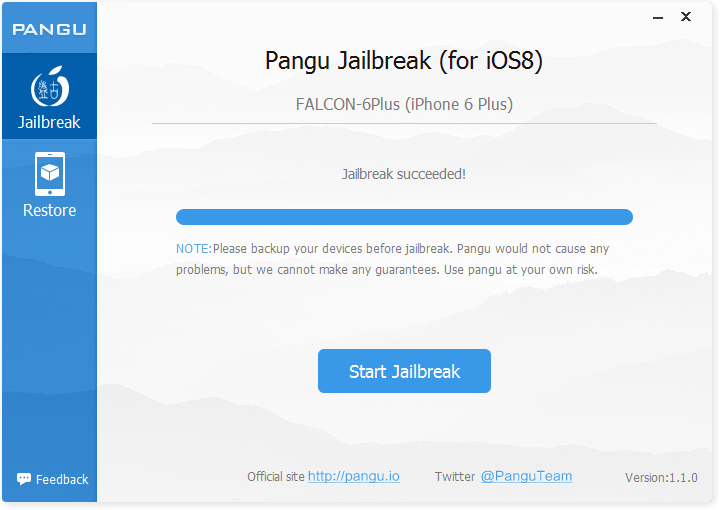
<div style="text-align:center;"><a href="http://iphoneland.up.seesaa.net/image/pangu-img.png" target="_blank"><img border="0" alt="pangu-img.png" src="http://iphoneland.up.seesaa.net/image/pangu-img-thumbnail2.png" width="320" height="176"></a><br /></div><br /><br />OS 8.0-8.1.x 対応のUntethered Jailbreakツール『Pangu for iOS8』を使って、iPhone5S（iOS8.1 ）をJailbreakしてみました。<br /><br /><strong>Pangu8について(2014/11/15時点)</strong><br />★対応環境： Windows XP 以降, Mac OS X 対応<br />★対応機種：iPod touch, iPhone 4S/5/5c/5s/6/6Plus, iPad Mini 2/3, iPad/iPad Air/Air2<br />★対応OS：iOS 8.0-8.1.x<br /><blockquote><a href="http://iphoneland.up.seesaa.net/image/danger-icon_mini.png" target="_blank"><img src="http://iphoneland.up.seesaa.net/image/danger-icon_mini-thumbnail2.png" width="300" height="52" border="0" align="" alt="danger-icon_mini.png" /></a></blockquote><br /></span><a name="more"></a><strong>レポート環境</strong><br />Mac OS 10.8.5<br /> (VMware Fusion Pro 7.0.1を使用したMacBook Air OS X 10.8.5ダブルブート環境)<br />iPhone5S Softbank (64GB) <br />iTunes 12.0.1.26<br /><br /><strong>Step0：事前準備</strong><br />Jailbreak作業の失敗を防ぐため、以下4項目を事前に設定しておく必要があります。<br />● iCloudもしくはiTunesでバックアップを行う<br />● iTunesのiOSのバックアップの暗号化のチェックを外す<br />● ディバイスの自動ロック機能をオフにする<br />● ディバイスのパスコード機能をオフにする<br />● ディバイスの「iPhoneを探す」機能をオフにする<br /><br /><strong>Step1：Pangu8のダウンロード</strong><br /><br /><a href="http://en.pangu.io" target="_blank">Pangu公式サイト</a><br /><br />【Direct Download Link】<br /><a href="http://dl.pangu.25pp.com/jb/Pangu8_v1.0.0.dmg" target="_blank">● Pangu1.0.0 for Mac</a><br /><br /><strong>Step2：ダウンロードした『Pangu8.exe』を起動</strong><br />※iOSディバイスとMacがUSBケーブルで繋がっている事を確認<br />↓　『Pangu8』を起動。iTunesがiOS8に未対応のバージョンだと先へ進めません。<br /><a href="http://iphoneland.up.seesaa.net/image/pangu_for_mac_01.png" target="_blank"><img border="0" alt="pangu_for_mac_01.png" src="http://iphoneland.up.seesaa.net/image/pangu_for_mac_01-thumbnail2.png" width="320" height="236"></a><br /><br />↓　認識に成功するとディバイス情報が表示されるので「Start Jailbreak」をクリック。<br /><a href="http://iphoneland.up.seesaa.net/image/pangu_for_mac_02.png" target="_blank"><img border="0" alt="pangu_for_mac_02.png" src="http://iphoneland.up.seesaa.net/image/pangu_for_mac_02-thumbnail2.png" width="320" height="229"></a><br /><br />↓　スタート前に先述の事前準備に記載した注意事項が表示されます。<br /><a href="http://iphoneland.up.seesaa.net/image/pangu_for_mac_03.png" target="_blank"><img border="0" alt="pangu_for_mac_03.png" src="http://iphoneland.up.seesaa.net/image/pangu_for_mac_03-thumbnail2.png" width="320" height="236"></a><br /><br />↓　自動的にJailbreakの作業が開始されます。<br /><a href="http://iphoneland.up.seesaa.net/image/pangu_for_mac_04.png" target="_blank"><img border="0" alt="pangu_for_mac_04.png" src="http://iphoneland.up.seesaa.net/image/pangu_for_mac_04-thumbnail2.png" width="320" height="236"></a><br /><br />↓　淡々と作業が続きます。<br /><a href="http://iphoneland.up.seesaa.net/image/Pangu_06.png" target="_blank"><img border="0" alt="Pangu_06.png" src="http://iphoneland.up.seesaa.net/image/Pangu_06-thumbnail2.png" width="320" height="226"></a><br /><br />↓　気長に待ちます。<br /><a href="http://iphoneland.up.seesaa.net/image/Pangu_07.png" target="_blank"><img border="0" alt="Pangu_07.png" src="http://iphoneland.up.seesaa.net/image/Pangu_07-thumbnail2.png" width="320" height="226"></a><br /><br />↓　ディバイスが自動的にリブートされます。<br /><a href="http://iphoneland.up.seesaa.net/image/pangu_for_mac_08.png" target="_blank"><img border="0" alt="pangu_for_mac_08.png" src="http://iphoneland.up.seesaa.net/image/pangu_for_mac_08-thumbnail2.png" width="320" height="242"></a><br /><br />↓　あともう少しです。<br /><a href="http://iphoneland.up.seesaa.net/image/pangu_for_mac_09.png" target="_blank"><img border="0" alt="pangu_for_mac_09.png" src="http://iphoneland.up.seesaa.net/image/pangu_for_mac_09-thumbnail2.png" width="320" height="244"></a><br /><br />↓　『Jailbreak Succeeded!』表示でPangu8側の作業は完了です。<br /><a href="http://iphoneland.up.seesaa.net/image/pangu_for_mac_10.png" target="_blank"><img border="0" alt="pangu_for_mac_10.png" src="http://iphoneland.up.seesaa.net/image/pangu_for_mac_10-thumbnail2.png" width="320" height="235"></a><br /><br />リブート後にPanguとCydiaアイコンが表示されます。<br /><br /><strong>ステップ3 : Pangu8初期設定</strong><br /><br />PanguのUtilityでいくつか使える機能があるので設定しておきましょう。<br />・『JP/KR no shutter sound』：シャッター音を日本と韓国以外の設定と同じに<br />・『Rebuild App list』： アプリリストを更新して再構築<br />・『Clean Diagnostics & Usage data』：クラッシュログや使用状況データのクリーニング<br /><br /><strong>ステップ4 : Cydia初期設定</strong><br /><br />Cydiaアイコンをタップするとファイルシステムの設定が始まり再起動します。<br /><a href="http://iphoneland.up.seesaa.net/image/Absinthe08.PNG" target="_blank"><img src="http://iphoneland.up.seesaa.net/image/Absinthe08-thumbnail2.PNG" width="213" height="320" border="0" align="" alt="Absinthe08.PNG" /></a><br /><br /><strong>Step5：Jailbreak後にやるべきこと</strong><br />● セキュリティ対策<br />　→Cydiaでリポジトリ「weamdev.org/repo/」を追加、『MobileTermminal(iOS7)』をインストール<br />　　設定方法は過去記事「<a href="http://iphoneland.seesaa.net/article/128936749.html" target="_blank">JailBreak後のセキュリティ対策～mobile terminalでパスワード変更</a>」を参考に設定して下さい。<br />● iFunbox等によるルートディレクトリへのアクセス<br />　→Cydiaから『App File Conduit "2"』をインストール

]]><![CDATA[
]]></content:encoded>
</item>
<item rdf:about="https://iphoneland.seesaa.net/article/408575318.html">
<link>https://iphoneland.seesaa.net/article/408575318.html</link>
<title>【iOS8.1.2対応】Cydiaで追加したリポジトリ及びインストールしているJailbreak（脱獄）アプリ一覧</title>
<description>iOS8.1.2の環境で安定して使用できているJailbreak（脱獄）アプリの整理を兼ねて、自分用に備忘録としてまとめなおしました。下記アプリと同時にインストールされるアプリケーションは一覧リストに入れていないものもあります。（※アプリの価格は2014年12月13日現在のものですので実際の価格と異なる場合があります。Cydiaで最新の価格を確認下さい。）</description>
<dc:subject>Cydia ・ 脱獄 /Jailbreak</dc:subject>
<dc:creator>RedFalcon</dc:creator>
<dc:date>2014-11-08T23:41:52+09:00</dc:date>
<content:encoded><![CDATA[
<div style="text-align:center;"><a href="http://iphoneland.up.seesaa.net/image/cydia-sources.png" target="_blank"><img border="0" alt="cydia-sources.png" src="http://iphoneland.up.seesaa.net/image/cydia-sources-thumbnail2.png" width="320" height="160"></a><br /></div><br /><br />iOS8.1.2の環境で安定して使用できているJailbreak（脱獄）アプリの整理を兼ねて、自分用に備忘録としてまとめなおしました。<br /><br />下記アプリと同時にインストールされるアプリケーションは一覧リストに入れていないものもあります。<br />（※アプリの価格は2014年12月13日現在のものですので実際の価格と異なる場合があります。Cydiaで最新の価格を確認下さい。）<br /><blockquote><a href="http://iphoneland.up.seesaa.net/image/danger-icon_mini.png" target="_blank"><img src="http://iphoneland.up.seesaa.net/image/danger-icon_mini-thumbnail2.png" width="300" height="52" border="0" align="" alt="danger-icon_mini.png" /></a></blockquote><a name="more"></a>【レポート環境】<br />iPhone 6 Plus 128GB<br />iPhone 5 S 64GB<br />TaiG 1.2.0 for Win を使用してjailbreak（iOS8.1.2）<br /><br />[追加したRepository]<br />Alex Zielenski.com　[<a href="http://repo.alexzielenski.com/" target="_blank">http://repo.alexzielenski.com/</a>]<br />kinchan Repository　[<a href="http://kindadev.com/apt/" target="_blank">http://kindadev.com/apt/</a>]<br />Exile.90's Beta Repo　[<a href="http://exile90software.com/cydia/beta/" target="_blank">http://exile90software.com/cydia/beta/</a>]<br />moyashi repository　[<a href="http://hitoriblog.com/apt/" target="_blank">http://hitoriblog.com/apt/</a>]<br />repo.rpdev.info　[<a href="http://repo.rpdev.info/" target="_blank">http://repo.rpdev.info/</a>]<br />sident.net for cydia　[<a href="http://ftp.sident.net/cydia-beta/" target="_blank">http://ftp.sident.net/cydia-beta/</a>]<br />TetherMe　[<a href="http://repo.tetherme.net/" target="_blank">http://repo.tetherme.net/</a>]<br />WeAmDev Repository　[<a href="http://weamdev.org/repo/" target="_blank">http://weamdev.org/repo/</a>]<br /><br />【Jailbreak後にやるべきこと】<br /><strong>● セキュリティ対策</strong><br />　→Cydiaでリポジトリ「weamdev.org/repo/」を追加、『MobileTermminal(iOS7)』をインストール<br />　　設定方法は過去記事「<a href="http://iphoneland.seesaa.net/article/128936749.html" target="_blank">JailBreak後のセキュリティ対策～mobile terminalでパスワード変更</a>」を参考に設定して下さい。<br /><br />[インストールApps]<br /><strong>1) Alkaline [無料]</strong><br />　ステータスバーのバッテリーアイコンのデザイン変更<br /><strong>2) Apple File Conduit "2" [無料]</strong><br />　iFunBox等でのシステムファイルへのアクセスを可能にする<br /><strong>3) Barrel [$2.99]</strong><br />　  Home画面に3Dエフェクトを追加<br /><strong>4) betterFiveIconDock [無料]</strong><br />　ドックのアイコンを５列に変更<br /><strong>5) BreakThrough [無料]</strong><br />　  Jailbreak端末を検知してアプリを起動できなくする機能を無効化<br /><strong>6) CCSettings for iOS8 [無料]</strong><br />　 iOS8のコントロールセンターの機能拡張<br /><strong>7) Cloaky [$1.50]</strong><br />　 ステータスバー・コントロールセンターなどのカスタマイズ<br /><strong>8) ForceGoodFit [無料]</strong><br />　 iPhone6/6Plus画面に対応していないアプリを強制的に表示<br /><strong>9) iCleaner [無料]</strong><br />　  iOSディバイス用のユーティリティツール<br /><strong>10) iFile [$4.00]</strong><br />　  iOSDeviceの内部ディレクトリへのアクセスを可能にするシステムファイルブラウザ<br /><strong>11) LINE patch (ForceGoodFit Addon) [無料]</strong><br />　  ForceGoodFit用のLINE向けアドオン<br /><strong>12) MobileTerminal (iOS7)  [無料]</strong><br />　  iPhoneでターミナル操作を可能にするsshクライアント<br /><strong>13) Nitrous  [無料]</strong><br />　  iOSデフォルトアプリにのみ使用されているNitroエンジンを全てのアプリで有効化<br /><strong>14) NoSlowAnimations  [無料]</strong><br />　  iOSのアニメーションをスピードアップ<br /><strong>15) Priority Hub [無料]</strong><br />　  ロック画面のプッシュ通知をアプリ別に表示<br /><strong>16) Speed Intensifier  [無料]</strong><br />　  iOSのアニメーションをスピードアップ<br /><strong>17) SwipeShiftCaret   [無料]</strong><br />　  スワイプでカーソルを移動<br /><strong>18) TetherMe for iOS8+ [$4.99]</strong><br />　  純正テザリング機能とAPN設定メニューの復活<br /><strong>19) Virtual Home  [$1.49]</strong><br />　  Touch IDセンサーを活用したホームボタン操作のタッチコントロール<br /><strong>20) Zeppelin  [無料]</strong><br />　  ステータスバーのキャリア名のカスタマイズ

]]><![CDATA[
]]></content:encoded>
</item>
<item rdf:about="https://iphoneland.seesaa.net/article/408195067.html">
<link>https://iphoneland.seesaa.net/article/408195067.html</link>
<title>Pangu1.2.1 for Win - iOS8.1 iPhone6Plus Jailbreak</title>
<description>OS 8.0-8.1.x 対応のUntethered Jailbreakツール『Pangu for iOS8』を使って、iPhone6Plus（iOS8.1 ）をJailbreakしてみました。Pangu8について(2014/11/15時点)★対応環境： Windows XP 以降, Mac OS X 対応★対応機種：iPod touch, iPhone 4S/5/5c/5s/6/6Plus, iPad Mini 2/3, iPad/iPad Air/Air2★対応OS：iO..</description>
<dc:subject>Cydia ・ 脱獄 /Jailbreak</dc:subject>
<dc:creator>RedFalcon</dc:creator>
<dc:date>2014-11-02T15:55:20+09:00</dc:date>
<content:encoded><![CDATA[
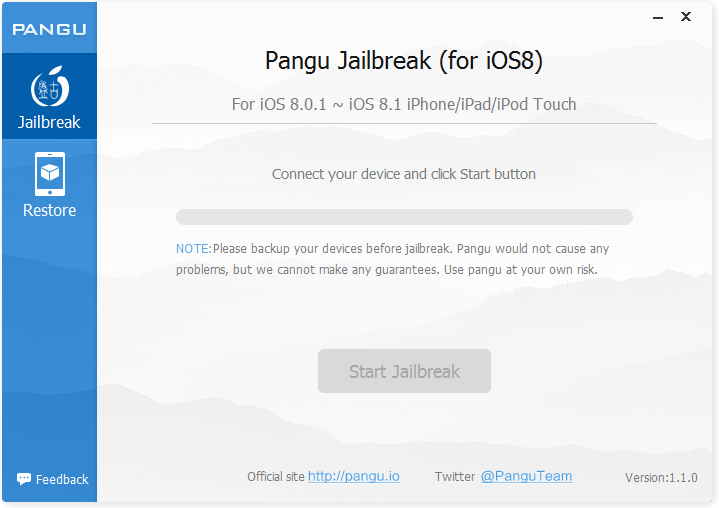
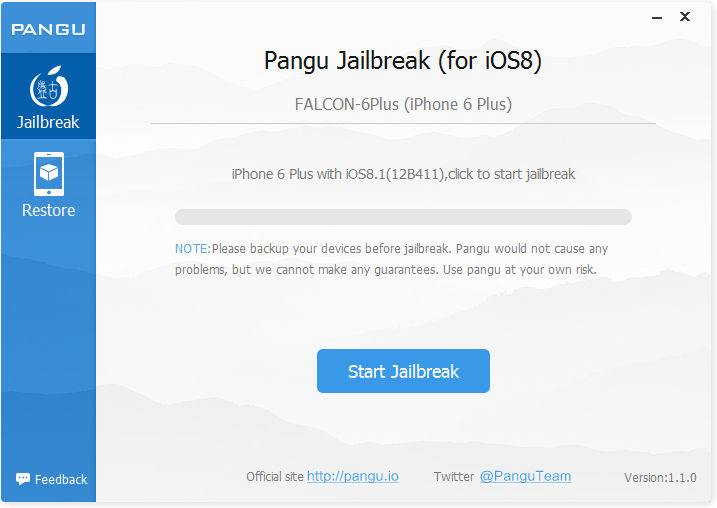
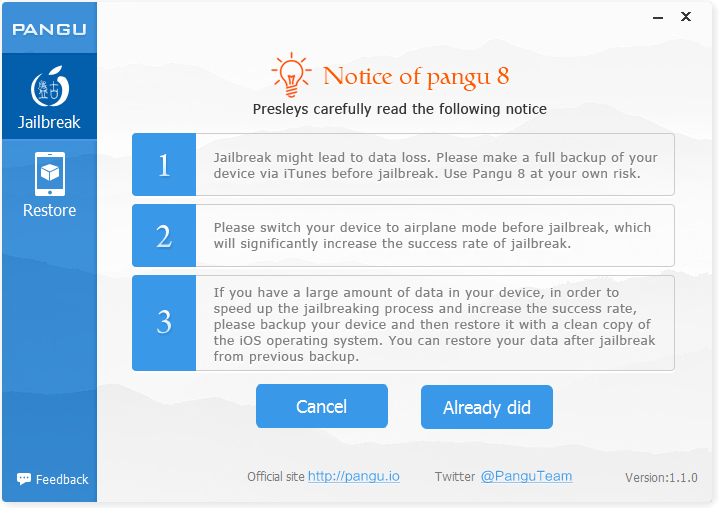
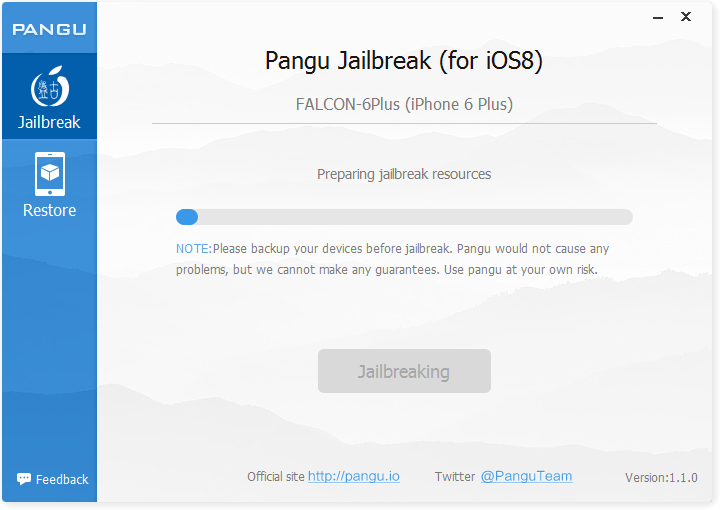
<div style="text-align:center;"><a href="http://iphoneland.up.seesaa.net/image/pangu-img.png" target="_blank"><img border="0" alt="pangu-img.png" src="http://iphoneland.up.seesaa.net/image/pangu-img-thumbnail2.png" width="320" height="176"></a><br /></div><br /><br />OS 8.0-8.1.x 対応のUntethered Jailbreakツール『Pangu for iOS8』を使って、iPhone6Plus（iOS8.1 ）をJailbreakしてみました。<br /><br /><strong>Pangu8について(2014/11/15時点)</strong><br />★対応環境： Windows XP 以降, Mac OS X 対応<br />★対応機種：iPod touch, iPhone 4S/5/5c/5s/6/6Plus, iPad Mini 2/3, iPad/iPad Air/Air2<br />★対応OS：iOS 8.0-8.1.x<br /><blockquote><a href="http://iphoneland.up.seesaa.net/image/danger-icon_mini.png" target="_blank"><img src="http://iphoneland.up.seesaa.net/image/danger-icon_mini-thumbnail2.png" width="300" height="52" border="0" align="" alt="danger-icon_mini.png" /></a></blockquote><br /></span><a name="more"></a><strong>レポート環境</strong><br />Windows 7 Ultimate<br /> (VMware Fusion Pro 7.0.1を使用したMacBook Air OS X 10.8.5ダブルブート環境)<br />iPhone6Plus SIM Free (128GB) <br />iTunes 12.0.1.26<br /><br /><strong>Step0：事前準備</strong><br />Jailbreak作業の失敗を防ぐため、以下4項目を事前に設定しておく必要があります。<br />● iCloudもしくはiTunesでバックアップを行う<br />● iTunesのiOSのバックアップの暗号化のチェックを外す<br />● ディバイスの自動ロック機能をオフにする<br />● ディバイスのパスコード機能をオフにする<br />● ディバイスの「iPhoneを探す」機能をオフにする<br /><br /><strong>Step1：Pangu8のダウンロード</strong><br /><br /><a href="http://en.pangu.io" target="_blank">Pangu公式サイト</a><br /><br />【Direct Download Link】<br /><a href="http://dl.pangu.25pp.com/jb/Pangu8_v1.2.1.exe" target="_blank">● Pangu1.1.0 for Windows</a><br /><br /><strong>Step2：ダウンロードした『Pangu8.exe』を起動</strong><br />※iOSディバイスとMacがUSBケーブルで繋がっている事を確認<br />↓　『Pangu8』を起動。iTunesがiOS8に未対応のバージョンだと先へ進めません。<br /><a href="http://iphoneland.up.seesaa.net/image/Pangu_01.png" target="_blank"><img border="0" alt="Pangu_01.png" src="http://iphoneland.up.seesaa.net/image/Pangu_01-thumbnail2.png" width="320" height="226"></a><br /><br />↓　認識に成功するとディバイス情報が表示されるので「Start Jailbreak」をクリック。<br /><a href="http://iphoneland.up.seesaa.net/image/Pangu_02.png" target="_blank"><img border="0" alt="Pangu_02.png" src="http://iphoneland.up.seesaa.net/image/Pangu_02-thumbnail2.png" width="320" height="226"></a><br /><br />↓　スタート前に先述の事前準備に記載した注意事項が表示されます。<br /><a href="http://iphoneland.up.seesaa.net/image/Pangu_03.png" target="_blank"><img border="0" alt="Pangu_03.png" src="http://iphoneland.up.seesaa.net/image/Pangu_03-thumbnail2.png" width="320" height="226"></a><br /><br />↓　自動的にJailbreakの作業が開始されます。<br /><a href="http://iphoneland.up.seesaa.net/image/Pangu_04.png" target="_blank"><img border="0" alt="Pangu_04.png" src="http://iphoneland.up.seesaa.net/image/Pangu_04-thumbnail2.png" width="320" height="226"></a><br /><br />↓　「iPhoneを探す」がオンになっている事を忘れてました。<br /><a href="http://iphoneland.up.seesaa.net/image/Pangu_05.png" target="_blank"><img border="0" alt="Pangu_05.png" src="http://iphoneland.up.seesaa.net/image/Pangu_05-thumbnail2.png" width="320" height="225"></a><br /><br />↓　淡々と作業が続きます。<br /><a href="http://iphoneland.up.seesaa.net/image/Pangu_06.png" target="_blank"><img border="0" alt="Pangu_06.png" src="http://iphoneland.up.seesaa.net/image/Pangu_06-thumbnail2.png" width="320" height="226"></a><br /><br />↓　気長に待ちます。<br /><a href="http://iphoneland.up.seesaa.net/image/Pangu_07.png" target="_blank"><img border="0" alt="Pangu_07.png" src="http://iphoneland.up.seesaa.net/image/Pangu_07-thumbnail2.png" width="320" height="226"></a><br /><br />↓　ディバイスが自動的にリブートされます。<br /><a href="http://iphoneland.up.seesaa.net/image/Pangu_08.png" target="_blank"><img border="0" alt="Pangu_08.png" src="http://iphoneland.up.seesaa.net/image/Pangu_08-thumbnail2.png" width="320" height="227"></a><br /><br />↓　あともう少しです。<br /><a href="http://iphoneland.up.seesaa.net/image/Pangu_10.png" target="_blank"><img border="0" alt="Pangu_10.png" src="http://iphoneland.up.seesaa.net/image/Pangu_10-thumbnail2.png" width="320" height="226"></a><br /><br />↓　最終段階まで来ました。<br /><a href="http://iphoneland.up.seesaa.net/image/Pangu_11.png" target="_blank"><img border="0" alt="Pangu_11.png" src="http://iphoneland.up.seesaa.net/image/Pangu_11-thumbnail2.png" width="320" height="226"></a><br /><br />↓　『Jailbreak Succeeded!』表示でPangu8側の作業は完了です。<br /><a href="http://iphoneland.up.seesaa.net/image/Pangu_12.png" target="_blank"><img border="0" alt="Pangu_12.png" src="http://iphoneland.up.seesaa.net/image/Pangu_12-thumbnail2.png" width="320" height="226"></a><br /><br />リブート後にPanguとCydiaアイコンが表示されます。<br /><br /><strong>ステップ3 : Pangu8初期設定</strong><br /><br />PanguのUtilityでいくつか使える機能があるので設定しておきましょう。<br />・『JP/KR no shutter sound』：シャッター音を日本と韓国以外の設定と同じに<br />・『Rebuild App list』： アプリリストを更新して再構築<br />・『Clean Diagnostics & Usage data』：クラッシュログや使用状況データのクリーニング<br /><br /><strong>ステップ4 : Cydia初期設定</strong><br /><br />Cydiaアイコンをタップするとファイルシステムの設定が始まり再起動します。<br /><a href="http://iphoneland.up.seesaa.net/image/Absinthe08.PNG" target="_blank"><img src="http://iphoneland.up.seesaa.net/image/Absinthe08-thumbnail2.PNG" width="213" height="320" border="0" align="" alt="Absinthe08.PNG" /></a><br /><br /><strong>Step5：Jailbreak後にやるべきこと</strong><br />● セキュリティ対策<br />　→Cydiaでリポジトリ「weamdev.org/repo/」を追加、『MobileTermminal(iOS7)』をインストール<br />　　設定方法は過去記事「<a href="http://iphoneland.seesaa.net/article/128936749.html" target="_blank">JailBreak後のセキュリティ対策～mobile terminalでパスワード変更</a>」を参考に設定して下さい。<br />● iFunbox等によるルートディレクトリへのアクセス<br />　→Cydiaから『App File Conduit "2"』をインストール

]]><![CDATA[
]]></content:encoded>
</item>
<item rdf:about="https://iphoneland.seesaa.net/article/392421202.html">
<link>https://iphoneland.seesaa.net/article/392421202.html</link>
<title>DIY 2008 HUMMER H2 エンジンオイル＆フィルター交換</title>
<description>エンジンオイルライフが０％になり「A CHANGE ENGINE OIL SOON」の表示が出たので、エンジンオイルとオイルフィルターを交換。前回交換時から間が空いていたので、格安のエンジンオイルでの洗浄をひと手間入れ、Kendallのエンジンオイルに交換。＜部品＞１）ドレンパッキン２）オイルフィルター（ACDelco PF48）３）エンジンオイル（Kendall GT-1ハイパフォーマンス 5W-30）４）パーツクリーナードレンパッキンとオイルフィルターは、近所のヤナセで調..</description>
<dc:subject>HUMMER H2</dc:subject>
<dc:creator>RedFalcon</dc:creator>
<dc:date>2014-03-23T19:16:42+09:00</dc:date>
<content:encoded><![CDATA[
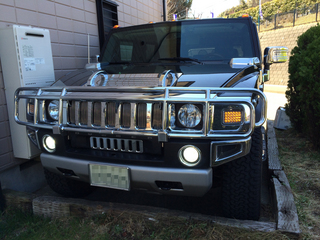
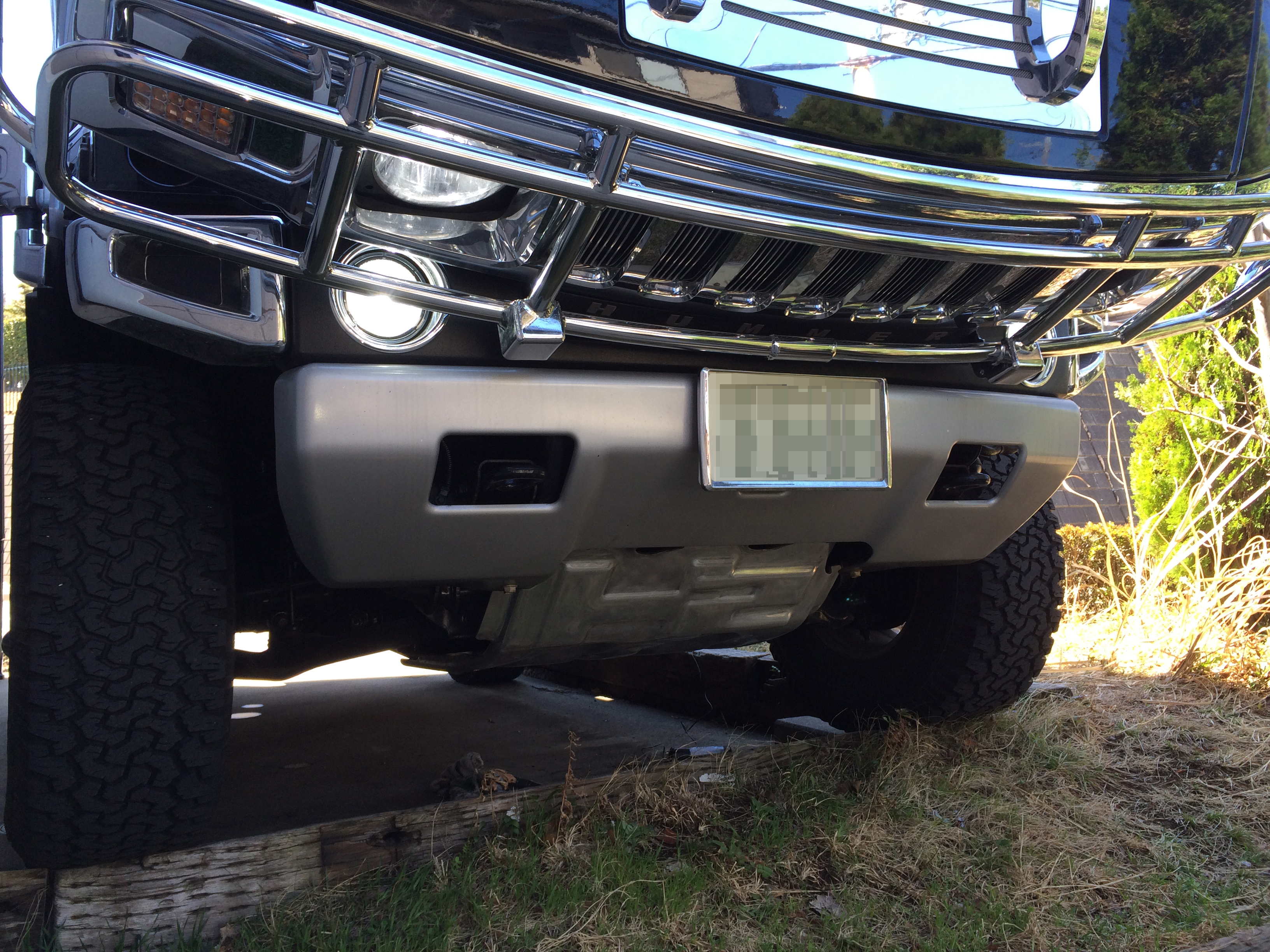
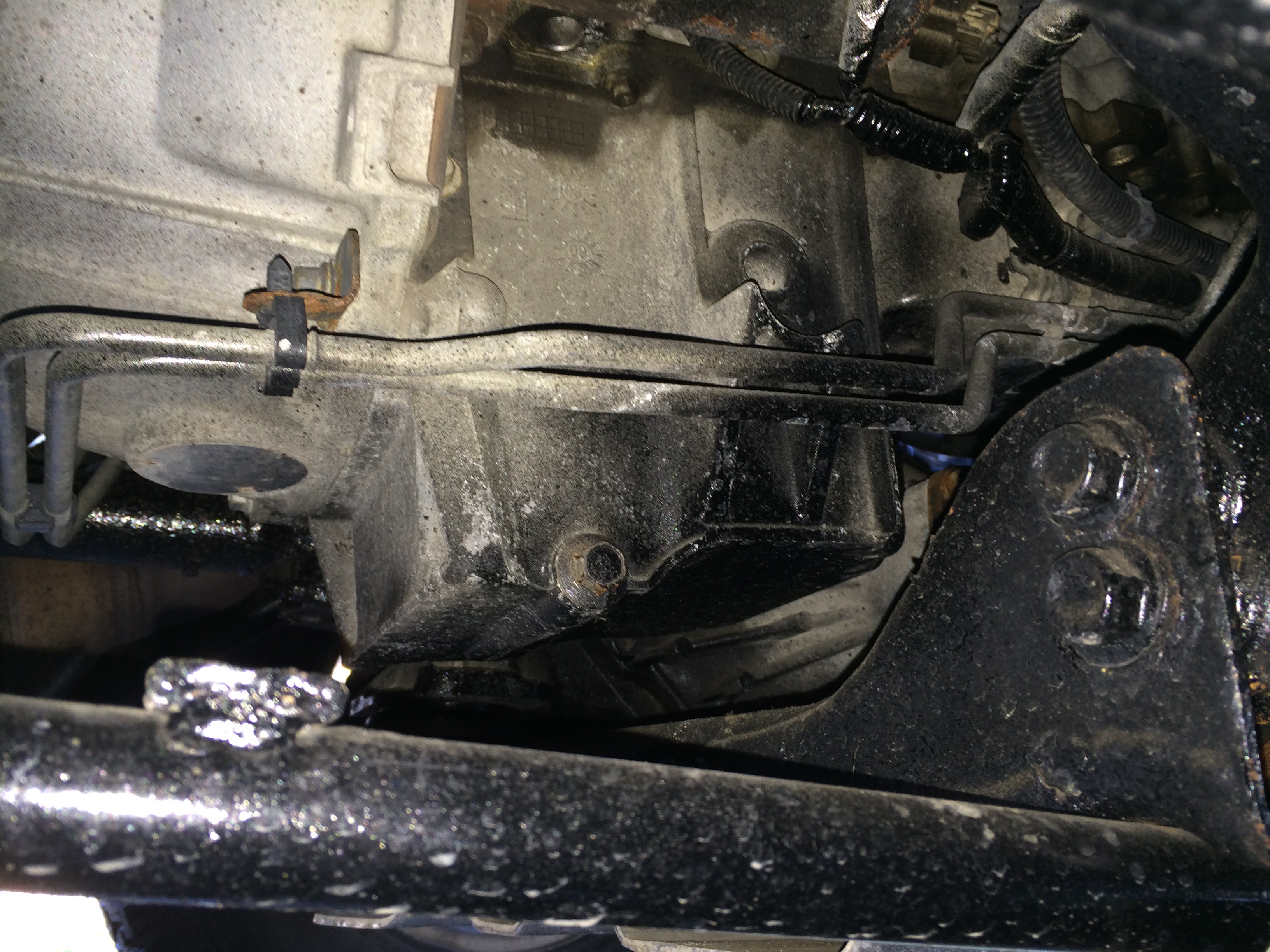
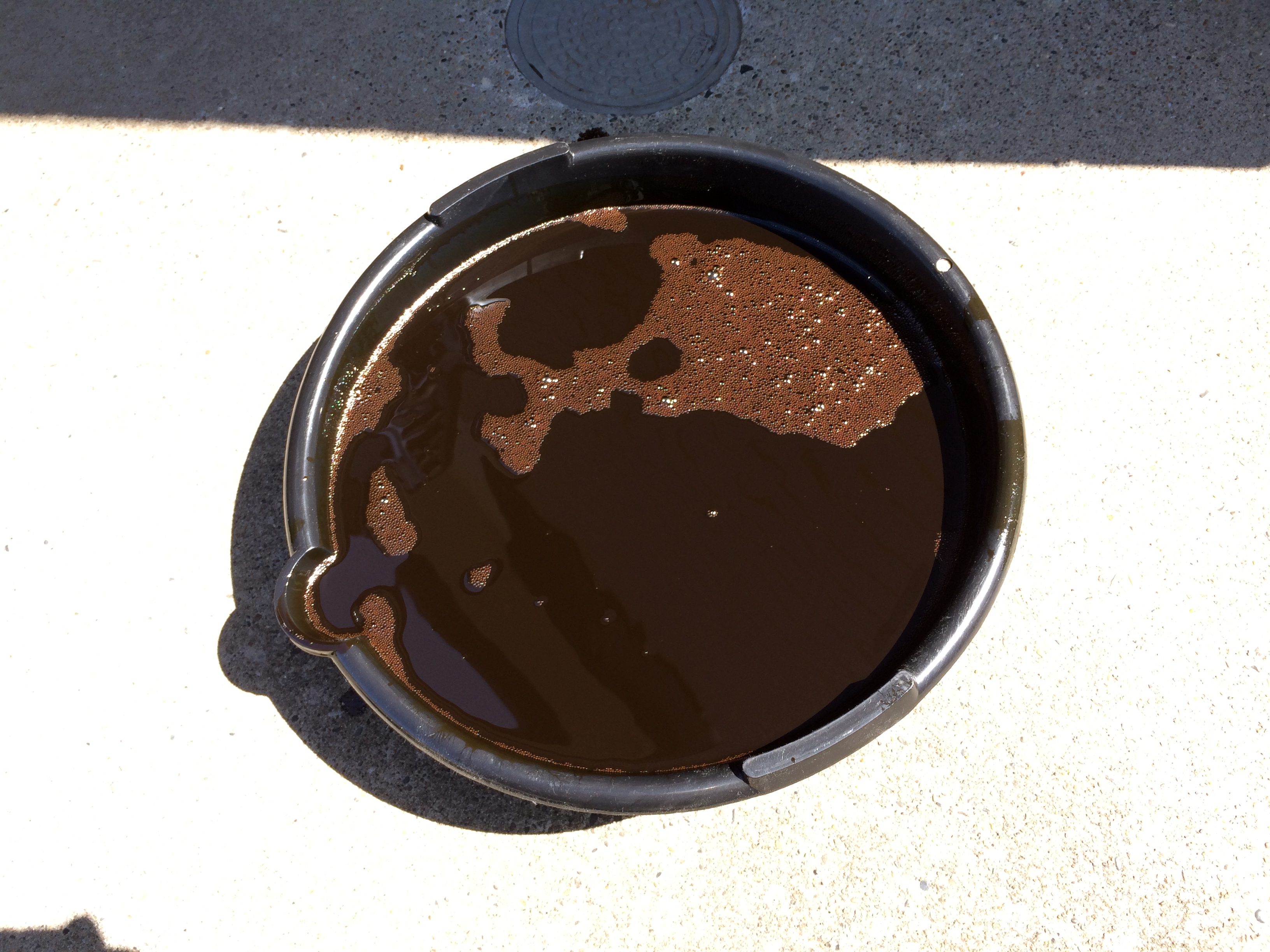
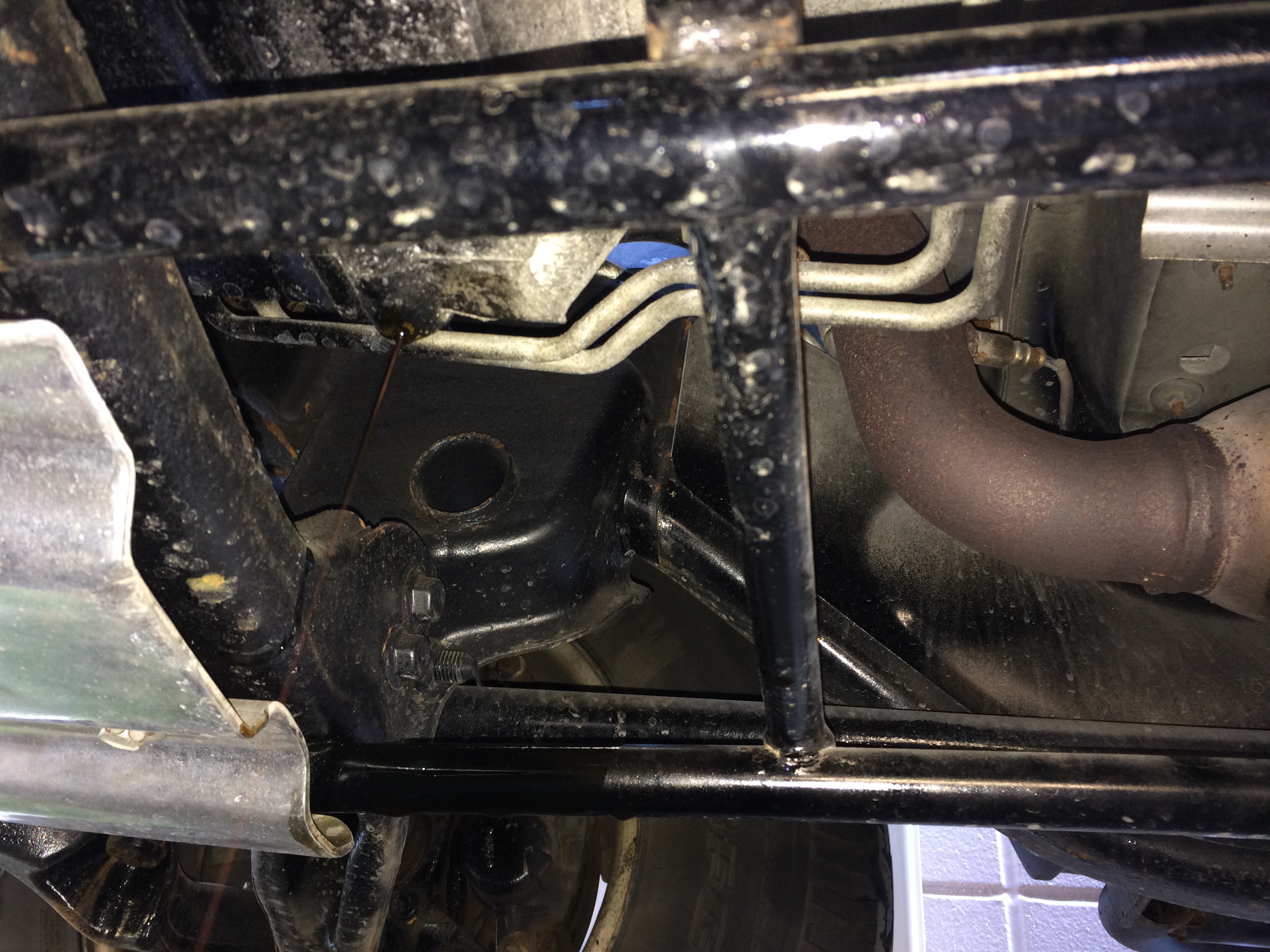
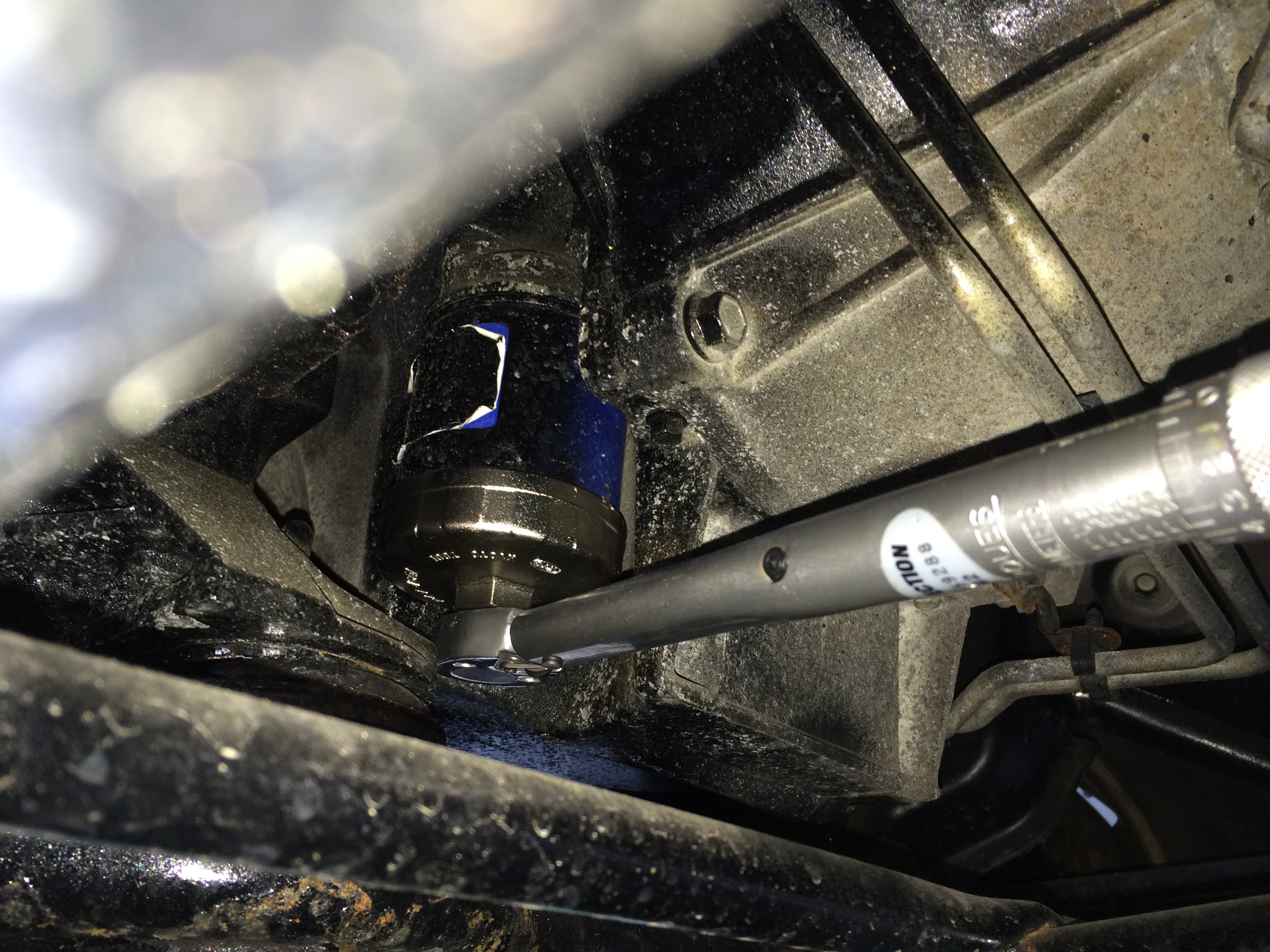
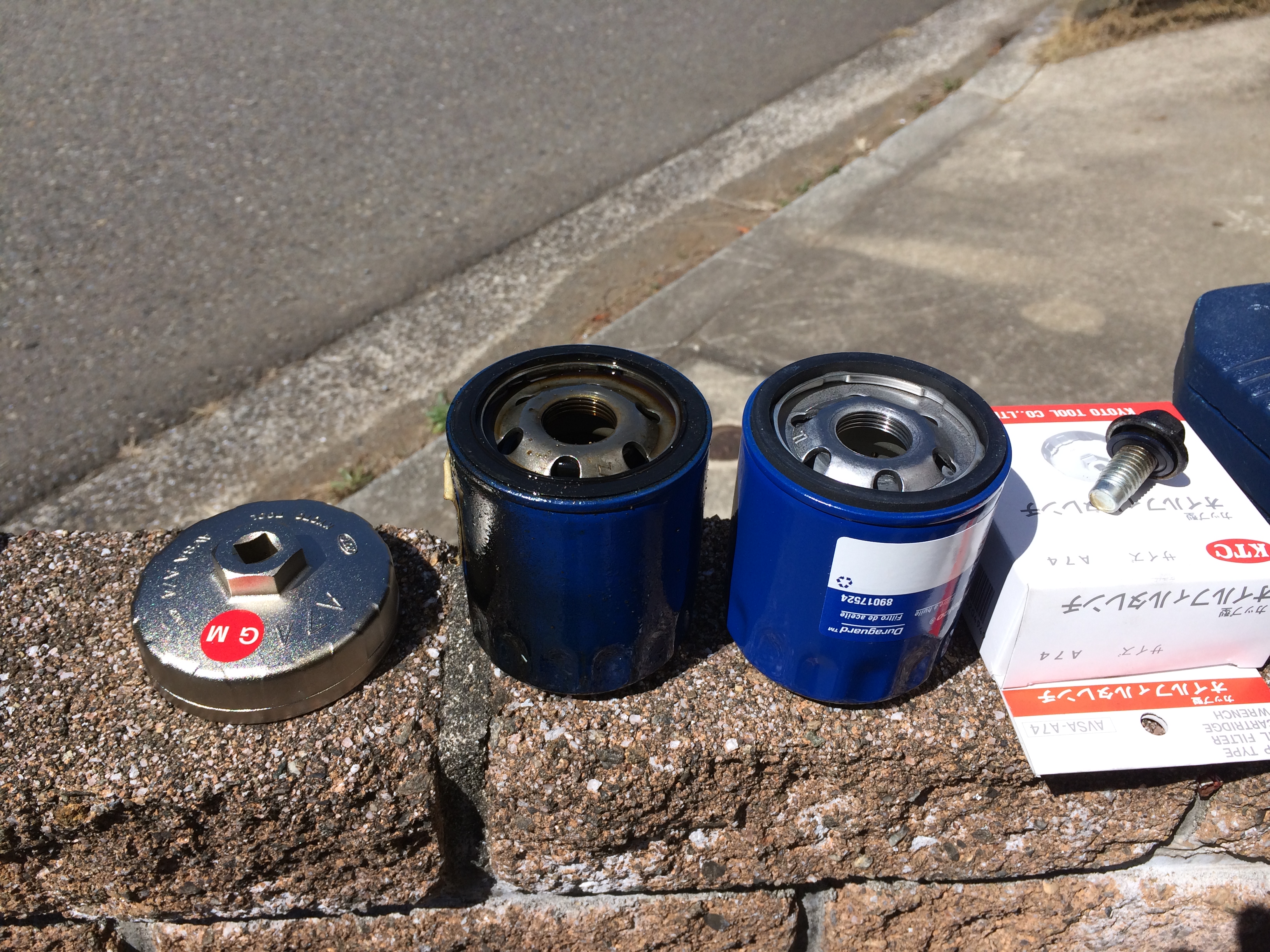
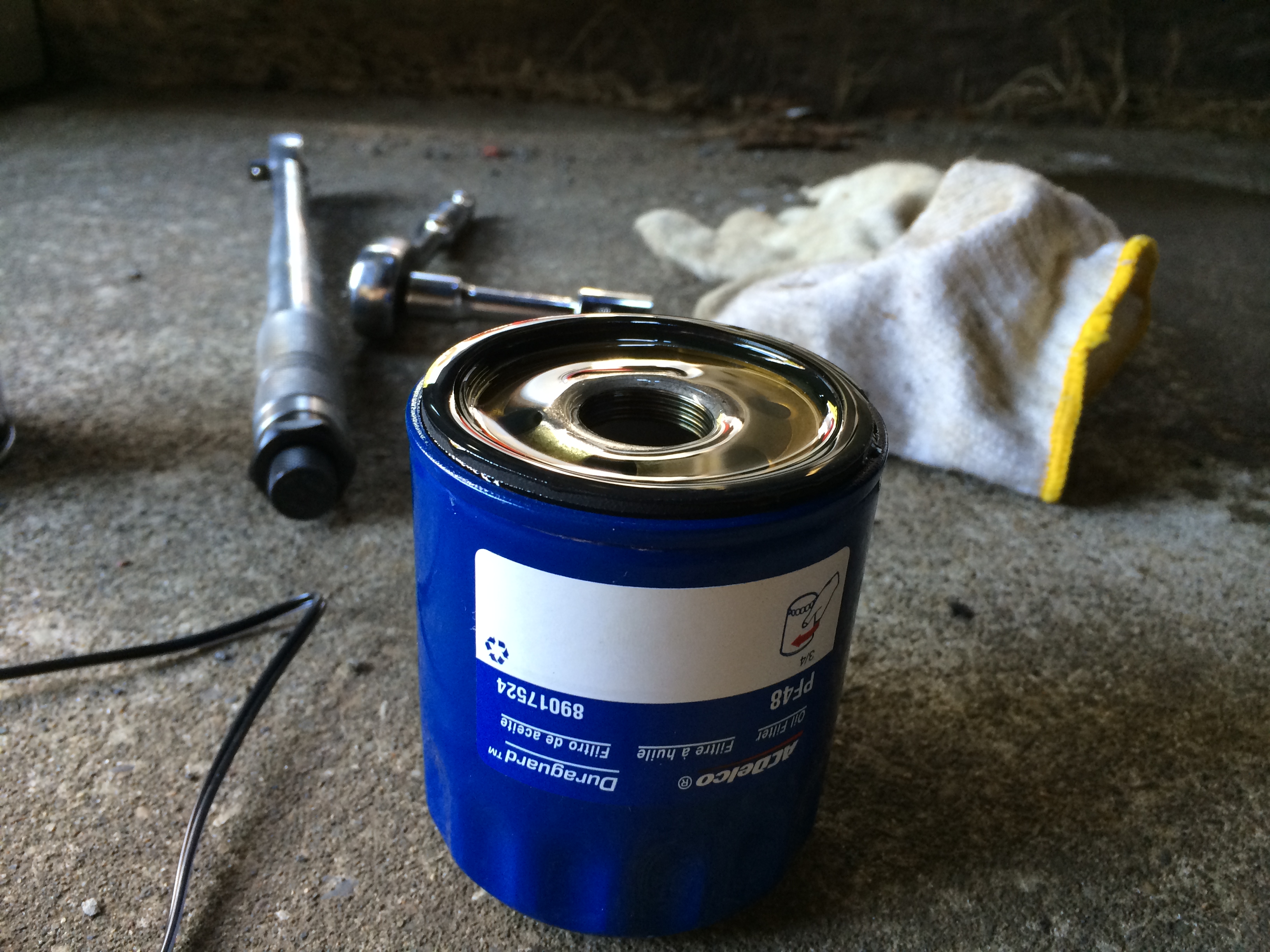
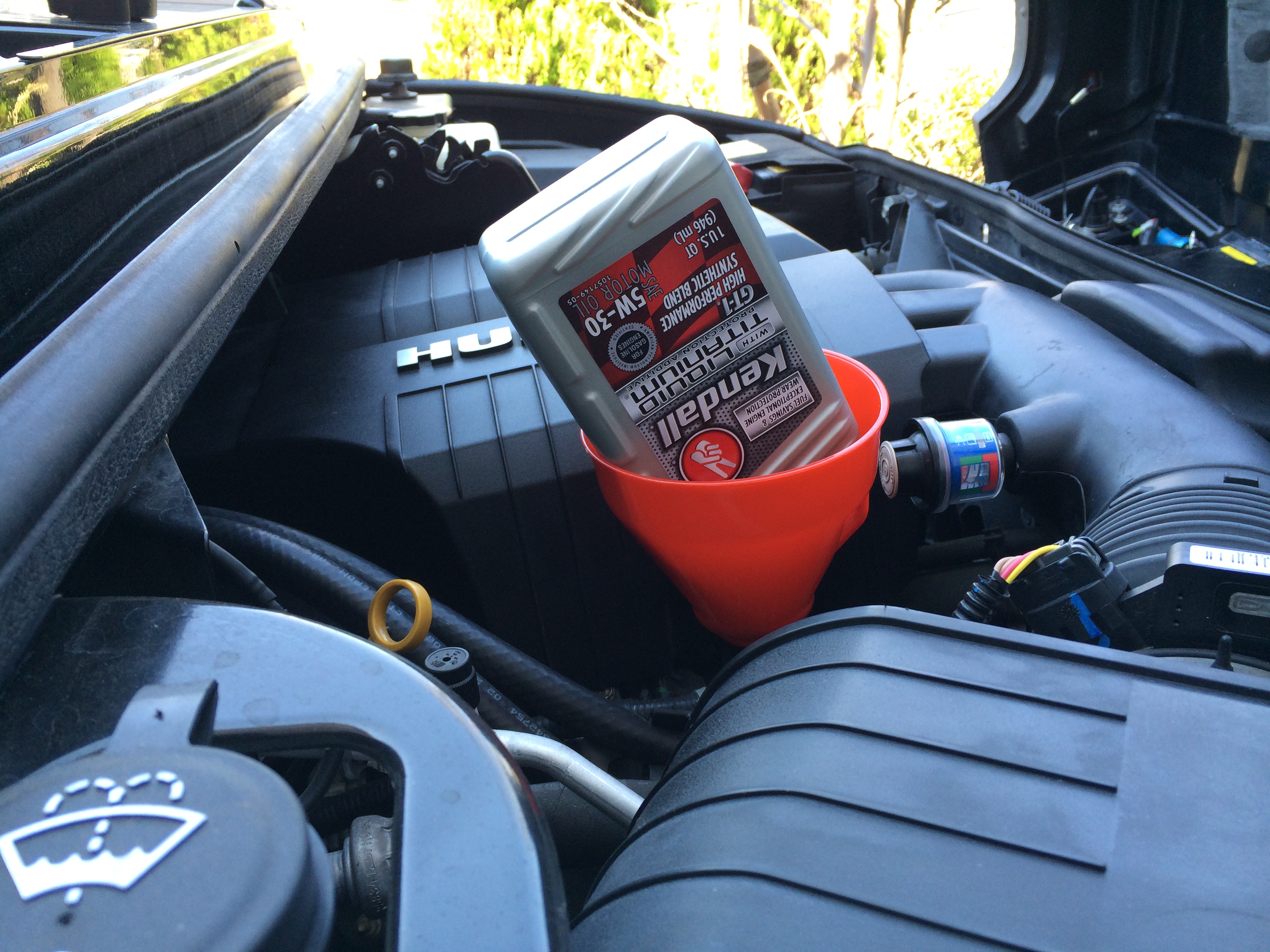
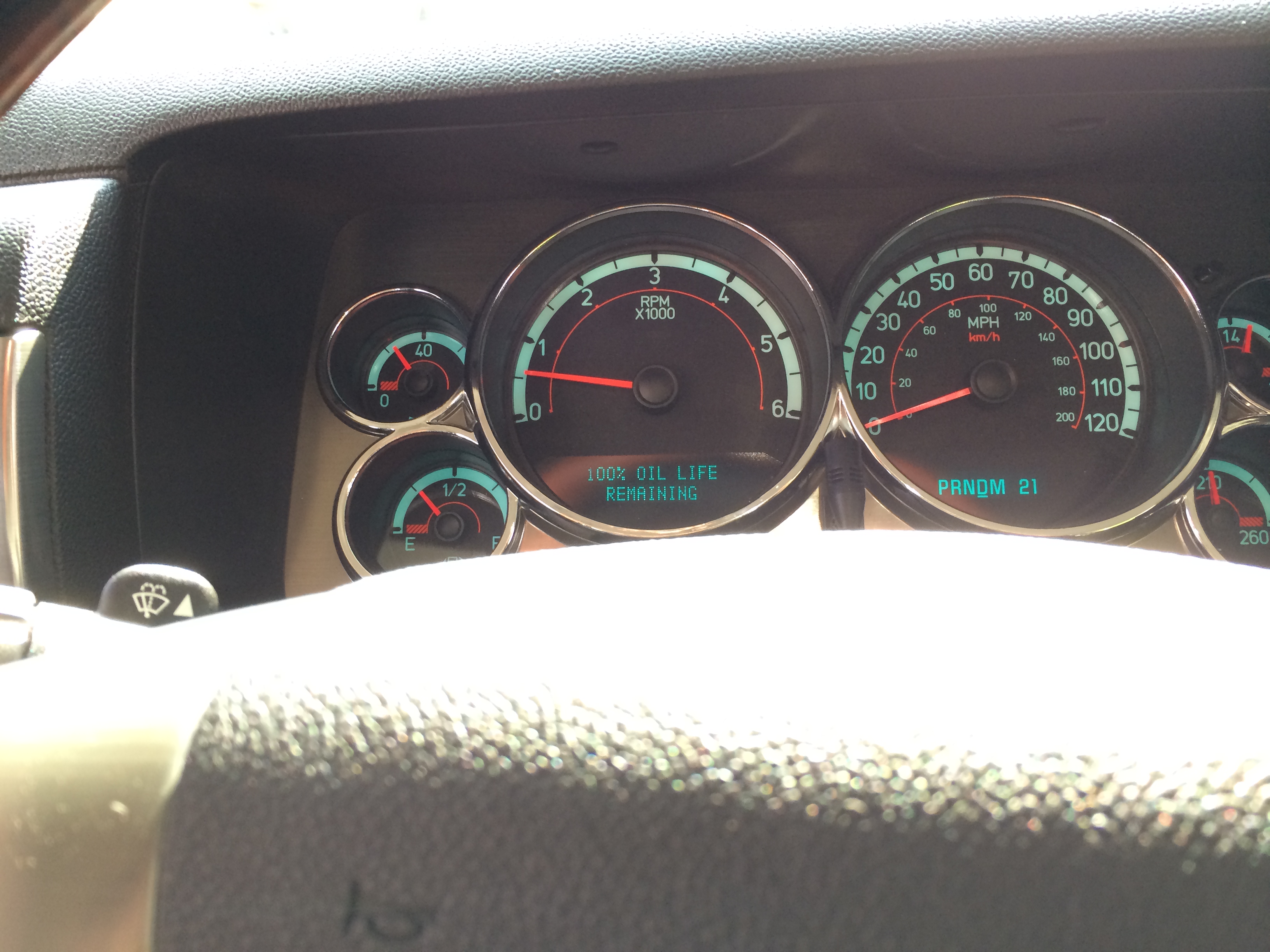
<a href="http://iphoneland.up.seesaa.net/image/IMG_0228.JPG" target="_blank"><img border="0" alt="IMG_0228.JPG" src="http://iphoneland.up.seesaa.net/image/IMG_0228-thumbnail2.JPG" width="320" height="240"></a><br />エンジンオイルライフが０％になり「A CHANGE ENGINE OIL SOON」の表示が出たので、エンジンオイルとオイルフィルターを交換。前回交換時から間が空いていたので、格安のエンジンオイルでの洗浄をひと手間入れ、Kendallのエンジンオイルに交換。<br /><br />＜部品＞<br />１）ドレンパッキン<br />２）オイルフィルター（ACDelco PF48）<br />３）エンジンオイル（Kendall GT-1ハイパフォーマンス 5W-30）<br />４）パーツクリーナー<br /><br />ドレンパッキンとオイルフィルターは、近所のヤナセで調達。<br />今回は、アメ車と相性の良いKendallのエンジンオイルを選択。オイル量は、<a href="http://iphoneland.up.seesaa.net/image/2008-hummer-h2-owners-manual.pdf" target="_blank">オーナーズマニュアル</a>（5-117）によるとフィルター交換時で5.7Lと記載されているので7本あれば充分。<br /><a target="_blank" href="http://www.amazon.co.jp/gp/search/ref=as_li_qf_sp_sr_tl?ie=UTF8&camp=247&creative=1211&index=aps&keywords=Kendall%20GT-1%E3%83%8F%E3%82%A4%E3%83%91%E3%83%95%E3%82%A9%E3%83%BC%E3%83%9E%E3%83%B3%E3%82%B9%205W-30&linkCode=ur2&tag=redleopard-22">Kendall GT-1ハイパフォーマンス 5W-30</a><img src="https://ir-jp.amazon-adsystem.com/e/ir?t=redleopard-22&l=ur2&o=9" width="1" height="1" border="0" alt="" style="border:none !important; margin:0px !important;" /><br /><a href ='http://www.amazon.co.jp/gp/search/ref=as_li_qf_sp_sr_il?ie=UTF8&camp=247&creative=1211&index=aps&keywords=Kendall%20GT-1%E3%83%8F%E3%82%A4%E3%83%91%E3%83%95%E3%82%A9%E3%83%BC%E3%83%9E%E3%83%B3%E3%82%B9%205W-30&linkCode=as2&tag=redleopard-22'><img src='http://ws-fe.amazon-adsystem.com/widgets/q?_encoding=UTF8&ASIN=B008HXAT4O&Format=_SL160_&ID=AsinImage&MarketPlace=JP&ServiceVersion=20070822&WS=1&tag=redleopard-22' border='0' /></a><img src="http://ir-jp.amazon-adsystem.com/e/ir?t=redleopard-22&l=as2&o=9" width="1" height="1" border="0" alt="" style="border:none !important; margin:0px !important;" /><br /><br />＜工具＞<br />15mmソケットレンチ／フィルタレンチ／廃オイル受け／ロート／廃油処理パック<br />H2の場合フィルタ周りにスペースが無いので、以下のようなカップ型のフィルタレンチの方が作業がしやすいです。<br /><a target="_blank" href="http://www.amazon.co.jp/gp/search/ref=as_li_qf_sp_sr_tl?ie=UTF8&camp=247&creative=1211&index=aps&keywords=KTC%20AVSA-A74&linkCode=ur2&tag=redleopard-22">KTC オイルフィルタレンチ AVSA-A74</a><img src="https://ir-jp.amazon-adsystem.com/e/ir?t=redleopard-22&l=ur2&o=9" width="1" height="1" border="0" alt="" style="border:none !important; margin:0px !important;" /><br /><a href ='http://www.amazon.co.jp/gp/search/ref=as_li_qf_sp_sr_il?ie=UTF8&camp=247&creative=1211&index=aps&keywords=KTC%20AVSA-A74&linkCode=as2&tag=redleopard-22'><img src='http://ws-fe.amazon-adsystem.com/widgets/q?_encoding=UTF8&ASIN=B001EQE6EK&Format=_SL160_&ID=AsinImage&MarketPlace=JP&ServiceVersion=20070822&WS=1&tag=redleopard-22' border='0' /></a><img src="http://ir-jp.amazon-adsystem.com/e/ir?t=redleopard-22&l=as2&o=9" width="1" height="1" border="0" alt="" style="border:none !important; margin:0px !important;" /><br /><br />車高が高いのでジャッキアップ不要。作業性と廃油をスムーズにするため、ガレージの段差に乗り上げ。<br /><a href="http://iphoneland.up.seesaa.net/image/IMG_0234.JPG" target="_blank"><img border="0" alt="IMG_0234.JPG" src="http://iphoneland.up.seesaa.net/image/IMG_0234-thumbnail2.JPG" width="320" height="240"></a><br /><br />ボンネット内のオイルフィラーキャップを開け、ドレンプラグを外してオイルを排出。<br /><a href="http://iphoneland.up.seesaa.net/image/IMG_0232.JPG" target="_blank"><img border="0" alt="IMG_0232.JPG" src="http://iphoneland.up.seesaa.net/image/IMG_0232-thumbnail2.JPG" width="320" height="240"></a><br /><br />かなり汚れてる〜。でも金属片やスラッジは無かった。<br /><a href="http://iphoneland.up.seesaa.net/image/IMG_0233.JPG" target="_blank"><img border="0" alt="IMG_0233.JPG" src="http://iphoneland.up.seesaa.net/image/IMG_0233-thumbnail2.JPG" width="320" height="240"></a><br /><br />このあと、格安のオイルを入れて１５分ほどアイドリングで再排出。<br /><a href="http://iphoneland.up.seesaa.net/image/IMG_0235.JPG" target="_blank"><img border="0" alt="IMG_0235.JPG" src="http://iphoneland.up.seesaa.net/image/IMG_0235-thumbnail2.JPG" width="320" height="240"></a><br /><br />オイルフィルター取り外し<br /><a href="http://iphoneland.up.seesaa.net/image/IMG_0236.JPG" target="_blank"><img border="0" alt="IMG_0236.JPG" src="http://iphoneland.up.seesaa.net/image/IMG_0236-thumbnail2.JPG" width="320" height="240"></a><br /><br />フィルターとドレンパッキンの交換<br /><a href="http://iphoneland.up.seesaa.net/image/IMG_0237.JPG" target="_blank"><img border="0" alt="IMG_0237.JPG" src="http://iphoneland.up.seesaa.net/image/IMG_0237-thumbnail2.JPG" width="320" height="240"></a><br /><br />フィターのシール部分に新品のエンジンオイルを薄く塗り、手でフィルターを回して取り付け。<br /><a href="http://iphoneland.up.seesaa.net/image/IMG_0239.JPG" target="_blank"><img border="0" alt="IMG_0239.JPG" src="http://iphoneland.up.seesaa.net/image/IMG_0239-thumbnail2.JPG" width="320" height="240"></a><br /><br />エンジンオイルの注入。Kendall６本でOKでした。<br /><a href="http://iphoneland.up.seesaa.net/image/IMG_0240.JPG" target="_blank"><img border="0" alt="IMG_0240.JPG" src="http://iphoneland.up.seesaa.net/image/IMG_0240-thumbnail2.JPG" width="320" height="240"></a><br /><br />DICの「OIL LIFE REMAINING」画面に移動し、SET/RESETボタン５秒長押しでリセット完了！<br /><a href="http://iphoneland.up.seesaa.net/image/IMG_0244.JPG" target="_blank"><img border="0" alt="IMG_0244.JPG" src="http://iphoneland.up.seesaa.net/image/IMG_0244-thumbnail2.JPG" width="320" height="240"></a><a name="more"></a>

]]><![CDATA[
]]></content:encoded>
</item>
<item rdf:about="https://iphoneland.seesaa.net/article/384348496.html">
<link>https://iphoneland.seesaa.net/article/384348496.html</link>
<title>iOS7.0.4 Cydiaで "essential updates" におけるデフォルトアプリクラッシュ対処法</title>
<description>こちらの記事の文末でも取り上げていますが、Cydiaで "essential updates" を行うと、mail, safari, calculator, weatherなどの一部のデフォルトアプリが起動しなくなる事象が発生しているようです。どうもAppsyncに原因があるようなのですが、以下の対処法で解消する可能性がありますので共有しておきます。（当方の場合は、iOS6.1.3のiPhone4で「天気アプリ（weather.app）」がクラッシュしていたのですが、以下の対..</description>
<dc:subject>Cydia ・ 脱獄 /Jailbreak</dc:subject>
<dc:creator>RedFalcon</dc:creator>
<dc:date>2014-01-04T21:43:28+09:00</dc:date>
<content:encoded><![CDATA[
<div style="text-align:center;"><a href="http://iphoneland.up.seesaa.net/image/cydia_ios7.png" target="_blank"><img border="0" alt="cydia_ios7.png" src="http://iphoneland.up.seesaa.net/image/cydia_ios7-thumbnail2.png" width="320" height="216"></a></div><br /><a href="http://iphoneland.seesaa.net/article/384171552.html" target="_blank">こちらの記事</a>の文末でも取り上げていますが、Cydiaで "essential updates" を行うと、mail, safari, calculator, weatherなどの一部のデフォルトアプリが起動しなくなる事象が発生しているようです。どうもAppsyncに原因があるようなのですが、以下の対処法で解消する可能性がありますので共有しておきます。<br />（当方の場合は、iOS6.1.3のiPhone4で「天気アプリ（weather.app）」がクラッシュしていたのですが、以下の対処法で改善されました。）<br /><br />1. Cydia/Manage/PackagesにてAppsyncを検索<br />2. Appsyncをアンインストールしリスプリング<br />3. iFileを起動 (もし持っていない場合はインストールする) <br />4. iFileで以下のディレクトリに移動<br />　/var/mobile/Library/Caches <br />   (もしくは、User/Library/Caches) <br />5. Cachesフォルダから以下の２ファイルを削除<br />   a) "com.apple.LaunchServices-054.csstore" <br />      (個々に番号部分は異なるので類似のファイルを選択) <br />   b) "com.apple.mobile.installation.plist" <br />6. iFileを閉じiPhoneを再起動<br />   (AppStoreからインストールしたアプリアイコンが一時的に消えますが、しばらくすると元に戻ります) <br />7. クラッシュしていたアプリが起動するか確認<br />8. CydiaからAppSync for iOS7 を再インストール<br />9. 以上で作業は終了<br /><br />Fix found at : <a href="http://insanelyi.com/topic/15426-fix-some-stock-apps-wont-open-after-appsync-for-ios7-installed/" target="_blank">http://insanelyi.com/topic/15426-fix-some-stock-apps-wont-open-after-appsync-for-ios7-installed/</a><a name="more"></a>

]]><![CDATA[
]]></content:encoded>
</item>
<item rdf:about="https://iphoneland.seesaa.net/article/384171552.html">
<link>https://iphoneland.seesaa.net/article/384171552.html</link>
<title>evasi0n7 for Mac - iOS7.0.4 Untethered Jailbreak</title>
<description>evasi0n7について(2014/1/2時点)★対応環境： Windows XP 以降, Mac OS X 10.6以降★対応機種：iPhone 4, iPhone 4S, iPhone 5, iPhone 5c, iPhone 5s, iPod touch 5G, iPad 2, iPad 3, iPad 4, iPad Air, iPad mini, iPad mini Retina★対応OS：iOS 7.0, 7.0.1, 7.0.2, iOS 7.0.3, iOS ..</description>
<dc:subject>Cydia ・ 脱獄 /Jailbreak</dc:subject>
<dc:creator>RedFalcon</dc:creator>
<dc:date>2014-01-02T15:47:33+09:00</dc:date>
<content:encoded><![CDATA[
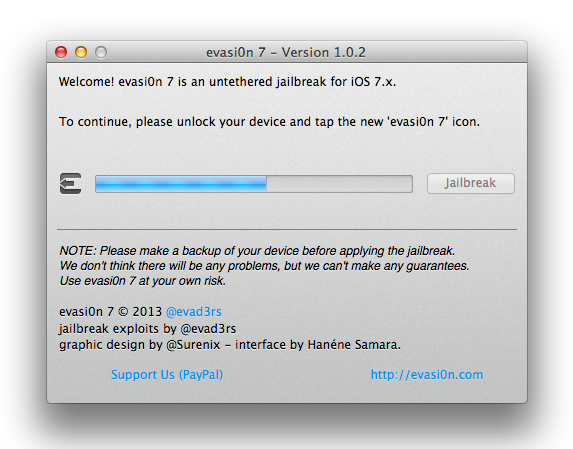
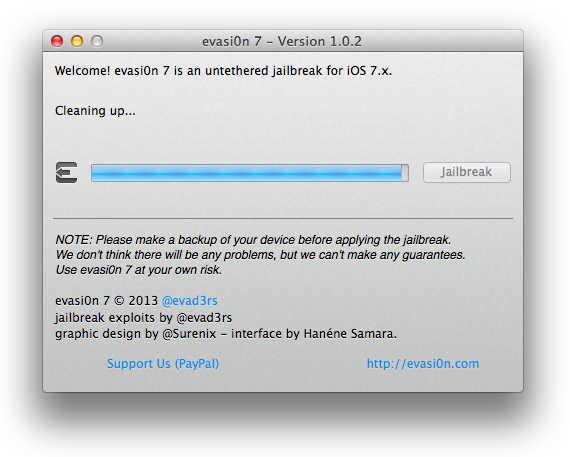
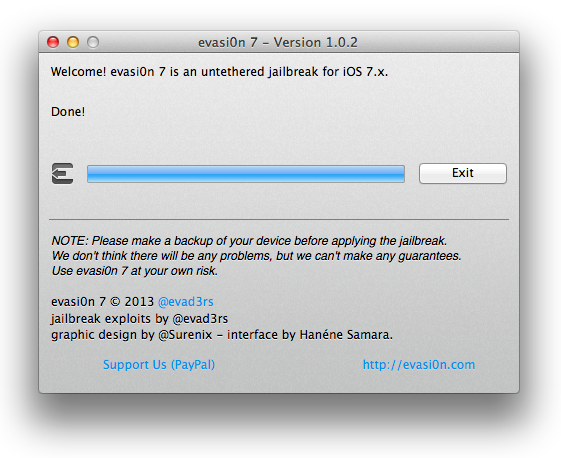
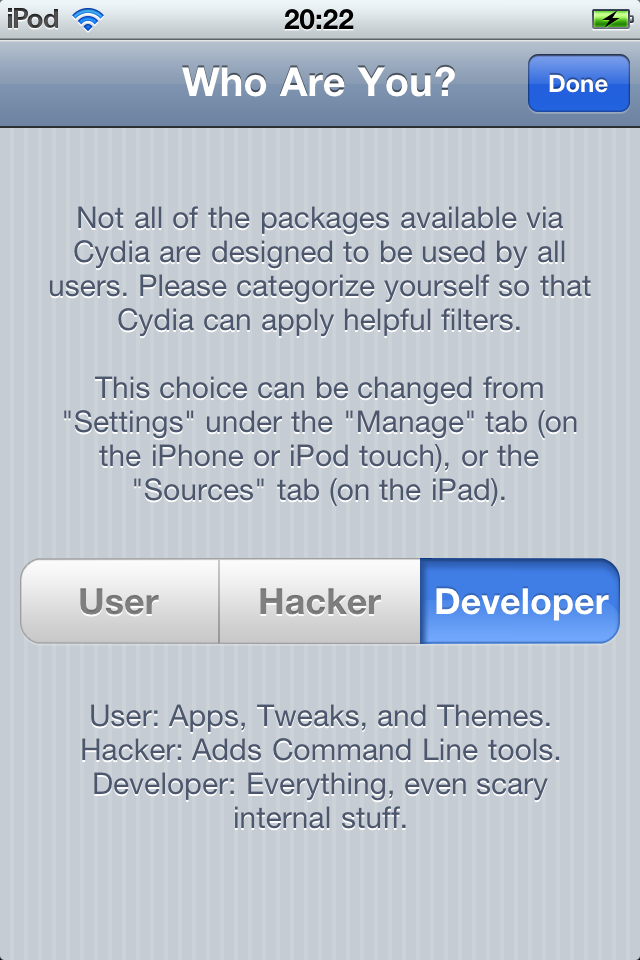
<div style="text-align:center;"><a href="http://iphoneland.up.seesaa.net/image/evasi0n7_01.png" target="_blank"><img border="0" alt="evasi0n7_01.png" src="http://iphoneland.up.seesaa.net/image/evasi0n7_01-thumbnail2.png" width="320" height="188"></a><br /></div><br /><br /><strong>evasi0n7について(2014/1/2時点)</strong><br />★対応環境： Windows XP 以降, Mac OS X 10.6以降<br />★対応機種：iPhone 4, iPhone 4S, iPhone 5, iPhone 5c, iPhone 5s, iPod touch 5G, iPad 2, iPad 3, iPad 4, iPad Air, iPad mini, iPad mini Retina<br />★対応OS：iOS 7.0, 7.0.1, 7.0.2, iOS 7.0.3, iOS 7.0.4<br />★アンロック：未対応<br /><blockquote><a href="http://iphoneland.up.seesaa.net/image/danger-icon_mini.png" target="_blank"><img src="http://iphoneland.up.seesaa.net/image/danger-icon_mini-thumbnail2.png" width="300" height="52" border="0" align="" alt="danger-icon_mini.png" /></a></blockquote><br /></span><a name="more"></a><strong>レポート環境</strong><br />MacBook Air OS X 10.8.5<br />iPod touch 5G (64GB) <br />iPhone 4S (32GB) <br /><br /><strong>Step0：事前準備</strong><br />Jailbreak作業の失敗を防ぐため、以下4項目を事前に設定しておく必要があります。<br />● iCloudもしくはiTunesでバックアップを行う<br />● iTunesのディバイス情報に表示されるiOSのバックアップの暗号化のチェックを外す<br />● ディバイスのパスコード機能（設定/一般/パスコードロック）をオフにする<br />● ディバイスの「iPhoneを探す」機能（設定/一般/iCloud）をオフにする<br /><br /><strong>Step1：evasi0n7のダウンロード</strong><br /><br /><a href="http://evasi0n.com" target="_blank">evasi0n.com</a><br /><br />【Direct Download Link】<br /><a href="https://evad3rs.app.box.com/s/d3rjztbj6ism1067j3iz" target="_blank">● evasi0n7 for Mac</a><br /><a href="https://evad3rs.app.box.com/s/tlr9ruitbfdqt3nxv3li" target="_blank">● evasi0n7 for Windows</a><br /><br /><strong>Step2：ダウンロードした『evasi0n7.app』（Windows：evasi0n.exe）を起動</strong><br />※iOSディバイスとMacがUSBケーブルで繋がっている事を確認<br />↓　『evasi0n7』を起動。認識に成功するとディバイス情報が表示されるので「Jailbreak」をクリック。<br /><a href="http://iphoneland.up.seesaa.net/image/evasi0n7_02.png" target="_blank"><img border="0" alt="evasi0n7_02.png" src="http://iphoneland.up.seesaa.net/image/evasi0n7_02-thumbnail2.png" width="320" height="254"></a><br /><br />↓　自動的にJailbreakの作業が開始されます。<br />　　※作業中にフリーズする場合、「iPhoneを探す」がオンになっている可能性があります。<br /><a href="http://iphoneland.up.seesaa.net/image/evasi0n7_03.png" target="_blank"><img border="0" alt="evasi0n7_03.png" src="http://iphoneland.up.seesaa.net/image/evasi0n7_03-thumbnail2.png" width="320" height="248"></a><br /><br />↓　ディバイスが自動的にリブートされます。<br /><a href="http://iphoneland.up.seesaa.net/image/evasi0n7_08.png" target="_blank"><img border="0" alt="evasi0n7_08.png" src="http://iphoneland.up.seesaa.net/image/evasi0n7_08-thumbnail2.png" width="320" height="246"></a><br /><br />↓　『To Continue, please unlock your device and tap the new ‘evasi0n 7′ icon.』と表示されます<br /><a href="http://iphoneland.up.seesaa.net/image/evasi0n7_09.png" target="_blank"><img border="0" alt="evasi0n7_09.png" src="http://iphoneland.up.seesaa.net/image/evasi0n7_09-thumbnail2.png" width="320" height="250"></a><br /><br />↓　ディバイス上の『evasi0n7』アイコンをタップ<br /><a href="http://iphoneland.up.seesaa.net/image/evasi0n7_13.PNG" target="_blank"><img border="0" alt="evasi0n7_13.PNG" src="http://iphoneland.up.seesaa.net/image/evasi0n7_13-thumbnail2.PNG" width="213" height="320"></a><br /><br />↓　evasi0n側の作業が再開されます。<br /><a href="http://iphoneland.up.seesaa.net/image/evasi0n7_11.png" target="_blank"><img border="0" alt="evasi0n7_11.png" src="http://iphoneland.up.seesaa.net/image/evasi0n7_11-thumbnail2.png" width="320" height="256"></a><br /><br />↓　以下の『Done!』表示でevasi0n側の作業は完了です。<br /><a href="http://iphoneland.up.seesaa.net/image/evasi0n7_12.png" target="_blank"><img border="0" alt="evasi0n7_12.png" src="http://iphoneland.up.seesaa.net/image/evasi0n7_12-thumbnail2.png" width="320" height="261"></a><br /><br /><br />↓　ディバイス側で自動的に作業が行われます。<br /><a href="http://iphoneland.up.seesaa.net/image/evasi0n7_icon.png" target="_blank"><img border="0" alt="evasi0n7_icon.png" src="http://iphoneland.up.seesaa.net/image/evasi0n7_icon-thumbnail2.png" width="320" height="320"></a><br />リブート後にCydiaアイコンが表示されます。<br />　　<br /><br /><strong>ステップ6 : Cydia初期設定</strong><br /><br />Cydiaアイコンをタップするとファイルシステムの設定が始まり再起動します。<br /><a href="http://iphoneland.up.seesaa.net/image/Absinthe08.PNG" target="_blank"><img src="http://iphoneland.up.seesaa.net/image/Absinthe08-thumbnail2.PNG" width="213" height="320" border="0" align="" alt="Absinthe08.PNG" /></a><br /><br />Cydiaの設定"No Filter"のDeveloperを選択<br /><a href="http://iphoneland.up.seesaa.net/image/IMG_10.PNG" target="_blank"><img src="http://iphoneland.up.seesaa.net/image/IMG_10-thumbnail2.PNG" width="213" height="320" border="0" align="" alt="IMG_10.PNG" /></a><br /><br />以上でひと通りの手順が完了です。<br /><br />【注記】<br />以下２点の事象について対処法を共有しておきます。<br /><br /><strong>●evasi0n7 を利用した iOS7.0.4 Untethered Jailbreak で、iFunboxによるルートディレクトリへのアクセスができなくなる。</strong><br /><br /><blockquote>1. Cydiaにて「afc2add」を検索<br />2. 「afc2add」をインストール。<br /><br />Fix found at : <a href="http://blog.i-funbox.com/?p=1679" target="_blank">http://blog.i-funbox.com/?p=1679</a></blockquote><br /><br /><br /><strong>●Cydiaで "essential updates" を行うと一部のデフォルトアプリ（mail, safari, calculator, weather）が起動しなくなる。</strong><br /><br /><blockquote>1. Open Cydia and navigate to the "Manage" section, then the "Packages" section. <br />2. Uninstall Appsync, then respring your device <br />3. Install iFile (if you haven't already) <br />4. Open iFile and navigate to /var/mobile/Library/Caches <br />   (or User/Library/Caches as they are the same, just a shortcut) <br />5. Delete the following 2 files from this folder <br />   a) "com.apple.LaunchServices-054.csstore" <br />      (your numbers may be different, I'm not sure, but just find the similarly named file. There's only 1 like it) <br />   b) "com.apple.mobile.installation.plist" <br />6. Close iFile and reboot your iPhone <br />   (Don't freak out, if you did this right your AppStore installed app icons will be gone but reappear almost immediately) <br />7. Make sure that your previously-crashing apps now open properly (which they now should). <br />8. Open Cydia and re-install AppSync for iOS7 <br />9. You are now finished. All apps should open and AppSync will be fully functional. <br /><br />Fix found at : <a href="http://insanelyi.com/topic/15426-fix-some-stock-apps-wont-open-after-appsync-for-ios7-installed/" target="_blank">http://insanelyi.com/topic/15426-fix-some-stock-apps-wont-open-after-appsync-for-ios7-installed/</a></blockquote>

]]><![CDATA[
]]></content:encoded>
</item>
<item rdf:about="https://iphoneland.seesaa.net/article/384113121.html">
<link>https://iphoneland.seesaa.net/article/384113121.html</link>
<title>【A4ディバイス限定】sn0wbreeze 2.9.14 + p0sixspwn - iOS6.1.3のCFW（Baseband維持）を作成してUntethered Jailbreak</title>
<description>"iH8sn0w"からリリースされている"sn0wbreeze 2.9.14 for Win"を使用して、iOS6.1.3のカスタムファームウェアを作成しiPhone 4をTethered Jailbreak、その後p0sixspwnでUntethered Jailbreakしました。この方法であればBasebandを維持しての移行が可能になります。今回はiOS7対応のため、iTunesを11.1.3にアップグレードしている兼ね合いで、iTunesを11.0.5のままアップグ..</description>
<dc:subject>Cydia ・ 脱獄 /Jailbreak</dc:subject>
<dc:creator>RedFalcon</dc:creator>
<dc:date>2014-01-01T20:12:51+09:00</dc:date>
<content:encoded><![CDATA[
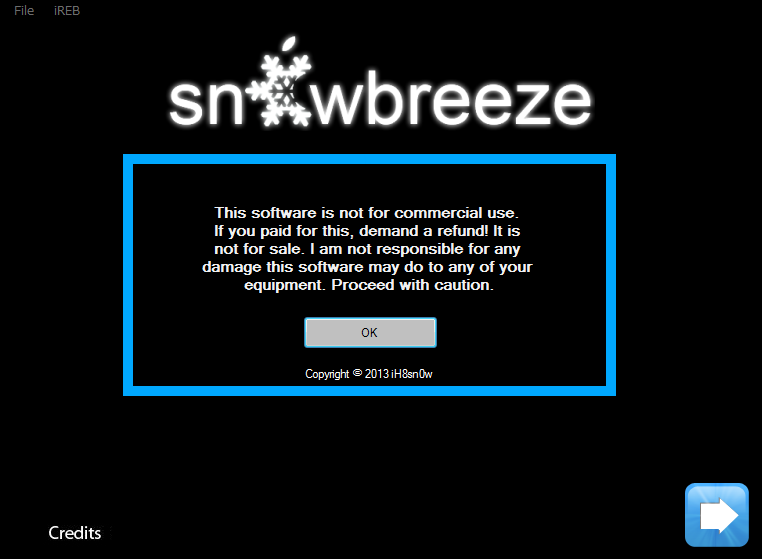
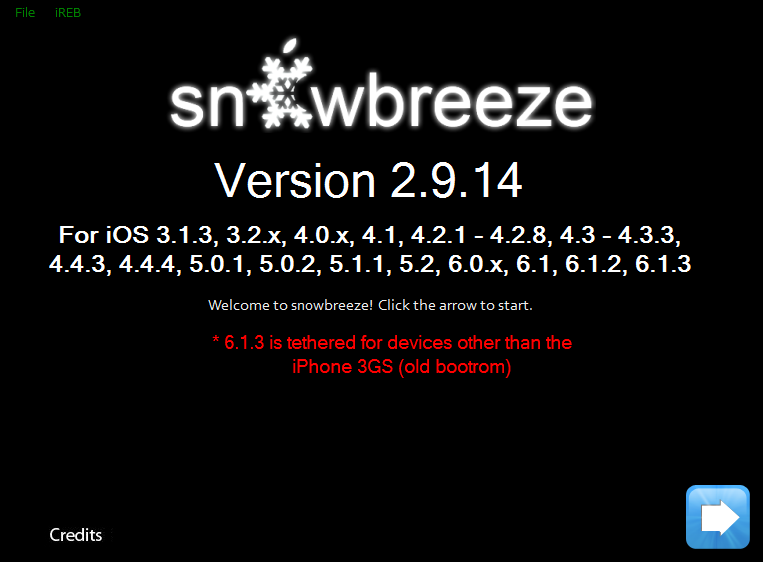
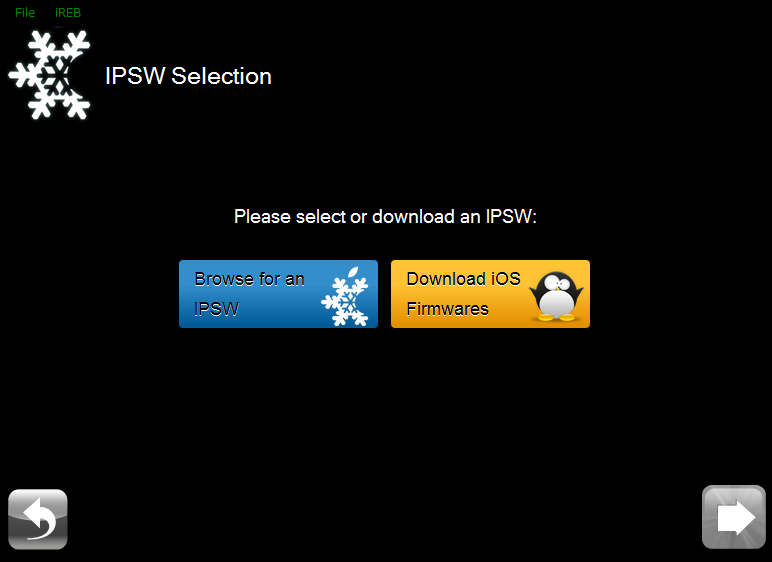
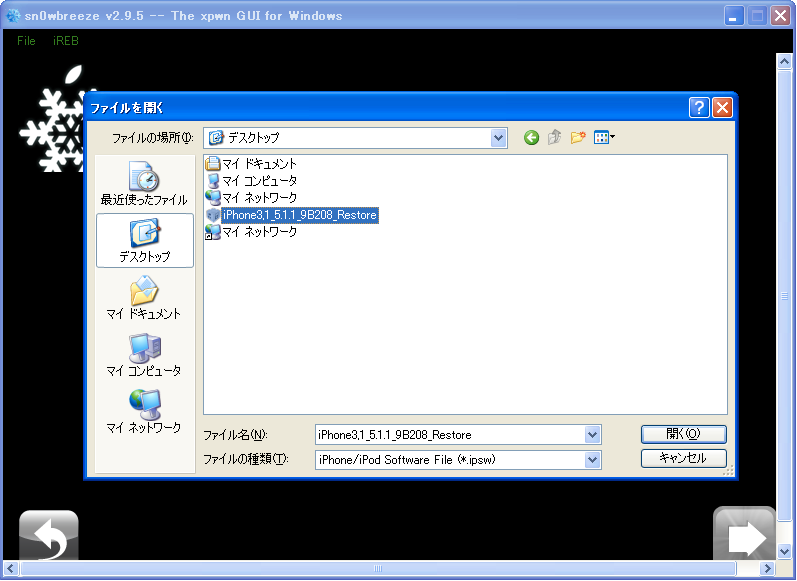
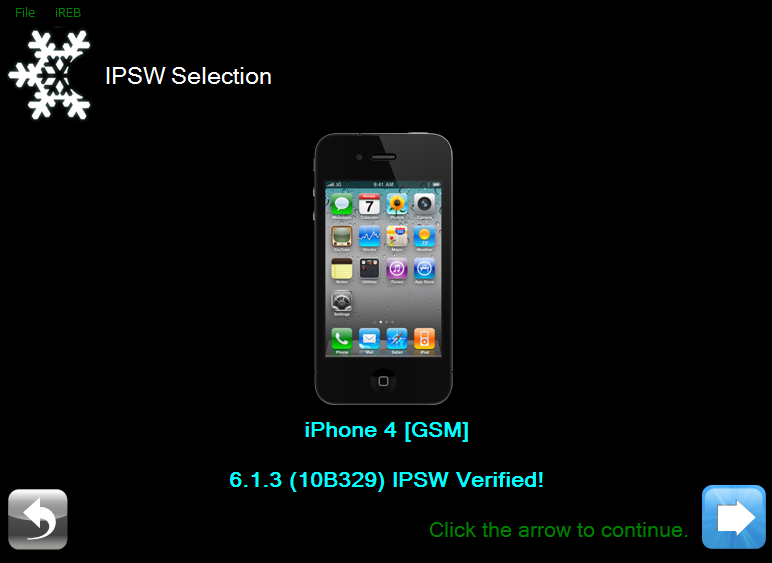
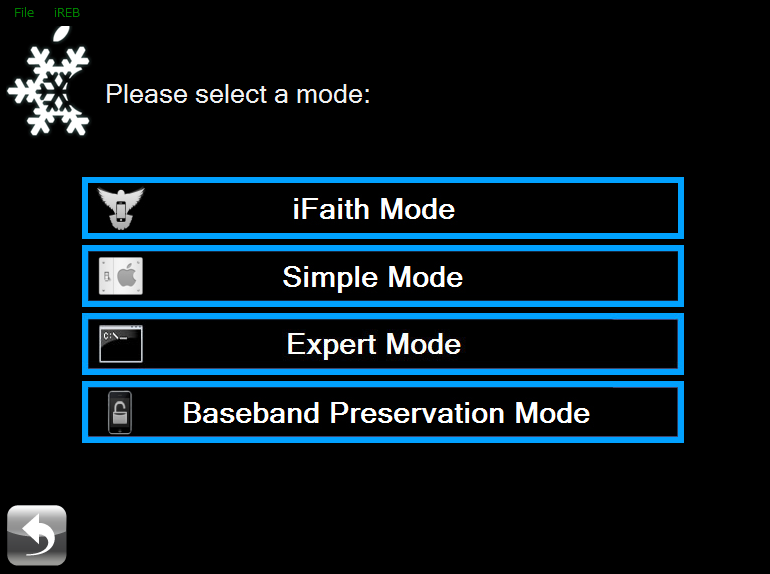
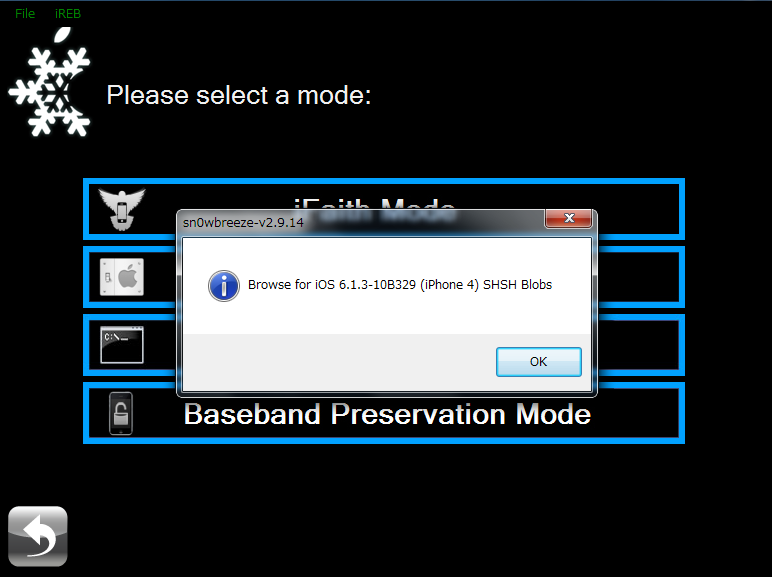
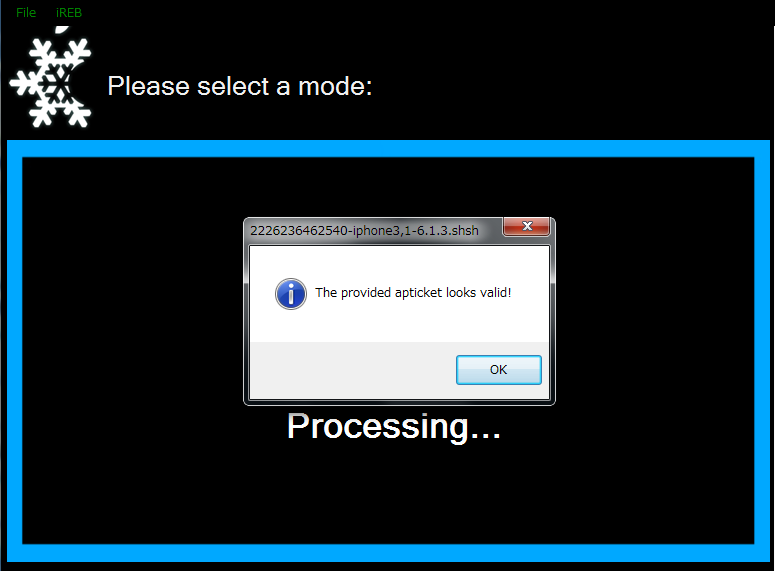
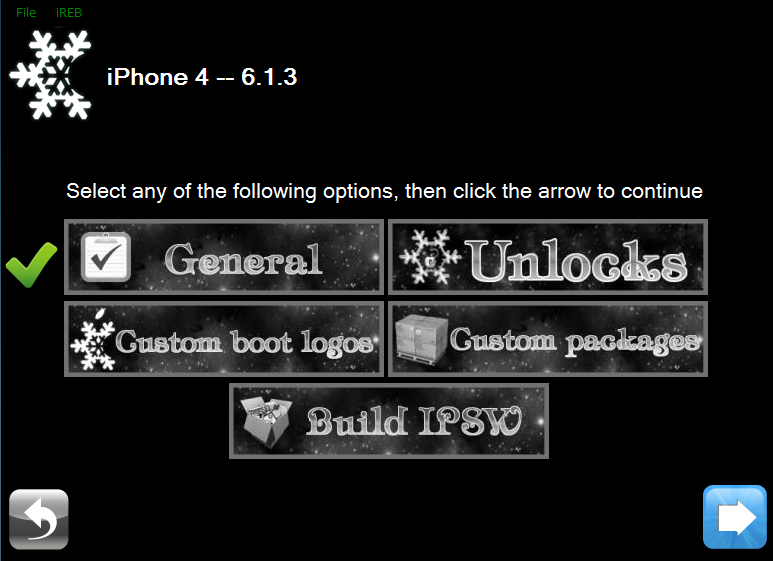
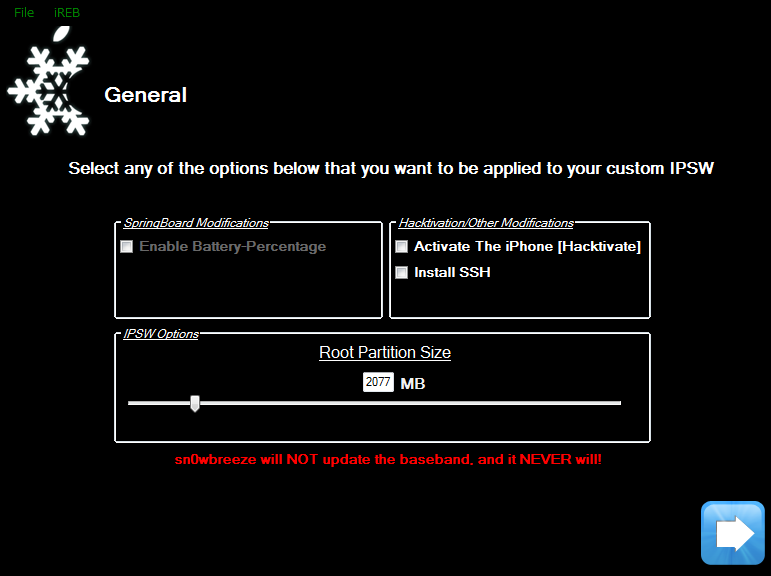
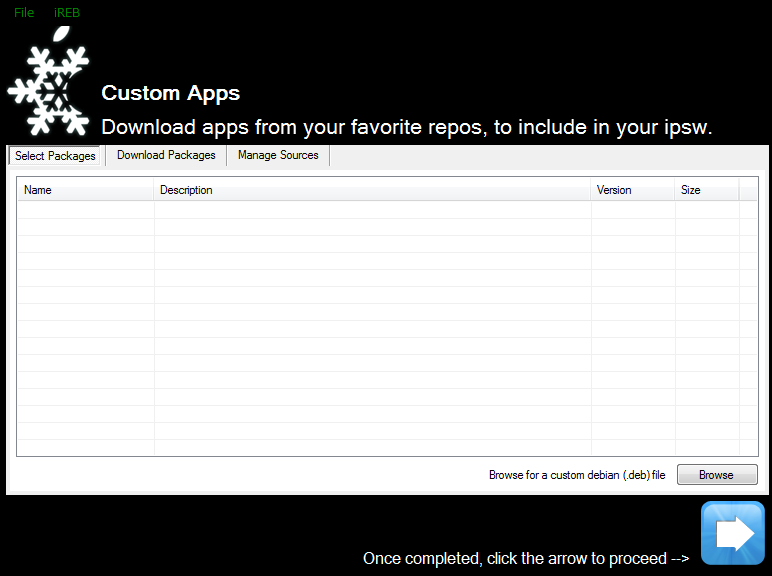
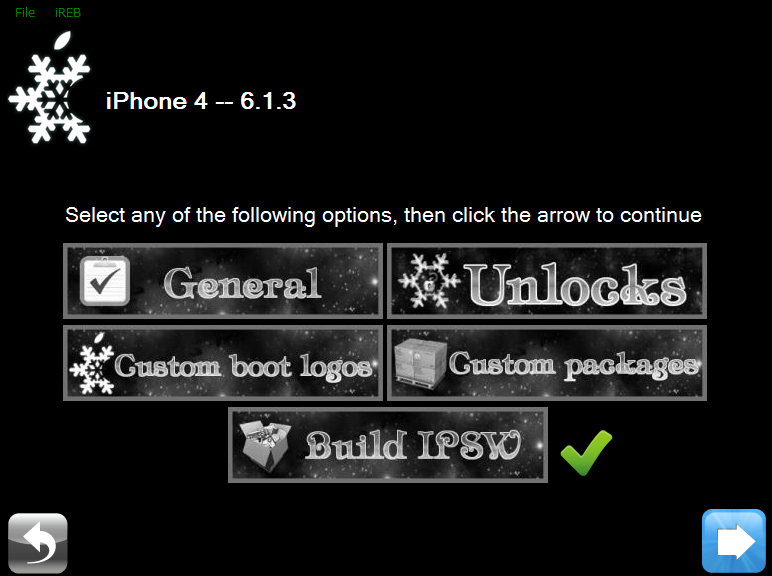
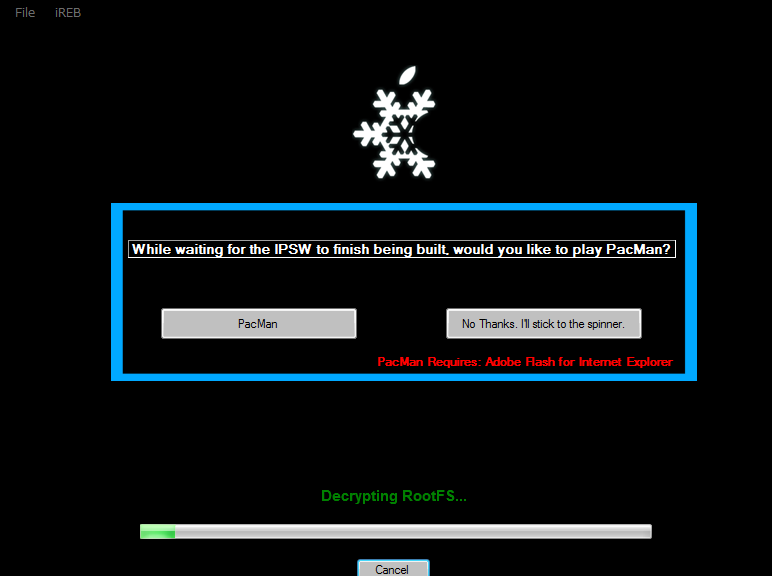
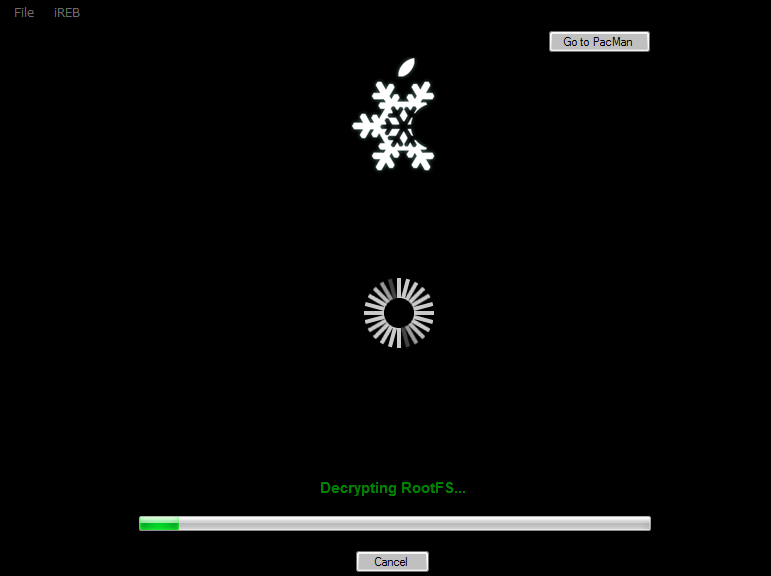
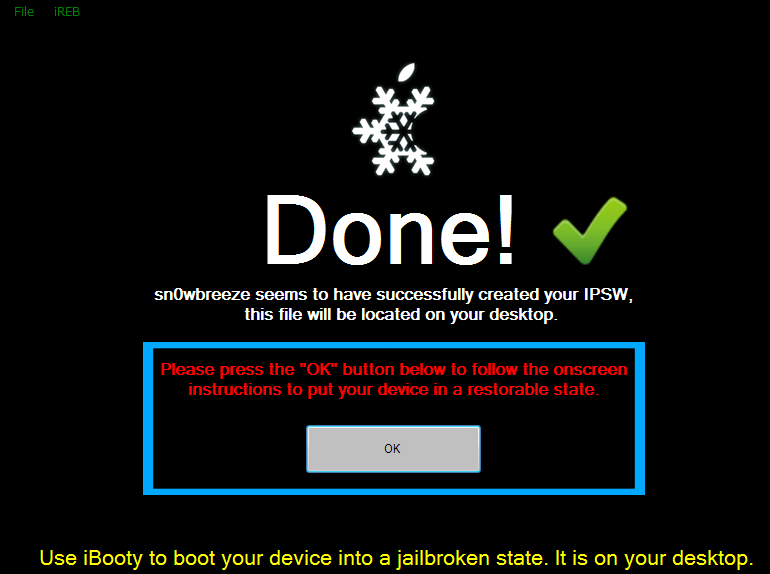
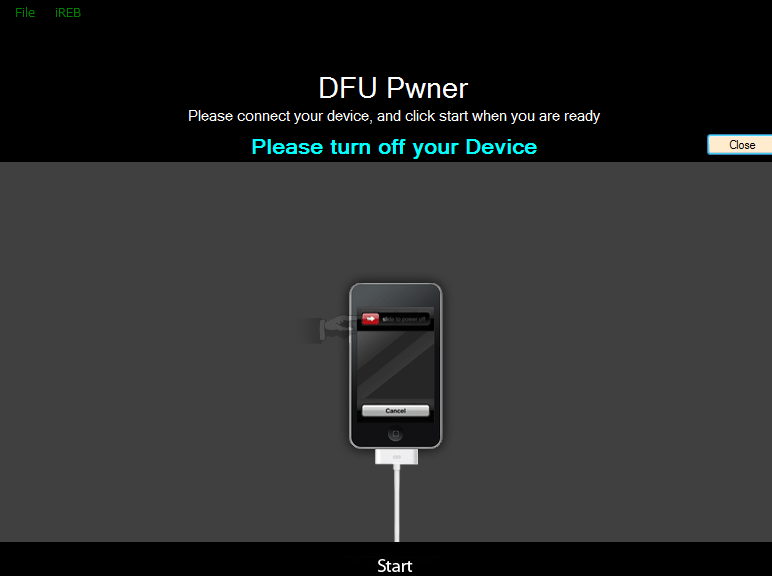
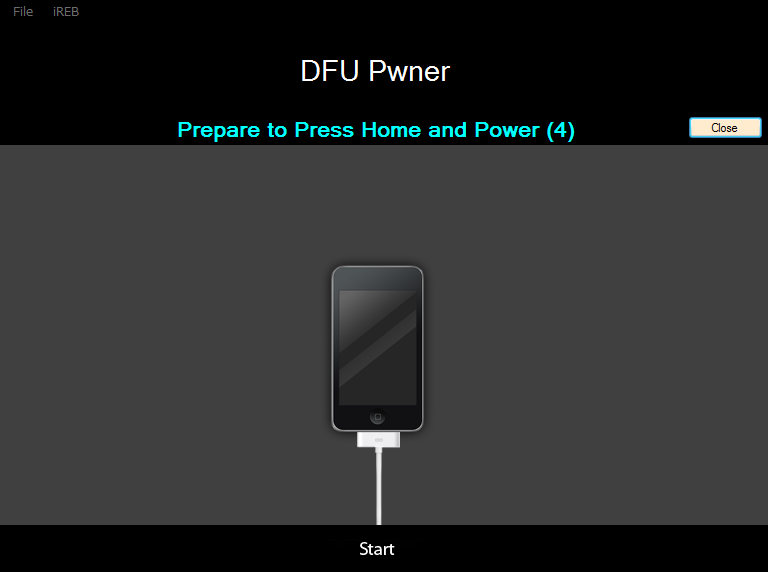
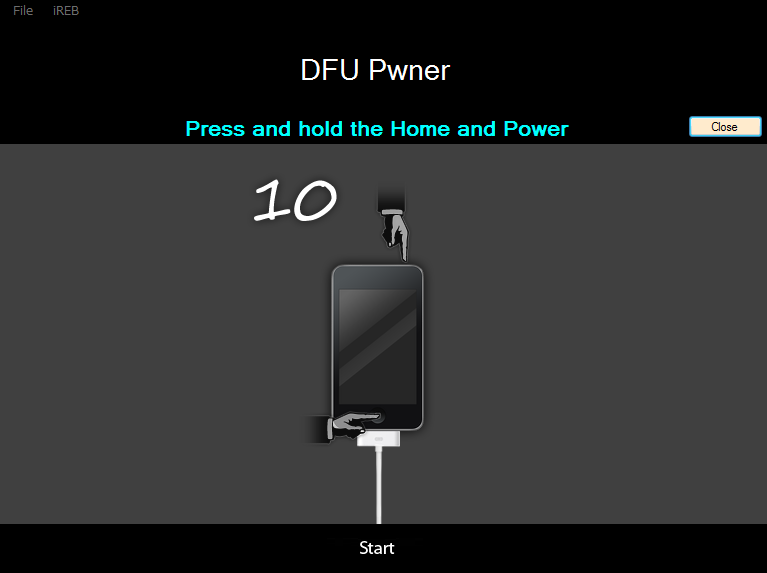
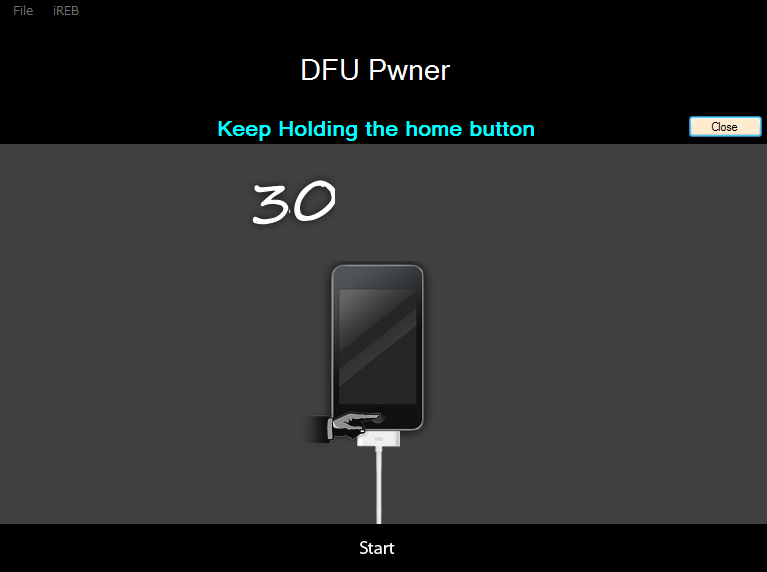
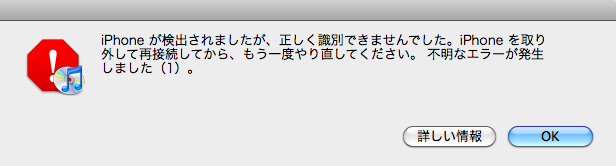
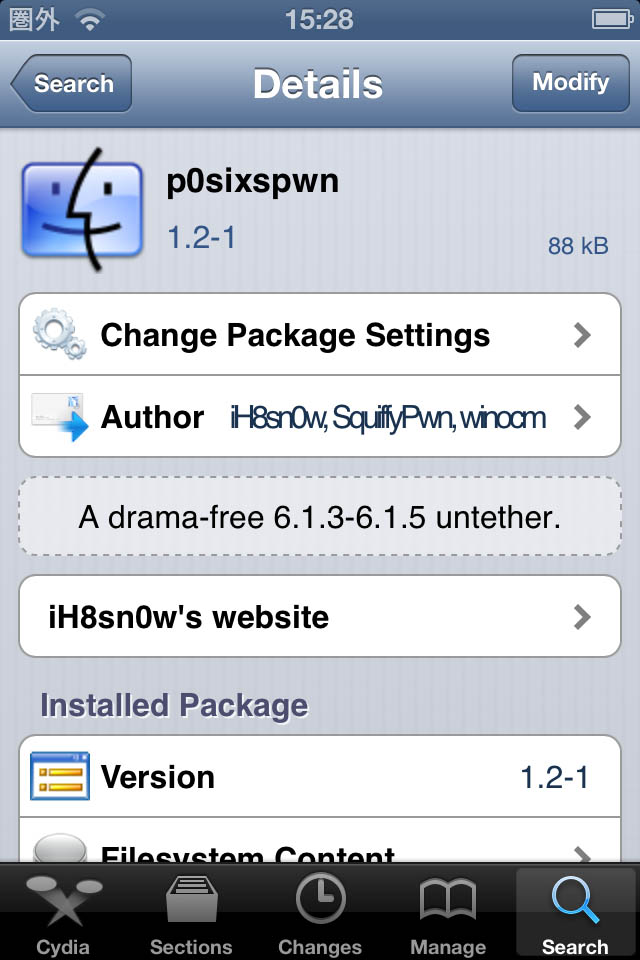
<div style="text-align:center;"><a href="http://iphoneland.up.seesaa.net/image/iPhone4-Jailbreak.png" target="_blank"><img src="http://iphoneland.up.seesaa.net/image/iPhone4-Jailbreak-thumbnail2.png" width="320" height="300" border="0" align="" alt="iPhone4-Jailbreak.png" /></a></div><br /><br />"iH8sn0w"からリリースされている"sn0wbreeze 2.9.14 for Win"を使用して、iOS6.1.3のカスタムファームウェアを作成しiPhone 4をTethered Jailbreak、その後p0sixspwnでUntethered Jailbreakしました。この方法であればBasebandを維持しての移行が可能になります。今回はiOS7対応のため、iTunesを11.1.3にアップグレードしている兼ね合いで、iTunesを11.0.5のままアップグレードしていないVMware Fusionで構築している仮想Windows側を利用して作成したCFWを復元すると言う変わった手法でJailbreakしています。<br /><span style="color:#FF0000;">※iTunesを11.1.3はCFWからの復元でエラー11が発生するため、11.0.5にダウングレードする等の対策が必要。</span><br /><br /><strong>sn0wbreeze 2.9.14について(2014/1/1時点)</strong><br />★対応環境：Windows XP, Vista, 7 (32 or 64 bit)　.NET Framework 4.0<br />★対応機種：iPhone 3GS, iPhone 4, iPod touch 4G<br />★対応OS：iOS 3.1.3, 3.2.x, 4.0.x, 4.1, 4.2.1 - 4.2.8, 4.3 - 4.3.3, 4.4.3, 4.4.4, 5.0.1, 5.0.2, 5.1.1, 5.2, 6.0.x, 6.1, 6.1.2, 6.1.3<br />★アンロック：Ultrasn0w 1.2.5でiPhone4 01.59.00, iPhone 3G/3GS 04.26.08, 05.11.07, 05.12.01, 05.13.04, 06.15.00に対応<br /><blockquote><div style="text-align:center;"><a href="http://iphoneland.up.seesaa.net/image/danger-icon_mini.png" target="_blank"><img src="http://iphoneland.up.seesaa.net/image/danger-icon_mini-thumbnail2.png" width="300" height="52" border="0" align="" alt="danger-icon_mini.png" /></a></div></blockquote><a name="more"></a><strong>レポート環境</strong><br />Windows 7 Ultimate<br /> (VMware Fusion4.1.4を使用したMac OS X 10.8.5ダブルブート環境)<br />2010年7月購入のiPhone 4 (32Gブラック) <br />iTunes 11.0.5<br /><br /><strong>Step1：sn0wBreeze 2.9.14のダウンロード</strong><br /><br />ダウンロードリンク<br />【sn0wbreeze – H8sn0w.com】<br /><a href="http://ih8sn0w.com" target="_blank">H8sn0w.com</a><br /><br />sn0wbreeze 2.9.14をディスクに保存<br /><br /><strong>Step2：カスタムファームウェア作成</strong><br /><br />↓　『sn0wbreeze 2.9.14』を起動。以下のように『sn0wbreeze』の説明が表示されるので「OK」をクリック。 <br /><a href="http://iphoneland.up.seesaa.net/image/sn0wbreeze2.9.14_01.png" target="_blank"><img border="0" alt="sn0wbreeze2.9.14_01.png" src="http://iphoneland.up.seesaa.net/image/sn0wbreeze2.9.14_01-thumbnail2.png" width="320" height="234"></a><br /><br />↓　『sn0wbreeze』のバージョン情報が表示されるので『→』をクリック。 <br /><a href="http://iphoneland.up.seesaa.net/image/sn0wbreeze2.9.14_02.png" target="_blank"><img border="0" alt="sn0wbreeze2.9.14_02.png" src="http://iphoneland.up.seesaa.net/image/sn0wbreeze2.9.14_02-thumbnail2.png" width="320" height="235"></a><br /><br />↓　ファームウェアを選択画面が表示されるので『Brows for an IPSW』をクリック。<br />　　（ファームウェアをまだDLしていない場合は『Download iOS Firmwares』からDL）<br /><a href="http://iphoneland.up.seesaa.net/image/sn0wbreeze2.9.14_03.png" target="_blank"><img border="0" alt="sn0wbreeze2.9.14_03.png" src="http://iphoneland.up.seesaa.net/image/sn0wbreeze2.9.14_03-thumbnail2.png" width="320" height="232"></a><br /><br />↓　デバイスに対応したファームウェアを選択し『→』をクリック。<br /><a href="http://iphoneland.up.seesaa.net/image/sn0wbreeze2.9.5_03.png" target="_blank"><img border="0" alt="sn0wbreeze2.9.5_03.png" src="http://iphoneland.up.seesaa.net/image/sn0wbreeze2.9.5_03-thumbnail2.png" width="320" height="233"></a><br /><br />↓　認識が正常に終了するとデバイスとファームウェアが表示されるので『→』をクリック。<br /><a href="http://iphoneland.up.seesaa.net/image/sn0wbreeze2.9.14_04.png" target="_blank"><img border="0" alt="sn0wbreeze2.9.14_04.png" src="http://iphoneland.up.seesaa.net/image/sn0wbreeze2.9.14_04-thumbnail2.png" width="320" height="233"></a><br /><br />↓　モード選択。SHSHの設定が必要なので『iFaith Mode』を選択。<br /><a href="http://iphoneland.up.seesaa.net/image/sn0wbreeze2.9.14_05.png" target="_blank"><img border="0" alt="sn0wbreeze2.9.14_05.png" src="http://iphoneland.up.seesaa.net/image/sn0wbreeze2.9.14_05-thumbnail2.png" width="320" height="238"></a><br /><br />↓　iFaithもしくはTinyUmbrellaで保存しているSHSHをセレクトして「OK」をクリック。<br /><a href="http://iphoneland.up.seesaa.net/image/sn0wbreeze2.9.14_06.png" target="_blank"><img border="0" alt="sn0wbreeze2.9.14_06.png" src="http://iphoneland.up.seesaa.net/image/sn0wbreeze2.9.14_06-thumbnail2.png" width="320" height="239"></a><br /><br />↓　正常に認識されると以下のように表示されるので「OK」をクリック。 <br /><a href="http://iphoneland.up.seesaa.net/image/sn0wbreeze2.9.14_08.png" target="_blank"><img border="0" alt="sn0wbreeze2.9.14_08.png" src="http://iphoneland.up.seesaa.net/image/sn0wbreeze2.9.14_08-thumbnail2.png" width="320" height="235"></a><br /><br />↓　次に『iFaith Mode』の設定です。『General』を選択して『→』をクリック<br /><a href="http://iphoneland.up.seesaa.net/image/sn0wbreeze2.9.14_09.png" target="_blank"><img border="0" alt="sn0wbreeze2.9.14_09.png" src="http://iphoneland.up.seesaa.net/image/sn0wbreeze2.9.14_09-thumbnail2.png" width="320" height="232"></a><br /><br />↓　『General settings』では『Activate the iPhone』のチェックを外す(※このチェックを外しておかないと、Jailbreak後にiPhoneが電話として使えなくなるので要注意)。 入力後『→』をクリック。<br /><a href="http://iphoneland.up.seesaa.net/image/sn0wbreeze2.9.14_10.png" target="_blank"><img border="0" alt="sn0wbreeze2.9.14_10.png" src="http://iphoneland.up.seesaa.net/image/sn0wbreeze2.9.14_10-thumbnail2.png" width="320" height="239"></a><br /><br />↓　『Custom packages』はスルー、『→』をクリック<br /><a href="http://iphoneland.up.seesaa.net/image/sn0wbreeze2.9.14_11.png" target="_blank"><img border="0" alt="sn0wbreeze2.9.14_11.png" src="http://iphoneland.up.seesaa.net/image/sn0wbreeze2.9.14_11-thumbnail2.png" width="320" height="238"></a><br /><br />↓　『Build IPWS』をチェックし『→』をクリック。<br /><a href="http://iphoneland.up.seesaa.net/image/sn0wbreeze2.9.14_12.png" target="_blank"><img border="0" alt="sn0wbreeze2.9.14_12.png" src="http://iphoneland.up.seesaa.net/image/sn0wbreeze2.9.14_12-thumbnail2.png" width="320" height="238"></a><br /><br />↓　『PacMan』で遊ばないか聞いてくるので『No Thanks. I'll stick to the spinner.』をクリック。<br /><a href="http://iphoneland.up.seesaa.net/image/sn0wbreeze2.9.14_13.png" target="_blank"><img border="0" alt="sn0wbreeze2.9.14_13.png" src="http://iphoneland.up.seesaa.net/image/sn0wbreeze2.9.14_13-thumbnail2.png" width="320" height="238"></a><br /><br />↓　カスタムファームウェアのBuildが始まります。<br /><a href="http://iphoneland.up.seesaa.net/image/sn0wbreeze2.9.14_14.png" target="_blank"><img border="0" alt="sn0wbreeze2.9.14_14.png" src="http://iphoneland.up.seesaa.net/image/sn0wbreeze2.9.14_14-thumbnail2.png" width="320" height="239"></a><br /><br />↓　完了すると以下のように表示されるので『OK』をクリック。<br />　　CFWがデスクトップに作成されています。<br /><a href="http://iphoneland.up.seesaa.net/image/sn0wbreeze2.9.14_15.png" target="_blank"><img border="0" alt="sn0wbreeze2.9.14_15.png" src="http://iphoneland.up.seesaa.net/image/sn0wbreeze2.9.14_15-thumbnail2.png" width="320" height="238"></a><br /><br /><strong>Step3 : DFUモード</strong><br /><br />↓　iPhoneと母艦をUSBケーブルで接続し、電源をOFFにしたら『Start』をクリック。<br /><a href="http://iphoneland.up.seesaa.net/image/sn0wbreeze_dfu_01.png" target="_blank"><img border="0" alt="sn0wbreeze_dfu_01.png" src="http://iphoneland.up.seesaa.net/image/sn0wbreeze_dfu_01-thumbnail2.png" width="320" height="238"></a><br /><br />↓　DFU移行へのカウントダウン(5秒)<br /><a href="http://iphoneland.up.seesaa.net/image/sn0wbreeze_dfu_02.png" target="_blank"><img border="0" alt="sn0wbreeze_dfu_02.png" src="http://iphoneland.up.seesaa.net/image/sn0wbreeze_dfu_02-thumbnail2.png" width="320" height="238"></a><br /> <br />↓　Homeボタン+電源ボタンを押す(10秒)<br /><a href="http://iphoneland.up.seesaa.net/image/sn0wbreeze_dfu_03.png" target="_blank"><img border="0" alt="sn0wbreeze_dfu_03.png" src="http://iphoneland.up.seesaa.net/image/sn0wbreeze_dfu_03-thumbnail2.png" width="320" height="239"></a><br /> <br />↓　Homeボタンはそのままで電源ボタンだけを離す(30秒)<br /><a href="http://iphoneland.up.seesaa.net/image/sn0wbreeze_dfu_04.png" target="_blank"><img border="0" alt="sn0wbreeze_dfu_04.png" src="http://iphoneland.up.seesaa.net/image/sn0wbreeze_dfu_04-thumbnail2.png" width="320" height="238"></a><br /><br />DFU成功の表示が出たら『OK』をクリック。<br /> <br /><strong>ステップ4 : iTunesで復元</strong><br /><span style="color:#FF0000;">※スクリーンショットはMac版ですが、Windowsの場合も同様です。</span><br />↓　iTunesが以下のエラー表示が出ても『OK』をクリック。一度iPhoneのUSBケーブルをはずして再コネクト。<br /><a href="http://iphoneland.up.seesaa.net/image/PwnageTool-3.1-for-MAC_20.png" target="_blank"><img src="http://iphoneland.up.seesaa.net/image/PwnageTool-3.1-for-MAC_20-thumbnail2.png" width="320" height="86" border="0" align="" alt="PwnageTool-3.1-for-MAC_20.png" /></a><br /><br />↓　以下の画面になるので『OK』をクリック<br /><a href="http://iphoneland.up.seesaa.net/image/PwnageTool4.3-015.png" target="_blank"><img src="http://iphoneland.up.seesaa.net/image/PwnageTool4.3-015-thumbnail2.png" width="320" height="231" border="0" align="" alt="PwnageTool4.3-015.png" /></a><br /><br />↓　『option』を押しながら『復元』をクリック。<br /><a href="http://iphoneland.up.seesaa.net/image/PwnageTool4.3-016.png" target="_blank"><img src="http://iphoneland.up.seesaa.net/image/PwnageTool4.3-016-thumbnail2.png" width="320" height="233" border="0" align="" alt="PwnageTool4.3-016.png" /></a><br /><br />どのipswファイルを使うか聞いてくるので先ほどデスクトップ上に出来上がった、CFWを選択して『開く』をクリック。<br /><br />あとはiTunesまかせでOKです。<br />以上、iPhoneの再起動が終わったらCFWの適用（jailbreak）は終了です。<br /><br /><br /><strong>ステップ5 : Cydia初期設定</strong><br /><br />Jailbreakが完了するとHOME画面にCydiaアイコンが現れるのでクリック<br /><a href="http://iphoneland.up.seesaa.net/image/IMG_08-b6ff5.PNG" target="_blank"><img src="http://iphoneland.up.seesaa.net/image/IMG_08-b6ff5-thumbnail2.PNG" width="213" height="320" border="0" align="" alt="IMG_08.PNG" /></a><br /><br />Cydiaの設定"No Filter"のDeveloperを選択<br /><a href="http://iphoneland.up.seesaa.net/image/IMG_10.PNG" target="_blank"><img src="http://iphoneland.up.seesaa.net/image/IMG_10-thumbnail2.PNG" width="213" height="320" border="0" align="" alt="IMG_10.PNG" /></a><br /><br />Essentialのアップグレード<br /><a href="http://iphoneland.up.seesaa.net/image/IMG_12.PNG" target="_blank"><img src="http://iphoneland.up.seesaa.net/image/IMG_12-thumbnail2.PNG" width="213" height="320" border="0" align="" alt="IMG_12.PNG" /></a><br /><br />自動的にディバイスが再起動されます。<br /><br /><br /><strong>ステップ6 :『p0sixspwn』のインストール</strong><br /><br />Tethered JailbreakからUntethered Jailbreakにするため、Cydiaで『p0sixspwn』を検索してインストール<br /><a href="http://iphoneland.up.seesaa.net/image/p0sixspwn.jpg" target="_blank"><img border="0" alt="p0sixspwn.jpg" src="http://iphoneland.up.seesaa.net/image/p0sixspwn-thumbnail2.jpg" width="213" height="320"></a><br /><br />以上でひと通りの手順が完了です。

]]><![CDATA[
]]></content:encoded>
</item>
<item rdf:about="https://iphoneland.seesaa.net/article/379789280.html">
<link>https://iphoneland.seesaa.net/article/379789280.html</link>
<title>2008 HUMMER H2 マニュアル</title>
<description>自分用の備忘録HUMMER.com オーナーズマニュアル公式ダウンロードURL2008 HUMMER H2 ダイレクトリンク→2008 HUMMER H2 OWNERS MANUAL→2008 HUMMER H2 GET TO KNOW GUIDE2008 Hummer H2 specifications &amp; performance data reviewTire size calculator</description>
<dc:subject>HUMMER H2</dc:subject>
<dc:creator>RedFalcon</dc:creator>
<dc:date>2013-11-09T18:36:20+09:00</dc:date>
<content:encoded><![CDATA[
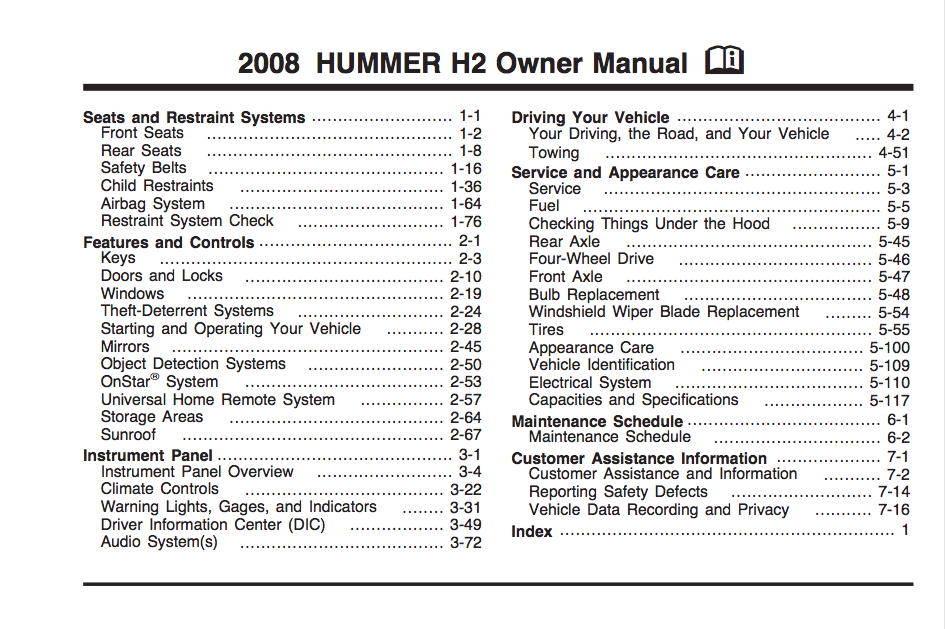
<a href="http://iphoneland.up.seesaa.net/image/Hummer-H2_2008_800x600_wallpaper_0b.jpg" target="_blank"><img border="0" alt="Hummer-H2_2008_800x600_wallpaper_0b.jpg" src="http://iphoneland.up.seesaa.net/image/Hummer-H2_2008_800x600_wallpaper_0b-thumbnail2.jpg" width="320" height="240"></a><br /><br />自分用の備忘録<br /><br /><strong><a href="http://www.hummer.com/owners/owner_resources/manuals.html" target="_blank">HUMMER.com オーナーズマニュアル公式ダウンロードURL</a></strong><br /><br /><strong>2008 HUMMER H2 ダイレクトリンク</strong><br />→<a href="http://iphoneland.up.seesaa.net/image/2008-hummer-h2-owners-manual.pdf" target="_blank">2008 HUMMER H2 OWNERS MANUAL</a><br /><a href="http://iphoneland.up.seesaa.net/image/2008-hummer-h2-owners-manual.pdf" target="_blank"><a href="http://iphoneland.up.seesaa.net/image/2008-hummer-h2-owners-manual-img.png" target="_blank"><img border="0" alt="2008-hummer-h2-owners-manual-img.png" src="http://iphoneland.up.seesaa.net/image/2008-hummer-h2-owners-manual-img-thumbnail2.png" width="320" height="212"></a></a><br />→<a href="http://iphoneland.up.seesaa.net/image/2008-hummer-h2-get-to-know-guide.pdf" target="_blank">2008 HUMMER H2 GET TO KNOW GUIDE</a><br /><a href="http://iphoneland.up.seesaa.net/image/2008-hummer-h2-get-to-know-guide.pdf" target="_blank"><a href="http://iphoneland.up.seesaa.net/image/2008-hummer-h2-get-to-know-guide-img.png" target="_blank"><img border="0" alt="2008-hummer-h2-get-to-know-guide-img.png" src="http://iphoneland.up.seesaa.net/image/2008-hummer-h2-get-to-know-guide-img-thumbnail2.png" width="250" height="320"></a></a><br /><br /><strong><a href="http://www.automobile-catalog.com/car/2008/1430990/hummer_h2.html" target="_blank">2008 Hummer H2 specifications & performance data review</a></strong><br /><br /><strong><a href="http://www.tacomaworld.com/forum/tirecalc.php" target="_blank">Tire size calculator</a></strong><br /><a name="more"></a>

]]><![CDATA[
]]></content:encoded>
</item>
<item rdf:about="https://iphoneland.seesaa.net/article/371133709.html">
<link>https://iphoneland.seesaa.net/article/371133709.html</link>
<title>DIY 2008 HUMMER H2 Airaid スロットルボディスペーサー取付け</title>
<description>'08 HUMMER H2 に Airaid社のスロットルボディスペーサー（#200-606）を取付け。このパーツはインテークマニホールドとスロットルボディの間に装着するおよそ１インチのアルミ製スペーサーで、中低速域のトルクアップと燃費向上する！？らしい。。。パッケージ裏面の記載、内側に掘られた溝でトルネードを起こすって…ホンマかいな？と思いつつ、実際に体感できるという触れ込みも多いのでeBayで購入（日本での価格は２倍）。取付けは結構簡単です。http://www.aira..</description>
<dc:subject>HUMMER H2</dc:subject>
<dc:creator>RedFalcon</dc:creator>
<dc:date>2013-08-04T23:29:15+09:00</dc:date>
<content:encoded><![CDATA[
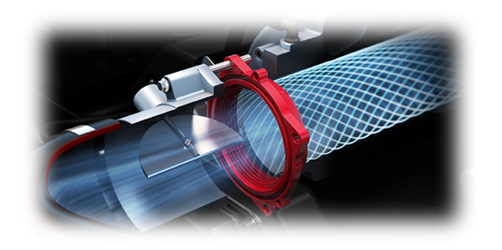
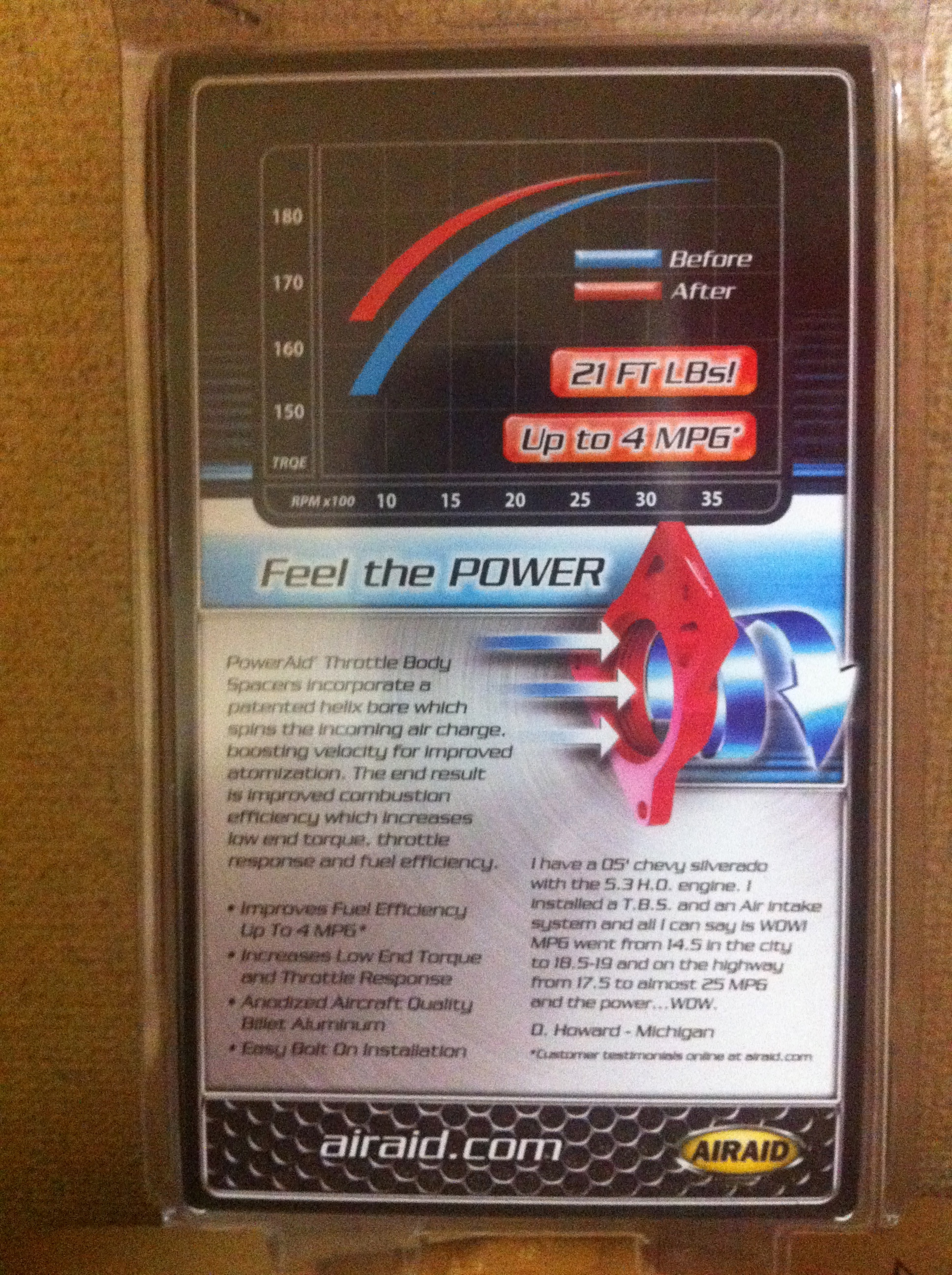
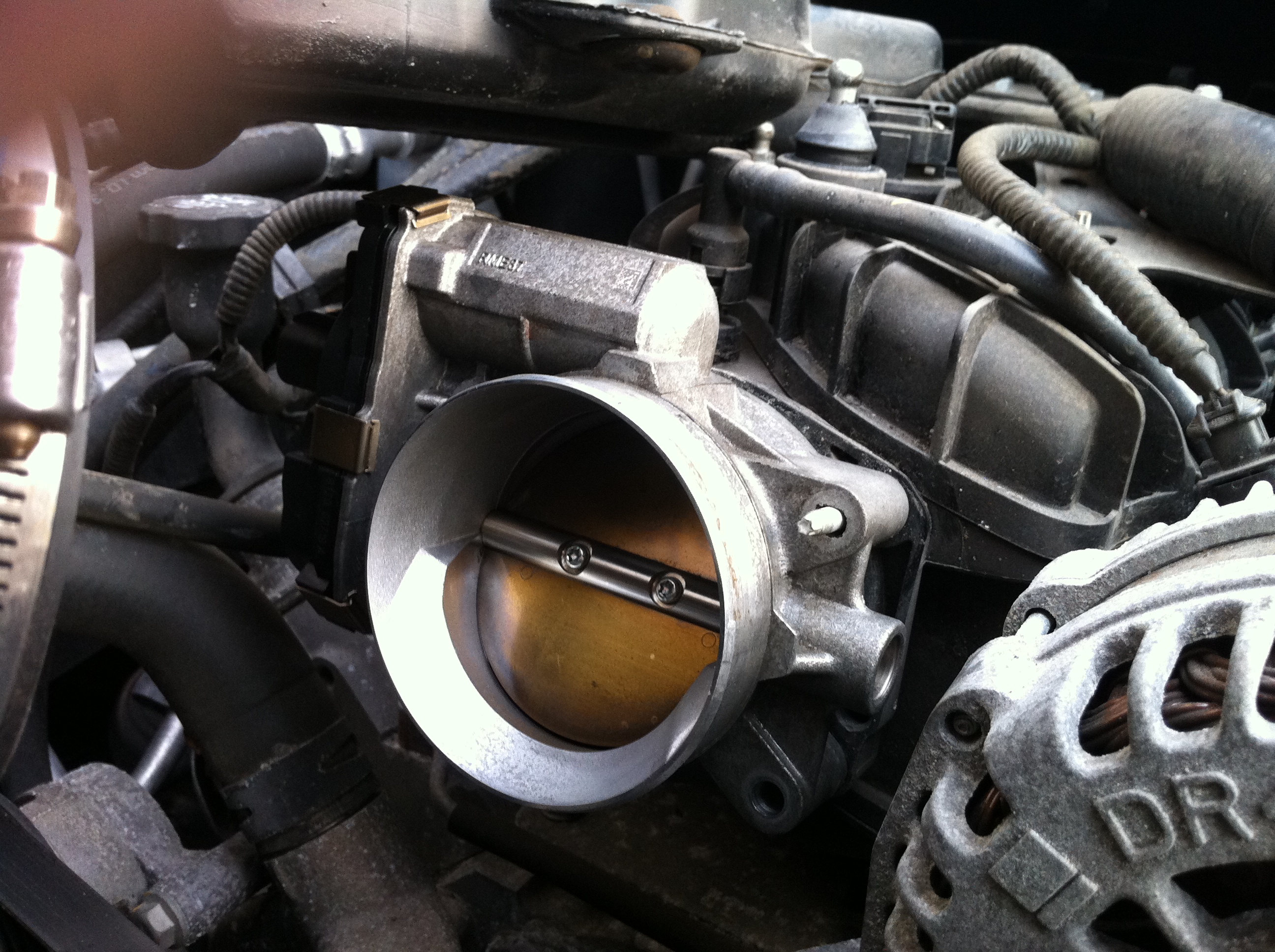
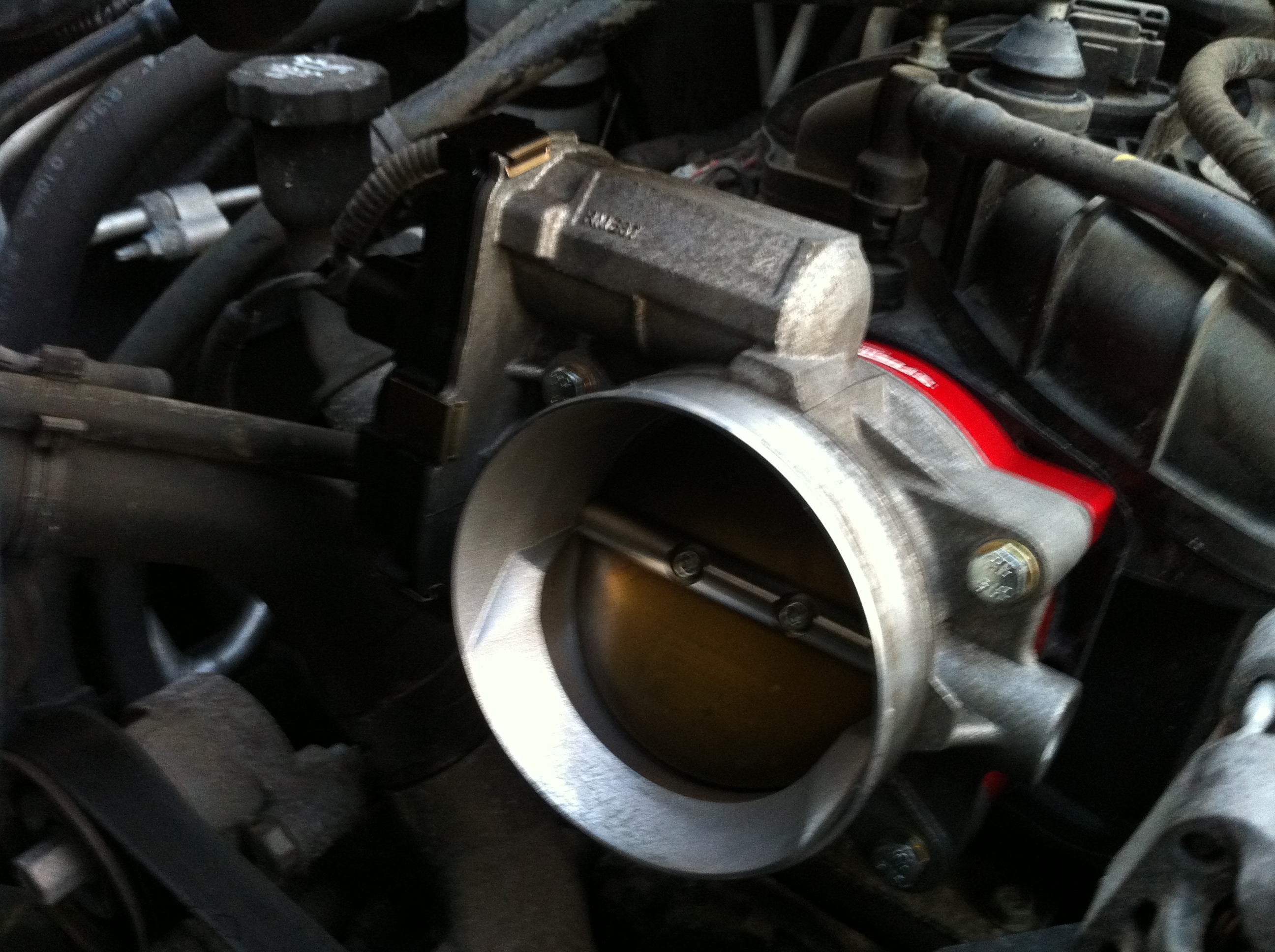
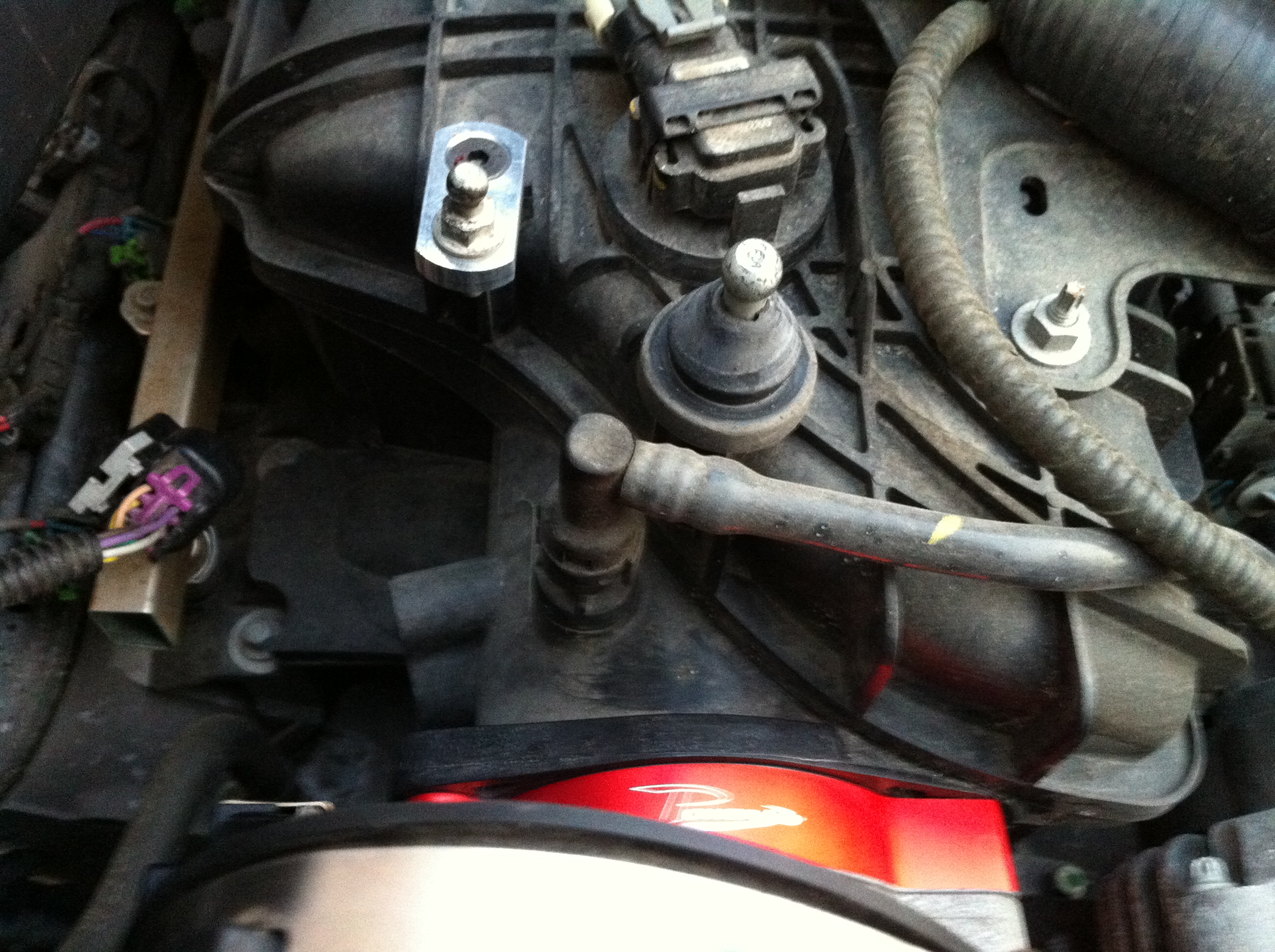
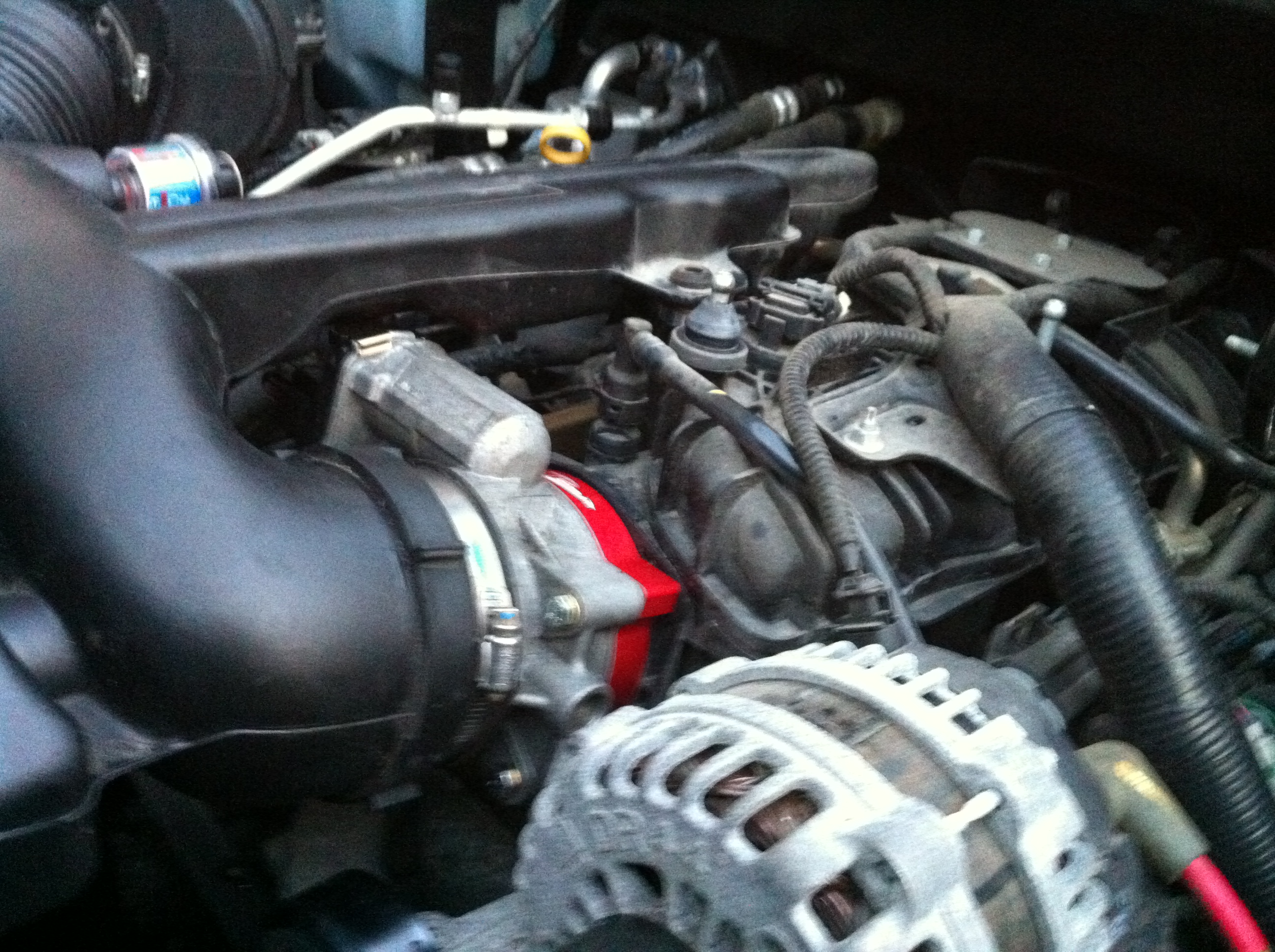
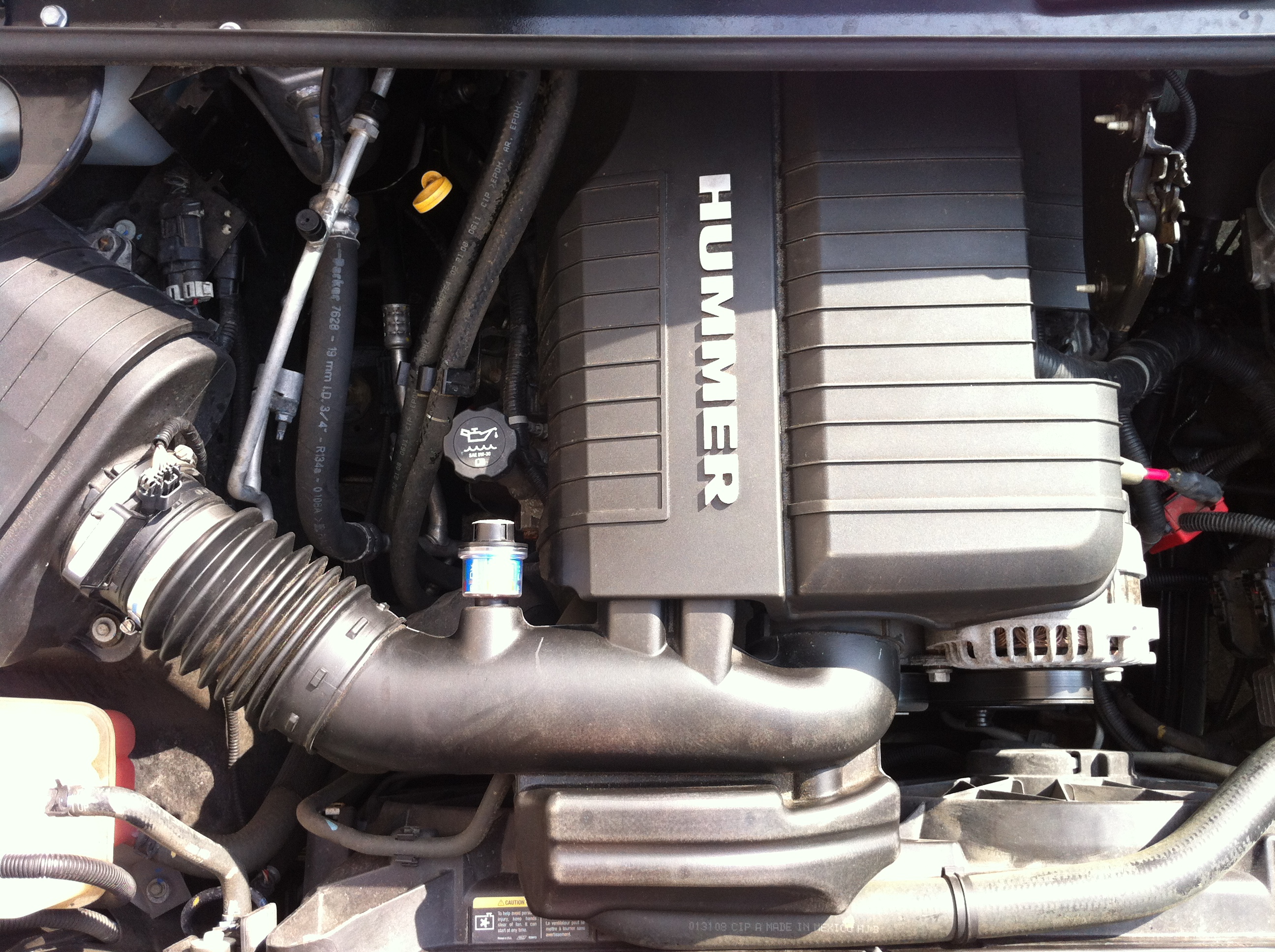
'08 HUMMER H2 に Airaid社のスロットルボディスペーサー（#200-606）を取付け。<br /><a href="http://iphoneland.up.seesaa.net/image/throttle_spacer.jpg" target="_blank"><img border="0" alt="throttle_spacer.jpg" src="http://iphoneland.up.seesaa.net/image/throttle_spacer-thumbnail2.jpg" width="320" height="159"></a><br /><br />このパーツはインテークマニホールドとスロットルボディの間に装着するおよそ１インチのアルミ製スペーサーで、中低速域のトルクアップと燃費向上する！？らしい。。。パッケージ裏面の記載、内側に掘られた溝でトルネードを起こすって…ホンマかいな？と思いつつ、実際に体感できるという触れ込みも多いのでeBayで購入（日本での価格は２倍）。<br /><a href="http://iphoneland.up.seesaa.net/image/IMG_0050.jpg" target="_blank"><img border="0" alt="IMG_0050.jpg" src="http://iphoneland.up.seesaa.net/image/IMG_0050-thumbnail2.jpg" width="239" height="320"></a><br /><br />取付けは結構簡単です。<br /><a href="http://www.airaid.com/InstallationPDF/200-606.pdf" target="_blank">http://www.airaid.com/InstallationPDF/200-606.pdf</a><br /><br />STEP1:バッテリーのマイナス端子、エンジンカバー、スロットルボディ側のエアインテークチューブを外す<br />STEP2:スロットルボディ、上２本のスタッド（4mm六角でOK）を外す<br /><a href="http://iphoneland.up.seesaa.net/image/IMG_0053.JPG" target="_blank"><img border="0" alt="IMG_0053.JPG" src="http://iphoneland.up.seesaa.net/image/IMG_0053-thumbnail2.JPG" width="320" height="239"></a><br />※スロットルボディを外したついでにKUREエンジンコンディショナーで洗浄。煤で真っ黒だったエンジン側もピカピカになりましたー。<br /><br /> STEP3:エンジン側からガスケット、スロットルボディスペーサー、スロットルボディの順で装着<br /><a href="http://iphoneland.up.seesaa.net/image/IMG_0054.JPG" target="_blank"><img border="0" alt="IMG_0054.JPG" src="http://iphoneland.up.seesaa.net/image/IMG_0054-thumbnail2.JPG" width="320" height="239"></a><br /><br />STEP4:インテークチューブを固定するボールスタッドのアジャスターを取付け<br /><a href="http://iphoneland.up.seesaa.net/image/IMG_0055.JPG" target="_blank"><img border="0" alt="IMG_0055.JPG" src="http://iphoneland.up.seesaa.net/image/IMG_0055-thumbnail2.JPG" width="320" height="239"></a><br /><br />STEP5:エアインテークチューブ、バッテリーのマイナス端子、エンジンカバーを戻して完了<br /><a href="http://iphoneland.up.seesaa.net/image/IMG_0056.JPG" target="_blank"><img border="0" alt="IMG_0056.JPG" src="http://iphoneland.up.seesaa.net/image/IMG_0056-thumbnail2.JPG" width="320" height="239"></a><br /><br />《初期インプレッション》<br />予想以上に体感できるのに驚いた。日頃と同じ走り方で明らかにアクセル開度が減っているしキックダウンの頻度も少なくなっている。燃費は今週末から帰省するので、前回の帰省時と比較してみようと思う。<a name="more"></a>

]]><![CDATA[
]]></content:encoded>
</item>
<item rdf:about="https://iphoneland.seesaa.net/article/371089759.html">
<link>https://iphoneland.seesaa.net/article/371089759.html</link>
<title>DIY 2008 HUMMER H2 サイバーナビ取付け</title>
<description>2008 HUMMER H2 US純正ナビ（BOSEプレミアムサウンドシステム）をカロッツェリアのサイバーナビAVIC-ZH99CSに換装。ポイントは、BOSEプレミアムサウンドシステム装備の機能を生かす事。（リアビューカメラ、後席フリップダウンモニタ、純正ステアリングコントロールスイッチなど）【必要なハーネス類】ハマーH2　オーディオ取り付けキット　BOSE付き　’08y〜ステレオ　インターフェイス　ステアリングコントロール用　有線式　アルパイン　カロツェリア専用ステレオ ..</description>
<dc:subject>HUMMER H2</dc:subject>
<dc:creator>RedFalcon</dc:creator>
<dc:date>2013-08-04T12:59:40+09:00</dc:date>
<content:encoded><![CDATA[
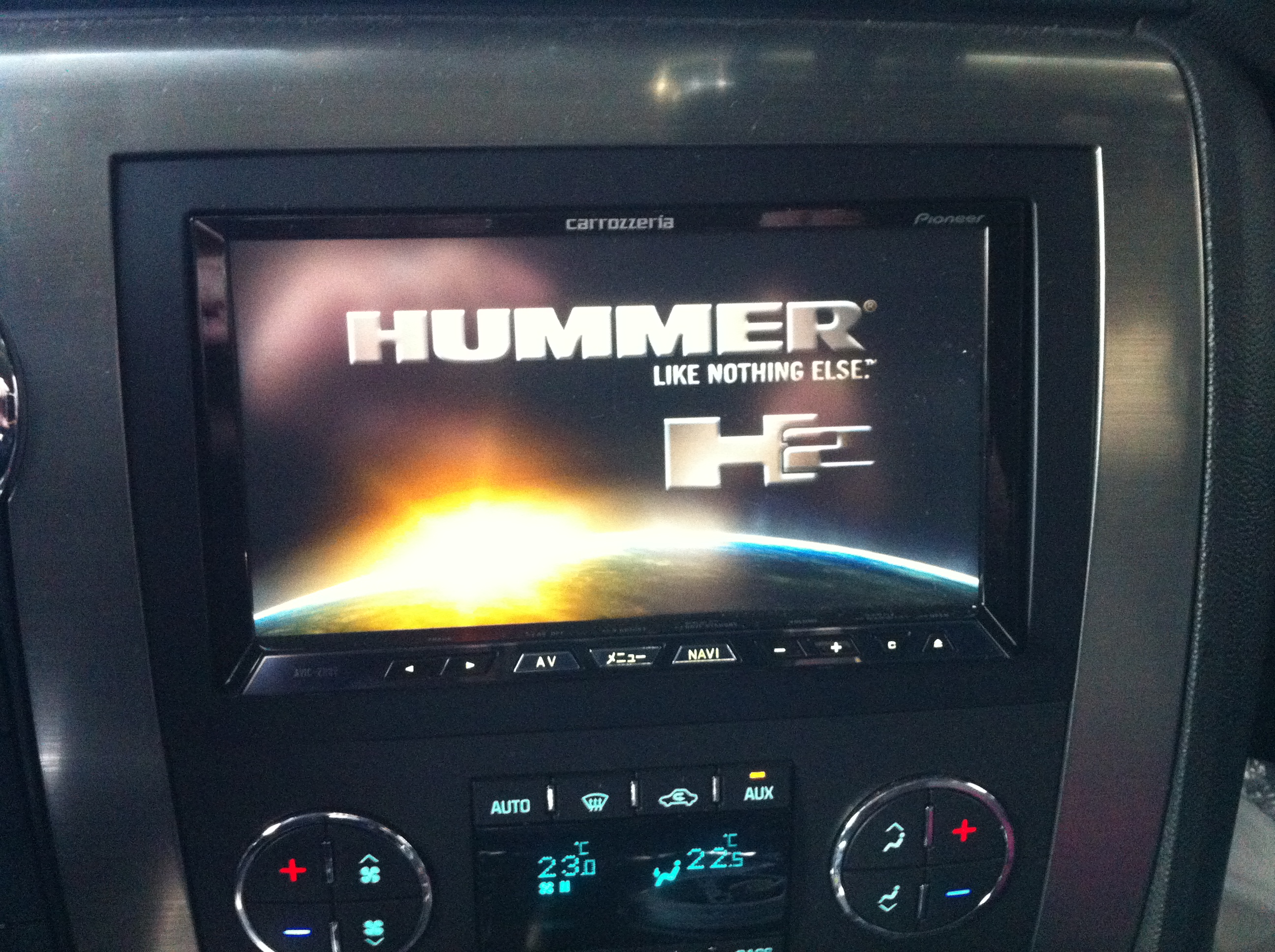
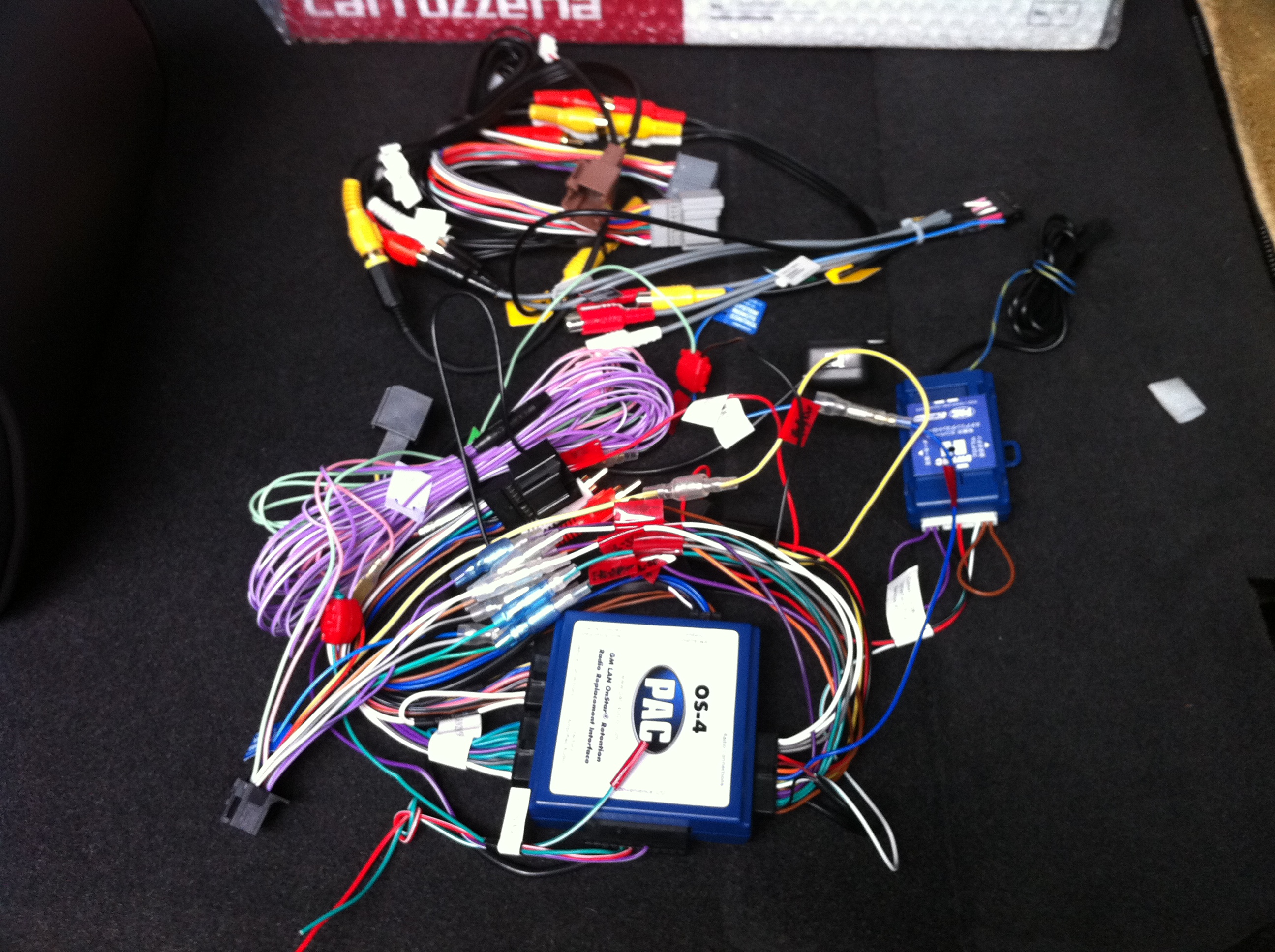
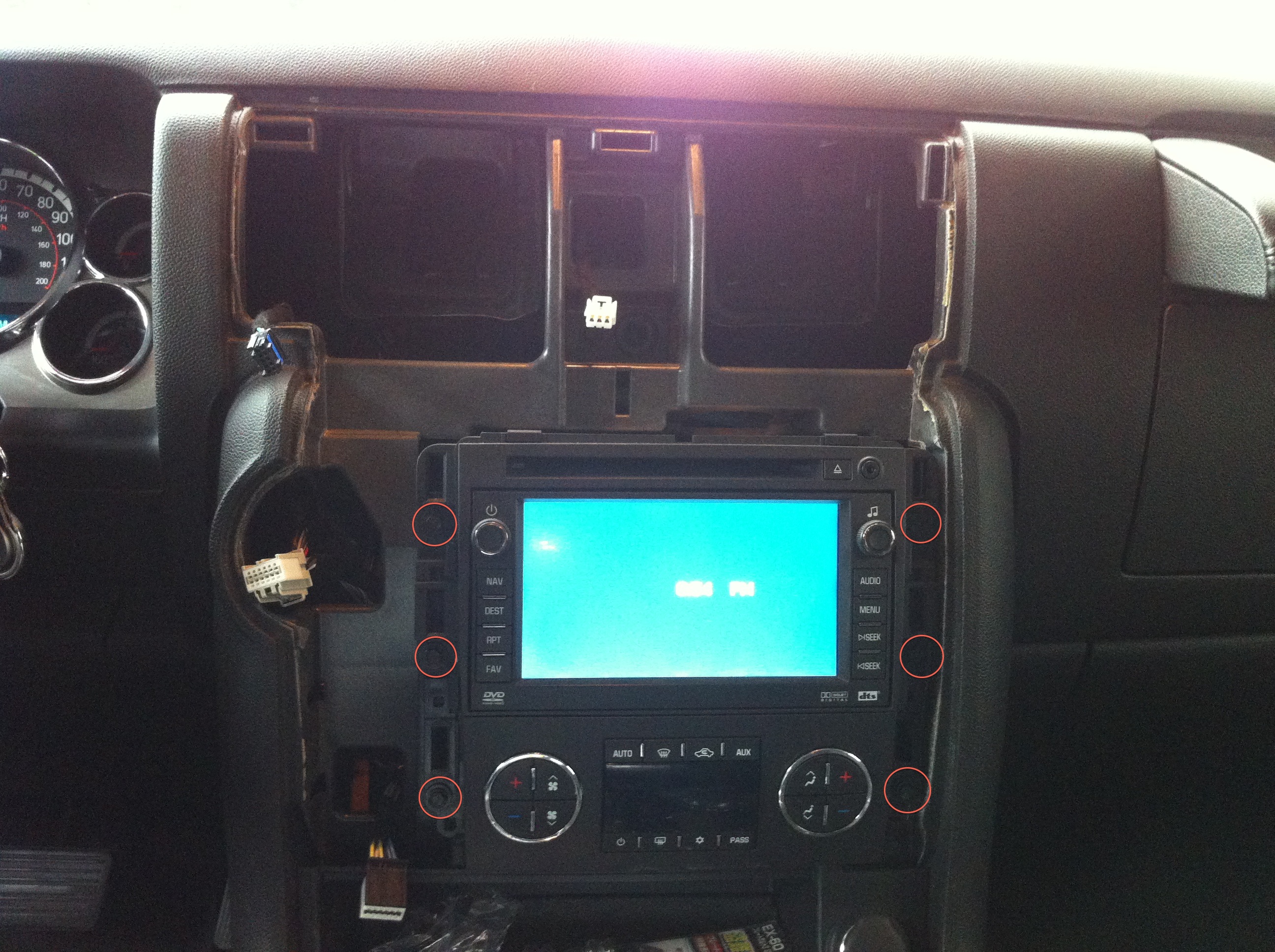
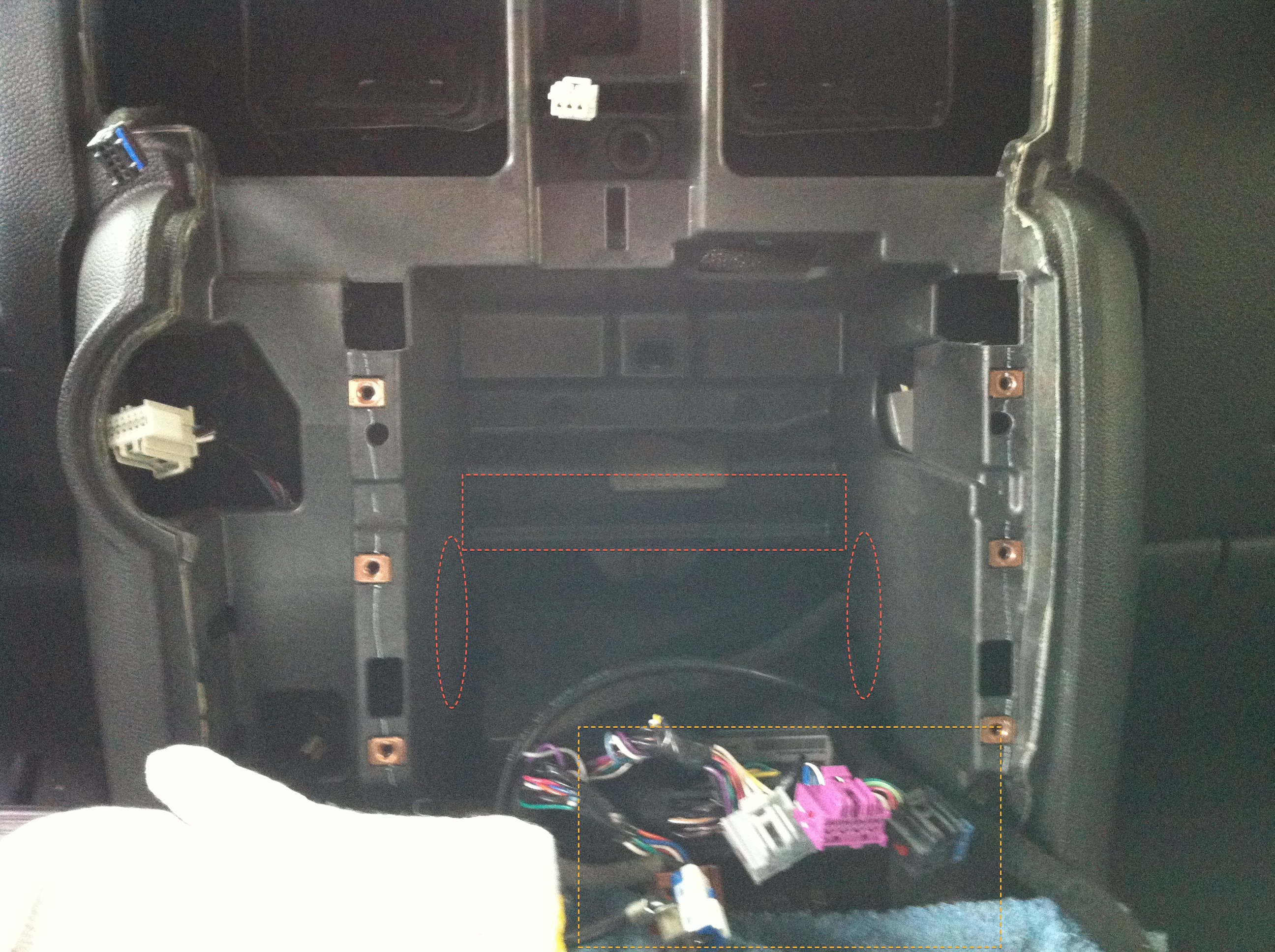
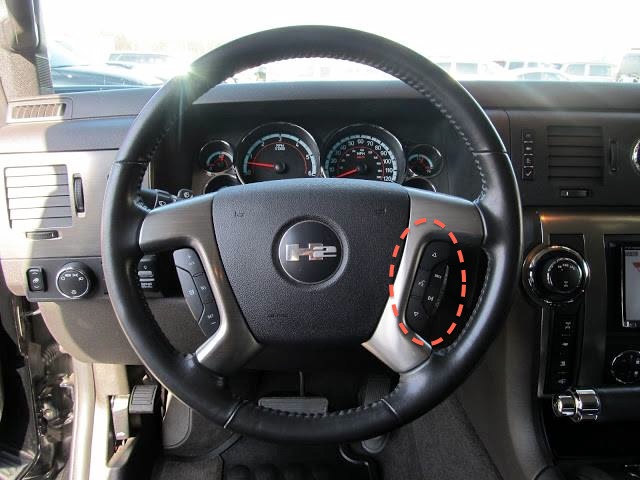
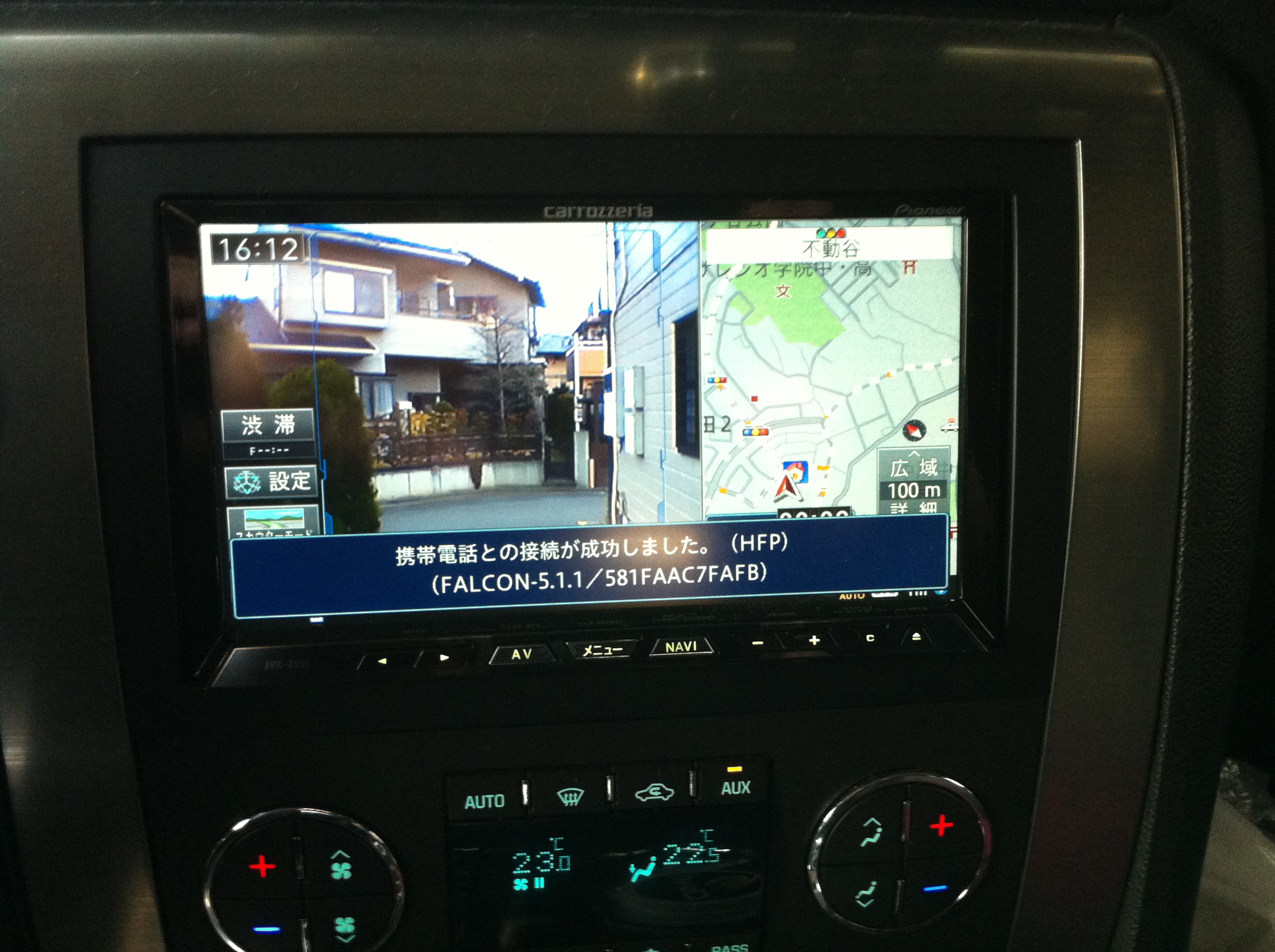
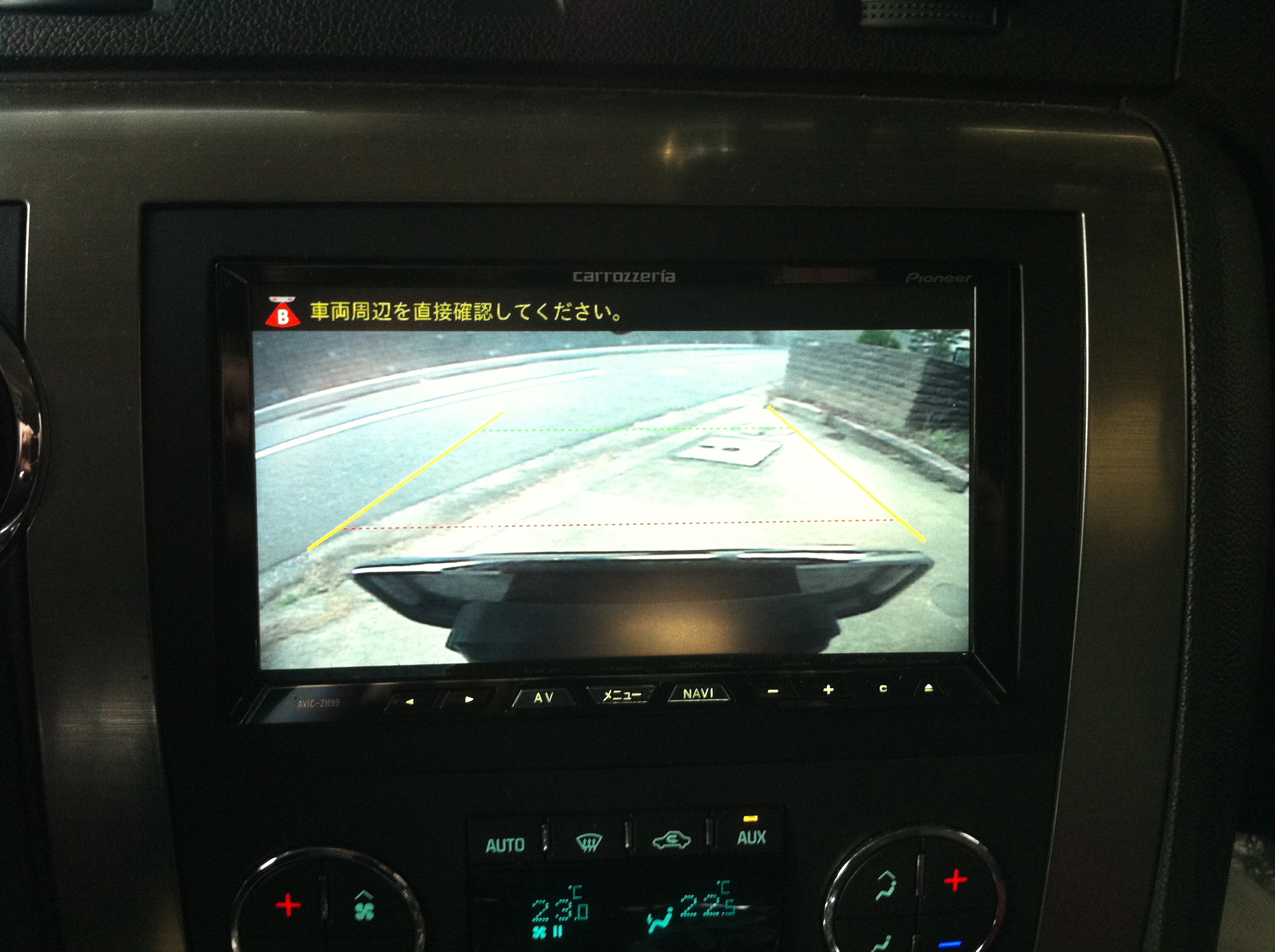
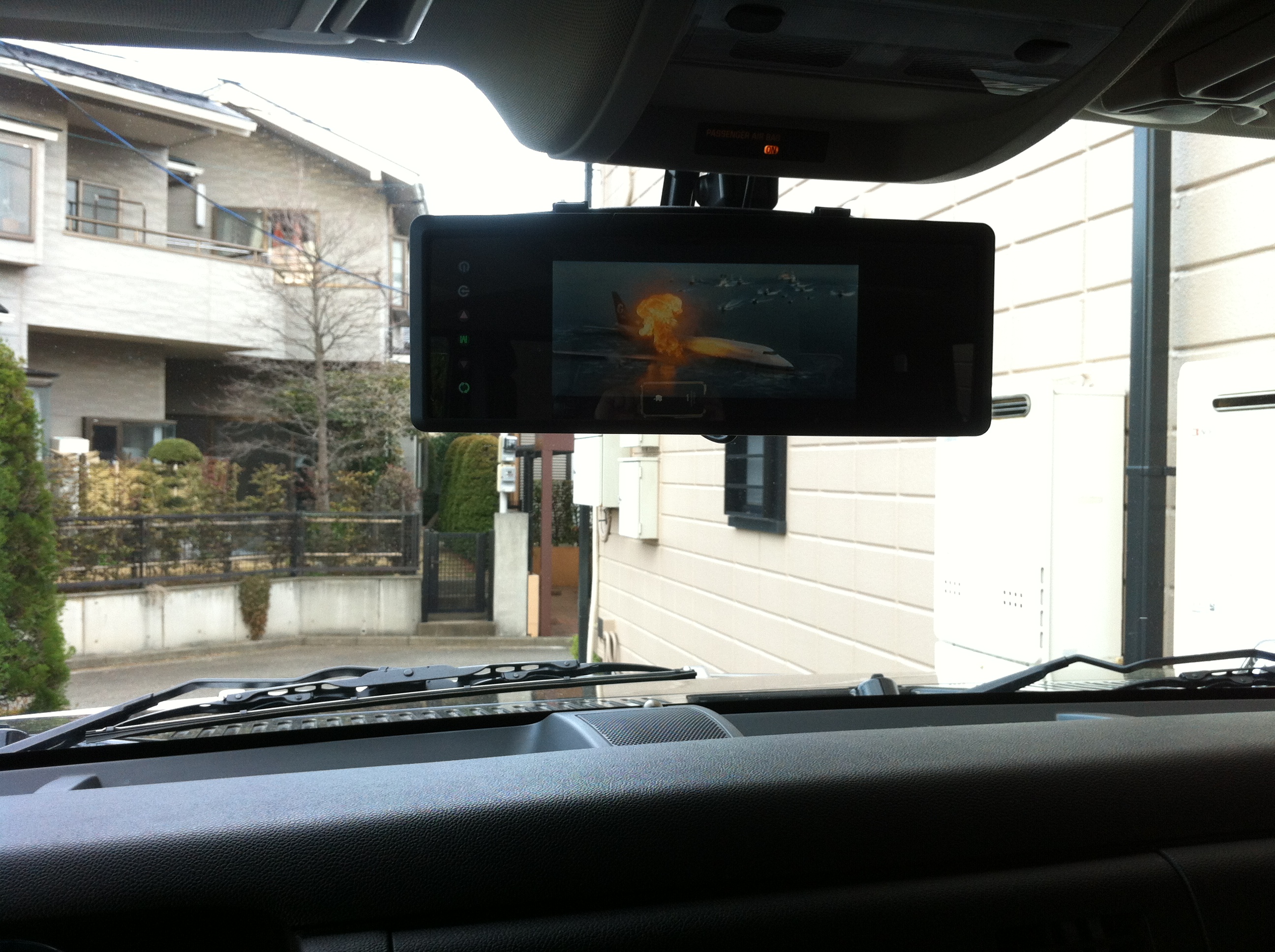
2008 HUMMER H2 US純正ナビ（BOSEプレミアムサウンドシステム）をカロッツェリアのサイバーナビAVIC-ZH99CSに換装。<br /><a href="http://iphoneland.up.seesaa.net/image/IMG_0313.JPG" target="_blank"><img border="0" alt="IMG_0313.JPG" src="http://iphoneland.up.seesaa.net/image/IMG_0313-thumbnail2.JPG" width="320" height="239"></a><br />ポイントは、BOSEプレミアムサウンドシステム装備の機能を生かす事。<br />（リアビューカメラ、後席フリップダウンモニタ、純正ステアリングコントロールスイッチなど）<br /><br />【必要なハーネス類】<br /><a target="_blank"  href="https://www.amazon.co.jp/gp/product/B0183OW5BQ/ref=as_li_tl?ie=UTF8&camp=247&creative=1211&creativeASIN=B0183OW5BQ&linkCode=as2&tag=redleopard-22&linkId=a7e5a93ee57f94f1cd98e666411f9bb3"><img border="0" src="//ws-fe.amazon-adsystem.com/widgets/q?_encoding=UTF8&MarketPlace=JP&ASIN=B0183OW5BQ&ServiceVersion=20070822&ID=AsinImage&WS=1&Format=_SL250_&tag=redleopard-22" ></a><img src="//ir-jp.amazon-adsystem.com/e/ir?t=redleopard-22&l=am2&o=9&a=B0183OW5BQ" width="1" height="1" border="0" alt="" style="border:none !important; margin:0px !important;" /><br /><a href="https://www.amazon.co.jp/gp/product/B0183OW5BQ/ref=as_li_tl?ie=UTF8&camp=247&creative=1211&creativeASIN=B0183OW5BQ&linkCode=as2&tag=redleopard-22&linkId=a7e5a93ee57f94f1cd98e666411f9bb3" target="_blank">ハマーH2　オーディオ取り付けキット　BOSE付き　’08y〜</a><br /><br /><a target="_blank"  href="https://www.amazon.co.jp/gp/product/B0183P5VPC/ref=as_li_tl?ie=UTF8&camp=247&creative=1211&creativeASIN=B0183P5VPC&linkCode=as2&tag=redleopard-22&linkId=472c0e3a605c6fca6bb426b6e30b73f6"><img border="0" src="//ws-fe.amazon-adsystem.com/widgets/q?_encoding=UTF8&MarketPlace=JP&ASIN=B0183P5VPC&ServiceVersion=20070822&ID=AsinImage&WS=1&Format=_SL250_&tag=redleopard-22" ></a><img src="//ir-jp.amazon-adsystem.com/e/ir?t=redleopard-22&l=am2&o=9&a=B0183P5VPC" width="1" height="1" border="0" alt="" style="border:none !important; margin:0px !important;" /><br /><a href="https://www.amazon.co.jp/gp/product/B0183P5VPC/ref=as_li_tl?ie=UTF8&camp=247&creative=1211&creativeASIN=B0183P5VPC&linkCode=as2&tag=redleopard-22&linkId=472c0e3a605c6fca6bb426b6e30b73f6" target="_blank">ステレオ　インターフェイス　ステアリングコントロール用　有線式　アルパイン　カロツェリア専用</a><br /><br /><a target="_blank"  href="https://www.amazon.co.jp/gp/product/B0186SBSP8/ref=as_li_tl?ie=UTF8&camp=247&creative=1211&creativeASIN=B0186SBSP8&linkCode=as2&tag=redleopard-22&linkId=765d1d6a1a9b2e86f360c19040b88aa5"><img border="0" src="//ws-fe.amazon-adsystem.com/widgets/q?_encoding=UTF8&MarketPlace=JP&ASIN=B0186SBSP8&ServiceVersion=20070822&ID=AsinImage&WS=1&Format=_SL250_&tag=redleopard-22" ></a><img src="//ir-jp.amazon-adsystem.com/e/ir?t=redleopard-22&l=am2&o=9&a=B0186SBSP8" width="1" height="1" border="0" alt="" style="border:none !important; margin:0px !important;" /><br /><a href="https://www.amazon.co.jp/gp/product/B0186SBSP8/ref=as_li_tl?ie=UTF8&camp=247&creative=1211&creativeASIN=B0186SBSP8&linkCode=as2&tag=redleopard-22&linkId=765d1d6a1a9b2e86f360c19040b88aa5" target="_blank">ステレオ フリップダウンハーネス</a><br /><br /> ↓リアに設置されているRCA入力ケーブルを生かしたい場合に使用<br /><a target="_blank"  href="https://www.amazon.co.jp/gp/product/B0028AWQNY/ref=as_li_tl?ie=UTF8&camp=247&creative=1211&creativeASIN=B0028AWQNY&linkCode=as2&tag=redleopard-22&linkId=72d5a37f49a6f863ddf53eb0458ec0ab"><img border="0" src="//ws-fe.amazon-adsystem.com/widgets/q?_encoding=UTF8&MarketPlace=JP&ASIN=B0028AWQNY&ServiceVersion=20070822&ID=AsinImage&WS=1&Format=_SL250_&tag=redleopard-22" ></a><img src="//ir-jp.amazon-adsystem.com/e/ir?t=redleopard-22&l=am2&o=9&a=B0028AWQNY" width="1" height="1" border="0" alt="" style="border:none !important; margin:0px !important;" /><br /><a href="https://www.amazon.co.jp/gp/product/B0028AWQNY/ref=as_li_tl?ie=UTF8&camp=247&creative=1211&creativeASIN=B0028AWQNY&linkCode=as2&tag=redleopard-22&linkId=72d5a37f49a6f863ddf53eb0458ec0ab" target="_blank">carrozzeria（カロッツェリア） CD-VRM200 AV入力用変換ケーブル</a><br /><br />事前にハーネスとサイバーナビ側の配線を接続してまとめておく<br /><a href="http://iphoneland.up.seesaa.net/image/IMG_0286.JPG" target="_blank"><img border="0" alt="IMG_0286.JPG" src="http://iphoneland.up.seesaa.net/image/IMG_0286-thumbnail2.JPG" width="320" height="239"></a><br /><br />コンソールのパネルを内装外しを使って外す<br /><a href="http://iphoneland.up.seesaa.net/image/IMG_0284.JPG" target="_blank"><img border="0" alt="IMG_0284.JPG" src="http://iphoneland.up.seesaa.net/image/IMG_0284-thumbnail2.JPG" width="320" height="239"></a><br /><br />純正ナビとエアコンコントロールユニットを外してサーバーナビを取付け<br />（黄点線のカプラに準備しておいたハーネスとを接続する）<br /><a href="http://iphoneland.up.seesaa.net/image/IMG_0285.JPG" target="_blank"><img border="0" alt="IMG_0285.JPG" src="http://iphoneland.up.seesaa.net/image/IMG_0285-thumbnail2.JPG" width="320" height="239"></a><br /><span style="color:#FF0000;">※エアコンコントロールユニット下部にスペースがあるが、ハーネス類のボリュームが結構あるのでそのままでは収まりきらない。赤点線部分の樹脂カバーをリュータ等を使ってカットする。</span><br /><br />ステアリングスイッチを使えるようにするため、PAC SWI-RCの設定を行う<br /> ↓ 赤点線内のスイッチをセッティング<br /><a href="http://iphoneland.up.seesaa.net/image/942640_575677195807468_1640058425_n.jpg" target="_blank"><img border="0" alt="942640_575677195807468_1640058425_n.jpg" src="http://iphoneland.up.seesaa.net/image/942640_575677195807468_1640058425_n-thumbnail2.jpg" width="320" height="240"></a><br /><span style="color:#FF0000;">※メーカー設定は(7)カロッツェリアにセット、バージョンナンバーを2に設定</span><br /><br /> ↓ ARナビ映像<br /><a href="http://iphoneland.up.seesaa.net/image/IMG_0314.JPG" target="_blank"><img border="0" alt="IMG_0314.JPG" src="http://iphoneland.up.seesaa.net/image/IMG_0314-thumbnail2.JPG" width="320" height="239"></a><br /><span style="color:#FF0000;">※ARスカウターユニット及びETCユニットは助手席グローブBOX内に設置</span><br /><br /> ↓ リアビューカメラ映像<br /><a href="http://iphoneland.up.seesaa.net/image/IMG_0315.JPG" target="_blank"><img border="0" alt="IMG_0315.JPG" src="http://iphoneland.up.seesaa.net/image/IMG_0315-thumbnail2.JPG" width="320" height="239"></a><br /><br /> ↓ ルームミラーモニタも設置<br /><a href="http://iphoneland.up.seesaa.net/image/IMG_0317.JPG" target="_blank"><img border="0" alt="IMG_0317.JPG" src="http://iphoneland.up.seesaa.net/image/IMG_0317-thumbnail2.JPG" width="320" height="239"></a><a name="more"></a>

]]><![CDATA[
]]></content:encoded>
</item>
<item rdf:about="https://iphoneland.seesaa.net/article/369342031.html">
<link>https://iphoneland.seesaa.net/article/369342031.html</link>
<title> DIY 2008 HUMMER H2 プラグ交換</title>
<description>最近はあまりJailbreak関連のネタも無く、最近は趣味の車弄りに没頭していたので今回はそんなDIYを紹介。HUMMER H2の純正プラグ（AC DELCO製）は１０万キロ交換不要なのだが、アクセルのレスポンスに若干のもたつきがあるので交換。プラグは、DENSO IRIDIUM TOUGH（デンソー イリジウム タフ）をセレクト。その他の対応プラグただ H2のエンジンルームは、こんな感じでプラグの場所はまるで谷底…。GMのプラグワイヤーは先端がスプリング形状になっていて、素..</description>
<dc:subject>HUMMER H2</dc:subject>
<dc:creator>RedFalcon</dc:creator>
<dc:date>2013-07-15T20:12:47+09:00</dc:date>
<content:encoded><![CDATA[
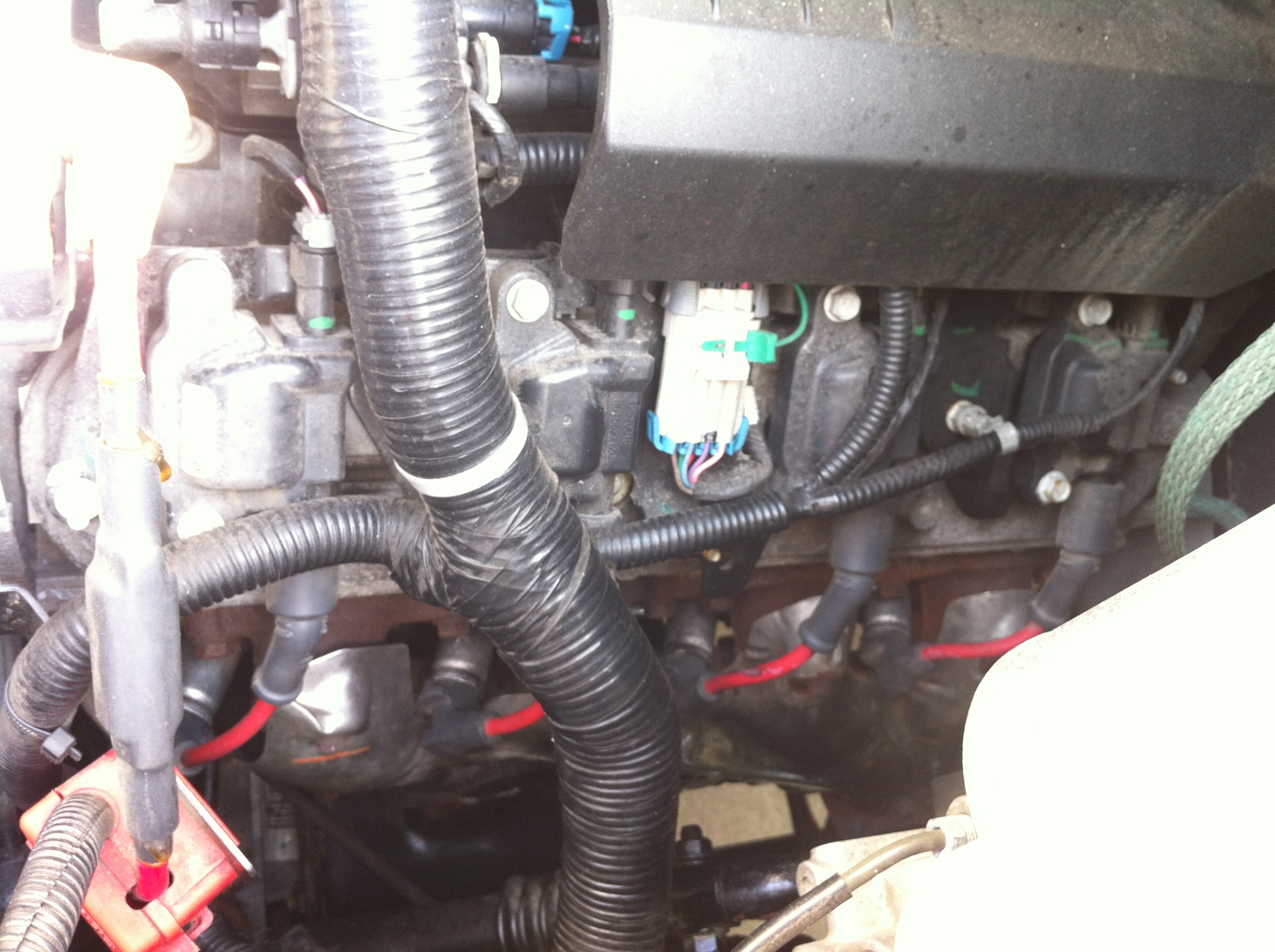
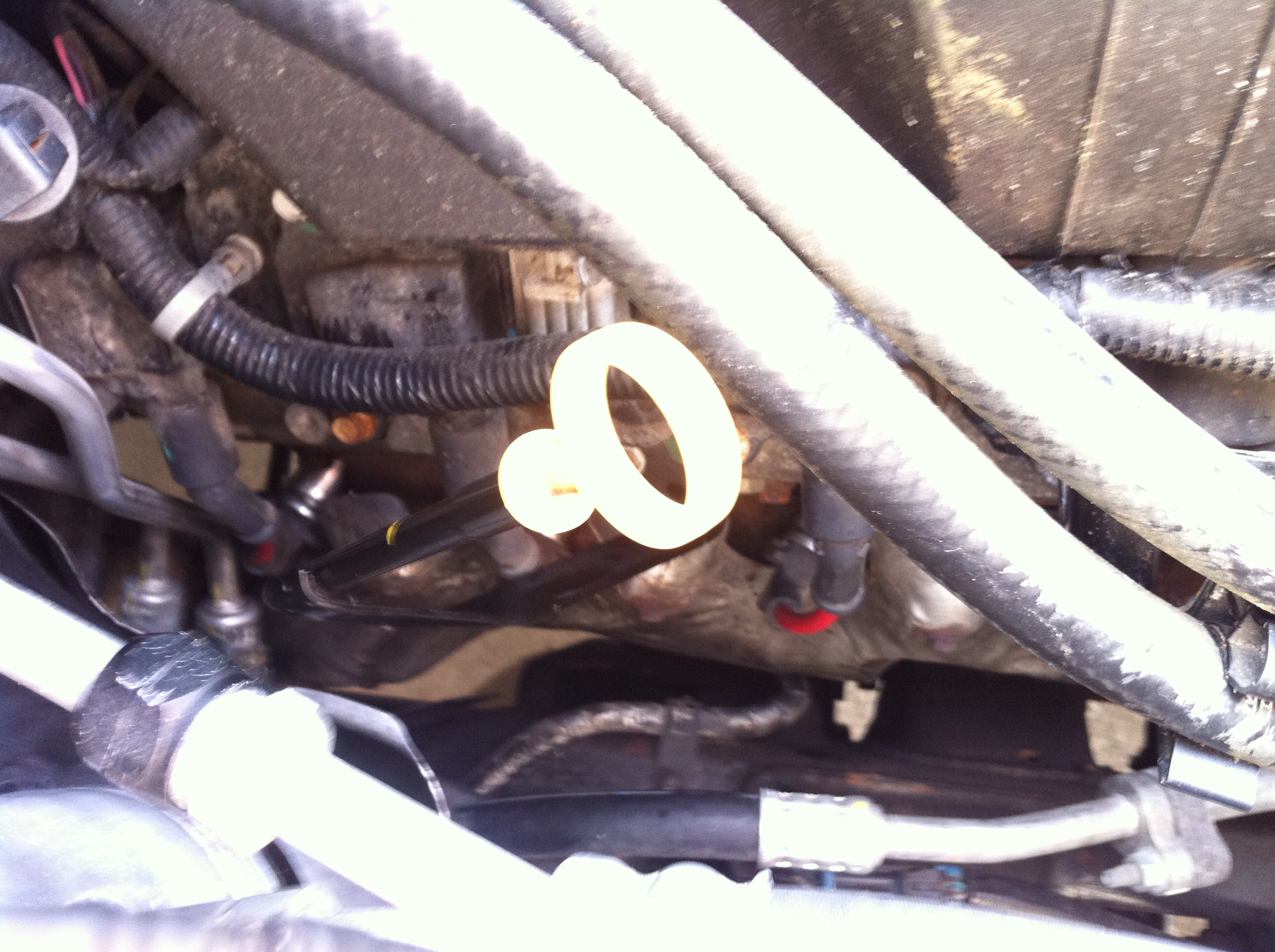
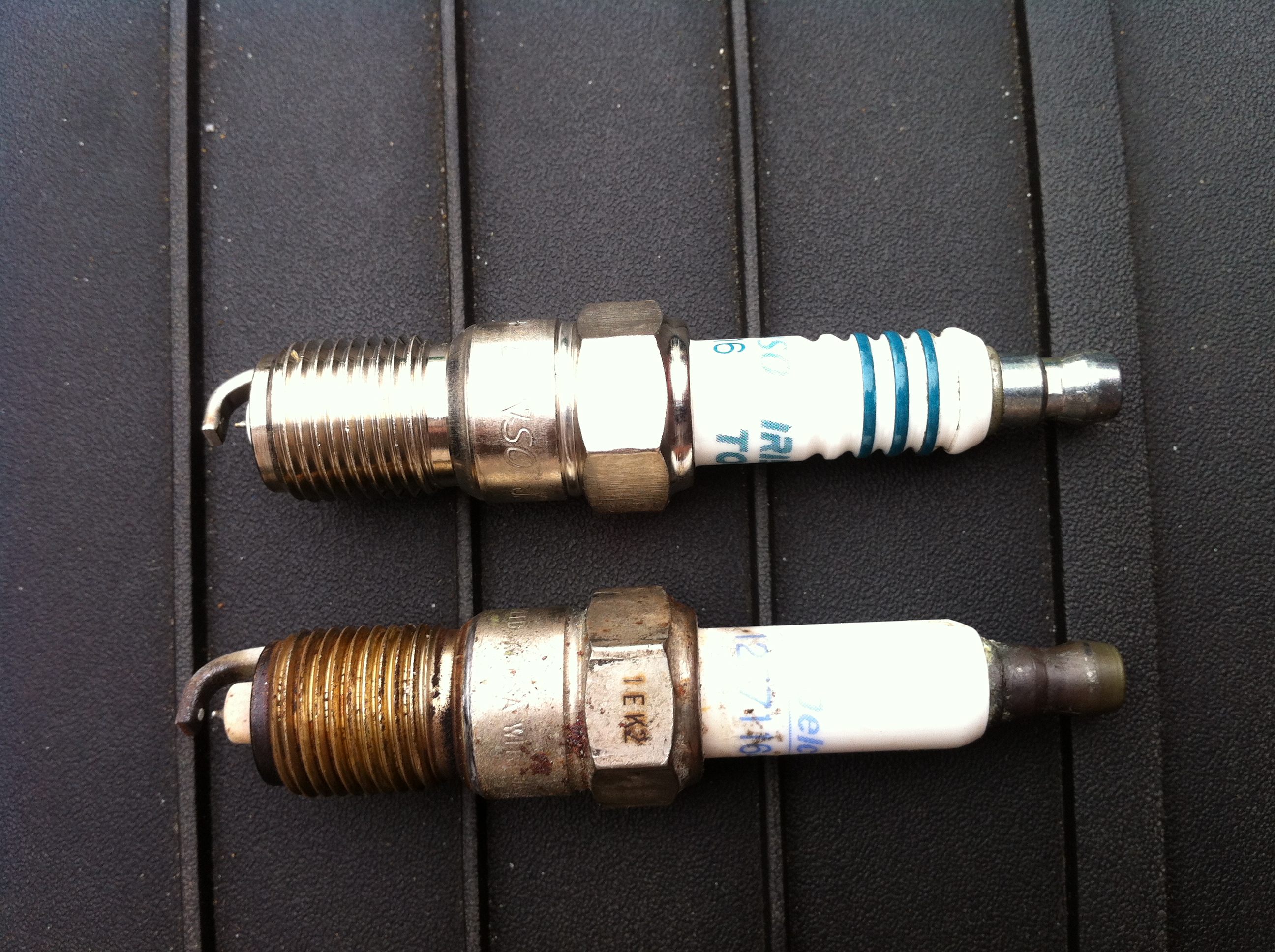
最近はあまりJailbreak関連のネタも無く、最近は趣味の車弄りに没頭していたので今回はそんなDIYを紹介。<br /><br />HUMMER H2の純正プラグ（AC DELCO製）は１０万キロ交換不要なのだが、アクセルのレスポンスに若干のもたつきがあるので交換。<br /><br />プラグは、DENSO IRIDIUM TOUGH（デンソー イリジウム タフ）をセレクト。<br /><a target="_blank"  href="https://www.amazon.co.jp/gp/search/ref=as_li_qf_sp_sr_il?ie=UTF8&tag=redleopard-22&keywords=DENSO VT16&index=aps&camp=247&creative=1211&linkCode=ur2&linkId=45b6d9d25a4557b6c60828e768a845bd"><img border="0" src="//ws-fe.amazon-adsystem.com/widgets/q?_encoding=UTF8&MarketPlace=JP&ASIN=B000M6WPT6&ServiceVersion=20070822&ID=AsinImage&WS=1&Format=_SL250_&tag=redleopard-22" ></a><img src="//ir-jp.amazon-adsystem.com/e/ir?t=redleopard-22&l=ur2&o=9&camp=247" width="1" height="1" border="0" alt="" style="border:none !important; margin:0px !important;" /><br /><br />その他の対応プラグ<br /><br /><a target="_blank"  href="https://www.amazon.co.jp/gp/search/ref=as_li_qf_sp_sr_il?ie=UTF8&tag=redleopard-22&keywords=NGK TR5IX&index=aps&camp=247&creative=1211&linkCode=ur2&linkId=3e3451faf7595b7d6b189d1f9eeb5a45"><img border="0" src="//ws-fe.amazon-adsystem.com/widgets/q?_encoding=UTF8&MarketPlace=JP&ASIN=B008HNKQ4W&ServiceVersion=20070822&ID=AsinImage&WS=1&Format=_SL250_&tag=redleopard-22" ></a><img src="//ir-jp.amazon-adsystem.com/e/ir?t=redleopard-22&l=ur2&o=9&camp=247" width="1" height="1" border="0" alt="" style="border:none !important; margin:0px !important;" /><br /><br />ただ H2のエンジンルームは、こんな感じでプラグの場所はまるで谷底…。<br /><a href="http://iphoneland.up.seesaa.net/image/IMG_0043.JPG" target="_blank"><img border="0" alt="IMG_0043.JPG" src="http://iphoneland.up.seesaa.net/image/IMG_0043-thumbnail2.JPG" width="320" height="239"></a><br /><a href="http://iphoneland.up.seesaa.net/image/IMG_0040.JPG" target="_blank"><img border="0" alt="IMG_0040.JPG" src="http://iphoneland.up.seesaa.net/image/IMG_0040-thumbnail2.JPG" width="320" height="239"></a><a href="http://iphoneland.up.seesaa.net/image/IMG_0041.JPG" target="_blank"><img border="0" alt="IMG_0041.JPG" src="http://iphoneland.up.seesaa.net/image/IMG_0041-thumbnail2.JPG" width="320" height="239"></a><br /><br />GMのプラグワイヤーは先端がスプリング形状になっていて、素手で取り外すのはかなり困難。力任せにコードを引っ張るとチギレることもあるので、私は以下のスパークプラグワイヤープーラーを使いました。<br /><a target="_blank"  href="https://www.amazon.co.jp/gp/product/B019I5RAWI/ref=as_li_tl?ie=UTF8&camp=247&creative=1211&creativeASIN=B019I5RAWI&linkCode=as2&tag=redleopard-22&linkId=08bfd706c47023016a43038eb7aa675b"><img border="0" src="//ws-fe.amazon-adsystem.com/widgets/q?_encoding=UTF8&MarketPlace=JP&ASIN=B019I5RAWI&ServiceVersion=20070822&ID=AsinImage&WS=1&Format=_SL250_&tag=redleopard-22" ></a><img src="//ir-jp.amazon-adsystem.com/e/ir?t=redleopard-22&l=am2&o=9&a=B019I5RAWI" width="1" height="1" border="0" alt="" style="border:none !important; margin:0px !important;" /><br /><br />実際にプラグを外してみると、良い感じの焼け具合…純正プラグ１０万キロ交換不要はホントなんだなと改めて関心（ちなみに横にあるのはイリジウムタフ）。<br /><a href="http://iphoneland.up.seesaa.net/image/IMG_0039.JPG" target="_blank"><img border="0" alt="IMG_0039.JPG" src="http://iphoneland.up.seesaa.net/image/IMG_0039-thumbnail2.JPG" width="320" height="239"></a><br /><br />それでもやはりプラグ交換の効果は高く、エンジン音はスムーズになり、加速時のもたつきも解消されましたー。<br />現在USよりPoweraid社のスロットルボディスペーサーを取り寄せてるので、そのレビューはまた後日。<br />次回は、既にDIY済の純正BOSEプレミアムサウンドシステム（バックモニタ＆後席フリップダウンモニタ）と純正ステアリングリモコンを生かした、US仕様ナビのカロッツェリア サイバーナビ換装を紹介します。<a name="more"></a>

]]><![CDATA[
]]></content:encoded>
</item>
<item rdf:about="https://iphoneland.seesaa.net/article/319540617.html">
<link>https://iphoneland.seesaa.net/article/319540617.html</link>
<title>iOS 6.1 Firmwares Direct Download Link</title>
<description>【iOS 6.1 Firmwares Direct Link】iOS 6.1 for iPhone 5・GSM：iPhone5,2_6.1_10B143_Restore.ipsw [link]・CDMA：iPhone5,1_6.1_10B143_Restore.ipsw [link]iOS 6.1 for iPhone 4S・iPhone4,1_6.1_10B142_Restore.ipsw [link]iOS 6.1 for iPhone 4・GSM：iPhone3,1_6..</description>
<dc:subject>iPhone</dc:subject>
<dc:creator>RedFalcon</dc:creator>
<dc:date>2013-02-07T19:34:58+09:00</dc:date>
<content:encoded><![CDATA[
<div style="text-align:center;"><a href="http://iphoneland.up.seesaa.net/image/iOSFirmware.jpeg" target="_blank"><img border="0" alt="iOSFirmware.jpeg" src="http://iphoneland.up.seesaa.net/image/iOSFirmware-thumbnail2.jpeg" width="225" height="225"></a></div><br /><br /><strong>【iOS 6.1 Firmwares Direct Link】</strong><br /><strong>iOS 6.1 for iPhone 5</strong><br />・GSM：iPhone5,2_6.1_10B143_Restore.ipsw <a href="http://appldnld.apple.com/iOS6.1/041-6487.20130128.Ihb56/iPhone5,2_6.1_10B143_Restore.ipsw" target="_blank">[link]</a><br />・CDMA：iPhone5,1_6.1_10B143_Restore.ipsw <a href="http://appldnld.apple.com/iOS6.1/041-6485.20130128.mt0dy/iPhone5,1_6.1_10B143_Restore.ipsw" target="_blank">[link]</a><br /><strong>iOS 6.1 for iPhone 4S</strong><br />・iPhone4,1_6.1_10B142_Restore.ipsw <a href="http://appldnld.apple.com/iOS6.1/041-5902.20130128.bhyt6/iPhone4,1_6.1_10B142_Restore.ipsw" target="_blank">[link]</a><br /><strong>iOS 6.1 for iPhone 4</strong><br />・GSM：iPhone3,1_6.1_10B144_Restore.ipsw <a href="http://appldnld.apple.com/iOS6.1/091-0682.20130128.mefc4/iPhone3,1_6.1_10B144_Restore.ipsw" target="_blank">[link]</a><br />・CDMA：iPhone3,3_6.1_10B141_Restore.ipsw <a href="http://appldnld.apple.com/iOS6.1/041-6505.20130128.Cpt63/iPhone3,3_6.1_10B141_Restore.ipsw" target="_blank">[link]</a><br /><strong>iOS 6.1 for iPhone 3GS</strong><br />・iPhone2,1_6.1_10B141_Restore.ipsw <a href="http://appldnld.apple.com/iOS6.1/041-6493.20130128.sh4rG/iPhone2,1_6.1_10B141_Restore.ipsw" target="_blank">[link]</a><br /><strong>iOS 6.1 for iPad mini</strong><br />・GSM：iPad2,6_6.1_10B141_Restore.ipsw <a href="http://appldnld.apple.com/iOS6.1/041-6613.20130128.Pre3r/iPad2,6_6.1_10B141_Restore.ipsw" target="_blank">[link]</a><br />・CDMA：iPad2,7_6.1_10B141_Restore.ipsw <a href="http://appldnld.apple.com/iOS6.1/041-6615.20130128.i5rft/iPad2,7_6.1_10B141_Restore.ipsw" target="_blank">[link]</a><br />・Wi-Fi：iPad2,5_6.1_10B141_Restore.ipsw <a href="http://appldnld.apple.com/iOS6.1/041-6469.20130128.tasor/iPad2,5_6.1_10B141_Restore.ipsw" target="_blank">[link]</a><br /><strong>iOS 6.1 for iPad 4</strong><br />・GSM：iPad3,5_6.1_10B141_Restore.ipsw <a href="http://appldnld.apple.com/iOS6.1/041-6608.20130128.6605t/iPad3,5_6.1_10B141_Restore.ipsw" target="_blank">[link]</a><br />・CDMA：iPad3,6_6.1_10B141_Restore.ipsw <a href="http://appldnld.apple.com/iOS6.1/041-6611.20130128.cagw3/iPad3,6_6.1_10B141_Restore.ipsw" target="_blank">[link]</a><br />・Wi-Fi：iPad3,4_6.1_10B141_Restore.ipsw <a href="http://appldnld.apple.com/iOS6.1/041-6468.20130128.Ch565/iPad3,4_6.1_10B141_Restore.ipsw" target="_blank">[link]</a><br /><strong>iOS 6.1 for iPad 3</strong><br />・GSM：iPad3,3_6.1_10B141_Restore.ipsw <a href="http://appldnld.apple.com/iOS6.1/041-6467.20130128.Ugw14/iPad3,3_6.1_10B141_Restore.ipsw" target="_blank">[link]</a><br />・CDMA：iPad3,2_6.1_10B141_Restore.ipsw <a href="http://appldnld.apple.com/iOS6.1/041-5907.20130128.tgt54/iPad3,2_6.1_10B141_Restore.ipsw" target="_blank">[link]</a><br />・Wi-Fi：iPad3,1_6.1_10B141_Restore.ipsw <a href="http://appldnld.apple.com/iOS6.1/041-6462.20130128.cnlgh5/iPad3,1_6.1_10B141_Restore.ipsw" target="_blank">[link]</a><br /><strong>iOS 6.1 for iPad 2</strong><br />・GSM：iPad2,2_6.1_10B141_Restore.ipsw <a href="http://appldnld.apple.com/iOS6.1/041-6508.20130128.Ohdre/iPad2,2_6.1_10B141_Restore.ipsw" target="_blank">[link]</a><br />・CDMA：iPad2,3_6.1_10B141_Restore.ipsw <a href="http://appldnld.apple.com/iOS6.1/041-6483.20130128.Gdsob/iPad2,3_6.1_10B141_Restore.ipsw" target="_blank">[link]</a><br />・Wi-Fi：iPad2,1_6.1_10B141_Restore.ipsw <a href="http://appldnld.apple.com/iOS6.1/041-6476.20130128.Hrb56/iPad2,1_6.1_10B141_Restore.ipsw" target="_blank">[link]</a><br />・WiFi New：iPad2,4_6.1_10B141_Restore.ipsw <a href="http://appldnld.apple.com/iOS6.1/041-6478.20130128.Mgr4g/iPad2,4_6.1_10B141_Restore.ipsw" target="_blank">[link]</a><br /><strong>iOS 6.1 for iPod touch 4G</strong><br />・iPod4,1_6.1_10B144_Restore.ipsw <a href="http://appldnld.apple.com/iOS6.1/091-0688.20130128.omwy3/iPod4,1_6.1_10B144_Restore.ipsw" target="_blank">[link]</a><br /><strong>iOS 6.1 for iPod touch 5G</strong><br />・iPod5,1_6.1_10B141_Restore.ipsw <a href="http://appldnld.apple.com/iOS6.1/041-6488.20130128.L3etg/iPod5,1_6.1_10B141_Restore.ipsw" target="_blank">[link]</a><a name="more"></a>

]]><![CDATA[
]]></content:encoded>
</item>
</rdf:RDF>