<?xml version="1.0" encoding="UTF-8"?><feed
	xmlns="http://www.w3.org/2005/Atom"
	xmlns:thr="http://purl.org/syndication/thread/1.0"
	xml:lang="en-US"
	>
	<title type="text">Krizna</title>
	<subtitle type="text">Do it yourself</subtitle>

	<updated>2020-08-08T05:26:09Z</updated>

	<link rel="alternate" type="text/html" href="https://krizna.com/" />
	<id>https://www.krizna.com/feed/atom/</id>
	<link rel="self" type="application/atom+xml" href="https://www.krizna.com/feed/atom/" />

	<generator uri="https://wordpress.org/" version="6.9">WordPress</generator>
	<entry>
		<author>
			<name>krizna</name>
					</author>

		<title type="html"><![CDATA[How to install Visual Studio Code on ubuntu 20.04]]></title>
		<link rel="alternate" type="text/html" href="https://www.krizna.com/ubuntu/install-visual-studio-code-ubuntu-20-04/" />

		<id>https://www.krizna.com/?p=1802</id>
		<updated>2020-08-08T05:26:09Z</updated>
		<published>2020-07-30T21:44:39Z</published>
		<category scheme="https://krizna.com/" term="Ubuntu" /><category scheme="https://krizna.com/" term="Ubuntu 20.04" /><category scheme="https://krizna.com/" term="install" /><category scheme="https://krizna.com/" term="Linux" /><category scheme="https://krizna.com/" term="Visual studio code" />
		<summary type="html"><![CDATA[Visual Studio Code is a popular code editor which is lightweight and cross platform application. It is available for macOS, windows and Linux. In this <a class="mh-excerpt-more" href="https://www.krizna.com/ubuntu/install-visual-studio-code-ubuntu-20-04/" title="How to install Visual Studio Code on ubuntu 20.04">[...]</a>]]></summary>

					<content type="html" xml:base="https://www.krizna.com/ubuntu/install-visual-studio-code-ubuntu-20-04/"><![CDATA[<p><a href="https://code.visualstudio.com/">Visual Studio Code</a> is a popular code editor which is lightweight and cross platform application. It is available for macOS, windows and Linux. In this article, We will see about how to install visual studio code on ubuntu 20.04. </p>
<p>Visual studio code has built-in support for Node.js, JavaScript and Typescript. It also has extensions support for other languages like C#, C++, Python, PHP and much more. It has advanced features like syntax highlighting, debugging, code refactoring, embedded Git and snippets. Visual studio code is an open source you can use it for free. </p>
<h2> Install Visual Studio Code on ubuntu 20.04 </h2>
<p>Basically we can use below methods to install on ubuntu 20.04.<br />
1. <a href=#snap>Using snap </a><br />
2. <a href=#apt>Using apt repository</a><br />
3. <a href=#manual>Manual method</a></p>
<h2 id="snap">Using snap</h2>
<p>Installing software using snap is very easy so this method is useful for beginners.<br />
<strong>Step 1.</strong> Most of the packages are available in snap repository so it is easy to install just typing below command<br />
<code>sudo snap install --classic code</code><br />
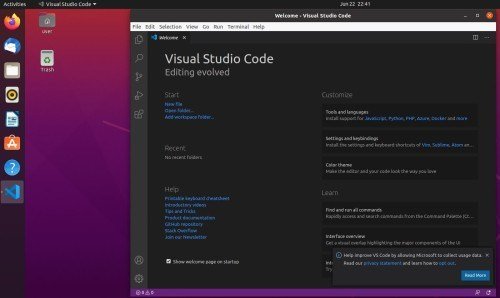
<strong>Step 2.</strong> After installation, you can launch Visual studio code using application launcher.<br />
<img fetchpriority="high" decoding="async" src="https://www.krizna.com/wp-content/uploads/2020/07/Install-Visual-studio-code-ubuntu-20-04.jpg" alt="Install Visual studio code ubuntu 20.04" width="500" height="298" class="aligncenter size-full wp-image-1803" srcset="https://www.krizna.com/wp-content/uploads/2020/07/Install-Visual-studio-code-ubuntu-20-04.jpg 500w, https://www.krizna.com/wp-content/uploads/2020/07/Install-Visual-studio-code-ubuntu-20-04-300x179.jpg 300w" sizes="(max-width: 500px) 100vw, 500px" /></p>
<h2 id="apt">Using apt repository</h2>
<p>In this method, We can install using apt repository. Apt repository will be having most of the packages, however we have to add new repository for vs code.<br />
<strong>Step 1.</strong> Firstly, add repository key using below command.<br />
<code>wget -q https://packages.microsoft.com/keys/microsoft.asc -O- | sudo apt-key add -</code><br />
<strong>Step 2.</strong> Now add the repository by typing below command.<br />
<code>sudo add-apt-repository "deb [arch=amd64] https://packages.microsoft.com/repos/vscode stable main"</code><br />
<strong>Step 3.</strong> Finally install the package.<br />
<code>sudo apt install code</code><br />
<strong>Step 4.</strong> After installation you can launch using application launcher. </p>
<h2 id="manual">Install Visual Studio Code using Manual method</h2>
<p>In this method, we are going to download the package from official website and install using apt.<br />
<strong>Step 1.</strong> You can go to the following location <a href="https://code.visualstudio.com/docs/?dv=linux64_deb">https://code.visualstudio.com/docs/?dv=linux64_deb</a> to download the package to your local folder.<br />
<strong>Step 2.</strong> Once downloaded you can go to the downloaded location and type the below command to install.<br />
<code>sudo apt install ./code_1.47.3-1595520028_amd64.deb</code><br />
Here we are going to use regular apt command however it will install the local package along with dependencies.<br />
<strong>Step 3.</strong> Finally after installation, you can launch Visual studio code using application launcher.<br />
Also see.<br />
<a href="https://www.krizna.com/ubuntu/install-google-chrome-ubuntu-20-04/">How to install google chrome on ubuntu 20.04</a><br />
<a href="https://www.krizna.com/ubuntu/install-mysql-workbench-ubuntu-20-04/">How to install Anydesk on ubuntu 20.04</a></p>
]]></content>
		
					<link rel="replies" type="text/html" href="https://www.krizna.com/ubuntu/install-visual-studio-code-ubuntu-20-04/#comments" thr:count="0" />
			<link rel="replies" type="application/atom+xml" href="https://www.krizna.com/ubuntu/install-visual-studio-code-ubuntu-20-04/feed/atom/" thr:count="0" />
			<thr:total>0</thr:total>
			</entry>
		<entry>
		<author>
			<name>krizna</name>
					</author>

		<title type="html"><![CDATA[How to install MySQL workbench on ubuntu 20.04]]></title>
		<link rel="alternate" type="text/html" href="https://www.krizna.com/ubuntu/install-mysql-workbench-ubuntu-20-04/" />

		<id>https://www.krizna.com/?p=1794</id>
		<updated>2020-08-08T04:55:57Z</updated>
		<published>2020-05-27T20:42:40Z</published>
		<category scheme="https://krizna.com/" term="Ubuntu" /><category scheme="https://krizna.com/" term="Ubuntu 20.04" /><category scheme="https://krizna.com/" term="install" /><category scheme="https://krizna.com/" term="MySQL workbench" /><category scheme="https://krizna.com/" term="step by step" /><category scheme="https://krizna.com/" term="Ubunu" />
		<summary type="html"><![CDATA[MySQL workbench is a GUI tool for managing MySQL database system. It is used by database administrators, database architects and developers to visualize database design. <a class="mh-excerpt-more" href="https://www.krizna.com/ubuntu/install-mysql-workbench-ubuntu-20-04/" title="How to install MySQL workbench on ubuntu 20.04">[...]</a>]]></summary>

					<content type="html" xml:base="https://www.krizna.com/ubuntu/install-mysql-workbench-ubuntu-20-04/"><![CDATA[<p><a href="https://www.mysql.com/products/workbench/">MySQL workbench</a> is a GUI tool for managing MySQL database system. It is used by database administrators, database architects and developers to visualize database design. In this article, we will see about how to install MySQL workbench on ubuntu 20.04.</p>
<p>MySQL workbench has many features like visual SQL development, visual DB administration, connection management, visual data modeling and even more.<br />
Additionally database migration feature helps you to migrate to MySQL from Microsoft Access, SQLite, Sybase SQL Anywhere, Microsoft Access, Microsoft SQL Server, PostgreSQL and much more. Above all, It is cross platform application which is available for Windows, MacOS and Linux.<br />
It is available in 3 different editions standard, enterprise and community. Community version is open source therefore we can use it for personal and non commercial purpose.</p>
<h2> Install MySQL workbench on ubuntu 20.04</h2>
<p>We can install MySQL workbench in 2 different ways.<br />
1. <a href="#apt"> Using apt repository</a><br />
2. <a href="#Manual">Manual method</a></p>
<h2 id="apt"> Apt repository </h2>
<p>Using this method, We can install MySQL workbench from official repository.<br />
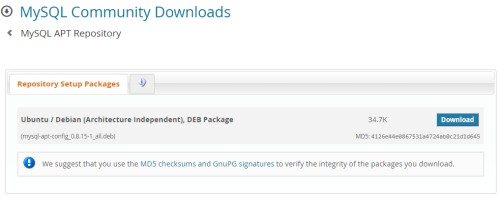
<strong>Step 1.</strong> Download the repo config file from the below url. It will directly take to the download page where you can see ubuntu/debian repository config file.<br />
Browse the following url <a href="https://dev.mysql.com/downloads/repo/apt/" rel="nofollow">https://dev.mysql.com/downloads/repo/apt/</a> and Just press Download.<br />
In the Next page click &#8220;No thanks, just start my download.&#8221; to download the package to your local directory.<br />
<img decoding="async" src="https://www.krizna.com/wp-content/uploads/2020/05/MySQL-workbench-apt-config.jpg" alt="MySQL workbench apt config" width="500" height="197" class="aligncenter size-full wp-image-1797" srcset="https://www.krizna.com/wp-content/uploads/2020/05/MySQL-workbench-apt-config.jpg 500w, https://www.krizna.com/wp-content/uploads/2020/05/MySQL-workbench-apt-config-300x118.jpg 300w" sizes="(max-width: 500px) 100vw, 500px" /><br />
<strong>Step 2.</strong> Check the file in the download directory and install using the below command. This will actually put MySQL repository urls in apt sources list so that we can install the software.<br />
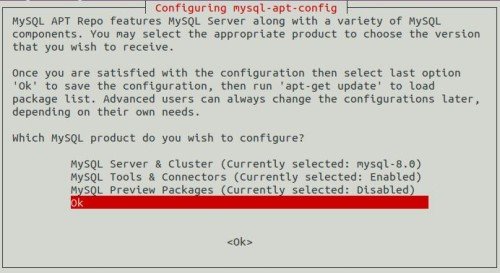
<code> sudo apt install ./mysql-apt-config_0.8.15-1_all.deb </code> While installing you will be prompted to choose MySQL version and it will be pre-selected. So select <strong>OK</strong> option by using down key and hit Enter.<br />
<img decoding="async" src="https://www.krizna.com/wp-content/uploads/2020/05/MySQL-workbench-download-config.jpg" alt="MySQL workbench setup ubuntu 20.04" width="500" height="273" class="aligncenter size-full wp-image-1801" srcset="https://www.krizna.com/wp-content/uploads/2020/05/MySQL-workbench-download-config.jpg 500w, https://www.krizna.com/wp-content/uploads/2020/05/MySQL-workbench-download-config-300x164.jpg 300w" sizes="(max-width: 500px) 100vw, 500px" /><br />
<strong>Step 3.</strong> Update the apt cache by typing below command.<br />
<code> sudo apt update </code><br />
<strong>Step 4.</strong> Now install MySQL workbench from the repository using following command.<br />
<code> sudo apt install mysql-workbench-community </code><br />
<strong>Step 5.</strong> Finally, Launch workbench using application launcher.<br />
<img decoding="async" src="https://www.krizna.com/wp-content/uploads/2020/05/Install_MySQL_Workbench_ubuntu_20_04.jpg" alt="Install MySQL workbench on Ubuntu 20.04" width="500" height="248" class="aligncenter size-full wp-image-1798" srcset="https://www.krizna.com/wp-content/uploads/2020/05/Install_MySQL_Workbench_ubuntu_20_04.jpg 500w, https://www.krizna.com/wp-content/uploads/2020/05/Install_MySQL_Workbench_ubuntu_20_04-300x149.jpg 300w" sizes="(max-width: 500px) 100vw, 500px" /></p>
<h2 id="Manual"> Manual method </h2>
<p>We can download software directly from the official website and we can install it using following method.<br />
<strong>Step 1.</strong> Download MySQL workbench software from the below url. This is an official url, So you can directly download the file to your local directory.<br />
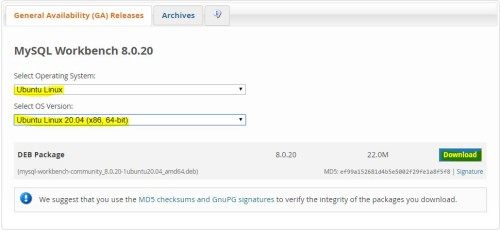
Browse the following url <a href="https://dev.mysql.com/downloads/workbench/" rel="nofollow">https://dev.mysql.com/downloads/workbench/</a> and choose below options.<br />
» select operating system as &#8220;Ubuntu Linux&#8221;.<br />
» Select OS version as &#8220;Ubuntu Linux 20.04 (x86, 64-bit)&#8221;.<br />
» Press Download.<br />
» In the Next page click &#8220;No thanks, just start my download.&#8221; to download the package to your local directory.<br />
<img decoding="async" src="https://www.krizna.com/wp-content/uploads/2020/05/MySQL-workbench-download.jpg" alt="MySQL workbench install ubuntu 20.04" width="500" height="231" class="aligncenter size-full wp-image-1799" srcset="https://www.krizna.com/wp-content/uploads/2020/05/MySQL-workbench-download.jpg 500w, https://www.krizna.com/wp-content/uploads/2020/05/MySQL-workbench-download-300x139.jpg 300w" sizes="(max-width: 500px) 100vw, 500px" /><br />
<strong>Step 2.</strong> Once download completed, you can check the downloaded package and Install using below command. Moreover this command will install package along with dependencies.<br />
<code> sudo apt install ./mysql-workbench-community_8.0.20-1ubuntu20.04_amd64.deb </code><br />
<strong>Step 3.</strong> Finally, Launch workbench using application launcher.<br />
<img decoding="async" src="https://www.krizna.com/wp-content/uploads/2020/05/Install_MySQL_Workbench_ubuntu_20_04.jpg" alt="Install MySQL workbench on Ubuntu 20.04" width="500" height="248" class="aligncenter size-full wp-image-1798" srcset="https://www.krizna.com/wp-content/uploads/2020/05/Install_MySQL_Workbench_ubuntu_20_04.jpg 500w, https://www.krizna.com/wp-content/uploads/2020/05/Install_MySQL_Workbench_ubuntu_20_04-300x149.jpg 300w" sizes="(max-width: 500px) 100vw, 500px" /></p>
<p>See also,<br />
<a href="https://www.krizna.com/ubuntu/install-google-chrome-ubuntu-20-04/">How to install google chrome on ubuntu 20.04</a><br />
<a href="https://www.krizna.com/ubuntu/install-visual-studio-code-ubuntu-20-04/">How to install Visual Studio Code on ubuntu 20.04</a></p>
]]></content>
		
					<link rel="replies" type="text/html" href="https://www.krizna.com/ubuntu/install-mysql-workbench-ubuntu-20-04/#comments" thr:count="0" />
			<link rel="replies" type="application/atom+xml" href="https://www.krizna.com/ubuntu/install-mysql-workbench-ubuntu-20-04/feed/atom/" thr:count="0" />
			<thr:total>0</thr:total>
			</entry>
		<entry>
		<author>
			<name>krizna</name>
					</author>

		<title type="html"><![CDATA[How to install Android Studio on ubuntu 20.04]]></title>
		<link rel="alternate" type="text/html" href="https://www.krizna.com/ubuntu/install-android-studio-ubuntu-20-04/" />

		<id>https://www.krizna.com/?p=1790</id>
		<updated>2020-07-30T21:52:14Z</updated>
		<published>2020-05-10T08:19:43Z</published>
		<category scheme="https://krizna.com/" term="Ubuntu" /><category scheme="https://krizna.com/" term="Ubuntu 20.04" /><category scheme="https://krizna.com/" term="Android studio" /><category scheme="https://krizna.com/" term="installation" /><category scheme="https://krizna.com/" term="ubuntu" />
		<summary type="html"><![CDATA[Android Studio is a popular development software used especially for developing android applications. It is developed by Google and available for various platforms like Windows, <a class="mh-excerpt-more" href="https://www.krizna.com/ubuntu/install-android-studio-ubuntu-20-04/" title="How to install Android Studio on ubuntu 20.04">[...]</a>]]></summary>

					<content type="html" xml:base="https://www.krizna.com/ubuntu/install-android-studio-ubuntu-20-04/"><![CDATA[<p><a href="https://developer.android.com/studio">Android Studio</a> is a popular development software used especially for developing android applications. It is developed by Google and available for various platforms like Windows, Linux and macOS. In this article, We will see about how to install Android studio on Ubuntu 20.04.</p>
<p>Most of the current android applications are developed using android studio.<br />
It has many inbuilt features which gives you fast and stable development environment. In addition, It has robust testing framework which supports Multi-display support, Emulators and even more. </p>
<h2> Install Android Studio on ubuntu 20.04 </h2>
<p>Android Studio on ubuntu will gives you best developing experience.<br />
We have few methods to install the software on ubuntu, Here we will see how to install using these 2 methods.<br />
1) <a href="#repo">Using android-studio repository</a><br />
2) <a href="#snap">Using snap</a></p>
<h3 id="repo"> Using repository </h3>
<p>We can install android studio by adding official repository to the sources list.<br />
<strong>Step 1.</strong> Java JDK package is required for Android studio. So We need to install JDK if not installed already.<br />
<code> sudo apt install openjdk-11-jdk </code><br />
<strong>Step 2.</strong> We need to add official repository to the sources list. Therefore, Type the below command to add.<br />
Hit enter when it ask for the confirmation.<br />
<code> sudo add-apt-repository ppa:maarten-fonville/android-studio</code><br />
<strong>Step 3.</strong> Now update apt cache.<br />
<code> sudo apt update </code><br />
<strong>Step 4.</strong> Now install android studio using apt. So that it will install the software along with dependencies.<br />
<code> sudo apt install android-studio </code><br />
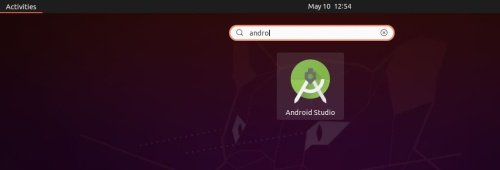
<strong>Step 5.</strong> Finally, Launch the software using application launcher.<br />
<img decoding="async" src="https://www.krizna.com/wp-content/uploads/2020/05/Install_android_studio_ubuntu.jpg" alt="Android studio ubuntu 20.04" width="500" height="170" class="aligncenter size-full wp-image-1791" srcset="https://www.krizna.com/wp-content/uploads/2020/05/Install_android_studio_ubuntu.jpg 500w, https://www.krizna.com/wp-content/uploads/2020/05/Install_android_studio_ubuntu-300x102.jpg 300w" sizes="(max-width: 500px) 100vw, 500px" /><br />
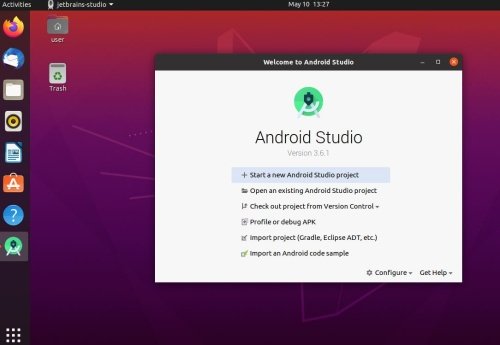
<img decoding="async" src="https://www.krizna.com/wp-content/uploads/2020/05/Install_android_studio_ubuntu_20.04.jpg" alt="install android studio on ubuntu 20.04" width="500" height="345" class="aligncenter size-full wp-image-1792" srcset="https://www.krizna.com/wp-content/uploads/2020/05/Install_android_studio_ubuntu_20.04.jpg 500w, https://www.krizna.com/wp-content/uploads/2020/05/Install_android_studio_ubuntu_20.04-300x207.jpg 300w" sizes="(max-width: 500px) 100vw, 500px" /><br />
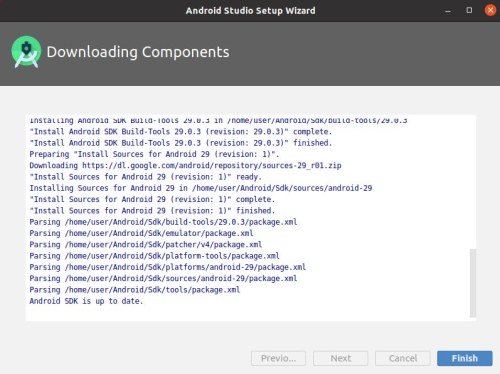
Once you launch, Just follow the default options in the window if you are beginner.<br />
<img decoding="async" src="https://www.krizna.com/wp-content/uploads/2020/05/android_studio_ubuntu_wizard_4.jpg" alt="Android studio ubuntu 20.04" width="500" height="374" class="aligncenter size-full wp-image-1793" srcset="https://www.krizna.com/wp-content/uploads/2020/05/android_studio_ubuntu_wizard_4.jpg 500w, https://www.krizna.com/wp-content/uploads/2020/05/android_studio_ubuntu_wizard_4-300x224.jpg 300w, https://www.krizna.com/wp-content/uploads/2020/05/android_studio_ubuntu_wizard_4-326x245.jpg 326w, https://www.krizna.com/wp-content/uploads/2020/05/android_studio_ubuntu_wizard_4-80x60.jpg 80w" sizes="(max-width: 500px) 100vw, 500px" /></p>
<h3 id="snap"> Using snap </h3>
<p>We can install using snap tool. Usually snap repository would have much latest version than regular apt repository.<br />
<strong>Step 1.</strong> Similarly, We need to install Java JDK which is required for android studio.<br />
<code> sudo apt install openjdk-11-jdk</code><br />
<strong>Step 2.</strong> Now install android studio using snap. This will install software with dependencies similar to apt.<br />
<code> sudo snap install android-studio --classic </code><br />
<strong>Step 3.</strong> Finally, Launch the software using application launcher.<br />
Similarly same goes here. Once you launch, Just follow the default options in the window if you are beginner.<br />
<img decoding="async" src="https://www.krizna.com/wp-content/uploads/2020/05/Install_android_studio_ubuntu_20.04.jpg" alt="install android studio on ubuntu 20.04" width="500" height="345" class="aligncenter size-full wp-image-1792" srcset="https://www.krizna.com/wp-content/uploads/2020/05/Install_android_studio_ubuntu_20.04.jpg 500w, https://www.krizna.com/wp-content/uploads/2020/05/Install_android_studio_ubuntu_20.04-300x207.jpg 300w" sizes="(max-width: 500px) 100vw, 500px" /><br />
See also.<br />
<a href="https://www.krizna.com/ubuntu/install-anydesk-ubuntu-20-04/">How to install Anydesk on ubuntu 20.04</a><br />
<a href="https://www.krizna.com/ubuntu/install-mysql-workbench-ubuntu-20-04/">How to install MySQL workbench on ubuntu 20.04</a><br />
<a href="https://www.krizna.com/ubuntu/install-visual-studio-code-ubuntu-20-04/">How to install Visual Studio Code on ubuntu 20.04</a></p>
]]></content>
		
					<link rel="replies" type="text/html" href="https://www.krizna.com/ubuntu/install-android-studio-ubuntu-20-04/#comments" thr:count="0" />
			<link rel="replies" type="application/atom+xml" href="https://www.krizna.com/ubuntu/install-android-studio-ubuntu-20-04/feed/atom/" thr:count="0" />
			<thr:total>0</thr:total>
			</entry>
		<entry>
		<author>
			<name>krizna</name>
					</author>

		<title type="html"><![CDATA[How to install google chrome on ubuntu 20.04]]></title>
		<link rel="alternate" type="text/html" href="https://www.krizna.com/ubuntu/install-google-chrome-ubuntu-20-04/" />

		<id>https://www.krizna.com/?p=1787</id>
		<updated>2020-05-28T06:12:26Z</updated>
		<published>2020-05-06T18:38:16Z</published>
		<category scheme="https://krizna.com/" term="Ubuntu" /><category scheme="https://krizna.com/" term="Ubuntu 20.04" /><category scheme="https://krizna.com/" term="google chrome" /><category scheme="https://krizna.com/" term="how to" /><category scheme="https://krizna.com/" term="installation" /><category scheme="https://krizna.com/" term="step by step" /><category scheme="https://krizna.com/" term="ubuntu" />
		<summary type="html"><![CDATA[Google chrome is a most popular web browser developed by google. It was developed to compete with firefox. In this article, we will see about <a class="mh-excerpt-more" href="https://www.krizna.com/ubuntu/install-google-chrome-ubuntu-20-04/" title="How to install google chrome on ubuntu 20.04">[...]</a>]]></summary>

					<content type="html" xml:base="https://www.krizna.com/ubuntu/install-google-chrome-ubuntu-20-04/"><![CDATA[<p><a href="https://www.google.com/chrome/">Google chrome</a> is a most popular web browser developed by google.<br />
It was developed to compete with firefox. In this article, we will see about how to install google chrome on ubuntu 20.04.</p>
<p>Google chrome is cross platform web browser which supports mostly all platforms like Linux, Windows, MacOS, Android, IOS and even more.<br />
It is fast, secure and reliable. In addition, It has many features and large number of extensions to support various functionalities.<br />
But there is a big disadvantage, It consumes more CPU and memory when compared to other popular browsers. </p>
<h2> Install Google chrome on Ubuntu 20.04 </h2>
<p>There are many ways to install software on Ubuntu. We will see how to install google chrome using below 2 methods.<br />
1) <a href="#repo">Using repository</a><br />
2) <a href="#manual">Manual method</a></p>
<h3 id="repo"> Using repository </h3>
<p>We can install google chrome by adding chrome official repository url to the sources list. This method is recommended since it will install software along with dependencies.<br />
<strong>Step 1.</strong> Add chrome repository by using the below command. This command will create a new file with chrome repository details.<br />
<code> sudo bash -c 'echo "deb [arch=amd64] http://dl.google.com/linux/chrome/deb/ stable main" >> /etc/apt/sources.list.d/google-chrome.list' </code><br />
<strong>Step 2.</strong> Now add the signing key for the repository.<br />
<code> sudo wget -q -O - https://dl.google.com/linux/linux_signing_key.pub | sudo apt-key add - </code><br />
<strong>Step 3.</strong> Update the apt cache so that it will get the package list from the added repository.<br />
<code> sudo apt update </code><br />
<strong>Step 4.</strong> Finally, Install google chrome by typing below command.<br />
<code> sudo apt install google-chrome-stable </code><br />
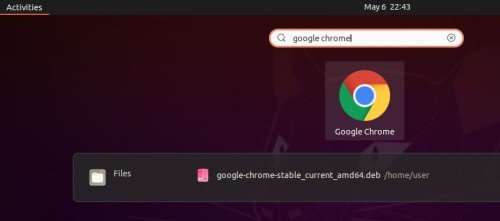
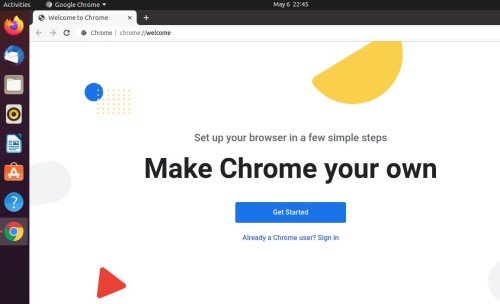
<strong>Step 5.</strong> Now you can launch google chrome using application launcher.<br />
<img decoding="async" src="https://www.krizna.com/wp-content/uploads/2020/05/Install_google_chrome_ubuntu_20_04.jpg" alt="Google chrome ubuntu 20.04" width="500" height="221" class="aligncenter size-full wp-image-1788" srcset="https://www.krizna.com/wp-content/uploads/2020/05/Install_google_chrome_ubuntu_20_04.jpg 500w, https://www.krizna.com/wp-content/uploads/2020/05/Install_google_chrome_ubuntu_20_04-300x133.jpg 300w" sizes="(max-width: 500px) 100vw, 500px" /><br />
<img decoding="async" src="https://www.krizna.com/wp-content/uploads/2020/05/Install_google_chrome_ubuntu_20_04_1.jpg" alt="Install google chrome on ubuntu 20.04" width="500" height="304" class="aligncenter size-full wp-image-1789" srcset="https://www.krizna.com/wp-content/uploads/2020/05/Install_google_chrome_ubuntu_20_04_1.jpg 500w, https://www.krizna.com/wp-content/uploads/2020/05/Install_google_chrome_ubuntu_20_04_1-300x182.jpg 300w" sizes="(max-width: 500px) 100vw, 500px" /></p>
<h3 id="manual"> Manual method </h3>
<p>In Manual method, We can install after manually downloading the software and install using apt.<br />
<strong>Step 1.</strong> Download google chrome debian package using below command. Software will be downloaded to the current directory.<br />
<code> wget https://dl-ssl.google.com/linux/direct/google-chrome-stable_current_amd64.deb </code><br />
<strong>Step 2.</strong> Check the downloaded file and give execute permission.<br />
<code> user@krizna:~$ ls -l google-*<br />
-rw-rw-r-- 1 user user 66985784 May  2  2020 google-chrome-stable_current_amd64.deb</code><br />
Give execute permission to install the downloaded file.<br />
<code> chmod +x google-chrome-stable_current_amd64.deb </code><br />
<strong>Step 3.</strong> Finally, Install the software using below command. This command will install software with dependencies.<br />
<code> sudo apt install ./google-chrome-stable_current_amd64.deb </code><br />
<strong>Step 4.</strong> similarly, you can launch google chrome using launcher.<br />
<img decoding="async" src="https://www.krizna.com/wp-content/uploads/2020/05/Install_google_chrome_ubuntu_20_04_1.jpg" alt="Install google chrome on ubuntu 20.04" width="500" height="304" class="aligncenter size-full wp-image-1789" srcset="https://www.krizna.com/wp-content/uploads/2020/05/Install_google_chrome_ubuntu_20_04_1.jpg 500w, https://www.krizna.com/wp-content/uploads/2020/05/Install_google_chrome_ubuntu_20_04_1-300x182.jpg 300w" sizes="(max-width: 500px) 100vw, 500px" /><br />
See Also,<br />
<a href="https://www.krizna.com/ubuntu/install-mysql-workbench-ubuntu-20-04/">How to install MySQL workbench on ubuntu 20.04</a></p>
]]></content>
		
					<link rel="replies" type="text/html" href="https://www.krizna.com/ubuntu/install-google-chrome-ubuntu-20-04/#comments" thr:count="0" />
			<link rel="replies" type="application/atom+xml" href="https://www.krizna.com/ubuntu/install-google-chrome-ubuntu-20-04/feed/atom/" thr:count="0" />
			<thr:total>0</thr:total>
			</entry>
		<entry>
		<author>
			<name>krizna</name>
					</author>

		<title type="html"><![CDATA[How to install Zoom on ubuntu 20.04]]></title>
		<link rel="alternate" type="text/html" href="https://www.krizna.com/ubuntu/install-zoom-ubuntu-20-04/" />

		<id>https://www.krizna.com/?p=1783</id>
		<updated>2020-05-05T20:33:00Z</updated>
		<published>2020-05-04T19:30:07Z</published>
		<category scheme="https://krizna.com/" term="Ubuntu" /><category scheme="https://krizna.com/" term="Ubuntu 20.04" /><category scheme="https://krizna.com/" term="how to" /><category scheme="https://krizna.com/" term="installation" /><category scheme="https://krizna.com/" term="step by step" /><category scheme="https://krizna.com/" term="ubuntu" /><category scheme="https://krizna.com/" term="zoom" />
		<summary type="html"><![CDATA[Zoom is a popular video conferencing software. It is commonly used for conducting online meetings, virtual classes, web conferencing, live chat and even more. In <a class="mh-excerpt-more" href="https://www.krizna.com/ubuntu/install-zoom-ubuntu-20-04/" title="How to install Zoom on ubuntu 20.04">[...]</a>]]></summary>

					<content type="html" xml:base="https://www.krizna.com/ubuntu/install-zoom-ubuntu-20-04/"><![CDATA[<p><a href="https://zoom.us/">Zoom </a>is a popular video conferencing software. It is commonly used for conducting online meetings, virtual classes, web conferencing, live chat and even more. In this article, we will see how to install Zoom on ubuntu 20.04.</p>
<p>Recently zoom becomes more popular during lockdown. Even it made a headlines because of security bug. Apart from that It is reliable, light weight and cross platform application which supports windows, macOS, Linux, Mobile devices and even more. Like other application, Zoom has both free and paid versions. We can use free version for personal use and host up to 100 participants.<br />
Mostly schools and universities use Zoom to take virtual classes to their students.</p>
<h2> Install Zoom on ubuntu 20.04 </h2>
<p>Zoom application is not available in ubuntu repository. so we have to download from zoom official site and install it manually.<br />
<strong>Step 1.</strong> Download the application from the following link <a rel="nofollow" href="https://zoom.us/download?os=linux">https://zoom.us/download?os=linux</a><br />
Choose &#8220;Linux Type&#8221; as Ubuntu and version as &#8220;14.04+&#8221;.<br />
[OR]<br />
Download the software directly using below command. This will download the software to the currect directory.<br />
<code>wget https://zoom.us/client/latest/zoom_amd64.deb</code><br />
<strong>Step 2.</strong> Go to the directory where the software was downloaded. Check and provide execute permission.<br />
<code>user@krizna:~$ ls -l zoom_amd64.deb<br />
-rwxrwxr-x 1 user user 41529568 Apr 30 15:01 zoom_amd64.deb</code><br />
Provide execute permission to avoid errors.<br />
<code>chmod +x zoom_amd64.deb</code><br />
<strong>Step 3.</strong> Finally, Install the software using below command. This command will install the software along with dependencies.<br />
<code>sudo apt install ./zoom_amd64.deb</code><br />
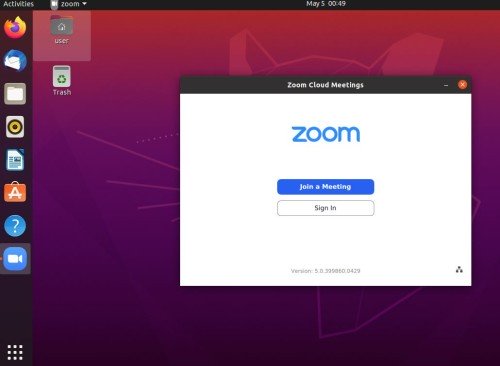
<strong>Step 4.</strong> After installation, you can launch Zoom using application launcher.<br />
<img decoding="async" src="https://www.krizna.com/wp-content/uploads/2020/05/Install_zoom_ubuntu_20.04.jpg" alt="zoom ubuntu 20.04" width="500" height="167" class="aligncenter size-full wp-image-1784" srcset="https://www.krizna.com/wp-content/uploads/2020/05/Install_zoom_ubuntu_20.04.jpg 500w, https://www.krizna.com/wp-content/uploads/2020/05/Install_zoom_ubuntu_20.04-300x100.jpg 300w" sizes="(max-width: 500px) 100vw, 500px" /><br />
<img decoding="async" src="https://www.krizna.com/wp-content/uploads/2020/05/Install_zoom_ubuntu_20.04_1.jpg" alt="install zoom on ubuntu 20.04" width="500" height="366" class="aligncenter size-full wp-image-1785" srcset="https://www.krizna.com/wp-content/uploads/2020/05/Install_zoom_ubuntu_20.04_1.jpg 500w, https://www.krizna.com/wp-content/uploads/2020/05/Install_zoom_ubuntu_20.04_1-300x220.jpg 300w, https://www.krizna.com/wp-content/uploads/2020/05/Install_zoom_ubuntu_20.04_1-80x60.jpg 80w" sizes="(max-width: 500px) 100vw, 500px" /></p>
<p>Additionally, you can test zoom application by joining test call using the following link &#8220;https://zoom.us/test&#8221;</p>
<p>See also<br />
<a href="https://www.krizna.com/ubuntu/install-teamviewer-ubuntu-20-04/">How to install TeamViewer on ubuntu 20.04</a><br />
<a href="https://www.krizna.com/ubuntu/install-anydesk-ubuntu-20-04/">How to install Anydesk on ubuntu 20.04</a></p>
]]></content>
		
					<link rel="replies" type="text/html" href="https://www.krizna.com/ubuntu/install-zoom-ubuntu-20-04/#comments" thr:count="0" />
			<link rel="replies" type="application/atom+xml" href="https://www.krizna.com/ubuntu/install-zoom-ubuntu-20-04/feed/atom/" thr:count="0" />
			<thr:total>0</thr:total>
			</entry>
		<entry>
		<author>
			<name>krizna</name>
					</author>

		<title type="html"><![CDATA[How to install TeamViewer on ubuntu 20.04]]></title>
		<link rel="alternate" type="text/html" href="https://www.krizna.com/ubuntu/install-teamviewer-ubuntu-20-04/" />

		<id>https://www.krizna.com/?p=1780</id>
		<updated>2020-05-27T20:50:10Z</updated>
		<published>2020-05-01T18:34:53Z</published>
		<category scheme="https://krizna.com/" term="Ubuntu" /><category scheme="https://krizna.com/" term="Ubuntu 20.04" /><category scheme="https://krizna.com/" term="how to" /><category scheme="https://krizna.com/" term="installation" /><category scheme="https://krizna.com/" term="remote desktop" /><category scheme="https://krizna.com/" term="teamviewer" /><category scheme="https://krizna.com/" term="ubuntu" />
		<summary type="html"><![CDATA[TeamViewer is a popular application for desktop sharing and remote control. It is available for Windows, linux, mac OS, Android and even more. In this <a class="mh-excerpt-more" href="https://www.krizna.com/ubuntu/install-teamviewer-ubuntu-20-04/" title="How to install TeamViewer on ubuntu 20.04">[...]</a>]]></summary>

					<content type="html" xml:base="https://www.krizna.com/ubuntu/install-teamviewer-ubuntu-20-04/"><![CDATA[<p><a href="https://www.teamviewer.com/en/">TeamViewer </a>is a popular application for desktop sharing and remote control.<br />
It is available for Windows, linux, mac OS, Android and even more. In this article, We can see how to install TeamViewer on ubuntu 20.04.</p>
<p>TeamViewer has many additional features like remote printing and file sharing. Also it has remote rebooting, unattended access, Wake-on-LAN and much more features.<br />
TeamViewer is mostly used for remote assistant to customers and employees.<br />
In addition, It has QuickSupport tool which is lightweight client application. It does not require installation or admin access. Therefore, it provides instant remote access for quick assistant.<br />
Basically TeamViewer has both paid and free version. So we can use free version for personal and non commercial purpose.</p>
<h2>Install TeamViewer on Ubuntu 20.04</h2>
<p><strong>Step 1.</strong> Download teamviewer application for ubuntu from the following link https://www.teamviewer.com/en/download/linux/.<br />
Choose the package for linux and you will find the download link under &#8220;Ubuntu, Debian&#8221;.<br />
[OR]<br />
Use the below command to download. This command will directly download the software to the current directory.<br />
<code> wget https://download.teamviewer.com/download/linux/teamviewer_amd64.deb </code><br />
<strong>Step 2.</strong> Go to the directory where the package is downloaded and give execute permission.<br />
<code> user@krizna:~/Downloads$ ls -l<br />
total 14212<br />
-rw-rw-r-- 1 user user 14551536 Apr 30 19:16 teamviewer_amd64.deb</code><br />
Provide execute permission so that package can be installed.<br />
<code> chmod +x teamviewer_amd64.deb </code><br />
<strong>Step 3.</strong> Now use below command to install the software.<br />
It may require many dependencies. so therefore, system needs to be connected to the internet.<br />
<code>sudo apt install ./teamviewer_amd64.deb</code><br />
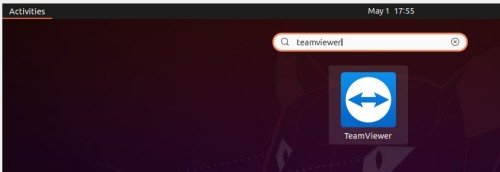
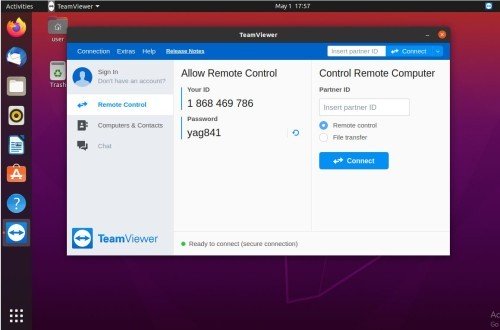
<strong>Step 4.</strong> Finally, you can launch by typing teamviewer in application launcher.<br />
<img decoding="async" src="https://www.krizna.com/wp-content/uploads/2020/05/Install_teamviewer_ubuntu_20_04.jpg" alt="teamviewer  ubuntu 20.04" width="500" height="172" class="aligncenter size-full wp-image-1782" srcset="https://www.krizna.com/wp-content/uploads/2020/05/Install_teamviewer_ubuntu_20_04.jpg 500w, https://www.krizna.com/wp-content/uploads/2020/05/Install_teamviewer_ubuntu_20_04-300x103.jpg 300w" sizes="(max-width: 500px) 100vw, 500px" /><br />
<img decoding="async" src="https://www.krizna.com/wp-content/uploads/2020/05/Install_teamviewer_ubuntu_20_04_1.jpg" alt="Install teamviewer on ubuntu 20.04" width="500" height="330" class="aligncenter size-full wp-image-1781" srcset="https://www.krizna.com/wp-content/uploads/2020/05/Install_teamviewer_ubuntu_20_04_1.jpg 500w, https://www.krizna.com/wp-content/uploads/2020/05/Install_teamviewer_ubuntu_20_04_1-300x198.jpg 300w" sizes="(max-width: 500px) 100vw, 500px" /></p>
<p>We have one more software anydesk which is similar to teamviewer .<br />
Here is the guide <a href="https://www.krizna.com/ubuntu/install-anydesk-ubuntu-20-04/">How to install Anydesk on ubuntu 20.04</a><br />
See also<br />
<a href="https://www.krizna.com/ubuntu/install-zoom-ubuntu-20-04/">How to install Zoom on ubuntu 20.04</a><br />
<a href="https://www.krizna.com/ubuntu/install-mysql-workbench-ubuntu-20-04/">How to install MySQL workbench on ubuntu 20.04</a></p>
]]></content>
		
					<link rel="replies" type="text/html" href="https://www.krizna.com/ubuntu/install-teamviewer-ubuntu-20-04/#comments" thr:count="0" />
			<link rel="replies" type="application/atom+xml" href="https://www.krizna.com/ubuntu/install-teamviewer-ubuntu-20-04/feed/atom/" thr:count="0" />
			<thr:total>0</thr:total>
			</entry>
		<entry>
		<author>
			<name>krizna</name>
					</author>

		<title type="html"><![CDATA[How to install Anydesk on ubuntu 20.04]]></title>
		<link rel="alternate" type="text/html" href="https://www.krizna.com/ubuntu/install-anydesk-ubuntu-20-04/" />

		<id>https://www.krizna.com/?p=1776</id>
		<updated>2020-05-01T18:40:46Z</updated>
		<published>2020-04-29T21:54:50Z</published>
		<category scheme="https://krizna.com/" term="Ubuntu" /><category scheme="https://krizna.com/" term="Ubuntu 20.04" /><category scheme="https://krizna.com/" term="anydesk" /><category scheme="https://krizna.com/" term="how to" /><category scheme="https://krizna.com/" term="installation" /><category scheme="https://krizna.com/" term="step by step" /><category scheme="https://krizna.com/" term="ubuntu" />
		<summary type="html"><![CDATA[Anydesk is the most popular remote desktop connectivity tool. It is available for all platforms like Windows, MAC, linux based systems and even for mobile <a class="mh-excerpt-more" href="https://www.krizna.com/ubuntu/install-anydesk-ubuntu-20-04/" title="How to install Anydesk on ubuntu 20.04">[...]</a>]]></summary>

					<content type="html" xml:base="https://www.krizna.com/ubuntu/install-anydesk-ubuntu-20-04/"><![CDATA[<p><a href="https://anydesk.com/en" rel="noopener noreferrer" target="_blank">Anydesk </a> is the most popular remote desktop connectivity tool. It is available for all platforms like Windows, MAC, linux based systems and even for mobile devices. In this article, We will see how to install Anydesk on ubuntu 20.04 desktop.</p>
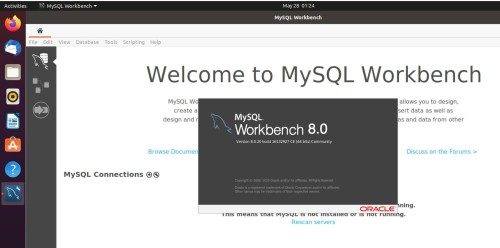
<p>Anydesk has many features like file transfer, TCP tunneling, remote sound, clipboard, remote printing and even more. Therefore, It is mostly used by IT support personal to provide remote assistant.<br />
Anydesk is powerful and stable software which has both paid and free version. So for personal use, we can use this software for free.</p>
<h2>Install Anydesk on ubuntu 20.04</h2>
<p>There are many ways to install Anydesk on ubuntu 20.04. We will follow one of the below methods.<br />
1) <a href="#repo">Using repository</a><br />
2) <a href="#manual">Manual install</a> </p>
<h3 id="repo"> Using repository </h3>
<p>Follow the steps as root user to install Anydesk from the repository.<br />
<strong>Step 1.</strong> Add Anydesk repository key to the Trusted software providers list.<br />
<code> wget -qO - https://keys.anydesk.com/repos/DEB-GPG-KEY | apt-key add - </code><br />
<strong>Step 2.</strong> Now add the repository to the sources list.<br />
Below command will put the repository entry in a new file under /etc/apt/sources.list.d/ directory.<br />
* Execute as single command<br />
<code> echo "deb http://deb.anydesk.com/ all main" > /etc/apt/sources.list.d/anydesk-stable.list </code><br />
<strong>Step 3.</strong> Update the apt cache by running below command.<br />
<code> apt update </code><br />
<strong>Step 4.</strong> Now install the software. This command will download and install Anydesk from repository along with dependencies.<br />
<code> apt install anydesk </code><br />
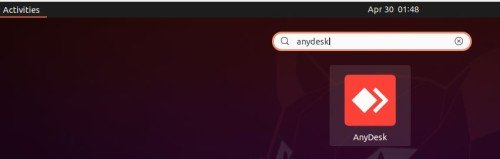
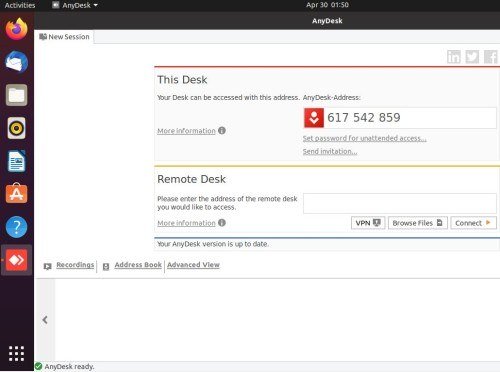
<strong>Step 5.</strong> Finally, You can launch by typing Anydesk in the application launcher.<br />
<img decoding="async" src="https://www.krizna.com/wp-content/uploads/2020/04/Install_Anydesk_ubuntu_20.04.jpg" alt="Install anydesk on ubuntu 20.04" width="500" height="159" class="aligncenter size-full wp-image-1777" srcset="https://www.krizna.com/wp-content/uploads/2020/04/Install_Anydesk_ubuntu_20.04.jpg 500w, https://www.krizna.com/wp-content/uploads/2020/04/Install_Anydesk_ubuntu_20.04-300x95.jpg 300w" sizes="(max-width: 500px) 100vw, 500px" /><br />
<img decoding="async" src="https://www.krizna.com/wp-content/uploads/2020/04/Install_Anydesk_ubuntu_20.04_1.jpg" alt="Anydesk ubuntu 20.04" width="500" height="372" class="aligncenter size-full wp-image-1778" srcset="https://www.krizna.com/wp-content/uploads/2020/04/Install_Anydesk_ubuntu_20.04_1.jpg 500w, https://www.krizna.com/wp-content/uploads/2020/04/Install_Anydesk_ubuntu_20.04_1-300x223.jpg 300w, https://www.krizna.com/wp-content/uploads/2020/04/Install_Anydesk_ubuntu_20.04_1-80x60.jpg 80w" sizes="(max-width: 500px) 100vw, 500px" /></p>
<h3 id="manual"> Manual install </h3>
<p>This method same is similar to previous method. However, we can download the latest software from Anydesk site and install locally.<br />
<strong>Step 1.</strong> Download the latest Anydesk software from the following link https://anydesk.com/en/downloads/linux using web browser.<br />
[OR]<br />
Use the following command to download latest software.<br />
* Execute as single command<br />
<code> wget $(wget -q -O anydesk https://anydesk.com/en/downloads/linux &&  grep -Eo "(http|https)://[a-zA-Z0-9./?=_-]*amd64.deb" anydesk | head -1 ) &&  rm anydesk </code><br />
<strong>Step 2.</strong> After that go to the downloaded directory and check the file.<br />
<code>user@krizna:~/Downloads$ ls -l<br />
anydesk_5.5.5-1_amd64.deb</code>Give execute permission so that we can install the software.<br />
<code>chmod +x anydesk_5.5.5-1_amd64.deb</code><br />
<strong>Step 3.</strong> Now install the downloaded software.<br />
This command will install the downloaded package. In addition, It will install the dependencies needed for the software.<br />
<code>sudo apt install ./anydesk_5.5.5-1_amd64.deb</code><br />
<strong>Step 4.</strong> Finally, You can launch the application by typing Anydesk in the application launcher.<br />
<img decoding="async" src="https://www.krizna.com/wp-content/uploads/2020/04/Install_Anydesk_ubuntu_20.04_1.jpg" alt="Anydesk ubuntu 20.04" width="500" height="372" class="aligncenter size-full wp-image-1778" srcset="https://www.krizna.com/wp-content/uploads/2020/04/Install_Anydesk_ubuntu_20.04_1.jpg 500w, https://www.krizna.com/wp-content/uploads/2020/04/Install_Anydesk_ubuntu_20.04_1-300x223.jpg 300w, https://www.krizna.com/wp-content/uploads/2020/04/Install_Anydesk_ubuntu_20.04_1-80x60.jpg 80w" sizes="(max-width: 500px) 100vw, 500px" /><br />
See also<br />
» <a href="https://www.krizna.com/centos/setup-vnc-server-centos-8-rhel-8/">How to setup VNC server on centos 8 / RHEL 8</a><br />
» <a href="https://www.krizna.com/ubuntu/install-teamviewer-ubuntu-20-04/">How to install TeamViewer on ubuntu 20.04</a></p>
]]></content>
		
					<link rel="replies" type="text/html" href="https://www.krizna.com/ubuntu/install-anydesk-ubuntu-20-04/#comments" thr:count="0" />
			<link rel="replies" type="application/atom+xml" href="https://www.krizna.com/ubuntu/install-anydesk-ubuntu-20-04/feed/atom/" thr:count="0" />
			<thr:total>0</thr:total>
			</entry>
		<entry>
		<author>
			<name>krizna</name>
					</author>

		<title type="html"><![CDATA[How to setup VNC server on centos 8 / RHEL 8]]></title>
		<link rel="alternate" type="text/html" href="https://www.krizna.com/centos/setup-vnc-server-centos-8-rhel-8/" />

		<id>https://www.krizna.com/?p=1770</id>
		<updated>2020-04-30T17:37:44Z</updated>
		<published>2020-03-10T17:07:22Z</published>
		<category scheme="https://krizna.com/" term="Centos" /><category scheme="https://krizna.com/" term="Centos8" /><category scheme="https://krizna.com/" term="Basic guide" /><category scheme="https://krizna.com/" term="Centos 8" /><category scheme="https://krizna.com/" term="how to" /><category scheme="https://krizna.com/" term="Linux" /><category scheme="https://krizna.com/" term="step by step" /><category scheme="https://krizna.com/" term="VNC" />
		<summary type="html"><![CDATA[VNC application is used to access graphical desktop of remote machine. In this article, we will see about setup VNC server on centos 8 / <a class="mh-excerpt-more" href="https://www.krizna.com/centos/setup-vnc-server-centos-8-rhel-8/" title="How to setup VNC server on centos 8 / RHEL 8">[...]</a>]]></summary>

					<content type="html" xml:base="https://www.krizna.com/centos/setup-vnc-server-centos-8-rhel-8/"><![CDATA[<p>VNC application is used to access graphical desktop of remote machine. In this article, we will see about setup VNC server on centos 8 / RHEL 8.</p>
<p><a href="https://tigervnc.org/">Tigervnc </a>is one of the most popular VNC software available for Centos / RHEL. We can easily install using yum or dnf, since it is available in the default repository.</p>
<h2>Setup VNC Server on Centos 8 / RHEL 8</h2>
<p>First of all, We need desktop environment installed on servers in order to setup VNC. Basically all desktop versions will have desktop environment, so you can skip step 2 if you are using desktop version.<br />
<strong>Step 1.</strong> Let&#8217;s start, First update the installed packages to the latest version using below command. Please note it will update most of the packages to latest version so maybe you can <strong>skip this step in critical production machines</strong>.<br />
<code>[root@krizna ~]# dnf update -y</code><br />
<strong>Step 2.</strong> Install GNOME Desktop environment if you are using server version without GUI. This may take some time to complete.<br />
<code>[root@krizna ~]# dnf groupinstall "Server with GUI" -y</code><br />
<strong>Step 3.</strong> Edit this file &#8220;/etc/gdm/custom.conf&#8221; and uncomment following line to disable Wayland.<br />
<code>WaylandEnable=false</code> Or You can use this command to uncomment the line.<br />
<code>[root@krizna ~]# sed -i 's/#WaylandEnable/WaylandEnable/g' /etc/gdm/custom.conf</code><br />
<strong>Step 4.</strong> Type this command to change system to runlevel 5 without rebooting.<br />
<code>[root@krizna ~]# systemctl isolate graphical.target</code><br />
<strong>Step 5.</strong> Now install tigervnc package with dependencies.<br />
<code>[root@krizna ~]# dnf install tigervnc-server tigervnc-server-module -y</code><br />
<strong>Step 6.</strong> Create an user John for VNC . Also create password and VNC access password for that user.<br />
<code>[root@krizna ~]# adduser john<br />
[root@krizna ~]# passwd john<br />
[root@krizna ~]# su - john<br />
[john@krizna ~]$ vncpasswd<br />
[john@krizna ~]$ exit<br />
logout</code><br />
<strong>Step 7.</strong> Create a systemd service file by copying default vncserver@.service, so we can modify and start the service.<br />
<code>cp /lib/systemd/system/vncserver@.service /etc/systemd/system/vncserver@:1.service</code><br />
<code>vi /etc/systemd/system/vncserver@:1.service</code><br />
Modify below line (Line no : 29) with the username we created in previous step.<br />
Replace < USER > with john<br />
<code>ExecStart=/usr/bin/vncserver_wrapper &ltUSER&gt %i</code>Therefore my file will looks like below<br />
<code>ExecStart=/usr/bin/vncserver_wrapper john %i</code><br />
<strong>Step 8.</strong> Run these commands to start and enable vncservice during startup.<br />
We have to reload systemd daemon since we edited/added systemd service file.<br />
<code>[root@krizna ~]# systemctl daemon-reload</code>Now start the service.<br />
<code>[root@krizna ~]# systemctl start  vncserver@:1.service</code>Enable the service to start automatically during reboot.<br />
<code>[root@krizna ~]# systemctl enable vncserver@:1.service</code><br />
<strong>Step 9.</strong> Finally allow VNC service in firewalld.<br />
Get the default zone and add vnc-server to the zone and reload.<br />
<code>[root@krizna ~]# firewall-cmd --get-default-zone<br />
public<br />
[root@krizna ~]# firewall-cmd --zone=public --permanent --add-service=vnc-server<br />
success<br />
[root@krizna ~]# firewall-cmd --reload<br />
success</code><br />
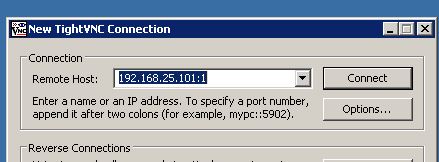
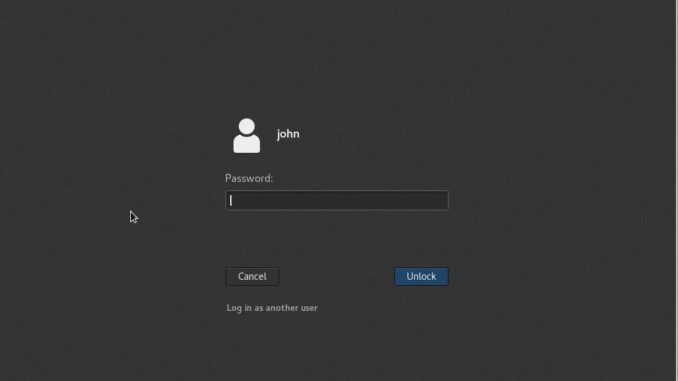
<strong>Step 10.</strong> We almost there, Now you can access server using IPaddress with VNCport 5901 (Eg: IPADDRESS:5901 or IPADDRESS:1).<br />
In order to access VNC server we need VNC client software installed in your desktop . <a href="https://www.realvnc.com/en/">Realvnc</a> and TigerVNC are the popular softwares, so we can use any one of them.<br />
<img decoding="async" src="https://www.krizna.com/wp-content/uploads/2020/03/setup-VNC-server-centos-8.jpg" alt="setup VNC server on centos 8 " width="439" height="162" class="aligncenter size-full wp-image-1771" srcset="https://www.krizna.com/wp-content/uploads/2020/03/setup-VNC-server-centos-8.jpg 439w, https://www.krizna.com/wp-content/uploads/2020/03/setup-VNC-server-centos-8-300x111.jpg 300w" sizes="(max-width: 439px) 100vw, 439px" /><br />
<img decoding="async" src="https://www.krizna.com/wp-content/uploads/2020/03/setup-VNC-server-RHEL-8-678x381.jpg" alt="" width="678" height="381" class="aligncenter size-mh-magazine-lite-content wp-image-1772" /><br />
In case if you see black screen when connecting VNC, you may try rebooting the server. </p>
<h3> Additional users </h3>
<p>You can also create additional user by following step 6 and step 7 . After creating user, create service file as per step 7 and name it as vncserver@:2.service. Therefore you can use IPaddress:5902 or IPaddress:2 to access VNC session created for that user.<br />
Also See:<br />
<a href="https://www.krizna.com/centos/install-vnc-server-centos-7/">How to install VNC server on Centos 7</a></p>
]]></content>
		
					<link rel="replies" type="text/html" href="https://www.krizna.com/centos/setup-vnc-server-centos-8-rhel-8/#comments" thr:count="0" />
			<link rel="replies" type="application/atom+xml" href="https://www.krizna.com/centos/setup-vnc-server-centos-8-rhel-8/feed/atom/" thr:count="0" />
			<thr:total>0</thr:total>
			</entry>
		<entry>
		<author>
			<name>krizna</name>
					</author>

		<title type="html"><![CDATA[How to configure a static IP address on RHEL 8 and Centos 8]]></title>
		<link rel="alternate" type="text/html" href="https://www.krizna.com/rhel/how-configure-static-ipaddress-rhel8-centos8/" />

		<id>https://www.krizna.com/?p=1754</id>
		<updated>2020-01-07T14:50:04Z</updated>
		<published>2020-01-05T22:08:59Z</published>
		<category scheme="https://krizna.com/" term="Centos8" /><category scheme="https://krizna.com/" term="RHEL" /><category scheme="https://krizna.com/" term="RHEL8" /><category scheme="https://krizna.com/" term="Centos 8" /><category scheme="https://krizna.com/" term="how to" /><category scheme="https://krizna.com/" term="IP address" /><category scheme="https://krizna.com/" term="Network" /><category scheme="https://krizna.com/" term="RHEL 8" /><category scheme="https://krizna.com/" term="static" />
		<summary type="html"><![CDATA[There are many different ways to configure a static IP address on RHEL 8 and Centos 8 servers. Here we can cover these 3 methods <a class="mh-excerpt-more" href="https://www.krizna.com/rhel/how-configure-static-ipaddress-rhel8-centos8/" title="How to configure a static IP address on RHEL 8 and Centos 8">[...]</a>]]></summary>

					<content type="html" xml:base="https://www.krizna.com/rhel/how-configure-static-ipaddress-rhel8-centos8/"><![CDATA[<p>There are many different ways to configure a static IP address on RHEL 8 and Centos 8 servers. Here we can cover these 3 methods .<br />
1) <a href="#nmtui">Nmtui Tool</a><br />
2) <a href="#nmcli">Nmcli Tool</a><br />
3) <a href="#editconfig">Editing network config files</a><br />
For beginners, I would recommend nmtui tool which is easy to assign using TUI. Other 2 methods needs some extra care since all commands and values are case sensitive .<br />
After OS installation, Usually we cannot connect to the server using SSH till we assign the IP address. In this case, You can access the server via remote console and you can assign IP address using any of these methods. Of course you can SSH if you already assigned IP address during installation and you can use this article to modify IP address.</p>
<p>First check the active interfaces on the server using <strong>“nmcli con”</strong> command<br />
<code>[root@krizna ~]#  nmcli con<br />
NAME    UUID                                  TYPE      DEVICE<br />
ens192  1432ce8b-92c1-4bc2-bdf4-2b13b7c96304  ethernet  ens192<br />
ens224  82ec75e5-6efa-3045-86cc-7c00bb2c403d  ethernet  ens224</code><br />
Here we have 2 active connections ens192 and ens224. We will see how to assign IP address for ens192 interface using different method.</p>
<h2 id="nmtui"> 1) Configure static IP address using Nmtui Tool ( TUI ) </h2>
<p><a href="https://access.redhat.com/documentation/en-US/Red_Hat_Enterprise_Linux/7/html/Networking_Guide/sec-Networking_Config_Using_nmtui.html" rel="nofollow">Nmtui tool</a> is simple text user interface tool which is very easy to use . You can use this method if you are not familiar with editing files or typing commands.<br />
You can use the arrow keys to move forward and hit enter to select the option on the screen.<br />
We are going to use below details for this method.</p>
<ul>
Network interface : ens192<br />
IP address : 192.168.1.10<br />
Subnet prefix : 24<br />
Gateway : 192.168.1.1<br />
DNS : 8.8.8.8</ul>
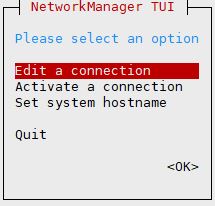
<p>» Type the <strong>&#8220;nmtui&#8221;</strong> command to open nmtui GUI.<br />
<code>[root@krizna ~]# nmtui</code><br />
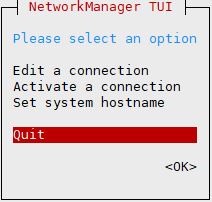
» Choose <strong>&#8220;Edit a connection&#8221;</strong> and press Enter .<br />
<img decoding="async" src="https://www.krizna.com/wp-content/uploads/2020/01/configure-static-ip-address-nmtui.jpg" alt="nmtui rhel8" width="215" height="206" class="aligncenter size-full wp-image-1755" /><br />
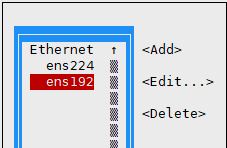
» Here you may see multiple network interfaces connected to the server. so choose the correct interface which you want to configure and press Enter.<br />
<img decoding="async" src="https://www.krizna.com/wp-content/uploads/2020/01/configure-static-ip-address-nmtui-2.jpg" alt="configure static ip address centos 8" width="227" height="148" class="aligncenter size-full wp-image-1756" /><br />
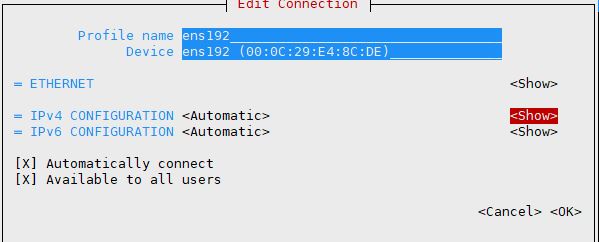
» In this screen you will see many options. however, we will use only few.<br />
 Select <strong>“show”</strong> in IPv4 CONFIGURATION and hit Enter. You will see more options now.<br />
<img decoding="async" src="https://www.krizna.com/wp-content/uploads/2020/01/configure-static-ip-address-nmtui-3.jpg" alt="configure static ip address rhel 8" width="599" height="242" class="aligncenter size-full wp-image-1757" srcset="https://www.krizna.com/wp-content/uploads/2020/01/configure-static-ip-address-nmtui-3.jpg 599w, https://www.krizna.com/wp-content/uploads/2020/01/configure-static-ip-address-nmtui-3-300x121.jpg 300w" sizes="(max-width: 599px) 100vw, 599px" /></p>
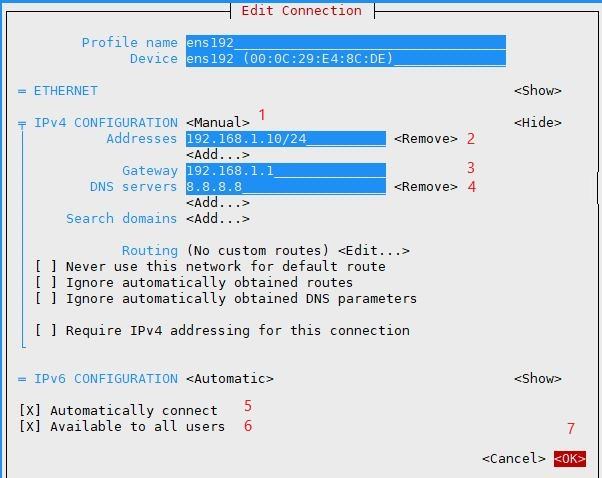
<ul>
1. Select Manual in the dropdown options<br />
2. Enter IP address with subnet mask<br />
3. Enter Gateway<br />
4. Enter DNS servers<br />
5. Choose “Automatically connect” to activate this connection after reboot<br />
6. Choose “Available to all users” to make this connection available for all users.<br />
7. Finally select <strong>&#8220;ok&#8221;</strong> at the bottom and hit Enter.</ul>
<p><img decoding="async" src="https://www.krizna.com/wp-content/uploads/2020/01/configure-static-ip-address-nmtui-4.jpg" alt="ip address nmtui centos 8" width="602" height="478" class="aligncenter size-full wp-image-1759" srcset="https://www.krizna.com/wp-content/uploads/2020/01/configure-static-ip-address-nmtui-4.jpg 602w, https://www.krizna.com/wp-content/uploads/2020/01/configure-static-ip-address-nmtui-4-300x238.jpg 300w" sizes="(max-width: 602px) 100vw, 602px" /><br />
» In the next screen select <strong>back</strong> and hit enter.<br />
» Now choose <strong>Quit</strong> and hit enter to exit.<br />
<img decoding="async" src="https://www.krizna.com/wp-content/uploads/2020/01/configure-static-IP-address-redhat-8.jpg" alt="ip address nmtui redhat 8" width="212" height="202" class="aligncenter size-full wp-image-1760" /><br />
» We have assigned the IP address. Now restart the interface using below commands to update the IP address.<br />
<code>[root@krizna ~]# ifdown ens192<br />
[root@krizna ~]# ifup ens192</code><br />
» Verify the IP address using <strong>&#8220;ip add show <interface name>&#8220;</strong>. You can see the IP address and netmask in the below output.<br />
<code>[root@krizna ~]# ip add show ens192<br />
2: ens192: <BROADCAST,MULTICAST,UP,LOWER_UP> mtu 1500 qdisc fq_codel state UP group default qlen 1000<br />
    link/ether 00:0c:29:e4:8c:de brd ff:ff:ff:ff:ff:ff<br />
    inet 192.168.1.10/24 brd 192.168.1.255 scope global noprefixroute ens192<br />
       valid_lft forever preferred_lft forever<br />
    inet6 fe80::1c37:829:75b0:cfa/64 scope link noprefixroute<br />
       valid_lft forever preferred_lft forever</code></p>
<h2 id="nmcli"> 2) Configure static IP address using Nmcli Tool</h2>
<p><a href="https://developer.gnome.org/NetworkManager/stable/nmcli.html" rel="nofollow">Nmcli tool</a> is a command-line tool installed by default. It is used to create,delete,edit,active and deactivate network connections.<br />
This method is also quite simple to assign the IP address. Follow the steps .<br />
Replace with your IP address and interface name in the following steps.<br />
We are going to use below details for this method.</p>
<ul>
Network interface : ens192<br />
IP address : 192.168.1.2<br />
Subnet prefix : 24<br />
Gateway : 192.168.1.1<br />
DNS : 8.8.8.8</ul>
<p>» Set the interface configuration method to manual.<br />
<code>[root@krizna ~]# nmcli con mod ens192 ipv4.method manual</code><br />
» Assign the IP address with subnet prefix 24.<br />
<code>[root@krizna ~]# nmcli con mod ens192 ipv4.addresses 192.168.1.2/24</code><br />
» Set the gateway for the interface.<br />
<code>[root@krizna ~]# nmcli con mod ens192 ipv4.gateway 192.168.1.1</code><br />
» Assign DNS nameserver IP.<br />
<code>[root@krizna ~]# nmcli con mod ens192 ipv4.dns "8.8.8.8"</code><br />
» Now restart the interface using below commands to update the assigned IP address.<br />
<code>[root@krizna ~]# ifdown ens192<br />
[root@krizna ~]# ifup ens192</code><br />
» Verify the IP address using <strong>&#8220;ip add show <interface name>&#8220;</strong>. You can see the IP address and netmask in the below output.<br />
<code>[root@krizna ~]# ip add show ens192<br />
2: ens192: <BROADCAST,MULTICAST,UP,LOWER_UP> mtu 1500 qdisc fq_codel state UP group default qlen 1000<br />
    link/ether 00:0c:29:e4:8c:de brd ff:ff:ff:ff:ff:ff<br />
    inet 192.168.1.2/24 brd 192.168.1.255 scope global noprefixroute ens192<br />
       valid_lft forever preferred_lft forever<br />
    inet6 fe80::1c37:829:75b0:cfa/64 scope link noprefixroute<br />
       valid_lft forever preferred_lft forever</code></p>
<h2 id="editconfig"> 3) Configure static IP address by editing network config files</h2>
<p>On RHEL 8 and Centos 8, Network interface configuration files can be located under <strong>/etc/sysconfig/network-scripts/</strong> with file name ifcfg-[interface name]. In our case filename will be <strong>ifcfg-ens192</strong>.<br />
We are going to use below details for this method.</p>
<ul>
Network interface : ens192<br />
IP address : 192.168.1.3<br />
Subnet prefix : 24<br />
Gateway : 192.168.1.1<br />
DNS : 8.8.8.8</ul>
<p>» Find the interface config file.<br />
<code>[root@krizna ~]# ls /etc/sysconfig/network-scripts/<br />
<strong>ifcfg-ens192</strong>  ifcfg-ens224</code><br />
» Here you can see ifcfg-ens192 file is present in that location. Now modify below lines in the file using vi editor.</p>
<ul>
BOOTPROTO=none<br />
IPADDR=192.168.1.3<br />
PREFIX=24<br />
GATEWAY=192.168.1.1<br />
DNS1=8.8.8.8</ul>
<p>Final file should looks like below after modification<br />
<code>[root@krizna ~]# vi /etc/sysconfig/network-scripts/ifcfg-ens192<br />
TYPE=Ethernet<br />
PROXY_METHOD=none<br />
BROWSER_ONLY=no<br />
BOOTPROTO=none<br />
DEFROUTE=yes<br />
IPV4_FAILURE_FATAL=no<br />
IPV6INIT=yes<br />
IPV6_AUTOCONF=yes<br />
IPV6_DEFROUTE=yes<br />
IPV6_FAILURE_FATAL=no<br />
IPV6_ADDR_GEN_MODE=stable-privacy<br />
NAME=ens192<br />
UUID=1432ce8b-92c1-4bc2-bdf4-2b13b7c96304<br />
DEVICE=ens192<br />
ONBOOT=yes<br />
IPADDR=192.168.1.3<br />
PREFIX=24<br />
GATEWAY=192.168.1.1<br />
DNS1=8.8.8.8</code><br />
» Now restart the interface using below commands to update the assigned IP address.<br />
<code>[root@krizna ~]# ifdown ens192<br />
[root@krizna ~]# ifup ens192</code><br />
» Verify the IP address using <strong>&#8220;ip add show <interface name>&#8220;</strong>. You can see the IP address and netmask in the below output.<br />
<code>[root@krizna ~]# ip add show ens192<br />
2: ens192: <BROADCAST,MULTICAST,UP,LOWER_UP> mtu 1500 qdisc fq_codel state UP group default qlen 1000<br />
    link/ether 00:0c:29:e4:8c:de brd ff:ff:ff:ff:ff:ff<br />
    inet 192.168.1.3/24 brd 192.168.1.255 scope global noprefixroute ens192<br />
       valid_lft forever preferred_lft forever<br />
    inet6 fe80::1c37:829:75b0:cfa/64 scope link noprefixroute<br />
       valid_lft forever preferred_lft forever</code><br />
» Sometimes you may not see the file in that location. In that case, Just create a new file with below content and restart the network using ifup and ifdown commands.<br />
<code>[root@krizna ~]# vi /etc/sysconfig/network-scripts/ifcfg-ens192<br />
TYPE=Ethernet<br />
BOOTPROTO=none<br />
NAME=ens192<br />
DEVICE=ens192<br />
ONBOOT=yes<br />
IPADDR=192.168.1.3<br />
PREFIX=24<br />
GATEWAY=192.168.1.1<br />
DNS1=8.8.8.8</code></p>
<p>That&#8217;s it. All the best.</p>
<p>Also see<br />
<a href="https://www.krizna.com/centos/setup-network-centos-7/">How to Setup network on centos 7</a></p>
]]></content>
		
					<link rel="replies" type="text/html" href="https://www.krizna.com/rhel/how-configure-static-ipaddress-rhel8-centos8/#comments" thr:count="0" />
			<link rel="replies" type="application/atom+xml" href="https://www.krizna.com/rhel/how-configure-static-ipaddress-rhel8-centos8/feed/atom/" thr:count="0" />
			<thr:total>0</thr:total>
			</entry>
		<entry>
		<author>
			<name>krizna</name>
					</author>

		<title type="html"><![CDATA[Setup LAMP server on ubuntu 18.04 &#8211; Apache,MySQL and PHP]]></title>
		<link rel="alternate" type="text/html" href="https://www.krizna.com/ubuntu/setup-lamp-server-on-ubuntu-18-04/" />

		<id>https://www.krizna.com/?p=1724</id>
		<updated>2018-07-03T16:50:23Z</updated>
		<published>2018-06-18T18:45:00Z</published>
		<category scheme="https://krizna.com/" term="Ubuntu" /><category scheme="https://krizna.com/" term="Ubuntu 18.04" /><category scheme="https://krizna.com/" term="Apache2" /><category scheme="https://krizna.com/" term="Basic guide" /><category scheme="https://krizna.com/" term="how to" /><category scheme="https://krizna.com/" term="installation" /><category scheme="https://krizna.com/" term="Mysql" /><category scheme="https://krizna.com/" term="php" /><category scheme="https://krizna.com/" term="step by step" /><category scheme="https://krizna.com/" term="ubuntu 18.04" /><category scheme="https://krizna.com/" term="ubuntu server" />
		<summary type="html"><![CDATA[LAMP stack is basically a web server setup on Linux with combination of opensource softwares like Apache,MySQL and PHP. It is the most popular web <a class="mh-excerpt-more" href="https://www.krizna.com/ubuntu/setup-lamp-server-on-ubuntu-18-04/" title="Setup LAMP server on ubuntu 18.04 &#8211; Apache,MySQL and PHP">[...]</a>]]></summary>
					<content type="html" xml:base="https://www.krizna.com/ubuntu/setup-lamp-server-on-ubuntu-18-04/"><![CDATA[<p>LAMP stack is basically a web server setup on Linux with combination of opensource softwares like Apache,MySQL and PHP. It is the most popular web hosting environment to run dynamic websites like wordpress,joomla,drupal and most of the PHP based websites.<br />
So here Apache is web server, MySQL is database used to store data and PHP is used to process dynamic content.<br />
Setup LAMP server on ubuntu 18.04 is quite easy. In this article we will install and configure each component step by step.</p>
<p>1) <a href="#InstallApache">Install Apache and configure</a><br />
2) <a href="#TestApache">Testing Apache</a><br />
3) <a href="#InstallMysql">Install MySQL and configure</a><br />
4) <a href="#TestMysql">Testing MySQL</a><br />
5) <a href="#InstallPHP">Install PHP</a><br />
6) <a href="#TestPHP">Testing PHP</a><br />
7) <a href="#TestALL">Testing Alltogether</a></p>
<h2 id="InstallApache">1) Install Apache and configure</h2>
<p><strong>Step 1 »</strong> Apache is the most stable and popular web server ( See more <a rel="nofollow" href="https://httpd.apache.org/">Apache</a> ). It is commonly using by web hosting companies all over the world.<br />
We can install Apache using default repository in almost on all ubuntu varients.<br />
So let&#8217;s start, Install Apache with below commands. It may prompt for the password since it requires root privileges to install packages.<br />
<code>krizna@leela:~$ sudo apt update<br />
krizna@leela:~$ sudo apt install apache2 -y</code><br />
<strong>Step 2 »</strong> By default ufw firewall is enabled on server version, As a result it would blocks all traffic from outside.<br />
So we can allow apache ports in ufw firewall using below command. This will allow 80 and 443 port access.<br />
<code>krizna@leela:~$ sudo ufw app info "Apache Full"</code></p>
<h2 id="TestApache">2) Testing Apache</h2>
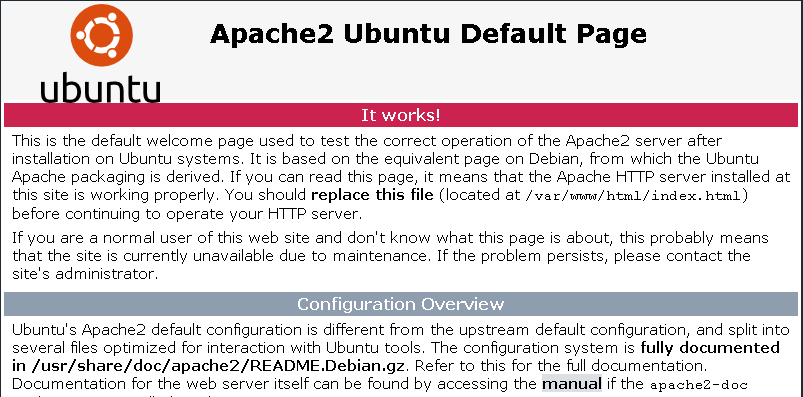
<p><strong>Step 3 »</strong> Now try to access http://SERVERIP ( http://192.168.1.10 ) in your web browser. You should able to see default apache page like below.<br />
<img decoding="async" src="https://www.krizna.com/wp-content/uploads/2018/06/Setup-LAMP-server-ubuntu-18-04-1.png" alt="Setup LAMP server on ubuntu 18.04" width="803" height="397" class="aligncenter size-full wp-image-1725" srcset="https://www.krizna.com/wp-content/uploads/2018/06/Setup-LAMP-server-ubuntu-18-04-1.png 803w, https://www.krizna.com/wp-content/uploads/2018/06/Setup-LAMP-server-ubuntu-18-04-1-300x148.png 300w, https://www.krizna.com/wp-content/uploads/2018/06/Setup-LAMP-server-ubuntu-18-04-1-768x380.png 768w" sizes="(max-width: 803px) 100vw, 803px" /></p>
<h2 id="InstallMysql">3) Install MySQL and configure</h2>
<p><strong>Step 4 »</strong> Once you get apache default page, Start installing MySQL server package using below command.<br />
<code>krizna@leela:~$ sudo apt install mysql-server -y</code><br />
<strong>Step 5 »</strong> Above command will just install MySQL server package with all dependencies. So We have to run below command to configure it.<br />
This command will helps you set password length and complexity. Also it helps you to set root password which is blank by default.Additionally you can remove anonymous user, disallow remote root login and Remove test database.<br />
<code>krizna@leela:~$ sudo mysql_secure_installation</code></p>
<h2 id="TestMysql">4) Testing MySQL</h2>
<p><strong>Step 6 »</strong> Mysql does not allow to use user root for password authentication, since it is using auth_socket authentication method by default. So either we can change auth method for root or we can create new user which would use mysql_native_password method.<br />
Here I prefer second method due to security reason. So use below command to create additional user and test mysql access.<br />
Here we are creating username krizna with password Pass@123.<br />
<code>krizna@leela:~$ sudo mysql -e "CREATE USER 'krizna'@'localhost' IDENTIFIED BY 'Pass@123';"</code><br />
<strong>Step 7 »</strong> Finally now test mysql access by using below command with username and password created.</p>
<pre>krizna@leela:~$ mysql -u krizna -p
Enter password:
Welcome to the MySQL monitor.  Commands end with ; or \g.
Your MySQL connection id is 12
Server version: 5.7.22-0ubuntu18.04.1 (Ubuntu)
Copyright (c) 2000, 2018, Oracle and/or its affiliates. All rights reserved.
Oracle is a registered trademark of Oracle Corporation and/or its
affiliates. Other names may be trademarks of their respective
owners.
Type 'help;' or '\h' for help. Type '\c' to clear the current input statement.
mysql> exit
Bye</pre>
<h2 id="InstallPHP">5) Install PHP</h2>
<p><strong>Step 8 »</strong> Most of all already know that PHP is the most popular programming language for making dynamic web pages. It is used by wordpress,Joomla and drupal.<br />
Here use below command to install PHP along with all dependencies.<br />
<code>krizna@leela:~$ sudo apt install php php-mysql -y</code></p>
<h2 id="TestPHP">6) Testing PHP</h2>
<p><strong>Step 9 »</strong> PHP installation itself would enable all needed modules in apache so we can directly test PHP. Therefore create a <strong><em>phpinfo.php</em></strong></strong> file in <strong><em>/var/www/html/</em></strong> directory with below content.</p>
<pre>&lt;?php
phpinfo();
?&gt</pre>
<p>Simply run the below to create the file with content.<br />
<code>krizna@leela:~$ sudo sh -c "echo '&lt;?php\nphpinfo();\n?&gt;' &gt; /var/www/html/phpinfo.php"</code><br />
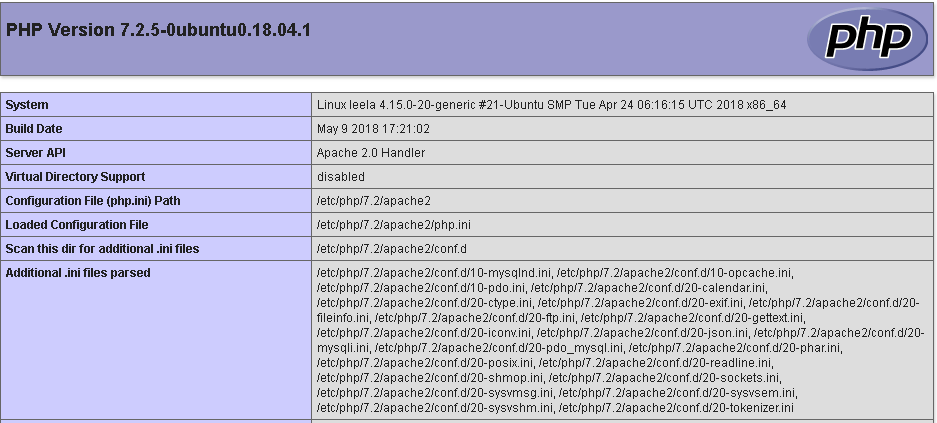
<strong>Step 10 »</strong> So now try to access created page http://SERVERIP/phpinfo.php ( http://192.168.1.10/phpinfo.php ) in you web browser. You should able to see page like below.<br />
<img decoding="async" src="https://www.krizna.com/wp-content/uploads/2018/06/Setup-LAMP-server-ubuntu-18-04-2.png" alt="Setup LAMP server on ubuntu PHP" width="937" height="423" class="aligncenter size-full wp-image-1726" srcset="https://www.krizna.com/wp-content/uploads/2018/06/Setup-LAMP-server-ubuntu-18-04-2.png 937w, https://www.krizna.com/wp-content/uploads/2018/06/Setup-LAMP-server-ubuntu-18-04-2-300x135.png 300w, https://www.krizna.com/wp-content/uploads/2018/06/Setup-LAMP-server-ubuntu-18-04-2-768x347.png 768w" sizes="(max-width: 937px) 100vw, 937px" /></p>
<h2 id="TestALL">7) Testing Alltogether</h2>
<p><strong>Step 11 »</strong> Finally we setup LAMP server on ubuntu 18.04 . Now we can test Apache,PHP and MySQL together with below code. Purpose of this test is to ensure everything is working good especially MySQL access from PHP.<br />
So create <strong><em>/var/www/html/dbtest.php</em></strong> file with below content. Also replace MySQL username and password with your credentials created in step 6.</p>
<pre>&lt;?php
$con = mysqli_connect("localhost","krizna","Pass@123");
if (!$con)
{
die('Could not connect: ' . mysql_error());
}
else
{
echo "Congrats! connection established successfully";
}
mysql_close($con);
?&gt;</pre>
<p><strong>Step 12 »</strong> Now access http://SERVERIP/dbtest.php ( http://192.168.1.10/phpinfo.php ). As a result you should able to see Congrats message if it&#8217;s success.</p>
<p>Once you setup LAMP server on ubuntu 18.04 check this <a rel="nofollow" href="https://www.rosehosting.com/blog/how-to-secure-your-lamp-server/">article</a> to secure the server.<br />
All the best.</p>
<p>Also see<br />
<a href="https://www.krizna.com/centos/install-lamp-server-centos-7/">Setup LAMP server on centos 7</a></p>
]]></content>
		
					<link rel="replies" type="text/html" href="https://www.krizna.com/ubuntu/setup-lamp-server-on-ubuntu-18-04/#comments" thr:count="0" />
			<link rel="replies" type="application/atom+xml" href="https://www.krizna.com/ubuntu/setup-lamp-server-on-ubuntu-18-04/feed/atom/" thr:count="0" />
			<thr:total>0</thr:total>
			</entry>
		<entry>
		<author>
			<name>krizna</name>
					</author>

		<title type="html"><![CDATA[Setup network on ubuntu 18.04]]></title>
		<link rel="alternate" type="text/html" href="https://www.krizna.com/ubuntu/setup-network-ubuntu-18-04/" />

		<id>https://www.krizna.com/?p=1717</id>
		<updated>2018-09-04T17:50:24Z</updated>
		<published>2018-05-12T01:15:11Z</published>
		<category scheme="https://krizna.com/" term="Ubuntu" /><category scheme="https://krizna.com/" term="Ubuntu 18.04" /><category scheme="https://krizna.com/" term="Basic guide" /><category scheme="https://krizna.com/" term="how to" /><category scheme="https://krizna.com/" term="Network" /><category scheme="https://krizna.com/" term="step by step" /><category scheme="https://krizna.com/" term="ubuntu" />
		<summary type="html"><![CDATA[In this tutorial, We are going to see how to setup network on ubuntu 18.04 desktop and server versions. Ubuntu introduced netplan utlity to configure <a class="mh-excerpt-more" href="https://www.krizna.com/ubuntu/setup-network-ubuntu-18-04/" title="Setup network on ubuntu 18.04">[...]</a>]]></summary>

					<content type="html" xml:base="https://www.krizna.com/ubuntu/setup-network-ubuntu-18-04/"><![CDATA[<p>In this tutorial, We are going to see how to setup network on ubuntu 18.04 desktop and server versions. Ubuntu introduced netplan utlity to configure network on ubuntu 18.04 LTS. It uses YAML file format to read network configuration from /etc/netplan/ directory. Here is more information about netplan and <a rel="nofollow" href="https://netplan.io/examples">Netplan examples</a> . </p>
<p>1) <a href="#Server">Server version</a>.<br />
2) <a href="#Desktop">Desktop version</a>.</p>
<h2 id="Server">Server version</h2>
<p><b>Step 1.</b> By default server version is configured to use dhcp. You could see below settings in /etc/netplan/50-cloud-init.yaml file or You may have different filename like 01-netcfg.yaml.<br />
<strong>Filename and interface name (ens32) may differ on environments Virtual OS and Host OS </strong>.</p>
<pre>
network:
    ethernets:
        ens32:
            addresses: []
            dhcp4: true
            optional: true
    version: 2
</pre>
<p>Here <strong><em>ens32</em></strong> is your network interface name. &#8220;<em><strong>dhcp4: true</strong></em>&#8221; value shows that dhcp is enabled for ens32 interface.<br />
So if you have dhcp server in your network, you should able to see ipaddress assigned to your server without making any changes.</p>
<h2 id="Staticserver">Assign Static ipaddress on server</h2>
<p><b>Step 2.</b> To assign static ipaddress to the server. Get ready with network details like subnet,gateway and DNS servers.<br />
Edit /etc/netplan/50-cloud-init.yaml file with all network details as below.</p>
<pre>
network:
	renderer: networkd
    ethernets:
        ens32:
            dhcp4: no
            dhcp6: no
            addresses: [192.168.1.10/24]
            gateway4: 192.168.1.1
            nameservers:
                addresses: [192.168.1.1,8.8.8.8]
    version: 2
</pre>
<p>» Here we have disabled both <em>dhcp4</em> and <em>dhcp6</em> with no option.<br />
» <em><strong>addresses:</strong></em> line should contains server ipaddress with subnet CIDR Prefix (<a rel="nofollow" href="https://doc.m0n0.ch/quickstartpc/intro-CIDR.html">More about CIDR</a>)<br />
» <em><strong>gateway4:</strong></em> line should contains default gateway.<br />
» <em><strong>nameservers:</strong></em> should contains ipaddresses of primary and secondary DNS.<br />
Please make sure you have added those lines with correct format.</p>
<p><b>Step 3.</b> Now apply the changes using below command. It would not show any output if it is success.<br />
<code>krizna@leela:~$ sudo netplan apply<br />
krizna@leela:~$</code><br />
Now check the status by using below command.</p>
<pre>krizna@leela:~$ networkctl status ens32
● 2: ens32
       Link File: /lib/systemd/network/99-default.link
    Network File: /run/systemd/network/10-netplan-ens32.network
            Type: ether
           State: routable (configured)
            Path: pci-0000:02:00.0
          Driver: e1000
          Vendor: Intel Corporation
           Model: 82545EM Gigabit Ethernet Controller (Copper) (PRO/1000 MT Single Port Adapter)
      HW Address: 00:0c:29:0c:ad:a6 (VMware, Inc.)
         Address: 192.168.1.10
                  fe80::20c:29ff:fe0c:ada6
         Gateway: 192.168.1.1
             DNS: 192.168.1.1
                  8.8.8.8</pre>
<p>You could see ip address and other network details assigned to the interface.</p>
<p><b>Step 4.</b> If something wrong or if you see any error while running above command. Use &#8211;debug to see more info.</p>
<p><code>krizna@leela:~$ sudo netplan apply<br />
Error in network definition //etc/netplan/50-cloud-init.yaml line 12 column 24: expected mapping</code></p>
<p><code>krizna@leela:~$ sudo netplan --debug apply<br />
** (generate:23310): DEBUG: 18:36:12.980: Processing input file //etc/netplan/50-cloud-init.yaml..<br />
** (generate:23310): DEBUG: 18:36:12.980: starting new processing pass<br />
Error in network definition //etc/netplan/50-cloud-init.yaml line 12 column 24: expected mapping</code>Here we see some format error on line number 12 which needs to be corrected.</p>
<h2 id="Desktop">Desktop version </h2>
<p><b>Step 5.</b> Here we are going to see about setup network on ubuntu 18.04 Desktop version. DHCP is enabled by default in desktop version as well.So if you have dhcp server in your network, you should get able to get the ipaddress assigned to your machine without doing any changes.<br />
To view the settings click network icon at right top corner next to the volume icon and click &#8220;wired settings&#8221; or &#8220;wireless settings&#8221; .<br />
<img decoding="async" src="https://www.krizna.com/wp-content/uploads/2018/05/Setup-network-ubuntu-1.png" alt="Setup network on ubuntu 18.04" width="361" height="334" class="aligncenter size-full wp-image-1718" srcset="https://www.krizna.com/wp-content/uploads/2018/05/Setup-network-ubuntu-1.png 361w, https://www.krizna.com/wp-content/uploads/2018/05/Setup-network-ubuntu-1-300x278.png 300w" sizes="(max-width: 361px) 100vw, 361px" /></p>
<p><b>Step 6.</b> Now in network window, Click settings icon under wired or wireless and you would see ipaddress in the allocated by dhcp server.<br />
<img decoding="async" src="https://www.krizna.com/wp-content/uploads/2018/05/Setup-network-ubuntu-2.png" alt="Setup network desktop" width="471" height="103" class="aligncenter size-full wp-image-1719" srcset="https://www.krizna.com/wp-content/uploads/2018/05/Setup-network-ubuntu-2.png 471w, https://www.krizna.com/wp-content/uploads/2018/05/Setup-network-ubuntu-2-300x66.png 300w" sizes="(max-width: 471px) 100vw, 471px" /><br />
<img decoding="async" src="https://www.krizna.com/wp-content/uploads/2018/05/Setup-network-ubuntu-3.png" alt="Setup network on ubuntu 18.04" width="449" height="252" class="aligncenter size-full wp-image-1720" srcset="https://www.krizna.com/wp-content/uploads/2018/05/Setup-network-ubuntu-3.png 449w, https://www.krizna.com/wp-content/uploads/2018/05/Setup-network-ubuntu-3-300x168.png 300w" sizes="(max-width: 449px) 100vw, 449px" /></p>
<h2 id="Staticdesktop">Assign Static ipaddress on desktop</h2>
<p><b>Step 7.</b> To assign static ipaddress, Click IPv4 tab in the same window and choose manual option .<br />
» Enter static ipaddress with subnet mask in CIDR prefix and gateway.<br />
» Under DNS, Put Automatic to off and Enter DNS ipadresses separated with commas.<br />
<img decoding="async" src="https://www.krizna.com/wp-content/uploads/2018/05/Setup-network-ubuntu-4.png" alt="Setup network ubuntu" width="530" height="347" class="aligncenter size-full wp-image-1721" srcset="https://www.krizna.com/wp-content/uploads/2018/05/Setup-network-ubuntu-4.png 530w, https://www.krizna.com/wp-content/uploads/2018/05/Setup-network-ubuntu-4-300x196.png 300w" sizes="(max-width: 530px) 100vw, 530px" /><br />
<b>Step 8.</b> Now click &#8220;Apply&#8221; and save the changes. Now restart network service by turnoff and on again.<br />
<img decoding="async" src="https://www.krizna.com/wp-content/uploads/2018/05/Setup-network-ubuntu-5.png" alt="Setup network ubuntu " width="463" height="86" class="aligncenter size-full wp-image-1722" srcset="https://www.krizna.com/wp-content/uploads/2018/05/Setup-network-ubuntu-5.png 463w, https://www.krizna.com/wp-content/uploads/2018/05/Setup-network-ubuntu-5-300x56.png 300w" sizes="(max-width: 463px) 100vw, 463px" /><br />
Click settings again and verify your ipaddress.</p>
<p>Also See</p>
<p><a href="https://www.krizna.com/centos/setup-network-centos-7/">Setup network on centos 7</a></p>
]]></content>
		
					<link rel="replies" type="text/html" href="https://www.krizna.com/ubuntu/setup-network-ubuntu-18-04/#comments" thr:count="2" />
			<link rel="replies" type="application/atom+xml" href="https://www.krizna.com/ubuntu/setup-network-ubuntu-18-04/feed/atom/" thr:count="2" />
			<thr:total>2</thr:total>
			</entry>
		<entry>
		<author>
			<name>krizna</name>
					</author>

		<title type="html"><![CDATA[Enable remote desktop on ubuntu 16.04]]></title>
		<link rel="alternate" type="text/html" href="https://www.krizna.com/ubuntu/enable-remote-desktop-ubuntu-16-04-vnc/" />

		<id>https://www.krizna.com/?p=1694</id>
		<updated>2020-04-29T22:22:12Z</updated>
		<published>2017-03-29T13:11:25Z</published>
		<category scheme="https://krizna.com/" term="Ubuntu" /><category scheme="https://krizna.com/" term="Ubuntu 16.04" /><category scheme="https://krizna.com/" term="installation" /><category scheme="https://krizna.com/" term="remote desktop" /><category scheme="https://krizna.com/" term="step by step" /><category scheme="https://krizna.com/" term="ubuntu" /><category scheme="https://krizna.com/" term="ubuntu 16.04" /><category scheme="https://krizna.com/" term="VNC" />
		<summary type="html"><![CDATA[This article explains how to enable remote desktop on ubuntu 16.04 server and cloud versions. Maybe it can be used for desktop versions. We are <a class="mh-excerpt-more" href="https://www.krizna.com/ubuntu/enable-remote-desktop-ubuntu-16-04-vnc/" title="Enable remote desktop on ubuntu 16.04">[...]</a>]]></summary>

					<content type="html" xml:base="https://www.krizna.com/ubuntu/enable-remote-desktop-ubuntu-16-04-vnc/"><![CDATA[<p>This article explains how to enable remote desktop on ubuntu 16.04 server and cloud versions. Maybe it can be used for desktop versions.<br />
We are going to use VNC package to enable remote desktop connection. So here we can see about installing and configuring VNC service on ubuntu 16.04. </p>
<h2> Package installation </h2>
<p>First of all we have to install ubuntu desktop and supported packages in order to enable remote desktop on ubuntu server.<br />
So we are going to install ubuntu desktop environment with minimal packages to keeps your server lightweight.<br />
<strong>Step 1 »</strong>  Let&#8217;s start. Update the repositories and start installing packages with minimal option. It would take some time to complete.<br />
<code>krizna@leela:~$ sudo apt update</code><br />
<strong>&#8211;no-install-recommends</strong> key is used to ignore most of all default softwares. So therefore below command only install base packages which is really needed for GUI.<br />
<code>krizna@leela:~$ sudo apt install --no-install-recommends ubuntu-desktop</code><br />
<strong>Step 2 »</strong> Now install some additional gnome packages. Most probably these packages will give you best ubuntu look.<br />
<code>krizna@leela:~$ sudo apt install gnome-panel gnome-settings-daemon metacity nautilus gnome-terminal</code><br />
<strong>Step 3 »</strong> And finally install vnc4server package.<br />
<code>krizna@leela:~$ sudo apt install vnc4server</code> </p>
<h2> Enable remote desktop on ubuntu 16.04</h2>
<p><strong>Step 4 »</strong> Create a backup of the original vncserver file so that you can restore in case of any issues.<br />
<code>krizna@leela:~$sudo cp /usr/bin/vncserver /usr/bin/vncserver.bkp</code><br />
<strong>Step 5 »</strong> And now edit /usr/bin/vncserver file as below.<br />
Find this line<br />
<code> "# exec /etc/X11/xinit/xinitrc\n\n".</code> And add these lines below.<br />
<code> "gnome-session &\n".<br />
       "gnome-panel &\n".<br />
       "gnome-settings-daemon &\n".<br />
       "metacity &\n".<br />
       "nautilus &\n".<br />
       "gnome-terminal &\n".</code><br />
<strong>Step 5 »</strong> Now login as the user and type &#8220;vncserver&#8221; command to create vnc password and as well as it enables VNC session.<br />
<code>harry@leela:~$ vncserver<br />
You will require a password to access your desktops.<br />
Password:<br />
Verify:<br />
xauth:  file /home/harry/.Xauthority does not exist<br />
 New 'leela:1 (harry)' desktop is leela:1<br />
Creating default startup script /home/harry/.vnc/xstartup<br />
Starting applications specified in /home/harry/.vnc/xstartup<br />
Log file is /home/harry/.vnc/leela:1.log</code><br />
<strong>Step 6 »</strong> So now VNC session is started with session number 1.<br />
<img decoding="async" src="https://www.krizna.com/wp-content/uploads/2017/03/Enable_remote_desktop_ubuntu.png" alt="Enable remote desktop on ubuntu" width="416" height="94" class="aligncenter size-full wp-image-1695" srcset="https://www.krizna.com/wp-content/uploads/2017/03/Enable_remote_desktop_ubuntu.png 416w, https://www.krizna.com/wp-content/uploads/2017/03/Enable_remote_desktop_ubuntu-300x68.png 300w" sizes="(max-width: 416px) 100vw, 416px" /></p>
<p>You can access using VNC client ( <a href="http://www.tightvnc.com/" rel="nofollow">TightVNC </a>) with ServerIP:sessionnumber ( Ex: 192.168.0.16:1 ) .</p>
<p>Probably you can have multiple sessions by issuing &#8220;vncserver&#8221; command multiple times and Also you can access using session numbers 192.168.0.16:2, :3 and so on.<br />
<img decoding="async" src="https://www.krizna.com/wp-content/uploads/2017/03/Enable_remote_desktop_ubuntu_16_04.png" alt="Enable remote desktop on ubuntu 16.04" width="599" height="480" class="aligncenter size-full wp-image-1696" srcset="https://www.krizna.com/wp-content/uploads/2017/03/Enable_remote_desktop_ubuntu_16_04.png 599w, https://www.krizna.com/wp-content/uploads/2017/03/Enable_remote_desktop_ubuntu_16_04-300x240.png 300w" sizes="(max-width: 599px) 100vw, 599px" /></p>
<h2>Remote desktop as service </h2>
<p>In addition we can configure VNC session as services so that it would start sessions automatically while rebooting the server.<br />
<strong>Step 7 »</strong> Create service file vnc<strong>harry</strong>@<strong>1</strong>.service under /etc/systemd/system/ and add below lines.<br />
Replace user name with yours.<br />
So if you want multiple sessions, you need to create another file with same content and have another session number vnc<strong>harry</strong>@<strong>2</strong>.service. </p>
<pre>[Unit] 
Description=Start Harry VNC service at startup 
After=syslog.target network.target 
[Service] 
Type=forking 
User=harry 
PAMName=login 
PIDFile=/home/harry/.vnc/%H:%i.pid 
ExecStartPre=-/usr/bin/vncserver -kill :%i > /dev/null 2>&1 
ExecStart=/usr/bin/vncserver -depth 24 :%i 
ExecStop=/usr/bin/vncserver -kill :%i 
[Install] 
WantedBy=multi-user.target</pre>
<p><strong>Step 8 »</strong> Start the service and check the status. Before starting the service you must create VNC session password by using &#8220;vncserver&#8221; or &#8220;vncpasswd&#8221; command as the user( Refer step 5 ).<br />
<code>krizna@leela:~$ sudo systemctl daemon-reload </code><code>krizna@leela:~$ sudo systemctl start vncharry@1.service </code><br />
Now check the status . It Should be active and running.<br />
<code> krizna@leela:~# sudo systemctl status vncharry@1.service<br />
● vncharry@1.service - Start TightVNC server at startup<br />
   Loaded: loaded (/etc/systemd/system/vncharry@1.service; enabled; vendor preset: enabled)<br />
   Active: active (running) since Wed 2017-03-29 12:23:18 IST; 3min 47s ago<br />
  Process: 2205 ExecStart=/usr/bin/vncserver -depth 24 :%i (code=exited, status=0/SUCCESS)<br />
  Process: 2189 ExecStartPre=/usr/bin/vncserver -kill :%i > /dev/null 2>&1 (code=exited, status=2)<br />
Main PID: 2228 (Xvnc4)<br />
   CGroup: /system.slice/system-vncharry.slice/vncharry@1.service<br />
           ‣ 2228 Xvnc4 :1 -desktop leela:1 (harry) -auth /home/harry/.Xauthority -geometry 1024x768 -depth 24 -rfbwait 30000 -rfbauth /home/harry/.vnc/passwd -rfbport 5901 -pn -fp /usr/X<br />
Mar 29 12:23:15 leela systemd[1]: Starting Start TightVNC server at startup...<br />
Mar 29 12:23:15 leela systemd[2189]: pam_unix(login:session): session opened for user harry by (uid=0)</code><br />
<strong>Step 9 »</strong> Finally issue below command to make it auto start while reboot.<br />
<code>krizna@leela:~$ sudo systemctl enable vncharry@1.service<br />
Created symlink from /etc/systemd/system/multi-user.target.wants/vncharry@1.service to /etc/systemd/system/vncharry@1.service. </code><br />
Now the session will be started automatically after the reboot. </p>
<h3>Few additional commands</h3>
<p>» Restart session using service. You can issue stop and start with the same command.<br />
<code>krizna@leela:~$ sudo systemctl restart vncharry@1.service </code><br />
» In order to kill particular session manually<br />
<code>harry@leela:~$ vncserver -kill :1<br />
Killing Xvnc4 process ID 1137</code><br />
» You can set custom screen resolution using -geometry 1280&#215;1024<br />
 <code>harry@leela:~$ vncserver -geometry 1280x1024 </code>[or]<br />
In the service file edit Execstart line as below<br />
<code>ExecStart=/usr/bin/vncserver -depth 24 -geometry 1280x1024 :%I</code><br />
As a result remote desktop window is viewed in 1280&#215;1024 resolution.<br />
» You can reset vnc password using vncpasswd command<br />
<code>harry@leela:~$ vncpasswd<br />
Password:<br />
Verify:</code></p>
<p>That&#8217;s it<br />
Have a good day.</p>
<p>Also see :<br />
» <a href="https://www.krizna.com/ubuntu/install-vnc-server-ubuntu-14-04/">Install VNC server on ubuntu 14.04</a><br />
» <a href="https://www.krizna.com/centos/install-vnc-server-centos-7/">Install VNC server on centos 7</a><br />
» <a href="https://www.krizna.com/ubuntu/install-anydesk-ubuntu-20-04/">How to install Anydesk on ubuntu 20.04</a></p>
]]></content>
		
					<link rel="replies" type="text/html" href="https://www.krizna.com/ubuntu/enable-remote-desktop-ubuntu-16-04-vnc/#comments" thr:count="1" />
			<link rel="replies" type="application/atom+xml" href="https://www.krizna.com/ubuntu/enable-remote-desktop-ubuntu-16-04-vnc/feed/atom/" thr:count="1" />
			<thr:total>1</thr:total>
			</entry>
		<entry>
		<author>
			<name>krizna</name>
					</author>

		<title type="html"><![CDATA[Setup FTP server on ubuntu 16.04]]></title>
		<link rel="alternate" type="text/html" href="https://www.krizna.com/ubuntu/setup-ftp-server-ubuntu-16-04/" />

		<id>https://www.krizna.com/?p=1686</id>
		<updated>2020-05-10T08:25:25Z</updated>
		<published>2017-03-26T03:47:55Z</published>
		<category scheme="https://krizna.com/" term="Ubuntu" /><category scheme="https://krizna.com/" term="Ubuntu 16.04" /><category scheme="https://krizna.com/" term="ftp" /><category scheme="https://krizna.com/" term="ftps" /><category scheme="https://krizna.com/" term="installation" /><category scheme="https://krizna.com/" term="sftp" /><category scheme="https://krizna.com/" term="ubuntu" /><category scheme="https://krizna.com/" term="ubuntu 16.04" />
		<summary type="html"><![CDATA[File transfer protocol ( FTP ) is used to transfer files between client and server. It is commonly used by most of the companies to <a class="mh-excerpt-more" href="https://www.krizna.com/ubuntu/setup-ftp-server-ubuntu-16-04/" title="Setup FTP server on ubuntu 16.04">[...]</a>]]></summary>

					<content type="html" xml:base="https://www.krizna.com/ubuntu/setup-ftp-server-ubuntu-16-04/"><![CDATA[<p>File transfer protocol ( FTP ) is used to transfer files between client and server. It is commonly used by most of the companies to share data with the customers . Also it plays an important role in data automation. Now a days many softwares &#038; application supports FTP protocol for data transfer. Here we will see about setup ftp server on ubuntu 16.04.</p>
<p>This article explains about configuration steps for FTP, FTPS and SFTP.<br />
FTP is unsecure since it&#8217;s not encrypted. It is highly recommended to use FTPS or SFTP.</p>
<h2>Package installation and pre configs</h2>
<p>Before starting, It is better to assign static IP to the server.<br />
Please make sure you have an internet connection since we need to install package and dependencies from internet.<br />
We are going to use VSFTPD package for FTP which is flexible and easy to manage.<br />
<strong>Step 1 »</strong> Update the repository and install vsftpd package using below commands.<br />
<code>krizna@leela:~$ sudo apt update<br />
krizna@leela:~$ sudo apt install vsftpd</code><br />
<strong>Step 2 »</strong> Copy the original configuration file for a backup.<br />
<code>krizna@leela:~$ sudo cp /etc/vsftpd.conf /etc/vsftpd.conf.bk</code><br />
1) <a href="#FTP">FTP configuration</a>.<br />
2) <a href="#FTPS">Secure FTP ( FTPS )</a>.<br />
3) <a href="#SFTP">SFTP configurarion</a>.</p>
<h2> <a name="FTP"></a>Setup FTP server on ubuntu 16.04</h2>
<p>Lets do a basic FTP configuration.<br />
<strong>Step 3 »</strong> Edit /etc/vsftpd.conf file and make the changes as below.<br />
Uncomment below lines.<br />
<code>write_enable=YES<br />
local_umask=022<br />
chroot_local_user=YES</code>Add below lines at the end of the file. The first line is to keep all non-chroot users jailed.<br />
Other 2 lines are for the passive port range.<br />
<code>allow_writeable_chroot=YES<br />
pasv_min_port=40000<br />
pasv_max_port=40100<br />
</code><br />
<strong>Step 4 »</strong> Now restart vsftpd service and check the status.<br />
<code>krizna@leela:~$ sudo systemctl restart vsftpd</code><br />
<code>krizna@leela:~$ sudo systemctl status vsftpd<br />
● vsftpd.service - vsftpd FTP server<br />
   Loaded: loaded (/lib/systemd/system/vsftpd.service; enabled; vendor preset: enabled)<br />
   Active: active (running) since Sat 2017-02-25 14:32:35 IST; 3min 57s ago<br />
  Process: 1955 ExecStartPre=/bin/mkdir -p /var/run/vsftpd/empty (code=exited, status=0/SUCCESS)<br />
 Main PID: 1958 (vsftpd)<br />
    Tasks: 1 (limit: 512)<br />
   Memory: 392.0K<br />
      CPU: 39ms<br />
   CGroup: /system.slice/vsftpd.service<br />
           └─1958 /usr/sbin/vsftpd /etc/vsftpd.conf<br />
Feb 25 14:32:35 leela systemd[1]: Starting vsftpd FTP server...<br />
Feb 25 14:32:35 leela systemd[1]: Started vsftpd FTP server.</code></p>
<p>Status should be active and running.If the service is failed to start, Troubleshoot yourself by commenting the lines one by one and check the status after service restart.</p>
<p><strong>Step 5 »</strong> Now create an user to test FTP server. Use /usr/sbin/nologin shell to limit access.<br />
<code>krizna@leela:~$ sudo useradd -m jack -s /usr/sbin/nologin<br />
krizna@leela:~$ sudo passwd jack</code><br />
<strong>Step 6 »</strong> Add &#8220;/usr/sbin/nologin&#8221; to /etc/shells file to enable login access for the users who uses nologin shell.<br />
<code>krizna@leela:~$ echo "/usr/sbin/nologin" | sudo tee -a /etc/shells</code><br />
Test your FTP configuration. Try to connect from ftp client.<br />
<code>[root@localhost ~]# ftp 192.168.22.16<br />
Connected to 192.168.22.16 (192.168.22.16).<br />
220 (vsFTPd 3.0.3)<br />
Name (192.168.22.16:root): jack<br />
331 Please specify the password.<br />
Password:<br />
230 Login successful.<br />
Remote system type is UNIX.<br />
Using binary mode to transfer files.<br />
ftp></code></p>
<h2><a name="FTPS"></a>Secure FTP ( FTPS )</h2>
<p>FTP connections can be secured by using SSL certificate. We can create self signed SSL certificate using openssl command.<br />
<strong>Step 7 »</strong> Create new SSL certificate using below command. Here we are going to create 2048 bit RSA certificate with 365 days validity.<br />
<code>krizna@leela:~$ sudo openssl req -x509 -nodes -days 365 -newkey rsa:2048 -keyout /etc/ssl/private/ftps_vsftpd.pem -out /etc/ssl/private/ftps_vsftpd.pem</code><br />
 <strong>Step 8 »</strong> Now make changes in /etc/vsftpd.conf file to enable and configure SSL. Find and modify below lines as per our certificate location and enable SSL.<br />
<code>rsa_cert_file=/etc/ssl/private/ftps_vsftpd.pem<br />
rsa_private_key_file=/etc/ssl/private/ftps_vsftpd.pem<br />
ssl_enable=YES<br />
</code><br />
<strong>Step 9 »</strong> Now restart vsftpd service and check the status.<br />
<code>krizna@leela:~$ sudo systemctl restart vsftpd</code><br />
<strong>Step 10 »</strong> Try to connect FTP using with TLS/SSL explicit options. This option can be found in <a href="https://winscp.net/eng/download.php" rel="nofollow">Winscp</a> and <a href="https://filezilla-project.org/" rel="nofollow">filezilla</a> tools.<br />
<img decoding="async" src="https://www.krizna.com/wp-content/uploads/2017/02/Setup_ftp_server_ubuntu-16-04.png" alt="Setup ftp server ubuntu 16.04" width="599" height="397" class="aligncenter size-full wp-image-1690" srcset="https://www.krizna.com/wp-content/uploads/2017/02/Setup_ftp_server_ubuntu-16-04.png 599w, https://www.krizna.com/wp-content/uploads/2017/02/Setup_ftp_server_ubuntu-16-04-300x199.png 300w" sizes="(max-width: 599px) 100vw, 599px" /><br />
<img decoding="async" src="https://www.krizna.com/wp-content/uploads/2017/02/Setup_ftp_server_ubuntu-16-04_SSL.png" alt="Setup ftp server on ubuntu 16.04" width="418" height="464" class="aligncenter size-full wp-image-1691" srcset="https://www.krizna.com/wp-content/uploads/2017/02/Setup_ftp_server_ubuntu-16-04_SSL.png 418w, https://www.krizna.com/wp-content/uploads/2017/02/Setup_ftp_server_ubuntu-16-04_SSL-270x300.png 270w" sizes="(max-width: 418px) 100vw, 418px" /><br />
After successful login, You will be able to tranfer data with encrypted.</p>
<h2><a name="SFTP"></a>SFTP configuration</h2>
<p>SFTP uses different protocol, It is more secure than FTP since it uses ssh port for data transfer.<br />
<strong>Step 11 »</strong> Install OpenSSH package if it is not installed .<br />
<code>krizna@leela:~$ sudo apt-get install openssh-server</code><br />
<strong>Step 12 »</strong> Create a new group for SFTP users.<br />
<code>krizna@leela:~$ sudo addgroup ftpaccess</code><br />
<strong>Step 13 »</strong> Edit /etc/ssh/sshd_config file and comment the below line.<br />
<code>#Subsystem sftp /usr/lib/openssh/sftp-server</code>and add these lines at the end of the file. </p>
<p><code>Subsystem sftp internal-sftp<br />
Match group ftpaccess<br />
ChrootDirectory %h<br />
X11Forwarding no<br />
AllowTcpForwarding no<br />
ForceCommand internal-sftp</code></p>
<p><strong>Step 14 »</strong> Now restart ssh service.**Please perform this step in the console since you may loose SSH connection while doing the service restart.**<br />
<code>krizna@leela:~$ sudo systemctl restart ssh</code><br />
<strong>Step 15 »</strong> Create an user with nologin shell and with group ftpacess.<br />
<code>krizna@leela:~$ sudo useradd -m harry -s /usr/sbin/nologin -G ftpaccess<br />
krizna@leela:~$ sudo passwd harry</code><br />
Perform below steps to chroot users to their home directories.<br />
<strong>Step 16 »</strong> Modify home directory permission.<br />
<code>krizna@leela:~$ sudo chown root:root /home/harry</code><br />
<strong>Step 17 »</strong> Create a directory &#8220;upload&#8221; inside home directory and modify ownership. This directory can be used to upload files to the server.<br />
<code>krizna@leela:~$ sudo mkdir /home/harry/upload<br />
krizna@leela:~$ sudo chown harry:ftpaccess /home/harry/upload</code><br />
Now you can connect server using sftp clients.<br />
<code>[root@localhost ~]# sftp harry@192.168.22.16<br />
harry@192.168.22.16's password:<br />
Connected to 192.168.22.16.<br />
sftp> ls<br />
sftp></code></p>
<p>That&#8217;s it. All the best.</p>
<p>Also see.</p>
<p>» <a href="https://www.krizna.com/ubuntu/setup-ftp-server-on-ubuntu-14-04-vsftpd/">Setup FTP server on ubuntu 14.04</a><br />
» <a href="https://www.krizna.com/centos/setup-ftp-server-centos-7-vsftp/">Setup FTP server on centos 7</a><br />
<a href="https://www.krizna.com/ubuntu/install-android-studio-ubuntu-20-04/">How to install Android Studio on ubuntu 20.04</a></p>
]]></content>
		
					<link rel="replies" type="text/html" href="https://www.krizna.com/ubuntu/setup-ftp-server-ubuntu-16-04/#comments" thr:count="3" />
			<link rel="replies" type="application/atom+xml" href="https://www.krizna.com/ubuntu/setup-ftp-server-ubuntu-16-04/feed/atom/" thr:count="3" />
			<thr:total>3</thr:total>
			</entry>
		<entry>
		<author>
			<name>krizna</name>
					</author>

		<title type="html"><![CDATA[Setup file server on centos 7 &#8211; Step by Step]]></title>
		<link rel="alternate" type="text/html" href="https://www.krizna.com/centos/setup-file-server-centos-7/" />

		<id>https://www.krizna.com/?p=1661</id>
		<updated>2017-02-27T06:52:18Z</updated>
		<published>2017-01-29T13:41:20Z</published>
		<category scheme="https://krizna.com/" term="Centos" /><category scheme="https://krizna.com/" term="Centos 7" /><category scheme="https://krizna.com/" term="Basic guide" /><category scheme="https://krizna.com/" term="file server" /><category scheme="https://krizna.com/" term="installation" /><category scheme="https://krizna.com/" term="Linux" /><category scheme="https://krizna.com/" term="step by step" />
		<summary type="html"><![CDATA[Samba is an opensource and most popular package that provides file and print service using SMB/CIFS protocol. This step by step article explains how to <a class="mh-excerpt-more" href="https://www.krizna.com/centos/setup-file-server-centos-7/" title="Setup file server on centos 7 &#8211; Step by Step">[...]</a>]]></summary>

					<content type="html" xml:base="https://www.krizna.com/centos/setup-file-server-centos-7/"><![CDATA[<p>Samba is an opensource and most popular package that provides file and print service using SMB/CIFS protocol.<br />
This step by step article explains how to setup file server on centos 7 using samba .<br />
Before starting please make sure you have assigned static IP for the server and have internet connectivity for installing packages.</p>
<h2> Package installation and pre config </h2>
<p><strong>Step 1 »</strong> Install necessary samba package and dependencies using below command .<br />
<code>[root@krizna ~]# yum install -y samba samba-client samba-common</code>and enable the smb and nmb service .<br />
<code>[root@krizna ~]# systemctl enable smb.service<br />
[root@krizna ~]# systemctl enable nmb.service</code><br />
<strong>Step 2 »</strong> Choose or Create a directory for shares and allow in SELINUX .<br />
<code>[root@krizna ~]# mkdir /shares<br />
[root@krizna ~]# chcon -R -t samba_share_t /shares</code>and check the selinux policy status using ls -Z.<br />
<code>[root@krizna ~]# ls -Z /<br />
......<br />
drwxr-xr-x. root root unconfined_u:object_r:samba_share_t:s0 shares</code><br />
<strong>Step 3 »</strong> Allow samba service in the firewall and reload service.<br />
<code>[root@krizna ~]# firewall-cmd --permanent --zone=public --add-service=samba<br />
[root@krizna ~]# firewall-cmd --reload</code><br />
<strong>Step 4 »</strong> Make a copy of default conf file for backup.<br />
<code>[root@krizna ~]# cp /etc/samba/smb.conf /etc/samba/smb.conf.bkp</code><br />
<strong>Step 5 »</strong> Edit /etc/samba/smb.conf file, Find &#8220;security = user&#8221; line and add &#8220;map to guest&#8221; line like below.<br />
       <code>security = user<br />
       map to guest = Bad User</code><br />
<strong>Step 6 »</strong> Home directories and printer shares are enabled by default. You can stop those shares by commenting [homes] and [printers] sections in /etc/samba/smb.conf file like below ( optional ).</p>
<pre>#[homes]
#       comment = Home Directories
#       valid users = %S, %D%w%S
#       browseable = No
#       read only = No  
#       inherit acls = Yes
#[printers]
#       comment = All Printers
#       path = /var/tmp
#       printable = Yes
#       create mask = 0600
#       browseable = No
#[print$]
#       comment = Printer Drivers
#       path = /var/lib/samba/drivers
#       write list = root
#       create mask = 0664
#       directory mask = 0775</pre>
<h1> Setup file server on centos 7 </h1>
<p>There are different types of samba shares. Here we can see about common types<br />
1.<a href="#anonymous"> Anonymous Share</a><br />
2.<a href="#secured"> Secured Shares</a><br />
3.<a href="#home"> Home directory</a></p>
<h2>Anonymous Share<a name="anonymous"></a></h2>
<p>Anonymous share allow everyone to access the share without username &#038; password.<br />
<strong>Step 1 »</strong> Create a directory for anonymous share and change the ownership to nobody to allow anonymous access.<br />
<code>[root@krizna ~]# mkdir /shares/anonymous<br />
[root@krizna ~]# chown -R nobody:nobody /shares/anonymous</code><br />
<strong>Step 2 »</strong> Edit /etc/samba/smb.conf file and add these lines at the end of the file .</p>
<pre>[Anonymous]
        path = /shares/anonymous
        guest ok = yes
        browsable =yes
        writable = yes</pre>
<p>For read-only access use below code</p>
<pre>[Anonymous]
        path = /shares/anonymous
        browsable = yes
        read only = Yes 
        guest only = Yes</pre>
<p><strong>Step 3 »</strong> Restart smb service .<br />
<code>[root@krizna ~]# systemctl restart smb.service</code><br />
<strong>Step 4 »</strong> Now try to access this share in windows machine using \\IPaddress in Run prompt[ Eg: \\192.168.25.15 ]. You will see the share directory like below.<br />
<img decoding="async" src="https://www.krizna.com/wp-content/uploads/2017/01/Setup_file_server_centos_7_anonymous.png" alt="Setup file server on centos 7" width="431" height="381" class="aligncenter size-full wp-image-1668" srcset="https://www.krizna.com/wp-content/uploads/2017/01/Setup_file_server_centos_7_anonymous.png 431w, https://www.krizna.com/wp-content/uploads/2017/01/Setup_file_server_centos_7_anonymous-300x265.png 300w" sizes="(max-width: 431px) 100vw, 431px" /></p>
<h2>Secured shares<a name="secured"></a></h2>
<p>Secured shares are accessible only by valid users with username and password .<br />
Here i have explained with below scenario.<br />
<strong>Larry</strong> has access to share <strong>google</strong> and <strong>Mark</strong> has access to share <strong>facebook</strong> .<br />
<strong>John</strong> has access to both shares<br />
We can have a samba group if we want to give access for multiple users.So here we have to create samba group for each share and assign users in that group for access.<br />
<strong>Step 1 »</strong> Create directory and group for the share name google.<br />
<code>[root@krizna ~]# mkdir /shares/google<br />
[root@krizna ~]# groupadd smbgg</code><br />
<strong>Step 2 »</strong> Change ownership and permission for the directory.<br />
<code>[root@krizna ~]# chown -R root:smbgg /shares/google<br />
[root@krizna ~]# chmod -R 0770 /shares/google</code><br />
<strong>Step 3 »</strong> Create user larry by adding to the group smbgg in a single command .<br />
<code>[root@krizna ~]# useradd larry -s /usr/sbin/nologin -G smbgg</code>Create samba password using the below command .<br />
<code>[root@krizna ~]# smbpasswd -a larry</code><br />
<strong>Step 4 »</strong> Now edit /etc/samba/smb.conf file and add the below lines at the end for Share &#8220;google&#8221;.</p>
<pre>[Google]
         comment = Google Share
         path = /shares/google
         valid users = @smbgg
         guest ok = no
         writable = yes
         browsable = yes
         force group = smbgg
         #### Below lines are to allow user to edit files created by another user
         create mask = 0660
         force create mode = 0660
         directory mask = 0770
         force directory mode = 0770</pre>
<p>Now after restarting the smb service, You can access Google share using larry credentials.<br />
<img decoding="async" src="https://www.krizna.com/wp-content/uploads/2017/01/Setup_file_server_centos_7_Secured.png" alt="setup file server on centos 7 Secured" width="550" height="357" class="aligncenter size-full wp-image-1669" srcset="https://www.krizna.com/wp-content/uploads/2017/01/Setup_file_server_centos_7_Secured.png 550w, https://www.krizna.com/wp-content/uploads/2017/01/Setup_file_server_centos_7_Secured-300x195.png 300w" sizes="(max-width: 550px) 100vw, 550px" /><br />
<strong>Step 5 »</strong> You can create &#8220;facebook&#8221; share and user Mark in the same way. But make sure you create different group like &#8220;smbfb&#8221; for Facebook share and add user mark to that group.<br />
<strong>Step 6 »</strong> For multiple share access create user by adding both the groups to access both shares.<br />
<code>[root@krizna ~]# useradd john -s /usr/sbin/nologin -G smbgg,smbfb</code></p>
<h2>Home Directory share<a name="home"></a></h2>
<p>You can share users home directory by just enabling home section in smb.conf.<br />
<strong>Step 1 »</strong> You can add or enable home section in /etc/samba/smb.conf file that should looks like below .</p>
<pre>[homes]
        comment = Home Directories
        valid users = %S, %D%w%S
        browseable = No
        read only = No
        inherit acls = Yes</pre>
<p><strong>Step 2 »</strong> Selinux may prevent write access to home directories. Enable access using below command.<br />
<code>[root@krizna ~]# setsebool -P samba_enable_home_dirs 1</code><br />
<strong>Step 3 »</strong> Now restart service.<br />
<code>[root@krizna ~]# systemctl restart smb.service</code><br />
Now you could access users home directories.<br />
<img decoding="async" src="https://www.krizna.com/wp-content/uploads/2017/01/Setup_file_server_centos_7_home_1.png" alt="Setup file server centos 7 home share" width="592" height="260" class="aligncenter size-full wp-image-1684" srcset="https://www.krizna.com/wp-content/uploads/2017/01/Setup_file_server_centos_7_home_1.png 592w, https://www.krizna.com/wp-content/uploads/2017/01/Setup_file_server_centos_7_home_1-300x132.png 300w" sizes="(max-width: 592px) 100vw, 592px" /><br />
That&#8217;s it . Thanks</p>
<p>Also see :<br />
» <a href="https://www.krizna.com/ubuntu/setup-file-server-ubuntu-14-04-samba/">Setup File server on ubuntu 14.04 ( Samba )</a><br />
» <a href="https://www.krizna.com/centos/installing-configuring-samba-centos-6/">Installing and configuring samba on centos 6</a></p>
]]></content>
		
					<link rel="replies" type="text/html" href="https://www.krizna.com/centos/setup-file-server-centos-7/#comments" thr:count="3" />
			<link rel="replies" type="application/atom+xml" href="https://www.krizna.com/centos/setup-file-server-centos-7/feed/atom/" thr:count="3" />
			<thr:total>3</thr:total>
			</entry>
		<entry>
		<author>
			<name>krizna</name>
					</author>

		<title type="html"><![CDATA[Setup mail server on centos 7]]></title>
		<link rel="alternate" type="text/html" href="https://www.krizna.com/centos/setup-mail-server-centos-7/" />

		<id>https://www.krizna.com/?p=1614</id>
		<updated>2016-07-29T12:31:07Z</updated>
		<published>2015-01-22T13:43:09Z</published>
		<category scheme="https://krizna.com/" term="Centos" /><category scheme="https://krizna.com/" term="Centos 7" /><category scheme="https://krizna.com/" term="Basic guide" /><category scheme="https://krizna.com/" term="how to" /><category scheme="https://krizna.com/" term="installation" /><category scheme="https://krizna.com/" term="Linux" /><category scheme="https://krizna.com/" term="mail" /><category scheme="https://krizna.com/" term="Server" /><category scheme="https://krizna.com/" term="step by step" />
		<summary type="html"><![CDATA[This article helps you to install and configure basic mail server on Centos 7. Here i have used Postfix for SMTP, Dovecot for POP/IMAP and <a class="mh-excerpt-more" href="https://www.krizna.com/centos/setup-mail-server-centos-7/" title="Setup mail server on centos 7">[...]</a>]]></summary>

					<content type="html" xml:base="https://www.krizna.com/centos/setup-mail-server-centos-7/"><![CDATA[<p>This article helps you to install and configure basic mail server on <a href="http://www.centos.org/" title="Centos">Centos</a> 7. Here i have used Postfix for SMTP, Dovecot for POP/IMAP and Dovecot SASL for SMTP AUTH.<br />
Before proceeding please make sure you have assigned static IP for the server and have internet connectivity for installing packages.</p>
<h1>Setup mail server on centos 7</h1>
<p>1. <a href="#install">Installing packages</a><br />
2. <a href="#postfix">Postfix configuration</a><br />
3. <a href="#dovecot">Dovecot configuration</a><br />
4. <a href="#user">User creation</a></p>
<h2>Installing packages<a name="install"></a></h2>
<p><strong>Step 1 »</strong> Assign hostname for the server using the below command.<br />
<code>[root@krizna ~]# hostnamectl set-hostname mail.krizna.com</code><br />
<strong>Step 2 »</strong> Make a host entry with your IP in <strong>/etc/hosts</strong> file.<br />
<code>172.27.0.51 mail.krizna.com</code><br />
<strong>Step 3 »</strong> Now start installing packages.<br />
<code>[root@krizna ~]# yum -y install postfix dovecot</code><br />
After package installation continue with postfix configuration. </p>
<h2>Postfix configuration<a name="postfix"></a></h2>
<p>First create SSL certificate for encryption.<br />
<strong>Step 4 »</strong> Follow the below steps one by one for creation.<br />
<code>[root@mail ~]# mkdir /etc/postfix/ssl<br />
[root@mail ~]# cd /etc/postfix/ssl<br />
[root@krizna ssl]# openssl genrsa -des3 -out server.key 2048<br />
[root@krizna ssl]# openssl rsa -in server.key -out server.key.insecure<br />
[root@krizna ssl]# mv server.key server.key.secure<br />
[root@krizna ssl]# mv server.key.insecure server.key</code>Leave blank for <strong>A challenge password []</strong> value in the below step.<br />
<code>[root@krizna ssl]# openssl req -new -key server.key -out server.csr<br />
[root@krizna ssl]# openssl x509 -req -days 365 -in server.csr -signkey server.key -out server.crt</code><br />
<strong>Step 5 »</strong> Now open <strong>/etc/postfix/main.cf</strong> file for changes.<br />
Find and uncomment the below lines.<br />
<code>#inet_interfaces = localhost #---> line no 116<br />
#mydestination = $myhostname, localhost.$mydomain, localhost #--> line no 164 </code><br />
and add below lines at the end of the file. change <strong>myhostname</strong> and <strong>mydomain</strong> values with yours and <strong>home_mailbox</strong> value to your desired directory. Here it will store mails in the users home directory (Eg: /home/john/mail ).</p>
<pre>myhostname = mail.krizna.com
mydomain = krizna.com
myorigin = $mydomain
home_mailbox = mail/
mynetworks = 127.0.0.0/8
inet_interfaces = all
mydestination = $myhostname, localhost.$mydomain, localhost, $mydomain
smtpd_sasl_type = dovecot
smtpd_sasl_path = private/auth
smtpd_sasl_local_domain =
smtpd_sasl_security_options = noanonymous
broken_sasl_auth_clients = yes
smtpd_sasl_auth_enable = yes
smtpd_recipient_restrictions = permit_sasl_authenticated,permit_mynetworks,reject_unauth_destination
smtp_tls_security_level = may
smtpd_tls_security_level = may
smtp_tls_note_starttls_offer = yes
smtpd_tls_loglevel = 1
smtpd_tls_key_file = /etc/postfix/ssl/server.key
smtpd_tls_cert_file = /etc/postfix/ssl/server.crt
smtpd_tls_received_header = yes
smtpd_tls_session_cache_timeout = 3600s
tls_random_source = dev:/dev/urandom</pre>
<p><strong>Step 6 »</strong> Open <strong>/etc/postfix/master.cf</strong> file, add the below lines after &#8220;<strong>smtp inet  n  &#8211; n &#8211; &#8211; smtpd</strong>&#8221; line.</p>
<pre>submission     inet  n       -       n       -       -       smtpd
  -o syslog_name=postfix/submission
  -o smtpd_sasl_auth_enable=yes
  -o smtpd_recipient_restrictions=permit_sasl_authenticated,reject
  -o milter_macro_daemon_name=ORIGINATING
smtps     inet  n       -       n       -       -       smtpd
  -o syslog_name=postfix/smtps
  -o smtpd_sasl_auth_enable=yes
  -o smtpd_recipient_restrictions=permit_sasl_authenticated,reject
  -o milter_macro_daemon_name=ORIGINATING</pre>
<p>Now check the configuration using <strong>postfix check</strong> command.<br />
<strong>Step 7 »</strong> Now configure Dovecot SASL for SMTP Auth. Open <strong>/etc/dovecot/conf.d/10-master.conf</strong> file, find &#8220;<strong># Postfix smtp-auth</strong>&#8221; line ( line no:95 ) and add the below lines.<br />
<code># Postfix smtp-auth<br />
unix_listener /var/spool/postfix/private/auth {<br />
mode = 0660<br />
user = postfix<br />
group = postfix<br />
}</code><br />
<strong>Step 8 »</strong> Open <strong>/etc/dovecot/conf.d/10-auth.conf</strong> file, find &#8220;<strong>auth_mechanisms = plain</strong>&#8221; ( Line no: 100 ) and add <strong>login</strong> to the value like below.<br />
<code>auth_mechanisms = plain login</code><br />
<strong>Step 9 »</strong> Postfix configuration is over. Now restart both postfix and dovecot services and enable auto start.<br />
<code>[root@mail ~]# systemctl restart postfix<br />
[root@mail ~]# systemctl enable postfix<br />
[root@mail ~]# systemctl restart dovecot<br />
[root@mail ~]# systemctl enable dovecot</code><br />
<strong>Step 10 »</strong> Add the firewall rules to allow 25, 587 and 465 ports.<br />
<code>[root@mail ~]# firewall-cmd --permanent --add-service=smtp<br />
[root@mail ~]# firewall-cmd --permanent --add-port=587/tcp<br />
[root@mail ~]# firewall-cmd --permanent --add-port=465/tcp<br />
[root@mail ~]# firewall-cmd --reload</code>Now start testing connectivity for each ports 25,587 and 465 using telnet and make sure you are getting <strong>AUTH PLAIN LOGIN</strong> line after issuing <strong>ehlo mail.krizna.com</strong> command in telnet.<br />
<code>[root@mail ~]# telnet mail.krizna.com 465<br />
Trying 172.27.0.51...<br />
Connected to mail.krizna.com.<br />
Escape character is '^]'.<br />
220 mail.krizna.com ESMTP Postfix<br />
ehlo mail.krizna.com  <------- Type this command
250-mail.krizna.com
250-PIPELINING
250-SIZE 10240000
250-VRFY
250-ETRN
250-STARTTLS
250-AUTH PLAIN LOGIN
250-AUTH=PLAIN LOGIN
250-ENHANCEDSTATUSCODES
250-8BITMIME
250 DSN</code></p>
<h2>Dovecot configuration<a name="dovecot"></a></h2>
<p>Start configuring Dovecot .<br />
<strong>Step 11 »</strong> Open <strong>/etc/dovecot/conf.d/10-mail.conf</strong> file, find <strong>#mail_location =</strong> (line no : 30 ) and add the same directory which is given to <strong>home_mailbox</strong> in the postfix config file ( Step 5).<br />
<code>mail_location = maildir:~/mail</code><br />
<strong>Step 12 »</strong> Open <strong>/etc/dovecot/conf.d/20-pop3.conf</strong> file,   find and uncomment the below line ( line no : 50 ) .<br />
<code>pop3_uidl_format = %08Xu%08Xv</code><br />
<strong>Step 13 »</strong> Restart dovecot service.<br />
<code>[root@mail ~]# systemctl restart dovecot</code><br />
<strong>Step 14 »</strong> Add firewall rules to allow 110,143,993 and 995.<br />
<code>[root@mail ~]# firewall-cmd --permanent --add-port=110/tcp<br />
[root@mail ~]# firewall-cmd --permanent --add-service=pop3s<br />
[root@mail ~]# firewall-cmd --permanent --add-port=143/tcp<br />
[root@mail ~]# firewall-cmd --permanent --add-service=imaps<br />
[root@mail ~]# firewall-cmd --reload</code><br />
Check the connectivity for the ports 110,143,993 and 995 using telnet. </p>
<h2>User creation<a name="user"></a></h2>
<p>Now create user for testing .<br />
<strong>Step 15 »</strong> Create user with <strong>/sbin/nologin</strong> shell to restrict login access.<br />
<code>[root@mail ~]# useradd -m john -s /sbin/nologin<br />
[root@mail ~]# passwd john</code><br />
Mail server is ready now, Configure user in your mail client and test send/receive.<br />
<a href="https://www.krizna.com/wp-content/uploads/2015/01/Setup_mail_server_centos_7.png"><img decoding="async" src="https://www.krizna.com/wp-content/uploads/2015/01/Setup_mail_server_centos_7.png" alt="Setup mail server on centos 7" width="599" height="345" class="aligncenter size-full wp-image-1617" /></a></p>
<p>Also see :<br />
» <a href="https://www.krizna.com/ubuntu/setup-mail-server-ubuntu-14-04/" title="Setup mail server on ubuntu 14.04">Setup mail server on ubuntu 14.04</a><br />
» <a href="https://www.krizna.com/centos/setup-mail-server-in-centos-6/" title="Setup mail server on centos 6">Setup mail server on centos 6</a><br />
All the best.</p>
]]></content>
		
					<link rel="replies" type="text/html" href="https://www.krizna.com/centos/setup-mail-server-centos-7/#comments" thr:count="47" />
			<link rel="replies" type="application/atom+xml" href="https://www.krizna.com/centos/setup-mail-server-centos-7/feed/atom/" thr:count="47" />
			<thr:total>47</thr:total>
			</entry>
		<entry>
		<author>
			<name>krizna</name>
					</author>

		<title type="html"><![CDATA[Setup FTP server on centos 7 ( VSFTP )]]></title>
		<link rel="alternate" type="text/html" href="https://www.krizna.com/centos/setup-ftp-server-centos-7-vsftp/" />

		<id>https://www.krizna.com/?p=1602</id>
		<updated>2017-03-26T03:50:06Z</updated>
		<published>2014-12-06T06:45:48Z</published>
		<category scheme="https://krizna.com/" term="Centos" /><category scheme="https://krizna.com/" term="Centos 7" /><category scheme="https://krizna.com/" term="ftp" /><category scheme="https://krizna.com/" term="installation" /><category scheme="https://krizna.com/" term="Linux" /><category scheme="https://krizna.com/" term="Server" /><category scheme="https://krizna.com/" term="setup" />
		<summary type="html"><![CDATA[FTP server is used to exchange files between computers over network . This guide helps you to setup ftp server on centos 7 . This <a class="mh-excerpt-more" href="https://www.krizna.com/centos/setup-ftp-server-centos-7-vsftp/" title="Setup FTP server on centos 7 ( VSFTP )">[...]</a>]]></summary>

					<content type="html" xml:base="https://www.krizna.com/centos/setup-ftp-server-centos-7-vsftp/"><![CDATA[<p>FTP server is used to exchange files between computers over network . This guide helps you to setup ftp server on centos 7 . This guide contains configuration steps for both FTP and SFTP as well as user creation . Here i&#8217;ve used VSFTP package which is secure and less vulnerable .<br />
1. <a href="#FTP" title="FTP server">FTP Server</a><br />
2. <a href="#SFTP" title="SFTP server">SFTP Server</a><br />
3. <a href="#user" title="User creation">User creation</a></p>
<h1>Setup FTP server on centos 7<a name="FTP"></a></h1>
<p><strong>Step 1 »</strong> Update your repository and install VSFTPD package .<br />
<code>[root@krizna ~]# yum check-update<br />
[root@krizna ~]# yum -y install vsftpd</code><br />
<strong>Step 2 »</strong> After installation you can find <strong>/etc/vsftpd/vsftpd.conf</strong> file which is the main configuration file for VSFTP.<br />
Take a backup copy before making changes .<br />
<code>[root@krizna ~]# mv /etc/vsftpd/vsftpd.conf /etc/vsftpd/vsftpd.conf.org</code>Now open the file and make changes as below<br />
<code>[root@krizna ~]# nano /etc/vsftpd/vsftpd.conf</code>Find this line <strong>anonymous_enable=YES</strong> ( Line no : 12 ) and change value to NO to disable anonymous FTP access.<br />
<code>anonymous_enable=NO </code>Uncomment the below line ( Line no : 100 ) to restrict users to their home directory.<br />
<code>chroot_local_user=YES</code> and add the below lines at the end of the file to enable passive mode and allow chroot writable.<br />
<code>allow_writeable_chroot=YES<br />
pasv_enable=Yes<br />
pasv_min_port=40000<br />
pasv_max_port=40100</code><br />
<strong>Step 3 »</strong> Now restart vsftpd service and make it start automatically after reboot.<br />
<code>[root@krizna ~]# systemctl restart vsftpd.service<br />
[root@krizna ~]# systemctl enable vsftpd.service</code><br />
<strong>Step 4 »</strong> Add FTP service in firewall to allow ftp ports .<br />
<code>[root@krizna ~]# firewall-cmd --permanent --add-service=ftp<br />
[root@krizna ~]# firewall-cmd --reload</code><br />
<strong>Step 5 »</strong> Setup SEinux to allow ftp access to the users home directories .<br />
<code>[root@krizna ~]# setsebool -P ftp_home_dir on</code><br />
<strong>Step 6 »</strong> Now create an User for ftp access. Here <strong>/sbin/nologin</strong> shell is used to prevent shell access to the server .<br />
<code>[root@krizna ~]# useradd -m dave -s /sbin/nologin<br />
[root@krizna ~]# passwd dave</code>Now user dave can able to login ftp on port 21 .<br />
You can <a href="https://filezilla-project.org/" title="Filezilla" rel="nofollow">filezilla</a> or <a href="http://winscp.net/eng/download.php" title="Winscp download" rel="nofollow">winscp</a> client for accessing files.<br />
<a href="https://www.krizna.com/wp-content/uploads/2014/12/Setup-ftp-server-centos-7.png"><img decoding="async" src="https://www.krizna.com/wp-content/uploads/2014/12/Setup-ftp-server-centos-7.png" alt="Setup ftp server centos 7" width="376" height="298" class="aligncenter size-full wp-image-1603" /></a></p>
<h1>SFTP server<a name="SFTP"></a></h1>
<p>SFTP ( Secure File Transfer Protocol ) is used to encrypt connections between clients and the FTP server. It is highly recommended to use SFTP because data is transferred over encrypted connection using SSH-tunnel on <strong>port 22 </strong>.<br />
Basically we need openssh-server package to enable SFTP .<br />
Install openssh-server package, if its not already installed.<br />
<code>[root@krizna ~]# yum -y install openssh-server</code><br />
<strong>Step 7 »</strong> Create a separate group for FTP access.<br />
<code>[root@krizna ~]# groupadd ftpaccess</code><br />
<strong>Step 8 »</strong> Now open <strong>/etc/ssh/sshd_config</strong> file and make changes as below.<br />
Find and comment the below line ( Line no : 147 ).<br />
<code>#Subsystem      sftp    /usr/libexec/openssh/sftp-server</code>and add these lines below.<br />
<code>Subsystem sftp internal-sftp<br />
Match group ftpaccess<br />
ChrootDirectory %h<br />
X11Forwarding no<br />
AllowTcpForwarding no<br />
ForceCommand internal-sftp</code><br />
<strong>Step 9 »</strong> Now restart sshd service.<br />
<code>[root@krizna ~]# systemctl restart sshd</code>Now your SFTP server is configured and ready .</p>
<h1>User creation <a name="user"></a></h1>
<p><strong>Step 10 »</strong> Create user jack with  /sbin/nologin shell and ftpaccess group<br />
<code>[root@krizna ~]# useradd -m jack -s /sbin/nologin -g ftpaccess<br />
[root@krizna ~]# passwd jack</code>Now assign root ownership for the home directory for chroot access and modify permission.<br />
<code>[root@krizna ~]# chown root /home/jack<br />
[root@krizna ~]# chmod 750 /home/jack</code>Create a directory <strong>www</strong> inside home directory for writing and modify ownership .<br />
<code>[root@krizna ~]# mkdir /home/jack/www<br />
[root@krizna ~]# chown jack:ftpaccess /home/jack/www</code><br />
Now jack can use both ftp and sftp services . He can upload files in <strong>www</strong> directory .<br />
<a href="https://www.krizna.com/wp-content/uploads/2014/12/Setup-ftp-server-centos-7-1.png"><img decoding="async" src="https://www.krizna.com/wp-content/uploads/2014/12/Setup-ftp-server-centos-7-1.png" alt="Setup ftp server centos 7" width="370" height="319" class="aligncenter size-full wp-image-1604" /></a><br />
If you are going to use FTP and SFTP together in the same server, you should follow above steps while creating users . For existing users add them to ftpaccess and make below changes.<br />
<code>[root@krizna ~]# usermod dave -g ftpaccess<br />
[root@krizna ~]# chown root /home/dave<br />
[root@krizna ~]# chmod 750 /home/dave<br />
[root@krizna ~]# mkdir /home/dave/www<br />
[root@krizna ~]# chown dave:ftpaccess /home/dave/www</code></p>
<p>Also see :<br />
» <a href="https://www.krizna.com/ubuntu/setup-ftp-server-ubuntu-16-04/">Setup FTP server on ubuntu 16.04</a><br />
» <a href="https://www.krizna.com/ubuntu/setup-ftp-server-on-ubuntu-14-04-vsftpd/" title="setup FTP server on ubuntu 14.04 ">Setup FTP server on ubuntu 14.04 </a><br />
» <a href="https://www.krizna.com/centos/how-to-configure-ftp-server-on-centos-6/" title="Configure ftp server on centos 6">Configure ftp server on centos 6</a></p>
<p>Have a nice day.</p>
]]></content>
		
					<link rel="replies" type="text/html" href="https://www.krizna.com/centos/setup-ftp-server-centos-7-vsftp/#comments" thr:count="18" />
			<link rel="replies" type="application/atom+xml" href="https://www.krizna.com/centos/setup-ftp-server-centos-7-vsftp/feed/atom/" thr:count="18" />
			<thr:total>18</thr:total>
			</entry>
		<entry>
		<author>
			<name>krizna</name>
					</author>

		<title type="html"><![CDATA[Setup File server on ubuntu 14.04 ( Samba )]]></title>
		<link rel="alternate" type="text/html" href="https://www.krizna.com/ubuntu/setup-file-server-ubuntu-14-04-samba/" />

		<id>https://www.krizna.com/?p=1593</id>
		<updated>2017-02-27T06:54:16Z</updated>
		<published>2014-11-18T11:28:34Z</published>
		<category scheme="https://krizna.com/" term="Ubuntu" /><category scheme="https://krizna.com/" term="Ubuntu 14.04" /><category scheme="https://krizna.com/" term="Basic guide" /><category scheme="https://krizna.com/" term="file server" /><category scheme="https://krizna.com/" term="Server" /><category scheme="https://krizna.com/" term="step by step" /><category scheme="https://krizna.com/" term="ubuntu" />
		<summary type="html"><![CDATA[Samba is a free software used to enable file and print services on unix-like systems. It runs on most unix variants, such as Linux, AIX, <a class="mh-excerpt-more" href="https://www.krizna.com/ubuntu/setup-file-server-ubuntu-14-04-samba/" title="Setup File server on ubuntu 14.04 ( Samba )">[...]</a>]]></summary>

					<content type="html" xml:base="https://www.krizna.com/ubuntu/setup-file-server-ubuntu-14-04-samba/"><![CDATA[<p><a href="http://www.samba.org/" title="samba official page" rel="nofollow">Samba</a> is a free software used to enable file and print services on unix-like systems. It runs on most unix variants, such as Linux, AIX, Solaris and BSD.<br />
This article helps you to set up file server on ubuntu 14.04 server. This article contains steps for creating both anonymous ( without username and password ) and secured shares .<br />
1. <a href="#anonymous" title="anonymous file share">Anonymous share</a>.<br />
2. <a href="#secured" title="secured file share">Secured share</a>.<br />
3. <a href="#Users" title="Creating users">User creation</a>.</p>
<h1>Setup File server on ubuntu 14.04 </h1>
<p><strong>Step 1 »</strong> Install samba packages after updating repositories<br />
<code>krizna@leela:~$ sudo apt-get update<br />
krizna@leela:~$ sudo apt-get install samba samba-common python-glade2 </code></p>
<h2> Creating Anonymous share<a name="anonymous"></a></h2>
<p>Everyone can access and store files without username and password .<br />
<strong>Step 2 »</strong> Create folder for Anonymous share.<br />
<code>krizna@leela:~$ sudo mkdir -p /shares/anonymous</code><br />
<strong>Step 3 »</strong> Change the ownership to nobody so that everyone can access and store files in that folder.<br />
<code>krizna@leela:~$ sudo chown nobody:nogroup /shares/anonymous/</code><br />
<strong>Step 4 »</strong> Now define values in samba configuration to share <strong>/shares/anonymous/</strong> folder. <strong>/etc/samba/smb.conf</strong> is the main configurion file for samba .<br />
Take a backup before editing that file .<br />
<code>krizna@leela:~$ sudo cp /etc/samba/smb.conf /etc/samba/smb.conf.org</code>now add the below code at the end of the file to enable share.<br />
<code>krizna@leela:~$ sudo vim /etc/samba/smb.conf</code></p>
<pre>[Anonymous]
       comment = Anonymous share access
       path = /shares/anonymous
       browsable = yes
       writable = yes
       guest ok = yes
       read only = no
       force user = nobody
       force group = nogroup
</pre>
<p><strong>Step 5 »</strong> Now restart smbd service .<br />
<code>krizna@leela:~$ sudo service smbd restart</code><br />
After restarting service . Try to access share from windows client (Goto -> RUN ->  <strong>\serverIP</strong> ) . you could access anonymous share folder without username and password, try to create or copy files to that folder.</p>
<h2> Creating secured share<a name="secured"></a></h2>
<p>Secured shares can be accessed using username and password .Here for example, I&#8217;m going to create share <strong>project1</strong>.<br />
<strong>Step 6 »</strong> Create a folder for share .<br />
<code>krizna@leela:~$ sudo mkdir -p /shares/project1</code><br />
<strong>Step 7 »</strong> Create a new group <strong>smbproj1</strong>,so that Users added to this group can access project1 share.<br />
<code>krizna@leela:~$ sudo addgroup smbproj1</code><br />
<strong>Step 8 »</strong> Modify ownership and permission for the folder.<br />
<code>krizna@leela:~$ sudo chown root:smbproj1 /shares/project1/<br />
krizna@leela:~$ sudo chmod 770 /shares/project1/</code><br />
<strong>Step 9 »</strong> Now define values in the configuration file .<br />
<code>krizna@leela:~$ sudo vim /etc/samba/smb.conf</code> </p>
<pre>[Project1]
         comment = Project1 Share
         path = /shares/project1
         valid users = @smbproj1
         guest ok = no
         writable = yes
         browsable = yes</pre>
<p><strong>Step 10 »</strong> Now restart smbd service .<br />
<code>krizna@leela:~$ sudo service smbd restart</code>After restarting service, you could see <strong>Project1</strong> share . Additional secured shares can be created in the same way.<br />
<a href="https://www.krizna.com/wp-content/uploads/2014/11/setup-file-server-ubuntu-1404.png"><img decoding="async" src="https://www.krizna.com/wp-content/uploads/2014/11/setup-file-server-ubuntu-1404.png" alt="setup file server on ubuntu 14.04" width="599" height="291" class="aligncenter size-full wp-image-1598" /></a></p>
<h2>User creation<a name="Users"></a></h2>
<p>Add new user john for accessing <strong>project1</strong> share<br />
<strong>Step 11 »</strong> Create a user <strong>john</strong> .<br />
<code>krizna@leela:~$ sudo useradd john -s /usr/sbin/nologin -G smbproj1</code> <strong>-s /usr/sbin/nologin</strong> : Restricting shell access<br />
<strong>-G smbproj1</strong> : Added to smbproj1 group<br />
<strong>Step 12 »</strong> Create samba password for user john<br />
<code>krizna@leela:~$ sudo smbpasswd -a john </code><br />
Now user john can access <strong>Project1</strong> share. Additional users can be added in the same way.<br />
For existing users use <strong>usermod</strong> command to add user in smbproj1 group and create samba password using smbpasswd.<br />
<code>krizna@leela:~$ sudo usermod mike -G smbproj1</code><br />
For accessing multiple shares. Example: dave has access to multiple project groups like smbproj1 and smbproj2.<br />
<code>krizna@leela:~$ sudo usermod dave -G smbproj1,smbproj2</code><br />
For troubleshooting, Use <strong>testparm</strong> command<br />
For more info <a href="https://help.ubuntu.com/lts/serverguide/samba-fileserver.html" title="Samba file server">Samba file server guide</a><br />
That&#8217;s it. Have a nice day.<br />
Also see:<br />
<a href="https://www.krizna.com/centos/setup-file-server-centos-7/">Setup file server on centos 7 &#8211;  Step by step</a></p>
]]></content>
		
					<link rel="replies" type="text/html" href="https://www.krizna.com/ubuntu/setup-file-server-ubuntu-14-04-samba/#comments" thr:count="7" />
			<link rel="replies" type="application/atom+xml" href="https://www.krizna.com/ubuntu/setup-file-server-ubuntu-14-04-samba/feed/atom/" thr:count="7" />
			<thr:total>7</thr:total>
			</entry>
		<entry>
		<author>
			<name>krizna</name>
					</author>

		<title type="html"><![CDATA[Setup DHCP server on ubuntu 14.04]]></title>
		<link rel="alternate" type="text/html" href="https://www.krizna.com/ubuntu/setup-dhcp-server-ubuntu-14-04/" />

		<id>https://www.krizna.com/?p=1586</id>
		<updated>2014-10-27T14:37:46Z</updated>
		<published>2014-10-27T14:37:46Z</published>
		<category scheme="https://krizna.com/" term="Ubuntu" /><category scheme="https://krizna.com/" term="Ubuntu 14.04" /><category scheme="https://krizna.com/" term="Basic guide" /><category scheme="https://krizna.com/" term="dhcp" /><category scheme="https://krizna.com/" term="how to" /><category scheme="https://krizna.com/" term="installation" /><category scheme="https://krizna.com/" term="step by step" /><category scheme="https://krizna.com/" term="ubuntu server" />
		<summary type="html"><![CDATA[DHCP server is used to assign IP address to client computers and other Network devices . Basically we need Ipaddress, Subnet mask, Gateway and DNS <a class="mh-excerpt-more" href="https://www.krizna.com/ubuntu/setup-dhcp-server-ubuntu-14-04/" title="Setup DHCP server on ubuntu 14.04">[...]</a>]]></summary>

					<content type="html" xml:base="https://www.krizna.com/ubuntu/setup-dhcp-server-ubuntu-14-04/"><![CDATA[<p><a href="http://en.wikipedia.org/wiki/Dynamic_Host_Configuration_Protocol" title="DHCP server" rel="nofollow">DHCP server</a> is used to assign IP address to client computers and other Network devices . Basically we need Ipaddress, Subnet mask, Gateway and DNS for network settings . We need to define these values in the DHCP server, so that the client computer connected to that network gets values automatically from DHCP server.<br />
This guide helps you to setup DHCP server on ubuntu 14.04.</p>
<h2>Setup DHCP server on ubuntu 14.04</h2>
<p>Before installation, Make sure you have assigned static IP to the server.<br />
<strong>Step 1 »</strong> Issue the below command to update repository.<br />
<code> krizna@leela:~$ sudo apt-get update </code><br />
<strong>Step 2 »</strong> Now install isc-dhcp-server package and dependencies.<br />
<code>krizna@leela:~$ sudo apt-get install isc-dhcp-server -y</code><br />
<strong>Step 3 »</strong> After installing, open <strong>/etc/default/isc-dhcp-server</strong> file and assign interface.<br />
<code>krizna@leela:~$ sudo nano /etc/default/isc-dhcp-server<br />
INTERFACES="eth0"</code><br />
<strong>Step 4 »</strong> We need to define below values in <strong>dhcpd.conf</strong> file located in <strong>/etc/dhcp/</strong> directory.<br />
<strong>Example scenario:</strong><br />
Network : 192.168.100.0/24<br />
Range : 192.168.100.20 ( Starting IP ) &#8211; 192.168.100.100 ( Ending IP )<br />
Gateway : 192.168.100.1<br />
Primary DNS : 192.168.100.5<br />
Sec DNS : 8.8.8.8<br />
<a href="https://www.krizna.com/wp-content/uploads/2014/10/Setup-DHCP-server-ubuntu-14-04.png"><img decoding="async" class="aligncenter size-full wp-image-1589" src="https://www.krizna.com/wp-content/uploads/2014/10/Setup-DHCP-server-ubuntu-14-04.png" alt="Setup DHCP server on ubuntu 14.04" width="599" height="485" /></a><br />
Take backup copy before making changes to the original file .Better rename the file and create a new one .<br />
<code>krizna@leela:~$ sudo mv /etc/dhcp/dhcpd.conf /etc/dhcp/dhcpd.conf.org</code><br />
<code>krizna@leela:~$ sudo nano /etc/dhcp/dhcpd.conf</code> and add the below code after making changes as per your network values.</p>
<pre># option definitions common to all supported networks...
default-lease-time 600;
max-lease-time 7200;
# If this DHCP server is the official DHCP server for the local
# network, the authoritative directive should be uncommented.
authoritative;
# Use this to send dhcp log messages to a different log file (you also
# have to hack syslog.conf to complete the redirection).
log-facility local7;

subnet 192.168.100.0 netmask 255.255.255.0 {  #network
	range 192.168.100.20 192.168.100.100; # Range
	option domain-name-servers 192.168.100.5, 8.8.8.8; #Pri DNS , Sec DNS
	option domain-name "krizna.com"; #Domain name 
	option routers 192.168.100.1; #Gateway
	option broadcast-address 192.168.100.255; #Broadcast
	default-lease-time 600;
	max-lease-time 7200;
}</pre>
<p><strong>Step 5 »</strong> Now start/restart dhcp service using the below command.<br />
<code>krizna@leela:~$ sudo service isc-dhcp-server restart</code></p>
<h3>Address Reservation</h3>
<p>Sometimes you need to reserve IP to some devices like printers, camera, linux machines etc.<br />
In this case, first you need to find MAC Address of that device and define values in that particular subnet.<br />
For example, Printer with 00:DD:HD:66:55:9B MAC Address has to be assigned with 192.168.100.50 IP. For this, you need to add code like below to that subnet.</p>
<pre class="">subnet 192.168.100.0 netmask 255.255.255.0 {  #network
       -  -   -    -   -  
       max-lease-time 7200;
     host printer-finance {
                hardware ethernet 00:DD:HD:66:55:9B; 
                fixed-address 192.168.100.50;
        }
       host cam-gate {
                hardware ethernet 00:KK:HD:44:55:22;
                fixed-address 192.168.100.90;
        }
}
</pre>
<p>and restart DHCP service.<br />
<code>krizna@leela:~$ sudo service isc-dhcp-server restart</code><br />
That&#8217;s it . All the best<br />
<a href="https://help.ubuntu.com/community/isc-dhcp-server" title="DHCP server config" rel="nofollow">Troubleshooting and more config options</a></p>
]]></content>
		
					<link rel="replies" type="text/html" href="https://www.krizna.com/ubuntu/setup-dhcp-server-ubuntu-14-04/#comments" thr:count="5" />
			<link rel="replies" type="application/atom+xml" href="https://www.krizna.com/ubuntu/setup-dhcp-server-ubuntu-14-04/feed/atom/" thr:count="5" />
			<thr:total>5</thr:total>
			</entry>
		<entry>
		<author>
			<name>krizna</name>
					</author>

		<title type="html"><![CDATA[How to install VNC server on ubuntu 14.04]]></title>
		<link rel="alternate" type="text/html" href="https://www.krizna.com/ubuntu/install-vnc-server-ubuntu-14-04/" />

		<id>https://www.krizna.com/?p=1571</id>
		<updated>2020-05-06T18:47:10Z</updated>
		<published>2014-10-04T09:04:11Z</published>
		<category scheme="https://krizna.com/" term="Ubuntu" /><category scheme="https://krizna.com/" term="Ubuntu 14.04" /><category scheme="https://krizna.com/" term="Basic guide" /><category scheme="https://krizna.com/" term="Desktop" /><category scheme="https://krizna.com/" term="download" /><category scheme="https://krizna.com/" term="Server" /><category scheme="https://krizna.com/" term="step by step" /><category scheme="https://krizna.com/" term="ubuntu" /><category scheme="https://krizna.com/" term="ubuntu server" /><category scheme="https://krizna.com/" term="VNC" />
		<summary type="html"><![CDATA[VNC server is used to share graphical desktop which can be controlled from other computers . This guide is helpful to install VNC server on <a class="mh-excerpt-more" href="https://www.krizna.com/ubuntu/install-vnc-server-ubuntu-14-04/" title="How to install VNC server on ubuntu 14.04">[...]</a>]]></summary>

					<content type="html" xml:base="https://www.krizna.com/ubuntu/install-vnc-server-ubuntu-14-04/"><![CDATA[<p><a href="http://en.wikipedia.org/wiki/Virtual_Network_Computing" title="VNC server" rel="nofollow">VNC server</a> is used to share graphical desktop which can be controlled from other computers . This guide is helpful to install VNC server on <a href="http://www.ubuntu.com/desktop" title="Ubuntu Desktop" rel="nofollow">Ubuntu Desktop 14.04</a>, <a href="http://www.ubuntu.com/server" title="Ubuntu server" rel="nofollow">Ubuntu server 14.04</a> and <a href="http://www.ubuntu.com/cloud" title="Ubuntu cloud" rel="nofollow">Ubuntu cloud 14.04</a> .<br />
Basically ubuntu server and ubuntu cloud editions does not contains GUI, which needs to be installed before installing VNC server. Please note that server and cloud editions are carefully designed to utilize less hardware resources ( minimal environment ), installing GUI might leads to high hardware utilization. </p>
<h3> Install gui on ubuntu server 14.04 </h3>
<p>Issue the below command to install GUI on server and cloud editions.<br />
<code>krizna@leela:~$ sudo apt-get install --no-install-recommends ubuntu-desktop</code>Use <strong>&#8211;no-install-recommends</strong> key to keep GUI minimal. this will skip extra tools and apps and will install only basic desktop environment with few supported tools . Ubuntu desktop users can skip this command .</p>
<h2> Install VNC server on ubuntu 14.04</h2>
<p><strong>Step 1 »</strong> Start installing below gnome packages which helps VNC to load properly . These packages are required for all editions including ubuntu desktop .<br />
<code>krizna@leela:~$ sudo apt-get install gnome-panel gnome-settings-daemon metacity nautilus gnome-terminal</code><br />
<strong>Step 2 »</strong> Now install vnc4server package.<br />
<code>krizna@leela:~$ sudo apt-get install vnc4server</code><br />
<strong>Step 3 »</strong> Open <strong>/usr/bin/vncserver</strong> file and edit as follows . Before editing, make a backup copy.<br />
<code>krizna@leela:~$ sudo cp /usr/bin/vncserver /usr/bin/vncserver.bkp</code><br />
<code>krizna@leela:~$ sudo nano /usr/bin/vncserver</code>Find this line ( Line no:57 )<br />
<code>"# exec /etc/X11/xinit/xinitrcnn".</code> and add these lines like below</p>
<pre>    "# exec /etc/X11/xinit/xinitrcnn".
       "gnome-panel &n".
       "gnome-settings-daemon &n".
       "metacity &n".
       "nautilus &n".
       "gnome-terminal &n".</pre>
<p><strong>Step 4 »</strong> Now type the command <strong>vncserver</strong> to start VNC session. you will be prompted for creating new vnc password.<br />
<code>krizna@leela:~$ vncserver<br />
You will require a password to access your desktops.<br />
Password:******<br />
Verify:******<br />
xauth:  file /home/boby/.Xauthority does not exist<br />
New 'leela:1 (krizna)' desktop is leela:1<br />
Creating default startup script /home/krizna/.vnc/xstartup<br />
Starting applications specified in /home/krizna/.vnc/xstartup<br />
Log file is /home/krizna/.vnc/leela:1.log</code><br />
<strong>Step 5 »</strong> Now you can view your remote desktop using IP address and port   ( Eg : 192.168.1.10:1 ).<br />
<a href="https://www.krizna.com/wp-content/uploads/2014/10/install-vnc-server-ubuntu-14-04.jpg"><img decoding="async" src="https://www.krizna.com/wp-content/uploads/2014/10/install-vnc-server-ubuntu-14-04.jpg" alt="install vnc server on ubuntu 14.04" width="361" height="205" class="aligncenter size-full wp-image-1572" /></a><br />
<a href="https://www.krizna.com/wp-content/uploads/2014/10/install-vnc-server-ubuntu-14-04-1.jpg"><img decoding="async" src="https://www.krizna.com/wp-content/uploads/2014/10/install-vnc-server-ubuntu-14-04-1.jpg" alt="install gui on ubuntu server" width="599" height="463" class="aligncenter size-full wp-image-1573" /></a><br />
That&#8217;s it, your VNC server is working.</p>
<h2>VNC server as service </h2>
<p>Just like centos and other flavours , you can run VNC server as service in ubuntu.<br />
This is very helpful, as it automatically starts vnc sessions when restarting the server.<br />
<strong>Step 6 »</strong> Create a file <strong>vncserver</strong> in <strong>/etc/init.d/</strong> directory<br />
<code>krizna@leela:~$ sudo nano /etc/init.d/vncserver</code> and add the below code . </p>
<pre>#!/bin/bash
### BEGIN INIT INFO
# Provides:          VNCSERVER
# Required-Start:    $remote_fs $syslog
# Required-Stop:     $remote_fs $syslog
# Default-Start:     2 3 4 5
# Default-Stop:      0 1 6
# Short-Description: Start daemon at boot time
# Description:       Enable service provided by daemon.
### END INIT INFO
unset VNCSERVERARGS
VNCSERVERS=""
[ -f /etc/vncservers.conf ] && . /etc/vncservers.conf
prog=$"VNC server"
start() {
 . /lib/lsb/init-functions
 REQ_USER=$2
 echo -n $"Starting $prog: "
 ulimit -S -c 0 >/dev/null 2>&1
 RETVAL=0
 for display in ${VNCSERVERS}
 do
 export USER="${display##*:}"
 if test -z "${REQ_USER}" -o "${REQ_USER}" == ${USER} ; then
 echo -n "${display} "
 unset BASH_ENV ENV
 DISP="${display%%:*}"
 export VNCUSERARGS="${VNCSERVERARGS[${DISP}]}"
 su ${USER} -c "cd ~${USER} && [ -f .vnc/passwd ] && vncserver :${DISP} ${VNCUSERARGS}"
 fi
 done
}
stop() {
 . /lib/lsb/init-functions
 REQ_USER=$2
 echo -n $"Shutting down VNCServer: "
 for display in ${VNCSERVERS}
 do
 export USER="${display##*:}"
 if test -z "${REQ_USER}" -o "${REQ_USER}" == ${USER} ; then
 echo -n "${display} "
 unset BASH_ENV ENV
 export USER="${display##*:}"
 su ${USER} -c "vncserver -kill :${display%%:*}" >/dev/null 2>&1
 fi
 done
 echo -e "n"
 echo "VNCServer Stopped"
}
case "$1" in
start)
start $@
;;
stop)
stop $@
;;
restart|reload)
stop $@
sleep 3
start $@
;;
condrestart)
if [ -f /var/lock/subsys/vncserver ]; then
stop $@
sleep 3
start $@
fi
;;
status)
status Xvnc
;;
*)
echo $"Usage: $0 {start|stop|restart|condrestart|status}"
exit 1
esac</pre>
<p><strong>Step 7 »</strong> Modify execute permission for the file.<br />
<code>krizna@leela:~$ sudo chmod +x /etc/init.d/vncserver</code><br />
<strong>Step 8 »</strong> Create <strong>vncservers.conf</strong> file in <strong>/etc/</strong> directory as stated in service code.<br />
<code>krizna@leela:~$ sudo nano /etc/vncservers.conf</code>and add the below lines for starting vnc session for the user krizna.</p>
<pre>VNCSERVERS="1:krizna"
VNCSERVERARGS[1]="-geometry 1024x768"</pre>
<p><strong>For additional vnc users</strong>.<br />
Login into the user<br />
<code>krizna@leela:~$ su - bobby</code>Create VNC password by the below command . <strong>vncserver</strong> command ( step 4) is not required when starting as service .<br />
<code>bobby@leela:~$ vncpasswd<br />
Password:<br />
Verify:<br />
</code>Add user to the file.</p>
<pre>VNCSERVERS="1:krizna 2:bobby"
VNCSERVERARGS[1]="-geometry 1024x768"
VNCSERVERARGS[2]="-geometry 1024x768"</pre>
<p> Now user krizna can be accessed using serverip:1 ( 192.168.1.10:1 )and bobby using serverip:2  ( 192.168.1.10:2 ).<br />
<strong>Step 9 »</strong> Issue the below command to add vncserver service to default runlevels.<br />
<code>krizna@leela:~$ sudo update-rc.d vncserver defaults</code><br />
<strong>Step 10 »</strong> Now start/restart the service.<br />
<code>krizna@leela:~$ sudo /etc/init.d/vncserver start</code>[or]<br />
<code>krizna@leela:~$ sudo /etc/init.d/vncserver restart</code><br />
<a href="https://www.krizna.com/wp-content/uploads/2014/10/install-vnc-server-ubuntu-14-04-2.jpg"><img decoding="async" src="https://www.krizna.com/wp-content/uploads/2014/10/install-vnc-server-ubuntu-14-04-2.jpg" alt="install gui on ubuntu cloud" width="599" height="527" class="aligncenter size-full wp-image-1574" /></a><br />
All the best.</p>
<p>Also see :<br />
» <a href="https://www.krizna.com/ubuntu/enable-remote-desktop-ubuntu-16-04-vnc/">Enable remote desktop ubuntu 16.04</a><br />
» <a href="https://www.krizna.com/ubuntu/install-anydesk-ubuntu-20-04/">How to install Anydesk on ubuntu 20.04</a><br />
» <a href="https://www.krizna.com/ubuntu/install-google-chrome-ubuntu-20-04/">How to install google chrome on ubuntu 20.04</a></p>
]]></content>
		
					<link rel="replies" type="text/html" href="https://www.krizna.com/ubuntu/install-vnc-server-ubuntu-14-04/#comments" thr:count="26" />
			<link rel="replies" type="application/atom+xml" href="https://www.krizna.com/ubuntu/install-vnc-server-ubuntu-14-04/feed/atom/" thr:count="26" />
			<thr:total>26</thr:total>
			</entry>
		<entry>
		<author>
			<name>krizna</name>
					</author>

		<title type="html"><![CDATA[How to install phpmyadmin on centos 7]]></title>
		<link rel="alternate" type="text/html" href="https://www.krizna.com/centos/install-phpmyadmin-centos-7/" />

		<id>https://www.krizna.com/?p=1568</id>
		<updated>2017-04-27T04:47:44Z</updated>
		<published>2014-09-09T10:16:19Z</published>
		<category scheme="https://krizna.com/" term="Centos" /><category scheme="https://krizna.com/" term="Centos 7" /><category scheme="https://krizna.com/" term="Basic guide" /><category scheme="https://krizna.com/" term="download" /><category scheme="https://krizna.com/" term="how to" /><category scheme="https://krizna.com/" term="installation" /><category scheme="https://krizna.com/" term="Linux" /><category scheme="https://krizna.com/" term="phpmyadmin" /><category scheme="https://krizna.com/" term="Server" /><category scheme="https://krizna.com/" term="step by step" />
		<summary type="html"><![CDATA[Phpmyadmin is an opensource tool to manage MySQL database using web browser. it can perform almost all tasks such as creating,deleting,modifying databases,users,tables and fields . <a class="mh-excerpt-more" href="https://www.krizna.com/centos/install-phpmyadmin-centos-7/" title="How to install phpmyadmin on centos 7">[...]</a>]]></summary>

					<content type="html" xml:base="https://www.krizna.com/centos/install-phpmyadmin-centos-7/"><![CDATA[<p><a href="http://www.phpmyadmin.net/" title="Phpmyadmin" rel="nofollow">Phpmyadmin</a> is an opensource tool to manage MySQL database using web browser. it can perform almost all tasks such as creating,deleting,modifying databases,users,tables and fields .<br />
This guide helps you to install phpmyadmin on centos 7. it contains step by step installation through YUM using EPEL repository.</p>
<h2> Prerequisite &#8211; LAMP server</h2>
<p>Before starting phpmyadmin installation, You must setup LAMP server on your centos 7 server. Copy and paste below command in terminal for quick setup . At the end, you need to provide some inputs .<br />
» leave blank for current mysql password.<br />
» provide new password and press enter for the rest.<br />
<code>yum -y install httpd mariadb-server mariadb php php-mysql php-gd php-pear php-mbstring && systemctl start httpd.service && systemctl enable httpd.service && systemctl start mariadb && systemctl enable mariadb && firewall-cmd --permanent --add-service http && systemctl restart firewalld.service && mysql_secure_installation</code><br />
You can also refer this guide &#8211; <a href="https://www.krizna.com/centos/install-lamp-server-centos-7/" title="How to install LAMP server on centos 7">Install LAMP server on centos 7</a> for more detailed setup.</p>
<h2>Install phpmyadmin on centos 7</h2>
<p>By default, centos 7 repository does not contains phpmyadmin package. we need to enable EPEL repository. Find the latest EPEL for centos 7 from <a href="http://download.fedoraproject.org/pub/epel/7/x86_64/repoview/epel-release.html" title="EPEL 7" rel="nofollow">EPEL for Centos 7</a><br />
<strong>Step 1 »</strong> Download and install <strong>epel-release-7-x.noarch.rpm</strong> file . or  install directly by copying the rpm link.<br />
<code>[root@krizna ~]# rpm -ivh http://epel.mirror.net.in/epel/7/x86_64/e/epel-release-7-1.noarch.rpm</code><br />
<strong>Step 2 »</strong> Update repositories by issuing below command .<br />
<code>[root@krizna ~]# yum check-update</code><br />
<strong>Step 3 »</strong> Now install phpmyadmin package along with dependencies.<br />
<code>[root@krizna ~]# yum -y install phpmyadmin</code><br />
<strong>Step 4 »</strong> After installation, Open <strong>/etc/httpd/conf.d/phpMyAdmin.conf</strong> file ( Apache config file for phpmyadmin ) and edit as follows.<br />
Find these lines . ( Found 2 times )</p>
<pre> # Apache 2.4
     &lt;RequireAny&gt;
       Require ip 127.0.0.1
       Require ip ::1
     &lt;/RequireAny&gt;
</pre>
<p>Replace with</p>
<pre> # Apache 2.4
    &lt;RequireAny&gt;
      # Require ip 127.0.0.1
      # Require ip ::1
      Require all granted
    &lt;/RequireAny&gt;
</pre>
<p><strong>Step 5 »</strong> Restart Apache service .<br />
<code>[root@krizna ~]# systemctl restart httpd.service</code><br />
<strong>Step 6 »</strong> Now open <strong>http://serverIP/phpmyadmin</strong> in your browser. You can login using root as username and mysql root password.<br />
<a href="https://www.krizna.com/wp-content/uploads/2014/09/install-phpmyadmin-centos-7.png"><img decoding="async" src="https://www.krizna.com/wp-content/uploads/2014/09/install-phpmyadmin-centos-7.png" alt="install phpmyadmin on centos 7" width="599" height="325" class="aligncenter size-full wp-image-1569" /></a><br />
That&#8217;s it . Have a nice day.</p>
]]></content>
		
					<link rel="replies" type="text/html" href="https://www.krizna.com/centos/install-phpmyadmin-centos-7/#comments" thr:count="6" />
			<link rel="replies" type="application/atom+xml" href="https://www.krizna.com/centos/install-phpmyadmin-centos-7/feed/atom/" thr:count="6" />
			<thr:total>6</thr:total>
			</entry>
	</feed>