<?xml version="1.0" encoding="UTF-8"?><feed
	xmlns="http://www.w3.org/2005/Atom"
	xmlns:thr="http://purl.org/syndication/thread/1.0"
	xml:lang="zh-Hans"
	>
	<title type="text">LiJie | eiJil</title>
	<subtitle type="text"></subtitle>

	<updated>2024-10-05T11:52:41Z</updated>

	<link rel="alternate" type="text/html" href="https://lijie.org" />
	<id>https://lijie.org/feed/atom/</id>
	<link rel="self" type="application/atom+xml" href="https://lijie.org/feed/atom/" />

	<generator uri="https://wordpress.org/" version="6.9.4">WordPress</generator>
	<entry>
		<author>
			<name>eijil</name>
					</author>

		<title type="html"><![CDATA[Upgrading peertube to 6.0.1]]></title>
		<link rel="alternate" type="text/html" href="https://lijie.org/2023/12/07/upgrading-peertube-to-6-0-1/" />

		<id>https://lijie.org/?p=917</id>
		<updated>2024-01-16T08:58:50Z</updated>
		<published>2023-12-07T09:41:04Z</published>
		<category scheme="https://lijie.org" term="Uncategorized" /><category scheme="https://lijie.org" term="fediverse" /><category scheme="https://lijie.org" term="peertube" />
		<summary type="html"><![CDATA[Originally posted at: https://eijil.com/t/upgrading-pee [&#8230;]]]></summary>
					<content type="html" xml:base="https://lijie.org/2023/12/07/upgrading-peertube-to-6-0-1/"><![CDATA[<p>Originally posted at: <a href="https://eijil.com/t/upgrading-peertube-from-5-2-1-to-6-01/476">https://eijil.com/t/upgrading-peertube-from-5-2-1-to-6-01/476</a></p>
<p>According to the <a href="https://github.com/Chocobozzz/PeerTube/blob/develop/CHANGELOG.md">changelog</a>, upgrading peertube requires manually modifying some configuration files, first and formost, you need to <a href="https://github.com/nodesource/distributions/wiki/How-to-migrate-to-the-new-repository">upgrade</a> nodejs to version 18.</p>
<h1>Run the script</h1>
<p>After you upgrade nodejs to version 18, run the upgrade script listed in the official <a href="https://github.com/Chocobozzz/PeerTube/blob/develop/support/doc/production.md#upgrade">upgrade doc</a>.</p>
<pre><code class="language-bash">cd /var/www/peertube/peertube-latest/scripts &amp;&amp; sudo -H -u peertube ./upgrade.sh
sudo systemctl restart peertube # Or use your OS command to restart PeerTube if you don&#039;t use systemd</code></pre>
<p>One the above script finished running, you’ll need to manually modify some configuration files.</p>
<p>I&#8217;m using notepad++ with the plugin Compare to help me with the job.</p>
<p><strong>Make sure to back up files before starting this task!</strong></p>
<h1>Change the production.yaml</h1>
<p>The first file you need to modify manually is the new <strong>production.yaml.example</strong> which is located in <code>/var/www/peertube/versions/peertube-v6.0.1/config</code>, you&#8217;ll use the new file to overwrite the old one which is located in <code>/var/www/peertube/config</code> named <strong>production.yaml</strong>.</p>
<p>Download the new config file from the VPS and rename the new file production.yaml.example to 6.0.1.yaml and the old production.yaml to 5.2.1.yaml, this is not mandatory but is recommended to avoid confusion when modifying files later on.</p>
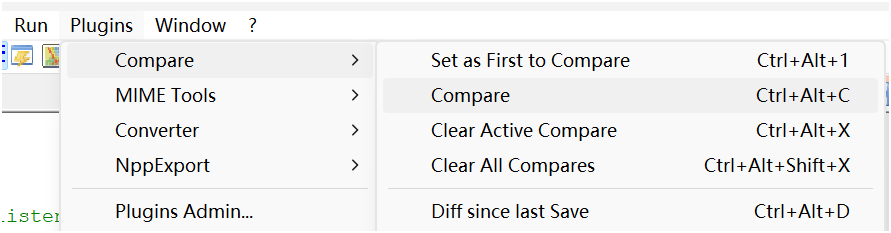
<p>Open both files with notepad++. Then click Plugins-&gt;Compare-&gt;Compare:</p>
<p><img decoding="async" src="https://lijie.org/wp-content/uploads/2023/12/Screenshot-2023-12-01-201814.png" alt="" /></p>
<p>Notepad++ will display the two files side by side on the screen, and highlight the differences.</p>
<p><img decoding="async" src="https://lijie.org/wp-content/uploads/2023/12/Screenshot-2023-12-01-202104.png" alt="" /></p>
<p>The new file is on the left side, which is the one you’ll be editing, and the old configuration file is on the right side. You’ll need to transfer some of the configuration information from the old file into the new one.</p>
<p>The things you need to change are related to your Peertube instance, such as domain name, keys, database details, redis, domain certificates etc. Be really  careful during this process and double-check everything.</p>
<p>Once the old config infos were seccessfully migrated, rename the folder: </p>
<pre><code class="language-shell">sudo -u peertube mv &#039;/var/www/peertube/storage/videos/&#039; &#039;/var/www/peertube/storage/web-videos/&#039;</code></pre>
<p>Since the folder name has been changed in the new production.yaml(6.0.1.yaml), so we need to change it manually.</p>
<p>Save the new file 6.0.1.yaml as production.yaml, upload and overwrite the old one(<strong>remember to make a back up!</strong>) located in <code>/var/www/peertube/config</code></p>
<p>Pay attention to the file&#8217;s ownership. If it’s not already set to <code>peertube</code>, you can change it by running the command <code>chown peertube production.yaml</code></p>
<h1>Change the nginx file</h1>
<p>This step is similar to the previous one, so I won’t repeat it. Just fill in the old configuration details into the new Nginx config file, and make sure to check it several times for accuracy! <strong>Make a back up before you overwrite the file.</strong></p>
<h1>Restart everything</h1>
<p>That&#8217;s it! Now, all we need is to restart everything. You can simply reboot the server, or you can restart peertube and nginx manually:</p>
<pre><code class="language-bash">sudo systemctl reload nginx
sudo systemctl restart peertube</code></pre>
<p>If anything goes wrong, look into the log by running <code>sudo journalctl -fu peertube</code></p>
]]></content>
		
				<link rel="shortlink" href="https://lijie.org/b/FH" />
			<link rel="replies" type="text/html" href="https://lijie.org/2023/12/07/upgrading-peertube-to-6-0-1/#comments" thr:count="0" />
			<link rel="replies" type="application/atom+xml" href="https://lijie.org/2023/12/07/upgrading-peertube-to-6-0-1/feed/atom/" thr:count="0" />
			<thr:total>0</thr:total>
			</entry>
		<entry>
		<author>
			<name>eijil</name>
					</author>

		<title type="html"><![CDATA[隐私！隐私！隐私！]]></title>
		<link rel="alternate" type="text/html" href="https://lijie.org/2023/09/09/%e9%9a%90%e7%a7%81%ef%bc%81%e9%9a%90%e7%a7%81%ef%bc%81%e9%9a%90%e7%a7%81%ef%bc%81/" />

		<id>https://lijie.org/?p=878</id>
		<updated>2023-11-06T04:15:43Z</updated>
		<published>2023-09-09T14:47:35Z</published>
		<category scheme="https://lijie.org" term="Uncategorized" /><category scheme="https://lijie.org" term="Google" /><category scheme="https://lijie.org" term="Mozilla" /><category scheme="https://lijie.org" term="Privacy" />
		<summary type="html"><![CDATA[本周全球互联网主要的话题主要集中在隐私泄露这个话题上。Fediverse上有关#Privacy的讨论量飞涨。  [&#8230;]]]></summary>

					<content type="html" xml:base="https://lijie.org/2023/09/09/%e9%9a%90%e7%a7%81%ef%bc%81%e9%9a%90%e7%a7%81%ef%bc%81%e9%9a%90%e7%a7%81%ef%bc%81/"><![CDATA[<h3>本周全球互联网主要的话题主要集中在<strong>隐私泄露</strong>这个话题上。Fediverse上有关#Privacy的讨论量飞涨。</h3>
<h3>汽车会收集隐私</h3>
<p>习惯各种智能设备的我们，或多或少都有过相似的经历，刚刚还在谈论购买个什么东西，随后刷手机时相对应的广告就会出现在你的抖音里，微博里，等等。</p>
<p>而现在，根据Mozilla最近的一项针对<a href="https://foundation.mozilla.org/en/privacynotincluded/categories/cars/" title="25个不同品牌汽车">25个不同品牌汽车</a>的<a href="https://foundation.mozilla.org/en/privacynotincluded/articles/its-official-cars-are-the-worst-product-category-we-have-ever-reviewed-for-privacy/" title="调查">调查</a>发现所有这些品牌的汽车都会收集司机或者乘客的隐私信息，而可能会被收集的信息居然多达<a href="https://foundation.mozilla.org/en/privacynotincluded/articles/what-data-does-my-car-collect-about-me-and-where-does-it-go/#what-data-does-my-car-collect-about-me" title="160多项">160多项</a>！除了你可以想象到厂商会根据你汽车的行驶起点和终点能推断出来你家庭位置和公司位置外，和汽车通过蓝牙连接获而取到你手机的所有相关信息更是作为车主无法想象的，更有甚者，还有一些<a href="https://foundation.mozilla.org/en/privacynotincluded/nissan/" title="不可描述的行为">不可描述的行为</a>隐私也会被收集。特斯拉和尼桑更是首当其冲！随着能够联网的智能汽车占比越来越高，问题估计会更加严重。</p>
<p>而收集的数据越多，对一个人的刻画越准确，收集的这些隐私数据，这些汽车厂商有可能会将数据出售给一些广告商，然后把相应的广告精准地推送给你（汽车厂商会收集你连接汽车的手机信息）。<br />
<img decoding="async" src="https://lijie.org/wp-content/uploads/2023/09/car-PNI-Final-Graphics_English1.original.png" alt="" /></p>
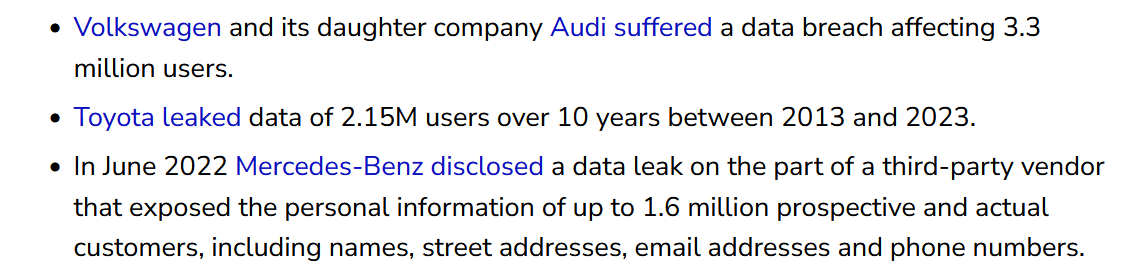
<p>而更恐怖的是，这些保存用户个人隐私数据的汽车厂家，万一哪天发生了数据泄露事件&#8230;<br />
<img decoding="async" src="https://lijie.org/wp-content/uploads/2023/09/data-leak.png" alt="" /><br />
以前看美剧，很多私密问题都是在汽车上进行的，当他们坐在一个带有话筒，摄像头的车里时，估计会谨慎很多。</p>
<h3>Chrome浏览器</h3>
<p>Google is doing evil again!</p>
<p>谷歌的#Chrome浏览器新<a href="https://www.theregister.com/2023/09/06/google_privacy_popup_chrome/" title="推出了">推出了</a>所谓的&quot;Enhanced AD Privacy&quot;，可以让网站根据你的浏览记录，更加精准地给你推送广告。</p>
<p>谷歌的早期&quot;Don&#8217;t Be Evil&quot;的宗旨已经被<a href="https://gizmodo.com/google-removes-nearly-all-mentions-of-dont-be-evil-from-1826153393" title="抛掷脑后">抛掷脑后</a>。</p>
<p>昨天起开始把Firefox设为了默认浏览器，使用自己搭建的SearXNG也有半年多时间了，Fediverse也使用了一年多的时间。但是能起多大作用呢&#8230;</p>
<p>电信诈骗案件的发生和包括但不限于这些掌握个人信息的厂商因为疏于管理而导致的数据泄露有不可推卸的责任。作为个人，只能从自己身上做出一些习惯的改变，谨小慎微，需要填写个人信息的平台，能不填写就不填写，能不注册就不注册！因为你所填写的个人真实信息，对于各种平台来说，有可能根本没有专业人士使用专业方法进行加密保存，数据泄露只是时间问题。智能化是无法阻挡的脚步，但是在这过程中如何保护自己个人隐私的泄露，作为个体，我们也需要多注意，多辨别！</p>
]]></content>
		
				<link rel="shortlink" href="https://lijie.org/b/Ed" />
			<link rel="replies" type="text/html" href="https://lijie.org/2023/09/09/%e9%9a%90%e7%a7%81%ef%bc%81%e9%9a%90%e7%a7%81%ef%bc%81%e9%9a%90%e7%a7%81%ef%bc%81/#comments" thr:count="0" />
			<link rel="replies" type="application/atom+xml" href="https://lijie.org/2023/09/09/%e9%9a%90%e7%a7%81%ef%bc%81%e9%9a%90%e7%a7%81%ef%bc%81%e9%9a%90%e7%a7%81%ef%bc%81/feed/atom/" thr:count="0" />
			<thr:total>0</thr:total>
			</entry>
		<entry>
		<author>
			<name>eijil</name>
					</author>

		<title type="html"><![CDATA[VPS装好系统后的一些设置]]></title>
		<link rel="alternate" type="text/html" href="https://lijie.org/2023/05/09/vps%e8%a3%85%e5%a5%bd%e7%b3%bb%e7%bb%9f%e5%90%8e%e7%9a%84%e4%b8%80%e4%ba%9b%e8%ae%be%e7%bd%ae/" />

		<id>https://lijie.org/?p=815</id>
		<updated>2024-10-05T11:52:41Z</updated>
		<published>2023-05-09T13:47:56Z</published>
		<category scheme="https://lijie.org" term="Uncategorized" /><category scheme="https://lijie.org" term="cloudflare" /><category scheme="https://lijie.org" term="ubuntu" /><category scheme="https://lijie.org" term="VPS" />
		<summary type="html"><![CDATA[每次都要重新搜索，然后设置一遍，所以这里记录下在VPS上装好操作系统后的一些设置，系统使用Ubuntu22.0 [&#8230;]]]></summary>

					<content type="html" xml:base="https://lijie.org/2023/05/09/vps%e8%a3%85%e5%a5%bd%e7%b3%bb%e7%bb%9f%e5%90%8e%e7%9a%84%e4%b8%80%e4%ba%9b%e8%ae%be%e7%bd%ae/"><![CDATA[<p><span id="more-815"></span></p>
<audio class="wp-audio-shortcode" id="audio-815-1" preload="none" style="width: 100%;" controls="controls"><source type="audio/wav" src="https://lijie.org/wp-content/uploads/2023/05/Untitled-notebook.wav?_=1" /><a href="https://lijie.org/wp-content/uploads/2023/05/Untitled-notebook.wav">https://lijie.org/wp-content/uploads/2023/05/Untitled-notebook.wav</a></audio>
<p>每次都要重新搜索，然后设置一遍，所以这里记录下在VPS上装好操作系统后的一些设置，系统使用Ubuntu22.04，默认使用root登录。</p>
<h1>使用Screen</h1>
<p>因为网络环境的问题，ssh连接vps经常会掉线，所以第一件事就是要使用screen，这样掉线后不影响任务或者系统升级，避免一些灾难性问题</p>
<pre><code class="language-bash">apt update
apt full-upgrade
apt install screen -y</code></pre>
<p>编辑.bashrc，加入bash脚本，这样每次登陆时候都会自动返回上次的screen，工作更加无缝</p>
<pre><code class="language-bash">cd
nano .bashrc</code></pre>
<p>添加如下内容：</p>
<pre><code class="language-bash">if [[ -z &quot;$STY&quot; ]]; then
screen -xRR default #注意screen前面有四个空格
fi</code></pre>
<p>重启下，或者退出ssh，重新连接，连接时如果出现 new screen&#8230; 一闪而过，那就成功了。</p>
<h1>开启BBR</h1>
<pre><code class="language-bash">echo net.core.default_qdisc=fq &gt;&gt; /etc/sysctl.conf
echo net.ipv4.tcp_congestion_control=bbr &gt;&gt; /etc/sysctl.conf
sysctl -p</code></pre>
<h1>套cloudflare后，隐藏服务器ip</h1>
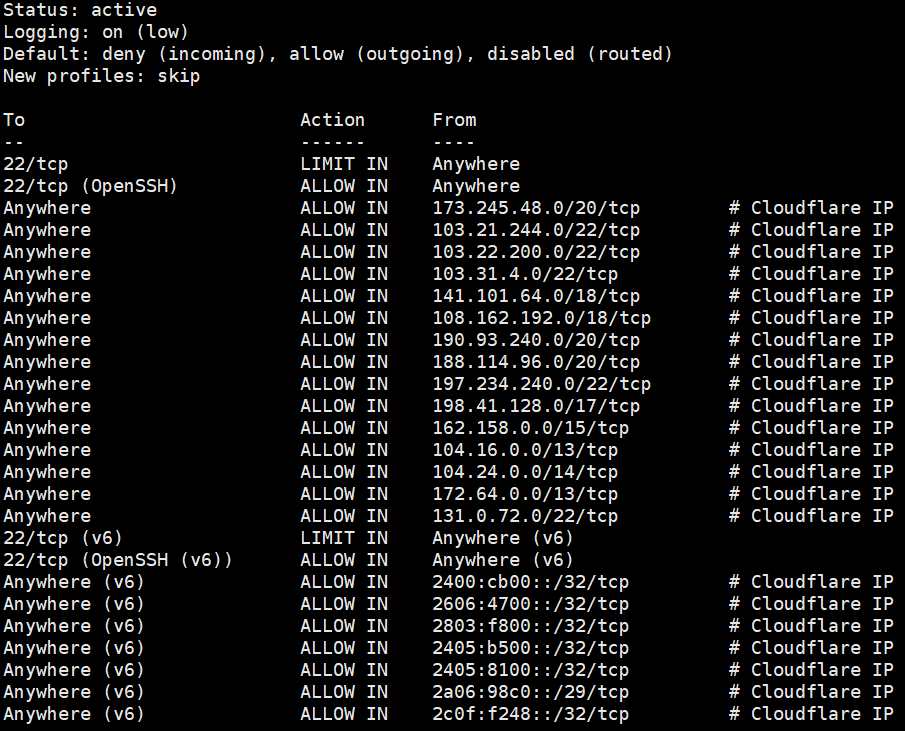
<p>套了cf后，我们就只让cf的ip可以请求vps的web服务，其它ip一概不允许。ufw默认一般都安装好了。</p>
<p>这个只能最大限度禁止别人刺探真实服务器ip，比如fofa或者shodan之类的。不敢保证百分百阻止，实际上，VPS运行几个月后，发现这些工具没有找到我服务器真实ip。不设置这一步的话，一般几个月后真实ip会被找到。</p>
<p>重置ufw规则：</p>
<pre><code class="language-bash">ufw reset</code></pre>
<p>默认禁止所有进入的请求，允许所有的出去的请求：</p>
<pre><code class="language-bash">ufw default deny incoming
ufw default allow outgoing</code></pre>
<p>开放ssh连接：</p>
<pre><code class="language-bash">ufw allow OpenSSH
ufw enable</code></pre>
<p>执行只允许cf ip的脚本：</p>
<pre><code class="language-bash">git clone https://github.com/Paul-Reed/cloudflare-ufw
cd ./cloudflare-ufw
./cloudflare-ufw.sh</code></pre>
<p>查看下当前ufw规则：</p>
<pre><code class="language-bash">ufw status numbered</code></pre>
<p>把没必要的删除，只留下cf规则和ssh规则，删除可以使用命令 <code>ufw delete 2</code>，这里指的是第二条规则。</p>
<p><a href="https://lijie.org/wp-content/uploads/2023/05/Screenshot-2023-05-09-212105.png"><img fetchpriority="high" decoding="async" class="alignnone wp-image-816 size-full" src="https://lijie.org/wp-content/uploads/2023/05/Screenshot-2023-05-09-212105.png" alt="" width="905" height="731" srcset="https://lijie.org/wp-content/uploads/2023/05/Screenshot-2023-05-09-212105.png 905w, https://lijie.org/wp-content/uploads/2023/05/Screenshot-2023-05-09-212105-300x242.png 300w, https://lijie.org/wp-content/uploads/2023/05/Screenshot-2023-05-09-212105-150x121.png 150w, https://lijie.org/wp-content/uploads/2023/05/Screenshot-2023-05-09-212105-768x620.png 768w, https://lijie.org/wp-content/uploads/2023/05/Screenshot-2023-05-09-212105-254x205.png 254w, https://lijie.org/wp-content/uploads/2023/05/Screenshot-2023-05-09-212105-631x510.png 631w, https://lijie.org/wp-content/uploads/2023/05/Screenshot-2023-05-09-212105-495x400.png 495w" sizes="(max-width: 905px) 100vw, 905px" /></a></p>
<p>定期更新cf的ip:</p>
<pre><code class="language-bash">sudo crontab -e</code></pre>
<pre><code class="language-bash">0 0 * * 1 /root/cloudflare-ufw/cloudflare-ufw.sh &gt; /dev/null 2&gt;&amp;1</code></pre>
<h1>禁止ping服务器ip</h1>
<pre><code class="language-bash">echo net.ipv4.icmp_echo_ignore_all=1 &gt;&gt; /etc/sysctl.conf</code></pre>
<p>运行，生效</p>
<pre><code class="language-bash">sysctl -p</code></pre>
<h1>禁止通过ip访问web服务</h1>
<p>nginx安装好以后，都会有一个default配置文件，在server段修改成如下：</p>
<pre><code class="language-nginx">server {
listen 80 default_server;
server_name &quot;&quot;;
return 444;
}</code></pre>
<p>注意，default_server只能出现在一个配置文件中。</p>
<h1>使用证书登录SSH</h1>
<p>windows下，打开powershell，注意不是cmd</p>
<pre><code class="language-bash">ssh-keygen #一定要设置个密码，公钥，私钥可以加密压缩后放到网盘同步
cat ~/.ssh/id_rsa.pub | ssh root@VPSip &quot;mkdir ~/.ssh; cat &gt;&gt; ~/.ssh/authorized_keys&quot; #如果客户机是windows10及以上系统
ssh-copy-id root@ip #如果客户机是linux系统</code></pre>
<p>配置服务器ssh，关闭密码登录：</p>
<pre><code class="language-bash">nano /etc/ssh/sshd_config</code></pre>
<p>按Ctrl+w, 找到<code>PasswordAuthentication</code>，将前面#号删除，后面的值改为no即可。</p>
<p>重启ssh生效：</p>
<pre><code class="language-bash">systemctl restart sshd</code></pre>
<h1>Nginx配置屏蔽/允许某些国家/地区IP访问</h1>
<p>随后写</p>
<h1>其它</h1>
<p>注册各种网站后，第一时间先看下网站是否支持2FA，有的话一定要打开，注册时使用浏览器或者密码管理软件随机生成复杂的密码。</p>
<p>使用Cloudflare的email routing，打开catch all，每个需要邮箱的网站在注册时使用 <code>网站域名@domain.ltd</code> 邮箱。</p>
]]></content>
		
		<link href="https://lijie.org/wp-content/uploads/2023/05/Untitled-notebook.wav" rel="enclosure" length="38609324" type="audio/wav" />
		<link rel="shortlink" href="https://lijie.org/b/Da" />
			<link rel="replies" type="text/html" href="https://lijie.org/2023/05/09/vps%e8%a3%85%e5%a5%bd%e7%b3%bb%e7%bb%9f%e5%90%8e%e7%9a%84%e4%b8%80%e4%ba%9b%e8%ae%be%e7%bd%ae/#comments" thr:count="0" />
			<link rel="replies" type="application/atom+xml" href="https://lijie.org/2023/05/09/vps%e8%a3%85%e5%a5%bd%e7%b3%bb%e7%bb%9f%e5%90%8e%e7%9a%84%e4%b8%80%e4%ba%9b%e8%ae%be%e7%bd%ae/feed/atom/" thr:count="0" />
			<thr:total>0</thr:total>
			</entry>
		<entry>
		<author>
			<name>eijil</name>
					</author>

		<title type="html"><![CDATA[Setting up your own Matrix Synapse  service on VPS]]></title>
		<link rel="alternate" type="text/html" href="https://lijie.org/2022/05/24/setting-up-your-own-matrix-synapse-service-on-vps/" />

		<id>https://lijie.org/?p=676</id>
		<updated>2024-01-29T12:17:15Z</updated>
		<published>2022-05-24T15:56:21Z</published>
		<category scheme="https://lijie.org" term="Uncategorized" /><category scheme="https://lijie.org" term="fediverse" /><category scheme="https://lijie.org" term="matrix" /><category scheme="https://lijie.org" term="synapse" /><category scheme="https://lijie.org" term="ubuntu" /><category scheme="https://lijie.org" term="VPS" />
		<summary type="html"><![CDATA[For the past one month, I&#8217;ve been digging around  [&#8230;]]]></summary>

					<content type="html" xml:base="https://lijie.org/2022/05/24/setting-up-your-own-matrix-synapse-service-on-vps/"><![CDATA[
<p>For the past one month, I&#8217;ve been digging around the internet about the<strong> decentralized fediverse</strong> community.  Platforms like <strong>Mastodon</strong>, <a href="https://github.com/matrix-org/synapse" target="_blank" rel="noopener"><strong>Matrix Synapse</strong></a>, <strong>Pixelfed</strong> etc are the open-source implementations of twitter, IMs like telegram Signal and instagram, and more importantly these platforms are all decentralized, which means your posts/pics/blog/account belongs to yourself, and won&#8217;t be deleted by those BIG companies for no reason, especially those stupid companies in China like weibo, bilibili, douyin etc. Ad-free, no user privacy tracking/leaking are also advantages of the fediverse platforms.</p>


<p>Up to now, I&#8217;ve tried my hand on Soapbox FE, Matrix Synapse and got them successfully running on my VPS. This post mainly focuses on the installation of Matrix Synapse which was written in Python. There is a Go version of Matrix &#8211; <strong><a href="https://github.com/matrix-org/dendrite" target="_blank" rel="noopener">Dendrite</a></strong>. It&#8217;s more efficient and maybe the VPS hardware requirements aren&#8217;t that high. But it&#8217;s still in the beta version, not recommended for the  production environment.</p>


<p>Minimal VPS Specs: 1-core vCPU, 1G of RAM, here is the utilization of Synapse running on my VPS(just 1 user), 2G RAM is recommended for users less than 20. The OS is Ubuntu 20.04.</p>
<p>I&#8217;ve made a test video call between my 2 phones, the CPU ( Intel(R) Xeon(R) CPU E5-2690 v4 @ 2.60GHz ) usage is around 25%, so a 2-core CPU is recommended.</p>


<figure class="wp-block-image aligncenter"><img decoding="async" width="930" height="72" class="wp-image-678" src="https://lijie.org/wp-content/uploads/2022/05/utilization-of-Synapse.jpg" alt="" srcset="https://lijie.org/wp-content/uploads/2022/05/utilization-of-Synapse.jpg 930w, https://lijie.org/wp-content/uploads/2022/05/utilization-of-Synapse-300x23.jpg 300w, https://lijie.org/wp-content/uploads/2022/05/utilization-of-Synapse-150x12.jpg 150w, https://lijie.org/wp-content/uploads/2022/05/utilization-of-Synapse-768x59.jpg 768w, https://lijie.org/wp-content/uploads/2022/05/utilization-of-Synapse-267x21.jpg 267w" sizes="(max-width: 930px) 100vw, 930px" /></figure>


<p>I want to use the base domain as part of the user name, like @user:example.org, instead of @user:matrix.example.org which is the actual server address. In this case, you can host other websites (like Mastodon) with the base domain example.org.</p>


<p>Let&#8217;s get rolling!</p>


<h2 class="wp-block-heading">Install matrix synapse package</h2>


<pre class="wp-block-preformatted">sudo apt update 
sudo apt upgrade -y
sudo apt install lsb-release wget apt-transport-https -y

// add the gpg keys
sudo wget -qO /usr/share/keyrings/matrix-org-archive-keyring.gpg https://packages.matrix.org/debian/matrix-org-archive-keyring.gpg 
sudo echo "deb [signed-by=/usr/share/keyrings/matrix-org-archive-keyring.gpg] https://packages.matrix.org/debian/ $(lsb_release -cs) main" | sudo tee /etc/apt/sources.list.d/matrix-org.list

// install matrix-synapse package
sudo apt update 
sudo apt upgrade 
sudo apt install matrix-synapse-py3</pre>


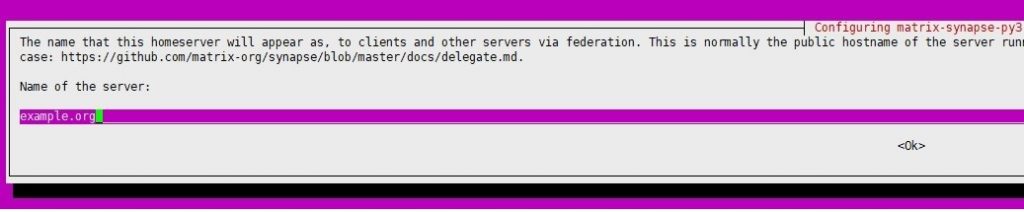
<p>One window will pop up, <strong>enter the base domain name example.org, NOT matrix.example.org</strong>, it&#8217;s very important. Hit &lt;OK&gt; and  &lt;NO&gt;.</p>
<p><img decoding="async" class="size-large wp-image-728 aligncenter" src="https://lijie.org/wp-content/uploads/2022/05/matrix-synapse-server-name-1024x212.jpg" alt="" width="960" height="199" srcset="https://lijie.org/wp-content/uploads/2022/05/matrix-synapse-server-name-1024x212.jpg 1024w, https://lijie.org/wp-content/uploads/2022/05/matrix-synapse-server-name-300x62.jpg 300w, https://lijie.org/wp-content/uploads/2022/05/matrix-synapse-server-name-150x31.jpg 150w, https://lijie.org/wp-content/uploads/2022/05/matrix-synapse-server-name-768x159.jpg 768w, https://lijie.org/wp-content/uploads/2022/05/matrix-synapse-server-name-267x55.jpg 267w, https://lijie.org/wp-content/uploads/2022/05/matrix-synapse-server-name-940x195.jpg 940w, https://lijie.org/wp-content/uploads/2022/05/matrix-synapse-server-name.jpg 1037w" sizes="(max-width: 960px) 100vw, 960px" /></p>
<p> </p>


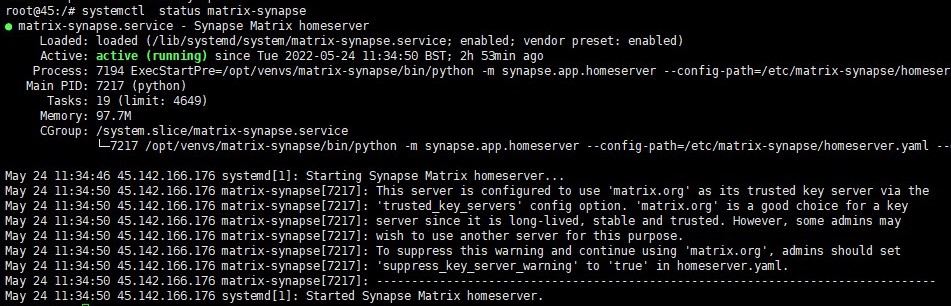
<pre class="wp-block-preformatted">sudo systemctl enable matrix-synapse 
sudo systemctl start matrix-synapse 
sudo systemctl status matrix-synapse
</pre>


<figure class="wp-block-image aligncenter"><img loading="lazy" decoding="async" width="951" height="306" class="wp-image-681" src="https://lijie.org/wp-content/uploads/2022/05/matrix-synapse-status.jpg" alt="" srcset="https://lijie.org/wp-content/uploads/2022/05/matrix-synapse-status.jpg 951w, https://lijie.org/wp-content/uploads/2022/05/matrix-synapse-status-300x97.jpg 300w, https://lijie.org/wp-content/uploads/2022/05/matrix-synapse-status-150x48.jpg 150w, https://lijie.org/wp-content/uploads/2022/05/matrix-synapse-status-768x247.jpg 768w, https://lijie.org/wp-content/uploads/2022/05/matrix-synapse-status-267x86.jpg 267w, https://lijie.org/wp-content/uploads/2022/05/matrix-synapse-status-940x302.jpg 940w" sizes="auto, (max-width: 951px) 100vw, 951px" /></figure>


<p>Go through the log file if synapse is not running:</p>


<pre class="wp-block-preformatted">sudo tail -f /var/log/matrix-synapse/homeserver.log</pre>


<p>Make sure again by typing:</p>


<pre class="wp-block-preformatted">sudo netstat -lnpt | grep :8008</pre>


<figure class="wp-block-image aligncenter"><img loading="lazy" decoding="async" width="648" height="48" class="wp-image-682" src="https://lijie.org/wp-content/uploads/2022/05/port8008.jpg" alt="" srcset="https://lijie.org/wp-content/uploads/2022/05/port8008.jpg 648w, https://lijie.org/wp-content/uploads/2022/05/port8008-300x22.jpg 300w, https://lijie.org/wp-content/uploads/2022/05/port8008-150x11.jpg 150w, https://lijie.org/wp-content/uploads/2022/05/port8008-267x20.jpg 267w, https://lijie.org/wp-content/uploads/2022/05/port8008-640x48.jpg 640w" sizes="auto, (max-width: 648px) 100vw, 648px" /></figure>


<h2 class="wp-block-heading">Change the configurations:</h2>


<p>Generate the Matrix Synapse registration secret:</p>


<pre class="wp-block-preformatted">cat /dev/urandom | tr -dc 'a-zA-Z0-9' | fold -w 32 | head -n 1</pre>


<figure class="wp-block-image aligncenter"><img loading="lazy" decoding="async" width="535" height="48" class="wp-image-683" src="https://lijie.org/wp-content/uploads/2022/05/random-string.jpg" alt="" srcset="https://lijie.org/wp-content/uploads/2022/05/random-string.jpg 535w, https://lijie.org/wp-content/uploads/2022/05/random-string-300x27.jpg 300w, https://lijie.org/wp-content/uploads/2022/05/random-string-150x13.jpg 150w, https://lijie.org/wp-content/uploads/2022/05/random-string-267x24.jpg 267w" sizes="auto, (max-width: 535px) 100vw, 535px" /></figure>


<p><br>Edit the synapse config file:</p>


<pre class="wp-block-preformatted">sudo nano /etc/matrix-synapse/homeserver.yaml</pre>


<p>Press <code>Ctrl+w</code> to find <code>registration_shared_secret:</code> uncomment it and change the value with the random string generated above.</p>


<figure class="wp-block-image aligncenter"><img loading="lazy" decoding="async" width="538" height="69" class="wp-image-685" src="https://lijie.org/wp-content/uploads/2022/05/change-registration_shared_secret-value.jpg" alt="" srcset="https://lijie.org/wp-content/uploads/2022/05/change-registration_shared_secret-value.jpg 538w, https://lijie.org/wp-content/uploads/2022/05/change-registration_shared_secret-value-300x38.jpg 300w, https://lijie.org/wp-content/uploads/2022/05/change-registration_shared_secret-value-150x19.jpg 150w, https://lijie.org/wp-content/uploads/2022/05/change-registration_shared_secret-value-267x34.jpg 267w" sizes="auto, (max-width: 538px) 100vw, 538px" /></figure>


<p><br>Find the following lines and change the value correspondingly:</p>


<pre class="wp-block-preformatted">enable_registration: false
allow_public_rooms_without_auth: false
allow_public_rooms_over_federation: false</pre>


<p>Press <code>Ctrl+o</code> to save the file and <code>Ctrl+x</code> to exit. Then restart the synapse service:</p>


<pre class="wp-block-preformatted">sudo systemctl restart matrix-synapse</pre>


<p>Again, if anything goes wrong, check out the log file.</p>


<pre class="wp-block-preformatted">sudo more /var/log/matrix-synapse/homeserver.log</pre>


<p>Install Nginx and certbot:</p>


<pre class="wp-block-preformatted">sudo apt install nginx certbot python3-certbot-nginx -y</pre>


<p>Generate the SSL certificates:</p>


<pre class="wp-block-preformatted">sudo systemctl stop nginx<br>sudo certbot certonly -d example.org -d matrix.example.org</pre>


<p>Create Nginx config file of the base domain:</p>


<pre class="wp-block-preformatted">cd /etc/nginx/sites-available
sudo nano example.org</pre>


<p>Change example.org to your domain name:</p>


<pre class="wp-block-code"><code>server {
        root /var/www/<strong>example.org</strong>; # You can host another website here or do a reverse proxy.

        # Add index.php to the list if you are using PHP
        index index.html index.htm index.nginx-debian.html;

        server_name <strong>example.org</strong>;

        location / {
                # First attempt to serve request as file, then
                # as directory, then fall back to displaying a 404.
                try_files $uri $uri/ =404;
        }

    location /.well-known/matrix/client {<br>         #<strong> pay attention here, help client like element to find the actual address.</strong>
        return 200 '{"m.homeserver": {"base_url": "<strong>matrix.example.org</strong>"}}';
        default_type application/json;
        add_header Access-Control-Allow-Origin *;
    }

    location /.well-known/matrix/server {
        return 200 '{"m.server": "<strong>matrix.example.org</strong>:443"}';
        default_type application/json;
        add_header Access-Control-Allow-Origin *;
    }

    listen [::]:443 ssl ipv6only=on; # managed by Certbot
    listen 443 ssl; # managed by Certbot
    ssl_certificate /etc/letsencrypt/live/<strong>example.org</strong>/fullchain.pem; # managed by Certbot
    ssl_certificate_key /etc/letsencrypt/live/<strong>example.org</strong>/privkey.pem; # managed by Certbot
    include /etc/letsencrypt/options-ssl-nginx.conf; # managed by Certbot
    ssl_dhparam /etc/letsencrypt/ssl-dhparams.pem; # managed by Certbot

}

server {
    if ($host = <strong>example.org</strong>) {
        return 301 https://$host$request_uri;
    } # managed by Certbot
    listen 80;
    listen [::]:80;
    server_name <strong>example.org</strong>;
    return 404; # managed by Certbot
}</code></pre>


<p>Create the matrix.example.org config file:</p>


<pre class="wp-block-preformatted">sudo nano matrix.example.org</pre>


<p>Change the content to:</p>


<pre id="change-upload-file-size" class="wp-block-preformatted">server {
    listen 443 ssl http2;
    listen [::]:443 ssl http2;
<br>    # <strong>make your synapse instance federated.</strong> 
    listen 8448 ssl http2;  
    listen [::]:8448 ssl http2;

    server_name matrix.example.org;

    ssl_certificate /etc/letsencrypt/live/<strong>matrix.example.org</strong>/fullchain.pem;
    ssl_certificate_key /etc/letsencrypt/live/<strong>matrix.example.org</strong>/privkey.pem;

    ssl_protocols TLSv1.2 TLSv1.3;
    ssl_prefer_server_ciphers on;
    ssl_ciphers ECDHE-RSA-AES256-GCM-SHA512:DHE-RSA-AES256-GCM-SHA512:ECDHE-RSA-AES256-GCM-SHA384:DHE-RSA-AES256-GCM-SHA384:ECDHE-RSA-AES256-SHA384;
    ssl_session_timeout  10m;
    ssl_session_cache shared:SSL:10m;
    ssl_session_tickets on;
    ssl_stapling on;
    ssl_stapling_verify on;

    location ~ ^(/_matrix|/_synapse/client) {
        # note: do not add a path (even a single /) after the port in <code>proxy_pass</code>,
        # otherwise nginx will canonicalise the URI and cause signature verification
        # errors.
        proxy_pass http://127.0.0.1:8008;
        proxy_set_header X-Forwarded-For $remote_addr;
        proxy_set_header X-Forwarded-Proto $scheme;
        proxy_set_header Host $host;

        # Nginx by default only allows file uploads up to 1M in size
        # Increase client_max_body_size to match max_upload_size defined in homeserver.yaml<br>        # <strong>support file size up to 200MB</strong>.
        client_max_body_size 200M;  
    }
<br>    # <strong>make your synapse instance federated.</strong>
    location / {  
        proxy_pass http://localhost:8008;
        proxy_set_header X-Forwarded-For $remote_addr;
    } 
}
server {
    if ($host = <strong>matrix.example.org</strong>) {
        return 301 https://$host$request_uri;
    } # managed by Certbot

    listen 80;
    listen [::]:80;
    server_name <strong>matrix.example.org</strong>;
    return 404; # managed by Certbot
}
</pre>


<p>Link the config files to sites-enabled folder and restart nginx</p>


<pre class="wp-block-preformatted">ln -s /etc/nginx/sites-available/<strong>example.org </strong>/etc/nginx/sites-enabled/
ln -s /etc/nginx/sites-available/<strong>matrix.example.org</strong> etc/nginx/sites-enabled/

nginx -t
systemctl restart nginx</pre>


<h2 class="wp-block-heading">Setting up Postgres</h2>


<p>Issue the following commands:</p>


<pre id="create-db-user" class="wp-block-code"><code>sudo apt install postgresql postgresql-contrib
sudo -i -u postgres
psql<br># Create an user and password, you shoud change the Password
CREATE USER "synapseuser" WITH PASSWORD 'Password';
CREATE DATABASE synapse ENCODING 'UTF8' LC_COLLATE='C' LC_CTYPE='C' template=template0 OWNER "synapseuser";
exit<br>exit # exit the current user
sudo apt install python3-psycopg2</code></pre>


<p>Edit synapse config file:</p>


<pre class="wp-block-preformatted">sudo nano /etc/matrix-synapse/homeserver.yaml</pre>


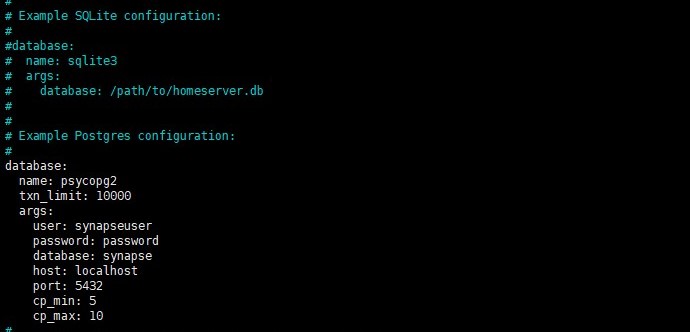
<p>Since I&#8217;ll use PostgreSQL instead of sqlite3, comment out the following lines:</p>


<pre class="wp-block-preformatted">#database:
#  name: sqlite3
#  args:
#    database: /path/to/homeserver.db
</pre>


<p>Uncomment the following lines:</p>


<pre class="wp-block-preformatted">database:
  name: psycopg2
  txn_limit: 10000
  args:
    user: synapseuser  <br>    <a href="#create-db-user"># enter the username and password created above.</a>
    password: password  
    database: synapse
    host: localhost
    port: 5432
    cp_min: 5
    cp_max: 10</pre>


<p>Looks like this:</p>


<figure class="wp-block-image aligncenter"><img loading="lazy" decoding="async" width="690" height="332" class="wp-image-684" src="https://lijie.org/wp-content/uploads/2022/05/db-config.jpg" alt="" srcset="https://lijie.org/wp-content/uploads/2022/05/db-config.jpg 690w, https://lijie.org/wp-content/uploads/2022/05/db-config-300x144.jpg 300w, https://lijie.org/wp-content/uploads/2022/05/db-config-150x72.jpg 150w, https://lijie.org/wp-content/uploads/2022/05/db-config-267x128.jpg 267w" sizes="auto, (max-width: 690px) 100vw, 690px" /></figure>


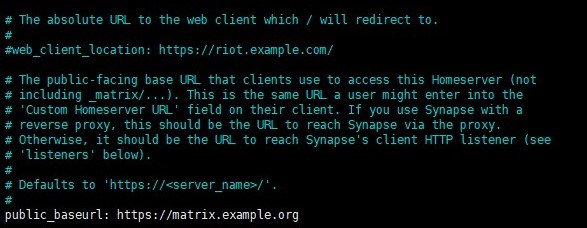
<p>Change public_baseurl to the real domain matrix.example.org <strong>(IMPORTANT!)</strong>:</p>


<figure class="wp-block-image aligncenter"><img loading="lazy" decoding="async" width="587" height="228" class="wp-image-692" src="https://lijie.org/wp-content/uploads/2022/05/change-public_baseurl.jpg" alt="" srcset="https://lijie.org/wp-content/uploads/2022/05/change-public_baseurl.jpg 587w, https://lijie.org/wp-content/uploads/2022/05/change-public_baseurl-300x117.jpg 300w, https://lijie.org/wp-content/uploads/2022/05/change-public_baseurl-150x58.jpg 150w, https://lijie.org/wp-content/uploads/2022/05/change-public_baseurl-267x104.jpg 267w" sizes="auto, (max-width: 587px) 100vw, 587px" /></figure>


<p>Find and change maximum file size to 200M</p>


<pre class="wp-block-preformatted">max_upload_size: 200M</pre>


<p>Since the file size has been changed in the <a href="#change-upload-file-size">nginx config file</a> of matrix.example.org, there is 1 more place to change:</p>


<pre class="wp-block-preformatted">sudo nano /etc/nginx/nginx.conf</pre>


<p>Add the following line in http section:</p>


<pre class="wp-block-preformatted">client_max_body_size 200M;</pre>


<p>Save &amp; exit. Restart synapse &amp; nginx:</p>


<pre class="wp-block-preformatted">sudo systemctl restart matrix-synapse
sudo nginx -t
sudo systemctl restart nginx</pre>


<p>Enable ports:</p>


<pre class="wp-block-preformatted">ufw allow OpenSSH
ufw allow 'Nginx Full'
ufw allow 8448</pre>


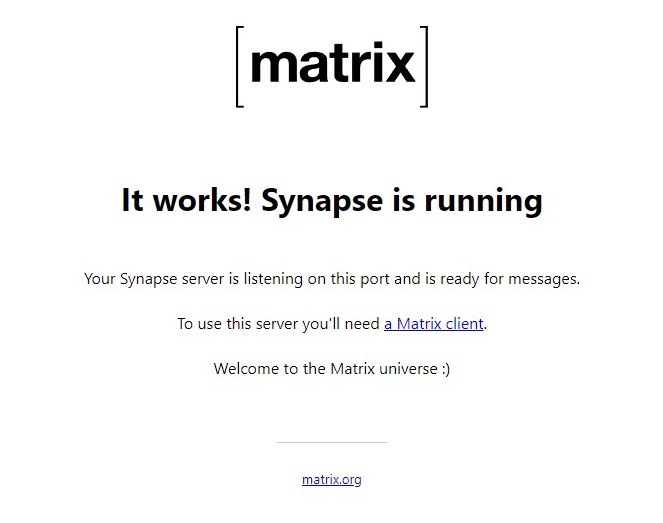
<p>Visit https://matrix.example.org:8448, you&#8217;ll get this page:</p>


<figure class="wp-block-image aligncenter"><img loading="lazy" decoding="async" width="663" height="523" class="wp-image-691" src="https://lijie.org/wp-content/uploads/2022/05/matrix-welcome-page.jpg" alt="" srcset="https://lijie.org/wp-content/uploads/2022/05/matrix-welcome-page.jpg 663w, https://lijie.org/wp-content/uploads/2022/05/matrix-welcome-page-300x237.jpg 300w, https://lijie.org/wp-content/uploads/2022/05/matrix-welcome-page-150x118.jpg 150w, https://lijie.org/wp-content/uploads/2022/05/matrix-welcome-page-260x205.jpg 260w, https://lijie.org/wp-content/uploads/2022/05/matrix-welcome-page-647x510.jpg 647w, https://lijie.org/wp-content/uploads/2022/05/matrix-welcome-page-507x400.jpg 507w" sizes="auto, (max-width: 663px) 100vw, 663px" /></figure>


<p>Visit <a href="https://federationtester.matrix.org/" target="_blank" rel="noopener">https://federationtester.matrix.org/</a> , enter the base domain example.org to test if everything is OK.</p>


<h2 class="wp-block-heading">Create the admin account</h2>


<pre class="wp-block-preformatted">register_new_matrix_user -c /etc/matrix-synapse/homeserver.yaml http://localhost:8008</pre>


<p>Type name &amp; password, and then type yes when asked if make it admin.</p>


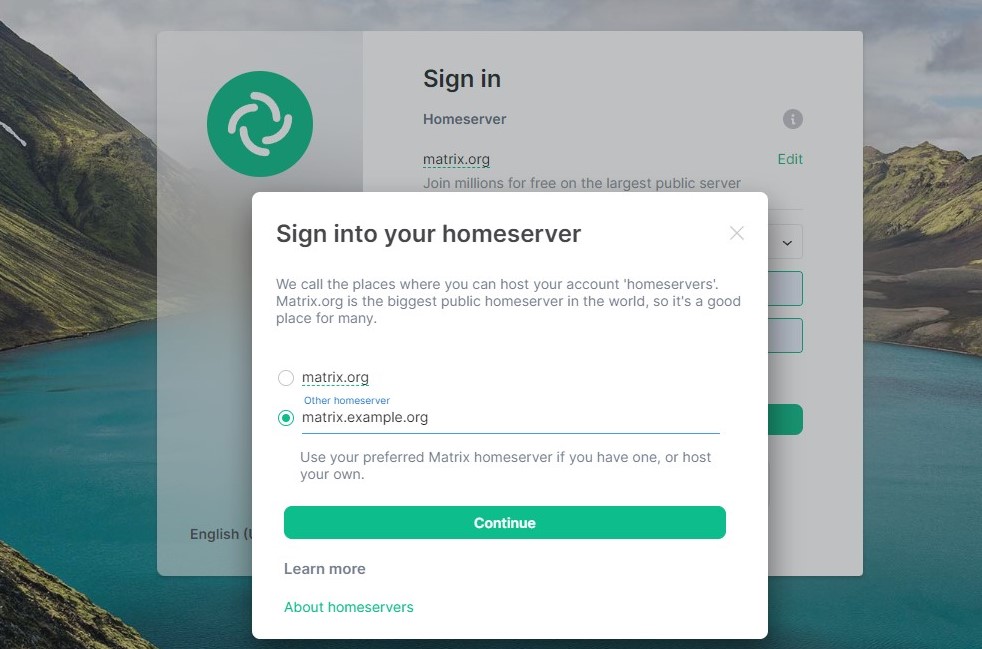
<p>Visit <a href="https://app.element.io/#/login" target="_blank" rel="noopener">https://app.element.io/#/login</a> to login. Click Edit at the upper-right corner of the page, and then fill in the actual synapse address:</p>


<figure class="wp-block-image aligncenter"><img loading="lazy" decoding="async" width="982" height="649" class="wp-image-693" src="https://lijie.org/wp-content/uploads/2022/05/element.jpg" alt="" srcset="https://lijie.org/wp-content/uploads/2022/05/element.jpg 982w, https://lijie.org/wp-content/uploads/2022/05/element-300x198.jpg 300w, https://lijie.org/wp-content/uploads/2022/05/element-150x99.jpg 150w, https://lijie.org/wp-content/uploads/2022/05/element-768x508.jpg 768w, https://lijie.org/wp-content/uploads/2022/05/element-267x176.jpg 267w, https://lijie.org/wp-content/uploads/2022/05/element-772x510.jpg 772w, https://lijie.org/wp-content/uploads/2022/05/element-605x400.jpg 605w" sizes="auto, (max-width: 982px) 100vw, 982px" /></figure>


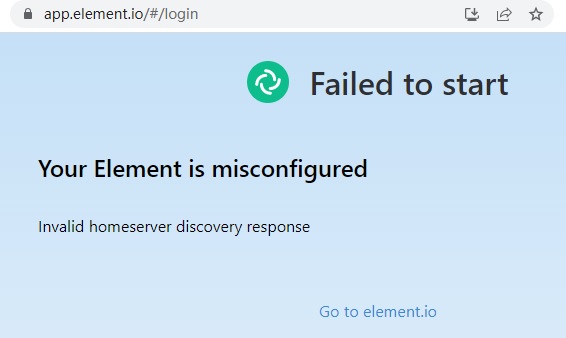
<p><br>Hit Continue and then enter the username and password you just created. You might see something like this as well🤣🤣🤣</p>


<figure class="wp-block-image aligncenter"><img loading="lazy" decoding="async" width="566" height="338" class="wp-image-710" src="https://lijie.org/wp-content/uploads/2022/05/element-misconfigured.jpg" alt="" srcset="https://lijie.org/wp-content/uploads/2022/05/element-misconfigured.jpg 566w, https://lijie.org/wp-content/uploads/2022/05/element-misconfigured-300x179.jpg 300w, https://lijie.org/wp-content/uploads/2022/05/element-misconfigured-150x90.jpg 150w, https://lijie.org/wp-content/uploads/2022/05/element-misconfigured-267x159.jpg 267w" sizes="auto, (max-width: 566px) 100vw, 566px" /></figure>


<p>Of course, you can find many other clients for you PC, Mac, iphone etc at <a href="https://matrix.org/clients/" target="_blank" rel="noopener">https://matrix.org/clients/</a>.</p>
<h2>Upgrade</h2>


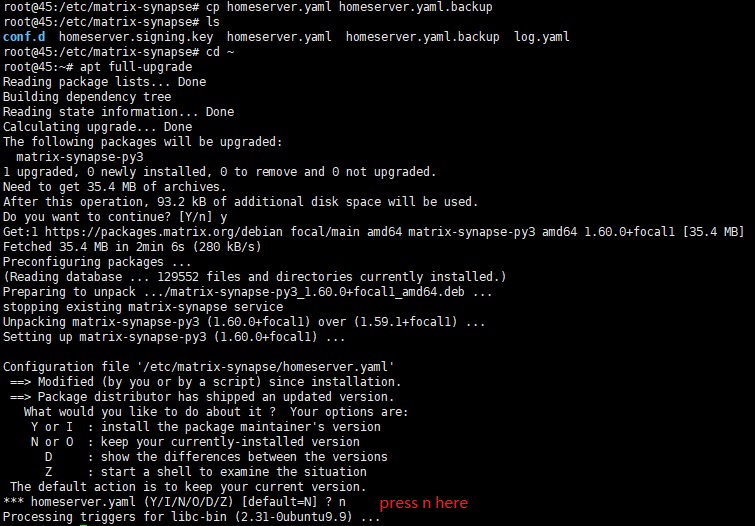
<p>Upgrading synapse to the latest version is just like upgrading other softwares on ubuntu, Executing <code>apt full-upgrade</code> would do the job. But before doing that, make sure to backup your <code>homeserver.yaml</code> and then press n when asked wheather or not to replace the config file.</p>
<p><img loading="lazy" decoding="async" class="size-full wp-image-742 aligncenter" src="https://lijie.org/wp-content/uploads/2022/05/matrix-synapse-py3.jpg" alt="" width="755" height="526" srcset="https://lijie.org/wp-content/uploads/2022/05/matrix-synapse-py3.jpg 755w, https://lijie.org/wp-content/uploads/2022/05/matrix-synapse-py3-300x209.jpg 300w, https://lijie.org/wp-content/uploads/2022/05/matrix-synapse-py3-150x105.jpg 150w, https://lijie.org/wp-content/uploads/2022/05/matrix-synapse-py3-267x186.jpg 267w, https://lijie.org/wp-content/uploads/2022/05/matrix-synapse-py3-732x510.jpg 732w, https://lijie.org/wp-content/uploads/2022/05/matrix-synapse-py3-574x400.jpg 574w" sizes="auto, (max-width: 755px) 100vw, 755px" /></p>
<p> </p>
<p>It&#8217;s not very complicated, but you can use <a href="https://github.com/spantaleev/matrix-docker-ansible-deploy/tree/master/docs" target="_blank" rel="noopener">ansible</a> to deploy matrix which is much easier, especially when you want to bridge other IM tools like telegram or discord etc.</p>
]]></content>
		
				<link rel="shortlink" href="https://lijie.org/b/BG" />
			<link rel="replies" type="text/html" href="https://lijie.org/2022/05/24/setting-up-your-own-matrix-synapse-service-on-vps/#comments" thr:count="0" />
			<link rel="replies" type="application/atom+xml" href="https://lijie.org/2022/05/24/setting-up-your-own-matrix-synapse-service-on-vps/feed/atom/" thr:count="0" />
			<thr:total>0</thr:total>
			</entry>
		<entry>
		<author>
			<name>eijil</name>
					</author>

		<title type="html"><![CDATA[使用Maddy搭建自己的邮箱服务]]></title>
		<link rel="alternate" type="text/html" href="https://lijie.org/2022/05/19/setup-mail-server-on-vps-using-maddy/" />

		<id>https://lijie.org/?p=641</id>
		<updated>2023-11-06T04:16:57Z</updated>
		<published>2022-05-19T09:36:37Z</published>
		<category scheme="https://lijie.org" term="Uncategorized" /><category scheme="https://lijie.org" term="email" /><category scheme="https://lijie.org" term="maddy" /><category scheme="https://lijie.org" term="smtp" /><category scheme="https://lijie.org" term="VPS" />
		<summary type="html"><![CDATA[搭建以前，一定要确认自己的vps是否开通了25端口，以及是否可以设置rDNS，否则下面不用看了。我使用的rac [&#8230;]]]></summary>

					<content type="html" xml:base="https://lijie.org/2022/05/19/setup-mail-server-on-vps-using-maddy/"><![CDATA[<p>搭建以前，一定要确认自己的vps是否开通了25端口，以及是否可以设置rDNS，否则下面不用看了。我使用的<a href="https://my.racknerd.com/aff.php?aff=2538" target="_blank" rel="noopener">racknerd的VPS</a>，一年只需要10美元左右，符合搭建的要求，推荐大家在这家注册使用。</p>
<p>使用<a href="https://maddy.email/" target="_blank" rel="noopener">Maddy</a>搭建邮箱服务挺方便，这里记录下，供以后再搭建时使用，<strong>注意将example.com换成自己的域名</strong>。</p>
<p>先设置二级域名，mx.example.com，A记录和AAAA记录分别指向服务器ipv4地址和ipv6地址。然后设置根域名(@)mx记录，指向mx.example.com</p>
<p>这里使用Maddy编译好的<a href="https://github.com/foxcpp/maddy/releases" target="_blank" rel="noopener">文件</a>进行。先下载并解压缩（目前是0.5.4版本）:</p>
<pre class="lang:default decode:true" style="padding-left: 40px;">wget https://github.com/foxcpp/maddy/releases/download/v0.5.4/maddy-0.5.4-x86_64-linux-musl.tar.zst
apt install zstd
tar --use-compress-program=unzstd -xvf maddy-0.5.4-x86_64-linux-musl.tar.zst
cd maddy-0.5.4-x86_64-linux-musl
mv maddy maddyctl /usr/local/bin/
mkdir /etc/maddy &amp;&amp; mv maddy.conf /etc/maddy/
mv systemd/*.service /usr/lib/systemd/system/
mv man/*.1 /usr/share/man/man1/ &amp;&amp; mv man/*.5 /usr/share/man/man5/</pre>
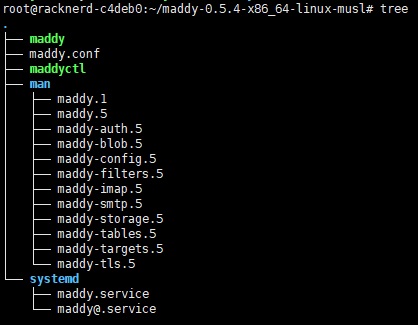
<p>运行tree命令，可以看到maddy目录结构很简单，主要是maddy和maddyctl两个可执行文件和maddy.conf配置文件</p>
<p><img loading="lazy" decoding="async" class="alignnone size-full wp-image-673" src="https://lijie.org/wp-content/uploads/2022/05/tree.jpg" alt="" width="418" height="325" srcset="https://lijie.org/wp-content/uploads/2022/05/tree.jpg 418w, https://lijie.org/wp-content/uploads/2022/05/tree-300x233.jpg 300w, https://lijie.org/wp-content/uploads/2022/05/tree-150x117.jpg 150w, https://lijie.org/wp-content/uploads/2022/05/tree-264x205.jpg 264w" sizes="auto, (max-width: 418px) 100vw, 418px" /></p>
<p>为Maddy程序添加一个单独的用户并且授予权限:</p>
<pre class="lang:default decode:true" style="padding-left: 40px;">useradd -mrU -s /sbin/nologin -c "maddy mail server" maddy
chown -R maddy:maddy /usr/local/bin/maddy* /etc/maddy</pre>
<p>获取证书，需要先停止占用80端口的程序，比如nginx:</p>
<pre class="lang:default decode:true" style="padding-left: 40px;">apt install snapd
snap install --classic certbot
certbot certonly --standalone --preferred-challenges http -d mx.example.com
apt install acl
mkdir -p /etc/maddy/certs
mkdir -p /etc/maddy/state
mkdir -p /etc/maddy/runtime
mkdir -p /etc/maddy/log
chown maddy:maddy /etc/maddy -R
setfacl -R -m u:maddy:rX /etc/maddy/certs/
setfacl -R -m u:maddy:rX /etc/letsencrypt/{live,archive}
cd /etc/maddy/certs
ln -s /etc/letsencrypt/live/mx.example.com</pre>
<p>接下来配置下Maddy:</p>
<pre class="lang:default decode:true" style="padding-left: 40px;">nano /etc/maddy/maddy.conf</pre>
<p>修改以下内容:</p>
<pre class="lang:default decode:true" style="padding-left: 40px;">$(hostname) = mx.example.com
$(primary_domain) = example.com
$(local_domains) = $(primary_domain)</pre>
<p>添加以下内容:</p>
<pre class="lang:default decode:true" style="padding-left: 40px;">state_dir /etc/maddy/state
runtime_dir /etc/maddy/runtime
log syslog /etc/maddy/log/maddy.log</pre>
<p>保存，退出。</p>
<p>创建用户和对应的密码:</p>
<pre class="lang:default decode:true" style="padding-left: 40px;">maddyctl creds create hi@example.com
maddyctl imap-acct create hi@example.com</pre>
<p>启动maddy服务:</p>
<pre class="lang:default decode:true" style="padding-left: 40px;">chown maddy:maddy /etc/maddy -R
service maddy start</pre>
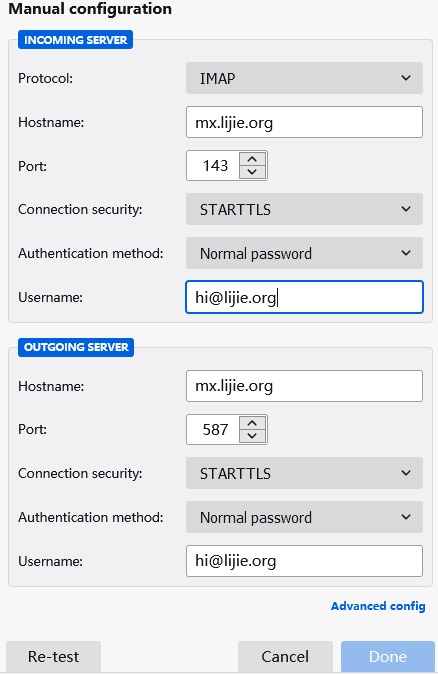
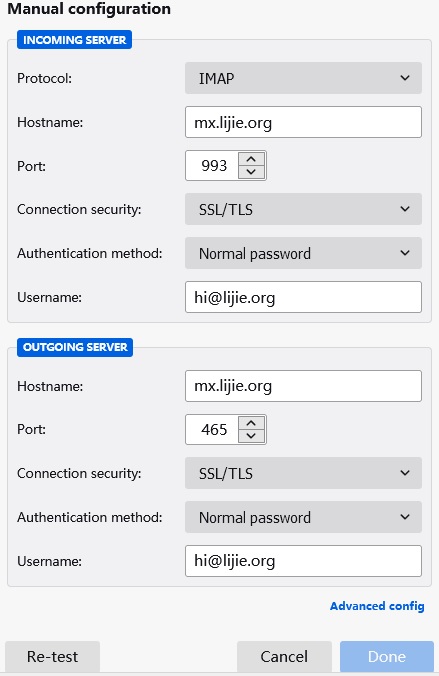
<p>这时候就可以使用thunderbird或者需要smtp服务的程序等工具连接邮箱了。</p>
<p><img loading="lazy" decoding="async" class="alignnone size-full wp-image-659" src="https://lijie.org/wp-content/uploads/2022/05/starttls_smtp.jpg" alt="" width="438" height="674" srcset="https://lijie.org/wp-content/uploads/2022/05/starttls_smtp.jpg 438w, https://lijie.org/wp-content/uploads/2022/05/starttls_smtp-195x300.jpg 195w, https://lijie.org/wp-content/uploads/2022/05/starttls_smtp-97x150.jpg 97w, https://lijie.org/wp-content/uploads/2022/05/starttls_smtp-133x205.jpg 133w, https://lijie.org/wp-content/uploads/2022/05/starttls_smtp-331x510.jpg 331w, https://lijie.org/wp-content/uploads/2022/05/starttls_smtp-260x400.jpg 260w" sizes="auto, (max-width: 438px) 100vw, 438px" /><img loading="lazy" decoding="async" class="alignnone size-full wp-image-658" src="https://lijie.org/wp-content/uploads/2022/05/ssl_tls_smtp.jpg" alt="" width="439" height="676" srcset="https://lijie.org/wp-content/uploads/2022/05/ssl_tls_smtp.jpg 439w, https://lijie.org/wp-content/uploads/2022/05/ssl_tls_smtp-195x300.jpg 195w, https://lijie.org/wp-content/uploads/2022/05/ssl_tls_smtp-97x150.jpg 97w, https://lijie.org/wp-content/uploads/2022/05/ssl_tls_smtp-133x205.jpg 133w, https://lijie.org/wp-content/uploads/2022/05/ssl_tls_smtp-331x510.jpg 331w, https://lijie.org/wp-content/uploads/2022/05/ssl_tls_smtp-260x400.jpg 260w" sizes="auto, (max-width: 439px) 100vw, 439px" /></p>
<p>为了避免邮件进入垃圾邮箱，域名还需要进行配置:</p>
<pre class="lang:default decode:true" style="padding-left: 40px;">新建一个根域名(@)的TXT记录，值为v=spf1 mx ~all
新建 _dmarc 的TXT记录，值为 v=DMARC1; p=quarantine; ruf=mailto:hi@example.com
新建 default._domainkey 的TXT记录，值为 /etc/maddy/state/dkim_key/example.com_default.dns 文件的内容，类似于 v=DKIM1; k=rsa; p=MII...AB
最后要到VPS主机商那里，设置下rDNS记录，指向mx.example.com，这一步很重要，我使用的<a href="https://my.racknerd.com/aff.php?aff=2538" target="_blank" rel="noopener">racknerd的vps</a>，一年才10美元左右，可以发ticket让客服将rdns指向你的mx.example.com，一般5分钟左右就能设置好。</pre>
<p>这样一来，邮件不会进垃圾箱了。</p>
<p>设置maddy开机启动:</p>
<pre class="lang:default decode:true" style="padding-left: 40px;">systemctl enable maddy</pre>
<p>更多命令可以使用 maddyctl command -h 查看，比如执行 maddyctl creds -h 可以看到:</p>
<pre class="lang:default decode:true" style="padding-left: 40px;">maddyctl creds list  列出当前所有用户
maddyctl creds create name@example.com 创建用户
maddyctl creds remove name@example.com 删除用户
myaddyctl creds password name@example.com 修改密码</pre>
<p>升级Maddy，将新版本的maddy下载下来，将maddy和maddyctl拷贝到下面目录即可</p>
<pre class="lang:default decode:true" style="padding-left: 40px;">systemctl stop maddy
mv maddy maddyctl /usr/local/bin/</pre>
]]></content>
		
				<link rel="shortlink" href="https://lijie.org/b/Ag" />
			<link rel="replies" type="text/html" href="https://lijie.org/2022/05/19/setup-mail-server-on-vps-using-maddy/#comments" thr:count="0" />
			<link rel="replies" type="application/atom+xml" href="https://lijie.org/2022/05/19/setup-mail-server-on-vps-using-maddy/feed/atom/" thr:count="0" />
			<thr:total>0</thr:total>
			</entry>
		<entry>
		<author>
			<name>eijil</name>
					</author>

		<title type="html"><![CDATA[降低CPU使用率 让Plex客户端解码]]></title>
		<link rel="alternate" type="text/html" href="https://lijie.org/2020/04/09/%e9%99%8d%e4%bd%8ecpu%e4%bd%bf%e7%94%a8%e7%8e%87-%e8%ae%a9plex%e5%ae%a2%e6%88%b7%e7%ab%af%e8%a7%a3%e7%a0%81/" />

		<id>https://lijie.org/?p=433</id>
		<updated>2023-11-06T04:19:08Z</updated>
		<published>2020-04-09T03:48:36Z</published>
		<category scheme="https://lijie.org" term="Uncategorized" /><category scheme="https://lijie.org" term="emby" /><category scheme="https://lijie.org" term="esxi" /><category scheme="https://lijie.org" term="homelab" /><category scheme="https://lijie.org" term="HTPC" /><category scheme="https://lijie.org" term="jellyfin" /><category scheme="https://lijie.org" term="kodi" /><category scheme="https://lijie.org" term="NAS" /><category scheme="https://lijie.org" term="plex" /><category scheme="https://lijie.org" term="QNAP" /><category scheme="https://lijie.org" term="ubuntu" /><category scheme="https://lijie.org" term="软路由" />
		<summary type="html"><![CDATA[Plex给人的印象是需要服务器端转码，这给很多人造成了错误的印象，前几天人民币160元入手了终身Plex Pa [&#8230;]]]></summary>

					<content type="html" xml:base="https://lijie.org/2020/04/09/%e9%99%8d%e4%bd%8ecpu%e4%bd%bf%e7%94%a8%e7%8e%87-%e8%ae%a9plex%e5%ae%a2%e6%88%b7%e7%ab%af%e8%a7%a3%e7%a0%81/"><![CDATA[<p><strong>Plex</strong>给人的印象是需要服务器端<strong>转码</strong>，这给很多人造成了错误的印象，前几天人民币160元入手了终身Plex Pass，随即折腾起来，发现Plex完全可以像Kodi一样使用客户端解码，降低服务器端的<strong>CPU占用率</strong>，加上Plex本身漂亮的UI界面和强大的数据刮削能力，Plex在<strong>Emby</strong>(收费), <strong>Jellyfin</strong>(全免费), 和<strong>Kodi</strong>(全免费，太丑，弃)的竞争中，完全不落下风。</p>
<p>我的硬件：一台小的Home Box，配置是<strong>i3-7100u(Intel Kaby Lake)</strong>, 8G内存。一台家用NAS，<strong>QNAP</strong> <strong>NAS</strong> 453B mini一台，10G内存, 处理器是<strong>J3455(Intel Apollo Lake)</strong>。</p>
<p>处理器是i3-7100的Home Box安装了<strong>Esxi</strong>，上面安装了<strong>Openwrt</strong>和Ubuntu server（ubuntu里又装了Plex服务器端）以及其它系统。也就是所说的<strong>软路由</strong>中安装Plex服务器。</p>
<p><strong>Ubuntu server</strong>和QNAP上都安装了<strong>Plex server</strong>，这里使用Ubuntu中的Plex server来测试，NAS仅仅作为一个存储设备。</p>
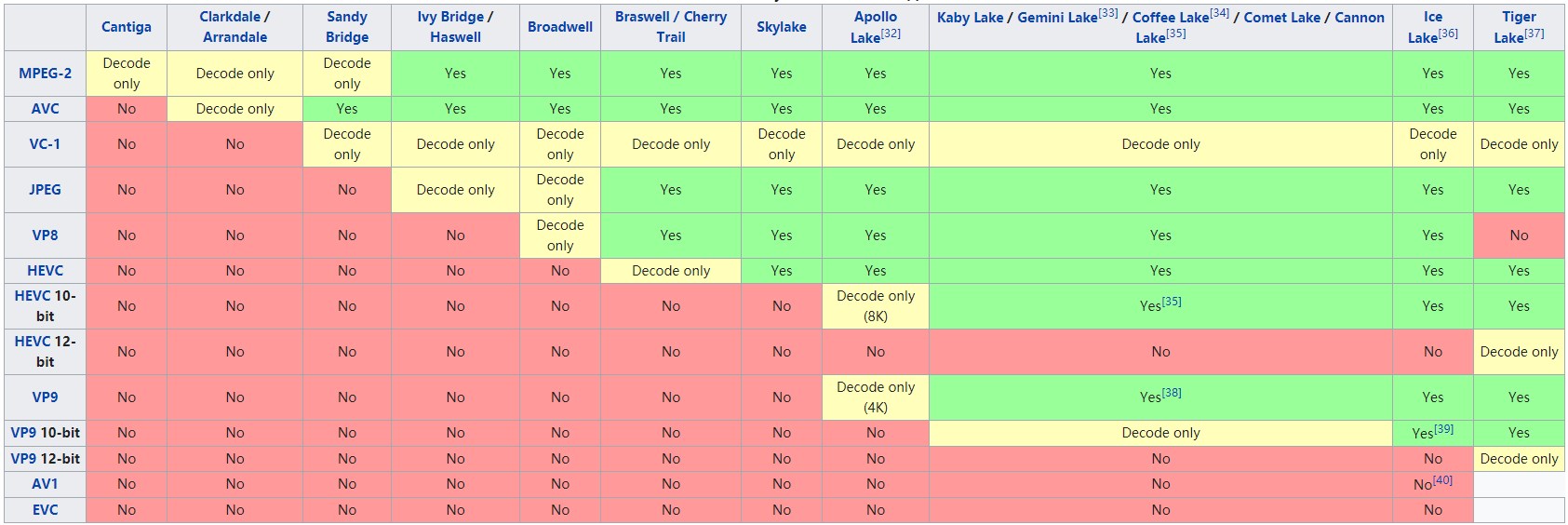
<p>i3-7100U的核显是<strong>HD 620</strong>, 而QNAP NAS的处理器是J3455，<strong>核显</strong>是<strong>HD 500</strong>。两款核显均支持4K分辨率下H.264的转码<strong>transcoding</strong>（包括<strong>解码decoding</strong>和<strong>编码encoding</strong>），而对于, <strong>H.265</strong>(HEVC)编码，只有HD620的也就是7100u支持转码，J3455仅仅支持解码（支持播放）。具体<strong>核显的</strong>性能区别可以看<a href="https://bluesky-soft.com/en/dxvac/deviceInfo/decoder_intel.html" target="_blank" rel="noopener noreferrer">这里</a>以及<a href="https://en.wikipedia.org/wiki/Intel_Quick_Sync_Video#Hardware_decoding_and_encoding" target="_blank" rel="noopener noreferrer">这里</a>。所以不论是自己组件NAS还是购买现成的NAS，CPU是非常关键的，CPU越新，核显越新，才能更大幅度的降低CPU的使用率。</p>
<p><img loading="lazy" decoding="async" class="size-full wp-image-478 aligncenter" src="https://lijie.org/wp-content/uploads/2020/04/chrome_1oeP3adGZQ.jpg" alt="" width="1685" height="564" srcset="https://lijie.org/wp-content/uploads/2020/04/chrome_1oeP3adGZQ.jpg 1685w, https://lijie.org/wp-content/uploads/2020/04/chrome_1oeP3adGZQ-300x100.jpg 300w, https://lijie.org/wp-content/uploads/2020/04/chrome_1oeP3adGZQ-1024x343.jpg 1024w, https://lijie.org/wp-content/uploads/2020/04/chrome_1oeP3adGZQ-150x50.jpg 150w, https://lijie.org/wp-content/uploads/2020/04/chrome_1oeP3adGZQ-768x257.jpg 768w, https://lijie.org/wp-content/uploads/2020/04/chrome_1oeP3adGZQ-1536x514.jpg 1536w, https://lijie.org/wp-content/uploads/2020/04/chrome_1oeP3adGZQ-940x315.jpg 940w, https://lijie.org/wp-content/uploads/2020/04/chrome_1oeP3adGZQ-1170x392.jpg 1170w, https://lijie.org/wp-content/uploads/2020/04/chrome_1oeP3adGZQ-455x152.jpg 455w, https://lijie.org/wp-content/uploads/2020/04/chrome_1oeP3adGZQ-267x89.jpg 267w" sizes="auto, (max-width: 1685px) 100vw, 1685px" /></p>
<p>首先在Ubuntu中挂载NAS中共享的电影文件夹：</p>
<pre class="lang:sh decode:true">apt install nfs-common #安装nfs

showmount -e 192.168.1.99 #看下nas哪些目录是共享可挂载的。

mkdir /mnt/qnap #在ubuntu中创建文件夹qnap，用来挂在qnap的共享文件夹

mount 192.168.1.99:/电影共享 /mnt/qnap #将nas共享的电影共享目录挂在到linux的qnap目录上。

apt install ffmpeg intel-gpu-tools #安装解码器和查看intel显卡占用率程序</pre>
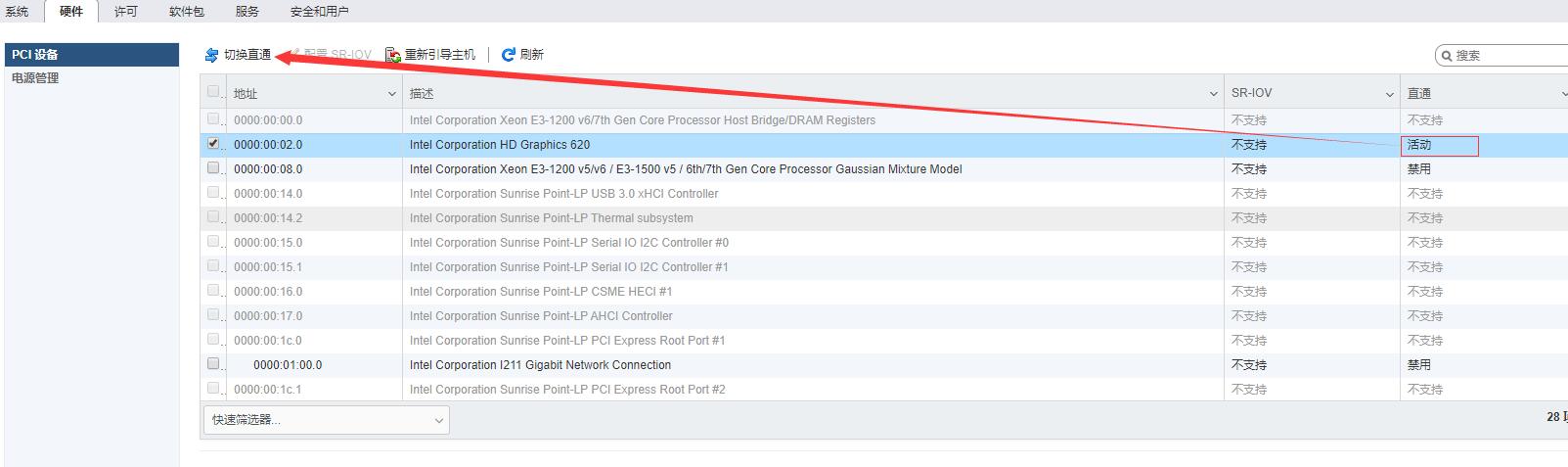
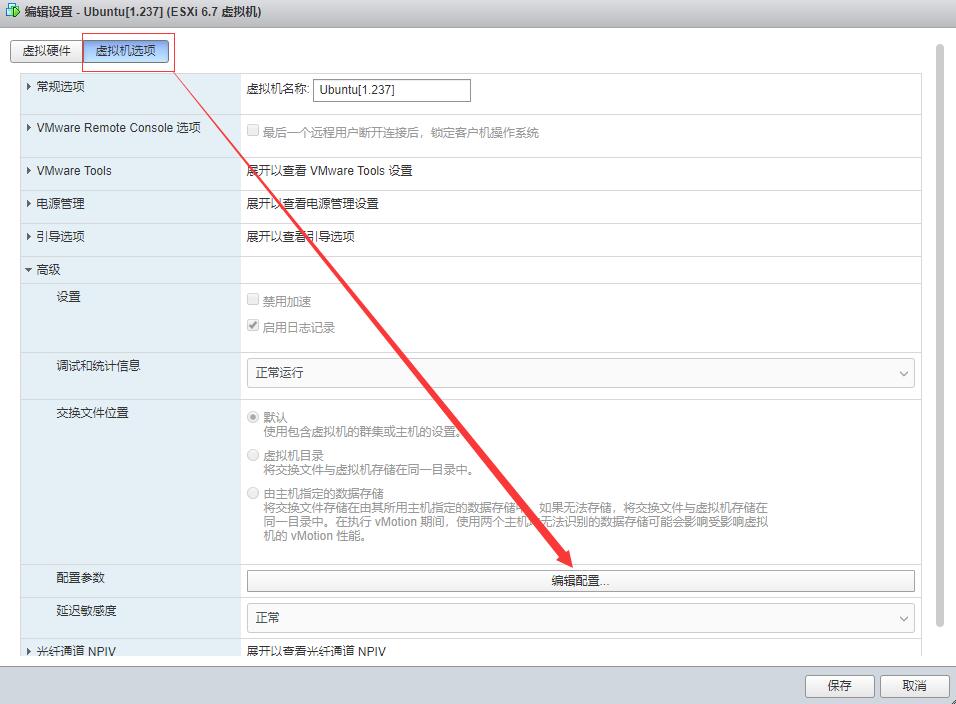
<p>在ESXI中将Intel CPU<strong>显卡直通</strong>给Ubuntu server：</p>
<p><figure id="attachment_435" aria-describedby="caption-attachment-435" style="width: 1603px" class="wp-caption aligncenter"><img loading="lazy" decoding="async" class="wp-image-435 size-full" src="https://lijie.org/wp-content/uploads/2020/04/esxi显卡直通1.jpg" alt="" width="1603" height="477" srcset="https://lijie.org/wp-content/uploads/2020/04/esxi显卡直通1.jpg 1603w, https://lijie.org/wp-content/uploads/2020/04/esxi显卡直通1-300x89.jpg 300w, https://lijie.org/wp-content/uploads/2020/04/esxi显卡直通1-1024x305.jpg 1024w, https://lijie.org/wp-content/uploads/2020/04/esxi显卡直通1-150x45.jpg 150w, https://lijie.org/wp-content/uploads/2020/04/esxi显卡直通1-768x229.jpg 768w, https://lijie.org/wp-content/uploads/2020/04/esxi显卡直通1-1536x457.jpg 1536w, https://lijie.org/wp-content/uploads/2020/04/esxi显卡直通1-940x280.jpg 940w, https://lijie.org/wp-content/uploads/2020/04/esxi显卡直通1-1170x348.jpg 1170w, https://lijie.org/wp-content/uploads/2020/04/esxi显卡直通1-455x135.jpg 455w, https://lijie.org/wp-content/uploads/2020/04/esxi显卡直通1-267x79.jpg 267w" sizes="auto, (max-width: 1603px) 100vw, 1603px" /><figcaption id="caption-attachment-435" class="wp-caption-text">↑ESXI中先允许核显直通</figcaption></figure><br />
<img loading="lazy" decoding="async" class="size-full wp-image-436 aligncenter" src="https://lijie.org/wp-content/uploads/2020/04/esxi显卡直通2.jpg" alt="" width="956" height="704" srcset="https://lijie.org/wp-content/uploads/2020/04/esxi显卡直通2.jpg 956w, https://lijie.org/wp-content/uploads/2020/04/esxi显卡直通2-300x221.jpg 300w, https://lijie.org/wp-content/uploads/2020/04/esxi显卡直通2-150x110.jpg 150w, https://lijie.org/wp-content/uploads/2020/04/esxi显卡直通2-768x566.jpg 768w, https://lijie.org/wp-content/uploads/2020/04/esxi显卡直通2-693x510.jpg 693w, https://lijie.org/wp-content/uploads/2020/04/esxi显卡直通2-543x400.jpg 543w, https://lijie.org/wp-content/uploads/2020/04/esxi显卡直通2-421x310.jpg 421w, https://lijie.org/wp-content/uploads/2020/04/esxi显卡直通2-267x197.jpg 267w" sizes="auto, (max-width: 956px) 100vw, 956px" /><br />
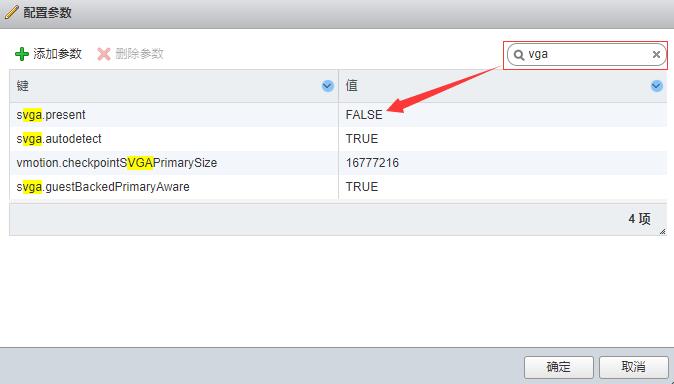
<figure id="attachment_437" aria-describedby="caption-attachment-437" style="width: 674px" class="wp-caption aligncenter"><img loading="lazy" decoding="async" class="wp-image-437 size-full" src="https://lijie.org/wp-content/uploads/2020/04/esxi显卡直通3.jpg" alt="" width="674" height="384" srcset="https://lijie.org/wp-content/uploads/2020/04/esxi显卡直通3.jpg 674w, https://lijie.org/wp-content/uploads/2020/04/esxi显卡直通3-300x171.jpg 300w, https://lijie.org/wp-content/uploads/2020/04/esxi显卡直通3-150x85.jpg 150w, https://lijie.org/wp-content/uploads/2020/04/esxi显卡直通3-455x259.jpg 455w, https://lijie.org/wp-content/uploads/2020/04/esxi显卡直通3-267x152.jpg 267w" sizes="auto, (max-width: 674px) 100vw, 674px" /><figcaption id="caption-attachment-437" class="wp-caption-text">↑修改Ubuntu server的显卡信息，将默认的修改为FALSE</figcaption></figure><br />
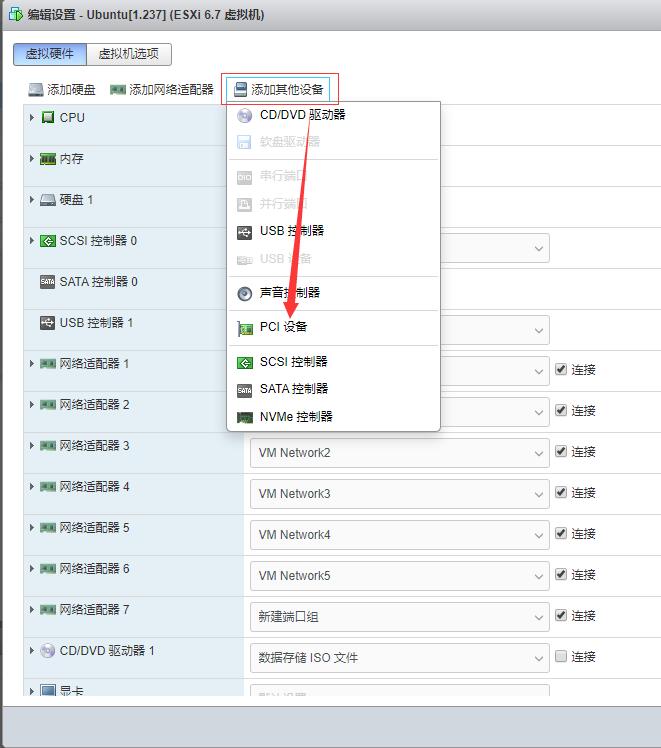
<figure id="attachment_438" aria-describedby="caption-attachment-438" style="width: 661px" class="wp-caption aligncenter"><img loading="lazy" decoding="async" class="size-full wp-image-438" src="https://lijie.org/wp-content/uploads/2020/04/esxi显卡直通5.jpg" alt="" width="661" height="748" srcset="https://lijie.org/wp-content/uploads/2020/04/esxi显卡直通5.jpg 661w, https://lijie.org/wp-content/uploads/2020/04/esxi显卡直通5-265x300.jpg 265w, https://lijie.org/wp-content/uploads/2020/04/esxi显卡直通5-133x150.jpg 133w, https://lijie.org/wp-content/uploads/2020/04/esxi显卡直通5-451x510.jpg 451w, https://lijie.org/wp-content/uploads/2020/04/esxi显卡直通5-353x400.jpg 353w, https://lijie.org/wp-content/uploads/2020/04/esxi显卡直通5-274x310.jpg 274w, https://lijie.org/wp-content/uploads/2020/04/esxi显卡直通5-181x205.jpg 181w" sizes="auto, (max-width: 661px) 100vw, 661px" /><figcaption id="caption-attachment-438" class="wp-caption-text">↑修改Ubuntu配置，添加PCI设备，然后选择刚才直通的显卡即可</figcaption></figure><br />
<figure id="attachment_439" aria-describedby="caption-attachment-439" style="width: 543px" class="wp-caption aligncenter"><img loading="lazy" decoding="async" class="size-full wp-image-439" src="https://lijie.org/wp-content/uploads/2020/04/esxi显卡直通4.jpg" alt="" width="543" height="34" srcset="https://lijie.org/wp-content/uploads/2020/04/esxi显卡直通4.jpg 543w, https://lijie.org/wp-content/uploads/2020/04/esxi显卡直通4-300x19.jpg 300w, https://lijie.org/wp-content/uploads/2020/04/esxi显卡直通4-150x9.jpg 150w, https://lijie.org/wp-content/uploads/2020/04/esxi显卡直通4-455x28.jpg 455w, https://lijie.org/wp-content/uploads/2020/04/esxi显卡直通4-267x17.jpg 267w" sizes="auto, (max-width: 543px) 100vw, 543px" /><figcaption id="caption-attachment-439" class="wp-caption-text">↑进入Ubuntu后，运行lspci | grep -i vga，发现核显直通成功</figcaption></figure></p>
<p>随后安装Plex的Ubuntu服务器端和手机或者PC的客户端，此处略过&#8230;，需要注意的是，媒体文件夹选择刚才挂载的NAS文件夹即可。</p>
<p><figure id="attachment_441" aria-describedby="caption-attachment-441" style="width: 1000px" class="wp-caption aligncenter"><img loading="lazy" decoding="async" class="wp-image-441 size-full" src="https://lijie.org/wp-content/uploads/2020/04/t.jpg" alt="" width="1000" height="166" srcset="https://lijie.org/wp-content/uploads/2020/04/t.jpg 1000w, https://lijie.org/wp-content/uploads/2020/04/t-300x50.jpg 300w, https://lijie.org/wp-content/uploads/2020/04/t-150x25.jpg 150w, https://lijie.org/wp-content/uploads/2020/04/t-768x127.jpg 768w, https://lijie.org/wp-content/uploads/2020/04/t-940x156.jpg 940w, https://lijie.org/wp-content/uploads/2020/04/t-455x76.jpg 455w, https://lijie.org/wp-content/uploads/2020/04/t-267x44.jpg 267w" sizes="auto, (max-width: 1000px) 100vw, 1000px" /><figcaption id="caption-attachment-441" class="wp-caption-text">↑首先进入Plex服务器后台(我这里的地址http://192.168.1.237:32400/)，点击transcoder，确保下面两个选择框都勾选</figcaption></figure></p>
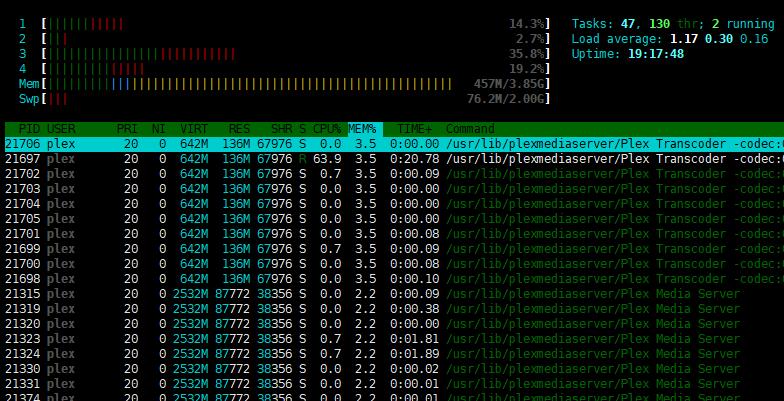
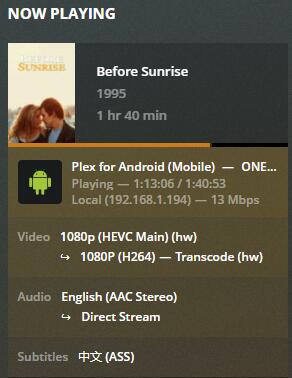
<p>播放H.265的影片，默认使用ass字幕，服务器端资源占用率如下：</p>
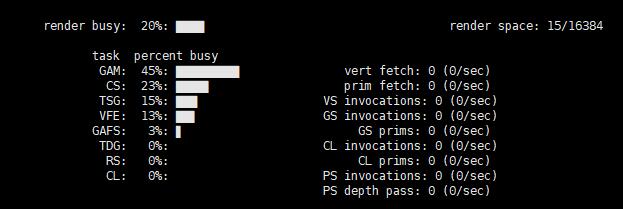
<p><figure id="attachment_442" aria-describedby="caption-attachment-442" style="width: 784px" class="wp-caption aligncenter"><img loading="lazy" decoding="async" class="wp-image-442 size-full" src="https://lijie.org/wp-content/uploads/2020/04/ass字幕开启后CPU占用率.jpg" alt="" width="784" height="401" srcset="https://lijie.org/wp-content/uploads/2020/04/ass字幕开启后CPU占用率.jpg 784w, https://lijie.org/wp-content/uploads/2020/04/ass字幕开启后CPU占用率-300x153.jpg 300w, https://lijie.org/wp-content/uploads/2020/04/ass字幕开启后CPU占用率-150x77.jpg 150w, https://lijie.org/wp-content/uploads/2020/04/ass字幕开启后CPU占用率-768x393.jpg 768w, https://lijie.org/wp-content/uploads/2020/04/ass字幕开启后CPU占用率-782x400.jpg 782w, https://lijie.org/wp-content/uploads/2020/04/ass字幕开启后CPU占用率-455x233.jpg 455w, https://lijie.org/wp-content/uploads/2020/04/ass字幕开启后CPU占用率-267x137.jpg 267w" sizes="auto, (max-width: 784px) 100vw, 784px" /><figcaption id="caption-attachment-442" class="wp-caption-text">↑运行htop，cpu占用率情况，可以看到plex的transcoder在工作</figcaption></figure><br />
<figure id="attachment_443" aria-describedby="caption-attachment-443" style="width: 623px" class="wp-caption aligncenter"><img loading="lazy" decoding="async" class="wp-image-443 size-full" src="https://lijie.org/wp-content/uploads/2020/04/ass字幕开启后GPU占用率.jpg" alt="" width="623" height="209" srcset="https://lijie.org/wp-content/uploads/2020/04/ass字幕开启后GPU占用率.jpg 623w, https://lijie.org/wp-content/uploads/2020/04/ass字幕开启后GPU占用率-300x101.jpg 300w, https://lijie.org/wp-content/uploads/2020/04/ass字幕开启后GPU占用率-150x50.jpg 150w, https://lijie.org/wp-content/uploads/2020/04/ass字幕开启后GPU占用率-455x153.jpg 455w, https://lijie.org/wp-content/uploads/2020/04/ass字幕开启后GPU占用率-267x90.jpg 267w" sizes="auto, (max-width: 623px) 100vw, 623px" /><figcaption id="caption-attachment-443" class="wp-caption-text">↑运行intel_gpu_top，可以看到核显也在工作</figcaption></figure><br />
<figure id="attachment_444" aria-describedby="caption-attachment-444" style="width: 292px" class="wp-caption aligncenter"><img loading="lazy" decoding="async" class="size-full wp-image-444" src="https://lijie.org/wp-content/uploads/2020/04/ass字幕开启后Plex后台显示在转码.jpg" alt="" width="292" height="378" srcset="https://lijie.org/wp-content/uploads/2020/04/ass字幕开启后Plex后台显示在转码.jpg 292w, https://lijie.org/wp-content/uploads/2020/04/ass字幕开启后Plex后台显示在转码-232x300.jpg 232w, https://lijie.org/wp-content/uploads/2020/04/ass字幕开启后Plex后台显示在转码-116x150.jpg 116w, https://lijie.org/wp-content/uploads/2020/04/ass字幕开启后Plex后台显示在转码-239x310.jpg 239w, https://lijie.org/wp-content/uploads/2020/04/ass字幕开启后Plex后台显示在转码-158x205.jpg 158w" sizes="auto, (max-width: 292px) 100vw, 292px" /><figcaption id="caption-attachment-444" class="wp-caption-text">↑Plex后台也可以看到Plex在硬件转码(HW)，字幕显示ASS格式</figcaption></figure></p>
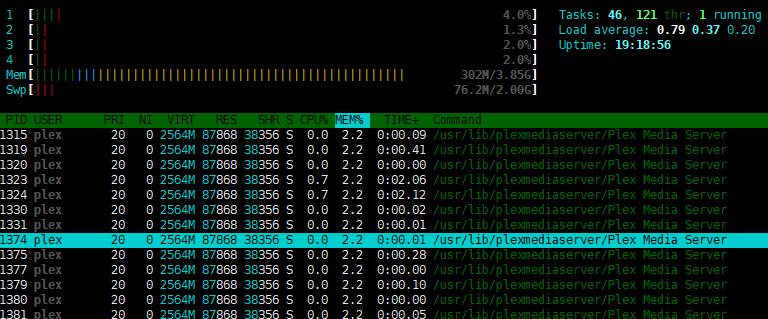
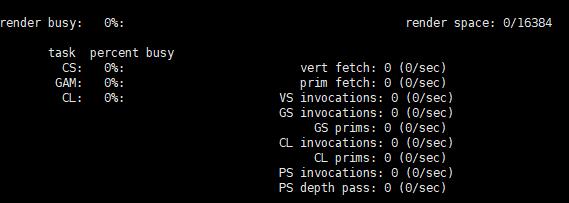
<p>我下载的影片内嵌了srt的字幕，在播放终端手动将字幕设为srt字幕后的情况：</p>
<p><figure id="attachment_445" aria-describedby="caption-attachment-445" style="width: 768px" class="wp-caption aligncenter"><img loading="lazy" decoding="async" class="size-full wp-image-445" src="https://lijie.org/wp-content/uploads/2020/04/srt字幕开启后plex进程消耗资源.jpg" alt="" width="768" height="319" srcset="https://lijie.org/wp-content/uploads/2020/04/srt字幕开启后plex进程消耗资源.jpg 768w, https://lijie.org/wp-content/uploads/2020/04/srt字幕开启后plex进程消耗资源-300x125.jpg 300w, https://lijie.org/wp-content/uploads/2020/04/srt字幕开启后plex进程消耗资源-150x62.jpg 150w, https://lijie.org/wp-content/uploads/2020/04/srt字幕开启后plex进程消耗资源-455x189.jpg 455w, https://lijie.org/wp-content/uploads/2020/04/srt字幕开启后plex进程消耗资源-267x111.jpg 267w" sizes="auto, (max-width: 768px) 100vw, 768px" /><figcaption id="caption-attachment-445" class="wp-caption-text">↑CPU占用率明显下降，并且plex的transcoder没有工作</figcaption></figure><br />
<figure id="attachment_446" aria-describedby="caption-attachment-446" style="width: 569px" class="wp-caption aligncenter"><img loading="lazy" decoding="async" class="wp-image-446 size-full" src="https://lijie.org/wp-content/uploads/2020/04/srt字幕开启后GPU占用率.jpg" alt="" width="569" height="203" srcset="https://lijie.org/wp-content/uploads/2020/04/srt字幕开启后GPU占用率.jpg 569w, https://lijie.org/wp-content/uploads/2020/04/srt字幕开启后GPU占用率-300x107.jpg 300w, https://lijie.org/wp-content/uploads/2020/04/srt字幕开启后GPU占用率-150x54.jpg 150w, https://lijie.org/wp-content/uploads/2020/04/srt字幕开启后GPU占用率-455x162.jpg 455w, https://lijie.org/wp-content/uploads/2020/04/srt字幕开启后GPU占用率-267x95.jpg 267w" sizes="auto, (max-width: 569px) 100vw, 569px" /><figcaption id="caption-attachment-446" class="wp-caption-text">↑核显没有任何负载</figcaption></figure><br />
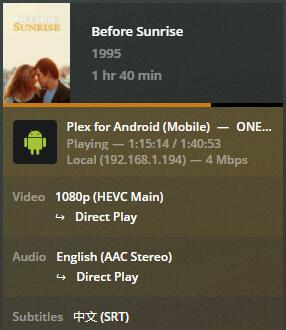
<figure id="attachment_447" aria-describedby="caption-attachment-447" style="width: 286px" class="wp-caption aligncenter"><img loading="lazy" decoding="async" class="wp-image-447 size-full" src="https://lijie.org/wp-content/uploads/2020/04/srt字幕开启后Plex后台显示没有转码.jpg" alt="" width="286" height="330" srcset="https://lijie.org/wp-content/uploads/2020/04/srt字幕开启后Plex后台显示没有转码.jpg 286w, https://lijie.org/wp-content/uploads/2020/04/srt字幕开启后Plex后台显示没有转码-260x300.jpg 260w, https://lijie.org/wp-content/uploads/2020/04/srt字幕开启后Plex后台显示没有转码-130x150.jpg 130w, https://lijie.org/wp-content/uploads/2020/04/srt字幕开启后Plex后台显示没有转码-269x310.jpg 269w, https://lijie.org/wp-content/uploads/2020/04/srt字幕开启后Plex后台显示没有转码-178x205.jpg 178w" sizes="auto, (max-width: 286px) 100vw, 286px" /><figcaption id="caption-attachment-447" class="wp-caption-text">↑Plex后台显示Direct Play，意思就是后台没有进行任何的转码，字幕是SRT</figcaption></figure></p>
<p>上面带宽区别是因为在测试中间去蹲了个坑，导致手机wifi切换到了2.4G，其实没影响。</p>
<p>所以以我目前的播放终端来看，能更进一步降低CPU占用率的很简单的办法就是更换字幕格式，实际测试发现SRT和<strong>PGS（pgs字幕还带有各种特效和字体，居然不转码？！很奇怪）</strong>以及SSA格式的字幕均不会转码，很不起眼的原因。如果必须服务器端解码的时候，这就考验服务器端CPU的核显了，牙膏厂的7系列及以后的cpu的核显(620及以后的可以)可以承担很多工作，这样CPU使用率会低很多。</p>
<p>音频有时候也会转码，但是cpu的使用率却非常低，所以不考虑了。</p>
<p>下一步研究下免费的Jellyfin，毕竟是免费的，并且是从收费的Emby脱离出来的。</p>
]]></content>
		
				<link rel="shortlink" href="https://lijie.org/b/7D" />
			<link rel="replies" type="text/html" href="https://lijie.org/2020/04/09/%e9%99%8d%e4%bd%8ecpu%e4%bd%bf%e7%94%a8%e7%8e%87-%e8%ae%a9plex%e5%ae%a2%e6%88%b7%e7%ab%af%e8%a7%a3%e7%a0%81/#comments" thr:count="13" />
			<link rel="replies" type="application/atom+xml" href="https://lijie.org/2020/04/09/%e9%99%8d%e4%bd%8ecpu%e4%bd%bf%e7%94%a8%e7%8e%87-%e8%ae%a9plex%e5%ae%a2%e6%88%b7%e7%ab%af%e8%a7%a3%e7%a0%81/feed/atom/" thr:count="13" />
			<thr:total>13</thr:total>
			</entry>
		<entry>
		<author>
			<name>eijil</name>
					</author>

		<title type="html"><![CDATA[使用qnap nas的hbs 3同步onedrive googledrive等网盘内容]]></title>
		<link rel="alternate" type="text/html" href="https://lijie.org/2019/11/15/%e4%bd%bf%e7%94%a8qnap-nas%e7%9a%84hbs-3%e5%90%8c%e6%ad%a5onedrive-googledrive%e7%ad%89%e7%bd%91%e7%9b%98%e5%86%85%e5%ae%b9/" />

		<id>https://lijie.org/?p=357</id>
		<updated>2020-04-30T19:37:31Z</updated>
		<published>2019-11-15T13:22:21Z</published>
		<category scheme="https://lijie.org" term="Uncategorized" /><category scheme="https://lijie.org" term="googledrive" /><category scheme="https://lijie.org" term="homelab" /><category scheme="https://lijie.org" term="NAS" /><category scheme="https://lijie.org" term="onedrive" /><category scheme="https://lijie.org" term="QNAP" />
		<summary type="html"><![CDATA[QNAP还是不错的，就是界面做的一般般。视频默认油管的，B站地址。]]></summary>

					<content type="html" xml:base="https://lijie.org/2019/11/15/%e4%bd%bf%e7%94%a8qnap-nas%e7%9a%84hbs-3%e5%90%8c%e6%ad%a5onedrive-googledrive%e7%ad%89%e7%bd%91%e7%9b%98%e5%86%85%e5%ae%b9/"><![CDATA[<p>QNAP还是不错的，就是界面做的一般般。视频默认油管的，<a href="https://www.bilibili.com/video/av73299410" target="_blank" rel="noopener noreferrer">B站地址</a>。</p>
]]></content>
		
				<link rel="shortlink" href="https://lijie.org/a/5x" />
			<link rel="replies" type="text/html" href="https://lijie.org/2019/11/15/%e4%bd%bf%e7%94%a8qnap-nas%e7%9a%84hbs-3%e5%90%8c%e6%ad%a5onedrive-googledrive%e7%ad%89%e7%bd%91%e7%9b%98%e5%86%85%e5%ae%b9/#comments" thr:count="2" />
			<link rel="replies" type="application/atom+xml" href="https://lijie.org/2019/11/15/%e4%bd%bf%e7%94%a8qnap-nas%e7%9a%84hbs-3%e5%90%8c%e6%ad%a5onedrive-googledrive%e7%ad%89%e7%bd%91%e7%9b%98%e5%86%85%e5%ae%b9/feed/atom/" thr:count="2" />
			<thr:total>2</thr:total>
			</entry>
		<entry>
		<author>
			<name>eijil</name>
					</author>

		<title type="html"><![CDATA[域名如何开启HTTPS,HTTP/2以及HSTS]]></title>
		<link rel="alternate" type="text/html" href="https://lijie.org/2019/11/01/how-to-enable-https-http2-hsts/" />

		<id>https://lijie.org/?p=327</id>
		<updated>2020-06-06T02:15:47Z</updated>
		<published>2019-11-01T03:10:14Z</published>
		<category scheme="https://lijie.org" term="Uncategorized" /><category scheme="https://lijie.org" term="Domain" /><category scheme="https://lijie.org" term="HSTS" /><category scheme="https://lijie.org" term="HTTP/2" /><category scheme="https://lijie.org" term="HTTPS" /><category scheme="https://lijie.org" term="Let&#039;s encrypt" /><category scheme="https://lijie.org" term="nginx" /><category scheme="https://lijie.org" term="域名" />
		<summary type="html"><![CDATA[对于站长，配置域名的https, http/2以及hsts是家常便饭，之前的博客说过，这里使用免费的let&# [&#8230;]]]></summary>

					<content type="html" xml:base="https://lijie.org/2019/11/01/how-to-enable-https-http2-hsts/"><![CDATA[
<p>对于站长，配置域名的https, http/2以及hsts是家常便饭，之前的<a href="https://lijie.org/2016/06/27/vultr-vps%e9%85%8d%e7%bd%ae%e7%ac%94%e8%ae%b0/" target="_blank" rel="noopener noreferrer">博客</a>说过，这里使用免费的let&#8217;s encrypt来演示，环境是ubuntu18.04 + nginx，域名使用lijie.org，下面的命令替换成自己的域名即可。</p>


<p><strong>一、开启https。</strong></p>
<pre class="lang:default decode:true" style="padding-left: 40px;">sudo add-apt-repository ppa:certbot/certbot #将let's encrypt加入ubuntu软件源,ubuntu 18.04及之前版本，ubuntu20.04方法如下
sudo apt-get update #更新列表
sudo apt-get install python-certbot-nginx #安装certbot,ubuntu 18.04及之前版本，ubuntu20.04方法如下<br /><br />apt install certbot python3-certbot-nginx #ubuntu20.04开始直接安装就行，不需要另外添加lets encrypt源。

sudo ufw allow 'Nginx Full' #将80, 443端口开启，加入防火墙
sudo certbot --nginx -d lijie.org -d www.lijie.org #使用certbot给两个域名申请ssl</pre>
<p style="padding-left: 40px;">执行上述命令会提示：</p>
<p style="padding-left: 40px;">Please choose whether or not to redirect HTTP traffic to HTTPS, removing HTTP access.<br />&#8212;&#8212;&#8212;&#8212;&#8212;&#8212;&#8212;&#8212;&#8212;&#8212;&#8212;&#8212;&#8212;&#8212;&#8212;&#8212;&#8212;&#8212;&#8212;&#8212;&#8212;&#8212;&#8212;&#8212;&#8212;&#8212;-<br />1: No redirect &#8211; Make no further changes to the webserver configuration.<br />2: Redirect &#8211; Make all requests redirect to secure HTTPS access. Choose this for<br />new sites, or if you&#8217;re confident your site works on HTTPS. You can undo this<br />change by editing your web server&#8217;s configuration.<br />&#8212;&#8212;&#8212;&#8212;&#8212;&#8212;&#8212;&#8212;&#8212;&#8212;&#8212;&#8212;&#8212;&#8212;&#8212;&#8212;&#8212;&#8212;&#8212;&#8212;&#8212;&#8212;&#8212;&#8212;&#8212;&#8212;-<br />Select the appropriate number [1-2] then [enter] (press &#8216;c&#8217; to cancel):</p>


<p style="padding-left: 40px;">这里选择2，按回车，剩下的问题按y，同意即可。</p>
<p style="padding-left: 40px;">https就配置完成了，访问<a href="https://www.ssllabs.com/ssltest/" target="_blank" rel="noopener noreferrer">https://www.ssllabs.com/ssltest/</a>，评分会的A，下面我们继续配置，让其得分到A+。</p>
<p>二、<strong>添加HTTP/2支持</strong></p>


<pre class="lang:default decode:true" style="padding-left: 40px;">sudo nano /etc/nginx/sites-available/lijie.org #编辑网站的nginx配置文件</pre>
<p style="padding-left: 40px;">找到并添加</p>
<pre class="lang:default decode:true">listen [::]:443 ssl http2 ipv6only=on;  #新添加http2
listen 443 ssl http2;    #新添加http2</pre>
<p style="padding-left: 40px;">按Ctrl + O保存，然后按Ctrl + X退出后，检查nginx配置文件是否正确</p>
<pre class="lang:default decode:true" style="padding-left: 40px;">sudo nginx -t #检查配置文件是否正确，一般没问题
sudo service nginx reload #重新加载nginx配置文件，使得修改生效</pre>
<p style="padding-left: 40px;">这样http/2配置基本完成，下面来提高http2的安全性。</p>
<p style="padding-left: 40px;">依旧打开网站配置文件：</p>
<pre class="lang:default decode:true" style="padding-left: 40px;">sudo nano /etc/nginx/sites-available/lijie.org</pre>
<p style="padding-left: 40px;">找到let&#8217;s encrypt替我们生成的下面的语句，前面添加#号将其注释掉：</p>
<pre class="lang:default decode:true" style="padding-left: 40px;"># include /etc/letsencrypt/options-ssl-nginx.conf; # managed by Certbot</pre>
<p style="padding-left: 40px;">另起一行，加入：</p>
<pre class="lang:default decode:true" style="padding-left: 40px;">ssl_ciphers EECDH+CHACHA20:EECDH+AES128:RSA+AES128:EECDH+AES256:RSA+AES256:EECDH+3DES:RSA+3DES:!MD5;</pre>
<pre class="lang:default decode:true" style="padding-left: 40px;">sudo nginx -t 
sudo service nginx reload #没问题后，重新加载nginx</pre>
<p style="padding-left: 40px;">验证下http2是否生效，命令行输入：</p>
<pre class="lang:default decode:true" style="padding-left: 40px;">curl -I -L https://lijie.org</pre>
<p><img loading="lazy" decoding="async" class="size-full wp-image-332 aligncenter" src="https://lijie.org/wp-content/uploads/2019/11/FinalShell-2.9.8-2019_11_1-10_24_09-2.png" alt="" width="398" height="73" srcset="https://lijie.org/wp-content/uploads/2019/11/FinalShell-2.9.8-2019_11_1-10_24_09-2.png 398w, https://lijie.org/wp-content/uploads/2019/11/FinalShell-2.9.8-2019_11_1-10_24_09-2-150x28.png 150w, https://lijie.org/wp-content/uploads/2019/11/FinalShell-2.9.8-2019_11_1-10_24_09-2-300x55.png 300w, https://lijie.org/wp-content/uploads/2019/11/FinalShell-2.9.8-2019_11_1-10_24_09-2-267x49.png 267w" sizes="auto, (max-width: 398px) 100vw, 398px" /></p>
<p>&nbsp;</p>


<p style="padding-left: 40px;">从返回结果可以看到，http/2生效了。</p>
<p>三、<strong>添加HSTS支持</strong></p>
<p style="padding-left: 40px;">目前我们使用的https使用的是301转向，即用户先访问http://lijie.org，nginx收到请求后，将80端口的http请求通过301转向到443端口的https。为了避免301转向期间存在的有可能的安全漏洞，我们需要添加hsts功能，强制让浏览器直接访问443端口，而避免访问80端口的http。</p>
<p style="padding-left: 40px;">编辑nginx配置文件：</p>
<pre class="lang:default decode:true">sudo nano /etc/nginx/nginx.conf #打开nginx配置文件</pre>
<p style="padding-left: 40px;">在配置文件中找到并添加一行：</p>
<pre class="lang:default decode:true">include /etc/nginx/conf.d/*.conf;
include /etc/nginx/sites-enabled/*; 
add_header Strict-Transport-Security "max-age=31536000; includeSubdomains; preload" always; #在配置文件中新增这一行</pre>
<p style="padding-left: 40px;">这样hsts就配置完毕了，但是用户第一次访问的时候还要301转向，否则看不到hsts的头部包信息，但是随后就不用了。为了避免这个问题，谷歌的chrome浏览器维持了一个开启hsts的网站列表，<a href="https://hstspreload.org" target="_blank" rel="noopener noreferrer">https://hstspreload.org</a>，可以将自己的网站提交上去，其它的像是firefox，edge等浏览器也会参考此列表。由于本网站套用了CF，无法hstspreload的检测。</p>
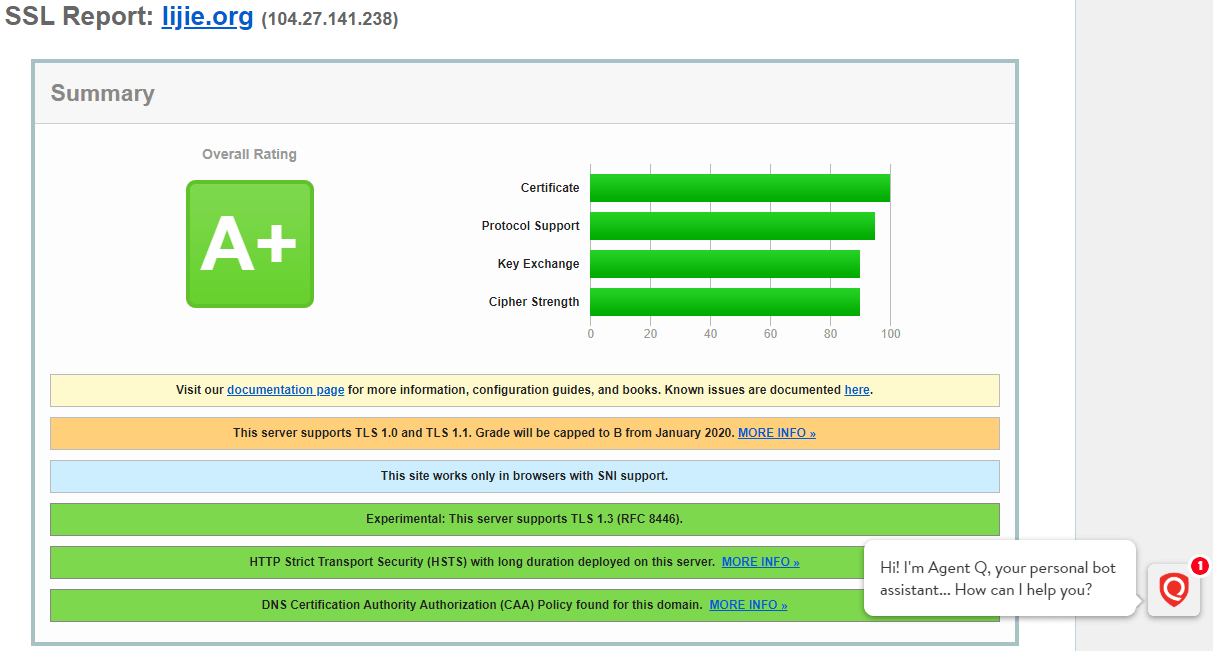
<p style="padding-left: 40px;">开始hsts后，再次访问<a href="https://www.ssllabs.com/ssltest/" target="_blank" rel="noopener noreferrer">https://www.ssllabs.com/ssltest/</a>，网站域名的https评分会从A变为A+。</p>
<figure id="attachment_333" aria-describedby="caption-attachment-333" style="width: 1213px" class="wp-caption alignleft"><img loading="lazy" decoding="async" class="size-full wp-image-333" src="https://lijie.org/wp-content/uploads/2019/11/3-New-Message-Google-Chrome-2019_11_1-10_43_21.png" alt="" width="1213" height="651" srcset="https://lijie.org/wp-content/uploads/2019/11/3-New-Message-Google-Chrome-2019_11_1-10_43_21.png 1213w, https://lijie.org/wp-content/uploads/2019/11/3-New-Message-Google-Chrome-2019_11_1-10_43_21-150x81.png 150w, https://lijie.org/wp-content/uploads/2019/11/3-New-Message-Google-Chrome-2019_11_1-10_43_21-300x161.png 300w, https://lijie.org/wp-content/uploads/2019/11/3-New-Message-Google-Chrome-2019_11_1-10_43_21-768x412.png 768w, https://lijie.org/wp-content/uploads/2019/11/3-New-Message-Google-Chrome-2019_11_1-10_43_21-1024x550.png 1024w, https://lijie.org/wp-content/uploads/2019/11/3-New-Message-Google-Chrome-2019_11_1-10_43_21-940x504.png 940w, https://lijie.org/wp-content/uploads/2019/11/3-New-Message-Google-Chrome-2019_11_1-10_43_21-745x400.png 745w, https://lijie.org/wp-content/uploads/2019/11/3-New-Message-Google-Chrome-2019_11_1-10_43_21-455x244.png 455w, https://lijie.org/wp-content/uploads/2019/11/3-New-Message-Google-Chrome-2019_11_1-10_43_21-267x143.png 267w" sizes="auto, (max-width: 1213px) 100vw, 1213px" /><figcaption id="caption-attachment-333" class="wp-caption-text">ssllabs.com/ssltest A+</figcaption></figure>
]]></content>
		
				<link rel="shortlink" href="https://lijie.org/b/5T" />
			<link rel="replies" type="text/html" href="https://lijie.org/2019/11/01/how-to-enable-https-http2-hsts/#comments" thr:count="3" />
			<link rel="replies" type="application/atom+xml" href="https://lijie.org/2019/11/01/how-to-enable-https-http2-hsts/feed/atom/" thr:count="3" />
			<thr:total>3</thr:total>
			</entry>
		<entry>
		<author>
			<name>eijil</name>
					</author>

		<title type="html"><![CDATA[如何在ESXI中安装Home Assistant]]></title>
		<link rel="alternate" type="text/html" href="https://lijie.org/2019/10/12/install-homeassistant-on-esxi/" />

		<id>https://lijie.org/?p=224</id>
		<updated>2020-05-12T13:03:16Z</updated>
		<published>2019-10-12T09:15:39Z</published>
		<category scheme="https://lijie.org" term="Uncategorized" /><category scheme="https://lijie.org" term="esxi" /><category scheme="https://lijie.org" term="HA" /><category scheme="https://lijie.org" term="homeassistant" /><category scheme="https://lijie.org" term="homelab" /><category scheme="https://lijie.org" term="IoT" />
		<summary type="html"><![CDATA[家里有个ESXI虚拟化平台的确是方便，除了可以使用软路由，很多系统都可以安装进去，这里简单说下如何在ESXI中 [&#8230;]]]></summary>

					<content type="html" xml:base="https://lijie.org/2019/10/12/install-homeassistant-on-esxi/"><![CDATA[
<p>家里有个ESXI虚拟化平台的确是方便，除了可以使用软路由，很多系统都可以安装进去，这里简单说下如何在<strong>ESXI</strong>中安装<strong>Home Assistant</strong>，网上大部分教程都是在Linux中的docker里跑HA。</p>


<p>视频演示过程：<a href="https://www.youtube.com/watch?v=26bv7qNSBgg" target="_blank" rel="noreferrer noopener" aria-label="youtube（在新窗口打开）">youtube</a>, <a href="https://www.bilibili.com/video/av70977447/" target="_blank" rel="noreferrer noopener" aria-label="B站（在新窗口打开）">B站</a></p>


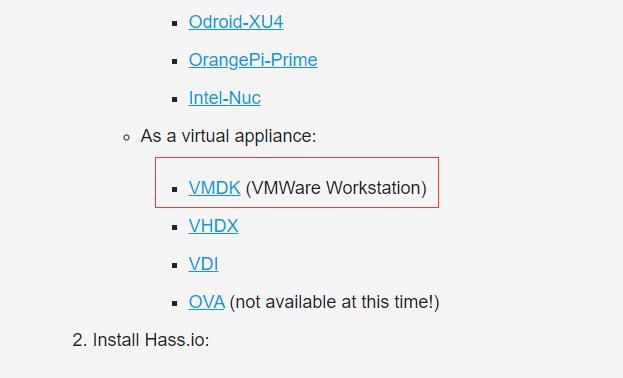
<p>首先到<a href="https://www.home-assistant.io/hassio/installation/" target="_blank" rel="noreferrer noopener" aria-label="官网（在新窗口打开）">官网</a>下载HA的虚拟机文件</p>


<div class="wp-block-image">
<figure class="aligncenter is-resized"><img loading="lazy" decoding="async" class="wp-image-225" src="https://lijie.org/wp-content/uploads/2019/10/01.jpg" alt="" width="623" height="378" srcset="https://lijie.org/wp-content/uploads/2019/10/01.jpg 623w, https://lijie.org/wp-content/uploads/2019/10/01-150x91.jpg 150w, https://lijie.org/wp-content/uploads/2019/10/01-455x276.jpg 455w, https://lijie.org/wp-content/uploads/2019/10/01-300x182.jpg 300w, https://lijie.org/wp-content/uploads/2019/10/01-267x162.jpg 267w" sizes="auto, (max-width: 623px) 100vw, 623px" />
<figcaption>下载vmdk文件</figcaption>
</figure>
</div>


<p>将解压缩出来的文件上传到esxi，打开esxi的SSH权限，进入后台，使用下面的命令将vmdk文件转换为esxi可以使用的文件。</p>


<blockquote class="wp-block-quote is-layout-flow wp-block-quote-is-layout-flow">
<p>vmkfstools -i hassxxx.vmdk 1.vmdk</p>
</blockquote>


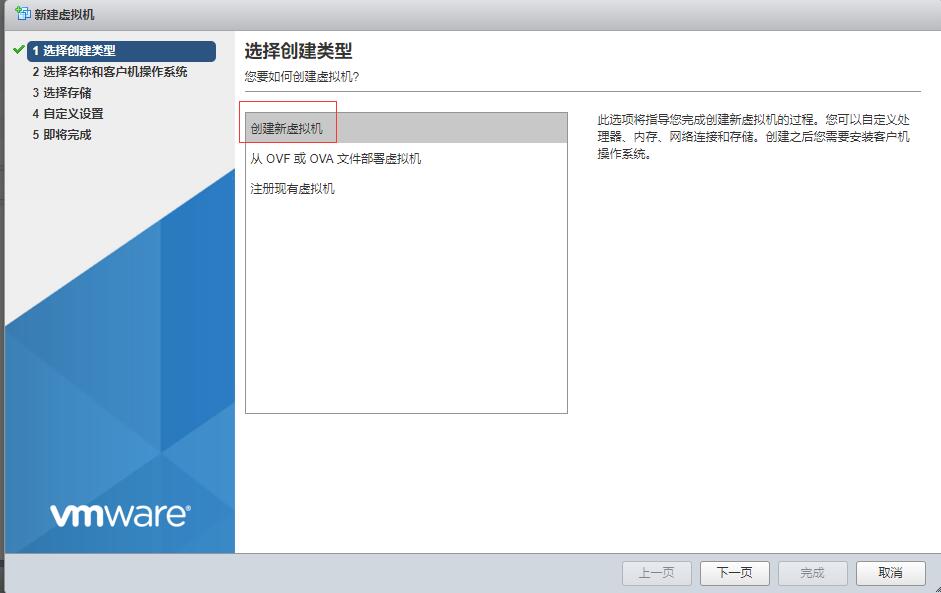
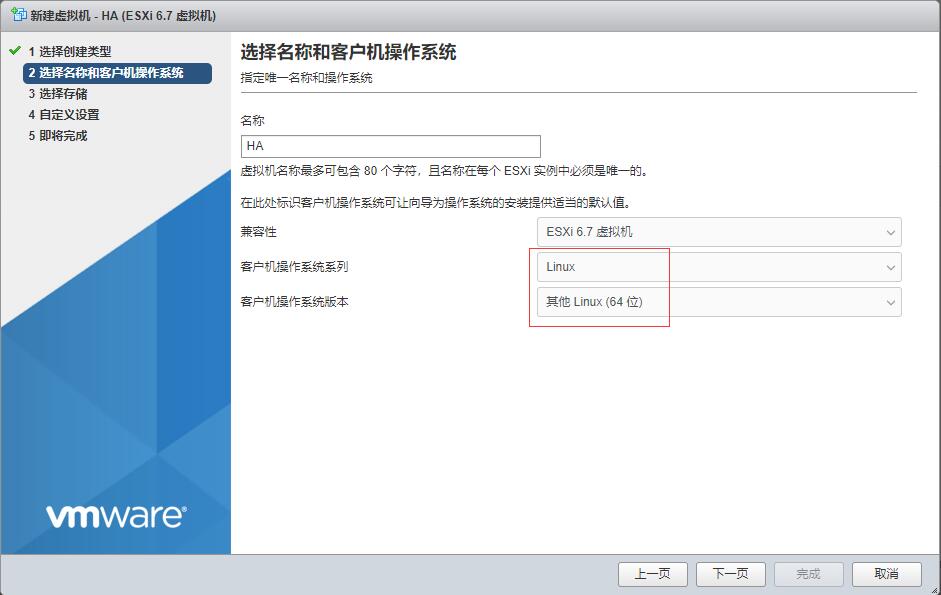
<p>随后创建虚拟机</p>


<div class="wp-block-image">
<figure class="aligncenter is-resized"><img loading="lazy" decoding="async" class="wp-image-227" src="https://lijie.org/wp-content/uploads/2019/10/03-1.jpg" alt="" width="941" height="593" srcset="https://lijie.org/wp-content/uploads/2019/10/03-1.jpg 941w, https://lijie.org/wp-content/uploads/2019/10/03-1-150x95.jpg 150w, https://lijie.org/wp-content/uploads/2019/10/03-1-809x510.jpg 809w, https://lijie.org/wp-content/uploads/2019/10/03-1-455x287.jpg 455w, https://lijie.org/wp-content/uploads/2019/10/03-1-300x189.jpg 300w, https://lijie.org/wp-content/uploads/2019/10/03-1-768x484.jpg 768w, https://lijie.org/wp-content/uploads/2019/10/03-1-635x400.jpg 635w, https://lijie.org/wp-content/uploads/2019/10/03-1-267x168.jpg 267w" sizes="auto, (max-width: 941px) 100vw, 941px" />
<figcaption>新建虚拟机</figcaption>
</figure>
</div>


<div class="wp-block-image">
<figure class="aligncenter is-resized"><img loading="lazy" decoding="async" class="wp-image-228" src="https://lijie.org/wp-content/uploads/2019/10/04.jpg" alt="" width="941" height="595" srcset="https://lijie.org/wp-content/uploads/2019/10/04.jpg 941w, https://lijie.org/wp-content/uploads/2019/10/04-150x95.jpg 150w, https://lijie.org/wp-content/uploads/2019/10/04-807x510.jpg 807w, https://lijie.org/wp-content/uploads/2019/10/04-455x288.jpg 455w, https://lijie.org/wp-content/uploads/2019/10/04-300x190.jpg 300w, https://lijie.org/wp-content/uploads/2019/10/04-768x486.jpg 768w, https://lijie.org/wp-content/uploads/2019/10/04-633x400.jpg 633w, https://lijie.org/wp-content/uploads/2019/10/04-267x169.jpg 267w" sizes="auto, (max-width: 941px) 100vw, 941px" />
<figcaption>按照框框里的选择好</figcaption>
</figure>
</div>


<p>然后下一步，下一步。建立好虚拟机后，开始调整虚拟机配置。调整配置很重要。</p>


<ol class="wp-block-list">
<li>删除<strong>CD/DVD驱动器</strong>，然后添加硬盘，<strong>添加现有硬盘</strong>，选择上面转换好的1.vmdk文件。<strong>删除默认分配的硬盘</strong>。</li>
<li>点击硬盘左侧的三角，控制器位置选择<strong>IDE控制器0</strong>，右侧选择<strong>主要</strong>。</li>
<li>虚拟机选项下面的引导选项，选择EFI。</li>
<li>记得调整cpu和内存数量。</li>
</ol>


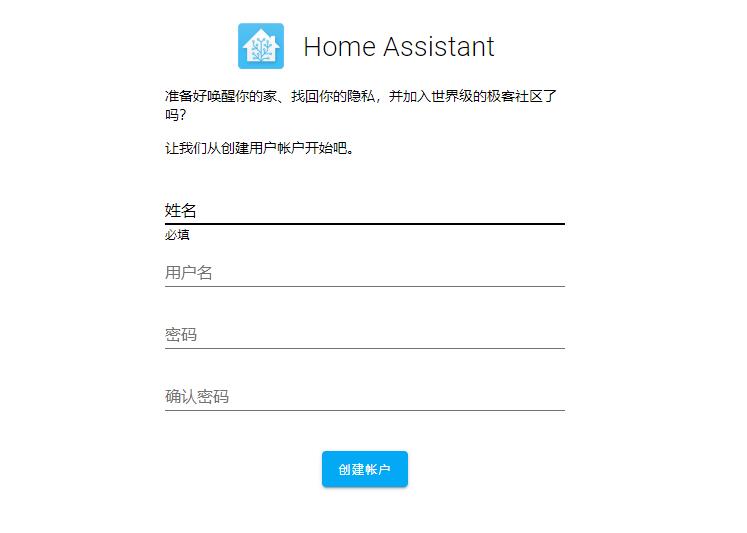
<p>完成上述的配置调整后，就可以给虚拟机通电了，随后访问hassio.local:8123就能打开HA的首页了。</p>


<div class="wp-block-image">
<figure class="aligncenter is-resized"><img loading="lazy" decoding="async" class="wp-image-229" src="https://lijie.org/wp-content/uploads/2019/10/06.jpg" alt="" width="570" height="547" srcset="https://lijie.org/wp-content/uploads/2019/10/06.jpg 570w, https://lijie.org/wp-content/uploads/2019/10/06-150x144.jpg 150w, https://lijie.org/wp-content/uploads/2019/10/06-531x510.jpg 531w, https://lijie.org/wp-content/uploads/2019/10/06-323x310.jpg 323w, https://lijie.org/wp-content/uploads/2019/10/06-300x288.jpg 300w, https://lijie.org/wp-content/uploads/2019/10/06-417x400.jpg 417w, https://lijie.org/wp-content/uploads/2019/10/06-214x205.jpg 214w" sizes="auto, (max-width: 570px) 100vw, 570px" />
<figcaption>如果访问hassio.local:8123无法打开这个页面，等待5-10分钟再访问</figcaption>
</figure>
</div>


<div class="wp-block-image">
<figure class="aligncenter is-resized"><img loading="lazy" decoding="async" class="wp-image-230" src="https://lijie.org/wp-content/uploads/2019/10/07.jpg" alt="" width="747" height="533" srcset="https://lijie.org/wp-content/uploads/2019/10/07.jpg 747w, https://lijie.org/wp-content/uploads/2019/10/07-150x107.jpg 150w, https://lijie.org/wp-content/uploads/2019/10/07-715x510.jpg 715w, https://lijie.org/wp-content/uploads/2019/10/07-434x310.jpg 434w, https://lijie.org/wp-content/uploads/2019/10/07-300x214.jpg 300w, https://lijie.org/wp-content/uploads/2019/10/07-561x400.jpg 561w, https://lijie.org/wp-content/uploads/2019/10/07-267x191.jpg 267w" sizes="auto, (max-width: 747px) 100vw, 747px" />
<figcaption>在首页等待一会儿之后，就会自动跳转到管理员设置页面</figcaption>
</figure>
</div>


<p>以上就是安装的粗略过程。</p>
]]></content>
		
				<link rel="shortlink" href="https://lijie.org/b/3j" />
			<link rel="replies" type="text/html" href="https://lijie.org/2019/10/12/install-homeassistant-on-esxi/#comments" thr:count="0" />
			<link rel="replies" type="application/atom+xml" href="https://lijie.org/2019/10/12/install-homeassistant-on-esxi/feed/atom/" thr:count="0" />
			<thr:total>0</thr:total>
			</entry>
		<entry>
		<author>
			<name>eijil</name>
					</author>

		<title type="html"><![CDATA[让你的网站使用cloudflare全球加速]]></title>
		<link rel="alternate" type="text/html" href="https://lijie.org/2019/10/05/%e8%ae%a9%e4%bd%a0%e7%9a%84%e7%bd%91%e7%ab%99%e4%bd%bf%e7%94%a8cloudflare%e5%85%a8%e7%90%83%e5%8a%a0%e9%80%9f/" />

		<id>https://lijie.org/?p=203</id>
		<updated>2019-11-28T00:09:30Z</updated>
		<published>2019-10-05T09:12:56Z</published>
		<category scheme="https://lijie.org" term="Uncategorized" /><category scheme="https://lijie.org" term="cloudflare" /><category scheme="https://lijie.org" term="VPS" /><category scheme="https://lijie.org" term="wordpress" />
		<summary type="html"><![CDATA[使用免费版本的cloudflare在大陆都被称为cdn减速，但是从我实际使用来说，减速效果不明显，但是却可以大 [&#8230;]]]></summary>

					<content type="html" xml:base="https://lijie.org/2019/10/05/%e8%ae%a9%e4%bd%a0%e7%9a%84%e7%bd%91%e7%ab%99%e4%bd%bf%e7%94%a8cloudflare%e5%85%a8%e7%90%83%e5%8a%a0%e9%80%9f/"><![CDATA[
<p style="text-align: center;">使用免费版本的cloudflare在大陆都被称为cdn减速，但是从我实际使用来说，减速效果不明显，但是却可以大大提升全球的访问速度。设置合理可以严重降低服务器的负担，对于服务器配置不好，vps本身直连国内速度本身就很慢，以及vps ip被封的人来说，是个神器。</p>


<p>这里，就如何设置<strong>wordpress</strong>来说下cloudflare的基础设置。先放个效果图，可以看到绝大多数网站请求都使用了cloudflare的cache。</p>


<div class="wp-block-image">
<figure class="aligncenter is-resized"><a href="https://lijie.org/wp-content/uploads/2019/10/03.jpg"><img loading="lazy" decoding="async" class="wp-image-207" src="https://lijie.org/wp-content/uploads/2019/10/03.jpg" alt="" width="998" height="448" srcset="https://lijie.org/wp-content/uploads/2019/10/03.jpg 998w, https://lijie.org/wp-content/uploads/2019/10/03-150x67.jpg 150w, https://lijie.org/wp-content/uploads/2019/10/03-940x422.jpg 940w, https://lijie.org/wp-content/uploads/2019/10/03-891x400.jpg 891w, https://lijie.org/wp-content/uploads/2019/10/03-455x204.jpg 455w, https://lijie.org/wp-content/uploads/2019/10/03-300x135.jpg 300w, https://lijie.org/wp-content/uploads/2019/10/03-768x345.jpg 768w, https://lijie.org/wp-content/uploads/2019/10/03-267x120.jpg 267w" sizes="auto, (max-width: 998px) 100vw, 998px" /></a>
<figcaption>深色是使用的cache，浅色是从我的服务器处理的请求</figcaption>
</figure>
</div>


<p>首先，注册<a href="https://www.cloudflare.com" target="_blank" rel="noreferrer noopener" aria-label="cloudflare（在新窗口打开）">cloudflare</a>，然后修改你域名的两个dns为cloudflare提供给你的。一般十分钟搞定。</p>


<p>打开cloudflare管理界面，可以看到上面有不少可设置选项，在上面先找到page rules。</p>


<figure class="wp-block-image is-resized"><a href="https://lijie.org/wp-content/uploads/2019/10/01-2.png"><img loading="lazy" decoding="async" class="wp-image-204" src="https://lijie.org/wp-content/uploads/2019/10/01-2-1024x114.png" alt="" width="1024" height="114" srcset="https://lijie.org/wp-content/uploads/2019/10/01-2-1024x114.png 1024w, https://lijie.org/wp-content/uploads/2019/10/01-2-150x17.png 150w, https://lijie.org/wp-content/uploads/2019/10/01-2-940x105.png 940w, https://lijie.org/wp-content/uploads/2019/10/01-2-455x51.png 455w, https://lijie.org/wp-content/uploads/2019/10/01-2-300x34.png 300w, https://lijie.org/wp-content/uploads/2019/10/01-2-768x86.png 768w, https://lijie.org/wp-content/uploads/2019/10/01-2-880x98.png 880w, https://lijie.org/wp-content/uploads/2019/10/01-2-267x30.png 267w, https://lijie.org/wp-content/uploads/2019/10/01-2.png 1056w" sizes="auto, (max-width: 1024px) 100vw, 1024px" /></a>
<figcaption>找到Page rules</figcaption>
</figure>


<p>免费版本可以使用三条规则，对于wordpress，我感觉两条就足够了。</p>


<figure class="wp-block-image is-resized"><a href="https://lijie.org/wp-content/uploads/2019/10/02.jpg"><img loading="lazy" decoding="async" class="wp-image-206" src="https://lijie.org/wp-content/uploads/2019/10/02.jpg" alt="" width="951" height="216" srcset="https://lijie.org/wp-content/uploads/2019/10/02.jpg 951w, https://lijie.org/wp-content/uploads/2019/10/02-150x34.jpg 150w, https://lijie.org/wp-content/uploads/2019/10/02-940x214.jpg 940w, https://lijie.org/wp-content/uploads/2019/10/02-455x103.jpg 455w, https://lijie.org/wp-content/uploads/2019/10/02-300x68.jpg 300w, https://lijie.org/wp-content/uploads/2019/10/02-768x174.jpg 768w, https://lijie.org/wp-content/uploads/2019/10/02-880x200.jpg 880w, https://lijie.org/wp-content/uploads/2019/10/02-267x61.jpg 267w" sizes="auto, (max-width: 951px) 100vw, 951px" /></a></figure>


<p>第一条告诉cloudflare不缓存wordpress的管理员界面，并且应用上了几条cloudflare的安全检查，可以阻止一些有危险行为的访问。 如果你不是wordpress程序，可以替换成你使用的程序的管理uri。</p>


<p>第二条，开启除第一条以外所有内容的缓存，缓存时间7天，这样可以极大减轻服务器的负担。尤其是图片，js，css文件等，效果很明显。假如你对某篇文章进行了编辑，可以找到Caching，点击下面的Custom Purge，输入要强制更新的页面地址，这样cloudflare会获取最新修改后的页面，然后在你自己浏览器此页面的URL后面添加个?号，让浏览器也强制刷新缓存。最后记得把首页缓存也purge一下。但是很多清况下，即使你purge了页面，清除了浏览器缓存，但是页面依然没更新，这一点比较恼人。</p>


<p>注意，Rules是有顺序关系的，不能搞乱。Page rules设置就此完毕。</p>


<p>其余的cloudflare的设置，这里提一下</p>


<ul class="wp-block-list">
<li>可以将SSL/TLS中Edge Certificates下面的Always Use HTTPS打开。并且将HSTS打开。Automatic HTTPS Rewrites打开。</li>
<li>将Speed中Optimization下面的Auto Minify右侧的Javascript, CSS, HTML全部勾选，并且打开下面的Brotli和Rocket Loader。</li>
<li>将Caching下面的Always Online打开，这样你的服务器短期出现故障，比如重启之类的活动时候，网站访问几乎不受影响。</li>
</ul>


<p>关于网站使用cloudflare是基本设置就是这样了，其余的要么收费，要么我也看不懂。后续可能会研究下Firewall及Workers的详细用法。网上关于网站测速评分工具看看就好，毕竟这个和你网站使用的图片，模板，插件有很大关系。</p>
]]></content>
		
				<link rel="shortlink" href="https://lijie.org/b/3P" />
			<link rel="replies" type="text/html" href="https://lijie.org/2019/10/05/%e8%ae%a9%e4%bd%a0%e7%9a%84%e7%bd%91%e7%ab%99%e4%bd%bf%e7%94%a8cloudflare%e5%85%a8%e7%90%83%e5%8a%a0%e9%80%9f/#comments" thr:count="0" />
			<link rel="replies" type="application/atom+xml" href="https://lijie.org/2019/10/05/%e8%ae%a9%e4%bd%a0%e7%9a%84%e7%bd%91%e7%ab%99%e4%bd%bf%e7%94%a8cloudflare%e5%85%a8%e7%90%83%e5%8a%a0%e9%80%9f/feed/atom/" thr:count="0" />
			<thr:total>0</thr:total>
			</entry>
	</feed>