<?xml version="1.0" encoding="utf-8"?><feed xmlns="http://www.w3.org/2005/Atom" ><generator uri="https://jekyllrb.com/" version="4.3.1">Jekyll</generator><link href="https://www.masterzen.fr/feed/index.xml" rel="self" type="application/atom+xml" /><link href="https://www.masterzen.fr/" rel="alternate" type="text/html" /><updated>2024-06-23T18:56:06+02:00</updated><id>https://www.masterzen.fr/feed/index.xml</id><title type="html">Masterzen’s Blog</title><author><name>Masterzen</name></author><entry><title type="html">Designing a keyboard from scratch - Part 4</title><link href="https://www.masterzen.fr/2020/12/16/desiging-a-keyboard-part4/" rel="alternate" type="text/html" title="Designing a keyboard from scratch - Part 4" /><published>2020-12-16T18:58:00+01:00</published><updated>2020-12-16T18:58:00+01:00</updated><id>https://www.masterzen.fr/2020/12/16/desiging-a-keyboard-part4</id><content type="html" xml:base="https://www.masterzen.fr/2020/12/16/desiging-a-keyboard-part4/"><![CDATA[<p>Welcome to the 4th episode of this series of articles about designing a full keyboard from scratch. So far we’ve seen:</p>

<ul>
  <li>how to create the electronic schema of the keyboard controller in <a href="/2020/05/03/designing-a-keyboard-part-1/">the first episode</a></li>
  <li>how to design the matrix and layout components in <a href="/2020/05/25/designing-a-keyboard-part2/">the second episode</a></li>
  <li>how to route the PCB efficiently in <a href="/2020/10/20/designing-a-keyboard-part3">the third episode</a></li>
</ul>

<p>I’ll now cover:</p>

<ul>
  <li>production of manufacturing outputs</li>
  <li>ordering the PCBs</li>
  <li>selecting the correct components</li>
  <li>assembling the PCB</li>
  <li>creating the firmware</li>
  <li>and finally testing the PCB</li>
</ul>

<p>This is again a long episode that took quite long time to write, sorry for the wait. Feel free to leave a comment if you have any questions or find anything suspect :)</p>

<h2 id="getting-manufacturing-files">Getting manufacturing files</h2>

<p>We need to export our PCB out of Kicad and send it to the factory. Hopefully, all the factories out there use a common file format that is called the <a href="https://en.wikipedia.org/wiki/Gerber_format">Gerber format</a>.</p>

<p>This file format is a vectorial format that describe precisely the layer traces and zones, silk screens, and sometimes where to drill holes (some manufacturer require <em>Excellon</em> format). This has become a kind of interchange standard for PCB factories. This is an old file format that was used to send numerical commands to Gerber plotters in the 70s. Since then the format has evolved and we’re dealing now with Extended Gerber files.</p>

<p>Back to my PCB, I can generate my set of Gerber files to be sent to the factory from <code class="language-plaintext highlighter-rouge">pcbnew</code> by going to <em>File → Plot…</em>. A new window opens where I can configure the output.</p>

<p>The options to set will depend on the manufacturer. Here’s a few manufacturer Kicad recommandations and settings:</p>

<ul>
  <li><a href="https://support.jlcpcb.com/article/102-kicad-515---generating-gerber-and-drill-files">JLCPCB (China)</a></li>
  <li><a href="https://www.pcbway.com/blog/help_center/Generate_Gerber_file_from_Kicad.html">PCBWay (China)</a></li>
  <li><a href="https://www.elecrow.com/pcb-manufacturing.html">Elecrow (China)</a></li>
  <li><a href="https://docs.oshpark.com/design-tools/kicad/generating-kicad-gerbers/">OSHPark (USA)</a></li>
  <li><a href="https://www.eurocircuits.com/blog/kicad-eurocircuits-reads-in-native-kicad-data/">Eurocircuits (EU)</a> - note that Eurocircuit reads directly the Kicad file, no need to generate Gerber files.</li>
  <li><a href="https://aisler.net/help/supported-pcb-design-tools/kicad">Aisler (EU)</a></li>
  <li><a href="https://www.multi-circuit-boards.eu/en/support/pcb-data/kicad.html">Multi Circuit Board (EU)</a></li>
  <li>… There are many others, see <a href="https://pcbshopper.com/">PCBShopper</a> for a comparator</li>
</ul>

<p>Caution: different manufacturer have different tolerances and capabilities (for instance minimum track size, via size, board size, etc). Make sure you check with them if your PCB can be manufactured.</p>

<p>This time, I’m going to be using <a href="https://jlcpcb.com/">JLCPCB</a>. Here’s the recommended setup for JLCPCB with Kicad 5.1:</p>

<p><a href="/images/uploads/2020/10/kicad-plot-gerber-jlcpcb.png"><img src="/images/uploads/2020/10/kicad-plot-gerber-jlcpcb.png" alt="Plot Gerber" class="align-center" style="width: 85%" /></a></p>

<p>For this project the following layers needs to be checked:</p>

<ul>
  <li><code class="language-plaintext highlighter-rouge">F.Cu</code></li>
  <li><code class="language-plaintext highlighter-rouge">B.Cu</code></li>
  <li><code class="language-plaintext highlighter-rouge">F.SilkS</code></li>
  <li><code class="language-plaintext highlighter-rouge">B.SilkS</code></li>
  <li><code class="language-plaintext highlighter-rouge">F.Mask</code></li>
  <li><code class="language-plaintext highlighter-rouge">B.Mask</code></li>
  <li><code class="language-plaintext highlighter-rouge">Edge.Cuts</code></li>
</ul>

<p>The first two are for drawing the tracks and pads, the two next ones are the components reference and value indications (and the art), the two mask layers contains the zone where the copper layers will be seen (ie pads and holes), and finally the <code class="language-plaintext highlighter-rouge">Edge.Cuts</code> layer contains the board outline.</p>

<p>Make sure the chosen format is <code class="language-plaintext highlighter-rouge">Gerber</code>, then choose a sensible output folder (I like to put those files in a <code class="language-plaintext highlighter-rouge">manufacturing</code> subfolder of my PCB repository).</p>

<p>And additionnally those options need to be checked:</p>

<ul>
  <li><em>Check Zone fills before plotting</em> - to make sure zones have been recomputed</li>
  <li><em>Plot footprint values</em> - because our switch footprints have the key name as values in the silkscreen</li>
  <li><em>Plot footprint references</em> - because all the components except the switches have a unique reference (that will help locate the component when soldering)</li>
  <li><em>Exclude PCB Edge from other layers</em></li>
</ul>

<p>When clicking on the <em>Plot</em> button, the files are generated (in the folder previously entered).</p>

<p>The next step is to generate the drill files, which contain the location where to drill holes (for both types of holes: mounting holes or for through-hole components, and for plated and non-plated holes). This can be done by clicking on the <em>Generate Drill Files</em> button next to the <em>Plot</em> button in the previous window:</p>

<p><a href="/images/uploads/2020/10/kicad-plot-drill-files.png"><img src="/images/uploads/2020/10/kicad-plot-drill-files.png" alt="Plot Gerber" class="align-center" style="width: 85%" /></a></p>

<p>The important options to check are:</p>

<ul>
  <li><em>Excellion</em></li>
  <li><em>Use route command</em></li>
  <li><em>Postscript</em></li>
</ul>

<p>Generating the drill file is done by clicking on the <em>Generate Drill File</em> (oh that was unexpected :) )
This produces two new files in my manufacturing folder, one for the plated holes and the other ones for the non-plated holes. The <code class="language-plaintext highlighter-rouge">manufacturing</code> folder now contains:</p>

<ul>
  <li><code class="language-plaintext highlighter-rouge">aek67-B_Cu.gbr</code></li>
  <li><code class="language-plaintext highlighter-rouge">aek67-B_Mask.gbr</code></li>
  <li><code class="language-plaintext highlighter-rouge">aek67-B_SilkS.gbr</code></li>
  <li><code class="language-plaintext highlighter-rouge">aek67-Edge_Cuts.gbr</code></li>
  <li><code class="language-plaintext highlighter-rouge">aek67-F_Cu.gbr</code></li>
  <li><code class="language-plaintext highlighter-rouge">aek67-F_Mask.gbr</code></li>
  <li><code class="language-plaintext highlighter-rouge">aek67-F_SilkS.gbr</code></li>
  <li><code class="language-plaintext highlighter-rouge">aek67-NPTH.drl</code></li>
  <li><code class="language-plaintext highlighter-rouge">aek67-PTH.drl</code></li>
</ul>

<p>Now zip everything (<code class="language-plaintext highlighter-rouge">cd manufacturing ; zip -r pcb.zip *</code> if you like the command-line). That’s what we’re going to upload to the manufacturer.</p>

<h2 id="manufacturing">Manufacturing</h2>

<p>If you’re interested in PCB manufacturing, you can watch this <a href="https://www.youtube.com/watch?v=ljOoGyCso8s">video of the JLCPCB factory</a>, you’ll learn a ton of things about how PCB are made these days.</p>

<p>So, the process is to upload the Gerber and drill files to the factory. But first it’s best to make sure those files are correct. Kicad integrates a Gerber viewer to do that. It’s also possible to check with an online Gerber viewer like for instance <a href="https://www.gerblook.org/">Gerblook</a> or <a href="http://www.pcbxprt.com/">PCBxprt</a>.</p>

<p>The Kicad viewer can be launched from the Kicad project window with <em>Tools → View Gerber Files</em>. The next step is to load the gerber files in the viewer with the <em>File → Open ZIP file</em> and point it to the <code class="language-plaintext highlighter-rouge">pcb.zip</code> file of the previous chapter.</p>

<p>This gives this result:</p>

<p><a href="/images/uploads/2020/10/kicad-gerber-viewer.png"><img src="/images/uploads/2020/10/kicad-gerber-viewer.png" alt="Gerber Viewer" class="align-center" style="width: 85%" /></a></p>

<p>So, what to check in the viewer files?</p>

<ol>
  <li>check that the files can be correctly opened</li>
  <li>check each layers independently</li>
  <li>for copper layers, check that the pads seems correct</li>
  <li>for soldermask layers, check that the soldermask doesn’t appear on pads</li>
  <li>for silkscreen layers, check that components’ references and values appear correctly, then check the silkscreen art and text if there are some.</li>
</ol>

<p>Once this basic verification has been done, it’s time to upload the zip file to the manufacturer website. Once the file is uploaded, the site will display the gerber file. Make sure to check again the layers, as this time it’s the manufacturer interpretation of the files. With JLCPCB the interface looks like this:</p>

<p><a href="/images/uploads/2020/10/jlcpcb-ordering-1.png"><img src="/images/uploads/2020/10/jlcpcb-ordering-1.png" alt="JLCPCB ordering" class="align-center" style="width: 95%" /></a></p>

<p>In this screenshot, I have omitted the price calculation and the bottom part (we’ll get to this one below). You can see the gerber view, and most manufacturer host an online gerber viewer to make sure the files are correctly loaded.</p>

<p>Immediately below, there’s the choice of number of layers and pcb dimensions. Those two numbers have been detected from the uploaded file. Make sure there’s the right number of layers (two in this case), and that the dimensions are correct. If not, check the gerber files or original Kicad files edge cutout.</p>

<p>The next set of options deals with the number of PCB and their panelisation:</p>

<p><a href="/images/uploads/2020/10/jlcpcb-ordering-2.png"><img src="/images/uploads/2020/10/jlcpcb-ordering-2.png" alt="JLCPCB ordering" class="align-center" style="width: 70%" /></a></p>

<p>Paneling is the process of grouping multiple PCB on the same manufacturing board. The manufacturer will group several PCB (from either the same customer or different customers) on larger PCB. You can have the option of grouping your PCB the way you want, depending on the number of different designs you uploaded. On my case, this is straightforward as there’s only one design that doesn’t need to be panelized. Even though, I’m going to build only one keyboard, the minimum order quantity is 5 pieces. But that’s not as bad as it seems, because that will leave me the freedom of failing the assembly of a few boards :)</p>

<p>The next set of options are the technical characteristics of the board:</p>

<p><a href="/images/uploads/2020/10/jlcpcb-ordering-3.png"><img src="/images/uploads/2020/10/jlcpcb-ordering-3.png" alt="JLCPCB ordering" class="align-center" style="width: 70%" /></a></p>

<p>There we can change the thickness, color, finish, copper weight etc.</p>

<p>Those parameters are important so I need to explain what to choose. The <em>PCB thickness</em> represents the thickness of the FR4 fiber glass board sandwiched by the two copper layers which are later on etched to form the tracks. For a regular keyboard the standard is 1.6 mm. If you want to build a keyboard with more flex, you can opt for a 1.2 mm PCB. Note that in this case, it will not be possible to properly use PCB snap-in stabilizers (hopefully it won’t be an issue for screw-in stabilizers or plate stabilizers). Since this PCB is to be used in a regular keyboard, the default 1.6 mm is to be used.</p>

<p>The <em>PCB color</em> is a matter of preference of course. Just know that the final price is dependent on the chosen color. Most PCBs manufactured by JLCPCB are green, so this color is a lot cheaper (and take less lead/build time) than blue ones. Since the beginning of this series I was showing a blue soldermask so I decided to keep using a blue soldermask. I got a warning that it would mean two extra days of lead time.</p>

<p><em>Surface finish</em> is how the pads and through-holes are plated. There are three possibilities, HASL, lead-free HASL, and ENIG. Technically the two first ones are equivalent.</p>

<p><a href="/images/uploads/2020/10/HASL.jpg"><img src="/images/uploads/2020/10/HASL.jpg" alt="HASL" class="align-center" style="width: 70%" /></a>
<a href="/images/uploads/2020/10/ENIG.jpg"><img src="/images/uploads/2020/10/ENIG.jpg" alt="ENIG" class="align-center" style="width: 70%" /></a></p>

<p>The pads’ copper will oxidize with time at the contact with air. Those solderable parts of the PCB must be protected by a surface treatment to prevent oxidation. The <a href="https://en.wikipedia.org/wiki/Hot_air_solder_leveling">HASL</a> (Hot Air Solder Leveling) and its lead-free variant consist in dropping a small amount of solder tin-alloy on all the visible copper parts. <a href="https://en.wikipedia.org/wiki/Electroless_nickel_immersion_gold">ENIG</a> or Electroless Nickel Immersion Gold is a plating process consisting in plating the copper with a nickel alloy and then adding a very thin layer of gold on top of it (both operations are chemical operations where the board is dipped in special solutions). I did test both options, and I really favor ENIG over HASL (despite the price increase). I found that it is easier to solder SMD components on ENIG boards than on HASL ones (the solder seems to better wet and flow, also the surface is completely flat on ENIG boards so it’s easier to place components).</p>

<p>The <em>copper weight</em> is in fact a measure of the copper thickness on each layer. The default is 1 oz, which means a thickness of 35 µm. Using a thicker copper layer would change the trace thickness and thus their electrical characteristics (inductance, impedance and such). The default of 1 oz is fine for most use cases.</p>

<p>Next <a href="https://www.quora.com/What-are-gold-fingers-PCB"><em>gold fingers</em></a>. This isn’t needed for most PCB (especially keyboards). Gold fingers are visible connection traces on the edge of the PCB that are used to slot-in a daughter card in a connector.</p>

<p>Finally for 2-layers boards, JLCPCB doesn’t offer to choose a different board material than regular FR4.</p>

<p>The next set of options are less important and some are straightforward:</p>

<p><a href="/images/uploads/2020/10/jlcpcb-ordering-4.png"><img src="/images/uploads/2020/10/jlcpcb-ordering-4.png" alt="JLCPCB ordering" class="align-center" style="width: 70%" /></a></p>

<p>I will just talk about castellation holes. Those are plated holes at the edge of the board. They will be cut in half in the process (if the option is selected). One of the use case is to join and solder two distinct pcb by the edge, using either solder joints or specialized connectors. This option is not needed for this project.</p>

<p>And finally the last option is the possibility to have the pcb separated by a piece of paper when packed. JLCPCB quality is reasonably good, but I had a few of my PCBs with partly scratched silkscreen or soldermask. It’s up to you to select or not this option (it increases the price because of the extra labor).</p>

<p>Before ordering, it is also possible to purchase assembly. In this case, all the components will be soldered at the factory (though they only support one face and only some specific parts, USB receptacles for instance are not available). If selected, you’ll need to provide the BOM and the parts position/orientation (Kicad can gnerate this placement file, but there are some recent Kicad versions generating files with bad parts orientations). Since this would spoil the fun of soldering SMD parts by hand, I won’t select it.</p>

<p>It’s also possible to order a stencil. A stencil is a metal sheet with apertures at the pads locations (imagine the soldermask but as a metal sheet), here’s an example:</p>

<p><a href="/images/uploads/2020/10/smt-stencil.jpg"><img src="/images/uploads/2020/10/smt-stencil.jpg" alt="SMT Stencil" class="align-center" style="width: 70%" /></a></p>

<p>When soldering with a reflow oven or an hot air gun (or even an <a href="https://www.youtube.com/watch?v=aEn3Wb_zrts">electric cooking hot plate</a>)), the stencil is used to apply solder paste on the pads. This technique is demonstrated in this <a href="https://www.youtube.com/watch?v=H04M1oOsqW8">video</a>. I don’t need this option either, as I intend to hand solder with a soldering iron the SMD components.</p>

<p>The next step is to finalize the order, pay and wait. Depending on the options (mostly the soldermask color), it can take from a couple of days to more than a week for the PCBs to be manufactured. Shipping to EU takes between one or two weeks depending on the chosen carrier (and the pandemic status).</p>

<p>A PCB without any components is of no use. So while waiting for the boards to be manufactured and shipped to me, let’s order the components.</p>

<h2 id="selecting-parts">Selecting parts</h2>

<p>Kicad is able to generate a BOM list with the <em>File → Fabrication Output → BOM File..</em>. This produces a CSV file. Note that it’s not a regular CSV where fields are separated by commas, instead they are using semicolon separators. This file can be loaded into a spreadsheet software. After cleaning it a bit (removing the switches and logos), it gives this kind of table:</p>

<p><a href="/images/uploads/2020/10/kicad-BOM.png"><img src="/images/uploads/2020/10/kicad-BOM.png" alt="Components" class="align-center" style="width: 80%" /></a></p>

<p>This will be of great help to know how many components I have to order to build one PCB (or the 5 ordered in the previous chapter).</p>

<p>So in a nutshell, for this keyboard, the following parts need to be sourced:</p>

<table>
  <thead>
    <tr>
      <th>Designation</th>
      <th>Type</th>
      <th>Footprint</th>
      <th>Quantity</th>
    </tr>
  </thead>
  <tbody>
    <tr>
      <td>FB1</td>
      <td>Ferrite Bead</td>
      <td>0805</td>
      <td>1</td>
    </tr>
    <tr>
      <td>SW1</td>
      <td>Reset switch</td>
      <td>SKQG</td>
      <td>1</td>
    </tr>
    <tr>
      <td>C1-C4</td>
      <td>100nF Capacitor</td>
      <td>0805</td>
      <td>4</td>
    </tr>
    <tr>
      <td>C5</td>
      <td>10uF Capacitor</td>
      <td>0805</td>
      <td>1</td>
    </tr>
    <tr>
      <td>C6</td>
      <td>1uF Capacitor</td>
      <td>0805</td>
      <td>1</td>
    </tr>
    <tr>
      <td>C7, C8</td>
      <td>22pF Capacitor</td>
      <td>0805</td>
      <td>2</td>
    </tr>
    <tr>
      <td>R1, R2</td>
      <td>10kΩ Resistor</td>
      <td>0805</td>
      <td>2</td>
    </tr>
    <tr>
      <td>R3, R4</td>
      <td>22Ω Resistor</td>
      <td>0805</td>
      <td>2</td>
    </tr>
    <tr>
      <td>R5, R6</td>
      <td>5.1kΩ Resistor</td>
      <td>0805</td>
      <td>2</td>
    </tr>
    <tr>
      <td>X1</td>
      <td>16 MHz Crystal</td>
      <td>3225</td>
      <td>1</td>
    </tr>
    <tr>
      <td>USB1</td>
      <td>USB Connector</td>
      <td>HRO-TYPE-C-31-M-12</td>
      <td>1</td>
    </tr>
    <tr>
      <td>U2</td>
      <td>PRTR5V0U2X</td>
      <td>SOT143B</td>
      <td>1</td>
    </tr>
    <tr>
      <td>U1</td>
      <td>Atmega 32U4-AU</td>
      <td>TQFP-44</td>
      <td>1</td>
    </tr>
    <tr>
      <td>F1</td>
      <td>PTC Fuse</td>
      <td>1206</td>
      <td>1</td>
    </tr>
    <tr>
      <td>D1-D67</td>
      <td>Diode</td>
      <td>SOD-123</td>
      <td>67</td>
    </tr>
  </tbody>
</table>

<p>First, let’s see where electronic parts can be bought. There are lots of possibilities. I don’t recommend sourcing from random stores on AliExpress, but instead ordering from professional vendors. You’ll be sure to get genuine parts (and not counterfeited components). Professional vendors will also store and ship correctly components in term of humidity and ESD protections.</p>

<p>I usually buy parts from the following vendors (because I’m based in the EU, I tend to favor European vendors):</p>

<ul>
  <li><a href="https://lcsc.com/">LCSC</a>, this is the JLCPCB sister company. China located, they ship everywhere. Most of the time you can purchase in small quantities (ie &gt; 10). They occasionally run out of AtMega32U4. There’s a risk of customs taxes when shipping to Europe.</li>
  <li><a href="https://www.rs-online.com/">RS Components</a>, ships from Europe (VAT included) with free shipping in France for week-end orders.</li>
  <li><a href="https://www.tme.eu">TME</a>, based in Poland (VAT included), very fast shipping to European Countries</li>
  <li><a href="https://eu.mouser.com/">Mouser</a>, they also ship from Europe for European customers.</li>
  <li><a href="https://www.digikey.com/">Digikey</a>, ships from the US (subject to customs taxes for Europeans)</li>
</ul>

<p>I usually order from LCSC, TME and RS. With a predilection for TME lately. Almost all those vendors carry the same kind of components, sometimes even from the same manufacturers (for the most known ones like Murata, Vishay, etc). On LCSC, you’ll also find components made by smaller Chinese companies that can’t be found anywhere else.</p>

<p>All those vendors also provide components’ datasheets which is very useful to select the right part. For all components, I’ve added a table with links to the parts on LCSC, TME and Digikey.</p>

<h3 id="diodes">Diodes</h3>

<p>The diodes are the simplest component to select. A keyboard needs basic signal switching diodes, the most iconic one is the <code class="language-plaintext highlighter-rouge">1N4148</code>. I selected the <code class="language-plaintext highlighter-rouge">SOD-123</code> package reference <code class="language-plaintext highlighter-rouge">1N4148W-TP</code> from <code class="language-plaintext highlighter-rouge">MCC</code>.</p>

<table>
  <thead>
    <tr>
      <th>Reference</th>
      <th>LCSC</th>
      <th>TME</th>
      <th>Digikey</th>
    </tr>
  </thead>
  <tbody>
    <tr>
      <td>D1-D67</td>
      <td><a href="https://lcsc.com/product-detail/Switching-Diode_MCC-Micro-Commercial-Components-1N4148W-TP_C77978.html">C77978</a></td>
      <td><a href="https://www.tme.eu/fr/details/1n4148w-tp/diodes-universelles-smd/micro-commercial-components/">1N4148W-TP</a></td>
      <td><a href="https://www.digikey.com/short/znv5cf">1N4148WTPMSCT-ND</a></td>
    </tr>
  </tbody>
</table>

<h3 id="ptc-resettable-fuse">PTC Resettable Fuse</h3>

<p>To select a PTC resettable fuse, one need to know its basic characteristics. USB is able to deliver at max 500 mA (because that’s what the 5.1 kΩ pull up resistors R5 and R6 says to the host), so ideally the fuse should trip for any current drawn above 500 mA. Based on this, I can select a part that has the 1206 SMD form factor and a reasonable voltage.</p>

<p>I selected the <em>TECHFUSE nSMD025-24V</em>  on the LCSC site. It trips at 500mA, is resettable (ie once it triggers, it will stop conducting, but will become conducting again after the surge), and it can sustain up to 100A (which is large enough to absorb any electrical surge). This specific part is not available from the other vendors, but can be substituted by the <em>Bell Fuse 0ZCJ0025AF2E</em> (other manufacturer’s part can also match).</p>

<p>This component looks like this:</p>

<p><a href="/images/uploads/2020/10/smd-component-F1.jpg"><img src="/images/uploads/2020/10/smd-component-F1.jpg" alt="PTC Fuse" class="align-center" style="width: 60%" /></a></p>

<p>To summarize:</p>

<table>
  <thead>
    <tr>
      <th>Reference</th>
      <th>LCSC</th>
      <th>TME</th>
      <th>Digikey</th>
    </tr>
  </thead>
  <tbody>
    <tr>
      <td>F1</td>
      <td><a href="https://lcsc.com/product-detail/PTC-Resettable-Fuses_TECHFUSE-nSMD025-24V_C70069.html">C70069</a></td>
      <td><a href="https://www.tme.eu/fr/details/0zcj0025af2e/fusibles-polymeres-smd/bel-fuse/">0ZCJ0025AF2E</a></td>
      <td><a href="https://www.digikey.com/short/znv5qr">507-1799-1-ND</a></td>
    </tr>
  </tbody>
</table>

<h3 id="crystal-oscillator">Crystal oscillator</h3>

<p>The MCU I used by default is programmed to work with a crystal oscillator (or a ceramic resonator). To select such component, the main characteristics are it’s oscillation frequency (16 MHz here) and part size (3225). In LCSC, those parts are called <em>Crystals Resonators</em>, but in fact they are oscillators.</p>

<p>The next parameter is the frequency deviation in <em>ppm</em>. The lower is the better. Parts with the lowest ESR should also be favored.</p>

<p>In a previous design, I had selected the <em>Partron CXC3X160000GHVRN00</em> but LCSC now lists this part as to not be used for new designs (I have no idea why, maybe this is an EOL product). So instead it can be replaced by either the <em>Seiko Epson X1E000021061300</em>, the <em>IQD LFXTAL082071</em> or the <em>Abracon LLC ABM8-16.000MHZ-B2-T</em>, or the <em>SR PASSIVEs 3225-16m-sr</em>.</p>

<p>Here’s how a crystal oscillator looks like:</p>

<p><a href="/images/uploads/2020/10/smd-component-x1.jpg"><img src="/images/uploads/2020/10/smd-component-x1.jpg" alt="Crystal oscillator" class="align-center" style="width: 60%" /></a></p>

<table>
  <thead>
    <tr>
      <th>Reference</th>
      <th>LCSC</th>
      <th>TME</th>
      <th>Digikey</th>
    </tr>
  </thead>
  <tbody>
    <tr>
      <td>16 Mhz Crystal</td>
      <td><a href="https://lcsc.com/product-detail/SMD-Crystal-Resonators_Seiko-Epson_X1E000021061300_Seiko-Epson-X1E000021061300_C255909.html">C255909</a></td>
      <td><a href="https://www.tme.eu/fr/details/3225-16m-sr/resonateurs-a-quartz-smd/sr-passives/">3225-16m-sr</a></td>
      <td><a href="https://www.digikey.com/short/znvn0z">1923-LFXTAL082071ReelCT-ND</a></td>
    </tr>
  </tbody>
</table>

<h3 id="resistors">Resistors</h3>

<p>To choose resistors, the following characteristics matter:</p>

<ul>
  <li>resistance (in Ω)</li>
  <li>tolerance (in percent)</li>
  <li>power</li>
  <li>package size</li>
  <li>temperature coefficient (short tempco) - or how much the resistance change with temperature. This parameter doesn’t really matter in our use case.</li>
</ul>

<p>The tolerance is the amount of variation in resistance during manufacturing from one sample to another. The lower the tolerance is, the better the resistor has the indicated value, but the higher the price is.</p>

<p>For most of the applications, a 10% or 5% tolerance doesn’t matter, but for some applications you might want to go down to lower tolerance values like 1% or even 0.1%. I’ve selected 1% tolerance parts, but I believe it is possible to use 5% ones.</p>

<p>The power is the amount of power the resistor is capable to handle without blowing. For this keyboard, 125 mW (or 1/8 W) is more than enough.</p>

<p>A SMD 0805 resistor (here it’s 22Ω) looks like that (yes that’s the small thing in the caliper):</p>

<p><a href="/images/uploads/2020/10/smd-component-r.jpg"><img src="/images/uploads/2020/10/smd-component-r.jpg" alt="SND Resistor" class="align-center" style="width: 80%" /></a></p>

<p>Here’s a list of the selected part</p>

<table>
  <thead>
    <tr>
      <th>Reference</th>
      <th>resistance</th>
      <th>LCSC</th>
      <th>TME</th>
      <th>Digikey</th>
    </tr>
  </thead>
  <tbody>
    <tr>
      <td>R1, R2</td>
      <td>10kΩ</td>
      <td><a href="https://lcsc.com/product-detail/Chip-Resistor-Surface-Mount_10KR-1002-1_C84376.html">C84376</a></td>
      <td><a href="https://www.tme.eu/fr/details/rc0805fr-0710k/resistances-smd-0805/yageo/rc0805fr-0710kl/">RC0805FR-0710KL</a></td>
      <td><a href="https://www.digikey.com/short/znvr47">311-10.0KCRCT-ND</a></td>
    </tr>
    <tr>
      <td>R3, R4</td>
      <td>22Ω</td>
      <td><a href="https://lcsc.com/product-detail/Chip-Resistor-Surface-Mount_HDK-Hokuriku-Elec-Industry-CR20-220FV_C150390.html">C150390</a></td>
      <td><a href="https://www.tme.eu/fr/details/crcw080522r0fkea/resistances-smd-0805/vishay/">CRCW080522R0FKEA</a></td>
      <td><a href="https://www.digikey.com/short/znvrpt">541-22.0CCT-ND</a></td>
    </tr>
    <tr>
      <td>R5, R6</td>
      <td>5.1kΩ</td>
      <td><a href="https://lcsc.com/product-detail/Chip-Resistor-Surface-Mount_YAGEO-RC0805FR-075K1L_C84375.html">C84375</a></td>
      <td><a href="https://www.tme.eu/fr/details/rc0805fr-075k1/resistances-smd-0805/yageo/rc0805fr-075k1l/">RC0805FR-075K1L</a></td>
      <td><a href="https://www.digikey.com/short/znvrmt">311-5.10KCRCT-ND</a></td>
    </tr>
  </tbody>
</table>

<p>Note that some of those parts are available only in batch of more than 100 pieces. It is perfectly possible to substitute with parts that are sold in lower quantities as long as the characteristics are somewhat equivalent.</p>

<h3 id="capacitors">Capacitors</h3>

<p>There are many type of capacitors of various conception and technology. For our decoupling/bypass SMD capacitors, MLCC (multi layered ceramic capacitors) are the best.</p>

<p>Here are the characteristics used to describe capacitors:</p>

<ul>
  <li>capacitance (in F)</li>
  <li>tolerance (in percent)</li>
  <li>max voltage</li>
  <li>temperature coefficient</li>
  <li>package size</li>
</ul>

<p>For decoupling and crystal load capacitors, it is not required to use a very precise capacitance, thus we can use the 10% tolerance. As far as this board is concerned, max voltage can be anywhere above 16V.</p>

<p>The temperature coefficient is (like for resistance) the variation in capacitance when temperature increases or decreases. For capacitors, it is represented as a three character code, like <code class="language-plaintext highlighter-rouge">X7R</code>, <code class="language-plaintext highlighter-rouge">X5R</code>, where:</p>

<ul>
  <li>the first character is the lowest temperature the capacitor will work at (<code class="language-plaintext highlighter-rouge">X</code> is -55ºC for instance)</li>
  <li>the second character is the max temperature (<code class="language-plaintext highlighter-rouge">5</code> is 85ºC, <code class="language-plaintext highlighter-rouge">7</code> is 127ºC for instance)</li>
  <li>the last character is the amount of capacitance change over the supported temperature range. <code class="language-plaintext highlighter-rouge">R</code> means +/- 15%, but <code class="language-plaintext highlighter-rouge">V</code> is about +-85% (ouch).</li>
</ul>

<p>You might also find <code class="language-plaintext highlighter-rouge">C0G</code> (or <code class="language-plaintext highlighter-rouge">NP0</code>) capacitors. Those are completely different beasts (in fact it’s a complete different capacitor class), they are not affected by temperature at all.</p>

<p>It’s better to choose <code class="language-plaintext highlighter-rouge">R</code> over <code class="language-plaintext highlighter-rouge">V</code> variants (ie <code class="language-plaintext highlighter-rouge">X7R</code> is better than <code class="language-plaintext highlighter-rouge">Y5V</code> for instance). Since our keyboard temperature is not expected to increase considerably, <code class="language-plaintext highlighter-rouge">X7R</code> or even <code class="language-plaintext highlighter-rouge">X5R</code> can be selected. <code class="language-plaintext highlighter-rouge">C0G</code> parts are usually larger and harder to find in package smaller than 1206.</p>

<p>Among manufacturers, you can’t go wrong with <code class="language-plaintext highlighter-rouge">AVX</code>, <code class="language-plaintext highlighter-rouge">Samsung</code>, <code class="language-plaintext highlighter-rouge">Vishay</code>, <code class="language-plaintext highlighter-rouge">Murata</code> and a few others. I’ve selected <code class="language-plaintext highlighter-rouge">Samsung</code> parts in the table below.</p>

<p>Here’s how a SMD 0805 capacitor looks like:</p>

<p><a href="/images/uploads/2020/10/smd-component-c.jpg"><img src="/images/uploads/2020/10/smd-component-c.jpg" alt="SMD Capacitor" class="align-center" style="width: 60%" /></a></p>

<table>
  <thead>
    <tr>
      <th>Reference</th>
      <th>capacitance</th>
      <th>LCSC</th>
      <th>TME</th>
      <th>Digikey</th>
      <th>Note</th>
    </tr>
  </thead>
  <tbody>
    <tr>
      <td>C1-C4</td>
      <td>100 nF</td>
      <td><a href="https://lcsc.com/product-detail/Multilayer-Ceramic-Capacitors-MLCC-SMD-SMT_SAMSUNG_CL21B104JBCNNNC_100nF-104-5-50V_C62912.html">C62912</a></td>
      <td><a href="https://www.tme.eu/fr/details/cl21b104kbcnnnc/condensateurs-mlcc-smd-0805/samsung/">CL21B104KBCNNNC</a></td>
      <td><a href="https://www.digikey.com/short/znvw1w">1276-1003-1-ND</a></td>
      <td> </td>
    </tr>
    <tr>
      <td>C5</td>
      <td>10 uF</td>
      <td><a href="https://lcsc.com/product-detail/Multilayer-Ceramic-Capacitors-MLCC-SMD-SMT_SAMSUNG_CL21B106KOQNNNE_10uF-106-10-16V_C95841.html">C95841</a></td>
      <td><a href="https://www.tme.eu/fr/details/cl21a106koqnnng/condensateurs-mlcc-smd-0805/samsung/">CL21A106KOQNNNG</a></td>
      <td><a href="https://www.digikey.com/short/znvn70">1276-2872-1-ND</a></td>
      <td>TME only have the X5R version</td>
    </tr>
    <tr>
      <td>C6</td>
      <td>1 uF</td>
      <td><a href="https://lcsc.com/product-detail/Multilayer-Ceramic-Capacitors-MLCC-SMD-SMT_Samsung-Electro-Mechanics_CL21B105KAFNNNE_Samsung-Electro-Mechanics-CL21B105KAFNNNE_C116352.html">C116352</a></td>
      <td><a href="https://www.tme.eu/fr/details/cl21b105kafnnne/condensateurs-mlcc-smd-0805/samsung/">CL21B105KAFNNNE</a></td>
      <td><a href="https://www.digikey.com/short/znvn30">1276-1066-1-ND</a></td>
      <td> </td>
    </tr>
    <tr>
      <td>C7, C8</td>
      <td>22 pF</td>
      <td><a href="https://lcsc.com/product-detail/Multilayer-Ceramic-Capacitors-MLCC-SMD-SMT_Samsung-Electro-Mechanics-CL21C220JBANNNC_C1804.html">C1804</a></td>
      <td><a href="https://www.tme.eu/fr/details/cl21c220jbannnc/condensateurs-mlcc-smd-0805/samsung/">CL21C220JBANNNC</a></td>
      <td><a href="https://www.digikey.com/short/znvn8b">1276-1047-1-ND</a></td>
      <td>lower capacitance are only available in <code class="language-plaintext highlighter-rouge">C0G</code></td>
    </tr>
  </tbody>
</table>

<h3 id="ferrite-bead">Ferrite bead</h3>

<p>Choosing the right ferrite bead is a bit complex. One has to dig in the various reference datasheets. This PCB needs a ferrite bead that can filter high frequencies on a large spectrum (to prevent noise coupling in <code class="language-plaintext highlighter-rouge">GND</code> and <code class="language-plaintext highlighter-rouge">ESD</code> pulses). Ferrite beads characteristics are usually given as characteristic impedance at 100 MHz. That doesn’t give any clue about the characteristic impedance at over frequencies. For that, one need to look at the frequency diagrams in the datasheet.</p>

<p>What I know is that, the impedance at 100 MHz should be between 50Ω and 100Ω to be effective to filter out noise and ESD pulses. For the same reason, it also needs to resist to high incoming current.</p>

<p>After looking at hundreds of references, I finally opted for the <a href="https://www.murata.com/en-us/products/productdetail?partno=BLM21PG600SN1%23"><em>Murata BLM21PG600SN1D</em> </a>.</p>

<p>Also, since I opted for a 0805 package, its current limit is in the lower part of the scale. I might probably change the PCB in an ucoming revision to use a 1206 sized ferrite bead to have it support higher currents.</p>

<table>
  <thead>
    <tr>
      <th>Reference</th>
      <th>LCSC</th>
      <th>TME</th>
      <th>Digikey</th>
    </tr>
  </thead>
  <tbody>
    <tr>
      <td>FB1</td>
      <td><a href="https://lcsc.com/product-detail/Ferrite-Beads_Murata-Electronics-BLM21PG600SN1D_C18305.html">C18305</a></td>
      <td><a href="https://www.tme.eu/fr/details/blm21pg600sn1d/ferrites-maillons/murata/">BLM21PG600SN1D</a></td>
      <td><a href="https://www.digikey.com/short/znvdtq">490-1053-1-ND</a></td>
    </tr>
  </tbody>
</table>

<h3 id="the-remaining-parts">The remaining parts</h3>

<table>
  <thead>
    <tr>
      <th>Reference</th>
      <th>LCSC</th>
      <th>TME</th>
      <th>Digikey</th>
      <th>Note</th>
    </tr>
  </thead>
  <tbody>
    <tr>
      <td>PRTR5V0U2X</td>
      <td><a href="https://lcsc.com/product-detail/Diodes-ESD_Nexperia-PRTR5V0U2X-215_C12333.html">C12333</a></td>
      <td><a href="https://www.tme.eu/fr/details/prtr5v0u2x.215/diodes-de-protection-en-reseau/nexperia/">PRTR5V0U2X.215</a></td>
      <td><a href="https://www.digikey.com/short/znvn4t">1727-3884-1-ND</a></td>
      <td> </td>
    </tr>
    <tr>
      <td>AtMega32U4-AU</td>
      <td><a href="https://lcsc.com/product-detail/ATMEL-AVR_ATMEL_ATMEGA32U4-AU_ATMEGA32U4-AU_C44854.html">C44854</a></td>
      <td><a href="https://www.tme.eu/fr/details/atmega32u4-au/famille-avr-8-bit/microchip-atmel/">AtMega32U4-AU</a></td>
      <td><a href="https://www.digikey.com/short/znvnmm">ATMEGA32U4-AU-ND</a></td>
      <td> </td>
    </tr>
    <tr>
      <td>HRO-TYPE-C-31-M-12</td>
      <td><a href="https://lcsc.com/product-detail/USB-Type-C_Korean-Hroparts-Elec-TYPE-C-31-M-12_C165948.html">C165948</a></td>
      <td>not found</td>
      <td>not found</td>
      <td> </td>
    </tr>
    <tr>
      <td>Reset Switch</td>
      <td><a href="https://lcsc.com/product-detail/Tactile-Switches_C-K-RS-187R05A2-DSMTRT_C221929.html">C221929</a></td>
      <td><a href="https://www.tme.eu/fr/details/skqgabe010/microcommutateurs-tact/alps/">SKQGABE010</a></td>
      <td><a href="https://www.digikey.com/short/znvnb2">CKN10361CT-ND</a></td>
      <td>TME doesn’t carry the C&amp;K switch, so substituted by the Alps version</td>
    </tr>
  </tbody>
</table>

<p>Here’s a picture of the PRTR5V0U2X, notice the GND pin that is larger than the other ones:</p>

<p><a href="/images/uploads/2020/10/smd-component-prtr.jpg"><img src="/images/uploads/2020/10/smd-component-prtr.jpg" alt="PRTR5V0U2X" class="align-center" style="width: 60%" /></a></p>

<h3 id="a-bit-more-information-on-components">A bit more information on components</h3>

<p>SMD components are packaged in tape reels. If you purchase less than a full reel (4000 to 5000 individual pieces), you’ll get a cut piece of the tape like this one:</p>

<p><a href="/images/uploads/2020/10/smd-reel.jpg"><img src="/images/uploads/2020/10/smd-reel.jpg" alt="Component reel" class="align-center" style="width: 60%" /></a></p>

<p>Those tapes are made of two parts: a small shiny transparent layer on the top (the cover tape) and the bottom the carrier tape. To get access to the component, you just need to peel off the top layer. Since those parts are very small, I recommend to keep them in their tape and peel off only the needed portion of the cover tape.</p>

<p>Components are sensible to electrostatic discharge (ESD), that’s why they’re shipped in special anti-static bags. There are two types of anti-static bags. The first kind is dissipative antistatic bags, usually made from polyethylene with a static dissipative coating. They work by dissipating the static charge that could build up on their surface onto other objects (including air) when the bag is touching something else. Those are usually red or pink:</p>

<p><a href="/images/uploads/2020/10/dissipative-bags.jpg"><img src="/images/uploads/2020/10/dissipative-bags.jpg" alt="Dissipative bag" class="align-center" style="width: 35%" /></a></p>

<p>The second kind is conductive antistatic bags, made with a conductive metal layer on top of a dielectric layer. Those bags protect their contents from ESD, because the metal layer forms a Faraday cage. You can recognize those bags because they are shiny and their color is gray or silver:</p>

<p><a href="/images/uploads/2020/10/conductive-bags.jpg"><img src="/images/uploads/2020/10/conductive-bags.jpg" alt="Conductive bags" class="align-center" style="width: 35%" /></a></p>

<p>Note that those shielded bags are inefficient if the shield is not continuous, so make sure to not use bags with a perforation or puncture.</p>

<p>Components should always be stored in such bags, even for storage. Only remove the components from the bag when you’re ready to solder them on a PCB. And do so if possible in an anti-static environment (ie a specific table or mat is used).</p>

<p>Components should also be stored in a place that is not too humid. Some active components are shipped with desiccant bags inside the ESD protection bag, keep them when storing them as they absorb the excess humidity that could harm the part.</p>

<h2 id="pcb-assembly">PCB assembly</h2>

<p>So, it’s mail day: I received the PCB:</p>

<p><a href="/images/uploads/2020/10/aek67-pcb-front.jpg"><img src="/images/uploads/2020/10/aek67-pcb-front.jpg" alt="AEK67 front PCB" class="align-center" style="width: 90%" /></a></p>

<p><a href="/images/uploads/2020/10/aek67-pcb-back.jpg"><img src="/images/uploads/2020/10/aek67-pcb-back.jpg" alt="AEK67 back PCB" class="align-center" style="width: 90%" /></a></p>

<p>and the components (see the AtMega32U4 in the cardboard box in the center):</p>

<p><a href="/images/uploads/2020/10/smd-parts.jpg"><img src="/images/uploads/2020/10/smd-parts.jpg" alt="SMD components" class="align-center" style="width: 80%" /></a></p>

<p>I’m now ready to assemble the PCB, that is solder all the components.</p>

<h3 id="the-tools">The tools</h3>

<p>To do that the following tools are needed:</p>

<ul>
  <li>ESD safe tweezers</li>
  <li>a soldering iron &amp; tip</li>
  <li>tools to clean the iron</li>
  <li>solder</li>
  <li>extra flux</li>
  <li>desoldering tools</li>
  <li>magnifying tools</li>
</ul>

<p>That’s the minimum required. Of course if you can afford a microscope or a binocular that would be awesome (I don’t have one, so that’s not strictly needed)</p>

<h4 id="esd-tweezers">ESD tweezers</h4>

<p>As I’ve explained earlier, electronic components can be destroyed by electro-static discharges. The human body is able to accumulate charges (for instance on walking on a carpet) and when touching another object discharge into it. Thus it’s important to prevent ESD when manipulating components.</p>

<p>To be able to place precisely the component on the PCB while soldering it, and also hold it while the solder solidifies, we need a pair of electronic tweezers. Since usually tweezers are made of metal, they would conduct the static charge to the component or the board. ESD tweezers are metallic tweezers that are coated with an non-conductive anti-static material, preventing the charges to be transferred from the body to the component.</p>

<p>You can find cheap tweezer sets at <a href="https://www.amazon.com/dp/B06XXXQHS8">Amazon</a> or more expensive ones at the previous vendors I cited for sourcing components.</p>

<p>Here are mine:</p>

<p><a href="/images/uploads/2020/10/tools-tweezers.jpg"><img src="/images/uploads/2020/10/tools-tweezers.jpg" alt="ESD Tweezers" class="align-center" style="width: 70%" /></a></p>

<h4 id="soldering-iron">Soldering iron</h4>

<p>I’ll recommend using a temperature controlled soldering iron, especially for soldering very small parts. One good choice would be either the Hakko FX888D, the FX951 or any other serious temperature controlled stations (among those made by Weller or Metcalf for instance). Hakko stations can be purchased in EU from <a href="https://www.batterfly.com/shop/en/soldering/stazioni-saldanti">batterfly</a>.</p>

<p>You’ll also find Hakko T12 compatible stations on Aliexpress (like the KSGER T12), those are nice and inexpensive, unfortunately their PSU is rigged with defective designs that make them not as secure as they should (they probably wouldn’t pass CE conformity as is). I thus won’t recommend them (see <a href="https://www.youtube.com/watch?v=rwY6s4RRF7g">this video</a> for more information).</p>

<p>Then finally you can find standalone USB powered soldering irons like the TS80P or TS100. Those are very lightweight and have a custom opensource firmware superior to the original. They have a drawback: they’re not earthed by default and thus not completely ESD safe. The risk is a potential ESD destroying the SMD components that are being soldered. Regular wall-in soldering irons have the heating tip earthed and thus can’t build up an electrostatic charge. Moreover, those USB soldering iron are known to leak current when used. This can be fixed by adding an earth connection from the iron to common earth which requires a specific cable from the iron to an earth point (or at least a common potential point between you, the iron and the PCB, which can be done with specific anti-static workbench or mats). Some TS80P kits contain such earth grounding cables, some other not. I’m reluctant to recommand those for these reasons.</p>

<p>I myself have an inexpensive Velleman station (made in China). It’s certainly not the best, but it does its job reasonably well and is CE certified.</p>

<p>Rergarding soldering iron tips, you can find many different ones and it will depend on the soldering iron you’ve got. There are tons of different <a href="https://www.hakko.com/english/tip_selection/series_t12.html">Hakko tips</a> (here for the T12 tips). In this brand, the recommended ones for SMD parts are shapes <a href="https://www.hakko.com/english/tip_selection/type_d.html">D</a>, <a href="https://www.hakko.com/english/tip_selection/type_bc_c.html">BC/C</a> and <a href="https://www.hakko.com/english/tip_selection/type_b.html">B</a>. Regarding tip size, you can’t go wrong with D12 (or D16), B2 and BC2.</p>

<h4 id="iron-tip-cleaning">Iron tip cleaning</h4>

<p>The soldering iron tip is critical for the tool performance. If it can’t perform its function of transferring heat to the solder joint, the soldering iron will not be efficient. Thus it is important to take care of the tip to prevent any soldering issues.</p>

<p>Soldering tips will wear throughout the time of use and will probably have to be replaced at some point. Careful tip hygiene will extend its life.</p>

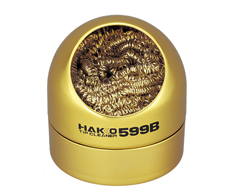
<p>A particularly recommended tool is a metallic wool, like the <a href="https://www.hakko.com/english/products/hakko_599b.html">Hakko 599b</a> or a cheap clone:</p>

<p><img src="https://www.hakko.com/english/images/products/products_hakko_599b_img.jpg" alt="Hakko 599b" class="align-center" /></p>

<p>Those cleaners are preferred other wet sponges, because the sponges will reduce the temperature of the iron tip when used, which means the tip will contract and expand quickly during cleaning. Frequent use of the sponge will cause metal fatigue and ultimately tip failure. Metallic wool cleaners are very effective at removing the dirt, contaminants, and flux or solder residues.</p>

<p>The idea is to prevent oxidation, for this, clean the tip before using the soldering iron on a new component, not after. While the tip is not used between two components, the flux and solder will protect the tip from oxidation.</p>

<p>When you’ve finished your soldering job, clean the tip with the metallic wool and tin the tip. It is possible to buy a tip tinning box. Most large solder manufacturer produce this kind of product, mine is this reference:</p>

<p><a href="/images/uploads/2020/10/tools-tip-tinner.jpg"><img src="/images/uploads/2020/10/tools-tip-tinner.jpg" alt="MgChemicals tip tinning" class="align-center" style="width: 35%" /></a></p>

<p>You might see recommandation of applying solder on the iron tip after use. This works fine if the solder contains a rosin activated flux (see below). But for no-clean solder (the majority of solder nowadays), the flux is not aggressive enough to remove or prevent tip oxidation. I recommend using a special tip tinner as the one above.</p>

<h4 id="solder">Solder</h4>

<p>The solder is an alloy that melts from the heat of the iron to form the joint between the PCB pad and the component. It is important to purchase a good quality solder (especially if you have to perform some rework). There are two types of solder, those that contains lead and the lead-free variant. The latter is better for health and environment, but might be harder to use because it requires a higher soldering temperature. The former is easier to deal with, but is forbidden in EU because of <a href="https://en.wikipedia.org/wiki/Restriction_of_Hazardous_Substances_Directive">RoHS</a> compliance (it’s still possible to purchase leaded solder though).</p>

<p>Solder should also contain flux (even though as you’ll see later, adding flux is necessary to properly solder SMD components). The flux purpose is to <em>clean</em> the surfaces so that the solder wet correctly and adheres to the pad and components.</p>

<p>Solders are described by their content, like for instance <code class="language-plaintext highlighter-rouge">Sn60Pb40</code>, <code class="language-plaintext highlighter-rouge">Sn63Pb37</code> or <code class="language-plaintext highlighter-rouge">Sn96.5Ag3Cu0.5</code>. It’s simply the percentage of their constituents. For instance <code class="language-plaintext highlighter-rouge">Sn63Pb37</code> is an alloy made of 63% of tin and 37% of lead. Unleaded solder is mostly made of tin and silver, and sometimes a low level of copper.</p>

<p>For beginners, <code class="language-plaintext highlighter-rouge">Sn63Pb37</code> would be the simplest solder to use. It is an <a href="https://en.wikipedia.org/wiki/Eutectic_system">eutectic alloy</a>. This means that the alloy has a melting point lower than the melting point of any of its constituents (or any other variation mix of tin and lead), and that it has a very short solidifying phase. This makes this kind of solder easy to work with.</p>

<p>Unleaded solder have a higher melting point (around 220ºC) that might take time to be accustomed to.</p>

<p>Well, that doesn’t give you the temperature at which you’ll have to solder the components. For SMD parts, with leaded solder, I usually set my iron between 310ºC and 320ºC. This is high enough to quickly heat the pads. Lower temperature would mean to keep the iron tip longer on the pad and component with the risk of heating too much the component. Unlike common thought, the heat conductivity of metal decreases with temperature, which means that using a lower temperature would mean more heat accumulating in the component (because of the iron tip staying longer on the pad and component), and an increased risk of destroying it.</p>

<p>For unleaded solder, the recommended iron temperature is around 350ºC. But it also depends on the iron tip used. Smaller iron tips have a lower heat transfer surface and thus, you will need to use a larger temperature and longer soldering to achieve the same effect as with a larger tip.</p>

<p>Using a solder containing rosin flux is also recommended. The metallic surfaces in contact with air will oxidize, preventing the chemical reaction that will bond them to the solder during the soldering. Oxidization happens all of the time. However, it happens faster at higher temperatures (as when soldering). The flux cleans the metal surfaces and reacts with the oxide layer, leaving a surface primed for a good solder joint. The flux remains on the surface of the metal while you’re soldering, which prevents additional oxides from forming due to the high heat of the soldering process.</p>

<p>As with solder, there are several types of flux, each with their own key uses and limitations:</p>

<ul>
  <li><em>Rosin (R)</em>: This is the most known one. It is a compound which was made originally from pine trees, but is now synthetic. Its liquefaction temperature is lower than the solder one, so it flows first. It becomes acid when liquified which allows its cleaning action before the solder melts to form the joint. The PCB needs to be cleaned after use with isopropyl alcohol (IPA) to remove residues.</li>
  <li><em>No Clean Flux (NC)</em>: It’s another big category. No-clean flux residue don’t need to be removed from the PCB. This flux should even be called “can’t clean” instead of no-clean, because if you want to remove residues, it’s very hard to do so and requires the proper solvent. The flux residues are usually transparent and non-conductive, so it’s fine to leave those on the board. Most solder nowadays contain NC flux.</li>
  <li><em>Rosin Mildly Activated flux (RMA)</em>: RMA is a compound made of rosin, solvents and a small amount of activator. RMA flux is not very aggressive and should be used with easily solderable surfaces (so it works well for SMD). The clear residue is normally non-corrosive and nonconductive. It might not be necessary to clean it after work.</li>
  <li><em>Rosin Activated flux (RA)</em>: Activity is higher than RMA, and should be used on oxidized surfaces. It is corrosive so it should be cleaned as soon as possible after work (with the appropriate solvent). The RA category also contains water soluble versions that also are highly corrosive, but can be cleaned with water (also because it’s conductive). Those are used to solder on difficult surfaces like stainless steel.</li>
</ul>

<p>It’s still not finished about solder. How to choose the appropriate solder diameter? A good compromise for soldering a combination of SMD parts and through-hole components is 0.7 or 0.8mm.</p>

<p>Finally, soldering is a health hazard, so make sure to read the following important warnings:</p>

<ul>
  <li>Make sure to <strong>wash your hands thoroughly</strong> after soldering.</li>
  <li>Solder in a <strong>ventilated room</strong>, do <strong>not inhale soldering smoke</strong>, purchase a <a href="https://www.hakko.com/english/products/hakko_fa400.html">fume absorber</a></li>
  <li>avoid eating, drinking, smoking in solder areas to prevent solder particulates to enter your body</li>
</ul>

<p>Among the various brands of solder, those are known to produce good solder: MgChemicals, Kester, Weller, Stannol, Multicore, Felder, MBO etc. For a thorough comparison of several brands and models, you can watch <a href="https://youtu.be/zZ9wxs6xuYU">SDG video: What’s the best solder for electronics</a></p>

<p>If you solder more than occasionally it might be worth investing in a small fume extractor like this <a href="https://www.digikey.com/short/z14thh">Weller WSA350</a> or the <a href="https://www.hakko.com/english/products/hakko_fa400.html">Hakko FA-400</a>.</p>

<h4 id="flux">Flux</h4>

<p>The flux contained in the solder will not be enough to solder SMD parts. It is recommended to add extra flux before soldering the components, especially for ICs or fine pitch components (see below for the different techniques).</p>

<p>Flux exists in several forms:</p>

<p>Here’s a flux pen:
<a href="/images/uploads/2020/10/flux-pen.jpg"><img src="/images/uploads/2020/10/flux-pen.jpg" alt="Flux pen" class="align-center" style="width: 60%" /></a></p>

<p>And a flux serynge (ready to be used):
<a href="/images/uploads/2020/10/flux-serynge.jpg"><img src="/images/uploads/2020/10/flux-serynge.jpg" alt="Flux serynge" class="align-center" style="width: 60%" /></a></p>

<p>A note on flux serynge: most of them are sold without an applying nozzle and a plunger. That’s because professionals are using special dispensers. So do not forget to also purchase a plunger (they are dependent on the serynge volume) and nozzles. The nozzles are secured to the serynge by what is called a luer lock, which is a kind of threading inside the serynge.</p>

<p><a href="/images/uploads/2020/10/flux-serynge-nozzles.jpg"><img src="/images/uploads/2020/10/flux-serynge-nozzles.jpg" alt="Serynge, plunger and nozzles" class="align-center" style="width: 60%" /></a></p>

<p>I recommend getting a flux paste serynge, as the flux from the pen is more liquid and tends to dry more quickly than the paste.</p>

<p>For a comparison of fluxes, you can watch the <a href="https://www.youtube.com/watch?v=iKDAmY9Rdag">SDG video: what’s the best flux for soldering</a></p>

<h4 id="desoldering-tools">Desoldering tools</h4>

<p>Mistakes happens :) so better be ready to deal with them. It might be necessary to remove extra solder or remove a component misplaced by mistake. Without investing a lot of money in a <a href="https://www.weller-tools.com/professional/USA/us/Professional/Soldering+technology/Soldering+irons/Desoldering+irons">desoldering iron or station</a>, it is possible to get inexpensive tools that will help.</p>

<p>Let me introduce you to the desoldering pump and its friend the solder wick:</p>

<p><a href="/images/uploads/2020/10/tools-desoldering.jpg"><img src="/images/uploads/2020/10/tools-desoldering.jpg" alt="Desoldering tools" class="align-center" style="width: 70%" /></a></p>

<p>The top object in the picture is a desoldering pump. You arm it by pressing down the plunger. When released with the button, it will suck up the melted solder. It is to be used with the soldering iron heating the excess solder, then quickly apply the pump.</p>

<p>The solder wick is to be placed on the excess solder, then put the iron tip on top of it, the solder will melt and the wick will also suck it. It might be necessary to add a bit of flux before.</p>

<h4 id="magnifying-tools">Magnifying tools</h4>

<p>Finally the last tool needed when soldering small SMD parts is a good lamp with an integrated magnifier glass. As seen earlier, most of the component are less than 3 or 2 mm long, so it is hard to properly see them when soldering (unless you have very good eyes, which is not my case).</p>

<p>Of course getting a binocular or a microscope would be awesomely useful, but those are quite expensive (especially if you want quality). Instead I think a good magnifying glass lamp can do the job quite efficiently. The best ones are the <a href="https://waldmannlighting.com/products/tevisio">Waldman Tevisio</a>, unfortunately they are very expensive. It is possible to find cheaper alternatives on Amazon or one of the parts vendors I previously cited (I got myself this <a href="https://uk.rs-online.com/web/p/magnifying-lamps/1363722/">RS Online model</a>).</p>

<p>The magnifying lens of such lamp is expressed in diopters. You can compute the magnifying ratio with the <code class="language-plaintext highlighter-rouge">D/4+1</code> formula. A 5d lens will provide a 2.25x magnification. This is enough to solder small parts, but my experience (and bad eyes) show that when there’s a small defect its quite hard to have a good view of it (like when there’s a small bridge on two close pins on high-pitched ICs).</p>

<p>That’s why I also recommend getting a standalone small jewelry 10x magnifying glass. The Japanese <a href="https://www.engineertools-jp.com/sl12-5557">Engineer SL-56</a> does an excellent work.</p>

<h2 id="assembling-the-pcb">Assembling the PCB</h2>

<p>Enough about the tools, let’s see how to assemble the components on the PCB. First let me explain how to solder SMD parts. The technique is the same for 2 pads or multiple pads, except for fine pitch ICs which will be covered afterwards.</p>

<p>I’m very sorry for the bad pictures and schemas that appears in the two next sections. I unfortunately don’t have a macro lens for my camera, and my drawing skills are, well, very low :)</p>

<h3 id="soldering-techniques">Soldering techniques</h3>

<h4 id="2-pads-component-soldering-technique">2 pads component soldering technique</h4>

<p>First apply a small amount of flux paste on both pads:</p>

<p><a href="/images/uploads/2020/10/solder-1-flux.png"><img src="/images/uploads/2020/10/solder-1-flux.png" alt="Adding flux on pads" class="align-center" style="width: 30%" /></a></p>

<p>Next, wet a small amount of solder on one of the pad with the soldering iron:</p>

<p><a href="/images/uploads/2020/10/solder-2-solder-pad1.png"><img src="/images/uploads/2020/10/solder-2-solder-pad1.png" alt="Adding a small amount of solder on pad" class="align-center" style="width: 30%" /></a></p>

<p>Then place the component with the tweezers, hold it firmly in place and reflow the solder on the pad until the joint is formed:</p>

<p><a href="/images/uploads/2020/10/solder-3-solder-joint.png"><img src="/images/uploads/2020/10/solder-3-solder-joint.png" alt="Soldering first pad" class="align-center" style="width: 30%" /></a></p>

<p>Once the solder has solidified, solder the other pad normally:</p>

<p><a href="/images/uploads/2020/10/solder-4-solder-joint-pad2.png"><img src="/images/uploads/2020/10/solder-4-solder-joint-pad2.png" alt="Soldering second pad" class="align-center" style="width: 30%" /></a></p>

<p>On a real component (here a 5.1k resistor near the USB receptacle), this give these steps:</p>

<p>Adding flux:
<a href="/images/uploads/2020/10/solder-1-flux-real.jpg"><img src="/images/uploads/2020/10/solder-1-flux-real.jpg" alt="Adding flux on pads" class="align-center" style="width: 50%" /></a></p>

<p>Apply some solder on one of the pad:
<a href="/images/uploads/2020/10/solder-2-solder-pad1-real.jpg"><img src="/images/uploads/2020/10/solder-2-solder-pad1-real.jpg" alt="Adding a small amount of solder on pad" class="align-center" style="width: 50%" /></a></p>

<p>Place the component:
<a href="/images/uploads/2020/10/solder-3-solder-joint-real.jpg"><img src="/images/uploads/2020/10/solder-3-solder-joint-real.jpg" alt="Soldering first pad" class="align-center" style="width: 50%" /></a></p>

<p>And since I don’t have three hands (and need one to take the picture), I soldered the first pad without holding the component (most of the time, when there’s enough flux the component will place itself correctly):
<a href="/images/uploads/2020/10/solder-3-solder-joint-real2.jpg"><img src="/images/uploads/2020/10/solder-3-solder-joint-real2.jpg" alt="Soldering first pad, next" class="align-center" style="width: 50%" /></a></p>

<p>And the result (granted the component could be better aligned, the picture has been taken through the SL-56 magnifying glass):
<a href="/images/uploads/2020/10/solder4-result-real.jpg"><img src="/images/uploads/2020/10/solder4-result-real.jpg" alt="The result" class="align-center" style="width: 50%" /></a></p>

<p>This very same technique can also be applied to 3 or 4 legged components. Start by soldering one pin, making sure the component is correctly placed, then add solder on the other pins.</p>

<h4 id="drag-soldering">Drag soldering</h4>

<p>The previous soldering technique doesn’t work for fine pitch components like ICs or the USB receptacle on this PCB. For this we need a different technique: drag soldering.</p>

<p>The drag soldering technique consists in first soldering 2 opposite pads of an IC, then to drag the soldering iron tip and solder along the pins relatively quickly. The flux and soldermask will do their job and solder will flow only on the metal parts. Bridges can happen if there’s too much solder or the iron tip is not moved quickly enough. That’s where the solder wick is useful to remove the excess solder.</p>

<p>To properly drag solder, first add solder on two opposite pads of the IC. Then carefully place the IC with the tweezers, hold it firmly and reflow those two pads (this is the same technique as for 2 pins components). When the solder solidifies and form a joint, the IC is secured at the right place, and we can start drag soldering.</p>

<p>Here’s a small schema illustrating the technique:</p>

<p><a href="/images/uploads/2020/10/drag-soldering.png"><img src="/images/uploads/2020/10/drag-soldering.png" alt="Drag soldering illustrated" class="align-center" style="width: 80%" /></a></p>

<p>You’ll find the technique shown in this <a href="https://www.youtube.com/watch?v=nyele3CIs-U">drag soldering video</a>. Notice the tip shape used in the video (equivalent to a T12 BC), and how the solder is put under the tip. If you don’t use a slanted tip, you can still put some solder on the iron, or use what I described above, moving the solder at the same time as the iron tip.</p>

<h3 id="soldering-the-pcb">Soldering the PCB</h3>

<p>So I’m ready to solder the PCB with the aforementioned techniques. Since it’s harder to solder fine pitch components, it’s better to start with them. There’s nothing worst than soldering all 2-pads components, then failing soldering the most complex one and  having to thrash the board.</p>

<p>My advice is to start by soldering the USB connector first. Place it so that the small pins enter the board and solder on the front side. The USB connector is then now in place and the small pins are exactly placed on top of the pads on the back side of the PCB:</p>

<p><a href="/images/uploads/2020/10/soldering-usb-front.jpg"><img src="/images/uploads/2020/10/soldering-usb-front.jpg" alt="Soldering USB connector" class="align-center" style="width: 70%" /></a></p>

<p>Then apply some flux paste on the other side accross the pins:</p>

<p><a href="/images/uploads/2020/10/soldering-usb-flux.jpg"><img src="/images/uploads/2020/10/soldering-usb-flux.jpg" alt="Adding flux on the connector" class="align-center" style="width: 50%" /></a></p>

<p>And drag solder the connector. This will give this (flux have been removed in the following picture):</p>

<p><a href="/images/uploads/2020/10/soldering-usb-after.jpg"><img src="/images/uploads/2020/10/soldering-usb-after.jpg" alt="Drag soldered connector" class="align-center" style="width: 50%" /></a></p>

<p>Now is a good time to visually inspect there’s no bridge. Then it might also be a good idea to test that there’s no <code class="language-plaintext highlighter-rouge">Vcc</code> and <code class="language-plaintext highlighter-rouge">GND</code> short with a multimeter. Most multimeter (even the cheapest ones) have a “diode test” or continuity mode. In this mode the multimeter sends a very small current across the probes and measures the voltage. When the resistance is very small (if there’s electrical continuity between them) the multimeter will produce a beep. If there’s no continuity there won’t be any beep and the screen will show something specific (on mine it displays <code class="language-plaintext highlighter-rouge">1</code> which is very misleading).</p>

<p>With the multimeter in continuity testing mode, put the black probe on one of the <code class="language-plaintext highlighter-rouge">GND</code> pin and the other on one of the <code class="language-plaintext highlighter-rouge">Vcc</code> pin (or reverse, it doesn’t matter). There shouldn’t be any continuity (or beep). If there’s continuity, it means there’s a bridge that needs to be found and repaired by adding flux and using the iron tip or with the help of solder wick. You can test the other pins, there shouldn’t be any continuity except for pins that are doubled (<code class="language-plaintext highlighter-rouge">D+</code>/<code class="language-plaintext highlighter-rouge">D-</code>, <code class="language-plaintext highlighter-rouge">GND</code>, <code class="language-plaintext highlighter-rouge">Vcc</code>).</p>

<p>If everything is OK, the next step is to solder the <em>AtMega32U4 MCU</em>. First make sure to check how it should be placed. The silkscreen printed at the back of the board contains a small artifact indicating where pin 1 is. On the chip, the pin 1 is the pin close to the small point.</p>

<p>To make sure I’m soldering the component at the right place, I can use the <a href="https://github.com/openscopeproject/InteractiveHtmlBom">Interactive HTML BOM plugin for Kicad</a>. In the Kicad PCB editor, the plugin can be launched with <em>Tools → External Plugins… → Generate Interactive HTML BOM</em>. In the <em>HTML Defaults</em> section, it’s a good idea to select <em>Highlight first pin</em> and <em>Layer View → Back only</em>. After pressing <em>Generate BOM</em>, a web browser opens containing:</p>

<p><a href="/images/uploads/2020/10/kicad-interactive-bom.png"><img src="/images/uploads/2020/10/kicad-interactive-bom.png" alt="Interactive HTML BOM" class="align-center" style="width: 85%" /></a></p>

<p>Notice that I selected the MCU. I can then see where the first pin is (it is outlined in flashy green), and how the MCU should be oriented.</p>

<p>So, I first add a bit of solder on pad 1 (top right in the picture) and another opposite pad:</p>

<p><a href="/images/uploads/2020/10/soldering-mcu-step1.jpg"><img src="/images/uploads/2020/10/soldering-mcu-step1.jpg" alt="Adding solder on some pads" class="align-center" style="width: 50%" /></a></p>

<p>Then I carefully place the MCU and reflow those pads to secure the MCU on the PCB (in the following picture it’s not that well placed, but I didn’t had a better picture):</p>

<p><a href="/images/uploads/2020/10/soldering-mcu-step2.jpg"><img src="/images/uploads/2020/10/soldering-mcu-step2.jpg" alt="Securing the MCU" class="align-center" style="width: 50%" /></a></p>

<p>The next step is to add flux on the pins:</p>

<p><a href="/images/uploads/2020/10/soldering-mcu-step3.jpg"><img src="/images/uploads/2020/10/soldering-mcu-step3.jpg" alt="Adding flux" class="align-center" style="width: 50%" /></a></p>

<p>And drag soldering the left side:</p>

<p><a href="/images/uploads/2020/10/soldering-mcu-step4.jpg"><img src="/images/uploads/2020/10/soldering-mcu-step4.jpg" alt="Drag soldering one side" class="align-center" style="width: 50%" /></a></p>

<p>Repeat the operation on the other three sides. Here’s a picture after soldering the whole component, but before cleaning the flux residues:</p>

<p><a href="/images/uploads/2020/10/soldering-mcu-result1.jpg"><img src="/images/uploads/2020/10/soldering-mcu-result1.jpg" alt="MCU soldering result" class="align-center" style="width: 50%" /></a></p>

<p>And a visual inspection with the magnifying glass:</p>

<p><a href="/images/uploads/2020/10/soldering-mcu-visual-inspection.jpg"><img src="/images/uploads/2020/10/soldering-mcu-visual-inspection.jpg" alt="Visual inspection" class="align-center" style="width: 50%" /></a></p>

<p>So what to solder next:</p>

<ul>
  <li>the crystal oscillator: it’s relatively easy as the pads are gigantic compared to the component size. Note that this component is not polarized (even though there’s a slant in one of the pin, it just shows where pin 1 is).</li>
  <li>the PRTR5V0U2X and its four pins</li>
  <li>all decoupling capacitors close to the MCU</li>
  <li>all resistors</li>
  <li>the PTC fuse <code class="language-plaintext highlighter-rouge">F1</code></li>
  <li>the ferrite bead</li>
  <li>the reset switch</li>
</ul>

<p>Do not solder the diodes yet. It’s long and tedious, so it’s better to test the MCU works correctly before soldering them.</p>

<p>An advice when soldering is to sort the component bags in the order of the component you want to solder (following the interactive HTML BOM for instance). It’s very hard when looking at SMD components to identity them. Most of the time there’s nothing written on them, or if there’s something it’s not very helpful. That’s why I recommend to open the bag of the component that will be soldered only at the moment of soldering them. So the ritual is:</p>

<ul>
  <li>open the bag</li>
  <li>tear apart the band to release the exact number of needed components</li>
  <li>place them in a small recipient (so it’s convenient to get them with the tweezers).</li>
  <li>close the bag</li>
  <li>solder the components one by one</li>
  <li>move to the next ones</li>
</ul>

<p>An alternative is to glue short sections of the components tapes on a cardboard board and tear apart the top tape when needed, then pick the components when ready to solder them.</p>

<p>Once all of the previously mentioned components have been soldered, it’s possible to test the PCB. <em>Warning</em>: do not connect yet the PCB to a computer. There could be a short circuit somewhere that could harm either the host or the keyboard (even though the host have some protections against those kind of failures).</p>

<p>Let’s see how to test the PCB with a multimeter. The first thing to check, is whether there’s continuity between the <code class="language-plaintext highlighter-rouge">Vcc</code> path, from the USB <code class="language-plaintext highlighter-rouge">Vcc</code> pins to the different MCU pins. If all <code class="language-plaintext highlighter-rouge">Vcc</code> pins are correct, check the <code class="language-plaintext highlighter-rouge">GND</code> pins. When all are correct, check there’s no continuity between <code class="language-plaintext highlighter-rouge">GND</code> and <code class="language-plaintext highlighter-rouge">Vcc</code> (at any point on the IC pins and USB pins). If that’s again fine, the next check is to make sure there’s no continuity between <code class="language-plaintext highlighter-rouge">D+</code> and <code class="language-plaintext highlighter-rouge">D-</code> (this can be done at the USB connector).</p>

<p>If everything is in oder, it is relatively safe to connect the PCB to a computer. Get an usb cable, then launch <a href="https://qmk.fm/toolbox/">QMK toolbox</a>. QMK Toolbox is a simple tool to help flashing QMK on a PCB. Once the keyboard is connected QMK Toolbox should display a yellow line indicating “DFU device connected” (at least for a DFU enabled MCU like our AtMega32U4):</p>

<p><a href="/images/uploads/2020/10/qmk-toolbox.png"><img src="/images/uploads/2020/10/qmk-toolbox.png" alt="QMK Toolbox" class="align-center" style="width: 70%" /></a></p>

<p>If the test is conclusive, it’s time to solder the 67 diodes. <em>Warning</em>: diodes are polarized components, they need to be soldered with the correct orientation. A diode symbol looks like this:</p>

<p><a href="/images/uploads/2020/10/diode.png"><img src="/images/uploads/2020/10/diode.png" alt="Diode symbol" class="align-center" style="width: 35%" /></a></p>

<p>One mnemotechnic way to remember which pin is what for a diode is to notice that the vertical bar and triangle form an inverted K and thus is the cathode, the triangle itself looks like an A (so is the anode).</p>

<p>On our schema and PCB, I’ve placed the cathode facing down:</p>

<p><a href="/images/uploads/2020/10/diode-pcb.png"><img src="/images/uploads/2020/10/diode-pcb.png" alt="Diode on the PCB" class="align-center" style="width: 50%" /></a></p>

<p>In Kicad, it’s easy to see the orientation of the diode because the <code class="language-plaintext highlighter-rouge">B.Fab</code> layer shows how to place it. On the manufactured PCB itself it’s not so easy as the fabrication layer is not shown. Instead we have a small horizontal bar to remind us where the cathode should be placed.</p>

<p>Hopefully the component itself also has a small bar printed on the top (here a close up of a 1N4148W-TP SOD-123, cathode on the left):</p>

<p><a href="/images/uploads/2020/10/smd-diode-1n4148w.jpg"><img src="/images/uploads/2020/10/smd-diode-1n4148w.jpg" alt="SMD diode" class="align-center" style="width: 50%" /></a></p>

<p>So to properly solder those diodes, it’s enough to align the component small bar with the bar printed on the PCB (which can partially be seen for the D35 diode in the image above).</p>

<p>The technique to solder a diode is the same as soldering any two pins SMD components. First add flux on both pads, add a small drop of solder on one of the pad, reflow it while holding the diode, then once solidified add a very small drop of solder on the other pad. Repeat for the 66 other diodes.</p>

<p>Here’s a soldered SOD-323 diode (smaller than the SOD-123 type we choose in this series of articles) :</p>

<p><a href="/images/uploads/2020/10/soldering-smd-diode.jpg"><img src="/images/uploads/2020/10/soldering-smd-diode.jpg" alt="soldered SMD diode" class="align-center" style="width: 50%" /></a></p>

<p>Once all the diodes are soldered, we can also check with the multimeter that they’re correctly placed and soldered. Again, if I put the multimeter in “diode testing” mode, put the red probe on the switch pin connected to the diode and the black probe on the MCU pin where the row is connected, the multimeter should display a diode forward voltage drop (around 650 mV). If it doesn’t then either the diode is placed in the wrong orientation or there’s a joint issue (that’s how I detected that I had inverted the diode for the <code class="language-plaintext highlighter-rouge">P</code> key). If that happens, you need to visually inspect the diode and joints.</p>

<h2 id="programming-the-keyboard">Programming the keyboard</h2>

<p>To program the controller we’ll use <a href="https://github.com/qmk/qmk_firmware">QMK</a>. This is an open source keyboard firmware forked and enhanced from TMK. It supports a miriad of custom keyboards and MCU (including various ATmega and ARM micro-controllers).</p>

<p>Follow <a href="https://docs.qmk.fm/#/newbs_getting_started">QMK setup</a> to install QMK and the needed toolchain on your computer.</p>

<p>Once done, check that you can compile a firmware, for instance the default DZ60 keymap:</p>

<div class="language-sh highlighter-rouge"><div class="highlight"><pre class="highlight"><code>% make dz60:default
QMK Firmware 0.11.1

Making dz60 with keymap default

avr-gcc <span class="o">(</span>Homebrew AVR GCC 9.3.0<span class="o">)</span> 9.3.0
Copyright <span class="o">(</span>C<span class="o">)</span> 2019 Free Software Foundation, Inc.
This is free software<span class="p">;</span> see the <span class="nb">source </span><span class="k">for </span>copying conditions.  There is NO
warranty<span class="p">;</span> not even <span class="k">for </span>MERCHANTABILITY or FITNESS FOR A PARTICULAR PURPOSE.

Size before:
   text	   data	    bss	    dec	    hex	filename
      0	  23970	      0	  23970	   5da2	.build/dz60_default.hex

Compiling: keyboards/dz60/dz60.c                                                                    <span class="o">[</span>OK]
Compiling: keyboards/dz60/keymaps/default/keymap.c                                                  <span class="o">[</span>OK]
Compiling: quantum/quantum.c                                                                        <span class="o">[</span>OK]
Compiling: quantum/led.c                                                                            <span class="o">[</span>OK]
Compiling: quantum/keymap_common.c                                                                  <span class="o">[</span>OK]
...
Compiling: lib/lufa/LUFA/Drivers/USB/Core/AVR8/USBController_AVR8.c                                 <span class="o">[</span>OK]
Compiling: lib/lufa/LUFA/Drivers/USB/Core/AVR8/USBInterrupt_AVR8.c                                  <span class="o">[</span>OK]
Compiling: lib/lufa/LUFA/Drivers/USB/Core/ConfigDescriptors.c                                       <span class="o">[</span>OK]
Compiling: lib/lufa/LUFA/Drivers/USB/Core/DeviceStandardReq.c                                       <span class="o">[</span>OK]
Compiling: lib/lufa/LUFA/Drivers/USB/Core/Events.c                                                  <span class="o">[</span>OK]
Compiling: lib/lufa/LUFA/Drivers/USB/Core/HostStandardReq.c                                         <span class="o">[</span>OK]
Compiling: lib/lufa/LUFA/Drivers/USB/Core/USBTask.c                                                 <span class="o">[</span>OK]
Linking: .build/dz60_default.elf                                                                    <span class="o">[</span>OK]
Creating load file <span class="k">for </span>flashing: .build/dz60_default.hex                                            <span class="o">[</span>OK]
Copying dz60_default.hex to qmk_firmware folder                                                     <span class="o">[</span>OK]
Checking file size of dz60_default.hex                                                              <span class="o">[</span>OK]
 <span class="k">*</span> The firmware size is fine - 23816/28672 <span class="o">(</span>83%, 4856 bytes free<span class="o">)</span>
  5.37s user 4.17s system 82% cpu 11.514 total
</code></pre></div></div>

<p>You should obtain the <code class="language-plaintext highlighter-rouge">dz60_default.hex</code> file. You can remove it, it’s not needed.</p>

<p>QMK supports many keyboards and many layouts (called keymaps in QMK) for a given keyboard. A keyboard is defined by a directory in the <code class="language-plaintext highlighter-rouge">keyboards/</code> folder, and each keymap is also a directory in the <code class="language-plaintext highlighter-rouge">keymaps/</code> folder of a keyboard. To build such keymap, one need to use the <code class="language-plaintext highlighter-rouge">make &lt;project&gt;:&lt;keyboard&gt;:&lt;keymap&gt;</code> command.</p>

<p>The <code class="language-plaintext highlighter-rouge">make</code> command produces a <code class="language-plaintext highlighter-rouge">hex</code> file that can be flashed on the controller with <a href="https://github.com/qmk/qmk_toolbox/releases">QMK Toolbox</a>, which is the recommended method. It is possible to flash from the command line depending on the controller bootloader type. I recommend QMK Toolbox because it is able to autodetect the correct bootloader, check the file size and so on. QMK Toolbox also acts as a console for the controller allowing to see debug statements.</p>

<p>Let’s bootstrap our new keyboard. Hopefully there’s a <code class="language-plaintext highlighter-rouge">qmk</code> command to do that:</p>

<div class="language-sh highlighter-rouge"><div class="highlight"><pre class="highlight"><code>% ./util/new_keyboard.sh
Generating a new QMK keyboard directory

Keyboard Name: masterzen/aek67
Keyboard Type <span class="o">[</span>avr]:
Your Name: masterzen

Copying base template files... <span class="k">done
</span>Copying avr template files... <span class="k">done
</span>Renaming keyboard files... <span class="k">done
</span>Replacing %YEAR% with 2020... <span class="k">done
</span>Replacing %KEYBOARD% with aek67... <span class="k">done
</span>Replacing %YOUR_NAME% with masterzen... <span class="k">done

</span>Created a new keyboard called masterzen/aek67.

To start working on things, <span class="nb">cd </span>into keyboards/masterzen/aek67,
or open the directory <span class="k">in </span>your favourite text editor.
</code></pre></div></div>

<p>This creates a set of files in <code class="language-plaintext highlighter-rouge">keyboards/masterzen/aek67</code> that contains the default configuration for an AVR (ie AtMega) keyboard, including the default keymap:</p>

<div class="language-sh highlighter-rouge"><div class="highlight"><pre class="highlight"><code>% find keyboards/masterzen/aek67
keyboards/masterzen/aek67
keyboards/masterzen/aek67/aek67.h
keyboards/masterzen/aek67/config.h
keyboards/masterzen/aek67/keymaps
keyboards/masterzen/aek67/keymaps/default
keyboards/masterzen/aek67/keymaps/default/keymap.c
keyboards/masterzen/aek67/keymaps/default/readme.md
keyboards/masterzen/aek67/readme.md
keyboards/masterzen/aek67/aek67.c
keyboards/masterzen/aek67/info.json
keyboards/masterzen/aek67/rules.mk
</code></pre></div></div>

<p>I need to edit those files to map the hardware and matrix I created. Let’s start with the <a href="https://github.com/masterzen/qmk_firmware/blob/keyboard/aek67/keyboards/masterzen/aek67/config.h"><code class="language-plaintext highlighter-rouge">config.h</code></a> file. This file contains the matrix description for this keyboard. We need to explain to QMK, what columns map to what pins on the MCU, and the orientation of the diodes. Based on our electronic schema, I can just write down the list of rows pins and columns pins:</p>

<p><a href="/images/uploads/2020/10/mcu-pin-assignment.png"><img src="/images/uploads/2020/10/mcu-pin-assignment.png" alt="MCU pins assignment" class="align-center" style="width: 55%" /></a></p>

<p>Here’s an extract of our <code class="language-plaintext highlighter-rouge">config.h</code>:</p>

<div class="language-cpp highlighter-rouge"><div class="highlight"><pre class="highlight"><code><span class="cm">/* key matrix size */</span>
<span class="cp">#define MATRIX_ROWS 5
#define MATRIX_COLS 15
</span>
<span class="cm">/*
 * Keyboard Matrix Assignments
 */</span>
<span class="cp">#define MATRIX_ROW_PINS { F4, F1, F0, E6, F7 }
#define MATRIX_COL_PINS { B4, B5, B6, C6, C7, F6, F5, B0, D1, D2, D3, D5, D4, D6, D7 }
#define UNUSED_PINS { B7, D0 }
</span>
<span class="cm">/* COL2ROW, ROW2COL */</span>
<span class="cp">#define DIODE_DIRECTION COL2ROW
</span></code></pre></div></div>

<p>I defined here that the matrix is 5x15, and the ports of the rows and columns (in increasing order). Also, I tell QMK that the diodes are hooked between the columns and the rows (ie cathodes connected to the rows).</p>

<p>Next in <a href="https://github.com/masterzen/qmk_firmware/blob/keyboard/aek67/keyboards/masterzen/aek67/rules.mk"><code class="language-plaintext highlighter-rouge">rules.mk</code></a>, we tell QMK everything about the controller used in this keyboard (there’s no need to edit anything there):</p>

<div class="language-make highlighter-rouge"><div class="highlight"><pre class="highlight"><code><span class="c"># MCU name
</span><span class="nv">MCU</span> <span class="o">=</span> atmega32u4

<span class="c"># Bootloader selection
</span><span class="nv">BOOTLOADER</span> <span class="o">=</span> atmel-dfu

<span class="c"># Build Options
#   change yes to no to disable
#
</span><span class="nv">BOOTMAGIC_ENABLE</span> <span class="o">=</span> lite     <span class="c"># Virtual DIP switch configuration</span>
<span class="nv">MOUSEKEY_ENABLE</span> <span class="o">=</span> <span class="nb">yes</span>       <span class="c"># Mouse keys</span>
<span class="nv">EXTRAKEY_ENABLE</span> <span class="o">=</span> <span class="nb">yes</span>       <span class="c"># Audio control and System control</span>
<span class="nv">CONSOLE_ENABLE</span> <span class="o">=</span> no         <span class="c"># Console for debug</span>
<span class="nv">COMMAND_ENABLE</span> <span class="o">=</span> no         <span class="c"># Commands for debug and configuration</span>
<span class="c"># Do not enable SLEEP_LED_ENABLE. it uses the same timer as BACKLIGHT_ENABLE
</span><span class="nv">SLEEP_LED_ENABLE</span> <span class="o">=</span> no       <span class="c"># Breathing sleep LED during USB suspend</span>
<span class="c"># if this doesn't work, see here: https://github.com/tmk/tmk_keyboard/wiki/FAQ#nkro-doesnt-work
</span><span class="nv">NKRO_ENABLE</span> <span class="o">=</span> no            <span class="c"># USB Nkey Rollover</span>
<span class="nv">BACKLIGHT_ENABLE</span> <span class="o">=</span> no       <span class="c"># Enable keyboard backlight functionality</span>
<span class="nv">RGBLIGHT_ENABLE</span> <span class="o">=</span> no        <span class="c"># Enable keyboard RGB underglow</span>
<span class="nv">BLUETOOTH_ENABLE</span> <span class="o">=</span> no       <span class="c"># Enable Bluetooth</span>
<span class="nv">AUDIO_ENABLE</span> <span class="o">=</span> no           <span class="c"># Audio output</span>
</code></pre></div></div>

<p>The next step is to define a key to matrix position mapping in <a href="https://github.com/masterzen/qmk_firmware/blob/keyboard/aek67/keyboards/masterzen/aek67/aek67.h"><code class="language-plaintext highlighter-rouge">aek67.h</code></a> so that writing our keymap will be a bit easier:</p>

<div class="language-cpp highlighter-rouge"><div class="highlight"><pre class="highlight"><code><span class="p">...</span>
<span class="cp">#define LAYOUT_67_ansi( \
	K000, K001, K002, K003, K004, K005, K006, K007, K008, K009, K010, K011, K012, K013, K014, \
	K100, K101, K102, K103, K104, K105, K106, K107, K108, K109, K110, K111, K112, K113, K114, \
	K200, K201, K202, K203, K204, K205, K206, K207, K208, K209, K210, K211,       K213, K214, \
	K300, K301, K302, K303, K304, K305, K306, K307, K308, K309, K310,       K312, K313, K314, \
	K400, K401, K402,                   K406,                   K410, K411, K412, K413, K414  \
) { \
	{ K000,  K001,  K002,  K003,  K004,  K005,  K006,  K007,  K008,  K009,  K010,  K011,  K012,  K013,  K014 }, \
	{ K100,  K101,  K102,  K103,  K104,  K105,  K106,  K107,  K108,  K109,  K110,  K111,  K112,  K113,  K114 }, \
	{ K200,  K201,  K202,  K203,  K204,  K205,  K206,  K207,  K208,  K209,  K210,  K211,  KC_NO, K213,  K214 }, \
	{ K300,  K301,  K302,  K303,  K304,  K305,  K306,  K307,  K308,  K309,  K310,  KC_NO, K312,  K313,  K314 }, \
	{ K400,  K401,  K402,  KC_NO, KC_NO, KC_NO, K406,  KC_NO, KC_NO, KC_NO, K410,  K411,  K412,  K413,  K414 }  \
}
</span></code></pre></div></div>

<p>So the C macro <code class="language-plaintext highlighter-rouge">LAYOUT_67_ansi</code> contains 67 entries, one for each key, named by their rows and columns number (ie <code class="language-plaintext highlighter-rouge">K204</code> is <code class="language-plaintext highlighter-rouge">row2</code> and <code class="language-plaintext highlighter-rouge">col4</code>). This maps to a structure that represents the matrix in QMK (a double dimension array or rows and columns). Where the physical matrix has no switches (for instance in the bottom row before and after <code class="language-plaintext highlighter-rouge">K406</code>), we assign <code class="language-plaintext highlighter-rouge">KC_NO</code> so that QMK knows there’s nothing to be found there.</p>

<p>Next, let’s create the keymap. The keymap represents a mapping between the matrix switches and their functionality. When pressing a key, QMK will lookup in the keymap what keycode to send back to the computer. The computer will then interpret this keycode to a real character in function of the chosen layout. The keycode are defined by the USB HID standard. In QMK, they are defined as C macro whose name start with <code class="language-plaintext highlighter-rouge">KC_</code>. For instance <code class="language-plaintext highlighter-rouge">KC_Q</code> is the keycode for the <code class="language-plaintext highlighter-rouge">Q</code> key. See the <a href="https://docs.qmk.fm/#/keycodes_basic">QMK keycode table</a> for an exhaustive list.</p>

<p>In QMK a keymap is a double dimension array of <code class="language-plaintext highlighter-rouge">MATRIX_ROWS</code> rows and <code class="language-plaintext highlighter-rouge">MATRIX_COLS</code> columns.</p>

<p>But that’s not the end of the story. QMK exposes different keymap <em>layers</em>. Layers are ways to assign multiple functions to a single key. We can assign a key in our keymap to switch to another layer where the keycode assigned is different than in the base layer. This is used for instance to map the function keys (<code class="language-plaintext highlighter-rouge">F1</code> to <code class="language-plaintext highlighter-rouge">F10</code>) to the number keys.</p>

<p>Here’s the content of <a href="https://github.com/masterzen/qmk_firmware/blob/keyboard/aek67/keyboards/masterzen/aek67/keymap.c"><code class="language-plaintext highlighter-rouge">default/keymap.c</code></a>:</p>

<div class="language-c highlighter-rouge"><div class="highlight"><pre class="highlight"><code><span class="k">enum</span> <span class="n">layers</span> <span class="p">{</span>
    <span class="n">BASE</span><span class="p">,</span>  <span class="c1">// qwerty</span>
    <span class="n">_FL</span><span class="p">,</span>   <span class="c1">// function key layer</span>
<span class="p">};</span>

<span class="cm">/*
 * ,---------------------------------------------------------------------|
 * |`  |1  |2  |3  |4  |5  |6  |7  |8  |9  |0   |-   |=  |Backspace| PgUp|
 * |---------------------------------------------------------------------|
 * |Tab  |Q  |W  |E  |R  |T  |Y  |U  |I  |O  |P  |[  | ]  |   \     |PgDn|
 * |---------------------------------------------------------------------|
 * |Caps  |A  |S  |D  |F  |G  |H  |J  |K  |L  |;  |'  |  Enter     | Ins |
 * |---------------------------------------------------------------------|
 * |Shft    |Z  |X  |C  |V  |B  |N  |M  |,  |.  |/  |Shift       |Up| Del|
 * |---------------------------------------------------------------------|
 * |Ctrl|GUI |Alt |     Space                    |Alt |Fn  |  Lt |Dn |Rt |
 * `---------------------------------------------------------------------|'
 */</span>
<span class="k">const</span> <span class="kt">uint16_t</span> <span class="n">PROGMEM</span> <span class="n">keymaps</span><span class="p">[][</span><span class="n">MATRIX_ROWS</span><span class="p">][</span><span class="n">MATRIX_COLS</span><span class="p">]</span> <span class="o">=</span> <span class="p">{</span>
    <span class="p">[</span><span class="n">BASE</span><span class="p">]</span> <span class="o">=</span> <span class="n">LAYOUT_67_ansi</span><span class="p">(</span>
        <span class="n">KC_ESC</span><span class="p">,</span> <span class="n">KC_1</span><span class="p">,</span>   <span class="n">KC_2</span><span class="p">,</span>  <span class="n">KC_3</span><span class="p">,</span>  <span class="n">KC_4</span><span class="p">,</span>  <span class="n">KC_5</span><span class="p">,</span>  <span class="n">KC_6</span><span class="p">,</span>  <span class="n">KC_7</span><span class="p">,</span>  <span class="n">KC_8</span><span class="p">,</span>  <span class="n">KC_9</span><span class="p">,</span>  <span class="n">KC_0</span><span class="p">,</span>    <span class="n">KC_MINS</span><span class="p">,</span>  <span class="n">KC_EQL</span><span class="p">,</span>  <span class="n">KC_BSPC</span><span class="p">,</span> <span class="n">KC_PGUP</span><span class="p">,</span>
        <span class="n">KC_TAB</span><span class="p">,</span> <span class="n">KC_Q</span><span class="p">,</span>   <span class="n">KC_W</span><span class="p">,</span>  <span class="n">KC_E</span><span class="p">,</span>  <span class="n">KC_R</span><span class="p">,</span>  <span class="n">KC_T</span><span class="p">,</span>  <span class="n">KC_Y</span><span class="p">,</span>  <span class="n">KC_U</span><span class="p">,</span>  <span class="n">KC_I</span><span class="p">,</span>  <span class="n">KC_O</span><span class="p">,</span>  <span class="n">KC_P</span><span class="p">,</span>    <span class="n">KC_LBRC</span><span class="p">,</span>  <span class="n">KC_RBRC</span><span class="p">,</span> <span class="n">KC_BSLS</span><span class="p">,</span> <span class="n">KC_PGDN</span><span class="p">,</span>
        <span class="n">KC_CAPS</span><span class="p">,</span> <span class="n">KC_A</span><span class="p">,</span>  <span class="n">KC_S</span><span class="p">,</span>  <span class="n">KC_D</span><span class="p">,</span>  <span class="n">KC_F</span><span class="p">,</span>  <span class="n">KC_G</span><span class="p">,</span>  <span class="n">KC_H</span><span class="p">,</span>  <span class="n">KC_J</span><span class="p">,</span>  <span class="n">KC_K</span><span class="p">,</span>  <span class="n">KC_L</span><span class="p">,</span>  <span class="n">KC_SCLN</span><span class="p">,</span> <span class="n">KC_QUOT</span><span class="p">,</span>           <span class="n">KC_ENT</span><span class="p">,</span>  <span class="n">KC_INS</span><span class="p">,</span>
        <span class="n">KC_LSFT</span><span class="p">,</span> <span class="n">KC_Z</span><span class="p">,</span>  <span class="n">KC_X</span><span class="p">,</span>  <span class="n">KC_C</span><span class="p">,</span>  <span class="n">KC_V</span><span class="p">,</span>  <span class="n">KC_B</span><span class="p">,</span>  <span class="n">KC_N</span><span class="p">,</span>  <span class="n">KC_M</span><span class="p">,</span> <span class="n">KC_COMM</span><span class="p">,</span> <span class="n">KC_DOT</span><span class="p">,</span><span class="n">KC_SLSH</span><span class="p">,</span>          <span class="n">KC_RSFT</span><span class="p">,</span> <span class="n">KC_UP</span><span class="p">,</span>   <span class="n">KC_DEL</span><span class="p">,</span>
        <span class="n">KC_LCTL</span><span class="p">,</span> <span class="n">KC_LGUI</span><span class="p">,</span> <span class="n">KC_LALT</span><span class="p">,</span>                  <span class="n">KC_SPC</span><span class="p">,</span>                      <span class="n">KC_RALT</span><span class="p">,</span> <span class="n">MO</span><span class="p">(</span><span class="n">_FL</span><span class="p">),</span> <span class="n">KC_LEFT</span><span class="p">,</span> <span class="n">KC_DOWN</span><span class="p">,</span> <span class="n">KC_RGHT</span><span class="p">),</span>

    <span class="p">[</span><span class="n">_FL</span><span class="p">]</span> <span class="o">=</span> <span class="n">LAYOUT_67_ansi</span><span class="p">(</span>
        <span class="n">KC_GRV</span><span class="p">,</span>  <span class="n">KC_F1</span><span class="p">,</span> <span class="n">KC_F2</span><span class="p">,</span> <span class="n">KC_F3</span><span class="p">,</span> <span class="n">KC_F4</span><span class="p">,</span> <span class="n">KC_F5</span><span class="p">,</span> <span class="n">KC_F6</span><span class="p">,</span> <span class="n">KC_F7</span><span class="p">,</span> <span class="n">KC_F8</span><span class="p">,</span>  <span class="n">KC_F9</span><span class="p">,</span> <span class="n">KC_F10</span><span class="p">,</span> <span class="n">KC_F11</span><span class="p">,</span> <span class="n">KC_F12</span><span class="p">,</span> <span class="n">KC_DEL</span><span class="p">,</span> <span class="n">RESET</span><span class="p">,</span>
        <span class="n">_______</span><span class="p">,</span> <span class="n">_______</span><span class="p">,</span> <span class="n">_______</span><span class="p">,</span> <span class="n">_______</span><span class="p">,</span> <span class="n">_______</span><span class="p">,</span> <span class="n">_______</span><span class="p">,</span> <span class="n">_______</span><span class="p">,</span> <span class="n">_______</span><span class="p">,</span> <span class="n">_______</span><span class="p">,</span> <span class="n">_______</span><span class="p">,</span> <span class="n">_______</span><span class="p">,</span> <span class="n">_______</span><span class="p">,</span> <span class="n">_______</span><span class="p">,</span> <span class="n">_______</span><span class="p">,</span> <span class="n">KC_HOME</span><span class="p">,</span>
        <span class="n">_______</span><span class="p">,</span> <span class="n">_______</span><span class="p">,</span> <span class="n">_______</span><span class="p">,</span> <span class="n">_______</span><span class="p">,</span> <span class="n">_______</span><span class="p">,</span> <span class="n">_______</span><span class="p">,</span> <span class="n">_______</span><span class="p">,</span> <span class="n">_______</span><span class="p">,</span> <span class="n">_______</span><span class="p">,</span> <span class="n">_______</span><span class="p">,</span> <span class="n">_______</span><span class="p">,</span> <span class="n">_______</span><span class="p">,</span> <span class="n">_______</span><span class="p">,</span> <span class="n">KC_END</span><span class="p">,</span>
        <span class="n">_______</span><span class="p">,</span> <span class="n">_______</span><span class="p">,</span> <span class="n">_______</span><span class="p">,</span> <span class="n">_______</span><span class="p">,</span> <span class="n">_______</span><span class="p">,</span> <span class="n">_______</span><span class="p">,</span> <span class="n">_______</span><span class="p">,</span> <span class="n">_______</span><span class="p">,</span> <span class="n">_______</span><span class="p">,</span> <span class="n">_______</span><span class="p">,</span> <span class="n">_______</span><span class="p">,</span> <span class="n">_______</span><span class="p">,</span> <span class="n">KC_VOLU</span><span class="p">,</span><span class="n">_______</span><span class="p">,</span>
        <span class="n">_______</span><span class="p">,</span> <span class="n">_______</span><span class="p">,</span> <span class="n">_______</span><span class="p">,</span>                   <span class="n">_______</span><span class="p">,</span>                            <span class="n">_______</span><span class="p">,</span> <span class="n">MO</span><span class="p">(</span><span class="n">_FL</span><span class="p">),</span> <span class="n">KC_BRID</span><span class="p">,</span> <span class="n">KC_VOLD</span><span class="p">,</span> <span class="n">KC_BRIU</span><span class="p">),</span>
<span class="p">};</span>
</code></pre></div></div>

<p>Notice a few things:</p>

<ul>
  <li>I’m using the <code class="language-plaintext highlighter-rouge">LAYOUT_67_ansi</code> macro that I defined in <code class="language-plaintext highlighter-rouge">aek67.h</code>. This is to simplify using the matrix, because the matrix doesn’t have all the switches implemented.</li>
  <li>there are two layers, the base one called <code class="language-plaintext highlighter-rouge">BASE</code> and the so-called function layer <code class="language-plaintext highlighter-rouge">_FL</code>, that contains a few more keys.</li>
  <li>the <code class="language-plaintext highlighter-rouge">_______</code> is an alias for <code class="language-plaintext highlighter-rouge">KC_TRANS</code> which means that this key isn’t defined in this layer. When pressing this key while being in this layer, the keycode that will be emitted is the first one to not be <code class="language-plaintext highlighter-rouge">KC_TRANS</code> in the layer stack. That means that <code class="language-plaintext highlighter-rouge">Enter</code> for instance is still <code class="language-plaintext highlighter-rouge">Enter</code> even for the <code class="language-plaintext highlighter-rouge">_FL</code> layer, but the up arrow key is volume up in the <code class="language-plaintext highlighter-rouge">_FL</code> layer.</li>
  <li>I’m including a <code class="language-plaintext highlighter-rouge">RESET</code> key, so that it is easy to enter DFU mode to flash the keyboard (no need to open the case to get access to the hardware reset button)</li>
  <li><code class="language-plaintext highlighter-rouge">MO(_FL)</code> is a special keycode that tells QMK to momentary switch to the <code class="language-plaintext highlighter-rouge">_FL</code> layer as long as the key id pressed. So activating <code class="language-plaintext highlighter-rouge">RESET</code> means maintaining <code class="language-plaintext highlighter-rouge">MO(_FL)</code> key and pressing the Page up key.</li>
</ul>

<p>Now let’s build the firmware:</p>

<div class="language-sh highlighter-rouge"><div class="highlight"><pre class="highlight"><code>% make masterzen/aek67:default
QMK Firmware 0.11.1

Making masterzen/aek67 with keymap default

avr-gcc <span class="o">(</span>Homebrew AVR GCC 9.3.0<span class="o">)</span> 9.3.0
Copyright <span class="o">(</span>C<span class="o">)</span> 2019 Free Software Foundation, Inc.
This is free software<span class="p">;</span> see the <span class="nb">source </span><span class="k">for </span>copying conditions.  There is NO
warranty<span class="p">;</span> not even <span class="k">for </span>MERCHANTABILITY or FITNESS FOR A PARTICULAR PURPOSE.

Size before:
   text	   data	    bss	    dec	    hex	filename
      0	  18590	      0	  18590	   489e	.build/masterzen_aek67_default.hex

Compiling: keyboards/masterzen/aek67/aek67.c                                                        <span class="o">[</span>OK]
Compiling: keyboards/masterzen/aek67/keymaps/default/keymap.c                                       <span class="o">[</span>OK]
Compiling: quantum/quantum.c                                                                        <span class="o">[</span>OK]
Compiling: quantum/led.c                                                                            <span class="o">[</span>OK]
Compiling: quantum/keymap_common.c                                                                  <span class="o">[</span>OK]
Compiling: quantum/keycode_config.c                                                                 <span class="o">[</span>OK]
Compiling: quantum/matrix_common.c                                                                  <span class="o">[</span>OK]
Compiling: quantum/matrix.c                                                                         <span class="o">[</span>OK]
Compiling: quantum/debounce/sym_defer_g.c                                                           <span class="o">[</span>OK]
...
Compiling: lib/lufa/LUFA/Drivers/USB/Core/AVR8/USBController_AVR8.c                                 <span class="o">[</span>OK]
Compiling: lib/lufa/LUFA/Drivers/USB/Core/AVR8/USBInterrupt_AVR8.c                                  <span class="o">[</span>OK]
Compiling: lib/lufa/LUFA/Drivers/USB/Core/ConfigDescriptors.c                                       <span class="o">[</span>OK]
Compiling: lib/lufa/LUFA/Drivers/USB/Core/DeviceStandardReq.c                                       <span class="o">[</span>OK]
Compiling: lib/lufa/LUFA/Drivers/USB/Core/Events.c                                                  <span class="o">[</span>OK]
Compiling: lib/lufa/LUFA/Drivers/USB/Core/HostStandardReq.c                                         <span class="o">[</span>OK]
Compiling: lib/lufa/LUFA/Drivers/USB/Core/USBTask.c                                                 <span class="o">[</span>OK]
Linking: .build/masterzen_aek67_default.elf                                                         <span class="o">[</span>OK]
Creating load file <span class="k">for </span>flashing: .build/masterzen_aek67_default.hex                                 <span class="o">[</span>OK]
Copying masterzen_aek67_default.hex to qmk_firmware folder                                          <span class="o">[</span>OK]
Checking file size of masterzen_aek67_default.hex                                                   <span class="o">[</span>OK]
 <span class="k">*</span> The firmware size is fine - 16028/28672 <span class="o">(</span>55%, 12644 bytes free<span class="o">)</span>
  3.87s user 3.19s system 96% cpu 7.308 total
</code></pre></div></div>

<p>If it doesn’t compile, fix the error (usually this is a bad layer mapping, missing a comma, etc), and try again. The resulting firmware will be in <code class="language-plaintext highlighter-rouge">masterzen_aek67_default.hex</code> file at the QMK root.</p>

<p>To properly finish the work, I also need to build a <a href="https://config.qmk.fm/">QMK Configurator</a> json description file. This file tells the QMK Configurator how the keyboard looks (ie its layout) so it can display correctly the keyboard. It’s for people that don’t want to create their keymap in C like I did here. Producing this json file is easy to do from the Keyboard Layout Editor. Just copy the KLE raw content to a <code class="language-plaintext highlighter-rouge">.txt</code> file and run:</p>

<div class="language-sh highlighter-rouge"><div class="highlight"><pre class="highlight"><code>% qmk kle2json aek67-kle.txt
Ψ Wrote out info.json
</code></pre></div></div>

<p>It is possible to try the <code class="language-plaintext highlighter-rouge">info.json</code> file by going to the <a href="https://config.qmk.fm/">QMK Configurator</a> and enter the <code class="language-plaintext highlighter-rouge">Preview Mode</code> by pressing <code class="language-plaintext highlighter-rouge">Ctrl+Shift+i</code>. This brings up a file selector window in which it is possible to open our <code class="language-plaintext highlighter-rouge">info.json</code>. If all goes well, the configurator will display the keyboard layout without any key label:</p>

<p><a href="/images/uploads/2020/10/qmk-configurator-preview.png"><img src="/images/uploads/2020/10/qmk-configurator-preview.png" alt="QMK Configurator" class="align-center" style="width: 85%" /></a></p>

<p>Finally, I can try to flash the firmware to the PCB:</p>

<ol>
  <li>Connect the PCB to the computer</li>
  <li>Open QMK Toolbox</li>
  <li>Press the Keyboard reset button (if not already in DFU mode)</li>
  <li>QMK Toolbox will notice a DFU keyboard is connected by displaying <code class="language-plaintext highlighter-rouge">*** Atmel DFU device connected</code></li>
  <li>Load the firmware that was just built</li>
  <li>Choose the <code class="language-plaintext highlighter-rouge">ATMega32U4</code> microcontroller</li>
  <li>Press the flash button</li>
</ol>

<p>You should see something like this:</p>

<div class="language-sh highlighter-rouge"><div class="highlight"><pre class="highlight"><code><span class="k">***</span> Attempting to flash, please don<span class="s1">'t remove device
&gt;&gt;&gt; dfu-programmer atmega32u4 erase --force
    Erasing flash...  Success
    Checking memory from 0x0 to 0x6FFF...  Empty.
&gt;&gt;&gt; dfu-programmer atmega32u4 flash --force /path/to/qmk_firmware/masterzen_aek67_default.hex
    0%                            100%  Programming 0x3F00 bytes...
    [&gt;&gt;&gt;&gt;&gt;&gt;&gt;&gt;&gt;&gt;&gt;&gt;&gt;&gt;&gt;&gt;&gt;&gt;&gt;&gt;&gt;&gt;&gt;&gt;&gt;&gt;&gt;&gt;&gt;&gt;&gt;&gt;]  Success
    0%                            100%  Reading 0x7000 bytes...
    [&gt;&gt;&gt;&gt;&gt;&gt;&gt;&gt;&gt;&gt;&gt;&gt;&gt;&gt;&gt;&gt;&gt;&gt;&gt;&gt;&gt;&gt;&gt;&gt;&gt;&gt;&gt;&gt;&gt;&gt;&gt;&gt;]  Success
    Validating...  Success
    0x3F00 bytes written into 0x7000 bytes memory (56.25%).
&gt;&gt;&gt; dfu-programmer atmega32u4 reset
*** AtmelDFU device disconnected
</span></code></pre></div></div>

<p>At this point your computer should recognize that a new keyboard has been connected. If you press any switches it should produce a letter.</p>

<p>You can now test the keyboard and the keymap with the <a href="https://config.qmk.fm/#/test">QMK Keyboard Tester</a>. To do so, while the PCB is connected to the computer, use the tweezer to make contact between the two pins of each switch:</p>

<p><a href="/images/uploads/2020/10/testing-tweezers.jpg"><img src="/images/uploads/2020/10/testing-tweezers.jpg" alt="Testing with Tweezers" class="align-center" style="width: 70%" /></a></p>

<p>If the PCB and keymap are working correctly, the keyboard tester should display the key as registered:</p>

<p><a href="/images/uploads/2020/10/qmk-tester.png"><img src="/images/uploads/2020/10/qmk-tester.png" alt="QMK Tester" class="align-center" style="width: 70%" /></a></p>

<p>And voila, I now have a fully functional keyboard PCB!</p>

<h2 id="whats-cooking-next">What’s cooking next</h2>

<p>And I think that episode concludes the series about keyboard PCB. I’ll expand soon the series of posts to talk about designing a nice case for the PCB.</p>

<p>I hope to be able to cover at least the following:</p>

<ul>
  <li>plate design</li>
  <li>case design</li>
  <li>selecting screws and nuts</li>
  <li>3D renders</li>
  <li>technical plans</li>
  <li>fabrication</li>
  <li>prototype assembly</li>
</ul>

<p>Thanks for following, and stay tuned for the next episodes!</p>]]></content><author><name>Masterzen</name></author><category term="[&quot;mechanical keyboards&quot;, &quot;DIY&quot;]" /><category term="design" /><category term="PCB" /><category term="electronics" /><category term="mechanical keyboards" /><summary type="html"><![CDATA[Welcome to the 4th episode of this series of articles about designing a full keyboard from scratch. So far we’ve seen:]]></summary></entry><entry><title type="html">Designing a keyboard from scratch - Part 3</title><link href="https://www.masterzen.fr/2020/10/20/designing-a-keyboard-part3/" rel="alternate" type="text/html" title="Designing a keyboard from scratch - Part 3" /><published>2020-10-20T00:00:00+02:00</published><updated>2020-10-20T00:00:00+02:00</updated><id>https://www.masterzen.fr/2020/10/20/designing-a-keyboard-part3</id><content type="html" xml:base="https://www.masterzen.fr/2020/10/20/designing-a-keyboard-part3/"><![CDATA[<p>Welcome for the third episode of this series of posts about designing a full fledged keyboard from scratch. The <a href="/2020/05/03/designing-a-keyboard-part-1/">first episode</a> focused on the electronic schema of the keyboard controller, the <a href="/2020/05/25/designing-a-keyboard-part2/">second one</a> was on the components’ layout. In this one I’ll cover:</p>

<ul>
  <li>how to route the matrix</li>
  <li>the MCU</li>
  <li>the USB datalines</li>
  <li>adding drawings on the soldermask</li>
</ul>

<p>This is a long episode that took me a quite long time to produce. Feel free to leave a comment if you have any questions or find anything suspect :)</p>

<h2 id="the-art-of-routing">The Art of Routing</h2>

<p>Routing is the process of connecting the various pins and pads of the circuits with copper traces while respecting the electronic schema. There are things that can and can’t be done for the PCB to be functional, for instance circuits have specific constraints for EMI, impedance matching, etc.</p>

<p>In the previous episode I decided to use a two layers PCB (which is the best compromise between cost and ease of routing for such projects). The switches are placed on the front layer, and because they are through-hole components they are being soldered on the back. All the rest of the components are laid out on the back of the board.</p>

<p>In the <a href="/2020/05/25/designing-a-keyboard-part2/">part 2</a> of this series of posts, I shown how to design the matrix schema. The matrix is a set of non-intersecting rows and columns. This means that if we were to route the matrix on the same PCB face we’d had an issue: all rows would collide with the columns.</p>

<p>Hopefully, since there are two layers in this PCB, I can route the columns on one side and the rows on the other side. Unfortunately there are other components to connect: the USB Type-C connector (and its ESD protection circuits), the MCU, the reset push-button, etc.</p>

<p>The USB Type-C connector is on the back layer at the top of the board, the MCU is also on the back layer but at the bottom. That means there are a few tracks to route vertically akin to the columns.</p>

<p>Inevitably some traces will intersect other traces. In such case it is possible to switch the trace to another layer by placing a <a href="https://en.wikipedia.org/wiki/Via_(electronics)"><em>via</em></a>. A via is an electrical connection between two layers. The trace can then extend from one layer to another. Basically it is a hole that is metal plated to be able to conduct electricity. Note that there are different kinds of via, depending on if they cross the whole board or only some layers. In the case of two layers PCB, it will be through-hole vias.</p>

<p><img src="/images/uploads/2020/05/via-types.png" alt="All Vias types" class="align-center" style="width: 80%" /></p>

<p>With a pair of vias in series the trace can jump to the other side and come back to its original side.</p>

<p>Another important thing to know is that a through hole pad (like the switch ones, but this is valid for any through-hole components) is available on both layers. This means a trace can piggy-back a switch pad to switch layer:</p>

<p><img src="/images/uploads/2020/05/pcb-route-switch-at-pad.png" alt="TH Pad to switch layer" class="align-center" style="width: 50%" /></p>

<p>To prevent via abuse, the routing needs to take advantage of the number of layers. So for instance I can route the columns on the front layer, and the rows on the back layer.</p>

<p><img src="/images/uploads/2020/05/pcb-route-columns-top.png" alt="Routing columns on front" class="align-center" style="width: 50%" /></p>

<p>But it is also possible to do the reverse:</p>

<p><img src="/images/uploads/2020/05/pcb-route-columns-back.png" alt="Routing columns on back" class="align-center" style="width: 50%" /></p>

<p>I was forced to use vias to jump other the column <code class="language-plaintext highlighter-rouge">col1</code>, because the diodes are on the backside. I tried two possibilities, using vias only for the minimal jump or using vias on the pad. Notice how both seems inelegant. Putting a via on a pad is also <a href="https://electronics.stackexchange.com/questions/39287/vias-directly-on-smd-pads">not a good idea</a> unless the manufacturer knows how to do plugged vias. This can be needed for some high-frequency circuits where the inductance needs to be reduced. This isn’t the case of this very low speed keyboard, so I’ll refrain doing this.</p>

<h3 id="routing-matrix-columns">Routing matrix columns</h3>

<p>Let’s route the columns. Start from the top left switch (or any other switch), then activate trace routing by pressing the <code class="language-plaintext highlighter-rouge">x</code> shortcut. Make sure that the <code class="language-plaintext highlighter-rouge">F.Cu</code> layer is active. If it’s not the case, you can switch from one layer to another by pressing the <code class="language-plaintext highlighter-rouge">v</code> shortcut. Caution: if you press <code class="language-plaintext highlighter-rouge">v</code> while routing a track, a via will be created. To start routing, click on the <code class="language-plaintext highlighter-rouge">GRV</code> left pad, then move the mouse down toward the <code class="language-plaintext highlighter-rouge">TAB</code> switch left pad (follow the net yellow highlighted line which shows where the net is connected):</p>

<p><img src="/images/uploads/2020/05/pcb-route-first-step.png" alt="Routing first column" class="align-center" style="width: 50%" /></p>

<p>Notice that while routing a specific net, this one is highlighted in yellow, along with the pads that needs to be connected.</p>

<p>Keep going until you reach the next pad, and then click to finish the trace. Notice that the route is automatically bent and oriented properly. This is the automated routing:</p>

<p><img src="/images/uploads/2020/05/pcb-route-second-step.png" alt="Routing 2nd step" class="align-center" style="width: 50%" /></p>

<p>Keep going until all columns have been routed. Sometimes the trace is not ideally auto-routed by the automated routing system. In this case, it is possible to fix the problem by selecting the segment and use the <em>Drag Track Keep Slope</em> (shortcut <code class="language-plaintext highlighter-rouge">d</code>) to move the trace. For instance this trace pad connection could be made better :</p>

<p><img src="/images/uploads/2020/05/pcb-route-bad-trace.png" alt="Not ideally oriented trace" class="align-center" style="width: 50%" /></p>

<p>Dragging the track with <code class="language-plaintext highlighter-rouge">d</code> until I eliminated the small horizontal trace:</p>

<p><img src="/images/uploads/2020/05/pcb-route-better-trace.png" alt="better trace" class="align-center" style="width: 50%" /></p>

<p>When all the columns are completed, the PCB looks like this:</p>

<p><a href="/images/uploads/2020/05/pcb-route-all-cols.png"><img src="/images/uploads/2020/05/pcb-route-all-cols.png" alt="All columns routed" class="align-center" /></a></p>

<p>Notice that I haven’t connected the columns to the MCU yet, hence all the nets are directly linked to their assigned pads with those white lines.</p>

<p>Using the <em>Show local ratsnest</em> function we can highlight the columns nets, and verify that the connection scheme in <a href="/2020/05/25/designing-a-keyboard-part2/">part 2</a> is correct.</p>

<p>The idea was to have the columns on the extreme left or right be assigned the bottom part of the MCU (respectively left and right pads), and the center left columns (<code class="language-plaintext highlighter-rouge">col5</code>, <code class="language-plaintext highlighter-rouge">col6</code>) the left pads, the center columns <code class="language-plaintext highlighter-rouge">col7</code> a free top pad, and the center right columns <code class="language-plaintext highlighter-rouge">col8</code>, <code class="language-plaintext highlighter-rouge">col9</code> the right pads.</p>

<p>This gives this result:</p>

<p><a href="/images/uploads/2020/05/pcb-route-less-mess.png"><img src="/images/uploads/2020/05/pcb-route-less-mess.png" alt="MCU much less mess" class="align-center" style="width: 50%" /></a></p>

<p>But before connecting the columns to the MCU, it’s better to route the USB data-lines and power rails.</p>

<h3 id="usb-differential-pair">USB differential pair</h3>

<p>The <code class="language-plaintext highlighter-rouge">D+</code>/<code class="language-plaintext highlighter-rouge">D-</code> USB data lines form what is called a <a href="https://en.wikipedia.org/wiki/Differential_signaling">differential pair</a>. The idea is to send a complement signal on two wires instead of the normal signal on one. Traditionally a component uses <code class="language-plaintext highlighter-rouge">GND</code> as the reference for a signal in a single wire. This can be subject to EMI and noise. In a differential pair (and provided the impedance matches on both wire), the noise will affect both wire the same way. Since the MCU computes the difference between the two signals to recover the correct value, the noise is removed (because it is the same on both lines). The differential pair is thus much more immune to EMI and noise than a single trace.</p>

<p>Thus, differential pairs needs to be routed with care. Both trace needs to obey some important rules listed below.</p>

<h4 id="respect-symmetry">Respect symmetry</h4>

<p>To conserve coupling it’s best for the differential pair traces to keep their symmetry as good as possible.</p>

<p><img src="/images/uploads/2020/05/pcb-dp-symmetry1.png" alt="Keep symmetry" class="align-center" style="width: 50%" />
<img src="/images/uploads/2020/05/pcb-dp-symmetry2.png" alt="Keep symmetry" class="align-center" style="width: 50%" /></p>

<h4 id="match-trace-length">Match Trace Length</h4>

<p>The noise-cancelling advantage of a differential pair works only if both signals arrive at the same time at the endpoint. If the traces have different lengths, one of the signal will arrive a bit later than the other, negating the effect. There’s a tolerance though, especially since this keyboard USB differential pair will run at the USB <em>Full Speed</em> standard (12 Mbit/s).</p>

<p>It’s possible to compute the time difference of the signals in function of the length difference. With the <em>Full Speed</em> standard a few centimeters difference will not incur a difference in arrival time, but this wouldn’t be true with high-speed signals. It’s best to keep the good practice of matching length all the time.</p>

<p>There’s no function in Kicad to check trace length, hopefully the <a href="https://github.com/easyw/RF-tools-KiCAD">trace length plugin</a> can be used to check both traces length of the pair.</p>

<h4 id="reduce-distance-between-traces">Reduce distance between traces</h4>

<p>Obviously this will take less space on the PCB, which is good. But also the differential pair return current will flow in the ground plane below (if there’s one), possibly creating a current loop generating noise, if both tracks are not coupled enough because of their relative distance. This is again less an issue with USB <em>Full Speed</em> signals like the one this keyboard deals with (or with 2 layers boards without ground planes).</p>

<h4 id="minimize-number-of-vias">Minimize number of vias</h4>

<p>Each via adds inductance to the trace. It is usually recommended to not route those differential pairs through vias. But if vias have to be used anyway, make sure to use the same number of vias for both traces of the pair. With USB <em>Full Speed</em> signals, adding a few amounts of vias would probably not be detrimental, but it’s better to keep those traces on the same layer as much as we can as a good habit. Make sure to place all the IC so that there’s no need for differential pairs to change layers. That’s also the reason differential pairs should be routed first.</p>

<h4 id="spacing-around-differential-pairs">Spacing around differential pairs</h4>

<p>The differential pair should not be too close to other signals or other differential pairs. A good rule of thumb is to apply a spacing of 5 times the trace width (this is known as the <code class="language-plaintext highlighter-rouge">5W</code> rule).</p>

<p>Where the differential pair comes close to high speed signals (for instance clock traces), the spacing must be increased again (for instance 50mils). Differential pairs should also be spaced from other differential pairs to prevent cross-talk (use the same 5W rule).</p>

<h4 id="watch-the-return-current">Watch the Return Current</h4>

<p>Spoiler alert: all circuits form a closed loop. The signal in a differential pair is a current that needs to flow back to it’s source at some point. At higher frequencies, the return current will follow the lowest impedance path. This usually happens to be the closest reference plane (a ground or power plane if there’s one). If there’s a void or a split in the reference plane, the return current will have a longer path leading to excess electromagnetic emissions, delayed signal, etc.</p>

<h4 id="dont-route-close-to-crystals">Don’t route close to crystals</h4>

<p>The differential pairs should not be routed under or near a crystal oscillator or resonator.</p>

<h4 id="crossing-a-differential-pair">Crossing a differential pair</h4>

<p>When a single track or another differential pair crosses (on a different layer) a differential pair, do it with an angle of &gt; 30º and &lt; 150º to minimize cross talk. To make it more easy target 90º intersections.</p>

<h4 id="do-not-use-striplines">Do not use striplines</h4>

<p>A <a href="https://en.wikipedia.org/wiki/Stripline">stripline</a> is a layer trace embedded in a dielectric medium itself sandwiched by two copper plane. On the reverse a microstrip is a trace at the surface (not embedded). It’s best to route differential pairs as microstrips.</p>

<p><a href="https://miro.medium.com/max/600/0*i-RNq6OJI1Af7eoB."><img src="https://miro.medium.com/max/600/0*i-RNq6OJI1Af7eoB." alt="Striplines vs Microstrip" class="align-center" style="width: 70%" /></a></p>

<h4 id="avoid-bends">Avoid Bends</h4>

<p>If possible, the differential pair should never do a straight U-turn. When bending, maintain a 135º angle all the time.</p>

<h4 id="keep-away-from-edges">Keep away from edges</h4>

<p>The recommendation is to keep at least 90mils between the traces and the ground plane edges.</p>

<h4 id="control-the-trace-impedance">Control the trace impedance</h4>

<p>The USB 2.0 standard requires the transmission lines (ie cables and connected PCB tracks) to have a differential impedance of 90 ohms (which translate to a single line impedance of 45 ohms) +- 10%.</p>

<p>Maintaining the impedance is capital to prevent high frequency signals to bounce. To perform controlled impedance routing, you need to compute the single trace width and spacing (there are calculators online and even one in Kicad; the free Saturn PCB calculator is a good reference but works on Windows only).</p>

<p>It’s relatively easy to control the impedance if there’s a continuous ground plane not far below the tracks (so it’s best to route those on 4+ layers PCB). But for a 2-layers PCB, assuming one of the layer is an uninterrupted ground plane, the trace size would have to be 38 mils spaced with 8 mils to match the 90 ohms impedance. This is because the height of the dielectric board is around 1.6 mm for a 2 layers board, whereas it is less than a 1 mm between two copper layers on the same side of the board.</p>

<p>Hopefully, if our traces are shorter than the signal wavelength there’s no need to implement controlled impedance. With a tool like the Saturn PCB Calculator we can estimate the <em>USB Full Speed</em> wavelength and thus our max trace length.</p>

<p>The USB <em>Full Speed</em> rise time is between 4 ns to 20 ns. When injecting the worst case of 4 ns in the Bandwidth &amp; Max Conductor Length calculator, the result is a bit more than 18 cm. Since this keyboard is currently 9.5 cm wide and the USB <code class="language-plaintext highlighter-rouge">D+</code>/<code class="language-plaintext highlighter-rouge">D-</code> will be traced as straight as possible, the differential pair length will be well within the safety margin. Based on this, I’m going to use 10 mils as trace width and spacing.</p>

<h4 id="forbid-stubs">Forbid stubs</h4>

<p>Stubs should be avoided as they may cause signal reflections. For USB, this is seldom a problem as the data traces are point-to-point.</p>

<h4 id="want-to-know-more">Want to know more?</h4>

<p>Most of these recommendations were gleaned from <a href="http://www.ti.com/lit/an/slla414/slla414.pdf?ts=1591205679084">TI High-SpeedLayoutGuidelines</a>, <a href="https://www.silabs.com/documents/public/application-notes/AN0046.pdf">Silicon Labs USB Hardware Design Guide</a>, <a href="http://ww1.microchip.com/downloads/en/AppNotes/doc8388.pdf">Atmel AVR1017: XMEGA - USB Hardware Design Recommendations</a>, <a href="https://www.ti.com/sc/docs/apps/msp/intrface/usb/emitest.pdf">Intel EMI Design Guidelines for USB Components</a>. I also recommend reading <a href="https://www.amazon.com/dp/013451341X">Eric Bogatin - Signal and Power Integrity - Simplified</a> and <a href="https://www.amazon.com/dp/0470189304">Henry W. Ott - Electromagnetic Compatibility Engineering</a>. Refer to those documentations for more information.</p>

<h4 id="routing">Routing</h4>

<p>Now let’s apply this knowledge to this keyboard. First I need to prepare the USB connector data lines: since there are 4 pads for the two datalines (to support reversibility) they need to be connected together:</p>

<p><a href="/images/uploads/2020/05/pcb-route-prepare-usb-connector.png"><img src="/images/uploads/2020/05/pcb-route-prepare-usb-connector.png" alt="USB datalines connector" class="align-center" style="width: 60%" /></a></p>

<p>Use the <em>Route</em> → <em>Differential Pairs</em> feature and start laying out the traces from the connector. Uh oh, an error pops-up:</p>

<p><img src="/images/uploads/2020/05/pcb-dp-error.png" alt="Differential Pair error" class="align-center" style="width: 60%" /></p>

<p>To be able to route a differential pair, Kicad requires its nets to obey a specific naming. Net names should end up in <code class="language-plaintext highlighter-rouge">P</code>/<code class="language-plaintext highlighter-rouge">N</code> or <code class="language-plaintext highlighter-rouge">+</code>/<code class="language-plaintext highlighter-rouge">-</code>, which is not the case here. The USB pads nets have no name, as they acquire their name only after the impedance matching resistors. To correct this, I just need to assign name to the wires in the schema editor:</p>

<p><a href="/images/uploads/2020/05/usb-c-dp-dn-names.png"><img src="/images/uploads/2020/05/usb-c-dp-dn-names.png" alt="Adding names" class="align-center" style="width: 75%" /></a></p>

<p>And finally using <em>Update PCB from schematics</em>, I can start routing the USB data-lines (using the <em>Route</em> → <em>Differential pair</em> function):</p>

<p><a href="/images/uploads/2020/05/pcb-route-usb-dp-goind-down.png"><img src="/images/uploads/2020/05/pcb-route-usb-dp-goind-down.png" alt="Routing the USB data-lines" class="align-center" style="width: 50%" /></a></p>

<p>The next step is to connect the differential pair to the PRTR5V0U2X. Unfortunately Kicad is not very smart when connecting a differential pair to pads. It’s better to stop drawing the differential pair, switch to single track routing mode and connect the pads to the differential pairs. Since it’s important to minimize stubs, it’s best to uncouple a bit the differential pair to connect it to pads, like this:</p>

<p><a href="/images/uploads/2020/05/pcb-route-PRTR5V0U2X.png"><img src="/images/uploads/2020/05/pcb-route-PRTR5V0U2X.png" alt="PRTR5V0U2X connection" class="align-center" style="width: 50%" /></a></p>

<p>Then, the differential pair can be routed to the pair of impedance matching resistors (which are located close to the MCU):</p>

<p><a href="/images/uploads/2020/05/pcb-route-dp-to-resistors.png"><img src="/images/uploads/2020/05/pcb-route-dp-to-resistors.png" alt="USB D+/D-" class="align-center" style="width: 50%" /></a></p>

<p>To connect the resistors to the MCU with a differential pair, it’s easier to start from the MCU by using the <em>Route</em> → <em>Differential Pair</em> function and connect the MCU pads to the resistors pads:</p>

<p><a href="/images/uploads/2020/05/pcb-route-dp-to-mcu.png"><img src="/images/uploads/2020/05/pcb-route-dp-to-mcu.png" alt="To the MCU" class="align-center" style="width: 50%" /></a></p>

<p>Now, I can check both trace lengths with the <em>Measure Length of Selected Tracks</em> plugins. To do that, select one trace of the pair, and use the <code class="language-plaintext highlighter-rouge">u</code> shortcut to select it fully. In the case of this keyboard, I got 70.05 mm for the left traces and 69.90 mm for the right one. This is small enough to not try to optimize it.</p>

<p>The final routing of this differential pair looks like this:</p>

<p><a href="/images/uploads/2020/05/pcb-route-db-final.png"><img src="/images/uploads/2020/05/pcb-route-db-final.png" alt="USB D+/D-" class="align-center" style="width: 50%" /></a></p>

<h3 id="routing-switch-rows">Routing switch rows</h3>

<p>The first step is to connect the right switch pad (#2) to its diode anode for every switch:</p>

<p><a href="/images/uploads/2020/05/pcb-route-sw-row-diode.png"><img src="/images/uploads/2020/05/pcb-route-sw-row-diode.png" alt="Switch rows" class="align-center" style="width: 50%" /></a></p>

<p>Then connect all cathodes together with a track forming the row. Draw a straight line first:</p>

<p><a href="/images/uploads/2020/05/pcb-route-row-straight.png"><img src="/images/uploads/2020/05/pcb-route-row-straight.png" alt="straight row" class="align-center" style="width: 50%" /></a></p>

<p>Then use the <code class="language-plaintext highlighter-rouge">d</code> shortcut to produce a more appealing form by dragging the track toward the bottom:</p>

<p><a href="/images/uploads/2020/05/pcb-route-row-better.png"><img src="/images/uploads/2020/05/pcb-route-row-better.png" alt="better row" class="align-center" style="width: 50%" /></a></p>

<p>Do that for all the switches, but do not connect the rows to the MCU, nor cross the USB differential pair yet, because there will be some choices to be made and experimentation.</p>

<h3 id="routing-the-crystal-oscillator">Routing the crystal oscillator</h3>

<p>Routing the crystal oscillator is easy as there are few tracks and components. The crystal generates a square wave signal at 16 MHz. A <a href="https://en.wikipedia.org/wiki/Square_wave#Fourier_analysis">square signal</a> is the combination of a lot of powerful harmonics in the frequency domain. Those are an issue for EMC, so special care has to be applied for placement and routing of the clock circuits.</p>

<p>The first rule is that we have to make the <code class="language-plaintext highlighter-rouge">XTAL1</code> and <code class="language-plaintext highlighter-rouge">XTAL2</code> trace as short as possible. This means the crystal has to be as close as possible to the MCU, this is in order to minimize parasitic capacitance and interferences. For the same reason, avoid using vias in the crystal traces.</p>

<p>The second rule is that we have to space other signals as much as possible to prevent the clock noise to be coupled to other traces (but also the reverse). To prevent as much as possible this effect, it is recommended to add a GND guard ring around the crystal traces.</p>

<p>The main problem with crystal oscillators is the return current. Every electrical circuit form a loop, so the current that gets in the crystal, needs to go back to somewhere for the crystal oscillator to work. This return current is also a square signal containing high frequency harmonics. The problem is that the loop formed to return the current is a kind of antenna. If it is large, it will radiate a lot of EMI which we want to minimize (and also if it’s an antenna it will be susceptible to external emission which we also want to minimize). I’ve seen design with a general ground and vias connected to the crystal GND: in such case this pour becomes a nice patch antenna. If we were to design this keyboard with a ground pour, the one under the crystal oscillator should be an island not connected to the rest of the ground pour to prevent radiating everywhere and to make sure the current return loop is as small as possible. In fact, it’s even better to add a ground pour guard ring on the same layer as the crystal (the loop formed in this case will be shorter than crossing the 1.6 mm PCB dielectric).</p>

<p>The 22pF load capacitors should be placed as close to the crystal as possible.</p>

<p>Let’s start by connecting the crystal oscillator to the MCU (both <code class="language-plaintext highlighter-rouge">XTAL1</code>, <code class="language-plaintext highlighter-rouge">XTAL2</code> and <code class="language-plaintext highlighter-rouge">GND</code>):</p>

<p><a href="/images/uploads/2020/05/pcb-route-xtal.png"><img src="/images/uploads/2020/05/pcb-route-xtal.png" alt="Crystal" class="align-center" style="width: 50%" /></a></p>

<p>Then using the <em>Add Filled Zone</em> tool (select the GND net), we’re going to draw a rectangle around the crystal:</p>

<p><a href="/images/uploads/2020/05/pcb-route-xtal-gnd-guard1.png"><img src="/images/uploads/2020/05/pcb-route-xtal-gnd-guard1.png" alt="Crystal layer guard ring" class="align-center" style="width: 50%" /></a></p>

<p><a href="/images/uploads/2020/05/pcb-route-xtal-gnd-guard2.png"><img src="/images/uploads/2020/05/pcb-route-xtal-gnd-guard2.png" alt="Crystal layer guard ring" class="align-center" style="width: 50%" /></a></p>

<p>If we want to add a copper ground island in the other layer (<code class="language-plaintext highlighter-rouge">F.Cu</code>), we can do this easily by right clicking one of the control point of the filled zone we just added and use <em>Zones</em> → <em>Duplicated Zones onto layer</em>, then select <code class="language-plaintext highlighter-rouge">F.Cu</code>. This zone will not be connected to anything, so we have to add a few vias:</p>

<p><a href="/images/uploads/2020/05/pcb-route-xtal-fcu-zone.png"><img src="/images/uploads/2020/05/pcb-route-xtal-fcu-zone.png" alt="Crystal layer F.Cu zone" class="align-center" style="width: 50%" /></a></p>

<p>This isn’t complete, we should probably extend the underlying zone under the <code class="language-plaintext highlighter-rouge">XTAL1</code> and <code class="language-plaintext highlighter-rouge">XTAL2</code> MCU zone. First select the <code class="language-plaintext highlighter-rouge">F.Cu</code> layer, then right-click on the <em>Create Corner</em> function to add a control point. Do it again and extend the zone under the <code class="language-plaintext highlighter-rouge">GND</code>, <code class="language-plaintext highlighter-rouge">XTAL1</code> and <code class="language-plaintext highlighter-rouge">XTAL2</code> pads:</p>

<p><a href="/images/uploads/2020/05/pcb-route-xtal-extended-zone.png"><img src="/images/uploads/2020/05/pcb-route-xtal-extended-zone.png" alt="Crystal layer ground pour" class="align-center" style="width: 50%" /></a></p>

<h3 id="routing-the-power-rails">Routing the power rails</h3>

<p>The next thing to do is to power the active components. It’s always best to route power and ground traces before the signal traces. Our signal traces can be moved around, they are not critical and are narrower than power traces.</p>

<p>Hopefully there’s only one active component in this keyboard the MCU (keyboards with leds, underglow rgb, rotary encoder might have more than one active component). The power comes from the USB port delivered directly by the host.</p>

<p>The first step is to wire the USB Type-C power traces (and also the <code class="language-plaintext highlighter-rouge">CC1</code> and <code class="language-plaintext highlighter-rouge">CC2</code>). There are several possibilities, depending on where we want the <code class="language-plaintext highlighter-rouge">+5V</code> and <code class="language-plaintext highlighter-rouge">GND</code> to come from (since there are 2 pads with those nets on the USB connector to support both orientations).</p>

<p><a href="/images/uploads/2020/05/pcb-route-usb-power.png"><img src="/images/uploads/2020/05/pcb-route-usb-power.png" alt="USB-C Power" class="align-center" style="width: 50%" /></a></p>

<p>Notice that I haven’t yet wired <code class="language-plaintext highlighter-rouge">GND</code>. Then I can route <code class="language-plaintext highlighter-rouge">+5V</code> down to the MCU. I deliberately spaced the trace from the <code class="language-plaintext highlighter-rouge">D+</code>/<code class="language-plaintext highlighter-rouge">D-</code> USB differential pair to prevent it to couple into the power trace (remember the 5W rule from earlier?)</p>

<p><a href="/images/uploads/2020/05/pcb-route-usb-5v-down.png"><img src="/images/uploads/2020/05/pcb-route-usb-5v-down.png" alt="USB-C Power Down" class="align-center" style="width: 50%" /></a></p>

<p>This power trace needs to deliver power to all the <code class="language-plaintext highlighter-rouge">VCC</code> pads of the MCU. The best way to do that is to use a grid system around the MCU on the other layer. Do not close the loop, that would be quite bad.</p>

<p><a href="/images/uploads/2020/05/pcb-route-mcu-power.png"><img src="/images/uploads/2020/05/pcb-route-mcu-power.png" alt="PCB MCU Power" class="align-center" style="width: 50%" /></a></p>

<p>At the same time I connected the <code class="language-plaintext highlighter-rouge">GND</code> pads together with a kind of badly shaped star. I’ll replace it with a local ground pour, but if not, the star would have to be redesigned to have less acute angles. There’s an interest in having a ground pour behind the MCU (on the same layer), it will help conduct the generated heat and serve as a poor’s man radiator.</p>

<p>Even though I’ll use a ground pour on the front and back layer, it’s better to materialize the GND trace to the MCU. If possible I’ll come back and simplify the routing when those pour will be laid out. Meanwhile, the PCB would still be functional:</p>

<p><a href="/images/uploads/2020/05/pcb-route-usb-gnd.png"><img src="/images/uploads/2020/05/pcb-route-usb-gnd.png" alt="USB-C GND Down" class="align-center" style="width: 50%" /></a></p>

<p>Then route the <code class="language-plaintext highlighter-rouge">GND</code> trace close to the <code class="language-plaintext highlighter-rouge">+5V</code> one down to the MCU:</p>

<p><a href="/images/uploads/2020/05/pcb-route-mcu-gnd.png"><img src="/images/uploads/2020/05/pcb-route-mcu-gnd.png" alt="PCB MCU GND" class="align-center" style="width: 50%" /></a></p>

<p>Make sure to not create any <code class="language-plaintext highlighter-rouge">GND</code> loops.</p>

<h3 id="connect-the-matrix">Connect the matrix</h3>

<p>I’m going to connect the matrix. This will also allow checking if the projected connection scheme on the MCU will work or not.</p>

<p>I’m used to starting from the MCU and progress toward the matrix rows and columns. A good way to do that, is to start some kind of bus from the MCU pads going globally in the direction of the rows or columns to connect like this:</p>

<p><a href="/images/uploads/2020/05/pcb-route-mcu-matrix.png"><img src="/images/uploads/2020/05/pcb-route-mcu-matrix.png" alt="Routing matrix bus out of the MCU" class="align-center" style="width: 70%" /></a></p>

<p>While doing that, it appears that there is a small issue on the left part of the MCU. <code class="language-plaintext highlighter-rouge">row4</code> has been placed right between <code class="language-plaintext highlighter-rouge">row1</code> and <code class="language-plaintext highlighter-rouge">row3</code>:</p>

<p><a href="/images/uploads/2020/05/pcb-route-mcu-row4-issue.png"><img src="/images/uploads/2020/05/pcb-route-mcu-row4-issue.png" alt="row4 issue" class="align-center" style="width: 70%" /></a></p>

<p>Ideally, <code class="language-plaintext highlighter-rouge">row4</code> should be on the MCU pad 38 because it is to be connected directly at the bottom, while <code class="language-plaintext highlighter-rouge">row1</code> and the other rows have to be connected on the left or middle part of the PCB.</p>

<p>Going back to the schema, it is easy to swap <code class="language-plaintext highlighter-rouge">row4</code> and <code class="language-plaintext highlighter-rouge">row1</code>:</p>

<p><a href="/images/uploads/2020/05/mcu-row4-fix.png"><img src="/images/uploads/2020/05/mcu-row4-fix.png" alt="MCU swap row4 and row1" class="align-center" style="width: 50%" /></a></p>

<p>Routing again a bit more the left rows and columns, and it looks like it’s not yet perfect. There’s a conflict between <code class="language-plaintext highlighter-rouge">col5</code>, <code class="language-plaintext highlighter-rouge">col6</code> and <code class="language-plaintext highlighter-rouge">row4</code>:</p>

<p><a href="/images/uploads/2020/05/pcb-route-conflict-row4.png"><img src="/images/uploads/2020/05/pcb-route-conflict-row4.png" alt="conflict with `row4`" class="align-center" style="width: 70%" /></a></p>

<p>It seems much more natural to have <code class="language-plaintext highlighter-rouge">row4</code> at the bottom on pad 36, then <code class="language-plaintext highlighter-rouge">col5</code> and <code class="language-plaintext highlighter-rouge">col6</code> (from the bottom to up), this prevents crossing those three tracks:</p>

<p><a href="/images/uploads/2020/05/pcb-route-better-row4.png"><img src="/images/uploads/2020/05/pcb-route-better-row4.png" alt="Less intersection around `row4`" class="align-center" style="width: 65%" /></a></p>

<p>To connect the left columns (from <code class="language-plaintext highlighter-rouge">col1</code> to <code class="language-plaintext highlighter-rouge">col5</code>), the more appealing way to do that is to group the traces as a kind of bus that connects to a pad on the last column row. Since the columns are connected on the <code class="language-plaintext highlighter-rouge">F.Cu</code> layer, it makes sense to convert the <code class="language-plaintext highlighter-rouge">B.Cu</code> traces out of the MCU with vias:</p>

<p><a href="/images/uploads/2020/05/pcb-route-mcu-left-cols.png"><img src="/images/uploads/2020/05/pcb-route-mcu-left-cols.png" alt="Left columns out of the MCU" class="align-center" style="width: 75%" /></a></p>

<p>If all the traces follows the same model, it can be made visually appealing:</p>

<p><a href="/images/uploads/2020/05/pcb-route-left-columns.png"><img src="/images/uploads/2020/05/pcb-route-left-columns.png" alt="Left columns distributions" class="align-center" style="width: 90%" /></a></p>

<p>Now let’s hook the right columns (<code class="language-plaintext highlighter-rouge">col8</code> to <code class="language-plaintext highlighter-rouge">col14</code>). Once again the idea is to group the traces together, first on <code class="language-plaintext highlighter-rouge">B.Cu</code> then switch to <code class="language-plaintext highlighter-rouge">F.Cu</code> to be able to cross the <code class="language-plaintext highlighter-rouge">B.Cu</code> <code class="language-plaintext highlighter-rouge">row4</code>:</p>

<p><a href="/images/uploads/2020/05/pcb-route-mcu-right-cols.png"><img src="/images/uploads/2020/05/pcb-route-mcu-right-cols.png" alt="Right columns out of the MCU" class="align-center" style="width: 60%" /></a></p>

<p>While doing that, make sure to not route the tracks too close to the border (or check the manufacturer clearance first). Then, keep tracing all tracks to their respective columns with the same kind of layout:</p>

<p><a href="/images/uploads/2020/05/pcb-route-right-columns.png"><img src="/images/uploads/2020/05/pcb-route-right-columns.png" alt="Left columns distributions" class="align-center" style="width: 90%" /></a></p>

<p>And finally, the last part of the matrix to be connected are the remaining rows (from <code class="language-plaintext highlighter-rouge">row0</code> to <code class="language-plaintext highlighter-rouge">row3</code>, as <code class="language-plaintext highlighter-rouge">row4</code> is already connected). There are multiple solutions (in fact any column in-between would work). But once again, I’m afraid I’ll have to rearrange the MCU pads:</p>

<p><a href="/images/uploads/2020/05/pcb-mcu-route-rows-mess.png"><img src="/images/uploads/2020/05/pcb-mcu-route-rows-mess.png" alt="MCU rows mess" class="align-center" style="width: 50%" /></a></p>

<p>There’s <code class="language-plaintext highlighter-rouge">row3</code> at a very short distance from pad 1, so it makes sense to connect it there. I’m going to connect the rows from the left part and down between <code class="language-plaintext highlighter-rouge">row3</code> and <code class="language-plaintext highlighter-rouge">row4</code> as this will minimize the number of crossings:</p>

<p><a href="/images/uploads/2020/05/pcb-route-topleft-rows.png"><img src="/images/uploads/2020/05/pcb-route-topleft-rows.png" alt="Top left rows" class="align-center" style="width: 50%" /></a></p>

<p>But then arriving to the MCU it’s clearly not in the right order:</p>

<p><a href="/images/uploads/2020/05/pcb-route-mcu-rows-mess2.png"><img src="/images/uploads/2020/05/pcb-route-mcu-rows-mess2.png" alt="MCU rows mess" class="align-center" style="width: 90%" /></a></p>

<p>Let’s rearrange the rows in top down order in the schematic:</p>

<p><a href="/images/uploads/2020/05/mcu-reorder-rows.png"><img src="/images/uploads/2020/05/mcu-reorder-rows.png" alt="MCU rows rearrangement" class="align-center" style="width: 50%" /></a></p>

<p>And after updating the PCB from the schematic, I can finally connect the remaining rows:</p>

<p><a href="/images/uploads/2020/05/pcb-route-mcu-rows-in-order.png"><img src="/images/uploads/2020/05/pcb-route-mcu-rows-in-order.png" alt="Connecting rows correctly" class="align-center" style="width: 50%" /></a></p>

<h3 id="last-remaining-bits">Last remaining bits</h3>

<p>I still need to connect the reset button and the ISP header. Once everything has been done, it’s just a matter of finding its natural location (close to their assigned pads) and orientation (to minimize tracks crossings):</p>

<p><a href="/images/uploads/2020/05/pcb-route-mcu-reset-isp.png"><img src="/images/uploads/2020/05/pcb-route-mcu-reset-isp.png" alt="Reset button &amp; ISP" class="align-center" style="width: 80%" /></a></p>

<p>I had to divert <code class="language-plaintext highlighter-rouge">col8</code> around the reset button and ISP header because it was too much in the way, but in the end it was possible to connect those components without too many vias.</p>

<h3 id="checking-everything-is-right">Checking everything is right</h3>

<p>Before going any further, I need to check the routing is correct. It’s easy to forget a connection or to cross two traces without noticing. Hopefully, Kicad has the <em>Design Rules Checker</em> feature which allows to check all those mistakes, but also the manufacturer clearances.</p>

<p>It can give the following errors:</p>

<p><a href="/images/uploads/2020/05/pcb-route-unconnected-col5.png"><img src="/images/uploads/2020/05/pcb-route-unconnected-col5.png" alt="Unconnected route error" class="align-center" style="width: 80%" /></a></p>

<p>Thankfully this one is easy to fix.</p>

<h3 id="making-the-board-a-bit-nicer">Making the board a bit nicer</h3>

<p>When looking at the 3D rendering of the PCB, you can notice the following issues:</p>

<ul>
  <li>switch pads are not displayed on the front face (it’s just a matter of design preferences)</li>
  <li>the switch key name is not displayed anywhere (it’s nice to be able to know what key it is when soldering or troubleshooting)</li>
  <li>same for the ISP header</li>
</ul>

<p>Let’s edit the footprints to remove the solder-mask on the top layer pads, but also display the switch value at least on the back.</p>

<p>Open the footprint editor, locate the <code class="language-plaintext highlighter-rouge">Alps-1U</code> footprint and select the left pad:</p>

<p><a href="/images/uploads/2020/05/footprint-edit-alps.png"><img src="/images/uploads/2020/05/footprint-edit-alps.png" alt="Footprint Editor" class="align-center" style="width: 85%" /></a></p>

<p>Edit the pad properties (<code class="language-plaintext highlighter-rouge">e</code> shortcut), and make sure that both <code class="language-plaintext highlighter-rouge">F.Mask</code> and <code class="language-plaintext highlighter-rouge">B.Mask</code> are checked:</p>

<p><a href="/images/uploads/2020/05/footprint-alps-edit-pad.png"><img src="/images/uploads/2020/05/footprint-alps-edit-pad.png" alt="Pad properties" class="align-center" style="width: 80%" /></a></p>

<p>Do the same for the second pad. Then place a new text near the top of the footprint enter <code class="language-plaintext highlighter-rouge">%V</code> in the <code class="language-plaintext highlighter-rouge">Text</code> entry box (that will reflect the component value, which happens for our switch to be the key name or symbol), chose the <code class="language-plaintext highlighter-rouge">B.SilkS</code> layer and check the <code class="language-plaintext highlighter-rouge">mirrored</code> checkbox:</p>

<p><a href="/images/uploads/2020/05/footprint-bsilk-key-name.png"><img src="/images/uploads/2020/05/footprint-bsilk-key-name.png" alt="Adding key name" class="align-center" style="width: 80%" /></a></p>

<p>If you also want the key name to be displayed on the front, add another text but chose the <code class="language-plaintext highlighter-rouge">F.SilkS</code> layer and unselect the <code class="language-plaintext highlighter-rouge">mirrored</code> checkbox.</p>

<p>Save the footprint, then do the same for the other footprint sizes.</p>

<p>Once done, the PCB needs to be updated. In the PCB editor, select the <em>Tools</em> → <em>Update Footprints from Library</em>. In the dialog box, select all components with reference <code class="language-plaintext highlighter-rouge">K??</code>, check the three checkboxes so that all the text components will be updated and press <em>update</em>:</p>

<p><a href="/images/uploads/2020/05/pcb-update-switch-footprints.png"><img src="/images/uploads/2020/05/pcb-update-switch-footprints.png" alt="Updating PCB footprints" class="align-center" style="width: 70%" /></a></p>

<p>Check the 3D Viewer to see the rendered silkscreen on the front and back:</p>

<p><a href="/images/uploads/2020/05/rendered-pcb-front.png"><img src="/images/uploads/2020/05/rendered-pcb-front.png" alt="Front PCB render" class="align-center" style="width: 70%" /></a>
<a href="/images/uploads/2020/05/rendered-pcb-back.png"><img src="/images/uploads/2020/05/rendered-pcb-back.png" alt="Back PCB render" class="align-center" style="width: 70%" /></a></p>

<p>Unfortunately, we did this in the ai03 library so the modification can’t be committed to our PCB repository, because this library was added as a git submodule. Hopefully, I did the modifications in a fork of ai03 library (sorry, only Alps, no MX), so instead of adding ai03 submodule, you can add mine: <code class="language-plaintext highlighter-rouge">git@github.com:masterzen/MX_Alps_Hybrid.git</code>. And if you followed this article from the beginning, you can update the submodule with mine (see the <a href="https://stackoverflow.com/questions/913701/how-to-change-the-remote-repository-for-a-git-submodule">How to change git submodule remote</a>).</p>

<p>But wouldn’t it be a really cool PCB without at least a few silkscreen art?</p>

<p>The idea is to draw a vector logo (for instance in Adobe Illustrator or Inkscape), then import it as a footprint in Kicad.</p>

<p>Since this is an Alps based board, I thought it would be nice to have a mountain silhouette as the logo. Because I’m unable to create such art by myself, I downloaded a nice mountain wireframe in SVG from the Creative Commons Clipart website, loaded it in Inkscape and added the keyboard name (I had to rework the SVG to fix a few issues from there to there). Since this will go in the <code class="language-plaintext highlighter-rouge">F.SilkS</code> layer, I named the Inkscape layer <code class="language-plaintext highlighter-rouge">F.SilkS</code>:</p>

<p><a href="/images/uploads/2020/05/inkscape-logo.png"><img src="/images/uploads/2020/05/inkscape-logo.png" alt="AEK67 logo" class="align-center" style="width: 80%" /></a></p>

<p>If you want to add text, make sure to convert the text to paths (with the <em>Object to path</em> inkscape function), otherwise it won’t be imported.</p>

<p>Save the file into the format <em>Inkscape SVG</em>. Kicad doesn’t yet support importing SVG files directly, so we first have to convert the vector file to a format that Kicad can read. There are several possibilities:</p>

<ul>
  <li>save a DXF from Inkscape and import it in Kicad. This works fine, but then any filled zone will be lost, and you need to recreate them in Kicad.</li>
  <li>use a converter tool like <a href="https://github.com/svg2mod/svg2mod">svg2mod</a> or <a href="https://github.com/badgeek/svg2shenzhen">svg2shenzen</a>.</li>
</ul>

<p>I tried both method, and I won’t recommend the first one, because it is really painful to recreate all the zones in Kicad. Instead I’m going to show how to convert the SVG to a format Kicad can understand.</p>

<p>I wasn’t able to make the <a href="https://github.com/badgeek/svg2shenzhen">svg2shenzen</a> Inkscape extension work correctly on my mac, so I resorted to using <a href="https://github.com/svg2mod/svg2mod">svg2mod</a> which worked fine.</p>

<p>First install this tool with <code class="language-plaintext highlighter-rouge">pip3 install git+https://github.com/svg2mod/svg2mod</code>. Then run it on the svg file:</p>

<div class="language-sh highlighter-rouge"><div class="highlight"><pre class="highlight"><code>% svg2mod <span class="nt">-i</span> logo.svg <span class="nt">-o</span> ../local.pretty/logo <span class="nt">-f</span> 0.85 <span class="nt">--name</span> logo
Parsing SVG...
No handler <span class="k">for </span>element <span class="o">{</span>http://www.w3.org/2000/svg<span class="o">}</span>defs
No handler <span class="k">for </span>element <span class="o">{</span>http://sodipodi.sourceforge.net/DTD/sodipodi-0.dtd<span class="o">}</span>namedview
No handler <span class="k">for </span>element <span class="o">{</span>http://www.w3.org/2000/svg<span class="o">}</span>metadata
transform: matrix <span class="o">[</span>4.9686689, 0.0, 0.0, 5.4800484, <span class="nt">-251</span>.10361, <span class="nt">-536</span>.90405]
transform: matrix <span class="o">[</span>0.05325035, 0.0, 0.0, 0.0482812, 50.5374, 97.974326]
transform: matrix <span class="o">[</span>4.9451996, 0.0, 0.0, 6.2660263, 266.42682, <span class="nt">-668</span>.87041]
Found SVG layer: F.SilkS
Writing module file: ../local.pretty/logo.kicad_mod
    Writing polygon with 5 points
    Writing polygon with 7 points
    Writing polygon with 22 points
    Writing polygon with 161 points
    Inlining 1 segments...
      Found insertion point: 0, 6
    Writing polygon with 22 points
    Writing polygon with 21 points
    Writing polygon with 28 points
    Inlining 1 segments...
      Found insertion point: 0, 0
    Writing polygon with 84 points
    Writing polygon with 31 points
</code></pre></div></div>

<p>This produces a Kicad footprint, which we can view in the footprint editor:</p>

<p><a href="/images/uploads/2020/05/footprint-front-logo.png"><img src="/images/uploads/2020/05/footprint-front-logo.png" alt="Logo as a footprint" class="align-center" style="width: 80%" /></a></p>

<p>Note that I created it in the <code class="language-plaintext highlighter-rouge">local</code> library I used earlier to be able to commit it in my repository.</p>

<p>Next, place this footprint (<code class="language-plaintext highlighter-rouge">o</code> shortcut) on the PCB:</p>

<p><a href="/images/uploads/2020/05/pcb-front-logo.png"><img src="/images/uploads/2020/05/pcb-front-logo.png" alt="Placing the logo footprint" class="align-center" style="width: 80%" /></a></p>

<p>Unfortunately it isn’t possible to resize a footprint. The only way to resize such footprint is to regenerate it with a different resizing factor in <code class="language-plaintext highlighter-rouge">svg2mod</code> (the <code class="language-plaintext highlighter-rouge">-f</code> argument in the command above). This requires a few trials before finding the correct factor.</p>

<p>Let’s also do a small back-side logo. With the exact same logo, it is possible to flip it in Inkscape, rename the layer to <code class="language-plaintext highlighter-rouge">B.SilkS</code>, and finally save the SVG to another file. When converting the small logo to a Kicad footprint, make sure to use a very small <code class="language-plaintext highlighter-rouge">-f</code> factor (0.15 exactly). I can then place it on the PCB:</p>

<p><a href="/images/uploads/2020/05/pcb-small-back-logo.png"><img src="/images/uploads/2020/05/pcb-small-back-logo.png" alt="Backside small logo" class="align-center" style="width: 80%" /></a></p>

<p>Finally, I’ve also added a small copyright and version number text on the <code class="language-plaintext highlighter-rouge">B.SilkS</code> layer.</p>

<h3 id="the-result">The result</h3>

<p>Here’s the result so far:</p>

<p><a href="/images/uploads/2020/05/rendered-front-with-logo.png"><img src="/images/uploads/2020/05/rendered-front-with-logo.png" alt="Rendered front PCB with logo" class="align-center" style="width: 80%" /></a></p>

<p>And the back:</p>

<p><a href="/images/uploads/2020/05/rendered-back-with-logo.png"><img src="/images/uploads/2020/05/rendered-back-with-logo.png" alt="Rendered back PCB with logo" class="align-center" style="width: 80%" /></a></p>

<h3 id="to-ground-fill-or-not">To ground fill or not</h3>

<p>I’ve seen a lot of 2-layers keyboard PCB design that use ground fills on both faces (not that the ai03 tutorial is not doing this). I believe the attempt here is to implement some kind of EMI reduction or crosstalk reduction. I tend to think it might be counterproductive to have such ground fills (or pour). First those won’t reduce EMI, only proper bypass/decoupling capacitors, conscious routing of high frequency trace (to minimize loops area), or using a ground grid scheme can help reduce EMI on 2 layers board (and on 4+ layers boards, using uninterrupted ground/power planes). Some will say that it helps for heat dissipation, or that they are forced to use ground fills for manufacturing reasons or that they paid for the copper, so better use all of it. Those might be valid reasons, but for such project a ground fill might really be overkill.</p>

<p>Don’t get me wrong, on a multilayer PCB, having uninterrupted ground planes is essential to reduce EMI. But on 2-layers PCB, it will be hard to have an uninterrupted ground (hence we talk about ground fill, not plane). Any slot in the ground fill that would interrupt a return current will just become an antenna. A ground fill might reduce cross-talks between traces, but it might also act as an antenna if it’s too thin and long. So if you want to add a ground fill, just make sure you take this into account.</p>

<p>That’s the reason we routed GND as a trace earlier, at least there’s an uninterrupted return path for the current. We could stop the design here and produce the board as is, it would definitely work.</p>

<p>Still for the exercise, I’m going to try to add a ground fill on both faces, but doing so correctly (or at least trying).</p>

<p>Let’s see how we can add a ground pour. In kicad use the <em>Add Filled Zone</em> tool and draw a large rectangle in the <code class="language-plaintext highlighter-rouge">B.Cu</code> layer around the whole PCB. To ease drawing, it’s better to use a 20 mils grid settings:</p>

<p><a href="/images/uploads/2020/05/pcb-route-ground-pour-start.png"><img src="/images/uploads/2020/05/pcb-route-ground-pour-start.png" alt="Ground pour start" class="align-center" style="width: 60%" /></a></p>

<p>Keep going around the board:
<a href="/images/uploads/2020/05/pcb-ground-pour-keep-going.png"><img src="/images/uploads/2020/05/pcb-ground-pour-keep-going.png" alt="Ground pour" class="align-center" style="width: 90%" /></a></p>

<p>And connect back to the starting point. This gives this:
<a href="/images/uploads/2020/05/pcb-route-ground-pour-fcu-result.png"><img src="/images/uploads/2020/05/pcb-route-ground-pour-fcu-result.png" alt="Ground pour result" class="align-center" style="width: 90%" /></a></p>

<p>This is far from being perfect, because it merged the crystal oscillator ground island we designed earlier. I have to add a keep out zone to disconnect the island. This can be done by right-clicking on the ground zone and choose <em>Zones</em> → <em>Add a Zone Cutout</em>, then draw a rectangle around the crystal oscillator ground zone, spaced by 20 mil:</p>

<p><a href="/images/uploads/2020/05/pcb-route-crystal-cutout.png"><img src="/images/uploads/2020/05/pcb-route-crystal-cutout.png" alt="Routing crystal cutout" class="align-center" style="width: 80%" /></a></p>

<p>Next, let’s duplicate the same copper fill on the other side by going again in the zone contextual menu and choosing <em>Duplicate Zone onto layer</em> and chose <code class="language-plaintext highlighter-rouge">GND</code> on <code class="language-plaintext highlighter-rouge">F.Cu</code>:</p>

<p><a href="/images/uploads/2020/05/pcb-route-duplicate-pour-fcu.png"><img src="/images/uploads/2020/05/pcb-route-duplicate-pour-fcu.png" alt="Front ground pour" class="align-center" style="width: 90%" /></a></p>

<p>Note that when creating a zone, make sure to select the <em>Pad connection</em> <em>thermal relief</em> option. A set of clearance parameters that works fine is 6 mils for the regular clearance, 10 mils of minimum width and 20 mils for both thermal clearances. The thermal clearance and pad connection are very important settings, without those, hand-soldering the PCB might be difficult as the ground fill copper would dissipate the soldering iron heat and the solder wouldn’t flow correctly. If the PCB is to be assembled at a factory then it wouldn’t be an issue.</p>

<p>Let’s look what we can do to make the copper fill better. First we have to make sure the copper fills are properly grounded together (they need to have the same potential to not be a gigantic antenna) by stitching vias from there to there. This will reduce the plane capacitance, but that’s not an issue since we have plenty of decoupling capacitors around the MCU. The idea is to reduce the potentiality of any part becoming an antenna. Place a few vias from there to there or use the Via Stitching kicad plugin to do that. Here’s an example with the <a href="https://github.com/jsreynaud/kicad-action-scripts">Via Stitching plugin</a> with a grid of 32 mm (it’s possible to add more vias, but there’s no need to make a Swiss cheese):</p>

<p><a href="/images/uploads/2020/05/pcb-route-stitching-vias.png"><img src="/images/uploads/2020/05/pcb-route-stitching-vias.png" alt="Stitching vias around" class="align-center" style="width: 80%" /></a></p>

<p>It’s not finished yet. If the return current of the D+/D- goes into the <code class="language-plaintext highlighter-rouge">F.Cu</code> ground fill back to the USB connector, the path of least impedance (that’s the path of high frequency signals) would cross several horizontal traces. This isn’t good, the current loop area will be large (those return currents will have to turn around the obstacles increasing the loop area). The largest the current loop, the largest the electromagnetic emissions. To circumvent this issue, we can add a few pairs of vias around those horizontal traces that split the <code class="language-plaintext highlighter-rouge">F.Cu</code> plane. To do that, work in <em>Do not Show Filled Zone</em> mode and create small GND tracks and vias across the horizontal lines:</p>

<p><a href="/images/uploads/2020/05/pcb-route-vias-bridges.png"><img src="/images/uploads/2020/05/pcb-route-vias-bridges.png" alt="Via bridges around plane splits" class="align-center" style="width: 70%" /></a></p>

<p>Going back to the visible <em>Filled Zone</em> mode, this would look like this:</p>

<p><a href="/images/uploads/2020/05/pcb-route-via-bridges-with-planes.png"><img src="/images/uploads/2020/05/pcb-route-via-bridges-with-planes.png" alt="Via bridges and zones" class="align-center" style="width: 70%" /></a></p>

<p>Next, repeat that around all the zone splits that the differential pair crosses:</p>

<p><img src="/images/uploads/2020/05/pcb-route-all-vias-bridges.png" alt="Via bridges around plane splits" class="align-center" style="width: 40%" />](/images/uploads/2020/05/pcb-route-all-vias-bridges.png)</p>

<h3 id="revisiting-the-usb-shield">Revisiting the USB shield</h3>

<p>In this series <a href="/2020/05/03/designing-a-keyboard-part-1/">first part</a>, I opted for an USB schema where I connected the shield and ground.</p>

<p>There are endless debates on the Internet about whether it’s correct or not to connect shield and ground. I did a lot of research, because I had the feeling that it might be wrong.</p>

<p>The USB cable shield is there to prevent electromagnetic outside noise from coupling with the USB data wires, but also to protect the outside world from noise that could be generated by the USB data wires. Additionally, the USB port shield can be susceptible to electrostatic discharge through the USB connector.</p>

<p>What makes the matter complex is that the USB norm doesn’t tell exactly what should be done. In fact, it depends on a number of factors, among them: is it the host or device? Is it bus powered? self powered? powered by mains? etc.</p>

<p>If we focus on this project, I’m building a keyboard PCB (so from an USB standpoint a device powered through the bus), which I plan to enclose in an aluminium case.</p>

<p>This PCB will be connected to a computer (what’s the point if not?), and thus the device signal ground will be the same as the host signal ground and the cable shield will be connected to the host shield. On desktop computers the host shield is usually connected to earth ground. On laptops, it really depends. Anyway, let’s assume that the host shield is somehow correct.</p>

<p>Connecting the USB signal ground <code class="language-plaintext highlighter-rouge">GND</code> to the USB port shield will have the drawback of possibly having a return current using the cable shield, negating the effect of the shield (the shield would possibly induce noise in the USB data lines). It would also mean that potentially the keyboard case would be also connected to the USB singal ground, which wouldn’t be great in case of an electrostatic discharge: a tension could then be seen on ground (the PRTR5V0U2X ESD protection device we use can protect VCC but not <code class="language-plaintext highlighter-rouge">GND</code>).</p>

<p>Ideally the USB port shield should be connected to the metallic case (by using an EMI gasket, a direct connection or through metalized holes and screws in the PCB). That’s one of the reasons more and more custom keyboards are using the <a href="https://github.com/ai03-2725/Unified-Daughterboard">Unified USB Daughterboard</a>. When the USB port shield is connected to the case, this one protects the PCB from EMI (and also helps reduce EMI coming from the PCB), but it also contains any ESD and direct them to the host.</p>

<p>So, would the shield be fully disconnected from the USB GND? In fact, no that would be worst. In case of an ESD, an electrical arc could form between the case and any close traces of the PCB (well after the ESD protection device) risking damaging the components (because the surge wouldn’t go through anything that would prevent it).</p>

<p>After researching literature for a while (especially <a href="https://www.wiley.com/en-us/Electromagnetic+Compatibility+Engineering-p-9780470189306">Henry W. Ott’s EMC book</a>), I concluded that a good plan would be to redesign the electric schema of the USB shield, and this part of the PCB. The aim is to create a dedicated I/O ground plane under the USB port shield that would be connected to the PCB GND through a ferrite bead. The other option could be to use a RC filter built of a 1MOhm resistor and a 4.7nF capacitor. But there’s not a lot of room on the PCB at this place so the ferrite bead is a good option.</p>

<p>A ferrite bead is a small common choke component that exists in SMD form-factor. It acts as a kind of lowpass filter. This aim is to filter out the high frequency noise that could be coupled in the shield before it can reach the USB GND or couples to the data lines. Unlike what is somewhat thought it can also help reduce the effect of an ESD. ESD spectral density is roughly around 100-500 MHz. This frequency range is specifically filtered by ferrite beads (if you wonder why, it’s because the ESD high rise time generates high frequency harmonics).</p>

<p>I just added a new component a <code class="language-plaintext highlighter-rouge">Ferrite_Bead_Small</code> with an <code class="language-plaintext highlighter-rouge">Inductor_SMD:L_0805_2012Metric_Pad1.15x1.40mm_HandSolder</code> footprint:</p>

<p><a href="/images/uploads/2020/05/adding-ferrite-bead.png"><img src="/images/uploads/2020/05/adding-ferrite-bead.png" alt="Adding a ferrite bead" class="align-center" style="width: 90%" /></a></p>

<p>Then after annotating the schema (without annotating everything again to not change all the references), and updating the PCB, the split I/O ground fill has to be created. This can be done by first resizing the GND ground plane like this:</p>

<p><a href="/images/uploads/2020/05/pcb-route-reduce-gnd-pour.png"><img src="/images/uploads/2020/05/pcb-route-reduce-gnd-pour.png" alt="Resizing the GND planes" class="align-center" style="width: 80%" /></a></p>

<p>Then I can place the ferrite bead footprint across the seam between the I/O ground plane and the GND plane. Next, I can create the new I/O plane:</p>

<p><a href="/images/uploads/2020/05/pcb-route-new-io-ground.png"><img src="/images/uploads/2020/05/pcb-route-new-io-ground.png" alt="Creating the I/O plane" class="align-center" style="width: 80%" /></a></p>

<p>To ease creating the seam, use a coarse grid (for instance 10 mils). Finally, duplicate the zone on the <code class="language-plaintext highlighter-rouge">F.Cu</code> layer:</p>

<p><a href="/images/uploads/2020/05/pcb-route-io-dup-layers.png"><img src="/images/uploads/2020/05/pcb-route-io-dup-layers.png" alt="Zone on both layers" class="align-center" style="width: 70%" /></a></p>

<p>And finally, we need to make sure both planes are connected together (they are through the USB receptacle shield) by adding a few vias:</p>

<p><a href="/images/uploads/2020/05/pcb-route-io-ground-with-vias.png"><img src="/images/uploads/2020/05/pcb-route-io-ground-with-vias.png" alt="Stitching vias" class="align-center" style="width: 70%" /></a></p>

<p>I also made the I/O zone symmetrical, to make it nicer.</p>

<h2 id="how-does-it-look-finally">How does it look finally?</h2>

<p>Here’s the final PCB render:</p>

<p><img src="/images/uploads/2020/05/pcb-aek67-front-finished.png" alt="AEK67 PCB Front" class="align-center" style="width: 85%" />
<img src="/images/uploads/2020/05/pcb-aek67-back-finished.png" alt="AEK67 PCB Back" class="align-center" style="width: 85%" /></p>

<p>I quite like the result!</p>

<h2 id="whats-cooking-next">What’s cooking next</h2>

<p>That’s all for today (it took so long to write this). In the next episode I’ll try to cover:</p>

<ul>
  <li>producing manufacturing files and sending them to the manufacturer</li>
  <li>selecting the right components</li>
  <li>SMT soldering thechniques with a regular soldering iron</li>
  <li>creating the firmware</li>
  <li>testing the PCB</li>
</ul>

<p>Thanks for following!</p>]]></content><author><name>Masterzen</name></author><category term="[&quot;mechanical keyboards&quot;, &quot;DIY&quot;]" /><category term="design" /><category term="PCB" /><category term="electronics" /><category term="mechanical keyboards" /><summary type="html"><![CDATA[Welcome for the third episode of this series of posts about designing a full fledged keyboard from scratch. The first episode focused on the electronic schema of the keyboard controller, the second one was on the components’ layout. In this one I’ll cover:]]></summary></entry><entry><title type="html">Designing a keyboard from scratch - Part 2</title><link href="https://www.masterzen.fr/2020/05/25/designing-a-keyboard-part2/" rel="alternate" type="text/html" title="Designing a keyboard from scratch - Part 2" /><published>2020-05-25T00:00:00+02:00</published><updated>2020-05-25T00:00:00+02:00</updated><id>https://www.masterzen.fr/2020/05/25/designing-a-keyboard-part2</id><content type="html" xml:base="https://www.masterzen.fr/2020/05/25/designing-a-keyboard-part2/"><![CDATA[<h2 id="updates">Updates</h2>

<ul>
  <li>I fixed the passive components footprints to be 0805 instead of 1206, based on a previous design I made. Those are still easy to hand-solder, but leave more empty space around the MCU to route signals.</li>
  <li>The MCU placement and matrix connection schema is now correct. I forgot that it will be under the PCB and thus everything is mirrored.</li>
  <li>Thanks to Druz who discovered there was a mismatch between the reset button in the electronic schema and the footprint</li>
</ul>

<h2 id="preamble">Preamble</h2>

<p>Welcome for the second episode of this series of post about designing a full fledged keyboard from scratch. The <a href="/2020/05/03/designing-a-keyboard-part-1/">first episode</a> focused on the electronic schema of the keyboard controller. This episode will cover the following topics:</p>

<ul>
  <li>how to design the matrix electronic schema</li>
  <li>how to assign references and values to its components</li>
  <li>the first steps of the PCB layout</li>
</ul>

<h2 id="the-matrix">The matrix</h2>

<p>Trust me, it will be probably the most boring part of this series. I’m going to design the electronic schema of 67 switches and diodes.</p>

<p>Since the MCU schema is taking some space in the main sheet, I recommend creating a <em>hierarchical sheet</em> to place the matrix components. This can be done by pressing the <code class="language-plaintext highlighter-rouge">s</code> shortcut and clicking anywhere in the schema. The following window should open:</p>

<p><img src="/images/uploads/2020/05/hierarchical-sheet.png" alt="Hierarchical sheet" class="align-center" style="width: 70%" /></p>

<p>Because I’m designing the matrix, I named this new sheet <code class="language-plaintext highlighter-rouge">matrix</code> (yes that’s quite original).
It is possible to access this hierarchical sheet with the <em>View</em> → <em>Show Hierarchical Navigator</em> menu:</p>

<p><img src="/images/uploads/2020/05/hierarchical-navigator.png" alt="Hierarchical navigator" class="align-center" style="width: 50%" /></p>

<p>Clicking on the matrix will open this new (blank) schema sheet.</p>

<p>Let’s build the matrix now. As I explained in the <a href="/2020/05/03/designing-a-keyboard-part-1/">previous article</a>, the matrix is the combination of one switch and one diode per key. It’s cumbersome to add those components by hand for all the 67 keys, so I’m going to explain how to do it with a selection copy. There are other ways to do it, for instance by generating the schema with <a href="https://github.com/arjhun/KiCad-keyboard-matrix-generator">this tool</a> or <a href="https://github.com/fcoury/kbpcb/pulls">this other tool</a>.</p>

<p>Let’s first design our key cell, by adding a <code class="language-plaintext highlighter-rouge">SW_PUSH</code> and a regular <code class="language-plaintext highlighter-rouge">D</code> diode. Next wire them as in this schema (notice that there’s no connection between the vertical and horizontal wire):</p>

<p><img src="/images/uploads/2020/05/matrix-cell.png" alt="Matrix cell" class="align-center" style="width: 40%" /></p>

<p>This cell forms the atomic core of the matrix. Once done (if you also are following this for your design make sure the wires have the same size as mine), maintain the <code class="language-plaintext highlighter-rouge">shift</code> key depressed and drag a selection around the cell (wire included). This will duplicate the selection (our cell), then move the mouse pointer so that the diode bottom pin is perfectly aligned with the first cell horizontal wire:</p>

<p><img src="/images/uploads/2020/05/matrix-drag-selection.png" alt="Drag copy cell" class="align-center" style="width: 50%" /></p>

<p>Then click the left mouse button to validate. Now repeat the <code class="language-plaintext highlighter-rouge">shift</code> drag selection operation on both cells at once to duplicate them and form a 4 keys schema:</p>

<p><img src="/images/uploads/2020/05/matrix-drag-selection-2.png" alt="Drag copy cell x2" class="align-center" style="width: 60%" /></p>

<p>Note that it is also possible to perform the move and place with the keyboard <code class="language-plaintext highlighter-rouge">arrow keys</code> and <code class="language-plaintext highlighter-rouge">enter</code> to validate.</p>

<p>Next, repeat the same with the 4 cells to form a line of 8, then a line of 16 cells, and remove the last one to form a 15 keys row. If the key rows is larger than the page, you can increase the sheet size by going to <em>File</em> → <em>Page Settings</em> and change the <em>Paper Size</em> to <em>A3</em>.</p>

<p>This should look like this:</p>

<p><img src="/images/uploads/2020/05/matrix-one-line.png" alt="Matrix one row" class="align-center" style="width: 95%" /></p>

<p>Let’s add a label to the row (<code class="language-plaintext highlighter-rouge">Ctrl-H</code>):</p>

<p><img src="/images/uploads/2020/05/matrix-label-row0.png" alt="Matrix one row" class="align-center" style="width: 50%" /></p>

<p>Let’s now do the other rows. I’m going to apply the same technique, just do a <code class="language-plaintext highlighter-rouge">shift</code> drag selection around the whole <code class="language-plaintext highlighter-rouge">row0</code> and move it downward so that the wires of the columns connect:</p>

<p><img src="/images/uploads/2020/05/matrix-row1.png" alt="Matrix second row" class="align-center" style="width: 95%" /></p>

<p>And do the same for the next 3 rows, this will give this nice array of switches:</p>

<p><img src="/images/uploads/2020/05/matrix-all-rows.png" alt="Matrix all rows" class="align-center" style="width: 95%" /></p>

<p>Note that I have pruned the extra vertical wires of the last row with a large regular selection and pressing the <code class="language-plaintext highlighter-rouge">del</code> key. It is also possible to do the same for the right extra wires on all rows.</p>

<p>Next, edit all the row labels to make them <code class="language-plaintext highlighter-rouge">row1</code>, <code class="language-plaintext highlighter-rouge">row2</code>, etc. The columns also needs to be labelled. Start by adding a global label on the first column and label it <code class="language-plaintext highlighter-rouge">col0</code>. Use the shift-select trick to create a second one, then 2 extra ones, then 4 etc until all the columns are labelled.
Edit the labels so that they are labelled from <code class="language-plaintext highlighter-rouge">col0</code> to <code class="language-plaintext highlighter-rouge">col14</code>.</p>

<p><img src="/images/uploads/2020/05/matrix-labeled.png" alt="Matrix labelled" class="align-center" style="width: 95%" /></p>

<p>Finally that was quick! But I suspect you’ve noticed there are too many keys in this matrix. I’m going to remove some of the extraneous switches so that the wiring would look like this if laid out on the physical layout:</p>

<p><img src="/images/uploads/2020/05/matrix-wiring.png" alt="Matrix wiring" class="align-center" style="width: 90%" /></p>

<p>To eliminate the unneeded cells it’s as easy as selecting their switch and diode (and as less wire as possible) with a drag selection and pressing the <code class="language-plaintext highlighter-rouge">del</code> key.</p>

<p>The matrix should now look like this:</p>

<p><img src="/images/uploads/2020/05/matrix-all-wired.png" alt="Matrix wiring 67 keys" class="align-center" style="width: 95%" /></p>

<p>Now, I’m going to reference all the switches and diodes I just placed. Since I’m quite lazy, I’ll use the automatic referencing feature. If you want to reference switches by coordinates (ie first switch is K000, second one K001, but first of row1 is K100, etc), you’ll have to perform that manually (or write a script to directly modify the <code class="language-plaintext highlighter-rouge">.sch</code> file, or edit it with a text editor). I will just use increasing numbers in line.</p>

<p>Use the <em>Tools</em> → <em>Annotate Schematics</em> to open the annotation window:</p>

<p><img src="/images/uploads/2020/05/matrix-annotation.png" alt="Annotation of the matrix" class="align-center" style="width: 70%" /></p>

<p>Make sure to <em>annotate only the current page</em>, and to <em>Sort components by Y position</em>. Once done, the matrix diodes and switches will have a proper unique reference identifiers. If you somehow failed, the same dialog can also erase all references (trust me, it’s easy to make a mistake, like for instance applying references to the whole schematics and not only to the current sheet).</p>

<p>The next step is to label each switches with their key character or name (ie <code class="language-plaintext highlighter-rouge">K1</code> will be <code class="language-plaintext highlighter-rouge">GRV</code>, <code class="language-plaintext highlighter-rouge">K2</code> <code class="language-plaintext highlighter-rouge">#1</code>, <code class="language-plaintext highlighter-rouge">K17</code> <code class="language-plaintext highlighter-rouge">Q</code>, etc). This will help when laying out the PCB, because the key name will be visible, compared to referring keys only by their identifier. I could have use the key name as the identifier (for instance K_SPACE, or K_ENTER), but Kicad wants each reference to contain a number which makes things look ugly in the end.</p>

<p>To assign key names to the switches, I’m going to use the <em>Tools</em> → <em>Edit Symbol Fields</em> window. This opens a new dialog that allows to group components by reference or value (or both) and to edit component values all at once:</p>

<p><img src="/images/uploads/2020/05/matrix-edit-fields.png" alt="Editing Symbol Fields" class="align-center" style="width: 70%" /></p>

<p>Open the <code class="language-plaintext highlighter-rouge">K1-K67</code> group, and start assigning the correct key names in the value column to the switches in order:</p>

<p><img src="/images/uploads/2020/05/matrix-edit-key-names.png" alt="Editing Key Values" class="align-center" style="width: 70%" /></p>

<p>Once done, the matrix itself shouldn’t be different than it was before. The key names don’t appear, because the <code class="language-plaintext highlighter-rouge">KEYSW</code> symbol have the <code class="language-plaintext highlighter-rouge">value</code> marked as invisible. Unfortunately it isn’t possible to edit this symbol with the <em>Symbol Editor</em>, toggle the <code class="language-plaintext highlighter-rouge">value</code> visibility and reassign the symbol to all the <code class="language-plaintext highlighter-rouge">KEYSW</code> in the matrix. Kicad allows you to do that, but doesn’t change the visibility of the existing symbols. If I want the key name to appear I will have to edit manually all the 67 switches to turn on their <code class="language-plaintext highlighter-rouge">value</code> visibility or edit the <code class="language-plaintext highlighter-rouge">matrix.sch</code> file with a text editor. I chose to alter the <code class="language-plaintext highlighter-rouge">matrix.sch</code> file with the <code class="language-plaintext highlighter-rouge">sed</code> command. Make sure to save the schema, close it and <code class="language-plaintext highlighter-rouge">git commit</code> the file and project before doing this:</p>

<div class="language-sh highlighter-rouge"><div class="highlight"><pre class="highlight"><code><span class="nb">sed</span> <span class="nt">-i</span> <span class="nt">-r</span> <span class="nt">-e</span> <span class="s1">'s/^F 1 "([^ ]+)" H ([0-9]+) ([0-9]+) ([0-9]+)  0001 C CNN/F 1 "\1" H \2 \3 \4  0000 C CNN/'</span> matrix.sch
</code></pre></div></div>

<p>Reopen the root schema, then the matrix and you should see something like this:</p>

<p><img src="/images/uploads/2020/05/matrix-key-names.png" alt="Showing key names" class="align-center" style="width: 70%" /></p>

<p>The matrix is now finished. The perfectionist among us could move the key values or diode references so that they don’t collide (but remember I’m lazy).</p>

<p>The next step is to finish the main schema.</p>

<h2 id="prepare-the-mcu-schema">Prepare the MCU schema</h2>

<p>Using the <em>Tools</em> → <em>Annotate Symbols</em>, I’m going to assign references to the main sheet (and only this one). Once done, to ease laying out the MCU on the PCB, I’m going to tentatively assign rows and columns to the Atmega32U4 pins.</p>

<p>To do that, I need to tell you a few rules about laying out our board:</p>

<ul>
  <li>the <code class="language-plaintext highlighter-rouge">D+</code>/<code class="language-plaintext highlighter-rouge">D-</code> signal form a differential pair. They need to be traced as directly as possible.</li>
  <li>there’s only limited space available on the board between switches to put the MCU. Except behind the space bar where there’s no switch at all.</li>
  <li>the connections between the MCU and the matrix should cross each others as little as possible, thus the MCU should be oriented wisely so that left columns are assigned to pins to the left of the MCU and reverse.</li>
</ul>

<p>The physical layout of the MCU looks like this (it’s called a pinout):</p>

<p><img src="/images/uploads/2020/05/atmega-pinout.png" alt="Showing key names" class="align-center" style="width: 50%" /></p>

<p>With this in mind, if I want to minimize the length of the <code class="language-plaintext highlighter-rouge">D+</code>/<code class="language-plaintext highlighter-rouge">D-</code> paths, and considering that the MCU will stay behind the space bar at the bottom of the PCB and the USB port at the top, I will have to put the <code class="language-plaintext highlighter-rouge">D+</code>/<code class="language-plaintext highlighter-rouge">D-</code> pads face up. With this orientation, this means that:</p>

<ul>
  <li>PF0, PF1, PF4, PF5, PF6, PF7 will be on the right</li>
  <li>PD0, PD1, PD2, PD3, PD5 will be on the left</li>
  <li>PD4, PD6, PD7 on the bottom left</li>
  <li>PB5, PB6, PC6, PC7 on the bottom right</li>
</ul>

<p>Since the MCU will be on the back of the PCB, when looking from the top, then it is possible to assign <code class="language-plaintext highlighter-rouge">col0</code> to <code class="language-plaintext highlighter-rouge">col4</code> to bottom right pads (which will be left as seen from the bottom), <code class="language-plaintext highlighter-rouge">col5</code> to <code class="language-plaintext highlighter-rouge">col6</code> to the right pads, <code class="language-plaintext highlighter-rouge">col8</code> to <code class="language-plaintext highlighter-rouge">col14</code> to the bottom left corner. The rows can be connected on the <code class="language-plaintext highlighter-rouge">PFx</code> pins on the right.</p>

<p>Of course this is an attempt that will serve as a guide during the PCB layout. There are great chances that I’ll have to come back to the schema to reassign columns or rows to the MCU pins as I see fit.</p>

<p>Here’s the schema with the rows and columns connected:</p>

<p><img src="/images/uploads/2020/05/atmega-wired-updated.png" alt="Wired Atmega32U4" class="align-center" style="width: 50%" /></p>

<h2 id="check-for-errors">Check for errors</h2>

<p>Before moving forward, I need to make sure everything is connected correctly. Kicad contains a tool called the <em>Electrical Rules Checker</em> that can help debug the schema connectivity. It is available in the <em>Inspect</em> menu.</p>

<p>The ERC shouldn’t display any error except a few about missing power. The ERC is complaining that our power nets (<code class="language-plaintext highlighter-rouge">+5V</code>, <code class="language-plaintext highlighter-rouge">Vcc</code> and <code class="language-plaintext highlighter-rouge">GND</code>) are not connected to real power sources. In fact all come out of the USB connector, but Kicad doesn’t know that this connector provides a source of power (or ground).</p>

<p>Hopefully there’s a way in Kicad to artificially tell those symbols are connected to a real power source. Those sources need to be connected to the special <code class="language-plaintext highlighter-rouge">PWR_FLAG</code> power symbol. Press the <code class="language-plaintext highlighter-rouge">q</code> shortcut to place a power symbol, and search for <code class="language-plaintext highlighter-rouge">PWR_FLAG</code>:</p>

<p><img src="/images/uploads/2020/05/pwr_flag.png" alt="PWR_FLAG to the rescue" class="align-center" style="width: 50%" /></p>

<p>Place it on a wire connecting to <code class="language-plaintext highlighter-rouge">GND</code>, then place another one for <code class="language-plaintext highlighter-rouge">Vcc</code> and <code class="language-plaintext highlighter-rouge">+5V</code>:</p>

<p><img src="/images/uploads/2020/05/pwr_flag_rescue.png" alt="PWR_FLAG to the rescue" class="align-center" style="width: 50%" /></p>

<p>With those <code class="language-plaintext highlighter-rouge">PWR_FLAG</code> symbols in place, the ERC doesn’t report any errors anymore. I’m relatively confident the schema is right, but I suggest, if you also design a keyboard to double-check (and even triple-check) or ask someone in the community to check it for you (you wouldn’t want to receive a PCB that has a design flaw and that doesn’t work.)</p>

<h2 id="footprints">Footprints</h2>

<p>Up until now I’ve only talked about the electronic symbols. Serious things are still ahead. In this step, I’m going to assign footprints to the components of our electronic schema. A component footprint is a physical layout describing how the component will be soldered on the PCB (that’s actually a bit more than that). For instance, for a normal through-hole resistor, the footprint will have 2 holes surrounded by soldering pads spaced at a normalized distance, the same for IC or SMD components.</p>

<p>This project will only have SMD components (because they are much smaller). SMD components are soldered directly on the PCB. On the other hand I want to be able to solder them with my usual soldering iron and not a reflow oven or an hot-air gun. That means I have to choose SMD components that are big enough to be able to do that easily.</p>

<p>For passive components like resistors, capacitors, etc, there are several normalized sizes. From bigger ones like <code class="language-plaintext highlighter-rouge">1206</code>, <code class="language-plaintext highlighter-rouge">0805</code>, <code class="language-plaintext highlighter-rouge">0603</code>, <code class="language-plaintext highlighter-rouge">0402</code>, or even <code class="language-plaintext highlighter-rouge">0201</code>. In fact this number represents the size of the component in inches (centi-inches even), so for instance 1206 means a length of 0.12 inch and a width of 0.6 inch (which makes them the large). It is relatively easy to hand-solder 1206 and 0805 components with a regular iron solder (I’ll explain the techniques in a subsequent post), but not so much for the smaller ones. Soldering such components requires a magnifying glass, a pair of tweezers and soldering flux at the very least.</p>

<p>Here’s the exact size of those different components:</p>

<p><a class=".align-center" title="Zerodamage / CC BY (https://creativecommons.org/licenses/by/3.0)" href="https://commons.wikimedia.org/wiki/File:SMT_sizes,_based_on_original_by_Zureks.svg"><img width="256" alt="SMT sizes, based on original by Zureks" src="https://upload.wikimedia.org/wikipedia/commons/thumb/3/34/SMT_sizes%2C_based_on_original_by_Zureks.svg/256px-SMT_sizes%2C_based_on_original_by_Zureks.svg.png" /></a></p>

<p>For this PCB, I’m going to choose the 0805 (and not 1206 as I originally wrote) size so that it’s still easy to solder the components but allows routing traces around the MCU. Other components have different packages of different size too. For instances, diodes exists in <code class="language-plaintext highlighter-rouge">SOD323</code>, <code class="language-plaintext highlighter-rouge">SOD123</code>, <code class="language-plaintext highlighter-rouge">MiniMelf</code> packages etc. <code class="language-plaintext highlighter-rouge">SOD123</code> packages are much easier to solder than <code class="language-plaintext highlighter-rouge">MiniMELF</code> packages, because MELF components are cylindrical (and they tend to roll or misalign easily).</p>

<p>Let’s assign footprints to the components now. Go to the <em>Tools</em> menu and choose <em>Assign footprints</em>:</p>

<p><img src="/images/uploads/2020/05/assign-footprints.png" alt="Assign footprints" class="align-center" style="width: 90%" /></p>

<p>This dialog shows on the left column all the component classes, on the middle our components and on the right the individual footprints.</p>

<p>The task is to assign a given footprint to the references. With this, we can assign footprints in bulk, but it is also possible to assign a footprint to a given component directly from the schema by editing it (shortcut <code class="language-plaintext highlighter-rouge">e</code>).</p>

<p>As said earlier, let’s assign a <code class="language-plaintext highlighter-rouge">0805</code> footprint to our capacitors. Select all <code class="language-plaintext highlighter-rouge">C</code> references at once, select the <code class="language-plaintext highlighter-rouge">Capacitor_SMD</code> class in the left column, and select the <code class="language-plaintext highlighter-rouge">Capacitor_SMD:C_0805_2012Metric_Pad1.15x1.40mm_HandSolder</code> footprint. I specifically chose the <code class="language-plaintext highlighter-rouge">HandSolder</code> variant, because the pads are a bit larger than a regular <code class="language-plaintext highlighter-rouge">0805</code> (in fact you can almost place a 0805 component in one pad of such footprint).</p>

<p><img src="/images/uploads/2020/05/assign-capa-updated.png" alt="Assign capacitors footprint" class="align-center" style="width: 90%" /></p>

<p>Do the same for the other components, and assign (use the search function to find the specific parts):</p>

<table>
  <thead>
    <tr>
      <th>Component</th>
      <th>Footprint</th>
      <th>Comment</th>
    </tr>
  </thead>
  <tbody>
    <tr>
      <td>Diodes</td>
      <td><code class="language-plaintext highlighter-rouge">Diode_SMD:D_SOD-123</code></td>
      <td> </td>
    </tr>
    <tr>
      <td>500mA Fuse</td>
      <td><code class="language-plaintext highlighter-rouge">Fuse:Fuse_1206_3216Metric_Pad1.42x1.75mm_HandSolder</code></td>
      <td> </td>
    </tr>
    <tr>
      <td>ISP header</td>
      <td><code class="language-plaintext highlighter-rouge">random-keyboard-parts:Reset_Pretty-Mask</code></td>
      <td> </td>
    </tr>
    <tr>
      <td><code class="language-plaintext highlighter-rouge">K??</code> switches</td>
      <td><code class="language-plaintext highlighter-rouge">Alps_Only:ALPS-1U</code></td>
      <td>we’ll come back later to this</td>
    </tr>
    <tr>
      <td>Capacitors</td>
      <td><code class="language-plaintext highlighter-rouge">Capacitor_SMD:C_0805_2012Metric_Pad1.15x1.40mm_HandSolder</code></td>
      <td> </td>
    </tr>
    <tr>
      <td>Resistors</td>
      <td><code class="language-plaintext highlighter-rouge">Resistor_SMD:R_0805_2012Metric_Pad1.15x1.40mm_HandSolder</code></td>
      <td> </td>
    </tr>
    <tr>
      <td>Atmega32U4</td>
      <td><code class="language-plaintext highlighter-rouge">Package_QFP:TQFP-44_10x10mm_P0.8mm</code></td>
      <td>it should already be assigned, but just in case</td>
    </tr>
    <tr>
      <td>Reset push button</td>
      <td><code class="language-plaintext highlighter-rouge">Button_Switch_SMD:SW_SPST_SKQG_WithStem</code></td>
      <td> </td>
    </tr>
    <tr>
      <td>PRTR5V0U2X</td>
      <td><code class="language-plaintext highlighter-rouge">random-keyboard-parts:SOT143B</code></td>
      <td> </td>
    </tr>
    <tr>
      <td>USB Type-C connector</td>
      <td><code class="language-plaintext highlighter-rouge">Type-C:HRO-TYPE-C-31-M-12-HandSoldering</code></td>
      <td> </td>
    </tr>
    <tr>
      <td>Crystal</td>
      <td><code class="language-plaintext highlighter-rouge">Crystal:Crystal_SMD_3225-4Pin_3.2x2.5mm_HandSoldering</code></td>
      <td> </td>
    </tr>
  </tbody>
</table>

<p>As an astute reader you might have noticed that I assigned <code class="language-plaintext highlighter-rouge">1U</code> variants to all our switches, but that the library contained all the standard key sizes. Ai03 library contains footprints for the exact size of the various keys available on a keyboard which greatly simplifies laying out the switch footprints on the PCB. For the MX variants, larger keys also contains the PCB holes for the stabilizers. Because the references I attributed to the switches don’t tell which key it is, it’s relatively hard to assign the correct key size footprint directly from the <em>Assign footprints</em> dialog box. Instead I’m going to edit the handful keys larger than <code class="language-plaintext highlighter-rouge">1U</code> directly from the schema, by pressing <code class="language-plaintext highlighter-rouge">e</code> on the switch symbol and assigning the following footprints:</p>

<table>
  <thead>
    <tr>
      <th>Key</th>
      <th>Footprint</th>
    </tr>
  </thead>
  <tbody>
    <tr>
      <td>TAB</td>
      <td><code class="language-plaintext highlighter-rouge">Alps_Only:ALPS-1.5U</code></td>
    </tr>
    <tr>
      <td>CapsLock</td>
      <td><code class="language-plaintext highlighter-rouge">Alps_Only:ALPS-1.75U</code></td>
    </tr>
    <tr>
      <td>LShift</td>
      <td><code class="language-plaintext highlighter-rouge">Alps_Only:ALPS-2.25U</code></td>
    </tr>
    <tr>
      <td>LCtrl</td>
      <td><code class="language-plaintext highlighter-rouge">Alps_Only:ALPS-1.5U</code></td>
    </tr>
    <tr>
      <td>LAlt</td>
      <td><code class="language-plaintext highlighter-rouge">Alps_Only:ALPS-1.25U</code></td>
    </tr>
    <tr>
      <td>LCommand</td>
      <td><code class="language-plaintext highlighter-rouge">Alps_Only:ALPS-1.5U</code></td>
    </tr>
    <tr>
      <td>Space</td>
      <td><code class="language-plaintext highlighter-rouge">Alps_Only:ALPS-6.5U</code></td>
    </tr>
    <tr>
      <td>RAlt</td>
      <td><code class="language-plaintext highlighter-rouge">Alps_Only:ALPS-1.25U</code></td>
    </tr>
    <tr>
      <td>RShift</td>
      <td><code class="language-plaintext highlighter-rouge">Alps_Only:ALPS-1.75U</code></td>
    </tr>
    <tr>
      <td>Enter</td>
      <td><code class="language-plaintext highlighter-rouge">Alps_Only:ALPS-2.25U</code></td>
    </tr>
    <tr>
      <td>Backspace</td>
      <td><code class="language-plaintext highlighter-rouge">Alps_Only:ALPS-2U</code></td>
    </tr>
    <tr>
      <td>\|</td>
      <td><code class="language-plaintext highlighter-rouge">Alps_Only:ALPS-1.5U</code></td>
    </tr>
  </tbody>
</table>

<p>To double-check, reopen the <em>Assign footprints</em> dialog box and make sure everything has a footprint.</p>

<h2 id="pcb-preparation">PCB Preparation</h2>

<p>The schema is now ready to be laid out on the PCB. The rest of the work will happen in the PCB layout program that is called <code class="language-plaintext highlighter-rouge">pcbnew</code> in Kicad. You can start it from the schema editor by clicking on the PCB icon in the toolbar.</p>

<p>This will open the PCB editor with a blank view and grid. Do what <a href="https://wiki.ai03.me/books/pcb-design/page/pcb-guide-part-5---creating-the-pcb">ai03 suggests in his guide</a> to setup the user grids: create a user grid settings with <code class="language-plaintext highlighter-rouge">X: 0.79375 mm</code> and <code class="language-plaintext highlighter-rouge">Y: 0.79375 mm</code> (make sure to be in <code class="language-plaintext highlighter-rouge">mm</code>, refer to ai03’s guide for the complete instructions):</p>

<p><img src="/images/uploads/2020/05/pcb-grid.png" alt="PCB Grid Settings" class="align-center" style="width: 50%" /></p>

<p>Copper tracks have resistance. This means that a track has a voltage drop, power dissipation, and a temperature rise when current flows through it. The resistance is a function of the track length, width, thickness and of course resistivity of its material.</p>

<p>For signal tracks (like the matrix), there’s very few current involved, we can keep the Kicad default (0.25 mm or a bit less than 10 mils). The usual advice is to make the tracks as large as the design allows. A keyboard by definition has a large PCB. Since there’s no led nor any features other than the switches and the electronic components, this PCB will be reasonably empty. It’s a good news: we can make the power tracks as large as we need. By power tracks I mean in fact the <code class="language-plaintext highlighter-rouge">+5V</code>, <code class="language-plaintext highlighter-rouge">VCC</code> but also <code class="language-plaintext highlighter-rouge">GND</code>. In fact, <code class="language-plaintext highlighter-rouge">GND</code> is as important as the other power signals because it will carry all the return currents from the ICs, and thus is subject to as much current as the other power nets.</p>

<p>So power tracks are required to be larger, but what size do we have to use? <a href="https://wiki.ai03.me/books/pcb-design/page/pcb-guide-part-5---creating-the-pcb">Ai03 in his guide suggests 15 mils</a>. This sounds right, but in fact there is a way to compute the exact track width. Unfortunately determining <a href="https://circuitmaker.com/blog/deciding-trace-width-part-1">trace width is a complex science</a>. The <a href="https://en.wikipedia.org/wiki/IPC_%28electronics%29">IPC</a> has published a (paying) standard, IPC-2152. IPC-2152 publishes an abacus that allows to find the trace width based on projected current, copper thickness and temperature rise. Hopefully we can also use one of the numerous <a href="https://www.7pcb.com/trace-width-calculator.php">PCB trace width calculator</a>.</p>

<p>Copper thickness on PCB is measured in oz/ft2 (looks like the metric system lost again). The default is usually 1 oz/ft2. If we have 500mA, default 1oz/ft2, and a maximum temperature rise of 5ºC (we don’t want the temperature to increase too much), the calculator returns 7.1 mils in open air, or 18 mils for inner layer trace. The IPC-2152 standards does it’s calculation with tracks spaced by 1 inch. This isn’t really practical for a real life PCB, so we might just want to aim for a smaller temperature rise (two parallel tracks at 500mA will increase temperature more than only one) to 2ºC (another solution could be to increase the projected current as if we had more current in one track simulating two close tracks). The result is a trace width of 12 mils.</p>

<p>Of course nothing is perfect, and the copper traces might contain debris or be etched. Any of those modifications will increase the trace resistance, and thus the temperature rise. Because this keyboard will be in a closed unventilated case, we need to limit the temperature rise as much as we can afford (remember that the MCU will also produce heat). Because of that, I’m going to add a safe margin and use 15 mils (as ai03 suggested) for the power traces.</p>

<p>Doing the same reasoning in reverse we could also reduce the size of the signal traces. Most manufacturer nowadays can do 5 mils (0.127 mm) traces. We have plenty of space on this keyboard PCB, and it costs the exact same thing if we do 5 mils traces or 10 mils traces, so let’s keep the default 10 mils.</p>

<p>Kicad has a feature that allows you to declare trace width based on the net they’re built for (ie connections between components). This allows to automatically adapt the trace width depending on if the route is for power or signal. This can be done in the <em>File</em> → <em>Board Setup</em> dialog box, section <em>Design Rules</em> → <em>Net classes</em>.</p>

<p>Click on the <code class="language-plaintext highlighter-rouge">+</code> sign to add a class called <code class="language-plaintext highlighter-rouge">Power</code>, and adjust trace width to 15 mils (you have to be in <code class="language-plaintext highlighter-rouge">inches</code> mode to do that). Then in the bottom part of the dialog box, assign this power class to the <code class="language-plaintext highlighter-rouge">VCC</code>, <code class="language-plaintext highlighter-rouge">+5V</code> and <code class="language-plaintext highlighter-rouge">GND</code> nets:</p>

<p><img src="/images/uploads/2020/05/pcb-net-classes.png" alt="Assign classes to net" class="align-center" style="width: 90%" /></p>

<p>Finally, let’s import the components to the PCB by going to <em>Tools</em> → <em>Update PCB from schematics…</em>. This gives this pile of components:</p>

<p><img src="/images/uploads/2020/05/pcb-import.png" alt="Importing components in the PCB" class="align-center" style="width: 80%" /></p>

<p>You might notice all the components have been packed together (all the keys, all the diodes, etc). If you zoom in on the components, you’ll notice that their pads are all drawn in red. This means those components are laid on the top of the PCB. This is the perfect time to talk about PCB layers.</p>

<p>A PCB is a dielectric board usually made from <a href="https://en.wikipedia.org/wiki/FR-4">FR4</a> fiberglass. Copper planes are sandwiching this board, on which the traces are drawn. There can be one layer, 2 layers (one at the top, one at the bottom), 4 layers (2 on top separated by a dielectric substrate, and 2 at the bottom), 6 layers, etc. Each couple of layers increases the manufacturing price. For this keyboard, a 2 layers PCB will be enough.</p>

<p>Kicad defaults to two layers boards (you can add more if needed), one on top (the red one) and one on the bottom (the green one), they are respectively named: <code class="language-plaintext highlighter-rouge">F.Cu</code> (Front copper), and <code class="language-plaintext highlighter-rouge">B.Cu</code> (back copper). But Kicad also defines other layers:</p>

<p><img src="/images/uploads/2020/05/pcb-layers.png" alt="Kicad Layers" class="align-center" style="width: 25%" /></p>

<p>Here is a table summarizing their usages:</p>

<table>
  <thead>
    <tr>
      <th>Layer name</th>
      <th>Type</th>
      <th>Usage</th>
    </tr>
  </thead>
  <tbody>
    <tr>
      <td>Cu</td>
      <td>Technical pair</td>
      <td>Copper layer for traces</td>
    </tr>
    <tr>
      <td>Adhes</td>
      <td>Technical pair</td>
      <td>application of adhesive to stick SMD components to the board prior to soldering</td>
    </tr>
    <tr>
      <td>Paste</td>
      <td>Technical pair</td>
      <td>mask to place solder paste for reflow soldering</td>
    </tr>
    <tr>
      <td>SilkS</td>
      <td>Technical pair</td>
      <td>where the components are drawn</td>
    </tr>
    <tr>
      <td>Mask</td>
      <td>Technical pair</td>
      <td>defines the areas free of soldermask like component pads</td>
    </tr>
    <tr>
      <td>CrtYd</td>
      <td>Technical pair</td>
      <td>show how much space a component physically takes</td>
    </tr>
    <tr>
      <td>Fab</td>
      <td>Technical pair</td>
      <td>documentation for manufacturing</td>
    </tr>
    <tr>
      <td>Fab</td>
      <td>Technical pair</td>
      <td>documentation for manufacturing</td>
    </tr>
    <tr>
      <td>Edge.cuts</td>
      <td>Independent</td>
      <td>the board shape</td>
    </tr>
    <tr>
      <td>Margin</td>
      <td>Independent</td>
      <td>to define a safe margin for edge cuts</td>
    </tr>
    <tr>
      <td>Dwgs</td>
      <td>Optional</td>
      <td>can be used for instructions, drawings. Some footprints use them</td>
    </tr>
    <tr>
      <td>Cmts</td>
      <td>Optional</td>
      <td>can be used for instructions, drawings. Some footprints use them</td>
    </tr>
    <tr>
      <td>ECO1/2</td>
      <td>Optional</td>
      <td>user specific, never used in footprints</td>
    </tr>
  </tbody>
</table>

<p>Since this PCB will have two layers, it would be possible to evenly spread the components on both layers. Since there are much more room on the back (all the switches take space on the top), it’s preferable to put all the SMD components on the back (bottom layer). Also, putting all the components on the same layer would reduce the manufacturing costs if I wanted to order soldering. Note that this will also reduce the number of vias (a via is a hole in the PCB that connects electrically two layers).</p>

<p>First let’s move all SMD component footprints to the <code class="language-plaintext highlighter-rouge">B.Cu</code> layer. To do that drag select the components and press the <code class="language-plaintext highlighter-rouge">f</code> shortcut (to flip them to the other face). If they get placed on the way or far away, press <code class="language-plaintext highlighter-rouge">m</code> to move them closer.</p>

<p><img src="/images/uploads/2020/05/pcb-flipped-smd.png" alt="Flipped PCB components" class="align-center" style="width: 80%" /></p>

<h2 id="laying-out-components">Laying out components</h2>

<p>The most difficult task in designing a PCB is routing the copper traces between components. Those traces should be carefully designed to prevent EMI (I’ll talk about that in a subsequent post), not cross layers too many times etc. Routing is an iterative process that is very time consuming, and can be considered as an art (at which I’m a newbie, you’ll see that soon). But before we can start routing the PCB, we need to place the components. Laying out the component is more than half of the routing work. Components badly placed can make routing hard or impossible.</p>

<p>Some components can’t be placed anywhere, think for instance of the switches that need to be placed where the keys will be. Same for the USB-C connector. Then other components might have constraints that also mandate where they are, for instance the decoupling capacitors that need to be close to the MCU to be effective.</p>

<h3 id="placing-the-switches">Placing the switches</h3>

<p>I’m going to start with the key switches because that’s them that will define the size and aspect of the PCB. Let’s switch to the <em>User Grid</em> 0.7937 mm which has been designed to place switches. This grid is 1/24th of a key. The task is to move every switch footprint in the order of the layout of the final keyboard, starting with the <code class="language-plaintext highlighter-rouge">GRV</code> key. With this <em>User Grid</em> in place, the switches will snap together perfectly. It is also possible to use the arrow keys to move the components in place.</p>

<p><img src="/images/uploads/2020/05/pcb-aligning-keys.png" alt="Aligning keys" class="align-center" style="width: 50%" /></p>

<p>Keep going until all the keys form the layout. Note that the key name (which we put in the component value earlier) appears on the footprint. This simplifies the placement of the switches.</p>

<p>If you struggle to find a key, you can use the <em>Find</em> functionality (<code class="language-plaintext highlighter-rouge">Ctrl-F</code>) and enter the key reference. Even better use the <code class="language-plaintext highlighter-rouge">t</code> shortcut to activate the <em>Get &amp; Move Footprint</em> feature, enter the reference, then move it to the right place.</p>

<p>Here again it is easy since we’re laying out the keys in order of increasing <code class="language-plaintext highlighter-rouge">K?</code> reference (from <code class="language-plaintext highlighter-rouge">K1</code> to <code class="language-plaintext highlighter-rouge">K67</code>). Make sure all switches outer white bounds are aligned when placing a new key next to an already placed one. Their borders should only form one thin white line. It might be easier to hide the rats-nest while placing the switches (there’s a button in the left vertical toolbar to do that).</p>

<p>In no time you’ll get the whole matrix properly aligned:</p>

<p><img src="/images/uploads/2020/05/pcb-matrix.png" alt="All matrix aligned" class="align-center" style="width: 95%" /></p>

<p>In the process of aligning the keys, I noticed that I misattributed the footprints of two keys. To correct such mistake, you need to go back to the schema, change the footprints to the correct ones (by editing the components). Next go back to the PCB editor and click on the <em>Tools</em> → <em>Update PCB from schematics…</em>. In this dialog box, make sure to select the <em>Update footprints</em> and the <em>Reassociate footprints by reference</em> method. The misattributed footprints should be corrected automatically.</p>

<h3 id="placing-the-diodes">Placing the diodes</h3>

<p>The next step is also quite tedious. It consists of moving all the diodes to their parent switch positions (by using the <code class="language-plaintext highlighter-rouge">t</code> shortcut). Still with the switch <em>User Grid</em>, start with <code class="language-plaintext highlighter-rouge">D1</code>, move it to the <code class="language-plaintext highlighter-rouge">K1</code> position, rotate it as you see fit with the <code class="language-plaintext highlighter-rouge">r</code> shortcut. Do the same for <code class="language-plaintext highlighter-rouge">D2</code> and so on:</p>

<p><img src="/images/uploads/2020/05/pcb-diodes.png" alt="Placing diodes" class="align-center" style="width: 70%" /></p>

<p>It’s best to do this part with the rats-nest visible. The rats-nest is the forest of white lines that connect all pads part of the same net. It’s a visual help used during trace routing. In the diode layout phase it also helps visualize rows and columns. For instance in the picture above, <code class="language-plaintext highlighter-rouge">D1</code> pad 1 and <code class="language-plaintext highlighter-rouge">D2</code> pad 2 are connected to form a row.</p>

<p>Once done, the result looks like that (the entropy has greatly declined !):</p>

<p><img src="/images/uploads/2020/05/pcb-all-diodes.png" alt="All diodes placed" class="align-center" style="width: 90%" /></p>

<h3 id="usb-c-connector">USB-C Connector</h3>

<p>The next components to lay out is the USB Type-C connector and its associated components (like the fuse, the ESD protection IC, etc).</p>

<p>There are different schools regarding where to place the USB connector. I find centered connector to be more appealing visually. Still with the switch <em>User Grid</em> settings, move the connector to the center top of the board (which happen to be between the 7 and 8 key):</p>

<p><img src="/images/uploads/2020/05/pcb-usb-c.png" alt="USB-C connector" class="align-center" style="width: 60%" /></p>

<p>Since the footprints hotpoint is exactly at the center, and thanks to the switch <em>User Grid Settings</em>, it is easy to perfectly snap in the connector between two keys.</p>

<p>Next, we’ll move the components that needs to be close to the USB connector there. It means both 5.1k resistors, the PTC fuse and the ESD protection device. Notice how I carefully placed those to minimize the number of nets crossing:</p>

<p><img src="/images/uploads/2020/05/pcb-usb-connection-updated.png" alt="USB-C components" class="align-center" style="width: 70%" /></p>

<h3 id="the-mcu">The MCU</h3>

<p>Now, I need to take care of the MCU and the components that are connected to it. The MCU is quite large, but hopefully there is enough room between the space key switch and the other switches. Ideally we have to route the <code class="language-plaintext highlighter-rouge">D+</code>/<code class="language-plaintext highlighter-rouge">D-</code> differential pair with the shortest path possible (to control the USB data-lines impedance). The crystal also needs some room. It looks like the best way is to orient the MCU with the <code class="language-plaintext highlighter-rouge">D+</code>/<code class="language-plaintext highlighter-rouge">D-</code> pins face up and the crystal to it’s right. Of course, things will probably change when I’ll start routing:</p>

<p><img src="/images/uploads/2020/05/pcb-mcu-tentative-layout.png" alt="MCU tentative layout" class="align-center" style="width: 80%" /></p>

<p>Around the MCU, there are so many nets that it might be hard to see what’s connected to what. At any time it is possible to highlight a net by using the <em>Highlight net</em> function (shortcut <code class="language-plaintext highlighter-rouge">\</code>`). For instance to better see the nets around the crystal:</p>

<p><img src="/images/uploads/2020/05/pcb-mcu-crystal-highlight-updated.png" alt="MCU net highlight" class="align-center" style="width: 75%" /></p>

<p>The crystal needs to be connected to the two 22pF capacitors and the two <code class="language-plaintext highlighter-rouge">XTAL1</code> and <code class="language-plaintext highlighter-rouge">XTAL2</code> pads on the MCU. The following arrangement allows to take advantage of the free space around the MCU while minimizing the number of crossing nets and leaving room for routing the matrix around:</p>

<p><img src="/images/uploads/2020/05/pcb-mcu-crystal-updated.png" alt="MCU Crystal laid out" class="align-center" style="width: 75%" /></p>

<p>The <code class="language-plaintext highlighter-rouge">D+</code>/<code class="language-plaintext highlighter-rouge">D-</code> differential pair (the USB data lines) requires two 22 ohms resistors to make sure the USB bus is terminated with the correct impedance. Those have to be placed as close as possible to the MCU. We can orient them in the direction of the USB-C connector:</p>

<p><img src="/images/uploads/2020/05/pcb-mcu-usb-datalines-updated.png" alt="USB data line impedance" class="align-center" style="width: 55%" /></p>

<p>The next step is to add a decoupling capacitor for each <code class="language-plaintext highlighter-rouge">VCC</code> pad of the MCU. We’ll keep the 10uF capacitor close to <code class="language-plaintext highlighter-rouge">UVCC</code> and <code class="language-plaintext highlighter-rouge">VBUS</code> as I explained in the <a href="/2020/05/03/designing-a-keyboard-part-1/">first part</a>. The rest of the 0.1uF capacitors will be moved close to the other <code class="language-plaintext highlighter-rouge">VCC</code> pins. The idea again is to minimize the number of nets crossing while still leaving room for routing traces. We also do the same for the <code class="language-plaintext highlighter-rouge">RESET</code> pull-up resistor, the <code class="language-plaintext highlighter-rouge">UCAP</code> capacitor and the <code class="language-plaintext highlighter-rouge">HWB</code> resistor, and finally the reset push button:</p>

<p><img src="/images/uploads/2020/05/pcb-mcu-capacitors-updated.png" alt="MCU Capacitors" class="align-center" style="width: 85%" /></p>

<p>As said earlier, this is a tentative layout. When I’ll start the routing, there are very good chances that I’ll have to move things a little. Note also that I haven’t placed the ISP header. I’ll do that during routing, because the matrix might not be hooked exactly like we did above in the end, and I might reuse the <code class="language-plaintext highlighter-rouge">MISO</code>, <code class="language-plaintext highlighter-rouge">MOSI</code> or <code class="language-plaintext highlighter-rouge">SCK</code> pins for the matrix.</p>

<p>The board now looks like this:</p>

<p><img src="/images/uploads/2020/05/pcb-all-laid-out-updated.png" alt="PCB laid out" class="align-center" style="width: 90%" /></p>

<p>Notice that all components are now placed inside the switch footprints, thanks to the SMD components small size.</p>

<h2 id="cutting-edges">Cutting edges</h2>

<p>Now that everything is approximately at the right place, we can design the PCB border. In order to do that, I’m going to draw the contour while being in the <code class="language-plaintext highlighter-rouge">Edge.Cuts</code> layer. This will let the manufacturer know where the board should be cut. This can be used to give specific forms to the PCB. In this case, I’m going to draw the border exactly on the key bounding boxes, including the USB connector. The <code class="language-plaintext highlighter-rouge">HRO-TYPE-C-31-M-12</code> connector has four through-hole pins that needs to be soldered which means the PCB must extend under those (this will help secure the connector and prevent it to become lose while connecting/disconnecting cables frequently).</p>

<p>Let’s start at the top-right corner (any corner will work though), select the <code class="language-plaintext highlighter-rouge">Edge.Cuts</code> layer and the <em>Arc</em> tool. Switch to the switch <em>User Grid settings</em> if you’re not in it and click in the middle of the top right corner:</p>

<p><img src="/images/uploads/2020/05/pcb-top-right-cut.png" alt="Top Right Edge Cut" class="align-center" style="width: 80%" /></p>

<p>Select the arc that just has been drawn and <em>Copy</em> it (<code class="language-plaintext highlighter-rouge">Ctrl-C</code>) by clicking on its control points. Then paste the copy (<code class="language-plaintext highlighter-rouge">Ctrl-V</code>) and move it to the bottom-right corner (or any other corner). Rotate it by pressing <code class="language-plaintext highlighter-rouge">r</code> until it has the correct orientation and place it in the corner:</p>

<p><img src="/images/uploads/2020/05/pcb-bottom-left-cut.png" alt="Bottom left Edge Cut" class="align-center" style="width: 60%" /></p>

<p>Repeat for the two remaining corners. Before adding the edge lines, I believe it’s easier to prepare the USB connector. Draw an <em>Arc</em> on the left part of the connector and continue it with a line:</p>

<p><img src="/images/uploads/2020/05/pcb-usb-left-arc.png" alt="Left USB cut" class="align-center" style="width: 70%" /></p>

<p>Then the draw the horizontal and right vertical edge:</p>

<p><img src="/images/uploads/2020/05/pcb-usb-right-cut.png" alt="Right USB cut" class="align-center" style="width: 70%" /></p>

<p>And finally copy the left arc (make sure to click the the bottom left control point):</p>

<p><img src="/images/uploads/2020/05/pcb-usb-copy-left-arc.png" alt="Copy Left USB cut" class="align-center" style="width: 70%" /></p>

<p>Next, move the arc to the right part of the usb and rotate it (<code class="language-plaintext highlighter-rouge">r</code>):</p>

<p><img src="/images/uploads/2020/05/pcb-usb-right-arc.png" alt="Paste at right USB cut" class="align-center" style="width: 70%" /></p>

<p>Then finish the border by drawing <em>Lines</em> connecting all the rounded corners:</p>

<p><img src="/images/uploads/2020/05/pcb-edge-cut-lines.png" alt="Paste at right USB cut" class="align-center" style="width: 70%" /></p>

<p>Now, inspect visually the edge cuts to make sure everything is aligned and connected. To have a better view, I recommend to hide the <code class="language-plaintext highlighter-rouge">Dwgs.User</code> layer (where the switches bounding boxes are drawn). I also ran the <em>Design Rule Checker</em>  (from the <em>Tools</em> menu) to spot any edge cut errors:</p>

<p><img src="/images/uploads/2020/05/pcb-edge-drc-error.png" alt="DRC Edge Cuts hole error" class="align-center" style="width: 70%" /></p>

<p>In this case the line was extending into the arc too much (by one grid step). It was easy to fix but couldn’t be found except with the DRC.</p>

<h2 id="the-big-picture">The big picture</h2>

<p>If you followed the design so far, you should have the following PCB:</p>

<p><img src="/images/uploads/2020/05/pcb-the-big-picture.png" alt="The big picture" class="align-center" /></p>

<h2 id="3d-visualization">3D Visualization</h2>

<p>There’s a feature in the Kicad PCB editor to see the PCB in 3D. I don’t have the tracks laid out yet, but all the components have been placed so there’s something to see. Activate <em>View</em> → <em>3D Viewer</em> to see the board top. You can rotate the board (not the best virtual ball I’ve ever used) with the mouse and see the bottom face (which contains our components). You’ll soon discover that there’s no 3D model for the USB Type-C connector. Hopefully it’s easy to add it. First edit the USB Type-C connector, then click on the <em>Footprint Properties</em> icon and finally click on the <em>3D Settings</em> tab:</p>

<p><img src="/images/uploads/2020/05/pcb-empty-type-c.png" alt="No Type-C 3D Model" class="align-center" style="width: 75%" /></p>

<p>Kicad doesn’t know where to load the USB Type-C connector 3D model, click on the folder icon to add it and chose the <code class="language-plaintext highlighter-rouge">Type-C.pretty/HRO  TYPE-C-31-M-12.step</code> file:</p>

<p><img src="/images/uploads/2020/05/pcb-load-type-c.png" alt="Load the Type C" class="align-center" style="width: 75%" /></p>

<p>This loads the 3D model but in a completely off orientation:</p>

<p><img src="/images/uploads/2020/05/pcb-usb-bad-orientation.png" alt="Bad orientation" class="align-center" style="width: 70%" /></p>

<p>Apply the following transformation so that the connector has the correct orientation:</p>

<p><img src="/images/uploads/2020/05/pcb-3d-usb-orientation.png" alt="Type-C Correct Orientation" class="align-center" style="width: 75%" /></p>

<p>Save the footprint, and finally the board can be rendered with all the components:</p>

<p><img src="/images/uploads/2020/05/pcb-aek67-3d.jpg" alt="AEK67 PCB 3D View" class="align-center" style="width: 95%" /></p>

<h2 id="whats-cooking-next">What’s cooking next</h2>

<p>That’s all for today. We’re still far from having a working PCB, and in the <a href="/2020/10/20/designing-a-keyboard-part3/">next episode</a> I’ll cover:</p>

<ul>
  <li>routing the traces</li>
  <li>power ground pour</li>
  <li>adding drawings on the silkscreen</li>
  <li>manufacturing the PCB</li>
</ul>

<p>Thanks for following!</p>

<p>Want to read the next part? Then <a href="/2020/10/20/designing-a-keyboard-part3/">click here for the Designing a Keyboard part 3</a></p>]]></content><author><name>Masterzen</name></author><category term="[&quot;mechanical keyboards&quot;, &quot;DIY&quot;]" /><category term="design" /><category term="PCB" /><category term="electronics" /><category term="mechanical keyboards" /><summary type="html"><![CDATA[Updates]]></summary></entry><entry><title type="html">Designing a keyboard from scratch - Part 1</title><link href="https://www.masterzen.fr/2020/05/03/designing-a-keyboard-part-1/" rel="alternate" type="text/html" title="Designing a keyboard from scratch - Part 1" /><published>2020-05-03T00:00:00+02:00</published><updated>2020-05-03T00:00:00+02:00</updated><id>https://www.masterzen.fr/2020/05/03/designing-a-keyboard-part-1</id><content type="html" xml:base="https://www.masterzen.fr/2020/05/03/designing-a-keyboard-part-1/"><![CDATA[<h2 id="updates">Updates</h2>

<ul>
  <li>The decoupling capacitor section has been corrected to add a missing capacitor. There are 5 VCC pins on the Atmega32U4 and I was missing one.</li>
  <li>Thanks to Druz who discovered there was a mismatch between the reset button in the electronic schema and the footprint.</li>
</ul>

<h2 id="the-article-collection">The article collection</h2>

<p>This collection now contains the following articles:</p>

<ol>
  <li><a href="/2020/05/03/designing-a-keyboard-part-1/">Part 1 (this one) - the electronic schema</a></li>
  <li><a href="/2020/05/25/designing-a-keyboard-part2/">Part 2 - matrix &amp; first steps of PCB layout</a></li>
  <li><a href="/2020/10/20/designing-a-keyboard-part3/">Part 3 - routing the PCB</a></li>
</ol>

<h2 id="preamble">Preamble</h2>

<p>I’ve been in the keyboard community for more than two years now and my <a href="https://masterzen.smugmug.com/Keyboards/">keyboard collection</a> is starting to fill up my shelves. It’s only recently that, as an engineer, I started to think about how keyboards were really working.</p>

<p>Some times ago, I got my hands on a 90s mint-condition <a href="https://en.wikipedia.org/wiki/Apple_Extended_Keyboard">Apple Extended Keyboard</a>, some AEK keycaps and <a href="https://deskthority.net/wiki/Alps_SKCL/SKCM_series">Alps SKCM switches</a>. The idea I had, was to wait for a Group Buy to happen for an Alps based keyboard (like the <a href="https://geekhack.org/index.php?topic=99383.0">ADK64</a>) and then build a new keyboard with parts coming from old keyboards.</p>

<p>Alas, I missed all the nice Alps GB (ie the <a href="https://geekhack.org/index.php?topic=96112.0">Lunar</a>). Still I wanted to build a modern keyboard with those parts. One of the reasons is that I worked with such mechanical keyboards back in the 90s and I remember that their tactile feeling was among the best I’ve experienced.</p>

<p>So, an idea started to grow in my mind. What if I designed my own Alps based keyboard ?
This way, I would be able to have the layout I want, instead of being forced in a 60% layout I’m not really fond of.</p>

<p>This series of articles will tell this adventure. My aim is to allow anyone to also start designing their own keyboards, piece by piece, but also understand how everything works.</p>

<p>At the time of writing, I have validated the PCB rev0, almost finished designing the case and plate, but the keyboard itself is yet not finished.</p>

<p>In this episode, we’ll focus on beginning the electronic schema (outside the matrix). The very next episode will focus on the matrix, assigning footprints, etc. Then we’ll have at least one episode on the PCB design.</p>

<h2 id="the-keyboard">The keyboard</h2>

<p>So I said earlier that I got some Salmon and Orange Alps SKCM switches that were desoldered from an existing 90s AEK. The Salmon switches are not in a very good condition (they would require cleaning at least), but the orange ones are. I also have 2 sets of AEK keys, one in Japanese and the other one in ANSI layout (qwerty US).</p>

<p>The aim is to build a 65% ANSI keyboard with the following layout:</p>

<p><img src="/images/uploads/2020/05/aek-67.jpg" alt="AEK67 layout" class="align-center" /></p>

<p>I codenamed this keyboard the AEK67 because there’s 67 keys in it, but I’m looking for a better name (any help would be very much appreciated on this front). You’ll notice that this layout is the same as the Lunar one. It also has the same issues:</p>

<ul>
  <li>it requires a 1.75u RSHIFT in row 3</li>
  <li>it requires a 1u in row 4</li>
</ul>

<p>The original AEK keyset doesn’t have those keys. There are possibilities of using a different key, for instance a Caps Lock, but it won’t have the right profile. The Lunar GB solved this issue by casting a specific 1.75u key in this profile, unfortunately I wasn’t able to get one. Well, we’ll see when the keyboard will be finished :)</p>

<h2 id="keyboard-under-the-hood">Keyboard under the hood</h2>

<p>Unlike my <a href="/2018/12/16/handwired-keyboard-build-log-part-1/">previous experiment at building a handwired keyboard</a>, this time the aim is to design a full-fledged keyboard, including a PCB and a real case.</p>

<p>Since I needed to start somewhere, and I already had some basic electronics knowledge from my engineering degree (25 year ago), I started by designing the electronic board.</p>

<p>I explained a bit how a keyboard works in the <a href="/2018/12/16/handwired-keyboard-build-log-part-1/">handwired build log</a>, but let’s refresh our memories. A keyboard is the combination of:</p>

<ul>
  <li>keycaps (I’m covered)</li>
  <li>switches (that’s OK, I got them)</li>
  <li>a plate to secure the switches</li>
  <li>a PCB on which the switches are soldered</li>
  <li>a case</li>
  <li>optionally a weight</li>
</ul>

<p>The PCB is the electronic board that converts key presses in commands that the computer can understand (that’s the <a href="https://en.wikipedia.org/wiki/USB_human_interface_device_class">HID protocol</a> for USB). The PCB contains a micro controller (the MCU for short, it contains a CPU, a bit of RAM, flash memory and many I/O ports) and an array of switches (which form the matrix).</p>

<p>The switches are arranged in columns and rows to mimic the physical keys layout. At a very fast pace, the MCU will scan the matrix by providing a voltage on a given column, then the next one, etc and reading the lines.</p>

<p>If a key is depressed, the voltage will appear on the line of the pressed key when the MCU feeds the tension on its column, because the current will flow from the activated line to the row through the switch. The MCU deducts the key that has been depressed by looking at the rows and columns it is currently applying and reading the voltage.The MCU can then send the corresponding normalized key code on the USB wires to the computer (what the computer does is another story, sorry ;-)).</p>

<p>But there’s a problem: if one presses more than one key at a time, it is possible for the controller to register ghost keypresses. See the following schema of a conventional 4 switches matrix:</p>

<p><img src="/images/uploads/2018/12/fixed-ghosting-matrix.png" alt="Ghosting Matrix" class="align-center" style="width: 50%" /></p>

<p>When the controller powers the <code class="language-plaintext highlighter-rouge">Col0</code>, and if <code class="language-plaintext highlighter-rouge">K00</code>, <code class="language-plaintext highlighter-rouge">K01</code> and <code class="language-plaintext highlighter-rouge">K11</code> are depressed simultaneously, the controller will see a tension on both <code class="language-plaintext highlighter-rouge">Line0</code> and <code class="language-plaintext highlighter-rouge">Line1</code>, because the current will flow from <code class="language-plaintext highlighter-rouge">Col0</code> to <code class="language-plaintext highlighter-rouge">K00</code> pin 1, then pin 2 because the switch is closed, then to switch <code class="language-plaintext highlighter-rouge">K01</code>, then to switch <code class="language-plaintext highlighter-rouge">K11</code>, then to <code class="language-plaintext highlighter-rouge">Line1</code>. For the MCU it is as if all the switches have been pressed, instead of the 3 that were indeed depressed.</p>

<p>To prevent this we add diodes between the switch and the row it is connected to. Diodes are electronic components that prevent the current to flow in the reverse direction. The matrix becomes this:</p>

<p><img src="/images/uploads/2018/12/anti-ghosting-matrix.png" alt="Anti Ghosting Matrix" class="align-center" style="width: 50%" /></p>

<p>In the same hypothetical scenario as before, the current is prevented to flow back from <code class="language-plaintext highlighter-rouge">K00</code> to <code class="language-plaintext highlighter-rouge">K01</code> and from <code class="language-plaintext highlighter-rouge">Line0</code> by the <code class="language-plaintext highlighter-rouge">D01</code> diode. Thus when powering <code class="language-plaintext highlighter-rouge">Col0</code>, the controller will only see a tension on <code class="language-plaintext highlighter-rouge">Line0</code>, but not <code class="language-plaintext highlighter-rouge">Line1</code>. And when powering <code class="language-plaintext highlighter-rouge">Col1</code> it will see a tension from <code class="language-plaintext highlighter-rouge">Line0</code> and <code class="language-plaintext highlighter-rouge">Line1</code>, thus registering 3 key presses, as it should.</p>

<p>That being said, let’s start our work on the electronic schema.</p>

<h2 id="preparatory-work">Preparatory work</h2>

<p>The last time I designed a PCB was during my engineering degree. And it was a long time ago. Things have changed nowadays. We now have open source software to design electronic schemas and PCB, no need to purchase a very expensive EDA software anymore, we have factories to build PCB at very low cost, etc.</p>

<p>Let’s start by installing the PCB design software: <a href="https://kicad-pcb.org/">Kicad</a>.</p>

<p>Since I was very rusty in this field, I needed a refresher on PCB design and keyboard inner workings. Hopefully, the keyboard community and especially <a href="https://www.ai03.me/">ai03</a> has hosted a lot of very useful resources. The most important one is <a href="https://wiki.ai03.me/books/pcb-design/chapter/pcb-designer-guide">ai03’s awesome book on keyboard PCB design</a>.</p>

<p>If you want to also start designing a PCB, I would suggest to read ai03’s tutorial (several times) and try to follow every steps. That’s a good way to get familiar with Kicad and its shortcuts.</p>

<p>One of his first advice is to work on the project under a git repository and to frequently commit. This is by far the most important advice I would recommend. It will allow you to come back in time if you fail something (and bonus point you can push to GitHub or any other central Git repository system to share your design).</p>

<p>So I started by creating a git repository, and added the keyboard kicad libraries I needed as git submodules:</p>

<ul>
  <li><a href="https://github.com/ai03-2725/MX_Alps_Hybrid">ai03’s MX &amp; Alps switch footprint library</a>. We’ll use it for the Alps switches footprints.</li>
  <li><a href="https://github.com/ai03-2725/Type-C.pretty">ai03’s USB-C connector footprint library</a></li>
  <li><a href="https://github.com/ai03-2725/random-keyboard-parts.pretty">ai03’s random keyboard pars library</a>, for the reset button</li>
</ul>

<p>Once done, fire Kicad and choose “File” -&gt; “New Project”, and locate your git repository (make sure to uncheck working in a subdirectory).
Kicad will have created 2 files:</p>

<ul>
  <li>the <code class="language-plaintext highlighter-rouge">.sch</code> file containing the electric schema</li>
  <li>the <code class="language-plaintext highlighter-rouge">.kicad_pcb</code> file containing the PCB itself</li>
</ul>

<p>We’re going to add our symbols and footprint libraries to the Kicad project.</p>

<p>Go to <em>Preferences</em> -&gt; <em>Manage Symbol Libraries</em>, then add our 3 libraries as explained in this screenshot:</p>

<p><img src="/images/uploads/2020/05/Kicad-symbols-library.png" alt="Kicad Symbol Libraries for this project" class="align-center" /></p>

<p>Next, go to <em>Preferences</em> -&gt; <em>Manage Footprint Libraries</em>, and add our 3 footprints libraries (do not pay attention to the 2 extras libraries in my screenshot as I took it in a different project):</p>

<p><img src="/images/uploads/2020/05/Kicad-footprints-library.png" alt="Kicad Footprints Libraries" class="align-center" /></p>

<p>Note how I reference the libraries with the Kicad variable <code class="language-plaintext highlighter-rouge">${KIPRJMOD}</code> which is a shorthand for the project location. This means that the project is relocatable (and anyone can check it out from GitHub without missing symbols problems).</p>

<p>Also note that I created a “local” footprints library in which we can put footprints we might need in this project but that are not in any specific library (or if we don’t want to import the whole library).</p>

<h2 id="the-electric-schema">The electric schema</h2>

<p>So the very first thing is to design the electric schema. In our case the electric schema has 3 distinct parts:</p>

<ul>
  <li>the MCU and it’s wiring</li>
  <li>the USB port</li>
  <li>the switch matrix</li>
</ul>

<p>We’re going to use an Atmega32U4 as the MCU. This is the iconic MCU for keyboards, it is inexpensive, very well supported by <a href="https://qmk.fm/">QMK</a>, has direct USB connectivity, comes with a factory loaded boot-loader and has enough I/O to drive a 65% matrix.</p>

<p>The design will use an USB-C connector and a protection circuit to prevent electro-static discharges to destroy the keyboard electronics.</p>

<p>To start working on the electronic schema, we double click on the <code class="language-plaintext highlighter-rouge">.sch</code> file in the Kicad project. This opens a blank page in the <code class="language-plaintext highlighter-rouge">eeschema</code> application.</p>

<p>Follow <a href="https://wiki.ai03.me/books/pcb-design/page/pcb-guide-part-3---creating-the-mcu-schematic">ai03’s guide</a> to setup the schema grid to 50mils or 25mils.</p>

<p>If you work with a trackpad, make sure to check all 3 checkboxes in the <em>Preferences</em> <em>Zoom &amp; Pan</em> section, otherwise using Kicad becomes very counter intuitive.</p>

<p>To properly use the schema editor, you need to first add a given component (shortcut <code class="language-plaintext highlighter-rouge">a</code>) and then wire it accordingly to the data-sheet (shortcut <code class="language-plaintext highlighter-rouge">w</code> to draw wire, <code class="language-plaintext highlighter-rouge">k</code> to stop wire at the mouse position).</p>

<p>Any action can be cancelled by pressing the <code class="language-plaintext highlighter-rouge">Esc</code> key.</p>

<p>To copy an element use the shortcut <code class="language-plaintext highlighter-rouge">c</code> while the mouse pointer is on a component and move it (it will be very handy for switches). The shortcut <code class="language-plaintext highlighter-rouge">g</code> moves with the wire attached. And finally, you have to know the shortcut <code class="language-plaintext highlighter-rouge">e</code> to edit any component characteristic (this is very useful), <code class="language-plaintext highlighter-rouge">r</code> to rotate and <code class="language-plaintext highlighter-rouge">y</code> to flip a component.</p>

<p>I need to introduce here two notions:</p>

<ul>
  <li>Labels: those are small text labels that you can attach to wires or pins to give them a name. All the wires that have the same labels are connected together without having to wire them physically in the schema.</li>
  <li>Power symbols: Kicad will automatically wire power symbols of the same name together on a power net. This is especially useful for the <code class="language-plaintext highlighter-rouge">GND</code> and <code class="language-plaintext highlighter-rouge">+5V</code> symbols, because those are virtually needed everywhere and we don’t want to clutter our schema with such wires.</li>
</ul>

<p>To place a power symbol, just press <code class="language-plaintext highlighter-rouge">p</code> and open the ‘power’ submenu, scroll down to either <code class="language-plaintext highlighter-rouge">+5V</code> or <code class="language-plaintext highlighter-rouge">GND</code>, then click on the schema to place the symbol, use <code class="language-plaintext highlighter-rouge">r</code> to rotate it as you want.</p>

<p>By setting the grid to <em>50mils</em>, the mouse pointer will snap from point grid to point grid. Every component will be laid out on this grid, and IC pins will also be aligned on such a grid. This way you make sure wires will be connected correctly to the pins of the component without having to precisely aim to the pins. If you were to use a smaller grid, you’d do a lot of small misalignment and some pins would end up not connected.</p>

<p><img src="/images/uploads/2020/05/grid-alignement.png" alt="Grid alignment" class="align-center" style="width: 50%" /></p>

<h3 id="the-mcu-schema">The MCU schema</h3>

<p>The first thing to do is to add the Atmega32U4 symbol, by pressing the <code class="language-plaintext highlighter-rouge">a</code> key, then type <code class="language-plaintext highlighter-rouge">Atmega32</code> in the component search window:</p>

<p><img src="/images/uploads/2020/05/Add-the-Atmega.png" alt="Adding the Atmega32U4" class="align-center" /></p>

<p>Let’s chose the official Kicad symbol for the <em>Atmega32U4-AU</em>. The <em>AU</em> package is a hand-solderable <a href="https://en.wikipedia.org/wiki/Quad_Flat_Package#TQFP">TQFP format</a> (an IC with apparent pins, unlike the <em>MU</em> variant which is a <a href="https://fr.wikipedia.org/wiki/Quad_Flat_No-leads_package">QFN</a> package where the pins are below making it difficult to solder with a standard solder iron).</p>

<p>Paste the MCU in the grid on the right part of the schema (but anywhere would work).</p>

<p>The MCU is easy to wire, and well explained in ai03’s guide, but to recap:</p>

<ul>
  <li><code class="language-plaintext highlighter-rouge">VCC</code>, <code class="language-plaintext highlighter-rouge">AVCC</code>, <code class="language-plaintext highlighter-rouge">UVCC</code> should be connected to the <code class="language-plaintext highlighter-rouge">+5V</code> power symbol.</li>
  <li><code class="language-plaintext highlighter-rouge">VBUS</code> should also be connected to the <code class="language-plaintext highlighter-rouge">+5V</code>. <code class="language-plaintext highlighter-rouge">VBUS</code> is used by the MCU to monitor if it is connected or disconnected to/from the USB port. The Atmega32U4 data-sheets requires it to connect to a 10µF capacitance (see below).</li>
  <li><code class="language-plaintext highlighter-rouge">GND</code> and <code class="language-plaintext highlighter-rouge">UGND</code> should be connected to the <code class="language-plaintext highlighter-rouge">GND</code> power symbol</li>
  <li>most of the pins will be left unconnected for the moment, as they’ll be hooked to the matrix rows and columns later</li>
</ul>

<p>This gives this:</p>

<p><img src="/images/uploads/2020/05/atmega-vcc.png" alt="VCC" class="align-center" style="width: 15%" /></p>

<p><img src="/images/uploads/2020/05/atmega-gnd.png" alt="GND" class="align-center" style="width: 25%" /></p>

<p>The MCU can work without a clock, but it’s way better to provide it a real external clock. The external clock is a crystal oscillator (or resonator). It is a specific component that produces a square signal at 16 MHz (for our case, otherwise there are crystals for a lot of different frequencies). The MCU is using this clock to sequence instructions execution and other internal functions. When powered with +5V the Atmega32U4 can run at 16 MHz.</p>

<p>For the moment it is enough to add <em>Global Labels</em> to the pins. I’ll cover the crystal circuit a bit later:</p>

<p><img src="/images/uploads/2020/05/atmega-xtal.png" alt="XTAL" class="align-center" style="width: 40%" /></p>

<p>To add a label, press the <code class="language-plaintext highlighter-rouge">Ctrl-H</code> key and type it’s name (XTAL1), then place it onto the <code class="language-plaintext highlighter-rouge">XTAL1</code> pin. Do the same with <code class="language-plaintext highlighter-rouge">XTAL2</code>. You might need to rotate the label either during creation or afterward (with <code class="language-plaintext highlighter-rouge">r</code>).</p>

<p>Let’s do the same with the <code class="language-plaintext highlighter-rouge">D+</code>/<code class="language-plaintext highlighter-rouge">D-</code> and <code class="language-plaintext highlighter-rouge">RESET</code> pins.</p>

<p>The next pin to wire is <code class="language-plaintext highlighter-rouge">HWB</code>. <code class="language-plaintext highlighter-rouge">HWB</code> is forced to <code class="language-plaintext highlighter-rouge">GND</code> with a pull down to make sure the MCU will boot with the boot-loader (refer to the data-sheet for more details). Create a <code class="language-plaintext highlighter-rouge">R_small</code> symbol for the resistor (we’ll use <code class="language-plaintext highlighter-rouge">R_small</code> symbols for all other resistors), then wire it like this:</p>

<p><img src="/images/uploads/2020/05/atmega-hwb.png" alt="HWB" class="align-center" style="width: 40%" /></p>

<p>The <code class="language-plaintext highlighter-rouge">UCAP</code> is the internal USB pins voltage regulator, it has to be connected to a 1µF capacitor as instructed by the Atmega32U4 data-sheet. Use a <code class="language-plaintext highlighter-rouge">C_small</code> symbol for the capacitor (and all capacitors going forward)</p>

<p><img src="/images/uploads/2020/05/atmega-ucap.png" alt="UCAP" class="align-center" style="width: 40%" /></p>

<p><code class="language-plaintext highlighter-rouge">AREF</code> doesn’t need to be wired, we’re going to mark it with a cross by pressing <code class="language-plaintext highlighter-rouge">q</code> and clicking on the pin. <code class="language-plaintext highlighter-rouge">AREF</code> (and <code class="language-plaintext highlighter-rouge">AVCC</code> FWIW) is used when doing analog signaling which we’re not going to do in our keyboard.</p>

<h3 id="hooking-the-clock">Hooking the clock</h3>

<p>The very next step is to design the clock that drives the MCU and which will hook to the <code class="language-plaintext highlighter-rouge">XTAL1</code> and <code class="language-plaintext highlighter-rouge">XTAL2</code> labels.</p>

<p>The <a href="http://ww1.microchip.com/downloads/en/Appnotes/AN2519-AVR-Microcontroller-Hardware-Design-Considerations-00002519B.pdf">Atmega AN2519 tech-note</a> gives a recommended design and equations to compute the capacitance values. Spoiler alert: the capacitor value is 22pF.</p>

<p>Place a <code class="language-plaintext highlighter-rouge">Crystal_GND24_small</code> on the grid close to the MCU. Then wire it like this:</p>

<p><img src="/images/uploads/2020/05/xtal.png" alt="Crystal Circuit" class="align-center" style="width: 50%" /></p>

<p>Every component on Kicad has several properties. Among them, we find two important ones:</p>

<ul>
  <li>the <em>reference</em> which is usually some letters followed by a number. It uniquely identifies a component on the schema</li>
  <li>the <em>value</em> can be anything. For passive components it is usually their values (in ohms for resistor, farads for capacitance, etc) or the component name for ICs.</li>
</ul>

<p>The reference isn’t attributed when you add a new component to the schema, it contains one or more <code class="language-plaintext highlighter-rouge">?</code>. There is an operation in Kicad that allows to automatically assign references to all the components (we’ll use it soon). This is necessary to be able to create a PCB or run the Electric Design Rule Checker, etc.</p>

<p>To edit the component values and reference, you can press <code class="language-plaintext highlighter-rouge">e</code> while hovering the mouse pointer on the symbol. This allows to edit all facets of a given component, including its reference, value, but also it’s symbol and footprint. There are shortcuts to edit the value (<code class="language-plaintext highlighter-rouge">v</code>) or the reference (<code class="language-plaintext highlighter-rouge">u</code>) directly.</p>

<p>It is possible to move the reference or value label of a component by pressing <code class="language-plaintext highlighter-rouge">m</code> while the mouse is over the component. It’s what I did in the crystal schema so that values and references are not colliding with any wires.</p>

<h3 id="power-decoupling">Power decoupling</h3>

<p>The Atmega32U4 data-sheet recommends every <code class="language-plaintext highlighter-rouge">+5V</code> pins of the MCU to have decoupling capacitors. The decoupling capacitors play an important role for an active IC. If the component starts to draw current while doing its work, the voltage of the power source will drop, which could be problematic for the component itself but also for all other components powered by the same source (this creates noise on the power line).</p>

<p>To prevent this, we add decoupling capacitors on each power pin of the IC. Those decoupling capacitors will act as local energy storage. When the IC begins to consume energy the capacitors will be able to fulfill it without too much adverse effect on the power source. When the component doesn’t consume energy the decoupling capacitors refills gradually becoming ready for the next serve.</p>

<p>The <a href="http://ww1.microchip.com/downloads/en/Appnotes/AN2519-AVR-Microcontroller-Hardware-Design-Considerations-00002519B.pdf">AN2519 tech notes</a> indicates that every VCC pins of the MCU should be decoupled by a 100nF (or 0.1µF) capacitor.</p>

<p>To be effective, the capacitor must be placed as close as possible from the MCU on the final PCB. Note that there are 4 VCC pins on the Atmega32U4 (2 <code class="language-plaintext highlighter-rouge">AVCC</code>, <code class="language-plaintext highlighter-rouge">UVCC</code> and 2 x <code class="language-plaintext highlighter-rouge">VCC</code>), so ideally we would need 5 100nF capacitor and one 10μF for <code class="language-plaintext highlighter-rouge">VBUS</code>. In practice, we can share the 10μF capacitor for both <code class="language-plaintext highlighter-rouge">VBUS</code> and <code class="language-plaintext highlighter-rouge">UVCC</code> and dispatch the 4 100nF to the other vcc pins.</p>

<p>To prevent cluttering the electronic schema, as ai03 suggests, I’ve placed those decoupling capacitors altogether in the schema.</p>

<p>Start by placing a capacitor, then use the <code class="language-plaintext highlighter-rouge">c</code> command to copy and move the next capacitor until you’ve placed all. Then wire them accordingly to this schema:</p>

<p><img src="/images/uploads/2020/05/decoupling-capacitors-updated.png" alt="Decoupling Capacitors" class="align-center" style="width: 40%" /></p>

<h3 id="isp-header">ISP header</h3>

<p>In case of catastrophic failure, it might be necessary to reprogram the Atmega32U4. In this case (for instance if we lost the DFU boot-loader), we can’t use the USB port to do that. We need to access the Serial Peripheral Interface (SPI) programming interface, and use the <a href="https://docs.qmk.fm/#/isp_flashing_guide">ISP programming mode</a>.</p>

<p>To do this, we’re going to include on the PCB a 6 pins header with the SPI signals ready:</p>

<p><img src="/images/uploads/2020/05/isp-header.png" alt="ISP header" class="align-center" style="width: 50%" /></p>

<p>And associate it with the corresponding pins on the MCU:</p>

<p><img src="/images/uploads/2020/05/atmega-isp.png" alt="SPI Pins" class="align-center" style="width: 40%" /></p>

<p>Notice that those 3 signals consume 3 general I/O pins which could be used for connecting the matrix. Since the matrix has 15 rows and 5 lines, it requires 20 I/O pins on the MCU. The MCU has thus enough available I/O pins. However if that wasn’t the case (for instance we might want to dedicate pins to RGB LEDs or backlighting or have a larger matrix), then it is very possible to share the ISP pins with the matrix. During ISP programming those matrix lines won’t be in use and during the keyboard use, the ISP pins won’t be in use. There are alternative matrix configurations to overcome a limited number of pins. Among them, you can double the number of rows and use the same “electrical” column for two consecutive physical columns. Another alternative is called <a href="https://en.wikipedia.org/wiki/Charlieplexing#Input_data_multiplexing">Charlieplexing</a></p>

<h3 id="reset-circuit">Reset circuit</h3>

<p>The keyboards needs to be flashed with a firmware (we’ll use the ubiquitous and opensource <a href="https://qmk.fm/#/">QMK</a>).</p>

<p>The first time the Atmega32U4 boots, it will enter <a href="https://en.wikipedia.org/wiki/USB#Device_Firmware_Upgrade">DFU</a> mode because there’s no firmware loaded in the chip. The good thing with those MCU is that it is possible to flash them through the USB port and a program on the computer (for instance <a href="https://qmk.fm/toolbox/">QMK Toolbox</a>).</p>

<p>But, once done, if for any reason you need to update the firmware, there’s no way to make the firmware enter the DFU mode anymore (unless you included a RESET key combination in the keymap).</p>

<p>Hopefully, the MCU supports a way to perform an external reset, as the data-sheet explains: <em>“The MCU is reset when a low level is present on the RESET pin for longer than the minimum pulse length.”</em></p>

<p>That means we can attach a push button to the reset pin to trigger a reset. But the tech notes also states: <em>“The reset line has an internal pull-up resistor, but if the environment is noisy it can be insufficient and reset can therefore occur sporadically”</em>. We don’t want to risk spurious reset, so we also need to add a pull-up resistor.</p>

<p>The AN2519 recommended design is the following one:</p>

<p><img src="/images/uploads/2020/05/technotes-recommended-reset.png" alt="AN2519 recommended RESET circuit design" class="align-center" style="width: 50%" /></p>

<p>The tech-note recommended design adds a filtering capacitor to prevent noise in very noisy environments. I don’t think this keyboard will be used in such environments, we’re going to skip it (that’s one component less to solder, yay!).</p>

<p>The tech-note next paragraph adds the recommended design for a reset push button (this is to be combined with the):</p>

<p><img src="/images/uploads/2020/05/technotes-reset-button.png" alt="AN2519 recommended RESET button" class="align-center" style="width: 50%" /></p>

<p>The 330 ohm resistor in series is to prevent a high current to form when shorting the capacitor at the moment the push button is pressed. This in turn would produce a high voltage on the RESET pin of the Atmega32u4 which could destroy it. Since we won’t use the capacitor, we don’t need this resistor altogether.</p>

<p>There’s no need to debounce the push button, because we really don’t care if we ever do multiple resets in a row when it is depressed.</p>

<p>There’s the question of the ESD protection diode parallel to the pull-up resistor. Since we don’t need His-Voltage/Parallel Programming (HVPP) for a keyboard (we’re going to do only USB and ISP flashing), the diode could be needed (otherwise it would prevent getting the 11V-15V needed on the RESET pin to trigger HVPP).</p>

<p>The ESD protection diode is just a standard diode (some recommend a Zener diode there). It protects from any electrostatic discharge damage. During the discharge, the <code class="language-plaintext highlighter-rouge">external reset</code> voltage is greater than 5.7V (Vcc 5V + 0.7V for the diode conduction), and the diode then conducts all the current toward the <code class="language-plaintext highlighter-rouge">+5V</code> source, thus protecting the RESET pin from the discharge current.</p>

<p>The diode has no interest for ESD protection if we only allow to reset with a push button (our case), but it might be of interest if we allow an external signal to trigger the reset. However the keyboard ISP header is for use only in case of emergency and will be hidden and protected in the keyboard case so the risk of ESD is quite negligible. I think it can be safe to remove this diode from the design.</p>

<p>Most open-source keyboard designs don’t have this diode either, probably for the same reason. To be noted that most of the Atmega32U4-based arduino board out-there don’t have the diode either.</p>

<p>For the real reset button I’m going to use a small SMD button like the <a href="https://www.digikey.com/htmldatasheets/production/877745/0/0/1/rs-187r05-ds-mt-rt-drawing.html">RS-187R05A2-DS MT RT</a> or the <a href="http://www.alps.com/prod/info/E/HTML/Tact/SurfaceMount/SKQG/SKQGAFE010.html">Alps SKQGAFE010</a>.</p>

<p>The schematic of those buttons shows that there are 4 pins, each pair of pins connected horizontally. There’s no such symbol in Kicad yet. I could use a basic <code class="language-plaintext highlighter-rouge">SW_PUSH</code> with the alps footprint for instance and that would work fine. But I can also show you how to create your own symbol.</p>

<p>Let’s open the symbol editor from the Kicad main window. First I’ll create the <code class="language-plaintext highlighter-rouge">local</code> library (which has already been added to Kicad earlier). Then in this library, I’m creating the <code class="language-plaintext highlighter-rouge">SW_SKQG</code> symbol like this:</p>

<p><img src="/images/uploads/2020/05/local-sw-skqg-symbol.png" alt="SW_SKQG" class="align-center" style="width: 80%" /></p>

<p>It’s composed of a rectangle, 4 pins labelled 1 &amp; 2 and a few polylines and circles: nothing very complicated. Make sure to keep using the 50 mil grid settings to place the various pins, otherwise it will be difficult to connect the symbol in the schematic.
Once done, save the symbol, it is ready to be used in the schematic:</p>

<p>So, finally my reset circuit looks like this:</p>

<p><img src="/images/uploads/2020/05/reset-circuit-updated.png" alt="Reset Circuit" class="align-center" style="width: 50%" /></p>

<h2 id="the-usb-connector">The USB connector</h2>

<p>USB Type-C connector are much more usable than Type-B, because they can be reversed. The USB circuit needs to be as protective as possible for the rest of the keyboard electronics as I don’t want the electronic components to be destroyed by an electrostatic discharge (ESD). This means the circuit will have ESD protection on the data lines and power surge protection on the <code class="language-plaintext highlighter-rouge">Vcc</code>.</p>

<p>But for ease of building, the USB-C connector must be hand solderable. I had a good experience with the <a href="https://lcsc.com/product-detail/USB-Type-C_Korean-Hroparts-Elec-TYPE-C-31-M-12_C165948.html">HRO Type-C-31-M-12</a>. It is reasonably cheap, available and easy to hand-solder. Though, the shield contacts don’t completely go through a standard 1.6mm PCB (which is not an issue with metalized holes or thinner PCBs). It’s an USB 2.0 Type-C connector, perfect for a keyboard that doesn’t require hi-speed transfer.</p>

<p>So, let’s add a <code class="language-plaintext highlighter-rouge">HRO-TYPE-C-31-M12</code> component to the schema. It is part of ai03’s Type-C library. An USB-C connector has 2x2 USB 2.0 signal wires, two <code class="language-plaintext highlighter-rouge">D+</code> (<code class="language-plaintext highlighter-rouge">DP1</code> and <code class="language-plaintext highlighter-rouge">DP2</code>) and two for <code class="language-plaintext highlighter-rouge">D-</code> (respectively <code class="language-plaintext highlighter-rouge">DN1</code> and <code class="language-plaintext highlighter-rouge">DN2</code>). The reason there are 2 sets of lines is to provide the reversibility of the connector. We’ll start by connecting those together, with 22 ohms resistors as the Atmega32U4 data-sheet requires:</p>

<p><img src="/images/uploads/2020/05/usb-c-dp-dn.png" alt="USB-C DN/DP signals" class="align-center" style="width: 50%" /></p>

<p>Next, wire both <code class="language-plaintext highlighter-rouge">GND</code> and the shield together, then both <code class="language-plaintext highlighter-rouge">VBUS</code> pins:</p>

<p><img src="/images/uploads/2020/05/usb-c-gnd-vcc.png" alt="USB-C VBUS/GND" class="align-center" style="width: 50%" /></p>

<p>Note that we haven’t declared the <code class="language-plaintext highlighter-rouge">+5V</code> signal we’ve used elsewhere in the schema, instead we’ve declared <code class="language-plaintext highlighter-rouge">Vcc</code>. We’re going to add a fuse in the next step to protect our <code class="language-plaintext highlighter-rouge">+5V</code> against current surge.</p>

<p>Add a <code class="language-plaintext highlighter-rouge">Polyfuse_Small</code> to the schema connected to <code class="language-plaintext highlighter-rouge">Vcc</code> and <code class="language-plaintext highlighter-rouge">+5V</code> likes this:</p>

<p><img src="/images/uploads/2020/05/usb-c-vcc-fuse.png" alt="USB-C VBUS/GND" class="align-center" style="width: 50%" /></p>

<p><code class="language-plaintext highlighter-rouge">SBU1</code> and <code class="language-plaintext highlighter-rouge">SBU2</code> are not used (it’s only for Alternate Mode like transporting HDMI or thunberbolt signals), so we can use the ‘No connect flag’ (<code class="language-plaintext highlighter-rouge">Shift-Q</code>) to place a black cross on those pins.</p>

<p>Next let’s focus a bit on the <code class="language-plaintext highlighter-rouge">CC1</code> and <code class="language-plaintext highlighter-rouge">CC2</code> pins. Those pins are the <em>Channel Configuration</em> pins. They are used to detect cable attachment and removal detection, plug orientation detection, etc.</p>

<p>The mechanism can be modeled like this:</p>

<p><img src="/images/uploads/2020/05/usb-c-cc1.png" alt="USB-C CC1 in use" class="align-center" style="width: 40%" /></p>

<p>In the above schema we have the host (on the left) connected to the target (our keyboard on the right). Both equipments have pull-up (<code class="language-plaintext highlighter-rouge">Rp</code>) or pull-down (<code class="language-plaintext highlighter-rouge">Rd</code>) resistors. The USB-C cable has only one connector for CC. In the example above, the host will pull up the level of its <code class="language-plaintext highlighter-rouge">CC1</code> and <code class="language-plaintext highlighter-rouge">CC2</code> pins thanks to the pull-up resistor. The cable connects <code class="language-plaintext highlighter-rouge">CC1</code> on the host to <code class="language-plaintext highlighter-rouge">CC1</code> on the target, creating a current path from the <code class="language-plaintext highlighter-rouge">+5V</code> to <code class="language-plaintext highlighter-rouge">GND</code>. The host <code class="language-plaintext highlighter-rouge">CC1</code> pin will then have a voltage of less than 5V, while <code class="language-plaintext highlighter-rouge">CC2</code> will still has 5V (no charge). The host then knows the cable is connected (otherwise there would be 5V on both <code class="language-plaintext highlighter-rouge">CC1</code> and <code class="language-plaintext highlighter-rouge">CC2</code>) and to which side it is connected to, magic!</p>

<p>Now if we flip the connector at the host for instance, we get the following schema:</p>

<p><img src="/images/uploads/2020/05/usb-c-cc2.png" alt="USB-C CC2 in use" class="align-center" style="width: 40%" /></p>

<p><code class="language-plaintext highlighter-rouge">CC2</code> on the host will see less than 5V but <code class="language-plaintext highlighter-rouge">CC1</code> will see 5V. The host detects it is connected through <code class="language-plaintext highlighter-rouge">CC2</code> and not <code class="language-plaintext highlighter-rouge">CC1</code> as in the previous example.</p>

<p>But there’s more. By choosing properly the value of the <code class="language-plaintext highlighter-rouge">Rd</code> resistors we can tell the host, as a target how much current we need to operate. For the USB standard 500mA (which is enough for powering our keyboard), we need 5.1k ohms resistors.</p>

<p>Let’s modify our schema now to add the <code class="language-plaintext highlighter-rouge">CC</code> pull-down resistors:</p>

<p><img src="/images/uploads/2020/05/usb-c-pull-down.png" alt="USB-C CC Pull Down" class="align-center" style="width: 50%" /></p>

<p>And finally we’re going to add the ESD protection system. We could use rail to rail discrete diodes, but it’s way easier to use an IC. There are several possibilities, one of the simplest is the <a href="https://assets.nexperia.com/documents/data-sheet/PRTR5V0U2X.pdf">PRTR5V0U2X</a>. But you might find also the <a href="https://www.st.com/content/ccc/resource/technical/document/datasheet/06/1d/48/9c/6c/20/4a/b2/CD00050750.pdf/files/CD00050750.pdf/jcr:content/translations/en.CD00050750.pdf">USBLC6</a> on some designs.</p>

<p>Here’s the modified schema with the PRTR5V0U2X connected to the data lines:</p>

<p><img src="/images/uploads/2020/05/usb-c-prtr5v0u2x.png" alt="USB-C with the PRTR5V0U2X" class="align-center" style="width: 60%" /></p>

<h2 id="the-big-picture">The big picture</h2>

<p>If you followed the design so far, you should have the following schema:</p>

<p><img src="/images/uploads/2020/05/the-big-picture-updated.png" alt="The big picture" class="align-center" /></p>

<h2 id="whats-cooking-next">What’s cooking next</h2>

<p>We’re far from having a working PCB. I’m going to cover the following topics in the <a href="/2020/05/25/designing-a-keyboard-part2/">next episode</a>:</p>

<ul>
  <li>design the matrix</li>
  <li>reference the components</li>
  <li>check the EDC rules</li>
  <li>starts laying out the PCB</li>
</ul>

<p>Then on the subsequent parts, I’ll cover soldering SMD components, configuring the firmware, testing the PCB, and designing the case.</p>

<p>Want to read the next part? Then <a href="/2020/05/25/designing-a-keyboard-part2/">click here for the Designing a Keyboard part 2</a></p>]]></content><author><name>Masterzen</name></author><category term="[&quot;mechanical keyboards&quot;, &quot;DIY&quot;]" /><category term="design" /><category term="PCB" /><category term="electronics" /><category term="mechanical keyboards" /><summary type="html"><![CDATA[Updates]]></summary></entry><entry><title type="html">Handwired Keyboard Build Log - Part 2</title><link href="https://www.masterzen.fr/2018/12/22/handwired-keyboard-build-log-part-2/" rel="alternate" type="text/html" title="Handwired Keyboard Build Log - Part 2" /><published>2018-12-22T00:00:00+01:00</published><updated>2018-12-22T00:00:00+01:00</updated><id>https://www.masterzen.fr/2018/12/22/handwired-keyboard-build-log-part-2</id><content type="html" xml:base="https://www.masterzen.fr/2018/12/22/handwired-keyboard-build-log-part-2/"><![CDATA[<p>In the <a href="/2018/12/16/handwired-keyboard-build-log-part-1/">handwired build log part 1</a> we saw a technique to build a nice keyboard matrix without using a PCB.</p>

<p>In this part we’ll discover how to hook the teensy controller to the matrix.</p>

<h2 id="the-needed-tools--parts">The needed tools &amp; parts</h2>

<p>For this part, we’ll use:</p>

<ul>
  <li>the soldering station and solder</li>
  <li>a pair of tweezers</li>
  <li>a sharp knife</li>
  <li>a wrench</li>
  <li>a philips screwdriver</li>
</ul>

<p>We’ll also need those parts:</p>

<ul>
  <li>a <a href="https://www.digikey.com/products/en?keywords=CDP24S-ND">ribbon cable DIP connector</a></li>
  <li>5x <a href="https://www.digikey.com/product-detail/en/wurth-electronics-inc/970180244/732-12869-ND/9488573">1.8mm PCB spacer</a></li>
  <li>10x M2 screws</li>
  <li>about 30cm of 24 way ribbon cable</li>
  <li>the teensy 2.0 controller</li>
</ul>

<h2 id="preamble">Preamble</h2>

<p>We plan to put the controller on a <a href="https://www.digikey.com/products/en?keywords=CDP24S-ND">ribbon cable DIP connector</a>:</p>

<p><img src="/images/uploads/2018/12/the-dip-connector.jpg" alt="the ribbon cable DIP connector" class="align-center" /></p>

<p>This is a special connector normally used to solder a ribbon cable to a PCB. This connector has the same footprint as a teensy, so instead of soldering it to a PCB, we’ll solder the teensy on the connector.</p>

<p>The ribbon cable will go from this connector to the matrix. To secure the ribbon cable, we need to use some wrench to crimp the connector on the ribbon cable. Each conductor from the ribbon cable ends up on a pin of the DIP connector:</p>

<p><img src="/images/uploads/2018/12/ribbon-in-dip-connector.jpg" alt="the ribbon cable and the teensy" class="align-center" /></p>

<p>For the controller to read the matrix we need to wire each row and each column to a given port on the MCU. The good thing is that any port will do it, we don’t need to wire specifically a column or a row to a specific port (this would have been different if we had backlight leds which work better with a PWM capable pin).</p>

<h2 id="an-upcoming-case">An upcoming case?</h2>

<p>I didn’t plan any case, but I want in the end to put a transparent PMMA bottom on which I could glue the controller. Since the plate has 5 M2 screw holes, I plan to secure the bottom plate through these holes by using the screws and five PCB brass spacers.</p>

<h2 id="wiring-the-matrix-to-the-controller">Wiring the matrix to the controller</h2>

<p>We have 12 columns and 4 rows in the matrix, all those needs to be connected to the MCU ports. That means we’re going to use 16 conductors out of 24 on our ribbon cable.</p>

<p>For aesthetic reasons, and since 12 is a multiple of 4, I’ve splitted the 16 conductors ribbon cable in 4 pieces of 4 conductors.</p>

<p>The idea is to route the 4 conductors ribbon up to where the individual connector will be soldered to the matrix.</p>

<p>The big difficulty is to plan the length of the 4 conductors ribbons and when to split them in individual conductors. Again for aesthetic reasons, I decided to keep the conductors bound together in the ribbon as much as physically possible.</p>

<p>The other good news is that a small ribbon of 4 conductors is about the same size as the distnce between 2 switches. So I can route those ribbons easily under the matrix wires and between the switches up to their respective destinations.</p>

<p>For aesthetic reason again, I decided to route all the ribbons starting from the controller at the same place in the back of the board, and make some 90º turns when needed. So I need to route them sorted by length (ie start by routing the longest ribbon and finish by the smallest one).</p>

<p><img src="/images/uploads/2018/12/routing-ribbon-1.jpg" alt="routing 2 first 4 conductors ribbons" class="align-center" /></p>

<p>As you can see in the picture, the ribbons turn around the brass spacers. I started routing from the middle lane which was free of spacers until the middle of the plate, then move up or down to access the needed columns.</p>

<p>One thing I didn’t plan very well was that I wanted the controller and its USB port to be on the left of the keyboard. But I did the routing from the left when the keyboard was on the front, so in the end the controller happens to be on the right side. Unfortunately it was to late to change it when I noticed it.</p>

<p>To connect the conductors to the matrix columns, I splitted the ribbon in individual connectors and routed them each to one switch:</p>

<p><img src="/images/uploads/2018/12/routing-end-of-ribbon.jpg" alt="end of a ribbon" class="align-center" /></p>

<p>Then it is a matter of cutting the conductor to the right length and remove the insulator. Usually it is not possible to use the wire stripper because it requires a large distance between the cut position and the end of the cable which is not possible when the conductor comes from the plate. I had to remove the insulator using a sharp knife and my nails.</p>

<p>To solder the conductors on the columns, I did a loop with the copper conductors around an existing solder junction, then used the solder iron to heat that existing solder. The loop was incorporated into the existing junction solder easily:</p>

<p><img src="/images/uploads/2018/12/soldering-conductors.jpg" alt="soldering individual conductors" class="align-center" /></p>

<p>Since we have 12 columns, I decided to route the first 4 conductors ribbon to the column 1 to 4 (the right ones on the back), the second ribbon to the middle ones (5 to 8), and the last column ribbons on the 8 to 12 columns. To balance a bit the routing, the first ribbons connect to the bottom row, the second one to the top row:</p>

<p><img src="/images/uploads/2018/12/routing-to-all-columns.jpg" alt="wiring all columns" class="align-center" /></p>

<p>The very next step is to route the last 4 conductors ribbon to the rows. The simples solution was to split the 4 conductors ribbon into 2 parts, one going up and one going down. Then solder the wires to the rows on the same column.</p>

<p><img src="/images/uploads/2018/12/routing-to-the-rows.jpg" alt="routing to the rows" class="align-center" /></p>

<p>And the final routing result:</p>

<p><img src="/images/uploads/2018/12/routing-final-results.jpg" alt="routing final results" class="align-center" /></p>

<h2 id="soldering-the-controller">Soldering the controller</h2>

<p>The first step is to crimple the DIP support on the ribbon cable. To help aligning the 16 conductors ribbon, I kept the unused 8 conductors part (this way the ribbon can’t move while closing the support).</p>

<p><img src="/images/uploads/2018/12/controller-dip-support.jpg" alt="the DIP support" class="align-center" /></p>

<p>To prevent any electric short between the controller and the switches, the controller is placed upside down, so the support pins are facing down in usual conditions (so the pins are facing up when the keyboard is reversed as in the picture).</p>

<p>Before soldering the controller to the support, I used the multimeter to make sure all the support pins are correctly connected to the matrix. To do that place the black electrode of the multimeter to one of the pin and check it is connected to the correct column or row.</p>

<p>At the same time note which pin is connected to which column or row, as we’ll have to use this information for the firmware:</p>

<p><img src="/images/uploads/2018/12/controller-pins.jpg" alt="the Teensy pins/port" class="align-center" /></p>

<p>If you follow exactly this tutorial, you’ll end up with this table for the rows:</p>

<table>
  <thead>
    <tr>
      <th>row</th>
      <th>pin</th>
      <th>port</th>
    </tr>
  </thead>
  <tbody>
    <tr>
      <td>1</td>
      <td>23</td>
      <td>C6</td>
    </tr>
    <tr>
      <td>2</td>
      <td>11</td>
      <td>D7</td>
    </tr>
    <tr>
      <td>3</td>
      <td>24</td>
      <td>D7</td>
    </tr>
    <tr>
      <td>4</td>
      <td>12</td>
      <td>D6</td>
    </tr>
  </tbody>
</table>

<p>And this one for the columns:</p>

<table>
  <thead>
    <tr>
      <th>Column</th>
      <th>pin</th>
      <th>port</th>
    </tr>
  </thead>
  <tbody>
    <tr>
      <td>1</td>
      <td>19</td>
      <td>D0</td>
    </tr>
    <tr>
      <td>2</td>
      <td>7</td>
      <td>F7</td>
    </tr>
    <tr>
      <td>3</td>
      <td>20</td>
      <td>D1</td>
    </tr>
    <tr>
      <td>4</td>
      <td>8</td>
      <td>B6</td>
    </tr>
    <tr>
      <td>5</td>
      <td>22</td>
      <td>D3</td>
    </tr>
    <tr>
      <td>6</td>
      <td>9</td>
      <td>B5</td>
    </tr>
    <tr>
      <td>7</td>
      <td>21</td>
      <td>D2</td>
    </tr>
    <tr>
      <td>8</td>
      <td>10</td>
      <td>B4</td>
    </tr>
    <tr>
      <td>9</td>
      <td>9</td>
      <td>F6</td>
    </tr>
    <tr>
      <td>10</td>
      <td>18</td>
      <td>B7</td>
    </tr>
    <tr>
      <td>11</td>
      <td>17</td>
      <td>B3</td>
    </tr>
    <tr>
      <td>12</td>
      <td>6</td>
      <td>F5</td>
    </tr>
  </tbody>
</table>

<p>Then solder the Teensy controller. It’s not easy as the Teensy PCB pads are very small, so better use a magnifying glass and a very small solder diameter (0.6mm for instance).</p>

<p><img src="/images/uploads/2018/12/teensy-soldered.jpg" alt="Teensy soldered" /></p>

<h2 id="programming-the-controller">Programming the controller</h2>

<p>To program the controller we’ll use <a href="https://github.com/qmk/qmk_firmware">QMK</a>. This is an open source keyboard firmware forked and enhanced from TMK. It supports a miriad of custom keyboards and MCU (including various ATmega and ARM micro-controllers).</p>

<p>First, let’s clone the project:</p>

<div class="language-sh highlighter-rouge"><div class="highlight"><pre class="highlight"><code>git clone git@github.com:qmk/qmk_firmware.git
<span class="nb">cd </span>qmk_firmware
</code></pre></div></div>

<p>Then install the ATmega toolchain to be able to build the firmware for our keyboard. It’s very easy with the install process:</p>

<div class="language-sh highlighter-rouge"><div class="highlight"><pre class="highlight"><code>./util/qmk_install.sh
</code></pre></div></div>

<p>On macos it requires <a href="https://brew.sh/">Homebrew</a>.</p>

<p>Once done, check that you can compile a firmware, for instance the default GH60 keymap (a very well known 60% PCB):</p>

<div class="language-sh highlighter-rouge"><div class="highlight"><pre class="highlight"><code>% make gh60:default
QMK Firmware 0.6.193
Making gh60 with keymap default

avr-gcc <span class="o">(</span>GCC<span class="o">)</span> 7.3.0
Copyright <span class="o">(</span>C<span class="o">)</span> 2017 Free Software Foundation, Inc.
This is free software<span class="p">;</span> see the <span class="nb">source </span><span class="k">for </span>copying conditions.  There is NO
warranty<span class="p">;</span> not even <span class="k">for </span>MERCHANTABILITY or FITNESS FOR A PARTICULAR PURPOSE.

Compiling: keyboards/gh60/gh60.c                                                                    <span class="o">[</span>OK]
Compiling: keyboards/gh60/keymaps/default/keymap.c                                                  <span class="o">[</span>OK]
Compiling: quantum/quantum.c                                                                        <span class="o">[</span>OK]
Compiling: quantum/keymap_common.c                                                                  <span class="o">[</span>OK]
Compiling: quantum/keycode_config.c                                                                 <span class="o">[</span>OK]
Compiling: quantum/matrix.c                                                                         <span class="o">[</span>OK]
...
Compiling: lib/lufa/LUFA/Drivers/USB/Core/USBTask.c                                                 <span class="o">[</span>OK]
Linking: .build/gh60_default.elf                                                                    <span class="o">[</span>OK]
Creating load file <span class="k">for </span>flashing: .build/gh60_default.hex                                            <span class="o">[</span>OK]
Copying gh60_default.hex to qmk_firmware folder                                                     <span class="o">[</span>OK]
Checking file size of gh60_default.hex                                                              <span class="o">[</span>OK]
 <span class="k">*</span> The firmware size is fine - 16926/28672 <span class="o">(</span>11746 bytes free<span class="o">)</span>
</code></pre></div></div>

<p>You should obtain the <code class="language-plaintext highlighter-rouge">gh60_default.hex</code> file. You can remove it, we won’t use it.</p>

<p>QMK supports many keyboards and many layouts (called keymaps in QMK) for each keyboard. A keyboard is defined by a directory in the <code class="language-plaintext highlighter-rouge">keyboards/</code> folder, and each keymap is also a directory in the <code class="language-plaintext highlighter-rouge">keymaps/</code> folder of a keyboard. To build such keymap, one need to use the <code class="language-plaintext highlighter-rouge">make &lt;keyboard&gt;:&lt;keymap&gt;</code> command.</p>

<p>The <code class="language-plaintext highlighter-rouge">make</code> command produces a <code class="language-plaintext highlighter-rouge">hex</code> file that can be flashed on the controller with <a href="https://github.com/qmk/qmk_toolbox/releases">QMK Toolbox</a>, which is the recommended method. We can flash from the command line if we know the controller bootloader type, but QMK Toolbox is able to autodetect the correct bootloader, check the file size and so on. QMK Toolbox also acts as a console for the controller allowing to see debug statements.</p>

<p>For the Teensy, we’ll use the “halfkay” bootloader. One advantage of the Teensy compared to the Pro Micro controller (which we could have used), is that the bootloader is very forgiving: for instance a Pro Micro can be bricked if we flash a firmware that is too large for it.</p>

<p>Let’s implement our own Planck layout. The very first step is to create a new kind of keyboard in the <code class="language-plaintext highlighter-rouge">handwired/</code> keyboard folder. Since it is a Planck keyboard, let’s create a <code class="language-plaintext highlighter-rouge">planck</code> folder in which we need to add the following files:</p>

<ul>
  <li>a <code class="language-plaintext highlighter-rouge">keymaps/</code> folder (in which we’ll create our own <code class="language-plaintext highlighter-rouge">default</code> keymap)</li>
  <li>a <code class="language-plaintext highlighter-rouge">rules.mk</code> makefile which contains our keyboard definition and QMK features enabled</li>
  <li>a <code class="language-plaintext highlighter-rouge">config.h</code> which defines how our matrix is connected to the controller ports</li>
  <li>a <code class="language-plaintext highlighter-rouge">planck.c</code> and <code class="language-plaintext highlighter-rouge">planck.h</code> which only defines the keymap macro in our case</li>
</ul>

<p>You can find all the files in my <a href="https://github.com/masterzen/qmk_firmware/tree/keymaps/planck-handwired/keyboards/handwired/planck">QMK Handwired Planck branch</a>.</p>

<p>Here’s a condensed version of my <a href="https://github.com/masterzen/qmk_firmware/blob/keymaps/planck-handwired/keyboards/handwired/planck/config.h"><code class="language-plaintext highlighter-rouge">config.h</code></a>:</p>

<div class="language-cpp highlighter-rouge"><div class="highlight"><pre class="highlight"><code><span class="cm">/* key matrix size */</span>
<span class="cp">#define MATRIX_ROWS 4
#define MATRIX_COLS 12
</span>
<span class="cm">/* Our handwired pin-out */</span>
<span class="cp">#define MATRIX_ROW_PINS { C6, D7, C7, D6 }
#define MATRIX_COL_PINS { D0, F7, D1, B6, D3, B5, D2, B4, F6, B7, B3, F5 }
#define UNUSED_PINS { B0, B1, B2, F0, F1, F4, D4, D5, E6 }
</span>
<span class="cm">/* COL2ROW or ROW2COL */</span>
<span class="cp">#define DIODE_DIRECTION COL2ROW
</span></code></pre></div></div>

<p>We defined here that the matrix is 4x12, and the ports of the rows and columns (in increasing order). Also, we tell QMK that we hooked the diodes between the columns and the rows.</p>

<p>In <a href="https://github.com/masterzen/qmk_firmware/blob/keymaps/planck-handwired/keyboards/handwired/planck/rules.mk"><code class="language-plaintext highlighter-rouge">rules.mk</code></a>, we tell QMK everything about the used controller:</p>

<div class="language-make highlighter-rouge"><div class="highlight"><pre class="highlight"><code><span class="c"># This is a teensy 2.0
</span><span class="nv">BOOTLOADER</span> <span class="o">=</span> halfkay
<span class="c"># running this MCU
</span><span class="nv">MCU</span> <span class="o">=</span> atmega32u4
<span class="c"># Processor frequency.
</span><span class="nv">F_CPU</span> <span class="o">=</span> 16000000
<span class="c"># Target architecture (see library "Board Types" documentation).
</span><span class="nv">ARCH</span> <span class="o">=</span> AVR8
<span class="c"># Input clock frequency.
</span><span class="nv">F_USB</span> <span class="o">=</span> <span class="p">$(</span>F_CPU<span class="p">)</span>
<span class="c"># Interrupt driven control endpoint task(+60)
</span><span class="nv">OPT_DEFS</span> <span class="o">+=</span> <span class="nt">-DINTERRUPT_CONTROL_ENDPOINT</span>
<span class="c"># Boot Section Size in *bytes*
#   Teensy halfKay   512
</span><span class="nv">OPT_DEFS</span> <span class="o">+=</span> <span class="nt">-DBOOTLOADER_SIZE</span><span class="o">=</span>512
<span class="c"># Build Options
</span><span class="nv">BOOTMAGIC_ENABLE</span> <span class="o">=</span> no       <span class="c"># Virtual DIP switch configuration</span><span class="o">(</span>+1000<span class="o">)</span>
<span class="nv">MOUSEKEY_ENABLE</span> <span class="o">=</span> no        <span class="c"># Mouse keys</span><span class="o">(</span>+4700<span class="o">)</span>
<span class="nv">EXTRAKEY_ENABLE</span> <span class="o">=</span> <span class="nb">yes</span>       <span class="c"># Audio control and System control</span><span class="o">(</span>+450<span class="o">)</span>
<span class="nv">CONSOLE_ENABLE</span> <span class="o">=</span> <span class="nb">yes</span>        <span class="c"># Console for debug</span><span class="o">(</span>+400<span class="o">)</span>
<span class="nv">COMMAND_ENABLE</span> <span class="o">=</span> <span class="nb">yes</span>        <span class="c"># Commands for debug and configuration</span>
<span class="nv">NKRO_ENABLE</span> <span class="o">=</span> no            <span class="c"># Nkey Rollover</span>
<span class="nv">BACKLIGHT_ENABLE</span> <span class="o">=</span> no       <span class="c"># There are no leds</span>
<span class="nv">MIDI_ENABLE</span> <span class="o">=</span> no            <span class="c"># No MIDI controls</span>
<span class="nv">AUDIO_ENABLE</span> <span class="o">=</span> no           <span class="c"># We don't have audio</span>
<span class="nv">UNICODE_ENABLE</span> <span class="o">=</span> no         <span class="c"># Unicode</span>
<span class="nv">BLUETOOTH_ENABLE</span> <span class="o">=</span> no       <span class="c"># We don't have BT</span>
<span class="nv">RGBLIGHT_ENABLE</span> <span class="o">=</span> no        <span class="c"># We don't have underglow</span>
</code></pre></div></div>

<p>I then created the default keymap. Since this is a Planck replica, I copied over the default Planck keymap of the MIT (2u space) layout. A keymap is a folder in the <code class="language-plaintext highlighter-rouge">keymaps/</code> folder.</p>

<p>Usually the layout is described in the <a href="https://github.com/masterzen/qmk_firmware/blob/keymaps/planck-handwired/keyboards/handwired/planck/keymaps/default/keymap.c"><code class="language-plaintext highlighter-rouge">keymap.c</code></a> file.</p>

<p>This keymap is a 3 layers keymap (base, raise, lower). The base layer can be either <code class="language-plaintext highlighter-rouge">qwerty</code> (the default), <a href="https://colemak.com/"><code class="language-plaintext highlighter-rouge">colemak</code></a> or <a href="https://en.wikipedia.org/wiki/Dvorak_Simplified_Keyboard"><code class="language-plaintext highlighter-rouge">dvorak</code></a>.</p>

<p>A layer is a 2D array representing the keycode associated with a matrix switch. A keymap is an array of layouts (see the <code class="language-plaintext highlighter-rouge">keymaps</code> symbol in the <code class="language-plaintext highlighter-rouge">keymap.c</code>), one per layer.</p>

<p>The keyboard can be in only one layer at a time, and can be programmed to switch to a given layer with a key combination as explained below.</p>

<p>Here’s for example the keymap of the base <code class="language-plaintext highlighter-rouge">qwerty</code> layer of my Planck handwired keyboard:</p>

<div class="language-c highlighter-rouge"><div class="highlight"><pre class="highlight"><code><span class="k">const</span> <span class="kt">uint16_t</span> <span class="n">PROGMEM</span> <span class="n">keymaps</span><span class="p">[][</span><span class="n">MATRIX_ROWS</span><span class="p">][</span><span class="n">MATRIX_COLS</span><span class="p">]</span> <span class="o">=</span> <span class="p">{</span>
<span class="cm">/* Qwerty
 * ,-----------------------------------------------------------------------------------.
 * | Tab  |   Q  |   W  |   E  |   R  |   T  |   Y  |   U  |   I  |   O  |   P  | Bksp |
 * |------+------+------+------+------+-------------+------+------+------+------+------|
 * | Esc  |   A  |   S  |   D  |   F  |   G  |   H  |   J  |   K  |   L  |   ;  |  '   |
 * |------+------+------+------+------+------|------+------+------+------+------+------|
 * | Shift|   Z  |   X  |   C  |   V  |   B  |   N  |   M  |   ,  |   .  |   /  |Enter |
 * |------+------+------+------+------+------+------+------+------+------+------+------|
 * | Brite| Ctrl | Alt  | GUI  |Lower |    Space    |Raise | Left | Down |  Up  |Right |
 * `-----------------------------------------------------------------------------------'
 */</span>
<span class="p">[</span><span class="n">_QWERTY</span><span class="p">]</span> <span class="o">=</span> <span class="n">LAYOUT_planck_grid</span><span class="p">(</span>
    <span class="n">KC_TAB</span><span class="p">,</span>  <span class="n">KC_Q</span><span class="p">,</span>    <span class="n">KC_W</span><span class="p">,</span>    <span class="n">KC_E</span><span class="p">,</span>    <span class="n">KC_R</span><span class="p">,</span>    <span class="n">KC_T</span><span class="p">,</span>    <span class="n">KC_Y</span><span class="p">,</span>    <span class="n">KC_U</span><span class="p">,</span>    <span class="n">KC_I</span><span class="p">,</span>    <span class="n">KC_O</span><span class="p">,</span>    <span class="n">KC_P</span><span class="p">,</span>    <span class="n">KC_BSPC</span><span class="p">,</span>
    <span class="n">KC_ESC</span><span class="p">,</span>  <span class="n">KC_A</span><span class="p">,</span>    <span class="n">KC_S</span><span class="p">,</span>    <span class="n">KC_D</span><span class="p">,</span>    <span class="n">KC_F</span><span class="p">,</span>    <span class="n">KC_G</span><span class="p">,</span>    <span class="n">KC_H</span><span class="p">,</span>    <span class="n">KC_J</span><span class="p">,</span>    <span class="n">KC_K</span><span class="p">,</span>    <span class="n">KC_L</span><span class="p">,</span>    <span class="n">KC_SCLN</span><span class="p">,</span> <span class="n">KC_QUOT</span><span class="p">,</span>
    <span class="n">KC_LSFT</span><span class="p">,</span> <span class="n">KC_Z</span><span class="p">,</span>    <span class="n">KC_X</span><span class="p">,</span>    <span class="n">KC_C</span><span class="p">,</span>    <span class="n">KC_V</span><span class="p">,</span>    <span class="n">KC_B</span><span class="p">,</span>    <span class="n">KC_N</span><span class="p">,</span>    <span class="n">KC_M</span><span class="p">,</span>    <span class="n">KC_COMM</span><span class="p">,</span> <span class="n">KC_DOT</span><span class="p">,</span>  <span class="n">KC_SLSH</span><span class="p">,</span> <span class="n">KC_ENT</span> <span class="p">,</span>
    <span class="n">BACKLIT</span><span class="p">,</span> <span class="n">KC_LCTL</span><span class="p">,</span> <span class="n">KC_LALT</span><span class="p">,</span> <span class="n">KC_LGUI</span><span class="p">,</span> <span class="n">LOWER</span><span class="p">,</span>   <span class="n">KC_SPC</span><span class="p">,</span>  <span class="n">KC_SPC</span><span class="p">,</span>  <span class="n">RAISE</span><span class="p">,</span>   <span class="n">KC_LEFT</span><span class="p">,</span> <span class="n">KC_DOWN</span><span class="p">,</span> <span class="n">KC_UP</span><span class="p">,</span>   <span class="n">KC_RGHT</span>
<span class="p">),</span>
<span class="p">...</span>
<span class="p">}</span>
</code></pre></div></div>

<p>This corresponds to this layout:</p>

<p><img src="/images/uploads/2018/12/planck-qwerty-layout.png" alt="Planck qwerty layout" /></p>

<p>All the people I showed the keyboard asked my why the <code class="language-plaintext highlighter-rouge">Esc</code> key is placed below the <code class="language-plaintext highlighter-rouge">Tab</code> key. I’m assuming that the original Planck layout has been built this way to enhance the VIM experience. This way the <code class="language-plaintext highlighter-rouge">Esc</code> key is on the homerow and can be reached without moving the left hand.</p>

<p>The <code class="language-plaintext highlighter-rouge">LAYOUT_planck_grid</code> macro has been defined in our <a href="https://github.com/masterzen/qmk_firmware/blob/keymaps/planck-handwired/keyboards/handwired/planck/planck.h#L19"><code class="language-plaintext highlighter-rouge">planck.h</code></a> file. It just maps a keycode to a spot in the layer array representing the matrix.</p>

<p>Notice the two <code class="language-plaintext highlighter-rouge">RAISE</code> and <code class="language-plaintext highlighter-rouge">LOWER</code> special keycodes. They are layer keycodes defined like this:</p>

<div class="language-c highlighter-rouge"><div class="highlight"><pre class="highlight"><code><span class="cp">#define LOWER MO(_LOWER)
#define RAISE MO(_RAISE)
</span></code></pre></div></div>

<p>The <a href="https://docs.qmk.fm/#/feature_advanced_keycodes?id=switching-and-toggling-layers"><code class="language-plaintext highlighter-rouge">MO(layer)</code></a> macro allows to temporarily activate the given layer when the key is pressed.</p>

<p>The <code class="language-plaintext highlighter-rouge">_LOWER</code> and <code class="language-plaintext highlighter-rouge">_RAISE</code> layers are defined like this:</p>

<div class="language-c highlighter-rouge"><div class="highlight"><pre class="highlight"><code><span class="p">...</span>
<span class="cm">/* Lower
 * ,-----------------------------------------------------------------------------------.
 * |   ~  |   !  |   @  |   #  |   $  |   %  |   ^  |   &amp;  |   *  |   (  |   )  | Bksp |
 * |------+------+------+------+------+-------------+------+------+------+------+------|
 * | Del  |  F1  |  F2  |  F3  |  F4  |  F5  |  F6  |   _  |   +  |   {  |   }  |  |   |
 * |------+------+------+------+------+------|------+------+------+------+------+------|
 * |      |  F7  |  F8  |  F9  |  F10 |  F11 |  F12 |ISO ~ |ISO | | Home | End  |      |
 * |------+------+------+------+------+------+------+------+------+------+------+------|
 * |      |      |      |      |      |             |      | Next | Vol- | Vol+ | Play |
 * `-----------------------------------------------------------------------------------'
 */</span>
<span class="p">[</span><span class="n">_LOWER</span><span class="p">]</span> <span class="o">=</span> <span class="n">LAYOUT_planck_grid</span><span class="p">(</span>
    <span class="n">KC_TILD</span><span class="p">,</span> <span class="n">KC_EXLM</span><span class="p">,</span> <span class="n">KC_AT</span><span class="p">,</span>   <span class="n">KC_HASH</span><span class="p">,</span> <span class="n">KC_DLR</span><span class="p">,</span>  <span class="n">KC_PERC</span><span class="p">,</span> <span class="n">KC_CIRC</span><span class="p">,</span> <span class="n">KC_AMPR</span><span class="p">,</span>    <span class="n">KC_ASTR</span><span class="p">,</span>    <span class="n">KC_LPRN</span><span class="p">,</span> <span class="n">KC_RPRN</span><span class="p">,</span> <span class="n">KC_BSPC</span><span class="p">,</span>
    <span class="n">KC_DEL</span><span class="p">,</span>  <span class="n">KC_F1</span><span class="p">,</span>   <span class="n">KC_F2</span><span class="p">,</span>   <span class="n">KC_F3</span><span class="p">,</span>   <span class="n">KC_F4</span><span class="p">,</span>   <span class="n">KC_F5</span><span class="p">,</span>   <span class="n">KC_F6</span><span class="p">,</span>   <span class="n">KC_UNDS</span><span class="p">,</span>    <span class="n">KC_PLUS</span><span class="p">,</span>    <span class="n">KC_LCBR</span><span class="p">,</span> <span class="n">KC_RCBR</span><span class="p">,</span> <span class="n">KC_PIPE</span><span class="p">,</span>
    <span class="n">_______</span><span class="p">,</span> <span class="n">KC_F7</span><span class="p">,</span>   <span class="n">KC_F8</span><span class="p">,</span>   <span class="n">KC_F9</span><span class="p">,</span>   <span class="n">KC_F10</span><span class="p">,</span>  <span class="n">KC_F11</span><span class="p">,</span>  <span class="n">KC_F12</span><span class="p">,</span>  <span class="n">S</span><span class="p">(</span><span class="n">KC_NUHS</span><span class="p">),</span> <span class="n">S</span><span class="p">(</span><span class="n">KC_NUBS</span><span class="p">),</span> <span class="n">KC_HOME</span><span class="p">,</span> <span class="n">KC_END</span><span class="p">,</span>  <span class="n">_______</span><span class="p">,</span>
    <span class="n">_______</span><span class="p">,</span> <span class="n">_______</span><span class="p">,</span> <span class="n">_______</span><span class="p">,</span> <span class="n">_______</span><span class="p">,</span> <span class="n">_______</span><span class="p">,</span> <span class="n">_______</span><span class="p">,</span> <span class="n">_______</span><span class="p">,</span> <span class="n">_______</span><span class="p">,</span>    <span class="n">KC_MNXT</span><span class="p">,</span>    <span class="n">KC_VOLD</span><span class="p">,</span> <span class="n">KC_VOLU</span><span class="p">,</span> <span class="n">KC_MPLY</span>
<span class="p">),</span>

<span class="cm">/* Raise
 * ,-----------------------------------------------------------------------------------.
 * |   `  |   1  |   2  |   3  |   4  |   5  |   6  |   7  |   8  |   9  |   0  | Bksp |
 * |------+------+------+------+------+-------------+------+------+------+------+------|
 * | Del  |  F1  |  F2  |  F3  |  F4  |  F5  |  F6  |   -  |   =  |   [  |   ]  |  \   |
 * |------+------+------+------+------+------|------+------+------+------+------+------|
 * |      |  F7  |  F8  |  F9  |  F10 |  F11 |  F12 |ISO # |ISO / |Pg Up |Pg Dn |      |
 * |------+------+------+------+------+------+------+------+------+------+------+------|
 * |      |      |      |      |      |             |      | Next | Vol- | Vol+ | Play |
 * `-----------------------------------------------------------------------------------'
 */</span>
<span class="p">[</span><span class="n">_RAISE</span><span class="p">]</span> <span class="o">=</span> <span class="n">LAYOUT_planck_grid</span><span class="p">(</span>
    <span class="n">KC_GRV</span><span class="p">,</span>  <span class="n">KC_1</span><span class="p">,</span>    <span class="n">KC_2</span><span class="p">,</span>    <span class="n">KC_3</span><span class="p">,</span>    <span class="n">KC_4</span><span class="p">,</span>    <span class="n">KC_5</span><span class="p">,</span>    <span class="n">KC_6</span><span class="p">,</span>    <span class="n">KC_7</span><span class="p">,</span>    <span class="n">KC_8</span><span class="p">,</span>    <span class="n">KC_9</span><span class="p">,</span>    <span class="n">KC_0</span><span class="p">,</span>    <span class="n">KC_BSPC</span><span class="p">,</span>
    <span class="n">KC_DEL</span><span class="p">,</span>  <span class="n">KC_F1</span><span class="p">,</span>   <span class="n">KC_F2</span><span class="p">,</span>   <span class="n">KC_F3</span><span class="p">,</span>   <span class="n">KC_F4</span><span class="p">,</span>   <span class="n">KC_F5</span><span class="p">,</span>   <span class="n">KC_F6</span><span class="p">,</span>   <span class="n">KC_MINS</span><span class="p">,</span> <span class="n">KC_EQL</span><span class="p">,</span>  <span class="n">KC_LBRC</span><span class="p">,</span> <span class="n">KC_RBRC</span><span class="p">,</span> <span class="n">KC_BSLS</span><span class="p">,</span>
    <span class="n">_______</span><span class="p">,</span> <span class="n">KC_F7</span><span class="p">,</span>   <span class="n">KC_F8</span><span class="p">,</span>   <span class="n">KC_F9</span><span class="p">,</span>   <span class="n">KC_F10</span><span class="p">,</span>  <span class="n">KC_F11</span><span class="p">,</span>  <span class="n">KC_F12</span><span class="p">,</span>  <span class="n">KC_NUHS</span><span class="p">,</span> <span class="n">KC_NUBS</span><span class="p">,</span> <span class="n">KC_PGUP</span><span class="p">,</span> <span class="n">KC_PGDN</span><span class="p">,</span> <span class="n">_______</span><span class="p">,</span>
    <span class="n">_______</span><span class="p">,</span> <span class="n">_______</span><span class="p">,</span> <span class="n">_______</span><span class="p">,</span> <span class="n">_______</span><span class="p">,</span> <span class="n">_______</span><span class="p">,</span> <span class="n">_______</span><span class="p">,</span> <span class="n">_______</span><span class="p">,</span> <span class="n">_______</span><span class="p">,</span> <span class="n">KC_MNXT</span><span class="p">,</span> <span class="n">KC_VOLD</span><span class="p">,</span> <span class="n">KC_VOLU</span><span class="p">,</span> <span class="n">KC_MPLY</span>
<span class="p">),</span>
<span class="p">...</span>
</code></pre></div></div>

<p>Since on a 40% keyboard we can’t have access to the numbers, function keys, and most of the symbols, those are placed on a different layer than the regular direct access keys. The two raise/lower keys can be actionned by the left and right thumb while at the same time pressing another key to obtain the number or symbol. This is very efficient.</p>

<p>The <code class="language-plaintext highlighter-rouge">_______</code> is an alias for <code class="language-plaintext highlighter-rouge">KC_TRANS</code> which means that this key isn’t defined in this layer. When pressing this key while being in this layer, the keycode that will be emited is the first one to not be <code class="language-plaintext highlighter-rouge">KC_TRANS</code> in the layer stack. That means that <code class="language-plaintext highlighter-rouge">Enter</code> for instance is still <code class="language-plaintext highlighter-rouge">Enter</code> in any of the <code class="language-plaintext highlighter-rouge">RAISE</code> or <code class="language-plaintext highlighter-rouge">LOWER</code> layer.</p>

<p>The rest of the <a href="https://github.com/masterzen/qmk_firmware/blob/keymaps/planck-handwired/keyboards/handwired/planck/keymaps/default/keymap.c"><code class="language-plaintext highlighter-rouge">keymap.c</code></a> file contain special code that overrides the default QMK behavior.</p>

<p>In QMK, a keyboard can override some functionalities, and a keymap can override the keyboard override.</p>

<p>For instance we overrode the <code class="language-plaintext highlighter-rouge">process_record</code> function by defining the <code class="language-plaintext highlighter-rouge">process_record_user</code> function in our keymap. This is a function which is called each time a key event happens (a key pressed or released). In our case, this is used to switch to a different base layer when going to the <code class="language-plaintext highlighter-rouge">ADJUST</code> layer and pressing a base layer key (for instance it is <code class="language-plaintext highlighter-rouge">K</code> to switch to colemak). The <code class="language-plaintext highlighter-rouge">ADJUST</code> layer is obtained by pressing at the same time the <code class="language-plaintext highlighter-rouge">LOWER</code> and <code class="language-plaintext highlighter-rouge">RAISE</code> keys.</p>

<p>We also overrode <code class="language-plaintext highlighter-rouge">layer_state_set_user</code> to make the <code class="language-plaintext highlighter-rouge">LOWER + RAISE = ADJUST</code> layer switching work. The <code class="language-plaintext highlighter-rouge">layer_state_set_user</code> function is called whenever QMK is switching to another layer, giving a chance to modify the target layer. We used <a href="https://docs.qmk.fm/#/ref_functions?id=update_tri_layer_statestate-x-y-z"><code class="language-plaintext highlighter-rouge">update_tri_layer_state</code></a> to return <code class="language-plaintext highlighter-rouge">ADJUST</code> when we switched to both <code class="language-plaintext highlighter-rouge">LOWER</code> and <code class="language-plaintext highlighter-rouge">RAISE</code>.</p>

<p>Now let’s build our firmware:</p>

<div class="language-sh highlighter-rouge"><div class="highlight"><pre class="highlight"><code>% make handwired/planck:default
QMK Firmware 0.6.193
Making handwired/planck with keymap default

avr-gcc <span class="o">(</span>GCC<span class="o">)</span> 7.3.0
Copyright <span class="o">(</span>C<span class="o">)</span> 2017 Free Software Foundation, Inc.
This is free software<span class="p">;</span> see the <span class="nb">source </span><span class="k">for </span>copying conditions.  There is NO
warranty<span class="p">;</span> not even <span class="k">for </span>MERCHANTABILITY or FITNESS FOR A PARTICULAR PURPOSE.

Compiling: keyboards/handwired/planck/planck.c                                                      <span class="o">[</span>OK]
Compiling: keyboards/handwired/planck/keymaps/default/keymap.c                                      <span class="o">[</span>OK]
Compiling: quantum/quantum.c                                                                        <span class="o">[</span>OK]
Compiling: quantum/keymap_common.c                                                                  <span class="o">[</span>OK]
Compiling: quantum/keycode_config.c                                                                 <span class="o">[</span>OK]
Compiling: quantum/matrix.c                                                                         <span class="o">[</span>OK]
Compiling: tmk_core/common/host.c                                                                   <span class="o">[</span>OK]
Compiling: tmk_core/common/keyboard.c                                                               <span class="o">[</span>OK]
Compiling: tmk_core/common/action.c                                                                 <span class="o">[</span>OK]
Compiling: tmk_core/common/action_tapping.c                                                         <span class="o">[</span>OK]
Compiling: tmk_core/common/action_macro.c                                                           <span class="o">[</span>OK]
Compiling: tmk_core/common/action_layer.c                                                           <span class="o">[</span>OK]
Compiling: tmk_core/common/action_util.c                                                            <span class="o">[</span>OK]
Compiling: tmk_core/common/print.c                                                                  <span class="o">[</span>OK]
Compiling: tmk_core/common/debug.c                                                                  <span class="o">[</span>OK]
Compiling: tmk_core/common/util.c                                                                   <span class="o">[</span>OK]
Compiling: tmk_core/common/eeconfig.c                                                               <span class="o">[</span>OK]
Compiling: tmk_core/common/report.c                                                                 <span class="o">[</span>OK]
Compiling: tmk_core/common/avr/suspend.c                                                            <span class="o">[</span>OK]
Compiling: tmk_core/common/avr/timer.c                                                              <span class="o">[</span>OK]
Compiling: tmk_core/common/avr/bootloader.c                                                         <span class="o">[</span>OK]
Assembling: tmk_core/common/avr/xprintf.S                                                           <span class="o">[</span>OK]
Compiling: tmk_core/common/magic.c                                                                  <span class="o">[</span>OK]
Compiling: tmk_core/common/command.c                                                                <span class="o">[</span>OK]
Compiling: tmk_core/protocol/lufa/lufa.c                                                            <span class="o">[</span>OK]
Compiling: tmk_core/protocol/usb_descriptor.c                                                       <span class="o">[</span>OK]
Compiling: tmk_core/protocol/lufa/outputselect.c                                                    <span class="o">[</span>OK]
Compiling: lib/lufa/LUFA/Drivers/USB/Class/Common/HIDParser.c                                       <span class="o">[</span>OK]
Compiling: lib/lufa/LUFA/Drivers/USB/Core/AVR8/Device_AVR8.c                                        <span class="o">[</span>OK]
Compiling: lib/lufa/LUFA/Drivers/USB/Core/AVR8/EndpointStream_AVR8.c                                <span class="o">[</span>OK]
Compiling: lib/lufa/LUFA/Drivers/USB/Core/AVR8/Endpoint_AVR8.c                                      <span class="o">[</span>OK]
Compiling: lib/lufa/LUFA/Drivers/USB/Core/AVR8/Host_AVR8.c                                          <span class="o">[</span>OK]
Compiling: lib/lufa/LUFA/Drivers/USB/Core/AVR8/PipeStream_AVR8.c                                    <span class="o">[</span>OK]
Compiling: lib/lufa/LUFA/Drivers/USB/Core/AVR8/Pipe_AVR8.c                                          <span class="o">[</span>OK]
Compiling: lib/lufa/LUFA/Drivers/USB/Core/AVR8/USBController_AVR8.c                                 <span class="o">[</span>OK]
Compiling: lib/lufa/LUFA/Drivers/USB/Core/AVR8/USBInterrupt_AVR8.c                                  <span class="o">[</span>OK]
Compiling: lib/lufa/LUFA/Drivers/USB/Core/ConfigDescriptors.c                                       <span class="o">[</span>OK]
Compiling: lib/lufa/LUFA/Drivers/USB/Core/DeviceStandardReq.c                                       <span class="o">[</span>OK]
Compiling: lib/lufa/LUFA/Drivers/USB/Core/Events.c                                                  <span class="o">[</span>OK]
Compiling: lib/lufa/LUFA/Drivers/USB/Core/HostStandardReq.c                                         <span class="o">[</span>OK]
Compiling: lib/lufa/LUFA/Drivers/USB/Core/USBTask.c                                                 <span class="o">[</span>OK]
Linking: .build/handwired_planck_default.elf                                                        <span class="o">[</span>OK]
Creating load file <span class="k">for </span>flashing: .build/handwired_planck_default.hex                                <span class="o">[</span>OK]
Copying handwired_planck_default.hex to qmk_firmware folder                                         <span class="o">[</span>OK]
Checking file size of handwired_planck_default.hex                                                  <span class="o">[</span>OK]
 <span class="k">*</span> The firmware size is fine - 17618/32256 <span class="o">(</span>14638 bytes free<span class="o">)</span>
</code></pre></div></div>

<p>Our firmware is in the <code class="language-plaintext highlighter-rouge">handwired_planck_default.hex</code> file.</p>

<p>To flash it:</p>

<ol>
  <li>Connect the Teensy to the computer</li>
  <li>Open QMK Toolbox</li>
  <li>Press the Teensy reset button</li>
  <li>QMK Toolbox will notice a Teensy is connected by displaying <code class="language-plaintext highlighter-rouge">*** Halfkay device connected</code></li>
  <li>Load the firmware</li>
  <li>Choose the <code class="language-plaintext highlighter-rouge">ATMega32U4</code> microcontroller</li>
  <li>Press the flash button</li>
</ol>

<p>You should see something like this:</p>

<div class="language-sh highlighter-rouge"><div class="highlight"><pre class="highlight"><code><span class="k">***</span> Halfkay device connected
<span class="k">***</span> Attempting to flash, please don<span class="s1">'t remove device
&gt;&gt;&gt; teensy_loader_cli -mmcu=atmega32u4 /Users/brice/devl/qmk_firmware/handwired_planck_default.hex -v
    Teensy Loader, Command Line, Version 2.1
    Read "handwired_planck_default.hex": 17618 bytes, 54.6% usage
    Found HalfKay Bootloader
    Programming..........................................................................................................................................
    Booting
*** Halfkay device disconnected
*** masterzen - Planck connected -- 0xFEED:0x6060
</span></code></pre></div></div>

<p>At this point your computer should recognize that a new keyboard has been connected. If you press any switches it should produce a letter.</p>

<p>You can now test the keyboard and the keymap with the <a href="https://www.keyboardtester.com/tester.html">Keyboard Tester</a>.</p>

<h2 id="adding-keycaps">Adding keycaps</h2>

<p>It can be hard to find nice 40% ortho keycaps. I used the <a href="https://kbdfans.cn/products/big-bang-mda-profile-ortholinear-keycaps">MDA Big Bang set</a>. It’s a nice, smooth (and not that expensive) thick PBT keyset with dye-sub legends that covers a wide range of ortholinear keyboards, including the Planck.</p>

<p>The MDA (also called MIX or EDRUG) profile is a newer key profile that we could call the little brother of the SA profile. It’s less sculpted than SA, but still more than the other profiles.</p>

<p>Here’s how it looks on this handwired Planck:</p>

<p><img src="/images/uploads/2018/12/mda-big-bang.jpg" alt="My Handwired Planck with MDA Big Bang" class="align-center" /></p>

<h2 id="whats-coming-next">What’s coming next</h2>

<p>I haven’t had the time to work again on the keyboard, but I want to make it a bit slimmer (it has currently a height of 2cm not including keycaps and switches), and add a transparent bottom plate with small rubber feets.</p>

<p>I plan the bottom plate to be a transparent plexiglass plate (so that we can see the matrix), cut at the size of the metal switch plate. The complex part will be to correctly align the holes for the brass spacer screws along with making sure the hole head fits inside the plate.</p>

<p>To reduce the keyboard height, I will have to carve a small part of the bottom plate so that a small part of the teensy height can fit inside.</p>

<p>If possible, I’d like to build a full case made of plexiglass. I need to design it properly and find the correct tools to do that.</p>

<p>This will probably be the part 3 of this series!</p>]]></content><author><name>Masterzen</name></author><category term="[&quot;mechanical keyboards&quot;, &quot;DIY&quot;]" /><category term="handwired" /><category term="mechanical keyboards" /><summary type="html"><![CDATA[In the handwired build log part 1 we saw a technique to build a nice keyboard matrix without using a PCB.]]></summary></entry><entry><title type="html">Handwired Keyboard Build Log - Part 1</title><link href="https://www.masterzen.fr/2018/12/16/handwired-keyboard-build-log-part-1/" rel="alternate" type="text/html" title="Handwired Keyboard Build Log - Part 1" /><published>2018-12-16T00:00:00+01:00</published><updated>2018-12-16T00:00:00+01:00</updated><id>https://www.masterzen.fr/2018/12/16/handwired-keyboard-build-log-part-1</id><content type="html" xml:base="https://www.masterzen.fr/2018/12/16/handwired-keyboard-build-log-part-1/"><![CDATA[<p>Update 1: I’ve finished the <a href="/2018/12/22/handwired-keyboard-build-log-part-2/">second part of the serie</a></p>

<p>Update 2: The plate I’m using has a height of 1.5mm, not 2.5mm as some astute readers have pointed out.</p>

<p>For the last 7 months, I’ve been discovering a new hobby: DIY mechanical keyboards. I’ve been using mechanical keyboards for ages (I was mostly typing on a Code keyboards lately), but lately moved to type only on my macbook keyboard (hopefully this is an early 2015, so the keyboard ie bearable).</p>

<p>So 7 months ago, I was browsing the Internet when I discovered a new world: there were passionate people that are building their keyboards and even <a href="https://github.com/qmk/qmk_firmware">programming them with QMK</a>.</p>

<p>I soon was embarked in a no return journey to find the perfect keyboard, made of custom keyboards purchased from <a href="https://geekhack.org/index.php?topic=96377.msg2629927#msg2629927">Korean Group Buys</a>, properly prepared keyboard switches, custom color keycaps, split backspace layouts…</p>

<p>Forward to a month ago, I discovered that some people were building their own keyboards without any PCB, I then decided to try following <a href="https://geekhack.org/index.php?topic=87689.0">the best handwiring guide</a> with one of the <a href="https://olkb.com/planck">smallest existing keyboard</a>.</p>

<p>This serie of posts is the story behind this keyboard:</p>

<p><img src="/images/uploads/2018/12/the-result.jpg" alt="the end result" /></p>

<h2 id="whats-a-keyboard-anyway">What’s a keyboard anyway</h2>

<p>A keyboard if the combination of the following elements:</p>

<ul>
  <li>a matrix of switches soldered to a PCB</li>
  <li>a metal or aluminium plate on which the switches are clipsed to</li>
  <li>a controller that “reads” the matrix and sends keycodes to the USB port</li>
  <li>keycaps</li>
</ul>

<p>So in a very fast loop, the controller’s firmware will power on one column of the matrix and “read” the tension back on the matrix rows. If there’s some tension on one row given current on a column, then the controller can deduce which switch has been pressed. The firmware will then send the corresponding keycode based on the layout to the USB port, and continue with the next column and so on infinitely.</p>

<p>But there’s a problem: if one presses more than one key at a time, it is possible for the controller to register ghost keypresses. See the following schema:</p>

<p><img src="/images/uploads/2018/12/fixed-ghosting-matrix.png" alt="Ghosting Matrix" class="align-center" style="width: 50%" /></p>

<p>When the controller will power the <code class="language-plaintext highlighter-rouge">Col0</code>, and if <code class="language-plaintext highlighter-rouge">K00</code>, <code class="language-plaintext highlighter-rouge">K01</code> and <code class="language-plaintext highlighter-rouge">K11</code> are depressed simultaneously, the controller will read current on both <code class="language-plaintext highlighter-rouge">Line0</code> and <code class="language-plaintext highlighter-rouge">Line1</code>, because the current will flow from <code class="language-plaintext highlighter-rouge">Col0</code> to <code class="language-plaintext highlighter-rouge">K00</code> pin 1, then pin 2 because the switch is depressed, then to switch <code class="language-plaintext highlighter-rouge">K01</code>, then to switch <code class="language-plaintext highlighter-rouge">K11</code>, then to <code class="language-plaintext highlighter-rouge">Line1</code>. For the controller it is as if all the switches have been pressed, instead of the 3 that were indeed depressed.</p>

<p>To prevent this we add diodes between the switch and the row it is connected to:</p>

<p><img src="/images/uploads/2018/12/anti-ghosting-matrix.png" alt="Anti Ghosting Matrix" class="align-center" style="width: 50%" /></p>

<p>In the same hypothetical scenario as before, the current will be prevented to flow back from <code class="language-plaintext highlighter-rouge">K00</code> to <code class="language-plaintext highlighter-rouge">K01</code> and from <code class="language-plaintext highlighter-rouge">Line0</code> by the <code class="language-plaintext highlighter-rouge">D01</code> diode. Thus when powering <code class="language-plaintext highlighter-rouge">Col0</code>, the controller will only see a tension on <code class="language-plaintext highlighter-rouge">Line0</code>. And when powering <code class="language-plaintext highlighter-rouge">Col1</code> it will see a tension from <code class="language-plaintext highlighter-rouge">Line0</code> and <code class="language-plaintext highlighter-rouge">Line1</code>, thus registering 3 key presses.</p>

<h2 id="handwiring">Handwiring</h2>

<p>Handwiring as its name implies is an electronic technique of building electronic circuits without using a PCB, and instead wiring all components one by one manually with small electric wires. It is often used to perform prototype of electronic boards.</p>

<p>The aim of this build log is to show how to wire a fully working (but small) keyboard.</p>

<h2 id="the-bom">The BOM</h2>

<p>We’re going to build a <a href="https://olkb.com/planck">Planck</a> like keyboard in MIT layout, that is a matrix of 4x12, with a 2u spacebar, accounting for 47 keys. I chose this keyboard and layout because it’s one of the smaller keyboard (a 40%) and it is ortholinear (all switches are aligned) making it easy to wire.</p>

<p>So what will we need to build our keyboard:</p>

<ul>
  <li>47 switches. I had a left-over of <a href="https://kbdfans.cn/products/pre-orderaliaz-silent-switch-tactile">Aliaz silent 70g</a> switches</li>
  <li>a planck plate (which I purchased pre-made by <a href="https://www.laserboost.com/plates-planck">Laserboost</a>). You can get one either from them or <a href="https://lasergist.com/">Lasergist</a> if you send them the CAD files. You can easily get the CAD files from the <a href="http://www.keyboard-layout-editor.com/">KLE layout tool</a> and <a href="http://builder.swillkb.com/">swillkb</a>. I choose a 1.5mm metal plate to make sure it is sturdy enough to type on it.</li>
  <li>electric wire of 0.2mm2 (24 AWG) of different colors</li>
  <li>47 diodes 1N4148</li>
  <li>a controller: <a href="https://www.pjrc.com/store/teensy.html">teensy 2.0</a>. It can be a <a href="https://www.sparkfun.com/products/12640">Pro Micro</a> or even the newer <a href="https://olkb.com/parts/qmk-proton-c">QMK Proton C</a>.</li>
  <li>around 30cm of 24 way 1.27mm pitch ribbon cable</li>
  <li>a ribbon DIP connector to attach to the ribbon cable and solder the teensy</li>
</ul>

<p>The MIT layout Planck plate looks like this:</p>

<p><img src="/images/uploads/2018/12/the-plate.jpg" alt="Planck Plate" class="align-center" /></p>

<p class="notice--info">Note that this plate has holes for a PCB mount stabilizer for the 2u space bar. I should have taken a version for a plate mount stabilizer, because with a PCB we won’t be able to put a stabilizer under the space bar.</p>

<p>We’ll also need the following tools:</p>

<ul>
  <li>a <a href="https://www.irwin.com/tools/pliers-adjustable-wrenches/self-adjusting-wire-stripper">wire stripper</a>. Being in Europe I got myself a nice Stanley one.</li>
  <li>a <a href="http://a.co/d/g7Of53F">set of tweezers</a></li>
  <li>a <a href="http://a.co/d/gELRzNi">precision wire cutter</a></li>
  <li>a multimeter with continuity mode</li>
  <li>a soldering station (preferrably temperature controlled) and solder</li>
  <li>a sharp knife or razor (to remove insulators on very small cables)</li>
  <li>an usb A to usb mini cable for programming the controller</li>
</ul>

<p>The most important part is the insulator stripper:</p>

<p><img src="/images/uploads/2018/12/wire-stripper.jpg" alt="Insulator Stripper" class="align-center" /></p>

<p>You can get a Vise Grip or any other tool like this one. You might need to tune it’s strength (there’s usually a small knob on the tool) so that it doesn’t cut the small wires.</p>

<p>In this part of the story, we’ll only need the wire stripper, some colored wires, the plate, 47 switches, tweezers, a multimeter, the wire cutter, solder and the soldering station.</p>

<h2 id="placing-the-switches">Placing the switches</h2>

<p>The very first step of our handwiring work is to firmly clips the switches on the plate:</p>

<p><img src="/images/uploads/2018/12/switch-on-plates-1.jpg" alt="switches on plate" class="align-center" /></p>

<p><img src="/images/uploads/2018/12/switch-on-plates-2.jpg" alt="switches on plate" class="align-center" /></p>

<p>I put the switches facing north (the led hole is at the top) so that the higher pins when seen from the back of the plate will be the pin connected to the rows, and the other one will be connected to the columns.</p>

<p>With a 2.5mm plate, the switches should clipse correctly on it. Make sure the plate is using MX switch holes without “top-opening” punches (straight square holes).</p>

<h2 id="preparing-the-diodes">Preparing the diodes</h2>

<p>We’ll have to solder the diodes on the switch pin connected to a row. Since there’s no circuit copper pads to put the solder on like on a PCB, the best way to solder something on a pin is to form a small wire loop and put solder on it. The solder will “flow” between the pin and the loop and stick firmly.</p>

<p>So our first task is to form a small loop with one of the leg of the diodes. Make sure to do it on the correct leg: the one opposite to the diode black mark:</p>

<p><img src="/images/uploads/2018/12/diode-loop.jpg" alt="diode loop" class="align-center" /></p>

<p>To ease the process and especially if you got your diodes in bands, you can bend them all in one shot on your desk table like this:</p>

<p><img src="/images/uploads/2018/12/bending-diodes.jpg" alt="bending diodes" class="align-center" /></p>

<p>Next, remove the diodes from the strip, and using a tweezer block the wire in it and form a loop by turning around the diode leg. With the tweezer you can make sure the loop is flat. Make sure the loop is big enough to be placed on a switch pin, if not open it a little bit with the tweezers.</p>

<p>Repeat this for the other 46 diodes.</p>

<p>After this you can cut the extraneous diode leg just after the loop:</p>

<p><img src="/images/uploads/2018/12/all-diodes-loop.jpg" alt="all diodes" class="align-center" /></p>

<h2 id="soldering-the-diodes">Soldering the diodes</h2>

<p>The very next step is to place the diode loops on each of the switch row pins:</p>

<p><img src="/images/uploads/2018/12/diode-on-switch.jpg" alt="placing diodes" class="align-center" /></p>

<p>And then soldering them:</p>

<p><img src="/images/uploads/2018/12/soldered-diode-on-switch.jpg" alt="soldering diodes" class="align-center" /></p>

<p>Make sure to orient correctly the diodes and leave the other leg correctly aligned.</p>

<p class="notice--info">Notice that I started placing and soldering the diodes from the top row (as seen from the back) so that the other rows diodes long legs doesn’t hinder soldering the next row.</p>

<p><img src="/images/uploads/2018/12/two-diode-rows.jpg" alt="two rows of diodes" class="align-center" /></p>

<p>We’ll then keep adding diodes and soldering them until we’ve covered all switches:</p>

<p><img src="/images/uploads/2018/12/all-diodes-soldered.jpg" alt="all diodes soldered" class="align-center" /></p>

<p class="notice--warning">It is important to not cut the remaining leg yet. We’ll use it to connect to the row wire as you’ll find in the next step.</p>

<h2 id="building-the-rows">Building the rows</h2>

<p>To build the rows, we’ll take a long piece of wire (I used black wire). The first thing to do is to remove the insulator at the loose end on something like 5cm with the wire stripper.</p>

<p>We know that we have 12 switches on a row (except the bottom one which has only 11 switches). There is 19mm between two switches.</p>

<p>Instead of cutting 11 pieces of wire which will be hard to solder in place correctly, we’ll use only one long straight piece of wire on which we’ll split the insulator with the wire stripper into 11 pieces of around 16mm each (without cutting the cable). Since it is hard to correctly measure the insulator length while using the wire stripper, I used a visual clue on the wire stripper to approximate the correct length and aligned the insulator pieces with it before cutting.</p>

<p>To solder the wire, we’re going to bend the diode leg around the cable to form a half loop and solder between the insulator pieces. At the same time secure the row wire with the switch central bumps.</p>

<p>We’ll start by soldering the loose end on the first diode, then proceed to the next diode: push the insulator piece toward the first junction, solder and move back the insulator at equal distance:</p>

<p><img src="/images/uploads/2018/12/soldering-first-diode-row.jpg" alt="soldering first diode in a row" class="align-center" /></p>

<p>For the first diode, I formed a complete loop with the leg around the wire. For the subsequent diode since it is not practical to do that, I’ve done only half loops.</p>

<p><img src="/images/uploads/2018/12/cutting-insulator-row.jpg" alt="splitting the insulator" class="align-center" /></p>

<p>Another option which I used at first is to cut the insulator with the wire stripper on each step instead of cutting the 11 pieces at once. So solder one diode leg, cut the insulator at the right lenght, push it toward the last soldered diode, solder the next one, and so on. This is more effective if the distance between switches is variable, otherwise use the first method.</p>

<p>The last diode in the row should also be soldered by forming a full loop with the diode leg around the wire.</p>

<p>It is important to solder the diode leg on the wire before moving to the next diode leg along the row, otherwise the cable could move during the process and nothing would be correctly aligned.</p>

<p>Cut the extraneous wire at both ends and all the remaining legs with the wire cutter and you should obtain something like this:</p>

<p><img src="/images/uploads/2018/12/first-row-done.jpg" alt="1st row done" class="align-center" /></p>

<p>Apply the same technique to the 3 remaining rows. It takes around 10 minutes to solder a 12 switches row:</p>

<p><img src="/images/uploads/2018/12/rows-almost-done.jpg" alt="rows are almost finished" class="align-center" /></p>

<p>At this stage, you can check with a multimeter that each switch is correctly connected to the wire. Use the multimeter in continuity mode (the multimeter will beep if there is continuity between two junctions), and put the black electrode on one row end and place the red one on every diode junction, there should be a beep. You can also test the continuity of the switches and diodes combination: still with the black electrode on the row, place the red one on the other switch pin and press the switch: the multimeter should beep.</p>

<p>Once you’ve made sure everything works electrically, it is time to move to the columns wiring.</p>

<h2 id="wiring-the-columns">Wiring the columns</h2>

<p>For a better visual effect, I’ve decided to wire each column with a different wire color. Unfortunately I couldn’t find 12 different wire colors, so I’ve used only 6 that I repeated twice. I arranged the colors in an approximation of a rainbow.</p>

<p>We’ll use the exact same technique as for the rows, except that we need to split the insulator into only 3 pieces of equal length (there are only 4 rows on this keyboard). To make sure we have enough wire, I didn’t cut it before soldering the last switch in a column.</p>

<p>Since we don’t have the diodes leg to form a loop around the wire, we’ll build loops with the wire around the switch pins:</p>

<p><img src="/images/uploads/2018/12/loop-1st-column.jpg" alt="wire loop around switch leg" class="align-center" /></p>

<p>Once soldered we can move to the next switch, push back the insulator toward the previous switch, solder the current one and so on:</p>

<p><img src="/images/uploads/2018/12/loop-around-switch-pin.jpg" alt="wire loop around switch leg" class="align-center" /></p>

<p>Keep doing this until you’ve done all columns. It takes only a few minute per columns once we get the habit.</p>

<p>Since there are only 11 switches on the bottom row, one of the column will span only 3 switches.</p>

<p>The result should look like this:</p>

<p><img src="/images/uploads/2018/12/matrix-done.jpg" alt="the matrix is finished" class="align-center" /></p>

<p>You can then use the multimeter to check the colums are correctly wired, and that no rows is electrically connected to a column.</p>

<h2 id="whats-coming-next">What’s coming next</h2>

<p>In the <a href="/2018/12/22/handwired-keyboard-build-log-part-2">handwired build log part 2</a>, I’ll explain how to connect the controller to the matrix and how to program the controller to become a working keyboard. We’ll also put some keycaps on.</p>

<p>Another part will explain how I’m going to build a bottom plate for the keyboard.</p>]]></content><author><name>Masterzen</name></author><category term="[&quot;mechanical keyboards&quot;, &quot;DIY&quot;]" /><category term="handwired" /><category term="mechanical keyboards" /><summary type="html"><![CDATA[Update 1: I’ve finished the second part of the serie]]></summary></entry><entry><title type="html">Bootstrapping Windows servers with Puppet</title><link href="https://www.masterzen.fr/2014/01/11/bootstrapping-windows-servers-with-puppet/" rel="alternate" type="text/html" title="Bootstrapping Windows servers with Puppet" /><published>2014-01-11T17:45:00+01:00</published><updated>2014-01-11T17:45:00+01:00</updated><id>https://www.masterzen.fr/2014/01/11/bootstrapping-windows-servers-with-puppet</id><content type="html" xml:base="https://www.masterzen.fr/2014/01/11/bootstrapping-windows-servers-with-puppet/"><![CDATA[<p>All started a handful of months ago, when it appeared that we’d need to build some of our <a href="">native software on Windows</a>. Before that time, all our desktop software at <a href="">Days of Wonder</a> was mostly cross-platform java code that could be cross-compiled on Linux. Unfortunately, we badly needed a Windows build machine.</p>

<p>In this blog post, I’ll tell you the whole story from my zero knowledge of Windows administration to an almost fully automatized Windows build machine image construction.</p>

<h2 id="jenkins">Jenkins</h2>

<p>But, first let’s digress a bit to explain in which context we operate our builds.</p>

<p>Our CI system is built around Jenkins, with a specific twist. We run the Jenkins master on our own infrastructure and our build slaves on AWS EC2. The reason behind this choice is out of the scope of this article (but you can still ask me, I’ll happily answer).</p>

<p>So, we’re using the <a href="">Jenkins EC2 plugin</a>, and a <a href="">revamped by your servitor Jenkins S3 Plugin</a>. We produce somewhat large binary artifacts when building our client software, and the bandwidth between EC2 and our master is not that great (and expensive), so using the aforementioned patch I contributed, we host all our artifacts into S3, fully managed by our out-of-aws Jenkins master.</p>

<p>The problem I faced when starting to explore the intricate world of Windows in relation with Jenkins slave, is that we wanted to keep the Linux model we had: on-demand slave spawned by the master when scheduling a build. Unfortunately the current state of the Jenkins EC2 plugin only supports Linux slave.</p>

<h2 id="enter-winrm-and-winrs">Enter WinRM and WinRS</h2>

<p>The EC2 plugin for Linux slave works like this:</p>

<ol>
  <li>it starts the slave</li>
  <li>using an internal scp implementation it copies ‘slave.jar’ which implements the <a href="">client Jenkins remoting protocol</a></li>
  <li>using an internal ssh implementation, it executes <code class="language-plaintext highlighter-rouge">java -jar slave.jar</code>.
The stdin and stdout of the slave.jar process is then connected to the jenkins master through an ssh tunnel.</li>
  <li>now, Jenkins does its job (basically sending more jars, classes)</li>
  <li>at this stage the slave is considered up</li>
</ol>

<p>I needed to replicate this behavior. In the Windows world, ssh is inexistent. You can find some native implementation (like FreeSSHd or some other commercial ones), but all that options weren’t easy to implement, or simply non-working.</p>

<p>In the Windows world, remote process execution is achieved through the <a href="http://msdn.microsoft.com/en-us/library/aa384426%28v=vs.85%29.aspx">Windows Remote Management</a> which is called <em>WinRM</em> for short. <em>WinRM</em> is an implementation of the WSMAN specifications. It allows to access the <a href="https://en.wikipedia.org/wiki/Windows_Management_Instrumentation">Windows Management Instrumentation</a> to get access to hardware counters (ala SNMP or IPMI for the unix world).</p>

<p>One component of WinRM is <em>WinRS</em>: <em>Windows Remote Shell</em>. This is the part that allows to run remote commands. Recent Windows version (at least since Server 2003) are shipped with WinRM installed (but not started by default).</p>

<p>WinRM is an HTTP/SOAP based protocol. By default, the payload is encrypted if the protocol is used in a Domain Controller environment (in this case, it uses Kerberos), which will not be our case on EC2.</p>

<p>Digging, further, I found two client implementations:</p>

<ul>
  <li><a href="https://github.com/xebialabs/overthere">Xebialabs Overthere</a> written in Java</li>
  <li><a href="https://github.com/WinRb/WinRM">WinRb</a>, written in Ruby.</li>
</ul>

<p>I started integrating Overthere into the ec2-plugin but encountered several incompatibilities, most notably Overthere was using a more recent dependency on some libraries than jenkins itself.</p>

<p>I finally decided to create my own WinRM client implementation and released <a href="https://github.com/jenkinsci/ec2-plugin/pull/67">Windows support for the EC2 plugin</a>. This hasn’t been merged upstream, and should still be considered experimental.</p>

<p>We’re using this version of the plugin for about a couple of month and it works, but to be honest WinRM doesn’t seem to be as stable as ssh would be. There are times the slave is unable to start correctly because WinRM abruptly stops working (especially shortly after the machine boots).</p>

<h2 id="winrm-the-bootstrap">WinRM, the bootstrap</h2>

<p>So all is great, we know how to execute commands remotely from Jenkins. But that’s not enough for our <em>sysadmin</em> needs. Especially we need to be able to create a Windows AMI that contains all our software to build our own applications.</p>

<p>Since I’m a long time Puppet user (which you certainly noticed if you read this blog in the past), using Puppet to configure our Windows build slave was the only possiblity. So we need to run Puppet on a Windows base AMI, then create an AMI from there that will be used for our build slaves. And if we can make this process repeatable and automatic that’d be wonderful.</p>

<p>In the Linux world, this task is usually devoted to tools like <a href="http://packer.io/">Packer</a> or <a href="https://github.com/jedi4ever/veewee">Veewee</a> (which BTW supports provisioning Windows machines). Unfortunately Packer which is written in Go doesn’t yet support Windows, and Veewee doesn’t support EC2.</p>

<p>That’s the reason I ported the small implementation I wrote for the Jenkins EC2 plugin to a <a href="https://github.com/masterzen/winrm">WinRM Go library</a>. This was the perfect pet project to learn a new language :)</p>

<h2 id="windows-base-ami">Windows Base AMI</h2>

<p>So, starting with all those tools, we’re ready to start our project. But there’s a caveat: WinRM is not enabled by default on Windows. So before automating anything we need to create a Windows base AMI that would have the necessary tools to further allow automating installation of our build tools.</p>

<h3 id="windows-boot-on-ec2">Windows boot on EC2</h3>

<p>There’s a service running on the AWS Windows AMI called <a href="https://aws.amazon.com/developertools/5562082477397515">EC2config</a> that does the following at the first boot:</p>

<ol>
  <li>set a random password for the ‘Administrator’ account</li>
  <li>generate and install the host certificate used for Remote Desktop Connection.</li>
  <li>execute the specified user data (and cloud-init if installed)</li>
</ol>

<p>On first and subsequent boot, it also does:</p>

<ol>
  <li>it might set the computer host name to match the private DNS name</li>
  <li>it configures the key management server (KMS), check for Windows activation status, and activate Windows as necessary.</li>
  <li>format and mount any Amazon EBS volumes and instance store volumes, and map volume names to drive letters.</li>
  <li>some other administrative tasks</li>
</ol>

<p>One thing that is problematic with Windows on EC2 is that the Administrator password is unfortunately defined randomly at the first boot. That means to further do things on the machine (usually using remote desktop to administer it) you need to first know it by asking AWS (with the command-line you can do: <code class="language-plaintext highlighter-rouge">aws ec2 get-password-data</code>).</p>

<p>Next, we might also want to set a custom password instead of this dynamic one. We might also want to enable WinRM and install several utilities that will help us later.</p>

<p>To do that we can inject specific AMI <code class="language-plaintext highlighter-rouge">user-data</code> at the first boot of the Windows base AMI. Those user-data can contain one or more cmd.exe or Powershell scripts that will get executed at boot.</p>

<p>I created this <a href="https://gist.github.com/masterzen/6714787">Windows bootstrap Gist</a> (actually I forked and edited the part I needed) to prepare the slave.</p>

<h3 id="first-bootstrap">First bootstrap</h3>

<p>First, we’ll create a Windows security group allowing incoming WinRM, SMB and RDP:</p>

<div class="language-bash highlighter-rouge"><div class="highlight"><pre class="highlight"><code>aws ec2 create-security-group <span class="nt">--group-name</span> <span class="s2">"Windows"</span> <span class="nt">--description</span> <span class="s2">"Remote access to Windows instances"</span>
<span class="c"># WinRM</span>
aws ec2 authorize-security-group-ingress <span class="nt">--group-name</span> <span class="s2">"Windows"</span> <span class="nt">--protocol</span> tcp <span class="nt">--port</span> 5985 <span class="nt">--cidr</span> &lt;YOURIP&gt;/32
<span class="c"># Incoming SMB/TCP </span>
aws ec2 authorize-security-group-ingress <span class="nt">--group-name</span> <span class="s2">"Windows"</span> <span class="nt">--protocol</span> tcp <span class="nt">--port</span> 445 <span class="nt">--cidr</span> &lt;YOURIP&gt;/32
<span class="c"># RDP</span>
aws ec2 authorize-security-group-ingress <span class="nt">--group-name</span> <span class="s2">"Windows"</span> <span class="nt">--protocol</span> tcp <span class="nt">--port</span> 3389 <span class="nt">--cidr</span> &lt;YOURIP&gt;/32
</code></pre></div></div>

<p>Now, let’s start our base image with the following user-data (let’s put it into userdata.txt):</p>

<div class="language-xml highlighter-rouge"><div class="highlight"><pre class="highlight"><code><span class="nt">&lt;powershell&gt;</span>
Set-ExecutionPolicy Unrestricted
icm $executioncontext.InvokeCommand.NewScriptBlock((New-Object Net.WebClient).DownloadString('https://gist.github.com/masterzen/6714787/raw')) -ArgumentList "VerySecret"
<span class="nt">&lt;/powershell&gt;</span>
</code></pre></div></div>
<p>This powershell script will download the <a href="https://gist.github.com/masterzen/6714787">Windows bootstrap Gist</a> and execute it, passing the desired administrator password.</p>

<p>Next we launch the instance:</p>
<div class="language-bash highlighter-rouge"><div class="highlight"><pre class="highlight"><code>aws ec2 run-instances <span class="nt">--image-id</span> ami-4524002c <span class="nt">--instance-type</span> m1.small <span class="nt">--security-groups</span> Windows <span class="nt">--key-name</span> &lt;YOURKEY&gt; <span class="nt">--user-data</span> <span class="s2">"</span><span class="si">$(</span><span class="nb">cat </span>userdata.txt<span class="si">)</span><span class="s2">"</span>
</code></pre></div></div>

<p>Unlike what is written in the <a href="http://docs.aws.amazon.com/AWSEC2/latest/WindowsGuide/UsingConfig_WinAMI.html">ec2config documentation</a>, the user-data must not be encoded in Base64.</p>

<p>Note, the first boot can be quite long :)</p>

<p>After that we can connect through WinRM with the “VerySecret” password. To check we’ll use the WinRM Go tool I wrote and talked about above:</p>

<div class="language-bash highlighter-rouge"><div class="highlight"><pre class="highlight"><code>./winrm <span class="nt">-hostname</span> &lt;publicip&gt; <span class="nt">-username</span> Administrator <span class="nt">-password</span> VerySecret <span class="s2">"ipconfig /all"</span>
</code></pre></div></div>
<p>We should see the output of the ipconfig command.</p>

<p><em>Note</em>: in the next winrm command, I’ve omitted the various credentials to increase legibility (a future version of the tool will allow to read a config file, meanwhile we can create an alias).</p>

<p>A few caveats:</p>

<ul>
  <li>BITS doesn’t work in the user-data powershell, because it requires a user to be logged-in which is not possible during boot, that’s the reason downloading is done through the <code class="language-plaintext highlighter-rouge">System.Net.WebClient</code></li>
  <li>WinRM enforces some resource limits, you might have to increase the allowed shell resources for running some hungry commands:
<code class="language-plaintext highlighter-rouge">winrm set winrm/config/winrs @{MaxMemoryPerShellMB="1024"}</code>
Unfortunately, this is completely broken in Windows Server 2008 unless you <a href="http://support.microsoft.com/kb/2842230">install this Microsoft hotfix</a>
The linked bootstrap code doesn’t install this hotfix, because I’m not sure I can redistribute the file, that’s an exercise left to the reader :)</li>
  <li>the winrm traffic is <strong>not encrypted nor protected</strong> (if you use my tool). Use at your own risk. It’s possible to setup WinRM over HTTPS, but it’s a bit more involved. Current version of my WinRM tool doesn’t support HTTPS yet (but it’s very easy to add).</li>
</ul>

<h3 id="baking-our-base-image">Baking our base image</h3>

<p>Now that we have our base system with WinRM and Puppet installed by the bootstrap code, we need to create a derived AMI that will become our base image later when we’ll create our different windows machines.</p>

<div class="language-bash highlighter-rouge"><div class="highlight"><pre class="highlight"><code>aws ec2 create-image <span class="nt">--instance-id</span> &lt;ourid&gt; <span class="nt">--name</span> <span class="s1">'windows-2008-base'</span>
</code></pre></div></div>

<p>For a real world example we might have defragmented and blanked the free space of the root volume before creating the image (on Windows you can use <code class="language-plaintext highlighter-rouge">sdelete</code> for this task).</p>

<p>Note that we don’t run the Ec2config sysprep prior to creating the image, which means the first boot of any instances created from this image won’t run the whole boot sequence and our Administrator password will not be reset to a random password.</p>

<h2 id="where-does-puppet-fit">Where does Puppet fit?</h2>

<p>Now that we have this base image, we can start deriving it to create other images, but this time using Puppet instead of a powershell script. Puppet has been installed on the base image, by virtue of the powershell bootstrap we used as user-data.</p>

<p>First, let’s get rid of the current instance and run a fresh one coming from the new AMI we just created:</p>

<div class="language-bash highlighter-rouge"><div class="highlight"><pre class="highlight"><code>aws ec2 run-instances <span class="nt">--image-id</span> &lt;newami&gt; <span class="nt">--instance-type</span> m1.small <span class="nt">--security-groups</span> Windows <span class="nt">--key-name</span> &lt;YOURKEY&gt;
</code></pre></div></div>

<h3 id="anatomy-of-running-puppet">Anatomy of running Puppet</h3>

<p>We’re going to run Puppet in masterless mode for this project. So we need to upload our set of manifests and modules to the target host.</p>

<p>One way to do this is to connect to the host with SMB over TCP (which our base image supports):</p>

<div class="language-bash highlighter-rouge"><div class="highlight"><pre class="highlight"><code><span class="nb">sudo mkdir</span> <span class="nt">-p</span> /mnt/win
<span class="nb">sudo </span>mount <span class="nt">-t</span> cifs <span class="nt">-o</span> <span class="nv">user</span><span class="o">=</span><span class="s2">"Administrator%VerySecret"</span>,uid<span class="o">=</span><span class="s2">"</span><span class="nv">$USER</span><span class="s2">"</span>,forceuid <span class="s2">"//&lt;instance-ip&gt;/C</span><span class="se">\$</span><span class="s2">/Users/Administrator/AppData/Local/Temp"</span> /mnt/win
</code></pre></div></div>

<p>Note how we’re using an Administrative Share (the <code class="language-plaintext highlighter-rouge">C$</code> above). On Windows the Administrator user has access to the local drives through Administrative Shares without having to <em>share</em> them as for normal users.</p>

<p>The user-data script we ran in the base image opens the windows firewall to allow inbound SMB over TCP (port 445).</p>

<p>We can then just zip our manifests/modules, send the file over there, and unzip remotely:</p>

<div class="language-bash highlighter-rouge"><div class="highlight"><pre class="highlight"><code>zip <span class="nt">-q</span> <span class="nt">-r</span> /mnt/win/puppet-windows.zip manifests/jenkins-steam.pp modules <span class="nt">-x</span> .git
./winrm <span class="s2">"7z x -y -oC:</span><span class="se">\\</span><span class="s2">Users</span><span class="se">\\</span><span class="s2">Administrator</span><span class="se">\\</span><span class="s2">AppData</span><span class="se">\\</span><span class="s2">Local</span><span class="se">\\</span><span class="s2">Temp</span><span class="se">\\</span><span class="s2"> C:</span><span class="se">\\</span><span class="s2">Users</span><span class="se">\\</span><span class="s2">Administrator</span><span class="se">\\</span><span class="s2">AppData</span><span class="se">\\</span><span class="s2">Local</span><span class="se">\\</span><span class="s2">Temp</span><span class="se">\\</span><span class="s2">puppet-windows.zip | FIND /V </span><span class="se">\"</span><span class="s2">ing  </span><span class="se">\"</span><span class="s2">"</span>
</code></pre></div></div>

<p>And finally, let’s run Puppet there:</p>
<div class="language-bash highlighter-rouge"><div class="highlight"><pre class="highlight"><code>./winrm <span class="s2">"</span><span class="se">\"</span><span class="s2">C:</span><span class="se">\\</span><span class="s2">Program Files (x86)</span><span class="se">\\</span><span class="s2">Puppet Labs</span><span class="se">\\</span><span class="s2">Puppet</span><span class="se">\\</span><span class="s2">bin</span><span class="se">\\</span><span class="s2">puppet.bat</span><span class="se">\"</span><span class="s2"> apply --debug --modulepath C:</span><span class="se">\\</span><span class="s2">Users</span><span class="se">\\</span><span class="s2">Administrator</span><span class="se">\\</span><span class="s2">AppData</span><span class="se">\\</span><span class="s2">Local</span><span class="se">\\</span><span class="s2">Temp</span><span class="se">\\</span><span class="s2">modules C:</span><span class="se">\\</span><span class="s2">Users</span><span class="se">\\</span><span class="s2">Administrator</span><span class="se">\\</span><span class="s2">AppData</span><span class="se">\\</span><span class="s2">Local</span><span class="se">\\</span><span class="s2">Temp</span><span class="se">\\</span><span class="s2">manifests</span><span class="se">\\</span><span class="s2">site.pp"</span>
</code></pre></div></div>

<p>And voila, shortly we’ll have a running instance configured. Now we can create a new image from it and use it as our Windows build slave in the ec2 plugin configuration.</p>

<h2 id="puppet-on-windows">Puppet on Windows</h2>

<p>Puppet on Windows is not like your regular Puppet on Unix. Let’s focus on what works or not when running Puppet on Windows.</p>

<h3 id="core-resources-known-to-work">Core resources known to work</h3>

<p>The obvious ones known to work:</p>

<ul>
  <li><strong><em>File</em></strong>: beside symbolic links that are supported only on Puppet &gt;3.4 and Windows 2008+, there are a few things to take care when using files:
    <ul>
      <li>NTFS is case-insensitive (but not the file resource namevar)</li>
      <li>Managing permissions: octal unix permissions are mapped to Windows permissions, but the translation is imperfect. Puppet    doesn’t manage Windows ACL (for more information check <a href="http://docs.puppetlabs.com/windows/writing.html#managing-file-permissions">Managing File Permissions on Windows</a>)</li>
    </ul>
  </li>
  <li>
    <p><strong><em>User</em></strong>: Puppet can create/delete/modify local users. The Security Identifier (SID) can’t be set. User names are case-insensitive on Windows. To my knowledge you can’t manage domain users.</p>
  </li>
  <li>
    <p><strong><em>Group</em></strong>: Puppet can create/delete/modify local groups. Puppet can’t manage domain groups.</p>
  </li>
  <li>
    <p><strong><em>Package</em></strong>: Puppet can install MSI or exe installers present on a local path (you need to specify the source). For a more comprehensive package system, check below the paragraph about Chocolatey.</p>
  </li>
  <li>
    <p><strong><em>Service</em></strong>: Puppet can start/stop/enable/disable services. You need to specify the short service name, not the human-reading service name.</p>
  </li>
  <li>
    <p><strong><em>Exec</em></strong>: Puppet can run executable (any .exe, .com or .bat). But unlike on Unix, there is no shell so you might need to wrap the commands with <code class="language-plaintext highlighter-rouge">cmd /c</code>. Check the <a href="http://forge.puppetlabs.com/joshcooper/powershell">Powershell exec provider module</a> for a more comprehensive Exec system on Windows.</p>
  </li>
  <li>
    <p><strong><em>Host</em></strong>: works the same as for Unix systems.</p>
  </li>
  <li><strong><em>Cron</em></strong>: there’s no cron system on Windows. Instead you must use the <a href="http://docs.puppetlabs.com/references/latest/type.html#scheduledtask">Scheduled_task</a> type.</li>
</ul>

<h3 id="do-not-expect-your-average-unix-module-to-work-out-of-the-box">Do not expect your average unix module to work out-of-the-box</h3>

<p>Of course that’s expected, mostly because of the used packages. Most of the Forge module for instance are targeting unix systems. Some Forge modules are Windows only, but they tend to cover specific Windows aspects (like registry, Powershell, etc…), still make sure to check those, as they are invaluable in your module Portfolio.</p>

<h3 id="my-path-is-not-your-path">My Path is not your Path!</h3>

<p>You certainly know that Windows paths are not like Unix paths. They use <code class="language-plaintext highlighter-rouge">\</code> where Unix uses <code class="language-plaintext highlighter-rouge">/</code>.</p>

<p>The problem is that in most languages (including the Puppet DSL) ‘' is considered as an escape character when used in double quoted strings literals, so must be doubled <code class="language-plaintext highlighter-rouge">\\</code>.</p>

<p>Puppet single-quoted strings don’t understand all of the escape sequences double-quoted strings know (it only parses <code class="language-plaintext highlighter-rouge">\'</code> and <code class="language-plaintext highlighter-rouge">\\</code>), so it is safe to use a lone <code class="language-plaintext highlighter-rouge">\</code> as long as it is not the last character of the string.</p>

<p>Why is that?</p>

<p>Let’s take this path <code class="language-plaintext highlighter-rouge">C:\Users\Administrator\</code>, when enclosed in a single-quoted string <code class="language-plaintext highlighter-rouge">'C:\Users\Administrator\'</code> you will notice that the last 2 characters are <code class="language-plaintext highlighter-rouge">\'</code> which forms an escape sequence and thus for Puppet the string is not terminated correctly by a single-quote.
The safe way to write a single-quoted path like above is to double the final slash: <code class="language-plaintext highlighter-rouge">'C:\Users\Administrator\\'</code>, which looks a bit strange. My suggestion is to double all <code class="language-plaintext highlighter-rouge">\</code> in all kind of strings for simplicity.</p>

<p>Finally when writing an <a href="http://en.wikipedia.org/wiki/Path_(computing)#UNC_in_Windows">UNC Path</a> in a string literal you need to use four backslashes: <code class="language-plaintext highlighter-rouge">\\\\host\\path</code>.</p>

<p>Back to the slash/anti-slash problem there’s a simple rule: if the path is directly interpreted by Puppet, then you can safely use <code class="language-plaintext highlighter-rouge">/</code>. If the path if destined to a Windows command (like in an Exec), use a <code class="language-plaintext highlighter-rouge">\</code>.</p>

<p>Here’s a list of possible type of paths for Puppet resources:</p>

<ul>
  <li><em>Puppet URL</em>: this is an url, so <code class="language-plaintext highlighter-rouge">/</code></li>
  <li><em>template paths</em>: this is a path for the master, so <code class="language-plaintext highlighter-rouge">/</code></li>
  <li><em>File path</em>: it is preferred to use <code class="language-plaintext highlighter-rouge">/</code> for coherence</li>
  <li><em>Exec command</em>: it is preferred to use <code class="language-plaintext highlighter-rouge">/</code>, but beware that most Windows executable requires <code class="language-plaintext highlighter-rouge">\</code> paths (especially <code class="language-plaintext highlighter-rouge">cmd.exe</code>)</li>
  <li><em>Package source</em>: it is preferred to use <code class="language-plaintext highlighter-rouge">/</code></li>
  <li><em>Scheduled task command</em>: use <code class="language-plaintext highlighter-rouge">\</code> as this will be used directly by Windows.</li>
</ul>

<h3 id="windows-facts-to-help-detection-of-windows">Windows facts to help detection of windows</h3>

<p>To identify a Windows client in a Puppet manifests you can use the <code class="language-plaintext highlighter-rouge">kernel</code>, <code class="language-plaintext highlighter-rouge">operatingsystem</code> and <code class="language-plaintext highlighter-rouge">osfamily</code> facts that all resolves to <code class="language-plaintext highlighter-rouge">windows</code>.</p>

<p>Other facts, like <code class="language-plaintext highlighter-rouge">hostname</code>, <code class="language-plaintext highlighter-rouge">fqdn</code>, <code class="language-plaintext highlighter-rouge">domain</code> or <code class="language-plaintext highlighter-rouge">memory*</code>, <code class="language-plaintext highlighter-rouge">processorcount</code>, <code class="language-plaintext highlighter-rouge">architecture</code>, <code class="language-plaintext highlighter-rouge">hardwaremodel</code> and so on are working like their Unix counterpart.</p>

<p>Networking facts also works, but with the Windows Interface name (ie <code class="language-plaintext highlighter-rouge">Local_Area_Connection</code>), so for instance the local ip address of a server will be in <code class="language-plaintext highlighter-rouge">ipaddress_local_area_connection</code>. The <code class="language-plaintext highlighter-rouge">ipaddress</code> fact also works, but on my Windows EC2 server it is returning a link-local IPv6 address instead of the IPv4 Local Area Connection address (but that might because it’s running on EC2).</p>

<h3 id="do-yourself-a-favor-and-use-chocolatey">Do yourself a favor and use Chocolatey</h3>

<p>We’ve seen that Puppet <em>Package</em> type has a Windows provider that knows how to install MSI and/or exe installers when provided with a local <em>source</em>. Unfortunately this model is very far from what Apt or Yum is able to do on Linux servers, allowing access to multiple repositories of software and on-demand download and installation (on the same subject, we’re still missing something like that for OSX).</p>

<p>Hopefully in the Windows world, there’s <a href="http://chocolatey.org/">Chocolatey</a>. Chocolatey is a package manager (based on NuGet) and a public repository of software (there’s no easy way to have a private repository yet). If you read the bootstrap code I used earlier, you’ve seen that it installs Chocolatey.</p>

<p>Chocolatey is quite straightforward to install (beware that it doesn’t work for Windows Server Core, because it is missing the shell Zip extension, which is the reason the bootstrap code installs Chocolatey manually).</p>

<p>Once installed, the <code class="language-plaintext highlighter-rouge">chocolatey</code> command allows to install/remove software that might come in several flavors: either <em>command-line</em> packages or <em>install</em> packages. The first one only allows access through the command line, whereas the second does a full installation of the software.</p>

<p>So for instance to install Git on a Windows machine, it’s as simple as:</p>

<div class="language-bash highlighter-rouge"><div class="highlight"><pre class="highlight"><code>chocolatey <span class="nb">install </span>git.install
</code></pre></div></div>

<p>To make things much more enjoyable for the Puppet users, there’s a <a href="http://forge.puppetlabs.com/rismoney/chocolatey">Chocolatey Package Provider Module</a> on the Forge allowing to do the following</p>

<div class="language-ruby highlighter-rouge"><div class="highlight"><pre class="highlight"><code><span class="n">package</span> <span class="p">{</span>
  <span class="s2">"cmake"</span><span class="p">:</span>
    <span class="k">ensure</span> <span class="o">=&gt;</span> <span class="n">installed</span><span class="p">,</span>
    <span class="n">provider</span> <span class="o">=&gt;</span> <span class="s2">"chocolatey"</span>
<span class="p">}</span>
</code></pre></div></div>

<p>Unfortunately at this stage it’s not possible to host easily your own chocolatey repository. But it is possible to host your own chocolatey packages, and use the <code class="language-plaintext highlighter-rouge">source</code> metaparameter. In the following example we assume that I packaged cmake version 2.8.12 (which I did by the way), and hosted this package on my own webserver:</p>

<div class="language-ruby highlighter-rouge"><div class="highlight"><pre class="highlight"><code><span class="c1"># download_file uses powershell to emulate wget</span>
<span class="c1"># check here: http://forge.puppetlabs.com/opentable/download_file</span>
<span class="n">download_file</span> <span class="p">{</span> <span class="s2">"cmake"</span><span class="p">:</span>
  <span class="n">url</span>                   <span class="o">=&gt;</span> <span class="s2">"http://chocolatey.domain.com/packages/cmake.2.8.12.nupkg"</span><span class="p">,</span>
  <span class="n">destination_directory</span> <span class="o">=&gt;</span> <span class="s2">"C:</span><span class="se">\\</span><span class="s2">Users</span><span class="se">\\</span><span class="s2">Administrator</span><span class="se">\\</span><span class="s2">AppData</span><span class="se">\\</span><span class="s2">Local</span><span class="se">\\</span><span class="s2">Temp</span><span class="se">\\</span><span class="s2">"</span><span class="p">,</span>
<span class="p">}</span>
<span class="o">-&gt;</span>
<span class="n">package</span> <span class="p">{</span>
  <span class="s2">"cmake"</span><span class="p">:</span>
    <span class="k">ensure</span> <span class="o">=&gt;</span> <span class="n">install</span><span class="p">,</span>
    <span class="n">source</span> <span class="o">=&gt;</span> <span class="s2">"C:</span><span class="se">\\</span><span class="s2">Users</span><span class="se">\\</span><span class="s2">Administrator</span><span class="se">\\</span><span class="s2">AppData</span><span class="se">\\</span><span class="s2">Local</span><span class="se">\\</span><span class="s2">Temp</span><span class="se">\\</span><span class="s2">"</span>
<span class="p">}</span>
</code></pre></div></div>

<p>You can also decide that chocolatey will be the default provider by adding this to your site.pp:</p>

<div class="language-ruby highlighter-rouge"><div class="highlight"><pre class="highlight"><code><span class="no">Package</span> <span class="p">{</span>
  <span class="n">provider</span> <span class="o">=&gt;</span> <span class="s2">"chocolatey"</span>
<span class="p">}</span>
</code></pre></div></div>

<p>Finally read <a href="https://github.com/chocolatey/chocolatey/wiki/CreatePackages">how to create chocolatey packages</a> if you wish to create your own chocolatey packages.</p>

<h3 id="line-endings-and-character-encodings">Line endings and character encodings</h3>

<p>There’s one final things that the Windows Puppet user must take care about. It’s line endings and character encodings.
If you use Puppet <em>File</em> resources to install files on a Windows node, you must be aware that file content is transferred verbatim from the master (either by using <code class="language-plaintext highlighter-rouge">content</code> or <code class="language-plaintext highlighter-rouge">source</code>).</p>

<p>That means if the file uses the Unix <code class="language-plaintext highlighter-rouge">LF</code> line-endings the file content on your Windows machine will use the same.
If you need to have a Windows line ending, make sure your file on the master (or the content in the manifest) is using Windows <code class="language-plaintext highlighter-rouge">\r\n</code> line ending.</p>

<p>That also means that your text files might not use a windows character set. It’s less problematic nowadays than it could have been in the past because of the ubiquitous UTF-8 encoding. But be aware that the default character set on western Windows systems is <a href="http://en.wikipedia.org/wiki/Windows-1252">CP-1252</a> and not UTF-8 or ISO-8859-15. It’s possible that <code class="language-plaintext highlighter-rouge">cmd.exe</code> scripts not encoded in CP-1252 might not work as intended if they use characters out of the ASCII range.</p>

<h2 id="conclusion">Conclusion</h2>

<p>I hope this article will help you tackle the hard task of provisioning Windows VM and running Puppet on Windows. It is the result of several hours of hard work to find the tools and learn Windows knowledge.</p>

<p>During this journey, I started learning a new language (Go), remembered how I dislike Windows (and its administration), contributed to several open-source projects, discovered a whole lot on Puppet on Windows, and finally learnt a lot on WinRM/WinRS.</p>

<p>Stay tuned on this channel for more article (when I have the time) about Puppet, programming and/or system administration :)</p>]]></content><author><name>Masterzen</name></author><category term="[&quot;puppet&quot;, &quot;devops&quot;, &quot;sysadmin&quot;]" /><category term="puppet" /><category term="devops" /><summary type="html"><![CDATA[All started a handful of months ago, when it appeared that we’d need to build some of our native software on Windows. Before that time, all our desktop software at Days of Wonder was mostly cross-platform java code that could be cross-compiled on Linux. Unfortunately, we badly needed a Windows build machine.]]></summary></entry><entry><title type="html">FOSDEM and Config Management Camp 2014</title><link href="https://www.masterzen.fr/2013/12/08/fosdem-and-config-management-camp/" rel="alternate" type="text/html" title="FOSDEM and Config Management Camp 2014" /><published>2013-12-08T10:06:00+01:00</published><updated>2013-12-08T10:06:00+01:00</updated><id>https://www.masterzen.fr/2013/12/08/fosdem-and-config-management-camp</id><content type="html" xml:base="https://www.masterzen.fr/2013/12/08/fosdem-and-config-management-camp/"><![CDATA[<p>So I know this blog has been almost abandoned, but that’s not because I don’t have anything to say. At contrary, I’ve never dealt with so many different tools, technologies and programming languages than in the past, and that only could fuel a large number of posts. Unfortunately my spare time is close to nil, and my personal priorities are much more geared toward my private life than this blog :)</p>

<p>So why this new post?</p>

<p>Well, a bunch of very fine people leaded by <a href="http://twitter.com/krisbuytaert">@KrisBuytaert</a> have decided to organize a conference about <a href="https://en.wikipedia.org/wiki/Configuration_management">Configuration Management</a>, alongside of the <a href="http://cfgmgmtcamp.eu/fosdem.html">Configuration Management DevRoom</a> of the <a href="https://fosdem.org/2014/">FOSDEM</a>.</p>

<p>This post is all about why you should attend and/or even submit a talk for those events.</p>

<h2 id="fosdem">FOSDEM</h2>

<p>If you live in Europe and never heard about the FOSDEM, you’re certainly not part of the Open Source movement, and it’s now the time to solve this issue!</p>

<p>The <a href="https://fosdem.org/2014/">FOSDEM</a> takes place every year in <em>Brussels</em> the first week-end of February at the <em>Université Libre de Bruxelles</em>. This year it’s the week-end of <strong>Feb 1st and 2nd</strong>.</p>

<p>This <em>free</em> (it’s usually a good practice to buy the T-shirt to support them) conference is certainly the largest Open Source event in Europe since more than 10 years. This conference is the gathering of about 5000 geeks from all the world, attending more than 400 talks in dozens of tracks ranging from databases (mysql, postgresql, nosql…) to languages (java, go…) through software practices (testing…) and system administration (configuration management, cloud and IAAS), and a lot more other subjects!</p>

<p>For 4 years now, there has been a <a href="http://cfgmgmtcamp.eu/fosdem.html">Configuration Management DevRoom</a> at the <a href="https://fosdem.org/2014/">FOSDEM</a>. I’m part of the people selecting the talks, and it looks like the program this year will be awesome!</p>

<p>And if that only is not compelling enough for you to attend the FOSDEM, here is a short list of why you should attend:</p>

<ul>
  <li>It’s close to almost everywhere in Europe by train or plane</li>
  <li>It’s the occasion to meet a lot of Open Source stars, talk with your peers, meet people from communities you are part of</li>
  <li>Belgium beers and food (do not forget the pre-FOSDEM crowded beer event usually at the Delirium Café)</li>
  <li>Brussels is a very nice city (if you’re tired of computer geeks, you can visit the city - there used to be a spouse tour for non geeks relatives, but I don’t know if that still happens)</li>
</ul>

<p>But wait, there’s more. While being in Brussels you’re pretty close to anywhere in this country by train. And since you’ll be there for this week-end, you can extend your trip by two days and attend the conference I’ll now talk about in the next paragraph :)</p>

<h2 id="config-management-camp">Config Management Camp</h2>

<p>So, last year before FOSDEM we had a large two-days <em>free</em> PuppetCamp in Ghent (one of the nicest Belgium city at 30 minutes by train from Brussels). This was an awesome event.</p>

<p>This year, Kris <em>et al</em> had the crazy idea of doing a multi-tools conference. Last year camp was a success, so why not bring all the communities gravitating around the Configuration Management space in the same location and time and see what happens.</p>

<p>This new conference will happen on Monday and Tuesday February 3rd and 4th.</p>

<p>This current version of the Config Management Camp Ghent 2014 will have <em>a main general track</em>, and <em>separated per-community tracks</em>. We’ll be able to currently attend the following lectures:</p>

<ul>
  <li><a href="http://cfgmgmtcamp.eu/Ansible.html">Ansible</a></li>
  <li><a href="http://cfgmgmtcamp.eu/CFEngine.html">CFEngine</a></li>
  <li><a href="http://cfgmgmtcamp.eu/CFEngine.html">Rudder</a></li>
  <li><a href="http://cfgmgmtcamp.eu/Chef.html">Chef</a></li>
  <li><a href="http://cfgmgmtcamp.eu/Juju.html">Juju</a></li>
  <li><a href="http://cfgmgmtcamp.eu/Puppet.html">Puppet</a></li>
  <li><a href="http://cfgmgmtcamp.eu/Foreman.html">Foreman</a></li>
  <li><a href="http://www.saltstack.com/">SaltStack</a></li>
</ul>

<p>So if you’re a user or a contributor to one of this tool, you’ll be able to attend two days of interesting talks.</p>

<p>The good news is that you might want to actually propose a talk for this conference. Fear not, the Call for Presentation deadline is <strong>December 15th</strong> for most of the community tracks.</p>

<p>I’ve heard from insiders that there will be some configuration management stars attending this conference (I don’t know at this stage if I can name those, but it appears most (if not all) above mentioned tools creator will be among us.)</p>

<p>Even though the exact schedule of the lectures is not yet known at this time, having those people on board will certainly sparkle some very interesting discussions!</p>

<p>The good news is that the <strong>free</strong> <a href="http://cfgmgmtcamp.eu/#registration">registration</a> is open since Friday evening.</p>

<p><a href="http://cfgmgmtcamp.eu/#registration"><strong><em>Go register. Now!</em></strong></a></p>

<p>For some practical details now. You can go from Brussels to Ghent by a direct train departing from the Brussel Zuid station (Bruxelles Midi). This takes about 30 minutes with a lot of trains during the day, so it’s even possible to stay in Brussels and commute every day. But I wouldn’t advise that if you want to attend the Monday evening social event.</p>

<p>The conference takes place at the <a href="http://www.hogent.be/over-hogent/campussen/schoonmeersen/">SchoonMeersen Campus of the University College Gent</a>, which is about 5 minutes walk from the main Ghent station.</p>

<p>You can book an hotel/room/flat near the station (there are plenty nice hotels there), but you would miss the very nice no-car city center with all those monuments, churches and canals (and bars and restaurants too). My recommendation (actually <a href="https://twitter.com/ripienaar">@ripienaar</a>’s one) would be to stay near the city center.</p>

<p>Of course I’ll be there, ready for some very interesting hallway discussions and socialization :)</p>

<p>See you all there!
Do not forget to register!</p>

<p><strong>Update:</strong>
I think the organizers are still looking for <a href="http://cfgmgmtcamp.eu/#sponsors">Config Management Camp potential sponsors</a>.</p>]]></content><author><name>Masterzen</name></author><category term="[&quot;devops&quot;]" /><category term="devops" /><category term="puppetize" /><category term="chefops" /><category term="cfengine" /><summary type="html"><![CDATA[So I know this blog has been almost abandoned, but that’s not because I don’t have anything to say. At contrary, I’ve never dealt with so many different tools, technologies and programming languages than in the past, and that only could fuel a large number of posts. Unfortunately my spare time is close to nil, and my personal priorities are much more geared toward my private life than this blog :)]]></summary></entry><entry><title type="html">Devopsdays Paris For Real!</title><link href="https://www.masterzen.fr/2013/03/12/devopsdays-paris/" rel="alternate" type="text/html" title="Devopsdays Paris For Real!" /><published>2013-03-12T19:43:00+01:00</published><updated>2013-03-12T19:43:00+01:00</updated><id>https://www.masterzen.fr/2013/03/12/devopsdays-paris</id><content type="html" xml:base="https://www.masterzen.fr/2013/03/12/devopsdays-paris/"><![CDATA[<p>Paris is more and more becoming the <em>DevOps</em> place to be. We (apparently) successfully rebooted the <a href="http://parisdevops.fr/">Paris DevOps Meetups</a>, with already <a href="http://parisdevops.fr/blog/2013/02/12/prochain-meetup-le-mardi-19-fevrier.html">two</a> <a href="http://parisdevops.fr/blog/2013/02/22/prochain-meetup-le-mardi-5-mars.html">events</a> so far, and two more already in the pipeline (stay tuned for the announcements).</p>

<p>We’re now announcing and pushing hard the <a href="http://www.devopsdays.org/events/2013-paris/">Paris edition of devopsdays</a> (well we’re quite under the shadow of <a href="http://www.devopsdays.org/events/2013-london/">devopsdays London</a> at this time; I take this as an extension to our <a href="http://en.wikipedia.org/wiki/France%E2%80%93United_Kingdom_relations">long time friendly fight with Britons</a> :)</p>

<p>The <em>Paris edition of DevOpsDays</em> is being held <strong>18 - 19 April 2013</strong>, and we want you to be a part of it!  This conference brings together speakers and attendees from around the world, with a focus on <em>DevOps</em> culture, techniques, and best practices.</p>

<p><img src="/images/uploads/2013/03/paris-love-devops.jpg" alt="devopsdays Paris" title="devopsdays Paris" /></p>

<p>The format is simple: talks in the morning, and open/hack spaces in the afternoon. We’ve done 17 very successful events on 5 continents, and we’re looking forward to <a href="http://www.devopsdays.org/events/2013-paris/">another great edition here</a>!</p>

<p>Perhaps you’re curious, “what exactly is DevOps?”</p>

<p>Well if you already follow this blog, or <a href="https://twitter.com/_masterzen_">my twitter account</a> you might already know what is under this term. The term is, of course, a portmanteau of Development and Operations, and is perhaps best thought of as a cultural movement within the IT world.  It stresses communication, collaboration and integration between software developers and IT professionals. <a href="http://en.wikipedia.org/wiki/DevOps">DevOps</a> is a response to, and evolution of, the interdependence of software development and IT operations.</p>

<p>The conference itself will be held at the <a href="http://www.devopsdays.org/events/2013-paris/location/">MAS</a>. Tickets can be purchased for one or both days, and include full access to the talks and spaces, as well as a catered lunch.</p>

<p>What’s more, we’re currently offering 25% off of the ticket price - just use the code <em>WELOVEDEVOPS</em> when <a href="http://www.devopsdays.org/events/2013-paris/registration/">you register</a>. This is a limited-time offer (until the end of this week), so don’t delay!</p>

<p>And, of course, the <a href="http://devopsdays.org/events/2013-paris/propose/">Call for Proposals</a> is still open until <strong>20 March 2013</strong>.</p>

<p>Finally, we invite you to peruse the <a href="http://devopsdays.org/events/2013-paris/proposals/">list of proposals</a>, and to comment and vote for your favorite ones!</p>

<p>So if you had to choose one <em>devopsdays</em> this year, choose ours and come</p>

<ul>
  <li>exchange with lots of talented French people</li>
  <li>taste French food and wine</li>
  <li>learn how we do <em>devops</em> in 3 hours of work per day (just kidding of course)</li>
  <li>smell the fragrance of Paris in spring (there won’t be any more snow, I promise)</li>
  <li>visit the <a href="http://en.wikipedia.org/wiki/Paris">City of Lights</a></li>
</ul>

<p>Looking forward to seeing you in April!</p>]]></content><author><name>Masterzen</name></author><category term="[&quot;devops&quot;]" /><category term="devops" /><summary type="html"><![CDATA[Paris is more and more becoming the DevOps place to be. We (apparently) successfully rebooted the Paris DevOps Meetups, with already two events so far, and two more already in the pipeline (stay tuned for the announcements).]]></summary></entry><entry><title type="html">The 10 commandments of logging</title><link href="https://www.masterzen.fr/2013/01/13/the-10-commandments-of-logging/" rel="alternate" type="text/html" title="The 10 commandments of logging" /><published>2013-01-13T16:55:26+01:00</published><updated>2013-01-13T16:55:26+01:00</updated><id>https://www.masterzen.fr/2013/01/13/the-10-commandments-of-logging</id><content type="html" xml:base="https://www.masterzen.fr/2013/01/13/the-10-commandments-of-logging/"><![CDATA[<p>Welcome on my blog for this new Year. After writing an answer to a thread regarding monitoring and log monitoring on the Paris devops mailing list, I thought back about a blog post project I had in mind for a long time.</p>

<p>I wrote this blog post while wearing my Ops hat and this is mostly addressed to developers.</p>

<p>Knowing how and what to log is, to me, one of the hardest task a software engineer will have to solve. Mostly because this task is akin to divination. It’s very hard to know what information you’ll need during troubleshooting… That’s the reason I hope those 10 commandments will help you enhance your application logging for the great benefits of the ops engineers :)</p>

<h2 id="1-thou-shalt-not-write-log-by-yourself">1. Thou shalt not write log by yourself</h2>

<p>Never, ever use printf or write your log entries by yourself to files, or handle log rotation by yourself. Please do your ops guys a favor and use a standard library or system API call for this.</p>

<p>This way, you’re sure the running application will play nicely with the other system components, will log to the right place or network services without special system configuration.</p>

<p>So, if you just use the system API, then this means logging with <code class="language-plaintext highlighter-rouge">syslog(3)</code>. Learn how to use it.</p>

<p>If you instead prefer to use a logging library, there are plenty of those especially in the Java world, like <a href="http://logging.apache.org/log4j/2.x/">Log4j</a>, <a href="https://commons.apache.org/logging/guide.html">JCL</a>, <a href="http://www.slf4j.org/">slf4j</a> and <a href="http://logback.qos.ch/">logback</a>. My favorite is the combination of slf4j and logback because it is very powerful and relatively easy to configure (and allows JMX configuration or reloading of the configuration file).</p>

<p>The best thing about slf4j is that you can change the logging backend when you see fit. It is especially important if you’re coding a library, because it allows anyone to use your library with their own logging backend without any modification to your library.</p>

<p>There are also several other logging library for different languages, like for ruby: <a href="http://log4r.rubyforge.org/">Log4r</a>, <a href="http://www.ruby-doc.org/stdlib-1.9.3/libdoc/logger/rdoc/Logger/Application.html">stdlib logger</a>, or the almost perfect <a href="https://github.com/jordansissel/ruby-cabin">Jordan Sissel’s Ruby-cabin</a></p>

<p>And if your argument for not using a logging library is CPU consumption, then you have my permission to skip this blog post. Sure you should not put log statements in tight inner loops, but otherwise you’ll never see the difference.</p>

<h2 id="2-thou-shalt-log-at-the-proper-level">2. Thou shalt log at the proper level</h2>

<p>If you followed the 1st commandment, then you can use a different log level per log statement in your application. One of the most difficult task is to find at what level this log entry should be logged.</p>

<p>I’m giving here some advice:</p>

<ul>
  <li>
    <p><em>TRACE level</em>: this is <a href="http://www.lenholgate.com/blog/2005/07/no-thats-not-the-point-and-yes-trace-logging-is-bad.html">a code smell</a> if used in production. This should be used during development to track bugs, but never committed to your VCS.</p>
  </li>
  <li>
    <p><em>DEBUG level</em>: log at this level about anything that happens in the program. This is mostly used during debugging, and I’d advocate trimming down the number of debug statement before entering the production stage, so that only the most meaningful entries are left, and can be activated during troubleshooting.</p>
  </li>
  <li>
    <p><em>INFO level</em>: log at this level all actions that are user-driven, or system specific (ie regularly scheduled operations…)</p>
  </li>
  <li>
    <p><em>NOTICE level</em>: this will certainly be the level at which the program will run when in production. Log at this level all the notable event that are not considered an error.</p>
  </li>
  <li>
    <p><em>WARN level</em>: log at this level all event that could potentially become an error. For instance if one database call took more than a predefined time, or if a in memory cache is near capacity. This will allow proper automated alerting, and during troubleshooting will allow to better understand how the system was behaving before the failure.</p>
  </li>
  <li>
    <p><em>ERROR level</em>: log every error conditions at this level. That can be API calls that return errors or internal error conditions.</p>
  </li>
  <li>
    <p><em>FATAL level</em>: too bad it’s doomsday. Use this very scarcely, this shouldn’t happen a lot in a real program. Usually logging at this level signifies the end of the program. For instance, if a network daemon can’t bind a network socket, log at this level and exit is the only sensible thing to do.</p>
  </li>
</ul>

<p>Note that the default running level in your program or service might widely vary. For instance I run my server code at level <em>INFO</em> usually, but my desktop programs runs at level <em>DEBUG</em>. Because it’s very hard to troubleshoot an issue on a computer you don’t have access too, and it’s far easier when doing support or customer service to ask the user to send you the log than teaching her to change the log level and then send you the log. Of course YMMV :)</p>

<h2 id="3-honor-thy-log-category">3. Honor thy log category</h2>

<p>Most logging library I cited in the 1st commandment allow to specify a logging category. This category allows to classify the log message, and will ultimately, based on the logging framework configuration, be logged in a distinct way or not logged at all.</p>

<p>Most of the time java developers use the fully qualified class name where the log statement appears as the category. This is a scheme that works relatively fine if your program respects the <a href="https://en.wikipedia.org/wiki/Single_responsibility_principle">simple responsibility principle</a>.</p>

<p>Log categories in java logging libraries are hierarchical, so for instance logging with category <code class="language-plaintext highlighter-rouge">com.daysofwonder.ranking.ELORankingComputation</code> would match the top level category <code class="language-plaintext highlighter-rouge">com.daysofwonder.ranking</code>. This would allow the ops engineer to setup a logging configuration that works for all the ranking subsystem by just specifying configuration for this category. But it could at the same time, produce logging configuration for child categories if needed.</p>

<p>We can extend the paradigm a little bit further to help troubleshooting specific situation. Imagine that you are dealing with a server software that respond to user based request (like a REST API for instance). If your server is logging with this category <code class="language-plaintext highlighter-rouge">my.service.api.&lt;apitoken&gt;</code> (where apitoken is specific to a given user), then you could either log all the api logs by allowing <code class="language-plaintext highlighter-rouge">my.service.api</code> or a single misbehaving api user by logging with a more detailed level and the category <code class="language-plaintext highlighter-rouge">my.service.api.&lt;bad-user-api-token&gt;</code>.
Of course this requires a system where you can change logging configuration on the fly.</p>

<h2 id="4-thou-shalt-write-meaningful-logs">4. Thou shalt write meaningful logs</h2>

<p>This might probably be the most important commandment. There’s nothing worst than cryptic log entries assuming you have a deep understanding of the program internals.</p>

<p>When writing your log entries messages, always anticipate that there are emergency situations where the only thing you have is the log file, from which you have to understand what happened. Doing it right might be the subtle difference between getting fired and promoted :)</p>

<p>When a developer writes a log message, it is in the context of the code in which the log directive is to be inserted. In those conditions we tend to write messages the infer on the current context. Unfortunately when reading the log itself this context is absent, and those messages might not be understandable.</p>

<p>One way to overcome this situation (and that’s particularly important when writing at the warn or error level), is to add remediation information to the log message, or if not possible, what was the purpose of the operation, and it’s outcome.</p>

<p>Also, do not log message that depends on previous messages content. The reason is that those previous messages might not appear if they are logged in a different category or level, or worst can appear in a different place (or way before) in a multi-threaded or asynchronous context.</p>

<h2 id="5-thy-log-shalt-be-written-in-english">5. Thy log shalt be written in English</h2>

<p>This might seem a strange commandment, especially coming from a French guy. First, I still think English is much more concise than French and better suits technical language. Why would you want to log in French if the message contains more than 50% of English words in it?</p>

<p>This being put aside, here are the essential reason behind this commandment:</p>

<ul>
  <li>
    <p>English means your messages will be in logged with ASCII characters. This is particularly important because you can’t really know what will happen to the log message, nor what software layer or media it will cross before being archived somewhere. If your message uses a special charset or even UTF-8, it might not render correctly at the end, but worst it could be corrupted in transit and become unreadable. Still remains the question of logging user-input which might be in diverse charset and/or encoding.</p>
  </li>
  <li>
    <p>If your program is to be used by the most and you don’t have the resources for a full localization, then English is probably your best alternative. Now, if you have to localize one thing, localize the interface that is closer to the end-user (it’s usually not the log entries).</p>
  </li>
  <li>
    <p>if you localize your log entries (like for instance all the warning and error level), make sure you prefix those by a specific meaningful error-code. This way people can do language independent Internet search and find information. Such great scheme has been used a while ago in the VMS operating system, and I must admit it is very effective. If you were to design such scheme, you can adopt this scheme: APP-S-CODE or APP-S-SUB-CODE, with respectively:</p>
    <ul>
      <li>APP: your application name on 3 letters</li>
      <li>S: severity on 1 letter (ie D: debug, I: info…)</li>
      <li>SUB: the sub part of the application this code pertains to</li>
      <li>CODE: a numeric code specific to the error in question</li>
    </ul>
  </li>
</ul>

<h2 id="6-thou-shalt-log-with-context">6. Thou shalt log with context</h2>

<p>So, there’s nothing worst than this kind of log message:</p>

<div class="language-plaintext highlighter-rouge"><div class="highlight"><pre class="highlight"><code> Transaction failed
</code></pre></div></div>

<p>or</p>

<div class="language-plaintext highlighter-rouge"><div class="highlight"><pre class="highlight"><code>User operation succeeds
</code></pre></div></div>

<p>or in case of API exceptions:</p>

<div class="language-plaintext highlighter-rouge"><div class="highlight"><pre class="highlight"><code>java.lang.IndexOutOfBoundsException
</code></pre></div></div>

<p>Without proper context, those messages are only noise, they don’t add value and consume space that could have been useful during troubleshooting.</p>

<p>Messages are much more valuable with added context, like:</p>

<div class="language-plaintext highlighter-rouge"><div class="highlight"><pre class="highlight"><code>Transaction 2346432 failed: cc number checksum incorrect
</code></pre></div></div>

<p>or</p>

<div class="language-plaintext highlighter-rouge"><div class="highlight"><pre class="highlight"><code>User 54543 successfully registered e-mail user@domain.com
</code></pre></div></div>
<p>or</p>

<div class="language-plaintext highlighter-rouge"><div class="highlight"><pre class="highlight"><code>IndexOutOfBoundsException: index 12 is greater than collection size 10
</code></pre></div></div>

<p>Since we’re talking about exceptions in this last context example, if you happen to propagate up exceptions, make sure to enhance them with context appropriate to the current level, to ease troubleshooting, as in this java example:</p>

<div class="language-java highlighter-rouge"><div class="highlight"><pre class="highlight"><code>  <span class="kd">public</span> <span class="kt">void</span> <span class="nf">storeUserRank</span><span class="o">(</span><span class="kt">int</span> <span class="n">userId</span><span class="o">,</span> <span class="kt">int</span> <span class="n">rank</span><span class="o">,</span> <span class="nc">String</span> <span class="n">game</span><span class="o">)</span> <span class="o">{</span>
    <span class="k">try</span> <span class="o">{</span>
      <span class="o">...</span> <span class="n">deal</span> <span class="n">database</span> <span class="o">...</span>
    <span class="o">}</span> <span class="k">catch</span><span class="o">(</span><span class="nc">DatabaseException</span> <span class="n">de</span><span class="o">)</span> <span class="o">{</span>
      <span class="k">throw</span> <span class="k">new</span> <span class="nf">RankingException</span><span class="o">(</span><span class="s">"Can't store ranking for user "</span><span class="o">+</span><span class="n">userId</span><span class="o">+</span><span class="s">" in game "</span><span class="o">+</span> <span class="n">game</span> <span class="o">+</span> <span class="s">" because "</span> <span class="o">+</span> <span class="n">de</span><span class="o">.</span><span class="na">getMessage</span><span class="o">()</span> <span class="o">);</span>
    <span class="o">}</span>
  <span class="o">}</span>
</code></pre></div></div>

<p>So the upper-layer client of the rank API will be able to log the error with enough context information. It’s even better if the context becomes parameters of the exception itself instead of the message, this way the upper layer can use remediation if needed.</p>

<p>An easy way to keep a context is to use the <a href="http://www.slf4j.org/manual.html#mdc"><em>MDC</em></a> some of the java logging library implements. The <em>MDC</em> is a per thread associative array. The logger configuration can be modified to always print the <em>MDC</em> content for every log line. If your program uses a per-thread paradigm, this can help solve the issue of keeping the context. For instance this java example is using the <em>MDC</em> to log per user information for a given request:</p>

<div class="language-java highlighter-rouge"><div class="highlight"><pre class="highlight"><code>  <span class="kd">class</span> <span class="nc">UserRequest</span> <span class="o">{</span>
    <span class="o">...</span>
    <span class="kd">public</span> <span class="kt">void</span> <span class="nf">execute</span><span class="o">(</span><span class="kt">int</span> <span class="n">userid</span><span class="o">)</span> <span class="o">{</span>
      <span class="no">MDC</span><span class="o">.</span><span class="na">put</span><span class="o">(</span><span class="s">"user"</span><span class="o">,</span> <span class="n">userid</span><span class="o">);</span>
      
      <span class="c1">// ... all logged message now will display the user=&lt;userid&gt; for this thread context ...</span>
      <span class="n">log</span><span class="o">.</span><span class="na">info</span><span class="o">(</span><span class="s">"Successful execution of request"</span><span class="o">);</span>
      
      <span class="c1">// user request processing is now finished, no need to log our current user anymore</span>
      <span class="no">MDC</span><span class="o">.</span><span class="na">remote</span><span class="o">(</span><span class="s">"user"</span><span class="o">);</span>
    <span class="o">}</span>
  <span class="o">}</span>
</code></pre></div></div>

<p>Note that the <em>MDC</em> system doesn’t play nice with asynchronous logging scheme, like <a href="http://akka.io/">Akka</a>’s logging system. Because the MDC is kept in a per-thread storage area and in asynchronous systems you don’t have the guarantee that the thread doing the log write is the one that has the MDC. In such situation, you need to log the context manually with every log statement.</p>

<h2 id="7-thou-shalt-log-in-machine-parseable-format">7. Thou shalt log in machine parseable format</h2>

<p>Log entries are really good for human, but very poor for machines. Sometimes it is not enough to manually read log files, you need to perform some automated processing (for instance for alerting or auditing). Or you want to store centrally your logs and be able to perform search requests.</p>

<p>So what happens when you embed the log context in the string like in this hypothetical logging statement:</p>

<div class="language-java highlighter-rouge"><div class="highlight"><pre class="highlight"><code><span class="n">log</span><span class="o">.</span><span class="na">info</span><span class="o">(</span><span class="s">"User {} plays {} in game {}"</span><span class="o">,</span> <span class="n">userId</span><span class="o">,</span> <span class="n">card</span><span class="o">,</span> <span class="n">gameId</span><span class="o">);</span>
</code></pre></div></div>

<p>This will produce this kind of text:</p>

<div class="language-plaintext highlighter-rouge"><div class="highlight"><pre class="highlight"><code>2013-01-12 17:49:37,656 [T1] INFO  c.d.g.UserRequest  User 1334563 plays 4 of spades in game 23425656
</code></pre></div></div>

<p>Now, if you want to parse this, you’d need the following (untested) regex:</p>

<div class="language-plaintext highlighter-rouge"><div class="highlight"><pre class="highlight"><code>  /User (\d+) plays (.+?) in game (\d+)$/
</code></pre></div></div>

<p>Well, this is not easy and very error-prone, just to get access to string parameters your code already knows natively.</p>

<p>So what about this idea, I believe <a href="http://www.semicomplete.com/">Jordan Sissel</a> first introduced in his ruby-cabin library:
Let add the context in a <em>machine parseable format</em> in your log entry. Our aforementioned example could be using JSON like this:</p>

<div class="language-plaintext highlighter-rouge"><div class="highlight"><pre class="highlight"><code>2013-01-12 17:49:37,656 [T1] INFO  c.d.g.UserRequest  User plays {'user':1334563, 'card':'4 of spade', 'game':23425656}
</code></pre></div></div>

<p>Now your log parsers can be much easier to write, indexing now becomes straightforward and you can enable all <a href="http://logstash.net/">logstash</a> power.</p>

<h2 id="8-thou-shalt-not-log-too-much-or-too-little">8. Thou shalt not log too much or too little</h2>

<p>That might sound stupid, but there is a right balance for the amount of log.</p>

<p>Too much log and it will really become hard to get any value from it. When manually browsing such logs, there is too much clutter which when trying to troubleshoot a production issue at 3AM is not a good thing.</p>

<p>Too little log and you risk to not be able to troubleshoot problems: troubleshooting is like solving a difficult puzzle, you need to get enough material for this.</p>

<p>Unfortunately there is no magic rule when coding to know what to log. It is thus very important to strictly respect the 1st and 2nd commandments so that when the application will be live it will be easier to increase or decrease the log verbosity.</p>

<p>One way to overcome this issue is during development to log as much as possible (do not confuse this with logging added to debug the program). Then when the application enters production, perform an analysis of the produced logs and reduce or increase the logging statement accordingly to the problems found. Especially during troubleshooting, note the part of the application you wished you could have more context or logging, and make sure to add those log statements to the next version (if possible at the same time you fix the issue to keep the problem fresh in memory). Of course that requires an amount of communication between ops and devs.</p>

<p>This can be a complex task, but I would recommend to refactor logging statements as much as you refactor the code. The idea would be to have a tight feedback loop between the production logs and the modification of such logging statement. It’s even more efficient if your organization has a continuous delivery process in place, as the refactoring can be constant.</p>

<p>Logging statements are some kind of code metadata, at the same level of code comments. It’s really important to keep the logging statements in sync with the code. There’s nothing worst when troubleshooting issues to get irrelevant messages that have no relation to the code processed.</p>

<h2 id="9-thou-shalt-think-to-the-reader">9. Thou shalt think to the reader</h2>

<p>Why adding logging to an application?</p>

<p>The only answer is that someone will have to read it one day or later (or what is the point?). More important it is interesting to think about who will read those lines.
Depending on the person you think will read the log messages you’re about to write, the log message content, context, category and level will be quite different.</p>

<p>Those persons can be:</p>

<ul>
  <li>an end-user trying to troubleshoot herself a problem (imagine a client or desktop program)</li>
  <li>a system-administrator or operation engineer troubleshooting a production issue</li>
  <li>a developer either for debugging during development or solving a production issue</li>
</ul>

<p>Of course the developer knows the internals of the program, thus her log messages can be much more complex than if the log message is to be addressed to an end-user. So adapt your language to the intended target audience, you can even dedicate separate categories for this.</p>

<h2 id="10-thou-shalt-not-log-only-for-troubleshooting">10. Thou shalt not log only for troubleshooting</h2>

<p>As the log messages are for a different audience, log messages will be used for different reasons.
Even though troubleshooting is certainly the most evident target of log messages, you can also use log messages very efficiently for:</p>

<ul>
  <li>
    <p><em>Auditing</em>: this is sometimes a business requirement. The idea is to capture significant events that matter to the management or legal people. These are statements that describe usually what users of the system are doing (like who signed-in, who edited that, etc…).</p>
  </li>
  <li>
    <p><em>Profiling</em>: as logs are timestamped (sometimes to the millisecond level), it can become a good tool to profile sections of a program, for instance by logging the start and end of an operation, you can either automatically (by parsing the log) or during troubleshooting infer some performance metrics without adding those metrics to the program itself.</p>
  </li>
  <li>
    <p><em>Statistics</em>: if you log each time a certain event happens (like a certain kind of error or event) you can compute interesting statistics about the running program (or the user behaviors). It’s also possible to hook this to an alert system that can detect too many errors in a row.</p>
  </li>
</ul>

<h2 id="conclusion">Conclusion</h2>

<p>I hope this will help you produce more useful logs, and bear with me if I forgot an essential (to you) commandments. Oh and I can’t be held responsible if your log doesn’t get better after reading this blog :)</p>

<p>It’s possible that those 10 commandments are not enough, so feel free to use the comment section (or twitter or your own blog) to add more useful tips.</p>

<p>Thanks for reading.</p>]]></content><author><name>Masterzen</name></author><category term="[&quot;devops&quot;]" /><category term="devops" /><summary type="html"><![CDATA[Welcome on my blog for this new Year. After writing an answer to a thread regarding monitoring and log monitoring on the Paris devops mailing list, I thought back about a blog post project I had in mind for a long time.]]></summary></entry></feed>