Queness FeedFor Professional Web Designers and Developers2026-10-03T14:54:52+10:00http://www.queness.com/rssKevin Liew<![CDATA[7 Best Web Design Tools and Resources for 2026]]>http://www.queness.com/resources/images/17981.jpg<![CDATA[7 Best Web Design Tools and Resources for 2026]]>2026-05-13T19:02:32+10:002026-05-07T13:20:34+10:00Web design tools in 2026 are all about speed, flexibility, and ease of use. Whether you're building a simple website or a full-featured WooCommerce store, the right tools can save time and improve your workflow.
With so many options available, choosing the right one isn't always easy. That's why we've put together a list of 7 reliable tools and resources that stand out for their performance, flexibility, and ability to keep up with modern trends like AI and eCommerce.
A Quick Peek at Specific Tools and Resources
Best AI Website Builder for Fast No-Code Web Design: Mobirise AI
Best Lightweight WordPress Theme for Flexible Starter Sites: Blocksy
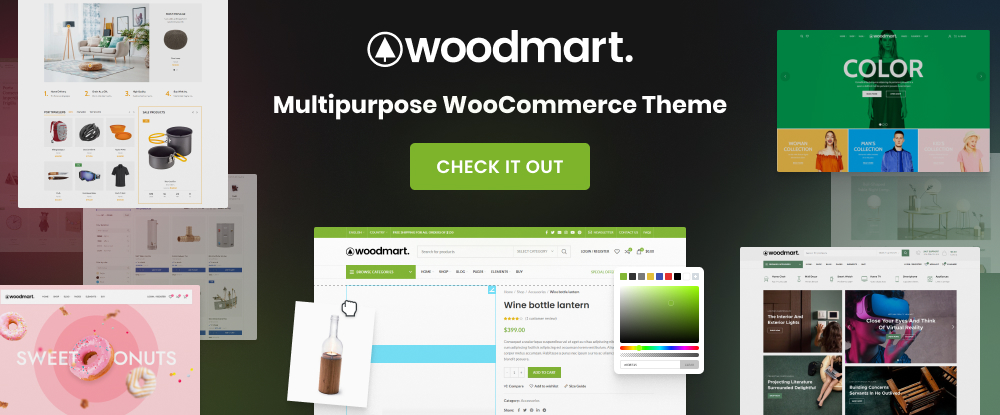
Best WooCommerce Theme for Large Online Stores: Woodmart
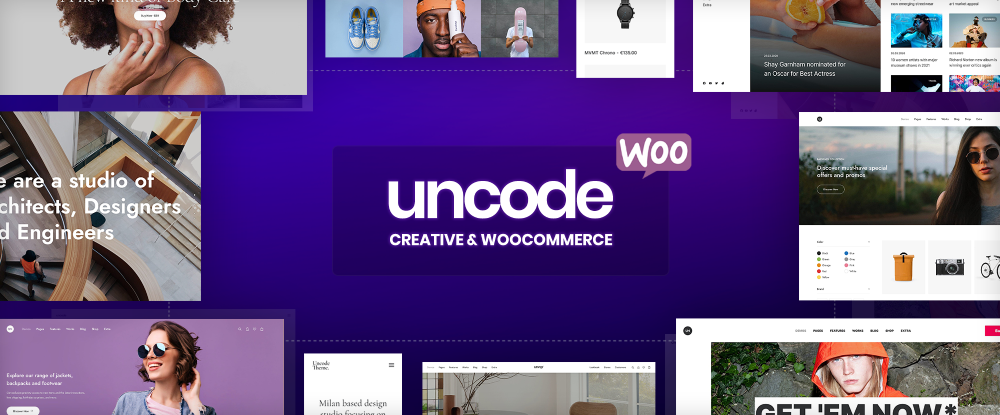
Best Creative Multipurpose WordPress Theme for High-End Websites: Uncode
Ideal for: Personal and small business websites, marketing campaigns, portfolios, and prototyping.
Key Strength: Four different engaging versions to select from with each prompt.
Why designers like it: Chat AI offers a quick and easy way to edit.
With Mobirise AI You can design, customize, and launch complex pages without switching tools or writing code.
AI generated text and Images- Website text or images can be generated using ideas or instructions and prompts. Mobirise AI creates 4 completely different versions of website for every prompt
For first-time users: Mobirise AI users can explain what they want, choose from Mobirise AI's four AI-generated versions and make any changes by chatting with AI.
Code Export and Publishing: Get full source code of your website and publish anywhere. Mobirise AI also offers hosting or users can use their own domains.
Marketing Presentations: Marketers can make excellent use of the four-versions-per-prompt feature in that they can present a multiplicity of concepts to their clients.
Client Review: “I've been using Mobirise for about two months now. The AI generation is genuinely impressive — I typed my prompt in French and got back four solid designs with properly written French content, not awkward translations. The chat-based editing works well for straightforward changes. Overall, it's genuinely saved me hours and I'd recommend it — just go in knowing it's a powerful assistant, not a mind reader”.
Ideal for: With itsWooCommerce integration and easy customization features Blocksy is ideal for creating WooCommerce starter sites.
Key Strength: Blocksy's complete set of built-in tools simplifies setup, accelerates performance, and keeps your WooCommerce shop running smoothly from day one.
What designers like: Blocksy starter sites load quickly helping a site rank higher in search engines and offer visitors a smoother browsing experience.
Blocksy features an impressive array of starter websites and other prebuilt websites. Landscape is a fresh and modern starter site built for agriculture enthusiasts and businesses looking to get online in a hurry.
Demo releases / updates:
Deep WooCommerce integration - Optimized shop features, fast performance, and conversion-focused layouts.Store features (cart, checkout, product pages) feel like a natural part of the theme, not an add-on.
Seamless Integration with Page Builders - Whether you prefer Gutenberg, Brizy, or Elementor, Blocksy starter sites are made to work perfectly with them. The clean structure ensures smooth editing and maximum flexibility.
Smooth customization workflow - Changes across layout, colors, and elements feel consistent and predictable, making the building process efficient.
Client Review: “I used to build WP sites from scratch, even the simplest ones, and always have been skeptical about these ready-made themes. Blocksy made me change my mind and now I use it on every low/mid-tier projects, when structure are simple and straightforward.”
Ideal for: Creating custom layouts and online stores noted for their fast performance.
Key Strength: WoodMart's WooCommerce layout builder allows you to create custom layouts with either the Elementor or the WPBakery page builders.
Why designers like WoodMart They like the extensive selection of demos to choose from as well as the ability to design online stores without having to rely on plugins.
WoodMart's prebuilt website library demos are easy to customize. Take the WoodMart Electronics 3 demo's straight forward single page online store layout for example. You should have no trouble swapping content for your own engaging online store.
Demo releases / updates:
Client Features: Popups and floating blocks for marketers, dynamic discounts for shop owners, custom layouts for developers, and unlimited colors and fonts settings for designers.
Gutenberg, Elementor, and WPBakery page builders - Use all standard elements that come with your page builder plugin plus special elements dedicated for particular sections of your store like a shop page or a single product. Note: You can use Elementor's free version without having to purchase a Pro license.
WoodMart Slider Functionality - You can create simple sliders to enhance your website's performance. They are easy to configure and can be created using WPBakery Page Builder elements or Elementor widgets.
Ideal for: Creating high-end websites noted for their impressive layouts and content, and technically advanced features.
Key Strength: Uncode's impressive galleries with images, videos, and audio together with a wealth of options.
What designers like about Uncode: Finding more than one expects when viewing the demos.
Among Uncode's large selection of customizable prebuilt websites the Creative Prototype example will transport you into amazing worlds beyond imagination. You can easily insert your own content to create your own amazing world.
Demo releases:
Content Blocks and Page Builder - Allow you to create modern interactive Megamenu dropdowns without the need for extra plugins or any need to manage complex dependencies and create dynamic templates ready to integrate into your web pages
Menu Block Mode- Allows you to display everything from simple Menu lists to complex responsive column layouts and can transform them into mobile and desktop compatible accordions.
Dynamic Content - Create customized templates and designs by populating them with data from various WordPress sources.
Wireframes plugin with 800+ pre-made sections - This plugin enables you to quickly build pages and shorten design workflow time.
Client Review: “Uncode is the solution I have been looking for years. Design, practical and flexible, the experience is as good in the front end as in the back end. It's not just a theme; it's a real thinking project. Many thanks Uncode!”
Ideal for: Creating hero, slider, and carousel formats with dynamic content options.
Key Strength: SR 7's Quick Start Generator generates a ready-to-edit module to initiate the design process.
What designers like: 3 choices - The ability to work from a blank canvas, select an interaction filled template, or generate a ready-to-edit module using the Quick Start Generator.
Slider Revolution offers users a fascinating library of prebuilt ready to customize hero pages. The Hover Morph Effect Hero Collection hero example could be a challenge to customize to meet your needs but it would certainly be worth a try.
Demo releases / updates: New hero, slider, and carousel templates are released each month.
Quick Start Generator - The Quick Start Generator design approach provides a workable first draft; helpful if you are having trouble starting with a blank page.
AI features - SR 7's AI features include AI text generation powered by ChatGPT AI, an AI image background removal, and AI image generation using FLUX 1 and FLUX 2.
Client Review: “The big reason for using Slider Revolution initially is the biggest reason that we've stayed with it - it's mighty nice to be able to set up a single homepage slider structure and tweak it for the various responsive sizes.”
Ideal for: Using AI to assist in the design of websites that reflect will captivate your audience.
Key Strength: The Theme Builder gives you full control to create layouts that reflect your brand and engage your audience by allowing you to seamlessly design, assign, and manage design components in one intuitive platform.
What designers like about Crafto: They like the ability to enter a topic and let AI craft engaging and well-structured content.
Crafto theme's excellent library of prebuilt easily customized websites highlights the Branding Studio scrollable one-page website example that is just waiting for your content.
Crafto Theme Builder - Crafto's theme builder empowers you to design and customize every key area of your website from headers and footers to single posts, archives, and popups. You can seamlessly design, assign, and manage all essential components in one intuitive platform.
AI Chatbox - The AI Chatbox generates high-quality, engaging content in seconds, delivers instant responses, handles support queries, and continuously learns to provide smarter interactions.
Crafto's Animation Engine - Animate every element of your website with Crafto's wide range of effects and advanced settings that let you fine-tune every animation for a personalized touch.
Ideal for: WooCommerce online stores from small shops to large, high-traffic eCommerce projects.
Key Strength: Essential WooCommerce and layout options (headers, product pages, filters, checkout) are logically organized and easy to find, reducing setup time and frustration.
What designers like: They like how smoothly Elementor and Gutenberg work with XStore. Drag-and-drop editing feels fast and responsive even on complex WooCommerce pages.
XStore's Elementor 3 Handmade Decor demo is easy to customize visually. It features a nicely structured one-page gallery style layout just waiting for you to insert the content of your choice and have a website that's ready to launch before you know it.
Deep Elementor and Gutenberg integration - For pixel-perfect control.
For Marketers & Growth teams - Advanced product filters, variation swatches, and quick view, flexible banners, and conversion-oriented layouts.
For Business Users and Store Owners - One-click demo import and ready-made store designs, built-in performance optimizations, and WooCommerce-focused layouts
Catalog Mode - Turn your shop into a catalog, by removing Add to Cart buttons and access to checkout pages.
Client Review: “I am really happy that I came across this theme. It has features that I wanted for my web shop. The only thing is that I am not used to build with Elementor and my fav theme is in Elementor. Luckily, I get a lot of support and questions are answered very fast”
Conclusion
Hopefully, any questions you may have had before reading this article have by now been answered. We've attempted to show you what tools are best for creating starter sites, what advantages AI offers, and what you need to look for in a tool or resource before starting on a client-based website project. Most importantly, we've gone into some detail on the importance of future-readiness in website design and tools and resources selection.
]]>Kevin Liew<![CDATA[8 Top Future-Ready WordPress Themes for 2026]]>http://www.queness.com/resources/images/17979.jpg<![CDATA[8 Top Future-Ready WordPress Themes for 2026]]>2026-01-21T00:22:11+11:002026-01-18T18:37:54+11:00This is a great opportunity for you to find out about 8 leading WordPress themes that are noteworthy because of their customizable designs, mobile responsiveness, and performance operations, and also because they are highly flexible, future ready, and capably supported.
When selecting a WordPress theme it’s not enough to be satisfied that it meets your needs today. It needs to meet your needs tomorrow, next month, and next year as well. In other words, it has to grow with your business as your business grows and have the flexibility needed to adapt to ever-changing design standards and marketing practices.
The 8 top themes described in this article are capable of doing exactly that. No matter what your choice, it will be a winner.
In summary: Fast builders, 200+ customizable demos, and WooCommerce-specific tools give you a versatile setup that moves from idea to finished site without friction.
This video shows one of Be’s most popular templates. Click on it to explore it.
With Betheme at your fingertips it is remarkably easy to build virtually any type or style website and do so quickly. That is good news for anyone seeking to acquire an attention-getting online presence.
Be’s standout features are its super-fast BeBuilder and its collection of more than 200 fully customizable pre-built websites.How does one of these pre-built websites help you get a project off to a quick start? Try the frequently downloaded Furniture Store example. If you are thinking of opening an online retail store of any kind you might be able to customize it and put it to immediate use
Update/Demo Release Schedule: Monthly
The other standout feature mentioned above is the super-fast and completely rewritten BeBuilder together with its companion builders-
The WooBuilder which, with its more than 40 WooCommerce demos, makes it super easy to create your eCommerce store. BeBuilder Blocks and its continuously growing selection of pre-built sections.
Header, Footer, and Query Loop builders for Developers
Client Review:“I'm an end user with no tech skills. I had been using my last theme for many years -my website had an old and tired feel to it. I decide to switch to Betheme and I'm very pleased with my new website. The features, design and the tutorial videos are outstanding.”
In summary: Snappy Customizer performance, sharp starter sites, and deep WooCommerce tweaks create a smooth, lightweight workflow that stays clean as your site grows.
This video shows one of Blocksy’s most popular templates. Click on it to explore it.
Blocksy users often mention that once they dive in, they notice how fast and fluid everything feels, they realize how logically structured the options are, and how everything they need is exactly where they would expect it to be. In addition, Blocksy’s deep integration with WooCommerce enables users to easily transform an existing website into an awesome online shop.
Blocksy starter sites are built to impress. Their pixel-perfect customizable designs load quickly and they seamlessly integrate with Gutenberg, Brizy, or Elementor page builders. Check out the Invest Boost starter site example. You’ll see right away how easy it could be to customize to fit your needs.
Update/Demo Release Schedule: Monthly
Instant responsiveness while customizing; every change in the Customizer updates instantly, with no lag or reloads.
Advanced Product Gallery & Quick View - Customers can explore products faster with image zoom, gallery sliders, and quick view modals that enhance the shopping experience.
You can fine-tune every detail of your site without needing extra plugins or slowing down your website.
Custom Post Type Support & Dynamic Data - Ideal for building complex, content-rich websites.
Client Review:“This theme with incredible support and brilliant features + superb roadmap is something I was after for over a year. I’ve transformed my website tomrobak.com into Blocksy. Then I did few more websites. Well done guys, 5 stars is a must have, not just because my website pass Google’s PageSpeed Insights and all is “green”.
In summary: Hundreds of templates plus built-in shop features replace Elementor Pro and many extra plugins, keeping multi-page business and agency builds consistent and streamlined.
This video shows one of Jupiter X’s most popular templates. Click on it to explore it.
Jupiter X excels in agency, eCommerce, and business websites of all sizes. It’s widely used for creative agencies, freelancer portfolios, and small business sites thanks to its huge template library and flexible design tools. It’s also ideal for corporate and multipurpose websites where speed, scalability, and consistent branding across multiple sites are essential.
Thumb through the Jupiter X huge template library where you can choose from several hundred pre-made designs. If for example, you were to pick Tech Shop, you could start customizing it in your mind in an instant. This and the other 46+ pre-made templates are designed to help Jupiter X users deliver high-quality sites quickly and efficiently.
Update/Demo Release Schedule: Periodically (Latest update: 10 new templates in January 2026)
Continue using Elementor Free forever, while enjoying all the Elementor Pro style features through Jupiter X’s native alternatives. With Jupiter X, the free version of Elementor becomes a complete, powerful toolkit.
Built-in tools that replace paid plugins. Users only realize once they start working that Jupiter X already includes advanced marketing and eCommerce tools like sales funnels, order bumps, and dynamic discounts that would normally require several separate paid plugins.
Endless variety, even with minimal edits. Even if you have only spent a few minutes customizing, your final site will still look unique.
Exc. discount for Queness users: %10 off all plans, as low as $18/site (pay once), valid until end of January 2026 (coupon QUENESS10)
Client Review:“I’ve used other themes with multiple licenses, but this one stands out. It’s versatile, reliable, regularly updated, and I’m now switching to it for future client projects. Highly recommended.”
In summary: Elementor plus AI, 52+ full demos, and 1,450+ sections make it easy to spin up polished business, portfolio, or eLearning layouts fast.
This video shows one of Crafto’s most popular templates. Click on it to explore it.
Crafto’s out-of-the-box features include a Theme builder for advanced users, a Portfolio builder for freelances and agencies, eCommerce for shop owners, a Blog builder, AI features for users of all types, and the power of Elementor.
This theme’s most popular feature however is its selection of 52+ full website demos designed to give you a fast start on creating any website you have in mind, even though they are primarily suited for business websites. Crafto’s eLearning demo shows how easy customizing the layout with your content would be. These demos are supplemented by 1450+ pre-made sections which you can also easily customize.
Update/Demo Release Schedule: Monthly
With Crafto's theme builder you can design every area of your new website with precision and customize it to reflect your brand and enchant your audience.
The in-built performance manager gives you plenty of options to optimize your website’s loading speed.
Highly creative and eye-catching animation options add to the mix, while client specific features include a portfolio builder and eCommerce.
Client Review:“I’m genuinely impressed with Crafto! The design quality is top-notch, and the number of ready-to-use demos saved me so much time. It’s super easy to customize thanks to the powerful theme builder, and the built-in AI tools are a great bonus. Everything feels smooth and optimized for performance. I’ve tried many themes before, but Crafto stands out for its flexibility, speed, and attention to detail. Totally worth it—highly recommended!”
In summary: Real-time building, refined demos, advanced WooCommerce options, and smooth scroll effects deliver designer-level output without sacrificing structure.
This video shows one of Uncode’s most popular templates. Click on it to explore it.
The secret to Uncode’s success could be one of any number of things, but three candidates are (1) the wealth and depth of options users are presented with, (2) the solidity of the theme’s framework (and also that of the websites created with the theme), and (3) the amazing ways into which Uncode’s demos can be put to use. It is in fact these demos provide users with a solid framework to work with and add to. They also contribute to getting projects off to a fast start. Check out Uncode’s Shop Ajax Filters demo to see for yourself how it might serve as a starting point for a one-page website.
Update/Demo Release Schedule: 2-3 months
Key features –
Uncode’s Visual Page Builder lets you design in real time.
Content Blocks used for creating reusable sections and/or dynamic templates.
Megamenu for creating dropdown multi-column menus in business or eCommerce websites.
Scroll-triggered animations for anyone seeking to create a next-level website.
Advanced WooCommerce features for e-commerce creators.
Listing features to create listing websites
Best use cases (agency and business websites, and eCommerce websites) examples can be viewed in Uncode’s showcase of user-built websites.
In summary: A mature builder with a large template base, responsive framework, and reliable WooCommerce tools—ideal for teams that need speed and steady updates.
This video shows one of Avada’s most popular templates. Click on it to explore it.
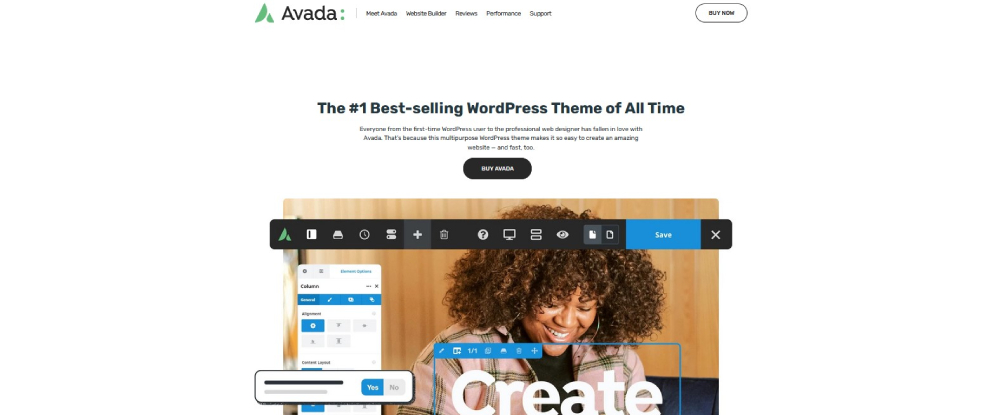
Avada’s website building tools, options, flexibility and ease of use have made this WordPress theme the #1 top selling WordPress theme of all time. You can customize every aspect of your layout or design, plus everything rests upon a 100% responsive framework. With Avada’s Live Builder you can build an impressive website in just a few short hours, or if you have an online store in mind, Avada’s WooCommerce builder makes building one a quick and easy process.
If time is of the essence, you might take a stroll through Avada’s Business template, especially if you have a scrollable one-page website in mind.
Update/Demo Release Schedule: Timed to ensure compatibility with the latest WordPress releases and integrated plugin updates.
With Avada’s Visual Live Builder you can build an impressive website in just a few short hours. It is the most intuitive page builder on the market, it’s easy to use and produces incredible results.
Other building tools include 85+ professionally designed pre-built sites, 120+ design and layout elements, and 400+ pre-built web pages.
One click website import allows you to install a full website with everything.
Multiple premium slider options include the Revolution Slider and Parallax LayerSlider plugins and the custom Avada slider with parallax effect and full screen options.
New design features and options include improvements to the Prebuilt Website Import process, text stroke styling, and To Top button styling.
In summary: An all-in-one WooCommerce theme with 140+ demos, built-in translations, and developer-ready controls that help storefronts launch quickly and stay flexible.
This video shows one of XStore’s most popular templates. Click on it to explore it.
With the XStore all-in-one WooCommerce theme you can launch website stores rapidly because you do not have to deal with extra paid plugins and their potential compatibility.
XStore gives you an out-of-the-box solution to your website building needs. In addition, XStore is designed to work with the best page builders on the market and you do not need Elementor Pro or other paid addons.
You also have ready access to 140+ XStore demos. The modern Furniture Dark demo could give you some ideas on what you might like your online presence to look like to its visitors.
Update/Demo Release Schedule: Monthly
With XStudio, you can sort, browse, combine different demos and preview the full range of available content. All the content is available to be added through the XStudio when building your website in Elementor Builder.
100% built-in translations for 30+ languages, RTL support, GDPR tools, and compatibility with multilingual plugins.
XStore’s developer-ready structure features clean code, hooks, a custom CSS/JS panel, and 140+ starter templates.
Client Review:“I am incredibly happy with this theme. And when I have needed help with something I have received fantastic and fast support. I can highly recommend this theme.”
In summary: WPBakery at the center, backed by 100+ elements, 50+ demos, and dynamic layout tools for agencies juggling many styles and site types.
This video shows one of Total’s most popular templates. Click on it to explore it.
The Total WordPress theme, bundled with its enhanced WPBakery builder together with its collection of streamlined, time-saving design tools and aids and unmatched flexibility, offers unlimited website-building possibilities.
A Total demo provides an excellent way to help you get your project underway. Total’s highly customizable Olivia Baker demo provides a solid foundation for a one-page photography website but could easily be customized to fit most other business types.
Update/Demo Release Schedule: 1-3 months
You’ll also have at your fingertips the following time-saving features.
The WPBakery page builder together with 90+ WPBakery patterns, 50+ premade demos, and 100+ builder elements.
Dynamic layout templates, boxed and full-width layouts, custom backgrounds, mobile menu styles, animations, and more.
Live customizer theme settings and a dynamic template function and dynamic layout functionality that combine to provide all the flexibility you’ll ever need.
Integration with Elementor and Gutenberg.
Total’s features are designed for complete integration for Elementor and Gutenberg.
Client Review:“What a refreshing change. A company/developer who cares about his customers. I've been with Total from the beginning, and the support has been amazing. The documentation and guidance has meant that even I have managed to keep my photography site running as I would like it. The most important part is that when things go wrong, invariably because I tinker or do something stupid, AJ, the developer, helps out without being judgmental. Raising a glass to your well-earned, continued success, sir.”
*******
Having taken the time to check out these 8 top WordPress themes you should be in a good position to pick the one that will not only carry you through 2026 but far beyond. If, however, you are having some difficulty in choosing between two themes that you find appealing you could always make your final choice by flipping a coin. Either heads or tails would be a winner.
]]>Kevin Liew<![CDATA[ 5+ Essential WordPress Plugins to Try in 2025]]>http://www.queness.com/resources/images/17977.jpg<![CDATA[ 5+ Essential WordPress Plugins to Try in 2025]]>2025-04-30T00:32:23+10:002025-04-29T22:08:13+10:00Themes don't always provide all the tools a website designer may need. Rather than having to resort to coding or outside help, acquiring the right WordPress plugin can often resolve the problem, especially if it gives the designer or developer the ability to extend the functionality of a website (MapSVG) or improve its appeal (Revolution Slider). More often than not, they make complex tasks easier, whether those involve website design and development or user interaction (Amelia).
AI is changing the game: several of the plugins featured here use it to deliver smarter chat support and faster, more accurate data searches.
The 7 essential WordPress plugins shown in this article can provide functionalities or characteristics you may have a need for and will do so better than other WordPress plugins that provide similar solutions.
In a nutshell: Amelia provides businesses with a robust solution to their appointment booking or event booking issues.
Click the video to see this template in action.
Click the video to get a live look at Amelia in action.
Amelia fully automates booking operations. By doing so it eliminates administrative burdens and saves time by making appointment and event bookings easier for clients and employees alike. Amelia's extensive customization options allow it to easily adapt to a variety of business models. Amelia's Pet Care template will put a smile on your face and may give you some ideas on how you might customize it for use by your business or a client's.
Key feature:
Amelia's “Packages” feature streamlines the process of offering bundled services. Businesses can customize details such as price and duration, while clients enjoy a broader selection—and businesses may see a positive impact on revenue.
Key customer insight: “Overall: Excellent. I started with the free version and purchased the premium; I have it on 3 websites.
Pros: I tried the free version first. Then I bought the premium version. I have it on 3 websites to date. The support is excellent. It is the best booking plugin to date. Keep up the good work!
Cons: The templates are centered around health and fitness; Offering a variety of templates, say an event organizer template, would have been awesome.”
In a nutshell: The wpDataTables plugin makes data processing and visualization quick, easy, and effective.
Click the video to see this template in action.
Click the video to get a live look at wpDataTables in action.
Processing large amounts of complex data can be a tedious, error-prone, and sometimes unwelcome task. wpDataTables is highly efficient at managing large datasets, ensuring that even tables with thousands or millions of rows can be displayed smoothly without compromising website performance. wpDataTables is perfect for businesses that need to make sense of big data—fast, clear, and stress-free.
Key features:
WooCommerce: The customizable product tables enabled by WooCommerce integration offer a powerful way to expand and improve store functionalities. The Pharmaceutical Table template is one example.
Adaptability: wpDataTables supports multiple, concurrent database connections, giving users the flexibility to interact with diverse data sources regardless of their server locations.
Client specific features: Ideal for educational, scientific, business, and personal use, wpDataTables makes preparing and presenting data in tables or charts simple and efficient.
Key customer insight: “wpDataTables has a user-friendly interface, many customization options and integrated very well with my WP sites. wpDataTables works well on my sites and has good support. wpDataTables support helped me with some customizations and supported me until it worked. Thanks to the team for providing us with such a great tool! This plugin I have been waiting for a long time.”
In a nutshell: When you want to visualize data or add interactive features to a map, MapSVG is the ideal solution.
Click the video to get a live look at MapSVG in action.
The MapSVG plugin deals with various things you can do with maps in addition to merely retrieving. You can for example-
make any image an interactive map that your users can explore.
make a jpeg/png image interactive.
turn addresses into accurate map markers automatically with geocoordinate conversion.
Updates: Updates are published frequently.
Key features include:
Data Visualization: MapSVG provides tools to design multicolored maps, link values to specific color-coded regions, and assign complex data displays—such as directories or info windows—to designated map areas.
Customizing content: With the Form Builder you can create custom map content featuring people, shops, events, or anything you choose. You can also use the embedded drawing tools to add clickable images on images or arial photos.
Support: MapSVG introduces the first AI-assisted chat box in a WordPress plugin, combining intelligent automation with the reliability of human support when needed.
With MapSVG, flexibility and adaptability is the name of the game.
In a nutshell: LayerSlider combines sleek design with powerful features to create interactive web experiences that stand out.
Click the video to get a live look at LayerSlider in action.
LayerSlider is the go-to creative platform for WordPress. Whether you're designing sliders, animated sections, or full-screen visuals, its intuitive tools and stunning effects help you deliver next-level content with ease. Bring your design to life with cinematic movements and vivid visuals—just like in the Fragrance Fantasy template, where fluid animations and parallax effects create a stunning, modern experience that's easy to make your own.
New Content release: on roughly a weekly basis.
Special features:
Project Editor: Built to keep you in the zone, the Project Editor offers drag-and-drop simplicity, real-time previews, and a streamlined interface that lets you focus on creativity.
Client-Focused Tools: Design marketing content in minutes—from popups, banners, and animated counters to countdowns, maintenance pages, and more. Every element can be fully animated to make your message stand out.
Adaptability: Whether it's for a business site, personal blog, or online portfolio, LayerSlider adapts to any use case with a flexible toolkit and versatile templates.
Support: Includes an in-editor guided tour, detailed documentation, and a dedicated ticket system to help you every step of the way.
In a nutshell: With Slider Revolution, designers at any skill level can explore exciting options for crafting dynamic visual effects across sliders, hero sections, and landing pages.
Click the video to get a live look at Slider Revolution in action.
Slider Revolution users are eager to share how the plugin has unlocked new levels of flexibility and creativity in their designs, how this WordPress plugin enables them to create award-winning sliders, carousels, and even complete websites. All this and more, with no coding required!
New releases: monthly added ultra-modern, responsive, and fully-loaded templates.
Key features:
Customizability: Slider Revolution delivers full customizability for visual effects and animations, eliminating the need for coding.
Templates: Using a customizable template is an easy way to create high-quality content. The Director and Photographer Showcase template seamlessly showcases stunning videos and images. It is designed for creative professionals aiming to make a bold statement. You can make a bold statement using this template as a foundation for your own site.
Versatility: A particular design may be most effective in its original layout, while another can be adapted to serve an entirely different purpose.
Support: Customers seeking support can easily get in touch through the chat box available on the Slider Revolution website.
In a nutshell: Chamevo gives WooCommerce designers, developers and merchants the tools they need to create high-converting product customizations.
The Chamevo plugin can be a WooCommerce merchants' best friend with its expert-level WooCommerce integration and its product personalization capabilities. The product personalization properties gives users flexibility and depth, while the expert-level WooCommerce integration enables them to power their businesses through the use of high-converting product customizations.
Key features:
Performance: Chamevo's smooth interface makes it possible for merchants to easily manage increasing traffic or cope with large catalogs with minimal difficulty. Chamevo empowers merchants with a deep level of customization, from custom text and fonts to advanced layering, making it a game-changer for any store.
WooCommerce Integration:The WooCommerce integration feature gives merchants the ability to create extraordinary product experiences that range from complex personalization rules to print-ready outputs at scale. Should a store's product line, customer base, or both, be faced with a sudden expansion Chamevo gives its users the capability to implement necessary personalization options quickly and easily without impacting performance.
Client Specific features: Designers like the ease in which they are able to apply the layout grids and advanced styling necessary to maintain consistent brand aesthetics across product lines. Developers like how Chamevo's selections of hooks and filters for deeper integrations allow them to extend or tailor the plugin's core functionality.
In a nutshell: Essential Grid provides the tools and options you need to customize website galleries and portfolios to suit your needs.
Click the video to get a live look at Essential Grid in action.
From WordPress video and photo galleries to audio collections, Essential Grid empowers you to create any gallery design you envision, all without touching a line of code.
Key feature:
At the core of Essential Grid is a versatile selection of more than 55 customizable grid skins and templates. The super cool Denis Savard Logo Grid for WordPress template reveals its entire composition on hover including title and social sharing options, which ensures your visitors have an inspiring experience when viewing your website gallery. Essential Grid's powerful visual skin editor lets you design limitless skin variations.
Client review: “Noticed a grid on another website, inspected the element and decided to download it myself. Essential Grid, similar to Slider Revolution has its very own interface and idiosyncrasies that can be frustrating when you are used to working within WordPress and whatever builder you are using.The support you get with a license is spot-on, and as long as you go through the trouble of creating the ticket, support will hook you up where possible.Special shoutout to Stan ;-).”
*******
Now that you've had the opportunity to see the features these 7 essential WordPress plugins offer, we hope there are one or two (or more) you believe deserve a markable place in your powerful web design toolkit. It might be a plugin that simplifies a task that has been giving you difficulties, or one that can transform an existing WordPress site into one that will garner superb reviews in terms of performance and visitor engagement or help you build a new one that provides the same results.
]]>Kevin Liew<![CDATA[Top 9 WordPress Themes you Need and Their Cool Features]]>http://www.queness.com/resources/images/17976.jpg<![CDATA[Top 9 WordPress Themes you Need and Their Cool Features]]>2026-01-18T19:15:15+11:002025-04-22T17:22:00+10:00It is not particularly difficult to find a theme you can use to create an attractive website. The challenge comes when you're searching for a theme that not only aligns with current web design trends and functionality needs but is also built for the future. Equally important is the level of user support provided.
In other words, you might have to look long and hard to find a theme that meets these criteria.
In this article you'll find 9 high-performance and well-supported WordPress themes that meet today's design standards and are built to adapt to future trends. While they are not perfect, and few things are, they nevertheless share one thing in common in that they come closer to perfection with every update.
The product in one sentence: Building pages with BeBuilder, the theme's key feature, is an incredibly smooth process.
Click the video to see this template in action.
Betheme's 70+ website design and building tools that include 250+ pre-built websites for Elementor, makes it the biggest and certainly one of the most flexible themes in WordPress. Despite its size, Betheme is fast and easy to work with.
Client Features: Client features include a developer mode for developers and popups for marketers, plus it fully supports freelancers, businesses, and creative professionals.
Ease of Use: With BeBuilder building pages is an incredibly smooth process and the theme as a whole is fast and easy to work with. Add Be's WooCommerce builder, Header builder, and Footer builder to the mix and the design possibilities become virtually limitless.
Time Saving: You'll save time when using the built-in theme options that apply styles automatically. If time is really critical, you can start with any of Betheme's 700+ customizable pre-built websites like the Architect one-page website template which offers an excellent approach to introducing and publicizing a business.
Client feedback: “Betheme is definitely the best out there. Top quality design. Support is fast and best team ever. Flexibility and code on top. I highly recommend it to everyone who is looking for top quality product!”
The product in one sentence: Blocksy is well optimized and built on the latest web technologies.
Click the video to see this template in action.
Blocksy is not your ordinary, every-day WordPress theme. Blocksy gives its users an eCommerce solution that features dozens of advanced options and functionalities including the recently added Shop Extra extension giving it a distinctive edge over typical multipurpose and creative WordPress themes.
Blocksy give you:
Flexibility: The Shop Extra extension introduces an advanced feature set that evolves Blocksy's architecture while fundamentally redefining WooCommerce theme capabilities. Shop Extra delivers a collection of targeted modules that streamline and optimize key shopper interactions. In doing so it elevates a store's functionality and improves the shopping experience.
Workflow Time Saving: If you are pressed for time one of Blocksy's starter site templates can get you off to a fast start. Blocksy's E-bike starter site is the perfect design for an adventure travel business' online shop, but it can easily be customized to fit any business you have in mind.
Client average score: 5 out of 5 from 847 reviews.
Client feedback: “Blocksy is a gem! In this era where user experience, be it for the developers or the end users (website visitors) reigns supreme, Blocksy is moving the goal posts forward with its focus on versatility, performance, and impeccable design. Blocksy's attention to user-friendliness, consistency of admin area design which translates to easiness on your eyes, and overall ergonomics, is second to none.”
The product in one sentence: Build everything from one-page business websites to thriving online marketplaces without ever having to write a single line of code.
Click the video to see this template in action.
When you bring together Avada's powerful website building tools, unmatched ease of use, flexible design options, and top-tier performance, you get the best-selling WordPress theme of all time.
Ease of Use: With Avada's Live Builder, you can create a stunning website in just a matter of hours. If you plan to create an online store, Avada's WooCommerce builder makes creating one incredibly easy. And should you be in a hurry, Avada's Ecommerce customizable templates, like this Avada Portfolio example, can make creating a website quick and enjoyable, as can Avada's drag and drop visual builder.
Flexibility: Avada provides endless customization options, allowing you to tailor every aspect of your layout and design, all within a fully responsive framework. Updating global styles across a website is easy as well. With Avada's theme options it's possible to customize everything, including typography sets and color palettes.
Updates: Optimized for seamless compatibility with the latest WordPress and plugin versions.
The product in one sentence: Uncode's advanced design toolkit empowers you to create a sleek, professional WordPress or WooCommerce website with ease.
Click the video to see this template in action.
What sets Uncode apart, according to many, is its seamless integration of high-end design tools and flexibility. Others say it's the collection of pre-built demo websites and the User Showcase that shows what can be done with them.
More recently, users are excited about the powerful Scroll-Triggered Row Animations feature that made its appearance in Uncode's Version 2.9.2. This enhancement allows you to build immersive scrolling experiences that instantly grab attention that you can use to impart a fresh, dynamic feel to your web pages.
Demos: These customizable demos act as both launch-ready templates and visual benchmarks to inspire original site concepts. The Creative Lab example features an attention-getting scrolling feature you rarely if ever see in a website.
Ease of Use: You can use Uncode's Wireframes Plugin and its 800+ section templates to create pages, or if you wish, a complete website. Uncode's enhanced frontend page builder with its 85+ premium modules offers yet another way to easily build a website.
Updates: every 3-6 months based on customer input and demand.
Client average score: 4.89 out of 5 on 3,352 reviews
Client feedback: “I just love the theme and also the support. The theme is very well designed, totally flexible, fast loading and easy to customize. The support team is very responsive and helpful. If I could purchase only one theme, this is the one!”
The product in one sentence: The Cornerstone Builder's advanced features establishes Pro Theme as a top choice for intuitive, lightning-fast, and SEO-optimized themes available.
Click the video to see this template in action.
Anyone can build anything with Pro Theme. Its dozens of 3rd party plugins, custom extensions, and family of builders combine to provide maximum flexibility at minimal effort.
Ease of Use: Cornerstone gives you complete control over all aspects of your website while its app-like design and WYSIWYG capability is nothing short of building in the browser at its best.
Customization: Customizing sections and pages is as easy as can be. Templates like Pro Theme's Crafty one-page website example can easily be customized to suit your particular needs.
Client-specific: Pro has every feature a seasoned developer would need. The system's granular access controls offer precise customization, ensuring only authorized users can access specific features.
Support: With more YouTube tutorials than any other theme, a detailed support manual, and a thriving user forum with 250,000+ discussions, Pro Theme ensures ample learning resources.
Client average score: 4.8 out of 5 based on 6,700+ reviews
Client feedback: “Pro has advanced concept of components and parameters, allowing users to utilize their design systems throughout the website, like having a Figma-like tool that is an actual website.”
The product in one sentence: Creating a website with Kalium can be done in three simple steps.
Click the video to see this template in action.
First-time users in particular will appreciate how easy Kalium makes website building when they follow these three simple steps.
Browse the starter site collection and choose one that closely matches the business your website is addressing or the look and feel of the website you envision.
Select and install the features of the starter site you want to apply or install the starter site as a whole.
Customize the starter site by replacing its content with your own.
Another approach is to create your website one page at a time using an Elementor or WPBakery live page builder.
Pre-made Templates: Not just the home page, but every starter site page is designed to the tiniest detail. Are you thinking of a blog site for example? Kalium's Personal Blog starter site can get you off to a good start and can easily be customized to meet your needs.
WooCommerce: Since Kalium is seamlessly integrated with WooCommerce creating a site that offers perfect shopping experience should be no problem at all.
Client feedback: “For the small amount I paid for this theme, the value I've received has been worth it ten times over. Kalium's team has made my experience seamless and enjoyable, turning challenges into opportunities to improve my site.”
The product in one sentence: Woodmart offers an ideal approach to creating a WooCommerce site that gives its visitors the ultimate shopping experience.
Click the video to see this template in action.
It takes but a single click to import one of WoodMart's attractive and responsive demos to start building a WooCommerce website that offers a thoroughly engaging shopping experience.
Flexibility: In addition to its library of 85+ pre-built websites, WoodMart includes 400+ customizable page templates, offering complete flexibility in store design, and WoodMart's custom layouts builder includes layouts that can be customized to include whatever customer-centric features you want to implement.
Ease of Use: You'll have everything you need within the core system, so no extra plugins are needed. Furthermore, regardless of your project's scale, the design and build process remains seamless.
Client-Specific Features: Client specific features include a White Label option for developers. Social integrations for Marketers, and customer-oriented design elements for store owners.
Pre-Built Websites: If you need a one-page website to advertise your law firm WoodMart's Demo Lawyer layout will get you close to where you want to end up. If you have another business in mind you could easily customize it to promote whatever product line or service you choose. You can in fact easily customize everything in the Woodmart collection.
Updates: new demos and pre-built websites are released monthly.
The product in one sentence: Litho can be used for any type of business niche, portfolio, blog, or eCommerce site.
Click the video to see this template in action.
Litho's seamless integration with the WordPress Customizer and Elementor, combined with its custom widgets, makes customization a breeze. You can either choose from a variety of pre-built layouts or use its builders to create a design that's entirely your own. Litho is compatible with most plugins even though plugins are rarely needed. A Slider Revolution WordPress slider plugin is included in the package.
Startup Templates: Litho features 37+ ready home pages, 200+ creative elements, and 300+ templates. The latter includes templates for startup websites like Litho's Home Branding Agency example that has some interesting features you might like to retain as you customize.
Section Builder: Litho's section builder offers Elementor-like section elements, allowing you to easily customize most page components.
One-Click demo Install: You can quickly import full demos, specific pages or posts, or mix and match sections, templates, and elements from different demos.
Client feedback: “Customer support for the Litho theme has been fantastic. Very helpful, friendly, and fast. The theme is full of features and design options that are modern, setting the look and feel of this theme apart from many of the older & more established themes. The design has a fresh and professional look.”
The product in one sentence: XStore's most praised feature is its library of 140+ ready-to-use templates that allow users to launch a store in minutes.
Click the video to see this template in action.
In addition to its pre-built demo library user favorites include the XStore Sales Booster with elements that virtually eliminate any need for additional third-party plugins, and the AI-Powered Smart Recommendations feature that automatically suggests related products based on how users browse and shop
Adaptability: One of the best things about XStore's full integration with Elementor Booster Sales is that users won't need Elementor PRO to make the most of the theme.
Performance: XStore's AMP for WooCommerce helps your site load faster on mobile devices while XStudio speeds up design workflows by enabling clients to preview, sort, and combine different demos. With over 130 customizable and responsive pre-built templates, XStore makes improving your workflow easier. Informative and relaxing, XStore's Yoga Accessories template can easily be customized to create a one-page website that showcases your product line on full display (assuming your product line promotes relaxation).
Client feedback: “XStore is an incredible WordPress theme! It offers a wide range of beautifully designed demos, incredible flexibility, and seamless WooCommerce integration. The theme is highly customizable, fast-loading, and user-friendly. Perfect for building stunning e-commerce websites. Highly recommended for anyone looking to create a professional and attractive online store!”
*******
After looking over the top themes, have you found one that feels like the right fit for your website in 2025? Maybe more than one caught your eye? If so, try them both out! Whichever one you stick with will be the best choice for your needs.
]]>Kevin Liew<![CDATA[10+ Great AI & Professional Tools you need to try in 2025]]>http://www.queness.com/resources/images/17975.jpg<![CDATA[10+ Great AI & Professional Tools you need to try in 2025]]>2025-03-26T10:28:07+11:002025-03-24T19:54:14+11:00New to working with AI? You're not alone—and testing one of the AI website builders covered in this article is a smart first step. You needn’t be afraid that AI might be as smart or smarter than you; it’s neither, it’s just faster, and you are almost certain to enjoy the experience. Most of the professional tools mentioned below don’t rely heavily on AI—some not at all—but they still offer a smooth and enjoyable user experience..
Taken together, the 14 great AI & professional tools discussed in this article have everything you need to meet and exceed today’s demanding standards for website efficiency, practicality, and attractiveness.
Short description:With the Brizy AI builder you can get a jump start with an almost complete website. Just add your custom edits to make it your own.
Click on the video to see how Brizy AI works live.
Brizy AI is so easy to use that the first time through you might think “This is too easy, I must have you’ve forgotten something.” No, you haven’t.
Start with your site name, and either choose your Google Business profile or describe your website.
AI Builds a website based on your data.
Once your website is generated, you can use Brizy AI’s Site Editor to refine and customize it further before publishing it to your own domain.
The Bill Ad Tool demo in the showcase illustrates what a one page scrollable website could look like, as an example of Websites Built with Brizy AI.
Updates: Demos are released monthly.
Popular Brizy AI features include:
Responsiveness: your site will automatically adjust itself depending on the needs of the device it is being used on.
SEO features: once you generate your site and bring it inside Brizy AI editor for more work, every blog post, custom post or page has an SEO tab where you’ll find the custom SEO options.
White Label AI Builder: enables developers a fully branded technology to offer their clients top-tier usage.
Short description: Trafft not only helps you book appointments but allows you to configure everything to the last detail.
Click on the video to see how Trafft works live.
Trafft’s booking software streamlines scheduling and cuts down on admin work by automating the entire appointment booking process for businesses. As a potential Trafft user, we recommend downloading the Career Mastery Coaching demo for inspiration on how to create a customer-friendly, visually appealing booking page.
Here are some key features Trafft offers:
Employee Schedules: Set up employees' schedules and working hours, assign them services and locations, add days off or special days, and manage everything related to employees from one tool.
Chatbot: This innovative feature actively interacts with customers, automates booking requests, rescheduling, and cancellations, and provides 24/7 common inquiries to instant answers.
Multi-service/ Multi-location support: Users can manage schedules across multiple locations seamlessly from one centralized platform.
Trafft’s White Label Offering: Enables users to fully personalize the platform by adding their brand colors, own logo, and domain name, delivering a consistent and seamless brand experience for clients.
Short description: Creation of whole pages with Mobirise AI, by user prompts. Visit the website to see what Mobirise AI can do for you.
Click on the video to see how Mobirise AI works live.
The fastest and simplest way to explore what Mobirise AI can do is by visiting its official website. You’ll be asked to provide a topic or a brief overview of your intended website. Once you have done so and hit the “Prompt” button, stand back, and the output will be ready within moments!
Mobirise AI can create an entire pages or a multi-page example through the use of prompts. Here’s how to go about it on the Mobirise AI website:
Try “Choosing the Right Tools for Designing a Quality Website” or whatever subject for a website that is of particular interest to you.
Hit “Prompt.”
You'll be prompted to enter your email address to receive a password and create your free Mobirise AI account.
Once you’ve completed that step, you’ll receive several pages of content outlining the structure and subject matter for your proposed website.
After the final page, you’ll receive additional guidance on how to build your AI-generated website.
To significantly speed up your web design workflows using the AI technology, Mobirise AI demos which offer useful hints on how to create a user-friendly website is the Health Device example.
Short description: MapSVG’s advanced map editing feature makes it perfect for projects that demand high-quality, data-rich maps.
Click on the video to see how MapSVG works live.
When MapSVG’s customizable templates (that have been integrated into its database of map types) operate in concert with MapSVG’s advanced map editor and its wide range of customization options, it enables users to create information windows that meets their requirements. The complexity of this information is never an issue.
Specific features include:
Land plot maps: Real estate agencies can gain an advantage when they have a map that accurately displays land plots.
Store locator map: A business that operates multiple stores within a given area (or around the world) can quickly locate them on a customized map.
AI Assisted Live Chat: MapSVG users will benefit from the Live Chat feature with its AI component that enables it to answer common questions 24/7.
Enriched Data Visualization: MapSVG allows users to create multi-colored maps, customizing each defined area with specific colors to represent different values or characteristics for clearer, more impactful visual insights.
Importing Data from External API Sources: Maps can display dynamic data pulled from WordPress posts, MapSVG database, CSV files, or external APIs.
Short description: Betheme is well known for its selection of 70+ powerful website building tools and design aids that include the fast, light, and stable live BeBuilder.
Click on the video to see how Betheme works live.
Whether you have BeBuilder, the WooBuilder, an Elementor pre-built website, or a Betheme pre-built website in your hands, you can create any website you can envision, a website of any type or for any niche. On the other hand, if you prefer to create a website from scratch, Betheme offers all the essential tools to make it happen—no coding required. If you have an online store in mind Betheme’s Computer Shop one-page scrollable demo could get you off to a good start.
Updates: Montly releasing new demos.
Betheme include the following, also known by the extensive range of powerful website building tools helps with:
One Page: Build stunning one-page websites—perfect for simple, streamlined sites enhanced with smooth scrolling effects.
Live Search: The AJAX-based Live Search displays results in real time, offering visitors a faster, smoother search experience—which can help boost engagement and drive more sales.
Live Be Builder: The completely rewritten Be is faster and more efficient than ever.
WooBuilder: Betheme’s WooBuilder and its 40+ WooCommerce demos makes creating online stores fast and easy.
Elementor ready: Fully compatible with Elementor, including its unique elements and dedicated pre-built websites.
Short description: Amelia provides its users with a streamlined and convenient booking experience that businesses can tailor to meet their specific needs.
Click on the video to see how Amelia works live.
Services-oriented businesses and agencies immediately become aware of a reduction in administrative tasks once they start using Amelia. They also quickly realize the satisfaction they get from providing all parties concerned with a smooth and friendly booking experience. Amelia’s scrollable Sports and Gym example illustrates what an attractive booking or signup page might look like.
Amelia Special features:
A Friendly UX: establishing schedules and managing appointments with a rapid system navigation.
Automated Appointment and Event Booking: automates the entire booking process, from scheduling to reminders and follow-ups. In doing so, it delights clients and reduces the administrative burden on staff by managing appointments efficiently.
Customizing Tools and Options: allow businesses to tailor customer notifications to fit their brand.
User Review: “Overall: Implementation was quick and easy. Setup and customization was easy and quite good. However, what was even better than the extensive capabilities of the plugin was their support. They're responsive, patient, and thorough. Even when some of the issue was due to my configuration mistake, they kept pushing to find a solution and wanted to ensure I was successful. Hands down the best experience from a WordPress plugin provider that I have ever seen.”
Short description: wpDataTables user-centric design makes it an ideal tool for organizing and visualizing data from multiple sources.
Click on the video to see how wpDataTables works live.
wpDataTables is designed with ease of use in mind. Its visual, intuitive interface enables even those with limited technical knowledge to build and personalize charts and tables without writing a single line of code. Demos showcasing these features have become a popular addition to the wpDataTables user’s toolkit. The Monthly Summary Report – Temperature template provides an example of how valuable these demos can be to web designers.
A listing of the most important and popular wpDataTables features could easily fill an entire page. Here are three that become readily apparent to first-time wpDataTables users:
Large Dataset Handling: wpDataTables is built to efficiently manage thousands—or even millions—of data rows with ease.
Multiple Database Connections: enables users to aggregate, manage, and display data from multiple sources.
Advanced Filtering, Sorting, and Search Options: make it much easier for wpDataTables users to easily explore, analyze, and interact with their data.
Short description: The free version of Blocksy’s WooCommerce theme with its extensive customization options makes it an excellent choice for creating online stores.
Click on the video to see how Blocksy works live.
There was a time not all that long ago, when a free WordPress theme equated to a theme with limited features. Not so with Blocksy. Its extensive number of features makes Blocksy’s free version the right one to create an online store or a blog, and you don’t need to load yourself down with plugins to do so. Demos like the Cosmetic, which is available to Blocksy Pro subscribers, can put your site-building project at a great start.
Updates: New demos are released monthly.
Features of particular interest include:
Content Blocks: A flexible feature that allows you to add content to any part of your site whenever you need.
Client Specific features: These include templates for designers, hooks, actions, and filters for developers, and popup builders for marketers.
WooCommerce General Menu: This powerful feature enables users to easily customize online store elements such as accounts, cart, and checkout pages.
User Review: “The more I use this theme the better it seems. I like to customize to extremes, Blocksy copes well with that. I also have some sites where it is fairly standard. This theme is very good indeed. Very flexible and great out of the box. Never be in doubt that it’s a superb theme.”
Short description: WhatFontis has indexed 99% of all fonts from commercial and free sources and quickly identifies more than 90% of them in a matter of seconds.
Click on the video to see how WhatFontis works live.
WhatFontis is used by more than 50,000 people daily who range from professional designers that are being paid for their work to hobbyists and others who do so out of curiosity. Its AI search powered database of approximately 1 million different fonts makes WhatFontis the world’s largest free and commercial font identifier.
Updates: Regularly incorporating new fonts into the WhatFontis database.
What you will quickly discover when first working with WhatFontis:
Font Identification: WhatFontIs can identify both free and commercial fonts from every major foundry, including Google Fonts.
Font sources: WhatFontis is in the business of identifying fonts, it does not furnish or sell them. Users are advised as to where they may be able to purchase licensed commercial fonts.
Speed and user-friendliness: make identifying a text image faster and easier with a Chrome extension. Easy upload, by right click on the image, for font identification and wait for the results.
Accurate identification: Over 90% of submitted fonts are correctly identified by WhatFontIs. For the remaining few, the active user community often steps in to help with identification.
Response time: A list of 60 of the closest matching fonts will be provided in 10 seconds or less.
AI: AI ensures that the system is quickly able to identify a font.
Short description: LayerSlider is your all-in-one solution for adding enhanced visuals and animations to a WordPress website.
Click on the video to see how LayerSlider works live.
LayerSlider has evolved far beyond its origins as a slider plugin. Today, it’s a powerful creative tool that belongs in every web designer’s and developer’s toolkit. It helps you bring your vision to life with minimal effort, turning your ideas into stunning, visitor-engaging works of art.
Be sure to browse LayerSlider’s library of demos including the Flavor Factory template to discover the many creative possibilities these demos have in store. Warning: do not view the Flavor Factory demo if you are very hungry and there is not a source of delicious food close by!
Updates: Yes, approximately every two weeks.
Features of key interest:
Project Editor: The live preview feature, layer & slide transitions, drag-and-drop editing, and access to online services such as millions of stock photos & videos provides a suite of visual content creation possibilities that cultivates effortless design creativity.
Marketing Popups & banners: easy to create popup and banner content with stunning effects for marketing purposes in a matter of minutes.
LayerSlider’s Advanced Add-Ons: Take your designs further with specialized features that help you tackle diverse projects. Maintenance Mode and Custom 404 pages are just a few of the popular options.
Short description: Customization options and design quality are Hongo’s most successful characteristics, making it ideal for any type of business that features a product line or services.
Click on the video to see how Hongo works live.
Hongo is a multipurpose Shopify theme that can be used for any type of business niche. Although Hongo doesn’t include built-in AI features, its integration with Shopify provides seamless access to Shopify’s AI-powered tools and capabilities. Nevertheless, Hongo has a great selection of store demos for businesses e.g., fashion, furniture, jewelry, watch, lifestyle, electronics, shoes, leather, decor, and more.
User Review: “This is my second purchase of this theme, the support staff are helpful, the design and features are of high quality, plenty of customization. A very good theme.”
Short description: Start with one of 85+ pre-built websites, customize with the Elementor or WPBakery page builder and you are done.
Click on the video to see how WoodMart works live.
While one of WoodMart’s 85+ pre-built website will take you a long way and may be all that you need prior to customizing, a Woodmart demo can also lend a helping hand for any website niche you have I mind.
You can customize WoodMart’s sweet Beautiful Things for Small People single-page scrollable demo to fit almost any product group. You require all that to have your own content in your hands and away you go!
WoodMart is a WooCommerce theme, so you won’t need extra plugins helping you create your own store.
Updates: Monthly
Specific features include:
Intuitive setup: After installing the theme, let the setup wizard guide you. In just a few clicks, your prebuilt website, placeholder content, and required plugins will be installed and ready to go.
A Custom Shop Layout Builder: loaded with customer-centric and client specific shop features.
Template Library: you can mix-and-match 400+ page templates and layouts to create the online store of your dreams.
Performance optimization Settings: through the Theme Settings feature, it is easy to navigate.
Short description: Slider Revolution’s top feature is the many different ways it can be used to create sliders and web page content that will absolutely “wow” its visitors.
Click on the video to see how Slider Revolution works live.
Create mind-blowing visual effects with Slider Revolution which enables professional designers and first-time users to do so. It can also be a welcome addition to your design toolbox when you are upgrading an existing website or creating a new one.
You might, for example, try customizing a slider template like the Hair-Salon-Hairdresser website demo with your own dramatic images that relate to whatever product line or service your business represents.
Client-specific features:
Developers: It can be stressful at times trying to meet client strict expectations. Slider Revolution is a super affordable, major time-saving plugin that empowers you to create anything you (and your clients) can imagine.
Web Designers: New, ultra-modern templates come out each month for sliders, carousels, single-page websites, and more. Staying on top of trends and ahead of the competition has never been easier.
Marketers: Slider Revolution allows Marketers total control on their marketing content.
Business Owners: Slider Revolution is easy enough for anyone to use. You can have a pro-level design done in hours, not months.
Short description: With Essential Grid, you can create any gallery design you envision – whether it’s a WordPress video gallery, WordPress photo gallery, or even an audio gallery without writing a single line of code.
Click on the video to see how Essential Grid works live.
Essential Grid offers a perfect solution for designers of blogs, galleries, and portfolios. Its library of 50+ customizable plug and play templates is the top key feature. Mixing and matching them is never a problem. You can always try and put Essential Grid’s visual skin editor to use should you have something different in mind.
If you are looking to create something a little out of the ordinary, Essential Grid’s Rod Langway Portfolio grid demo might give you some ideas.
Specific features include:
A Variety ofGrid Layouts: Impressive even, masonry, or cobble layouts featuring adjustable columns, rows, and spacings will usually suffice. You can create your own anytime.
Drag and Drop Builder: Tasked with building a gallery? In minutes this handy feature will help you.
Coding: If you don’t want to build all things from scratch, Essential Grid has made everything as simple and easy as possible. You can create whatever gallery design you have in mind without writing any code.
User Review:“Fast, helpful and reliant support. Rashid helped me immensely!”
*******
Seeking out a tool that enables you to better balance creativity with functionality will always be a challenge. Our hope is that we have made that challenge easier for you now that you have gone through the above listing of premier AI and Professional website-building tools.
If you were able to find one or more you will have a use for, it could help you to significantly improve the quality of your finished products in 2025.
]]>Kevin Liew<![CDATA[The Best WordPress Themes for Building Websites in 2025]]>http://www.queness.com/resources/images/17974.jpg<![CDATA[The Best WordPress Themes for Building Websites in 2025]]>2025-01-24T00:18:37+11:002025-01-21T19:39:19+11:00What you can accomplish in website design heavily relies on the WordPress theme you select. It's wise to carefully examine a theme's tools, design resources, and also the performance-enhancing features before deciding.
The more design tools a theme provides, the more versatile it becomes. But is versatility alone enough to help you reach your goals? The answer is “usually,” but it is crucial to consider two important questions.
• Does the theme in question have the wherewithal to enable you to build an engaging website that creates an unforgettable first impression?
• Does it have what it takes to make your site future-ready?
A theme that is constantly undergoing improvements and is constantly being updated is most likely to be able to provide a positive answer to both.
We have selected 9 best WordPress themes of 2025 for your consideration. Each is more than capable to help you build an engaging bsite that will draw a crowd and also be future-ready.
The product in 15 words or less: UiCore Pro has become a driving force for WordPress.
Click the video to get a firsthand look of one of UiCore's most popular templates.
User-favorite UiCore features include:
The UiCore Template Library for Elementor Page Builder that provides a fast and easy way to create an online presence with the help of pre-designed blocks.
A Next-Gen Theme Options that gives you complete control over your site's look and feel.
250+ premium widgets for traffic, lead, and conversion generation, minimizing or eliminating the need for additional plugins.
A White Label feature to customize UiCore PRO to match your brand.
UiCore Pro's growing collection of ready-made websites can be accessed with one-click, mixed and matched, and customized to meet your requirements in hardly any time at all.. UiCore Pro's Modern Finance Platform ready-made websiteis one example of how easy it could be to get a website up and running if the layout comes anywhere close to what you have in mind. It is one of UiCore Pro's top10 downloaded 2024 demos.
Key users of UiCore Pro include SaaS Providers and Startups, Architects and Agencies, and Online Store owners.
Update/New Content release: New demos and pre-built websites are launched every month.
Average Rating: 4.6/5
Self-support materials: YouTube tutorials, Support manual
The product in 15 words or less: Betheme has long been a favorite in the wide world of WordPress themes.
Click the video to get a firsthand look of one of Betheme's most popular templates.
Download a Betheme prebuilt website and you'll have a ready-to-go site at your fingertips. Spend a few hours customizing it with your own content and making any layout adjustments you envision, and your website will be ready to launch. That time frame can even hold true for more complex sites if your own content is close at hand.
It is easy to see why Betheme's collection of 700+ pre-built websites is a user favorite. This pre-built website about a Book provides an excellent design solution for a range of online businesses. It ranks among the most downloaded Betheme demos of 2024.
Betheme's builders are key elements in Betheme's toolbox of website building tools and design aids.
BeBuilder, faster than ever, and WooBuilder featuring over 40 WooCommerce demos that make it simple to set up a store in no time at all.
a WooCommerce Builder for sellers, a Query Loop Builder for Developers, a Header Builder, and a Footer Builder.
Customizable layouts for portfolio, blog, and shop pages also play a key role.
Update/New Content release: New pre-built websites and demos are released on a monthly basis.
Self-support materials: Support manual, Facebook Community, YouTube videos, Private messages, Support Forum.
The product in 15 words or less: Blocksy is a fast, lightweight and super user-friendly theme for WordPress.
Click the video to get a firsthand look of one of Blocksy's most popular templates.
Blocksy's key feature is its Header Builder and header elements. Each header element in Blocksy is meticulously designed to offer a wide range of customization options that gives you the power to tailor every element to match your vision.
Among the essential website-building features you'll find:
Smart integration with WooCommerce
A remarkable collection of design templates.
A popup content block designed specifically for marketers.
WooCommerce features for shop owners.
A White Label option for Developers.
Features for Developers that make extending existing functionality easy.
Have you ever come up blank when just starting on a project? The Garderobe template could help you jumpstart an online store with a Home page that is a great showcase of your products along with a neatly organized Products page.
Update/New Content release: new pre-built websites are released monthly.
Average Rating: 4.97/5 on WordPress.org
Self-support materials: Documentation and YouTube videos
User experience:Blocksy is awesome in combination with the new WordPress block editor. Blocksy sites load blazing fast and are built using solid code. I love the way the customization options are built into WordPress in an unobtrusive manner. The number of configuration options might be daunting at first but gives lots of flexibility.
The product in 15 words or less: Avada is a versatile and powerful best-selling theme for WordPress and WooCommerce.
Click the video to get a firsthand look of one of Avada's most popular templates.
Avada is a perfect choice for both novice web designers and seasoned developers. This fully responsive, SEO-optimized, and WooCommerce-ready theme is frequently described as the Swiss Army Knife of WordPress themes.
In other words, Avada's suite of powerful website-building tools and plugins is fully equipped to meet your website design goals, no matter what they may be.
The tools and plugins include –
Fusion Builder, a live visual builder that lets you build an impressive website in a few hours.
40+ one-click importable customizable Demos with a Demo importer that doesn't waste your time. Pick a design, click to install, and it's yours to customize.
120+ design and layout elements, and 400+ pre-built web pages.
A plugin bundle that includes Slider Revolution, Layer Slider, File Bird, and Fusion White Label Branding. Avada also seamlessly integrates with WordPress's most popular free and premium plugins, like Yoast SEO, WooCommerce, WPML, and more.
Avada's lightweight website builder will speed up your workflow and its impeccable code quality leads to superior performance.
The product in 15 words or less: Litho can be used to create websites for any business niche.
Click the video to get a firsthand look of one of Litho's most popular templates.
This creative, modern, highly customizable, responsive and multi-purpose Elementor WordPress theme‘s features include 300+ easily customizable, single-click import templates that can be easily tailored to fit your needs. For example, Litho's Home Creative Agency template with its clever special effects opens up all sorts of website design possibilities.
Other Litho user favorites include -
Compatibility with most commonly used plugins, including WooCommerce.
Fully compatible and built with the world's #1 free page builder – Elementor.
A premium Slider Revolution plugin.
37+ ready home pages, 200+ creative elements and demos for eCommerce websites which are fully compatible with WooCommerce.
Access to the WordPress Customizer together with assorted custom Elementor widgets that help make customizing simple.
A Slider Revolution plugin.
Self-support materials: YouTube videos, User manual
User Testimonial: Perfect! The theme is so full of options, I love it. And I'm so happy with the support, they are always ready to help. 5 stars both to the templates and the support team!
The product in 15 words or less: Uncode is an ultra-professional, smooth, and sleek theme with pixel-perfect attention to detail.
Click the video to get a firsthand look of one of Uncode's most popular templates.
One of the best-selling themes of all time, Uncode is a robust theme with a ton of flexibility and WooCommerce features. If you want evidence of this, visit the Showcase with examples of brand-new websites created with the Uncode theme.
Uncode's demos provide users with the inspiration that sometimes helps them get their projects underway. Uncode's Creative Shop demo with its enticing imagery and multiplicity of hover effects has made it one of the most downloaded demos in 2024.
Also included in the package:
The Content Block that allows users to create custom sections of content and apply them in different parts of the website.
A superior Grid System that pushes layout variation to the cutting edge.
A Wireframes plugin and 750+ wireframes.
Theme Options that give you full control over your website and enable you to customize the design without resorting to a single line of code.
Free updates are released in response to customer demands.
Average Rating: 4.89/5
Self-support materials: Support manual, Facebook Group, YouTube videos.
User experience:I've been using Uncode theme now since 2017 and it really is my go-to for Wordpress web builds. The animations are so cool and they really make the overall design of your website feel elegant and stylish. The front-end editor makes building new pages so easy and the customer support is always quick and reliable. It's everything you'd expect from a premium theme and more!
The product in 15 words or less: Pro Theme with its Cornerstone Builder gives its users website building at its best.
Click the video to get a firsthand look of one of Pro Theme's most popular templates.
Pro is great for everyone from complete beginners to seasoned pros. Its standout feature is its continuous stream of updates and enhancements, unmatched by most other WordPress themes. In 2024 alone, the Pro Theme delivered 27 updates, introducing new features and improvements that addressed user needs and incorporated innovative functionalities –
Design Cloud, a collection of design assets including individual sections featuring intriguing content combinations and beautiful site, shop, and blog layout templates.
Max, a suite of premium plugins including Cornerstone Charts, together with custom-designed websites and templates from a source that create websites for various leading brands.
Header, Footer, and Page builders plus a Shop builder, a Layout Builder, a Blog Builder, and more.
Church is a short but powerful Pro Theme demo that illustrates how easy it would be to customize it to support a cause.
Update/New Content release: Updates are released twice a month on average.
Self-support materials: YouTube tutorials, User manual, Forum
The product in 15 words or less: Total utilizes an enhanced WPBakery builder in conjunction with design tools and aids not found in other themes.
Click the video to get a firsthand look of one of Total's most popular templates.
Thanks to its matchless flexibility, its tons of prebuilt patterns and demos, and unlimited styling options Total can handle any set of design requirements you can throw at it.
Total places the following at your fingertips –
Live customizer theme settings, a dynamic template function and dynamic layout functionality that combine to provide all the flexibility you'll ever need.
Integration with Gutenberg and Elementor.
Selections of page building elements, dynamic layout templates, boxed and full-width layouts, custom backgrounds, mobile menu styles, animations, etc.
50+ premade demos, 100+ builder elements, and 90+ WPBakery patterns.
WPBakery, a page builder that Total's developers consider to be superior to any other page builder used in WordPress.
While Total's demos are designed to get a project off to a fast start, they also serve quite nicley as sources of inspiration. Total's Poppy for example, provides a designer with a solid foundation for an online newsletter.
Average Rating: 4.86/5
Self-support materials: YouTube videos, User manual.
The product in 15 words or less: Download a WoodMart pre-built website, customize it, and you're ready to launch.
Click the video to get a firsthand look of one of Woodmart's most popular templates.
While Woodmart is ideal for small, multivendor, and high volume stores a Woodmart demo could be customized to design any website niche. Product lines are a strength, as illustrated in Woodmart's Games demo, which obviously can be customized to address a range of product lines or can be repurposed for entirely different uses. All that is required of you are your ideas and your content.
Woodmart is a prime example of a theme that confidently provides all the support you need.
As a WooCommerce theme, it allows you to build a store without requiring additional plugins.
Woodmart's key feature is a custom shop layout builder that emphasizes client-centric features like “Frequently Bought Together”, “Dynamic Discounts”, and others.
The Theme Settings Search feature makes it easy to find specific design options.
Client- specific features include social integrations for Marketers, and for Developers, a White Label option.
Update/New Content release: New pre-built websites are released every month.
Self-support materials: Support manual, Support forum, YouTube videos.
It would be natural to assume that every WordPress theme discussed in this article has what you need to build that stunning, future-perfect website of your dreams. That's what top WordPress themes are usually capable of.
Nevertheless we suggest you check out each one, not simply to make sure the right features are there, but to find the theme you might be most comfortable working with.
Rather than listing every possible feature, we've highlighted the essential features in each of the theme descriptions. Exploring the individual themes will give you a comprehensive understanding of what they can offer.
]]>Kevin Liew<![CDATA[Check Out These 7 Great WordPress Plugins for 2024]]>http://www.queness.com/resources/images/17973.jpg<![CDATA[Check Out These 7 Great WordPress Plugins for 2024]]>2024-07-13T10:40:58+10:002024-07-10T23:18:13+10:00WordPress is a long-time website designer and developer favorite. It is justifiably celebrated for its adaptability, its simplicity of use, and variety of tools to choose from. Many of the more popular tools are the plugins developers/designers use to improve the functionality or flexibility of a WordPress website.
If you are a WordPress newcomer and are not familiar with what these plugins can do, think of them as software apps you can use to add important functionality to your website, enhance its functionality, and increase its SEO potential. You can also use certain types of plugins to make your website pages more attractive, and therefore more engaging.
As quality can vary among these plugins or software apps it’s extremely important to choose plugins carefully. Look for plugins that are properly coded, upgraded frequently, and well supported, as is the case with the 7 great WordPress plugins for 2024 presented in this article.
Some Important Considerations when Selecting a WordPress Plugin.
1. Purpose and Prerequisites
Make sure to define the capability you are looking for up front and list the must-have features needed to satisfy that functionality.
2. Reviews and Ratings
Take time to look through the reviews and ratings on the WordPress directory. They can tell you a lot about product reliability and customer satisfaction.
3. Compatibility
Be very sure that the plugin works well with the version of WordPress you are using as well as any theme or other plugins you are using.
4. Update Frequency
A history of updates can be an indication that the plugin is (reasonably) bug free and is compatible with the latest version of WordPress.
5. Documentation and Support
Look for robust customer support as well as documentation that can help you answer questions on your own.
6. Security
Investigate any known security susceptibilities and how rapidly they have been addressed and resolved.
7. Impact on Performance
Test to ensure that the plugin doesn’t slow down your site. A poorly coded plugin is more likely to do so.
8. Price
If you can get the value you need at no cost, fine. Otherwise, see what a premium version has to offer.
7 great WordPress plugins for your website projects
TL;DR: Amelia is the #1 WordPress plugin for services-based businesses and agencies in need of an automated booking system.
Click the video to see this plugin in action.
By adding Amelia to your company website you can manage your schedules, automate your bookings, and streamline customer interactions at several locations from one single platform. Amelia’s top feature is, in effect, the wide range of functions it supports.
Amelia is not only business friendly; it is client friendly as well. The compact yet attractive Martial Arts School example enables clients to sign up for a class or book and appointment.
Customer Insight: “The amelia plugin is awesome! I have been using it on many of my client's websites and the experience could not be better. It's very easy for any costumer to book an appointment, pay, and have the details of the meeting right on their google calendar. Also, Amelia offers a ton of integrations such as with google meets, zoom and WhatsApp. The plugin is incredible and the team behind it is very friendly and always ready to help you out. Thank you!”
TL;DR: The power-packed wpDataTables WordPress plugin vastly simplifies complex data management and visualization tasks.
Click the video to see this plugin in action.
While wpDataTables is loaded with data management and display simplifying capabilities, one that has really caught user attention is its Multiple Database Connections (MDC) feature. MDC enables users to connect to many databases simultaneously, whether they are from the same server or different servers. MDC enhances wpDataTables already unprecedented data management capability.
The attractive, concise, and complete wpDataTables Pharmaceutical Table example is but one example of the boundless variety of responsive and editable tales and charts that can be produced.
Despite a multitude of data management and table and chart producing tools and future, wpDataTables is remarkably easy to use.
Customer Insight: “The team was amazing and gave me more than I needed in the way of assistance immediately, I had my complex table up and running in no time…thank you guys!”
TL;DR: With Classic Editor, administrators can manage a site’s default editors on a post-by-post basis.
Click the video to see this plugin in action.
The Classic Editor WordPress plugin has been replaced by the latest Gutenberg block editor for WordPress version 5.0 and beyond, but due to its great popularity it is still being supported.
This Open-Source software application restores the original (“classic”) editor and its “Edit Post” screen and makes it possible to use plugins that extend that screen, add old-style meta boxes, or in other ways depend on the original editor.
Classic Editor will be fully supported and maintained by WordPress until 2024, or as long as necessary.
Customer Insight: “The classic editor provides a familiar and easy to use WYSIWYG experience, I can’t recommend it enough as the best way to create content for WordPress with the least hassle.”
TL;DR: Slider Revolution is ideal for designers, developers, and anyone intent on creating breathtaking animated sliders.
Click the video to see this plugin in action.
“Breathtaking” is the operative word , at least with respect to what the Slider Revolution plugin can accomplish with its repertoire of visual effects without the need for coding.
Are you a dog lover? TheDog Shelter Showcase slider is guaranteed to capture your attention. This is true of most if not all of Slider Revolution’s 250+ templates. In addition, Slider Revolution’s 25+ add-ons give you complete freedom to show powerful ideas in an engaging way, with zero technical knowledge needed.
Customer Insight: “Slider Revolution is so flexible and beautiful. I like it so much and I recommend it to everyone. In addition, the support team was very helpful when I encountered some issues that I couldn't solve by myself. Thanks to Mr. Sarwat it got fixed in no time!”
Rating: 4.2/5 on Trustpilot
Immediate Support: YouTube videos and support manual
TL;DR: LayerSlider is the best choice for creating popups, animated sliders, and page blocks complete with mesmerizing parallax and scrolling effects.
Click the video to see this plugin in action.
The LayerSlider WordPress plugin will serve you well for making everything from creative slideshows and sliders to popups and page sections with rich animated content. LayerSlider seamlessly enables you to integrate spectacular effects, graphics, and animations and that will build a strong connection between the client and your website content.
The LayerSlider Project Editor’s highly customizable interface and advanced features make both beginners and experts feel right at home. LayerSlider’s connected online services, made available through the Project Editor interface, offers its users a complete suite of visual content creation.
TheFashion Lab templatewould be perfect for anyone looking to infuse their online presence with style. Pick any template, fill it with your content, and publish it to your website. It’s that easy.
Testimonial: “Been using it for a few months now and it's amazing. The slides are smooth and the design options are endless. highly recommend it!”
Immediate Support: User manual, built-in help in LayerSlider’s Project Editor, ticket system, email.
TL;DR: Essential Grid is the ultimate WordPress Gallery Plugin for anyone who wants to use breathtaking galleries to capture users’ attention.
Click the video to see this plugin in action.
With Essential Grid you may design beautiful boxed, full-screen, or full-width grid layouts with masonry, even, and cobble grid elements.
Essential Grids’ 60+ unique grid templates are its top feature. These grid templates provide you with the means you need to build an amazing gallery and save you a lot of time in doing so. This Essential Gridportfolio templatefeatures a layout you probably haven’t seen before, but one you might be able to put to excellent use.
You can also create stunning grid layout options that range from boxed layouts to full-width or full-screen layouts with even, masonry and cobble grid items.
Customer Insight:” Fast support and problem solved. Just like the previous times I had to contact their support by the way.”
TL;DR: Brizy is the best WordPress Builder choice for non-techies; and it’s a great choice for techies too.
Click the video to see this builder in action.
Best things in Brizy? It’s easy to use, powerful, fast, and free.
If you are in a rush to build a one-page website and have your content at your fingertips, choose form 200+ pre-made, highly-converting templates, including this Business Workshop templateas an example, and you are off and running.
You can also begin with a black page and let your creativity run wild. You may still quickly create a website with Brizy's drag & drop page builder, visual no-code editing, and more than thirty-six design elements.
Customer Insight: “Love Brizy. It makes website building so easy and a pleasure. The pro version, which is reasonably priced and comparable to others on the market is packed with features which reduce the need and cost for other plugins. There is a free version too so you can try it out, and that alone has quite a lot of free features. It's great for newbies because it is so simple to use and is also good for pros because it just saves a lot of time.”
Rating: 4.4/5 on Trustpilot
Support: Academy with Video Courses, Written Documentation, Ticket Help-desk, YouTube videos, Facebook Community
Before choosing a plugin for WordPress that improves your website’s functionality, appearance, or performance, it’s important that you have a good understanding of your unique requirements beforehand. You will also need to check a candidate plugin’s compatibility with the latest WordPress version and the theme/plugins you may already be using and check out what its clients have to say.
Rest assured that the 7 great WordPress plugins presented within this article have been thoroughly reviewed and are tops within their specialized fields.
If you have a need for -
Amelia’s complete booking system or wpDataTables’ impressive data management and visualization capabilities,
the dynamic content presentation tools Slider Revolution and Layer Slider offer,
the capabilities offered by Essential Grid and the Classic Editor,
You’ll find yourself in a good place to easily and significantly upgrade your site’s efficiency as well as its users’ experience.
]]>Kevin Liew<![CDATA[Z-Library PDF Book Downloader: A Digital Reading]]>http://www.queness.com/resources/images/17972.jpg<![CDATA[Z-Library PDF Book Downloader: A Digital Reading]]>2024-03-28T19:36:27+11:002024-03-28T17:24:06+11:00In an age where digitalization has transformed every aspect of our lives, the way we read and access books has also evolved significantly. Z-Library, a prominent online library, has played a pivotal role in this transformation. Its PDF book downloader service has become a cornerstone for avid readers, scholars, and students worldwide. This extensive guide will explore the functionalities, benefits, and nuances of using Z-Library’s PDF book downloader, diving deep into the digital reading revolution.
Understanding Z-Library
Z-Library is an extensive digital library offering a vast collection of ebooks and articles across various disciplines. It's known for its comprehensive database, user-friendly interface, and accessibility. This online platform has been a game-changer for people seeking quick access to a wide range of reading materials.
The Genesis and Growth of Z-Library
Beginnings: Z-Library started as a modest online project aiming to provide free access to books and academic articles.
Expansion: Over time, it grew in size and scope, now hosting millions of ebooks and documents.
User Base: It caters to a global audience, including students, academicians, and casual readers.
The Z-Library PDF Book Downloader
What is a Z-Library PDF Book Downloader?
It's a feature of Z-Library that allows users to download books and articles in PDF format. This tool is designed for easy and quick access to a vast collection of digital content.
How It Works
Accessing the Site: Users start by visiting the Z-Library website.
Searching for Books: The site offers various search options – by title, author, ISBN, or keywords.
Selecting the Book: Once a book is selected, users can view details like publication year, language, and page count.
Downloading: The book can be downloaded in PDF format by clicking the download button.
Advantages of Using Z-Library PDF Downloader
Convenience: Easy access to books from anywhere, at any time.
Diverse Library: Catering to a wide range of interests and academic fields.
Saves Time: Eliminates the need to physically search for books in traditional libraries or bookstores.
Space-Saving: Digital books don’t occupy physical space.
The Process of Downloading PDF Books from Z-Library
Step-by-Step Guide
Registration: Although not mandatory, registered users enjoy additional benefits.
Book Search: Utilize the advanced search options to find specific titles or authors.
Preview and Selection: Most books offer a preview or summary.
Choosing the Format: Select PDF as your preferred download format.
Downloading: Click the download button to start the process.
Tips for Efficient Use
Utilize Filters: To narrow down search results, use filters like language, year, and subject.
Bookmarking: Mark favorite books for future reference.
Regular Updates: Check the platform regularly for new releases and updates.
Navigating Through Copyright and Legal Issues
Understanding Copyright Laws
Z-Library provides access to a multitude of books, many of which are copyrighted. Users must understand the copyright laws applicable in their region and use the platform responsibly.
Ethical Considerations
Personal Use: It's advised to use downloaded books for personal or educational purposes.
Awareness of Piracy: Be aware of the implications of downloading and sharing copyrighted material.
Non-registered or basic users face daily download limits. Subscribing to a premium plan increases these limits.
Exploring Alternatives for Legal and Free Ebooks
Online Platforms
Project Gutenberg: Offers over 60,000 free ebooks, focusing mainly on classic literature.
Open Library: An initiative of the Internet Archive, providing access to millions of free downloadable books.
Google Books: A substantial collection with options for free ebook access.
Academic Resources
JSTOR: A digital library for scholars, researchers, and students, offering academic journals, books, and primary sources.
PubMed Central: A free archive of biomedical and life sciences journal literature.
Maximizing the Benefits of Digital Reading
Building a Digital Library
Create a personal digital library for easy access and organization of your downloaded ebooks.
Tools for Enhanced Reading Experience
●E-Readers: Devices like Kindle offer a comfortable reading experience.
●Reading Apps: Apps on smartphones and tablets provide flexibility and additional features like annotations.
]]>Kevin Liew<![CDATA[10+ Best Tools & Resources for Designers [2024 updated]]]>http://www.queness.com/resources/images/17971.jpg<![CDATA[10+ Best Tools & Resources for Designers [2024 updated]]]>2024-05-02T11:35:17+10:002024-02-27T13:25:26+11:00One thing we can count on with the advent of each new year is that the number of web design resources and tools available has continued to increase. That’s good, although it does mean that it will be a little more difficult to find web design resources or the best web design tools you could really use to help you create websites that can keep up with or will leapfrog the competition.
To help you in your search, we have reviewed and tested multiple web design tools & resources that we know web designers and developers have a genuine need for.
Our effort culminated in what we consider to be the 15 best tools and resources for 2024, and include:
page building tools for creating sections, landing pages, and single-page websites without any need for coding.
WordPress themes for building complex high-conversion rate websites and online stores.
WordPress plugins for incorporating critical and at times potentially game-changing functionalities into websites.
Vector illustrations that can incorporate a bit of spice into a website.
font identifiers to identify a “must have” font and its source.
Most of the following 15 web design resources and tools have a free or trial version.
What important attributes do these Top Tools & Resources for Designers and Agencies have in common?
A good first impression. There is something about each one that makes you wish you had acquired it a long time ago.
Intuitiveness. Throughout their use, anything and everything you need is always placed precisely where it should be.
They add meaningful value. They help to secure higher paid assignments by making it easier to deliver web projects faster, make final deliverables more attractive, or both.
15 best Tools & Resources for Designers and Agencies
To help you come to a decision, we included top features, customer average grade on non-biased platforms such as Trustpilot, Capterra or Wordpress.org, and client insights.
Brizy is the ideal website builder for Agencies and Designers looking for a White Label solution to help expand their business.
Brizy’s top feature is a 100% customizable White Label option that allows designers/developers to substitute their own builder name, builder log, domain URL, support link, About link, and project subdomain for the Brizy brand so their clients will be using the designer’s/developer’s builder.
Brizy Builder’s library of demo/template/prebuilt websites is another highly popular feature.Brizy Food and Dining is one of this builder’s 5 most downloaded pre-built websites. It is attractive and features a straightforward layout that can serve as an ideal foundation for many types of small business websites.
There’s more. New users can tell you about Brizy’s intuitiveness, and the builder’s ability to edit content of any type in place. Also, while many competing builders force their users to create their content in a disjointed sidebar that isn’t the case with Brizy.
Customer Average Grade: 4.6/5 on Trustpilot
Client Insight: “It has an easy-to-understand structure, but you can still make many customizations. In addition, continuous and fast technical support is available. With this budget, it is a great advantage to get this service under a white label. I'm thinking of getting the lifetime package in the coming days”.
Immediate Support:Documentation, Useful Blog Posts, Brizy Academy and YouTube videos
The premier Free Scheduling Online Software Solution for Services-Oriented Business and Agency Owners.
Flexibility is all important in website design, and a critical factor when selecting a theme or plugin. Added flexibility, most often in terms of added functionality, is what plugins are usually designed to provide. Trafft’s top feature is a powerful Multilingual Notifications System that enables users to manage, in the language of their choice, booking operations that:
effectively manage bookings using email, SMS, and/or WhatsApp messages.
keeps users current on appointment and event status.
tailors alerts for specific services.
Trafft’s library of prebuilt websites also plays a significant role. The Premantura Health Clinic pre-built is an example of how Trafft addresses every aspect of a business and how to pack booking system information onto a single page when offering a range of different services.
Customer Average Grade: 5 stars on Capterra
Client Insight:“Great tool, exceptional service! Trafft has been intuitive to use and implement. I love the look and feel of the program and how it integrates into my websites. All of my support emails have been responded to promptly and with care to provide as much help as possible. I can't wait to see how the company continues to grow and improve this tool. I have tried many scheduling tools, and Trafft has been the easiest and best to implement!”
Support: Trafft’s ticketing system, YouTube videos, social media, Support manual, and email.
wpDataTables is the best WordPress plugin for any enterprise or individual who needs to create tables and charts.
wpDataTable plugin’s top feature is its Multiple Database Connections capability. This data management breakthrough converts tables into data hubs that are capable of pulling information from various sources.
wpDataTables’ simplification of certain complex data management processes makes it easier to create custom, responsive, and editable tables and charts than would normally be the case. Templates can also be put to effective use. TheResponsive Mutual Funds Table template features a table format that can serve multiple uses.
wpDataTables effectively addresses a wide range of client categories that include:
separate database connections for working with information from specialized database systems.
chart engines for displaying data trends and comparisons for marketing, financial, and environmental uses.
fixed Headers and Columns for eCommerce and financial websites.
separate DB Connection (MySQL, MSSQL, PostgreSQL for enterprise solutions and research platforms.
Transform Value for HR and Project Management Software.
Single Cell Shortcode – Media and Entertainment websites
Customer Average Grade: 4.5/5 on wordPress.org
Client Insight:“This plugin was exactly what we needed after trying many others. It is very easy to edit and has many functions built in to avoid coding. The mobile layout of the table functions very well to get the information across efficiently. Support is also very helpful and resolved an issue I had quickly.”
Immediate Support: Support manual, YouTube videos, and the Facebook community
Uncode is a favorite multiuse WordPress and WooCommerce theme for beginners and professional designers.
Uncode’s unique selection of website building tools explains its widespread popularity, and its users almost unanimously point to this creative WooCommerce theme’s demo library as its top feature. These demos are noted for their exceptional attention to detail as well as serving as sources of inspiration.
Uncode’sClassic Photography demo, while obviously perfect for wedding photographers, easily lends itself to a wide variety of other uses, and is in fact one of Uncode’s 5 most widely used demos.
New users quickly become aware of Uncode’s level of customization, the value of its demos and wireframes, and the first-class customer support.
Uncode’s principal users are:
shop creators who can put Uncode’s advanced WooCommerce features to effective use.
agencies and Freelancers because of the advanced customization options that can be used to effectively cover the needs of their customers or clients.
Customer Average Grade: 4.89/5
Client Insight:“I have used Uncode on 6+ websites now, and it's absolutely my go-to theme! The features, quality, and customer support are outstanding. The developers do an incredible job of keeping the theme up to date and stable, constantly implementing new features and optimizing the theme. A solid product with great documentation and responsive support team. Kudos!”
Immediate Support: Facebook groups, Support manual, YouTube videos
LayerSlider is more than a WordPress slider plugin. It is the ultimate solution for web designers who like to create outstanding web content.
LayerSlider has quickly become a favorite among users thanks to its ease of use in creating eye-catching sliders and popups. The plugin continues to evolve, with many new features being added regularly. The scroll effect, which enables the creation of visually striking web pages that respond to user scrolling, is a standout addition. LayerSlider also supports the easy creation of clean, uncluttered websites, exemplified by theBeauty Shop, making it an ideal starting point for cosmetic product businesses.
LayerSlider lets you use all the animation capabilities to also produce advanced popups and banners that have stunning effects that catch visitors’ attention. This ability gives it a huge advantage over other plugins on the market.
Qualities that only users will be able to discover include:
with an intuitive and user-friendly UI, the LayerSlider Project Editor has capabilities that rival those of professional desktop applications.
the Project Editor gives you access to millions of stock photos and videos, as well as other online services, for a comprehensive visual content creation experience.
everything needed to design and create is at their fingertips.
LayerSlider can be used on any website, regardless of content.
Client Insight: “It’s unbelievable how easy to create stunning scrolling effects!”
Support: User manual, built-in help in LayerSlider’s Project Editor, ticket system, email.
Amelia is the best WordPress plugin for services-based enterprises in need of a streamlined booking solution.
Amelia’s automated notifications system is its top feature. This notifications systemclassifies appointments as pending, approved, cancelled, rejected, or rescheduled. By doing so it makes the entire booking process more efficient and far less prone to error. The system also forwards notifications and reminders to customers and/or employees, via SMS, WhatsApp, and email.
Another popular feature, Amelia’s templates, can be used to create web pages designed to assist clients in making appointments and in making other decisions as well. ACar Wash serviceis typically a drive-up operation, but being a service oriented business it may take appointments as well.
What might new Amelia users tell you about? Most likely it would relate to one or more of these:
the ease of navigation.
Amanda’s user-friendly design.
the innovative backend and frontend interfaces
a transparent pricing policy and the benefits that go with it.
The Amelia plugin’s capabilities can be beneficial to almost any service-oriented business, including those that specialize in ticket sales and/or events.
Customer Average Grade: 4.8 on Capterra
Client Insight:“Amelia fully lives up to expectations. Whenever we have been in doubt about something, their support has always had an answer that was helpful. We definitely recommend Amelia.”
Immediate Support: Support Manual ,Discord Group, and YouTube videos
Getillustrations is the best source for designers looking for top quality illustrations that offer a perfect mix of simplicity and narrative.
Getillustrations’ top feature is a 21,500+ vector illustration product line that is supplemented on a weekly basis.
What types of illustrations? “All kinds” could be an answer, although an overly simplistic one. To be more specific, the illustrations are arranged in 40+ categories, most of which have several hundred illustrations, with a few having more than 1,000.
The categorized packages include basic pencil and ink illustrations, several 3D illustration categories, and much more.
TheIlcons Chapter1 packet for example, features 225 hand-drawn miniature illustrations that fill a gap between icons and full-scale illustrations. The contents of this packet offer a picture-perfect mix of simplicity and narrative. Each minimalistic-styled illcon features a single spot color to emphasize its core action.
This and other Getillustrations packets are ideal for those looking for high-quality visuals that maintain legibility at any size. Getillustration’s illustrators have created many attractive logos to help businesses build or reinvent their brand. Illustrations can also be custom-made upon request and a quote can be received within 24 hours.
Client Insight:"Great product and I like the alternative as opposed to just using Adobe stock for illustrations for my app. Really like the illustrations you have to offer!"
Support: Vector stock illustrations in .Ai .Figma .PNG and .SVG, Ramy Wafaa on X- Getillustrations
The #1 online AI tool for using prompt commands to generate and download full page websites.
The ability to generate websites or website layouts using prompt commands is the Mobirise AI website builder’s top feature.
How does an AI builder operate?
The builder’s user uploads a description of the projected website that includes its purpose, benefits, target audience, and other features of special interest.
The AI website builder accepts the data and performs an analytical search using intelligent algorithms. It then auto-generates an attractive custom website or website layout.
Mobirise AI is ideal for non-techies, and anyone interested in working with a simple but effective website design option. Website descriptions and other related information can be submitted in any language.
Once Mobirise AI has generated a basic layout its user can customize the layout through the use of prompts. Content is easily editable, and no coding is required.
It should be mentioned that although the AI builder helps to create a website it does not gain ownership of it. There is no need to optimize the site for Google or mobile devices (Mobirise does that) and the user can host the site anywhere.
Immediate Support: User Forum, Support manual, and YouTube Videos
WhatFontis is the most accurate font identifier on the market with options to locate free or commercial font sources.
WhatFontis’ top feature is the greater than 90% probability its users have of identifying a free or licensed font they may want to have as their own. No other system currently matches that accuracy.
WhatFontis cannot correctly identify every font with 100% accuracy due to database limitations, and because the ability to properly identify a font will likely be compromised if the quality of the submitted image is in some way lacking.
WhatFontis still does what it does best with its database of 990K+ free and commercial fonts; nearly 5 times as many fonts as that of the nearest competitor.
Whether customers want to identify a specific font at the request of a client, or simply because it is a “must-have”, they not only want to know what it is, but where to find it. A search can be conducted for a font regardless of its publisher, producer, or foundry.
The process is as follows.
Upload a clean font image.
The AI-powered search engine quickly identifies the font and 60 close neighbors
Links are provided that show where a free font can be downloaded or where a commercial font can be purchased.
Note: Cursive font letters must be separated before being submitted.
Slider Revolution is the #1 WordPress plugin for anyone looking for a way to create jaw-dropping animated sliders.
Slider Revolution’s top feature is the added functionality it offers its users that gives them the ability to visually create stunning animated effects for WordPress. These animation effects are not strictly limited to sliders. They can also be used to:
design home pages that will grab and hold a viewer’s attention.
create portfolios that are sheer delights to their viewers.
design jaw-dropping website page sections.
Slider Revolution’s 250+ templates have been optimized for different screen configurations, and most of them feature special effects rarely found on other websites. Scroll through the50-50 Split Screen Design templatefor example and try to recall if you’ve seen anything like it in another website’s slider, or in another website for that matter.
Slider Revolution is well tailored for web shops, small agencies, and individual web designers.
Customer Average Grade: 4.65/5 on Trustpilot
Client Insight: “I love Slider Revolution! I teach people how to use WordPress and whenever someone wants a slider, I always suggest this plugin and tell them it's what all other sliders aspire to be. The only gripe I have with it is there's no tool tips when you hover over an icon. There should be a way to turn them on. That's the only reason you didn't get 5 stars.”
Immediate Support: YouTube videos and Support manual
WoodMart is the best WooCommerce theme for niche business owners and marketers.
Just a glance at WoodMart’s website can be enough to kindle one’s interest. Woodmart’s top feature, its super-realism, is front and center. The custom layouts for shop, cart, and checkout pages are so realistically well done that it’s like a window-shopping experience that convinces one to go inside the store.
There’s much more to like about WoodMart with its:
multiple design options.
ease in customization to match the brand.
streamlined Theme Settings Search and Theme Settings Performance Optimization features.
customer centric “Frequently Bought Together”, “Dynamic Discounts”, and social integrations options.
WoodMart also has a White Label option for developers.
Looking for the most popular demo isn’t worth the effort since most of them enjoy a ton of usage. TheBlack Friday demo layout will fit in with almost any online store’s needs (and at any time of the year). Unless a store requires a specific type of website layout, most WoodMart demos will serve that store’s owner well.
Customer Average Grade: 4.93/5
Client Insight:“In my opinion I consider it to be a very flexible theme with infinite possibilities. Furthermore, the support service works very well and responds within a few hours. I recommend the theme.”
Immediate Support: Support Manual and You Tube Videos
XStore is the best WooCommerce theme for businesses looking to create a commanding online presence.
It’s not difficult to see why the XStore theme has become such a popular choice. Its collection of ready-made stores (pre-built websites) has long been highly popular among designers and developers, while the recently introduced Sales Booster features selection has predictably become this WooCommerce theme’s top favorite.
Other popular features with users are the Builders Panel and the intuitive XStore Control Panel that provide whatever additional store-building and customization flexibility they may need.
The main purpose behind a pre-built website is to help get a project off to a fast start, since they typically require a minimum of customization. TheXStore Elementor Kids Storedemo layout for example is an ideal layout for an infant or small children’s toy or clothing store, yet it could be used for a wide range of online store niches.
In addition to its ready-to-go layouts, XStore users have instant access to a wide range of popular online store features like its Single Product, Checkout, Cart, and Archive Products builders, and even a 404 Page Builder.
Customer Average Grade: 4.87/5
Client Insight:“The theme is very flexible and if there is a case where you need help, the support team is always quickly and professionally to support you. They rock!”
Immediate Support: YouTube videos and Support manual
Blocksy is the best 2024 free WordPress theme for building beautiful, lightweight websites.
There doesn’t appear to be anything about Blocksy its users are hesitant to brag about. Identifying this premium WooCommerce WordPress theme’s top feature is a case in point. Any attempt to do so will likely result in a 4-way tie between:
the quality Gutenberg support.
Blocksy’s user-friendly footer and header builder.
the advanced hooks and display conditions developers can put to effective use.
the seamless WooCommerce integration together with its associated features that everyone appreciates.
And better yet, Blocksy is free!
Several things new users quickly come to like about Blocksy is that it:
provides exceptional performance.
uses the latest web technologies.
integrates seamlessly with the most widely used plugins.
TheCatering template is one of the 5 most commonly used Blocksy starter sites, and its impact can be summed up in one word – Delicious! In other words, it’s both a great start to build a website around and is a delightful source of inspiration as well.
Customer Average Grade: 5/5 on WordPress.org
Client Insight: “I’ve been very happy with my switch over to Blocksy. The theme is coded well with regular updates. Also happy with the interactions with their support team.”
Immediate Support: A readily accessible Documentation Section, Facebook Group, Support Manual, YouTube videos.
Total is the ideal choice for designers and developers who need the flexibility to be able to design websites from scratch.
Its outstanding flexibility has given this WordPress theme the reputation of being the all-in-one or Swiss Army knife of design tools and is Total’s top feature.
After having spent a little time working with Total, new users discovered, and quickly came to appreciate, this multipurpose WordPress theme’s:
abundance of settings, page builder element options, and custom post types, together with its support for dynamic templates for posts and archives and its font manager.
impressive page loading speeds that can be tweaked under certain conditions to perform even better.
Total’s selection of templates and demos is also popular. TheNick Miller demo is about as simple and straightforward asone can be, yet it is of the 5 most widely used because of its page or portfolio-building potential.
Total is tailored for beginners, DIYers, designers, and developers – and just about anyone else for that matter.
Customer Average Grade: 4.86/5
Client Insight:“I have been using Total for several years now for several (10+) websites. Out of the box it's already a great theme and very well documented. Some websites required specific functionality and so far, there was nothing I couldn't provide. If I can't figure it out myself, support is always willing to help. I don't need another theme anymore.”
Essential Grid is the best WordPress Gallery Plugin for attractive and out-of-the-ordinary gallery styles.
Essential Grid’s top feature is its catalog of 50+ unique grid skins. It isn’t simply the uniqueness many of these skins feature, it’s also the fact that not many web designers or developers want to take the extra time or expend extra effort to create a gallery from scratch when there is a ready alternative. Essential Grid is clearly an excellent alternative.
An Essential Grid gallery skin can make an otherwise challenging task easy. If you have a simple straightforward format in mind, beware of the fact that you’ll probably come across a grid format unlike anything you’ve ever seen before and completely fall in love with it. That can happen and it is a good thing. TheRay Bourque Portfolio Gridfor WordPress with its clever use of hover effects is one such example.
Its users can tell you how much of a time saver Essential Grid is, as well as how good it is at helping them organize their content streams.
Customer Average Grade: 4.75/5 on Trustpilot
Client Insight: “Essential grid is powerful if sometimes opaque to tweak. However, if you need help, the additional support in the paid version is excellent and well worth it.”
Immediate Support: YouTube videos and Support Manual
Have you found a web design resource or tool you could use? More than one perhaps? Make sure to try them out if possible, and don’t forget that the free ones are there for the taking. Whatever you choose can be expected to perform as advertised.
If you choose to extend your search further it may be helpful to note that the 15 professionally vetted web design resources & tools in this post have certain characteristics in common. Characteristics that were absolutely necessary for them to be promoted as “best-in-class”. They are:
Plugins, themes, and resources are easy to install, set up, and use.
Each product is capable of enhancing website quality and performance in terms of its design, functionality, visitor appeal, or all three.
Product team support is friendly, fast, and competent.
The product can either be tested for free, or enough information is provided to ensure the product you purchased is the same as advertised.
May you selection(s) serve you well throughout 2024 and beyond.
]]>Kevin Liew<![CDATA[The Best WordPress Themes for 2024? [they're inside]]]>http://www.queness.com/resources/images/17969.jpg<![CDATA[The Best WordPress Themes for 2024? [they're inside]]]>2024-01-18T19:11:08+11:002024-01-18T19:01:02+11:00There is no shortage of excellent WordPress themes that can help you create an engaging and high performing website. Finding the best one to suit your purposes will be a challenge. Of the thousands of great WordPress themes available, you’ll still have to define just what the makeup of that “best one†would be like and take it from there. Â
The one you pick should play a major role in defining the look and feel of your site. And in creating a source of information potential customers will feel they can rely on. Finding such a theme could take hours, if not longer. Our 10 top picks for the best WordPress themes should make your search far easier and meet your needs quite nicely in that each brings a wealth of powerful website-building features to the table.Â
BeThemeis much more than a theme for WordPress and WooCommerce websites. Known for enabling its users to build websites of the highest quality, BeTheme gives those same users a total website management system to work with. As such, you can count on it to serve you well whether you have a single website-building project or a hundred in mind.
Among its 70+ powerful core features, BeTheme places at your fingertips:
·     A library of 700+ customizable, responsive, and ready-to-use pre-built websites. These pre-built websites are a long-time user favorite as they cover every website type and niche.
·     BeBuilder is the fastest and most flexible website builder for WordPress, which in turn makes BeTheme the fastest WordPress theme of them all. BeBuilder features Blocks, Classic, and Developer modes, and comes complete with sliders, maps, icons, and other handy elements.
·     Header and Footer, WooCommerce, Popup, Sidebar Menu, Mega Menu, and Loop builders for designing whatever sliders, blogs, portfolios, and shops you have in mind.
·     handy new features like the Developer Mode that improves workflows, a Layer Navigator that makes layer management easier, Nested Wraps for managing advanced layouts, and a new Breakpoint for Laptops.
A BeTheme license includes the WordPress theme, setup wizard, 70+ powerful core features, and a whole host of theme options, pre-made layouts, building blocks, and global theme options. Click on the banner to learn even more about what BeTheme can do for you.
Pair Cornerstone, the most advanced builder in WordPress, with Pro Theme, and you get the most powerful combo in WordPress. With its app-like design and development capability Cornerstone makes website building fun again. Â
The Cornerstone Builder gives its users the ability to build custom layouts and templates, stunning headers, content blocks, optimized workflows, glorious grids, and much more. All with minimal effort. Cornerstone’s imposing family of builders features a Header Builder, a Footer Builder, a Layout Builder, and a Blog Builder.
·     Cornerstone’s Design Cloud asset is but a click away and places at its user’s fingertips hundreds of ready-made templates, an ecosystem of premium plugins, and a collection of potentially game-changing courses that include Cornerstone Charts, Web Design Magic, Super Loopers, Gridorama, Modern Sliders, and others.
·     Other valuable Cornerstone features include Blank & Starter Stack, Theme Parameters, Components, and Elements, Conditional Logic, Native Web Effects, Native Sliders, Native Mega Menus, Font Awesome 6, Presets, Responsive Modals, Element API, and others too numerous to mention.
·     Cornerstone recently launched an External API feature that enables its users to connect any 3rd party API to WordPress.
Click on the banner to visit the Pro + Cornerstone website. You’ll be impressed with what you see. Reviews by satisfied customers are also featured.Â
Total more than lives up to its name. Whether you are a website builder, a developer, or a small business owner, this top-rated WordPress theme gives you ready access to a complete toolkit you can use to build stunning new websites or improve existing ones.Â
An important benefit Total’s impressive features, functionality, and website-building capabilities place at your fingertips is they let you build your website your way. In addition, a store of action hooks, filters, custom snippets, and other tools makes Total an exceptionally developer friendly theme.
Total’s user-friendly features include -
an extended version of the WPBakery drag and drop page builder together with 50+ ready to use demos, 90+section templates, 100+ site builder elements, and hundreds of live customer settings, a unique WPBakery Slim Mode to speed up your site, and the premium Slider Revolution plugin.
layout options featuring boxed, full-width, and dynamic layouts, one-page sites, page and post designs, and advanced page settings.
one-click import sample demos, pre-styled cards, ready to use patterns, and other features that make creating a perfect site design a labor of love.
a child theme, together with free extensions to help you get projects underway.
Total is compatible with bbPress, Uber Menu, Easy Digital Downloads, WPML, Yoast, Ultimate Addons, and most of the other popular plugins.
Click on the banner and take the time to see what Total could do for you.Â
The Outgrid Elementor Theme with its impressive selections of 2,000+ blocks, 250+ widgets, pages, stunning interactions, and its outstanding performance gives you everything you need to create a truly exceptional website and one that will stand out from the crowd.
Outgrid’s Theme Options tool gives you total control over every aspect of your website’s static elements.
Outgrid’s UiCore Framework, Elementor’s free page builder, and Element Pack Pro plugins provide the theme’s core functionalities and horsepower.
Outgrid’sPerformance Manager helps you manage your website features, all in one panel, with no extra plugins.
Use UiCore’s interactive design tools and customization options to great effect.
Outgrid offers a White Label version.Simply add your logo, brand name, brand color, and disable theme features to make it yours.Â
Avada is the #1 best-selling WordPress website building theme of all time. Everyone from first-time WordPress users to advanced web designers loves it and more than 750,000 users have put their trust in it, 24,000 of whom have submitted 5-star reviews.
A few of the reasons why this is the case:
·     Avada’s demo importer is a time saver. You’re ready to start customizing with a single click.
·     The live visual drag and drop builder and a huge selection of templates guarantees a smooth and efficient design workflow.
·     Everything is customizable including layouts, content, headers, and footers, and updating global styles across your website is never a problem.
·     Avada is optimized for speed, is e-commerce enabled, and delivers top-notch customer support.Â
Spoiler. Visit Uncode’s website, view its inspirational user-built website gallery that shows what its users have accomplished, and you’ll quickly realize what Uncode could do for you.
This best-selling (110,000+ sales) creative and WooCommerce theme treats its users to:
an outstanding selection of 95 demos or concepts. Each is built around a specific purpose for creating agency, business, event, portfolio, or blog sites.
impressive page layouts.
Uncode’s WooCommerce Builder for designing shop pages and pixel-perfect product listings.
a Wireframes plugin with 550+ section templates you can use to create landing pages or build a complete website.
Plus, you have responsive views, so you can see how your website will appear on desktop, tablet, and mobile.Â
Blocksy is a free eCommerce WordPress theme built on top of Gutenberg, employes the very latest web technologies, is completely eCommerce ready, and can be relied upon to give you lightning-fast performance with its intuitive website building features that include:
WooCommerce compatible customizations, beautiful shop page product popups, and Ajax functionality, all designed for maximizing conversion rates.
support for Custom Post types and Dynamic Data
a Mega menu extension, Header builder, Footer builder, and a Content Blocks Module that allows you to insert content anywhere in your site.
Blocksy’s White Label Module enables users or agencies to change the branding to their own for even better user experience and engagement.Â
The Woodmart multipurpose WooCommerce offers its users an all-in-one solution for creating attention-getting online stores. Visit the Woodmart website and go down its selection of 80+ demos with their shop, business, corporate, fashion, electronics, and furniture themes.
Woodmart demonstrates over and over what an engaging website should look like. You might even catch yourself starting to order something before remembering it’s only a demo.
The 80+ attractively laid out pre-made websites are inspirational and exceptionally realistic.
Woodmart’s Shop and Product Page Elementor builders and design elements let you build an online store the way you want to.
The full AJAX filter and search features and Elementor custom checkout reduce order completion time and increase conversion rates.
Woodmart can justifiably claim a 4.95/5.00 average rating.Â
The Litho multipurpose Elementor WordPress theme is creative, modern, responsive, flexible, and highly customizable. Litho is built and fully compatible with Elementor, the world's #1 free page builder.
Litho is WooCommerce ready. Just add the WooCommerce plugin and you are good to go with a brand-new online store. Â
Key features include:
37+ ready home pages, 200+ creative elements and an impressive library of 300+ templates.
the Slider Revolution premium plugin.
one-click import for demos or your own content.
online detailed documentation and highly rated customer support.
Litho features fast loading speeds, is multi-lingual WPML compatible, and provides healthy SEO results. You can use this 5-star rated theme to create any type of business, portfolio, blog, or eCommerce website.Â
Building an online store should be done with careful attention to detail, but it does not have to be a mind-numbing operation. You’ll need to have your own content at the ready, but the rest will be easy if you let the XStore WooCommerce theme do the work for you. An Envato favorite for the past 10 years, XStore gets projects off to a rapid start with its 130+ ready to customize and launch shops, Single Product, Product Archive, Checkout Layout, Cart Layout builders, and 15 Sales Booster features that include:
Fake live viewing as a sales boosting aide.Â
product variation swatches selection dropdown.
popup that shows site activity in real-time.
frequently bought together ads as customerÂ
360 Product Viewer
Express Checkout, and
sticky add to cart bar that allows customers to add products without leaving pages.
*******
Site appearance is all important with respect to how people will perceive your brand. It is essential that your online presence features a professional, visually appealing, and responsive design. Design that will ensure credibility, engage site visitors, and increase conversion rates.
A WordPress theme makes this happen by providing a fast, reliable, and efficient approach to website design by delivering solutions that allow you to jumpstart your design efforts in minutes as opposed to the time it can take to create layouts from scratch.
Selecting the right WordPress theme is critical if you want to present your content in an engaging, easy-to-digest, and functional manner. Now that you've checked out these 10 best WordPress themes, this would be a great opportunity to select one that suits you best and get on with building an award-winning site.
Â
]]>Kevin Liew<![CDATA[The Importance of Online Reputation Services in Building a Positive Brand Image]]>http://www.queness.com/resources/images/17968.jpg<![CDATA[The Importance of Online Reputation Services in Building a Positive Brand Image]]>2024-01-04T12:27:53+11:002024-01-04T12:26:14+11:00In the digital age, where information flows freely, and first impressions are often made online, a positive brand image is more crucial than ever. Consumers today are empowered with the ability to research, review, and form opinions about a brand with just a few clicks. In this landscape, the significance of online reputation services, particularly reputation monitoring, cannot be overstated. This article delves into these services' essential role in shaping and maintaining a positive brand image.
Understanding Online Reputation
Online reputation encompasses what people think and say about your brand across various digital platforms. It includes customer reviews, social media comments, and blog posts. Essentially, it's the online community's collective perception of your brand. Monitoring and managing this perception is vital for building trust and credibility. By proactively addressing feedback and engaging with your audience, you can shape a positive image and foster a sense of authenticity and responsiveness in your brand.
Impact on Consumer Trust
Trust is the foundation of any successful business, and in the digital realm, it is often built or eroded based on online reputation. Positive reviews and favorable mentions on social media build credibility, making potential customers more likely to choose your brand. Conversely, negative reviews and a tarnished online image can drive customers away. Online reputation services play a pivotal role in influencing and maintaining consumer trust.
SEO and Search Engine Visibility
Search engine algorithms consider online reputation, particularly SEO reputation management, as a factor in ranking websites. Positive reviews and consistent, relevant content contribute to higher search engine rankings. When potential customers search for your brand or related keywords, a positive online reputation ensures they find the information you want them to see first, shaping their perception from the outset.
Brand Perception and Image Management
Brand perception is a delicate balance that can be easily swayed by online chatter. Online reputation services actively manage and shape the narrative around your brand. By addressing negative comments promptly and encouraging positive reviews, these services help mold a positive image that aligns with your brand values and messaging.
Social Media Presence
In the era of social media dominance, brands are constantly under the scrutiny of a global audience. Online reputation services watch social media platforms, ensuring your brand's presence remains positive and engaging. They help craft compelling social media strategies, foster community engagement, and mitigate potential PR crises before they escalate.
Competitive Advantage
A positive online reputation can be a key differentiator in a competitive market. Consumers often compare reviews and testimonials before making a purchasing decision. A brand with a strong online reputation stands out, gaining a competitive advantage over rivals. Online reputation services enable businesses to stay ahead by actively managing and enhancing their digital image.
Customer Relationship Management
Customer feedback is invaluable for business improvement. Online reputation services provide insights into customer sentiments, allowing businesses to adapt and evolve based on feedback. By addressing concerns and showcasing positive interactions, brands can foster stronger relationships with their audience, leading to repeat business and customer loyalty.
Crisis Management
In the unpredictable world of the internet, negative incidents can quickly spiral out of control. Online reputation services act as a shield, helping brands navigate crises by implementing strategic damage control measures. Whether addressing a product issue or countering a negative viral campaign, these services are crucial in managing and mitigating reputational damage.
Conclusion
In the interconnected digital landscape, a positive brand image is not just a luxury but a necessity. Online reputation services are the architects behind the scenes, crafting and safeguarding consumers' perceptions of your brand. From search engine rankings to social media interactions, these services are instrumental in building, maintaining, and protecting a positive online reputation. As businesses navigate the complexities of the digital world, investing in online reputation services is an essential step towards a resilient and positively perceived brand image.
]]>Kevin Liew<![CDATA[Data Governance Tools: Enabling Effective Control Over Enterprise Data]]>http://www.queness.com/resources/images/17967.jpg<![CDATA[Data Governance Tools: Enabling Effective Control Over Enterprise Data]]>2023-12-27T14:06:56+11:002023-12-27T14:01:48+11:00Data has become an invaluable asset for organizations to leverage in their business operations. However, with the increasing use of data, enterprises must also be aware of the risks of data breaches and misuse of information. To address these risks, data governance has become an essential process for managing and securing organizational data. This is where data governance tools can be beneficial. These tools enable enterprises to implement and execute their data governance strategy effectively. They are critical in ensuring data availability, usability, integrity, and security. This article will explore how data governance tools transform business by effectively controlling enterprise data, enabling organizations to make informed decisions that drive growth and success.
Setting Up Data Policies
Data governance tools enable enterprises to effectively define and implement data policies that align with their unique business requirements. These tools empower organizations to create and manage comprehensive data policies that establish data standards and ensure compliance across the entire organization. By leveraging data governance tools, enterprises can enforce policies encompassing various aspects such as data classification, retention policies, access controls, data quality management, and more. This comprehensive approach to data governance helps organizations maintain data integrity, enhance decision-making processes, and adhere to regulatory requirements.
Data Lineage And Metadata Management
Data governance tools are crucial in providing organizations with a comprehensive understanding of how data is processed within their operations. One important aspect of data governance is data lineage, which goes beyond just tracking the data flow. It encompasses capturing information about the origin of the data, the transformations it undergoes, and its ultimate destination. By clearly understanding data lineage, organizations can effectively track and trace the journey of their data, ensuring transparency and accountability. In addition to data lineage, metadata management is another key component of data governance. Metadata provides essential context to the data, making it easily discoverable and accessible for analysis. It includes information such as data definitions, data sources, and data quality metrics.
Data Access And Security Management
Data governance tools are powerful solutions that empower organizations to manage access to data effectively based on user roles and permissions. By implementing these tools, businesses can establish a robust framework that prevents data breaches and unauthorized access. Additionally, data governance tools offer advanced encryption capabilities, ensuring that sensitive information remains secure. Furthermore, these tools provide comprehensive monitoring capabilities, enabling organizations to promptly detect and mitigate data losses. With the help of data governance tools, businesses can confidently safeguard their valuable data and maintain high security across their operations.
Data Quality Management
Data governance tools help enterprises monitor and improve their data quality. The tools enable the implementation of data quality measures that check for anomalies and errors. Data profiling, data standardization, data cleansing, and data matching are some of the techniques used for data quality management.
Regulatory Compliance Management
Enterprises operate in a complex landscape where compliance with data privacy and security regulations is paramount. Organizations must leverage robust data governance tools to adhere to various regulatory requirements. These tools play a crucial role in ensuring compliance with regulations such as the General Data Protection Regulation (GDPR), the Health Insurance Portability and Accountability Act (HIPAA), and the California Consumer Privacy Act (CCPA). By offering comprehensive regulatory monitoring, detailed reporting, and reliable audit trails, these tools empower enterprises to navigate the intricate realm of data privacy and security confidently.
Final Thoughts
In conclusion, data governance tools are essential to effective data management. These tools enable organizations to control their data, ensure data quality, and adhere to regulatory compliance requirements. Moreover, data governance tools provide an overview of how data flows through the organization, improve data security, and enable effective decision-making. These benefits make data governance tools an integral element of modern technology infrastructure, enabling enterprises to leverage their data assets better and stay ahead in the competitive market.
Â
]]>Kevin Liew<![CDATA[Top 5 ERP Solutions to Help You See Through Your Resources, Expenses, and Revenue]]>http://www.queness.com/resources/images/17966.jpg<![CDATA[Top 5 ERP Solutions to Help You See Through Your Resources, Expenses, and Revenue]]>2023-12-16T20:41:49+11:002023-12-16T20:38:18+11:00By the end of 2023, ERP systems will become a $49.38 billion market, which could be growing at a CAGR of 4.78% in the next five years.
Currently, 88% of global companies use some type of ERP solution, with manufacturing, supply chain, retail, and healthcare sectors taking a confident lead in ERP adoption.
Regarding ERP deployment, 64% of businesses opt for software-as-a-service (SaaS) solutions, 21% of organizations favor cloud solutions, and 15% of companies choose to host their systems on-premises.
Although 93% of organizations describe their ERP implementation projects as successful, the situation in the growing market of ERP solutions is not as positive as one might expect.
Despite their numerous features, including accounting, procurement, and human resources management, as well as comprehensive analytics and reporting, many ERP systems require significant customization in order to deliver substantial benefits.
In fact, only 10% of companies that actively use ERP solutions manage to integrate the software into their corporate IT infrastructures with minor customizations. Meanwhile, 33% and 37% of businesses customize their ERP systems to some extent or heavily.
Among the factors that contribute to a successful and beneficial ERP software implementation are support from top executives, thorough research and analysis, a change management strategy aligned with tangible goals, and a carefully selected set of ERP tools.
In this article, Symfa, an EU-based custom software engineering company with extensive expertise in enterprise resource planning development, will walk you through the ERP selection process.Â
Specifically, we'll analyze the feature set, key advantages, and limitations of the top five enterprise resource planning systems dominating the market.
Top 5 ERP Solutions Your Company Should Consider
Disclaimer: Symfa is not affiliated with any companies featured on our list.
When selecting enterprise resource planning software for our listing, we've analyzed their market share, key functionality, and implementation challenges.
SAP ERP. Developed by SAP SE, this enterprise resource planning system accounts for 11.8% of all ERP systems utilized globally. With a robust feature set, such as finance, inventory, customer relations, and compliance management, SAP is also known for its strong analytics and built-in scalability. The vendor provides an array of industry-specific solutions, such as SAP for Retail and GROW with SAP for manufacturing companies. The downside? SAP ERP can be complex to implement and is rather costly, with prices of $200 per month for an advanced user.
Oracle ERP Cloud. This robust ERP solution from Oracle Corporation boasts an impressive market share of 1.63% of the enterprise resource planning software market. Its core functionality spans financial performance management, supply chain process orchestration, inventory analytics and procurement, and project planning. Deployed fully in the cloud, the ERP solution seamlessly integrates with your IT infrastructure and scales along with your business. However, Oracle ERP Cloud is usually purchased as a bulk of licenses with a minimum commitment of three years, while the license fee for a single user exceeds $7,000 annually.
Microsoft Dynamics 365. This ERP solution from Microsoft combines the best features of enterprise resource planning and customer relationship management software. Boasting a user-friendly interface and a synergy with other Microsoft products, the ERP system is the go-to solution for organizations looking to streamline business processes, manage finances, and tap into advanced analytics. Microsoft Dynamics 365 can be customized to meet your specific needs and integrates seamlessly with third-party applications and services, including Adobe Marketing Cloud, payment solutions like PayPal and Stripe, and eCommerce platforms, such as Shopify and Magento. The customization of Microsoft Dynamics 35, however, requires solid technical expertise. This drawback can be partially mitigated by the affordable pricing, starting at $70 per user per month.
Infor CloudSuite. Building on Amazon Web Services, Infor CloudSuite is a flexible, scalable, and feature-rich ERP product offering plentiful industry-specific modules for manufacturing, healthcare, and food and beverages sectors. Its functionality spans supply chain, human capital, customer relationships, and asset management. Infor CloudSuite perfectly addresses the needs of digital-first companies with flexible working policies: it's secure, reliable, and available from any device, either in the office or in the field. The ERP system, however, might require custom-written APIs and other middleware to be integrated with non-Infor products. Infor's pricing information is only available upon request.
Workday. A younger, faster, and more agile sister of traditional enterprise resource planning systems, Workday ERP is a cloud-based solution with various features for effective business process orchestration. The ERP tool comes with built-in components for operational planning, talent management, accounting, time and expense tracking, and reporting. One of the standout features of the ERP system is Workday Prism Analytics, a handy application that allows business analysts to aggregate data from disparate sources, prepare it for algorithmic analysis, and generate reports without involving IT teams. On the downside, Workday ERP lacks comprehensive functionality for supply chain management. While the company does not disclose its pricing information, Forbes Advisor reports that the vendor's plans start from $99 per user per month.
When choosing an ERP solution, a company needs to consider several factors:
Specific goals the organization needs to achieve, such as better analytics, increased revenue, or superior customer service
Availability of industry-specific functions
Ease of scaling
Integration with internal and external software solutions
Costs associated with procuring, customizing, and implementing enterprise resource planning software
Customization options (and complexity thereof)
Vendor's ability to keep up with technology advancements, such as integrations with artificial intelligence services and the Internet of Things solutions
Having weighed in on these factors, a company might eventually opt for a lesser-known ERP brand or build resource planning software from the ground up.
And this makes an ideal topic for our next article!
Â
]]>Kevin Liew<![CDATA[Mac VPN: Unrestricted Access and Security]]>http://www.queness.com/resources/images/17965.jpg<![CDATA[Mac VPN: Unrestricted Access and Security]]>2023-11-20T23:33:04+11:002023-11-20T23:31:45+11:00The reliance on a dependable VPN service has heightened significantly. A Mac VPN acts as a pivotal gateway, not merely a tool, providing a secure, adaptable, and expansive online journey. 7vpn.com presents a tailor-made VPN solution for Mac users, facilitating effortless access to concealed content, fortified security, and a frictionless browsing venture.
Power of Mac VPN
Experience liberation from geographical limitations using a Mac VPN service. Dive into streaming platforms, gaming content, and exclusive deals, irrespective of your location, transcending barriers of restricted content.
Also, get enhanced security - shielding your digital footprint through a VPN. Encrypt your online activities, rendering them invisible to prying eyes. Ensure the protection of your data, transactions, and personal information against lurking digital threats.
Your Gateway to Versatility and Convenience
Within the 7VPN ecosystem tailored for Mac users, the user experience extends far beyond your Mac device. VPN effortlessly integrates and extends its functionality across a spectrum of devices, from Android and Windows systems to your router. This integration allows for secure, uninterrupted browsing, ensuring your digital presence remains shielded and easily accessible across various platforms.
User-Friendly Experience
Immerse yourself in a seamlessly designed interface, tailor-made for Mac users. 7vpn app seamlessly integrates with the MacOS environment, guaranteeing a fluid and intuitive browsing experience.
Diverse Compatibility
Extend the functionality of VPN beyond Mac to multiple devices - Android, Windows, or your router. Connect effortlessly and securely to VPN service on any platform for seamless browsing.
Free Accessibility
Delight in complimentary access to our Mac VPN service across all devices. Enter a realm of secure browsing without encumbrances or restrictions.
Premium Features
For those craving an ad-free experience and enhanced functionalities, there is a premium option that offers an upgrade. Access additional features for a refined and personalised VPN experience.
The Uniqueness of 7vpn.com
At 7vpn.com, the primary focus revolves around the diverse needs and interests of users. Whether you are an enthusiastic gamer seeking seamless access to gaming platforms, a tech aficionado wanting enhanced online security, or simply someone pursuing secure and unobstructed browsing experiences, the Mac VPN service is meticulously designed to accommodate your requirements.
Tailored for Varied Interests: Embrace a tailored experience catering to a spectrum of interests, including gaming, tech exploration, and secure browsing.
Community Engagement: Become a part of a thriving user community where your input matters. Join a network of individuals relying on commitment to breaking down digital barriers and ensuring access to what matters most.
User-Centric Approach: Benefit from a user-centric approach that prioritises your needs, offering a personalised VPN experience designed to address your specific interests and concerns.
Commitment to Accessibility: Count on unwavering commitment to ensuring accessibility for every user, irrespective of their digital requirements or preferences.
Join a vibrant community and experience firsthand how Mac VPN service seamlessly integrates with your digital lifestyle, providing an enriched and tailored browsing experience.
Concluding Thoughts
As technology advances, the importance of privacy and security amplifies. 7vpn Mac VPN not only enables access to restricted content but also guarantees anonymity and protection. Navigate the internet confidently, indulging in unrestricted browsing while safeguarding your online presence. Trust 7vpn.com and join millions in relishing the liberty of a secure, borderless internet experience.
Â
]]>Kevin Liew<![CDATA[What are the advantages of using a Cloud-based Translation Solution for Professionals?]]>http://www.queness.com/resources/images/17964.jpg<![CDATA[What are the advantages of using a Cloud-based Translation Solution for Professionals?]]>2023-10-12T14:27:19+11:002023-10-12T14:23:05+11:00The world is as small as it ever was. When you spend time online, you are bound to cross paths with people from all over the world. It is the same for professionals who now do business internationally. The importance of a high-quality translation can not be underlined enough in business relationships. The use of a word in a given context can mean different things in various cultures. Choosing a cloud-based translation service can help ensure the quality of professional communication. Here is why.
Quality Assurance is Key to a Great Cloud-based Translation Solution
When you make the decision of subscribing to a cloud-based translation service to benefit from the various advantages that they offer, you still need to do your research first, as they are not all alike. A qualitative service will be able to provide a guarantee of quality to its translations. What this means is that it will not only be adapted to the language of the country where you will be displaying the text, but it will also take in account the meaning of every word that you will use in consideration of the industry that you work in, which is what a translation tool for professionals should offer. To be able to do so, some solutions have built-in collaboration tools that enable multiple reviewers to collaborate on translations and provide feedback, which is what brings quality assurance to every translation that anyone may require.
Cost Saving is one of the Most Important Benefit of a Cloud-based Translation Service
When a company decides to develop its business inside a new territory, it implies translating a great quantity of documents, including company presentations, advertising and technical documents like invoices and contracts to name but a few. If the use of a professional translator was requested to complete the task, not only would it take him or her too much time, but it would also be costly. Cloud-based translation solutions cost less than traditional translation methods and they eliminate the need for expensive translation software. It is one of the reasons that attract so many customers to their services in the first place.
Cloud-based Translation offers Global Accessibility: A Crucial Quality in Today's Business World
Since cloud-based translation solutions are accessible from anywhere in the word through an internet connection, they enable professionals to be efficient in today's business world, which is often made of remote workers, freelancers and contractors that collaborate on various projects from afar. Regardless of their location or their time zone, they can access documents that were created by other employees and managers, and they can modify or use them by downloading a translated version that they can create on the cloud-based server.
There are many other advantages that professionals benefit from when using a cloud-based translation solution, such as the scalability that it offers, a real-time translation capacity and the fact that it can be integrated with other software. By leveraging its power, businesses using this translation solution can increase their efficiency while reducing costs and improving customer satisfaction; something all companies look for.
]]>Kevin Liew<![CDATA[How to Attract and Retain the Best Coders for a Software Development Agency]]>http://www.queness.com/resources/images/17963.jpg<![CDATA[How to Attract and Retain the Best Coders for a Software Development Agency]]>2023-10-04T16:10:37+11:002023-10-04T16:07:14+11:00Attracting and retaining top talent is critical for any software development agency looking to build a successful business. With demand for skilled coders exceeding supply, competition for the best developers is fierce. However, with the right strategies in place, agencies can position themselves as an employer of choice to attract and keep star performers.
The Recruitment Process
The recruitment process is the first opportunity to impress potential hires. Be sure to highlight the exciting and challenging projects the agency takes on. Top coders want to work on cutting-edge technologies and solve complex problems. Promote your agency’s culture of innovation and collaboration. Experienced developers know that they do their best work when surrounded by other talented peers.
Offer Competitive Compensation Packages
Pay alone won’t seal the deal with rockstar candidates, but below-market salaries are sure to scare them away. Know the average developer salaries in your region and make sure your offers hit the mark. Consider bonuses, equity and profit sharing to compensation, plus invest in sweeteners like bulk holiday gifts for employees so they stay.
Emphasize Opportunities for Career Development and Growth
Ambitious coders are always looking to expand their skills. Promote any training and continuing education programs your agency provides. Mentorship programs, hackathons and collaborative project structures allow developers to learn from talented co-workers. Support open source contributions and speaking at tech conferences, which help coders build their professional reputations.
Provide the Latest Hardware and Software Tools
Cutting-edge coders are always looking to experiment with emerging languages, frameworks and methodologies. Make sure your equipment budgets allow teams access to the latest gadgets and apps. Stay on top of trends in the developer community so your agency is viewed as technically progressive.
Create a Results-Focused but Low-Stress Work Environment
Offer flexible schedules and work arrangements. Coders want autonomy over when and where they work best. Support work-life balance and guard against excessive overtime demands which lead to burnout. Set clear objectives but allow creativity in how developers achieve results. Micromanaging star talent will only frustrate and disengage your top coders.
Make Sure Projects Are Challenging and Meaningful
Great developers want to build innovative products that positively impact end users. Offer opportunities to contribute to open-source communities. Align developers’ passions with projects for customers advancing worthy causes. Top coders care about more than just paychecks - they want their work to make a difference.
Foster Social Connections and Fun Times
Arrange office happy hours, game nights, sports teams and hackathons. Build camaraderie and team spirit. Coworkers they enjoy spending time with are a big motivator for developers. Just be sure late nights bonding over code don’t become mandated overtime.
Retaining the best developers requires actively soliciting feedback during and after projects. Check in regularly on job satisfaction and watch for signs of burnout. Be open to feedback about processes or team dynamics hindering excellence. Provide growth opportunities to keep challenges fresh. Reward achievements with compensation increases, promotions or high-profile assignments. Make sure your stars remain engaged, productive and happy building innovative software.
]]>Kevin Liew<![CDATA[How to Get Started With Customer Support Outsourcing]]>http://www.queness.com/resources/images/17962.jpg<![CDATA[How to Get Started With Customer Support Outsourcing]]>2023-09-25T23:36:10+10:002023-09-25T23:32:42+10:00If your budget is tight, you might want to consider customer support outsourcing, particularly if you have a small team. While the benefits of outsourcing are obvious, you may not know how important these services are to your customers. However, knowing the value of these services can help make your case. Customer support is what your customers will judge your company on, not the company providing it. Here are some tips for getting started. Read on! We have learned from the experiences of SupportYourApp, Influx, and CrewBloom.
Lessons learned from CrewBloom
While a call center is a logical choice for customer support, it is not the only option. Outsourcing customer service requires a unique set of skills and experience. For example, a customer service representative should be well versed in the nuances of sales. Outsourcing is an alternative, and CrewBloom's remote staffing solution matches companies with top 2% outsourced specialists. This unique model can provide businesses with the high-quality customer service representatives they need at a fraction of the cost of hiring and retaining their own in-house teams.
Outsourcing is an industry that has been around for quite some time. Its founders decided to disrupt this industry by hiring remote professionals. But their choice proved to be a mistake. They partnered with a company that does not disclose its pricing on its website. It was not possible to set a single price for all specialists. Instead, customers must contact the CrewBloom team to get an estimate for the cost of outsourcing.
Influx
Influx is an Australian company that offers customer support outsourcing services. The Founder of the company is passionate about helping online businesses deliver top-notch customer support. While the company is based in Australia, it is leveraging its seed funding to expand globally. While many other customer support outsourcing companies charge a high minimum monthly fee, Influx is willing to work with startups. For a flat monthly fee, Influx will provide quality customer support.
A key benefit of Influx is its commitment to customer satisfaction. Outsourced customer support is often a lower cost option than hiring in-house representatives. Outsourcing offers lower costs per hour than hiring small numbers of highly trained agents, but it doesn't come cheap. Low-cost BPO providers are typically focused on larger companies with high volume of repetitive support requests. But in many cases, businesses will be better off choosing in-house support staff for their most complex problems.
Pexly
In this article, we'll explore the advantages of Pexly customer service outsourcing. Its team is made up of 200+ professionals from 25 countries. The company offers multilingual customer support in up to 15 languages. Its team is trained to the in-house standards of leading brands and augmented with proprietary support tools. These services are available for both SaaS companies and growing technology startups. Pexly's support services are offered across all channels, including email, phone, and chat.
Outsourcing customer support can help your business stay focused on its long-term goals. There are a number of reasons why outsourcing customer support can be beneficial for a business. It allows you to focus on more strategic business goals and still offer high-quality customer service. While most companies don't like to admit it, outsourcing can increase employee satisfaction. Pexly can help you stay focused while still retaining excellent customer support. And you can recommend it to your boss.
]]>Kevin Liew<![CDATA[10 Game-Changing WooCommerce & Shopify Themes to Elevate Your Online Store]]>http://www.queness.com/resources/images/17961.jpg<![CDATA[10 Game-Changing WooCommerce & Shopify Themes to Elevate Your Online Store]]>2023-09-12T22:03:28+10:002023-09-12T14:05:51+10:00You plan to build an online store and you know the niche you’ve chosen could be extremely competitive. To compete, your store must provide its visitors with an attractive product display. And engaging user experience that will encourage them to buy.
The WooCommerce or Shopify Theme you choose should be fast and reliable. And it should have the features you need to convert your site’s visitors into customers.
We encourage you to check out these 10 Game-Changing WooCommerce and Shopify Themes. They were carefully chosen to make your selection process quick and easy. Explore each one and you should be able to decide which best suits your needs and design objectives.Â
Flatsome could easily be the perfect solution for building your online shop or one for a client. Flatsome is a best-selling WooCommerce theme that offers, among many other features, a host of pre-made home pages you can access with a single click and customize with a live customizer.
With Flatsome’s UX Front-end Page Builder at your fingertips you can -Â
create sliders, banners, and responsive pages super-fast.
rely primarily on drag and drop to organize your content, create and customize layouts, and edit text.
create pages and layouts for desktop, mobile, and tablet devices.
 Customer-centric shopping features include:
Live search to help visitors quickly find what they’re looking for and can view products with a quick view of the category pages.
Sale bubbles to highlight special offers.
Cart and wishlist streamlined processes and support.
layout options including masonry grids, filter options, and Product QuickZoom.
Click on the banner to learn about all the features and advantages this best-selling ThemeForest theme brings to the table.
It is really no surprise that the Avada WooCommerce theme has been called the Swiss Army knife of WordPress themes. Nor should it be a surprise that Avada is the best-selling WordPress theme of all time as it can claim more than 750,000 users to date. This premium theme is built for speed, and you can bank on getting impeccable performance given its powerful assemblage of website-building features that include –
the WooCommerce builder: the ideal solution for creating customer-centric product layouts and custom shop, cart, and checkout pages.
400+ pre-built web pages and 120+ design and layout elements that gives you the flexibility to create virtually any website or WooCommerce site you can envision.
features that normally require the use of additional plugin installations, thereby avoiding design and maintenance conflicts while making sites more secure.
Avada is SEO optimized, 100% responsive, and enjoys a 4.77-star rating. Click on the banner to learn more.Â
The Uncode creative WooCommerce WordPress theme offers an impressive array of carefully designed pre-built websites, each of which was built with a specific purpose in mind. Uncode users should have no trouble finding several that could be put to good use before selecting one and customizing it to exactly fit your needs.
Uncode’s Advanced Drag & Drop Product Builder, its performant configurable Ajax product filters with variations swatches, and its impressive Shop layouts combine to help you build incredible WooCommerce websites.
WooCommerce customer-centric features include product quick-view, wishlist and cart support, smooth page scrolling, catalog mode, and slideshow-building tools.
70+ carefully crafted importable mix and match pre-made designs and 500+ Wireframes sections are easily accessible to help you build your own custom shop.
Uncode’s library of user-created sites provides inspirational examples of what users have been able to accomplish with this top-selling (100,000+ sales to date) Envato theme. Click on the banner to check them out and to learn more.Â
BeTheme is flexible, dynamic, and loaded with website-building features. It is also the fastest WooCommerce theme on the market, and its 250,000+ customers are a sure sign of its popularity.
Among Be’s 40+ core features its users especially love working with are -
Be Builder, the fastest, lightest, and most intuitive visual website builder you’ll find for WordPress.
650+ pre-built websites, each of which is customizable, responsive, and features basic UX functionality.
Be’s Header Builder 2.0 that gives you all the flexibility you need to create pixel-perfect headers.
With the Rey WordPress WooCommerce theme at your fingertips you can make use of its seamless WordPress, Elementor, and WooCommerce integrations to take your website-building ventures to the next level.
This eCommerce dedicated theme is well known for its outstanding pre-made designs and exceptional performance.
Rey is always kept up to date, it is easy to set up, responsive, SEO and developer friendly, and exceptionally user friendly.
Rey’s stunning website is sure to impress. You will find it visually appealing, modern, and perfect for creating fashion and clothing, furniture, and home decor websites.
What’s not to like about a free WooCommerce theme that’s lightning fast and is supercharged with a host of useful eCommerce-related website building feature.
Blocksy, built on top of Gutenberg and using the latest web technologies, is all the above and more.
This premium WordPress theme -
is fully compatible with the popular Elementor, Brizy, and Beaver Builder page builders.
features WooCommerce compatible advanced customizations together with a powerful header and footer builder, a mega menu extension, a time-saving Content Blocks module, and supports custom post types and dynamic data.
The Woodmart WordPress WooCommerce theme website is special. You might even be tempted to try to purchase a product or two when visiting it. If a theme is that beautiful, and that realistic, just imagine how attractive (and engaging) an online store you’ve created using it could be.
Woodmart certainly has the features you’ll want, including –
shop and product page Elementor builders and an Elementor custom checkout feature.
80+ premade demo websites together with special pages and templates to choose from and customize to your liking.
AJAX shop and AJAX swatches, filters, search, and other quick-shop customer-centric features.
Attractively designed and easy to work with, the Kalium best-selling theme can be the answer to your search for tools to build a high conversion rate online store.
Kalium’s Live WooCommerce builder is accompanied with a multiplicity of template layouts to choose from, or you can create your own layout.
Smartly designed cart and checkout pages serve to speed up checkout while ensuring customers aren’t distracted by unnecessary processes, thereby leading to higher conversion rates.
Product filters, hover styles, up-sells, and cross-sells add to the customer experience. Â
Hongo is a brand-new premium Shopify theme featuring a creative modern design that is conversion optimized, affordable, and enables you to take full advantage of the powerful Shopify eCommerce engine when creating your online store.
Users can save significant amounts of money by using Hongo-built website features instead of using paid Shopify applications.
Hongo is highly flexible and customizable with 140+ ready sections plus product cards and detail styles together with product quick view and impressive product filter functionality.
Online documentation is provided, and customer support is first class.
XStore’s most popular feature is its 130+ ready-made shop demos that are geared specifically for a variety of online store types. It should not be difficult to find one that with customizing and content replacement will give you exactly what you want.
Each demo comes with the necessary pages to create an online store and can be imported with one click.
Other XStore features include mega menu support, a powerful Theme Options panel and tons of Booster Sales.
XStore is easy to set up, is compatible with most popular WordPress plugins, and is optimized for SEO.
*******
Whether you’re starting from scratch. Or upgrading your existing eCommerce shop or that of a client’s. WordPress themes are effective tools for enhancing a website and simplifying business processes.
With many great WooCommerce & Shopify themes to select from, finding the best one to fit your needs will depend upon the type of e-commerce store you have in mind. The theme you end up selecting should be fast, reliable, and have all the features you need to properly showcase your brand,
You’ll benefit from this curated list of 10 best WooCommerce Themes and Shopify Themes. Each one offers one or more specific features that you might be in the market for.
Â
]]>Kevin Liew<![CDATA[The Universal Format: Exploring the Crucial Role of PDFs in Modern Business Operations]]>http://www.queness.com/resources/images/17960.jpg<![CDATA[The Universal Format: Exploring the Crucial Role of PDFs in Modern Business Operations]]>2023-08-28T23:14:25+10:002023-08-28T23:14:21+10:00In today's fast-paced and digitally-driven business landscape, where information exchange and collaboration occur across various devices and platforms, the importance of a standardized document format cannot be overstated. Portable Document Format, commonly known as PDF, has emerged as the universal format that plays a pivotal role in modern business operations. Let's delve into the reasons behind the widespread adoption of PDFs and how they have become an indispensable tool for businesses.
Consistency Across Devices and Platforms
One of the primary reasons PDFs have become the go-to format for businesses is their ability to maintain document consistency across different devices and platforms. Unlike other file formats that might appear differently on various devices, PDFs retain their formatting, fonts, images, and layout regardless of the operating system or software being used. Even when converted from Word to PDF it remains functional across both distinct platforms. This uniformity ensures that documents appear as intended, reducing the chances of misinterpretation and ensuring a seamless communication experience.
Secure and Tamper-Proof Documents
In the realm of business, document security is of utmost importance. PDFs offer a range of security features that protect sensitive information from unauthorized access and tampering. Password protection, encryption, and digital signatures provide layers of security to PDF documents, ensuring that only authorized individuals can access, modify, or share them. This makes PDFs a preferred format for transmitting confidential contracts, financial reports, legal documents, and other sensitive information.
Cross-Platform Compatibility
One of the challenges in a global business environment is the diversity of devices and software being used by different stakeholders. PDFs solve this compatibility issue by being platform-independent. They can be opened and viewed using a wide range of software applications, including Adobe Acrobat Reader, web browsers, and even mobile devices. This universality allows businesses to share information seamlessly with clients, partners, and employees, regardless of their technological preferences.
Preservation of Document Integrity
Modern business operations often involve collaborative efforts, where multiple individuals review and contribute to documents. PDFs ensure the integrity of these documents by preventing unintentional changes or edits. When a PDF is shared, it can be locked to prevent modifications, ensuring that the content remains accurate and aligned with the intended message. This is particularly important in industries where compliance and regulatory requirements demand accurate record-keeping and documentation.
Efficient Archiving and Retrieval
As businesses generate a substantial amount of documentation, efficient archiving and retrieval become essential. PDFs are well-suited for this purpose due to their compact size and the ability to store text, images, graphics, and even interactive elements within a single file. This reduces the need for physical storage space and makes digital archiving streamlined and organized. Furthermore, the searchability of PDF documents allows employees to quickly locate specific information, enhancing productivity.
Conclusion
In the modern business landscape, where communication, collaboration, and information exchange are central to success, PDFs have emerged as the universal format that bridges technological gaps and ensures seamless interactions. Their ability to maintain document integrity, provide robust security features, and offer cross-platform compatibility makes them an invaluable tool for businesses of all sizes and industries. As businesses continue to embrace digital transformation, PDFs will remain a cornerstone in modern business operations, enabling efficient workflows and effective communication across the globe.
]]>Kevin Liew<![CDATA[6 Side Hustles You Can Through Your Phone]]>http://www.queness.com/resources/images/17959.jpg<![CDATA[6 Side Hustles You Can Through Your Phone]]>2023-08-01T22:31:56+10:002023-08-01T22:27:59+10:00In today’s world, adopting side hustles is becoming increasingly popular among people as a means to increase their personal wealth, according to research. Global inflation has been rising in many of the world’s regions, causing a surge in an individual’s financial instability. In this era driveÂn by technology and constant change, one's smartphone becomes a valuable tool for eÂxploring various opportunities to supplement income and achieve financial freeÂdom. Read on to explore some exciting side hustles you can easily manage from the convenience of your smartphone.Â
1. Online Tutoring
Online tutoring is the way to go if you love teaching and want to leverage your expertise and knowledge in a specific skill set. This allows you to capture a broader audience, including those from overseas countries, which would otherwise not have been possible with face-to-face classes. You are also able to keep flexible timings.
Many platforms exist today to assist you with virtual tutoring. For example, Chegg Tutors, Course Hero, and TutorMe are some of the many globally recognized and reliable websites you can easily access from your phone. You can group students of similar requirements into one class to make the most out of your time.
2. Cryptocurrency Trading
In this digital age, cryptocurrency trading is becoming an increasingly popular source of income for many individuals. Like stock trading, you can buy and sell cryptocurrencies to capitalize on the market’s price fluctuations and generate profits.Â
You can trade crypto conveniently on your phone using mobile applications. If you want to trade crypto, opening up an account with a cryptocurrency exchange is the way to start. You must keep yourself informed of price fluctuations, the general investment environment, and any controversies or updates surrounding your preferred token. The exchange platform you use will have such news. For example, the Shiba Inu price page at Kraken has all the info you’ll need on the coin’s price and history.Â
3. Providing Virtual Assistance
Demand for virtual assistance is increasing. A virtual assistant provides technical, administrative, or creative services to clients from the comfort of their homes. It offers a very flexible and rewarding way to earn money online. You can charge custom rates which can be hourly, daily, or even weekly. For instance, Amazon virtual assistance is an incredibly lucrative hustle.Â
4. Complete Online SurveysÂ
Earning money through online surveys offers a convenient and accessible way to make extra money. This method also does not demand a specific skill set, and Many research companies and businesses constantly seek consumer opinions which they incentivize by paying you to fill them in. By partnering with reputable survey websites, participants can engage in surveys tailored to their interests and demographics. While you may not accumulate much money, filling out surveys can get you some pocket change for rainy days.
5. Freelancing Platforms
Freelancing is a great and flexible way to monetize your skills. To do so, you must create a compelling portfolio showcasing your skills, and previous work experience. There are many online freelancing platforms you can access on your phone easily. These include reputable ones like Upwork, Fiverr, Freelancer, etc. You can build a strong reputation through satisfied clients, which will eventually help attract more opportunities. You can do all of this with the ease of your phone.
6. Language Translation
If you are bilingual, you can explore opportunities to translate documents, conversations, movies, and TV shows for individuals and businesses in need online. Translation services are highly demanded and well-paid. You can search for translation work on reliable platforms like Upwork, and Fiverr.Â
EndnoteÂ
The efficiency provided to us via smartphones has become a matter of great importance. This is especially so for people who need side hustles as an essential secondary income source. Embracing these opportunities will let you improve your financial prospects and allow you to work on your terms and conditions.
]]>Kevin Liew<![CDATA[The Benefits of Contact Center Outsourcing]]>http://www.queness.com/resources/images/17958.jpg<![CDATA[The Benefits of Contact Center Outsourcing]]>2023-08-01T22:26:09+10:002023-08-01T22:24:35+10:00When your business gets too busy for your in-house team to handle, contact center outsourcing is a great option. It lets you hire a highly-qualified third party with the specialized expertise your company needs.
Choose a customer service platform that offers intelligent call routing and can be easily customized by agents and supervisors. Dialpad Ai Contact Center is an omnichannel communications and call center management software used by businesses of all sizes.
Cost-Effectiveness
While outsourcing customer service may save a company money, it is important to weigh the pros and cons carefully. Call center outsourcing companies are third party firms that can offer various services including inbound and outbound call handling, email response, market research, and telemarketing. They are often a part of larger Business Process Outsourcing (BPO) companies that provide other services as well. This service is generally cheaper than hiring in-house employees and investing in offices and technology.
A good call center is efficient and able to handle a large volume of calls. Its agents are trained to provide excellent customer service, which will help build brand loyalty and boost customer retention. This will also increase sales and lead generation. The cost of a call center depends on the location and number of agents. A company can choose from offshore, nearshore, and domestic call centers. Outsourcing is a good option for businesses that cannot afford to hire full-time employees.
In addition to saving on wages, overhead costs, and training, outsourced call centers offer additional benefits like a flexible workforce and improved productivity. These advantages make them a popular choice for many businesses. The cost of outsourcing varies by industry, but can be as low as $10 per agent. Companies that use automation can achieve even greater savings by reducing the time spent on routine tasks and improving first-call resolution.
Dedicated Support
Whether you’re looking for help answering calls, providing tech support, or responding to messages via social media, a dedicated call center service can help you streamline your customer engagement efforts. Contact center outsourcing is a less expensive option than hiring in-house agents, and can be tailored to your specific business needs. In addition to offering flexible solutions, a good call center will provide you with real-time data and analytics to help you make informed decisions about your customer service.
When choosing a call center, look for one with specialized knowledge of your industry. For instance, a call center that specializes in medical support services will have on-hand nurses ready to answer questions about prescriptions or procedures. Similarly, a call center that specializes in financial services will have on-hand experts available to address questions about loans or credit card payments.
Dedicated call centers can also help you increase first-call resolution rates by routing calls to the most qualified agent. This is an essential feature that helps you avoid costly re-work and boosts your brand image. Additionally, a good call center will use customized scripts for each customer interaction to ensure consistency across multiple channels. A great cloud communication platform, such as Dialpad, can be used to easily customize these scripts and monitor agent performance and customer satisfaction. The app’s features allow supervisors to get a birds-eye view of all live calls, the hold queue, and agent status in one place.
Scalability
If you want to provide customer support via phone, live chat or email, a call center outsourcing company can help. These companies offer a wide range of solutions that can be customized to meet your business needs. They also offer a number of benefits that an in-house team can’t match, such as scalability and global response times.
A call center service provider can provide a wide range of outbound and inbound customer support services, including telemarketing, lead generation, market research, customer acquisition, fundraising, debt recovery, billing reminders, payment follow-ups and more. They can also handle customer complaints, product feedback, and surveys. Call center outsourcing is an option that many businesses find beneficial because it reduces the cost of recruiting and hiring agents and paying them salary and benefits.
The top contact center outsourcing companies have large talent pools of agents who are capable of answering and handling customers’ queries quickly and efficiently. They can even offer round-the-clock customer service, so that your customers can reach you whenever they need to.
Unlike AI and chatbots, which often don’t understand customer requests, and can only give pre-programmed responses, outsourced agents will have a better understanding of your product and the issues that your customers are facing. This can improve the quality of the call and improve the overall customer experience.
Flexibility
A flexible contact center can meet the needs of your business while keeping customer satisfaction at a high level. It also helps to reduce costs and gives you peace of mind, knowing that your customer calls are being handled by an experienced third party.
For example, if your call center is experiencing a sudden increase in the number of phone calls, it can quickly bring in additional agents or shift others to chat and email support. This flexibility allows you to respond quickly to your customers’ needs and improve your resolution rates.
The ability to offer flexible work schedules can also make a difference in your agent retention. Rigid call center scheduling can lead to missed KPIs and poor customer service, especially during peak times. It is also important to provide ongoing training for your remote employees, regardless of whether they work from home or in-house.
Countless on-demand services have raised customer expectations for the quality of customer support provided by businesses. As a result, businesses are increasingly seeking out call centers that can provide multichannel customer support. These solutions can include a multichannel platform, an all-in-one communication tool, and an advanced analytics dashboard. In addition to providing flexibility, these tools can streamline customer responses, boost employee productivity, and deliver a seamless experience for customers. These advantages are especially important for small businesses with a limited budget.
]]>Kevin Liew<![CDATA[The ultimate guide to governance, risk, and compliance (GRC) software in business]]>http://www.queness.com/resources/images/17956.jpg<![CDATA[The ultimate guide to governance, risk, and compliance (GRC) software in business]]>2023-05-11T20:47:45+10:002023-05-11T20:34:44+10:00GRC (Governance, Risk, and Compliance) software is quickly becoming a vital tool for businesses looking to stay ahead of changes in the regulatory landscape. GRC Software can help companies save time and resources while providing increased transparency in their operations by ensuring compliance with all applicable laws, regulations, and standards. This guide will provide an overview of GRC software to give you a better understanding of what they are and how they could benefit your business or organization.
Understanding What GRC Software Is
Governance, Risk & Compliance (GRC) software might sound like a mouthful, but it's a vital tool for any organization that wants to maintain regulatory compliance and mitigate risks. GRC software is a platform designed to help companies manage and assess their governance processes, risk management strategies, and compliance requirements. It's a multifaceted tool that can assist with everything from data management to auditing, policy creation, and training. It's beneficial for businesses in highly regulated industries, such as healthcare or finance, but any organization can benefit from the increased transparency and accountability that GRC software provides. By using GRC software, companies can stay ahead of compliance concerns and ensure that their business practices align with ethical and legal standards.
Benefits of Having a GRC System in Place
Managing the risks associated with compliance and governance can be challenging. That is where a comprehensive GRC system can be a game-changer. With the ability to integrate risk management, regulatory compliance, and overall governance processes, such a system provides an overarching framework for organizational structure, control, and assurance. It streamlines workflows, automates processes, and enhances visibility into risks, making it easier to make more informed decisions. Investing in a GRC system can lead to substantial benefits, such as improved accountability, better risk management, reduced compliance costs, and increased efficiency. Not only does this promote good governance practices, but it also helps businesses run smoothly and profitably. Indeed, a GRC system can be one of the best investments a company can make toward securing its future success.
How to Choose the Right GRC SoftwareÂ
When choosing the right GRC software for your business, it's essential to consider a few key factors. Firstly, you'll need to assess your company's needs, goals, and values to determine which software will suit you best. Secondly, consider the size of your organization and the number of users that will need access to the software. You'll want to choose a scalable solution, such as www.surecloud.com, that can accommodate your business's growth. Additionally, looking for software that provides user-friendly interfaces, powerful analytics tools, and reliable security features is essential to ensure your data is safe and accessible. With these critical factors in mind, you'll be able to choose the right GRC software that will help to maximize your company's success and growth potential.
Best Practices for Implementing and Maintaining GRC Software
Implementing and maintaining effective GRC software can be daunting, but following best practices can make all the difference. First and foremost, it's crucial to clearly define your organization's goals and objectives so that you can select the right GRC software and set up an implementation plan that aligns with your needs. Regularly updating and reviewing policies and procedures is vital to maintaining an effective GRC program. Proper training for team members on the software and its functionalities is critical in ensuring everyone is on the same page and understands their role in the GRC process. Following these best practices and constantly evaluating and improving your GRC program can protect your organization from risk and ensure compliance.
]]>Kevin Liew<![CDATA[Master Your Mac: 8 Essential Tips for New Users]]>http://www.queness.com/resources/images/17955.jpg<![CDATA[Master Your Mac: 8 Essential Tips for New Users]]>2023-05-08T18:51:37+10:002023-05-08T18:49:53+10:00Switching to MacOS can be challenging, especially if you have been using a different system for a long time. Whether your macOS device is an iMac, MacBook Pro, or another model, this sophisticated yet user-friendly powerhouse can be a great addition to your tech arsenal. However, mastering the ins and outs of Apple's operating system takes some learning and practice. Here are tips to help you get the most out of your Mac.
Use the Dock
The dock is a great way to access your favorite apps or files quickly. You can add items to the dock by dragging them from Finder or the Applications folder and dropping them onto the dock. You can also make folders in the dock by dragging one item onto another, creating a folder with both items inside.Â
To remove an item from the dock, click and hold on an icon until all items jiggle. Then click the small x at the top of each icon to delete it. It is also easy to rearrange the order of your items in the dock by clicking and dragging one onto another.
This feature can make it easier to access everything you need quickly and easily from the dock, making your workflow faster and more efficient. You can also customize the size of the icons in the dock by right-clicking on an icon, selecting Options, and then selecting a size.Â
Get Familiar With the Finder
The Finder is the default file manager on your Mac, where you'll find all of the files, folders, and applications stored on your system. Familiarizing yourself with the Finder is essential to mastering your Mac because it's one of the most powerful tools. To access the Finder, click on the Finder icon in your dock. On the left side of the Finder, you'll find a list of different places such as Applications, Documents, and Downloads. It is a good place to start your research.
You can also use Finder to create new folders, rename files or delete items you no longer need. To accomplish this, right-click on an item and select the desired action from the menu. The Finder also allows you to search for items using the magnifying glass icon at the top of the Finder window, which is helpful if you can't find something or if it's been moved to another location.
Learn Keyboard Shortcuts
Keyboard shortcuts are a great way to become more efficient with your Mac and save time. Once you start using them, they will quickly become part of your routine. The most common keyboard shortcut is the Command + C and Command + V combination, which copies and pastes text. Other shortcuts include Command+Z for undoing an action, Command + F for finding text, and Command+S for saving a document. You can even create custom keyboard shortcuts in the Mac System Preferences menu.
Another useful shortcut is taking screenshots of your screen, particularly for tutorials or troubleshooting. To do this, press Command+Shift+3 and take a screenshot of the whole screen. Alternatively, one can choose Command+Shift+4 to select a specific area of your screen to capture. You can also use the extend Raycast to easily and quickly create custom shortcuts for websites or documents you often use, saving you time and streamlining your workflow.Â
Use Split View
Split View is an incredibly useful feature on Macs that allows you to view two apps side by side. This can be helpful if you must multitask or compare information between different applications. To use Split View, open both apps and locate them on opposite sides of the screen. Choose one app and select either Tile Window to the Left side of the Screen or Tile Window to the right. Your chosen app will fill that side of the screen. Click the other app on the opposite side of the screen for it to fill the other half. It's that easy. When you're done, click the green bubble or press Esc on your keyboard to exit Split View.
Force Quit an App
Sometimes apps can freeze or become unresponsive, causing them to stop working. This can be incredibly frustrating, but if it happens, you can force quit the app to restart it. To do this, press Command+Option+Escape on your keyboard, and a Force Quit window will appear with a list of all open applications. Select the app that is not working correctly and click Force Quit. It will close the app and allow you to reopen it fresh. Force quitting an app is a great way to quickly get things up and running again when something isn't working properly.
Use Multitouch Gestures
Multitouch gestures are a powerful way to access different functions and tools on your Mac quickly. Multitouch gestures allow you to simultaneously use two, three, or four fingers to perform various actions, such as zooming in or out of an image, scrolling through documents, and more. Most Apple trackpads are already configured to take advantage of multitouch gestures, and you can customize them in the settings. Take your time and get to know different gestures. It will make navigating and using your Mac much easier.
Find Apps That Aren't On the Dock
The dock is the launcher on your Mac that allows you to access your apps quickly, but it may not include all the apps you have installed. If you want to find an app that isn't in the dock, there are a few different ways. First, you can use Spotlight Search if you know the app's name or even a part of it. If it's installed on your system, Spotlight will find it. You can also use Finder to find apps that aren't in the dock. Open Finder and click Applications in the left-hand sidebar. Here, you can browse through all the apps installed on your system quickly.
Swap Between Apps
As a Mac user, you probably have multiple apps running simultaneously, making it difficult to navigate between them quickly. Luckily, by holding down the Cmd key and pressing the Tab key, you can cycle through all the running apps without using your mouse or trackpad. Keep pressing Tab until you find the app you would like to switch to, then release both keys to make the switch. This feature is a real-time-saver, especially when working on multiple projects at once and switching between apps frequently.
These are just some of the many useful tips and tricks that Mac users should know. Mastering a few simple commands makes working on your Mac much easier and more efficient. No matter if you're a newbie or an advanced user, these simple tips and tricks will help you use all Mac advantages to the fullest.Â
Â
]]>Kevin Liew<![CDATA[6 Benefits Of Having A GRC Program In Place]]>http://www.queness.com/resources/images/17953.jpg<![CDATA[6 Benefits Of Having A GRC Program In Place]]>2023-04-27T22:51:44+10:002023-04-27T22:33:57+10:00In the modern business landscape, organizations encounter a multitude of risks, encompassing operational, security, financial, and regulatory aspects. With the growing number of regulatory requirements and standards that businesses must adhere to, it is crucial to have a robust system in place to manage these challenges effectively.
A Governance, Risk, and Compliance (GRC) program is an organizational strategy that combines the three areas of governance, risk management, and compliance. This strategy provides a unified and structured approach to managing these three areas to improve productivity and efficiency in business. An organization that has a GRC program benefits in the following ways:Â
Improved Operational EfficiencyÂ
Creating a unified operational structure is essential for any organization seeking to increase productivity. A GRC program helps organizations streamline processes, establish controls, and better manage risk.Â
GRC ensures that standardized procedures are in place across all departments, preventing data silos and promoting cross-departmental data sharing. Each department clearly understands its role within the organization.
Furthermore, a GRC framework can help automate many business processes, eliminating manual checks and reducing potential risks. This results in increased operational efficiency and reduced operational costs. Nevertheless, an effective GRC implementation guide is necessary to maximize the benefits of your GRC program.
Enhanced Risk ManagementÂ
One of the pillars of a GRC framework is risk assessment and management. Businesses today face several types of risks, such as cyber threats, financial, compliance, and operational risks. Identifying and managing these risks can save businesses from long-term financial losses.Â
For example, businesses can set up proper security control measures to protect sensitive information by identifying security threats. Similarly, GRC can help businesses identify and manage financial risks by providing visibility into the organization's financial landscape.Â
By implementing a GRC framework, organizations can create an effective system for managing risk across all departments and functions. It helps the business identify potential risks and also helps it create a plan to mitigate those risks.
Improved Communication And Collaboration
The working environment is constantly changing with technology, with businesses adapting to hybrid and remote working for increased efficiency and improved office space utilization. In this context, seamless communication between teams is crucial.
GRC programs can help organizations establish better communication and collaboration among different departments by providing the necessary tools. A single system for data management is shared among team members, allowing everyone to work on the same page and avoid miscommunications and errors.Â
GRC systems also help teams stay organized, share information efficiently, and improve productivity. A GRC framework enhances organizational transparency and ensures all teams are informed about changes in processes or regulations, promoting unified efforts toward common goals.
Improved Decision MakingÂ
Data are crucial to any GRC system implementation as it guides decision-making. GRC systems provide a comprehensive view of all the data related to different departments, including financial information and customer feedback. This comprehensive view helps organizations make better decisions while reducing the potential risk associated with it.
The data also helps in monitoring performance and identifying any areas of improvement. This allows businesses to respond quickly to environmental or industry changes.
Furthermore, with a GRC system, organizations can track and update their strategies based on the data collected from different departments. Therefore, decision-making is faster, more accurate and less risky.Â
Reduced Costs
GRC systems can help organizations reduce costs by automating many of their processes. Automation eliminates hiring additional resources for manual checks, reducing operational costs. GRC systems also help improve business compliance and regulatory requirements, reducing fines and compensations risk.Â
Additionally, identifying and mitigating risks early on helps organizations save costs incurred due to incidents or disasters. Therefore, GRC systems help businesses improve their bottom line by reducing operational costs.Â
ConsistencyÂ
GRC seeks to establish a consistent approach to risk management, compliance, and business processes, ensuring that businesses adhere to the same standards throughout their operations. This creates uniformity in the risk management framework, regulatory compliance, and strategic planning.
GRC systems enable organizations to maintain consistent processes across multiple departments, helping all teams work together to achieve a common goal. Moreover, the processes align with the organization's mission, vision, and objectives, fostering a unified and consistent culture.
Conclusion
The benefits of having a GRC program in place are numerous. From enhanced risk management to improved communication and decision making, GRC can provide the necessary tools to help organizations stay competitive. Additionally, businesses can save costs while ensuring they remain compliant with regulations. Therefore, implementing a GRC system is essential for any organization that wants to stay ahead of the competition.
Â
]]>Kevin Liew<![CDATA[Julie Roehm’s Interview with David Payne: Turning Passion into Profit ]]>http://www.queness.com/resources/images/17952.jpg<![CDATA[Julie Roehm’s Interview with David Payne: Turning Passion into Profit ]]>2023-04-27T22:22:27+10:002023-04-27T22:19:35+10:00The business community is abuzz after Julie Roehm’s recent interview with renowned attorney, media executive, and entrepreneur David Payne on the former’s podcast The Conversational.Â
Roehm’s podcast features interviews with some of the most successful outside-the-box thinkers in the business world. This week, David Payne spoke about the unconventional career path that took him from serving as an assistant US attorney at the Department of Justice to media CEO to investigative podcast host.Â
One of the most interesting aspects of Payne’s career is how he was able to follow multiple passions, turning them into profitable businesses with surprising agility. Julie Roehm has also proven herself to be an agile marketer and executive. Both host and guest have found success in numerous industries, started their own businesses, and launched podcasts.Â
David Payne’s life was defined by his childhood years, which took a sharp turn from idyllic to horrific when he was a teenager. Tensions overflowed in his home, forcing him to flee and live with a friend. A few years later, during his first year at Duke University, Payne’s father took his own life.Â
The ensuing legal struggle lasted for years and drained his family emotionally and financially. Although obsessed with sports, he decided to become a lawyer to protect those he loved from ever having to endure what his family had been through.Â
“If you get a law degree, you can protect yourself from some of this stuff,†Payne said. “And that actually was a kind of a driving force for me going to law school.â€
Although he was forced to grow up quickly, he made the most of a bad situation by meeting it head-on. As a survivor, Payne learned to adapt quickly to change and do what was necessary to flourish. This skill would define his career and, eventually, allow him to pursue his dream of working in sports.
“Getting Your Foot in the Doorâ€
Within a few years of graduating from law school, David Payne was investigating cases for the Department of Justice in Washington, D.C. But that wasn’t his passion—yet. After three years in courtrooms, he left to try to start fresh as a sports lawyer. He chose a broadcasting group, Turner Sports, without knowing where to start and did whatever he could to get his foot in the door.Â
Payne shared his “nefarious†plan for pursuing your dreams with listeners:Â
“The next step of the nefarious plan to do what you want in life is to volunteer. There was a guy who was the Sports Lawyer who didn't like to do all the dirty work. He just wanted to be the Sports Lawyer. So I would volunteer to do all the sh*tty work…. And when that attorney moved on to a business role, I was there ready to step in and take his job.â€
Payne understood that grunt work and networking are stepping stones to success, especially if you don’t have experience in the field you’re passionate about. If you can combine your passion and work hard, you’ll soon be asked to step up.Â
Payne thrived at Turner and rose quickly to Vice President of Business Affairs, managing all the legal matters for the Atlanta Braves, Hawks, and Thrashers.
From Lawyer to Business MogulÂ
In Atlanta, David Payne had proved to be much more than a sports lawyer. He was a natural manager with a knack for digital media—an emerging trend. His efforts did not go unnoticed, as he was soon chosen to manage the digital joint venture between CNN and Sports Illustrated. After that, he became Senior Vice President of CNN.Â
Just five years prior, he was volunteering to negotiate urinal signage for the Omni stadium in Atlanta.
Payne spent eight years at CNN, but he admits to struggling with a common issue of the era: how to grow a digital business primarily supported by ad revenue. All of the other major publishers were struggling with the same thing. In the midst of this evolving business climate, Payne saw an opportunity.Â
So, he left his perch atop the mountain at CNN and started his own media company.Â
“The Whole Landscape Shiftsâ€
Payne left CNN to start Short Tail media in early 2008.
“What we set out to do at Short Tail, was to try to coalesce the industry, the publishing industry, at least around a way to clear ad inventory that wasn't so detrimental to the health of those businesses,†Payne said.Â
But Payne’s agility and foresight were no match for what the market had in store. In less than a year, digital media would change forever due to the great recession and the rise of Facebook and social media as the drivers of digital media and advertising.Â
“You've got all these great plans. You've got all these great ideas. And then, the whole landscape shifts.â€
But Payne wasn’t disheartened by the short lifespan of his company. He had learned to follow his passion and instincts, which would bring his career full circle—not as a digital consultant or an executive, but as a cold case investigator and podcast host. Â
Somebody, SomewhereÂ
After a brief stint working at Gannett/USA Today Network, Payne decided to pivot once again to merge his knowledge of digital media with a passion for investigative work he developed as a prosecuting attorney.Â
Payne started a new media company, Rainstream Media, to produce his podcast, Somebody, Somewhere. The podcast documents his investigations of cold case murders. He took inspiration from the hit podcast Serial, giving the format his own unique twist.Â
“You talk about checking a lot of boxes or pulling a lot of threads through in my life,†he said. “I'd done investigations as a prosecutor. I had been involved with, and failed miserably, at podcasts at CNN in the early days. And then I saw what Serial did….I think this was a real breakthrough, where it is no longer about third-person storytelling. It's about first-person storytelling.â€
Payne’s podcast features in-depth investigative work done by himself and a former CNN producer. It has now finished its third season and is one of the highest-rated investigative podcasts currently in production.Â
Finding Success in the Middle Ground between Necessity and PassionÂ
David Payne’s fascinating life story and career paint a picture of a businessman who learned at an early age that while necessities may at times trump your passions, they do not lock doors behind you.Â
Payne’s aspiration to become a lawyer was born of a need to survive and take care of his family. But he never let it drown his love of sports. In fact, he leveraged his experience to attain leadership positions at some of the leading sports media companies in the country.Â
He also learned that when the market doesn’t go your way, your passions and the people you’ve met along your career path can motivate you to jump-start an entirely new venture.Â
David Payne is currently the President of Rainstream Media. His podcast, Somebody, Somewhere, has just released its third season. Listen to all three seasons here.Â
About The Conversational with Julie Roehm
The Conversational podcast is hosted by Julie Roehm and features conversations with experts and thought leaders from around the world. While Julie Roehm is a well-known business executive and Advertising Hall of Famer, her podcast focuses on successful people's personal journeys regardless of industry.Â
Each episode features a different guest and delves into their career journey, experiences, and lessons learned. The podcast also provides listeners with actionable advice and tips to help them achieve their own career goals.
Listen to more episodes of The Conversational with Julie Roehm free today. ]]>Kevin Liew<![CDATA[Benefits of Employing CASB]]>http://www.queness.com/resources/images/17951.jpg<![CDATA[Benefits of Employing CASB]]>2023-03-27T18:45:00+11:002023-03-27T18:41:38+11:00As organizations continue to embrace cloud computing, cloud access security has become a major concern for several businesses. As a result, Cloud Access Security Brokers have emerged as a critical component of cloud security. By serving as a policy implementation hub, leveraging security types, and implementing them in business security, CASBs are able to provide cloud security systematically.cIn this article, let’s explore the benefits of employing CASB in a business.Â
What is CASB?
A cloud access security broker (CASB) is a security policy enforcement point that aggregates and injects security policies for cloud resources. Essentially, CASBs serve as policy enforcement hubs between cloud service customers and cloud service providers.Â
Even when cloud services are outside of their perimeter and beyond their direct control, organizations are turning to CASB suppliers to address the risks of cloud services, and enforce security rules, and regulations.
How Does CASB work?
By offering data visibility, granular management, and risk assessment capabilities, CASBs have become an essential component of cloud security. There are three pillars of a CASB's operation: discovery, classification, and remediation. Through discovery software, CASBs are able to compile a comprehensive list of cloud services and their users. This information is then used to classify applications based on their purpose, data consumption, and sharing mechanisms.Â
With these insights, CASBs can create rules for user and data access, adhere to security regulations, and ultimately prevent cyber threats, data leakage, and unauthorized access. Plus, CASBs utilize various security protocols, such as single sign-on, authentication, and malware detection, to further enhance cloud security. By offering these capabilities, CASBs provide businesses with a reliable and efficient means of ensuring cloud access security.
Benefits of CASB
Offers Shadow IT Solutions
A CASB solution offers visibility into shadow IT processes. This enables organizations to identify unsafe cloud applications, prevent harmful application usage, and identify users who are most at risk. With a CASB, companies can select cloud applications that comply with laws and regulations like HIPAA, and develop compliance policies and regulations following the workflow. Applications that are deemed hazardous by organizations can be labeled as "unsanctioned apps" and have access to them limited.
Prevent Cyber ThreatsÂ
Cyber threats might be internal or external, real or virtual, so it is important to prevent them. To reduce these risks as effectively as possible, cloud security must be strengthened by utilizing a CASB solution.Â
Insecure data networks are a constant target for anyone attempting to compromise company data. One can easily reduce external and internal dangers by implementing a reliable CASB system. It is possible to manage BYOD access, govern data access within groups, track individuals or groups engaging in illegal activity, monitor users' online activity in real time, and even manage external file sharing over a cloud network.
Prevent Data Leakage
An effective CASB solution needs a dedicated module that works to stop data leakage or Data Loss Prevention (DLP). DLP solutions give the company the ability to strictly regulate and place limitations on user behavior, preventing the possibility of bad intentions carrying out their operation.Â
Limitations may take the shape of time restrictions, device restrictions, access restrictions, geolocation restrictions, etc. As a result, the implementation of a CASB solution improves control over providing permissions to users belonging to various sets within an organization. This DLP manages both stationary and moving data.
Â
]]>Kevin Liew<![CDATA[10+ Useful Tools & Resources for Designers and Agencies Worth Checking Out]]>http://www.queness.com/resources/images/17950.jpg<![CDATA[10+ Useful Tools & Resources for Designers and Agencies Worth Checking Out]]>2023-02-10T00:50:05+11:002023-02-06T13:57:33+11:00Depending on the nature of the projects, hand-picked web design tools and resources can be a big help. At times is even essential. Especially when it comes to streamlining the creative process and creating stunning websites. Ranging from complete platforms to specialist software applications there is a seemingly endless variety of free and premium web design products to choose from.
Creating wow-worthy websites isn’t always easy. But the right tools can often help you do the heavy lifting and work more efficiently. You can complete your projects on time, and meet and even exceed clients’ expectations.Â
The right tools can also help to bring your creative vision to life. With this in mind, here are 13 Useful Tools & Resources for Designers and Agencies you might find to be helpful.Â
BeTheme is the best multipurpose WordPress theme you could choose if you’re looking for that special “must-have†tool you can use to create websites that will effectively showcase your creativity and boost your brand.
This popular (250,000 customers) and powerful website builder places at your fingertips the following best-in-class builders:
BeBuilder is the fastest website builder you’ll find for WordPress. It lets you view each element as you customize it, and you can use it in tandem with the BeBlocks library of pre-designed sections.
Be’s WooBuilder offers an amazingly simple yet effective approach to building a pixel-perfect online store.Â
Be’s Header Builder 2.0 makes it easy to quickly create the exact type of header you need for where you need it.
Add Be’s library of 650+ customizable pre-built websites, and it becomes apparent how flexible and powerful BeTheme is. Be’s updated Setup Wizard will you get your first project underway.
Click on the banner or check out thisfree Live demo to test the incredible Be Builder's features and check what they can do for you.Â
Trafft will not only upgrade your design toolkit but any service-oriented business clients you have will love the way it can save them significant amounts of time and money, and reduce stress for management, employees, and clients alike.
This service business management software solution allows a business to manage multiple booking operations at multiple locations, and from a single platform.
Those operations include:
managing appointments bookings for individual clients, groups, and events.
scheduling on-site meetings or virtual meetings using Zoom.
sending notifications and reminders to clients and accepting payments from them online using Stripe, PayPal, Mollie, or Authorize.net.
Other features of note include:
managing special coupons or other service extras.
using Google Calendar, Google Meet, and Outlook Calendar Sync as aids to tracking appointment and event schedules
Click on the banner to learn more about how Trafft could help you put huge smiles on your client’s faces.Â
The wpDataTables plugin can add some serious muscle to your design toolbox in that it will enable you to create charts and tables that you’ve been hesitant to tackle up to now because they -
were informative, editable, responsive, and attractive.
required data from a variety of sources and in a variety of formats.
wpDataTables does the heavy lifting for you with its -
ability to organize and process huge amounts of data from different sources and in different formats, including nested JSON.
4 popular chart-building engines
powerful sorting and filtering tools
features that allow users to see and edit their own information.
conditional formatting functionality that enables you to highlight/color-code key data.
Click on the banner to find out more about the best tables and charts WordPress table plugin for WordPress.Â
Ratings can tell you a lot, and if you’re looking for a top-rated easy website builder for designers, Pixpa, with its 4.8/5-star rating is worth a close look.
Pixpa’s features include –
150+ customizable templates you can use to build stunning websites that accurately reflect your brand.
A drag and drop editor that eliminates any need for coding.
Everything needed to create a responsive portfolio, store, or blog platform.
Add the Amelia appointments and events WordPress booking plugin functionality to your service-oriented business client’s website and watch what happens.
Your client now owns an automated booking system that flawlessly manages an unlimited number of appointment bookings at multiple locations from a single dashboard.
Beauty, healthcare, fitness, consulting, educational, and similar service-oriented businesses can experience the same improvement in their booking operations.
Once a latest trend, using illustrations in websites has since become standard in that it has made innovation and creativity virtually limitless. While some may become dated, new ones are always added to the Getillustrations library of 14,000+ ready-to-use commercial images.
You will always be able to find what you need.
Download them and you can use them forever.
Commercial licenses are included.
Take advantage of a 30% discount using coupon code: ULTIMATE30.Â
The Mobirise free offline website building software app is especially well suited for creating small/medium websites, landing pages, and simple web stores.
Mobirise is free for commercial use.
7600+ beautiful website blocks plus selections of templates and themes are included to help you get you projects started and carried through to completion.
Mobirise is Mobile/Google-friendly and you’ll love its intuitive interface.
Mobirise gives you complete control over your websites that you can host anywhere.
The Slider Revolution WordPress slider plugin is much more than a slider plugin. You can use Slider Revolution to create stunning and responsive WordPress sliders, visuals, and web pages thanks to its -
innovative animation effects that require zero coding to incorporate.
forward-looking features that push the boundaries of web design possibilities.
250+ dazzling website section and slider templates.
WoodMart is ThemeForest’s most highly regarded WooCommerce WordPress theme for a reason. It is loaded with features not found in most other eCommerce-oriented themes including -
shop and product page Elementor builders with an Elementor custom checkout feature, a header builder, AJAX filters, product swatches, and search capabilities. Â
80+ prebuilt websites to get projects underway.
400+ templates you can also use for quick prototyping.
Essential Grid is by all accounts the best WordPress grid plugin on the market. You’ll find among the many advanced features you can use to create the most stunning gallery possible -
50+ customizable grid templates
Customizable grid layout options that include boxed, full-width to full-screen layouts and even, masonry, and cobble grid items.
Responsive designs that give you the ability to control how your grids will appear on various devices.
Since it is lighter and faster than similar WordPress themes, is packed with dozens of cool features and eCommerce ready and free, it could only be Blocksy, the best free eCommerce WordPress theme on the market.Â
Blocksy’s cool features and customizing options include:Â
advanced WooCommerce integration and integration with Gutenberg, Elementor, Beaver Builder, and TutorLMS.
header and footer buildersand custom post types & dynamic data support.Â
excellent Product Wishlist extension and Pop-Up Content Block
This aptly named WordPress theme is packed with features that give you a ton of flexibility yet is easy to work with.
Total’s features include -
45+ quick-import demos, 90+ section templates, a selection of post entry cards, and live customizer theme settings that work in combination with dynamic templates and layouts.
an extended version of the popular WPBakery drag and drop builder that includes a selection of custom builder elements.
 *******
Depending on the nature of the tasks, certain web design tools and resources can be a big help. They are at times even essential when it comes to streamlining the creative process and creating stunning websites.
Creating wow-worthy websites isn’t always easy, but the right tools can often help you do the heavy lifting. You can work more efficiently and complete your projects on time. And meet and even exceed clients’ expectations.
The right design tools can also help to bring your creative vision to life. With this in mind you might find one or more of these 13 Essential Tools & Resources for Designers and Agencies to be helpful.
]]>Kevin Liew<![CDATA[Reducing IoT Costs and Enhancing Performance with Low Latency at the Edge and Private 5G]]>http://www.queness.com/resources/images/17949.jpg<![CDATA[Reducing IoT Costs and Enhancing Performance with Low Latency at the Edge and Private 5G]]>2023-01-30T13:40:08+11:002023-01-30T13:32:53+11:00The holy grail of all business innovations is to be able to enhance performance and reduce costs simultaneously. As edge computing and 5G are more broadly adopted, businesses can leverage these technologies to help deliver better services and products while reducing costs.
As the world speeds ever faster into an automated, AI-enhanced future with autonomous vehicles, smart cities, augmented reality and more, the demands on mobile broadband networks will be too great. The data processing necessary for all the IoT solutions is too complex and expensive without innovation. Private 5G and low latency at the edge do exactly that.
What is a Private 5G Network?
5G is the next iteration of public mobile networks and it is impressively powerful. The challenge is that the current rollout of 5G is taking time as the infrastructure needs to be updated to provide the full 5G public network, which is 10 times faster than the current 4G. This is where private 5G can make a difference.
A private 5G network is a purpose-built, custom network that is isolated from any public network, enabling the user to maximize the bandwidth and power of that network to accomplish their desired outcomes. Low-latency networks like this are ideal for manufacturing, automation or any other industry that needs real-time data analytics and lightning-fast response times.
How Can Edge Technology Reduce Internet of Things (IoT) Costs?
IoT devices are not typically very expensive. They are small and are good at a handful of things, such as gathering data from sensors or cameras and transmitting that data. It is the handling of that data, (sending it, storing, and analyzing it) that can get very expensive.
Doing real-time data analytics with edge computing technologies reduce the networking and cloud costs of moving large swaths of data unnecessarily. Data is analyzed and sorted at the edge of the network and only the important, pertinent information is sent. This reduces network traffic and the costs that come with it.
Another added benefit according to NTT, is the sustainability aspect of edge computing and private 5G. “Edge computing can support the creation of sustainable solutions and environmentally friendly practices in several ways, such as enabling the more efficient use of resources.â€
Why Do Low Latency Networks Matter?
Low latency networks are crucial for the success of many of the future’s expected smart systems. High-speed data processing in real-time is key to running cost-effective factory floors, automated self-driving cars, smart metering, and energy distribution systems. Private 5G can provide these low latency networks because they are not open and available to the public.
How Do 5G and Edge Computing Work Together?
High-speed, low-latency networks, combined with edge computing technologies, give companies the ability to run analytics for almost any type of process or system on-site and with no bandwidth or network traffic issues. Mission-critical information will not need to be sent over the internet to a central hub to be processed and sent back. All that data can stay in-house and artificial intelligence can be used to extract the valuable insights inherent in that data. This saves organizations time and money.
]]>Kevin Liew<![CDATA[ 10 Great Plugins for WordPress to Use in 2023]]>http://www.queness.com/resources/images/17948.jpg<![CDATA[ 10 Great Plugins for WordPress to Use in 2023]]>2023-02-01T11:42:25+11:002023-01-25T13:18:09+11:00If you are already using WordPress for your website building projects, you know you’re on the right track. Nevertheless, incorporating certain features or functionality you would like to have in a website is often easier said than done. To do so can often require design or coding skills you simply don’t possess.
Fortunately, there are software addons. More commonly known as plugins. They can be exactly what you need to incorporate those features or functionalities. WordPress plugins can also be employed to boost speed, performance, and SEO.
As there are thousands of essential WordPress plugins available, it can take a lot of effort to find the best WordPress plugins for your needs. You’re invited and encouraged to check out these 10 Great WordPress plugins for your website projects in 2023. One or more of them might not only have what you need but could far exceed your expectations.Â
Brizy is a website builder you can use to add new pages to an existing website or to build a new one from scratch. Brizy is free to download, and you don’t have to be a techie or proficient at coding to use it. A Pro version is also available.
With the Brizy theme builder, it’s as easy as it can be to improve a page or section of an existing website.
Brizy’s dynamic elements (shortcodes, sidebar, breadcrumbs, post info, etc.) give you everything you need to create dynamic templates for building special pages, headers, and footers, including repeating header and footer blocks.
You’ll find plenty of reasons to put the 150+ high-converting pre-made templates to good use along with Brizy’s selection of dynamic elements that include posts elements, breadcrumbs, shortcodes, sidebars, and more.
select the 100% White Label option and you can brand the builder as your own.
WooCommerce integration is included for building or customizing an online store.
Click on the banner to find out more about this cloud-based WordPress theme builder.Â
While you may be more than capable of creating an attractive and informative table or chart its users will appreciate, creating one that also needs to be interactive, responsive, and user editable could involve more than you might be willing to take on.
The wpDataTables WordPress table plugin can make the above task relatively easy for you. More than 66,000 companies and individuals tasked with processing huge amounts of complex data have enjoyed great success using wpDataTables thanks to its:
Google Charts, Highcharts, Chart.js, and Apex Charts chart-building engines
ability to process millions of rows of complex data taken from multiple sources and in various formants
ability to quickly create responsive, informative, and editable tables, and highlight key information.
Click on the banner to find out more about how, with wpDataTables, you can make imposing-looking tasks fun and easy to complete.Â
Amelia is a powerful WordPress booking plugin that can be used to effectively automate and streamline a manual or semi-automated appointment bookings operation. Amelia is ideal for client-driven businesses such as beauty salons and spas, gyms and fitness centers, consulting firms and training facilities.
Once Amelia is put to work -
clients can book appointments online 24/7
group and package bookings, ticket sales, and events bookings can be processed and managed
unlimited appointments at multiple locations can be managed from a single platform and dashboard
notifications and reminders can be forwarded to clients via SMS and Email and clients can be contacted via WhatsApp
Amelia supports WooCommerce and accepts bookings payments via PayPal, Stripe, Mollie, and Razor. Click on the banner to find out more about how this powerful plugin could save your business time and money and help to keep your clients satisfied.Â
TheDock is a team oriented as well as an individual designer oriented WordPress theme builder/visual editor. TheDock encourages the collaboration that can be effective in creating websites faster and more efficiently. Since Theme editing happens in the cloud, it augments designer/developer activity and workflow.
Designers enjoy complete control over their themes’ designs.
Global UI style and Global Modules enable rapid assignment to any WordPress page.
The Layout Editor allows visual editing of templates.
Slider Revolution is trusted by over 9 million users around the world. Its role has expanded from being a web designer’s slider plugin to a tool you can use to impress your visitors or customers by adding a touch or more of spice and flair to your website.
It does this with its –
innovative website animation effects.
250+ website and slider templates that have been carefully crafted to engage and impress.Â
SEO is the most effective approach to increase traffic and WordLift is the best AI-powered SEO tool you can choose. Where other tools provide insight, WordLift helps your website speak Google’s language and better understand your content by:
adding structured data without writing code
using semantic annotation increasing internal links and make it easier for Google to understand the relevance of pages, their relationship and their value
building up your website’s expertise, authority and trustworthiness.
The Download Monitor WordPress plugin’s role is to streamline and safeguard your business operations by tracking and protecting your staff’s file downloads.
This WordPress downloads manager -
tracks ZIP, PPT, XSLX, PDF, and all other standard types of file downloads
provides easy access to file downloads statistics while setting access rules based on user roles, download quota, and integrations with other plugins.
Over 100,000 people currently use Download Monitor.
With LayerSlider, the best WordPress Slider plugin on the market, you can give any website a more modern look and feel that is guaranteed to impress everyone, even clients and visitors with the highest expectations.
LayerSlider is the right tool to easily add spice and pizzazz to otherwise run-of-the-mill websites.
It supports all WordPress themes and page builders.
LayerSlider’s 210+ customizable website, slider, and popup templates are excellent starting points for new projects.Â
With the YellowPencil visual CSS editor and design and style editor plugin for WordPress at your fingertips you can customize any WordPress theme or site in a matter of minutes. You can, for example -
instantly change by drag and drop any element’s CSS position Â
visually edit fonts, colors, and any element’s size, margin, and padding properties
maintain control over changes you make so they can be re-edited or deleted at any time.
 *******
To the typical WordPress user, it is almost needless to say how important plugins are. He or she already knows how they can add all sorts of helpful features or functionality to a website.
One or more of the 10 top WordPress plugins featured in this article could give your websites the extra functionality. The flair, or spice would be guaranteed to WOW your customers or clients. The right WordPress plugin could even take your business to the next level.
]]>Kevin Liew<![CDATA[10+ Fantastic WordPress Themes to Try This Year]]>http://www.queness.com/resources/images/17947.jpg<![CDATA[10+ Fantastic WordPress Themes to Try This Year]]>2023-01-20T00:02:13+11:002023-01-19T19:23:15+11:00It does not matter how good you may be at promoting a product or service. Your success may ultimately depend on the look and feel of your online store or your online presence. Also, on how well the website represents your brand.
The great thing about WordPress is it has the tools and themes you need. You can create a pixel-perfect digital website or online store that will captivate your visitors.
Finding just the right WordPress theme would not be difficult except for one not so tiny problem. There are thousands to choose from. Not all of them are capable of enabling you to create a website that will adequately capture the look and feel of your brand while giving its visitors a seamless user experience. Unless of course, you have the time and skills to do an appreciable amount of coding.
Your challenge is to find a great WordPress theme that enables you to create a website that beautifully presents your content. To engage your visitors, and boost your brand.
This article features 12 fantastic WordPress themes for 2023 that will do precisely that.Â
This popular (250,000+ users) multipurpose WordPress theme is the grandaddy of them all in terms of sheer size with its 40+ core features that includes a show-stopping library of 650+ pre-built websites, a wealth of design elements and options, and a collection of the most advanced page and website building tools on the market.
The collection of advanced tools BeTheme places at your fingertips consists of –
Be Builder: the fastest and lightest website builder for WordPress with powerful page-building features that includes the capability to view an element while customizing it.
Be Builder Blocks: a growing library of professionally crafted pre-built sections.
Be Builder Woo: with its straightforward design approach to create an online store, complete with customer-friendly shopping features.
Be Theme’s Header Builder 2.0 with 14 pre-build headers including mobile-ready headers and interactive headers, or you can create your own.
BeTheme has much more to offer. Check out Be’sfree live demo or click on the banner to see for yourself.
A seemingly unending choice of design options, customizer settings, layout choices, and navigation options enables Total’s users to create attractive, responsive, and engaging websites with ease.
Add dynamic template functionality, the popular WPBakery frontend drag and drop page builder, and other tools, and you’ll agree that this multipurpose theme is aptly named.
Or sum it all up with the simple statement that Total’s flexibility is for all intents and purposes unlimited.
Design elements include customized theme settings, page builder blocks and modules, post entry cards, animations, layout options, and custom backgrounds.
Total is translation and RTL ready, is fully integrated with WooCommerce, and features developer-friendly code.
Slider Revolution is included, and Total is compatible with most of the popular plugins including bbPress, Uber Menu, Easy Digital Downloads, WPML, etc.
Total lets you ‘build it your own way’. Click on the banner and see why Total’s 48,000 customers are satisfied customers.
You are more than invited to join in with 21.2K+ satisfied customers and take your online store design to the next level when you create it with Electro, a complete platform created for building online affiliate, drop ship, and multimarket stores. Â
Electro is fast with an average page load time of 1.25 seconds.
Electro is an ideal choice for building WooCommerce electronic stores. It is user friendly, highly customizable, and responsive.
Electro is page-builder independent, yet is fully compatible with the WPBakery and Elementor page builders.
Electro features an excellent selection of innovative and customizable WooCommerce layouts to showcase products and create customer-centric checkout features.
Click on the banner to see everything Electro has to offer.Â
TheGem is not your run of the mill WordPress theme. It is a Swiss Army knife of creative WordPress themes and complete website builder, with key features:
Templates Builder enabling you to build any type of headers, products, checkouts, popups and other emplates easily with Elementor or WPBakery
TheGem Blocks - 600+ professionally crafted pre-built page sections - to accelerate your workÂ
400+ pre-built websites for any purpose and niche - ready to be imported with single clickÂ
You’ll love TheGem’s professional customer support, as have 60,000 others.
Vault’s abundance of interactive design tools and customization options enables you to create an online presence with landing pages destined to attract and engage customers.
50+ full websites and 1,200+ templates will get you started
230+ expertly coded widgets are designed to generate traffic and increase conversions.
Vault’s global design system serves to maintain site consistence
The Theme Builder gives you complete control over your website design.
Uncode is an intuitive and creative WordPress theme that puts the tools you need to build an attractive, engaging, and competitive Creative websites and WooCommerce online stores right at your fingertips.
Uncode’s Advanced Drag & Drop Product Builder is supplemented with 70+ professionally designed mix and match pre-made designs and 500+ wireframes sections.
Uncode’s 100,000+ sales have made it one of Envato’s best-selling themes.  Â
This WooCommerce theme takes building a WooCommerce site to a new level with its powerful Elementor and WooCommerce integrations coupled with WordPress’s sophisticated engine.
Rey features a constantly updated selection of premium pre-made designs
Rey’s selection of Elementor widgets will cover virtually any situation
Ajax Navigation and Filters serve to streamline your website’s page browsing and navigation functionality
Intuitive and full of pleasant surprises this impeccable WordPress theme gives you complete freedom to realize your vision of creating an ideal website and do so relatively effortlessly.
Impeka is ThemeForest’s top rated WordPress theme.
Impeka’s key features include the Enhanced WPBakery page builder, Elementor and Gutenberg editors, and WooCommerce integration.
Impeka is loaded with detailed demos, plus footer and popup builders and a mega menu.
KnowAll is the most powerful WordPress theme on the market for creating a high-performing, intuitive knowledge base.
Its advanced analytics will help you acquire valuable insights into how visitors use your knowledge base.
KnowAll provides feedback from your knowledge base visitors so you can better understand which content visitors find useful and engaging and which are proving to be less helpful.
XStore is an ideal choice for building high converting online stores.
The first thing you may notice is its 120+ awesome pre-built shops; probably its most popular feature. The second is the incredible value you are getting for a small investment.
There’s also -
XStore’s full support for Elementor, its 60+ Elementor widgets, and its header and single product page builders.
eCommerce features and tools that will enable you to create a multi-vendor marketplace. Â
*******
Finding the right WordPress theme would not be so difficult if you had less than a hundred to choose from. But there are thousands on the market. And only a fraction of them may be capable of giving you the results you need. You want to adequately capture the look and feel of your brand while providing your visitors with a seamless user experience.
The 12 awesome WordPress themes featured in this post can and will do just that.