<?xml version="1.0" encoding="UTF-8"?><feed
	xmlns="http://www.w3.org/2005/Atom"
	xmlns:thr="http://purl.org/syndication/thread/1.0"
	xml:lang="en-US"
	>
	<title type="text">The Hangline</title>
	<subtitle type="text"></subtitle>

	<updated>2026-06-04T00:18:23Z</updated>

	<link rel="alternate" type="text/html" href="https://www.thehangline.com" />
	<id>https://www.thehangline.com/feed/atom/</id>
	<link rel="self" type="application/atom+xml" href="https://www.thehangline.com/feed/atom/" />

	
<icon>https://www.thehangline.com/wp-content/uploads/2022/10/cropped-favicon-1-32x32.png</icon>
	<entry>
		<author>
			<name>James Anthony</name>
							<uri>https://www.thehangline.com</uri>
						</author>

		<title type="html"><![CDATA[Accordion vs Tabs: Which UI Pattern Is Better for Organizing Content?]]></title>
		<link rel="alternate" type="text/html" href="https://www.thehangline.com/accordion-vs-tabs-which-ui-pattern-is-better-for-organizing-content/" />

		<id>https://www.thehangline.com/accordion-vs-tabs-which-ui-pattern-is-better-for-organizing-content/</id>
		<updated>2026-06-04T00:18:23Z</updated>
		<published>2026-06-04T00:18:23Z</published>
		<category scheme="https://www.thehangline.com" term="Uncategorized" />
		<summary type="html"><![CDATA[<p>Accordion vs Tabs: The UX Showdown You Need to Settle If you have ever designed a content-heavy page, you have probably faced this question: should I use an accordion or tabs to organize this content? Both patterns hide content behind a click, reduce visual clutter, and help users find what they need. But they are [&#8230;]</p>
<p>The post <a href="https://www.thehangline.com/accordion-vs-tabs-which-ui-pattern-is-better-for-organizing-content/">Accordion vs Tabs: Which UI Pattern Is Better for Organizing Content?</a> first appeared on <a href="https://www.thehangline.com">The Hangline</a>.</p>]]></summary>

					<content type="html" xml:base="https://www.thehangline.com/accordion-vs-tabs-which-ui-pattern-is-better-for-organizing-content/"><![CDATA[<h2>Accordion vs Tabs: The UX Showdown You Need to Settle</h2>
<p>If you have ever designed a content-heavy page, you have probably faced this question: <strong>should I use an accordion or tabs to organize this content?</strong></p>
<p>Both patterns hide content behind a click, reduce visual clutter, and help users find what they need. But they are not interchangeable. Choosing the wrong one can confuse visitors, increase interaction cost, and even hurt accessibility.</p>
<p>In this guide, we break down the <strong>accordion vs tabs UX</strong> debate with a practical, evidence-based approach. You will learn exactly when each pattern works best depending on content type, screen size, and user behavior.</p>
<h2>What Is the Core Difference Between Accordions and Tabs?</h2>
<p>At the most basic level:</p>
<ul>
<li><strong>Tabs</strong> are horizontally aligned selectors that reveal one content panel at a time within a fixed area.</li>
<li><strong>Accordions</strong> are vertically stacked panels that expand and collapse inline, pushing content below them down the page.</li>
</ul>
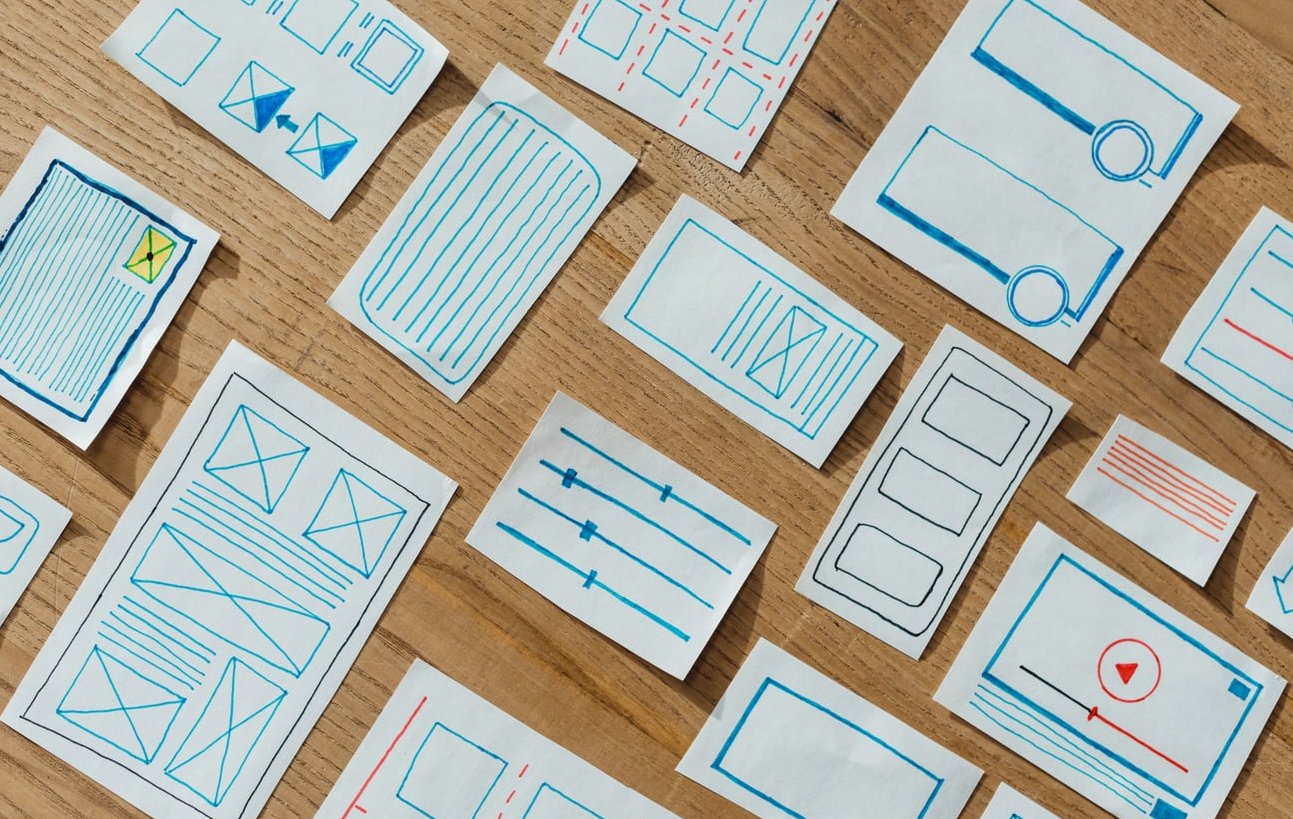
<p>That layout difference might sound trivial, but it creates very different user experiences. Let us look at the specifics.</p>
<figure class="wp-block-image size-large aligncenter"><img decoding="async" src="https://www.thehangline.com/wp-content/uploads/2026/06/inline-0-1.jpg" alt="tabs accordion user interface design"/></figure>
<h2>Quick Comparison: Accordion vs Tabs UX</h2>
<table style="border-collapse:collapse;width:100%;" border="1">
<thead>
<tr>
<th style="border:1px solid #999;padding:10px;text-align:left;">Criteria</th>
<th style="border:1px solid #999;padding:10px;text-align:left;">Tabs</th>
<th style="border:1px solid #999;padding:10px;text-align:left;">Accordion</th>
</tr>
</thead>
<tbody>
<tr>
<td style="border:1px solid #999;padding:10px;"><strong>Layout direction</strong></td>
<td style="border:1px solid #999;padding:10px;">Horizontal</td>
<td style="border:1px solid #999;padding:10px;">Vertical</td>
</tr>
<tr>
<td style="border:1px solid #999;padding:10px;"><strong>Content height</strong></td>
<td style="border:1px solid #999;padding:10px;">Unlimited (panels can scroll)</td>
<td style="border:1px solid #999;padding:10px;">Should ideally fit within the viewport</td>
</tr>
<tr>
<td style="border:1px solid #999;padding:10px;"><strong>Number of sections</strong></td>
<td style="border:1px solid #999;padding:10px;">Best with 2 to 7</td>
<td style="border:1px solid #999;padding:10px;">Works well with 3 to 15+</td>
</tr>
<tr>
<td style="border:1px solid #999;padding:10px;"><strong>Mobile friendliness</strong></td>
<td style="border:1px solid #999;padding:10px;">Problematic (horizontal scroll issues)</td>
<td style="border:1px solid #999;padding:10px;">Excellent (natural vertical flow)</td>
</tr>
<tr>
<td style="border:1px solid #999;padding:10px;"><strong>Multiple panels open</strong></td>
<td style="border:1px solid #999;padding:10px;">No (one at a time)</td>
<td style="border:1px solid #999;padding:10px;">Possible (configurable)</td>
</tr>
<tr>
<td style="border:1px solid #999;padding:10px;"><strong>Best for comparing sections</strong></td>
<td style="border:1px solid #999;padding:10px;">Yes (switching is fast)</td>
<td style="border:1px solid #999;padding:10px;">No (expanded content shifts the page)</td>
</tr>
<tr>
<td style="border:1px solid #999;padding:10px;"><strong>Content discoverability</strong></td>
<td style="border:1px solid #999;padding:10px;">All labels visible at once</td>
</tr>
<tr>
<td style="border:1px solid #999;padding:10px;"><strong>Responsive design</strong></td>
<td style="border:1px solid #999;padding:10px;">Needs extra work</td>
<td style="border:1px solid #999;padding:10px;">Naturally responsive</td>
</tr>
</tbody>
</table>
<h2>When to Use Tabs</h2>
<p>Tabs work best when users need to <strong>switch quickly between related but distinct categories</strong> of content without losing their place on the page. Here are the ideal scenarios:</p>
<h3>1. You Have a Small, Fixed Number of Sections</h3>
<p>Tabs lose their effectiveness when there are too many of them. Horizontal space is limited, and once labels start truncating or overflowing into a second row, the pattern breaks down. Stick to <strong>2 to 7 tabs</strong> for the cleanest experience.</p>
<h3>2. Users Need to Compare Content Across Sections</h3>
<p>Because tabs keep the content panel in the same position, users can click back and forth between sections while retaining spatial memory. This makes tabs excellent for:</p>
<ul>
<li>Pricing plan comparisons</li>
<li>Product specification views</li>
<li>Dashboard panels with related metrics</li>
</ul>
<h3>3. Content Sections Are Roughly Equal in Length</h3>
<p>When one tab panel is 50 words and another is 2,000, the content area will jump in height. This creates a jarring experience. Tabs work best when content panels are <strong>similar in size</strong>.</p>
<h3>4. You Are Designing Primarily for Desktop</h3>
<p>Tabs shine on wider screens where all labels remain visible. On mobile, horizontal tabs often require scrolling, which hides labels and breaks the pattern&#8217;s main advantage: <strong>seeing all options at a glance</strong>.</p>
<figure class="wp-block-image size-large aligncenter"><img decoding="async" src="https://www.thehangline.com/wp-content/uploads/2026/06/inline-1-1.jpg" alt="tabs accordion user interface design"/></figure>
<h2>When to Use Accordions</h2>
<p>Accordions are the better choice when you need to <strong>manage a long, linear page</strong> and let users selectively expand the sections that matter to them.</p>
<h3>1. You Have Many Sections</h3>
<p>Because accordions stack vertically, they scale gracefully. Whether you have 5 or 20 sections, the pattern holds up without visual overcrowding.</p>
<h3>2. Mobile Is a Priority</h3>
<p>Accordions follow the natural vertical scrolling behavior of mobile devices. There is no horizontal overflow to worry about. This is why many responsive frameworks convert desktop tabs into mobile accordions automatically.</p>
<h3>3. Users Will Only Need One or Two Sections</h3>
<p>Research from the Nielsen Norman Group confirms that <strong>accordions simplify long pages but reduce visibility and increase interaction cost</strong>. They work well when users arrive with a specific question and only need to expand a single panel, like in an FAQ or a support knowledge base.</p>
<h3>4. Content Length Varies Significantly</h3>
<p>Unlike tabs, accordions push content below them downward. A short section stays compact, and a long section takes the space it needs. This flexibility makes accordions forgiving when section lengths are inconsistent.</p>
<h3>5. Sequential Content</h3>
<p>If your content follows a logical top-to-bottom order (steps in a process, chronological events, form sections), accordions respect that flow much better than tabs do.</p>
<h2>Mobile UX: Accordion Almost Always Wins</h2>
<p>This deserves its own section because mobile traffic now dominates most websites.</p>
<p>Here is the core problem with tabs on small screens:</p>
<ol>
<li><strong>Label overflow.</strong> Three or four tabs might fit on a phone screen. Beyond that, you need horizontal scrolling or a dropdown, both of which defeat the purpose of tabs.</li>
<li><strong>Touch targets.</strong> Tab labels crammed into a narrow bar can be difficult to tap accurately.</li>
<li><strong>Hidden labels.</strong> If some tabs scroll out of view, users may not realize they exist.</li>
</ol>
<p>Accordions avoid all of these issues. They use the full width of the screen for each label, they stack naturally, and they can be tapped easily with a thumb.</p>
<p><strong>Best practice for 2026 and beyond:</strong> If you are building a responsive site, consider using tabs on desktop and converting them to an accordion on mobile. Many modern component libraries support this pattern out of the box.</p>
<h2>Accessibility Implications</h2>
<p>Both patterns can be accessible, but both require careful implementation. Here is what you need to know:</p>
<h3>Tabs Accessibility Requirements</h3>
<ul>
<li>Use the WAI-ARIA <code>role="tablist"</code>, <code>role="tab"</code>, and <code>role="tabpanel"</code> attributes.</li>
<li>Arrow keys should move focus between tabs (left/right for horizontal tabs).</li>
<li>The active tab should use <code>aria-selected="true"</code>.</li>
<li>Tab panels should be associated with their tab via <code>aria-controls</code> and <code>aria-labelledby</code>.</li>
</ul>
<h3>Accordion Accessibility Requirements</h3>
<ul>
<li>Each header should be a <code>&lt;button&gt;</code> inside a heading element.</li>
<li>Use <code>aria-expanded="true/false"</code> to indicate state.</li>
<li>The content region should use <code>role="region"</code> with <code>aria-labelledby</code> pointing to the header.</li>
<li>Arrow keys should move focus between accordion headers (up/down).</li>
</ul>
<h3>Common Pitfalls</h3>
<table style="border-collapse:collapse;width:100%;" border="1">
<thead>
<tr>
<th style="border:1px solid #999;padding:10px;text-align:left;">Issue</th>
<th style="border:1px solid #999;padding:10px;text-align:left;">Tabs</th>
<th style="border:1px solid #999;padding:10px;text-align:left;">Accordion</th>
</tr>
</thead>
<tbody>
<tr>
<td style="border:1px solid #999;padding:10px;">Hidden content not reachable by screen readers</td>
<td style="border:1px solid #999;padding:10px;">Risk if panels are removed from DOM</td>
</tr>
<tr>
<td style="border:1px solid #999;padding:10px;">Keyboard navigation missing</td>
<td style="border:1px solid #999;padding:10px;">Common in custom implementations</td>
</tr>
<tr>
<td style="border:1px solid #999;padding:10px;">Focus management after interaction</td>
<td style="border:1px solid #999;padding:10px;">Focus should stay on the tab</td>
<td style="border:1px solid #999;padding:10px;">Focus should remain on the header or move to content</td>
</tr>
</tbody>
</table>
<p>The key takeaway: <strong>use native HTML elements wherever possible</strong> (like <code>&lt;details&gt;</code> and <code>&lt;summary&gt;</code> for accordions) and test with actual screen readers before shipping.</p>
<figure class="wp-block-image size-large aligncenter"><img decoding="async" src="https://www.thehangline.com/wp-content/uploads/2026/06/inline-2-1.jpg" alt="tabs accordion user interface design"/></figure>
<h2>What About Using Both? The Hybrid Approach</h2>
<p>Some design systems combine both patterns on the same page. For example:</p>
<ul>
<li>A product page uses <strong>tabs</strong> to separate Overview, Specifications, and Reviews.</li>
<li>Within the Specifications tab, an <strong>accordion</strong> groups subcategories like Dimensions, Materials, and Warranty.</li>
</ul>
<p>This works well as long as you do not nest tabs inside tabs or accordions inside accordions. Nesting the same pattern creates confusion about hierarchy and state.</p>
<h2>Pitfalls to Avoid With Both Patterns</h2>
<p>Research from the Baymard Institute highlights that <strong>inline accordion and tab layouts can inadvertently confuse users</strong> when implemented poorly. Here are mistakes to avoid:</p>
<ol>
<li><strong>Hiding critical information.</strong> Do not put essential content (like a call to action or required form field) inside a collapsed panel that users might never open.</li>
<li><strong>Using vague labels.</strong> Both patterns depend entirely on clear, descriptive headings. If users cannot predict what is inside, they will not click.</li>
<li><strong>No default open state.</strong> Always open the first tab or the most important accordion section by default. A fully collapsed page looks empty and increases bounce rates.</li>
<li><strong>Breaking the back button.</strong> If clicking a tab or accordion changes the URL hash, make sure the browser back button works as expected.</li>
<li><strong>Ignoring SEO.</strong> Search engines can generally index content inside tabs and accordions, but content hidden behind JavaScript-only interactions may be deprioritized. Use progressive enhancement to ensure crawlability.</li>
</ol>
<figure class="wp-block-image size-large aligncenter"><img decoding="async" src="https://www.thehangline.com/wp-content/uploads/2026/06/inline-3-1.jpg" alt="tabs accordion user interface design"/></figure>
<h2>Decision Framework: Accordion or Tabs?</h2>
<p>Use this simple checklist to make your choice:</p>
<table style="border-collapse:collapse;width:100%;" border="1">
<thead>
<tr>
<th style="border:1px solid #999;padding:10px;text-align:left;">Question</th>
<th style="border:1px solid #999;padding:10px;text-align:left;">If Yes, Choose</th>
</tr>
</thead>
<tbody>
<tr>
<td style="border:1px solid #999;padding:10px;">Do you have 5 or fewer content sections?</td>
<td style="border:1px solid #999;padding:10px;">Tabs</td>
</tr>
<tr>
<td style="border:1px solid #999;padding:10px;">Will users compare content across sections?</td>
<td style="border:1px solid #999;padding:10px;">Tabs</td>
</tr>
<tr>
<td style="border:1px solid #999;padding:10px;">Is this primarily a mobile experience?</td>
<td style="border:1px solid #999;padding:10px;">Accordion</td>
</tr>
<tr>
<td style="border:1px solid #999;padding:10px;">Do you have 6+ sections?</td>
<td style="border:1px solid #999;padding:10px;">Accordion</td>
</tr>
<tr>
<td style="border:1px solid #999;padding:10px;">Does content length vary a lot between sections?</td>
<td style="border:1px solid #999;padding:10px;">Accordion</td>
</tr>
<tr>
<td style="border:1px solid #999;padding:10px;">Is the content sequential or ordered?</td>
<td style="border:1px solid #999;padding:10px;">Accordion</td>
</tr>
<tr>
<td style="border:1px solid #999;padding:10px;">Do users need to see all labels without scrolling?</td>
<td style="border:1px solid #999;padding:10px;">Tabs</td>
</tr>
<tr>
<td style="border:1px solid #999;padding:10px;">Do you need a responsive solution that works everywhere?</td>
<td style="border:1px solid #999;padding:10px;">Accordion (or tabs-to-accordion hybrid)</td>
</tr>
</tbody>
</table>
<h2>Final Thoughts</h2>
<p>There is no universal winner in the accordion vs tabs UX debate. The right choice depends on your content structure, your audience&#8217;s device, and the task users are trying to complete.</p>
<p>If you take one thing away from this article, let it be this: <strong>start with the user&#8217;s goal, not the component</strong>. Figure out what people are trying to do on the page, how much content you need to present, and which devices they are using. The right pattern will become obvious.</p>
<p>And if you are still unsure? Test both. A simple A/B test or usability session will give you more confidence than any blog post ever could.</p>
<h2>Frequently Asked Questions</h2>
<h3>When should I use tabs vs an accordion?</h3>
<p>Use tabs when you have a small number of equal-length content sections on desktop and users may want to switch between them quickly. Use an accordion when you have many sections, variable content lengths, or a mobile-first audience that benefits from vertical stacking.</p>
<h3>Are accordions good UX?</h3>
<p>Yes, when used correctly. Accordions are great for reducing page length and letting users focus on specific sections. They become bad UX when they hide critical content, use unclear labels, or force users to open every panel to find what they need.</p>
<h3>What is a good alternative to tabs in UX?</h3>
<p>Depending on the context, alternatives include accordions, segmented controls, anchor links to page sections, multi-step wizards (for forms), or simply showing all content on a single scrollable page. The best alternative depends on content volume and user intent.</p>
<h3>Can I convert tabs to an accordion on mobile?</h3>
<p>Absolutely. This is a widely recommended responsive design pattern. Many CSS/JS frameworks and component libraries support automatic conversion of horizontal tabs to a vertical accordion layout at smaller breakpoints.</p>
<h3>Does hiding content in tabs or accordions hurt SEO?</h3>
<p>Google has stated that content hidden behind tabs and accordions is indexed and generally treated normally. However, using progressive enhancement and semantic HTML ensures that search engine crawlers can always access the content, even if JavaScript fails to load.</p><p>The post <a href="https://www.thehangline.com/accordion-vs-tabs-which-ui-pattern-is-better-for-organizing-content/">Accordion vs Tabs: Which UI Pattern Is Better for Organizing Content?</a> first appeared on <a href="https://www.thehangline.com">The Hangline</a>.</p>]]></content>
		
					<link rel="replies" type="text/html" href="https://www.thehangline.com/accordion-vs-tabs-which-ui-pattern-is-better-for-organizing-content/#comments" thr:count="0" />
			<link rel="replies" type="application/atom+xml" href="https://www.thehangline.com/accordion-vs-tabs-which-ui-pattern-is-better-for-organizing-content/feed/atom/" thr:count="0" />
			<thr:total>0</thr:total>
			</entry>
		<entry>
		<author>
			<name>James Anthony</name>
							<uri>https://www.thehangline.com</uri>
						</author>

		<title type="html"><![CDATA[How to Add a Dark Mode Toggle to Your Website with CSS and JavaScript]]></title>
		<link rel="alternate" type="text/html" href="https://www.thehangline.com/how-to-add-a-dark-mode-toggle-to-your-website-with-css-and-javascript/" />

		<id>https://www.thehangline.com/how-to-add-a-dark-mode-toggle-to-your-website-with-css-and-javascript/</id>
		<updated>2026-06-01T00:36:27Z</updated>
		<published>2026-06-01T00:36:27Z</published>
		<category scheme="https://www.thehangline.com" term="Uncategorized" />
		<summary type="html"><![CDATA[<p>Why Every Website Needs a Dark Mode Toggle in 2026 Dark mode is no longer a nice-to-have feature. Users expect it. Whether they are browsing late at night, reducing eye strain, or simply preferring a darker interface, giving visitors control over their viewing experience is a clear win for usability and accessibility. In this tutorial, [&#8230;]</p>
<p>The post <a href="https://www.thehangline.com/how-to-add-a-dark-mode-toggle-to-your-website-with-css-and-javascript/">How to Add a Dark Mode Toggle to Your Website with CSS and JavaScript</a> first appeared on <a href="https://www.thehangline.com">The Hangline</a>.</p>]]></summary>

					<content type="html" xml:base="https://www.thehangline.com/how-to-add-a-dark-mode-toggle-to-your-website-with-css-and-javascript/"><![CDATA[<h2>Why Every Website Needs a Dark Mode Toggle in 2026</h2>
<p>Dark mode is no longer a nice-to-have feature. Users expect it. Whether they are browsing late at night, reducing eye strain, or simply preferring a darker interface, giving visitors control over their viewing experience is a clear win for usability and accessibility.</p>
<p>In this tutorial, you will learn how to build a fully functional <strong>dark mode toggle for your website</strong> using CSS custom properties (variables) and a small JavaScript snippet. We will also cover two critical extras that most tutorials skip:</p>
<ul>
<li>Respecting the visitor&#8217;s <strong>operating system preference</strong> (via <code>prefers-color-scheme</code>)</li>
<li>Saving the user&#8217;s choice in <strong>localStorage</strong> so it persists across page loads</li>
</ul>
<p>By the end you will have a lightweight, production-ready dark mode toggle you can drop into any project.</p>
<figure class="wp-block-image size-large aligncenter"><img decoding="async" src="https://www.thehangline.com/wp-content/uploads/2026/06/inline-0.jpg" alt="dark mode light mode toggle button"/></figure>
<h2>Before You Start: What You Need</h2>
<table style="border-collapse:collapse;width:100%;" border="1">
<thead>
<tr>
<th style="padding:8px;border:1px solid #ccc;">Requirement</th>
<th style="padding:8px;border:1px solid #ccc;">Details</th>
</tr>
</thead>
<tbody>
<tr>
<td style="padding:8px;border:1px solid #ccc;">HTML knowledge</td>
<td style="padding:8px;border:1px solid #ccc;">Basic understanding of markup structure</td>
</tr>
<tr>
<td style="padding:8px;border:1px solid #ccc;">CSS knowledge</td>
<td style="padding:8px;border:1px solid #ccc;">Familiarity with custom properties (CSS variables)</td>
</tr>
<tr>
<td style="padding:8px;border:1px solid #ccc;">JavaScript knowledge</td>
<td style="padding:8px;border:1px solid #ccc;">Comfortable with DOM manipulation and events</td>
</tr>
<tr>
<td style="padding:8px;border:1px solid #ccc;">Code editor</td>
<td style="padding:8px;border:1px solid #ccc;">VS Code, Sublime Text, or any editor you prefer</td>
</tr>
</tbody>
</table>
<h2>Step 1: Define Your Color Scheme with CSS Custom Properties</h2>
<p>The foundation of a clean dark mode toggle is <strong>CSS custom properties</strong>. Instead of scattering color values across dozens of selectors, you define them once on the <code>:root</code> element and swap them when the theme changes.</p>
<p>Create or open your main CSS file and add the following:</p>
<pre><code>/* Light theme (default) */
:root {
  --color-bg: #ffffff;
  --color-text: #1a1a1a;
  --color-heading: #000000;
  --color-surface: #f4f4f5;
  --color-border: #d1d5db;
  --color-accent: #2563eb;
}

/* Dark theme */
[data-theme="dark"] {
  --color-bg: #121212;
  --color-text: #e0e0e0;
  --color-heading: #ffffff;
  --color-surface: #1e1e1e;
  --color-border: #333333;
  --color-accent: #60a5fa;
}</code></pre>
<p>The trick here is the <code>[data-theme="dark"]</code> attribute selector. When we add <code>data-theme="dark"</code> to the <code>&lt;html&gt;</code> element, every variable updates instantly and the entire page re-renders in dark mode. No extra classes needed on individual elements.</p>
<h3>Apply the Variables to Your CSS</h3>
<p>Now use these variables throughout your stylesheet:</p>
<pre><code>body {
  background-color: var(--color-bg);
  color: var(--color-text);
  transition: background-color 0.3s ease, color 0.3s ease;
  font-family: system-ui, sans-serif;
}

h1, h2, h3, h4 {
  color: var(--color-heading);
}

a {
  color: var(--color-accent);
}

.card {
  background-color: var(--color-surface);
  border: 1px solid var(--color-border);
  border-radius: 8px;
  padding: 1.5rem;
}</code></pre>
<p>The <code>transition</code> property on the body gives you a smooth fade between light and dark themes instead of a jarring flash.</p>
<h2>Step 2: Create the Toggle Button in HTML</h2>
<p>Keep the markup simple. A single button with an <code>id</code> and an accessible <code>aria-label</code> is all you need:</p>
<pre><code>&lt;button id="theme-toggle" aria-label="Toggle dark mode" title="Toggle dark mode"&gt;
  &lt;span class="toggle-icon" aria-hidden="true"&gt;&#127769;&lt;/span&gt;
&lt;/button&gt;</code></pre>
<p>We use a moon emoji as the default icon. The JavaScript will swap it to a sun when dark mode is active. You could also use SVG icons for a more polished look.</p>
<h3>Style the Toggle Button</h3>
<pre><code>#theme-toggle {
  background: none;
  border: 2px solid var(--color-border);
  border-radius: 50%;
  width: 44px;
  height: 44px;
  cursor: pointer;
  display: flex;
  align-items: center;
  justify-content: center;
  font-size: 1.25rem;
  transition: border-color 0.3s ease;
}

#theme-toggle:hover {
  border-color: var(--color-accent);
}

#theme-toggle:focus-visible {
  outline: 2px solid var(--color-accent);
  outline-offset: 2px;
}</code></pre>
<p>Notice the <code>:focus-visible</code> rule. This ensures keyboard users see a clear focus ring while mouse users do not get an unwanted outline. <strong>Accessibility matters.</strong></p>
<figure class="wp-block-image size-large aligncenter"><img decoding="async" src="https://www.thehangline.com/wp-content/uploads/2026/06/inline-1.jpg" alt="dark mode light mode toggle button"/></figure>
<h2>Step 3: Write the JavaScript Toggle Logic</h2>
<p>Here is the complete JavaScript. You can place it in a separate file or in a <code>&lt;script&gt;</code> tag right before the closing <code>&lt;/body&gt;</code> tag:</p>
<pre><code>(function () {
  const toggle = document.getElementById('theme-toggle');
  const icon = toggle.querySelector('.toggle-icon');
  const root = document.documentElement; // &lt;html&gt;

  // 1. Determine the initial theme
  function getPreferredTheme() {
    // Check localStorage first
    const stored = localStorage.getItem('theme');
    if (stored) return stored;

    // Fall back to OS preference
    return window.matchMedia('(prefers-color-scheme: dark)').matches
      ? 'dark'
      : 'light';
  }

  // 2. Apply theme to the document
  function applyTheme(theme) {
    root.setAttribute('data-theme', theme);
    icon.textContent = theme === 'dark' ? '\u2600\uFE0F' : '\uD83C\uDF19';
    toggle.setAttribute(
      'aria-label',
      theme === 'dark' ? 'Switch to light mode' : 'Switch to dark mode'
    );
  }

  // 3. Initialize on page load
  applyTheme(getPreferredTheme());

  // 4. Toggle on click
  toggle.addEventListener('click', function () {
    const current = root.getAttribute('data-theme');
    const next = current === 'dark' ? 'light' : 'dark';
    applyTheme(next);
    localStorage.setItem('theme', next);
  });

  // 5. Listen for OS-level changes
  window
    .matchMedia('(prefers-color-scheme: dark)')
    .addEventListener('change', function (e) {
      if (!localStorage.getItem('theme')) {
        applyTheme(e.matches ? 'dark' : 'light');
      }
    });
})();</code></pre>
<h3>What This Script Does (Line by Line)</h3>
<ol>
<li><strong>getPreferredTheme()</strong> checks <code>localStorage</code> for a previously saved choice. If nothing is stored, it reads the user&#8217;s operating system preference via the <code>prefers-color-scheme</code> media query.</li>
<li><strong>applyTheme()</strong> sets the <code>data-theme</code> attribute on the <code>&lt;html&gt;</code> element, swaps the icon, and updates the <code>aria-label</code> for screen readers.</li>
<li>On page load, we call <code>applyTheme</code> immediately so there is <strong>no flash of wrong theme</strong>.</li>
<li>The click handler toggles between <code>dark</code> and <code>light</code> and writes the choice to <code>localStorage</code>.</li>
<li>The <code>change</code> listener on the media query ensures that if the user changes their OS setting (for example, macOS auto-switching at sunset) and they have not manually picked a theme, the website follows along.</li>
</ol>
<h2>Step 4: Prevent the Flash of Incorrect Theme (FOIT)</h2>
<p>One common problem: the page loads in light mode for a split second before JavaScript kicks in and switches to dark. This is called a <strong>Flash of Incorrect Theme</strong>. To fix it, add a tiny inline script in the <code>&lt;head&gt;</code> of your HTML, <u>before</u> any stylesheets:</p>
<pre><code>&lt;script&gt;
  (function () {
    var theme = localStorage.getItem('theme');
    if (!theme) {
      theme = window.matchMedia('(prefers-color-scheme: dark)').matches
        ? 'dark'
        : 'light';
    }
    document.documentElement.setAttribute('data-theme', theme);
  })();
&lt;/script&gt;</code></pre>
<p>Because this runs synchronously before the browser paints the page, the correct theme is applied instantly. No flicker. This small detail separates a polished implementation from an amateur one.</p>
<h2>Step 5: Respecting System Preferences the Right Way</h2>
<p>Many dark mode toggle tutorials only use JavaScript to detect system preferences. But you can also use a pure CSS media query as a fallback for users who have JavaScript disabled:</p>
<pre><code>@media (prefers-color-scheme: dark) {
  :root:not([data-theme="light"]) {
    --color-bg: #121212;
    --color-text: #e0e0e0;
    --color-heading: #ffffff;
    --color-surface: #1e1e1e;
    --color-border: #333333;
    --color-accent: #60a5fa;
  }
}</code></pre>
<p>The selector <code>:root:not([data-theme="light"])</code> means: apply dark colors if the OS prefers dark <strong>and</strong> the user has not explicitly chosen light mode. This creates a graceful degradation layer.</p>
<h2>Complete File Structure</h2>
<p>Here is a quick overview of how the files fit together:</p>
<table style="border-collapse:collapse;width:100%;" border="1">
<thead>
<tr>
<th style="padding:8px;border:1px solid #ccc;">File</th>
<th style="padding:8px;border:1px solid #ccc;">Purpose</th>
</tr>
</thead>
<tbody>
<tr>
<td style="padding:8px;border:1px solid #ccc;"><code>index.html</code></td>
<td style="padding:8px;border:1px solid #ccc;">Page structure, inline head script, toggle button</td>
</tr>
<tr>
<td style="padding:8px;border:1px solid #ccc;"><code>styles.css</code></td>
<td style="padding:8px;border:1px solid #ccc;">CSS custom properties, light/dark variables, button styles</td>
</tr>
<tr>
<td style="padding:8px;border:1px solid #ccc;"><code>theme-toggle.js</code></td>
<td style="padding:8px;border:1px solid #ccc;">Toggle logic, localStorage, OS preference listener</td>
</tr>
</tbody>
</table>
<figure class="wp-block-image size-large aligncenter"><img decoding="async" src="https://www.thehangline.com/wp-content/uploads/2026/06/inline-2.jpg" alt="dark mode light mode toggle button"/></figure>
<h2>Bonus: Supporting Three States (Light, Dark, Auto)</h2>
<p>Some implementations offer three options: Light, Dark, and Auto (system default). The SERP result from <em>clagnut.com</em> mentions this approach using radio buttons. Here is how you can adapt the logic:</p>
<ol>
<li>Replace the single button with three options (radio buttons or a dropdown).</li>
<li>Store one of three values in <code>localStorage</code>: <code>light</code>, <code>dark</code>, or <code>auto</code>.</li>
<li>When the value is <code>auto</code>, remove the <code>data-theme</code> attribute and let the CSS <code>prefers-color-scheme</code> media query handle everything.</li>
</ol>
<p>This gives power users full control while keeping the default behavior automatic.</p>
<h2>Accessibility Checklist for Your Dark Mode Toggle</h2>
<p>Before shipping, run through this quick checklist:</p>
<ul>
<li><strong>Contrast ratios:</strong> Verify that both themes meet WCAG AA (4.5:1 for body text). Use a tool like the WebAIM Contrast Checker.</li>
<li><strong>Keyboard navigation:</strong> The toggle button must be focusable and operable with Enter or Space.</li>
<li><strong>Screen reader labels:</strong> Update <code>aria-label</code> dynamically so screen readers announce the current action (&#8220;Switch to dark mode&#8221; or &#8220;Switch to light mode&#8221;).</li>
<li><strong>Reduced motion:</strong> If you use transitions, wrap them in a <code>@media (prefers-reduced-motion: no-preference)</code> query so users who are sensitive to motion are not affected.</li>
</ul>
<h2>Common Mistakes to Avoid</h2>
<p>After reviewing dozens of dark mode toggle implementations, here are the pitfalls we see most often:</p>
<ul>
<li><strong>Hardcoding colors instead of using CSS variables.</strong> This makes maintenance painful and toggling nearly impossible without duplicating entire stylesheets.</li>
<li><strong>Forgetting images and media.</strong> Some images look terrible on a dark background. Consider using the <code>&lt;picture&gt;</code> element with a <code>media</code> attribute or applying CSS filters to invert/dim images when dark mode is active.</li>
<li><strong>Not testing third-party embeds.</strong> Embedded widgets (maps, forms, videos) may not respond to your theme variables. Check them in both modes.</li>
<li><strong>Ignoring the flash of incorrect theme.</strong> Always include the inline head script described in Step 4.</li>
<li><strong>Overriding the user&#8217;s manual choice with OS changes.</strong> If a user explicitly picks light mode, do not switch them to dark just because their OS changed. The localStorage check in our script handles this correctly.</li>
</ul>
<figure class="wp-block-image size-large aligncenter"><img decoding="async" src="https://www.thehangline.com/wp-content/uploads/2026/06/inline-3.jpg" alt="dark mode light mode toggle button"/></figure>
<h2>Performance Considerations</h2>
<p>A dark mode toggle website feature should add virtually zero performance overhead. Our implementation is lightweight because:</p>
<ul>
<li>No external libraries are required.</li>
<li>The JavaScript is under 1 KB unminified.</li>
<li>CSS custom properties are natively supported in all modern browsers (over 97% global support as of early 2026).</li>
<li><code>localStorage</code> is synchronous and extremely fast for reading a single key.</li>
</ul>
<p>If you are using a framework like React, Vue, or Svelte, you can wrap this same logic in a composable or hook. The core concept does not change.</p>
<h2>Testing Your Dark Mode Toggle</h2>
<p>Here is how to thoroughly test your implementation:</p>
<ol>
<li><strong>Manual toggle:</strong> Click the button and verify that all colors, borders, and backgrounds switch correctly.</li>
<li><strong>Page reload:</strong> Choose dark mode, reload the page, and confirm the choice persists without any flash.</li>
<li><strong>New tab:</strong> Open a new tab to the same site and verify the saved theme is applied.</li>
<li><strong>Clear localStorage:</strong> Remove the <code>theme</code> key and reload. The site should follow the OS preference.</li>
<li><strong>Change OS setting:</strong> Toggle your operating system between light and dark mode (with no localStorage value set) and confirm the site reacts in real time.</li>
<li><strong>Disable JavaScript:</strong> If you added the CSS-only fallback, verify that the OS preference still controls the theme.</li>
</ol>
<h2>Wrapping Up</h2>
<p>Adding a <strong>dark mode toggle to your website</strong> is one of the highest-impact UX improvements you can make with a minimal amount of code. To recap the key steps:</p>
<ol>
<li>Define light and dark color schemes using CSS custom properties.</li>
<li>Create a simple, accessible toggle button.</li>
<li>Write a small JavaScript function that toggles a <code>data-theme</code> attribute on the <code>&lt;html&gt;</code> element.</li>
<li>Store the user&#8217;s choice in <code>localStorage</code>.</li>
<li>Respect system preferences with <code>prefers-color-scheme</code>.</li>
<li>Prevent the flash of incorrect theme with an inline head script.</li>
</ol>
<p>The entire implementation requires zero dependencies, weighs under 1 KB of JavaScript, and works in every modern browser. Copy the code snippets from this tutorial, adapt the color values to your brand, and ship it.</p>
<h2>Frequently Asked Questions</h2>
<h3>Does adding a dark mode toggle affect SEO?</h3>
<p>Not directly. Search engines do not rank pages differently based on theme support. However, improved user experience (lower bounce rates, longer session times) can indirectly benefit your SEO performance. A dark mode toggle website also signals modern design, which builds trust with visitors.</p>
<h3>Can I use this approach with WordPress?</h3>
<p>Yes. You can add the CSS to your theme&#8217;s stylesheet (or the WordPress Customizer&#8217;s &#8220;Additional CSS&#8221; section), place the inline script in your theme&#8217;s <code>header.php</code>, and enqueue the main JavaScript file normally. Many WordPress themes in 2026 also support dark mode natively through the theme settings.</p>
<h3>What about CSS frameworks like Tailwind CSS or Bootstrap?</h3>
<p>Tailwind CSS has built-in dark mode support using the <code>dark:</code> variant. You can configure it to use a <code>class</code> or <code>data-attribute</code> strategy, which works perfectly with the JavaScript toggle described here. Bootstrap does not have native dark mode toggling out of the box, but you can override its CSS variables with the same <code>[data-theme="dark"]</code> approach.</p>
<h3>Should I default to light or dark mode?</h3>
<p>The best practice is to default to the user&#8217;s operating system preference using the <code>prefers-color-scheme</code> media query. If no preference is detected, light mode is the safer default because it matches what most users expect from the web.</p>
<h3>How do I handle images in dark mode?</h3>
<p>You have several options. You can use the <code>&lt;picture&gt;</code> element with a <code>media="(prefers-color-scheme: dark)"</code> attribute to serve different images. Alternatively, you can apply a subtle CSS filter like <code>filter: brightness(0.85)</code> to dim images in dark mode. For logos, consider using transparent PNGs or SVGs that adapt to the background color.</p>
<h3>Is localStorage the best way to store the theme preference?</h3>
<p><code>localStorage</code> is ideal for this use case. It is synchronous (no flash on page load), persists across sessions, and requires no server-side setup. Cookies are an alternative if you need the preference on the server (for example, to server-render the correct theme), but for a purely client-side toggle, localStorage is simpler and more performant.</p><p>The post <a href="https://www.thehangline.com/how-to-add-a-dark-mode-toggle-to-your-website-with-css-and-javascript/">How to Add a Dark Mode Toggle to Your Website with CSS and JavaScript</a> first appeared on <a href="https://www.thehangline.com">The Hangline</a>.</p>]]></content>
		
					<link rel="replies" type="text/html" href="https://www.thehangline.com/how-to-add-a-dark-mode-toggle-to-your-website-with-css-and-javascript/#comments" thr:count="0" />
			<link rel="replies" type="application/atom+xml" href="https://www.thehangline.com/how-to-add-a-dark-mode-toggle-to-your-website-with-css-and-javascript/feed/atom/" thr:count="0" />
			<thr:total>0</thr:total>
			</entry>
		<entry>
		<author>
			<name>James Anthony</name>
							<uri>https://www.thehangline.com</uri>
						</author>

		<title type="html"><![CDATA[How to Design a Mega Menu for Large Websites: UX Tips and Examples]]></title>
		<link rel="alternate" type="text/html" href="https://www.thehangline.com/how-to-design-a-mega-menu-for-large-websites-ux-tips-and-examples/" />

		<id>https://www.thehangline.com/how-to-design-a-mega-menu-for-large-websites-ux-tips-and-examples/</id>
		<updated>2026-05-05T17:40:29Z</updated>
		<published>2026-05-05T17:40:29Z</published>
		<category scheme="https://www.thehangline.com" term="Uncategorized" />
		<summary type="html"><![CDATA[<p>Why Mega Menu Design Matters More Than Ever If your website has dozens (or hundreds) of pages, a standard dropdown menu quickly becomes a usability nightmare. Users hover, scroll, miss-click, and leave. That is exactly where a well-crafted mega menu design steps in. A mega menu is a large, panel-style dropdown that groups navigation options [&#8230;]</p>
<p>The post <a href="https://www.thehangline.com/how-to-design-a-mega-menu-for-large-websites-ux-tips-and-examples/">How to Design a Mega Menu for Large Websites: UX Tips and Examples</a> first appeared on <a href="https://www.thehangline.com">The Hangline</a>.</p>]]></summary>

					<content type="html" xml:base="https://www.thehangline.com/how-to-design-a-mega-menu-for-large-websites-ux-tips-and-examples/"><![CDATA[<h2>Why Mega Menu Design Matters More Than Ever</h2>
<p>If your website has dozens (or hundreds) of pages, a standard dropdown menu quickly becomes a usability nightmare. Users hover, scroll, miss-click, and leave. That is exactly where a well-crafted <strong>mega menu design</strong> steps in.</p>
<p>A mega menu is a large, panel-style dropdown that groups navigation options into visible columns, categories, and sometimes even visual elements like icons or images. When done right, it eliminates excessive scrolling, reduces clicks to deep content, and helps users understand the full scope of your site at a glance.</p>
<p>But when done poorly, a mega menu can overwhelm visitors, bury important links, and tank your conversion rates.</p>
<p>This guide walks you through <strong>when</strong> a mega menu is the right choice, <strong>how</strong> to structure it for maximum usability, the <strong>mistakes</strong> that confuse users, and <strong>annotated examples</strong> from real e-commerce and SaaS websites you can learn from today.</p>
<h2>When Is a Mega Menu the Right Choice?</h2>
<p>Not every website needs a mega menu. In fact, using one on a small site with limited pages can actually hurt usability by making the navigation feel bloated and empty. Here is a quick decision framework:</p>
<table style="border-collapse: collapse; width: 100%;">
<thead>
<tr>
<th style="border: 1px solid #ccc; padding: 10px; text-align: left;">Scenario</th>
<th style="border: 1px solid #ccc; padding: 10px; text-align: left;">Mega Menu?</th>
<th style="border: 1px solid #ccc; padding: 10px; text-align: left;">Why</th>
</tr>
</thead>
<tbody>
<tr>
<td style="border: 1px solid #ccc; padding: 10px;">E-commerce site with 50+ product categories</td>
<td style="border: 1px solid #ccc; padding: 10px;"><strong>Yes</strong></td>
<td style="border: 1px solid #ccc; padding: 10px;">Users need to scan many categories quickly without drilling down through nested dropdowns.</td>
</tr>
<tr>
<td style="border: 1px solid #ccc; padding: 10px;">SaaS platform with multiple product lines</td>
<td style="border: 1px solid #ccc; padding: 10px;"><strong>Yes</strong></td>
<td style="border: 1px solid #ccc; padding: 10px;">Grouping features, solutions, and resources into one visible panel reduces confusion.</td>
</tr>
<tr>
<td style="border: 1px solid #ccc; padding: 10px;">Corporate site with 5-10 main pages</td>
<td style="border: 1px solid #ccc; padding: 10px;"><strong>No</strong></td>
<td style="border: 1px solid #ccc; padding: 10px;">A standard navigation bar or simple dropdown is sufficient and feels more proportional.</td>
</tr>
<tr>
<td style="border: 1px solid #ccc; padding: 10px;">Blog or content site with many topics</td>
<td style="border: 1px solid #ccc; padding: 10px;"><strong>Maybe</strong></td>
<td style="border: 1px solid #ccc; padding: 10px;">Only if topics are numerous and clearly categorizable. Otherwise, a search bar and tags work better.</td>
</tr>
<tr>
<td style="border: 1px solid #ccc; padding: 10px;">News or media site with sections and subsections</td>
<td style="border: 1px solid #ccc; padding: 10px;"><strong>Yes</strong></td>
<td style="border: 1px solid #ccc; padding: 10px;">Readers benefit from seeing all sections at once to jump directly to their area of interest.</td>
</tr>
</tbody>
</table>
<p><strong>Rule of thumb:</strong> if your site has more than two levels of hierarchy and more than roughly 30 distinct pages that users might want to access from the top-level navigation, a mega menu is worth serious consideration.</p>
<h2>Anatomy of an Effective Mega Menu Design</h2>
<p>Before we get into best practices, let us break down the key components that make up a well-structured mega menu:</p>
<ul>
<li><strong>Trigger area:</strong> The top-level navigation item (e.g., &#8220;Products&#8221; or &#8220;Shop&#8221;) that activates the mega menu panel on hover or click.</li>
<li><strong>Panel container:</strong> The large rectangular area that drops down below the navigation bar. This is typically the full width of the viewport or a defined content width.</li>
<li><strong>Category columns:</strong> Vertical groupings that organize links under clear headings.</li>
<li><strong>Category headings:</strong> Bold or styled labels that name each group of links.</li>
<li><strong>Navigation links:</strong> The actual clickable items within each category column.</li>
<li><strong>Visual elements (optional):</strong> Icons, thumbnail images, or featured promotions that add scannability and visual interest.</li>
<li><strong>Call-to-action (optional):</strong> A highlighted link or button such as &#8220;View All Products&#8221; or &#8220;Start Free Trial.&#8221;</li>
</ul>
<h2>10 UX Best Practices for Mega Menu Design</h2>
<p>These are the principles that separate a mega menu users love from one they struggle with.</p>
<h3>1. Use Clear, Descriptive Category Headings</h3>
<p>Every column in your mega menu should have a heading that instantly communicates what the links below it contain. Avoid internal jargon. Write headings as your customers would phrase them.</p>
<p><strong>Good:</strong> &#8220;Running Shoes,&#8221; &#8220;Trail Shoes,&#8221; &#8220;Casual Sneakers&#8221;</p>
<p><strong>Bad:</strong> &#8220;Category A,&#8221; &#8220;Footwear Collection 2,&#8221; &#8220;FW26&#8221;</p>
<h3>2. Limit the Number of Top-Level Triggers</h3>
<p>Not every item in your navigation bar should open a mega menu panel. Reserve mega panels for categories that genuinely have enough subcategories to justify the space. A navigation bar with seven mega menu triggers is chaotic. Aim for <strong>two to four</strong> mega panels at most.</p>
<h3>3. Keep Column Counts Manageable</h3>
<p>Research from the Nielsen Norman Group confirms that large, rectangular menus that group navigation options work well. But &#8220;large&#8221; does not mean &#8220;infinite.&#8221; Stick to <strong>three to five columns</strong> in a single mega panel. If you have more content than that, consider tabbed mega menus or grouping content under fewer parent categories.</p>
<h3>4. Ensure Generous Click and Tap Targets</h3>
<p>One of the most common mega menu mistakes is packing links too closely together. Each link should have a <strong>large clickable area</strong> with adequate padding. A minimum of 44px in height for touch targets (per Apple Human Interface Guidelines) is a solid baseline for both desktop and mobile.</p>
<h3>5. Differentiate Between Headings and Links</h3>
<p>Users should never have to guess whether a piece of text is a clickable link or a non-clickable heading. Use clear typographic contrast: make headings bolder, a different size, or a different color. If headings are also clickable (linking to a category landing page), make that behavior visually obvious with an underline or arrow icon.</p>
<h3>6. Add Visual Cues for Scannability</h3>
<p>Icons next to category headings or small thumbnail images for featured items dramatically improve scannability. Users can locate the right section faster by recognizing a visual shape rather than reading every label. E-commerce sites like Amazon and Nike use product thumbnails in their mega menus to great effect.</p>
<h3>7. Provide a &#8220;View All&#8221; Escape Hatch</h3>
<p>Some users will open the mega menu and not find the exact subcategory they need. Always include a &#8220;View All [Category]&#8221; link at the bottom or top of each column. This sends users to a full category page where they can browse or search within that section.</p>
<h3>8. Design for Hover Intent, Not Just Hover</h3>
<p>On desktop, mega menus are typically triggered by hovering over a navigation item. The problem: users sometimes accidentally hover over a trigger while moving their cursor to another part of the page. Use a <strong>small delay</strong> (around 200-300ms) before the panel appears, and implement hover-intent detection so the menu does not flicker open and shut as the cursor passes through the navigation bar.</p>
<h3>9. Do Not Forget Mobile</h3>
<p>A mega menu that looks beautiful on a 1440px desktop screen will not automatically translate to a 375px phone screen. On mobile, you need a completely different pattern: typically a full-screen or slide-in panel with expandable accordion sections. The content hierarchy should mirror your desktop mega menu, but the layout must be touch-friendly and vertically stacked.</p>
<h3>10. Test With Real Users</h3>
<p>No amount of theory replaces actual user testing. Run a quick usability test with five to eight participants where you give them a task (&#8220;Find trail running shoes for women&#8221;) and watch how they interact with the mega menu. You will catch problems you never anticipated, like confusing labels or columns that feel out of order.</p>
<h2>Common Mega Menu Mistakes That Confuse Users</h2>
<p>Even well-intentioned design teams make these errors. Here is what to watch out for:</p>
<ol>
<li><strong>Too many links in one panel.</strong> If your mega menu contains 80+ links, users experience choice paralysis. Audit your links, remove low-traffic items, and consolidate where possible.</li>
<li><strong>Inconsistent panel sizes.</strong> When one navigation trigger opens a massive full-width panel and the next opens a tiny two-column dropdown, the inconsistency feels jarring. Aim for visual consistency across all your mega panels.</li>
<li><strong>No visible boundary.</strong> The mega menu panel needs a clear visual edge, a shadow, border, or background color that distinguishes it from the page content below. Without this, users may not realize the panel is overlaying the page.</li>
<li><strong>Disappearing on slight mouse movement.</strong> If the mega menu closes the instant the cursor drifts a pixel outside the panel, users will find it infuriating. Build a tolerance zone or use a triangular hover path (the &#8220;Amazon triangle&#8221; technique) so users can move their cursor diagonally from the trigger to a submenu link without the panel closing.</li>
<li><strong>Ignoring accessibility.</strong> Mega menus must be navigable by keyboard (Tab, Enter, Escape keys) and properly announced by screen readers. Use appropriate ARIA roles (<code>role="menu"</code>, <code>role="menuitem"</code>) and ensure focus management is handled correctly.</li>
<li><strong>Auto-playing media inside the panel.</strong> Some sites put video or animated content inside mega menus. This slows down the experience, distracts users from finding what they need, and creates accessibility issues. Keep your mega menu focused on navigation.</li>
<li><strong>Hiding the mega menu behind a hamburger icon on desktop.</strong> On mobile, a hamburger icon is expected. On desktop, hiding your primary navigation behind a toggle icon reduces discoverability. Your mega menu should be visible in the main navigation bar on screens that have the space for it.</li>
</ol>
<h2>Mega Menu Design Examples: Annotated Breakdown</h2>
<p>Let us look at how real websites handle mega menu design and what you can learn from each approach.</p>
<h3>Example 1: Amazon (E-Commerce)</h3>
<p><strong>What they do:</strong> Amazon uses a side-panel mega menu triggered by a hamburger icon (&#8220;All&#8221; button). The panel slides in from the left and presents top-level categories. Clicking a category expands a sub-panel that slides in to replace the first, creating a layered drill-down experience.</p>
<p><strong>What works well:</strong></p>
<ul>
<li>Clean separation of category levels prevents information overload.</li>
<li>Large click targets with clear text labels.</li>
<li>&#8220;See All&#8221; links at the bottom of every category list.</li>
</ul>
<p><strong>What to watch out for:</strong> The slide-in pattern requires multiple clicks to reach deep categories. On content-heavy sites, a visible column-based mega menu might be faster.</p>
<h3>Example 2: Shopify (SaaS)</h3>
<p><strong>What they do:</strong> Shopify uses a hover-triggered mega menu under their &#8220;Solutions&#8221; navigation item. The panel displays three to four columns with clear headings like &#8220;By Business Size&#8221; and &#8220;By Industry.&#8221; Each link includes a short one-line description below the link text.</p>
<p><strong>What works well:</strong></p>
<ul>
<li>Descriptive sub-text under each link helps users choose the right path without guessing.</li>
<li>Clean whitespace between columns prevents the panel from feeling cluttered.</li>
<li>Subtle icons next to headings improve scannability.</li>
</ul>
<p><strong>What to watch out for:</strong> Descriptive sub-text increases the vertical height of the panel. Make sure the panel does not extend below the fold on common screen resolutions.</p>
<h3>Example 3: Nike (E-Commerce)</h3>
<p><strong>What they do:</strong> Nike&#8217;s mega menu drops down with category columns (&#8220;New &amp; Featured,&#8221; &#8220;Men,&#8221; &#8220;Women,&#8221; &#8220;Kids&#8221;) and includes a featured image or promotional block on the right side of the panel.</p>
<p><strong>What works well:</strong></p>
<ul>
<li>The promotional image highlights seasonal collections and drives users toward high-priority landing pages.</li>
<li>Category columns are concise, typically six to ten links each.</li>
<li>Bold category headings create a clear visual hierarchy.</li>
</ul>
<p><strong>What to watch out for:</strong> Promotional images must be updated regularly. A stale or irrelevant promo can make the site feel neglected.</p>
<h3>Example 4: HubSpot (SaaS)</h3>
<p><strong>What they do:</strong> HubSpot uses a tabbed mega menu under &#8220;Products.&#8221; The left side of the panel contains tabs (&#8220;Marketing Hub,&#8221; &#8220;Sales Hub,&#8221; &#8220;Service Hub,&#8221; etc.), and clicking a tab changes the content on the right side of the panel to show relevant features and links.</p>
<p><strong>What works well:</strong></p>
<ul>
<li>Tabs allow HubSpot to organize a massive product suite without overwhelming users with everything at once.</li>
<li>Each tab panel is focused and easy to scan.</li>
<li>A prominent CTA (&#8220;Get a demo&#8221;) is included in every tab panel.</li>
</ul>
<p><strong>What to watch out for:</strong> Tabbed mega menus add a layer of interaction. Users must first select a tab and then find their link. Ensure the default tab (the one shown when the panel first opens) is the most popular product or category.</p>
<h3>Example 5: eBay (E-Commerce)</h3>
<p><strong>What they do:</strong> eBay uses a vertical sidebar mega menu on the left. Hovering over a top-level category in the sidebar reveals a large fly-out panel to the right, filled with subcategory links organized in columns.</p>
<p><strong>What works well:</strong></p>
<ul>
<li>The vertical sidebar gives categories permanent visibility, which is helpful for a marketplace with enormous breadth.</li>
<li>Fly-out panels keep the page layout stable because they overlay rather than push content down.</li>
</ul>
<p><strong>What to watch out for:</strong> Fly-out menus are notoriously difficult on mobile. eBay switches to a completely different mobile navigation pattern, which is the right approach.</p>
<h2>Mega Menu Design Checklist</h2>
<p>Use this checklist before you launch your mega menu:</p>
<table style="border-collapse: collapse; width: 100%;">
<thead>
<tr>
<th style="border: 1px solid #ccc; padding: 10px; text-align: left;">Checkpoint</th>
<th style="border: 1px solid #ccc; padding: 10px; text-align: center; width: 80px;">Done?</th>
</tr>
</thead>
<tbody>
<tr>
<td style="border: 1px solid #ccc; padding: 10px;">Category headings are clear and jargon-free</td>
<td style="border: 1px solid #ccc; padding: 10px; text-align: center;">☐</td>
</tr>
<tr>
<td style="border: 1px solid #ccc; padding: 10px;">No more than 5 columns per panel</td>
<td style="border: 1px solid #ccc; padding: 10px; text-align: center;">☐</td>
</tr>
<tr>
<td style="border: 1px solid #ccc; padding: 10px;">Click/tap targets are at least 44px tall</td>
<td style="border: 1px solid #ccc; padding: 10px; text-align: center;">☐</td>
</tr>
<tr>
<td style="border: 1px solid #ccc; padding: 10px;">&#8220;View All&#8221; link included in each column</td>
<td style="border: 1px solid #ccc; padding: 10px; text-align: center;">☐</td>
</tr>
<tr>
<td style="border: 1px solid #ccc; padding: 10px;">Hover-intent delay prevents accidental triggering</td>
<td style="border: 1px solid #ccc; padding: 10px; text-align: center;">☐</td>
</tr>
<tr>
<td style="border: 1px solid #ccc; padding: 10px;">Panel has visible boundary (shadow, border, or background)</td>
<td style="border: 1px solid #ccc; padding: 10px; text-align: center;">☐</td>
</tr>
<tr>
<td style="border: 1px solid #ccc; padding: 10px;">Keyboard navigation works (Tab, Enter, Escape)</td>
<td style="border: 1px solid #ccc; padding: 10px; text-align: center;">☐</td>
</tr>
<tr>
<td style="border: 1px solid #ccc; padding: 10px;">Screen reader support with ARIA roles</td>
<td style="border: 1px solid #ccc; padding: 10px; text-align: center;">☐</td>
</tr>
<tr>
<td style="border: 1px solid #ccc; padding: 10px;">Mobile version uses a separate responsive pattern</td>
<td style="border: 1px solid #ccc; padding: 10px; text-align: center;">☐</td>
</tr>
<tr>
<td style="border: 1px solid #ccc; padding: 10px;">Tested with real users on at least one task</td>
<td style="border: 1px solid #ccc; padding: 10px; text-align: center;">☐</td>
</tr>
</tbody>
</table>
<h2>Tools and Resources for Building Mega Menus in 2026</h2>
<p>Whether you are designing from scratch or using a CMS, these tools can help you prototype and build effective mega menus:</p>
<ul>
<li><strong>Figma:</strong> Use component libraries and auto-layout to prototype mega menu panels quickly. Search for community mega menu templates to get a head start.</li>
<li><strong>Webflow:</strong> Webflow offers native interactions and dropdown components that let you build responsive mega menus without code. Several clonable mega menu templates are available in their showcase.</li>
<li><strong>WordPress + Mega Menu Plugins:</strong> Plugins like Max Mega Menu or WP Mega Menu let you create visual mega menus using a drag-and-drop builder directly in the WordPress admin panel.</li>
<li><strong>Elementor / Unlimited Elements:</strong> If you use Elementor on WordPress, add-on widget packs provide dedicated mega menu widgets with pre-designed templates.</li>
<li><strong>Custom HTML/CSS/JS:</strong> For maximum control, build your mega menu with clean semantic HTML, CSS Grid or Flexbox for layout, and a small JavaScript module for hover-intent and keyboard navigation.</li>
</ul>
<h2>Mega Menu Design for SEO: A Quick Note</h2>
<p>Mega menus can have a direct impact on your SEO. Here is what to keep in mind:</p>
<ul>
<li><strong>Internal link distribution:</strong> Every link in your mega menu passes link equity. Since the mega menu appears on every page, the pages it links to will receive significant internal link juice. Be strategic about which pages you include.</li>
<li><strong>Crawl budget:</strong> On very large sites, a mega menu with hundreds of links on every page can inflate your crawl budget. If your site has 100,000+ pages, consider whether every mega menu link needs to be crawlable or whether some can use <code>nofollow</code> or JavaScript-based rendering.</li>
<li><strong>Anchor text:</strong> The link text in your mega menu acts as anchor text. Use descriptive, keyword-relevant labels rather than vague text like &#8220;Click here&#8221; or &#8220;More.&#8221;</li>
</ul>
<h2>Frequently Asked Questions</h2>
<h3>What is a mega menu?</h3>
<p>A mega menu is a large, panel-style dropdown navigation element that displays multiple groups of links organized in columns. It typically appears when a user hovers over or clicks a top-level navigation item. Mega menus are used on large websites to make complex site structures easier to navigate.</p>
<h3>When should I use a mega menu instead of a regular dropdown?</h3>
<p>Use a mega menu when your website has more than two levels of hierarchy and a significant number of pages or categories that users need quick access to. If a simple dropdown can accommodate all your navigation items without requiring scrolling inside the dropdown, you probably do not need a mega menu.</p>
<h3>How many links should a mega menu contain?</h3>
<p>There is no strict limit, but usability research suggests keeping each panel to roughly <strong>30 to 50 links maximum</strong>. Beyond that, users experience choice overload. If you have more links, consider using tabs within the mega menu or splitting content across separate panels for different top-level triggers.</p>
<h3>How do I make a mega menu accessible?</h3>
<p>Ensure your mega menu is fully navigable using a keyboard (Tab to move between items, Enter to select, Escape to close the panel). Use ARIA attributes like <code>role="menu"</code>, <code>role="menuitem"</code>, and <code>aria-expanded</code> to communicate the menu&#8217;s state to screen readers. Also make sure focus is managed correctly so it moves into the panel when opened and returns to the trigger when closed.</p>
<h3>Should a mega menu open on hover or on click?</h3>
<p>On desktop, hover-triggered mega menus are more common and feel faster for users who know what they want. However, you should implement a hover-intent delay (200-300ms) to prevent accidental activation. On mobile and touch devices, the menu must open on tap/click since hover is not available.</p>
<h3>What is the best mega menu design for e-commerce sites?</h3>
<p>The most effective e-commerce mega menus use clear product category columns, include small product images or icons for visual scanning, provide &#8220;View All&#8221; links for each category, and sometimes feature a promotional banner for current sales or new arrivals. Sites like Amazon, Nike, and eBay each demonstrate slightly different but effective approaches covered in this guide.</p>
<h3>Can a mega menu hurt my website&#8217;s SEO?</h3>
<p>A mega menu can help SEO by distributing internal link equity to important pages across your site. However, if the mega menu contains too many links on every page, it can dilute link equity and inflate crawl budget on very large sites. Be intentional about which pages you include in your mega menu and monitor their performance in your SEO tools.</p><p>The post <a href="https://www.thehangline.com/how-to-design-a-mega-menu-for-large-websites-ux-tips-and-examples/">How to Design a Mega Menu for Large Websites: UX Tips and Examples</a> first appeared on <a href="https://www.thehangline.com">The Hangline</a>.</p>]]></content>
		
					<link rel="replies" type="text/html" href="https://www.thehangline.com/how-to-design-a-mega-menu-for-large-websites-ux-tips-and-examples/#comments" thr:count="0" />
			<link rel="replies" type="application/atom+xml" href="https://www.thehangline.com/how-to-design-a-mega-menu-for-large-websites-ux-tips-and-examples/feed/atom/" thr:count="0" />
			<thr:total>0</thr:total>
			</entry>
		<entry>
		<author>
			<name>James Anthony</name>
							<uri>https://www.thehangline.com</uri>
						</author>

		<title type="html"><![CDATA[How to Design an Accessible Navigation Menu: WCAG Best Practices]]></title>
		<link rel="alternate" type="text/html" href="https://www.thehangline.com/how-to-design-an-accessible-navigation-menu-wcag-best-practices/" />

		<id>https://www.thehangline.com/how-to-design-an-accessible-navigation-menu-wcag-best-practices/</id>
		<updated>2026-05-05T09:31:00Z</updated>
		<published>2026-05-05T09:31:00Z</published>
		<category scheme="https://www.thehangline.com" term="Uncategorized" />
		<summary type="html"><![CDATA[<p>Why Accessible Navigation Menus Matter More Than Ever Your navigation menu is the front door to every page on your website. If that door is locked for people who rely on keyboards, screen readers, or other assistive technologies, you are excluding a significant portion of your audience and exposing your organization to legal risk. An [&#8230;]</p>
<p>The post <a href="https://www.thehangline.com/how-to-design-an-accessible-navigation-menu-wcag-best-practices/">How to Design an Accessible Navigation Menu: WCAG Best Practices</a> first appeared on <a href="https://www.thehangline.com">The Hangline</a>.</p>]]></summary>

					<content type="html" xml:base="https://www.thehangline.com/how-to-design-an-accessible-navigation-menu-wcag-best-practices/"><![CDATA[<h2>Why Accessible Navigation Menus Matter More Than Ever</h2>
<p>Your navigation menu is the front door to every page on your website. If that door is locked for people who rely on keyboards, screen readers, or other assistive technologies, you are excluding a significant portion of your audience and exposing your organization to legal risk.</p>
<p>An <strong>accessible navigation menu</strong> is not just a compliance checkbox. It is a core usability feature that benefits everyone, from power users who prefer keyboard shortcuts to people browsing on slow connections with limited CSS or JavaScript support.</p>
<p>In this tutorial, we will walk through every layer of building a navigation menu that meets <strong>WCAG 2.2 AA</strong> standards, looks modern, and works beautifully across devices and ability levels. We will cover semantic markup, ARIA roles, keyboard interaction patterns, focus management, skip links, responsive and mobile considerations, and common pitfalls to avoid.</p>
<h2>Table of Contents</h2>
<ol>
<li><a href="#semantic-markup">Start With Semantic HTML Markup</a></li>
<li><a href="#aria-roles">ARIA Roles and Attributes Explained</a></li>
<li><a href="#keyboard-navigation">Keyboard Navigation Patterns</a></li>
<li><a href="#focus-states">Visible Focus States That Look Good</a></li>
<li><a href="#skip-links">Implementing Skip Links</a></li>
<li><a href="#dropdown-menus">Accessible Dropdown and Mega Menus</a></li>
<li><a href="#mobile-accessibility">Mobile Accessibility Patterns</a></li>
<li><a href="#testing">Testing Your Navigation Menu</a></li>
<li><a href="#checklist">Quick Reference Checklist</a></li>
<li><a href="#faq">FAQ</a></li>
</ol>
<h2 id="semantic-markup">1. Start With Semantic HTML Markup</h2>
<p>The foundation of every accessible navigation menu is proper semantic HTML. Before you think about ARIA or JavaScript, get the structure right.</p>
<h3>Use the <code>&lt;nav&gt;</code> Element</h3>
<p>The <code>&lt;nav&gt;</code> element tells browsers and assistive technologies that the enclosed content is a navigation landmark. Screen reader users can jump directly to it using landmark shortcuts.</p>
<pre><code>&lt;nav aria-label="Main navigation"&gt;
  &lt;ul&gt;
    &lt;li&gt;&lt;a href="/"&gt;Home&lt;/a&gt;&lt;/li&gt;
    &lt;li&gt;&lt;a href="/services"&gt;Services&lt;/a&gt;&lt;/li&gt;
    &lt;li&gt;&lt;a href="/about"&gt;About&lt;/a&gt;&lt;/li&gt;
    &lt;li&gt;&lt;a href="/contact"&gt;Contact&lt;/a&gt;&lt;/li&gt;
  &lt;/ul&gt;
&lt;/nav&gt;</code></pre>
<h3>Why This Structure Works</h3>
<ul>
<li><strong><code>&lt;nav&gt;</code></strong> creates a navigation landmark region.</li>
<li><strong><code>aria-label</code></strong> distinguishes this navigation from others on the page (e.g., footer navigation).</li>
<li><strong><code>&lt;ul&gt;</code> and <code>&lt;li&gt;</code></strong> convey the menu structure. Screen readers announce &#8220;list of 4 items,&#8221; giving users context about the size of the menu.</li>
<li><strong><code>&lt;a&gt;</code> elements</strong> are natively focusable and activatable, which means keyboard accessibility comes for free.</li>
</ul>
<h3>Common Mistakes to Avoid</h3>
<ul>
<li>Using <code>&lt;div&gt;</code> elements instead of <code>&lt;ul&gt;</code>/<code>&lt;li&gt;</code> for menu items.</li>
<li>Using <code>&lt;span&gt;</code> or <code>&lt;div&gt;</code> instead of <code>&lt;a&gt;</code> or <code>&lt;button&gt;</code> for interactive items.</li>
<li>Wrapping the entire header in <code>&lt;nav&gt;</code> instead of just the navigation links.</li>
<li>Having multiple <code>&lt;nav&gt;</code> elements without unique <code>aria-label</code> values.</li>
</ul>
<h2 id="aria-roles">2. ARIA Roles and Attributes Explained</h2>
<p>ARIA (Accessible Rich Internet Applications) attributes fill the gaps when HTML alone cannot communicate the purpose or state of interactive elements. For navigation menus, you will use a handful of key attributes.</p>
<h3>Essential ARIA Attributes for Navigation</h3>
<table style="border-collapse:collapse;width:100%;" border="1">
<thead>
<tr style="background-color:#f5f5f5;">
<th style="padding:10px;border:1px solid #ccc;text-align:left;">Attribute</th>
<th style="padding:10px;border:1px solid #ccc;text-align:left;">Where to Use</th>
<th style="padding:10px;border:1px solid #ccc;text-align:left;">Purpose</th>
</tr>
</thead>
<tbody>
<tr>
<td style="padding:10px;border:1px solid #ccc;"><code>aria-label</code></td>
<td style="padding:10px;border:1px solid #ccc;"><code>&lt;nav&gt;</code> element</td>
<td style="padding:10px;border:1px solid #ccc;">Provides a unique, descriptive name for the navigation region</td>
</tr>
<tr>
<td style="padding:10px;border:1px solid #ccc;"><code>aria-expanded</code></td>
<td style="padding:10px;border:1px solid #ccc;">Button that toggles a submenu</td>
<td style="padding:10px;border:1px solid #ccc;">Communicates whether a dropdown is open (<code>true</code>) or closed (<code>false</code>)</td>
</tr>
<tr>
<td style="padding:10px;border:1px solid #ccc;"><code>aria-haspopup</code></td>
<td style="padding:10px;border:1px solid #ccc;">Button that opens a submenu</td>
<td style="padding:10px;border:1px solid #ccc;">Indicates that activating the element will display a popup menu</td>
</tr>
<tr>
<td style="padding:10px;border:1px solid #ccc;"><code>aria-current="page"</code></td>
<td style="padding:10px;border:1px solid #ccc;">Link to the current page</td>
<td style="padding:10px;border:1px solid #ccc;">Tells screen readers which menu item corresponds to the page the user is on</td>
</tr>
<tr>
<td style="padding:10px;border:1px solid #ccc;"><code>aria-controls</code></td>
<td style="padding:10px;border:1px solid #ccc;">Button that controls a submenu</td>
<td style="padding:10px;border:1px solid #ccc;">Associates the trigger button with the submenu it opens</td>
</tr>
</tbody>
</table>
<h3>When NOT to Use ARIA</h3>
<p>The first rule of ARIA is: <strong>do not use ARIA if native HTML can do the job</strong>. For example:</p>
<ul>
<li>Use <code>&lt;button&gt;</code> instead of <code>&lt;div role="button"&gt;</code>.</li>
<li>Use <code>&lt;nav&gt;</code> instead of <code>&lt;div role="navigation"&gt;</code>.</li>
<li>Use <code>&lt;a href="..."&gt;</code> for links instead of adding <code>role="link"</code> to a span.</li>
</ul>
<p>ARIA is powerful, but misused ARIA is worse than no ARIA at all. It can create confusing announcements that mislead screen reader users.</p>
<h3>Marking the Current Page</h3>
<p>One frequently overlooked detail is telling assistive technology which page the user is currently on. Add <code>aria-current="page"</code> to the active link:</p>
<pre><code>&lt;li&gt;&lt;a href="/services" aria-current="page"&gt;Services&lt;/a&gt;&lt;/li&gt;</code></pre>
<p>You can also use this attribute as a CSS selector for visual styling:</p>
<pre><code>a[aria-current="page"] {
  border-bottom: 3px solid #0066cc;
  font-weight: 700;
}</code></pre>
<h2 id="keyboard-navigation">3. Keyboard Navigation Patterns</h2>
<p>A menu that cannot be operated with a keyboard is not accessible. Period. WCAG Success Criterion 2.1.1 (Keyboard) requires that all functionality is operable through a keyboard interface.</p>
<h3>Expected Keyboard Behavior for Simple Navigation Bars</h3>
<p>For a standard horizontal navigation bar (not a menubar widget), the expected behavior is straightforward:</p>
<ul>
<li><strong>Tab</strong> moves focus to the next link in the menu.</li>
<li><strong>Shift + Tab</strong> moves focus to the previous link.</li>
<li><strong>Enter</strong> activates the focused link.</li>
</ul>
<p>This works out of the box when you use native <code>&lt;a&gt;</code> elements inside a list. No extra JavaScript required.</p>
<h3>Keyboard Behavior for Menus With Dropdowns</h3>
<p>When your navigation includes submenus, keyboard interaction becomes more complex. Here is the recommended pattern based on the WAI-ARIA Authoring Practices Guide (APG):</p>
<table style="border-collapse:collapse;width:100%;" border="1">
<thead>
<tr style="background-color:#f5f5f5;">
<th style="padding:10px;border:1px solid #ccc;text-align:left;">Key</th>
<th style="padding:10px;border:1px solid #ccc;text-align:left;">Action</th>
</tr>
</thead>
<tbody>
<tr>
<td style="padding:10px;border:1px solid #ccc;"><strong>Tab</strong></td>
<td style="padding:10px;border:1px solid #ccc;">Moves focus to the next top-level menu item (or out of the menu)</td>
</tr>
<tr>
<td style="padding:10px;border:1px solid #ccc;"><strong>Enter / Space</strong></td>
<td style="padding:10px;border:1px solid #ccc;">Opens the submenu and moves focus to the first item inside it</td>
</tr>
<tr>
<td style="padding:10px;border:1px solid #ccc;"><strong>Escape</strong></td>
<td style="padding:10px;border:1px solid #ccc;">Closes the open submenu and returns focus to its parent trigger</td>
</tr>
<tr>
<td style="padding:10px;border:1px solid #ccc;"><strong>Arrow Down</strong></td>
<td style="padding:10px;border:1px solid #ccc;">Moves focus to the next item in the submenu</td>
</tr>
<tr>
<td style="padding:10px;border:1px solid #ccc;"><strong>Arrow Up</strong></td>
<td style="padding:10px;border:1px solid #ccc;">Moves focus to the previous item in the submenu</td>
</tr>
<tr>
<td style="padding:10px;border:1px solid #ccc;"><strong>Arrow Right / Left</strong></td>
<td style="padding:10px;border:1px solid #ccc;">Moves between top-level menu items (when using the menubar pattern)</td>
</tr>
</tbody>
</table>
<h3>Disclosure Pattern vs. Menubar Pattern</h3>
<p>There are two main approaches for handling navigation with submenus:</p>
<ol>
<li><strong>Disclosure pattern (recommended for most websites):</strong> Each dropdown is toggled by a <code>&lt;button&gt;</code> with <code>aria-expanded</code>. Users Tab through top-level items normally. Pressing Enter or Space on a button opens its submenu, and Tab moves through submenu links sequentially.</li>
<li><strong>Menubar pattern:</strong> Uses <code>role="menubar"</code>, <code>role="menuitem"</code>, and arrow-key navigation. This is a more complex ARIA widget pattern best suited for application-style menus. It requires careful focus management with <code>tabindex</code> and <code>roving tabindex</code>.</li>
</ol>
<p>For most content websites, <u>the disclosure pattern is simpler and more robust</u>. Reserve the menubar pattern for web applications where users expect application-like behavior.</p>
<h3>Code Example: Disclosure Dropdown</h3>
<pre><code>&lt;nav aria-label="Main navigation"&gt;
  &lt;ul&gt;
    &lt;li&gt;&lt;a href="/"&gt;Home&lt;/a&gt;&lt;/li&gt;
    &lt;li&gt;
      &lt;button
        aria-expanded="false"
        aria-haspopup="true"
        aria-controls="services-menu"
      &gt;
        Services
      &lt;/button&gt;
      &lt;ul id="services-menu" hidden&gt;
        &lt;li&gt;&lt;a href="/services/design"&gt;Design&lt;/a&gt;&lt;/li&gt;
        &lt;li&gt;&lt;a href="/services/development"&gt;Development&lt;/a&gt;&lt;/li&gt;
        &lt;li&gt;&lt;a href="/services/consulting"&gt;Consulting&lt;/a&gt;&lt;/li&gt;
      &lt;/ul&gt;
    &lt;/li&gt;
    &lt;li&gt;&lt;a href="/about"&gt;About&lt;/a&gt;&lt;/li&gt;
    &lt;li&gt;&lt;a href="/contact"&gt;Contact&lt;/a&gt;&lt;/li&gt;
  &lt;/ul&gt;
&lt;/nav&gt;</code></pre>
<p>The JavaScript toggle would update <code>aria-expanded</code> between <code>true</code> and <code>false</code>, and toggle the <code>hidden</code> attribute on the submenu.</p>
<h2 id="focus-states">4. Visible Focus States That Look Good</h2>
<p>WCAG Success Criterion 2.4.7 requires that keyboard focus is visible. In WCAG 2.2, the enhanced Success Criterion 2.4.13 specifies minimum focus indicator size and contrast requirements.</p>
<h3>Why Default Browser Focus Rings Are Not Enough</h3>
<p>Many designers remove the default <code>outline</code> for aesthetic reasons using <code>outline: none</code>. This is one of the most damaging accessibility mistakes on the web. If you remove the default, you <strong>must</strong> replace it with something equally visible or better.</p>
<h3>Designing Modern Focus Indicators</h3>
<p>Here is a CSS approach that looks polished and meets WCAG requirements:</p>
<pre><code>nav a:focus-visible,
nav button:focus-visible {
  outline: 3px solid #0066cc;
  outline-offset: 4px;
  border-radius: 4px;
}</code></pre>
<p>Key points:</p>
<ul>
<li>Use <code>:focus-visible</code> instead of <code>:focus</code> so the outline only appears for keyboard users, not mouse clicks. This keeps the design clean for mouse users while remaining accessible.</li>
<li>Use an <strong>outline-offset</strong> to add breathing room between the element and its focus ring.</li>
<li>Ensure the focus indicator color has a <strong>minimum 3:1 contrast ratio</strong> against both the background and the element itself.</li>
<li>Make the outline at least <strong>2px thick</strong> (3px is recommended for easy compliance).</li>
</ul>
<h3>Focus Indicator Contrast Quick Reference</h3>
<table style="border-collapse:collapse;width:100%;" border="1">
<thead>
<tr style="background-color:#f5f5f5;">
<th style="padding:10px;border:1px solid #ccc;text-align:left;">Background Color</th>
<th style="padding:10px;border:1px solid #ccc;text-align:left;">Recommended Focus Color</th>
<th style="padding:10px;border:1px solid #ccc;text-align:left;">Contrast Ratio</th>
</tr>
</thead>
<tbody>
<tr>
<td style="padding:10px;border:1px solid #ccc;">White (#FFFFFF)</td>
<td style="padding:10px;border:1px solid #ccc;">Blue (#0066CC)</td>
<td style="padding:10px;border:1px solid #ccc;">5.3:1</td>
</tr>
<tr>
<td style="padding:10px;border:1px solid #ccc;">Dark gray (#333333)</td>
<td style="padding:10px;border:1px solid #ccc;">Yellow (#FFD700)</td>
<td style="padding:10px;border:1px solid #ccc;">8.6:1</td>
</tr>
<tr>
<td style="padding:10px;border:1px solid #ccc;">Navy (#1A1A2E)</td>
<td style="padding:10px;border:1px solid #ccc;">White (#FFFFFF)</td>
<td style="padding:10px;border:1px solid #ccc;">15.4:1</td>
</tr>
</tbody>
</table>
<h2 id="skip-links">5. Implementing Skip Links</h2>
<p>Skip links are one of the simplest and most impactful accessibility features you can add. WCAG Success Criterion 2.4.1 (Bypass Blocks) requires a mechanism to skip past repeated blocks of content, like your navigation menu.</p>
<h3>How Skip Links Work</h3>
<p>A skip link is a hidden anchor link placed as the very first focusable element on the page. When a keyboard user presses Tab, the skip link appears and allows them to jump directly to the main content, bypassing the entire navigation.</p>
<h3>HTML Implementation</h3>
<pre><code>&lt;body&gt;
  &lt;a href="#main-content" class="skip-link"&gt;Skip to main content&lt;/a&gt;
  &lt;header&gt;
    &lt;nav aria-label="Main navigation"&gt;
      &lt;!-- navigation items --&gt;
    &lt;/nav&gt;
  &lt;/header&gt;
  &lt;main id="main-content" tabindex="-1"&gt;
    &lt;!-- page content --&gt;
  &lt;/main&gt;
&lt;/body&gt;</code></pre>
<h3>CSS for Skip Link</h3>
<pre><code>.skip-link {
  position: absolute;
  left: -9999px;
  top: auto;
  width: 1px;
  height: 1px;
  overflow: hidden;
  z-index: 9999;
  padding: 12px 24px;
  background: #0066cc;
  color: #ffffff;
  font-weight: 700;
  text-decoration: none;
  border-radius: 0 0 4px 4px;
}

.skip-link:focus {
  position: fixed;
  top: 0;
  left: 50%;
  transform: translateX(-50%);
  width: auto;
  height: auto;
  overflow: visible;
}</code></pre>
<p>Important details:</p>
<ul>
<li>Adding <code>tabindex="-1"</code> to the <code>&lt;main&gt;</code> element ensures the focus moves correctly when the skip link is activated, especially in older browsers.</li>
<li>The skip link should become visible on focus so sighted keyboard users can see and understand what it does.</li>
<li>Position it prominently at the top of the viewport when focused.</li>
</ul>
<h2 id="dropdown-menus">6. Accessible Dropdown and Mega Menus</h2>
<p>Dropdown menus and mega menus introduce significant accessibility challenges. Here is how to handle them correctly.</p>
<h3>Dropdown Menu Best Practices</h3>
<ol>
<li><strong>Use a <code>&lt;button&gt;</code> as the trigger,</strong> not a link. If the top-level item needs to be both a link and a dropdown trigger, separate the two: provide a link for the category page and a small adjacent button (e.g., a chevron icon) that opens the dropdown.</li>
<li><strong>Toggle <code>aria-expanded</code></strong> between <code>true</code> and <code>false</code> when the submenu opens and closes.</li>
<li><strong>Use the <code>hidden</code> attribute</strong> (or <code>display: none</code>) to hide the submenu. Do not just use <code>opacity: 0</code> or <code>visibility: hidden</code> alone, because these may still allow screen reader access to hidden content.</li>
<li><strong>Close the menu on Escape</strong> and return focus to the trigger button.</li>
<li><strong>Close the menu when focus leaves the submenu entirely</strong> (e.g., the user Tabs past the last submenu item).</li>
</ol>
<h3>Mega Menu Considerations</h3>
<p>Mega menus display a large panel with multiple columns of links. They require extra care:</p>
<ul>
<li>Group related links under headings inside the mega menu panel. Use proper heading levels (<code>&lt;h3&gt;</code> or <code>&lt;h4&gt;</code> depending on your document structure).</li>
<li>Ensure the entire mega menu panel is reachable via Tab navigation.</li>
<li>Provide a close button inside the mega menu for touch and keyboard users.</li>
<li>Do not rely on hover alone to open the menu. Hover should be supplemented with click/tap and keyboard activation.</li>
<li>Consider adding a brief delay before closing on mouseout so users do not accidentally lose the menu when moving their mouse diagonally.</li>
</ul>
<h3>Hover vs. Click: Choose Click</h3>
<p>Hover-only dropdowns are problematic for touch devices, keyboard users, and people with motor impairments. The recommended approach is:</p>
<ul>
<li><strong>Desktop:</strong> Open on click (or Enter/Space). Optionally also open on hover with a delay, but always support click.</li>
<li><strong>Mobile:</strong> Open on tap. The first tap opens the submenu; links within the submenu are activated on their own tap.</li>
</ul>
<h2 id="mobile-accessibility">7. Mobile Accessibility Patterns</h2>
<p>Responsive navigation brings its own accessibility challenges. The infamous hamburger menu must be done right.</p>
<h3>Accessible Hamburger Menu Markup</h3>
<pre><code>&lt;button
  class="menu-toggle"
  aria-expanded="false"
  aria-controls="mobile-menu"
  aria-label="Open menu"
&gt;
  &lt;span class="hamburger-icon" aria-hidden="true"&gt;&lt;/span&gt;
&lt;/button&gt;

&lt;nav id="mobile-menu" aria-label="Main navigation" hidden&gt;
  &lt;ul&gt;
    &lt;li&gt;&lt;a href="/"&gt;Home&lt;/a&gt;&lt;/li&gt;
    &lt;li&gt;&lt;a href="/services"&gt;Services&lt;/a&gt;&lt;/li&gt;
    &lt;li&gt;&lt;a href="/about"&gt;About&lt;/a&gt;&lt;/li&gt;
    &lt;li&gt;&lt;a href="/contact"&gt;Contact&lt;/a&gt;&lt;/li&gt;
  &lt;/ul&gt;
&lt;/nav&gt;</code></pre>
<h3>Mobile Navigation Checklist</h3>
<ul>
<li><strong>Use a real <code>&lt;button&gt;</code></strong> for the hamburger toggle. Never use a <code>&lt;div&gt;</code> or <code>&lt;span&gt;</code>.</li>
<li><strong>Provide an accessible label</strong> via <code>aria-label</code> (e.g., &#8220;Open menu&#8221; / &#8220;Close menu&#8221;). Update it dynamically when the state changes.</li>
<li><strong>Update <code>aria-expanded</code></strong> when the menu opens and closes.</li>
<li><strong>Trap focus inside the mobile menu</strong> when it is open (if it overlays the page content). When the menu is open as a full-screen overlay, Tab should cycle through the menu items and not escape behind the overlay.</li>
<li><strong>Close the menu on Escape.</strong></li>
<li><strong>Ensure touch targets are at least 44&#215;44 CSS pixels</strong> (WCAG 2.5.8, Target Size).</li>
<li><strong>Ensure sufficient spacing</strong> between menu items to prevent accidental taps.</li>
</ul>
<h3>Focus Trapping Example</h3>
<p>When a mobile menu opens as a modal overlay, you need to trap focus within it. Here is a simplified approach:</p>
<pre><code>function trapFocus(menuElement) {
  const focusableElements = menuElement.querySelectorAll(
    'a, button, input, textarea, select, [tabindex]:not([tabindex="-1"])'
  );
  const firstElement = focusableElements[0];
  const lastElement = focusableElements[focusableElements.length - 1];

  menuElement.addEventListener('keydown', function(e) {
    if (e.key === 'Tab') {
      if (e.shiftKey && document.activeElement === firstElement) {
        e.preventDefault();
        lastElement.focus();
      } else if (!e.shiftKey && document.activeElement === lastElement) {
        e.preventDefault();
        firstElement.focus();
      }
    }
    if (e.key === 'Escape') {
      closeMenu();
    }
  });
}</code></pre>
<h2 id="testing">8. Testing Your Accessible Navigation Menu</h2>
<p>Building with best practices is only half the job. You must test thoroughly.</p>
<h3>Manual Testing Steps</h3>
<ol>
<li><strong>Keyboard-only test:</strong> Unplug your mouse. Can you navigate to every link using Tab, Enter, Space, Escape, and arrow keys? Is the focus indicator always visible?</li>
<li><strong>Screen reader test:</strong> Use NVDA (free, Windows), VoiceOver (built into macOS/iOS), or TalkBack (Android) to navigate the menu. Listen to the announcements. Is the structure clear? Are submenu states announced?</li>
<li><strong>Zoom test:</strong> Zoom the browser to 200% and then 400%. Does the navigation remain usable? Does content overflow or overlap?</li>
<li><strong>High contrast mode:</strong> Test with Windows High Contrast Mode and forced-colors media query. Ensure focus indicators and active states remain visible.</li>
<li><strong>Touch test:</strong> Test on actual mobile devices. Are touch targets large enough? Can you open and close submenus reliably?</li>
</ol>
<h3>Automated Testing Tools</h3>
<ul>
<li><strong>axe DevTools</strong> (browser extension) for automated accessibility scanning.</li>
<li><strong>WAVE</strong> for visual feedback on accessibility issues.</li>
<li><strong>Lighthouse</strong> (built into Chrome DevTools) for a quick accessibility audit.</li>
<li><strong>Pa11y</strong> for command-line automated testing in CI/CD pipelines.</li>
</ul>
<p>Automated tools catch roughly 30-40% of accessibility issues. <u>Manual testing is essential and cannot be replaced by automated scans.</u></p>
<h2 id="checklist">9. Quick Reference Checklist</h2>
<p>Use this checklist to verify your navigation menu meets accessibility standards:</p>
<table style="border-collapse:collapse;width:100%;" border="1">
<thead>
<tr style="background-color:#f5f5f5;">
<th style="padding:10px;border:1px solid #ccc;text-align:left;">Requirement</th>
<th style="padding:10px;border:1px solid #ccc;text-align:left;">WCAG Criterion</th>
<th style="padding:10px;border:1px solid #ccc;text-align:left;">Status</th>
</tr>
</thead>
<tbody>
<tr>
<td style="padding:10px;border:1px solid #ccc;">Uses <code>&lt;nav&gt;</code> with unique <code>aria-label</code></td>
<td style="padding:10px;border:1px solid #ccc;">1.3.1 Info and Relationships</td>
<td style="padding:10px;border:1px solid #ccc;">&#9744;</td>
</tr>
<tr>
<td style="padding:10px;border:1px solid #ccc;">Uses semantic list markup (<code>&lt;ul&gt;</code>/<code>&lt;li&gt;</code>)</td>
<td style="padding:10px;border:1px solid #ccc;">1.3.1 Info and Relationships</td>
<td style="padding:10px;border:1px solid #ccc;">&#9744;</td>
</tr>
<tr>
<td style="padding:10px;border:1px solid #ccc;">Skip link is present and functional</td>
<td style="padding:10px;border:1px solid #ccc;">2.4.1 Bypass Blocks</td>
<td style="padding:10px;border:1px solid #ccc;">&#9744;</td>
</tr>
<tr>
<td style="padding:10px;border:1px solid #ccc;">All items are keyboard accessible</td>
<td style="padding:10px;border:1px solid #ccc;">2.1.1 Keyboard</td>
<td style="padding:10px;border:1px solid #ccc;">&#9744;</td>
</tr>
<tr>
<td style="padding:10px;border:1px solid #ccc;">Visible focus indicator on all interactive elements</td>
<td style="padding:10px;border:1px solid #ccc;">2.4.7 Focus Visible</td>
<td style="padding:10px;border:1px solid #ccc;">&#9744;</td>
</tr>
<tr>
<td style="padding:10px;border:1px solid #ccc;">Focus indicator meets contrast requirements</td>
<td style="padding:10px;border:1px solid #ccc;">2.4.13 Focus Appearance</td>
<td style="padding:10px;border:1px solid #ccc;">&#9744;</td>
</tr>
<tr>
<td style="padding:10px;border:1px solid #ccc;"><code>aria-expanded</code> used on dropdown triggers</td>
<td style="padding:10px;border:1px solid #ccc;">4.1.2 Name, Role, Value</td>
<td style="padding:10px;border:1px solid #ccc;">&#9744;</td>
</tr>
<tr>
<td style="padding:10px;border:1px solid #ccc;"><code>aria-current="page"</code> on active page link</td>
<td style="padding:10px;border:1px solid #ccc;">1.3.1 Info and Relationships</td>
<td style="padding:10px;border:1px solid #ccc;">&#9744;</td>
</tr>
<tr>
<td style="padding:10px;border:1px solid #ccc;">Mobile menu has accessible toggle button</td>
<td style="padding:10px;border:1px solid #ccc;">4.1.2 Name, Role, Value</td>
<td style="padding:10px;border:1px solid #ccc;">&#9744;</td>
</tr>
<tr>
<td style="padding:10px;border:1px solid #ccc;">Touch targets are at least 44x44px</td>
<td style="padding:10px;border:1px solid #ccc;">2.5.8 Target Size</td>
<td style="padding:10px;border:1px solid #ccc;">&#9744;</td>
</tr>
<tr>
<td style="padding:10px;border:1px solid #ccc;">Escape key closes open submenus</td>
<td style="padding:10px;border:1px solid #ccc;">2.1.1 Keyboard</td>
<td style="padding:10px;border:1px solid #ccc;">&#9744;</td>
</tr>
<tr>
<td style="padding:10px;border:1px solid #ccc;">Navigation works at 200% and 400% zoom</td>
<td style="padding:10px;border:1px solid #ccc;">1.4.10 Reflow</td>
<td style="padding:10px;border:1px solid #ccc;">&#9744;</td>
</tr>
</tbody>
</table>
<h2 id="faq">Frequently Asked Questions</h2>
<h3>What is the difference between role=&#8221;navigation&#8221; and the &lt;nav&gt; element?</h3>
<p>They are functionally identical. The <code>&lt;nav&gt;</code> element implicitly carries the <code>navigation</code> role. Since <code>&lt;nav&gt;</code> is supported in all modern browsers, you should always use the native HTML element rather than adding a role to a <code>&lt;div&gt;</code>.</p>
<h3>Should I use role=&#8221;menubar&#8221; for my website navigation?</h3>
<p>In most cases, no. The <code>menubar</code> and <code>menuitem</code> roles are designed for application-style menus (like the menu bar in a desktop application). For standard website navigation, a simple <code>&lt;nav&gt;</code> with a list of links (and the disclosure pattern for dropdowns) is more appropriate and easier for screen reader users to understand.</p>
<h3>How many navigation landmarks should a page have?</h3>
<p>There is no strict limit, but each should have a distinct <code>aria-label</code>. Common patterns include a main navigation, a footer navigation, and possibly a breadcrumb navigation. Avoid creating unnecessary navigation landmarks, as too many can make landmark navigation less useful for screen reader users.</p>
<h3>Do I need a skip link if my site already uses landmark regions?</h3>
<p>Yes. While landmark regions help screen reader users navigate, skip links benefit all keyboard users, including sighted users who do not use screen readers. WCAG 2.4.1 specifically requires a bypass mechanism, and a skip link is the most reliable way to satisfy this requirement.</p>
<h3>How do I make a hamburger icon accessible?</h3>
<p>Use a <code>&lt;button&gt;</code> element with a clear <code>aria-label</code> (such as &#8220;Open menu&#8221;). Mark the visual icon with <code>aria-hidden="true"</code> so screen readers ignore it and only announce the label. Update <code>aria-expanded</code> and the <code>aria-label</code> dynamically when the menu opens and closes.</p>
<h3>Can I use CSS-only dropdown menus and still be accessible?</h3>
<p>CSS-only dropdowns using <code>:hover</code> and <code>:focus-within</code> can provide basic keyboard access, but they lack the ability to communicate state changes (like <code>aria-expanded</code>) and do not support Escape-to-close or proper focus management. For anything beyond the simplest use case, you will need a small amount of JavaScript to achieve full accessibility.</p>
<h3>What is the minimum touch target size for menu items?</h3>
<p>WCAG 2.5.8 (Level AA in WCAG 2.2) requires interactive targets to be at least <strong>24&#215;24 CSS pixels</strong>. However, the <strong>recommended best practice is 44&#215;44 CSS pixels</strong>, which aligns with both Apple and Google human interface guidelines and provides a more comfortable experience for all users.</p>
<h2>Wrapping Up</h2>
<p>An accessible navigation menu is built on a foundation of semantic HTML, enhanced with ARIA attributes only where necessary, and brought to life with thoughtful keyboard interaction patterns. Every decision, from the skip link at the top of the page to the focus trap in your mobile menu overlay, contributes to an experience that works for everyone.</p>
<p>The techniques covered in this guide are not theoretical. They are proven, standards-backed patterns used by the most accessible websites on the web. Start with the semantic markup, layer on the keyboard and screen reader support, test with real assistive technologies, and iterate.</p>
<p>Your users, all of them, will thank you.</p><p>The post <a href="https://www.thehangline.com/how-to-design-an-accessible-navigation-menu-wcag-best-practices/">How to Design an Accessible Navigation Menu: WCAG Best Practices</a> first appeared on <a href="https://www.thehangline.com">The Hangline</a>.</p>]]></content>
		
					<link rel="replies" type="text/html" href="https://www.thehangline.com/how-to-design-an-accessible-navigation-menu-wcag-best-practices/#comments" thr:count="0" />
			<link rel="replies" type="application/atom+xml" href="https://www.thehangline.com/how-to-design-an-accessible-navigation-menu-wcag-best-practices/feed/atom/" thr:count="0" />
			<thr:total>0</thr:total>
			</entry>
		<entry>
		<author>
			<name>James Anthony</name>
							<uri>https://www.thehangline.com</uri>
						</author>

		<title type="html"><![CDATA[Web Design Mistakes That Kill Conversions on Small Business Websites]]></title>
		<link rel="alternate" type="text/html" href="https://www.thehangline.com/web-design-mistakes-that-kill-conversions-on-small-business-websites/" />

		<id>https://www.thehangline.com/web-design-mistakes-that-kill-conversions-on-small-business-websites/</id>
		<updated>2026-05-05T09:01:00Z</updated>
		<published>2026-05-05T09:01:00Z</published>
		<category scheme="https://www.thehangline.com" term="Uncategorized" />
		<summary type="html"><![CDATA[<p>Why Your Small Business Website Isn&#8217;t Converting Visitors Into Customers You built a website. You even paid good money for it. But the leads aren&#8217;t coming in, the phone isn&#8217;t ringing, and your contact form collects dust like a forgotten shelf in the back office. Here&#8217;s the hard truth: most small business websites are quietly [&#8230;]</p>
<p>The post <a href="https://www.thehangline.com/web-design-mistakes-that-kill-conversions-on-small-business-websites/">Web Design Mistakes That Kill Conversions on Small Business Websites</a> first appeared on <a href="https://www.thehangline.com">The Hangline</a>.</p>]]></summary>

					<content type="html" xml:base="https://www.thehangline.com/web-design-mistakes-that-kill-conversions-on-small-business-websites/"><![CDATA[<h2>Why Your Small Business Website Isn&#8217;t Converting Visitors Into Customers</h2>
<p>You built a website. You even paid good money for it. But the leads aren&#8217;t coming in, the phone isn&#8217;t ringing, and your contact form collects dust like a forgotten shelf in the back office.</p>
<p>Here&#8217;s the hard truth: <strong>most small business websites are quietly losing customers every single day</strong> because of avoidable design mistakes. Not exotic, technical problems. Simple, fixable errors that push visitors away before they ever reach for their wallet.</p>
<p>At <a href="https://thehangline.com">The Hangline</a>, we&#8217;ve audited hundreds of small business websites. The same patterns show up again and again. This post breaks down the <strong>most damaging web design mistakes small business</strong> owners make, explains why each one kills conversions, and gives you a clear path to fix it without needing a computer science degree.</p>
<p>Let&#8217;s get into it.</p>
<h2>1. No Clear Call to Action (or Too Many of Them)</h2>
<p>This is the number one conversion killer we see. A visitor lands on your homepage, reads a bit, looks around, and then&#8230; leaves. Why? Because <strong>you never told them what to do next</strong>.</p>
<p>A call to action (CTA) is the button, link, or prompt that guides a visitor toward the action you want them to take. That could be:</p>
<ul>
<li>Requesting a quote</li>
<li>Booking a consultation</li>
<li>Calling your business</li>
<li>Signing up for a newsletter</li>
<li>Making a purchase</li>
</ul>
<h3>What Goes Wrong</h3>
<ul>
<li>There&#8217;s no CTA at all on key pages.</li>
<li>The CTA is buried at the very bottom of a long page.</li>
<li>There are so many different CTAs competing for attention that the visitor feels overwhelmed and clicks none of them.</li>
<li>The CTA text is vague, like &#8220;Submit&#8221; or &#8220;Click Here,&#8221; instead of something action-oriented like &#8220;Get My Free Quote.&#8221;</li>
</ul>
<h3>How to Fix It</h3>
<p>Every page on your website should have <strong>one primary CTA</strong> that is visually distinct and placed above the fold (the area visible without scrolling). Use contrasting colors and direct, benefit-driven language. Repeat the CTA further down the page for longer content.</p>
<h2>2. Slow Loading Speed</h2>
<p>If your website takes more than three seconds to load, roughly half your visitors will leave before they see a single word of your content. That&#8217;s not an opinion. That&#8217;s data backed by Google&#8217;s own research.</p>
<h3>Common Causes of Slow Small Business Websites</h3>
<ul>
<li>Oversized images that haven&#8217;t been compressed</li>
<li>Cheap or overcrowded shared hosting</li>
<li>Too many plugins (especially on WordPress sites)</li>
<li>Unoptimized code, heavy themes, or unnecessary scripts</li>
<li>No caching or content delivery network (CDN) in place</li>
</ul>
<h3>How to Fix It</h3>
<p>Start by testing your site with <strong>Google PageSpeed Insights</strong> or <strong>GTmetrix</strong>. These free tools will tell you exactly what&#8217;s slowing you down. Compress your images using tools like ShortPixel or TinyPNG. Consider upgrading to a quality hosting provider. Remove plugins you aren&#8217;t actively using.</p>
<p><strong>Speed is not a luxury feature. It&#8217;s the foundation of every other conversion effort on your site.</strong></p>
<h2>3. Poor Mobile Experience</h2>
<p>More than 60% of web traffic now comes from mobile devices. If your website looks broken, cramped, or unusable on a phone, you&#8217;re turning away the majority of your potential customers.</p>
<h3>Signs Your Mobile Experience Is Hurting You</h3>
<ul>
<li>Text is too small to read without zooming</li>
<li>Buttons are too close together, making them hard to tap</li>
<li>Horizontal scrolling is required to see the full page</li>
<li>Images overflow their containers or overlap with text</li>
<li>Pop-ups cover the entire screen and are impossible to close on mobile</li>
</ul>
<h3>How to Fix It</h3>
<p>Use a <strong>responsive design</strong> that automatically adapts to any screen size. Test your website on your own phone regularly. Google&#8217;s Mobile-Friendly Test tool can flag critical issues. If your site was built more than four or five years ago and was never updated for mobile, it&#8217;s likely time for a redesign.</p>
<h2>4. Confusing or Cluttered Navigation</h2>
<p>Your website&#8217;s navigation menu is like the signage in a store. If people can&#8217;t figure out where things are within a few seconds, they leave.</p>
<h3>Navigation Mistakes We See Constantly</h3>
<ul>
<li>Too many menu items (more than seven top-level items is usually too many)</li>
<li>Vague labels like &#8220;Solutions&#8221; or &#8220;Resources&#8221; instead of clear terms like &#8220;Services&#8221; or &#8220;Pricing&#8221;</li>
<li>Important pages buried two or three clicks deep</li>
<li>No visible menu on mobile (or a hamburger menu that doesn&#8217;t work properly)</li>
<li>Missing a link to the contact page in the main menu</li>
</ul>
<h3>How to Fix It</h3>
<p>Simplify. Aim for <strong>five to seven main navigation items</strong> at most. Use plain language that matches what your customers would look for. Make your Contact page and primary service/product page accessible in one click from anywhere on the site.</p>
<h2>5. Outdated or Unprofessional Design</h2>
<p>Fair or not, people judge your business by how your website looks. An outdated design signals that your business might be inactive, unreliable, or behind the times.</p>
<h3>Red Flags That Scream &#8220;Outdated&#8221;</h3>
<ul>
<li>Tiny text on large backgrounds</li>
<li>Flash elements or auto-playing music (yes, these still exist)</li>
<li>Clip art or low-resolution images</li>
<li>Copyright dates from several years ago in the footer</li>
<li>Design trends from the early 2010s like heavy gradients, drop shadows everywhere, or carousel sliders packed with text</li>
</ul>
<h3>How to Fix It</h3>
<p>You don&#8217;t need to spend a fortune. A clean, modern layout with consistent fonts, quality images, and plenty of white space goes a long way. If you&#8217;re using WordPress, choose a lightweight, well-reviewed theme updated within the last year. Consider hiring a professional if design isn&#8217;t your strength. First impressions matter enormously online.</p>
<h2>6. Bad Stock Images That Destroy Trust</h2>
<p>We&#8217;ve all seen them. The group of impossibly happy businesspeople high-fiving in a glass conference room. The woman laughing alone with a salad. Generic stock images don&#8217;t just look fake. <strong>They actively erode trust.</strong></p>
<h3>How to Fix It</h3>
<ul>
<li>Use real photos of your team, your workspace, and your products whenever possible.</li>
<li>If you must use stock photos, choose natural, candid-style images from sources like Unsplash or Pexels.</li>
<li>Avoid images that feel staged or overly polished.</li>
<li>Make sure every image serves a purpose and supports the content around it.</li>
</ul>
<h2>7. Ignoring Basic SEO</h2>
<p>A beautiful website that nobody can find on Google is like a billboard in the desert. Many small business owners build their site and assume search traffic will just happen. It won&#8217;t.</p>
<h3>SEO Basics Most Small Business Sites Get Wrong</h3>
<table style="border-collapse: collapse; width: 100%;">
<thead>
<tr>
<th style="border: 1px solid #ccc; padding: 10px; text-align: left;">SEO Element</th>
<th style="border: 1px solid #ccc; padding: 10px; text-align: left;">Common Mistake</th>
<th style="border: 1px solid #ccc; padding: 10px; text-align: left;">What to Do Instead</th>
</tr>
</thead>
<tbody>
<tr>
<td style="border: 1px solid #ccc; padding: 10px;">Page Titles</td>
<td style="border: 1px solid #ccc; padding: 10px;">Every page has the same title or just the business name</td>
<td style="border: 1px solid #ccc; padding: 10px;">Write unique, keyword-rich titles for each page</td>
</tr>
<tr>
<td style="border: 1px solid #ccc; padding: 10px;">Meta Descriptions</td>
<td style="border: 1px solid #ccc; padding: 10px;">Left blank or auto-generated</td>
<td style="border: 1px solid #ccc; padding: 10px;">Write compelling 150-160 character descriptions for each page</td>
</tr>
<tr>
<td style="border: 1px solid #ccc; padding: 10px;">Heading Tags (H1, H2)</td>
<td style="border: 1px solid #ccc; padding: 10px;">Used for styling instead of structure</td>
<td style="border: 1px solid #ccc; padding: 10px;">Use one H1 per page with your main keyword, then H2/H3 for sections</td>
</tr>
<tr>
<td style="border: 1px solid #ccc; padding: 10px;">Image Alt Text</td>
<td style="border: 1px solid #ccc; padding: 10px;">Missing entirely</td>
<td style="border: 1px solid #ccc; padding: 10px;">Add descriptive alt text to every image</td>
</tr>
<tr>
<td style="border: 1px solid #ccc; padding: 10px;">Local SEO</td>
<td style="border: 1px solid #ccc; padding: 10px;">No Google Business Profile, no local keywords</td>
<td style="border: 1px solid #ccc; padding: 10px;">Claim your profile and include your city/region on key pages</td>
</tr>
</tbody>
</table>
<p>SEO is an ongoing effort, but getting these basics right is a strong starting point that most competitors overlook.</p>
<h2>8. Missing or Hard-to-Find Contact Information</h2>
<p>This sounds almost too simple to mention, but it happens all the time. A potential customer is ready to reach out, and they can&#8217;t find your phone number, email, or address without digging through multiple pages.</p>
<h3>How to Fix It</h3>
<ul>
<li>Put your phone number and email in the <strong>website header or footer</strong> on every page.</li>
<li>Have a dedicated Contact page with a form, phone number, email, physical address (if applicable), and business hours.</li>
<li>On mobile, make your phone number a clickable &#8220;tap to call&#8221; link.</li>
<li>Consider adding a simple contact form or chat widget that&#8217;s visible without scrolling.</li>
</ul>
<h2>9. Walls of Text With No Visual Breaks</h2>
<p>People don&#8217;t read websites the way they read books. They scan. If your pages are dense blocks of unbroken text, most visitors will bounce immediately.</p>
<h3>How to Fix It</h3>
<ul>
<li>Break content into short paragraphs (two to three sentences each).</li>
<li>Use subheadings (H2, H3) to organize sections.</li>
<li>Use bullet points and numbered lists for key information.</li>
<li>Add relevant images or icons to break up long sections.</li>
<li><strong>Bold important phrases</strong> so scanners catch the key points.</li>
</ul>
<h2>10. No Trust Signals or Social Proof</h2>
<p>When someone visits your website for the first time, they have zero reason to trust you. Your website needs to actively build that trust.</p>
<h3>Trust Signals That Actually Work</h3>
<ol>
<li><strong>Customer testimonials</strong> with real names and photos</li>
<li><strong>Google reviews</strong> embedded or linked on your site</li>
<li><strong>Case studies</strong> or before-and-after examples of your work</li>
<li><strong>Logos</strong> of businesses you&#8217;ve worked with or certifications you hold</li>
<li><strong>An SSL certificate</strong> (the padlock icon in the browser bar) showing your site is secure</li>
<li><strong>A professional About page</strong> with real team photos and your story</li>
</ol>
<p>If your site has none of these, you&#8217;re asking strangers to take a leap of faith. Most won&#8217;t.</p>
<h2>11. Accessibility Issues That Lock Out Customers</h2>
<p>Web accessibility isn&#8217;t just about compliance or doing the right thing (though it is both of those). It directly affects your bottom line. If people with visual impairments, motor disabilities, or other conditions can&#8217;t use your site, you lose those customers.</p>
<h3>Quick Accessibility Wins</h3>
<ul>
<li>Ensure sufficient color contrast between text and backgrounds.</li>
<li>Add alt text to all images.</li>
<li>Make sure your site is fully navigable by keyboard.</li>
<li>Use descriptive link text (&#8220;Read our pricing guide&#8221; instead of &#8220;Click here&#8221;).</li>
<li>Don&#8217;t rely solely on color to convey information.</li>
</ul>
<h2>12. No Analytics or Tracking in Place</h2>
<p>This isn&#8217;t a visible design mistake, but it&#8217;s one of the most costly. If you don&#8217;t have Google Analytics (or a similar tool) installed, you&#8217;re flying blind. You have no idea which pages people visit, where they drop off, or what&#8217;s actually working.</p>
<h3>How to Fix It</h3>
<p>Install <strong>Google Analytics 4</strong> and <strong>Google Search Console</strong>. Both are free. Set up basic conversion tracking for your contact form submissions, phone clicks, and any other key actions. Review the data at least once a month. You can&#8217;t improve what you don&#8217;t measure.</p>
<h2>The Real Cost of These Web Design Mistakes for Small Business Owners</h2>
<p>Let&#8217;s put this in perspective. Imagine your website gets 1,000 visitors per month. With a healthy conversion rate of 3%, that&#8217;s 30 leads. But if your site suffers from several of the mistakes above, your actual conversion rate might be closer to 0.5%. That&#8217;s only 5 leads from the same traffic.</p>
<p><strong>You&#8217;re not losing visitors because of bad luck. You&#8217;re losing them because of fixable design problems.</strong></p>
<p>The good news? You don&#8217;t have to fix everything at once. Start with the issues that impact conversions most directly: your CTAs, your page speed, and your mobile experience. Then work through the rest of the list methodically.</p>
<h2>A Simple Checklist to Audit Your Own Website</h2>
<p>Use this quick checklist to identify your most urgent issues:</p>
<table style="border-collapse: collapse; width: 100%;">
<thead>
<tr>
<th style="border: 1px solid #ccc; padding: 10px; text-align: left;">Check</th>
<th style="border: 1px solid #ccc; padding: 10px; text-align: left;">Question to Ask</th>
<th style="border: 1px solid #ccc; padding: 10px; text-align: center;">Pass?</th>
</tr>
</thead>
<tbody>
<tr>
<td style="border: 1px solid #ccc; padding: 10px;">CTA</td>
<td style="border: 1px solid #ccc; padding: 10px;">Does every key page have one clear, visible call to action?</td>
<td style="border: 1px solid #ccc; padding: 10px; text-align: center;">Yes / No</td>
</tr>
<tr>
<td style="border: 1px solid #ccc; padding: 10px;">Speed</td>
<td style="border: 1px solid #ccc; padding: 10px;">Does the site load in under 3 seconds on mobile?</td>
<td style="border: 1px solid #ccc; padding: 10px; text-align: center;">Yes / No</td>
</tr>
<tr>
<td style="border: 1px solid #ccc; padding: 10px;">Mobile</td>
<td style="border: 1px solid #ccc; padding: 10px;">Is the site easy to use on a phone without zooming or horizontal scrolling?</td>
<td style="border: 1px solid #ccc; padding: 10px; text-align: center;">Yes / No</td>
</tr>
<tr>
<td style="border: 1px solid #ccc; padding: 10px;">Navigation</td>
<td style="border: 1px solid #ccc; padding: 10px;">Can a first-time visitor find your main service and contact page in one click?</td>
<td style="border: 1px solid #ccc; padding: 10px; text-align: center;">Yes / No</td>
</tr>
<tr>
<td style="border: 1px solid #ccc; padding: 10px;">Design</td>
<td style="border: 1px solid #ccc; padding: 10px;">Does the site look modern, clean, and professional?</td>
<td style="border: 1px solid #ccc; padding: 10px; text-align: center;">Yes / No</td>
</tr>
<tr>
<td style="border: 1px solid #ccc; padding: 10px;">Trust</td>
<td style="border: 1px solid #ccc; padding: 10px;">Are there testimonials, reviews, or other trust signals visible?</td>
<td style="border: 1px solid #ccc; padding: 10px; text-align: center;">Yes / No</td>
</tr>
<tr>
<td style="border: 1px solid #ccc; padding: 10px;">SEO</td>
<td style="border: 1px solid #ccc; padding: 10px;">Does each page have a unique title tag and meta description?</td>
<td style="border: 1px solid #ccc; padding: 10px; text-align: center;">Yes / No</td>
</tr>
<tr>
<td style="border: 1px solid #ccc; padding: 10px;">Contact</td>
<td style="border: 1px solid #ccc; padding: 10px;">Is your phone number or email visible on every page?</td>
<td style="border: 1px solid #ccc; padding: 10px; text-align: center;">Yes / No</td>
</tr>
<tr>
<td style="border: 1px solid #ccc; padding: 10px;">Analytics</td>
<td style="border: 1px solid #ccc; padding: 10px;">Is Google Analytics installed and collecting data?</td>
<td style="border: 1px solid #ccc; padding: 10px; text-align: center;">Yes / No</td>
</tr>
</tbody>
</table>
<p>Any &#8220;No&#8221; answer is a priority item to address.</p>
<h2>Frequently Asked Questions</h2>
<h3>What is the most common web design mistake small business owners make?</h3>
<p>The single most common mistake is having no clear call to action. Many small business websites describe their services but never guide the visitor toward a specific next step like requesting a quote, booking a call, or making a purchase. Without a clear CTA, visitors browse and leave without converting.</p>
<h3>How do I know if my website is losing me customers?</h3>
<p>Look at your analytics. A high bounce rate (above 60-70%), low average time on page, and few form submissions or phone calls relative to your traffic volume are strong indicators. If you don&#8217;t have analytics installed yet, that&#8217;s the first thing to fix.</p>
<h3>Can I fix these web design mistakes myself, or do I need to hire a professional?</h3>
<p>Many of these fixes are straightforward enough for a motivated business owner to handle, especially on platforms like WordPress, Squarespace, or Wix. Things like adding CTAs, compressing images, improving navigation labels, and installing analytics can be done without coding. For deeper issues like site speed optimization, responsive design overhauls, or technical SEO, working with a professional will save you time and deliver better results.</p>
<h3>How often should I update my small business website?</h3>
<p>At minimum, review your website every six months. Check that all information is current, test it on mobile, review your analytics data, and update your design if it&#8217;s starting to look dated. The web moves fast, and a site that looked great three years ago may already feel behind.</p>
<h3>Does website design really affect SEO and Google rankings?</h3>
<p>Absolutely. Google considers page speed, mobile-friendliness, user experience signals, and site structure when ranking pages. A poorly designed website with slow load times and bad mobile experience will struggle to rank well regardless of how good your content is.</p>
<h3>What&#8217;s the fastest way to improve my website&#8217;s conversion rate?</h3>
<p>Add a clear, compelling call to action above the fold on your homepage and top landing pages. This single change often produces a noticeable increase in leads and inquiries. After that, focus on speed and mobile experience for the biggest additional gains.</p>
<h2>Need Help Fixing Your Website?</h2>
<p>If you&#8217;ve gone through this list and realized your website needs work, you&#8217;re not alone. Most small business websites have at least three or four of these issues. The important thing is to start fixing them.</p>
<p>At <a href="https://thehangline.com">The Hangline</a>, we help small businesses build websites that actually convert visitors into customers. Whether you need a full redesign or a focused optimization of your existing site, <strong><a href="https://thehangline.com/contact">get in touch with us</a></strong> and let&#8217;s talk about what&#8217;s holding your website back.</p><p>The post <a href="https://www.thehangline.com/web-design-mistakes-that-kill-conversions-on-small-business-websites/">Web Design Mistakes That Kill Conversions on Small Business Websites</a> first appeared on <a href="https://www.thehangline.com">The Hangline</a>.</p>]]></content>
		
					<link rel="replies" type="text/html" href="https://www.thehangline.com/web-design-mistakes-that-kill-conversions-on-small-business-websites/#comments" thr:count="0" />
			<link rel="replies" type="application/atom+xml" href="https://www.thehangline.com/web-design-mistakes-that-kill-conversions-on-small-business-websites/feed/atom/" thr:count="0" />
			<thr:total>0</thr:total>
			</entry>
		<entry>
		<author>
			<name>James Anthony</name>
							<uri>https://www.thehangline.com</uri>
						</author>

		<title type="html"><![CDATA[How to Design a 404 Error Page That Keeps Visitors on Your Site]]></title>
		<link rel="alternate" type="text/html" href="https://www.thehangline.com/how-to-design-a-404-error-page-that-keeps-visitors-on-your-site/" />

		<id>https://www.thehangline.com/how-to-design-a-404-error-page-that-keeps-visitors-on-your-site/</id>
		<updated>2026-05-05T08:48:16Z</updated>
		<published>2026-05-05T08:48:16Z</published>
		<category scheme="https://www.thehangline.com" term="Uncategorized" />
		<summary type="html"><![CDATA[<p>Why Your 404 Page Design Matters More Than You Think Every website has broken links. Pages get deleted, URLs get mistyped, and content gets restructured. When a visitor lands on a page that no longer exists, they see a 404 error. For most websites, this is a dead end. A bland, default message that says [&#8230;]</p>
<p>The post <a href="https://www.thehangline.com/how-to-design-a-404-error-page-that-keeps-visitors-on-your-site/">How to Design a 404 Error Page That Keeps Visitors on Your Site</a> first appeared on <a href="https://www.thehangline.com">The Hangline</a>.</p>]]></summary>

					<content type="html" xml:base="https://www.thehangline.com/how-to-design-a-404-error-page-that-keeps-visitors-on-your-site/"><![CDATA[<h2>Why Your 404 Page Design Matters More Than You Think</h2>
<p>Every website has broken links. Pages get deleted, URLs get mistyped, and content gets restructured. When a visitor lands on a page that no longer exists, they see a 404 error. For most websites, this is a dead end. A bland, default message that says &#8220;Page Not Found&#8221; and nothing else.</p>
<p>But here is the thing: <strong>a well-designed 404 page is not a dead end. It is a second chance.</strong></p>
<p>If you approach your 404 page design strategically, you can reduce bounce rate, recover lost traffic, and even leave visitors with a positive impression of your brand. In this guide, we will walk through exactly how to do that, with practical layout tips, copywriting suggestions, and real examples of creative 404 designs that work.</p>
<h2>What Is a 404 Page and Why Do Visitors See It?</h2>
<p>A 404 page is the standard HTTP response displayed when a server cannot find the requested URL. In plain language, it tells a visitor that the page they were looking for does not exist.</p>
<p>Common reasons a user might land on a 404 page include:</p>
<ul>
<li>They clicked a broken or outdated link from another website</li>
<li>They mistyped a URL in the address bar</li>
<li>A page was deleted or moved without a proper redirect</li>
<li>An internal link on your own site points to a page that no longer exists</li>
</ul>
<p>No matter the cause, the experience is the same: the visitor is lost. <strong>Your 404 page design determines whether they leave or stay.</strong></p>
<h2>What a Good 404 Page Should Look Like</h2>
<p>A good 404 page should be <strong>clear, helpful, and consistent with your brand</strong>. It needs to accomplish three things in just a few seconds:</p>
<ol>
<li><strong>Explain what happened</strong> in plain, friendly language</li>
<li><strong>Reassure the visitor</strong> that they are still in the right place</li>
<li><strong>Guide them somewhere useful</strong> so they do not leave your site</li>
</ol>
<p>Think of it as a friendly signpost rather than a locked door. The visitor took a wrong turn. Your job is to point them in the right direction.</p>
<h2>Essential Elements of an Effective 404 Page Design</h2>
<p>Below is a breakdown of every element your custom 404 page should include, along with why each one matters.</p>
<table style="border-collapse: collapse; width: 100%;" border="1">
<thead>
<tr>
<th style="padding: 10px; text-align: left;">Element</th>
<th style="padding: 10px; text-align: left;">Purpose</th>
<th style="padding: 10px; text-align: left;">Priority</th>
</tr>
</thead>
<tbody>
<tr>
<td style="padding: 10px;">Clear error message</td>
<td style="padding: 10px;">Tells the user the page was not found</td>
<td style="padding: 10px;">Essential</td>
</tr>
<tr>
<td style="padding: 10px;">Your site navigation or header</td>
<td style="padding: 10px;">Keeps users oriented within your site</td>
<td style="padding: 10px;">Essential</td>
</tr>
<tr>
<td style="padding: 10px;">Search bar</td>
<td style="padding: 10px;">Lets visitors find what they were looking for</td>
<td style="padding: 10px;">Essential</td>
</tr>
<tr>
<td style="padding: 10px;">Link to homepage</td>
<td style="padding: 10px;">Provides a simple escape route</td>
<td style="padding: 10px;">Essential</td>
</tr>
<tr>
<td style="padding: 10px;">Links to popular or recent content</td>
<td style="padding: 10px;">Offers immediate value and reduces bounce</td>
<td style="padding: 10px;">Recommended</td>
</tr>
<tr>
<td style="padding: 10px;">On-brand visuals or illustration</td>
<td style="padding: 10px;">Softens the experience and reinforces branding</td>
<td style="padding: 10px;">Recommended</td>
</tr>
<tr>
<td style="padding: 10px;">Friendly, human copy</td>
<td style="padding: 10px;">Reduces frustration and builds trust</td>
<td style="padding: 10px;">Recommended</td>
</tr>
<tr>
<td style="padding: 10px;">Contact link or support option</td>
<td style="padding: 10px;">Helps users report broken links or get assistance</td>
<td style="padding: 10px;">Optional</td>
</tr>
<tr>
<td style="padding: 10px;">Animation or interactive element</td>
<td style="padding: 10px;">Creates a memorable, shareable moment</td>
<td style="padding: 10px;">Optional</td>
</tr>
</tbody>
</table>
<h2>Step-by-Step: How to Design a 404 Page That Converts</h2>
<p>Let us walk through the process of building a 404 page that actually works for your business.</p>
<h3>Step 1: Keep Your Site Header and Navigation Visible</h3>
<p>One of the biggest mistakes websites make is stripping the navigation from their 404 page. When a visitor lands on an error page and sees no menu, no logo, and no familiar layout, they feel completely lost.</p>
<p><strong>Always keep your standard site header and navigation menu on your 404 page.</strong> This single decision alone can dramatically reduce the number of people who hit the back button or close the tab.</p>
<h3>Step 2: Write a Clear, Friendly Error Message</h3>
<p>Skip the technical jargon. Instead of a cold &#8220;404 Error &#8211; Page Not Found,&#8221; try something more human. Here are some copy suggestions:</p>
<ul>
<li>&#8220;Oops! This page seems to have wandered off.&#8221;</li>
<li>&#8220;We could not find what you were looking for, but we can help.&#8221;</li>
<li>&#8220;This page does not exist. But plenty of great ones do.&#8221;</li>
<li>&#8220;Looks like this link is broken. Let us get you back on track.&#8221;</li>
</ul>
<p>The tone should match your brand voice. A playful startup can be witty. A law firm should be straightforward and professional. Either way, <strong>use plain language and be helpful</strong>.</p>
<h3>Step 3: Add a Prominent Search Bar</h3>
<p>Many visitors who land on a 404 page were looking for something specific. If you give them a search bar front and center, there is a good chance they will use it instead of leaving.</p>
<p>Place the search bar near the center of the page, below the error message, with a clear label like &#8220;Search our site&#8221; or &#8220;Try searching for what you need.&#8221;</p>
<h3>Step 4: Offer Direct Links to Key Pages</h3>
<p>Do not just rely on the search bar. Proactively suggest pages your visitors are most likely to want. Good options include:</p>
<ul>
<li>Your homepage</li>
<li>Your most popular blog posts or resources</li>
<li>Product or service pages</li>
<li>A sitemap</li>
<li>Your contact page</li>
</ul>
<p>Think of these as curated escape routes. The more relevant the suggestions, the more likely you are to keep the visitor engaged.</p>
<h3>Step 5: Add Visual Interest With On-Brand Graphics</h3>
<p>This is where creative 404 page design really shines. A custom illustration, a clever animation, or a branded graphic can transform a frustrating moment into a memorable one.</p>
<p>Some ideas that brands have used effectively:</p>
<ul>
<li>A cartoon character looking confused or searching</li>
<li>An animated illustration related to your industry</li>
<li>A playful use of the number &#8220;404&#8221; as a visual element</li>
<li>A short, fun game or interactive feature (use sparingly)</li>
</ul>
<p>The visual should be <strong>lightweight and fast-loading</strong>. A 404 page that takes five seconds to load defeats the purpose entirely.</p>
<h3>Step 6: Include a Call to Action</h3>
<p>Every page on your website should have a purpose, and your 404 page is no exception. Decide what you want the visitor to do next and make it obvious.</p>
<p>Effective calls to action for 404 pages include:</p>
<ul>
<li>&#8220;Go to Homepage&#8221; (simple, always works)</li>
<li>&#8220;Browse Our Latest Articles&#8221;</li>
<li>&#8220;Check Out Our Most Popular Products&#8221;</li>
<li>&#8220;Get in Touch&#8221; (if you want to encourage contact)</li>
</ul>
<p>Use a <strong>button with clear, action-oriented text</strong>. Do not bury the CTA below the fold.</p>
<h3>Step 7: Make It Mobile-Friendly</h3>
<p>A significant portion of your 404 traffic will come from mobile devices. Make sure your custom 404 page is fully responsive. Test it on different screen sizes. Ensure buttons are easy to tap and text is easy to read without zooming.</p>
<h2>404 Page Copy That Reduces Bounce Rate</h2>
<p>The words on your 404 page have a direct impact on whether visitors stay or go. Here is a simple formula for writing effective 404 page copy:</p>
<ol>
<li><strong>Acknowledge the problem:</strong> &#8220;This page could not be found.&#8221;</li>
<li><strong>Take responsibility (gently):</strong> &#8220;It might have been moved, or the link may be outdated.&#8221;</li>
<li><strong>Offer a solution:</strong> &#8220;Try searching below, or head back to our homepage.&#8221;</li>
</ol>
<p>Avoid blaming the user. Never say things like &#8220;You typed the wrong URL.&#8221; Even if they did, it is not helpful. Keep the tone positive and solution-oriented.</p>
<h2>Creative 404 Page Design Examples Worth Studying</h2>
<p>Looking at what other brands have done can spark ideas for your own 404 page design. Here are some approaches that stand out:</p>
<h3>The Minimalist Approach</h3>
<p>Some of the best 404 pages keep things extremely simple: a short message, a search bar, and a link to the homepage. This works well for professional brands where clarity matters more than personality. The key is making sure the page is not <em>too</em> sparse. It should still feel intentional, not neglected.</p>
<h3>The Playful Approach</h3>
<p>Brands with a fun, approachable identity often use humor or playful illustrations on their 404 pages. Think quirky headlines, animated characters, or unexpected visual gags. When done well, this can turn a negative experience into a brand-building moment. Some 404 pages even go viral on social media because they are so clever.</p>
<h3>The Utility-First Approach</h3>
<p>Some websites treat their 404 page as a mini sitemap. They display categorized links, popular articles, top products, and a robust search function. This approach may not win design awards, but it is extremely effective at reducing bounce rate because visitors almost always find something relevant.</p>
<h3>The Interactive Approach</h3>
<p>A small number of brands add interactive elements like mini-games, easter eggs, or animated sequences to their 404 pages. This is a high-risk, high-reward strategy. It can be delightful when the execution is strong, but it can feel gimmicky or slow if it is not done well. If you go this route, make sure the interactive element loads fast and does not prevent users from navigating away.</p>
<h2>Common 404 Page Design Mistakes to Avoid</h2>
<p>Even well-intentioned 404 pages can fall flat. Watch out for these common pitfalls:</p>
<ul>
<li><strong>Using the default server 404 page:</strong> A plain white page with &#8220;Not Found&#8221; gives users zero reason to stay.</li>
<li><strong>Removing site navigation:</strong> Without your header and menu, visitors cannot find their way back.</li>
<li><strong>Being too clever:</strong> If your witty headline confuses people or the joke does not land, it hurts more than it helps.</li>
<li><strong>Slow load times:</strong> Heavy animations or unoptimized images can make your 404 page load slowly, increasing frustration.</li>
<li><strong>No clear next step:</strong> If there is no link, button, or search bar, the visitor has nowhere to go but away.</li>
<li><strong>Forgetting mobile users:</strong> A 404 page that looks great on desktop but breaks on mobile is only doing half the job.</li>
<li><strong>Not tracking 404 hits:</strong> If you do not monitor how often your 404 page is triggered and which URLs cause it, you are missing valuable data.</li>
</ul>
<h2>How to Create a Custom 404 Page (Technical Overview)</h2>
<p>The technical implementation depends on your platform, but here is a general overview:</p>
<h3>For WordPress Sites</h3>
<p>Most WordPress themes include a <code>404.php</code> template file. You can edit this file directly or use a plugin to create a custom 404 page with a visual builder. Many popular page builders like Elementor and Divi offer dedicated 404 page template options.</p>
<h3>For Static HTML Sites</h3>
<ol>
<li>Create your custom 404 page as an HTML file (e.g., <code>404.html</code>)</li>
<li>Locate the <code>.htaccess</code> file in your server root directory</li>
<li>Add this line: <code>ErrorDocument 404 /404.html</code></li>
<li>Upload both files and test by visiting a nonexistent URL</li>
</ol>
<h3>For Platforms Like Shopify, Wix, or Squarespace</h3>
<p>These platforms usually provide built-in options to customize your 404 page through the dashboard or theme editor. Check your platform documentation for specific instructions.</p>
<p>Regardless of platform, always make sure your custom 404 page returns a proper <strong>404 HTTP status code</strong>. If it returns a 200 (OK) status, search engines may index it as a real page, which creates SEO issues.</p>
<h2>Measuring the Impact of Your 404 Page Design</h2>
<p>Once your new 404 page is live, track its performance. Key metrics to monitor include:</p>
<ul>
<li><strong>Bounce rate on the 404 page:</strong> Compare it to the bounce rate of your old default 404 page. A well-designed page should show a noticeable improvement.</li>
<li><strong>Next page visited:</strong> In Google Analytics, check where visitors go after hitting your 404 page. If they are clicking through to other pages, your design is working.</li>
<li><strong>Number of 404 hits:</strong> Use Google Search Console or server logs to identify broken links that trigger 404 errors. Fix the most common ones with proper 301 redirects.</li>
<li><strong>Time on page:</strong> If visitors spend a few seconds on the 404 page and then move to another page, that is a sign of healthy engagement.</li>
</ul>
<h2>404 Page Design Checklist</h2>
<p>Before you publish your custom 404 page, run through this quick checklist:</p>
<ul>
<li>&#9745; Clear, plain-language error message</li>
<li>&#9745; Consistent branding (logo, colors, typography)</li>
<li>&#9745; Full site navigation or header included</li>
<li>&#9745; Prominent search bar</li>
<li>&#9745; At least one clear call-to-action button</li>
<li>&#9745; Links to popular or important pages</li>
<li>&#9745; Mobile-responsive layout</li>
<li>&#9745; Fast loading speed</li>
<li>&#9745; Correct 404 HTTP status code returned</li>
<li>&#9745; Tested across multiple browsers and devices</li>
</ul>
<h2>Frequently Asked Questions About 404 Page Design</h2>
<h3>What should a 404 page look like?</h3>
<p>A 404 page should look like a natural part of your website. It should include your standard header and navigation, a clear message explaining that the page was not found, a search bar, and links to useful content. The design should match your brand identity and guide visitors toward the next step rather than leaving them stranded.</p>
<h3>What is the 404 page format?</h3>
<p>A 404 page is a standard HTML page that your web server displays when a requested URL does not exist. It should return an HTTP 404 status code in the response header. The page itself can be designed with any combination of HTML, CSS, and JavaScript, just like any other page on your site.</p>
<h3>How do I create a custom 404 page?</h3>
<p>The process depends on your platform. On WordPress, you can edit the <code>404.php</code> template or use a page builder plugin. On a static site, create an HTML file and point to it in your <code>.htaccess</code> configuration. Platforms like Shopify, Wix, and Squarespace offer built-in settings for customizing your 404 page through their dashboard.</p>
<h3>Does a custom 404 page help with SEO?</h3>
<p>A custom 404 page does not directly improve search rankings, but it has a significant indirect impact. By keeping visitors on your site instead of bouncing, you improve engagement metrics. Additionally, monitoring 404 errors helps you identify and fix broken links, which does contribute to better SEO health.</p>
<h3>Can a 404 page reduce bounce rate?</h3>
<p>Yes. A well-designed 404 page with clear navigation options, a search bar, and links to relevant content gives visitors a reason to stay. Default 404 pages typically have very high bounce rates, while custom-designed pages can cut that rate significantly by offering helpful alternatives.</p>
<h3>Should I add a game or animation to my 404 page?</h3>
<p>Interactive elements can make your 404 page memorable, but they should never come at the cost of usability or load speed. If you choose to add a game or animation, make sure it does not slow down the page or distract from the primary goal of guiding the visitor to useful content. Treat it as a bonus, not a replacement for functionality.</p>
<h2>Final Thoughts</h2>
<p>Your 404 page is one of the most overlooked pages on your website, and that is exactly why optimizing it creates such a competitive advantage. While most sites leave their 404 as a generic dead end, a thoughtful 404 page design turns an error into an engagement opportunity.</p>
<p>Take 30 minutes today to review your current 404 page. If it is still the default template, you are losing visitors you could be keeping. Use the tips and checklist in this guide to build a 404 page that reflects your brand, helps your visitors, and keeps them exploring your site.</p><p>The post <a href="https://www.thehangline.com/how-to-design-a-404-error-page-that-keeps-visitors-on-your-site/">How to Design a 404 Error Page That Keeps Visitors on Your Site</a> first appeared on <a href="https://www.thehangline.com">The Hangline</a>.</p>]]></content>
		
					<link rel="replies" type="text/html" href="https://www.thehangline.com/how-to-design-a-404-error-page-that-keeps-visitors-on-your-site/#comments" thr:count="0" />
			<link rel="replies" type="application/atom+xml" href="https://www.thehangline.com/how-to-design-a-404-error-page-that-keeps-visitors-on-your-site/feed/atom/" thr:count="0" />
			<thr:total>0</thr:total>
			</entry>
		<entry>
		<author>
			<name>James Anthony</name>
							<uri>https://www.thehangline.com</uri>
						</author>

		<title type="html"><![CDATA[Sticky Header vs Static Header: Which Is Better for UX?]]></title>
		<link rel="alternate" type="text/html" href="https://www.thehangline.com/sticky-header-vs-static-header-which-is-better-for-ux/" />

		<id>https://www.thehangline.com/sticky-header-vs-static-header-which-is-better-for-ux/</id>
		<updated>2026-05-05T08:46:13Z</updated>
		<published>2026-05-05T08:46:13Z</published>
		<category scheme="https://www.thehangline.com" term="Uncategorized" />
		<summary type="html"><![CDATA[<p>Sticky Header UX vs Static Header: The Debate That Still Matters Should your website header follow users as they scroll, or should it stay fixed at the top and disappear from view? This question has been debated by designers and developers for years, and in 2026 the answer is still not one-size-fits-all. A sticky header [&#8230;]</p>
<p>The post <a href="https://www.thehangline.com/sticky-header-vs-static-header-which-is-better-for-ux/">Sticky Header vs Static Header: Which Is Better for UX?</a> first appeared on <a href="https://www.thehangline.com">The Hangline</a>.</p>]]></summary>

					<content type="html" xml:base="https://www.thehangline.com/sticky-header-vs-static-header-which-is-better-for-ux/"><![CDATA[<h2>Sticky Header UX vs Static Header: The Debate That Still Matters</h2>
<p>Should your website header follow users as they scroll, or should it stay fixed at the top and disappear from view? This question has been debated by designers and developers for years, and in 2026 the answer is still not one-size-fits-all.</p>
<p>A <strong>sticky header</strong> (sometimes called a fixed header) remains visible at the top of the viewport as users scroll down a page. A <strong>static header</strong> stays in its original position and scrolls out of view as users move down the content.</p>
<p>Both approaches have genuine advantages. The best choice depends on your content type, audience behavior, page length, and performance budget. In this post, we break down the sticky header UX case alongside the static header approach so you can make an informed decision for your next project.</p>
<h2>What Exactly Is a Sticky Header?</h2>
<p>A sticky header uses the CSS <code>position: sticky</code> property (or <code>position: fixed</code>) so the navigation bar remains visible as the user scrolls. It behaves like a normal element until the page scroll reaches its top offset, and then it locks into place at the top of the viewport.</p>
<p>Modern sticky headers often include a <strong>condensed version</strong> that appears on scroll. For example, a header might start at 120px tall with a logo, full navigation, and utility links, then shrink to 60px with a compact logo and streamlined menu once the user scrolls past a certain point.</p>
<h2>What Is a Static Header?</h2>
<p>A static header sits at the very top of the page and scrolls away with the rest of the content. Users who want to access the navigation need to scroll back to the top of the page (or use a &#8220;back to top&#8221; button if one is provided).</p>
<p>This is the traditional web layout approach and is still widely used on blogs, editorial sites, and landing pages where the priority is to keep users focused on the content below.</p>
<h2>Sticky Header UX: The Pros</h2>
<p>Research from the Nielsen Norman Group and various usability studies consistently highlight several benefits of sticky headers:</p>
<ul>
<li><strong>Faster navigation access:</strong> Users can reach the menu, search bar, or utility links (cart, account, login) at any point on the page without scrolling back to the top. This is especially valuable on long pages.</li>
<li><strong>Reduced interaction cost:</strong> According to NNGroup, sticky headers reduce the time needed to navigate by up to 36% on content-heavy pages.</li>
<li><strong>Persistent branding:</strong> Your logo and brand identity stay visible throughout the browsing session, reinforcing recognition.</li>
<li><strong>Better e-commerce conversions:</strong> For online stores, keeping CTAs like &#8220;Cart,&#8221; &#8220;Search,&#8221; and promotional banners visible at all times can positively impact conversion rates.</li>
<li><strong>Improved wayfinding:</strong> On complex sites with deep navigation structures, a sticky header helps users understand where they are and where they can go next.</li>
</ul>
<h2>Sticky Header UX: The Cons</h2>
<p>Sticky headers are not without their problems. When implemented poorly, they can actively harm the user experience:</p>
<ul>
<li><strong>Screen real estate consumption:</strong> A sticky header takes up vertical space that could otherwise be used for content. On smaller screens, this is a serious concern. A header that is 80px tall on a 700px mobile viewport consumes more than 11% of the visible area.</li>
<li><strong>Performance overhead:</strong> Sticky elements can trigger layout recalculations and repaints on scroll, which may cause jank on lower-powered devices if not optimized properly.</li>
<li><strong>Content obstruction:</strong> Anchor links, in-page jump navigation, and scroll-based interactions can break when a sticky header covers part of the destination content. Developers need to account for the header height offset.</li>
<li><strong>Visual clutter:</strong> If the sticky header is too large or contains too many elements, it creates visual noise that competes with the primary content.</li>
<li><strong>Annoyance factor:</strong> Some users find persistent UI elements distracting, especially when they are trying to read long-form content.</li>
</ul>
<h2>Static Header UX: The Pros</h2>
<ul>
<li><strong>Maximum content space:</strong> Once the header scrolls away, 100% of the viewport is available for content. This is particularly beneficial for immersive reading experiences, portfolios, and media-heavy pages.</li>
<li><strong>Simpler implementation:</strong> No need to worry about scroll-triggered behaviors, condensed header states, or z-index stacking issues.</li>
<li><strong>Better performance baseline:</strong> Without scroll listeners or position calculations, static headers have zero scroll-related performance cost.</li>
<li><strong>Cleaner aesthetic:</strong> Many minimalist and editorial designs benefit from the header disappearing, allowing the content and imagery to take center stage.</li>
</ul>
<h2>Static Header UX: The Cons</h2>
<ul>
<li><strong>Higher interaction cost:</strong> Users must scroll all the way back to the top to access navigation. On long pages, this creates friction.</li>
<li><strong>Lost utility access:</strong> Search, cart, and account links become inaccessible during scrolling. This can be frustrating on e-commerce sites.</li>
<li><strong>Potentially higher bounce rates:</strong> If users cannot quickly find what they need, they may leave rather than scroll back up to navigate.</li>
</ul>
<h2>Head-to-Head Comparison</h2>
<table style="border-collapse:collapse;width:100%;" border="1" cellpadding="8">
<thead>
<tr style="background-color:#f5f5f5;">
<th style="border:1px solid #ccc;text-align:left;">Factor</th>
<th style="border:1px solid #ccc;text-align:left;">Sticky Header</th>
<th style="border:1px solid #ccc;text-align:left;">Static Header</th>
</tr>
</thead>
<tbody>
<tr>
<td style="border:1px solid #ccc;">Navigation speed</td>
<td style="border:1px solid #ccc;">Fast (always accessible)</td>
<td style="border:1px solid #ccc;">Slow (requires scroll to top)</td>
</tr>
<tr>
<td style="border:1px solid #ccc;">Screen space usage</td>
<td style="border:1px solid #ccc;">Consumes viewport space</td>
<td style="border:1px solid #ccc;">Full viewport for content</td>
</tr>
<tr>
<td style="border:1px solid #ccc;">Mobile friendliness</td>
<td style="border:1px solid #ccc;">Good if compact; problematic if oversized</td>
<td style="border:1px solid #ccc;">Good; maximizes limited screen area</td>
</tr>
<tr>
<td style="border:1px solid #ccc;">Performance</td>
<td style="border:1px solid #ccc;">Slight overhead (scroll events, repaints)</td>
<td style="border:1px solid #ccc;">No scroll-related cost</td>
</tr>
<tr>
<td style="border:1px solid #ccc;">E-commerce suitability</td>
<td style="border:1px solid #ccc;">High (persistent CTAs and cart access)</td>
<td style="border:1px solid #ccc;">Lower (key actions hidden on scroll)</td>
</tr>
<tr>
<td style="border:1px solid #ccc;">Long-form content</td>
<td style="border:1px solid #ccc;">Can be distracting</td>
<td style="border:1px solid #ccc;">Ideal for immersive reading</td>
</tr>
<tr>
<td style="border:1px solid #ccc;">Implementation complexity</td>
<td style="border:1px solid #ccc;">Moderate to high</td>
<td style="border:1px solid #ccc;">Low</td>
</tr>
<tr>
<td style="border:1px solid #ccc;">Branding visibility</td>
<td style="border:1px solid #ccc;">Always visible</td>
<td style="border:1px solid #ccc;">Only at top of page</td>
</tr>
</tbody>
</table>
<h2>Performance Considerations for Sticky Headers</h2>
<p>Performance is one of the most overlooked aspects of sticky header UX. Here is what you need to watch out for:</p>
<ol>
<li><strong>Use <code>position: sticky</code> over <code>position: fixed</code> when possible.</strong> The <code>sticky</code> value is handled more efficiently by browsers because it does not remove the element from the document flow.</li>
<li><strong>Avoid heavy JavaScript scroll listeners.</strong> If you need scroll-based behavior (like shrinking the header), use <code>IntersectionObserver</code> or CSS-only solutions instead of <code>window.onscroll</code> event handlers.</li>
<li><strong>Minimize layout shifts.</strong> Ensure the sticky header has a defined height so the page content does not jump when the header becomes fixed.</li>
<li><strong>Test on real devices.</strong> A sticky header that performs smoothly on a desktop browser may cause visible jank on a mid-range Android phone. Always test with real hardware or browser throttling tools.</li>
<li><strong>Watch your Cumulative Layout Shift (CLS) score.</strong> A poorly implemented sticky header can negatively impact your Core Web Vitals, which directly affects your search rankings.</li>
</ol>
<h2>Mobile Behavior: Sticky Headers Need Extra Care</h2>
<p>On mobile devices, vertical screen space is precious. A sticky header that works well on a 1440px desktop monitor can feel oppressive on a 390px wide phone screen.</p>
<h3>Best practices for mobile sticky headers</h3>
<ul>
<li><strong>Keep them small and tidy.</strong> The header should be no taller than 50-60px on mobile. Remove any elements that are not absolutely essential.</li>
<li><strong>Consider a show-on-scroll-up pattern.</strong> Instead of keeping the header visible at all times, hide it when the user scrolls down (they are consuming content) and reveal it when they scroll up (they are looking for navigation). This pattern is used by many high-traffic sites including Medium, YouTube, and various news outlets.</li>
<li><strong>Use a hamburger menu.</strong> Collapse the full navigation into a mobile menu to minimize the header footprint.</li>
<li><strong>Test thumb reach.</strong> On tall phones, a sticky header at the very top may actually be harder to reach than a bottom navigation bar. Consider whether a sticky bottom bar is more appropriate for your mobile audience.</li>
</ul>
<h2>When to Use a Sticky Header</h2>
<p>A sticky header is generally the better choice when:</p>
<ul>
<li>Your site is an <strong>e-commerce store</strong> where users need constant access to search, cart, and category navigation.</li>
<li>You have a <strong>web application</strong> with utility navigation (notifications, settings, user profile) that users need frequently.</li>
<li>Your pages are <strong>very long</strong> and users would otherwise need to scroll extensively to return to the navigation.</li>
<li>Your site has a <strong>complex information architecture</strong> where wayfinding is critical.</li>
<li>You are running a <strong>SaaS dashboard</strong> where persistent navigation reduces friction between features.</li>
</ul>
<h2>When to Use a Static Header</h2>
<p>A static header works better when:</p>
<ul>
<li>Your site is a <strong>blog or editorial platform</strong> where uninterrupted reading is the priority.</li>
<li>You have <strong>short pages</strong> where users rarely need to scroll far to return to the top.</li>
<li>Your design is <strong>minimalist or immersive</strong> (portfolios, photography sites, single-page experiences).</li>
<li><strong>Performance is a critical constraint</strong> and you want to eliminate any scroll-related processing.</li>
<li>You are building a <strong>landing page</strong> designed to guide users through a linear flow without distracting navigation options.</li>
</ul>
<h2>The Hybrid Approach: Best of Both Worlds</h2>
<p>In practice, many successful websites in 2026 use a <strong>hybrid approach</strong> rather than committing fully to one pattern. Here are common hybrid strategies:</p>
<h3>1. Scroll-direction-aware header</h3>
<p>The header hides on scroll-down and reappears on scroll-up. This preserves screen real estate during content consumption while making navigation quickly accessible when the user changes direction.</p>
<h3>2. Condensed sticky header</h3>
<p>The full header is visible at the top of the page. As the user scrolls past a threshold, a smaller, more compact version of the header becomes sticky. This maintains navigation access without dominating the viewport.</p>
<h3>3. Sticky on desktop, static on mobile</h3>
<p>Since desktop screens have more vertical space, you can afford a sticky header there while using a static header (with a &#8220;back to top&#8221; button or bottom navigation bar) on mobile devices.</p>
<h3>4. Contextual sticky elements</h3>
<p>Instead of making the entire header sticky, only certain elements (like the search bar on an e-commerce site or the &#8220;Add to Cart&#8221; button on a product page) become sticky based on context.</p>
<h2>Real-World Examples and Patterns</h2>
<p>Looking at how leading websites handle header behavior can help inform your own decision:</p>
<ul>
<li><strong>Amazon</strong> uses a sticky header on both desktop and mobile. On mobile, it condenses significantly, showing only the search bar, cart icon, and a compact navigation strip.</li>
<li><strong>Apple</strong> uses a slim sticky navigation bar (approximately 44px) that stays visible on scroll. It is minimal enough to avoid feeling intrusive.</li>
<li><strong>Medium</strong> uses a scroll-direction-aware header that hides on scroll-down and reappears on scroll-up, prioritizing the reading experience.</li>
<li><strong>The New York Times</strong> uses a condensed sticky header that shrinks from a full masthead to a thin navigation bar as users scroll into articles.</li>
</ul>
<h2>Sticky Header UX Best Practices (2026 Checklist)</h2>
<p>If you decide to implement a sticky header, follow these guidelines to ensure a positive user experience:</p>
<ol>
<li><strong>Keep the height under 60-70px on desktop and under 50px on mobile.</strong></li>
<li><strong>Use <code>position: sticky</code></strong> with a proper <code>top: 0</code> offset for better browser performance.</li>
<li><strong>Add a subtle shadow or border</strong> when the header becomes sticky so users understand it is layered above the content.</li>
<li><strong>Account for header height in anchor links</strong> using <code>scroll-padding-top</code> in your CSS.</li>
<li><strong>Test with keyboard and screen reader users.</strong> Sticky headers can create unexpected focus management issues for assistive technology users.</li>
<li><strong>Provide a &#8220;skip to content&#8221; link</strong> for accessibility compliance.</li>
<li><strong>Measure the impact.</strong> Use analytics to compare bounce rates, pages per session, and conversion rates before and after implementing a sticky header.</li>
<li><strong>Respect reduced-motion preferences.</strong> If your sticky header uses animations, wrap them in a <code>prefers-reduced-motion</code> media query.</li>
</ol>
<h2>What Does the Evidence Say?</h2>
<p>Usability research supports the sticky header in most scenarios, but with important caveats:</p>
<ul>
<li>A study referenced by the Nielsen Norman Group found that <strong>sticky headers made navigation 22% faster</strong> across long pages.</li>
<li>However, headers that consume more than <strong>15% of the viewport height</strong> were rated negatively by users in usability tests.</li>
<li>Mobile users showed a stronger negative reaction to oversized sticky headers than desktop users, reinforcing the need for responsive behavior.</li>
<li>Sites with sticky headers that included a <strong>visible search function</strong> saw higher engagement with internal search, leading to deeper page visits.</li>
</ul>
<p>The evidence points to a clear conclusion: <strong>sticky headers improve UX when they are compact, performant, and responsive</strong>. When they are large, slow, or poorly implemented, they hurt more than they help.</p>
<h2>Final Verdict</h2>
<p>There is no universal winner in the sticky header vs static header debate. The right answer depends on your specific use case:</p>
<ul>
<li>For <strong>e-commerce, SaaS, and complex web applications</strong>: a well-implemented sticky header (or a hybrid approach) will almost always improve the user experience.</li>
<li>For <strong>blogs, portfolios, and immersive content sites</strong>: a static header (possibly with a scroll-up reveal or a &#8220;back to top&#8221; button) will give your users a cleaner, more focused experience.</li>
<li>For <strong>most general-purpose websites</strong>: a condensed or scroll-direction-aware sticky header offers the best balance between accessibility and screen space.</li>
</ul>
<p>Whatever you choose, <strong>test it with real users on real devices</strong>. Monitor your Core Web Vitals, track engagement metrics, and be ready to iterate. The best sticky header UX is the one that feels invisible because it works exactly when and how users expect it to.</p>
<h2>Frequently Asked Questions</h2>
<h3>Is a sticky header the same as a fixed header?</h3>
<p>Not exactly. A fixed header (using <code>position: fixed</code>) is removed from the document flow and always stays at the top of the viewport. A sticky header (using <code>position: sticky</code>) behaves like a normal element until the scroll position reaches its offset, then it sticks. In practice, the visual result is similar, but <code>position: sticky</code> is generally better for performance and layout stability.</p>
<h3>Do sticky headers hurt SEO?</h3>
<p>Sticky headers themselves do not directly hurt SEO. However, a poorly implemented sticky header can increase Cumulative Layout Shift (CLS) and slow down page rendering, which can negatively impact your Core Web Vitals scores. Since Core Web Vitals are a Google ranking factor, it is important to implement sticky headers cleanly.</p>
<h3>Should I use a sticky header on mobile?</h3>
<p>You can, but you need to be careful. Keep the mobile sticky header as compact as possible (under 50px tall) and consider using a scroll-direction-aware pattern that hides the header on scroll-down. Also consider whether a bottom navigation bar might serve your mobile users better than a top sticky header.</p>
<h3>How do I implement a sticky header in WordPress?</h3>
<p>Many WordPress themes include sticky header options in their theme customizer settings. If your theme does not support it natively, you can add <code>position: sticky; top: 0; z-index: 999;</code> to your header element via custom CSS. There are also plugins available, but a CSS-only approach is usually lighter and more performant.</p>
<h3>What is the best height for a sticky header?</h3>
<p>On desktop, aim for 50 to 70 pixels. On mobile, keep it under 50 pixels. The key rule is that the sticky header should never consume more than 10-15% of the viewport height. If it does, consider condensing it or using a show-on-scroll-up pattern.</p>
<h3>Can I use a sticky header with a sticky sidebar at the same time?</h3>
<p>You can, but proceed with caution. Having multiple sticky elements on the same page can create a cluttered experience and complicate the layout on smaller screens. If you combine them, ensure each sticky element is compact and that they do not overlap or compete for attention.</p><p>The post <a href="https://www.thehangline.com/sticky-header-vs-static-header-which-is-better-for-ux/">Sticky Header vs Static Header: Which Is Better for UX?</a> first appeared on <a href="https://www.thehangline.com">The Hangline</a>.</p>]]></content>
		
					<link rel="replies" type="text/html" href="https://www.thehangline.com/sticky-header-vs-static-header-which-is-better-for-ux/#comments" thr:count="0" />
			<link rel="replies" type="application/atom+xml" href="https://www.thehangline.com/sticky-header-vs-static-header-which-is-better-for-ux/feed/atom/" thr:count="0" />
			<thr:total>0</thr:total>
			</entry>
		<entry>
		<author>
			<name>James Anthony</name>
							<uri>https://www.thehangline.com</uri>
						</author>

		<title type="html"><![CDATA[How to Choose a Color Palette for Your Website: Step-by-Step Guide]]></title>
		<link rel="alternate" type="text/html" href="https://www.thehangline.com/how-to-choose-a-color-palette-for-your-website-step-by-step-guide/" />

		<id>https://www.thehangline.com/how-to-choose-a-color-palette-for-your-website-step-by-step-guide/</id>
		<updated>2026-05-05T08:43:53Z</updated>
		<published>2026-05-05T08:43:53Z</published>
		<category scheme="https://www.thehangline.com" term="Uncategorized" />
		<summary type="html"><![CDATA[<p>Why Your Website Color Palette Matters More Than You Think Your website color palette is one of the first things visitors notice, even before they read a single word. Research shows that people form an opinion about a website within 50 milliseconds, and color is the biggest driver of that snap judgment. The right colors [&#8230;]</p>
<p>The post <a href="https://www.thehangline.com/how-to-choose-a-color-palette-for-your-website-step-by-step-guide/">How to Choose a Color Palette for Your Website: Step-by-Step Guide</a> first appeared on <a href="https://www.thehangline.com">The Hangline</a>.</p>]]></summary>

					<content type="html" xml:base="https://www.thehangline.com/how-to-choose-a-color-palette-for-your-website-step-by-step-guide/"><![CDATA[<h2>Why Your Website Color Palette Matters More Than You Think</h2>
<p>Your <strong>website color palette</strong> is one of the first things visitors notice, even before they read a single word. Research shows that people form an opinion about a website within 50 milliseconds, and color is the biggest driver of that snap judgment.</p>
<p>The right colors build trust, guide attention, and reinforce your brand. The wrong ones push visitors away. Yet many website owners pick colors based on personal taste alone, skipping the strategy that separates amateur sites from professional ones.</p>
<p>This guide gives you a <strong>repeatable, step-by-step method</strong> for choosing a website color palette from scratch. Whether you are building your first site or redesigning an existing one, follow these seven steps and you will end up with a palette that looks great, works for accessibility, and supports your brand goals.</p>
<h2>Step 1: Define Your Brand Personality First</h2>
<p>Before you open any color tool, grab a pen and answer these questions:</p>
<ul>
<li>What three words should visitors use to describe your brand?</li>
<li>Who is your target audience (age, industry, preferences)?</li>
<li>What feeling should your website create (trust, excitement, calm, authority)?</li>
</ul>
<p>Write your answers down. They become the filter you will use to evaluate every color choice from here on out. If your brand words are &#8220;modern, bold, energetic,&#8221; you will lean toward saturated, high-contrast colors. If they are &#8220;calm, trustworthy, professional,&#8221; you will lean toward muted tones and cooler hues.</p>
<p><strong>Tip:</strong> Look at 3 to 5 competitor websites and note their dominant colors. You do not want to copy them, but you need to know the landscape so you can either align with industry expectations or deliberately stand out.</p>
<h2>Step 2: Understand Basic Color Psychology</h2>
<p>Colors trigger emotional and cultural associations. You do not need a degree in psychology, but knowing the broad strokes helps you make informed decisions about your website color palette.</p>
<table style="border-collapse: collapse; width: 100%;" border="1">
<thead>
<tr>
<th style="border: 1px solid #ccc; padding: 10px; text-align: left;">Color</th>
<th style="border: 1px solid #ccc; padding: 10px; text-align: left;">Common Associations</th>
<th style="border: 1px solid #ccc; padding: 10px; text-align: left;">Often Used By</th>
</tr>
</thead>
<tbody>
<tr>
<td style="border: 1px solid #ccc; padding: 10px;">Blue</td>
<td style="border: 1px solid #ccc; padding: 10px;">Trust, stability, calm</td>
<td style="border: 1px solid #ccc; padding: 10px;">Finance, tech, healthcare</td>
</tr>
<tr>
<td style="border: 1px solid #ccc; padding: 10px;">Red</td>
<td style="border: 1px solid #ccc; padding: 10px;">Energy, urgency, passion</td>
<td style="border: 1px solid #ccc; padding: 10px;">Food, entertainment, sales</td>
</tr>
<tr>
<td style="border: 1px solid #ccc; padding: 10px;">Green</td>
<td style="border: 1px solid #ccc; padding: 10px;">Growth, health, nature</td>
<td style="border: 1px solid #ccc; padding: 10px;">Wellness, sustainability, finance</td>
</tr>
<tr>
<td style="border: 1px solid #ccc; padding: 10px;">Yellow</td>
<td style="border: 1px solid #ccc; padding: 10px;">Optimism, warmth, attention</td>
<td style="border: 1px solid #ccc; padding: 10px;">Children&#8217;s brands, creative agencies</td>
</tr>
<tr>
<td style="border: 1px solid #ccc; padding: 10px;">Orange</td>
<td style="border: 1px solid #ccc; padding: 10px;">Friendliness, confidence, fun</td>
<td style="border: 1px solid #ccc; padding: 10px;">E-commerce, sports, youth brands</td>
</tr>
<tr>
<td style="border: 1px solid #ccc; padding: 10px;">Purple</td>
<td style="border: 1px solid #ccc; padding: 10px;">Luxury, creativity, wisdom</td>
<td style="border: 1px solid #ccc; padding: 10px;">Beauty, education, premium services</td>
</tr>
<tr>
<td style="border: 1px solid #ccc; padding: 10px;">Black</td>
<td style="border: 1px solid #ccc; padding: 10px;">Sophistication, power, elegance</td>
<td style="border: 1px solid #ccc; padding: 10px;">Fashion, luxury, automotive</td>
</tr>
<tr>
<td style="border: 1px solid #ccc; padding: 10px;">White</td>
<td style="border: 1px solid #ccc; padding: 10px;">Cleanliness, simplicity, space</td>
<td style="border: 1px solid #ccc; padding: 10px;">Minimalist brands, tech, healthcare</td>
</tr>
</tbody>
</table>
<p>Use this table as a starting point, not a rulebook. Context matters. A dark green can feel luxurious in one design and outdoorsy in another, depending on the surrounding colors and typography.</p>
<h2>Step 3: Pick One Primary Color</h2>
<p>This is the most important decision in building your website color palette. Your primary color will appear on your logo, headers, buttons, and key interface elements. It carries the heaviest visual weight.</p>
<p><strong>How to choose it:</strong></p>
<ol>
<li>Review your brand personality notes from Step 1.</li>
<li>Cross-reference with the color psychology table in Step 2.</li>
<li>Narrow it down to 2 or 3 candidate hues.</li>
<li>Test each candidate against a white background and a dark background to see how it feels.</li>
<li>Pick the one that best matches your brand words.</li>
</ol>
<p>If you already have a logo with a strong color, that is almost always your primary color. Do not fight your existing brand assets unless you are doing a full rebrand.</p>
<h2>Step 4: Build Out Your Full Palette Using Color Harmony</h2>
<p>A professional website color palette typically has <strong>5 to 7 colors</strong> that work together. Here is a simple structure:</p>
<ul>
<li><strong>Primary color</strong> &#8211; your main brand color</li>
<li><strong>Secondary color</strong> &#8211; a complementary or analogous hue for variety</li>
<li><strong>Accent color</strong> &#8211; a bold or contrasting color for calls to action and highlights</li>
<li><strong>Background color</strong> &#8211; usually white, off-white, or a very light tint</li>
<li><strong>Text color</strong> &#8211; usually very dark gray or black</li>
<li><strong>Neutral tones</strong> &#8211; grays or muted versions for borders, cards, and subtle elements</li>
</ul>
<h3>Color Harmony Methods</h3>
<p>Use classic color theory to find colors that naturally work together:</p>
<table style="border-collapse: collapse; width: 100%;" border="1">
<thead>
<tr>
<th style="border: 1px solid #ccc; padding: 10px; text-align: left;">Harmony Type</th>
<th style="border: 1px solid #ccc; padding: 10px; text-align: left;">How It Works</th>
<th style="border: 1px solid #ccc; padding: 10px; text-align: left;">Best For</th>
</tr>
</thead>
<tbody>
<tr>
<td style="border: 1px solid #ccc; padding: 10px;">Complementary</td>
<td style="border: 1px solid #ccc; padding: 10px;">Two colors opposite on the color wheel</td>
<td style="border: 1px solid #ccc; padding: 10px;">High contrast, energetic designs</td>
</tr>
<tr>
<td style="border: 1px solid #ccc; padding: 10px;">Analogous</td>
<td style="border: 1px solid #ccc; padding: 10px;">Three colors next to each other on the wheel</td>
<td style="border: 1px solid #ccc; padding: 10px;">Harmonious, calm designs</td>
</tr>
<tr>
<td style="border: 1px solid #ccc; padding: 10px;">Triadic</td>
<td style="border: 1px solid #ccc; padding: 10px;">Three colors equally spaced on the wheel</td>
<td style="border: 1px solid #ccc; padding: 10px;">Vibrant, balanced designs</td>
</tr>
<tr>
<td style="border: 1px solid #ccc; padding: 10px;">Split-Complementary</td>
<td style="border: 1px solid #ccc; padding: 10px;">One color plus the two neighbors of its complement</td>
<td style="border: 1px solid #ccc; padding: 10px;">Contrast with less tension</td>
</tr>
<tr>
<td style="border: 1px solid #ccc; padding: 10px;">Monochromatic</td>
<td style="border: 1px solid #ccc; padding: 10px;">Different shades and tints of one color</td>
<td style="border: 1px solid #ccc; padding: 10px;">Minimalist, elegant designs</td>
</tr>
</tbody>
</table>
<p>If you are unsure, start with a <strong>monochromatic or analogous</strong> scheme. They are the hardest to get wrong.</p>
<h2>Step 5: Check Contrast Ratios for Accessibility</h2>
<p>A beautiful website color palette is useless if people cannot read the text. <strong>Accessibility is not optional</strong>. It affects your SEO rankings, your legal compliance, and roughly 15% of the global population who live with some form of visual impairment.</p>
<p>The Web Content Accessibility Guidelines (WCAG) set minimum contrast ratios between text and its background:</p>
<ul>
<li><strong>Normal text:</strong> minimum ratio of 4.5:1 (AA standard)</li>
<li><strong>Large text (18px+ bold or 24px+ regular):</strong> minimum ratio of 3:1</li>
<li><strong>AAA standard (recommended):</strong> 7:1 for normal text</li>
</ul>
<h3>How to Test Contrast</h3>
<ol>
<li>Go to a free contrast checker like <strong>WebAIM Contrast Checker</strong> or the built-in checker in Coolors.</li>
<li>Enter your text color hex code and your background color hex code.</li>
<li>Read the pass/fail results for AA and AAA levels.</li>
<li>Adjust your colors slightly if they fail. Often a small tweak in lightness is all it takes.</li>
</ol>
<p>Do this for <u>every text-background combination</u> on your site, including buttons, banners, footers, and form fields. It takes 10 minutes and prevents major problems down the road.</p>
<h2>Step 6: Apply the 60-30-10 Rule to Your Layout</h2>
<p>This classic design formula keeps your website visually balanced and prevents &#8220;color chaos.&#8221;</p>
<ul>
<li><strong>60%</strong> &#8211; Your dominant/background color (white, off-white, or light neutral)</li>
<li><strong>30%</strong> &#8211; Your secondary color (headers, sidebars, cards, or alternating sections)</li>
<li><strong>10%</strong> &#8211; Your accent color (call-to-action buttons, links, hover effects, icons)</li>
</ul>
<p>This ratio creates visual hierarchy. Your visitors&#8217; eyes naturally move from the dominant color to the secondary, and finally to the accent, which is exactly where you want their attention: on your calls to action.</p>
<p><strong>Practical tip:</strong> Open a blank document or wireframe and block out rough areas with your colors before building anything. This 5-minute exercise prevents hours of back-and-forth later.</p>
<h2>Step 7: Test Your Palette on a Real Page</h2>
<p>Colors behave differently in context than they do as isolated swatches. Before committing, test your website color palette in a realistic setting.</p>
<h3>What to Test</h3>
<ul>
<li>A full homepage layout with your colors applied</li>
<li>A blog post or content page with long-form text</li>
<li>Mobile view (colors can look different on smaller screens)</li>
<li>Dark mode, if your site supports it</li>
<li>Various screen types (ask a friend to check on their device)</li>
</ul>
<h3>Quick Testing Tools</h3>
<ul>
<li><strong>Realtime Colors</strong> (realtimecolors.com) lets you apply your palette to a sample website layout instantly</li>
<li><strong>Figma</strong> free plan lets you mock up pages with your exact hex codes</li>
<li>Your WordPress theme customizer for a live preview</li>
</ul>
<p>If something feels off, trust your instinct but <strong>verify with data</strong>. Ask 3 to 5 people for feedback. If multiple people flag the same issue, adjust.</p>
<h2>Best Tools for Building a Website Color Palette in 2026</h2>
<p>You do not need to do this manually. These tools speed up the process significantly:</p>
<table style="border-collapse: collapse; width: 100%;" border="1">
<thead>
<tr>
<th style="border: 1px solid #ccc; padding: 10px; text-align: left;">Tool</th>
<th style="border: 1px solid #ccc; padding: 10px; text-align: left;">Best For</th>
<th style="border: 1px solid #ccc; padding: 10px; text-align: left;">Price</th>
</tr>
</thead>
<tbody>
<tr>
<td style="border: 1px solid #ccc; padding: 10px;"><strong>Coolors</strong></td>
<td style="border: 1px solid #ccc; padding: 10px;">Generating random palettes fast, exporting in multiple formats</td>
<td style="border: 1px solid #ccc; padding: 10px;">Free (Pro available)</td>
</tr>
<tr>
<td style="border: 1px solid #ccc; padding: 10px;"><strong>Adobe Color</strong></td>
<td style="border: 1px solid #ccc; padding: 10px;">Using the color wheel with harmony rules, extracting from images</td>
<td style="border: 1px solid #ccc; padding: 10px;">Free</td>
</tr>
<tr>
<td style="border: 1px solid #ccc; padding: 10px;"><strong>Color Hunt</strong></td>
<td style="border: 1px solid #ccc; padding: 10px;">Browsing curated, community-submitted palettes for inspiration</td>
<td style="border: 1px solid #ccc; padding: 10px;">Free</td>
</tr>
<tr>
<td style="border: 1px solid #ccc; padding: 10px;"><strong>Realtime Colors</strong></td>
<td style="border: 1px solid #ccc; padding: 10px;">Previewing your palette on a real website layout in seconds</td>
<td style="border: 1px solid #ccc; padding: 10px;">Free</td>
</tr>
<tr>
<td style="border: 1px solid #ccc; padding: 10px;"><strong>WebAIM Contrast Checker</strong></td>
<td style="border: 1px solid #ccc; padding: 10px;">Testing contrast ratios for WCAG compliance</td>
<td style="border: 1px solid #ccc; padding: 10px;">Free</td>
</tr>
<tr>
<td style="border: 1px solid #ccc; padding: 10px;"><strong>Figma</strong></td>
<td style="border: 1px solid #ccc; padding: 10px;">Designing full mockups with your palette applied</td>
<td style="border: 1px solid #ccc; padding: 10px;">Free (Starter plan)</td>
</tr>
<tr>
<td style="border: 1px solid #ccc; padding: 10px;"><strong>Pinterest</strong></td>
<td style="border: 1px solid #ccc; padding: 10px;">Gathering visual inspiration and creating mood boards</td>
<td style="border: 1px solid #ccc; padding: 10px;">Free</td>
</tr>
</tbody>
</table>
<h3>A Suggested Workflow</h3>
<ol>
<li>Browse <strong>Color Hunt</strong> or <strong>Pinterest</strong> for mood and inspiration.</li>
<li>Use <strong>Adobe Color</strong> to build a palette using harmony rules around your primary color.</li>
<li>Refine and tweak with <strong>Coolors</strong> (hit spacebar to explore variations quickly).</li>
<li>Preview on <strong>Realtime Colors</strong> to see your palette in a realistic layout.</li>
<li>Run every combination through <strong>WebAIM Contrast Checker</strong>.</li>
<li>Mock up key pages in <strong>Figma</strong> for final approval.</li>
</ol>
<h2>Common Website Color Palette Mistakes to Avoid</h2>
<p>Even with a solid process, certain pitfalls trip people up. Watch out for these:</p>
<ul>
<li><strong>Using too many colors.</strong> Stick to 5 to 7 total. More than that creates visual noise and dilutes your brand identity.</li>
<li><strong>Ignoring accessibility.</strong> Low-contrast text is the number one color mistake on the web. Always check your ratios.</li>
<li><strong>Choosing colors you like instead of colors your audience responds to.</strong> Your personal favorite shade might not align with your brand or industry.</li>
<li><strong>Forgetting about context.</strong> A color that looks great on a swatch can look terrible as a full-width background. Always test in layout.</li>
<li><strong>Not planning for dark mode.</strong> If your site or framework supports dark mode, your palette needs to work in both light and dark contexts.</li>
<li><strong>Skipping the neutrals.</strong> Beginners focus on the exciting brand colors and forget that gray tones, off-whites, and subtle borders do most of the visual heavy lifting on a page.</li>
</ul>
<h2>Website Color Palette Examples by Industry</h2>
<p>Need a starting point? Here are proven palette directions by industry type:</p>
<table style="border-collapse: collapse; width: 100%;" border="1">
<thead>
<tr>
<th style="border: 1px solid #ccc; padding: 10px; text-align: left;">Industry</th>
<th style="border: 1px solid #ccc; padding: 10px; text-align: left;">Recommended Direction</th>
<th style="border: 1px solid #ccc; padding: 10px; text-align: left;">Example Colors</th>
</tr>
</thead>
<tbody>
<tr>
<td style="border: 1px solid #ccc; padding: 10px;">SaaS / Technology</td>
<td style="border: 1px solid #ccc; padding: 10px;">Blue primary, clean whites, bold accent</td>
<td style="border: 1px solid #ccc; padding: 10px;">#2563EB, #F8FAFC, #F59E0B</td>
</tr>
<tr>
<td style="border: 1px solid #ccc; padding: 10px;">Health / Wellness</td>
<td style="border: 1px solid #ccc; padding: 10px;">Green or teal primary, soft backgrounds</td>
<td style="border: 1px solid #ccc; padding: 10px;">#059669, #F0FDF4, #6366F1</td>
</tr>
<tr>
<td style="border: 1px solid #ccc; padding: 10px;">E-commerce / Retail</td>
<td style="border: 1px solid #ccc; padding: 10px;">Warm or bold primary, high-contrast CTA</td>
<td style="border: 1px solid #ccc; padding: 10px;">#E11D48, #FFFFFF, #1E293B</td>
</tr>
<tr>
<td style="border: 1px solid #ccc; padding: 10px;">Creative Agency</td>
<td style="border: 1px solid #ccc; padding: 10px;">Dark backgrounds, vibrant accents</td>
<td style="border: 1px solid #ccc; padding: 10px;">#0F172A, #A855F7, #22D3EE</td>
</tr>
<tr>
<td style="border: 1px solid #ccc; padding: 10px;">Finance / Legal</td>
<td style="border: 1px solid #ccc; padding: 10px;">Navy or dark blue, conservative accents</td>
<td style="border: 1px solid #ccc; padding: 10px;">#1E3A5F, #F1F5F9, #10B981</td>
</tr>
<tr>
<td style="border: 1px solid #ccc; padding: 10px;">Food / Restaurant</td>
<td style="border: 1px solid #ccc; padding: 10px;">Warm reds, oranges, earthy tones</td>
<td style="border: 1px solid #ccc; padding: 10px;">#DC2626, #FEF3C7, #78350F</td>
</tr>
</tbody>
</table>
<p>These are starting points. Run each through the 7-step process above to customize them for your specific brand.</p>
<h2>Quick Recap: Your 7-Step Website Color Palette Process</h2>
<ol>
<li><strong>Define your brand personality</strong> before touching any tool.</li>
<li><strong>Learn the basics of color psychology</strong> so your choices have strategic intent.</li>
<li><strong>Pick one primary color</strong> that embodies your brand.</li>
<li><strong>Build a full palette</strong> using color harmony rules.</li>
<li><strong>Check contrast ratios</strong> for accessibility compliance.</li>
<li><strong>Apply the 60-30-10 rule</strong> to keep your layout balanced.</li>
<li><strong>Test on a real page</strong> before going live.</li>
</ol>
<p>Bookmark this page and use it as a checklist every time you build or update a website color palette. The process stays the same whether you are designing for a personal blog or a large corporate site.</p>
<h2>Frequently Asked Questions</h2>
<h3>How many colors should a website color palette have?</h3>
<p>Most professional websites use between 5 and 7 colors. This typically includes one primary color, one secondary color, one accent color, a background color, a text color, and one or two neutral tones. More than 7 colors tends to create visual clutter.</p>
<h3>Can I extract a website color palette from an image?</h3>
<p>Yes. Tools like <strong>Adobe Color</strong> and <strong>Coolors</strong> let you upload a photo and automatically extract a harmonious palette from it. This works especially well if you have a brand photo, product image, or mood board image that captures the feeling you want.</p>
<h3>What is the best website color palette generator?</h3>
<p>There is no single best tool because they serve different purposes. <strong>Coolors</strong> is great for fast generation, <strong>Adobe Color</strong> excels at harmony-based palettes, and <strong>Realtime Colors</strong> is the best for previewing your palette on a website layout. Use them together for the best results.</p>
<h3>Should I use the same color palette for my website and social media?</h3>
<p>Yes, ideally. Consistent colors across your website, social media profiles, and marketing materials strengthen brand recognition. Your website color palette should be the single source of truth for all your brand design work.</p>
<h3>How do I make sure my color palette works for colorblind users?</h3>
<p>Avoid relying on color alone to convey information (for example, do not use only red vs. green to indicate errors vs. success). Use labels, icons, or patterns alongside color. You can also simulate color blindness using built-in features in Coolors or browser extensions like &#8220;Colorblindly&#8221; to see how your palette looks to affected users.</p>
<h3>How often should I update my website color palette?</h3>
<p>There is no fixed schedule. Update your palette when you rebrand, when your audience shifts significantly, or when your current colors no longer reflect your business positioning. Minor refinements (like improving contrast or adding a dark mode variant) can happen anytime without a full overhaul.</p><p>The post <a href="https://www.thehangline.com/how-to-choose-a-color-palette-for-your-website-step-by-step-guide/">How to Choose a Color Palette for Your Website: Step-by-Step Guide</a> first appeared on <a href="https://www.thehangline.com">The Hangline</a>.</p>]]></content>
		
					<link rel="replies" type="text/html" href="https://www.thehangline.com/how-to-choose-a-color-palette-for-your-website-step-by-step-guide/#comments" thr:count="0" />
			<link rel="replies" type="application/atom+xml" href="https://www.thehangline.com/how-to-choose-a-color-palette-for-your-website-step-by-step-guide/feed/atom/" thr:count="0" />
			<thr:total>0</thr:total>
			</entry>
		<entry>
		<author>
			<name>James Anthony</name>
							<uri>https://www.thehangline.com</uri>
						</author>

		<title type="html"><![CDATA[What Is Above the Fold in Web Design and Does It Still Matter in 2026?]]></title>
		<link rel="alternate" type="text/html" href="https://www.thehangline.com/what-is-above-the-fold-in-web-design-and-does-it-still-matter-in-2026/" />

		<id>https://www.thehangline.com/what-is-above-the-fold-in-web-design-and-does-it-still-matter-in-2026/</id>
		<updated>2026-05-05T08:42:37Z</updated>
		<published>2026-05-05T08:42:37Z</published>
		<category scheme="https://www.thehangline.com" term="Uncategorized" />
		<summary type="html"><![CDATA[<p>What Is Above the Fold in Web Design? Above the fold in web design refers to the portion of a webpage that is visible to users before they scroll. The term was borrowed from print newspapers, where the most important headlines were placed on the upper half of the front page, literally above the physical [&#8230;]</p>
<p>The post <a href="https://www.thehangline.com/what-is-above-the-fold-in-web-design-and-does-it-still-matter-in-2026/">What Is Above the Fold in Web Design and Does It Still Matter in 2026?</a> first appeared on <a href="https://www.thehangline.com">The Hangline</a>.</p>]]></summary>

					<content type="html" xml:base="https://www.thehangline.com/what-is-above-the-fold-in-web-design-and-does-it-still-matter-in-2026/"><![CDATA[<h2>What Is Above the Fold in Web Design?</h2>
<p>Above the fold in web design refers to <strong>the portion of a webpage that is visible to users before they scroll</strong>. The term was borrowed from print newspapers, where the most important headlines were placed on the upper half of the front page, literally above the physical fold of the paper.</p>
<p>In the digital context, &#8220;the fold&#8221; is the bottom edge of the browser window on initial page load. Everything a visitor sees without taking any action (no scrolling, no clicking) is considered above the fold content. Everything else sits below it.</p>
<p>Simple enough, right? Not quite. In 2026, this concept is far more nuanced than most designers and marketers realize. Let&#8217;s break down what still holds true, what has changed, and what people consistently get wrong about above the fold web design.</p>
<h2>Where Does the Fold Actually Sit in 2026?</h2>
<p>This is the first myth worth busting: <strong>there is no single fold</strong>. There never was, but it is even more true today.</p>
<p>The fold is determined by the viewport size of the device and browser a person uses. With the enormous variety of screens in circulation in 2026, the fold lands in a different place for virtually every user.</p>
<h3>Common Viewport Heights in 2026</h3>
<table style="border-collapse: collapse; width: 100%;">
<thead>
<tr>
<th style="border: 1px solid #ccc; padding: 8px; text-align: left;">Device Type</th>
<th style="border: 1px solid #ccc; padding: 8px; text-align: left;">Typical Viewport Height (px)</th>
<th style="border: 1px solid #ccc; padding: 8px; text-align: left;">Notes</th>
</tr>
</thead>
<tbody>
<tr>
<td style="border: 1px solid #ccc; padding: 8px;">Small smartphone</td>
<td style="border: 1px solid #ccc; padding: 8px;">640 &#8211; 720</td>
<td style="border: 1px solid #ccc; padding: 8px;">Browser chrome and navigation bars eat into visible space</td>
</tr>
<tr>
<td style="border: 1px solid #ccc; padding: 8px;">Standard smartphone</td>
<td style="border: 1px solid #ccc; padding: 8px;">750 &#8211; 930</td>
<td style="border: 1px solid #ccc; padding: 8px;">Most common mobile range globally</td>
</tr>
<tr>
<td style="border: 1px solid #ccc; padding: 8px;">Tablet (portrait)</td>
<td style="border: 1px solid #ccc; padding: 8px;">1000 &#8211; 1100</td>
<td style="border: 1px solid #ccc; padding: 8px;">Varies significantly by model</td>
</tr>
<tr>
<td style="border: 1px solid #ccc; padding: 8px;">Laptop (standard)</td>
<td style="border: 1px solid #ccc; padding: 8px;">700 &#8211; 800</td>
<td style="border: 1px solid #ccc; padding: 8px;">Toolbars, bookmarks bars reduce visible area</td>
</tr>
<tr>
<td style="border: 1px solid #ccc; padding: 8px;">Desktop (large monitor)</td>
<td style="border: 1px solid #ccc; padding: 8px;">900 &#8211; 1200+</td>
<td style="border: 1px solid #ccc; padding: 8px;">Often the most generous above the fold real estate</td>
</tr>
<tr>
<td style="border: 1px solid #ccc; padding: 8px;">Foldable phone (unfolded)</td>
<td style="border: 1px solid #ccc; padding: 8px;">800 &#8211; 1000</td>
<td style="border: 1px solid #ccc; padding: 8px;">Growing market segment in 2026</td>
</tr>
</tbody>
</table>
<p>The key takeaway: when someone tells you to &#8220;put everything important above the fold,&#8221; ask them which fold they mean. A laptop user with a bookmarks bar, a browser extension toolbar, and a notification banner could have an effective viewport of just 650px. Meanwhile, someone on a large desktop monitor might see 1100px of content before scrolling.</p>
<p><strong>Designing for a single fold line is a mistake.</strong> Good above the fold web design in 2026 means designing for a <em>range</em> of folds and prioritizing content gracefully across all of them.</p>
<h2>Does Above the Fold Still Matter? What the Data Says</h2>
<p>Short answer: <strong>yes, but not for the reasons most people think</strong>.</p>
<p>There is a persistent debate in the design world. On one side, you have traditionalists who insist that everything critical must be crammed into the top 600 pixels. On the other side, you have people who claim the fold is completely irrelevant because &#8220;everyone scrolls now.&#8221;</p>
<p>Both positions are wrong. Here is what the research consistently shows:</p>
<h3>Users Do Scroll, But Attention Is Not Evenly Distributed</h3>
<p>The Nielsen Norman Group&#8217;s research (which remains one of the most cited sources on this topic) found that <strong>users spend roughly 57% of their viewing time on content above the fold</strong> and 74% of their time within the first two screenfuls. More recent eye-tracking and scroll-depth studies confirm a similar pattern.</p>
<p>People scroll. That is not in question. But they <strong>pay significantly more attention to what they see first</strong>. The top of the page acts as a filter. If it communicates value, users continue. If it does not, they bounce.</p>
<h3>Key Data Points Worth Knowing</h3>
<ul>
<li><strong>Viewability rates for ads above the fold are roughly 70-80%</strong>, compared to 30-40% for ads below the fold. This is why advertisers still pay a premium for ATF placements.</li>
<li>Scroll depth analytics consistently show a <strong>sharp drop-off after the first screenful</strong>, with a more gradual decline further down the page.</li>
<li>Pages where the above the fold content clearly signals what the page is about see <strong>lower bounce rates</strong> than pages where the value proposition is hidden below the fold.</li>
<li>On mobile, users tend to scroll faster and more freely than on desktop, but the <strong>first impression still sets the tone</strong> for whether they engage or leave.</li>
</ul>
<p>The bottom line: the fold is not a cliff. Users do not fall off the page at the fold line. But <strong>what appears at the top of your page matters enormously</strong> because it determines whether users stay, scroll, and convert.</p>
<h2>5 Myths About Above the Fold Web Design (Busted)</h2>
<p>Let&#8217;s address the most common misconceptions head-on.</p>
<h3>Myth 1: Everything Important Must Be Above the Fold</h3>
<p>This leads to cluttered, overwhelming hero sections stuffed with buttons, text blocks, trust badges, phone numbers, and competing calls to action. The result is visual noise that accomplishes the opposite of what was intended.</p>
<p><strong>Reality:</strong> The job of above the fold content is not to say everything. It is to say the <em>right</em> thing clearly enough that users want to keep going. Think of it as a headline and a promise, not an entire brochure.</p>
<h3>Myth 2: Nobody Scrolls Anymore (or Everyone Scrolls Now)</h3>
<p>These are opposite claims, and you will hear both. The truth sits in the middle.</p>
<p><strong>Reality:</strong> The vast majority of users are comfortable scrolling. Long-form pages, infinite scroll feeds, and mobile usage patterns have trained this behavior. However, the <em>willingness</em> to scroll depends on the quality of what users see first. A compelling above the fold section invites scrolling. A confusing one kills it.</p>
<h3>Myth 3: The Fold Is at 600 Pixels</h3>
<p>Some design guidelines still reference a fixed pixel value for the fold. As we covered above, this has not been accurate for years.</p>
<p><strong>Reality:</strong> The fold varies by device, browser, operating system, installed toolbars, zoom level, and even system font size settings. Use analytics tools to understand the actual viewport distribution of <em>your</em> audience rather than relying on generic numbers.</p>
<h3>Myth 4: Above the Fold Optimization Is Only About Conversions</h3>
<p>Many discussions about above the fold web design focus exclusively on conversion rate optimization (CRO). While CRO is important, it is not the whole picture.</p>
<p><strong>Reality:</strong> Above the fold content also impacts:</p>
<ul>
<li><strong>SEO performance</strong> &#8211; Google evaluates page experience signals including Largest Contentful Paint (LCP), which measures how quickly the largest visible element loads. Slow above the fold rendering hurts rankings.</li>
<li><strong>Brand perception</strong> &#8211; The first screen is your first impression. Visual quality, typography, and messaging set the tone for how users perceive your brand.</li>
<li><strong>Accessibility</strong> &#8211; Users relying on screen readers or alternative navigation benefit from clear, well-structured content at the top of the page.</li>
</ul>
<h3>Myth 5: Adding a &#8220;Scroll Down&#8221; Arrow Solves the Problem</h3>
<p>If you need an arrow to tell users there is more content below, your above the fold design may be sending the wrong signals.</p>
<p><strong>Reality:</strong> Effective layouts use visual cues that naturally draw the eye downward. Partial visibility of below-the-fold content (sometimes called a &#8220;content tease&#8221;) is far more effective than a bouncing chevron icon. When users can see the beginning of the next section peeking from below the fold, they instinctively know to scroll.</p>
<h2>What Should Go Above the Fold? A Practical Framework</h2>
<p>Rather than prescribing a one-size-fits-all layout, here is a framework you can adapt to your specific context.</p>
<h3>The Essential Elements</h3>
<ol>
<li><strong>A clear value proposition or headline.</strong> Within seconds, users should understand what the page is about and what is in it for them. Avoid vague slogans. Be specific.</li>
<li><strong>Visual hierarchy.</strong> The most important element should be visually dominant. Do not let navigation menus, banners, or secondary elements compete for attention with your primary message.</li>
<li><strong>One primary call to action.</strong> Not three. Not five. One clear next step. You can introduce secondary actions further down the page.</li>
<li><strong>Relevant imagery or media.</strong> If you use a hero image or video, it should reinforce the message, not just fill space. Generic stock photos add nothing.</li>
<li><strong>A content tease.</strong> Give users a visual hint that more valuable content awaits below. This can be as simple as the top edge of the next section being partially visible.</li>
</ol>
<h3>What to Avoid Above the Fold</h3>
<ul>
<li>Auto-playing videos with sound</li>
<li>Massive image carousels that push real content down</li>
<li>Cookie consent banners that cover half the screen (use less intrusive formats)</li>
<li>Multiple competing calls to action</li>
<li>Full-screen splash pages or loading animations</li>
<li>Walls of text with no visual structure</li>
</ul>
<h2>Above the Fold and Core Web Vitals in 2026</h2>
<p>Above the fold web design has a direct and measurable impact on your Core Web Vitals scores, which Google uses as ranking signals.</p>
<h3>LCP (Largest Contentful Paint)</h3>
<p>LCP measures when the largest content element in the viewport finishes rendering. In most cases, this is a hero image, video thumbnail, or large heading block sitting above the fold. If your above the fold content is bloated with heavy, unoptimized assets, your LCP will suffer and so will your search rankings.</p>
<p><strong>Best practices for 2026:</strong></p>
<ul>
<li>Use modern image formats (AVIF, WebP) for hero images</li>
<li>Implement responsive images with <code>srcset</code> so devices load appropriately sized files</li>
<li>Preload critical above the fold assets</li>
<li>Avoid lazy-loading images that appear in the initial viewport</li>
<li>Minimize render-blocking CSS and JavaScript</li>
</ul>
<h3>CLS (Cumulative Layout Shift)</h3>
<p>Layout shifts in the above the fold area are especially damaging to user experience. When elements move around as the page loads, users lose trust and may accidentally click the wrong thing.</p>
<p><strong>Common causes of CLS above the fold:</strong></p>
<ul>
<li>Images and embeds without defined width and height attributes</li>
<li>Dynamically injected banners or promotional bars</li>
<li>Web fonts loading late and causing text reflow</li>
<li>Third-party scripts inserting content after initial render</li>
</ul>
<h3>INP (Interaction to Next Paint)</h3>
<p>If your above the fold area includes interactive elements (buttons, forms, navigation menus), they need to respond quickly. INP measures responsiveness. Heavy JavaScript execution that blocks the main thread will make your above the fold interactions feel sluggish.</p>
<h2>Above the Fold for Mobile vs. Desktop: Different Rules Apply</h2>
<p>One of the biggest mistakes in above the fold web design is treating mobile and desktop as the same canvas.</p>
<table style="border-collapse: collapse; width: 100%;">
<thead>
<tr>
<th style="border: 1px solid #ccc; padding: 8px; text-align: left;">Factor</th>
<th style="border: 1px solid #ccc; padding: 8px; text-align: left;">Desktop</th>
<th style="border: 1px solid #ccc; padding: 8px; text-align: left;">Mobile</th>
</tr>
</thead>
<tbody>
<tr>
<td style="border: 1px solid #ccc; padding: 8px;">Viewport orientation</td>
<td style="border: 1px solid #ccc; padding: 8px;">Landscape (wide)</td>
<td style="border: 1px solid #ccc; padding: 8px;">Portrait (tall and narrow)</td>
</tr>
<tr>
<td style="border: 1px solid #ccc; padding: 8px;">Scrolling behavior</td>
<td style="border: 1px solid #ccc; padding: 8px;">Scrollwheel, trackpad; deliberate</td>
<td style="border: 1px solid #ccc; padding: 8px;">Thumb swipe; fast and imprecise</td>
</tr>
<tr>
<td style="border: 1px solid #ccc; padding: 8px;">Content density above fold</td>
<td style="border: 1px solid #ccc; padding: 8px;">Can accommodate more elements side by side</td>
<td style="border: 1px solid #ccc; padding: 8px;">Stacked layout; less fits in initial view</td>
</tr>
<tr>
<td style="border: 1px solid #ccc; padding: 8px;">Navigation presence</td>
<td style="border: 1px solid #ccc; padding: 8px;">Full navigation bar visible</td>
<td style="border: 1px solid #ccc; padding: 8px;">Hamburger menu saves space</td>
</tr>
<tr>
<td style="border: 1px solid #ccc; padding: 8px;">User patience</td>
<td style="border: 1px solid #ccc; padding: 8px;">Slightly higher; task-oriented sessions</td>
<td style="border: 1px solid #ccc; padding: 8px;">Lower; often browsing on the go</td>
</tr>
</tbody>
</table>
<p>On mobile, your above the fold real estate is precious and constrained. A sticky header, a cookie notice, and a promotional banner can eat up more than half the visible screen before the user even sees your headline. Audit your mobile above the fold experience regularly and ruthlessly cut anything that does not earn its place.</p>
<h2>How to Test Your Above the Fold Experience</h2>
<p>Here are practical steps you can take to evaluate and improve your above the fold web design:</p>
<ol>
<li><strong>Use real device testing.</strong> Emulators are helpful, but nothing replaces loading your page on actual phones, tablets, and laptops to see what users really see first.</li>
<li><strong>Check scroll depth data in your analytics.</strong> Tools like Google Analytics 4 (with scroll-depth events), Hotjar, or Microsoft Clarity show you exactly how far users scroll and where they drop off.</li>
<li><strong>Run a 5-second test.</strong> Show your page to someone for five seconds, then ask them what the page is about and what they should do next. If they cannot answer, your above the fold messaging needs work.</li>
<li><strong>Audit your viewport distribution.</strong> Check your analytics for the actual screen resolutions and browser sizes your visitors use. Design for your real audience, not an assumed one.</li>
<li><strong>Measure Core Web Vitals.</strong> Use Google PageSpeed Insights, Lighthouse, or Chrome User Experience Report data to ensure your above the fold content loads fast and renders without layout shifts.</li>
</ol>
<h2>Above the Fold in 2026: What Has Actually Changed</h2>
<p>It is worth acknowledging what has shifted since the early days of this discussion:</p>
<ul>
<li><strong>Mobile-first design is standard.</strong> Most web traffic is mobile. Designing the above the fold experience for mobile first and then expanding for desktop is the norm, not the exception.</li>
<li><strong>Scroll behavior is learned.</strong> Decades of smartphone use mean that scrolling is second nature. The anxiety around users &#8220;not knowing they can scroll&#8221; is largely outdated.</li>
<li><strong>Dynamic content is common.</strong> Personalization, A/B testing, and dynamic content insertion mean that the above the fold experience may differ between users on the same page.</li>
<li><strong>Performance expectations are higher.</strong> Users and search engines both demand fast initial renders. A beautiful above the fold design that takes four seconds to appear is worse than a simple one that loads instantly.</li>
<li><strong>AI-driven layouts are emerging.</strong> Some platforms now adapt above the fold layouts in real time based on user behavior signals, device type, and context. This is still early, but it is a trend worth watching.</li>
</ul>
<h2>Frequently Asked Questions</h2>
<h3>What does &#8220;above the fold&#8221; mean in web design?</h3>
<p>Above the fold refers to the part of a webpage that is visible in the browser window when the page first loads, before the user scrolls. The term comes from newspapers, where the top half of the front page (above the physical fold) contained the most important stories.</p>
<h3>What is the size of above the fold on a website?</h3>
<p>There is no fixed size. It depends on the user&#8217;s device, browser, screen resolution, zoom level, and any visible toolbars. On a standard laptop, the above the fold area might be around 600 to 800 pixels tall. On a mobile phone, it could range from 500 to 900 pixels depending on the device and browser chrome.</p>
<h3>Does above the fold still matter for SEO in 2026?</h3>
<p>Yes. Google considers page experience signals like Largest Contentful Paint, which directly relates to how quickly above the fold content renders. Google has also historically penalized pages that push main content below the fold with excessive ads. Ensuring your above the fold content is fast, relevant, and well-structured supports better rankings.</p>
<h3>Should I put my call to action above the fold?</h3>
<p>In most cases, yes, your primary call to action should be visible above the fold. However, on pages where users need more information before making a decision (such as high-consideration purchases), a secondary CTA above the fold combined with a stronger CTA further down the page often performs better.</p>
<h3>Is the fold the same on mobile and desktop?</h3>
<p>No. Mobile and desktop have very different viewport dimensions and aspect ratios. Mobile screens are tall and narrow, while desktop screens are wide and shorter relative to their width. Above the fold content should be designed and tested separately for both.</p>
<h3>How do I find out where the fold is for my website visitors?</h3>
<p>Use your analytics platform to check the screen resolution and browser viewport data of your actual visitors. Tools like Google Analytics, Hotjar, and Microsoft Clarity can show you viewport distributions and scroll depth heatmaps so you can see exactly where the fold falls for your audience.</p><p>The post <a href="https://www.thehangline.com/what-is-above-the-fold-in-web-design-and-does-it-still-matter-in-2026/">What Is Above the Fold in Web Design and Does It Still Matter in 2026?</a> first appeared on <a href="https://www.thehangline.com">The Hangline</a>.</p>]]></content>
		
					<link rel="replies" type="text/html" href="https://www.thehangline.com/what-is-above-the-fold-in-web-design-and-does-it-still-matter-in-2026/#comments" thr:count="0" />
			<link rel="replies" type="application/atom+xml" href="https://www.thehangline.com/what-is-above-the-fold-in-web-design-and-does-it-still-matter-in-2026/feed/atom/" thr:count="0" />
			<thr:total>0</thr:total>
			</entry>
		<entry>
		<author>
			<name>James Anthony</name>
							<uri>https://www.thehangline.com</uri>
						</author>

		<title type="html"><![CDATA[How to Design a Law Firm Website That Builds Trust and Gets Clients]]></title>
		<link rel="alternate" type="text/html" href="https://www.thehangline.com/how-to-design-a-law-firm-website-that-builds-trust-and-gets-clients/" />

		<id>https://www.thehangline.com/how-to-design-a-law-firm-website-that-builds-trust-and-gets-clients/</id>
		<updated>2026-05-01T01:30:07Z</updated>
		<published>2026-05-01T01:30:07Z</published>
		<category scheme="https://www.thehangline.com" term="Uncategorized" />
		<summary type="html"><![CDATA[<p>Why Law Firm Website Design Is Unlike Any Other Industry People searching for a lawyer are not browsing casually. They are often stressed, facing a legal problem, and looking for someone they can trust with serious matters. That means your law firm website design needs to do something most business websites do not: it needs [&#8230;]</p>
<p>The post <a href="https://www.thehangline.com/how-to-design-a-law-firm-website-that-builds-trust-and-gets-clients/">How to Design a Law Firm Website That Builds Trust and Gets Clients</a> first appeared on <a href="https://www.thehangline.com">The Hangline</a>.</p>]]></summary>

					<content type="html" xml:base="https://www.thehangline.com/how-to-design-a-law-firm-website-that-builds-trust-and-gets-clients/"><![CDATA[<h2>Why Law Firm Website Design Is Unlike Any Other Industry</h2>
<p>People searching for a lawyer are not browsing casually. They are often stressed, facing a legal problem, and looking for someone they can trust with serious matters. That means your <strong>law firm website design</strong> needs to do something most business websites do not: it needs to establish credibility and trust within seconds.</p>
<p>Unlike e-commerce sites or creative portfolios, a law firm website is judged on professionalism, clarity, and authority. Potential clients are evaluating whether they feel safe putting their case, their finances, or even their freedom in your hands. Every layout choice, color, font, and content block either builds that trust or erodes it.</p>
<p>This guide walks you through exactly how to design a law firm website that meets those high expectations and turns visitors into clients.</p>
<h2>How Legal Clients Evaluate Websites Differently</h2>
<p>Before diving into design specifics, it is important to understand the mindset of someone looking for legal help online. Research consistently shows that legal consumers:</p>
<ul>
<li>Make snap judgments about credibility based on visual design (often in under 3 seconds)</li>
<li>Look for <strong>trust signals</strong> like credentials, bar admissions, and case results before anything else</li>
<li>Want to immediately understand what practice areas you cover</li>
<li>Prefer a clear, direct path to contact you rather than complex navigation</li>
<li>Are comparing your site against 3 to 5 competitor firms before making a decision</li>
<li>Feel reassured by real client testimonials and recognizable awards or affiliations</li>
</ul>
<p>Understanding this behavior is the foundation of an effective law firm website design. Every recommendation below ties back to these user expectations.</p>
<h2>Layout and Structure: The Blueprint for a Trustworthy Law Firm Website</h2>
<h3>Homepage Layout That Converts</h3>
<p>Your homepage is your digital front door. Here is the ideal structure, from top to bottom:</p>
<ol>
<li><strong>Navigation bar:</strong> Clean, simple, and always visible. Include your phone number in the top right corner.</li>
<li><strong>Hero section:</strong> A compelling headline that states who you help and how, paired with a professional image and a clear call-to-action button (e.g., &#8220;Schedule a Free Consultation&#8221;).</li>
<li><strong>Practice areas overview:</strong> A visual grid or list of your key practice areas with brief descriptions and links to dedicated pages.</li>
<li><strong>Trust bar:</strong> A horizontal strip showcasing awards, media mentions, bar associations, and &#8220;Super Lawyers&#8221; or &#8220;Best Lawyers&#8221; badges.</li>
<li><strong>About the firm:</strong> A brief introduction to your story, values, and experience with a link to a full &#8220;About&#8221; page.</li>
<li><strong>Client testimonials or case results:</strong> Social proof is essential. Include real quotes with names (where permitted by your jurisdiction&#8217;s ethics rules).</li>
<li><strong>Blog preview or FAQ section:</strong> Demonstrates thought leadership and helps with SEO.</li>
<li><strong>Footer:</strong> Office address, phone, email, social links, disclaimer, and a secondary navigation menu.</li>
</ol>
<h3>Essential Pages Every Law Firm Website Needs</h3>
<table style="border-collapse: collapse; width: 100%;">
<tr style="border: 1px solid #ccc;">
<th style="border: 1px solid #ccc; padding: 10px; text-align: left;">Page</th>
<th style="border: 1px solid #ccc; padding: 10px; text-align: left;">Purpose</th>
<th style="border: 1px solid #ccc; padding: 10px; text-align: left;">Key Elements</th>
</tr>
<tr style="border: 1px solid #ccc;">
<td style="border: 1px solid #ccc; padding: 10px;">Homepage</td>
<td style="border: 1px solid #ccc; padding: 10px;">First impression and navigation hub</td>
<td style="border: 1px solid #ccc; padding: 10px;">Hero, practice areas, trust signals, CTA</td>
</tr>
<tr style="border: 1px solid #ccc;">
<td style="border: 1px solid #ccc; padding: 10px;">About Us</td>
<td style="border: 1px solid #ccc; padding: 10px;">Build personal connection and credibility</td>
<td style="border: 1px solid #ccc; padding: 10px;">Firm history, mission, team photos, values</td>
</tr>
<tr style="border: 1px solid #ccc;">
<td style="border: 1px solid #ccc; padding: 10px;">Attorney Profiles</td>
<td style="border: 1px solid #ccc; padding: 10px;">Showcase individual expertise</td>
<td style="border: 1px solid #ccc; padding: 10px;">Professional headshot, bio, education, bar admissions, notable cases</td>
</tr>
<tr style="border: 1px solid #ccc;">
<td style="border: 1px solid #ccc; padding: 10px;">Practice Area Pages</td>
<td style="border: 1px solid #ccc; padding: 10px;">Target specific legal needs and keywords</td>
<td style="border: 1px solid #ccc; padding: 10px;">Detailed descriptions, FAQs, related case results, internal links</td>
</tr>
<tr style="border: 1px solid #ccc;">
<td style="border: 1px solid #ccc; padding: 10px;">Testimonials / Reviews</td>
<td style="border: 1px solid #ccc; padding: 10px;">Social proof</td>
<td style="border: 1px solid #ccc; padding: 10px;">Client quotes, Google review snippets, video testimonials</td>
</tr>
<tr style="border: 1px solid #ccc;">
<td style="border: 1px solid #ccc; padding: 10px;">Case Results</td>
<td style="border: 1px solid #ccc; padding: 10px;">Demonstrate track record</td>
<td style="border: 1px solid #ccc; padding: 10px;">Settlement amounts, verdict summaries (with disclaimers)</td>
</tr>
<tr style="border: 1px solid #ccc;">
<td style="border: 1px solid #ccc; padding: 10px;">Blog / Resources</td>
<td style="border: 1px solid #ccc; padding: 10px;">SEO and authority building</td>
<td style="border: 1px solid #ccc; padding: 10px;">Legal guides, news updates, how-to articles</td>
</tr>
<tr style="border: 1px solid #ccc;">
<td style="border: 1px solid #ccc; padding: 10px;">Contact Page</td>
<td style="border: 1px solid #ccc; padding: 10px;">Convert visitors into leads</td>
<td style="border: 1px solid #ccc; padding: 10px;">Form, phone, email, map, office hours, live chat option</td>
</tr>
</table>
<h3>Navigation Best Practices</h3>
<p>Legal website visitors are not patient. Keep your main navigation to <strong>5 to 7 items</strong> maximum. Use dropdown menus for practice area sub-pages. Always include a visible phone number and a &#8220;Contact Us&#8221; button in the header that follows users as they scroll.</p>
<h2>Color Choices: The Psychology Behind Legal Website Design</h2>
<p>Color is not just aesthetic. It directly influences how trustworthy your firm appears. Here is what works and what to avoid in <strong>law firm website design</strong>:</p>
<h3>Colors That Build Trust</h3>
<ul>
<li><strong>Navy blue:</strong> The most popular choice for law firms for good reason. It communicates trust, stability, and professionalism.</li>
<li><strong>Dark gray and charcoal:</strong> Conveys sophistication and seriousness without being harsh.</li>
<li><strong>White and off-white:</strong> Essential for clean, readable backgrounds and open space.</li>
<li><strong>Gold or dark bronze accents:</strong> Adds a sense of prestige and premium quality when used sparingly.</li>
<li><strong>Deep green:</strong> Associated with wealth, growth, and balance. Works well for estate planning or corporate law firms.</li>
</ul>
<h3>Colors to Use Carefully or Avoid</h3>
<ul>
<li><strong>Bright red:</strong> Too aggressive for most law firms. Can signal alarm rather than authority.</li>
<li><strong>Neon or overly bright tones:</strong> Undermine professionalism and feel cheap.</li>
<li><strong>All-black backgrounds:</strong> Can feel oppressive and make text hard to read. Use sparingly if at all.</li>
<li><strong>Trendy pastels:</strong> May work for lifestyle brands but can make a law firm look unserious.</li>
</ul>
<p><strong>Pro tip:</strong> Limit your palette to 2 to 3 primary colors plus one accent color. Consistency across all pages reinforces your brand identity.</p>
<h2>Typography: Choosing Fonts That Say &#8220;We Mean Business&#8221;</h2>
<p>Typography might seem like a small detail, but it has an outsized impact on how visitors perceive your firm. The wrong font can make a million-dollar firm look like a startup blog.</p>
<h3>Best Font Categories for Law Firms</h3>
<table style="border-collapse: collapse; width: 100%;">
<tr style="border: 1px solid #ccc;">
<th style="border: 1px solid #ccc; padding: 10px; text-align: left;">Font Type</th>
<th style="border: 1px solid #ccc; padding: 10px; text-align: left;">Best For</th>
<th style="border: 1px solid #ccc; padding: 10px; text-align: left;">Examples</th>
</tr>
<tr style="border: 1px solid #ccc;">
<td style="border: 1px solid #ccc; padding: 10px;">Serif fonts</td>
<td style="border: 1px solid #ccc; padding: 10px;">Headlines, firm name, attorney names</td>
<td style="border: 1px solid #ccc; padding: 10px;">Playfair Display, Lora, Merriweather, EB Garamond</td>
</tr>
<tr style="border: 1px solid #ccc;">
<td style="border: 1px solid #ccc; padding: 10px;">Sans-serif fonts</td>
<td style="border: 1px solid #ccc; padding: 10px;">Body text, navigation, CTAs</td>
<td style="border: 1px solid #ccc; padding: 10px;">Inter, Open Sans, Lato, Source Sans Pro</td>
</tr>
<tr style="border: 1px solid #ccc;">
<td style="border: 1px solid #ccc; padding: 10px;">Avoid: Script / decorative fonts</td>
<td style="border: 1px solid #ccc; padding: 10px;">Not suitable for law firm websites</td>
<td style="border: 1px solid #ccc; padding: 10px;">Pacifico, Comic Sans, Lobster</td>
</tr>
</table>
<h3>Typography Rules to Follow</h3>
<ol>
<li><strong>Use no more than 2 font families</strong> across your entire site (one for headings, one for body text).</li>
<li><strong>Body text should be 16px minimum</strong> for readability on all devices.</li>
<li><strong>Line height should be 1.5 to 1.8</strong> for comfortable reading.</li>
<li><strong>Use bold and italic strategically</strong> to create hierarchy, not randomly for decoration.</li>
<li><strong>Maintain consistent heading sizes</strong> (H1, H2, H3) across all pages for both UX and SEO.</li>
</ol>
<h2>Trust Signals and Credibility Elements: The Non-Negotiables</h2>
<p>This is where <strong>law firm website design</strong> truly separates itself from other industries. Legal clients need more reassurance than almost any other type of consumer. Here are the trust signals your site must include:</p>
<h3>Above-the-Fold Trust Signals</h3>
<ul>
<li><strong>Professional headshots</strong> of attorneys (not stock photos)</li>
<li><strong>Years of experience</strong> or number of cases handled</li>
<li><strong>Award badges</strong> (Super Lawyers, Martindale-Hubbell, Avvo ratings)</li>
<li><strong>Bar association logos</strong></li>
<li><strong>&#8220;As seen in&#8221; media logos</strong> if applicable</li>
</ul>
<h3>Throughout the Site</h3>
<ul>
<li><strong>Client testimonials</strong> with full names and case types (where ethically permitted)</li>
<li><strong>Video testimonials</strong> for even stronger impact</li>
<li><strong>Case results</strong> with specific numbers and outcomes</li>
<li><strong>Educational content</strong> that demonstrates deep legal knowledge</li>
<li><strong>Clear disclaimers</strong> (shows ethical awareness and professionalism)</li>
<li><strong>Secure site (HTTPS)</strong> with a visible padlock icon</li>
<li><strong>Privacy policy and terms of service</strong></li>
<li><strong>Physical office address</strong> with photos of your actual office</li>
</ul>
<h3>What to Avoid: Trust Killers</h3>
<ul>
<li>Generic stock photos of gavels, scales of justice, or people in suits who are clearly not your team</li>
<li>Outdated copyright years in the footer (make sure it says 2026)</li>
<li>Broken links or missing pages</li>
<li>No phone number or a phone number that goes to voicemail during business hours</li>
<li>Walls of text with no formatting</li>
<li>Slow-loading pages (legal clients will leave and call the next firm)</li>
</ul>
<h2>Content Structure: What to Write and How to Organize It</h2>
<h3>Writing for Legal Clients (Not for Lawyers)</h3>
<p>One of the biggest mistakes in law firm website design is writing content that sounds like it was written for other attorneys. Your visitors are regular people who need legal help. Write at a <strong>reading level accessible to the general public</strong>. Avoid unnecessary jargon. When you must use legal terms, explain them.</p>
<h3>Content Framework for Practice Area Pages</h3>
<p>Each practice area page should follow this structure:</p>
<ol>
<li><strong>Clear headline</strong> that names the practice area and location (e.g., &#8220;Personal Injury Lawyer in Dallas&#8221;)</li>
<li><strong>Opening paragraph</strong> that empathizes with the reader&#8217;s situation and states how you can help</li>
<li><strong>What this area of law covers</strong> (bullet points work well)</li>
<li><strong>Your firm&#8217;s experience</strong> in this area (stats, case results, years)</li>
<li><strong>The process</strong> of working with your firm (what to expect step by step)</li>
<li><strong>FAQs</strong> specific to this practice area</li>
<li><strong>Related testimonials or case results</strong></li>
<li><strong>Strong call to action</strong> with a contact form or phone number</li>
</ol>
<h3>Attorney Bio Pages That Connect</h3>
<p>Attorney profile pages are among the most visited pages on any law firm website. They deserve serious attention:</p>
<ul>
<li>Use a <strong>high-quality, professional headshot</strong> taken within the last 2 years</li>
<li>Write in <strong>first person or warm third person</strong> rather than stiff academic tone</li>
<li>Include <strong>personal details</strong> like community involvement, hobbies, or why they became a lawyer</li>
<li>List <strong>education, bar admissions, and notable achievements</strong></li>
<li>Add a <strong>direct contact link or scheduling button</strong> on each profile</li>
</ul>
<h2>Mobile Design: Not Optional, It Is Primary</h2>
<p>Over 60% of legal searches now happen on mobile devices. In 2026, Google uses mobile-first indexing, which means Google evaluates the mobile version of your site for rankings. Your law firm website design must be mobile-first, not just mobile-friendly.</p>
<h3>Mobile Design Checklist</h3>
<ul>
<li>Tap-to-call phone number prominently displayed</li>
<li>Sticky header with phone and contact button</li>
<li>Forms that are easy to fill out on a small screen</li>
<li>Text that is large enough to read without zooming</li>
<li>Images that load quickly and resize properly</li>
<li>Menus that collapse into a clean hamburger icon</li>
<li>Page load time under 3 seconds on mobile networks</li>
</ul>
<h2>Speed, Performance, and Technical Essentials</h2>
<p>A beautiful design means nothing if your site is slow. Here are the technical elements that support great law firm website design:</p>
<ul>
<li><strong>Page speed:</strong> Aim for a Google PageSpeed Insights score of 80+ on mobile</li>
<li><strong>Hosting:</strong> Use quality managed WordPress hosting or a dedicated server, not bargain shared hosting</li>
<li><strong>Image optimization:</strong> Compress all images and use modern formats like WebP</li>
<li><strong>SSL certificate:</strong> Non-negotiable. Your site must load via HTTPS</li>
<li><strong>Schema markup:</strong> Add LocalBusiness and Attorney schema to help Google understand your site</li>
<li><strong>Accessibility:</strong> Follow WCAG 2.1 guidelines. This is both ethical and increasingly a legal requirement</li>
<li><strong>Analytics:</strong> Install Google Analytics 4 and Google Search Console from day one</li>
</ul>
<h2>DIY vs. Hiring a Professional: What Makes Sense for Your Firm?</h2>
<table style="border-collapse: collapse; width: 100%;">
<tr style="border: 1px solid #ccc;">
<th style="border: 1px solid #ccc; padding: 10px; text-align: left;">Factor</th>
<th style="border: 1px solid #ccc; padding: 10px; text-align: left;">DIY / Template</th>
<th style="border: 1px solid #ccc; padding: 10px; text-align: left;">Professional Design Agency</th>
</tr>
<tr style="border: 1px solid #ccc;">
<td style="border: 1px solid #ccc; padding: 10px;">Cost</td>
<td style="border: 1px solid #ccc; padding: 10px;">$500 to $3,000</td>
<td style="border: 1px solid #ccc; padding: 10px;">$5,000 to $50,000+</td>
</tr>
<tr style="border: 1px solid #ccc;">
<td style="border: 1px solid #ccc; padding: 10px;">Timeline</td>
<td style="border: 1px solid #ccc; padding: 10px;">1 to 4 weeks</td>
<td style="border: 1px solid #ccc; padding: 10px;">6 to 16 weeks</td>
</tr>
<tr style="border: 1px solid #ccc;">
<td style="border: 1px solid #ccc; padding: 10px;">Customization</td>
<td style="border: 1px solid #ccc; padding: 10px;">Limited to template options</td>
<td style="border: 1px solid #ccc; padding: 10px;">Fully custom to your brand</td>
</tr>
<tr style="border: 1px solid #ccc;">
<td style="border: 1px solid #ccc; padding: 10px;">SEO</td>
<td style="border: 1px solid #ccc; padding: 10px;">Basic, requires your own knowledge</td>
<td style="border: 1px solid #ccc; padding: 10px;">Built-in SEO strategy</td>
</tr>
<tr style="border: 1px solid #ccc;">
<td style="border: 1px solid #ccc; padding: 10px;">Best for</td>
<td style="border: 1px solid #ccc; padding: 10px;">Solo practitioners, new firms</td>
<td style="border: 1px solid #ccc; padding: 10px;">Established firms, competitive markets</td>
</tr>
<tr style="border: 1px solid #ccc;">
<td style="border: 1px solid #ccc; padding: 10px;">Ongoing support</td>
<td style="border: 1px solid #ccc; padding: 10px;">Self-managed</td>
<td style="border: 1px solid #ccc; padding: 10px;">Typically includes maintenance plan</td>
</tr>
</table>
<p>For solo attorneys or small firms just getting started, a well-chosen template from a platform like WordPress with a legal-specific theme can work well. For mid-size and large firms in competitive markets, a custom-designed website from an experienced agency is almost always worth the investment.</p>
<h2>Law Firm Website Design Examples: What Top Firms Get Right</h2>
<p>After reviewing dozens of award-winning law firm websites in 2026, here are the patterns that the best ones share:</p>
<ul>
<li><strong>Minimalist layouts</strong> with generous white space that let the content breathe</li>
<li><strong>Custom photography</strong> of real attorneys and real offices</li>
<li><strong>Interactive elements</strong> like case result filters, practice area finders, or chatbots</li>
<li><strong>Video on the homepage</strong> featuring the managing partner or a firm overview</li>
<li><strong>Location-specific landing pages</strong> for each office or service area</li>
<li><strong>Fast load times</strong> with no sacrificed design quality</li>
<li><strong>Clear differentiation</strong> that explains why this firm is different from the dozens of competitors</li>
</ul>
<h2>SEO Considerations Specific to Law Firm Websites</h2>
<p>A great-looking website that nobody finds is a wasted investment. Here are SEO factors that matter specifically for <strong>law firm website design</strong>:</p>
<ul>
<li><strong>Local SEO:</strong> Optimize your Google Business Profile, embed a Google Map, and include your NAP (Name, Address, Phone) consistently on every page</li>
<li><strong>Practice area keywords:</strong> Each practice area page should target a specific keyword like &#8220;divorce lawyer in [city]&#8221;</li>
<li><strong>Blog content:</strong> Publish helpful legal guides that answer common questions your clients ask</li>
<li><strong>Internal linking:</strong> Link between related practice areas, blog posts, and attorney profiles</li>
<li><strong>Meta titles and descriptions:</strong> Write unique, compelling meta data for every page</li>
<li><strong>Image alt text:</strong> Describe every image for both accessibility and SEO</li>
</ul>
<h2>Conversion Optimization: Turning Visitors Into Consultations</h2>
<p>Traffic means nothing without conversions. Here is how to make sure your law firm website design actually generates client inquiries:</p>
<ol>
<li><strong>Place a call-to-action above the fold</strong> on every page</li>
<li><strong>Use contrasting button colors</strong> for your CTAs so they stand out</li>
<li><strong>Keep contact forms short:</strong> Name, phone, email, and a brief message field. That is it.</li>
<li><strong>Offer multiple contact methods:</strong> Phone, form, email, live chat, and even text messaging</li>
<li><strong>Add urgency where appropriate:</strong> &#8220;Free consultations available this week&#8221; or &#8220;We respond within 1 hour&#8221;</li>
<li><strong>Include a clear next step:</strong> Tell visitors exactly what happens after they reach out</li>
<li><strong>Use exit-intent popups carefully:</strong> A gentle reminder to schedule a consultation can recover leaving visitors</li>
</ol>
<h2>Redesign Checklist: Is It Time to Update Your Law Firm Website?</h2>
<p>If your current site has any of the following issues, it is time for a redesign:</p>
<ul>
<li>It was built more than 3 years ago</li>
<li>It is not mobile-responsive</li>
<li>It loads slowly (over 4 seconds)</li>
<li>Your bounce rate is above 60%</li>
<li>You are embarrassed to share the URL with referral sources</li>
<li>Your competitors&#8217; websites look significantly more professional</li>
<li>You cannot easily update content yourself</li>
<li>It does not appear on the first two pages of Google for your target keywords</li>
</ul>
<h2>Frequently Asked Questions About Law Firm Website Design</h2>
<h3>How much does a law firm website design cost in 2026?</h3>
<p>Costs vary widely depending on the scope. A template-based site can cost between $500 and $3,000. A custom-designed website from a specialized agency typically ranges from $5,000 to $50,000 or more. Most mid-size firms spend between $8,000 and $20,000 for a professionally designed site with SEO built in.</p>
<h3>How long does it take to build a law firm website?</h3>
<p>A template-based site can be launched in 1 to 4 weeks. A fully custom law firm website typically takes 8 to 16 weeks from discovery to launch, depending on the complexity and how quickly content is provided.</p>
<h3>Should I use WordPress for my law firm website?</h3>
<p>WordPress remains the most popular platform for law firm websites in 2026 because of its flexibility, SEO capabilities, and the wide range of legal-specific themes and plugins available. It is a strong choice for firms of all sizes.</p>
<h3>What is the most important page on a law firm website?</h3>
<p>While the homepage gets the most traffic, <strong>attorney bio pages</strong> are often the most important for conversion. Potential clients want to know who will be handling their case, and they spend significant time evaluating individual attorney profiles before reaching out.</p>
<h3>Do I need a blog on my law firm website?</h3>
<p>Yes. A regularly updated blog helps with SEO, demonstrates your expertise, and gives potential clients helpful information that builds trust before they ever contact you. Aim for at least 2 to 4 quality posts per month.</p>
<h3>Can I use stock photos on my law firm website?</h3>
<p>Use them sparingly and strategically. Stock photos of generic office scenes or cityscapes are acceptable for background elements. However, never use stock photos to represent your attorneys or staff. Visitors can tell, and it destroys trust instantly. Invest in professional photography for your team and office.</p>
<h3>What makes a law firm website ADA compliant?</h3>
<p>ADA compliance for websites generally follows WCAG 2.1 guidelines. This includes proper alt text on images, keyboard navigation, sufficient color contrast, screen reader compatibility, and accessible forms. Many law firms have faced lawsuits over non-compliant websites, so this should be a priority during the design process.</p>
<h2>Final Thoughts</h2>
<p>Your website is the first impression most potential clients will have of your firm. In a field where trust is everything, your <strong>law firm website design</strong> must communicate competence, professionalism, and genuine care for the people you serve. Focus on clean layouts, trustworthy colors and typography, robust credibility elements, and content that speaks to real human concerns rather than legal jargon.</p>
<p>Whether you build it yourself with a quality template or hire a specialized agency, the principles in this guide will help you create a website that does not just look good but actually generates the clients your firm needs to grow.</p><p>The post <a href="https://www.thehangline.com/how-to-design-a-law-firm-website-that-builds-trust-and-gets-clients/">How to Design a Law Firm Website That Builds Trust and Gets Clients</a> first appeared on <a href="https://www.thehangline.com">The Hangline</a>.</p>]]></content>
		
					<link rel="replies" type="text/html" href="https://www.thehangline.com/how-to-design-a-law-firm-website-that-builds-trust-and-gets-clients/#comments" thr:count="0" />
			<link rel="replies" type="application/atom+xml" href="https://www.thehangline.com/how-to-design-a-law-firm-website-that-builds-trust-and-gets-clients/feed/atom/" thr:count="0" />
			<thr:total>0</thr:total>
			</entry>
	</feed>