<?xml version="1.0" encoding="utf-8"?>
<feed xmlns="http://www.w3.org/2005/Atom">

  <title><![CDATA[Sweetmeat]]></title>
  <link href="http://sweetme.at/atom.xml" rel="self"/>
  <link href="http://sweetme.at/"/>
  <updated>2014-04-29T12:24:17-04:00</updated>
  <id>http://sweetme.at/</id>
  <author>
    <name><![CDATA[Chris Simpkins]]></name>
    
  </author>
  <generator uri="http://octopress.org/">Octopress</generator>

  
  <entry>
    <title type="html"><![CDATA[Simple One-Line Local HTTP Servers]]></title>
    <link href="http://sweetme.at/2014/04/29/simple-local-http-servers/"/>
    <updated>2014-04-29T11:37:00-04:00</updated>
    <id>http://sweetme.at/2014/04/29/simple-local-http-servers</id>
    <content type="html"><![CDATA[<p>Here&rsquo;s a collection of one line commands that will start a local HTTP server for static files.</p>

<!--More-->


<h2>PHP</h2>

<figure class='code'><figcaption><span></span></figcaption><div class="highlight"><table><tr><td class="gutter"><pre class="line-numbers"><span class='line-number'>1</span>
</pre></td><td class='code'><pre><code class='bash'><span class='line'>php -S localhost:<span class="o">[</span>port<span class="o">]</span> -t <span class="o">[</span>root-path<span class="o">]</span>
</span></code></pre></td></tr></table></div></figure>


<h4>Example</h4>

<figure class='code'><figcaption><span></span></figcaption><div class="highlight"><table><tr><td class="gutter"><pre class="line-numbers"><span class='line-number'>1</span>
</pre></td><td class='code'><pre><code class='bash'><span class='line'>php -S localhost:8080 -t ./_build
</span></code></pre></td></tr></table></div></figure>


<h2>Python</h2>

<h3>Python 2.x</h3>

<figure class='code'><figcaption><span></span></figcaption><div class="highlight"><table><tr><td class="gutter"><pre class="line-numbers"><span class='line-number'>1</span>
</pre></td><td class='code'><pre><code class='bash'><span class='line'>python -m SimpleHTTPServer <span class="o">[</span>port<span class="o">]</span>
</span></code></pre></td></tr></table></div></figure>


<h4>Example</h4>

<figure class='code'><figcaption><span></span></figcaption><div class="highlight"><table><tr><td class="gutter"><pre class="line-numbers"><span class='line-number'>1</span>
</pre></td><td class='code'><pre><code class='bash'><span class='line'>python -m SimpleHTTPServer 8080
</span></code></pre></td></tr></table></div></figure>


<h3>Python 3.x</h3>

<figure class='code'><figcaption><span></span></figcaption><div class="highlight"><table><tr><td class="gutter"><pre class="line-numbers"><span class='line-number'>1</span>
</pre></td><td class='code'><pre><code class='bash'><span class='line'>python -m http.server <span class="o">[</span>port<span class="o">]</span>
</span></code></pre></td></tr></table></div></figure>


<h4>Example</h4>

<figure class='code'><figcaption><span></span></figcaption><div class="highlight"><table><tr><td class="gutter"><pre class="line-numbers"><span class='line-number'>1</span>
</pre></td><td class='code'><pre><code class='bash'><span class='line'>python -m http.server 8080
</span></code></pre></td></tr></table></div></figure>


<h2>Ruby</h2>

<figure class='code'><figcaption><span></span></figcaption><div class="highlight"><table><tr><td class="gutter"><pre class="line-numbers"><span class='line-number'>1</span>
</pre></td><td class='code'><pre><code class='bash'><span class='line'>ruby -run -e httpd . -p <span class="o">[</span>port<span class="o">]</span>
</span></code></pre></td></tr></table></div></figure>


<h4>Example</h4>

<figure class='code'><figcaption><span></span></figcaption><div class="highlight"><table><tr><td class="gutter"><pre class="line-numbers"><span class='line-number'>1</span>
</pre></td><td class='code'><pre><code class='bash'><span class='line'>ruby -run -e httpd . -p 8080
</span></code></pre></td></tr></table></div></figure>


<h2>Documentation</h2>

<p><a href="http://www.php.net/manual/pt_BR/features.commandline.webserver.php">PHP</a></p>

<p><a href="https://docs.python.org/2/library/simplehttpserver.html">Python 2</a></p>

<p><a href="https://docs.python.org/3/library/http.server.html">Python 3</a></p>

<p><a href="http://www.ruby-doc.org/stdlib-2.0/libdoc/webrick/rdoc/WEBrick.html">Ruby Webrick</a></p>

<h2>Sources</h2>

<p>Thanks to <a href="https://twitter.com/arglbr">Adriano Guerrero</a> for the PHP command and to <a href="https://twitter.com/dallas_reedy">Dallas Reedy</a> for the Ruby command.</p>
]]></content>
  </entry>
  
  <entry>
    <title type="html"><![CDATA[Source Code TODO Logs]]></title>
    <link href="http://sweetme.at/2014/04/27/source-code-todo-logs/"/>
    <updated>2014-04-27T20:17:00-04:00</updated>
    <id>http://sweetme.at/2014/04/27/source-code-todo-logs</id>
    <content type="html"><![CDATA[<p>This one-liner parses your source file for TODO comments after any comment indicator character(s) and prints the message by line number to the standard output stream.</p>

<!--More-->


<h2>Usage</h2>

<figure class='code'><figcaption><span></span></figcaption><div class="highlight"><table><tr><td class="gutter"><pre class="line-numbers"><span class='line-number'>1</span>
</pre></td><td class='code'><pre><code class='bash'><span class='line'>awk <span class="s1">&#39;/TODO/ {print NR &quot;\t&quot; ($1=$2=&quot;&quot;) $0}&#39;</span> &lt;<span class="nb">source </span>filepath&gt;
</span></code></pre></td></tr></table></div></figure>


<h2>Example</h2>

<h3>Source</h3>

<figure class='code'><figcaption><span></span></figcaption><div class="highlight"><table><tr><td class="gutter"><pre class="line-numbers"><span class='line-number'>1</span>
<span class='line-number'>2</span>
<span class='line-number'>3</span>
<span class='line-number'>4</span>
<span class='line-number'>5</span>
<span class='line-number'>6</span>
<span class='line-number'>7</span>
<span class='line-number'>8</span>
<span class='line-number'>9</span>
<span class='line-number'>10</span>
<span class='line-number'>11</span>
</pre></td><td class='code'><pre><code class='python'><span class='line'><span class="c">#!/usr/bin/env python</span>
</span><span class='line'><span class="c"># encoding: utf-8</span>
</span><span class='line'><span class="c"># file: pydoc.py</span>
</span><span class='line'>
</span><span class='line'><span class="c">## TODO this needs a lot of this and that</span>
</span><span class='line'><span class="k">class</span> <span class="nc">PythonThreeDocCommand</span><span class="p">(</span><span class="n">sublime_plugin</span><span class="o">.</span><span class="n">TextCommand</span><span class="p">):</span>
</span><span class='line'>
</span><span class='line'><span class="o">...</span>
</span><span class='line'>
</span><span class='line'><span class="c">## TODO wow, did I really release it like this?</span>
</span><span class='line'><span class="k">class</span> <span class="nc">PythonTwoDocCommand</span><span class="p">(</span><span class="n">sublime_plugin</span><span class="o">.</span><span class="n">TextCommand</span><span class="p">):</span>
</span></code></pre></td></tr></table></div></figure>


<h3>Command Line</h3>

<figure class='code'><figcaption><span></span></figcaption><div class="highlight"><table><tr><td class="gutter"><pre class="line-numbers"><span class='line-number'>1</span>
<span class='line-number'>2</span>
<span class='line-number'>3</span>
</pre></td><td class='code'><pre><code class='bash'><span class='line'><span class="nv">$ </span>awk <span class="s1">&#39;/TODO/ {print NR &quot;\t&quot; ($1=$2=&quot;&quot;) $0}&#39;</span> pydoc.py
</span><span class='line'>10    this needs a lot of this and that
</span><span class='line'>39    wow, did I really release it like this?
</span></code></pre></td></tr></table></div></figure>


<p>Use an all-caps <code>TODO</code> comment in your source (like I did above) or modify the regular expression <code>/TODO/</code> in the awk script to whatever format you use.  Limit the comment to a single line or add TODO at the beginning of additional lines in your comment block.</p>
]]></content>
  </entry>
  
  <entry>
    <title type="html"><![CDATA[Tagged Git Commit Log]]></title>
    <link href="http://sweetme.at/2014/04/27/tagged-git-commit-log/"/>
    <updated>2014-04-27T20:07:00-04:00</updated>
    <id>http://sweetme.at/2014/04/27/tagged-git-commit-log</id>
    <content type="html"><![CDATA[<p>Here is an awk augmented git log that will provide a list of your tagged git commits with an abbreviated commit hash and the subject of the commit.</p>

<!--More-->


<h2>Usage</h2>

<figure class='code'><figcaption><span></span></figcaption><div class="highlight"><table><tr><td class="gutter"><pre class="line-numbers"><span class='line-number'>1</span>
</pre></td><td class='code'><pre><code class='bash'><span class='line'>git log --oneline --decorate<span class="o">=</span>short | awk <span class="s1">&#39;/tag/ {print substr($3,0,(length($3)-1)) &quot;\t&quot; $1 &quot;\t&quot; ($1=$2=$3=&quot;&quot;) $0}&#39;</span>
</span></code></pre></td></tr></table></div></figure>


<h2>Example</h2>

<figure class='code'><figcaption><span></span></figcaption><div class="highlight"><table><tr><td class="gutter"><pre class="line-numbers"><span class='line-number'>1</span>
<span class='line-number'>2</span>
<span class='line-number'>3</span>
<span class='line-number'>4</span>
<span class='line-number'>5</span>
<span class='line-number'>6</span>
</pre></td><td class='code'><pre><code class='bash'><span class='line'><span class="nv">$ </span>git log --oneline --decorate<span class="o">=</span>short | awk <span class="s1">&#39;/tag/ {print substr($3,0,(length($3)-1)) &quot;\t&quot; $1 &quot;\t&quot; ($1=$2=$3=&quot;&quot;) $0}&#39;</span>
</span><span class='line'>v1.3.3       6d2a491       Refactored text handling
</span><span class='line'>v1.3.2       7e35d5b       Merge branch <span class="s1">&#39;development&#39;</span>
</span><span class='line'>v1.3.1       307b457       Updated Python 2 vs 3 interpreter check
</span><span class='line'>v1.3.0       61f43bf       Added support <span class="k">for </span>Python 3.x
</span><span class='line'><span class="o">[</span>...<span class="o">]</span>
</span></code></pre></td></tr></table></div></figure>

]]></content>
  </entry>
  
  <entry>
    <title type="html"><![CDATA[Glue | A Terminal for Sublime Text]]></title>
    <link href="http://sweetme.at/2014/04/07/glue-a-terminal-for-sublime-text/"/>
    <updated>2014-04-07T14:16:00-04:00</updated>
    <id>http://sweetme.at/2014/04/07/glue-a-terminal-for-sublime-text</id>
    <content type="html"><![CDATA[<p><a href="http://gluedocs.readthedocs.org/en/latest/">Glue</a> is a plugin that provides an interface to your shell from the <a href="http://www.sublimetext.com/">Sublime Text editor</a>.  It features command entry within the Sublime Text editor window, standard output display in an editor view, and it works with most system utilities.  This includes any compiled or interpreted source that you develop which effectively allows you to create Sublime Text extensions in any programming language that your system supports.</p>

<p>Here&rsquo;s how you get started with it.</p>

<!--More-->


<h2>Install Glue in Your Sublime Text Editor</h2>

<p>Glue works in Sublime Text versions 2 and 3 and these install instructions apply for either version.</p>

<h3>Install with Package Control</h3>

<p>If you are using <a href="https://sublime.wbond.net/">Will Bond&rsquo;s Package Control</a>, the install is simple. Open the Command Palette in your Sublime Text editor with the menus <code>Tools &gt; Command Palette</code> and then type <code>install</code> in the text entry field.  Select the option <code>Package Control - Install Package</code>.  Next, type &lsquo;glue&rsquo; in the text input box and select the &lsquo;Glue&rsquo; plugin option that is displayed in the Command Palette.  The install automatically takes place.  You will see a confirmation in the status bar at the bottom of the editor window.</p>

<h3>Install with Git</h3>

<p>Open your <code>Packages</code> directory with the Sublime Text menu items <code>Preferences &gt; Browse Packages</code>. Then git clone the Glue repository as a new directory named ‘Glue’ in your Packages directory with the following command:</p>

<figure class='code'><div class="highlight"><table><tr><td class="gutter"><pre class="line-numbers"><span class='line-number'>1</span>
</pre></td><td class='code'><pre><code class=''><span class='line'>$ git clone https://github.com/chrissimpkins/glue.git "Glue"</span></code></pre></td></tr></table></div></figure>


<h3>Install Manually</h3>

<p>If you like to do things the good ole’ fashion way, download the source repository from GitHub (<a href="https://github.com/chrissimpkins/glue/tarball/master">tar.gz</a> | <a href="https://github.com/chrissimpkins/glue/archive/master.zip">zip</a>).  Decompress the archive and rename it “Glue”.</p>

<p>Then, open your Sublime Text Packages directory using the <code>Preferences &gt; Browse Packages</code> menu items and move the entire <code>Glue</code> directory into your Packages directory.</p>

<h2>Confirm Your Install</h2>

<p>Glue should automatically load in your editor after you install with any of the above approaches.  You can confirm that it is installed by opening a project, right clicking in the sidebar and selecting the menu item <code>Open Glue Terminal</code>.</p>

<h2>Confirm Your PATH</h2>

<p>The next step is to confirm that your PATH is properly set in Glue.   Glue assigns a default user PATH from your environment PATH variable. In general the PATH is correct, but on some installs it may require a bit of assistance.</p>

<p>First, check the PATH that Glue is using by entering the following command on the Glue command line:</p>

<figure class='code'><div class="highlight"><table><tr><td class="gutter"><pre class="line-numbers"><span class='line-number'>1</span>
</pre></td><td class='code'><pre><code class=''><span class='line'>$ glue path</span></code></pre></td></tr></table></div></figure>


<p>This will display a colon-delimited PATH string for Unix/Linux users and a semicolon delimited PATH string for Windows users.  If the PATH doesn&rsquo;t match your existing system PATH, you can set a new Glue PATH string.  This does not modify your existing system PATH.</p>

<p>To do this, open the Glue user settings JSON file by navigating to <code>Preferences &gt; Package Settings &gt; Glue &gt; Glue Settings - User</code>.  If you have not already entered settings in this file, it will appear as an empty buffer in Sublime Text.  Create a JSON file with the following syntax:</p>

<figure class='code'><figcaption><span></span></figcaption><div class="highlight"><table><tr><td class="gutter"><pre class="line-numbers"><span class='line-number'>1</span>
<span class='line-number'>2</span>
<span class='line-number'>3</span>
</pre></td><td class='code'><pre><code class='json'><span class='line'><span class="p">{</span>
</span><span class='line'>      <span class="nt">&quot;glue_userpath&quot;</span><span class="p">:</span> <span class="s2">&quot;your path string here&quot;</span>
</span><span class='line'><span class="p">}</span>
</span></code></pre></td></tr></table></div></figure>


<p>Unix (including Mac OSX) and Linux users should enter a colon delimited string.  Windows users should include semicolons as delimiters.</p>

<p>Here is an example for Unix/Linux users:</p>

<figure class='code'><figcaption><span></span></figcaption><div class="highlight"><table><tr><td class="gutter"><pre class="line-numbers"><span class='line-number'>1</span>
<span class='line-number'>2</span>
<span class='line-number'>3</span>
</pre></td><td class='code'><pre><code class='json'><span class='line'><span class="p">{</span>
</span><span class='line'>      <span class="nt">&quot;glue_userpath&quot;</span> <span class="p">:</span> <span class="s2">&quot;/usr/local/bin:/usr/bin:/bin:/usr/sbin:/sbin&quot;</span>
</span><span class='line'><span class="p">}</span>
</span></code></pre></td></tr></table></div></figure>


<p>and for Windows users:</p>

<figure class='code'><figcaption><span></span></figcaption><div class="highlight"><table><tr><td class="gutter"><pre class="line-numbers"><span class='line-number'>1</span>
<span class='line-number'>2</span>
<span class='line-number'>3</span>
</pre></td><td class='code'><pre><code class='json'><span class='line'><span class="p">{</span>
</span><span class='line'>      <span class="nt">&quot;glue_userpath&quot;</span><span class="p">:</span> <span class="s2">&quot;C:\\Windows\\system32;C:\\Windows;C:\\Windows\\System32\\Wbem&quot;</span>
</span><span class='line'><span class="p">}</span>
</span></code></pre></td></tr></table></div></figure>


<p>Windows users should escape their backward slashes as shown above.</p>

<h2>Use Glue</h2>

<p>Glue works with many of your favorite system utilities and allows you to extend what you can do inside the Sublime Text editor window.  Here are a few examples:</p>

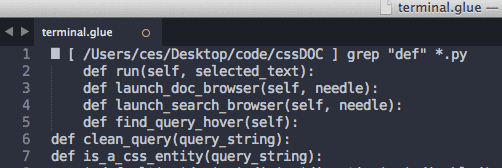
<h4>Glue + grep</h4>

<figure class='code'><figcaption><span></span></figcaption><div class="highlight"><table><tr><td class="gutter"><pre class="line-numbers"><span class='line-number'>1</span>
</pre></td><td class='code'><pre><code class='bash'><span class='line'><span class="nv">$ </span>grep <span class="s2">&quot;def&quot;</span> *.py
</span></code></pre></td></tr></table></div></figure>


<p><img src="http://gluedocs.readthedocs.org/en/latest/_images/grep-example.png" alt=""></p>

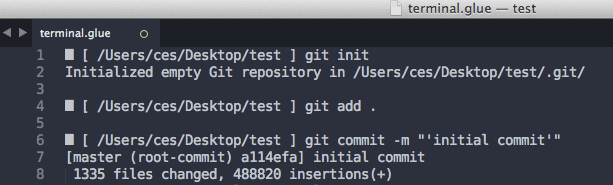
<h4>Glue + git</h4>

<figure class='code'><figcaption><span></span></figcaption><div class="highlight"><table><tr><td class="gutter"><pre class="line-numbers"><span class='line-number'>1</span>
<span class='line-number'>2</span>
<span class='line-number'>3</span>
</pre></td><td class='code'><pre><code class='bash'><span class='line'><span class="nv">$ </span>git init
</span><span class='line'><span class="nv">$ </span>git add .
</span><span class='line'><span class="nv">$ </span>git commit -m <span class="s2">&quot;&#39;initial commit&#39;&quot;</span>
</span></code></pre></td></tr></table></div></figure>


<p><img src="http://gluedocs.readthedocs.org/en/latest/_images/git-example.png" alt=""></p>

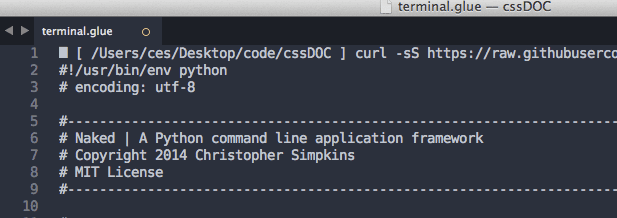
<h4>Glue + cURL</h4>

<figure class='code'><figcaption><span></span></figcaption><div class="highlight"><table><tr><td class="gutter"><pre class="line-numbers"><span class='line-number'>1</span>
</pre></td><td class='code'><pre><code class='bash'><span class='line'><span class="nv">$ </span>curl -sS https://raw.githubusercontent.com/chrissimpkins/naked/master/lib/Naked/app.py
</span></code></pre></td></tr></table></div></figure>


<p><img src="http://gluedocs.readthedocs.org/en/latest/_images/curl-example.png" alt=""></p>

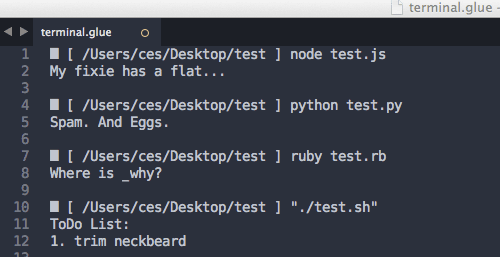
<h4>Glue + Your Own Scripts</h4>

<figure class='code'><figcaption><span></span></figcaption><div class="highlight"><table><tr><td class="gutter"><pre class="line-numbers"><span class='line-number'>1</span>
<span class='line-number'>2</span>
<span class='line-number'>3</span>
<span class='line-number'>4</span>
</pre></td><td class='code'><pre><code class='bash'><span class='line'><span class="nv">$ </span>node test.js
</span><span class='line'><span class="nv">$ </span>python test.py
</span><span class='line'><span class="nv">$ </span>ruby test.rb
</span><span class='line'><span class="nv">$ </span>./test.sh
</span></code></pre></td></tr></table></div></figure>


<p><img src="http://gluedocs.readthedocs.org/en/latest/_images/scripting-language-example.png" alt=""></p>

<h2>Glue Commands</h2>

<p>Glue includes its own set of built in commands that let you navigate around your directory structure, manipulate the editor (e.g. create new buffers, open files by wildcard), and perform other useful tasks:</p>

<table>
<tr>
<th>Command</th>
<th>Description</th>
</tr>
<tr>
<td>cd</td>
<td>change directory</td>
    </tr>
<tr>
<td>exit</td>
        <td>exit the Glue terminal</td>
    </tr>
<tr>
<td>glue browse</td>
        <td>open URL or local project file in default browser</td>
    </tr>
<tr>
<td>glue clear</td>
        <td>clear text in the Glue view</td>
    </tr>
<tr>
<td>glue finder</td>
        <td>reveal current directory (default) or optional path in finder</td>
    </tr>
<tr>
<td>glue help</td>
        <td>view help documentation in Glue view</td>
    </tr>
<tr>
<td>glue localhost</td>
        <td>open default web browser to local server</td>
    </tr>
<tr>
<td>glue new</td>
        <td>open a new Sublime Text buffer</td>
    </tr>
<tr>
<td>glue open</td>
        <td>open one or more project files by filepath</td>
    </tr>
<tr>
<td>glue path</td>
        <td>display the system PATH setting that is used by Glue</td>
    </tr>
<tr>
<td>glue user</td>
        <td>display alphabetized list of your Glue user extensions</td>
    </tr>
<tr>
<td>glue wco</td>
        <td>open one or more files by wildcard pattern</td>
    </tr>
</table>


<h2>Extend Glue</h2>

<p>You can extend the built-in Glue commands with aliases that support system utilities, your own compiled executables, shell scripts, and source from any scripting language that is supported on your machine.</p>

<p>These Glue aliases can be called from the command line with the syntax:</p>

<figure class='code'><figcaption><span></span></figcaption><div class="highlight"><table><tr><td class="gutter"><pre class="line-numbers"><span class='line-number'>1</span>
</pre></td><td class='code'><pre><code class='bash'><span class='line'><span class="nv">$ </span>glue &lt;your-command&gt; <span class="o">[</span>optional args<span class="o">]</span>
</span></code></pre></td></tr></table></div></figure>


<p>They are incredibly simple to develop and require absolutely no programming knowledge (but can be hooked into anything that you develop with the capability to process data from the standard input stream).</p>

<p>Here are the steps to create your own extensions:</p>

<h4>Create the Glue-Commands Directory</h4>

<p>Create a <code>Glue-Commands</code> directory inside your Sublime Text <code>Packages</code> directory. You can open your Sublime Text Packages directory with the menu item <code>Preferences &gt; Browse Packages</code>.</p>

<h4>Create a <code>glue.json</code> File</h4>

<p>Create a <code>glue.json</code> file inside the Glue-Commands directory.</p>

<h4>Define Your Glue Extensions</h4>

<p>Commands are defined in the <code>glue.json</code> file with a simple mapping of JSON key:value pairs using the following syntax</p>

<figure class='code'><figcaption><span></span></figcaption><div class="highlight"><table><tr><td class="gutter"><pre class="line-numbers"><span class='line-number'>1</span>
<span class='line-number'>2</span>
<span class='line-number'>3</span>
<span class='line-number'>4</span>
<span class='line-number'>5</span>
</pre></td><td class='code'><pre><code class='json'><span class='line'><span class="p">{</span>
</span><span class='line'>        <span class="nt">&quot;&lt;command-name-1&gt;&quot;</span><span class="p">:</span> <span class="s2">&quot;&lt;system command string 1&gt;&quot;</span><span class="p">,</span>
</span><span class='line'>        <span class="nt">&quot;&lt;command-name-2&gt;&quot;</span><span class="p">:</span> <span class="s2">&quot;&lt;system command string 2&gt;&quot;</span><span class="p">,</span>
</span><span class='line'>        <span class="err">[...]</span>
</span><span class='line'><span class="p">}</span>
</span></code></pre></td></tr></table></div></figure>


<p>You have the option to include replacement tags in your system command string that allow you to pass command line arguments, the text in your clipboard, or the current working directory path to the aliased command:</p>

<h4>Glue Extension Replacement Tags</h4>

<table>
    <tr>
        <th>Tag</th>
        <th>Description</th>
    </tr>
    <tr>
        <td>&#123;&#123;args&#125;&#125;</td>
        <td>additional arguments that you include on the command line</td>
    </tr>
    <tr>
        <td>&#123;&#123;clipboard&#125;&#125;</td>
        <td>the contents of the clipboard</td>
    </tr>
    <tr>
        <td>&#123;&#123;pwd&#125;&#125;</td>
        <td>the working directory path</td>
    </tr>
</table>


<h3>JavaScript Minifier Extension Example</h3>

<p>Here is an example that will take you through each of these steps to create a command that will minify and obfuscate a JavaScript file, and then save it in the same directory with the new path <code>&lt;filename&gt;-min.js</code>:</p>

<p>If you are following along, you can download YUICompressor from <a href="https://github.com/yui/yuicompressor">the GitHub repository</a>. You will need to have Java version 1.4+ installed to use it. Unpack the repository and move the yuicompressor-2.4.8.jar file to a directory for safe keeping (you will run it from this directory).</p>

<p>Next, create a shell script named minijs.sh. Include the following script and modify the YUI_PATH variable with the actual path to your YUICompressor jar file:</p>

<h4>JavaScript Minifier Shell Script</h4>

<figure class='code'><figcaption><span></span></figcaption><div class="highlight"><table><tr><td class="gutter"><pre class="line-numbers"><span class='line-number'>1</span>
<span class='line-number'>2</span>
<span class='line-number'>3</span>
<span class='line-number'>4</span>
<span class='line-number'>5</span>
<span class='line-number'>6</span>
<span class='line-number'>7</span>
<span class='line-number'>8</span>
<span class='line-number'>9</span>
<span class='line-number'>10</span>
<span class='line-number'>11</span>
<span class='line-number'>12</span>
<span class='line-number'>13</span>
<span class='line-number'>14</span>
<span class='line-number'>15</span>
<span class='line-number'>16</span>
<span class='line-number'>17</span>
<span class='line-number'>18</span>
<span class='line-number'>19</span>
<span class='line-number'>20</span>
<span class='line-number'>21</span>
<span class='line-number'>22</span>
<span class='line-number'>23</span>
<span class='line-number'>24</span>
<span class='line-number'>25</span>
</pre></td><td class='code'><pre><code class='bash'><span class='line'><span class="c">#!/bin/sh</span>
</span><span class='line'>
</span><span class='line'><span class="c"># Modify YUI_PATH with the path to the yuicompressor jar file</span>
</span><span class='line'><span class="nv">YUI_PATH</span><span class="o">=</span><span class="s2">&quot;path/to/yuicompressor-2.4.8.jar&quot;</span>
</span><span class='line'>
</span><span class='line'><span class="k">if</span> <span class="o">[</span> <span class="nv">$# </span>-eq 0 <span class="o">]</span>; <span class="k">then</span>
</span><span class='line'><span class="k">  </span><span class="nb">echo</span> <span class="s2">&quot;Please include the file path(s) for the file(s) that you would like to compress.&quot;</span> 1&gt;&amp;2
</span><span class='line'>  <span class="nb">exit </span>1
</span><span class='line'><span class="k">fi</span>
</span><span class='line'>
</span><span class='line'><span class="k">for </span>file in <span class="s2">&quot;$@&quot;</span>;
</span><span class='line'><span class="k">do</span>
</span><span class='line'><span class="k">if</span> <span class="o">[</span> -f <span class="s2">&quot;$file&quot;</span> <span class="o">]</span>; <span class="k">then</span>
</span><span class='line'><span class="k">      </span>java -jar <span class="s2">&quot;$YUI_PATH&quot;</span> -o <span class="s2">&quot;${file%%.*}-min.js&quot;</span> <span class="s2">&quot;$file&quot;</span>
</span><span class='line'>      <span class="k">if</span> <span class="o">((</span> <span class="nv">$?</span> <span class="o">))</span>; <span class="k">then</span>
</span><span class='line'><span class="k">          </span><span class="nb">echo</span> <span class="s2">&quot;$file was not able to be minified&quot;</span>
</span><span class='line'>          <span class="nb">exit </span>1
</span><span class='line'>      <span class="k">else</span>
</span><span class='line'><span class="k">          </span><span class="nb">echo</span> <span class="s2">&quot;$file was minified to ${file%%.*}-min.js&quot;</span>
</span><span class='line'>      <span class="k">fi</span>
</span><span class='line'><span class="k">  else</span>
</span><span class='line'><span class="k">      </span><span class="nb">echo</span> <span class="s2">&quot;Unable to find the javascript file &#39;$file&#39;.&quot;</span>
</span><span class='line'><span class="k">fi</span>
</span><span class='line'><span class="k">done</span>;
</span><span class='line'><span class="nb">exit </span>0
</span></code></pre></td></tr></table></div></figure>


<p>Next, create a Glue extension that will serve as an alias for the call to this shell script when you use the <code>glue minijs</code> command. We’ll include the &#123;&#123;args&#125;&#125; template tag so that we can pass filepath arguments to our script.  Insert the following in your <code>glue.json</code> file that you generated above:</p>

<figure class='code'><figcaption><span></span></figcaption><div class="highlight"><table><tr><td class="gutter"><pre class="line-numbers"><span class='line-number'>1</span>
<span class='line-number'>2</span>
<span class='line-number'>3</span>
</pre></td><td class='code'><pre><code class='json'><span class='line'><span class="p">{</span>
</span><span class='line'>  <span class="nt">&quot;minijs&quot;</span> <span class="p">:</span> <span class="s2">&quot;/path/to/minijs.sh { {args} }&quot;</span>
</span><span class='line'><span class="p">}</span>
</span></code></pre></td></tr></table></div></figure>


<p>To use your new Sublime Text feature, launch Glue in your editor and minify JS files in the working directory with a command like this:</p>

<figure class='code'><figcaption><span></span></figcaption><div class="highlight"><table><tr><td class="gutter"><pre class="line-numbers"><span class='line-number'>1</span>
</pre></td><td class='code'><pre><code class='bash'><span class='line'><span class="nv">$ </span>glue minijs awesome.js
</span></code></pre></td></tr></table></div></figure>


<p>The minified file is saved as <code>awesome-min.js</code> in the same directory.</p>

<p>You can use the same technique with any compiled application or interpreted script that accepts the standard input stream and returns the data to be displayed for the user in the standard output stream.  Glue provides the interface with your shell to take care of the rest.</p>

<h2>Learn More</h2>

<p>The Glue documentation is available <a href="http://gluedocs.readthedocs.org/">here</a>.</p>

<h2>Issue Reporting</h2>

<p>If you come across a bug in the plugin, please report it on <a href="https://github.com/chrissimpkins/glue/issues">the GitHub repository</a>.</p>
]]></content>
  </entry>
  
  <entry>
    <title type="html"><![CDATA[PyDOC - Python Documentation Search from the Sublime Text Editor]]></title>
    <link href="http://sweetme.at/2014/03/15/pydoc-python-documentation-search-from-the-sublime-text-editor/"/>
    <updated>2014-03-15T10:09:00-04:00</updated>
    <id>http://sweetme.at/2014/03/15/pydoc-python-documentation-search-from-the-sublime-text-editor</id>
    <content type="html"><![CDATA[<p>PyDOC allows you to search <a href="http://docs.python.org">Python 2 or Python 3 documentation</a> for built-in Python modules, classes, methods, and functions that are selected in the Sublime Text editor. A browser window is launched (in your default browser), using your selected text as the query term for the Python 2 or Python 3 documentation.</p>

<!--More-->


<h2>Install PyDOC</h2>

<h3>Using Sublime Package Control</h3>

<p>PyDOC can be installed using <a href="https://sublime.wbond.net/">Sublime Package Control</a>.  Open the command palette with:</p>

<h5>Mac OSX</h5>

<figure class='code'><div class="highlight"><table><tr><td class="gutter"><pre class="line-numbers"><span class='line-number'>1</span>
</pre></td><td class='code'><pre><code class=''><span class='line'>Cmd + Shift + P</span></code></pre></td></tr></table></div></figure>


<h5>Linux &amp; Windows</h5>

<figure class='code'><div class="highlight"><table><tr><td class="gutter"><pre class="line-numbers"><span class='line-number'>1</span>
</pre></td><td class='code'><pre><code class=''><span class='line'>Ctrl + Shift + P</span></code></pre></td></tr></table></div></figure>


<p>Type <code>install</code> and select the menu item, <code>Package Control: Install Package</code>.</p>

<p>Type <code>PyDOC</code> and select the PyDOC package that is displayed.  This will install the package in your editor.</p>

<h3>Using Git</h3>

<p>Use the Sublime Text menu items <code>Preferences -&gt; Browse Packages</code> to locate your Packages directory.</p>

<p>Navigate to the directory in your terminal and clone the PyDOC source repository inside the Packages directory using the command:</p>

<figure class='code'><figcaption><span></span></figcaption><div class="highlight"><table><tr><td class="gutter"><pre class="line-numbers"><span class='line-number'>1</span>
</pre></td><td class='code'><pre><code class='bash'><span class='line'>git clone https://github.com/chrissimpkins/PyDOC.git <span class="s2">&quot;PyDOC&quot;</span>
</span></code></pre></td></tr></table></div></figure>


<h3>Manual Install</h3>

<p>Download the <a href="https://github.com/chrissimpkins/PyDOC/archive/master.zip">zip compressed archive from GitHub</a>.</p>

<p>Decompress the zip archive and rename the directory <code>PyDOC</code>.</p>

<p>Open your Sublime Text Packages directory using the <code>Preferences -&gt; Browse Packages</code> menu items.</p>

<p>Move the entire <code>PyDOC</code> directory into your Sublime Text Packages directory.</p>

<h2>Use PyDOC</h2>

<h3>Search with Right Click Menu</h3>

<p>Select a built-in Python object in your editor text, then use the <code>Python 2 Doc Search</code> or <code>Python 3 Doc Search</code> menu item in the right click menu.</p>

<h3>Search with Keybinding</h3>

<p>Select a built-in Python object in your editor text, then use one of the following keybindings to perform the search:</p>

<h5>Python 2 Documentation Search Keybinding</h5>

<figure class='code'><figcaption><span></span></figcaption><div class="highlight"><table><tr><td class="gutter"><pre class="line-numbers"><span class='line-number'>1</span>
</pre></td><td class='code'><pre><code class='bash'><span class='line'>Ctrl-2
</span></code></pre></td></tr></table></div></figure>


<h5>Python 3 Documentation Search Keybinding</h5>

<figure class='code'><figcaption><span></span></figcaption><div class="highlight"><table><tr><td class="gutter"><pre class="line-numbers"><span class='line-number'>1</span>
</pre></td><td class='code'><pre><code class='bash'><span class='line'>Ctrl-3
</span></code></pre></td></tr></table></div></figure>


<h3>Search with the Command Palette</h3>

<p>Select a built-in Python object in your editor text then enter the keybinding to open the command palette (see description above in the Sublime Package Control section).  Type &lsquo;pydoc&rsquo; and then select either <code>Python 2 Doc Search (PyDOC)</code> or <code>Python 3 Doc Search (PyDOC)</code>.</p>
]]></content>
  </entry>
  
  <entry>
    <title type="html"><![CDATA[A Simple Approach to Execute Ruby Scripts with Python]]></title>
    <link href="http://sweetme.at/2014/03/14/a-simple-approach-to-execute-ruby-scripts-with-python/"/>
    <updated>2014-03-14T14:58:00-04:00</updated>
    <id>http://sweetme.at/2014/03/14/a-simple-approach-to-execute-ruby-scripts-with-python</id>
    <content type="html"><![CDATA[<p>Here are a couple of examples that demonstrate how to execute Ruby scripts from a Python script with standard output and standard error stream handling on either the Ruby side or the Python side.</p>

<!--more-->


<h2>Ruby Dependency</h2>

<p>Execution of local Ruby script files requires you to have Ruby installed on your system.  Refer to the <a href="https://www.ruby-lang.org/en/downloads/">Ruby documentation</a> for details.</p>

<h2>The Naked Shell Library</h2>

<p>The functions that we will use are available in the <a href="http://docs.naked-py.com/toolshed_shell.html">Naked Framework shell library</a>.  To install Naked with pip, use the following command:</p>

<h4>Install Naked with Pip</h4>

<figure class='code'><figcaption><span></span></figcaption><div class="highlight"><table><tr><td class="gutter"><pre class="line-numbers"><span class='line-number'>1</span>
</pre></td><td class='code'><pre><code class='bash'><span class='line'>pip install Naked
</span></code></pre></td></tr></table></div></figure>


<p>or download the <a href="https://github.com/chrissimpkins/naked">source from GitHub</a>, decompress the source archive locally, navigate to the top level source directory and run the following command:</p>

<h4>Install Naked from Source</h4>

<figure class='code'><figcaption><span></span></figcaption><div class="highlight"><table><tr><td class="gutter"><pre class="line-numbers"><span class='line-number'>1</span>
</pre></td><td class='code'><pre><code class='bash'><span class='line'>python setup.py install
</span></code></pre></td></tr></table></div></figure>


<h4>Import Naked Shell Library Functions</h4>

<figure class='code'><figcaption><span></span></figcaption><div class="highlight"><table><tr><td class="gutter"><pre class="line-numbers"><span class='line-number'>1</span>
</pre></td><td class='code'><pre><code class='python'><span class='line'><span class="kn">from</span> <span class="nn">Naked.toolshed.shell</span> <span class="kn">import</span> <span class="n">execute_rb</span><span class="p">,</span> <span class="n">muterun_rb</span>
</span></code></pre></td></tr></table></div></figure>


<h2>Execute a Ruby Script</h2>

<p>To execute a Ruby file and allow the Ruby side to control the standard output and standard error streams for the user, use the <code>execute_rb()</code> function.  The path to the Ruby file is included as a parameter to the function like this:</p>

<h4>Execute the Ruby File</h4>

<figure class='code'><figcaption><span></span></figcaption><div class="highlight"><table><tr><td class="gutter"><pre class="line-numbers"><span class='line-number'>1</span>
<span class='line-number'>2</span>
<span class='line-number'>3</span>
</pre></td><td class='code'><pre><code class='python'><span class='line'><span class="kn">from</span> <span class="nn">Naked.toolshed.shell</span> <span class="kn">import</span> <span class="n">execute_rb</span>
</span><span class='line'>
</span><span class='line'><span class="n">success</span> <span class="o">=</span> <span class="n">execute_rb</span><span class="p">(</span><span class="s">&#39;testscript.rb&#39;</span><span class="p">)</span>
</span></code></pre></td></tr></table></div></figure>


<p>The <code>execute_rb()</code> function returns a boolean value for the success (or lack thereof) of the Ruby script.  This is based upon the zero (success) or non-zero (failure) exit code returned from the Ruby code to the Python calling code.</p>

<p>You can test for the success of the Ruby script like this:</p>

<h4>Test for Success of Ruby Execution</h4>

<figure class='code'><figcaption><span></span></figcaption><div class="highlight"><table><tr><td class="gutter"><pre class="line-numbers"><span class='line-number'>1</span>
<span class='line-number'>2</span>
<span class='line-number'>3</span>
<span class='line-number'>4</span>
</pre></td><td class='code'><pre><code class='python'><span class='line'><span class="k">if</span> <span class="n">success</span><span class="p">:</span>
</span><span class='line'>    <span class="c"># handle success of the Ruby code</span>
</span><span class='line'><span class="k">else</span><span class="p">:</span>
</span><span class='line'>    <span class="c"># handle failure of the Ruby code</span>
</span></code></pre></td></tr></table></div></figure>


<p>because the <code>success</code> variable is defined with the returned boolean value from the <code>execute_rb()</code> function.</p>

<p>This function executes the Ruby file with the following system command:</p>

<figure class='code'><figcaption><span></span></figcaption><div class="highlight"><table><tr><td class="gutter"><pre class="line-numbers"><span class='line-number'>1</span>
</pre></td><td class='code'><pre><code class='bash'><span class='line'>ruby &lt;Ruby file path&gt; <span class="o">[</span>arguments<span class="o">]</span>
</span></code></pre></td></tr></table></div></figure>


<p>To pass additional arguments to the <code>ruby</code> executable, include them as a second string parameter in the <code>execute_rb()</code> function.  See the <a href="http://docs.naked-py.com/toolshed_shell.html#Naked.toolshed.shell.execute_rb">Naked documentation</a> for additional details.</p>

<h2>Execute a Ruby Script and Control the Standard Ouput and Standard Error from the Python Side</h2>

<p>To gain control over the standard output and standard error streams returned from the Ruby script, use the <code>muterun_rb()</code> function rather than the <code>execute_rb()</code> function.  This function suppresses output of the standard output and error streams from the Ruby script and, instead, returns these streams along with the exit code to the Python script as attributes of a generic object.  You can access these strings (actually bytes strings) using standard Python dot syntax.</p>

<p>As with the <code>execute_rb()</code> function, use the Ruby file path as the argument to the function:</p>

<h4>Execute the Ruby File</h4>

<figure class='code'><figcaption><span></span></figcaption><div class="highlight"><table><tr><td class="gutter"><pre class="line-numbers"><span class='line-number'>1</span>
<span class='line-number'>2</span>
<span class='line-number'>3</span>
<span class='line-number'>4</span>
</pre></td><td class='code'><pre><code class='python'><span class='line'><span class="kn">import</span> <span class="nn">sys</span>
</span><span class='line'><span class="kn">from</span> <span class="nn">Naked.toolshed.shell</span> <span class="kn">import</span> <span class="n">muterun_rb</span>
</span><span class='line'>
</span><span class='line'><span class="n">response</span> <span class="o">=</span> <span class="n">muterun_rb</span><span class="p">(</span><span class="s">&#39;testscript.rb&#39;</span><span class="p">)</span>
</span></code></pre></td></tr></table></div></figure>


<p>The object is assigned to the <code>response</code> variable.  To confirm that the executed code was successful, you can test the <code>exitcode</code> attribute returned in the object:</p>

<h4>Test for Success of the Executed Ruby File</h4>

<figure class='code'><figcaption><span></span></figcaption><div class="highlight"><table><tr><td class="gutter"><pre class="line-numbers"><span class='line-number'>1</span>
<span class='line-number'>2</span>
<span class='line-number'>3</span>
<span class='line-number'>4</span>
</pre></td><td class='code'><pre><code class='python'><span class='line'><span class="k">if</span> <span class="n">response</span><span class="o">.</span><span class="n">exitcode</span> <span class="o">==</span> <span class="mi">0</span><span class="p">:</span>
</span><span class='line'>    <span class="c"># the command was successful (returned 0 exit code)</span>
</span><span class='line'><span class="k">else</span><span class="p">:</span>
</span><span class='line'>    <span class="c"># the command was not successful (returned non-0 exit code)</span>
</span></code></pre></td></tr></table></div></figure>


<p>You can then access the standard output and standard error stream strings (acutally bytes strings) with the <code>stdout</code> and <code>stderr</code> attributes, respectively:</p>

<figure class='code'><figcaption><span></span></figcaption><div class="highlight"><table><tr><td class="gutter"><pre class="line-numbers"><span class='line-number'>1</span>
<span class='line-number'>2</span>
<span class='line-number'>3</span>
<span class='line-number'>4</span>
</pre></td><td class='code'><pre><code class='python'><span class='line'><span class="k">if</span> <span class="n">response</span><span class="o">.</span><span class="n">exitcode</span> <span class="o">==</span> <span class="mi">0</span><span class="p">:</span>
</span><span class='line'>  <span class="k">print</span><span class="p">(</span><span class="n">response</span><span class="o">.</span><span class="n">stdout</span><span class="p">)</span>
</span><span class='line'><span class="k">else</span><span class="p">:</span>
</span><span class='line'>  <span class="n">sys</span><span class="o">.</span><span class="n">stderr</span><span class="o">.</span><span class="n">write</span><span class="p">(</span><span class="n">response</span><span class="o">.</span><span class="n">stderr</span><span class="p">)</span>
</span></code></pre></td></tr></table></div></figure>


<p>Here, we simply push it back out to the standard output or error stream from the Python script.  You can manipulate the output however you would like in your Python code before pushing it to the user.</p>

<p>You have the option to pass additional arguments to the <code>ruby</code> system command that this function wraps by including them in a second parameter string to the function.  Details are available in <a href="http://docs.naked-py.com/toolshed_shell.html#Naked.toolshed.shell.muterun_rb">the Naked documentation</a>.</p>

<h2>Distribute Naked With Your Code</h2>

<p>To make the Naked Framework available for other users of the Python script that you developed, include the following line in your  <code>setup.py</code> file:</p>

<figure class='code'><figcaption><span></span></figcaption><div class="highlight"><table><tr><td class="gutter"><pre class="line-numbers"><span class='line-number'>1</span>
</pre></td><td class='code'><pre><code class='python'><span class='line'><span class="n">install_requires</span><span class="o">=</span><span class="p">[</span><span class="s">&#39;Naked&#39;</span><span class="p">],</span>
</span></code></pre></td></tr></table></div></figure>


<p>This includes Naked as a dependency in your project and automatically installs the Naked Framework on the user&rsquo;s system when they install your application or library using commands  based on distutils, including the commonly used <code>pip install</code> and  <code>python setup.py install</code> install commands.</p>

<h2>The Naked Shell Library</h2>

<p>If you are interested in learning more about the Naked shell library module, <a href="http://docs.naked-py.com/toolshed_shell.html">you can find the documentation here</a>.</p>

<h2>Naked Does Node Too&hellip;</h2>

<p>Naked includes a method for Node.js scripts as well. Details are <a href="http://sweetme.at/2014/02/17/a-simple-approach-to-execute-a-node.js-script-from-python/">available in this post</a>.</p>
]]></content>
  </entry>
  
  <entry>
    <title type="html"><![CDATA[How to Open a File or Directory in the Atom Editor from the Command Line]]></title>
    <link href="http://sweetme.at/2014/03/11/how-to-open-a-file-or-directory-in-the-atom-editor-from-the-command-line/"/>
    <updated>2014-03-11T00:14:00-04:00</updated>
    <id>http://sweetme.at/2014/03/11/how-to-open-a-file-or-directory-in-the-atom-editor-from-the-command-line</id>
    <content type="html"><![CDATA[<p>You can use the <code>atom</code> executable to open a file or source directory in the <a href="http://atom.io/">GitHub Atom text editor</a>.</p>

<!--More-->


<h2>Confirm Command Line Tools Install</h2>

<p>Atom installs the <code>atom</code> and <code>apm</code> executables as part of the MacOSX install.  We will be using the <code>atom</code> executable to open files and directories in Atom.  To confirm that <code>atom</code> is installed, call the help documentation with:</p>

<figure class='code'><div class="highlight"><table><tr><td class="gutter"><pre class="line-numbers"><span class='line-number'>1</span>
</pre></td><td class='code'><pre><code class=''><span class='line'>atom --help</span></code></pre></td></tr></table></div></figure>


<p>If you don&rsquo;t see a help message, use the Atom menu item and select Atom > Install Shell Commands.  You will receive a confirmation message if this was successful.</p>

<h2>Open a File in Atom</h2>

<p>To open a file in Atom, enter the path to the file as the argument to the <code>atom</code> executable:</p>

<figure class='code'><div class="highlight"><table><tr><td class="gutter"><pre class="line-numbers"><span class='line-number'>1</span>
</pre></td><td class='code'><pre><code class=''><span class='line'>atom &lt;filepath&gt;</span></code></pre></td></tr></table></div></figure>


<p>For a file named &lsquo;test.c&rsquo; in the working directory, use the following command:</p>

<figure class='code'><div class="highlight"><table><tr><td class="gutter"><pre class="line-numbers"><span class='line-number'>1</span>
</pre></td><td class='code'><pre><code class=''><span class='line'>atom test.c</span></code></pre></td></tr></table></div></figure>


<h2>Open the Current Working Directory in Atom</h2>

<p>To open your working directory in Atom, use the following command:</p>

<figure class='code'><div class="highlight"><table><tr><td class="gutter"><pre class="line-numbers"><span class='line-number'>1</span>
</pre></td><td class='code'><pre><code class=''><span class='line'>atom .</span></code></pre></td></tr></table></div></figure>


]]></content>
  </entry>
  
  <entry>
    <title type="html"><![CDATA[Atom Editor Keyboard Shortcut Cheat Sheet]]></title>
    <link href="http://sweetme.at/2014/03/10/atom-editor-cheat-sheet/"/>
    <updated>2014-03-10T11:38:00-04:00</updated>
    <id>http://sweetme.at/2014/03/10/atom-editor-cheat-sheet</id>
    <content type="html"><![CDATA[<p>Use these rapid keyboard shortcuts to control the <a href="http://atom.io">GitHub Atom text editor</a> on Mac OSX.</p>

<!--More-->


<h1>Key to the Keys</h1>

<ul>
<li>⌘ : Command key</li>
<li>⌃ : Control key</li>
<li>⌫ : Delete key</li>
<li>← : Left arrow key</li>
<li>→ : Right arrow key</li>
<li>↑ : Up arrow key</li>
<li>↓ : Down arrow key</li>
<li>⌥ : Option or Alt key</li>
<li>↩ : Return or Enter key</li>
<li>⇧ : Shift key</li>
</ul>


<h1>Contents</h1>

<ul>
<li><a href="#atom_cmd_palette">The Command Palette</a></li>
<li><a href="#atom_config">Configuration</a></li>
<li><a href="#atom_app_tasks">Application Tasks</a></li>
<li><a href="#atom_autocomplete">Autocomplete</a></li>
<li><a href="#atom_bookmarks">Bookmarks</a></li>
<li><a href="#atom_brackets">Brackets</a></li>
<li><a href="#atom_code_fold">Code Folding</a></li>
<li><a href="#atom_code_nav">Code Navigation &amp; Management</a></li>
<li><a href="#atom_char_transform">Character Transformations</a></li>
<li><a href="#atom_comments">Comments</a></li>
<li><a href="#atom_editor_view">Editor View Tasks</a></li>
<li><a href="#atom_file">File Tasks</a></li>
<li><a href="#atom_find_replace">Find &amp; Replace</a></li>
<li><a href="#atom_font">Font Tasks</a></li>
<li><a href="#atom_grammar">Grammar</a></li>
<li><a href="#atom_search">Search Tasks</a></li>
</ul>


<h2 id="atom_cmd_palette"> The Command Palette</h2>


<table>
<thead>
<tr>
<th></th>
<th> <span style="font-size:22px;">Task</span> </th>
<th> <span style="font-size:22px;"><i class="icon-apple" align="center"></i> Keystrokes</span> </th>
<th> </th>
</tr>
</thead>
<tbody>
<tr>
<td></td>
<td> <strong>Open Command Palette</strong> </td>
<td> ⌘-⇧-p </td>
<td></td>
</tr>
</tbody>
</table>


<h2 id="atom_config">Configuration</h2>


<table>
<thead>
<tr>
<th></th>
<th> <span style="font-size:22px;">Task</span> </th>
<th> <span style="font-size:22px;"><i class="icon-apple" align="center"></i> Keystrokes</span> </th>
<th> </th>
</tr>
</thead>
<tbody>
<tr>
<td></td>
<td> <strong>Open Configuration Editor</strong> </td>
<td> ⌘-, </td>
<td></td>
</tr>
</tbody>
</table>


<h2 id="atom_app_tasks">Application Tasks</h2>


<table>
<thead>
<tr>
<th></th>
<th> <span style="font-size:22px;">Task</span> </th>
<th> <span style="font-size:22px;"><i class="icon-apple" align="center"></i> Keystrokes</span> </th>
<th> </th>
</tr>
</thead>
<tbody>
<tr>
<td></td>
<td> <strong>Hide Application</strong> </td>
<td> ⌘-h </td>
<td></td>
</tr>
<tr>
<td></td>
<td> <strong>Hide Other Applications</strong> </td>
<td> ⌥-⌘-h </td>
<td></td>
</tr>
<tr>
<td></td>
<td> <strong>Minimize Application</strong> </td>
<td> ⌘-m </td>
<td></td>
</tr>
<tr>
<td></td>
<td> <strong>New File</strong> </td>
<td> ⌘-n </td>
<td></td>
</tr>
<tr>
<td></td>
<td> <strong>New Window</strong> </td>
<td> ⌘-⇧-n </td>
<td></td>
</tr>
<tr>
<td></td>
<td> <strong>Open Application</strong> </td>
<td> ⌘-o </td>
<td></td>
</tr>
<tr>
<td></td>
<td> <strong>Open Dev</strong> </td>
<td> ⇧-⌘-o </td>
<td></td>
</tr>
<tr>
<td></td>
<td> <strong>Quit</strong> </td>
<td> ⌘-q </td>
<td></td>
</tr>
</tbody>
</table>


<h2 id="atom_autocomplete">Autocomplete</h2>


<table>
<thead>
<tr>
<th></th>
<th> <span style="font-size:22px;">Task</span> </th>
<th> <span style="font-size:22px;"><i class="icon-apple" align="center"></i> Keystrokes</span> </th>
<th> </th>
</tr>
</thead>
<tbody>
<tr>
<td></td>
<td> <strong>Toggle Autocomplete</strong> </td>
<td> ⌃-<code>space</code> </td>
<td></td>
</tr>
</tbody>
</table>


<h2 id="atom_bookmarks">Bookmarks</h2>


<table>
<thead>
<tr>
<th></th>
<th> <span style="font-size:22px;">Task</span> </th>
<th> <span style="font-size:22px;"><i class="icon-apple" align="center"></i> Keystrokes</span> </th>
<th> </th>
</tr>
</thead>
<tbody>
<tr>
<td></td>
<td> <strong>Toggle Bookmark</strong> </td>
<td> ⌘-<code>F2</code> </td>
<td></td>
</tr>
<tr>
<td></td>
<td> <strong>View All Bookmarks</strong> </td>
<td> ⌃-<code>F2</code> </td>
<td></td>
</tr>
<tr>
<td></td>
<td> <strong>Jump to Next Bookmark</strong> </td>
<td> <code>F2</code> </td>
<td></td>
</tr>
<tr>
<td></td>
<td> <strong>Jump to Previous Bookmark</strong> </td>
<td> ⇧-<code>F2</code></td>
<td></td>
</tr>
<tr>
<td></td>
<td> <strong>Clear All Bookmarks</strong> </td>
<td> ⌘-⇧-<code>F2</code> </td>
<td></td>
</tr>
</tbody>
</table>


<h2 id="atom_brackets">Brackets</h2>


<table>
<thead>
<tr>
<th></th>
<th> <span style="font-size:22px;">Task</span> </th>
<th> <span style="font-size:22px;"><i class="icon-apple" align="center"></i> Keystrokes</span> </th>
<th> </th>
</tr>
</thead>
<tbody>
<tr>
<td></td>
<td> <strong>Find Matching Bracket</strong> </td>
<td> ⌃-m </td>
<td></td>
</tr>
</tbody>
</table>


<h2 id="atom_code_fold">Code Folding</h2>


<table>
<thead>
<tr>
<th></th>
<th> <span style="font-size:22px;">Task</span> </th>
<th> <span style="font-size:22px;"><i class="icon-apple" align="center"></i> Keystrokes</span> </th>
<th> </th>
</tr>
</thead>
<tbody>
<tr>
<td></td>
<td> <strong>Fold Code</strong> </td>
<td> ⌥-⌘-[ </td>
<td></td>
</tr>
<tr>
<td></td>
<td> <strong>Unfold Code</strong> </td>
<td> ⌥-⌘-] </td>
<td></td>
</tr>
<tr>
<td></td>
<td> <strong>Fold at Indentation Level (N)</strong> </td>
<td> ⌘-k cmd-<code>N</code> </td>
<td></td>
</tr>
<tr>
<td></td>
<td> <strong>Fold Selected Text</strong> </td>
<td> ⌥-⌘-⌃-f </td>
<td></td>
</tr>
<tr>
<td></td>
<td> <strong>Unfold All Code</strong> </td>
<td> ⌥-⌘-} </td>
<td></td>
</tr>
</tbody>
</table>


<h2 id="atom_code_nav">Code Navigation &amp; Management</h2>


<table>
<thead>
<tr>
<th></th>
<th> <span style="font-size:22px;">Task</span> </th>
<th> <span style="font-size:22px;"><i class="icon-apple" align="center"></i> Keystrokes</span> </th>
<th> </th>
</tr>
</thead>
<tbody>
<tr>
<td></td>
<td> <strong>Cut to End of Line</strong> </td>
<td> ⌃-k </td>
<td></td>
</tr>
<tr>
<td></td>
<td> <strong>Delete to Beginning of Word</strong> </td>
<td> ⌥-⌫ </td>
<td></td>
</tr>
<tr>
<td></td>
<td> <strong>Delete to End of Word</strong> </td>
<td> ⌥-d </td>
<td></td>
</tr>
<tr>
<td></td>
<td> <strong>Delete Line</strong> </td>
<td> ⌃-⇧-k </td>
<td></td>
</tr>
<tr>
<td></td>
<td> <strong>Duplicate Line</strong> </td>
<td> ⌘-⇧-d </td>
<td></td>
</tr>
<tr>
<td></td>
<td> <strong>Go to Line</strong> </td>
<td> ⌃-g </td>
<td></td>
</tr>
<tr>
<td></td>
<td> <strong>Go to Matching Bracket</strong> </td>
<td> ⌃-m </td>
<td></td>
</tr>
<tr>
<td></td>
<td> <strong>Indent Selected Text</strong> </td>
<td> ⌘-] </td>
<td></td>
</tr>
<tr>
<td></td>
<td> <strong>Outdent Selected Text</strong> </td>
<td> ⌘-[ </td>
<td></td>
</tr>
<tr>
<td></td>
<td> <strong>Join Lines</strong> </td>
<td> ⌘-j </td>
<td></td>
</tr>
<tr>
<td></td>
<td> <strong>Move to Beginning of Word</strong> </td>
<td> ⌥-b </td>
<td></td>
</tr>
<tr>
<td></td>
<td> <strong>Move to End of Word</strong> </td>
<td> ⌥-f </td>
<td></td>
</tr>
<tr>
<td></td>
<td> <strong>Move to Beginning of Line</strong> </td>
<td> ⌃-a </td>
<td></td>
</tr>
<tr>
<td></td>
<td> <strong>Move to End of Line</strong> </td>
<td> ⌃-e </td>
<td></td>
</tr>
<tr>
<td></td>
<td> <strong>Move Line Up</strong> </td>
<td> ⌘-⌃-↑ </td>
<td></td>
</tr>
<tr>
<td></td>
<td> <strong>Move Line Down</strong> </td>
<td> ⌘-⌃-↓ </td>
<td></td>
</tr>
<tr>
<td></td>
<td> <strong>Move to Top of File</strong> </td>
<td> ⌘-↑ </td>
<td></td>
</tr>
<tr>
<td></td>
<td> <strong>Move to Bottom of File</strong> </td>
<td> ⌘-↓ </td>
<td></td>
</tr>
<tr>
<td></td>
<td> <strong>Move to First Character of Line</strong> </td>
<td>  ⌘-← </td>
<td></td>
</tr>
<tr>
<td></td>
<td> <strong>Move to Last Character of Line</strong> </td>
<td> ⌘-→</td>
<td></td>
</tr>
<tr>
<td></td>
<td> <strong>Select Left Character</strong> </td>
<td> ⌘-⌃-b </td>
<td></td>
</tr>
<tr>
<td></td>
<td> <strong>Select Right Character</strong> </td>
<td> ⌘-⌃-f </td>
<td> </td>
</tr>
<tr>
<td></td>
<td> <strong>Select to Beginning of Word</strong> </td>
<td> ⌥-⇧-b </td>
<td></td>
</tr>
<tr>
<td></td>
<td> <strong>Select to End of Word</strong> </td>
<td> ⌥-⇧-f </td>
<td></td>
</tr>
<tr>
<td></td>
<td> <strong>Select Entire Word</strong> </td>
<td> ⌃-⇧-w </td>
<td></td>
</tr>
<tr>
<td></td>
<td> <strong>Select to First Character of Line</strong> </td>
<td> ⌥-⇧-a </td>
<td></td>
</tr>
<tr>
<td></td>
<td> <strong>Select to Last Character of Line</strong> </td>
<td> ⌥-⇧-e </td>
<td></td>
</tr>
<tr>
<td></td>
<td> <strong>Select to Same Position, Next Line</strong> </td>
<td> ⌥-⇧-n </td>
<td></td>
</tr>
<tr>
<td></td>
<td> <strong>Select to Same Position, Previous Line</strong> </td>
<td> ⌥-⇧-p </td>
<td></td>
</tr>
<tr>
<td></td>
<td> <strong>Select to Top of File</strong> </td>
<td> ⌘-⇧-↑ </td>
<td></td>
</tr>
<tr>
<td></td>
<td> <strong>Select to Bottom of File</strong> </td>
<td> ⌘-⇧-↓ </td>
<td></td>
</tr>
<tr>
<td></td>
<td> <strong>Select All</strong> </td>
<td> ⌘-a </td>
<td></td>
</tr>
<tr>
<td></td>
<td> <strong>Select Next</strong> </td>
<td> ⌘-d </td>
<td></td>
</tr>
<tr>
<td></td>
<td> <strong>Select Line</strong> </td>
<td> ⌘-L </td>
<td></td>
</tr>
<tr>
<td></td>
<td> <strong>Toggle Line Comments</strong> </td>
<td> ⌘-/ </td>
<td></td>
</tr>
</tbody>
</table>


<h2 id="atom_char_transform">Character Transformations</h2>


<table>
<thead>
<tr>
<th></th>
<th> <span style="font-size:22px;">Task</span> </th>
<th> <span style="font-size:22px;"><i class="icon-apple" align="center"></i> Keystrokes</span> </th>
<th> </th>
</tr>
</thead>
<tbody>
<tr>
<td></td>
<td> <strong>Convert Tabs to Spaces</strong> </td>
<td> ⌥-⌘-[ </td>
<td> </td>
</tr>
<tr>
<td></td>
<td> <strong>Convert Spaces to Tabs</strong> </td>
<td> ⌥-⌘-] </td>
<td></td>
</tr>
<tr>
<td></td>
<td> <strong>Convert to Upper Case</strong> </td>
<td> ⌘-k-u </td>
<td></td>
</tr>
<tr>
<td></td>
<td> <strong>Convert to Lower Case</strong> </td>
<td> ⌘-k-L </td>
<td></td>
</tr>
</tbody>
</table>


<h2 id="atom_comments">Comments</h2>


<table>
<thead>
<tr>
<th></th>
<th> <span style="font-size:22px;">Task</span> </th>
<th> <span style="font-size:22px;"><i class="icon-apple" align="center"></i> Keystrokes</span> </th>
<th> </th>
</tr>
</thead>
<tbody>
<tr>
<td></td>
<td> <strong>Toggle Comment</strong> </td>
<td> ⌘-/ </td>
<td></td>
</tr>
</tbody>
</table>


<h2 id="atom_editor_view">Editor View Tasks</h2>


<table>
<thead>
<tr>
<th></th>
<th> <span style="font-size:22px;">Task</span> </th>
<th> <span style="font-size:22px;"><i class="icon-apple" align="center"></i> Keystrokes</span> </th>
<th> </th>
</tr>
</thead>
<tbody>
<tr>
<td></td>
<td> <strong>Split Panes Vertically</strong> </td>
<td> ⌘-k-↓ </td>
<td></td>
</tr>
<tr>
<td></td>
<td> <strong>Split Panes Horizontally</strong> </td>
<td> ⌘-k-→ </td>
<td> </td>
</tr>
<tr>
<td></td>
<td> <strong>Vertical Navigation Panes</strong> </td>
<td> ⌘-k ⌘-↓ </td>
<td></td>
</tr>
<tr>
<td></td>
<td> <strong>Horizontal Navigation Panes</strong> </td>
<td> ⌘-k ⌘-→ </td>
<td></td>
</tr>
<tr>
<td></td>
<td> <strong>Toggle Full Screen</strong> </td>
<td> ⌃-⌘-f </td>
<td></td>
</tr>
<tr>
<td></td>
<td> <strong>Toggle Tree View</strong> </td>
<td> ⌘-\ </td>
<td></td>
</tr>
</tbody>
</table>


<h2 id="atom_file">File Tasks</h2>


<table>
<thead>
<tr>
<th></th>
<th> <span style="font-size:22px;">Task</span> </th>
<th> <span style="font-size:22px;"><i class="icon-apple" align="center"></i> Keystrokes</span> </th>
<th> </th>
</tr>
</thead>
<tbody>
<tr>
<td></td>
<td> <strong>Fuzzy Find Files</strong> </td>
<td> ⌘-t </td>
<td></td>
</tr>
<tr>
<td></td>
<td> <strong>Find Open File</strong> </td>
<td> ⌘-b </td>
<td></td>
</tr>
<tr>
<td></td>
<td> <strong>Find Modified, Untracked (git) File</strong> </td>
<td> ⌘-⇧-b </td>
<td></td>
</tr>
<tr>
<td></td>
<td> <strong>Open Tree View</strong> </td>
<td> ⌃-0 </td>
<td> </td>
</tr>
<tr>
<td></td>
<td> <strong>Toggle Tree View</strong> </td>
<td> ⌘-\ </td>
<td></td>
</tr>
<tr>
<td></td>
<td> <strong>Add a File</strong> </td>
<td> a </td>
<td></td>
</tr>
<tr>
<td></td>
<td> <strong>Move a File</strong> </td>
<td> m </td>
<td></td>
</tr>
<tr>
<td></td>
<td> <strong>Delete a File</strong> </td>
<td> ⌫ </td>
<td></td>
</tr>
<tr>
<td></td>
<td> <strong>Reopen Last File</strong> </td>
<td> ⌘-⇧-t </td>
<td></td>
</tr>
</tbody>
</table>


<h2 id="atom_find_replace">Find &amp; Replace</h2>


<table>
<thead>
<tr>
<th></th>
<th> <span style="font-size:22px;">Task</span> </th>
<th> <span style="font-size:22px;"><i class="icon-apple" align="center"></i> Keystrokes</span> </th>
<th> </th>
</tr>
</thead>
<tbody>
<tr>
<td></td>
<td> <strong>Find String in Current File</strong> </td>
<td> ⌘-f </td>
<td></td>
</tr>
<tr>
<td></td>
<td> <strong>Find String in All Project Files</strong> </td>
<td> ⇧-⌘-f </td>
<td></td>
</tr>
<tr>
<td></td>
<td> <strong>Find Next Matching String</strong> </td>
<td> ⌘-g </td>
<td></td>
</tr>
<tr>
<td></td>
<td> <strong>Find Previous Matching String</strong> </td>
<td> ⇧-⌘-g </td>
<td></td>
</tr>
<tr>
<td></td>
<td> <strong>Select Next Matching String</strong> </td>
<td> ⌘-d </td>
<td></td>
</tr>
<tr>
<td></td>
<td> <strong>Select All Matching Strings</strong> </td>
<td> ⌃-⌘-g </td>
<td></td>
</tr>
<tr>
<td></td>
<td> <strong>Replace String in Current File</strong> </td>
<td> ⌥-⌘-f </td>
<td></td>
</tr>
</tbody>
</table>


<h2 id="atom_font">Font Tasks</h2>


<table>
<thead>
<tr>
<th></th>
<th> <span style="font-size:22px;">Task</span> </th>
<th> <span style="font-size:22px;"><i class="icon-apple" align="center"></i> Keystrokes</span> </th>
<th> </th>
</tr>
</thead>
<tbody>
<tr>
<td></td>
<td> <strong>Increase Font Size</strong> </td>
<td> cmd-+ </td>
<td></td>
</tr>
<tr>
<td></td>
<td> <strong>Decrease Font Size</strong> </td>
<td> cmd&mdash; </td>
<td></td>
</tr>
</tbody>
</table>


<h2 id="atom_grammar">Grammar</h2>


<table>
<thead>
<tr>
<th></th>
<th> <span style="font-size:22px;">Task</span> </th>
<th> <span style="font-size:22px;"><i class="icon-apple" align="center"></i> Keystrokes</span> </th>
<th> </th>
</tr>
</thead>
<tbody>
<tr>
<td></td>
<td> <strong>Select Grammar</strong> </td>
<td> ⌃-⇧-L </td>
<td></td>
</tr>
</tbody>
</table>


<h2 id="atom_search">Search Tasks</h2>


<table>
<thead>
<tr>
<th></th>
<th> <span style="font-size:22px;">Task</span> </th>
<th> <span style="font-size:22px;"><i class="icon-apple" align="center"></i> Keystrokes</span> </th>
<th> </th>
</tr>
</thead>
<tbody>
<tr>
<td></td>
<td> <strong>Search for Symbol</strong> </td>
<td> ⌘-r </td>
<td></td>
</tr>
<tr>
<td></td>
<td> <strong>Search for Symbol Across Project</strong> </td>
<td> ⌘-⇧-r </td>
<td></td>
</tr>
</tbody>
</table>

]]></content>
  </entry>
  
  <entry>
    <title type="html"><![CDATA[TLDR | Community-Driven Concise Linux and Unix Man Pages]]></title>
    <link href="http://sweetme.at/2014/02/19/tldr-community-driven-simplified-linux-unix-man-pages/"/>
    <updated>2014-02-19T13:03:00-05:00</updated>
    <id>http://sweetme.at/2014/02/19/tldr-community-driven-simplified-linux-unix-man-pages</id>
    <content type="html"><![CDATA[<p><a href="https://github.com/rprieto/tldr">tldr is a community driven, open source project</a> that aims to deliver a concise version of man pages for commonly used Unix and Linux commands.</p>

<!--more-->


<h2>How it Works</h2>

<p>You view the documentation with the following command syntax:</p>

<figure class='code'><figcaption><span></span></figcaption><div class="highlight"><table><tr><td class="gutter"><pre class="line-numbers"><span class='line-number'>1</span>
</pre></td><td class='code'><pre><code class='bash'><span class='line'>tldr &lt;<span class="nb">command</span>&gt;
</span></code></pre></td></tr></table></div></figure>


<p>Here is an example of the <code>tldr</code> documentation for the <code>tar</code> executable:</p>

<figure class='code'><figcaption><span></span></figcaption><div class="highlight"><table><tr><td class="gutter"><pre class="line-numbers"><span class='line-number'>1</span>
<span class='line-number'>2</span>
<span class='line-number'>3</span>
<span class='line-number'>4</span>
<span class='line-number'>5</span>
<span class='line-number'>6</span>
<span class='line-number'>7</span>
<span class='line-number'>8</span>
<span class='line-number'>9</span>
<span class='line-number'>10</span>
<span class='line-number'>11</span>
<span class='line-number'>12</span>
<span class='line-number'>13</span>
<span class='line-number'>14</span>
<span class='line-number'>15</span>
<span class='line-number'>16</span>
<span class='line-number'>17</span>
<span class='line-number'>18</span>
<span class='line-number'>19</span>
<span class='line-number'>20</span>
</pre></td><td class='code'><pre><code class='bash'><span class='line'><span class="nv">$ </span>tldr tar
</span><span class='line'>
</span><span class='line'> Archiving utility
</span><span class='line'> Optional compression with gzip / bzip
</span><span class='line'>
</span><span class='line'> - create an archive from files
</span><span class='line'>
</span><span class='line'>   tar cf target.tar file1 file2 file3
</span><span class='line'>
</span><span class='line'> - create a gzipped archive
</span><span class='line'>
</span><span class='line'>   tar cfz target.tar.gz file1 file2 file3
</span><span class='line'>
</span><span class='line'> - extract an archive in a target folder
</span><span class='line'>
</span><span class='line'>   tar xf source.tar -C folder
</span><span class='line'>
</span><span class='line'> - extract a gzipped archive in the current directory
</span><span class='line'>
</span><span class='line'>   tar xzf source.tar.gz
</span></code></pre></td></tr></table></div></figure>


<h2>Install</h2>

<p><code>tldr</code> requires a local install of <a href="http://nodejs.org/">Node.js</a>.</p>

<p><code>tldr</code> is installed with <a href="https://www.npmjs.org/">npm</a>:</p>

<figure class='code'><figcaption><span></span></figcaption><div class="highlight"><table><tr><td class="gutter"><pre class="line-numbers"><span class='line-number'>1</span>
</pre></td><td class='code'><pre><code class='bash'><span class='line'>npm install -g tldr
</span></code></pre></td></tr></table></div></figure>


<p>This command may need to be run with superuser privileges on your box.</p>

<h2>Contribute</h2>

<p>The project already includes many Unix (including Mac OSX specific) and Linux commands.  If you&rsquo;d like to extend the current documentation or add additional pages, you can do so by forking the GitHub repository, creating the documentation in <a href="http://guides.github.com/overviews/mastering-markdown/">Markdown</a>, and submitting a pull request back to the main repository.</p>

<p>Here is <a href="http://guides.github.com/overviews/forking/">the GitHub Guide documentation on forks and pull requests</a> for those who are unfamiliar (<em>it&rsquo;s simple</em>).</p>

<h2>Source</h2>

<p><code>tldr</code> was spotted on <a href="http://thechangelog.com/">The Changelog</a>.</p>
]]></content>
  </entry>
  
  <entry>
    <title type="html"><![CDATA[Open the Current Working Directory in the Mac OSX Finder from the Command Line]]></title>
    <link href="http://sweetme.at/2014/02/17/open-the-current-working-directory-in-the-mac-osx-finder-from-the-command-line/"/>
    <updated>2014-02-17T17:09:00-05:00</updated>
    <id>http://sweetme.at/2014/02/17/open-the-current-working-directory-in-the-mac-osx-finder-from-the-command-line</id>
    <content type="html"><![CDATA[<p>Here is a simple command line one-liner that opens the current working directory in your Mac OSX finder.</p>

<!--more-->


<h2>Open the Current Working Directory in the OSX Finder</h2>

<p>The <code>open</code> command is your ticket:</p>

<figure class='code'><div class="highlight"><table><tr><td class="gutter"><pre class="line-numbers"><span class='line-number'>1</span>
</pre></td><td class='code'><pre><code class=''><span class='line'>open .</span></code></pre></td></tr></table></div></figure>


<p>Enter <code>open</code> with a period symbol (i.e. the current directory) and the finder will open in your current working directory.</p>

<p><code>open</code> is an extremely flexible and useful executable.  Here is the manual page for OSX version 10.9 from the <a href="https://developer.apple.com/library/mac/documentation/Darwin/Reference/ManPages/man1/open.1.html">Mac Developer Library</a>:</p>

<figure class='code'><figcaption><span>The open Manual Page</span></figcaption><div class="highlight"><table><tr><td class="gutter"><pre class="line-numbers"><span class='line-number'>1</span>
<span class='line-number'>2</span>
<span class='line-number'>3</span>
<span class='line-number'>4</span>
<span class='line-number'>5</span>
<span class='line-number'>6</span>
<span class='line-number'>7</span>
<span class='line-number'>8</span>
<span class='line-number'>9</span>
<span class='line-number'>10</span>
<span class='line-number'>11</span>
<span class='line-number'>12</span>
<span class='line-number'>13</span>
<span class='line-number'>14</span>
<span class='line-number'>15</span>
<span class='line-number'>16</span>
<span class='line-number'>17</span>
<span class='line-number'>18</span>
<span class='line-number'>19</span>
<span class='line-number'>20</span>
<span class='line-number'>21</span>
<span class='line-number'>22</span>
<span class='line-number'>23</span>
<span class='line-number'>24</span>
<span class='line-number'>25</span>
<span class='line-number'>26</span>
<span class='line-number'>27</span>
<span class='line-number'>28</span>
<span class='line-number'>29</span>
<span class='line-number'>30</span>
<span class='line-number'>31</span>
<span class='line-number'>32</span>
<span class='line-number'>33</span>
<span class='line-number'>34</span>
<span class='line-number'>35</span>
<span class='line-number'>36</span>
<span class='line-number'>37</span>
<span class='line-number'>38</span>
<span class='line-number'>39</span>
<span class='line-number'>40</span>
<span class='line-number'>41</span>
<span class='line-number'>42</span>
<span class='line-number'>43</span>
<span class='line-number'>44</span>
<span class='line-number'>45</span>
<span class='line-number'>46</span>
<span class='line-number'>47</span>
<span class='line-number'>48</span>
<span class='line-number'>49</span>
<span class='line-number'>50</span>
<span class='line-number'>51</span>
<span class='line-number'>52</span>
<span class='line-number'>53</span>
<span class='line-number'>54</span>
<span class='line-number'>55</span>
<span class='line-number'>56</span>
<span class='line-number'>57</span>
<span class='line-number'>58</span>
<span class='line-number'>59</span>
<span class='line-number'>60</span>
<span class='line-number'>61</span>
<span class='line-number'>62</span>
<span class='line-number'>63</span>
<span class='line-number'>64</span>
<span class='line-number'>65</span>
<span class='line-number'>66</span>
<span class='line-number'>67</span>
<span class='line-number'>68</span>
<span class='line-number'>69</span>
<span class='line-number'>70</span>
<span class='line-number'>71</span>
<span class='line-number'>72</span>
<span class='line-number'>73</span>
<span class='line-number'>74</span>
<span class='line-number'>75</span>
<span class='line-number'>76</span>
<span class='line-number'>77</span>
<span class='line-number'>78</span>
<span class='line-number'>79</span>
<span class='line-number'>80</span>
<span class='line-number'>81</span>
<span class='line-number'>82</span>
<span class='line-number'>83</span>
<span class='line-number'>84</span>
<span class='line-number'>85</span>
<span class='line-number'>86</span>
<span class='line-number'>87</span>
<span class='line-number'>88</span>
<span class='line-number'>89</span>
<span class='line-number'>90</span>
<span class='line-number'>91</span>
<span class='line-number'>92</span>
</pre></td><td class='code'><pre><code class='yaml'><span class='line'><span class="l-Scalar-Plain">OPEN(1)                   BSD General Commands Manual                  OPEN(1)</span>
</span><span class='line'>
</span><span class='line'><span class="l-Scalar-Plain">NAME</span>
</span><span class='line'>     <span class="l-Scalar-Plain">open -- open files and directories</span>
</span><span class='line'>
</span><span class='line'><span class="l-Scalar-Plain">SYNOPSIS</span>
</span><span class='line'>     <span class="l-Scalar-Plain">open [-e] [-t] [-f] [-F] [-W] [-R] [-n] [-g] [-h] [-b bundle_identifier] [-a application] file ...</span>
</span><span class='line'>          <span class="l-Scalar-Plain">[--args arg1 ...]</span>
</span><span class='line'>
</span><span class='line'><span class="l-Scalar-Plain">DESCRIPTION</span>
</span><span class='line'>     <span class="l-Scalar-Plain">The open command opens a file (or a directory or URL), just as if you had double-clicked the file&#39;s</span>
</span><span class='line'>     <span class="l-Scalar-Plain">icon. If no application name is specified, the default application as determined via LaunchServices is</span>
</span><span class='line'>     <span class="l-Scalar-Plain">used to open the specified files.</span>
</span><span class='line'>
</span><span class='line'>     <span class="l-Scalar-Plain">If the file is in the form of a URL, the file will be opened as a URL.</span>
</span><span class='line'>
</span><span class='line'>     <span class="l-Scalar-Plain">You can specify one or more file names (or pathnames), which are interpreted relative to the shell or</span>
</span><span class='line'>     <span class="l-Scalar-Plain">Terminal window&#39;s current working directory. For example, the following command would open all Word</span>
</span><span class='line'>     <span class="l-Scalar-Plain">files in the current working directory</span><span class="p-Indicator">:</span>
</span><span class='line'>
</span><span class='line'>     <span class="l-Scalar-Plain">open *.doc</span>
</span><span class='line'>
</span><span class='line'>     <span class="l-Scalar-Plain">Opened applications inherit environment variables just as if you had launched the application directly</span>
</span><span class='line'>     <span class="l-Scalar-Plain">through its full path.  This behavior was also present in Tiger.</span>
</span><span class='line'>
</span><span class='line'>     <span class="l-Scalar-Plain">The options are as follows</span><span class="p-Indicator">:</span>
</span><span class='line'>
</span><span class='line'>     <span class="l-Scalar-Plain">-a application</span>
</span><span class='line'>         <span class="l-Scalar-Plain">Specifies the application to use for opening the file</span>
</span><span class='line'>
</span><span class='line'>     <span class="l-Scalar-Plain">-b bundle_indentifier</span>
</span><span class='line'>         <span class="l-Scalar-Plain">Specifies the bundle identifier for the application to use when opening the file</span>
</span><span class='line'>
</span><span class='line'>     <span class="l-Scalar-Plain">-e  Causes the file to be opened with /Applications/TextEdit</span>
</span><span class='line'>
</span><span class='line'>     <span class="l-Scalar-Plain">-t  Causes the file to be opened with the default text editor, as determined via LaunchServices</span>
</span><span class='line'>
</span><span class='line'>     <span class="l-Scalar-Plain">-f  Reads input from standard input and opens the results in the default text editor.  End input by</span>
</span><span class='line'>         <span class="l-Scalar-Plain">sending EOF character (type Control-D).  Also useful for piping output to open and having it open</span>
</span><span class='line'>         <span class="l-Scalar-Plain">in the default text editor.</span>
</span><span class='line'>
</span><span class='line'>     <span class="l-Scalar-Plain">-F  Opens the application &quot;fresh,&quot; that is, without restoring windows. Saved persistent state is lost,</span>
</span><span class='line'>         <span class="l-Scalar-Plain">except for Untitled documents.</span>
</span><span class='line'>
</span><span class='line'>     <span class="l-Scalar-Plain">-W  Causes open to wait until the applications it opens (or that were already open) have exited.  Use</span>
</span><span class='line'>         <span class="l-Scalar-Plain">with the -n flag to allow open to function as an appropriate app for the $EDITOR environment vari-able. variable.</span>
</span><span class='line'>         <span class="l-Scalar-Plain">able.</span>
</span><span class='line'>
</span><span class='line'>     <span class="l-Scalar-Plain">-R  Reveals the file(s) in the Finder instead of opening them.</span>
</span><span class='line'>
</span><span class='line'>     <span class="l-Scalar-Plain">-n  Open a new instance of the application(s) even if one is already running.</span>
</span><span class='line'>
</span><span class='line'>     <span class="l-Scalar-Plain">-g  Do not bring the application to the foreground.</span>
</span><span class='line'>
</span><span class='line'>     <span class="l-Scalar-Plain">-h  Searches header locations for a header whose name matches the given string and then opens it.  Pass</span>
</span><span class='line'>         <span class="l-Scalar-Plain">a full header name (such as NSView.h) for increased performance.</span>
</span><span class='line'>
</span><span class='line'>     <span class="l-Scalar-Plain">--args</span>
</span><span class='line'>         <span class="l-Scalar-Plain">All remaining arguments are passed to the opened application in the argv parameter to main().</span>
</span><span class='line'>         <span class="l-Scalar-Plain">These arguments are not opened or interpreted by the open tool.</span>
</span><span class='line'>
</span><span class='line'><span class="l-Scalar-Plain">EXAMPLES</span>
</span><span class='line'>     <span class="l-Scalar-Plain">&quot;open &#39;/Volumes/Macintosh HD/foo.txt&#39;&quot; opens the document in the default application for its type (as</span>
</span><span class='line'>     <span class="l-Scalar-Plain">determined by LaunchServices).</span>
</span><span class='line'>
</span><span class='line'>     <span class="l-Scalar-Plain">&quot;open &#39;/Volumes/Macintosh HD/Applications/&#39;&quot; opens that directory in the Finder.</span>
</span><span class='line'>
</span><span class='line'>     <span class="l-Scalar-Plain">&quot;open -a /Applications/TextEdit.app &#39;/Volumes/Macintosh HD/foo.txt&#39;&quot; opens the document in the applica-tion application</span>
</span><span class='line'>     <span class="l-Scalar-Plain">tion specified (in this case, TextEdit).</span>
</span><span class='line'>
</span><span class='line'>     <span class="l-Scalar-Plain">&quot;open -b com.apple.TextEdit &#39;/Volumes/Macintosh HD/foo.txt&#39;&quot; opens the document in the application</span>
</span><span class='line'>     <span class="l-Scalar-Plain">specified (in this case, TextEdit).</span>
</span><span class='line'>
</span><span class='line'>     <span class="l-Scalar-Plain">&quot;open -e &#39;/Volumes/Macintosh HD/foo.txt&#39;&quot; opens the document in TextEdit.</span>
</span><span class='line'>
</span><span class='line'>     <span class="l-Scalar-Plain">&quot;ls | open -f&quot; writes the output of the &#39;ls&#39; command to a file in /tmp and opens the file in the</span>
</span><span class='line'>     <span class="l-Scalar-Plain">default text editor (as determined by LaunchServices).</span>
</span><span class='line'>
</span><span class='line'>     <span class="l-Scalar-Plain">&quot;open http://www.apple.com/&quot; opens the URL in the default browser.</span>
</span><span class='line'>
</span><span class='line'>     <span class="l-Scalar-Plain">&quot;open &#39;file://localhost/Volumes/Macintosh HD/foo.txt&#39;&quot; opens the document in the default application</span>
</span><span class='line'>     <span class="l-Scalar-Plain">for its type (as determined by LaunchServices).</span>
</span><span class='line'>
</span><span class='line'>     <span class="l-Scalar-Plain">&quot;open &#39;file://localhost/Volumes/Macintosh HD/Applications/&#39;&quot; opens that directory in the Finder.</span>
</span><span class='line'>
</span><span class='line'>     <span class="l-Scalar-Plain">&quot;open -h NSView&quot; lists headers whose names contain NSView and allows you to choose which ones to open.</span>
</span><span class='line'>
</span><span class='line'>     <span class="l-Scalar-Plain">&quot;open -a Xcode -h NSString.h&quot; quickly opens /System/Library/Frameworks/Foundation.framework/Head-ers/NSString.h /System/Library/Frameworks/Foundation.framework/Headers/NSString.h</span>
</span><span class='line'>     <span class="l-Scalar-Plain">ers/NSString.h in Xcode.</span>
</span><span class='line'>
</span><span class='line'><span class="l-Scalar-Plain">HISTORY</span>
</span><span class='line'>     <span class="l-Scalar-Plain">First appeared in NextStep.</span>
</span></code></pre></td></tr></table></div></figure>

]]></content>
  </entry>
  
  <entry>
    <title type="html"><![CDATA[A Simple Approach to Execute Node.js Scripts with Python]]></title>
    <link href="http://sweetme.at/2014/02/17/a-simple-approach-to-execute-a-node.js-script-from-python/"/>
    <updated>2014-02-17T10:36:00-05:00</updated>
    <id>http://sweetme.at/2014/02/17/a-simple-approach-to-execute-a-node.js-script-from-python</id>
    <content type="html"><![CDATA[<p>Here are two examples that demonstrate how to execute Node.js/JavaScript scripts from a Python script with standard output and standard error stream handling on either the JavaScript side or the Python side.</p>

<!--more-->


<h2>Node Dependency</h2>

<p>Execution of these local JavaScript files is dependent on a local Node.js install on the system where the Python code is executed.  See <a href="http://nodejs.org/">the Node documentation</a> for install details.</p>

<h2>The Naked Shell Library</h2>

<p>The functions that we will use are available in the <a href="http://docs.naked-py.com/toolshed_shell.html">Naked Framework shell library</a>.  To install Naked with pip, use the following command:</p>

<h4>Install Naked with Pip</h4>

<figure class='code'><figcaption><span></span></figcaption><div class="highlight"><table><tr><td class="gutter"><pre class="line-numbers"><span class='line-number'>1</span>
</pre></td><td class='code'><pre><code class='bash'><span class='line'>pip install Naked
</span></code></pre></td></tr></table></div></figure>


<p>or download the <a href="https://github.com/chrissimpkins/naked">source from GitHub</a>, decompress the source archive locally, navigate to the top level source directory and run the following command:</p>

<h4>Install Naked from Source</h4>

<figure class='code'><figcaption><span></span></figcaption><div class="highlight"><table><tr><td class="gutter"><pre class="line-numbers"><span class='line-number'>1</span>
</pre></td><td class='code'><pre><code class='bash'><span class='line'>python setup.py install
</span></code></pre></td></tr></table></div></figure>


<p>The Naked shell library is part of the larger <a href="http://docs.naked-py.com/toolshed_overview.html">Naked toolshed library</a> in the framework.  You can import the functions that we will use in these examples with the following Python import statement:</p>

<h4>Import Naked Shell Library Functions</h4>

<figure class='code'><figcaption><span></span></figcaption><div class="highlight"><table><tr><td class="gutter"><pre class="line-numbers"><span class='line-number'>1</span>
</pre></td><td class='code'><pre><code class='python'><span class='line'><span class="kn">from</span> <span class="nn">Naked.toolshed.shell</span> <span class="kn">import</span> <span class="n">execute_js</span><span class="p">,</span> <span class="n">muterun_js</span>
</span></code></pre></td></tr></table></div></figure>


<h2>Execute a Node.js Script</h2>

<p>To execute a JavaScript file and allow the JavaScript side to control the standard output and standard error streams for the user, use the <code>execute_js()</code> function.  The path to the JavaScript file is included as a parameter to the function like this:</p>

<h4>Execute the JS File</h4>

<figure class='code'><figcaption><span></span></figcaption><div class="highlight"><table><tr><td class="gutter"><pre class="line-numbers"><span class='line-number'>1</span>
<span class='line-number'>2</span>
<span class='line-number'>3</span>
</pre></td><td class='code'><pre><code class='python'><span class='line'><span class="kn">from</span> <span class="nn">Naked.toolshed.shell</span> <span class="kn">import</span> <span class="n">execute_js</span>
</span><span class='line'>
</span><span class='line'><span class="n">success</span> <span class="o">=</span> <span class="n">execute_js</span><span class="p">(</span><span class="s">&#39;testscript.js&#39;</span><span class="p">)</span>
</span></code></pre></td></tr></table></div></figure>


<p>The <code>execute_js()</code> function returns a boolean value for the success (or lack thereof) of the JavaScript.  This is based upon the zero (success) or non-zero (failure) exit code returned from the JavaScript to the Python code.</p>

<p>You can test for the success of the JavaScript like this:</p>

<h4>Test for Success of JS Execution</h4>

<figure class='code'><figcaption><span></span></figcaption><div class="highlight"><table><tr><td class="gutter"><pre class="line-numbers"><span class='line-number'>1</span>
<span class='line-number'>2</span>
<span class='line-number'>3</span>
<span class='line-number'>4</span>
</pre></td><td class='code'><pre><code class='python'><span class='line'><span class="k">if</span> <span class="n">success</span><span class="p">:</span>
</span><span class='line'>    <span class="c"># handle success of the JavaScript</span>
</span><span class='line'><span class="k">else</span><span class="p">:</span>
</span><span class='line'>    <span class="c"># handle failure of the JavaScript</span>
</span></code></pre></td></tr></table></div></figure>


<p>because the <code>success</code> variable is defined with the returned boolean value from the <code>execute_js()</code> function.</p>

<p>This function executes the JavaScript file with the following system command:</p>

<figure class='code'><figcaption><span></span></figcaption><div class="highlight"><table><tr><td class="gutter"><pre class="line-numbers"><span class='line-number'>1</span>
</pre></td><td class='code'><pre><code class='bash'><span class='line'>node &lt;JS file path&gt; <span class="o">[</span>arguments<span class="o">]</span>
</span></code></pre></td></tr></table></div></figure>


<p>To pass additional arguments to the <code>node</code> executable, include them as a second string parameter in the <code>execute_js()</code> function.  See the <a href="http://docs.naked-py.com/toolshed_shell.html#Naked.toolshed.shell.execute_js">Naked documentation</a> for additional details.</p>

<h2>Execute a Node.js Script and Control the Standard Output and Standard Error from the Python Side</h2>

<p>To gain control over the standard output and standard error streams returned from the JS script, use the <code>muterun_js()</code> function rather than the <code>execute_js()</code> function.  This function suppresses output of the standard output and error streams from the JavaScript and, instead, returns these streams along with the exit code to the Python script as attributes of a generic object.  You can access these strings (actually bytes strings) using standard Python dot syntax.</p>

<p>As with the <code>execute_js()</code> function, use the JavaScript file path as the argument to the function:</p>

<h4>Execute the JS File</h4>

<figure class='code'><figcaption><span></span></figcaption><div class="highlight"><table><tr><td class="gutter"><pre class="line-numbers"><span class='line-number'>1</span>
<span class='line-number'>2</span>
<span class='line-number'>3</span>
<span class='line-number'>4</span>
</pre></td><td class='code'><pre><code class='python'><span class='line'><span class="kn">import</span> <span class="nn">sys</span>
</span><span class='line'><span class="kn">from</span> <span class="nn">Naked.toolshed.shell</span> <span class="kn">import</span> <span class="n">muterun_js</span>
</span><span class='line'>
</span><span class='line'><span class="n">response</span> <span class="o">=</span> <span class="n">muterun_js</span><span class="p">(</span><span class="s">&#39;testscript.js&#39;</span><span class="p">)</span>
</span></code></pre></td></tr></table></div></figure>


<p>The object is assigned to the <code>response</code> variable.  To confirm that the executed code was successful, you can test the <code>exitcode</code> attribute returned in the object:</p>

<h4>Test for Success of the Executed JS File</h4>

<figure class='code'><figcaption><span></span></figcaption><div class="highlight"><table><tr><td class="gutter"><pre class="line-numbers"><span class='line-number'>1</span>
<span class='line-number'>2</span>
<span class='line-number'>3</span>
<span class='line-number'>4</span>
</pre></td><td class='code'><pre><code class='python'><span class='line'><span class="k">if</span> <span class="n">response</span><span class="o">.</span><span class="n">exitcode</span> <span class="o">==</span> <span class="mi">0</span><span class="p">:</span>
</span><span class='line'>    <span class="c"># the command was successful (returned 0 exit code)</span>
</span><span class='line'><span class="k">else</span><span class="p">:</span>
</span><span class='line'>    <span class="c"># the command was not successful (returned non-0 exit code)</span>
</span></code></pre></td></tr></table></div></figure>


<p>You can then access the standard output and standard error stream strings (acutally bytes strings) with the <code>stdout</code> and <code>stderr</code> attributes, respectively:</p>

<figure class='code'><figcaption><span></span></figcaption><div class="highlight"><table><tr><td class="gutter"><pre class="line-numbers"><span class='line-number'>1</span>
<span class='line-number'>2</span>
<span class='line-number'>3</span>
<span class='line-number'>4</span>
</pre></td><td class='code'><pre><code class='python'><span class='line'><span class="k">if</span> <span class="n">response</span><span class="o">.</span><span class="n">exitcode</span> <span class="o">==</span> <span class="mi">0</span><span class="p">:</span>
</span><span class='line'>  <span class="k">print</span><span class="p">(</span><span class="n">response</span><span class="o">.</span><span class="n">stdout</span><span class="p">)</span>
</span><span class='line'><span class="k">else</span><span class="p">:</span>
</span><span class='line'>  <span class="n">sys</span><span class="o">.</span><span class="n">stderr</span><span class="o">.</span><span class="n">write</span><span class="p">(</span><span class="n">response</span><span class="o">.</span><span class="n">stderr</span><span class="p">)</span>
</span></code></pre></td></tr></table></div></figure>


<p>Here, we simply push it back out to the standard output or error stream from the Python script.  You can manipulate the output however you would like in your Python code before pushing it to the user.</p>

<p>You have the option to pass additional arguments to the <code>node</code> system command that this function wraps by including them in a second parameter string to the function.  Details are available in <a href="http://docs.naked-py.com/toolshed_shell.html#Naked.toolshed.shell.muterun_js">the Naked documentation</a>.</p>

<h2>Distribute Naked With Your Code</h2>

<p>To make the Naked Framework available for other users of the Python script that you developed, include the following line in your  <code>setup.py</code> file:</p>

<figure class='code'><figcaption><span></span></figcaption><div class="highlight"><table><tr><td class="gutter"><pre class="line-numbers"><span class='line-number'>1</span>
</pre></td><td class='code'><pre><code class='python'><span class='line'><span class="n">install_requires</span><span class="o">=</span><span class="p">[</span><span class="s">&#39;Naked&#39;</span><span class="p">],</span>
</span></code></pre></td></tr></table></div></figure>


<p>This includes Naked as a dependency in your project and automatically installs the Naked Framework on the user&rsquo;s system when they install your application or library using commands  based on distutils, including the commonly used <code>pip install</code> and  <code>python setup.py install</code> install commands.</p>

<h2>The Naked Shell Library</h2>

<p>If you are interested in learning more about the Naked shell library module, <a href="http://docs.naked-py.com/toolshed_shell.html">you can find the documentation here</a>.</p>

<h2>Naked Does Ruby Too</h2>

<p>Naked includes a method for Ruby scripts as well. Details are <a href="http://sweetme.at/2014/03/14/a-simple-approach-to-execute-ruby-scripts-with-python/">available in this post</a>.</p>
]]></content>
  </entry>
  
  <entry>
    <title type="html"><![CDATA[Naked Make | How to Stub a Python Command Line Application Project in Under Five Minutes]]></title>
    <link href="http://sweetme.at/2014/02/03/naked-make-%7C-how-to-generate-a-python-command-line-application-project-with-naked/"/>
    <updated>2014-02-03T19:55:00-05:00</updated>
    <id>http://sweetme.at/2014/02/03/naked-make-|-how-to-generate-a-python-command-line-application-project-with-naked</id>
    <content type="html"><![CDATA[<p><a href="http://naked-py.com">Naked</a> is a brand new Python application framework that provides a wide range of features for command line application developers.  This tutorial will demonstrate how to go from an empty directory to a complete directory structure with file stubs for development and distribution of a command suite application in under five minutes.</p>

<!--More-->


<h2>Install Naked</h2>

<p>The Naked framework is distributed as a command line executable and a library of Python source files.   You can install it with pip using the command:</p>

<figure class='code'><figcaption><span></span></figcaption><div class="highlight"><table><tr><td class="gutter"><pre class="line-numbers"><span class='line-number'>1</span>
</pre></td><td class='code'><pre><code class='bash'><span class='line'>pip install Naked
</span></code></pre></td></tr></table></div></figure>


<p>or <a href="https://github.com/chrissimpkins/naked">download the source</a>, unpack it, and navigate to the top level directory. Then run:</p>

<figure class='code'><figcaption><span></span></figcaption><div class="highlight"><table><tr><td class="gutter"><pre class="line-numbers"><span class='line-number'>1</span>
</pre></td><td class='code'><pre><code class='bash'><span class='line'>python setup.py install
</span></code></pre></td></tr></table></div></figure>


<h2>The Naked Executable</h2>

<p>The naked executable is run with the <code>naked</code> command.  There are a number of useful secondary commands that you can view with <code>naked --help</code>.  We will focus on</p>

<figure class='code'><figcaption><span></span></figcaption><div class="highlight"><table><tr><td class="gutter"><pre class="line-numbers"><span class='line-number'>1</span>
</pre></td><td class='code'><pre><code class='bash'><span class='line'><span class="nv">$ </span>naked make
</span></code></pre></td></tr></table></div></figure>


<h2>Naked Make</h2>

<p>The <code>make</code> command builds the directory tree and project files for a new Python project and can be configured with a simple YAML settings file.</p>

<p>The file and directory structure for command line parsing logic, command development, testing, profiling/benchmarking, licensing, application documentation, and deployment are included in the new project. Help, version, and usage command handling is automatically implemented for you.  This eliminates many of the setup tasks for a new project and should allow you to start coding pronto.</p>

<h2>How to Create a Python Project from a YAML File</h2>

<p>The syntax of the Naked YAML settings file is:</p>

<figure class='code'><figcaption><span></span></figcaption><div class="highlight"><table><tr><td class="gutter"><pre class="line-numbers"><span class='line-number'>1</span>
<span class='line-number'>2</span>
<span class='line-number'>3</span>
</pre></td><td class='code'><pre><code class='yaml'><span class='line'><span class="l-Scalar-Plain">application</span><span class="p-Indicator">:</span> <span class="l-Scalar-Plain">&lt;application name&gt;</span>
</span><span class='line'><span class="l-Scalar-Plain">developer</span><span class="p-Indicator">:</span> <span class="l-Scalar-Plain">&lt;developer or organization name&gt;</span>
</span><span class='line'><span class="l-Scalar-Plain">license</span><span class="p-Indicator">:</span> <span class="l-Scalar-Plain">&lt;license name&gt;</span>
</span></code></pre></td></tr></table></div></figure>


<p>Here&rsquo;s an example of my <code>naked.yaml</code> file from <a href="https://pypi.python.org/pypi/status">status</a> :</p>

<figure class='code'><figcaption><span></span></figcaption><div class="highlight"><table><tr><td class="gutter"><pre class="line-numbers"><span class='line-number'>1</span>
<span class='line-number'>2</span>
<span class='line-number'>3</span>
</pre></td><td class='code'><pre><code class='yaml'><span class='line'><span class="l-Scalar-Plain">application</span><span class="p-Indicator">:</span> <span class="l-Scalar-Plain">status</span>
</span><span class='line'><span class="l-Scalar-Plain">developer</span><span class="p-Indicator">:</span> <span class="l-Scalar-Plain">Christopher Simpkins</span>
</span><span class='line'><span class="l-Scalar-Plain">license</span><span class="p-Indicator">:</span> <span class="l-Scalar-Plain">MIT license</span>
</span></code></pre></td></tr></table></div></figure>


<p>Save this file as <code>naked.yaml</code> in the directory where you would like to create your project directories.  Then navigate into the directory to make it your working directory and run:</p>

<figure class='code'><figcaption><span></span></figcaption><div class="highlight"><table><tr><td class="gutter"><pre class="line-numbers"><span class='line-number'>1</span>
</pre></td><td class='code'><pre><code class='bash'><span class='line'>naked make
</span></code></pre></td></tr></table></div></figure>


<p>Naked will prompt you to confirm your project settings.  Here is the prompt screen that I received when I created status:</p>

<figure class='code'><figcaption><span></span></figcaption><div class="highlight"><table><tr><td class="gutter"><pre class="line-numbers"><span class='line-number'>1</span>
<span class='line-number'>2</span>
<span class='line-number'>3</span>
<span class='line-number'>4</span>
<span class='line-number'>5</span>
<span class='line-number'>6</span>
<span class='line-number'>7</span>
<span class='line-number'>8</span>
<span class='line-number'>9</span>
<span class='line-number'>10</span>
<span class='line-number'>11</span>
<span class='line-number'>12</span>
</pre></td><td class='code'><pre><code class='bash'><span class='line'>██ naked make
</span><span class='line'>Detected a Naked project YAML setup file <span class="o">(</span>naked.yaml<span class="o">)</span>.
</span><span class='line'>
</span><span class='line'>Please confirm the information below:
</span><span class='line'>
</span><span class='line'>----------------------------------------------------------
</span><span class='line'> status
</span><span class='line'> Copyright 2014 Christopher Simpkins
</span><span class='line'> MIT license
</span><span class='line'>----------------------------------------------------------
</span><span class='line'>
</span><span class='line'>Is this correct? <span class="o">(</span>y/n<span class="o">)</span>
</span></code></pre></td></tr></table></div></figure>


<p>If your settings are correct, enter &lsquo;y&rsquo; and your project is generated in the same directory with the following structure:</p>

<figure class='code'><figcaption><span></span></figcaption><div class="highlight"><table><tr><td class="gutter"><pre class="line-numbers"><span class='line-number'>1</span>
<span class='line-number'>2</span>
<span class='line-number'>3</span>
<span class='line-number'>4</span>
<span class='line-number'>5</span>
<span class='line-number'>6</span>
<span class='line-number'>7</span>
<span class='line-number'>8</span>
<span class='line-number'>9</span>
<span class='line-number'>10</span>
<span class='line-number'>11</span>
<span class='line-number'>12</span>
<span class='line-number'>13</span>
<span class='line-number'>14</span>
<span class='line-number'>15</span>
<span class='line-number'>16</span>
<span class='line-number'>17</span>
<span class='line-number'>18</span>
<span class='line-number'>19</span>
<span class='line-number'>20</span>
<span class='line-number'>21</span>
<span class='line-number'>22</span>
<span class='line-number'>23</span>
<span class='line-number'>24</span>
<span class='line-number'>25</span>
</pre></td><td class='code'><pre><code class='bash'><span class='line'>PROJECT---|
</span><span class='line'>          |
</span><span class='line'>          docs---|
</span><span class='line'>          |      LICENSE
</span><span class='line'>          |      |
</span><span class='line'>          |      README.rst
</span><span class='line'>          |
</span><span class='line'>          tests---<span class="o">(</span>__init__.py<span class="o">)</span>
</span><span class='line'>          |
</span><span class='line'>          lib----|
</span><span class='line'>          |      PROJECT-------|
</span><span class='line'>          |      |             commands---<span class="o">(</span>__init__.py<span class="o">)</span>
</span><span class='line'>          |      |             |
</span><span class='line'>          |      profiler.py   app.py
</span><span class='line'>          |                    |
</span><span class='line'>          |                    settings.py
</span><span class='line'>          |
</span><span class='line'>          MANIFEST.in
</span><span class='line'>          |
</span><span class='line'>          README.md
</span><span class='line'>          |
</span><span class='line'>          setup.cfg
</span><span class='line'>          |
</span><span class='line'>          setup.py
</span></code></pre></td></tr></table></div></figure>


<p>The <code>LICENSE</code> file was populated with the complete text of my MIT license, including the copyright statement and the current year.  The <code>setup.py</code> file is set to automatically import my version number from the <code>settings.py</code> file and to populate the long description of the project from the <code>README.rst</code> reStructuredText file in the docs directory (which gets pushed to PyPI as your project description).   The <code>app.py</code> file is the main application script and it is fully tricked out to handle help, version, and usage command parsing.  I simply added the text that will be displayed to the user for each of these requests in the <code>settings.py</code> file as definitions of the respective string variables.</p>

<p>The project <code>setup.py</code> file is generated in such a way that, when installed on a user&rsquo;s system (or on your own with a develop install &mdash; see below), my project name can be used as the executable:</p>

<figure class='code'><figcaption><span></span></figcaption><div class="highlight"><table><tr><td class="gutter"><pre class="line-numbers"><span class='line-number'>1</span>
<span class='line-number'>2</span>
<span class='line-number'>3</span>
<span class='line-number'>4</span>
<span class='line-number'>5</span>
<span class='line-number'>6</span>
<span class='line-number'>7</span>
<span class='line-number'>8</span>
<span class='line-number'>9</span>
<span class='line-number'>10</span>
<span class='line-number'>11</span>
<span class='line-number'>12</span>
<span class='line-number'>13</span>
<span class='line-number'>14</span>
<span class='line-number'>15</span>
<span class='line-number'>16</span>
<span class='line-number'>17</span>
<span class='line-number'>18</span>
<span class='line-number'>19</span>
<span class='line-number'>20</span>
<span class='line-number'>21</span>
<span class='line-number'>22</span>
<span class='line-number'>23</span>
<span class='line-number'>24</span>
<span class='line-number'>25</span>
<span class='line-number'>26</span>
<span class='line-number'>27</span>
<span class='line-number'>28</span>
<span class='line-number'>29</span>
<span class='line-number'>30</span>
</pre></td><td class='code'><pre><code class='yaml'><span class='line'><span class="l-Scalar-Plain">$ status --help</span>
</span><span class='line'><span class="l-Scalar-Plain">---------------------------------------</span>
</span><span class='line'> <span class="l-Scalar-Plain">status</span>
</span><span class='line'> <span class="l-Scalar-Plain">Copyright 2014 Christopher Simpkins</span>
</span><span class='line'> <span class="l-Scalar-Plain">MIT license</span>
</span><span class='line'><span class="l-Scalar-Plain">---------------------------------------</span>
</span><span class='line'>
</span><span class='line'><span class="l-Scalar-Plain">Status reports the HTTP response status code(s) for GET and POST requests.</span>
</span><span class='line'>
</span><span class='line'><span class="l-Scalar-Plain">USAGE</span>
</span><span class='line'>  <span class="l-Scalar-Plain">status [-p --post] &lt;url&gt;</span>
</span><span class='line'>
</span><span class='line'><span class="l-Scalar-Plain">OPTIONS</span>
</span><span class='line'>  <span class="l-Scalar-Plain">-p  --post    POST request</span>
</span><span class='line'>
</span><span class='line'><span class="l-Scalar-Plain">The default is a GET request.  You can modify this to use a POST request with the -p or --post option.</span>
</span><span class='line'>
</span><span class='line'><span class="l-Scalar-Plain">The URL argument can be entered with or without the protocol. If you do not enter a protocol (http:// or https://), then http:// is assumed.  If you intend to test with the secure HTTP protocol, then make this explicit in your URL.</span>
</span><span class='line'>
</span><span class='line'><span class="l-Scalar-Plain">EXAMPLES</span>
</span><span class='line'>  <span class="l-Scalar-Plain">status http://google.com</span>
</span><span class='line'>  <span class="l-Scalar-Plain">status https://www.google.com</span>
</span><span class='line'>  <span class="l-Scalar-Plain">status google.com</span>
</span><span class='line'>  <span class="l-Scalar-Plain">status -p httpbin.org/post</span>
</span><span class='line'>
</span><span class='line'><span class="l-Scalar-Plain">SOURCE REPOSITORY</span>
</span><span class='line'>  <span class="l-Scalar-Plain">https://github.com/chrissimpkins/status</span>
</span><span class='line'>
</span><span class='line'><span class="l-Scalar-Plain">ISSUE TRACKING</span>
</span><span class='line'>  <span class="l-Scalar-Plain">https://github.com/chrissimpkins/status/issues</span>
</span></code></pre></td></tr></table></div></figure>


<p>In order to begin testing your new project, enter the following in the top level directory that contains your <code>setup.py</code> file:</p>

<figure class='code'><figcaption><span></span></figcaption><div class="highlight"><table><tr><td class="gutter"><pre class="line-numbers"><span class='line-number'>1</span>
</pre></td><td class='code'><pre><code class='bash'><span class='line'>python setup.py develop
</span></code></pre></td></tr></table></div></figure>


<p>And in under 5 minutes, you can begin coding and testing your application without the need to manually address these common setup tasks.</p>

<h2>Learn More</h2>

<p>Naked is a large project and both the executable as well as the Naked toolshed library contain many more helpful features for command line application developers.</p>

<p>The documentation is available at <a href="http://docs.naked-py.com">http://docs.naked-py.com</a> if you&rsquo;d like to learn more.</p>
]]></content>
  </entry>
  
  <entry>
    <title type="html"><![CDATA[Status | Check HTTP Status Codes for GET and POST Requests]]></title>
    <link href="http://sweetme.at/2014/01/26/status-check-http-status-codes-for-get-and-post-requests/"/>
    <updated>2014-01-26T18:14:00-05:00</updated>
    <id>http://sweetme.at/2014/01/26/status-check-http-status-codes-for-get-and-post-requests</id>
    <content type="html"><![CDATA[<p>Status is an open source command line application that allows you to check HTTP status codes for GET and POST requests.</p>

<!--More-->


<h2>Install</h2>

<p>You can install status with <a href="http://www.pip-installer.org/en/latest/">pip</a> using the following command:</p>

<figure class='code'><div class="highlight"><table><tr><td class="gutter"><pre class="line-numbers"><span class='line-number'>1</span>
</pre></td><td class='code'><pre><code class=''><span class='line'>pip install status</span></code></pre></td></tr></table></div></figure>


<p>or <a href="https://github.com/chrissimpkins/status/archive/master.zip">download the source repository</a>, unpack it, and navigate to the top level directory.  Then enter the following:</p>

<figure class='code'><div class="highlight"><table><tr><td class="gutter"><pre class="line-numbers"><span class='line-number'>1</span>
</pre></td><td class='code'><pre><code class=''><span class='line'>python setup.py install</span></code></pre></td></tr></table></div></figure>


<p>You can confirm the install by checking that the help displays with the following command:</p>

<figure class='code'><div class="highlight"><table><tr><td class="gutter"><pre class="line-numbers"><span class='line-number'>1</span>
</pre></td><td class='code'><pre><code class=''><span class='line'>status --help</span></code></pre></td></tr></table></div></figure>


<h2>GET Request Status Codes</h2>

<p>GET requests are the default.  To check the response status code for a URL, enter the URL as the argument to status:</p>

<figure class='code'><div class="highlight"><table><tr><td class="gutter"><pre class="line-numbers"><span class='line-number'>1</span>
</pre></td><td class='code'><pre><code class=''><span class='line'>status &lt;url&gt;</span></code></pre></td></tr></table></div></figure>


<p>You do not need to include the protocol (<a href="http://">http://</a>) unless you are interested in testing a URL with the secure http protocol (<a href="https://">https://</a>) in which case this needs to be part of the URL.</p>

<p>Here are examples of tests on google.com:</p>

<figure class='code'><div class="highlight"><table><tr><td class="gutter"><pre class="line-numbers"><span class='line-number'>1</span>
<span class='line-number'>2</span>
</pre></td><td class='code'><pre><code class=''><span class='line'>$ status http://www.google.com
</span><span class='line'>200 : http://www.google.com/</span></code></pre></td></tr></table></div></figure>


<figure class='code'><div class="highlight"><table><tr><td class="gutter"><pre class="line-numbers"><span class='line-number'>1</span>
<span class='line-number'>2</span>
<span class='line-number'>3</span>
</pre></td><td class='code'><pre><code class=''><span class='line'>$ status google.com
</span><span class='line'>301 : http://google.com/
</span><span class='line'>200 : http://www.google.com/</span></code></pre></td></tr></table></div></figure>


<p>Status follows all 300 status range redirects and displays each of the URL with the status codes across these jumps.</p>

<h2>POST Request Status Codes</h2>

<p>To run a POST request, add the <code>-p</code> or  <code>--post</code> option to your command:</p>

<figure class='code'><div class="highlight"><table><tr><td class="gutter"><pre class="line-numbers"><span class='line-number'>1</span>
</pre></td><td class='code'><pre><code class=''><span class='line'>status -p &lt;url&gt;</span></code></pre></td></tr></table></div></figure>


<p>Here is an example:</p>

<figure class='code'><div class="highlight"><table><tr><td class="gutter"><pre class="line-numbers"><span class='line-number'>1</span>
<span class='line-number'>2</span>
</pre></td><td class='code'><pre><code class=''><span class='line'>$ status -p httpbin.org/post
</span><span class='line'>200 : http://httpbin.org/post</span></code></pre></td></tr></table></div></figure>


<h2>Status Help</h2>

<p>Help is available with the <code>-h</code> or <code>--help</code> options.</p>

<h2>Source Repositories</h2>

<p>The source is available on <a href="https://github.com/chrissimpkins/status">GitHub</a> and <a href="https://pypi.python.org/pypi/status">PyPI</a>.</p>

<h2>Issue Tracking</h2>

<p>If you come across a bug, please report it on the <a href="https://github.com/chrissimpkins/status/issues">GitHub issue tracker</a>.</p>
]]></content>
  </entry>
  
  <entry>
    <title type="html"><![CDATA[How to Get User Input from the Command Line in a Python Script]]></title>
    <link href="http://sweetme.at/2014/01/22/how-to-get-user-input-from-the-command-line-in-a-python-script/"/>
    <updated>2014-01-22T08:26:00-05:00</updated>
    <id>http://sweetme.at/2014/01/22/how-to-get-user-input-from-the-command-line-in-a-python-script</id>
    <content type="html"><![CDATA[<p>Here is an example Python command line script that demonstrates how to obtain data from the user with the Python 2 or 3 interpreter.</p>

<!--More-->


<p>The built-in function returns the string that was entered by the user.  Pass the query prompt to the user as an argument to the built-in function like this:</p>

<h2>Python 2</h2>

<figure class='code'><figcaption><span>User Input in Python 2</span></figcaption><div class="highlight"><table><tr><td class="gutter"><pre class="line-numbers"><span class='line-number'>1</span>
</pre></td><td class='code'><pre><code class='python'><span class='line'><span class="n">response</span> <span class="o">=</span> <span class="nb">raw_input</span><span class="p">(</span><span class="s">&quot;Please enter your name: &quot;</span><span class="p">)</span>
</span></code></pre></td></tr></table></div></figure>


<h2>Python 3</h2>

<figure class='code'><figcaption><span>User Input in Python 3</span></figcaption><div class="highlight"><table><tr><td class="gutter"><pre class="line-numbers"><span class='line-number'>1</span>
</pre></td><td class='code'><pre><code class='python'><span class='line'><span class="n">response</span> <span class="o">=</span> <span class="nb">input</span><span class="p">(</span><span class="s">&quot;Please enter your name: &quot;</span><span class="p">)</span>
</span></code></pre></td></tr></table></div></figure>


<h2>Testing for the Python Version</h2>

<p>To add the Python interpreter version testing logic to your script, use the <code>sys.version_info</code> tuple:</p>

<figure class='code'><figcaption><span>User Input with Python Version Testing</span></figcaption><div class="highlight"><table><tr><td class="gutter"><pre class="line-numbers"><span class='line-number'>1</span>
<span class='line-number'>2</span>
<span class='line-number'>3</span>
<span class='line-number'>4</span>
<span class='line-number'>5</span>
<span class='line-number'>6</span>
<span class='line-number'>7</span>
<span class='line-number'>8</span>
</pre></td><td class='code'><pre><code class='python'><span class='line'><span class="kn">from</span> <span class="nn">sys</span> <span class="kn">import</span> <span class="n">version_info</span>
</span><span class='line'>
</span><span class='line'><span class="n">py3</span> <span class="o">=</span> <span class="n">version_info</span><span class="p">[</span><span class="mi">0</span><span class="p">]</span> <span class="o">&gt;</span> <span class="mi">2</span> <span class="c">#creates boolean value for test that Python major version &gt; 2</span>
</span><span class='line'>
</span><span class='line'><span class="k">if</span> <span class="n">py3</span><span class="p">:</span>
</span><span class='line'>  <span class="n">response</span> <span class="o">=</span> <span class="nb">input</span><span class="p">(</span><span class="s">&quot;Please enter your name: &quot;</span><span class="p">)</span>
</span><span class='line'><span class="k">else</span><span class="p">:</span>
</span><span class='line'>  <span class="n">response</span> <span class="o">=</span> <span class="nb">raw_input</span><span class="p">(</span><span class="s">&quot;Please enter your name: &quot;</span><span class="p">)</span>
</span></code></pre></td></tr></table></div></figure>

]]></content>
  </entry>
  
  <entry>
    <title type="html"><![CDATA[How to Maximize PNG Image Compression with advPNG]]></title>
    <link href="http://sweetme.at/2014/01/07/how-to-maximize-png-image-compression-with-advpng/"/>
    <updated>2014-01-07T13:37:00-05:00</updated>
    <id>http://sweetme.at/2014/01/07/how-to-maximize-png-image-compression-with-advpng</id>
    <content type="html"><![CDATA[<p>advPNG is a command line tool that is available as part of the <a href="http://advancemame.sourceforge.net/comp-readme.html">AdvanceCOMP package</a>.   In my (admittedly very limited) testing, it had excellent compression ratios for a standard 100x100 pixel, 4x8 bits/pixel, RGB+alpha channel PNG image that was generated in Photoshop CS6 for Mac.  Here are the compression level flags that are available so that you can carry out your own testing on the types of image files that you commonly use.</p>

<!--More-->


<h2>advPNG</h2>

<p>To install the application, download the <a href="http://advancemame.sourceforge.net/comp-download.html">binary</a> (for Windows users) or <a href="http://advancemame.sourceforge.net/comp-download.html">source</a> (for Linux / Unix &ndash; including Mac OSX users) for the project.  If you are installing from source, navigate to the decompressed source directory and use the following commands:</p>

<figure class='code'><figcaption><span></span></figcaption><div class="highlight"><table><tr><td class="gutter"><pre class="line-numbers"><span class='line-number'>1</span>
<span class='line-number'>2</span>
</pre></td><td class='code'><pre><code class='bash'><span class='line'>./configure
</span><span class='line'>sudo make <span class="o">&amp;&amp;</span> sudo make install
</span></code></pre></td></tr></table></div></figure>


<p>This will compile the source to an executable which can be run by typing:</p>

<figure class='code'><figcaption><span></span></figcaption><div class="highlight"><table><tr><td class="gutter"><pre class="line-numbers"><span class='line-number'>1</span>
</pre></td><td class='code'><pre><code class='bash'><span class='line'>advpng
</span></code></pre></td></tr></table></div></figure>


<p>on your command line.  For windows users, enter the full path to the .exe file or place the .exe file in a directory on your system PATH so that you can enter the filename and extension without the absolute file path.</p>

<p>My testing was performed with v1.17 of advPNG.</p>

<h2>How to Maximize Image Compression</h2>

<p>There are four available flags that modify the level of compression that you achieve on the file.  The tradeoff for the compression level is the time spent on the compression which can be significant for large image files.</p>

<p>The flags (and their associated descriptions in the <code>advpng --help</code>) are:</p>

<table>
  <tr>
    <th>Flag</th>
    <th>Description</th>
  </tr>
  <tr>
    <td>-z -1</td>
    <td>Compress Fast</td>
  </tr>
  <tr>
    <td>-z -2</td>
    <td>Compress Normal</td>
  </tr>
  <tr>
    <td>-z -3</td>
    <td>Compress Extra</td>
  </tr>
  <tr>
    <td>-z -4</td>
    <td>Compress Extreme</td>
  </tr>
</table>


<h2>Results</h2>

<p>Here are the results for my PNG file that started at 42889 bytes.  This file was saved in the default PNG format and <strong>was not</strong> exported in the Photoshop web format (which notably produces a smaller, already compressed file if you are using Photoshop for your images).</p>

<table>
  <tr>
    <th>Compression Flag</th>
    <th>Bytes</th>
    <th>% Original</th>
  </tr>
  <tr>
    <td>-z -1</td>
    <td>2344</td>
    <td>5.47</td>
  </tr>
  <tr>
    <td>-z -2</td>
    <td>2339</td>
    <td>5.45</td>
  </tr>
  <tr>
    <td>-z -3</td>
    <td>2275</td>
    <td>5.30</td>
  </tr>
  <tr>
    <td>-z -4</td>
    <td>2167</td>
    <td>5.05</td>
  </tr>
</table>


<p>Not bad, 5% of the original file size and there wasn&rsquo;t a significant decrease across the different compression flags with this file.  Have a go at it for yourself and see how it works for your files with the applications that you use to generate or modify images.  If you have storage space or bandwidth constraints, it may be worth the effort.</p>
]]></content>
  </entry>
  
  <entry>
    <title type="html"><![CDATA[How to Make Adjacent File Group Panes with Sublime Text 3 to View and Edit Code in Multiple Files]]></title>
    <link href="http://sweetme.at/2013/12/23/how-to-make-file-group-panes-with-sublime-text/"/>
    <updated>2013-12-23T11:47:00-05:00</updated>
    <id>http://sweetme.at/2013/12/23/how-to-make-file-group-panes-with-sublime-text</id>
    <content type="html"><![CDATA[<p>Here is the Sublime Text 3 solution to display files in adjacent group panes so that you can you work on multiple files simultaneously with the files in view.</p>

<!--More-->


<h2>Sublime Text Group Panes</h2>

<p>Open a file in your editor and then create a second group pane with the menu items <code>View &gt; Groups &gt; New Group</code>.
This gives you a vertical divider with a new file group pane on the right side.  Click in the right pane and then open another file.  The files are displayed adjacent to each other like this:</p>

<p><img src="http://sweetme.at/images/post_images/sublime_groups_example.jpg" alt="image" /></p>

<h2>Make Additional Groups</h2>

<p>Open another file in either of the groups and (with the file selected) use the menu items <code>View &gt; Groups &gt; Move File to New Group</code>.  This will place a horizontal divider below your right side pane with the new file in the bottom right corner.</p>
]]></content>
  </entry>
  
  <entry>
    <title type="html"><![CDATA[Shugr | A HTML Editor that Supports Rapid HTML Development with the Emmet Syntax]]></title>
    <link href="http://sweetme.at/2013/12/20/shugr-a-rapid-html-editor-that-supports-the-emmet-syntax/"/>
    <updated>2013-12-20T15:57:00-05:00</updated>
    <id>http://sweetme.at/2013/12/20/shugr-a-rapid-html-editor-that-supports-the-emmet-syntax</id>
    <content type="html"><![CDATA[<p>I released a web browser based HTML editor that allows you to rapidly develop with the Emmet toolkit.  Here are a few examples that demonstrate how it simplifies the HTML development process.</p>

<!--More-->


<h2>The Shugr Editor</h2>

<p><a href="http://shu.gr">Shugr</a> is an <a href="http://www.github.com/chrissimpkins/shugr">open source HTML editor</a> that provides a cross-platform interface to the <a href="http://docs.emmet.io/">Emmet HTML toolkit</a>.   Shugr allows you to develop HTML in real time without the need for a separate preprocessor run on a markup document.</p>

<p>Detailed documentation is available <a href="http://chrissimpkins.github.io/shugr/">here</a>.</p>

<h2>The Emmet HTML Toolkit</h2>

<p>If you do any signficant amount of work with HTML and haven&rsquo;t used the Emmet toolkit, you are in for a treat.  Spend some time learning the syntax for the HTML entities that you commonly use and this will dramatically improve your productivity.  It is possible to create hundreds of characters of HTML in a few short lines of Emmet script.  A press of your TAB key and the HTML is immediately populated in the location where you placed the script in the Shugr editor (including within other tags of preexisting HTML).</p>

<p>Here are several common tasks that demonstrate the Emmet syntax in action:</p>

<h2>HTML 5 Document Creation</h2>

<p>To begin a new HTML 5 document, type the following in Shugr:</p>

<figure class='code'><div class="highlight"><table><tr><td class="gutter"><pre class="line-numbers"><span class='line-number'>1</span>
</pre></td><td class='code'><pre><code class=''><span class='line'>html:5</span></code></pre></td></tr></table></div></figure>


<p>Leave your cursor positioned immediately after the &lsquo;5&rsquo; and press your TAB key.  The editor will remove the Emmet script and replace it with the following:</p>

<figure class='code'><figcaption><span></span></figcaption><div class="highlight"><table><tr><td class="gutter"><pre class="line-numbers"><span class='line-number'>1</span>
<span class='line-number'>2</span>
<span class='line-number'>3</span>
<span class='line-number'>4</span>
<span class='line-number'>5</span>
<span class='line-number'>6</span>
<span class='line-number'>7</span>
<span class='line-number'>8</span>
<span class='line-number'>9</span>
<span class='line-number'>10</span>
</pre></td><td class='code'><pre><code class='html'><span class='line'><span class="cp">&lt;!doctype html&gt;</span>
</span><span class='line'><span class="nt">&lt;html</span> <span class="na">lang=</span><span class="s">&quot;en&quot;</span><span class="nt">&gt;</span>
</span><span class='line'><span class="nt">&lt;head&gt;</span>
</span><span class='line'>  <span class="nt">&lt;meta</span> <span class="na">charset=</span><span class="s">&quot;UTF-8&quot;</span><span class="nt">&gt;</span>
</span><span class='line'>  <span class="nt">&lt;title&gt;</span>Document<span class="nt">&lt;/title&gt;</span>
</span><span class='line'><span class="nt">&lt;/head&gt;</span>
</span><span class='line'><span class="nt">&lt;body&gt;</span>
</span><span class='line'>  
</span><span class='line'><span class="nt">&lt;/body&gt;</span>
</span><span class='line'><span class="nt">&lt;/html&gt;</span>
</span></code></pre></td></tr></table></div></figure>


<h2>Create a Body div</h2>

<p>Now let&rsquo;s place a div with the id, &ldquo;main-content&rdquo;, inside our body tags.  Place the cursor in between the body tags and enter:</p>

<figure class='code'><figcaption><span></span></figcaption><div class="highlight"><table><tr><td class="gutter"><pre class="line-numbers"><span class='line-number'>1</span>
</pre></td><td class='code'><pre><code class='html'><span class='line'>#main-content
</span></code></pre></td></tr></table></div></figure>


<p>press the TAB key with the cursor positioned at the end of the above script and the text in the editor becomes:</p>

<figure class='code'><figcaption><span></span></figcaption><div class="highlight"><table><tr><td class="gutter"><pre class="line-numbers"><span class='line-number'>1</span>
<span class='line-number'>2</span>
<span class='line-number'>3</span>
<span class='line-number'>4</span>
<span class='line-number'>5</span>
<span class='line-number'>6</span>
<span class='line-number'>7</span>
<span class='line-number'>8</span>
<span class='line-number'>9</span>
<span class='line-number'>10</span>
</pre></td><td class='code'><pre><code class='html'><span class='line'><span class="cp">&lt;!doctype html&gt;</span>
</span><span class='line'><span class="nt">&lt;html</span> <span class="na">lang=</span><span class="s">&quot;en&quot;</span><span class="nt">&gt;</span>
</span><span class='line'><span class="nt">&lt;head&gt;</span>
</span><span class='line'>  <span class="nt">&lt;meta</span> <span class="na">charset=</span><span class="s">&quot;UTF-8&quot;</span><span class="nt">&gt;</span>
</span><span class='line'>  <span class="nt">&lt;title&gt;</span>Document<span class="nt">&lt;/title&gt;</span>
</span><span class='line'><span class="nt">&lt;/head&gt;</span>
</span><span class='line'><span class="nt">&lt;body&gt;</span>
</span><span class='line'>  <span class="nt">&lt;div</span> <span class="na">id=</span><span class="s">&quot;main-content&quot;</span><span class="nt">&gt;&lt;/div&gt;</span>
</span><span class='line'><span class="nt">&lt;/body&gt;</span>
</span><span class='line'><span class="nt">&lt;/html&gt;</span>
</span></code></pre></td></tr></table></div></figure>


<h2>Create Multiple HTML Headers with Classes</h2>

<p>Let&rsquo;s create several h2 headers in the div with the &ldquo;main-content&rdquo; id and assign the class, &ldquo;headclass&rdquo;, to these headers.  This example demonstrates how you can use multiplication to specify the number of HTML entities that you want to generate.</p>

<p>Place your cursor inside the &ldquo;main-content&rdquo; div tags and then type:</p>

<figure class='code'><figcaption><span></span></figcaption><div class="highlight"><table><tr><td class="gutter"><pre class="line-numbers"><span class='line-number'>1</span>
</pre></td><td class='code'><pre><code class='html'><span class='line'>h2.headclass*7
</span></code></pre></td></tr></table></div></figure>


<p>Then click your TAB key and now you have:</p>

<figure class='code'><figcaption><span></span></figcaption><div class="highlight"><table><tr><td class="gutter"><pre class="line-numbers"><span class='line-number'>1</span>
<span class='line-number'>2</span>
<span class='line-number'>3</span>
<span class='line-number'>4</span>
<span class='line-number'>5</span>
<span class='line-number'>6</span>
<span class='line-number'>7</span>
<span class='line-number'>8</span>
<span class='line-number'>9</span>
<span class='line-number'>10</span>
<span class='line-number'>11</span>
<span class='line-number'>12</span>
<span class='line-number'>13</span>
<span class='line-number'>14</span>
<span class='line-number'>15</span>
<span class='line-number'>16</span>
<span class='line-number'>17</span>
<span class='line-number'>18</span>
</pre></td><td class='code'><pre><code class='html'><span class='line'><span class="cp">&lt;!doctype html&gt;</span>
</span><span class='line'><span class="nt">&lt;html</span> <span class="na">lang=</span><span class="s">&quot;en&quot;</span><span class="nt">&gt;</span>
</span><span class='line'><span class="nt">&lt;head&gt;</span>
</span><span class='line'>  <span class="nt">&lt;meta</span> <span class="na">charset=</span><span class="s">&quot;UTF-8&quot;</span><span class="nt">&gt;</span>
</span><span class='line'>  <span class="nt">&lt;title&gt;</span>Document<span class="nt">&lt;/title&gt;</span>
</span><span class='line'><span class="nt">&lt;/head&gt;</span>
</span><span class='line'><span class="nt">&lt;body&gt;</span>
</span><span class='line'>  <span class="nt">&lt;div</span> <span class="na">id=</span><span class="s">&quot;main-content&quot;</span><span class="nt">&gt;</span>
</span><span class='line'>      <span class="nt">&lt;h2</span> <span class="na">class=</span><span class="s">&quot;headclass&quot;</span><span class="nt">&gt;&lt;/h2&gt;</span>
</span><span class='line'>  <span class="nt">&lt;/div&gt;</span>
</span><span class='line'><span class="nt">&lt;/body&gt;</span>
</span><span class='line'><span class="nt">&lt;/html&gt;</span>
</span></code></pre></td></tr></table></div></figure>


<h2>Add CSS File Links</h2>

<p>Now add a few CSS file links to the head section with this script:</p>

<figure class='code'><figcaption><span></span></figcaption><div class="highlight"><table><tr><td class="gutter"><pre class="line-numbers"><span class='line-number'>1</span>
</pre></td><td class='code'><pre><code class='html'><span class='line'>link:css*3
</span></code></pre></td></tr></table></div></figure>


<p>Click the TAB key and you have CSS tags.  Enter the path to the appropriate files and they are complete.</p>

<figure class='code'><figcaption><span></span></figcaption><div class="highlight"><table><tr><td class="gutter"><pre class="line-numbers"><span class='line-number'>1</span>
<span class='line-number'>2</span>
<span class='line-number'>3</span>
<span class='line-number'>4</span>
<span class='line-number'>5</span>
<span class='line-number'>6</span>
<span class='line-number'>7</span>
<span class='line-number'>8</span>
<span class='line-number'>9</span>
<span class='line-number'>10</span>
<span class='line-number'>11</span>
<span class='line-number'>12</span>
<span class='line-number'>13</span>
<span class='line-number'>14</span>
<span class='line-number'>15</span>
<span class='line-number'>16</span>
<span class='line-number'>17</span>
<span class='line-number'>18</span>
<span class='line-number'>19</span>
<span class='line-number'>20</span>
<span class='line-number'>21</span>
</pre></td><td class='code'><pre><code class='html'><span class='line'><span class="cp">&lt;!doctype html&gt;</span>
</span><span class='line'><span class="nt">&lt;html</span> <span class="na">lang=</span><span class="s">&quot;en&quot;</span><span class="nt">&gt;</span>
</span><span class='line'><span class="nt">&lt;head&gt;</span>
</span><span class='line'>  <span class="nt">&lt;meta</span> <span class="na">charset=</span><span class="s">&quot;UTF-8&quot;</span><span class="nt">&gt;</span>
</span><span class='line'>  <span class="nt">&lt;title&gt;</span>Document<span class="nt">&lt;/title&gt;</span>
</span><span class='line'>  <span class="nt">&lt;link</span> <span class="na">rel=</span><span class="s">&quot;stylesheet&quot;</span> <span class="na">href=</span><span class="s">&quot;style.css&quot;</span> <span class="na">media=</span><span class="s">&quot;all&quot;</span> <span class="nt">/&gt;</span>
</span><span class='line'><span class="nt">&lt;/head&gt;</span>
</span><span class='line'><span class="nt">&lt;body&gt;</span>
</span><span class='line'>  <span class="nt">&lt;div</span> <span class="na">id=</span><span class="s">&quot;main-content&quot;</span><span class="nt">&gt;</span>
</span><span class='line'>      <span class="nt">&lt;h2</span> <span class="na">class=</span><span class="s">&quot;headclass&quot;</span><span class="nt">&gt;&lt;/h2&gt;</span>
</span><span class='line'>  <span class="nt">&lt;/div&gt;</span>
</span><span class='line'><span class="nt">&lt;/body&gt;</span>
</span><span class='line'><span class="nt">&lt;/html&gt;</span>
</span></code></pre></td></tr></table></div></figure>


<h2>Add JavaScript File Links</h2>

<p>And finally let&rsquo;s add a couple of JavaScript file links to the document.  We&rsquo;ll place the following script just before the final body tag:</p>

<figure class='code'><figcaption><span></span></figcaption><div class="highlight"><table><tr><td class="gutter"><pre class="line-numbers"><span class='line-number'>1</span>
</pre></td><td class='code'><pre><code class='html'><span class='line'>script:src*2
</span></code></pre></td></tr></table></div></figure>


<p>And with the last click on the TAB key, you now have a framework for your web page:</p>

<figure class='code'><figcaption><span></span></figcaption><div class="highlight"><table><tr><td class="gutter"><pre class="line-numbers"><span class='line-number'>1</span>
<span class='line-number'>2</span>
<span class='line-number'>3</span>
<span class='line-number'>4</span>
<span class='line-number'>5</span>
<span class='line-number'>6</span>
<span class='line-number'>7</span>
<span class='line-number'>8</span>
<span class='line-number'>9</span>
<span class='line-number'>10</span>
<span class='line-number'>11</span>
<span class='line-number'>12</span>
<span class='line-number'>13</span>
<span class='line-number'>14</span>
<span class='line-number'>15</span>
<span class='line-number'>16</span>
<span class='line-number'>17</span>
<span class='line-number'>18</span>
<span class='line-number'>19</span>
<span class='line-number'>20</span>
<span class='line-number'>21</span>
<span class='line-number'>22</span>
<span class='line-number'>23</span>
</pre></td><td class='code'><pre><code class='html'><span class='line'><span class="cp">&lt;!doctype html&gt;</span>
</span><span class='line'><span class="nt">&lt;html</span> <span class="na">lang=</span><span class="s">&quot;en&quot;</span><span class="nt">&gt;</span>
</span><span class='line'><span class="nt">&lt;head&gt;</span>
</span><span class='line'>  <span class="nt">&lt;meta</span> <span class="na">charset=</span><span class="s">&quot;UTF-8&quot;</span><span class="nt">&gt;</span>
</span><span class='line'>  <span class="nt">&lt;title&gt;</span>Document<span class="nt">&lt;/title&gt;</span>
</span><span class='line'>  <span class="nt">&lt;link</span> <span class="na">rel=</span><span class="s">&quot;stylesheet&quot;</span> <span class="na">href=</span><span class="s">&quot;style.css&quot;</span> <span class="na">media=</span><span class="s">&quot;all&quot;</span> <span class="nt">/&gt;</span>
</span><span class='line'><span class="nt">&lt;/head&gt;</span>
</span><span class='line'><span class="nt">&lt;body&gt;</span>
</span><span class='line'>  <span class="nt">&lt;div</span> <span class="na">id=</span><span class="s">&quot;main-content&quot;</span><span class="nt">&gt;</span>
</span><span class='line'>      <span class="nt">&lt;h2</span> <span class="na">class=</span><span class="s">&quot;headclass&quot;</span><span class="nt">&gt;&lt;/h2&gt;</span>
</span><span class='line'>  <span class="nt">&lt;/div&gt;</span>
</span><span class='line'><span class="nt">&lt;script </span><span class="na">src=</span><span class="s">&quot;&quot;</span><span class="nt">&gt;&lt;/script&gt;</span>
</span><span class='line'><span class="nt">&lt;/body&gt;</span>
</span><span class='line'><span class="nt">&lt;/html&gt;</span>
</span></code></pre></td></tr></table></div></figure>


<h2>And Much More&hellip;</h2>

<p>These simple examples only scratch the surface of the Emmet toolkit capabilities.  Have a look through the <a href="http://docs.emmet.io/">Emmet documentation</a> for more details on how to use it.  The Emmet developer has also released a <a href="http://docs.emmet.io/cheat-sheet/">comprehensive cheat sheet</a> that is very helpful.</p>

<h2>Feedback and Contributions</h2>

<p>If you have any issues with Shugr, please <a href="https://github.com/chrissimpkins/shugr/issues/new">submit an issue report on the GitHub repository</a>.   If you&rsquo;d like to contribute to the Shugr source, fork the <code>develop</code> branch of the repository, edit it, and submit a pull request back to the main repository with a description of your changes.</p>
]]></content>
  </entry>
  
  <entry>
    <title type="html"><![CDATA[Automated Python Source Distribution and Wheel Build with Push to PyPI]]></title>
    <link href="http://sweetme.at/2013/12/09/automated-python-source-distribution-and-wheel-build-with-push-to-pypi/"/>
    <updated>2013-12-09T14:31:00-05:00</updated>
    <id>http://sweetme.at/2013/12/09/automated-python-source-distribution-and-wheel-build-with-push-to-pypi</id>
    <content type="html"><![CDATA[<p>Here is a script that automates the Python source distribution and wheel release build process, then pushes your release to the <a href="https://pypi.python.org/pypi">Python Package Index</a>.</p>

<!--More-->


<h2>Automate the Source Distribution Build</h2>

<p>The source distribution is built and pushed to PyPI with the command:</p>

<figure class='code'><figcaption><span></span></figcaption><div class="highlight"><table><tr><td class="gutter"><pre class="line-numbers"><span class='line-number'>1</span>
</pre></td><td class='code'><pre><code class='bash'><span class='line'>python setup.py sdist upload
</span></code></pre></td></tr></table></div></figure>


<p>and the script confirms that it succeeded by checking the exit code and displaying an error message for any non-zero exit codes:</p>

<figure class='code'><figcaption><span></span></figcaption><div class="highlight"><table><tr><td class="gutter"><pre class="line-numbers"><span class='line-number'>1</span>
<span class='line-number'>2</span>
<span class='line-number'>3</span>
<span class='line-number'>4</span>
</pre></td><td class='code'><pre><code class='bash'><span class='line'><span class="k">if</span> <span class="o">((</span> <span class="nv">$?</span> <span class="o">))</span>; <span class="k">then</span>
</span><span class='line'><span class="k">  </span><span class="nb">echo</span> <span class="s2">&quot;Unable to distribute your release to PyPI&quot;</span> &gt;&amp;2
</span><span class='line'>  <span class="nb">exit </span>1
</span><span class='line'><span class="k">fi</span>
</span></code></pre></td></tr></table></div></figure>


<h2>Automate the Wheel Distribution Build</h2>

<p>Next, the script builds your wheel release and distributes it to PyPI with :</p>

<figure class='code'><figcaption><span></span></figcaption><div class="highlight"><table><tr><td class="gutter"><pre class="line-numbers"><span class='line-number'>1</span>
</pre></td><td class='code'><pre><code class='bash'><span class='line'>python setup.py bdist_wheel upload
</span></code></pre></td></tr></table></div></figure>


<p>It again confirms that it exited with a success exit code:</p>

<figure class='code'><figcaption><span></span></figcaption><div class="highlight"><table><tr><td class="gutter"><pre class="line-numbers"><span class='line-number'>1</span>
<span class='line-number'>2</span>
<span class='line-number'>3</span>
<span class='line-number'>4</span>
</pre></td><td class='code'><pre><code class='bash'><span class='line'><span class="k">if</span> <span class="o">((</span> <span class="nv">$?</span> <span class="o">))</span>; <span class="k">then</span>
</span><span class='line'><span class="k">  </span><span class="nb">echo</span> <span class="s2">&quot;Unable to distribute your wheel to PyPI&quot;</span> &gt;&amp;2
</span><span class='line'>  <span class="nb">exit </span>1
</span><span class='line'><span class="k">fi</span>
</span></code></pre></td></tr></table></div></figure>


<p>and prompts you if there were problems.</p>

<h2>The PyPush.sh Script</h2>

<p>Here it is in its entirety:</p>

<figure class='code'><figcaption><span>pypush.sh</span><a href='https://github.com/chrissimpkins/scriptacular/blob/master/distribute/pypush.sh'>Source</a></figcaption><div class="highlight"><table><tr><td class="gutter"><pre class="line-numbers"><span class='line-number'>1</span>
<span class='line-number'>2</span>
<span class='line-number'>3</span>
<span class='line-number'>4</span>
<span class='line-number'>5</span>
<span class='line-number'>6</span>
<span class='line-number'>7</span>
<span class='line-number'>8</span>
<span class='line-number'>9</span>
<span class='line-number'>10</span>
<span class='line-number'>11</span>
<span class='line-number'>12</span>
<span class='line-number'>13</span>
<span class='line-number'>14</span>
<span class='line-number'>15</span>
<span class='line-number'>16</span>
<span class='line-number'>17</span>
<span class='line-number'>18</span>
<span class='line-number'>19</span>
<span class='line-number'>20</span>
<span class='line-number'>21</span>
<span class='line-number'>22</span>
<span class='line-number'>23</span>
<span class='line-number'>24</span>
<span class='line-number'>25</span>
</pre></td><td class='code'><pre><code class='bash'><span class='line'><span class="c">#!/bin/sh</span>
</span><span class='line'><span class="c"># Scriptacular - pypush.sh</span>
</span><span class='line'><span class="c"># Create a Python source distribution and push it to PyPi</span>
</span><span class='line'><span class="c"># Copyright 2013 Christopher Simpkins</span>
</span><span class='line'><span class="c"># MIT License</span>
</span><span class='line'>
</span><span class='line'><span class="c"># Build and push to PyPi</span>
</span><span class='line'>python setup.py sdist upload
</span><span class='line'>
</span><span class='line'><span class="c"># Confirm that it worked</span>
</span><span class='line'><span class="k">if</span> <span class="o">((</span> <span class="nv">$?</span> <span class="o">))</span>; <span class="k">then</span>
</span><span class='line'><span class="k">  </span><span class="nb">echo</span> <span class="s2">&quot;Unable to distribute your release to PyPI&quot;</span> &gt;&amp;2
</span><span class='line'>  <span class="nb">exit </span>1
</span><span class='line'><span class="k">fi</span>
</span><span class='line'>
</span><span class='line'>python setup.py bdist_wheel upload
</span><span class='line'>
</span><span class='line'><span class="c"># Confirm that wheel distribution worked</span>
</span><span class='line'><span class="k">if</span> <span class="o">((</span> <span class="nv">$?</span> <span class="o">))</span>; <span class="k">then</span>
</span><span class='line'><span class="k">  </span><span class="nb">echo</span> <span class="s2">&quot;Unable to distribute your wheel to PyPI&quot;</span> &gt;&amp;2
</span><span class='line'>  <span class="nb">exit </span>1
</span><span class='line'><span class="k">fi</span>
</span><span class='line'>
</span><span class='line'><span class="c"># Exit success</span>
</span><span class='line'><span class="nb">exit </span>0
</span></code></pre></td></tr></table></div></figure>


<p>Drop it in the same directory as your setup.py file, give it executable permission (e.g. <code>chmod 744 pypush.sh</code>), and run it.</p>
]]></content>
  </entry>
  
  <entry>
    <title type="html"><![CDATA[Pip Installer | A Simple pip Python Package Manager Installer]]></title>
    <link href="http://sweetme.at/2013/11/22/a-simple-pip-python-package-manager-installer/"/>
    <updated>2013-11-22T08:33:00-05:00</updated>
    <id>http://sweetme.at/2013/11/22/a-simple-pip-python-package-manager-installer</id>
    <content type="html"><![CDATA[<p>Pip Installer allows you to install the Python <em>setuptools</em> and <em>pip</em> packages on Unix (including Mac OSX) and Linux platforms with a single command.</p>

<!--More-->


<h2>Install Setuptools and Pip</h2>

<p>Simply pipe the remote Python install script to a local Python interpreter and Pip Installer will take care of the rest.  Here is how you do it with <a href="http://curl.haxx.se/">cURL</a>:</p>

<h3>Unix + Linux</h3>

<figure class='code'><div class="highlight"><table><tr><td class="gutter"><pre class="line-numbers"><span class='line-number'>1</span>
</pre></td><td class='code'><pre><code class=''><span class='line'>curl "https://raw.github.com/chrissimpkins/pip-installer/master/pipinstall.py" | python</span></code></pre></td></tr></table></div></figure>


<h2>What it Does</h2>

<p>The script executes the install scripts provided by the setuptools and pip projects and then upgrades the setuptools package to the current release.</p>

<p>When you run Pip Installer by piping the remote script to the Python interpreter, it pipes the setuptools install script to the Python interpreter:</p>

<figure class='code'><figcaption><span></span></figcaption><div class="highlight"><table><tr><td class="gutter"><pre class="line-numbers"><span class='line-number'>1</span>
</pre></td><td class='code'><pre><code class='python'><span class='line'><span class="n">os</span><span class="o">.</span><span class="n">system</span><span class="p">(</span><span class="s">&quot;curl &#39;https://bitbucket.org/pypa/setuptools/raw/bootstrap/ez_setup.py&#39; | python&quot;</span><span class="p">)</span>
</span></code></pre></td></tr></table></div></figure>


<p>then it pipes the pip install script to the Python interpreter:</p>

<figure class='code'><figcaption><span></span></figcaption><div class="highlight"><table><tr><td class="gutter"><pre class="line-numbers"><span class='line-number'>1</span>
</pre></td><td class='code'><pre><code class='python'><span class='line'><span class="n">os</span><span class="o">.</span><span class="n">system</span><span class="p">(</span><span class="s">&quot;curl &#39;https://raw.github.com/pypa/pip/master/contrib/get-pip.py&#39; | python&quot;</span><span class="p">)</span>
</span></code></pre></td></tr></table></div></figure>


<p>and finally, it upgrades setuptools to the current release version with your new pip install:</p>

<figure class='code'><figcaption><span></span></figcaption><div class="highlight"><table><tr><td class="gutter"><pre class="line-numbers"><span class='line-number'>1</span>
</pre></td><td class='code'><pre><code class='python'><span class='line'><span class="n">os</span><span class="o">.</span><span class="n">system</span><span class="p">(</span><span class="s">&quot;pip install --upgrade setuptools&quot;</span><span class="p">)</span>
</span></code></pre></td></tr></table></div></figure>


<h2>Use Pip</h2>

<p>After running this install script, you can use pip to install a Python package:</p>

<figure class='code'><figcaption><span></span></figcaption><div class="highlight"><table><tr><td class="gutter"><pre class="line-numbers"><span class='line-number'>1</span>
</pre></td><td class='code'><pre><code class='bash'><span class='line'>pip install &lt;package-name&gt;
</span></code></pre></td></tr></table></div></figure>


<p>or upgrade a Python package:</p>

<figure class='code'><figcaption><span></span></figcaption><div class="highlight"><table><tr><td class="gutter"><pre class="line-numbers"><span class='line-number'>1</span>
</pre></td><td class='code'><pre><code class='bash'><span class='line'>pip install --upgrade &lt;package-name&gt;
</span></code></pre></td></tr></table></div></figure>


<p>from the <a href="https://pypi.python.org/pypi">Python Package Index (PyPI)</a>.</p>

<p><a href="https://github.com/chrissimpkins/pip-installer">Here is a link to the Pip Installer project repository</a> if you would prefer to save the files locally.</p>
]]></content>
  </entry>
  
  <entry>
    <title type="html"><![CDATA[Copy to and Paste from the Clipboard on the Mac OSX Command Line]]></title>
    <link href="http://sweetme.at/2013/11/17/copy-to-and-paste-from-the-clipboard-on-the-mac-osx-command-line/"/>
    <updated>2013-11-17T11:18:00-05:00</updated>
    <id>http://sweetme.at/2013/11/17/copy-to-and-paste-from-the-clipboard-on-the-mac-osx-command-line</id>
    <content type="html"><![CDATA[<p>You can access the clipboard from the Mac OSX command line with a set of copy and paste commands.</p>

<!--More-->


<h2>Mac OSX Copy and Paste Commands</h2>

<table>
  <tr>
    <th>Command</th>
    <th>Function</th>
  </tr>
  <tr>
    <td>pbcopy</td>
    <td>Copy to Clipboard</td>
  </tr>
  <tr>
    <td>pbpaste</td>
    <td>Paste from Clipboard</td>
  </tr>
</table>


<h2>Mac OSX Command Line Copy</h2>

<p>To add the standard output from any other command to the clipboard, pipe it to the <code>pbcopy</code> command:</p>

<figure class='code'><figcaption><span></span></figcaption><div class="highlight"><table><tr><td class="gutter"><pre class="line-numbers"><span class='line-number'>1</span>
</pre></td><td class='code'><pre><code class='bash'><span class='line'>curl -L <span class="s2">&quot;http://coolsite.com&quot;</span> | pbcopy
</span></code></pre></td></tr></table></div></figure>


<p>and then paste it in your GUI applications wherever you need.</p>

<h2>Mac OSX Command Line Paste</h2>

<p>To paste text from the clipboard to the standard output stream, use the <code>pbpaste</code> command:</p>

<figure class='code'><figcaption><span></span></figcaption><div class="highlight"><table><tr><td class="gutter"><pre class="line-numbers"><span class='line-number'>1</span>
</pre></td><td class='code'><pre><code class='bash'><span class='line'>pbpaste
</span></code></pre></td></tr></table></div></figure>


<p>and the clipboard text will be printed out in your terminal window.</p>

<p>If you&rsquo;d like to do more with it, you can pipe the clipboard data to any other application that accepts the standard input stream.  For instance, to create paginated output from a large block of text, you can pipe it to <code>less</code>:</p>

<figure class='code'><figcaption><span></span></figcaption><div class="highlight"><table><tr><td class="gutter"><pre class="line-numbers"><span class='line-number'>1</span>
</pre></td><td class='code'><pre><code class='bash'><span class='line'>pbpaste | less
</span></code></pre></td></tr></table></div></figure>


<h2>Source</h2>

<p>Kudos to <a href="http://apple.stackexchange.com/a/5437">Chealion on apple.stackexchange.com</a>.</p>
]]></content>
  </entry>
  
</feed>