<?xml version="1.0" encoding="UTF-8"?><feed
	xmlns="http://www.w3.org/2005/Atom"
	xmlns:thr="http://purl.org/syndication/thread/1.0"
	xml:lang="zh-Hans"
	>
	<title type="text">有槽必吐</title>
	<subtitle type="text">不吐槽，毋宁死</subtitle>

	<updated>2026-03-11T17:11:16Z</updated>

	<link rel="alternate" type="text/html" href="https://tsukkomi.org" />
	<id>https://tsukkomi.org/feed/atom</id>
	<link rel="self" type="application/atom+xml" href="https://tsukkomi.org/feed/atom" />

	<generator uri="https://wordpress.org/" version="6.9.4">WordPress</generator>
	<entry>
		<author>
			<name>qakcn</name>
							<uri>https://tsukkomi.org</uri>
						</author>

		<title type="html"><![CDATA[AMD显卡在Windows上安装使用PyTorch（ROCm）]]></title>
		<link rel="alternate" type="text/html" href="https://tsukkomi.org/post/installing-pytorch-rocm-on-windows-with-amd-gpu" />

		<id>https://tsukkomi.org/?p=3177</id>
		<updated>2026-03-11T17:11:16Z</updated>
		<published>2026-03-11T17:08:16Z</published>
		<category scheme="https://tsukkomi.org" term="技术宅" /><category scheme="https://tsukkomi.org" term="AMD" /><category scheme="https://tsukkomi.org" term="anaconda" /><category scheme="https://tsukkomi.org" term="conda" /><category scheme="https://tsukkomi.org" term="miniconda" /><category scheme="https://tsukkomi.org" term="PyTorch" /><category scheme="https://tsukkomi.org" term="ROCm" />
		<summary type="html"><![CDATA[在之前的文章中，我们已经安装过PyTorch。现在新版的ROCm已经推出，官方也给出了安装方法。所以就更新一下吧。 首先确保安装了最新的显卡驱动。 安装Python 为了方便管理虚拟环境，我们还是按照之前的方法，使用Miniconda来安装，Miniconda的安装方法参见Windows安装Miniconda教程。 在Miniconda中创建虚拟环境： conda create -n pytorc<div class='yarpp yarpp-related yarpp-related-rss yarpp-related-none yarpp-template-list'>

没有相关文章。
</div>
]]></summary>

					<content type="html" xml:base="https://tsukkomi.org/post/installing-pytorch-rocm-on-windows-with-amd-gpu"><![CDATA[<p>在<a class="wp-editor-md-post-content-link" href="/post/using-comfy-on-windows-non-wsl-on-amd-gpu">之前的文章</a>中，我们已经安装过PyTorch。现在新版的ROCm已经推出，官方也给出了<a class="wp-editor-md-post-content-link" href="https://rocm.docs.amd.com/projects/radeon-ryzen/en/latest/docs/install/installrad/windows/install-pytorch.html">安装方法</a>。所以就更新一下吧。</p>
<p>首先确保安装了最新的显卡驱动。</p>
<h2>安装Python</h2>
<p>为了方便管理虚拟环境，我们还是按照之前的方法，使用Miniconda来安装，Miniconda的安装方法参见<a class="wp-editor-md-post-content-link" href="/post/guide-to-install-miniconda-on-windows">Windows安装Miniconda教程</a>。</p>
<p>在Miniconda中创建虚拟环境：</p>
<pre><code class="language-powershell line-numbers">conda create -n pytorch python=3.12
</code></pre>
<p><code>pytorch</code>是虚拟环境名称，可自行设定。官方支持的Python版本还是3.12，所以还是用3.12版来初始化环境。</p>
<p>然后激活虚拟环境：</p>
<pre><code class="language-powershell line-numbers">conda activate pytorch
</code></pre>
<p>下面的操作如无特别说明均是在激活的虚拟环境下进行。</p>
<h2>安装ROCm相关包</h2>
<p>执行如下命令（全部复制为一条命令，不能分开执行）：</p>
<pre><code class="language-powershell line-numbers">pip install --no-cache-dir `
    https://repo.radeon.com/rocm/windows/rocm-rel-7.2/rocm_sdk_core-7.2.0.dev0-py3-none-win_amd64.whl `
    https://repo.radeon.com/rocm/windows/rocm-rel-7.2/rocm_sdk_devel-7.2.0.dev0-py3-none-win_amd64.whl `
    https://repo.radeon.com/rocm/windows/rocm-rel-7.2/rocm_sdk_libraries_custom-7.2.0.dev0-py3-none-win_amd64.whl `
    https://repo.radeon.com/rocm/windows/rocm-rel-7.2/rocm-7.2.0.dev0.tar.gz
</code></pre>
<p><code>`</code>是PowerShell下的换行符号，表示下一行的内容是接在当前行之后的，是同一条命令（如果在命令行提示符环境使用，换行符号是<code>^</code>）。<code>--no-cache-dir</code>表示不缓存下载的包，如果要在多个虚拟环境中安装而不想多次下载，可以用<code>--cache-dir=/path/to/dir</code>选项来指定缓存目录位置。</p>
<p>如有提示全部确认即可，等待安装完成。</p>
<h2>安装PyTorch</h2>
<p>然后使用如下命令安装PyTorch（同样地，全部复制为一条命令，不能分开执行）</p>
<pre><code class="language-powershell line-numbers">pip install --no-cache-dir `
    https://repo.radeon.com/rocm/windows/rocm-rel-7.2/torch-2.9.1%2Brocmsdk20260116-cp312-cp312-win_amd64.whl `
    https://repo.radeon.com/rocm/windows/rocm-rel-7.2/torchaudio-2.9.1%2Brocmsdk20260116-cp312-cp312-win_amd64.whl `
    https://repo.radeon.com/rocm/windows/rocm-rel-7.2/torchvision-0.24.1%2Brocmsdk20260116-cp312-cp312-win_amd64.whl
</code></pre>
<p>如有提示全部确认即可，等待安装完成。</p>
<h2>验证PyTorch安装</h2>
<p>官方给了几条命令来验证PyTorch安装：</p>
<ul>
<li>验证PyTorch包安装正确：
<pre><code class="language-powershell line-numbers">python -c "import torch" 2&gt;nul &amp;&amp; echo Success || echo Failure
</code></pre>
<p>显示<code>Success</code>表示安装正确。</p>
</li>
<li>
<p>验证GPU正常识别：</p>
<pre><code class="language-powershell line-numbers">python -c "import torch; print(torch.cuda.is_available())"
</code></pre>
<p>显示<code>True</code>表示GPU正常识别。</p>
</li>
<li>
<p>输出GPU名称：</p>
<pre><code class="language-powershell line-numbers">python -c "import torch; print(f'device name [0]:', torch.cuda.get_device_name(0))"
</code></pre>
<p>会输出当前使用的显卡型号（如果有多块显卡被识别，注意修改<code>torch.cuda.get_device_name(0)</code>函数调用中的<code>0</code>为实际显卡序号。</p>
</li>
<li>
<p>输出详细运行环境信息：</p>
<pre><code class="language-powershell line-numbers">python -m torch.utils.collect_env
</code></pre>
<p>会显示PyTorch运行环境信息。</p>
</li>
</ul>
<p>上述信息均无误即可在虚拟环境中使用PyTorch了。</p>
<h2>卸载</h2>
<p>如果激活了虚拟环境，先取消激活：</p>
<pre><code class="language-powershell line-numbers">conda deactivate
</code></pre>
<p>然后直接删除虚拟环境即可：</p>
<pre><code class="language-powershell line-numbers">conda env remove -n pytorch
</code></pre>
<div class='yarpp yarpp-related yarpp-related-rss yarpp-related-none yarpp-template-list'>
<p>没有相关文章。</p>
</div>
]]></content>
		
					<link rel="replies" type="text/html" href="https://tsukkomi.org/post/installing-pytorch-rocm-on-windows-with-amd-gpu#comments" thr:count="0" />
			<link rel="replies" type="application/atom+xml" href="https://tsukkomi.org/post/installing-pytorch-rocm-on-windows-with-amd-gpu/feed/atom" thr:count="0" />
			<thr:total>0</thr:total>
			</entry>
		<entry>
		<author>
			<name>qakcn</name>
							<uri>https://tsukkomi.org</uri>
						</author>

		<title type="html"><![CDATA[Nginx启用HTTP/3]]></title>
		<link rel="alternate" type="text/html" href="https://tsukkomi.org/post/enable-http-3-on-nginx" />

		<id>https://tsukkomi.org/?p=3171</id>
		<updated>2026-01-11T17:19:48Z</updated>
		<published>2026-01-11T17:19:27Z</published>
		<category scheme="https://tsukkomi.org" term="技术宅" /><category scheme="https://tsukkomi.org" term="Debian" /><category scheme="https://tsukkomi.org" term="HTTP" /><category scheme="https://tsukkomi.org" term="HTTPS" /><category scheme="https://tsukkomi.org" term="Nginx" /><category scheme="https://tsukkomi.org" term="QUIC" /><category scheme="https://tsukkomi.org" term="Ubuntu" />
		<summary type="html"><![CDATA[多年前，我们启用了HTTP/2，今天，终于轮到HTTP/3了。 更新Nginx Nginx 1.25.0以上版本才支持HTTP/3，因此首先要升级Nginx。如果发行版的官方软件卷中的Nginx版本较低，可以使用Nginx官方提供的包。下面以Debian为例（Ubuntu可参考）。如果之前没有安装过发行版官方的Nginx，建议先安装并配置好，然后再安装Nginx官方的包，这样可以继承发行版官方的配<div class='yarpp yarpp-related yarpp-related-rss yarpp-related-none yarpp-template-list'>

没有相关文章。
</div>
]]></summary>

					<content type="html" xml:base="https://tsukkomi.org/post/enable-http-3-on-nginx"><![CDATA[<p>多年前，我们<a class="wp-editor-md-post-content-link" href="/post/enable-http-2-on-nginx">启用了HTTP/2</a>，今天，终于轮到HTTP/3了。</p>
<h2>更新Nginx</h2>
<p><strong>Nginx 1.25.0</strong>以上版本才支持HTTP/3，因此首先要升级Nginx。如果发行版的官方软件卷中的Nginx版本较低，可以使用<a class="wp-editor-md-post-content-link" href="https://nginx.org/packages/">Nginx官方</a>提供的包。下面以Debian为例（Ubuntu可参考）。如果之前没有安装过发行版官方的Nginx，建议先安装并配置好，然后再安装Nginx官方的包，这样可以继承发行版官方的配置文件。</p>
<p>首先安装必要的包：</p>
<pre><code class="language-bash line-numbers">sudo apt update
sudo apt install -y curl gnupg lsb-release ca-certificates
</code></pre>
<p>然后要下载密钥，<code>/etc/apt/keyrings</code>是官方推荐的密钥存储目录，如果目录不存在需要创建目录：</p>
<pre><code class="language-bash line-numbers">sudo mkdir -p /etc/apt/keyrings
</code></pre>
<p>然后下载密钥到目录下，命名为<code>nginx.gpg</code>，下面是一条命令，须一次执行：</p>
<pre><code class="language-bash line-numbers">curl -fsSL https://nginx.org/keys/nginx_signing.key | \
  sudo gpg --dearmor -o /etc/apt/keyrings/nginx.gpg
</code></pre>
<p>然后写入APT软件源配置到<code>/etc/apt/sources.list.d/nginx.sources</code>文件，下面是一条命令，须一次执行：</p>
<pre><code class="language-bash line-numbers">cat &lt;&lt;EOF | sudo tee /etc/apt/sources.list.d/nginx.sources
Types: deb
URIs: http://nginx.org/packages/mainline/debian
Suites: $(lsb_release -cs)
Components: nginx
Signed-By: /etc/apt/keyrings/nginx.gpg
EOF
</code></pre>
<p><code>URIs</code>一行是软件源地址，如果是Ubuntu须要把最后的<code>debian</code>改成<code>ubuntu</code>；<code>$(lsb_release -cs)</code>是获取发行版代号，如Debian的<code>trixie</code>或Ubuntu的<code>noble</code>，<code>Signed-By</code>一行就是上面下载的密钥。</p>
<p>最后更新并安装nginx即可：</p>
<pre><code class="language-bash line-numbers">sudo apt update
sudo apt install nginx
</code></pre>
<p>如果之前装过Nginx，会询问是否覆盖当前的配置文件（<code>\etc\nginx\nginx.conf</code>），建议不要覆盖，保留旧版配置文件，以继承原来的配置。</p>
<h2>Nginx相关配置</h2>
<h3>提高读写文件限制</h3>
<p>首先查看硬限制：</p>
<pre><code class="language-bash line-numbers">ulimit -Hn
</code></pre>
<p>然后修改Nginx的systemd服务文件，提高软限制（不能超过硬限制数量，不知道怎么设置就和硬限制保持一致即可）</p>
<pre><code class="language-bash line-numbers">sudo systemctl edit nginx
</code></pre>
<p>之后会打开文本编辑器，在其中的提示行（<code>### Anything between here and the comment below will become the contents of the drop-in file</code>）下添加如下内容：</p>
<pre><code class="language-ini line-numbers">[Service]
LimitNOFILE=65535
</code></pre>
<p>其中<code>65535</code>就是软限制的值。保存退出。</p>
<p>然后重载并重启服务：</p>
<pre><code class="language-bash line-numbers">sudo systemctl daemon-reload
sudo systemctl restart nginx
</code></pre>
<h3>SSL设置</h3>
<p>因为HTTP/3又进一步加强了安全性，因此需要修改Nginx的SSL设置。下面使用Vim编辑器为例，相关使用方法参见<a class="wp-editor-md-post-content-link" href="/post/vim-brief-manual">Vim简易操作指南</a>。</p>
<p>首先打开<code>/etc/nginx/nginx.conf</code>，将其中的SSL相关行注释掉（这里主要是之前HTTP/2时设置的<code>ssl_protocols</code>、<code>ssl_ciphers</code>、<code>ssl_prefer_server_ciphers</code>）：</p>
<pre><code class="language-bash line-numbers">sudo vim /etc/nginx/nginx.conf
</code></pre>
<p>然后新建<code>/etc/nginx/conf.d/ssl.conf</code>文件，把SSL相关设置放到这里面：</p>
<pre><code class="language-bash line-numbers">sudo vim /etc/nginx/conf.d/ssl.conf
</code></pre>
<p>在打开的文本编辑器写入如下内容，然后保存退出：</p>
<pre><code class="language-none line-numbers">ssl_protocols TLSv1.3;
ssl_ciphers HIGH:!aNULL:!MD5;
ssl_prefer_server_ciphers on;
</code></pre>
<p><code>ssl_protocols</code>表示启用的协议，这里仅使用<code>TLSv1.3</code>；<code>ssl_ciphers</code>表示启用的算法，这里<code>HIGH</code>表示高强度算法，<code>!aNULL</code>表示排除无认证的套件，<code>!MD5</code>表示排除MD5算法；<code>ssl_prefer_server_ciphers</code>表示是否倾向于使用服务器支持的算法（而不是客户端算法）。</p>
<p>配置好后重载Nginx配置：</p>
<pre><code class="language-bash line-numbers">sudo systemctl reload nginx
</code></pre>
<h3>防火墙</h3>
<p>如果使用了防火墙，需要开放<strong>443的UDP端口</strong>（HTTP/3默认端口）的入站连接。这里各个发行版都有所区别，请自行查找相关资料。</p>
<h2>站点相关配置</h2>
<p>首先要给站点配置过HTTPS（参考<a class="wp-editor-md-post-content-link" href="/post/get-the-lets-encrypt-certificate-on-ubuntu">在Ubuntu上获取Let’s Encrypt免费证书</a>和<a class="wp-editor-md-post-content-link" href="/enable-http-2-on-nginx">Nginx启用HTTP/2</a>。</p>
<h3>设置默认服务器</h3>
<p>如果在一个服务器上运行多个站点，推荐设置一个默认服务器（单个站点也可以设置）。</p>
<p>设置这个默认服务器的目的，除了将非合法域名的访问丢弃之外，还是为了设置默认的监听端口参数（即<code>ssl</code>、<code>reuseport</code>），因为新版Nginx不能多次重复设置这些参数。如果只有一个站点一个<code>server</code>块，需要将这些参数设置到相应的地方。</p>
<pre><code class="language-bash line-numbers">sudo vim /etc/nginx/sites-available/default
</code></pre>
<p>写入如下内容：</p>
<pre><code class="language-none line-numbers">server {
        listen 80 default_server;
        listen [::]:80 default_server;

        server_name _;

        return 444;
}
server {
        listen 443 ssl default_server;
        listen [::]:443 ssl default_server;
        http2 on;

        listen 443 quic reuseport;
        listen [::]:443 quic reuseport;
        http3 on;

        add_header Alt-Svc 'h3=":443"; ma=86400' always;

        ssl_certificate /etc/nginx/certs/ca.cer;
        ssl_certificate_key /etc/nginx/certs/key.pem;

        server_name _;

        return 444;
}
</code></pre>
<p>第一个<code>server</code>配置了默认HTTP服务器，监听80端口；<code>server_name _;</code>表示绑定所有不通过域名的访问；<code>return 444;</code>表示直接丢弃请求，不返回任何内容。</p>
<p>第二个<code>server</code>配置了默认HTTPS服务器，监听443端口，加上<code>ssl</code>表示监听TCP端口（针对HTTP/1.1和HTTP/2），第二处加上<code>quic</code>表示监听UDP端口（针对HTTP/3）、加上<code>reuseport</code>表示复用UDP端口；<code>add_header Alt-Svc 'h3=":443"; ma=86400' always;</code>是告诉浏览器这个服务器支持HTTP/3；<code>ssl_certificate</code>和<code>ssl_certificate_key</code>分别设置证书路径和私钥路径，因为此处没有绑定域名，因此可以使用OpenSSL创建自签证书，或到一些免费的工具网站生成即可。</p>
<h3>站点配置文件</h3>
<p>然后打开站点配置文件（以<code>/etc/nginx/sites-available/example.com</code>为例，文件名<code>example.com</code>请根据情况修改）：</p>
<pre><code class="language-bash line-numbers">sudo vim /etc/nginx/sites-available/example.com
</code></pre>
<p>然后设置如下：</p>
<pre><code class="language-none line-numbers">server {
    listen 80;
    server_name example.com www.example.com;

    rewrite ^(.*)$ https://example.com$1 permanent;
}

server {
    listen 443;
    listen [::]:443;
    http2 on;

    listen 443 quic;
    listen [::]:443 quic;
    http3 on;

    server_name example.com www.example.com;

    root /var/www;
    index index.html;

    ssl on;
    ssl_certificate /etc/letsencrypt/live/example.com/fullchain.pem;
    ssl_certificate_key /etc/letsencrypt/live/example.com/privkey.pem;

    add_header Alt-Svc 'h3=":443"; ma=86400' always;
    add_header Strict-Transport-Security "max-age=63072000; preload";
    add_header X-Content-Type-Options  "nosniff";

    location / {
        try_files $uri $uri/ =404;
    }
}
</code></pre>
<p>第一个<code>server</code>是将HTTP跳转到对应的HTTPS。第二个<code>server</code>就是真正要配置的站点，和HTTP/3有关的配置详解如下：</p>
<ul>
<li><code>server_name example.com www.example.com;</code>：站点的域名，请根据实际情况修改；</p>
</li>
<li>
<p><code>listen 443;</code>和<code>listen [::]:443;</code>：HTTP/1.1和HTTP/2的监听设置，如果没有其他服务器配置，可以在后面加上<code>ssl</code>（如<code>listen 443 ssl;</code>）；</p>
</li>
<li>
<p><code>http2 on;</code>，启用HTTP/2；</p>
</li>
<li>
<p><code>listen 443 quic;</code>和<code>listen [::]:443 quic;</code>：HTTP/3的监听设置，如果没有其他服务器配置，可以在后面加上<code>reuseport</code></p>
<blockquote><p>
  <strong>注意</strong>：如果在一个Nginx进程中设置多处针对同一端口的<code>ssl</code>或<code>reuseport</code>会出错（不同IP或不同端口号算不同端口）。所以前面最好设置默认服务器，后面就不用检查是否有错了。</p>
<p>  即：如果启用了多个<code>server</code>块，且这些<code>server</code>块中均监听了同一端口，仅第一个<code>server</code>块可以给监听的端口加上<code>ssl</code>和<code>reuseport</code>。
</p></blockquote>
</li>
<li><code>http3 on;</code>：启用HTTP/3；</p>
</li>
<li>
<p><code>ssl on;</code>：启用SSL；</p>
</li>
<li>
<p><code>ssl_certificate</code>和<code>ssl_certificate_key</code>：证书和私钥的路径，参考<a class="wp-editor-md-post-content-link" href="/post/get-the-lets-encrypt-certificate-on-ubuntu">在Ubuntu上获取Let’s Encrypt免费证书</a>；</p>
</li>
<li>
<p><code>add_header Alt-Svc 'h3=":443"; ma=86400' always;</code>：告诉浏览器支持HTTP/3的头信息，<code>always</code>表示不管什么情况都发送头信息；</p>
</li>
<li>
<p><code>add_header Strict-Transport-Security "max-age=63072000; preload";</code>：安全设置（HSTS），告诉浏览器这个网站强制启用HTTPS；</p>
</li>
<li>
<p><code>add_header X-Content-Type-Options  "nosniff";</code>：安全设置，禁止浏览器嗅探文件类型，用于防止XSS（跨站脚本攻击攻击）。</p>
</li>
</ul>
<p>再往下是网站的具体访问配置了。</p>
<h3>启用站点</h3>
<p>配置好后，须要在/etc/nginx/sites-enabled里添加符号链接，以启用配置：</p>
<pre><code class="language-bash line-numbers">sudo ln -s ../sites-available/default /etc/nginx/sites-enabled/default
sudo ln -s ../sites-available/example.com /etc/nginx/sites-enabled/example.com
</code></pre>
<p>如果配置了默认服务器才须要执行第一行命令；第二行的文件名<code>example.com</code>请根据实际情况修改。</p>
<p>然后重启Nginx（有的问题仅仅重载不会暴露，重启更有效）：</p>
<pre><code class="language-bash line-numbers">sudo systemctl restart nginx
</code></pre>
<h2>验证</h2>
<p>因为浏览器可能有缓存，因此最方便的验证是否启用了HTTP/3的手段是使用第三方工具，如<a class="wp-editor-md-post-content-link" href="https://http3check.net/">HTTP/3 Check</a>。</p>
<div class='yarpp yarpp-related yarpp-related-rss yarpp-related-none yarpp-template-list'>
<p>没有相关文章。</p>
</div>
]]></content>
		
					<link rel="replies" type="text/html" href="https://tsukkomi.org/post/enable-http-3-on-nginx#comments" thr:count="0" />
			<link rel="replies" type="application/atom+xml" href="https://tsukkomi.org/post/enable-http-3-on-nginx/feed/atom" thr:count="0" />
			<thr:total>0</thr:total>
			</entry>
		<entry>
		<author>
			<name>qakcn</name>
							<uri>https://tsukkomi.org</uri>
						</author>

		<title type="html"><![CDATA[AMD显卡在Windows上（非WSL）安装使用ComfyUI]]></title>
		<link rel="alternate" type="text/html" href="https://tsukkomi.org/post/using-comfy-on-windows-non-wsl-on-amd-gpu" />

		<id>https://tsukkomi.org/?p=3158</id>
		<updated>2026-01-06T13:36:26Z</updated>
		<published>2025-12-31T07:16:50Z</published>
		<category scheme="https://tsukkomi.org" term="技术宅" /><category scheme="https://tsukkomi.org" term="AMD" /><category scheme="https://tsukkomi.org" term="anaconda" /><category scheme="https://tsukkomi.org" term="ComfyUI" /><category scheme="https://tsukkomi.org" term="conda" /><category scheme="https://tsukkomi.org" term="miniconda" /><category scheme="https://tsukkomi.org" term="PyTorch" /><category scheme="https://tsukkomi.org" term="ROCm" /><category scheme="https://tsukkomi.org" term="Stabel Diffusion" />
		<summary type="html"><![CDATA[NVIDIA的CUDA现在在Windows上已经运行得很好了，周边程序的支持也很完善。AMD的ROCm虽然同样在Windows上推出，但周边支持却非常糟糕，PyTorch等官方都没有发布最新的Windows版ROCm支持。不过AMD自己有PyTorch分支，虽然麻烦，但至少能用。 前期准备 首先，你需要一块支持最新ROCm的显卡，可以在官方支持列表中查看支持的显卡。 然后，安装最新的显卡驱动，在官<div class='yarpp yarpp-related yarpp-related-rss yarpp-related-none yarpp-template-list'>

没有相关文章。
</div>
]]></summary>

					<content type="html" xml:base="https://tsukkomi.org/post/using-comfy-on-windows-non-wsl-on-amd-gpu"><![CDATA[<p>NVIDIA的CUDA现在在Windows上已经运行得很好了，周边程序的支持也很完善。AMD的ROCm虽然同样在Windows上推出，但周边支持却非常糟糕，PyTorch等官方都没有发布最新的Windows版ROCm支持。不过AMD自己有PyTorch分支，虽然麻烦，但至少能用。</p>
<h2>前期准备</h2>
<p>首先，你需要一块支持最新ROCm的显卡，可以在<a class="wp-editor-md-post-content-link" href="https://rocm.docs.amd.com/projects/install-on-windows/en/latest/reference/system-requirements.html#windows-supported-gpus-and-apus">官方支持列表</a>中查看支持的显卡。</p>
<p>然后，安装最新的显卡驱动，在<a class="wp-editor-md-post-content-link" href="https://www.amd.com/zh-cn/support/download/drivers.html">官方驱动下载页面</a>中搜索下载即可。</p>
<h2>安装PyThon</h2>
<p>为了方便管理，这里使用Miniconda来管理Python虚拟环境，安装方法参见<a class="wp-editor-md-post-content-link" href="/post/guide-to-install-miniconda-on-windows">Windows安装Miniconda教程</a>。</p>
<p>安装之后需要新建虚拟环境，并安装Python 3.12（目前AMD的PyTorch支持的版本）。打开终端并执行如下命令：</p>
<pre><code class="language-powershell line-numbers">conda create -n comfyui python=3.12
</code></pre>
<p><code>comfyui</code>是虚拟环境名称。</p>
<p>然后激活虚拟环境，<strong>后面的命令都是在此虚拟环境下执行的</strong>：</p>
<pre><code class="language-powershell line-numbers">conda activate comfyui
</code></pre>
<h2>安装ROCm与PyTorch的PyTorch包</h2>
<p>然后需要安装ROCm相关包和PyTorch包，所有包都在<a href="https://repo.radeon.com/rocm/windows/rocm-rel-7.1.1/">https://repo.radeon.com/rocm/windows/rocm-rel-7.1.1/</a>（对应ROCm 7，如果有问题，可以在上一级（<a href="https://repo.radeon.com/rocm/windows/">https://repo.radeon.com/rocm/windows/</a>）找到其他版本）。</p>
<p>包可以下载下来安装，下面的演示是直接网络安装的，如果下载下来安装，把网址替换成对应的路径即可。</p>
<h3>安装ROCm包</h3>
<p>ROCm包在仓库中是<code>rocm-0.1.dev0.tar.gz</code>文件，因此需要下载下来并解压出其中的文件。然后在终端中进入对应的目录执行命令：</p>
<pre><code class="language-powershell line-numbers">cd /path/to/ROCm
python setup.py install
</code></pre>
<h3>安装ROCm SDK相关包</h3>
<p>ROCm包在仓库中是<code>.whl</code>格式，因此可以直接用<code>pip</code>命令安装。</p>
<p>分别安装<code>rocm_sdk_core</code>和<code>rocm_sdk_libraries_custom</code>：</p>
<pre><code class="language-powershell line-numbers">pip install https://repo.radeon.com/rocm/windows/rocm-rel-7.1.1/rocm_sdk_core-0.1.dev0-py3-none-win_amd64.whl
pip install https://repo.radeon.com/rocm/windows/rocm-rel-7.1.1/rocm_sdk_libraries_custom-0.1.dev0-py3-none-win_amd64.whl
</code></pre>
<h3>安装PyTorch包</h3>
<p>PyTorch包在仓库中同样是<code>.whl</code>格式，也可以用<code>pip</code>命令直接安装：</p>
<pre><code class="language-powershell line-numbers">pip install https://repo.radeon.com/rocm/windows/rocm-rel-7.1.1/torch-2.9.0%2Brocmsdk20251116-cp312-cp312-win_amd64.whl
pip install https://repo.radeon.com/rocm/windows/rocm-rel-7.1.1/torchaudio-2.9.0%2Brocmsdk20251116-cp312-cp312-win_amd64.whl
pip install https://repo.radeon.com/rocm/windows/rocm-rel-7.1.1/torchvision-0.24.0%2Brocmsdk20251116-cp312-cp312-win_amd64.whl
</code></pre>
<h3>简单测试</h3>
<p>如果上面的安装都没有失败，那么可以用下面的命令来简单测试是否成功：</p>
<pre><code class="language-powershell line-numbers">python -c "import torch; print('\n'.join(str(torch.cuda.get_device_properties(i)) for i in range(torch.cuda.device_count())) if torch.cuda.is_available() else 'No CUDA device')"
</code></pre>
<p>如果在结果中看到AMD的显卡，即成功安装并启用了。</p>
<h2>运行ComfyUI</h2>
<h3>安装Git</h3>
<p>因为要使用ComfyUI的GitHub仓库，所以要安装Git。可使用如下命令来安装：</p>
<pre><code class="language-powershell line-numbers">winget install Git.Git
</code></pre>
<p>如果无法访问，需要使用特殊上网方式，需要先在终端管理员下运行：</p>
<pre><code class="language-powershell line-numbers">winget settings --enable ProxyCommandLineOptions
</code></pre>
<p>然后执行安装：</p>
<pre><code class="language-powershell line-numbers">winget install --proxy http://username:password@host:port Git.Git
</code></pre>
<p><code>http://username:password@host:port</code>就是特殊上网的HTTP服务器（也支持HTTPS）。</p>
<p>安装完Git后，需要对Git也设置特殊上网方式：</p>
<pre><code class="language-powershell line-numbers">git config --global http.https://github.com.proxy http://username:password@host:port
git config --global https.https://github.com.proxy http://username:password@host:port
</code></pre>
<p>其中<code>--global</code>表示全局设置；<code>https://github.com</code>就是要特殊上网的网站，后面的<code>.proxy</code>不能改；<code>http://username:password@host:port</code>就是特殊上网的服务器（也支持HTTPS）。</p>
<h3>克隆仓库</h3>
<p>找一个放置ComfyUI的路径（假设是/path/to/comfyui_root），然后克隆ComfyUI的GitHub仓库：</p>
<pre><code class="language-powershell line-numbers">cd /path/to/comfyui_root
git clone https://github.com/comfyanonymous/ComfyUI.git
</code></pre>
<p>后续操作<strong>需要进入克隆的ComfyUI目录</strong>：</p>
<pre><code class="language-powershell line-numbers">cd /path/to/comfyui_root/ComfyUI
</code></pre>
<h3>安装依赖</h3>
<p>在ComfyUI目录下目录下直接使用<code>pip</code>命令安装依赖：</p>
<pre><code class="language-powershell line-numbers">pip install -r requirements.txt
</code></pre>
<p>如果速度太慢，可以使用清华镜像：</p>
<pre><code class="language-powershell line-numbers">pip install -r requirements.txt -i https://pypi.tuna.tsinghua.edu.cn/simple
</code></pre>
<h3>下载模型</h3>
<p>当然，直接运行ComfyUI是什么也干不了的，我们还需要下载模型。</p>
<p>可以去一些模型网站，如<a class="wp-editor-md-post-content-link" href="https://huggingface.co/">Hugging Face</a>、<a class="wp-editor-md-post-content-link" href="https://civitai.com/">Civitai</a>、<a class="wp-editor-md-post-content-link" href="https://tensor.art/">TensorArt</a>等去寻找下载。</p>
<p>我们根据模型类型，放到ComfyUI目录下的<code>models</code>中的对应目录下，比如基础模型放到<code>models/checkpoints</code>下，LoRA放到<code>models/loras</code>目录下。</p>
<h3>运行</h3>
<p>下载好模型到对应目录之后，就可以运行了。在ComfyUI目录下，运行<code>main.py</code>即可：</p>
<pre><code class="language-powershell line-numbers">python main.py
</code></pre>
<h3>其他</h3>
<p>ComfyUI的具体使用方法，网上有很多教程，ComfyUI还支持很多插件，这里就不一一说明了，有兴趣的请自行搜索相关资料。</p>
<h2>卸载</h2>
<p>只需要直接删除虚拟环境：</p>
<pre><code class="language-powershell line-numbers">conda env remove -n comfyui
</code></pre>
<p>然后直接删除ComfyUI的目录即可。</p>
<p>其他配置项，因为不是专门针对ComfyUI的而是通用的，可以不用修改。如果以后不再使用，可以卸载Git和Miniconda。</p>
<div class='yarpp yarpp-related yarpp-related-rss yarpp-related-none yarpp-template-list'>
<p>没有相关文章。</p>
</div>
]]></content>
		
					<link rel="replies" type="text/html" href="https://tsukkomi.org/post/using-comfy-on-windows-non-wsl-on-amd-gpu#comments" thr:count="0" />
			<link rel="replies" type="application/atom+xml" href="https://tsukkomi.org/post/using-comfy-on-windows-non-wsl-on-amd-gpu/feed/atom" thr:count="0" />
			<thr:total>0</thr:total>
			</entry>
		<entry>
		<author>
			<name>qakcn</name>
							<uri>https://tsukkomi.org</uri>
						</author>

		<title type="html"><![CDATA[写了一个胡桃工具箱数据导出工具]]></title>
		<link rel="alternate" type="text/html" href="https://tsukkomi.org/post/a-tool-to-export-snap-hutao-data" />

		<id>https://tsukkomi.org/?p=3148</id>
		<updated>2026-01-08T05:57:27Z</updated>
		<published>2025-11-19T21:42:04Z</published>
		<category scheme="https://tsukkomi.org" term="技术宅" /><category scheme="https://tsukkomi.org" term="Genshin Impact" /><category scheme="https://tsukkomi.org" term="Snap Hutao" /><category scheme="https://tsukkomi.org" term="原神" /><category scheme="https://tsukkomi.org" term="成就" /><category scheme="https://tsukkomi.org" term="椰羊" /><category scheme="https://tsukkomi.org" term="胡桃工具箱" />
		<summary type="html"><![CDATA[重要通知：鉴于胡桃工具箱已不可使用，本工具仅是为应急导出须要而开发，我自己架设的服务将于2026年3月1日下线。GitHub仓库会保留，如有需要可自行抓取使用。 胡桃工具箱做得太过了，被大手按住了。完全没有任何缓冲，直接连本地软件都不可用了。 网上已经有一些方法可以导出抽卡记录和深渊数据到别的软件了，但似乎还没有成就数据的导出（反正我没找到）。就我一个是用它来管理成就的？ 自己写了一个成就数据导出<div class='yarpp yarpp-related yarpp-related-rss yarpp-related-none yarpp-template-list'>

没有相关文章。
</div>
]]></summary>

					<content type="html" xml:base="https://tsukkomi.org/post/a-tool-to-export-snap-hutao-data"><![CDATA[<p><strong>重要通知</strong>：鉴于胡桃工具箱已不可使用，本工具仅是为应急导出须要而开发，我自己架设的服务将于<strong>2026年3月1日</strong>下线。GitHub仓库会保留，如有需要可自行抓取使用。</p>
<p>胡桃工具箱做得太过了，被大手按住了。完全没有任何缓冲，直接连本地软件都不可用了。</p>
<p>网上已经有一些方法可以导出抽卡记录和深渊数据到别的软件了，但似乎还没有成就数据的导出（反正我没找到）。就我一个是用它来管理成就的？</p>
<p>自己写了一个成就数据导出工具，虽然是网页端，但完全运行在本地，没有任何数据会上传到服务器。导出为UIAF 1.1格式，可以直接导入到<a class="wp-editor-md-post-content-link" href="https://cocogoat.work/">椰羊</a>等支持的服务。</p>
<p>我自己架设的服务地址：<a href="https://tsukkomi.org/snap_hutao_export">https://tsukkomi.org/snap_hutao_export</a></p>
<p>GitHub仓库地址：<a href="https://github.com/qakcn/snap_hutao_export">https://github.com/qakcn/snap_hutao_export</a></p>
<div class='yarpp yarpp-related yarpp-related-rss yarpp-related-none yarpp-template-list'>
<p>没有相关文章。</p>
</div>
]]></content>
		
					<link rel="replies" type="text/html" href="https://tsukkomi.org/post/a-tool-to-export-snap-hutao-data#comments" thr:count="0" />
			<link rel="replies" type="application/atom+xml" href="https://tsukkomi.org/post/a-tool-to-export-snap-hutao-data/feed/atom" thr:count="0" />
			<thr:total>0</thr:total>
			</entry>
		<entry>
		<author>
			<name>qakcn</name>
							<uri>https://tsukkomi.org</uri>
						</author>

		<title type="html"><![CDATA[Linux设置默认文本编辑器]]></title>
		<link rel="alternate" type="text/html" href="https://tsukkomi.org/post/set-default-editor-for-linux" />

		<id>https://tsukkomi.org/?p=3072</id>
		<updated>2025-09-01T09:44:51Z</updated>
		<published>2025-09-01T09:43:28Z</published>
		<category scheme="https://tsukkomi.org" term="技术宅" /><category scheme="https://tsukkomi.org" term="Linux" /><category scheme="https://tsukkomi.org" term="Ubuntu" />
		<summary type="html"><![CDATA[在一些调用文本编辑器的命令里（比如systemctl edit、git config --edit等），会调用默认的编辑器。我个人习惯使用vim，但是Ubuntu默认的却是nano。 查了一下，可以用EDITOR环境变量来设置，但这个只适合零时使用，写入配置的话也只针对用户（系统环境变量又感觉没必要）。查了一下，还是发现方法了。 其实需要调用编辑器的操作里，调用的是/usr/bin/editor这<div class='yarpp yarpp-related yarpp-related-rss yarpp-related-none yarpp-template-list'>

没有相关文章。
</div>
]]></summary>

					<content type="html" xml:base="https://tsukkomi.org/post/set-default-editor-for-linux"><![CDATA[<p>在一些调用文本编辑器的命令里（比如<code>systemctl edit</code>、<code>git config --edit</code>等），会调用默认的编辑器。我个人习惯使用<em>vim</em>，但是Ubuntu默认的却是<em>nano</em>。</p>
<p>查了一下，可以用<code>EDITOR</code>环境变量来设置，但这个只适合零时使用，写入配置的话也只针对用户（系统环境变量又感觉没必要）。查了一下，还是发现方法了。</p>
<p>其实需要调用编辑器的操作里，调用的是<code>/usr/bin/editor</code>这个命令。我们只要修改这个指向的程序就行。绝大多数Linux发行版都提供了专门的命令来进行这个操作，先确保你要使用的编辑器已经安装，然后执行：</p>
<pre><code class="language-bash line-numbers">sudo update-alternatives --config editor
</code></pre>
<p>之后会出现选项供选择，选择需要的即可。</p>
<div class='yarpp yarpp-related yarpp-related-rss yarpp-related-none yarpp-template-list'>
<p>没有相关文章。</p>
</div>
]]></content>
		
					<link rel="replies" type="text/html" href="https://tsukkomi.org/post/set-default-editor-for-linux#comments" thr:count="0" />
			<link rel="replies" type="application/atom+xml" href="https://tsukkomi.org/post/set-default-editor-for-linux/feed/atom" thr:count="0" />
			<thr:total>0</thr:total>
			</entry>
		<entry>
		<author>
			<name>qakcn</name>
							<uri>https://tsukkomi.org</uri>
						</author>

		<title type="html"><![CDATA[如何优雅地给Windows程序添加文件类型关联]]></title>
		<link rel="alternate" type="text/html" href="https://tsukkomi.org/post/elegantly-add-file-type-associations-on-windows" />

		<id>https://tsukkomi.org/?p=3038</id>
		<updated>2025-07-13T06:08:32Z</updated>
		<published>2025-06-27T09:41:42Z</published>
		<category scheme="https://tsukkomi.org" term="技术宅" /><category scheme="https://tsukkomi.org" term="Okular" /><category scheme="https://tsukkomi.org" term="Windows" /><category scheme="https://tsukkomi.org" term="文件类型" /><category scheme="https://tsukkomi.org" term="注册表" />
		<summary type="html"><![CDATA[在Windows上，有时某些没有添加关联项的应用（比如Okular）或者无需安装的绿色应用，如果要关联到某种文件类型，用Windows自带的打开方式->选择其他应用->选择应用后点始终虽然可以关联，但实现非常丑陋。 比如，不能显示正确的应用名（而是okular.exe这种文件名），没有清晰好看的文件类型图标（而是设定为应用图标），无法针对多种文件类型分开设置等等。 其实这些都是可以实现的，下面就以<div class='yarpp yarpp-related yarpp-related-rss yarpp-related-none yarpp-template-list'>

没有相关文章。
</div>
]]></summary>

					<content type="html" xml:base="https://tsukkomi.org/post/elegantly-add-file-type-associations-on-windows"><![CDATA[<p>在Windows上，有时某些没有添加关联项的应用（比如Okular）或者无需安装的绿色应用，如果要关联到某种文件类型，用Windows自带的<strong>打开方式</strong>-><strong>选择其他应用</strong>->选择应用后点<strong>始终</strong>虽然可以关联，但实现非常丑陋。</p>
<p>比如，不能显示正确的应用名（而是<em>okular.exe</em>这种文件名），没有清晰好看的文件类型图标（而是设定为应用图标），无法针对多种文件类型分开设置等等。</p>
<p>其实这些都是可以实现的，下面就以<strong>Okular</strong>为例来实现一遍。</p>
<h2>准备工作</h2>
<p>首先要做一些准备工作。</p>
<ol>
<li><strong>应用程序位置</strong>。需要应用程序的完整路径，如果是绿色应用在Windows 11上可以直接在应用的exe上点<strong>右键</strong>-><strong>复制文件地址</strong>，或者用文件资源管理器找到目录，然后复制地址栏里的路径再加上<code>\&lt;应用文件名.exe&gt;</code>。如果是安装到系统里的应用，在开始菜单里有快捷方式，可以在开始菜单里找到，然后点<strong>右键</strong>-><strong>打开文件位置</strong>找到快捷方式，然后再快捷方式上点<strong>右键</strong>-><strong>属性</strong>，弹出对话框中<strong>目标</strong>就是程序的位置。
<p>Okular的应用程序位置是<code>C:\Program Files\Okular\bin\okular.exe</code>。</p>
</li>
<li>
<p><strong>应用程序图标位置</strong>。一般情况下，应用程序图标就在应用程序本身的exe文件里，有的应用程序本身没有图标的需要找到图标位置。如果是安装的应用，可以按上一条的方法打开快捷方式的<strong>属性</strong>对话框，然后在<strong>更改图标</strong>打开的对话框里就可以看到图标的文件地址了，还要记住图标是第几个，按从上到下，再从左到右的顺序数，第一个是0，第二是1，以此类推。</p>
<p>Okular的应用图标位置是<code>C:\Program Files\Okular\bin\okular.exe</code>，序号是<code>0</code>。</p>
</li>
<li>
<p><strong>文件类型图标</strong>。有的应用自带文件类型图标，可能在应用本身的文件里。如果没有，就需要另外找一个图标。推荐<a href="https://icon-icons.com/">https://icon-icons.com/</a>，直接搜索找到后，下载为ICO文件，保存到合适的地方备用。</p>
<p>我下载了PDF文件图标，保存为<code>D:\icons\pdf.ico</code>。</p>
</li>
<li>
<p><strong>应用程序打开文件参数</strong>。大多数应用直接用<code>&lt;应用文件名.exe&gt; &lt;文件路径&gt;</code>这样的方式打开文件即可，但也有特殊的需要加参数（比如<code>&lt;应用文件名.exe&gt; -o &lt;文件路径&gt;</code>这样的），这些需要研究清楚。</p>
<p>Okular的打开文件参数就是<code>okular.exe &lt;文件路径&gt;</code>。</p>
</li>
</ol>
<h2>添加注册表项</h2>
<p>所有的操作都是在注册表里完成的，在开始按钮上点<strong>右键</strong>-><strong>运行</strong>、或者直接按<kbd>Win</kbd>+<kbd>R</kbd>打开运行对话框，输入<code>regedit</code>确定，打开注册表编辑器。</p>
<p>注册表编辑器分为两块，左侧是用于浏览项（类似文件系统里的目录），右侧是当前项下的键值对（类似文件系统里的文件）。</p>
<p>所有项目都是在<code>计算机\HKEY_CLASSES_ROOT\</code>项下编辑或修改。</p>
<h3>应用关联项</h3>
<p>我们需要给每个文件类型都新建一个关联项，关联项的名称不要和其他应用混淆就行，最好能体现出所关联的文件类型。比如我给Okular关联PDF的项命名为<code>KDE.Okular.PDF</code>。</p>
<h4>关联项</h4>
<p>在左侧找到<code>计算机\HKEY_CLASSES_ROOT</code>项，在其上点<strong>右键</strong>-><strong>新建</strong>-><strong>项</strong>，命名为<code>KDE.Okular.PDF</code>。</p>
<p>在左侧找到新建的<code>计算机\HKEY_CLASSES_ROOT\KDE.Okular.PDF</code>项，在其下新建三个项分别命名为<code>Application</code>、<code>DefaultIcon</code>、<code>shell</code>。在右侧双击<code>(默认)</code>键来修改值，内容就是文件类型的描述，比如<code>Okular PDF Document</code>。还可以在右侧点<strong>右键</strong>-><strong>新建</strong>-><strong>DWORD (32位)值</strong>，命令为<code>EditFlag</code>，然后设置一些值（见下方）；还可以新建<strong>字符串值</strong>，命名为<code>FriendlyTypeName</code>，然后设置为文件类型描述（和默认类似）。但一般情况下可以不用设置，不影响使用。</p>
<blockquote><p>
  以下是常见的位标志（这些标志可以组合使用）：<br />
  &#8211; <strong>0x00000001 (1)</strong>：禁止编辑文件类型的描述。<br />
  &#8211; <strong>0x00000002 (2)</strong>：禁止编辑该文件类型的图标。<br />
  &#8211; <strong>0x00000004 (4)</strong>：禁止编辑该文件类型的关联程序（即“打开方式”）。<br />
  &#8211; <strong>0x00000008 (8)</strong>：禁止删除该文件类型的关联。<br />
  &#8211; <strong>0x00000010 (16)</strong>: 禁止新建该文件类型的关联（通常用于协议处理程序）。<br />
  &#8211; <strong>0x00000020 (32)</strong>：将该文件类型显示在“高级”设置中（在旧版文件类型对话框中）。<br />
  &#8211; <strong>0x00000040 (64)</strong>：不显示该文件类型的扩展名。<br />
  &#8211; <strong>0x00000080 (128)</strong>: 禁止在“打开方式”对话框中显示该文件类型。<br />
  &#8211; <strong>0x00000100 (256)</strong>：禁止使用“始终使用选择的程序打开这种文件”复选框（在“打开方式”对话框中）。<br />
  &#8211; <strong>0x00000200 (512)</strong>: 该文件类型是一个协议（如HTTP、FTP），而不是普通文件。<br />
  &#8211; <strong>0x00000400 (1024)</strong>：禁止在“文件类型”选项卡中显示该文件类型（隐藏）。<br />
  &#8211; <strong>0x00000800 (2048)</strong>：禁止在“新建”菜单中显示该文件类型（例如，右键菜单中的“新建”）。<br />
  &#8211; <strong>0x00010000 (65536)</strong>：禁止编辑与该文件类型关联的动词（例如“打开”、“编辑”等命令）。<br />
  &#8211; <strong>0x00020000 (131072)</strong>：禁止编辑与该文件类型关联的MIME类型。<br />
  &#8211; <strong>0x00040000 (262144)</strong>：禁止在“打开方式”菜单中显示“推荐的程序”和“其他程序”之间的分隔线。
</p></blockquote>
<h4>Application项</h4>
<p><code>Application</code>项是应用的信息，在右侧新建一些<strong>字符串值</strong>来添加相应的信息（如下）。当然，不设置也完全不影响使用。</p>
<ul>
<li><code>ApplicationCompany</code>：应用的开发公司，如<code>KDE</code>；</li>
<li><code>ApplicationDescription</code>：应用的描述，如<code>The Universal Document Viewer</code>；</li>
<li><code>ApplicationIcon</code>：应用的图标，就是我们上面找到的图标位置，在后面加上逗号<code>,</code>分隔的图标序号，如<code>"C:\Program Files\Okular\bin\okular.exe",0</code>（路径加上双引号防止有特殊字符）；</li>
<li><code>ApplicationName</code>：应用的名称，如<code>Okular</code>；</li>
<li><code>AppUserModelId</code>：应用的表示符，用于和其他应用区分，如<code>KDE.Okular</code>。</li>
</ul>
<h4>DefaultIcon项</h4>
<p><code>DefaultIcon</code>项是设置文件类型图标的，直接双击右侧<code>(默认)</code>修改值为上面的文件类型图标，同样要在后面加上逗号<code>,</code>分隔的图标序号，如<code>"D:\icons\pdf.ico",0</code>。</p>
<h4>shell项</h4>
<p><code>shell</code>项用于设置应用启动参数。在其下可以新建一些对应操作的项（如下）。</p>
<ul>
<li><code>open</code>：这是最常用的命令，表示默认的打开操作。当用户双击文件或选择“打开”时，执行的就是这个命令。</li>
<li><code>runas</code>：表示以管理员身份运行。如果存在这个项，用户可以在右键菜单中看到“以管理员身份运行”的选项。选择后，系统会提示用户提升权限。</li>
<li><code>edit</code>：通常用于打开文件进行编辑。例如，对于文本文件，<code>edit</code>命令可能用记事本或其他文本编辑器打开文件。</li>
<li><code>print</code>：执行打印操作。选择此命令会将文件发送到默认打印机（或指定的打印程序）。</li>
</ul>
<p>在这些项下，可以新建<code>command</code>项用于设置具体的执行命令和参数。</p>
<p>比如Okular PDF的<code>open</code>项下的<code>command</code>项，在右侧设置<code>(默认)</code>的值为<code>"C:\Program Files\Okular\bin\okular.exe" "%1"</code>，<code>%1</code>会在双击打开文件时设置为文件路径。</p>
<p>如果我想给Okular PDF增加打印功能，就在<code>shell</code>下新建<code>print</code>项，再在<code>print</code>项下新建<code>command</code>项，在右侧设置<code>(默认)</code>的值为<code>"C:\Program Files\Okular\bin\okular.exe" --print "%1"</code>，<code>--print</code>是Okular打开打印对话框的参数（不同应用参数不同，请不要套用）。</p>
<p>注意路径最好加上双引号以防有特殊字符。另外，如果参数中可能出现特殊字符，也最好加上双引号。</p>
<h3>关联到PDF类型</h3>
<p>还是在<code>计算机\HKEY_CLASSES_ROOT</code>下，找到<code>.pdf</code>项，在其下有很多子项，这里我们要修改的是<code>OpenWithProgids</code>，点击选中后，在右侧新建一个<strong>字符串值</strong>，命名为上面我们给关联项设置的名称，如<code>KDE.Okular.PDF</code>。到这里注册表有关的操作就完成了。</p>
<p>然后我们找到一个PDF文件，在其上点<strong>右键</strong>-><strong>打开方式</strong>-><strong>选择其他应用</strong>，就可以看到我们添加的<strong>Okular</strong>了，选择之后点<strong>始终</strong>，就可以关联上了。当然，去系统设置里设置也是一样的效果。</p>
<h3>一个应用关联多种文件类型</h3>
<p>比如Okular还可以用于打开EPS文件，那我们只要按上述方法，再新建一个关联项，命名为<code>KDE.Okular.EPS</code>，然后对应修改相关内容（比如图标、文件类型描述等，应用程序信息可以保持一致），然后关联到<code>.eps</code>文件类型即可。</p>
<h2>使用注册表文件来设置</h2>
<p>我们可以用注册表文件来一次性完成上面的工作，新建一个文本文件，修改文件扩展名为<code>.reg</code>。编写好后双击添加到注册表。</p>
<p>比如针对Okular就编写如下内容：</p>
<pre><code class="language-none line-numbers">Windows Registry Editor Version 5.00

;关联项
[HKEY_CLASSES_ROOT\KDE.Okular.PDF]
@="Okular PDF Document"
"EditFlag"=dword:00000002
"FriendlyTypeName"="Okular PDF Document"

;应用信息
[HKEY_CLASSES_ROOT\KDE.Okular.PDF\Application]
"ApplicationCompany"="KDE"
"ApplicationDescription"="The Universal Document Viewer"
"ApplicationName"="Okular"
"ApplicationIcon"="\"C:\\Program Files\\Okular\\bin\\okular.exe\",0"
"AppUserModelId"="KDE.Okular"

;文件类型图标
[HKEY_CLASSES_ROOT\KDE.Okular.PDF\DefaultIcon]
@="\"D:\\softwares\\icons\\applicationpdf_103614.ico\",0"

;命令项
[HKEY_CLASSES_ROOT\KDE.Okular.PDF\shell]

;打开命令
[HKEY_CLASSES_ROOT\KDE.Okular.PDF\shell\open]

[HKEY_CLASSES_ROOT\KDE.Okular.PDF\shell\open\command]
@="\"C:\\Program Files\\Okular\\bin\\okular.exe\" \"%1\""

;打印命令
[HKEY_CLASSES_ROOT\KDE.Okular.PDF\shell\print]

[HKEY_CLASSES_ROOT\KDE.Okular.PDF\shell\print\command]
@="\"C:\\Program Files\\Okular\\bin\\okular.exe\" --print \"%1\""

;PDF关联
[HKEY_CLASSES_ROOT\.pdf\OpenWithProgids]
"Kde.Okular.PDF"=""
</code></pre>
<p>解释：<br />
<code>[]</code>包裹的是项；<br />
项下是以<code>=</code>分隔的键值对，<code>=</code>左边是名称，右边是数据；<br />
名称<code>@</code>表示项下面的<code>(默认)</code>键值，如果是其他名称需要用双引号<code>""</code>包裹；<br />
数据字符串值直接用双引号<code>""</code>包裹，如果数据内容中出现双引号<code>"</code>，需要表示为<code>\"</code>以和外面的双引号区分；同样的，因为反斜杠<code>\</code>有了特殊含义，所以内容中的也要表示为<code>\\</code>以示区分；<br />
DWROD值在等号后加<code>dword:</code>，后跟8位十六进制数。</p>
<h2>删除关联</h2>
<p>对照着上面的操作把添加的东西删除即可。</p>
<p>或者修改上面的注册表文件，需要删除的键值把<code>=</code>右侧设置为<code>-</code>即可；需要删除的项在<code>[]</code>内最前面加上<code>-</code>即可。如：</p>
<pre><code class="language-none line-numbers">Windows Registry Editor Version 5.00

;关联项
[-HKEY_CLASSES_ROOT\KDE.Okular.PDF]

;PDF关联
[HKEY_CLASSES_ROOT\.pdf\OpenWithProgids]
"Kde.Okular.PDF"=-
</code></pre>
<div class='yarpp yarpp-related yarpp-related-rss yarpp-related-none yarpp-template-list'>
<p>没有相关文章。</p>
</div>
]]></content>
		
					<link rel="replies" type="text/html" href="https://tsukkomi.org/post/elegantly-add-file-type-associations-on-windows#comments" thr:count="0" />
			<link rel="replies" type="application/atom+xml" href="https://tsukkomi.org/post/elegantly-add-file-type-associations-on-windows/feed/atom" thr:count="0" />
			<thr:total>0</thr:total>
			</entry>
		<entry>
		<author>
			<name>qakcn</name>
							<uri>https://tsukkomi.org</uri>
						</author>

		<title type="html"><![CDATA[Vim简易操作指南]]></title>
		<link rel="alternate" type="text/html" href="https://tsukkomi.org/post/vim-brief-manual" />

		<id>https://tsukkomi.org/?p=3026</id>
		<updated>2025-06-30T10:36:28Z</updated>
		<published>2025-06-26T10:49:11Z</published>
		<category scheme="https://tsukkomi.org" term="思想宅" />
		<summary type="html"><![CDATA[Vim是一款好用的字符界面文本编辑器。它的强大此处不再赘述。本文只是整理Vim常用的操作说明，更全面的说明请查阅文档。 Vim共有7种模式，不同模式下有不同的操作方式的，实现不同的功能，常用的有四种模式。下面就分别按不同的模式整理。 普通模式 这是打开Vim默认的模式，用来执行移动光标、复制、粘贴、删除等操作，或切换到其他模式。在这个模式下直接按键进行操作，区分大小写。{}包裹的部分表示需要替换成<div class='yarpp yarpp-related yarpp-related-rss yarpp-related-none yarpp-template-list'>

没有相关文章。
</div>
]]></summary>

					<content type="html" xml:base="https://tsukkomi.org/post/vim-brief-manual"><![CDATA[<p>Vim是一款好用的字符界面文本编辑器。它的强大此处不再赘述。本文只是整理Vim常用的操作说明，更全面的说明请查阅文档。</p>
<p>Vim共有7种模式，不同模式下有不同的操作方式的，实现不同的功能，常用的有四种模式。下面就分别按不同的模式整理。</p>
<h2>普通模式</h2>
<p>这是打开Vim默认的模式，用来执行移动光标、复制、粘贴、删除等操作，或切换到其他模式。在这个模式下直接按键进行操作，区分大小写。<code>{}</code>包裹的部分表示需要替换成实际内容。</p>
<h3>光标移动</h3>
<ul>
<li><code>h</code>：光标左移一个字符，等价于方向键左<kbd>←</kbd></li>
<li><code>j</code>：光标下移一行，等价于方向键下<kbd>↓</kbd></li>
<li><code>k</code>：光标上移一行，等价于方向键上<kbd>↑</kbd></li>
<li><code>l</code>：光标右移一个字符，等价于方向键右<kbd>→</kbd></li>
</ul>
<p>以上操作可以在前面加上数字来设定倍数，如<code>12j</code>表示向下移动12行。</p>
<ul>
<li><code>0</code>：光标移动到行首，等价于<kbd>Home</kbd></li>
<li><code>$</code>：光标移动到行尾，等价于<kbd>End</kbd></li>
<li><code>w</code>或<code>W</code>：光标移动到下一个单词开头</li>
<li><code>e</code>或<code>E</code>：光标移动到当前单词结尾</li>
<li><code>b</code>或<code>B</code>：光标移动到上一个单词开头</li>
</ul>
<p><code>wWeEbE</code>大小写的区别是按标点分隔还是按空格分隔，可以在前面加上数字来设定倍数，如<code>3w</code>表示移动到后面第3个单词开头。</p>
<ul>
<li><code>f{char}</code>：光标移动到行内下一个字符（区分大小写），如<code>fh</code>表示移动到下一个<code>h</code></li>
<li><code>F{char}</code>：光标移动到行内上一个字符（区分大小写）</li>
<li><code>t{char}</code>：光标移动到行内下一个字符（区分大小写）的前一个字符</li>
<li><code>T{char}</code>：光标移动到行内上一个字符（区分大小写）的后一个字符</li>
<li><code>%</code>：光标跳转到匹配的另一半括号（如<code>()</code>、<code>{}</code>和<code>[]</code>）的位置，如果光标位置不是括号则跳转到下一个括号</li>
<li><code>:{line_num}</code>：光标跳转到指定行号，如<code>:21</code>表示跳转到第21行，这一条本质是命令行模式，因此输入完之后需要回车确认</p>
</li>
<li>
<p><code>*</code>：向下搜索光标当前所在单词</p>
</li>
<li><code>#</code>：向上搜索光标当前坐在单词</li>
</ul>
<h3>屏幕滚动</h3>
<ul>
<li><kbd>PgUp</kbd>：即Page Up键，向上滚动一屏，等价<kbd>Ctrl</kbd>+<kbd>B</kbd>（backward）</li>
<li><kbd>PgDn</kbd>：即Page Down，向下滚动一屏，等价<kbd>Ctrl</kbd>+<kbd>F</kbd>（forward）</li>
<li><kbd>Ctrl</kbd>+<kbd>U</kbd>，向上滚动半屏（up）</li>
<li><kbd>Ctrl</kbd>+<kbd>D</kbd>，向下滚动半屏（down）</li>
</ul>
<p>以上操作可以在前面加上数字来设定倍数，如先输入<code>2</code>再按<kbd>Ctrl</kbd>+<kbd>F</kbd>就表示向下滚动2屏。</p>
<ul>
<li><code>zz</code>：将当前行置于屏幕中央</li>
<li><code>zt</code>：将当前行置顶（top）</li>
<li><code>zb</code>：将当前行置底（bottom）</li>
</ul>
<h3>模式切换</h3>
<ul>
<li><kbd>Esc</kbd>：任意模式退出到普通模式</li>
</ul>
<p>插入模式，会在左下角显示<code>-- INSERT --</code>或<code>-- 插入 --</code>（根据语言不同）。</p>
<ul>
<li><code>i</code>：进入插入模式</li>
<li><code>a</code>：光标右移一个字符并进入插入模式</li>
<li><code>o</code>：在光标下一行插入新行并进入插入模式</li>
<li><code>I</code>：光标移动到行首并进入插入模式</li>
<li><code>A</code>：光标移动动行尾并进入插入模式</li>
<li><code>O</code>：在光标上一行插入新行并进入插入模式</li>
</ul>
<p>命令行模式，会在左下角显示提示符（即下面的<code>:</code>、<code>/</code>和<code>?</code>）。</p>
<ul>
<li><code>:</code>：进入执行命令的命令行模式</li>
<li><code>/</code>：进入搜索的命令行模式</li>
<li><code>?</code>：进入反向搜索的命令行模式</li>
</ul>
<p>会在左下角显示<code>-- VISUAL --</code>或<code>-- 可视 --</code>，或<code>-- VISUAL LINE --</code>或<code>-- 可视 行 --</code>。</p>
<ul>
<li><code>v</code>：进入字符选择的可视模式</li>
<li><code>V</code>：进入行选择的可视模式</li>
</ul>
<h3>复制、删除、粘贴</h3>
<p>Vim的删除并不是真的删除，而是放入剪贴板（相当于剪切），后面用于粘贴。</p>
<ul>
<li><code>x</code>：删除光标所在字符</li>
<li><code>dd</code>：删除光标所在行</li>
<li><code>cc</code>：删除光标所在行并进入插入模式</li>
<li><code>yy</code>：复制光标所在行</li>
</ul>
<p>上面的操作可以在前面加上数字表示操作倍数，包括光标所在位置和后面的内容，如<code>12x</code>表示删除光标所在位置及后面共12个字符的内容，<code>8dd</code>表示删除光标所在行及后面共8行内容。</p>
<ul>
<li><code>d</code>：配合光标移动命令来进行删除操作，操作包括光标所在位置</li>
<li><code>y</code>：配合光标移动命令来进行复制操作，操作包括光标所在位置</li>
<li><code>c</code>：配合光标移动命令来进行删除操作并进入插入模式，操作包括光标所在位置</li>
</ul>
<p>如<code>j</code>是光标移动到下一行，则<code>dj</code>表示删除光标所在行和下一行；<code>G</code>表示移动到文件末尾，则<code>yG</code>表示复制到文件末尾。</p>
<ul>
<li><code>p</code>：如果剪贴板中是字符，则在光标位置后面开始插入；如果是行，则在光标所在行的下一行开始插入</li>
<li><code>P</code>：如果剪贴板中是字符，则在光标位置前面开始插入；如果是行，则在光标所在行的上一行开始插入</li>
</ul>
<p>可以在前面加上数字表示粘贴几次，如<code>5p</code>表示粘贴5次。</p>
<h3>一些特殊按键</h3>
<p>这些按键和其他文本编辑器可能不同，需要留意。</p>
<ul>
<li><kbd>Backspace</kbd>：即退格键，光标左移一个字符（等价于<code>h</code>）</li>
<li><kbd>Enter</kbd>：即回车键，光标下移一行（等价于<code>j</code>）</li>
<li><kbd>Ins</kbd>：即Insert键，进入插入模式（等价于<code>i</code>）</li>
<li><kbd>Del</kbd>：即Delete键，删除光标位置的字符（等价于<code>x</code>）</li>
</ul>
<h2>插入模式</h2>
<p>这个模式用于直接编辑文本。这个模式没什么好说的，就是直接输入内容就插入到光标所在位置，和其他文本编辑器没有什么区别。按<kbd>Esc</kbd>或<kbd>Ctrl</kbd>+<kbd>[</kbd>退出插入模式。</p>
<h2>命令行模式</h2>
<p>这个模式用于执行命令，分别是命令（<code>:</code>）、搜索（<code>/</code>）和反向搜索（<code>?</code>）。下面列出的命令，是直接在普通模式输入的，包括<code>:</code>、<code>/</code>和<code>?</code>，输入后用回车来执行。</p>
<h3>执行命令</h3>
<ul>
<li><code>:w</code>：写入文件（即保存）（write）</li>
<li><code>:w {file}</code>：<code>{file}</code>为文件路径，表示另存文件</li>
<li><code>:q</code>：退出Vim（quit）</li>
</ul>
<p>上面两个可以组合使用，如<code>:wq</code>表示保存并退出。加上<code>!</code>表示强制执行：如修改了文件，但是不想保存直接退出，就用<code>:q!</code>；或者<code>:w {file}</code>另存文件时，文件已存在，可以<code>:w! {file}</code>强行保存。</p>
<p>如果在需要root权限的地方忘了用root权限打开，但又改了很多内容没法放弃保存，可以用<code>w !sudo tee %</code>，注意空格和感叹号的位置与上面的强制保存不同。这条命令表示将内容写入到标准输出并调用shell命令（<code>:w !</code>），而调用的命令<code>sudo tee %</code>表示使用root权限（<code>sudo</code>）从标准输出读取内容并写入（<code>tee</code>）到当前文件（<code>%</code>）。</p>
<ul>
<li><code>:e {file}</code>：打开文件</li>
<li><code>:e!</code>：重新加载当前文件（放弃修改）</li>
<li><code>:saveas {file}</code>：以指定路径另存文件</li>
<li><code>:r {file}</code>：将文件的内容插入到光标所在位置下方</li>
</ul>
<p><code>:saveas {file}</code>如果文件已存在，同样要加<code>!</code>，即<code>:saveas! {file}</code>。<code>:saveas {file}</code>和<code>:w {file}</code>的区别是：前者另存文件后，会切换到新文件，后续操作（如<code>:w</code>）是在新文件上进行；而后者另存文件后，后续操作还是在原来的文件上进行。</p>
<p>替换操作也是在命令模式下进行的。</p>
<ul>
<li><code>:s/{old}/{new}</code>：在当前行搜索<code>{old}</code>并替换第一个为<code>{new}</code>，支持正则表达式（下同）</li>
<li><code>:s/{old}/{new}/g</code>：在当前行搜索<code>{old}</code>并全部替换为<code>{new}</code></li>
<li><code>:%s/{old}/{new}/g</code>：在全文搜索<code>{old}</code>并全部替换为<code>{new}</code></li>
<li><code>:%s/{old}/{new}/gc</code>：在全文搜索<code>{old}</code>并全部替换为<code>{new}</code>，每次替换前需确认</li>
<li><code>:{start},{end}s/{old}/{new}/g</code>：在第<code>{start}</code>行到第<code>{end}</code>行搜索<code>{old}</code>并全部替换为<code>{new}</code>，<code>{start}</code>和<code>{end}</code>为数字，省略<code>{start}</code>表示从文件开头开始，省略<code>{end}</code>表示到文件末尾结束</li>
</ul>
<h3>搜索</h3>
<p>搜索在普通模式下直接输入<code>/{regex}</code>（向后搜索）或<code>?{regex}</code>（向前搜索），<code>{regex}</code>是正则表达式。</p>
<p>搜索后，会自动跳转到匹配项，可以在普通模式下用<code>n</code>来跳转到下一个匹配项，用<code>N</code>来跳转到上一个匹配项。</p>
<h2>可视模式</h2>
<p>这个模式用于选择文本。选择文本后，可以用上面普通模式的<a class="wp-editor-md-post-content-link" href="#i-2">光标移动</a>和<a class="wp-editor-md-post-content-link" href="#i-3">屏幕滚动</a>操作来选择内容。然后用<code>d</code>、<code>y</code>、<code>c</code>、<code>p</code>、<code>x</code>等按键来执行操作（含义和上面<a class="wp-editor-md-post-content-link" href="#i-5">复制、删除、粘贴</a>一节中的一样）。此外，还有一些独有操作：</p>
<ul>
<li><code>u</code>：将选中文本转换为小写</li>
<li><code>U</code>：将选中文本转换为大写</li>
<li><code>&gt;</code>：增加选中行的缩进（向右缩进）</li>
<li><code>&lt;</code>：减少选中行的缩进（向左缩进）</li>
<li><code>=</code>：自动格式化</li>
</ul>
<p>普通模式下，可以用<code>&gt;&gt;</code>和<code>&lt;&lt;</code>来快速缩进当前行，也可以在前面加上数字表示倍数操作。</p>
<div class='yarpp yarpp-related yarpp-related-rss yarpp-related-none yarpp-template-list'>
<p>没有相关文章。</p>
</div>
]]></content>
		
					<link rel="replies" type="text/html" href="https://tsukkomi.org/post/vim-brief-manual#comments" thr:count="0" />
			<link rel="replies" type="application/atom+xml" href="https://tsukkomi.org/post/vim-brief-manual/feed/atom" thr:count="0" />
			<thr:total>0</thr:total>
			</entry>
		<entry>
		<author>
			<name>qakcn</name>
							<uri>https://tsukkomi.org</uri>
						</author>

		<title type="html"><![CDATA[AMD Radeon RX 9070 XT在WSL上使用ROCm]]></title>
		<link rel="alternate" type="text/html" href="https://tsukkomi.org/post/using-rocm-on-wsl-with-amd-radeon-rx-9070-xt" />

		<id>https://tsukkomi.org/?p=3021</id>
		<updated>2025-08-31T09:36:36Z</updated>
		<published>2025-06-25T18:06:28Z</published>
		<category scheme="https://tsukkomi.org" term="技术宅" /><category scheme="https://tsukkomi.org" term="AMD" /><category scheme="https://tsukkomi.org" term="AMDGPU" /><category scheme="https://tsukkomi.org" term="anaconda" /><category scheme="https://tsukkomi.org" term="conda" /><category scheme="https://tsukkomi.org" term="Linux" /><category scheme="https://tsukkomi.org" term="miniconda" /><category scheme="https://tsukkomi.org" term="Python" /><category scheme="https://tsukkomi.org" term="PyTorch" /><category scheme="https://tsukkomi.org" term="ROCm" /><category scheme="https://tsukkomi.org" term="Ubuntu" /><category scheme="https://tsukkomi.org" term="WSL" />
		<summary type="html"><![CDATA[ROCm是AMD的对标CUDA的东西，现在最新的6.4版终于支持最新的显卡AMD Radeon RX 9070 XT了。经过一番折腾，终于在Windows上的WSL里跑起来了。下面就详细说说。 ROCm文档：https://rocm.docs.amd.com 启用WSL WSL是Windows Subsystem for Linux，现在已经让Windows变成了“最佳Linux发行版”了。要启用<div class='yarpp yarpp-related yarpp-related-rss yarpp-related-none yarpp-template-list'>

没有相关文章。
</div>
]]></summary>

					<content type="html" xml:base="https://tsukkomi.org/post/using-rocm-on-wsl-with-amd-radeon-rx-9070-xt"><![CDATA[<p><strong>ROCm</strong>是AMD的对标CUDA的东西，现在最新的6.4版终于支持最新的显卡AMD Radeon RX 9070 XT了。经过一番折腾，终于在Windows上的WSL里跑起来了。下面就详细说说。</p>
<p>ROCm文档：<a href="https://rocm.docs.amd.com">https://rocm.docs.amd.com</a></p>
<h2>启用WSL</h2>
<p><strong>WSL</strong>是<strong>Windows Subsystem for Linux</strong>，现在已经让Windows变成了“最佳Linux发行版”了。要启用WSL，Windows 11的步骤如下：</p>
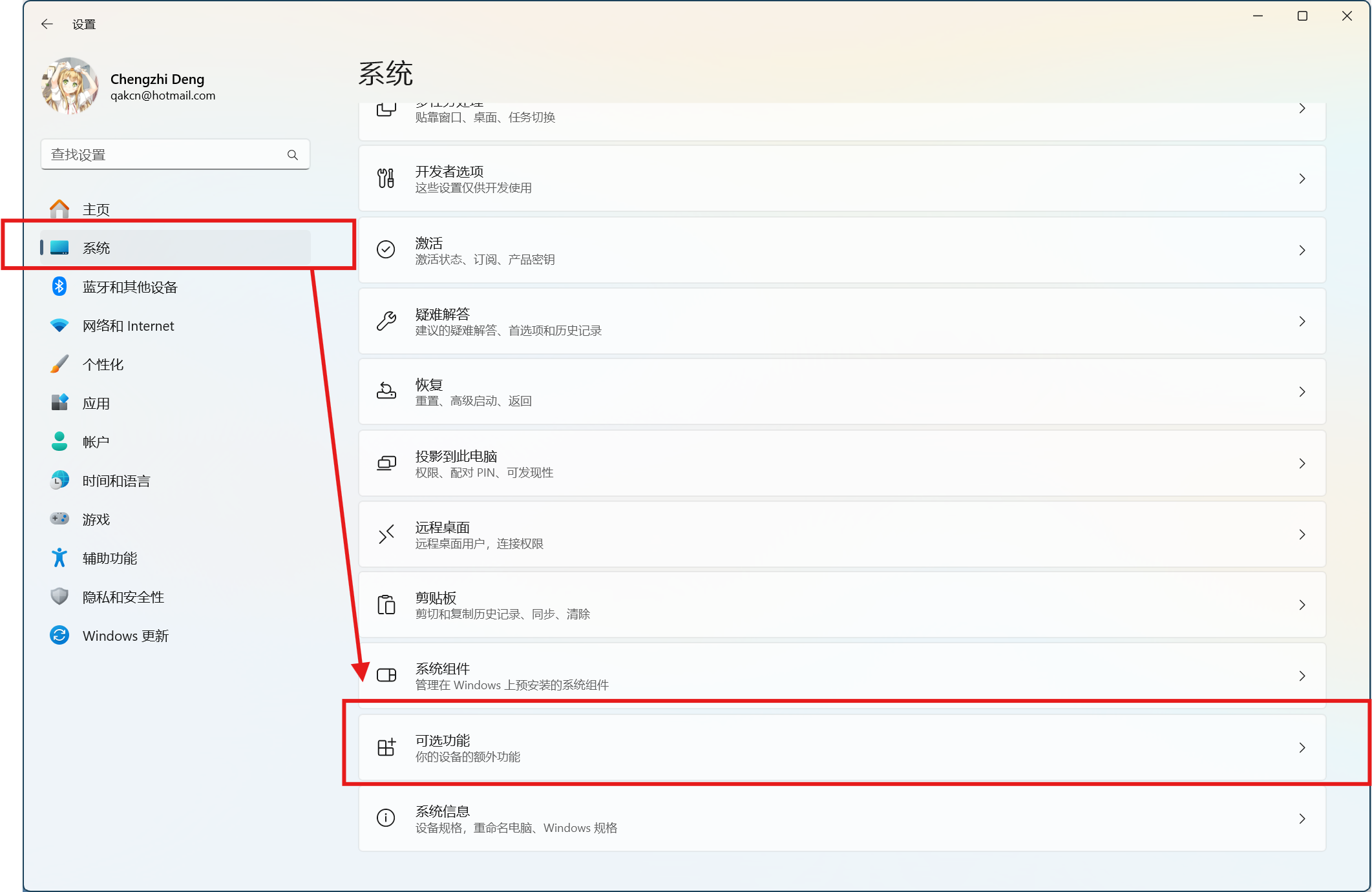
<p>首先，打开<strong>设置</strong>，选择<strong>系统</strong>，往下找到<strong>可选功能</strong>。</p>
<p><a class="wp-editor-md-post-content-link" href="https://uploads.tsukkomi.org/2025/06/屏幕截图-2025-06-26-000627.png"><img decoding="async" src="https://uploads.tsukkomi.org/2025/06/屏幕截图-2025-06-26-000627-250x163.png" alt="Windows 11 设置" /></a></p>
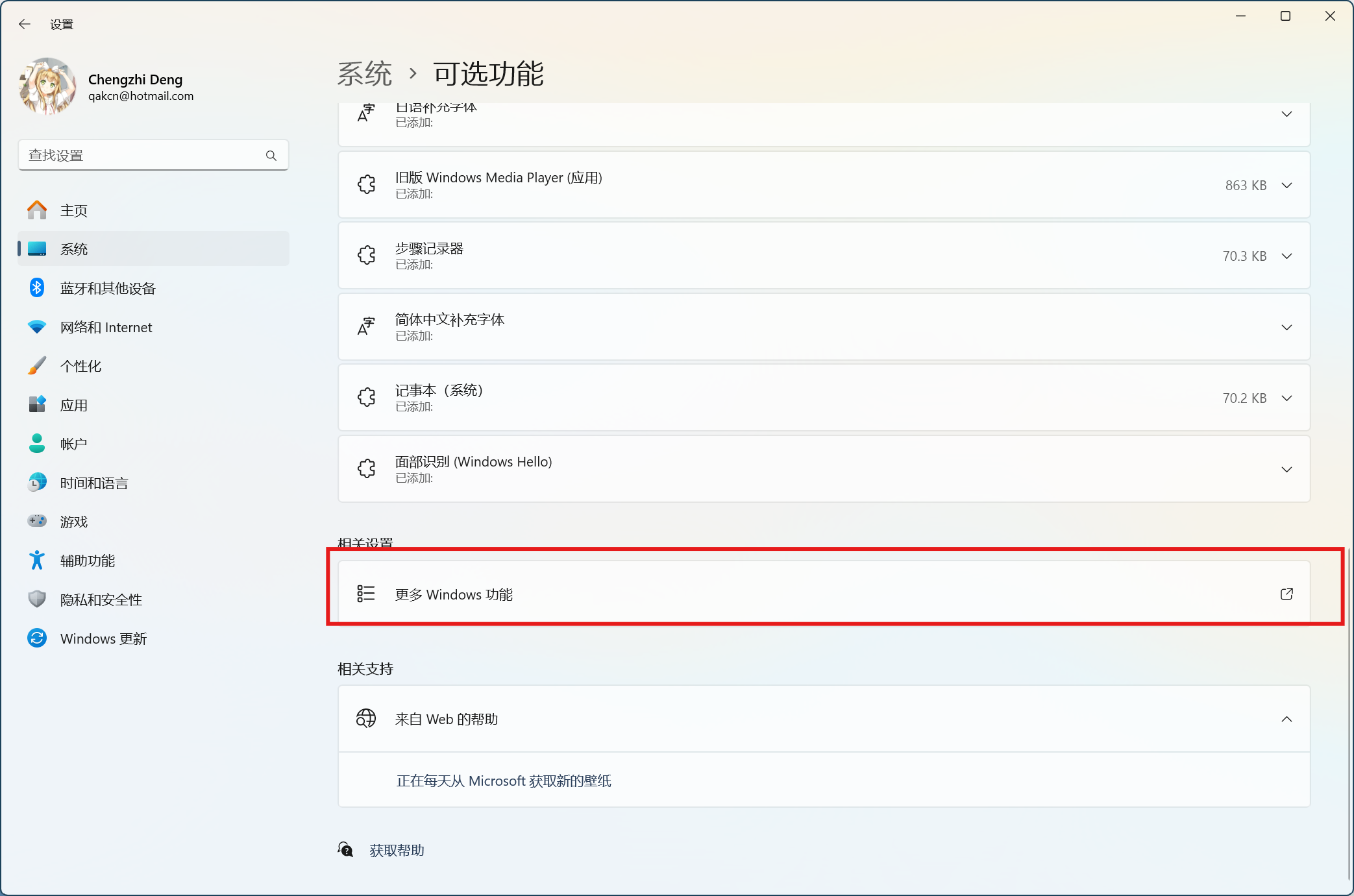
<p>然后在<strong>可选功能</strong>中，往下找到<strong>更多Windows功能</strong>。</p>
<p><a class="wp-editor-md-post-content-link" href="https://uploads.tsukkomi.org/2025/06/屏幕截图-2025-06-26-000701.png"><img decoding="async" src="https://uploads.tsukkomi.org/2025/06/屏幕截图-2025-06-26-000701-250x166.png" alt="Windows 11 可选功能" /></a></p>
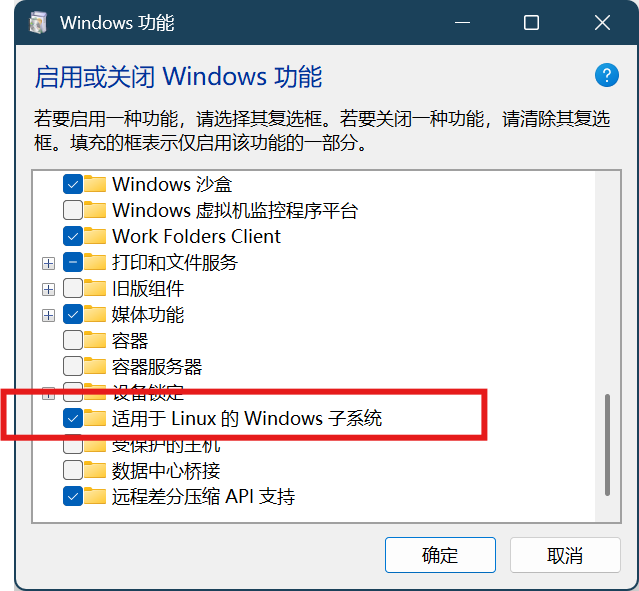
<p>在打开的<strong>Windows功能</strong>对话框中，往下找到<strong>适用于Linux的Windows子系统</strong>，<strong>勾选</strong>然后<strong>确定</strong>。</p>
<p><a class="wp-editor-md-post-content-link" href="https://uploads.tsukkomi.org/2025/06/屏幕截图-2025-06-26-000715.png"><img decoding="async" src="https://uploads.tsukkomi.org/2025/06/屏幕截图-2025-06-26-000715-250x231.png" alt="Windows 功能" /></a></p>
<p>安装好之后重启即可。</p>
<p>另外商店中也有<a class="wp-editor-md-post-content-link" href="https://www.microsoft.com/store/productId/9P9TQF7MRM4R">WSL的应用</a>，但不知道安装效果和上面的步骤一不一样，请自行尝试。Windows 10的启用方法请自行上网查找。</p>
<h2>在WSL中安装Ubuntu 24.04</h2>
<p>为了稳定，我们最好使用长期支持（Long Term Support，LTS）版本的系统，Ubuntu 24.04就是最新的LTS版本。下文中安装的是测试版ROCm，现在正式版ROCm 6.4.3的WSL支持只有Ubuntu 22.04 LTS，请自行举一反三。</p>
<p>首先打开PowerShell终端，可以在<strong>开始</strong>按钮上点右键，然后点击<strong>终端</strong>打开。会打开<strong>Windows Terminal</strong>终端应用，默认即PowerShell。</p>
<p>在打开的终端中输入如下命令，并回车<kbd>Enter</kbd>执行（如无特殊说明，命令都是回车执行，下面不再赘述）。</p>
<pre><code class="language-powershell line-numbers">wsl --update
</code></pre>
<p>如果之前安装使用过WSL，上面的命令就是确保WSL升级到最新版。</p>
<pre><code class="language-powershell line-numbers">wsl --set-default-version 2
</code></pre>
<p>这条命令是将WSL默认版本设为<code>2</code>，即<strong>WSL2</strong>。只有WSL2支持GPU应用，为了避免后期转换，直接设置安装时就使用WSL2。</p>
<p>接下来要安装Ubuntu 24.04。</p>
<pre><code class="language-powershell line-numbers">wsl --install Ubuntu-24.04
</code></pre>
<p>安装时会询问用户名和密码，按要求设置即可。</p>
<p>如果想安装其他版本或其它系统，可以用<code>wsl -l -o</code>来查看可以安装的发行版。安装好后用<code>wsl -l -v</code>可以查看当前安装的发行版。</p>
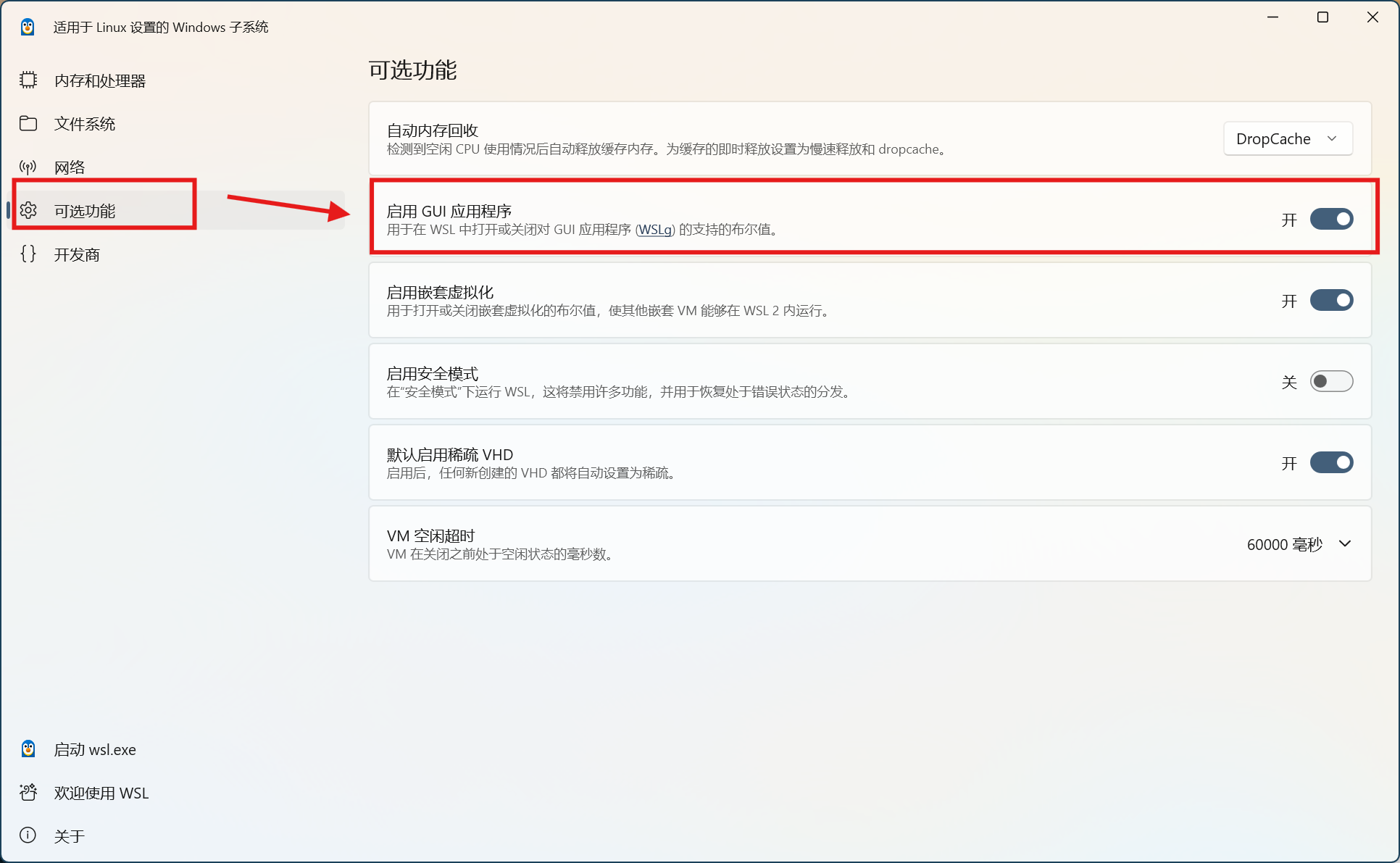
<p>另外，为了成功使用GPU应用，需要启用WSLg支持。在开始菜单中找到WSL Settings，并确保可选功能中的启用GUI应用程序打开（默认应该是启用的，如果出问题可以来检查设置）。</p>
<p><a class="wp-editor-md-post-content-link" href="https://uploads.tsukkomi.org/2025/06/屏幕截图-2025-06-26-002901.png"><img decoding="async" src="https://uploads.tsukkomi.org/2025/06/屏幕截图-2025-06-26-002901-250x154.png" alt="WSL设置" /></a></p>
<h2>安装后设置</h2>
<p>安装好之后，就可以在终端应用的新建窗口的下拉菜单中找到<strong>Ubuntu 24.04</strong>了。在<strong>开始菜单</strong>中也有对应的项目，可以直接打开。</p>
<p>下面的命令如无特殊说明，都是在Ubuntu 24.04下执行的。</p>
<h3>修改软件源并更新</h3>
<p>要将Ubuntu的系统软件源修改为国内镜像。使用如下命令打开软件源：</p>
<pre><code class="language-bash line-numbers">sudo vim /etc/apt/sources.list.d/ubuntu.sources
</code></pre>
<p>打开往下翻页会看到两处<code>URIs</code>设置，将两处<code>URIs</code>后的内容都改成<code>http://mirrors.tuna.tsinghua.edu.cn/ubuntu/</code>即可，其他行不要动。</p>
<p>关于Vim的操作方法，可以看<a class="wp-editor-md-post-content-link" href="/post/vim-brief-manual">Vim简易操作指南</a>。</p>
<p>修改好之后，进行更新。下面每行一条命令，每条命令执行完成后再执行下一条，后面多行命令如无特殊说明均如此。</p>
<pre><code class="language-bash line-numbers">sudo apt update
sudo apt dist-upgrade
</code></pre>
<h3>（可选）一些方便设置</h3>
<p>为了方便使用，可以安装一些软件包：</p>
<pre><code class="language-bash line-numbers">sudo apt install zsh git language-pack-zh-hans
</code></pre>
<p>分别安装了<strong>Zsh</strong>（一个好用的Shell）、<strong>Git</strong>（代码版本控制软件）和中文语言包。</p>
<p>安装语言包后需要重新设置<code>locales</code>包：</p>
<pre><code class="language-bash line-numbers">sudo dpkg-reconfigure locales
</code></pre>
<p>会弹出交互界面，在列表中找到<code>zh_CN.UTF8 UTF8</code>一项，按空格选中，然后按<kbd>Tab</kbd>切换到<code>OK</code>回车确认；再下一页选中<code>zh_CN.UTF8</code>，，然后按<kbd>Tab</kbd>切换到<code>OK</code>回车确认。等它配置完后重启终端即可。</p>
<p>为了能访问GitHub，需要给Git设置代理：</p>
<pre><code class="language-bash line-numbers">git config --global http.https://github.com.proxy "http://127.0.0.1:8080"
</code></pre>
<p><code>http://127.0.0.1:8080</code>这部分根据自己使用的代理设置，协议支持<code>http</code>、<code>https</code>和<code>socks5</code>。</p>
<p>为了Zsh更好用，可以安装配置框架<a class="wp-editor-md-post-content-link" href="https://ohmyz.sh/">Oh My Zsh</a>。</p>
<pre><code class="language-bash line-numbers">sh -c "$(wget https://raw.githubusercontent.com/ohmyzsh/ohmyzsh/master/tools/install.sh -O -)"
</code></pre>
<p>要设置Git的GitHub代理，否则有可能失败。安装好后会询问是否设置默认Shell为Zsh，确认即可。修改默认Shell之后，要关闭终端（标签页）再打开才能看到生效。</p>
<h2>安装AMD GPU驱动</h2>
<p>参考引用来源1（后续新版本可以到<a class="wp-editor-md-post-content-link" href="https://rocm.docs.amd.com/projects/install-on-linux/en/latest/install/quick-start.html#rocm-installation">此页面的ROCm installation一节</a>查看最新命令，请注意选择正确的Ubuntu版本以免后续出错），首先下载并安装AMD GPU驱动管理工具。</p>
<pre><code class="language-bash line-numbers">wget https://repo.radeon.com/amdgpu-install/6.4.1/ubuntu/noble/amdgpu-install_6.4.60401-1_all.deb
sudo apt install ./amdgpu-install_6.4.60401-1_all.deb
</code></pre>
<p>为了后续使用不出错，最好把当前用户加入<code>video</code>和<code>render</code>组：</p>
<pre><code class="language-bash line-numbers">sudo usermod -a -G render,video $LOGNAME
</code></pre>
<p>然后根据需要安装驱动，可以先列出用例。</p>
<pre><code class="language-bash line-numbers">amdgpu-install --list-usecase
</code></pre>
<p>然后安装所需要的用例。</p>
<pre><code class="language-bash line-numbers">amdgpu-install --usecase=wsl,rocm --no-dkms
</code></pre>
<p>因为是WSL下安装，所以需要安装<code>wsl</code>用例，并且要安装<code>rocm</code>用例，如果有其他需求可以参考上面列出的用例，用英文逗号<code>,</code>分隔。</p>
<p>装好之后可以用如下命令查看是否成功：</p>
<pre><code class="language-bash line-numbers">rocminfo
</code></pre>
<p>如果列出的内容中有正在使用的显卡（一般是在<code>Agent 2</code>下面），那么就表示成功了。</p>
<h2>卸载</h2>
<h3>卸载驱动</h3>
<p>在Ubuntu中执行命令即可。</p>
<pre><code class="language-bash line-numbers">amdgpu-uninstall
</code></pre>
<h3>删除WSL实例</h3>
<p>在PowerShell终端中执行命令即可。</p>
<pre><code class="language-powershell line-numbers">wsl --unregister Ubuntu-24.04
</code></pre>
<p>此处<code>Ubutu-24.04</code>是发行版名称，可以用<code>wsl -l -v</code>查看。</p>
<p>如果以后不再使用WSL，可以直接删除WSL。</p>
<pre><code class="language-powershell line-numbers">wsl --uninstall
</code></pre>
<h2>在WSL中使用PyTorch</h2>
<p>以下所有命令均在Ubuntu中执行。</p>
<h3>安装Miniconda</h3>
<p>这一步是为了方便管理虚拟环境，如果使用其他的虚拟环境管理工具，可以跳过。参考<a class="wp-editor-md-post-content-link" href="/post/guide-to-install-miniconda-on-linux-including-wsl">Linux（包括WSL）安装Miniconda教程</a>即可。</p>
<h3>创建新虚拟环境</h3>
<p>使用Miniconda创建一个虚拟环境。</p>
<pre><code class="language-bash line-numbers">conda create -n pytorch python
</code></pre>
<p><code>pytorch</code>是虚拟环境的名称，请自行设定。<code>python</code>表示初始安装Python包。</p>
<p>完成后激活虚拟环境，后面操作都是在激活的虚拟环境中进行。</p>
<pre><code class="language-bash line-numbers">conda activate pytorch
</code></pre>
<h3>安装PyTorch</h3>
<p>到<a class="wp-editor-md-post-content-link" href="https://pytorch.org/get-started/locally/">PyTorch官网页面</a>查看安装命令。下面是选择<strong>Preview (Nightly)</strong>（若稳定版支持新版ROCm了可以选择<strong>Stable</strong>）、<strong>Linux</strong>、<strong>Pip</strong>、<strong>Python</strong>、<strong>ROCm 6.4</strong>（若选择<strong>Stable</strong>后这个选项没有删除线且版本大于等于6.4则表示稳定版已经支持）的结果，理论上稳定版的ROCm 6.3应该也能运行。</p>
<pre><code class="language-bash line-numbers">pip3 install --pre torch torchvision torchaudio --index-url https://download.pytorch.org/whl/nightly/rocm6.4
</code></pre>
<p>根据提示等待安装成功。</p>
<h3>一些修正</h3>
<blockquote><p>
  2025年8月30日更新：最新的PyTorch版本和ROCm 6.4.3已经修正了此问题，若运行没有出错可以不用参考本节内容。
</p></blockquote>
<p>在引用来源2中提到，因为PyTorch自带的<em>libhsa</em>有问题，需要替换，但经过我的测试，直接删除即可。具体可以先用下一节的测试方法测试之后再来修正。</p>
<pre><code class="language-bash line-numbers">location=`pip show torch | grep Location | awk -F ": " '{print $2}'`
cd ${location}/torch/lib/
rm libhsa-runtime64.so*
</code></pre>
<p>如果要替换可以在上面的命令执行完后再执行一条：</p>
<pre><code class="language-bash line-numbers">cp /opt/rocm/lib/libhsa-runtime64.so.1.15.60401 libhsa-runtime64.so
</code></pre>
<p>这里文件名后的<code>1.15.60401</code>是库文件版本，根据自己的实际情况修改，可以用<kbd>Tab</kbd>键自动补全。</p>
<p>但这样还是有可能出错，因为Miniconda安装的Python自带的<code>libstdc++.so</code>可能太旧。用下一节的方法测试会提示如下错误：</p>
<pre><code class="language-none line-numbers">/home/qakcn/miniconda3/envs/pytorch/bin/../lib/libstdc++.so.6: version `GLIBCXX_
3.4.32' not found (required by /home/qakcn/miniconda3/envs/pytorch/lib/python3.1
3/site-packages/torch/lib/libhsa-runtime64.so)
</code></pre>
<p>一般系统自带的都是新的，所以我们这里也可以直接删除，根据上面提示的文件路径删除即可：</p>
<pre><code class="language-bash line-numbers">rm /home/qakcn/miniconda3/envs/pytorch/lib/libstdc++.so.6
</code></pre>
<p>这里的路径要根据实际情况修改。提示的文件名是<code>/home/qakcn/miniconda3/envs/pytorch/bin/../lib/libstdc++.so.6</code>，其中<code>..</code>表示上级目录，<code>/home/qakcn/miniconda3/envs/pyg/bin/</code>的上级目录就是<code>/home/qakcn/miniconda3/envs/pytorch/</code>，把<code>..</code>后的路径接上就行了。也可以直接定位到Miniconda安装目录的<code>envs/&lt;虚拟环境名&gt;/lib</code>目录下（可以直接使用环境变量<code>$CONDA_PREFIX</code>来获取）。</p>
<h3>测试PyTorch</h3>
<p>用下面几条命令验证PyTorch是否成功：</p>
<pre><code class="language-bash line-numbers">python3 -c 'import torch' 2&gt; /dev/null &amp;&amp; echo 'Success' || echo 'Failure'
python3 -c 'import torch; print(torch.cuda.is_available())'
python3 -c "import torch; print(f'device name [0]:', torch.cuda.get_device_name(0))"
</code></pre>
<p>第一条测试PyTorch是否安装成功，输出<code>Success</code>（成功）或<code>Failure</code>（失败）。第二条测试ROCm是否能成功调用，输出<code>True</code>（成功）或<code>False</code>（失败）。第三条测试调用的是否是AMD显卡，输出显卡型号名称。</p>
<p>下面再给出三个Python脚本，用于简单测试性能。</p>
<ol>
<li><code>flops.py</code></li>
</ol>
<pre><code class="language-python line-numbers">import torch
from torch.utils import benchmark

typ = torch.float16 # 可以修改成float32或float64来测试单精度或双精度浮点性能
n = 1024 * 16
a = torch.randn(n, n).type(typ).cuda()
b = torch.randn(n, n).type(typ).cuda()

t = benchmark.Timer(
      stmt='a @ b',
      globals={'a': a, 'b': b})

x = t.timeit(50)
print(2*n**3 / x.median /1e12) # 输出结果单位是TFLOPS
</code></pre>
<ol start="2">
<li><code>test.py</code></li>
</ol>
<pre><code class="language-python line-numbers">vimport time
import torch

# 测试gpu计算耗时
A = torch.ones(5000, 5000).to('cuda')
B = torch.ones(5000, 5000).to('cuda')
startTime2 = time.time()
for i in range(100):
    C = torch.matmul(A, B)
endTime2 = time.time()
print('gpu计算总时长:', round((endTime2 - startTime2) * 1000, 2), 'ms')

# 测试cpu计算耗时
A = torch.ones(5000, 5000)
B = torch.ones(5000, 5000)
startTime1 = time.time()
for i in range(100):
    C = torch.matmul(A, B)
endTime1 = time.time()
print('cpu计算总时长:', round((endTime1 - startTime1) * 1000, 2), 'ms')
</code></pre>
<ol start="3">
<li><code>testscript.py</code></li>
</ol>
<pre><code class="language-python line-numbers"># converted to convenient script form
# just run python -m testscript
# it should go without saying that you need a CUDA-enabled PyTorch installation before running this will work
# I mean, that's the whole point of this script, to test that very installation

# Imports
import time
import torch

# functions
def timeFun(f, dim, iterations, device='cpu'):
  iterations = iterations
  t_total = 0
  for _ in range(iterations):
    start = time.time()
    f(dim, device)
    end = time.time()
    t_total += end - start

  if device == 'cpu':
    print(f"time taken for {iterations} iterations of {f.__name__}({dim}, {device}): {t_total:.5f}")
  else:
    print(f"time taken for {iterations} iterations of {f.__name__}({dim}, {device}): {t_total:.5f}")

def set_device():
  device = "cuda" if torch.cuda.is_available() else "cpu"
  if device != "cuda":
    print("GPU is not available")
  else:
    print("GPU is available")

  return device

def simpleFun(dim, device):
  """
  Args:
    dim: integer
    device: "cpu" or "cuda"
  Returns:
    Nothing.
  """

  # 2D tensor filled with uniform random numbers in [0,1), dim x dim
  x = torch.rand(dim,dim,device=device) # don't use "to". just make it a cuda-native array (with device='cuda') and it'll go way faster because you'll be abolishing the transfer overhead!
  # 2D tensor filled with uniform random numbers in [0,1), dim x dim
  y = torch.rand_like(x,device=device)
  # 2D tensor filled with the scalar value 2, dim x dim
  z = 2*torch.ones_like(x,device=device)

  # elementwise multiplication of x and y
  a = x * y
  # matrix multiplication of x and y
  b = x @ y

  del x
  del y
  del z
  del a
  del b

# set device
DEVICE = set_device()

# params for timeFun
dim = 10000
iterations = 1

# test your GPU matrix multiplication against a CPU benchmark
timeFun(f=simpleFun, dim=dim, iterations=iterations, device='cpu')
timeFun(f=simpleFun, dim=dim, iterations=iterations, device=DEVICE)
</code></pre>
<div class='yarpp yarpp-related yarpp-related-rss yarpp-related-none yarpp-template-list'>
<p>没有相关文章。</p>
</div>
]]></content>
		
					<link rel="replies" type="text/html" href="https://tsukkomi.org/post/using-rocm-on-wsl-with-amd-radeon-rx-9070-xt#comments" thr:count="0" />
			<link rel="replies" type="application/atom+xml" href="https://tsukkomi.org/post/using-rocm-on-wsl-with-amd-radeon-rx-9070-xt/feed/atom" thr:count="0" />
			<thr:total>0</thr:total>
			</entry>
		<entry>
		<author>
			<name>qakcn</name>
							<uri>https://tsukkomi.org</uri>
						</author>

		<title type="html"><![CDATA[Linux（包括WSL）安装Miniconda教程]]></title>
		<link rel="alternate" type="text/html" href="https://tsukkomi.org/post/guide-to-install-miniconda-on-linux-including-wsl" />

		<id>https://tsukkomi.org/?p=3007</id>
		<updated>2025-11-24T18:24:08Z</updated>
		<published>2025-06-24T17:48:24Z</published>
		<category scheme="https://tsukkomi.org" term="技术宅" /><category scheme="https://tsukkomi.org" term="anaconda" /><category scheme="https://tsukkomi.org" term="conda" /><category scheme="https://tsukkomi.org" term="miniconda" /><category scheme="https://tsukkomi.org" term="Python" />
		<summary type="html"><![CDATA[首先确保已经阅读过Windows安装Miniconda教程（以下简称Windows篇）。有的内容不再赘述。 本教程适用于Linux平台，包括Windows Subsystem for Linux（WSL），下面是具体步骤。此方法亦可用于macOS命令行安装，注意下载对应文件即可。 下载和安装 同样，从镜像站点找到文件，但不用直接下载。 清华大学镜像：https://mirrors.tuna.tsi<div class='yarpp yarpp-related yarpp-related-rss yarpp-related-none yarpp-template-list'>

没有相关文章。
</div>
]]></summary>

					<content type="html" xml:base="https://tsukkomi.org/post/guide-to-install-miniconda-on-linux-including-wsl"><![CDATA[<p>首先确保已经阅读过<a class="wp-editor-md-post-content-link" href="/post/guide-to-install-miniconda-on-windows">Windows安装Miniconda教程</a>（以下简称<strong>Windows篇</strong>）。有的内容不再赘述。</p>
<p>本教程适用于Linux平台，包括Windows Subsystem for Linux（WSL），下面是具体步骤。此方法亦可用于macOS命令行安装，注意下载对应文件即可。</p>
<h2>下载和安装</h2>
<p>同样，从镜像站点找到文件，但不用直接下载。</p>
<p>清华大学镜像：<a href="https://mirrors.tuna.tsinghua.edu.cn/anaconda/">https://mirrors.tuna.tsinghua.edu.cn/anaconda/</a><br />
中国科技大学镜像：<a href="https://mirrors.ustc.edu.cn/anaconda/">https://mirrors.ustc.edu.cn/anaconda/</a></p>
<p>我们访问后点开其中的<code>miniconda</code>目录，其中大多数文件都是以<code>Miniconda3-&lt;Python版本&gt;_&lt;版本&gt;-&lt;系统&gt;-&lt;架构&gt;</code>来命名的。不知道选择什么版本，就找到最新版，其命名是<code>Miniconda3-latest-&lt;系统&gt;-&lt;架构&gt;</code>，比如下面示例的就是<code>Miniconda3-latest-Linux-x86_64.sh</code>，对应x86-64架构的Linux系统。</p>
<p>打开Linux的终端，输入如下命令安装，这里使用的是清华大学镜像，请自行替换成需要的镜像地址。</p>
<pre><code class="language-bash line-numbers">wget https://mirrors.tuna.tsinghua.edu.cn/anaconda/miniconda/Miniconda3-latest-Linux-x86_64.sh
bash ./Miniconda3-latest-Linux-x86_64.sh
</code></pre>
<p>注意是两条命令分别输入和回车执行。<code>wget</code>是下载文件，<code>bash</code>是执行shell脚本。<code>wget</code>这条命令也可以用<code>curl</code>命令来代替（如下），根据自己的系统和喜好选择。</p>
<pre><code class="language-bash line-numbers">curl -O https://mirrors.tuna.tsinghua.edu.cn/anaconda/miniconda/Miniconda3-latest-Linux-x86_64.sh
</code></pre>
<p>执行后，首先会提示查看授权协议（如下），按回车<kdb>Enter</kdb>继续即可。<code>&gt;&gt;&gt;</code>是提示符，表示此时需要用户输入。</p>
<pre><code class="language-none line-numbers">Welcome to Miniconda3 py313_25.3.1-1

In order to continue the installation process, please review the license
agreement.
Please, press ENTER to continue
&gt;&gt;&gt;
</code></pre>
<p>回车几次后，会提示是否接受协议（如下），输入<code>yes</code>后回车接受即可。</p>
<pre><code class="language-none line-numbers">Do you accept the license terms? [yes|no]
&gt;&gt;&gt;
</code></pre>
<p>然后会确认安装目录（如下），默认是用户的家目录，如果没有特殊需求，直接回车确认即可。</p>
<pre><code class="language-none line-numbers">Miniconda3 will now be installed into this location:
/home/qakcn/miniconda3

  - Press ENTER to confirm the location
  - Press CTRL-C to abort the installation
  - Or specify a different location below

[/home/qakcn/miniconda3] &gt;&gt;&gt;
</code></pre>
<p>最后，会提示是否注入当前shell（如下），如无特殊需求直接<code>yes</code>后回车确认即可。</p>
<pre><code class="language-none line-numbers">Do you wish to update your shell profile to automatically initialize conda?
This will activate conda on startup and change the command prompt when activated.
If you'd prefer that conda's base environment not be activated on startup,
   run the following command when conda is activated:

conda config --set auto_activate_base false

You can undo this by running `conda init --reverse $SHELL`? [yes|no]
[no] &gt;&gt;&gt;
</code></pre>
<p>关闭终端再打开，就可以看到出现<code>(base)</code>提示所处的虚拟环境为基础环境，此时就安装完成了。</p>
<h2>安装后配置</h2>
<h3><code>.condarc</code>配置</h3>
<p>直接使用文本编辑器打开<code>~/.condarc</code>即可，这里使用的是<code>vim</code>。</p>
<pre><code class="language-bash line-numbers">vim ~/.condarc
</code></pre>
<p>内容和<a class="wp-editor-md-post-content-link" href="/post/guide-to-install-miniconda-on-windows#condarc">Windows篇</a>中的一样，此处不再赘述。</p>
<h3>Oh My Zsh兼容性设置</h3>
<p>如果使用<code>zsh</code>作为shell并且使用了<a class="wp-editor-md-post-content-link" href="https://ohmyz.sh/"><strong>Oh My Zsh</strong></a>作为配置框架，会出现两个当前虚拟环境的提示符。</p>
<p>我们只要关闭Miniconda修改提示符的行为就行了，打开终端执行如下命令即可：</p>
<pre><code class="language-bash line-numbers">conda config --set changeps1 false
</code></pre>
<h2>卸载</h2>
<p>要卸载Miniconda3，首先还是打开终端。然后要反激活基础环境，确保所处环境提示是<code>base</code>，然后执行如下命令：</p>
<pre><code class="language-bash line-numbers">conda deactivate
</code></pre>
<p>然后直接执行安装目录下的<code>uninstall.sh</code>（下面是没有修改过安装位置的情况，如果修改过请替换为实际位置）。</p>
<pre><code class="language-bash line-numbers">~/miniconda3/uninstall.sh
</code></pre>
<p>接着会询问是否卸载（如下），输入<code>yes</code>后回车继续。</p>
<pre><code class="language-none line-numbers">Are you sure you want to remove /home/qakcn/miniconda3 and all of its contents?
[no] &gt;&gt;&gt;
</code></pre>
<p>等待卸载完成即可。</p>
<div class='yarpp yarpp-related yarpp-related-rss yarpp-related-none yarpp-template-list'>
<p>没有相关文章。</p>
</div>
]]></content>
		
					<link rel="replies" type="text/html" href="https://tsukkomi.org/post/guide-to-install-miniconda-on-linux-including-wsl#comments" thr:count="0" />
			<link rel="replies" type="application/atom+xml" href="https://tsukkomi.org/post/guide-to-install-miniconda-on-linux-including-wsl/feed/atom" thr:count="0" />
			<thr:total>0</thr:total>
			</entry>
		<entry>
		<author>
			<name>qakcn</name>
							<uri>https://tsukkomi.org</uri>
						</author>

		<title type="html"><![CDATA[Windows安装Miniconda教程]]></title>
		<link rel="alternate" type="text/html" href="https://tsukkomi.org/post/guide-to-install-miniconda-on-windows" />

		<id>https://tsukkomi.org/?p=3002</id>
		<updated>2025-06-24T19:05:55Z</updated>
		<published>2025-06-24T05:01:50Z</published>
		<category scheme="https://tsukkomi.org" term="技术宅" /><category scheme="https://tsukkomi.org" term="anaconda" /><category scheme="https://tsukkomi.org" term="conda" /><category scheme="https://tsukkomi.org" term="miniconda" /><category scheme="https://tsukkomi.org" term="Python" />
		<summary type="html"><![CDATA[Anaconda是一个用于科学计算的Python发行版，支持Linux, Mac, Windows，包含了众多流行的科学计算、数据分析的Python包。 Miniconda是Anaconda的精简版本，仅包含基础软件包和包管理器。因为平时用不到Anaconda的数据集，所以日常使用用Miniconda足够了。 PS：由于Anaconda软件包构建太复杂，PyTorch已经不再提供Anaconda支<div class='yarpp yarpp-related yarpp-related-rss yarpp-related-none yarpp-template-list'>

没有相关文章。
</div>
]]></summary>

					<content type="html" xml:base="https://tsukkomi.org/post/guide-to-install-miniconda-on-windows"><![CDATA[<p><strong>Anaconda</strong>是一个用于科学计算的Python发行版，支持Linux, Mac, Windows，包含了众多流行的科学计算、数据分析的Python包。</p>
<p><strong>Miniconda</strong>是Anaconda的精简版本，仅包含基础软件包和包管理器。因为平时用不到Anaconda的数据集，所以日常使用用Miniconda足够了。</p>
<p><em>PS</em>：由于Anaconda软件包构建太复杂，PyTorch已经不再提供Anaconda支持，但Anaconda仍然是一个好用的包管理器，也兼容pip安装的软件包，因此继续使用也没有问题。</p>
<p>下面是Windows下安装Miniconda的流程。</p>
<h2>下载</h2>
<p>官方站点太慢，不过好在国内不少机构提供了镜像，比如清华大学和中国科学技术大学。</p>
<p>清华大学镜像：<a href="https://mirrors.tuna.tsinghua.edu.cn/anaconda/">https://mirrors.tuna.tsinghua.edu.cn/anaconda/</a><br />
中国科技大学镜像：<a href="https://mirrors.ustc.edu.cn/anaconda/">https://mirrors.ustc.edu.cn/anaconda/</a></p>
<p>直接访问是Anaconda的整个镜像，我们访问后点开其中的<code>miniconda</code>目录，其中大多数文件都是以<code>Miniconda3-&lt;Python版本&gt;_&lt;版本&gt;-&lt;系统&gt;-&lt;架构&gt;</code>来命名的。如果不知道选择什么版本，下载默认最新版的就行了，其命名是<code>Miniconda3-latest-&lt;系统&gt;-&lt;架构&gt;</code>，比如今天要下载的就是<code>Miniconda3-latest-Windows-x86_64.exe</code>，对应64位Windows系统。</p>
<h2>安装</h2>
<p>下载完成后，直接双击运行安装即可。以下步骤没有特别说明就是点击<strong>Next</strong>下一步，授权许可直接<strong>I Agree</strong>。</p>
<p><strong>Select Installation Type</strong>页面是选择为当前用户安装（<strong>Just me</strong>)还是为所有用户安装（<strong>All Users</strong>），没有特殊需求就默认即可。</p>
<p><strong>Choose Install Location</strong>页面是选择安装位置，没有特殊需求也是默认即可。默认是安装在C盘的用户目录下。要注意，如果你之前装过旧版，要卸载之后才能安装。</p>
<p><strong>Advanced Installation Options</strong>页面时选择一些安装选项。默认是勾选<strong>Create shortcuts (supported packages only)</strong>（添加快捷方式），下面三个选项<strong>Add Miniconda3 to my PATH environment variable</strong>（添加到PATH环境变量）、<strong>Register Miniconda 3 as my default Python 3.13</strong>（注册为默认Python）、<strong>Clear the package cache upon completion</strong>（完成后清理缓存），我的建议是都勾选上。虽然安装程序的说明文字里第二个选项是<em>NOT recommended</em>（不推荐），但如果你不打算使用其他Python环境，可以勾选上，第三个选项也是一样的。然后点<strong>Install</strong>开始安装。</p>
<p>接下来等待安装完成即可。中途会弹出一些窗口，不用管。</p>
<p>最后点<strong>Finish</strong>即可，上面的选项是网页文档，勾选就会打开网页，不想看就取消勾选。</p>
<h2>安装后配置</h2>
<p>安装好后就可以使用了，但为了用着舒服，还要做一些工作。</p>
<p>首先是注册到终端环境，我们要打开终端。Windows 11是在<strong>开始</strong>按钮上点右键，选择<strong>终端</strong>。</p>
<p>Windows 10也可以在<strong>开始</strong>按钮上点右键然后打开<strong>Windows Powershell</strong>，但这个并不好用。我们需要安装微软出的一个终端软件，叫<strong>Windows Terminal</strong>（其实Windows 11上的默认终端就是这个），我们可以在微软商店里找到并安装（<a href="https://apps.microsoft.com/detail/9N0DX20HK701">https://apps.microsoft.com/detail/9N0DX20HK701</a>）。安装之后在开始菜单里找到<strong>终端</strong>并打开。</p>
<p>如果前面安装时勾选了<strong>Add Miniconda3 to my PATH environment variable</strong>（添加到PATH环境变量），就可以直接在打开的终端里运行<code>conda</code>命令。没有的话需要输入完整路径（就是前面安装位置下的<code>condabin\conda.bat</code>）来运行。下面的命令都是默认勾选了的。</p>
<p>我们可以用如下命令来检查Miniconda能否正确执行：</p>
<pre><code class="language-powershell line-numbers">conda --version
</code></pre>
<p>运行后会显示当前安装的Miniconda版本。</p>
<p>为了方便使用，我们需要注入到shell中，执行如下命令即可：</p>
<pre><code class="language-powershell line-numbers">conda init
</code></pre>
<p>执行成功后，会提示你<code>==&gt; For changes to take effect, close and re-open your current shell. &lt;==</code>，我们需要关闭并重新打开终端。如果在终端中的命令提示符出现了<code>(base)</code>字样，就说明注入成功了。这个<code>(base)</code>说明我们在基础环境中。我们安装自己的软件包最好是新建虚拟环境，不要安装在基础环境中，搞脏了可不好清理。</p>
<h3><code>.condarc</code>配置</h3>
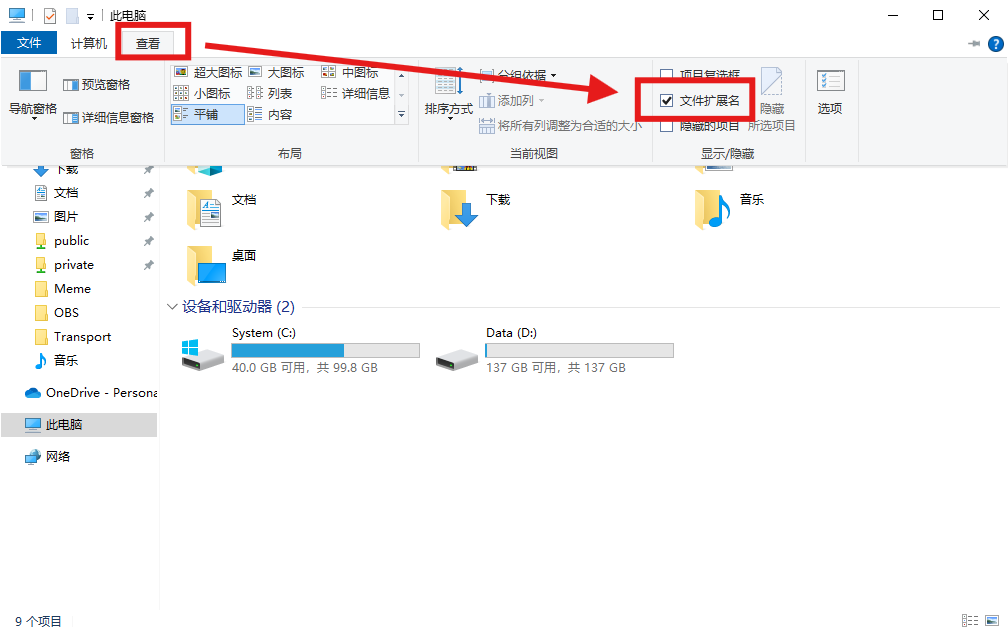
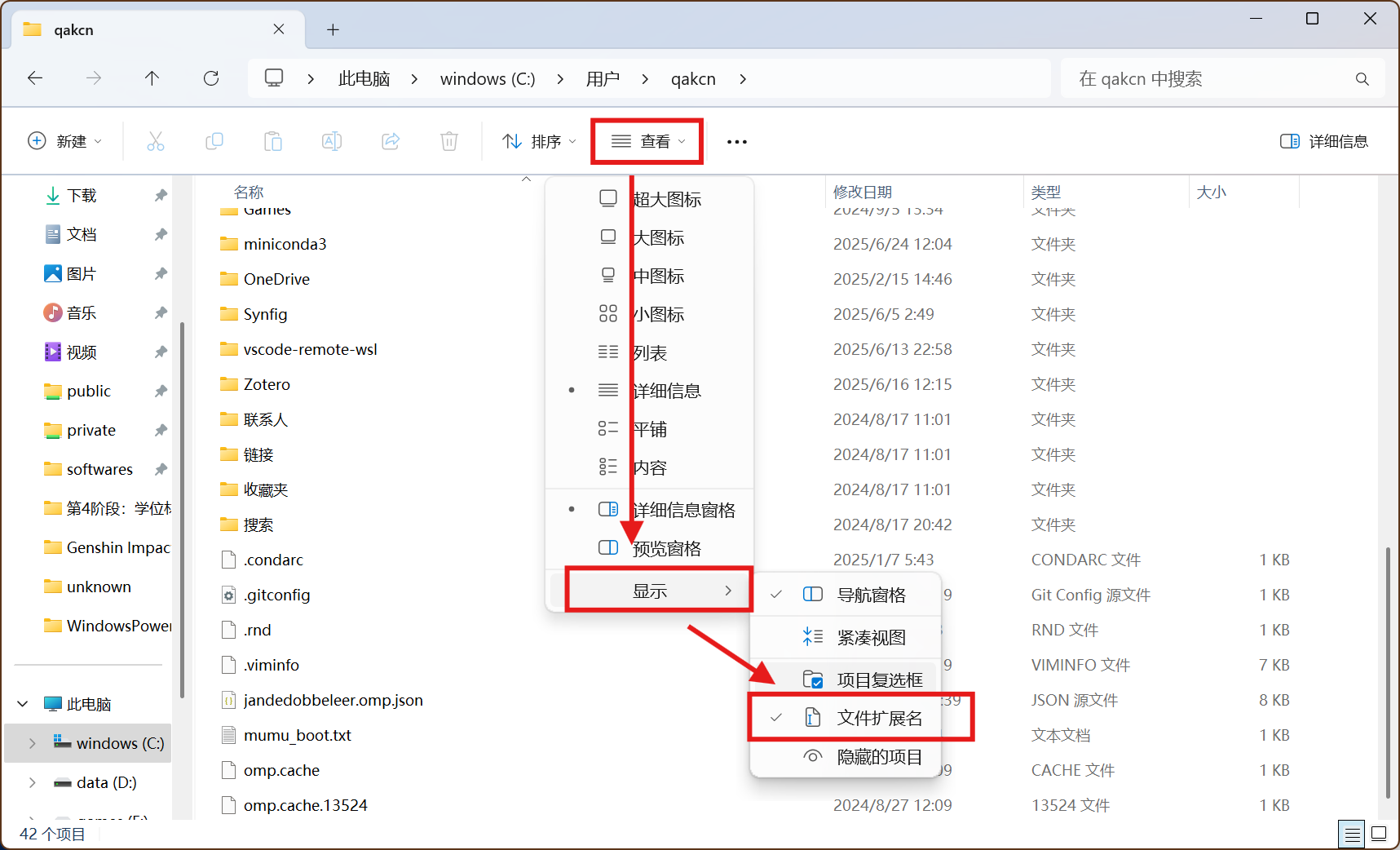
<p>我们需要配置让Miniconda从国内镜像获取软件包，而不是去访问国外官网。这需要在用户目录下的<code>.condarc</code>文件来实现。我们可以在文件管理器的地址栏输入<code>%USERPROFILE%</code>来打开用户目录，如果目录下没有<code>.condarc</code>需要自己新建。新建一个<strong>文本文档</strong>并重命名为<code>.condarc</code>，注意这里要把文本文档的扩展名<code>.txt</code>删去。如果看不到扩展名，需要设置一下（Windows 11：<strong>查看</strong>-><strong>显示</strong>->勾选<strong>文件扩展名</strong>，如下图1；Windows 10：<strong>查看</strong>->勾选<strong>文件扩展名</strong>，如下图2）。</p>
<p><a class="wp-editor-md-post-content-link" href="https://uploads.tsukkomi.org/2025/06/屏幕截图-2025-06-24-123210.png"><img decoding="async" src="https://uploads.tsukkomi.org/2025/06/屏幕截图-2025-06-24-123210-250x152.png" alt="Windows 11设置显示文件扩展名" /></a></p>
<p><a class="wp-editor-md-post-content-link" href="https://uploads.tsukkomi.org/2025/06/屏幕截图-2025-06-24-123540.png"><img decoding="async" src="https://uploads.tsukkomi.org/2025/06/屏幕截图-2025-06-24-123540-250x157.png" alt="Windows 10设置显示文件扩展名" /></a></p>
<p>然后使用文本编辑器打开<code>.condarc</code>（推荐使用Visual Studio Code）。添加如下内容：</p>
<pre><code class="language-yaml line-numbers">channels:
  - conda-forge
  - defaults
show_channel_urls: true

channel_alias: https://mirrors.tuna.tsinghua.edu.cn/anaconda
default_channels:
  - https://mirrors.tuna.tsinghua.edu.cn/anaconda/pkgs/main
  - https://mirrors.tuna.tsinghua.edu.cn/anaconda/pkgs/r
  - https://mirrors.tuna.tsinghua.edu.cn/anaconda/pkgs/msys2
custom_channels:
  conda-forge: https://mirrors.tuna.tsinghua.edu.cn/anaconda/cloud
  msys2: https://mirrors.tuna.tsinghua.edu.cn/anaconda/cloud
  bioconda: https://mirrors.tuna.tsinghua.edu.cn/anaconda/cloud
  menpo: https://mirrors.tuna.tsinghua.edu.cn/anaconda/cloud
  simpleitk: https://mirrors.tuna.tsinghua.edu.cn/anaconda/cloud
</code></pre>
<p>这里使用的清华大学的镜像，如果要使用别的镜像，请自行更改对应的域名。</p>
<p><code>channels</code>下是默认使用的channel，因为<code>defaults</code>下有的包较旧，所以这里添加了<code>conda-forge</code>，如果不想默认安装最新的，可以把这行删掉。</p>
<p><code>show_channel_urls</code>是默认显示URL，以便看出使用的是哪个源。</p>
<p><code>channel_alias</code>这行不重要，可以删去。</p>
<p><code>default_channels</code>下是默认channel的地址。</p>
<p><code>custom_channels</code>下是自定义channel的地址，根据自己的需要添加或删除。可以直接去镜像的<code>cloud</code>目录对应地址（如<a href="https://mirrors.tuna.tsinghua.edu.cn/anaconda/cloud">https://mirrors.tuna.tsinghua.edu.cn/anaconda/cloud</a>）看有哪些channel可用（不是所有镜像都会有所有channel，比如中国科技大学的镜像就只有<code>bioconda</code>和<code>conda-forge</code>）。</p>
<h3>Oh My Posh兼容性设置</h3>
<p>如果给PowerShell使用过<a class="wp-editor-md-post-content-link" href="https://ohmyposh.dev/"><strong>Oh My Posh</strong></a>配置框架，可能会出现两个当前环境提示的情况。</p>
<p>我们只要关闭Miniconda修改提示符的行为就行了，打开终端执行如下命令即可：</p>
<pre><code class="language-powershell line-numbers">conda config --set changeps1 false
</code></pre>
<h2>卸载</h2>
<p>卸载很简单，直接到系统设置安装的应用里找到Miniconda并卸载即可。也可以去安装位置找到<code>Uninstall-Miniconda3.exe</code>运行。卸载时会询问是否删除配置文件等。如果你卸载是为了装新版本，就不要删除配置文件；如果是彻底不用了，那就删除。</p>
<div class='yarpp yarpp-related yarpp-related-rss yarpp-related-none yarpp-template-list'>
<p>没有相关文章。</p>
</div>
]]></content>
		
					<link rel="replies" type="text/html" href="https://tsukkomi.org/post/guide-to-install-miniconda-on-windows#comments" thr:count="0" />
			<link rel="replies" type="application/atom+xml" href="https://tsukkomi.org/post/guide-to-install-miniconda-on-windows/feed/atom" thr:count="0" />
			<thr:total>0</thr:total>
			</entry>
		<entry>
		<author>
			<name>qakcn</name>
							<uri>https://tsukkomi.org</uri>
						</author>

		<title type="html"><![CDATA[新主题Donovan的一些修改]]></title>
		<link rel="alternate" type="text/html" href="https://tsukkomi.org/post/some-modifications-for-new-theme-donovan" />

		<id>https://tsukkomi.org/?p=2911</id>
		<updated>2025-06-04T07:06:58Z</updated>
		<published>2025-06-03T11:26:32Z</published>
		<category scheme="https://tsukkomi.org" term="技术宅" /><category scheme="https://tsukkomi.org" term="站务" /><category scheme="https://tsukkomi.org" term="CSS" /><category scheme="https://tsukkomi.org" term="HTML" /><category scheme="https://tsukkomi.org" term="JavaScript" /><category scheme="https://tsukkomi.org" term="WordPress" /><category scheme="https://tsukkomi.org" term="WordPress主题" /><category scheme="https://tsukkomi.org" term="WordPress插件" />
		<summary type="html"><![CDATA[之前说的新主题，使用了一段事件之后，发现还是有很多地方不满意，干脆做了个子主题，这样修改方便灵活，还不会影响原主题。下面列出一些修改的地方，以供参考。 增加 页面模板 增加了一个页面模板，应用到了存档页面。页面中列出了分类、标签和按年月的归档。 引用信息 在文章底部的元信息中，增加了引用来源。本文下有示例。 地理位置 在文章底部的元信息中，增加了地理位置信息，由于使用的Google地图API是很多<div class='yarpp yarpp-related yarpp-related-rss yarpp-related-none yarpp-template-list'>

没有相关文章。
</div>
]]></summary>

					<content type="html" xml:base="https://tsukkomi.org/post/some-modifications-for-new-theme-donovan"><![CDATA[<p><a class="wp-editor-md-post-content-link" href="new-theme-and-new-plugins-on-may-10th-2025">之前说的新主题</a>，使用了一段事件之后，发现还是有很多地方不满意，干脆做了个子主题，这样修改方便灵活，还不会影响原主题。下面列出一些修改的地方，以供参考。</p>
<h2>增加</h2>
<h3>页面模板</h3>
<p>增加了一个页面模板，应用到了<a class="wp-editor-md-post-content-link" href="/archives">存档</a>页面。页面中列出了分类、标签和按年月的归档。</p>
<h3>引用信息</h3>
<p>在文章底部的元信息中，增加了引用来源。本文下有示例。</p>
<h3>地理位置</h3>
<p>在文章底部的元信息中，增加了地理位置信息<del datetime="2025-06-04T15:06:13+08:00">，由于使用的Google地图API是很多年以前的，没有验证有效性，后期会进行验证</del>。<ins datetime="2025-06-04T15:06:13+08:00">原来代码中的Google Maps API已经失效，经过研究后已更换新的版本，并增加了国内地图服务（高德地图、百度地图、腾讯地图）的API链接，图标还在绘制中，不日放出。</ins>本文下有示例。</p>
<h3>全局按钮</h3>
<p>增加了提高用户体验的全局按钮，位置位于右下角。有用于返回页面顶部的按钮<ins datetime="2025-06-04T15:06:13+08:00">、跳转到评论区的按钮</ins>和搜索按钮<ins datetime="2025-06-04T15:06:13+08:00">，还有页面内跳转的返回按钮</ins>。搜索按钮悬停或点击后会展开搜索框，输入内容后按回车进行搜索。</p>
<p>还有其他按钮会随着其他功能的使用而显示/隐藏。</p>
<h3>图片懒加载</h3>
<p>给文中图片加入了图片懒加载的功能，可以在需要展示时才显示图片，加快页面访问速度。</p>
<h3>图片查看</h3>
<p>给文中图片链接加入了图片查看功能，可以不离开当前页面查看图片。图片查看界面背景是一个黑色蒙版，并对当前页面做了高斯模糊处理，可以使用鼠标拖动和用滚轮缩放。点击空白区域或页面右下角（全局按钮位置）的关闭按钮会隐藏图片查看界面。</p>
<p>示例：</p>
<p><a class="wp-editor-md-post-content-link" href="https://uploads.tsukkomi.org/2012/09/sakurasou.png"><img decoding="async" src="https://uploads.tsukkomi.org/2012/09/sakurasou-192x250.png" alt="樱花庄的宠物女孩" /></a></p>
<h3>域外链接提示</h3>
<p>给非本站的链接后加入了一个小图标，并在新窗口中打开。站内链接仍然是直接在当前页面跳转。</p>
<p>示例：<a class="wp-editor-md-post-content-link" href="https://cn.bing.com">必应搜索</a></p>
<h2>修改</h2>
<p>包括对一些插件的修改一并列在此处。</p>
<h3>字体</h3>
<p>全面采用了思源系列字体，包括<em>思源黑体</em>（<em>Noto Sans CJK SC</em>）、<em>思源宋体</em>（<em>Noto Serif CJK SC</em>）以及<em>等宽思源黑体</em>（<em>Noto Sans Mono CJK SC</em>）。</p>
<p>为了达到最佳显示效果，使用了网络字体。使用<a class="wp-editor-md-post-content-link" href="https://chinese-font.netlify.app/">中文网字计划</a>的<a class="wp-editor-md-post-content-link" href="https://chinese-font.netlify.app/zh-cn/online-split/">在线字体分包器</a>（<a class="wp-editor-md-post-content-link" href="https://github.com/KonghaYao/cn-font-split">GitHub</a>）进行了字体切分，将对应不同编码的字体分割进不同文件，在需要时才会加载，以达到效果和速度的平衡。</p>
<h3>搜索框</h3>
<p>由于原主题的搜索框翻译有大问题（莫名出现错误字符），而且也不符合我的要求，故做了点小修改，将搜索框提示文字替换成<em>输入内容后按回车搜索</em>。</p>
<h3>一些样式修正</h3>
<ul>
<li>调整了一些标签的样式。示例如下：
<ul>
<li><code>&lt;b&gt;</code>：<b>加粗但不强调</b></li>
<li><code>&lt;strong&gt;</code>：<strong>加粗并强调</strong></li>
<li><code>&lt;i&gt;</code>：<i>斜体但不强调</i></li>
<li><code>&lt;em&gt;</code>：<em>斜体并强调</em></li>
<li><code>&lt;del&gt;</code>：<del>标记编辑删除</del></li>
<li><code>&lt;ins&gt;</code>：<ins>标记编辑插入</ins></li>
</ul>
</li>
<li>给<code>&lt;kbd&gt;</code>元素加上了框。示例：<kbd>T</kbd>。</p>
</li>
<li>
<p>给存档页标签云的标签两端加上了双星（⁑），以方便区隔。</p>
</li>
<li>
<p>因为主题不做区分地给所有<code>.comment</code>类加上样式（实际上只需要给评论区的类加上就行），和<em>PrismJS</em>给代码生成的高亮样式冲突，做了修正。</p>
</li>
<li>
<p>给<code>&lt;code&gt;</code>元素加上了背景，以和正文做区分。</p>
</li>
<li>
<p>给文章特色图片加了居中效果，原主题是左对齐的。示例在本文上方。</p>
</li>
<li>
<p>使用<em>imwptip</em>来给文章加上付费赞赏功能，对其样式进行了修改（使用主题的颜色，去掉圆角）。</p>
</li>
<li>
<p>使用<em>Yet Another Related Posts Plugin</em>（<abbr>YARPP</abbr>）来实现相关文章列表功能，对其样式进行了修改（去掉加粗）。</p>
</li>
</ul>
<p>相关的源代码，会在以后整理放出，以便需要的朋友自己操作。</p>
<div class='yarpp yarpp-related yarpp-related-rss yarpp-related-none yarpp-template-list'>
<p>没有相关文章。</p>
</div>
]]></content>
		
					<link rel="replies" type="text/html" href="https://tsukkomi.org/post/some-modifications-for-new-theme-donovan#comments" thr:count="0" />
			<link rel="replies" type="application/atom+xml" href="https://tsukkomi.org/post/some-modifications-for-new-theme-donovan/feed/atom" thr:count="0" />
			<thr:total>0</thr:total>
			</entry>
		<entry>
		<author>
			<name>qakcn</name>
							<uri>https://tsukkomi.org</uri>
						</author>

		<title type="html"><![CDATA[20种不同语言的“Hello, World!”_2025.05版]]></title>
		<link rel="alternate" type="text/html" href="https://tsukkomi.org/post/hello-world-programming-in-20-languages-ver-2025-05" />

		<id>https://tsukkomi.org/?p=2794</id>
		<updated>2025-12-31T06:12:24Z</updated>
		<published>2025-05-12T04:38:06Z</published>
		<category scheme="https://tsukkomi.org" term="技术宅" /><category scheme="https://tsukkomi.org" term="Ada" /><category scheme="https://tsukkomi.org" term="Basic" /><category scheme="https://tsukkomi.org" term="C" /><category scheme="https://tsukkomi.org" term="COBOL" /><category scheme="https://tsukkomi.org" term="Delphi" /><category scheme="https://tsukkomi.org" term="Fortran" /><category scheme="https://tsukkomi.org" term="Golang" /><category scheme="https://tsukkomi.org" term="Java" /><category scheme="https://tsukkomi.org" term="JavaScript" /><category scheme="https://tsukkomi.org" term="MATLAB" /><category scheme="https://tsukkomi.org" term="Object Pascal" /><category scheme="https://tsukkomi.org" term="Pascal" /><category scheme="https://tsukkomi.org" term="Perl" /><category scheme="https://tsukkomi.org" term="PHP" /><category scheme="https://tsukkomi.org" term="Python" /><category scheme="https://tsukkomi.org" term="R" /><category scheme="https://tsukkomi.org" term="Rust" /><category scheme="https://tsukkomi.org" term="Scratch" /><category scheme="https://tsukkomi.org" term="SQL" /><category scheme="https://tsukkomi.org" term="Visual Basic" /><category scheme="https://tsukkomi.org" term="汇编" /><category scheme="https://tsukkomi.org" term="编程" />
		<summary type="html"><![CDATA[多年前，写过一篇20种不同语言的“Hello, World!”（以下简称上一版），依据的是当时的TIOBE排名。时过境迁，如今流行的程序语言已经大不相同，因此今天更新一版。 以下依据TIOBE Index的2025年5月排名。 Python 上一版排名：6 ↑ 上一版中，Python还排在第6位，但随着人工智能、机器学习的兴起，被人戏称为“胶水语言”的Python，却实实在在地粘合起了计算机科学的<div class='yarpp yarpp-related yarpp-related-rss yarpp-related-none yarpp-template-list'>

没有相关文章。
</div>
]]></summary>

					<content type="html" xml:base="https://tsukkomi.org/post/hello-world-programming-in-20-languages-ver-2025-05"><![CDATA[<p>多年前，写过一篇<a class="wp-editor-md-post-content-link" href="/post/hello-world-programming-in-20-languages">20种不同语言的“Hello, World!”</a>（以下简称<strong>上一版</strong>），依据的是当时的TIOBE排名。时过境迁，如今流行的程序语言已经大不相同，因此今天更新一版。</p>
<p>以下依据<a class="wp-editor-md-post-content-link" href="https://www.tiobe.com/tiobe-index/">TIOBE Index</a>的2025年5月排名。</p>
<h2>Python</h2>
<p><strong>上一版排名</strong>：6 ↑</p>
<p>上一版中，Python还排在第6位，但随着人工智能、机器学习的兴起，被人戏称为“胶水语言”的Python，却实实在在地粘合起了计算机科学的最前沿。作为强大简洁的代表语言，我决定保留上一版的代码：</p>
<pre><code class="language-python line-numbers">#!/path/to/python
print "Hello, World!"
</code></pre>
<h2>C++</h2>
<p><strong>上一版排名</strong>：3 ↓</p>
<p>作为编程语言的常青树，C++、C和Java三雄常年盘踞在排行版前列，若不是近年来被人工智能常用的Python抢了风头，这第一估计还是这三者之一。Python再牛，背后不还是C和C++么。相比上一版，C++的排名还上升了1位呢。和上一版的不同，这次来点儿花活（不建议在正式项目中使用）。</p>
<pre><code class="language-cpp line-numbers">#include &lt;unistd.h&gt;

int main() {
    const char msg[] = "Hello, World!\n";
    syscall(1, 1, msg, sizeof(msg)-1);
}
</code></pre>
<h2>C</h2>
<p><strong>上一版排名</strong>：2 ↓</p>
<p>C也没啥好说的了，和上一版相比下降了1位。这次也来段花的。因为也利用了编译器内置的系统调用，所以同样不建议用于正式项目。</p>
<pre><code class="language-c line-numbers">// 无头文件版本
#define SYS_write 1
#define STDOUT_FILENO 1

int main() {
    const char msg[] = "Hello, World!\n";

    __syscall(SYS_write, STDOUT_FILENO, msg, sizeof(msg)-1);
}
</code></pre>
<h2>Java</h2>
<p><strong>上一版排名</strong>：1 ↓</p>
<p>Java虽然在企业开发中很有市场，但相对Python来说太“重”了，因此这些版本的Java一直在试图引入一些简化的特性，但经过四个版本了（Java 21到Java 25）还在预览。但“你升任你升，我用Java 8”，相比上一版，Java足足掉了3位。今天就来尝尝鲜，下面的只适用于Java 21以后的预览特性。可以看到类被省略了，<code>main</code>函数的声明也被简化了。</p>
<pre><code class="language-java line-numbers">void main() {
   System.out.println("Hello, World!");
}
</code></pre>
<h2>C♯</h2>
<p><strong>上一版排名</strong>：5 =</p>
<p>由于微软的大力推广，相比上一版，C♯位次没有变化，非常稳。其实C♯后面的并不是井号，而是音乐里的升调符号，读作sharp，但因为特殊字符不好输入，大家都用<code>#</code>来代替了，连微软自己都用弃疗了。为了尊重稳定的C♯，代码也保留上一版的吧。</p>
<pre><code class="language-csharp line-numbers">public class HelloWorld {
    public static void Main() {
        System.Console.WriteLine("Hello, World!");
    }
}
</code></pre>
<h2>JavaScript</h2>
<p><strong>上一版排名</strong>：11 ↑</p>
<p>这几年移动互联网发展，再加上后端开发的兴起，使得JavaScript（或者更准确地说是ECMAScript）得到了很大发展，不仅语言加入了很多新特性，也诞生出了很多知名框架，如React、Vue。和上一版相比，JavaScript足足提升了5位！下面的代码只是上一版小改，并没有使用什么新特性。</p>
<pre><code class="language-js line-numbers">document.write('Hello, World!')
</code></pre>
<h2>Go</h2>
<p><strong>上一版排名</strong>：>20 ※</p>
<p>作为Google搞出来的语言，上一版还没有进入前20，只是附加选手，这次就到第7位了。作为觊觎C/C++和Java地位的新兴语言，Go可谓风头正劲。下面和上一版相比也只是改了下中文字符。</p>
<pre><code class="language-go line-numbers">package main

import "fmt"

func main() {
  fmt.Println("Hello, World!")
}
</code></pre>
<h2>Visual Basic</h2>
<p><strong>上一版排名</strong>：7 ↓</p>
<p>令人震惊，这门已经停止发展的语言（最后一版是VB 6.0，后面的VB.NET完全是另一门语言）居然还能保持如此高位，甚至相比上一版仅仅下降1位。上一版代码是用弹出窗口输出，这次换一种方式吧。注意这段单吗并不能单独运行，还需要很多外围工作。</p>
<pre><code class="language-vb line-numbers">Private Sub Form_Load()
Print "Hello, World!"
End Sub
</code></pre>
<h2>Delphi/Object Pascal</h2>
<p><strong>上一版排名</strong>：12 ↑</p>
<p>另一门同样令人震惊的语言，也是停止发展（开发的公司Borland甚至已经不在了），但相比上一般竟然还提升了3位，实在令人匪夷所思。Pascal作为我第一门系统学习的编程语言，我对它还是有些特殊感情的，后面再来研究一下吧。</p>
<pre><code class="language-pascal line-numbers">Program Hello_World;

{$APPTYPE CONSOLE}

Begin
  WriteLn('Hello, World!');
End.
</code></pre>
<h2>SQL</h2>
<p><strong>上一版排名</strong>：未知 ※</p>
<p>上一版中上榜的是两种特定的SQL语言——第14位的<em>Transact-SQL</em>和第20位的<em>PL/SQL</em>。而这次，作为大多数关系型数据中使用的通用语言，SQL在多种应用开发中都会用到，所以即使不是专门做数据库开发的，也会略懂一二。多的不说，继续“选择”吧。</p>
<pre><code class="language-sql line-numbers">SELECT "Hello, World!";
</code></pre>
<h2>Fortran</h2>
<p><strong>上一版排名</strong>：>20 ※</p>
<p>这是一门非常古老的语言，甚至比在坐的绝大多数语言都要古老，古老到可以拿下“第一种高级编程语言”的名号。近年来，在数值计算、高性能计算等领域发挥了新的魅力。得益于Fortran相比Python更高的性能和比MATLAB更低的成本，在数值计算领域成为了更多人的首选。下面是一段Fortran 90的代码。</p>
<pre><code class="language-fortran line-numbers">PROGRAM HelloWorld
     WRITE(*,*)  "Hello, World!"
END PROGRAM
</code></pre>
<h2>R</h2>
<p><strong>上一版排名</strong>：>20 ※</p>
<p>虽然被Python夺去了不少份额，但在统计领域，R语言仍然是第一选则。特别是在学术领域，R语言是当之无愧的一哥。</p>
<pre><code class="language-r line-numbers">cat("Hello, World!\n")
</code></pre>
<h2>Ada</h2>
<p><strong>上一版排名</strong>：16 ↑</p>
<p>Ada也是老当益壮，虽然还没有Fortran这些“爷爷级”那么老，但也可以和C++之类同辈一起被称为“爸爸级”了。作为美国军方开发的语言，Ada主要用于嵌入式开发领域。</p>
<pre><code class="language-ada line-numbers">with Text_IO;
procedure Hello_World is

begin
  Text_IO.Put_Line("Hello, World!");
end Hello_World;
</code></pre>
<h2>Scratch</h2>
<p><strong>上一版排名</strong>：未知 ※</p>
<p>非常年轻的语言，由麻省理工学院（MIT）开发，是一门面向青少年的图形化编程语言。能到现在这个排名，说明现在计算机基础教育的普及。这是好事，孩子时多学一些计算机知识，将来会大有裨益的。由于是图形化编程，就没法放代码了，下面就用截图展示一下吧。图中绿色小旗子是程序的入口，点击它程序就开始运行，小猫是默认的角色，截图自一个<a class="wp-editor-md-post-content-link" href="https://scratch.focalhot.com/">网页版Scratch</a>。</p>
<p><a class="wp-editor-md-post-content-link" href="https://uploads.tsukkomi.org/2025/05/屏幕截图-2025-05-12-115029.png"><img decoding="async" src="https://uploads.tsukkomi.org/2025/05/屏幕截图-2025-05-12-115029-600x256.png" alt="Scratch Hello World" title="Scratch的Hello World演示" /></a></p>
<h2>PHP</h2>
<p><strong>上一版排名</strong>：4 ↓</p>
<p>由于JavaScript等语言“侵入”Web后端开发，以及Go等语言的兴起，PHP的地位受到了严峻的挑战。但PHP其实并没有固步自封，PHP 7中引入的类型声明，PHP 8中引入的JIT等特性，都使得PHP性能得到大幅提高、更加现代化。时至今日，PHP仍然是快速Web开发的不二之选。历史是螺旋上升的，说不定什么时候PHP也能迎来第二春呢。下面的代码和上一版略有不同，利用了PHP的另一个特性，但效果是一样的。</p>
<pre><code class="language-php line-numbers">&lt;?php
echo 'Hello, '?&gt;World!
</code></pre>
<h2>Perl</h2>
<p><strong>上一版排名</strong>：9 ↓</p>
<p>和Python类似定位的语言，但由于没有赶上机器学习的顺风车，使得排名大幅下降。而另一个类似定位的Ruby，已经跌出了前20了。</p>
<pre><code class="language-perl line-numbers">#!/path/to/perl
print "Hello, World!\n";
</code></pre>
<h2>MATLAB</h2>
<p><strong>上一版排名</strong>：>20 ※</p>
<p>同样也是一款“爸爸级”语言，专攻数学计算与工程仿真。但由于被美国政府制裁，最近几年排名一直在掉。但在上一版中完全没有上榜，所以也算表现出色了。</p>
<pre><code class="language-matlab line-numbers">disp('Hello World');
</code></pre>
<h2>Assembly language</h2>
<p><strong>上一版排名</strong>：未知 ※</p>
<p>汇编语言，几乎和电子计算机一样古老。就是把计算机指令换了个容易记的名字而已，和二进制机器码是一一对应的。在硬件开发相关领域仍是不可取代的。因为和计算机指令集架构高端关联，所以程序很难通用。下面是一段x86架构的汇编代码。</p>
<pre><code class="language-nasm line-numbers">section .data
    msg db 'Hello, World!', 0xA  ; 字符串 + 换行符（ASCII 0xA）
    len equ $ - msg              ; 计算字符串长度

section .text
    global _start

_start:
    ; sys_write 系统调用（编号4）
    mov eax, 4      ; 系统调用号4（sys_write）
    mov ebx, 1      ; 文件描述符1（stdout）
    mov ecx, msg    ; 字符串地址
    mov edx, len    ; 字符串长度
    int 0x80        ; 触发中断

    ; sys_exit 系统调用（编号1）
    mov eax, 1      ; 系统调用号1（sys_exit）
    mov ebx, 0      ; 退出状态码0
    int 0x80        ; 触发中断
</code></pre>
<p><code>_start:</code>后的部分就是汇编代码（<code>;</code>表示注释），其对应的机器码如下（十六进制表示）：</p>
<pre><code class="language-none line-numbers">B8 04 00 00 00
BB 01 00 00 00
B9 00 A0 04 08
BA 0E 00 00 00
CD 80
B8 01 00 00 00
BB 00 00 00 00
CD 80
</code></pre>
<p>机器码1~5行对应汇编代码10-14行，6-8行对应17-19行。其中第3行中的<code>00 A0 04 08</code>对应汇编代码数据段中的<code>msg</code>地址，具体值会因链接器不同而变化。机器码实际不分行，分行只是为了方便对照。</p>
<h2>Rust</h2>
<p><strong>上一版排名</strong>：未知 ※</p>
<p>Rust也是非常年轻的语言，在前20中是最年轻的。作为一门目标在系统级开发，旨在挑战C/C++等传统语言的新秀，Rust在近几年可谓风生水起。虽然在某些特性上比竞争者更优秀，但距离取代C/C++还有很长的路要走。</p>
<pre><code class="language-rust line-numbers">fn main() {
    println!("Hello World!");
}
</code></pre>
<h2>COBOL</h2>
<p><strong>上一版排名</strong>：>20 ※</p>
<p>仅次于Fortran的古老语言，但在这个时代也展现出了新的活力。由美国国防部开发，现在主要用于商业数据处理。</p>
<pre><code class="language-cobol line-numbers">*****************************
IDENTIFICATION DIVISION.
PROGRAM-ID. HELLO.
ENVIRONMENT DIVISION.
DATA DIVISION.
PROCEDURE DIVISION.
MAIN SECTION.
DISPLAY "Hello, World!"
STOP RUN.
****************************
</code></pre>
<p>做这个选题的初衷，并不只是为了看看各家语言的Hello World差异，而是通过结合排名，管窥现代计算机发展的一隅。如有机会，今后争取每年做一次类似的选题。个人水平有限，如有错漏，欢迎指正。</p>
<div class='yarpp yarpp-related yarpp-related-rss yarpp-related-none yarpp-template-list'>
<p>没有相关文章。</p>
</div>
]]></content>
		
					<link rel="replies" type="text/html" href="https://tsukkomi.org/post/hello-world-programming-in-20-languages-ver-2025-05#comments" thr:count="0" />
			<link rel="replies" type="application/atom+xml" href="https://tsukkomi.org/post/hello-world-programming-in-20-languages-ver-2025-05/feed/atom" thr:count="0" />
			<thr:total>0</thr:total>
			</entry>
		<entry>
		<author>
			<name>qakcn</name>
							<uri>https://tsukkomi.org</uri>
						</author>

		<title type="html"><![CDATA[Linux防火墙限制PHP访问]]></title>
		<link rel="alternate" type="text/html" href="https://tsukkomi.org/post/restricting-php-outbound-using-linux-iptables-firewall" />

		<id>https://tsukkomi.org/?p=2700</id>
		<updated>2025-06-03T07:37:45Z</updated>
		<published>2025-05-11T10:22:19Z</published>
		<category scheme="https://tsukkomi.org" term="技术宅" /><category scheme="https://tsukkomi.org" term="iptables" /><category scheme="https://tsukkomi.org" term="Linux" /><category scheme="https://tsukkomi.org" term="PHP" /><category scheme="https://tsukkomi.org" term="Ubuntu" /><category scheme="https://tsukkomi.org" term="Ubuntu Server" /><category scheme="https://tsukkomi.org" term="WordPress" />
		<summary type="html"><![CDATA[之前，WordPress遭到了黑客入侵，服务器被利用攻击其他服务器了。 虽然重新安装了WordPress，但为了防止还有残留或者未来再次遭到入侵，因此要想办法限制PHP程序对外部网络的访问。为此研究了一下，下面是利用Linux防火墙实现的具体步骤。 PHP配置 为了实现限制功能，首先需要让PHP以专门的用户来运行。而能实现这一目的的只有PHP FPM（PHP FastCGI Process Man<div class='yarpp yarpp-related yarpp-related-rss yarpp-related-none yarpp-template-list'>

没有相关文章。
</div>
]]></summary>

					<content type="html" xml:base="https://tsukkomi.org/post/restricting-php-outbound-using-linux-iptables-firewall"><![CDATA[<p>之前，WordPress遭到了黑客入侵，服务器被利用攻击其他服务器了。</p>
<p>虽然重新安装了WordPress，但为了防止还有残留或者未来再次遭到入侵，因此要想办法限制PHP程序对外部网络的访问。为此研究了一下，下面是利用Linux防火墙实现的具体步骤。</p>

<h2>PHP配置</h2>
<p>为了实现限制功能，首先需要让PHP以专门的用户来运行。而能实现这一目的的只有PHP FPM（PHP FastCGI Process Manager），这种方式Nginx和Apache httpd都能调用，具体安装方法请自行搜索其他资料，下面介绍安装后的配置过程。</p>
<h3>新建专门用户</h3>
<p>因为是专门用于运行PHP FPM的，因此这个用户不需要登录、不需要密码，新建一个系统用户就行：</p>
<pre><code class="language-bash line-numbers">sudo useradd -MrU -s /sbin/nologin php-fpm
</code></pre>
<p><code>useradd</code>是创建用户的命令，选项<code>-M</code>表示不创建用户目录，<code>-r</code>表示创建系统用户，<code>-U</code>表示创建同名用户组，<code>-s</code>表示设置该用户的shell，后面的<code>/sbin/nologin</code>表示禁止用户登录的shell，<code>php-fpm</code>是用户（和用户组）名。</p>
<h3>修改PHP配置</h3>
<p>然后修改PHP FPM进程池配置文件，对于Ubuntu，其位置在<code>/etc/php/&lt;ver&gt;/fpm/pool.d/</code>下，<code>&lt;ver&gt;</code>是安装的PHP FPM版本号，默认的进程池配置文件是<code>www.conf</code>，用习惯的文本编辑器打开它。这里我的PHP FPM版本是<code>8.4</code>，使用<code>vim</code>编辑器：</p>
<pre><code class="language-bash line-numbers">sudo vim /etc/php/8.4/fpm/pool.d/www.conf
</code></pre>
<p>打开后找到<code>[www]</code>块下的<code>user</code>和<code>group</code>两项配置，这就是PHP FPM进程的运行用户和组，改成上面将新建的用户和组。</p>
<pre><code class="language-ini line-numbers">user = php-fpm
group = php-fpm
</code></pre>
<p>注意，不要修改<code>listen.owner</code>和<code>listen.group</code>两项，这是socket监听的用户和组，默认是和Nginx的运行用户和组一致（对于Ubuntu均为<code>www-data</code>）。</p>
<p>修改之后重启PHP FPM服务即可：</p>
<pre><code class="language-bash line-numbers">sudo systemctl restart php8.4-fpm
</code></pre>
<h3>修改网站脚本用户和组</h3>
<p>为了使修改用户之后的PHP FPM程序能够正确运行脚本和执行文件操作，还要修改对应目录和文件的所属用户和用户组。</p>
<p>如文件在<code>/path/to/dir_of_php_scripts/</code>下，只需要执行如下命令：</p>
<pre><code class="language-bash line-numbers">sudo chown -R php-fpm:php-fpm /path/to/dir_of_php_scripts/
</code></pre>
<p><code>chown</code>是修改文件和目录所属的命令，选项<code>-R</code>表示对目录下的所有子目录和文件递归执行，<code>php-fpm:php-fpm</code>冒号前后分别是要修改为的用户和组，最后是要修改的路径。</p>
<h2>防火墙配置</h2>
<p>防火墙使用<code>iptables</code>和<code>ip6tables</code>命令来配置，后者用于IPv6防火墙的配置。对于两者一样的部分就不再赘述了，把<code>iptables</code>命令改为<code>ip6tables</code>命令即可，不一样的部分会单独提出。</p>
<h3>准备工作</h3>
<p><code>iptables</code>的配置不是持久化的，会在下次重启时丢失，还需要安装另一个软件包来实现持久化：</p>
<pre><code class="language-bash line-numbers">sudo apt install iptables-persistent
</code></pre>
<p><code>iptables</code>的规则是存储在不同的链（Chain）里，不同链对应不同的功能。其中<code>INPUT</code>链对应入站连接，<code>OUTPUT</code>链对应出站连接，<code>FORWARD</code>对应端口转发、NAT等功能。因为和本文无关，不多赘述。</p>
<p><code>iptables</code>需要在根用户权限下执行。有几个参数是用于查看已有规则的，下面配置完成后需要用这些参数命令来检查，如无特殊情况就不再单独说明。</p>
<pre><code class="language-bash line-numbers">sudo iptables -L &lt;chian&gt; -v -n --line-numbers
</code></pre>
<ul>
<li><code>-L &lt;chian&gt;</code>用于查看对应链下的规则，<code>&lt;chian&gt;</code>留空则查看所有链；</li>
<li><code>-v</code>用于查看详细信息，一般情况下不用那么详细；</li>
<li><code>-n</code>是不解析所有内容，直接输出数字，会被解析的内容有：端口号（如<code>80</code>会显示为<code>http</code>、<code>22</code>会显示为<code>ssh</code>等）、协议号（如<code>6</code>会被解析为<code>tcp</code>、<code>1</code>解析为<code>icmp</code>等）、IP地址（会被逆向解析为对应的域名）等，这个有时会需要与解析过的输出对照；</li>
<li><code>--line-numbers</code> 用于给规则条目前加上编号，方便插入或删除，注意这个编号不是永久的，修改过规则后再次执行这个参数都会变动。</li>
</ul>
<p>此外，还有几个重要的参数：<code>-A</code>用于附加规则（即插入到链的末尾），<code>-I</code>用于插入规则（即插入到链的指定位置或开头），<code>-D</code>用于删除规则，<code>-R</code>用于替换规则，<code>-F</code>用于清空链下的所有规则，<code>-P</code>用于修改链的默认策略。还有其他对应具体设置内容的参数，下面用到的时候会具体介绍。</p>
<p><code>iptables</code>的执行方式是从前往后执行，遇到匹配的条目就执行对应规则，后面的不再执行。所以要把更具体的规则放在前面，更宽泛的规则放在后面。比如禁止所有IP的访问，某个IP除外，但又只禁止访问这个IP的特定端口；那么就要把禁止某IP某端口的规则放到最前面，然后是允许对某IP访问的规则，最后是禁止所有IP访问的规则。</p>
<p>最后，在配置完之后不要忘了持久化：</p>
<pre><code class="language-bash line-numbers">sudo netfilter-persistent save
</code></pre>
<h3>新建专用链</h3>
<p>为了方便后面配置及和其他链隔离开，最好是新建一个链用于PHP：</p>
<pre><code class="language-bash line-numbers">sudo iptables -N PHPFPM_OUTPUT
</code></pre>
<p>为了生效，需要把这个链附加到用于控制出站的<code>OUTPUT</code>链上：</p>
<pre><code class="language-bash line-numbers">sudo iptables -I OUTPUT -j PHPFPM_OUTPUT
</code></pre>
<p><code>-I &lt;chian&gt;</code>表示插入到链<code>&lt;chain&gt;</code>的最前面，<code>-j</code>表示执行的动作，<code>-j</code>后跟着别的链名就表示执行别的链的规则。</p>
<h3>默认禁止所有对外访问</h3>
<p>首先，是禁止<code>php-fpm</code>用户对外的所有访问，因为这条规则最宽泛，需要放在最后，所以就最先添加，后面其他规则都插入到其前面。</p>
<pre><code class="language-bash line-numbers">sudo iptables -A PHPFPM_OUTPUT -m owner --uid-owner php-fpm -j DROP
</code></pre>
<p><code>-A &lt;chian&gt;</code>表示附加到链<code>&lt;chian&gt;</code>的最后；<code>-m &lt;module&gt;</code>表示使用模块来匹配，<code>owner</code>就是匹配数据包的发出者；<code>--uid-owner &lt;user&gt;</code>就是匹配的用户名，<code>-j DROP</code>就是执行丢弃动作。</p>
<h3>允许对本地环回地址和本机IP的访问</h3>
<p>因为某些功能通过本地环回地址来实现（比如DNS解析），WordPress也有功能需要访问本机IP来实现，所以需要允许这两项（这里假设本机公网IP是<code>11.22.33.44</code>：</p>
<pre><code class="language-bash line-numbers">sudo iptables -I PHPFPM_OUTPUT -m owner --uid-owner php-fpm -o lo -j ACCEPT
sudo iptables -I PHPFPM_OUTPUT -m owner --uid-owner php-fpm -d 11.22.33.44 -j ACCEPT
</code></pre>
<p><code>-o &lt;interface&gt;</code>表示出站界面；<code>lo</code>就是本地环回界面。这里没有指定具体的IP，就是对所有环回地址都生效，对于IPv4就是<code>127.0.0.0/8</code>整个网段（即<code>127.0.0.1</code>~<code>127.255.255.254</code>，常用的有<code>127.0.0.1</code>用于本地服务，<code>127.0.0.53</code>用于本地DNS服务），对于IPv6就是<code>::1</code>；<code>-j ACCEPT</code>表示执行允许动作。<code>-d &lt;destnation&gt;</code>表示目标IP地址是<code>&lt;destnation&gt;</code>。</p>
<h3>允许对特定IPv4地址的访问</h3>
<p>某些服务需要WordPress访问外部API，因此需要对允许这些地址的访问，因为<code>iptables</code>不能设置域名，所有还要先获取域名对应的IP地址。</p>
<p>这里使用<code>dig</code>命令来实现，如果没有这个命令可以先安装<code>dnsutils</code>包：</p>
<pre><code class="language-bash line-numbers">sudo apt install dnsutils
</code></pre>
<p>比如WordPress更新要访问<code>downloads.wordpress.com</code>，就使用如下命令：</p>
<pre><code class="language-bash line-numbers">dig downloads.wordpress.com A
</code></pre>
<p>最后的<code>A</code>表示要获取A记录，即IPv4记录。如果有CNAME跳转，<code>dig</code>会自动完成，不用额外操作，结果如下：</p>
<pre><code class="language-none line-numbers">; &lt;&lt;&gt;&gt; DiG 9.18.30-0ubuntu0.24.04.2-Ubuntu &lt;&lt;&gt;&gt; downloads.wordpress.com A
;; global options: +cmd
;; Got answer:
;; -&gt;&gt;HEADER&lt;&lt;- opcode: QUERY, status: NOERROR, id: 40182
;; flags: qr rd ra; QUERY: 1, ANSWER: 3, AUTHORITY: 0, ADDITIONAL: 1

;; OPT PSEUDOSECTION:
; EDNS: version: 0, flags:; udp: 65494
;; QUESTION SECTION:
;downloads.wordpress.com.       IN      A

;; ANSWER SECTION:
downloads.wordpress.com. 116    IN      CNAME   lb.wordpress.com.
lb.wordpress.com.       116     IN      A       192.0.78.13
lb.wordpress.com.       116     IN      A       192.0.78.12

;; Query time: 0 msec
;; SERVER: 127.0.0.53#53(127.0.0.53) (UDP)
;; WHEN: Sun May 11 17:07:54 HKT 2025
;; MSG SIZE  rcvd: 101
</code></pre>
<p>这里只要关注<code>ANSWER SECTION</code>的部分就i行了，可以看到这里得到了两个A记录，即<code>192.0.78.13</code>和<code>192.0.78.12</code>，需要把两个地址都加入规则：</p>
<pre><code class="language-bash line-numbers">sudo iptables -I PHPFPM_OUTPUT -m owner --uid-owner php-fpm -d 192.0.78.13 -j ACCEPT
sudo iptables -I PHPFPM_OUTPUT -m owner --uid-owner php-fpm -d 192.0.78.12 -j ACCEPT
</code></pre>
<p>这里还可以更严格地限制，因为现在网站基本都是HTTPS的，所以可以干脆地把端口限制为<code>443</code>:</p>
<pre><code class="language-bash line-numbers">sudo iptables -I PHPFPM_OUTPUT -m owner --uid-owner php-fpm -d 192.0.78.13 -p tcp --dport 443 -j ACCEPT
sudo iptables -I PHPFPM_OUTPUT -m owner --uid-owner php-fpm -d 192.0.78.12 -p tcp --dport 443 -j ACCEPT
</code></pre>
<p><code>-p &lt;protocol&gt;</code>表示协议为<code>&lt;protocol&gt;</code>，<code>--dport &lt;port&gt;</code>表示目标端口为<code>&lt;port&gt;</code>，<code>--dport</code>必须与<code>-p</code>一起设置。HTTPS就是443端口的TCP协议。对于某些使用了HTTP3的网站，还可以允许443端口上的UDP协议（<code>-p udp --dport 443</code>）。</p>
<h3>允许对特定IPv6地址的访问</h3>
<p>有的网站是有IPv6地址的，如果要允许IPv6的访问，还是类似的操作，比如<code>www.feedburner.com</code>：</p>
<pre><code class="language-bash line-numbers">dig www.feedburner.com
</code></pre>
<p>结果和上面类似还是看<code>ANSWER SECTION</code>：</p>
<pre><code class="language-none line-numbers">; &lt;&lt;&gt;&gt; DiG 9.18.30-0ubuntu0.24.04.2-Ubuntu &lt;&lt;&gt;&gt; www.feedburner.com AAAA
;; global options: +cmd
;; Got answer:
;; -&gt;&gt;HEADER&lt;&lt;- opcode: QUERY, status: NOERROR, id: 10650
;; flags: qr rd ra; QUERY: 1, ANSWER: 2, AUTHORITY: 0, ADDITIONAL: 1

;; OPT PSEUDOSECTION:
; EDNS: version: 0, flags:; udp: 65494
;; QUESTION SECTION:
;www.feedburner.com.            IN      AAAA

;; ANSWER SECTION:
www.feedburner.com.     300     IN      CNAME   www3.l.google.com.
www3.l.google.com.      300     IN      AAAA    2404:6800:400a:804::200e

;; Query time: 13 msec
;; SERVER: 127.0.0.53#53(127.0.0.53) (UDP)
;; WHEN: Sun May 11 17:28:41 HKT 2025
;; MSG SIZE  rcvd: 103
</code></pre>
<p>可以看到IPv6地址是<code>2404:6800:400a:804::200e</code>， 类似的设置：</p>
<pre><code class="language-bash line-numbers">sudo ip6tables -I PHPFPM_OUTPUT -m owner --uid-owner php-fpm -d 2404:6800:400a:804::200e -j ACCEPT
</code></pre>
<p>除了命令改成<code>ip6tables</code>外没有任何区别。</p>
<p>有的网站同时有IPv4和IPv6的，最好都添加，避免意外。</p>
<h3>允许一个网段</h3>
<p>比如要允许<code>11.22.33.44</code>~<code>11.22.33.47</code>这整个网段的地址，可以通过掩码来表示，即<code>11.22.33.44/30</code>。关于网段包含什么地址，可以在网上找到子网计算器方便计算，这里就不多说了。设置方法和前面没有任何区别：</p>
<pre><code class="language-bash line-numbers">sudo iptables -I PHPFPM_OUTPUT -m owner --uid-owner php-fpm -d 11.22.33.44/30 -j ACCEPT
</code></pre>
<p>通常不建议这么做，因为范围越大，后面要做微调就越麻烦。还有可以设置多个端口的方法，也是一样的理由就不赘述了。</p>
<h3>修改、插入和删除规则</h3>
<p>首先需要带上<code>--line-number</code>参数来查看规则：</p>
<pre><code class="language-bash line-numbers">sudo iptables -L PHPFPM_OUTPUT --line-numbers
</code></pre>
<p>得到结果例如：</p>
<pre><code class="language-none line-numbers">Chain PHPFPM_OUTPUT (1 references)
num  target     prot opt source               destination
1    ACCEPT     all  --  anywhere             kix07s06-in-f14.1e100.net  owner UID match php-fpm
2    ACCEPT     all  --  anywhere             kix07s06-in-f4.1e100.net  owner UID match php-fpm
3    ACCEPT     all  --  anywhere             api.akismet.com      owner UID match php-fpm
4    ACCEPT     all  --  anywhere             wordpress.org        owner UID match php-fpm
5    ACCEPT     all  --  anywhere             api.wordpress.org    owner UID match php-fpm
6    ACCEPT     all  --  anywhere             downloads.wordpress.org  owner UID match php-fpm
7    ACCEPT     all  --  anywhere             45.117.101.119.static.xtom.com  owner UID match php-fpm
8    ACCEPT     all  --  anywhere             anywhere             owner UID match php-fpm
9    DROP       all  --  anywhere             anywhere             owner UID match php-fpm
</code></pre>
<p>可见<code>iptables</code>把IP地址都反向解析为域名了，如果不确定是哪一条，可以加上<code>-n</code>参数来对照。</p>
<p>比如要修改第6条规则，就用如下命令即可：</p>
<pre><code class="language-bash line-numbers">sudo iptables -R PHPFPM_OUTPUT 6 -m owner --uid-owner php-fpm -d 66.66.66.66 -j ACCEPT
</code></pre>
<p><code>-R &lt;chian&gt; &lt;num&gt;</code>就是替换链<code>&lt;chain&gt;</code>的第<code>&lt;num&gt;</code>条规则，之后的和前面一样。</p>
<p>如果要在第6条规则处插入新规则（第6-9条就往下顺移为第7-10条），就用如下命令：</p>
<pre><code class="language-bash line-numbers">sudo iptables -I PHPFPM_OUTPUT 1 -m owner --uid-owner php-fpm -d 66.66.66.66 -j ACCEPT
</code></pre>
<p>可见这里的<code>-I</code>参数和在最前面插入的有所不同，<code>-I &lt;chain&gt; &lt;num&gt;</code>表示在链<code>&lt;chain&gt;</code>的第<code>&lt;num&gt;</code>条处插入新规则，其后的规则向下顺移一位。</p>
<p>删除第6条规则：</p>
<pre><code class="language-bash line-numbers">sudo iptables -D PHPFPM_OUTPUT 6
</code></pre>
<p><code>-D &lt;chain&gt; &lt;num&gt;</code>表示删除链<code>&lt;chian&gt;</code>的第<code>&lt;num&gt;</code>条规则，其后的规则向上顺移一位。</p>
<h2>结论</h2>
<p>没啥好结论的，下面记录一下WordPress会访问到的几个域名吧：</p>
<ul>
<li><code>download.wordpress.org</code></li>
<li><code>api.wordpress.org</code></li>
<li><code>www.wordpress.org</code></li>
<li><code>rest.akismet.com</code> Akismet垃圾评论拦截工具</li>
<li><code>www.wordfence.com</code> Wordfence安全工具</li>
<li><code>noc1.wordfence.com</code> Wordfence安全工具</li>
<li><code>ping.feedburner.com</code> FeedBurner通告服务</li>
<li><code>rpc.pingomatic.com</code> Ping-O-Matic通告服务</li>
</ul>
<div class='yarpp yarpp-related yarpp-related-rss yarpp-related-none yarpp-template-list'>
<p>没有相关文章。</p>
</div>
]]></content>
		
					<link rel="replies" type="text/html" href="https://tsukkomi.org/post/restricting-php-outbound-using-linux-iptables-firewall#comments" thr:count="0" />
			<link rel="replies" type="application/atom+xml" href="https://tsukkomi.org/post/restricting-php-outbound-using-linux-iptables-firewall/feed/atom" thr:count="0" />
			<thr:total>0</thr:total>
			</entry>
		<entry>
		<author>
			<name>qakcn</name>
							<uri>https://tsukkomi.org</uri>
						</author>

		<title type="html"><![CDATA[新主题、新插件]]></title>
		<link rel="alternate" type="text/html" href="https://tsukkomi.org/post/new-theme-and-new-plugins-on-may-10th-2025" />

		<id>https://tsukkomi.org/?p=2704</id>
		<updated>2025-05-11T13:41:36Z</updated>
		<published>2025-05-09T16:00:27Z</published>
		<category scheme="https://tsukkomi.org" term="站务" /><category scheme="https://tsukkomi.org" term="Wordfence" /><category scheme="https://tsukkomi.org" term="WordPress" /><category scheme="https://tsukkomi.org" term="WordPress主题" /><category scheme="https://tsukkomi.org" term="WordPress插件" /><category scheme="https://tsukkomi.org" term="文派叶子" />
		<summary type="html"><![CDATA[之前自制的主题有点跟不上时代了，经过一番寻找找到了现在这个主题，由ThemeZee设计的Donovan主题，加入了一些自己的修改。 主要修改：加入了之前自制主题的引用链接和地理位置展示功能，对于有这两项的文章会显示在下方的分类、标签上方（示例）。 由于新主题的版式所限，所以首页不再全文输出，仅保留前200个字符。RSS仍然全文输出。 另外，出于安全考虑，使用了Wordfence插件，以及加速访问，<div class='yarpp yarpp-related yarpp-related-rss yarpp-related-none yarpp-template-list'>

没有相关文章。
</div>
]]></summary>

					<content type="html" xml:base="https://tsukkomi.org/post/new-theme-and-new-plugins-on-may-10th-2025"><![CDATA[<p>之前自制的主题有点跟不上时代了，经过一番寻找找到了现在这个主题，由<strong>ThemeZee</strong>设计的<strong>Donovan</strong>主题，加入了一些自己的修改。</p>
<p>主要修改：加入了之前自制主题的引用链接和地理位置展示功能，对于有这两项的文章会显示在下方的分类、标签上方（<a class="wp-editor-md-post-content-link" href="https://tsukkomi.org/post/hide-mounted-drives-ubuntu-dock">示例</a>）。</p>
<p>由于新主题的版式所限，所以首页不再全文输出，仅保留前200个字符。RSS仍然全文输出。</p>
<p>另外，出于安全考虑，使用了<a class="wp-editor-md-post-content-link" href="https://www.wordfence.com/">Wordfence</a>插件，以及加速访问，使用了<a class="wp-editor-md-post-content-link" href="https://wpcy.com/">文派叶子（WP-China-Yes，WPCY）</a>插件。感谢作者！</p>
<p><strong>主题官网</strong>：<a href="https://themezee.com/themes/donovan/">https://themezee.com/themes/donovan/</a></p>
<div class='yarpp yarpp-related yarpp-related-rss yarpp-related-none yarpp-template-list'>
<p>没有相关文章。</p>
</div>
]]></content>
		
					<link rel="replies" type="text/html" href="https://tsukkomi.org/post/new-theme-and-new-plugins-on-may-10th-2025#comments" thr:count="0" />
			<link rel="replies" type="application/atom+xml" href="https://tsukkomi.org/post/new-theme-and-new-plugins-on-may-10th-2025/feed/atom" thr:count="0" />
			<thr:total>0</thr:total>
			</entry>
		<entry>
		<author>
			<name>qakcn</name>
							<uri>https://tsukkomi.org</uri>
						</author>

		<title type="html"><![CDATA[在多系统间共用蓝牙配对信息]]></title>
		<link rel="alternate" type="text/html" href="https://tsukkomi.org/post/pairing-bluetooth-device-through-multiple-system" />

		<id>https://tsukkomi.org/?p=2537</id>
		<updated>2025-06-03T07:54:54Z</updated>
		<published>2024-01-28T13:57:01Z</published>
		<category scheme="https://tsukkomi.org" term="技术宅" /><category scheme="https://tsukkomi.org" term="Bluetooth" /><category scheme="https://tsukkomi.org" term="Linux" /><category scheme="https://tsukkomi.org" term="Ubuntu" /><category scheme="https://tsukkomi.org" term="Windows" /><category scheme="https://tsukkomi.org" term="蓝牙" />
		<summary type="html"><![CDATA[蓝牙设备虽然很方便，不需要专门的接收器。但对使用多系统的用户来说，每次使用都需要重新配对十分麻烦，即使设备能够记住多个配对配置，但对于同一台电脑来说，因为系统不同就切换配置也实在是不够优雅。 那么，有没有方法可以在多个系统间共享配对的方法呢？ 其实蓝牙配对就是生成了一个随机的key，只要想办法让不同系统里保存的key一致就行了。 因为不同蓝牙版本有所差异，下面分开来说。 在Ubuntu shell<div class='yarpp yarpp-related yarpp-related-rss yarpp-related-none yarpp-template-list'>

没有相关文章。
</div>
]]></summary>

					<content type="html" xml:base="https://tsukkomi.org/post/pairing-bluetooth-device-through-multiple-system"><![CDATA[<p>蓝牙设备虽然很方便，不需要专门的接收器。但对使用多系统的用户来说，每次使用都需要重新配对十分麻烦，即使设备能够记住多个配对配置，但对于同一台电脑来说，因为系统不同就切换配置也实在是不够优雅。</p>
<p>那么，有没有方法可以在多个系统间共享配对的方法呢？</p>
<p>其实蓝牙配对就是生成了一个随机的key，只要想办法让不同系统里保存的key一致就行了。</p>
<p>因为不同蓝牙版本有所差异，下面分开来说。</p>

<h2>在Ubuntu shell里转换key的表示方法</h2>
<p>Windows下和Ubuntu下的key的表示方法不一样，所以需要进行转换。下面给出用Shell命令进行转换的方法，可以先略过，后面需要用到再回来看：</p>
<ol>
<li>十六进制转为小写并加逗号分隔（Ubuntu &#8211;> Windows）（<code>AA5AB39BA3590E11D491B7993610F720</code>替换为你自己的内容）：</li>
</ol>
<pre><code class="language-bash line-numbers">echo $(echo AA5AB39BA3590E11D491B7993610F720|tr A-F a-f|sed -r 's/(..)/\1\n/g')|sed -r 's/\ /,/g'
</code></pre>
<ol start="2">
<li>十六进制去除逗号并转换为大写（Windows &#8211;> Ubuntu）（<code>09,be,cd,1f,b3,16,d0,e8,e6,7b,24,de,9f,8b,a0,80</code>替换为你自己的内容）：</li>
</ol>
<pre><code class="language-bash line-numbers">echo 09,be,cd,1f,b3,16,d0,e8,e6,7b,24,de,9f,8b,a0,80|tr a-f A-F|tr -d ,
</code></pre>
<ol start="3">
<li>十进制转换为8位十六进制（Ubuntu &#8211;> Windows）（<code>32527</code>替换为你自己的内容）：</li>
</ol>
<pre><code class="language-bash line-numbers">echo $(printf "%08x" 32527)
</code></pre>
<ol start="4">
<li>十六进制转换为十进制（Windows &#8211;> Ubuntu）（<code>00007f0f</code>替换为你自己的内容）：</li>
</ol>
<pre><code class="language-bash line-numbers">echo $((16#00007f0f))
</code></pre>
<ol start="5">
<li>十进制转换为16位十六进制、逗号分隔并倒序（Ubuntu &#8211;> Windows）（<code>885403952940349154</code>替换为你自己的内容）：</li>
</ol>
<pre><code class="language-bash line-numbers">echo $(printf "%016x" 885403952940349154|sed -r 's/(..)/\1\n/g'|tac)|sed -r 's/\ /,/g'
</code></pre>
<ol start="6">
<li>十六进制倒序并转换为十进制（Windows &#8211;> Ubuntu）（<code>e2,76,bc,41,34,96,49,0c</code>替换为你自己的内容）：</li>
</ol>
<pre><code class="language-bash line-numbers">echo $((16#$(echo e2,76,bc,41,34,96,49,0c|tac -s ','|tr -d ',')))
</code></pre>
<h2>蓝牙3.0设备</h2>
<h3>分别配对设备</h3>
<p>首先，我们需要将蓝牙设备分别在不同系统下（下面以Ubuntu和Windows为例）与电脑配对（如果有多配置切换功能的蓝牙设备，需要用同一个配置配对），以生成配置文件。然后在<strong>最后配对</strong>的系统里获取key，再到另一个系统里写入这个key就可以了。</p>
<h3>Ubuntu</h3>
<h4>获得设备地址</h4>
<p>首先，在系统设置中，点击已配对的蓝牙设备，查看设备的地址。</p>
<p><a class="wp-editor-md-post-content-link" href="https://uploads.tsukkomi.org/2024/01/1aa9c74e-0d2e-4bdb-8ddf-21998d9efdb8.png"><img decoding="async" src="https://uploads.tsukkomi.org/2024/01/1aa9c74e-0d2e-4bdb-8ddf-21998d9efdb8-250x206.png" alt="蓝牙设置" /></a></p>
<h4>获得key</h4>
<p>打开终端，用<code>cat</code>查看设备信息：</p>
<pre><code class="language-bash line-numbers">cat /var/lib/bluetooth/xx:xx:xx:xx:xx:xx/yy:yy:yy:yy:yy:yy/info
</code></pre>
<p>其中<code>xx:xx:xx:xx:xx:xx</code>是蓝牙适配器的设备地质，可以在输入的过程中使用<kbd>Tab</kbd>补全。<code>yy:yy:yy:yy:yy:yy</code>是上面在设置中看到的设备地址。</p>
<p>你会看到类似如下内容：</p>
<pre><code class="language-ini line-numbers">[General]
Name=ALT Bluetooth keyboard
Class=0x002540
SupportedTechnologies=BR/EDR;
Trusted=true
Blocked=false
WakeAllowed=true
Services=00001000-0000-1000-8000-00805f9b34fb;00001124-0000-1000-8000-00805f9b34fb;00001200-0000-1000-8000-00805f9b34fb;

[LinkKey]
Key=BD735AA0061A72C57E7FF906FA664538
Type=4
PINLength=0

[DeviceID]
Source=2
Vendor=1452
Product=544
Version=1
</code></pre>
<p>其中<code>[LinkKey]</code>下的<code>Key</code>就是我们需要的内容。</p>
<h4>修改key</h4>
<p>Windows下获得key后（必要时用第1节方法2转换），直接修改<code>/var/lib/bluetooth/xx:xx:xx:xx:xx:xx/yy:yy:yy:yy:yy:yy/info</code>文件中<code>[LinkKey]</code>下的<code>Key</code>的内容即可。如使用<code>vim</code>修改（注意需要root权限）：</p>
<pre><code class="language-bash line-numbers">sudo vim /var/lib/bluetooth/xx:xx:xx:xx:xx:xx/yy:yy:yy:yy:yy:yy/info
</code></pre>
<h3>Windows</h3>
<h4>获得设备地址</h4>
<p>首先我们还是要获得蓝牙设备地址，可以打开设备管理器，找到蓝牙下的对应设备，双击打开<strong>属性</strong>，然后在<strong>详细信息</strong>选项卡中<strong>属性</strong>下选择<strong>设备实例路径</strong>，并在下方找到<code>BTHENUM\DEV_yyyyyyyyyyyy&amp;...</code>这样的内容，<code>yyyyyyyyyyyy</code>就是我们要找到的设备地址。</p>
<p><a class="wp-editor-md-post-content-link" href="https://uploads.tsukkomi.org/2024/01/7B54A99513-E610-420a-9E71-5FCA80FE05327D.png"><img decoding="async" src="https://uploads.tsukkomi.org/2024/01/7B54A99513-E610-420a-9E71-5FCA80FE05327D-250x174.png" alt="Windows设备管理器" /></a></p>
<p><a id="sec2_3_2"></a></p>
<h4>使用系统管理员权限运行注册表编辑器</h4>
<p>Windows下蓝牙配置保存在注册表中，并且由于权限较高，直接运行注册表编辑器并不能访问，所以需要一个提权工具PsExec，其为PsTools的一部分，可以在<a class="wp-editor-md-post-content-link" href="https://learn.microsoft.com/en-us/sysinternals/downloads/pstools" title="微软Sysinternals">微软Sysinternals</a>下载得到（页面中的<strong>Download PsTools Suite</strong>）。</p>
<p>下载后解压，假设解压到<code>X:\path\to\PSTools</code>。先在开始按钮上点右键，选择<strong>终端管理员</strong>，以管理员身份打开终端。然后在终端中执行如下命令：</p>
<pre><code class="language-powershell line-numbers">X:\path\to\PSTools\PsExec.exe -s -i regedit
</code></pre>
<p>就可以以系统管理员身份打开注册表编辑器了。</p>
<h4>获得key</h4>
<p>在注册表编辑器中导航到<code>HKEY_LOCAL_MACHINE\SYSTEM\ControlSet001\Services\BTHPORT\Parameters\Keys\xxxxxxxxxxxx</code>，其中<code>xxxxxxxxxxxx</code>和上面Ubuntu下类似，是蓝牙适配器地址（Windows下没有冒号<code>:</code>）。然后在右边可以找到设备地址<code>yyyyyyyyyyyy</code>的<code>REG_BINARY</code>类型的键，其值就是对应的key了。</p>
<p>可以用下面的命令直接导出（假设导出文件路径为<code>X:\path\to\BT.reg</code>）：</p>
<pre><code class="language-powershell line-numbers">X:\path\to\PSTools\PsExec.exe -s -i regedit /e X:\path\to\BT.reg HKEY_LOCAL_MACHINE\SYSTEM\ControlSet001\Services\BTHPORT\Parameters\Keys
</code></pre>
<p>然后用文本编辑器打开<code>X:\path\to\BT.reg</code>，找到<code>[HKEY_LOCAL_MACHINE\SYSTEM\ControlSet001\Services\BTHPORT\Parameters\Keys\xxxxxxxxxxxx]</code>下的<code>"yyyyyyyyyyyy"=hex:bd,73,5a,a0,06,1a,72,c5,7e,7f,f9,06,fa,66,45,38</code>这样的内容，<code>hex:</code>后面的就是我们需要的key。</p>
<h4>修改key</h4>
<p>可以直接在系统管理员权限的注册编辑器中直接编辑<code>HKEY_LOCAL_MACHINE\SYSTEM\ControlSet001\Services\BTHPORT\Parameters\Keys\xxxxxxxxxxxx</code>下的设备地址<code>yyyyyyyyyyyy</code>的<code>REG_BINARY</code>类型的键，双击打开然后把所有内容删除，然后把Ubuntu下获得的十六进制key填入即可。</p>
<p>亦或者可以新建一个注册表文件（假设保存为<code>X:\path\to\BT.reg</code>），内容如下：</p>
<pre><code class="language-none line-numbers">Windows Registry Editor Version 5.00

[HKEY_LOCAL_MACHINE\SYSTEM\ControlSet001\Services\BTHPORT\Parameters\Keys\xxxxxxxxxxxx]
"yyyyyyyyyyyy"=hex:bd,73,5a,a0,06,1a,72,c5,7e,7f,f9,06,fa,66,45,38
</code></pre>
<p><code>xxxxxxxxxxxx</code>是蓝牙适配器地址，<code>yyyyyyyyyyyy</code>是设备地址，<code>bd,73,5a,a0,06,1a,72,c5,7e,7f,f9,06,fa,66,45,38</code>替换为Ubuntu下获得的key（必要时用第1节方法1转换）。</p>
<p>然后在<strong>终端管理员</strong>中使用如下命令导入：</p>
<pre><code class="language-powershell line-numbers">X:\path\to\PSTools\PsExec.exe -s -i regedit /s X:\path\to\BT.reg
</code></pre>
<h2>蓝牙4.0及以后设备</h2>
<p>蓝牙4.0设备与3.0设备类似，也是先分别配对设备，然后再从最后配对的系统里获取key，写入另一个系统。只是key的内容有所差异。</p>
<h3>Ubuntu</h3>
<p>首先用上述<a class="wp-editor-md-post-content-link" href="#i-2">第2.2.1节</a>方法获得设备地址。</p>
<h4>获得key</h4>
<p>和上面<a class="wp-editor-md-post-content-link" href="#key">第2.2.2节</a>方法一样，也是在<code>/var/lib/bluetooth/xx:xx:xx:xx:xx:xx/yy:yy:yy:yy:yy:yy/info</code>中，只不过内容有所差异，例如：</p>
<pre><code class="language-ini line-numbers">[General]
Name=BT5.0 KB
Appearance=0x03c1
AddressType=static
SupportedTechnologies=LE;
Trusted=true
Blocked=false
WakeAllowed=true
Services=00001800-0000-1000-8000-00805f9b34fb;00001801-0000-1000-8000-00805f9b34fb;0000180a-0000-1000-8000-00805f9b34fb;0000180f-0000-1000-8000-00805f9b34fb;00001812-0000-1000-8000-00805f9b34fb;

[DeviceID]
Source=2
Vendor=9639
Product=64020
Version=26369

[IdentityResolvingKey]
Key=09BECD1FB316D0E8E67B24DE9F8BA080

[RemoteSignatureKey]
Key=78077D26D601957D869EDBA71E3E74A2
Counter=0
Authenticated=false

[LocalSignatureKey]
Key=D31B8B98D59A387D83B0D55C2C5057B8
Counter=0
Authenticated=false

[LongTermKey]
Key=AA5AB39BA3590E11D491B7993610F720
Authenticated=0
EncSize=16
EDiv=25496
Rand=4689627501084073450

[PeripheralLongTermKey]
Key=B98F17E1D08C3E23580135A9EFF5A996
Authenticated=0
EncSize=16
EDiv=32527
Rand=885403952940349154

[SlaveLongTermKey]
Key=B98F17E1D08C3E23580135A9EFF5A996
Authenticated=0
EncSize=16
EDiv=32527
Rand=885403952940349154

[ConnectionParameters]
MinInterval=12
MaxInterval=12
Latency=32
Timeout=300
</code></pre>
<p>Ubuntu和Windows下键名的对应关系如下（转换方法为上面<a class="wp-editor-md-post-content-link" href="#ubuntu-shellkey">第1节</a>中所描述方法）：</p>
<p><a id="table1"></a></p>
<table>
<thead>
<tr>
<th>Ubuntu下info文件中的内容</th>
<th>Windows注册表中的键名</th>
<th>Windows &#8211;> Ubuntu 转换方法</th>
<th>Ubuntu &#8211;> Windows 转换方法</th>
</tr>
</thead>
<tbody>
<tr>
<td><code>[IdentityResolvingKey]</code>下的<code>Key</code></td>
<td><code>IRK</code></td>
<td>2</td>
<td>1</td>
</tr>
<tr>
<td><code>[LocalSignatureKey]</code>下的<code>Key</code></td>
<td><code>CSRK</code></td>
<td>2</td>
<td>1</td>
</tr>
<tr>
<td><code>[LongTermKey]</code>下的<code>Key</code></td>
<td><code>LTK</code></td>
<td>2</td>
<td>1</td>
</tr>
<tr>
<td><code>[LongTermKey]</code>下的<code>EDiv</code></td>
<td><code>EDIV</code></td>
<td>4</td>
<td>3</td>
</tr>
<tr>
<td><code>[LongTermKey]</code>下的<code>Rand</code></td>
<td><code>ERand</code></td>
<td>6</td>
<td>5</td>
</tr>
</tbody>
</table>
<h4>修改key</h4>
<p>Windows下获得key后（必要时用上一节表格中对应的转换方法转换），直接修改<code>/var/lib/bluetooth/xx:xx:xx:xx:xx:xx/yy:yy:yy:yy:yy:yy/info</code>文件中对应的内容即可。如使用<code>vim</code>修改（注意需要root权限）：</p>
<pre><code class="language-bash line-numbers">sudo vim /var/lib/bluetooth/xx:xx:xx:xx:xx:xx/yy:yy:yy:yy:yy:yy/info
</code></pre>
<h3>Windows</h3>
<p>首先用上述<a class="wp-editor-md-post-content-link" href="#i-3">第2.3.1节</a>方法获得设备地址。</p>
<h4>获得key</h4>
<p>按<a class="wp-editor-md-post-content-link" href="#i-4">第2.3.2节</a>方法用系统管理员权限打开注册表编辑器。导航到<code>HKEY_LOCAL_MACHINE\SYSTEM\ControlSet001\Services\BTHPORT\Parameters\Keys\xxxxxxxxxxxx\yyyyyyyyyyyy</code>，其中<code>xxxxxxxxxxxx</code>和<code>yyyyyyyyyyyy</code>即蓝牙适配器地址和设备地址（Windows下没有冒号:）。然后在右边就可以找到类型为<code>REG_BINARY</code>的<code>CSRK</code>、<code>IRK</code>和<code>LTK</code>，以及类型为<code>RED_DWORD</code>的<code>EDIV</code>，以及类型为<code>REG_QWORD</code>的<code>ERand</code>。<code>EDIV</code>和<code>ERand</code>可以直接获取十进制的值用于Ubuntu下修改，免去转换。</p>
<p>同样也可以直接用如下命令导出：</p>
<pre><code class="language-powershell line-numbers">X:\path\to\PSTools\PsExec.exe -s -i regedit /e X:\path\to\BT.reg HKEY_LOCAL_MACHINE\SYSTEM\ControlSet001\Services\BTHPORT\Parameters\Keys
</code></pre>
<p>然后用文本编辑器打开<code>X:\path\to\BT.reg</code>，找到<code>[HKEY_LOCAL_MACHINE\SYSTEM\ControlSet001\Services\BTHPORT\Parameters\Keys\xxxxxxxxxxxx\yyyyyyyyyyyy]</code>下的对应内容，如：</p>
<pre><code class="language-none line-numbers">[HKEY_LOCAL_MACHINE\SYSTEM\ControlSet001\Services\BTHPORT\Parameters\Keys\04ed33eaf253\f4ee25fe2468]
"LTK"=hex:aa,5a,b3,9b,a3,59,0e,11,d4,91,b7,99,36,10,f7,20
"KeyLength"=dword:00000010
"ERand"=hex(b):ea,dd,04,93,5d,e7,14,41
"EDIV"=dword:00006398
"IRK"=hex:09,be,cd,1f,b3,16,d0,e8,e6,7b,24,de,9f,8b,a0,80
"Address"=hex(b):68,24,fe,25,ee,f4,00,00
"AddressType"=dword:00000001
"CSRKInbound"=hex:ab,90,f2,4a,89,fe,5e,d1,fc,d4,ea,df,1e,01,14,15
"InboundSignCounter"=hex(b):ff,ff,ff,ff,ff,ff,ff,ff
"CSRK"=hex:d3,1b,8b,98,d5,9a,38,7d,83,b0,d5,5c,2c,50,57,b8
"OutboundSignCounter"=dword:00000000
"CEntralIRKStatus"=dword:00000001
"AuthReq"=dword:0000002d
</code></pre>
<p>其中键名后的等号<code>=</code>后即是键的类型（<code>hex</code>、<code>dword</code>、<code>hex(b)</code>），紧接着冒号<code>:</code>之后的就是对应的值。</p>
<h4>修改key</h4>
<p>可以直接在系统管理员权限的注册编辑器中直接编辑<code>HKEY_LOCAL_MACHINE\SYSTEM\ControlSet001\Services\BTHPORT\Parameters\Keys\xxxxxxxxxxxx\yyyyyyyyyyyy</code>下对应的键的值。对于<code>REG_BINARY</code>类型的<code>CSRK</code>、<code>IRK</code>和<code>LTK</code>，直接双击打开然后把所有内容删除，然后把Ubuntu下获得的十六进制key填入即可。对于<code>REG_DWORD</code>类型的<code>EDIV</code>和<code>REG_QWORD</code>类型的<code>ERand</code>，双击打开后，把基数切换为十进制，然后对应填入Ubuntu下获得的数值即可。</p>
<p>亦或者可以新建一个注册表文件（假设保存为<code>X:\path\to\BT.reg</code>），内容如下：</p>
<pre><code class="language-none line-numbers">Windows Registry Editor Version 5.00

[HKEY_LOCAL_MACHINE\SYSTEM\ControlSet001\Services\BTHPORT\Parameters\Keys\xxxxxxxxxxxx\yyyyyyyyyyyy]
"LTK"=hex:aa,5a,b3,9b,a3,59,0e,11,d4,91,b7,99,36,10,f7,20
"ERand"=hex(b):ea,dd,04,93,5d,e7,14,41
"EDIV"=dword:00006398
"IRK"=hex:09,be,cd,1f,b3,16,d0,e8,e6,7b,24,de,9f,8b,a0,80
"CSRK"=hex:d3,1b,8b,98,d5,9a,38,7d,83,b0,d5,5c,2c,50,57,b8
</code></pre>
<p><code>xxxxxxxxxxxx</code>是蓝牙适配器地址，<code>yyyyyyyyyyyy</code>是设备地址，对应的值替换为Ubuntu下获得的key（必要时用<a class="wp-editor-md-post-content-link" href="#table1">第3.1.1节表格</a>中提到的转换方法转换）。</p>
<p>然后在<strong>终端管理员</strong>中使用如下命令导入：</p>
<pre><code class="language-powershell line-numbers">X:\path\to\PSTools\PsExec.exe -s -i regedit /s X:\path\to\BT.reg
</code></pre>
<h2>总结</h2>
<p>在修改完成后，蓝牙设备可以立即连上使用。</p>
<p>简单流程：</p>
<ol>
<li>在一个系统A里按正常配对方式连接蓝牙设备</li>
<li>到另一个系统B里同样按正常配对方式连接蓝牙设备</li>
<li>在最后连接的系统B里获取蓝牙设备对应的key</li>
<li>到系统A里修改对应的key</li>
</ol>
<p>本方法除了可以用于同一台电脑共用蓝牙设备之外，在不同电脑上、不同系统上都可以共用，只要蓝牙适配器地址和设备地址正确即可，具体方法请自行举一反三。</p>
<div class='yarpp yarpp-related yarpp-related-rss yarpp-related-none yarpp-template-list'>
<p>没有相关文章。</p>
</div>
]]></content>
		
					<link rel="replies" type="text/html" href="https://tsukkomi.org/post/pairing-bluetooth-device-through-multiple-system#comments" thr:count="3" />
			<link rel="replies" type="application/atom+xml" href="https://tsukkomi.org/post/pairing-bluetooth-device-through-multiple-system/feed/atom" thr:count="3" />
			<thr:total>3</thr:total>
			</entry>
		<entry>
		<author>
			<name>qakcn</name>
							<uri>https://tsukkomi.org</uri>
						</author>

		<title type="html"><![CDATA[GRUB2记住最后的启动项]]></title>
		<link rel="alternate" type="text/html" href="https://tsukkomi.org/post/set-grub2-to-remember-last-entry" />

		<id>https://tsukkomi.org/?p=2533</id>
		<updated>2025-05-12T13:47:05Z</updated>
		<published>2023-02-16T12:14:49Z</published>
		<category scheme="https://tsukkomi.org" term="技术宅" /><category scheme="https://tsukkomi.org" term="GRUB" /><category scheme="https://tsukkomi.org" term="GRUB2" /><category scheme="https://tsukkomi.org" term="Linux" /><category scheme="https://tsukkomi.org" term="Ubuntu" />
		<summary type="html"><![CDATA[GRUB玩Linux的应该都不陌生，甚至有时候折腾Windows都会用到。 GRUB2在启动时会有一个超时时间，如果时间内不操作就启动到默认选项。但有时候，我们想让它记住最后一次的启动选项，下一次启动时默认进入上一次的选项。 在Ubuntu下很简单，只需要修改/etc/default/grub文件即可。 用编辑软件打开上述文件之后，可以看到如下内容： # If you change this fi<div class='yarpp yarpp-related yarpp-related-rss yarpp-related-none yarpp-template-list'>

没有相关文章。
</div>
]]></summary>

					<content type="html" xml:base="https://tsukkomi.org/post/set-grub2-to-remember-last-entry"><![CDATA[<p>GRUB玩Linux的应该都不陌生，甚至有时候折腾Windows都会用到。</p>
<p>GRUB2在启动时会有一个超时时间，如果时间内不操作就启动到默认选项。但有时候，我们想让它记住最后一次的启动选项，下一次启动时默认进入上一次的选项。</p>
<p>在Ubuntu下很简单，只需要修改<code>/etc/default/grub</code>文件即可。</p>
<p>用编辑软件打开上述文件之后，可以看到如下内容：</p>
<pre><code class="language-ini line-numbers"># If you change this file, run 'update-grub' afterwards to update
# /boot/grub/grub.cfg.
# For full documentation of the options in this file, see:
#   info -f grub -n 'Simple configuration'

GRUB_DEFAULT=0
GRUB_TIMEOUT_STYLE=hidden
GRUB_TIMEOUT=10
GRUB_DISTRIBUTOR=`lsb_release -i -s 2&gt; /dev/null || echo Debian`
GRUB_CMDLINE_LINUX_DEFAULT="quiet splash"
GRUB_CMDLINE_LINUX=""
</code></pre>
<p>后面省略。</p>
<p>其中<code>GRUB_DEFAULT=0</code>表示默认为第一项，只要改成<code>GRUB_DEFAULT=saved</code>，然后再在下面新加一行<code>GRUB_SAVEDEFAULT=true</code>即可。</p>
<p>保存后，用如下命令更新grub配置即可：</p>
<pre><code class="language-bash line-numbers">sudo update-grub
</code></pre>
<p>重启即可看到效果。</p>
<div class='yarpp yarpp-related yarpp-related-rss yarpp-related-none yarpp-template-list'>
<p>没有相关文章。</p>
</div>
]]></content>
		
					<link rel="replies" type="text/html" href="https://tsukkomi.org/post/set-grub2-to-remember-last-entry#comments" thr:count="0" />
			<link rel="replies" type="application/atom+xml" href="https://tsukkomi.org/post/set-grub2-to-remember-last-entry/feed/atom" thr:count="0" />
			<thr:total>0</thr:total>
			</entry>
		<entry>
		<author>
			<name>qakcn</name>
							<uri>https://tsukkomi.org</uri>
						</author>

		<title type="html"><![CDATA[绕过限制安装Windows Subsystem for Android（WSA）]]></title>
		<link rel="alternate" type="text/html" href="https://tsukkomi.org/post/bypass-the-limitation-to-install-windows-subsystem-for-android" />

		<id>https://tsukkomi.org/?p=2523</id>
		<updated>2025-05-18T13:44:43Z</updated>
		<published>2022-11-28T17:32:08Z</published>
		<category scheme="https://tsukkomi.org" term="技术宅" /><category scheme="https://tsukkomi.org" term="Microsoft Store" /><category scheme="https://tsukkomi.org" term="Windows" /><category scheme="https://tsukkomi.org" term="Windows 11" /><category scheme="https://tsukkomi.org" term="WSA" /><category scheme="https://tsukkomi.org" term="WSL" />
		<summary type="html"><![CDATA[最近，Windows Subsystem for Linux（WSL）和Windows Subsystem for Android（WSA）都正式上架微软商店了。相信有不少人都已经尝试了。 Windows 11上安装WSA的常规方法 系统设置、时间和语言、语言和区域中，将国家或地区改为美国。 系统设置、应用、可选功能中，点击页面最下面的相关设置下的更多Windows功能，然后在弹出的窗口中找到并勾<div class='yarpp yarpp-related yarpp-related-rss yarpp-related-none yarpp-template-list'>

没有相关文章。
</div>
]]></summary>

					<content type="html" xml:base="https://tsukkomi.org/post/bypass-the-limitation-to-install-windows-subsystem-for-android"><![CDATA[<p>最近，<a class="wp-editor-md-post-content-link" href="https://www.microsoft.com/store/productId/9P9TQF7MRM4R" title="Windows Subsystem for Linux">Windows Subsystem for Linux</a>（<em>WSL</em>）和<a class="wp-editor-md-post-content-link" href="https://apps.microsoft.com/store/detail/windows-subsystem-for-android%E2%84%A2-with-amazon-appstore/9P3395VX91NR?hl=en-us&amp;gl=us" title="Windows Subsystem for Android">Windows Subsystem for Android</a>（<em>WSA</em>）都正式上架微软商店了。相信有不少人都已经尝试了。</p>
<h2>Windows 11上安装WSA的常规方法</h2>
<ol>
<li><em>系统设置</em>、<em>时间和语言</em>、<em>语言和区域</em>中，将<em>国家或地区</em>改为<strong>美国</strong>。</p>
</li>
<li>
<p><em>系统设置</em>、<em>应用</em>、<em>可选功能</em>中，点击页面最下面的<em>相关设置</em>下的<strong>更多Windows功能</strong>，然后在弹出的窗口中找到并勾选<strong>Hyper-V</strong>与<strong>虚拟机平台</strong>，点击<strong>确定</strong>，按提示安装并重启电脑。</p>
</li>
<li>
<p>点击本文一开始的WSA链接，用浏览器打开商店网页，然后点击网页中的<strong>Get in Store app</strong>，会打开并跳转<em>微软商店</em>应用，点击<strong>安装</strong>即可。</p>
</li>
</ol>
<h2>突破限制安装的方法</h2>
<p>但是对一些较老电脑来说，WSA却有着安装限制，不能从微软商店直接安装。</p>
<p><a class="wp-editor-md-post-content-link" href="https://uploads.tsukkomi.org/2022/11/屏幕截图-2022-11-28-164544.png"><img decoding="async" src="https://uploads.tsukkomi.org/2022/11/屏幕截图-2022-11-28-164544-600x499.png" alt="WSA安装要求" /></a></p>
<p>其实方法还是有的，如<a class="wp-editor-md-post-content-link" href="https://pureinfotech.com/install-windows-subsystem-android-wsa-windows-11/" title="这篇文章">这篇文章</a>所述，我们只需要下载商店应用的安装包，然后用命令行安装即可。</p>
<ol>
<li>打开<a class="wp-editor-md-post-content-link" href="https://store.rg-adguard.net/">https://store.rg-adguard.net/</a> ，这是一个下载微软商店应用安装包的网站。</p>
</li>
<li>
<p>在左边的选择框中选择<strong>ProductId</strong>，在中间的框中填入<code>9P3395VX91NR</code>（这个ProductId其实就在商店链接里），右边的框选择<strong>Retail</strong>表示下载正式版。然后点击最右边的<strong>对勾按钮</strong>，页面下方就会出现相关的安装包。</p>
</li>
</ol>
<p><a class="wp-editor-md-post-content-link" href="https://uploads.tsukkomi.org/2022/11/Screenshot-2022-11-29-at-01-10-22-Microsoft-Store-Generation-Project-v1.2.3-by-@rgadguard-mkuba50.png"><img decoding="async" src="https://uploads.tsukkomi.org/2022/11/Screenshot-2022-11-29-at-01-10-22-Microsoft-Store-Generation-Project-v1.2.3-by-@rgadguard-mkuba50-600x447.png" alt="获取安装包" /></a></p>
<ol start="3">
<li>其他的都是相关的库，只有最下面一个<code>MicrosoftCorporationII.WindowsSubsystemForAndroid</code>才是我们需要的，下载扩展名为<code>msixbundle</code>的文件，保存（如保存到<code>D:\MicrosoftCorporationII.WindowsSubsystemForAndroid_2209.40000.26.0_neutral_~_8wekyb3d8bbwe.msixbundle</code>）。</p>
</li>
<li>
<p>右键单击<em>开始按钮</em>，然后单击<strong>终端（管理员）</strong>。</p>
</li>
</ol>
<p><a class="wp-editor-md-post-content-link" href="https://uploads.tsukkomi.org/2022/11/屏幕截图-2022-11-28-164719.png"><img decoding="async" src="https://uploads.tsukkomi.org/2022/11/屏幕截图-2022-11-28-164719-76x250.png" alt="以管理员权限打开终端" /></a></p>
<ol start="5">
<li>在终端窗口中输入如下命令，回车运行：
<pre><code class="language-powershell line-numbers">Add-AppxPackage PATH\TO\msixbundle
</code></pre>
<p>其中<code>PATH/TO/msixbundle</code>改为上面保存的位置，如<code>D:\MicrosoftCorporationII.WindowsSubsystemForAndroid_2209.40000.26.0_neutral_~_8wekyb3d8bbwe.msixbundle</code>。</p>
</li>
<li>
<p>等待安装完成。</p>
</li>
</ol>
<h2>如何使用WSA</h2>
<p>安装好后，我们可以在开始菜单中找到<strong>适用于Android™的Windows子系统设置</strong>，点击可以打开设置。在设置中<strong>启用开发者选项</strong>。</p>
<p>然后就可以在微软商店中下载apk安装工具，诸如<a class="wp-editor-md-post-content-link" href="https://apps.microsoft.com/store/detail/9N4P75DXL6FG" title="WSATools">WSATools</a>这样的。在首次使用时，会提示你选择adb保存位置，然后WSA会弹出调试模式的提示，一路确定即可。我们只需要使用工具安装一个第三方应用市场（如<em>酷安</em>），今后就可以像使用安卓设备一样使用WSA了。</p>
<p>据说WSA的性能表现不输现在流行的安卓模拟器，不知微软有没有可能把WSA搬到Xbox上，这样就能大大扩展Xbox的应用规模了。希望吧！</p>
<div class='yarpp yarpp-related yarpp-related-rss yarpp-related-none yarpp-template-list'>
<p>没有相关文章。</p>
</div>
]]></content>
		
					<link rel="replies" type="text/html" href="https://tsukkomi.org/post/bypass-the-limitation-to-install-windows-subsystem-for-android#comments" thr:count="0" />
			<link rel="replies" type="application/atom+xml" href="https://tsukkomi.org/post/bypass-the-limitation-to-install-windows-subsystem-for-android/feed/atom" thr:count="0" />
			<thr:total>0</thr:total>
			</entry>
		<entry>
		<author>
			<name>qakcn</name>
							<uri>https://tsukkomi.org</uri>
						</author>

		<title type="html"><![CDATA[解决Epic Online Services安装出错失败]]></title>
		<link rel="alternate" type="text/html" href="https://tsukkomi.org/post/resolve-the-error-of-installing-epic-online-services" />

		<id>https://tsukkomi.org/?p=2514</id>
		<updated>2025-05-11T13:41:57Z</updated>
		<published>2022-11-14T09:06:03Z</published>
		<category scheme="https://tsukkomi.org" term="技术宅" /><category scheme="https://tsukkomi.org" term="Epic Games" /><category scheme="https://tsukkomi.org" term="Epic Online Services" /><category scheme="https://tsukkomi.org" term="Windows" />
		<summary type="html"><![CDATA[相信很多人都在Epic Games商城里白嫖了不少游戏了。但有一点令不少强迫症抓狂。 就是这个设置上的小黄点，点进去是提示安装Epic Online Services（以下简称EOS）的。 然而，你点了现在安装之后，等待你的通常是一个大大的错误提示。虽然并不影响使用，但总觉得浑身难受。 怎么办？上网搜了一下，有一篇B站小伙伴的文章提到了一个方法，但试了之后并不能解决，还是出错。 经过一番探索，终于<div class='yarpp yarpp-related yarpp-related-rss yarpp-related-none yarpp-template-list'>

没有相关文章。
</div>
]]></summary>

					<content type="html" xml:base="https://tsukkomi.org/post/resolve-the-error-of-installing-epic-online-services"><![CDATA[<p>相信很多人都在Epic Games商城里白嫖了不少游戏了。但有一点令不少强迫症抓狂。</p>
<p><a class="wp-editor-md-post-content-link" href="https://uploads.tsukkomi.org/2022/11/epic1.jpg"><img decoding="async" src="https://uploads.tsukkomi.org/2022/11/epic1-600x383.jpg" alt="设置上的小黄点" /></a></p>
<p>就是这个设置上的小黄点，点进去是提示安装Epic Online Services（以下简称<strong>EOS</strong>）的。</p>
<p><a class="wp-editor-md-post-content-link" href="https://uploads.tsukkomi.org/2022/11/epic2.jpg"><img decoding="async" src="https://uploads.tsukkomi.org/2022/11/epic2-600x383.jpg" alt="提示安装Epic Online Services" /></a></p>
<p>然而，你点了<strong>现在安装</strong>之后，等待你的通常是一个大大的错误提示。虽然并不影响使用，但总觉得浑身难受。</p>
<p>怎么办？上网搜了一下，<a class="wp-editor-md-post-content-link" href="https://www.bilibili.com/read/cv10694349/">有一篇B站小伙伴的文章</a>提到了一个方法，但试了之后并不能解决，还是出错。</p>
<p>经过一番探索，终于找到了解决方法。</p>
<p>既然是这个EOS出错，那就上<a class="wp-editor-md-post-content-link" href="https://dev.epicgames.com/en-US/home" title="EOS的网站">EOS的网站</a>上看看。结果是一个提供在Epic上发布游戏的服务的网站，并没有单独的软件包下载。</p>
<p><a class="wp-editor-md-post-content-link" href="https://uploads.tsukkomi.org/2022/11/epic3.jpg"><img decoding="async" src="https://uploads.tsukkomi.org/2022/11/epic3-600x399.jpg" alt="Epic开发者网站" /></a></p>
<p>点击右上角的<strong>DEV PORTAL</strong>，登录之后，会出现<em>开发者门户</em>。然后看到了一个<strong>下载SDK</strong>的按钮，也许在SDK有这个包呢？于是下载了SDK。</p>
<p><a class="wp-editor-md-post-content-link" href="https://uploads.tsukkomi.org/2022/11/epic4.jpg"><img decoding="async" src="https://uploads.tsukkomi.org/2022/11/epic4-600x399.jpg" alt="进入Dev Portal后，下载SDK" /></a></p>
<p><strong>SDK类型</strong>我选择了<strong>C# SDK</strong>，<strong>C SDK</strong>应该也是有的，<em>iOS SDK</em>和<em>Android SDK</em>就不知道了。</p>
<p>版本默认最新，下载之后得到一个zip压缩包。经过一番搜索，果然在压缩包里的<code>SDK/Tools</code>路径下找到了<code>EpicOnlineServicesInstaller.exe</code>文件，解压安装之后，问题终于解决。</p>
<p>希望对各位能有所帮助。</p>
<div class='yarpp yarpp-related yarpp-related-rss yarpp-related-none yarpp-template-list'>
<p>没有相关文章。</p>
</div>
]]></content>
		
					<link rel="replies" type="text/html" href="https://tsukkomi.org/post/resolve-the-error-of-installing-epic-online-services#comments" thr:count="0" />
			<link rel="replies" type="application/atom+xml" href="https://tsukkomi.org/post/resolve-the-error-of-installing-epic-online-services/feed/atom" thr:count="0" />
			<thr:total>0</thr:total>
			</entry>
		<entry>
		<author>
			<name>qakcn</name>
							<uri>https://tsukkomi.org</uri>
						</author>

		<title type="html"><![CDATA[隐藏Ubuntu Dock上的磁盘挂载图标]]></title>
		<link rel="alternate" type="text/html" href="https://tsukkomi.org/post/hide-mounted-drives-ubuntu-dock" />

		<id>https://tsukkomi.org/?p=2509</id>
		<updated>2025-05-11T13:42:02Z</updated>
		<published>2022-09-15T11:33:56Z</published>
		<category scheme="https://tsukkomi.org" term="技术宅" /><category scheme="https://tsukkomi.org" term="GNOME" /><category scheme="https://tsukkomi.org" term="Linux" /><category scheme="https://tsukkomi.org" term="Ubuntu" />
		<summary type="html"><![CDATA[在Ubuntu的Dock栏上，未挂载的磁盘的磁盘分区会一致在那里占着位置，不仅难看，还可能会误点。如果我要挂载其他分区，我自己会挂载的，根本不需要你多此一举！ 当然，隐藏的方法是有的，只要打开终端（可用Ctrl+Alt+T来打开），输入如下命令即可（不需要root权限）： gsettings set org.gnome.shell.extensions.dash-to-dock show-moun<div class='yarpp yarpp-related yarpp-related-rss yarpp-related-none yarpp-template-list'>

没有相关文章。
</div>
]]></summary>

					<content type="html" xml:base="https://tsukkomi.org/post/hide-mounted-drives-ubuntu-dock"><![CDATA[<p>在Ubuntu的Dock栏上，未挂载的磁盘的磁盘分区会一致在那里占着位置，不仅难看，还可能会误点。如果我要挂载其他分区，我自己会挂载的，根本不需要你多此一举！</p>
<p>当然，隐藏的方法是有的，只要打开终端（可用<kbd>Ctrl</kbd>+<kbd>Alt</kbd>+<kbd>T</kbd>来打开），输入如下命令即可（不需要root权限）：</p>
<pre><code class="language-shell line-numbers">gsettings set org.gnome.shell.extensions.dash-to-dock show-mounts false
</code></pre>
<p>恢复也很简单，把最后的<code>false</code>改成<code>true</code>即可。</p>
<div class='yarpp yarpp-related yarpp-related-rss yarpp-related-none yarpp-template-list'>
<p>没有相关文章。</p>
</div>
]]></content>
		
					<link rel="replies" type="text/html" href="https://tsukkomi.org/post/hide-mounted-drives-ubuntu-dock#comments" thr:count="0" />
			<link rel="replies" type="application/atom+xml" href="https://tsukkomi.org/post/hide-mounted-drives-ubuntu-dock/feed/atom" thr:count="0" />
			<thr:total>0</thr:total>
			</entry>
		<entry>
		<author>
			<name>qakcn</name>
							<uri>https://tsukkomi.org</uri>
						</author>

		<title type="html"><![CDATA[Ubuntu 22.04安装AMD显卡驱动]]></title>
		<link rel="alternate" type="text/html" href="https://tsukkomi.org/post/install-amdgpu-on-ubuntu-22-04" />

		<id>https://tsukkomi.org/?p=2498</id>
		<updated>2025-06-03T08:11:09Z</updated>
		<published>2022-08-04T13:15:57Z</published>
		<category scheme="https://tsukkomi.org" term="技术宅" /><category scheme="https://tsukkomi.org" term="AMD" /><category scheme="https://tsukkomi.org" term="AMDGPU" /><category scheme="https://tsukkomi.org" term="Ubuntu" /><category scheme="https://tsukkomi.org" term="驱动" />
		<summary type="html"><![CDATA[不久之前，AMD发布了给Linux发布了最新的22.20驱动，并且明确写了支持Ubuntu 22.04。 但是，这个包质量十分糟糕，依赖Ubuntu 22.04上并不存在的python包，还依赖旧版的libstdc++-dev和libgcc-dev包，导致实际上无法安装。下面就来解决这个问题。 解决方案来自ROCm fails to install from APT repository in 2<div class='yarpp yarpp-related yarpp-related-rss yarpp-related-none yarpp-template-list'>

没有相关文章。
</div>
]]></summary>

					<content type="html" xml:base="https://tsukkomi.org/post/install-amdgpu-on-ubuntu-22-04"><![CDATA[<p>不久之前，AMD发布了给Linux发布了<a class="wp-editor-md-post-content-link" href="https://www.amd.com/en/support/kb/release-notes/rn-amdgpu-unified-linux-22-20">最新的22.20驱动</a>，并且明确写了支持Ubuntu 22.04。</p>
<p>但是，这个包质量十分糟糕，依赖Ubuntu 22.04上并不存在的<code>python</code>包，还依赖旧版的<code>libstdc++-dev</code>和<code>libgcc-dev</code>包，导致实际上无法安装。下面就来解决这个问题。</p>
<p>解决方案来自<a class="wp-editor-md-post-content-link" href="https://github.com/RadeonOpenCompute/ROCm/issues/1713">ROCm fails to install from APT repository in 22.04 #1713</a>下面的 @jacodt ，感激不尽。</p>
<ol>
<li>在AMD官网下载并安装deb包。这个包只是安装工具，并没有依赖问题。</p>
</li>
<li>
<p>安装好之后运行<code>sudo amdgpu-install</code>就会出现依赖无法满足的错误提示。</p>
<pre><code class="language-none line-numbers">dpkg: 依赖关系问题使得 rocm-llvm 的配置工作不能继续：
rocm-llvm 依赖于 python；然而：
 未安装软件包 python。
rocm-llvm 依赖于 libstdc++-5-dev | libstdc++-7-dev；然而：
 未安装软件包 libstdc++-5-dev。
 未安装软件包 libstdc++-7-dev。
rocm-llvm 依赖于 libgcc-5-dev | libgcc-7-dev；然而：
 未安装软件包 libgcc-5-dev。
 未安装软件包 libgcc-7-dev。
rocm-llvm 依赖于 rocm-core；然而：
未安装软件包 rocm-core。

dpkg: 处理软件包 rocm-llvm (--install)时出错：
依赖关系问题 - 仍未被配置
在处理时有错误发生：
rocm-llvm
</code></pre>
<p>可以见到是<code>rocm-llvm</code>这个包出问题，所以接下来我们就要处理它。</p>
</li>
<li>
<p>最好新建一个目录在其中操作。首先，将<code>rocm-llvm</code>下载下来。执行如下命令：</p>
<pre><code class="language-bash line-numbers">apt download rocm-llvm
</code></pre>
</li>
<li>将上一步下载的包解包出来：
<pre><code class="language-bash line-numbers">ar x rocm-llvm_14.0.0.22204.50200-65_amd64.deb
</code></pre>
</li>
<li>将其中的control.tzr.xz解包：
<pre><code class="language-bash line-numbers">tar xf control.tar.xz
</code></pre>
</li>
<li>用你喜欢的编辑器编辑解包出来的<code>control</code>文件。如：
<pre><code class="language-bash line-numbers">vim control
</code></pre>
<p>找到如下一行：</p>
<pre><code class="language-none line-numbers">Depends: python, libc6, libstdc++6|libstdc++8, libstdc++-5-dev|libstdc++-7-dev, libgcc-5-dev|libgcc-7-dev, rocm-core
</code></pre>
<p>改为如下内容：</p>
<pre><code class="language-none line-numbers">Depends: python3, libc6, libstdc++6|libstdc++8, libstdc++-5-dev|libstdc++-7-dev|libstdc++-10-dev, libgcc-5-dev|libgcc-7-dev|libgcc-10-dev, rocm-core
</code></pre>
<p>其中<code>python</code>改为<code>python3</code>，并增加了<code>|libstdc++-10-dev</code>和<code>|libgcc-10-dev</code>两处内容。修改完之后保存。</p>
</li>
<li>
<p>重新打包<code>control.tar.xz</code>：</p>
<pre><code class="language-bash line-numbers">tar c postinst prerm control | xz -c &gt; control.tar.xz
</code></pre>
</li>
<li>重新打包为deb文件，文件名可自定，后面各文件顺序不能变：
<pre><code class="language-bash line-numbers">ar rcs rocm-llvm.deb debian-binary control.tar.xz data.tar.xz
</code></pre>
</li>
<li>前面已经修改完了，接下来是安装了。先安装各依赖：
<pre><code class="language-bash line-numbers">sudo apt install libstdc++-10-dev libgcc-10-dev rocm-core
</code></pre>
</li>
<li>安装我们修改好的软件包：
<pre><code class="language-bash line-numbers">sudo dpkg -i rocm-llvm.deb
</code></pre>
</li>
<li>继续官方工具安装：
<pre><code class="language-bash line-numbers">sudo amdgpu-install
</code></pre>
<p>到这里应该正常安装完了。</p>
</li>
</ol>
<p><strong>警告！！！</strong>以下步骤可能会破坏你的系统，如果你不知道怎么修复，请不要操作！</p>
<p>当然，还有可能出现提示缺少firmware，可以克隆<code>linux-firmware</code>的git仓库，然后将缺少的文件放到对应的目录下。</p>
<pre><code class="language-bash line-numbers">git clone git://git.kernel.org/pub/scm/linux/kernel/git/firmware/linux-firmware.git
</code></pre>
<p>至此AMD显卡驱动就搞定了。</p>
<div class='yarpp yarpp-related yarpp-related-rss yarpp-related-none yarpp-template-list'>
<p>没有相关文章。</p>
</div>
]]></content>
		
					<link rel="replies" type="text/html" href="https://tsukkomi.org/post/install-amdgpu-on-ubuntu-22-04#comments" thr:count="2" />
			<link rel="replies" type="application/atom+xml" href="https://tsukkomi.org/post/install-amdgpu-on-ubuntu-22-04/feed/atom" thr:count="2" />
			<thr:total>2</thr:total>
			</entry>
		<entry>
		<author>
			<name>qakcn</name>
							<uri>https://tsukkomi.org</uri>
						</author>

		<title type="html"><![CDATA[可以从微软商店中获取的官方应用]]></title>
		<link rel="alternate" type="text/html" href="https://tsukkomi.org/post/official-apps-available-in-microsoft-store" />

		<id>https://tsukkomi.org/?p=2484</id>
		<updated>2025-06-03T08:17:29Z</updated>
		<published>2022-04-24T22:03:03Z</published>
		<category scheme="https://tsukkomi.org" term="技术宅" /><category scheme="https://tsukkomi.org" term="Firefox" /><category scheme="https://tsukkomi.org" term="Steam" /><category scheme="https://tsukkomi.org" term="UWP" /><category scheme="https://tsukkomi.org" term="Windows" /><category scheme="https://tsukkomi.org" term="Windows 10" /><category scheme="https://tsukkomi.org" term="Windows 11" /><category scheme="https://tsukkomi.org" term="微软商店" />
		<summary type="html"><![CDATA[权做记录，不定时更新。 一些许久未更新且功能过时的应用未记录（如：优酷视频 For Win10），一些系统自带应用未记录（如：Microsoft Edge、Windows计算器等），另微软自家应用有很多软件有Preview版亦未记录（如Visual Studio Code、PowerShell等）。 未标注UWP的均为Win32应用。 标注安装包的应用仅下载安装包，安装后不会出现在商店应用列表中，<div class='yarpp yarpp-related yarpp-related-rss yarpp-related-none yarpp-template-list'>

没有相关文章。
</div>
]]></summary>

					<content type="html" xml:base="https://tsukkomi.org/post/official-apps-available-in-microsoft-store"><![CDATA[<p>权做记录，不定时更新。</p>
<p>一些许久未更新且功能过时的应用未记录（如：<b>优酷视频 For Win10</b>），一些系统自带应用未记录（如：<b>Microsoft Edge</b>、<b>Windows计算器</b>等），另微软自家应用有很多软件有Preview版亦未记录（如<b>Visual Studio Code</b>、<b>PowerShell</b>等）。</p>
<p>未标注<strong>UWP</strong>的均为Win32应用。</p>
<p>标注<strong>安装包</strong>的应用仅下载安装包，安装后不会出现在商店应用列表中，也不会由商店检查安装更新，需要软件自己更新，或者在商店里再次点安装来更新。</p>
<h2>更新记录</h2>
<ul>
<li>2022/4/25：初版。</li>
<li>2022/6/1：Steam++更名为Watt Toolkit。</li>
<li>2022/8/15：增加一些软件。</li>
<li>2023/2/19：免费的HEVC插件已下架，增加B站半官方客户端，爱奇艺已不是UWP。</li>
</ul>
<h2>微软自家应用</h2>
<h3>工具</h3>
<ul>
<li>
<p><a class="wp-editor-md-post-content-link" href="https://www.microsoft.com/store/productId/9WZDNCRFJ3PV">Windows扫描</a>：与扫描仪配合使用</p>
</li>
<li>
<p><a class="wp-editor-md-post-content-link" href="https://apps.microsoft.com/store/detail/XP89DCGQ3K6VLD">Microsoft PowerToys</a>：系统增强，<strong>安装包</strong></p>
</li>
<li>
<p><a class="wp-editor-md-post-content-link" href="https://www.microsoft.com/store/productId/9WZDNCRFJ3PS">Microsoft远程桌面</a>：远程桌面客户端</p>
</li>
<li>
<p><a class="wp-editor-md-post-content-link" href="https://www.microsoft.com/store/productId/9N4D0MSMP0PT">VP9视频扩展</a>、<a class="wp-editor-md-post-content-link" href="https://www.microsoft.com/store/productId/9N95Q1ZZPMH4">MPEG-2视频扩展</a>、<a class="wp-editor-md-post-content-link" href="https://www.microsoft.com/store/productId/9MVZQVXJBQ9V">AV1 Video Extension</a>、<a class="wp-editor-md-post-content-link" href="https://www.microsoft.com/store/productId/9NMZLZ57R3T7">HEVC视频扩展</a>：视频解码支持<br />
<del><em>注：HEVC视频扩展为收费应用，可以用如下免费应用代替。</em></del></p>
</li>
<li>
<p><del><a class="wp-editor-md-post-content-link" href="https://www.microsoft.com/store/productId/9N4WGH0Z6VHQ">来自设备制造商的HEVC视频扩展</a>：视频解码支持</del><ins>（已下架）</ins></p>
</li>
<li>
<p><a class="wp-editor-md-post-content-link" href="https://www.microsoft.com/store/productId/9NCTDW2W1BH8">原始图像扩展</a>：相机RAW图像格式支持</p>
</li>
<li>
<p><a class="wp-editor-md-post-content-link" href="https://www.microsoft.com/store/productId/9PMMSR1CGPWG">HEIF图像扩展</a>、<a class="wp-editor-md-post-content-link" href="https://www.microsoft.com/store/productId/9PG2DK419DRG">Webp图像扩展</a>：图像格式支持</p>
</li>
<li>
<p><a class="wp-editor-md-post-content-link" href="https://www.microsoft.com/store/productId/9N5TDP8VCMHS">Web媒体扩展</a>：OGG容器、Vorbis银牌解码、Theora视频解码支持</p>
</li>
<li>
<p><a class="wp-editor-md-post-content-link" href="https://www.microsoft.com/store/productId/9NQPSL29BFFF">OpenCL™和OpenGL®兼容包</a>：兼容性支持</p>
</li>
</ul>
<h3>生产力</h3>
<ul>
<li><a class="wp-editor-md-post-content-link" href="https://www.microsoft.com/store/productId/9MSPC6MP8FM4">Microsoft Whiteboard</a>：网络远程白板</li>
</ul>
<h3>开发</h3>
<ul>
<li>
<p><a class="wp-editor-md-post-content-link" href="https://www.microsoft.com/store/productId/9MZ1SNWT0N5D">PowerShell</a>：最新版本，系统自带的版本一般较旧，可以通过这个来安装新版，但是不会替换系统自带，是独立存在的。</p>
</li>
<li>
<p><a class="wp-editor-md-post-content-link" href="https://apps.microsoft.com/store/detail/XP9KHM4BK9FZ7Q">Visual Studio Code</a>：文本编辑器，<strong>安装包</strong></p>
</li>
<li>
<p><a class="wp-editor-md-post-content-link" href="https://apps.microsoft.com/store/detail/XPDCFJDKLZJLP8">Visual Studio Community 2022</a>：集成开发环境，<strong>安装包</strong></p>
</li>
</ul>
<h3>Windows 11新内置应用（Windows 10未内置）</h3>
<ul>
<li>
<p><a class="wp-editor-md-post-content-link" href="https://www.microsoft.com/store/productId/9P1J8S7CCWWT">Clipchamp</a>：视频编辑</p>
</li>
<li>
<p><a class="wp-editor-md-post-content-link" href="https://www.microsoft.com/store/productId/9NFTCH6J7FHV">PowerAutomate</a>：自动化</p>
</li>
<li>
<p><a class="wp-editor-md-post-content-link" href="https://www.microsoft.com/store/productId/9N0DX20HK701">Windows Terminal</a>：命令行终端</p>
</li>
</ul>
<h2>非微软应用</h2>
<h3>工具</h3>
<ul>
<li>
<p><a class="wp-editor-md-post-content-link" href="https://www.microsoft.com/store/productId/9P2W3W81SPPB">Bandizip</a>：打包压缩</p>
</li>
<li>
<p><a class="wp-editor-md-post-content-link" href="https://apps.microsoft.com/store/detail/XP8K4RGX25G3GM">CrystalDiskInfo</a>、<a class="wp-editor-md-post-content-link" href="https://apps.microsoft.com/store/detail/XPFP35NT4K8RWK">CrystalDiskInfo Shizuku Edition</a>：硬盘信息，<strong>安装包</strong></p>
</li>
<li>
<p><a class="wp-editor-md-post-content-link" href="https://www.microsoft.com/store/productId/9NBLGGH4Z6F2">CrystalDiskMark</a>、<a class="wp-editor-md-post-content-link" href="https://www.microsoft.com/store/productId/9NBLGGH536CC">CrystalDiskMark Shizuku Edition</a>：硬盘跑分</p>
</li>
<li>
<p><a class="wp-editor-md-post-content-link" href="https://www.microsoft.com/store/productId/9NV4BS3L1H4S">QuickLook</a>：快速预览，支持常用文件，通过插件可以支持更多格式。</p>
</li>
<li>
<p><a class="wp-editor-md-post-content-link" href="https://www.microsoft.com/store/productId/9PLJWWSV01LK">Twinkle Tray</a>：一个可以在通知栏图标软件调节显示器亮度的工具，使用DDC/DI接口，支持几乎所有显示器，还可以调整音量、调整对比度、关闭电源，还有定时调整功能。</p>
</li>
</ul>
<h3>网络</h3>
<ul>
<li><a class="wp-editor-md-post-content-link" href="https://www.microsoft.com/store/productId/9NZVDKPMR9RD">Mozilla Firefox</a>：浏览器</li>
</ul>
<h3>社交</h3>
<ul>
<li>
<p><a class="wp-editor-md-post-content-link" href="https://www.microsoft.com/store/productId/9NHLGF0ZWC5S">QQ桌面版</a>：即时通讯</p>
</li>
<li>
<p><a class="wp-editor-md-post-content-link" href="https://www.microsoft.com/store/productId/9NBLGGH4SLX7">微信 For Windows</a>：即时通讯<br />
<em>注：许久未更新，如果要追求最新功能建议不要装商店版。</em></p>
</li>
</ul>
<h3>娱乐</h3>
<ul>
<li>
<p><a class="wp-editor-md-post-content-link" href="https://www.microsoft.com/store/productId/9NBLGGH5Q5FV">哔哩哔哩动画</a>：视频平台、<strong>UWP</strong></p>
</li>
<li>
<p><a class="wp-editor-md-post-content-link" href="https://www.microsoft.com/store/productId/9PP3TX824G8L">22与33的奇妙冒险</a>：视频平台、<strong>UWP</strong><br />
<em>注：虽非官方应用，却是原B站UWP客户端的开发者暗影吉他手从一个早期版本fork出来继续开发的，没有官方客户端的一些新的特性。算是半官方的客户端，使用请保持低调。</em></p>
</li>
<li>
<p><a class="wp-editor-md-post-content-link" href="https://www.microsoft.com/store/productId/9NBLGGH5WXNW">爱奇艺</a>：视频平台<del>、<strong>UWP</strong></del><br />
<em>注：已经不是UWP了。</em></p>
</li>
<li>
<p><a class="wp-editor-md-post-content-link" href="https://www.microsoft.com/store/productId/9WZDNCRFJ2J5">腾讯视频</a>：视频平台</p>
</li>
<li>
<p><a class="wp-editor-md-post-content-link" href="https://www.microsoft.com/store/productId/9NBLGGH6G0JF">网易云音乐UWP</a>：音乐平台<br />
<em>注：实际非UWP，曾经是UWP但后来替换成了Win32版本。</em></p>
</li>
<li>
<p><a class="wp-editor-md-post-content-link" href="https://www.microsoft.com/store/productId/9PB2MZ1ZMB1S">iTunes</a>：苹果的音乐管理</p>
</li>
<li>
<p><a class="wp-editor-md-post-content-link" href="https://www.microsoft.com/store/productId/9NBLGGGZLSMQ">Comics++</a>：漫画阅读器</p>
</li>
<li>
<p><a class="wp-editor-md-post-content-link" href="https://apps.microsoft.com/store/detail/XP8BWXV3XV04BN">QQ音乐</a>：音乐平台，<strong>安装包</strong></p>
</li>
<li>
<p><a class="wp-editor-md-post-content-link" href="https://apps.microsoft.com/store/detail/XPFFH613W8V6LV">OBS Studio</a>：直播推流软件，<strong>安装包</strong></p>
</li>
</ul>
<h3>生产力</h3>
<ul>
<li>
<p><a class="wp-editor-md-post-content-link" href="https://www.microsoft.com/store/productId/9PP3C07GTVRH">Blender</a>：3D建模</p>
</li>
<li>
<p><a class="wp-editor-md-post-content-link" href="https://www.microsoft.com/store/productId/9PJPW5LDXLZ5">Python 3.10</a>：最新的稳定版Python运行环境，此外商店中还有3.7、3.8、3.9以及3.11(RC)版</p>
</li>
</ul>
<h2>游戏</h2>
<ul>
<li>
<p><a class="wp-editor-md-post-content-link" href="https://www.microsoft.com/store/productId/9MTCFHS560NG">Watt Toolkit</a>：Steam相关工具（原Steam++）</p>
</li>
<li>
<p><a class="wp-editor-md-post-content-link" href="https://www.microsoft.com/store/productId/9N2SVG0JMT12">寻空</a>：原神游戏辅助工具，原神必备</p>
</li>
</ul>
<h2>其他</h2>
<ul>
<li><a class="wp-editor-md-post-content-link" href="https://www.microsoft.com/store/productId/9PKTQ5699M62">iCloud</a>：苹果云服务</li>
</ul>
<div class='yarpp yarpp-related yarpp-related-rss yarpp-related-none yarpp-template-list'>
<p>没有相关文章。</p>
</div>
]]></content>
		
					<link rel="replies" type="text/html" href="https://tsukkomi.org/post/official-apps-available-in-microsoft-store#comments" thr:count="0" />
			<link rel="replies" type="application/atom+xml" href="https://tsukkomi.org/post/official-apps-available-in-microsoft-store/feed/atom" thr:count="0" />
			<thr:total>0</thr:total>
			</entry>
		<entry>
		<author>
			<name>qakcn</name>
							<uri>https://tsukkomi.org</uri>
						</author>

		<title type="html"><![CDATA[破解中国移动家庭网关GS3101]]></title>
		<link rel="alternate" type="text/html" href="https://tsukkomi.org/post/crack-the-china-mobile-family-gateway-model-gs3101" />

		<id>https://tsukkomi.org/?p=2464</id>
		<updated>2025-06-03T09:10:21Z</updated>
		<published>2020-09-07T16:05:01Z</published>
		<category scheme="https://tsukkomi.org" term="技术宅" /><category scheme="https://tsukkomi.org" term="中国移动" /><category scheme="https://tsukkomi.org" term="光猫" /><category scheme="https://tsukkomi.org" term="宽带" /><category scheme="https://tsukkomi.org" term="无线路由器" /><category scheme="https://tsukkomi.org" term="调制解调器" /><category scheme="https://tsukkomi.org" term="路由器" />
		<summary type="html"><![CDATA[起因 众所周知，宽带运营商们送的光猫带无线路由器的性能十分差。要想发挥宽带的完全能力，必须配合独立的路由器，因此要把光猫改成桥接模式。为此，要使用超级账号。常见三大运营商的超级账号如下： 中国电信 用户名：telecomadmin 密码：nE7jA%5m 中国联通 用户名：CUAdmin 密码：CUAdmin 中国移动 用户名：CMCCAdmin 密码：aDm8h%MdA 当然，凡事总有例外，比如<div class='yarpp yarpp-related yarpp-related-rss yarpp-related-none yarpp-template-list'>

没有相关文章。
</div>
]]></summary>

					<content type="html" xml:base="https://tsukkomi.org/post/crack-the-china-mobile-family-gateway-model-gs3101"><![CDATA[<h2>起因</h2>
<p>众所周知，宽带运营商们送的光猫带无线路由器的性能十分差。要想发挥宽带的完全能力，必须配合独立的路由器，因此要把光猫改成桥接模式。为此，要使用超级账号。常见三大运营商的超级账号如下：</p>
<ul>
<li>中国电信
<ul>
<li>用户名：<code>telecomadmin</code></li>
<li>密码：<code>nE7jA%5m</code></li>
</ul>
</li>
<li>中国联通
<ul>
<li>用户名：<code>CUAdmin</code></li>
<li>密码：<code>CUAdmin</code></li>
</ul>
</li>
<li>中国移动
<ul>
<li>用户名：<code>CMCCAdmin</code></li>
<li>密码：<code>aDm8h%MdA</code></li>
</ul>
</li>
</ul>
<p>当然，凡事总有例外，比如标题中提到的这款中国移动GS3101。</p>
<h2>动手</h2>
<h3>获取telnet权限</h3>
<p>首先，准备好普通用户账号，这个一般可以在光猫的背面找到（如果你没改过的话）。</p>
<p>然后连接到光猫，为避免意外最好用有线连接。</p>
<p>用浏览器打开光猫的管理界面，你没改过的话是<code>192.168.1.1</code>。然后用上面准备好的普通账号登录。</p>
<p>登录进管理界面之后，访问一个地址：<a class="wp-editor-md-post-content-link" href="http://192.168.1.1/cgi-bin/getGateWay.cgi">http://192.168.1.1/cgi-bin/getGateWay.cgi</a> （如果你没改过）。</p>
<pre><code class="language-none line-numbers">Family Gateway
Yes
</code></pre>
<p>有时会显示<code>No</code>，但不一定代表失败，可以再次访问看看会不会变成<code>Yes</code>，如果不行可以先接着尝试后续操作。</p>
<h3>用telnet获取超级账号密码</h3>
<p>首先我们要准备一个telnet客户端。这个选择就很多了。不过我还是偏好<em>Putty</em>这个能作多种用途的软件。</p>
<p>打开Putty，在主界面中的<em>Host name</em>一栏空中填入光猫的IP地址192.168.1.1。然后点下面<em>Connection type</em>选择<em>Telnet</em>，然后点最下方的的<em>Open</em>按钮开始连接。</p>
<p>然后就会打开命令行窗口，显示<code>tc login</code>提示输入用户名，使用下面的账号登录，输入之后回车。然后会出现<code>Password</code>提示输入密码，同样输入之后回车（注意输入密码时不会有任何符号显示，不要以为是没有输入进去）。</p>
<ul>
<li>用户名：<code>admin</code></li>
<li>密码：<code>s2@We3%Dc#</code></li>
</ul>
<p>登录成功之后，会出现命令行提示符<code>#</code>，表示你现在是root用户。</p>
<p>输入命令<code>cat /tmp/ctromfile.cfg|grep passwd</code>。不出意外的话，第一行就是我们要找的内容。</p>
<pre data-language=XML><code class="language-markup line-numbers">web_passwd="CMCCAdminHoVm1TQ0" display_mask="FF FF FF FF EF DF FF FF FF"
        &lt;Entry1 Active="Yes" username="user" web_passwd="a99esmt*"
        &lt;Entry2 Active="Yes" username="user3" web_passwd="1234"
telnet_passwd="s2@We3%Dc#" telnet_port="23" /&gt;
console_passwd="s2@We3%Dc#" /&gt;
</code></pre>
<p>第一行<code>web_passwd=</code>后面的引号内的内容就是超级账号的密码了。上面的例子中就是<code>CMCCAdminHoVm1TQ0</code>。</p>
<p>我们还可以在这里获取宽带账号和密码。使用命令<code>cat /tmp/ctromfile.cfg |grep USERNAME</code>，然后可以看到如下内容：</p>
<pre data-language=XML><code class="language-markup line-numbers">CONNECTION="Connect_Keep_Alive" USERNAME="1234567" PASSWORD="13579"
CONNECTION="Connect_Keep_Alive" USERNAME="80025707493@VIDEO"
USERNAME="" PASSWORD="" WILDCARD="No" /&gt;
</code></pre>
<p>其中<code>USENAME=</code>后面的引号内就是宽带账号，<code>PASSWORD=</code>后面的引号内就是宽带密码（<code>USERNAME</code>或<code>PASSWORD</code>后面是空的那几行请忽略）。比如上面的例子里账号就是<code>1234567</code>，密码就是<code>13579</code>。</p>
<h3>修改光猫为桥接模式</h3>
<p>还是使用浏览器访问光猫设置页面（<code>182.168.1.1</code>）。用户名是<code>CMCCAdmin</code>，密码就是上面我们获得的（上例中<code>CMCCAdminHoVm1TQ0</code>。</p>
<p>登录后找到<em>网络</em>设置，在<em>宽带设置</em>下，在<em>连接名称</em>中选择带有<em>INTERNET</em>的项。将下面的<em>模式</em>改成<em>Bridge</em>即可。</p>
<h3>设置路由器</h3>
<p>这一步应该不用多介绍了，用自行准备的路由器的WAN口连接到光猫，然后在路由器上设置宽带模式为<em>PPPoE</em>，并使用上面获得的宽带账号来拨号。</p>
<h2>最后</h2>
<p>最后吐槽一下华为路由器，IPv6居然不支持穿透，只能支持PD。结果现在大多数运营商都不下发前缀，导致IPv6形同虚设。</p>
<div class='yarpp yarpp-related yarpp-related-rss yarpp-related-none yarpp-template-list'>
<p>没有相关文章。</p>
</div>
]]></content>
		
					<link rel="replies" type="text/html" href="https://tsukkomi.org/post/crack-the-china-mobile-family-gateway-model-gs3101#comments" thr:count="2" />
			<link rel="replies" type="application/atom+xml" href="https://tsukkomi.org/post/crack-the-china-mobile-family-gateway-model-gs3101/feed/atom" thr:count="2" />
			<thr:total>2</thr:total>
			</entry>
		<entry>
		<author>
			<name>qakcn</name>
							<uri>https://tsukkomi.org</uri>
						</author>

		<title type="html"><![CDATA[在AMD CPU的Windows上使用官方安卓模拟器虚拟化加速]]></title>
		<link rel="alternate" type="text/html" href="https://tsukkomi.org/post/using-android-emulator-acceleration-on-windows-on-amd-cpu" />

		<id>https://tsukkomi.org/?p=2456</id>
		<updated>2025-06-03T08:37:40Z</updated>
		<published>2020-04-09T09:07:59Z</published>
		<category scheme="https://tsukkomi.org" term="技术宅" /><category scheme="https://tsukkomi.org" term="AMD" /><category scheme="https://tsukkomi.org" term="Android" /><category scheme="https://tsukkomi.org" term="Hyper-V" /><category scheme="https://tsukkomi.org" term="Windows" />
		<summary type="html"><![CDATA[这篇文章讲述的是如何在使用官方的安卓模拟器时，在AMD CPU上打开虚拟化加速。 如果使用的是Intel CPU，虽然也可以使用本文的方法，但还是推荐直接安装使用Android SDK里用管理器就可以安装的的Intel HAXM。 安装Android SDK 首先你需要Android SDK，在SDK Manager中安装SDK Tools里的Android Emulator和Android Em<div class='yarpp yarpp-related yarpp-related-rss yarpp-related-none yarpp-template-list'>

没有相关文章。
</div>
]]></summary>

					<content type="html" xml:base="https://tsukkomi.org/post/using-android-emulator-acceleration-on-windows-on-amd-cpu"><![CDATA[<p>这篇文章讲述的是如何在使用官方的安卓模拟器时，在AMD CPU上打开虚拟化加速。</p>
<p>如果使用的是Intel CPU，虽然也可以使用本文的方法，但还是推荐直接安装使用Android SDK里用管理器就可以安装的的Intel HAXM。</p>
<h2>安装Android SDK</h2>
<p>首先你需要<em>Android SDK</em>，在<em>SDK Manager</em>中安装<em>SDK Tools</em>里的<em>Android Emulator</em>和<em>Android Emulator Hypervisor Driver for AMD Processors (Installer)</em>。</p>
<h2>启用Windows Hypervisor Platform</h2>
<p>根据<a class="wp-editor-md-post-content-link" href="https://developer.android.com/studio/run/emulator-acceleration#vm-windows-whpx">安卓官方文档的说法</a>，你需要在Windows功能中安装<em>Windows Hypervisor Platform</em>。但是我在我的电脑上并没有找到这个选项，这就很尴尬了。</p>
<p>不过随着我找了一圈，还真找到了方法（<a href="https://blog.csdn.net/oldfish__/article/details/88641864">https://blog.csdn.net/oldfish__/article/details/88641864</a>），十分感谢。</p>
<p>把以下内容保存为<code>.bat</code>文件，然后右键、以管理员身份运行即可。</p>
<pre><code class="language-batch line-numbers">::%cd%代表的是执行文件的当前目录，强调bat是在哪里启动的     -&gt;盘符展开后是可改变的
::%~dp0代表的是bat文件所在的文件目录，强调bat的文件位置     -&gt;盘符展开后是不可改变的
pushd "%~dp0"
::通过通配符获取文件名到hypervisorplatform.txt
dir /b %SystemRoot%\servicing\Packages\*HypervisorPlatform*.mum &gt;hypervisorplatform.txt
::循环+拼接安装命令
::/quiet表示静默安装，/norestart表示无需重启（这些参数可酌情使用）
for /f %%i in ('findstr /i . hypervisorplatform.txt 2^&gt;nul') do dism /online /norestart /add-package:"%SystemRoot%\servicing\Packages\%%i"
::删除txt
del hypervisorplatform.txt
::启用
Dism /online /enable-feature /featurename:HypervisorPlatform /LimitAccess /ALL

pause
</code></pre>
<p>根据提示重启即可。</p>
<h2>AVD Manager</h2>
<p>然后我们用安卓SDK自带的<em>AVD Manager</em>添加虚拟机运行即可。</p>
<div class='yarpp yarpp-related yarpp-related-rss yarpp-related-none yarpp-template-list'>
<p>没有相关文章。</p>
</div>
]]></content>
		
					<link rel="replies" type="text/html" href="https://tsukkomi.org/post/using-android-emulator-acceleration-on-windows-on-amd-cpu#comments" thr:count="0" />
			<link rel="replies" type="application/atom+xml" href="https://tsukkomi.org/post/using-android-emulator-acceleration-on-windows-on-amd-cpu/feed/atom" thr:count="0" />
			<thr:total>0</thr:total>
			</entry>
		<entry>
		<author>
			<name>qakcn</name>
							<uri>https://tsukkomi.org</uri>
						</author>

		<title type="html"><![CDATA[在Ubuntu上使用AMD Radeon RX 5700 XT显卡]]></title>
		<link rel="alternate" type="text/html" href="https://tsukkomi.org/post/make-amd-radeon-rx-5700-xt-work-on-ubuntu-correctly" />

		<id>https://tsukkomi.org/?p=2445</id>
		<updated>2025-05-11T13:42:27Z</updated>
		<published>2019-10-24T08:40:08Z</published>
		<category scheme="https://tsukkomi.org" term="技术宅" /><category scheme="https://tsukkomi.org" term="AMD" /><category scheme="https://tsukkomi.org" term="Linux" /><category scheme="https://tsukkomi.org" term="Navi 10" /><category scheme="https://tsukkomi.org" term="Radeon" /><category scheme="https://tsukkomi.org" term="RDNA" /><category scheme="https://tsukkomi.org" term="RX 5700" /><category scheme="https://tsukkomi.org" term="Ubuntu" /><category scheme="https://tsukkomi.org" term="显卡" />
		<summary type="html"><![CDATA[由于Ubuntu 19.10锁定的内核版本太低，导致AMD最新的RDNA架构显卡无法在Ubuntu下使用。根据Ubuntu的更新规律，很可能要到下一大版本（20.04）才有可能使用新内核，所以只好自己动手了。 以下方法适用于Ubuntu 19.10及之前的Ubuntu版本（18.04 LTS可以安装AMD官方提供的驱动，所以可以不参考本文）。适用于AMD Navi 10显卡（Radeon RX 5<div class='yarpp yarpp-related yarpp-related-rss yarpp-related-none yarpp-template-list'>

没有相关文章。
</div>
]]></summary>

					<content type="html" xml:base="https://tsukkomi.org/post/make-amd-radeon-rx-5700-xt-work-on-ubuntu-correctly"><![CDATA[<p>由于Ubuntu 19.10锁定的内核版本太低，导致AMD最新的RDNA架构显卡无法在Ubuntu下使用。根据Ubuntu的更新规律，很可能要到下一大版本（20.04）才有可能使用新内核，所以只好自己动手了。</p>
<p>以下方法适用于Ubuntu 19.10及之前的Ubuntu版本（18.04 LTS可以安装AMD官方提供的驱动，所以可以不参考本文）。适用于AMD Navi 10显卡（Radeon RX 5700、Radeon RX 5700 XT及Radeon RX 5700 XT 50周年版），如果将来可以找到其他适用的固件，也可用于Navi 14等显卡。</p>
<p>废话不多说，下面就是具体步骤。</p>
<h2>安装新Mesa驱动</h2>
<p>理论上，我们需要自己编译。但幸运的是，已经有人编译好放到Launchpad上了，感谢！</p>
<p>用如下命令添加PPA源即可：</p>
<pre><code class="language-bash line-numbers">sudo add-apt-repository ppa:oibaf/graphics-drivers
</code></pre>
<p>根据提示完成添加，然后按照常规方法更新软件包即可。</p>
<h2>安装新内核</h2>
<p>Ubuntu的内核源码在<a href="https://kernel.ubuntu.com">https://kernel.ubuntu.com</a>上，但我们也不用自己编译，已经有人提供了工具。</p>
<p>和上面一样，添加一个PPA源：</p>
<pre><code class="language-bash line-numbers">sudo add-apt-repository ppa:cappelikan/ppa
</code></pre>
<p>按照提示添加后，再安装我们需要的工具：</p>
<pre><code class="language-bash line-numbers">sudo apt-get install mainline
</code></pre>
<p>安装好后从软件菜单里找到<strong>Ubuntu Mainline Kernel Installer</strong>运行。加载可能有点慢，加载好之后左边就是现在可以使用的内核，<em>Status</em>可以看到是已安装<em>Installed</em>或者正在运行<em>Running</em>的内核。右边的按钮从上到下依次是：刷新Refresh、安装Install、删除Remove、彻底删除Purge、查看变更日志Changes、设置Settings。</p>
<p>我们在左边选中需要安装的内核版本（对于RDNA显卡需要<strong>5.3</strong>以上内核），然后点安装<strong>Install</strong>即可。</p>
<p>等待下载安装结束，就可以关闭软件了。</p>
<h2>下载新固件</h2>
<p>我们还需要固件才能让显卡正常工作。目前只有Navi 10的，对于新的Navi 14（或以后其他核心）还暂时没有。</p>
<p>固件在<a href="https://people.freedesktop.org/~agd5f/radeon_ucode/navi10/">https://people.freedesktop.org/~agd5f/radeon_ucode/navi10/</a>，访问之后将所有的<code>bin</code>文件下载回来即可，当然，也可以用一条命令搞定：</p>
<pre><code class="language-bash line-numbers">wget -nd -np -P navi10 -r 'https://people.freedesktop.org/~agd5f/radeon_ucode/navi10/' --accept-regex='.*\.bin$'
</code></pre>
<p><code>-P navi10</code>表示下载到<code>navi10</code>这个目录下，<code>-nd</code>表示不创建子目录，<code>-np</code>表示不下载父目录，<code>-r</code>表示递归下载（自动识别页面内的链接并下载），<code>--accept-regex='.*\.bin$'</code>表示只递归下载<code>bin</code>文件。</p>
<p>下载好之后，我们将所有<code>bin</code>文件复制到<code>/lib/firmware/amdgpu/</code>目录下即可。</p>
<pre><code class="language-bash line-numbers">cd navi10
sudo cp navi10* /lib/firmware/amdgpu
</code></pre>
<h2>最后一步</h2>
<p>以上就完成了所有工作，重启即可。</p>
<p>因为非正式版的内核没有经过安全启动签名，所以会有可能无法启动（提示<strong>Invalid Signature</strong>），需要到UEFI设置中关闭安全启动才行。</p>
<p>重启之后，显卡就能正常工作了，如果有任何问题，欢迎留言探讨。</p>
<h2>附：如何卸载</h2>
<p>如果以后出新的Ubuntu了，我们要在更新之前卸载上面安装的文件。</p>
<p>对于固件，直接删除即可。</p>
<p>对于内核，只要用<strong>Ubuntu Mainline Kernel Installer</strong>删除最新的内核，重启之后就会自动用稳定版内核启动了（默认是使用最新的内核启动，只要稳定版内核是已安装的最新版内核即可）。</p>
<p>对于驱动，我们除了删除PPA源之外，还需要还原原版的软件包，这时候我们需要另一个工具<code>ppa-purge</code>。</p>
<pre><code class="language-bash line-numbers">sudo apt-get install ppa-purge
</code></pre>
<p>然后卸载即可。</p>
<pre><code class="language-bash line-numbers">sudo ppa-purge ppa:oibaf/graphics-drivers
</code></pre>
<p>按照提示操作即可。</p>
<div class='yarpp yarpp-related yarpp-related-rss yarpp-related-none yarpp-template-list'>
<p>没有相关文章。</p>
</div>
]]></content>
		
					<link rel="replies" type="text/html" href="https://tsukkomi.org/post/make-amd-radeon-rx-5700-xt-work-on-ubuntu-correctly#comments" thr:count="1" />
			<link rel="replies" type="application/atom+xml" href="https://tsukkomi.org/post/make-amd-radeon-rx-5700-xt-work-on-ubuntu-correctly/feed/atom" thr:count="1" />
			<thr:total>1</thr:total>
			</entry>
		<entry>
		<author>
			<name>qakcn</name>
							<uri>https://tsukkomi.org</uri>
						</author>

		<title type="html"><![CDATA[百度网盘下载之bypy]]></title>
		<link rel="alternate" type="text/html" href="https://tsukkomi.org/post/download-baidu-pan-with-bypy" />

		<id>https://tsukkomi.org/?p=2439</id>
		<updated>2025-05-18T12:35:32Z</updated>
		<published>2019-09-13T11:50:08Z</published>
		<category scheme="https://tsukkomi.org" term="技术宅" /><category scheme="https://tsukkomi.org" term="bypy" /><category scheme="https://tsukkomi.org" term="NAS" /><category scheme="https://tsukkomi.org" term="Ubuntu" /><category scheme="https://tsukkomi.org" term="百度网盘" />
		<summary type="html"><![CDATA[百度网盘现在各种限制，就是逼着用户付款，而且还要付最贵那档才给不限速。吃相这么难看，实在很难让人想给他钱。所以现在各种破解横行。不过我这里要介绍的bypy并不是一种破解方案，所以速度实际上也只能达到300KB/s（但总比10KB/s好），存储目录也不能随意设置，好处就是可以挂在NAS上。 简介 bypy的GitHub仓库：https://github.com/houtianze/bypy bypy<div class='yarpp yarpp-related yarpp-related-rss yarpp-related-none yarpp-template-list'>

没有相关文章。
</div>
]]></summary>

					<content type="html" xml:base="https://tsukkomi.org/post/download-baidu-pan-with-bypy"><![CDATA[<p>百度网盘现在各种限制，就是逼着用户付款，而且还要付最贵那档才给不限速。吃相这么难看，实在很难让人想给他钱。所以现在各种破解横行。不过我这里要介绍的<strong>bypy</strong>并不是一种破解方案，所以速度实际上也只能达到300KB/s（但总比10KB/s好），存储目录也不能随意设置，好处就是可以挂在NAS上。</p>
<h2>简介</h2>
<p>bypy的GitHub仓库：<a href="https://github.com/houtianze/bypy">https://github.com/houtianze/bypy</a></p>
<p><strong>bypy</strong>其实是一个调用百度网盘API的第三方应用，也就是将百度盘作为应用数据存储的地方（比如输入法存储词库这种的），只不过bypy是用这种方法来实现了百度网盘的命令行客户端。</p>
<p>由于是应用数据，所以存储的目录被固定为了<code>我的应用数据/bypy</code>，不过好在可以在百度网盘中将数据复制移动出入这个目录，所以问题不大。</p>
<p>项目作者已经停止了开发，进入了维护期，也许有一天百度网盘关闭或修改API就用不了了。不管怎么样，还是感谢作者。</p>
<h2>安装</h2>
<p>bypy是一个<strong>Python</strong>项目，所以只要有Python环境就可以使用。考虑到依赖的问题，我们使用<code>pip</code>来安装。</p>
<p>如果你还没有<code>python</code>或<code>pip</code>环境，在Ubuntu下可以通过如下命令安装（Windows中可以用WSL的Ubuntu）：</p>
<pre><code class="language-bash line-numbers">sudo apt-get install python python-pip
</code></pre>
<p>其他系统也是安装这两个软件包（包名可能有所不同）就可以了。注意，这里的<code>python</code>包要<em>2.X</em>版本的，如果默认的是<em>3.X</em>版，需要安装<em>2.X</em>的软件包（比如<code>python2.7</code>、<code>python2.7-pip</code>）。</p>
<p>安装好后就可以直接用<code>pip</code>安装<code>bypy</code>了。</p>
<pre><code class="language-bash line-numbers">pip install bypy
</code></pre>
<p>但是由于pip的源在境外，有可能速度不理想，我们可以用清华大学的镜像：</p>
<pre><code class="language-bash line-numbers">pip install -i https://pypi.tuna.tsinghua.edu.cn/simple bypy
</code></pre>
<p>pip会自己解决依赖关系，上面我们的安装没有使用<code>sudo</code>，所以仅是针对当前用户的。</p>
<h2>使用</h2>
<p>初次使用时需要设置百度网盘API key。我们随便用一条命令即可开始设置：</p>
<pre><code class="language-bash line-numbers">python -m bypy info
</code></pre>
<p>命令太长？我们可以加一个别名：</p>
<pre><code class="language-bash line-numbers">alias bypy='python -m bypy'
</code></pre>
<p>执行上面的命令之后，我们就可以用<code>bypy</code>来代替那一长串命令了。为了不每次进终端都要执行上面的命令，我们可以在当前用户的<code>home</code>目录下新建一个<code>.bash_aliases</code>文件（<code>~/.bash_aliases</code>），然后把上面这条命令添加进去，这样每次进终端都可以直接使用<code>bypy</code>命令了。</p>
<p>执行之后会给你一个网址，访问之后就可以得到API key（需要用百度网盘账号登录），然后复制或输入到命令行中即可。如下所示：</p>
<pre><code class="language-bash line-numbers">user@WIN10-PC:~$ bypy info
Please visit:
https://openapi.baidu.com/oauth/2.0/authorize?scope=basic+netdisk&redirect_uri=oob&response_type=code&client_id=q8WE4EpCsau1oS0MplgMKNBn
And authorize this app
Paste the Authorization Code here within 10 minutes.
Press [Enter] when you are done

</code></pre>
<p>输入Key之后回车确认，等一会儿获取授权之后就提示<code>Successfully authorized</code>并且会列出空间使用情况，这就成功了。</p>
<p>bypy命令结构很简单，就是<code>bypy [操作]</code>，操作除了上面的<code>info</code>之外，常用的还有<code>list</code>、<code>download</code>、<code>upload</code>。更多操作以及选项请直接运行<code>bypy</code>不加任何操作来查看。下面只介绍常用的。</p>
<h3>列出文件</h3>
<p><code>bypy list</code>就是列出网盘目录（即<code>我的应用数据/bypy</code>）下的文件，每个文件或目录一行，每行有4~5列数据。第1列是类型，<code>D</code>为目录，<code>F</code>为文件；第2列为文件名或目录名；第3列为占用的空间大小（字节）；第4列为修改时间；第5列为文件的Hash值。</p>
<p>例如：</p>
<pre><code class="language-bash line-numbers">user@HOST:~$ bypy list
/apps/bypy ($t $f $s $m $d):
D foo 0 2019-08-06, 23:08:15
F cn_windows_10_consumer_editions_version_1903_updated_aug_2019_x64_dvd_4c9cbf0b.iso 5306406912 2019-09-12, 19:31:11 7722dbe0ccebebe215fb8f0646450079
F win10-64bit-radeon-software-adrenalin-2019-edition-19.9.1-sep10.exe 435216696 2019-09-12, 21:08:51 cba1369bde139fffea4a3f5fef4c60c5
</code></pre>
<p>我们还可以在后面加上子目录名来显示子目录的文件列表，如：</p>
<pre><code class="language-bash line-numbers">bypy list foo
</code></pre>
<p><code>list</code>可以简写为<code>ls</code>，和Linux常用命令一样。</p>
<h3>下载文件</h3>
<p>下载文件就直接<code>bypy download &lt;远程文件或目录路径&gt; [本地目标路径]</code>即可（尖括号<code>&lt;&gt;</code>里的内容表示必需，方括号<code>[]</code>表示可选）。随后就会调用自带的下载器下载。如果<em>本地目标路径</em>是目录，那么文件或目录就会下载到其中；如果文件或目录不存在，则会新建；如果文件存在，则会检查是否和远程文件匹配，如果不一样则会覆盖目标文件，如果一样则不做操作。</p>
<p>但是这样下载并不能达到最大速度，因此我们需要第三方下载器。bypy只支持<strong>aria2</strong>，所以我们安装<code>aria2</code>就行了。</p>
<pre><code class="language-bash line-numbers">sudo apt-get install aria2
</code></pre>
<p>aria2是一个非常好用的命令行下载工具，以后有机会再详细介绍。</p>
<p>然后我们需要用参数<code>--downloader aria2</code>来让bypy调用aria2下载，还可以用<code>--downloader-arguments</code>来设置aria2的参数，在此不细说了，请自行研究。</p>
<p>用aria2下载文件：</p>
<pre><code class="language-bash line-numbers">bypy --downloader aria2 download cn_windows_10_consumer_editions_version_1903_updated_aug_2019_x64_dvd_4c9cbf0b.iso
</code></pre>
<p>下载目录：</p>
<pre><code class="language-bash line-numbers">bypy download foo
</code></pre>
<p>下载目录时要注意两点：1、bypy会<strong>递归下载目录</strong>，也就是说会把目录中的内容一起下载下来；2、bypy会把目录里的内容<strong>放在当前目录</strong>。比如上面的目录<code>foo</code>中如果有个文件<code>bar</code>，那么<code>bar</code>会放到当前目录，而不是在当前目录新建一个<code>foo</code>然后把<code>bar</code>放进去。如果要下载到<code>foo</code>里，我们需要指定目标路径。</p>
<pre><code class="language-bash line-numbers">bypy download foo foo
</code></pre>
<h3>上传文件</h3>
<p>上传文件和下载正好反过来。<code>bypy upload &lt;本地文件或目录路径&gt; [远程目标路径]</code>，操作也大同小异，因此就不细说了，唯一要说明的是，上传文件会检查文件校验，如果文件是百度已经收录过的，那么就可以做到秒传。</p>
<h3>文件操作</h3>
<p>bypy可以对远程文件直接进行复制、移动、删除操作，复制的命令是<code>copy</code>（简写<code>cp</code>，移动命令是<code>move</code>（简写<code>mv</code>）或<code>rename</code>（简写<code>ren</code>，重命名实际就是移动操作，两者等价）。命令你个后面加上<em>源</em>和<em>目标</em>即可。比如：</p>
<pre><code class="language-bash line-numbers">bypy copy foo foo2
bypy move foo2 foo3
bypy ren foo3 foo/foo3
</code></pre>
<p>删除就是<code>delete</code>或<code>remove</code>（简写为<code>rm</code>）后面跟着要删除目标就行了。</p>
<pre><code class="language-bash line-numbers">bypy rm foo/foo3
</code></pre>
<h3>其他</h3>
<p>bypy还有很多其他操作，比如添加、取消、列出离线下载，比较文件，同步上传、下载目录等等，感兴趣的请自行研究，这里也不细说了。</p>
<h3>还有</h3>
<p>bypy一段时间闲置之后会丢失token，很不方便。如果是在NAS上用的话，我们可以定时刷新一下。只要在<code>crontab</code>中添加一条定期执行<code>info</code>操作的命令，周期设定为每星期一执行。</p>
<p>在需要修改<code>crontab</code>的用户下执行该命令：</p>
<pre><code class="language-bash line-numbers">crontab -e
</code></pre>
<p>然后添加如下一行：</p>
<pre><code class="language-bash line-numbers">3 4 * * 1 python -m bypy info
</code></pre>
<p><code>crontab</code>中要用完整的命令，不能用别名。执行时间为每星期一的凌晨3点4分。保存就行了。</p>
<h2>最后</h2>
<p>感谢bypy的作者，虽然百度云现在已经退出Linux版了，但主要面向的还是图形介面，命令行下能有bypy这样的工具很不错。</p>
<div class='yarpp yarpp-related yarpp-related-rss yarpp-related-none yarpp-template-list'>
<p>没有相关文章。</p>
</div>
]]></content>
		
					<link rel="replies" type="text/html" href="https://tsukkomi.org/post/download-baidu-pan-with-bypy#comments" thr:count="0" />
			<link rel="replies" type="application/atom+xml" href="https://tsukkomi.org/post/download-baidu-pan-with-bypy/feed/atom" thr:count="0" />
			<thr:total>0</thr:total>
			</entry>
		<entry>
		<author>
			<name>qakcn</name>
							<uri>https://tsukkomi.org</uri>
						</author>

		<title type="html"><![CDATA[如何激活锁区的Steam游戏 [2019-09-10更新]]]></title>
		<link rel="alternate" type="text/html" href="https://tsukkomi.org/post/how-to-purchase-and-active-region-locked-steam-game" />

		<id>https://tsukkomi.org/?p=2430</id>
		<updated>2025-05-18T12:34:17Z</updated>
		<published>2019-07-14T17:16:23Z</published>
		<category scheme="https://tsukkomi.org" term="技术宅" /><category scheme="https://tsukkomi.org" term="Steam" />
		<summary type="html"><![CDATA[2019-09-10更新 由于Steam修改规则，只要钱包区域不是俄罗斯就不能激活俄区key，反之，如果钱包区域是俄罗斯则不用云激活也能激活俄区key。因此本文方法几乎失效（有部分游戏允许中国区激活，可以直接购买激活）。 强烈不建议将现有账号钱包区域更改为俄罗斯，因为这样涉及跨低价区，有被收回游戏甚至封号的危险！可以注册一个俄区下小号用于俄区游戏的激活（需要全程俄区IP操作，具体方法请自行研究）。<div class='yarpp yarpp-related yarpp-related-rss yarpp-related-none yarpp-template-list'>

没有相关文章。
</div>
]]></summary>

					<content type="html" xml:base="https://tsukkomi.org/post/how-to-purchase-and-active-region-locked-steam-game"><![CDATA[<blockquote><p>
  2019-09-10更新</p>
<p>  由于Steam修改规则，只要<strong>钱包区域不是俄罗斯就不能激活俄区key</strong>，反之，如果<strong>钱包区域是俄罗斯则不用云激活也能激活俄区key</strong>。因此本文方法几乎失效（有部分游戏允许中国区激活，可以直接购买激活）。</p>
<p>  <strong>强烈不建议</strong>将现有账号钱包区域更改为俄罗斯，因为这样涉及跨低价区，有被<strong>收回游戏甚至封号</strong>的危险！可以注册一个俄区下小号用于俄区游戏的激活（需要全程俄区IP操作，具体方法请自行研究）。
</p></blockquote>
<p><a class="wp-editor-md-post-content-link" href="https://tsukkomi.org/post/steam-cross-region-purchase-guide" title="跨高价区购买Steam游戏的方法">之前讲过跨高价区购买Steam游戏的方法</a>。这次来讲讲安全地跨低价俄罗斯区的购买方法吧。</p>
<p>在<a class="wp-editor-md-post-content-link" href="https://yuplay.ru/" title="Yuplay">Yuplay</a>等网站上经常会有价格便宜的俄区游戏出售，但是经常是锁激活（只能在指定的地区IP下激活）和锁运行（只能在指定的地区IP下运行）的。那么如何判断是否锁区，又该如何激活和运行呢？</p>
<h2>购买</h2>
<h3>注册</h3>
<p>因为这篇文章重点不是如何在Yuplay购买游戏，所以购买过程就简单讲讲了。</p>
<p>首先点页面右上角的<strong>Войти</strong>（登录）进入登陆页面，然后在右边的登录框上面有一个<strong>Зарегистрироваться</strong>（注册），点击后进入注册页面。有两个输入框，填写两遍Email，下面两个选择框，第一个是同意条款，第二个是订阅优惠信息，填好后点下面的<strong>Зарегистрироваться</strong>（注册）按钮即可。然后密码会通过邮件发给你，去注册邮箱里检查邮件就行了。</p>
<h3>改密码</h3>
<p>其实随机生成的密码比较安全了，如果不习惯，可以修改密码。首先还是进入Yuplay，点右上角的<strong>Войти</strong>（登录）进入登陆页面，然后登录框里填入<strong>Email</strong>和<strong>Пароль</strong>（密码），点<strong>Войти</strong>（登录）按钮登陆即可。登陆后就来到了个人页面，左边有一排链接，其中<strong>Личный кабинет</strong>（个人账户）下的<strong>Редактировать профиль</strong>（编辑档案）点进去就可以改密码了。</p>
<p>点进去后有四个输入框，第一个<strong>Email</strong>不用解释了，如果要修改Email就修改之后点下面的第一个<strong>Изменить</strong>（修改）按钮即可。第二个输入框<strong>Ваш действующий пароль</strong>（当前密码）填入当前的密码，第三个<strong>Новый пароль</strong>（新密码）和第四个<strong>Повторите пароль</strong>（重复密码）填入新密码，然后点下面的第二个<strong>Изменить</strong>（修改）按钮即可修改密码。</p>
<h3>查看游戏是否锁区</h3>
<p>注意，此方法仅适用于已发售游戏，无法用于预购游戏。</p>
<p>进入Yuplay，找到要购买的游戏。比如<a class="wp-editor-md-post-content-link" href="https://yuplay.ru/product/14772703/" title="全面战争：三国">全面战争：三国</a>。如果是页面的左边一栏下面，可以见到一个<strong>Steam SUB_ID</strong>，设个<strong>SUB_ID</strong><a class="wp-editor-md-post-content-link" href="https://tsukkomi.org/post/steam-cross-region-purchase-guide" title="跨高价区购买Steam游戏的方法">之前的文章</a>讲过了。这次就不详细说了。总之，我们打开SteamDB的Sub详情页<code>https://steamdb.info/sub/SUB_ID/info</code>，其中<strong>SUB_ID</strong>替换为Yuplay上看到的<strong>SUB_ID</strong>（全站三国就是<a class="wp-editor-md-post-content-link" href="https://steamdb.info/sub/340375/info/">https://steamdb.info/sub/340375/info/</a> ），打开页面后可以看到红色的警告框<strong>This package is only purchasable in specified countries</strong>，说明这是锁激活的，下面的国家和地区里并没有中国，所以我们只能通过特殊手段激活了。如果是锁运行的，还能见到另一个警告框<strong>This package can only be run in specified countries</strong>，比如这个猛汉王：<a class="wp-editor-md-post-content-link" href="https://steamdb.info/sub/289476/info/">https://steamdb.info/sub/289476/info/</a> （不过这个锁激活和锁运行都是中国区，所以不需要特殊方法）。</p>
<h3>购买</h3>
<p>购买就简单了，登录之后，在游戏页面点右上方价格旁边的<strong>Купить</strong>（购买）按钮即可加入购物车。之后会进入购物车页面，我们可以把多个游戏加入购物车一起付款。点击页面右上角的<strong>Корзина</strong>（购物车）链接也可以进入购物车页面。</p>
<p>购物车页面中有已加入购物车的游戏的<strong>Название</strong>（名称）、<strong>Цена</strong>（价格），右边是<strong>Удалить</strong>（删除）选择框，如果要把游戏从购物车中删除，勾选这个选择框后点下面的<strong>Изменить</strong>（修改）按钮即可。</p>
<p>再下面是支付方式，熟悉的支付宝、微信、银联不用多解释了。</p>
<p>再下面<strong>Вы покупаете</strong>（你购买的是）是礼物选项，可以选择<strong>Себе</strong>（为自己）还是<strong>В подарок</strong>（作为礼物）。</p>
<p>最下面<strong>Всего к оплате</strong>就是总价了，右边的绿色按钮<strong>Перейти к оплате</strong>（转到支付）点击就对跳转到支付网站了。右边的输入框<strong>Введите код для получения скидки</strong>（输入代码获得折扣）可以输入打折码，输入后点<strong>Активировать</strong>（激活）使用。</p>
<h3>查看激活Key</h3>
<p>购买成功后，就可以领Key了，首先还是回到Yuplay，页面右上角的第一个链接<strong>Мои покупки</strong>（我的购买）点进去，就能看到已购买的游戏列表。列表最右边的<strong>Статус</strong>（状态）一栏，如果是<strong>Успешен</strong>（成功）就可以提取Key了。<strong>Успешен</strong>下面会有一个<strong>подробнее</strong>（更多）链接，点进去后就能看到Key了，有的Key是直接可以复制的，有的会提供图片，只要注意Steam Key一般是AAAAA-BBBBB-CCCCC这种5-5-5的格式就行。</p>
<h2>激活锁区Key</h2>
<p>如果Key锁区，我们可以用当地VPN激活。不过其实有更方便的选项——<a class="wp-editor-md-post-content-link" href="https://stkey.win/" title="云激活">云激活</a>，感谢Makazeu的无私奉献。</p>
<p>进入云激活网站后，选择需要激活的地区，点进去即可（需要点那个圆形的箭头图标）。然后用Steam账号登录（<strong>AuthCode</strong>即手机令牌，如果没有启用请先下载手机应用启用令牌。或者使用邮箱令牌的话，这里先不填，然后点登录按钮之后会弹出提示让你填写）。</p>
<p>但如果这里我们直接登录进去，会发现上面的IP地理位置会显示<strong>CN</strong>（或你登录的其他地区），这个时候是无法激活俄区Key的，所以我们要先完全退出账户。</p>
<h3>完全退出账户</h3>
<p>首先，关闭所有Steam客户端（关闭即可，不必登出）。</p>
<p>然后，在手机Steam应用里退出登录。退出登录后令牌仍然可以使用，不用担心。</p>
<p>这时，尝试使用云激活登录，如果IP地理位置还是<strong>CN</strong>（或你登录的其他地区），那么在浏览器里打开<a class="wp-editor-md-post-content-link" href="https://store.steampowered.com/" title="Steam商店">Steam商店</a>，登录之后，点右上角<strong>你的用户名</strong>，然后点<strong>账户明细</strong>，然后往下找到<strong>账户安全</strong>，点击<strong>管理Steam令牌</strong>。进入管理Steam令牌页面后，点下面的<strong>取消对其他所有设备的授权</strong>。</p>
<p>这个时候就完全退出了。如果没有就再来一次，然后注销网页登录（点右上角<strong>你的用户名</strong>，点<strong>注销</strong>）。</p>
<h3>登录俄区</h3>
<p>然后再尝试使用云激活登录，这时应该就可以看到IP地理位置是<strong>RU</strong>了。在<strong>Steam Key</strong>下面的输入框填入Key，然后点<strong>激活KEY</strong>即可，页面下方会显示激活状态。</p>
<p>如果好用，就给网站作者打赏吧！</p>
<h2>运行锁区游戏</h2>
<p>如果游戏不光是是锁激活，还锁运行怎么办呢？</p>
<p>一个办法是等3个月，3个月后就不锁运行了。但这肯定不是我们要的方法。</p>
<p>还有一个方法还是利用云激活，感谢Makazeu的无私奉献。</p>
<p>我们还是用上面的方法登录云激活，确保IP地理位置是<strong>RU</strong>之后，不要关闭网页，马上打开Steam客户端。然后我们通过在浏览器地址栏，或者Windows运行窗口（<kbd>Win</kbd>+<kbd>R</kbd>），输入<code>steam://nav/console</code>之后回车，就可以打开Steam控制台。然后我们在下面的命令框里输入<code>user_info</code>之后回车，就可以显示用户信息了，其中<strong>IPCountry</strong>如果是<strong>RU</strong>，那么恭喜你，你已经成功跨区了，这个时候就可以安装运行锁运行的游戏了。</p>
<p>之后只要不关闭电脑和Steam客户端，就可以一直保持<strong>IPCountry</strong>是<strong>RU</strong>一直爽了。如果要回到国区（比如要接收礼物等等），可以先按上面的<strong>完全退出账户</strong>的方法退出，然后再打开Steam客户端即可。</p>
<h2>最后</h2>
<p>不说了我要去爽了。</p>
<div class='yarpp yarpp-related yarpp-related-rss yarpp-related-none yarpp-template-list'>
<p>没有相关文章。</p>
</div>
]]></content>
		
					<link rel="replies" type="text/html" href="https://tsukkomi.org/post/how-to-purchase-and-active-region-locked-steam-game#comments" thr:count="3" />
			<link rel="replies" type="application/atom+xml" href="https://tsukkomi.org/post/how-to-purchase-and-active-region-locked-steam-game/feed/atom" thr:count="3" />
			<thr:total>3</thr:total>
			</entry>
		<entry>
		<author>
			<name>qakcn</name>
							<uri>https://tsukkomi.org</uri>
						</author>

		<title type="html"><![CDATA[如何将UWP应用添加到Steam]]></title>
		<link rel="alternate" type="text/html" href="https://tsukkomi.org/post/how-to-add-uwp-apps-to-steam-library" />

		<id>https://tsukkomi.org/?p=2420</id>
		<updated>2025-05-11T13:42:42Z</updated>
		<published>2019-06-26T10:55:27Z</published>
		<category scheme="https://tsukkomi.org" term="技术宅" /><category scheme="https://tsukkomi.org" term="Steam" /><category scheme="https://tsukkomi.org" term="UWP" /><category scheme="https://tsukkomi.org" term="Windows 10" />
		<summary type="html"><![CDATA[虽然UWP现在半死不活的，但是自从有了Win32转制之后，还是有不少应用登录Microsoft Store的，再加上现在微软大力推游戏，因此将这些游戏添加进Steam就成了一个问题。 目标 说白了，将UWP应用添加到Steam就是利用PowerShell来执行一个命令 Start-Process &#60;ProtocolName&#62; 下面就介绍如何来找到这个&#60;ProtocolName&#038;g<div class='yarpp yarpp-related yarpp-related-rss yarpp-related-none yarpp-template-list'>

没有相关文章。
</div>
]]></summary>

					<content type="html" xml:base="https://tsukkomi.org/post/how-to-add-uwp-apps-to-steam-library"><![CDATA[<p>虽然UWP现在半死不活的，但是自从有了Win32转制之后，还是有不少应用登录Microsoft Store的，再加上现在微软大力推游戏，因此将这些游戏添加进Steam就成了一个问题。</p>
<h3>目标</h3>
<p>说白了，将UWP应用添加到Steam就是利用PowerShell来执行一个命令</p>
<pre><code class="language-powershell line-numbers">Start-Process &lt;ProtocolName&gt;
</code></pre>
<p>下面就介绍如何来找到这个<code>&lt;ProtocolName&gt;</code>。</p>
<h3>如果你的游戏安装在C盘下</h3>
<p>其实这个方法可以用于安装在任何盘下的，只不过其他盘下我们有更简单粗暴的方法，但还是先看完这一部分，因为有的内容后面还要用到。</p>
<p><del>首先我们打开一个文件管理器窗口，在地址栏里输入<code>%AppData%</code>（或者打开运行窗口（<kbd>Win</kbd>+<kbd>R</kbd>）输入可以），回车，就来到了当前用户的<code>AppData\Roaming</code>目录下，我们先<strong>向上一层</strong>，来到<code>AppData</code>目录，再进入<code>Local\Packages</code>目录。</del></p>
<p><del>然后我们用文件管理器右上角的搜索框直接搜索游戏名称（<strong>注意！</strong>这一步可能要运行过游戏之后才能搜索到）比如我要找<strong>帝国时代决定版</strong>，就搜索<code>Age</code>（of Empires）。结果可以看到一个<code>Age of Empires DE</code>，<strong>右键</strong>、<strong>属性</strong>可以看到<strong>位置</strong>中，其在<code>Packages</code>下的<code>Microsoft.MSDallas_8wekyb3d8bbwe</code>目录里，这就是它的<strong>PackageFamilyName</strong>了。</del></p>
<p><del>其中，<code>Microsoft.MSDallas</code>就是这个Package的<strong>Name</strong>（<code>8wekyb3d8bbwe</code>是<strong>PublisherId</strong>，也就是微软了），我们以管理员身份打开PowerShell（在<strong>开始按钮</strong>上点<strong>右键</strong>，然后选择<strong>Windows PowerShell (管理员)</strong>即可），然后输入命令回车执行：</del></p>
<blockquote><p>
  <strong>2019年11月19日更新</strong></p>
<p>  由于帝国时代决定版包名变更，而且发现了更简单的方法，所以上面的方法作废。
</p></blockquote>
<p>首先，运行游戏。</p>
<p>然后，打开任务管理器（<kbd>Ctrl</kbd>+<kbd>Alt</kbd>+<kbd>Delete</kbd>然后点<strong>任务管理器</strong>，或者在任务栏上右键单击然后点<strong>任务管理器</strong>）。如果是简略模式，点击左下角的<strong>详细信息</strong>进入详细模式。</p>
<p>然后，我们可以在第一个<em>进程</em>选项卡中看到打开的游戏<strong>Age of Empires Definitice Edition (3)</strong>，后面的(3)表示游戏有3个进程，点左边的展开箭头，可以看到三个进程，<strong>AoEDE</strong>就是主进程。我们在上面点右键，选<strong>转到详细信息</strong>，就会跳转到<em>详细信息</em>选项卡，并选中<strong>AoEDE.exe</strong>这个进程。但是我们点击右键、<em>打开文件位置</em>或者<em>属性</em>都是没有用的。这是我们要列表最上方的列名称上点右键、<strong>选择列</strong>，找到<strong>命令行</strong>并勾选、确定。然后我们就可以在<em>命令行</em>一列看到完整的路径了（<code>"C:\Program Files\WindowsApps\Microsoft.Darwin_100.1.28529.0_x64__8wekyb3d8bbwe\AoEDE.exe"</code>），其中<code>C:\Program Files\WindowsApps\Microsoft.Darwin__100.1.28529.0_x64_8wekyb3d8bbwe\</code>就是我们要找的主目录。</p>
<p>如果不想手动输入那么长的目录，我们可以注意到，<code>Microsoft.Darwin</code>就是应用包的名称，我们可以通过命令来获得安装位置：</p>
<pre><code class="language-powershell line-numbers">Get-AppxPackage &lt;Name&gt;
</code></pre>
<p><code>&lt;Name&gt;</code>对于帝国时代决定版就是<code>Microsoft.Darwin</code>，回车运行就会得到完整的信息，包括<strong>InstallLocation</strong>。这就是游戏的安装目录了。我们执行下面的命令进入安装目录（Powershell窗口中选中内容后点击右键是复制，输入时点击右键是粘贴）：</p>
<pre><code class="language-powershell line-numbers">cd '&lt;InstallLocation&gt;'
</code></pre>
<p>注意<code>&lt;InstallLocation&gt;</code>两端要加上引号<code>'</code>或<code>"</code>，否则可能会有空格会导致命令失败。</p>
<p>然后我们可以用<code>ls</code>命令看到当前目录下的文件，这里我们需要的是<code>appxmanifest.xml</code>文件，我们执行下面的命令：</p>
<pre><code class="language-powershell line-numbers">cat .\appxmanifest.xml
</code></pre>
<p>这个命令把<code>appxmanifest.xml</code>的内容显示到PowerShell中。我们可以找到其中的<code>&lt;Applications&gt;</code>标签，我们要的内容就在这里了，如帝国时代决定版的就是：</p>
<pre data-language=XML><code class="language-markup line-numbers">  &lt;Applications&gt;
    &lt;Application Id="App" Executable="AoEDE.exe" EntryPoint="Windows.FullTrustApplication"&gt;
      &lt;uap:VisualElements DisplayName="Age of Empires Definitive Edition" Square150x150Logo="SquareLogo_150x150.png" Square44x44Logo="SmallLogo_44x44.png" Description="Age of Empires: Definitive Edition" ForegroundText="light" BackgroundColor="transparent"&gt;
        &lt;uap:SplashScreen Image="Splashscreen_1920x1080.png" /&gt;
      &lt;/uap:VisualElements&gt;
      &lt;Extensions&gt;
        &lt;uap:Extension Category="windows.protocol"&gt;
          &lt;uap:Protocol Name="ms-xbl-68a451d4" /&gt;
        &lt;/uap:Extension&gt;
        &lt;uap:Extension Category="windows.protocol"&gt;
          &lt;uap:Protocol Name="ms-xbl-multiplayer" /&gt;
        &lt;/uap:Extension&gt;
      &lt;/Extensions&gt;
    &lt;/Application&gt;
  &lt;/Applications&gt;
</code></pre>
<p>在<code>&lt;Extensions&gt;</code>标签下，我们可以看到<code>&lt;uap:Protocol Name="ms-xbl-68a451d4" /&gt;</code>，<code>ms-xbl-68a451d4</code>就是我们要找的<code>ProtocolName</code>了。</p>
<h3>另类方法</h3>
<p>上面我们得到Package的<strong>Name</strong>之后（或者<code>Get-AppxPackage &lt;Name&gt;</code>得到更详细的<strong>PackageFullName</strong>），可以到注册表中的<code>HKEY_LOCAL_MACHINE\SOFTWARE\Classes\Local Settings\Software\Microsoft\Windows\CurrentVersion\AppModel\PackageRepository\Packages\&lt;PackageFullName&gt;\windows.protocol</code>下看到我们要找的<strong>ProtocolName</strong>。</p>
<p>或者在<code>HKEY_CURRENT_USER\SOFTWARE\Classes\Extensions\ContractId\Windows.Protocol\&lt;PackageFullName&gt;\ActivatableClassId\&lt;SomeString&gt;\CustomProperties</code>，选中之后右边的<code>Name</code>的<strong>数据</strong>就是<strong>ProtocolName</strong>。其中<code>&lt;PackageFullName&gt;</code>就是<strong>PackageFullName</strong>，<code>&lt;SomeString&gt;</code>是一串字符串，不用在意含义。</p>
<h3>如果你的游戏安装在其他盘上</h3>
<p>上面的方法依然有效，但我们有更简单粗暴的方法：</p>
<p>非常简单，其他盘上会有一个<code>WindowsApps</code>的目录，游戏就装在这里面了。我们还是以管理员身份打开PowerShell（在<strong>开始按钮</strong>上点<strong>右键</strong>，然后选择<strong>Windows PowerShell (管理员)</strong>即可），然后输入命令回车执行：</p>
<pre><code class="language-powershell line-numbers">cd 'D:\WindowsApps'
</code></pre>
<p>上面的命令是进入目录，其中<code>D</code>是对应的盘符，根据实际情况修改。然后我们用下面的命令来查看子目录：</p>
<pre><code class="language-powershell line-numbers">ls
</code></pre>
<p>如果你只安装了一个游戏，那么就很好办了，直接进入目录查看其中的<code>appxmanifest.xml</code>就可以了（方法见上面）。</p>
<p>如果你安装了多个游戏，一个一个打开<code>appxmanifest.xml</code>看吧，文件中的<code>&lt;DisplayName&gt;</code>标签中可以看到这个Package的名称。如果实在太多，那还是按照上面的在C盘中方法来吧。</p>
<h3>添加到Steam</h3>
<p>首先打开Steam，然后点主界面左下角的<strong>添加游戏</strong>，然后选择<strong>添加非Stema游戏</strong>，这时会打开一个<strong>添加游戏</strong>对话框，随便选一个程序即可。</p>
<p>然后找到我们刚才添加的程序，<strong>右键</strong>、<strong>属性</strong>，上面的<strong>名称</strong>改成游戏名称，<strong>目标</strong>修改成<code>"C:\Windows\System32\WindowsPowerShell\v1.0\powershell.exe"</code>，<strong>起始位置</strong>留空。</p>
<p>然后点<strong>设置启动选项</strong>，填写<code>-WindowStyle "Minimized" -NoExit -Command "Start-Process &lt;ProtocolName&gt;:"</code>，其中<code>&lt;ProtocolName&gt;</code>替换成我们之前找到的内容，注意后面有一个英文冒号<code>:</code>。<code>WindowStyle</code>参数指定PowerShell窗口的运行方式，这里设置为最小化<code>Minimized</code>。<code>NoExit</code>参数指定运行命令后不退出，退出了Steam就不会显示游戏中状态了，游戏过后我们需要手动关闭窗口。<code>Command</code>参数就是指定要执行的命令了。比如帝国时代决定版就是<code>-WindowStyle "Minimized" -NoExit -Command "Start-Process ms-xbl-multiplayer:"</code>。设置好之后<strong>确定</strong>。</p>
<p>然后<strong>关闭</strong>属性窗口，就可以运行游戏了。</p>
<h3>最后</h3>
<p>没图标总觉得不好看，可以自己去找图标，然后修改了就行。</p>
<div class='yarpp yarpp-related yarpp-related-rss yarpp-related-none yarpp-template-list'>
<p>没有相关文章。</p>
</div>
]]></content>
		
					<link rel="replies" type="text/html" href="https://tsukkomi.org/post/how-to-add-uwp-apps-to-steam-library#comments" thr:count="0" />
			<link rel="replies" type="application/atom+xml" href="https://tsukkomi.org/post/how-to-add-uwp-apps-to-steam-library/feed/atom" thr:count="0" />
			<thr:total>0</thr:total>
			</entry>
		<entry>
		<author>
			<name>qakcn</name>
							<uri>https://tsukkomi.org</uri>
						</author>

		<title type="html"><![CDATA[Steam跨区指南]]></title>
		<link rel="alternate" type="text/html" href="https://tsukkomi.org/post/steam-cross-region-purchase-guide" />

		<id>https://tsukkomi.org/?p=2406</id>
		<updated>2025-05-18T12:31:55Z</updated>
		<published>2019-05-09T15:30:04Z</published>
		<category scheme="https://tsukkomi.org" term="技术宅" /><category scheme="https://tsukkomi.org" term="Steam" />
		<summary type="html"><![CDATA[由于厂商的销售政策或其他一些众所周知的原因，Steam上的游戏在国区不一定买得到，因此需要通过一些手段购买，下面就来说一说。 首先 你需要准备一个美国的代理。虽然也可以跨到其他区，但是不推荐，因为如果不小心（或者说故意）跨到了低价区，等待你的很可能是游戏被收回，甚至账号被封禁。美区由于是全球区，还是高价区，G胖也不会跟钱过不去，所以相对来说比较安全。 Sub大法 严格来说，这个并不算跨区，但有的商<div class='yarpp yarpp-related yarpp-related-rss yarpp-related-none yarpp-template-list'>

没有相关文章。
</div>
]]></summary>

					<content type="html" xml:base="https://tsukkomi.org/post/steam-cross-region-purchase-guide"><![CDATA[<p>由于厂商的销售政策或其他一些众所周知的原因，Steam上的游戏在国区不一定买得到，因此需要通过一些手段购买，下面就来说一说。</p>
<h2>首先</h2>
<p>你需要准备一个美国的代理。虽然也可以跨到其他区，但是不推荐，因为如果不小心（或者说故意）跨到了低价区，等待你的很可能是游戏被收回，甚至账号被封禁。美区由于是全球区，还是高价区，G胖也不会跟钱过不去，所以相对来说比较安全。</p>
<h2>Sub大法</h2>
<p>严格来说，这个并不算跨区，但有的商品确实可以通过这种手段购买，因此也说一说。</p>
<p>Steam上的商品链接其实有三种，一种就是最基本的游戏或DLC（或其他程序、视频等，以下简称为<strong>App</strong>），比如<a href="https://store.steampowered.com/app/393080/Call_of_Duty_Modern_Warfare_Remastered/">https://store.steampowered.com/app/393080/Call_of_Duty_Modern_Warfare_Remastered/</a>，<code>393080</code>就是这个App的<strong>AppID</strong>，可以说是Steam上最基本的SKU（库存单位）了。后面的<code>Call_of_Duty_Modern_Warfare_Remastered</code>是App名称，其实可以不要，也就是说通过<a href="https://store.steampowered.com/app/393080">https://store.steampowered.com/app/393080</a>照样可以访问。</p>
<p>接着是<strong>Bundle</strong>，这是捆绑包，也就是将多个App打包销售。比如<a href="https://store.steampowered.com/bundle/9193/Sid_Meiers_Civilization_VI_Gold_Edition/">https://store.steampowered.com/bundle/9193/Sid_Meiers_Civilization_VI_Gold_Edition/</a>，可以看到形式和上面的App链接差不多，自然中间的<code>9193</code>就是<strong>BundleID</strong>了。</p>
<p>然后就是<strong>Sub</strong>了，Sub其实是用来区分不同的区域和销售版本的，一个App可以对应多个Sub。理论上你访问相应的区域时，购买App时就是购买相应的Sub。有的Sub可以用链接<strong>直接访问购买</strong>，比如<a href="https://store.steampowered.com/sub/306734/">https://store.steampowered.com/sub/306734/</a>（对应的App是无法直接访问的<a href="https://store.steampowered.com/app/943690/">https://store.steampowered.com/app/943690/</a>），自然，最重要的就是如何获得这个<strong>SubID</strong>。</p>
<p>这里我们就要利用一个大杀器<a href="https://steamdb.info/">https://steamdb.info/</a>，这个网站是自动抓取Steam上的数据然后整理成数据库的。我们可以进入网站后在搜索框里通过内容的名称（默认就是搜索Sub）或AppID来搜索，或者直接通过类似Steam的链接格式访问（比如<a href="https://steamdb.info/app/943690/">https://steamdb.info/app/943690/</a>，就是上面的App对应的SteamDB页面了，然后我们可以在左侧找到<strong>Prices</strong>、<strong>Information</strong>等，点击其中的<strong>Packages</strong>，就可以看到这个App对应的Sub了（或者直接点，<a href="https://steamdb.info/app/943690/subs/">https://steamdb.info/app/943690/subs/</a>）。</p>
<p><strong>SUBID</strong>一列就不用解释了，链接点了之后可以进入Sub的SteamDB页面，<strong>NAME</strong>一列的右边如果有个地球图标的话，表示这是在Steam商店里销售的Sub。如果有多个在售的Sub，就要看清楚名称是什么版本的。点左侧SUBID的链接进去后看Sub的<strong>Information</strong>里有没有锁区、限区等，如果没问题，点页面上Store（或者自己构造Steam的Sub链接）来访问购买了。</p>
<p>对于锁区、限区的App或Sub，我们只能通过下面的方法来访问了。</p>
<h2>切换区域法</h2>
<p>有的App，或者搜索无法搜到，或者锁区限区。就算通过其他方法获得了链接，甚至挂上了代理，也还是显示“<strong>您所在的国家/地区不允许看到此内容。</strong>”。比如<a href="https://store.steampowered.com/app/947650/">https://store.steampowered.com/app/947650/</a>。可以发现有的访问之后链接中多了个<strong>agecheck</strong>，原来这些游戏有不可描述的内容，而国区是直接屏蔽的这样的年龄验证的。锁区限区则是有的直接不给访问，有的访问之后无法购买。</p>
<p>这个时候，我们先<strong>挂上代理</strong>，然后随便加一件东西到购物车里。然后进入购物车，这时可以发现，购物车商品列表的右上角多了个<strong>国家/地区</strong>的切换。</p>
<p><a class="wp-editor-md-post-content-link" href="https://uploads.tsukkomi.org/2019/05/firefox_2019-05-09_21-48-29.png"><img decoding="async" src="https://uploads.tsukkomi.org/2019/05/firefox_2019-05-09_21-48-29-600x527.png" alt="切换钱包区域" /></a></p>
<p>点击之后，选项有之前购买过的地区（也就是当前的钱包区域）、现在访问的地区（也就是代理的地区）和其他。如果挂的是美国代理，这里就可以切换成<strong>美国</strong>了。</p>
<p>然后我们再去上面的链接，就会发现可以访问了，我们可以将它加入购物车。</p>
<p><strong>等等！还没完！</strong>我们再进入购物车，再把区域切换回<strong>中国</strong>，可以发现，这个商品仍然在购物车里，而且还有<strong>国区价格</strong>。我们这时只要愉快地购买就行了。</p>
<p>当然，不是所有内容都可以切换回国区购买，有的内容切换回国区就从购物车里消失了。这说明是发行商实行了限区政策（前面的是因为有年龄限制，但发行商并没有设置限区）。那我们<strong>先试试下面的方法</strong>，如果还不行，我们<strong>只能从美国区以高价购买</strong>了。</p>
<p>如果切换到了美国区购买，购买之后<strong>钱包区域</strong>会切换为美国，这个时候就不能接收中国区礼物了。我们需要用上面的方法再在中国区购买之后，才能把钱包区域切换回中国。</p>
<h2>总结</h2>
<p>基本上，这两种方法结合，已经能解决大多数情况了。跨美国区也相对安全（虽然价格贵一些）。虽然上述方法也适用于其他低价区，但是不建议跨低价区，收回或者封禁那就得不偿失了。对于俄区低价区，其实可以去yuplay看看，有的游戏购买不锁区，但是激活和运行锁区的，可以通过特殊手段激活和运行（或者激活后等三个月解锁运行）。以后有机会再说吧。</p>
<div class='yarpp yarpp-related yarpp-related-rss yarpp-related-none yarpp-template-list'>
<p>没有相关文章。</p>
</div>
]]></content>
		
					<link rel="replies" type="text/html" href="https://tsukkomi.org/post/steam-cross-region-purchase-guide#comments" thr:count="1" />
			<link rel="replies" type="application/atom+xml" href="https://tsukkomi.org/post/steam-cross-region-purchase-guide/feed/atom" thr:count="1" />
			<thr:total>1</thr:total>
			</entry>
		<entry>
		<author>
			<name>qakcn</name>
							<uri>https://tsukkomi.org</uri>
						</author>

		<title type="html"><![CDATA[内网穿透之frp]]></title>
		<link rel="alternate" type="text/html" href="https://tsukkomi.org/post/use-frp-to-puch-the-nat" />

		<id>https://tsukkomi.org/?p=2334</id>
		<updated>2025-05-18T12:41:09Z</updated>
		<published>2017-11-18T17:09:09Z</published>
		<category scheme="https://tsukkomi.org" term="技术宅" /><category scheme="https://tsukkomi.org" term="frp" /><category scheme="https://tsukkomi.org" term="Linux" /><category scheme="https://tsukkomi.org" term="NAS" /><category scheme="https://tsukkomi.org" term="ngrok" /><category scheme="https://tsukkomi.org" term="systemd" /><category scheme="https://tsukkomi.org" term="内网穿透" />
		<summary type="html"><![CDATA[2018-06-23更新： 由于新版（0.18.0开始）和之前的版本不兼容，因此针对新版做了一些补充。补充的内容基于0.20.0版本。 2019-05-09更新： 更改了一些文件的保存位置。 之前讲过ngrok，但是那个需要自己编译，也已经很久很没有更新了（作者开发了ngrok 2，但是变成私有软件了）。所以这次我们换一个大概是中国人编写的frp，作者提供了详细的中文文档，上手十分简单。 frp的<div class='yarpp yarpp-related yarpp-related-rss yarpp-related-none yarpp-template-list'>

没有相关文章。
</div>
]]></summary>

					<content type="html" xml:base="https://tsukkomi.org/post/use-frp-to-puch-the-nat"><![CDATA[<blockquote>
<ul>
<li>2018-06-23更新：<br />
  由于新版（0.18.0开始）和之前的版本不兼容，因此针对新版做了一些补充。补充的内容基于0.20.0版本。</p>
</li>
<li>
<p>2019-05-09更新：<br />
  更改了一些文件的保存位置。</p>
</li>
</ul>
</blockquote>
<p><a class="wp-editor-md-post-content-link" href="/post/use-ngrok-to-puch-the-nat">之前讲过ngrok</a>，但是那个需要自己编译，也已经很久很没有更新了（作者开发了ngrok 2，但是变成私有软件了）。所以这次我们换一个大概是中国人编写的<strong>frp</strong>，作者提供了详细的中文文档，上手十分简单。</p>
<p>frp的<a class="wp-editor-md-post-content-link" href="https://github.com/fatedier/frp">GitHub页面</a>，我们可以在<a class="wp-editor-md-post-content-link" href="https://github.com/fatedier/frp/releases">Releases页面</a>下载到编译好的版本。提供各种架构的版本：<code>darwin</code>是macOS，<code>linux</code>和<code>windows</code>就不用多说了，<code>386</code>就是32位平台，<code>amd64</code>就是64位平台，其他还有<code>arm</code>和<code>mips</code>等多种平台。如果没有还可以自己编译，但不在本文涉及范围。</p>
<p>下载解包之后，会得到几个文件，<code>frps</code>就是服务器端程序，<code>frpc</code>就是客户端程序，后缀<code>ini</code>的就是对应的配置文件，<code>full</code>的就是完整的配置文件。</p>
<h2>服务器端配置</h2>
<h3>基本配置</h3>
<p>将<code>frps</code>和<code>frps.ini</code>上传到服务器，让后放到某个目录下（我放到了<code>/opt/frps/</code>目录下）。然后修改<code>frps.ini</code>文件（你也可以先修改了再上传）。</p>
<p>基本上只要一条设置就够了（每条选项一行，<code>=</code>之前是选项名，之后是值，<code>[]</code>内是选项块的名字）：</p>
<pre><code class="language-ini line-numbers">[common]
bind_port = 7000
</code></pre>
<p><code>bind_port</code>就是绑定的端口，设置一个没有被占用的就行了。值为端口号的整数。<br />
如果服务器有多个IP地址，我们还可以设置<code>bind_addr</code>来绑定特定的IP地址。值为点分十进制的IPv4地址（如<code>1.2.3.4</code>）。</p>
<blockquote><p>
  <strong>2018-06-23更新</strong>：新版增加了IPv6支持，因此值还可以设置为IPv6地址（必须用方括号<code>[]</code>，如<code>[2400::1:23:456:7890]</code>）。</p>
<p>  <em>PS</em>：由于Go语言的特点，<code>0.0.0.0</code>和<code>[::]</code>是一样的效果，会同时监听IPv4和IPv6地址，但在用<code>netstat</code>里只能看到IPv6被监听，实际上是通过了<em>IPv4-Mapped IPv6 Address</em>同时兼听了IPv4地址的。
</p></blockquote>
<p>如果要开启kcp，我们还可以设置<code>kcp_bind_port</code>选项。值为端口号。<br />
为了增加安全性，我们可以加上密码<del><code>privilege_token</code></del>选项。值为字符串。</p>
<blockquote><p>
  <strong>2018-06-23更新</strong>：从0.17.0版开始，<code>privilege_token</code><strong>不再支持</strong>，请改为<code>token</code>。
</p></blockquote>
<p>其他更多选项及相关说明请参见<code>frps_full.ini</code>文件。</p>
<p>然后我们只要运行如下命令就可以了：</p>
<pre><code class="language-bash line-numbers">/opt/frps/frps -c /opt/frps/frps.ini
</code></pre>
<h3>开机自动运行</h3>
<p>当然，我们要让它开机自动运行，如果系统使用的是systemd来进行初始化，我们只需要编写一个service文件（保存为<del><code>/lib/systemd/system/frps.service</code></del>）就行了：</p>
<blockquote><p>
  2019-05-09更新：<br />
  请将文件保存到<code>/etc/systemd/system/frps.service</code>
</p></blockquote>
<pre><code class="language-ini line-numbers">[Unit]
Description=frp server
After=network.target

[Service]
Type=simple
ExecStart=/opt/frps/frps -c /opt/frps/frps.ini
Restart=on-failure

[Install]
WantedBy=multi-user.target
</code></pre>
<p>然后照例启用和启动服务就行（逐条执行）：</p>
<pre><code class="language-bash line-numbers">sudo systemctl enable frps
sudo systemctl start frps
sudo systemctl status frps
</code></pre>
<p>上面最后一条命令是查看服务状态的，如果是<code>active</code>就是成功运行了。</p>
<h2>客户端配置</h2>
<p>服务器端配置很简单，客户端配置就要复杂一点了。客户端里的配置文件一样是上面介绍的格式，下面我们以<code>[]</code>包含的不同块来分开介绍。注意，所有选项都在一个配置文件里。</p>
<p>如果是运行在NAS上的，同样上传到NAS之后使用(我上传到了<code>/opt/frpc/</code>目录）。</p>
<h3>[common]块</h3>
<p>如同名字所说，这里都是一些公共配置，基本上如下：</p>
<pre><code class="language-ini line-numbers">[common]
server_addr = 1.2.3.4
server_port = 7000
admin_addr = 127.0.0.1
admin_port = 7400
</code></pre>
<p><code>server_addr</code>就是我们的服务器IP地址，你也可以用域名，但是不推荐。<br />
<code>server_port</code>就是我们在上面<code>bind_port</code>设置的端口号。<br />
<code>admin_addr</code>和<code>admin_port</code>是为了能够热加载配置而设置的，监听本机（<code>127.0.0.1</code>）的<code>7400</code>端口。<br />
如果启用了密码，设置<del><code>privilege_token</code></del>和上面服务器设置的一样就行了。</p>
<blockquote><p>
  <strong>2018-06-23更新</strong>：从0.17.0版开始，<code>privilege_token</code><strong>不再支持</strong>，请改为<code>token</code>。
</p></blockquote>
<p>如果上面设置了<code>kcp_bind_port</code>，我们还可以用<code>protocol = kcp</code>来启用kcp协议。<br />
其他更多选项及相关说明请参见<code>frps_full.ini</code>文件。</p>
<p>公共设置就这些了，基本上这样就能用了。下面我们来设置具体的端口映射。</p>
<h3>最基本的映射</h3>
<p>基本的映射只要设置一个唯一的块名，然后下面做对应的设置就行了。比如我们设置SSH访问：</p>
<pre><code class="language-ini line-numbers">[ssh]
type = tcp
local_ip = 127.0.0.1
local_port = 22
remote_port = 23333
</code></pre>
<p><code>[ssh]</code>就是一个名称，我们自己设置就行了，用<code>[]</code>包上即可，下面的选项都是对应在这个块下的。一个ini可以包含多个设置。<br />
<code>type</code>就是类型，大多数服务都是tcp的。除此之外还支持<code>udp</code>、<code>http</code>服务（当然，<code>http</code>也是<code>tcp</code>的一种，有这个只是为了方便虚拟主机的设置，详见<a class="wp-editor-md-post-content-link" href="https://github.com/fatedier/frp/blob/master/README_zh.md">GitHub上的说明</a>），还有一个<code>stcp</code>我们下面会提到。<br />
<code>local_ip</code>就是我们想转发到外网的本地主机的IP，<code>127.0.0.1</code>代表的就是本机。<br />
<code>local_port</code>就是服务的端口了，<code>22</code>是ssh的默认端口。<br />
<code>remote_port</code>就是我们想在服务器上打开的端口，比如我这里设置<code>23333</code>。<br />
如果需要加密，我们可以在每个映射下设置<code>use_encryption = true</code>。<br />
如果需要压缩，我们可以设置<code>use_compression = true</code>。<br />
其他更多选项及相关说明请参见<code>frps_full.ini</code>文件。</p>
<p>这样，当我们启动客户端之后，就可以通过访问服务器的23333端口来访问实际运行在本地主机的22端口上的SSH服务了。下面是一个Transmission远程访问的配置示例：</p>
<pre><code class="language-ini line-numbers">[transmission]
type = tcp
local_ip = 127.0.0.1
local_port = 9091
remote_port = 9091
</code></pre>
<p>当然，有时我们觉得这样直接把服务暴露给公网太不安全，那怎么办呢，上面提到过的<code>stcp</code>就是一个解决方案。</p>
<h3>安全的映射</h3>
<p>安全的映射我们需要两个客户端，一个运行在提供服务的主机上（简称A），一个运行在访问服务的主机上（简称B），通过服务器中转访问，服务器并不直接开放端口。</p>
<h4>在提供服务的主机（A）上设置</h4>
<p>我们还是以ssh服务为例：</p>
<pre><code class="language-ini line-numbers">[secret_ssh]
type = stcp
local_ip = 127.0.0.1
local_port = 22
sk = abcdef
</code></pre>
<p>前三项配置和前面的基本一样，就是<code>type</code>设置成了<code>stcp</code>。但最后我们不再设置<code>remote_port</code>，而是设置了一个<code>sk</code>，这是安全访问的密码，只有密码一致才能访问。</p>
<p>运行客户端之后，我们就可以通过另一个客户端来访问了。</p>
<h4>在访问服务的主机（B）上设置</h4>
<p>我们在另一台主机（B）上同样设置<code>frpc.ini</code>，<code>[common]</code>部分是一样的，但是我们设置的并不是为了提供服务，而是访问服务，所以有所不同</p>
<pre><code class="language-ini line-numbers">[common]
server_addr = 1.2.3.4
server_port = 7000

[secret_ssh_vistor]
type = stcp
role = vistor
server_name = secret_ssh
sk = abcdef
bind_addr = 127.0.0.1
bind_port = 23333
</code></pre>
<p><code>type</code>一样是<code>stcp</code>。<br />
多了个<code>role = vistor</code>表示我们是访客而不是提供服务的（吐个槽，作者这里错成<code>vistor</code>了，怎么想都是<code>visitor</code>才对嘛）。</p>
<blockquote><p>
  <strong>2018-06-23更新</strong>：作者已经修正为了，请使用<code>visitor</code>作为正确的值。
</p></blockquote>
<p>然后<code>server_name</code>要和我们上面在主机A上设置的<code>[]</code>内的名字一样。<br />
<code>sk</code>也要和上面一样。<br />
<code>bind_addr</code>表示绑定在本机（B）上的IP地址，你可以绑定<code>0.0.0.0</code>或者具体的IP地址来再向局域网内提供访问。<br />
<code>bing_port</code>就是绑定本机的端口了。</p>
<p>运行客户端之后，我们就可以访问本机（B）的23333端口，来访问主机A上的22端口的SSH服务了。</p>
<h3>点对点映射</h3>
<blockquote><p>
  <strong>2018-06-23新增此节</strong>
</p></blockquote>
<p>新版增加了点对点映射，设置方法和安全映射差不多，仅<code>type</code>的值设置为<code>xtcp</code>。</p>
<p>点对点映射时，连接不通过服务器，而是直接在两个主机（A和B）之间建立，但并不能支持所有网络环境，如果不能正常工作，还是需要使用安全映射。</p>
<h3>自动运行客户端</h3>
<p>我们可以先运行一下看看有没有什么错误。</p>
<pre><code class="language-bash line-numbers">/opt/frpc/frpc -c /opt/frpc/frpc.ini
</code></pre>
<p>因为我是运行在NAS上的，所以还是要自动运行。设置起来和服务器基本是一摸一样的，只不过把<code>frps</code>改成了<code>frpc</code>。</p>
<p>如果系统使用的是systemd来进行初始化，我们只需要编写一个service文件（保存为<del><code>/lib/systemd/system/frpc.service</code></del>）就行了：</p>
<blockquote><p>
  2019-05-09更新：<br />
  请将文件保存到<code>/etc/systemd/system/frpc.service</code>
</p></blockquote>
<pre><code class="language-ini line-numbers">[Unit]
Description=frp client
After=network.target

[Service]
Type=simple
ExecStart=/opt/frpc/frpc -c /opt/frpc/frpc.ini
ExecReload=/opt/frpc/frpc -c /opt/frpc/frpc.ini --reload
Restart=on-failure

[Install]
WantedBy=multi-user.target
</code></pre>
<p>多了一个<code>ExecReload</code>选项是为了可以热加载配置，因为我们主要都是修改客户端配置，这样可以方便修改之后立即生效。</p>
<p>然后照例启用和启动服务就行（逐条执行）：</p>
<pre><code class="language-bash line-numbers">sudo systemctl enable frpc
sudo systemctl start frpc
sudo systemctl status frpc
</code></pre>
<p>上面最后一条命令是查看服务状态的，如果是<code>active</code>就是成功运行了。如果我们需要热加载配置，只需要用命令<code>sudo systemctl reload frpc</code>就可以了。</p>
<h3>补充</h3>
<p>如果是运行在Windows上的，网上有很多资料如何自动运行，就不细说了。如果只是临时使用（比如是作为上面提到的安全映射里的主机B），那么只需要在命令行执行代码就行了（打开命令行的方式：在文件管理器的<code>frpc.exe</code>所在文件夹里按住<kbd>Shift</kbd>点右键，然后选择<em>在此处打开命令行提示符/Powershell窗口</em>）。</p>
<pre><code class="language-batch line-numbers">frpc -c frpc.ini
</code></pre>
<blockquote><p>
  <strong>2018-06-23更新</strong>：新版可以直接用命令行参数启动，不需要建立ini文件。如：</p>
<pre><code class="language-batch line-numbers">frpc tcp -s "127.0.0.1:7000" -n ssh -l 22 -r 6000
</code></pre>
<p>  具体参数含义和用法请使用<code>frpc -h</code>命令查看。
</p></blockquote>
<h2>最后</h2>
<p>感谢frp作者fatedier的工作，大家如果有问题咨询作者或者想捐款给作者，可以在<a class="wp-editor-md-post-content-link" href="https://github.com/fatedier/frp/blob/master/README_zh.md">GitHub上的说明</a>的最后找到相关的联系方式。</p>
<div class='yarpp yarpp-related yarpp-related-rss yarpp-related-none yarpp-template-list'>
<p>没有相关文章。</p>
</div>
]]></content>
		
					<link rel="replies" type="text/html" href="https://tsukkomi.org/post/use-frp-to-puch-the-nat#comments" thr:count="2" />
			<link rel="replies" type="application/atom+xml" href="https://tsukkomi.org/post/use-frp-to-puch-the-nat/feed/atom" thr:count="2" />
			<thr:total>2</thr:total>
			</entry>
		<entry>
		<author>
			<name>qakcn</name>
							<uri>https://tsukkomi.org</uri>
						</author>

		<title type="html"><![CDATA[Ngxin HTTPS代理Transmission Web UI]]></title>
		<link rel="alternate" type="text/html" href="https://tsukkomi.org/post/set-ngxin-https-reverse-proxy-to-transmission-web-ui" />

		<id>https://tsukkomi.org/?p=2328</id>
		<updated>2025-05-18T12:37:15Z</updated>
		<published>2017-10-31T13:03:21Z</published>
		<category scheme="https://tsukkomi.org" term="技术宅" /><category scheme="https://tsukkomi.org" term="NAS" /><category scheme="https://tsukkomi.org" term="Nginx" /><category scheme="https://tsukkomi.org" term="Transmission" /><category scheme="https://tsukkomi.org" term="VPS" />
		<summary type="html"><![CDATA[在上一篇文章中，我设置了用ngrok转发端口来实现对内网NAS的访问，但是如果转发用的是国内的VPS，会由于域名没有备案而被关停。解决方法一个是搞个备案过的域名。现在阿里云等云服务都有便宜的域名，所以这不是大问题。还有个方法就是绕开HTTP访问，比如我这里用的HTTPS。 方法简述 就是在NAS上建立一个Nginx服务，然后启用HTTPS（这部分就不详细介绍了，网上文章很多，我配置的是8443端口<div class='yarpp yarpp-related yarpp-related-rss yarpp-related-none yarpp-template-list'>

没有相关文章。
</div>
]]></summary>

					<content type="html" xml:base="https://tsukkomi.org/post/set-ngxin-https-reverse-proxy-to-transmission-web-ui"><![CDATA[<p>在上一篇文章中，我设置了用ngrok转发端口来实现对内网NAS的访问，但是如果转发用的是国内的VPS，会由于域名没有备案而被关停。解决方法一个是搞个备案过的域名。现在阿里云等云服务都有便宜的域名，所以这不是大问题。还有个方法就是绕开HTTP访问，比如我这里用的HTTPS。</p>
<h2>方法简述</h2>
<p>就是在NAS上建立一个Nginx服务，然后启用HTTPS（这部分就不详细介绍了，网上文章很多，我配置的是<code>8443</code>端口以免常用端口被检测），然后通过代理将访问路径<code>/transmission/</code>的请求转发到NAS的9091端口上。</p>
<h2>初步方案</h2>
<p>一开始就直接做了个转发，在Nginx的网站配置如下：</p>
<pre><code class="language-none line-numbers">    location /transmission {
        proxy_pass: http://127.0.0.1:9091;
    }
</code></pre>
<p>但是这样却出现了问题，由于缺少Transmission的一个特有的请求头会造成409错误，而且不知为啥有静态文件无法获取。</p>
<h2>改进方案</h2>
<p>有这种需求的肯定不止我一个，所以马上就放狗搜了一下，还真找到了<a class="wp-editor-md-post-content-link" href="https://www.aaflalo.me/2015/01/transmission-bt-nginx-as-reverse-proxy-ssl/">一篇文章</a>，把上面的配置改成如下：</p>
<pre><code class="language-none line-numbers">    location ^~ /transmission {
        proxy_set_header X-Real-IP $remote_addr;
        proxy_set_header X-Forwarded-For $proxy_add_x_forwarded_for;
        proxy_set_header Host $http_host;
        proxy_set_header X-NginX-Proxy true;
        proxy_http_version 1.1;
        proxy_set_header Connection "";
        proxy_pass_header X-Transmission-Session-Id;
        add_header   Front-End-Https   on;

        location /transmission/rpc {
            proxy_pass http://127.0.0.1:9091;
        }

        location /transmission/web/ {
            proxy_pass http://127.0.0.1:9091;
        }

        location /transmission/upload {
            proxy_pass http://127.0.0.1:9091;
        }

        location /transmission/web/style/ {
            alias /usr/share/transmission/web/style/;
        }

        location /transmission/web/javascript/ {
            alias /usr/share/transmission/web/javascript/;
        }

        location /transmission/web/images/ {
            alias /usr/share/transmission/web/images/;
        }

        location /transmission/ {
            return 301 https://$server_name/transmission/web;
        }
}
</code></pre>
<p>这样就行了，今后只要访问VPS的<code>/transmission/</code>（如<code>http://example.com:8443/transmission</code>）就和直接访问Transmission的9091端口一样了。</p>
<h2>更进一步</h2>
<p>但是这样还是能直接访问8443端口，能不能让这个端口不能直接访问呢，答案是可以。</p>
<p>我们需要用到cookie，cookie是什么就不多解释了。我们只要在Nginx的网站配置中最初的<code>location</code>块<strong>之前</strong>添加如下内容就可以了。</p>
<pre><code class="language-none line-numbers">    if ($http_cookie !~ "key=abcdef") {
        reutrn 444;
    }
</code></pre>
<p>上面配置的意思是，访问网站时的请求要包含一个名称是<code>key</code>、值是<code>abcdef</code>的cookie（这两个参数可以自己设定），否则就抛弃请求。<code>444</code>是一个特殊的错误码，Nginx遇到这个错误码会直接抛弃请求（就好像没有服务似的），而不会真正地返回错误。</p>
<p>这样，我们只要用一些特殊手段（Firefox或者Chrome的开发者工具或者一些附加组件/扩展程序）给网站添加一个名称是<code>key</code>、值是<code>abcdef</code>的cookie，就能访问了，而没有这个cookie时访问就好像服务不存在一样，彻底断绝检测到未备案网站的可能性。</p>
<div class='yarpp yarpp-related yarpp-related-rss yarpp-related-none yarpp-template-list'>
<p>没有相关文章。</p>
</div>
]]></content>
		
					<link rel="replies" type="text/html" href="https://tsukkomi.org/post/set-ngxin-https-reverse-proxy-to-transmission-web-ui#comments" thr:count="3" />
			<link rel="replies" type="application/atom+xml" href="https://tsukkomi.org/post/set-ngxin-https-reverse-proxy-to-transmission-web-ui/feed/atom" thr:count="3" />
			<thr:total>3</thr:total>
			</entry>
	</feed>